Protecting Our Kids Online Common Sense Ideas Practical Solutions
What We and Our Kids Do Online Do homework Explore Email Socialize Play Games Read Get the news Follow sports Consume popular culture
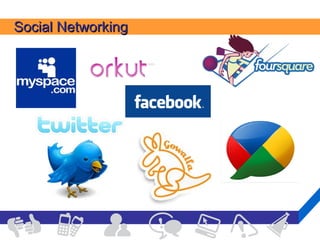
Social Networking
Communication
Video and Pictures
Computer AND Cell Phones AND iPods AND . . .
Online Risks Inappropriate  Conduct Inappropriate  Contact Inappropriate  Content
Talking with Kids Be a Parent You will not always be there so instill values Kids need to know that you understand so you are the one they come to when they have a problem.  Don’t be afraid of technology – your kids aren’t!
Where to Start Start early Create an honest, open environment Initiate conversations
What to Talk About Passwords – These are private and are only shared with a parent Information that should never be shared: Name Address Phone Age School A Picture
What to Talk About Think before you click Take 5 – waiting to respond is ok Don’t do anything online that you wouldn’t do in real life. Once its online you give up control Email etiquette Just because its on the internet doesn’t mean its true Not everyone is who they say they are
Cyberbullying Harassment that happens online Talk to your kids:  Encourage them to tell you if an online message or image makes them feel threatened or hurt Tell your kids they can’t hide behind what they post
Cyberbullying If your kid has a problem with a bully,  don’t react to the bully Encourage your kid to talk with you about what’s up Save the evidence Block the bully online Have any bogus profiles taken down  Encourage your kid to help stop cyberbullying – by not passing on other messages and telling the bully to stop.
Socializing Online Socializing is socializing – online or off Reminders: Online actions have real-world consequences Careful when posting – you can’t take it back Tell kids to trust their gut if they’re suspicious Help kids understand what info should stay private
Parental Controls Place the computer in plain view Built in to your O/S Purchased software Free options
Built in Parental Controls Windows XP and Older – NOTHING Windows Vista and 7 – Some controls built in Mac O/S – Some controls built in
Parental Controls in Windows http://www.microsoft.com/windows/windows-vista/features/parental-controls.aspx   http://www.microsoft.com/windows/windows-7/features/parental-controls.aspx   You can set times they can log in You can set games they can or can’t play You can set programs they are allowed to use
Parental Controls in Mac http:// www.apple.com/findouthow/mac/#parentalcontrols   You can limit the amount of time they spend on the computer You can limit the times You can “try” to limit inappropriate content or only allow certain sites You can see a log of all activity
Are Built In Controls Enough? No Private browsing functions – no trace of where you go on the internet Not consistent, not updated Great for time limits but not for filtering
The Next Level
What they do Can block categories of sites Can allow access to only sites you list Can me managed remotely Can send emails about events
What They Don’t Do Access to a website means the whole website Filters are text based – no text, no filter Even strict search on Google lets things through You can add keywords to filter
Mobile Phones More and more kids go online from their phones Develop cell phone rules:  when and where they can use their phones Set an example by what you do Use their manners on cell phones, too Treat people the way they’d like to be treated
Mobile Phones Think about privacy and safety Photo- and video-sharing on the go Filters on home computers don’t apply on phones Talk to kids about using good sense when social networking on their phone
Mobile Phones Choose the right options and features for your kid’s phone  Find out about social mapping Is your kid’s phone GPS-enabled? Talk to kids about using features only with friends they know and trust. Net Nanny makes filtering for phones.  iPhone also has parental controls
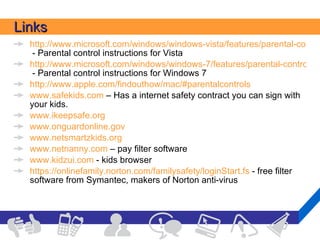
Links http://www.microsoft.com/windows/windows-vista/features/parental-controls.aspx  - Parental control instructions for Vista http://www.microsoft.com/windows/windows-7/features/parental-controls.aspx  - Parental control instructions for Windows 7 http:// www.apple.com/findouthow/mac/#parentalcontrols   www.safekids.com  – Has a internet safety contract you can sign with your kids. www.ikeepsafe.org   www.onguardonline.gov www.netsmartzkids.org   www.netnanny.com  – pay filter software www.kidzui.com  - kids browser https:// onlinefamily.norton.com/familysafety/loginStart.fs  - free filter software from Symantec, makers of Norton anti-virus
More links kids.yahoo.com – Lots of games, what seems like a very safe search – you could set up parental controls in Net Nanny or online.family to make this the only website your child is allowed to go to www.gogooligans.com  – search powered by Google but with extra controls built in

Online safety

  • 1.
    Protecting Our KidsOnline Common Sense Ideas Practical Solutions
  • 2.
    What We andOur Kids Do Online Do homework Explore Email Socialize Play Games Read Get the news Follow sports Consume popular culture
  • 3.
  • 4.
  • 5.
  • 6.
    Computer AND CellPhones AND iPods AND . . .
  • 7.
    Online Risks Inappropriate Conduct Inappropriate Contact Inappropriate Content
  • 8.
    Talking with KidsBe a Parent You will not always be there so instill values Kids need to know that you understand so you are the one they come to when they have a problem. Don’t be afraid of technology – your kids aren’t!
  • 9.
    Where to StartStart early Create an honest, open environment Initiate conversations
  • 10.
    What to TalkAbout Passwords – These are private and are only shared with a parent Information that should never be shared: Name Address Phone Age School A Picture
  • 11.
    What to TalkAbout Think before you click Take 5 – waiting to respond is ok Don’t do anything online that you wouldn’t do in real life. Once its online you give up control Email etiquette Just because its on the internet doesn’t mean its true Not everyone is who they say they are
  • 12.
    Cyberbullying Harassment thathappens online Talk to your kids: Encourage them to tell you if an online message or image makes them feel threatened or hurt Tell your kids they can’t hide behind what they post
  • 13.
    Cyberbullying If yourkid has a problem with a bully, don’t react to the bully Encourage your kid to talk with you about what’s up Save the evidence Block the bully online Have any bogus profiles taken down Encourage your kid to help stop cyberbullying – by not passing on other messages and telling the bully to stop.
  • 14.
    Socializing Online Socializingis socializing – online or off Reminders: Online actions have real-world consequences Careful when posting – you can’t take it back Tell kids to trust their gut if they’re suspicious Help kids understand what info should stay private
  • 15.
    Parental Controls Placethe computer in plain view Built in to your O/S Purchased software Free options
  • 16.
    Built in ParentalControls Windows XP and Older – NOTHING Windows Vista and 7 – Some controls built in Mac O/S – Some controls built in
  • 17.
    Parental Controls inWindows http://www.microsoft.com/windows/windows-vista/features/parental-controls.aspx http://www.microsoft.com/windows/windows-7/features/parental-controls.aspx You can set times they can log in You can set games they can or can’t play You can set programs they are allowed to use
  • 18.
    Parental Controls inMac http:// www.apple.com/findouthow/mac/#parentalcontrols You can limit the amount of time they spend on the computer You can limit the times You can “try” to limit inappropriate content or only allow certain sites You can see a log of all activity
  • 19.
    Are Built InControls Enough? No Private browsing functions – no trace of where you go on the internet Not consistent, not updated Great for time limits but not for filtering
  • 20.
  • 21.
    What they doCan block categories of sites Can allow access to only sites you list Can me managed remotely Can send emails about events
  • 22.
    What They Don’tDo Access to a website means the whole website Filters are text based – no text, no filter Even strict search on Google lets things through You can add keywords to filter
  • 23.
    Mobile Phones Moreand more kids go online from their phones Develop cell phone rules: when and where they can use their phones Set an example by what you do Use their manners on cell phones, too Treat people the way they’d like to be treated
  • 24.
    Mobile Phones Thinkabout privacy and safety Photo- and video-sharing on the go Filters on home computers don’t apply on phones Talk to kids about using good sense when social networking on their phone
  • 25.
    Mobile Phones Choosethe right options and features for your kid’s phone Find out about social mapping Is your kid’s phone GPS-enabled? Talk to kids about using features only with friends they know and trust. Net Nanny makes filtering for phones. iPhone also has parental controls
  • 26.
    Links http://www.microsoft.com/windows/windows-vista/features/parental-controls.aspx - Parental control instructions for Vista http://www.microsoft.com/windows/windows-7/features/parental-controls.aspx - Parental control instructions for Windows 7 http:// www.apple.com/findouthow/mac/#parentalcontrols www.safekids.com – Has a internet safety contract you can sign with your kids. www.ikeepsafe.org www.onguardonline.gov www.netsmartzkids.org www.netnanny.com – pay filter software www.kidzui.com - kids browser https:// onlinefamily.norton.com/familysafety/loginStart.fs - free filter software from Symantec, makers of Norton anti-virus
  • 27.
    More links kids.yahoo.com– Lots of games, what seems like a very safe search – you could set up parental controls in Net Nanny or online.family to make this the only website your child is allowed to go to www.gogooligans.com – search powered by Google but with extra controls built in

Editor's Notes

  • #3 Acknowledge that although some of you might not go online, your kids do or will. Most of us – and probably most kids – do all kinds of things online. We may socialize via email, IM, phone over web, or social networks Many of us post and share pictures and videos We may have profiles on social networks, sharing information with friends and Sometimes we create avatars to represent us in online spaces.
  • #4 Talk about Google Buzz, why I am here.
  • #6 All these sites are great But once you have access to the site, you have access to everything YouTube says you should not be on the site unless you are 13 or older YouTube now has a private listing Recent activities for uploading video to YouTube
  • #8 These activities come with some risks: And we will have a conversation about this specifically Inappropriate Conduct : it’s anonymous online, and people – especially kids – can forget that their online actions can have real-world consequences. Inappropriate Contact : there are people online who have bad intentions – including bullies, predators, hackers, and scammers. Inappropriate Content : you may worry about what younger kids may run across – or what older kids might seek out.
  • #9 This is like anything else in parenting. Its about honesty, treating others with respect, respecting yourself. It’s based on the idea that the first step to protecting kids online is more about talking than technology. When kids want important information, they turn to their parents. This guide can help parents talk with their kids about being safe online. The key to kids acting responsibly is talking to kids about what the right thing to do.
  • #10 We often heard from parents – especially those with tech-savvy kids – that they didn’t know where to start. So, for parents who wonder where to begin, here are some tips: Start early : Even toddlers see their parents using communications tools. What toddler doesn’t want to get little hands on a cell phone? As soon as these kids use a computer or phone themselves, it’s time to talk with them about safety. If your kids are already going online: Create an honest, open environment : Listen to what kids have to say, and be supportive. Initiate conversations : Don’t wait for kids to come to you. Use everyday chances to talk with kids: news stories about cyberbullying, a storyline on TV – both can be the start of a worthwhile conversation.
  • #11 You are teaching life skills Passwords are always private
  • #12 You don’t know if someone read your email or is there for your IM. Forwarding emails Teaching about chain mail Snoopes.com Kids need different levels of attention and guidance at different ages – and it’s really up to you to decide where your own kids fit. Starting with very young kids , it’s a good idea to supervise them while they’re online – maybe even choosing the sites they can visit. As they’re ready to explore a little more, consider limiting their exploration to sites you’ve already checked out and that you think are OK for their educational and entertainment value. Moving on to tweens , aged 8-12, who usually are ready to explore a bit more on their own – it’s still a good idea to be close by. Having the computer in a family area is a good idea. Parents also may want to talk about how much time their tween can spend online.
  • #13 Cyberbullying is harassment or bullying that happens online, and it can happen on social networking sites, in IMs, emails, text messages, and in games. Recent research shows that this is the online safety issue that kids are most worried about. Again, the advice is to talk to your kids. Ask them to tell you if an online message makes them feel threatened or hurt. The same goes for images. Keep an open channel of communication with your child and hopefully he or she will come to you. Tell your kids that they can’t hide behind the worlds they type or the images they post. None of us want to think that our kid might be bullying other kids. Still, remind your child that hurtful messages can make the sender look bad, and sometimes even bring punishment from the authorities.
  • #14 If your child has a problem with a bully, tell him or her not to react. Bullies are looking for a response, so don’t give them one. Encourage your kid to talk with you about what’s going on, and to help you save the evidence. If the bullying keeps up, share the record with the school or the police. If you ever fear for your child’s safety, immediately contact the police. Block the bully online: remove him or her from “friend” or “buddy” lists, and block the email address. If your child’s social networking profile has been changed or created without his permission, get in touch with the company that runs the site to have it taken down. Tell your kid that she can help stop cyberbullying by telling the bully to stop, and by not passing on mean messages.
  • #15 Adults often see socializing online and offline as separate activities, each with its own rules. Kids see it all as socializing, whether it’s online or off – and it’s good to talk with them about how they act online. Even the most tech-savvy kids can use some reminders about their online behavior: What they do online can have real-world consequences – the words they use and what they post can have a big impact on others, and on themselves. Remind kids that, once they post something, they can’t take it back. It’s a message that’s worth repeating, especially since the colleges and jobs kids may eventually want to get into will be checking their social networking profiles. While most kids are good at just deleting things they think are annoying or creepy, tell kids to trust their gut if they’re suspicious about anything – and to tell you about it. You can help them report it to the police and the social networking site. It’s a good idea to remind kids to keep personal information private. Kids should avoid posting things like where they go to school, their address or phone number.
  • #16 No laptops or computers in the room.
  • #17 By the time kids are teenagers, many are ready for more independence from their parents. They’re starting to form their own values and reflecting those of their friends. But that doesn’t mean there’s no point in talking with them. Teens have access to the internet through their mobile devices, phones, their computers and their friends computers, so it’s really hard to watch what they do. It doesn’t hurt to reinforce ‘good citizenship’ messages with teens, along with three important messages that many need to hear: Not all information is credible: just because it’s posted, doesn’t mean it’s so. Once they post something, there’s no taking it back. It’s out there in the world. No matter how impersonal it seems, screen names, profiles and avatars belong to people with real feelings. Treat them the way you’d like to be treated.
  • #21 Do presentation of Norton on My computer Use logmein to do Net Nanny on the kids computer Demo KidZui on my computer
  • #22 Talk about YouTube – once you are in the site, you can access anything on the site. Filters are text based, so if there is not enough text to pick up on then they can’t filter Google strict search does not filter everything.
  • #24 As communications have gone mobile, so has kids’ ability to constantly stay in touch. The fundamentals of common sense and common courtesy apply, regardless of where communications take place. Establish rules about when and where it’s appropriate to use their cell phones. Can they text at the dinner table? Do they have to give you their phone when they’re supposed to be doing homework or sleeping? Consider the example you’re setting: do you do the things you forbid your kids to do? Remember that it’s illegal to text, surf, or talk on the phone while driving in many states – and it’s dangerous in all of them. And your kids are watching. Talk to your kids about using their manners on cell phones and online (since many of them get online through their phones). Remind them to treat people the way they’d like to be treated.
  • #25 Talk with your kids about privacy and safety. Most mobile phones allow photo- and video-sharing, which can be fun and creative – but can also cause issues about personal privacy and reputation. Encourage kids to think about their privacy – and that of others – before posting a picture or video. With mobile phones, it’s easy to post a picture without the OK of the person in the picture, but that can be embarrassing and even unsafe. Better to think first than do damage control later. Smart phones let kids check and update their social networking pages on the go. Remember that any filters you’ve set up on the home computer don’t apply on the phone. Encourage your child to use good sense when social networking from their phone.
  • #26 The phone itself, as well as the mobile carrier, should give you some options about privacy settings and child safety controls. You often can turn off things like web access, downloading, or texting. Other phones let you set the number of minutes used, limit internet access, and provide number privacy. Ask your carrier what tools are available on your plan and your phone, and find out what they cost. (There may be extra charges for these features.) Do you know about social mapping? It’s GPS technology that’s in many cell phones now, and kids can use it to pinpoint where their friends are – or be pinpointed by their friends. Tell your kids to use this feature only with friends they know in person and trust – and not to broadcast their location to the world. You might want to check: some carriers have GPS services that let parents map their kid’s location.