

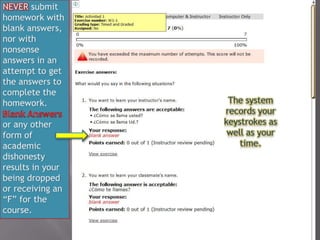
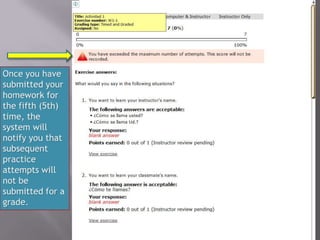
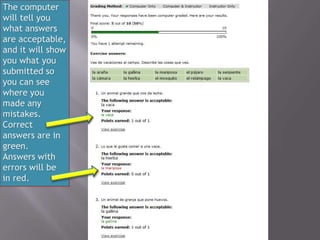
Screen Captures
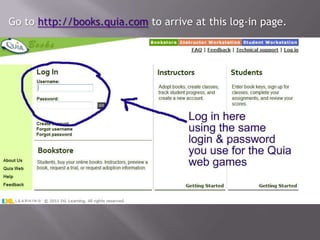
Go to http://books.quia.com to arrive at this log-in page.
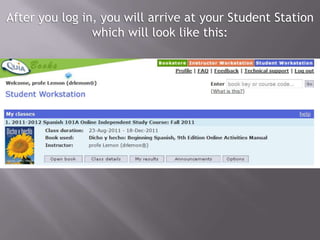
After you log in, you will arrive at your Student Station
                which will look like this:
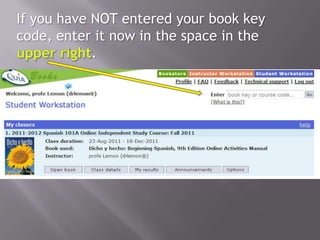
If you have NOT entered your book key
code, enter it now in the space in the
            .
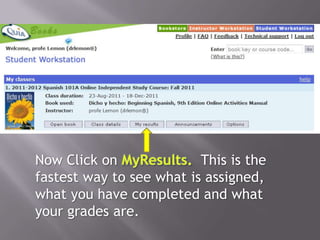
Now Click on              This is the
fastest way to see what is assigned,
what you have completed and what
your grades are.
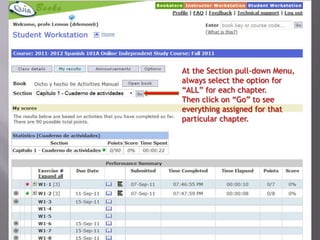
At the Section pull-down Menu,
always select the option for
“ALL” for each chapter.
Then click on “Go” to see
everything assigned for that
particular chapter.
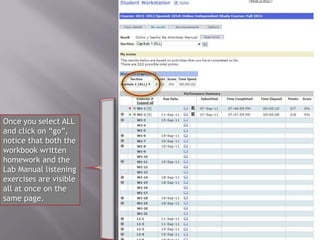
Once you select ALL
and click on “go”,
notice that both the
workbook written
homework and the
Lab Manual listening
exercises are visible
all at once on the
same page.
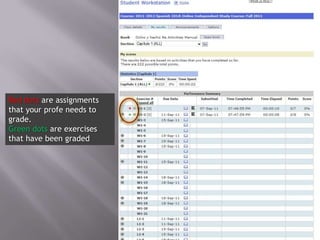
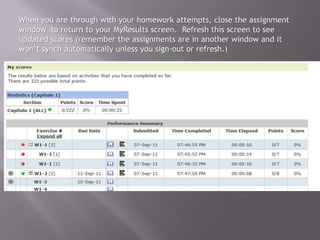
Red dots are assignments
that your profe needs to
grade.
Green dots are exercises
that have been graded
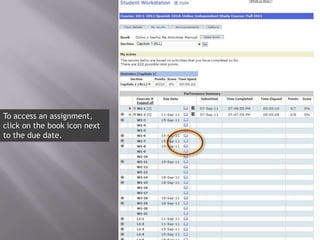
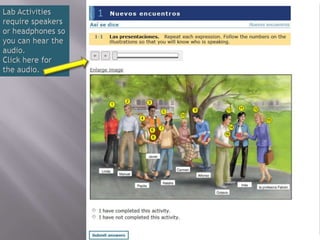
To access an assignment,
click on the book icon next
to the due date.
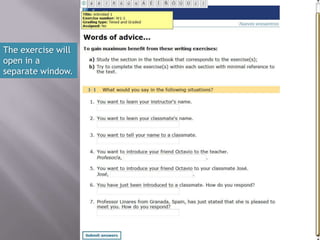
The exercise will
open in a
separate window.
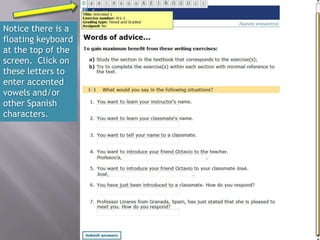
Notice there is a
floating keyboard
at the top of the
screen. Click on
these letters to
enter accented
vowels and/or
other Spanish
characters.
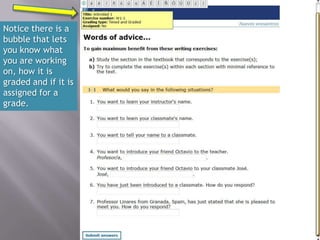
Notice there is a
bubble that lets
you know what
you are working
on, how it is
graded and if it is
assigned for a
grade.
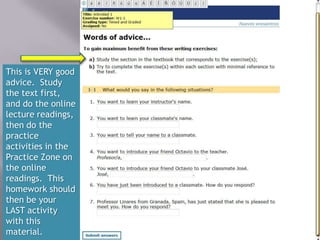
This is VERY good
advice. Study
the text first,
and do the online
lecture readings,
then do the
practice
activities in the
Practice Zone on
the online
readings. This
homework should
then be your
LAST activity
with this
material.
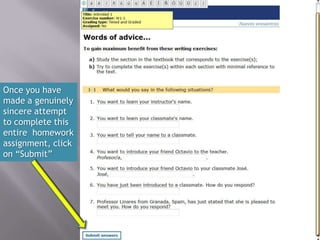
Once you have
made a genuinely
sincere attempt
to complete this
entire homework
assignment, click
on “Submit”
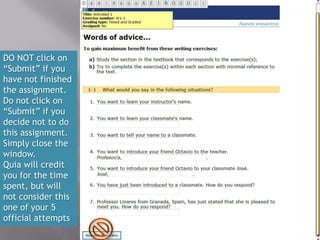
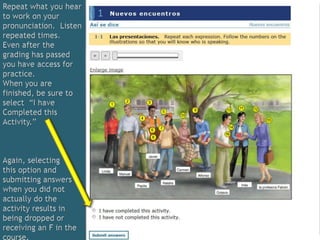
DO NOT click on
“Submit” if you
have not finished
the assignment.
Do not click on
“Submit” if you
decide not to do
this assignment.
Simply close the
window.
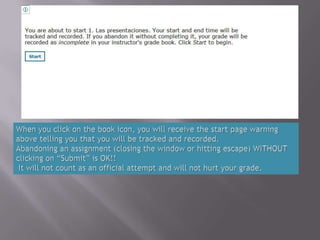
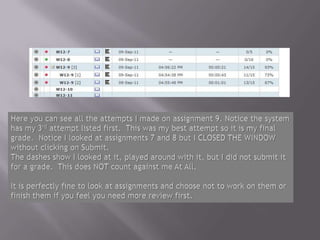
Quia will credit
you for the time
spent, but will
not consider this
one of your 5
official attempts
Understanding the Books.Quia Homework 2012

Understanding the Books.Quia Homework 2012

  • 1.
  • 2.
    Go to http://books.quia.comto arrive at this log-in page.
  • 3.
    After you login, you will arrive at your Student Station which will look like this:
  • 4.
    If you haveNOT entered your book key code, enter it now in the space in the .
  • 5.
    Now Click on This is the fastest way to see what is assigned, what you have completed and what your grades are.
  • 6.
    At the Sectionpull-down Menu, always select the option for “ALL” for each chapter. Then click on “Go” to see everything assigned for that particular chapter.
  • 7.
    Once you selectALL and click on “go”, notice that both the workbook written homework and the Lab Manual listening exercises are visible all at once on the same page.
  • 8.
    Red dots areassignments that your profe needs to grade. Green dots are exercises that have been graded
  • 10.
    To access anassignment, click on the book icon next to the due date.
  • 13.
    The exercise will openin a separate window.
  • 14.
    Notice there isa floating keyboard at the top of the screen. Click on these letters to enter accented vowels and/or other Spanish characters.
  • 15.
    Notice there isa bubble that lets you know what you are working on, how it is graded and if it is assigned for a grade.
  • 16.
    This is VERYgood advice. Study the text first, and do the online lecture readings, then do the practice activities in the Practice Zone on the online readings. This homework should then be your LAST activity with this material.
  • 17.
    Once you have madea genuinely sincere attempt to complete this entire homework assignment, click on “Submit”
  • 19.
    DO NOT clickon “Submit” if you have not finished the assignment. Do not click on “Submit” if you decide not to do this assignment. Simply close the window. Quia will credit you for the time spent, but will not consider this one of your 5 official attempts