Office 365 MIDSIZE
BUSINESS QUICK
DEPLOYMENT GUIDE
A NON-MIGRATION DEPLOYMENT SCENARIO
Mitch Duncan
Microsoft Corporation
October 2013
Applies to: Office 365
Summary: Describes how to quickly deploy Office 365 Midsize Business and demonstrates features of Office 365. This
article does not cover migration of data from other programs or services to Office 365.
Office 365 MIDSIZE BUSINESS QUICK DEPLOYMENT GUIDE October 2013
Copyright ©2014 Microsoft Corporation. All rights reserved.
This document is provided "as-is." Information and views expressed in this document, including URL and other Internet Web site references, may change
without notice. You bear the risk of using it.
Some examples are for illustration only and are fictitious. No real association is intended or inferred.
This document does not provide you with any legal rights to any intellectual property in any Microsoft product. You may copy and use this document for
your internal, reference purposes.
Contents
What information do you need to complete this guide? ........................................3
Step 1: Explore the Office 365 Administration Center Dashboard....................3
Step 2: Add a company domain to Office 365 .............................................................4
Step 3: Create user accounts and assign licenses......................................................4
Step 4: Share and explore Office 365 ..............................................................................5
Step 5: Install Office 365 ProPlus......................................................................................6
Next steps after deploying Office 365.............................................................................6
Converting from a trial subscription to a paid subscription................................7
Office 365 MIDSIZE BUSINESS QUICK DEPLOYMENT GUIDE October 2013
© 2013 Microsoft Corporation. All rights reserved. Page 3 of 7
Office 365 Midsize Business
Quick Deployment Guide
What information do you need to complete this guide?
Make sure you have the following in place before you follow the steps in this guide.
1. You know the Office 365 Office 365 administrator account and password.
2. You know the account information to the DNS hosting provider.
3. You know the exact name of the company domain to add.
4. You have a list of names to create user accounts.
5. Users have local administrative rights on their computers.
If you have all of this information, we are ready to begin. Let’s get started with step 1, exploring the admin center.
Note:
If you’re using Office 365 Midsize Business with the Microsoft Open License or the Open Value program, go to the get
started with office 365 page and create an Office 365 account first. Once you’ve created the account, return to this page
and begin step 1.
Step 1: Explore the Office 365 Administration Center
Dashboard
After you subscribe to Office 365 Midsize Business, you can sign in to the Office 365 admin center, which you will use to
manage Office 365 as the administrator. Go to the Office 365 sign in page at https://portal.microsoftonline.com. It’s a
good idea to bookmark this page. You will refer to it often.
Office 365 MIDSIZE BUSINESS QUICK DEPLOYMENT GUIDE October 2013
© 2013 Microsoft Corporation. All rights reserved. Page 4 of 7
Step 2: Add a company domain to Office 365
When you add a company domain to Office 365, email addresses can be created as @company-domain.com rather than
onmicrosoft.com. You should add your company domain before you create any user accounts.
To add a company domain to Office 365
1. Sign in to the Office 365 admin center with your administrator user name and password.
2. Click domains > Add a domain > Specify a domain name and confirm ownership.
3. In the text field, type the company domain name.
4. Click Confirm ownership.
Note: If you’re having trouble getting past the domain ownership step, read Troubleshoot
issues with verifying your custom domain in Office 365.
5. Next, log in to your DNS hosting provider account and accept the changes to your domain.
Congratulations! Your company domain name has been added to Office 365. Now, it’s time to create user accounts. Let’s
move on to step 3.
Step 3: Create user accounts and assign licenses
Creating user accounts is easy. All you do is assign a license to the user and then set the user’s permissions. As an
administrator, you’ll be creating a user account for everyone in your organization that will be using Office 365, including
additional administrators.
To create a user account and assign them Office 365 licenses
1. From the Office 365 admin center click users and groups > active users.
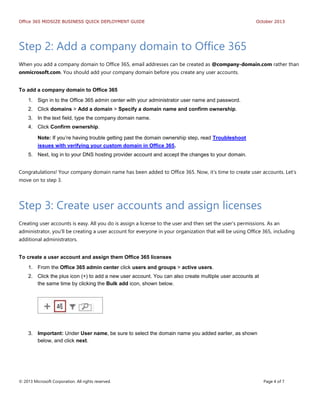
2. Click the plus icon (+) to add a new user account. You can also create multiple user accounts at
the same time by clicking the Bulk add icon, shown below.
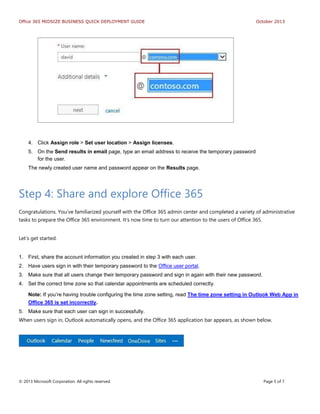
3. Important: Under User name, be sure to select the domain name you added earlier, as shown
below, and click next.
Office 365 MIDSIZE BUSINESS QUICK DEPLOYMENT GUIDE October 2013
© 2013 Microsoft Corporation. All rights reserved. Page 5 of 7
4. Click Assign role > Set user location > Assign licenses.
5. On the Send results in email page, type an email address to receive the temporary password
for the user.
The newly created user name and password appear on the Results page.
Step 4: Share and explore Office 365
Congratulations. You’ve familiarized yourself with the Office 365 admin center and completed a variety of administrative
tasks to prepare the Office 365 environment. It’s now time to turn our attention to the users of Office 365.
Let’s get started.
1. First, share the account information you created in step 3 with each user.
2. Have users sign in with their temporary password to the Office user portal.
3. Make sure that all users change their temporary password and sign in again with their new password.
4. Set the correct time zone so that calendar appointments are scheduled correctly.
Note: If you’re having trouble configuring the time zone setting, read The time zone setting in Outlook Web App in
Office 365 is set incorrectly.
5. Make sure that each user can sign in successfully.
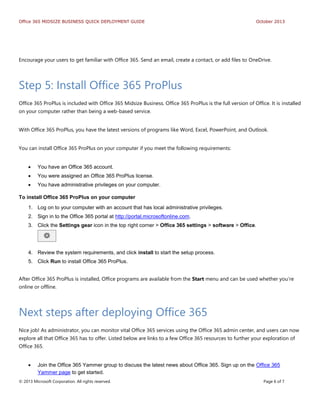
When users sign in, Outlook automatically opens, and the Office 365 application bar appears, as shown below.
Office 365 MIDSIZE BUSINESS QUICK DEPLOYMENT GUIDE October 2013
© 2013 Microsoft Corporation. All rights reserved. Page 6 of 7
Encourage your users to get familiar with Office 365. Send an email, create a contact, or add files to OneDrive.
Step 5: Install Office 365 ProPlus
Office 365 ProPlus is included with Office 365 Midsize Business. Office 365 ProPlus is the full version of Office. It is installed
on your computer rather than being a web-based service.
With Office 365 ProPlus, you have the latest versions of programs like Word, Excel, PowerPoint, and Outlook.
You can install Office 365 ProPlus on your computer if you meet the following requirements:
 You have an Office 365 account.
 You were assigned an Office 365 ProPlus license.
 You have administrative privileges on your computer.
To install Office 365 ProPlus on your computer
1. Log on to your computer with an account that has local administrative privileges.
2. Sign in to the Office 365 portal at http://portal.microsoftonline.com.
3. Click the Settings gear icon in the top right corner > Office 365 settings > software > Office.
4. Review the system requirements, and click install to start the setup process.
5. Click Run to install Office 365 ProPlus.
After Office 365 ProPlus is installed, Office programs are available from the Start menu and can be used whether you’re
online or offline.
Next steps after deploying Office 365
Nice job! As administrator, you can monitor vital Office 365 services using the Office 365 admin center, and users can now
explore all that Office 365 has to offer. Listed below are links to a few Office 365 resources to further your exploration of
Office 365.
 Join the Office 365 Yammer group to discuss the latest news about Office 365. Sign up on the Office 365
Yammer page to get started.
Office 365 MIDSIZE BUSINESS QUICK DEPLOYMENT GUIDE October 2013
© 2013 Microsoft Corporation. All rights reserved. Page 7 of 7
 Deployment Resources for Office 365 includes great ideas and tips for using Office 365.
 The Office 365 Community site posts the latest developments and information related to Office 365. It includes a
discussion area where site members can post questions and answers.
Converting from a trial subscription to a paid
subscription
To convert a trial subscription to a paid subscription
1. Sign in to the Office 365 admin center with your administrator account.
2. Click licensing > subscriptions.
3. Choose the Office 365 Midsize Business trial that you want to convert to a paid subscription.
4. Follow the instructions to complete the purchase.

Office365 midsizebusinessquickdeploymentguide

  • 1.
    Office 365 MIDSIZE BUSINESSQUICK DEPLOYMENT GUIDE A NON-MIGRATION DEPLOYMENT SCENARIO Mitch Duncan Microsoft Corporation October 2013 Applies to: Office 365 Summary: Describes how to quickly deploy Office 365 Midsize Business and demonstrates features of Office 365. This article does not cover migration of data from other programs or services to Office 365.
  • 2.
    Office 365 MIDSIZEBUSINESS QUICK DEPLOYMENT GUIDE October 2013 Copyright ©2014 Microsoft Corporation. All rights reserved. This document is provided "as-is." Information and views expressed in this document, including URL and other Internet Web site references, may change without notice. You bear the risk of using it. Some examples are for illustration only and are fictitious. No real association is intended or inferred. This document does not provide you with any legal rights to any intellectual property in any Microsoft product. You may copy and use this document for your internal, reference purposes. Contents What information do you need to complete this guide? ........................................3 Step 1: Explore the Office 365 Administration Center Dashboard....................3 Step 2: Add a company domain to Office 365 .............................................................4 Step 3: Create user accounts and assign licenses......................................................4 Step 4: Share and explore Office 365 ..............................................................................5 Step 5: Install Office 365 ProPlus......................................................................................6 Next steps after deploying Office 365.............................................................................6 Converting from a trial subscription to a paid subscription................................7
  • 3.
    Office 365 MIDSIZEBUSINESS QUICK DEPLOYMENT GUIDE October 2013 © 2013 Microsoft Corporation. All rights reserved. Page 3 of 7 Office 365 Midsize Business Quick Deployment Guide What information do you need to complete this guide? Make sure you have the following in place before you follow the steps in this guide. 1. You know the Office 365 Office 365 administrator account and password. 2. You know the account information to the DNS hosting provider. 3. You know the exact name of the company domain to add. 4. You have a list of names to create user accounts. 5. Users have local administrative rights on their computers. If you have all of this information, we are ready to begin. Let’s get started with step 1, exploring the admin center. Note: If you’re using Office 365 Midsize Business with the Microsoft Open License or the Open Value program, go to the get started with office 365 page and create an Office 365 account first. Once you’ve created the account, return to this page and begin step 1. Step 1: Explore the Office 365 Administration Center Dashboard After you subscribe to Office 365 Midsize Business, you can sign in to the Office 365 admin center, which you will use to manage Office 365 as the administrator. Go to the Office 365 sign in page at https://portal.microsoftonline.com. It’s a good idea to bookmark this page. You will refer to it often.
  • 4.
    Office 365 MIDSIZEBUSINESS QUICK DEPLOYMENT GUIDE October 2013 © 2013 Microsoft Corporation. All rights reserved. Page 4 of 7 Step 2: Add a company domain to Office 365 When you add a company domain to Office 365, email addresses can be created as @company-domain.com rather than onmicrosoft.com. You should add your company domain before you create any user accounts. To add a company domain to Office 365 1. Sign in to the Office 365 admin center with your administrator user name and password. 2. Click domains > Add a domain > Specify a domain name and confirm ownership. 3. In the text field, type the company domain name. 4. Click Confirm ownership. Note: If you’re having trouble getting past the domain ownership step, read Troubleshoot issues with verifying your custom domain in Office 365. 5. Next, log in to your DNS hosting provider account and accept the changes to your domain. Congratulations! Your company domain name has been added to Office 365. Now, it’s time to create user accounts. Let’s move on to step 3. Step 3: Create user accounts and assign licenses Creating user accounts is easy. All you do is assign a license to the user and then set the user’s permissions. As an administrator, you’ll be creating a user account for everyone in your organization that will be using Office 365, including additional administrators. To create a user account and assign them Office 365 licenses 1. From the Office 365 admin center click users and groups > active users. 2. Click the plus icon (+) to add a new user account. You can also create multiple user accounts at the same time by clicking the Bulk add icon, shown below. 3. Important: Under User name, be sure to select the domain name you added earlier, as shown below, and click next.
  • 5.
    Office 365 MIDSIZEBUSINESS QUICK DEPLOYMENT GUIDE October 2013 © 2013 Microsoft Corporation. All rights reserved. Page 5 of 7 4. Click Assign role > Set user location > Assign licenses. 5. On the Send results in email page, type an email address to receive the temporary password for the user. The newly created user name and password appear on the Results page. Step 4: Share and explore Office 365 Congratulations. You’ve familiarized yourself with the Office 365 admin center and completed a variety of administrative tasks to prepare the Office 365 environment. It’s now time to turn our attention to the users of Office 365. Let’s get started. 1. First, share the account information you created in step 3 with each user. 2. Have users sign in with their temporary password to the Office user portal. 3. Make sure that all users change their temporary password and sign in again with their new password. 4. Set the correct time zone so that calendar appointments are scheduled correctly. Note: If you’re having trouble configuring the time zone setting, read The time zone setting in Outlook Web App in Office 365 is set incorrectly. 5. Make sure that each user can sign in successfully. When users sign in, Outlook automatically opens, and the Office 365 application bar appears, as shown below.
  • 6.
    Office 365 MIDSIZEBUSINESS QUICK DEPLOYMENT GUIDE October 2013 © 2013 Microsoft Corporation. All rights reserved. Page 6 of 7 Encourage your users to get familiar with Office 365. Send an email, create a contact, or add files to OneDrive. Step 5: Install Office 365 ProPlus Office 365 ProPlus is included with Office 365 Midsize Business. Office 365 ProPlus is the full version of Office. It is installed on your computer rather than being a web-based service. With Office 365 ProPlus, you have the latest versions of programs like Word, Excel, PowerPoint, and Outlook. You can install Office 365 ProPlus on your computer if you meet the following requirements:  You have an Office 365 account.  You were assigned an Office 365 ProPlus license.  You have administrative privileges on your computer. To install Office 365 ProPlus on your computer 1. Log on to your computer with an account that has local administrative privileges. 2. Sign in to the Office 365 portal at http://portal.microsoftonline.com. 3. Click the Settings gear icon in the top right corner > Office 365 settings > software > Office. 4. Review the system requirements, and click install to start the setup process. 5. Click Run to install Office 365 ProPlus. After Office 365 ProPlus is installed, Office programs are available from the Start menu and can be used whether you’re online or offline. Next steps after deploying Office 365 Nice job! As administrator, you can monitor vital Office 365 services using the Office 365 admin center, and users can now explore all that Office 365 has to offer. Listed below are links to a few Office 365 resources to further your exploration of Office 365.  Join the Office 365 Yammer group to discuss the latest news about Office 365. Sign up on the Office 365 Yammer page to get started.
  • 7.
    Office 365 MIDSIZEBUSINESS QUICK DEPLOYMENT GUIDE October 2013 © 2013 Microsoft Corporation. All rights reserved. Page 7 of 7  Deployment Resources for Office 365 includes great ideas and tips for using Office 365.  The Office 365 Community site posts the latest developments and information related to Office 365. It includes a discussion area where site members can post questions and answers. Converting from a trial subscription to a paid subscription To convert a trial subscription to a paid subscription 1. Sign in to the Office 365 admin center with your administrator account. 2. Click licensing > subscriptions. 3. Choose the Office 365 Midsize Business trial that you want to convert to a paid subscription. 4. Follow the instructions to complete the purchase.