Inventory Management In Odoo
Odoo Inventory Management
 It is a very simplified open ERP software which can easily
be used. It is used for:
 Set up warehouse.
 Import vendors.
 Import products.
 Set up the initial inventory.
 Configure sales and purchase flows.
 Set up replenishment mechanisms.
 Configure advanced features like package, traceability,
routes and inventory valuation.
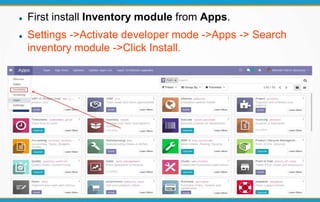
 First install Inventory module from Apps.
 Settings ->Activate developer mode ->Apps -> Search
inventory module ->Click Install.
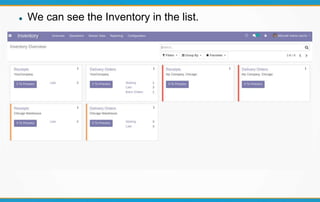
 We can see the Inventory in the list.
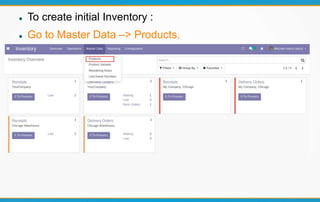
 To create initial Inventory :
 Go to Master Data –> Products.
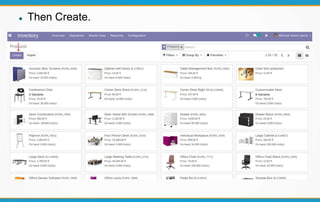
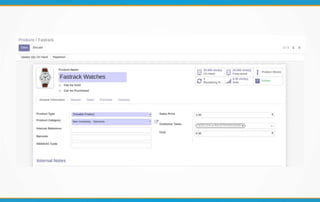
 Then Create.
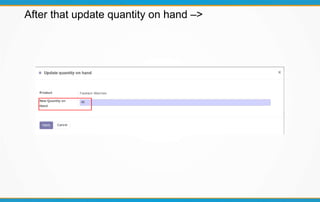
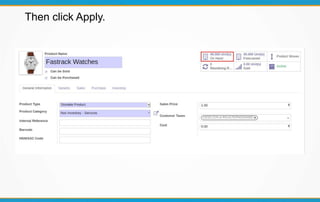
After that update quantity on hand –>
Then click Apply.
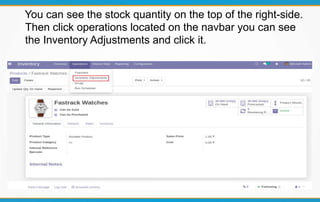
You can see the stock quantity on the top of the right-side.
Then click operations located on the navbar you can see
the Inventory Adjustments and click it.
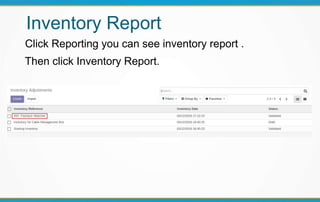
Inventory Report
Click Reporting you can see inventory report .
Then click Inventory Report.
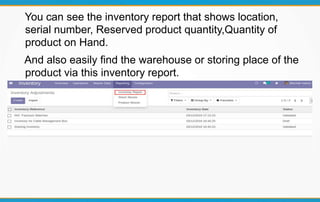
You can see the inventory report that shows location,
serial number, Reserved product quantity,Quantity of
product on Hand.
And also easily find the warehouse or storing place of the
product via this inventory report.
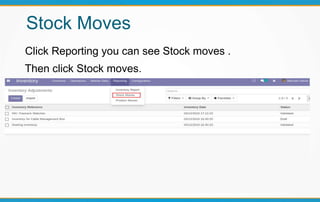
Stock Moves
Click Reporting you can see Stock moves .
Then click Stock moves.
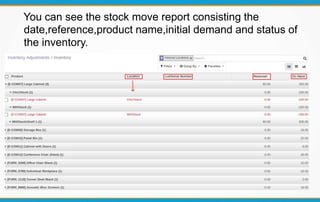
You can see the stock move report consisting the
date,reference,product name,initial demand and status of
the inventory.
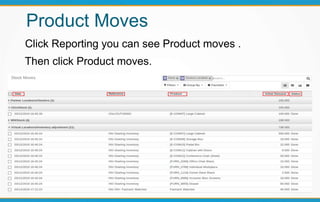
Product Moves
Click Reporting you can see Product moves .
Then click Product moves.
THANKYOU
Email: info@technaureus.com | Skype: technaureus | Tel: +917902290343 |www.technaureus.com

Odoo Inventory Management

  • 1.
  • 2.
    Odoo Inventory Management It is a very simplified open ERP software which can easily be used. It is used for:  Set up warehouse.  Import vendors.  Import products.  Set up the initial inventory.  Configure sales and purchase flows.  Set up replenishment mechanisms.  Configure advanced features like package, traceability, routes and inventory valuation.
  • 3.
     First installInventory module from Apps.  Settings ->Activate developer mode ->Apps -> Search inventory module ->Click Install.
  • 4.
     We cansee the Inventory in the list.
  • 5.
     To createinitial Inventory :  Go to Master Data –> Products.
  • 6.
  • 8.
    After that updatequantity on hand –>
  • 9.
  • 10.
    You can seethe stock quantity on the top of the right-side. Then click operations located on the navbar you can see the Inventory Adjustments and click it.
  • 11.
    Inventory Report Click Reportingyou can see inventory report . Then click Inventory Report.
  • 12.
    You can seethe inventory report that shows location, serial number, Reserved product quantity,Quantity of product on Hand. And also easily find the warehouse or storing place of the product via this inventory report.
  • 13.
    Stock Moves Click Reportingyou can see Stock moves . Then click Stock moves.
  • 14.
    You can seethe stock move report consisting the date,reference,product name,initial demand and status of the inventory.
  • 15.
    Product Moves Click Reportingyou can see Product moves . Then click Product moves.
  • 16.
    THANKYOU Email: info@technaureus.com |Skype: technaureus | Tel: +917902290343 |www.technaureus.com