History and Evolutionof Operating System
An operating system is a type of software that acts as an interface between the user and the
hardware. It is responsible for handling various critical functions of the computer and utilizing
resources very efficiently so the operating system is also known as a resource manager. The
operating system also acts like a government because just as the government has authority over
everything, similarly the operating system has authority over all resources. Various tasks that
are handled by OS are file management, task management, garbage management, memory
management, process management, disk management, I/O management, peripherals
management, etc.
3.
Types of OperatingSystem
Operating Systems have evolved in past years. It went through several changes before getting
its original form. These changes in the operating system are known as the evolution of
operating systems. OS improve itself with the invention of new technology. Basically , OS
added the feature of new technology and making itself more powerful. Let us see the evolution
of operating system year-wise in detail:
1. No OS – (0s to 1940s)
2. Batch Processing Systems -(1940s to 1950s)
3. Multiprogramming Systems -(1950s to 1960s)
4. Time-Sharing Systems -(1960s to 1970s)
5. Introduction of GUI -(1970s to 1980s)
6. Networked Systems – (1980s to 1990s)
7. Mobile Operating Systems – (Late 1990s to Early 2000s)
8. AI Integration – (2010s to ongoing)
1. No OS – (0s to 1940s)
As we know that before 1940s, there was no use of OS . Earlier, people are lacking OS in their
computer system so they had to manually type instructions for each tasks in machine language(0-1
based language) . And at that time , it was very hard for users to implement even a simple task. And
it was very time consuming and also not user-friendly . Because not everyone had that much level
of understanding to understand the machine language and it required a deep understanding.
4.
2. Batch ProcessingSystems -(1940s to 1950s)
With the growth of time, batch processing system came into the market .Now Users had facility to
write their programs on punch cards and load it to the computer operator. And then operator make
different batches of similar types of jobs and then serve the different batch(group of jobs) one by
one to the CPU .CPU first executes jobs of one batch and them jump to the jobs of other batch in a
sequence manner.
3. Multiprogramming Systems -(1950s to 1960s)
Multiprogramming was the first operating system where actual revolution began. It provide user
facility to load the multiple program into the memory and provide a specific portion of memory to
each program. When one program is waiting for any I/O operations (which take much time) at that
time the OS give permission to CPU to switch from previous program to other program(which is
first in ready queue) for continuous execution of program with interrupt.
4. Time-Sharing Systems -(1960s to 1970s)
Time-sharing systems is extended version of multiprogramming system. Here one extra feature was
added to avoid the use of CPU for long time by any single program and give access of CPU to every
program after a certain interval of time. Basically OS switches from one program to another
program after a certain interval of time so that every program can get access of CPU and complete
their work.
5. Introduction of GUI -(1970s to 1980s)
With the growth of time, Graphical User Interfaces (GUIs) came. First time OS became more user-
friendly and changed the way of people to interact with computer. GUI provides computer system
5.
visual elements whichmade user’s interaction with computer more comfortable and user-friendly.
User can just click on visual elements rather than typing commands. Here are some feature of GUI
in Microsoft’s windows icons, menus and windows.
6. Networked Systems – (1980s to 1990s)
At 1980s,the craze of computer networks at it’s peak .A special type of Operating Systems needed
to manage the network communication . The OS like Novell NetWare and Windows NT were
developed to manage network communication which provide users facility to work in collaborative
environment and made file sharing and remote access very easy.
7. Mobile Operating Systems – (Late 1990s to Early 2000s)
Invention of smartphones create a big revolution in software industry, To handle the operation of
smartphones , a special type of operating systems were developed. Some of them are : iOS and
Android etc. These operating systems were optimized with the time and became more powerful.
8. AI Integration – (2010s to ongoing)
With the growth of time, Artificial intelligence came into picture. Operating system integrates
features of AI technology like Siri, Google Assistant, and Alexa and became more powerful and
efficient in many way. These AI features with operating system create a entire new feature like
voice commands, predictive text, and personalized recommendations.
Note: The above mentioned OS basically tells how the OS evolved with the time by adding new
features but it doesn’t mean that only new generation OS are in use and previously OS system are
not in use, according to the need, all these OS are still used in software industry.
6.
Generation of OperatingSystem
Below are four generations of operating systems.
1. The First Generation
2. The Second Generation
3. The Third Generation
4. The Fourth Generation
1. The First Generation (1940 to early 1950s)
In 1940, an operating system was not included in the creation of the first electrical computer.
Early computer users had complete control over the device and wrote programs in pure machine
language for every task. During the computer generation, a programmer can merely execute and
solve basic mathematical calculations. an operating system is not needed for these computations.
2. The Second Generation (1955 – 1965)
GMOSIS, the first operating system (OS) was developed in the early 1950s. For the IBM
Computer, General Motors has created the operating system. Because it gathers all related jobs
into groups or batches and then submits them to the operating system using a punch card to
finish all of them, the second-generation operating system was built on a single-stream batch
processing system.
7.
3. The ThirdGeneration (1965 – 1980)
Because it gathers all similar jobs into groups or batches and then submits them to the second
generation operating system using a punch card to finish all jobs in a machine, the second-
generation operating system was based on a single stream batch processing system. Control is
transferred to the operating system upon each job’s completion, whether it be routinely or
unexpectedly. The operating system cleans up after each work is finished before reading and
starting the subsequent job on a punch card. Large, professionally operated machines known as
mainframes were introduced after that. Operating system designers were able to create a new
operating system in the late 1960s that was capable of multiprogramming—the simultaneous
execution of several tasks in a single computer program.
In order to create operating systems that enable a CPU to be active at all times by carrying out
multiple jobs on a computer at once, multiprogramming has to be introduced. With the release
of the DEC PDP-1 in 1961, the third generation of minicomputers saw a new phase of growth
and development.
4. The Fourth Generation (1980 – Present Day)
The fourth generation of personal computers is the result of these PDPs. The Generation IV
(1980–Present)The evolution of the personal computer is linked to the fourth generation of
operating systems. Nonetheless, the third-generation minicomputers and the personal computer
have many similarities. At that time, minicomputers were only slightly more expensive than
personal computers, which were highly expensive.
The development of Microsoft and the Windows operating system was a significant influence in
the creation of personal computers. In 1975, Microsoft developed the first Windows operating
8.
system. Bill Gatesand Paul Allen had the idea to advance personal computers after releasing
the Microsoft Windows OS. As a result, the MS-DOS was released in 1981, but users found it
extremely challenging to decipher its complex commands. Windows is now the most widely
used and well-liked operating system available. Following then, Windows released a number of
operating systems, including Windows 95, Windows 98, Windows XP, and Windows 7, the
most recent operating system. The majority of Windows users are currently running Windows
10. Apple is another well-known operating system in addition to Windows.
Advantages of Operating System
• Operating System manages external and internal devices for example, printers, scanners, and
other.
• Operating System provides interfaces and drivers for proper communication between system
and hardware devices.
• Allows multiple applications to run simultaneously.
• Manages the execution of processes, ensuring that the system remains responsive.
• Organizes and manages files on storage devices.
• Operating system allocates resources to various applications and ensures their efficient
utilization.
Disadvantages of Operating System
• If an error occurred in your system, then there may be a chance that your data can be deleted
therefore always have a backup of your data.
• Threats and viruses can attack our operating system at any time, making it challenging for
the OS to keep the system protected from these dangers.
9.
• For learningabout new operating system can be a time-consuming and challenging,
Specially for those who using particular Operating system for example switching from
Windows OS to Linux is difficult.
• Keeping an operating system up-to-date requires regular maintenance, which can be time-
consuming.
• Operating systems consume system resources, including CPU, memory, and storage, which
can affect the performance of other applications.
System structure:
1. Simple/ Monolithic structure:
There are several commercial system that don’t have a well- defined
structure such operating systems begins as small, simple & limited systems and then grow
beyond their original scope. MS-DOS is an example of such system. It was not divided into
modules carefully. Another example of limited structuring is the UNIX operating system.
(MS DOS Structure)
10.
Advantages of Simple/MonolithicStructure
It delivers better application performance because of the few interfaces between the
application program and the hardware.
It is easy for kernel developers to develop such an operating system.
Disadvantages of Simple/Monolithic Structure
The structure is very complicated, as no clear boundaries exist between modules.
It does not enforce data hiding in the operating system.
2. Layered approach:
In the layered approach, the OS is broken into a number of layers
(levels) each built on top of lower layers. The bottom layer (layer o ) is the hardware & top
most layer (layer N) is the user interface.
The main advantage of the layered approach
is modularity.
• The layers are selected such that each users
functions (or operations) & services of only
lower layer.
11.
• This approachsimplifies debugging & system verification, i.e. the first layer can be debugged
without concerning the rest of the system. Once the first layer is debugged, its correct
functioning is assumed while the 2nd layer is debugged & so on.
• If an error is found during the debugging of a particular layer, the error must be on that layer
because the layers below it are already debugged. Thus the design & implementation of the
system are simplified when the system is broken down into layers.
• Each layer is implemented using only operations provided by lower layers. A layer doesn’t need
to know how these operations are implemented; it only needs to know what these operations do.
• The layer approach was first used in the operating system. It was defined in six layers.
Layers Functions
5 User Program
4 I/O Management
3
Operator Process
Communication
2 Memory Management
1 CPU Scheduling
0 Hardware
The main disadvantage of the layered approach is:
• The main difficulty with this approach involves the careful definition of the layers,
because a layer can use only those layers below it. For example, the device driver for the
disk space used by virtual memory algorithm must be at a level lower than that of the
memory management routines, because memory management requires the ability to use
the disk space.
• It is less efficient than a non layered system (Each layer adds overhead to the system call
& the net result is a system call that take longer time than on a non layered system).
12.
Function of OperatingSystem
1. Memory management
2. Process management
3. File management
4. Device Management
5. Deadlock Prevention
6. Input/Output device management
7. Act as a resource manager
8. Time Management
Memory Management
The operating system manages the Primary Memory or Main Memory. Main memory is made up of
a large array of bytes or words where each byte or word is assigned a certain address. Main memory
is fast storage and it can be accessed directly by the CPU. For a program to be executed, it should
be first loaded in the main memory. An operating system manages the allocation and deallocation of
memory to various processes and ensures that the other process does not consume the memory
allocated to one process. An Operating System performs the following activities for Memory
Management:
• It keeps track of primary memory, i.e., which bytes of memory are used by which user
program. The memory addresses that have already been allocated and the memory addresses
of the memory that has not yet been used.
• In multiprogramming, the OS decides the order in which processes are granted memory
access, and for how long.
13.
• It Allocatesthe memory to a process when the process requests it and deallocates the
memory when the process has terminated or is performing an I/O operation.
Memory Management
Memory
Management
Processor Management
In a multi-programming environment, the OS decides the order in which processes have access to
the processor, and how much processing time each process has. This function of OS is called
Process Scheduling. An Operating System performs the following activities for Processor
Management.
An operating system manages the processor’s work by allocating various jobs to it and ensuring that
each process receives enough time from the processor to function properly.
Keeps track of the status of processes. The program which performs this task is known as a traffic
controller. Allocates the CPU that is a processor to a process. De-allocates processor when a process
is no longer required.
14.
Processor Management
Device Management
AnOS manages device communication via its respective drivers. It performs the following
activities for device management.
Keeps track of all devices connected to the system. Designates a program responsible for every
device known as the Input/Output controller.
Decide which process gets access to a certain device and for how long.
Allocates devices effectively and efficiently. Deallocates devices when they are no longer required.
There are various input and output devices. An OS controls the working of these input-output
devices.
It receives the requests from these devices, performs a specific task, and communicates back to the
requesting process.
15.
File Management
A filesystem is organized into directories for efficient or easy navigation and usage. These
directories may contain other directories and other files. An Operating System carries out the
following file management activities. It keeps track of where information is stored, user access
settings, the status of every file, and more. These facilities are collectively known as the file system.
An OS keeps track of information regarding the creation, deletion, transfer, copy, and storage of
files in an organized way. It also maintains the integrity of the data stored in these files, including
the file directory structure, by protecting against unauthorized access.
16.
User Interface orCommand Interpreter
The user interacts with the computer system through the operating system. Hence OS acts as an
interface between the user and the computer hardware. This user interface is offered through a set of
commands or a graphical user interface (GUI). Through this interface, the user makes interacts with
the applications and the machine hardware.
Command Interpreter
Booting the Computer
The process of starting or restarting the computer is known as booting. If the computer is switched
off completely and if turned on then it is called cold booting. Warm booting is a process of using the
operating system to restart the computer.
Security
The operating system uses password protection to protect user data and similar other techniques. it
also prevents unauthorized access to programs and user data. The operating system provides various
techniques which assure the integrity and confidentiality of user data. The following security
measures are used to protect user data:
Protection against unauthorized access through login.
17.
Protection against intrusionby keeping the firewall active.
Protecting the system memory against malicious access.
Displaying messages related to system vulnerabilities.
Control Over System Performance
Operating systems play a pivotal role in controlling and optimizing system performance. They act
as intermediaries between hardware and software, ensuring that computing resources are efficiently
utilized. One fundamental aspect is resource allocation, where the OS allocates CPU time, memory,
and I/O devices to different processes, striving to provide fair and optimal resource utilization.
Process scheduling, a critical function, helps decide which processes or threads should run when
preventing any single task from monopolizing the CPU and enabling effective multitasking.
Control Over System Performance
Control Over System Performance
Job Accounting
The operating system Keeps track of time and resources used by various tasks and users, this
information can be used to track resource usage for a particular user or group of users. In a
multitasking OS where multiple programs run simultaneously, the OS determines which
applications should run in which order and how time should be allocated to each application.
Error-Detecting Aids
The operating system constantly monitors the system to detect errors and avoid malfunctioning
computer systems. From time to time, the operating system checks the system for any external
threat or malicious software activity. It also checks the hardware for any type of damage. This
18.
process displays severalalerts to the user so that the appropriate action can be taken against any
damage caused to the system.
Coordination Between Other Software and Users
Operating systems also coordinate and assign interpreters, compilers, assemblers, and other
software to the various users of the computer systems. In simpler terms, think of the operating
system as the traffic cop of your computer. It directs and manages how different software programs
can share your computer’s resources without causing chaos. It ensures that when you want to use a
program, it runs smoothly without crashing or causing problems for others. So, it’s like the friendly
officer ensuring a smooth flow of traffic on a busy road, making sure everyone gets where they
need to go without any accidents or jams.
Performs Basic Computer Tasks
The management of various peripheral devices such as the mouse, keyboard, and printer is carried
out by the operating system. Today most operating systems are plug-and-play. These operating
systems automatically recognize and configure the devices with no user interference.
Network Management
Network Communication: Think of them as traffic cops for your internet traffic. Operating systems
help computers talk to each other and the internet. They manage how data is packaged and sent over
the network, making sure it arrives safely and in the right order.
Settings and Monitoring: Think of them as the settings and security guard for your internet
connection. They also let you set up your network connections, like Wi-Fi or Ethernet, and keep an
eye on how your network is doing. They make sure your computer is using the network efficiently
19.
and securely, likeadjusting the speed of your internet or protecting your computer from online
threats.
Services Provided by an Operating System
The Operating System provides certain services to the users which can be listed in the following
manner:
User Interface:
Almost all operating systems have a user interface (UI). This interface can take several forms. One
is a command-line interface(CLI), which uses text commands and a method for entering them (say,
a keyboard for typing in commands in a specific format with specific options). Another is a batch
interface, in which commands and directives to control those commands are entered into files, and
those files are executed. Most commonly, a graphical user interface (GUI) is used. the interface is a
window system with a pointing device to direct I/O, choose from menus, and make selections and a
keyboard to enter text.
Program Execution:
The Operating System is responsible for the execution of all types of programs whether it be user
programs or system programs. The Operating System utilizes various resources available for the
efficient running of all types of functionalities.
Handling Input/Output Operations:
The Operating System is responsible for handling all sorts of inputs, i.e., from the keyboard, mouse,
desktop, etc. The Operating System does all interfacing most appropriately regarding all kinds of
Inputs and Outputs.
20.
For example, thereis a difference between all types of peripheral devices such as mice or
keyboards, the Operating System is responsible for handling data between them.
Manipulation of File System:
The Operating System is responsible for making decisions regarding the storage of all types of data
or files, i.e., floppy disk/hard disk/pen drive, etc. The Operating System decides how the data
should be manipulated and stored.
Resource Allocation:
The Operating System ensures the proper use of all the resources available by deciding which
resource to be used by whom for how much time. All the decisions are taken by the Operating
System.
Accounting:
The Operating System tracks an account of all the functionalities taking place in the computer
system at a time. All the details such as the types of errors that occurred are recorded by the
Operating System.
Information and Resource Protection:
The Operating System is responsible for using all the information and resources available on the
machine in the most protected way. The Operating System must foil an attempt from any external
resource to hamper any sort of data or information.
Communication:
The operating system implements communication between one process to another process to
exchange information. Such communication may occur between processes that are executing on the
same computer or between processes that are executing on different computer systems tied together
by a computer network.
System Services:
21.
The operating systemprovides various system services, such as printing, time and date
management, and event logging.
Error Detection:
The operating system needs to be detecting and correcting errors constantly. Errors may occur in the
CPU and memory hardware ( for eg. a memory error or a power failure), in I/O devices (such as a
parity error on disk, a connection failure on a network, or a lack of paper in the printer), and in the
user program ( an arithmetic overflow, an attempt to access an illegal memory location or a too-
great use of CPU time). For each type of error, the operating system should take the appropriate
action to ensure correct and consistent computing.
22.
System Call
Introduction ofSystem Call
A system call is a programmatic way in which a computer program requests a service from the
kernel of the operating system it is executed on. A system call is a way for programs to interact with
the operating system. A computer program makes a system call when it requests the operating
system’s kernel.
System call provides the services of the operating system to the user programs via the Application
Program Interface(API). It provides an interface between a process and an operating system to
allow user-level processes to request services of the operating system. System calls are the only
entry points into the kernel system. All programs needing resources must use system calls.
What is a System Call?
A system call is a mechanism used by programs to request services from the operating system (OS).
In simpler terms, it is a way for a program to interact with the underlying system, such as accessing
hardware resources or performing privileged operations.
• A user program can interact with the operating system using a system call.
• A number of services are requested by the program, and the OS responds by launching a
number of systems calls to fulfill the request.
• A system call can be written in high-level languages like C or Pascal or in assembly
language. If a high-level language is used, the operating system may directly invoke system
calls, which are predefined functions.
23.
• A systemcall is initiated by the program executing a specific instruction, which triggers a
switch to kernel mode, allowing the program to request a service from the OS. The OS then
handles the request, performs the necessary operations, and returns the result back to the
program.
System calls are essential for the proper functioning of an operating system, as they provide a
standardized way for programs to access system resources. Without system calls, each program
would need to implement its methods for accessing hardware and system services, leading to
inconsistent and error-prone behavior.
Services Provided by System Calls
• Process Creation and Management
• Main Memory Management
• File Access, Directory, and File System Management
• Device Handling(I/O)
• Protection
• Networking, etc.
• Process Control: end, abort, create, terminate, allocate, and free memory.
• File Management: create, open, close, delete, read files, etc.
• Device Management
• Information Maintenance
• Communication
24.
Features of SystemCalls
Interface:
System calls provide a well-defined interface between user programs and the operating system.
Programs make requests by calling specific functions, and the operating system responds by
executing the requested service and returning a result.
Protection: System calls are used to access privileged operations that are not available to normal
user programs. The operating system uses this privilege to protect the system from malicious or
unauthorized access.
Kernel Mode:
When a system call is made, the program is temporarily switched from user mode to kernel mode.
In kernel mode, the program has access to all system resources, including hardware, memory, and
other processes.
Context Switching:
A system call requires a context switch, which involves saving the state of the current process and
switching to the kernel mode to execute the requested service. This can introduce overhead, which
can impact system performance.
Error Handling:
System calls can return error codes to indicate problems with the requested service. Programs must
check for these errors and handle them appropriately.
Synchronization:
System calls can be used to synchronize access to shared resources, such as files or network
connections. The operating system provides synchronization mechanisms, such as locks or
semaphores, to ensure that multiple programs can access these resources safely.
25.
How does SystemCall Work?
Here is a detailed explanation step by step how system calls work:
Users need special resources: Sometimes programs need to do some special things that can’t be
done without the permission of the OS like reading from a file, writing to a file, getting any
information from the hardware, or requesting a space in memory.
1. The program makes a system call request: There are special predefined instructions to make a
request to the operating system. These instructions are nothing but just a “system call”. The
program uses these system calls in its code when needed.
2. Operating system sees the system call:
3. When the OS sees the system call then it recognizes that the program needs help at this time so it
temporarily stops the program execution and gives all the control to a special part of itself called
‘Kernel’.
4. Now ‘Kernel’ solves the need of the program.
26.
5. The operatingsystem performs the operations: Now the operating system performs the operation
that is requested by the program. Example: reading content from a file etc.
6. Operating system give control back to the program : After performing the special operation, OS
give control back to the program for further execution of program .
Booting
What is Booting?
When a computer system is started, there is a mechanism in the system that loads the operating
system from the secondary storage into the main memory, or RAM, of the system. This is called the
booting process of the system.
Types of Booting
There are two types of booting depending on the number of operating systems installed on the
machine/computer, i.e.
1. Cold or Hard Booting
A state in which a computer is switched on from being switched off is referred to as cold booting.
Powering on a computer that has been turned off completely is usually called a cold boot. In this
procedure, the system undergoes a complete power-on self-test (POST) that initializes hardware
devices and loads operating systems from a storage medium into random-access memory (RAM).
2. Soft or Warm Booting
Soft boot or restart method Warm Booting, also called soft boots or restarts, reboots a computer
system without shutting it down entirely. This technique is usually started by an operating system
restart command or by pressing an appropriate key combination. Warm reboots do skip some of the
hardware initialization processes that are done on cold booting since the hardware components have
27.
been on powerand have been initialized earlier. In operation of a computer system, both cold boot
and warm boot processes are absolutely necessary, where the cold boot yields total system
initialization whereas the warm boot allows a quicker restart choice that does not really involve the
entire start up sequence.
Process Of Booting
28.
System Programs
System Programmingcan be defined as the act of building Systems Software using System
Programming Languages. According to Computer Hierarchy, Hardware comes first then is
Operating System, System Programs, and finally Application Programs. Program Development and
Execution can be done conveniently in System Programs. Some of the System Programs are simply
user interfaces, others are complex. It traditionally sits between the user interface and system calls.
In the context of an operating system, system programs are nothing but a special software which
give us facility to manage and control the computer’s hardware and resources. As we have
mentioned earlier these programs are more closely with the operating system so it executes the
operation fast and helpful in performing essential operation which can’t be handled by application
software .
Here are the examples of System Programs :
1. File Management
2. Command Line Interface(CLI’s)
29.
3. Device driversFile Modification Programming-
4. Language support
5. Program Loading and Execution
6. Communications
Protection and Security in Operating System
Protection and security requires that computer resources such as CPU, softwares, memory etc. are
protected. This extends to the operating system as well as the data in the system. This can be done
by ensuring integrity, confidentiality and availability in the operating system. The system must be
protect against unauthorized access, viruses, worms etc.
Threats to Protection and Security
A threat is a program that is malicious in nature and leads to harmful effects for the system. Some of
the common threats that occur in a system are −
Virus
Viruses are generally small snippets of code embedded in a system. They are very dangerous and
can corrupt files, destroy data, crash systems etc. They can also spread further by replicating
themselves as required.
Trojan Horse
A trojan horse can secretly access the login details of a system. Then a malicious user can use these
to enter the system as a harmless being and wreak havoc.
30.
Trap Door
A trapdoor is a security breach that may be present in a system without the knowledge of the users.
It can be exploited to harm the data or files in a system by malicious people.
Worm
A worm can destroy a system by using its resources to extreme levels. It can generate multiple
copies which claim all the resources and don't allow any other processes to access them. A worm
can shut down a whole network in this way.
Denial of Service
These type of attacks do not allow the legitimate users to access a system. It overwhelms the system
with requests so it is overwhelmed and cannot work properly for other user.
Protection and Security Methods
The different methods that may provide protect and security for different computer systems are −
Authentication
This deals with identifying each user in the system and making sure they are who they claim to be.
The operating system makes sure that all the users are authenticated before they access the system.
The different ways to make sure that the users are authentic are:
Username/ Password
Each user has a distinct username and password combination and they need to enter it correctly
before they can access the system.
31.
User Key/ UserCard
The users need to punch a card into the card slot or use they individual key on a keypad to access
the system.
User Attribute Identification
Different user attribute identifications that can be used are fingerprint, eye retina etc. These are
unique for each user and are compared with the existing samples in the database. The user can only
access the system if there is a match.
One Time Password
These passwords provide a lot of security for authentication purposes. A one time password can be
generated exclusively for a login every time a user wants to enter the system. It cannot be used
more than once. The various ways a one time password can be implemented are −
Random Numbers
The system can ask for numbers that correspond to alphabets that are pre arranged. This
combination can be changed each time a login is required.
Secret Key
A hardware device can create a secret key related to the user id for login. This key can change each
time.
MS-DOS Operating System
IBMwas looking for an operating system for their new line of personal computers. Bill Gates’s
mother Marry M Gates served on the national board of United Way alongside the CEO of IBM.
IBM got in touch with Bill Gates through his mother when he convinced IBM that his company
Microsoft could deliver the new software for IBM’s personal computer. Bill Gates then bought an
existing OS called 86-DOS also known as QDOS for Quick and Dirty Operating System. He then
adapted QDOS to run on the new IBM computers and called the particular product as “Microsoft
Disk Operating System”.
What is MS-DOS Operating System?
MS-DOS Operating System also called the Disk Operating system was Developed by Microsoft for
x86 personal computers. It works on the phenomenon of doing less and getting more. It is a 16-bit
operating system. A closed-source model was initially released on August 12, 1981, and the final
release on September 14, 2000.
34.
MS-DOS
Why is MS-DOSOperating System Used?
It is used for many purposes:
Education and research:
It is used in the Education and research field to know how simple MS-DOS is and how it works.
The source code is available from Microsoft in two versions.
Legacy systems:
Some organizations prefer using MS-DOS because it has been used reliably over decades whereas
others don’t have the budget to upgrade the application since this process is costly.
35.
Embedded systems:
Embedded systemsare dependent on MS-DOS especially new devices with x86 processor
architecture. It is also used on legacy Embedded systems which have been used for decades.
Classic Computer Games:
There are still some games that were developed on MS-DOS and still support only MS-DOS.
Features of MS-DOS Operating System
• It is a minimalist OS which means it can boot a computer and run programs.
• Still usable for simple tasks like word processing and playing games.
• The mouse cannot be used to give inputs instead it uses basic system commands to
perform the task.
• It is a 16-bit, free operating system.
• It is a single-user operating system.
• It is very lightweight due to fewer features available and no multitasking.
Working of MS-DOS
MS-DOS input and output occur at the command line in the form of issued commands and system
results of those commands. When booted, MS-DOS systems display a command prompt. MS-DOS
commands are then entered using a keyboard. Commands are either one of the standard DOS
commands, implemented as part of the OS, or they are the file name of an executable program.
36.
Although it doesnot natively support a GUI, MS-DOS can run graphical programs if they are
installed on a system disk or diskette. Users enter the command for a graphical program, and the
program takes control of the input and output devices. When the program terminates, the control
reverts to MS-DOS and the command prompt reappears.
Limitations of MS DOS Operating System
• It is not a multitasking operating system that is we cannot run too many applications in
the background.
• Files on the system can be easily deleted or the system can also be easily destroyed.
• It does not provide any warning message before you delete or perform any unwanted task
like in windows or Linux.
• It is text-based and it does not have any graphical user interface.
• Not secure to be used in any kind of public network.
• Encryption is not supported.
• Difficulty in memory access.
• Mouse cannot be used to give inputs.
Types of MS-DOS Commands
There are mainly two types of MS-DOS commands:
1. Internal Commands
37.
Internal commands arethose commands that are loaded automatically in the memory when DOS is
loaded into memory during the booting process. These commands are easier to learn and use. They
require no external files for their storage as in the case of external commands. These are for
performing a basic operation on files and in directories. They do not need any external file support.
These commands are used for common jobs such as copying and erasing files.
• DIR − Displays a list of files and directories in the current directory.
• CD − Changes the current directory to a specified directory.
•
• MD − Creates a new directory.
38.
a) DATE: Thiscommand is used to display the system’s date and also allows to set new data.
Syntax: C:> DATE
b) TIME: This command is used to display the current system time and also allows to change time.
Syntax: C:> TIME
c) CLS: This command is used to clear the screen
Syntax: C:> CLS
d) COPY CON: This command is used to create a new text file in MS DOS.
Syntax: C:> COPY CON readersnepal.txt
Readersnepal is a online learning website for SEE, NEB and Lok Sewa.
This text can be saved by pressing F6 or ctrl+Z
e) TYPE: This command is used to display the content of text file.
Syntax: C:> TYPE readersnepal.txt
This will display
Readersnepal is a online learning website for SEE, NEB and Lok Sewa.
f) REN or RENAME: This command is used to rename a file.
Syntax: C:> REN readersnepal.txt readersnp.txt
This will change the file name readersnepal.txt to readersp.txt
g) DEL or ERASE: This command is used to delete the specified file.
Syntax: C:> DEL readersnp.txt
39.
It deletes filenamed readersnp.txt
h) COPY: This command is used to copy a file from one location to another.
Syntax: C:> COPY readersnp.txt D:web
This command will copy file named readersnp.txt from C: drive to web directory of D: drive
i) MOVE: This command is used to move file from one location to another.
Syntax: C:> MOVE readersnp.txt D:web
This command will move file named readersnp.txt from C: drive to web directory of D: drive
[Note: Using COPY files remains in both source and destination but using MOVE file remains only on
destination]
j) MD or MKDIR: MD means Make Directory. It allows us to create a directory in the specified location.
Syntax: C:> MD readers
It creates a directory name readers in C: drive
k) CD or CHDIR: CD means Change Directory. It allows us to open or exit from any directory.
Syntax: C:> CD readers
This will open directory readers. So, DOS prompt changes to C:readers>
In order to return to root directory, we use C:readers> CD
l) RD or RMDIR: RD means Remove Directory. It allows us to delete on empty directory.
Syntax: C:> RD readers
This will remove directory readers from C: drive
C:> RD D:readers
This will remove directory readers from D: drive
m) DIR: This command is used to display the list of files and directories.
Syntax: C:> DIR
This will display all the files and directories of C: drive
C:> DIR /S
This will display all the files and directories from sub directories as well
C:> DIR *.EXE
This will display all the files having EXE extension. Here, * is a wildcard
n) VER: This command displays the current MD DOS version number.
Syntax: C:>VER
o) VOL: This command shows the disk volume label and serial number
40.
Syntax: C:> VOLA:
p) PROMPT: This command changes MS DOS command prompt
Syntax: C:>PROMPT $P$G
This command changes the command prompt with current drive letter and path followed by the
greater than sign.
• RD − Removes an empty directory.
• COPY − Copies a file from one location to another.
• DEL − Deletes a file.
• REN − Renames a file or directory.
• TYPE − Displays the contents of a text file.
• ECHO − Displays messages or turns command echoing on or off.
• VER − Displays the version number of the operating system.
• DATE − Displays or sets the system date.
• TIME − Displays or sets the system time.
• CLS − Clears the screen.
• PROMPT − Change the command prompt.
• TREE − Displays a graphical representation of the directory structure.
• FC − Compares two files or sets of files and displays the differences between them.
• FIND − Searches for a specific string of text in a file or files.
• FINDSTR − Searches for a specific string of text in a file or files, with advanced search options.
• PATH − Displays or sets the system's path variable, which tells the system where to look for
executable files.
• SET − Displays or sets the values of environment variables, which are used by the system and
other programs.
• SHIFT − Changes the position of command line arguments.
• SORT − Sorts the contents of a file alphabetically or numerically.
• TIMEOUT − Pauses the command processor for a specified number of seconds.
• VERIFY − Turns file verification on or off.
• VOL − Displays the volume label and serial number of a disk
• APPEND − Allows programs to open data files in specified directories as if they were in the
current directory.
• ASSOC − Displays or modifies file extension associations
• ATTRIB − Displays or modifies the attributes of a file.
• BREAK − Controls the handling of extended keyboard CTRL+C and CTRL+BREAK input.
• CHCP − Displays or sets the active code page number.
• CHKDSK − Checks a disk for errors and attempts to repair them.
• CLIP − Redirects command output to the Windows clipboard.
• COMP − Compares the contents of two files or sets of files.
41.
• CONVERT −Converts a FAT partition to NTFS.
• DEBUG − Starts Debug, a command-line tool for testing and debugging executable programs.
• DISKCOMP − Compares the contents of two floppy disks.
• DISKCOPY − Copies the entire contents of one floppy disk to another.
• DOSKEY − Provides command-line editing and recall capabilities.
• FCBS − Sets the number of file control blocks used by the system.
• GRAPHICS − Turns graphics mode on or off.
2. External Commands
These external commands are for performing advanced tasks and they do not need some external
file support as they are not stored in COMMAND.com. The external commands are used less
frequently and are stored in some external files which are stored in some secondary storage devices.
Whenever an external command is to be executed then the external file in which that particular
command is stored is transferred from the secondary storage disk to the main memory(RAM).
Here are some Example of External Command
a) ATTRIB: This command is used to set or remove the file attributes.
Syntax: ATTRIB [ ] [drive:] [path] [filename] [/s]
The empty [ ] can be filled with + to Set and + to Remove followed by R, A, S, H depending
upon requirements.
Example: C:> ATTRIB +H D:*.jpg
This will hide all the file with .jpg extension i.e. images from D: drive.
b) EDIT: This command is used to create a text file in MS DOS. It allows us to edit, save and print
the text files.
42.
Syntax: EDIT readersnepal.txt
Itdisplays the contents of the file readersnepal.txt, if the file doesn’t exist it creates a new
file with that name.
c) CHKDSK: This command check the disk status and shows the status report including total disk
space, free disk space and so on.
Syntax: C:> CHKDSK
d) FORMAT: This command is used to format a disk.
Syntax: C:> FORMAT D:
This will format D: drive
e) TREE: This command is used to display the tree structure of a drive or path graphically.
Syntax: C:> TREE
It will display all the structure of directory or C: drive
f) SYS: This command is used to create a bootable disk by copying system file onto it.
Syntax: C:> SYS D:
This will copy system files from C: drive to D: drive to make D: drive bootable.
C:> SYS D: E:
This will copy system files from D: drive to E: drive to make E: drive bootable.
43.
g) LABEL: Thiscommand is used to display and set the volume table of a disk i.e. name for the
disk drive.
Syntax: D:> LABEL
This will allow us to enter the volume label of D: drive.
h) SCANDISK: This command is used to scan the disk, check the status of disk and fixes errors if
any and gives the detail reports of the disk drive.
Syntax: C:> SCANDISK
i) XCOPY: This command is used to copy one or more directories including files and sub-
directories from one location to another.
Syntax: C:> XCOPY D:/S E:/V
This command copies all the directories including sub directories of D: drive to E: drive and
verifies after copying the files.
Here, /S copies all sources directories and sub directories that are not empty
/V verifies each files as it is written to the destination file.
44.
MS-DOS File andFiletypes
A computer file created by an application running under the DOS operating system. is called an
MS-DOS file. There are three main files of DOS. During the Booting process, the computer loads
the operating system into its memory. DOS booting involves reading the following files into
memory namely
IO. SYS:
A hidden executable binary file that processes instructions that tell the operating system (OS) how
the computer is set up when it is booted or started. It contains the default MS-DOS device drivers
(hardware interfacing routines) and the DOS initialization program.
MSDOS. SYS:
The MSDOS.SYS file is a hidden, system, read-only file created on the root of the boot drive. There
are several configurations that can be changed using this file. Most values in the MSDOS.SYS are
either 0 or 1, which is off or on.
COMMAND.COM:
COMMAND.COM is the default command-line interpreter for MS-DOS. It is the default user
interface as well.COMMAND.COM is the command shell on MS-DOS and PC-DOS, as well as
versions of Windows that depend on DOS. Gives users a command line interface to DOS as well as
a way to run scripts called “batch files” with the .BAT file extension.
45.
In the realmof computing, a directory structure serves as the backbone of organizing and
managing files and folders within an operating system. Just as physical folders help keep your
documents sorted, a directory structure provides a hierarchical framework for organizing
digital files. A directory can be thought of as a list of connected files on a hard drive.
Whether you're a casual computer user or a seasoned IT professional, understanding directory
structures is essential for efficient file management and navigation.
In this article, we'll delve into the fundamentals of directory structures in operating systems, their
significance, and common examples. We'll go through some of the most prevalent strategies for
defining directory structures, as well as some of the most typical directory structure common
maintenance operations.
First, let's understand what a file is, and how it's different from a directory.
Understanding File & Directory
Basic concepts of file
1. A file is a collection of records. A block comprises one or more records that are unique to a
single entire file. Records can cross block borders in a spanned organization while they cannot
cross block boundaries in an un-spanned organization.
2. Data or applications can be stored in files. There are two types of files: simple and complex.
Both the operating system and the software that creates the file decide the structure of the file.
Files are kept in a file system, which can be found on a disc, tape, or main memory.
3. File entries or attributes include file name, file type, location, size, protection/permission,
timestamp, ownership, and directory information.
4. File operations are Create, Write/Append, Read, Seek, Delete, Truncate, Open, Close.
Directories
A directory is a list of files on a disc. The directory structure, as well as the files, are stored on the
disc. A few or all of the file attributes mentioned above may be stored in the directory. A directory
can be thought of as a file that has the metadata for a bunch of files. A directory should be able to
handle a variety of common operations. The various types of operations on the directories are:
46.
1. Search fora file
2. Create a file
3. Delete a file
4. Rename a file
5. Listing of files
6. File system traversal
The Directory Structure
When a user or a process requests a file, the file system searches the directory for the file's entry,
and when a match is found, it acquires the file's location. The field File Name provides the name of
the concerned file in the directory, the Type field shows the file's type or category, and the
Location Info field gives the file's location.
The Flag field provides details about the nature of the directory entry. For instance, a value of D
signifies that the entry pertains to a directory, L indicates a link, and M denotes a mounted file
system.
The Protection Info field determines the file's accessibility to other users within the system.
The directory's Misc info file contains miscellaneous information such as the file's owner, the date
it was created, and the last time it was edited.
There are many ways to organize a common directory structure, with different levels of complexity,
flexibility, and efficiency.
Types of Directory Structure
47.
There are fourtypes of directories:
• Single-Level Directory Structure
• Two-Level Directory Structure
• Tree-Structured Directory
• Acyclic-Graph Directory Structure
• General-Graph Directory Structure
Following are the details of the types of logical structures of a directory:
Single-Level Directory Structure
The most basic way is to keep a single large list of all files on a drive. However, when the number of
files grows or the system has more than one user, a single-level directory structure becomes a
severe constraint. No two files with the same name are allowed.
Multiple users/programs on a disc may necessitate this directory. There is no method to group
files. There is only one long list. Searches must traverse the full directory.
Advantages:
1. Because it is just a single directory, therefore it is the simplest directory structure.
2. Searching will be faster if the files are smaller in size. Also, the groping capability of files
increases.
3. In such a user file directory structure, actions like file creation, searching, file deletion, and
updating are quite simple.
Disadvantages:
1. In a single-level directory structure, if the directory is vast, searching will be difficult.
2. We can't group the same type of files in a single-level directory structure.
3. Selecting a unique file name is a little more difficult than in other types.
48.
Two-Level Directory Structure
Anothersort of directory layout is the two-level directory structure. It is feasible to create a
separate directory for each user in this way. This two-level directory structure enables the usage of
the same file name across several user directories. There is a single master file directory that
contains individual directories for each single user files directory. At the second level, there is a
separate directory for each user, which contains a collection of users' files. The mechanism
prevents a user from accessing another user's directory without their authorization.
Files now have a path: /user1/directory-name. Different users can have the same file
name (/user2/me and /user3/me). Because only one user's list needs to be searched, searching is
more efficient. However, there is currently no way to group a user's files.
Advantages:
1. In a two-level directory, a full path like user-name/directory-name can be given.
2. Different users can have the same directory as well as the file name.
3. Searching files becomes easier.
Disadvantages:
1. One user cannot share a file with another user in a two-level directory without permission.
2. The two-level directory also has the problem of not being scalable.
49.
Tree-Structured Directory Structure
Inthe tree directory structure, searching is more efficient, and the concept of a current working
directory is used. Files can be arranged in logical groups. We can put files of the same type in the
same directory.
It works on files in the current directory by default, or you can even give a relative or absolute
path. It also has the ability to create and delete directories. Every file in the system has a unique
path. The tree has a root directory.
Advantages:
1. The directory, which is organized in a tree form, is extremely scalable.
2. Collisions are less likely in the tree-structured directory.
3. Searching in the tree-structure directory is relatively simple because we may utilize both
absolute and relative paths.
Disadvantages:
1. Files may be saved in numerous directories if they do not fit into the hierarchical structure.
2. We are unable to share files in a tree-structured directory.
3. Because a file might be found in several folders in a tree-structured directory, it is
inefficient.
50.
Acyclic-Graph Directory Structure
Thetree model forbids the existence of the same file in several directories. By making the directory
an acyclic graph structure, we may achieve this. Two or more directory entries can lead to the
same subdirectory or file, but we'll limit it, for now, to prevent any directory entries from pointing
back up the directory structure.
Links or aliases can be used to create this type of directory graph. We have numerous names for
the same file, as well as multiple paths to it. There are two types of links:
1. symbolic link or soft link (specify a file path: logical) and
2. hard link (actual link to the same file on the disc from multiple directories: physical).
If we delete the file, there may be more references to it. The file is simply erased via symbolic links,
leaving a dangling pointer. A reference count is kept through hard links, and the actual file is only
erased once all references to it have been removed.
51.
Advantages:
1. Acyclic-Graph directorystructure provides the ability to share files.
2. Due to different-different paths, searching is simple in the Acyclic-Graph directory
structure.
Disadvantages:
1. If the files are linked together, removing them may be difficult.
2. If we use softlink and if the file is removed, all that is left is a dangling pointer.
3. If we use a hardlink when we delete a file, we must also erase all of the references that are
associated with it.
General-Graph Directory Structure
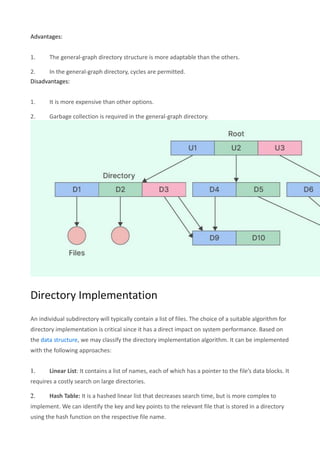
Cycles are allowed inside a directory structure where numerous directories can be derived from
more than one parent directory in a general graph directory structure. When general graph
directories are allowed, commands like, search a directory and its subdirectories, must be used
with caution. If cycles are allowed, the search is infinite.
The biggest issue with this type of directory layout is figuring out how much space the files and
folders have used up.
52.
Advantages:
1. The general-graphdirectory structure is more adaptable than the others.
2. In the general-graph directory, cycles are permitted.
Disadvantages:
1. It is more expensive than other options.
2. Garbage collection is required in the general-graph directory.
Directory Implementation
An individual subdirectory will typically contain a list of files. The choice of a suitable algorithm for
directory implementation is critical since it has a direct impact on system performance. Based on
the data structure, we may classify the directory implementation algorithm. It can be implemented
with the following approaches:
1. Linear List: It contains a list of names, each of which has a pointer to the file’s data blocks. It
requires a costly search on large directories.
2. Hash Table: It is a hashed linear list that decreases search time, but is more complex to
implement. We can identify the key and key points to the relevant file that is stored in a directory
using the hash function on the respective file name.
53.
Summing Up
To summarize,a directory stores the entry for a set of linked files as well as information such as file
names, kinds, and locations. Create, remove, list, rename, link, unlink, and other actions can be
performed on directories. The directory includes files as well as information about them. It's just a
folder that may be used to store and manage different files.
54.
Windows Operating System
MicrosoftWindows has seen nine major versions since its first release in 1985. Over 29 years later,
Windows looks very different but somehow familiar with elements that have survived the test of
time, increases in computing power and – most recently – a shift from the keyboard and mouse to
the touchscreen.
Here’s a brief look at the history of Windows, from its birth at the hands of Bill Gates with
Windows 1 to the latest arrival under new Microsoft chief executive Satya Nadella.
Windows 1
55.
The first versionof Windows. Photograph: Wikipedia
This is where it all started for Windows. The original Windows 1 was released in November 1985
and was Microsoft’s first true attempt at a graphical user interface in 16-bit.
Development was spearheaded by Microsoft founder Bill Gates and ran on top of MS-DOS, which
relied on command-line input.
It was notable because it relied heavily on use of a mouse before the mouse was a common
computer input device. To help users become familiar with this odd input system, Microsoft
included a game, Reversi (visible in the screenshot) that relied on mouse control, not the keyboard,
to get people used to moving the mouse around and clicking onscreen elements.
Windows 2
Windows 2 with overlapping windows. Photograph: Wikipedia
Two years after the release of Windows 1, Microsoft’s Windows 2 replaced it in December 1987.
The big innovation for Windows 2 was that windows could overlap each other, and it also
introduced the ability to minimise or maximise windows instead of “iconising” or “zooming”.
The control panel, where various system settings and configuration options were collected together
in one place, was introduced in Windows 2 and survives to this day.
Microsoft Word and Excel also made their first appearances running on Windows 2.
Windows 3
56.
Windows 3.0 gotcolourful.
The first Windows that required a hard drive launched in 1990. Windows 3 was the first version to
see more widespread success and be considered a challenger to Apple’s Macintosh and the
Commodore Amiga graphical user interfaces, coming pre-installed on computers from PC-
compatible manufacturers including Zenith Data Systems.
Windows 3 introduced the ability to run MS-DOS programmes in windows, which brought
multitasking to legacy programmes, and supported 256 colours bringing a more modern, colourful
look to the interface.
More important - at least to the sum total of human time wasted - it introduced the card-moving
timesink (and mouse use trainer) Solitaire.
Windows 3.1
Windows 3.1 with Minesweeper. Photograph: Wikipedia
Windows 1 and 2 both had point release updates, but Windows 3.1 released in 1992 is notable
because it introduced TrueType fonts making Windows a viable publishing platform for the first
time.
Minesweeper also made its first appearance. Windows 3.1 required 1MB of RAM to run and
allowed supported MS-DOS programs to be controlled with a mouse for the first time. Windows 3.1
was also the first Windows to be distributed on a CD-ROM, although once installed on a hard drive
it only took up 10 to 15MB (a CD can typically store up to 700MB).
Windows 95
57.
Windows 95: ohhello Start menu.
As the name implies, Windows 95 arrived in August 1995 and with it brought the first ever Start
button and Start menu (launched with a gigantic advertising campaign that used the Rolling Stones’
Start Me Up, and a couple of months later Friends stars Jennifer Aniston and Matthew Perry. Could
it be any more up-to-date?)
It also introduced the concept of “plug and play” – connect a peripheral and the operating system
finds the appropriate drivers for it and makes it work. That was the idea; it didn’t always work in
practice.
Windows 95 also introduced a 32-bit environment, the task bar and focused on multitasking. MS-
DOS still played an important role for Windows 95, which required it to run some programmes and
elements.
Internet Explorer also made its debut on Windows 95, but was not installed by default requiring the
Windows 95 Plus! pack. Later revisions of Windows 95 included IE by default, as Netscape
Navigator and NCSA Mosaic were popular at the time.
Windows 98
Windows 98, the last great DOS-based Windows. Photograph: Wikipedia
Released in June 1998, Windows 98 built on Windows 95 and brought with it IE 4, Outlook
Express, Windows Address Book, Microsoft Chat and NetShow Player, which was replaced by
Windows Media Player 6.2 in Windows 98 Second Edition in 1999.
Windows 98 introduced the back and forward navigation buttons and the address bar in Windows
Explorer, among other things. One of the biggest changes was the introduction of the Windows
Driver Model for computer components and accessories – one driver to support all future versions
of Windows.
58.
USB support wasmuch improved in Windows 98 and led to its widespread adoption, including
USB hubs and USB mice.
Windows ME
Windows ME was one to skip. Photograph: Wikipedia
Considered a low point in the Windows series by many – at least, until they saw Windows Vista –
Windows Millennium Edition was the last Windows to be based on MS-DOS, and the last in the
Windows 9x line.
Released in September 2000, it was the consumer-aimed operating system twined with Windows
2000 aimed at the enterprise market. It introduced some important concepts to consumers, including
more automated system recovery tools.
IE 5.5, Windows Media Player 7 and Windows Movie Maker all made their appearance for the first
time. Autocomplete also appeared in Windows Explorer, but the operating system was notorious for
being buggy, failing to install properly and being generally poor.
Windows 2000
Windows 2000 was ME’s enterprise twin. Photograph: Wikipedia
The enterprise twin of ME, Windows 2000 was released in February 2000 and was based on
Microsoft’s business-orientated system Windows NT and later became the basis for Windows XP.
Microsoft’s automatic updating played an important role in Windows 2000 and became the first
Windows to support hibernation.
Windows XP
59.
Windows XP stillsurvives to this day. Photograph: Schrift-Architekt/flickr
Arguably one of the best Windows versions, Windows XP was released in October 2001 and
brought Microsoft’s enterprise line and consumer line of operating systems under one roof.
It was based on Windows NT like Windows 2000, but brought the consumer-friendly elements from
Windows ME. The Start menu and task bar got a visual overhaul, bringing the familiar green Start
button, blue task bar and vista wallpaper, along with various shadow and other visual effects.
ClearType, which was designed to make text easier to read on LCD screens, was introduced, as
were built-in CD burning, autoplay from CDs and other media, plus various automated update and
recovery tools, that unlike Windows ME actually worked.
Windows XP was the longest running Microsoft operating system, seeing three major updates and
support up until April 2014 – 13 years from its original release date. Windows XP was still used on
an estimated 430m PCs when it was discontinued.
Its biggest problem was security: though it had a firewall built in, it was turned off by default.
Windows XP’s huge popularity turned out to be a boon for hackers and criminals, who exploited its
flaws, especially in Internet Explorer, mercilessly - leading Bill Gates to initiate a “Trustworthy
Computing” initiative and the subsequent issuance of to Service Pack updates that hardened XP
against attack substantially.
Windows Vista
60.
Windows Vista, arguablyworse than Windows ME. Photograph: Microsoft
Windows XP stayed the course for close to six years before being replaced by Windows Vista in
January 2007. Vista updated the look and feel of Windows with more focus on transparent elements,
search and security. Its development, under the codename “Longhorn”, was troubled, with
ambitious elements abandoned in order to get it into production.
It was buggy, burdened the user with hundreds of requests for app permissions under “User Account
Control” - the outcome of the Trustworthy Computing initiative which now meant that users had to
approve or disapprove attempts by programs to make various changes. The problem with UAC was
that it led to complacency, with people clicking “yes” to almost anything - taking security back to
the pre-UAC state. It also ran slowly on older computers despite them being deemed as “Vista
Ready” - a labelling that saw it sued because not all versions of Vista could run on PCs with that
label.
PC gamers saw a boost from Vista’s inclusion of Microsoft’s DirectX 10 technology.
Windows Media Player 11 and IE 7 debuted, along with Windows Defender an anti-spyware
programme. Vista also included speech recognition, Windows DVD Maker and Photo Gallery, as
well as being the first Windows to be distributed on DVD. Later a version of Windows Vista
without Windows Media Player was created in response to anti-trust investigations.
Windows 7
Windows 7 was everything Windows Vista should have been. Photograph: Wikipedia
61.
Considered by manyas what Windows Vista should have been, Windows 7 was first released in
October 2009. It was intended to fix all the problems and criticism faced by Vista, with slight
tweaks to its appearance and a concentration on user-friendly features and less “dialogue box
overload”.
It was faster, more stable and easier to use, becoming the operating system most users and business
would upgrade to from Windows XP, forgoing Vista entirely.
Handwriting recognition debuted in 7, as did the ability to “snap” windows to the tops or sides of
the screen, allowing faster more automatic window resizing.
Windows 7 saw Microsoft hit in Europe with antitrust investigations over the pre-installing of IE,
which led to a browser ballot screen being shown to new users allowing them to choose, which
browser to install on first boot.
Windows 8
Windows 8 focused more on touch than a keyboard and mouse.
Released in October 2012, Windows 8 was Microsoft’s most radical overhaul of the Windows
interface, ditching the Start button and Start menu in favour of a more touch-friendly Start screen.
Windows 10
Windows 10 brings back the Start menu
Announced on 30 September 2014, Windows 10 has only been released as a test version for keen
users to try. The “technical preview” is very much still a work in progress.
Windows 10 represents another step in Microsoft’s U-turn, bringing back the Start menu and more
balance to traditional desktop computer users.
Some interesting features include the ability to switch between a keyboard and mouse mode and a
tablet mode, for those computers like the Surface Pro 3 with a detachable keyboard.
62.
Windows 10 –despite being the ninth version of Windows – is designed to unify all Windows
platforms across multiple devices, including Windows Phone and tablets, with universal apps that
can be downloaded from the Windows Store and run on all Windows devices.
Features of Windows Operating System
The Windows operating system (OS) has many features, including:
File Explorer
Displays all files and folders on the computer, and allows users to search for data on
the hard drive or removable disks
• • The Windows operating system (OS) has many features, including:
Control Panel
Allows users to change system settings, add or remove software and hardware, and
more
Disk Cleanup
A utility that helps users reclaim storage space by removing unnecessary files from
their hard drives
Microsoft Edge
A browser developed by Microsoft that uses the Microsoft Bing search engine
•
Other features of the Windows OS include:
Cortana, Internet Browser, Speed, Hardware Requirements, Search and Organization,
Compatibility, Taskbar, and Safety
Task Manager
A utility program that allows users to monitor and manage the processes and applica-
tions running on their computer
• • Graphical User Interface (GUI)
Allows users to access and use various applications and programs easily by selecting menus, click-
ing icons, and navigating applications
Other features of the Windows OS include:
Cortana, Internet Browser, Speed, Hardware Requirements, Search and Organization, Compatibil-
ity, Taskbar, and Safety
63.
The concept ofwindows
The concept of windows in computing refers to the graphical user interface (GUI) elements that al-
low users to interact with programs and their tasks:
• Windows are rectangular: Windows are bordered areas on the screen that are usually rec-
tangular in shape.
• Windows are organized into groups: Windows are organized into logical groups using a
parent-child concept. The desktop is the parent window, and child windows are contained
within the desktop's borders.
• Windows can be manipulated: Windows can be resized, minimized, maximized, or
closed.
• Windows can overlap: Windows can overlap with each other on the screen.
• Windows can be controlled: Windows can be controlled with a pointer or keyboard.
• Windows are part of a windowing system: A windowing system is a GUI that uses win-
dows as one of its main metaphors. The main components of a windowing system are the
display server and the window manager.
Microsoft Windows is also the name of a graphical operating system developed by Microsoft. It al-
lows users to run software, view and store files, play games, watch videos, and connect to the inter-
net.
Structure of Windows Operating System
64.
The Windows taskbar
TheWindows taskbar is a key part of the Windows operating system that provides quick access to
apps, features, and system settings. It's usually located at the bottom of the screen, but you can
move it to the top, left, or right side.
Here are some things you can do with the taskbar:
• See your apps: The taskbar displays pinned and running apps.
• Check the time: The taskbar includes a clock.
• Pin your favorite apps: You can pin apps to the taskbar for quick access.
• Move or rearrange taskbar buttons: You can move or rearrange taskbar buttons.
• Check your battery status: The taskbar can display your battery status.
• Minimize all open programs: You can use the taskbar to minimize all open programs.
• Get quick access to apps: The taskbar provides quick access to apps.
• View multiple virtual desktops: The taskbar includes a task view feature that lets you view
multiple virtual desktops at once.
• Control key features: The taskbar includes system tray icons that let you control key features
like volume levels or network connections.
• Access settings and notifications: The taskbar is a hub for your computer's settings and
notifications.
You can customize the taskbar, including hiding icons in the taskbar corner overflow.
65.
The Start menu
TheStart menu in Windows is a place to access apps, settings, and files. To open the Start menu,
you can:
• Click the Start icon on the taskbar
• Press the Windows key on your keyboard
• Swipe up from the bottom of your screen
You can also customize the Start menu by:
• Pinning apps to the Start menu
• Changing which apps and folders appear on the Start menu
• Assigning more or less space to the Pinned and Recommended sections
• Turning off live tiles
66.
You can alsoconfigure the Start menu's behaviour through policy settings. For example, you can
limit access to certain applications in kiosk settings, or customize the Start menu for frontline
workers or students.
work with files and folders in Windows:
File Explore
File Explorer is a file manager application that helps you access, view, and organize files on your
Windows 10 computer:
• It's a graphical user interface that makes it easier to navigate your hard drives and access
files like documents, images, music, and videos
• You can use File Explorer to open and organize folders and files
• You can also print files directly from File Explorer
File Explorer was previously known as Windows Explorer, and has been included with Microsoft
Windows operating systems since Windows 95.
To open File Explorer, you can click the Start button and then the Documents icon.
67.
• Open FileExplorer: Click the File Explorer icon on the taskbar or double-click any folder
on the desktop.
• Navigate: Use the Address bar at the top of File Explorer, the Forward and Backward
buttons, or the Folders pane.
• Select: Click on a file or folder to select it.
• Drag: Click on an object and hold down the left mouse button.
• Create a new folder: Select the location for the new folder, or right-click where you want the
folder to appear, then select New > Folder.
• Rename: Right-click on the file or folder you want to rename.
• Delete: Select the file(s) that you want to delete, or click and drag the file to the Recycle Bin
icon on the desktop.
• Copy: Right-click on the file(s) to copy.
• Move: Select the file(s) to move.
• Burn a CD or DVD: Use Windows Media Player to burn discs.
Organizing files into folders and subfolders makes it easier to locate a specific file.
The Recycle Bin
The Recycle Bin is a default folder on Windows 10 computers that temporarily stores deleted files
and folders:
Purpose
The Recycle Bin allows users to recover accidentally deleted items without using data recovery
software.
Location
68.
The Recycle Binicon appears on the desktop and looks like a waste paper basket.
Access
You can access the Recycle Bin by:
• Using the shortcut in the taskbar near the bottom-right of your screen
• Double-clicking on it from your desktop screen
• Using the File Explorer program on Windows 10 devices
How it works
When a user removes a file or folder, it's not permanently erased. Instead, it's relocated to the
Recycle Bin. The Recycle Bin may be manually emptied or once it is full, it will remove the oldest
files first.
Show or hide
• To show or hide the Recycle Bin, you can:
• Select the Start button, then select Settings
• Select Personalization > Themes > Desktop icon settings
• Select the Recycle Bin check box > Apply
‘
Windows Accessories
Windows Accessories refer to a group of applications or tools that come
pre-installed with the Windows operating system. These tools are
designed to help users perform various tasks related to data entry or
computer basics more easily and efficiently.
Some examples of Windows Accessories that may be relevant to data
entry or computer basics include:
• Calculator: A basic calculator program that can perform simple
mathematical calculations.
• Notepad: A simple text editor that can be used for creating and editing
plain text files.
• Paint: A basic image editor that can be used for creating and editing
simple images or graphics.
69.
• Snipping Tool:A screenshot capture tool that allows users to capture screenshots of a
portion of the screen, a window, or the entire screen.
• Character Map: A utility that displays a map of all the characters available in a particular
font, allowing users to insert special characters into documents or text fields.
• On-Screen Keyboard: A virtual keyboard that can be used for typing without a physical
keyboard, such as on a tablet or touch screen device.
Overall, Windows Accessories are useful tools that can help users perform various tasks related to
data entry or computer basics more easily and efficiently.
My Computer
My Computer is a Microsoft Windows feature first found in Windows 95 and included with all later
versions that lets you explore and manage the contents of your computer's drives. The image shows
examples of the My Computer icon in Microsoft Windows XP, Vista and Windows 7, and the "This
PC" icon in Windows 8 and in Windows 10. Although the name has changed, "This PC" still has the
same functionality as "My Computer."
70.
The media player
Themedia player for Windows is Windows Media Player, which is a Microsoft-developed applica-
tion for playing audio and video files:
Features
Windows Media Player has a music library that allows users to browse, play, and manage
playlists. It also supports syncing music, videos, and photos, and streaming media to other
devices.
Availability
Windows Media Player is included in clean installs of Windows 10 and upgrades to Win-
dows 10 from Windows 8.1 or Windows 7. It can also be enabled as an optional feature in
some editions of Windows 10.
71.
Sound Recorder
(known asVoice Recorder in Windows 10) is an audio recording program included in most
versions of the Microsoft Windows family of operating systems. Its user interface has been replaced
twice in the past.




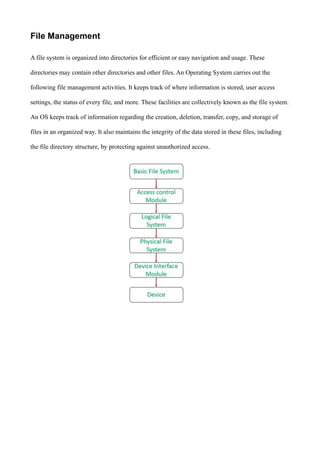


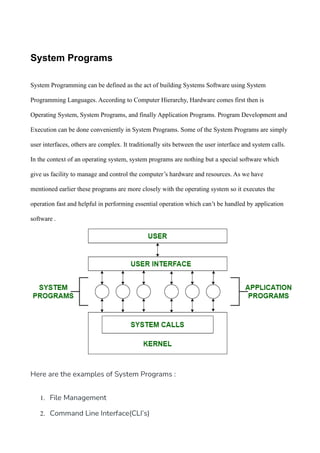


![It deletes file named readersnp.txt
h) COPY: This command is used to copy a file from one location to another.
Syntax: C:> COPY readersnp.txt D:web
This command will copy file named readersnp.txt from C: drive to web directory of D: drive
i) MOVE: This command is used to move file from one location to another.
Syntax: C:> MOVE readersnp.txt D:web
This command will move file named readersnp.txt from C: drive to web directory of D: drive
[Note: Using COPY files remains in both source and destination but using MOVE file remains only on
destination]
j) MD or MKDIR: MD means Make Directory. It allows us to create a directory in the specified location.
Syntax: C:> MD readers
It creates a directory name readers in C: drive
k) CD or CHDIR: CD means Change Directory. It allows us to open or exit from any directory.
Syntax: C:> CD readers
This will open directory readers. So, DOS prompt changes to C:readers>
In order to return to root directory, we use C:readers> CD
l) RD or RMDIR: RD means Remove Directory. It allows us to delete on empty directory.
Syntax: C:> RD readers
This will remove directory readers from C: drive
C:> RD D:readers
This will remove directory readers from D: drive
m) DIR: This command is used to display the list of files and directories.
Syntax: C:> DIR
This will display all the files and directories of C: drive
C:> DIR /S
This will display all the files and directories from sub directories as well
C:> DIR *.EXE
This will display all the files having EXE extension. Here, * is a wildcard
n) VER: This command displays the current MD DOS version number.
Syntax: C:>VER
o) VOL: This command shows the disk volume label and serial number](https://image.slidesharecdn.com/osnotes-250224104042-c2bbf50d/85/O-S-Operating-system-NOTES-By-Naina-39-320.jpg)

![• CONVERT − Converts a FAT partition to NTFS.
• DEBUG − Starts Debug, a command-line tool for testing and debugging executable programs.
• DISKCOMP − Compares the contents of two floppy disks.
• DISKCOPY − Copies the entire contents of one floppy disk to another.
• DOSKEY − Provides command-line editing and recall capabilities.
• FCBS − Sets the number of file control blocks used by the system.
• GRAPHICS − Turns graphics mode on or off.
2. External Commands
These external commands are for performing advanced tasks and they do not need some external
file support as they are not stored in COMMAND.com. The external commands are used less
frequently and are stored in some external files which are stored in some secondary storage devices.
Whenever an external command is to be executed then the external file in which that particular
command is stored is transferred from the secondary storage disk to the main memory(RAM).
Here are some Example of External Command
a) ATTRIB: This command is used to set or remove the file attributes.
Syntax: ATTRIB [ ] [drive:] [path] [filename] [/s]
The empty [ ] can be filled with + to Set and + to Remove followed by R, A, S, H depending
upon requirements.
Example: C:> ATTRIB +H D:*.jpg
This will hide all the file with .jpg extension i.e. images from D: drive.
b) EDIT: This command is used to create a text file in MS DOS. It allows us to edit, save and print
the text files.](https://image.slidesharecdn.com/osnotes-250224104042-c2bbf50d/85/O-S-Operating-system-NOTES-By-Naina-41-320.jpg)