NTFS Security Manager
from
Vyapin Software Systems Private Limited

Managing permissions of
Users/Groups/Shares/Folders/Files

on Windows Servers
www.vyapin.com
NTFS Security Manager Highlights
• Set permissions in bulk for multiple accounts and folders
• Assign role based permissions in bulk on multiple accounts and
folders
• Secure your Shares, Folders and Files on servers & workstations
• Grant, revoke, modify and copy NTFS permissions across servers &
workstations in multiple domains
• Apply / revoke Central Access Policies (CAPs) on shares & folders
across servers & workstations in a domain
• Restore broken inheritance
• Restore administrative permissions
• Use conditions/rules to control how you grant, revoke, copy
permissions
• Replace existing set of permissions with a new set of permissions
• Perform a granular search of various types of permissions on
specific files and folders
Some of the important features of the
NTFS Security Manager
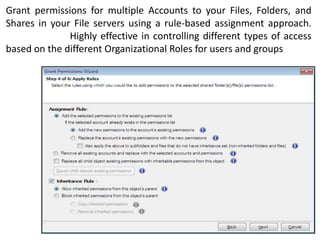
Grant permissions for multiple Accounts to your Files, Folders, and
Shares in your File servers using a rule-based assignment approach.
Highly effective in controlling different types of access
based on the different Organizational Roles for users and groups
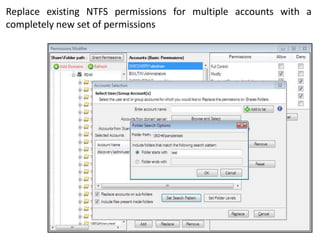
Replace existing NTFS permissions for multiple accounts with a
completely new set of permissions
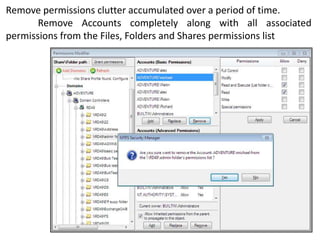
Remove permissions clutter accumulated over a period of time.
Remove Accounts completely along with all associated
permissions from the Files, Folders and Shares permissions list
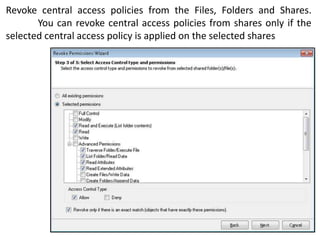
Revoke central access policies from the Files, Folders and Shares.
You can revoke central access policies from shares only if the
selected central access policy is applied on the selected shares
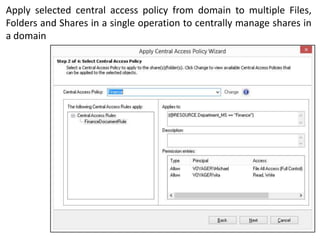
Apply selected central access policy from domain to multiple Files,
Folders and Shares in a single operation to centrally manage shares in
a domain
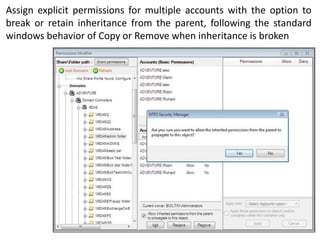
Assign explicit permissions for multiple accounts with the option to
break or retain inheritance from the parent, following the standard
windows behavior of Copy or Remove when inheritance is broken
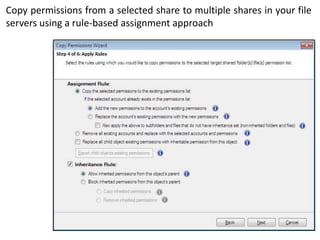
Copy permissions from a selected share to multiple shares in your file
servers using a rule-based assignment approach
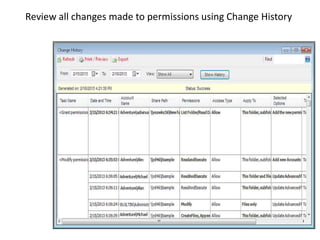
Review all changes made to permissions using Change History
For more on the
NTFS Security Manager

visit
http://www.vyapin.com/products/ntfs-securitymanager/ntfs-permissions-management.htm

NTFS Security and Permissions Management Solution

  • 1.
    NTFS Security Manager from VyapinSoftware Systems Private Limited Managing permissions of Users/Groups/Shares/Folders/Files on Windows Servers www.vyapin.com
  • 2.
    NTFS Security ManagerHighlights • Set permissions in bulk for multiple accounts and folders • Assign role based permissions in bulk on multiple accounts and folders • Secure your Shares, Folders and Files on servers & workstations • Grant, revoke, modify and copy NTFS permissions across servers & workstations in multiple domains • Apply / revoke Central Access Policies (CAPs) on shares & folders across servers & workstations in a domain • Restore broken inheritance • Restore administrative permissions • Use conditions/rules to control how you grant, revoke, copy permissions • Replace existing set of permissions with a new set of permissions • Perform a granular search of various types of permissions on specific files and folders
  • 3.
    Some of theimportant features of the NTFS Security Manager
  • 4.
    Grant permissions formultiple Accounts to your Files, Folders, and Shares in your File servers using a rule-based assignment approach. Highly effective in controlling different types of access based on the different Organizational Roles for users and groups
  • 5.
    Replace existing NTFSpermissions for multiple accounts with a completely new set of permissions
  • 6.
    Remove permissions clutteraccumulated over a period of time. Remove Accounts completely along with all associated permissions from the Files, Folders and Shares permissions list
  • 7.
    Revoke central accesspolicies from the Files, Folders and Shares. You can revoke central access policies from shares only if the selected central access policy is applied on the selected shares
  • 8.
    Apply selected centralaccess policy from domain to multiple Files, Folders and Shares in a single operation to centrally manage shares in a domain
  • 9.
    Assign explicit permissionsfor multiple accounts with the option to break or retain inheritance from the parent, following the standard windows behavior of Copy or Remove when inheritance is broken
  • 10.
    Copy permissions froma selected share to multiple shares in your file servers using a rule-based assignment approach
  • 11.
    Review all changesmade to permissions using Change History
  • 12.
    For more onthe NTFS Security Manager visit http://www.vyapin.com/products/ntfs-securitymanager/ntfs-permissions-management.htm