Internet Collaboration Microsoft NetMeeting Presented By: Yuliana Ang Yue Cheng Shirley Tayag Maureen Ulan
Introduction Presented By: Shirley Tayag
Internet Collaboration Tools Protocols, hardware and software which allow individuals to exchange information in real time over the Internet Used to maximize available technologies to facilitate video, audio and data conferencing regardless of geographic location
Conferencing Over the telephone line - direct modem to modem connection - incur long distance charges - Governed by H.324 standard
Over ISDN  - ISDN offers greater bandwidth than direct modem to modem connection    better quality costly option : expensive videoconferencing kits, installation costs,  service availability, phone charges  Governed by the H.320 standard
Over LANs transmission speed dependent on total number of users in the network and lines being used governed by H.323 protocol
Over the Internet  -  cheapest way to conference For video conferencing, it is limited to 176-by-144-pixel image and only several frames per second Internet traffic affects transmission speed and quality  Also governed by H.323 standard
H.323 standard most used telecommunication protocol over IP networks standard for audio, video and data  conferencing developed by the International Telecommunications Union (ITU) includes the T.120 standard which governs general transfer of data for file transfer, whiteboards, chat and application sharing
Examples of  Internet Collaboration Tools Whitepine’s CUSeeMe Intel’s Internet Videophone Microsoft NetMeeting
NetMeeting  Video and Audio Conferencing  Internet Directory Security Presented By: Yuliana Ang
NetMeeting What is NetMeeting? Powerful tool of communications and collaboration over the internet
NetMeeting Sources Comes with Windows 98, 2000 Packaged with many web cam software Downloadable from the Internet (Microsoft  Website)
System Requirements Windows 95/98 or NT  Internet or Intranet connection  Sound card with speakers and microphone or headset with integrated microphone Optional web camera
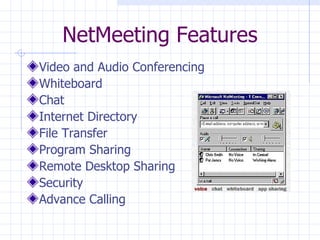
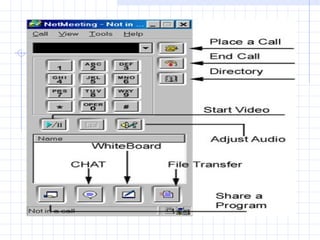
NetMeeting Features Video and Audio Conferencing Whiteboard Chat Internet Directory File Transfer  Program Sharing Remote Desktop Sharing Security Advance Calling
 
NetMeeting Advantages Share ideas, information and applications using video and audio Send and receive real-time video images Send video and audio to the user who doesn’t have video hardware
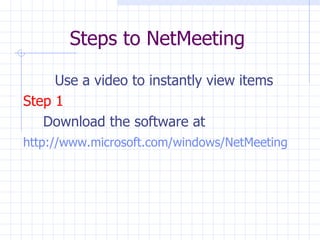
Steps to NetMeeting Use a video to instantly view items Step 1 Download the software at http://www.microsoft.com/windows/NetMeeting
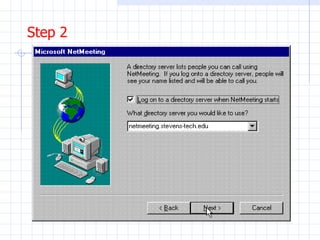
Step 2
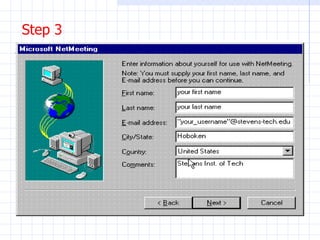
Step 3
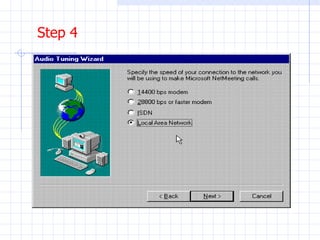
Step 4
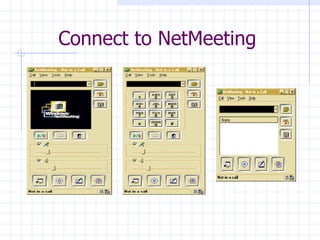
Connect to NetMeeting
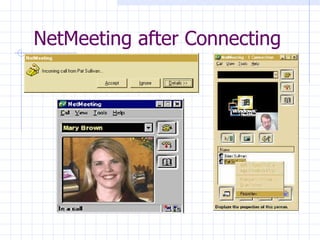
NetMeeting after Connecting
VIDEO AND AUDIO CONFERENCING Definition Is a connection that connect you and one person for sharing ideas, information and windows program by using video and audio
Video Conferencing Software for Windows 1. NetMeeting 2. Intel Internet Video Phone Allow you to make video phone calls on the net 3. Soft Cam Allow you to do fun things in your video  conference 4. ICUII (I See You Too) Include text chat and audio also built in  directory, caller ID and do not disturb features
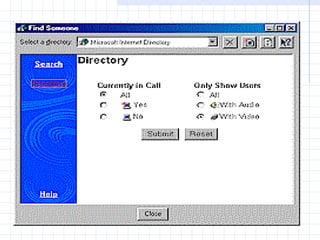
Internet Directory Advantages: 1.   View the internet directory from a web  page, and review a list of people who  currently running NetMeeting 2.   Connect to one or more of the listed people  or select another person by typing his/her  current location 3.   Perform server transactions, such as  selecting different directory to view
 
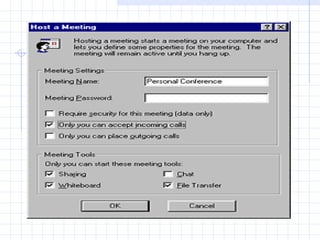
Security New Feature in NetMeeting: Encode the data exchanged between shared programs, transferred files, chart and whiteboard With password protection, you can: 1.  Host a meeting that required a    password 2.  Use remote desktop sharing to      control your office computer from    home, vice versa.
 
Whiteboard Remote Desktop Sharing  Presented By: Shirley Tayag
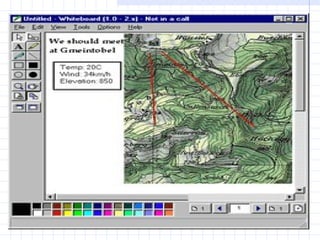
Whiteboard Common surface for users to write in and use graphical tools to illustrate ideas
 
Whiteboard Tools Pointer tool  Eraser tool Text tool Highlighter tool Pen tool Line tool  Shapes and Filled in shapes
What Can Be Done with the Whiteboard Create graphics and review and modify another user’s graphics Control contents using the mouse by clicking, dragging, and dropping objects on the whiteboard Import text and images into the whiteboard from other windows applications using the cut, copy and paste functions Whiteboard contents may be saved for later use
Other Whiteboard Tools Infinite Horizon  Teamwave Whiteboard  Visualtek Rendezvous  MicroTouch Ibid  Teamboard Whiteboard  RTZ Whiteboard for Mac  RTZ Whiteboard for Windows  Smart Whiteboard  Habanero Whiteboard
Remote Desktop Sharing Operate your office computer from home or vice versa.  Use a secure connection by activating a password to access the remote desktop, files and programs.
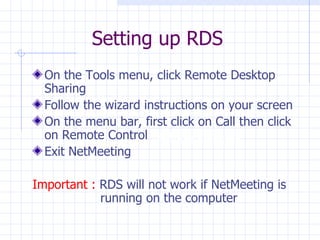
Setting up RDS On the Tools menu, click Remote Desktop Sharing Follow the wizard instructions on your screen  On the menu bar, first click on Call then click on Remote Control  Remote Desktop  Exit NetMeeting Important :  RDS will not work if NetMeeting is   running on the computer
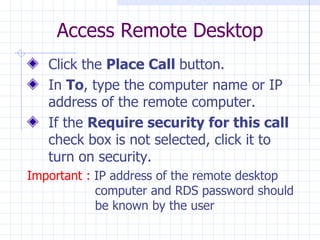
Access Remote Desktop Click the  Place Call  button.  In  To , type the computer name or IP address of the remote computer.  If the  Require security for this call  check box is not selected, click it to turn on security.  Important :  IP address of the remote desktop   computer and RDS password should   be known by the user
Other Remote Control Softwares Compaq Carbon Copy  CoSession Remote  LapLink for Windows  NetOp for Windows  pcAnywhere32  RapidRemote  ReachOut Enterprise  Remotely Possible
File Transfer Program Sharing Presented By: Yue Cheng
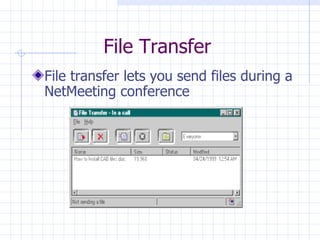
File Transfer File transfer lets you send files during a NetMeeting conference
With file transfer, you can:  Send a file in the background to conference participants  Send the file to everyone in the conference, or to one or more selected participants  Accept or reject transferred files
You can transfer a file by dragging the file's icon to the NetMeeting window for global file transfers or by pointing to a single participant.  You can initiate individual file transfers by right-clicking a participant in the roster and then clicking Send File.  To change the default destination, click Options on the Tools menu, click the General tab, and change the default destination.  How to Send File in NetMeeting
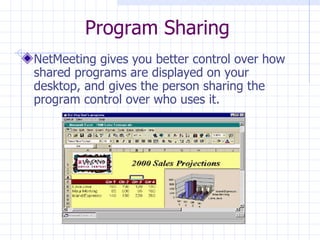
Program Sharing NetMeeting gives you better control over how shared programs are displayed on your desktop, and gives the person sharing the program control over who uses it.
View shared programs in a frame, which makes it easy to distinguish between shared and local applications on your desktop  Minimize the shared program frame and do other work if you do not need to work in the current conference program. With NetMeeting’s Program Sharing Feature, you can:
 
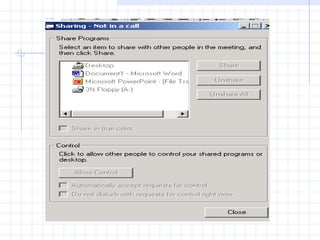
Easily  switch between shared programs using the shared program taskbar.  Choose to allow one person to work in the shared program at a time.  Approve conference participants’ requests to work in program you introduce. Allow or prevent others from working in a program using the Sharing dialog box. .  With NetMeeting Feature Sharing, You can:
On-line Chat Advance Calling Conclusion Presented by:  Maureen Ulan
Overview: Chat is used for synchronous (real-time) electronic communications. Public and private messages can be sent, and users can send URLs to open web sites while chatting. Chat works well for brainstorming and group collaboration. Chat does not work well with large groups. Even in small groups, certain rules are required to assist conversation and allow anyone to participate.
Why Did Text Chat Become so Popular? Chat is a very important component of the Internet.   Several people get addicted to it because: First, you can find people who share similar interests to yours wherever they are located.  In chat, people can choose their words carefully. Freed from physical appearance descriptions( There is no fat, skinny, short, tall, ugly, beautiful…etc.)
ON-LINE CHAT SERVICES Chat (Yahoo) IRC (Internet Relay Chat) MUDs, MUSHes, MOOs Talk City ICQ Web Chat LOL chat Uni-Verse Multi-language Chat Ichat Intermedia Multilingual Chat Server Alamak.com Asian Avenue.com
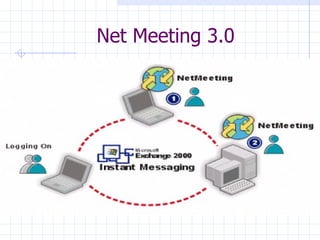
Net Meeting 3.0
Net Meeting 3.0 On-line Chat
 
Overview Meeting people can talk to each other simultaneously using Chat. Since only two people can have an audio or video connection, Chat is useful in a group meeting because everyone can participate.
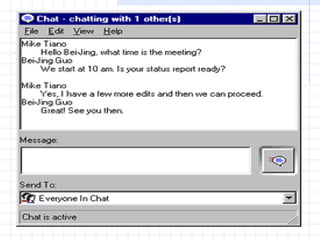
Steps on how to use chat in Net Meeting 3.0: When someone sends you a Chat message, the message appears in the Chat window.  To send a message:   Click the  Chat  button to open Chat.  In  Message , type the message you want to send, then do one of the following:
To send a message to everyone, in  Send To , click  Everyone In Chat .  To send a message to just one person, in  Send To , click the person's name. Click the  Send Message  button.
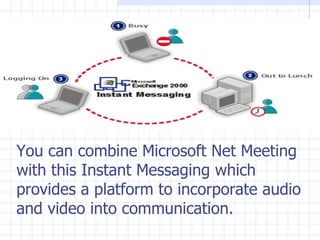
You can combine Microsoft Net Meeting with this Instant Messaging which provides a platform to incorporate audio and video into communication.
Bibliography: Microsoft Exchange Server 2000 http://www.ntu.edu.sg/ctools/instantmessaging/ contentframe . htm http://www.microsoft.com/windows/netmeeting/features/chat/default.asp
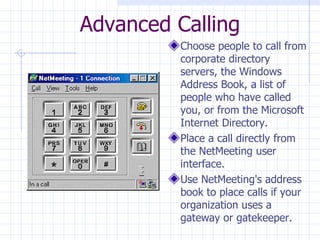
Advanced Calling Choose people to call from corporate directory servers, the Windows Address Book, a list of people who have called you, or from the Microsoft Internet Directory.  Place a call directly from the NetMeeting user interface.  Use NetMeeting's address book to place calls if your organization uses a gateway or gatekeeper.
Conclusion We have covered the following Net Meeting Features: Video & Audio Conferencing Whiteboard Chat Internet Directory File Transfer Program Sharing Security Advanced Calling
Bibliography: http://www.microsoft.com/windows/NetMeeting/Features/default.ASP

Netmeeting.ppt

  • 1.
    Internet Collaboration MicrosoftNetMeeting Presented By: Yuliana Ang Yue Cheng Shirley Tayag Maureen Ulan
  • 2.
  • 3.
    Internet Collaboration ToolsProtocols, hardware and software which allow individuals to exchange information in real time over the Internet Used to maximize available technologies to facilitate video, audio and data conferencing regardless of geographic location
  • 4.
    Conferencing Over thetelephone line - direct modem to modem connection - incur long distance charges - Governed by H.324 standard
  • 5.
    Over ISDN - ISDN offers greater bandwidth than direct modem to modem connection  better quality costly option : expensive videoconferencing kits, installation costs, service availability, phone charges Governed by the H.320 standard
  • 6.
    Over LANs transmissionspeed dependent on total number of users in the network and lines being used governed by H.323 protocol
  • 7.
    Over the Internet - cheapest way to conference For video conferencing, it is limited to 176-by-144-pixel image and only several frames per second Internet traffic affects transmission speed and quality Also governed by H.323 standard
  • 8.
    H.323 standard mostused telecommunication protocol over IP networks standard for audio, video and data conferencing developed by the International Telecommunications Union (ITU) includes the T.120 standard which governs general transfer of data for file transfer, whiteboards, chat and application sharing
  • 9.
    Examples of Internet Collaboration Tools Whitepine’s CUSeeMe Intel’s Internet Videophone Microsoft NetMeeting
  • 10.
    NetMeeting Videoand Audio Conferencing Internet Directory Security Presented By: Yuliana Ang
  • 11.
    NetMeeting What isNetMeeting? Powerful tool of communications and collaboration over the internet
  • 12.
    NetMeeting Sources Comeswith Windows 98, 2000 Packaged with many web cam software Downloadable from the Internet (Microsoft Website)
  • 13.
    System Requirements Windows95/98 or NT Internet or Intranet connection Sound card with speakers and microphone or headset with integrated microphone Optional web camera
  • 14.
    NetMeeting Features Videoand Audio Conferencing Whiteboard Chat Internet Directory File Transfer Program Sharing Remote Desktop Sharing Security Advance Calling
  • 15.
  • 16.
    NetMeeting Advantages Shareideas, information and applications using video and audio Send and receive real-time video images Send video and audio to the user who doesn’t have video hardware
  • 17.
    Steps to NetMeetingUse a video to instantly view items Step 1 Download the software at http://www.microsoft.com/windows/NetMeeting
  • 18.
  • 19.
  • 20.
  • 21.
  • 22.
  • 23.
    VIDEO AND AUDIOCONFERENCING Definition Is a connection that connect you and one person for sharing ideas, information and windows program by using video and audio
  • 24.
    Video Conferencing Softwarefor Windows 1. NetMeeting 2. Intel Internet Video Phone Allow you to make video phone calls on the net 3. Soft Cam Allow you to do fun things in your video conference 4. ICUII (I See You Too) Include text chat and audio also built in directory, caller ID and do not disturb features
  • 25.
    Internet Directory Advantages:1. View the internet directory from a web page, and review a list of people who currently running NetMeeting 2. Connect to one or more of the listed people or select another person by typing his/her current location 3. Perform server transactions, such as selecting different directory to view
  • 26.
  • 27.
    Security New Featurein NetMeeting: Encode the data exchanged between shared programs, transferred files, chart and whiteboard With password protection, you can: 1. Host a meeting that required a password 2. Use remote desktop sharing to control your office computer from home, vice versa.
  • 28.
  • 29.
    Whiteboard Remote DesktopSharing Presented By: Shirley Tayag
  • 30.
    Whiteboard Common surfacefor users to write in and use graphical tools to illustrate ideas
  • 31.
  • 32.
    Whiteboard Tools Pointertool Eraser tool Text tool Highlighter tool Pen tool Line tool Shapes and Filled in shapes
  • 33.
    What Can BeDone with the Whiteboard Create graphics and review and modify another user’s graphics Control contents using the mouse by clicking, dragging, and dropping objects on the whiteboard Import text and images into the whiteboard from other windows applications using the cut, copy and paste functions Whiteboard contents may be saved for later use
  • 34.
    Other Whiteboard ToolsInfinite Horizon Teamwave Whiteboard Visualtek Rendezvous MicroTouch Ibid Teamboard Whiteboard RTZ Whiteboard for Mac RTZ Whiteboard for Windows Smart Whiteboard Habanero Whiteboard
  • 35.
    Remote Desktop SharingOperate your office computer from home or vice versa. Use a secure connection by activating a password to access the remote desktop, files and programs.
  • 36.
    Setting up RDSOn the Tools menu, click Remote Desktop Sharing Follow the wizard instructions on your screen On the menu bar, first click on Call then click on Remote Control Remote Desktop Exit NetMeeting Important : RDS will not work if NetMeeting is running on the computer
  • 37.
    Access Remote DesktopClick the Place Call button. In To , type the computer name or IP address of the remote computer. If the Require security for this call check box is not selected, click it to turn on security. Important : IP address of the remote desktop computer and RDS password should be known by the user
  • 38.
    Other Remote ControlSoftwares Compaq Carbon Copy CoSession Remote LapLink for Windows NetOp for Windows pcAnywhere32 RapidRemote ReachOut Enterprise Remotely Possible
  • 39.
    File Transfer ProgramSharing Presented By: Yue Cheng
  • 40.
    File Transfer Filetransfer lets you send files during a NetMeeting conference
  • 41.
    With file transfer,you can: Send a file in the background to conference participants Send the file to everyone in the conference, or to one or more selected participants Accept or reject transferred files
  • 42.
    You can transfera file by dragging the file's icon to the NetMeeting window for global file transfers or by pointing to a single participant. You can initiate individual file transfers by right-clicking a participant in the roster and then clicking Send File. To change the default destination, click Options on the Tools menu, click the General tab, and change the default destination. How to Send File in NetMeeting
  • 43.
    Program Sharing NetMeetinggives you better control over how shared programs are displayed on your desktop, and gives the person sharing the program control over who uses it.
  • 44.
    View shared programsin a frame, which makes it easy to distinguish between shared and local applications on your desktop Minimize the shared program frame and do other work if you do not need to work in the current conference program. With NetMeeting’s Program Sharing Feature, you can:
  • 45.
  • 46.
    Easily switchbetween shared programs using the shared program taskbar. Choose to allow one person to work in the shared program at a time. Approve conference participants’ requests to work in program you introduce. Allow or prevent others from working in a program using the Sharing dialog box. . With NetMeeting Feature Sharing, You can:
  • 47.
    On-line Chat AdvanceCalling Conclusion Presented by: Maureen Ulan
  • 48.
    Overview: Chat isused for synchronous (real-time) electronic communications. Public and private messages can be sent, and users can send URLs to open web sites while chatting. Chat works well for brainstorming and group collaboration. Chat does not work well with large groups. Even in small groups, certain rules are required to assist conversation and allow anyone to participate.
  • 49.
    Why Did TextChat Become so Popular? Chat is a very important component of the Internet. Several people get addicted to it because: First, you can find people who share similar interests to yours wherever they are located. In chat, people can choose their words carefully. Freed from physical appearance descriptions( There is no fat, skinny, short, tall, ugly, beautiful…etc.)
  • 50.
    ON-LINE CHAT SERVICESChat (Yahoo) IRC (Internet Relay Chat) MUDs, MUSHes, MOOs Talk City ICQ Web Chat LOL chat Uni-Verse Multi-language Chat Ichat Intermedia Multilingual Chat Server Alamak.com Asian Avenue.com
  • 51.
  • 52.
    Net Meeting 3.0On-line Chat
  • 53.
  • 54.
    Overview Meeting peoplecan talk to each other simultaneously using Chat. Since only two people can have an audio or video connection, Chat is useful in a group meeting because everyone can participate.
  • 55.
    Steps on howto use chat in Net Meeting 3.0: When someone sends you a Chat message, the message appears in the Chat window. To send a message: Click the Chat button to open Chat. In Message , type the message you want to send, then do one of the following:
  • 56.
    To send amessage to everyone, in Send To , click Everyone In Chat . To send a message to just one person, in Send To , click the person's name. Click the Send Message button.
  • 57.
    You can combineMicrosoft Net Meeting with this Instant Messaging which provides a platform to incorporate audio and video into communication.
  • 58.
    Bibliography: Microsoft ExchangeServer 2000 http://www.ntu.edu.sg/ctools/instantmessaging/ contentframe . htm http://www.microsoft.com/windows/netmeeting/features/chat/default.asp
  • 59.
    Advanced Calling Choosepeople to call from corporate directory servers, the Windows Address Book, a list of people who have called you, or from the Microsoft Internet Directory. Place a call directly from the NetMeeting user interface. Use NetMeeting's address book to place calls if your organization uses a gateway or gatekeeper.
  • 60.
    Conclusion We havecovered the following Net Meeting Features: Video & Audio Conferencing Whiteboard Chat Internet Directory File Transfer Program Sharing Security Advanced Calling
  • 61.