DBeaver Installation Guide
By : Amira Elsayed Ismail
Agenda
- DBeaver installation guide
What is DBeaver
➔ Free multi-platform database tool for
developers, database
administrators, analysts and all
people who need to work with
databases.
➔ Supports all popular databases:
MySQL, PostgreSQL, SQLite,
Oracle, DB2, SQL Server, Sybase,
MS Access, Teradata, Firebird,
Apache Hive, Phoenix, Presto, etc.
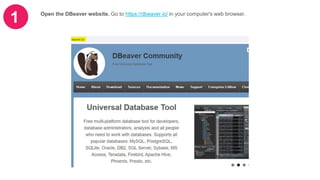
1 Open the DBeaver website. Go to https://dbeaver.io/ in your computer's web browser.
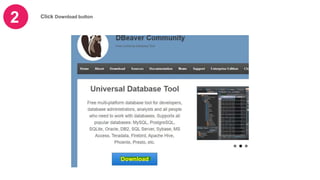
2 Click Download button
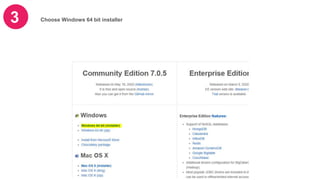
3 Choose Windows 64 bit installer
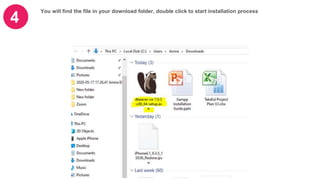
4
You will find the file in your download folder, double click to start installation process
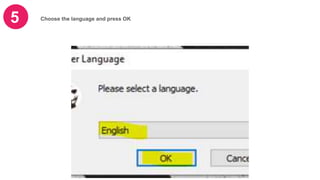
5 Choose the language and press OK
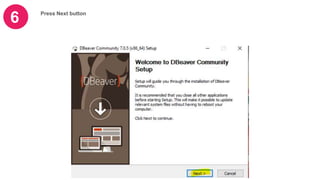
6 Press Next button
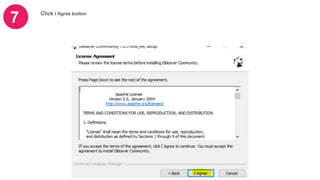
7 Click I Agree button
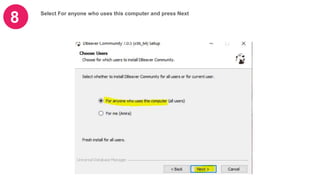
8 Select For anyone who uses this computer and press Next
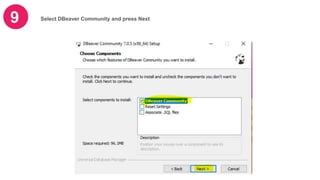
9 Select DBeaver Community and press Next
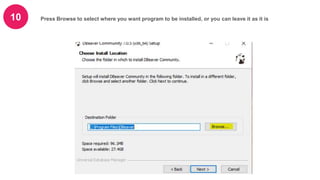
10 Press Browse to select where you want program to be installed, or you can leave it as it is
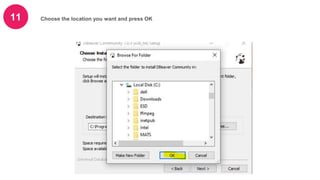
11 Choose the location you want and press OK
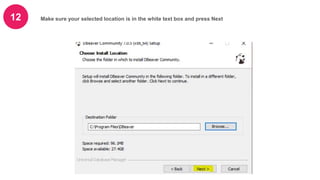
12 Make sure your selected location is in the white text box and press Next
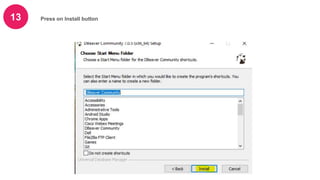
13 Press on Install button
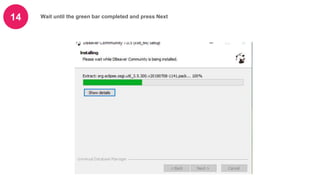
14 Wait until the green bar completed and press Next
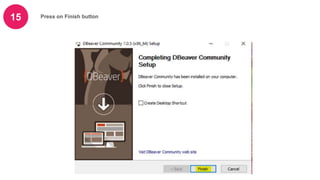
15 Press on Finish button
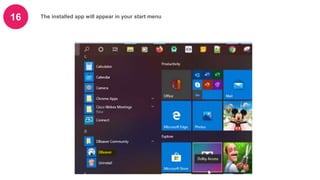
16 The installed app will appear in your start menu
To start using DBeaver to
manage your databases , you
have to follow the following steps
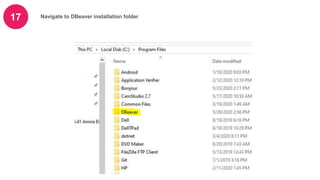
17 Navigate to DBeaver installation folder
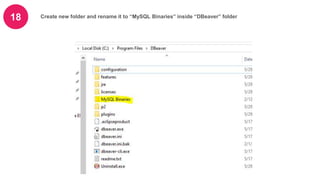
18 Create new folder and rename it to “MySQL Binaries” inside “DBeaver” folder
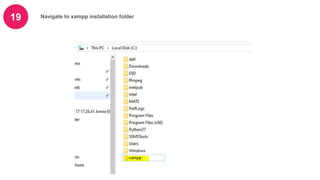
19 Navigate to xampp installation folder
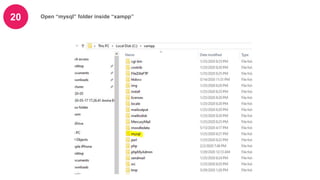
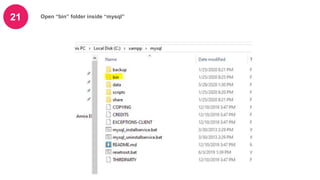
20 Open “mysql” folder inside “xampp”
21 Open “bin” folder inside “mysql”
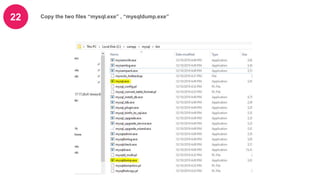
22 Copy the two files “mysql.exe” , “mysqldump.exe”
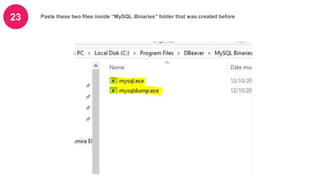
23 Paste these two files inside “MySQL Binaries” folder that was created before
Export and Import DB from
DBeaver steps are following
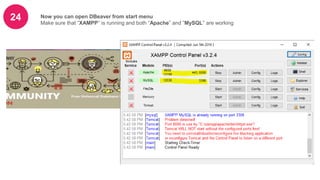
24 Now you can open DBeaver from start menu
Make sure that “XAMPP” is running and both “Apache” and ”MySQL” are working
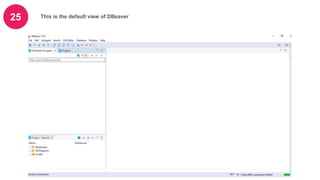
25 This is the default view of DBeaver
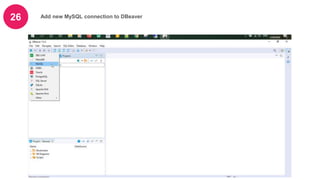
26 Add new MySQL connection to DBeaver
27
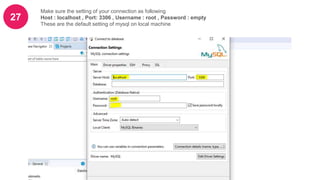
Make sure the setting of your connection as following
Host : localhost , Port: 3306 , Username : root , Password : empty
These are the default setting of mysql on local machine
28
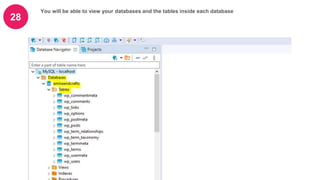
You will be able to view your databases and the tables inside each database
29
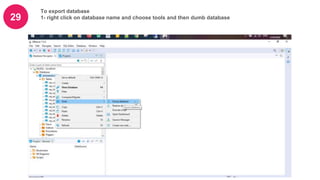
To export database
1- right click on database name and choose tools and then dumb database
30
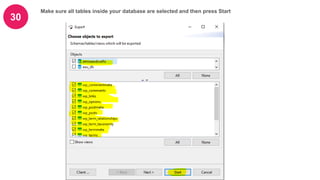
Make sure all tables inside your database are selected and then press Start
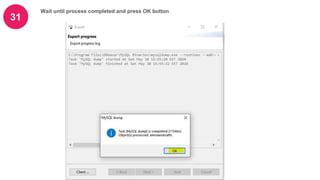
31
Wait until process completed and press OK button
32
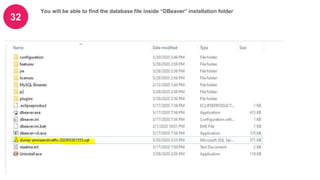
You will be able to find the database file inside “DBeaver” installation folder
33
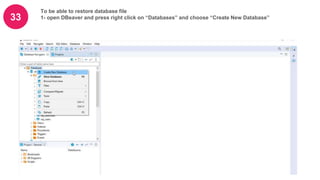
To be able to restore database file
1- open DBeaver and press right click on “Databases” and choose “Create New Database”
34
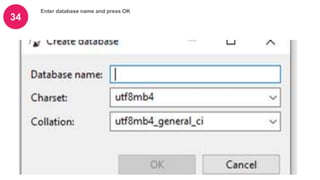
Enter database name and press OK
35
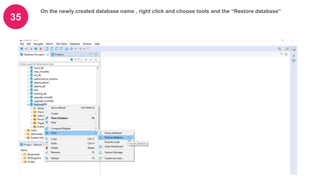
On the newly created database name , right click and choose tools and the “Restore database”
36
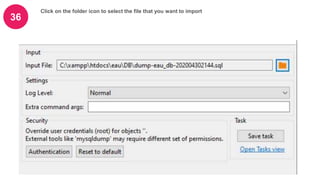
Click on the folder icon to select the file that you want to import
37
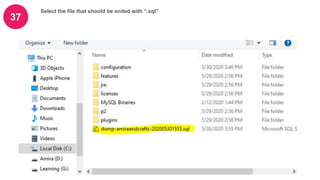
Select the file that should be ended with “.sql”
38
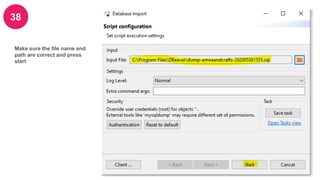
Make sure the file name and
path are correct and press
start
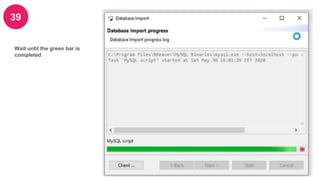
39
Wait until the green bar is
completed
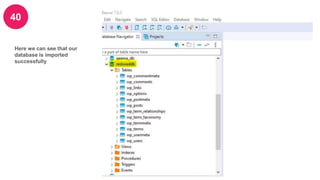
40
Here we can see that our
database is imported
successfully
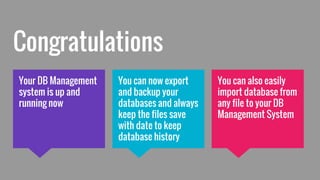
Congratulations
You can also easily
import database from
any file to your DB
Management System
Your DB Management
system is up and
running now
You can now export
and backup your
databases and always
keep the files save
with date to keep
database history
Get Help
http://stackoverflow.com/
https://dbeaver.io/forum/

DBeaver installation guide