Adding Content to Your Lesson


             Part I:
           Resources
Adding Content to Your Lesson
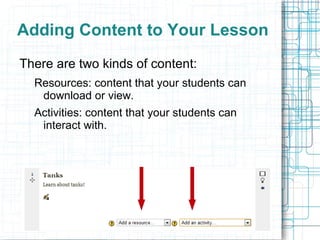
There are two kinds of content:
  Resources: content that your students can
   download or view.
  Activities: content that your students can
   interact with.
Adding Content to Your Lesson
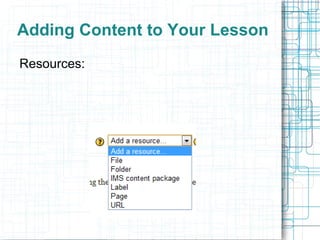
Resources:
Adding Content to Your Lesson
Resources:
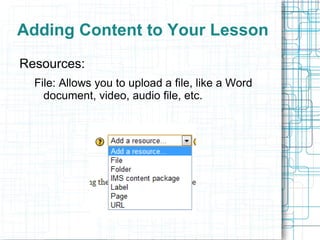
  File: Allows you to upload a file, like a Word
    document, video, audio file, etc.
Adding Content to Your Lesson
Resources:
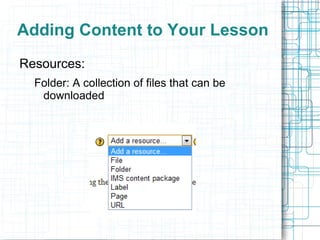
  Folder: A collection of files that can be
   downloaded
Adding Content to Your Lesson
Resources:
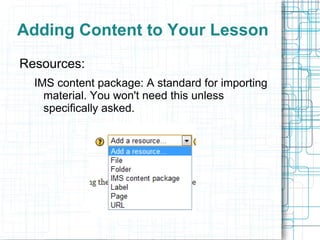
  IMS content package: A standard for importing
    material. You won't need this unless
    specifically asked.
Adding Content to Your Lesson
Resources:
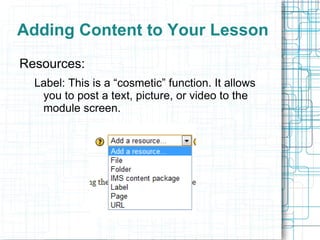
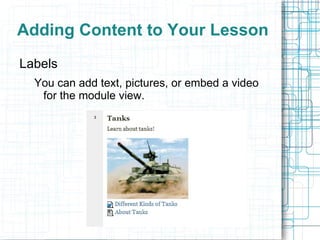
  Label: This is a “cosmetic” function. It allows
   you to post a text, picture, or video to the
   module screen.
Adding Content to Your Lesson
Resources:
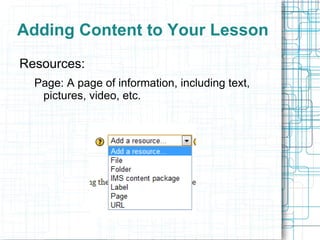
  Page: A page of information, including text,
   pictures, video, etc.
Adding Content to Your Lesson
Resources:
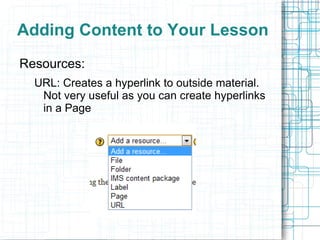
  URL: Creates a hyperlink to outside material.
   Not very useful as you can create hyperlinks
   in a Page
Adding Content to Your Lesson
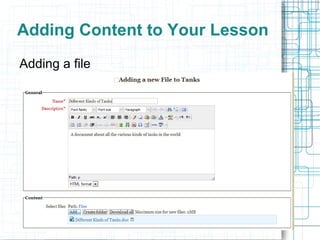
Adding a file
Adding Content to Your Lesson
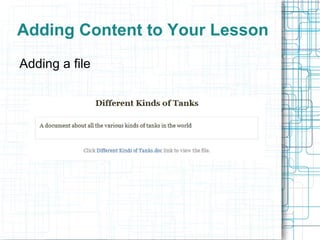
Adding a file
Adding Content to Your Lesson
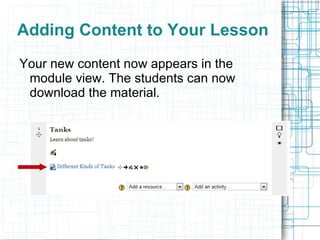
Your new content now appears in the
 module view. The students can now
 download the material.
Adding Content to Your Lesson
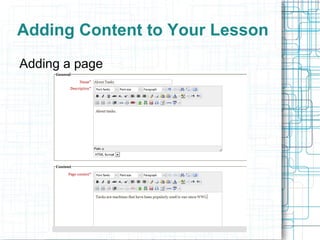
Adding a page
Adding Content to Your Lesson
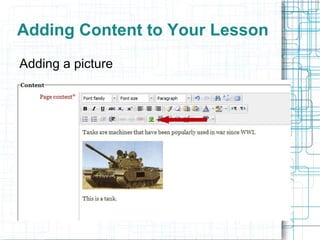
Adding a picture
Adding Content to Your Lesson
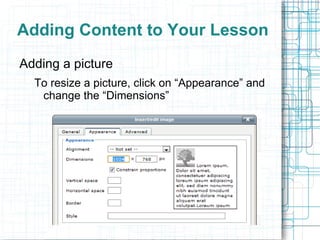
Adding a picture
  To resize a picture, click on “Appearance” and
   change the “Dimensions”
Adding Content to Your Lesson
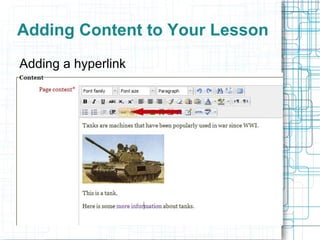
Adding a hyperlink
Adding Content to Your Lesson
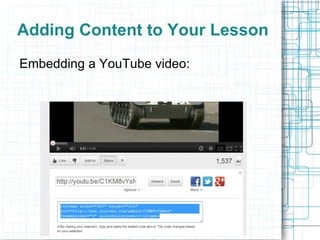
Embedding a YouTube video:
Adding Content to Your Lesson
Embedding a YouTube video:
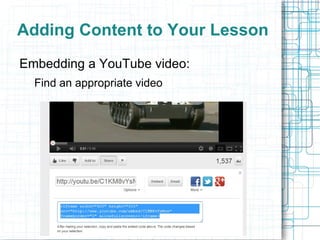
  Find an appropriate video
Adding Content to Your Lesson
Embedding a YouTube video:
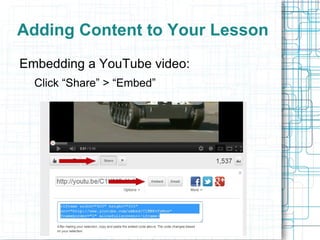
  Click “Share” > “Embed”
Adding Content to Your Lesson
Embedding a YouTube video:
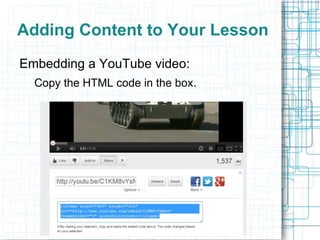
  Copy the HTML code in the box.
Adding Content to Your Lesson
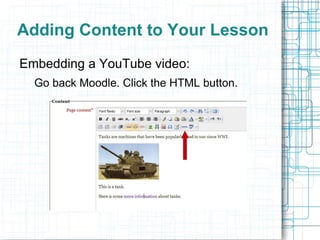
Embedding a YouTube video:
  Go back Moodle. Click the HTML button.
Adding Content to Your Lesson
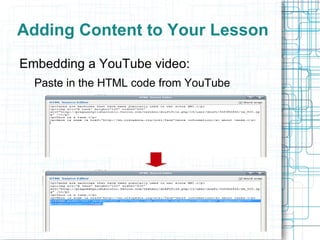
Embedding a YouTube video:
  Paste in the HTML code from YouTube
Adding Content to Your Lesson
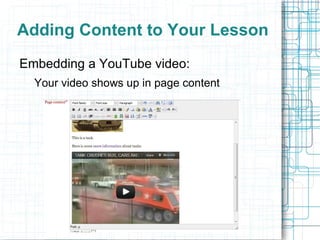
Embedding a YouTube video:
  Your video shows up in page content
Adding Content to Your Lesson
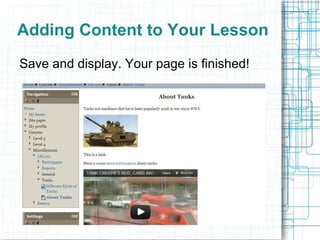
Save and display. Your page is finished!
Adding Content to Your Lesson
Labels
  You can add text, pictures, or embed a video
   for the module view.

Moodle adding resources

  • 1.
    Adding Content toYour Lesson Part I: Resources
  • 2.
    Adding Content toYour Lesson There are two kinds of content: Resources: content that your students can download or view. Activities: content that your students can interact with.
  • 3.
    Adding Content toYour Lesson Resources:
  • 4.
    Adding Content toYour Lesson Resources: File: Allows you to upload a file, like a Word document, video, audio file, etc.
  • 5.
    Adding Content toYour Lesson Resources: Folder: A collection of files that can be downloaded
  • 6.
    Adding Content toYour Lesson Resources: IMS content package: A standard for importing material. You won't need this unless specifically asked.
  • 7.
    Adding Content toYour Lesson Resources: Label: This is a “cosmetic” function. It allows you to post a text, picture, or video to the module screen.
  • 8.
    Adding Content toYour Lesson Resources: Page: A page of information, including text, pictures, video, etc.
  • 9.
    Adding Content toYour Lesson Resources: URL: Creates a hyperlink to outside material. Not very useful as you can create hyperlinks in a Page
  • 10.
    Adding Content toYour Lesson Adding a file
  • 11.
    Adding Content toYour Lesson Adding a file
  • 12.
    Adding Content toYour Lesson Your new content now appears in the module view. The students can now download the material.
  • 13.
    Adding Content toYour Lesson Adding a page
  • 14.
    Adding Content toYour Lesson Adding a picture
  • 15.
    Adding Content toYour Lesson Adding a picture To resize a picture, click on “Appearance” and change the “Dimensions”
  • 16.
    Adding Content toYour Lesson Adding a hyperlink
  • 17.
    Adding Content toYour Lesson Embedding a YouTube video:
  • 18.
    Adding Content toYour Lesson Embedding a YouTube video: Find an appropriate video
  • 19.
    Adding Content toYour Lesson Embedding a YouTube video: Click “Share” > “Embed”
  • 20.
    Adding Content toYour Lesson Embedding a YouTube video: Copy the HTML code in the box.
  • 21.
    Adding Content toYour Lesson Embedding a YouTube video: Go back Moodle. Click the HTML button.
  • 22.
    Adding Content toYour Lesson Embedding a YouTube video: Paste in the HTML code from YouTube
  • 23.
    Adding Content toYour Lesson Embedding a YouTube video: Your video shows up in page content
  • 24.
    Adding Content toYour Lesson Save and display. Your page is finished!
  • 25.
    Adding Content toYour Lesson Labels You can add text, pictures, or embed a video for the module view.