Solved with COMSOL Multiphysics 5.0
1 | TU N I N G F O R K
Tuning Fork
Introduction
This model simulates a tuning fork for tuning musical instruments and, if correctly
design, should sound the note of A, 440 Hz. It computes the fundamental
eigenfrequency and eigenmode for the tuning fork. Although the example seems to be
somewhat academic in nature, the eigenfrequencies and eigenmodes of microscopic
tuning forks are also used in quartz watches and other electronic devices.
Model Definition
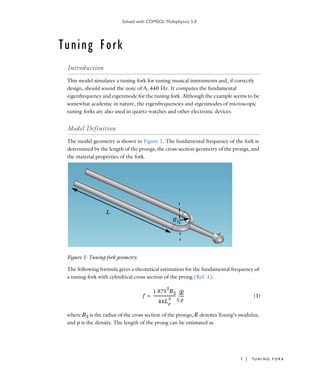
The model geometry is shown in Figure 1. The fundamental frequency of the fork is
determined by the length of the prongs, the cross-section geometry of the prongs, and
the material properties of the fork.
Figure 1: Tuning fork geometry.
The following formula gives a theoretical estimation for the fundamental frequency of
a tuning fork with cylindrical cross section of the prong (Ref. 1):
(1)
where R2 is the radius of the cross section of the prongs, E denotes Young’s modulus,
and ρ is the density. The length of the prong can be estimated as
L
R1
f
1.875
2
R2
4πLp
2
------------------------- E
ρ
----=
Solved with COMSOL Multiphysics 5.0
2 | TU N I N G F O R K
(2)
where R1 the radius of the base, and L is the length of the straight cylindrical part, see
Figure 1.
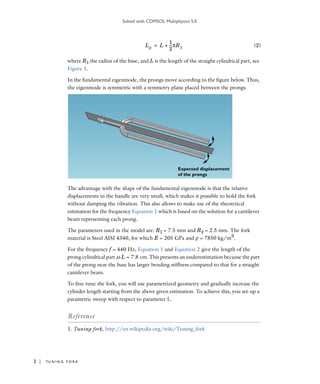
In the fundamental eigenmode, the prongs move according to the figure below. Thus,
the eigenmode is symmetric with a symmetry plane placed between the prongs.
The advantage with the shape of the fundamental eigenmode is that the relative
displacements in the handle are very small, which makes it possible to hold the fork
without damping the vibration. This also allows to make use of the theoretical
estimation for the frequency Equation 1 which is based on the solution for a cantilever
beam representing each prong.
The parameters used in the model are: R1 = 7.5 mm and R2 = 2.5 mm. The fork
material is Steel AISI 4340, for which E = 205 GPa and ρ = 7850 kg/m3
.
For the frequency f = 440 Hz, Equation 1 and Equation 2 give the length of the
prong cylindrical part as L = 7.8 cm. This presents an underestimation because the part
of the prong near the base has larger bending stiffness compared to that for a straight
cantilever beam.
To fine-tune the fork, you will use parametrized geometry and gradually increase the
cylinder length starting from the above given estimation. To achieve this, you set-up a
parametric sweep with respect to parameter L.
Reference
1. Tuning fork, http://en.wikipedia.org/wiki/Tuning_fork
Lp L
1
2
---πR1+=
Expected displacement
of the prongs
Solved with COMSOL Multiphysics 5.0
3 | TU N I N G F O R K
Model Library path: COMSOL_Multiphysics/Structural_Mechanics/
tuning_fork
Modeling Instructions
From the File menu, choose New.
N E W
1 In the New window, click Model Wizard.
M O D E L W I Z A R D
1 In the Model Wizard window, click 3D.
2 In the Select physics tree, select Structural Mechanics>Solid Mechanics (solid).
3 Click Add.
4 Click Study.
5 In the Select study tree, select Preset Studies>Eigenfrequency.
6 Click Done.
D E F I N I T I O N S
Parameters
1 On the Model toolbar, click Parameters.
2 In the Settings window for Parameters, locate the Parameters section.
3 In the table, enter the following settings:
G E O M E T R Y 1
You can build up the fork geometry efficiently using predefined geometry primitives.
Cone 1 (cone1)
1 On the Geometry toolbar, click Cone.
Name Expression Value Description
L 7.8[cm] 0.078000 m Cylinder length
R1 7.5[mm] 0.0075000 m Base radius
R2 2.5[mm] 0.0025000 m Prong radius
Solved with COMSOL Multiphysics 5.0
4 | TU N I N G F O R K
2 In the Settings window for Cone, locate the Size and Shape section.
3 In the Bottom radius text field, type R2.
4 In the Height text field, type 2e-2.
5 In the Semi-angle text field, type 2.
6 Locate the Position section. In the x text field, type R1.
7 In the z text field, type -R1.
8 Locate the Axis section. From the Axis type list, choose Cartesian.
9 In the z text field, type -1.
Sphere 1 (sph1)
1 On the Geometry toolbar, click Sphere.
2 In the Settings window for Sphere, locate the Size section.
3 In the Radius text field, type 4e-3.
4 Locate the Position section. In the x text field, type R1.
5 In the z text field, type -(R1+2.25e-2).
Torus 1 (tor1)
1 On the Geometry toolbar, click Torus.
2 In the Settings window for Torus, locate the Size and Shape section.
3 In the Major radius text field, type R1.
4 In the Minor radius text field, type R2.
5 In the Revolution angle text field, type 180.
6 Locate the Position section. In the x text field, type R1.
7 Locate the Axis section. From the Axis type list, choose Cartesian.
8 In the z text field, type 0.
9 In the y text field, type 1.
10 Locate the Rotation Angle section. In the Rotation text field, type -90.
Union 1 (uni1)
1 On the Geometry toolbar, click Booleans and Partitions and choose Union.
2 In the Settings window for Union, locate the Union section.
3 Clear the Keep interior boundaries check box.
4 Click in the Graphics window and then press Ctrl+A to select all objects.
This completes the handle and base of the fork.
Solved with COMSOL Multiphysics 5.0
5 | TU N I N G F O R K
Add two cylinders to represent the prongs.
Cylinder 1 (cyl1)
1 On the Geometry toolbar, click Cylinder.
2 In the Settings window for Cylinder, locate the Size and Shape section.
3 In the Radius text field, type R2.
4 In the Height text field, type L.
Cylinder 2 (cyl2)
1 On the Geometry toolbar, click Cylinder.
2 In the Settings window for Cylinder, locate the Size and Shape section.
3 In the Radius text field, type R2.
4 In the Height text field, type L.
5 Locate the Position section. In the x text field, type 2*R1.
Use virtual geometry operations to avoid short edges and narrow regions. This will
improve the mesh generation.
Ignore Edges 1 (ige1)
1 On the Geometry toolbar, click Virtual Operations and choose Ignore Edges.
2 On the object fin, select Edges 22, 23, 29, 32, 33, 39, 42, and 43 only.
3 On the Geometry toolbar, click Build All.
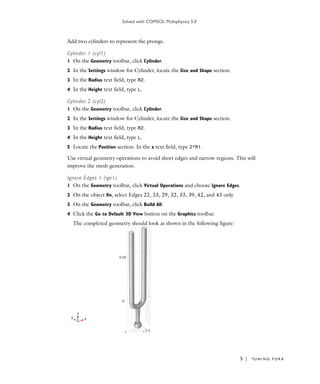
4 Click the Go to Default 3D View button on the Graphics toolbar.
The completed geometry should look as shown in the following figure:
Solved with COMSOL Multiphysics 5.0
6 | TU N I N G F O R K
A D D M A T E R I A L
1 On the Model toolbar, click Add Material to open the Add Material window.
2 Go to the Add Material window.
3 In the tree, select Built-In>Steel AISI 4340.
4 Click Add to Component in the window toolbar.
5 On the Model toolbar, click Add Material to close the Add Material window.
M E S H 1
1 In the Model Builder window, under Component 1 (comp1) click Mesh 1.
2 In the Settings window for Mesh, locate the Mesh Settings section.
3 From the Element size list, choose Fine.
Free Triangular 1
1 Right-click Component 1 (comp1)>Mesh 1 and choose More Operations>Free
Triangular.
2 Select Boundaries 6 and 24 only.
3 Click the Build Selected button.
Swept 1
1 In the Model Builder window, right-click Mesh 1 and choose Swept.
2 In the Settings window for Swept, locate the Domain Selection section.
3 From the Geometric entity level list, choose Domain.
4 Select Domains 1 and 3 only.
Distribution 1
1 Right-click Component 1 (comp1)>Mesh 1>Swept 1 and choose Distribution.
2 In the Settings window for Distribution, locate the Distribution section.
3 In the Number of elements text field, type 50.
Swept 1
1 Right-click Swept 1 and choose Build Selected.
2 Right-click Mesh 1 and choose Free Tetrahedral.
Solved with COMSOL Multiphysics 5.0
7 | TU N I N G F O R K
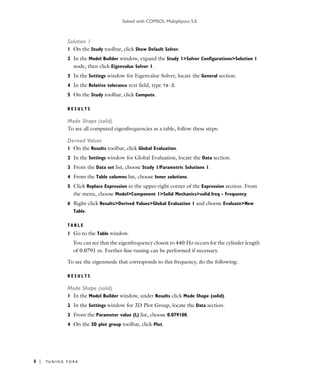
3 Right-click Mesh 1 and choose Build All.
The meshed geometry should look like that in the figure below.
S T U D Y 1
Set up a parametric sweep with respect to the cylinder length L and search for an
eigenfrequency in the vicinity of 440 Hz.
Parametric Sweep
1 On the Study toolbar, click Parametric Sweep.
2 In the Settings window for Parametric Sweep, locate the Study Settings section.
3 Click Add.
4 In the table, enter the following settings:
Step 1: Eigenfrequency
1 In the Model Builder window, under Study 1 click Step 1: Eigenfrequency.
2 In the Settings window for Eigenfrequency, locate the Study Settings section.
3 In the Desired number of eigenfrequencies text field, type 1.
4 In the Search for eigenfrequencies around text field, type 440.
Parameter name Parameter value list Parameter unit
L range(0.078,1e-4,0.0795)
Solved with COMSOL Multiphysics 5.0
8 | TU N I N G F O R K
Solution 1
1 On the Study toolbar, click Show Default Solver.
2 In the Model Builder window, expand the Study 1>Solver Configurations>Solution 1
node, then click Eigenvalue Solver 1.
3 In the Settings window for Eigenvalue Solver, locate the General section.
4 In the Relative tolerance text field, type 1e-3.
5 On the Study toolbar, click Compute.
R E S U L T S
Mode Shape (solid)
To see all computed eigenfrequencies as a table, follow these steps:
Derived Values
1 On the Results toolbar, click Global Evaluation.
2 In the Settings window for Global Evaluation, locate the Data section.
3 From the Data set list, choose Study 1/Parametric Solutions 1.
4 From the Table columns list, choose Inner solutions.
5 Click Replace Expression in the upper-right corner of the Expression section. From
the menu, choose Model>Component 1>Solid Mechanics>solid.freq - Frequency.
6 Right-click Results>Derived Values>Global Evaluation 1 and choose Evaluate>New
Table.
T A B L E
1 Go to the Table window.
You can see that the eigenfrequency closest to 440 Hz occurs for the cylinder length
of 0.0791 m. Further fine-tuning can be performed if necessary.
To see the eigenmode that corresponds to this frequency, do the following:
R E S U L T S
Mode Shape (solid)
1 In the Model Builder window, under Results click Mode Shape (solid).
2 In the Settings window for 3D Plot Group, locate the Data section.
3 From the Parameter value (L) list, choose 0.079100.
4 On the 3D plot group toolbar, click Plot.
Solved with COMSOL Multiphysics 5.0
9 | TU N I N G F O R K
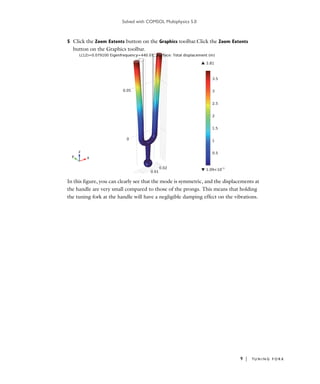
5 Click the Zoom Extents button on the Graphics toolbar.Click the Zoom Extents
button on the Graphics toolbar.
In this figure, you can clearly see that the mode is symmetric, and the displacements at
the handle are very small compared to those of the prongs. This means that holding
the tuning fork at the handle will have a negligible damping effect on the vibrations.
Solved with COMSOL Multiphysics 5.0
10 | TU N I N G F O R K

Models.mph.tuning fork

  • 1.
    Solved with COMSOLMultiphysics 5.0 1 | TU N I N G F O R K Tuning Fork Introduction This model simulates a tuning fork for tuning musical instruments and, if correctly design, should sound the note of A, 440 Hz. It computes the fundamental eigenfrequency and eigenmode for the tuning fork. Although the example seems to be somewhat academic in nature, the eigenfrequencies and eigenmodes of microscopic tuning forks are also used in quartz watches and other electronic devices. Model Definition The model geometry is shown in Figure 1. The fundamental frequency of the fork is determined by the length of the prongs, the cross-section geometry of the prongs, and the material properties of the fork. Figure 1: Tuning fork geometry. The following formula gives a theoretical estimation for the fundamental frequency of a tuning fork with cylindrical cross section of the prong (Ref. 1): (1) where R2 is the radius of the cross section of the prongs, E denotes Young’s modulus, and ρ is the density. The length of the prong can be estimated as L R1 f 1.875 2 R2 4πLp 2 ------------------------- E ρ ----=
  • 2.
    Solved with COMSOLMultiphysics 5.0 2 | TU N I N G F O R K (2) where R1 the radius of the base, and L is the length of the straight cylindrical part, see Figure 1. In the fundamental eigenmode, the prongs move according to the figure below. Thus, the eigenmode is symmetric with a symmetry plane placed between the prongs. The advantage with the shape of the fundamental eigenmode is that the relative displacements in the handle are very small, which makes it possible to hold the fork without damping the vibration. This also allows to make use of the theoretical estimation for the frequency Equation 1 which is based on the solution for a cantilever beam representing each prong. The parameters used in the model are: R1 = 7.5 mm and R2 = 2.5 mm. The fork material is Steel AISI 4340, for which E = 205 GPa and ρ = 7850 kg/m3 . For the frequency f = 440 Hz, Equation 1 and Equation 2 give the length of the prong cylindrical part as L = 7.8 cm. This presents an underestimation because the part of the prong near the base has larger bending stiffness compared to that for a straight cantilever beam. To fine-tune the fork, you will use parametrized geometry and gradually increase the cylinder length starting from the above given estimation. To achieve this, you set-up a parametric sweep with respect to parameter L. Reference 1. Tuning fork, http://en.wikipedia.org/wiki/Tuning_fork Lp L 1 2 ---πR1+= Expected displacement of the prongs
  • 3.
    Solved with COMSOLMultiphysics 5.0 3 | TU N I N G F O R K Model Library path: COMSOL_Multiphysics/Structural_Mechanics/ tuning_fork Modeling Instructions From the File menu, choose New. N E W 1 In the New window, click Model Wizard. M O D E L W I Z A R D 1 In the Model Wizard window, click 3D. 2 In the Select physics tree, select Structural Mechanics>Solid Mechanics (solid). 3 Click Add. 4 Click Study. 5 In the Select study tree, select Preset Studies>Eigenfrequency. 6 Click Done. D E F I N I T I O N S Parameters 1 On the Model toolbar, click Parameters. 2 In the Settings window for Parameters, locate the Parameters section. 3 In the table, enter the following settings: G E O M E T R Y 1 You can build up the fork geometry efficiently using predefined geometry primitives. Cone 1 (cone1) 1 On the Geometry toolbar, click Cone. Name Expression Value Description L 7.8[cm] 0.078000 m Cylinder length R1 7.5[mm] 0.0075000 m Base radius R2 2.5[mm] 0.0025000 m Prong radius
  • 4.
    Solved with COMSOLMultiphysics 5.0 4 | TU N I N G F O R K 2 In the Settings window for Cone, locate the Size and Shape section. 3 In the Bottom radius text field, type R2. 4 In the Height text field, type 2e-2. 5 In the Semi-angle text field, type 2. 6 Locate the Position section. In the x text field, type R1. 7 In the z text field, type -R1. 8 Locate the Axis section. From the Axis type list, choose Cartesian. 9 In the z text field, type -1. Sphere 1 (sph1) 1 On the Geometry toolbar, click Sphere. 2 In the Settings window for Sphere, locate the Size section. 3 In the Radius text field, type 4e-3. 4 Locate the Position section. In the x text field, type R1. 5 In the z text field, type -(R1+2.25e-2). Torus 1 (tor1) 1 On the Geometry toolbar, click Torus. 2 In the Settings window for Torus, locate the Size and Shape section. 3 In the Major radius text field, type R1. 4 In the Minor radius text field, type R2. 5 In the Revolution angle text field, type 180. 6 Locate the Position section. In the x text field, type R1. 7 Locate the Axis section. From the Axis type list, choose Cartesian. 8 In the z text field, type 0. 9 In the y text field, type 1. 10 Locate the Rotation Angle section. In the Rotation text field, type -90. Union 1 (uni1) 1 On the Geometry toolbar, click Booleans and Partitions and choose Union. 2 In the Settings window for Union, locate the Union section. 3 Clear the Keep interior boundaries check box. 4 Click in the Graphics window and then press Ctrl+A to select all objects. This completes the handle and base of the fork.
  • 5.
    Solved with COMSOLMultiphysics 5.0 5 | TU N I N G F O R K Add two cylinders to represent the prongs. Cylinder 1 (cyl1) 1 On the Geometry toolbar, click Cylinder. 2 In the Settings window for Cylinder, locate the Size and Shape section. 3 In the Radius text field, type R2. 4 In the Height text field, type L. Cylinder 2 (cyl2) 1 On the Geometry toolbar, click Cylinder. 2 In the Settings window for Cylinder, locate the Size and Shape section. 3 In the Radius text field, type R2. 4 In the Height text field, type L. 5 Locate the Position section. In the x text field, type 2*R1. Use virtual geometry operations to avoid short edges and narrow regions. This will improve the mesh generation. Ignore Edges 1 (ige1) 1 On the Geometry toolbar, click Virtual Operations and choose Ignore Edges. 2 On the object fin, select Edges 22, 23, 29, 32, 33, 39, 42, and 43 only. 3 On the Geometry toolbar, click Build All. 4 Click the Go to Default 3D View button on the Graphics toolbar. The completed geometry should look as shown in the following figure:
  • 6.
    Solved with COMSOLMultiphysics 5.0 6 | TU N I N G F O R K A D D M A T E R I A L 1 On the Model toolbar, click Add Material to open the Add Material window. 2 Go to the Add Material window. 3 In the tree, select Built-In>Steel AISI 4340. 4 Click Add to Component in the window toolbar. 5 On the Model toolbar, click Add Material to close the Add Material window. M E S H 1 1 In the Model Builder window, under Component 1 (comp1) click Mesh 1. 2 In the Settings window for Mesh, locate the Mesh Settings section. 3 From the Element size list, choose Fine. Free Triangular 1 1 Right-click Component 1 (comp1)>Mesh 1 and choose More Operations>Free Triangular. 2 Select Boundaries 6 and 24 only. 3 Click the Build Selected button. Swept 1 1 In the Model Builder window, right-click Mesh 1 and choose Swept. 2 In the Settings window for Swept, locate the Domain Selection section. 3 From the Geometric entity level list, choose Domain. 4 Select Domains 1 and 3 only. Distribution 1 1 Right-click Component 1 (comp1)>Mesh 1>Swept 1 and choose Distribution. 2 In the Settings window for Distribution, locate the Distribution section. 3 In the Number of elements text field, type 50. Swept 1 1 Right-click Swept 1 and choose Build Selected. 2 Right-click Mesh 1 and choose Free Tetrahedral.
  • 7.
    Solved with COMSOLMultiphysics 5.0 7 | TU N I N G F O R K 3 Right-click Mesh 1 and choose Build All. The meshed geometry should look like that in the figure below. S T U D Y 1 Set up a parametric sweep with respect to the cylinder length L and search for an eigenfrequency in the vicinity of 440 Hz. Parametric Sweep 1 On the Study toolbar, click Parametric Sweep. 2 In the Settings window for Parametric Sweep, locate the Study Settings section. 3 Click Add. 4 In the table, enter the following settings: Step 1: Eigenfrequency 1 In the Model Builder window, under Study 1 click Step 1: Eigenfrequency. 2 In the Settings window for Eigenfrequency, locate the Study Settings section. 3 In the Desired number of eigenfrequencies text field, type 1. 4 In the Search for eigenfrequencies around text field, type 440. Parameter name Parameter value list Parameter unit L range(0.078,1e-4,0.0795)
  • 8.
    Solved with COMSOLMultiphysics 5.0 8 | TU N I N G F O R K Solution 1 1 On the Study toolbar, click Show Default Solver. 2 In the Model Builder window, expand the Study 1>Solver Configurations>Solution 1 node, then click Eigenvalue Solver 1. 3 In the Settings window for Eigenvalue Solver, locate the General section. 4 In the Relative tolerance text field, type 1e-3. 5 On the Study toolbar, click Compute. R E S U L T S Mode Shape (solid) To see all computed eigenfrequencies as a table, follow these steps: Derived Values 1 On the Results toolbar, click Global Evaluation. 2 In the Settings window for Global Evaluation, locate the Data section. 3 From the Data set list, choose Study 1/Parametric Solutions 1. 4 From the Table columns list, choose Inner solutions. 5 Click Replace Expression in the upper-right corner of the Expression section. From the menu, choose Model>Component 1>Solid Mechanics>solid.freq - Frequency. 6 Right-click Results>Derived Values>Global Evaluation 1 and choose Evaluate>New Table. T A B L E 1 Go to the Table window. You can see that the eigenfrequency closest to 440 Hz occurs for the cylinder length of 0.0791 m. Further fine-tuning can be performed if necessary. To see the eigenmode that corresponds to this frequency, do the following: R E S U L T S Mode Shape (solid) 1 In the Model Builder window, under Results click Mode Shape (solid). 2 In the Settings window for 3D Plot Group, locate the Data section. 3 From the Parameter value (L) list, choose 0.079100. 4 On the 3D plot group toolbar, click Plot.
  • 9.
    Solved with COMSOLMultiphysics 5.0 9 | TU N I N G F O R K 5 Click the Zoom Extents button on the Graphics toolbar.Click the Zoom Extents button on the Graphics toolbar. In this figure, you can clearly see that the mode is symmetric, and the displacements at the handle are very small compared to those of the prongs. This means that holding the tuning fork at the handle will have a negligible damping effect on the vibrations.
  • 10.
    Solved with COMSOLMultiphysics 5.0 10 | TU N I N G F O R K