Unit 25: Modelling Principles
25.0 Introduction
This unit combines techniques taught elsewhere in this course to teach good-practice in
building business and financial models in Excel.


25.1 What do we mean by modelling?
By modelling we simply mean making a set of assumptions about how something (for
instance a company) will behave in a set of circumstances, and reproducing those
assumptions (as calculations in Excel). Usually the assumptions are designed to simplify the
situation without affecting the result too much.

For example, if I drop a ball from a cliff, Newton’s laws of motion tell me that its speed after
t seconds will be 10 * t. There are many simplifying assumptions here (for instance this
ignores the effect of air resistance, and the multiplication should be by a number closer to
9.8 than 10). But if the simplifying assumptions are good ones (more on this later) the
‘model’ is good enough – and I have reduced the problem to something easily calculated in
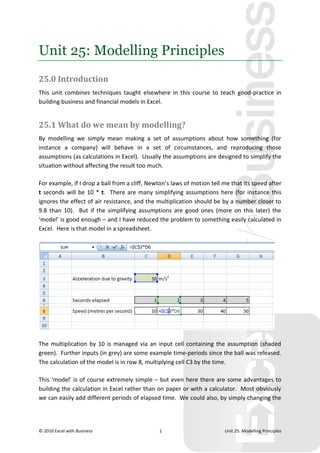
Excel. Here is that model in a spreadsheet.


The multiplication by 10 is managed via an input cell containing the assumption (shaded
green). Further inputs (in grey) are some example time-periods since the ball was released.
The calculation of the model is in row 8, multiplying cell C3 by the time.

This ‘model’ is of course extremely simple – but even here there are some advantages to
building the calculation in Excel rather than on paper or with a calculator. Most obviously
we can easily add different periods of elapsed time. We could also, by simply changing the


© 2010 Excel with Business                     1                         Unit 25: Modelling Principles
value in C3, calculate the speed of the ball if it were dropped off a cliff on the moon. In
short – we can adapt the calculation easily to changes in our assumptions.


25.2 Principles
Separate analysis steps
Your model will be easier to build and more easily understood if you can break it down into
the following components.


            Input data

                                       Intermediate                     Results
                                        calculations
          Assumptions


This approach treats the model as a ‘sausage machine’ – inputs and assumptions in one end,
some Excel formulae applying calculations in the middle, and results churned out of the
right hand side. The arrows will be links or lookups selecting data from the inputs for use in
the calculations and presentation in the results.

To some extent it is up to you what you call input data and what you call assumptions, but
input data are generally independently sourced (e.g. the raw feed from your company’s
sales database) and assumptions require some personal judgement (e.g. the rate of growth
in sales of a new product over the next few years).

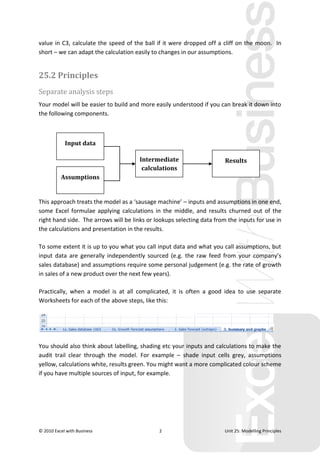
Practically, when a model is at all complicated, it is often a good idea to use separate
Worksheets for each of the above steps, like this:


You should also think about labelling, shading etc your inputs and calculations to make the
audit trail clear through the model. For example – shade input cells grey, assumptions
yellow, calculations white, results green. You might want a more complicated colour scheme
if you have multiple sources of input, for example.


© 2010 Excel with Business                    2                         Unit 25: Modelling Principles
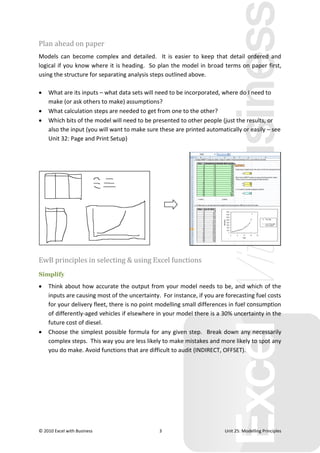
Plan ahead on paper
Models can become complex and detailed. It is easier to keep that detail ordered and
logical if you know where it is heading. So plan the model in broad terms on paper first,
using the structure for separating analysis steps outlined above.

   What are its inputs – what data sets will need to be incorporated, where do I need to
    make (or ask others to make) assumptions?
   What calculation steps are needed to get from one to the other?
   Which bits of the model will need to be presented to other people (just the results, or
    also the input (you will want to make sure these are printed automatically or easily – see
    Unit 32: Page and Print Setup)


EwB principles in selecting & using Excel functions
Simplify

   Think about how accurate the output from your model needs to be, and which of the
    inputs are causing most of the uncertainty. For instance, if you are forecasting fuel costs
    for your delivery fleet, there is no point modelling small differences in fuel consumption
    of differently-aged vehicles if elsewhere in your model there is a 30% uncertainty in the
    future cost of diesel.
   Choose the simplest possible formula for any given step. Break down any necessarily
    complex steps. This way you are less likely to make mistakes and more likely to spot any
    you do make. Avoid functions that are difficult to audit (INDIRECT, OFFSET).


© 2010 Excel with Business                     3                        Unit 25: Modelling Principles
Horses for courses

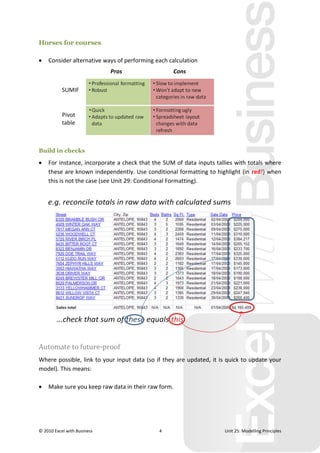
   Consider alternative ways of performing each calculation


Build in checks

   For instance, incorporate a check that the SUM of data inputs tallies with totals where
    these are known independently. Use conditional formatting to highlight (in red!) when
    this is not the case (see Unit 29: Conditional Formatting).


Automate to future-proof
Where possible, link to your input data (so if they are updated, it is quick to update your
model). This means:

   Make sure you keep raw data in their raw form.


© 2010 Excel with Business                   4                       Unit 25: Modelling Principles
   If you can make the step from ‘Raw’  ‘Clean’ data using formulae (e.g. trimming white
    spaces, or correcting common typos with a match function – see Units 15: Text
    Functions and Unit 16: Lookup & Reference functions).
   If you can’t perform this step using formulae, make sure you do the ‘cleaning’ on a copy
    of the data, and record what you have done (preferably in the spreadsheet). Label data
    sources (e.g. with a colour key).

Think about presentation along the way
   As discussed above, make sure the spreadsheet layout matches the analysis steps.
   Use consistent formatting (see Unit 27: Cell Formatting and Unit 28: Number
    Formatting).
   The results you want to show are paramount – take time to emphasise these.
   It is often a good idea to include a dedicated results worksheet.


© 2010 Excel with Business                   5                        Unit 25: Modelling Principles

Modelling principles in excel

  • 1.
    Unit 25: ModellingPrinciples 25.0 Introduction This unit combines techniques taught elsewhere in this course to teach good-practice in building business and financial models in Excel. 25.1 What do we mean by modelling? By modelling we simply mean making a set of assumptions about how something (for instance a company) will behave in a set of circumstances, and reproducing those assumptions (as calculations in Excel). Usually the assumptions are designed to simplify the situation without affecting the result too much. For example, if I drop a ball from a cliff, Newton’s laws of motion tell me that its speed after t seconds will be 10 * t. There are many simplifying assumptions here (for instance this ignores the effect of air resistance, and the multiplication should be by a number closer to 9.8 than 10). But if the simplifying assumptions are good ones (more on this later) the ‘model’ is good enough – and I have reduced the problem to something easily calculated in Excel. Here is that model in a spreadsheet. The multiplication by 10 is managed via an input cell containing the assumption (shaded green). Further inputs (in grey) are some example time-periods since the ball was released. The calculation of the model is in row 8, multiplying cell C3 by the time. This ‘model’ is of course extremely simple – but even here there are some advantages to building the calculation in Excel rather than on paper or with a calculator. Most obviously we can easily add different periods of elapsed time. We could also, by simply changing the © 2010 Excel with Business 1 Unit 25: Modelling Principles
  • 2.
    value in C3,calculate the speed of the ball if it were dropped off a cliff on the moon. In short – we can adapt the calculation easily to changes in our assumptions. 25.2 Principles Separate analysis steps Your model will be easier to build and more easily understood if you can break it down into the following components. Input data Intermediate Results calculations Assumptions This approach treats the model as a ‘sausage machine’ – inputs and assumptions in one end, some Excel formulae applying calculations in the middle, and results churned out of the right hand side. The arrows will be links or lookups selecting data from the inputs for use in the calculations and presentation in the results. To some extent it is up to you what you call input data and what you call assumptions, but input data are generally independently sourced (e.g. the raw feed from your company’s sales database) and assumptions require some personal judgement (e.g. the rate of growth in sales of a new product over the next few years). Practically, when a model is at all complicated, it is often a good idea to use separate Worksheets for each of the above steps, like this: You should also think about labelling, shading etc your inputs and calculations to make the audit trail clear through the model. For example – shade input cells grey, assumptions yellow, calculations white, results green. You might want a more complicated colour scheme if you have multiple sources of input, for example. © 2010 Excel with Business 2 Unit 25: Modelling Principles
  • 3.
    Plan ahead onpaper Models can become complex and detailed. It is easier to keep that detail ordered and logical if you know where it is heading. So plan the model in broad terms on paper first, using the structure for separating analysis steps outlined above.  What are its inputs – what data sets will need to be incorporated, where do I need to make (or ask others to make) assumptions?  What calculation steps are needed to get from one to the other?  Which bits of the model will need to be presented to other people (just the results, or also the input (you will want to make sure these are printed automatically or easily – see Unit 32: Page and Print Setup) EwB principles in selecting & using Excel functions Simplify  Think about how accurate the output from your model needs to be, and which of the inputs are causing most of the uncertainty. For instance, if you are forecasting fuel costs for your delivery fleet, there is no point modelling small differences in fuel consumption of differently-aged vehicles if elsewhere in your model there is a 30% uncertainty in the future cost of diesel.  Choose the simplest possible formula for any given step. Break down any necessarily complex steps. This way you are less likely to make mistakes and more likely to spot any you do make. Avoid functions that are difficult to audit (INDIRECT, OFFSET). © 2010 Excel with Business 3 Unit 25: Modelling Principles
  • 4.
    Horses for courses  Consider alternative ways of performing each calculation Build in checks  For instance, incorporate a check that the SUM of data inputs tallies with totals where these are known independently. Use conditional formatting to highlight (in red!) when this is not the case (see Unit 29: Conditional Formatting). Automate to future-proof Where possible, link to your input data (so if they are updated, it is quick to update your model). This means:  Make sure you keep raw data in their raw form. © 2010 Excel with Business 4 Unit 25: Modelling Principles
  • 5.
    If you can make the step from ‘Raw’  ‘Clean’ data using formulae (e.g. trimming white spaces, or correcting common typos with a match function – see Units 15: Text Functions and Unit 16: Lookup & Reference functions).  If you can’t perform this step using formulae, make sure you do the ‘cleaning’ on a copy of the data, and record what you have done (preferably in the spreadsheet). Label data sources (e.g. with a colour key). Think about presentation along the way  As discussed above, make sure the spreadsheet layout matches the analysis steps.  Use consistent formatting (see Unit 27: Cell Formatting and Unit 28: Number Formatting).  The results you want to show are paramount – take time to emphasise these.  It is often a good idea to include a dedicated results worksheet. © 2010 Excel with Business 5 Unit 25: Modelling Principles