Good day! Today, we
will be learning about
the functions & use of
Microsoft Teams.
Let’s get ready! …and
dive in to the
wonderful program.
Microsoft Teams. It is a
hub for chat, assignments,
and content creation.
And connects students,
teachers, and staff in an
online classroom. It is like
an office on the web.
FUNCTI
ONS
The general function of the
application; Microsoft Teams,
is to have a virtual office with
your group or organization.
You can have multiple groups
at the same time that focuses
on different tasks.
FUNCTI
ONS
These groups created can be
set to private, where the
team creator is the only one
who can invite specific
individual or public, where all
individual who want to join
can send a request.
To access Microsoft
Teams, you can log in to
www.teams.microsoft.co
m.
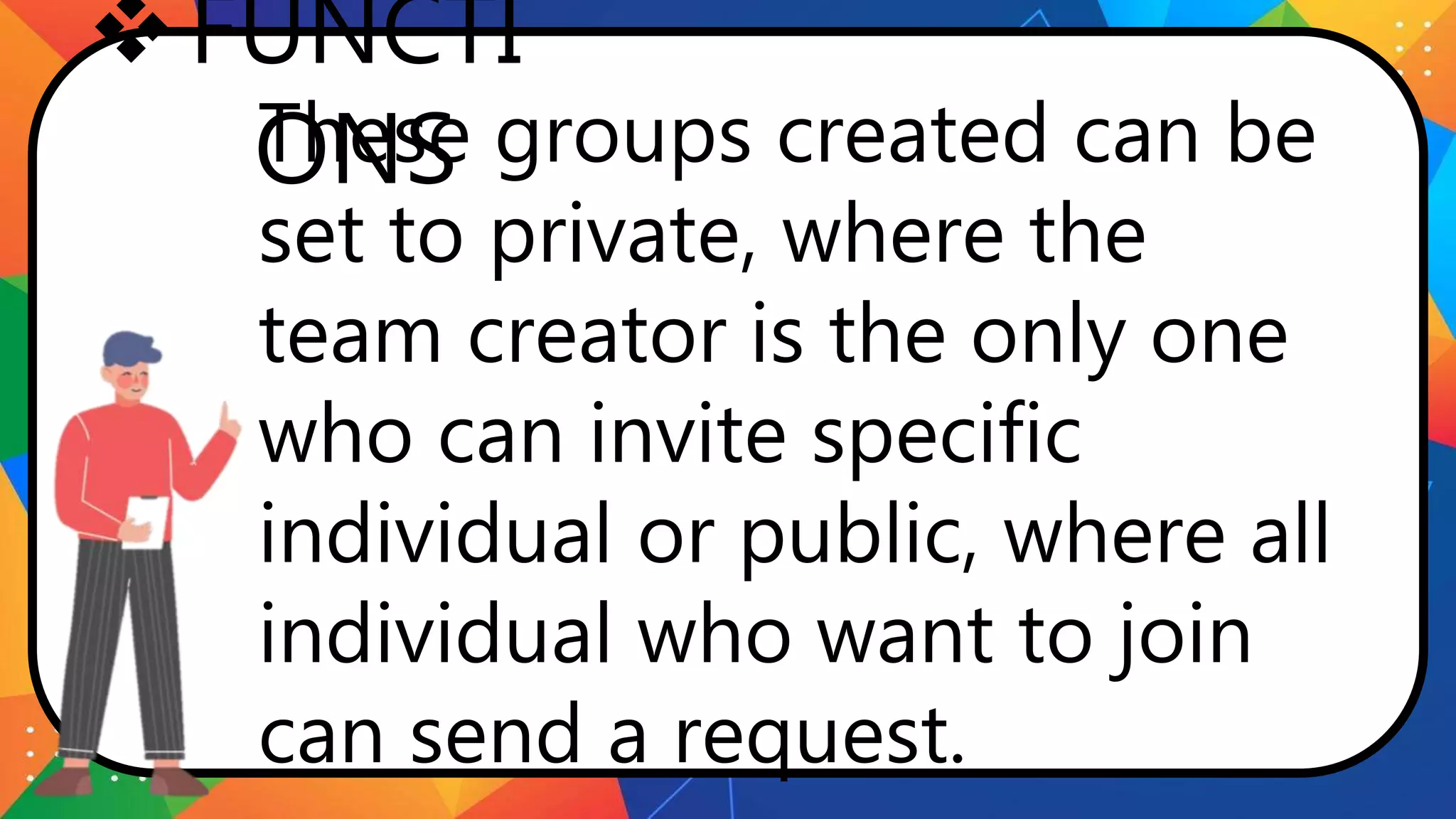
You can
download the
Windows app,
which has the
complete
features.
To access Microsoft
Teams, you can log in to
www.teams.microsoft.co
m.
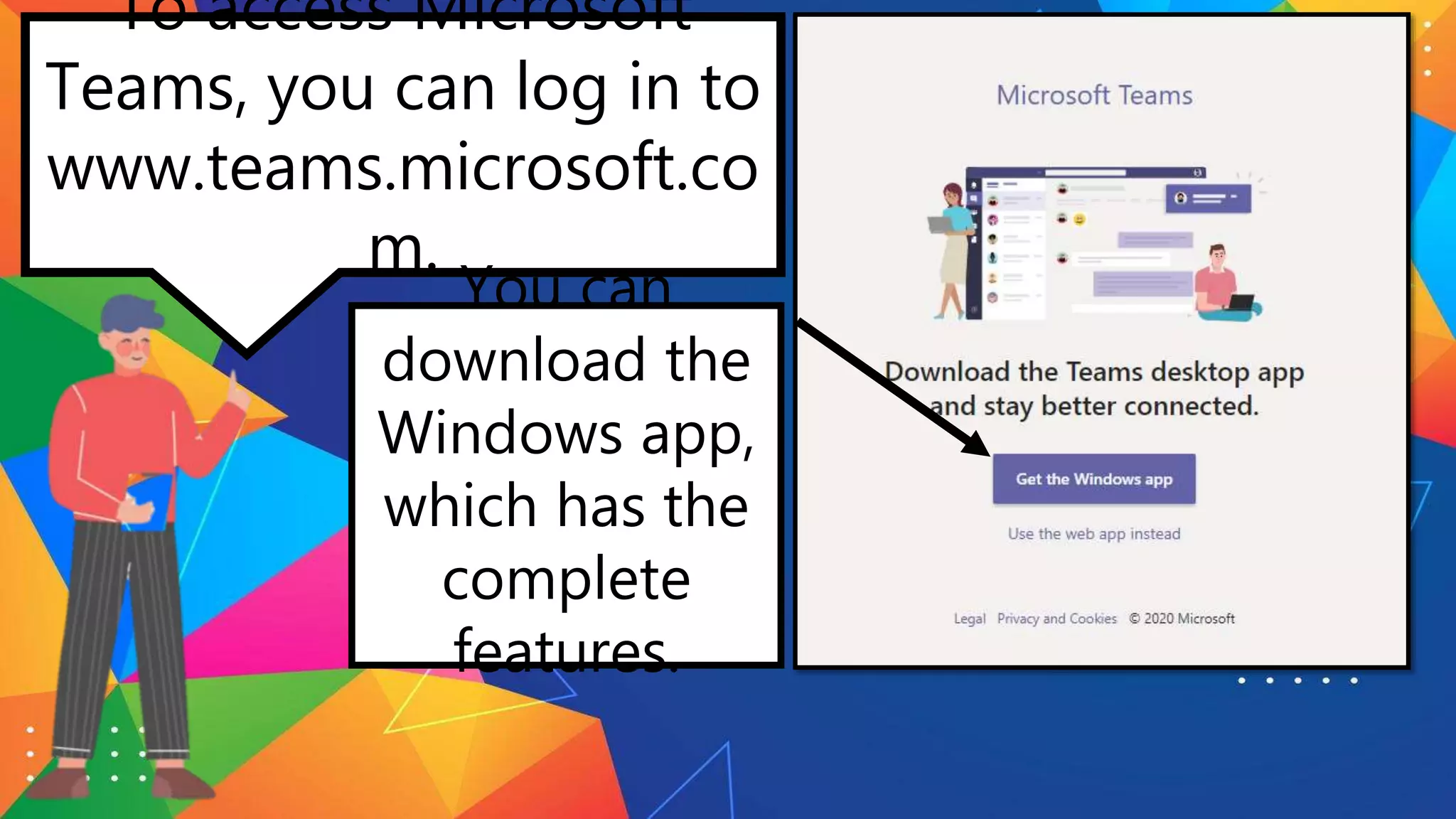
You can also
use the web
app, that has
limitation in
features but
have the basic
features.
To access Microsoft
Teams, you can log in to
www.teams.microsoft.co
m.
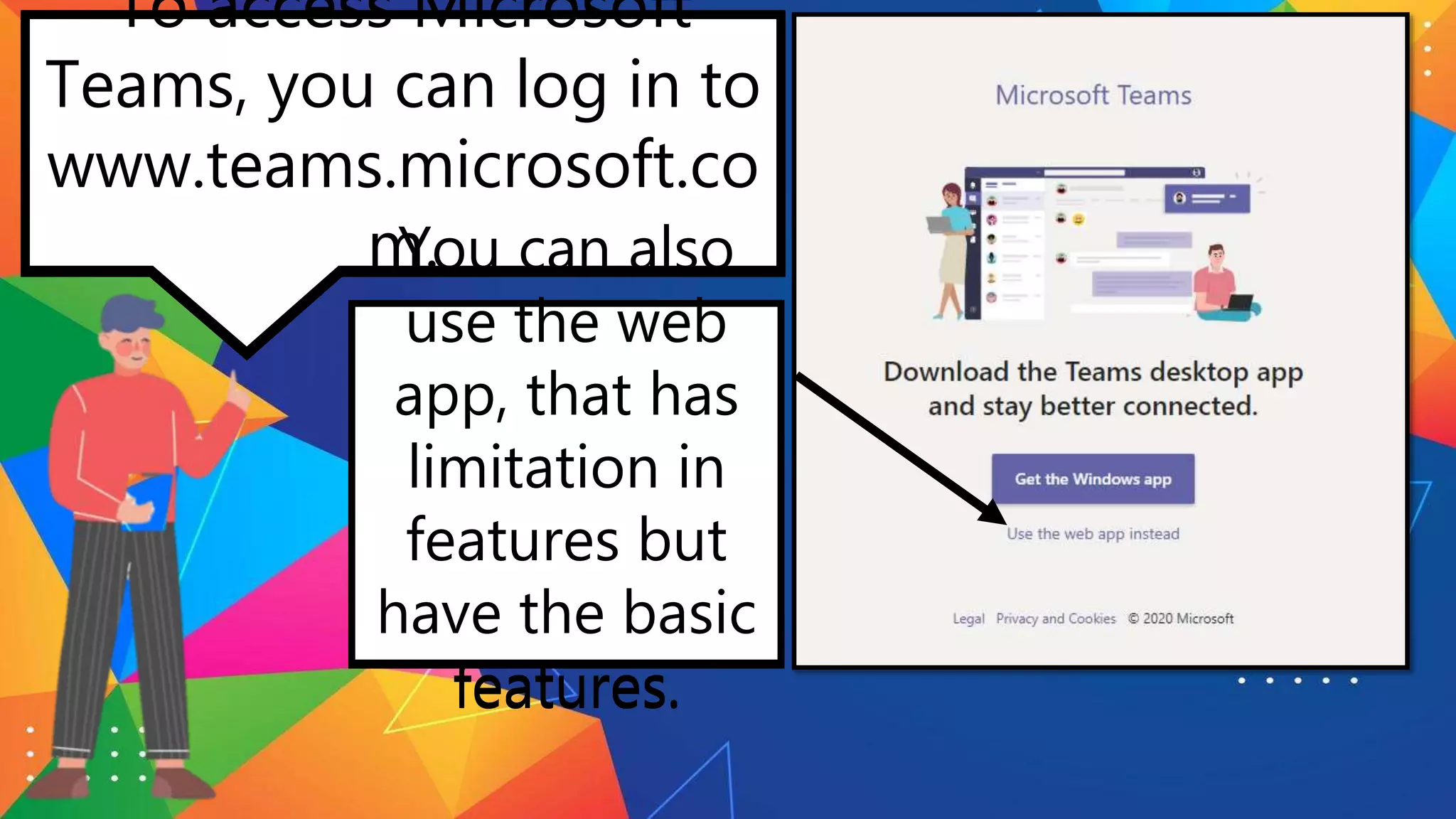
You can also
use the web
app, that has
limitation in
features but
have the basic
features.
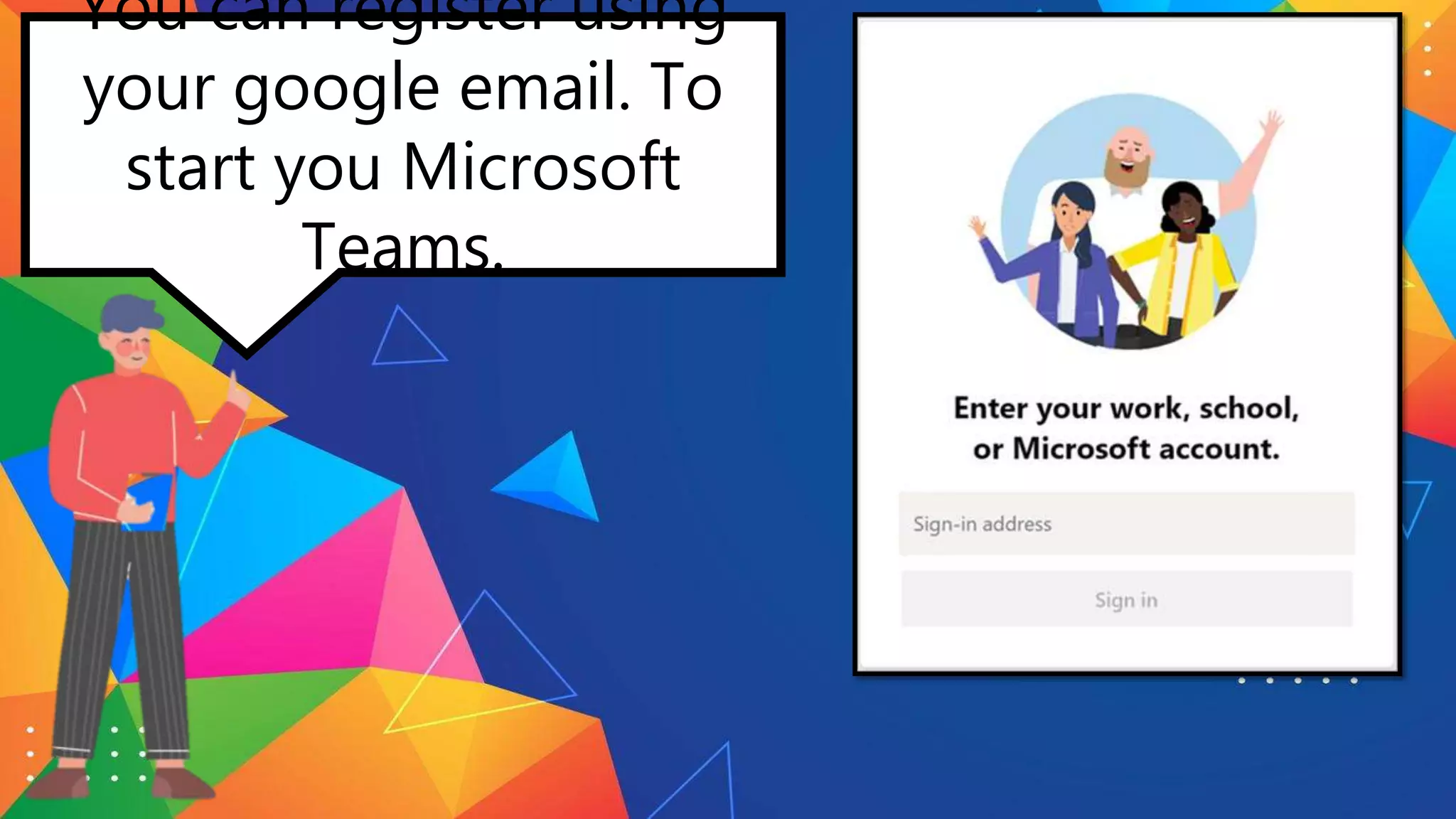
You can register using
your google email. To
start you Microsoft
Teams.
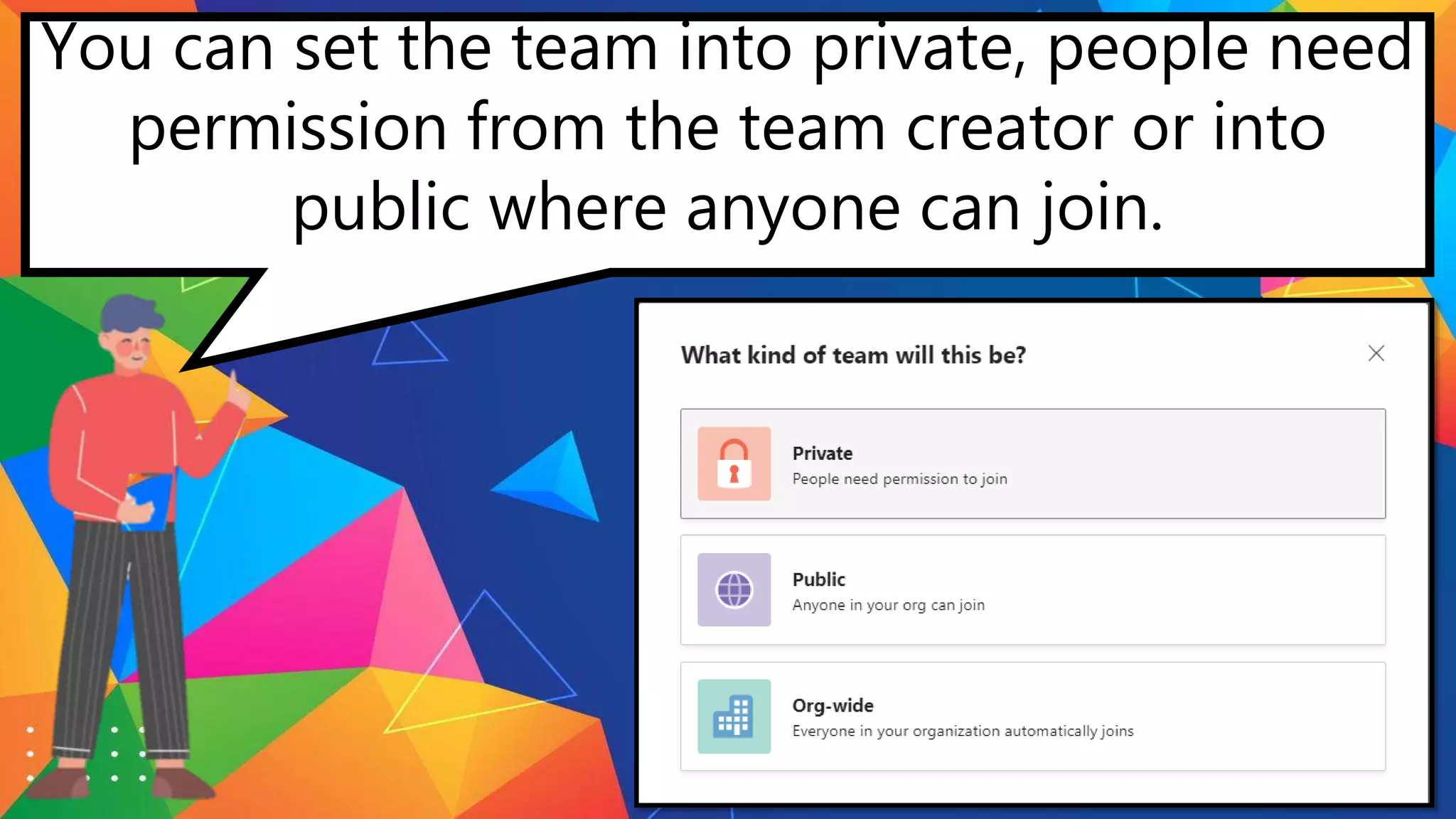
You can set the team into private, people need
permission from the team creator or into
public where anyone can join.
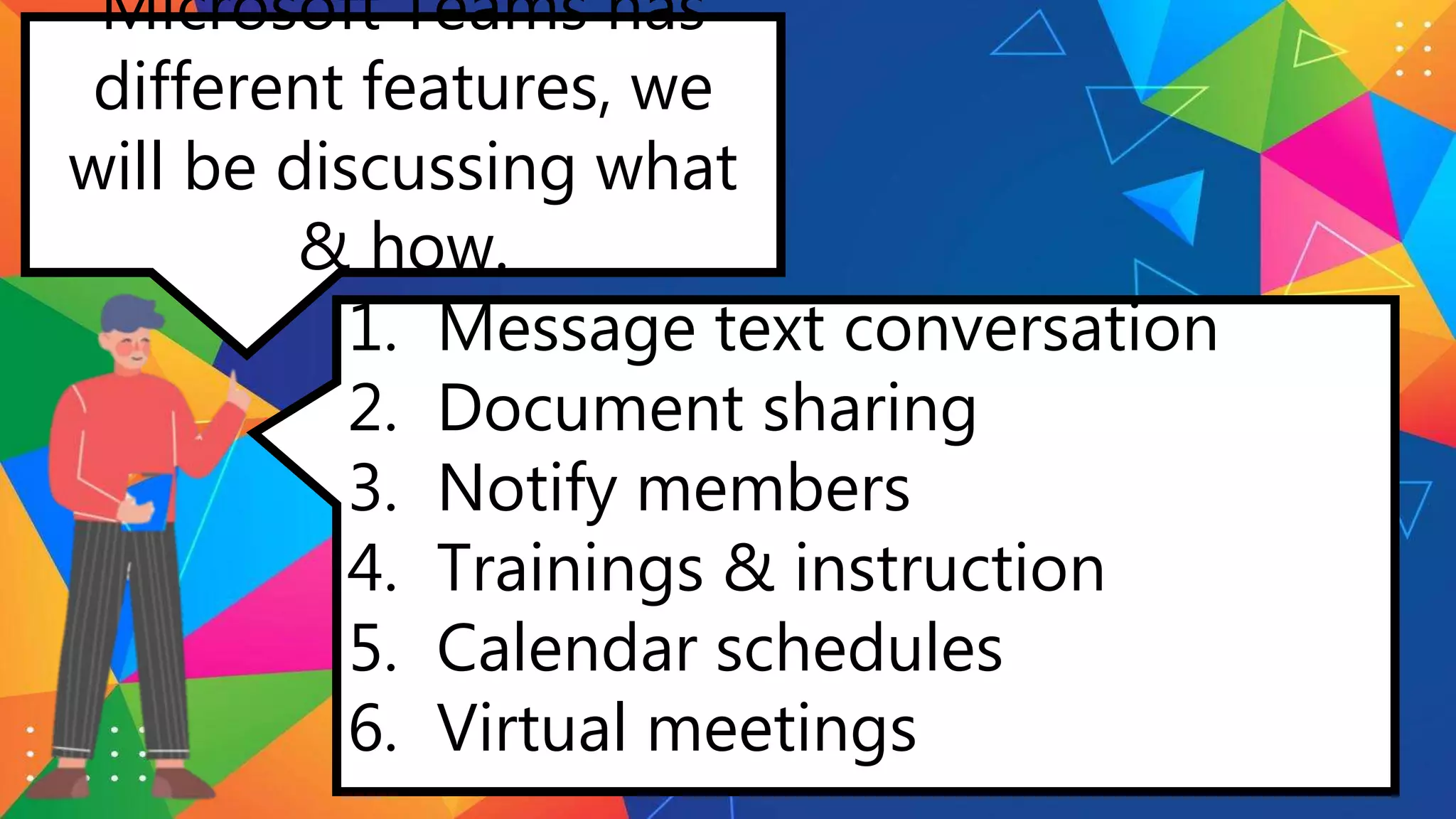
Microsoft Teams has
different features, we
will be discussing what
& how.
1. Message text conversation
2. Document sharing
3. Notify members
4. Trainings & instruction
5. Calendar schedules
6. Virtual meetings
text
conversati
on
You can message individually
to give direct instructions, or
make a group chat for group
text discussion.
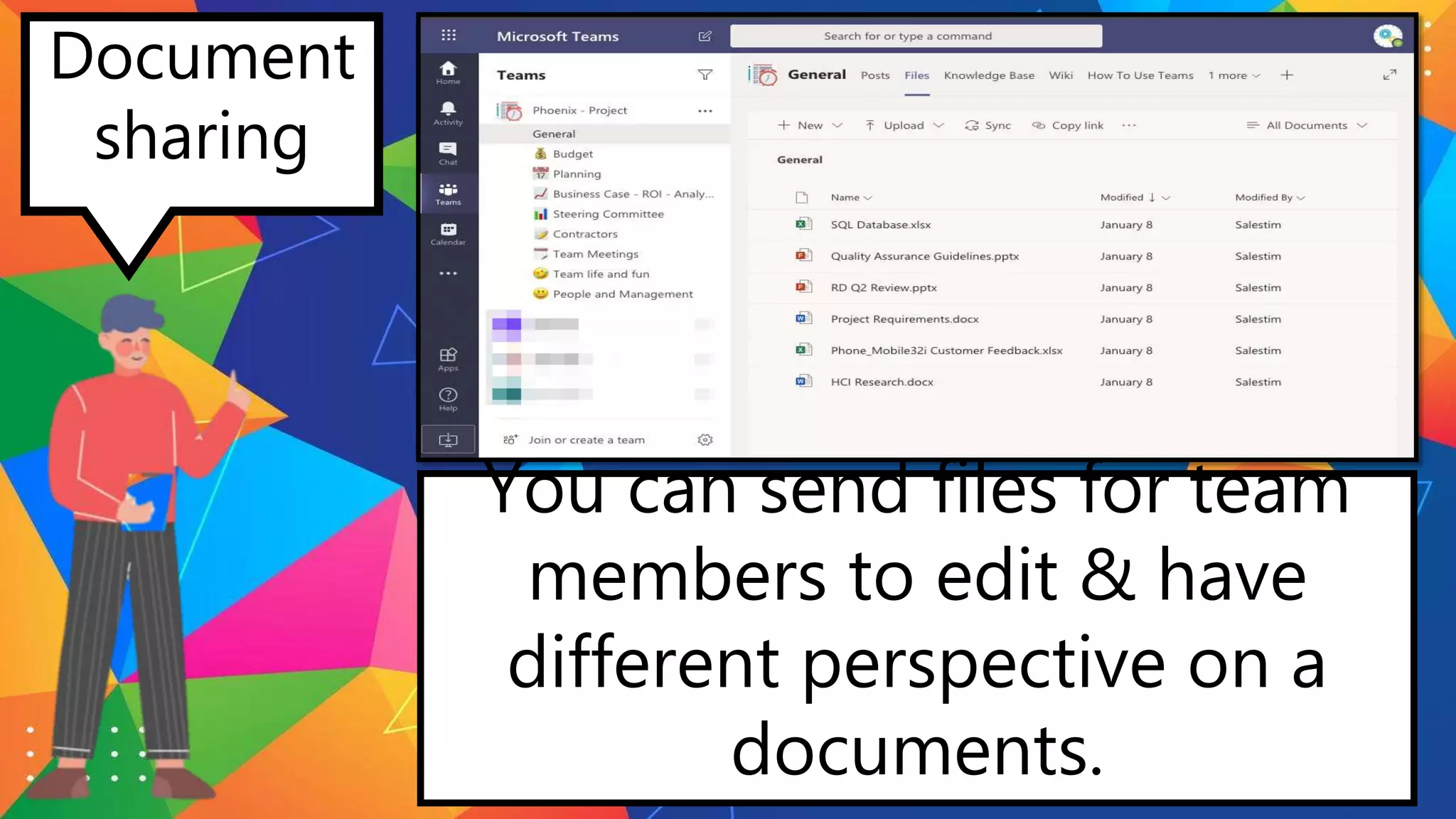
Document
sharing
You can send files for team
members to edit & have
different perspective on a
documents.
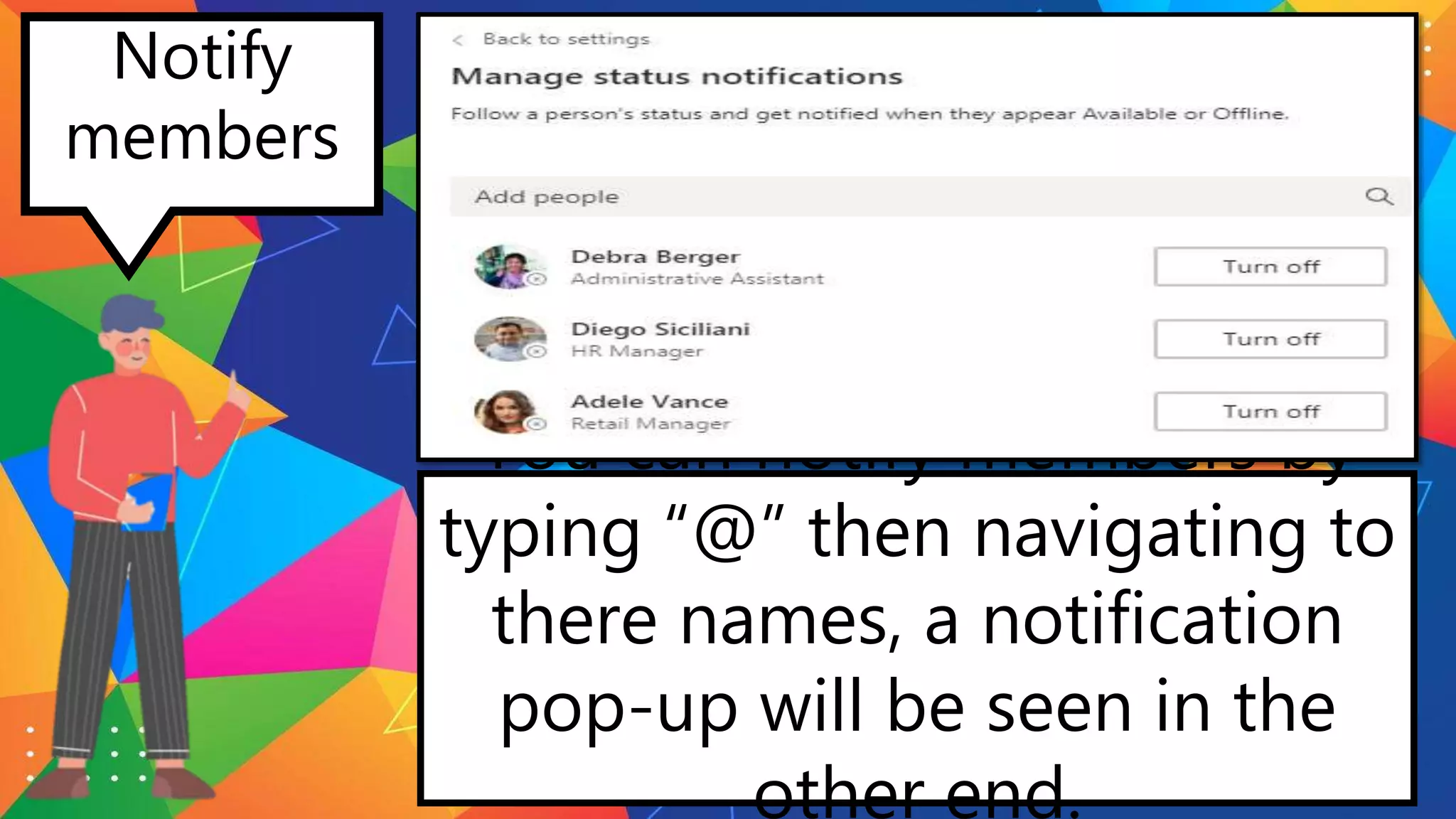
Notify
members
You can notify members by
typing “@” then navigating to
there names, a notification
pop-up will be seen in the
other end.
Trainings
&
instruction
There is an allocated part to
upload videos for instruction
or trainigs.
Calendar
schedule
You can created event
schedule that everyone in the
team will be notify when &
what to be discuss or do
during the event.
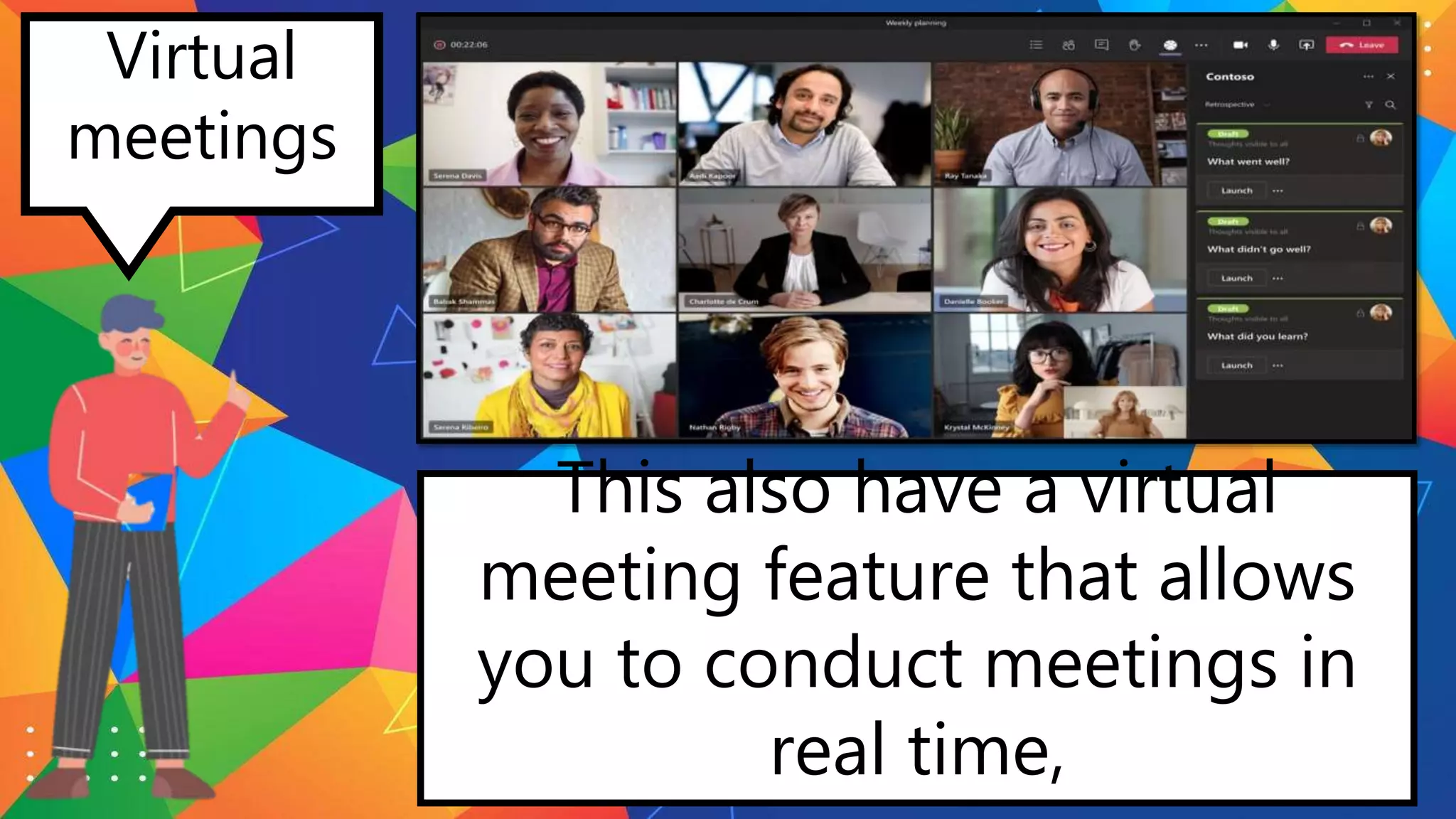
Virtual
meetings
This also have a virtual
meeting feature that allows
you to conduct meetings in
real time,
www.menti.com
join with the code
6592 0003

MICROSOFT TEAMS.pptx

  • 2.
    Good day! Today,we will be learning about the functions & use of Microsoft Teams. Let’s get ready! …and dive in to the wonderful program.
  • 3.
    Microsoft Teams. Itis a hub for chat, assignments, and content creation. And connects students, teachers, and staff in an online classroom. It is like an office on the web.
  • 4.
    FUNCTI ONS The general functionof the application; Microsoft Teams, is to have a virtual office with your group or organization. You can have multiple groups at the same time that focuses on different tasks.
  • 5.
    FUNCTI ONS These groups createdcan be set to private, where the team creator is the only one who can invite specific individual or public, where all individual who want to join can send a request.
  • 6.
    To access Microsoft Teams,you can log in to www.teams.microsoft.co m. You can download the Windows app, which has the complete features.
  • 7.
    To access Microsoft Teams,you can log in to www.teams.microsoft.co m. You can also use the web app, that has limitation in features but have the basic features. To access Microsoft Teams, you can log in to www.teams.microsoft.co m. You can also use the web app, that has limitation in features but have the basic features.
  • 8.
    You can registerusing your google email. To start you Microsoft Teams.
  • 9.
    You can setthe team into private, people need permission from the team creator or into public where anyone can join.
  • 10.
    Microsoft Teams has differentfeatures, we will be discussing what & how. 1. Message text conversation 2. Document sharing 3. Notify members 4. Trainings & instruction 5. Calendar schedules 6. Virtual meetings
  • 11.
    text conversati on You can messageindividually to give direct instructions, or make a group chat for group text discussion.
  • 12.
    Document sharing You can sendfiles for team members to edit & have different perspective on a documents.
  • 13.
    Notify members You can notifymembers by typing “@” then navigating to there names, a notification pop-up will be seen in the other end.
  • 14.
    Trainings & instruction There is anallocated part to upload videos for instruction or trainigs.
  • 15.
    Calendar schedule You can createdevent schedule that everyone in the team will be notify when & what to be discuss or do during the event.
  • 16.
    Virtual meetings This also havea virtual meeting feature that allows you to conduct meetings in real time,
  • 18.