Agenda
• What isWindows Hello for Business?
• How Does Windows Hello for Business Work?
• Supported Authentication Methods
• Benefits of Windows Hello for Business
• Limitations of Windows Hello for Business
• Intune: Streamlined Endpoint Management
• Security Policy Management with Intune
• Effortless Device Provisioning with AutoPilot
• Mobile Device Management (MDM) with Intune
• Mobile Application Management (MAM) with Intune
• Keeping Windows Up-to-Date: Windows Update
3.
Secure and EasyLogins with
Windows Hello for Business
• Replaces passwords with
stronger credentials
• Integrates with biometrics or
PINs
• Improves security and user
experience
4.
How Does Windows
Hellofor Business
Work?
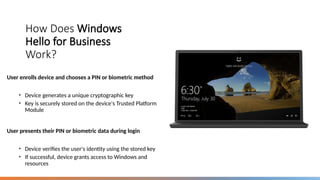
User enrolls device and chooses a PIN or biometric method
• Device generates a unique cryptographic key
• Key is securely stored on the device's Trusted Platform
Module
User presents their PIN or biometric data during login
• Device verifies the user's identity using the stored key
• If successful, device grants access to Windows and
resources
5.
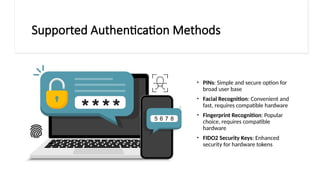
Supported Authentication Methods
•PINs: Simple and secure option for
broad user base
• Facial Recognition: Convenient and
fast, requires compatible hardware
• Fingerprint Recognition: Popular
choice, requires compatible
hardware
• FIDO2 Security Keys: Enhanced
security for hardware tokens
6.
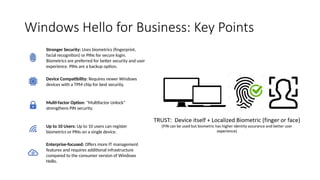
Windows Hello forBusiness: Key Points
Stronger Security: Uses biometrics (fingerprint,
facial recognition) or PINs for secure login.
Biometrics are preferred for better security and user
experience. PINs are a backup option.
Device Compatibility: Requires newer Windows
devices with a TPM chip for best security.
Multi-factor Option: "Multifactor Unlock"
strengthens PIN security.
Up to 10 Users: Up to 10 users can register
biometrics or PINs on a single device.
Enterprise-focused: Offers more IT management
features and requires additional infrastructure
compared to the consumer version of Windows
Hello.
The modern workplaceis a dynamic environment. Cloud services are essential, updates are constant, and employees use personal
devices and mobile apps for work.
This flexibility brings great productivity, but also highlights the growing importance of robust cybersecurity measures to protect
sensitive data.
9.
Evolving IT needsin the modern workplace:
More Devices: Users now have multiple devices
(personal and work-owned), including specialized
tools like whiteboards and wearables.
Shift to Cloud: SaaS and cloud-managed
applications are replacing traditional on-premise
software.
Automation: IT is automating tasks and moving
from reactive to proactive approaches.
Self-Service: Users are increasingly able to solve
problems independently through self-service
solutions.
10.
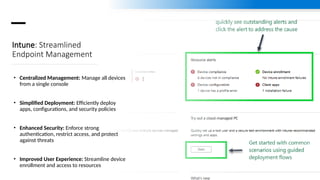
Intune: Streamlined
Endpoint Management
•Centralized Management: Manage all devices
from a single console
• Simplified Deployment: Efficiently deploy
apps, configurations, and security policies
• Enhanced Security: Enforce strong
authentication, restrict access, and protect
against threats
• Improved User Experience: Streamline device
enrollment and access to resources
11.
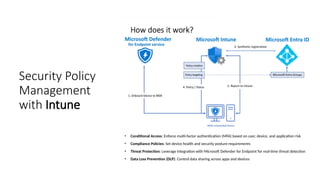
Security Policy
Management
with Intune
•Conditional Access: Enforce multi-factor authentication (MFA) based on user, device, and application risk
• Compliance Policies: Set device health and security posture requirements
• Threat Protection: Leverage integration with Microsoft Defender for Endpoint for real-time threat detection
• Data Loss Prevention (DLP): Control data sharing across apps and devices
12.
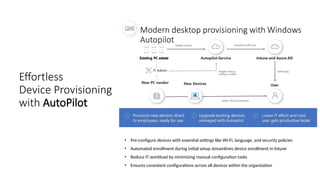
Effortless
Device Provisioning
with AutoPilot
•Pre-configure devices with essential settings like Wi-Fi, language, and security policies
• Automated enrollment during initial setup streamlines device enrollment in Intune
• Reduce IT workload by minimizing manual configuration tasks
• Ensures consistent configurations across all devices within the organization
13.
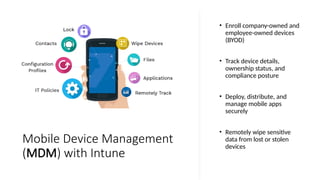
Mobile Device Management
(MDM)with Intune
• Enroll company-owned and
employee-owned devices
(BYOD)
• Track device details,
ownership status, and
compliance posture
• Deploy, distribute, and
manage mobile apps
securely
• Remotely wipe sensitive
data from lost or stolen
devices
14.
Mobile
Application
Management
(MAM) with
Intune
• MAMleverages containerization technology to create secure workspaces on personal devices
• Work apps and data are isolated from personal apps and data on the same device
• Ensures corporate data remains secure even on BYOD devices
• Users can switch seamlessly between work and personal apps without compromising security
15.
Additional MAM Benefitswith Intune
App Protection Policies
enforce data encryption,
access restrictions, and
copy/paste limitations
within containerized apps.
Selective Wipe for MAM
remotely wipes only the
work container and its
data from a BYOD device,
preserving personal data.
Conditional Access for
MAM enforces multi-
factor authentication or
device health checks
before granting access to
work apps within the
container.
17.
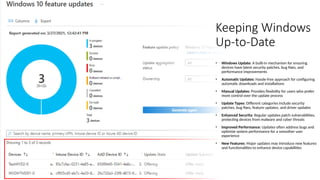
Keeping Windows
Up-to-Date
• WindowsUpdate: A built-in mechanism for ensuring
devices have latest security patches, bug fixes, and
performance improvements
• Automatic Updates: Hassle-free approach for configuring
automatic downloads and installations
• Manual Updates: Provides flexibility for users who prefer
more control over the update process
• Update Types: Different categories include security
patches, bug fixes, feature updates, and driver updates
• Enhanced Security: Regular updates patch vulnerabilities,
protecting devices from malware and cyber threats
• Improved Performance: Updates often address bugs and
optimize system performance for a smoother user
experience
• New Features: Major updates may introduce new features
and functionalities to enhance device capabilities
Editor's Notes
#1 This presentation was automatically generated by PowerPoint Copilot based on content found in this document:
https://iccleb-my.sharepoint.com/personal/jaafar_almoussawi_cci-me_com_lb/Documents/Firas.docx
AI-generated content may be incorrect.
#2 Agenda
* What is Windows Hello for Business?
* How Does Windows Hello for Business Work?
* Supported Authentication Methods
* Benefits of Windows Hello for Business
* Limitations of Windows Hello for Business
#3 Windows Hello for Business is an advanced authentication solution that goes beyond traditional passwords. It leverages multi-factor authentication, combining a trusted device with a user's biometric data or a secure PIN for login. This enhances security while offering a convenient and faster login experience for users.
Original Content:
Multi-factor authentication for Windows devices
Replaces passwords with stronger credentials
Integrates with biometrics (facial recognition, fingerprint) or PINs
Improves security and user experience
Speaker Notes Windows Hello for Business is an advanced authentication solution that goes beyond traditional passwords. It leverages multi-factor authentication, combining a trusted device with a user's biometric data (fingerprint scan, facial recognition) or a secure PIN for login. This significantly enhances security posture while offering a convenient and faster login experience for users.
#4 The enrollment process for Windows Hello for Business is simple. Users register their devices and choose a PIN or biometric option. The device creates a unique key that is stored in the TPM. During login, the user presents their credential, and the device verifies it using the stored key. If verified, access to Windows and resources is granted.
Original Content:
User enrolls device and chooses a PIN or biometric method
Device generates a unique cryptographic key
Key is securely stored on the device's Trusted Platform Module (TPM)
User presents their PIN or biometric data during login
Device verifies the user's identity using the stored key
If successful, device grants access to Windows and resources
Speaker Notes The enrollment process for Windows Hello for Business is straightforward. Users register their devices and choose their preferred authentication method, either a PIN or a biometric option. The device then creates a unique cryptographic key that is securely stored within the Trusted Platform Module (TPM), a hardware security component. During login, the user presents their chosen credential, and the device verifies its authenticity using the stored key. Upon successful verification, access to Windows and organizational resources is granted.
#5 Windows Hello for Business offers flexibility in choosing an authentication method that best suits your needs. Options include standard PINs, facial recognition, fingerprint recognition, and FIDO2 security keys for enhanced security.
Original Content:
PINs: Simple and secure option for broad user base
Facial Recognition: Convenient and fast, requires compatible hardware
Fingerprint Recognition: Popular choice, requires compatible hardware
FIDO2 Security Keys: Enhanced security for hardware tokens
Speaker Notes Windows Hello for Business offers flexibility in choosing an authentication method that best suits your needs. Users can opt for a standard PIN, a convenient and familiar option. For those seeking faster and more intuitive login, facial recognition is a viable choice, though it requires compatible hardware with built-in cameras. Fingerprint recognition is another popular method, again requiring compatible fingerprint scanner hardware. Additionally, Windows Hello for Business integrates with FIDO2 security keys, which are physical tokens that provide an extra layer of security for users who handle sensitive information.
#10 Intune simplifies endpoint management by providing a centralized console for managing all devices, regardless of platform (Windows, Android, iOS, macOS). IT admins can efficiently deploy essential applications, configurations, and robust security policies across the organization. This centralized approach streamlines device management and reduces administrative overhead.
#11 Intune equips IT with robust security features to safeguard your organization's data. Conditional Access allows for defining policies that enforce multi-factor authentication based on factors like user identity, device type, and the application being accessed. This adds an extra layer of security for accessing sensitive data. Compliance policies can be configured to ensure devices meet minimum security standards before granting access to organizational resources. Additionally, Intune integrates seamlessly with Microsoft Defender for Endpoint, providing real-time threat detection and prevention capabilities. Data Loss Prevention (DLP) further strengthens your security posture by allowing control over data sharing across apps and devices.
#12 Intune equips IT with robust security features to safeguard your organization's data. Conditional Access allows for defining policies that enforce multi-factor authentication based on factors like user identity, device type, and the application being accessed. This adds an extra layer of security for accessing sensitive data. Compliance policies can be configured to ensure devices meet minimum security standards before granting access to organizational resources. Additionally, Intune integrates seamlessly with Microsoft Defender for Endpoint, providing real-time threat detection and prevention capabilities. Data Loss Prevention (DLP) further strengthens your security posture by allowing control over data sharing across apps and devices.
#13 Intune offers comprehensive mobile device management (MDM) functionalities. IT admins can seamlessly enroll company-owned devices as well as employee-owned devices (BYOD) participating in a Bring Your Own Device (BYOD) program. Intune provides a centralized inventory of all enrolled devices, allowing for tracking device details, ownership status, and overall compliance with security policies. Secure application management allows IT to deploy, distribute, and manage mobile apps across the organization. Additionally, Intune provides a selective wipe feature, enabling IT to remotely wipe sensitive corporate data from lost or stolen devices to protect against data breaches.
#14 Mobile Application Management (MAM) with Intune extends security beyond device management. It utilizes containerization technology to create secure workspaces on employee-owned devices enrolled in a BYOD program. This approach isolates work apps and data (emails, documents) within a secure container, completely separate from personal apps and data on the same device. This ensures that even on BYOD devices, corporate data remains secure and protected from unauthorized access in case of a device loss or theft. Importantly, containerization allows users to seamlessly switch between work and personal apps on their devices without compromising security on either side.
#15 This slide covers additional benefits of MAM with Intune. App Protection Policies provide granular control within the containerized work environment, enforcing data encryption, access restrictions, and copy/paste limitations. Selective Wipe for MAM allows IT to remotely wipe only the work container and its data from a lost or stolen BYOD device, preserving personal data. Conditional Access for MAM adds an extra layer of security by enforcing multi-factor authentication or device health checks before granting access to work apps within the container.
#17 In the final segment of this presentation, let's shift gears and discuss the importance of keeping Windows devices up-to-date. Here, we'll explore the functionalities of Windows Update, a built-in mechanism for ensuring your devices have the latest security patches, bug fixes, and performance improvements. Windows Update offers two update options: Automatic Updates, which automatically downloads and installs updates, and Manual Updates, which provides more control over the update process. Windows Update includes various update types, including security patches, bug fixes, feature updates, and driver updates. Keeping your Windows devices up-to-date is important for enhanced security, improved performance, and introducing new features and functionalities.






![Understand_device_management_using_Microsoft_Intune_(1)[1].pptx](https://cdn.slidesharecdn.com/ss_thumbnails/understanddevicemanagementusingmicrosoftintune11-250209120429-10a63d5c-thumbnail.jpg?width=640&height=640&fit=bounds)


