


1
Mesa and its debugging
Vadym Shovkoplias
Andrii Khulap
June 4, 2018
2
Agenda
1. About myself
2. Mesa library
3. Debugging tools
3.1. Mesa environment variables
3.2. Basic debugging tools
3.3. GDB
3.4. Apitrace and Frameretrace
3.5. Steam specifics
33
About myself
4
About my self
Vadym and Andrii have more than 10 years of development experience. The
main specialty of Andrii is the built-in devices and software for them and main
speciality of Vadim is the development of software applications for embedded
systems based on Linux and Android.
55
About Mesa
6
Mesa
• Open source project with OpenGL and
Vulkan implementations
• Multi platform support by several
graphics vendors
• Used in Linux, Windows and MacOS
7
Hardware support
• Intel
• AMD
• Nvidia
• Broadcom
• Qualcomm
• VMWare
• Vivante
8
Software drivers
• llvmpipe
Uses LLVM for x86 JIT code generation
and is multi-threaded
• Softpipe
A reference Gallium driver
• Swrast
The legacy/original Mesa software
rasterizer
9
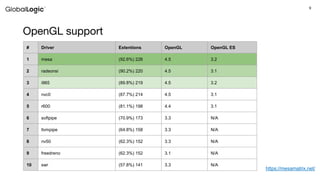
https://mesamatrix.net/
# Driver Extentions OpenGL OpenGL ES
1 mesa (92.6%) 226 4.5 3.2
2 radeonsi (90.2%) 220 4.5 3.1
3 i965 (89.8%) 219 4.5 3.2
4 nvc0 (87.7%) 214 4.5 3.1
5 r600 (81.1%) 198 4.4 3.1
6 softpipe (70.9%) 173 3.3 N/A
7 llvmpipe (64.8%) 158 3.3 N/A
8 nv50 (62.3%) 152 3.3 N/A
9 freedreno (62.3%) 152 3.1 N/A
10 swr (57.8%) 141 3.3 N/A
OpenGL support
10
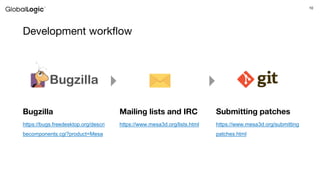
Development workflow
https://bugs.freedesktop.org/descri
becomponents.cgi?product=Mesa
Bugzilla
https://www.mesa3d.org/lists.html
Mailing lists and IRC
https://www.mesa3d.org/submitting
patches.html
Submitting patches
1111
Debugging tools
12
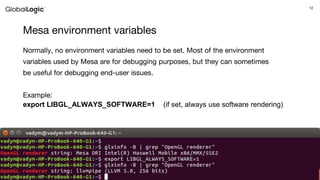
Mesa environment variables
Normally, no environment variables need to be set. Most of the environment
variables used by Mesa are for debugging purposes, but they can sometimes
be useful for debugging end-user issues.
Example:
export LIBGL_ALWAYS_SOFTWARE=1 (if set, always use software rendering)
13
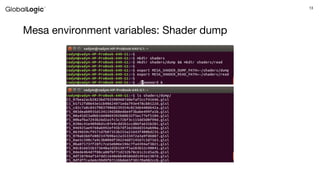
Mesa environment variables: Shader dump
14
The basic debugging tool is console output
• Use printf() or fprintf() to output any valuable information
• It will output to the terminal where tested application is started
15
Use static analyzers to find possible causes
• Some bugs or issues can be caused by simple mistakes that can be found by
automated tools.
• Like smatch or cppcheck
For example, smatch warning:
[src/intel/vulkan/anv_nir_apply_pipeline_layout.c:457]: (error)
Possible null pointer dereference: null_data
And the library code itself:
struct anv_push_constants *null_data = NULL;
const struct brw_image_param *image_param = null_data->images;
16
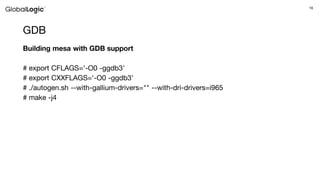
GDB
Building mesa with GDB support
# export CFLAGS='-O0 -ggdb3'
# export CXXFLAGS='-O0 -ggdb3'
# ./autogen.sh --with-gallium-drivers="" --with-dri-drivers=i965
# make -j4
17
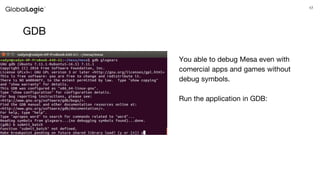
You able to debug Mesa even with
comercial apps and games without
debug symbols.
Run the application in GDB:
GDB
18
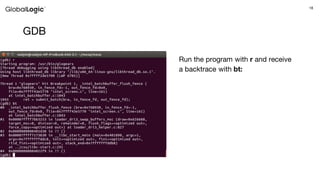
Run the program with r and receive
a backtrace with bt:
GDB
19
Apitrace is a tool to capture and replay OpenGL calls
20
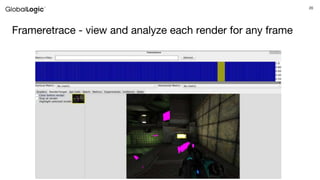
Frameretrace - view and analyze each render for any frame
21
Piglit is a collection of automated tests for OpenGL
implementations.
• At this moment, there are around 60k tests total. There are performance
(rendering time) test as well as compatibility tests. Test results can be used for
regression testing.
• Useful to check if patch has some side effects on other areas.
• Piglit tests can be run either directly or as a profiles (test sets). Running quick
profile will take around 20 minutes. Profiles like “all” will run for several hours.
• The results will be in json format. But the html (good looking) summaries can also
be created.
22
Steam games specifics - using GDB
• Usually steam games doesn’t contain any debug information. But we still can see
useful backtraces and mesa calls.
• You need to determine game’s PID. Not steam or some launcher/helper.
Use ps -aux for example.
• Then you may easily attach gdb to that process
(gdb) attach 2057
(gdb) continue
23
Steam games specifics - customizing environment
You can configure steam GUI to launch the script with “preparations”:
• Create the script and place it in the /home/${USER}/bin
E.g steam_dbg.sh:
#!/bin/bash
export
LD_LIBRARY_PATH=$LD_LIBRARY_PATH:/home/andriy/mesa/lib
"$@" > /home/andriy/steam_game.log
• Go to library, right click on a game and choose “Properties”
• On General tab click “Set launch options”
24
Useful Links
• https://cgit.freedesktop.org/mesa/mesa/
• https://lists.freedesktop.org/mailman/listinfo/mesa-dev
• https://lists.freedesktop.org/mailman/listinfo/piglit
• https://bugs.freedesktop.org/describecomponents.cgi?product=Mesa
• https://fosdem.org/2018/schedule/event/apitrace/
• https://github.com/janesma/apitrace/wiki/frameretrace-branch
25
Thank you

Mesa and Its Debugging

  • 1.
    1 Mesa and itsdebugging Vadym Shovkoplias Andrii Khulap June 4, 2018
  • 2.
    2 Agenda 1. About myself 2.Mesa library 3. Debugging tools 3.1. Mesa environment variables 3.2. Basic debugging tools 3.3. GDB 3.4. Apitrace and Frameretrace 3.5. Steam specifics
  • 3.
  • 4.
    4 About my self Vadymand Andrii have more than 10 years of development experience. The main specialty of Andrii is the built-in devices and software for them and main speciality of Vadim is the development of software applications for embedded systems based on Linux and Android.
  • 5.
  • 6.
    6 Mesa • Open sourceproject with OpenGL and Vulkan implementations • Multi platform support by several graphics vendors • Used in Linux, Windows and MacOS
  • 7.
    7 Hardware support • Intel •AMD • Nvidia • Broadcom • Qualcomm • VMWare • Vivante
  • 8.
    8 Software drivers • llvmpipe UsesLLVM for x86 JIT code generation and is multi-threaded • Softpipe A reference Gallium driver • Swrast The legacy/original Mesa software rasterizer
  • 9.
    9 https://mesamatrix.net/ # Driver ExtentionsOpenGL OpenGL ES 1 mesa (92.6%) 226 4.5 3.2 2 radeonsi (90.2%) 220 4.5 3.1 3 i965 (89.8%) 219 4.5 3.2 4 nvc0 (87.7%) 214 4.5 3.1 5 r600 (81.1%) 198 4.4 3.1 6 softpipe (70.9%) 173 3.3 N/A 7 llvmpipe (64.8%) 158 3.3 N/A 8 nv50 (62.3%) 152 3.3 N/A 9 freedreno (62.3%) 152 3.1 N/A 10 swr (57.8%) 141 3.3 N/A OpenGL support
  • 10.
  • 11.
  • 12.
    12 Mesa environment variables Normally,no environment variables need to be set. Most of the environment variables used by Mesa are for debugging purposes, but they can sometimes be useful for debugging end-user issues. Example: export LIBGL_ALWAYS_SOFTWARE=1 (if set, always use software rendering)
  • 13.
  • 14.
    14 The basic debuggingtool is console output • Use printf() or fprintf() to output any valuable information • It will output to the terminal where tested application is started
  • 15.
    15 Use static analyzersto find possible causes • Some bugs or issues can be caused by simple mistakes that can be found by automated tools. • Like smatch or cppcheck For example, smatch warning: [src/intel/vulkan/anv_nir_apply_pipeline_layout.c:457]: (error) Possible null pointer dereference: null_data And the library code itself: struct anv_push_constants *null_data = NULL; const struct brw_image_param *image_param = null_data->images;
  • 16.
    16 GDB Building mesa withGDB support # export CFLAGS='-O0 -ggdb3' # export CXXFLAGS='-O0 -ggdb3' # ./autogen.sh --with-gallium-drivers="" --with-dri-drivers=i965 # make -j4
  • 17.
    17 You able todebug Mesa even with comercial apps and games without debug symbols. Run the application in GDB: GDB
  • 18.
    18 Run the programwith r and receive a backtrace with bt: GDB
  • 19.
    19 Apitrace is atool to capture and replay OpenGL calls
  • 20.
    20 Frameretrace - viewand analyze each render for any frame
  • 21.
    21 Piglit is acollection of automated tests for OpenGL implementations. • At this moment, there are around 60k tests total. There are performance (rendering time) test as well as compatibility tests. Test results can be used for regression testing. • Useful to check if patch has some side effects on other areas. • Piglit tests can be run either directly or as a profiles (test sets). Running quick profile will take around 20 minutes. Profiles like “all” will run for several hours. • The results will be in json format. But the html (good looking) summaries can also be created.
  • 22.
    22 Steam games specifics- using GDB • Usually steam games doesn’t contain any debug information. But we still can see useful backtraces and mesa calls. • You need to determine game’s PID. Not steam or some launcher/helper. Use ps -aux for example. • Then you may easily attach gdb to that process (gdb) attach 2057 (gdb) continue
  • 23.
    23 Steam games specifics- customizing environment You can configure steam GUI to launch the script with “preparations”: • Create the script and place it in the /home/${USER}/bin E.g steam_dbg.sh: #!/bin/bash export LD_LIBRARY_PATH=$LD_LIBRARY_PATH:/home/andriy/mesa/lib "$@" > /home/andriy/steam_game.log • Go to library, right click on a game and choose “Properties” • On General tab click “Set launch options”
  • 24.
    24 Useful Links • https://cgit.freedesktop.org/mesa/mesa/ •https://lists.freedesktop.org/mailman/listinfo/mesa-dev • https://lists.freedesktop.org/mailman/listinfo/piglit • https://bugs.freedesktop.org/describecomponents.cgi?product=Mesa • https://fosdem.org/2018/schedule/event/apitrace/ • https://github.com/janesma/apitrace/wiki/frameretrace-branch
  • 25.