//////////////////////////////////////////////////////////////////
PPM Crossplatform Images
maXbox Starter 78 – The Portable Pixmap Format
Today I want to introduce a system independent image format for
any images, machine learning data like feature maps in a CNN or
just to exchange picture data on various platforms.
The Portable Pixmap format uses an uncompressed and inefficient
format so that it is seldom used for storing large images but on
the other side this is an advantage. We use this format for
converting system-independent images to machine learning feature
maps in a CNN (Convolutional Neural Network).
Besides PPM, other 2 popular Netpbm file formats include the
portable bitmap format (.PBM) and the portable graymap format
(.PGM). Sometimes, they are also collectively referred to the
portable anymap format(*.PNM).
• PBM is for bitmaps (black and white, no grays).
• PGM is for grayscale (0–255 or 0–65535).
• PPM is for "pixmaps" which means full color.
One of image file formats that is developed by the Netpbm project.1
For cross-platform purpose, the images are encoded using a text
format as plain. PPM files specify the color of the pixel using a
number from 0 to 65536 (or 0–255 for each channel), in addition to
the image resolution height, width and so on.
1 https://en.wikipedia.org/wiki/Netpbm#File_formats
1/7
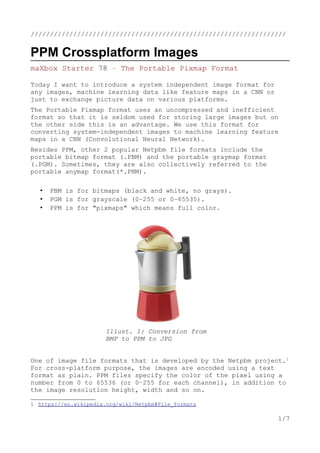
Illust. 1: Conversion from
BMP to PPM to JPG
So beside the plain format also a raw (binary) format exists. The
ASCII ("plain") formats (P1-P3) allow for human readability and
easy transfer to other platforms; the binary ("raw") formats (P4-
P6) are more efficient in file size but may have native byte-order
issues. This is how we define the header first:
Header:= Format('P6'#10'%d %d'#10'255'#10,[bmp.Width,bmp.Height]);
In my opinion the PPM format was devised to be an intermediate
format for use in developing file format conversion systems. The
PPM idea is that we have one format that any other format can be
converted into.
As I said The PPM format is not intended to be an archival format,
so it does not need to be too storage efficient. Thus, it is one
of the simplest formats as a common denominator.
Let's start with the code. Each file opens with a two-byte magic
number (in ASCII) that identifies the type of file, the magic
number is either an ASCII character string ”P1”, ”P2”,”P3”,”P4”,
”P5” or “P6” depending upon the storage method used. “P1” and “P4”
indicate that the image data is in a bitmap as black and white.
We use a pattern helper class as a procedure() to save the bitmap
as a PPM file:
procedure TBitmapHelperSaveAsPPM_4(FileName: TFileName; bmp: TBitmap;
useGrayScale: Boolean);
var
i,j: Integer;
Header: AnsiString;
ppm: TMemoryStream;
agb: TBytes;
2/7
Illust. 2: PPM to PNG
with 251*251 Dimension
We use a memory-stream and a byte-array for storage. Using a byte
array can lead to some optimizations that can make accessing and
changing information in the array faster than it would be with
arrays of other types, in our case we define a 3 bytes array:
begin
ppm:= TMemoryStream.Create;
try
Header:= Format('P6'#10'%d %d'#10'255'#10,[bmp.Width, bmp.Height]);
writeln(Header);
ppm.WriteBuffer((Header), Length(Header));
setlength(agb,3)
for i:= 0 to bmp.Width- 1 do
for j:= 0 to bmp.Height- 1 do begin
if useGrayScale then
agb:= InttoBytes(ColorToGray(ColorToRGB(bmp.Canvas.Pixels[j,i])))
else
agb:= InttoBytes(ColorToRGB(bmp.Canvas.Pixels[j,i]));
ppm.Write(stringOf(agb), 3);
//ppm.Write(BytetoString(rgb),3);
end;
ppm.SaveToFile(FileName);
finally
ppm.Free;
end;
end;
A PPM file consists of two parts, a header and the image data
stored within WriteBuffer(). The header consists of at least three
parts normally delineated by carriage returns and/or linefeeds but
the PPM specification only requires white space.
3/7
Illustration 3: maXbox viewer on a simple canvas
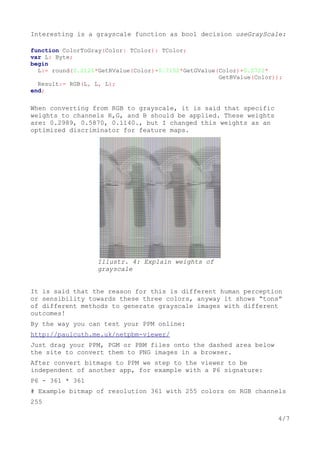
Interesting is a grayscale function as bool decision useGrayScale:
function ColorToGray(Color: TColor): TColor;
var L: Byte;
begin
L:= round(0.2126*GetRValue(Color)+0.7152*GetGValue(Color)+0.0722*
GetBValue(Color));
Result:= RGB(L, L, L);
end;
When converting from RGB to grayscale, it is said that specific
weights to channels R,G, and B should be applied. These weights
are: 0.2989, 0.5870, 0.1140., but I changed this weights as an
optimized discriminator for feature maps.
It is said that the reason for this is different human perception
or sensibility towards these three colors, anyway it shows “tons”
of different methods to generate grayscale images with different
outcomes!
By the way you can test your PPM online:
http://paulcuth.me.uk/netpbm-viewer/
Just drag your PPM, PGM or PBM files onto the dashed area below
the site to convert them to PNG images in a browser.
After convert bitmaps to PPM we step to the viewer to be
independent of another app, for example with a P6 signature:
P6 - 361 * 361
# Example bitmap of resolution 361 with 255 colors on RGB channels
255
4/7
Illustr. 4: Explain weights of
grayscale
The last part of the header gives the maximum value of the colour
components for the pixels, this allows the format to describe more
than some single byte(0..255) colour values.
if sign = 'P6' then begin
SetLength(buffstr, 3);
while ppm.Read(buffstr, 3) > 0 do begin
//color:= Bytestoint(bytesof(buffstr))
color:= RGB(ord(buffstr[1]),ord(buffstr[2]),ord(buffstr[3]))
if useGrayScale then
Color := (ColorToGray(Color));
abit.Canvas.Pixels[p mod W, p div W] := Color;
inc(p);
end;
end;
While not required by the format specification it is a standard
convention to store the image in top to bottom, left to right
order. Each pixel is stored as a byte, value 0 = black, value 255
= white. The components are stored in the usual order, Red - Green
- Blue.
if sign = 'P2' then begin
SetLength(buffstr, 3);
while ppm.Read(buffstr,3) > 0 do begin
try
color:= atoi((buffstr));
if color > 255 then color:= 255;
ppm.Read(buffstr,3)
except
color:= 0;
end; //background //ReadCharM(ppm);
color:= RGB(random(color), (color), (color));
//if useGrayScale then Color:= ColorToGray(Color); //dark mode
abit.Canvas.Pixels[p mod W, p div W]:= (Color);
inc(p);
end;
ppm.Free;
end;
You can find also in the script the drawSpherePPM_Save Procedure to
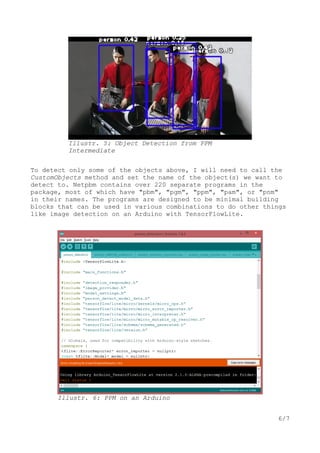
generate a PPM from the Scratch. Now at last this is our process
for object detection: an image to detect in the input folder,
e.g.: manmachine.ppm then extract the feature map and mark the
probability to convert back as a PNG.
It goes on with the declaration of the created paths:
model_path = “./models/yolo-tiny.h5”
input_path = “./input/manmachine.ppm”
output_path = “./output/manmachineout.png”
5/7
To detect only some of the objects above, I will need to call the
CustomObjects method and set the name of the object(s) we want to
detect to. Netpbm contains over 220 separate programs in the
package, most of which have "pbm", "pgm", "ppm", "pam", or "pnm"
in their names. The programs are designed to be minimal building
blocks that can be used in various combinations to do other things
like image detection on an Arduino with TensorFlowLite.
6/7
Illustr. 5: Object Detection from PPM
Intermediate
Illustr. 6: PPM on an Arduino
Conclusion:
The portable pixmap format(PPM), the portable graymap format(PGM)
and portable bitmap format(PBM) are image file formats designed to
be easily exchanged between platforms. They are also sometimes
referred collectively as the portable anymap format(PNM). These
formats are a convenient (simple) method of saving image data.
And the format is not even limited to graphics, its definition
allowing it to be used for arbitrary three-dimensional matrices or
cubes of unsigned integers.
The script and data can be found:
http://www.softwareschule.ch/examples/sphere2.txt
http://www.softwareschule.ch/examples/sphere2.htm
http://www.softwareschule.ch/examples/detector2.htm
Author: Max Kleiner
Ref:
https://people.cs.clemson.edu/~dhouse/courses/405/notes/ppm-files.pdf
http://paulbourke.net/dataformats/ppm/
Blog:
https://maxbox4.wordpress.com
https://softwareschule.code.blog/2020/11/18/sphere-script/
7/7
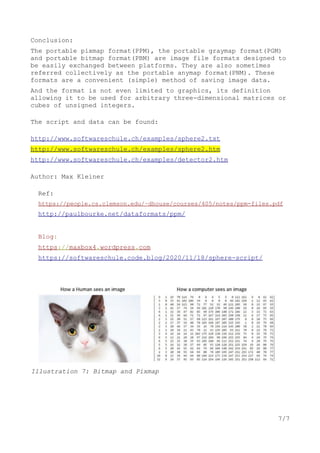
Illustration 7: Bitmap and Pixmap

maXbox Starter78 PortablePixmap

  • 1.
    ////////////////////////////////////////////////////////////////// PPM Crossplatform Images maXboxStarter 78 – The Portable Pixmap Format Today I want to introduce a system independent image format for any images, machine learning data like feature maps in a CNN or just to exchange picture data on various platforms. The Portable Pixmap format uses an uncompressed and inefficient format so that it is seldom used for storing large images but on the other side this is an advantage. We use this format for converting system-independent images to machine learning feature maps in a CNN (Convolutional Neural Network). Besides PPM, other 2 popular Netpbm file formats include the portable bitmap format (.PBM) and the portable graymap format (.PGM). Sometimes, they are also collectively referred to the portable anymap format(*.PNM). • PBM is for bitmaps (black and white, no grays). • PGM is for grayscale (0–255 or 0–65535). • PPM is for "pixmaps" which means full color. One of image file formats that is developed by the Netpbm project.1 For cross-platform purpose, the images are encoded using a text format as plain. PPM files specify the color of the pixel using a number from 0 to 65536 (or 0–255 for each channel), in addition to the image resolution height, width and so on. 1 https://en.wikipedia.org/wiki/Netpbm#File_formats 1/7 Illust. 1: Conversion from BMP to PPM to JPG
  • 2.
    So beside theplain format also a raw (binary) format exists. The ASCII ("plain") formats (P1-P3) allow for human readability and easy transfer to other platforms; the binary ("raw") formats (P4- P6) are more efficient in file size but may have native byte-order issues. This is how we define the header first: Header:= Format('P6'#10'%d %d'#10'255'#10,[bmp.Width,bmp.Height]); In my opinion the PPM format was devised to be an intermediate format for use in developing file format conversion systems. The PPM idea is that we have one format that any other format can be converted into. As I said The PPM format is not intended to be an archival format, so it does not need to be too storage efficient. Thus, it is one of the simplest formats as a common denominator. Let's start with the code. Each file opens with a two-byte magic number (in ASCII) that identifies the type of file, the magic number is either an ASCII character string ”P1”, ”P2”,”P3”,”P4”, ”P5” or “P6” depending upon the storage method used. “P1” and “P4” indicate that the image data is in a bitmap as black and white. We use a pattern helper class as a procedure() to save the bitmap as a PPM file: procedure TBitmapHelperSaveAsPPM_4(FileName: TFileName; bmp: TBitmap; useGrayScale: Boolean); var i,j: Integer; Header: AnsiString; ppm: TMemoryStream; agb: TBytes; 2/7 Illust. 2: PPM to PNG with 251*251 Dimension
  • 3.
    We use amemory-stream and a byte-array for storage. Using a byte array can lead to some optimizations that can make accessing and changing information in the array faster than it would be with arrays of other types, in our case we define a 3 bytes array: begin ppm:= TMemoryStream.Create; try Header:= Format('P6'#10'%d %d'#10'255'#10,[bmp.Width, bmp.Height]); writeln(Header); ppm.WriteBuffer((Header), Length(Header)); setlength(agb,3) for i:= 0 to bmp.Width- 1 do for j:= 0 to bmp.Height- 1 do begin if useGrayScale then agb:= InttoBytes(ColorToGray(ColorToRGB(bmp.Canvas.Pixels[j,i]))) else agb:= InttoBytes(ColorToRGB(bmp.Canvas.Pixels[j,i])); ppm.Write(stringOf(agb), 3); //ppm.Write(BytetoString(rgb),3); end; ppm.SaveToFile(FileName); finally ppm.Free; end; end; A PPM file consists of two parts, a header and the image data stored within WriteBuffer(). The header consists of at least three parts normally delineated by carriage returns and/or linefeeds but the PPM specification only requires white space. 3/7 Illustration 3: maXbox viewer on a simple canvas
  • 4.
    Interesting is agrayscale function as bool decision useGrayScale: function ColorToGray(Color: TColor): TColor; var L: Byte; begin L:= round(0.2126*GetRValue(Color)+0.7152*GetGValue(Color)+0.0722* GetBValue(Color)); Result:= RGB(L, L, L); end; When converting from RGB to grayscale, it is said that specific weights to channels R,G, and B should be applied. These weights are: 0.2989, 0.5870, 0.1140., but I changed this weights as an optimized discriminator for feature maps. It is said that the reason for this is different human perception or sensibility towards these three colors, anyway it shows “tons” of different methods to generate grayscale images with different outcomes! By the way you can test your PPM online: http://paulcuth.me.uk/netpbm-viewer/ Just drag your PPM, PGM or PBM files onto the dashed area below the site to convert them to PNG images in a browser. After convert bitmaps to PPM we step to the viewer to be independent of another app, for example with a P6 signature: P6 - 361 * 361 # Example bitmap of resolution 361 with 255 colors on RGB channels 255 4/7 Illustr. 4: Explain weights of grayscale
  • 5.
    The last partof the header gives the maximum value of the colour components for the pixels, this allows the format to describe more than some single byte(0..255) colour values. if sign = 'P6' then begin SetLength(buffstr, 3); while ppm.Read(buffstr, 3) > 0 do begin //color:= Bytestoint(bytesof(buffstr)) color:= RGB(ord(buffstr[1]),ord(buffstr[2]),ord(buffstr[3])) if useGrayScale then Color := (ColorToGray(Color)); abit.Canvas.Pixels[p mod W, p div W] := Color; inc(p); end; end; While not required by the format specification it is a standard convention to store the image in top to bottom, left to right order. Each pixel is stored as a byte, value 0 = black, value 255 = white. The components are stored in the usual order, Red - Green - Blue. if sign = 'P2' then begin SetLength(buffstr, 3); while ppm.Read(buffstr,3) > 0 do begin try color:= atoi((buffstr)); if color > 255 then color:= 255; ppm.Read(buffstr,3) except color:= 0; end; //background //ReadCharM(ppm); color:= RGB(random(color), (color), (color)); //if useGrayScale then Color:= ColorToGray(Color); //dark mode abit.Canvas.Pixels[p mod W, p div W]:= (Color); inc(p); end; ppm.Free; end; You can find also in the script the drawSpherePPM_Save Procedure to generate a PPM from the Scratch. Now at last this is our process for object detection: an image to detect in the input folder, e.g.: manmachine.ppm then extract the feature map and mark the probability to convert back as a PNG. It goes on with the declaration of the created paths: model_path = “./models/yolo-tiny.h5” input_path = “./input/manmachine.ppm” output_path = “./output/manmachineout.png” 5/7
  • 6.
    To detect onlysome of the objects above, I will need to call the CustomObjects method and set the name of the object(s) we want to detect to. Netpbm contains over 220 separate programs in the package, most of which have "pbm", "pgm", "ppm", "pam", or "pnm" in their names. The programs are designed to be minimal building blocks that can be used in various combinations to do other things like image detection on an Arduino with TensorFlowLite. 6/7 Illustr. 5: Object Detection from PPM Intermediate Illustr. 6: PPM on an Arduino
  • 7.
    Conclusion: The portable pixmapformat(PPM), the portable graymap format(PGM) and portable bitmap format(PBM) are image file formats designed to be easily exchanged between platforms. They are also sometimes referred collectively as the portable anymap format(PNM). These formats are a convenient (simple) method of saving image data. And the format is not even limited to graphics, its definition allowing it to be used for arbitrary three-dimensional matrices or cubes of unsigned integers. The script and data can be found: http://www.softwareschule.ch/examples/sphere2.txt http://www.softwareschule.ch/examples/sphere2.htm http://www.softwareschule.ch/examples/detector2.htm Author: Max Kleiner Ref: https://people.cs.clemson.edu/~dhouse/courses/405/notes/ppm-files.pdf http://paulbourke.net/dataformats/ppm/ Blog: https://maxbox4.wordpress.com https://softwareschule.code.blog/2020/11/18/sphere-script/ 7/7 Illustration 7: Bitmap and Pixmap