Joint Math-Bridge Training
Program
Michael Dietrich (DFKI)
Math-Bridge Installation
10.07.2015 Saarbrücken
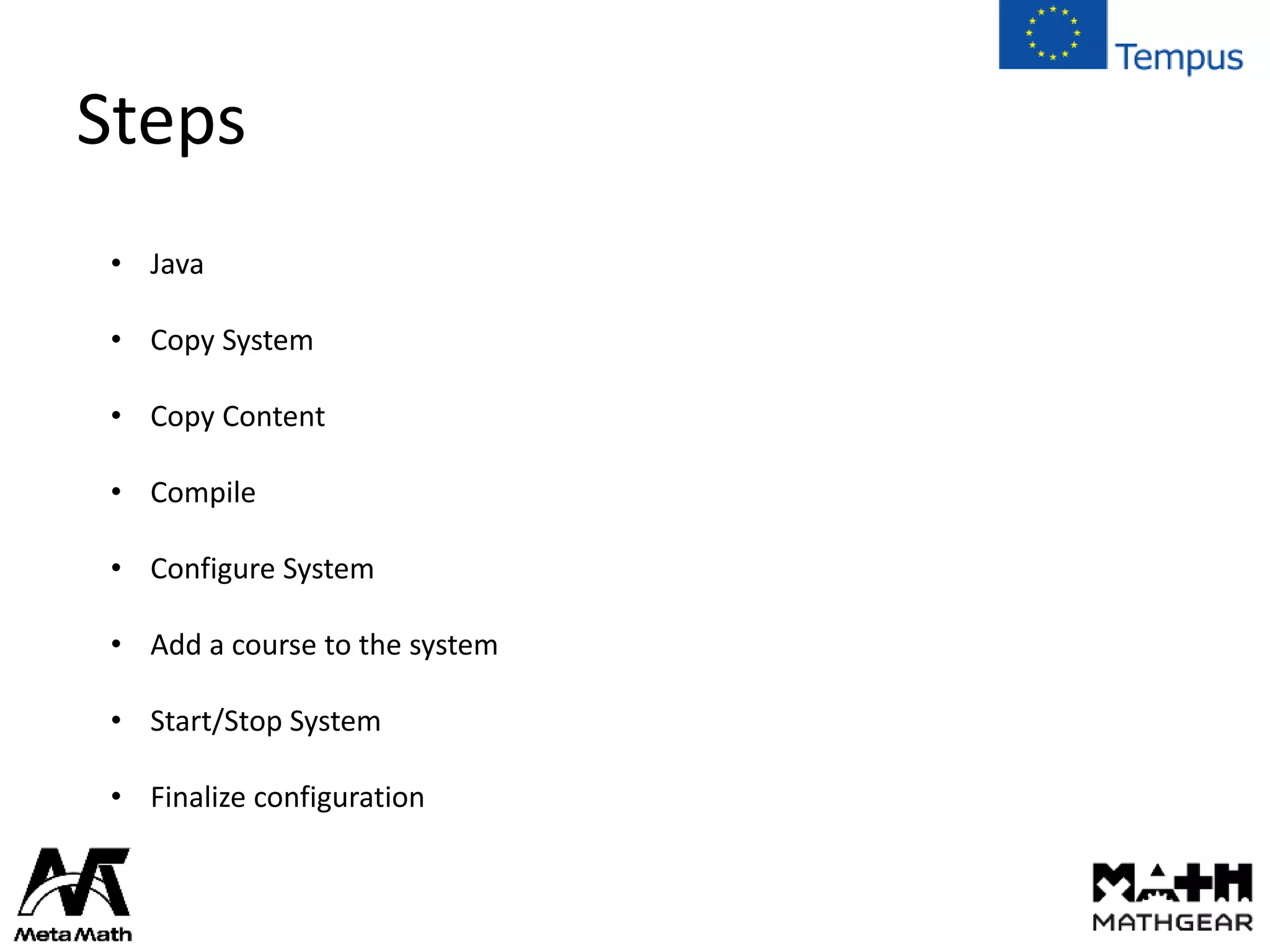
Steps
• Java
• Copy System
• Copy Content
• Compile
• Configure System
• Add a course to the system
• Start/Stop System
• Finalize configuration
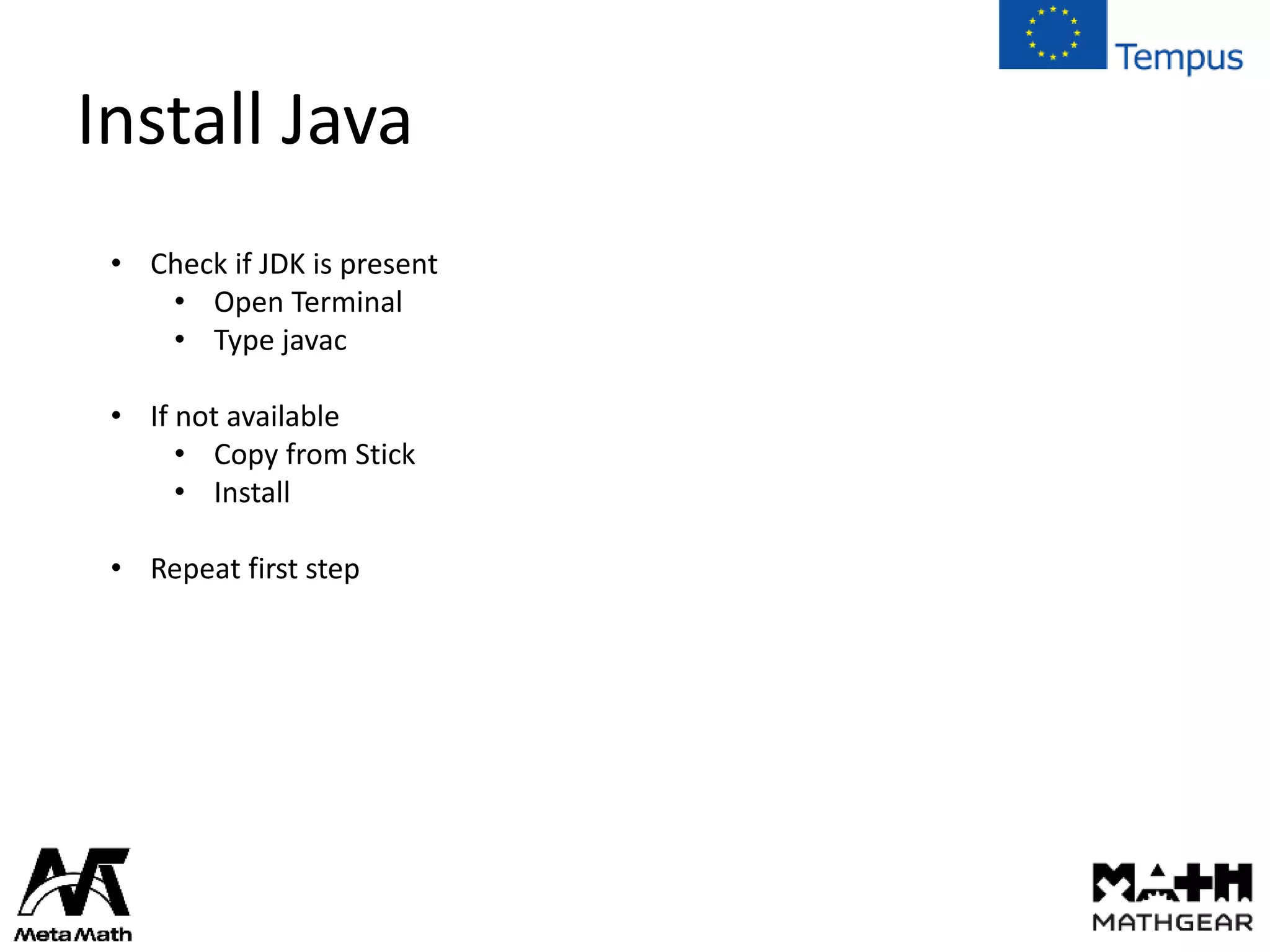
Install Java
• Check if JDK is present
• Open Terminal
• Type javac
• If not available
• Copy from Stick
• Install
• Repeat first step
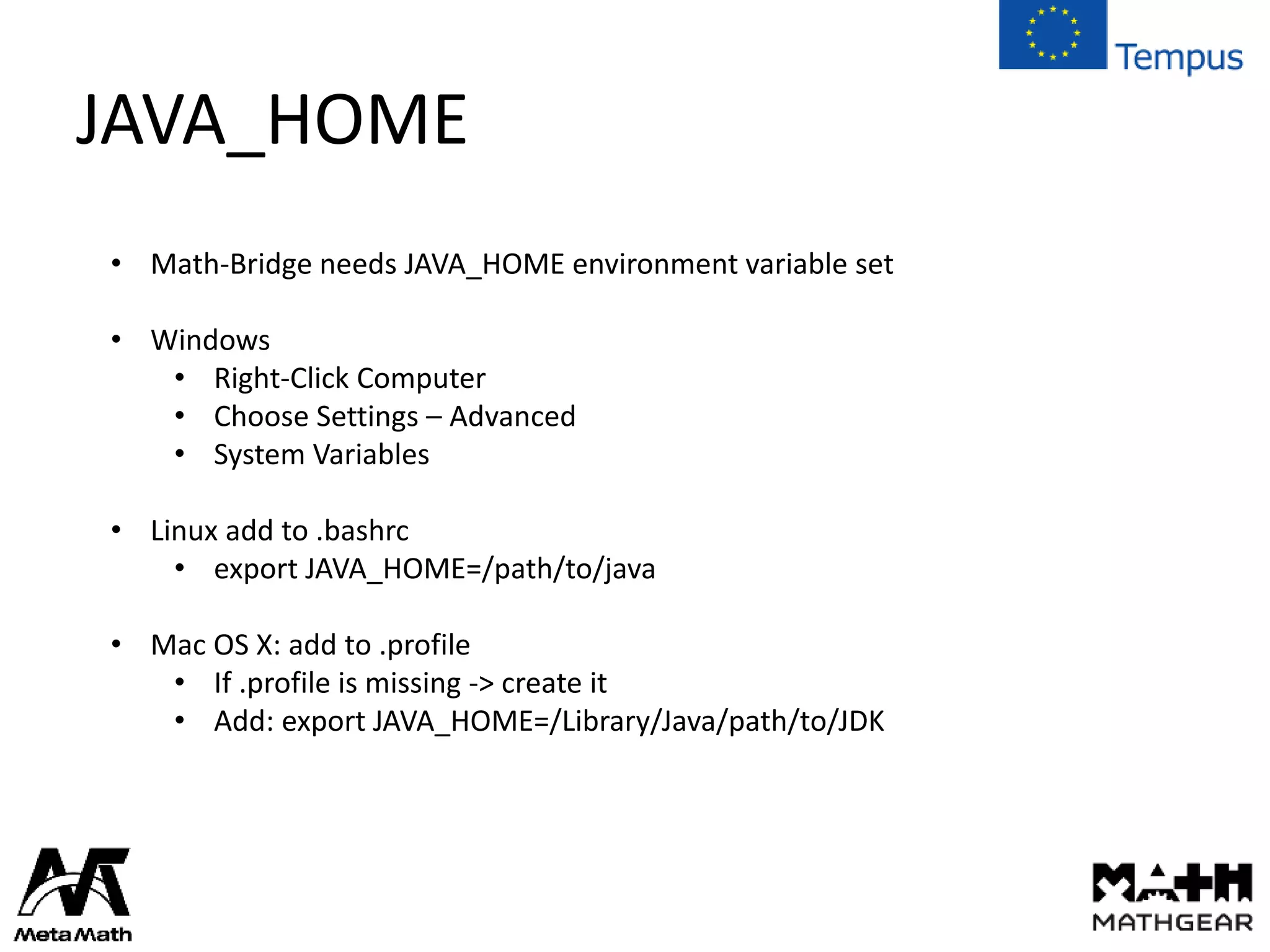
JAVA_HOME
• Math-Bridge needs JAVA_HOME environment variable set
• Windows
• Right-Click Computer
• Choose Settings – Advanced
• System Variables
• Linux add to .bashrc
• export JAVA_HOME=/path/to/java
• Mac OS X: add to .profile
• If .profile is missing -> create it
• Add: export JAVA_HOME=/Library/Java/path/to/JDK
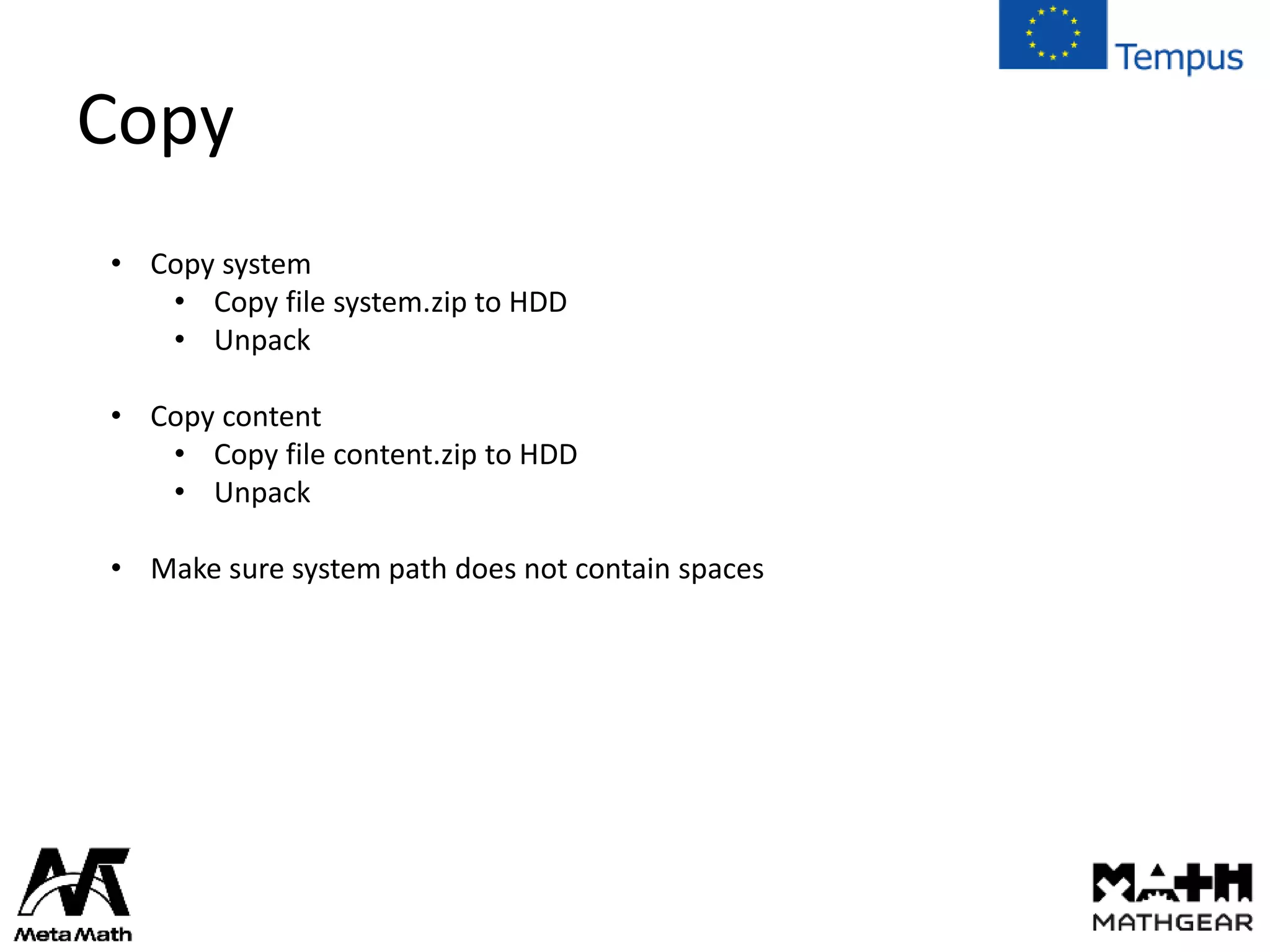
Copy
• Copy system
• Copy file system.zip to HDD
• Unpack
• Copy content
• Copy file content.zip to HDD
• Unpack
• Make sure system path does not contain spaces
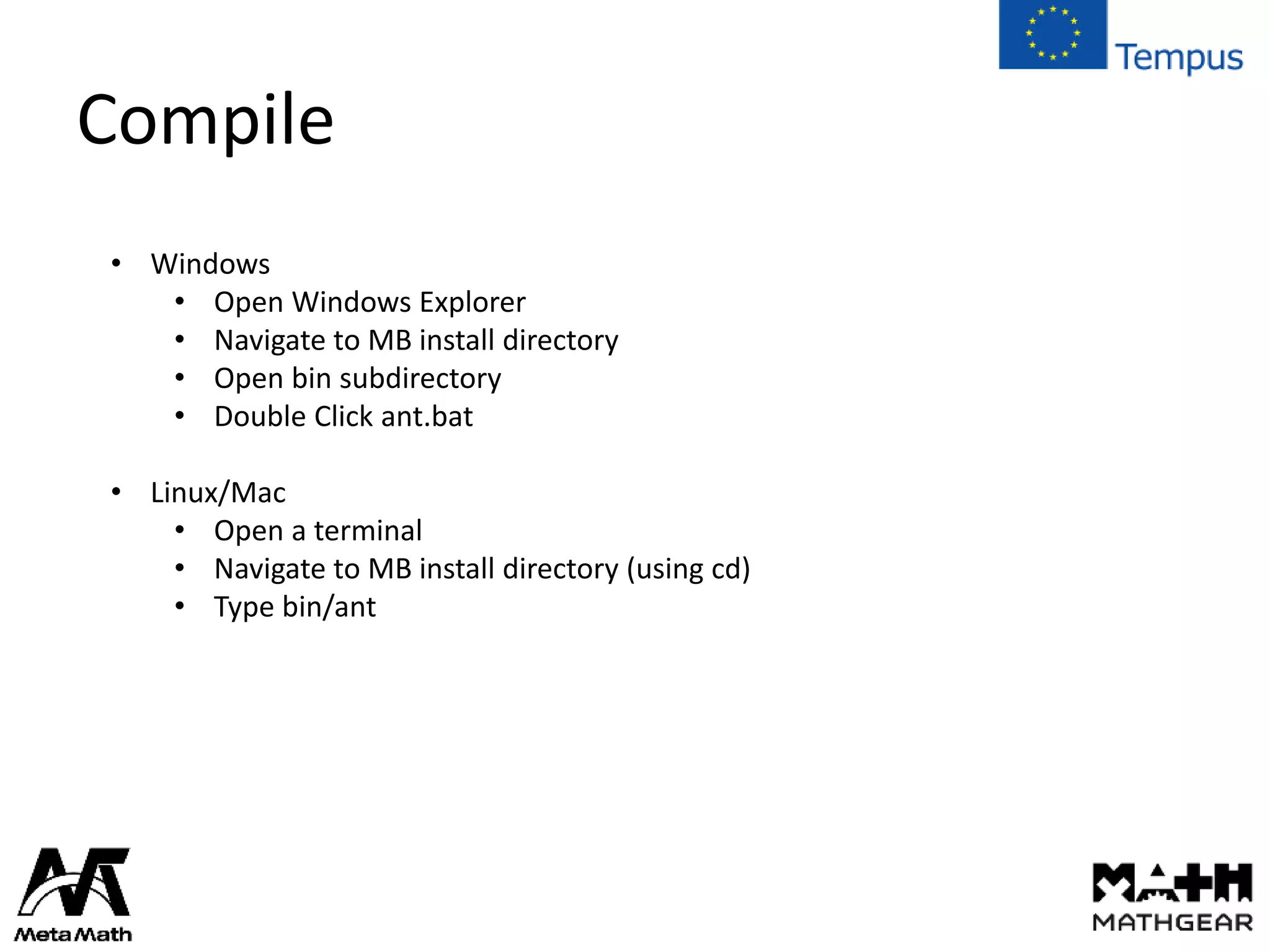
Compile
• Windows
• Open Windows Explorer
• Navigate to MB install directory
• Open bin subdirectory
• Double Click ant.bat
• Linux/Mac
• Open a terminal
• Navigate to MB install directory (using cd)
• Type bin/ant
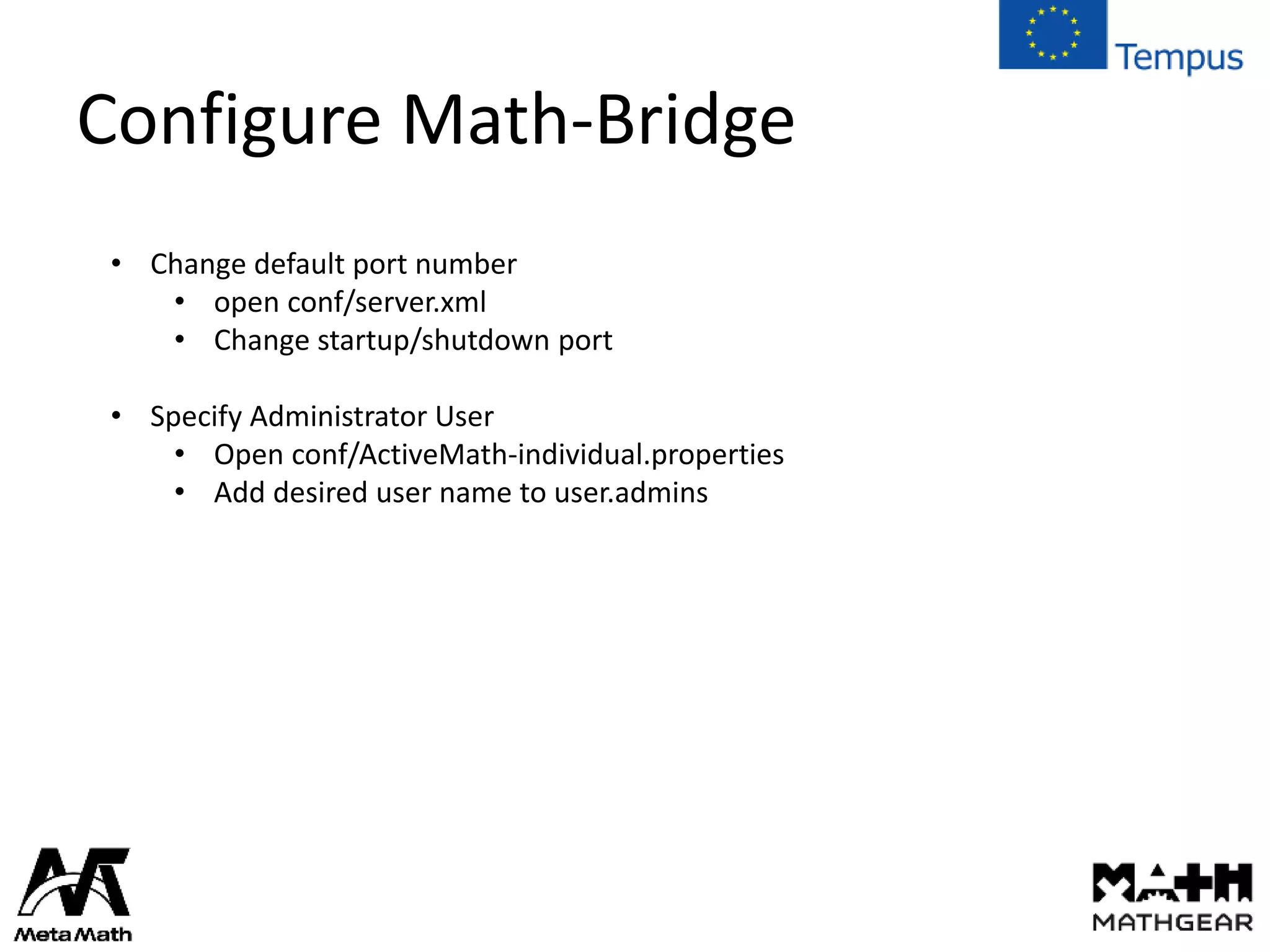
Configure Math-Bridge
• Change default port number
• open conf/server.xml
• Change startup/shutdown port
• Specify Administrator User
• Open conf/ActiveMath-individual.properties
• Add desired user name to user.admins
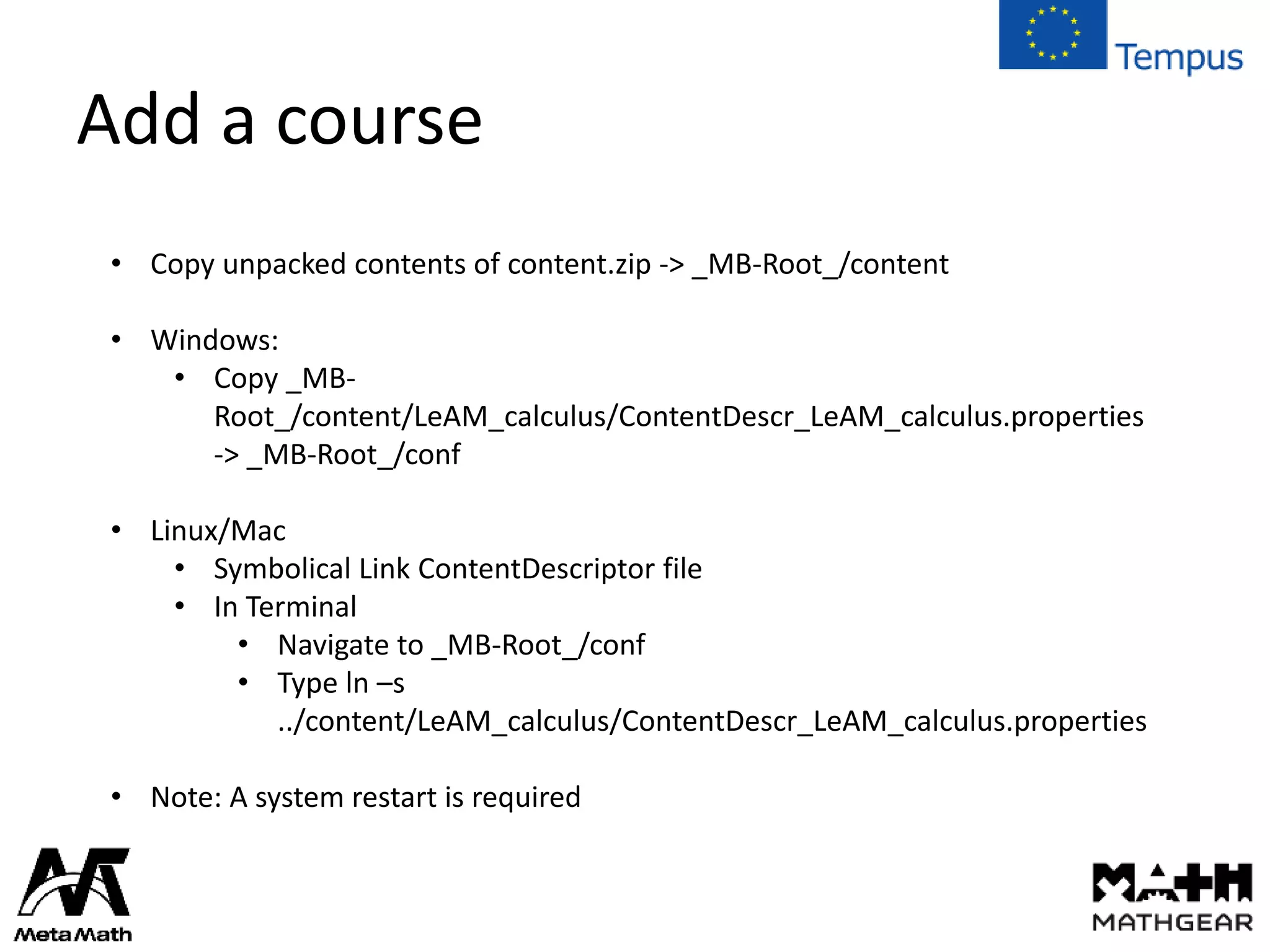
Add a course
• Copy unpacked contents of content.zip -> _MB-Root_/content
• Windows:
• Copy _MB-
Root_/content/LeAM_calculus/ContentDescr_LeAM_calculus.properties
-> _MB-Root_/conf
• Linux/Mac
• Symbolical Link ContentDescriptor file
• In Terminal
• Navigate to _MB-Root_/conf
• Type ln –s
../content/LeAM_calculus/ContentDescr_LeAM_calculus.properties
• Note: A system restart is required
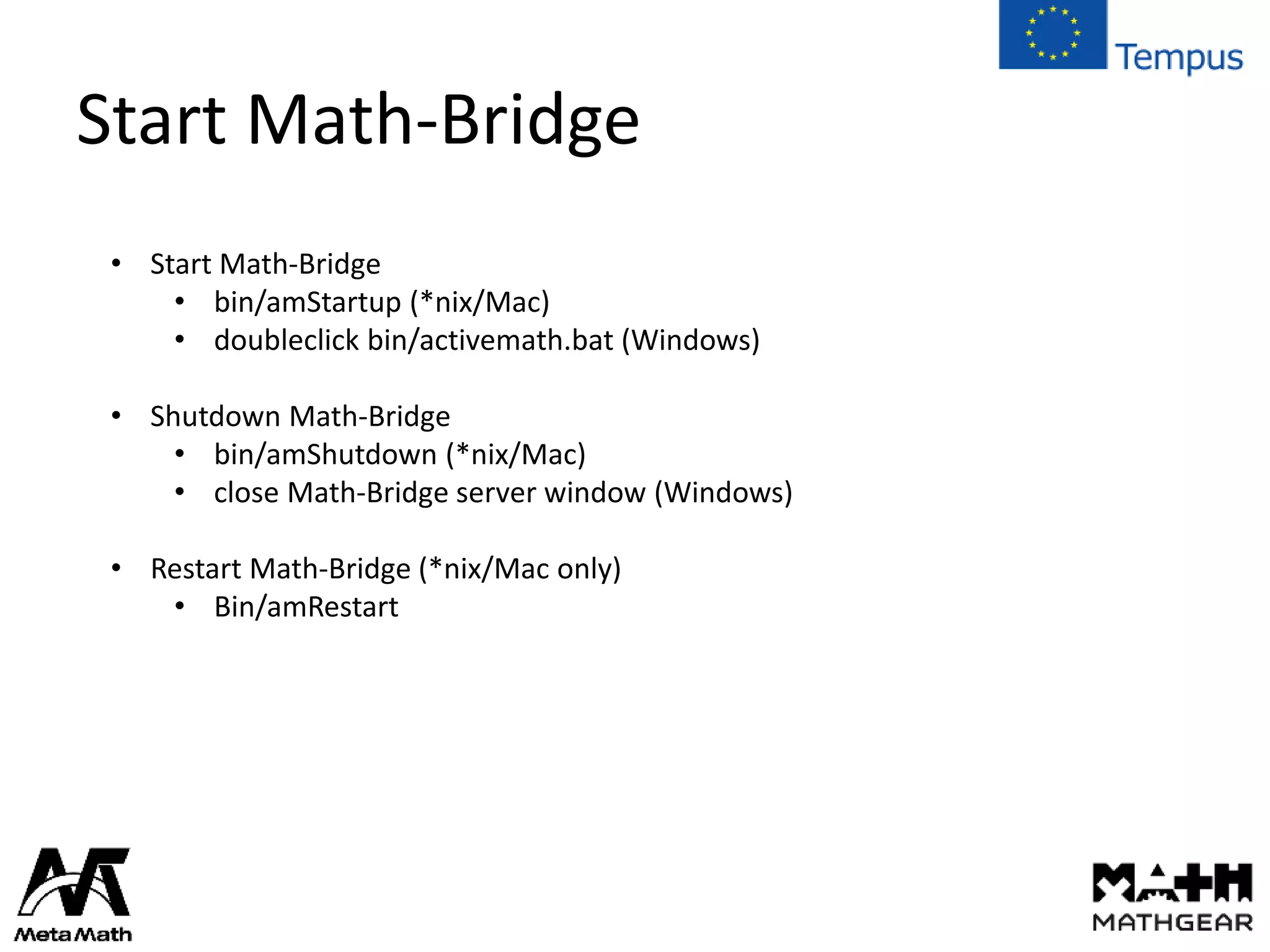
Start Math-Bridge
• Start Math-Bridge
• bin/amStartup (*nix/Mac)
• doubleclick bin/activemath.bat (Windows)
• Shutdown Math-Bridge
• bin/amShutdown (*nix/Mac)
• close Math-Bridge server window (Windows)
• Restart Math-Bridge (*nix/Mac only)
• Bin/amRestart
Open Math-Bridge in browser
• Open FireFox
• Browse URL : http://localhost:8080
Finalize Configuration
• Create Admin User
• Check Admin User Rights
• Create additional users if need be
Further Configuration (Use of Proxy)
• Advertized URL
• If you use a proxy to access you system ie mathbridge.celtech.de
• Open conf/ActiveMath-individual.properties
• Locate line # advertizedURL = http://<your external
hostname>:8080/mathbridge/
• Remove comment (#)
• Enter proxied URL
• advertizedURL = http://mathbridge.celtech.de/mathbridge/
• Activate PDF Generation
Further Configuration(PDF generation)
• Activate PDF Generation
• Locate path to your pdflatex application
• Open conf/ActiveMath-individual.properties
• Locate property: output.pdflatex.command-path
• Remove comment (#)
• Enter path
• Note: there are examples given for Windows and *nix/Mac
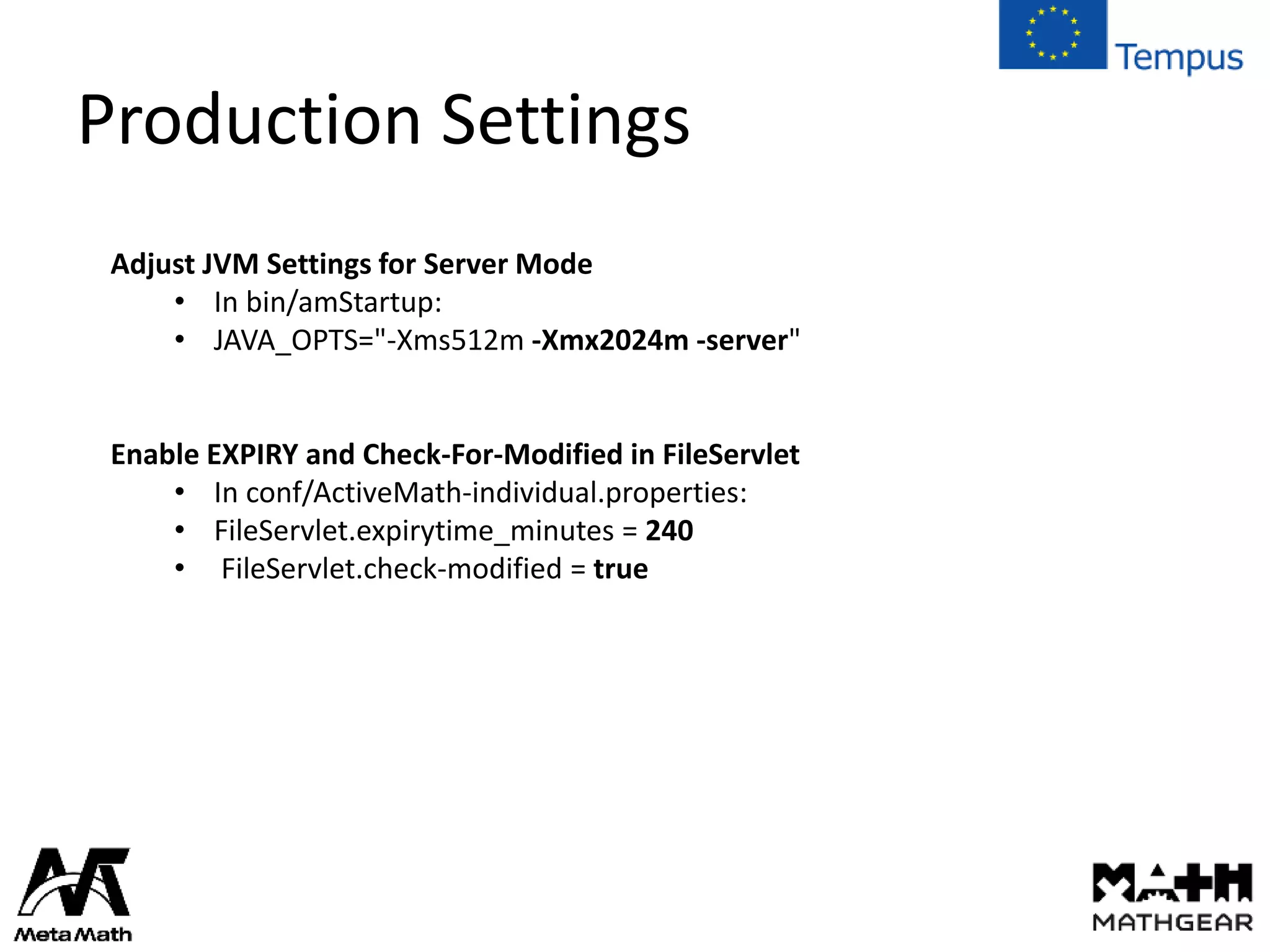
Production Settings
Adjust JVM Settings for Server Mode
• In bin/amStartup:
• JAVA_OPTS="-Xms512m -Xmx2024m -server"
Enable EXPIRY and Check-For-Modified in FileServlet
• In conf/ActiveMath-individual.properties:
• FileServlet.expirytime_minutes = 240
• FileServlet.check-modified = true
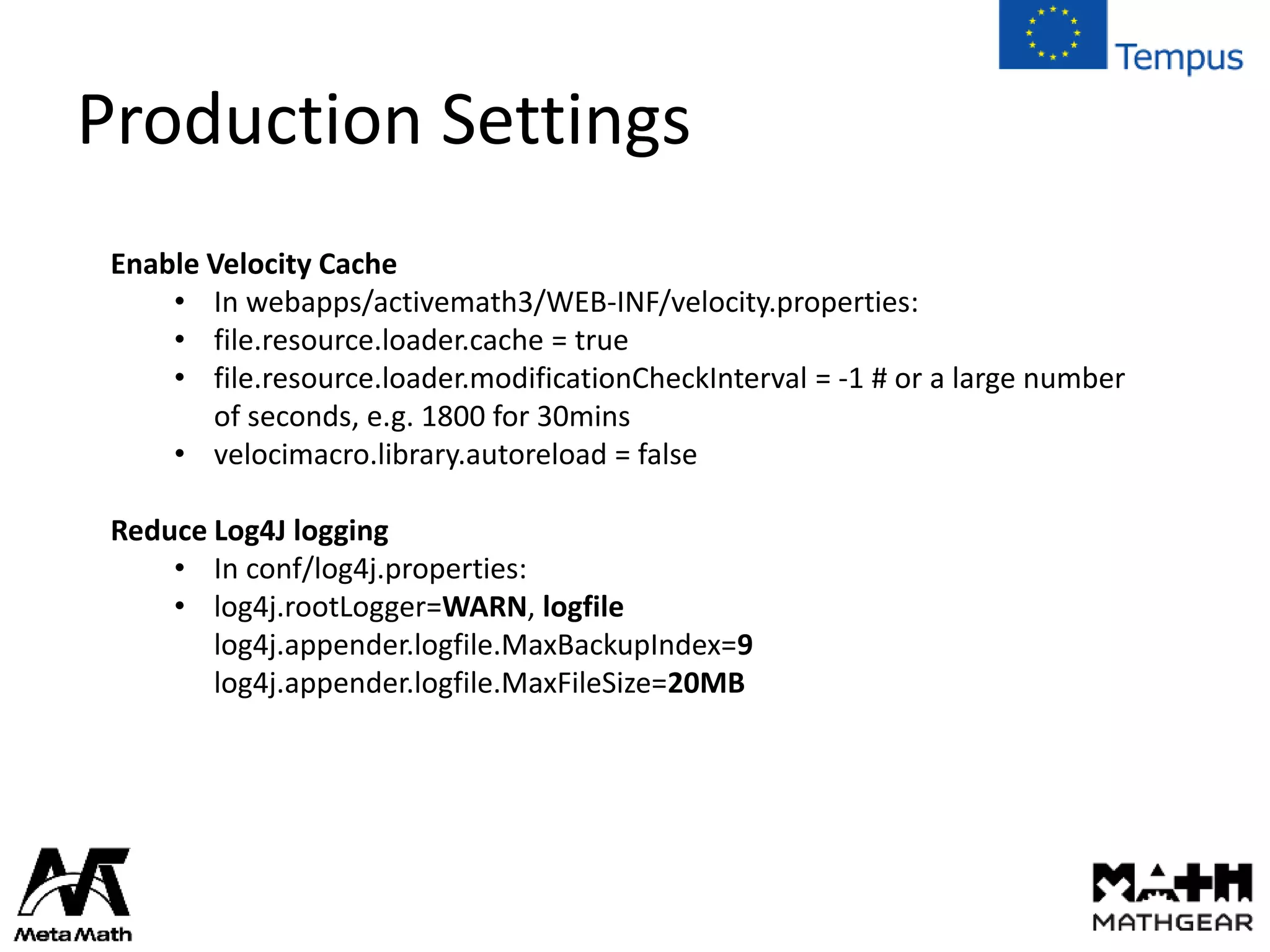
Production Settings
Enable Velocity Cache
• In webapps/activemath3/WEB-INF/velocity.properties:
• file.resource.loader.cache = true
• file.resource.loader.modificationCheckInterval = -1 # or a large number
of seconds, e.g. 1800 for 30mins
• velocimacro.library.autoreload = false
Reduce Log4J logging
• In conf/log4j.properties:
• log4j.rootLogger=WARN, logfile
log4j.appender.logfile.MaxBackupIndex=9
log4j.appender.logfile.MaxFileSize=20MB
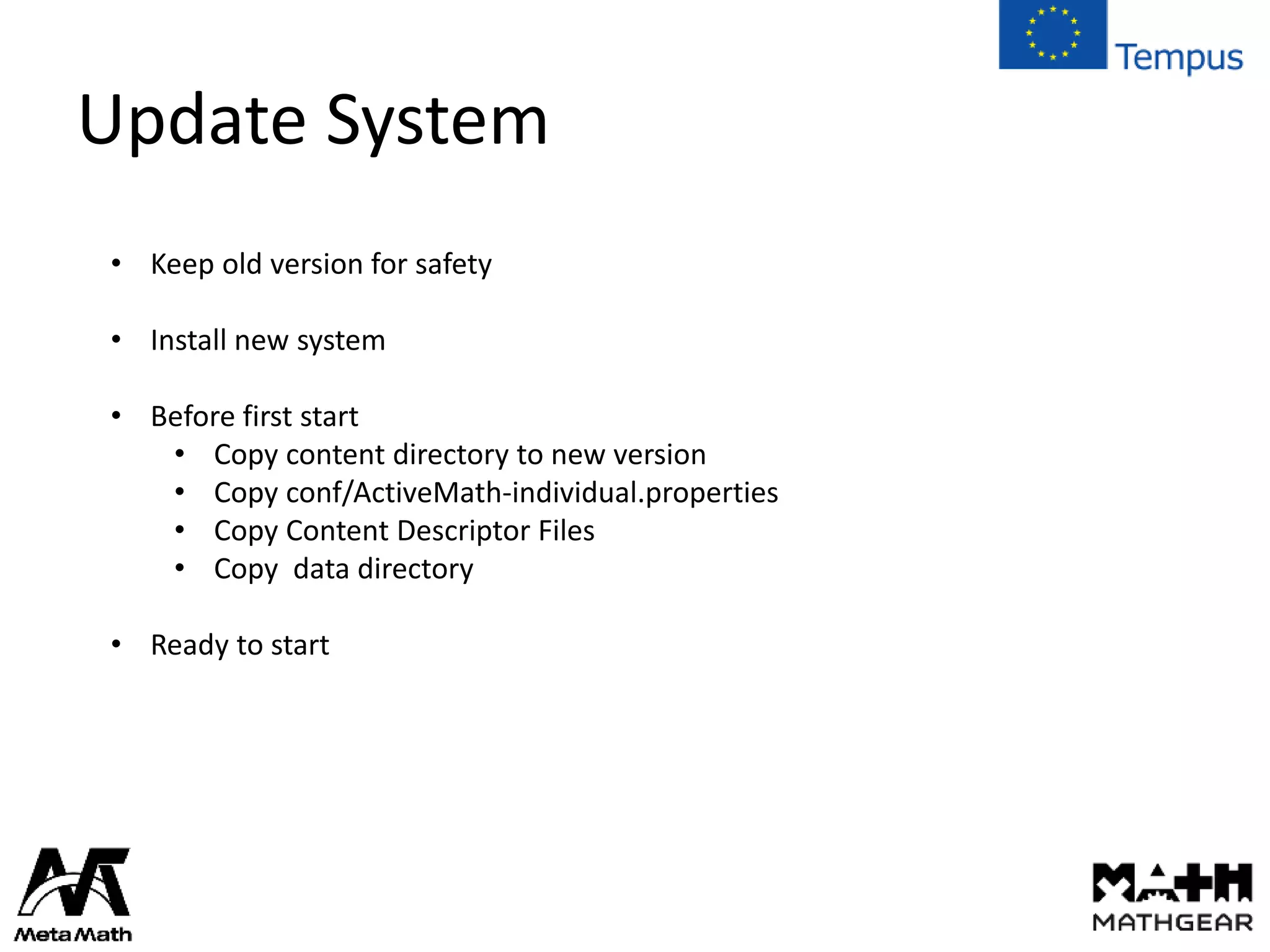
Update System
• Keep old version for safety
• Install new system
• Before first start
• Copy content directory to new version
• Copy conf/ActiveMath-individual.properties
• Copy Content Descriptor Files
• Copy data directory
• Ready to start

Math-Bridge Installation

  • 1.
    Joint Math-Bridge Training Program MichaelDietrich (DFKI) Math-Bridge Installation 10.07.2015 Saarbrücken
  • 2.
    Steps • Java • CopySystem • Copy Content • Compile • Configure System • Add a course to the system • Start/Stop System • Finalize configuration
  • 3.
    Install Java • Checkif JDK is present • Open Terminal • Type javac • If not available • Copy from Stick • Install • Repeat first step
  • 4.
    JAVA_HOME • Math-Bridge needsJAVA_HOME environment variable set • Windows • Right-Click Computer • Choose Settings – Advanced • System Variables • Linux add to .bashrc • export JAVA_HOME=/path/to/java • Mac OS X: add to .profile • If .profile is missing -> create it • Add: export JAVA_HOME=/Library/Java/path/to/JDK
  • 5.
    Copy • Copy system •Copy file system.zip to HDD • Unpack • Copy content • Copy file content.zip to HDD • Unpack • Make sure system path does not contain spaces
  • 6.
    Compile • Windows • OpenWindows Explorer • Navigate to MB install directory • Open bin subdirectory • Double Click ant.bat • Linux/Mac • Open a terminal • Navigate to MB install directory (using cd) • Type bin/ant
  • 7.
    Configure Math-Bridge • Changedefault port number • open conf/server.xml • Change startup/shutdown port • Specify Administrator User • Open conf/ActiveMath-individual.properties • Add desired user name to user.admins
  • 8.
    Add a course •Copy unpacked contents of content.zip -> _MB-Root_/content • Windows: • Copy _MB- Root_/content/LeAM_calculus/ContentDescr_LeAM_calculus.properties -> _MB-Root_/conf • Linux/Mac • Symbolical Link ContentDescriptor file • In Terminal • Navigate to _MB-Root_/conf • Type ln –s ../content/LeAM_calculus/ContentDescr_LeAM_calculus.properties • Note: A system restart is required
  • 9.
    Start Math-Bridge • StartMath-Bridge • bin/amStartup (*nix/Mac) • doubleclick bin/activemath.bat (Windows) • Shutdown Math-Bridge • bin/amShutdown (*nix/Mac) • close Math-Bridge server window (Windows) • Restart Math-Bridge (*nix/Mac only) • Bin/amRestart
  • 10.
    Open Math-Bridge inbrowser • Open FireFox • Browse URL : http://localhost:8080
  • 11.
    Finalize Configuration • CreateAdmin User • Check Admin User Rights • Create additional users if need be
  • 12.
    Further Configuration (Useof Proxy) • Advertized URL • If you use a proxy to access you system ie mathbridge.celtech.de • Open conf/ActiveMath-individual.properties • Locate line # advertizedURL = http://<your external hostname>:8080/mathbridge/ • Remove comment (#) • Enter proxied URL • advertizedURL = http://mathbridge.celtech.de/mathbridge/ • Activate PDF Generation
  • 13.
    Further Configuration(PDF generation) •Activate PDF Generation • Locate path to your pdflatex application • Open conf/ActiveMath-individual.properties • Locate property: output.pdflatex.command-path • Remove comment (#) • Enter path • Note: there are examples given for Windows and *nix/Mac
  • 14.
    Production Settings Adjust JVMSettings for Server Mode • In bin/amStartup: • JAVA_OPTS="-Xms512m -Xmx2024m -server" Enable EXPIRY and Check-For-Modified in FileServlet • In conf/ActiveMath-individual.properties: • FileServlet.expirytime_minutes = 240 • FileServlet.check-modified = true
  • 15.
    Production Settings Enable VelocityCache • In webapps/activemath3/WEB-INF/velocity.properties: • file.resource.loader.cache = true • file.resource.loader.modificationCheckInterval = -1 # or a large number of seconds, e.g. 1800 for 30mins • velocimacro.library.autoreload = false Reduce Log4J logging • In conf/log4j.properties: • log4j.rootLogger=WARN, logfile log4j.appender.logfile.MaxBackupIndex=9 log4j.appender.logfile.MaxFileSize=20MB
  • 16.
    Update System • Keepold version for safety • Install new system • Before first start • Copy content directory to new version • Copy conf/ActiveMath-individual.properties • Copy Content Descriptor Files • Copy data directory • Ready to start

Editor's Notes

  • #3 Apache Velocity – Java Based Template Engine
  • #4 Apache Velocity – Java Based Template Engine
  • #5 Apache Velocity – Java Based Template Engine
  • #6 Apache Velocity – Java Based Template Engine
  • #7 Apache Velocity – Java Based Template Engine
  • #8 Apache Velocity – Java Based Template Engine
  • #9 Apache Velocity – Java Based Template Engine
  • #10 Apache Velocity – Java Based Template Engine
  • #11 Apache Velocity – Java Based Template Engine
  • #12 Apache Velocity – Java Based Template Engine
  • #13 Apache Velocity – Java Based Template Engine
  • #14 Apache Velocity – Java Based Template Engine
  • #15 Apache Velocity – Java Based Template Engine
  • #16 Apache Velocity – Java Based Template Engine
  • #17 Apache Velocity – Java Based Template Engine