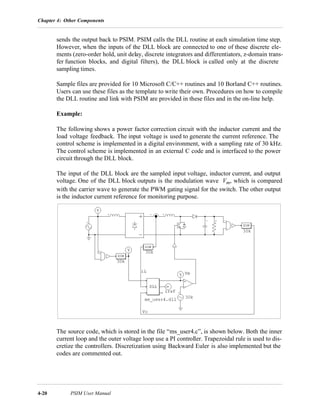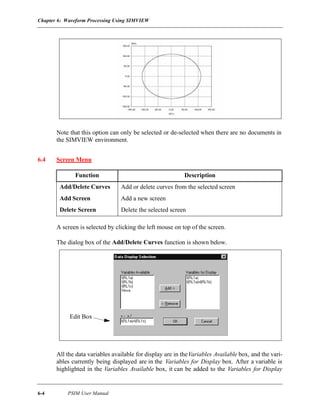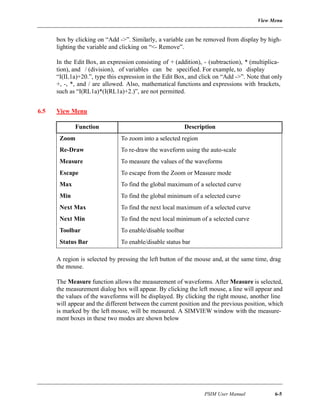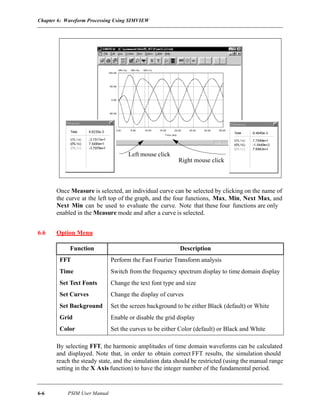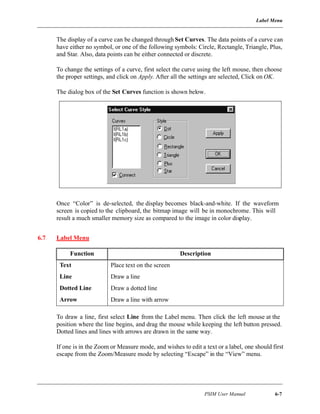




PSIM
User Manual
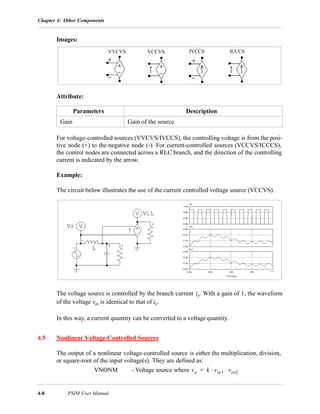
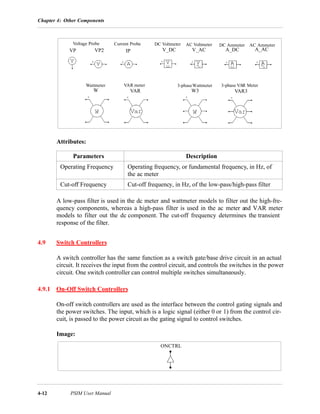
PowersimTechnologies Inc.
PSIM User Manual
PSIM Version 4.0
January 1999
© Copyright 1996-1999 Powersim Technologies Inc.
All rights reserved. No part of this manual may be photocopied or reproduced in any form or by any means without
the written permission of Powersim Technologies Inc.
Disclaimer
Powersim Technologies Inc. (“Powersim”) makes no representation or warranty with respect to the adequacy or accu-
racy of this documentation or the software which it describes. In no event will Powersim or its direct or indirect sup-
pliers be liable for any damages whatsoever including, but not limited to, direct, indirect, incidental, or consequential
damages of any character including, without limitation, loss of business profits, data, business information, or any
and all other commercial damages or losses, or for any damages in excess of the list price forthe licence to the soft-
ware and documentation.
PowersimTechnologies Inc.
#10 - 7120 Gilbert Rd.
Richmond, B.C.
Canada V7C 5G7
Tel: (604) 214-1364
Fax: (604) 214-1365
email: info@powersimtech.com
http://www.powersimtech.com
PSIM User Manual i
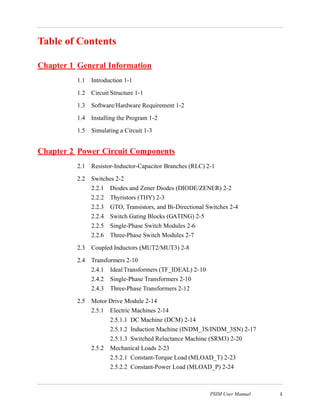
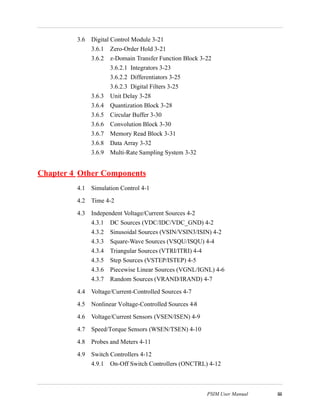
Table of Contents
Chapter 1 General Information
1.1 Introduction 1-1
1.2 Circuit Structure 1-1
1.3 Software/Hardware Requirement 1-2
1.4 Installing the Program 1-2
1.5 Simulating a Circuit 1-3
Chapter 2 Power Circuit Components
2.1 Resistor-Inductor-Capacitor Branches (RLC) 2-1
2.2 Switches 2-2
2.2.1 Diodes and Zener Diodes (DIODE/ZENER) 2-2
2.2.2 Thyristors (THY) 2-3
2.2.3 GTO, Transistors, and Bi-Directional Switches 2-4
2.2.4 Switch Gating Blocks (GATING) 2-5
2.2.5 Single-Phase Switch Modules 2-6
2.2.6 Three-Phase Switch Modules 2-7
2.3 Coupled Inductors (MUT2/MUT3) 2-8
2.4 Transformers 2-10
2.4.1 IdealTransformers (TF_IDEAL) 2-10
2.4.2 Single-Phase Transformers 2-10
2.4.3 Three-Phase Transformers 2-12
2.5 Motor Drive Module 2-14
2.5.1 Electric Machines 2-14
2.5.1.1 DC Machine (DCM) 2-14
2.5.1.2 Induction Machine (INDM_3S/INDM_3SN) 2-17
2.5.1.3 Switched Reluctance Machine (SRM3) 2-20
2.5.2 Mechanical Loads 2-23
2.5.2.1 Constant-Torque Load (MLOAD_T) 2-23
2.5.2.2 Constant-Power Load (MLOAD_P) 2-24
ii PSIM User Manual
2.5.2.3 General-Type Load (MLOAD) 2-25
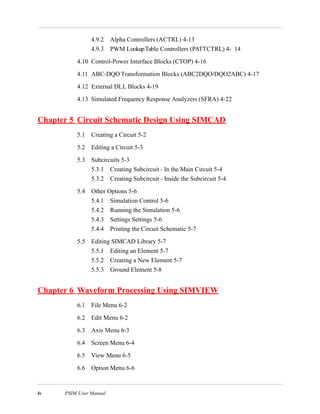
Chapter 3 Control Circuit Component
3.1 Transfer Function Blocks (TFCTN) 3-1
3.1.1 Proportional Controllers (P) 3-1
3.1.2 Integrators (INT/RESETI) 3-2
3.1.3 Differentiators (DIFF) 3-3
3.1.4 Proportional-Integral Controllers (PI) 3-4
3.1.5 Built-in Filter Blocks 3-4
3.2 Computational Function Blocks 3-5
3.2.1 Summers (SUM) 3-5
3.2.2 Multipliers and Dividers (MULT/DIVD) 3-6
3.2.3 Square-Root Blocks (SQROT) 3-7
3.2.4 Exponential/Power Function Blocks (EXP/POWER) 3-7
3.2.5 Root-Mean-Square Blocks (RMS) 3-7
3.2.6 Absolute Value Function Blocks (ABS) 3-8
3.2.7 Trigonometric Functions (SIN/COS/COS_1/TG_1) 3-8
3.2.8 Fast Fourier Transform Blocks (FFT) 3-9
3.3 Other Function Blocks 3-10
3.3.1 Comparators (COMP) 3-10
3.3.2 Limiters (LIM) 3-10
3.3.3 Look-up Tables (LKUP/LKUP2D) 3-11
3.3.4 Sampling/Hold Blocks (SAMP) 3-12
3.3.5 Round-Off Blocks (ROUNDOFF) 3-13
3.3.6 Time Delay Blocks (TDELAY) 3-14
3.3.7 Multiplexers (MUX2/MUX4/MUX8) 3-15
3.4 Subcircuit Blocks 3-16
3.4.1 Operational Amplifiers (OP_AMP) 3-16
3.4.2 THD Blocks (THD) 3-17
3.5 Logic Components 3-19
3.5.1 Logic Gates 3-19
3.5.2 Set-Reset Flip-Flops (SRFF) 3-19
3.5.3 J-K Flip-Flops (JKFF) 3-20
3.5.4 Monostable Multivibrators (MONO/MONOC) 3-20
3.5.5 Pulse Width Counters (PWCT) 3-21
PSIM User Manual iii
3.6 Digital Control Module 3-21
3.6.1 Zero-Order Hold 3-21
3.6.2 z-Domain Transfer Function Block 3-22
3.6.2.1 Integrators 3-23
3.6.2.2 Differentiators 3-25
3.6.2.3 Digital Filters 3-25
3.6.3 Unit Delay 3-28
3.6.4 Quantization Block 3-28
3.6.5 Circular Buffer 3-30
3.6.6 Convolution Block 3-30
3.6.7 Memory Read Block 3-31
3.6.8 Data Array 3-32
3.6.9 Multi-Rate Sampling System 3-32
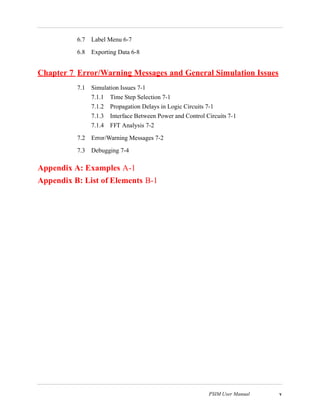
Chapter 4 Other Components
4.1 Simulation Control 4-1
4.2 Time 4-2
4.3 Independent Voltage/Current Sources 4-2
4.3.1 DC Sources (VDC/IDC/VDC_GND) 4-2
4.3.2 Sinusoidal Sources (VSIN/VSIN3/ISIN) 4-2
4.3.3 Square-Wave Sources (VSQU/ISQU) 4-4
4.3.4 Triangular Sources (VTRI/ITRI) 4-4
4.3.5 Step Sources (VSTEP/ISTEP) 4-5
4.3.6 Piecewise Linear Sources (VGNL/IGNL) 4-6
4.3.7 Random Sources (VRAND/IRAND) 4-7
4.4 Voltage/Current-Controlled Sources 4-7
4.5 Nonlinear Voltage-Controlled Sources 4-8
4.6 Voltage/Current Sensors (VSEN/ISEN) 4-9
4.7 Speed/Torque Sensors (WSEN/TSEN) 4-10
4.8 Probes and Meters 4-11
4.9 Switch Controllers 4-12
4.9.1 On-Off Switch Controllers (ONCTRL) 4-12
iv PSIM User Manual
4.9.2 Alpha Controllers (ACTRL) 4-13
4.9.3 PWM LookupTable Controllers (PATTCTRL) 4- 14
4.10 Control-Power Interface Blocks (CTOP) 4-16
4.11 ABC-DQO Transformation Blocks (ABC2DQO/DQO2ABC) 4-17
4.12 External DLL Blocks 4-19
4.13 Simulated Frequency Response Analyzers (SFRA) 4-22
Chapter 5 Circuit Schematic Design Using SIMCAD
5.1 Creating a Circuit 5-2
5.2 Editing a Circuit 5-3
5.3 Subcircuits 5-3
5.3.1 Creating Subcircuit - In the Main Circuit 5-4
5.3.2 Creating Subcircuit - Inside the Subcircuit 5-4
5.4 Other Options 5-6
5.4.1 Simulation Control 5-6
5.4.2 Running the Simulation 5-6
5.4.3 Settings Settings 5-6
5.4.4 Printing the Circuit Schematic 5-7
5.5 Editing SIMCAD Library 5-7
5.5.1 Editing an Element 5-7
5.5.2 Creating a New Element 5-7
5.5.3 Ground Element 5-8
Chapter 6 Waveform Processing Using SIMVIEW
6.1 File Menu 6-2
6.2 Edit Menu 6-2
6.3 Axis Menu 6-3
6.4 Screen Menu 6-4
6.5 View Menu 6-5
6.6 Option Menu 6-6
PSIM User Manual v
6.7 Label Menu 6-7
6.8 Exporting Data 6-8
Chapter 7 Error/Warning Messages and General Simulation Issues
7.1 Simulation Issues 7-1
7.1.1 Time Step Selection 7-1
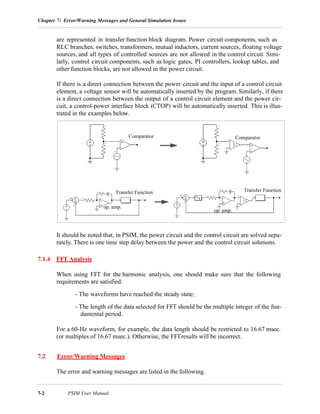
7.1.2 Propagation Delays in Logic Circuits 7-1
7.1.3 Interface Between Power and Control Circuits 7-1
7.1.4 FFT Analysis 7-2
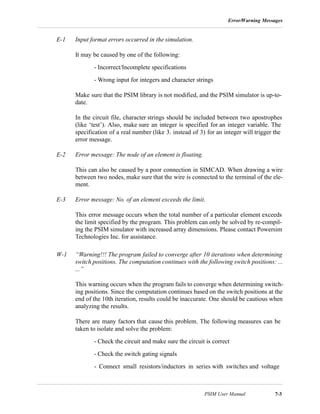
7.2 Error/Warning Messages 7-2
7.3 Debugging 7-4
Appendix A: Examples A-1
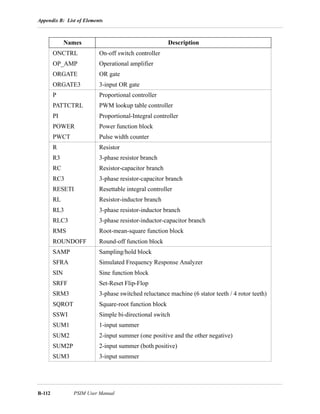
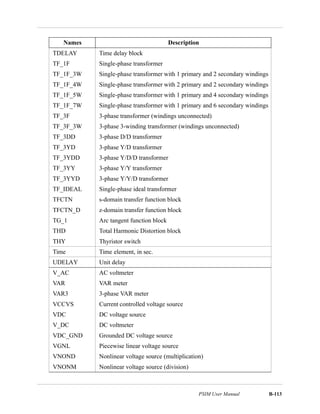
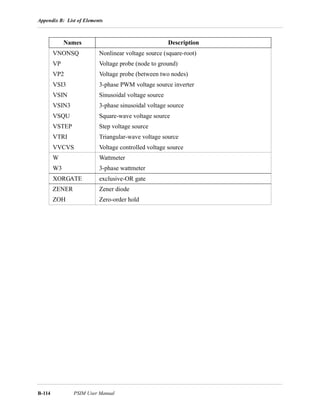
Appendix B: List of Elements B-1
vi PSIM User Manual
Introduction
PSIM User Manual 1-1
Chapter 1: General Information
1.1 Introduction
This manual covers both PSIM* and its add-on Motor Drive Module and Digital Control
Module. Functions and features for these two modules are marked wherever they occur.
The Motor Drive Module has built-in machine models and mechanical load models for
drive system studies. The Digital Control Module, on the other hand, provides discrete
elements such as zero-order hold, z-domain transfer function blocks, quantization blocks,
for digital control analysis.
PSIM is a simulation package specifically designed for power electronics and motor con-
trol. With fast simulation, friendly user interface and waveform processing, PSIM pro-
vides a powerful simulation environment for power converter analysis, control loop
design, and motor drive system studies.
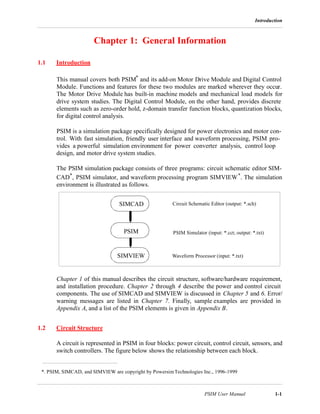
The PSIM simulation package consists of three programs: circuit schematic editor SIM-
CAD*, PSIM simulator, and waveform processing program SIMVIEW*. The simulation
environment is illustrated as follows.
Chapter 1 of this manual describes the circuit structure, software/hardware requirement,
and installation procedure. Chapter 2 through 4 describe the power and control circuit
components. The use of SIMCAD and SIMVIEW is discussed in Chapter 5 and 6. Error/
warning messages are listed in Chapter 7. Finally, sample examples are provided in
Appendix A, and a list of the PSIM elements is given in Appendix B.
1.2 Circuit Structure
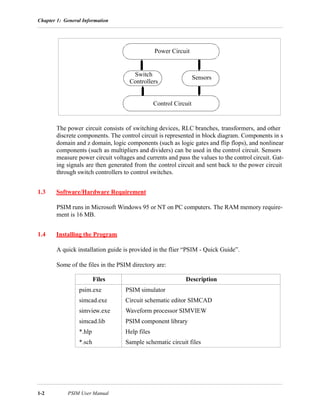
A circuit is represented in PSIM in four blocks: power circuit, control circuit, sensors, and
switch controllers. The figure below shows the relationship between each block.
*. PSIM, SIMCAD, and SIMVIEW are copyright by PowersimTechnologies Inc., 1996-1999
PSIM
SIMCAD
SIMVIEW
Circuit Schematic Editor (output: *.sch)
PSIM Simulator (input: *.cct; output: *.txt)
Waveform Processor (input: *.txt)
Chapter 1: General Information
1-2 PSIM User Manual
The power circuit consists of switching devices, RLC branches, transformers, and other
discrete components. The control circuit is represented in block diagram. Components in s
domain and z domain, logic components (such as logic gates and flip flops), and nonlinear
components (such as multipliers and dividers) can be used in the control circuit. Sensors
measure power circuit voltages and currents and pass the values to the control circuit. Gat-
ing signals are then generated from the control circuit and sent back to the power circuit
through switch controllers to control switches.
1.3 Software/Hardware Requirement
PSIM runs in Microsoft Windows 95 or NT on PC computers. The RAM memory require-
ment is 16 MB.
1.4 Installing the Program
A quick installation guide is provided in the flier “PSIM - Quick Guide”.
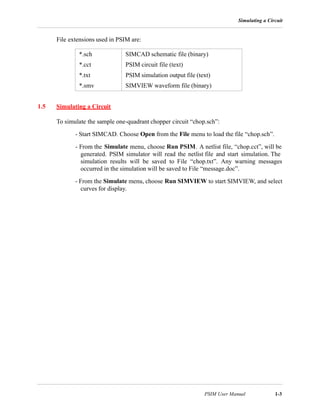
Some of the files in the PSIM directory are:
Files Description
psim.exe PSIM simulator
simcad.exe Circuit schematic editor SIMCAD
simview.exe Waveform processor SIMVIEW
simcad.lib PSIM component library
*.hlp Help files
*.sch Sample schematic circuit files
Power Circuit
Control Circuit
Sensors
Switch
Controllers
Simulating a Circuit
PSIM User Manual 1-3
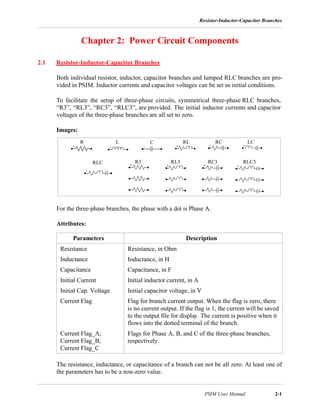
File extensions used in PSIM are:
1.5 Simulating a Circuit
To simulate the sample one-quadrant chopper circuit “chop.sch”:
- Start SIMCAD. Choose Open from the File menu to load the file “chop.sch”.
- From the Simulate menu, choose Run PSIM. A netlist file, “chop.cct”, will be
generated. PSIM simulator will read the netlist file and start simulation. The
simulation results will be saved to File “chop.txt”. Any warning messages
occurred in the simulation will be saved to File “message.doc”.
- From the Simulate menu, choose Run SIMVIEW to start SIMVIEW, and select
curves for display.
*.sch SIMCAD schematic file (binary)
*.cct PSIM circuit file (text)
*.txt PSIM simulation output file (text)
*.smv SIMVIEW waveform file (binary)
Chapter 1: General Information
1-4 PSIM User Manual
Resistor-Inductor-Capacitor Branches
PSIM User Manual 2-1
Chapter 2: Power Circuit Components
2.1 Resistor-Inductor-Capacitor Branches
Both individual resistor, inductor, capacitor branches and lumped RLC branches are pro-
vided in PSIM. Inductor currents and capacitor voltages can be set as initial conditions.
To facilitate the setup of three-phase circuits, symmetrical three-phase RLC branches,
“R3”, “RL3”, “RC3”, “RLC3”, are provided. The initial inductor currents and capacitor
voltages of the three-phase branches are all set to zero.
Images:
For the three-phase branches, the phase with a dot is Phase A.
Attributes:
The resistance, inductance, or capacitance of a branch can not be all zero. At least one of
the parameters has to be a non-zero value.
Parameters Description
Resistance Resistance, in Ohm
Inductance Inductance, in H
Capacitance Capacitance, in F
Initial Current Initial inductor current, in A
Initial Cap. Voltage Initial capacitor voltage, in V
Current Flag Flag for branch current output. When the flag is zero, there
is no current output. If the flag is 1, the current will be saved
to the output file for display. The current is positive when it
flows into the dotted terminal of the branch.
Current Flag_A;
Current Flag_B;
Current Flag_C
Flags for Phase A, B, and C of the three-phase branches,
respectively.
R L C RL RC
R3 RL3 RC3 RLC3RLC
LC
Chapter 2: Power Circuit Component
2-2 PSIM User Manual
2.2 Switches
There are four basic types of switches in PSIM:
Diodes (DIODE)
Thyristors (THY)
Self-commutated switches (GTO, IGBT, MOSFET)
Bi-directional switches (SSWI)
Switch models are ideal. That is, both turn-on and turn-off transients are neglected. A
switch has an on-resistance of 10µΩ and an off-resistance of 1MΩ. Snubber circuits are
not required for switches.
2.2.1 Diodes and Zener Diodes
The conduction of a diode is determined by the circuit operating condition. The diode is
turned on when it is positively biased, and is turned off when the current drops to zero.
Image:
Attributes:
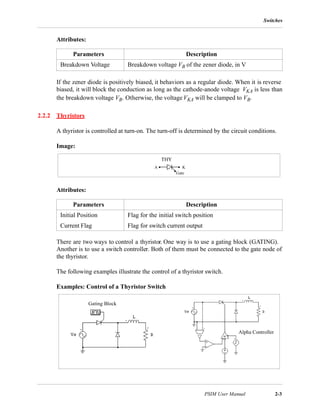
A zener diode in PSIM is modelled by a circuit as shown below.
Image:
Parameters Description
Initial Position Flag for the initial diode position. If the flag is 0, the diode is
open. If it is 1, the diode is closed.
Current Flag Flags for the diode current printout. If the flag is 0, there is
no current output. If the flag is 1, the diode current will be
saved to the output file for display.
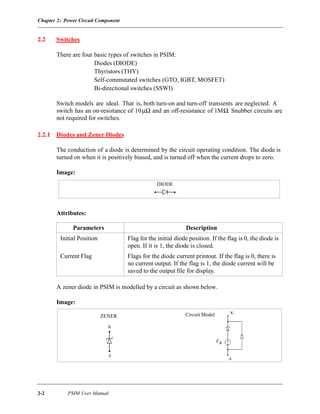
DIODE
ZENER Circuit Model
A
K
A
K
VB
Switches
PSIM User Manual 2-3
Attributes:
If the zener diode is positively biased, it behaviors as a regular diode. When it is reverse
biased, it will block the conduction as long as the cathode-anode voltage VKA is less than
the breakdown voltage VB. Otherwise, the voltage VKA will be clamped to VB.
2.2.2 Thyristors
A thyristor is controlled at turn-on. The turn-off is determined by the circuit conditions.
Image:
Attributes:
There are two ways to control a thyristor. One way is to use a gating block (GATING).
Another is to use a switch controller. Both of them must be connected to the gate node of
the thyristor.
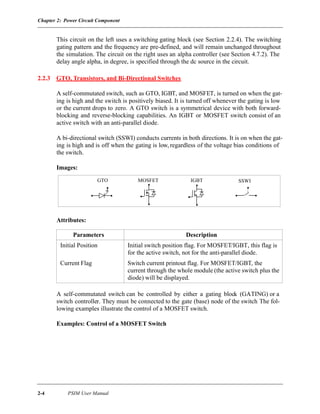
The following examples illustrate the control of a thyristor switch.
Examples: Control of a Thyristor Switch
Parameters Description
Breakdown Voltage Breakdown voltage VB of the zener diode, in V
Parameters Description
Initial Position Flag for the initial switch position
Current Flag Flag for switch current output
THY
A K
Gate
Gating Block
Alpha Controller
Chapter 2: Power Circuit Component
2-4 PSIM User Manual
This circuit on the left uses a switching gating block (see Section 2.2.4). The switching
gating pattern and the frequency are pre-defined, and will remain unchanged throughout
the simulation. The circuit on the right uses an alpha controller (see Section 4.7.2). The
delay angle alpha, in degree, is specified through the dc source in the circuit.
2.2.3 GTO, Transistors, and Bi-Directional Switches
A self-commutated switch, such as GTO, IGBT, and MOSFET, is turned on when the gat-
ing is high and the switch is positively biased. It is turned off whenever the gating is low
or the current drops to zero. A GTO switch is a symmetrical device with both forward-
blocking and reverse-blocking capabilities. An IGBT or MOSFET switch consist of an
active switch with an anti-parallel diode.
A bi-directional switch (SSWI) conducts currents in both directions. It is on when the gat-
ing is high and is off when the gating is low, regardless of the voltage bias conditions of
the switch.
Images:
Attributes:
A self-commutated switch can be controlled by either a gating block (GATING) or a
switch controller. They must be connected to the gate (base) node of the switch The fol-
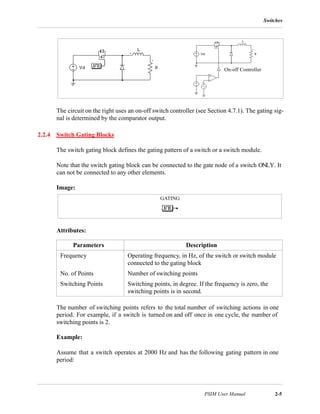
lowing examples illustrate the control of a MOSFET switch.
Examples: Control of a MOSFET Switch
Parameters Description
Initial Position Initial switch position flag. For MOSFET/IGBT, this flag is
for the active switch, not for the anti-parallel diode.
Current Flag Switch current printout flag. For MOSFET/IGBT, the
current through the whole module (the active switch plus the
diode) will be displayed.
SSWIGTO IGBTMOSFET
Switches
PSIM User Manual 2-5
The circuit on the right uses an on-off switch controller (see Section 4.7.1). The gating sig-
nal is determined by the comparator output.
2.2.4 Switch Gating Blocks
The switch gating block defines the gating pattern of a switch or a switch module.
Note that the switch gating block can be connected to the gate node of a switch ONLY. It
can not be connected to any other elements.
Image:
Attributes:
The number of switching points refers to the total number of switching actions in one
period. For example, if a switch is turned on and off once in one cycle, the number of
switching points is 2.
Example:
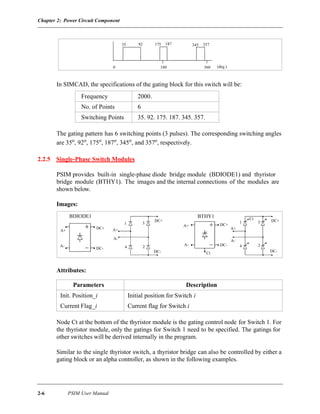
Assume that a switch operates at 2000 Hz and has the following gating pattern in one
period:
Parameters Description
Frequency Operating frequency, in Hz, of the switch or switch module
connected to the gating block
No. of Points Number of switching points
Switching Points Switching points, in degree. If the frequency is zero, the
switching points is in second.
On-off Controller
GATING
Chapter 2: Power Circuit Component
2-6 PSIM User Manual
In SIMCAD, the specifications of the gating block for this switch will be:
The gating pattern has 6 switching points (3 pulses). The corresponding switching angles
are 35o, 92o, 175o, 187o, 345o, and 357o, respectively.
2.2.5 Single-Phase Switch Modules
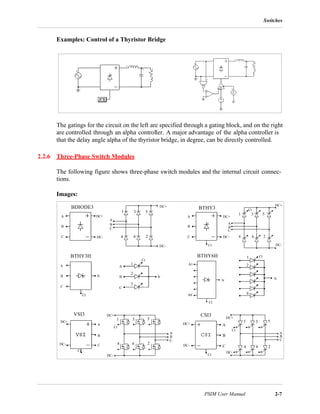
PSIM provides built-in single-phase diode bridge module (BDIODE1) and thyristor
bridge module (BTHY1). The images and the internal connections of the modules are
shown below.
Images:
Attributes:
Node Ct at the bottom of the thyristor module is the gating control node for Switch 1. For
the thyristor module, only the gatings for Switch 1 need to be specified. The gatings for
other switches will be derived internally in the program.
Similar to the single thyristor switch, a thyristor bridge can also be controlled by either a
gating block or an alpha controller, as shown in the following examples.
Frequency 2000.
No. of Points 6
Switching Points 35. 92. 175. 187. 345. 357.
Parameters Description
Init. Position_i Initial position for Switch i
Current Flag_i Current flag for Switch i
0 180 360
9235 175 187 345 357
(deg.)
A+
A-
BDIODE1 BTHY1
DC+
DC-
A+
A-
DC+
DC-
1 3
4 2 24
1 3
Ct
A+
A-
DC+
DC-
A+
A-
DC+
DC-
Ct
Switches
PSIM User Manual 2-7
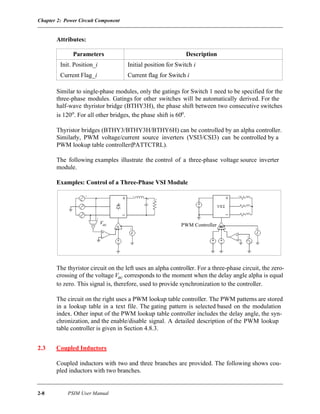
Examples: Control of a Thyristor Bridge
The gatings for the circuit on the left are specified through a gating block, and on the right
are controlled through an alpha controller. A major advantage of the alpha controller is
that the delay angle alpha of the thyristor bridge, in degree, can be directly controlled.
2.2.6 Three-Phase Switch Modules
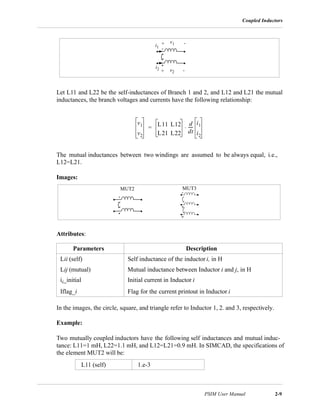
The following figure shows three-phase switch modules and the internal circuit connec-
tions.
Images:
BTHY3H BTHY6H
A
B
C
A1
1
2
6
1
2
3
A6
A
B
C
NN
N N
Ct
Ct
Ct
Ct
B
A
C
BDIODE3 BTHY3
DC+
DC-
A
B
C
DC+
DC-
1 3 5
4 6 2
1 3 5
4 6 2
A
AB
BC
C
DC-
DC+
DC-
DC+
CSI3VSI3
A
B
C
DC+
DC-
A
B
C
1 3 5
24 6
1 3 5
24 6
DC-
DC+
DC-
DC+
DC-
DC+
C
B
A
C
B
A
Ct
Ct
Ct
Ct
Ct
Ct
Chapter 2: Power Circuit Component
2-8 PSIM User Manual
Attributes:
Similar to single-phase modules, only the gatings for Switch 1 need to be specified for the
three-phase modules. Gatings for other switches will be automatically derived. For the
half-wave thyristor bridge (BTHY3H), the phase shift between two consecutive switches
is 120o. For all other bridges, the phase shift is 60o.
Thyristor bridges (BTHY3/BTHY3H/BTHY6H) can be controlled by an alpha controller.
Similarly, PWM voltage/current source inverters (VSI3/CSI3) can be controlled by a
PWM lookup table controller(PATTCTRL).
The following examples illustrate the control of a three-phase voltage source inverter
module.
Examples: Control of a Three-Phase VSI Module
The thyristor circuit on the left uses an alpha controller. For a three-phase circuit, the zero-
crossing of the voltage Vac corresponds to the moment when the delay angle alpha is equal
to zero. This signal is, therefore, used to provide synchronization to the controller.
The circuit on the right uses a PWM lookup table controller. The PWM patterns are stored
in a lookup table in a text file. The gating pattern is selected based on the modulation
index. Other input of the PWM lookup table controller includes the delay angle, the syn-
chronization, and the enable/disable signal. A detailed description of the PWM lookup
table controller is given in Section 4.8.3.
2.3 Coupled Inductors
Coupled inductors with two and three branches are provided. The following shows cou-
pled inductors with two branches.
Parameters Description
Init. Position_i Initial position for Switch i
Current Flag_i Current flag for Switch i
PWM ControllerVac
Coupled Inductors
PSIM User Manual 2-9
Let L11 and L22 be the self-inductances of Branch 1 and 2, and L12 and L21 the mutual
inductances, the branch voltages and currents have the following relationship:
The mutual inductances between two windings are assumed to be always equal, i.e.,
L12=L21.
Images:
Attributes:
In the images, the circle, square, and triangle refer to Inductor 1, 2. and 3, respectively.
Example:
Two mutually coupled inductors have the following self inductances and mutual induc-
tance: L11=1 mH, L22=1.1 mH, and L12=L21=0.9 mH. In SIMCAD, the specifications of
the element MUT2 will be:
Parameters Description
Lii (self) Self inductance of the inductor i, in H
Lij (mutual) Mutual inductance between Inductor i and j, in H
ii_initial Initial current in Inductor i
Iflag_i Flag for the current printout in Inductor i
L11 (self) 1.e-3
i1
i2
v1
v2
+ -
+ -
v1
v2
L11 L12
L21 L22
d
dt
-----
i1
i2
⋅=
MUT2 MUT3
Chapter 2: Power Circuit Component
2-10 PSIM User Manual
2.4 Transformers
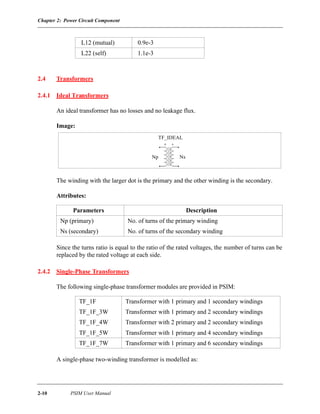
2.4.1 Ideal Transformers
An ideal transformer has no losses and no leakage flux.
Image:
The winding with the larger dot is the primary and the other winding is the secondary.
Attributes:
Since the turns ratio is equal to the ratio of the rated voltages, the number of turns can be
replaced by the rated voltage at each side.
2.4.2 Single-Phase Transformers
The following single-phase transformer modules are provided in PSIM:
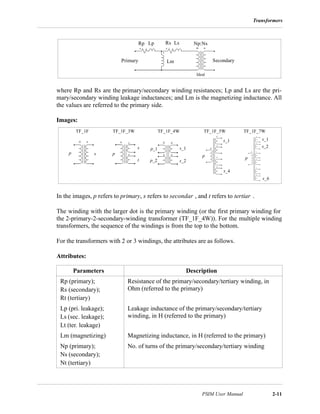
A single-phase two-winding transformer is modelled as:
L12 (mutual) 0.9e-3
L22 (self) 1.1e-3
Parameters Description
Np (primary) No. of turns of the primary winding
Ns (secondary) No. of turns of the secondary winding
TF_1F Transformer with 1 primary and 1 secondary windings
TF_1F_3W Transformer with 1 primary and 2 secondary windings
TF_1F_4W Transformer with 2 primary and 2 secondary windings
TF_1F_5W Transformer with 1 primary and 4 secondary windings
TF_1F_7W Transformer with 1 primary and 6 secondary windings
TF_IDEAL
Np Ns
Transformers
PSIM User Manual 2-11
where Rp and Rs are the primary/secondary winding resistances; Lp and Ls are the pri-
mary/secondary winding leakage inductances; and Lm is the magnetizing inductance. All
the values are referred to the primary side.
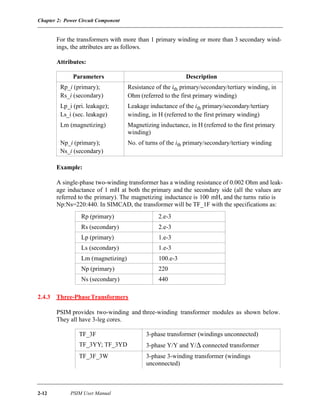
Images:
In the images, p refers to primary, s refers to secondar , and t refers to tertiar .
The winding with the larger dot is the primary winding (or the first primary winding for
the 2-primary-2-secondary-winding transformer (TF_1F_4W)). For the multiple winding
transformers, the sequence of the windings is from the top to the bottom.
For the transformers with 2 or 3 windings, the attributes are as follows.
Attributes:
Parameters Description
Rp (primary);
Rs (secondary);
Rt (tertiary)
Resistance of the primary/secondary/tertiary winding, in
Ohm (referred to the primary)
Lp (pri. leakage);
Ls (sec. leakage);
Lt (ter. leakage)
Leakage inductance of the primary/secondary/tertiary
winding, in H (referred to the primary)
Lm (magnetizing) Magnetizing inductance, in H (referred to the primary)
Np (primary);
Ns (secondary);
Nt (tertiary)
No. of turns of the primary/secondary/tertiary winding
Lp Ls
Lm
Ideal
Rp Rs Np:Ns
SecondaryPrimary
TF_1F TF_1F_3W TF_1F_5WTF_1F_4W TF_1F_7W
p s
t
p_1
p p p
p_2
s_1s
s_2
s_1
s_4
s_1
s_6
s_2
Chapter 2: Power Circuit Component
2-12 PSIM User Manual
For the transformers with more than 1 primary winding or more than 3 secondary wind-
ings, the attributes are as follows.
Attributes:
Example:
A single-phase two-winding transformer has a winding resistance of 0.002 Ohm and leak-
age inductance of 1 mH at both the primary and the secondary side (all the values are
referred to the primary). The magnetizing inductance is 100 mH, and the turns ratio is
Np:Ns=220:440. In SIMCAD, the transformer will be TF_1F with the specifications as:
2.4.3 Three-PhaseTransformers
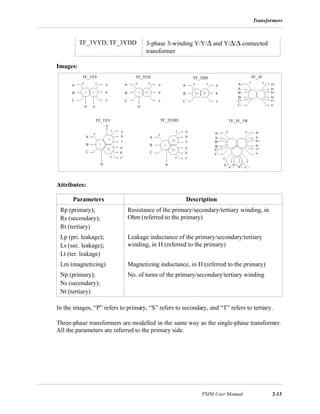
PSIM provides two-winding and three-winding transformer modules as shown below.
They all have 3-leg cores.
Parameters Description
Rp_i (primary);
Rs_i (secondary)
Resistance of the ith primary/secondary/tertiary winding, in
Ohm (referred to the first primary winding)
Lp_i (pri. leakage);
Ls_i (sec. leakage)
Leakage inductance of the ith primary/secondary/tertiary
winding, in H (referred to the first primary winding)
Lm (magnetizing) Magnetizing inductance, in H (referred to the first primary
winding)
Np_i (primary);
Ns_i (secondary)
No. of turns of the ith primary/secondary/tertiary winding
Rp (primary) 2.e-3
Rs (secondary) 2.e-3
Lp (primary) 1.e-3
Ls (secondary) 1.e-3
Lm (magnetizing) 100.e-3
Np (primary) 220
Ns (secondary) 440
TF_3F 3-phase transformer (windings unconnected)
TF_3YY; TF_3YD 3-phase Y/Y and Y/∆ connected transformer
TF_3F_3W 3-phase 3-winding transformer (windings
unconnected)
Transformers
PSIM User Manual 2-13
Images:
Attributes:
In the images, “P” refers to primary, “S” refers to secondary, and “T” refers to tertiary.
Three-phase transformers are modelled in the same way as the single-phase transformer.
All the parameters are referred to the primary side.
TF_3YYD; TF_3YDD 3-phase 3-winding Y/Y/∆ and Y/∆/∆ connected
transformer
Parameters Description
Rp (primary);
Rs (secondary);
Rt (tertiary)
Resistance of the primary/secondary/tertiary winding, in
Ohm (referred to the primary)
Lp (pri. leakage);
Ls (sec. leakage);
Lt (ter. leakage)
Leakage inductance of the primary/secondary/tertiary
winding, in H (referred to the primary)
Lm (magnetizing) Magnetizing inductance, in H (referred to the primary)
Np (primary);
Ns (secondary);
Nt (tertiary)
No. of turns of the primary/secondary/tertiary winding
TF_3YY TF_3YD TF_3DD
TF_3YY TF_3YDD
TF_3F
A
B
C
A+
A-
B+
B-
C+
C-
A
B
C
a
b
c
A
B
C
a
b
c
a
b
c
N n
a’+
a+
a-
b+
b-
c+
c-
N
A
B
C
a
b
c
a’
b’
c’
A
B
C
a
b
c
a’
b’
c’
N
n
N
A+
A-
B+
B-
C+
C-
a+
a-
b+
b-
c+
c-
a’-
b’+
b’-
c’+
c’-
TF_3F_3W
Chapter 2: Power Circuit Component
2-14 PSIM User Manual
2.5 Motor Drive Module
The Motor Drive Module, as an add-on option to the standard PSIM program, provides
machine models and mechanical load models for motor drive studies.
2.5.1 Electric Machines
2.5.1.1 DC Machine
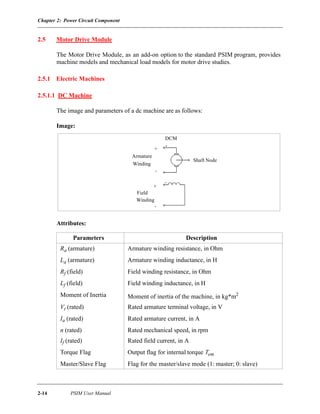
The image and parameters of a dc machine are as follows:
Image:
Attributes:
Parameters Description
Ra (armature) Armature winding resistance, in Ohm
La (armature) Armature winding inductance, in H
Rf (field) Field winding resistance, in Ohm
Lf (field) Field winding inductance, in H
Moment of Inertia Moment of inertia of the machine, in kg*m2
Vt (rated) Rated armature terminal voltage, in V
Ia (rated) Rated armature current, in A
n (rated) Rated mechanical speed, in rpm
If (rated) Rated field current, in A
Torque Flag Output flag for internal torque Tem
Master/Slave Flag Flag for the master/slave mode (1: master; 0: slave)
DCM
+
-
+
-
Armature
Winding
Field
Winding
Shaft Node
Motor Drive Module
PSIM User Manual 2-15
When the torque flag is set to 1, the internal torque generated by the machine is saved to
the data file for display.
A machine is set to either master or slave mode. When there is only one machine in a
mechanical system, this machine must be set to the master mode. When there are two or
more machines in a system, only one must be set to master and the rest to slave.
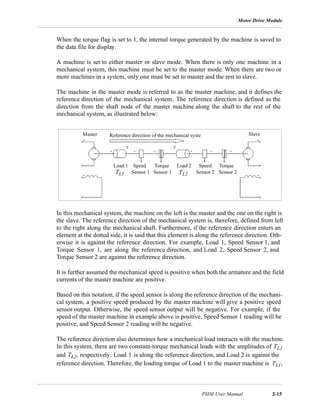
The machine in the master mode is referred to as the master machine, and it defines the
reference direction of the mechanical system. The reference direction is defined as the
direction from the shaft node of the master machine along the shaft to the rest of the
mechanical system, as illustrated below:
In this mechanical system, the machine on the left is the master and the one on the right is
the slave. The reference direction of the mechanical system is, therefore, defined from left
to the right along the mechanical shaft. Furthermore, if the reference direction enters an
element at the dotted side, it is said that this element is along the reference direction. Oth-
erwise it is against the reference direction. For example, Load 1, Speed Sensor 1, and
Torque Sensor 1, are along the reference direction, and Load 2, Speed Sensor 2, and
Torque Sensor 2 are against the reference direction.
It is further assumed the mechanical speed is positive when both the armature and the field
currents of the master machine are positive.
Based on this notation, if the speed sensor is along the reference direction of the mechani-
cal system, a positive speed produced by the master machine will give a positive speed
sensor output. Otherwise, the speed sensor output will be negative. For example, if the
speed of the master machine in example above is positive, Speed Sensor 1 reading will be
positive, and Speed Sensor 2 reading will be negative.
The reference direction also determines how a mechanical load interacts with the machine.
In this system, there are two constant-torque mechanical loads with the amplitudes of TL1
and TL2, respectively. Load 1 is along the reference direction, and Load 2 is against the
reference direction. Therefore, the loading torque of Load 1 to the master machine is TL1,
Master SlaveReference direction of the mechanical syste
Load 1 Load 2Speed
Sensor 1
Torque
Sensor 1
Speed Torque
Sensor 2 Sensor 2TL2TL1
Chapter 2: Power Circuit Component
2-16 PSIM User Manual
whereas the loading torque of Load 2 to the master machine is -TL2.
The operation of a dc machine is described by the following equations:
where vt, vf, ia, and if are the armature and field winding voltage and current, respectively;
Ea is the back emf, ωm is the mechanical speed in rad./sec., Tem is the internal developed
torque, and TL is the load torque. The back emf and the internal torque can also be
expressed as:
where Laf is the mutual inductance between the armature and the field windings. It can be
calculated based on the rated operating conditions as:
Note that the dc machine model assumes magnetic linearity. Saturation is not considered.
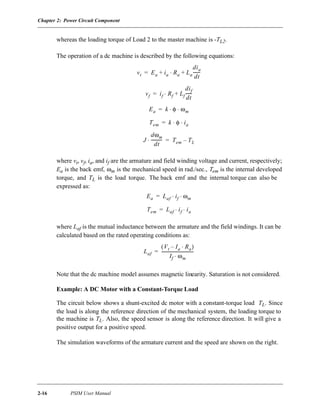
Example: A DC Motor with a Constant-Torque Load
The circuit below shows a shunt-excited dc motor with a constant-torque load TL. Since
the load is along the reference direction of the mechanical system, the loading torque to
the machine is TL. Also, the speed sensor is along the reference direction. It will give a
positive output for a positive speed.
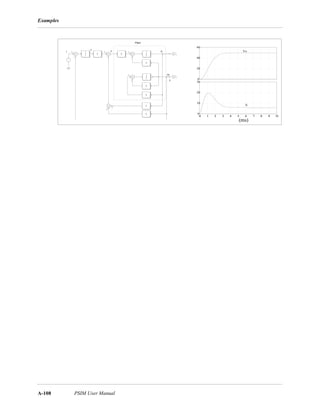
The simulation waveforms of the armature current and the speed are shown on the right.
vt Ea ia Ra La
dia
dt
-------+⋅+=
vf if Rf Lf
dif
dt
------+⋅=
Ea k φ ωm⋅ ⋅=
Tem k φ ia⋅ ⋅=
J
dωm
dt
----------⋅ Tem TL–=
Ea Laf if ωm⋅ ⋅=
Tem Laf if ia⋅ ⋅=
Laf
Vt Ia Ra⋅–( )
If ωm⋅
-------------------------------=
Motor Drive Module
PSIM User Manual 2-17
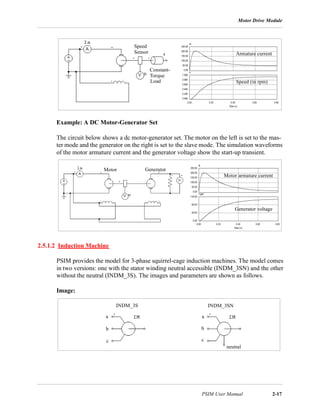
Example: A DC Motor-Generator Set
The circuit below shows a dc motor-generator set. The motor on the left is set to the mas-
ter mode and the generator on the right is set to the slave mode. The simulation waveforms
of the motor armature current and the generator voltage show the start-up transient.
2.5.1.2 Induction Machine
PSIM provides the model for 3-phase squirrel-cage induction machines. The model comes
in two versions: one with the stator winding neutral accessible (INDM_3SN) and the other
without the neutral (INDM_3S). The images and parameters are shown as follows.
Image:
Speed
Sensor
Constant-
Load
Torque
Speed (in rpm)
Armature current
Motor Generator
Generator voltage
Motor armature current
INDM_3S INDM_3SN
a
b
c
neutral
a
b
c
Chapter 2: Power Circuit Component
2-18 PSIM User Manual
Attributes:
All the parameters are referred to the stator side.
Again, the master/slave flag defines the mode of operation for the machine. Please refer to
Section2.5.1.1 for detailed explanation. It is assumed the mechanical speed is positive
when the input source sequence is positive.
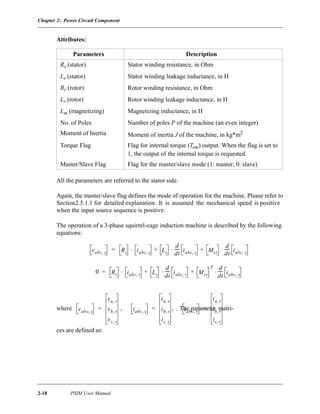
The operation of a 3-phase squirrel-cage induction machine is described by the following
equations:
where , , . The parameter matri-
ces are defined as:
Parameters Description
Rs (stator) Stator winding resistance, in Ohm
Ls (stator) Stator winding leakage inductance, in H
Rr (rotor) Rotor winding resistance, in Ohm
Lr (rotor) Rotor winding leakage inductance, in H
Lm (magnetizing) Magnetizing inductance, in H
No. of Poles Number of poles P of the machine (an even integer)
Moment of Inertia Moment of inertia J of the machine, in kg*m2
Torque Flag Flag for internal torque (Tem) output. When the flag is set to
1, the output of the internal torque is requested.
Master/Slave Flag Flag for the master/slave mode (1: master; 0: slave)
vabc s, Rs iabc s, Ls
d
dt
----- iabc s, Msr
d
dt
-----⋅ iabc r,
+⋅+⋅=
0 Rr iabc r, Lr
d
dt
-----⋅ iabc r, Msr
T d
dt
-----⋅ iabc s,
++⋅=
vabc s,
va s,
vb s,
vc s,
= iabc s,
ia s,
ib s,
ic s,
= iabc r,
ia r,
ib r,
ic r,
=
Motor Drive Module
PSIM User Manual 2-19
, ,
, ,
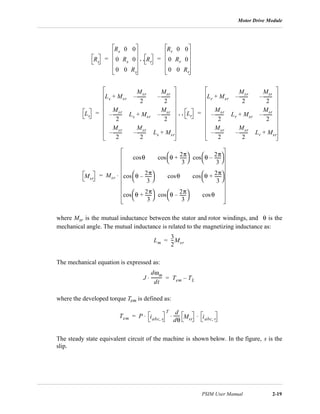
where Msr is the mutual inductance between the stator and rotor windings, and θ is the
mechanical angle. The mutual inductance is related to the magnetizing inductance as:
The mechanical equation is expressed as:
where the developed torque Tem is defined as:
The steady state equivalent circuit of the machine is shown below. In the figure, s is the
slip.
Rs
Rs 0 0
0 Rs 0
0 0 Rs
= Rr
Rr 0 0
0 Rr 0
0 0 Rr
=
Ls
Ls Msr+
Msr
2
--------–
Msr
2
--------–
Msr
2
--------– Ls Msr+
Msr
2
--------–
Msr
2
--------–
Msr
2
--------– Ls Msr+
= Lr
Lr Msr+
Msr
2
--------–
Msr
2
--------–
Msr
2
--------– Lr Msr+
Msr
2
--------–
Msr
2
--------–
Msr
2
--------– Lr Msr+
=
Msr
Msr
θcos θ
2π
3
------+
 
 cos θ
2π
3
------–
 
 cos
θ
2π
3
------–
 
 cos θcos θ
2π
3
------+
 
 cos
θ
2π
3
------+
 
 cos θ
2π
3
------–
 
 cos θcos
⋅=
Lm
3
2
---Msr=
J
dωm
dt
----------⋅ Tem TL–=
Tem P iabc s,
T d
dθ
------ Msr iabc r,
⋅ ⋅ ⋅=
Chapter 2: Power Circuit Component
2-20 PSIM User Manual
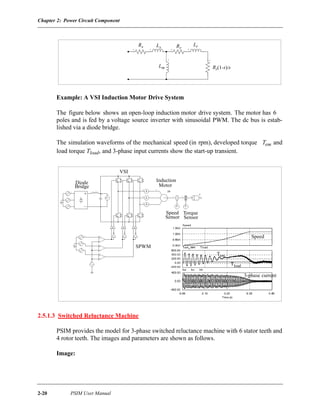
Example: A VSI Induction Motor Drive System
The figure below shows an open-loop induction motor drive system. The motor has 6
poles and is fed by a voltage source inverter with sinusoidal PWM. The dc bus is estab-
lished via a diode bridge.
The simulation waveforms of the mechanical speed (in rpm), developed torque Tem and
load torque Tload, and 3-phase input currents show the start-up transient.
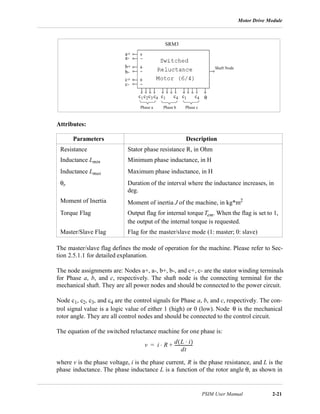
2.5.1.3 Switched Reluctance Machine
PSIM provides the model for 3-phase switched reluctance machine with 6 stator teeth and
4 rotor teeth. The images and parameters are shown as follows.
Image:
Rs RrLs
Lr
Lm Rr(1-s)/s
Induction
MotorBridge
Diode
VSI
Speed
Sensor
Torque
Sensor
SPWM
Speed
Tem
Tload
3-phase current
Motor Drive Module
PSIM User Manual 2-21
Attributes:
The master/slave flag defines the mode of operation for the machine. Please refer to Sec-
tion 2.5.1.1 for detailed explanation.
The node assignments are: Nodes a+, a-, b+, b-, and c+, c- are the stator winding terminals
for Phase a, b, and c, respectively. The shaft node is the connecting terminal for the
mechanical shaft. They are all power nodes and should be connected to the power circuit.
Node c1, c2, c3, and c4 are the control signals for Phase a, b, and c, respectively. The con-
trol signal value is a logic value of either 1 (high) or 0 (low). Node θ is the mechanical
rotor angle. They are all control nodes and should be connected to the control circuit.
The equation of the switched reluctance machine for one phase is:
where v is the phase voltage, i is the phase current, R is the phase resistance, and L is the
phase inductance. The phase inductance L is a function of the rotor angle θ, as shown in
Parameters Description
Resistance Stator phase resistance R, in Ohm
Inductance Lmin Minimum phase inductance, in H
Inductance Lmax Maximum phase inductance, in H
θr Duration of the interval where the inductance increases, in
deg.
Moment of Inertia Moment of inertia J of the machine, in kg*m2
Torque Flag Output flag for internal torqueTem. When the flag is set to 1,
the output of the internal torque is requested.
Master/Slave Flag Flag for the master/slave mode (1: master; 0: slave)
SRM3
a+
b+
c+
a-
b-
c-
c1c2c3 c4 c1 c4 c1 c4
Phase a Phase b Phase c
Shaft Node
θ
v i R
d L i⋅( )
dt
-----------------+⋅=
Chapter 2: Power Circuit Component
2-22 PSIM User Manual
the following figure.
The rotor angle is defined such that, when the stator and the rotor teeth are completely out
of alignment, θ = 0. The value of the inductance can be in either rising stage, flat-top
stage, falling stage, or flat-bottom stage.
If we define the constant k as: , we can express the inductance L as a
function of the rotor angle θ:
L = Lmin + k ∗ θ [rising stage. Control signal c1=1)
L = Lmax [flat-top stage. Control signal c2=1)
L = Lmax - k ∗ θ [falling stage. Control signal c3=1)
L = Lmin [flat-bottom stage. Control signal c4=1)
The selection of the operating state is done through the control signal c 1, c2, c3, and c4
which are applied externally. For example, when c1 in Phase a is high (1), the rising stage
is selected and Phase a inductance will be: L = Lmin + k ∗ θ. Note that only one and at least
one control signal out of c1, c2, c3, and c4 in one phase must be high (1).
The developed torque of the machine per phase is:
Based on the inductance expression, we have the developed torque in each stage as:
Tem = i2
*k / 2 [rising stage]
Tem = 0 [flat-top stage]
θr
θ
Lmin
Lmax
L Rising Flat-Top Falling Flat-Bottom
k
Lmax Lmin–
θ
----------------------------=
Tem
1
2
--- i
2 dL
dθ
------⋅ ⋅=
Motor Drive Module
PSIM User Manual 2-23
Tem = - i2
*k / 2 [falling stage]
Tem = 0 [flat-bottom stage]
Note that saturation is not considered in this model.
2.5.2 Mechanical Loads
Several mechanical load models are provided in PSIM: constant-torque, constant-power,
and general-type load. Note that they are available in PSIM Plus only.
2.5.2.1 Constant-Torque Load
The image of a constant-torque load is:
Image:
Attributes:
If the reference direction of a mechanical system enters the dotted terminal, the load is
said to be along the reference direction, and the loading torque to the master machine is
Tconst. Otherwise the loading torque will be -Tconst. Please refer to Section2.5.1.1 for more
detailed explanation.
A constant-torque load is expressed as:
The torque does not depend on the speed direction.
Parameters Description
Constant Torque Torque constant Tconst, in N*m
Moment of Inertia Moment of inertia of the load, in kg*m2
MLOAD_T
TL Tconst=
Chapter 2: Power Circuit Component
2-24 PSIM User Manual
2.5.2.2 Constant-Power Load
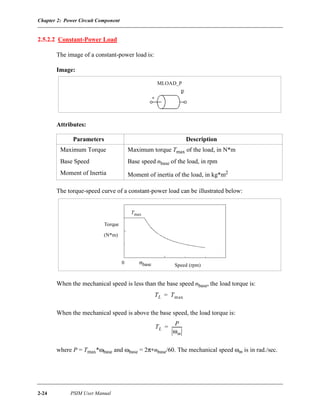
The image of a constant-power load is:
Image:
Attributes:
The torque-speed curve of a constant-power load can be illustrated below:
When the mechanical speed is less than the base speed nbase, the load torque is:
When the mechanical speed is above the base speed, the load torque is:
where P = Tmax*ωbase and ωbase = 2π∗nbase/60. The mechanical speed ωm is in rad./sec.
Parameters Description
Maximum Torque Maximum torque Tmax of the load, in N*m
Base Speed Base speed nbase of the load, in rpm
Moment of Inertia Moment of inertia of the load, in kg*m2
MLOAD_P
Speed (rpm)
Tmax
0
Torque
(N*m)
nbase
TL Tmax=
TL
P
ωm
----------=
Motor Drive Module
PSIM User Manual 2-25
2.5.2.3 General-Type Load
Besides constant-torque and constant-power load, a general-type load is provided in
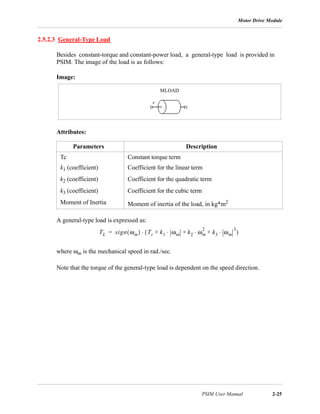
PSIM. The image of the load is as follows:
Image:
Attributes:
A general-type load is expressed as:
where ωm is the mechanical speed in rad./sec.
Note that the torque of the general-type load is dependent on the speed direction.
Parameters Description
Tc Constant torque term
k1 (coefficient) Coefficient for the linear term
k2 (coefficient) Coefficient for the quadratic term
k3 (coefficient) Coefficient for the cubic term
Moment of Inertia Moment of inertia of the load, in kg*m2
MLOAD
TL sign ωm( ) Tc k1 ωm k2 ωm
2
k3 ωm
3
⋅+⋅+⋅+( )⋅=
Chapter 2: Power Circuit Component
2-26 PSIM User Manual
Transfer Function Blocks
PSIM User Manual 3-1
Chapter 3: Control Circuit Components
3.1 Transfer Function Blocks
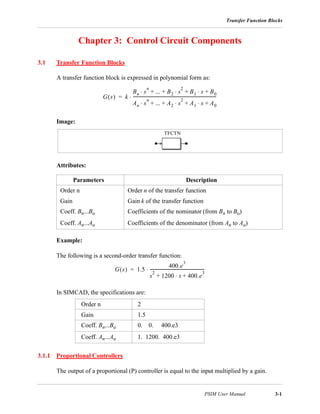
A transfer function block is expressed in polynomial form as:
Image:
Attributes:
Example:
The following is a second-order transfer function:
In SIMCAD, the specifications are:
3.1.1 Proportional Controllers
The output of a proportional (P) controller is equal to the input multiplied by a gain.
Parameters Description
Order n Order n of the transfer function
Gain Gain k of the transfer function
Coeff. Bn...Bo Coefficients of the nominator (from Bn to Bo)
Coeff. An...Ao Coefficients of the denominator (from An to Ao)
Order n 2
Gain 1.5
Coeff. Bn...Bo 0. 0. 400.e3
Coeff. An...Ao 1. 1200. 400.e3
G s( ) k
Bn s
n
... B2 s
2
B1 s B0+⋅+⋅+ +⋅
An s
n
... A2 s
2
A1 s A0+⋅+⋅+ +⋅
--------------------------------------------------------------------------------⋅=
TFCTN
G s( ) 1.5
400.e
3
s
2
1200 s 400.e
3
+⋅+
----------------------------------------------------⋅=
Chapter 3: Control Circuit Components
3-2 PSIM User Manual
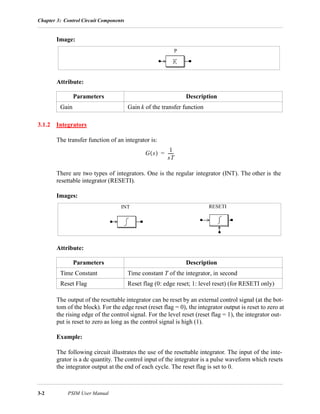
Image:
Attribute:
3.1.2 Integrators
The transfer function of an integrator is:
There are two types of integrators. One is the regular integrator (INT). The other is the
resettable integrator (RESETI).
Images:
Attribute:
The output of the resettable integrator can be reset by an external control signal (at the bot-
tom of the block). For the edge reset (reset flag = 0), the integrator output is reset to zero at
the rising edge of the control signal. For the level reset (reset flag = 1), the integrator out-
put is reset to zero as long as the control signal is high (1).
Example:
The following circuit illustrates the use of the resettable integrator. The input of the inte-
grator is a dc quantity. The control input of the integrator is a pulse waveform which resets
the integrator output at the end of each cycle. The reset flag is set to 0.
Parameters Description
Gain Gain k of the transfer function
Parameters Description
Time Constant Time constant T of the integrator, in second
Reset Flag Reset flag (0: edge reset; 1: level reset) (for RESETI only)
P
G s( )
1
sT
------=
INT RESETI
Transfer Function Blocks
PSIM User Manual 3-3
3.1.3 Differentiators
The transfer function of a differentiator is:
A differentiator is calculated as follows:
where ∆t is the simulation time step, vin(t) and vin(t-∆t) are the input values at the present
and the previous time step.
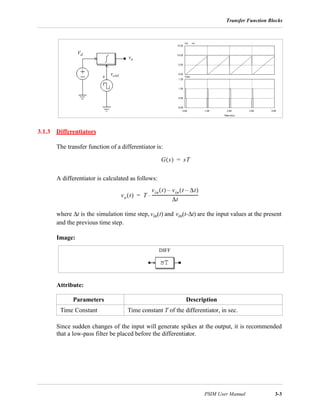
Image:
Attribute:
Since sudden changes of the input will generate spikes at the output, it is recommended
that a low-pass filter be placed before the differentiator.
Parameters Description
Time Constant Time constant T of the differentiator, in sec.
Vd
vctrl
vo
G s( ) sT=
vo t( ) T
vin t( ) vin t ∆t–( )–
∆t
--------------------------------------------⋅=
DIFF
Chapter 3: Control Circuit Components
3-4 PSIM User Manual
3.1.4 Proportional-Integral Controllers
The transfer function of a proportional-integral (PI) controller is defined as:
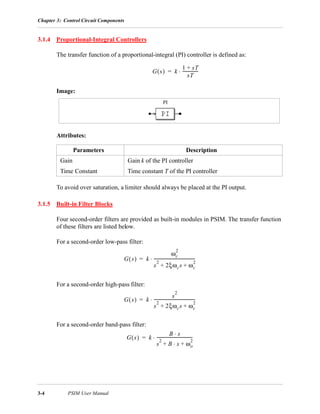
Image:
Attributes:
To avoid over saturation, a limiter should always be placed at the PI output.
3.1.5 Built-in Filter Blocks
Four second-order filters are provided as built-in modules in PSIM. The transfer function
of these filters are listed below.
For a second-order low-pass filter:
For a second-order high-pass filter:
For a second-order band-pass filter:
Parameters Description
Gain Gain k of the PI controller
Time Constant Time constant T of the PI controller
G s( ) k
1 sT+
sT
---------------⋅=
PI
G s( ) k
ωc
2
s
2
2ξωcs ωc
2
+ +
---------------------------------------⋅=
G s( ) k
s
2
s
2
2ξωcs ωc
2
+ +
---------------------------------------⋅=
G s( ) k
B s⋅
s
2
B s⋅ ωo
2
+ +
----------------------------------⋅=
Computational Function Blocks
PSIM User Manual 3-5
For a second-order band-stop filter:
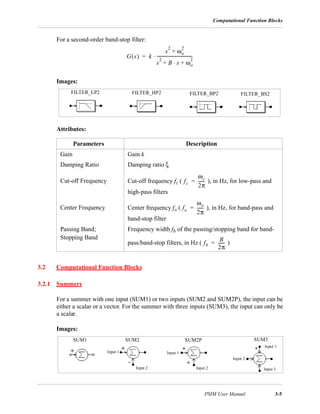
Images:
Attributes:
3.2 Computational Function Blocks
3.2.1 Summers
For a summer with one input (SUM1) or two inputs (SUM2 and SUM2P), the input can be
either a scalar or a vector. For the summer with three inputs (SUM3), the input can only be
a scalar.
Images:
Parameters Description
Gain Gain k
Damping Ratio Damping ratio ξ
Cut-off Frequency Cut-off frequency fc ( ), in Hz, for low-pass and
high-pass filters
Center Frequency Center frequency fo ( ), in Hz, for band-pass and
band-stop filter
Passing Band;
Stopping Band
Frequency width fb of the passing/stopping band for band-
pass/band-stop filters, in Hz ( )
G s( ) k
s
2
ωo
2
+
s
2
B s⋅ ωo
2
+ +
----------------------------------⋅=
FILTER_BP2 FILTER_BS2FILTER_HP2FILTER_LP2
fc
ωc
2π
------=
fo
ωo
2π
------=
fb
B
2π
------=
SUM2 SUM2P SUM3
Input 1
Input 2
Input 1
Input 2
Input 1
Input 2 Input 3
SUM1
Chapter 3: Control Circuit Components
3-6 PSIM User Manual
Attributes:
For SUM3, the input with a dot is the first input.
If the inputs are scalar, the output of a sumer with n inputs is defined as:
If the input is a vector, the output of a two-input summer will also be a vector, which is
defined as:
V1 = [a1 a2 ... an]
V2 = [b1 b2 ... bn]
Vo = V1 + V2 = [a1+b1 a2+b2 ... an+bn]
For a one-input sumer, the output will still be a scalar which is equal to the summation of
the input vector elements, that is, Vo = a1 + a2 + ... an.
3.2.2 Multipliers and Dividers
The output of a multipliers (MULT) or dividers (DIVD) is equal to the multiplication or
division of two input signals.
Images:
For the divider, the dotted node is for the nominator input.
The input of a multiplier can be either a vector or a scalar. If the two inputs are vectors,
their dimensions must be equal. Let the two inputs be:
V1 = [a1 a2 ... an]
V2 = [b1 b2 ... bn]
The output, which is a scalar, will be:
Parameters Description
Gain_i Gain ki for the ith input
Vo k1V1 k2V2 ... knVn+ + +=
MULT DIVD
Nominator
Denominator
Computational Function Blocks
PSIM User Manual 3-7
Vo = V1 * V2
T = a1*b1 + a2*b2 + an*bn
3.2.3 Square-Root Blocks
A square-root function block calculates the square root of the input quantity.
Image:
3.2.4 Exponential/Power Function Blocks
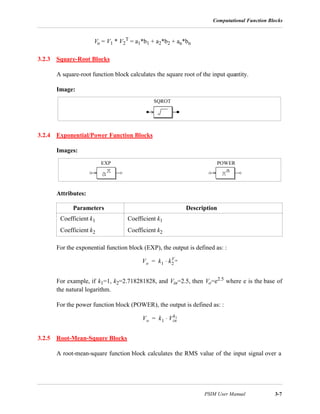
Images:
Attributes:
For the exponential function block (EXP), the output is defined as: :
For example, if k1=1, k2=2.718281828, and Vin=2.5, then Vo=e2.5 where e is the base of
the natural logarithm.
For the power function block (POWER), the output is defined as: :
3.2.5 Root-Mean-Square Blocks
A root-mean-square function block calculates the RMS value of the input signal over a
Parameters Description
Coefficient k1 Coefficient k1
Coefficient k2 Coefficient k2
SQROT
EXP POWER
Vo k1 k2
Vin
⋅=
Vo k1 Vin
k2
⋅=
Chapter 3: Control Circuit Components
3-8 PSIM User Manual
period specified by the base frequency fb. The output is defined as:
where T=1/fb. The output is only updated at the beginning of each period.
Image:
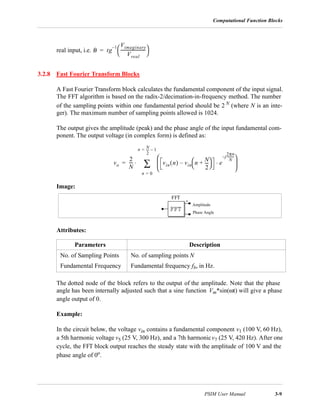
Attribute:
3.2.6 Absolute Value Function Blocks
An absolute value function block gives the absolute value of the input.
Image:
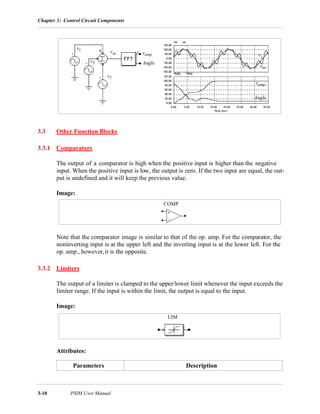
3.2.7 Trigonometric Functions
Four trigonometric functions are provided: sine (SIN), cosine (COS), arc cosine (COS_1),
and arc tangent (TG_1). The output is equal to the corresponding trigonometric function
of the input. For Blocks SIN and COS, the input is in degree, and for Blocks COS_1 and
TG_1, the output is in degree.
Images:
For the arc tangent block, the dotted node is for the real input and the other node is for the
imaginary input. The output is the arc tangent of the ratio between the imaginary and the
Parameters Description
Base frequency Base frequency fb, in Hz
Vrms
1
T
--- vin
2
t( )dt
0
T
∫=
RMS
ABS
SIN COS COS_1 TG_1
Imaginary
Real
Computational Function Blocks
PSIM User Manual 3-9
real input, i.e. .
3.2.8 Fast Fourier Transform Blocks
A Fast Fourier Transform block calculates the fundamental component of the input signal.
The FFT algorithm is based on the radix-2/decimation-in-frequency method. The number
of the sampling points within one fundamental period should be 2 N
(where N is an inte-
ger). The maximum number of sampling points allowed is 1024.
The output gives the amplitude (peak) and the phase angle of the input fundamental com-
ponent. The output voltage (in complex form) is defined as:
Image:
Attributes:
The dotted node of the block refers to the output of the amplitude. Note that the phase
angle has been internally adjusted such that a sine function Vm*sin(ωt) will give a phase
angle output of 0.
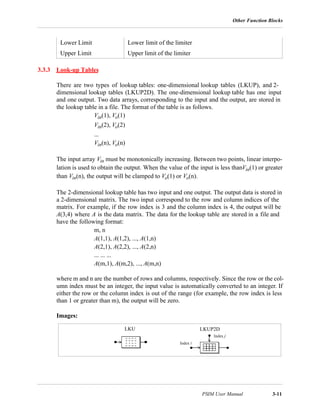
Example:
In the circuit below, the voltage vin contains a fundamental component v1 (100 V, 60 Hz),
a 5th harmonic voltage v5 (25 V, 300 Hz), and a 7th harmonicv7 (25 V, 420 Hz). After one
cycle, the FFT block output reaches the steady state with the amplitude of 100 V and the
phase angle of 0o.
Parameters Description
No. of Sampling Points No. of sampling points N
Fundamental Frequency Fundamental frequency fb, in Hz.
θ tg
1– Vimaginary
Vreal
------------------------
 
 =
vo
2
N
---- vin n( ) vin n
N
2
----+
 
 – e
j
2πn
N
----------–
⋅
 
 
 
n 0=
n N
2
---- 1–=
∑⋅=
FFT
Amplitude
Phase Angle
Chapter 3: Control Circuit Components
3-10 PSIM User Manual
3.3 Other Function Blocks
3.3.1 Comparators
The output of a comparator is high when the positive input is higher than the negative
input. When the positive input is low, the output is zero. If the two input are equal, the out-
put is undefined and it will keep the previous value.
Image:
Note that the comparator image is similar to that of the op. amp. For the comparator, the
noninverting input is at the upper left and the inverting input is at the lower left. For the
op. amp., however,it is the opposite.
3.3.2 Limiters
The output of a limiter is clamped to the upper/lower limit whenever the input exceeds the
limiter range. If the input is within the limit, the output is equal to the input.
Image:
Attributes:
Parameters Description
v1
v5
v7
vin vamp
Angle
v1
vin
vamp
Angle
COMP
LIM
Other Function Blocks
PSIM User Manual 3-11
3.3.3 Look-up Tables
There are two types of lookup tables: one-dimensional lookup tables (LKUP), and 2-
dimensional lookup tables (LKUP2D). The one-dimensional lookup table has one input
and one output. Two data arrays, corresponding to the input and the output, are stored in
the lookup table in a file. The format of the table is as follows.
Vin(1), Vo(1)
Vin(2), Vo(2)
...
Vin(n), Vo(n)
The input array Vin must be monotonically increasing. Between two points, linear interpo-
lation is used to obtain the output. When the value of the input is less thanVin(1) or greater
than Vin(n), the output will be clamped to Vo(1) or Vo(n).
The 2-dimensional lookup table has two input and one output. The output data is stored in
a 2-dimensional matrix. The two input correspond to the row and column indices of the
matrix. For example, if the row index is 3 and the column index is 4, the output will be
A(3,4) where A is the data matrix. The data for the lookup table are stored in a file and
have the following format:
m, n
A(1,1), A(1,2), ..., A(1,n)
A(2,1), A(2,2), ..., A(2,n)
... ... ...
A(m,1), A(m,2), ..., A(m,n)
where m and n are the number of rows and columns, respectively. Since the row or the col-
umn index must be an integer, the input value is automatically converted to an integer. If
either the row or the column index is out of the range (for example, the row index is less
than 1 or greater than m), the output will be zero.
Images:
Lower Limit Lower limit of the limiter
Upper Limit Upper limit of the limiter
LKU LKUP2D
Index i
Index j
Chapter 3: Control Circuit Components
3-12 PSIM User Manual
Attribute:
For the 2-dimensional lookup table block, the node at the left is for the row index input,
and the node at the top is for the column index input.
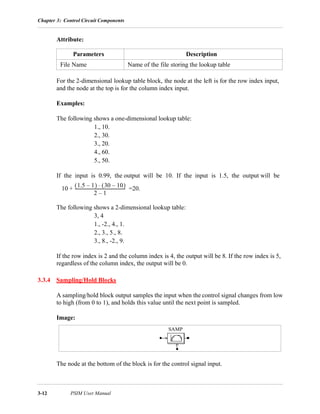
Examples:
The following shows a one-dimensional lookup table:
1., 10.
2., 30.
3., 20.
4., 60.
5., 50.
If the input is 0.99, the output will be 10. If the input is 1.5, the output will be
=20.
The following shows a 2-dimensional lookup table:
3, 4
1., -2., 4., 1.
2., 3., 5., 8.
3., 8., -2., 9.
If the row index is 2 and the column index is 4, the output will be 8. If the row index is 5,
regardless of the column index, the output will be 0.
3.3.4 Sampling/Hold Blocks
A sampling/hold block output samples the input when the control signal changes from low
to high (from 0 to 1), and holds this value until the next point is sampled.
Image:
The node at the bottom of the block is for the control signal input.
Parameters Description
File Name Name of the file storing the lookup table
10
1.5 1–( ) 30 10–( )⋅
2 1–
------------------------------------------------+
SAMP
Other Function Blocks
PSIM User Manual 3-13
The difference between this block and the zero-order hold block (ZOH) is that this block is
treated as a continuous element and the sampling moments can be controlled externally;
whereas the zero-order hold block is a discrete element and the sampling moments are
fixed and of equal distance.
For a discrete system, the zero-order hold block should be used.
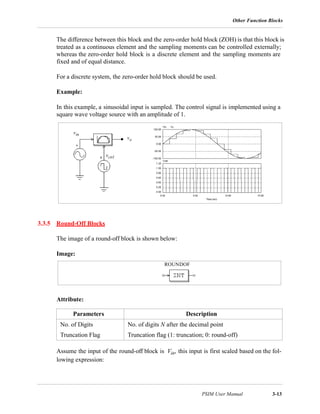
Example:
In this example, a sinusoidal input is sampled. The control signal is implemented using a
square wave voltage source with an amplitude of 1.
3.3.5 Round-Off Blocks
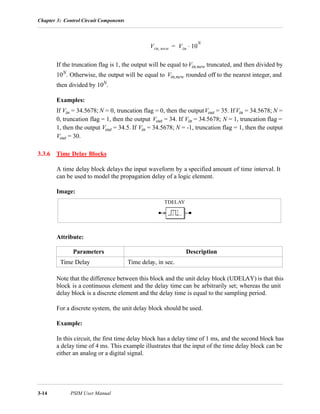
The image of a round-off block is shown below:
Image:
Attribute:
Assume the input of the round-off block is Vin, this input is first scaled based on the fol-
lowing expression:
Parameters Description
No. of Digits No. of digits N after the decimal point
Truncation Flag Truncation flag (1: truncation; 0: round-off)
vin
vo
vctrl
ROUNDOF
Chapter 3: Control Circuit Components
3-14 PSIM User Manual
If the truncation flag is 1, the output will be equal toVin,new truncated, and then divided by
10N
. Otherwise, the output will be equal to Vin,new rounded off to the nearest integer, and
then divided by 10N
.
Examples:
If Vin = 34.5678; N = 0, truncation flag = 0, then the outputVout = 35. If Vin = 34.5678; N =
0, truncation flag = 1, then the output Vout = 34. If Vin = 34.5678; N = 1, truncation flag =
1, then the output Vout = 34.5. If Vin = 34.5678; N = -1, truncation flag = 1, then the output
Vout = 30.
3.3.6 Time Delay Blocks
A time delay block delays the input waveform by a specified amount of time interval. It
can be used to model the propagation delay of a logic element.
Image:
Attribute:
Note that the difference between this block and the unit delay block (UDELAY) is that this
block is a continuous element and the delay time can be arbitrarily set; whereas the unit
delay block is a discrete element and the delay time is equal to the sampling period.
For a discrete system, the unit delay block should be used.
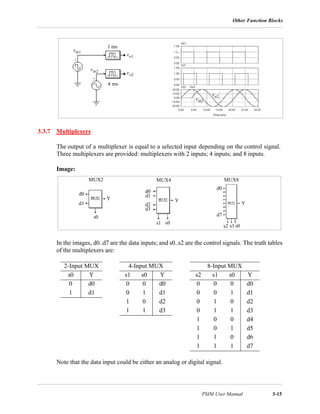
Example:
In this circuit, the first time delay block has a delay time of 1 ms, and the second block has
a delay time of 4 ms. This example illustrates that the input of the time delay block can be
either an analog or a digital signal.
Parameters Description
Time Delay Time delay, in sec.
Vin new, Vin 10
N
⋅=
TDELAY
Other Function Blocks
PSIM User Manual 3-15
3.3.7 Multiplexers
The output of a multiplexer is equal to a selected input depending on the control signal.
Three multiplexers are provided: multiplexers with 2 inputs; 4 inputs; and 8 inputs.
Image:
In the images, d0..d7 are the data inputs; and s0..s2 are the control signals. The truth tables
of the multiplexers are:
Note that the data input could be either an analog or digital signal.
2-Input MUX 4-Input MUX 8-Input MUX
s0 Y s1 s0 Y s2 s1 s0 Y
0 d0 0 0 d0 0 0 0 d0
1 d1 0 1 d1 0 0 1 d1
1 0 d2 0 1 0 d2
1 1 d3 0 1 1 d3
1 0 0 d4
1 0 1 d5
1 1 0 d6
1 1 1 d7
vin1
vo1
vin2
vin2
vo2
vo2
1 ms
4 ms
MUX2 MUX4 MUX8
d0
d1
s0
s1
s0
s2
s1
s0
d0
d1
d2
d3
d0
d7
Y
Y
Y
Chapter 3: Control Circuit Components
3-16 PSIM User Manual
Example:
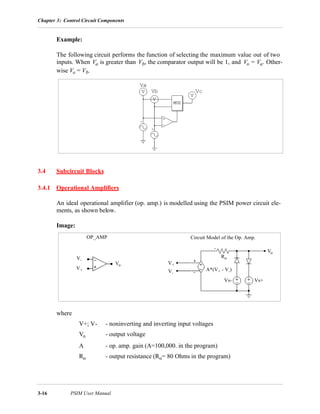
The following circuit performs the function of selecting the maximum value out of two
inputs. When Va is greater than Vb, the comparator output will be 1, and Vo = Va. Other-
wise Vo = Vb.
3.4 Subcircuit Blocks
3.4.1 Operational Amplifiers
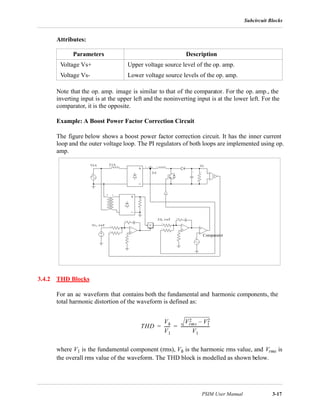
An ideal operational amplifier (op. amp.) is modelled using the PSIM power circuit ele-
ments, as shown below.
Image:
where
V+; V- - noninverting and inverting input voltages
Vo - output voltage
A - op. amp. gain (A=100,000. in the program)
Ro - output resistance (Ro= 80 Ohms in the program)
OP_AMP Circuit Model of the Op. Amp.
V+
V-
Vo V+
V-
Vo
Vs+Vs-
Ro
A*(V+ - V-)
Subcircuit Blocks
PSIM User Manual 3-17
Attributes:
Note that the op. amp. image is similar to that of the comparator. For the op. amp., the
inverting input is at the upper left and the noninverting input is at the lower left. For the
comparator, it is the opposite.
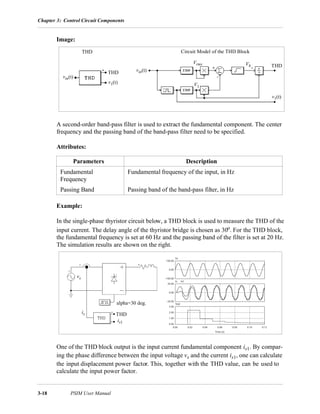
Example: A Boost Power Factor Correction Circuit
The figure below shows a boost power factor correction circuit. It has the inner current
loop and the outer voltage loop. The PI regulators of both loops are implemented using op.
amp.
3.4.2 THD Blocks
For an ac waveform that contains both the fundamental and harmonic components, the
total harmonic distortion of the waveform is defined as:
where V1 is the fundamental component (rms), Vh is the harmonic rms value, and Vrms is
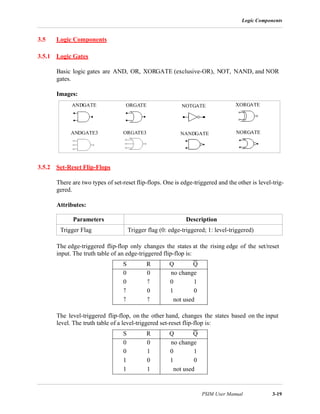
the overall rms value of the waveform. The THD block is modelled as shown below.
Parameters Description
Voltage Vs+ Upper voltage source level of the op. amp.
Voltage Vs- Lower voltage source levels of the op. amp.
Comparator
THD
Vh
V1
------
Vrms
2 V1
2–
V1
----------------------------= =
Chapter 3: Control Circuit Components
3-18 PSIM User Manual
Image:
A second-order band-pass filter is used to extract the fundamental component. The center
frequency and the passing band of the band-pass filter need to be specified.
Attributes:
Example:
In the single-phase thyristor circuit below, a THD block is used to measure the THD of the
input current. The delay angle of the thyristor bridge is chosen as 30o. For the THD block,
the fundamental frequency is set at 60 Hz and the passing band of the filter is set at 20 Hz.
The simulation results are shown on the right.
One of the THD block output is the input current fundamental component is1. By compar-
ing the phase difference between the input voltage vs and the current is1, one can calculate
the input displacement power factor. This, together with the THD value, can be used to
calculate the input power factor.
Parameters Description
Fundamental
Frequency
Fundamental frequency of the input, in Hz
Passing Band Passing band of the band-pass filter, in Hz
THD Circuit Model of the THD Block
vin(t)
THD
v1(t)
V1
Vh
Vrms
THD
v1(t)
vin(t)
vs
is
is1
alpha=30 deg.
THD
Logic Components
PSIM User Manual 3-19
3.5 Logic Components
3.5.1 Logic Gates
Basic logic gates are AND, OR, XORGATE (exclusive-OR), NOT, NAND, and NOR
gates.
Images:
3.5.2 Set-Reset Flip-Flops
There are two types of set-reset flip-flops. One is edge-triggered and the other is level-trig-
gered.
Attributes:
The edge-triggered flip-flop only changes the states at the rising edge of the set/reset
input. The truth table of an edge-triggered flip-flop is:
The level-triggered flip-flop, on the other hand, changes the states based on the input
level. The truth table of a level-triggered set-reset flip-flop is:
Parameters Description
Trigger Flag Trigger flag (0: edge-triggered; 1: level-triggered)
S R Q Q
0 0 no change
0 ↑ 0 1
↑ 0 1 0
↑ ↑ not used
S R Q Q
0 0 no change
0 1 0 1
1 0 1 0
1 1 not used
NORGATE
ANDGATE ORGATE NOTGATE
NANDGATEANDGATE3 ORGATE3
XORGATE
Chapter 3: Control Circuit Components
3-20 PSIM User Manual
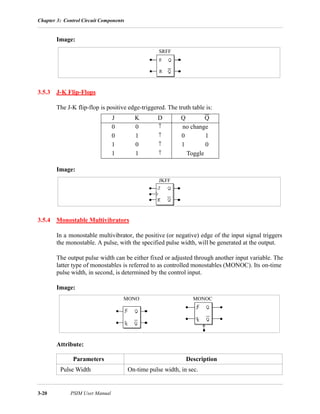
Image:
3.5.3 J-K Flip-Flops
The J-K flip-flop is positive edge-triggered. The truth table is:
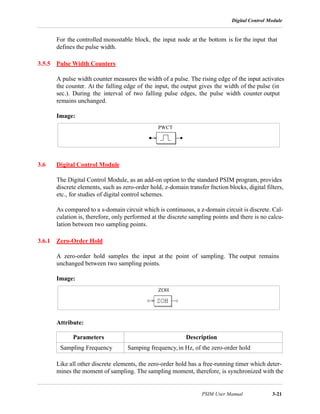
Image:
3.5.4 Monostable Multivibrators
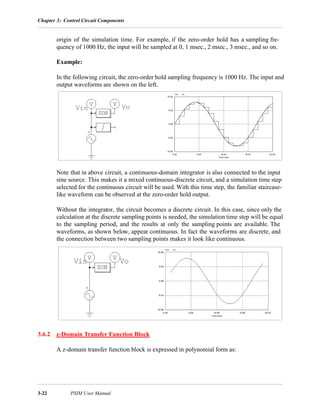
In a monostable multivibrator, the positive (or negative) edge of the input signal triggers
the monostable. A pulse, with the specified pulse width, will be generated at the output.
The output pulse width can be either fixed or adjusted through another input variable. The
latter type of monostables is referred to as controlled monostables (MONOC). Its on-time
pulse width, in second, is determined by the control input.
Image:
Attribute:
J K D Q Q
0 0 ↑ no change
0 1 ↑ 0 1
1 0 ↑ 1 0
1 1 ↑ Toggle
Parameters Description
Pulse Width On-time pulse width, in sec.
SRFF
JKFF
MONOCMONO
Digital Control Module
PSIM User Manual 3-21
For the controlled monostable block, the input node at the bottom is for the input that
defines the pulse width.
3.5.5 Pulse Width Counters
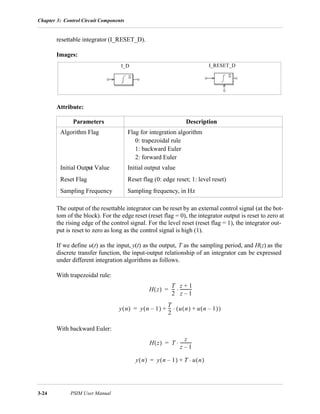
A pulse width counter measures the width of a pulse. The rising edge of the input activates
the counter. At the falling edge of the input, the output gives the width of the pulse (in
sec.). During the interval of two falling pulse edges, the pulse width counter output
remains unchanged.
Image:
3.6 Digital Control Module
The Digital Control Module, as an add-on option to the standard PSIM program, provides
discrete elements, such as zero-order hold, z-domain transfer fnction blocks, digital filters,
etc., for studies of digital control schemes.
As compared to a s-domain circuit which is continuous, a z-domain circuit is discrete. Cal-
culation is, therefore, only performed at the discrete sampling points and there is no calcu-
lation between two sampling points.
3.6.1 Zero-Order Hold
A zero-order hold samples the input at the point of sampling. The output remains
unchanged between two sampling points.
Image:
Attribute:
Like all other discrete elements, the zero-order hold has a free-running timer which deter-
mines the moment of sampling. The sampling moment, therefore, is synchronized with the
Parameters Description
Sampling Frequency Samping frequency,in Hz, of the zero-order hold
PWCT
ZOH
Chapter 3: Control Circuit Components
3-22 PSIM User Manual
origin of the simulation time. For example, if the zero-order hold has a sampling fre-
quency of 1000 Hz, the input will be sampled at 0, 1 msec., 2 msec., 3 msec., and so on.
Example:
In the following circuit, the zero-order hold sampling frequency is 1000 Hz. The input and
output waveforms are shown on the left.
Note that in above circuit, a continuous-domain integrator is also connected to the input
sine source. This makes it a mixed continuous-discrete circuit, and a simulation time step
selected for the continuous circuit will be used. With this time step, the familiar staircase-
like waveform can be observed at the zero-order hold output.
Without the integrator, the circuit becomes a discrete circuit. In this case, since only the
calculation at the discrete sampling points is needed, the simulation time step will be equal
to the sampling period, and the results at only the sampling points are available. The
waveforms, as shown below, appear continuous. In fact the waveforms are discrete, and
the connection between two sampling points makes it look like continuous.
3.6.2 z-Domain Transfer Function Block
A z-domain transfer function block is expressed in polynomial form as:
Digital Control Module
PSIM User Manual 3-23
If a0 = 1, the expression Y(z) = H(z) * U(z) can be expressed in difference equation as:
Image:
Attributes:
Example:
The following is a second-order transfer function:
with a sampling frequency of 3 kHz. In SIMCAD, the specifications are:
3.6.2.1 Integrators
There are two types of integrators. One is the regular integrator (I_D). The other is the
Parameters Description
Order N Order N of the transfer function
Coeff. b0...bN Coefficients of the nominator (from b0 to bN)
Coeff. a0...aN Coefficients of the nominator (from a0 to aN)
Sampling Frequency Sampling frequency, in Hz
Order N 2
Coeff. b0...bN 0. 0. 400.e3
Coeff. a0...aN 1. 1200. 400.e3
Sampling Frequency 3000.
H z( )
b0 z
N
b1 z
N 1–
⋅ ... bN 1– z bN+⋅+ + +⋅
a0 z
N
a1 z
N 1–
⋅ ... aN 1– z aN+⋅+ + +⋅
---------------------------------------------------------------------------------------------=
y n( ) b0 u n( ) b1 u n 1–( )⋅ ... bN u n N–( ) –⋅+ + +⋅=
a1 y n 1–( )⋅ a2 y n 2–( )⋅ ... aN y n N–( )⋅+ + +[ ]
TFCTN_D
H z( )
400.e
3
z
2
1200 z 400.e
3
+⋅+
----------------------------------------------------=
Chapter 3: Control Circuit Components
3-24 PSIM User Manual
resettable integrator (I_RESET_D).
Images:
Attribute:
The output of the resettable integrator can be reset by an external control signal (at the bot-
tom of the block). For the edge reset (reset flag = 0), the integrator output is reset to zero at
the rising edge of the control signal. For the level reset (reset flag = 1), the integrator out-
put is reset to zero as long as the control signal is high (1).
If we define u(t) as the input, y(t) as the output, T as the sampling period, and H(z) as the
discrete transfer function, the input-output relationship of an integrator can be expressed
under different integration algorithms as follows.
With trapezoidal rule:
With backward Euler:
Parameters Description
Algorithm Flag Flag for integration algorithm
0: trapezoidal rule
1: backward Euler
2: forward Euler
Initial Output Value Initial output value
Reset Flag Reset flag (0: edge reset; 1: level reset)
Sampling Frequency Sampling frequency, in Hz
I_D I_RESET_D
H z( )
T
2
---
z 1+
z 1–
-----------⋅=
y n( ) y n 1–( )
T
2
--- u n( ) u n 1–( )+( )⋅+=
H z( ) T
z
z 1–
-----------⋅=
y n( ) y n 1–( ) T u n( )⋅+=
Digital Control Module
PSIM User Manual 3-25
With forward Euler:
3.6.2.2 Differentiators
The transfer function of a discrete differentiator is:
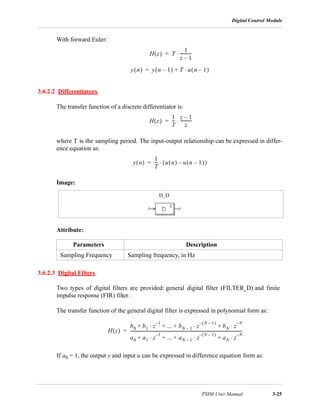
where T is the sampling period. The input-output relationship can be expressed in differ-
ence equation as:
Image:
Attribute:
3.6.2.3 Digital Filters
Two types of digital filters are provided: general digital filter (FILTER_D) and finite
impulse response (FIR) filter.
The transfer function of the general digital filter is expressed in polynomial form as:
If a0 = 1, the output y and input u can be expressed in difference equation form as:
Parameters Description
Sampling Frequency Sampling frequency, in Hz
H z( ) T
1
z 1–
-----------⋅=
y n( ) y n 1–( ) T u n 1–( )⋅+=
H z( )
1
T
---
z 1–
z
-----------⋅=
y n( )
1
T
--- u n( ) u n 1–( )–( )⋅=
D_D
H z( )
b0 b1 z
1–
⋅ ... bN 1– z
N 1–( )–
bN z
N–
⋅+⋅+ + +
a0 a1 z
1–
⋅ ... aN 1– z
N 1–( )–
aN z
N–
⋅+⋅+ + +
-----------------------------------------------------------------------------------------------------------=
Chapter 3: Control Circuit Components
3-26 PSIM User Manual
If the denominator coefficients a0..aN are not zero, this type of filter is called infinite
impulse response (IIR) filter.
The transfer function of the FIR filter is expressed in polynomial form as:
If a0 = 1, the output y and input u can be expressed in difference equation form as:
Filter coefficients can be specified either directly or through a file. The following are the
filter images and attributes when filter coefficients are specified directly.
Images:
Attributes:
The following are the filter images and attributes when filter coefficients are specified
through a file.
Images:
Parameters Description
Order N Order N of the transfer function
Coeff. b0...bN Coefficients of the nominator (from b0 to bN)
Coeff. a0...aN Coefficients of the nominator (from a0 to aN)
Sampling Frequency Sampling frequency, in Hz
y n( ) b0 u n( ) b1 u n 1–( )⋅ ... bN u n N–( ) –⋅+ + +⋅=
a1 y n 1–( )⋅ a2 y n 2–( )⋅ ... aN y n N–( )⋅+ + +[ ]
H z( ) b0 b1 z
1–
⋅ ... bN 1– z
N 1–( )–
bN z
N–
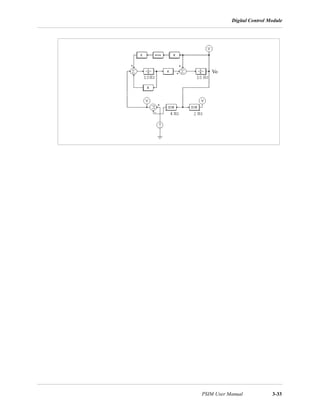
⋅+⋅+ + +=
y n( ) b0 u n( ) b1 u n 1–( )⋅ ... bN u n N–( )⋅+ + +⋅=
FILTER_FIRFILTER_D
FILTER_FIR1FILTER_D1
Digital Control Module
PSIM User Manual 3-27
Attributes:
The coefficient file has the following format:
Example:
To design a 2nd-order low-pass Butterworth digital filter with the cut-off frequency fc = 1
kHz, assuming the sampling frequency fs = 10 kHz, usingMATLAB *, we have:
Nyquist frequency fn = fs / 2 = 5 kHz
Normalized cut-off frequency fc* = fc/fn = 1/5 = 0.2
[B,A] = butter (2, fc*)
which will give:
B = [0.0201 0.0402 0.0201 ] = [b0 b1 b2]
A = [ 1 -1.561 0.6414 ] = [a0 a1 a2]
The transfer function is:
The input-output difference equation is:
The parameter specification of the filter in SIMCAD will be:
Parameters Description
File for Coefficients Name of the file storing the filter coefficients
Sampling Frequency Sampling frequency, in Hz
For FILTER_D1 For FILTER_FIR1
N
b0, a0
b1, a1
... ... ...
bN, aN
N
b0
b1
... ... ...
bN
*. MATLAB is a registered trademark of MathWorks, Inc.
H z( )
0.0201 0.0402 z
1–
⋅ 0.0201 z
2–
⋅+ +
1 1.561– z
1–
⋅ 0.6414 z
2–
⋅+
-------------------------------------------------------------------------------------=
y n( ) 0.0201 u n( ) 0.0402 u n 1–( )⋅ 1.561 y n 1–( )⋅ 0.6414– y n 2–( )⋅+ +⋅=
Chapter 3: Control Circuit Components
3-28 PSIM User Manual
If the coefficients are stored in a file, the file content will be:
3.6.3 Unit Delay
The unit delay block provides one sampling period delay of the input signal.
Image:
Attribute:
The difference between the unit delay block and the time delay block (TDELAY)is that
the unit delay block is a discrete element and it delays the sampled points by one sampling
period, whereas TDELAY is a continuous element and it delays the whole waveform by
the delay time specified.
3.6.4 Quantization Block
The quantization block is used to simulate the quantization error during the A/D conver-
sion.
Image:
Order N 2
Coeff. b0...bN 0.0201 0.0402 0.0201
Coeff. a0...aN 1. -1.561 0.6414
Sampling Frequency 10000.
2
0.0201, 1
0.0402, -1.561
0.0201, 0.6414
Parameters Description
Sampling Frequency Samping frequency,in Hz
UDELAY
Digital Control Module
PSIM User Manual 3-29
Attribute:
The quantization block performs two functions: scaling and quantization.
The input value Vin, sampled at the given sampling frequency, is first scaled based on the
following:
The number of bits determines the output resolution ∆V which is defined as:
The output Vo will be equal to the truncated value of Vox based on the resolution ∆V.
Example:
If N = 4, Vin,min = 0, Vin,max = 10, Vo,min = -5, Vo,min = 5, and Vin = 3.2, then:
Vox = -5 + (3.2 - 0) * (5 - (05)) / (10 - 0) = -1.8
∆V = (5 - (-5)) / (24 - 1) = 0.66667
The value -1.8 is between -2.33332 and -1.66665. Therefore, the lower value is selected,
that is, Vo = -1.66665.
Parameters Description
No. of Bits Number of bits N
Vin_min Lower limit of the input value Vin,min
Vin_max Upper limit of the input value Vin,max
Vo_min Lower limit of the output value Vo,min
Vo_max Upper limit of the output value Vo,max
Sampling Frequency Samping frequency,in Hz
DIGIT
Vox Vin min,
Vin Vin min,–
Vin max, Vin min,–
----------------------------------------- Vo max, Vo min,–( )+=
∆V
Vo max, Vo min,–
2
N
1–
--------------------------------------=
Chapter 3: Control Circuit Components
3-30 PSIM User Manual
3.6.5 Circular Buffer
A circular buffer is a momory location that can store an array of data.
Image:
Attribute:
The circular buffer stores data in a buffer.When the pointer reaches the end of the buffer,
it will start again from the beginning.
The output of the circular buffer is a vector. To access to each memory location, use the
memory read block MEMREAD.
Example:
If a circular buffer has a buffer length of 4 and sampling frequency of 10 Hz, we have the
buffer storage at different time as follows:
3.6.6 Convolution Block
A convolution block performs the convolution of the two input vectors. The output is also
a vector.
Parameters Description
Buffer Length The length of the buffer
Sampling Frequency Samping frequency,in Hz
Time Input
Value at Memory Location
1 2 3 4
0 0.11 0.11 0 0 0
0.1 0.22 0.11 0.22 0 0
0.2 0.33 0.11 0.22 0.33 0
0.3 0.44 0.11 0.22 0.33 0.44
0.4 0.55 0.55 0.22 0.33 0.44
... ... ...
C_BUFFER
Digital Control Module
PSIM User Manual 3-31
Image:
Let the two input vectors be:
A = [ am am-1 am-2 ... a1]
B = [ bn bn-1 bn-2 ... b1]
We have the convolution of A and B as:
= [cm+n-1 cm+n-2 ... c1]
where
ci = Σ [ ak+1 * bj-k], k=0, ..., m+n-1; j=0, ..., m+n-1; i=1, ..., m+n-1
Example:
If A = [1 2 3] and B = [4 5], we have m = 3; n = 2; and the convolution of A and B as C =
[4 13 22 15].
3.6.7 Memory Read Block
A memory read block can be used to read the value of a memory location ofa vector.
Image:
Attribute:
This block allows one to access the memory location of elements, such as the convolution
block, vector array, and circular buffer. The index offset defines the offset from the start-
ing memory location.
Parameters Description
Memory Index Offset Offset from the starting memory location
CONV
C A B⊗=
MEMREAD
Chapter 3: Control Circuit Components
3-32 PSIM User Manual
Example:
Let a vector be A = [2 4 6 8], if index offset is 0, the memory read block output is 2. If the
index offset is 2, the output is 6.
3.6.8 Data Array
This is a one-dimensional array. The output is a vector.
Image:
Attribute:
Example:
To define an array A = [2 4 6 8], we will have: Array Length = 4; Values = 2 4 6 8.
3.6.9 Multi-Rate Sampling System
A discrete system can have more than one different sampling rate. The following system is
used to illustrate this.
The system below has 3 sections. The first section has a sampling rate of 10 Hz. The out-
put, Vo, fed back to the system and is sampled at 4 Hz in the second section. In the third
section, the output is displayed at a sampling rate of 2 Hz.
It should be noted that a zero-order hold must be used between two elements having dif-
ferent sampling rates.
Parameters Description
Array Length The length of the data array
Values Values of the array
ARRAY
Digital Control Module
PSIM User Manual 3-33
Vo
Chapter 3: Control Circuit Components
3-34 PSIM User Manual
Simulation Control
PSIM User Manual 4-1
Chapter 4: Other Components
4.1 Simulation Control
By selecting Simulation Control in the Simulate menu in SIMCAD, the following simu-
lation control parameters can be modified.
With the SAVE and LOAD functions, the circuit voltages/currents and other quantities can
be saved at the end of a simulation session, and loaded back as the initial conditions for the
next simulation session. This provides the flexibility of running a long simulation in sev-
eral shorter stages with different time steps and parameters. Components values and
parameters of the circuit can be changed from one simulation session to the other. The cir-
cuit topology, however, should remain the same.
In PSIM, the simulation time step is fixed throughout the simulation. In order to ensure
accurate simulation results, the time step must be chosen properly. The factors that limit
the time step in a circuit include the switching period, widths of pulses/waveforms, and
intervals of transients. It is recommended that the time step should be at least one magni-
tude smaller than the smallest of the above.
The allowable maximum time step is automatically calculated in PSIM. It is compared
with the time step set by the user, and the smaller value of the two will be used in the sim-
ulation. If the selected time step is different from the one set by the user, it will be saved to
the file “message.doc”.
Simulation Control Parameters
Time Step Simulation time step, in sec.
Total Time Total simulation time, in sec.
Tprint Time from which simulation results are saved to the output
file. No output is saved before this time.
Iprint Print step. If the print step is set to 1, every data point will be
saved to the output file. If it is 10, only one out of 10 data
points will be saved. This helps to reduce the size of the
output file.
Iload Flag for the LOAD function. If the flag is 1, the previous
simulation values will be loaded from a file (with the “.ssf”
extension) as the initial conditions.
Isave Flag for the SAVE function. If the flag is 1, values at the end
of the current simulation will be saved to a file with the
“.ssf” extension.
Chapter 4: Other Components
4-2 PSIM User Manual
4.2 Time
The Time element is a special case of the piecewise linear voltage source. It is treated as a
grounded voltage source, and the value is equal to the simulation time, in sec.
Images:
4.3 Independent Voltage/Current Sources
Several types of independent voltage/current sources are available in PSIM. The notation
of the current source direction is defined as: the current flows out of the higher-potential
node, through the external circuit, and back into the lower-potential node of the source.
Note that current sources, regardless of the type, can be used in the power circuit only.
4.3.1 DC Sources
A dc source has a constant amplitude. One side of the dc voltage VDC_GND is grounded
Images:
Attributes:
4.3.2 Sinusoidal Sources
A sinusoidal source is defined as:
Parameters Description
Amplitude Amplitude of the source
Time
VDC IDC VDC_GN
vo Vm 2π f t θ+⋅ ⋅( )sin⋅ Voffset+=
Independent Voltage/Current Sources
PSIM User Manual 4-3
The specifications can be illustrated as follows.
Images:
Attributes:
To facilitate the creation of three-phase circuits, a symmetrical three-phase Y-connected
sinusoidal voltage module (VSIN3) is provided. The dotted phase of the module refers to
Phase A.
Image:
Attributes:
Parameters Description
Peak Amplitude Peak amplitude Vm
Frequency Frequency f, in Hz
Phase Angle Initial phase angle θ, in deg.
DC Offset DC offset Voffset
Tstart Starting time, in sec. Before this time, the source is 0.
Parameters Description
V (line-line-rms) Line-to-line rms voltage amplitude
Frequency Frequency f, in Hz
Voffset
Vm
1/f
θ/(2πf) t
VSIN ISIN
VSIN3
a
b
c
Chapter 4: Other Components
4-4 PSIM User Manual
4.3.3 Square-Wave Sources
A square-wave voltage source (VSQU) or current source (ISQU) is defined by its peak-to-
peak amplitude, frequency, duty-cycle, and DC offset. The duty cycle is defined as the
ratio between the high-potential interval versus the period.
Images:
Attributes:
The specifications of a square wave source are illustrated as follows.
4.3.4 Triangular Sources
A triangular-wave voltage source (VTRI) or current source (ITRI) is defined by its peak-
to-peak amplitude, frequency, duty-cycle, and DC offset. The duty cycle is defined as the
ratio between the rising-slope interval versus the period.
Images:
Init. Angle (phase A) Initial angle for Phase A
Parameters Description
Vpeak-peak Peak-to-peak amplitude Vpp
Frequency Frequency, in Hz
Duty Cycle Duty cycle D of the high-potential interval
DC Offset DC offset Voffset
VSQU ISQU
Voffset
Vpp
t
T
(T=1/f)
D*T
0
Independent Voltage/Current Sources
PSIM User Manual 4-5
Attributes:
The specifications of a triangular wave source are illustrated as:
4.3.5 Step Sources
A step voltage source (VSTEP) or current source (ISTEP) changes from 0 to a preset
amplitude at a given time.
Images:
Attributes:
Parameters Description
Vpeak-peak Peak-to-peak amplitude Vpp
Frequency Frequency, in Hz
Duty Cycle Duty cycle D of the rising slope interval
DC Offset DC offset Voffset
Parameters Description
Vstep Value Vstep after the step change
Tstep Time Tstep at which the step change occurs
VTRI ITRI
Voffset
Vpp
t
T
(T=1/f)
D*T
0
VSTEP ISTE
Chapter 4: Other Components
4-6 PSIM User Manual
The specifications of a step source are illustrated as follows:
4.3.6 Piecewise Linear Sources
The waveform of a piecewise linear source consists of many linear segments. It is defined
by the number of points, the values and the corresponding time (in sec.).
Images:
Attributes:
Example:
The following is a non-periodic piecewise linear source. It has 3 segments which can be
defined by four points (marked in the figure).
In SIMCAD, the specifications are:
Parameters Description
Frequency Frequency of the waveform, in Hz
No. of Points n No. of points
Values V1...Vn Values at each point
Time T1...Tn Time at each point, in sec.
Frequency 0.
t0 Tstep
Vstep
VGNL IGNL
0 0.1 0.2 0.3
1
2
3
Time (sec.)
Voltage/Current-Controlled Sources
PSIM User Manual 4-7
4.3.7 Random Sources
The amplitude of a random voltage source (VRAND) or a current source (IRAND) is
determined randomly at each simulation time step. A random source is defined as:
where Vm is the peak-to-peak amplitude of the source, n is a random number in the range
of 0 to 1, and Voffset is the dc offset.
Images:
Attributes:
4.4 Voltage/Current-Controlled Sources
Four types of controlled sources are available:
Voltage controlled voltage source (VVCVS)
Current controlled voltage source (VCCVS)
Voltage controlled current source (IVCCS)
Current controlled current source (ICCCS)
For a current controlled voltage/current source, the controlling current must come from a
RLC branch. Also, for a controlled current source, the controlling voltage/current can not
be an independent source.
Note that voltage/current-controlled sources can be used in the power circuit only.
No. of Points n 4
Values V1...Vn 1. 1. 3. 3.
Times T1...Tn 0. 0.1 0.2 0.3
Parameters Description
Peak-Peak Amplitude Peak-to-peak amplitude of the source
DC Offset DC offset
vo Vm n Voffset+⋅=
VRAND IRAND
Chapter 4: Other Components
4-8 PSIM User Manual
Images:
Attribute:
For voltage-controlled sources (VVCVS/IVCCS), the controlling voltage is from the posi-
tive node (+) to the negative node (-). For current-controlled sources (VCCVS/ICCCS),
the control nodes are connected across a RLC branch, and the direction of the controlling
current is indicated by the arrow.
Example:
The circuit below illustrates the use of the current controlled voltage source (VCCVS).
The voltage source is controlled by the branch current is. With a gain of 1, the waveform
of the voltage vis is identical to that of is.
In this way, a current quantity can be converted to a voltagequantity.
4.5 Nonlinear Voltage-Controlled Sources
The output of a nonlinear voltage-controlled source is either the multiplication, division,
or square-root of the input voltage(s). They are defined as:
VNONM - Voltage source where
Parameters Description
Gain Gain of the source
VVCVS VCCVS IVCCS ICCCS
vo k vin1 vin2⋅ ⋅=
Voltage/Current Sensors
PSIM User Manual 4-9
INONM - Current source where
VNOND - Voltage source where
INOND - Current source where
VNONSQ - Voltage source where
INONSQ - Current source where
Note that nonlinear voltage-controlled sources can be used in the power circuit only.
Images:
Attribute:
For VNOND/INOND, Input 1 is on the side of the division sign.
4.6 Voltage/Current Sensors
Voltage/current sensors measure the voltages/currents of the power circuit and send the
value to the control circuit. The current sensor has an internal resistance of 1 µΩ.
Images:
Attribute:
Parameters Description
Gain Gain k of the source
Parameters Description
io k vin1 vin2⋅ ⋅=
vo k
vin1
vin2
---------⋅=
io k
vin1
vin2
---------⋅=
vo k vin1⋅=
io k vin1⋅=
VNONM VNOND VNONSQ INONSQINONDINONM
vin1 vin2 vin2vin1
ISENVSEN
Chapter 4: Other Components
4-10 PSIM User Manual
4.7 Speed/Torque Sensors
A speed sensor (WSEN) or a torque sensor (TSEN) can be used to measure the mechani-
cal speed or torque. They are available in the Motor Drive Moduleonly.
Images:
Attribute:
If the reference direction of a mechanical system enters the dotted side of the sensor, it is
said that the sensor is along the reference direction. Refer to Section 2.5.1.1 for more
details. Note that the output of the speed sensor is in rpm.
The torque sensor measures the torque transferred from the dotted side of the sensor to the
other side alone the positive speed direction. To illustrate this, the following mechanical
system is taken as an example:
The system consists of one machine, 2 torque sensors, and 2 mechanical loads. The
torques and moment of inertia for the machine and the loads are as labelled in the diagram.
The reference direction of this mechanical system is from left to right. The equation for
this system can be written as:
The equivalent electrical circuit of the equation is shown below:
Gain Gain of the sensor
Parameters Description
Gain Gain of the sensor
TSENWSEN
Load 1 Load 2
Sensor 1 Sensor 2
TL1 TL2
J JL1 JL2
Tem
J JL1 JL2+ +( )
dωm
dt
----------⋅ Tem TL1– TL2–=
Probes and Meters
PSIM User Manual 4-11
The current in the circuit represents the mechanical speed ωm. The voltage probe V1,
which measures the node-to-ground voltage at the machine shaft output, represents the
reading of the torque sensor No. 1. Similarly, the probe V2 represents the reading of the
torque sensor No. 2. Note that the probe V2 is inverted (from the ground to the node) since
Sensor 2 is against the reference direction of the mechanical system.
The equivalent circuit also illustrates how mechanical power is transferred. The multipli-
cation of the voltage to the current, which is the same as the torque times the mechanical
speed, represents the mechanical power. If the power is positive, it is transferred in the
direction of the speed ωm.
4.8 Probes and Meters
Probes and meters are used to request a voltage, current, or power quantity to be dis-
played. The voltage probe (VP) measures a node voltage with respect to ground. The two-
terminal voltage probe (VP2) measures the voltage between two nodes. The current probe
(IP) measures the current through the probe. Note that all the probes and meters, except
the node-to-ground probe VP, are allowed in the power circuit only.
While probes measure a voltage or current quantity in its true form, meters can be used to
measure the dc or ac voltage/current, or the real power and reactive power. These meters
function in the same way as the actual meters.
For the current probe, a small resistor of 1 µΩ is used internally to measure the current.
Images:
Load 1 Load 2
Sensor 1 Sensor 2
TL1 TL2
J
JL1
JL2
Tem V1 V2
ωm
Chapter 4: Other Components
4-12 PSIM User Manual
Attributes:
A low-pass filter is used in the dc meter and wattmeter models to filter out the high-fre-
quency components, whereas a high-pass filter is used in the ac meter and VAR meter
models to filter out the dc component. The cut-off frequency determines the transient
response of the filter.
4.9 Switch Controllers
A switch controller has the same function as a switch gate/base drive circuit in an actual
circuit. It receives the input from the control circuit, and controls the switches in the power
circuit. One switch controller can control multiple switches simultaneously.
4.9.1 On-Off Switch Controllers
On-off switch controllers are used as the interface between the control gating signals and
the power switches. The input, which is a logic signal (either 0 or 1) from the control cir-
cuit, is passed to the power circuit as the gating signal to control switches.
Image:
Parameters Description
Operating Frequency Operating frequency, or fundamental frequency, in Hz, of
the ac meter
Cut-off Frequency Cut-off frequency, in Hz, of the low-pass/high-pass filter
VP2VP IP V_DC V_AC A_DC A_AC
W VAR W3 VAR3
AC VoltmeterDC Voltmeter AC AmmeterDC Ammeter
Wattmeter VAR meter 3-phaseWattmeter 3-phase VAR Meter
Voltage Probe Current Probe
ONCTRL
Switch Controllers
PSIM User Manual 4-13
Example:
The circuit below implements the step change of a load. In the circuit, the on-off switch
controller is used to control the bi-directional switch. The step voltage source, which is
connected to the controller input, changes from 0 to 1 at the time of 12 ms. The closure of
the switch results in the short-circuit of the resistor across the switch and the increase of
the current.
4.9.2 Alpha Controllers
The alpha controller is used for delay angle control of thyristor switches or bridges. There
are three input for the controller: the alpha value, the synchronization signal, and the gat-
ing enable/disable signal. The transition of the synchronization signal from low to high
(from 0 to 1) provides the synchronization and this moment corresponds to when the delay
angle alpha equals zero. A gating with a delay of alpha degrees is generated and sent to the
thyristors. The alpha value is updated instantaneously.
Image:
Attributes:
Parameters Description
On-off
Controller
ACTRL
Enable/Disable
AlphaSync.
Signal
Chapter 4: Other Components
4-14 PSIM User Manual
The input for the delay angle alpha is in degree.
Example:
The figure below shows a thyristor circuit using delay angle control. In the circuit, the
zero-crossing of vs, which corresponds to the moment that the thyristor would start con-
ducting naturally, is used to provide the synchronization. The delay angle is set at 30o. The
gating signal is delayed from the rising edge of the synchronization signal by 30o.
4.9.3 PWM Lookup Table Controllers
There are four input signals in PWM lookup table controllers: the modulation index, the
delay angle, the synchronization signal, and the gating enable/disable signal. The gating
pattern is selected based on the modulation index. The synchronization signal provides the
synchronization to the gating pattern. The gating pattern is updated when the synchroniza-
tion signal changes from low to high. The delay angle defines the relative angle between
the gating pattern and the synchronization signal. For example, if the delay angle is 10.
deg., the gating pattern will be leading the synchronization signal by 10 deg.
Image:
Frequency Operating frequency of the controlled switch/switch
module, in Hz
Pulse Width On-time pulse width of the switch gating, in deg.
vs
vsync
iRL1
PATTCTRL
Enable/Disable
Mod.
Index
Sync.Delay
SignalAngle
Switch Controllers
PSIM User Manual 4-15
Attributes:
A lookup table, which is stored in a file, contains the gating patterns. It has the following
format:
n, m1, m2, ..., mn
k1
G1,1, G1,2, ..., G1,k1
... ... ...
kn
Gn,1, Gn,2, ..., Gn,kn
where n is the number of gating patterns; mi is the modulation index correspondent to Pat-
tern i; and ki is the number of switching points in Patterni. The modulation index array m1
to mn should be monotonically increasing. The output will select theith pattern if the input
is smaller than or equal to mi. If the input exceeds mn, the last pattern will be selected.
The following table shows an example of a PWM pattern file with five modulation index
levels and 14 switching points.
5, 0.901, 0.910253, 0.920214, 1.199442, 1.21
14
7.736627 72.10303 80.79825 99.20176 107.8970 172.2634 180.
187.7366 252.1030 260.7982 279.2018 287.8970 352.2634 360.
14
7.821098 72.27710 80.72750 99.27251 107.7229 172.1789 180.
187.8211 252.2771 260.7275 279.2725 287.7229 352.1789 360.
14
7.902047 72.44823 80.66083 99.33917 107.5518 172.0979 180.
187.9021 252.4482 260.6608 279.3392 287.5518 352.0980 360.
14
10.186691 87.24225 88.75861 91.24139 92.75775 169.8133 180.
190.1867 267.2422 268.7586 271.2414 272.7578 349.8133 360.
Parameters Description
Frequency Switching frequency, in Hz
Update Angle Update angle, in deg., based on which the gatings are
internally updated. If the angle is 360o, the gatings are
updated at every cycle. If it is 60o, the gatings are updated at
every 60o.
File Name Name of the file storing the PWM gating pattern
Chapter 4: Other Components
4-16 PSIM User Manual
14
10.189426 87.47009 88.97936 91.02065 92.52991 169.8106 180.
190.1894 267.4701 268.9793 271.0207 272.5299 349.8106 360.
In this example, if the modulation index input is 0.8, the output will select the first gating
pattern. If the modulation index is 0.915, the output will select the third pattern.
Example:
This example shows a three-phase voltage source inverter (file: “vsi3pwm.sch”). The
PWM for the converter uses the selected harmonic elimination. The gating patterns are
described above and are pre-stored in File “vsi3pwm.tbl”. The gating pattern is selected
based on the modulation index.
The waveforms of the line-to-line voltage and the three-phase load currents are shown
below.
4.10 Control-Power Interface Blocks
A control-power interface block passes a control circuit value to the power circuit. It is
used as a buffer between the control and the power circuit. The output of the interface
block is treated as a constant voltage source when the power circuit is solved. With this
block, some of the functions that can only be generated in the control circuit can be passed
to the power circuit.
Image:
CTOP
ABC-DQO Transformation Blocks
PSIM User Manual 4-17
Example: A Constant-Power Load Model
For a constant-power dc load, the voltage V, current I, and power P have the relationship
as P=V*I. Given the voltage and the power, the current can be calculated as I=P/V. This
can be implemented using the circuit as shown below.
The load voltage is measured through a voltage sensor and is fed to a divider. The output
of the divider gives the current value I. Since the voltage could be zero or a low value at
the initial stage, a limiter is used to limit the current amplitude. This value is converted
into the load current quantity through a voltage-controlled current source.
Example:
The following circuit illustrates how a control circuit signal can be passed to the power
circuit. As seen from the power circuit, the CTOP block behaviors as a grounded voltage
source.
4.11 ABC-DQO Transformation Blocks
Function blocks ABC2DQO and DQO2ABC perform the abc-dqo transformation. They
convert three voltage quantities from one coordinate system to another. These blocks can
be used in either the power circuit or the control circuit.
It should be noted that, in the power circuit, currents must first be converted into voltage
quantities (using current-controlled voltage sources) before they can be transformed.
The transformation equations from abc to dqo are:
P
IV
k=1
LOAD
Control Circuit Power Circuit
Chapter 4: Other Components
4-18 PSIM User Manual
The transformation equations from dqo to abc are:
Images:
Example:
In this example, three symmetrical ac waveforms are transformed into dqo quantities. The
angle θ is defined as θ=ωt where ω=2π*60. Since the angle θ changes linearly with time,
a piecewise linear voltage which has a ramp waveform is used to represent θ. The simula-
tion waveforms show the three-phase ac (top), the angleθ (middle), and the dqo output. In
this example, the “q” component is constant, and both the “d” and the “o” components are
zero.
vd
vq
vo
2
3
---
θcos θ
2π
3
------–
 
 cos θ
2π
3
------+
 
 cos
θsin θ
2π
3
------–
 
 sin θ
2π
3
------+
 
 sin
1
2
---
1
2
---
1
2
---
va
vb
vc
⋅ ⋅=
va
vb
vc
θcos θsin 1
θ
2π
3
------–
 
 cos θ
2π
3
------–
 
 sin 1
θ
2π
3
------+
 
 cos θ
2π
3
------+
 
 sin 1
vd
vq
vo
⋅=
ABC2DQO DQO2ABC
θ θ
External DLL Blocks
PSIM User Manual 4-19
4.12 External DLL Blocks
The external DLL (dynamic link library) blocks allow the user to write one’s own code in
C language, compile it into DLL using either Microsoft C/C++ or Borland C++, and link it
with PSIM. These blocks can be used in either the power circuit or the control circuit.
Image:
Attributes:
The name of the custom routine must be one of the following:
For Microsoft C/C++: ms_user0.dll, ms_user1.dll, ms_user2.dll, ..., ms_user9.dll.
For Borland C++: bc_user0.dll, bc_user1.dll, bc_user2.dll, ..., bc_user9.dll.
One can, therefore, have up to 10 Microsoft C/C++ routines, and 10 Borland C++ rou-
tines.
A DLL block receives the values from PSIM as the input, performs the calculation, and
Parameters Description
File Name Name of the DLL file
DLL_EXT1 DLL_EXT3 DLL_EXT6 DLL_EXT12
1
3
1
3
22
input output
Chapter 4: Other Components
4-20 PSIM User Manual
sends the output back to PSIM. PSIM calls the DLL routine at each simulation time step.
However, when the inputs of the DLL block are connected to one of these discrete ele-
ments (zero-order hold, unit delay, discrete integrators and differentiators, z-domain trans-
fer function blocks, and digital filters), the DLL block is called only at the discrete
sampling times.
Sample files are provided for 10 Microsoft C/C++ routines and 10 Borland C++ routines.
Users can use these files as the template to write their own. Procedures on how to compile
the DLL routine and link with PSIM are provided in these files and in the on-line help.
Example:
The following shows a power factor correction circuit with the inductor current and the
load voltage feedback. The input voltage is used to generate the current reference. The
control scheme is implemented in a digital environment, with a sampling rate of 30 kHz.
The control scheme is implemented in an external C code and is interfaced to the power
circuit through the DLL block.
The input of the DLL block are the sampled input voltage, inductor current, and output
voltage. One of the DLL block outputs is the modulation wave Vm, which is compared
with the carrier wave to generate the PWM gating signal for the switch. The other output
is the inductor current reference for monitoring purpose.
The source code, which is stored in the file “ms_user4.c”, is shown below. Both the inner
current loop and the outer voltage loop use a PI controller. Trapezoidal rule is used to dis-
cretize the controllers. Discretization using Backward Euler is also implemented but the
codes are commented out.
External DLL Blocks
PSIM User Manual 4-21
// This is a sample C program for Microsoft C/C++ which is to be linked to PSIM via DLL.
// To compile it into DLL:
// From the command window, run the command "cl /LD ms_user4.c"
// From Miscrosoft Developer Studio:
// - From the "File" menu, choose "New"/"Project Workspace", and select "Dynamic-Link Library".
// Set the name as "ms_user4".
// - Copy this sample file into the directory where the project resides.
// - From the "Insert" menu, choose "Files into Project", and select "ms_user4.c".
// - Choose active configuration to "Release". From the "Build" menu, choose "Rebuild All".
// After the DLL file "ms_user4.dll" is generated, backup the default file into another file or directory,
// and copy your DLL file into the PSIM directory (and overwriting the existing file). You are then ready
// to run PSIM with your DLL.
// This sample program implement the control of the circuit "pfvi-dll.sch" in a C routine.
// Input: in[0]=Vin; in[1]=iL; in[2]=Vo
// Output: Vm=out[0]; iref=out[1]
// Do not change the following line. It’s for DLL
__declspec(dllexport)
// You may change the variable names (say from "t" to "Time").
// But DO NOT change the function name, number of variables, variable type, and sequence.
// Variables:
// t: Time, passed from PSIM by value
// delt: Time step, passed from PSIM by value
// in: input array, passed from PSIM by reference
// out: output array, sent back to PSIM (Note: the values of out[*] can be modified in PSIM)
// The maximum length of the input and output array "in" and "out" is 20.
// Warning: Global variables above the function ms_user4 (t,delt,in,out) are not allowed!!!
void ms_user4 (t, delt, in, out)
// Note that all the variables must be defined as "double"
double t, delt;
double *in, *out;
{
// Place your code here............begin
doubleVoref=10.5, Va, iref, iL, Vo, Vm;
double errv, erri, Ts=33.33e-6;
static double yv=0., yi=0., uv=0., ui=0.;
// Input
Va=fabs(in[0]);
iL=in[1];
Vo=in[2];
// Outer Loop
errv=Voref-Vo;
// Trapezoidal Rule
yv=yv+(33.33*errv+uv)*Ts/2.;
Chapter 4: Other Components
4-22 PSIM User Manual
4.13 Simulated Frequency Response Analyzers
Similar to the actual frequency response analyzer, the Simulated Frequency Response
Analyzer (SFRA) measures the frequency response of a system between the input and the
output. The input of the analyzer must be connected to a sinusoidal source. The response,
measured in dB for the amplitude and in degrees for the phase angle, is calculated at the
end of the simulation and is stored in a file with the “.fre” extension.
Image:
The current version of SFRA only calculates the frequency response at one point. T
obtain the frequency response over a frequency region, one needs to manually change the
excitation frequency for different values.
In order to obtain accurate results, one should make sure that the output reaches the steady
state at the end of the simulation. Moreover, the amplitude of the sinusoidal excitation
source needs to be properly selected to maintain the small-signal linearity of the system.
// Backward Euler
// yv=yv+33.33*errv*Ts;
iref=(errv+yv)*Va;
// Inner Loop
erri=iref-iL;
// Trapezoidal Rule
yi=yi+(4761.9*erri+ui)*Ts/2.;
// Backward Euler
// yi=yi+4761.9*erri*Ts;
Vm=yi+0.4*erri;
// Store old values
uv=33.33*errv;
ui=4761.9*erri;
// Output
out[0]=Vm;
out[1]=iref;
// Place your code here............end
}
SFRA
OutputInput
Simulated Frequency Response Analyzers
PSIM User Manual 4-23
Example:
The following example illustrates the use of the simulated frequency response analyzer in
a one-quadrant chopper circuit. A simulated frequency response analyzer is used to mea-
sure the frequency response of the output voltage versus the reference voltage. The dc
duty cycle is chosen as 0.7. An ac perturbation with the amplitude of 0.1 is generated
through an ac source. The load filter cut-off frequency is 291 Hz. In this example, the per-
turbation source frequency is also chosen as 291 Hz. The simulated frequency response
results are: Gain=13.7 dB and Phase=-90.05o at the frequency of 291 Hz.
The simulated waveforms of the load voltage, modulation wave and the carrier wave are
shown on the right.
SFRA
Chapter 4: Other Components
4-24 PSIM User Manual
PSIM User Manual 5-1
Chapter 5: Circuit Schematic Design Using SIMCAD
SIMCAD provides interactive and user-friendly interface for the circuit schematic design.
The following figure shows a rectifier circuit in the SIMCAD environment.
In SIMCAD, all the PSIM components are stored under the menuElements. The structure
of the PSIM component library is as follows:
Library Elements Description
- Power Power circuit elements
- RLC Branches R, L, C, lumped RLC branches, and coupled inductor
- Switches Switches/switch modules and the gating element
- Transformers 1-phase and 3-phase transformer
- Motor Drive Electric machines and mechanical loads
- Control Control circuit elements
- Filters Built-in filter blocks
- Function Blocks Function blocks
- Logic Elements Logic gates and other digital elements
Chapter 5: Circuit Schematic Design Using SIMCAD
5-2 PSIM User Manual
5.1 Creating a Circuit
The following functions are provided in the SIMCAD for circuit creation.
Get To get an element from the component library, click on the Elements
menu. Choose the submenu and highlight the element to be selected.
For example, to get a dc voltage source, click on Elements, Sources, and
Voltage, then highlight “Vdc”.
Place Once an element is selected from the menu, the image of the element will
appear on the screen and move with the mouse.
Click the left button of the mouse to place the element.
Rotate Once an element is selected, click on to rotate the element.
Wire To connect a wire between two nodes, click on . An image of a pen
will appear on the screen. To draw a wire, keep the left button of the mouse
pressed and drag the mouse. A wire always starts from and end at a grid
intersection.
For easy inspection, a floating node is displayed as a circle, and a junction
node is displayed as a solid dot.
Assign To assign the parameters of an element, double click on the element. A dia-
log box will appear. Specify the values and hit the <Return> key or click on
OK.
- Discrete Elements Discrete elements
- Other Elements shared by power and control circuits
- Switch Controllers Switch controllers
- Sensors Voltage/current and speed/torque sensor
- Probes Voltage/current probes and meters, and power meters
- Sources
- Voltage Voltage source
- Current Current sources
Editing a Circuit
PSIM User Manual 5-3
5.2 Editing a Circuit
The following functions are provided in theEdit menu and View menu for circuit editing:
Select To select an element, click on the element. A rectangle will appear around
the element.
To select a block of a circuit, keep the left button of a mouse pressed and
drag the mouse until the rectangle covers the selected area.
Copy To copy an element or a block of the circuit, select the element or the
region, and choose Copy. Then choose Paste place the element or circuit.
Delete To delete an element, a block of a circuit, or a wire, select the item, and
choose Cut, or hit the <Delete> key. Note that if Cut is used, the last
deleted item can be pasted back. This is equivalent to un-do.
Move To move an element or a circuit block, select the element/circuit block and
drag the mouse while keeping the left button pressed.
Text To place text on the screen, choose Text. Enter the text in the dialog box,
and click the left button of the mouse to place it.
Zoom Select Zoom In to zoom in the circuit, or Zoom In Selected to zoom in to
a selected region. Choose Zoom Out to zoom out, or Fit to Page to zoom
out to fit the entire circuit to the screen.
Esc Quit from any of the above editing modes by choosing Escape.
5.3 Subcircuits
The following functions are provided for subcircuit editing and manipulation.
New Subcircuit To create a new subcircuit.
Load Subcircuit To load an existing subcircuit. The subcircuit will appear on the screen
as a block.
Edit Subcircuit To edit the size and the file name of the subcircuit.
Place Port To place the linking port between the main circuit and the subcircuit.
Display Port To display the linking port of the subcircuit.
Chapter 5: Circuit Schematic Design Using SIMCAD
5-4 PSIM User Manual
Subcircuit List To list the file names of the main circuit and the subcircuits.
One Page up To go back to the main circuit. The subcircuit is automatically saved.
Top Page To jump from a lower-level subcircuit to the top-level main circuit.
This is useful for circuits with multiple layers of subcircuits.
The one-quadrant chopper circuit below illustrates the use of the subcircuit.
5.3.1 Creating Subcircuit - In the Main Circuit
The following are the steps to create the subcircuit in the main circuit:
- Go to the Subcircuit menu, and choose New Subcircuit.
- A subcircuit block (rectangle) will appear on the screen. Place the subcircuit.
- Choose Edit Subcircuit in the Subcircuit menu to specify the subcircuit size and
file name. In this example, the file name is “chop_sub.sch”, and the size is 4x7
(width of 4 divisions and height of 7 divisions). Note that the size of the subcir-
cuit should be chosen such that it gives the proper appearance and allows easy
wire connection.
Once the subcircuit is placed, connect the wires to the border of the subcircuit. Note that
the nodes at the four corners of the subcircuit block can not be used for connection.
5.3.2 Creating Subcircuit - Inside the Subcircuit
To enter the subcircuit, double click on the subcircuit block. Once inside the subcircuit, a
circuit can be created/edited in exactly the same way as in the main circuit.
Once the subcircuit is complete, subcircuit ports must be specified to connect the subcir-
cuit nodes with the corresponding nodes in the main circuit. After choosing Place Port in
the Subcircuit menu, a port image will appear. After the port is placed in the circuit, a
pop-up window (shown on the left below) will appear.
File: chop_sub.sch
Inside the subcircuit:
File: chop.sch
Subcircuit
Subcircuits
PSIM User Manual 5-5
The diamonds on the four sides represent the connection nodes and the positions of the
subcircuit. They correspond to the connection nodes of the subcircuit block on the right.
There are no diamonds at the four corners since connections to the corners are not permit-
ted.
When a diamond is selected, it is colored red. By default, the left diamond at the top is
selected and marked with red color. Click on the desired diamond to select and to specify
the port name.
In this example, in the main circuit “chop.sch”, there are four linking nodes, two on the
left side and two on the right side of the subcircuit block. The relative position of the
nodes are that the upper two nodes are 1 division below the top and the lower two nodes
are 1 division above the bottom.
To specify the upper left linking node, click on the top diamond of the left side, and type
“in+”. The text “in+” will be within that diamond box and a port labelled with “in+” will
appear on the screen. Connect the port to the upper left node. The same procedure is
repeated for the linking nodes “in-”, “out+”, and “out-”.
After the four nodes are placed, the node assignment and the subcircuit appear in SIM-
CAD as shown below.
Subcircuit port assignments
Chapter 5: Circuit Schematic Design Using SIMCAD
5-6 PSIM User Manual
5.4 Other Options
5.4.1 Simulation Control
Before a circuit can be simulated, simulation control parameters must be specified. By
choosing Simulation control in the Simulate menu, an image of a clock will appear on the
screen. After double clicking on the clock, simulation control parameters can be specified.
Refer to Section 4.1 for more details on simulation parameters.
5.4.2 Running the Simulation
To run the simulation, choose Run PSIM from the Simulate menu. This will create the
netlist file with the “.cct” extension, and start the PSIM simulator.
To view the simulation results, choose Run SIMVIEW from the Simulate menu. Refer to
Chapter 6 for the use of SIMVIEW.
5.4.3 Settings
Grid display, text fonts, and colors can be set in the Settings... in the Option menu.
Before a circuit is printed, its position on the paper can be viewed by selectingPrint Page
Border in the Settings... option. If a circuit is split into two pages, it can be moved into
one single page. If the circuit is too big to fit in one page, one can zoom out and reduce the
circuit size by clicking the Zoom Out button.
Print page legend, such as company name, circuit title, designer’s name, date, etc., can be
Editing SIMCAD Library
PSIM User Manual 5-7
specified by choosing Print Page Setup in the File menu. It can be disabled in the Set-
tings... option.
In the Option menu, if Auto-Exit PSIM is checked, if PSIM performs the simulation suc-
cessfully without error or warning messages, the PSIM window will be closed automati-
cally.
5.4.4 Printing the Circuit Schematic
The circuit schematic can be printed from a printer by choosing Print in the File menu. It
is also possible to print the selected region of a circuit by choosing Print Selected.
The schematic can also be saved to the clipboard which can be imported into a word pro-
cessor (such as Microsoft Word). By default, the schematic image is saved in monochrome
in order to save memory space. One can save the image in color by selectingEdit/Copy to
Clipboard/Color.
5.5 Editing SIMCAD Library
The SIMCAD library can be edited by choosing Edit Library in the Edit menu. The
library editor allows one to edit the existing elements, or to create new elements. Note that
new types of elements will not be recognized by PSIM simulator as it only recognizes the
existing elements provided in the SIMCAD library.
5.5.1 Editing an Element
To edit an element, go to the specific element, and double click on the element name. The
image of the element will appear.
Use the drawing tools on the left to modify the element image. Click on the zoom-in icon
to zoom in the element.
To change the attribute settings, choose Attributes in the View menu. Double click on a
parameter. For each parameter, if “Display as Text Link” is checked, the display of this
parameter can be enabled or disabled in the attribute pop-upwindow, and the value of this
parameter will appear in the list of elements when List Elements in the View menu is
selected. If “Initial Display State” is checked, the display will be on by default.
5.5.2 Creating a New Element
The following is the procedure to create a new element:
- Choose New Element in the Library menu.
Chapter 5: Circuit Schematic Design Using SIMCAD
5-8 PSIM User Manual
- Specify the netlist name.
- Modify the width and the height of the element by selecting Set Size in the Edit
menu.
- Specify the terminal nodes. The nodes are defined by clicking on the diamonds
on the left and on the right. Numerical numbers “1” and “2” will appear. These
numbers determine the sequence of the nodes in the netlist.
- Create the component images using the drawing utilities provided.
- Specify the attributes of the element.
In the Menu Editor, the new element can be deleted, or moved to a different location.
5.5.3 Ground Element
There are two grounds in SIMCAD, “Ground” and “Ground_1”. They have different
images, but the functions are exactly the same. Node connected to either of the ground ele-
ment are automatically assigned a node name of “0”.
PSIM User Manual 6-1
Chapter 6: Waveform Processing Using SIMVIEW
SIMVIEW is a waveform display and post-processing program. The following shows sim-
ulation waveforms in the SIMVIEW environment.
SIMVIEW reads data in the ASCII text format. The following shows a sample data file:
Functions in each menu are explainedbelow.
Time I(L1) V(o) V(a) V(pi)
0.1000000E-04 0.000000E+00 -0.144843E-18 0.307811E+00 0.100000E+01
0.2000000E-04 0.000000E+00 -0.289262E-18 0.615618E+00 0.100000E+01
0.3000000E-04 0.000000E+00 -0.576406E-18 0.923416E+00 0.100000E+01
0.4000000E-04 0.000000E+00 -0.860585E-18 0.123120E+01 0.100000E+01
0.5000000E-04 0.000000E+00 -0.114138E-17 0.153897E+01 0.100000E+01
0.6000000E-04 0.000000E+00 -0.141920E-17 0.184671E+01 0.100000E+01
0.7000000E-04 0.000000E+00 -0.169449E-17 0.215443E+01 0.100000E+01
0.8000000E-04 0.000000E+00 -0.196681E-17 0.246212E+01 0.100000E+01
0.9000000E-04 0.000000E+00 -0.223701E-17 0.276978E+01 0.100000E+01
0.1000000E-03 0.000000E+00 -0.250468E-17 0.307739E+01 0.100000E+01
Chapter 6: Waveform Processing Using SIMVIEW
6-2 PSIM User Manual
6.1 File Menu
When the data of a text file are currently being displayed, after new data of the same file
have become available, by selecting Re-Load Data, waveforms will be re-drawn based on
the new data.
By using the Merge function, data from multiple files can be merged together for display.
For example, if one file contains the curves “I1” and “I2”, and another file contains the
curves “V1” and “V2”, all four curves can be merged and displayed on one screen. Note
that if the second file also contains a curve with the same name “I1”, it will be modified to
“I1_1” automatically.
6.2 Edit Menu
Function Description
Open Load text data file
Open Binary Load SIMVIEW binary file
Merge Merge another data file with the existing data file for display
Re-Load Data Re-load data from the same text file
Save In the time display, save waveforms to a SIMVIEW binary file with
the .smv extension.
In the FFT display, save the FFT results to a text file with the .fft
extension. The data range saved will be the same as shown on the
screen.
Save As In the time display, save waveforms to a SIMVIEW binary file spec-
ified by the user.
In the FFT display,save the FFTresults to a text file specified by the
user.
Print Print the waveforms
Print Setup Set up the printer
Print Preview Preview the printout
Exit Quit SIMVIEW
Function Description
Copy to Clipboard Copy the waveforms to the clipboard
Edit Title Edit the title of the printout. By default, the title shows the file
name and path.
Axis Menu
PSIM User Manual 6-3
6.3 Axis Menu
The dialog box of the X/Y axis settings are shown below.
If the Auto-Scale box is checked and the Grid Division is chosen as default, the maximum
data range will be selected and the number of axis divisions will be automatically deter-
mined. Both the data range and grid division, however, can be manually set.
In the Axis Label Setting, the label font size can be changed, and the display of the label
can be disabled.
By default, the option Default X-Axis: Time is selected. That is, the first column of the
data, which is usually Time, is used as the X axis. If this option is not selected, any other
column of the data can be used as the X axis. For example, the following figure shows a
sine waveform as the X-axis versus a cosine waveform in the Y-axis.
Function Description
X Axis Change the settings of the X axis
Y Axis Change the settings of the Y axis
Axis Label Setting Change the settings of the X/Y axis labels
Default X-Axis: Time If the item is checked, the first column, which is usually Time,
will be used as the X axis.
Chapter 6: Waveform Processing Using SIMVIEW
6-4 PSIM User Manual
Note that this option can only be selected or de-selected when there are no documents in
the SIMVIEW environment.
6.4 Screen Menu
A screen is selected by clicking the left mouse on top of the screen.
The dialog box of the Add/Delete Curves function is shown below.
All the data variables available for display are in theVariables Available box, and the vari-
ables currently being displayed are in the Variables for Display box. After a variable is
highlighted in the Variables Available box, it can be added to the Variables for Display
Function Description
Add/Delete Curves Add or delete curves from the selected screen
Add Screen Add a new screen
Delete Screen Delete the selected screen
Edit Box
View Menu
PSIM User Manual 6-5
box by clicking on “Add ->”. Similarly, a variable can be removed from display by high-
lighting the variable and clicking on “<- Remove”.
In the Edit Box, an expression consisting of + (addition), - (subtraction), * (multiplica-
tion), and / (division), of variables can be specified. For example, to display
“I(IL1a)+20.”, type this expression in the Edit Box, and click on “Add ->”. Note that only
+, -, *, and / are allowed. Also, mathematical functions and expressions with brackets,
such as “I(RL1a)*(I(RL1a)+2.)”, are not permitted.
6.5 View Menu
A region is selected by pressing the left button of the mouse and, at the same time, drag
the mouse.
The Measure function allows the measurement of waveforms. After Measure is selected,
the measurement dialog box will appear. By clicking the left mouse, a line will appear and
the values of the waveforms will be displayed. By clicking the right mouse, another line
will appear and the different between the current position and the previous position, which
is marked by the left mouse, will be measured. A SIMVIEW window with the measure-
ment boxes in these two modes are shown below
Function Description
Zoom To zoom into a selected region
Re-Draw To re-draw the waveform using the auto-scale
Measure To measure the values of the waveforms
Escape To escape from the Zoom or Measure mode
Max To find the global maximum of a selected curve
Min To find the global minimum of a selected curve
Next Max To find the next local maximum of a selected curve
Next Min To find the next local minimum of a selected curve
Toolbar To enable/disable toolbar
Status Bar To enable/disable status bar
Chapter 6: Waveform Processing Using SIMVIEW
6-6 PSIM User Manual
Once Measure is selected, an individual curve can be selected by clicking on the name of
the curve at the left top of the graph, and the four functions, Max, Min, Next Max, and
Next Min can be used to evaluate the curve. Note that these four functions are only
enabled in the Measure mode and after a curve is selected.
6.6 Option Menu
By selecting FFT, the harmonic amplitudes of time domain waveforms can be calculated
and displayed. Note that, in order to obtain correct FFT results, the simulation should
reach the steady state, and the simulation data should be restricted (using the manual range
setting in the X Axis function) to have the integer number of the fundamental period.
Function Description
FFT Perform the Fast Fourier Transform analysis
Time Switch from the frequency spectrum display to time domain display
Set Text Fonts Change the text font type and size
Set Curves Change the display of curves
Set Background Set the screen background to be either Black (default) or White
Grid Enable or disable the grid display
Color Set the curves to be either Color (default) or Black and White
Left mouse click
Right mouse click
Label Menu
PSIM User Manual 6-7
The display of a curve can be changed through Set Curves. The data points of a curve can
have either no symbol, or one of the following symbols: Circle, Rectangle, Triangle, Plus,
and Star. Also, data points can be either connected or discrete.
To change the settings of a curve, first select the curve using the left mouse, then choose
the proper settings, and click on Apply. After all the settings are selected, Click on OK.
The dialog box of the Set Curves function is shown below.
Once “Color” is de-selected, the display becomes black-and-white. If the waveform
screen is copied to the clipboard, the bitmap image will be in monochrome. This will
result a much smaller memory size as compared to the image in color display.
6.7 Label Menu
To draw a line, first select Line from the Label menu. Then click the left mouse at the
position where the line begins, and drag the mouse while keeping the left button pressed.
Dotted lines and lines with arrows are drawn in the same way.
If one is in the Zoom or Measure mode, and wishes to edit a text or a label, one should first
escape from the Zoom/Measure mode by selecting “Escape” in the “View” menu.
Function Description
Text Place text on the screen
Line Draw a line
Dotted Line Draw a dotted line
Arrow Draw a line with arrow
Chapter 6: Waveform Processing Using SIMVIEW
6-8 PSIM User Manual
6.8 Exporting Data
As stated in Section 6.1, FFT results can be saved to a text file. Therefore, both simulation
results (*.txt) and FFT results (*.fft) are in text format and can be edited using a texteditor,
or exported to other software, such as Microsoft Excel. For example, in Excel, simple
open the data file. The data will be automatically converted to the table format.
Simulation Issues
PSIM User Manual 7-1
Chapter 7: Error/Warning Messages and General Simula-
tion Issues
7.1 Simulation Issues
7.1.1 Time Step Selection
PSIM uses the fixed time step in the simulation. In order to assure accurate results, the
simulation time step should be properly chosen. The factors that limit the time step in a
circuit include the switching period, widths of pulses or square waveforms, and intervals
of fast transients. It is recommended that the time step should be at least one magnitude
smaller than the smallest of the above.
7.1.2 Propagation Delays in Logic Circuits
The logic elements in PSIM are ideal, i.e. there is no propagationdelay. For a logic circuit
that utilizes the propagation delays for its operation, a function block in PSIM, called the
Time Delay block (TDELAY), can be used to represent the effect of the propagationdelay.
To illustrate this, take a two-bit counter circuit as an example.
In the circuit on the left, the initial values of both Q0 and Q1 are assumed to be zero. At
the clock rising edge, Q0 will change to 1. Without delay, the position of Q1, which should
remain at 0, will toggle to 1 at the same time.
To prevent this, a time delay element with the delay period of one time step is inserted
between Q0 and the input (J) of the second flip-flop.
7.1.3 Interface Between Power and Control Circuits
In PSIM, power circuits are represented in the discrete circuit form, and control circuits
1 V
clock
Q0
1 V
clock
Q1
Q1Q0
Chapter 7: Error/Warning Messages and General Simulation Issues
7-2 PSIM User Manual
are represented in transfer function block diagram. Power circuit components, such as
RLC branches, switches, transformers, mutual inductors, current sources, floating voltage
sources, and all types of controlled sources are not allowed in the control circuit. Simi-
larly, control circuit components, such as logic gates, PI controllers, lookup tables, and
other function blocks, are not allowed in the power circuit.
If there is a direct connection between the power circuit and the input of a control circuit
element, a voltage sensor will be automatically inserted by the program. Similarly, if there
is a direct connection between the output of a control circuit element and the power cir-
cuit, a control-power interface block (CTOP) will be automatically inserted. This is illus-
trated in the examples below.
It should be noted that, in PSIM, the power circuit and the control circuit are solved sepa-
rately. There is one time step delay between the power and the control circuit solutions.
7.1.4 FFT Analysis
When using FFT for the harmonic analysis, one should make sure that the following
requirements are satisfied:
- The waveforms have reached the steady state;
- The length of the data selected for FFT should be the multiple integer of the fun-
damental period.
For a 60-Hz waveform, for example, the data length should be restricted to 16.67 msec.
(or multiples of 16.67 msec.). Otherwise, the FFTresults will be incorrect.
7.2 Error/Warning Messages
The error and warning messages are listed in the following.
op. amp.
Transfer Function
op. amp.
Transfer Function
Comparator Comparator
Error/Warning Messages
PSIM User Manual 7-3
E-1 Input format errors occurred in the simulation.
It may be caused by one of the following:
- Incorrect/Incomplete specifications
- Wrong input for integers and character strings
Make sure that the PSIM library is not modified, and the PSIM simulator is up-to-
date.
In the circuit file, character strings should be included between two apostrophes
(like ‘test’). Also, make sure an integer is specified for an integer variable. The
specification of a real number (like 3. instead of 3) for an integer will trigger the
error message.
E-2 Error message: The node of an element is floating.
This can also be caused by a poor connection in SIMCAD. When drawing a wire
between two nodes, make sure that the wire is connected to the terminal of the ele-
ment.
E-3 Error message: No. of an element exceeds the limit.
This error message occurs when the total number of a particular element exceeds
the limit specified by the program. This problem can only be solved by re-compil-
ing the PSIM simulator with increased array dimensions. Please contact Powersim
Technologies Inc. for assistance.
W-1 “Warning!!! The program failed to converge after 10 iterations when determining
switch positions. The computation continues with the following switch positions: ...
...”
This warning occurs when the program fails to converge when determining switch-
ing positions. Since the computation continues based on the switch positions at the
end of the 10th iteration, results could be inaccurate. One should be cautious when
analyzing the results.
There are many factors that cause this problem. The following measures can be
taken to isolate and solve the problem:
- Check the circuit and make sure the circuit is correct
- Check the switch gating signals
- Connect small resistors/inductors in series with switches and voltage
Chapter 7: Error/Warning Messages and General Simulation Issues
7-4 PSIM User Manual
sources
7.3 Debugging
Some of the approaches in debugging a circuit is discussed in the following.
Symptom:
Simulation results show sudden changes (discontinuity) of inductor currents and
capacitor voltages.
Solution:
This may be caused by the interruption of inductor current path and short-circuit of
capacitor (or capacitor-voltage source) loops. Check the switch gating signals. If
necessary, include overlap or dead time pulses to avoid open-circuit or shooting-
through.
If an initial current is assigned to an inductor, initial switch positions should be set
such that a path is provided for the current flow. Otherwise, the inductor current
will be forced to start from zero.
Symptom:
Simulation waveforms look incorrect or inaccurate, or the waveform resolution is
poor.
Solution:
This may be caused by two reasons. One is the time step. Since PSIM uses the
fixed time step during the entire simulation, one should make sure that the time
step is sufficiently small. As a rule of thumb, the time step should be several tens
times smaller than the switching period.
Another reason is the problem of waveform display. One should make sure that the
print step Iprint is not too big. To display all the data points, set Iprint to 1.
Examples
PSIM User Manual A-105
Appendix A: Examples
Examples are included in this Appendix to illustrate the use of the program.
A.1 Phase-Controlled Rectifier (thy-3f.sch)
The following is a phase-controlled rectifier system with feedback control.
The rectifier is controlled through an alpha controller. The synchronization of the control-
ler is provided by the zero-crossing of the line voltage Vac. The alpha value is created
through the load voltage feedback loop.
The simulation waveforms of the PI output (after the limiter), the rectifier output voltage,
and the load voltage are shown on the right:
A.2 SPWM Three-Phase Voltage Source Inverter (vsi3spwm.sch)
The following is a three-phase voltage source inverter.
The gatings are generated through sinusoidal pulse width modulation .The simulated
waveforms of the Phase A modulation wave, the triangular carrier, and the three-phase
load currents are shown below.
0 5 10 15 20 25 30 35 40 45 50
x10 -3Time
data
-100
0
100
200
x10 0
0 5 10 15 20 25 30 35 40 45 50
x10 -3Time
data
0
500
1000
1500
x10 -3
Vdc
Vpi
Vo
(ms)
Examples
A-106 PSIM User Manual
A.3 Phase-Controlled Magnet Power Supply Using A Series Active Filter (rec-pwm.sch)
The following is a phase-controlled magnet power supply. In this system, a PWM con-
verter connected in series with the rectifier is used as an active filter for harmonic cancel-
lation and error compensation. A feedforward technique is used to control the rectifier.
The PWM converter is controlled through the load current error and the error signal
between the desired voltage profile and the rectifier output voltage.
The simulated waveforms of the load current, rectifier voltage (after the low-pass filter),
and the load voltage are shown.
0 5 10 15 20 25 30
x10 -3Time
data
-50
0
50
x10 0
0 5 10 15 20 25 30
x10 -3Time
data
-1
0
1
x10 0
I(RL4a)
I(RL4b)
I(RL4c)
Vma
Vcarr
(ms)
43 44 45 46 47 48 49 50 51
x10 -3
0
5
10
15
x10 0
43 44 45 46 47 48 49 50 51
x10 -3
0
5
10
15
x10 0
43 44 45 46 47 48 49 50 51
x10 -3
1998
2000
2002
x10 -3
I(io)
Vo
Vd
+-
vc
+
-
vd vo
+
-
iref
vref
alpha
(ms)
Examples
PSIM User Manual A-107
A.4 Cycloconverter Circuit (cyclo.sch)
The following is a cycloconverter circuit. It consists of two phase-controlled rectifier
bridges. The bridge on the left conducts during the positive half cycle of the load current,
while the one on the right conducts the negative half cycle. In order to detect the zero-
crossing of the load current, a band-pass filter tuned at the load frequency is used to
extract the fundamental component. The output of the comparator is used as the enable/
disable signal for the two bridges.
The simulated waveforms of the load voltage, load current (before and after the band-pass
filter), and the currents through the positive and negative rectifier bridges are shown
below:
A.5 One-Quadrant Chopper System with Full-State Feedback (state-1q.sch)
The following is a one-quadrant buck-type chopper circuit in transfer function block dia-
gram. The chopper circuit is described through state space representation (enclosed in the
dotted box). Both the output filter inductor current and the capacitor voltage are fedback to
modify the pole location of the overall system. An outer voltage loop with the integral reg-
ulator is included to ensure zero steady state error.
The simulated output voltage and inductor current are shownbelow.
Examples
A-108 PSIM User Manual
0 1 2 3 4 5 6 7 8 9 10
x10-3
0
10
20
30
x100
0 1 2 3 4 5 6 7 8 9 10
x10-3
0
20
40
60
x100
Vo
iL
u iL
vo
v
r
y
Plant
(ms)
PSIM User Manual B-109
Appendix B: List of Elements
The following is the list of the PSIM elements with brief descriptions.
Names Description
A_AC AC ammeter
ABC2DQO ABC-DQO transformation block
ABS Absolute value function block
ACTRL Delay angle alpha controller
A_DC DC ammeter
ANDGATE AND gate
ANDGATE3 3-input AND gate
ARRAY Vector array
BDIODE1 Single-phase diode bridge
BDIODE3 3-phase diode bridge
BTHY1 Single-phase thyristor bridge
BTHY3 3-phase thyristor bridge
BTHY3H 3-pulse half-wave thyristor bridge
BTHY6H 6-pulse half-wave thyristor bridge
C Capacitor
C_BUFFER Circular buffer
COMP Comparator
CONV Convolution block
COS Cosine function block
COS_1 Arc cosine function block
CSI3 3-phase PWM current source inverter
CTOP Control-to-power interface block
D Differentiator
DCM DC machine
D_D Discrete differentiator
DIGIT Quantization block
DIODE Diode
Appendix B: List of Elements
B-110 PSIM User Manual
Names Description
DIVD Divider
DLL_EXT1 External DLL block (1 input)
DLL_EXT3 External DLL block (3 inputs)
DLL_EXT6 External DLL block (6 inputs)
DLL_EXT12 External DLL block (12 inputs)
DQO2ABC DQO-ABC transformation block
EXP Exponential function block
FFT Fast Fourier Transformer block
FILTER_BP2 2nd-order band-pass filter
FILTER_BS2 2nd-order band-stop filter
FILTER_D General digital filter
FILTER_D1 General digital filter
FILTER_HP2 2nd-order high-pass filter
FILTER_FIR FIR filter
FILTER_FIR1 FIR filter
FILTER_LP2 2nd-order low-pass filter
GATING Switch gating block for gating specifications
Ground Ground
Ground_1 Ground with a different image
GTO Gate-Turn-Off thyristor
ICCCS Current controlled current source
I_D Discrete integrator
IDC DC current source
IGBT Insulated Gate Bipolar Transistor
IGNL Piecewise linear current source
INDM_3S 3-phase squirrel-cage induction machine
INDM_3SN 3-phase squirrel-cage induction machine (stator neutral available)
INOND Nonlinear current source (multiplication)
INONM Nonlinear current source (division)
INONSQ Nonlinear current source (square-root)
INONSP_1 Special nonlinear current source (Type 1)
PSIM User Manual B-111
Names Description
INONSP_2 Special nonlinear current source (Type 2)
INT Integral controller
IP Current probe
IRAND Random current source
I_RESET_D Resettable discrete integrator
ISIN Sinusoidal current source
ISQU Square-wave current source
ISTEP Step current source
ITRI Triangular-wave current source
IVCCS Voltage controlled current source
JKFF JF Flip-Flop
L Inductor
LIM Limiter
LKUP Lookup table
LKUP2D 2-dimensional lookup table
MEMREAD Memory read block
MLOAD General type mechanical load
MLOAD_T Constant-torque mechanical load
MLOAD_P Constant-power mechanical load
MONO Monostable multivibrator
MONOC Controlled monostable multivibrator
MOSFET Metal-Oxide-Semiconductor Field Effect Transistor
MULT Multiplier
MUT2 Coupled inductor with 2 branches
MUT3 Coupled inductor with 3 branches
MUX2 Multiplexer with 2 inputs
MUX4 Multiplexer with 4 inputs
MUX8 Multiplexer with 8 inputs
NANDGATE NAND gate
NORGATE NOR gate
NOTGATE NOT gate
Appendix B: List of Elements
B-112 PSIM User Manual
Names Description
ONCTRL On-off switch controller
OP_AMP Operational amplifier
ORGATE OR gate
ORGATE3 3-input OR gate
P Proportional controller
PATTCTRL PWM lookup table controller
PI Proportional-Integral controller
POWER Power function block
PWCT Pulse width counter
R Resistor
R3 3-phase resistor branch
RC Resistor-capacitor branch
RC3 3-phase resistor-capacitor branch
RESETI Resettable integral controller
RL Resistor-inductor branch
RL3 3-phase resistor-inductor branch
RLC3 3-phase resistor-inductor-capacitor branch
RMS Root-mean-square function block
ROUNDOFF Round-off function block
SAMP Sampling/hold block
SFRA Simulated Frequency Response Analyzer
SIN Sine function block
SRFF Set-Reset Flip-Flop
SRM3 3-phase switched reluctance machine (6 stator teeth / 4 rotor teeth)
SQROT Square-root function block
SSWI Simple bi-directional switch
SUM1 1-input summer
SUM2 2-input summer (one positive and the other negative)
SUM2P 2-input summer (both positive)
SUM3 3-input summer
PSIM User Manual B-113
Names Description
TDELAY Time delay block
TF_1F Single-phase transformer
TF_1F_3W Single-phase transformer with 1 primary and 2 secondary windings
TF_1F_4W Single-phase transformer with 2 primary and 2 secondary windings
TF_1F_5W Single-phase transformer with 1 primary and 4 secondary windings
TF_1F_7W Single-phase transformer with 1 primary and 6 secondary windings
TF_3F 3-phase transformer (windings unconnected)
TF_3F_3W 3-phase 3-winding transformer (windings unconnected)
TF_3DD 3-phase D/D transformer
TF_3YD 3-phase Y/D transformer
TF_3YDD 3-phase Y/D/D transformer
TF_3YY 3-phase Y/Y transformer
TF_3YYD 3-phase Y/Y/D transformer
TF_IDEAL Single-phase ideal transformer
TFCTN s-domain transfer function block
TFCTN_D z-domain transfer function block
TG_1 Arc tangent function block
THD Total Harmonic Distortion block
THY Thyristor switch
Time Time element, in sec.
UDELAY Unit delay
V_AC AC voltmeter
VAR VAR meter
VAR3 3-phase VAR meter
VCCVS Current controlled voltage source
VDC DC voltage source
V_DC DC voltmeter
VDC_GND Grounded DC voltage source
VGNL Piecewise linear voltage source
VNOND Nonlinear voltage source (multiplication)
VNONM Nonlinear voltage source (division)
Appendix B: List of Elements
B-114 PSIM User Manual
Names Description
VNONSQ Nonlinear voltage source (square-root)
VP Voltage probe (node to ground)
VP2 Voltage probe (between two nodes)
VSI3 3-phase PWM voltage source inverter
VSIN Sinusoidal voltage source
VSIN3 3-phase sinusoidal voltage source
VSQU Square-wave voltage source
VSTEP Step voltage source
VTRI Triangular-wave voltage source
VVCVS Voltage controlled voltage source
W Wattmeter
W3 3-phase wattmeter
XORGATE exclusive-OR gate
ZENER Zener diode
ZOH Zero-order hold

Manual psim

  • 1.
  • 2.
    PSIM User Manual PSIMVersion 4.0 January 1999 © Copyright 1996-1999 Powersim Technologies Inc. All rights reserved. No part of this manual may be photocopied or reproduced in any form or by any means without the written permission of Powersim Technologies Inc. Disclaimer Powersim Technologies Inc. (“Powersim”) makes no representation or warranty with respect to the adequacy or accu- racy of this documentation or the software which it describes. In no event will Powersim or its direct or indirect sup- pliers be liable for any damages whatsoever including, but not limited to, direct, indirect, incidental, or consequential damages of any character including, without limitation, loss of business profits, data, business information, or any and all other commercial damages or losses, or for any damages in excess of the list price forthe licence to the soft- ware and documentation. PowersimTechnologies Inc. #10 - 7120 Gilbert Rd. Richmond, B.C. Canada V7C 5G7 Tel: (604) 214-1364 Fax: (604) 214-1365 email: info@powersimtech.com http://www.powersimtech.com
  • 3.
    PSIM User Manuali Table of Contents Chapter 1 General Information 1.1 Introduction 1-1 1.2 Circuit Structure 1-1 1.3 Software/Hardware Requirement 1-2 1.4 Installing the Program 1-2 1.5 Simulating a Circuit 1-3 Chapter 2 Power Circuit Components 2.1 Resistor-Inductor-Capacitor Branches (RLC) 2-1 2.2 Switches 2-2 2.2.1 Diodes and Zener Diodes (DIODE/ZENER) 2-2 2.2.2 Thyristors (THY) 2-3 2.2.3 GTO, Transistors, and Bi-Directional Switches 2-4 2.2.4 Switch Gating Blocks (GATING) 2-5 2.2.5 Single-Phase Switch Modules 2-6 2.2.6 Three-Phase Switch Modules 2-7 2.3 Coupled Inductors (MUT2/MUT3) 2-8 2.4 Transformers 2-10 2.4.1 IdealTransformers (TF_IDEAL) 2-10 2.4.2 Single-Phase Transformers 2-10 2.4.3 Three-Phase Transformers 2-12 2.5 Motor Drive Module 2-14 2.5.1 Electric Machines 2-14 2.5.1.1 DC Machine (DCM) 2-14 2.5.1.2 Induction Machine (INDM_3S/INDM_3SN) 2-17 2.5.1.3 Switched Reluctance Machine (SRM3) 2-20 2.5.2 Mechanical Loads 2-23 2.5.2.1 Constant-Torque Load (MLOAD_T) 2-23 2.5.2.2 Constant-Power Load (MLOAD_P) 2-24
  • 4.
    ii PSIM UserManual 2.5.2.3 General-Type Load (MLOAD) 2-25 Chapter 3 Control Circuit Component 3.1 Transfer Function Blocks (TFCTN) 3-1 3.1.1 Proportional Controllers (P) 3-1 3.1.2 Integrators (INT/RESETI) 3-2 3.1.3 Differentiators (DIFF) 3-3 3.1.4 Proportional-Integral Controllers (PI) 3-4 3.1.5 Built-in Filter Blocks 3-4 3.2 Computational Function Blocks 3-5 3.2.1 Summers (SUM) 3-5 3.2.2 Multipliers and Dividers (MULT/DIVD) 3-6 3.2.3 Square-Root Blocks (SQROT) 3-7 3.2.4 Exponential/Power Function Blocks (EXP/POWER) 3-7 3.2.5 Root-Mean-Square Blocks (RMS) 3-7 3.2.6 Absolute Value Function Blocks (ABS) 3-8 3.2.7 Trigonometric Functions (SIN/COS/COS_1/TG_1) 3-8 3.2.8 Fast Fourier Transform Blocks (FFT) 3-9 3.3 Other Function Blocks 3-10 3.3.1 Comparators (COMP) 3-10 3.3.2 Limiters (LIM) 3-10 3.3.3 Look-up Tables (LKUP/LKUP2D) 3-11 3.3.4 Sampling/Hold Blocks (SAMP) 3-12 3.3.5 Round-Off Blocks (ROUNDOFF) 3-13 3.3.6 Time Delay Blocks (TDELAY) 3-14 3.3.7 Multiplexers (MUX2/MUX4/MUX8) 3-15 3.4 Subcircuit Blocks 3-16 3.4.1 Operational Amplifiers (OP_AMP) 3-16 3.4.2 THD Blocks (THD) 3-17 3.5 Logic Components 3-19 3.5.1 Logic Gates 3-19 3.5.2 Set-Reset Flip-Flops (SRFF) 3-19 3.5.3 J-K Flip-Flops (JKFF) 3-20 3.5.4 Monostable Multivibrators (MONO/MONOC) 3-20 3.5.5 Pulse Width Counters (PWCT) 3-21
  • 5.
    PSIM User Manualiii 3.6 Digital Control Module 3-21 3.6.1 Zero-Order Hold 3-21 3.6.2 z-Domain Transfer Function Block 3-22 3.6.2.1 Integrators 3-23 3.6.2.2 Differentiators 3-25 3.6.2.3 Digital Filters 3-25 3.6.3 Unit Delay 3-28 3.6.4 Quantization Block 3-28 3.6.5 Circular Buffer 3-30 3.6.6 Convolution Block 3-30 3.6.7 Memory Read Block 3-31 3.6.8 Data Array 3-32 3.6.9 Multi-Rate Sampling System 3-32 Chapter 4 Other Components 4.1 Simulation Control 4-1 4.2 Time 4-2 4.3 Independent Voltage/Current Sources 4-2 4.3.1 DC Sources (VDC/IDC/VDC_GND) 4-2 4.3.2 Sinusoidal Sources (VSIN/VSIN3/ISIN) 4-2 4.3.3 Square-Wave Sources (VSQU/ISQU) 4-4 4.3.4 Triangular Sources (VTRI/ITRI) 4-4 4.3.5 Step Sources (VSTEP/ISTEP) 4-5 4.3.6 Piecewise Linear Sources (VGNL/IGNL) 4-6 4.3.7 Random Sources (VRAND/IRAND) 4-7 4.4 Voltage/Current-Controlled Sources 4-7 4.5 Nonlinear Voltage-Controlled Sources 4-8 4.6 Voltage/Current Sensors (VSEN/ISEN) 4-9 4.7 Speed/Torque Sensors (WSEN/TSEN) 4-10 4.8 Probes and Meters 4-11 4.9 Switch Controllers 4-12 4.9.1 On-Off Switch Controllers (ONCTRL) 4-12
  • 6.
    iv PSIM UserManual 4.9.2 Alpha Controllers (ACTRL) 4-13 4.9.3 PWM LookupTable Controllers (PATTCTRL) 4- 14 4.10 Control-Power Interface Blocks (CTOP) 4-16 4.11 ABC-DQO Transformation Blocks (ABC2DQO/DQO2ABC) 4-17 4.12 External DLL Blocks 4-19 4.13 Simulated Frequency Response Analyzers (SFRA) 4-22 Chapter 5 Circuit Schematic Design Using SIMCAD 5.1 Creating a Circuit 5-2 5.2 Editing a Circuit 5-3 5.3 Subcircuits 5-3 5.3.1 Creating Subcircuit - In the Main Circuit 5-4 5.3.2 Creating Subcircuit - Inside the Subcircuit 5-4 5.4 Other Options 5-6 5.4.1 Simulation Control 5-6 5.4.2 Running the Simulation 5-6 5.4.3 Settings Settings 5-6 5.4.4 Printing the Circuit Schematic 5-7 5.5 Editing SIMCAD Library 5-7 5.5.1 Editing an Element 5-7 5.5.2 Creating a New Element 5-7 5.5.3 Ground Element 5-8 Chapter 6 Waveform Processing Using SIMVIEW 6.1 File Menu 6-2 6.2 Edit Menu 6-2 6.3 Axis Menu 6-3 6.4 Screen Menu 6-4 6.5 View Menu 6-5 6.6 Option Menu 6-6
  • 7.
    PSIM User Manualv 6.7 Label Menu 6-7 6.8 Exporting Data 6-8 Chapter 7 Error/Warning Messages and General Simulation Issues 7.1 Simulation Issues 7-1 7.1.1 Time Step Selection 7-1 7.1.2 Propagation Delays in Logic Circuits 7-1 7.1.3 Interface Between Power and Control Circuits 7-1 7.1.4 FFT Analysis 7-2 7.2 Error/Warning Messages 7-2 7.3 Debugging 7-4 Appendix A: Examples A-1 Appendix B: List of Elements B-1
  • 8.
  • 9.
    Introduction PSIM User Manual1-1 Chapter 1: General Information 1.1 Introduction This manual covers both PSIM* and its add-on Motor Drive Module and Digital Control Module. Functions and features for these two modules are marked wherever they occur. The Motor Drive Module has built-in machine models and mechanical load models for drive system studies. The Digital Control Module, on the other hand, provides discrete elements such as zero-order hold, z-domain transfer function blocks, quantization blocks, for digital control analysis. PSIM is a simulation package specifically designed for power electronics and motor con- trol. With fast simulation, friendly user interface and waveform processing, PSIM pro- vides a powerful simulation environment for power converter analysis, control loop design, and motor drive system studies. The PSIM simulation package consists of three programs: circuit schematic editor SIM- CAD*, PSIM simulator, and waveform processing program SIMVIEW*. The simulation environment is illustrated as follows. Chapter 1 of this manual describes the circuit structure, software/hardware requirement, and installation procedure. Chapter 2 through 4 describe the power and control circuit components. The use of SIMCAD and SIMVIEW is discussed in Chapter 5 and 6. Error/ warning messages are listed in Chapter 7. Finally, sample examples are provided in Appendix A, and a list of the PSIM elements is given in Appendix B. 1.2 Circuit Structure A circuit is represented in PSIM in four blocks: power circuit, control circuit, sensors, and switch controllers. The figure below shows the relationship between each block. *. PSIM, SIMCAD, and SIMVIEW are copyright by PowersimTechnologies Inc., 1996-1999 PSIM SIMCAD SIMVIEW Circuit Schematic Editor (output: *.sch) PSIM Simulator (input: *.cct; output: *.txt) Waveform Processor (input: *.txt)
  • 10.
    Chapter 1: GeneralInformation 1-2 PSIM User Manual The power circuit consists of switching devices, RLC branches, transformers, and other discrete components. The control circuit is represented in block diagram. Components in s domain and z domain, logic components (such as logic gates and flip flops), and nonlinear components (such as multipliers and dividers) can be used in the control circuit. Sensors measure power circuit voltages and currents and pass the values to the control circuit. Gat- ing signals are then generated from the control circuit and sent back to the power circuit through switch controllers to control switches. 1.3 Software/Hardware Requirement PSIM runs in Microsoft Windows 95 or NT on PC computers. The RAM memory require- ment is 16 MB. 1.4 Installing the Program A quick installation guide is provided in the flier “PSIM - Quick Guide”. Some of the files in the PSIM directory are: Files Description psim.exe PSIM simulator simcad.exe Circuit schematic editor SIMCAD simview.exe Waveform processor SIMVIEW simcad.lib PSIM component library *.hlp Help files *.sch Sample schematic circuit files Power Circuit Control Circuit Sensors Switch Controllers
  • 11.
    Simulating a Circuit PSIMUser Manual 1-3 File extensions used in PSIM are: 1.5 Simulating a Circuit To simulate the sample one-quadrant chopper circuit “chop.sch”: - Start SIMCAD. Choose Open from the File menu to load the file “chop.sch”. - From the Simulate menu, choose Run PSIM. A netlist file, “chop.cct”, will be generated. PSIM simulator will read the netlist file and start simulation. The simulation results will be saved to File “chop.txt”. Any warning messages occurred in the simulation will be saved to File “message.doc”. - From the Simulate menu, choose Run SIMVIEW to start SIMVIEW, and select curves for display. *.sch SIMCAD schematic file (binary) *.cct PSIM circuit file (text) *.txt PSIM simulation output file (text) *.smv SIMVIEW waveform file (binary)
  • 12.
    Chapter 1: GeneralInformation 1-4 PSIM User Manual
  • 13.
    Resistor-Inductor-Capacitor Branches PSIM UserManual 2-1 Chapter 2: Power Circuit Components 2.1 Resistor-Inductor-Capacitor Branches Both individual resistor, inductor, capacitor branches and lumped RLC branches are pro- vided in PSIM. Inductor currents and capacitor voltages can be set as initial conditions. To facilitate the setup of three-phase circuits, symmetrical three-phase RLC branches, “R3”, “RL3”, “RC3”, “RLC3”, are provided. The initial inductor currents and capacitor voltages of the three-phase branches are all set to zero. Images: For the three-phase branches, the phase with a dot is Phase A. Attributes: The resistance, inductance, or capacitance of a branch can not be all zero. At least one of the parameters has to be a non-zero value. Parameters Description Resistance Resistance, in Ohm Inductance Inductance, in H Capacitance Capacitance, in F Initial Current Initial inductor current, in A Initial Cap. Voltage Initial capacitor voltage, in V Current Flag Flag for branch current output. When the flag is zero, there is no current output. If the flag is 1, the current will be saved to the output file for display. The current is positive when it flows into the dotted terminal of the branch. Current Flag_A; Current Flag_B; Current Flag_C Flags for Phase A, B, and C of the three-phase branches, respectively. R L C RL RC R3 RL3 RC3 RLC3RLC LC
  • 14.
    Chapter 2: PowerCircuit Component 2-2 PSIM User Manual 2.2 Switches There are four basic types of switches in PSIM: Diodes (DIODE) Thyristors (THY) Self-commutated switches (GTO, IGBT, MOSFET) Bi-directional switches (SSWI) Switch models are ideal. That is, both turn-on and turn-off transients are neglected. A switch has an on-resistance of 10µΩ and an off-resistance of 1MΩ. Snubber circuits are not required for switches. 2.2.1 Diodes and Zener Diodes The conduction of a diode is determined by the circuit operating condition. The diode is turned on when it is positively biased, and is turned off when the current drops to zero. Image: Attributes: A zener diode in PSIM is modelled by a circuit as shown below. Image: Parameters Description Initial Position Flag for the initial diode position. If the flag is 0, the diode is open. If it is 1, the diode is closed. Current Flag Flags for the diode current printout. If the flag is 0, there is no current output. If the flag is 1, the diode current will be saved to the output file for display. DIODE ZENER Circuit Model A K A K VB
  • 15.
    Switches PSIM User Manual2-3 Attributes: If the zener diode is positively biased, it behaviors as a regular diode. When it is reverse biased, it will block the conduction as long as the cathode-anode voltage VKA is less than the breakdown voltage VB. Otherwise, the voltage VKA will be clamped to VB. 2.2.2 Thyristors A thyristor is controlled at turn-on. The turn-off is determined by the circuit conditions. Image: Attributes: There are two ways to control a thyristor. One way is to use a gating block (GATING). Another is to use a switch controller. Both of them must be connected to the gate node of the thyristor. The following examples illustrate the control of a thyristor switch. Examples: Control of a Thyristor Switch Parameters Description Breakdown Voltage Breakdown voltage VB of the zener diode, in V Parameters Description Initial Position Flag for the initial switch position Current Flag Flag for switch current output THY A K Gate Gating Block Alpha Controller
  • 16.
    Chapter 2: PowerCircuit Component 2-4 PSIM User Manual This circuit on the left uses a switching gating block (see Section 2.2.4). The switching gating pattern and the frequency are pre-defined, and will remain unchanged throughout the simulation. The circuit on the right uses an alpha controller (see Section 4.7.2). The delay angle alpha, in degree, is specified through the dc source in the circuit. 2.2.3 GTO, Transistors, and Bi-Directional Switches A self-commutated switch, such as GTO, IGBT, and MOSFET, is turned on when the gat- ing is high and the switch is positively biased. It is turned off whenever the gating is low or the current drops to zero. A GTO switch is a symmetrical device with both forward- blocking and reverse-blocking capabilities. An IGBT or MOSFET switch consist of an active switch with an anti-parallel diode. A bi-directional switch (SSWI) conducts currents in both directions. It is on when the gat- ing is high and is off when the gating is low, regardless of the voltage bias conditions of the switch. Images: Attributes: A self-commutated switch can be controlled by either a gating block (GATING) or a switch controller. They must be connected to the gate (base) node of the switch The fol- lowing examples illustrate the control of a MOSFET switch. Examples: Control of a MOSFET Switch Parameters Description Initial Position Initial switch position flag. For MOSFET/IGBT, this flag is for the active switch, not for the anti-parallel diode. Current Flag Switch current printout flag. For MOSFET/IGBT, the current through the whole module (the active switch plus the diode) will be displayed. SSWIGTO IGBTMOSFET
  • 17.
    Switches PSIM User Manual2-5 The circuit on the right uses an on-off switch controller (see Section 4.7.1). The gating sig- nal is determined by the comparator output. 2.2.4 Switch Gating Blocks The switch gating block defines the gating pattern of a switch or a switch module. Note that the switch gating block can be connected to the gate node of a switch ONLY. It can not be connected to any other elements. Image: Attributes: The number of switching points refers to the total number of switching actions in one period. For example, if a switch is turned on and off once in one cycle, the number of switching points is 2. Example: Assume that a switch operates at 2000 Hz and has the following gating pattern in one period: Parameters Description Frequency Operating frequency, in Hz, of the switch or switch module connected to the gating block No. of Points Number of switching points Switching Points Switching points, in degree. If the frequency is zero, the switching points is in second. On-off Controller GATING
  • 18.
    Chapter 2: PowerCircuit Component 2-6 PSIM User Manual In SIMCAD, the specifications of the gating block for this switch will be: The gating pattern has 6 switching points (3 pulses). The corresponding switching angles are 35o, 92o, 175o, 187o, 345o, and 357o, respectively. 2.2.5 Single-Phase Switch Modules PSIM provides built-in single-phase diode bridge module (BDIODE1) and thyristor bridge module (BTHY1). The images and the internal connections of the modules are shown below. Images: Attributes: Node Ct at the bottom of the thyristor module is the gating control node for Switch 1. For the thyristor module, only the gatings for Switch 1 need to be specified. The gatings for other switches will be derived internally in the program. Similar to the single thyristor switch, a thyristor bridge can also be controlled by either a gating block or an alpha controller, as shown in the following examples. Frequency 2000. No. of Points 6 Switching Points 35. 92. 175. 187. 345. 357. Parameters Description Init. Position_i Initial position for Switch i Current Flag_i Current flag for Switch i 0 180 360 9235 175 187 345 357 (deg.) A+ A- BDIODE1 BTHY1 DC+ DC- A+ A- DC+ DC- 1 3 4 2 24 1 3 Ct A+ A- DC+ DC- A+ A- DC+ DC- Ct
  • 19.
    Switches PSIM User Manual2-7 Examples: Control of a Thyristor Bridge The gatings for the circuit on the left are specified through a gating block, and on the right are controlled through an alpha controller. A major advantage of the alpha controller is that the delay angle alpha of the thyristor bridge, in degree, can be directly controlled. 2.2.6 Three-Phase Switch Modules The following figure shows three-phase switch modules and the internal circuit connec- tions. Images: BTHY3H BTHY6H A B C A1 1 2 6 1 2 3 A6 A B C NN N N Ct Ct Ct Ct B A C BDIODE3 BTHY3 DC+ DC- A B C DC+ DC- 1 3 5 4 6 2 1 3 5 4 6 2 A AB BC C DC- DC+ DC- DC+ CSI3VSI3 A B C DC+ DC- A B C 1 3 5 24 6 1 3 5 24 6 DC- DC+ DC- DC+ DC- DC+ C B A C B A Ct Ct Ct Ct Ct Ct
  • 20.
    Chapter 2: PowerCircuit Component 2-8 PSIM User Manual Attributes: Similar to single-phase modules, only the gatings for Switch 1 need to be specified for the three-phase modules. Gatings for other switches will be automatically derived. For the half-wave thyristor bridge (BTHY3H), the phase shift between two consecutive switches is 120o. For all other bridges, the phase shift is 60o. Thyristor bridges (BTHY3/BTHY3H/BTHY6H) can be controlled by an alpha controller. Similarly, PWM voltage/current source inverters (VSI3/CSI3) can be controlled by a PWM lookup table controller(PATTCTRL). The following examples illustrate the control of a three-phase voltage source inverter module. Examples: Control of a Three-Phase VSI Module The thyristor circuit on the left uses an alpha controller. For a three-phase circuit, the zero- crossing of the voltage Vac corresponds to the moment when the delay angle alpha is equal to zero. This signal is, therefore, used to provide synchronization to the controller. The circuit on the right uses a PWM lookup table controller. The PWM patterns are stored in a lookup table in a text file. The gating pattern is selected based on the modulation index. Other input of the PWM lookup table controller includes the delay angle, the syn- chronization, and the enable/disable signal. A detailed description of the PWM lookup table controller is given in Section 4.8.3. 2.3 Coupled Inductors Coupled inductors with two and three branches are provided. The following shows cou- pled inductors with two branches. Parameters Description Init. Position_i Initial position for Switch i Current Flag_i Current flag for Switch i PWM ControllerVac
  • 21.
    Coupled Inductors PSIM UserManual 2-9 Let L11 and L22 be the self-inductances of Branch 1 and 2, and L12 and L21 the mutual inductances, the branch voltages and currents have the following relationship: The mutual inductances between two windings are assumed to be always equal, i.e., L12=L21. Images: Attributes: In the images, the circle, square, and triangle refer to Inductor 1, 2. and 3, respectively. Example: Two mutually coupled inductors have the following self inductances and mutual induc- tance: L11=1 mH, L22=1.1 mH, and L12=L21=0.9 mH. In SIMCAD, the specifications of the element MUT2 will be: Parameters Description Lii (self) Self inductance of the inductor i, in H Lij (mutual) Mutual inductance between Inductor i and j, in H ii_initial Initial current in Inductor i Iflag_i Flag for the current printout in Inductor i L11 (self) 1.e-3 i1 i2 v1 v2 + - + - v1 v2 L11 L12 L21 L22 d dt ----- i1 i2 ⋅= MUT2 MUT3
  • 22.
    Chapter 2: PowerCircuit Component 2-10 PSIM User Manual 2.4 Transformers 2.4.1 Ideal Transformers An ideal transformer has no losses and no leakage flux. Image: The winding with the larger dot is the primary and the other winding is the secondary. Attributes: Since the turns ratio is equal to the ratio of the rated voltages, the number of turns can be replaced by the rated voltage at each side. 2.4.2 Single-Phase Transformers The following single-phase transformer modules are provided in PSIM: A single-phase two-winding transformer is modelled as: L12 (mutual) 0.9e-3 L22 (self) 1.1e-3 Parameters Description Np (primary) No. of turns of the primary winding Ns (secondary) No. of turns of the secondary winding TF_1F Transformer with 1 primary and 1 secondary windings TF_1F_3W Transformer with 1 primary and 2 secondary windings TF_1F_4W Transformer with 2 primary and 2 secondary windings TF_1F_5W Transformer with 1 primary and 4 secondary windings TF_1F_7W Transformer with 1 primary and 6 secondary windings TF_IDEAL Np Ns
  • 23.
    Transformers PSIM User Manual2-11 where Rp and Rs are the primary/secondary winding resistances; Lp and Ls are the pri- mary/secondary winding leakage inductances; and Lm is the magnetizing inductance. All the values are referred to the primary side. Images: In the images, p refers to primary, s refers to secondar , and t refers to tertiar . The winding with the larger dot is the primary winding (or the first primary winding for the 2-primary-2-secondary-winding transformer (TF_1F_4W)). For the multiple winding transformers, the sequence of the windings is from the top to the bottom. For the transformers with 2 or 3 windings, the attributes are as follows. Attributes: Parameters Description Rp (primary); Rs (secondary); Rt (tertiary) Resistance of the primary/secondary/tertiary winding, in Ohm (referred to the primary) Lp (pri. leakage); Ls (sec. leakage); Lt (ter. leakage) Leakage inductance of the primary/secondary/tertiary winding, in H (referred to the primary) Lm (magnetizing) Magnetizing inductance, in H (referred to the primary) Np (primary); Ns (secondary); Nt (tertiary) No. of turns of the primary/secondary/tertiary winding Lp Ls Lm Ideal Rp Rs Np:Ns SecondaryPrimary TF_1F TF_1F_3W TF_1F_5WTF_1F_4W TF_1F_7W p s t p_1 p p p p_2 s_1s s_2 s_1 s_4 s_1 s_6 s_2
  • 24.
    Chapter 2: PowerCircuit Component 2-12 PSIM User Manual For the transformers with more than 1 primary winding or more than 3 secondary wind- ings, the attributes are as follows. Attributes: Example: A single-phase two-winding transformer has a winding resistance of 0.002 Ohm and leak- age inductance of 1 mH at both the primary and the secondary side (all the values are referred to the primary). The magnetizing inductance is 100 mH, and the turns ratio is Np:Ns=220:440. In SIMCAD, the transformer will be TF_1F with the specifications as: 2.4.3 Three-PhaseTransformers PSIM provides two-winding and three-winding transformer modules as shown below. They all have 3-leg cores. Parameters Description Rp_i (primary); Rs_i (secondary) Resistance of the ith primary/secondary/tertiary winding, in Ohm (referred to the first primary winding) Lp_i (pri. leakage); Ls_i (sec. leakage) Leakage inductance of the ith primary/secondary/tertiary winding, in H (referred to the first primary winding) Lm (magnetizing) Magnetizing inductance, in H (referred to the first primary winding) Np_i (primary); Ns_i (secondary) No. of turns of the ith primary/secondary/tertiary winding Rp (primary) 2.e-3 Rs (secondary) 2.e-3 Lp (primary) 1.e-3 Ls (secondary) 1.e-3 Lm (magnetizing) 100.e-3 Np (primary) 220 Ns (secondary) 440 TF_3F 3-phase transformer (windings unconnected) TF_3YY; TF_3YD 3-phase Y/Y and Y/∆ connected transformer TF_3F_3W 3-phase 3-winding transformer (windings unconnected)
  • 25.
    Transformers PSIM User Manual2-13 Images: Attributes: In the images, “P” refers to primary, “S” refers to secondary, and “T” refers to tertiary. Three-phase transformers are modelled in the same way as the single-phase transformer. All the parameters are referred to the primary side. TF_3YYD; TF_3YDD 3-phase 3-winding Y/Y/∆ and Y/∆/∆ connected transformer Parameters Description Rp (primary); Rs (secondary); Rt (tertiary) Resistance of the primary/secondary/tertiary winding, in Ohm (referred to the primary) Lp (pri. leakage); Ls (sec. leakage); Lt (ter. leakage) Leakage inductance of the primary/secondary/tertiary winding, in H (referred to the primary) Lm (magnetizing) Magnetizing inductance, in H (referred to the primary) Np (primary); Ns (secondary); Nt (tertiary) No. of turns of the primary/secondary/tertiary winding TF_3YY TF_3YD TF_3DD TF_3YY TF_3YDD TF_3F A B C A+ A- B+ B- C+ C- A B C a b c A B C a b c a b c N n a’+ a+ a- b+ b- c+ c- N A B C a b c a’ b’ c’ A B C a b c a’ b’ c’ N n N A+ A- B+ B- C+ C- a+ a- b+ b- c+ c- a’- b’+ b’- c’+ c’- TF_3F_3W
  • 26.
    Chapter 2: PowerCircuit Component 2-14 PSIM User Manual 2.5 Motor Drive Module The Motor Drive Module, as an add-on option to the standard PSIM program, provides machine models and mechanical load models for motor drive studies. 2.5.1 Electric Machines 2.5.1.1 DC Machine The image and parameters of a dc machine are as follows: Image: Attributes: Parameters Description Ra (armature) Armature winding resistance, in Ohm La (armature) Armature winding inductance, in H Rf (field) Field winding resistance, in Ohm Lf (field) Field winding inductance, in H Moment of Inertia Moment of inertia of the machine, in kg*m2 Vt (rated) Rated armature terminal voltage, in V Ia (rated) Rated armature current, in A n (rated) Rated mechanical speed, in rpm If (rated) Rated field current, in A Torque Flag Output flag for internal torque Tem Master/Slave Flag Flag for the master/slave mode (1: master; 0: slave) DCM + - + - Armature Winding Field Winding Shaft Node
  • 27.
    Motor Drive Module PSIMUser Manual 2-15 When the torque flag is set to 1, the internal torque generated by the machine is saved to the data file for display. A machine is set to either master or slave mode. When there is only one machine in a mechanical system, this machine must be set to the master mode. When there are two or more machines in a system, only one must be set to master and the rest to slave. The machine in the master mode is referred to as the master machine, and it defines the reference direction of the mechanical system. The reference direction is defined as the direction from the shaft node of the master machine along the shaft to the rest of the mechanical system, as illustrated below: In this mechanical system, the machine on the left is the master and the one on the right is the slave. The reference direction of the mechanical system is, therefore, defined from left to the right along the mechanical shaft. Furthermore, if the reference direction enters an element at the dotted side, it is said that this element is along the reference direction. Oth- erwise it is against the reference direction. For example, Load 1, Speed Sensor 1, and Torque Sensor 1, are along the reference direction, and Load 2, Speed Sensor 2, and Torque Sensor 2 are against the reference direction. It is further assumed the mechanical speed is positive when both the armature and the field currents of the master machine are positive. Based on this notation, if the speed sensor is along the reference direction of the mechani- cal system, a positive speed produced by the master machine will give a positive speed sensor output. Otherwise, the speed sensor output will be negative. For example, if the speed of the master machine in example above is positive, Speed Sensor 1 reading will be positive, and Speed Sensor 2 reading will be negative. The reference direction also determines how a mechanical load interacts with the machine. In this system, there are two constant-torque mechanical loads with the amplitudes of TL1 and TL2, respectively. Load 1 is along the reference direction, and Load 2 is against the reference direction. Therefore, the loading torque of Load 1 to the master machine is TL1, Master SlaveReference direction of the mechanical syste Load 1 Load 2Speed Sensor 1 Torque Sensor 1 Speed Torque Sensor 2 Sensor 2TL2TL1
  • 28.
    Chapter 2: PowerCircuit Component 2-16 PSIM User Manual whereas the loading torque of Load 2 to the master machine is -TL2. The operation of a dc machine is described by the following equations: where vt, vf, ia, and if are the armature and field winding voltage and current, respectively; Ea is the back emf, ωm is the mechanical speed in rad./sec., Tem is the internal developed torque, and TL is the load torque. The back emf and the internal torque can also be expressed as: where Laf is the mutual inductance between the armature and the field windings. It can be calculated based on the rated operating conditions as: Note that the dc machine model assumes magnetic linearity. Saturation is not considered. Example: A DC Motor with a Constant-Torque Load The circuit below shows a shunt-excited dc motor with a constant-torque load TL. Since the load is along the reference direction of the mechanical system, the loading torque to the machine is TL. Also, the speed sensor is along the reference direction. It will give a positive output for a positive speed. The simulation waveforms of the armature current and the speed are shown on the right. vt Ea ia Ra La dia dt -------+⋅+= vf if Rf Lf dif dt ------+⋅= Ea k φ ωm⋅ ⋅= Tem k φ ia⋅ ⋅= J dωm dt ----------⋅ Tem TL–= Ea Laf if ωm⋅ ⋅= Tem Laf if ia⋅ ⋅= Laf Vt Ia Ra⋅–( ) If ωm⋅ -------------------------------=
  • 29.
    Motor Drive Module PSIMUser Manual 2-17 Example: A DC Motor-Generator Set The circuit below shows a dc motor-generator set. The motor on the left is set to the mas- ter mode and the generator on the right is set to the slave mode. The simulation waveforms of the motor armature current and the generator voltage show the start-up transient. 2.5.1.2 Induction Machine PSIM provides the model for 3-phase squirrel-cage induction machines. The model comes in two versions: one with the stator winding neutral accessible (INDM_3SN) and the other without the neutral (INDM_3S). The images and parameters are shown as follows. Image: Speed Sensor Constant- Load Torque Speed (in rpm) Armature current Motor Generator Generator voltage Motor armature current INDM_3S INDM_3SN a b c neutral a b c
  • 30.
    Chapter 2: PowerCircuit Component 2-18 PSIM User Manual Attributes: All the parameters are referred to the stator side. Again, the master/slave flag defines the mode of operation for the machine. Please refer to Section2.5.1.1 for detailed explanation. It is assumed the mechanical speed is positive when the input source sequence is positive. The operation of a 3-phase squirrel-cage induction machine is described by the following equations: where , , . The parameter matri- ces are defined as: Parameters Description Rs (stator) Stator winding resistance, in Ohm Ls (stator) Stator winding leakage inductance, in H Rr (rotor) Rotor winding resistance, in Ohm Lr (rotor) Rotor winding leakage inductance, in H Lm (magnetizing) Magnetizing inductance, in H No. of Poles Number of poles P of the machine (an even integer) Moment of Inertia Moment of inertia J of the machine, in kg*m2 Torque Flag Flag for internal torque (Tem) output. When the flag is set to 1, the output of the internal torque is requested. Master/Slave Flag Flag for the master/slave mode (1: master; 0: slave) vabc s, Rs iabc s, Ls d dt ----- iabc s, Msr d dt -----⋅ iabc r, +⋅+⋅= 0 Rr iabc r, Lr d dt -----⋅ iabc r, Msr T d dt -----⋅ iabc s, ++⋅= vabc s, va s, vb s, vc s, = iabc s, ia s, ib s, ic s, = iabc r, ia r, ib r, ic r, =
  • 31.
    Motor Drive Module PSIMUser Manual 2-19 , , , , where Msr is the mutual inductance between the stator and rotor windings, and θ is the mechanical angle. The mutual inductance is related to the magnetizing inductance as: The mechanical equation is expressed as: where the developed torque Tem is defined as: The steady state equivalent circuit of the machine is shown below. In the figure, s is the slip. Rs Rs 0 0 0 Rs 0 0 0 Rs = Rr Rr 0 0 0 Rr 0 0 0 Rr = Ls Ls Msr+ Msr 2 --------– Msr 2 --------– Msr 2 --------– Ls Msr+ Msr 2 --------– Msr 2 --------– Msr 2 --------– Ls Msr+ = Lr Lr Msr+ Msr 2 --------– Msr 2 --------– Msr 2 --------– Lr Msr+ Msr 2 --------– Msr 2 --------– Msr 2 --------– Lr Msr+ = Msr Msr θcos θ 2π 3 ------+    cos θ 2π 3 ------–    cos θ 2π 3 ------–    cos θcos θ 2π 3 ------+    cos θ 2π 3 ------+    cos θ 2π 3 ------–    cos θcos ⋅= Lm 3 2 ---Msr= J dωm dt ----------⋅ Tem TL–= Tem P iabc s, T d dθ ------ Msr iabc r, ⋅ ⋅ ⋅=
  • 32.
    Chapter 2: PowerCircuit Component 2-20 PSIM User Manual Example: A VSI Induction Motor Drive System The figure below shows an open-loop induction motor drive system. The motor has 6 poles and is fed by a voltage source inverter with sinusoidal PWM. The dc bus is estab- lished via a diode bridge. The simulation waveforms of the mechanical speed (in rpm), developed torque Tem and load torque Tload, and 3-phase input currents show the start-up transient. 2.5.1.3 Switched Reluctance Machine PSIM provides the model for 3-phase switched reluctance machine with 6 stator teeth and 4 rotor teeth. The images and parameters are shown as follows. Image: Rs RrLs Lr Lm Rr(1-s)/s Induction MotorBridge Diode VSI Speed Sensor Torque Sensor SPWM Speed Tem Tload 3-phase current
  • 33.
    Motor Drive Module PSIMUser Manual 2-21 Attributes: The master/slave flag defines the mode of operation for the machine. Please refer to Sec- tion 2.5.1.1 for detailed explanation. The node assignments are: Nodes a+, a-, b+, b-, and c+, c- are the stator winding terminals for Phase a, b, and c, respectively. The shaft node is the connecting terminal for the mechanical shaft. They are all power nodes and should be connected to the power circuit. Node c1, c2, c3, and c4 are the control signals for Phase a, b, and c, respectively. The con- trol signal value is a logic value of either 1 (high) or 0 (low). Node θ is the mechanical rotor angle. They are all control nodes and should be connected to the control circuit. The equation of the switched reluctance machine for one phase is: where v is the phase voltage, i is the phase current, R is the phase resistance, and L is the phase inductance. The phase inductance L is a function of the rotor angle θ, as shown in Parameters Description Resistance Stator phase resistance R, in Ohm Inductance Lmin Minimum phase inductance, in H Inductance Lmax Maximum phase inductance, in H θr Duration of the interval where the inductance increases, in deg. Moment of Inertia Moment of inertia J of the machine, in kg*m2 Torque Flag Output flag for internal torqueTem. When the flag is set to 1, the output of the internal torque is requested. Master/Slave Flag Flag for the master/slave mode (1: master; 0: slave) SRM3 a+ b+ c+ a- b- c- c1c2c3 c4 c1 c4 c1 c4 Phase a Phase b Phase c Shaft Node θ v i R d L i⋅( ) dt -----------------+⋅=
  • 34.
    Chapter 2: PowerCircuit Component 2-22 PSIM User Manual the following figure. The rotor angle is defined such that, when the stator and the rotor teeth are completely out of alignment, θ = 0. The value of the inductance can be in either rising stage, flat-top stage, falling stage, or flat-bottom stage. If we define the constant k as: , we can express the inductance L as a function of the rotor angle θ: L = Lmin + k ∗ θ [rising stage. Control signal c1=1) L = Lmax [flat-top stage. Control signal c2=1) L = Lmax - k ∗ θ [falling stage. Control signal c3=1) L = Lmin [flat-bottom stage. Control signal c4=1) The selection of the operating state is done through the control signal c 1, c2, c3, and c4 which are applied externally. For example, when c1 in Phase a is high (1), the rising stage is selected and Phase a inductance will be: L = Lmin + k ∗ θ. Note that only one and at least one control signal out of c1, c2, c3, and c4 in one phase must be high (1). The developed torque of the machine per phase is: Based on the inductance expression, we have the developed torque in each stage as: Tem = i2 *k / 2 [rising stage] Tem = 0 [flat-top stage] θr θ Lmin Lmax L Rising Flat-Top Falling Flat-Bottom k Lmax Lmin– θ ----------------------------= Tem 1 2 --- i 2 dL dθ ------⋅ ⋅=
  • 35.
    Motor Drive Module PSIMUser Manual 2-23 Tem = - i2 *k / 2 [falling stage] Tem = 0 [flat-bottom stage] Note that saturation is not considered in this model. 2.5.2 Mechanical Loads Several mechanical load models are provided in PSIM: constant-torque, constant-power, and general-type load. Note that they are available in PSIM Plus only. 2.5.2.1 Constant-Torque Load The image of a constant-torque load is: Image: Attributes: If the reference direction of a mechanical system enters the dotted terminal, the load is said to be along the reference direction, and the loading torque to the master machine is Tconst. Otherwise the loading torque will be -Tconst. Please refer to Section2.5.1.1 for more detailed explanation. A constant-torque load is expressed as: The torque does not depend on the speed direction. Parameters Description Constant Torque Torque constant Tconst, in N*m Moment of Inertia Moment of inertia of the load, in kg*m2 MLOAD_T TL Tconst=
  • 36.
    Chapter 2: PowerCircuit Component 2-24 PSIM User Manual 2.5.2.2 Constant-Power Load The image of a constant-power load is: Image: Attributes: The torque-speed curve of a constant-power load can be illustrated below: When the mechanical speed is less than the base speed nbase, the load torque is: When the mechanical speed is above the base speed, the load torque is: where P = Tmax*ωbase and ωbase = 2π∗nbase/60. The mechanical speed ωm is in rad./sec. Parameters Description Maximum Torque Maximum torque Tmax of the load, in N*m Base Speed Base speed nbase of the load, in rpm Moment of Inertia Moment of inertia of the load, in kg*m2 MLOAD_P Speed (rpm) Tmax 0 Torque (N*m) nbase TL Tmax= TL P ωm ----------=
  • 37.
    Motor Drive Module PSIMUser Manual 2-25 2.5.2.3 General-Type Load Besides constant-torque and constant-power load, a general-type load is provided in PSIM. The image of the load is as follows: Image: Attributes: A general-type load is expressed as: where ωm is the mechanical speed in rad./sec. Note that the torque of the general-type load is dependent on the speed direction. Parameters Description Tc Constant torque term k1 (coefficient) Coefficient for the linear term k2 (coefficient) Coefficient for the quadratic term k3 (coefficient) Coefficient for the cubic term Moment of Inertia Moment of inertia of the load, in kg*m2 MLOAD TL sign ωm( ) Tc k1 ωm k2 ωm 2 k3 ωm 3 ⋅+⋅+⋅+( )⋅=
  • 38.
    Chapter 2: PowerCircuit Component 2-26 PSIM User Manual
  • 39.
    Transfer Function Blocks PSIMUser Manual 3-1 Chapter 3: Control Circuit Components 3.1 Transfer Function Blocks A transfer function block is expressed in polynomial form as: Image: Attributes: Example: The following is a second-order transfer function: In SIMCAD, the specifications are: 3.1.1 Proportional Controllers The output of a proportional (P) controller is equal to the input multiplied by a gain. Parameters Description Order n Order n of the transfer function Gain Gain k of the transfer function Coeff. Bn...Bo Coefficients of the nominator (from Bn to Bo) Coeff. An...Ao Coefficients of the denominator (from An to Ao) Order n 2 Gain 1.5 Coeff. Bn...Bo 0. 0. 400.e3 Coeff. An...Ao 1. 1200. 400.e3 G s( ) k Bn s n ... B2 s 2 B1 s B0+⋅+⋅+ +⋅ An s n ... A2 s 2 A1 s A0+⋅+⋅+ +⋅ --------------------------------------------------------------------------------⋅= TFCTN G s( ) 1.5 400.e 3 s 2 1200 s 400.e 3 +⋅+ ----------------------------------------------------⋅=
  • 40.
    Chapter 3: ControlCircuit Components 3-2 PSIM User Manual Image: Attribute: 3.1.2 Integrators The transfer function of an integrator is: There are two types of integrators. One is the regular integrator (INT). The other is the resettable integrator (RESETI). Images: Attribute: The output of the resettable integrator can be reset by an external control signal (at the bot- tom of the block). For the edge reset (reset flag = 0), the integrator output is reset to zero at the rising edge of the control signal. For the level reset (reset flag = 1), the integrator out- put is reset to zero as long as the control signal is high (1). Example: The following circuit illustrates the use of the resettable integrator. The input of the inte- grator is a dc quantity. The control input of the integrator is a pulse waveform which resets the integrator output at the end of each cycle. The reset flag is set to 0. Parameters Description Gain Gain k of the transfer function Parameters Description Time Constant Time constant T of the integrator, in second Reset Flag Reset flag (0: edge reset; 1: level reset) (for RESETI only) P G s( ) 1 sT ------= INT RESETI
  • 41.
    Transfer Function Blocks PSIMUser Manual 3-3 3.1.3 Differentiators The transfer function of a differentiator is: A differentiator is calculated as follows: where ∆t is the simulation time step, vin(t) and vin(t-∆t) are the input values at the present and the previous time step. Image: Attribute: Since sudden changes of the input will generate spikes at the output, it is recommended that a low-pass filter be placed before the differentiator. Parameters Description Time Constant Time constant T of the differentiator, in sec. Vd vctrl vo G s( ) sT= vo t( ) T vin t( ) vin t ∆t–( )– ∆t --------------------------------------------⋅= DIFF
  • 42.
    Chapter 3: ControlCircuit Components 3-4 PSIM User Manual 3.1.4 Proportional-Integral Controllers The transfer function of a proportional-integral (PI) controller is defined as: Image: Attributes: To avoid over saturation, a limiter should always be placed at the PI output. 3.1.5 Built-in Filter Blocks Four second-order filters are provided as built-in modules in PSIM. The transfer function of these filters are listed below. For a second-order low-pass filter: For a second-order high-pass filter: For a second-order band-pass filter: Parameters Description Gain Gain k of the PI controller Time Constant Time constant T of the PI controller G s( ) k 1 sT+ sT ---------------⋅= PI G s( ) k ωc 2 s 2 2ξωcs ωc 2 + + ---------------------------------------⋅= G s( ) k s 2 s 2 2ξωcs ωc 2 + + ---------------------------------------⋅= G s( ) k B s⋅ s 2 B s⋅ ωo 2 + + ----------------------------------⋅=
  • 43.
    Computational Function Blocks PSIMUser Manual 3-5 For a second-order band-stop filter: Images: Attributes: 3.2 Computational Function Blocks 3.2.1 Summers For a summer with one input (SUM1) or two inputs (SUM2 and SUM2P), the input can be either a scalar or a vector. For the summer with three inputs (SUM3), the input can only be a scalar. Images: Parameters Description Gain Gain k Damping Ratio Damping ratio ξ Cut-off Frequency Cut-off frequency fc ( ), in Hz, for low-pass and high-pass filters Center Frequency Center frequency fo ( ), in Hz, for band-pass and band-stop filter Passing Band; Stopping Band Frequency width fb of the passing/stopping band for band- pass/band-stop filters, in Hz ( ) G s( ) k s 2 ωo 2 + s 2 B s⋅ ωo 2 + + ----------------------------------⋅= FILTER_BP2 FILTER_BS2FILTER_HP2FILTER_LP2 fc ωc 2π ------= fo ωo 2π ------= fb B 2π ------= SUM2 SUM2P SUM3 Input 1 Input 2 Input 1 Input 2 Input 1 Input 2 Input 3 SUM1
  • 44.
    Chapter 3: ControlCircuit Components 3-6 PSIM User Manual Attributes: For SUM3, the input with a dot is the first input. If the inputs are scalar, the output of a sumer with n inputs is defined as: If the input is a vector, the output of a two-input summer will also be a vector, which is defined as: V1 = [a1 a2 ... an] V2 = [b1 b2 ... bn] Vo = V1 + V2 = [a1+b1 a2+b2 ... an+bn] For a one-input sumer, the output will still be a scalar which is equal to the summation of the input vector elements, that is, Vo = a1 + a2 + ... an. 3.2.2 Multipliers and Dividers The output of a multipliers (MULT) or dividers (DIVD) is equal to the multiplication or division of two input signals. Images: For the divider, the dotted node is for the nominator input. The input of a multiplier can be either a vector or a scalar. If the two inputs are vectors, their dimensions must be equal. Let the two inputs be: V1 = [a1 a2 ... an] V2 = [b1 b2 ... bn] The output, which is a scalar, will be: Parameters Description Gain_i Gain ki for the ith input Vo k1V1 k2V2 ... knVn+ + += MULT DIVD Nominator Denominator
  • 45.
    Computational Function Blocks PSIMUser Manual 3-7 Vo = V1 * V2 T = a1*b1 + a2*b2 + an*bn 3.2.3 Square-Root Blocks A square-root function block calculates the square root of the input quantity. Image: 3.2.4 Exponential/Power Function Blocks Images: Attributes: For the exponential function block (EXP), the output is defined as: : For example, if k1=1, k2=2.718281828, and Vin=2.5, then Vo=e2.5 where e is the base of the natural logarithm. For the power function block (POWER), the output is defined as: : 3.2.5 Root-Mean-Square Blocks A root-mean-square function block calculates the RMS value of the input signal over a Parameters Description Coefficient k1 Coefficient k1 Coefficient k2 Coefficient k2 SQROT EXP POWER Vo k1 k2 Vin ⋅= Vo k1 Vin k2 ⋅=
  • 46.
    Chapter 3: ControlCircuit Components 3-8 PSIM User Manual period specified by the base frequency fb. The output is defined as: where T=1/fb. The output is only updated at the beginning of each period. Image: Attribute: 3.2.6 Absolute Value Function Blocks An absolute value function block gives the absolute value of the input. Image: 3.2.7 Trigonometric Functions Four trigonometric functions are provided: sine (SIN), cosine (COS), arc cosine (COS_1), and arc tangent (TG_1). The output is equal to the corresponding trigonometric function of the input. For Blocks SIN and COS, the input is in degree, and for Blocks COS_1 and TG_1, the output is in degree. Images: For the arc tangent block, the dotted node is for the real input and the other node is for the imaginary input. The output is the arc tangent of the ratio between the imaginary and the Parameters Description Base frequency Base frequency fb, in Hz Vrms 1 T --- vin 2 t( )dt 0 T ∫= RMS ABS SIN COS COS_1 TG_1 Imaginary Real
  • 47.
    Computational Function Blocks PSIMUser Manual 3-9 real input, i.e. . 3.2.8 Fast Fourier Transform Blocks A Fast Fourier Transform block calculates the fundamental component of the input signal. The FFT algorithm is based on the radix-2/decimation-in-frequency method. The number of the sampling points within one fundamental period should be 2 N (where N is an inte- ger). The maximum number of sampling points allowed is 1024. The output gives the amplitude (peak) and the phase angle of the input fundamental com- ponent. The output voltage (in complex form) is defined as: Image: Attributes: The dotted node of the block refers to the output of the amplitude. Note that the phase angle has been internally adjusted such that a sine function Vm*sin(ωt) will give a phase angle output of 0. Example: In the circuit below, the voltage vin contains a fundamental component v1 (100 V, 60 Hz), a 5th harmonic voltage v5 (25 V, 300 Hz), and a 7th harmonicv7 (25 V, 420 Hz). After one cycle, the FFT block output reaches the steady state with the amplitude of 100 V and the phase angle of 0o. Parameters Description No. of Sampling Points No. of sampling points N Fundamental Frequency Fundamental frequency fb, in Hz. θ tg 1– Vimaginary Vreal ------------------------    = vo 2 N ---- vin n( ) vin n N 2 ----+    – e j 2πn N ----------– ⋅       n 0= n N 2 ---- 1–= ∑⋅= FFT Amplitude Phase Angle
  • 48.
    Chapter 3: ControlCircuit Components 3-10 PSIM User Manual 3.3 Other Function Blocks 3.3.1 Comparators The output of a comparator is high when the positive input is higher than the negative input. When the positive input is low, the output is zero. If the two input are equal, the out- put is undefined and it will keep the previous value. Image: Note that the comparator image is similar to that of the op. amp. For the comparator, the noninverting input is at the upper left and the inverting input is at the lower left. For the op. amp., however,it is the opposite. 3.3.2 Limiters The output of a limiter is clamped to the upper/lower limit whenever the input exceeds the limiter range. If the input is within the limit, the output is equal to the input. Image: Attributes: Parameters Description v1 v5 v7 vin vamp Angle v1 vin vamp Angle COMP LIM
  • 49.
    Other Function Blocks PSIMUser Manual 3-11 3.3.3 Look-up Tables There are two types of lookup tables: one-dimensional lookup tables (LKUP), and 2- dimensional lookup tables (LKUP2D). The one-dimensional lookup table has one input and one output. Two data arrays, corresponding to the input and the output, are stored in the lookup table in a file. The format of the table is as follows. Vin(1), Vo(1) Vin(2), Vo(2) ... Vin(n), Vo(n) The input array Vin must be monotonically increasing. Between two points, linear interpo- lation is used to obtain the output. When the value of the input is less thanVin(1) or greater than Vin(n), the output will be clamped to Vo(1) or Vo(n). The 2-dimensional lookup table has two input and one output. The output data is stored in a 2-dimensional matrix. The two input correspond to the row and column indices of the matrix. For example, if the row index is 3 and the column index is 4, the output will be A(3,4) where A is the data matrix. The data for the lookup table are stored in a file and have the following format: m, n A(1,1), A(1,2), ..., A(1,n) A(2,1), A(2,2), ..., A(2,n) ... ... ... A(m,1), A(m,2), ..., A(m,n) where m and n are the number of rows and columns, respectively. Since the row or the col- umn index must be an integer, the input value is automatically converted to an integer. If either the row or the column index is out of the range (for example, the row index is less than 1 or greater than m), the output will be zero. Images: Lower Limit Lower limit of the limiter Upper Limit Upper limit of the limiter LKU LKUP2D Index i Index j
  • 50.
    Chapter 3: ControlCircuit Components 3-12 PSIM User Manual Attribute: For the 2-dimensional lookup table block, the node at the left is for the row index input, and the node at the top is for the column index input. Examples: The following shows a one-dimensional lookup table: 1., 10. 2., 30. 3., 20. 4., 60. 5., 50. If the input is 0.99, the output will be 10. If the input is 1.5, the output will be =20. The following shows a 2-dimensional lookup table: 3, 4 1., -2., 4., 1. 2., 3., 5., 8. 3., 8., -2., 9. If the row index is 2 and the column index is 4, the output will be 8. If the row index is 5, regardless of the column index, the output will be 0. 3.3.4 Sampling/Hold Blocks A sampling/hold block output samples the input when the control signal changes from low to high (from 0 to 1), and holds this value until the next point is sampled. Image: The node at the bottom of the block is for the control signal input. Parameters Description File Name Name of the file storing the lookup table 10 1.5 1–( ) 30 10–( )⋅ 2 1– ------------------------------------------------+ SAMP
  • 51.
    Other Function Blocks PSIMUser Manual 3-13 The difference between this block and the zero-order hold block (ZOH) is that this block is treated as a continuous element and the sampling moments can be controlled externally; whereas the zero-order hold block is a discrete element and the sampling moments are fixed and of equal distance. For a discrete system, the zero-order hold block should be used. Example: In this example, a sinusoidal input is sampled. The control signal is implemented using a square wave voltage source with an amplitude of 1. 3.3.5 Round-Off Blocks The image of a round-off block is shown below: Image: Attribute: Assume the input of the round-off block is Vin, this input is first scaled based on the fol- lowing expression: Parameters Description No. of Digits No. of digits N after the decimal point Truncation Flag Truncation flag (1: truncation; 0: round-off) vin vo vctrl ROUNDOF
  • 52.
    Chapter 3: ControlCircuit Components 3-14 PSIM User Manual If the truncation flag is 1, the output will be equal toVin,new truncated, and then divided by 10N . Otherwise, the output will be equal to Vin,new rounded off to the nearest integer, and then divided by 10N . Examples: If Vin = 34.5678; N = 0, truncation flag = 0, then the outputVout = 35. If Vin = 34.5678; N = 0, truncation flag = 1, then the output Vout = 34. If Vin = 34.5678; N = 1, truncation flag = 1, then the output Vout = 34.5. If Vin = 34.5678; N = -1, truncation flag = 1, then the output Vout = 30. 3.3.6 Time Delay Blocks A time delay block delays the input waveform by a specified amount of time interval. It can be used to model the propagation delay of a logic element. Image: Attribute: Note that the difference between this block and the unit delay block (UDELAY) is that this block is a continuous element and the delay time can be arbitrarily set; whereas the unit delay block is a discrete element and the delay time is equal to the sampling period. For a discrete system, the unit delay block should be used. Example: In this circuit, the first time delay block has a delay time of 1 ms, and the second block has a delay time of 4 ms. This example illustrates that the input of the time delay block can be either an analog or a digital signal. Parameters Description Time Delay Time delay, in sec. Vin new, Vin 10 N ⋅= TDELAY
  • 53.
    Other Function Blocks PSIMUser Manual 3-15 3.3.7 Multiplexers The output of a multiplexer is equal to a selected input depending on the control signal. Three multiplexers are provided: multiplexers with 2 inputs; 4 inputs; and 8 inputs. Image: In the images, d0..d7 are the data inputs; and s0..s2 are the control signals. The truth tables of the multiplexers are: Note that the data input could be either an analog or digital signal. 2-Input MUX 4-Input MUX 8-Input MUX s0 Y s1 s0 Y s2 s1 s0 Y 0 d0 0 0 d0 0 0 0 d0 1 d1 0 1 d1 0 0 1 d1 1 0 d2 0 1 0 d2 1 1 d3 0 1 1 d3 1 0 0 d4 1 0 1 d5 1 1 0 d6 1 1 1 d7 vin1 vo1 vin2 vin2 vo2 vo2 1 ms 4 ms MUX2 MUX4 MUX8 d0 d1 s0 s1 s0 s2 s1 s0 d0 d1 d2 d3 d0 d7 Y Y Y
  • 54.
    Chapter 3: ControlCircuit Components 3-16 PSIM User Manual Example: The following circuit performs the function of selecting the maximum value out of two inputs. When Va is greater than Vb, the comparator output will be 1, and Vo = Va. Other- wise Vo = Vb. 3.4 Subcircuit Blocks 3.4.1 Operational Amplifiers An ideal operational amplifier (op. amp.) is modelled using the PSIM power circuit ele- ments, as shown below. Image: where V+; V- - noninverting and inverting input voltages Vo - output voltage A - op. amp. gain (A=100,000. in the program) Ro - output resistance (Ro= 80 Ohms in the program) OP_AMP Circuit Model of the Op. Amp. V+ V- Vo V+ V- Vo Vs+Vs- Ro A*(V+ - V-)
  • 55.
    Subcircuit Blocks PSIM UserManual 3-17 Attributes: Note that the op. amp. image is similar to that of the comparator. For the op. amp., the inverting input is at the upper left and the noninverting input is at the lower left. For the comparator, it is the opposite. Example: A Boost Power Factor Correction Circuit The figure below shows a boost power factor correction circuit. It has the inner current loop and the outer voltage loop. The PI regulators of both loops are implemented using op. amp. 3.4.2 THD Blocks For an ac waveform that contains both the fundamental and harmonic components, the total harmonic distortion of the waveform is defined as: where V1 is the fundamental component (rms), Vh is the harmonic rms value, and Vrms is the overall rms value of the waveform. The THD block is modelled as shown below. Parameters Description Voltage Vs+ Upper voltage source level of the op. amp. Voltage Vs- Lower voltage source levels of the op. amp. Comparator THD Vh V1 ------ Vrms 2 V1 2– V1 ----------------------------= =
  • 56.
    Chapter 3: ControlCircuit Components 3-18 PSIM User Manual Image: A second-order band-pass filter is used to extract the fundamental component. The center frequency and the passing band of the band-pass filter need to be specified. Attributes: Example: In the single-phase thyristor circuit below, a THD block is used to measure the THD of the input current. The delay angle of the thyristor bridge is chosen as 30o. For the THD block, the fundamental frequency is set at 60 Hz and the passing band of the filter is set at 20 Hz. The simulation results are shown on the right. One of the THD block output is the input current fundamental component is1. By compar- ing the phase difference between the input voltage vs and the current is1, one can calculate the input displacement power factor. This, together with the THD value, can be used to calculate the input power factor. Parameters Description Fundamental Frequency Fundamental frequency of the input, in Hz Passing Band Passing band of the band-pass filter, in Hz THD Circuit Model of the THD Block vin(t) THD v1(t) V1 Vh Vrms THD v1(t) vin(t) vs is is1 alpha=30 deg. THD
  • 57.
    Logic Components PSIM UserManual 3-19 3.5 Logic Components 3.5.1 Logic Gates Basic logic gates are AND, OR, XORGATE (exclusive-OR), NOT, NAND, and NOR gates. Images: 3.5.2 Set-Reset Flip-Flops There are two types of set-reset flip-flops. One is edge-triggered and the other is level-trig- gered. Attributes: The edge-triggered flip-flop only changes the states at the rising edge of the set/reset input. The truth table of an edge-triggered flip-flop is: The level-triggered flip-flop, on the other hand, changes the states based on the input level. The truth table of a level-triggered set-reset flip-flop is: Parameters Description Trigger Flag Trigger flag (0: edge-triggered; 1: level-triggered) S R Q Q 0 0 no change 0 ↑ 0 1 ↑ 0 1 0 ↑ ↑ not used S R Q Q 0 0 no change 0 1 0 1 1 0 1 0 1 1 not used NORGATE ANDGATE ORGATE NOTGATE NANDGATEANDGATE3 ORGATE3 XORGATE
  • 58.
    Chapter 3: ControlCircuit Components 3-20 PSIM User Manual Image: 3.5.3 J-K Flip-Flops The J-K flip-flop is positive edge-triggered. The truth table is: Image: 3.5.4 Monostable Multivibrators In a monostable multivibrator, the positive (or negative) edge of the input signal triggers the monostable. A pulse, with the specified pulse width, will be generated at the output. The output pulse width can be either fixed or adjusted through another input variable. The latter type of monostables is referred to as controlled monostables (MONOC). Its on-time pulse width, in second, is determined by the control input. Image: Attribute: J K D Q Q 0 0 ↑ no change 0 1 ↑ 0 1 1 0 ↑ 1 0 1 1 ↑ Toggle Parameters Description Pulse Width On-time pulse width, in sec. SRFF JKFF MONOCMONO
  • 59.
    Digital Control Module PSIMUser Manual 3-21 For the controlled monostable block, the input node at the bottom is for the input that defines the pulse width. 3.5.5 Pulse Width Counters A pulse width counter measures the width of a pulse. The rising edge of the input activates the counter. At the falling edge of the input, the output gives the width of the pulse (in sec.). During the interval of two falling pulse edges, the pulse width counter output remains unchanged. Image: 3.6 Digital Control Module The Digital Control Module, as an add-on option to the standard PSIM program, provides discrete elements, such as zero-order hold, z-domain transfer fnction blocks, digital filters, etc., for studies of digital control schemes. As compared to a s-domain circuit which is continuous, a z-domain circuit is discrete. Cal- culation is, therefore, only performed at the discrete sampling points and there is no calcu- lation between two sampling points. 3.6.1 Zero-Order Hold A zero-order hold samples the input at the point of sampling. The output remains unchanged between two sampling points. Image: Attribute: Like all other discrete elements, the zero-order hold has a free-running timer which deter- mines the moment of sampling. The sampling moment, therefore, is synchronized with the Parameters Description Sampling Frequency Samping frequency,in Hz, of the zero-order hold PWCT ZOH
  • 60.
    Chapter 3: ControlCircuit Components 3-22 PSIM User Manual origin of the simulation time. For example, if the zero-order hold has a sampling fre- quency of 1000 Hz, the input will be sampled at 0, 1 msec., 2 msec., 3 msec., and so on. Example: In the following circuit, the zero-order hold sampling frequency is 1000 Hz. The input and output waveforms are shown on the left. Note that in above circuit, a continuous-domain integrator is also connected to the input sine source. This makes it a mixed continuous-discrete circuit, and a simulation time step selected for the continuous circuit will be used. With this time step, the familiar staircase- like waveform can be observed at the zero-order hold output. Without the integrator, the circuit becomes a discrete circuit. In this case, since only the calculation at the discrete sampling points is needed, the simulation time step will be equal to the sampling period, and the results at only the sampling points are available. The waveforms, as shown below, appear continuous. In fact the waveforms are discrete, and the connection between two sampling points makes it look like continuous. 3.6.2 z-Domain Transfer Function Block A z-domain transfer function block is expressed in polynomial form as:
  • 61.
    Digital Control Module PSIMUser Manual 3-23 If a0 = 1, the expression Y(z) = H(z) * U(z) can be expressed in difference equation as: Image: Attributes: Example: The following is a second-order transfer function: with a sampling frequency of 3 kHz. In SIMCAD, the specifications are: 3.6.2.1 Integrators There are two types of integrators. One is the regular integrator (I_D). The other is the Parameters Description Order N Order N of the transfer function Coeff. b0...bN Coefficients of the nominator (from b0 to bN) Coeff. a0...aN Coefficients of the nominator (from a0 to aN) Sampling Frequency Sampling frequency, in Hz Order N 2 Coeff. b0...bN 0. 0. 400.e3 Coeff. a0...aN 1. 1200. 400.e3 Sampling Frequency 3000. H z( ) b0 z N b1 z N 1– ⋅ ... bN 1– z bN+⋅+ + +⋅ a0 z N a1 z N 1– ⋅ ... aN 1– z aN+⋅+ + +⋅ ---------------------------------------------------------------------------------------------= y n( ) b0 u n( ) b1 u n 1–( )⋅ ... bN u n N–( ) –⋅+ + +⋅= a1 y n 1–( )⋅ a2 y n 2–( )⋅ ... aN y n N–( )⋅+ + +[ ] TFCTN_D H z( ) 400.e 3 z 2 1200 z 400.e 3 +⋅+ ----------------------------------------------------=
  • 62.
    Chapter 3: ControlCircuit Components 3-24 PSIM User Manual resettable integrator (I_RESET_D). Images: Attribute: The output of the resettable integrator can be reset by an external control signal (at the bot- tom of the block). For the edge reset (reset flag = 0), the integrator output is reset to zero at the rising edge of the control signal. For the level reset (reset flag = 1), the integrator out- put is reset to zero as long as the control signal is high (1). If we define u(t) as the input, y(t) as the output, T as the sampling period, and H(z) as the discrete transfer function, the input-output relationship of an integrator can be expressed under different integration algorithms as follows. With trapezoidal rule: With backward Euler: Parameters Description Algorithm Flag Flag for integration algorithm 0: trapezoidal rule 1: backward Euler 2: forward Euler Initial Output Value Initial output value Reset Flag Reset flag (0: edge reset; 1: level reset) Sampling Frequency Sampling frequency, in Hz I_D I_RESET_D H z( ) T 2 --- z 1+ z 1– -----------⋅= y n( ) y n 1–( ) T 2 --- u n( ) u n 1–( )+( )⋅+= H z( ) T z z 1– -----------⋅= y n( ) y n 1–( ) T u n( )⋅+=
  • 63.
    Digital Control Module PSIMUser Manual 3-25 With forward Euler: 3.6.2.2 Differentiators The transfer function of a discrete differentiator is: where T is the sampling period. The input-output relationship can be expressed in differ- ence equation as: Image: Attribute: 3.6.2.3 Digital Filters Two types of digital filters are provided: general digital filter (FILTER_D) and finite impulse response (FIR) filter. The transfer function of the general digital filter is expressed in polynomial form as: If a0 = 1, the output y and input u can be expressed in difference equation form as: Parameters Description Sampling Frequency Sampling frequency, in Hz H z( ) T 1 z 1– -----------⋅= y n( ) y n 1–( ) T u n 1–( )⋅+= H z( ) 1 T --- z 1– z -----------⋅= y n( ) 1 T --- u n( ) u n 1–( )–( )⋅= D_D H z( ) b0 b1 z 1– ⋅ ... bN 1– z N 1–( )– bN z N– ⋅+⋅+ + + a0 a1 z 1– ⋅ ... aN 1– z N 1–( )– aN z N– ⋅+⋅+ + + -----------------------------------------------------------------------------------------------------------=
  • 64.
    Chapter 3: ControlCircuit Components 3-26 PSIM User Manual If the denominator coefficients a0..aN are not zero, this type of filter is called infinite impulse response (IIR) filter. The transfer function of the FIR filter is expressed in polynomial form as: If a0 = 1, the output y and input u can be expressed in difference equation form as: Filter coefficients can be specified either directly or through a file. The following are the filter images and attributes when filter coefficients are specified directly. Images: Attributes: The following are the filter images and attributes when filter coefficients are specified through a file. Images: Parameters Description Order N Order N of the transfer function Coeff. b0...bN Coefficients of the nominator (from b0 to bN) Coeff. a0...aN Coefficients of the nominator (from a0 to aN) Sampling Frequency Sampling frequency, in Hz y n( ) b0 u n( ) b1 u n 1–( )⋅ ... bN u n N–( ) –⋅+ + +⋅= a1 y n 1–( )⋅ a2 y n 2–( )⋅ ... aN y n N–( )⋅+ + +[ ] H z( ) b0 b1 z 1– ⋅ ... bN 1– z N 1–( )– bN z N– ⋅+⋅+ + += y n( ) b0 u n( ) b1 u n 1–( )⋅ ... bN u n N–( )⋅+ + +⋅= FILTER_FIRFILTER_D FILTER_FIR1FILTER_D1
  • 65.
    Digital Control Module PSIMUser Manual 3-27 Attributes: The coefficient file has the following format: Example: To design a 2nd-order low-pass Butterworth digital filter with the cut-off frequency fc = 1 kHz, assuming the sampling frequency fs = 10 kHz, usingMATLAB *, we have: Nyquist frequency fn = fs / 2 = 5 kHz Normalized cut-off frequency fc* = fc/fn = 1/5 = 0.2 [B,A] = butter (2, fc*) which will give: B = [0.0201 0.0402 0.0201 ] = [b0 b1 b2] A = [ 1 -1.561 0.6414 ] = [a0 a1 a2] The transfer function is: The input-output difference equation is: The parameter specification of the filter in SIMCAD will be: Parameters Description File for Coefficients Name of the file storing the filter coefficients Sampling Frequency Sampling frequency, in Hz For FILTER_D1 For FILTER_FIR1 N b0, a0 b1, a1 ... ... ... bN, aN N b0 b1 ... ... ... bN *. MATLAB is a registered trademark of MathWorks, Inc. H z( ) 0.0201 0.0402 z 1– ⋅ 0.0201 z 2– ⋅+ + 1 1.561– z 1– ⋅ 0.6414 z 2– ⋅+ -------------------------------------------------------------------------------------= y n( ) 0.0201 u n( ) 0.0402 u n 1–( )⋅ 1.561 y n 1–( )⋅ 0.6414– y n 2–( )⋅+ +⋅=
  • 66.
    Chapter 3: ControlCircuit Components 3-28 PSIM User Manual If the coefficients are stored in a file, the file content will be: 3.6.3 Unit Delay The unit delay block provides one sampling period delay of the input signal. Image: Attribute: The difference between the unit delay block and the time delay block (TDELAY)is that the unit delay block is a discrete element and it delays the sampled points by one sampling period, whereas TDELAY is a continuous element and it delays the whole waveform by the delay time specified. 3.6.4 Quantization Block The quantization block is used to simulate the quantization error during the A/D conver- sion. Image: Order N 2 Coeff. b0...bN 0.0201 0.0402 0.0201 Coeff. a0...aN 1. -1.561 0.6414 Sampling Frequency 10000. 2 0.0201, 1 0.0402, -1.561 0.0201, 0.6414 Parameters Description Sampling Frequency Samping frequency,in Hz UDELAY
  • 67.
    Digital Control Module PSIMUser Manual 3-29 Attribute: The quantization block performs two functions: scaling and quantization. The input value Vin, sampled at the given sampling frequency, is first scaled based on the following: The number of bits determines the output resolution ∆V which is defined as: The output Vo will be equal to the truncated value of Vox based on the resolution ∆V. Example: If N = 4, Vin,min = 0, Vin,max = 10, Vo,min = -5, Vo,min = 5, and Vin = 3.2, then: Vox = -5 + (3.2 - 0) * (5 - (05)) / (10 - 0) = -1.8 ∆V = (5 - (-5)) / (24 - 1) = 0.66667 The value -1.8 is between -2.33332 and -1.66665. Therefore, the lower value is selected, that is, Vo = -1.66665. Parameters Description No. of Bits Number of bits N Vin_min Lower limit of the input value Vin,min Vin_max Upper limit of the input value Vin,max Vo_min Lower limit of the output value Vo,min Vo_max Upper limit of the output value Vo,max Sampling Frequency Samping frequency,in Hz DIGIT Vox Vin min, Vin Vin min,– Vin max, Vin min,– ----------------------------------------- Vo max, Vo min,–( )+= ∆V Vo max, Vo min,– 2 N 1– --------------------------------------=
  • 68.
    Chapter 3: ControlCircuit Components 3-30 PSIM User Manual 3.6.5 Circular Buffer A circular buffer is a momory location that can store an array of data. Image: Attribute: The circular buffer stores data in a buffer.When the pointer reaches the end of the buffer, it will start again from the beginning. The output of the circular buffer is a vector. To access to each memory location, use the memory read block MEMREAD. Example: If a circular buffer has a buffer length of 4 and sampling frequency of 10 Hz, we have the buffer storage at different time as follows: 3.6.6 Convolution Block A convolution block performs the convolution of the two input vectors. The output is also a vector. Parameters Description Buffer Length The length of the buffer Sampling Frequency Samping frequency,in Hz Time Input Value at Memory Location 1 2 3 4 0 0.11 0.11 0 0 0 0.1 0.22 0.11 0.22 0 0 0.2 0.33 0.11 0.22 0.33 0 0.3 0.44 0.11 0.22 0.33 0.44 0.4 0.55 0.55 0.22 0.33 0.44 ... ... ... C_BUFFER
  • 69.
    Digital Control Module PSIMUser Manual 3-31 Image: Let the two input vectors be: A = [ am am-1 am-2 ... a1] B = [ bn bn-1 bn-2 ... b1] We have the convolution of A and B as: = [cm+n-1 cm+n-2 ... c1] where ci = Σ [ ak+1 * bj-k], k=0, ..., m+n-1; j=0, ..., m+n-1; i=1, ..., m+n-1 Example: If A = [1 2 3] and B = [4 5], we have m = 3; n = 2; and the convolution of A and B as C = [4 13 22 15]. 3.6.7 Memory Read Block A memory read block can be used to read the value of a memory location ofa vector. Image: Attribute: This block allows one to access the memory location of elements, such as the convolution block, vector array, and circular buffer. The index offset defines the offset from the start- ing memory location. Parameters Description Memory Index Offset Offset from the starting memory location CONV C A B⊗= MEMREAD
  • 70.
    Chapter 3: ControlCircuit Components 3-32 PSIM User Manual Example: Let a vector be A = [2 4 6 8], if index offset is 0, the memory read block output is 2. If the index offset is 2, the output is 6. 3.6.8 Data Array This is a one-dimensional array. The output is a vector. Image: Attribute: Example: To define an array A = [2 4 6 8], we will have: Array Length = 4; Values = 2 4 6 8. 3.6.9 Multi-Rate Sampling System A discrete system can have more than one different sampling rate. The following system is used to illustrate this. The system below has 3 sections. The first section has a sampling rate of 10 Hz. The out- put, Vo, fed back to the system and is sampled at 4 Hz in the second section. In the third section, the output is displayed at a sampling rate of 2 Hz. It should be noted that a zero-order hold must be used between two elements having dif- ferent sampling rates. Parameters Description Array Length The length of the data array Values Values of the array ARRAY
  • 71.
    Digital Control Module PSIMUser Manual 3-33 Vo
  • 72.
    Chapter 3: ControlCircuit Components 3-34 PSIM User Manual
  • 73.
    Simulation Control PSIM UserManual 4-1 Chapter 4: Other Components 4.1 Simulation Control By selecting Simulation Control in the Simulate menu in SIMCAD, the following simu- lation control parameters can be modified. With the SAVE and LOAD functions, the circuit voltages/currents and other quantities can be saved at the end of a simulation session, and loaded back as the initial conditions for the next simulation session. This provides the flexibility of running a long simulation in sev- eral shorter stages with different time steps and parameters. Components values and parameters of the circuit can be changed from one simulation session to the other. The cir- cuit topology, however, should remain the same. In PSIM, the simulation time step is fixed throughout the simulation. In order to ensure accurate simulation results, the time step must be chosen properly. The factors that limit the time step in a circuit include the switching period, widths of pulses/waveforms, and intervals of transients. It is recommended that the time step should be at least one magni- tude smaller than the smallest of the above. The allowable maximum time step is automatically calculated in PSIM. It is compared with the time step set by the user, and the smaller value of the two will be used in the sim- ulation. If the selected time step is different from the one set by the user, it will be saved to the file “message.doc”. Simulation Control Parameters Time Step Simulation time step, in sec. Total Time Total simulation time, in sec. Tprint Time from which simulation results are saved to the output file. No output is saved before this time. Iprint Print step. If the print step is set to 1, every data point will be saved to the output file. If it is 10, only one out of 10 data points will be saved. This helps to reduce the size of the output file. Iload Flag for the LOAD function. If the flag is 1, the previous simulation values will be loaded from a file (with the “.ssf” extension) as the initial conditions. Isave Flag for the SAVE function. If the flag is 1, values at the end of the current simulation will be saved to a file with the “.ssf” extension.
  • 74.
    Chapter 4: OtherComponents 4-2 PSIM User Manual 4.2 Time The Time element is a special case of the piecewise linear voltage source. It is treated as a grounded voltage source, and the value is equal to the simulation time, in sec. Images: 4.3 Independent Voltage/Current Sources Several types of independent voltage/current sources are available in PSIM. The notation of the current source direction is defined as: the current flows out of the higher-potential node, through the external circuit, and back into the lower-potential node of the source. Note that current sources, regardless of the type, can be used in the power circuit only. 4.3.1 DC Sources A dc source has a constant amplitude. One side of the dc voltage VDC_GND is grounded Images: Attributes: 4.3.2 Sinusoidal Sources A sinusoidal source is defined as: Parameters Description Amplitude Amplitude of the source Time VDC IDC VDC_GN vo Vm 2π f t θ+⋅ ⋅( )sin⋅ Voffset+=
  • 75.
    Independent Voltage/Current Sources PSIMUser Manual 4-3 The specifications can be illustrated as follows. Images: Attributes: To facilitate the creation of three-phase circuits, a symmetrical three-phase Y-connected sinusoidal voltage module (VSIN3) is provided. The dotted phase of the module refers to Phase A. Image: Attributes: Parameters Description Peak Amplitude Peak amplitude Vm Frequency Frequency f, in Hz Phase Angle Initial phase angle θ, in deg. DC Offset DC offset Voffset Tstart Starting time, in sec. Before this time, the source is 0. Parameters Description V (line-line-rms) Line-to-line rms voltage amplitude Frequency Frequency f, in Hz Voffset Vm 1/f θ/(2πf) t VSIN ISIN VSIN3 a b c
  • 76.
    Chapter 4: OtherComponents 4-4 PSIM User Manual 4.3.3 Square-Wave Sources A square-wave voltage source (VSQU) or current source (ISQU) is defined by its peak-to- peak amplitude, frequency, duty-cycle, and DC offset. The duty cycle is defined as the ratio between the high-potential interval versus the period. Images: Attributes: The specifications of a square wave source are illustrated as follows. 4.3.4 Triangular Sources A triangular-wave voltage source (VTRI) or current source (ITRI) is defined by its peak- to-peak amplitude, frequency, duty-cycle, and DC offset. The duty cycle is defined as the ratio between the rising-slope interval versus the period. Images: Init. Angle (phase A) Initial angle for Phase A Parameters Description Vpeak-peak Peak-to-peak amplitude Vpp Frequency Frequency, in Hz Duty Cycle Duty cycle D of the high-potential interval DC Offset DC offset Voffset VSQU ISQU Voffset Vpp t T (T=1/f) D*T 0
  • 77.
    Independent Voltage/Current Sources PSIMUser Manual 4-5 Attributes: The specifications of a triangular wave source are illustrated as: 4.3.5 Step Sources A step voltage source (VSTEP) or current source (ISTEP) changes from 0 to a preset amplitude at a given time. Images: Attributes: Parameters Description Vpeak-peak Peak-to-peak amplitude Vpp Frequency Frequency, in Hz Duty Cycle Duty cycle D of the rising slope interval DC Offset DC offset Voffset Parameters Description Vstep Value Vstep after the step change Tstep Time Tstep at which the step change occurs VTRI ITRI Voffset Vpp t T (T=1/f) D*T 0 VSTEP ISTE
  • 78.
    Chapter 4: OtherComponents 4-6 PSIM User Manual The specifications of a step source are illustrated as follows: 4.3.6 Piecewise Linear Sources The waveform of a piecewise linear source consists of many linear segments. It is defined by the number of points, the values and the corresponding time (in sec.). Images: Attributes: Example: The following is a non-periodic piecewise linear source. It has 3 segments which can be defined by four points (marked in the figure). In SIMCAD, the specifications are: Parameters Description Frequency Frequency of the waveform, in Hz No. of Points n No. of points Values V1...Vn Values at each point Time T1...Tn Time at each point, in sec. Frequency 0. t0 Tstep Vstep VGNL IGNL 0 0.1 0.2 0.3 1 2 3 Time (sec.)
  • 79.
    Voltage/Current-Controlled Sources PSIM UserManual 4-7 4.3.7 Random Sources The amplitude of a random voltage source (VRAND) or a current source (IRAND) is determined randomly at each simulation time step. A random source is defined as: where Vm is the peak-to-peak amplitude of the source, n is a random number in the range of 0 to 1, and Voffset is the dc offset. Images: Attributes: 4.4 Voltage/Current-Controlled Sources Four types of controlled sources are available: Voltage controlled voltage source (VVCVS) Current controlled voltage source (VCCVS) Voltage controlled current source (IVCCS) Current controlled current source (ICCCS) For a current controlled voltage/current source, the controlling current must come from a RLC branch. Also, for a controlled current source, the controlling voltage/current can not be an independent source. Note that voltage/current-controlled sources can be used in the power circuit only. No. of Points n 4 Values V1...Vn 1. 1. 3. 3. Times T1...Tn 0. 0.1 0.2 0.3 Parameters Description Peak-Peak Amplitude Peak-to-peak amplitude of the source DC Offset DC offset vo Vm n Voffset+⋅= VRAND IRAND
  • 80.
    Chapter 4: OtherComponents 4-8 PSIM User Manual Images: Attribute: For voltage-controlled sources (VVCVS/IVCCS), the controlling voltage is from the posi- tive node (+) to the negative node (-). For current-controlled sources (VCCVS/ICCCS), the control nodes are connected across a RLC branch, and the direction of the controlling current is indicated by the arrow. Example: The circuit below illustrates the use of the current controlled voltage source (VCCVS). The voltage source is controlled by the branch current is. With a gain of 1, the waveform of the voltage vis is identical to that of is. In this way, a current quantity can be converted to a voltagequantity. 4.5 Nonlinear Voltage-Controlled Sources The output of a nonlinear voltage-controlled source is either the multiplication, division, or square-root of the input voltage(s). They are defined as: VNONM - Voltage source where Parameters Description Gain Gain of the source VVCVS VCCVS IVCCS ICCCS vo k vin1 vin2⋅ ⋅=
  • 81.
    Voltage/Current Sensors PSIM UserManual 4-9 INONM - Current source where VNOND - Voltage source where INOND - Current source where VNONSQ - Voltage source where INONSQ - Current source where Note that nonlinear voltage-controlled sources can be used in the power circuit only. Images: Attribute: For VNOND/INOND, Input 1 is on the side of the division sign. 4.6 Voltage/Current Sensors Voltage/current sensors measure the voltages/currents of the power circuit and send the value to the control circuit. The current sensor has an internal resistance of 1 µΩ. Images: Attribute: Parameters Description Gain Gain k of the source Parameters Description io k vin1 vin2⋅ ⋅= vo k vin1 vin2 ---------⋅= io k vin1 vin2 ---------⋅= vo k vin1⋅= io k vin1⋅= VNONM VNOND VNONSQ INONSQINONDINONM vin1 vin2 vin2vin1 ISENVSEN
  • 82.
    Chapter 4: OtherComponents 4-10 PSIM User Manual 4.7 Speed/Torque Sensors A speed sensor (WSEN) or a torque sensor (TSEN) can be used to measure the mechani- cal speed or torque. They are available in the Motor Drive Moduleonly. Images: Attribute: If the reference direction of a mechanical system enters the dotted side of the sensor, it is said that the sensor is along the reference direction. Refer to Section 2.5.1.1 for more details. Note that the output of the speed sensor is in rpm. The torque sensor measures the torque transferred from the dotted side of the sensor to the other side alone the positive speed direction. To illustrate this, the following mechanical system is taken as an example: The system consists of one machine, 2 torque sensors, and 2 mechanical loads. The torques and moment of inertia for the machine and the loads are as labelled in the diagram. The reference direction of this mechanical system is from left to right. The equation for this system can be written as: The equivalent electrical circuit of the equation is shown below: Gain Gain of the sensor Parameters Description Gain Gain of the sensor TSENWSEN Load 1 Load 2 Sensor 1 Sensor 2 TL1 TL2 J JL1 JL2 Tem J JL1 JL2+ +( ) dωm dt ----------⋅ Tem TL1– TL2–=
  • 83.
    Probes and Meters PSIMUser Manual 4-11 The current in the circuit represents the mechanical speed ωm. The voltage probe V1, which measures the node-to-ground voltage at the machine shaft output, represents the reading of the torque sensor No. 1. Similarly, the probe V2 represents the reading of the torque sensor No. 2. Note that the probe V2 is inverted (from the ground to the node) since Sensor 2 is against the reference direction of the mechanical system. The equivalent circuit also illustrates how mechanical power is transferred. The multipli- cation of the voltage to the current, which is the same as the torque times the mechanical speed, represents the mechanical power. If the power is positive, it is transferred in the direction of the speed ωm. 4.8 Probes and Meters Probes and meters are used to request a voltage, current, or power quantity to be dis- played. The voltage probe (VP) measures a node voltage with respect to ground. The two- terminal voltage probe (VP2) measures the voltage between two nodes. The current probe (IP) measures the current through the probe. Note that all the probes and meters, except the node-to-ground probe VP, are allowed in the power circuit only. While probes measure a voltage or current quantity in its true form, meters can be used to measure the dc or ac voltage/current, or the real power and reactive power. These meters function in the same way as the actual meters. For the current probe, a small resistor of 1 µΩ is used internally to measure the current. Images: Load 1 Load 2 Sensor 1 Sensor 2 TL1 TL2 J JL1 JL2 Tem V1 V2 ωm
  • 84.
    Chapter 4: OtherComponents 4-12 PSIM User Manual Attributes: A low-pass filter is used in the dc meter and wattmeter models to filter out the high-fre- quency components, whereas a high-pass filter is used in the ac meter and VAR meter models to filter out the dc component. The cut-off frequency determines the transient response of the filter. 4.9 Switch Controllers A switch controller has the same function as a switch gate/base drive circuit in an actual circuit. It receives the input from the control circuit, and controls the switches in the power circuit. One switch controller can control multiple switches simultaneously. 4.9.1 On-Off Switch Controllers On-off switch controllers are used as the interface between the control gating signals and the power switches. The input, which is a logic signal (either 0 or 1) from the control cir- cuit, is passed to the power circuit as the gating signal to control switches. Image: Parameters Description Operating Frequency Operating frequency, or fundamental frequency, in Hz, of the ac meter Cut-off Frequency Cut-off frequency, in Hz, of the low-pass/high-pass filter VP2VP IP V_DC V_AC A_DC A_AC W VAR W3 VAR3 AC VoltmeterDC Voltmeter AC AmmeterDC Ammeter Wattmeter VAR meter 3-phaseWattmeter 3-phase VAR Meter Voltage Probe Current Probe ONCTRL
  • 85.
    Switch Controllers PSIM UserManual 4-13 Example: The circuit below implements the step change of a load. In the circuit, the on-off switch controller is used to control the bi-directional switch. The step voltage source, which is connected to the controller input, changes from 0 to 1 at the time of 12 ms. The closure of the switch results in the short-circuit of the resistor across the switch and the increase of the current. 4.9.2 Alpha Controllers The alpha controller is used for delay angle control of thyristor switches or bridges. There are three input for the controller: the alpha value, the synchronization signal, and the gat- ing enable/disable signal. The transition of the synchronization signal from low to high (from 0 to 1) provides the synchronization and this moment corresponds to when the delay angle alpha equals zero. A gating with a delay of alpha degrees is generated and sent to the thyristors. The alpha value is updated instantaneously. Image: Attributes: Parameters Description On-off Controller ACTRL Enable/Disable AlphaSync. Signal
  • 86.
    Chapter 4: OtherComponents 4-14 PSIM User Manual The input for the delay angle alpha is in degree. Example: The figure below shows a thyristor circuit using delay angle control. In the circuit, the zero-crossing of vs, which corresponds to the moment that the thyristor would start con- ducting naturally, is used to provide the synchronization. The delay angle is set at 30o. The gating signal is delayed from the rising edge of the synchronization signal by 30o. 4.9.3 PWM Lookup Table Controllers There are four input signals in PWM lookup table controllers: the modulation index, the delay angle, the synchronization signal, and the gating enable/disable signal. The gating pattern is selected based on the modulation index. The synchronization signal provides the synchronization to the gating pattern. The gating pattern is updated when the synchroniza- tion signal changes from low to high. The delay angle defines the relative angle between the gating pattern and the synchronization signal. For example, if the delay angle is 10. deg., the gating pattern will be leading the synchronization signal by 10 deg. Image: Frequency Operating frequency of the controlled switch/switch module, in Hz Pulse Width On-time pulse width of the switch gating, in deg. vs vsync iRL1 PATTCTRL Enable/Disable Mod. Index Sync.Delay SignalAngle
  • 87.
    Switch Controllers PSIM UserManual 4-15 Attributes: A lookup table, which is stored in a file, contains the gating patterns. It has the following format: n, m1, m2, ..., mn k1 G1,1, G1,2, ..., G1,k1 ... ... ... kn Gn,1, Gn,2, ..., Gn,kn where n is the number of gating patterns; mi is the modulation index correspondent to Pat- tern i; and ki is the number of switching points in Patterni. The modulation index array m1 to mn should be monotonically increasing. The output will select theith pattern if the input is smaller than or equal to mi. If the input exceeds mn, the last pattern will be selected. The following table shows an example of a PWM pattern file with five modulation index levels and 14 switching points. 5, 0.901, 0.910253, 0.920214, 1.199442, 1.21 14 7.736627 72.10303 80.79825 99.20176 107.8970 172.2634 180. 187.7366 252.1030 260.7982 279.2018 287.8970 352.2634 360. 14 7.821098 72.27710 80.72750 99.27251 107.7229 172.1789 180. 187.8211 252.2771 260.7275 279.2725 287.7229 352.1789 360. 14 7.902047 72.44823 80.66083 99.33917 107.5518 172.0979 180. 187.9021 252.4482 260.6608 279.3392 287.5518 352.0980 360. 14 10.186691 87.24225 88.75861 91.24139 92.75775 169.8133 180. 190.1867 267.2422 268.7586 271.2414 272.7578 349.8133 360. Parameters Description Frequency Switching frequency, in Hz Update Angle Update angle, in deg., based on which the gatings are internally updated. If the angle is 360o, the gatings are updated at every cycle. If it is 60o, the gatings are updated at every 60o. File Name Name of the file storing the PWM gating pattern
  • 88.
    Chapter 4: OtherComponents 4-16 PSIM User Manual 14 10.189426 87.47009 88.97936 91.02065 92.52991 169.8106 180. 190.1894 267.4701 268.9793 271.0207 272.5299 349.8106 360. In this example, if the modulation index input is 0.8, the output will select the first gating pattern. If the modulation index is 0.915, the output will select the third pattern. Example: This example shows a three-phase voltage source inverter (file: “vsi3pwm.sch”). The PWM for the converter uses the selected harmonic elimination. The gating patterns are described above and are pre-stored in File “vsi3pwm.tbl”. The gating pattern is selected based on the modulation index. The waveforms of the line-to-line voltage and the three-phase load currents are shown below. 4.10 Control-Power Interface Blocks A control-power interface block passes a control circuit value to the power circuit. It is used as a buffer between the control and the power circuit. The output of the interface block is treated as a constant voltage source when the power circuit is solved. With this block, some of the functions that can only be generated in the control circuit can be passed to the power circuit. Image: CTOP
  • 89.
    ABC-DQO Transformation Blocks PSIMUser Manual 4-17 Example: A Constant-Power Load Model For a constant-power dc load, the voltage V, current I, and power P have the relationship as P=V*I. Given the voltage and the power, the current can be calculated as I=P/V. This can be implemented using the circuit as shown below. The load voltage is measured through a voltage sensor and is fed to a divider. The output of the divider gives the current value I. Since the voltage could be zero or a low value at the initial stage, a limiter is used to limit the current amplitude. This value is converted into the load current quantity through a voltage-controlled current source. Example: The following circuit illustrates how a control circuit signal can be passed to the power circuit. As seen from the power circuit, the CTOP block behaviors as a grounded voltage source. 4.11 ABC-DQO Transformation Blocks Function blocks ABC2DQO and DQO2ABC perform the abc-dqo transformation. They convert three voltage quantities from one coordinate system to another. These blocks can be used in either the power circuit or the control circuit. It should be noted that, in the power circuit, currents must first be converted into voltage quantities (using current-controlled voltage sources) before they can be transformed. The transformation equations from abc to dqo are: P IV k=1 LOAD Control Circuit Power Circuit
  • 90.
    Chapter 4: OtherComponents 4-18 PSIM User Manual The transformation equations from dqo to abc are: Images: Example: In this example, three symmetrical ac waveforms are transformed into dqo quantities. The angle θ is defined as θ=ωt where ω=2π*60. Since the angle θ changes linearly with time, a piecewise linear voltage which has a ramp waveform is used to represent θ. The simula- tion waveforms show the three-phase ac (top), the angleθ (middle), and the dqo output. In this example, the “q” component is constant, and both the “d” and the “o” components are zero. vd vq vo 2 3 --- θcos θ 2π 3 ------–    cos θ 2π 3 ------+    cos θsin θ 2π 3 ------–    sin θ 2π 3 ------+    sin 1 2 --- 1 2 --- 1 2 --- va vb vc ⋅ ⋅= va vb vc θcos θsin 1 θ 2π 3 ------–    cos θ 2π 3 ------–    sin 1 θ 2π 3 ------+    cos θ 2π 3 ------+    sin 1 vd vq vo ⋅= ABC2DQO DQO2ABC θ θ
  • 91.
    External DLL Blocks PSIMUser Manual 4-19 4.12 External DLL Blocks The external DLL (dynamic link library) blocks allow the user to write one’s own code in C language, compile it into DLL using either Microsoft C/C++ or Borland C++, and link it with PSIM. These blocks can be used in either the power circuit or the control circuit. Image: Attributes: The name of the custom routine must be one of the following: For Microsoft C/C++: ms_user0.dll, ms_user1.dll, ms_user2.dll, ..., ms_user9.dll. For Borland C++: bc_user0.dll, bc_user1.dll, bc_user2.dll, ..., bc_user9.dll. One can, therefore, have up to 10 Microsoft C/C++ routines, and 10 Borland C++ rou- tines. A DLL block receives the values from PSIM as the input, performs the calculation, and Parameters Description File Name Name of the DLL file DLL_EXT1 DLL_EXT3 DLL_EXT6 DLL_EXT12 1 3 1 3 22 input output
  • 92.
    Chapter 4: OtherComponents 4-20 PSIM User Manual sends the output back to PSIM. PSIM calls the DLL routine at each simulation time step. However, when the inputs of the DLL block are connected to one of these discrete ele- ments (zero-order hold, unit delay, discrete integrators and differentiators, z-domain trans- fer function blocks, and digital filters), the DLL block is called only at the discrete sampling times. Sample files are provided for 10 Microsoft C/C++ routines and 10 Borland C++ routines. Users can use these files as the template to write their own. Procedures on how to compile the DLL routine and link with PSIM are provided in these files and in the on-line help. Example: The following shows a power factor correction circuit with the inductor current and the load voltage feedback. The input voltage is used to generate the current reference. The control scheme is implemented in a digital environment, with a sampling rate of 30 kHz. The control scheme is implemented in an external C code and is interfaced to the power circuit through the DLL block. The input of the DLL block are the sampled input voltage, inductor current, and output voltage. One of the DLL block outputs is the modulation wave Vm, which is compared with the carrier wave to generate the PWM gating signal for the switch. The other output is the inductor current reference for monitoring purpose. The source code, which is stored in the file “ms_user4.c”, is shown below. Both the inner current loop and the outer voltage loop use a PI controller. Trapezoidal rule is used to dis- cretize the controllers. Discretization using Backward Euler is also implemented but the codes are commented out.
  • 93.
    External DLL Blocks PSIMUser Manual 4-21 // This is a sample C program for Microsoft C/C++ which is to be linked to PSIM via DLL. // To compile it into DLL: // From the command window, run the command "cl /LD ms_user4.c" // From Miscrosoft Developer Studio: // - From the "File" menu, choose "New"/"Project Workspace", and select "Dynamic-Link Library". // Set the name as "ms_user4". // - Copy this sample file into the directory where the project resides. // - From the "Insert" menu, choose "Files into Project", and select "ms_user4.c". // - Choose active configuration to "Release". From the "Build" menu, choose "Rebuild All". // After the DLL file "ms_user4.dll" is generated, backup the default file into another file or directory, // and copy your DLL file into the PSIM directory (and overwriting the existing file). You are then ready // to run PSIM with your DLL. // This sample program implement the control of the circuit "pfvi-dll.sch" in a C routine. // Input: in[0]=Vin; in[1]=iL; in[2]=Vo // Output: Vm=out[0]; iref=out[1] // Do not change the following line. It’s for DLL __declspec(dllexport) // You may change the variable names (say from "t" to "Time"). // But DO NOT change the function name, number of variables, variable type, and sequence. // Variables: // t: Time, passed from PSIM by value // delt: Time step, passed from PSIM by value // in: input array, passed from PSIM by reference // out: output array, sent back to PSIM (Note: the values of out[*] can be modified in PSIM) // The maximum length of the input and output array "in" and "out" is 20. // Warning: Global variables above the function ms_user4 (t,delt,in,out) are not allowed!!! void ms_user4 (t, delt, in, out) // Note that all the variables must be defined as "double" double t, delt; double *in, *out; { // Place your code here............begin doubleVoref=10.5, Va, iref, iL, Vo, Vm; double errv, erri, Ts=33.33e-6; static double yv=0., yi=0., uv=0., ui=0.; // Input Va=fabs(in[0]); iL=in[1]; Vo=in[2]; // Outer Loop errv=Voref-Vo; // Trapezoidal Rule yv=yv+(33.33*errv+uv)*Ts/2.;
  • 94.
    Chapter 4: OtherComponents 4-22 PSIM User Manual 4.13 Simulated Frequency Response Analyzers Similar to the actual frequency response analyzer, the Simulated Frequency Response Analyzer (SFRA) measures the frequency response of a system between the input and the output. The input of the analyzer must be connected to a sinusoidal source. The response, measured in dB for the amplitude and in degrees for the phase angle, is calculated at the end of the simulation and is stored in a file with the “.fre” extension. Image: The current version of SFRA only calculates the frequency response at one point. T obtain the frequency response over a frequency region, one needs to manually change the excitation frequency for different values. In order to obtain accurate results, one should make sure that the output reaches the steady state at the end of the simulation. Moreover, the amplitude of the sinusoidal excitation source needs to be properly selected to maintain the small-signal linearity of the system. // Backward Euler // yv=yv+33.33*errv*Ts; iref=(errv+yv)*Va; // Inner Loop erri=iref-iL; // Trapezoidal Rule yi=yi+(4761.9*erri+ui)*Ts/2.; // Backward Euler // yi=yi+4761.9*erri*Ts; Vm=yi+0.4*erri; // Store old values uv=33.33*errv; ui=4761.9*erri; // Output out[0]=Vm; out[1]=iref; // Place your code here............end } SFRA OutputInput
  • 95.
    Simulated Frequency ResponseAnalyzers PSIM User Manual 4-23 Example: The following example illustrates the use of the simulated frequency response analyzer in a one-quadrant chopper circuit. A simulated frequency response analyzer is used to mea- sure the frequency response of the output voltage versus the reference voltage. The dc duty cycle is chosen as 0.7. An ac perturbation with the amplitude of 0.1 is generated through an ac source. The load filter cut-off frequency is 291 Hz. In this example, the per- turbation source frequency is also chosen as 291 Hz. The simulated frequency response results are: Gain=13.7 dB and Phase=-90.05o at the frequency of 291 Hz. The simulated waveforms of the load voltage, modulation wave and the carrier wave are shown on the right. SFRA
  • 96.
    Chapter 4: OtherComponents 4-24 PSIM User Manual
  • 97.
    PSIM User Manual5-1 Chapter 5: Circuit Schematic Design Using SIMCAD SIMCAD provides interactive and user-friendly interface for the circuit schematic design. The following figure shows a rectifier circuit in the SIMCAD environment. In SIMCAD, all the PSIM components are stored under the menuElements. The structure of the PSIM component library is as follows: Library Elements Description - Power Power circuit elements - RLC Branches R, L, C, lumped RLC branches, and coupled inductor - Switches Switches/switch modules and the gating element - Transformers 1-phase and 3-phase transformer - Motor Drive Electric machines and mechanical loads - Control Control circuit elements - Filters Built-in filter blocks - Function Blocks Function blocks - Logic Elements Logic gates and other digital elements
  • 98.
    Chapter 5: CircuitSchematic Design Using SIMCAD 5-2 PSIM User Manual 5.1 Creating a Circuit The following functions are provided in the SIMCAD for circuit creation. Get To get an element from the component library, click on the Elements menu. Choose the submenu and highlight the element to be selected. For example, to get a dc voltage source, click on Elements, Sources, and Voltage, then highlight “Vdc”. Place Once an element is selected from the menu, the image of the element will appear on the screen and move with the mouse. Click the left button of the mouse to place the element. Rotate Once an element is selected, click on to rotate the element. Wire To connect a wire between two nodes, click on . An image of a pen will appear on the screen. To draw a wire, keep the left button of the mouse pressed and drag the mouse. A wire always starts from and end at a grid intersection. For easy inspection, a floating node is displayed as a circle, and a junction node is displayed as a solid dot. Assign To assign the parameters of an element, double click on the element. A dia- log box will appear. Specify the values and hit the <Return> key or click on OK. - Discrete Elements Discrete elements - Other Elements shared by power and control circuits - Switch Controllers Switch controllers - Sensors Voltage/current and speed/torque sensor - Probes Voltage/current probes and meters, and power meters - Sources - Voltage Voltage source - Current Current sources
  • 99.
    Editing a Circuit PSIMUser Manual 5-3 5.2 Editing a Circuit The following functions are provided in theEdit menu and View menu for circuit editing: Select To select an element, click on the element. A rectangle will appear around the element. To select a block of a circuit, keep the left button of a mouse pressed and drag the mouse until the rectangle covers the selected area. Copy To copy an element or a block of the circuit, select the element or the region, and choose Copy. Then choose Paste place the element or circuit. Delete To delete an element, a block of a circuit, or a wire, select the item, and choose Cut, or hit the <Delete> key. Note that if Cut is used, the last deleted item can be pasted back. This is equivalent to un-do. Move To move an element or a circuit block, select the element/circuit block and drag the mouse while keeping the left button pressed. Text To place text on the screen, choose Text. Enter the text in the dialog box, and click the left button of the mouse to place it. Zoom Select Zoom In to zoom in the circuit, or Zoom In Selected to zoom in to a selected region. Choose Zoom Out to zoom out, or Fit to Page to zoom out to fit the entire circuit to the screen. Esc Quit from any of the above editing modes by choosing Escape. 5.3 Subcircuits The following functions are provided for subcircuit editing and manipulation. New Subcircuit To create a new subcircuit. Load Subcircuit To load an existing subcircuit. The subcircuit will appear on the screen as a block. Edit Subcircuit To edit the size and the file name of the subcircuit. Place Port To place the linking port between the main circuit and the subcircuit. Display Port To display the linking port of the subcircuit.
  • 100.
    Chapter 5: CircuitSchematic Design Using SIMCAD 5-4 PSIM User Manual Subcircuit List To list the file names of the main circuit and the subcircuits. One Page up To go back to the main circuit. The subcircuit is automatically saved. Top Page To jump from a lower-level subcircuit to the top-level main circuit. This is useful for circuits with multiple layers of subcircuits. The one-quadrant chopper circuit below illustrates the use of the subcircuit. 5.3.1 Creating Subcircuit - In the Main Circuit The following are the steps to create the subcircuit in the main circuit: - Go to the Subcircuit menu, and choose New Subcircuit. - A subcircuit block (rectangle) will appear on the screen. Place the subcircuit. - Choose Edit Subcircuit in the Subcircuit menu to specify the subcircuit size and file name. In this example, the file name is “chop_sub.sch”, and the size is 4x7 (width of 4 divisions and height of 7 divisions). Note that the size of the subcir- cuit should be chosen such that it gives the proper appearance and allows easy wire connection. Once the subcircuit is placed, connect the wires to the border of the subcircuit. Note that the nodes at the four corners of the subcircuit block can not be used for connection. 5.3.2 Creating Subcircuit - Inside the Subcircuit To enter the subcircuit, double click on the subcircuit block. Once inside the subcircuit, a circuit can be created/edited in exactly the same way as in the main circuit. Once the subcircuit is complete, subcircuit ports must be specified to connect the subcir- cuit nodes with the corresponding nodes in the main circuit. After choosing Place Port in the Subcircuit menu, a port image will appear. After the port is placed in the circuit, a pop-up window (shown on the left below) will appear. File: chop_sub.sch Inside the subcircuit: File: chop.sch Subcircuit
  • 101.
    Subcircuits PSIM User Manual5-5 The diamonds on the four sides represent the connection nodes and the positions of the subcircuit. They correspond to the connection nodes of the subcircuit block on the right. There are no diamonds at the four corners since connections to the corners are not permit- ted. When a diamond is selected, it is colored red. By default, the left diamond at the top is selected and marked with red color. Click on the desired diamond to select and to specify the port name. In this example, in the main circuit “chop.sch”, there are four linking nodes, two on the left side and two on the right side of the subcircuit block. The relative position of the nodes are that the upper two nodes are 1 division below the top and the lower two nodes are 1 division above the bottom. To specify the upper left linking node, click on the top diamond of the left side, and type “in+”. The text “in+” will be within that diamond box and a port labelled with “in+” will appear on the screen. Connect the port to the upper left node. The same procedure is repeated for the linking nodes “in-”, “out+”, and “out-”. After the four nodes are placed, the node assignment and the subcircuit appear in SIM- CAD as shown below. Subcircuit port assignments
  • 102.
    Chapter 5: CircuitSchematic Design Using SIMCAD 5-6 PSIM User Manual 5.4 Other Options 5.4.1 Simulation Control Before a circuit can be simulated, simulation control parameters must be specified. By choosing Simulation control in the Simulate menu, an image of a clock will appear on the screen. After double clicking on the clock, simulation control parameters can be specified. Refer to Section 4.1 for more details on simulation parameters. 5.4.2 Running the Simulation To run the simulation, choose Run PSIM from the Simulate menu. This will create the netlist file with the “.cct” extension, and start the PSIM simulator. To view the simulation results, choose Run SIMVIEW from the Simulate menu. Refer to Chapter 6 for the use of SIMVIEW. 5.4.3 Settings Grid display, text fonts, and colors can be set in the Settings... in the Option menu. Before a circuit is printed, its position on the paper can be viewed by selectingPrint Page Border in the Settings... option. If a circuit is split into two pages, it can be moved into one single page. If the circuit is too big to fit in one page, one can zoom out and reduce the circuit size by clicking the Zoom Out button. Print page legend, such as company name, circuit title, designer’s name, date, etc., can be
  • 103.
    Editing SIMCAD Library PSIMUser Manual 5-7 specified by choosing Print Page Setup in the File menu. It can be disabled in the Set- tings... option. In the Option menu, if Auto-Exit PSIM is checked, if PSIM performs the simulation suc- cessfully without error or warning messages, the PSIM window will be closed automati- cally. 5.4.4 Printing the Circuit Schematic The circuit schematic can be printed from a printer by choosing Print in the File menu. It is also possible to print the selected region of a circuit by choosing Print Selected. The schematic can also be saved to the clipboard which can be imported into a word pro- cessor (such as Microsoft Word). By default, the schematic image is saved in monochrome in order to save memory space. One can save the image in color by selectingEdit/Copy to Clipboard/Color. 5.5 Editing SIMCAD Library The SIMCAD library can be edited by choosing Edit Library in the Edit menu. The library editor allows one to edit the existing elements, or to create new elements. Note that new types of elements will not be recognized by PSIM simulator as it only recognizes the existing elements provided in the SIMCAD library. 5.5.1 Editing an Element To edit an element, go to the specific element, and double click on the element name. The image of the element will appear. Use the drawing tools on the left to modify the element image. Click on the zoom-in icon to zoom in the element. To change the attribute settings, choose Attributes in the View menu. Double click on a parameter. For each parameter, if “Display as Text Link” is checked, the display of this parameter can be enabled or disabled in the attribute pop-upwindow, and the value of this parameter will appear in the list of elements when List Elements in the View menu is selected. If “Initial Display State” is checked, the display will be on by default. 5.5.2 Creating a New Element The following is the procedure to create a new element: - Choose New Element in the Library menu.
  • 104.
    Chapter 5: CircuitSchematic Design Using SIMCAD 5-8 PSIM User Manual - Specify the netlist name. - Modify the width and the height of the element by selecting Set Size in the Edit menu. - Specify the terminal nodes. The nodes are defined by clicking on the diamonds on the left and on the right. Numerical numbers “1” and “2” will appear. These numbers determine the sequence of the nodes in the netlist. - Create the component images using the drawing utilities provided. - Specify the attributes of the element. In the Menu Editor, the new element can be deleted, or moved to a different location. 5.5.3 Ground Element There are two grounds in SIMCAD, “Ground” and “Ground_1”. They have different images, but the functions are exactly the same. Node connected to either of the ground ele- ment are automatically assigned a node name of “0”.
  • 105.
    PSIM User Manual6-1 Chapter 6: Waveform Processing Using SIMVIEW SIMVIEW is a waveform display and post-processing program. The following shows sim- ulation waveforms in the SIMVIEW environment. SIMVIEW reads data in the ASCII text format. The following shows a sample data file: Functions in each menu are explainedbelow. Time I(L1) V(o) V(a) V(pi) 0.1000000E-04 0.000000E+00 -0.144843E-18 0.307811E+00 0.100000E+01 0.2000000E-04 0.000000E+00 -0.289262E-18 0.615618E+00 0.100000E+01 0.3000000E-04 0.000000E+00 -0.576406E-18 0.923416E+00 0.100000E+01 0.4000000E-04 0.000000E+00 -0.860585E-18 0.123120E+01 0.100000E+01 0.5000000E-04 0.000000E+00 -0.114138E-17 0.153897E+01 0.100000E+01 0.6000000E-04 0.000000E+00 -0.141920E-17 0.184671E+01 0.100000E+01 0.7000000E-04 0.000000E+00 -0.169449E-17 0.215443E+01 0.100000E+01 0.8000000E-04 0.000000E+00 -0.196681E-17 0.246212E+01 0.100000E+01 0.9000000E-04 0.000000E+00 -0.223701E-17 0.276978E+01 0.100000E+01 0.1000000E-03 0.000000E+00 -0.250468E-17 0.307739E+01 0.100000E+01
  • 106.
    Chapter 6: WaveformProcessing Using SIMVIEW 6-2 PSIM User Manual 6.1 File Menu When the data of a text file are currently being displayed, after new data of the same file have become available, by selecting Re-Load Data, waveforms will be re-drawn based on the new data. By using the Merge function, data from multiple files can be merged together for display. For example, if one file contains the curves “I1” and “I2”, and another file contains the curves “V1” and “V2”, all four curves can be merged and displayed on one screen. Note that if the second file also contains a curve with the same name “I1”, it will be modified to “I1_1” automatically. 6.2 Edit Menu Function Description Open Load text data file Open Binary Load SIMVIEW binary file Merge Merge another data file with the existing data file for display Re-Load Data Re-load data from the same text file Save In the time display, save waveforms to a SIMVIEW binary file with the .smv extension. In the FFT display, save the FFT results to a text file with the .fft extension. The data range saved will be the same as shown on the screen. Save As In the time display, save waveforms to a SIMVIEW binary file spec- ified by the user. In the FFT display,save the FFTresults to a text file specified by the user. Print Print the waveforms Print Setup Set up the printer Print Preview Preview the printout Exit Quit SIMVIEW Function Description Copy to Clipboard Copy the waveforms to the clipboard Edit Title Edit the title of the printout. By default, the title shows the file name and path.
  • 107.
    Axis Menu PSIM UserManual 6-3 6.3 Axis Menu The dialog box of the X/Y axis settings are shown below. If the Auto-Scale box is checked and the Grid Division is chosen as default, the maximum data range will be selected and the number of axis divisions will be automatically deter- mined. Both the data range and grid division, however, can be manually set. In the Axis Label Setting, the label font size can be changed, and the display of the label can be disabled. By default, the option Default X-Axis: Time is selected. That is, the first column of the data, which is usually Time, is used as the X axis. If this option is not selected, any other column of the data can be used as the X axis. For example, the following figure shows a sine waveform as the X-axis versus a cosine waveform in the Y-axis. Function Description X Axis Change the settings of the X axis Y Axis Change the settings of the Y axis Axis Label Setting Change the settings of the X/Y axis labels Default X-Axis: Time If the item is checked, the first column, which is usually Time, will be used as the X axis.
  • 108.
    Chapter 6: WaveformProcessing Using SIMVIEW 6-4 PSIM User Manual Note that this option can only be selected or de-selected when there are no documents in the SIMVIEW environment. 6.4 Screen Menu A screen is selected by clicking the left mouse on top of the screen. The dialog box of the Add/Delete Curves function is shown below. All the data variables available for display are in theVariables Available box, and the vari- ables currently being displayed are in the Variables for Display box. After a variable is highlighted in the Variables Available box, it can be added to the Variables for Display Function Description Add/Delete Curves Add or delete curves from the selected screen Add Screen Add a new screen Delete Screen Delete the selected screen Edit Box
  • 109.
    View Menu PSIM UserManual 6-5 box by clicking on “Add ->”. Similarly, a variable can be removed from display by high- lighting the variable and clicking on “<- Remove”. In the Edit Box, an expression consisting of + (addition), - (subtraction), * (multiplica- tion), and / (division), of variables can be specified. For example, to display “I(IL1a)+20.”, type this expression in the Edit Box, and click on “Add ->”. Note that only +, -, *, and / are allowed. Also, mathematical functions and expressions with brackets, such as “I(RL1a)*(I(RL1a)+2.)”, are not permitted. 6.5 View Menu A region is selected by pressing the left button of the mouse and, at the same time, drag the mouse. The Measure function allows the measurement of waveforms. After Measure is selected, the measurement dialog box will appear. By clicking the left mouse, a line will appear and the values of the waveforms will be displayed. By clicking the right mouse, another line will appear and the different between the current position and the previous position, which is marked by the left mouse, will be measured. A SIMVIEW window with the measure- ment boxes in these two modes are shown below Function Description Zoom To zoom into a selected region Re-Draw To re-draw the waveform using the auto-scale Measure To measure the values of the waveforms Escape To escape from the Zoom or Measure mode Max To find the global maximum of a selected curve Min To find the global minimum of a selected curve Next Max To find the next local maximum of a selected curve Next Min To find the next local minimum of a selected curve Toolbar To enable/disable toolbar Status Bar To enable/disable status bar
  • 110.
    Chapter 6: WaveformProcessing Using SIMVIEW 6-6 PSIM User Manual Once Measure is selected, an individual curve can be selected by clicking on the name of the curve at the left top of the graph, and the four functions, Max, Min, Next Max, and Next Min can be used to evaluate the curve. Note that these four functions are only enabled in the Measure mode and after a curve is selected. 6.6 Option Menu By selecting FFT, the harmonic amplitudes of time domain waveforms can be calculated and displayed. Note that, in order to obtain correct FFT results, the simulation should reach the steady state, and the simulation data should be restricted (using the manual range setting in the X Axis function) to have the integer number of the fundamental period. Function Description FFT Perform the Fast Fourier Transform analysis Time Switch from the frequency spectrum display to time domain display Set Text Fonts Change the text font type and size Set Curves Change the display of curves Set Background Set the screen background to be either Black (default) or White Grid Enable or disable the grid display Color Set the curves to be either Color (default) or Black and White Left mouse click Right mouse click
  • 111.
    Label Menu PSIM UserManual 6-7 The display of a curve can be changed through Set Curves. The data points of a curve can have either no symbol, or one of the following symbols: Circle, Rectangle, Triangle, Plus, and Star. Also, data points can be either connected or discrete. To change the settings of a curve, first select the curve using the left mouse, then choose the proper settings, and click on Apply. After all the settings are selected, Click on OK. The dialog box of the Set Curves function is shown below. Once “Color” is de-selected, the display becomes black-and-white. If the waveform screen is copied to the clipboard, the bitmap image will be in monochrome. This will result a much smaller memory size as compared to the image in color display. 6.7 Label Menu To draw a line, first select Line from the Label menu. Then click the left mouse at the position where the line begins, and drag the mouse while keeping the left button pressed. Dotted lines and lines with arrows are drawn in the same way. If one is in the Zoom or Measure mode, and wishes to edit a text or a label, one should first escape from the Zoom/Measure mode by selecting “Escape” in the “View” menu. Function Description Text Place text on the screen Line Draw a line Dotted Line Draw a dotted line Arrow Draw a line with arrow
  • 112.
    Chapter 6: WaveformProcessing Using SIMVIEW 6-8 PSIM User Manual 6.8 Exporting Data As stated in Section 6.1, FFT results can be saved to a text file. Therefore, both simulation results (*.txt) and FFT results (*.fft) are in text format and can be edited using a texteditor, or exported to other software, such as Microsoft Excel. For example, in Excel, simple open the data file. The data will be automatically converted to the table format.
  • 113.
    Simulation Issues PSIM UserManual 7-1 Chapter 7: Error/Warning Messages and General Simula- tion Issues 7.1 Simulation Issues 7.1.1 Time Step Selection PSIM uses the fixed time step in the simulation. In order to assure accurate results, the simulation time step should be properly chosen. The factors that limit the time step in a circuit include the switching period, widths of pulses or square waveforms, and intervals of fast transients. It is recommended that the time step should be at least one magnitude smaller than the smallest of the above. 7.1.2 Propagation Delays in Logic Circuits The logic elements in PSIM are ideal, i.e. there is no propagationdelay. For a logic circuit that utilizes the propagation delays for its operation, a function block in PSIM, called the Time Delay block (TDELAY), can be used to represent the effect of the propagationdelay. To illustrate this, take a two-bit counter circuit as an example. In the circuit on the left, the initial values of both Q0 and Q1 are assumed to be zero. At the clock rising edge, Q0 will change to 1. Without delay, the position of Q1, which should remain at 0, will toggle to 1 at the same time. To prevent this, a time delay element with the delay period of one time step is inserted between Q0 and the input (J) of the second flip-flop. 7.1.3 Interface Between Power and Control Circuits In PSIM, power circuits are represented in the discrete circuit form, and control circuits 1 V clock Q0 1 V clock Q1 Q1Q0
  • 114.
    Chapter 7: Error/WarningMessages and General Simulation Issues 7-2 PSIM User Manual are represented in transfer function block diagram. Power circuit components, such as RLC branches, switches, transformers, mutual inductors, current sources, floating voltage sources, and all types of controlled sources are not allowed in the control circuit. Simi- larly, control circuit components, such as logic gates, PI controllers, lookup tables, and other function blocks, are not allowed in the power circuit. If there is a direct connection between the power circuit and the input of a control circuit element, a voltage sensor will be automatically inserted by the program. Similarly, if there is a direct connection between the output of a control circuit element and the power cir- cuit, a control-power interface block (CTOP) will be automatically inserted. This is illus- trated in the examples below. It should be noted that, in PSIM, the power circuit and the control circuit are solved sepa- rately. There is one time step delay between the power and the control circuit solutions. 7.1.4 FFT Analysis When using FFT for the harmonic analysis, one should make sure that the following requirements are satisfied: - The waveforms have reached the steady state; - The length of the data selected for FFT should be the multiple integer of the fun- damental period. For a 60-Hz waveform, for example, the data length should be restricted to 16.67 msec. (or multiples of 16.67 msec.). Otherwise, the FFTresults will be incorrect. 7.2 Error/Warning Messages The error and warning messages are listed in the following. op. amp. Transfer Function op. amp. Transfer Function Comparator Comparator
  • 115.
    Error/Warning Messages PSIM UserManual 7-3 E-1 Input format errors occurred in the simulation. It may be caused by one of the following: - Incorrect/Incomplete specifications - Wrong input for integers and character strings Make sure that the PSIM library is not modified, and the PSIM simulator is up-to- date. In the circuit file, character strings should be included between two apostrophes (like ‘test’). Also, make sure an integer is specified for an integer variable. The specification of a real number (like 3. instead of 3) for an integer will trigger the error message. E-2 Error message: The node of an element is floating. This can also be caused by a poor connection in SIMCAD. When drawing a wire between two nodes, make sure that the wire is connected to the terminal of the ele- ment. E-3 Error message: No. of an element exceeds the limit. This error message occurs when the total number of a particular element exceeds the limit specified by the program. This problem can only be solved by re-compil- ing the PSIM simulator with increased array dimensions. Please contact Powersim Technologies Inc. for assistance. W-1 “Warning!!! The program failed to converge after 10 iterations when determining switch positions. The computation continues with the following switch positions: ... ...” This warning occurs when the program fails to converge when determining switch- ing positions. Since the computation continues based on the switch positions at the end of the 10th iteration, results could be inaccurate. One should be cautious when analyzing the results. There are many factors that cause this problem. The following measures can be taken to isolate and solve the problem: - Check the circuit and make sure the circuit is correct - Check the switch gating signals - Connect small resistors/inductors in series with switches and voltage
  • 116.
    Chapter 7: Error/WarningMessages and General Simulation Issues 7-4 PSIM User Manual sources 7.3 Debugging Some of the approaches in debugging a circuit is discussed in the following. Symptom: Simulation results show sudden changes (discontinuity) of inductor currents and capacitor voltages. Solution: This may be caused by the interruption of inductor current path and short-circuit of capacitor (or capacitor-voltage source) loops. Check the switch gating signals. If necessary, include overlap or dead time pulses to avoid open-circuit or shooting- through. If an initial current is assigned to an inductor, initial switch positions should be set such that a path is provided for the current flow. Otherwise, the inductor current will be forced to start from zero. Symptom: Simulation waveforms look incorrect or inaccurate, or the waveform resolution is poor. Solution: This may be caused by two reasons. One is the time step. Since PSIM uses the fixed time step during the entire simulation, one should make sure that the time step is sufficiently small. As a rule of thumb, the time step should be several tens times smaller than the switching period. Another reason is the problem of waveform display. One should make sure that the print step Iprint is not too big. To display all the data points, set Iprint to 1.
  • 117.
    Examples PSIM User ManualA-105 Appendix A: Examples Examples are included in this Appendix to illustrate the use of the program. A.1 Phase-Controlled Rectifier (thy-3f.sch) The following is a phase-controlled rectifier system with feedback control. The rectifier is controlled through an alpha controller. The synchronization of the control- ler is provided by the zero-crossing of the line voltage Vac. The alpha value is created through the load voltage feedback loop. The simulation waveforms of the PI output (after the limiter), the rectifier output voltage, and the load voltage are shown on the right: A.2 SPWM Three-Phase Voltage Source Inverter (vsi3spwm.sch) The following is a three-phase voltage source inverter. The gatings are generated through sinusoidal pulse width modulation .The simulated waveforms of the Phase A modulation wave, the triangular carrier, and the three-phase load currents are shown below. 0 5 10 15 20 25 30 35 40 45 50 x10 -3Time data -100 0 100 200 x10 0 0 5 10 15 20 25 30 35 40 45 50 x10 -3Time data 0 500 1000 1500 x10 -3 Vdc Vpi Vo (ms)
  • 118.
    Examples A-106 PSIM UserManual A.3 Phase-Controlled Magnet Power Supply Using A Series Active Filter (rec-pwm.sch) The following is a phase-controlled magnet power supply. In this system, a PWM con- verter connected in series with the rectifier is used as an active filter for harmonic cancel- lation and error compensation. A feedforward technique is used to control the rectifier. The PWM converter is controlled through the load current error and the error signal between the desired voltage profile and the rectifier output voltage. The simulated waveforms of the load current, rectifier voltage (after the low-pass filter), and the load voltage are shown. 0 5 10 15 20 25 30 x10 -3Time data -50 0 50 x10 0 0 5 10 15 20 25 30 x10 -3Time data -1 0 1 x10 0 I(RL4a) I(RL4b) I(RL4c) Vma Vcarr (ms) 43 44 45 46 47 48 49 50 51 x10 -3 0 5 10 15 x10 0 43 44 45 46 47 48 49 50 51 x10 -3 0 5 10 15 x10 0 43 44 45 46 47 48 49 50 51 x10 -3 1998 2000 2002 x10 -3 I(io) Vo Vd +- vc + - vd vo + - iref vref alpha (ms)
  • 119.
    Examples PSIM User ManualA-107 A.4 Cycloconverter Circuit (cyclo.sch) The following is a cycloconverter circuit. It consists of two phase-controlled rectifier bridges. The bridge on the left conducts during the positive half cycle of the load current, while the one on the right conducts the negative half cycle. In order to detect the zero- crossing of the load current, a band-pass filter tuned at the load frequency is used to extract the fundamental component. The output of the comparator is used as the enable/ disable signal for the two bridges. The simulated waveforms of the load voltage, load current (before and after the band-pass filter), and the currents through the positive and negative rectifier bridges are shown below: A.5 One-Quadrant Chopper System with Full-State Feedback (state-1q.sch) The following is a one-quadrant buck-type chopper circuit in transfer function block dia- gram. The chopper circuit is described through state space representation (enclosed in the dotted box). Both the output filter inductor current and the capacitor voltage are fedback to modify the pole location of the overall system. An outer voltage loop with the integral reg- ulator is included to ensure zero steady state error. The simulated output voltage and inductor current are shownbelow.
  • 120.
    Examples A-108 PSIM UserManual 0 1 2 3 4 5 6 7 8 9 10 x10-3 0 10 20 30 x100 0 1 2 3 4 5 6 7 8 9 10 x10-3 0 20 40 60 x100 Vo iL u iL vo v r y Plant (ms)
  • 121.
    PSIM User ManualB-109 Appendix B: List of Elements The following is the list of the PSIM elements with brief descriptions. Names Description A_AC AC ammeter ABC2DQO ABC-DQO transformation block ABS Absolute value function block ACTRL Delay angle alpha controller A_DC DC ammeter ANDGATE AND gate ANDGATE3 3-input AND gate ARRAY Vector array BDIODE1 Single-phase diode bridge BDIODE3 3-phase diode bridge BTHY1 Single-phase thyristor bridge BTHY3 3-phase thyristor bridge BTHY3H 3-pulse half-wave thyristor bridge BTHY6H 6-pulse half-wave thyristor bridge C Capacitor C_BUFFER Circular buffer COMP Comparator CONV Convolution block COS Cosine function block COS_1 Arc cosine function block CSI3 3-phase PWM current source inverter CTOP Control-to-power interface block D Differentiator DCM DC machine D_D Discrete differentiator DIGIT Quantization block DIODE Diode
  • 122.
    Appendix B: Listof Elements B-110 PSIM User Manual Names Description DIVD Divider DLL_EXT1 External DLL block (1 input) DLL_EXT3 External DLL block (3 inputs) DLL_EXT6 External DLL block (6 inputs) DLL_EXT12 External DLL block (12 inputs) DQO2ABC DQO-ABC transformation block EXP Exponential function block FFT Fast Fourier Transformer block FILTER_BP2 2nd-order band-pass filter FILTER_BS2 2nd-order band-stop filter FILTER_D General digital filter FILTER_D1 General digital filter FILTER_HP2 2nd-order high-pass filter FILTER_FIR FIR filter FILTER_FIR1 FIR filter FILTER_LP2 2nd-order low-pass filter GATING Switch gating block for gating specifications Ground Ground Ground_1 Ground with a different image GTO Gate-Turn-Off thyristor ICCCS Current controlled current source I_D Discrete integrator IDC DC current source IGBT Insulated Gate Bipolar Transistor IGNL Piecewise linear current source INDM_3S 3-phase squirrel-cage induction machine INDM_3SN 3-phase squirrel-cage induction machine (stator neutral available) INOND Nonlinear current source (multiplication) INONM Nonlinear current source (division) INONSQ Nonlinear current source (square-root) INONSP_1 Special nonlinear current source (Type 1)
  • 123.
    PSIM User ManualB-111 Names Description INONSP_2 Special nonlinear current source (Type 2) INT Integral controller IP Current probe IRAND Random current source I_RESET_D Resettable discrete integrator ISIN Sinusoidal current source ISQU Square-wave current source ISTEP Step current source ITRI Triangular-wave current source IVCCS Voltage controlled current source JKFF JF Flip-Flop L Inductor LIM Limiter LKUP Lookup table LKUP2D 2-dimensional lookup table MEMREAD Memory read block MLOAD General type mechanical load MLOAD_T Constant-torque mechanical load MLOAD_P Constant-power mechanical load MONO Monostable multivibrator MONOC Controlled monostable multivibrator MOSFET Metal-Oxide-Semiconductor Field Effect Transistor MULT Multiplier MUT2 Coupled inductor with 2 branches MUT3 Coupled inductor with 3 branches MUX2 Multiplexer with 2 inputs MUX4 Multiplexer with 4 inputs MUX8 Multiplexer with 8 inputs NANDGATE NAND gate NORGATE NOR gate NOTGATE NOT gate
  • 124.
    Appendix B: Listof Elements B-112 PSIM User Manual Names Description ONCTRL On-off switch controller OP_AMP Operational amplifier ORGATE OR gate ORGATE3 3-input OR gate P Proportional controller PATTCTRL PWM lookup table controller PI Proportional-Integral controller POWER Power function block PWCT Pulse width counter R Resistor R3 3-phase resistor branch RC Resistor-capacitor branch RC3 3-phase resistor-capacitor branch RESETI Resettable integral controller RL Resistor-inductor branch RL3 3-phase resistor-inductor branch RLC3 3-phase resistor-inductor-capacitor branch RMS Root-mean-square function block ROUNDOFF Round-off function block SAMP Sampling/hold block SFRA Simulated Frequency Response Analyzer SIN Sine function block SRFF Set-Reset Flip-Flop SRM3 3-phase switched reluctance machine (6 stator teeth / 4 rotor teeth) SQROT Square-root function block SSWI Simple bi-directional switch SUM1 1-input summer SUM2 2-input summer (one positive and the other negative) SUM2P 2-input summer (both positive) SUM3 3-input summer
  • 125.
    PSIM User ManualB-113 Names Description TDELAY Time delay block TF_1F Single-phase transformer TF_1F_3W Single-phase transformer with 1 primary and 2 secondary windings TF_1F_4W Single-phase transformer with 2 primary and 2 secondary windings TF_1F_5W Single-phase transformer with 1 primary and 4 secondary windings TF_1F_7W Single-phase transformer with 1 primary and 6 secondary windings TF_3F 3-phase transformer (windings unconnected) TF_3F_3W 3-phase 3-winding transformer (windings unconnected) TF_3DD 3-phase D/D transformer TF_3YD 3-phase Y/D transformer TF_3YDD 3-phase Y/D/D transformer TF_3YY 3-phase Y/Y transformer TF_3YYD 3-phase Y/Y/D transformer TF_IDEAL Single-phase ideal transformer TFCTN s-domain transfer function block TFCTN_D z-domain transfer function block TG_1 Arc tangent function block THD Total Harmonic Distortion block THY Thyristor switch Time Time element, in sec. UDELAY Unit delay V_AC AC voltmeter VAR VAR meter VAR3 3-phase VAR meter VCCVS Current controlled voltage source VDC DC voltage source V_DC DC voltmeter VDC_GND Grounded DC voltage source VGNL Piecewise linear voltage source VNOND Nonlinear voltage source (multiplication) VNONM Nonlinear voltage source (division)
  • 126.
    Appendix B: Listof Elements B-114 PSIM User Manual Names Description VNONSQ Nonlinear voltage source (square-root) VP Voltage probe (node to ground) VP2 Voltage probe (between two nodes) VSI3 3-phase PWM voltage source inverter VSIN Sinusoidal voltage source VSIN3 3-phase sinusoidal voltage source VSQU Square-wave voltage source VSTEP Step voltage source VTRI Triangular-wave voltage source VVCVS Voltage controlled voltage source W Wattmeter W3 3-phase wattmeter XORGATE exclusive-OR gate ZENER Zener diode ZOH Zero-order hold