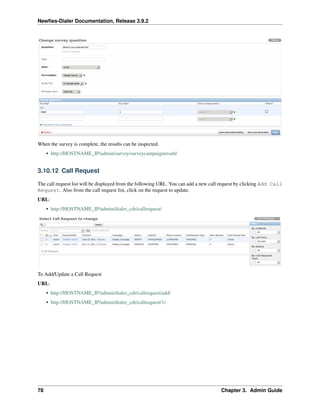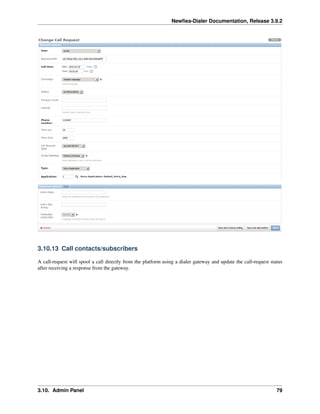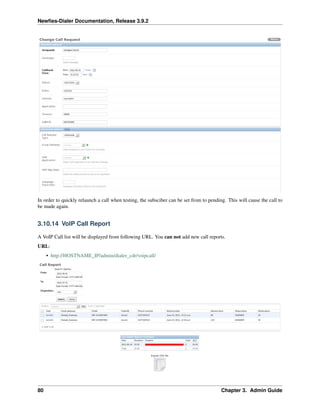




Newfies-Dialer Documentation
Release 3.9.2
Arezqui Belaid
Jan 11, 2017
CONTENTS
1 Introduction 3
1.1 Overview . . . . . . . . . . . . . . . . . . . . . . . . . . . . . . . . . . . . . . . . . . . . . . . . . 5
1.2 Utility . . . . . . . . . . . . . . . . . . . . . . . . . . . . . . . . . . . . . . . . . . . . . . . . . . . 5
1.3 Features . . . . . . . . . . . . . . . . . . . . . . . . . . . . . . . . . . . . . . . . . . . . . . . . . . 6
1.4 Server Specification . . . . . . . . . . . . . . . . . . . . . . . . . . . . . . . . . . . . . . . . . . . 6
1.5 Pricing . . . . . . . . . . . . . . . . . . . . . . . . . . . . . . . . . . . . . . . . . . . . . . . . . . 6
1.6 Contact Us . . . . . . . . . . . . . . . . . . . . . . . . . . . . . . . . . . . . . . . . . . . . . . . . 7
2 User Guide 9
2.1 Overview . . . . . . . . . . . . . . . . . . . . . . . . . . . . . . . . . . . . . . . . . . . . . . . . . 9
2.2 Quick Start . . . . . . . . . . . . . . . . . . . . . . . . . . . . . . . . . . . . . . . . . . . . . . . . 10
2.3 Customer Panel . . . . . . . . . . . . . . . . . . . . . . . . . . . . . . . . . . . . . . . . . . . . . . 11
2.4 Survey & IVR Configuration . . . . . . . . . . . . . . . . . . . . . . . . . . . . . . . . . . . . . . . 13
2.5 Contacts . . . . . . . . . . . . . . . . . . . . . . . . . . . . . . . . . . . . . . . . . . . . . . . . . 27
2.6 Voice Campaign . . . . . . . . . . . . . . . . . . . . . . . . . . . . . . . . . . . . . . . . . . . . . 33
2.7 SMS Campaign . . . . . . . . . . . . . . . . . . . . . . . . . . . . . . . . . . . . . . . . . . . . . . 40
2.8 Reports . . . . . . . . . . . . . . . . . . . . . . . . . . . . . . . . . . . . . . . . . . . . . . . . . . 42
2.9 Dashboard . . . . . . . . . . . . . . . . . . . . . . . . . . . . . . . . . . . . . . . . . . . . . . . . 43
3 Admin Guide 45
3.1 Configuration . . . . . . . . . . . . . . . . . . . . . . . . . . . . . . . . . . . . . . . . . . . . . . . 45
3.2 Freeswitch Trunk configuration . . . . . . . . . . . . . . . . . . . . . . . . . . . . . . . . . . . . . 45
3.3 Site Configuration . . . . . . . . . . . . . . . . . . . . . . . . . . . . . . . . . . . . . . . . . . . . 48
3.4 Rebranding . . . . . . . . . . . . . . . . . . . . . . . . . . . . . . . . . . . . . . . . . . . . . . . . 48
3.5 SMS Configuration . . . . . . . . . . . . . . . . . . . . . . . . . . . . . . . . . . . . . . . . . . . . 49
3.6 SMS & Call Billing Module . . . . . . . . . . . . . . . . . . . . . . . . . . . . . . . . . . . . . . . 54
3.7 Dialer Settings . . . . . . . . . . . . . . . . . . . . . . . . . . . . . . . . . . . . . . . . . . . . . . 64
3.8 Add User . . . . . . . . . . . . . . . . . . . . . . . . . . . . . . . . . . . . . . . . . . . . . . . . . 65
3.9 TTS Configuration . . . . . . . . . . . . . . . . . . . . . . . . . . . . . . . . . . . . . . . . . . . . 67
3.10 Admin Panel . . . . . . . . . . . . . . . . . . . . . . . . . . . . . . . . . . . . . . . . . . . . . . . 68
3.11 Troubleshooting . . . . . . . . . . . . . . . . . . . . . . . . . . . . . . . . . . . . . . . . . . . . . 81
4 API Reference 85
4.1 UserSerializer . . . . . . . . . . . . . . . . . . . . . . . . . . . . . . . . . . . . . . . . . . . . . . 85
4.2 UserProfileSerializer . . . . . . . . . . . . . . . . . . . . . . . . . . . . . . . . . . . . . . . . . . . 86
4.3 AudioFileSerializer . . . . . . . . . . . . . . . . . . . . . . . . . . . . . . . . . . . . . . . . . . . . 87
4.4 BranchingTemplateSerializer . . . . . . . . . . . . . . . . . . . . . . . . . . . . . . . . . . . . . . 87
4.5 CampaignSerializer . . . . . . . . . . . . . . . . . . . . . . . . . . . . . . . . . . . . . . . . . . . 89
4.6 ContactSerializer . . . . . . . . . . . . . . . . . . . . . . . . . . . . . . . . . . . . . . . . . . . . . 91
4.7 ContentTypeSerializer . . . . . . . . . . . . . . . . . . . . . . . . . . . . . . . . . . . . . . . . . . 93
i
4.8 DNCSerializer . . . . . . . . . . . . . . . . . . . . . . . . . . . . . . . . . . . . . . . . . . . . . . 93
4.9 DNCContactSerializer . . . . . . . . . . . . . . . . . . . . . . . . . . . . . . . . . . . . . . . . . . 94
4.10 GatewaySerializer . . . . . . . . . . . . . . . . . . . . . . . . . . . . . . . . . . . . . . . . . . . . 95
4.11 PhonebookSerializer . . . . . . . . . . . . . . . . . . . . . . . . . . . . . . . . . . . . . . . . . . . 96
4.12 SectionTemplateSerializer . . . . . . . . . . . . . . . . . . . . . . . . . . . . . . . . . . . . . . . . 97
4.13 SMSCampaignSerializer . . . . . . . . . . . . . . . . . . . . . . . . . . . . . . . . . . . . . . . . . 99
4.14 SMSGatewaySerializer . . . . . . . . . . . . . . . . . . . . . . . . . . . . . . . . . . . . . . . . . . 101
4.15 SubscriberListSerializer . . . . . . . . . . . . . . . . . . . . . . . . . . . . . . . . . . . . . . . . . 102
4.16 SurveySerializer . . . . . . . . . . . . . . . . . . . . . . . . . . . . . . . . . . . . . . . . . . . . . 103
4.17 SurveyTemplateSerializer . . . . . . . . . . . . . . . . . . . . . . . . . . . . . . . . . . . . . . . . 103
4.18 PaymentSerializer . . . . . . . . . . . . . . . . . . . . . . . . . . . . . . . . . . . . . . . . . . . . 105
5 Extra 109
5.1 Custom Originate . . . . . . . . . . . . . . . . . . . . . . . . . . . . . . . . . . . . . . . . . . . . . 109
6 Indices and tables 111
Python Module Index 113
ii
Newfies-Dialer Documentation, Release 3.9.2
Version 3.9
Release 3.9.2
Date Jan 11, 2017
Contents:
CONTENTS 1
Newfies-Dialer Documentation, Release 3.9.2
2 CONTENTS
CHAPTER
ONE
INTRODUCTION
Web http://www.newfies-dialer.org/
Keywords voice broadcasting, autodialer, voip, freeswitch, IVR, SMS, call blasting
Newfies-Dialer is an SMS and voice broadcasting system built to support cloud based servers and can also work on
standalone servers. It uses Freeswitch (VoIP Server) to make calls.
3
Newfies-Dialer Documentation, Release 3.9.2
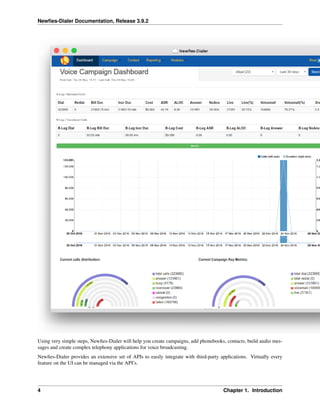
Using very simple steps, Newfies-Dialer will help you create campaigns, add phonebooks, contacts, build audio mes-
sages and create complex telephony applications for voice broadcasting.
Newfies-Dialer provides an extensive set of APIs to easily integrate with third-party applications. Virtually every
feature on the UI can be managed via the API’s.
4 Chapter 1. Introduction
Newfies-Dialer Documentation, Release 3.9.2
• Overview
• Utility
• Features
• Server Specification
• Pricing
• Contact Us
1.1 Overview
Newfies-Dialer can be used by anyone who has a need for SMS broadcasting, mass outbound calling, voice broadcast-
ing or providing outbound IVR Some of the potential uses for Newfies-Dialer are listed below.
The Newfies-Dialer may be used by either companies who wish to make calls on their own behalf, or by SaaS (Software
as a Service) companies that want to provide bulk dialling and SMS broadcasting facilities to their own customers.
Newfies-Dialer can be configured on a single server, or for really high capacity or high speed systems, Newfies-Dialer
can be configured across multiple servers.
1.2 Utility
Newfies-Dialer is loaded up with a list of telephone numbers that can be dialled sequentially at very high rates of
calling depending on carrier capacity and hardware, potentially delivering many millions of calls per day.
When the called party answers the call, Newfies-Dialer passes the call to a telephony application that is custom
designed to provide the desired behaviour.
Some examples of where Newfies-Dialer may be used follow:
• Lead Generation: Broadcast messages to contacts with a press one facility to transfer calls to a callcentre.
• Telecasting: Broadcast marketing or informational messages to customers and clients.
• Phone Polling, Surveys and Voting: Ring large numbers of people and present IVR options for either polling
their opinions, interactive surveys, or taking their vote and record the results.
• Debt Control: Customers can be automatically reminded at intervals that they owe money, and an IVR menu
presented to talk to the finance department or passed to a credit card capture IVR to pay over the phone.
• Dissemination of information via phone: Newfies-Dialer was originally designed to call large numbers of
people and disseminate medical and health advice via cellphone in 3rd world countries where often, literacy
levels are low. On a local scale, it can be used to disseminate information about forthcoming community events.
• Mass Emergency broadcast: Where there is a necessity to warn large numbers of people in a short space of
time, such as weather warnings, evacuation notices and crime prevention.
• Subscription Reminders and Renewals: Where a company sells an annual subscription for a product or ser-
vice, Newfies-Dialer can be configured to dial the customer, remind them that the subscription is due.
1.1. Overview 5
Newfies-Dialer Documentation, Release 3.9.2
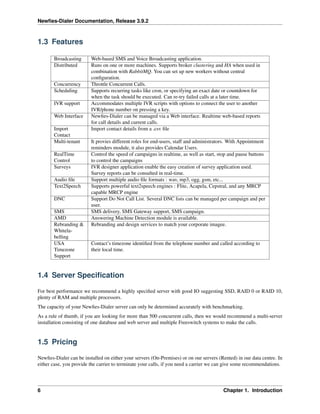
1.3 Features
Broadcasting Web-based SMS and Voice Broadcasting application.
Distributed Runs on one or more machines. Supports broker clustering and HA when used in
combination with RabbitMQ. You can set up new workers without central
configuration.
Concurrency Throttle Concurrent Calls.
Scheduling Supports recurring tasks like cron, or specifying an exact date or countdown for
when the task should be executed. Can re-try failed calls at a later time.
IVR support Accommodates multiple IVR scripts with options to connect the user to another
IVR/phone number on pressing a key.
Web Interface Newfies-Dialer can be managed via a Web interface. Realtime web-based reports
for call details and current calls.
Import
Contact
Import contact details from a .csv file
Multi-tenant It provies different roles for end-users, staff and administrators. With Appointment
reminders module, it also provides Calendar Users.
RealTime
Control
Control the speed of campaigns in realtime, as well as start, stop and pause buttons
to control the campaigns
Surveys IVR designer application enable the easy creation of survey application used.
Survey reports can be consulted in real-time.
Audio file Support multiple audio file formats : wav, mp3, ogg, gsm, etc...
Text2Speech Supports powerful text2speech engines : Flite, Acapela, Cepstral, and any MRCP
capable MRCP engine
DNC Support Do Not Call List. Several DNC lists can be managed per campaign and per
user.
SMS SMS delivery, SMS Gateway support, SMS campaign.
AMD Answering Machine Detection module is available.
Rebranding &
Whitela-
belling
Rebranding and design services to match your corporate imagee.
USA
Timezone
Support
Contact’s timezone identified from the telephone number and called according to
their local time.
1.4 Server Specification
For best performance we recommend a highly specified server with good IO suggesting SSD, RAID 0 or RAID 10,
plenty of RAM and multiple processors.
The capacity of your Newfies-Dialer server can only be determined accurately with benchmarking.
As a rule of thumb, if you are looking for more than 500 concurrent calls, then we would recommend a multi-server
installation consisting of one database and web server and multiple Freeswitch systems to make the calls.
1.5 Pricing
Newfies-Dialer can be installed on either your servers (On-Premises) or on our servers (Rented) in our data centre. In
either case, you provide the carrier to terminate your calls, if you need a carrier we can give some recommendations.
6 Chapter 1. Introduction
Newfies-Dialer Documentation, Release 3.9.2
To see pricing for on-premises and rented servers with or without AMD, visit our pricing page: http://www.
newfies-dialer.org/pricing/
1.6 Contact Us
Star2Billing is the company behind the Newfies-Dialer SMS and Voice Broadcasting Solution and can be contacted at
the email addresses and telephone numbers below during our normal working hours, Central European Time.
Star2Billing can be contacted at:
• Email: newfies-dialer@star2billing.com
• Tel (UK): +44 117 911 4474
• Tel (USA): +1-202-464-8397
1.6. Contact Us 7
Newfies-Dialer Documentation, Release 3.9.2
8 Chapter 1. Introduction
CHAPTER
TWO
USER GUIDE
Contents:
2.1 Overview
Newfies-Dialer is a powerful SMS and Voice Broadcasting system which can be installed on dedicated servers or
cloud servers. The underlying telephony engine is Freeswitch, and it is designed to send calls via VoIP using the SIP
protocol and is compatible with nearly all SIP carriers.
Newfies-Dialer comes installed with a web interface to allow the easy configuration of market messages, surveys and
campaigns.
Features
• Restful-API based to easily integrate the platform dialer with third-party applications
• Web-based administrative/customer interfaces
• Lower operating costs
• Calls are made through Internet VoIP. No need for telephony hardware
• Call reports and Statistics
The following user documentation will cover:
• A quick start guide to cover the basics
• A detailed guide to the purpose of all the survey nodes
• The customer panel
• Creating phonebooks and contacts
• Configuring voice and SMS campaigns
• Reports
• The dashboard
We suggest you follow the quick start guide to get an overview of the system, then start creating your own surveys and
campaigns.
9
Newfies-Dialer Documentation, Release 3.9.2
2.2 Quick Start
The purpose of this short guide is to give a quick overview from creating a suvey through to making an outbound call.
It is recommended that you run through this guide on your own platform before attempting more complex surveys and
campaigns.
We are going to use the customer portal to:
• Create a phonebook
• Add some contacts to the phonebook
• Create campaign using the survey and campaign
• Start the outbound voice broadcast.
NB: These tasks should always be done from the Customer Portal and not from the Admin Interface. To proceed, click
“Customer Panel” at the top of Admin interface.
2.2.1 Create Phonebook
The phonebook is where lists of subscribers are grouped. Click Customer Panel on the top menu in the Admin
Dashboard, then click Phonebook, and add a new phonebook.
Create a new phonebook called, for the purposes of the exercise, PB1, and give it a description.
2.2.2 Add Contacts
Click contact, and add a new contact. As a minimum add a phone number to call in the Contact field, and for the
purposes of this demonstration, enter your own telephone number in full international format including the leading +,
for instance +12024648397 in the USA or +441179114474 in the UK
Repeat as necessary until you have your test numbers added.
It is possible to upload numbers from a text file. The methodology is covered later in this guide.
2.2.3 Add Survey
Next we are going to configure the survey that will be executed when Newfies-Dialer calls your phone and you answer.
Click Modules, Survey, then click add. As is traditional with first steps, we will call this survey “Hello World”.
The aim is that Newfies-Dialer will call you, and when you answer, Newfies-Dialer will broadcast “Hello World” to
you using the text to speech engine in Freeswitch.
Click “Add Section” and select “Play Message”, enter “Hello World” in the section title. This is the speech that will
be read out by the TTS engine. It can be edited later. When done, click save.
Best practice is that we should explicitly hangup, and mark the survey as complete, so click “Add Section” and select
Hangup as the node type. Type “Goodbye” in the section title, and tick “Survey complete”
Next, set up the node branching. On the play message panel, click the branch icon, and select “Goodbye” as the next
destination.
Finally, click Close Survey, and move on to configuring the campaign.
10 Chapter 2. User Guide
Newfies-Dialer Documentation, Release 3.9.2
2.2.4 Configure Campaign
We now have all the components to create and run our campaign, so click campaign, and click add.
Give the Campaign a name, say “CPN Hello World”, optionally, a description, set a caller ID to pass the called party,
select the A-Leg Gateway you configured earlier, the application, Hello World, and highlight the phonebook PB1, and
submit. You will be returned to the list of campaigns.
2.2.5 Start The Campaign
We are now ready to launch the campaign, simply press the Play button against the CPN Hello World campaign.
In a few seconds, your campaign will launch, your phone will ring, and you will hear “Hello World” followed by
“Goodbye” broadcast to you over the phone.
Note: In some countries, telemarketing, phone polling, and automated dialling is under regulatory control, and advice
should be sought as to how best to remain within the limits of the law. First points of reference may be Ofcom in the
UK and the Federal Trade Commission (FTC) in the USA.
2.3 Customer Panel
Customer Panel URL : http://HOSTNAME_IP/admin/
This application provides a user interface for restricted management of the User’s Campaigns, Phonebooks and Sub-
scribers. It also provides detailed reporting of calls and message delivery.
• Login Page
• Dashboards
• Campaign
• Contacts
• Reporting
• Modules
• User Account
2.3.1 Login Page
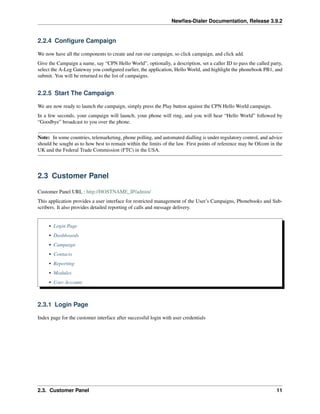
Index page for the customer interface after successful login with user credentials
2.3. Customer Panel 11
Newfies-Dialer Documentation, Release 3.9.2
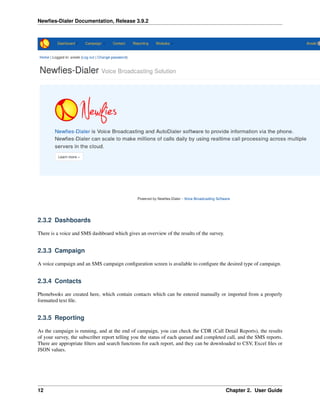
2.3.2 Dashboards
There is a voice and SMS dashboard which gives an overview of the results of the survey.
2.3.3 Campaign
A voice campaign and an SMS campaign configuration screen is available to configure the desired type of campaign.
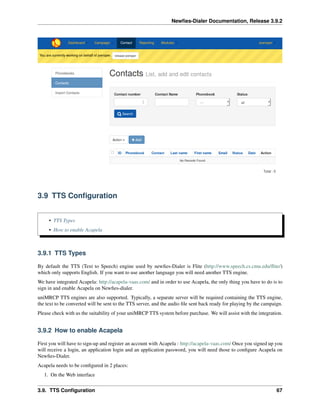
2.3.4 Contacts
Phonebooks are created here, which contain contacts which can be entered manually or imported from a properly
formatted text file.
2.3.5 Reporting
As the campaign is running, and at the end of campaign, you can check the CDR (Call Detail Reports), the results
of your survey, the subscriber report telling you the status of each queued and completed call, and the SMS reports.
There are appropriate filters and search functions for each report, and they can be downloaded to CSV, Excel files or
JSON values.
12 Chapter 2. User Guide
Newfies-Dialer Documentation, Release 3.9.2
2.3.6 Modules
Configure Surveys, uplaod Audio files and DNC (Do Not Call) lists.
2.3.7 User Account
Click the dropdown to check your account settings, your account limits. set your language, check notifications and
logout.
2.4 Survey & IVR Configuration
• Create Survey
• Survey Nodes
• Survey Completion Retry
• DTMF input with Audio
• TTS or Audio file
• Tag Substitution with TTS
• Capture Digits
• Conference
• DNC
• Hangup
• Multi-Choice
• Play Message
• Rating Question
• Record Message
• SMS Message
• Call Transfer
• HTTP API
• Survey Branching
• Uploading Audio Files
2.4.1 Create Survey
We recommend that you create and prototype the survey using Text to Speech, particularly with more complex surveys,
once you are happy with the end result, then you can use the TTS as a script for your voice talent.
There are more details on uploading audio files further on in this section.
2.4. Survey & IVR Configuration 13
Newfies-Dialer Documentation, Release 3.9.2
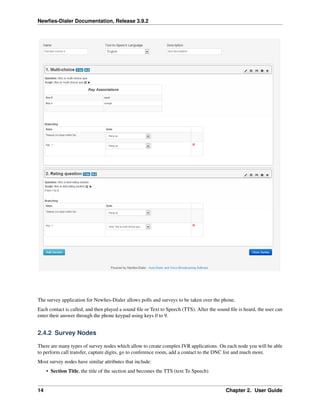
The survey application for Newfies-Dialer allows polls and surveys to be taken over the phone.
Each contact is called, and then played a sound file or Text to Speech (TTS). After the sound file is heard, the user can
enter their answer through the phone keypad using keys 0 to 9.
2.4.2 Survey Nodes
There are many types of survey nodes which allow to create complex IVR applications. On each node you will be able
to perform call transfer, capture digits, go to conference room, add a contact to the DNC list and much more.
Most survey nodes have similar attributes that include:
• Section Title, the title of the section and becomes the TTS (text To Speech)
14 Chapter 2. User Guide
Newfies-Dialer Documentation, Release 3.9.2
• Audio File, The sound file to be played for this node.
• Retries, if no valid input, then the question can be asked again.
• Timeout, the amount of time before it is considered that no input has been received.
• Check Validity, whether the answer is deemed valid.
• Audio Invalid Input, The audio to play when invalid input is received.
• Survey Complete, check this field to mark the survey is complete for reporting & retry purposes.
2.4.3 Survey Completion Retry
As mentioned in the list above, When a node is created, the “Survey Complete” checkbox can be turned
on so that it is clear that the contact reached a certain point in the survey and did not abandon the call
early.
Usually, one of the last nodes in the survey is marked as “Survey Complete”.
If the contact does not get as far as a “Survey Complete” node, then Newfies-Dialer can call them back to
have another go at the survey.
The Completion Retry interval and number of times to retry is set in the campaign under the “Dialer
Completion Settings” section.
2.4.4 DTMF input with Audio
Any node where you expect to recieve DTMF must have either TTS or an audio file, even if that audio file is only half
a second of silence.
2.4.5 TTS or Audio file
When no audio file is selected against a node, the TTS will be used. The TTS is automatically created from the title or
question that is assigned to the node, but it can be edited afterwards.
2.4.6 Tag Substitution with TTS
This is the list of standard tags that will be automatically replaced: {last_name} {first_name} {email} {country}
{city} {contact} // This is the phone number
If you need more flexibility, you can use the “Additional Parameters (JSON)” field which allow you to add custom
key-values that will be replaced.
For example, let’s add this in “Additional Parameters (JSON)”: {“company_name”: “Canonical”, “bonus” :
“200”, “currency” : “euro”}
When you create a survey with a node that plays TTS, you can easily replace the key-values in the text. Text example:
“We are calling you on behalf of {company_name}, you will receive a bonus of {bonus} {currency}”
This will play:
“We are calling you on behalf of Canonical, you will recieve a bonus of two hundred euro”
2.4. Survey & IVR Configuration 15
Newfies-Dialer Documentation, Release 3.9.2
2.4.7 Capture Digits
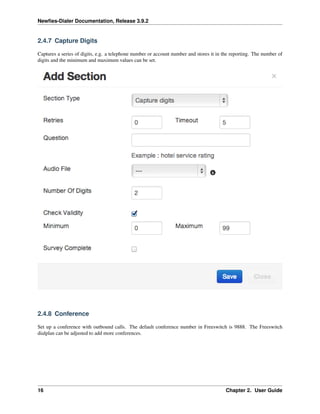
Captures a series of digits, e.g. a telephone number or account number and stores it in the reporting. The number of
digits and the minimum and maximum values can be set.
2.4.8 Conference
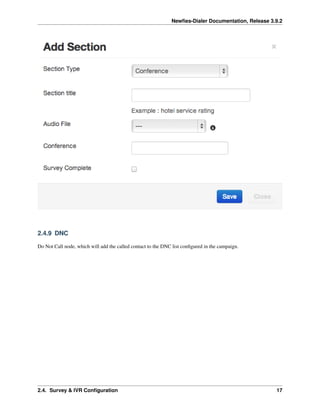
Set up a conference with outbound calls. The default conference number in Freeswitch is 9888. The Freeswitch
dialplan can be adjusted to add more conferences.
16 Chapter 2. User Guide
Newfies-Dialer Documentation, Release 3.9.2
2.4.9 DNC
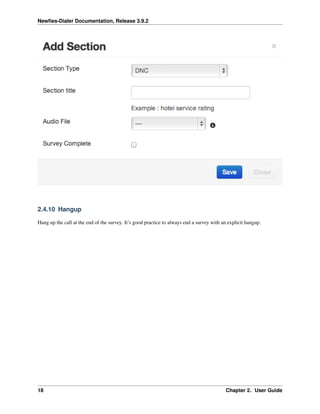
Do Not Call node, which will add the called contact to the DNC list configured in the campaign.
2.4. Survey & IVR Configuration 17
Newfies-Dialer Documentation, Release 3.9.2
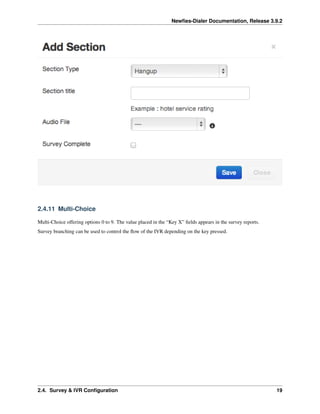
2.4.10 Hangup
Hang up the call at the end of the survey. It’s good practice to always end a survey with an explicit hangup.
18 Chapter 2. User Guide
Newfies-Dialer Documentation, Release 3.9.2
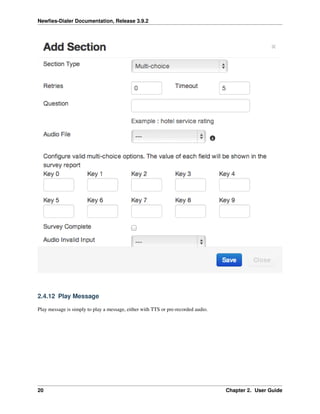
2.4.11 Multi-Choice
Multi-Choice offering options 0 to 9. The value placed in the “Key X” fields appears in the survey reports.
Survey branching can be used to control the flow of the IVR depending on the key pressed.
2.4. Survey & IVR Configuration 19
Newfies-Dialer Documentation, Release 3.9.2
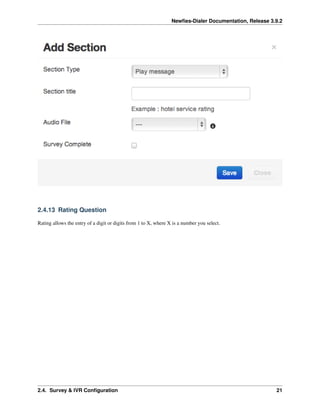
2.4.12 Play Message
Play message is simply to play a message, either with TTS or pre-recorded audio.
20 Chapter 2. User Guide
Newfies-Dialer Documentation, Release 3.9.2
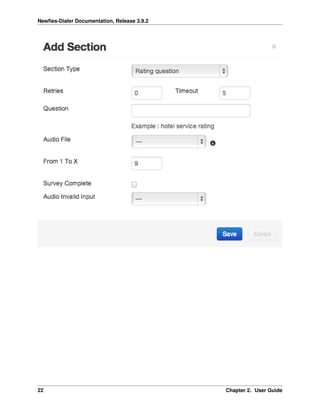
2.4.13 Rating Question
Rating allows the entry of a digit or digits from 1 to X, where X is a number you select.
2.4. Survey & IVR Configuration 21
Newfies-Dialer Documentation, Release 3.9.2
22 Chapter 2. User Guide
Newfies-Dialer Documentation, Release 3.9.2
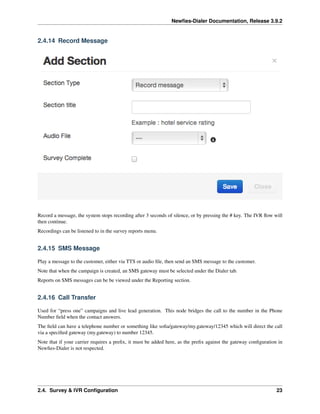
2.4.14 Record Message
Record a message, the system stops recording after 3 seconds of silence, or by pressing the # key. The IVR flow will
then continue.
Recordings can be listened to in the survey reports menu.
2.4.15 SMS Message
Play a message to the customer, either via TTS or audio file, then send an SMS message to the customer.
Note that when the campaign is created, an SMS gateway must be selected under the Dialer tab.
Reports on SMS messages can be be viewed under the Reporting section.
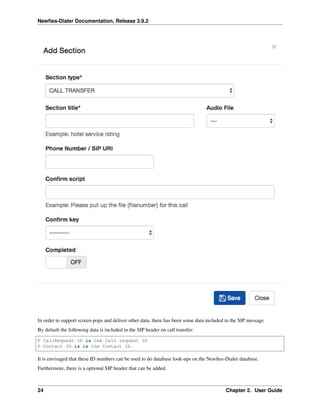
2.4.16 Call Transfer
Used for “press one” campaigns and live lead generation. This node bridges the call to the number in the Phone
Number field when the contact answers.
The field can have a telephone number or something like sofia/gateway/my.gateway/12345 which will direct the call
via a specified gateway (my.gateway) to number 12345.
Note that if your carrier requires a prefix, it must be added here, as the prefix against the gateway configuration in
Newfies-Dialer is not respected.
2.4. Survey & IVR Configuration 23
Newfies-Dialer Documentation, Release 3.9.2
In order to support screen-pops and deliver other data, there has been some data included in the SIP message
By default the following data is included in the SIP header on call transfer:
P-CallRequest-ID is the Call request ID
P-Contact-ID is is the Contact ID.
It is envisaged that these ID numbers can be used to do database look-ups on the Newfies-Dialer database.
Furthermore, there is a optional SIP header that can be added.
24 Chapter 2. User Guide
Newfies-Dialer Documentation, Release 3.9.2
P-Contact-Transfer-Ref:
This can be added against the Contact in the “Additional Parmeters (JSON)” field. Simply add the “transfer_ref”
keyword and string to send in the SIP message as follows:
{"transfer_ref": "My-Unique-Ref-Number"}
In the SIP headers, you will see:
P-CallRequest-ID: 3
P-Contact-ID: 1
P-Contact-Transfer-Ref: My-Unique-Ref-Number
Confirm Script is TTS which can be played to the agent before the contact is connected, if this facility is used, then a
number between 0 and 9 should be entered into the confirm key field which the agent presses to answer the call. Both
these fields are optional.
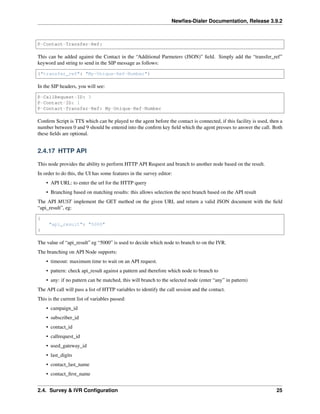
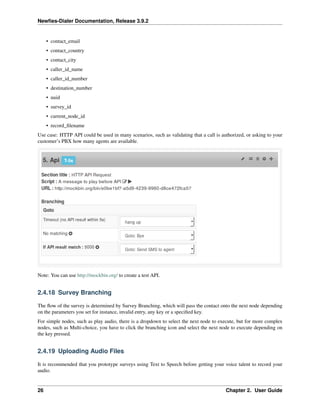
2.4.17 HTTP API
This node provides the ability to perform HTTP API Request and branch to another node based on the result.
In order to do this, the UI has some features in the survey editor:
• API URL: to enter the url for the HTTP query
• Branching based on matching results: this allows selection the next branch based on the API result
The API MUST implement the GET method on the given URL and return a valid JSON document with the field
“api_result”, eg:
{
"api_result": "5000"
}
The value of “api_result” eg “5000” is used to decide which node to branch to on the IVR.
The branching on API Node supports:
• timeout: maximum time to wait on an API request.
• pattern: check api_result against a pattern and therefore which node to branch to
• any: if no pattern can be matched, this will branch to the selected node (enter “any” in pattern)
The API call will pass a list of HTTP variables to identify the call session and the contact.
This is the current list of variables passed:
• campaign_id
• subscriber_id
• contact_id
• callrequest_id
• used_gateway_id
• last_digits
• contact_last_name
• contact_first_name
2.4. Survey & IVR Configuration 25
Newfies-Dialer Documentation, Release 3.9.2
• contact_email
• contact_country
• contact_city
• caller_id_name
• caller_id_number
• destination_number
• uuid
• survey_id
• current_node_id
• record_filename
Use case: HTTP API could be used in many scenarios, such as validating that a call is authorized, or asking to your
customer’s PBX how many agents are available.
Note: You can use http://mockbin.org/ to create a test API.
2.4.18 Survey Branching
The flow of the survey is determined by Survey Branching, which will pass the contact onto the next node depending
on the parameters you set for instance, invalid entry, any key or a specified key.
For simple nodes, such as play audio, there is a dropdown to select the next node to execute, but for more complex
nodes, such as Multi-choice, you have to click the branching icon and select the next node to execute depending on
the key pressed.
2.4.19 Uploading Audio Files
It is recommended that you prototype surveys using Text to Speech before getting your voice talent to record your
audio.
26 Chapter 2. User Guide
Newfies-Dialer Documentation, Release 3.9.2
Once the audio is recorded it can be uploaded via the interface, and assigned to the nodes in the survey.
Select Audio Files from the top menu then click add.
Enter a name to describe the audio, then click choose file, select the file you require from your computer, then click
submit.
Note that only mp3, Wav and ogg formats are supported and the audio should be mono, not stereo. If the sound file
does not play correctly on a live test, then check the file is in mono.
The audio file will then be uploaded and renamed so that it is unique.
2.5 Contacts
• Phonebook
• Contact
• Import Contacts
– Import Contact (Simple)
– Advanced Import
• Additional parameters (JSON)
• Special Function Additional parameters keywords (JSON)
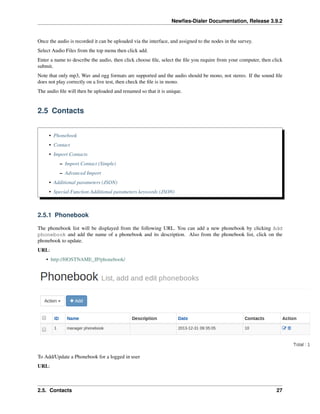
2.5.1 Phonebook
The phonebook list will be displayed from the following URL. You can add a new phonebook by clicking Add
phonebook and add the name of a phonebook and its description. Also from the phonebook list, click on the
phonebook to update.
URL:
• http://HOSTNAME_IP/phonebook/
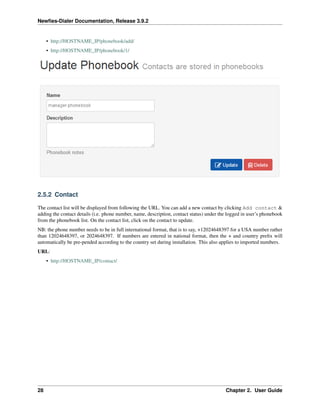
To Add/Update a Phonebook for a logged in user
URL:
2.5. Contacts 27
Newfies-Dialer Documentation, Release 3.9.2
• http://HOSTNAME_IP/phonebook/add/
• http://HOSTNAME_IP/phonebook/1/
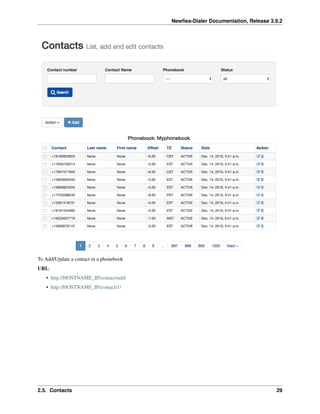
2.5.2 Contact
The contact list will be displayed from following the URL. You can add a new contact by clicking Add contact &
adding the contact details (i.e. phone number, name, description, contact status) under the logged in user’s phonebook
from the phonebook list. On the contact list, click on the contact to update.
NB: the phone number needs to be in full international format, that is to say, +12024648397 for a USA number rather
than 12024648397, or 2024648397. If numbers are entered in national format, then the + and country prefix will
automatically be pre-pended according to the country set during installation. This also applies to imported numbers.
URL:
• http://HOSTNAME_IP/contact/
28 Chapter 2. User Guide
Newfies-Dialer Documentation, Release 3.9.2
To Add/Update a contact in a phonebook
URL:
• http://HOSTNAME_IP/contact/add/
• http://HOSTNAME_IP/contact/1/
2.5. Contacts 29
Newfies-Dialer Documentation, Release 3.9.2
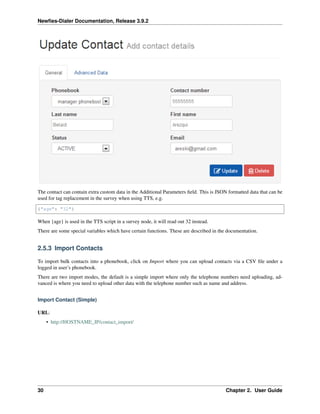
The contact can contain extra custom data in the Additional Parameters field. This is JSON formatted data that can be
used for tag replacement in the survey when using TTS, e.g.
{"age": "32"}
When {age} is used in the TTS script in a survey node, it will read out 32 instead.
There are some special variables which have certain functions. These are described in the documentation.
2.5.3 Import Contacts
To import bulk contacts into a phonebook, click on Import where you can upload contacts via a CSV file under a
logged in user’s phonebook.
There are two import modes, the default is a simple import where only the telephone numbers need uploading, ad-
vanced is where you need to upload other data with the telephone number such as name and address.
Import Contact (Simple)
URL:
• http://HOSTNAME_IP/contact_import/
30 Chapter 2. User Guide
Newfies-Dialer Documentation, Release 3.9.2
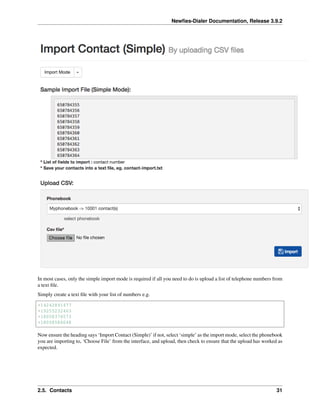
In most cases, only the simple import mode is required if all you need to do is upload a list of telephone numbers from
a text file.
Simply create a text file with your list of numbers e.g.
+14242891477
+19255232463
+18058376573
+18058586048
Now ensure the heading says ‘Import Contact (Simple)’ if not, select ‘simple’ as the import mode, select the phonebook
you are importing to, ‘Choose File’ from the interface, and upload, then check to ensure that the upload has worked as
expected.
2.5. Contacts 31
Newfies-Dialer Documentation, Release 3.9.2
Advanced Import
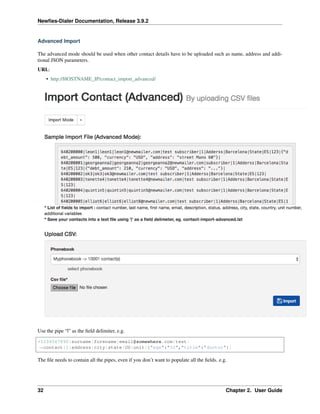
The advanced mode should be used when other contact details have to be uploaded such as name, address and addi-
tional JSON parameters.
URL:
• http://HOSTNAME_IP/contact_import_advanced/
Use the pipe “|” as the field delimiter, e.g.
+1234567890|surname|forename|email@somewhere.com|test-
˓→contact|1|address|city|state|US|unit|{"age":"32","title":"doctor"}|
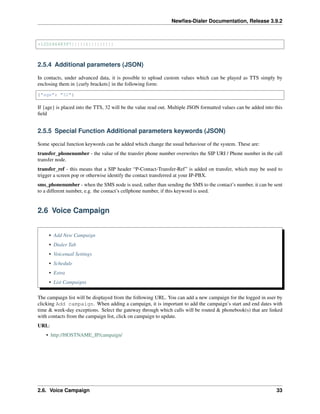
The file needs to contain all the pipes, even if you don’t want to populate all the fields. e.g.
32 Chapter 2. User Guide
Newfies-Dialer Documentation, Release 3.9.2
+12024648397|||||1|||||||||
2.5.4 Additional parameters (JSON)
In contacts, under advanced data, it is possible to upload custom values which can be played as TTS simply by
enclosing them in {curly brackets} in the following form:
{"age": "32"}
If {age} is placed into the TTS, 32 will be the value read out. Multiple JSON formatted values can be added into this
field
2.5.5 Special Function Additional parameters keywords (JSON)
Some special function keywords can be added which change the usual behaviour of the system. These are:
transfer_phonenumber - the value of the transfer phone number overwrites the SIP URI / Phone number in the call
transfer node.
transfer_ref - this means that a SIP header “P-Contact-Transfer-Ref” is added on transfer, which may be used to
trigger a screen pop or otherwise identify the contact transferred at your IP-PBX.
sms_phonenumber - when the SMS node is used, rather than sending the SMS to the contact’s number, it can be sent
to a different number, e.g. the contact’s cellphone number, if this keyword is used.
2.6 Voice Campaign
• Add New Campaign
• Dialer Tab
• Voicemail Settings
• Schedule
• Extra
• List Campaigns
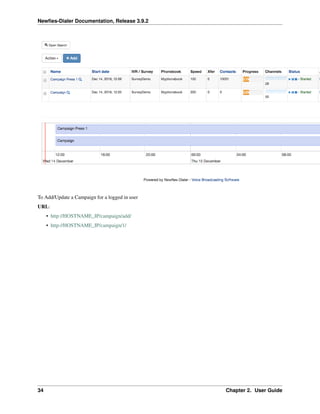
The campaign list will be displayed from the following URL. You can add a new campaign for the logged in user by
clicking Add campaign. When adding a campaign, it is important to add the campaign’s start and end dates with
time & week-day exceptions. Select the gateway through which calls will be routed & phonebook(s) that are linked
with contacts from the campaign list, click on campaign to update.
URL:
• http://HOSTNAME_IP/campaign/
2.6. Voice Campaign 33
Newfies-Dialer Documentation, Release 3.9.2
To Add/Update a Campaign for a logged in user
URL:
• http://HOSTNAME_IP/campaign/add/
• http://HOSTNAME_IP/campaign/1/
34 Chapter 2. User Guide
Newfies-Dialer Documentation, Release 3.9.2
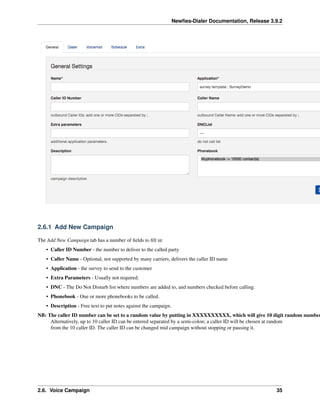
2.6.1 Add New Campaign
The Add New Campaign tab has a number of fields to fill in:
• Caller ID Number - the number to deliver to the called party
• Caller Name - Optional, not supported by many carriers, delivers the caller ID name
• Application - the survey to send to the customer
• Extra Parameters - Usually not required.
• DNC - The Do Not Disturb list where numbers are added to, and numbers checked before calling.
• Phonebook - One or more phonebooks to be called.
• Description - Free text to put notes against the campaign.
NB: The caller ID number can be set to a random value by putting in XXXXXXXXXX, which will give 10 digit random number
Alternatively, up to 10 caller ID can be entered separated by a semi-colon; a caller ID will be chosen at random
from the 10 caller ID. The caller ID can be changed mid campaign without stopping or pausing it.
2.6. Voice Campaign 35
Newfies-Dialer Documentation, Release 3.9.2
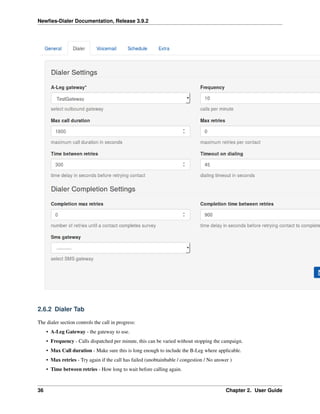
2.6.2 Dialer Tab
The dialer section controls the call in progress:
• A-Leg Gateway - the gateway to use.
• Frequency - Calls dispatched per minute, this can be varied without stopping the campaign.
• Max Call duration - Make sure this is long enough to include the B-Leg where applicable.
• Max retries - Try again if the call has failed (unobtainbable / congestion / No answer )
• Time between retries - How long to wait before calling again.
36 Chapter 2. User Guide
Newfies-Dialer Documentation, Release 3.9.2
• Timeout on Dialling - how long to ring for before giving up (minimum 15 seconds)
• Dialer completion retries - where the contact has not completed the survey, they can be called back. This is
controlled by the Conpleted setting in the survey node.
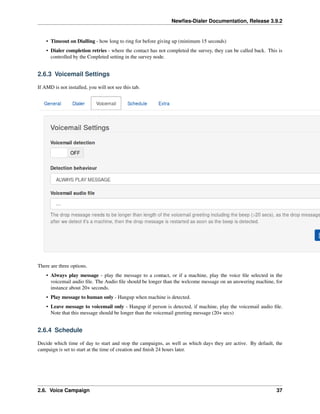
2.6.3 Voicemail Settings
If AMD is not installed, you will not see this tab.
There are three options.
• Always play message - play the message to a contact, or if a machine, play the voice file selected in the
voicemail audio file. The Audio file should be longer than the welcome message on an answering machine, for
instance about 20+ seconds.
• Play message to human only - Hangup when machine is detected.
• Leave message to voicemail only - Hangup if person is detected, if machine, play the voicemail audio file.
Note that this message should be longer than the voicemail greeting message (20+ secs)
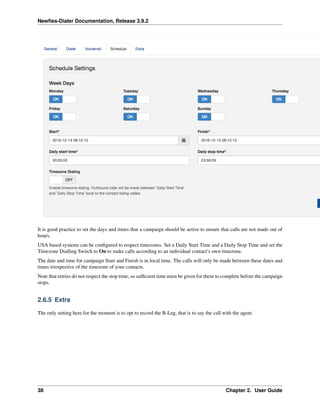
2.6.4 Schedule
Decide which time of day to start and stop the campaigns, as well as which days they are active. By default, the
campaign is set to start at the time of creation and finish 24 hours later.
2.6. Voice Campaign 37
Newfies-Dialer Documentation, Release 3.9.2
It is good practice to set the days and times that a campaign should be active to ensure that calls are not made out of
hours.
USA based systems can be configured to respect timezones. Set a Daily Start Time and a Daily Stop Time and set the
Timezone Dialling Switch to On to make calls according to an individual contact’s own timezone.
The date and time for campaign Start and Finish is in local time. The calls will only be made between these dates and
times irrespective of the timezone of your contacts.
Note that retries do not respect the stop time, so sufficient time must be given for these to complete before the campaign
stops.
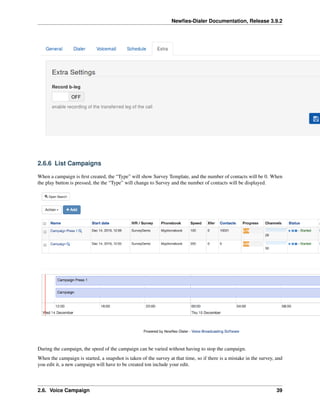
2.6.5 Extra
The only setting here for the moment is to opt to record the B-Leg, that is to say the call with the agent.
38 Chapter 2. User Guide
Newfies-Dialer Documentation, Release 3.9.2
2.6.6 List Campaigns
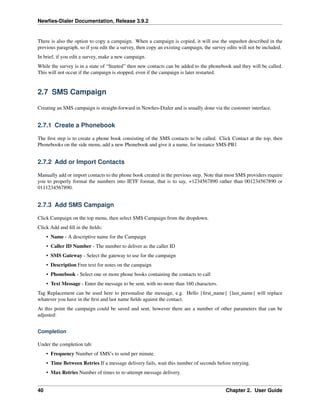
When a campaign is first created, the “Type” will show Survey Template, and the number of contacts will be 0. When
the play button is pressed, the the “Type” will change to Survey and the number of contacts will be displayed.
During the campaign, the speed of the campaign can be varied without having to stop the campaign.
When the campaign is started, a snapshot is taken of the survey at that time, so if there is a mistake in the survey, and
you edit it, a new campaign will have to be created ton include your edit.
2.6. Voice Campaign 39
Newfies-Dialer Documentation, Release 3.9.2
There is also the option to copy a campaign. When a campaign is copied, it will use the snpashot described in the
previous paragraph, so if you edit the a survey, then copy an existing campaign, the survey edits will not be included.
In brief, if you edit a survey, make a new campaign.
While the survey is in a state of “Started” then new contacts can be added to the phonebook and they will be called.
This will not occur if the campaign is stopped, even if the campaign is later restarted.
2.7 SMS Campaign
Creating an SMS campaign is straight-forward in Newfies-Dialer and is usually done via the customer interface.
2.7.1 Create a Phonebook
The first step is to create a phone book consisting of the SMS contacts to be called. Click Contact at the top, then
Phonebooks on the side menu, add a new Phonebook and give it a name, for instance SMS-PB1
2.7.2 Add or Import Contacts
Manually add or import contacts to the phone book created in the previous step. Note that most SMS providers require
you to properly format the numbers into IETF format, that is to say, +1234567890 rather than 001234567890 or
0111234567890.
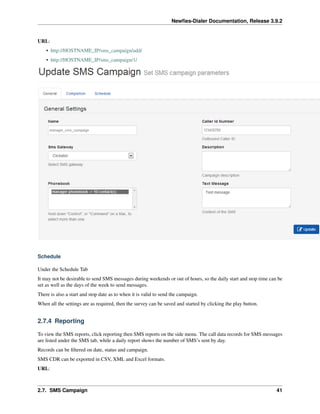
2.7.3 Add SMS Campaign
Click Campaign on the top menu, then select SMS Campaign from the dropdown.
Click Add and fill in the fields:
• Name - A descriptive name for the Campaign
• Caller ID Number - The number to deliver as the caller ID
• SMS Gateway - Select the gateway to use for the campaign
• Description Free text for notes on the campaign
• Phonebook - Select one or more phone books containing the contacts to call
• Text Message - Enter the message to be sent, with no more than 160 characters.
Tag Replacement can be used here to personalise the message, e.g. Hello {first_name} {last_name} will replace
whatever you have in the first and last name fields against the contact.
At this point the campaign could be saved and sent, however there are a number of other parameters that can be
adjusted:
Completion
Under the completion tab:
• Frequency Number of SMS’s to send per minute.
• Time Between Retries If a message delivery fails, wait this number of seconds before retrying.
• Max Retries Number of times to re-attempt message delivery.
40 Chapter 2. User Guide
Newfies-Dialer Documentation, Release 3.9.2
URL:
• http://HOSTNAME_IP/sms_campaign/add/
• http://HOSTNAME_IP/sms_campaign/1/
Schedule
Under the Schedule Tab
It may not be desirable to send SMS messages during weekends or out of hours, so the daily start and stop time can be
set as well as the days of the week to send messages.
There is also a start and stop date as to when it is valid to send the campaign.
When all the settings are as required, then the survey can be saved and started by clicking the play button.
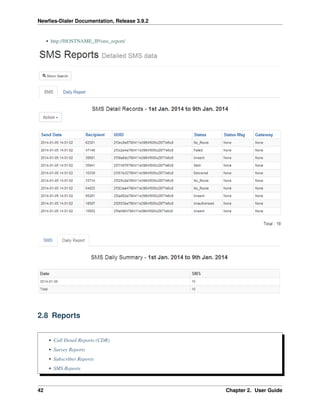
2.7.4 Reporting
To view the SMS reports, click reporting then SMS reports on the side menu. The call data records for SMS messages
are listed under the SMS tab, while a daily report shows the number of SMS’s sent by day.
Records can be filtered on date, status and campaign.
SMS CDR can be exported in CSV, XML and Excel formats.
URL:
2.7. SMS Campaign 41
Newfies-Dialer Documentation, Release 3.9.2
• http://HOSTNAME_IP/sms_report/
2.8 Reports
• Call Detail Reports (CDR)
• Survey Reports
• Subscriber Reports
• SMS Reports
42 Chapter 2. User Guide
Newfies-Dialer Documentation, Release 3.9.2
2.8.1 Call Detail Reports (CDR)
Call detail reports give the call records of each individual call along with a daily report. The UI only shows an overview
of the CDR, to get a more detailed report, use the action button to download a report to CSV or Excel.
The report is mostly self explanatory, apart from the the duration and Bill Sec fields.
• Duration is the amount of time from ringing to hangup.
• Bill-Sec is the amount of time from answer to hangup - the sum of calls and duration should closely match your
carrier’s CDR.
Therefore it follows that Duration less Bill-Sec is the time the the phone rings for before it is answered.
2.8.2 Survey Reports
These reports, also downloadable to CSV, Excel or JSON files are displayed here.
Under Survey Calls, you can look at each indiviual call, and see the results of the call, as well as play any audio such
as for a recording node.
2.8.3 Subscriber Reports
When a campaign is started, the numbers to call are copied from the phonebooks selected in the campaign, these
numbers in Newfies-Dialer are referred to as “Subscribers”. The subscriber report indicates the state of each individual
subscriber, e.g. Pending, Completed, Sent, etc.
2.8.4 SMS Reports
Reports on the status of each SMS message sent.
2.9 Dashboard
• Voice Dashboard
• Definitions:
• SMS Dashboard
There are two dashboards, one for Voice and one for SMS.
2.9.1 Voice Dashboard
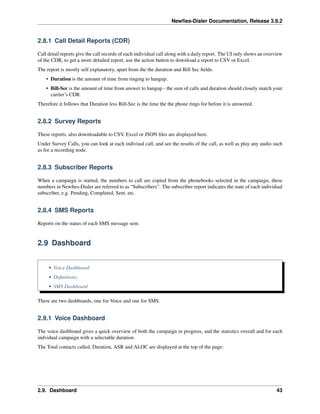
The voice dashboard gives a quick overview of both the campaign in progress, and the statistics overall and for each
indvidual campaign with a selectable duration.
The Total contacts called, Duration, ASR and ALOC are displayed at the top of the page:
2.9. Dashboard 43
Newfies-Dialer Documentation, Release 3.9.2
2.9.2 Definitions:
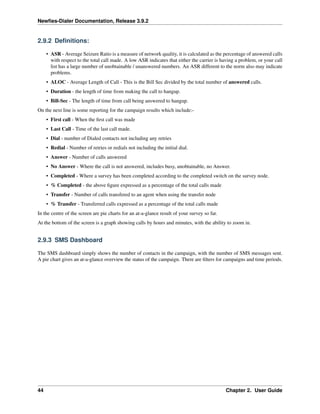
• ASR - Average Seizure Ratio is a measure of network quality, it is calculated as the percentage of answered calls
with respect to the total call made. A low ASR indicates that either the carrier is having a problem, or your call
list has a large number of unobtainable / unanswered numbers. An ASR different to the norm also may indicate
problems.
• ALOC - Average Length of Call - This is the Bill Sec divided by the total number of answered calls.
• Duration - the length of time from making the call to hangup.
• Bill-Sec - The length of time from call being answered to hangup.
On the next line is some reporting for the campaign results which include:-
• First call - When the first call was made
• Last Call - Time of the last call made.
• Dial - number of Dialed contacts not including any retries
• Redial - Number of retries or redials not including the initial dial.
• Answer - Number of calls answered
• No Answer - Where the call is not answered, includes busy, unobtainable, no Answer.
• Completed - Where a survey has been completed according to the completed switch on the survey node.
• % Completed - the above figure expressed as a percentage of the total calls made
• Transfer - Number of calls transfered to an agent when using the transfer node
• % Transfer - Transferred calls expressed as a percentage of the total calls made
In the centre of the screen are pie charts for an at-a-glance result of your survey so far.
At the bottom of the screen is a graph showing calls by hours and minutes, with the ability to zoom in.
2.9.3 SMS Dashboard
The SMS dashboard simply shows the number of contacts in the campaign, with the number of SMS messages sent.
A pie chart gives an at-a-glance overview the status of the campaign. There are filters for campaigns and time periods.
44 Chapter 2. User Guide
CHAPTER
THREE
ADMIN GUIDE
Contents:
3.1 Configuration
• Configuration Overview
3.1.1 Configuration Overview
When a Newfies-Dialer system is first commissioned, much of this work will be done as part of the commissioning
process by the Newfies-Dialer team. However, it may be necessary for Newfies-Dialer admin to add new gateways or
make other changes to the system.
The commissioning process will include:
• Freeswitch configuration - setting up the gateways which Newfies-Dialer will use
• Site configuration - Setting up the host name
• Text to speech - configuring TTS engines
• SMS configuration
Tasks which will be performed by Newfies-Dialer admin, with our training, will include:
• Adding new users
• Creating Dialer settings, which control the resources any one user can consume
• Site configuration and editing the home page
3.2 Freeswitch Trunk configuration
• Username / Secret Authentication
• Carrier IP Authentication
• Create Gateway
45
Newfies-Dialer Documentation, Release 3.9.2
• Add Carrier to Admin or Manager
Assistance to configure new gateways in Freeswitch is provided by The Newfies-Dialer Support Team, however if you
need to add your own gateway, instructions follow.
In order for Newfies-Dialer to make outbound calls to its subscribers, you will need a SIP trunk. The Freeswitch wiki
can provide more information on configuring trunks, but in most cases creating a new gateway is straightforward.
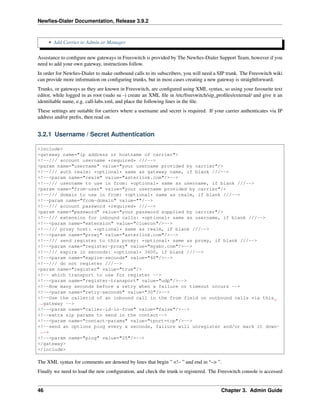
Trunks, or gateways as they are known in Freeswitch, are configured using XML syntax, so using your favourite text
editor, while logged in as root (sudo su -) create an XML file in /etc/freeswitch/sip_profiles/external/ and give it an
identifiable name, e.g. call-labs.xml, and place the following lines in the file.
These settings are suitable for carriers where a username and secret is required. If your carrier authenticates via IP
address and/or prefix, then read on.
3.2.1 Username / Secret Authentication
<include>
<gateway name="ip address or hostname of carrier">
<!--/// account username *required* ///-->
<param name="username" value="your username provided by carrier"/>
<!--/// auth realm: *optional* same as gateway name, if blank ///-->
<!--<param name="realm" value="asterlink.com"/>-->
<!--/// username to use in from: *optional* same as username, if blank ///-->
<param name="from-user" value="your username provided by carrier"/>
<!--/// domain to use in from: *optional* same as realm, if blank ///-->
<!--param name="from-domain" value=""/-->
<!--/// account password *required* ///-->
<param name="password" value="your password supplied by carrier"/>
<!--/// extension for inbound calls: *optional* same as username, if blank ///-->
<!--<param name="extension" value="cluecon"/>-->
<!--/// proxy host: *optional* same as realm, if blank ///-->
<!--<param name="proxy" value="asterlink.com"/>-->
<!--/// send register to this proxy: *optional* same as proxy, if blank ///-->
<!--<param name="register-proxy" value="mysbc.com"/>-->
<!--/// expire in seconds: *optional* 3600, if blank ///-->
<!--<param name="expire-seconds" value="60"/>-->
<!--/// do not register ///-->
<param name="register" value="true"/>
<!-- which transport to use for register -->
<!--<param name="register-transport" value="udp"/>-->
<!--How many seconds before a retry when a failure or timeout occurs -->
<!--<param name="retry-seconds" value="30"/>-->
<!--Use the callerid of an inbound call in the from field on outbound calls via this
˓→gateway -->
<!--<param name="caller-id-in-from" value="false"/>-->
<!--extra sip params to send in the contact-->
<!--<param name="contact-params" value="tport=tcp"/>-->
<!--send an options ping every x seconds, failure will unregister and/or mark it down-
˓→->
<!--<param name="ping" value="25"/>-->
</gateway>
</include>
The XML syntax for comments are denoted by lines that begin ” <!– ” and end in “–> ”.
Finally we need to load the new configuration, and check the trunk is registered. The Freeswitch console is accessed
46 Chapter 3. Admin Guide
Newfies-Dialer Documentation, Release 3.9.2
by typing “fs_cli” at the command prompt. The logging level can be increased or decreased from level 0 to level 7.
to switch off logging, type /log 0 at the Freeswitch console, followed by enter. For the greatest verbosity, type /log 7
followed by enter.
Type “fs_cli” followed by enter.
You should now see the Freeswitch CLI, so now reload the Freeswitch configuration with the following command:
(tip; Tab auto-completes)
sofia profile external restart reloadxml
When complete, check the trunk has registered with the following command.
sofia status
Against the name of the trunk you configured in the XML file, you should see REGED (registered) at the end of the
line. Take a note of the trunk name, we are going to need it for telling Newfies-Dialer that it can use this trunk.
To exit the Freeswitch CLI, do CTRL D, or /exit
Freeswitch configuration is now complete.
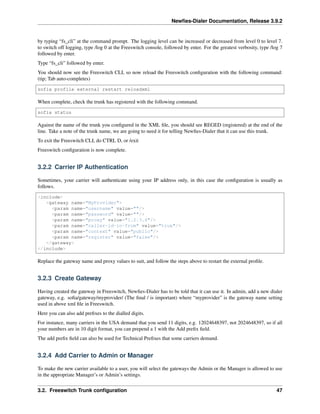
3.2.2 Carrier IP Authentication
Sometimes, your carrier will authenticate using your IP address only, in this case the configuration is usually as
follows.
<include>
<gateway name="MyProvider">
<param name="username" value=""/>
<param name="password" value=""/>
<param name="proxy" value="1.2.3.4"/>
<param name="caller-id-in-from" value="true"/>
<param name="context" value="public"/>
<param name="register" value="false"/>
</gateway>
</include>
Replace the gateway name and proxy values to suit, and follow the steps above to restart the external profile.
3.2.3 Create Gateway
Having created the gateway in Freeswitch, Newfies-Dialer has to be told that it can use it. In admin, add a new dialer
gateway, e.g. sofia/gateway/myprovider/ (The final / is important) where “myprovider” is the gateway name setting
used in above xml file in Freeswitch.
Here you can also add prefixes to the dialled digits.
For instance, many carriers in the USA demand that you send 11 digits, e.g. 12024648397, not 2024648397, so if all
your numbers are in 10 digit format, you can prepend a 1 with the Add prefix field.
The add prefix field can also be used for Technical Prefixes that some carriers demand.
3.2.4 Add Carrier to Admin or Manager
To make the new carrier available to a user, you will select the gateways the Admin or the Manager is allowed to use
in the appropriate Manager’s or Admin’s settings.
3.2. Freeswitch Trunk configuration 47
Newfies-Dialer Documentation, Release 3.9.2
3.3 Site Configuration
• Sites
• Home Page
• New Pages
3.3.1 Sites
This will be done for you by the Newfies-Dialer support team.
Some of the features of Newfies-Dialer are dependent on the hostname or IP address, so this has to be set correctly in
site address.
In the Admin dashboard, locate the “Sites” link in the General Section and click change. By default, there will be an
entry of “example.com”. Edit this setting to reflect the hostname of the server, or if you do not have this set up, the IP
address. e.g. http://www.domain.tld or in the case of an IP address, something like http://192.168.1.200
3.3.2 Home Page
In the general section, click Site/Page, then click “Change” against the “flat pages” link, click home, and the current
text and logo will be displayed.
From this screen edit the wording.
In the Advanced Section, there is an option to make this page visible to everyone, or just logged in users.
3.3.3 New Pages
In the same area as the Home Page, there are options to add new pages to Newfies-Dialer to contain your own custom
content.
3.4 Rebranding
• Configure project names and footer
• Change Icon
• Change Favicon
• Custom CSS
• Apply changes
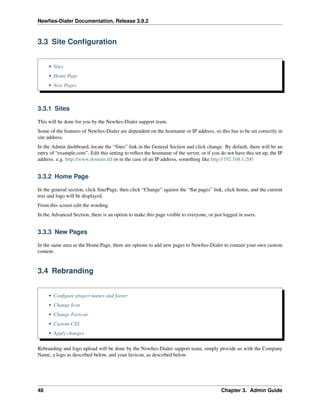
Rebranding and logo upload will be done by the Newfies-Dialer support team, simply provide us with the Company
Name, a logo as described below, and your favicon, as described below.
48 Chapter 3. Admin Guide
Newfies-Dialer Documentation, Release 3.9.2
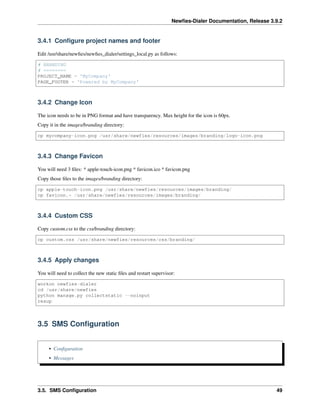
3.4.1 Configure project names and footer
Edit /usr/share/newfies/newfies_dialer/settings_local.py as follows:
# BRANDING
# ========
PROJECT_NAME = 'MyCompany'
PAGE_FOOTER = 'Powered by MyCompany'
3.4.2 Change Icon
The icon needs to be in PNG format and have transparency. Max height for the icon is 60px.
Copy it in the images/branding directory:
cp mycompany-icon.png /usr/share/newfies/resources/images/branding/logo-icon.png
3.4.3 Change Favicon
You will need 3 files: * apple-touch-icon.png * favicon.ico * favicon.png
Copy those files to the images/branding directory:
cp apple-touch-icon.png /usr/share/newfies/resources/images/branding/
cp favicon.* /usr/share/newfies/resources/images/branding/
3.4.4 Custom CSS
Copy custom.css to the css/branding directory:
cp custom.css /usr/share/newfies/resources/css/branding/
3.4.5 Apply changes
You will need to collect the new static files and restart supervisor:
workon newfies-dialer
cd /usr/share/newfies
python manage.py collectstatic --noinput
resup
3.5 SMS Configuration
• Configuration
• Messages
3.5. SMS Configuration 49
Newfies-Dialer Documentation, Release 3.9.2
3.5.1 Configuration
SMS braodcasting is supported as standard by Newfies-Dialer, allowing Newfies-Dialer to send out thousands or
millions of SMS messages to contacts.
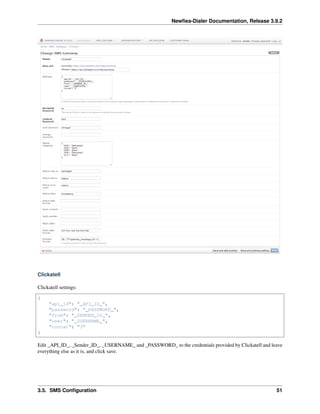
The SMS gateway supports the following gateways, Clickatell (http://www.clickatell.com/) and SMSGlobal (http:
//www.smsglobal.com). Additionally, Khomp hardware is supported to allow the use of SIM cards in house. See
http://www.khomp.com.br/ for more details.
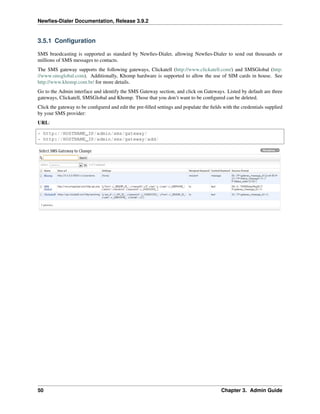
Go to the Admin interface and identify the SMS Gateway section, and click on Gateways. Listed by default are three
gateways, Clickatell, SMSGlobal and Khomp. Those that you don’t want to be configured can be deleted.
Click the gateway to be configured and edit the pre-filled settings and populate the fields with the credentials supplied
by your SMS provider:
URL:
* http://HOSTNAME_IP/admin/sms/gateway/
* http://HOSTNAME_IP/admin/sms/gateway/add/
50 Chapter 3. Admin Guide
Newfies-Dialer Documentation, Release 3.9.2
Clickatell
Clickatell settings:
{
"api_id": "_API_ID_",
"password": "_PASSWORD_",
"from": "_SENDER_ID_",
"user": "_USERNAME_",
"concat": "3"
}
Edit _API_ID_, _Sender_ID_, _USERNAME_ and _PASSWORD_ to the credentials provided by Clickatell and leave
everything else as it is, and click save.
3.5. SMS Configuration 51
Newfies-Dialer Documentation, Release 3.9.2
SMSGlobal
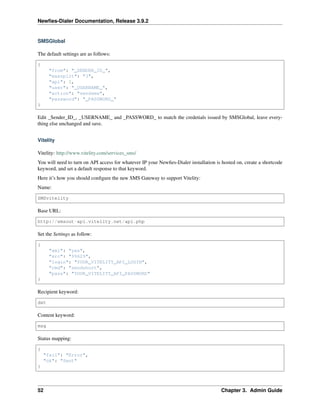
The default settings are as follows:
{
"from": "_SENDER_ID_",
"maxsplit": "3",
"api": 1,
"user": "_USERNAME_",
"action": "sendsms",
"password": "_PASSWORD_"
}
Edit _Sender_ID_, _USERNAME_ and _PASSWORD_ to match the credetials issued by SMSGlobal, leave every-
thing else unchanged and save.
Vitelity
Vitelity: http://www.vitelity.com/services_sms/
You will need to turn on API access for whatever IP your Newfies-Dialer installation is hosted on, create a shortcode
keyword, and set a default response to that keyword.
Here it’s how you should configure the new SMS Gateway to support Vitelity:
Name:
SMSvitelity
Base URL:
http://smsout-api.vitelity.net/api.php
Set the Settings as follow:
{
"xml": "yes",
"src": "99629",
"login": "YOUR_VITELITY_API_LOGIN",
"cmd": "sendshort",
"pass": "YOUR_VITELITY_API_PASSWORD"
}
Recipient keyword:
dst
Content keyword:
msg
Status mapping:
{
"fail": "Error",
"ok": "Sent"
}
52 Chapter 3. Admin Guide
Newfies-Dialer Documentation, Release 3.9.2
Success format:
.*n*.*n*.*<status>(?P<status_message>.+)</status>n*<response>(?P<status_code>.+)</
˓→response>(?P<gateway_message_id>.+)
Nordic Messaging
Nordic Messaging documentation: http://doc.nordicmessaging.se/display/EMG/Sending+messages#
Sendingmessages-UsingHTTPconnector
You will need to turn on API access for whatever IP your Newfies-Dialer installation is hosted on.
Here it’s how you should configure the new SMS Gateway to support NordicMessaging:
Name:
NordicMessaging
Base URL:
Replace the URL by your own deployed Gateway.
https://api.nordicmessaging.se/bin/send
Set the Settings as follow:
{
"USERNAME": "<YOUR_USERNAME>",
"PASSWORD": "<YOUR_PASSWORD>"
}
Recipient keyword:
DESTADDR
Content keyword:
MESSAGE
Status mapping:
{
}
Success format:
(?P<gateway_message_id>[a-zA-Z0-9-]+)
3.5.2 Messages
The messages section in the admin screens shows the status of the messages, e.g. success or failure as well as the
status message.
3.5. SMS Configuration 53
Newfies-Dialer Documentation, Release 3.9.2
3.6 SMS & Call Billing Module
• SMS & Call Billing
– SMS Billing
– Call Billing
– Negative Balance Mitigation
• Payments
– Manual/Direct Payment
– Credit Card Payments
• Braintree
• Technical
– Billing Settings
– Negative Balance Helpers
– Payments
– Braintree Settings
Newfies-Dialer has always been Multi-tenant and to make it a complete solution for business, we recently added
support for SMS & Call billing, as well as Braintree Payment Integration. Braintree is a division of Paypal. These
features are vital to build a SaaS platform and resell Voice Broadcasting services to your customers.
In the following sections we will go into detail about how the Billing module works and describe the Braintree payment
module that allows your customers to recharge their account in few clicks.
3.6.1 SMS & Call Billing
Newfies-Dialer offers a simple and powerful approach for billing, you can easily define a rate for both SMS and Calls.
It follows simple rules, we define a Call rate per minute and a SMS rate. If you don’t want to charge your customer
for calls or SMS, for instance if Newfies-Dialer is being used inside an internal organization, then you can set these
values to 0 and no charge will be applied.
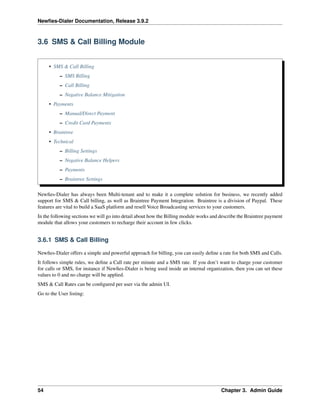
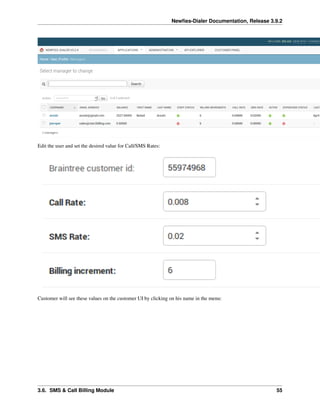
SMS & Call Rates can be configured per user via the admin UI.
Go to the User listing:
54 Chapter 3. Admin Guide
Newfies-Dialer Documentation, Release 3.9.2
Edit the user and set the desired value for Call/SMS Rates:
Customer will see these values on the customer UI by clicking on his name in the menu:
3.6. SMS & Call Billing Module 55
Newfies-Dialer Documentation, Release 3.9.2
Lets see how SMS and call Billing works.
SMS Billing
For each SMS Sent successfully a charge will be applied
Example:
• SMS rate: $ 0.02
• Sent 1000 SMS: Total cost $20
Your customers use Newfies-Dialer normally, but if the customer balance runs low on credit, then SMS will not be
sent and the campaign will stop running until credit is available.
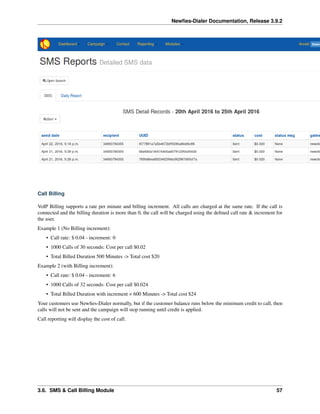
SMS reporting will display the cost of SMS:
56 Chapter 3. Admin Guide
Newfies-Dialer Documentation, Release 3.9.2
Call Billing
VoIP Billing supports a rate per minute and billing increment. All calls are charged at the same rate. If the call is
connected and the billing duration is more than 0, the call will be charged using the defined call rate & increment for
the user.
Example 1 (No Billing increment):
• Call rate: $ 0.04 - increment: 0
• 1000 Calls of 30 seconds: Cost per call $0.02
• Total Billed Duration 500 Minutes -> Total cost $20
Example 2 (with Billing increment):
• Call rate: $ 0.04 - increment: 6
• 1000 Calls of 32 seconds: Cost per call $0.024
• Total Billed Duration with increment = 600 Minutes -> Total cost $24
Your customers use Newfies-Dialer normally, but if the customer balance runs below the minimum credit to call, then
calls will not be sent and the campaign will stop running until credit is applied.
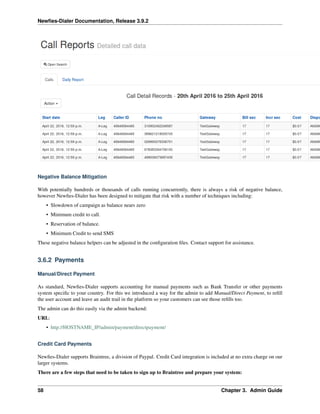
Call reporting will display the cost of call:
3.6. SMS & Call Billing Module 57
Newfies-Dialer Documentation, Release 3.9.2
Negative Balance Mitigation
With potentially hundreds or thousands of calls running concurrently, there is always a risk of negative balance,
however Newfies-Dialer has been designed to mitigate that risk with a number of techniques including:
• Slowdown of campaign as balance nears zero
• Minimum credit to call.
• Reservation of balance.
• Minimum Credit to send SMS
These negative balance helpers can be adjusted in the configuration files. Contact support for assistance.
3.6.2 Payments
Manual/Direct Payment
As standard, Newfies-Dialer supports accounting for manual payments such as Bank Transfer or other payments
system specific to your country. For this we introduced a way for the admin to add Manual/Direct Payment, to refill
the user account and leave an audit trail in the platform so your customers can see those refills too.
The admin can do this easily via the admin backend:
URL:
• http://HOSTNAME_IP/admin/payment/directpayment/
Credit Card Payments
Newfies-Dialer supports Braintree, a division of Paypal. Credit Card integration is included at no extra charge on our
larger systems.
There are a few steps that need to be taken to sign up to Braintree and prepare your system:
58 Chapter 3. Admin Guide
Newfies-Dialer Documentation, Release 3.9.2
• Domain Name pointed at your Newfies-Dialer installation.
• SSL certificate so that Newfies-Dialer is on an HTTPS address, we recommend https://letsencrypt.org/
• Sign up to Braintree at https://apply.braintreegateway.com/signup/us. We will need your Merchant Keys
to configure Newfies-Dialer.
• SAQ: PCE compliance questionnaire, see https://articles.braintreepayments.com/reference/security/
pci-compliance
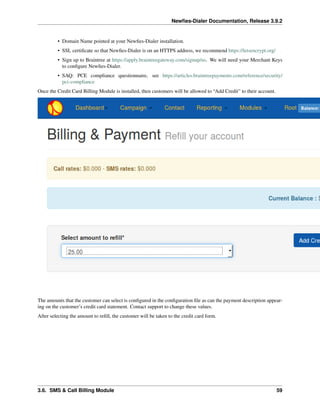
Once the Credit Card Billing Module is installed, then customers will be allowed to “Add Credit” to their account.
The amounts that the customer can select is configured in the configuration file as can the payment description appear-
ing on the customer’s credit card statement. Contact support to change these values.
After selecting the amount to refill, the customer will be taken to the credit card form.
3.6. SMS & Call Billing Module 59
Newfies-Dialer Documentation, Release 3.9.2
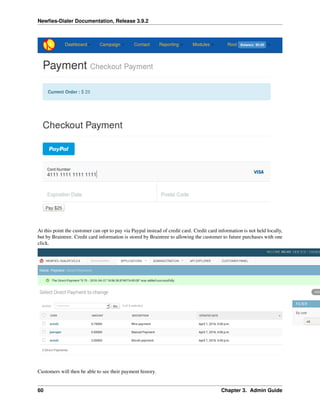
At this point the customer can opt to pay via Paypal instead of credit card. Credit card information is not held locally,
but by Braintree. Credit card information is stored by Braintree to allowing the customer to future purchases with one
click.
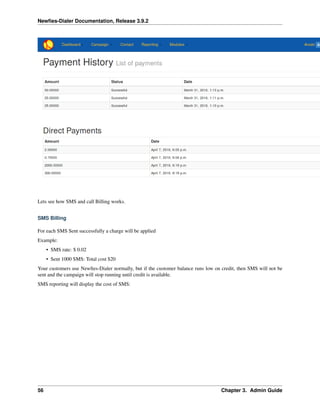
Customers will then be able to see their payment history.
60 Chapter 3. Admin Guide
Newfies-Dialer Documentation, Release 3.9.2
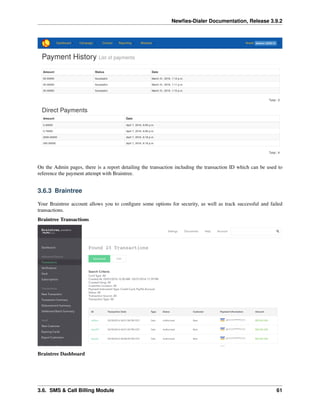
On the Admin pages, there is a report detailing the transaction including the transaction ID which can be used to
reference the payment attempt with Braintree.
3.6.3 Braintree
Your Braintree account allows you to configure some options for security, as well as track successful and failed
transactions.
Braintree Transactions
Braintree Dashboard
3.6. SMS & Call Billing Module 61
Newfies-Dialer Documentation, Release 3.9.2
3.6.4 Technical
There are a number of configuration settings in the Newfies-Dialer config file, settings_local.py.
Generally, these will be set by the support team.
Billing Settings
# BILLING
# =======
# Feature switch to enable or disable payment in Newfies Dialer UI
BILLING_SWITCH = True
# Currency displayed $ / C
BILLING_CURRENCY_DISPLAY = '$'
# Define the default Billing increment per Customer, this value is specified per user
BILLING_INCREMENT = 6
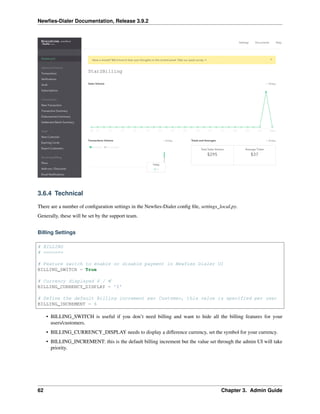
• BILLING_SWITCH is useful if you don’t need billing and want to hide all the billing features for your
users/customers.
• BILLING_CURRENCY_DISPLAY needs to display a difference currency, set the symbol for your currency.
• BILLING_INCREMENT: this is the default billing increment but the value set through the admin UI will take
priority.
62 Chapter 3. Admin Guide
Newfies-Dialer Documentation, Release 3.9.2
Negative Balance Helpers
The following Negative Balance settings can be adjusted to suit your preferences which may also depend on the trust
& relationship you have with your customers.
# Negative Balance helpers
# ~~~~~~~~~~~~~~~~~~~~~~~~
# 3 settings are provided to avoid reaching negative balance, they can be tweaked
# to one preferences, depending of the type of business and customer relationship
# BILLING_MIN_CALL_CREDIT_DIAL
# BILLING_MIN_CREDIT_DIAL settings
# BILLING_MIN_CREDIT_SMS
# Define credit needed per call in order to be authorized to dial out
# if you outbound at 100 calls per minute, you need 10$ on your account
# a good value for BILLING_MIN_CREDIT_DIAL is a bit above the cost per call you would
˓→expect
BILLING_MIN_CALL_CREDIT_DIAL = 0.05
# Define the minimum amount of credit to outbound calls
BILLING_MIN_CREDIT_DIAL = 0
# Define the minimum amount of credit to send SMS
BILLING_MIN_CREDIT_SMS = 0.02
Payments
Set the top-up amounts selectable by the customer as well as the text on the customer’s credit card statement.
# PAYMENT
# =======
# Authorized amount for refill
AMOUNT_REFILL = (('25', '25.00'), ('50', '50.00'), ('100', '100.00'), ('250', '250.00
˓→'), ('500', '500.00'), ('1000', '1000.00'))
PAYMENT_DESCRIPTION = 'Voice Broadcasting Service'
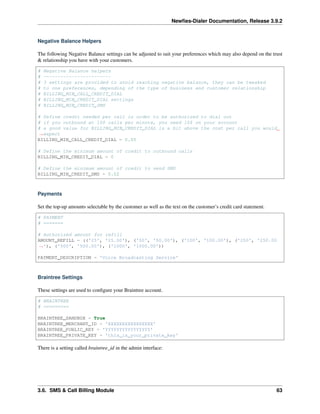
Braintree Settings
These settings are used to configure your Braintree account.
# BRAINTREE
# =========
BRAINTREE_SANDBOX = True
BRAINTREE_MERCHANT_ID = 'XXXXXXXXXXXXXXXX'
BRAINTREE_PUBLIC_KEY = 'YYYYYYYYYYYYYYYY'
BRAINTREE_PRIVATE_KEY = 'this_is_your_private_key'
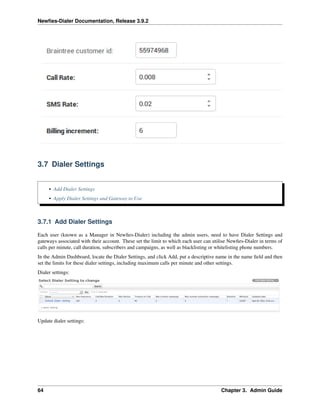
There is a setting called braintree_id in the admin interface:
3.6. SMS & Call Billing Module 63
Newfies-Dialer Documentation, Release 3.9.2
3.7 Dialer Settings
• Add Dialer Settings
• Apply Dialer Settings and Gateway to Use
3.7.1 Add Dialer Settings
Each user (known as a Manager in Newfies-Dialer) including the admin users, need to have Dialer Settings and
gateways associated with their account. These set the limit to which each user can utilise Newfies-Dialer in terms of
calls per minute, call duration, subscribers and campaigns, as well as blacklisting or whitelisting phone numbers.
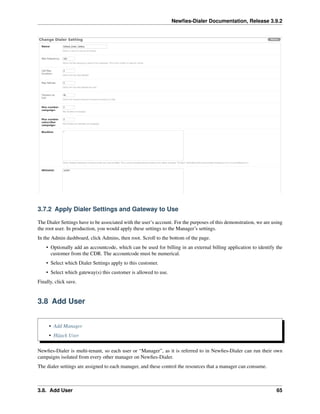
In the Admin Dashboard, locate the Dialer Settings, and click Add, put a descriptive name in the name field and then
set the limits for these dialer settings, including maximum calls per minute and other settings.
Dialer settings:
Update dialer settings:
64 Chapter 3. Admin Guide
Newfies-Dialer Documentation, Release 3.9.2
3.7.2 Apply Dialer Settings and Gateway to Use
The Dialer Settings have to be associated with the user’s account. For the purposes of this demonstration, we are using
the root user. In production, you would apply these settings to the Manager’s settings.
In the Admin dashboard, click Admins, then root. Scroll to the bottom of the page.
• Optionally add an accountcode, which can be used for billing in an external billing application to identify the
customer from the CDR. The accountcode must be numerical.
• Select which Dialer Settings apply to this customer.
• Select which gateway(s) this customer is allowed to use.
Finally, click save.
3.8 Add User
• Add Manager
• Hijack User
Newfies-Dialer is multi-tenant, so each user or “Manager”, as it is referred to in Newfies-Dialer can run their own
campaigns isolated from every other manager on Newfies-Dialer.
The dialer settings are assigned to each manager, and these control the resources that a manager can consume.
3.8. Add User 65
Newfies-Dialer Documentation, Release 3.9.2
Additionally, a voice and SMS (if applicable) gateway is assigned to the Manager, so they can only use the gateway(s)
they are assigned.
3.8.1 Add Manager
In the General Tab, click Add against Manager, and in the new screen, fill in the username and password. The name
and address details are optional.
Select the gateways you are allowing the Manager to use, and select the dialer settings applicable to this manager. You
can add more gateways and dialer settings by clicking the + button, and the appropriate screen will appear as a popup.
When you click save, another screen will appear where you can select the Available User Permissions, Choose All.
This will give access to the customer screen only, a manager cannot carry out any admin tasks.
Click save once more, and confirm that the new Manager is added and that you can log in with their assigned username
and password.
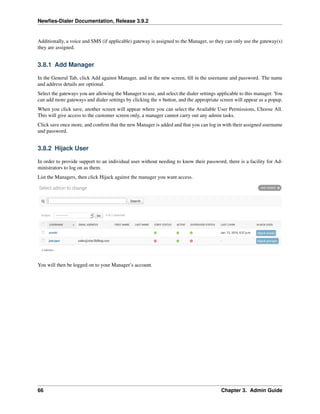
3.8.2 Hijack User
In order to provide support to an individual user without needing to know their password, there is a facility for Ad-
ministrators to log on as them.
List the Managers, then click Hijack against the manager you want access.
You will then be logged on to your Manager’s account.
66 Chapter 3. Admin Guide
Newfies-Dialer Documentation, Release 3.9.2
3.9 TTS Configuration
• TTS Types
• How to enable Acapela
3.9.1 TTS Types
By default the TTS (Text to Speech) engine used by newfies-Dialer is Flite (http://www.speech.cs.cmu.edu/flite/)
which only supports English. If you want to use another language you will need another TTS engine.
We have integrated Acapela: http://acapela-vaas.com/ and in order to use Acapela, the only thing you have to do is to
sign in and enable Acapela on Newfies-dialer.
uniMRCP TTS engines are also supported. Typically, a separate server will be required containing the TTS engine,
the text to be converted will be sent to the TTS server, and the audio file sent back ready for playing by the campaign.
Please check with us the suitability of your uniMRCP TTS system before purchase. We will assist with the integration.
3.9.2 How to enable Acapela
First you will have to sign-up and register an account with Acapela : http://acapela-vaas.com/ Once you signed up you
will receive a login, an application login and an application password, you will need those to configure Acapela on
Newfies-Dialer.
Acapela needs to be configured in 2 places:
1. On the Web interface
3.9. TTS Configuration 67
Newfies-Dialer Documentation, Release 3.9.2
Edit the file /usr/share/newfies-dialer/newfies_dialer/settings_local.py and find:
#TEXT-TO-SPEECH
#==============
TTS_ENGINE = 'FLITE' # FLITE, CEPSTRAL, ACAPELA
ACCOUNT_LOGIN = 'EVAL_XXXX'
APPLICATION_LOGIN = 'EVAL_XXXXXXX'
APPLICATION_PASSWORD = 'XXXXXXXX'
SERVICE_URL = 'http://vaas.acapela-group.com/Services/Synthesizer'
QUALITY = '22k' # 22k, 8k, 8ka, 8kmu
ACAPELA_GENDER = 'W'
ACAPELA_INTONATION = 'NORMAL'
You will have to change the value of the settings : TTS_ENGINE, ACCOUNT_LOGIN,
˓→APPLICATION_LOGIN and APPLICATION_PASSWORD.
2. On the IVR application
Create a new file /usr/share/newfies-lua/config/acapela_config.lua and add the following:
TTS_ENGINE = 'acapela'
ACCOUNT_LOGIN = 'EVAL_VAAS'
APPLICATION_LOGIN = 'EVAL_XXXXXX'
APPLICATION_PASSWORD = 'XXXXXX'
SERVICE_URL = 'http://vaas.acapela-group.com/Services/Synthesizer'
QUALITY = '22k' -- 22k, 8k, 8ka, 8kmu
ACAPELA_GENDER = 'M'
ACAPELA_INTONATION = 'NORMAL'
ACAPELA_LANG = 'EN'
Change the value of the settings : ACCOUNT_LOGIN, APPLICATION_LOGIN, APPLICATION_
˓→PASSWORD and optionally, ACAPELA_LANG.
Finally restart the web UI::
/etc/init.d/supervisor stop
and
/etc/init.d/supervisor start
3.10 Admin Panel
Admin URL : http://HOSTNAME_IP/admin/
This interface provides user (ACL) management, full control of all Campaigns, Phonebooks, Subscribers, Gateways
and configuration of the Audio Application.
The customer panel should be used for creating surveys, adding phonebooks, contacts and campaigns. The adminis-
trator panel is used for adminstrator inspection.
68 Chapter 3. Admin Guide
Newfies-Dialer Documentation, Release 3.9.2
• Dashboard
• Admin User Management
• Customers
• Sites
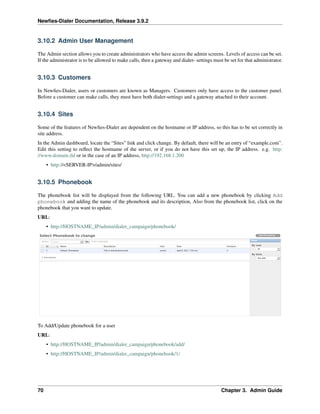
• Phonebook
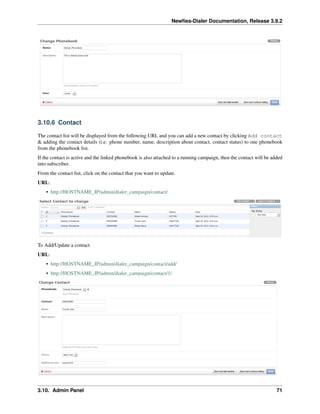
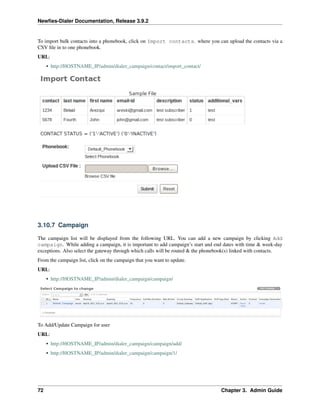
• Contact
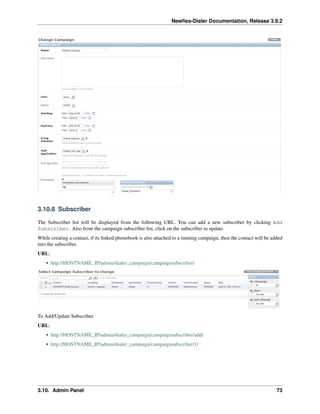
• Campaign
• Subscriber
• Dialer Settings
• Dialer Gateway
• Survey
• Call Request
• Call contacts/subscribers
• VoIP Call Report
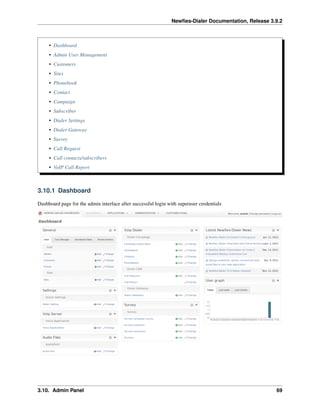
3.10.1 Dashboard
Dashboard page for the admin interface after successful login with superuser credentials
3.10. Admin Panel 69
Newfies-Dialer Documentation, Release 3.9.2
3.10.2 Admin User Management
The Admin section allows you to create administrators who have access the admin screens. Levels of access can be set.
If the administrator is to be allowed to make calls, then a gateway and dialer- settings must be set for that administrator.
3.10.3 Customers
In Newfies-Dialer, users or customers are known as Managers. Customers only have access to the customer panel.
Before a customer can make calls, they must have both dialer-settings and a gateway attached to their account.
3.10.4 Sites
Some of the features of Newfies-Dialer are dependent on the hostname or IP address, so this has to be set correctly in
site address.
In the Admin dashboard, locate the “Sites” link and click change. By default, there will be an entry of “example.com”.
Edit this setting to reflect the hostname of the server, or if you do not have this set up, the IP address. e.g. http:
//www.domain.tld or in the case of an IP address, http://192.168.1.200
• http://<SERVER-IP>/admin/sites/
3.10.5 Phonebook
The phonebook list will be displayed from the following URL. You can add a new phonebook by clicking Add
phonebook and adding the name of the phonebook and its description, Also from the phonebook list, click on the
phonebook that you want to update.
URL:
• http://HOSTNAME_IP/admin/dialer_campaign/phonebook/
To Add/Update phonebook for a user
URL:
• http://HOSTNAME_IP/admin/dialer_campaign/phonebook/add/
• http://HOSTNAME_IP/admin/dialer_campaign/phonebook/1/
70 Chapter 3. Admin Guide
Newfies-Dialer Documentation, Release 3.9.2
3.10.6 Contact
The contact list will be displayed from the following URL and you can add a new contact by clicking Add contact
& adding the contact details (i.e. phone number, name, description about contact, contact status) to one phonebook
from the phonebook list.
If the contact is active and the linked phonebook is also attached to a running campaign, then the contact will be added
into subscriber.
From the contact list, click on the contact that you want to update.
URL:
• http://HOSTNAME_IP/admin/dialer_campaign/contact/
To Add/Update a contact
URL:
• http://HOSTNAME_IP/admin/dialer_campaign/contact/add/
• http://HOSTNAME_IP/admin/dialer_campaign/contact/1/
3.10. Admin Panel 71
Newfies-Dialer Documentation, Release 3.9.2
To import bulk contacts into a phonebook, click on Import contacts. where you can upload the contacts via a
CSV file in to one phonebook.
URL:
• http://HOSTNAME_IP/admin/dialer_campaign/contact/import_contact/
3.10.7 Campaign
The campaign list will be displayed from the following URL. You can add a new campaign by clicking Add
campaign. While adding a campaign, it is important to add campaign’s start and end dates with time & week-day
exceptions. Also select the gateway through which calls will be routed & the phonebook(s) linked with contacts.
From the campaign list, click on the campaign that you want to update.
URL:
• http://HOSTNAME_IP/admin/dialer_campaign/campaign/
To Add/Update Campaign for user
URL:
• http://HOSTNAME_IP/admin/dialer_campaign/campaign/add/
• http://HOSTNAME_IP/admin/dialer_campaign/campaign/1/
72 Chapter 3. Admin Guide
Newfies-Dialer Documentation, Release 3.9.2
3.10.8 Subscriber
The Subscriber list will be displayed from the following URL. You can add a new subscriber by clicking Add
Subscriber. Also from the campaign subscriber list, click on the subscriber to update.
While creating a contact, if its linked phonebook is also attached to a running campaign, then the contact will be added
into the subscriber.
URL:
• http://HOSTNAME_IP/admin/dialer_campaign/campaignsubscriber/
To Add/Update Subscriber
URL:
• http://HOSTNAME_IP/admin/dialer_campaign/campaignsubscriber/add/
• http://HOSTNAME_IP/admin/dialer_campaign/campaignsubscriber/1/
3.10. Admin Panel 73
Newfies-Dialer Documentation, Release 3.9.2
3.10.9 Dialer Settings
The dialer settings list will be displayed from the following URL. The Dialer settings list is applied to a system User.
You can add a new setting by clicking Add Dialer Settings and add numeric values for the limit. Also from
the dialer settings list, click on the setting to update.
URL:
• http://HOSTNAME_IP/admin/dialer_settings/dialersetting/
To Add/Update dialer settings for a Newfies-Dialer user
URL:
• http://HOSTNAME_IP/admin/dialer_settings/dialersetting/add/
• http://HOSTNAME_IP/admin/dialer_settings/dialersetting/1/
74 Chapter 3. Admin Guide
Newfies-Dialer Documentation, Release 3.9.2
To apply dialer settings limit to a User, click on Customers or Admins, select the user to be updated & apply
settings from the dialer settings list.
URL:
• http://HOSTNAME_IP/admin/auth/staff/1/
3.10.10 Dialer Gateway
The Dialer Gateway list will be displayed from the following URL. You can add a new gateway by clicking Add
Dialer Gateway and adding the details (e.g. gateway name, hostname, protocol etc.). Also from the gateway list,
click on the gateway that you want to update.
URL:
• http://HOSTNAME_IP/admin/dialer_gateway/gateway/
3.10. Admin Panel 75
Newfies-Dialer Documentation, Release 3.9.2
To Add/Update a dialer gateway
URL:
• http://HOSTNAME_IP/admin/dialer_gateway/gateway/add/
• http://HOSTNAME_IP/admin/dialer_gateway/gateway/1/
3.10.11 Survey
The survey application for Newfies-Dialer allows polls and surveys to be taken over the phone.
Each contact is called, and then played a sound file. After the sound file is heard, the user can enter their answer
through the phone keypad using keys 0 to 9.
Therefore before creating the survey, the first job is to upload the audio for the survey. One audio file is required for
each question.
Add Audio File
CLick Audio Files, then click Add.
Give the audio file a descriptive name, chose the file to upload.
In the Admin screens, there are options to convert to other formats, change the number of channels, e.g. change from
stereo to mono, and down-sample the frequency. Finally, the user can be assigned.
Survey Admin Functions
76 Chapter 3. Admin Guide
Newfies-Dialer Documentation, Release 3.9.2
From the admin screen, Surveys can be added, deleted and edited. Additionally, survey questions can be re-ordered.
URL:
• http://HOSTNAME_IP/admin/survey/surveyapp/
To Add/Update a survey
URL:
• http://HOSTNAME_IP/admin/survey/surveyapp/add/
• http://HOSTNAME_IP/admin/survey/surveyapp/1/
To Add/Update a survey question
• http://HOSTNAME_IP/admin/survey/surveyquestion/add/
• http://HOSTNAME_IP/admin/survey/surveyquestion/1/
3.10. Admin Panel 77
Newfies-Dialer Documentation, Release 3.9.2
When the survey is complete, the results can be inspected.
• http://HOSTNAME_IP/admin/survey/surveycampaignresult/
3.10.12 Call Request
The call request list will be displayed from the following URL. You can add a new call request by clicking Add Call
Request. Also from the call request list, click on the request to update.
URL:
• http://HOSTNAME_IP/admin/dialer_cdr/callrequest/
To Add/Update a Call Request
URL:
• http://HOSTNAME_IP/admin/dialer_cdr/callrequest/add/
• http://HOSTNAME_IP/admin/dialer_cdr/callrequest/1/
78 Chapter 3. Admin Guide
Newfies-Dialer Documentation, Release 3.9.2
3.10.13 Call contacts/subscribers
A call-request will spool a call directly from the platform using a dialer gateway and update the call-request status
after receiving a response from the gateway.
3.10. Admin Panel 79
Newfies-Dialer Documentation, Release 3.9.2
In order to quickly relaunch a call when testing, the subsciber can be set from to pending. This will cause the call to
be made again.
3.10.14 VoIP Call Report
A VoIP Call list will be displayed from following URL. You can not add new call reports.
URL:
• http://HOSTNAME_IP/admin/dialer_cdr/voipcall/
80 Chapter 3. Admin Guide
Newfies-Dialer Documentation, Release 3.9.2
3.11 Troubleshooting
• Support
• Step By Step Checklist
• Diagnosing Carrier Problems
• Where to find the log files
• Config Files Location
• Enable the debug
3.11.1 Support
Commercial users of Newfies-Dialer have full support, so any problems should be referred to the Newfies-Dialer
Support team.
3.11.2 Step By Step Checklist
The step by step checklist below should be used to validate that all components of the platform are running.
User interface :
1. Dialer Gateway matching a configured trunk is set up in the UI
2. Dialer Settings configured and attached to the appropriate user
3. Phonebook Created with contacts attached to the phonebook
4. Configured voice application
5. Campaign created, and started, with a phone book attached, and the campaign schedule current
Back-end :
1. Celery Monitor Running
2. Freeswitch running
3.11.3 Diagnosing Carrier Problems
Due to the nature of Newfies-Dialer and voice broadcasting, it is not possible to easily test the quality of the call to
different routes, or see if something unusual is going on.
The most definitive way of discovering what is going on is to take a capture of all SIP files along with the audio.
A program called PCAPSIPDUMP should have been installed on your server for just an eventuality, if not, instructions
for installation follow:
apt-get -y install libpcap0.8 libpcap-dev build-essential
cd /usr/src/
wget --no-check-certificate http://skylink.dl.sourceforge.net/project/pcapsipdump/
˓→pcapsipdump/0.2/pcapsipdump-0.2.tar.gz
tar zxfv pcapsipdump-0.2.tar.gz
cd pcapsipdump-0.2
3.11. Troubleshooting 81
Newfies-Dialer Documentation, Release 3.9.2
apt-get -y install libpcap0.8 libpcap-dev build-essential
make clean
make all
cp pcapsipdump /usr/sbin/pcapsipdump
chmod +x /usr/sbin/pcapsipdump
PCAPSIPDUMP is launched with the following commands:
mkdir /tmp/pcapsipdump/
pcapsipdump -i eth0 -d /tmp/pcapsipdump/
This will write a single file for every call into /tmp/pcasipdump We have chosen this location because if you should
accidently fill the hard drive with this data, a reboot will clear it out, and pcapsipdum will not start automatically on
reboot.
The files are in directories according to the date and time, and each individual file is named using the origin and
destination numbers coupled with the SIP call ID.
Download the files onto your PC, and open them with a program called Wireshark, which is freely available for
Windows, OSX and Linux.
The SIP capture and the audio should give a clue as to what is going wrong, and the carrier will appreciate a copy of
the pcap file as it well help them diagnose the problem at their end.
There are other command line options for pcapsipdump:
#Usage: pcapsipdump [-fpU] [-i <interface>] [-r <file>] [-d <working directory>] [-v
˓→level] [-R filter]
-f Do not fork or detach from controlling terminal.
-p Do not put the interface into promiscuous mode.
-R RTP filter. Possible values: 'rtp+rtcp' (default), 'rtp', 'rtpevent', 't38', or
˓→'none'.
-U Make .pcap files writing 'packet-buffered' - slower method,
but you can use partially written file anytime, it will be consistent.
-v Set verbosity level (higher is more verbose).
-n Number-filter. Only calls to/from specified number will be recorded
-t T.38-filter. Only calls, containing T.38 payload indicated in SDP will be
˓→recorded
3.11.4 Where to find the log files
All the logs are centralized into one single directory /var/log/newfies/
newfies-django-db.log : This contains all the Database queries performed by the UI
newfies-django.log : All the logger events from Django
err-apache-newfies.log : Any apache errors pertaining to Newfies-Dialer
celery-newfies-node1.log : This contains celery activity
newfieslua_logs_%%.log.log : This contains the phone system logs
3.11.5 Config Files Location
Newfies-Dialer configuration file is located by default at /usr/share/newfies-dialer/newfies_dialer/settings_local.py
82 Chapter 3. Admin Guide
Newfies-Dialer Documentation, Release 3.9.2
settings_local.py contains all the local changes specific to your installation, this file is inherited from
/usr/share/newfies-dialer/newfies_dialer/settings.py, therefore you can copy settings to settings_local.py and overwrite
the default configuration.
3.11.6 Enable the debug
When you get a message “Server Error, You’ve encountered an error!”, you might want to enable the debugger to get
a full traceback of the error.
To enable the debugger, edit the file /usr/share/newfies-dialer/newfies_dialer/settings_local.py and set those settings as
follow:
DEBUG = True
TEMPLATE_DEBUG = DEBUG
Note that you should be able to get the traceback in /var/log/newfies/err-apache-newfies.log
3.11. Troubleshooting 83
Newfies-Dialer Documentation, Release 3.9.2
84 Chapter 3. Admin Guide
CHAPTER
FOUR
API REFERENCE
Contents:
4.1 UserSerializer
class apirest.user_serializers.UserSerializer(instance=None, data=<class
rest_framework.fields.empty>, **kwargs)
Read:
API to real Call rate, SMS rate and to read current balance.
CURL Usage:
curl -u username:password -H 'Accept: application/json' http://HOSTNAME_
˓→IP/rest-api/users/
Response:
{
"count": 2,
"next": null,
"previous": null,
"results": [
{
"url": "http://127.0.0.1:8000/rest-api/users/3/",
"username": "mister",
"last_name": "",
"first_name": "",
"email": "",
"balance": 0.0,
"call_rate": 0.0,
"sms_rate": 0.0
},
{
"url": "http://127.0.0.1:8000/rest-api/users/1/",
"username": "areski",
"last_name": "Areski",
"first_name": "Belaid",
"email": "areski@gmail.com",
"balance": 0.008,
"call_rate": 0.008,
"sms_rate": 0.02
}
85
Newfies-Dialer Documentation, Release 3.9.2
]
}
CURL Usage to read a single user:
curl -u username:password -H 'Accept: application/json' http://HOSTNAME_
˓→IP/rest-api/users/1/
Response:
{
"url": "http://127.0.0.1:8000/rest-api/users/1/",
"username": "areski",
"last_name": "Areski",
"first_name": "Belaid",
"email": "areski@gmail.com",
"balance": 0.008,
"call_rate": 0.008,
"sms_rate": 0.02
}
4.2 UserProfileSerializer
class apirest.userprofile_serializers.UserProfileSerializer(instance=None,
data=<class
rest_framework.fields.empty>,
**kwargs)
Read:
CURL Usage:
curl -u username:password -H 'Accept: application/json' http://HOSTNAME_
˓→IP/rest-api/users/
Response:
{
"count": 1,
"next": null,
"previous": null,
"results": [
{
"user": "http://127.0.0.1:8000/rest-api/users/2/",
"address": "",
"balance": "50.25000",
"call_rate": "0.00000",
"sms_rate": "0.00000",
"usersource": {
"url": "http://127.0.0.1:8000/rest-api/users/2/",
"username": "joeroper",
"last_name": "",
"first_name": "",
"email": "sales@star2billing.com",
"balance": 0.0,
"call_rate": 0.0,
86 Chapter 4. API Reference
Newfies-Dialer Documentation, Release 3.9.2
"sms_rate": 0.0
}
}
]
}
4.3 AudioFileSerializer
class apirest.audiofile_serializers.AudioFileSerializer(instance=None, data=<class
rest_framework.fields.empty>,
**kwargs)
Read:
CURL Usage:
curl -u username:password -H 'Accept: application/json' http://HOSTNAME_
˓→IP/rest-api/audio-files/
curl -u username:password -H 'Accept: application/json' http://HOSTNAME_
˓→IP/rest-api/audio-files/%audio-files-id%/
Response:
{
"count": 1,
"next": null,
"previous": null,
"results": [
{
"url": "http://HOSTNAME_IP/rest-api/audio-files/1/",
"name": "Sample audio",
"audio_file": "upload/audiofiles/audio-file-SODXT-1669906647.
˓→wav",
"user": "http://HOSTNAME_IP/rest-api/users/1/",
"created_date": "2016-01-14T18:56:58.550",
"updated_date": "2016-01-14T18:56:58.969"
}
]
}
4.4 BranchingTemplateSerializer
class apirest.branching_template_serializers.BranchingTemplateSerializer(instance=None,
data=<class
rest_framework.fields.empty>
**kwargs)
Create:
CURL Usage:
curl -u username:password --dump-header - -H "Content-Type:application/
˓→json" -X POST --data '{"keys": "20", "section": "/rest-api/section-
˓→template/1/", "goto": "/rest-api/section-template/2/"}' http://HOSTNAME_
˓→IP/rest-api/branching-template/
4.3. AudioFileSerializer 87
Newfies-Dialer Documentation, Release 3.9.2
Response:
HTTP/1.0 201 CREATED
Date: Fri, 14 Jun 2013 09:52:27 GMT
Server: WSGIServer/0.1 Python/2.7.3
Vary: Accept, Accept-Language, Cookie
Content-Type: application/json; charset=utf-8
Content-Language: en-us
Location: http://HOSTNAME_IP/rest-api/survey/1/
Allow: GET, POST, HEAD, OPTIONS
Read:
CURL Usage:
curl -u username:password -H 'Accept: application/json' http://HOSTNAME_
˓→IP/rest-api/branching-template/
or
curl -u username:password -H 'Accept: application/json' http://HOSTNAME_
˓→IP/rest-api/branching-template/%branching-template-id%/
Response:
{
"count": 1,
"next": null,
"previous": null,
"results": [
{
"url": "http://HOSTNAME_IP/rest-api/branching-template/1/",
"keys": "0",
"created_date": "2016-01-13T12:42:28.531",
"updated_date": "2016-01-13T12:42:28.531",
"section": "http://HOSTNAME_IP/rest-api/section-template/1/",
"goto": null
}
]
}
Update:
CURL Usage:
curl -u username:password --dump-header - -H "Content-Type: application/
˓→json" -X PATCH --data '{"keys": "3", "survey": "/rest-api/section_
˓→template/1/"}' http://HOSTNAME_IP/rest-api/branching-template/
˓→%branching-template-id%/
Response:
HTTP/1.0 202 NO CONTENT
Date: Fri, 23 Sep 2011 06:46:12 GMT
Server: WSGIServer/0.1 Python/2.7.1+
Vary: Accept-Language, Cookie
Content-Length: 0
88 Chapter 4. API Reference
Newfies-Dialer Documentation, Release 3.9.2
Content-Type: text/html; charset=utf-8
Content-Language: en-us
4.5 CampaignSerializer
class apirest.campaign_serializers.CampaignSerializer(instance=None, data=<class
rest_framework.fields.empty>,
**kwargs)
Create:
CURL Usage:
curl -u username:password --dump-header - -H "Content-Type:application/
˓→json" -X POST --data '{"name": "mycampaign01", "description": "",
˓→"callerid": "1239876", "startingdate": "2017-01-01 13:13:33",
˓→"expirationdate": "2017-06-14 13:13:33", "frequency": "10",
˓→"callmaxduration": "50", "maxretry": "3", "intervalretry": "3000",
˓→"calltimeout": "45", "aleg_gateway": "/rest-api/gateway/2/", "sms_
˓→gateway": "", "content_type": "/rest-api/content-type/42/", "object_id"
˓→: "101", "extra_data": "2000", "voicemail": "True", "amd_behavior": "1",
˓→ "voicemail_audiofile": "", "dnc": "", "user": "/rest-api/users/95/",
˓→"phonebook": ["/rest-api/phonebook/85/"], "daily_start_time": "00:00:00
˓→", "daily_stop_time": "23:59:59"}' http://HOSTNAME_IP/rest-api/
˓→campaigns/
Response:
HTTP/1.0 201 CREATED
Date: Fri, 14 Jun 2013 09:52:27 GMT
Server: WSGIServer/0.1 Python/2.7.3
Vary: Accept, Accept-Language, Cookie
Content-Type: application/json; charset=utf-8
Content-Language: en-us
Allow: GET, POST, HEAD, OPTIONS
{"id": 1, "campaign_code": "JDQBG", "name": "mycampaign1", "description":
˓→"", "callerid": "1239876", "phonebook": ["/rest-api/phonebook/1/", "/
˓→rest-api/phonebook/2/"], "startingdate": "2016-01-13T13:13:33",
˓→"expirationdate": "2016-01-14T13:13:33", "aleg_gateway": "http://
˓→HOSTNAME_IP/rest-api/gateway/1/", "user": "http://<IP-HOST>/rest-api/
˓→users/1/", "status": 2, "content_type": "http://<IP-HOST>/rest-api/
˓→content-type/49/", "object_id": 1, "extra_data": "2000", "dnc": null,
˓→"frequency": 20, "callmaxduration": 50, "maxretry": 3, "intervalretry":
˓→3000, "calltimeout": 45, "daily_start_time": "00:00:00", "daily_stop_
˓→time": "23:59:59", "monday": true, "tuesday": true, "wednesday": true,
˓→"thursday": true, "friday": true, "saturday": true, "sunday": true,
˓→"completion_maxretry": 0, "completion_intervalretry": 900}
Read:
CURL Usage:
curl -u username:password -H 'Accept: application/json' http://HOSTNAME_
˓→IP/rest-api/campaigns/
curl -u username:password -H 'Accept: application/json' http://HOSTNAME_
˓→IP/rest-api/campaigns/%campaign-id%/
4.5. CampaignSerializer 89
Newfies-Dialer Documentation, Release 3.9.2
Response:
{
"count": 1,
"next": null,
"previous": null,
"results": [
{
"id": 2,
"campaign_code": "BXTWX",
"name": "Sample survey campaign",
"description": "",
"callerid": "",
"phonebook": [
"http://HOSTNAME_IP/rest-api/phonebook/1/"
],
"startingdate": "2011-12-27T14:35:46",
"expirationdate": "2011-12-28T14:35:46",
"aleg_gateway": "http://HOSTNAME_IP/rest-api/gateway/1/",
"user": "http://HOSTNAME_IP/rest-api/users/1/",
"status": 2,
"content_type": "http://HOSTNAME_IP/rest-api/content-type/49/
˓→",
"object_id": 1,
"extra_data": "",
"dnc": "http://HOSTNAME_IP/rest-api/dnc/1/",
"voicemail": false,
"amd_behavior": null,
"voicemail_audiofile": null,
"frequency": 10,
"callmaxduration": 1800,
"maxretry": 0,
"intervalretry": 300,
"calltimeout": 45,
"daily_start_time": "00:00:00",
"daily_stop_time": "23:59:59",
"monday": true,
"tuesday": true,
"wednesday": true,
"thursday": true,
"friday": true,
"saturday": true,
"sunday": true,
"completion_maxretry": 0,
"completion_intervalretry": 900
}
]
}
Update:
CURL Usage:
curl -u username:password --dump-header - -H "Content-Type: application/
˓→json" -X PATCH --data '{"name": "mylittlecampaign243"}' http://HOSTNAME_
˓→IP/rest-api/campaigns/%campaign-id%/
90 Chapter 4. API Reference
Newfies-Dialer Documentation, Release 3.9.2
Response:
HTTP/1.0 202 NO CONTENT
Date: Fri, 23 Sep 2011 06:46:12 GMT
Server: WSGIServer/0.1 Python/2.7.1+
Vary: Accept-Language, Cookie
Content-Length: 0
Content-Type: text/html; charset=utf-8
Content-Language: en-us
{"id": 1, "campaign_code": "JDQBG", "name": "mylittlecampaign243",
˓→"description": "", "callerid": "1239876", "phonebook": ["http://
˓→HOSTNAME_IP/rest-api/phonebook/1/", "http://<IP-HOST>/rest-api/
˓→phonebook/2/"], "startingdate": "2016-01-13T13:13:33", "expirationdate
˓→": "2016-01-14T13:13:33", "aleg_gateway": "http://<IP-HOST>/rest-api/
˓→gateway/1/", "user": "http://<IP-HOST>/rest-api/users/1/", "status": 2,
˓→"content_type": "http://<IP-HOST>/rest-api/content-type/67/", "object_id
˓→": 1, "extra_data": "2000", "dnc": null, "frequency": 20,
˓→"callmaxduration": 50, "maxretry": 3, "intervalretry": 3000,
˓→"calltimeout": 45, "daily_start_time": "00:00:00", "daily_stop_time":
˓→"23:59:59", "monday": true, "tuesday": true, "wednesday": true,
˓→"thursday": true, "friday": true, "saturday": true, "sunday": true,
˓→"completion_maxretry": 0, "completion_intervalretry": 900}
CURL Usage (Update Campaign Status==Started):
curl -u username:password --dump-header - -H "Content-Type: application/
˓→json" -X PATCH --data '{"status": 1}' http://HOSTNAME_IP/rest-api/
˓→campaigns/%campaign-id%/
Delete:
CURL Usage:
curl -u username:password --dump-header - -H "Content-Type: application/
˓→json" -X DELETE http://HOSTNAME_IP/rest-api/campaign/%campaign_id%/
Response:
{
"data": "campaign deleted"
}
4.6 ContactSerializer
class apirest.contact_serializers.ContactSerializer(instance=None, data=<class
rest_framework.fields.empty>,
**kwargs)
Create:
CURL Usage:
curl -u username:password --dump-header - -H "Content-Type:application/
˓→json" -X POST --data '{"contact": "12345678", "status": "1", "last_name
˓→": "Belaid", "first_name": "Areski", "phonebook": "/rest-api/phonebook/
˓→1/"}' http://HOSTNAME_IP/rest-api/contact/
4.6. ContactSerializer 91
Newfies-Dialer Documentation, Release 3.9.2
Response:
HTTP/1.0 201 CREATED
Date: Fri, 14 Jun 2013 09:52:27 GMT
Server: WSGIServer/0.1 Python/2.7.3
Vary: Accept, Accept-Language, Cookie
Content-Type: application/json; charset=utf-8
Content-Language: en-us
Allow: GET, POST, HEAD, OPTIONS
Read:
CURL Usage:
curl -u username:password -H 'Accept: application/json' http://HOSTNAME_
˓→IP/rest-api/contact/
curl -u username:password -H 'Accept: application/json' http://HOSTNAME_
˓→IP/rest-api/contact/%contact-id%/
Response:
{
"count": 1,
"next": null,
"previous": null,
"results": [
{
"url": "http://HOSTNAME_IP/rest-api/contact/1/",
"phonebook": "http://HOSTNAME_IP/rest-api/phonebook/1/",
"contact": "55555555",
"status": 1,
"last_name": "Belaid",
"first_name": "Arezqui",
"email": "areski@gmail.com",
"address": "Address",
"city": "Barcelona",
"state": "state",
"country": "ES",
"unit_number": "123",
"additional_vars": "{"facility":"hurron","debt":10,"address":
˓→"Sant Lluis street 60"}",
"description": "test subscriber",
"created_date": "2016-01-27T19:48:45.118",
"updated_date": "2016-01-27T19:48:45.118"
},
]
}
Update:
CURL Usage:
curl -u username:password --dump-header - -H "Content-Type: application/
˓→json" -X PATCH --data '{"contact": "12345678", "status": "1", "last_name
˓→": "Belaid", "first_name": "Areski", "phonebook": "1"}' http://HOSTNAME_
˓→IP/rest-api/contact/%contact-id%/
Response:
92 Chapter 4. API Reference
Newfies-Dialer Documentation, Release 3.9.2
HTTP/1.0 202 NO CONTENT
Date: Fri, 23 Sep 2011 06:46:12 GMT
Server: WSGIServer/0.1 Python/2.7.1+
Vary: Accept-Language, Cookie
Content-Length: 0
Content-Type: text/html; charset=utf-8
Content-Language: en-us
4.7 ContentTypeSerializer
class apirest.content_type_serializers.ContentTypeSerializer(instance=None,
data=<class
rest_framework.fields.empty>,
**kwargs)
Read:
CURL Usage:
curl -u username:password -H 'Accept: application/json' http://HOSTNAME_
˓→IP/rest-api/content_type/
4.8 DNCSerializer
class apirest.dnc_serializers.DNCSerializer(instance=None, data=<class
rest_framework.fields.empty>, **kwargs)
Create:
CURL Usage:
curl -u username:password --dump-header - -H "Content-Type:application/
˓→json" -X POST --data '{"name": "my dnc", "user": "/rest-api/users/1/"}'
˓→http://HOSTNAME_IP/rest-api/dnc-list/
Response:
HTTP/1.0 201 CREATED
Date: Fri, 14 Jun 2013 09:52:27 GMT
Server: WSGIServer/0.1 Python/2.7.3
Vary: Accept, Accept-Language, Cookie
Content-Type: application/json; charset=utf-8
Content-Language: en-us
Location: http://HOSTNAME_IP/rest-api/dnc/1/
Allow: GET, POST, HEAD, OPTIONS
Read:
CURL Usage:
curl -u username:password -H 'Accept: application/json' http://HOSTNAME_
˓→IP/rest-api/dnc-list/
Response:
4.7. ContentTypeSerializer 93
Newfies-Dialer Documentation, Release 3.9.2
{
"count": 1,
"next": null,
"previous": null,
"results": [
{
"url": "http://HOSTNAME_IP/rest-api/dnc/1/",
"name": "sample dnc",
"user": "http://HOSTNAME_IP/rest-api/users/1/",
"created_date": "2013-03-15T18:28:30.208",
"updated_date": "2013-03-15T18:28:30.208"
}
]
}
Update:
CURL Usage:
curl -u username:password --dump-header - -H "Content-Type: application/
˓→json" -X PATCH --data '{"name": "sample dnc"}' http://HOSTNAME_IP/rest-
˓→api/dnc-list/%dnc-id%/
Response:
HTTP/1.0 202 NO CONTENT
Date: Fri, 23 Sep 2011 06:46:12 GMT
Server: WSGIServer/0.1 Python/2.7.1+
Vary: Accept-Language, Cookie
Content-Length: 0
Content-Type: text/html; charset=utf-8
Content-Language: en-us
4.9 DNCContactSerializer
class apirest.dnc_contact_serializers.DNCContactSerializer(instance=None,
data=<class
rest_framework.fields.empty>,
**kwargs)
Create:
CURL Usage:
curl -u username:password --dump-header - -H "Content-Type:application/
˓→json" -X POST --data '{"phone_number": "12345", "dnc": "/rest-api/dnc-
˓→list/1/"}' http://HOSTNAME_IP/rest-api/dnc-contact/
Response:
HTTP/1.0 201 CREATED
Date: Fri, 14 Jun 2013 09:52:27 GMT
Server: WSGIServer/0.1 Python/2.7.3
Vary: Accept, Accept-Language, Cookie
Content-Type: application/json; charset=utf-8
Content-Language: en-us
94 Chapter 4. API Reference
Newfies-Dialer Documentation, Release 3.9.2
Location: http://HOSTNAME_IP/rest-api/dnc_contact/1/
Allow: GET, POST, HEAD, OPTIONS
Read:
CURL Usage:
curl -u username:password -H 'Accept: application/json' http://HOSTNAME_
˓→IP/rest-api/dnc-contact/
Response:
{
"count": 1,
"next": null,
"previous": null,
"results": [
{
"url": "http://HOSTNAME_IP/rest-api/dnc-contact/1/",
"dnc": "http://HOSTNAME_IP/rest-api/dnc-list/1/",
"phone_number": "12345"
}
]
}
Update:
CURL Usage:
curl -u username:password --dump-header - -H "Content-Type: application/
˓→json" -X PUT --data '{"phone_number": "54353432"}' http://HOSTNAME_IP/
˓→rest-api/dnc-contact/%dnc-contact-id%/
Response:
HTTP/1.0 202 NO CONTENT
Date: Fri, 23 Sep 2011 06:46:12 GMT
Server: WSGIServer/0.1 Python/2.7.1+
Vary: Accept-Language, Cookie
Content-Length: 0
Content-Type: text/html; charset=utf-8
Content-Language: en-us
get_fields(*args, **kwargs)
filter survey field
4.10 GatewaySerializer
class apirest.gateway_serializers.GatewaySerializer(instance=None, data=<class
rest_framework.fields.empty>,
**kwargs)
Read:
CURL Usage:
4.10. GatewaySerializer 95
Newfies-Dialer Documentation, Release 3.9.2
curl -u username:password -H 'Accept: application/json' http://HOSTNAME_
˓→IP/rest-api/gateway/
curl -u username:password -H 'Accept: application/json' http://HOSTNAME_
˓→IP/rest-api/gateway/%gateway-id%/
Response:
{
"count": 1,
"next": null,
"previous": null,
"results": [
{
"url": "http://HOSTNAME_IP/rest-api/gateway/1/",
"name": "Default_Gateway"
}
]
}
4.11 PhonebookSerializer
class apirest.phonebook_serializers.PhonebookSerializer(instance=None, data=<class
rest_framework.fields.empty>,
**kwargs)
Create:
CURL Usage:
curl -u username:password --dump-header - -H "Content-Type:application/
˓→json" -X POST --data '{"name": "myphonebook", "user": "/rest-api/users/
˓→1/"}' http://HOSTNAME_IP/rest-api/phonebook/
Response:
HTTP/1.0 201 CREATED
Date: Fri, 14 Jun 2013 09:52:27 GMT
Server: WSGIServer/0.1 Python/2.7.3
Vary: Accept, Accept-Language, Cookie
Content-Type: application/json; charset=utf-8
Content-Language: en-us
Allow: GET, POST, HEAD, OPTIONS
Read:
CURL Usage:
curl -u username:password -H 'Accept: application/json' http://HOSTNAME_
˓→IP/rest-api/phonebook/
curl -u username:password -H 'Accept: application/json' http://HOSTNAME_
˓→IP/rest-api/phonebook/%phonebook-id%/
Response:
96 Chapter 4. API Reference
Newfies-Dialer Documentation, Release 3.9.2
{
"count": 1,
"next": null,
"previous": null,
"results": [
{
"url": "http://HOSTNAME_IP/rest-api/phonebook/1/",
"name": "Default_Phonebook",
"description": "",
"user": "http://HOSTNAME_IP/rest-api/users/1/",
"created_date": "2011-04-08T07:55:05",
"updated_date": "2011-04-08T07:55:05"
}
]
}
Update:
CURL Usage:
curl -u username:password --dump-header - -H "Content-Type: application/
˓→json" -X PATCH --data '{"name": "mylittle phonebook"}' http://HOSTNAME_
˓→IP/rest-api/phonebook/%phonebook-id%/
Response:
HTTP/1.0 200 NO CONTENT
Date: Fri, 23 Sep 2011 06:46:12 GMT
Server: WSGIServer/0.1 Python/2.7.1+
Vary: Accept-Language, Cookie
Content-Length: 0
Content-Type: text/html; charset=utf-8
Content-Language: en-us
Delete:
CURL Usage:
curl -u username:password --dump-header - -H "Content-Type: application/
˓→json" -X DELETE http://HOSTNAME_IP/rest-api/phonebook/%phonebook-id%/
4.12 SectionTemplateSerializer
class apirest.section_template_serializers.SectionTemplateSerializer(instance=None,
data=<class
rest_framework.fields.empty>,
**kwargs)
Create:
CURL Usage:
curl -u username:password --dump-header - -H "Content-Type:application/
˓→json" -X POST --data '{"type": "1", "audiofile": "/rest-api/audio-files/
˓→1/", "question": "survey que", "survey": "/rest-api/survey-template/1/",
˓→ "invalid_audiofile": "/rest-api/audio-files/1/", "queue": "/rest-api/
˓→queue/1/"}' http://HOSTNAME_IP/rest-api/section-template/
4.12. SectionTemplateSerializer 97
Newfies-Dialer Documentation, Release 3.9.2
Response:
HTTP/1.0 201 CREATED
Date: Fri, 14 Jun 2013 09:52:27 GMT
Server: WSGIServer/0.1 Python/2.7.3
Vary: Accept, Accept-Language, Cookie
Content-Type: application/json; charset=utf-8
Content-Language: en-us
Location: http://HOSTNAME_IP/rest-api/section-template/1/
Allow: GET, POST, HEAD, OPTIONS
Read:
CURL Usage:
curl -u username:password -H 'Accept: application/json' http://HOSTNAME_
˓→IP/rest-api/section-template/
or
curl -u username:password -H 'Accept: application/json' http://HOSTNAME_
˓→IP/rest-api/section-template/%section-template-id%/
Response:
{
"count": 1,
"next": null,
"previous": null,
"results": [
{
"url": "http://HOSTNAME_IP/rest-api/section-template/1/",
"order": 1,
"type": 1,
"question": "this is test question",
"script": "this is test question",
"audiofile": null,
"retries": null,
"timeout": 5,
"key_0": null,
"key_1": null,
"key_2": null,
"key_3": null,
"key_4": null,
"key_5": null,
"key_6": null,
"key_7": null,
"key_8": null,
"key_9": null,
"rating_laps": 9,
"validate_number": true,
"number_digits": 2,
"min_number": 0,
"max_number": 99,
"phonenumber": null,
"conference": null,
"completed": false,
"queue": null,
"created_date": "2016-01-13T12:42:28.457",
98 Chapter 4. API Reference
Newfies-Dialer Documentation, Release 3.9.2
"updated_date": "2016-01-13T12:42:28.511",
"survey": "http://HOSTNAME_IP/rest-api/survey-template/1/",
"invalid_audiofile": null
}
]
}
Update:
CURL Usage:
curl -u username:password --dump-header - -H "Content-Type: application/
˓→json" -X PATCH --data '{"type": "1", "question": "survey que", "survey
˓→": "/rest-api/survey-template/1/", "invalid_audiofile": "/rest-api/
˓→audio-files/1/"}' http://HOSTNAME_IP/rest-api/section-template/%section-
˓→template-id%/
Response:
HTTP/1.0 202 NO CONTENT
Date: Fri, 23 Sep 2011 06:46:12 GMT
Server: WSGIServer/0.1 Python/2.7.1+
Vary: Accept-Language, Cookie
Content-Length: 0
Content-Type: text/html; charset=utf-8
Content-Language: en-us
4.13 SMSCampaignSerializer
class apirest.sms_campaign_serializers.SMSCampaignSerializer(instance=None,
data=<class
rest_framework.fields.empty>,
**kwargs)
Create:
CURL Usage:
curl -u username:password --dump-header - -H "Content-Type:application/
˓→json" -X POST --data '{"name": "sms", "description": "", "callerid":
˓→"1239876", "startingdate": "2016-01-13 13:13:33", "expirationdate":
˓→"2016-01-14 13:13:33", "frequency": "20", "maxretry": "3", "sms_gateway
˓→": "/rest-api/sms-gateway/1/", "phonebook": ["/rest-api/phonebook/1/"],
˓→"daily_start_time": "00:00:00", "daily_stop_time": "23:59:59", "text_
˓→message": "Hello world!", "user": "/rest-api/users/1/"}' http://
˓→HOSTNAME_IP/rest-api/sms-campaigns/
Response:
HTTP/1.0 201 CREATED
Date: Fri, 14 Jun 2013 09:52:27 GMT
Server: WSGIServer/0.1 Python/2.7.3
Vary: Accept, Accept-Language, Cookie
Content-Type: application/json; charset=utf-8
Content-Language: en-us
Allow: GET, POST, HEAD, OPTIONS
4.13. SMSCampaignSerializer 99
Newfies-Dialer Documentation, Release 3.9.2
{"id": 1, "sms_campaign_code": "JDQBG", "name": "mysmscampaign1",
˓→"description": "", "callerid": "1239876", "phonebook": ["/rest-api/
˓→phonebook/1/", "/rest-api/phonebook/2/"], "startingdate": "2016-01-
˓→13T13:13:33", "expirationdate": "2016-01-14T13:13:33", "sms_gateway":
˓→"http://HOSTNAME_IP/rest-api/sms-gateway/1/", "user": "http://<IP-HOST>/
˓→rest-api/users/1/", "status": 2, "frequency": 20, "daily_start_time":
˓→"00:00:00", "daily_stop_time": "23:59:59", "monday": true, "tuesday":
˓→true, "wednesday": true, "thursday": true, "friday": true, "saturday":
˓→true, "sunday": true}
Read:
CURL Usage:
curl -u username:password -H 'Accept: application/json' http://HOSTNAME_
˓→IP/rest-api/sms-campaigns/
curl -u username:password -H 'Accept: application/json' http://HOSTNAME_
˓→IP/rest-api/sms-campaigns/%sms-campaign-id%/
Response:
{
"count": 1,
"next": null,
"previous": null,
"results": [
{
"id": 2,
"sms_campaign_code": "BXTWX",
"name": "Sample SMS campaign",
"description": "",
"callerid": "",
"phonebook": [
"http://HOSTNAME_IP/rest-api/phonebook/1/"
],
"startingdate": "2011-12-27T14:35:46",
"expirationdate": "2011-12-28T14:35:46",
"sms_gateway": "http://HOSTNAME_IP/rest-api/sms-gateway/1/",
"user": "http://HOSTNAME_IP/rest-api/users/1/",
"status": 2,
"frequency": 10,
"callmaxduration": 1800,
"maxretry": 0,
"daily_start_time": "00:00:00",
"daily_stop_time": "23:59:59",
"monday": true,
"tuesday": true,
"wednesday": true,
"thursday": true,
"friday": true,
"saturday": true,
"sunday": true,
}
]
}
100 Chapter 4. API Reference
Newfies-Dialer Documentation, Release 3.9.2
Update:
CURL Usage:
curl -u username:password --dump-header - -H "Content-Type: application/
˓→json" -X PATCH --data '{"name": "mylittlesmscampaign243"}' http://
˓→HOSTNAME_IP/rest-api/sms-campaigns/%sms-campaign-id%/
Response:
HTTP/1.0 202 NO CONTENT
Date: Fri, 23 Sep 2011 06:46:12 GMT
Server: WSGIServer/0.1 Python/2.7.1+
Vary: Accept-Language, Cookie
Content-Length: 0
Content-Type: text/html; charset=utf-8
Content-Language: en-us
Delete:
CURL Usage:
curl -u username:password --dump-header - -H "Content-Type: application/
˓→json" -X DELETE http://HOSTNAME_IP/rest-api/sms-campaigns/%sms-
˓→campaign_id%/
Response:
{
"data": "sms campaign deleted"
}
4.14 SMSGatewaySerializer
class apirest.sms_gateway_serializers.SMSGatewaySerializer(instance=None,
data=<class
rest_framework.fields.empty>,
**kwargs)
Create:
CURL Usage:
curl -u username:password --dump-header - -H "Content-Type:application/
˓→json" -X POST --data '{"name": "My_Gateway", "description": "",
˓→"addprefix": "", "removeprefix": "", "gateways": "user/,user", "gateway_
˓→codecs": "PCMA,PCMU", "gateway_timeouts": "10,10", "gateway_retries":
˓→"2,1"}' http://HOSTNAME_IP/rest-api/sms-gateway/
Response:
HTTP/1.0 201 CREATED
Date: Fri, 14 Jun 2013 09:52:27 GMT
Server: WSGIServer/0.1 Python/2.7.3
Vary: Accept, Accept-Language, Cookie
Content-Type: application/json; charset=utf-8
Content-Language: en-us
Allow: GET, POST, HEAD, OPTIONS
4.14. SMSGatewaySerializer 101
Newfies-Dialer Documentation, Release 3.9.2
Read:
CURL Usage:
curl -u username:password -H 'Accept: application/json' http://HOSTNAME_
˓→IP/rest-api/sms-gateway/
curl -u username:password -H 'Accept: application/json' http://HOSTNAME_
˓→IP/rest-api/sms-gateway/%gateway-id%/
Response:
{
"count": 1,
"next": null,
"previous": null,
"results": [
{
"url": "http://HOSTNAME_IP/rest-api/sms-gateway/1/",
"name": "Default_Gateway"
}
]
}
4.15 SubscriberListSerializer
class apirest.subscriber_list_serializers.SubscriberListSerializer(instance=None,
data=<class
rest_framework.fields.empty>,
**kwargs)
Read:
CURL Usage:
curl -u username:password -H 'Accept: application/json' http://HOSTNAME_
˓→IP/rest-api/subscriber-list/
Response:
[
{
"id": 1,
"contact": "/rest-api/contact/11/",
"campaign": "/rest-api/campaigns/3/",
"last_attempt": null,
"count_attempt": 0,
"completion_count_attempt": 0,
"duplicate_contact": "34235464",
"status": 1
},
{
"id": 2,
"contact": "/rest-api/contact/12/",
"campaign": "/rest-api/campaigns/3/",
"last_attempt": null,
"count_attempt": 0,
"completion_count_attempt": 0,
102 Chapter 4. API Reference
Newfies-Dialer Documentation, Release 3.9.2
"duplicate_contact": "34235464",
"status": 1
}
]
4.16 SurveySerializer
class apirest.survey_serializers.SurveySerializer(instance=None, data=<class
rest_framework.fields.empty>,
**kwargs)
Read:
CURL Usage:
curl -u username:password -H 'Accept: application/json' http://HOSTNAME_
˓→IP/rest-api/sealed-survey/
or
curl -u username:password -H 'Accept: application/json' http://HOSTNAME_
˓→IP/rest-api/sealed-survey/%sealed_survey_id%/
Response:
{
"count": 1,
"next": null,
"previous": null,
"results": [
{
"url": "http://HOSTNAME_IP/rest-api/sealed-survey/1/",
"name": "Sample survey campaign",
"tts_language": "en",
"description": "ok",
"created_date": "2016-01-13T12:42:18.148",
"updated_date": "2016-01-13T12:42:31.527",
"user": "http://HOSTNAME_IP/rest-api/users/1/"
}
]
}
4.17 SurveyTemplateSerializer
class apirest.survey_template_serializers.SurveyTemplateSerializer(instance=None,
data=<class
rest_framework.fields.empty>,
**kwargs)
Create:
CURL Usage:
curl -u username:password --dump-header - -H "Content-Type:application/
˓→json" -X POST --data '{"name": "survey name"}' http://HOSTNAME_IP/rest-
˓→api/survey-template/
4.16. SurveySerializer 103
Newfies-Dialer Documentation, Release 3.9.2
Response:
HTTP/1.0 201 CREATED
Date: Fri, 14 Jun 2013 09:52:27 GMT
Server: WSGIServer/0.1 Python/2.7.3
Vary: Accept, Accept-Language, Cookie
Content-Type: application/json; charset=utf-8
Content-Language: en-us
Location: http://HOSTNAME_IP/rest-api/survey-template/1/
Allow: GET, POST, HEAD, OPTIONS
Read:
CURL Usage:
curl -u username:password -H 'Accept: application/json' http://HOSTNAME_
˓→IP/rest-api/survey-template/
or
curl -u username:password -H 'Accept: application/json' http://HOSTNAME_
˓→IP/rest-api/survey-template/%survey-template-id%/
Response:
{
"count": 1,
"next": null,
"previous": null,
"results": [
{
"url": "http://HOSTNAME_IP/rest-api/survey-template/1/",
"name": "Sample survey campaign",
"tts_language": "en",
"description": "ok",
"created_date": "2016-01-13T12:42:18.148",
"updated_date": "2016-01-13T12:42:31.527",
"user": "http://HOSTNAME_IP/rest-api/users/1/"
}
]
}
Update:
CURL Usage:
curl -u username:password --dump-header - -H "Content-Type: application/
˓→json" -X PATCH --data '{"name": "sample survey"}' http://HOSTNAME_IP/
˓→rest-api/survey-template/%survey-template-id%/
Response:
HTTP/1.0 202 NO CONTENT
Date: Fri, 23 Sep 2011 06:46:12 GMT
Server: WSGIServer/0.1 Python/2.7.1+
Vary: Accept-Language, Cookie
Content-Length: 0
104 Chapter 4. API Reference
Newfies-Dialer Documentation, Release 3.9.2
Content-Type: text/html; charset=utf-8
Content-Language: en-us
4.18 PaymentSerializer
class apirest.payment_serializers.PaymentSerializer(instance=None, data=<class
rest_framework.fields.empty>,
**kwargs)
Create:
CURL Usage:
curl -u username:password --dump-header - -H "Content-Type:application/
˓→json" -X POST --data '{"amount": 1, "user": "/rest-api/users/1/",
˓→"description": "payment_description"}' http://HOSTNAME_IP/rest-api/
˓→payment/
Response:
HTTP/1.0 201 Created
Vary: Accept, Accept-Language, Cookie
X-Frame-Options: SAMEORIGIN
Content-Type: application/json
Content-Language: en
Allow: GET, POST, OPTIONS
Connection: close
Server: Werkzeug/0.11.11 Python/2.7.9
Date: Fri, 23 Dec 2016 11:43:00 GMT
{"amount":"1.00000", "user":"http://127.0.0.1:8000/rest-api/users/1/",
˓→"description":"payment_description", "created_date":"2016-12-
˓→23T11:43:00.242808Z"}
Read:
CURL Usage:
curl -u username:password -H 'Accept: application/json' http://HOSTNAME_
˓→IP/rest-api/payment/
Response:
{
"count": 2,
"next": null,
"previous": null,
"results": [
{
"amount": "2.00000",
"user": "http://127.0.0.1:8000/rest-api/users/1/",
"description": "Wire payment",
"created_date": "2016-04-07T16:05:16.210592Z"
},
{
"amount": "0.50000",
"user": "http://127.0.0.1:8000/rest-api/users/2/",
4.18. PaymentSerializer 105
Newfies-Dialer Documentation, Release 3.9.2
"description": "Manual Payment",
"created_date": "2016-04-07T16:05:34.803729Z"
}
]
}
Testing console of APIs:
URL : http://HOSTNAME_IP/rest-api/
To inspect the available APIs, click on a link from above API list:
URL : http://HOSTNAME_IP/rest-api/phonebook/
106 Chapter 4. API Reference
Newfies-Dialer Documentation, Release 3.9.2
4.18. PaymentSerializer 107
Newfies-Dialer Documentation, Release 3.9.2
108 Chapter 4. API Reference
CHAPTER
FIVE
EXTRA
Contents:
5.1 Custom Originate
• How to use Originate in FreeSWITCH
• How to use originate with dialplan
• Custom originate with Newfies-Dialer
Some Newfies-Dialer users might want to use Newfies-Dialer to ONLY dial out and take care of the CDRs,without
the need of using the IVR engine to run the IVR application. For instance if there is an existing FreeSWITCH XML
IVR or application, you might want to reuse this callflow directly. This is easily achievable thanks to the high level of
flexibility that Newfies-Dialer offers.
First let’s explain how Originate command works on Freeswitch .
5.1.1 How to use Originate in FreeSWITCH
Originate a new call:
Usage: originate <call_url> <exten>|&<application_name>(<app_args>) [<dialplan>] [
˓→<context>] [<cid_name>] [<cid_num>] [<timeout_sec>]
FreeSWITCH will originate a call to <call_url> as Leg A. If that leg answers within 60 seconds FS will continue by
searching for an extension definition in the specified dialplan for <exten> or alternatively, execute the application that
follows the & along with its arguments.
Arguments:
• <call_url> URL you are calling. For more info on sofia SIP URL syntax see: FreeSwitch Endpoint Sofia Destination, one o
<exten> Destination number to search in dialplan; note that registered extensions will fail this way, use
&bridge(user/xxxx) instead &<application_name>(<app_args>) “&” indicates what follows is an appli-
cation name, not an exten (<app_args>) is optional (not all applications require parameters, e.g. park)
The most commonly used application names include: park, bridge, javascript/lua/perl, playback (remove
mod_native_file). Note: Use single quotes to pass arguments with spaces, e.g. ‘&lua(test.lua arg1 arg2)’
Note: There is no space between & and the application name
• <dialplan> Defaults to ‘XML’ if not specified.
109
Newfies-Dialer Documentation, Release 3.9.2
• <context> Defaults to ‘default’ if not specified.
• <cid_name> CallerID name to send to Leg A.
• <cid_num> CallerID number to send to Leg A.
• <timeout_sec> Timeout in seconds; default = 60 seconds.
Example:
originate {origination_caller_id_number='123456789',ignore_early_media=true,originate_
˓→timeout=45}sofia/gateway/myowngate/0034650780001 &playback(/usr/share/freeswitch/
˓→sounds/en/us/callie/voicemail/8000/vm-hello.wav)
The above originate command will outbound a call and then run the application called playback, playback will play
the wav file in the argument.
5.1.2 How to use originate with dialplan
First create a dialplan extension, edit default.xml and add the following before the last enum section:
<extension name="54440001">
<condition field="destination_number" expression="^54440001$">
<action application="set" data="call_timeout=60"/>
<action application="answer"/>
<action application="sleep" data="1000"/>
<action application="playback" data="voicemail/vm-goodbye.wav"/>
<action application="hangup"/>
</condition>
</extension>
Run command to reload XML:
fs_cli -x "reloadxml"
Call originate command:
originate {origination_caller_id_number='123456789',ignore_early_media=true,originate_
˓→timeout=45}sofia/gateway/myowngate/0034650780001 54440001
5.1.3 Custom originate with Newfies-Dialer
Newfies-Dialer configuration file has a setting to configure the outbound command:
ESL_SCRIPT = '&lua(/usr/share/newfies-lua/newfies.lua)'
For instance if you want to make a call with a simple playback, you can configure ESL_SCRIPT as follows:
ESL_SCRIPT = '&playback(/usr/share/freeswitch/sounds/en/us/callie/voicemail/8000/vm-
˓→hello.wav)'
Want to make a call and redirect them to an extension, then:
ESL_SCRIPT = '54440001'
where 54440001 is the extension in FreeSWITCH.
110 Chapter 5. Extra
CHAPTER
SIX
INDICES AND TABLES
• genindex
• modindex
• search
111
Newfies-Dialer Documentation, Release 3.9.2
112 Chapter 6. Indices and tables
PYTHON MODULE INDEX
a
apirest.audiofile_serializers, 87
apirest.branching_template_serializers,
87
apirest.campaign_serializers, 89
apirest.contact_serializers, 91
apirest.content_type_serializers, 93
apirest.dnc_contact_serializers, 94
apirest.dnc_serializers, 93
apirest.gateway_serializers, 95
apirest.payment_serializers, 105
apirest.phonebook_serializers, 96
apirest.section_template_serializers,
97
apirest.sms_campaign_serializers, 99
apirest.sms_gateway_serializers, 101
apirest.subscriber_list_serializers, 102
apirest.survey_serializers, 103
apirest.survey_template_serializers, 103
apirest.user_serializers, 85
apirest.userprofile_serializers, 86
113
INDEX
A
apirest.audiofile_serializers (module), 87
apirest.branching_template_serializers (module), 87
apirest.campaign_serializers (module), 89
apirest.contact_serializers (module), 91
apirest.content_type_serializers (module), 93
apirest.dnc_contact_serializers (module), 94
apirest.dnc_serializers (module), 93
apirest.gateway_serializers (module), 95
apirest.payment_serializers (module), 105
apirest.phonebook_serializers (module), 96
apirest.section_template_serializers (module), 97
apirest.sms_campaign_serializers (module), 99
apirest.sms_gateway_serializers (module), 101
apirest.subscriber_list_serializers (module), 102
apirest.survey_serializers (module), 103
apirest.survey_template_serializers (module), 103
apirest.user_serializers (module), 85
apirest.userprofile_serializers (module), 86
AudioFileSerializer (class in
apirest.audiofile_serializers), 87
B
BranchingTemplateSerializer (class in
apirest.branching_template_serializers), 87
C
CampaignSerializer (class in
apirest.campaign_serializers), 89
ContactSerializer (class in apirest.contact_serializers), 91
ContentTypeSerializer (class in
apirest.content_type_serializers), 93
D
DNCContactSerializer (class in
apirest.dnc_contact_serializers), 94
DNCSerializer (class in apirest.dnc_serializers), 93
G
GatewaySerializer (class in apirest.gateway_serializers),
95
get_fields() (apirest.dnc_contact_serializers.DNCContactSerializer
method), 95
P
PaymentSerializer (class in apirest.payment_serializers),
105
PhonebookSerializer (class in
apirest.phonebook_serializers), 96
S
SectionTemplateSerializer (class in
apirest.section_template_serializers), 97
SMSCampaignSerializer (class in
apirest.sms_campaign_serializers), 99
SMSGatewaySerializer (class in
apirest.sms_gateway_serializers), 101
SubscriberListSerializer (class in
apirest.subscriber_list_serializers), 102
SurveySerializer (class in apirest.survey_serializers), 103
SurveyTemplateSerializer (class in
apirest.survey_template_serializers), 103
U
UserProfileSerializer (class in
apirest.userprofile_serializers), 86
UserSerializer (class in apirest.user_serializers), 85
114

Newfies dialer Auto dialer Software

  • 1.
  • 3.
    CONTENTS 1 Introduction 3 1.1Overview . . . . . . . . . . . . . . . . . . . . . . . . . . . . . . . . . . . . . . . . . . . . . . . . . 5 1.2 Utility . . . . . . . . . . . . . . . . . . . . . . . . . . . . . . . . . . . . . . . . . . . . . . . . . . . 5 1.3 Features . . . . . . . . . . . . . . . . . . . . . . . . . . . . . . . . . . . . . . . . . . . . . . . . . . 6 1.4 Server Specification . . . . . . . . . . . . . . . . . . . . . . . . . . . . . . . . . . . . . . . . . . . 6 1.5 Pricing . . . . . . . . . . . . . . . . . . . . . . . . . . . . . . . . . . . . . . . . . . . . . . . . . . 6 1.6 Contact Us . . . . . . . . . . . . . . . . . . . . . . . . . . . . . . . . . . . . . . . . . . . . . . . . 7 2 User Guide 9 2.1 Overview . . . . . . . . . . . . . . . . . . . . . . . . . . . . . . . . . . . . . . . . . . . . . . . . . 9 2.2 Quick Start . . . . . . . . . . . . . . . . . . . . . . . . . . . . . . . . . . . . . . . . . . . . . . . . 10 2.3 Customer Panel . . . . . . . . . . . . . . . . . . . . . . . . . . . . . . . . . . . . . . . . . . . . . . 11 2.4 Survey & IVR Configuration . . . . . . . . . . . . . . . . . . . . . . . . . . . . . . . . . . . . . . . 13 2.5 Contacts . . . . . . . . . . . . . . . . . . . . . . . . . . . . . . . . . . . . . . . . . . . . . . . . . 27 2.6 Voice Campaign . . . . . . . . . . . . . . . . . . . . . . . . . . . . . . . . . . . . . . . . . . . . . 33 2.7 SMS Campaign . . . . . . . . . . . . . . . . . . . . . . . . . . . . . . . . . . . . . . . . . . . . . . 40 2.8 Reports . . . . . . . . . . . . . . . . . . . . . . . . . . . . . . . . . . . . . . . . . . . . . . . . . . 42 2.9 Dashboard . . . . . . . . . . . . . . . . . . . . . . . . . . . . . . . . . . . . . . . . . . . . . . . . 43 3 Admin Guide 45 3.1 Configuration . . . . . . . . . . . . . . . . . . . . . . . . . . . . . . . . . . . . . . . . . . . . . . . 45 3.2 Freeswitch Trunk configuration . . . . . . . . . . . . . . . . . . . . . . . . . . . . . . . . . . . . . 45 3.3 Site Configuration . . . . . . . . . . . . . . . . . . . . . . . . . . . . . . . . . . . . . . . . . . . . 48 3.4 Rebranding . . . . . . . . . . . . . . . . . . . . . . . . . . . . . . . . . . . . . . . . . . . . . . . . 48 3.5 SMS Configuration . . . . . . . . . . . . . . . . . . . . . . . . . . . . . . . . . . . . . . . . . . . . 49 3.6 SMS & Call Billing Module . . . . . . . . . . . . . . . . . . . . . . . . . . . . . . . . . . . . . . . 54 3.7 Dialer Settings . . . . . . . . . . . . . . . . . . . . . . . . . . . . . . . . . . . . . . . . . . . . . . 64 3.8 Add User . . . . . . . . . . . . . . . . . . . . . . . . . . . . . . . . . . . . . . . . . . . . . . . . . 65 3.9 TTS Configuration . . . . . . . . . . . . . . . . . . . . . . . . . . . . . . . . . . . . . . . . . . . . 67 3.10 Admin Panel . . . . . . . . . . . . . . . . . . . . . . . . . . . . . . . . . . . . . . . . . . . . . . . 68 3.11 Troubleshooting . . . . . . . . . . . . . . . . . . . . . . . . . . . . . . . . . . . . . . . . . . . . . 81 4 API Reference 85 4.1 UserSerializer . . . . . . . . . . . . . . . . . . . . . . . . . . . . . . . . . . . . . . . . . . . . . . 85 4.2 UserProfileSerializer . . . . . . . . . . . . . . . . . . . . . . . . . . . . . . . . . . . . . . . . . . . 86 4.3 AudioFileSerializer . . . . . . . . . . . . . . . . . . . . . . . . . . . . . . . . . . . . . . . . . . . . 87 4.4 BranchingTemplateSerializer . . . . . . . . . . . . . . . . . . . . . . . . . . . . . . . . . . . . . . 87 4.5 CampaignSerializer . . . . . . . . . . . . . . . . . . . . . . . . . . . . . . . . . . . . . . . . . . . 89 4.6 ContactSerializer . . . . . . . . . . . . . . . . . . . . . . . . . . . . . . . . . . . . . . . . . . . . . 91 4.7 ContentTypeSerializer . . . . . . . . . . . . . . . . . . . . . . . . . . . . . . . . . . . . . . . . . . 93 i
  • 4.
    4.8 DNCSerializer .. . . . . . . . . . . . . . . . . . . . . . . . . . . . . . . . . . . . . . . . . . . . . 93 4.9 DNCContactSerializer . . . . . . . . . . . . . . . . . . . . . . . . . . . . . . . . . . . . . . . . . . 94 4.10 GatewaySerializer . . . . . . . . . . . . . . . . . . . . . . . . . . . . . . . . . . . . . . . . . . . . 95 4.11 PhonebookSerializer . . . . . . . . . . . . . . . . . . . . . . . . . . . . . . . . . . . . . . . . . . . 96 4.12 SectionTemplateSerializer . . . . . . . . . . . . . . . . . . . . . . . . . . . . . . . . . . . . . . . . 97 4.13 SMSCampaignSerializer . . . . . . . . . . . . . . . . . . . . . . . . . . . . . . . . . . . . . . . . . 99 4.14 SMSGatewaySerializer . . . . . . . . . . . . . . . . . . . . . . . . . . . . . . . . . . . . . . . . . . 101 4.15 SubscriberListSerializer . . . . . . . . . . . . . . . . . . . . . . . . . . . . . . . . . . . . . . . . . 102 4.16 SurveySerializer . . . . . . . . . . . . . . . . . . . . . . . . . . . . . . . . . . . . . . . . . . . . . 103 4.17 SurveyTemplateSerializer . . . . . . . . . . . . . . . . . . . . . . . . . . . . . . . . . . . . . . . . 103 4.18 PaymentSerializer . . . . . . . . . . . . . . . . . . . . . . . . . . . . . . . . . . . . . . . . . . . . 105 5 Extra 109 5.1 Custom Originate . . . . . . . . . . . . . . . . . . . . . . . . . . . . . . . . . . . . . . . . . . . . . 109 6 Indices and tables 111 Python Module Index 113 ii
  • 5.
    Newfies-Dialer Documentation, Release3.9.2 Version 3.9 Release 3.9.2 Date Jan 11, 2017 Contents: CONTENTS 1
  • 6.
  • 7.
    CHAPTER ONE INTRODUCTION Web http://www.newfies-dialer.org/ Keywords voicebroadcasting, autodialer, voip, freeswitch, IVR, SMS, call blasting Newfies-Dialer is an SMS and voice broadcasting system built to support cloud based servers and can also work on standalone servers. It uses Freeswitch (VoIP Server) to make calls. 3
  • 8.
    Newfies-Dialer Documentation, Release3.9.2 Using very simple steps, Newfies-Dialer will help you create campaigns, add phonebooks, contacts, build audio mes- sages and create complex telephony applications for voice broadcasting. Newfies-Dialer provides an extensive set of APIs to easily integrate with third-party applications. Virtually every feature on the UI can be managed via the API’s. 4 Chapter 1. Introduction
  • 9.
    Newfies-Dialer Documentation, Release3.9.2 • Overview • Utility • Features • Server Specification • Pricing • Contact Us 1.1 Overview Newfies-Dialer can be used by anyone who has a need for SMS broadcasting, mass outbound calling, voice broadcast- ing or providing outbound IVR Some of the potential uses for Newfies-Dialer are listed below. The Newfies-Dialer may be used by either companies who wish to make calls on their own behalf, or by SaaS (Software as a Service) companies that want to provide bulk dialling and SMS broadcasting facilities to their own customers. Newfies-Dialer can be configured on a single server, or for really high capacity or high speed systems, Newfies-Dialer can be configured across multiple servers. 1.2 Utility Newfies-Dialer is loaded up with a list of telephone numbers that can be dialled sequentially at very high rates of calling depending on carrier capacity and hardware, potentially delivering many millions of calls per day. When the called party answers the call, Newfies-Dialer passes the call to a telephony application that is custom designed to provide the desired behaviour. Some examples of where Newfies-Dialer may be used follow: • Lead Generation: Broadcast messages to contacts with a press one facility to transfer calls to a callcentre. • Telecasting: Broadcast marketing or informational messages to customers and clients. • Phone Polling, Surveys and Voting: Ring large numbers of people and present IVR options for either polling their opinions, interactive surveys, or taking their vote and record the results. • Debt Control: Customers can be automatically reminded at intervals that they owe money, and an IVR menu presented to talk to the finance department or passed to a credit card capture IVR to pay over the phone. • Dissemination of information via phone: Newfies-Dialer was originally designed to call large numbers of people and disseminate medical and health advice via cellphone in 3rd world countries where often, literacy levels are low. On a local scale, it can be used to disseminate information about forthcoming community events. • Mass Emergency broadcast: Where there is a necessity to warn large numbers of people in a short space of time, such as weather warnings, evacuation notices and crime prevention. • Subscription Reminders and Renewals: Where a company sells an annual subscription for a product or ser- vice, Newfies-Dialer can be configured to dial the customer, remind them that the subscription is due. 1.1. Overview 5
  • 10.
    Newfies-Dialer Documentation, Release3.9.2 1.3 Features Broadcasting Web-based SMS and Voice Broadcasting application. Distributed Runs on one or more machines. Supports broker clustering and HA when used in combination with RabbitMQ. You can set up new workers without central configuration. Concurrency Throttle Concurrent Calls. Scheduling Supports recurring tasks like cron, or specifying an exact date or countdown for when the task should be executed. Can re-try failed calls at a later time. IVR support Accommodates multiple IVR scripts with options to connect the user to another IVR/phone number on pressing a key. Web Interface Newfies-Dialer can be managed via a Web interface. Realtime web-based reports for call details and current calls. Import Contact Import contact details from a .csv file Multi-tenant It provies different roles for end-users, staff and administrators. With Appointment reminders module, it also provides Calendar Users. RealTime Control Control the speed of campaigns in realtime, as well as start, stop and pause buttons to control the campaigns Surveys IVR designer application enable the easy creation of survey application used. Survey reports can be consulted in real-time. Audio file Support multiple audio file formats : wav, mp3, ogg, gsm, etc... Text2Speech Supports powerful text2speech engines : Flite, Acapela, Cepstral, and any MRCP capable MRCP engine DNC Support Do Not Call List. Several DNC lists can be managed per campaign and per user. SMS SMS delivery, SMS Gateway support, SMS campaign. AMD Answering Machine Detection module is available. Rebranding & Whitela- belling Rebranding and design services to match your corporate imagee. USA Timezone Support Contact’s timezone identified from the telephone number and called according to their local time. 1.4 Server Specification For best performance we recommend a highly specified server with good IO suggesting SSD, RAID 0 or RAID 10, plenty of RAM and multiple processors. The capacity of your Newfies-Dialer server can only be determined accurately with benchmarking. As a rule of thumb, if you are looking for more than 500 concurrent calls, then we would recommend a multi-server installation consisting of one database and web server and multiple Freeswitch systems to make the calls. 1.5 Pricing Newfies-Dialer can be installed on either your servers (On-Premises) or on our servers (Rented) in our data centre. In either case, you provide the carrier to terminate your calls, if you need a carrier we can give some recommendations. 6 Chapter 1. Introduction
  • 11.
    Newfies-Dialer Documentation, Release3.9.2 To see pricing for on-premises and rented servers with or without AMD, visit our pricing page: http://www. newfies-dialer.org/pricing/ 1.6 Contact Us Star2Billing is the company behind the Newfies-Dialer SMS and Voice Broadcasting Solution and can be contacted at the email addresses and telephone numbers below during our normal working hours, Central European Time. Star2Billing can be contacted at: • Email: newfies-dialer@star2billing.com • Tel (UK): +44 117 911 4474 • Tel (USA): +1-202-464-8397 1.6. Contact Us 7
  • 12.
    Newfies-Dialer Documentation, Release3.9.2 8 Chapter 1. Introduction
  • 13.
    CHAPTER TWO USER GUIDE Contents: 2.1 Overview Newfies-Dialeris a powerful SMS and Voice Broadcasting system which can be installed on dedicated servers or cloud servers. The underlying telephony engine is Freeswitch, and it is designed to send calls via VoIP using the SIP protocol and is compatible with nearly all SIP carriers. Newfies-Dialer comes installed with a web interface to allow the easy configuration of market messages, surveys and campaigns. Features • Restful-API based to easily integrate the platform dialer with third-party applications • Web-based administrative/customer interfaces • Lower operating costs • Calls are made through Internet VoIP. No need for telephony hardware • Call reports and Statistics The following user documentation will cover: • A quick start guide to cover the basics • A detailed guide to the purpose of all the survey nodes • The customer panel • Creating phonebooks and contacts • Configuring voice and SMS campaigns • Reports • The dashboard We suggest you follow the quick start guide to get an overview of the system, then start creating your own surveys and campaigns. 9
  • 14.
    Newfies-Dialer Documentation, Release3.9.2 2.2 Quick Start The purpose of this short guide is to give a quick overview from creating a suvey through to making an outbound call. It is recommended that you run through this guide on your own platform before attempting more complex surveys and campaigns. We are going to use the customer portal to: • Create a phonebook • Add some contacts to the phonebook • Create campaign using the survey and campaign • Start the outbound voice broadcast. NB: These tasks should always be done from the Customer Portal and not from the Admin Interface. To proceed, click “Customer Panel” at the top of Admin interface. 2.2.1 Create Phonebook The phonebook is where lists of subscribers are grouped. Click Customer Panel on the top menu in the Admin Dashboard, then click Phonebook, and add a new phonebook. Create a new phonebook called, for the purposes of the exercise, PB1, and give it a description. 2.2.2 Add Contacts Click contact, and add a new contact. As a minimum add a phone number to call in the Contact field, and for the purposes of this demonstration, enter your own telephone number in full international format including the leading +, for instance +12024648397 in the USA or +441179114474 in the UK Repeat as necessary until you have your test numbers added. It is possible to upload numbers from a text file. The methodology is covered later in this guide. 2.2.3 Add Survey Next we are going to configure the survey that will be executed when Newfies-Dialer calls your phone and you answer. Click Modules, Survey, then click add. As is traditional with first steps, we will call this survey “Hello World”. The aim is that Newfies-Dialer will call you, and when you answer, Newfies-Dialer will broadcast “Hello World” to you using the text to speech engine in Freeswitch. Click “Add Section” and select “Play Message”, enter “Hello World” in the section title. This is the speech that will be read out by the TTS engine. It can be edited later. When done, click save. Best practice is that we should explicitly hangup, and mark the survey as complete, so click “Add Section” and select Hangup as the node type. Type “Goodbye” in the section title, and tick “Survey complete” Next, set up the node branching. On the play message panel, click the branch icon, and select “Goodbye” as the next destination. Finally, click Close Survey, and move on to configuring the campaign. 10 Chapter 2. User Guide
  • 15.
    Newfies-Dialer Documentation, Release3.9.2 2.2.4 Configure Campaign We now have all the components to create and run our campaign, so click campaign, and click add. Give the Campaign a name, say “CPN Hello World”, optionally, a description, set a caller ID to pass the called party, select the A-Leg Gateway you configured earlier, the application, Hello World, and highlight the phonebook PB1, and submit. You will be returned to the list of campaigns. 2.2.5 Start The Campaign We are now ready to launch the campaign, simply press the Play button against the CPN Hello World campaign. In a few seconds, your campaign will launch, your phone will ring, and you will hear “Hello World” followed by “Goodbye” broadcast to you over the phone. Note: In some countries, telemarketing, phone polling, and automated dialling is under regulatory control, and advice should be sought as to how best to remain within the limits of the law. First points of reference may be Ofcom in the UK and the Federal Trade Commission (FTC) in the USA. 2.3 Customer Panel Customer Panel URL : http://HOSTNAME_IP/admin/ This application provides a user interface for restricted management of the User’s Campaigns, Phonebooks and Sub- scribers. It also provides detailed reporting of calls and message delivery. • Login Page • Dashboards • Campaign • Contacts • Reporting • Modules • User Account 2.3.1 Login Page Index page for the customer interface after successful login with user credentials 2.3. Customer Panel 11
  • 16.
    Newfies-Dialer Documentation, Release3.9.2 2.3.2 Dashboards There is a voice and SMS dashboard which gives an overview of the results of the survey. 2.3.3 Campaign A voice campaign and an SMS campaign configuration screen is available to configure the desired type of campaign. 2.3.4 Contacts Phonebooks are created here, which contain contacts which can be entered manually or imported from a properly formatted text file. 2.3.5 Reporting As the campaign is running, and at the end of campaign, you can check the CDR (Call Detail Reports), the results of your survey, the subscriber report telling you the status of each queued and completed call, and the SMS reports. There are appropriate filters and search functions for each report, and they can be downloaded to CSV, Excel files or JSON values. 12 Chapter 2. User Guide
  • 17.
    Newfies-Dialer Documentation, Release3.9.2 2.3.6 Modules Configure Surveys, uplaod Audio files and DNC (Do Not Call) lists. 2.3.7 User Account Click the dropdown to check your account settings, your account limits. set your language, check notifications and logout. 2.4 Survey & IVR Configuration • Create Survey • Survey Nodes • Survey Completion Retry • DTMF input with Audio • TTS or Audio file • Tag Substitution with TTS • Capture Digits • Conference • DNC • Hangup • Multi-Choice • Play Message • Rating Question • Record Message • SMS Message • Call Transfer • HTTP API • Survey Branching • Uploading Audio Files 2.4.1 Create Survey We recommend that you create and prototype the survey using Text to Speech, particularly with more complex surveys, once you are happy with the end result, then you can use the TTS as a script for your voice talent. There are more details on uploading audio files further on in this section. 2.4. Survey & IVR Configuration 13
  • 18.
    Newfies-Dialer Documentation, Release3.9.2 The survey application for Newfies-Dialer allows polls and surveys to be taken over the phone. Each contact is called, and then played a sound file or Text to Speech (TTS). After the sound file is heard, the user can enter their answer through the phone keypad using keys 0 to 9. 2.4.2 Survey Nodes There are many types of survey nodes which allow to create complex IVR applications. On each node you will be able to perform call transfer, capture digits, go to conference room, add a contact to the DNC list and much more. Most survey nodes have similar attributes that include: • Section Title, the title of the section and becomes the TTS (text To Speech) 14 Chapter 2. User Guide
  • 19.
    Newfies-Dialer Documentation, Release3.9.2 • Audio File, The sound file to be played for this node. • Retries, if no valid input, then the question can be asked again. • Timeout, the amount of time before it is considered that no input has been received. • Check Validity, whether the answer is deemed valid. • Audio Invalid Input, The audio to play when invalid input is received. • Survey Complete, check this field to mark the survey is complete for reporting & retry purposes. 2.4.3 Survey Completion Retry As mentioned in the list above, When a node is created, the “Survey Complete” checkbox can be turned on so that it is clear that the contact reached a certain point in the survey and did not abandon the call early. Usually, one of the last nodes in the survey is marked as “Survey Complete”. If the contact does not get as far as a “Survey Complete” node, then Newfies-Dialer can call them back to have another go at the survey. The Completion Retry interval and number of times to retry is set in the campaign under the “Dialer Completion Settings” section. 2.4.4 DTMF input with Audio Any node where you expect to recieve DTMF must have either TTS or an audio file, even if that audio file is only half a second of silence. 2.4.5 TTS or Audio file When no audio file is selected against a node, the TTS will be used. The TTS is automatically created from the title or question that is assigned to the node, but it can be edited afterwards. 2.4.6 Tag Substitution with TTS This is the list of standard tags that will be automatically replaced: {last_name} {first_name} {email} {country} {city} {contact} // This is the phone number If you need more flexibility, you can use the “Additional Parameters (JSON)” field which allow you to add custom key-values that will be replaced. For example, let’s add this in “Additional Parameters (JSON)”: {“company_name”: “Canonical”, “bonus” : “200”, “currency” : “euro”} When you create a survey with a node that plays TTS, you can easily replace the key-values in the text. Text example: “We are calling you on behalf of {company_name}, you will receive a bonus of {bonus} {currency}” This will play: “We are calling you on behalf of Canonical, you will recieve a bonus of two hundred euro” 2.4. Survey & IVR Configuration 15
  • 20.
    Newfies-Dialer Documentation, Release3.9.2 2.4.7 Capture Digits Captures a series of digits, e.g. a telephone number or account number and stores it in the reporting. The number of digits and the minimum and maximum values can be set. 2.4.8 Conference Set up a conference with outbound calls. The default conference number in Freeswitch is 9888. The Freeswitch dialplan can be adjusted to add more conferences. 16 Chapter 2. User Guide
  • 21.
    Newfies-Dialer Documentation, Release3.9.2 2.4.9 DNC Do Not Call node, which will add the called contact to the DNC list configured in the campaign. 2.4. Survey & IVR Configuration 17
  • 22.
    Newfies-Dialer Documentation, Release3.9.2 2.4.10 Hangup Hang up the call at the end of the survey. It’s good practice to always end a survey with an explicit hangup. 18 Chapter 2. User Guide
  • 23.
    Newfies-Dialer Documentation, Release3.9.2 2.4.11 Multi-Choice Multi-Choice offering options 0 to 9. The value placed in the “Key X” fields appears in the survey reports. Survey branching can be used to control the flow of the IVR depending on the key pressed. 2.4. Survey & IVR Configuration 19
  • 24.
    Newfies-Dialer Documentation, Release3.9.2 2.4.12 Play Message Play message is simply to play a message, either with TTS or pre-recorded audio. 20 Chapter 2. User Guide
  • 25.
    Newfies-Dialer Documentation, Release3.9.2 2.4.13 Rating Question Rating allows the entry of a digit or digits from 1 to X, where X is a number you select. 2.4. Survey & IVR Configuration 21
  • 26.
    Newfies-Dialer Documentation, Release3.9.2 22 Chapter 2. User Guide
  • 27.
    Newfies-Dialer Documentation, Release3.9.2 2.4.14 Record Message Record a message, the system stops recording after 3 seconds of silence, or by pressing the # key. The IVR flow will then continue. Recordings can be listened to in the survey reports menu. 2.4.15 SMS Message Play a message to the customer, either via TTS or audio file, then send an SMS message to the customer. Note that when the campaign is created, an SMS gateway must be selected under the Dialer tab. Reports on SMS messages can be be viewed under the Reporting section. 2.4.16 Call Transfer Used for “press one” campaigns and live lead generation. This node bridges the call to the number in the Phone Number field when the contact answers. The field can have a telephone number or something like sofia/gateway/my.gateway/12345 which will direct the call via a specified gateway (my.gateway) to number 12345. Note that if your carrier requires a prefix, it must be added here, as the prefix against the gateway configuration in Newfies-Dialer is not respected. 2.4. Survey & IVR Configuration 23
  • 28.
    Newfies-Dialer Documentation, Release3.9.2 In order to support screen-pops and deliver other data, there has been some data included in the SIP message By default the following data is included in the SIP header on call transfer: P-CallRequest-ID is the Call request ID P-Contact-ID is is the Contact ID. It is envisaged that these ID numbers can be used to do database look-ups on the Newfies-Dialer database. Furthermore, there is a optional SIP header that can be added. 24 Chapter 2. User Guide
  • 29.
    Newfies-Dialer Documentation, Release3.9.2 P-Contact-Transfer-Ref: This can be added against the Contact in the “Additional Parmeters (JSON)” field. Simply add the “transfer_ref” keyword and string to send in the SIP message as follows: {"transfer_ref": "My-Unique-Ref-Number"} In the SIP headers, you will see: P-CallRequest-ID: 3 P-Contact-ID: 1 P-Contact-Transfer-Ref: My-Unique-Ref-Number Confirm Script is TTS which can be played to the agent before the contact is connected, if this facility is used, then a number between 0 and 9 should be entered into the confirm key field which the agent presses to answer the call. Both these fields are optional. 2.4.17 HTTP API This node provides the ability to perform HTTP API Request and branch to another node based on the result. In order to do this, the UI has some features in the survey editor: • API URL: to enter the url for the HTTP query • Branching based on matching results: this allows selection the next branch based on the API result The API MUST implement the GET method on the given URL and return a valid JSON document with the field “api_result”, eg: { "api_result": "5000" } The value of “api_result” eg “5000” is used to decide which node to branch to on the IVR. The branching on API Node supports: • timeout: maximum time to wait on an API request. • pattern: check api_result against a pattern and therefore which node to branch to • any: if no pattern can be matched, this will branch to the selected node (enter “any” in pattern) The API call will pass a list of HTTP variables to identify the call session and the contact. This is the current list of variables passed: • campaign_id • subscriber_id • contact_id • callrequest_id • used_gateway_id • last_digits • contact_last_name • contact_first_name 2.4. Survey & IVR Configuration 25
  • 30.
    Newfies-Dialer Documentation, Release3.9.2 • contact_email • contact_country • contact_city • caller_id_name • caller_id_number • destination_number • uuid • survey_id • current_node_id • record_filename Use case: HTTP API could be used in many scenarios, such as validating that a call is authorized, or asking to your customer’s PBX how many agents are available. Note: You can use http://mockbin.org/ to create a test API. 2.4.18 Survey Branching The flow of the survey is determined by Survey Branching, which will pass the contact onto the next node depending on the parameters you set for instance, invalid entry, any key or a specified key. For simple nodes, such as play audio, there is a dropdown to select the next node to execute, but for more complex nodes, such as Multi-choice, you have to click the branching icon and select the next node to execute depending on the key pressed. 2.4.19 Uploading Audio Files It is recommended that you prototype surveys using Text to Speech before getting your voice talent to record your audio. 26 Chapter 2. User Guide
  • 31.
    Newfies-Dialer Documentation, Release3.9.2 Once the audio is recorded it can be uploaded via the interface, and assigned to the nodes in the survey. Select Audio Files from the top menu then click add. Enter a name to describe the audio, then click choose file, select the file you require from your computer, then click submit. Note that only mp3, Wav and ogg formats are supported and the audio should be mono, not stereo. If the sound file does not play correctly on a live test, then check the file is in mono. The audio file will then be uploaded and renamed so that it is unique. 2.5 Contacts • Phonebook • Contact • Import Contacts – Import Contact (Simple) – Advanced Import • Additional parameters (JSON) • Special Function Additional parameters keywords (JSON) 2.5.1 Phonebook The phonebook list will be displayed from the following URL. You can add a new phonebook by clicking Add phonebook and add the name of a phonebook and its description. Also from the phonebook list, click on the phonebook to update. URL: • http://HOSTNAME_IP/phonebook/ To Add/Update a Phonebook for a logged in user URL: 2.5. Contacts 27
  • 32.
    Newfies-Dialer Documentation, Release3.9.2 • http://HOSTNAME_IP/phonebook/add/ • http://HOSTNAME_IP/phonebook/1/ 2.5.2 Contact The contact list will be displayed from following the URL. You can add a new contact by clicking Add contact & adding the contact details (i.e. phone number, name, description, contact status) under the logged in user’s phonebook from the phonebook list. On the contact list, click on the contact to update. NB: the phone number needs to be in full international format, that is to say, +12024648397 for a USA number rather than 12024648397, or 2024648397. If numbers are entered in national format, then the + and country prefix will automatically be pre-pended according to the country set during installation. This also applies to imported numbers. URL: • http://HOSTNAME_IP/contact/ 28 Chapter 2. User Guide
  • 33.
    Newfies-Dialer Documentation, Release3.9.2 To Add/Update a contact in a phonebook URL: • http://HOSTNAME_IP/contact/add/ • http://HOSTNAME_IP/contact/1/ 2.5. Contacts 29
  • 34.
    Newfies-Dialer Documentation, Release3.9.2 The contact can contain extra custom data in the Additional Parameters field. This is JSON formatted data that can be used for tag replacement in the survey when using TTS, e.g. {"age": "32"} When {age} is used in the TTS script in a survey node, it will read out 32 instead. There are some special variables which have certain functions. These are described in the documentation. 2.5.3 Import Contacts To import bulk contacts into a phonebook, click on Import where you can upload contacts via a CSV file under a logged in user’s phonebook. There are two import modes, the default is a simple import where only the telephone numbers need uploading, ad- vanced is where you need to upload other data with the telephone number such as name and address. Import Contact (Simple) URL: • http://HOSTNAME_IP/contact_import/ 30 Chapter 2. User Guide
  • 35.
    Newfies-Dialer Documentation, Release3.9.2 In most cases, only the simple import mode is required if all you need to do is upload a list of telephone numbers from a text file. Simply create a text file with your list of numbers e.g. +14242891477 +19255232463 +18058376573 +18058586048 Now ensure the heading says ‘Import Contact (Simple)’ if not, select ‘simple’ as the import mode, select the phonebook you are importing to, ‘Choose File’ from the interface, and upload, then check to ensure that the upload has worked as expected. 2.5. Contacts 31
  • 36.
    Newfies-Dialer Documentation, Release3.9.2 Advanced Import The advanced mode should be used when other contact details have to be uploaded such as name, address and addi- tional JSON parameters. URL: • http://HOSTNAME_IP/contact_import_advanced/ Use the pipe “|” as the field delimiter, e.g. +1234567890|surname|forename|email@somewhere.com|test- ˓→contact|1|address|city|state|US|unit|{"age":"32","title":"doctor"}| The file needs to contain all the pipes, even if you don’t want to populate all the fields. e.g. 32 Chapter 2. User Guide
  • 37.
    Newfies-Dialer Documentation, Release3.9.2 +12024648397|||||1||||||||| 2.5.4 Additional parameters (JSON) In contacts, under advanced data, it is possible to upload custom values which can be played as TTS simply by enclosing them in {curly brackets} in the following form: {"age": "32"} If {age} is placed into the TTS, 32 will be the value read out. Multiple JSON formatted values can be added into this field 2.5.5 Special Function Additional parameters keywords (JSON) Some special function keywords can be added which change the usual behaviour of the system. These are: transfer_phonenumber - the value of the transfer phone number overwrites the SIP URI / Phone number in the call transfer node. transfer_ref - this means that a SIP header “P-Contact-Transfer-Ref” is added on transfer, which may be used to trigger a screen pop or otherwise identify the contact transferred at your IP-PBX. sms_phonenumber - when the SMS node is used, rather than sending the SMS to the contact’s number, it can be sent to a different number, e.g. the contact’s cellphone number, if this keyword is used. 2.6 Voice Campaign • Add New Campaign • Dialer Tab • Voicemail Settings • Schedule • Extra • List Campaigns The campaign list will be displayed from the following URL. You can add a new campaign for the logged in user by clicking Add campaign. When adding a campaign, it is important to add the campaign’s start and end dates with time & week-day exceptions. Select the gateway through which calls will be routed & phonebook(s) that are linked with contacts from the campaign list, click on campaign to update. URL: • http://HOSTNAME_IP/campaign/ 2.6. Voice Campaign 33
  • 38.
    Newfies-Dialer Documentation, Release3.9.2 To Add/Update a Campaign for a logged in user URL: • http://HOSTNAME_IP/campaign/add/ • http://HOSTNAME_IP/campaign/1/ 34 Chapter 2. User Guide
  • 39.
    Newfies-Dialer Documentation, Release3.9.2 2.6.1 Add New Campaign The Add New Campaign tab has a number of fields to fill in: • Caller ID Number - the number to deliver to the called party • Caller Name - Optional, not supported by many carriers, delivers the caller ID name • Application - the survey to send to the customer • Extra Parameters - Usually not required. • DNC - The Do Not Disturb list where numbers are added to, and numbers checked before calling. • Phonebook - One or more phonebooks to be called. • Description - Free text to put notes against the campaign. NB: The caller ID number can be set to a random value by putting in XXXXXXXXXX, which will give 10 digit random number Alternatively, up to 10 caller ID can be entered separated by a semi-colon; a caller ID will be chosen at random from the 10 caller ID. The caller ID can be changed mid campaign without stopping or pausing it. 2.6. Voice Campaign 35
  • 40.
    Newfies-Dialer Documentation, Release3.9.2 2.6.2 Dialer Tab The dialer section controls the call in progress: • A-Leg Gateway - the gateway to use. • Frequency - Calls dispatched per minute, this can be varied without stopping the campaign. • Max Call duration - Make sure this is long enough to include the B-Leg where applicable. • Max retries - Try again if the call has failed (unobtainbable / congestion / No answer ) • Time between retries - How long to wait before calling again. 36 Chapter 2. User Guide
  • 41.
    Newfies-Dialer Documentation, Release3.9.2 • Timeout on Dialling - how long to ring for before giving up (minimum 15 seconds) • Dialer completion retries - where the contact has not completed the survey, they can be called back. This is controlled by the Conpleted setting in the survey node. 2.6.3 Voicemail Settings If AMD is not installed, you will not see this tab. There are three options. • Always play message - play the message to a contact, or if a machine, play the voice file selected in the voicemail audio file. The Audio file should be longer than the welcome message on an answering machine, for instance about 20+ seconds. • Play message to human only - Hangup when machine is detected. • Leave message to voicemail only - Hangup if person is detected, if machine, play the voicemail audio file. Note that this message should be longer than the voicemail greeting message (20+ secs) 2.6.4 Schedule Decide which time of day to start and stop the campaigns, as well as which days they are active. By default, the campaign is set to start at the time of creation and finish 24 hours later. 2.6. Voice Campaign 37
  • 42.
    Newfies-Dialer Documentation, Release3.9.2 It is good practice to set the days and times that a campaign should be active to ensure that calls are not made out of hours. USA based systems can be configured to respect timezones. Set a Daily Start Time and a Daily Stop Time and set the Timezone Dialling Switch to On to make calls according to an individual contact’s own timezone. The date and time for campaign Start and Finish is in local time. The calls will only be made between these dates and times irrespective of the timezone of your contacts. Note that retries do not respect the stop time, so sufficient time must be given for these to complete before the campaign stops. 2.6.5 Extra The only setting here for the moment is to opt to record the B-Leg, that is to say the call with the agent. 38 Chapter 2. User Guide
  • 43.
    Newfies-Dialer Documentation, Release3.9.2 2.6.6 List Campaigns When a campaign is first created, the “Type” will show Survey Template, and the number of contacts will be 0. When the play button is pressed, the the “Type” will change to Survey and the number of contacts will be displayed. During the campaign, the speed of the campaign can be varied without having to stop the campaign. When the campaign is started, a snapshot is taken of the survey at that time, so if there is a mistake in the survey, and you edit it, a new campaign will have to be created ton include your edit. 2.6. Voice Campaign 39
  • 44.
    Newfies-Dialer Documentation, Release3.9.2 There is also the option to copy a campaign. When a campaign is copied, it will use the snpashot described in the previous paragraph, so if you edit the a survey, then copy an existing campaign, the survey edits will not be included. In brief, if you edit a survey, make a new campaign. While the survey is in a state of “Started” then new contacts can be added to the phonebook and they will be called. This will not occur if the campaign is stopped, even if the campaign is later restarted. 2.7 SMS Campaign Creating an SMS campaign is straight-forward in Newfies-Dialer and is usually done via the customer interface. 2.7.1 Create a Phonebook The first step is to create a phone book consisting of the SMS contacts to be called. Click Contact at the top, then Phonebooks on the side menu, add a new Phonebook and give it a name, for instance SMS-PB1 2.7.2 Add or Import Contacts Manually add or import contacts to the phone book created in the previous step. Note that most SMS providers require you to properly format the numbers into IETF format, that is to say, +1234567890 rather than 001234567890 or 0111234567890. 2.7.3 Add SMS Campaign Click Campaign on the top menu, then select SMS Campaign from the dropdown. Click Add and fill in the fields: • Name - A descriptive name for the Campaign • Caller ID Number - The number to deliver as the caller ID • SMS Gateway - Select the gateway to use for the campaign • Description Free text for notes on the campaign • Phonebook - Select one or more phone books containing the contacts to call • Text Message - Enter the message to be sent, with no more than 160 characters. Tag Replacement can be used here to personalise the message, e.g. Hello {first_name} {last_name} will replace whatever you have in the first and last name fields against the contact. At this point the campaign could be saved and sent, however there are a number of other parameters that can be adjusted: Completion Under the completion tab: • Frequency Number of SMS’s to send per minute. • Time Between Retries If a message delivery fails, wait this number of seconds before retrying. • Max Retries Number of times to re-attempt message delivery. 40 Chapter 2. User Guide
  • 45.
    Newfies-Dialer Documentation, Release3.9.2 URL: • http://HOSTNAME_IP/sms_campaign/add/ • http://HOSTNAME_IP/sms_campaign/1/ Schedule Under the Schedule Tab It may not be desirable to send SMS messages during weekends or out of hours, so the daily start and stop time can be set as well as the days of the week to send messages. There is also a start and stop date as to when it is valid to send the campaign. When all the settings are as required, then the survey can be saved and started by clicking the play button. 2.7.4 Reporting To view the SMS reports, click reporting then SMS reports on the side menu. The call data records for SMS messages are listed under the SMS tab, while a daily report shows the number of SMS’s sent by day. Records can be filtered on date, status and campaign. SMS CDR can be exported in CSV, XML and Excel formats. URL: 2.7. SMS Campaign 41
  • 46.
    Newfies-Dialer Documentation, Release3.9.2 • http://HOSTNAME_IP/sms_report/ 2.8 Reports • Call Detail Reports (CDR) • Survey Reports • Subscriber Reports • SMS Reports 42 Chapter 2. User Guide
  • 47.
    Newfies-Dialer Documentation, Release3.9.2 2.8.1 Call Detail Reports (CDR) Call detail reports give the call records of each individual call along with a daily report. The UI only shows an overview of the CDR, to get a more detailed report, use the action button to download a report to CSV or Excel. The report is mostly self explanatory, apart from the the duration and Bill Sec fields. • Duration is the amount of time from ringing to hangup. • Bill-Sec is the amount of time from answer to hangup - the sum of calls and duration should closely match your carrier’s CDR. Therefore it follows that Duration less Bill-Sec is the time the the phone rings for before it is answered. 2.8.2 Survey Reports These reports, also downloadable to CSV, Excel or JSON files are displayed here. Under Survey Calls, you can look at each indiviual call, and see the results of the call, as well as play any audio such as for a recording node. 2.8.3 Subscriber Reports When a campaign is started, the numbers to call are copied from the phonebooks selected in the campaign, these numbers in Newfies-Dialer are referred to as “Subscribers”. The subscriber report indicates the state of each individual subscriber, e.g. Pending, Completed, Sent, etc. 2.8.4 SMS Reports Reports on the status of each SMS message sent. 2.9 Dashboard • Voice Dashboard • Definitions: • SMS Dashboard There are two dashboards, one for Voice and one for SMS. 2.9.1 Voice Dashboard The voice dashboard gives a quick overview of both the campaign in progress, and the statistics overall and for each indvidual campaign with a selectable duration. The Total contacts called, Duration, ASR and ALOC are displayed at the top of the page: 2.9. Dashboard 43
  • 48.
    Newfies-Dialer Documentation, Release3.9.2 2.9.2 Definitions: • ASR - Average Seizure Ratio is a measure of network quality, it is calculated as the percentage of answered calls with respect to the total call made. A low ASR indicates that either the carrier is having a problem, or your call list has a large number of unobtainable / unanswered numbers. An ASR different to the norm also may indicate problems. • ALOC - Average Length of Call - This is the Bill Sec divided by the total number of answered calls. • Duration - the length of time from making the call to hangup. • Bill-Sec - The length of time from call being answered to hangup. On the next line is some reporting for the campaign results which include:- • First call - When the first call was made • Last Call - Time of the last call made. • Dial - number of Dialed contacts not including any retries • Redial - Number of retries or redials not including the initial dial. • Answer - Number of calls answered • No Answer - Where the call is not answered, includes busy, unobtainable, no Answer. • Completed - Where a survey has been completed according to the completed switch on the survey node. • % Completed - the above figure expressed as a percentage of the total calls made • Transfer - Number of calls transfered to an agent when using the transfer node • % Transfer - Transferred calls expressed as a percentage of the total calls made In the centre of the screen are pie charts for an at-a-glance result of your survey so far. At the bottom of the screen is a graph showing calls by hours and minutes, with the ability to zoom in. 2.9.3 SMS Dashboard The SMS dashboard simply shows the number of contacts in the campaign, with the number of SMS messages sent. A pie chart gives an at-a-glance overview the status of the campaign. There are filters for campaigns and time periods. 44 Chapter 2. User Guide
  • 49.
    CHAPTER THREE ADMIN GUIDE Contents: 3.1 Configuration •Configuration Overview 3.1.1 Configuration Overview When a Newfies-Dialer system is first commissioned, much of this work will be done as part of the commissioning process by the Newfies-Dialer team. However, it may be necessary for Newfies-Dialer admin to add new gateways or make other changes to the system. The commissioning process will include: • Freeswitch configuration - setting up the gateways which Newfies-Dialer will use • Site configuration - Setting up the host name • Text to speech - configuring TTS engines • SMS configuration Tasks which will be performed by Newfies-Dialer admin, with our training, will include: • Adding new users • Creating Dialer settings, which control the resources any one user can consume • Site configuration and editing the home page 3.2 Freeswitch Trunk configuration • Username / Secret Authentication • Carrier IP Authentication • Create Gateway 45
  • 50.
    Newfies-Dialer Documentation, Release3.9.2 • Add Carrier to Admin or Manager Assistance to configure new gateways in Freeswitch is provided by The Newfies-Dialer Support Team, however if you need to add your own gateway, instructions follow. In order for Newfies-Dialer to make outbound calls to its subscribers, you will need a SIP trunk. The Freeswitch wiki can provide more information on configuring trunks, but in most cases creating a new gateway is straightforward. Trunks, or gateways as they are known in Freeswitch, are configured using XML syntax, so using your favourite text editor, while logged in as root (sudo su -) create an XML file in /etc/freeswitch/sip_profiles/external/ and give it an identifiable name, e.g. call-labs.xml, and place the following lines in the file. These settings are suitable for carriers where a username and secret is required. If your carrier authenticates via IP address and/or prefix, then read on. 3.2.1 Username / Secret Authentication <include> <gateway name="ip address or hostname of carrier"> <!--/// account username *required* ///--> <param name="username" value="your username provided by carrier"/> <!--/// auth realm: *optional* same as gateway name, if blank ///--> <!--<param name="realm" value="asterlink.com"/>--> <!--/// username to use in from: *optional* same as username, if blank ///--> <param name="from-user" value="your username provided by carrier"/> <!--/// domain to use in from: *optional* same as realm, if blank ///--> <!--param name="from-domain" value=""/--> <!--/// account password *required* ///--> <param name="password" value="your password supplied by carrier"/> <!--/// extension for inbound calls: *optional* same as username, if blank ///--> <!--<param name="extension" value="cluecon"/>--> <!--/// proxy host: *optional* same as realm, if blank ///--> <!--<param name="proxy" value="asterlink.com"/>--> <!--/// send register to this proxy: *optional* same as proxy, if blank ///--> <!--<param name="register-proxy" value="mysbc.com"/>--> <!--/// expire in seconds: *optional* 3600, if blank ///--> <!--<param name="expire-seconds" value="60"/>--> <!--/// do not register ///--> <param name="register" value="true"/> <!-- which transport to use for register --> <!--<param name="register-transport" value="udp"/>--> <!--How many seconds before a retry when a failure or timeout occurs --> <!--<param name="retry-seconds" value="30"/>--> <!--Use the callerid of an inbound call in the from field on outbound calls via this ˓→gateway --> <!--<param name="caller-id-in-from" value="false"/>--> <!--extra sip params to send in the contact--> <!--<param name="contact-params" value="tport=tcp"/>--> <!--send an options ping every x seconds, failure will unregister and/or mark it down- ˓→-> <!--<param name="ping" value="25"/>--> </gateway> </include> The XML syntax for comments are denoted by lines that begin ” <!– ” and end in “–> ”. Finally we need to load the new configuration, and check the trunk is registered. The Freeswitch console is accessed 46 Chapter 3. Admin Guide
  • 51.
    Newfies-Dialer Documentation, Release3.9.2 by typing “fs_cli” at the command prompt. The logging level can be increased or decreased from level 0 to level 7. to switch off logging, type /log 0 at the Freeswitch console, followed by enter. For the greatest verbosity, type /log 7 followed by enter. Type “fs_cli” followed by enter. You should now see the Freeswitch CLI, so now reload the Freeswitch configuration with the following command: (tip; Tab auto-completes) sofia profile external restart reloadxml When complete, check the trunk has registered with the following command. sofia status Against the name of the trunk you configured in the XML file, you should see REGED (registered) at the end of the line. Take a note of the trunk name, we are going to need it for telling Newfies-Dialer that it can use this trunk. To exit the Freeswitch CLI, do CTRL D, or /exit Freeswitch configuration is now complete. 3.2.2 Carrier IP Authentication Sometimes, your carrier will authenticate using your IP address only, in this case the configuration is usually as follows. <include> <gateway name="MyProvider"> <param name="username" value=""/> <param name="password" value=""/> <param name="proxy" value="1.2.3.4"/> <param name="caller-id-in-from" value="true"/> <param name="context" value="public"/> <param name="register" value="false"/> </gateway> </include> Replace the gateway name and proxy values to suit, and follow the steps above to restart the external profile. 3.2.3 Create Gateway Having created the gateway in Freeswitch, Newfies-Dialer has to be told that it can use it. In admin, add a new dialer gateway, e.g. sofia/gateway/myprovider/ (The final / is important) where “myprovider” is the gateway name setting used in above xml file in Freeswitch. Here you can also add prefixes to the dialled digits. For instance, many carriers in the USA demand that you send 11 digits, e.g. 12024648397, not 2024648397, so if all your numbers are in 10 digit format, you can prepend a 1 with the Add prefix field. The add prefix field can also be used for Technical Prefixes that some carriers demand. 3.2.4 Add Carrier to Admin or Manager To make the new carrier available to a user, you will select the gateways the Admin or the Manager is allowed to use in the appropriate Manager’s or Admin’s settings. 3.2. Freeswitch Trunk configuration 47
  • 52.
    Newfies-Dialer Documentation, Release3.9.2 3.3 Site Configuration • Sites • Home Page • New Pages 3.3.1 Sites This will be done for you by the Newfies-Dialer support team. Some of the features of Newfies-Dialer are dependent on the hostname or IP address, so this has to be set correctly in site address. In the Admin dashboard, locate the “Sites” link in the General Section and click change. By default, there will be an entry of “example.com”. Edit this setting to reflect the hostname of the server, or if you do not have this set up, the IP address. e.g. http://www.domain.tld or in the case of an IP address, something like http://192.168.1.200 3.3.2 Home Page In the general section, click Site/Page, then click “Change” against the “flat pages” link, click home, and the current text and logo will be displayed. From this screen edit the wording. In the Advanced Section, there is an option to make this page visible to everyone, or just logged in users. 3.3.3 New Pages In the same area as the Home Page, there are options to add new pages to Newfies-Dialer to contain your own custom content. 3.4 Rebranding • Configure project names and footer • Change Icon • Change Favicon • Custom CSS • Apply changes Rebranding and logo upload will be done by the Newfies-Dialer support team, simply provide us with the Company Name, a logo as described below, and your favicon, as described below. 48 Chapter 3. Admin Guide
  • 53.
    Newfies-Dialer Documentation, Release3.9.2 3.4.1 Configure project names and footer Edit /usr/share/newfies/newfies_dialer/settings_local.py as follows: # BRANDING # ======== PROJECT_NAME = 'MyCompany' PAGE_FOOTER = 'Powered by MyCompany' 3.4.2 Change Icon The icon needs to be in PNG format and have transparency. Max height for the icon is 60px. Copy it in the images/branding directory: cp mycompany-icon.png /usr/share/newfies/resources/images/branding/logo-icon.png 3.4.3 Change Favicon You will need 3 files: * apple-touch-icon.png * favicon.ico * favicon.png Copy those files to the images/branding directory: cp apple-touch-icon.png /usr/share/newfies/resources/images/branding/ cp favicon.* /usr/share/newfies/resources/images/branding/ 3.4.4 Custom CSS Copy custom.css to the css/branding directory: cp custom.css /usr/share/newfies/resources/css/branding/ 3.4.5 Apply changes You will need to collect the new static files and restart supervisor: workon newfies-dialer cd /usr/share/newfies python manage.py collectstatic --noinput resup 3.5 SMS Configuration • Configuration • Messages 3.5. SMS Configuration 49
  • 54.
    Newfies-Dialer Documentation, Release3.9.2 3.5.1 Configuration SMS braodcasting is supported as standard by Newfies-Dialer, allowing Newfies-Dialer to send out thousands or millions of SMS messages to contacts. The SMS gateway supports the following gateways, Clickatell (http://www.clickatell.com/) and SMSGlobal (http: //www.smsglobal.com). Additionally, Khomp hardware is supported to allow the use of SIM cards in house. See http://www.khomp.com.br/ for more details. Go to the Admin interface and identify the SMS Gateway section, and click on Gateways. Listed by default are three gateways, Clickatell, SMSGlobal and Khomp. Those that you don’t want to be configured can be deleted. Click the gateway to be configured and edit the pre-filled settings and populate the fields with the credentials supplied by your SMS provider: URL: * http://HOSTNAME_IP/admin/sms/gateway/ * http://HOSTNAME_IP/admin/sms/gateway/add/ 50 Chapter 3. Admin Guide
  • 55.
    Newfies-Dialer Documentation, Release3.9.2 Clickatell Clickatell settings: { "api_id": "_API_ID_", "password": "_PASSWORD_", "from": "_SENDER_ID_", "user": "_USERNAME_", "concat": "3" } Edit _API_ID_, _Sender_ID_, _USERNAME_ and _PASSWORD_ to the credentials provided by Clickatell and leave everything else as it is, and click save. 3.5. SMS Configuration 51
  • 56.
    Newfies-Dialer Documentation, Release3.9.2 SMSGlobal The default settings are as follows: { "from": "_SENDER_ID_", "maxsplit": "3", "api": 1, "user": "_USERNAME_", "action": "sendsms", "password": "_PASSWORD_" } Edit _Sender_ID_, _USERNAME_ and _PASSWORD_ to match the credetials issued by SMSGlobal, leave every- thing else unchanged and save. Vitelity Vitelity: http://www.vitelity.com/services_sms/ You will need to turn on API access for whatever IP your Newfies-Dialer installation is hosted on, create a shortcode keyword, and set a default response to that keyword. Here it’s how you should configure the new SMS Gateway to support Vitelity: Name: SMSvitelity Base URL: http://smsout-api.vitelity.net/api.php Set the Settings as follow: { "xml": "yes", "src": "99629", "login": "YOUR_VITELITY_API_LOGIN", "cmd": "sendshort", "pass": "YOUR_VITELITY_API_PASSWORD" } Recipient keyword: dst Content keyword: msg Status mapping: { "fail": "Error", "ok": "Sent" } 52 Chapter 3. Admin Guide
  • 57.
    Newfies-Dialer Documentation, Release3.9.2 Success format: .*n*.*n*.*<status>(?P<status_message>.+)</status>n*<response>(?P<status_code>.+)</ ˓→response>(?P<gateway_message_id>.+) Nordic Messaging Nordic Messaging documentation: http://doc.nordicmessaging.se/display/EMG/Sending+messages# Sendingmessages-UsingHTTPconnector You will need to turn on API access for whatever IP your Newfies-Dialer installation is hosted on. Here it’s how you should configure the new SMS Gateway to support NordicMessaging: Name: NordicMessaging Base URL: Replace the URL by your own deployed Gateway. https://api.nordicmessaging.se/bin/send Set the Settings as follow: { "USERNAME": "<YOUR_USERNAME>", "PASSWORD": "<YOUR_PASSWORD>" } Recipient keyword: DESTADDR Content keyword: MESSAGE Status mapping: { } Success format: (?P<gateway_message_id>[a-zA-Z0-9-]+) 3.5.2 Messages The messages section in the admin screens shows the status of the messages, e.g. success or failure as well as the status message. 3.5. SMS Configuration 53
  • 58.
    Newfies-Dialer Documentation, Release3.9.2 3.6 SMS & Call Billing Module • SMS & Call Billing – SMS Billing – Call Billing – Negative Balance Mitigation • Payments – Manual/Direct Payment – Credit Card Payments • Braintree • Technical – Billing Settings – Negative Balance Helpers – Payments – Braintree Settings Newfies-Dialer has always been Multi-tenant and to make it a complete solution for business, we recently added support for SMS & Call billing, as well as Braintree Payment Integration. Braintree is a division of Paypal. These features are vital to build a SaaS platform and resell Voice Broadcasting services to your customers. In the following sections we will go into detail about how the Billing module works and describe the Braintree payment module that allows your customers to recharge their account in few clicks. 3.6.1 SMS & Call Billing Newfies-Dialer offers a simple and powerful approach for billing, you can easily define a rate for both SMS and Calls. It follows simple rules, we define a Call rate per minute and a SMS rate. If you don’t want to charge your customer for calls or SMS, for instance if Newfies-Dialer is being used inside an internal organization, then you can set these values to 0 and no charge will be applied. SMS & Call Rates can be configured per user via the admin UI. Go to the User listing: 54 Chapter 3. Admin Guide
  • 59.
    Newfies-Dialer Documentation, Release3.9.2 Edit the user and set the desired value for Call/SMS Rates: Customer will see these values on the customer UI by clicking on his name in the menu: 3.6. SMS & Call Billing Module 55
  • 60.
    Newfies-Dialer Documentation, Release3.9.2 Lets see how SMS and call Billing works. SMS Billing For each SMS Sent successfully a charge will be applied Example: • SMS rate: $ 0.02 • Sent 1000 SMS: Total cost $20 Your customers use Newfies-Dialer normally, but if the customer balance runs low on credit, then SMS will not be sent and the campaign will stop running until credit is available. SMS reporting will display the cost of SMS: 56 Chapter 3. Admin Guide
  • 61.
    Newfies-Dialer Documentation, Release3.9.2 Call Billing VoIP Billing supports a rate per minute and billing increment. All calls are charged at the same rate. If the call is connected and the billing duration is more than 0, the call will be charged using the defined call rate & increment for the user. Example 1 (No Billing increment): • Call rate: $ 0.04 - increment: 0 • 1000 Calls of 30 seconds: Cost per call $0.02 • Total Billed Duration 500 Minutes -> Total cost $20 Example 2 (with Billing increment): • Call rate: $ 0.04 - increment: 6 • 1000 Calls of 32 seconds: Cost per call $0.024 • Total Billed Duration with increment = 600 Minutes -> Total cost $24 Your customers use Newfies-Dialer normally, but if the customer balance runs below the minimum credit to call, then calls will not be sent and the campaign will stop running until credit is applied. Call reporting will display the cost of call: 3.6. SMS & Call Billing Module 57
  • 62.
    Newfies-Dialer Documentation, Release3.9.2 Negative Balance Mitigation With potentially hundreds or thousands of calls running concurrently, there is always a risk of negative balance, however Newfies-Dialer has been designed to mitigate that risk with a number of techniques including: • Slowdown of campaign as balance nears zero • Minimum credit to call. • Reservation of balance. • Minimum Credit to send SMS These negative balance helpers can be adjusted in the configuration files. Contact support for assistance. 3.6.2 Payments Manual/Direct Payment As standard, Newfies-Dialer supports accounting for manual payments such as Bank Transfer or other payments system specific to your country. For this we introduced a way for the admin to add Manual/Direct Payment, to refill the user account and leave an audit trail in the platform so your customers can see those refills too. The admin can do this easily via the admin backend: URL: • http://HOSTNAME_IP/admin/payment/directpayment/ Credit Card Payments Newfies-Dialer supports Braintree, a division of Paypal. Credit Card integration is included at no extra charge on our larger systems. There are a few steps that need to be taken to sign up to Braintree and prepare your system: 58 Chapter 3. Admin Guide
  • 63.
    Newfies-Dialer Documentation, Release3.9.2 • Domain Name pointed at your Newfies-Dialer installation. • SSL certificate so that Newfies-Dialer is on an HTTPS address, we recommend https://letsencrypt.org/ • Sign up to Braintree at https://apply.braintreegateway.com/signup/us. We will need your Merchant Keys to configure Newfies-Dialer. • SAQ: PCE compliance questionnaire, see https://articles.braintreepayments.com/reference/security/ pci-compliance Once the Credit Card Billing Module is installed, then customers will be allowed to “Add Credit” to their account. The amounts that the customer can select is configured in the configuration file as can the payment description appear- ing on the customer’s credit card statement. Contact support to change these values. After selecting the amount to refill, the customer will be taken to the credit card form. 3.6. SMS & Call Billing Module 59
  • 64.
    Newfies-Dialer Documentation, Release3.9.2 At this point the customer can opt to pay via Paypal instead of credit card. Credit card information is not held locally, but by Braintree. Credit card information is stored by Braintree to allowing the customer to future purchases with one click. Customers will then be able to see their payment history. 60 Chapter 3. Admin Guide
  • 65.
    Newfies-Dialer Documentation, Release3.9.2 On the Admin pages, there is a report detailing the transaction including the transaction ID which can be used to reference the payment attempt with Braintree. 3.6.3 Braintree Your Braintree account allows you to configure some options for security, as well as track successful and failed transactions. Braintree Transactions Braintree Dashboard 3.6. SMS & Call Billing Module 61
  • 66.
    Newfies-Dialer Documentation, Release3.9.2 3.6.4 Technical There are a number of configuration settings in the Newfies-Dialer config file, settings_local.py. Generally, these will be set by the support team. Billing Settings # BILLING # ======= # Feature switch to enable or disable payment in Newfies Dialer UI BILLING_SWITCH = True # Currency displayed $ / C BILLING_CURRENCY_DISPLAY = '$' # Define the default Billing increment per Customer, this value is specified per user BILLING_INCREMENT = 6 • BILLING_SWITCH is useful if you don’t need billing and want to hide all the billing features for your users/customers. • BILLING_CURRENCY_DISPLAY needs to display a difference currency, set the symbol for your currency. • BILLING_INCREMENT: this is the default billing increment but the value set through the admin UI will take priority. 62 Chapter 3. Admin Guide
  • 67.
    Newfies-Dialer Documentation, Release3.9.2 Negative Balance Helpers The following Negative Balance settings can be adjusted to suit your preferences which may also depend on the trust & relationship you have with your customers. # Negative Balance helpers # ~~~~~~~~~~~~~~~~~~~~~~~~ # 3 settings are provided to avoid reaching negative balance, they can be tweaked # to one preferences, depending of the type of business and customer relationship # BILLING_MIN_CALL_CREDIT_DIAL # BILLING_MIN_CREDIT_DIAL settings # BILLING_MIN_CREDIT_SMS # Define credit needed per call in order to be authorized to dial out # if you outbound at 100 calls per minute, you need 10$ on your account # a good value for BILLING_MIN_CREDIT_DIAL is a bit above the cost per call you would ˓→expect BILLING_MIN_CALL_CREDIT_DIAL = 0.05 # Define the minimum amount of credit to outbound calls BILLING_MIN_CREDIT_DIAL = 0 # Define the minimum amount of credit to send SMS BILLING_MIN_CREDIT_SMS = 0.02 Payments Set the top-up amounts selectable by the customer as well as the text on the customer’s credit card statement. # PAYMENT # ======= # Authorized amount for refill AMOUNT_REFILL = (('25', '25.00'), ('50', '50.00'), ('100', '100.00'), ('250', '250.00 ˓→'), ('500', '500.00'), ('1000', '1000.00')) PAYMENT_DESCRIPTION = 'Voice Broadcasting Service' Braintree Settings These settings are used to configure your Braintree account. # BRAINTREE # ========= BRAINTREE_SANDBOX = True BRAINTREE_MERCHANT_ID = 'XXXXXXXXXXXXXXXX' BRAINTREE_PUBLIC_KEY = 'YYYYYYYYYYYYYYYY' BRAINTREE_PRIVATE_KEY = 'this_is_your_private_key' There is a setting called braintree_id in the admin interface: 3.6. SMS & Call Billing Module 63
  • 68.
    Newfies-Dialer Documentation, Release3.9.2 3.7 Dialer Settings • Add Dialer Settings • Apply Dialer Settings and Gateway to Use 3.7.1 Add Dialer Settings Each user (known as a Manager in Newfies-Dialer) including the admin users, need to have Dialer Settings and gateways associated with their account. These set the limit to which each user can utilise Newfies-Dialer in terms of calls per minute, call duration, subscribers and campaigns, as well as blacklisting or whitelisting phone numbers. In the Admin Dashboard, locate the Dialer Settings, and click Add, put a descriptive name in the name field and then set the limits for these dialer settings, including maximum calls per minute and other settings. Dialer settings: Update dialer settings: 64 Chapter 3. Admin Guide
  • 69.
    Newfies-Dialer Documentation, Release3.9.2 3.7.2 Apply Dialer Settings and Gateway to Use The Dialer Settings have to be associated with the user’s account. For the purposes of this demonstration, we are using the root user. In production, you would apply these settings to the Manager’s settings. In the Admin dashboard, click Admins, then root. Scroll to the bottom of the page. • Optionally add an accountcode, which can be used for billing in an external billing application to identify the customer from the CDR. The accountcode must be numerical. • Select which Dialer Settings apply to this customer. • Select which gateway(s) this customer is allowed to use. Finally, click save. 3.8 Add User • Add Manager • Hijack User Newfies-Dialer is multi-tenant, so each user or “Manager”, as it is referred to in Newfies-Dialer can run their own campaigns isolated from every other manager on Newfies-Dialer. The dialer settings are assigned to each manager, and these control the resources that a manager can consume. 3.8. Add User 65
  • 70.
    Newfies-Dialer Documentation, Release3.9.2 Additionally, a voice and SMS (if applicable) gateway is assigned to the Manager, so they can only use the gateway(s) they are assigned. 3.8.1 Add Manager In the General Tab, click Add against Manager, and in the new screen, fill in the username and password. The name and address details are optional. Select the gateways you are allowing the Manager to use, and select the dialer settings applicable to this manager. You can add more gateways and dialer settings by clicking the + button, and the appropriate screen will appear as a popup. When you click save, another screen will appear where you can select the Available User Permissions, Choose All. This will give access to the customer screen only, a manager cannot carry out any admin tasks. Click save once more, and confirm that the new Manager is added and that you can log in with their assigned username and password. 3.8.2 Hijack User In order to provide support to an individual user without needing to know their password, there is a facility for Ad- ministrators to log on as them. List the Managers, then click Hijack against the manager you want access. You will then be logged on to your Manager’s account. 66 Chapter 3. Admin Guide
  • 71.
    Newfies-Dialer Documentation, Release3.9.2 3.9 TTS Configuration • TTS Types • How to enable Acapela 3.9.1 TTS Types By default the TTS (Text to Speech) engine used by newfies-Dialer is Flite (http://www.speech.cs.cmu.edu/flite/) which only supports English. If you want to use another language you will need another TTS engine. We have integrated Acapela: http://acapela-vaas.com/ and in order to use Acapela, the only thing you have to do is to sign in and enable Acapela on Newfies-dialer. uniMRCP TTS engines are also supported. Typically, a separate server will be required containing the TTS engine, the text to be converted will be sent to the TTS server, and the audio file sent back ready for playing by the campaign. Please check with us the suitability of your uniMRCP TTS system before purchase. We will assist with the integration. 3.9.2 How to enable Acapela First you will have to sign-up and register an account with Acapela : http://acapela-vaas.com/ Once you signed up you will receive a login, an application login and an application password, you will need those to configure Acapela on Newfies-Dialer. Acapela needs to be configured in 2 places: 1. On the Web interface 3.9. TTS Configuration 67
  • 72.
    Newfies-Dialer Documentation, Release3.9.2 Edit the file /usr/share/newfies-dialer/newfies_dialer/settings_local.py and find: #TEXT-TO-SPEECH #============== TTS_ENGINE = 'FLITE' # FLITE, CEPSTRAL, ACAPELA ACCOUNT_LOGIN = 'EVAL_XXXX' APPLICATION_LOGIN = 'EVAL_XXXXXXX' APPLICATION_PASSWORD = 'XXXXXXXX' SERVICE_URL = 'http://vaas.acapela-group.com/Services/Synthesizer' QUALITY = '22k' # 22k, 8k, 8ka, 8kmu ACAPELA_GENDER = 'W' ACAPELA_INTONATION = 'NORMAL' You will have to change the value of the settings : TTS_ENGINE, ACCOUNT_LOGIN, ˓→APPLICATION_LOGIN and APPLICATION_PASSWORD. 2. On the IVR application Create a new file /usr/share/newfies-lua/config/acapela_config.lua and add the following: TTS_ENGINE = 'acapela' ACCOUNT_LOGIN = 'EVAL_VAAS' APPLICATION_LOGIN = 'EVAL_XXXXXX' APPLICATION_PASSWORD = 'XXXXXX' SERVICE_URL = 'http://vaas.acapela-group.com/Services/Synthesizer' QUALITY = '22k' -- 22k, 8k, 8ka, 8kmu ACAPELA_GENDER = 'M' ACAPELA_INTONATION = 'NORMAL' ACAPELA_LANG = 'EN' Change the value of the settings : ACCOUNT_LOGIN, APPLICATION_LOGIN, APPLICATION_ ˓→PASSWORD and optionally, ACAPELA_LANG. Finally restart the web UI:: /etc/init.d/supervisor stop and /etc/init.d/supervisor start 3.10 Admin Panel Admin URL : http://HOSTNAME_IP/admin/ This interface provides user (ACL) management, full control of all Campaigns, Phonebooks, Subscribers, Gateways and configuration of the Audio Application. The customer panel should be used for creating surveys, adding phonebooks, contacts and campaigns. The adminis- trator panel is used for adminstrator inspection. 68 Chapter 3. Admin Guide
  • 73.
    Newfies-Dialer Documentation, Release3.9.2 • Dashboard • Admin User Management • Customers • Sites • Phonebook • Contact • Campaign • Subscriber • Dialer Settings • Dialer Gateway • Survey • Call Request • Call contacts/subscribers • VoIP Call Report 3.10.1 Dashboard Dashboard page for the admin interface after successful login with superuser credentials 3.10. Admin Panel 69
  • 74.
    Newfies-Dialer Documentation, Release3.9.2 3.10.2 Admin User Management The Admin section allows you to create administrators who have access the admin screens. Levels of access can be set. If the administrator is to be allowed to make calls, then a gateway and dialer- settings must be set for that administrator. 3.10.3 Customers In Newfies-Dialer, users or customers are known as Managers. Customers only have access to the customer panel. Before a customer can make calls, they must have both dialer-settings and a gateway attached to their account. 3.10.4 Sites Some of the features of Newfies-Dialer are dependent on the hostname or IP address, so this has to be set correctly in site address. In the Admin dashboard, locate the “Sites” link and click change. By default, there will be an entry of “example.com”. Edit this setting to reflect the hostname of the server, or if you do not have this set up, the IP address. e.g. http: //www.domain.tld or in the case of an IP address, http://192.168.1.200 • http://<SERVER-IP>/admin/sites/ 3.10.5 Phonebook The phonebook list will be displayed from the following URL. You can add a new phonebook by clicking Add phonebook and adding the name of the phonebook and its description, Also from the phonebook list, click on the phonebook that you want to update. URL: • http://HOSTNAME_IP/admin/dialer_campaign/phonebook/ To Add/Update phonebook for a user URL: • http://HOSTNAME_IP/admin/dialer_campaign/phonebook/add/ • http://HOSTNAME_IP/admin/dialer_campaign/phonebook/1/ 70 Chapter 3. Admin Guide
  • 75.
    Newfies-Dialer Documentation, Release3.9.2 3.10.6 Contact The contact list will be displayed from the following URL and you can add a new contact by clicking Add contact & adding the contact details (i.e. phone number, name, description about contact, contact status) to one phonebook from the phonebook list. If the contact is active and the linked phonebook is also attached to a running campaign, then the contact will be added into subscriber. From the contact list, click on the contact that you want to update. URL: • http://HOSTNAME_IP/admin/dialer_campaign/contact/ To Add/Update a contact URL: • http://HOSTNAME_IP/admin/dialer_campaign/contact/add/ • http://HOSTNAME_IP/admin/dialer_campaign/contact/1/ 3.10. Admin Panel 71
  • 76.
    Newfies-Dialer Documentation, Release3.9.2 To import bulk contacts into a phonebook, click on Import contacts. where you can upload the contacts via a CSV file in to one phonebook. URL: • http://HOSTNAME_IP/admin/dialer_campaign/contact/import_contact/ 3.10.7 Campaign The campaign list will be displayed from the following URL. You can add a new campaign by clicking Add campaign. While adding a campaign, it is important to add campaign’s start and end dates with time & week-day exceptions. Also select the gateway through which calls will be routed & the phonebook(s) linked with contacts. From the campaign list, click on the campaign that you want to update. URL: • http://HOSTNAME_IP/admin/dialer_campaign/campaign/ To Add/Update Campaign for user URL: • http://HOSTNAME_IP/admin/dialer_campaign/campaign/add/ • http://HOSTNAME_IP/admin/dialer_campaign/campaign/1/ 72 Chapter 3. Admin Guide
  • 77.
    Newfies-Dialer Documentation, Release3.9.2 3.10.8 Subscriber The Subscriber list will be displayed from the following URL. You can add a new subscriber by clicking Add Subscriber. Also from the campaign subscriber list, click on the subscriber to update. While creating a contact, if its linked phonebook is also attached to a running campaign, then the contact will be added into the subscriber. URL: • http://HOSTNAME_IP/admin/dialer_campaign/campaignsubscriber/ To Add/Update Subscriber URL: • http://HOSTNAME_IP/admin/dialer_campaign/campaignsubscriber/add/ • http://HOSTNAME_IP/admin/dialer_campaign/campaignsubscriber/1/ 3.10. Admin Panel 73
  • 78.
    Newfies-Dialer Documentation, Release3.9.2 3.10.9 Dialer Settings The dialer settings list will be displayed from the following URL. The Dialer settings list is applied to a system User. You can add a new setting by clicking Add Dialer Settings and add numeric values for the limit. Also from the dialer settings list, click on the setting to update. URL: • http://HOSTNAME_IP/admin/dialer_settings/dialersetting/ To Add/Update dialer settings for a Newfies-Dialer user URL: • http://HOSTNAME_IP/admin/dialer_settings/dialersetting/add/ • http://HOSTNAME_IP/admin/dialer_settings/dialersetting/1/ 74 Chapter 3. Admin Guide
  • 79.
    Newfies-Dialer Documentation, Release3.9.2 To apply dialer settings limit to a User, click on Customers or Admins, select the user to be updated & apply settings from the dialer settings list. URL: • http://HOSTNAME_IP/admin/auth/staff/1/ 3.10.10 Dialer Gateway The Dialer Gateway list will be displayed from the following URL. You can add a new gateway by clicking Add Dialer Gateway and adding the details (e.g. gateway name, hostname, protocol etc.). Also from the gateway list, click on the gateway that you want to update. URL: • http://HOSTNAME_IP/admin/dialer_gateway/gateway/ 3.10. Admin Panel 75
  • 80.
    Newfies-Dialer Documentation, Release3.9.2 To Add/Update a dialer gateway URL: • http://HOSTNAME_IP/admin/dialer_gateway/gateway/add/ • http://HOSTNAME_IP/admin/dialer_gateway/gateway/1/ 3.10.11 Survey The survey application for Newfies-Dialer allows polls and surveys to be taken over the phone. Each contact is called, and then played a sound file. After the sound file is heard, the user can enter their answer through the phone keypad using keys 0 to 9. Therefore before creating the survey, the first job is to upload the audio for the survey. One audio file is required for each question. Add Audio File CLick Audio Files, then click Add. Give the audio file a descriptive name, chose the file to upload. In the Admin screens, there are options to convert to other formats, change the number of channels, e.g. change from stereo to mono, and down-sample the frequency. Finally, the user can be assigned. Survey Admin Functions 76 Chapter 3. Admin Guide
  • 81.
    Newfies-Dialer Documentation, Release3.9.2 From the admin screen, Surveys can be added, deleted and edited. Additionally, survey questions can be re-ordered. URL: • http://HOSTNAME_IP/admin/survey/surveyapp/ To Add/Update a survey URL: • http://HOSTNAME_IP/admin/survey/surveyapp/add/ • http://HOSTNAME_IP/admin/survey/surveyapp/1/ To Add/Update a survey question • http://HOSTNAME_IP/admin/survey/surveyquestion/add/ • http://HOSTNAME_IP/admin/survey/surveyquestion/1/ 3.10. Admin Panel 77
  • 82.
    Newfies-Dialer Documentation, Release3.9.2 When the survey is complete, the results can be inspected. • http://HOSTNAME_IP/admin/survey/surveycampaignresult/ 3.10.12 Call Request The call request list will be displayed from the following URL. You can add a new call request by clicking Add Call Request. Also from the call request list, click on the request to update. URL: • http://HOSTNAME_IP/admin/dialer_cdr/callrequest/ To Add/Update a Call Request URL: • http://HOSTNAME_IP/admin/dialer_cdr/callrequest/add/ • http://HOSTNAME_IP/admin/dialer_cdr/callrequest/1/ 78 Chapter 3. Admin Guide
  • 83.
    Newfies-Dialer Documentation, Release3.9.2 3.10.13 Call contacts/subscribers A call-request will spool a call directly from the platform using a dialer gateway and update the call-request status after receiving a response from the gateway. 3.10. Admin Panel 79
  • 84.
    Newfies-Dialer Documentation, Release3.9.2 In order to quickly relaunch a call when testing, the subsciber can be set from to pending. This will cause the call to be made again. 3.10.14 VoIP Call Report A VoIP Call list will be displayed from following URL. You can not add new call reports. URL: • http://HOSTNAME_IP/admin/dialer_cdr/voipcall/ 80 Chapter 3. Admin Guide
  • 85.
    Newfies-Dialer Documentation, Release3.9.2 3.11 Troubleshooting • Support • Step By Step Checklist • Diagnosing Carrier Problems • Where to find the log files • Config Files Location • Enable the debug 3.11.1 Support Commercial users of Newfies-Dialer have full support, so any problems should be referred to the Newfies-Dialer Support team. 3.11.2 Step By Step Checklist The step by step checklist below should be used to validate that all components of the platform are running. User interface : 1. Dialer Gateway matching a configured trunk is set up in the UI 2. Dialer Settings configured and attached to the appropriate user 3. Phonebook Created with contacts attached to the phonebook 4. Configured voice application 5. Campaign created, and started, with a phone book attached, and the campaign schedule current Back-end : 1. Celery Monitor Running 2. Freeswitch running 3.11.3 Diagnosing Carrier Problems Due to the nature of Newfies-Dialer and voice broadcasting, it is not possible to easily test the quality of the call to different routes, or see if something unusual is going on. The most definitive way of discovering what is going on is to take a capture of all SIP files along with the audio. A program called PCAPSIPDUMP should have been installed on your server for just an eventuality, if not, instructions for installation follow: apt-get -y install libpcap0.8 libpcap-dev build-essential cd /usr/src/ wget --no-check-certificate http://skylink.dl.sourceforge.net/project/pcapsipdump/ ˓→pcapsipdump/0.2/pcapsipdump-0.2.tar.gz tar zxfv pcapsipdump-0.2.tar.gz cd pcapsipdump-0.2 3.11. Troubleshooting 81
  • 86.
    Newfies-Dialer Documentation, Release3.9.2 apt-get -y install libpcap0.8 libpcap-dev build-essential make clean make all cp pcapsipdump /usr/sbin/pcapsipdump chmod +x /usr/sbin/pcapsipdump PCAPSIPDUMP is launched with the following commands: mkdir /tmp/pcapsipdump/ pcapsipdump -i eth0 -d /tmp/pcapsipdump/ This will write a single file for every call into /tmp/pcasipdump We have chosen this location because if you should accidently fill the hard drive with this data, a reboot will clear it out, and pcapsipdum will not start automatically on reboot. The files are in directories according to the date and time, and each individual file is named using the origin and destination numbers coupled with the SIP call ID. Download the files onto your PC, and open them with a program called Wireshark, which is freely available for Windows, OSX and Linux. The SIP capture and the audio should give a clue as to what is going wrong, and the carrier will appreciate a copy of the pcap file as it well help them diagnose the problem at their end. There are other command line options for pcapsipdump: #Usage: pcapsipdump [-fpU] [-i <interface>] [-r <file>] [-d <working directory>] [-v ˓→level] [-R filter] -f Do not fork or detach from controlling terminal. -p Do not put the interface into promiscuous mode. -R RTP filter. Possible values: 'rtp+rtcp' (default), 'rtp', 'rtpevent', 't38', or ˓→'none'. -U Make .pcap files writing 'packet-buffered' - slower method, but you can use partially written file anytime, it will be consistent. -v Set verbosity level (higher is more verbose). -n Number-filter. Only calls to/from specified number will be recorded -t T.38-filter. Only calls, containing T.38 payload indicated in SDP will be ˓→recorded 3.11.4 Where to find the log files All the logs are centralized into one single directory /var/log/newfies/ newfies-django-db.log : This contains all the Database queries performed by the UI newfies-django.log : All the logger events from Django err-apache-newfies.log : Any apache errors pertaining to Newfies-Dialer celery-newfies-node1.log : This contains celery activity newfieslua_logs_%%.log.log : This contains the phone system logs 3.11.5 Config Files Location Newfies-Dialer configuration file is located by default at /usr/share/newfies-dialer/newfies_dialer/settings_local.py 82 Chapter 3. Admin Guide
  • 87.
    Newfies-Dialer Documentation, Release3.9.2 settings_local.py contains all the local changes specific to your installation, this file is inherited from /usr/share/newfies-dialer/newfies_dialer/settings.py, therefore you can copy settings to settings_local.py and overwrite the default configuration. 3.11.6 Enable the debug When you get a message “Server Error, You’ve encountered an error!”, you might want to enable the debugger to get a full traceback of the error. To enable the debugger, edit the file /usr/share/newfies-dialer/newfies_dialer/settings_local.py and set those settings as follow: DEBUG = True TEMPLATE_DEBUG = DEBUG Note that you should be able to get the traceback in /var/log/newfies/err-apache-newfies.log 3.11. Troubleshooting 83
  • 88.
    Newfies-Dialer Documentation, Release3.9.2 84 Chapter 3. Admin Guide
  • 89.
    CHAPTER FOUR API REFERENCE Contents: 4.1 UserSerializer classapirest.user_serializers.UserSerializer(instance=None, data=<class rest_framework.fields.empty>, **kwargs) Read: API to real Call rate, SMS rate and to read current balance. CURL Usage: curl -u username:password -H 'Accept: application/json' http://HOSTNAME_ ˓→IP/rest-api/users/ Response: { "count": 2, "next": null, "previous": null, "results": [ { "url": "http://127.0.0.1:8000/rest-api/users/3/", "username": "mister", "last_name": "", "first_name": "", "email": "", "balance": 0.0, "call_rate": 0.0, "sms_rate": 0.0 }, { "url": "http://127.0.0.1:8000/rest-api/users/1/", "username": "areski", "last_name": "Areski", "first_name": "Belaid", "email": "areski@gmail.com", "balance": 0.008, "call_rate": 0.008, "sms_rate": 0.02 } 85
  • 90.
    Newfies-Dialer Documentation, Release3.9.2 ] } CURL Usage to read a single user: curl -u username:password -H 'Accept: application/json' http://HOSTNAME_ ˓→IP/rest-api/users/1/ Response: { "url": "http://127.0.0.1:8000/rest-api/users/1/", "username": "areski", "last_name": "Areski", "first_name": "Belaid", "email": "areski@gmail.com", "balance": 0.008, "call_rate": 0.008, "sms_rate": 0.02 } 4.2 UserProfileSerializer class apirest.userprofile_serializers.UserProfileSerializer(instance=None, data=<class rest_framework.fields.empty>, **kwargs) Read: CURL Usage: curl -u username:password -H 'Accept: application/json' http://HOSTNAME_ ˓→IP/rest-api/users/ Response: { "count": 1, "next": null, "previous": null, "results": [ { "user": "http://127.0.0.1:8000/rest-api/users/2/", "address": "", "balance": "50.25000", "call_rate": "0.00000", "sms_rate": "0.00000", "usersource": { "url": "http://127.0.0.1:8000/rest-api/users/2/", "username": "joeroper", "last_name": "", "first_name": "", "email": "sales@star2billing.com", "balance": 0.0, "call_rate": 0.0, 86 Chapter 4. API Reference
  • 91.
    Newfies-Dialer Documentation, Release3.9.2 "sms_rate": 0.0 } } ] } 4.3 AudioFileSerializer class apirest.audiofile_serializers.AudioFileSerializer(instance=None, data=<class rest_framework.fields.empty>, **kwargs) Read: CURL Usage: curl -u username:password -H 'Accept: application/json' http://HOSTNAME_ ˓→IP/rest-api/audio-files/ curl -u username:password -H 'Accept: application/json' http://HOSTNAME_ ˓→IP/rest-api/audio-files/%audio-files-id%/ Response: { "count": 1, "next": null, "previous": null, "results": [ { "url": "http://HOSTNAME_IP/rest-api/audio-files/1/", "name": "Sample audio", "audio_file": "upload/audiofiles/audio-file-SODXT-1669906647. ˓→wav", "user": "http://HOSTNAME_IP/rest-api/users/1/", "created_date": "2016-01-14T18:56:58.550", "updated_date": "2016-01-14T18:56:58.969" } ] } 4.4 BranchingTemplateSerializer class apirest.branching_template_serializers.BranchingTemplateSerializer(instance=None, data=<class rest_framework.fields.empty> **kwargs) Create: CURL Usage: curl -u username:password --dump-header - -H "Content-Type:application/ ˓→json" -X POST --data '{"keys": "20", "section": "/rest-api/section- ˓→template/1/", "goto": "/rest-api/section-template/2/"}' http://HOSTNAME_ ˓→IP/rest-api/branching-template/ 4.3. AudioFileSerializer 87
  • 92.
    Newfies-Dialer Documentation, Release3.9.2 Response: HTTP/1.0 201 CREATED Date: Fri, 14 Jun 2013 09:52:27 GMT Server: WSGIServer/0.1 Python/2.7.3 Vary: Accept, Accept-Language, Cookie Content-Type: application/json; charset=utf-8 Content-Language: en-us Location: http://HOSTNAME_IP/rest-api/survey/1/ Allow: GET, POST, HEAD, OPTIONS Read: CURL Usage: curl -u username:password -H 'Accept: application/json' http://HOSTNAME_ ˓→IP/rest-api/branching-template/ or curl -u username:password -H 'Accept: application/json' http://HOSTNAME_ ˓→IP/rest-api/branching-template/%branching-template-id%/ Response: { "count": 1, "next": null, "previous": null, "results": [ { "url": "http://HOSTNAME_IP/rest-api/branching-template/1/", "keys": "0", "created_date": "2016-01-13T12:42:28.531", "updated_date": "2016-01-13T12:42:28.531", "section": "http://HOSTNAME_IP/rest-api/section-template/1/", "goto": null } ] } Update: CURL Usage: curl -u username:password --dump-header - -H "Content-Type: application/ ˓→json" -X PATCH --data '{"keys": "3", "survey": "/rest-api/section_ ˓→template/1/"}' http://HOSTNAME_IP/rest-api/branching-template/ ˓→%branching-template-id%/ Response: HTTP/1.0 202 NO CONTENT Date: Fri, 23 Sep 2011 06:46:12 GMT Server: WSGIServer/0.1 Python/2.7.1+ Vary: Accept-Language, Cookie Content-Length: 0 88 Chapter 4. API Reference
  • 93.
    Newfies-Dialer Documentation, Release3.9.2 Content-Type: text/html; charset=utf-8 Content-Language: en-us 4.5 CampaignSerializer class apirest.campaign_serializers.CampaignSerializer(instance=None, data=<class rest_framework.fields.empty>, **kwargs) Create: CURL Usage: curl -u username:password --dump-header - -H "Content-Type:application/ ˓→json" -X POST --data '{"name": "mycampaign01", "description": "", ˓→"callerid": "1239876", "startingdate": "2017-01-01 13:13:33", ˓→"expirationdate": "2017-06-14 13:13:33", "frequency": "10", ˓→"callmaxduration": "50", "maxretry": "3", "intervalretry": "3000", ˓→"calltimeout": "45", "aleg_gateway": "/rest-api/gateway/2/", "sms_ ˓→gateway": "", "content_type": "/rest-api/content-type/42/", "object_id" ˓→: "101", "extra_data": "2000", "voicemail": "True", "amd_behavior": "1", ˓→ "voicemail_audiofile": "", "dnc": "", "user": "/rest-api/users/95/", ˓→"phonebook": ["/rest-api/phonebook/85/"], "daily_start_time": "00:00:00 ˓→", "daily_stop_time": "23:59:59"}' http://HOSTNAME_IP/rest-api/ ˓→campaigns/ Response: HTTP/1.0 201 CREATED Date: Fri, 14 Jun 2013 09:52:27 GMT Server: WSGIServer/0.1 Python/2.7.3 Vary: Accept, Accept-Language, Cookie Content-Type: application/json; charset=utf-8 Content-Language: en-us Allow: GET, POST, HEAD, OPTIONS {"id": 1, "campaign_code": "JDQBG", "name": "mycampaign1", "description": ˓→"", "callerid": "1239876", "phonebook": ["/rest-api/phonebook/1/", "/ ˓→rest-api/phonebook/2/"], "startingdate": "2016-01-13T13:13:33", ˓→"expirationdate": "2016-01-14T13:13:33", "aleg_gateway": "http:// ˓→HOSTNAME_IP/rest-api/gateway/1/", "user": "http://<IP-HOST>/rest-api/ ˓→users/1/", "status": 2, "content_type": "http://<IP-HOST>/rest-api/ ˓→content-type/49/", "object_id": 1, "extra_data": "2000", "dnc": null, ˓→"frequency": 20, "callmaxduration": 50, "maxretry": 3, "intervalretry": ˓→3000, "calltimeout": 45, "daily_start_time": "00:00:00", "daily_stop_ ˓→time": "23:59:59", "monday": true, "tuesday": true, "wednesday": true, ˓→"thursday": true, "friday": true, "saturday": true, "sunday": true, ˓→"completion_maxretry": 0, "completion_intervalretry": 900} Read: CURL Usage: curl -u username:password -H 'Accept: application/json' http://HOSTNAME_ ˓→IP/rest-api/campaigns/ curl -u username:password -H 'Accept: application/json' http://HOSTNAME_ ˓→IP/rest-api/campaigns/%campaign-id%/ 4.5. CampaignSerializer 89
  • 94.
    Newfies-Dialer Documentation, Release3.9.2 Response: { "count": 1, "next": null, "previous": null, "results": [ { "id": 2, "campaign_code": "BXTWX", "name": "Sample survey campaign", "description": "", "callerid": "", "phonebook": [ "http://HOSTNAME_IP/rest-api/phonebook/1/" ], "startingdate": "2011-12-27T14:35:46", "expirationdate": "2011-12-28T14:35:46", "aleg_gateway": "http://HOSTNAME_IP/rest-api/gateway/1/", "user": "http://HOSTNAME_IP/rest-api/users/1/", "status": 2, "content_type": "http://HOSTNAME_IP/rest-api/content-type/49/ ˓→", "object_id": 1, "extra_data": "", "dnc": "http://HOSTNAME_IP/rest-api/dnc/1/", "voicemail": false, "amd_behavior": null, "voicemail_audiofile": null, "frequency": 10, "callmaxduration": 1800, "maxretry": 0, "intervalretry": 300, "calltimeout": 45, "daily_start_time": "00:00:00", "daily_stop_time": "23:59:59", "monday": true, "tuesday": true, "wednesday": true, "thursday": true, "friday": true, "saturday": true, "sunday": true, "completion_maxretry": 0, "completion_intervalretry": 900 } ] } Update: CURL Usage: curl -u username:password --dump-header - -H "Content-Type: application/ ˓→json" -X PATCH --data '{"name": "mylittlecampaign243"}' http://HOSTNAME_ ˓→IP/rest-api/campaigns/%campaign-id%/ 90 Chapter 4. API Reference
  • 95.
    Newfies-Dialer Documentation, Release3.9.2 Response: HTTP/1.0 202 NO CONTENT Date: Fri, 23 Sep 2011 06:46:12 GMT Server: WSGIServer/0.1 Python/2.7.1+ Vary: Accept-Language, Cookie Content-Length: 0 Content-Type: text/html; charset=utf-8 Content-Language: en-us {"id": 1, "campaign_code": "JDQBG", "name": "mylittlecampaign243", ˓→"description": "", "callerid": "1239876", "phonebook": ["http:// ˓→HOSTNAME_IP/rest-api/phonebook/1/", "http://<IP-HOST>/rest-api/ ˓→phonebook/2/"], "startingdate": "2016-01-13T13:13:33", "expirationdate ˓→": "2016-01-14T13:13:33", "aleg_gateway": "http://<IP-HOST>/rest-api/ ˓→gateway/1/", "user": "http://<IP-HOST>/rest-api/users/1/", "status": 2, ˓→"content_type": "http://<IP-HOST>/rest-api/content-type/67/", "object_id ˓→": 1, "extra_data": "2000", "dnc": null, "frequency": 20, ˓→"callmaxduration": 50, "maxretry": 3, "intervalretry": 3000, ˓→"calltimeout": 45, "daily_start_time": "00:00:00", "daily_stop_time": ˓→"23:59:59", "monday": true, "tuesday": true, "wednesday": true, ˓→"thursday": true, "friday": true, "saturday": true, "sunday": true, ˓→"completion_maxretry": 0, "completion_intervalretry": 900} CURL Usage (Update Campaign Status==Started): curl -u username:password --dump-header - -H "Content-Type: application/ ˓→json" -X PATCH --data '{"status": 1}' http://HOSTNAME_IP/rest-api/ ˓→campaigns/%campaign-id%/ Delete: CURL Usage: curl -u username:password --dump-header - -H "Content-Type: application/ ˓→json" -X DELETE http://HOSTNAME_IP/rest-api/campaign/%campaign_id%/ Response: { "data": "campaign deleted" } 4.6 ContactSerializer class apirest.contact_serializers.ContactSerializer(instance=None, data=<class rest_framework.fields.empty>, **kwargs) Create: CURL Usage: curl -u username:password --dump-header - -H "Content-Type:application/ ˓→json" -X POST --data '{"contact": "12345678", "status": "1", "last_name ˓→": "Belaid", "first_name": "Areski", "phonebook": "/rest-api/phonebook/ ˓→1/"}' http://HOSTNAME_IP/rest-api/contact/ 4.6. ContactSerializer 91
  • 96.
    Newfies-Dialer Documentation, Release3.9.2 Response: HTTP/1.0 201 CREATED Date: Fri, 14 Jun 2013 09:52:27 GMT Server: WSGIServer/0.1 Python/2.7.3 Vary: Accept, Accept-Language, Cookie Content-Type: application/json; charset=utf-8 Content-Language: en-us Allow: GET, POST, HEAD, OPTIONS Read: CURL Usage: curl -u username:password -H 'Accept: application/json' http://HOSTNAME_ ˓→IP/rest-api/contact/ curl -u username:password -H 'Accept: application/json' http://HOSTNAME_ ˓→IP/rest-api/contact/%contact-id%/ Response: { "count": 1, "next": null, "previous": null, "results": [ { "url": "http://HOSTNAME_IP/rest-api/contact/1/", "phonebook": "http://HOSTNAME_IP/rest-api/phonebook/1/", "contact": "55555555", "status": 1, "last_name": "Belaid", "first_name": "Arezqui", "email": "areski@gmail.com", "address": "Address", "city": "Barcelona", "state": "state", "country": "ES", "unit_number": "123", "additional_vars": "{"facility":"hurron","debt":10,"address": ˓→"Sant Lluis street 60"}", "description": "test subscriber", "created_date": "2016-01-27T19:48:45.118", "updated_date": "2016-01-27T19:48:45.118" }, ] } Update: CURL Usage: curl -u username:password --dump-header - -H "Content-Type: application/ ˓→json" -X PATCH --data '{"contact": "12345678", "status": "1", "last_name ˓→": "Belaid", "first_name": "Areski", "phonebook": "1"}' http://HOSTNAME_ ˓→IP/rest-api/contact/%contact-id%/ Response: 92 Chapter 4. API Reference
  • 97.
    Newfies-Dialer Documentation, Release3.9.2 HTTP/1.0 202 NO CONTENT Date: Fri, 23 Sep 2011 06:46:12 GMT Server: WSGIServer/0.1 Python/2.7.1+ Vary: Accept-Language, Cookie Content-Length: 0 Content-Type: text/html; charset=utf-8 Content-Language: en-us 4.7 ContentTypeSerializer class apirest.content_type_serializers.ContentTypeSerializer(instance=None, data=<class rest_framework.fields.empty>, **kwargs) Read: CURL Usage: curl -u username:password -H 'Accept: application/json' http://HOSTNAME_ ˓→IP/rest-api/content_type/ 4.8 DNCSerializer class apirest.dnc_serializers.DNCSerializer(instance=None, data=<class rest_framework.fields.empty>, **kwargs) Create: CURL Usage: curl -u username:password --dump-header - -H "Content-Type:application/ ˓→json" -X POST --data '{"name": "my dnc", "user": "/rest-api/users/1/"}' ˓→http://HOSTNAME_IP/rest-api/dnc-list/ Response: HTTP/1.0 201 CREATED Date: Fri, 14 Jun 2013 09:52:27 GMT Server: WSGIServer/0.1 Python/2.7.3 Vary: Accept, Accept-Language, Cookie Content-Type: application/json; charset=utf-8 Content-Language: en-us Location: http://HOSTNAME_IP/rest-api/dnc/1/ Allow: GET, POST, HEAD, OPTIONS Read: CURL Usage: curl -u username:password -H 'Accept: application/json' http://HOSTNAME_ ˓→IP/rest-api/dnc-list/ Response: 4.7. ContentTypeSerializer 93
  • 98.
    Newfies-Dialer Documentation, Release3.9.2 { "count": 1, "next": null, "previous": null, "results": [ { "url": "http://HOSTNAME_IP/rest-api/dnc/1/", "name": "sample dnc", "user": "http://HOSTNAME_IP/rest-api/users/1/", "created_date": "2013-03-15T18:28:30.208", "updated_date": "2013-03-15T18:28:30.208" } ] } Update: CURL Usage: curl -u username:password --dump-header - -H "Content-Type: application/ ˓→json" -X PATCH --data '{"name": "sample dnc"}' http://HOSTNAME_IP/rest- ˓→api/dnc-list/%dnc-id%/ Response: HTTP/1.0 202 NO CONTENT Date: Fri, 23 Sep 2011 06:46:12 GMT Server: WSGIServer/0.1 Python/2.7.1+ Vary: Accept-Language, Cookie Content-Length: 0 Content-Type: text/html; charset=utf-8 Content-Language: en-us 4.9 DNCContactSerializer class apirest.dnc_contact_serializers.DNCContactSerializer(instance=None, data=<class rest_framework.fields.empty>, **kwargs) Create: CURL Usage: curl -u username:password --dump-header - -H "Content-Type:application/ ˓→json" -X POST --data '{"phone_number": "12345", "dnc": "/rest-api/dnc- ˓→list/1/"}' http://HOSTNAME_IP/rest-api/dnc-contact/ Response: HTTP/1.0 201 CREATED Date: Fri, 14 Jun 2013 09:52:27 GMT Server: WSGIServer/0.1 Python/2.7.3 Vary: Accept, Accept-Language, Cookie Content-Type: application/json; charset=utf-8 Content-Language: en-us 94 Chapter 4. API Reference
  • 99.
    Newfies-Dialer Documentation, Release3.9.2 Location: http://HOSTNAME_IP/rest-api/dnc_contact/1/ Allow: GET, POST, HEAD, OPTIONS Read: CURL Usage: curl -u username:password -H 'Accept: application/json' http://HOSTNAME_ ˓→IP/rest-api/dnc-contact/ Response: { "count": 1, "next": null, "previous": null, "results": [ { "url": "http://HOSTNAME_IP/rest-api/dnc-contact/1/", "dnc": "http://HOSTNAME_IP/rest-api/dnc-list/1/", "phone_number": "12345" } ] } Update: CURL Usage: curl -u username:password --dump-header - -H "Content-Type: application/ ˓→json" -X PUT --data '{"phone_number": "54353432"}' http://HOSTNAME_IP/ ˓→rest-api/dnc-contact/%dnc-contact-id%/ Response: HTTP/1.0 202 NO CONTENT Date: Fri, 23 Sep 2011 06:46:12 GMT Server: WSGIServer/0.1 Python/2.7.1+ Vary: Accept-Language, Cookie Content-Length: 0 Content-Type: text/html; charset=utf-8 Content-Language: en-us get_fields(*args, **kwargs) filter survey field 4.10 GatewaySerializer class apirest.gateway_serializers.GatewaySerializer(instance=None, data=<class rest_framework.fields.empty>, **kwargs) Read: CURL Usage: 4.10. GatewaySerializer 95
  • 100.
    Newfies-Dialer Documentation, Release3.9.2 curl -u username:password -H 'Accept: application/json' http://HOSTNAME_ ˓→IP/rest-api/gateway/ curl -u username:password -H 'Accept: application/json' http://HOSTNAME_ ˓→IP/rest-api/gateway/%gateway-id%/ Response: { "count": 1, "next": null, "previous": null, "results": [ { "url": "http://HOSTNAME_IP/rest-api/gateway/1/", "name": "Default_Gateway" } ] } 4.11 PhonebookSerializer class apirest.phonebook_serializers.PhonebookSerializer(instance=None, data=<class rest_framework.fields.empty>, **kwargs) Create: CURL Usage: curl -u username:password --dump-header - -H "Content-Type:application/ ˓→json" -X POST --data '{"name": "myphonebook", "user": "/rest-api/users/ ˓→1/"}' http://HOSTNAME_IP/rest-api/phonebook/ Response: HTTP/1.0 201 CREATED Date: Fri, 14 Jun 2013 09:52:27 GMT Server: WSGIServer/0.1 Python/2.7.3 Vary: Accept, Accept-Language, Cookie Content-Type: application/json; charset=utf-8 Content-Language: en-us Allow: GET, POST, HEAD, OPTIONS Read: CURL Usage: curl -u username:password -H 'Accept: application/json' http://HOSTNAME_ ˓→IP/rest-api/phonebook/ curl -u username:password -H 'Accept: application/json' http://HOSTNAME_ ˓→IP/rest-api/phonebook/%phonebook-id%/ Response: 96 Chapter 4. API Reference
  • 101.
    Newfies-Dialer Documentation, Release3.9.2 { "count": 1, "next": null, "previous": null, "results": [ { "url": "http://HOSTNAME_IP/rest-api/phonebook/1/", "name": "Default_Phonebook", "description": "", "user": "http://HOSTNAME_IP/rest-api/users/1/", "created_date": "2011-04-08T07:55:05", "updated_date": "2011-04-08T07:55:05" } ] } Update: CURL Usage: curl -u username:password --dump-header - -H "Content-Type: application/ ˓→json" -X PATCH --data '{"name": "mylittle phonebook"}' http://HOSTNAME_ ˓→IP/rest-api/phonebook/%phonebook-id%/ Response: HTTP/1.0 200 NO CONTENT Date: Fri, 23 Sep 2011 06:46:12 GMT Server: WSGIServer/0.1 Python/2.7.1+ Vary: Accept-Language, Cookie Content-Length: 0 Content-Type: text/html; charset=utf-8 Content-Language: en-us Delete: CURL Usage: curl -u username:password --dump-header - -H "Content-Type: application/ ˓→json" -X DELETE http://HOSTNAME_IP/rest-api/phonebook/%phonebook-id%/ 4.12 SectionTemplateSerializer class apirest.section_template_serializers.SectionTemplateSerializer(instance=None, data=<class rest_framework.fields.empty>, **kwargs) Create: CURL Usage: curl -u username:password --dump-header - -H "Content-Type:application/ ˓→json" -X POST --data '{"type": "1", "audiofile": "/rest-api/audio-files/ ˓→1/", "question": "survey que", "survey": "/rest-api/survey-template/1/", ˓→ "invalid_audiofile": "/rest-api/audio-files/1/", "queue": "/rest-api/ ˓→queue/1/"}' http://HOSTNAME_IP/rest-api/section-template/ 4.12. SectionTemplateSerializer 97
  • 102.
    Newfies-Dialer Documentation, Release3.9.2 Response: HTTP/1.0 201 CREATED Date: Fri, 14 Jun 2013 09:52:27 GMT Server: WSGIServer/0.1 Python/2.7.3 Vary: Accept, Accept-Language, Cookie Content-Type: application/json; charset=utf-8 Content-Language: en-us Location: http://HOSTNAME_IP/rest-api/section-template/1/ Allow: GET, POST, HEAD, OPTIONS Read: CURL Usage: curl -u username:password -H 'Accept: application/json' http://HOSTNAME_ ˓→IP/rest-api/section-template/ or curl -u username:password -H 'Accept: application/json' http://HOSTNAME_ ˓→IP/rest-api/section-template/%section-template-id%/ Response: { "count": 1, "next": null, "previous": null, "results": [ { "url": "http://HOSTNAME_IP/rest-api/section-template/1/", "order": 1, "type": 1, "question": "this is test question", "script": "this is test question", "audiofile": null, "retries": null, "timeout": 5, "key_0": null, "key_1": null, "key_2": null, "key_3": null, "key_4": null, "key_5": null, "key_6": null, "key_7": null, "key_8": null, "key_9": null, "rating_laps": 9, "validate_number": true, "number_digits": 2, "min_number": 0, "max_number": 99, "phonenumber": null, "conference": null, "completed": false, "queue": null, "created_date": "2016-01-13T12:42:28.457", 98 Chapter 4. API Reference
  • 103.
    Newfies-Dialer Documentation, Release3.9.2 "updated_date": "2016-01-13T12:42:28.511", "survey": "http://HOSTNAME_IP/rest-api/survey-template/1/", "invalid_audiofile": null } ] } Update: CURL Usage: curl -u username:password --dump-header - -H "Content-Type: application/ ˓→json" -X PATCH --data '{"type": "1", "question": "survey que", "survey ˓→": "/rest-api/survey-template/1/", "invalid_audiofile": "/rest-api/ ˓→audio-files/1/"}' http://HOSTNAME_IP/rest-api/section-template/%section- ˓→template-id%/ Response: HTTP/1.0 202 NO CONTENT Date: Fri, 23 Sep 2011 06:46:12 GMT Server: WSGIServer/0.1 Python/2.7.1+ Vary: Accept-Language, Cookie Content-Length: 0 Content-Type: text/html; charset=utf-8 Content-Language: en-us 4.13 SMSCampaignSerializer class apirest.sms_campaign_serializers.SMSCampaignSerializer(instance=None, data=<class rest_framework.fields.empty>, **kwargs) Create: CURL Usage: curl -u username:password --dump-header - -H "Content-Type:application/ ˓→json" -X POST --data '{"name": "sms", "description": "", "callerid": ˓→"1239876", "startingdate": "2016-01-13 13:13:33", "expirationdate": ˓→"2016-01-14 13:13:33", "frequency": "20", "maxretry": "3", "sms_gateway ˓→": "/rest-api/sms-gateway/1/", "phonebook": ["/rest-api/phonebook/1/"], ˓→"daily_start_time": "00:00:00", "daily_stop_time": "23:59:59", "text_ ˓→message": "Hello world!", "user": "/rest-api/users/1/"}' http:// ˓→HOSTNAME_IP/rest-api/sms-campaigns/ Response: HTTP/1.0 201 CREATED Date: Fri, 14 Jun 2013 09:52:27 GMT Server: WSGIServer/0.1 Python/2.7.3 Vary: Accept, Accept-Language, Cookie Content-Type: application/json; charset=utf-8 Content-Language: en-us Allow: GET, POST, HEAD, OPTIONS 4.13. SMSCampaignSerializer 99
  • 104.
    Newfies-Dialer Documentation, Release3.9.2 {"id": 1, "sms_campaign_code": "JDQBG", "name": "mysmscampaign1", ˓→"description": "", "callerid": "1239876", "phonebook": ["/rest-api/ ˓→phonebook/1/", "/rest-api/phonebook/2/"], "startingdate": "2016-01- ˓→13T13:13:33", "expirationdate": "2016-01-14T13:13:33", "sms_gateway": ˓→"http://HOSTNAME_IP/rest-api/sms-gateway/1/", "user": "http://<IP-HOST>/ ˓→rest-api/users/1/", "status": 2, "frequency": 20, "daily_start_time": ˓→"00:00:00", "daily_stop_time": "23:59:59", "monday": true, "tuesday": ˓→true, "wednesday": true, "thursday": true, "friday": true, "saturday": ˓→true, "sunday": true} Read: CURL Usage: curl -u username:password -H 'Accept: application/json' http://HOSTNAME_ ˓→IP/rest-api/sms-campaigns/ curl -u username:password -H 'Accept: application/json' http://HOSTNAME_ ˓→IP/rest-api/sms-campaigns/%sms-campaign-id%/ Response: { "count": 1, "next": null, "previous": null, "results": [ { "id": 2, "sms_campaign_code": "BXTWX", "name": "Sample SMS campaign", "description": "", "callerid": "", "phonebook": [ "http://HOSTNAME_IP/rest-api/phonebook/1/" ], "startingdate": "2011-12-27T14:35:46", "expirationdate": "2011-12-28T14:35:46", "sms_gateway": "http://HOSTNAME_IP/rest-api/sms-gateway/1/", "user": "http://HOSTNAME_IP/rest-api/users/1/", "status": 2, "frequency": 10, "callmaxduration": 1800, "maxretry": 0, "daily_start_time": "00:00:00", "daily_stop_time": "23:59:59", "monday": true, "tuesday": true, "wednesday": true, "thursday": true, "friday": true, "saturday": true, "sunday": true, } ] } 100 Chapter 4. API Reference
  • 105.
    Newfies-Dialer Documentation, Release3.9.2 Update: CURL Usage: curl -u username:password --dump-header - -H "Content-Type: application/ ˓→json" -X PATCH --data '{"name": "mylittlesmscampaign243"}' http:// ˓→HOSTNAME_IP/rest-api/sms-campaigns/%sms-campaign-id%/ Response: HTTP/1.0 202 NO CONTENT Date: Fri, 23 Sep 2011 06:46:12 GMT Server: WSGIServer/0.1 Python/2.7.1+ Vary: Accept-Language, Cookie Content-Length: 0 Content-Type: text/html; charset=utf-8 Content-Language: en-us Delete: CURL Usage: curl -u username:password --dump-header - -H "Content-Type: application/ ˓→json" -X DELETE http://HOSTNAME_IP/rest-api/sms-campaigns/%sms- ˓→campaign_id%/ Response: { "data": "sms campaign deleted" } 4.14 SMSGatewaySerializer class apirest.sms_gateway_serializers.SMSGatewaySerializer(instance=None, data=<class rest_framework.fields.empty>, **kwargs) Create: CURL Usage: curl -u username:password --dump-header - -H "Content-Type:application/ ˓→json" -X POST --data '{"name": "My_Gateway", "description": "", ˓→"addprefix": "", "removeprefix": "", "gateways": "user/,user", "gateway_ ˓→codecs": "PCMA,PCMU", "gateway_timeouts": "10,10", "gateway_retries": ˓→"2,1"}' http://HOSTNAME_IP/rest-api/sms-gateway/ Response: HTTP/1.0 201 CREATED Date: Fri, 14 Jun 2013 09:52:27 GMT Server: WSGIServer/0.1 Python/2.7.3 Vary: Accept, Accept-Language, Cookie Content-Type: application/json; charset=utf-8 Content-Language: en-us Allow: GET, POST, HEAD, OPTIONS 4.14. SMSGatewaySerializer 101
  • 106.
    Newfies-Dialer Documentation, Release3.9.2 Read: CURL Usage: curl -u username:password -H 'Accept: application/json' http://HOSTNAME_ ˓→IP/rest-api/sms-gateway/ curl -u username:password -H 'Accept: application/json' http://HOSTNAME_ ˓→IP/rest-api/sms-gateway/%gateway-id%/ Response: { "count": 1, "next": null, "previous": null, "results": [ { "url": "http://HOSTNAME_IP/rest-api/sms-gateway/1/", "name": "Default_Gateway" } ] } 4.15 SubscriberListSerializer class apirest.subscriber_list_serializers.SubscriberListSerializer(instance=None, data=<class rest_framework.fields.empty>, **kwargs) Read: CURL Usage: curl -u username:password -H 'Accept: application/json' http://HOSTNAME_ ˓→IP/rest-api/subscriber-list/ Response: [ { "id": 1, "contact": "/rest-api/contact/11/", "campaign": "/rest-api/campaigns/3/", "last_attempt": null, "count_attempt": 0, "completion_count_attempt": 0, "duplicate_contact": "34235464", "status": 1 }, { "id": 2, "contact": "/rest-api/contact/12/", "campaign": "/rest-api/campaigns/3/", "last_attempt": null, "count_attempt": 0, "completion_count_attempt": 0, 102 Chapter 4. API Reference
  • 107.
    Newfies-Dialer Documentation, Release3.9.2 "duplicate_contact": "34235464", "status": 1 } ] 4.16 SurveySerializer class apirest.survey_serializers.SurveySerializer(instance=None, data=<class rest_framework.fields.empty>, **kwargs) Read: CURL Usage: curl -u username:password -H 'Accept: application/json' http://HOSTNAME_ ˓→IP/rest-api/sealed-survey/ or curl -u username:password -H 'Accept: application/json' http://HOSTNAME_ ˓→IP/rest-api/sealed-survey/%sealed_survey_id%/ Response: { "count": 1, "next": null, "previous": null, "results": [ { "url": "http://HOSTNAME_IP/rest-api/sealed-survey/1/", "name": "Sample survey campaign", "tts_language": "en", "description": "ok", "created_date": "2016-01-13T12:42:18.148", "updated_date": "2016-01-13T12:42:31.527", "user": "http://HOSTNAME_IP/rest-api/users/1/" } ] } 4.17 SurveyTemplateSerializer class apirest.survey_template_serializers.SurveyTemplateSerializer(instance=None, data=<class rest_framework.fields.empty>, **kwargs) Create: CURL Usage: curl -u username:password --dump-header - -H "Content-Type:application/ ˓→json" -X POST --data '{"name": "survey name"}' http://HOSTNAME_IP/rest- ˓→api/survey-template/ 4.16. SurveySerializer 103
  • 108.
    Newfies-Dialer Documentation, Release3.9.2 Response: HTTP/1.0 201 CREATED Date: Fri, 14 Jun 2013 09:52:27 GMT Server: WSGIServer/0.1 Python/2.7.3 Vary: Accept, Accept-Language, Cookie Content-Type: application/json; charset=utf-8 Content-Language: en-us Location: http://HOSTNAME_IP/rest-api/survey-template/1/ Allow: GET, POST, HEAD, OPTIONS Read: CURL Usage: curl -u username:password -H 'Accept: application/json' http://HOSTNAME_ ˓→IP/rest-api/survey-template/ or curl -u username:password -H 'Accept: application/json' http://HOSTNAME_ ˓→IP/rest-api/survey-template/%survey-template-id%/ Response: { "count": 1, "next": null, "previous": null, "results": [ { "url": "http://HOSTNAME_IP/rest-api/survey-template/1/", "name": "Sample survey campaign", "tts_language": "en", "description": "ok", "created_date": "2016-01-13T12:42:18.148", "updated_date": "2016-01-13T12:42:31.527", "user": "http://HOSTNAME_IP/rest-api/users/1/" } ] } Update: CURL Usage: curl -u username:password --dump-header - -H "Content-Type: application/ ˓→json" -X PATCH --data '{"name": "sample survey"}' http://HOSTNAME_IP/ ˓→rest-api/survey-template/%survey-template-id%/ Response: HTTP/1.0 202 NO CONTENT Date: Fri, 23 Sep 2011 06:46:12 GMT Server: WSGIServer/0.1 Python/2.7.1+ Vary: Accept-Language, Cookie Content-Length: 0 104 Chapter 4. API Reference
  • 109.
    Newfies-Dialer Documentation, Release3.9.2 Content-Type: text/html; charset=utf-8 Content-Language: en-us 4.18 PaymentSerializer class apirest.payment_serializers.PaymentSerializer(instance=None, data=<class rest_framework.fields.empty>, **kwargs) Create: CURL Usage: curl -u username:password --dump-header - -H "Content-Type:application/ ˓→json" -X POST --data '{"amount": 1, "user": "/rest-api/users/1/", ˓→"description": "payment_description"}' http://HOSTNAME_IP/rest-api/ ˓→payment/ Response: HTTP/1.0 201 Created Vary: Accept, Accept-Language, Cookie X-Frame-Options: SAMEORIGIN Content-Type: application/json Content-Language: en Allow: GET, POST, OPTIONS Connection: close Server: Werkzeug/0.11.11 Python/2.7.9 Date: Fri, 23 Dec 2016 11:43:00 GMT {"amount":"1.00000", "user":"http://127.0.0.1:8000/rest-api/users/1/", ˓→"description":"payment_description", "created_date":"2016-12- ˓→23T11:43:00.242808Z"} Read: CURL Usage: curl -u username:password -H 'Accept: application/json' http://HOSTNAME_ ˓→IP/rest-api/payment/ Response: { "count": 2, "next": null, "previous": null, "results": [ { "amount": "2.00000", "user": "http://127.0.0.1:8000/rest-api/users/1/", "description": "Wire payment", "created_date": "2016-04-07T16:05:16.210592Z" }, { "amount": "0.50000", "user": "http://127.0.0.1:8000/rest-api/users/2/", 4.18. PaymentSerializer 105
  • 110.
    Newfies-Dialer Documentation, Release3.9.2 "description": "Manual Payment", "created_date": "2016-04-07T16:05:34.803729Z" } ] } Testing console of APIs: URL : http://HOSTNAME_IP/rest-api/ To inspect the available APIs, click on a link from above API list: URL : http://HOSTNAME_IP/rest-api/phonebook/ 106 Chapter 4. API Reference
  • 111.
    Newfies-Dialer Documentation, Release3.9.2 4.18. PaymentSerializer 107
  • 112.
    Newfies-Dialer Documentation, Release3.9.2 108 Chapter 4. API Reference
  • 113.
    CHAPTER FIVE EXTRA Contents: 5.1 Custom Originate •How to use Originate in FreeSWITCH • How to use originate with dialplan • Custom originate with Newfies-Dialer Some Newfies-Dialer users might want to use Newfies-Dialer to ONLY dial out and take care of the CDRs,without the need of using the IVR engine to run the IVR application. For instance if there is an existing FreeSWITCH XML IVR or application, you might want to reuse this callflow directly. This is easily achievable thanks to the high level of flexibility that Newfies-Dialer offers. First let’s explain how Originate command works on Freeswitch . 5.1.1 How to use Originate in FreeSWITCH Originate a new call: Usage: originate <call_url> <exten>|&<application_name>(<app_args>) [<dialplan>] [ ˓→<context>] [<cid_name>] [<cid_num>] [<timeout_sec>] FreeSWITCH will originate a call to <call_url> as Leg A. If that leg answers within 60 seconds FS will continue by searching for an extension definition in the specified dialplan for <exten> or alternatively, execute the application that follows the & along with its arguments. Arguments: • <call_url> URL you are calling. For more info on sofia SIP URL syntax see: FreeSwitch Endpoint Sofia Destination, one o <exten> Destination number to search in dialplan; note that registered extensions will fail this way, use &bridge(user/xxxx) instead &<application_name>(<app_args>) “&” indicates what follows is an appli- cation name, not an exten (<app_args>) is optional (not all applications require parameters, e.g. park) The most commonly used application names include: park, bridge, javascript/lua/perl, playback (remove mod_native_file). Note: Use single quotes to pass arguments with spaces, e.g. ‘&lua(test.lua arg1 arg2)’ Note: There is no space between & and the application name • <dialplan> Defaults to ‘XML’ if not specified. 109
  • 114.
    Newfies-Dialer Documentation, Release3.9.2 • <context> Defaults to ‘default’ if not specified. • <cid_name> CallerID name to send to Leg A. • <cid_num> CallerID number to send to Leg A. • <timeout_sec> Timeout in seconds; default = 60 seconds. Example: originate {origination_caller_id_number='123456789',ignore_early_media=true,originate_ ˓→timeout=45}sofia/gateway/myowngate/0034650780001 &playback(/usr/share/freeswitch/ ˓→sounds/en/us/callie/voicemail/8000/vm-hello.wav) The above originate command will outbound a call and then run the application called playback, playback will play the wav file in the argument. 5.1.2 How to use originate with dialplan First create a dialplan extension, edit default.xml and add the following before the last enum section: <extension name="54440001"> <condition field="destination_number" expression="^54440001$"> <action application="set" data="call_timeout=60"/> <action application="answer"/> <action application="sleep" data="1000"/> <action application="playback" data="voicemail/vm-goodbye.wav"/> <action application="hangup"/> </condition> </extension> Run command to reload XML: fs_cli -x "reloadxml" Call originate command: originate {origination_caller_id_number='123456789',ignore_early_media=true,originate_ ˓→timeout=45}sofia/gateway/myowngate/0034650780001 54440001 5.1.3 Custom originate with Newfies-Dialer Newfies-Dialer configuration file has a setting to configure the outbound command: ESL_SCRIPT = '&lua(/usr/share/newfies-lua/newfies.lua)' For instance if you want to make a call with a simple playback, you can configure ESL_SCRIPT as follows: ESL_SCRIPT = '&playback(/usr/share/freeswitch/sounds/en/us/callie/voicemail/8000/vm- ˓→hello.wav)' Want to make a call and redirect them to an extension, then: ESL_SCRIPT = '54440001' where 54440001 is the extension in FreeSWITCH. 110 Chapter 5. Extra
  • 115.
    CHAPTER SIX INDICES AND TABLES •genindex • modindex • search 111
  • 116.
    Newfies-Dialer Documentation, Release3.9.2 112 Chapter 6. Indices and tables
  • 117.
    PYTHON MODULE INDEX a apirest.audiofile_serializers,87 apirest.branching_template_serializers, 87 apirest.campaign_serializers, 89 apirest.contact_serializers, 91 apirest.content_type_serializers, 93 apirest.dnc_contact_serializers, 94 apirest.dnc_serializers, 93 apirest.gateway_serializers, 95 apirest.payment_serializers, 105 apirest.phonebook_serializers, 96 apirest.section_template_serializers, 97 apirest.sms_campaign_serializers, 99 apirest.sms_gateway_serializers, 101 apirest.subscriber_list_serializers, 102 apirest.survey_serializers, 103 apirest.survey_template_serializers, 103 apirest.user_serializers, 85 apirest.userprofile_serializers, 86 113
  • 118.
    INDEX A apirest.audiofile_serializers (module), 87 apirest.branching_template_serializers(module), 87 apirest.campaign_serializers (module), 89 apirest.contact_serializers (module), 91 apirest.content_type_serializers (module), 93 apirest.dnc_contact_serializers (module), 94 apirest.dnc_serializers (module), 93 apirest.gateway_serializers (module), 95 apirest.payment_serializers (module), 105 apirest.phonebook_serializers (module), 96 apirest.section_template_serializers (module), 97 apirest.sms_campaign_serializers (module), 99 apirest.sms_gateway_serializers (module), 101 apirest.subscriber_list_serializers (module), 102 apirest.survey_serializers (module), 103 apirest.survey_template_serializers (module), 103 apirest.user_serializers (module), 85 apirest.userprofile_serializers (module), 86 AudioFileSerializer (class in apirest.audiofile_serializers), 87 B BranchingTemplateSerializer (class in apirest.branching_template_serializers), 87 C CampaignSerializer (class in apirest.campaign_serializers), 89 ContactSerializer (class in apirest.contact_serializers), 91 ContentTypeSerializer (class in apirest.content_type_serializers), 93 D DNCContactSerializer (class in apirest.dnc_contact_serializers), 94 DNCSerializer (class in apirest.dnc_serializers), 93 G GatewaySerializer (class in apirest.gateway_serializers), 95 get_fields() (apirest.dnc_contact_serializers.DNCContactSerializer method), 95 P PaymentSerializer (class in apirest.payment_serializers), 105 PhonebookSerializer (class in apirest.phonebook_serializers), 96 S SectionTemplateSerializer (class in apirest.section_template_serializers), 97 SMSCampaignSerializer (class in apirest.sms_campaign_serializers), 99 SMSGatewaySerializer (class in apirest.sms_gateway_serializers), 101 SubscriberListSerializer (class in apirest.subscriber_list_serializers), 102 SurveySerializer (class in apirest.survey_serializers), 103 SurveyTemplateSerializer (class in apirest.survey_template_serializers), 103 U UserProfileSerializer (class in apirest.userprofile_serializers), 86 UserSerializer (class in apirest.user_serializers), 85 114