Diagnostic Software Tools
Diagnostic software is used to identify problems on
a computer or piece of equipment. These programs
test the onboard systems for issues and help to alert
users of potential problems or breakdowns. Over the
years, these programs have gone from very basic to
complex and highly specialized. With this increase in
technology, the skill required to use the software has
actually decreased to the point where most people can
use this software with little or no training.
Diagnostic Software Tools
Programs that provide diagnostic information are common
everywhere. Something as simple as the oil light on a car
dashboard is a type of diagnostic software. These hard-coded
diagnostic tools usually monitor one specific part of a larger piece
of equipment and typically are always operating. While these types
of diagnostic programs are the most common, they are usually the
least versatile. When people think of true diagnostic software, they
usually think of the types used on computers. These programs
monitor the computer for problems involving every aspect of the
machine, from hardware to software—far more complex and
versatile than the change oil light.
Diagnostic Software Tools
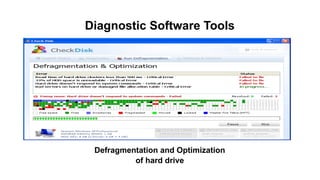
Defragmentation and Optimization
of hard drive
Diagnostic Software Tools
Since the introduction of diagnostic software, it has evolved in many ways.
The original type could only find the most major of problems. There should be
strong indicators or physical damage in order for the software to recognize and
report the problem. When computers became more common in people's
homes, particularly with the rise of Disc Operating Systems, commonly known
as DOS, diagnostic software became more common. Small built-in programs,
such as Checkdisk (CHKDISK), allowed users to perform basic diagnostic
routines on their systems. These early programs would often output technical
information and esoteric error codes instead of readable information. In recent
years, the output reports have changed considerably. The basic outputs are
now readable by most users, and they often contain tips or warnings telling
users what they should or should not do, all in plain language.
Diagnostic Software Tools
Technological advances have even made Web page-based diagnostic
software available for home users. With minimal Web searching, nearly any
home user can find a wide range of websites offering to speed up their
computer or diagnose problems. Many of these sites are scams, so consumers
should perform proper research before using them. General Internet searches
can provide a number of resources to check a company's credibility.
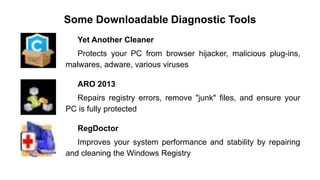
Some Downloadable Diagnostic Tools
Yet Another Cleaner
Protects your PC from browser hijacker, malicious plug-ins,
malwares, adware, various viruses
ARO 2013
Repairs registry errors, remove "junk" files, and ensure your
PC is fully protected
RegDoctor
Improves your system performance and stability by repairing
and cleaning the Windows Registry
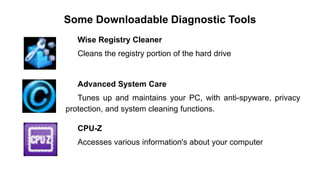
Some Downloadable Diagnostic Tools
Wise Registry Cleaner
Cleans the registry portion of the hard drive
Advanced System Care
Tunes up and maintains your PC, with anti-spyware, privacy
protection, and system cleaning functions.
CPU-Z
Accesses various information's about your computer
Some Downloadable Diagnostic Tools
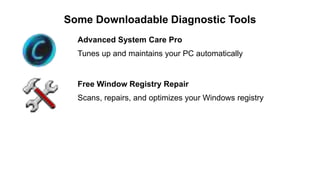
Advanced System Care Pro
Tunes up and maintains your PC automatically
Free Window Registry Repair
Scans, repairs, and optimizes your Windows registry
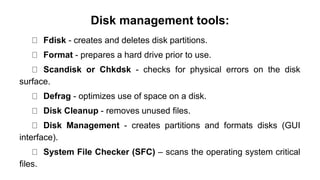
Disk management tools:
Fdisk - creates and deletes disk partitions.
Format - prepares a hard drive prior to use.
Scandisk or Chkdsk - checks for physical errors on the disk
surface.
Defrag - optimizes use of space on a disk.
Disk Cleanup - removes unused files.
Disk Management - creates partitions and formats disks (GUI
interface).
System File Checker (SFC) – scans the operating system critical
files.
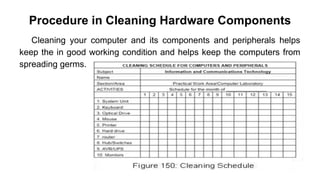
Procedure in Cleaning Hardware Components
Cleaning your computer and its components and peripherals helps
keep the in good working condition and helps keep the computers from
spreading germs.
How often should I clean my computer?
The frequency of how often you should clean your computer
varies on several different factors. To help you determine how often
you need to clean your computer, we have created the chart below.
Check the appropriate boxes below that apply to your computer’s
environment to determine how often it should be cleaned.
General Cleaning Tips
Below is a listing of general tips that should be taken when
cleaning any of the components or peripherals of a computer, as
well as tips to help keep a computer clean.
1. Never spray or squirt any liquid onto any computer component. If a spray is
needed, spray the liquid onto a cloth and then use that cloth to rub down the
component.
2. You can use a vacuum to clean up dirt, dust, or hair around the computer on the
outside case. However, do not use a vacuum for the inside of your computer as it
generates a lot of static electricity that can damage the internal components of your
computer. If you need to use a vacuum to clean the inside of your computer, use a
portable battery powered vacuum designed to do this job or try using compressed
air.
General Cleaning Tips
3. When cleaning a component or the computer, turn it off before cleaning.
4. Be cautious when using any cleaning solvents; some individuals may have allergic
reactions to chemicals in cleaning solvents and some solvents can even damage the
case. Try to always use water or a highly diluted solvent.
5. When cleaning, be careful not to accidentally adjust any knobs or controls. In
addition, when cleaning the back of the computer, if anything is plugged in, make
sure turn off the PC and unplug the power cable.
6. When cleaning fans, especially the smaller fans within a portable computer or
laptop it is suggested that you either hold the fan or place something in-between the
fan blades to prevent it from spinning. Spraying compressed air into a fan or cleaning
a fan with a vacuum may cause damage or back voltage to be generated.
7. Never eat or drink around the computer area.
Cleaning Tools
Although many companies have created products to
help improve the process of cleaning your computer and
peripherals, you can also use household items to clean
your computers and peripherals. Below is a listing of items
you may need to use while cleaning your computer or
computer peripherals.
Keep in mind that some components in your computer
may only be cleaned using a product designed for cleaning
that component.
Cleaning Tools
• Cloth - A cloth is the best tool used when rubbing down a component;
although paper towels can be used with most hardware, we recommend
using a cloth whenever possible. Caution: It is recommended that you
use a cloth when cleaning components such as the outside of the case,
a drive, mouse, etc. You should not use a cloth to clean any circuitry
such as the RAM or motherboard since they can generate Electro Static
Discharge (ESD) that can damage electronics.
• Water or rubbing alcohol - When moistening a cloth, it is best to use
water or rubbing alcohol. Other solvents may be bad for the plastics
used with your computer.
Cleaning Tools
• Portable Vacuum - Sucking the dust, dirt, hair, cigarette particles,
and other particles out of a computer can be one of the best methods of
cleaning a computer. Over time, these items can restrict the airflow in a
computer and cause circuitry to corrode. Do not use a standard vacuum
as it can generate a lot of static electricity that can damage your
computer.
• Cotton swabs - Cotton swabs moistened with rubbing alcohol or
water are good for wiping hard to reach areas in your keyboard, mouse,
and other peripherals.
• Foam swabs - It is Always better to use lint-free swabs such as foam
swabs.
Procedures in Cleaning Hardware Components

LO6.pptx diagnostic software in computer

  • 1.
    Diagnostic Software Tools Diagnosticsoftware is used to identify problems on a computer or piece of equipment. These programs test the onboard systems for issues and help to alert users of potential problems or breakdowns. Over the years, these programs have gone from very basic to complex and highly specialized. With this increase in technology, the skill required to use the software has actually decreased to the point where most people can use this software with little or no training.
  • 2.
    Diagnostic Software Tools Programsthat provide diagnostic information are common everywhere. Something as simple as the oil light on a car dashboard is a type of diagnostic software. These hard-coded diagnostic tools usually monitor one specific part of a larger piece of equipment and typically are always operating. While these types of diagnostic programs are the most common, they are usually the least versatile. When people think of true diagnostic software, they usually think of the types used on computers. These programs monitor the computer for problems involving every aspect of the machine, from hardware to software—far more complex and versatile than the change oil light.
  • 3.
    Diagnostic Software Tools Defragmentationand Optimization of hard drive
  • 4.
    Diagnostic Software Tools Sincethe introduction of diagnostic software, it has evolved in many ways. The original type could only find the most major of problems. There should be strong indicators or physical damage in order for the software to recognize and report the problem. When computers became more common in people's homes, particularly with the rise of Disc Operating Systems, commonly known as DOS, diagnostic software became more common. Small built-in programs, such as Checkdisk (CHKDISK), allowed users to perform basic diagnostic routines on their systems. These early programs would often output technical information and esoteric error codes instead of readable information. In recent years, the output reports have changed considerably. The basic outputs are now readable by most users, and they often contain tips or warnings telling users what they should or should not do, all in plain language.
  • 5.
    Diagnostic Software Tools Technologicaladvances have even made Web page-based diagnostic software available for home users. With minimal Web searching, nearly any home user can find a wide range of websites offering to speed up their computer or diagnose problems. Many of these sites are scams, so consumers should perform proper research before using them. General Internet searches can provide a number of resources to check a company's credibility.
  • 6.
    Some Downloadable DiagnosticTools Yet Another Cleaner Protects your PC from browser hijacker, malicious plug-ins, malwares, adware, various viruses ARO 2013 Repairs registry errors, remove "junk" files, and ensure your PC is fully protected RegDoctor Improves your system performance and stability by repairing and cleaning the Windows Registry
  • 7.
    Some Downloadable DiagnosticTools Wise Registry Cleaner Cleans the registry portion of the hard drive Advanced System Care Tunes up and maintains your PC, with anti-spyware, privacy protection, and system cleaning functions. CPU-Z Accesses various information's about your computer
  • 8.
    Some Downloadable DiagnosticTools Advanced System Care Pro Tunes up and maintains your PC automatically Free Window Registry Repair Scans, repairs, and optimizes your Windows registry
  • 9.
    Disk management tools: Fdisk- creates and deletes disk partitions. Format - prepares a hard drive prior to use. Scandisk or Chkdsk - checks for physical errors on the disk surface. Defrag - optimizes use of space on a disk. Disk Cleanup - removes unused files. Disk Management - creates partitions and formats disks (GUI interface). System File Checker (SFC) – scans the operating system critical files.
  • 10.
    Procedure in CleaningHardware Components Cleaning your computer and its components and peripherals helps keep the in good working condition and helps keep the computers from spreading germs.
  • 11.
    How often shouldI clean my computer? The frequency of how often you should clean your computer varies on several different factors. To help you determine how often you need to clean your computer, we have created the chart below. Check the appropriate boxes below that apply to your computer’s environment to determine how often it should be cleaned.
  • 12.
    General Cleaning Tips Belowis a listing of general tips that should be taken when cleaning any of the components or peripherals of a computer, as well as tips to help keep a computer clean. 1. Never spray or squirt any liquid onto any computer component. If a spray is needed, spray the liquid onto a cloth and then use that cloth to rub down the component. 2. You can use a vacuum to clean up dirt, dust, or hair around the computer on the outside case. However, do not use a vacuum for the inside of your computer as it generates a lot of static electricity that can damage the internal components of your computer. If you need to use a vacuum to clean the inside of your computer, use a portable battery powered vacuum designed to do this job or try using compressed air.
  • 13.
    General Cleaning Tips 3.When cleaning a component or the computer, turn it off before cleaning. 4. Be cautious when using any cleaning solvents; some individuals may have allergic reactions to chemicals in cleaning solvents and some solvents can even damage the case. Try to always use water or a highly diluted solvent. 5. When cleaning, be careful not to accidentally adjust any knobs or controls. In addition, when cleaning the back of the computer, if anything is plugged in, make sure turn off the PC and unplug the power cable. 6. When cleaning fans, especially the smaller fans within a portable computer or laptop it is suggested that you either hold the fan or place something in-between the fan blades to prevent it from spinning. Spraying compressed air into a fan or cleaning a fan with a vacuum may cause damage or back voltage to be generated. 7. Never eat or drink around the computer area.
  • 14.
    Cleaning Tools Although manycompanies have created products to help improve the process of cleaning your computer and peripherals, you can also use household items to clean your computers and peripherals. Below is a listing of items you may need to use while cleaning your computer or computer peripherals. Keep in mind that some components in your computer may only be cleaned using a product designed for cleaning that component.
  • 15.
    Cleaning Tools • Cloth- A cloth is the best tool used when rubbing down a component; although paper towels can be used with most hardware, we recommend using a cloth whenever possible. Caution: It is recommended that you use a cloth when cleaning components such as the outside of the case, a drive, mouse, etc. You should not use a cloth to clean any circuitry such as the RAM or motherboard since they can generate Electro Static Discharge (ESD) that can damage electronics. • Water or rubbing alcohol - When moistening a cloth, it is best to use water or rubbing alcohol. Other solvents may be bad for the plastics used with your computer.
  • 16.
    Cleaning Tools • PortableVacuum - Sucking the dust, dirt, hair, cigarette particles, and other particles out of a computer can be one of the best methods of cleaning a computer. Over time, these items can restrict the airflow in a computer and cause circuitry to corrode. Do not use a standard vacuum as it can generate a lot of static electricity that can damage your computer. • Cotton swabs - Cotton swabs moistened with rubbing alcohol or water are good for wiping hard to reach areas in your keyboard, mouse, and other peripherals. • Foam swabs - It is Always better to use lint-free swabs such as foam swabs.
  • 17.
    Procedures in CleaningHardware Components