Care for Network
and Computer
Hardware
LO1: Identify computer hardware components
Hardware
• Computer hardware refers to the physical parts of a computer
and related devices.
• Internal hardware devices include motherboards, hard drives,
and RAM. External hardware devices include monitors,
keyboards, mice, printers, and scanners etc.
• The internal hardware parts of a computer are often referred
to as components, while external hardware devices are usually
called peripherals.
• Note: Peripheral devices are the devices that are attached to
the computer’s system unit
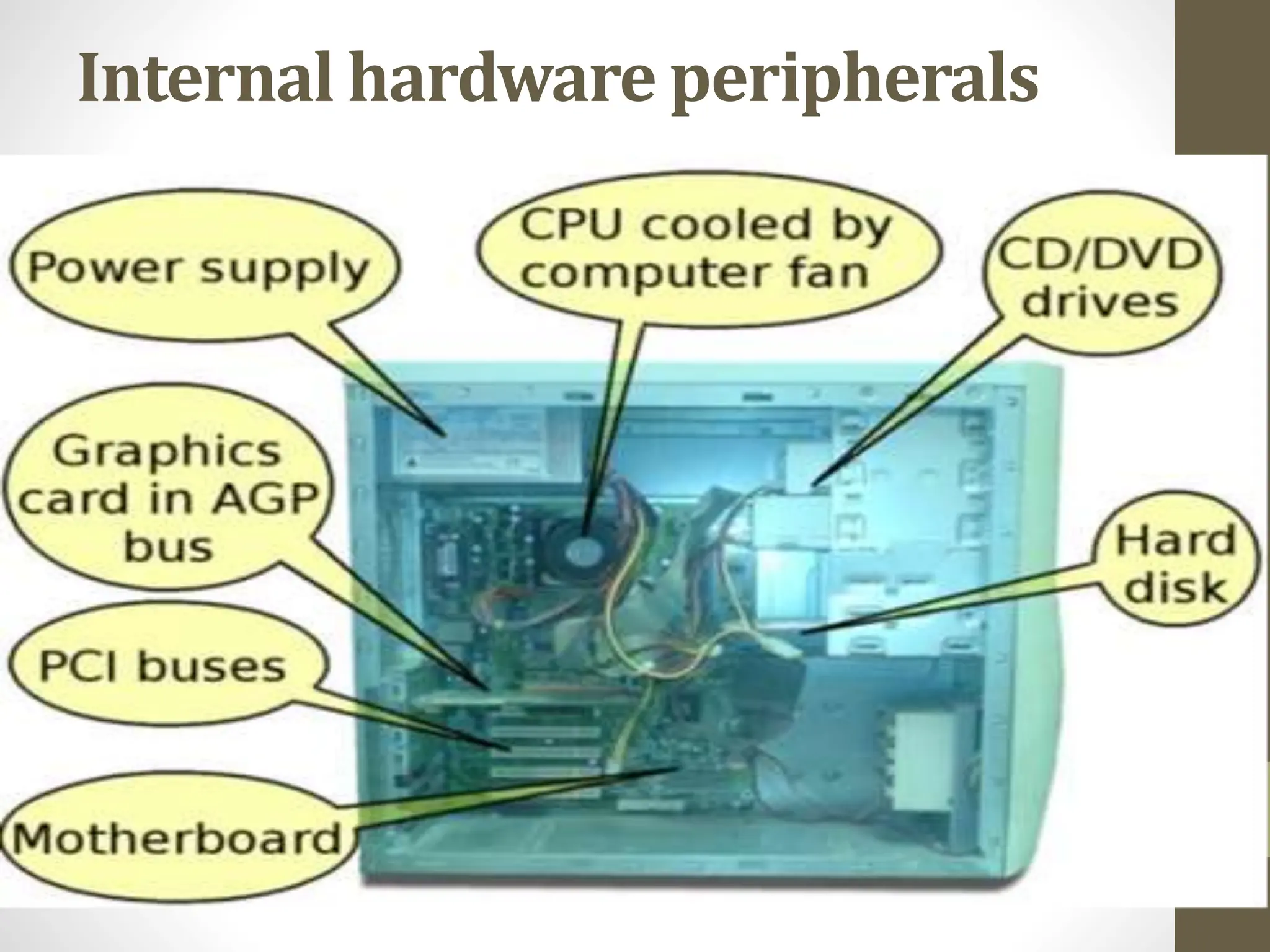
Internal hardware peripherals
Motherboard
• A motherboard is the main printed circuit board (PCB) in a
computer. The motherboard is a computer's central
communications backbone connectivity point, through which
all components and external peripherals connect
• Components directly attached to the motherboard include:
• CPU slot
• RAM slot
• CMOS Battery . . .
Central Processing Unit
• The Central Processing Unit (CPU; sometimes just called
processor) is a machine that can execute computer programs.
• It is sometimes referred to as the brain of the computer.
• Modern CPUs generate a lot of heat and thus require a cooling
fan or heat sink. The cooling device (such as a cooling fan) is
removable, although some CPU manufactures sell the CPU
with a fan permanently attached.
Power supply
• The Power supply, as its name implies, provides the necessary
electrical power to make the pc operate.
• The power supply takes standard 110-V AC power and
converts into 12-Volt, 5-Volt, and 3.3-Volt DC power.
• A power supply unit (PSU) converts alternating current (AC)
electric power to low-voltage DC power for the internal
components of the computer
Removable media devices
• CD (compact disc)
• The most common type of removable media, suitable for music
and data.
• CD-ROM Drive - a device used for reading data from a CD.
• CD Writer - a device used for both reading and writing data to and from
a CD.
• DVD (digital versatile disc)
• A popular type of removable media that is the same dimensions
as a CD but stores up to 12 times as much information. It is the
most common way of transferring digital video, and is popular for
data storage.
• DVD-ROM Drive - a device used for reading data from a DVD.
• DVD Writer - a device used for both reading and writing data to and
from a DVD.
• DVD-RAM Drive - a device used for rapid writing and reading of data
from a special type of DVD.
Secondary storage
• Hardware that keeps data inside the computer for later use
and remains persistent even when the computer has no
power.
• Secondary storage is non-volatile , long-term storage. It is
used to keep programs and data indefinitely. Without
secondary storage all programs and data would be lost the
moment the computer is switched off.
•
• A hard disk drive (HDD also hard drive or hard disk)[2] is a
non-volatile, random access digital magnetic data storage
device. Today's HDDs operate on high-speed serial interfaces;
i.e., serial ATA (SATA)
A solid-state drive (SSD)
• A solid-state drive (SSD) is a new generation of storage device
used in computers. SSDs use flash-based memory, which is
much faster than a traditional mechanical hard disk.
Upgrading to an SSD is one of the best ways to speed up your
computer.
External hardware
peripherals
• Moniter
• Keyboard
• Mouse
• Printer
• Scanner
• Usb flash drive
• Web cam
Warranties and support
• A warranty is an agreed upon term which covers a computer
or computer component. Generally, most computers have a 1
or 3 year warranty. This warranty may or may not cover the
service, repair and replacement of computer parts.
• System specifications
• It is important to find out the specifications of the computer
system you are planning to connect the peripheral device to.
Many newer types of peripheral devices require a specific
amount of memory, CPU speed, hard disk space, and may only
be compatible with certain operating systems.
Compatibility
• Compatibility is the ability of a system or a product to work
with other systems or products without special effort on the
part of the customer. . For example, a memory module is
compatible with a motherboard because the manufacturer of
the memory module and the motherboard both work to the
same industry standard.
Technical specifications
• processing speed of the CPU
• storage capacity of the hard drive
• size of memory (RAM)
• software capabilities
• compatibility with existing systems
• upgradeability
• The technical specifications to be considered will depend on
the computer hardware device to be purchased. For example,
technical specifications to be considered for a printer include:
• interface – USB or network
• resolution – measured in dots per inch
• printing speed – measured in pages per minute
• memory
• paper capacity
LO2: Introduction to computer
networking
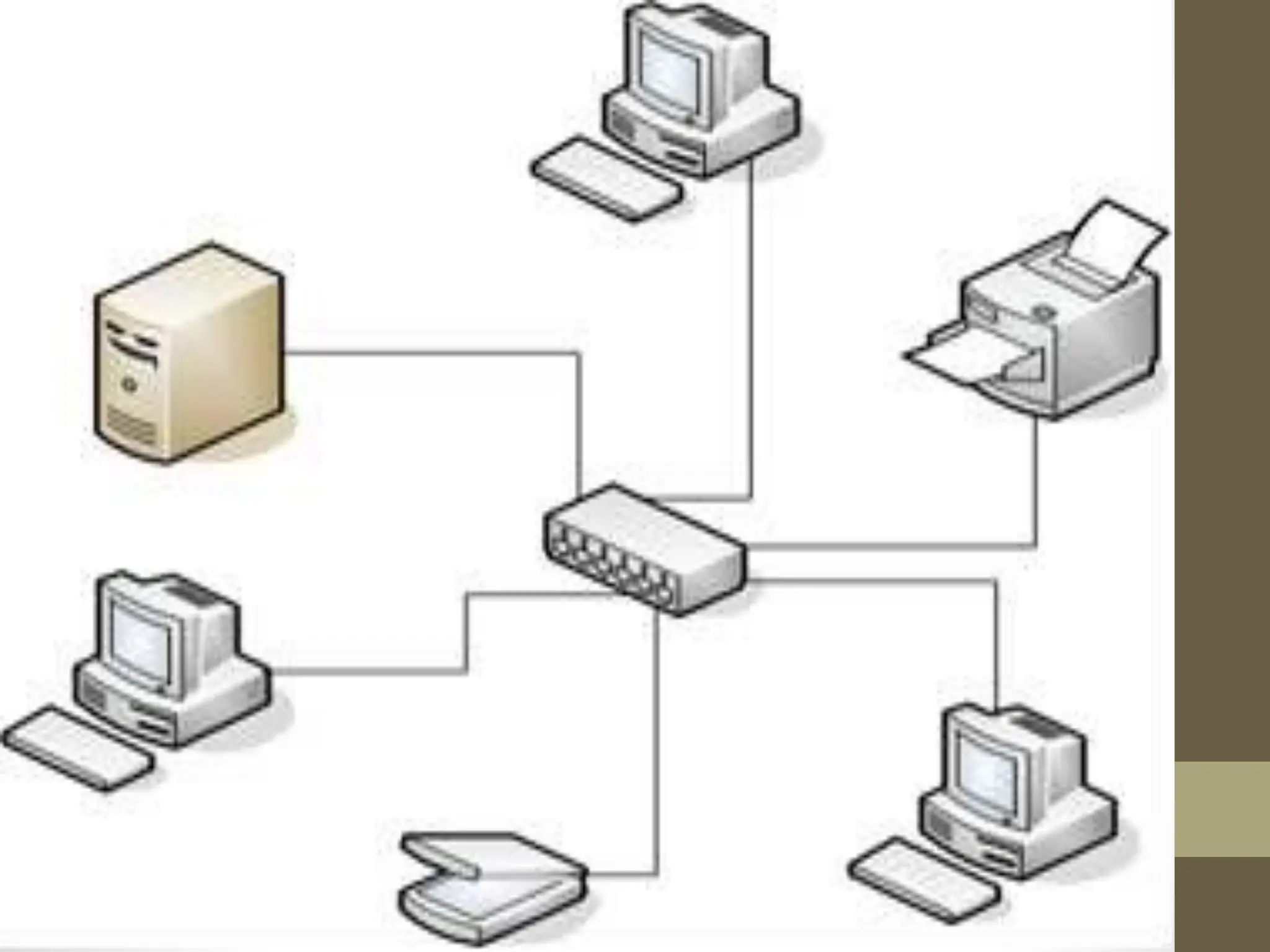
• Network Definition :-A network can be defined as two or more
computers connected together in such a way
that they can share resources.
• The purpose of a network is to share resources.
• More specifically, computers that are part of a network can
share:
• Documents (memos, spreadsheets, invoices, and so on).
• E-mail messages.
• Word-processing software.
• Illustrations, photographs, videos, and audio files.
• Live audio and video broadcasts.
• Printers.
• Fax machines.
• Modems.
• CD-ROM drives and other removable drives, such as Zip drives.
• Hard drives.
Advantage of a computer
network
• File sharing
• The major advantage of a computer network is that is allows
file sharing and remote file access.
• A person sitting at one workstation of a network can easily see
the files present on the other workstation, provided he is
authorized to do so. It saves the time which is wasted in
copying a file from one system to another, by using a storage
device.
sharing[(Hardware and
software )
• Hardware like Printer, hard disk, CD-ROM and different
software can be shared.
Increased Storage Capacity:
• As there is more than one computer on a network which can
easily share files, the issue of storage capacity gets resolved to
a great extent.
• One can also design a storage server on the network in order
to have a huge storage capacity.
Centralized administration and
support
• Networking computers also simplifies administration and
support tasks. From just a single location, the network
administrator can perform administrative tasks on any
computer on the network,
• Remote troubleshooting, for technical personnel to support
one version of an operating system or application than to
oversee a number of individual and unique systems and
setups.
Increased Cost Efficiency:
• There are many software available in the market which are
costly and take time for installation.
• Computer networks resolve this issue as the software can be
stored or installed on a system or a server and can be used by
the different workstations.
Disadvantage of a computer
network
• Security Issue: One of the major drawbacks of computer
networks is the security issues involved.
• If a computer is a standalone, physical access becomes
necessary for any kind of data theft. However, if a computer is
on a network, a computer hacker can get unauthorized access
by using different tools. In case of big organizations, various
network security software are used to prevent the theft of any
confidential and classified data.
• Rapid spread of computer virus: If any computer system in a
network gets affected by computer virus, there is a possible
threat of other systems getting affected too.
• Viruses get spread on a network easily because of the
interconnectivity of workstations. Such spread can be
dangerous if the computers have important database which
can get corrupted by the virus.
• Expensive setup: The initial set up cost of a computer network
can be high depending on the number of computers to be
connected.
• Costly devices like routers, switches, hubs, etc., can add up to
the bills of a person trying to install a computer network. He
will also have to buy NICs (Network Interface Cards) for each
of the workstations, in case they are not inbuilt.
• Dependency on the main servers: In case the main File Server
of a computer network breaks down, the system becomes
useless. In case of big networks, the File Server should be a
powerful computer, which often makes it expensive.
• Hacker: A computer hacker is a person who finds out
weaknesses in the computer and exploits it.
• Hackers may be motivated by a multitude of reasons, such as
profit, protest, or challenge
• Workstation: PC connected to a network
Types of Computer Network
• Based on the area coverage of the network, computer
networks can be divides into three
• Local Area Network (LAN)
• Wide area Network (WAN)
• Metropolitan area Network(MAN)
• LANs
• Local area networks are used to interconnect distributed
communities of computers located within a single building or
localized group of buildings.
• Since all equipment is located within a single establishment,
LAN’s are normally installed and maintained by the
organization. Hence, they are also referred to as private data
networks.
• Example: network in your class
• MAN:
• Is a larger network that usually spans several buildings in the
same city or town.
• Example: networks among Addis Ababa sub city
administrations (Kifle Ketemas)
•
• WANs (internet )
• When data communication is necessary or desired beyond the
reach of a MAN, a wide area network (WAN) over public
carrier networks is established.
• Institutions transferring large amounts of data between offices
often decide to lease dedicated transmission lines from public
carriers, in what is termed an enterprise-wide private
network.
• Example : network among news agency offices in different
region of Ethiopia.
Terms to be familiar
• Servers—Computers that provide shared resources to network
users.
• Clients—Computers that access shared network resources
provided by a server.
• Media—The wires that make the physical connections.
• Shared data—Files provided to clients by servers across the
network.
• Shared printers and other peripherals—Additional resources
provided by servers.
• Resources—Any service or device, such as files, printers, or
other items, made available for use by members of the
network
Types of networks based on
configuration (Node
Relationship)
• Based on the computers relationship on the network,
computer networks can be categorized as Peer to Peer and
Server based network
Peer-to-Peer Networks
• In a peer-to-peer network, there are no dedicated servers, and
there is no hierarchy among the computers.
• All the computers are equal and therefore are known as peers.
• Each computer functions as both a client and a server, and
there is no administrator responsible for the entire network.
• The user at each computer determines what data on that
computer is shared on the network.
• Peer to peer network are also called Workgroup
Where a Peer-to-Peer Network
Is Appropriate
• Peer-to-peer networks are good choices for environments
where:
• There are 10 users or fewer.
• Users share resources, such as files and printers, but no
specialized servers exist.
• Security is not an issue.
• Where these factors apply, a peer-to-peer network will
probably be a better choice than a server-based network.
• Advantages of peer to peer network
• Easy to install and configure
• The cost of installation and operation is less
• A full time network administrator is not required
• Disadvantages of peer to peer network
• Shared resources can be accessed by everyone
• Backup has to be performed on each computer separately
• No centralized security
Server Based network
(client/server network)
• In an environment with more than 10 users, a peer-to-peer
network—with computers acting as both servers and clients—
will probably not be adequate. Therefore, most networks have
dedicated servers.
• A dedicated server is one that functions only as a server and is
not used as a client or workstation.
• Servers are described as "dedicated" because they are not
themselves clients, and because they are optimized to service
requests from network clients quickly and to ensure the
security of files and directories.
• Server based network is also known as Domain.
• Advantages of server based network
• Centralized resources
• Easier to backup files
• Easier to find files
• Efficient
• Security
• One machine can secure entrire network
• One central login
• Scalability
• Disadvantage of client server
• If the server goes down, it takes part or the whole network
with it
• It is more expensive to install
• Needs to be maintained by staff with high IT skills
Specialized servers
• Servers must perform varied and complex tasks. Servers for
large networks have become specialized to accommodate the
expanding needs of users.
• Following are examples of different types of servers included
on many large networks
Care for Network and Computer Hardware     L-2 (3).pptx

Care for Network and Computer Hardware L-2 (3).pptx

  • 1.
    Care for Network andComputer Hardware LO1: Identify computer hardware components
  • 2.
    Hardware • Computer hardwarerefers to the physical parts of a computer and related devices. • Internal hardware devices include motherboards, hard drives, and RAM. External hardware devices include monitors, keyboards, mice, printers, and scanners etc.
  • 3.
    • The internalhardware parts of a computer are often referred to as components, while external hardware devices are usually called peripherals. • Note: Peripheral devices are the devices that are attached to the computer’s system unit
  • 4.
  • 5.
    Motherboard • A motherboardis the main printed circuit board (PCB) in a computer. The motherboard is a computer's central communications backbone connectivity point, through which all components and external peripherals connect
  • 6.
    • Components directlyattached to the motherboard include: • CPU slot • RAM slot • CMOS Battery . . .
  • 7.
    Central Processing Unit •The Central Processing Unit (CPU; sometimes just called processor) is a machine that can execute computer programs. • It is sometimes referred to as the brain of the computer. • Modern CPUs generate a lot of heat and thus require a cooling fan or heat sink. The cooling device (such as a cooling fan) is removable, although some CPU manufactures sell the CPU with a fan permanently attached.
  • 8.
    Power supply • ThePower supply, as its name implies, provides the necessary electrical power to make the pc operate. • The power supply takes standard 110-V AC power and converts into 12-Volt, 5-Volt, and 3.3-Volt DC power. • A power supply unit (PSU) converts alternating current (AC) electric power to low-voltage DC power for the internal components of the computer
  • 9.
    Removable media devices •CD (compact disc) • The most common type of removable media, suitable for music and data. • CD-ROM Drive - a device used for reading data from a CD. • CD Writer - a device used for both reading and writing data to and from a CD.
  • 10.
    • DVD (digitalversatile disc) • A popular type of removable media that is the same dimensions as a CD but stores up to 12 times as much information. It is the most common way of transferring digital video, and is popular for data storage. • DVD-ROM Drive - a device used for reading data from a DVD. • DVD Writer - a device used for both reading and writing data to and from a DVD. • DVD-RAM Drive - a device used for rapid writing and reading of data from a special type of DVD.
  • 11.
    Secondary storage • Hardwarethat keeps data inside the computer for later use and remains persistent even when the computer has no power. • Secondary storage is non-volatile , long-term storage. It is used to keep programs and data indefinitely. Without secondary storage all programs and data would be lost the moment the computer is switched off. •
  • 12.
    • A harddisk drive (HDD also hard drive or hard disk)[2] is a non-volatile, random access digital magnetic data storage device. Today's HDDs operate on high-speed serial interfaces; i.e., serial ATA (SATA)
  • 13.
    A solid-state drive(SSD) • A solid-state drive (SSD) is a new generation of storage device used in computers. SSDs use flash-based memory, which is much faster than a traditional mechanical hard disk. Upgrading to an SSD is one of the best ways to speed up your computer.
  • 14.
    External hardware peripherals • Moniter •Keyboard • Mouse • Printer • Scanner • Usb flash drive • Web cam
  • 15.
    Warranties and support •A warranty is an agreed upon term which covers a computer or computer component. Generally, most computers have a 1 or 3 year warranty. This warranty may or may not cover the service, repair and replacement of computer parts.
  • 16.
    • System specifications •It is important to find out the specifications of the computer system you are planning to connect the peripheral device to. Many newer types of peripheral devices require a specific amount of memory, CPU speed, hard disk space, and may only be compatible with certain operating systems.
  • 17.
    Compatibility • Compatibility isthe ability of a system or a product to work with other systems or products without special effort on the part of the customer. . For example, a memory module is compatible with a motherboard because the manufacturer of the memory module and the motherboard both work to the same industry standard.
  • 18.
    Technical specifications • processingspeed of the CPU • storage capacity of the hard drive • size of memory (RAM) • software capabilities • compatibility with existing systems • upgradeability
  • 19.
    • The technicalspecifications to be considered will depend on the computer hardware device to be purchased. For example, technical specifications to be considered for a printer include: • interface – USB or network • resolution – measured in dots per inch • printing speed – measured in pages per minute • memory • paper capacity
  • 20.
    LO2: Introduction tocomputer networking • Network Definition :-A network can be defined as two or more computers connected together in such a way that they can share resources. • The purpose of a network is to share resources.
  • 22.
    • More specifically,computers that are part of a network can share: • Documents (memos, spreadsheets, invoices, and so on). • E-mail messages. • Word-processing software. • Illustrations, photographs, videos, and audio files. • Live audio and video broadcasts. • Printers. • Fax machines. • Modems. • CD-ROM drives and other removable drives, such as Zip drives. • Hard drives.
  • 23.
    Advantage of acomputer network • File sharing • The major advantage of a computer network is that is allows file sharing and remote file access. • A person sitting at one workstation of a network can easily see the files present on the other workstation, provided he is authorized to do so. It saves the time which is wasted in copying a file from one system to another, by using a storage device.
  • 24.
    sharing[(Hardware and software ) •Hardware like Printer, hard disk, CD-ROM and different software can be shared.
  • 25.
    Increased Storage Capacity: •As there is more than one computer on a network which can easily share files, the issue of storage capacity gets resolved to a great extent. • One can also design a storage server on the network in order to have a huge storage capacity.
  • 26.
    Centralized administration and support •Networking computers also simplifies administration and support tasks. From just a single location, the network administrator can perform administrative tasks on any computer on the network, • Remote troubleshooting, for technical personnel to support one version of an operating system or application than to oversee a number of individual and unique systems and setups.
  • 27.
    Increased Cost Efficiency: •There are many software available in the market which are costly and take time for installation. • Computer networks resolve this issue as the software can be stored or installed on a system or a server and can be used by the different workstations.
  • 28.
    Disadvantage of acomputer network • Security Issue: One of the major drawbacks of computer networks is the security issues involved. • If a computer is a standalone, physical access becomes necessary for any kind of data theft. However, if a computer is on a network, a computer hacker can get unauthorized access by using different tools. In case of big organizations, various network security software are used to prevent the theft of any confidential and classified data.
  • 29.
    • Rapid spreadof computer virus: If any computer system in a network gets affected by computer virus, there is a possible threat of other systems getting affected too. • Viruses get spread on a network easily because of the interconnectivity of workstations. Such spread can be dangerous if the computers have important database which can get corrupted by the virus.
  • 30.
    • Expensive setup:The initial set up cost of a computer network can be high depending on the number of computers to be connected. • Costly devices like routers, switches, hubs, etc., can add up to the bills of a person trying to install a computer network. He will also have to buy NICs (Network Interface Cards) for each of the workstations, in case they are not inbuilt.
  • 31.
    • Dependency onthe main servers: In case the main File Server of a computer network breaks down, the system becomes useless. In case of big networks, the File Server should be a powerful computer, which often makes it expensive.
  • 32.
    • Hacker: Acomputer hacker is a person who finds out weaknesses in the computer and exploits it. • Hackers may be motivated by a multitude of reasons, such as profit, protest, or challenge • Workstation: PC connected to a network
  • 33.
    Types of ComputerNetwork • Based on the area coverage of the network, computer networks can be divides into three • Local Area Network (LAN) • Wide area Network (WAN) • Metropolitan area Network(MAN)
  • 34.
    • LANs • Localarea networks are used to interconnect distributed communities of computers located within a single building or localized group of buildings. • Since all equipment is located within a single establishment, LAN’s are normally installed and maintained by the organization. Hence, they are also referred to as private data networks. • Example: network in your class
  • 35.
    • MAN: • Isa larger network that usually spans several buildings in the same city or town. • Example: networks among Addis Ababa sub city administrations (Kifle Ketemas) •
  • 36.
    • WANs (internet) • When data communication is necessary or desired beyond the reach of a MAN, a wide area network (WAN) over public carrier networks is established. • Institutions transferring large amounts of data between offices often decide to lease dedicated transmission lines from public carriers, in what is termed an enterprise-wide private network. • Example : network among news agency offices in different region of Ethiopia.
  • 37.
    Terms to befamiliar • Servers—Computers that provide shared resources to network users. • Clients—Computers that access shared network resources provided by a server. • Media—The wires that make the physical connections. • Shared data—Files provided to clients by servers across the network. • Shared printers and other peripherals—Additional resources provided by servers. • Resources—Any service or device, such as files, printers, or other items, made available for use by members of the network
  • 38.
    Types of networksbased on configuration (Node Relationship) • Based on the computers relationship on the network, computer networks can be categorized as Peer to Peer and Server based network
  • 39.
    Peer-to-Peer Networks • Ina peer-to-peer network, there are no dedicated servers, and there is no hierarchy among the computers. • All the computers are equal and therefore are known as peers. • Each computer functions as both a client and a server, and there is no administrator responsible for the entire network. • The user at each computer determines what data on that computer is shared on the network. • Peer to peer network are also called Workgroup
  • 40.
    Where a Peer-to-PeerNetwork Is Appropriate • Peer-to-peer networks are good choices for environments where: • There are 10 users or fewer. • Users share resources, such as files and printers, but no specialized servers exist. • Security is not an issue. • Where these factors apply, a peer-to-peer network will probably be a better choice than a server-based network.
  • 41.
    • Advantages ofpeer to peer network • Easy to install and configure • The cost of installation and operation is less • A full time network administrator is not required
  • 42.
    • Disadvantages ofpeer to peer network • Shared resources can be accessed by everyone • Backup has to be performed on each computer separately • No centralized security
  • 43.
    Server Based network (client/servernetwork) • In an environment with more than 10 users, a peer-to-peer network—with computers acting as both servers and clients— will probably not be adequate. Therefore, most networks have dedicated servers. • A dedicated server is one that functions only as a server and is not used as a client or workstation. • Servers are described as "dedicated" because they are not themselves clients, and because they are optimized to service requests from network clients quickly and to ensure the security of files and directories. • Server based network is also known as Domain.
  • 44.
    • Advantages ofserver based network • Centralized resources • Easier to backup files • Easier to find files • Efficient • Security • One machine can secure entrire network • One central login • Scalability
  • 45.
    • Disadvantage ofclient server • If the server goes down, it takes part or the whole network with it • It is more expensive to install • Needs to be maintained by staff with high IT skills
  • 46.
    Specialized servers • Serversmust perform varied and complex tasks. Servers for large networks have become specialized to accommodate the expanding needs of users. • Following are examples of different types of servers included on many large networks