CSS
LINE-HEIGHT
What is
leading?
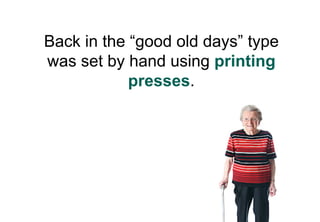
Back in the “good old days” type
was set by hand using printing
            presses.
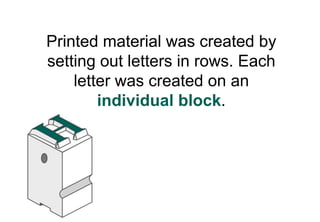
Printed material was created by
setting out letters in rows. Each
    letter was created on an
        individual block.
Leading, or lead strips were
added between the lines of letters
 when additional vertical space
         was required.
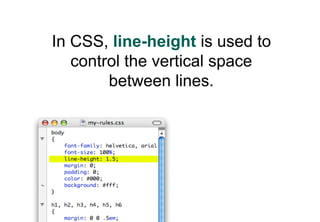
In CSS, line-height is used to
   control the vertical space
        between lines.
However,the terms leading and
 half-leading are still used in
        association with
       CSS line-height.
So how do you
     apply
 line-height?
By default, browsers use between
   1.0 - 1.2 line-height. This is
         referred to as an
            initial value.
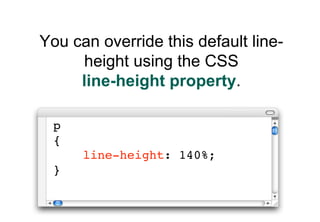
You can override this default line-
     height using the CSS
     line-height property.

 p
 {
      line-height: 140%;
 }
Line-height can be specified
with five different types of unit.
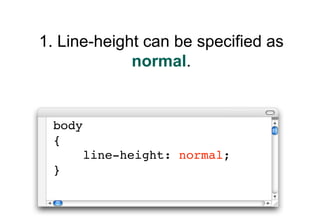
1. Line-height can be specified as
             normal.


 body
 {
        line-height: normal;
 }
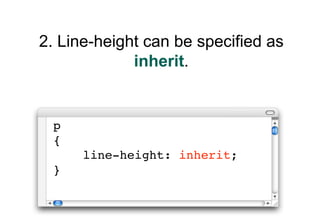
2. Line-height can be specified as
             inherit.


 p
 {
      line-height: inherit;
 }
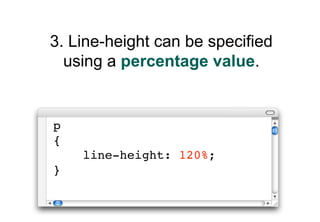
3. Line-height can be specified
  using a percentage value.


p
{
    line-height: 120%;
}
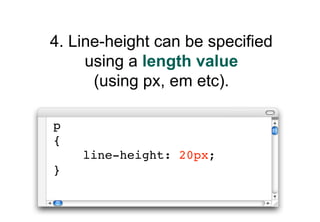
4. Line-height can be specified
     using a length value
      (using px, em etc).

p
{
    line-height: 20px;
}
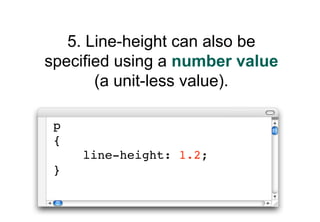
5. Line-height can also be
specified using a number value
       (a unit-less value).

 p
 {
     line-height: 1.2;
 }
Shorthand
line-height
These five line-height values can
  also be specified using the
   font shorthand property.
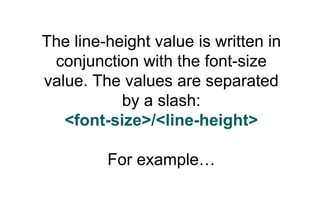
The line-height value is written in
 conjunction with the font-size
value. The values are separated
           by a slash:
   <font-size>/<line-height>

         For example…
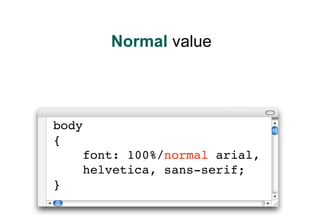
Normal value


body
{
       font: 100%/normal arial,
       helvetica, sans-serif;
}
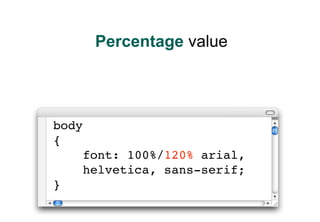
Percentage value


body
{
       font: 100%/120% arial,
       helvetica, sans-serif;
}
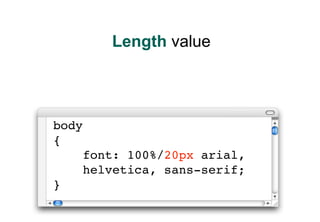
Length value


body
{
       font: 100%/20px arial,
       helvetica, sans-serif;
}
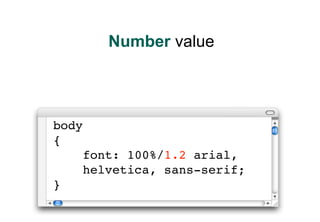
Number value


body
{
       font: 100%/1.2 arial,
       helvetica, sans-serif;
}
Calculating
line-height
Some CSS properties are
inherited (passed down to
  descendant elements).
This is designed to make it
 easier for authors - so they do
not have to specify properties for
         all descendants.
EG. the color property is
inherited. If a color is applied to
  the body element, it will be
   passed down to all other
    elements on the page.
For line-height, inheritance is a
  little more complicated...
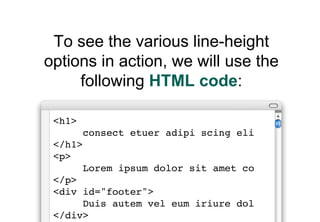
To see the various line-height
options in action, we will use the
     following HTML code:

 <h1>
        consect etuer adipi scing eli
 </h1>
 <p>
        Lorem ipsum dolor sit amet co
 </p>
 <div id="footer">
      Duis autem vel eum iriure dol
 </div>
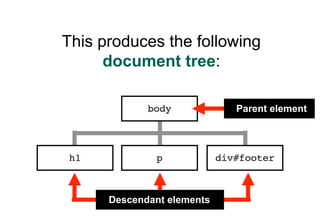
This produces the following
      document tree:

             body              Parent element


h1            p             div#footer


      Descendant elements
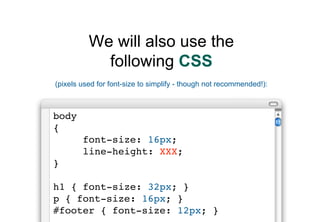
We will also use the
            following CSS
(pixels used for font-size to simplify - though not recommended!):


body
{
        font-size: 16px;
        line-height: XXX;
}

h1 { font-size: 32px; }
p { font-size: 16px; }
#footer { font-size: 12px; }
Example 1
The percentage value
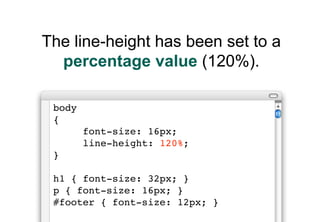
The line-height has been set to a
  percentage value (120%).

 body
 {
        font-size: 16px;
        line-height: 120%;
 }

 h1 { font-size: 32px; }
 p { font-size: 16px; }
 #footer { font-size: 12px; }
The percentage value (120%)
 and the body element’s font size
   (16px) are used to create a
calculated value (16px x 120% =
 19.2px). This calculated value is
     inherited by descendant
             elements.
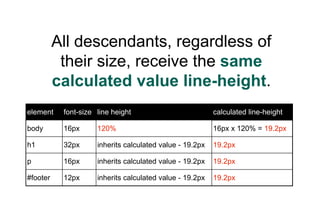
All descendants, regardless of
           their size, receive the same
          calculated value line-height.
element    font-size line height                          calculated line-height

body       16px      120%                                 16px x 120% = 19.2px

h1         32px      inherits calculated value - 19.2px   19.2px

p          16px      inherits calculated value - 19.2px   19.2px

#footer    12px      inherits calculated value - 19.2px   19.2px
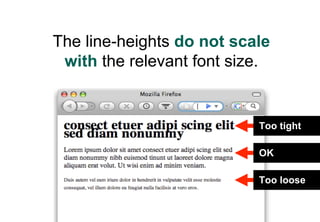
The line-heights do not scale
 with the relevant font size.


                           Too tight

                           OK

                           Too loose
Example 2
the length value
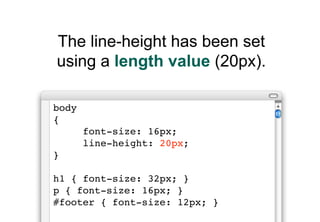
The line-height has been set
using a length value (20px).

body
{
       font-size: 16px;
       line-height: 20px;
}

h1 { font-size: 32px; }
p { font-size: 16px; }
#footer { font-size: 12px; }
The length value (20px) is
 inherited by descendant
         elements.
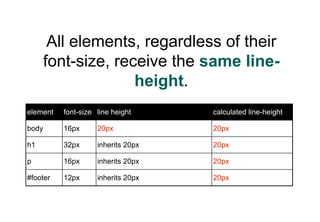
All elements, regardless of their
     font-size, receive the same line-
                   height.
element   font-size line height     calculated line-height

body      16px      20px            20px

h1        32px      inherits 20px   20px

p         16px      inherits 20px   20px

#footer   12px      inherits 20px   20px
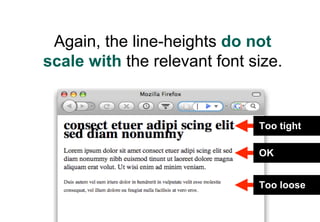
Again, the line-heights do not
scale with the relevant font size.


                              Too tight

                              OK


                              Too loose
Example 3
the normal value
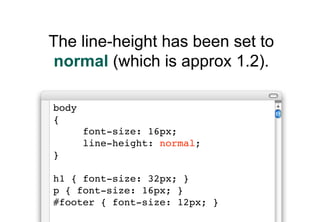
The line-height has been set to
 normal (which is approx 1.2).

body
{
       font-size: 16px;
       line-height: normal;
}

h1 { font-size: 32px; }
p { font-size: 16px; }
#footer { font-size: 12px; }
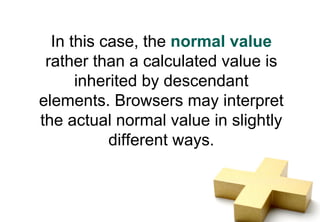
In this case, the normal value
 rather than a calculated value is
      inherited by descendant
elements. Browsers may interpret
the actual normal value in slightly
           different ways.
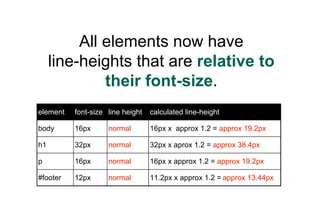
All elements now have
     line-heights that are relative to
              their font-size.
element   font-size line height   calculated line-height

body      16px      normal        16px x approx 1.2 = approx 19.2px

h1        32px      normal        32px x aprox 1.2 = approx 38.4px

p         16px      normal        16px x approx 1.2 = approx 19.2px

#footer   12px      normal        11.2px x approx 1.2 = approx 13.44px
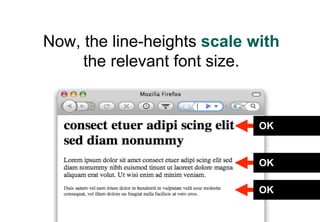
Now, the line-heights scale with
     the relevant font size.


                             OK


                             OK

                             OK
But what if you want the flexibility
  of the normal value, but to be
 able to specify the factor used?
  This is where number values
             come in.
Example 4
the number value
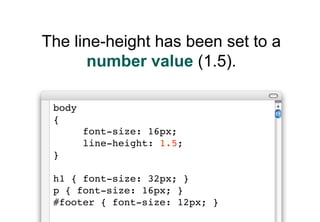
The line-height has been set to a
       number value (1.5).

 body
 {
        font-size: 16px;
        line-height: 1.5;
 }

 h1 { font-size: 32px; }
 p { font-size: 16px; }
 #footer { font-size: 12px; }
In this case, the factor (1.5)
rather than a calculated value is
    inherited by descendant
            elements.
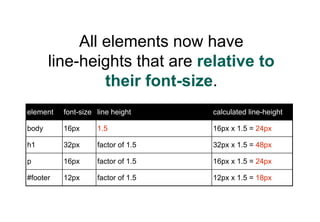
All elements now have
       line-heights that are relative to
                their font-size.
element   font-size line height     calculated line-height

body      16px      1.5             16px x 1.5 = 24px

h1        32px      factor of 1.5   32px x 1.5 = 48px

p         16px      factor of 1.5   16px x 1.5 = 24px

#footer   12px      factor of 1.5   12px x 1.5 = 18px
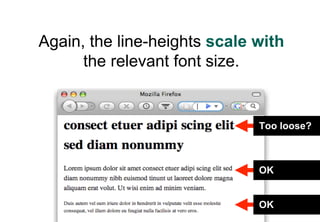
Again, the line-heights scale with
      the relevant font size.


                              Too loose?


                              OK


                              OK
So, which is the
 best method?
Generally, a number value is the
best method for setting line-height
  as line-heights will then always
 scale with the relevant font-size.
It is hard to determine a “perfect
 line-height” as each situation is
  different. However, it is safe to
 assume that headings can have
    less relative line-height than
         paragraphs of text.
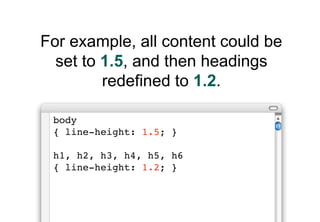
For example, all content could be
  set to 1.5, and then headings
         redefined to 1.2.

 body
 { line-height: 1.5; }

 h1, h2, h3, h4, h5, h6
 { line-height: 1.2; }
The Web Content Accessibility
  Guidelines (WCAG) 2.0 state:
“line spacing is at least space-
and-a-half within paragraphs”.
    This means that to be AAA
compliant, paragraph line-height
       should be set to 1.5


     http://www.w3.org/TR/WCAG20/ - 1.4.8 Visual Presentation
Looking deeper
into line-height
In order to understand
line-height more fully, we need to
   look at various types of CSS
               boxes.
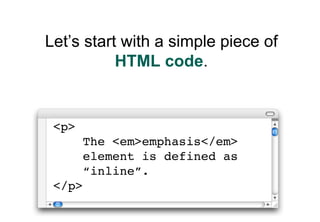
Let’s start with a simple piece of
           HTML code.


 <p>
        The <em>emphasis</em>
        element is defined as
        “inline”.
 </p>
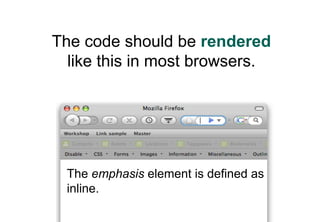
The code should be rendered
  like this in most browsers.


 The emphasis element is defined as
 inline.
There are four types of boxes
that are relevant in this sample.
Box type 1:
containing
  boxes
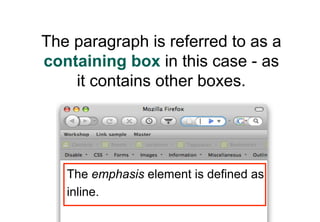
The paragraph is referred to as a
containing box in this case - as
    it contains other boxes.


   The emphasis element is defined as
   inline.
Box type 2:
inline boxes
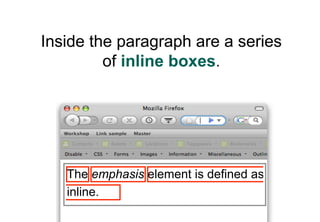
Inside the paragraph are a series
         of inline boxes.


   The emphasis element is defined as
   inline.
Inline boxes do not form new
blocks of content; the content is
      distributed in lines.
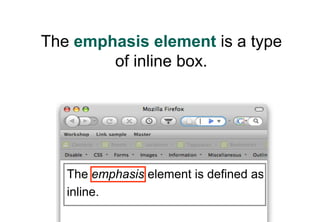
The emphasis element is a type
        of inline box.


   The emphasis element is defined as
   inline.
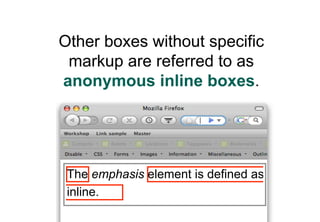
Other boxes without specific
 markup are referred to as
anonymous inline boxes.


 The emphasis element is defined as
 inline.
Box type 3:
line boxes
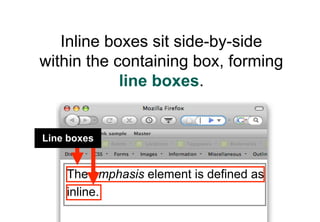
Inline boxes sit side-by-side
within the containing box, forming
            line boxes.


Line boxes


    The emphasis element is defined as
    inline.
Box type 4:
content area
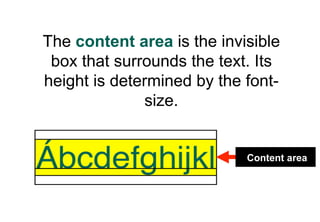
The content area is the invisible
 box that surrounds the text. Its
height is determined by the font-
               size.


                            Content area
Inline boxes
and line-height
Line height is applied to inline
boxes using a simple formula…
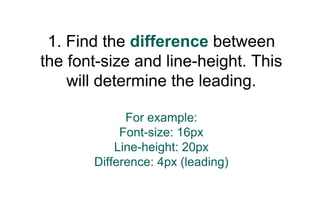
1. Find the difference between
the font-size and line-height. This
    will determine the leading.

             For example:
            Font-size: 16px
           Line-height: 20px
       Difference: 4px (leading)
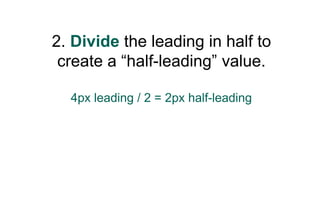
2. Divide the leading in half to
 create a “half-leading” value.

  4px leading / 2 = 2px half-leading
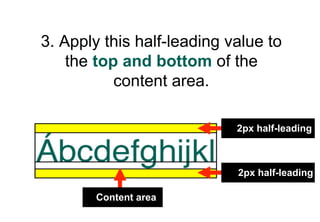
3. Apply this half-leading value to
    the top and bottom of the
           content area.

                            2px half-leading


                            2px half-leading

        Content area
But things sometimes become a
   little more complicated...
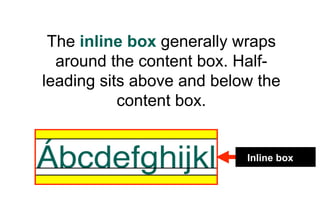
The inline box generally wraps
  around the content box. Half-
leading sits above and below the
           content box.


                           Inline box
However, the inline box can
sometimes be smaller than the
       content area!
For example, if the line-height is
  smaller than the font size. In
this case, the inline box will honor
          the line height.
              For example:
            Font-size: 16px
           Line-height: 12px
         Inline box size: 12px
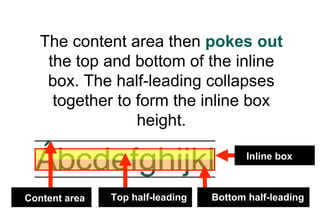
The content area then pokes out
    the top and bottom of the inline
    box. The half-leading collapses
     together to form the inline box
                 height.

                                         Inline box


Content area   Top half-leading   Bottom half-leading
Some notes on
line box height
The height of line boxes is
 determined by the tallest inline
box (or replaced element) inside.
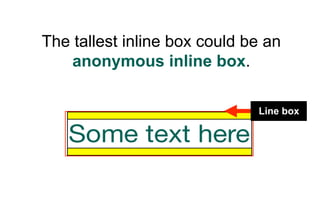
The tallest inline box could be an
    anonymous inline box.

                              Line box
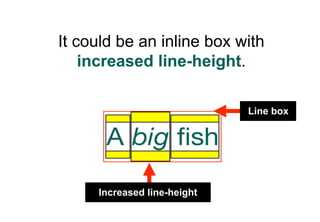
It could be an inline box with
    increased line-height.

                             Line box


     Increased line-height
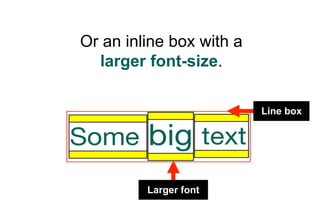
Or an inline box with a
  larger font-size.

                          Line box


         Larger font
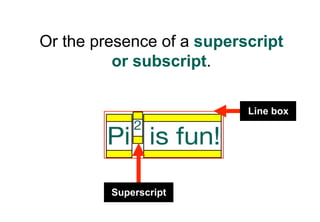
Or the presence of a superscript
          or subscript.

                           Line box


         Superscript
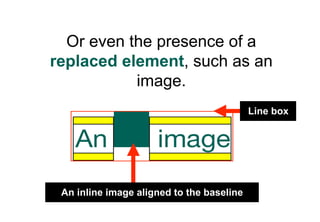
Or even the presence of a
replaced element, such as an
           image.
                                           Line box


 An inline image aligned to the baseline
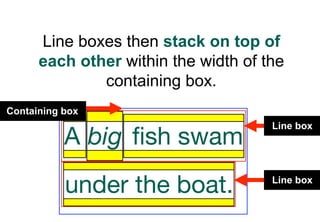
Line boxes then stack on top of
      each other within the width of the
              containing box.
Containing box
                                      Line box


                                      Line box
Some final
  notes
Superscript
and subscript
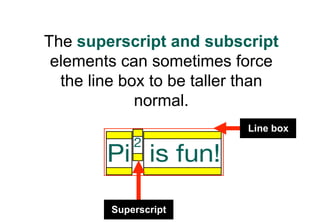
The superscript and subscript
 elements can sometimes force
  the line box to be taller than
             normal.
                           Line box


         Superscript
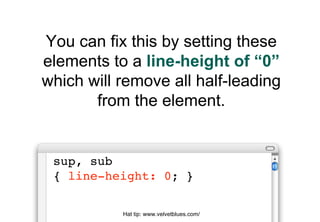
You can fix this by setting these
elements to a line-height of “0”
which will remove all half-leading
       from the element.


 sup, sub
 { line-height: 0; }

           Hat tip: www.velvetblues.com/
IE6, line-height
and inline images
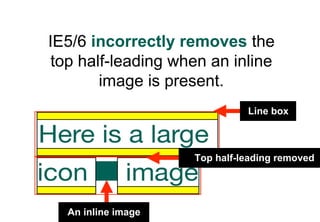
IE5/6 incorrectly removes the
 top half-leading when an inline
        image is present.
                              Line box


                    Top half-leading removed


  An inline image
This is a hard one to fix, but if
needed, margin can be added
to the top of the image to fake
the half-leading. This additional
margin should only be shown to
              IE5/6
 (using conditional comments)
We’re done!

Line Height

  • 1.
  • 2.
  • 3.
    Back in the“good old days” type was set by hand using printing presses.
  • 4.
    Printed material wascreated by setting out letters in rows. Each letter was created on an individual block.
  • 5.
    Leading, or leadstrips were added between the lines of letters when additional vertical space was required.
  • 6.
    In CSS, line-heightis used to control the vertical space between lines.
  • 7.
    However,the terms leadingand half-leading are still used in association with CSS line-height.
  • 8.
    So how doyou apply line-height?
  • 9.
    By default, browsersuse between 1.0 - 1.2 line-height. This is referred to as an initial value.
  • 10.
    You can overridethis default line- height using the CSS line-height property. p { line-height: 140%; }
  • 11.
    Line-height can bespecified with five different types of unit.
  • 12.
    1. Line-height canbe specified as normal. body { line-height: normal; }
  • 13.
    2. Line-height canbe specified as inherit. p { line-height: inherit; }
  • 14.
    3. Line-height canbe specified using a percentage value. p { line-height: 120%; }
  • 15.
    4. Line-height canbe specified using a length value (using px, em etc). p { line-height: 20px; }
  • 16.
    5. Line-height canalso be specified using a number value (a unit-less value). p { line-height: 1.2; }
  • 17.
  • 18.
    These five line-heightvalues can also be specified using the font shorthand property.
  • 19.
    The line-height valueis written in conjunction with the font-size value. The values are separated by a slash: <font-size>/<line-height> For example…
  • 20.
    Normal value body { font: 100%/normal arial, helvetica, sans-serif; }
  • 21.
    Percentage value body { font: 100%/120% arial, helvetica, sans-serif; }
  • 22.
    Length value body { font: 100%/20px arial, helvetica, sans-serif; }
  • 23.
    Number value body { font: 100%/1.2 arial, helvetica, sans-serif; }
  • 24.
  • 25.
    Some CSS propertiesare inherited (passed down to descendant elements).
  • 26.
    This is designedto make it easier for authors - so they do not have to specify properties for all descendants.
  • 27.
    EG. the colorproperty is inherited. If a color is applied to the body element, it will be passed down to all other elements on the page.
  • 28.
    For line-height, inheritanceis a little more complicated...
  • 29.
    To see thevarious line-height options in action, we will use the following HTML code: <h1> consect etuer adipi scing eli </h1> <p> Lorem ipsum dolor sit amet co </p> <div id="footer"> Duis autem vel eum iriure dol </div>
  • 30.
    This produces thefollowing document tree: body Parent element h1 p div#footer Descendant elements
  • 31.
    We will alsouse the following CSS (pixels used for font-size to simplify - though not recommended!): body { font-size: 16px; line-height: XXX; } h1 { font-size: 32px; } p { font-size: 16px; } #footer { font-size: 12px; }
  • 32.
  • 33.
    The line-height hasbeen set to a percentage value (120%). body { font-size: 16px; line-height: 120%; } h1 { font-size: 32px; } p { font-size: 16px; } #footer { font-size: 12px; }
  • 34.
    The percentage value(120%) and the body element’s font size (16px) are used to create a calculated value (16px x 120% = 19.2px). This calculated value is inherited by descendant elements.
  • 35.
    All descendants, regardlessof their size, receive the same calculated value line-height. element font-size line height calculated line-height body 16px 120% 16px x 120% = 19.2px h1 32px inherits calculated value - 19.2px 19.2px p 16px inherits calculated value - 19.2px 19.2px #footer 12px inherits calculated value - 19.2px 19.2px
  • 36.
    The line-heights donot scale with the relevant font size. Too tight OK Too loose
  • 37.
  • 38.
    The line-height hasbeen set using a length value (20px). body { font-size: 16px; line-height: 20px; } h1 { font-size: 32px; } p { font-size: 16px; } #footer { font-size: 12px; }
  • 39.
    The length value(20px) is inherited by descendant elements.
  • 40.
    All elements, regardlessof their font-size, receive the same line- height. element font-size line height calculated line-height body 16px 20px 20px h1 32px inherits 20px 20px p 16px inherits 20px 20px #footer 12px inherits 20px 20px
  • 41.
    Again, the line-heightsdo not scale with the relevant font size. Too tight OK Too loose
  • 42.
  • 43.
    The line-height hasbeen set to normal (which is approx 1.2). body { font-size: 16px; line-height: normal; } h1 { font-size: 32px; } p { font-size: 16px; } #footer { font-size: 12px; }
  • 44.
    In this case,the normal value rather than a calculated value is inherited by descendant elements. Browsers may interpret the actual normal value in slightly different ways.
  • 45.
    All elements nowhave line-heights that are relative to their font-size. element font-size line height calculated line-height body 16px normal 16px x approx 1.2 = approx 19.2px h1 32px normal 32px x aprox 1.2 = approx 38.4px p 16px normal 16px x approx 1.2 = approx 19.2px #footer 12px normal 11.2px x approx 1.2 = approx 13.44px
  • 46.
    Now, the line-heightsscale with the relevant font size. OK OK OK
  • 47.
    But what ifyou want the flexibility of the normal value, but to be able to specify the factor used? This is where number values come in.
  • 48.
  • 49.
    The line-height hasbeen set to a number value (1.5). body { font-size: 16px; line-height: 1.5; } h1 { font-size: 32px; } p { font-size: 16px; } #footer { font-size: 12px; }
  • 50.
    In this case,the factor (1.5) rather than a calculated value is inherited by descendant elements.
  • 51.
    All elements nowhave line-heights that are relative to their font-size. element font-size line height calculated line-height body 16px 1.5 16px x 1.5 = 24px h1 32px factor of 1.5 32px x 1.5 = 48px p 16px factor of 1.5 16px x 1.5 = 24px #footer 12px factor of 1.5 12px x 1.5 = 18px
  • 52.
    Again, the line-heightsscale with the relevant font size. Too loose? OK OK
  • 53.
    So, which isthe best method?
  • 54.
    Generally, a numbervalue is the best method for setting line-height as line-heights will then always scale with the relevant font-size.
  • 55.
    It is hardto determine a “perfect line-height” as each situation is different. However, it is safe to assume that headings can have less relative line-height than paragraphs of text.
  • 56.
    For example, allcontent could be set to 1.5, and then headings redefined to 1.2. body { line-height: 1.5; } h1, h2, h3, h4, h5, h6 { line-height: 1.2; }
  • 57.
    The Web ContentAccessibility Guidelines (WCAG) 2.0 state: “line spacing is at least space- and-a-half within paragraphs”. This means that to be AAA compliant, paragraph line-height should be set to 1.5 http://www.w3.org/TR/WCAG20/ - 1.4.8 Visual Presentation
  • 58.
  • 59.
    In order tounderstand line-height more fully, we need to look at various types of CSS boxes.
  • 60.
    Let’s start witha simple piece of HTML code. <p> The <em>emphasis</em> element is defined as “inline”. </p>
  • 61.
    The code shouldbe rendered like this in most browsers. The emphasis element is defined as inline.
  • 62.
    There are fourtypes of boxes that are relevant in this sample.
  • 63.
  • 64.
    The paragraph isreferred to as a containing box in this case - as it contains other boxes. The emphasis element is defined as inline.
  • 65.
  • 66.
    Inside the paragraphare a series of inline boxes. The emphasis element is defined as inline.
  • 67.
    Inline boxes donot form new blocks of content; the content is distributed in lines.
  • 68.
    The emphasis elementis a type of inline box. The emphasis element is defined as inline.
  • 69.
    Other boxes withoutspecific markup are referred to as anonymous inline boxes. The emphasis element is defined as inline.
  • 70.
  • 71.
    Inline boxes sitside-by-side within the containing box, forming line boxes. Line boxes The emphasis element is defined as inline.
  • 72.
  • 73.
    The content areais the invisible box that surrounds the text. Its height is determined by the font- size. Content area
  • 74.
  • 75.
    Line height isapplied to inline boxes using a simple formula…
  • 76.
    1. Find thedifference between the font-size and line-height. This will determine the leading. For example: Font-size: 16px Line-height: 20px Difference: 4px (leading)
  • 77.
    2. Divide theleading in half to create a “half-leading” value. 4px leading / 2 = 2px half-leading
  • 78.
    3. Apply thishalf-leading value to the top and bottom of the content area. 2px half-leading 2px half-leading Content area
  • 79.
    But things sometimesbecome a little more complicated...
  • 80.
    The inline boxgenerally wraps around the content box. Half- leading sits above and below the content box. Inline box
  • 81.
    However, the inlinebox can sometimes be smaller than the content area!
  • 82.
    For example, ifthe line-height is smaller than the font size. In this case, the inline box will honor the line height. For example: Font-size: 16px Line-height: 12px Inline box size: 12px
  • 83.
    The content areathen pokes out the top and bottom of the inline box. The half-leading collapses together to form the inline box height. Inline box Content area Top half-leading Bottom half-leading
  • 84.
  • 85.
    The height ofline boxes is determined by the tallest inline box (or replaced element) inside.
  • 86.
    The tallest inlinebox could be an anonymous inline box. Line box
  • 87.
    It could bean inline box with increased line-height. Line box Increased line-height
  • 88.
    Or an inlinebox with a larger font-size. Line box Larger font
  • 89.
    Or the presenceof a superscript or subscript. Line box Superscript
  • 90.
    Or even thepresence of a replaced element, such as an image. Line box An inline image aligned to the baseline
  • 91.
    Line boxes thenstack on top of each other within the width of the containing box. Containing box Line box Line box
  • 92.
  • 93.
  • 94.
    The superscript andsubscript elements can sometimes force the line box to be taller than normal. Line box Superscript
  • 95.
    You can fixthis by setting these elements to a line-height of “0” which will remove all half-leading from the element. sup, sub { line-height: 0; } Hat tip: www.velvetblues.com/
  • 96.
  • 97.
    IE5/6 incorrectly removesthe top half-leading when an inline image is present. Line box Top half-leading removed An inline image
  • 98.
    This is ahard one to fix, but if needed, margin can be added to the top of the image to fake the half-leading. This additional margin should only be shown to IE5/6 (using conditional comments)
  • 99.