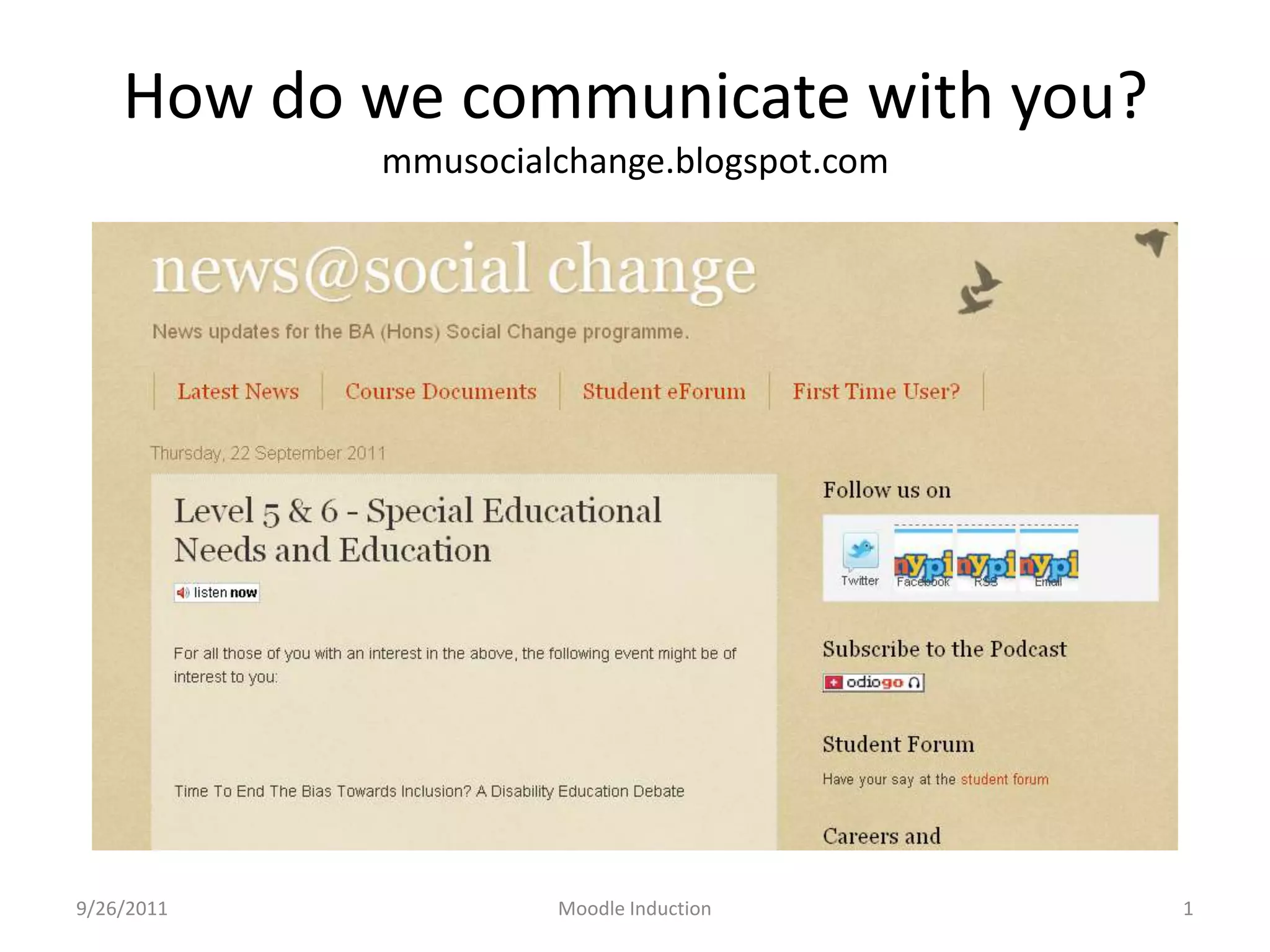
How do we communicate with you?mmusocialchange.blogspot.com9/26/2011Moodle Induction1
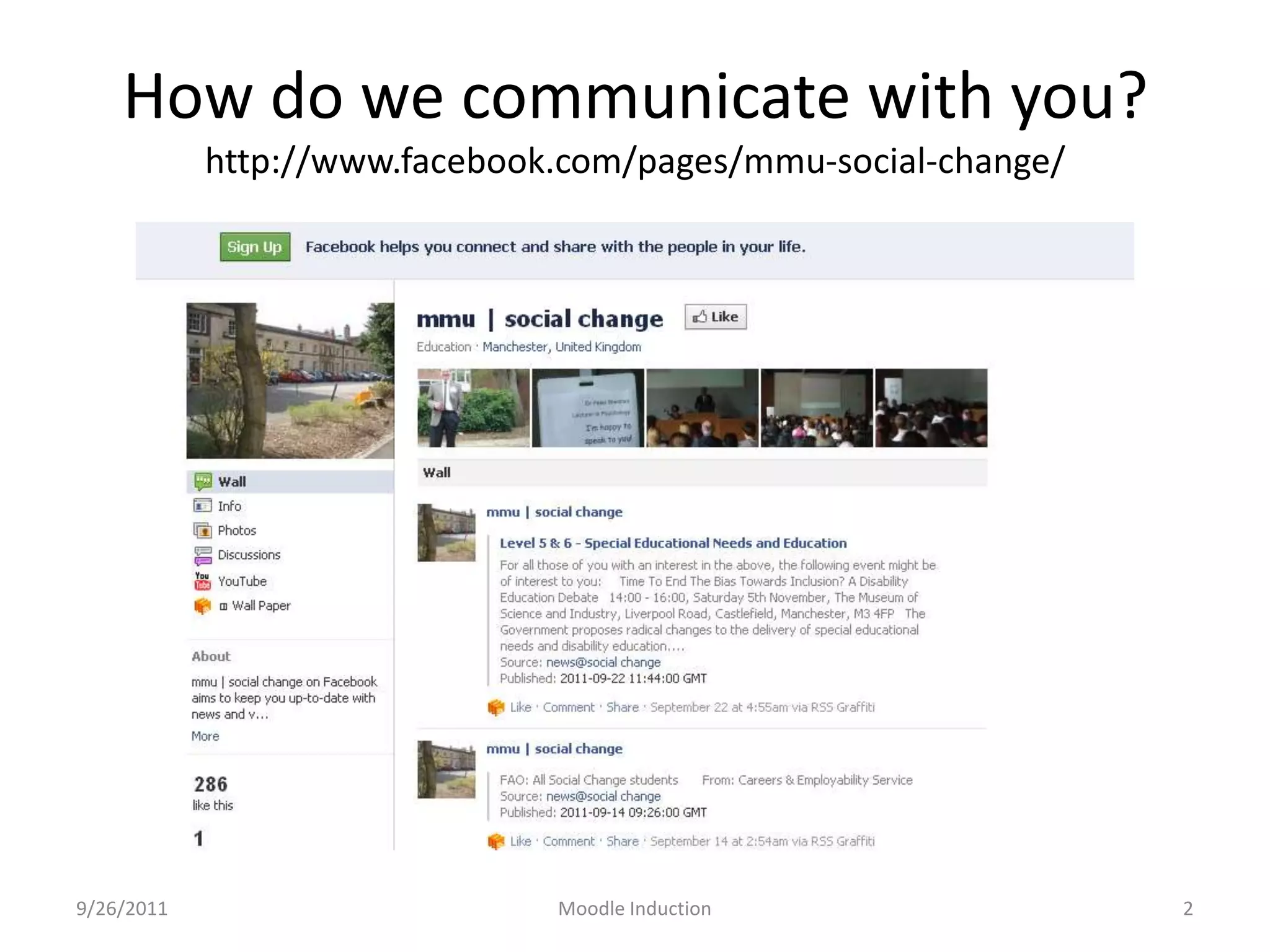
How do we communicate with you?http://www.facebook.com/pages/mmu-social-change/9/26/2011Moodle Induction2
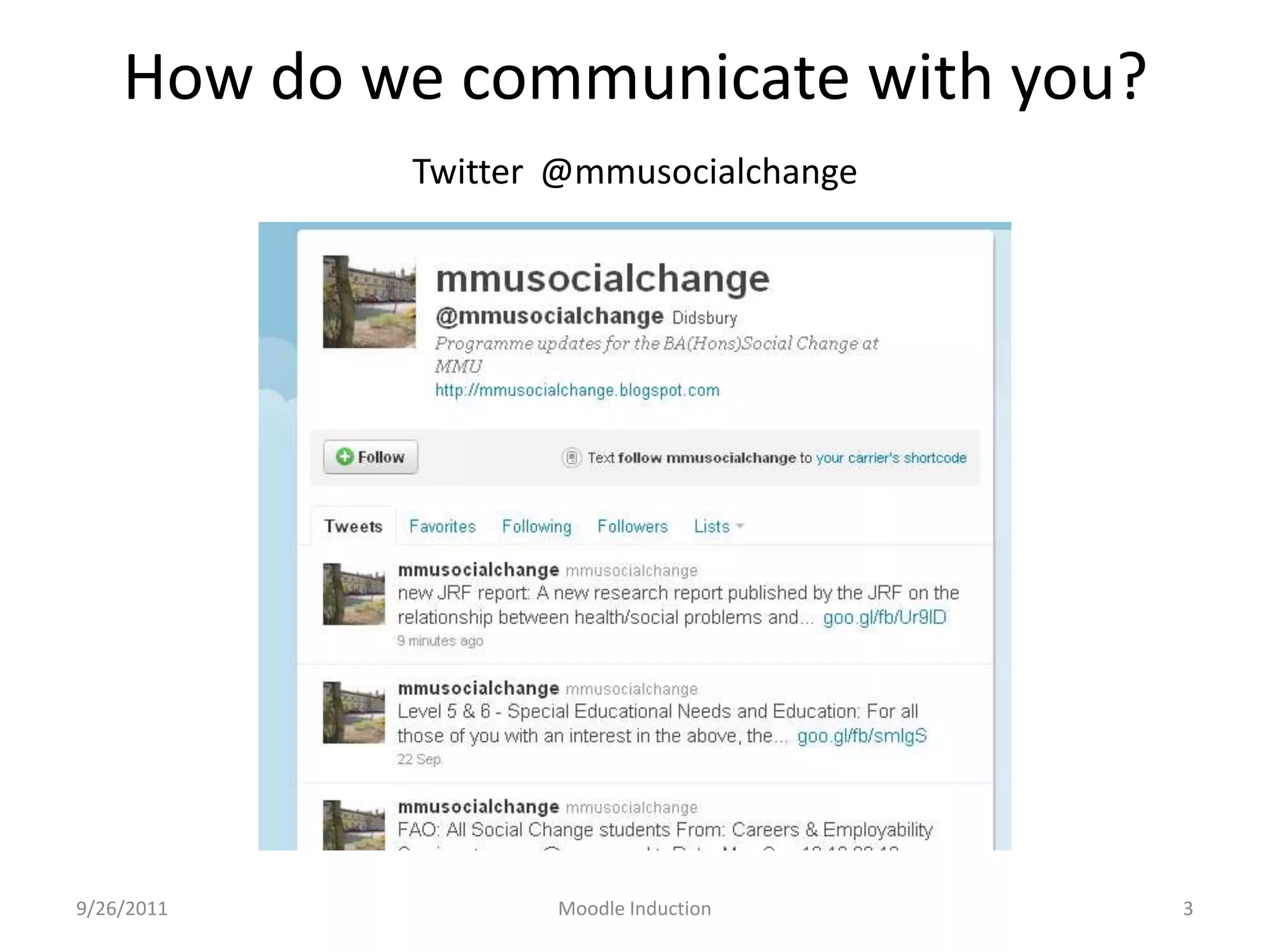
How do we communicate with you?Twitter@mmusocialchange9/26/2011Moodle Induction3
How do we communicate with you?BlogFacebookTwitterThe NoticeboardMoodle9/26/2011Moodle Induction4
The New MMU Virtual Learning Environment Monday, September 26, 20115Event Name and VenueMoodle
Monday, September 26, 2011Moodle Induction6What is Moodle?Technically it’s a virtual Learning Environment (VLE)To support student learning in a variety of waysWeb-based - access it from anywhereSecure – MMU user ID & password
What is it used for?Accessing informationReviewing, reflecting and discussing informationTesting your understandingSubmitting your workReceiving your marksInteracting with other studentsMonday, September 26, 2011Moodle Induction7
Why use a VLE?Freedom from constraints:TimePlaceEasy access via web Browser (avoid Chrome)Allows Flexibility in learningSupports CollaborationSupports InnovationMonday, September 26, 2011Moodle Induction8
Getting startedLogin via MMU Student Portal http://my.mmu.ac.ukor the link on http://www.mmu.ac.ukOr Directlyhttps://moodle/mmu.ac.ukUse your University ID (8 digit number) and passwordMonday, September 26, 20119
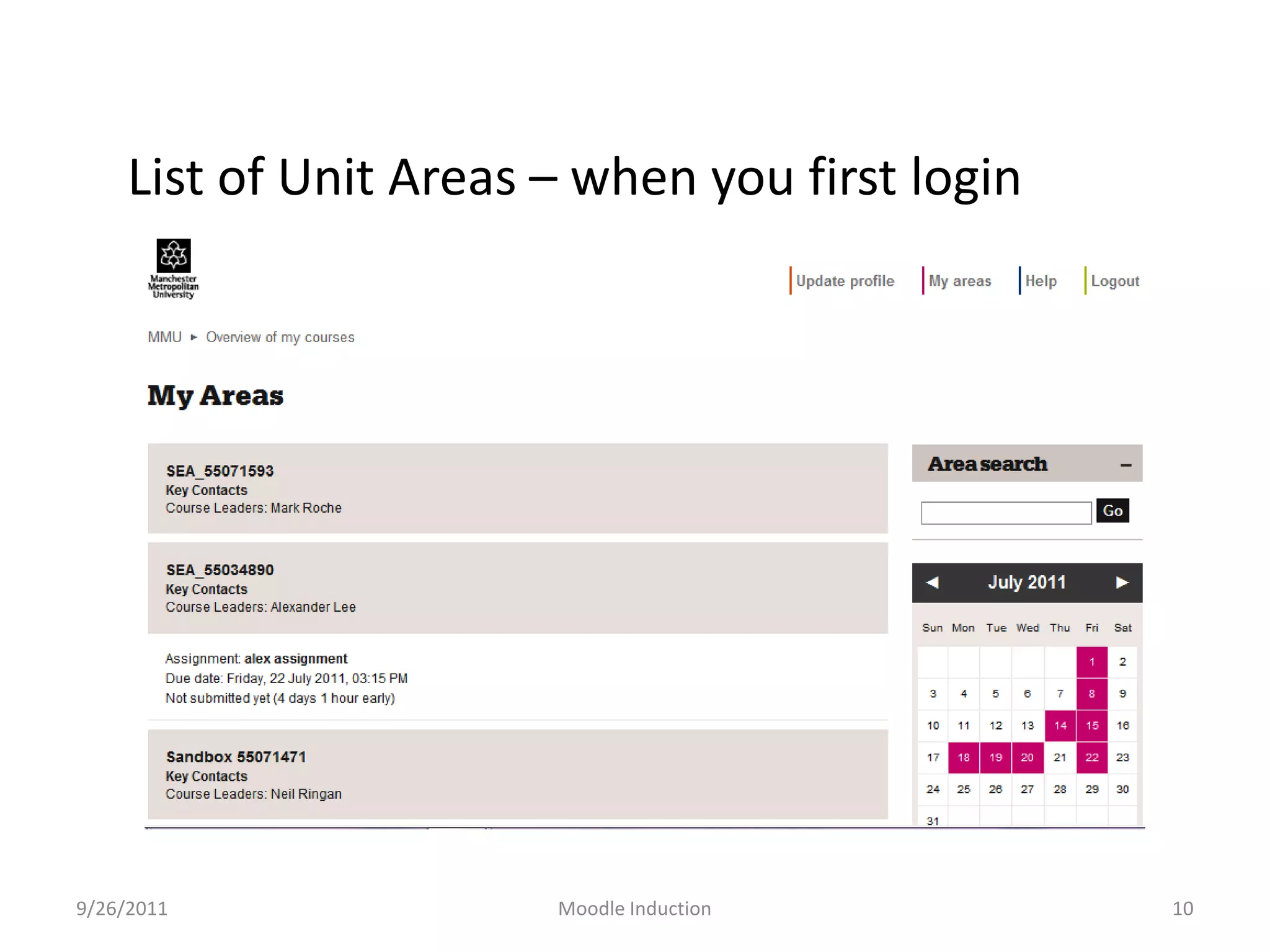
List of Unit Areas – when you first login9/26/2011Moodle Induction10
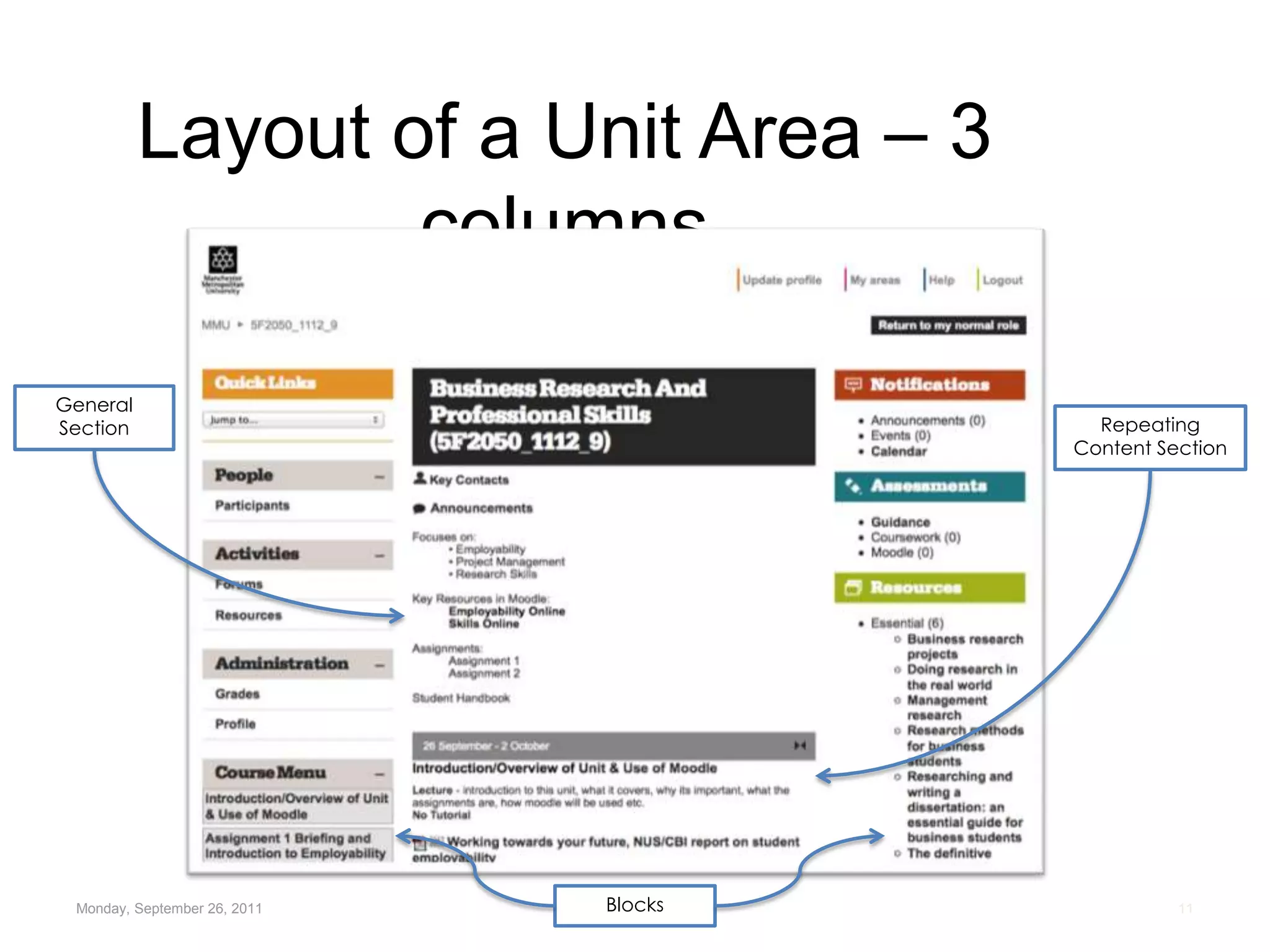
Layout of a Unit Area – 3 columnsMonday, September 26, 2011 Moodle Induction11General SectionRepeatingContent SectionBlocks
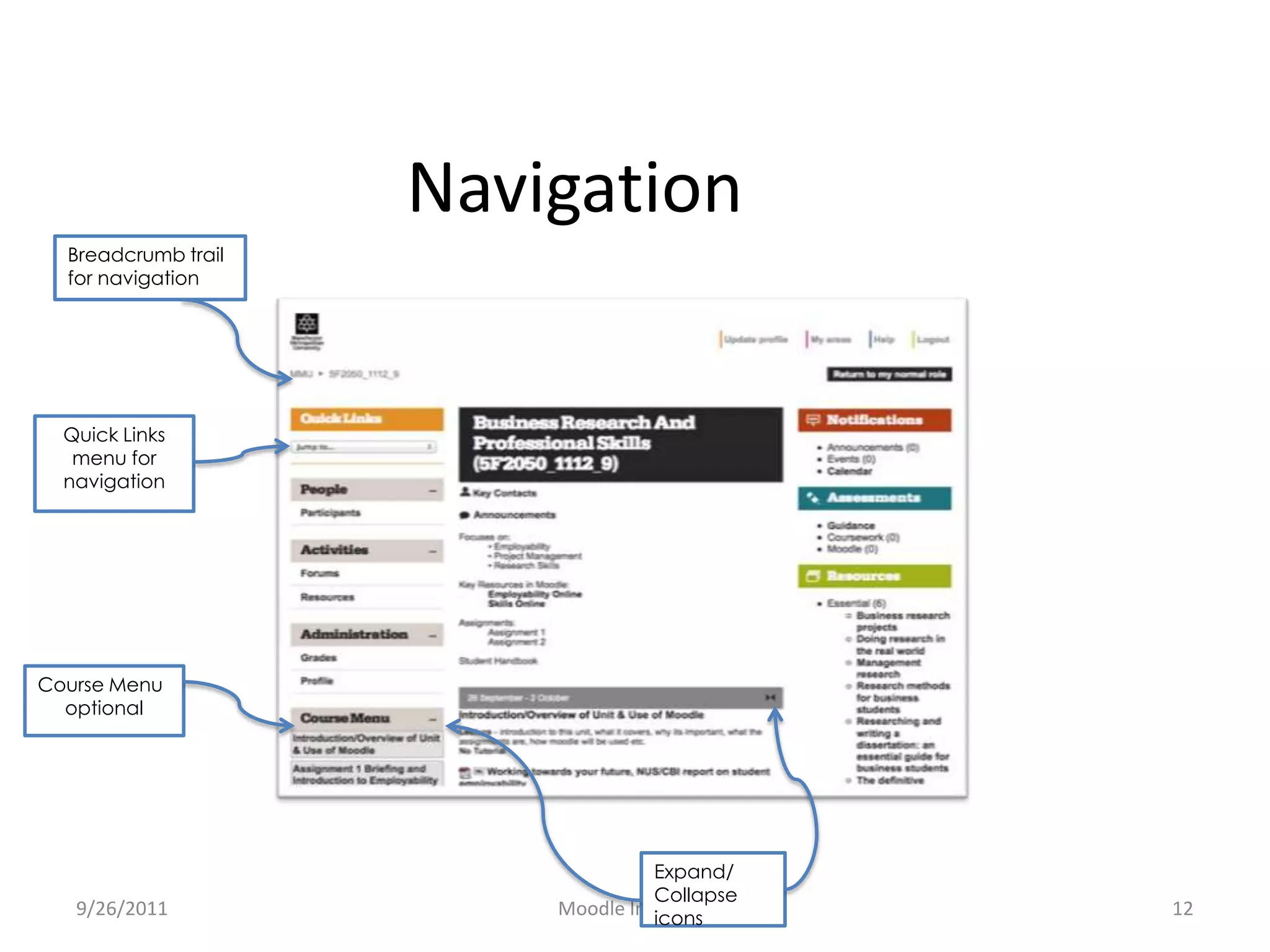
Navigation9/26/2011Moodle Induction12Breadcrumb trail for navigationQuick Links menu for navigationCourse MenuoptionalExpand/Collapse icons
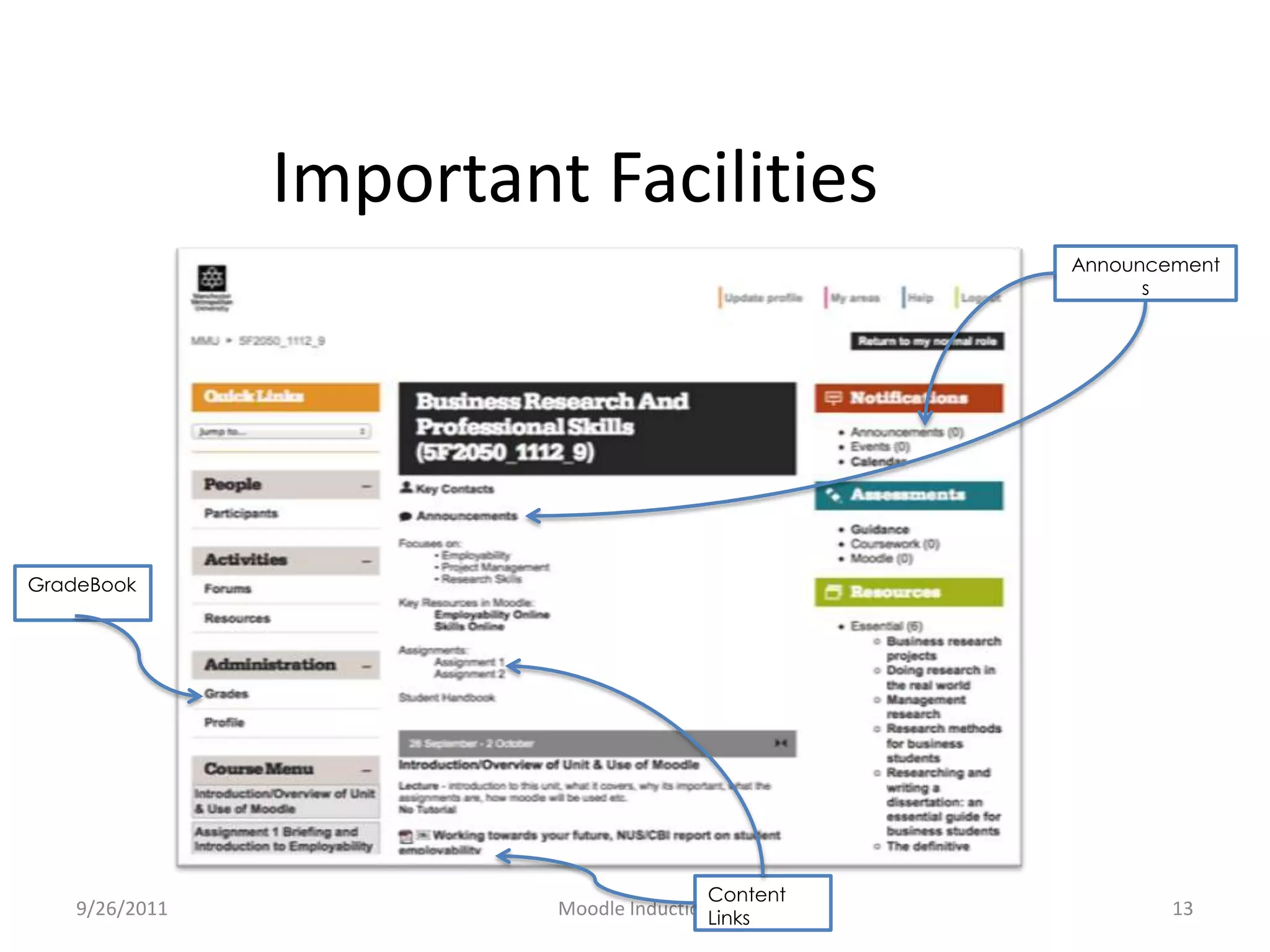
Important Facilities9/26/2011Moodle Induction13AnnouncementsGradeBookContent Links
Getting Support on using MoodleGuides and Podcasts  The Moodle interface and navigation
What is Moodle and how do I access it?

Level 5 Induction: communication

  • 1.
    How do wecommunicate with you?mmusocialchange.blogspot.com9/26/2011Moodle Induction1
  • 2.
    How do wecommunicate with you?http://www.facebook.com/pages/mmu-social-change/9/26/2011Moodle Induction2
  • 3.
    How do wecommunicate with you?Twitter@mmusocialchange9/26/2011Moodle Induction3
  • 4.
    How do wecommunicate with you?BlogFacebookTwitterThe NoticeboardMoodle9/26/2011Moodle Induction4
  • 5.
    The New MMUVirtual Learning Environment Monday, September 26, 20115Event Name and VenueMoodle
  • 6.
    Monday, September 26,2011Moodle Induction6What is Moodle?Technically it’s a virtual Learning Environment (VLE)To support student learning in a variety of waysWeb-based - access it from anywhereSecure – MMU user ID & password
  • 7.
    What is itused for?Accessing informationReviewing, reflecting and discussing informationTesting your understandingSubmitting your workReceiving your marksInteracting with other studentsMonday, September 26, 2011Moodle Induction7
  • 8.
    Why use aVLE?Freedom from constraints:TimePlaceEasy access via web Browser (avoid Chrome)Allows Flexibility in learningSupports CollaborationSupports InnovationMonday, September 26, 2011Moodle Induction8
  • 9.
    Getting startedLogin viaMMU Student Portal http://my.mmu.ac.ukor the link on http://www.mmu.ac.ukOr Directlyhttps://moodle/mmu.ac.ukUse your University ID (8 digit number) and passwordMonday, September 26, 20119
  • 10.
    List of UnitAreas – when you first login9/26/2011Moodle Induction10
  • 11.
    Layout of aUnit Area – 3 columnsMonday, September 26, 2011 Moodle Induction11General SectionRepeatingContent SectionBlocks
  • 12.
    Navigation9/26/2011Moodle Induction12Breadcrumb trailfor navigationQuick Links menu for navigationCourse MenuoptionalExpand/Collapse icons
  • 13.
  • 14.
    Getting Support onusing MoodleGuides and Podcasts  The Moodle interface and navigation
  • 15.
    What is Moodleand how do I access it?
  • 16.
    Viewing and Editinga Moodle User Profile
  • 17.
  • 18.
  • 19.
  • 20.
  • 21.
  • 22.
    Getting Support onproblems with MoodleCan’t login – contact ITS on 0161 247 4646 (x4646) or it.helpline@mmu.ac.ukCorrect Units don’t appear in Moodle - contact SIP Problems opening files - see page 14 of “Logging In and Navigating around Moodle” guide.For further info see the having Problems link on http://www.elearning.mmu.ac.uk9/26/2011Event Name and Venue15

Editor's Notes

  • #11 Students will see their units, plus areas for their Programme and the Faculty.Students should use this to check they are enrolled on the correct units as the units that appear in this list are the ones they are enrolled on.Click on the Unit that you want to work on.
  • #12 Note the three columns. The left and right columns contain “Blocks” which give access to information related to your unit form a variety of sources, e.g. the library, assignment details, calendar etc. Some of these blocks appear by default and some will be added by your tutor. The optional ones have a collapse/expand button (+ or – sign top right).  The central column contains Sections where your tutor will place relevant learning resources and activities. Usually these will be organised by week, but for block taught units they might be organised by topic. The first section is different and is always present. It will usually contain general information about the unit such as assignments and handbooks.
  • #13 The top of the left column contains a Quick Links menu to allow you to jump to a particular week. Optionally there may also be a Course Menu that allows you to jump to particular sections. Like WebCT there is breadcrumb trail. The sections can be collapsed so that only one is viewed at a time (or expanded so all are visible).
  • #14 Announcements - The announcements function is a one-way communication channel that tutors can use to send messages to students, but to which you cannot reply. In Moodle this is organised as a special kind of Forum and it shares feature with more general discussion forums which not discussed here.Gradebook – May contain (depends if tutor puts the information there) marks on Quizzes and other formative assessments and on Summative assessments.Content links – may be Office documents, URL links to web pages or youtube videos or blog pages or …. Maybe discussion forums or wikis for interacting with, or quizes for assement, or links to allow submission of assignments (Turnitin or simply to Moodle)
  • #15 The student resource area on Moodle will be listed alongside the units the student sees when they first log in.