https://edu.gcfglobal.org/en/word2013/mail-merge/print/
Creating a Letter Mail Merge
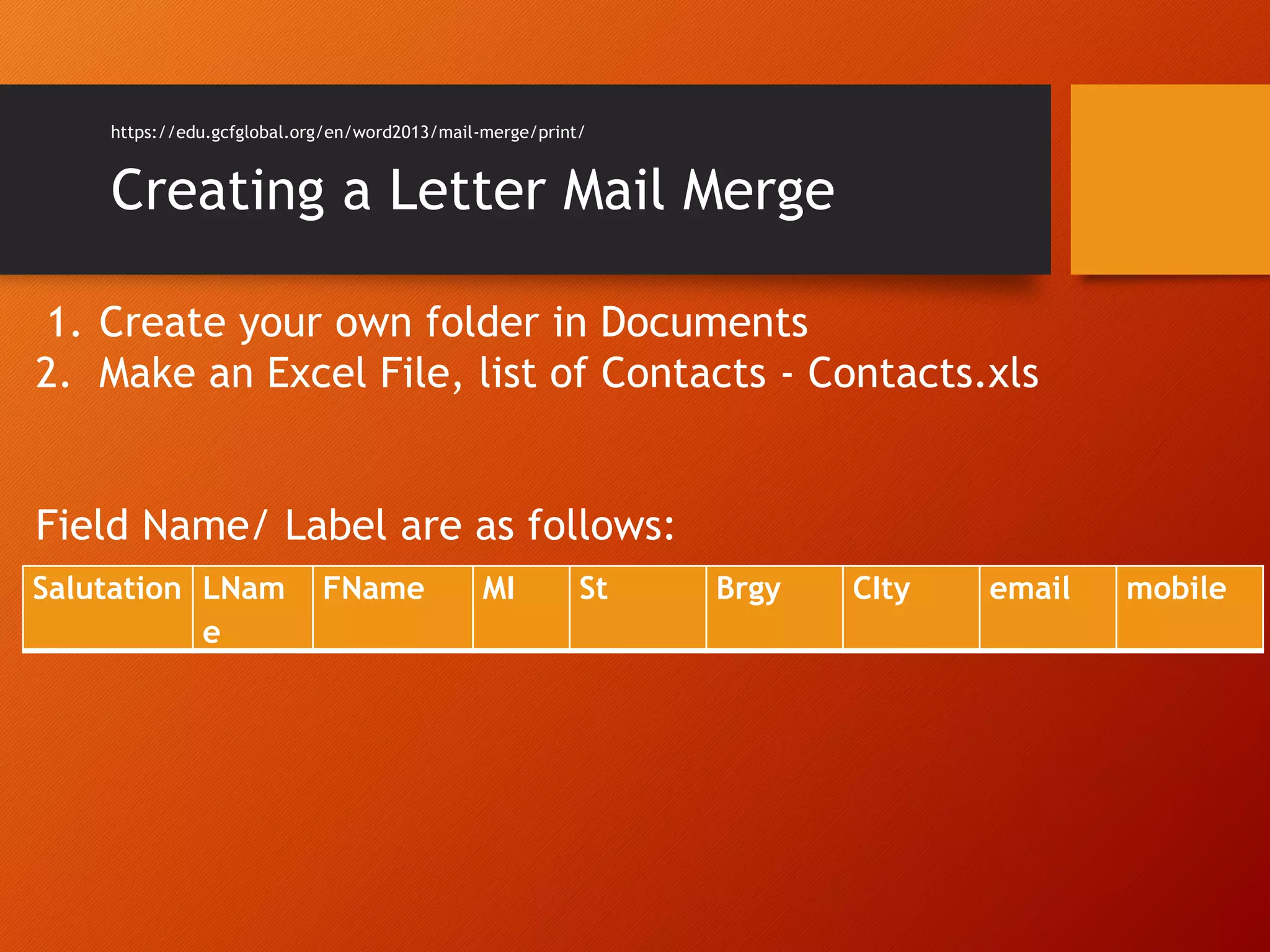
Salutation LNam
e
FName MI St Brgy CIty email mobile
1. Create your own folder in Documents
2. Make an Excel File, list of Contacts - Contacts.xls
Field Name/ Label are as follows:
Mail Merge
Mail Merge is a useful tool that allows
you to produce multiple letters,
labels, envelopes, name tags, and
more using information stored in a
list, database, or spreadsheet. When
performing a Mail Merge, you will
need a Word document (you can
start with an existing one or create a
new one) and a recipient list, which
is typically an Excel workbook
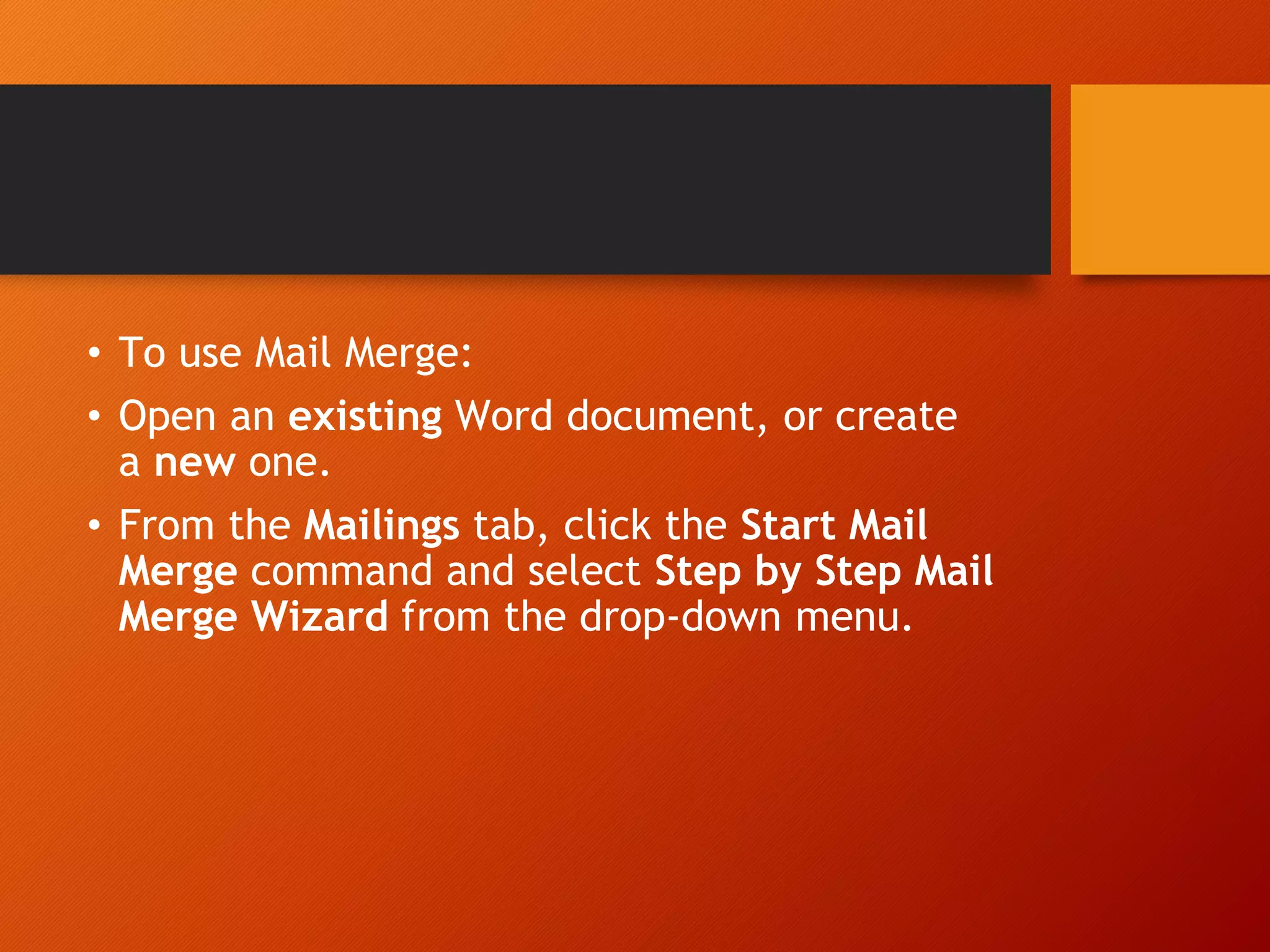
• To use Mail Merge:
• Open an existing Word document, or create
a new one.
• From the Mailings tab, click the Start Mail
Merge command and select Step by Step Mail
Merge Wizard from the drop-down menu.
Step 1:
• Choose the type of document
you want to create.
In our example, we'll select
Letters.
Then click
Next: Starting document
to move to Step 2.
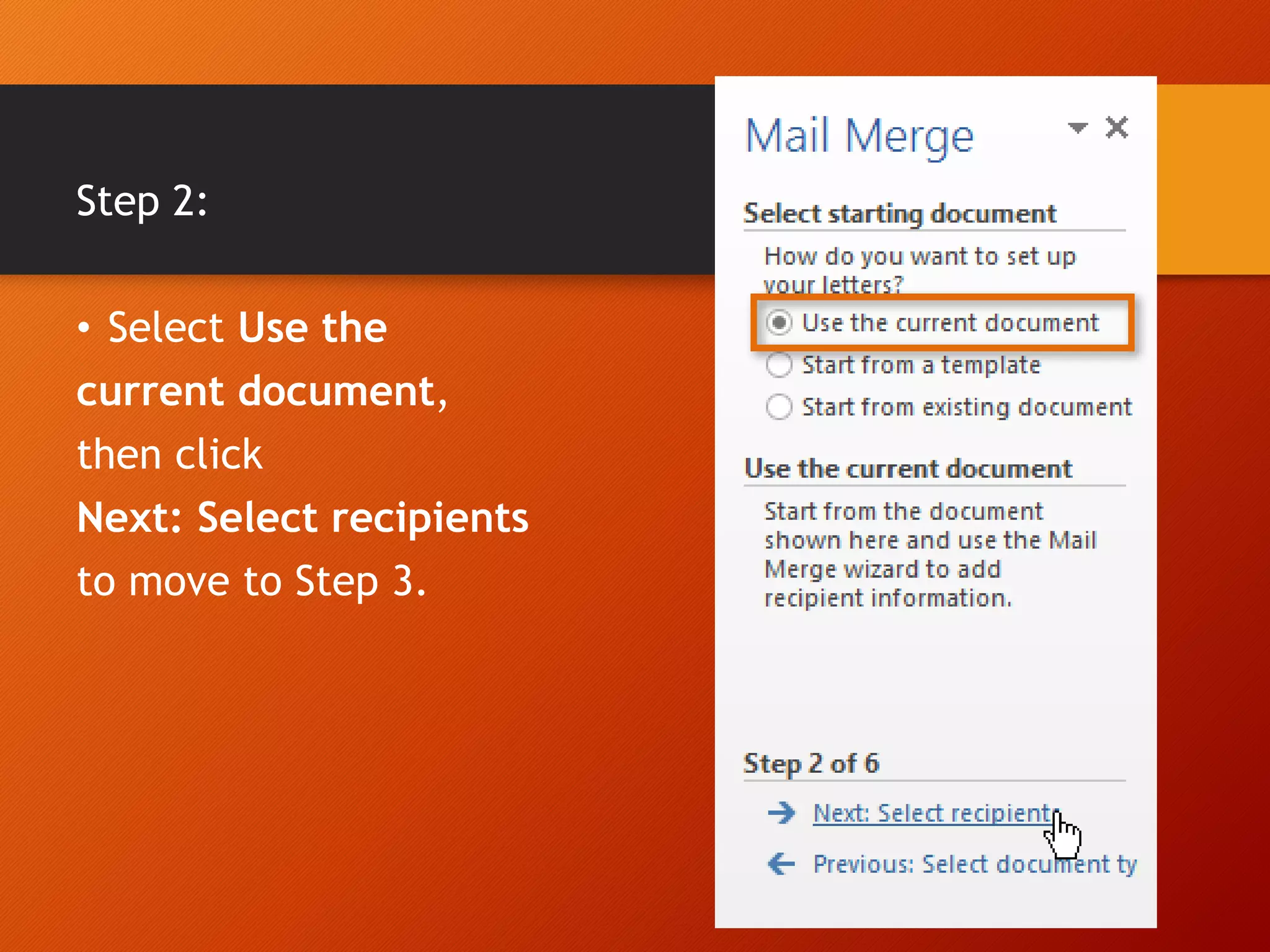
Step 2:
• Select Use the
current document,
then click
Next: Select recipients
to move to Step 3.
3. Mailings
- Start Mail merge – Letters
4. Select Recipients – Use Existing List
Choose your Excel File Path Directory- OK
Insert Merge Field – Choose the Database
Fields/ Label that is needed in the letter
i.e. Salutation, LName
5. Preview Results, Click Preview Results,
Click Next > Record to navigate the results
6. Finish and Merge
7. Finish and Merge, choose if you will
Edit Document, Print all Docs, or Send Email Messages
John Donaldson –YOUR NAME & CONTACT
8 Sue Circle
Smithtown, CA 08067
909-555-5555
john.donaldson@emailexample.com
September 1, 2018
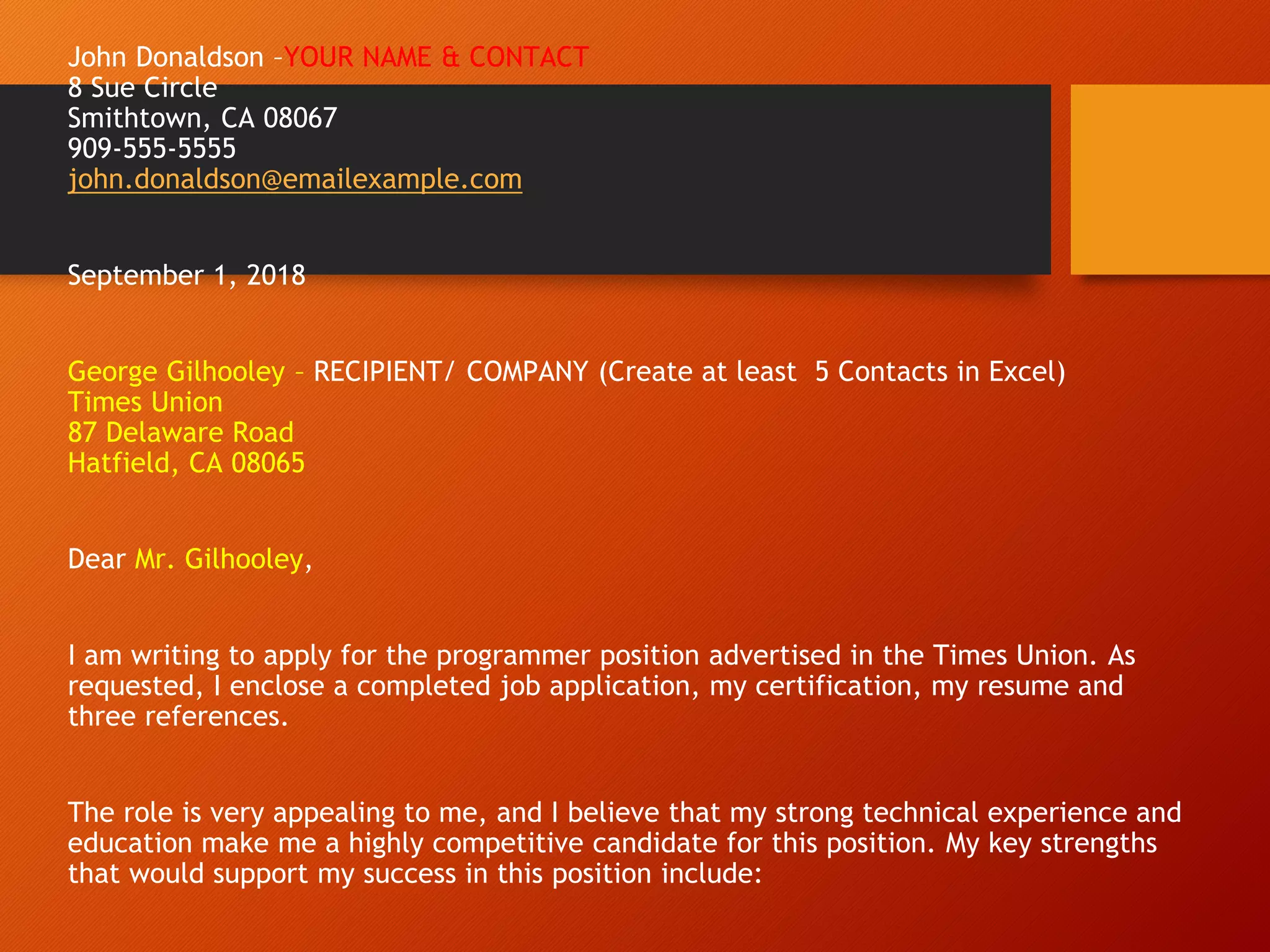
George Gilhooley – RECIPIENT/ COMPANY (Create at least 5 Contacts in Excel)
Times Union
87 Delaware Road
Hatfield, CA 08065
Dear Mr. Gilhooley,
I am writing to apply for the programmer position advertised in the Times Union. As
requested, I enclose a completed job application, my certification, my resume and
three references.
The role is very appealing to me, and I believe that my strong technical experience and
education make me a highly competitive candidate for this position. My key strengths
that would support my success in this position include:
I have successfully designed, developed and supported live-use
applications.
I strive continually for excellence.
I provide exceptional contributions to customer service for all customers.
With a BS degree in Computer Programming, I have a comprehensive
understanding of the full lifecycle for software development projects. I
also have experience in learning and applying new technologies as
appropriate. Please see my resume for additional information on my
experience.
I can be reached anytime via email at
john.donaldson@emailexample.com or by cell phone, 909-555-5555.
Thank you for your time and consideration. I look forward to speaking
with you about this employment opportunity.
Sincerely,
John Donaldson

Lesson 3.2 Steps Mail Merge Letter.pdf

  • 1.
    https://edu.gcfglobal.org/en/word2013/mail-merge/print/ Creating a LetterMail Merge Salutation LNam e FName MI St Brgy CIty email mobile 1. Create your own folder in Documents 2. Make an Excel File, list of Contacts - Contacts.xls Field Name/ Label are as follows:
  • 2.
    Mail Merge Mail Mergeis a useful tool that allows you to produce multiple letters, labels, envelopes, name tags, and more using information stored in a list, database, or spreadsheet. When performing a Mail Merge, you will need a Word document (you can start with an existing one or create a new one) and a recipient list, which is typically an Excel workbook
  • 3.
    • To useMail Merge: • Open an existing Word document, or create a new one. • From the Mailings tab, click the Start Mail Merge command and select Step by Step Mail Merge Wizard from the drop-down menu.
  • 5.
    Step 1: • Choosethe type of document you want to create. In our example, we'll select Letters. Then click Next: Starting document to move to Step 2.
  • 6.
    Step 2: • SelectUse the current document, then click Next: Select recipients to move to Step 3.
  • 7.
    3. Mailings - StartMail merge – Letters 4. Select Recipients – Use Existing List Choose your Excel File Path Directory- OK Insert Merge Field – Choose the Database Fields/ Label that is needed in the letter i.e. Salutation, LName 5. Preview Results, Click Preview Results, Click Next > Record to navigate the results 6. Finish and Merge 7. Finish and Merge, choose if you will Edit Document, Print all Docs, or Send Email Messages
  • 8.
    John Donaldson –YOURNAME & CONTACT 8 Sue Circle Smithtown, CA 08067 909-555-5555 john.donaldson@emailexample.com September 1, 2018 George Gilhooley – RECIPIENT/ COMPANY (Create at least 5 Contacts in Excel) Times Union 87 Delaware Road Hatfield, CA 08065 Dear Mr. Gilhooley, I am writing to apply for the programmer position advertised in the Times Union. As requested, I enclose a completed job application, my certification, my resume and three references. The role is very appealing to me, and I believe that my strong technical experience and education make me a highly competitive candidate for this position. My key strengths that would support my success in this position include:
  • 9.
    I have successfullydesigned, developed and supported live-use applications. I strive continually for excellence. I provide exceptional contributions to customer service for all customers. With a BS degree in Computer Programming, I have a comprehensive understanding of the full lifecycle for software development projects. I also have experience in learning and applying new technologies as appropriate. Please see my resume for additional information on my experience. I can be reached anytime via email at john.donaldson@emailexample.com or by cell phone, 909-555-5555. Thank you for your time and consideration. I look forward to speaking with you about this employment opportunity. Sincerely, John Donaldson