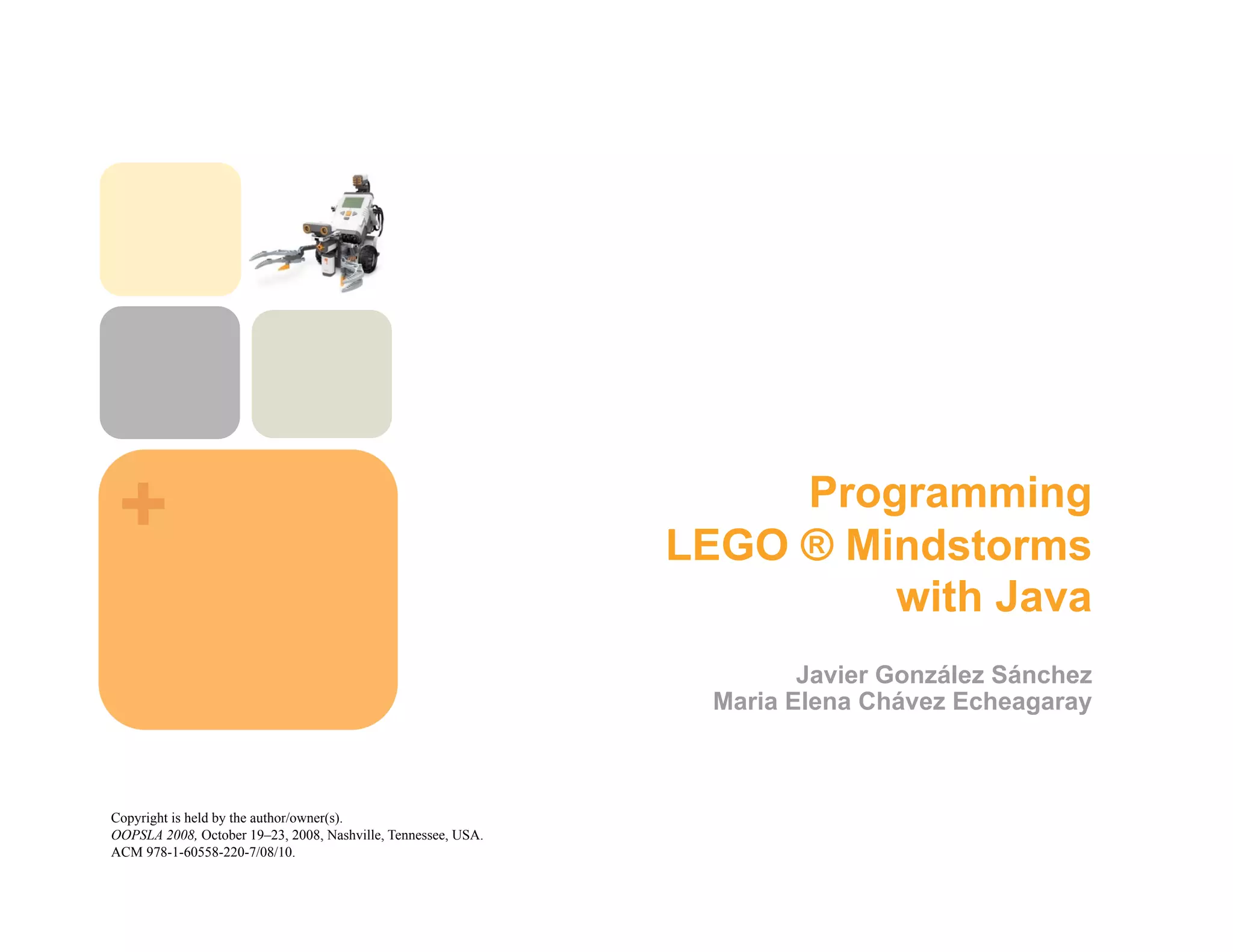
+                                                                  Programming
                                                               LEGO ® Mindstorms
                                                                        with Java
                                                                        Javier González Sánchez
                                                                 Maria Elena Chávez Echeagaray


Copyright is held by the author/owner(s).
OOPSLA 2008, October 19–23, 2008, Nashville, Tennessee, USA.
ACM 978-1-60558-220-7/08/10.
Goal                                                          +

 Learn how to use and program a LEGO ® using LeJOS,
 Java and additional tools.


  Going step by step. From basis to complex.


  Learning techniques to control LEGO ® Mindstorms ® robots


                                                                  2
Agenda                                           +


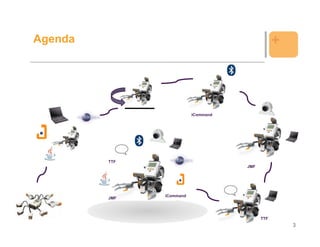
                          iCommand


         TTF
                                     JMF


               iCommand
         JMF


                                           TTF
                                                     3
Agenda – First part                                 +

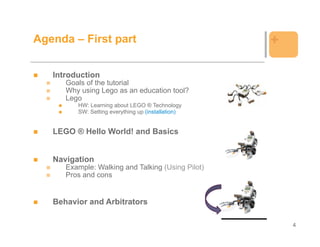
   Introduction
      Goals of the tutorial
      Why using Lego as an education tool?
      Lego
         HW: Learning about LEGO ® Technology
         SW: Setting everything up (installation)


   LEGO ® Hello World! and Basics


   Navigation
      Example: Walking and Talking (Using Pilot)
      Pros and cons


   Behavior and Arbitrators

                                                        4
Agenda – Second part                                          +


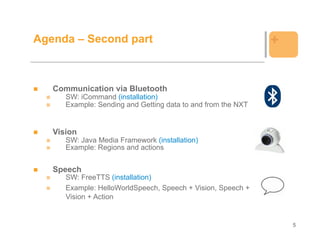
   Communication via Bluetooth
      SW: iCommand (installation)
      Example: Sending and Getting data to and from the NXT


   Vision
      SW: Java Media Framework (installation)
      Example: Regions and actions


   Speech
      SW: FreeTTS (installation)
      Example: HelloWorldSpeech, Speech + Vision, Speech +
      Vision + Action


                                                                  5
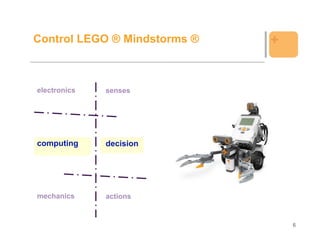
Control LEGO ® Mindstorms ®   +


electronics   senses


computing     decision


mechanics     actions


                                  6
+                 LEGO ®
    as an educational tool
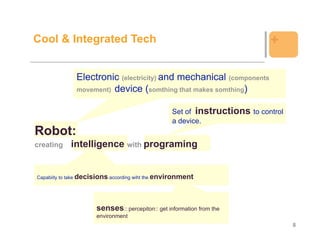
Cool & Integrated Tech                                                      +

              Electronic (electricity) and mechanical (components
              movement) device (somthing that makes somthing)


                                                  Set of instructions to control
                                                  a device.
Robot:
creating    intelligence with programing


Capabiity to take decisions according wiht the environment


                      senses:: percepiton:: get information from the
                      environment
                                                                                   8
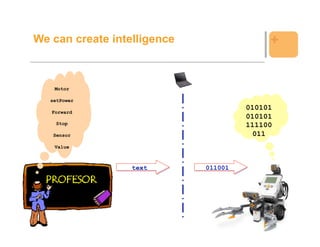
We can create intelligence                 +


    Motor

   setPower
                                      010101
   Forward
                                      010101
     Stop                             111100
    Sensor                              011
    Value


                  text       011001


                                               9
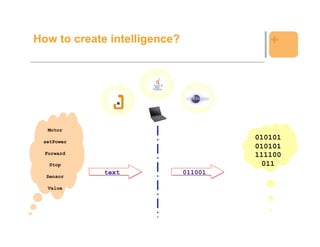
How to create intelligence?               +


   Motor
                                       010101
 setPower
                                       010101
  Forward                              111100
   Stop                                  011
             text             011001
  Sensor

   Value


                                                10
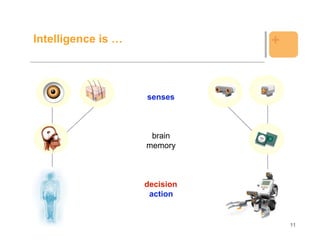
Intelligence is …              +


                    senses


                     brain
                    memory


                    decision
                     action


                                   11
+   Setting everything up
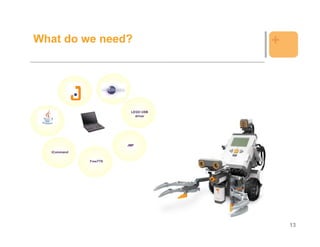
What do we need?                   +


                        LEGO USB
                          driver


                       JMF

  iCommand

             FreeTTS


                                       13
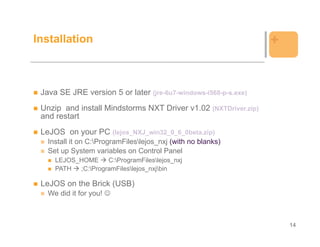
Installation                                                     +


 Java SE JRE version 5 or later (jre-6u7-windows-i568-p-s.exe)
 Unzip and install Mindstorms NXT Driver v1.02 (NXTDriver.zip)
 and restart
 LeJOS on your PC (lejos_NXJ_win32_0_6_0beta.zip)
   Install it on C:ProgramFileslejos_nxj (with no blanks)
   Set up System variables on Control Panel
     LEJOS_HOME     C:ProgramFileslejos_nxj
     PATH  ;C:ProgramFileslejos_nxjbin

 LeJOS on the Brick (USB)
   We did it for you!


                                                                     14
Installation                                                                                  +

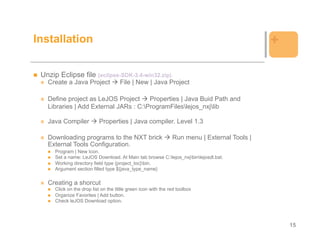
 Unzip Eclipse file (eclipse-SDK-3.4-win32.zip)
   Create a Java Project              File | New | Java Project

   Define project as LeJOS Project     Properties | Java Buid Path and
   Libraries | Add External JARs : C:ProgramFileslejos_nxjlib

   Java Compiler            Properties | Java compiler. Level 1.3

   Downloading programs to the NXT brick                        Run menu | External Tools |
   External Tools Configuration.
      Program | New Icon.
      Set a name: LeJOS Download. At Main tab browse C:lejos_nxjbinlejosdl.bat.
      Working directory field type {project_loc}bin.
      Argument section filled type ${java_type_name}

   Creating a shorcut
      Click on the drop list on the little green icon with the red toolbox
      Organize Favorites | Add button.
      Check leJOS Download option.


                                                                                                  15
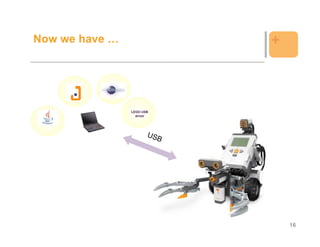
Now we have …              +


                LEGO USB
                  driver


                               16
HelloWorld!                                                              +

1.      Create the new class HelloWorld. Project | New | Class
import lejos.nxt.LCD;                                    Add
public class HelloWorld {

    public static void main(String[] args) {

        LCD.drawString("Hello World!", 1, 2);

        LCD.refresh();

        while(true) {}

    }                                                  Speak using LCD
}


2. Upload this class to you NXT, using your LeJOS Download tool.


                                                                             17
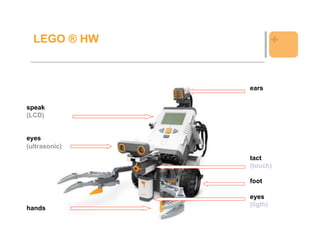
LEGO ® HW              +


               ears


speak
(LCD)


eyes
(ultrasonic)
               tact
               (touch)

               foot

               eyes
               (ligth)
hands

                             18
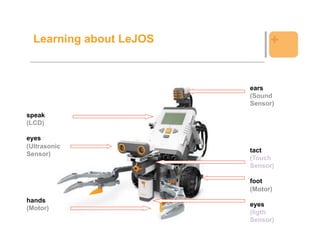
Learning about LeJOS         +


                         ears
                         (Sound
                         Sensor)
speak
(LCD)

eyes
(Ultrasonic
                         tact
Sensor)
                         (Touch
                         Sensor)

                         foot
                         (Motor)
hands
                         eyes
(Motor)
                         (ligth
                         Sensor)
                                   19
Learning about LeJOS                                    +

 LeJOS API


  http://lejos.sourceforge.net/nxt/nxj/api/index.html


                                                            20
Example: Motors and Buttons                                     +

import lejos.nxt.*;

public class WalkingTalking {

    public static void main (String[] aArg) throws Exception{
      LCD.drawString("Hi!", 0, 1);
      LCD.refresh();
      Button.ESCAPE.waitForPressAndRelease();
      Motor.A.forward();
      Motor.B.forward();
      LCD.clear();
      LCD.drawString("Walking", 2, 0);
      LCD.refresh();
      Button.ESCAPE.waitForPressAndRelease();
      Motor.A.stop();
      Motor.B.stop();
      LCD.clear();
      LCD.drawString("End!", 3, 4);
      LCD.refresh();
    }
}


                                                                    21
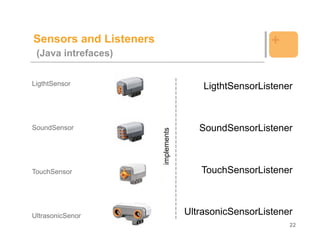
Sensors and Listeners                                   +
 (Java intrefaces)


LigthtSensor                             LigthtSensorListener


SoundSensor                             SoundSensorListener


                        implements
TouchSensor                             TouchSensorListener


UltrasonicSenor                      UltrasonicSensorListener
                                                            22
Example: Sensor and Listeners                                   +

import lejos.nxt.*;

public class Hearing implements SensorPortListener
{
   SoundSensor sound = new SoundSensor(SensorPort.S2);
   int count = 0;

   public static void main (String[] aArg) throws Exception {
     Hearing listen = new Hearing();
     listen.run();
     LCD.clear();
     LCD.drawString("Im hearing", 2, 0);
     LCD.refresh();
     Button.ESCAPE.waitForPressAndRelease();
     LCD.clear();
     LCD.drawString("End!", 3, 4);
     LCD.refresh();
   }
   …


                                                                    23
Example: Sensor and Listeners                                                                                  +

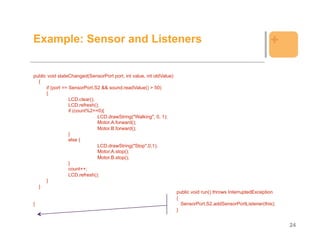
public void stateChanged(SensorPort port, int value, int oldValue)
  {
      if (port == SensorPort.S2 && sound.readValue() > 50)
      {
                  LCD.clear();
                  LCD.refresh();
                  if (count%2==0){
                               LCD.drawString("Walking", 0, 1);
                               Motor.A.forward();
                               Motor.B.forward();
                  }
                  else {
                               LCD.drawString("Stop",0,1);
                               Motor.A.stop();
                               Motor.B.stop();
                  }
                  count++;
                  LCD.refresh();
      }
  }
                                                                     public void run() throws InterruptedException
                                                                     {
}                                                                      SensorPort.S2.addSensorPortListener(this);
                                                                     }


                                                                                                                     24
Example: Speaker                                                           +


import lejos.nxt.*;

class PlaySound {

    public static void main(String[] args) throws InterruptedException {

        Sound.playTone(4000,100);
        Thread.sleep(1500);
        Sound.systemSound(false,4);
        Thread.sleep(2000);

    }

}


                                                                               25
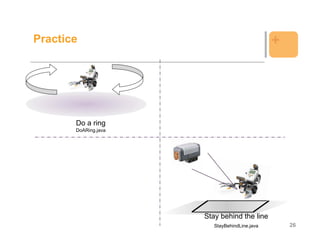
Practice                                       +


       Do a ring
       DoARing.java


                      Stay behind the line
                         StayBehindLine.java       26
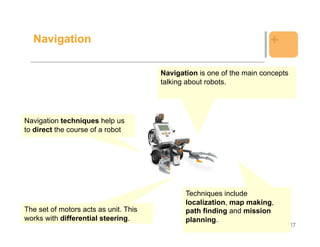
Navigation                                                           +

                                       Navigation is one of the main concepts
                                       talking about robots.


Navigation techniques help us
to direct the course of a robot


                                              Techniques include
                                              localization, map making,
The set of motors acts as unit. This          path finding and mission
works with differential steering.             planning.
                                                                                27
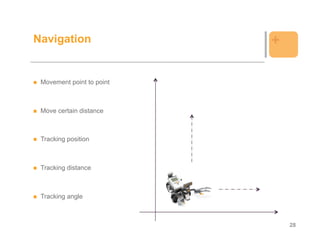
Navigation                 +

 Movement point to point


 Move certain distance


 Tracking position


 Tracking distance


 Tracking angle


                               28
Example: Navigation                                                                     +

import lejos.navigation.*;
import lejos.nxt.*;

public class WTPilot {

    static final float DIAM_WHEEL = 5.6F;
    static final float TRAC_WHEEL = 13F;
    Pilot robot = new Pilot(DIAM_WHEEL, TRAC_WHEEL, Motor.A, Motor.B);

    public static void main (String[] aArg) throws Exception{
      LCD.drawString("Hi!", 0, 1);
      LCD.refresh();
      Button.ESCAPE.waitForPressAndRelease();
      WTPilot s = new WTPilot();
      s.run();
      LCD.clear();
      LCD.drawString("Walking", 2, 0);
      LCD.refresh();                                              public void run(){
      Button.ESCAPE.waitForPressAndRelease();                       robot.forward();
      LCD.clear();
      LCD.drawString("End!", 3, 4);                               }
      LCD.refresh();
      s.stop();                                                   public void stop(){
    }                                                               robot.stop();
                                                                  }
}
                                                                                            29
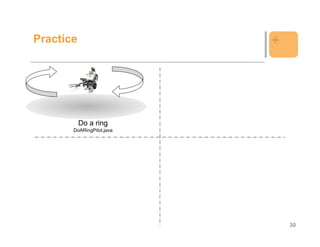
Practice                   +


           Do a ring
       DoARingPilot.java


                               30
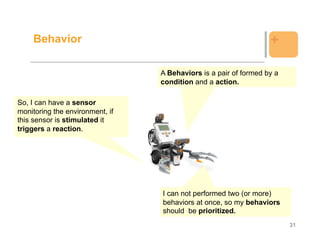
Behavior                                                      +

                                 A Behaviors is a pair of formed by a
                                 condition and a action.

So, I can have a sensor
monitoring the environment, if
this sensor is stimulated it
triggers a reaction.


                                 I can not performed two (or more)
                                 behaviors at once, so my behaviors
                                 should be prioritized.
                                                                        31
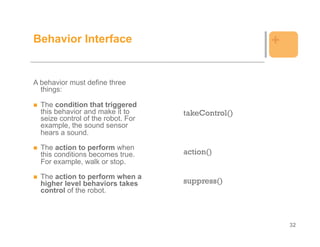
Behavior Interface                                  +

A behavior must define three
  things:

  The condition that triggered
  this behavior and make it to      takeControl()
  seize control of the robot. For
  example, the sound sensor
  hears a sound.

  The action to perform when
  this conditions becomes true.     action()
  For example, walk or stop.

  The action to perform when a
  higher level behaviors takes      suppress()
  control of the robot.


                                                        32
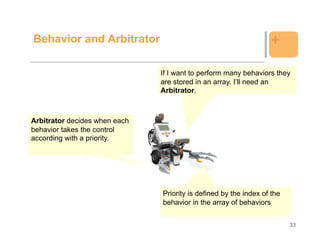
Behavior and Arbitrator                                            +

                               If I want to perform many behaviors they
                               are stored in an array. I’ll need an
                               Arbitrator.


Arbitrator decides when each
behavior takes the control
according with a priority.


                               Priority is defined by the index of the
                               behavior in the array of behaviors


                                                                         33
Example: Behavior                                       +

 We want that our robot drive forward until it sees a
 black line. When it sees a black line it should stop
 and rotate. We have a robot with two behaviors:


  1.   Drive forward
  2.   If a black line, stop and rotate.


                                                            34
Example: Behavior                                                                                +

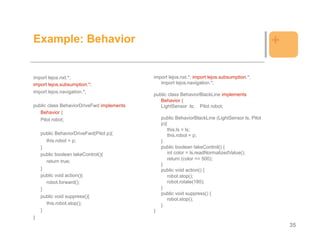
import lejos.nxt.*;                        import lejos.nxt.*; import lejos.subsumption.*;
import lejos.subsumption.*;                   import lejos.navigation.*;
import lejos.navigation.*;
                                           public class BehaviorBlackLine implements
                                              Behavior {
public class BehaviorDriveFwd implements      LightSensor ls; Pilot robot;
   Behavior {
   Pilot robot;                                public BehaviorBlackLine (LightSensor ls, Pilot
                                               p){
                                                  this.ls = ls;
    public BehaviorDriveFwd(Pilot p){             this.robot = p;
      this.robot = p;                          }
    }                                          public boolean takeControl() {
    public boolean takeControl(){                 int color = ls.readNormalizedValue();
                                                  return (color <= 500);
      return true;
                                               }
    }                                          public void action() {
    public void action(){                         robot.stop();
      robot.forward();                            robot.rotate(180);
    }                                          }
                                               public void suppress() {
    public void suppress(){
                                                  robot.stop();
      this.robot.stop();                       }
    }                                      }
}
                                                                                                     35
Example: Behavior                                                            +

public class BlackLineAvoider {
   static final float DIAM_WHEEL = 5.6F;
   static final float TRAC_WHEEL = 13F;

    public static void main(String [] args){

        LightSensor ls = new LightSensor (SensorPort.S1, true);
        Pilot robot = new Pilot(DIAM_WHEEL, TRAC_WHEEL, Motor.A, Motor.B);
        robot.setSpeed(500);

        LCD.drawString("Hi!", 0, 1);
        LCD.refresh();

        Button.ESCAPE.waitForPressAndRelease();

        Behavior b1 = new BehaviorDriveFwd(robot);
        Behavior b2 = new BehaviorBlackLine(ls,robot);
        Behavior [] bArray = {b1, b2};
        Arbitrator arby = new Arbitrator(bArray);
        arby.start();
    }
}


                                                                                 36
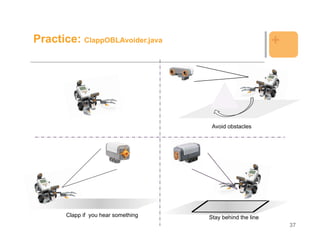
Practice: ClappOBLAvoider.java                              +


                                      Avoid obstacles


       Clapp if you hear something   Stay behind the line
                                                                37
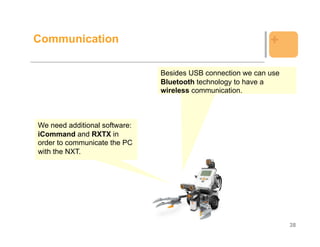
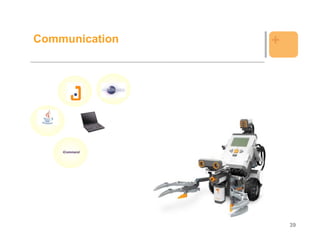
Communication                                                +

                               Besides USB connection we can use
                               Bluetooth technology to have a
                               wireless communication.


We need additional software:
iCommand and RXTX in
order to communicate the PC
with the NXT.


                                                                   38
Communication   +


    iCommand


                    39
Installation                                                                                      +

 Download and unzip iCommand (icommand-0.7.zip) and in Eclipse
   Create a new project.
   Select Project | Properties | Java Build Path | Add External Jars and browse to
   icommand.jar in the icommand main folder.


 Download and unzip RXTX (rxtx-2.1-7-bins-r2.zip) and in Eclipse
   Project | Properties | Java Build Path | Add External Jars and browse to RXTXcomm.jar in
   the main folder of RXTX.
   Expand RXTXcomm.jar by clicking the (+) symbol.
   Select Native library location click on the Edit button | External Folder and browse to RXTX
   subdirectory Windowsi368-mingw32.
   Copy those two files into the folder of your Java JDK.
   Browse for icommand.properties file at the dist folder of iCommand.
   Set the value of the nxtcomm to the value of the port to comunicate via BT.
   Uncomment the nxtcomm.type = rxtx line
   Copy the icommand.properties file into your home directory and working directory.


                                                                                                      40
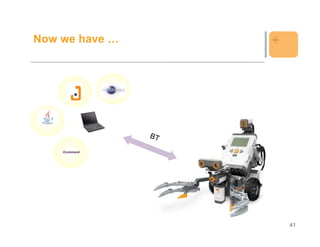
Now we have …   +


    iCommand


                    41
Example: Sending data                                                                                           +

import icommand.nxt.Sound;
import icommand.nxt.comm.*;

public class Beep {
   private static final short[] note = { 2349, 115, 0, 5, 1760, 165, 0, 35, 1760, 28, 0, 13, 1976, 23, 0, 18,
                            1760, 18, 0, 23, 1568, 15, 0, 25, 1480, 103, 0, 18, 1175, 180, 0,
                                   20, 1760, 18, 0, 23, 1976, 20, 0, 20, 1760, 15, 0, 25, 1568, 15, 0,
                                   25, 2217, 98, 0, 23, 1760, 88, 0, 33, 1760, 75, 0, 5, 1760, 20, 0,
                                   20, 1760, 20, 0, 20, 1976, 18, 0, 23, 1760, 18, 0, 23, 2217, 225,
                                   0, 15, 2217, 218 };
   public static void main(String[] args) {
      NXTCommand.open();
      for (int i = 0; i < note.length; i += 2) {
                   final short w = note[i + 1];
                   final int n = note[i];
                   if (n != 0)
                                   Sound.playTone(n, w * 10);
                                   try { Thread.sleep(w * 10);
                                   } catch (InterruptedException e) {
                   }
      }
      NXTCommand.close();
   }
}


                                                                                                                    42
Example: Getting data                                                                                           +

import icommand.nxt.comm.NXTCommand;
import icommand.nxt.*;
import java.io.*;

public class GetInfo {

 public static void main (String [] args)throws FileNotFoundException{
   NXTCommand.open();
   String toFile;
   PrintWriter outFile = new PrintWriter ("outfile.txt");

   LightSensor ls = new LightSensor(SensorPort.S1);
   toFile = "Light sensor: " + ls.getLightValue() + "n";
   TouchSensor ts = new TouchSensor (SensorPort.S3);                             for (int i=0; i<20;i++)
   String tsStatus;                                                                if (i%2==0)
                                                                                      Motor.C.rotate(20);
   if (ts.isPressed()) tsStatus ="Pressed";                                        else
   else tsStatus="Not pressed";                                                       Motor.C.rotate(-20);

   toFile = toFile + "Touch sensor: " + tsStatus;                                System.out.println (toFile);
                                                                                 outFile.println(toFile);
                                                                                 outFile.close();
                                                                                 NXTCommand.close();
                                                                             }
                                                                         }

                                                                                                                    43
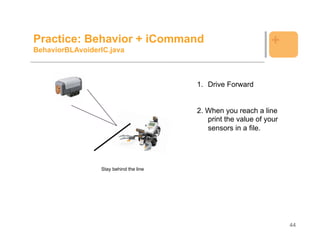
Practice: Behavior + iCommand                                  +
BehaviorBLAvoiderIC.java


                                        1. Drive Forward


                                        2. When you reach a line
                                           print the value of your
                                           sensors in a file.


                 Stay behind the line


                                                                     44
Vision                                                            +

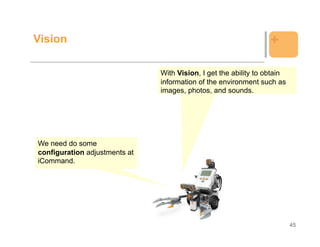
                               With Vision, I get the ability to obtain
                               information of the environment such as
                               images, photos, and sounds.


We need do some
configuration adjustments at
iCommand.


                                                                          45
Vision         +


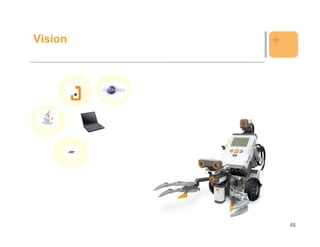
         JMF


                   46
Installation                                                                  +

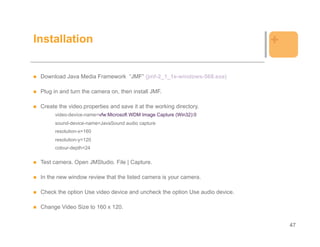
 Download Java Media Framework “JMF” (jmf-2_1_1e-windows-568.exe)

 Plug in and turn the camera on, then install JMF.

 Create the video.properties and save it at the working directory.
      video-device-name=vfw:Microsoft WDM Image Capture (Win32):0
      sound-device-name=JavaSound audio capture
      resolution-x=160
      resolution-y=120
      colour-depth=24

 Test camera. Open JMStudio. File | Capture.

 In the new window review that the listed camera is your camera.

 Check the option Use video device and uncheck the option Use audio device.

 Change Video Size to 160 x 120.


                                                                                  47
Installation                                                      +

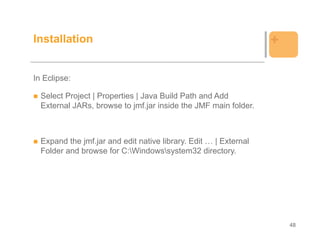
In Eclipse:

  Select Project | Properties | Java Build Path and Add
  External JARs, browse to jmf.jar inside the JMF main folder.


  Expand the jmf.jar and edit native library. Edit … | External
  Folder and browse for C:Windowssystem32 directory.


                                                                      48
Example: Vision                                                                                               +

import icommand.vision.*;                           public void motionDetected(int region) {
                                                       if ((System.currentTimeMillis() - lastPlay) > 1000)
public class VisionAlarm implements                      {
   MotionListener, ColorListener, LightListener {         lastPlay = System.currentTimeMillis();
                                                          if (region == 1) System.out.println("Región 1");
 long lastPlay = 0;                                       else System.out.println("Región 2");
 private final int WHITE = 0xFFFFFF;                      Vision.playSound("blip.wav");
                                                       } }
 public static void main(String [] args) {           public void colorDetected(int region, int color) {
     (new VisionAlarm()).run();                         if ((System.currentTimeMillis() - lastPlay) >
 }                                                       1000) {
                                                          lastPlay = System.currentTimeMillis();
private void run() {                                       if (region == 3) System.out.println("Región 3");
   Vision.setImageSize(320, 240);                          Vision.playSound("quack.wav");
   Vision.flipHorizontal(false);                           Vision.stopViewer();
   Vision.addRectRegion(1, 30, 50, 50, 100);               System.exit(0);
   Vision.addMotionListener(1, this);                   } }
   Vision.addRectRegion(2, 130, 50, 50, 100);        public void lightDetected (int region) {
   Vision.addMotionListener(2, this);                   if ((System.currentTimeMillis() - lastPlay) >
   Vision.addRectRegion(3, 230, 50, 50, 100);            1000) {
   Vision.addColorListener(3, this, WHITE);                lastPlay = System.currentTimeMillis();
   Vision.addRectRegion(4, 30, 180, 250, 50);              if (region == 4) System.out.println("Región 4");
   Vision.addLightListener(4, this);                       Vision.playSound("quack.wav");
   Vision.startViewer("Alarm");                       } } }
 }
                                                                                                                  49
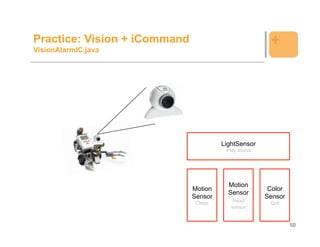
Practice: Vision + iCommand                           +
VisionAlarmIC.java


                                       LightSensor
                                        Play sound


                                         Motion
                              Motion                  Color
                                         Sensor
                              Sensor                 Sensor
                               Clapp       Read       Quit
                                          sensor


                                                              50
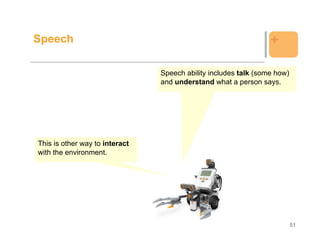
Speech                                                           +

                                Speech ability includes talk (some how)
                                and understand what a person says.


This is other way to interact
with the environment.


                                                                          51
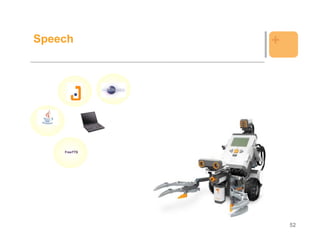
Speech        +


    FreeTTS


                  52
Installation                                                                  +

  Download and unzip the FreeTTS file. (freetts-1.2.1-bin.zip)


In Eclipse
   Project | Properties | Add External JARs, browse for freetts.jar file at
   the lib directory.


  Set up Java Speech API. Run the jsapi.exe at the lib directory.
  Browse speech.properties file. Copy this file in your user and
  working directories.


                                                                                  53
Example: Speech                                                                                 +

import com.sun.speech.freetts.Voice;
import com.sun.speech.freetts.VoiceManager;

public class HelloWorldSpeech {

  public static void main(String[] args) {

    String voiceName = "kevin16";
    System.out.println("Using voice: " + voiceName);

    VoiceManager voiceManager = VoiceManager.getInstance();
    Voice helloVoice = voiceManager.getVoice(voiceName);

    if (helloVoice == null) {
        System.err.println(
          "Cannot find a voice named "
          + voiceName + ". Please specify a different voice.");
        System.exit(1);                                           helloVoice.speak("Hi Educator Symposium
    }                                                             Attendees");
    helloVoice.allocate();                                             helloVoice.deallocate();
                                                                       System.exit(0);
                                                                     }
                                                                  }


                                                                                                        54
Practice: Speech + Vision                                                             +
SpeechVision.java


/**
 * Copyright 2003 Sun Microsystems, Inc.
*/

import com.sun.speech.freetts.Voice;
import com.sun.speech.freetts.VoiceManager;
import icommand.vision.*;

public class SpeechVision implements MotionListener, ColorListener, LightListener {
  long lastPlay = 0;
  private final int WHITE = 0xFFFFFF;

  public static void main(String [] args) {
    (new SpeechVision()).run();
  }


                                                                                          55
Practice: Speech + Vision                                                                    +

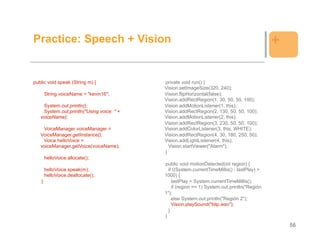
public void speak (String m) {             private void run() {
                                           Vision.setImageSize(320, 240);
       String voiceName = "kevin16";       Vision.flipHorizontal(false);
                                           Vision.addRectRegion(1, 30, 50, 50, 100);
    System.out.println();                  Vision.addMotionListener(1, this);
    System.out.println("Using voice: " +   Vision.addRectRegion(2, 130, 50, 50, 100);
   voiceName);                             Vision.addMotionListener(2, this);
                                           Vision.addRectRegion(3, 230, 50, 50, 100);
    VoiceManager voiceManager =            Vision.addColorListener(3, this, WHITE);
   VoiceManager.getInstance();             Vision.addRectRegion(4, 30, 180, 250, 50);
    Voice helloVoice =                     Vision.addLightListener(4, this);
   voiceManager.getVoice(voiceName);         Vision.startViewer("Alarm");
                                           }
       helloVoice.allocate();
                                           public void motionDetected(int region) {
       helloVoice.speak(m);                  if ((System.currentTimeMillis() - lastPlay) >
       helloVoice.deallocate();            1000) {
   }                                           lastPlay = System.currentTimeMillis();
                                               if (region == 1) System.out.println("Región
                                           1");
                                               else System.out.println("Región 2");
                                               Vision.playSound("blip.wav");
                                             }
                                           }
                                                                                                 56
Practice: Speech + Vision                                     +

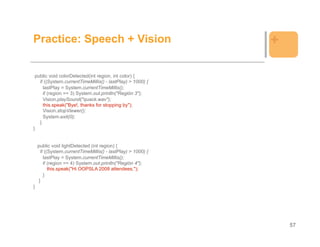
 public void colorDetected(int region, int color) {
   if ((System.currentTimeMillis() - lastPlay) > 1000) {
     lastPlay = System.currentTimeMillis();
     if (region == 3) System.out.println("Región 3");
     Vision.playSound("quack.wav");
     this.speak("Bye!, thanks for stopping by");
     Vision.stopViewer();
     System.exit(0);
   }
}


    public void lightDetected (int region) {
      if ((System.currentTimeMillis() - lastPlay) > 1000) {
        lastPlay = System.currentTimeMillis();
        if (region == 4) System.out.println("Región 4");
           this.speak("Hi OOPSLA 2008 attendees.");
        }
     }
}


                                                                  57
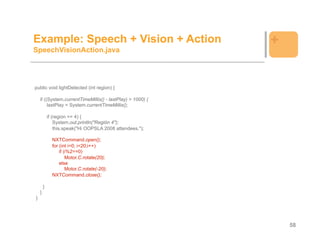
Example: Speech + Vision + Action                           +
SpeechVisionAction.java


public void lightDetected (int region) {

    if ((System.currentTimeMillis() - lastPlay) > 1000) {
         lastPlay = System.currentTimeMillis();

            if (region == 4) {
                System.out.println("Región 4");
                this.speak("Hi OOPSLA 2008 attendees.");

              NXTCommand.open();
              for (int i=0; i<20;i++)
                  if (i%2==0)
                      Motor.C.rotate(20);
                  else
                      Motor.C.rotate(-20);
              NXTCommand.close();

        }
    }
}


                                                                58
Thanks
    for stopping by!!!


+
Instructors                                         +

               Javier González Sánchez
     Tecnológico de Monterrey, campus Guadalajara
                  javiergs@itesm.mx
                        .com/in/javiergs


            Maria Elena Chávez Echeagaray
     Tecnológico de Monterrey, campus Guadalajara
                 mechavez@itesm.mx
                      .com/in/mechavez


    http:// groups.google.com/group/oopsla08-lego


                                                        60

200810 - Lego Mindstorms NTX with Java

  • 1.
    + Programming LEGO ® Mindstorms with Java Javier González Sánchez Maria Elena Chávez Echeagaray Copyright is held by the author/owner(s). OOPSLA 2008, October 19–23, 2008, Nashville, Tennessee, USA. ACM 978-1-60558-220-7/08/10.
  • 2.
    Goal + Learn how to use and program a LEGO ® using LeJOS, Java and additional tools. Going step by step. From basis to complex. Learning techniques to control LEGO ® Mindstorms ® robots 2
  • 3.
    Agenda + iCommand TTF JMF iCommand JMF TTF 3
  • 4.
    Agenda – Firstpart + Introduction Goals of the tutorial Why using Lego as an education tool? Lego HW: Learning about LEGO ® Technology SW: Setting everything up (installation) LEGO ® Hello World! and Basics Navigation Example: Walking and Talking (Using Pilot) Pros and cons Behavior and Arbitrators 4
  • 5.
    Agenda – Secondpart + Communication via Bluetooth SW: iCommand (installation) Example: Sending and Getting data to and from the NXT Vision SW: Java Media Framework (installation) Example: Regions and actions Speech SW: FreeTTS (installation) Example: HelloWorldSpeech, Speech + Vision, Speech + Vision + Action 5
  • 6.
    Control LEGO ®Mindstorms ® + electronics senses computing decision mechanics actions 6
  • 7.
    + LEGO ® as an educational tool
  • 8.
    Cool & IntegratedTech + Electronic (electricity) and mechanical (components movement) device (somthing that makes somthing) Set of instructions to control a device. Robot: creating intelligence with programing Capabiity to take decisions according wiht the environment senses:: percepiton:: get information from the environment 8
  • 9.
    We can createintelligence + Motor setPower 010101 Forward 010101 Stop 111100 Sensor 011 Value text 011001 9
  • 10.
    How to createintelligence? + Motor 010101 setPower 010101 Forward 111100 Stop 011 text 011001 Sensor Value 10
  • 11.
    Intelligence is … + senses brain memory decision action 11
  • 12.
    + Setting everything up
  • 13.
    What do weneed? + LEGO USB driver JMF iCommand FreeTTS 13
  • 14.
    Installation + Java SE JRE version 5 or later (jre-6u7-windows-i568-p-s.exe) Unzip and install Mindstorms NXT Driver v1.02 (NXTDriver.zip) and restart LeJOS on your PC (lejos_NXJ_win32_0_6_0beta.zip) Install it on C:ProgramFileslejos_nxj (with no blanks) Set up System variables on Control Panel LEJOS_HOME C:ProgramFileslejos_nxj PATH ;C:ProgramFileslejos_nxjbin LeJOS on the Brick (USB) We did it for you! 14
  • 15.
    Installation + Unzip Eclipse file (eclipse-SDK-3.4-win32.zip) Create a Java Project File | New | Java Project Define project as LeJOS Project Properties | Java Buid Path and Libraries | Add External JARs : C:ProgramFileslejos_nxjlib Java Compiler Properties | Java compiler. Level 1.3 Downloading programs to the NXT brick Run menu | External Tools | External Tools Configuration. Program | New Icon. Set a name: LeJOS Download. At Main tab browse C:lejos_nxjbinlejosdl.bat. Working directory field type {project_loc}bin. Argument section filled type ${java_type_name} Creating a shorcut Click on the drop list on the little green icon with the red toolbox Organize Favorites | Add button. Check leJOS Download option. 15
  • 16.
    Now we have… + LEGO USB driver 16
  • 17.
    HelloWorld! + 1. Create the new class HelloWorld. Project | New | Class import lejos.nxt.LCD; Add public class HelloWorld { public static void main(String[] args) { LCD.drawString("Hello World!", 1, 2); LCD.refresh(); while(true) {} } Speak using LCD } 2. Upload this class to you NXT, using your LeJOS Download tool. 17
  • 18.
    LEGO ® HW + ears speak (LCD) eyes (ultrasonic) tact (touch) foot eyes (ligth) hands 18
  • 19.
    Learning about LeJOS + ears (Sound Sensor) speak (LCD) eyes (Ultrasonic tact Sensor) (Touch Sensor) foot (Motor) hands eyes (Motor) (ligth Sensor) 19
  • 20.
    Learning about LeJOS + LeJOS API http://lejos.sourceforge.net/nxt/nxj/api/index.html 20
  • 21.
    Example: Motors andButtons + import lejos.nxt.*; public class WalkingTalking { public static void main (String[] aArg) throws Exception{ LCD.drawString("Hi!", 0, 1); LCD.refresh(); Button.ESCAPE.waitForPressAndRelease(); Motor.A.forward(); Motor.B.forward(); LCD.clear(); LCD.drawString("Walking", 2, 0); LCD.refresh(); Button.ESCAPE.waitForPressAndRelease(); Motor.A.stop(); Motor.B.stop(); LCD.clear(); LCD.drawString("End!", 3, 4); LCD.refresh(); } } 21
  • 22.
    Sensors and Listeners + (Java intrefaces) LigthtSensor LigthtSensorListener SoundSensor SoundSensorListener implements TouchSensor TouchSensorListener UltrasonicSenor UltrasonicSensorListener 22
  • 23.
    Example: Sensor andListeners + import lejos.nxt.*; public class Hearing implements SensorPortListener { SoundSensor sound = new SoundSensor(SensorPort.S2); int count = 0; public static void main (String[] aArg) throws Exception { Hearing listen = new Hearing(); listen.run(); LCD.clear(); LCD.drawString("Im hearing", 2, 0); LCD.refresh(); Button.ESCAPE.waitForPressAndRelease(); LCD.clear(); LCD.drawString("End!", 3, 4); LCD.refresh(); } … 23
  • 24.
    Example: Sensor andListeners + public void stateChanged(SensorPort port, int value, int oldValue) { if (port == SensorPort.S2 && sound.readValue() > 50) { LCD.clear(); LCD.refresh(); if (count%2==0){ LCD.drawString("Walking", 0, 1); Motor.A.forward(); Motor.B.forward(); } else { LCD.drawString("Stop",0,1); Motor.A.stop(); Motor.B.stop(); } count++; LCD.refresh(); } } public void run() throws InterruptedException { } SensorPort.S2.addSensorPortListener(this); } 24
  • 25.
    Example: Speaker + import lejos.nxt.*; class PlaySound { public static void main(String[] args) throws InterruptedException { Sound.playTone(4000,100); Thread.sleep(1500); Sound.systemSound(false,4); Thread.sleep(2000); } } 25
  • 26.
    Practice + Do a ring DoARing.java Stay behind the line StayBehindLine.java 26
  • 27.
    Navigation + Navigation is one of the main concepts talking about robots. Navigation techniques help us to direct the course of a robot Techniques include localization, map making, The set of motors acts as unit. This path finding and mission works with differential steering. planning. 27
  • 28.
    Navigation + Movement point to point Move certain distance Tracking position Tracking distance Tracking angle 28
  • 29.
    Example: Navigation + import lejos.navigation.*; import lejos.nxt.*; public class WTPilot { static final float DIAM_WHEEL = 5.6F; static final float TRAC_WHEEL = 13F; Pilot robot = new Pilot(DIAM_WHEEL, TRAC_WHEEL, Motor.A, Motor.B); public static void main (String[] aArg) throws Exception{ LCD.drawString("Hi!", 0, 1); LCD.refresh(); Button.ESCAPE.waitForPressAndRelease(); WTPilot s = new WTPilot(); s.run(); LCD.clear(); LCD.drawString("Walking", 2, 0); LCD.refresh(); public void run(){ Button.ESCAPE.waitForPressAndRelease(); robot.forward(); LCD.clear(); LCD.drawString("End!", 3, 4); } LCD.refresh(); s.stop(); public void stop(){ } robot.stop(); } } 29
  • 30.
    Practice + Do a ring DoARingPilot.java 30
  • 31.
    Behavior + A Behaviors is a pair of formed by a condition and a action. So, I can have a sensor monitoring the environment, if this sensor is stimulated it triggers a reaction. I can not performed two (or more) behaviors at once, so my behaviors should be prioritized. 31
  • 32.
    Behavior Interface + A behavior must define three things: The condition that triggered this behavior and make it to takeControl() seize control of the robot. For example, the sound sensor hears a sound. The action to perform when this conditions becomes true. action() For example, walk or stop. The action to perform when a higher level behaviors takes suppress() control of the robot. 32
  • 33.
    Behavior and Arbitrator + If I want to perform many behaviors they are stored in an array. I’ll need an Arbitrator. Arbitrator decides when each behavior takes the control according with a priority. Priority is defined by the index of the behavior in the array of behaviors 33
  • 34.
    Example: Behavior + We want that our robot drive forward until it sees a black line. When it sees a black line it should stop and rotate. We have a robot with two behaviors: 1. Drive forward 2. If a black line, stop and rotate. 34
  • 35.
    Example: Behavior + import lejos.nxt.*; import lejos.nxt.*; import lejos.subsumption.*; import lejos.subsumption.*; import lejos.navigation.*; import lejos.navigation.*; public class BehaviorBlackLine implements Behavior { public class BehaviorDriveFwd implements LightSensor ls; Pilot robot; Behavior { Pilot robot; public BehaviorBlackLine (LightSensor ls, Pilot p){ this.ls = ls; public BehaviorDriveFwd(Pilot p){ this.robot = p; this.robot = p; } } public boolean takeControl() { public boolean takeControl(){ int color = ls.readNormalizedValue(); return (color <= 500); return true; } } public void action() { public void action(){ robot.stop(); robot.forward(); robot.rotate(180); } } public void suppress() { public void suppress(){ robot.stop(); this.robot.stop(); } } } } 35
  • 36.
    Example: Behavior + public class BlackLineAvoider { static final float DIAM_WHEEL = 5.6F; static final float TRAC_WHEEL = 13F; public static void main(String [] args){ LightSensor ls = new LightSensor (SensorPort.S1, true); Pilot robot = new Pilot(DIAM_WHEEL, TRAC_WHEEL, Motor.A, Motor.B); robot.setSpeed(500); LCD.drawString("Hi!", 0, 1); LCD.refresh(); Button.ESCAPE.waitForPressAndRelease(); Behavior b1 = new BehaviorDriveFwd(robot); Behavior b2 = new BehaviorBlackLine(ls,robot); Behavior [] bArray = {b1, b2}; Arbitrator arby = new Arbitrator(bArray); arby.start(); } } 36
  • 37.
    Practice: ClappOBLAvoider.java + Avoid obstacles Clapp if you hear something Stay behind the line 37
  • 38.
    Communication + Besides USB connection we can use Bluetooth technology to have a wireless communication. We need additional software: iCommand and RXTX in order to communicate the PC with the NXT. 38
  • 39.
    Communication + iCommand 39
  • 40.
    Installation + Download and unzip iCommand (icommand-0.7.zip) and in Eclipse Create a new project. Select Project | Properties | Java Build Path | Add External Jars and browse to icommand.jar in the icommand main folder. Download and unzip RXTX (rxtx-2.1-7-bins-r2.zip) and in Eclipse Project | Properties | Java Build Path | Add External Jars and browse to RXTXcomm.jar in the main folder of RXTX. Expand RXTXcomm.jar by clicking the (+) symbol. Select Native library location click on the Edit button | External Folder and browse to RXTX subdirectory Windowsi368-mingw32. Copy those two files into the folder of your Java JDK. Browse for icommand.properties file at the dist folder of iCommand. Set the value of the nxtcomm to the value of the port to comunicate via BT. Uncomment the nxtcomm.type = rxtx line Copy the icommand.properties file into your home directory and working directory. 40
  • 41.
    Now we have… + iCommand 41
  • 42.
    Example: Sending data + import icommand.nxt.Sound; import icommand.nxt.comm.*; public class Beep { private static final short[] note = { 2349, 115, 0, 5, 1760, 165, 0, 35, 1760, 28, 0, 13, 1976, 23, 0, 18, 1760, 18, 0, 23, 1568, 15, 0, 25, 1480, 103, 0, 18, 1175, 180, 0, 20, 1760, 18, 0, 23, 1976, 20, 0, 20, 1760, 15, 0, 25, 1568, 15, 0, 25, 2217, 98, 0, 23, 1760, 88, 0, 33, 1760, 75, 0, 5, 1760, 20, 0, 20, 1760, 20, 0, 20, 1976, 18, 0, 23, 1760, 18, 0, 23, 2217, 225, 0, 15, 2217, 218 }; public static void main(String[] args) { NXTCommand.open(); for (int i = 0; i < note.length; i += 2) { final short w = note[i + 1]; final int n = note[i]; if (n != 0) Sound.playTone(n, w * 10); try { Thread.sleep(w * 10); } catch (InterruptedException e) { } } NXTCommand.close(); } } 42
  • 43.
    Example: Getting data + import icommand.nxt.comm.NXTCommand; import icommand.nxt.*; import java.io.*; public class GetInfo { public static void main (String [] args)throws FileNotFoundException{ NXTCommand.open(); String toFile; PrintWriter outFile = new PrintWriter ("outfile.txt"); LightSensor ls = new LightSensor(SensorPort.S1); toFile = "Light sensor: " + ls.getLightValue() + "n"; TouchSensor ts = new TouchSensor (SensorPort.S3); for (int i=0; i<20;i++) String tsStatus; if (i%2==0) Motor.C.rotate(20); if (ts.isPressed()) tsStatus ="Pressed"; else else tsStatus="Not pressed"; Motor.C.rotate(-20); toFile = toFile + "Touch sensor: " + tsStatus; System.out.println (toFile); outFile.println(toFile); outFile.close(); NXTCommand.close(); } } 43
  • 44.
    Practice: Behavior +iCommand + BehaviorBLAvoiderIC.java 1. Drive Forward 2. When you reach a line print the value of your sensors in a file. Stay behind the line 44
  • 45.
    Vision + With Vision, I get the ability to obtain information of the environment such as images, photos, and sounds. We need do some configuration adjustments at iCommand. 45
  • 46.
    Vision + JMF 46
  • 47.
    Installation + Download Java Media Framework “JMF” (jmf-2_1_1e-windows-568.exe) Plug in and turn the camera on, then install JMF. Create the video.properties and save it at the working directory. video-device-name=vfw:Microsoft WDM Image Capture (Win32):0 sound-device-name=JavaSound audio capture resolution-x=160 resolution-y=120 colour-depth=24 Test camera. Open JMStudio. File | Capture. In the new window review that the listed camera is your camera. Check the option Use video device and uncheck the option Use audio device. Change Video Size to 160 x 120. 47
  • 48.
    Installation + In Eclipse: Select Project | Properties | Java Build Path and Add External JARs, browse to jmf.jar inside the JMF main folder. Expand the jmf.jar and edit native library. Edit … | External Folder and browse for C:Windowssystem32 directory. 48
  • 49.
    Example: Vision + import icommand.vision.*; public void motionDetected(int region) { if ((System.currentTimeMillis() - lastPlay) > 1000) public class VisionAlarm implements { MotionListener, ColorListener, LightListener { lastPlay = System.currentTimeMillis(); if (region == 1) System.out.println("Región 1"); long lastPlay = 0; else System.out.println("Región 2"); private final int WHITE = 0xFFFFFF; Vision.playSound("blip.wav"); } } public static void main(String [] args) { public void colorDetected(int region, int color) { (new VisionAlarm()).run(); if ((System.currentTimeMillis() - lastPlay) > } 1000) { lastPlay = System.currentTimeMillis(); private void run() { if (region == 3) System.out.println("Región 3"); Vision.setImageSize(320, 240); Vision.playSound("quack.wav"); Vision.flipHorizontal(false); Vision.stopViewer(); Vision.addRectRegion(1, 30, 50, 50, 100); System.exit(0); Vision.addMotionListener(1, this); } } Vision.addRectRegion(2, 130, 50, 50, 100); public void lightDetected (int region) { Vision.addMotionListener(2, this); if ((System.currentTimeMillis() - lastPlay) > Vision.addRectRegion(3, 230, 50, 50, 100); 1000) { Vision.addColorListener(3, this, WHITE); lastPlay = System.currentTimeMillis(); Vision.addRectRegion(4, 30, 180, 250, 50); if (region == 4) System.out.println("Región 4"); Vision.addLightListener(4, this); Vision.playSound("quack.wav"); Vision.startViewer("Alarm"); } } } } 49
  • 50.
    Practice: Vision +iCommand + VisionAlarmIC.java LightSensor Play sound Motion Motion Color Sensor Sensor Sensor Clapp Read Quit sensor 50
  • 51.
    Speech + Speech ability includes talk (some how) and understand what a person says. This is other way to interact with the environment. 51
  • 52.
    Speech + FreeTTS 52
  • 53.
    Installation + Download and unzip the FreeTTS file. (freetts-1.2.1-bin.zip) In Eclipse Project | Properties | Add External JARs, browse for freetts.jar file at the lib directory. Set up Java Speech API. Run the jsapi.exe at the lib directory. Browse speech.properties file. Copy this file in your user and working directories. 53
  • 54.
    Example: Speech + import com.sun.speech.freetts.Voice; import com.sun.speech.freetts.VoiceManager; public class HelloWorldSpeech { public static void main(String[] args) { String voiceName = "kevin16"; System.out.println("Using voice: " + voiceName); VoiceManager voiceManager = VoiceManager.getInstance(); Voice helloVoice = voiceManager.getVoice(voiceName); if (helloVoice == null) { System.err.println( "Cannot find a voice named " + voiceName + ". Please specify a different voice."); System.exit(1); helloVoice.speak("Hi Educator Symposium } Attendees"); helloVoice.allocate(); helloVoice.deallocate(); System.exit(0); } } 54
  • 55.
    Practice: Speech +Vision + SpeechVision.java /** * Copyright 2003 Sun Microsystems, Inc. */ import com.sun.speech.freetts.Voice; import com.sun.speech.freetts.VoiceManager; import icommand.vision.*; public class SpeechVision implements MotionListener, ColorListener, LightListener { long lastPlay = 0; private final int WHITE = 0xFFFFFF; public static void main(String [] args) { (new SpeechVision()).run(); } 55
  • 56.
    Practice: Speech +Vision + public void speak (String m) { private void run() { Vision.setImageSize(320, 240); String voiceName = "kevin16"; Vision.flipHorizontal(false); Vision.addRectRegion(1, 30, 50, 50, 100); System.out.println(); Vision.addMotionListener(1, this); System.out.println("Using voice: " + Vision.addRectRegion(2, 130, 50, 50, 100); voiceName); Vision.addMotionListener(2, this); Vision.addRectRegion(3, 230, 50, 50, 100); VoiceManager voiceManager = Vision.addColorListener(3, this, WHITE); VoiceManager.getInstance(); Vision.addRectRegion(4, 30, 180, 250, 50); Voice helloVoice = Vision.addLightListener(4, this); voiceManager.getVoice(voiceName); Vision.startViewer("Alarm"); } helloVoice.allocate(); public void motionDetected(int region) { helloVoice.speak(m); if ((System.currentTimeMillis() - lastPlay) > helloVoice.deallocate(); 1000) { } lastPlay = System.currentTimeMillis(); if (region == 1) System.out.println("Región 1"); else System.out.println("Región 2"); Vision.playSound("blip.wav"); } } 56
  • 57.
    Practice: Speech +Vision + public void colorDetected(int region, int color) { if ((System.currentTimeMillis() - lastPlay) > 1000) { lastPlay = System.currentTimeMillis(); if (region == 3) System.out.println("Región 3"); Vision.playSound("quack.wav"); this.speak("Bye!, thanks for stopping by"); Vision.stopViewer(); System.exit(0); } } public void lightDetected (int region) { if ((System.currentTimeMillis() - lastPlay) > 1000) { lastPlay = System.currentTimeMillis(); if (region == 4) System.out.println("Región 4"); this.speak("Hi OOPSLA 2008 attendees."); } } } 57
  • 58.
    Example: Speech +Vision + Action + SpeechVisionAction.java public void lightDetected (int region) { if ((System.currentTimeMillis() - lastPlay) > 1000) { lastPlay = System.currentTimeMillis(); if (region == 4) { System.out.println("Región 4"); this.speak("Hi OOPSLA 2008 attendees."); NXTCommand.open(); for (int i=0; i<20;i++) if (i%2==0) Motor.C.rotate(20); else Motor.C.rotate(-20); NXTCommand.close(); } } } 58
  • 59.
    Thanks for stopping by!!! +
  • 60.
    Instructors + Javier González Sánchez Tecnológico de Monterrey, campus Guadalajara javiergs@itesm.mx .com/in/javiergs Maria Elena Chávez Echeagaray Tecnológico de Monterrey, campus Guadalajara mechavez@itesm.mx .com/in/mechavez http:// groups.google.com/group/oopsla08-lego 60