
Day One:

Before We Start


     From the Storyboard to the Code:
         Programming with Alice
                  Arizona	
  State	
  University	
  
                        June	
  2010	
  
What do you know today
 about programming?
Day One:

Introduction to Programming


     From the Storyboard to the Code:
         Programming with Alice
                      Arizona	
  State	
  University	
  
                            June	
  2010	
  
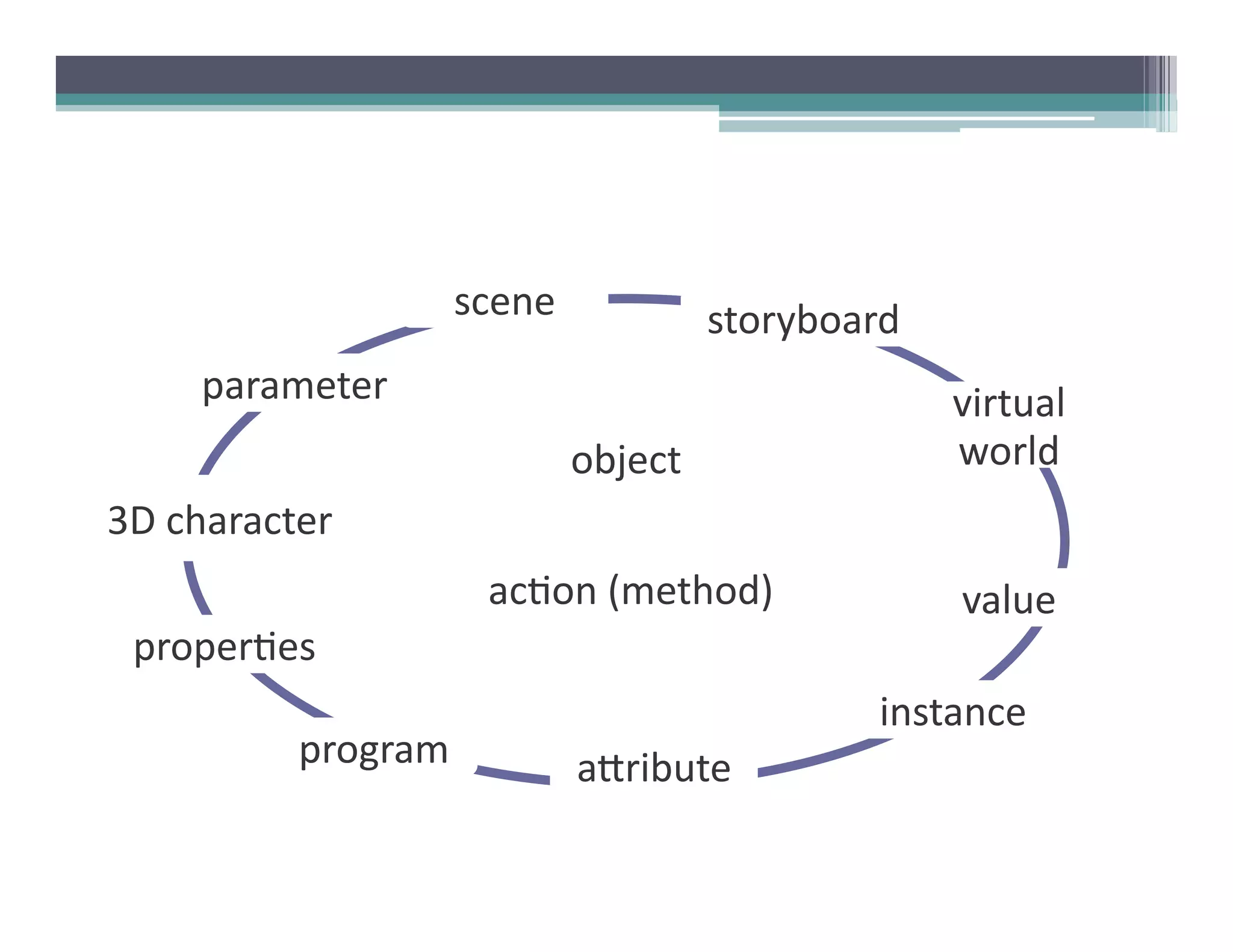
scene	
                  storyboard	
  
       parameter	
                                                 virtual	
  
                                     object	
                      world	
  
3D	
  character	
  
                             ac6on	
  (method)	
                   value	
  
  proper6es	
  
                                                             instance	
  
               program	
             a@ribute	
  
Step	
  0:	
  Open	
  Alice	
  
Step	
  1:	
  Choosing	
  a	
  Background	


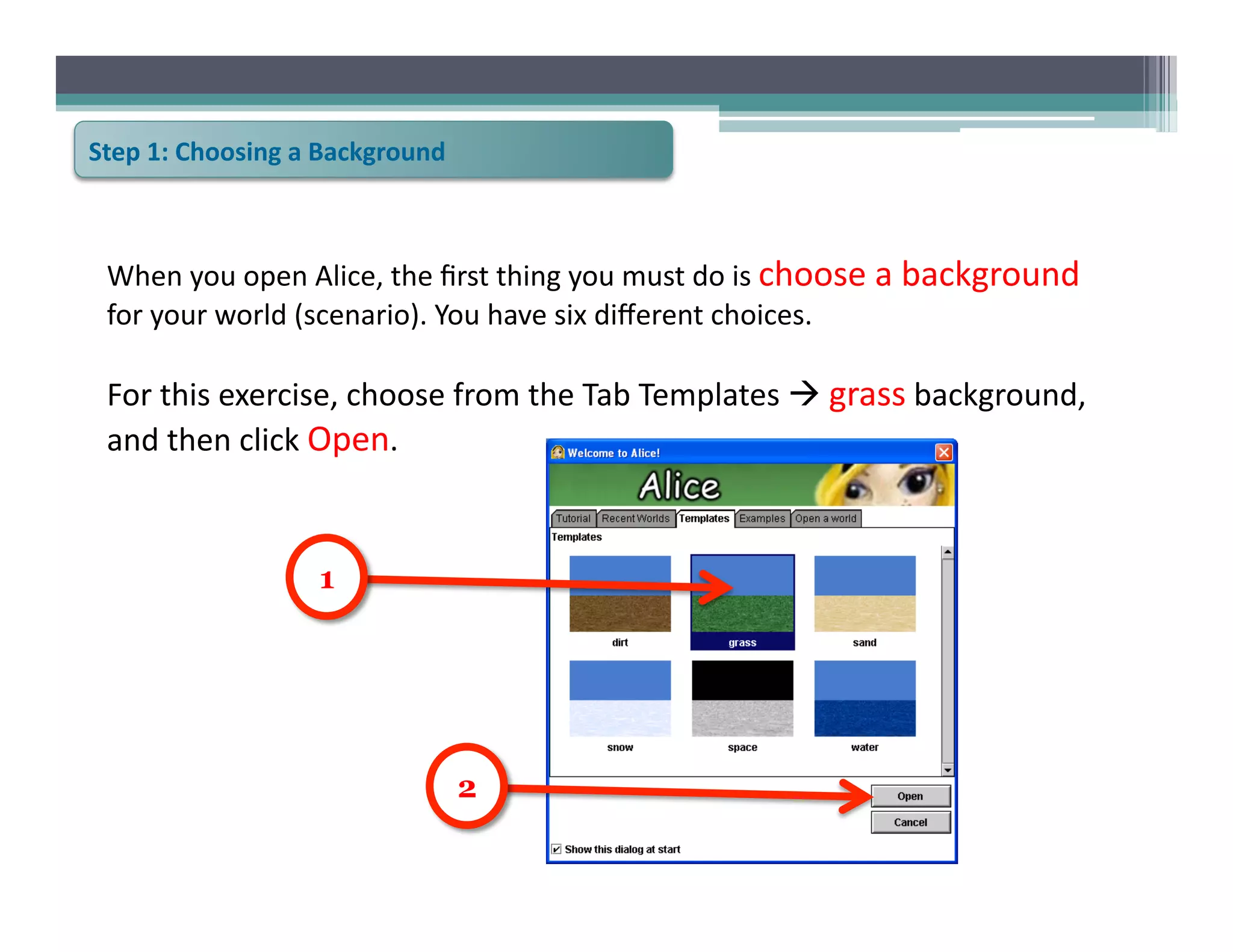
  When	
  you	
  open	
  Alice,	
  the	
  first	
  thing	
  you	
  must	
  do	
  is	
  choose	
  a	
  background	
  
  for	
  your	
  world	
  (scenario).	
  You	
  have	
  six	
  different	
  choices.	


  For	
  this	
  exercise,	
  choose	
  from	
  the	
  Tab	
  Templates	
  	
  grass	
  background,	
  
  and	
  then	
  click	
  Open.	


                            1


                                                2
Step	
  2:	
  Open	
  the	
  Object	
  Library	


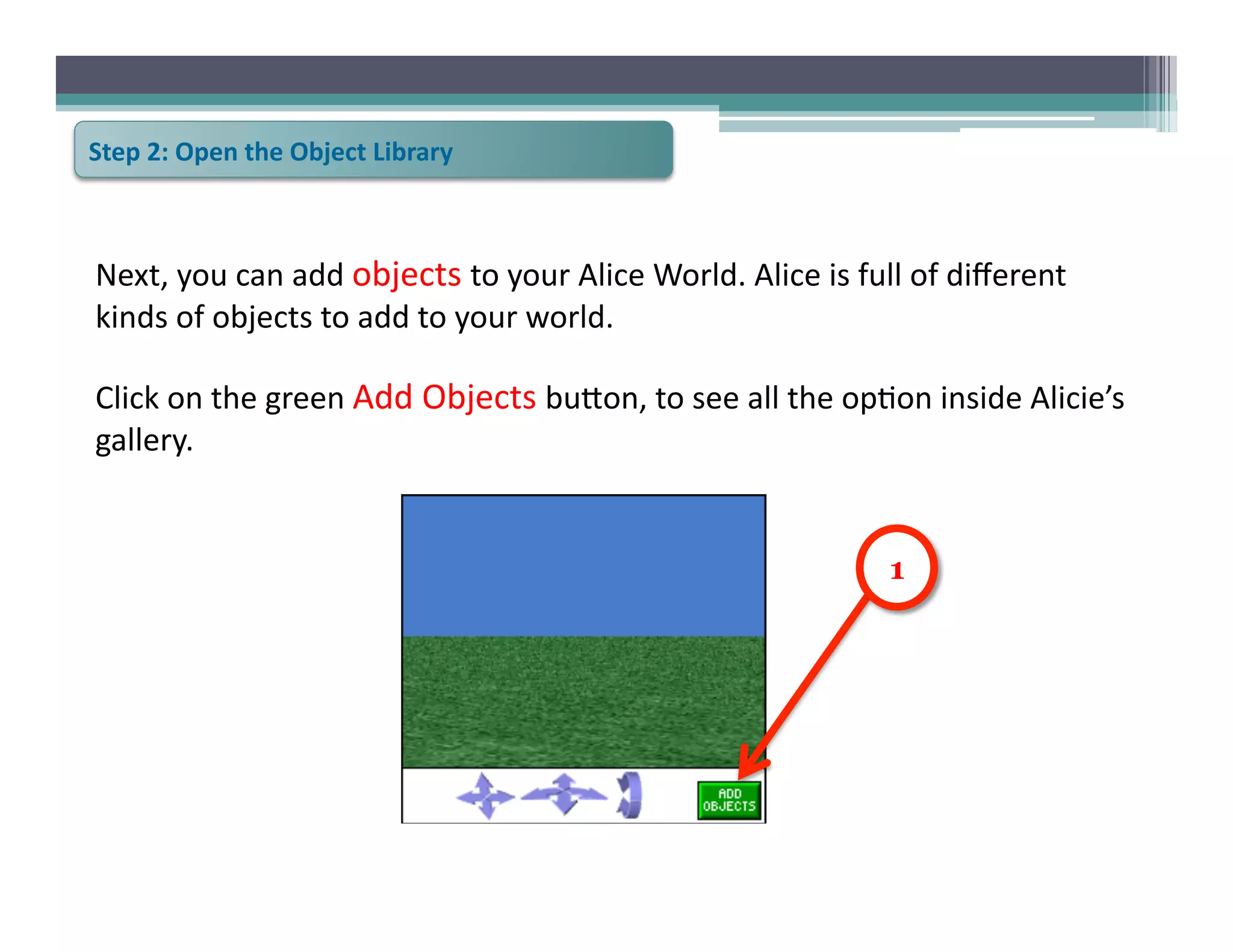
Next,	
  you	
  can	
  add	
  objects	
  to	
  your	
  Alice	
  World.	
  Alice	
  is	
  full	
  of	
  different	
  
kinds	
  of	
  objects	
  to	
  add	
  to	
  your	
  world.	
  

Click	
  on	
  the	
  green	
  Add	
  Objects	
  bu@on,	
  to	
  see	
  all	
  the	
  op6on	
  inside	
  Alicie’s	
  
gallery.	


                                                                                             1
Step	
  3:	
  Adding	
  an	
  Object	


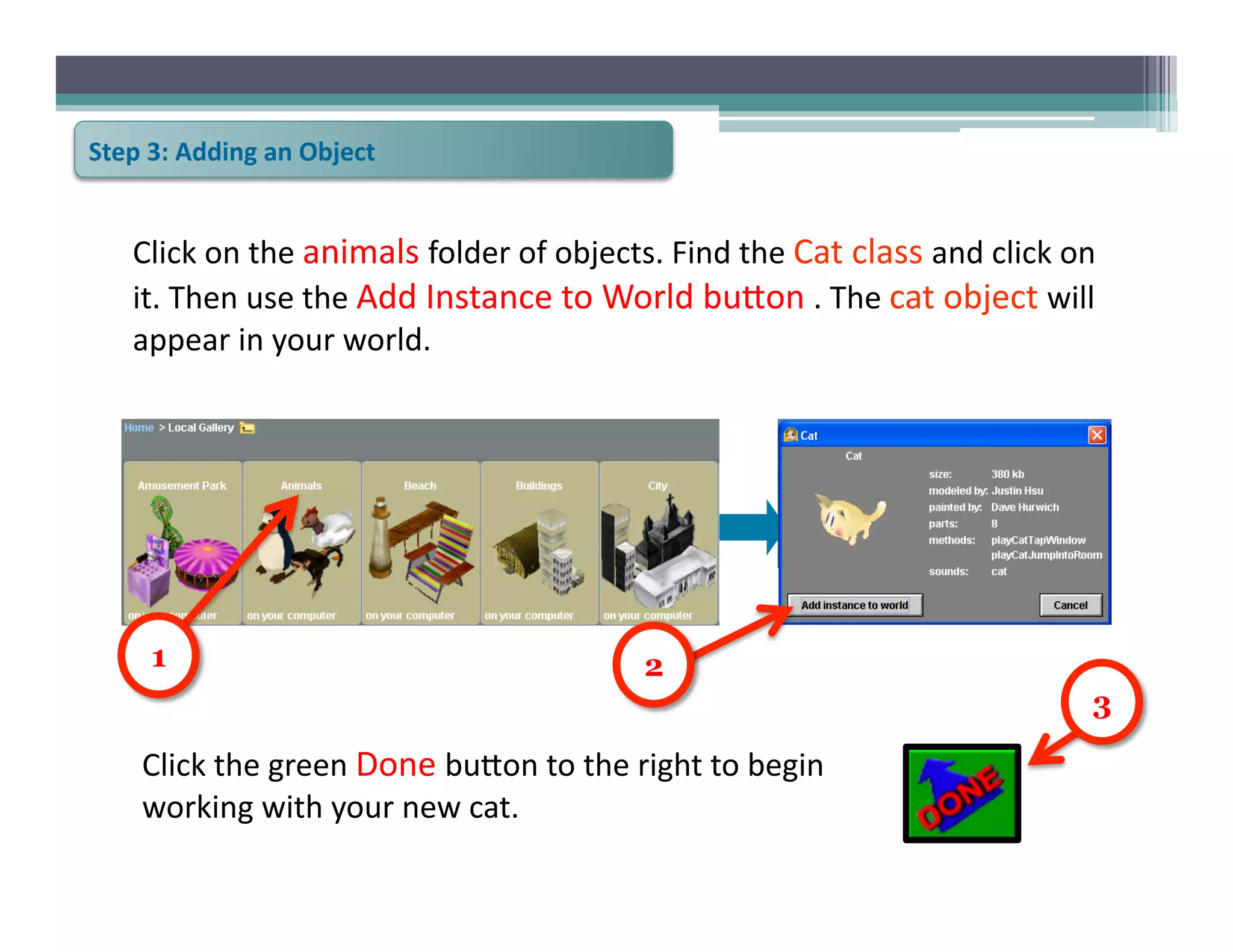
     Click	
  on	
  the	
  animals	
  folder	
  of	
  objects.	
  Find	
  the	
  Cat	
  class	
  and	
  click	
  on	
  
     it.	
  Then	
  use	
  the	
  Add	
  Instance	
  to	
  World	
  bu@on	
  .	
  The	
  cat	
  object	
  will	
  
     appear	
  in	
  your	
  world.	


        1                                                        2
                                                                                                                     3

       Click	
  the	
  green	
  Done	
  bu@on	
  to	
  the	
  right	
  to	
  begin	
  
       working	
  with	
  your	
  new	
  cat.	
  
Step	
  4:	
  Run	
  your	
  world	


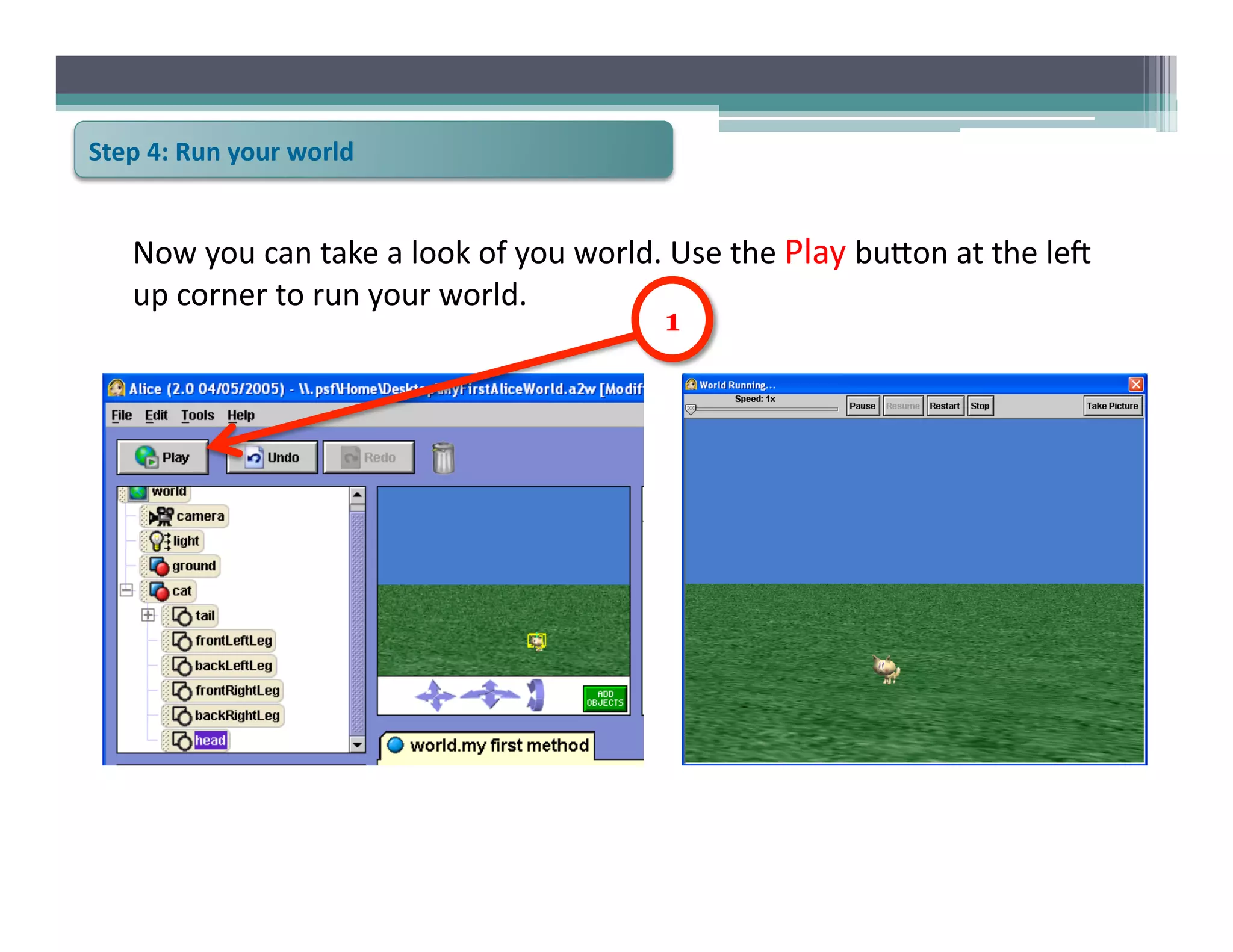
      Now	
  you	
  can	
  take	
  a	
  look	
  of	
  you	
  world.	
  Use	
  the	
  Play	
  bu@on	
  at	
  the	
  leV	
  
      up	
  corner	
  to	
  run	
  your	
  world.	
  
                                                                     1
Step	
  5:	
  Adding	
  more	
  objects	


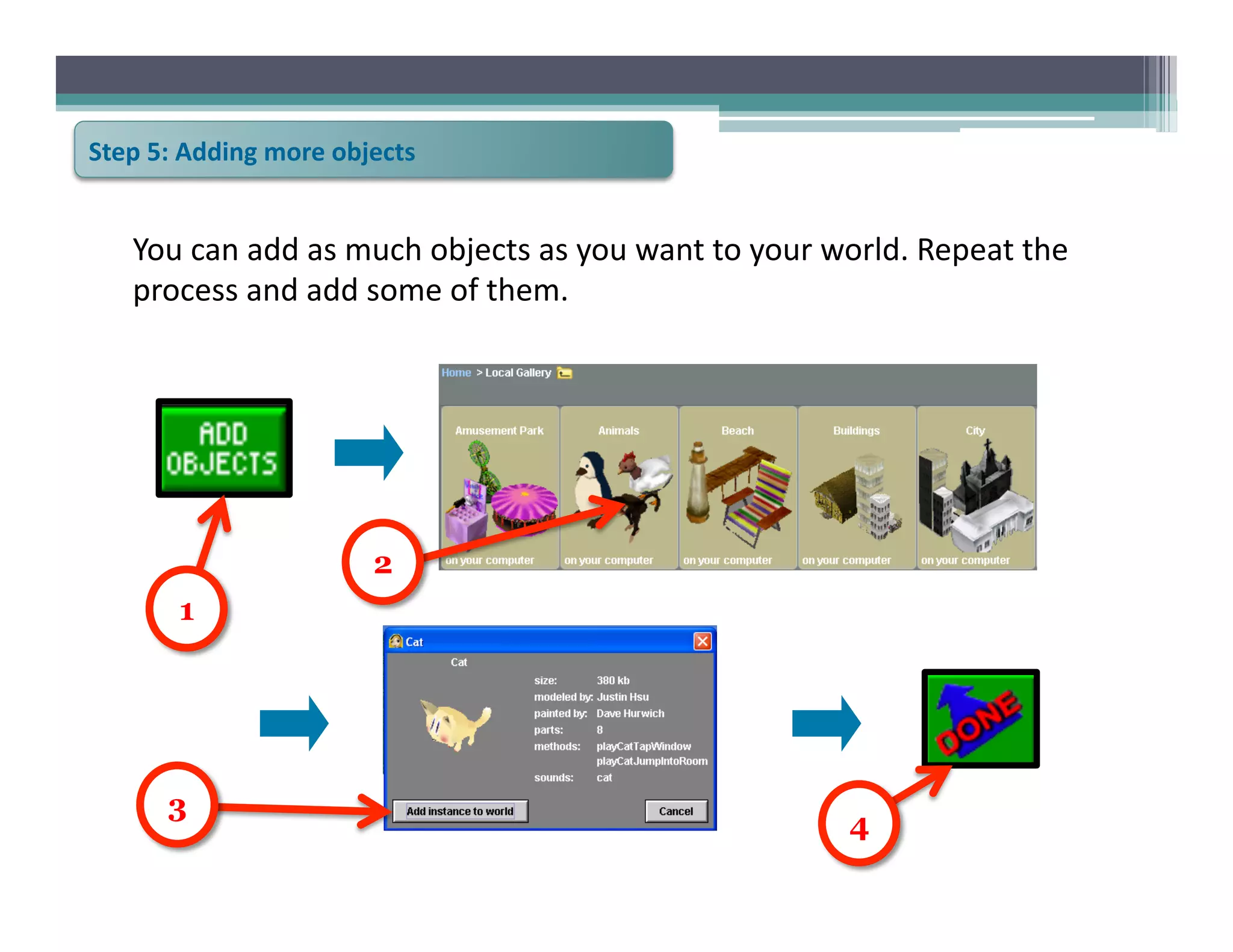
     You	
  can	
  add	
  as	
  much	
  objects	
  as	
  you	
  want	
  to	
  your	
  world.	
  Repeat	
  the	
  
     process	
  and	
  add	
  some	
  of	
  them.	


                                    2
           1


          3
                                                                                       4
Step	
  6:	
  Moving	
  objects	
  around	


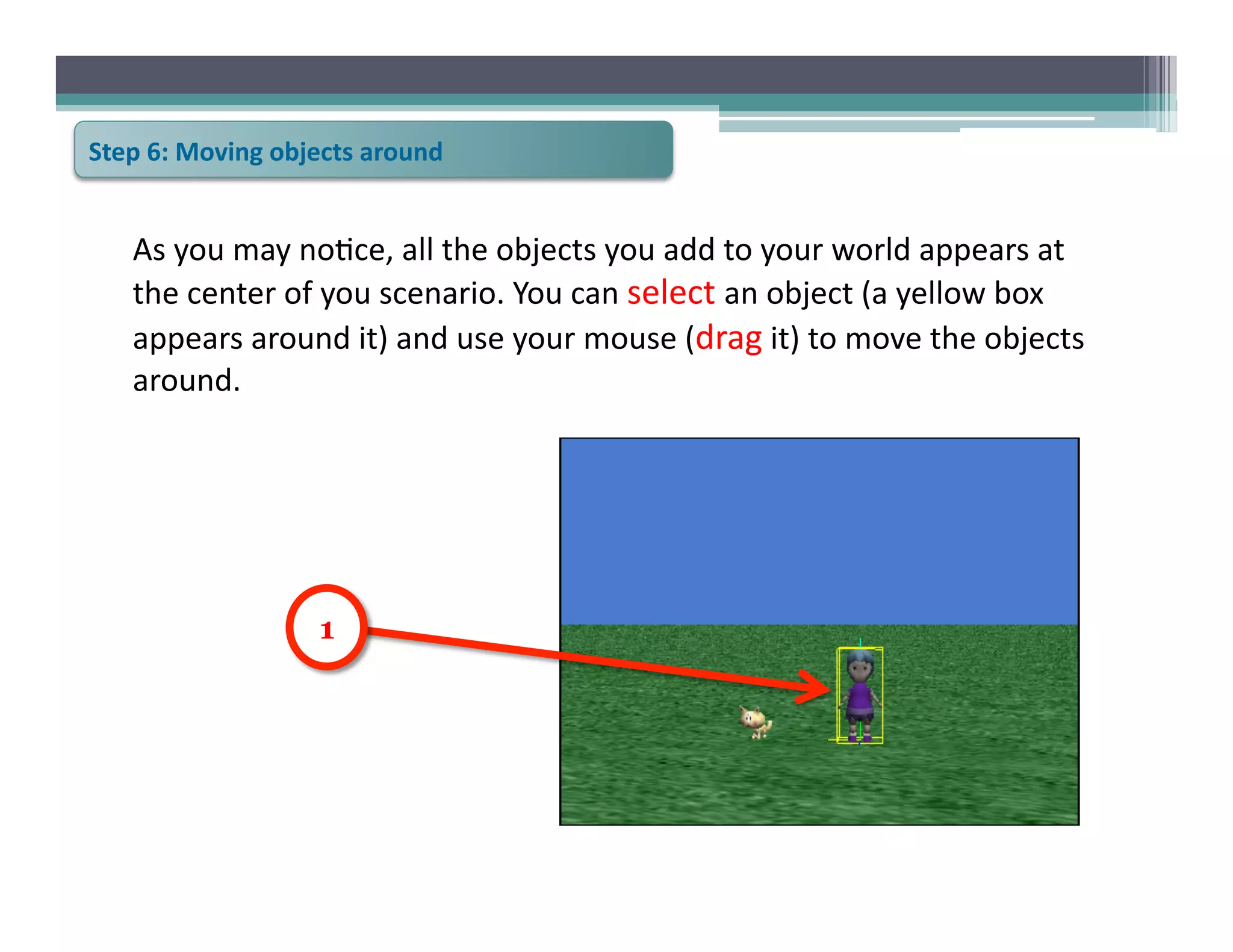
     As	
  you	
  may	
  no6ce,	
  all	
  the	
  objects	
  you	
  add	
  to	
  your	
  world	
  appears	
  at	
  
     the	
  center	
  of	
  you	
  scenario.	
  You	
  can	
  select	
  an	
  object	
  (a	
  yellow	
  box	
  
     appears	
  around	
  it)	
  and	
  use	
  your	
  mouse	
  (drag	
  it)	
  to	
  move	
  the	
  objects	
  
     around.	


                            1
Step	
  7:	
  Save	
  your	
  World	


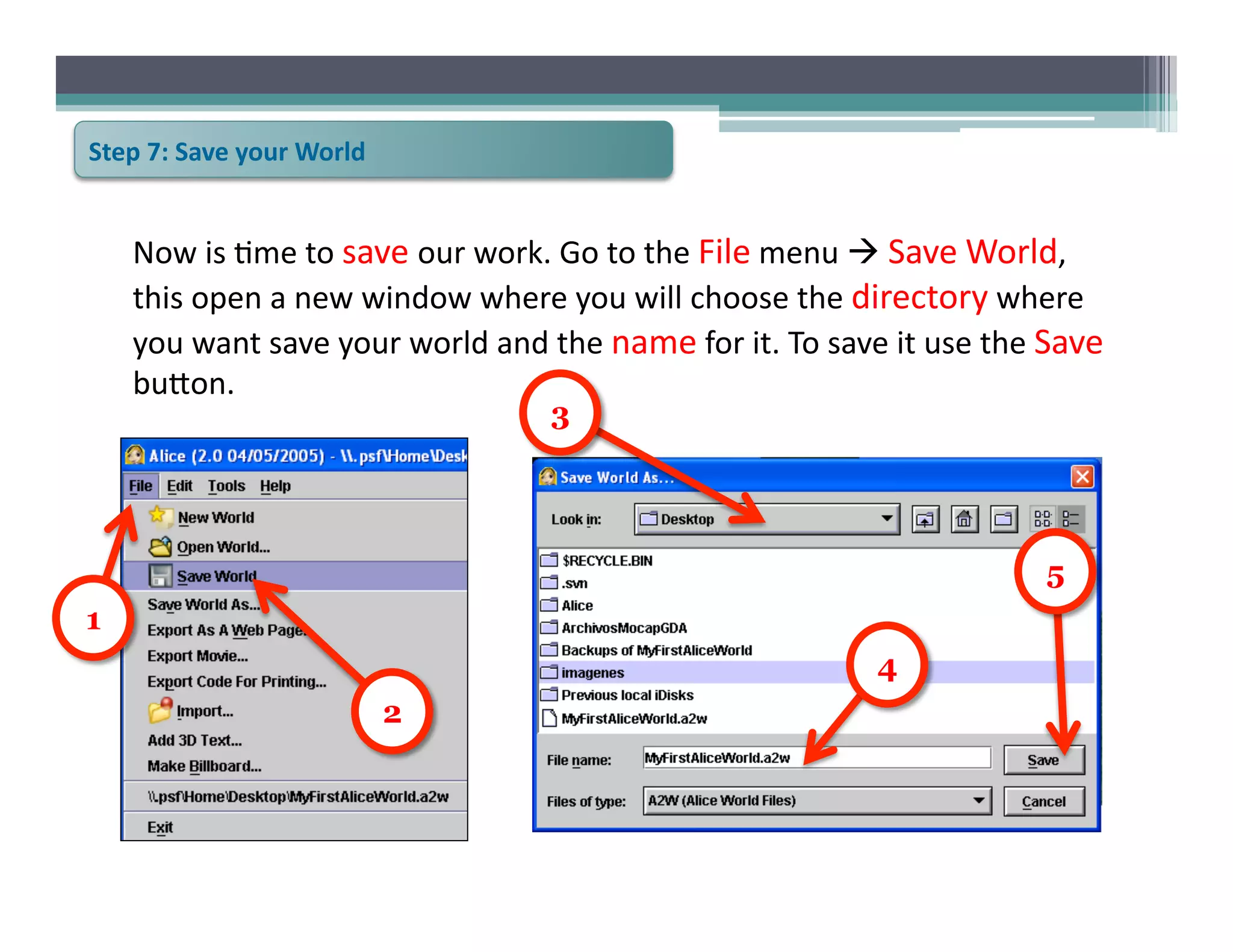
      Now	
  is	
  6me	
  to	
  save	
  our	
  work.	
  Go	
  to	
  the	
  File	
  menu	
  	
  Save	
  World,	
  
      this	
  open	
  a	
  new	
  window	
  where	
  you	
  will	
  choose	
  the	
  directory	
  where	
  
      you	
  want	
  save	
  your	
  world	
  and	
  the	
  name	
  for	
  it.	
  To	
  save	
  it	
  use	
  the	
  Save	
  
      bu@on.	
  	
  
                                                        3


                                                                                                                    5
1
                                                                                               4
                                          2
Step	
  8:	
  Recover	
  your	
  World	


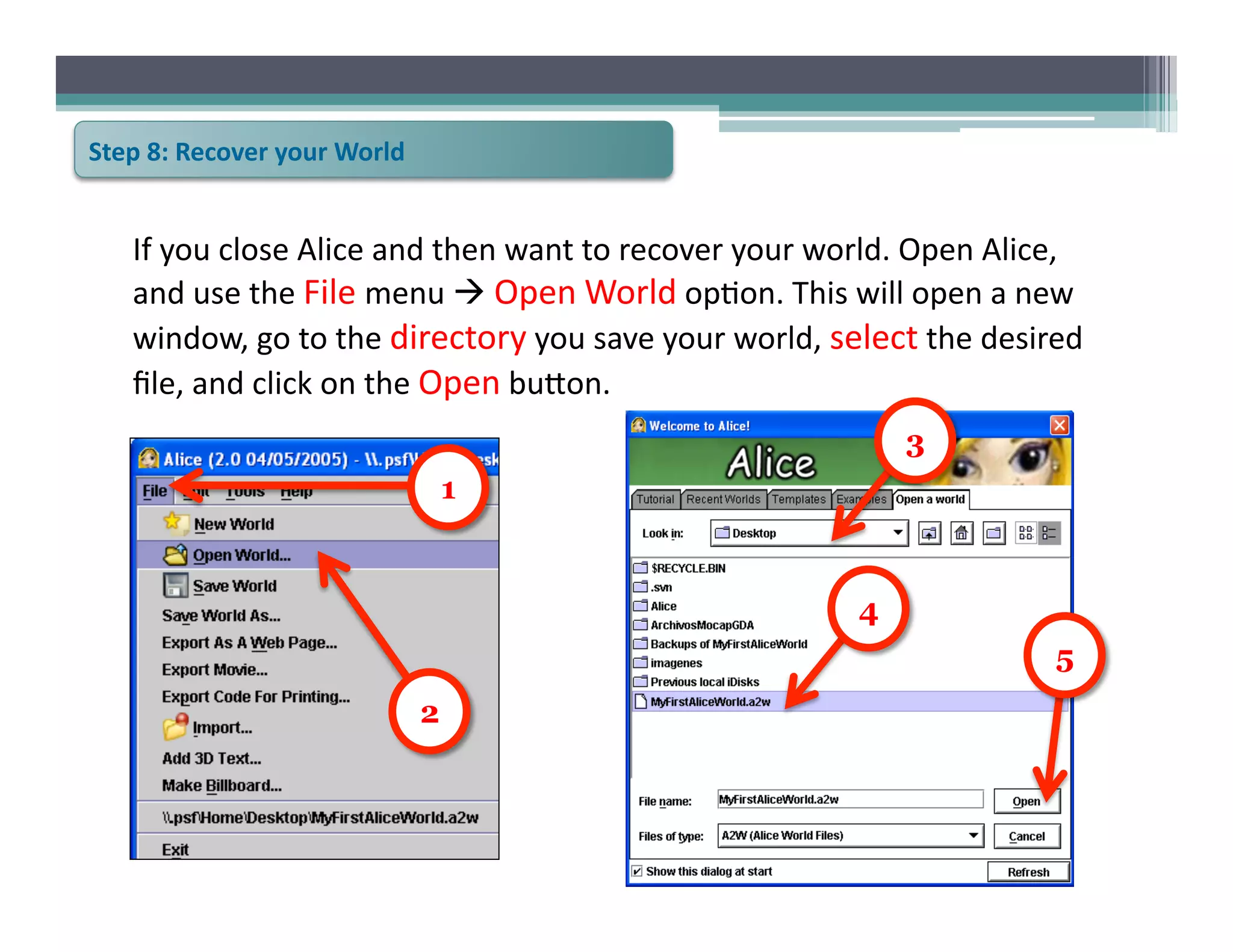
     If	
  you	
  close	
  Alice	
  and	
  then	
  want	
  to	
  recover	
  your	
  world.	
  Open	
  Alice,	
  
     and	
  use	
  the	
  File	
  menu	
  	
  Open	
  World	
  op6on.	
  This	
  will	
  open	
  a	
  new	
  
     window,	
  go	
  to	
  the	
  directory	
  you	
  save	
  your	
  world,	
  select	
  the	
  desired	
  
     file,	
  and	
  click	
  on	
  the	
  Open	
  bu@on.	
  
                                                                                           3
                                                 1


                                                                                      4
                                                                                                            5
                                             2
201003 Alice (part 1/15)

201003 Alice (part 1/15)

  • 1.
    Day One: Before WeStart From the Storyboard to the Code: Programming with Alice Arizona  State  University   June  2010  
  • 2.
    What do youknow today about programming?
  • 4.
    Day One: Introduction toProgramming From the Storyboard to the Code: Programming with Alice Arizona  State  University   June  2010  
  • 5.
    scene   storyboard   parameter   virtual   object   world   3D  character   ac6on  (method)   value   proper6es   instance   program   a@ribute  
  • 6.
  • 7.
    Step  1:  Choosing  a  Background   When  you  open  Alice,  the  first  thing  you  must  do  is  choose  a  background   for  your  world  (scenario).  You  have  six  different  choices.     For  this  exercise,  choose  from  the  Tab  Templates    grass  background,   and  then  click  Open.     1 2
  • 8.
    Step  2:  Open  the  Object  Library   Next,  you  can  add  objects  to  your  Alice  World.  Alice  is  full  of  different   kinds  of  objects  to  add  to  your  world.   Click  on  the  green  Add  Objects  bu@on,  to  see  all  the  op6on  inside  Alicie’s   gallery.       1
  • 9.
    Step  3:  Adding  an  Object   Click  on  the  animals  folder  of  objects.  Find  the  Cat  class  and  click  on   it.  Then  use  the  Add  Instance  to  World  bu@on  .  The  cat  object  will   appear  in  your  world.   1 2 3 Click  the  green  Done  bu@on  to  the  right  to  begin   working  with  your  new  cat.  
  • 10.
    Step  4:  Run  your  world   Now  you  can  take  a  look  of  you  world.  Use  the  Play  bu@on  at  the  leV   up  corner  to  run  your  world.   1
  • 11.
    Step  5:  Adding  more  objects   You  can  add  as  much  objects  as  you  want  to  your  world.  Repeat  the   process  and  add  some  of  them.   2 1 3 4
  • 12.
    Step  6:  Moving  objects  around   As  you  may  no6ce,  all  the  objects  you  add  to  your  world  appears  at   the  center  of  you  scenario.  You  can  select  an  object  (a  yellow  box   appears  around  it)  and  use  your  mouse  (drag  it)  to  move  the  objects   around.   1
  • 13.
    Step  7:  Save  your  World   Now  is  6me  to  save  our  work.  Go  to  the  File  menu    Save  World,   this  open  a  new  window  where  you  will  choose  the  directory  where   you  want  save  your  world  and  the  name  for  it.  To  save  it  use  the  Save   bu@on.     3 5 1 4 2
  • 14.
    Step  8:  Recover  your  World   If  you  close  Alice  and  then  want  to  recover  your  world.  Open  Alice,   and  use  the  File  menu    Open  World  op6on.  This  will  open  a  new   window,  go  to  the  directory  you  save  your  world,  select  the  desired   file,  and  click  on  the  Open  bu@on.   3 1 4 5 2