1A-1
Introduction To Computer
Muhammad Asim Khan
m.asimkhattak@hotmail.com
Jiangxi University of Science and
Technology, Ganzhou, China
Copyright © 2006 by The McGraw-Hill Companies, Inc. All rights reserved.
McGraw-Hill Technology Education
McGraw-Hill Technology Education Copyright © 2006 by The McGraw-Hill Companies, Inc. All rights reserved.
Copyright © 2006 by The McGraw-Hill Companies, Inc. All rights reserved.
McGraw-Hill Technology Education
Chapter 7A
Operating System
Basics
7A-4
Functions of Operating Systems
• Provide a user interface
• Run programs
• Manage hardware devices
• Organized file storage
Types of Operating Systems
• Real-time operating system
– Very fast small OS
– Built into a device
– Respond quickly to user input
– MP3 players, Medical devices
Types of Operating Systems
• Single user/Single tasking OS
– One user works on the system
– Performs one task at a time
– MS-DOS and Palm OS
– Take up little space on disk
– Run on inexpensive computers
Types of Operating Systems
• Single user/Multitasking OS
– User performs many tasks at once
– Most common form of OS
– Windows XP and OS X
– Require expensive computers
– Tend to be complex
Types of Operating Systems
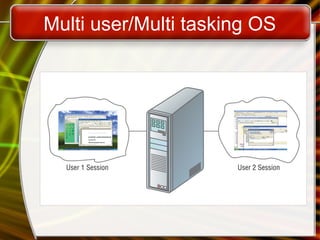
• Multi user/Multitasking OS
– Many users connect to one computer
– Each user has a unique session
– UNIX, Linux, and VMS
– Maintenance can be easy
– Requires a powerful computer
Multi user/Multi tasking OS
Providing a User Interface
• User interface
– How a user interacts with a computer
– Require different skill sets
Providing a User Interface
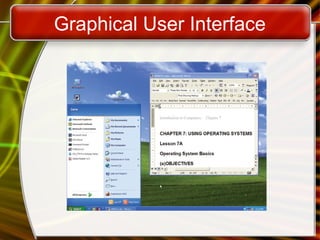
• Graphical user interface (GUI)
– Most common interface
• Windows, OS X, Gnome, KDE
– Uses a mouse to control objects
– Uses a desktop metaphor
– Shortcuts open programs or documents
– Open documents have additional objects
– Task switching
– Dialog boxes allow directed input
Graphical User Interface
Providing a User Interface
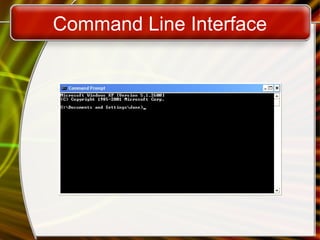
• Command line interfaces
– Older interface
• DOS, Linux, UNIX
– User types commands at a prompt
– User must remember all commands
– Included in all GUIs
Command Line Interface
Running Programs
• Many different applications supported
• System call
– Provides consistent access to OS features
• Share information between programs
– Copy and paste
– Object Linking and Embedding
Managing Hardware
• Programs need to access hardware
• Interrupts
– CPU is stopped
– Hardware device is accessed
• Device drivers control the hardware
Organizing Files and Folders
• Organized storage
• Long file names
• Folders can be created and nested
• All storage devices work consistently
Enhancing an OS
• Utilities
– Provide services not included with OS
– Goes beyond the four functions
– Firewall, anti-virus and compression
– Prices vary
Enhancing an OS
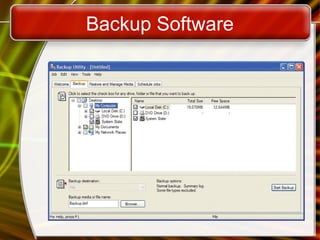
• Backup software
– Archives files onto removable media
– Ensures data integrity
– Most OS include a backup package
– Many third party packages exist
Backup Software
Enhancing an OS
• Anti-virus software
– Crucial utility
– Finds, blocks and removes viruses
– Must be updated regularly
– McAfee and Norton Anti-Virus
Enhancing an OS
• Firewall
– Crucial utility
– Protects your computer from intruders
– Makes computer invisible to hackers
– Zone Labs is a home firewall
– Cisco sells hardware firewalls
Enhancing an OS
• Intrusion detection
– Often part of a firewall package
– Announces attempts to breach security
– Snort is a Linux based package
Enhancing an OS
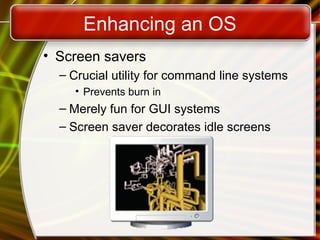
• Screen savers
– Crucial utility for command line systems
• Prevents burn in
– Merely fun for GUI systems
– Screen saver decorates idle screens
Copyright © 2006 by The McGraw-Hill Companies, Inc. All rights reserved.
McGraw-Hill Technology Education
Chapter 7A
End of Chapter
1A-26
THANK YOU
THANK YOU

Lecture_6_Using Operating Systems (Operating System Basics)_Ch_07A.ppt

  • 1.
    1A-1 Introduction To Computer MuhammadAsim Khan m.asimkhattak@hotmail.com Jiangxi University of Science and Technology, Ganzhou, China
  • 2.
    Copyright © 2006by The McGraw-Hill Companies, Inc. All rights reserved. McGraw-Hill Technology Education McGraw-Hill Technology Education Copyright © 2006 by The McGraw-Hill Companies, Inc. All rights reserved.
  • 3.
    Copyright © 2006by The McGraw-Hill Companies, Inc. All rights reserved. McGraw-Hill Technology Education Chapter 7A Operating System Basics
  • 4.
    7A-4 Functions of OperatingSystems • Provide a user interface • Run programs • Manage hardware devices • Organized file storage
  • 5.
    Types of OperatingSystems • Real-time operating system – Very fast small OS – Built into a device – Respond quickly to user input – MP3 players, Medical devices
  • 6.
    Types of OperatingSystems • Single user/Single tasking OS – One user works on the system – Performs one task at a time – MS-DOS and Palm OS – Take up little space on disk – Run on inexpensive computers
  • 7.
    Types of OperatingSystems • Single user/Multitasking OS – User performs many tasks at once – Most common form of OS – Windows XP and OS X – Require expensive computers – Tend to be complex
  • 8.
    Types of OperatingSystems • Multi user/Multitasking OS – Many users connect to one computer – Each user has a unique session – UNIX, Linux, and VMS – Maintenance can be easy – Requires a powerful computer
  • 9.
  • 10.
    Providing a UserInterface • User interface – How a user interacts with a computer – Require different skill sets
  • 11.
    Providing a UserInterface • Graphical user interface (GUI) – Most common interface • Windows, OS X, Gnome, KDE – Uses a mouse to control objects – Uses a desktop metaphor – Shortcuts open programs or documents – Open documents have additional objects – Task switching – Dialog boxes allow directed input
  • 12.
  • 13.
    Providing a UserInterface • Command line interfaces – Older interface • DOS, Linux, UNIX – User types commands at a prompt – User must remember all commands – Included in all GUIs
  • 14.
  • 15.
    Running Programs • Manydifferent applications supported • System call – Provides consistent access to OS features • Share information between programs – Copy and paste – Object Linking and Embedding
  • 16.
    Managing Hardware • Programsneed to access hardware • Interrupts – CPU is stopped – Hardware device is accessed • Device drivers control the hardware
  • 17.
    Organizing Files andFolders • Organized storage • Long file names • Folders can be created and nested • All storage devices work consistently
  • 18.
    Enhancing an OS •Utilities – Provide services not included with OS – Goes beyond the four functions – Firewall, anti-virus and compression – Prices vary
  • 19.
    Enhancing an OS •Backup software – Archives files onto removable media – Ensures data integrity – Most OS include a backup package – Many third party packages exist
  • 20.
  • 21.
    Enhancing an OS •Anti-virus software – Crucial utility – Finds, blocks and removes viruses – Must be updated regularly – McAfee and Norton Anti-Virus
  • 22.
    Enhancing an OS •Firewall – Crucial utility – Protects your computer from intruders – Makes computer invisible to hackers – Zone Labs is a home firewall – Cisco sells hardware firewalls
  • 23.
    Enhancing an OS •Intrusion detection – Often part of a firewall package – Announces attempts to breach security – Snort is a Linux based package
  • 24.
    Enhancing an OS •Screen savers – Crucial utility for command line systems • Prevents burn in – Merely fun for GUI systems – Screen saver decorates idle screens
  • 25.
    Copyright © 2006by The McGraw-Hill Companies, Inc. All rights reserved. McGraw-Hill Technology Education Chapter 7A End of Chapter
  • 26.

Editor's Notes

  • #4 Teaching Tip File and folder storage is covered in chapter 6.
  • #7 Teaching tip It is true that multi-tasking operating systems are complex. However both XP and OS X make the multitasking process painless for the user.
  • #8 Teaching tip Multi-user Multitasking OS's are found on supercomputers, mainframes and minicomputers. Through Linux, a PC can also support user sessions and terminal connections.
  • #11 Insider information The first commercial GUI was the Xerox Star. Teaching Tip There are several types of dialog boxes. Any errors are displayed in a dialog box. This box is system modal - it requires a response before returning to the OS. Save and print boxes are application modal - The box must be dealt with before returning to the application. However, other OS tasks can be performed.
  • #13 Teaching tip Demonstrate the command line interface in Windows by running cmd. In the command line interface use ping and ipconfig as commands that cannot be run in the GUI.
  • #15 Teaching tip Most students have never encountered a link. I use MS Excel and MS Word to link. Create and save a simple spreadsheet in Excel. Copy the spreadsheet to the clipboard. Open MS Word and paste-link the spreadsheet. Save the MS Word document. Then change and save the spreadsheet in Excel. The word document is automatically updated.
  • #16 Discussion point The mouse uses an interrupt. Many users will move the mouse while waiting for the CPU to finish a task. What does moving the mouse do to the current process? Teaching tip Discuss what can happen when the wrong driver is installed on a computer.
  • #18 Discussion point With Windows XP and SP2, Microsoft has included a firewall and pop-up blocker both typically considered utility software. In the near future, the core services provided by an OS may include security features.
  • #22 Teaching tip Windows XP includes a firewall. Service pack 2 will turn this firewall on by default. To test your computer’s security visit www.grc.com and run the various Shields Up! tests