1
Learner Digital
Skills Toolkit
Where to start when planning digital literacy
2
Contents
03 | Introduction
04 | Section 1 - Foundational knowledge and skills
05 | Navigating (foundational)
07 | Safe and secure (foundational)
09 | Finding and making (foundational)
11 | Section 2 – Developing digital knowledge and skills
12 | Navigating (Developing)
14 | Safe and secure (Developing)
16 | Making and sharing (Developing)
18 | Finding and checking (Developing)
3
Introduction
“We live in a digital world. It’s changing the way we work, do business,
entertain, shop and keep in touch with our family and friends.”
Scottish Government
This document aims to support teachers with curriculum planning by:
 identifying key knowledge and skills for digital
 providing links to information, resources and activities
 suggesting examples of contexts to explore further or to engage families in learning
Rather than being a ‘subject’, digital knowledge and skills might be considered a discipline
that is applied across a range of subjects.
All teachers will find it useful to have confidence in their own knowledge and skills in
digital, so that they are more confident to teach this to the learners. There is support for
teachers available here. More confident teachers might find other sources of inspiration,
such as educator communities, social media and professional learning.
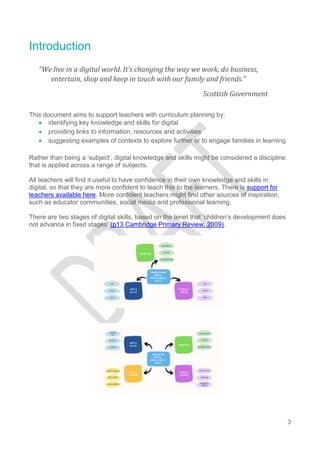
There are two stages of digital skills, based on the tenet that ‘children’s development does
not advance in fixed stages’ (p13 Cambridge Primary Review, 2009).
4
Section 1 – Foundational
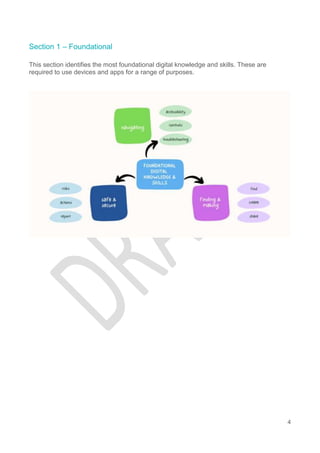
This section identifies the most foundational digital knowledge and skills. These are
required to use devices and apps for a range of purposes.
5
Navigating (foundational)
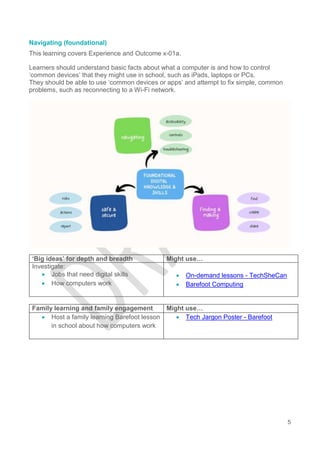
This learning covers Experience and Outcome x-01a.
Learners should understand basic facts about what a computer is and how to control
‘common devices’ that they might use in school, such as iPads, laptops or PCs.
They should be able to use ‘common devices or apps’ and attempt to fix simple, common
problems, such as reconnecting to a Wi-Fi network.
‘Big ideas’ for depth and breadth Might use…
Investigate:
 Jobs that need digital skills
 How computers work
 On-demand lessons - TechSheCan
 Barefoot Computing
Family learning and family engagement Might use…
 Host a family learning Barefoot lesson
in school about how computers work
 Tech Jargon Poster - Barefoot
6
Navigating (foundational) knowledge and skills
Know that… Might use…
 Devices are computers with inputs
and outputs
 What is a computer system? - BBC
Bitesize
 Inputs and outputs are used to
control the devices (and apps)
 What are input and output devices? -
BBC Bitesize
 Using a keyboard, mouse and
touchpad - BBC Bitesize
 Learn basic gestures to interact with
iPad – Apple Support (UK)
 The navigation can be changed to suit
the user (accessibility)
 Windows 10 to support learners with
a visual impairment – CALL Scotland
 Simplify the iPad (iOS17) – CALL
Scotland
 The web as an app to access and
navigate the internet
 What is the world wide web? - BBC
Bitesize
Able to… Might use…
 Navigate common devices in school
(laptop, iPad, PC)
 Mouse Tutorial - GCF
 Games - Mouse House
 Dance Mat Typing for - BBC
 Use the web and common apps or
online services, such as Glow
 Primary resources - BBC Bitesize
 Toy Theatre for Numeracy & Maths
 Troubleshoot simple faults, such as
reconnect to Wi-Fi or restart devices
 Connect to Wi-Fi on windows 11
 Connect to Wi-Fi on iPad
7
Safe and secure (foundational)
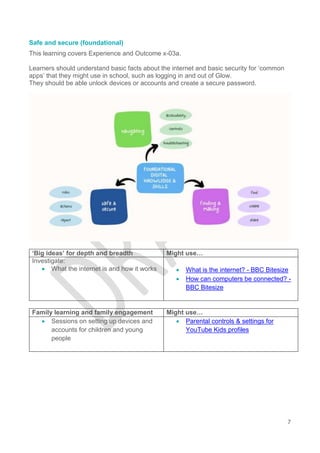
This learning covers Experience and Outcome x-03a.
Learners should understand basic facts about the internet and basic security for ‘common
apps’ that they might use in school, such as logging in and out of Glow.
They should be able unlock devices or accounts and create a secure password.
‘Big ideas’ for depth and breadth Might use…
Investigate:
 What the internet is and how it works  What is the internet? - BBC Bitesize
 How can computers be connected? -
BBC Bitesize
Family learning and family engagement Might use…
 Sessions on setting up devices and
accounts for children and young
people
 Parental controls & settings for
YouTube Kids profiles
8
Navigating (foundational) knowledge and skills
Know that… Might use…
 The internet is a network of
computers and that devices connect
to it with Wi-Fi
 What is the internet? - BBC Bitesize
 How can computers be connected? -
BBC Bitesize
 Devices have security features,
such as passcodes and passwords
 The Bongles - Book Bug activities
 Keeping digital devices safe from
malware - BBC Bitesize
 A password should be made of three
random words
 The Bongles - Book Bug activities
Able to… Might use…
 Use a passcode or password to
access school devices and common
services, such as Glow
 Section 2: The Bongles
 Logging in to Glow – Glow Connect
 Create a new password with three
random words
 The Bongles
9
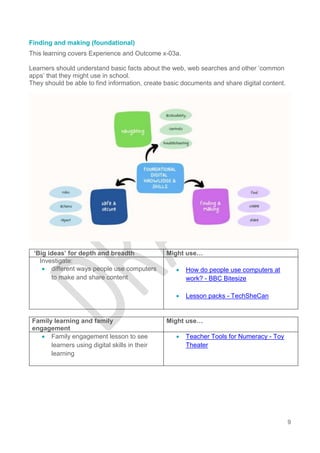
Finding and making (foundational)
This learning covers Experience and Outcome x-03a.
Learners should understand basic facts about the web, web searches and other ‘common
apps’ that they might use in school.
They should be able to find information, create basic documents and share digital content.
‘Big ideas’ for depth and breadth Might use…
Investigate:
 different ways people use computers
to make and share content
 How do people use computers at
work? - BBC Bitesize
 Lesson packs - TechSheCan
Family learning and family
engagement
Might use…
 Family engagement lesson to see
learners using digital skills in their
learning
 Teacher Tools for Numeracy - Toy
Theater
10
Finding and making (foundational) knowledge and skills
Know that… Might use…
 A web browser as an app to navigate
the web and can be used to find
information, ie Edge, Chrome, Safari
 What is the internet? - BBC Bitesize
 What is the world wide web? - BBC
Bitesize
 Finding things on the web - BBC
Bitesize
 Different apps have different
features and are intended for
different purposes, such as writing,
drawing or capturing media
 Word for writing
 PowerPoint for slides
 Adobe Express
 Devices and apps can be used to
share, and collaborate on,
documents or files
 OneDrive for storing and sharing
Able to… Might use…
 Use a browser to find information and
bookmark it
 Search Better: Introduction to
Searching Online – GCF Global
 Create a simple document, such as a
Word doc with text and an image
 Word: Getting Started – GCF Global
 Capture a photo or video using the
camera and edit the length of a video
or crop the size of the image
 Take Photos on Your Camera – BBC
L.A.B.
 How to Film on Your Phone – BBC
L.A.B.
 Share a document or media file to
another user or device
 OneDrive and Office Online - GCF
Global
11
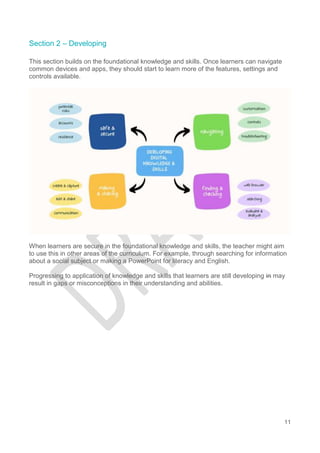
Section 2 – Developing
This section builds on the foundational knowledge and skills. Once learners can navigate
common devices and apps, they should start to learn more of the features, settings and
controls available.
When learners are secure in the foundational knowledge and skills, the teacher might aim
to use this in other areas of the curriculum. For example, through searching for information
about a social subject or making a PowerPoint for literacy and English.
Progressing to application of knowledge and skills that learners are still developing in may
result in gaps or misconceptions in their understanding and abilities.
12
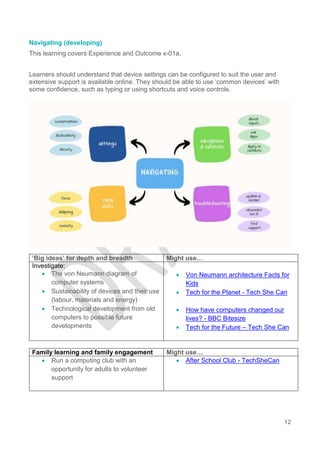
Navigating (developing)
This learning covers Experience and Outcome x-01a.
Learners should understand that device settings can be configured to suit the user and
extensive support is available online. They should be able to use ‘common devices’ with
some confidence, such as typing or using shortcuts and voice controls.
‘Big ideas’ for depth and breadth Might use…
Investigate:
 The von Neumann diagram of
computer systems
 Sustainability of devices and their use
(labour, materials and energy)
 Technological development from old
computers to possible future
developments
 Von Neumann architecture Facts for
Kids
 Tech for the Planet - Tech She Can
 How have computers changed our
lives? - BBC Bitesize
 Tech for the Future – Tech She Can
Family learning and family engagement Might use…
 Run a computing club with an
opportunity for adults to volunteer
support
 After School Club - TechSheCan
13
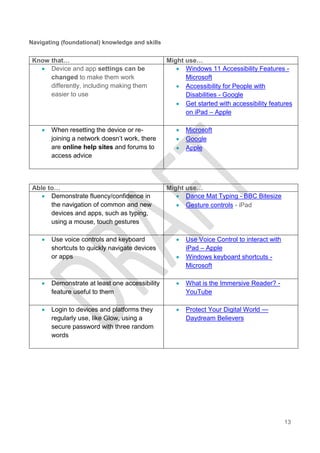
Navigating (foundational) knowledge and skills
Know that… Might use…
 Device and app settings can be
changed to make them work
differently, including making them
easier to use
 Windows 11 Accessibility Features -
Microsoft
 Accessibility for People with
Disabilities - Google
 Get started with accessibility features
on iPad – Apple
 When resetting the device or re-
joining a network doesn’t work, there
are online help sites and forums to
access advice
 Microsoft
 Google
 Apple
Able to… Might use…
 Demonstrate fluency/confidence in
the navigation of common and new
devices and apps, such as typing,
using a mouse, touch gestures
 Dance Mat Typing - BBC Bitesize
 Gesture controls - iPad
 Use voice controls and keyboard
shortcuts to quickly navigate devices
or apps
 Use Voice Control to interact with
iPad – Apple
 Windows keyboard shortcuts -
Microsoft
 Demonstrate at least one accessibility
feature useful to them
 What is the Immersive Reader? -
YouTube
 Login to devices and platforms they
regularly use, like Glow, using a
secure password with three random
words
 Protect Your Digital World —
Daydream Believers
14
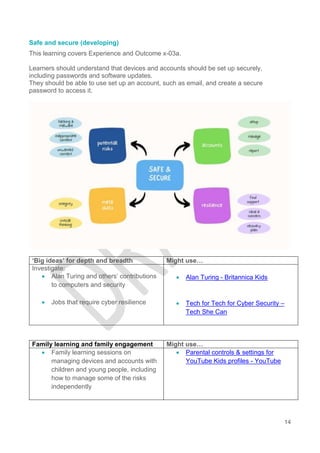
Safe and secure (developing)
This learning covers Experience and Outcome x-03a.
Learners should understand that devices and accounts should be set up securely,
including passwords and software updates.
They should be able to use set up an account, such as email, and create a secure
password to access it.
‘Big ideas’ for depth and breadth Might use…
Investigate:
 Alan Turing and others’ contributions
to computers and security
 Jobs that require cyber resilience
 Alan Turing - Britannica Kids
 Tech for Tech for Cyber Security –
Tech She Can
Family learning and family engagement Might use…
 Family learning sessions on
managing devices and accounts with
children and young people, including
how to manage some of the risks
independently
 Parental controls & settings for
YouTube Kids profiles - YouTube
15
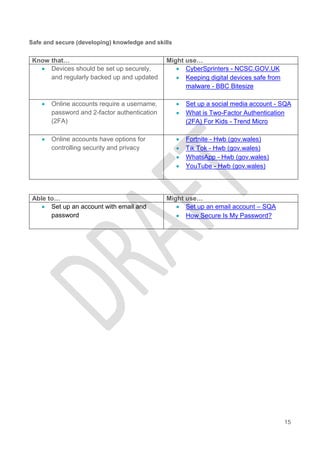
Safe and secure (developing) knowledge and skills
Know that… Might use…
 Devices should be set up securely,
and regularly backed up and updated
 CyberSprinters - NCSC.GOV.UK
 Keeping digital devices safe from
malware - BBC Bitesize
 Online accounts require a username,
password and 2-factor authentication
(2FA)
 Set up a social media account - SQA
 What is Two-Factor Authentication
(2FA) For Kids - Trend Micro
 Online accounts have options for
controlling security and privacy
 Fortnite - Hwb (gov.wales)
 Tik Tok - Hwb (gov.wales)
 WhatsApp - Hwb (gov.wales)
 YouTube - Hwb (gov.wales)
Able to… Might use…
 Set up an account with email and
password
 Set up an email account – SQA
 How Secure Is My Password?
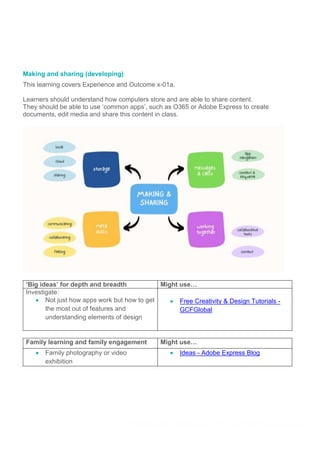
Making and sharing (developing)
This learning covers Experience and Outcome x-01a.
Learners should understand how computers store and are able to share content.
They should be able to use ‘common apps’, such as O365 or Adobe Express to create
documents, edit media and share this content in class.
‘Big ideas’ for depth and breadth Might use…
Investigate:
 Not just how apps work but how to get
the most out of features and
understanding elements of design
 Free Creativity & Design Tutorials -
GCFGlobal
Family learning and family engagement Might use…
 Family photography or video
exhibition
 Ideas - Adobe Express Blog
17 | Learner Digital Skills Toolkit
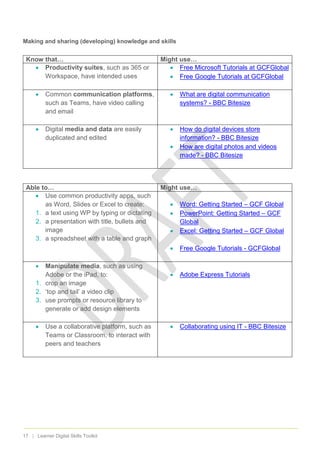
Making and sharing (developing) knowledge and skills
Know that… Might use…
 Productivity suites, such as 365 or
Workspace, have intended uses
 Free Microsoft Tutorials at GCFGlobal
 Free Google Tutorials at GCFGlobal
 Common communication platforms,
such as Teams, have video calling
and email
 What are digital communication
systems? - BBC Bitesize
 Digital media and data are easily
duplicated and edited
 How do digital devices store
information? - BBC Bitesize
 How are digital photos and videos
made? - BBC Bitesize
Able to… Might use…
 Use common productivity apps, such
as Word, Slides or Excel to create:
1. a text using WP by typing or dictating
2. a presentation with title, bullets and
image
3. a spreadsheet with a table and graph
 Word: Getting Started – GCF Global
 PowerPoint: Getting Started – GCF
Global
 Excel: Getting Started – GCF Global
 Free Google Tutorials - GCFGlobal
 Manipulate media, such as using
Adobe or the iPad, to:
1. crop an image
2. ‘top and tail’ a video clip
3. use prompts or resource library to
generate or add design elements
 Adobe Express Tutorials
 Use a collaborative platform, such as
Teams or Classroom, to interact with
peers and teachers
 Collaborating using IT - BBC Bitesize
18 | Learner Digital Skills Toolkit
Finding and checking (developing)
This learning covers Experience and Outcome x-02a.
Learners should understand that anyone can publish content online and how search engines
work.
They should be able to use search engines to find relevant information use tools, such as fact
checking sites, to evaluate the reliability and validity of any information found.
‘Big ideas’ for depth and breadth Might use…
Investigate:
 Complete ‘Project Real’ and create a
guide for younger learners about risks
of fake news
 Lessons | Project Real
Family learning and family engagement Might use…
 Family workshop on fake news
awareness and how to spot it
 Lessons | Project Real
19 | Learner Digital Skills Toolkit
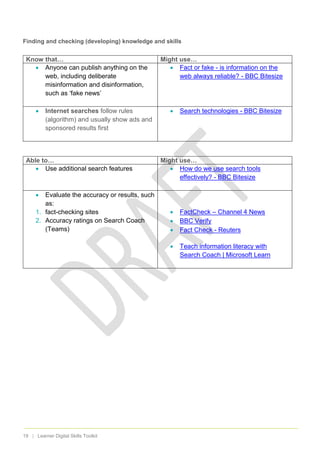
Finding and checking (developing) knowledge and skills
Know that… Might use…
 Anyone can publish anything on the
web, including deliberate
misinformation and disinformation,
such as ‘fake news’
 Fact or fake - is information on the
web always reliable? - BBC Bitesize
 Internet searches follow rules
(algorithm) and usually show ads and
sponsored results first
 Search technologies - BBC Bitesize
Able to… Might use…
 Use additional search features  How do we use search tools
effectively? - BBC Bitesize
 Evaluate the accuracy or results, such
as:
1. fact-checking sites
2. Accuracy ratings on Search Coach
(Teams)
 FactCheck – Channel 4 News
 BBC Verify
 Fact Check - Reuters
 Teach information literacy with
Search Coach | Microsoft Learn
Education Scotland
Denholm House
Almondvale Business Park
Almondvale Way
Livingston EH54 6GA
T +44 (0)131 244 4330
E enquiries@educationscotland.gov.scot
www.education.gov.scot

Learner Digital Skills Toolkit DRAFT.docx

  • 1.
    1 Learner Digital Skills Toolkit Whereto start when planning digital literacy
  • 2.
    2 Contents 03 | Introduction 04| Section 1 - Foundational knowledge and skills 05 | Navigating (foundational) 07 | Safe and secure (foundational) 09 | Finding and making (foundational) 11 | Section 2 – Developing digital knowledge and skills 12 | Navigating (Developing) 14 | Safe and secure (Developing) 16 | Making and sharing (Developing) 18 | Finding and checking (Developing)
  • 3.
    3 Introduction “We live ina digital world. It’s changing the way we work, do business, entertain, shop and keep in touch with our family and friends.” Scottish Government This document aims to support teachers with curriculum planning by:  identifying key knowledge and skills for digital  providing links to information, resources and activities  suggesting examples of contexts to explore further or to engage families in learning Rather than being a ‘subject’, digital knowledge and skills might be considered a discipline that is applied across a range of subjects. All teachers will find it useful to have confidence in their own knowledge and skills in digital, so that they are more confident to teach this to the learners. There is support for teachers available here. More confident teachers might find other sources of inspiration, such as educator communities, social media and professional learning. There are two stages of digital skills, based on the tenet that ‘children’s development does not advance in fixed stages’ (p13 Cambridge Primary Review, 2009).
  • 4.
    4 Section 1 –Foundational This section identifies the most foundational digital knowledge and skills. These are required to use devices and apps for a range of purposes.
  • 5.
    5 Navigating (foundational) This learningcovers Experience and Outcome x-01a. Learners should understand basic facts about what a computer is and how to control ‘common devices’ that they might use in school, such as iPads, laptops or PCs. They should be able to use ‘common devices or apps’ and attempt to fix simple, common problems, such as reconnecting to a Wi-Fi network. ‘Big ideas’ for depth and breadth Might use… Investigate:  Jobs that need digital skills  How computers work  On-demand lessons - TechSheCan  Barefoot Computing Family learning and family engagement Might use…  Host a family learning Barefoot lesson in school about how computers work  Tech Jargon Poster - Barefoot
  • 6.
    6 Navigating (foundational) knowledgeand skills Know that… Might use…  Devices are computers with inputs and outputs  What is a computer system? - BBC Bitesize  Inputs and outputs are used to control the devices (and apps)  What are input and output devices? - BBC Bitesize  Using a keyboard, mouse and touchpad - BBC Bitesize  Learn basic gestures to interact with iPad – Apple Support (UK)  The navigation can be changed to suit the user (accessibility)  Windows 10 to support learners with a visual impairment – CALL Scotland  Simplify the iPad (iOS17) – CALL Scotland  The web as an app to access and navigate the internet  What is the world wide web? - BBC Bitesize Able to… Might use…  Navigate common devices in school (laptop, iPad, PC)  Mouse Tutorial - GCF  Games - Mouse House  Dance Mat Typing for - BBC  Use the web and common apps or online services, such as Glow  Primary resources - BBC Bitesize  Toy Theatre for Numeracy & Maths  Troubleshoot simple faults, such as reconnect to Wi-Fi or restart devices  Connect to Wi-Fi on windows 11  Connect to Wi-Fi on iPad
  • 7.
    7 Safe and secure(foundational) This learning covers Experience and Outcome x-03a. Learners should understand basic facts about the internet and basic security for ‘common apps’ that they might use in school, such as logging in and out of Glow. They should be able unlock devices or accounts and create a secure password. ‘Big ideas’ for depth and breadth Might use… Investigate:  What the internet is and how it works  What is the internet? - BBC Bitesize  How can computers be connected? - BBC Bitesize Family learning and family engagement Might use…  Sessions on setting up devices and accounts for children and young people  Parental controls & settings for YouTube Kids profiles
  • 8.
    8 Navigating (foundational) knowledgeand skills Know that… Might use…  The internet is a network of computers and that devices connect to it with Wi-Fi  What is the internet? - BBC Bitesize  How can computers be connected? - BBC Bitesize  Devices have security features, such as passcodes and passwords  The Bongles - Book Bug activities  Keeping digital devices safe from malware - BBC Bitesize  A password should be made of three random words  The Bongles - Book Bug activities Able to… Might use…  Use a passcode or password to access school devices and common services, such as Glow  Section 2: The Bongles  Logging in to Glow – Glow Connect  Create a new password with three random words  The Bongles
  • 9.
    9 Finding and making(foundational) This learning covers Experience and Outcome x-03a. Learners should understand basic facts about the web, web searches and other ‘common apps’ that they might use in school. They should be able to find information, create basic documents and share digital content. ‘Big ideas’ for depth and breadth Might use… Investigate:  different ways people use computers to make and share content  How do people use computers at work? - BBC Bitesize  Lesson packs - TechSheCan Family learning and family engagement Might use…  Family engagement lesson to see learners using digital skills in their learning  Teacher Tools for Numeracy - Toy Theater
  • 10.
    10 Finding and making(foundational) knowledge and skills Know that… Might use…  A web browser as an app to navigate the web and can be used to find information, ie Edge, Chrome, Safari  What is the internet? - BBC Bitesize  What is the world wide web? - BBC Bitesize  Finding things on the web - BBC Bitesize  Different apps have different features and are intended for different purposes, such as writing, drawing or capturing media  Word for writing  PowerPoint for slides  Adobe Express  Devices and apps can be used to share, and collaborate on, documents or files  OneDrive for storing and sharing Able to… Might use…  Use a browser to find information and bookmark it  Search Better: Introduction to Searching Online – GCF Global  Create a simple document, such as a Word doc with text and an image  Word: Getting Started – GCF Global  Capture a photo or video using the camera and edit the length of a video or crop the size of the image  Take Photos on Your Camera – BBC L.A.B.  How to Film on Your Phone – BBC L.A.B.  Share a document or media file to another user or device  OneDrive and Office Online - GCF Global
  • 11.
    11 Section 2 –Developing This section builds on the foundational knowledge and skills. Once learners can navigate common devices and apps, they should start to learn more of the features, settings and controls available. When learners are secure in the foundational knowledge and skills, the teacher might aim to use this in other areas of the curriculum. For example, through searching for information about a social subject or making a PowerPoint for literacy and English. Progressing to application of knowledge and skills that learners are still developing in may result in gaps or misconceptions in their understanding and abilities.
  • 12.
    12 Navigating (developing) This learningcovers Experience and Outcome x-01a. Learners should understand that device settings can be configured to suit the user and extensive support is available online. They should be able to use ‘common devices’ with some confidence, such as typing or using shortcuts and voice controls. ‘Big ideas’ for depth and breadth Might use… Investigate:  The von Neumann diagram of computer systems  Sustainability of devices and their use (labour, materials and energy)  Technological development from old computers to possible future developments  Von Neumann architecture Facts for Kids  Tech for the Planet - Tech She Can  How have computers changed our lives? - BBC Bitesize  Tech for the Future – Tech She Can Family learning and family engagement Might use…  Run a computing club with an opportunity for adults to volunteer support  After School Club - TechSheCan
  • 13.
    13 Navigating (foundational) knowledgeand skills Know that… Might use…  Device and app settings can be changed to make them work differently, including making them easier to use  Windows 11 Accessibility Features - Microsoft  Accessibility for People with Disabilities - Google  Get started with accessibility features on iPad – Apple  When resetting the device or re- joining a network doesn’t work, there are online help sites and forums to access advice  Microsoft  Google  Apple Able to… Might use…  Demonstrate fluency/confidence in the navigation of common and new devices and apps, such as typing, using a mouse, touch gestures  Dance Mat Typing - BBC Bitesize  Gesture controls - iPad  Use voice controls and keyboard shortcuts to quickly navigate devices or apps  Use Voice Control to interact with iPad – Apple  Windows keyboard shortcuts - Microsoft  Demonstrate at least one accessibility feature useful to them  What is the Immersive Reader? - YouTube  Login to devices and platforms they regularly use, like Glow, using a secure password with three random words  Protect Your Digital World — Daydream Believers
  • 14.
    14 Safe and secure(developing) This learning covers Experience and Outcome x-03a. Learners should understand that devices and accounts should be set up securely, including passwords and software updates. They should be able to use set up an account, such as email, and create a secure password to access it. ‘Big ideas’ for depth and breadth Might use… Investigate:  Alan Turing and others’ contributions to computers and security  Jobs that require cyber resilience  Alan Turing - Britannica Kids  Tech for Tech for Cyber Security – Tech She Can Family learning and family engagement Might use…  Family learning sessions on managing devices and accounts with children and young people, including how to manage some of the risks independently  Parental controls & settings for YouTube Kids profiles - YouTube
  • 15.
    15 Safe and secure(developing) knowledge and skills Know that… Might use…  Devices should be set up securely, and regularly backed up and updated  CyberSprinters - NCSC.GOV.UK  Keeping digital devices safe from malware - BBC Bitesize  Online accounts require a username, password and 2-factor authentication (2FA)  Set up a social media account - SQA  What is Two-Factor Authentication (2FA) For Kids - Trend Micro  Online accounts have options for controlling security and privacy  Fortnite - Hwb (gov.wales)  Tik Tok - Hwb (gov.wales)  WhatsApp - Hwb (gov.wales)  YouTube - Hwb (gov.wales) Able to… Might use…  Set up an account with email and password  Set up an email account – SQA  How Secure Is My Password?
  • 16.
    Making and sharing(developing) This learning covers Experience and Outcome x-01a. Learners should understand how computers store and are able to share content. They should be able to use ‘common apps’, such as O365 or Adobe Express to create documents, edit media and share this content in class. ‘Big ideas’ for depth and breadth Might use… Investigate:  Not just how apps work but how to get the most out of features and understanding elements of design  Free Creativity & Design Tutorials - GCFGlobal Family learning and family engagement Might use…  Family photography or video exhibition  Ideas - Adobe Express Blog
  • 17.
    17 | LearnerDigital Skills Toolkit Making and sharing (developing) knowledge and skills Know that… Might use…  Productivity suites, such as 365 or Workspace, have intended uses  Free Microsoft Tutorials at GCFGlobal  Free Google Tutorials at GCFGlobal  Common communication platforms, such as Teams, have video calling and email  What are digital communication systems? - BBC Bitesize  Digital media and data are easily duplicated and edited  How do digital devices store information? - BBC Bitesize  How are digital photos and videos made? - BBC Bitesize Able to… Might use…  Use common productivity apps, such as Word, Slides or Excel to create: 1. a text using WP by typing or dictating 2. a presentation with title, bullets and image 3. a spreadsheet with a table and graph  Word: Getting Started – GCF Global  PowerPoint: Getting Started – GCF Global  Excel: Getting Started – GCF Global  Free Google Tutorials - GCFGlobal  Manipulate media, such as using Adobe or the iPad, to: 1. crop an image 2. ‘top and tail’ a video clip 3. use prompts or resource library to generate or add design elements  Adobe Express Tutorials  Use a collaborative platform, such as Teams or Classroom, to interact with peers and teachers  Collaborating using IT - BBC Bitesize
  • 18.
    18 | LearnerDigital Skills Toolkit Finding and checking (developing) This learning covers Experience and Outcome x-02a. Learners should understand that anyone can publish content online and how search engines work. They should be able to use search engines to find relevant information use tools, such as fact checking sites, to evaluate the reliability and validity of any information found. ‘Big ideas’ for depth and breadth Might use… Investigate:  Complete ‘Project Real’ and create a guide for younger learners about risks of fake news  Lessons | Project Real Family learning and family engagement Might use…  Family workshop on fake news awareness and how to spot it  Lessons | Project Real
  • 19.
    19 | LearnerDigital Skills Toolkit Finding and checking (developing) knowledge and skills Know that… Might use…  Anyone can publish anything on the web, including deliberate misinformation and disinformation, such as ‘fake news’  Fact or fake - is information on the web always reliable? - BBC Bitesize  Internet searches follow rules (algorithm) and usually show ads and sponsored results first  Search technologies - BBC Bitesize Able to… Might use…  Use additional search features  How do we use search tools effectively? - BBC Bitesize  Evaluate the accuracy or results, such as: 1. fact-checking sites 2. Accuracy ratings on Search Coach (Teams)  FactCheck – Channel 4 News  BBC Verify  Fact Check - Reuters  Teach information literacy with Search Coach | Microsoft Learn
  • 20.
    Education Scotland Denholm House AlmondvaleBusiness Park Almondvale Way Livingston EH54 6GA T +44 (0)131 244 4330 E enquiries@educationscotland.gov.scot www.education.gov.scot