







Experience. Expertise. Results.Experience. Expertise. Results.
Deltek Vision User Group
Meeting — June 2014
San Antonio, TX
Houston, TX
Honolulu, HI
(800) 882-6705
www.bcsprosoft.com/deltek-vision
Deltek Vision Solution Providers & Consultants
Experience. Expertise. Results.Experience. Expertise. Results.
Introduction
Thanks for your interest Deltek Vision.
The following slides were presented by Vision Consultant, Nedra
Roberson at our user groups in San Antonio, Houston, and Honolulu. If
you’d like to attend one of our user groups you can attend for free by
signing up on www.bcsprosoft.com/deltek-vision.
If you have any questions about the material presented or are
interested in training or consulting, please contact BCS Prosoft.
Experience. Expertise. Results.Experience. Expertise. Results.
Introduction
Nedra Roberson
Vision Consultant at BCS Prosoft
Nedra.Roberson@bcsprosoft.com
Experience. Expertise. Results.Experience. Expertise. Results.
Agenda
 Lunch and Introductions
 Consultant Accruals
 Consultant Ledger and Vouchers by Project
 User Defined Options to Track Consultant Accruals
 Deltek Vision Tips & Tricks
Consultant Accruals
Some things you probably didn’t know about them.
Experience. Expertise. Results.Experience. Expertise. Results.
Consultant Accruals
• Calculate accrual amounts based on budget, estimate to completion (ETC)
or estimate at completion (EAC) amounts.
• Post accruals as they are generated.
• Suppress billing.
• Update percent completes; you can drill down to compensation and billed
detail.
• Send reports to process server before printing.
• Save report settings.
• Select single accounts, by account range, or by project.
Experience. Expertise. Results.Experience. Expertise. Results.
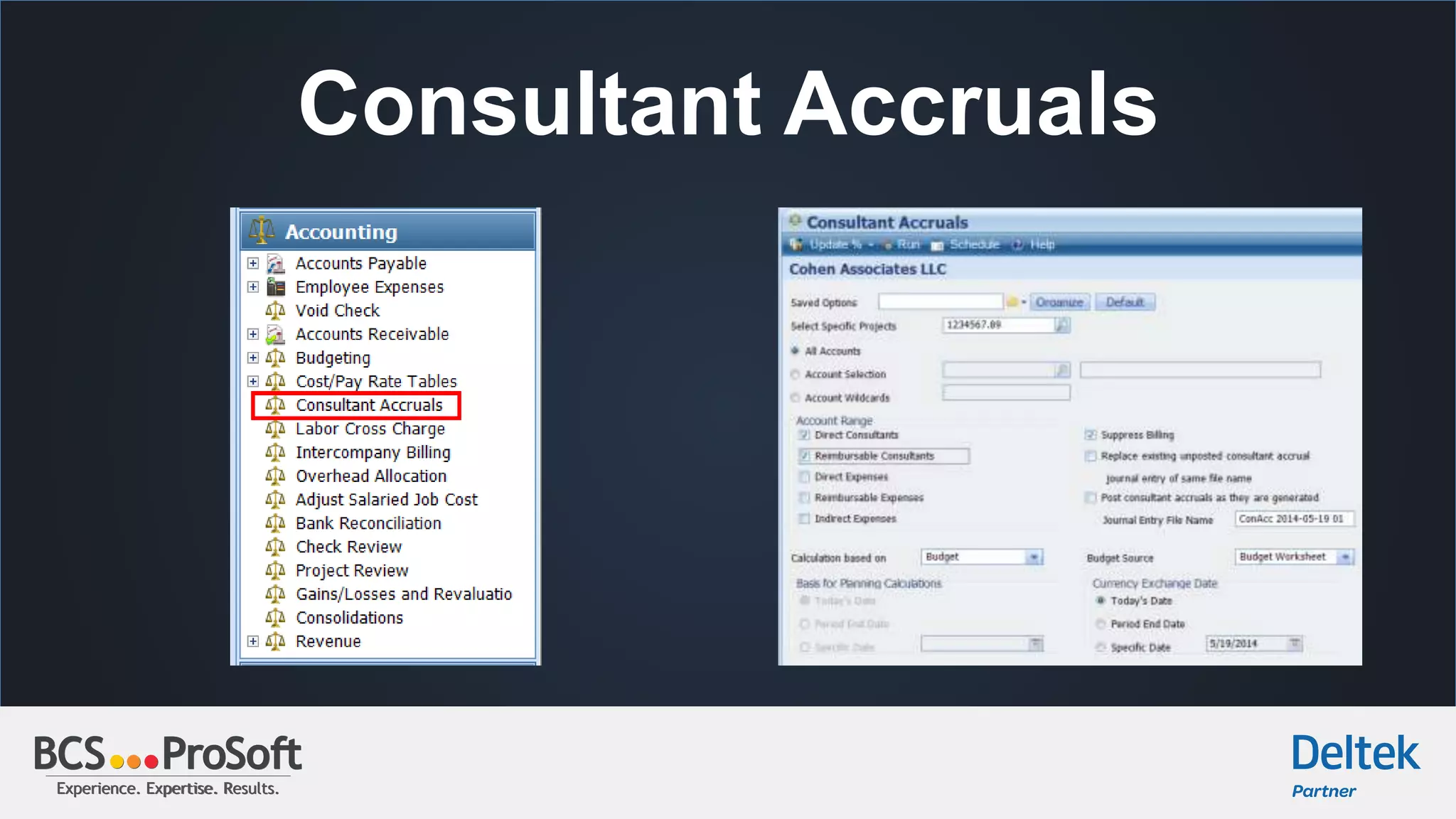
Consultant Accruals
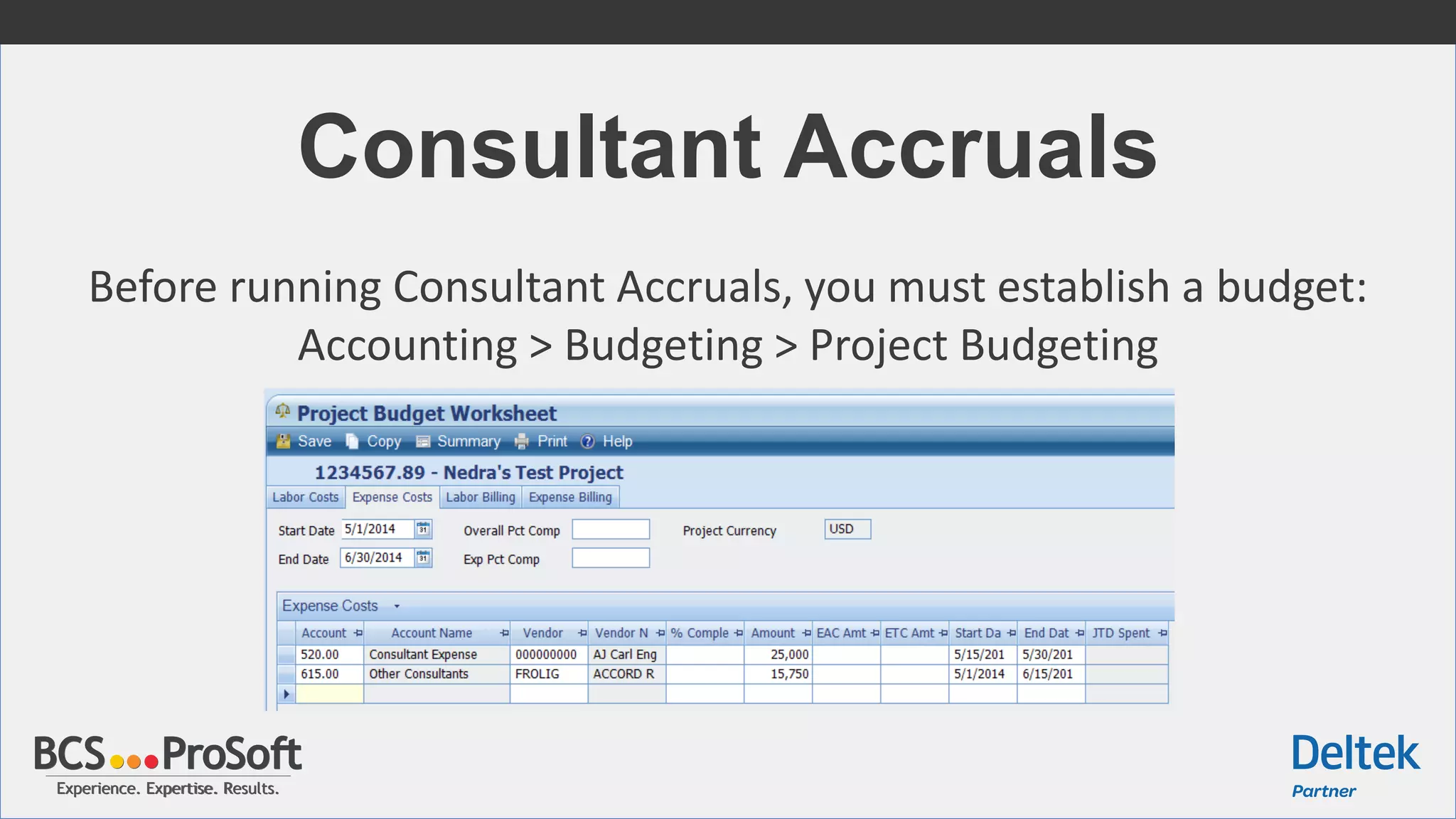
Before running Consultant Accruals, you must establish a budget:
Accounting > Budgeting > Project Budgeting
Experience. Expertise. Results.Experience. Expertise. Results.
Consultant Accruals
Experience. Expertise. Results.Experience. Expertise. Results.
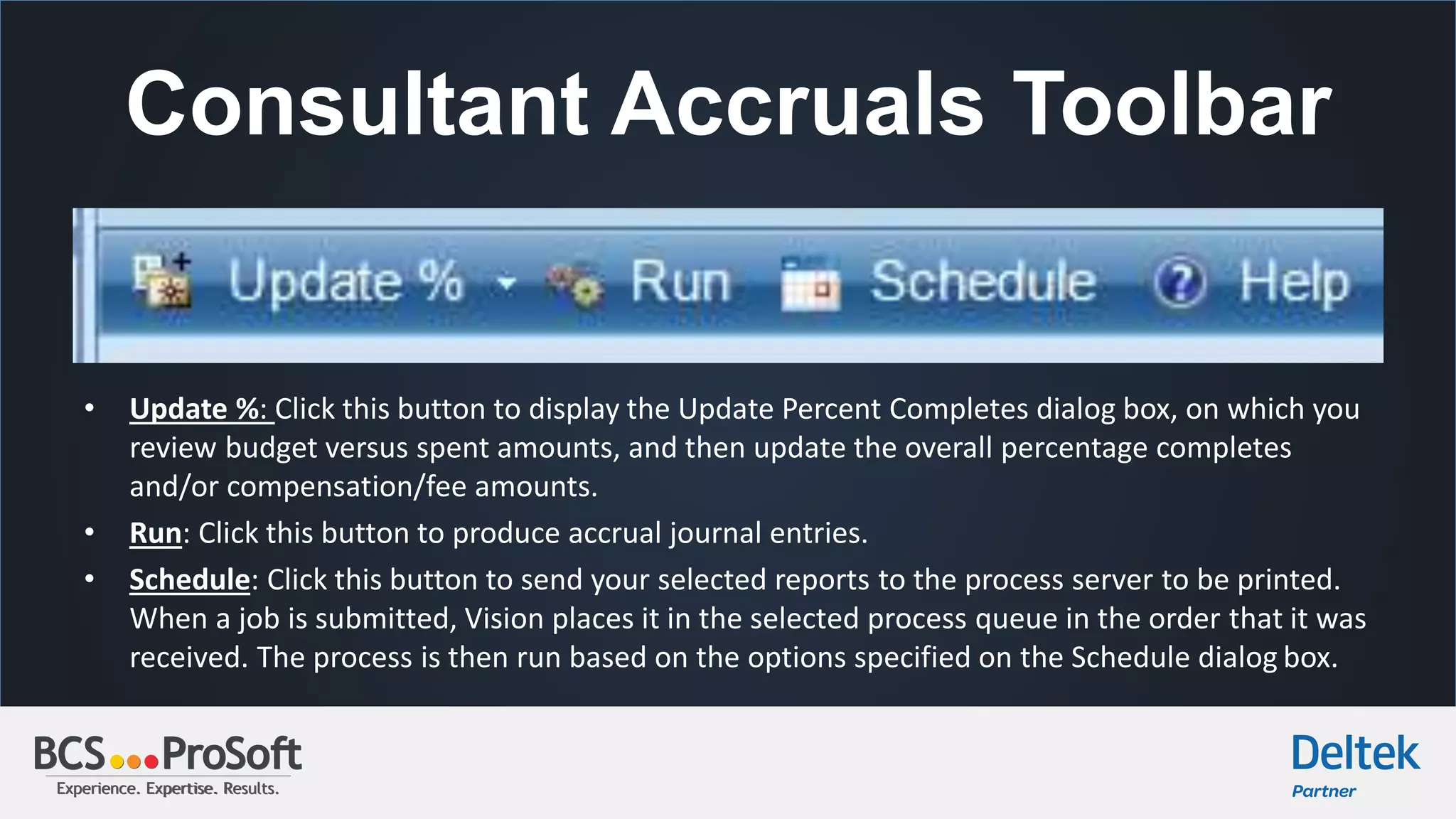
Consultant Accruals Toolbar
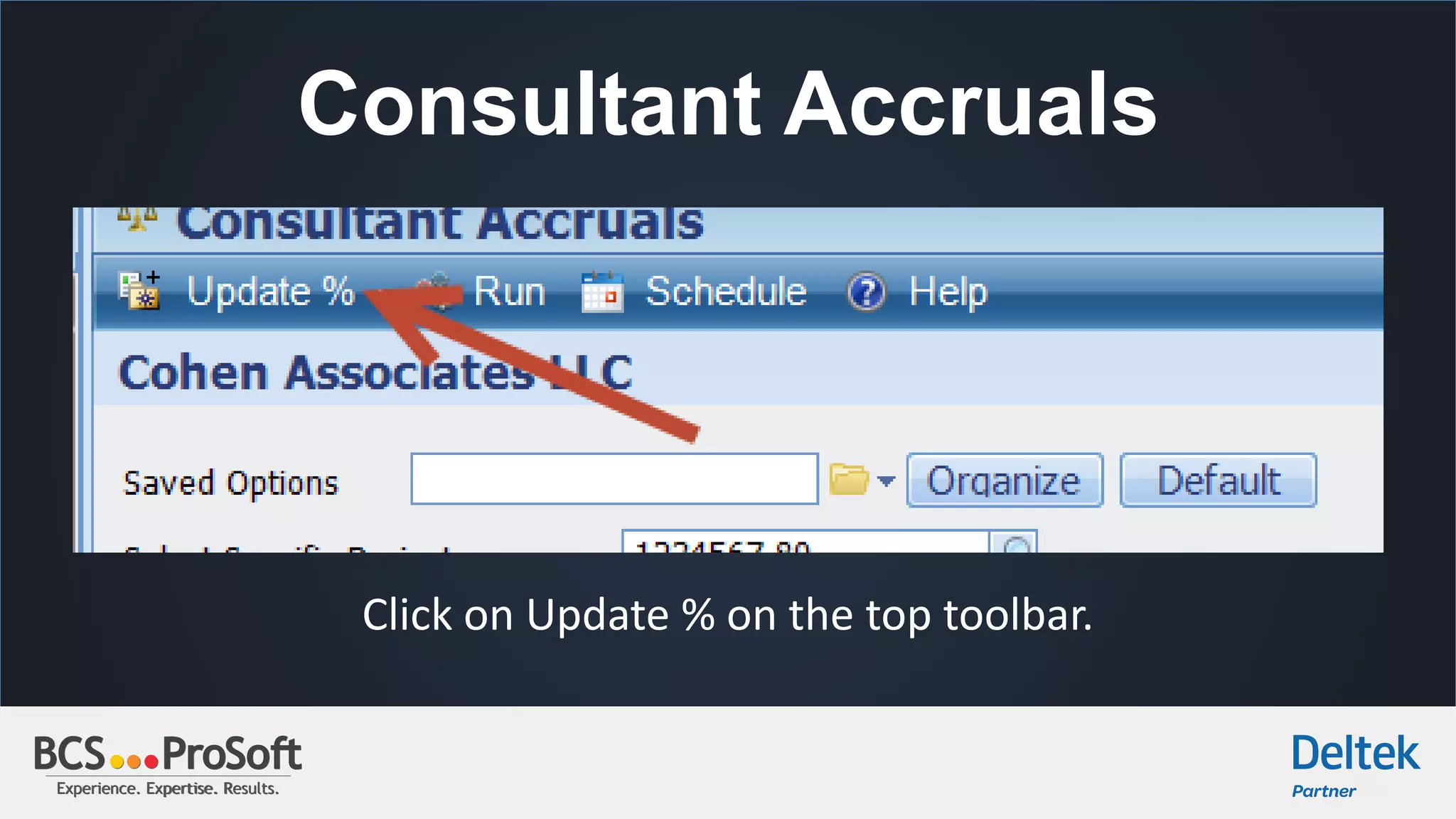
• Update %: Click this button to display the Update Percent Completes dialog box, on which you
review budget versus spent amounts, and then update the overall percentage completes
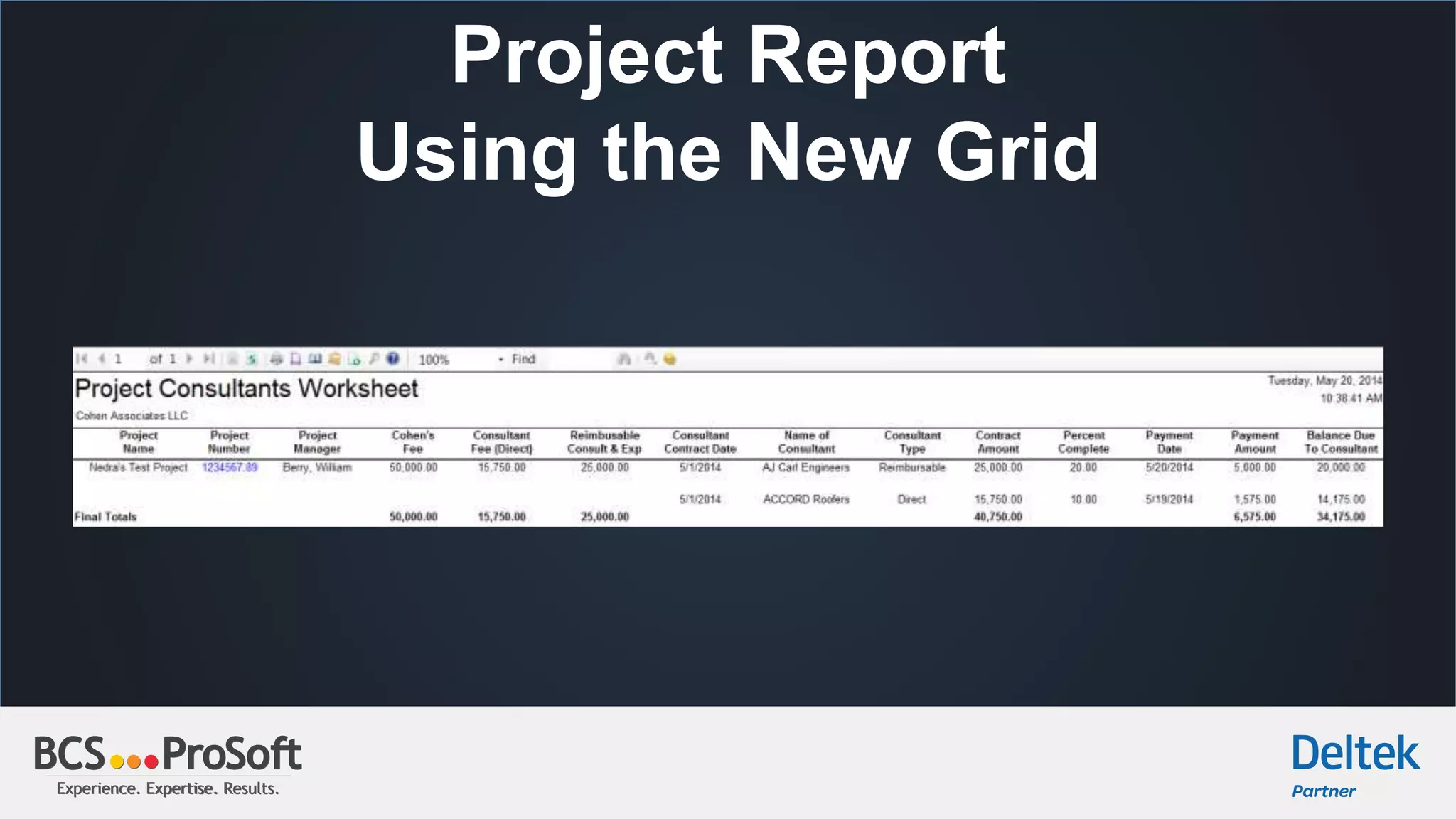
and/or compensation/fee amounts.
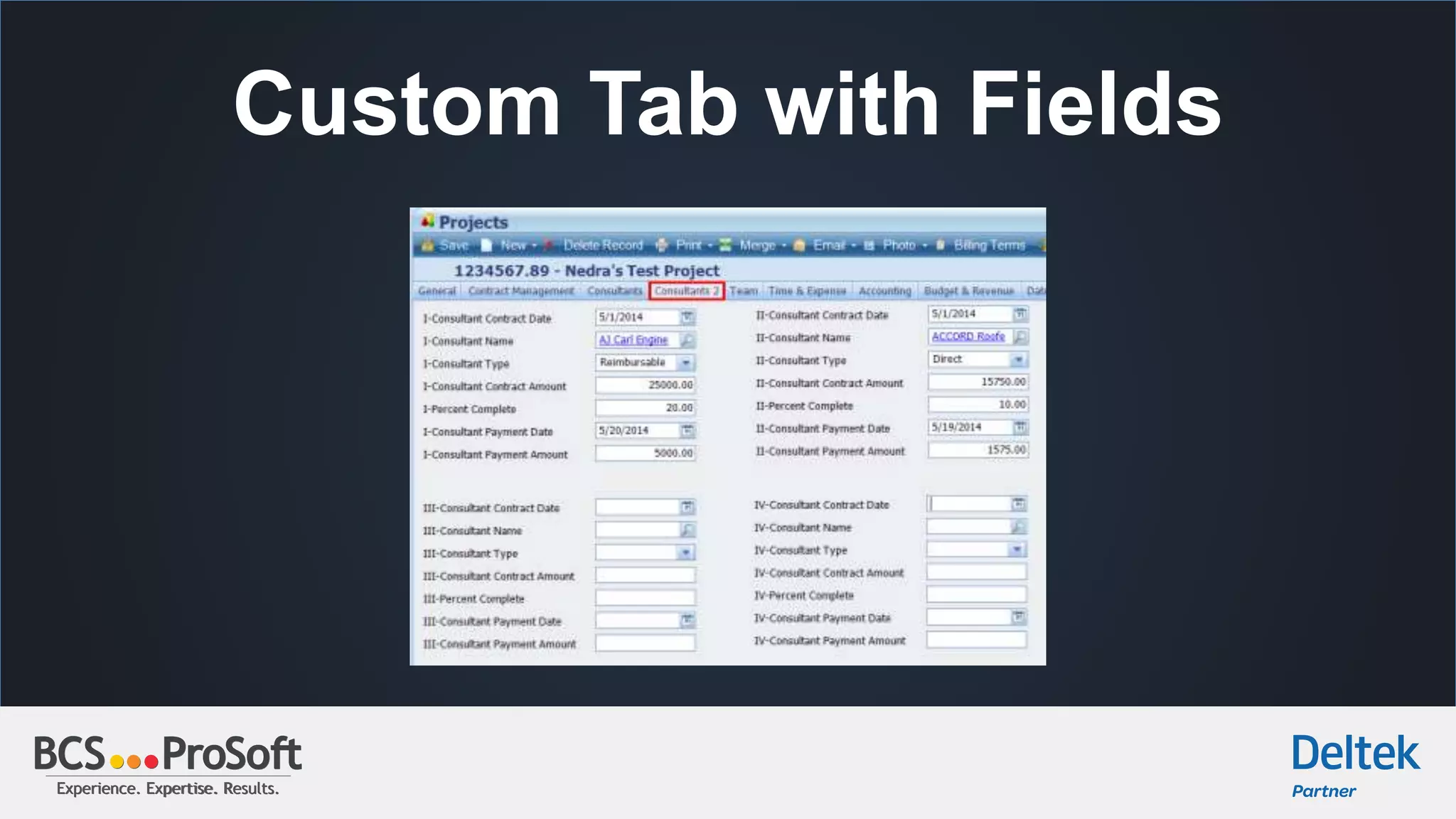
• Run: Click this button to produce accrual journal entries.
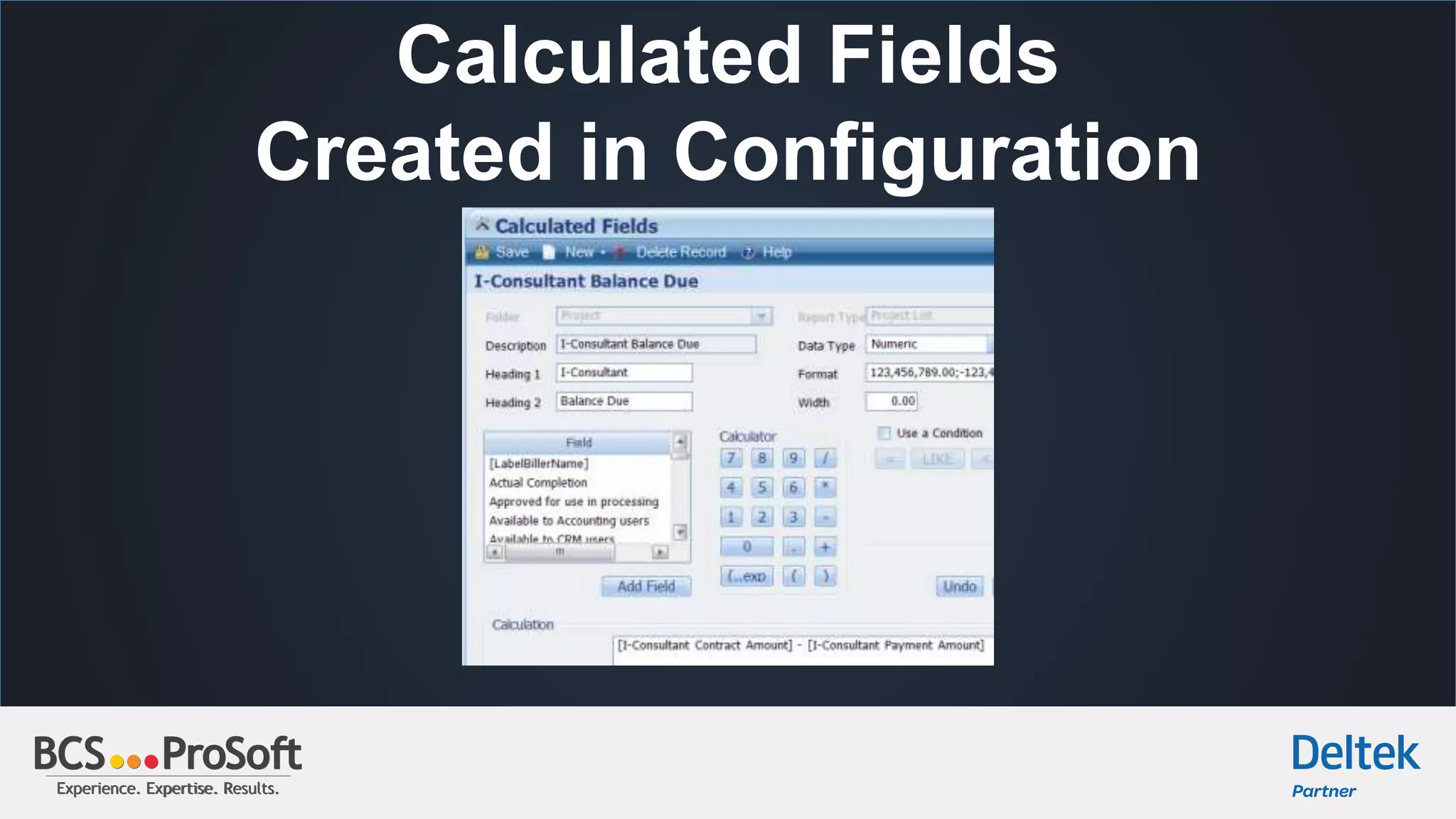
• Schedule: Click this button to send your selected reports to the process server to be printed.
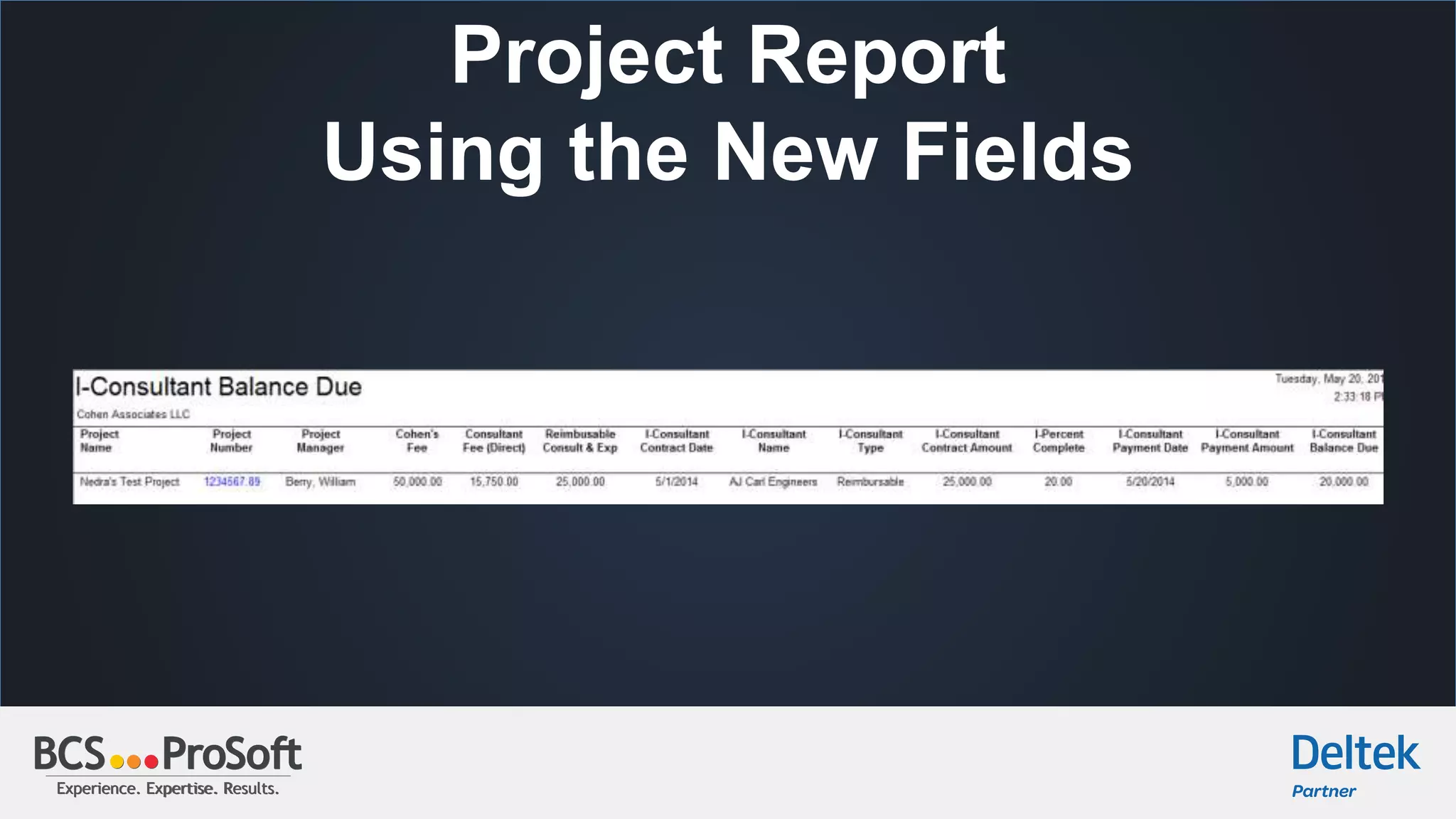
When a job is submitted, Vision places it in the selected process queue in the order that it was
received. The process is then run based on the options specified on the Schedule dialog box.
Experience. Expertise. Results.Experience. Expertise. Results.
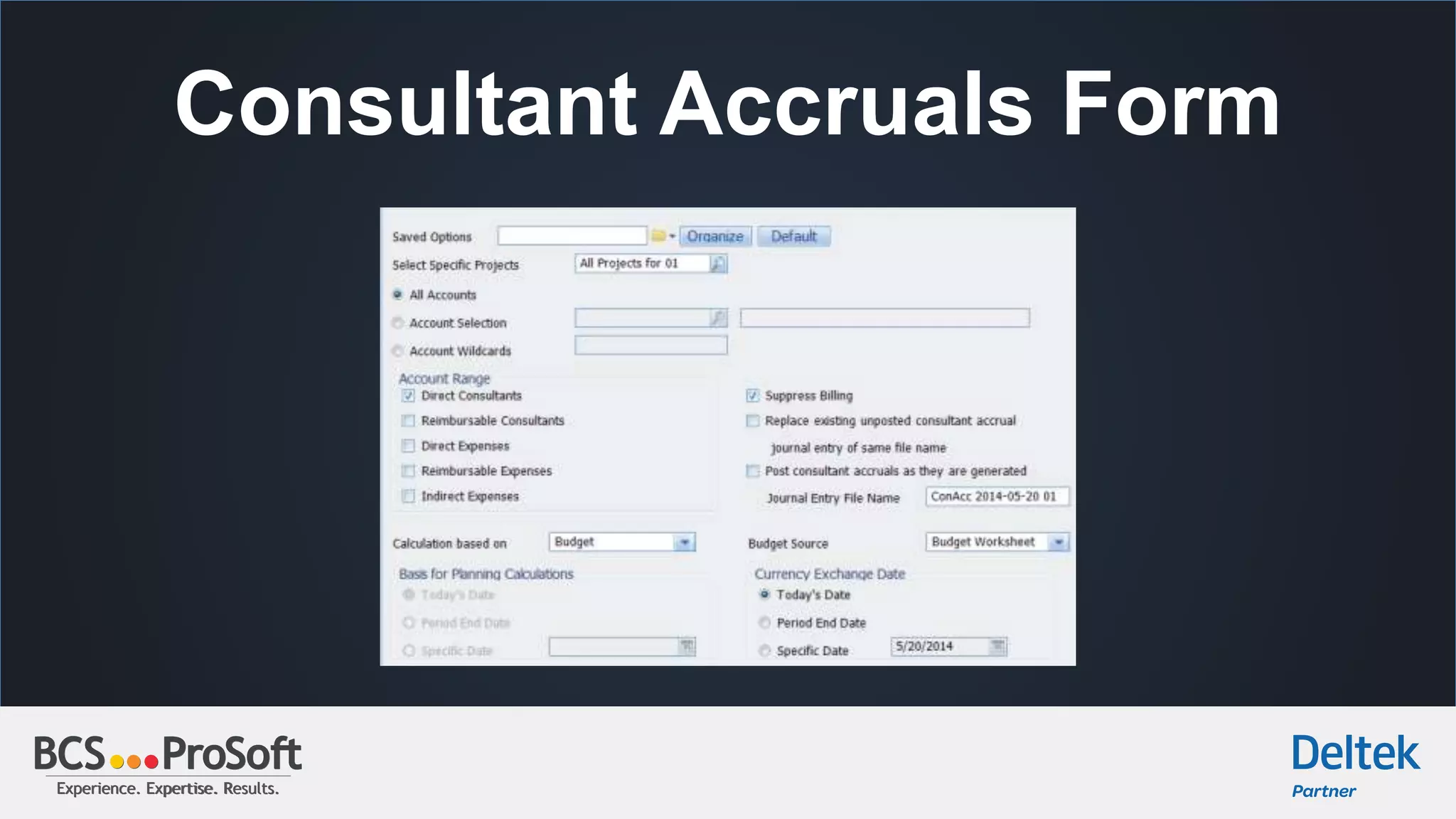
Consultant Accruals Form
Experience. Expertise. Results.Experience. Expertise. Results.
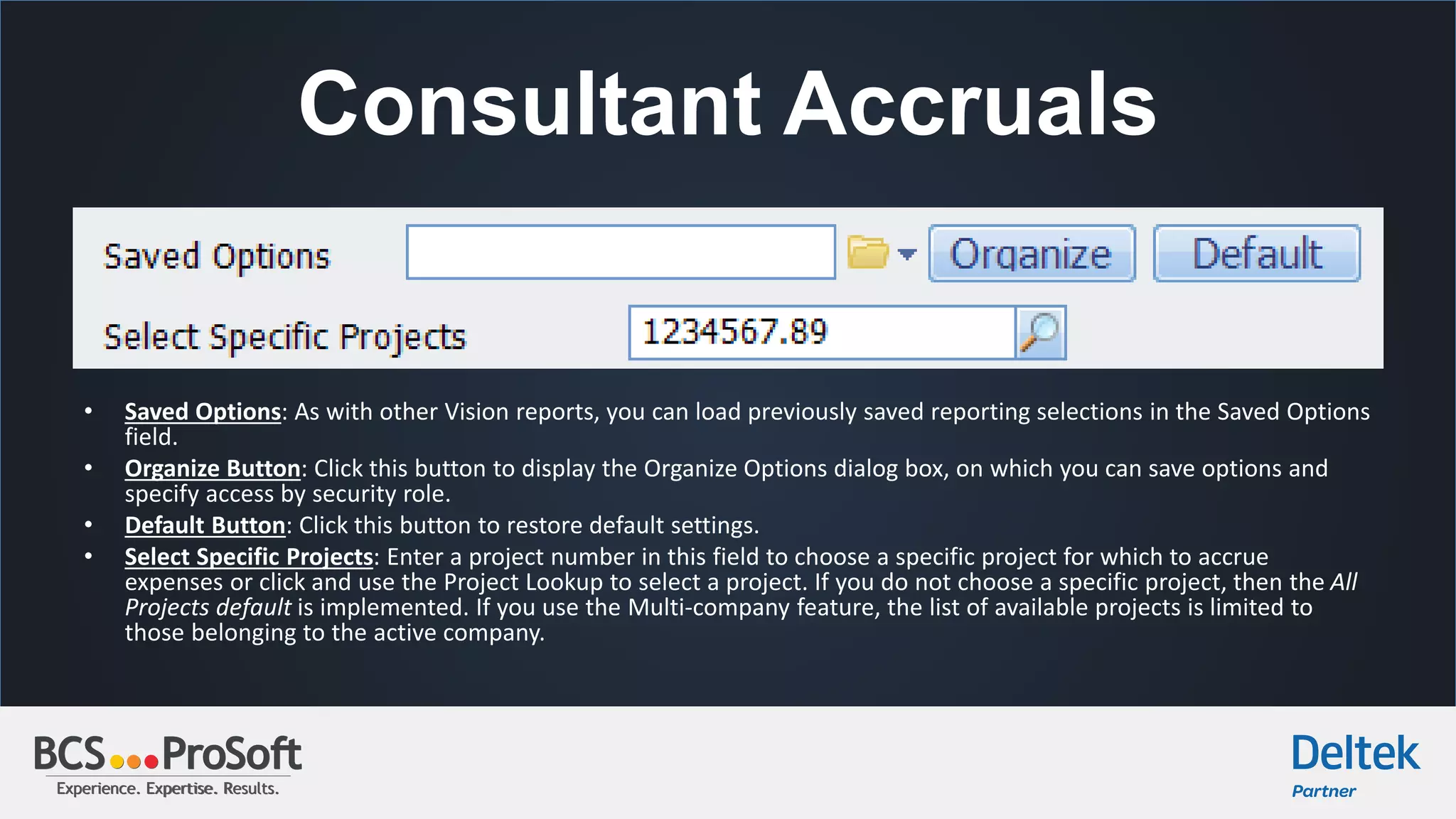
Consultant Accruals
• Saved Options: As with other Vision reports, you can load previously saved reporting selections in the Saved Options
field.
• Organize Button: Click this button to display the Organize Options dialog box, on which you can save options and
specify access by security role.
• Default Button: Click this button to restore default settings.
• Select Specific Projects: Enter a project number in this field to choose a specific project for which to accrue
expenses or click and use the Project Lookup to select a project. If you do not choose a specific project, then the All
Projects default is implemented. If you use the Multi-company feature, the list of available projects is limited to
those belonging to the active company.
Experience. Expertise. Results.Experience. Expertise. Results.
Consultant Accruals
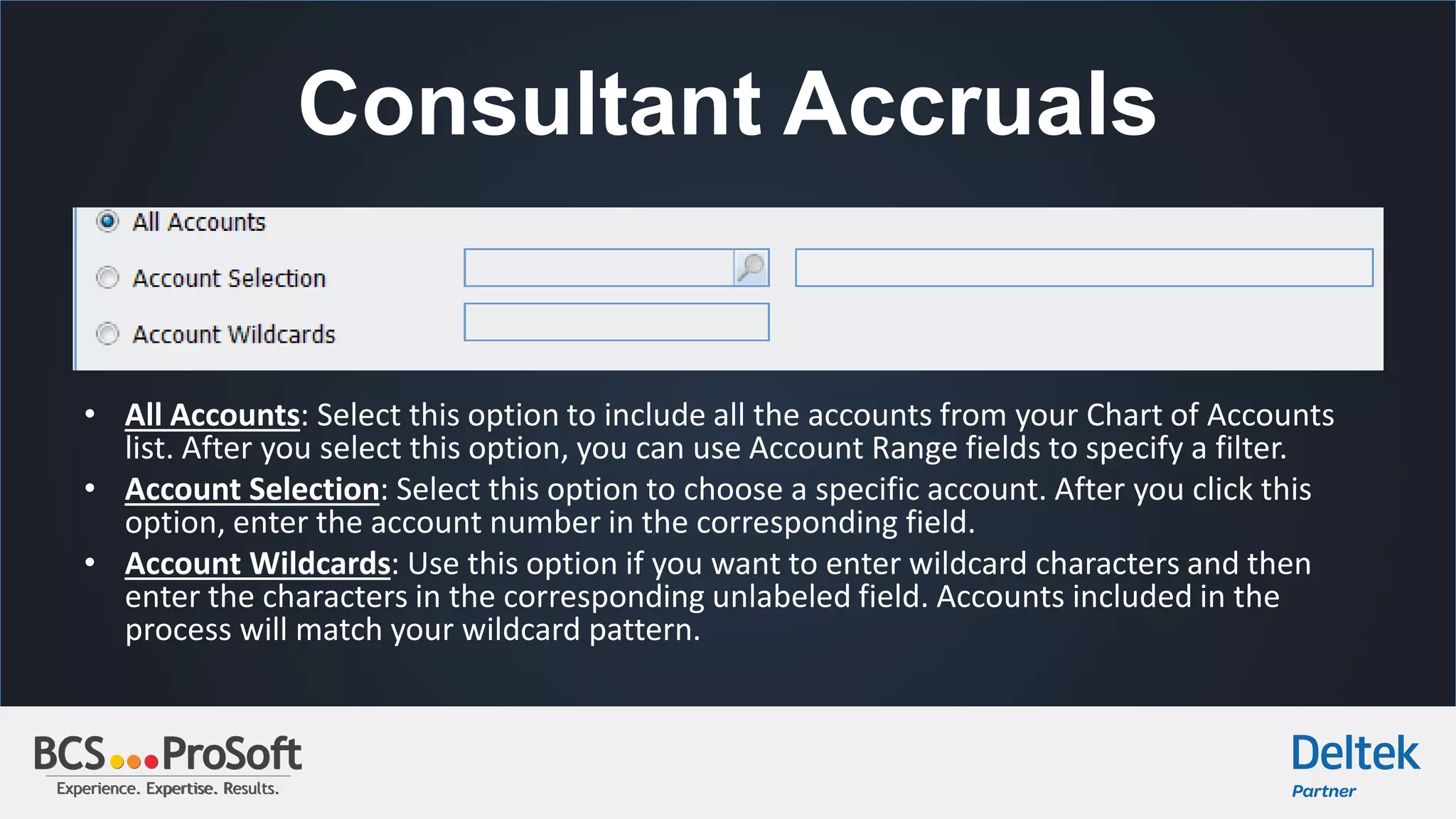
• All Accounts: Select this option to include all the accounts from your Chart of Accounts
list. After you select this option, you can use Account Range fields to specify a filter.
• Account Selection: Select this option to choose a specific account. After you click this
option, enter the account number in the corresponding field.
• Account Wildcards: Use this option if you want to enter wildcard characters and then
enter the characters in the corresponding unlabeled field. Accounts included in the
process will match your wildcard pattern.
Experience. Expertise. Results.Experience. Expertise. Results.
Consultant Accruals
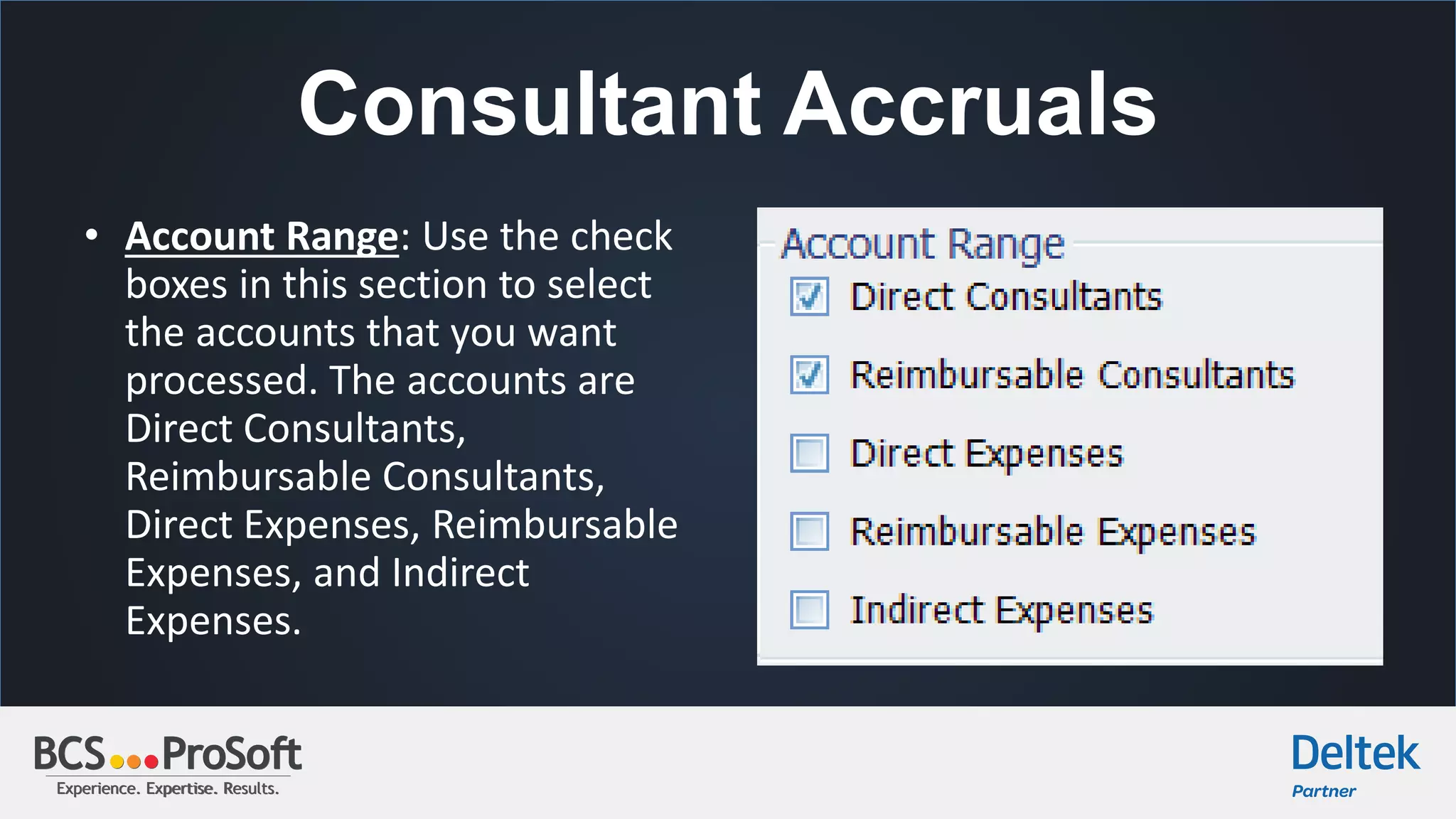
• Account Range: Use the check
boxes in this section to select
the accounts that you want
processed. The accounts are
Direct Consultants,
Reimbursable Consultants,
Direct Expenses, Reimbursable
Expenses, and Indirect
Expenses.
Experience. Expertise. Results.Experience. Expertise. Results.
Consultant Accruals
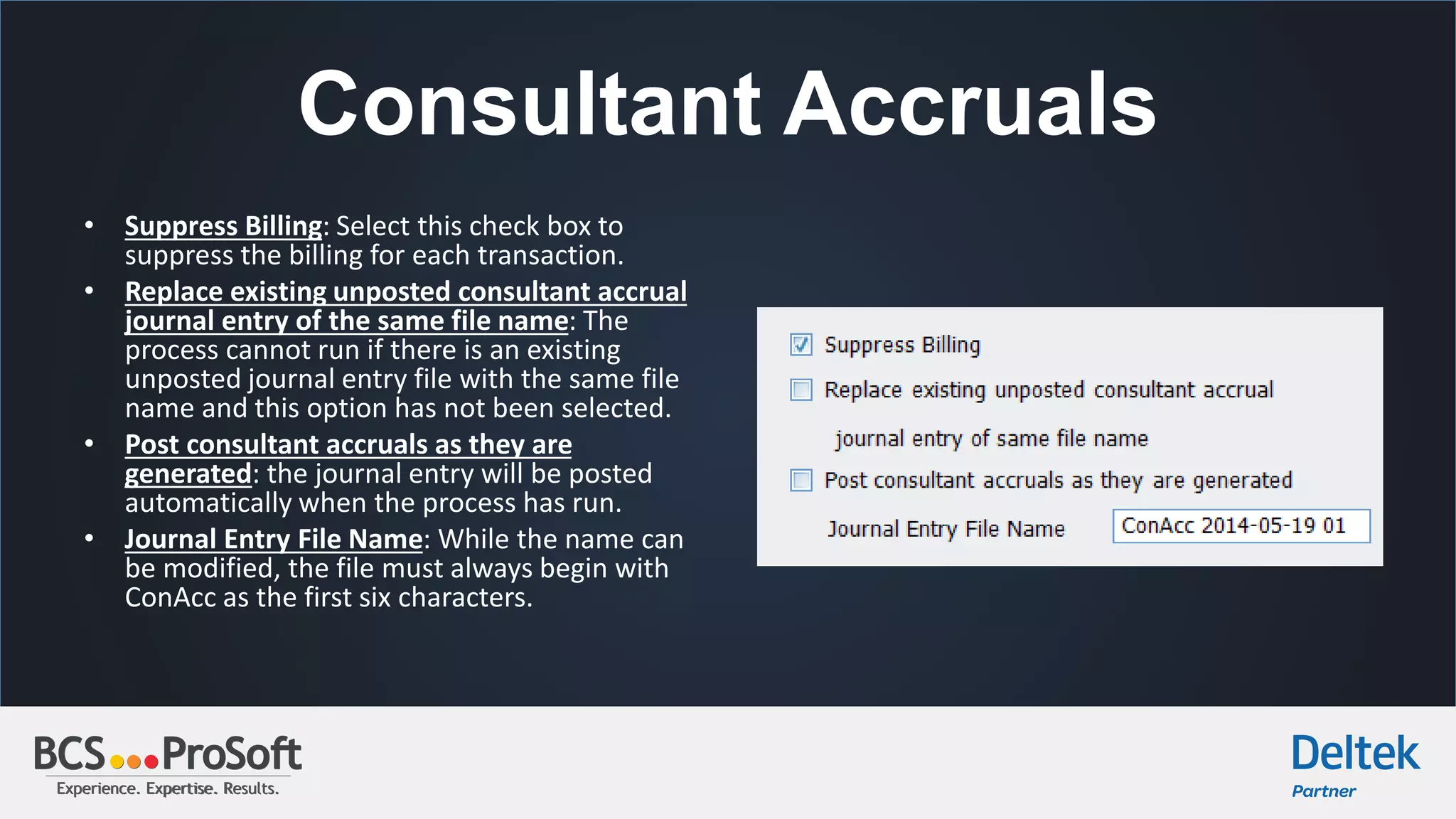
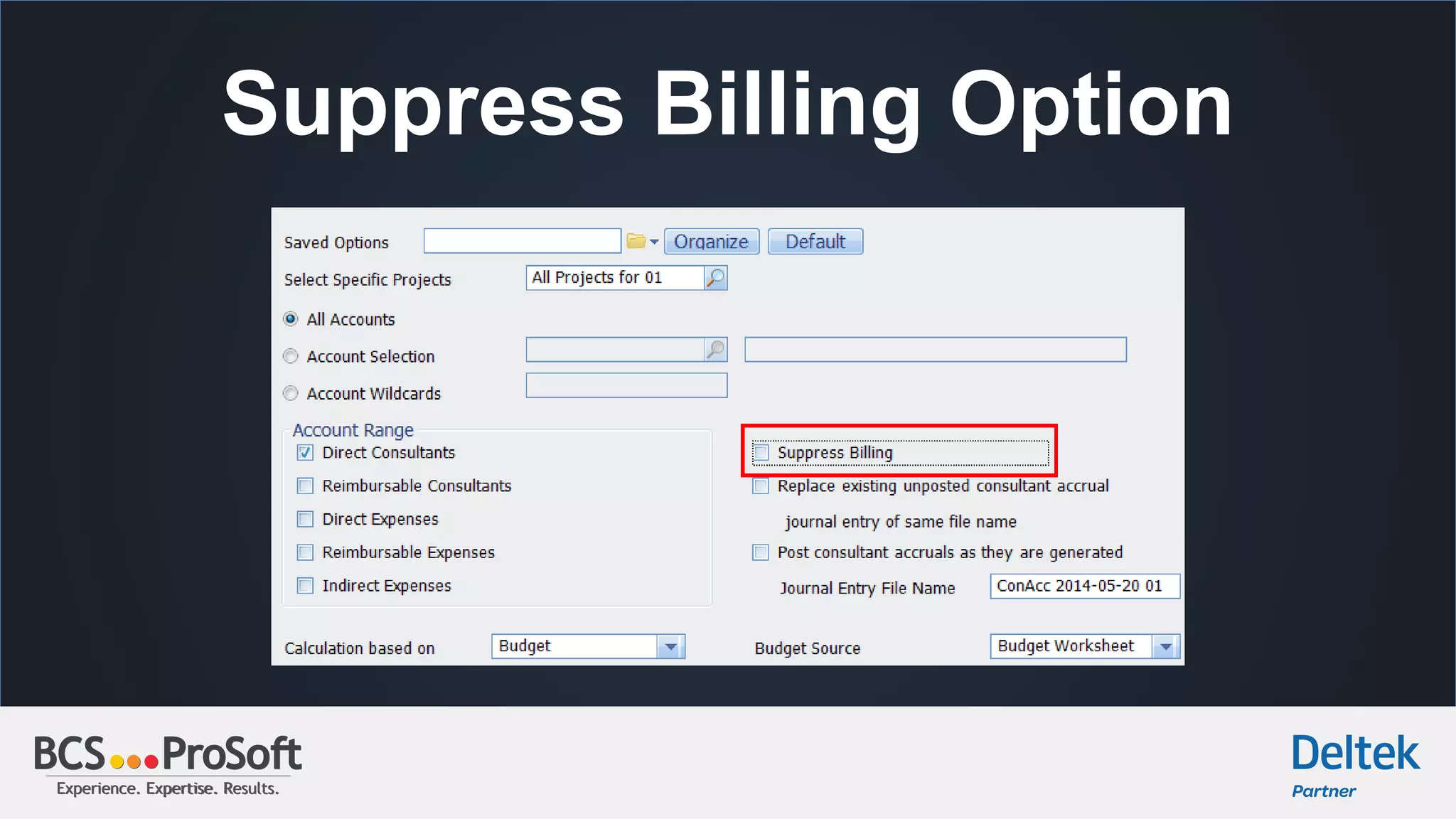
• Suppress Billing: Select this check box to
suppress the billing for each transaction.
• Replace existing unposted consultant accrual
journal entry of the same file name: The
process cannot run if there is an existing
unposted journal entry file with the same file
name and this option has not been selected.
• Post consultant accruals as they are
generated: the journal entry will be posted
automatically when the process has run.
• Journal Entry File Name: While the name can
be modified, the file must always begin with
ConAcc as the first six characters.
Experience. Expertise. Results.Experience. Expertise. Results.
Consultant Accruals
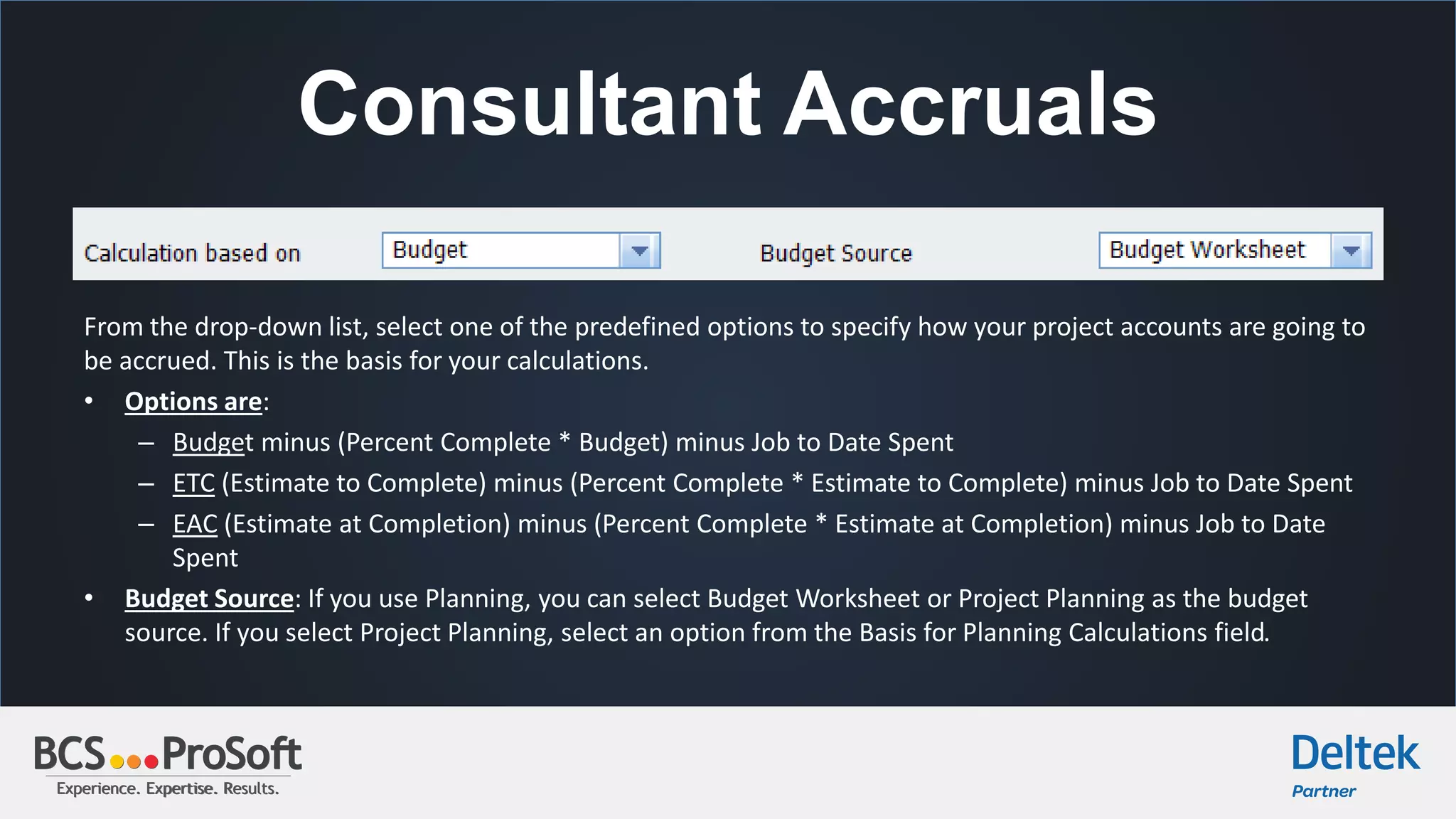
From the drop-down list, select one of the predefined options to specify how your project accounts are going to
be accrued. This is the basis for your calculations.
• Options are:
– Budget minus (Percent Complete * Budget) minus Job to Date Spent
– ETC (Estimate to Complete) minus (Percent Complete * Estimate to Complete) minus Job to Date Spent
– EAC (Estimate at Completion) minus (Percent Complete * Estimate at Completion) minus Job to Date
Spent
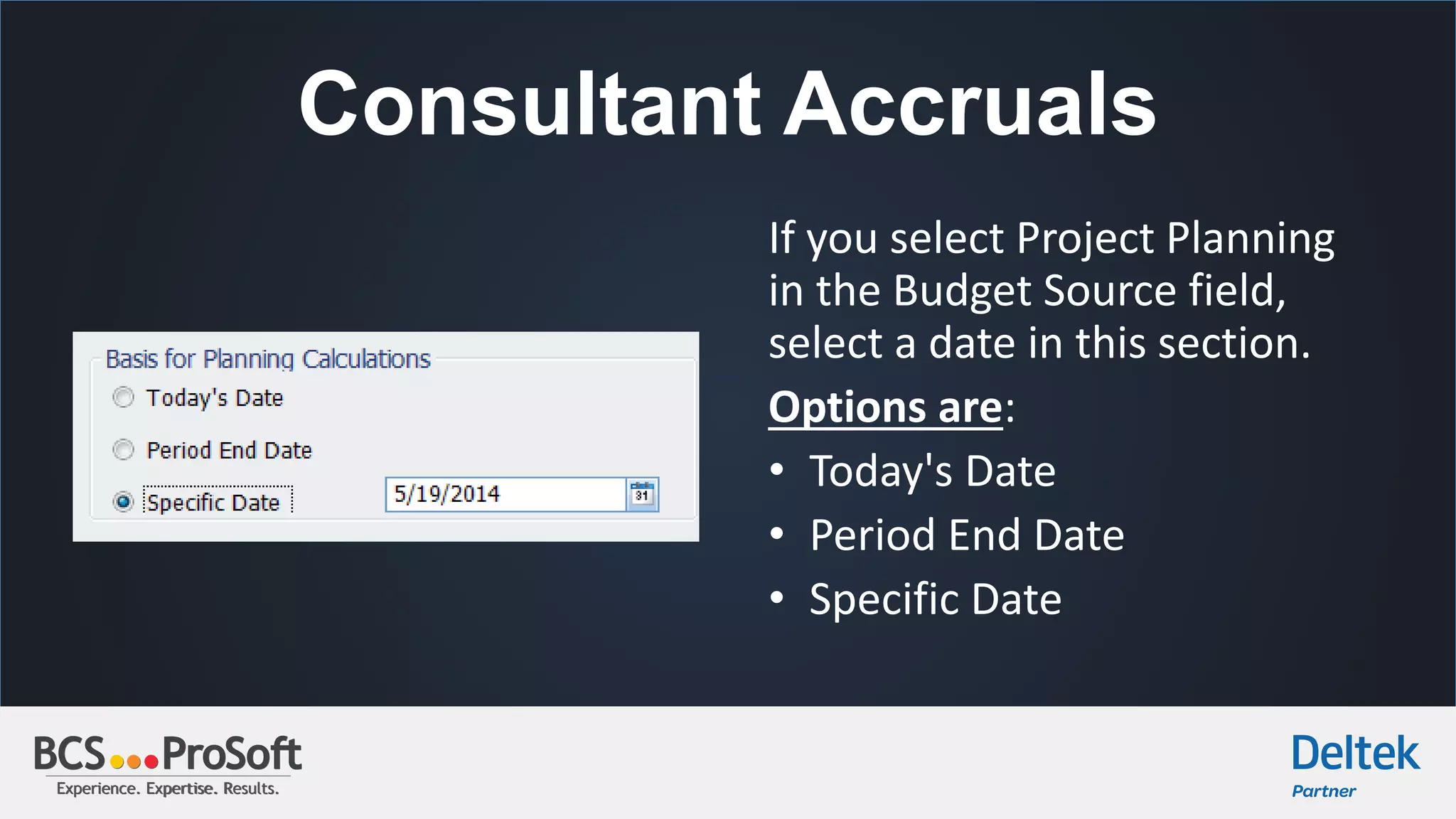
• Budget Source: If you use Planning, you can select Budget Worksheet or Project Planning as the budget
source. If you select Project Planning, select an option from the Basis for Planning Calculations field.
Experience. Expertise. Results.Experience. Expertise. Results.
Consultant Accruals
If you select Project Planning
in the Budget Source field,
select a date in this section.
Options are:
• Today's Date
• Period End Date
• Specific Date
Experience. Expertise. Results.Experience. Expertise. Results.
Consultant Accruals Form
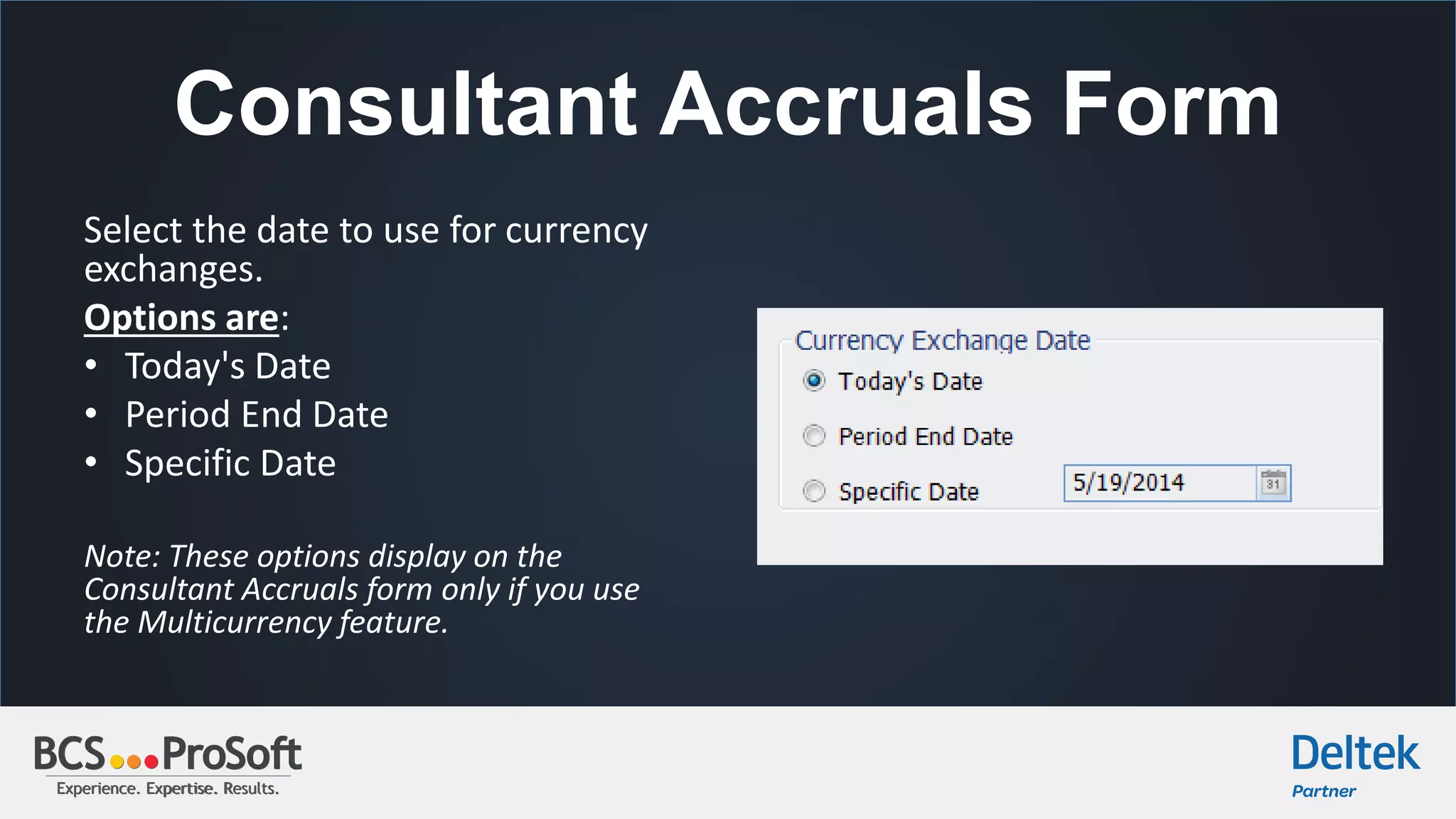
Select the date to use for currency
exchanges.
Options are:
• Today's Date
• Period End Date
• Specific Date
Note: These options display on the
Consultant Accruals form only if you use
the Multicurrency feature.
Experience. Expertise. Results.Experience. Expertise. Results.
Consultant Accruals
Click on Update % on the top toolbar.
Experience. Expertise. Results.Experience. Expertise. Results.
Consultant Accruals
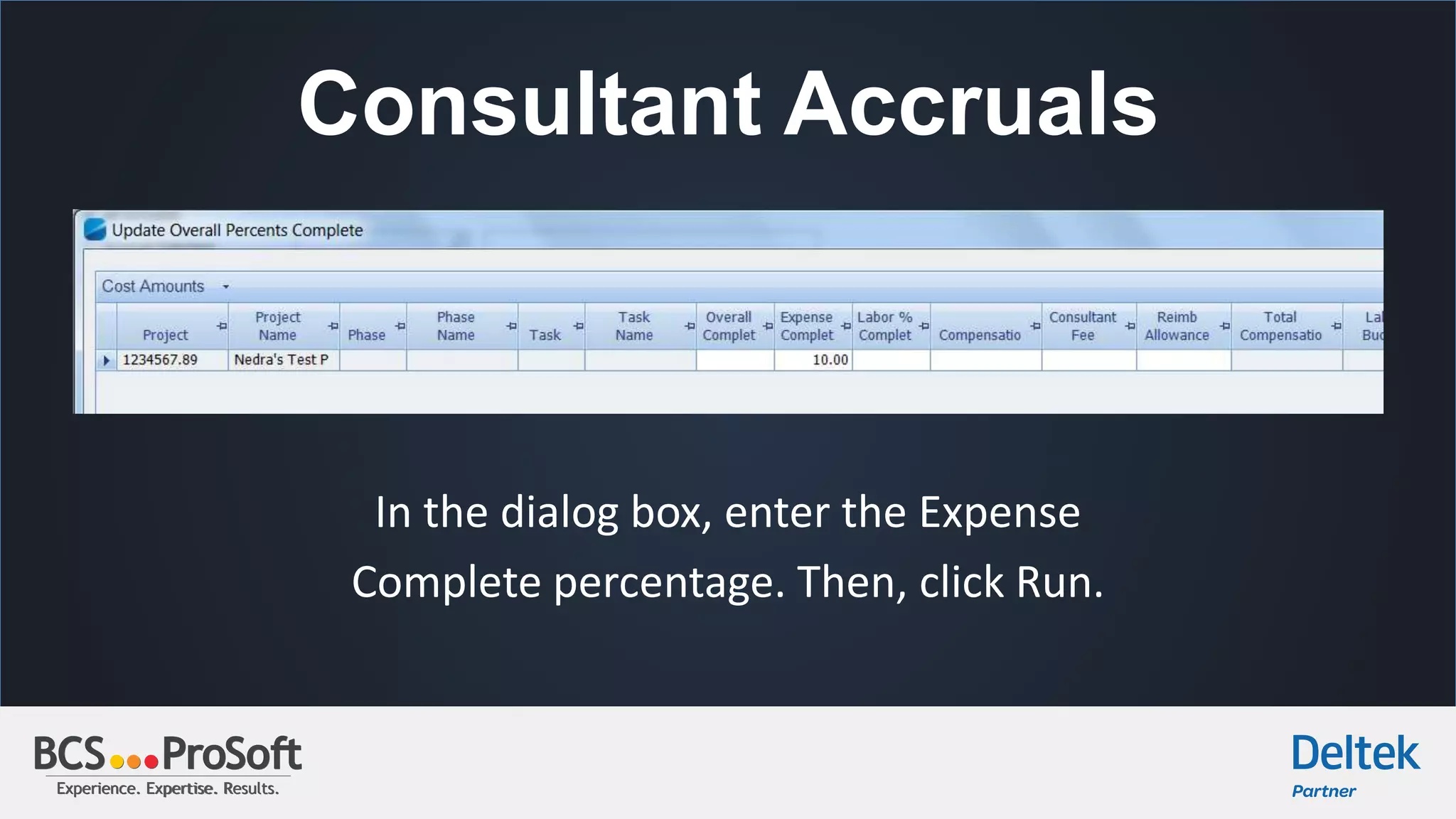
In the dialog box, enter the Expense
Complete percentage. Then, click Run.
Experience. Expertise. Results.Experience. Expertise. Results.
Consultant Accruals
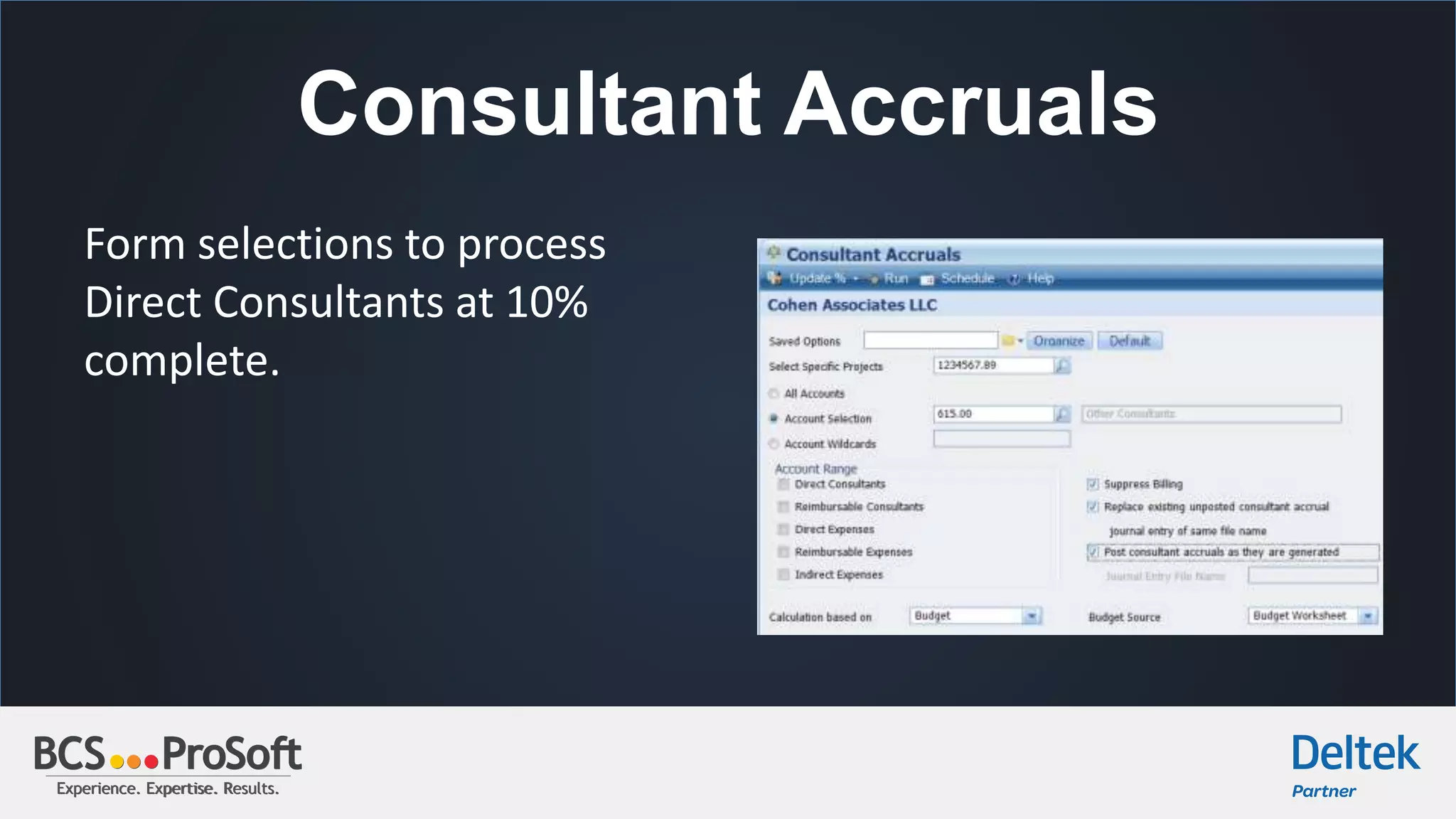
Form selections to process
Direct Consultants at 10%
complete.
Experience. Expertise. Results.Experience. Expertise. Results.
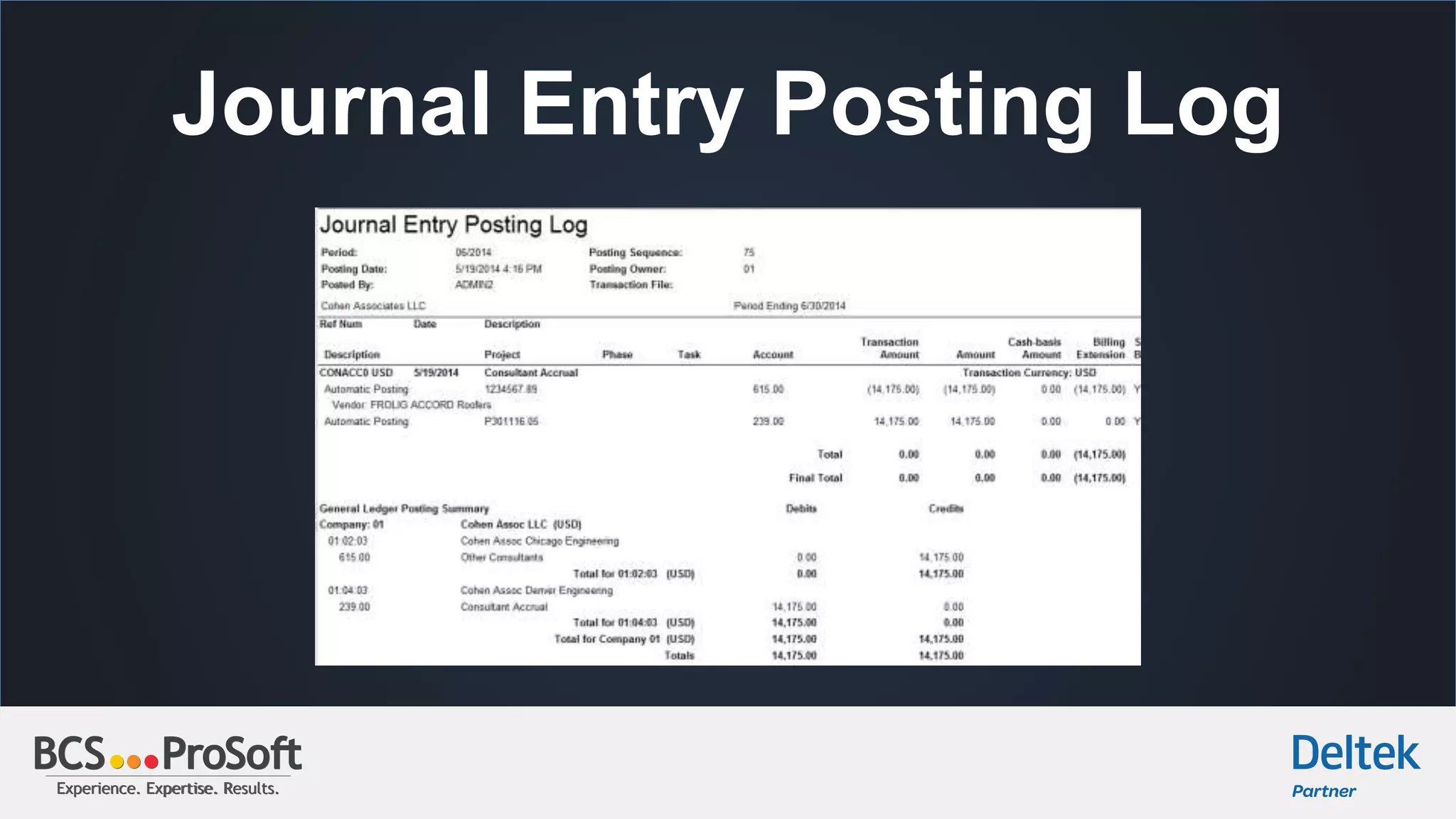
Journal Entry Posting Log
Experience. Expertise. Results.Experience. Expertise. Results.
Consultant Accruals
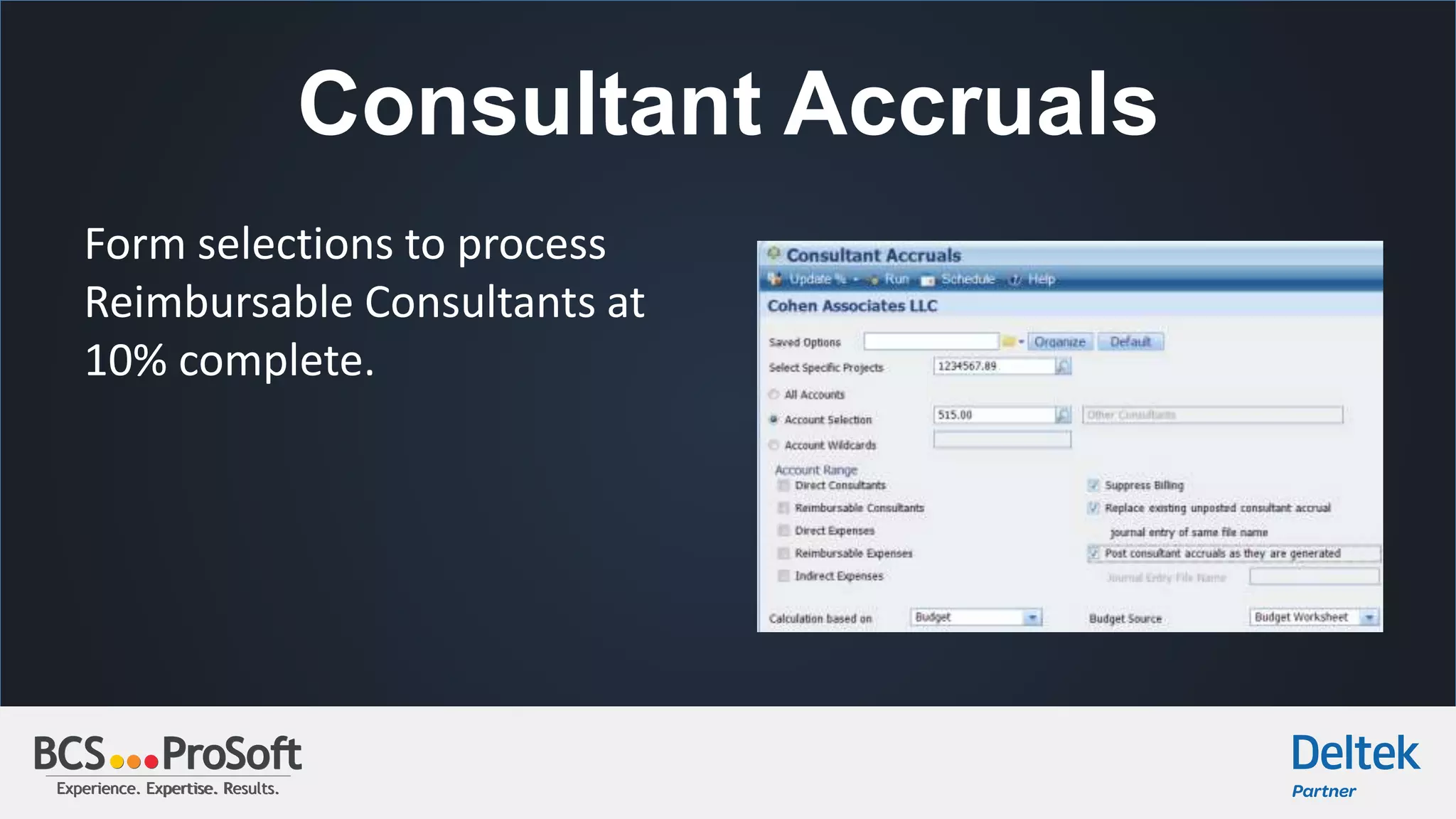
Form selections to process
Reimbursable Consultants at
10% complete.
Experience. Expertise. Results.Experience. Expertise. Results.
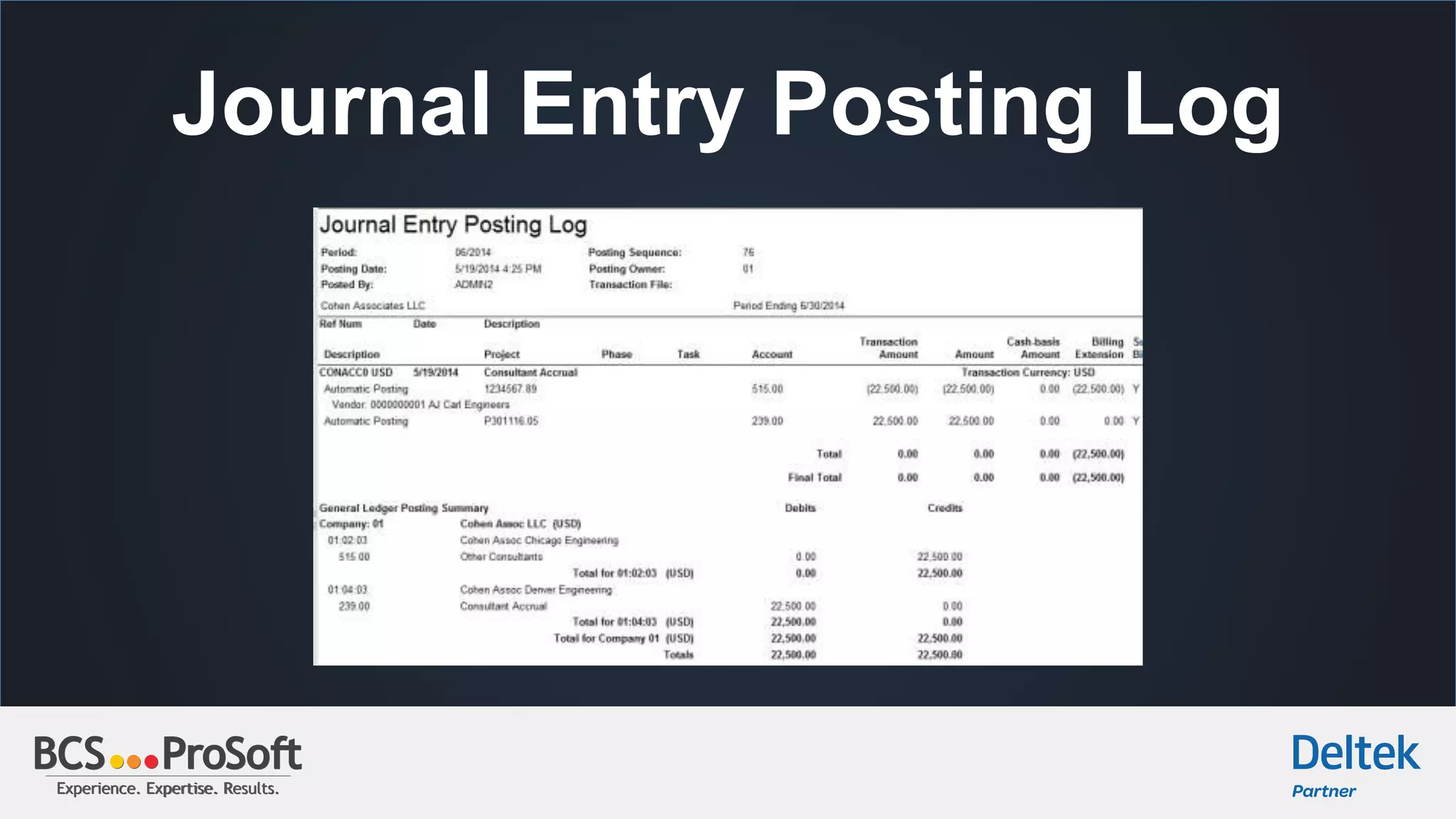
Journal Entry Posting Log
Experience. Expertise. Results.Experience. Expertise. Results.
Consultant Accruals
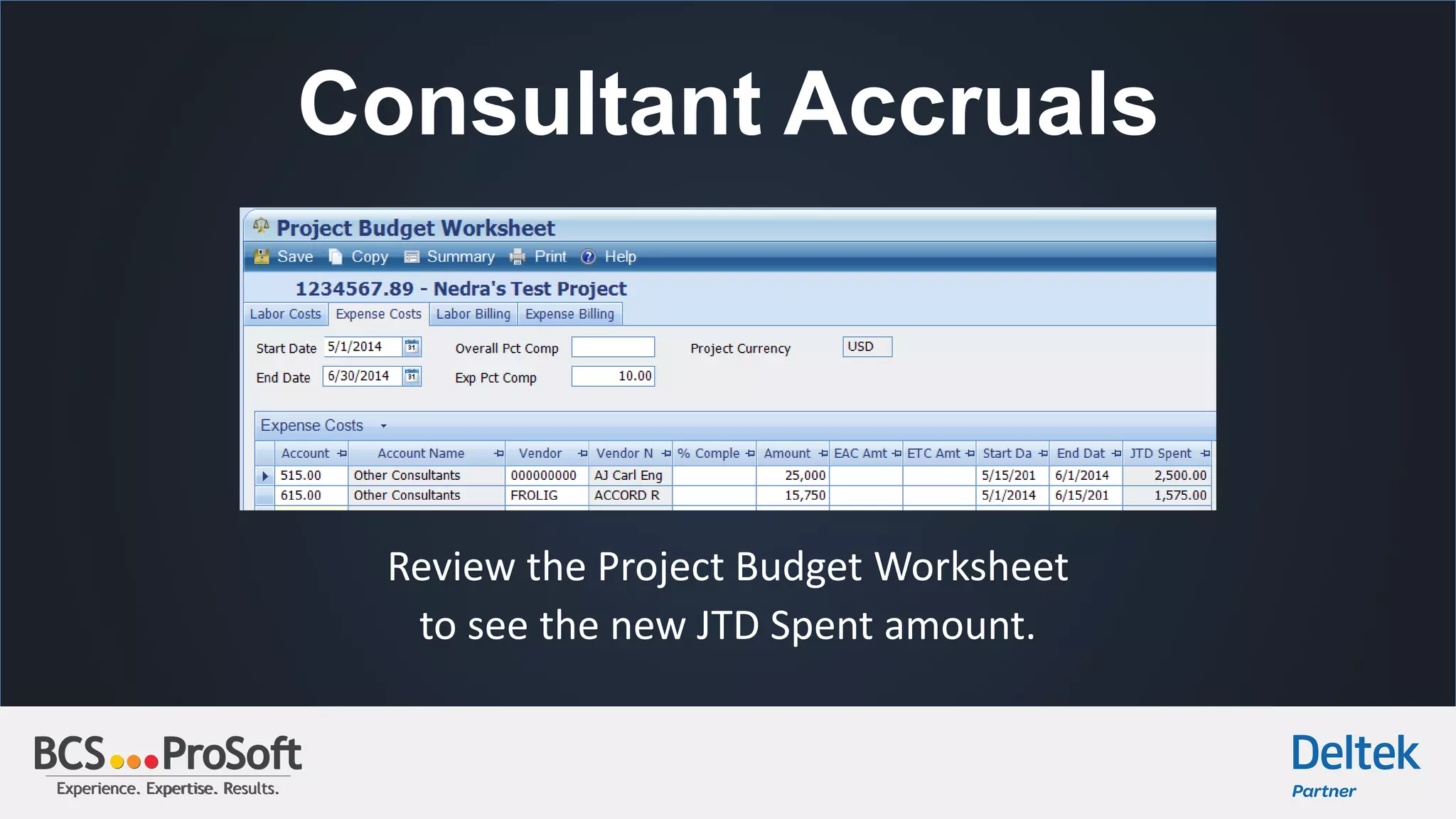
Review the Project Budget Worksheet
to see the new JTD Spent amount.
Experience. Expertise. Results.Experience. Expertise. Results.
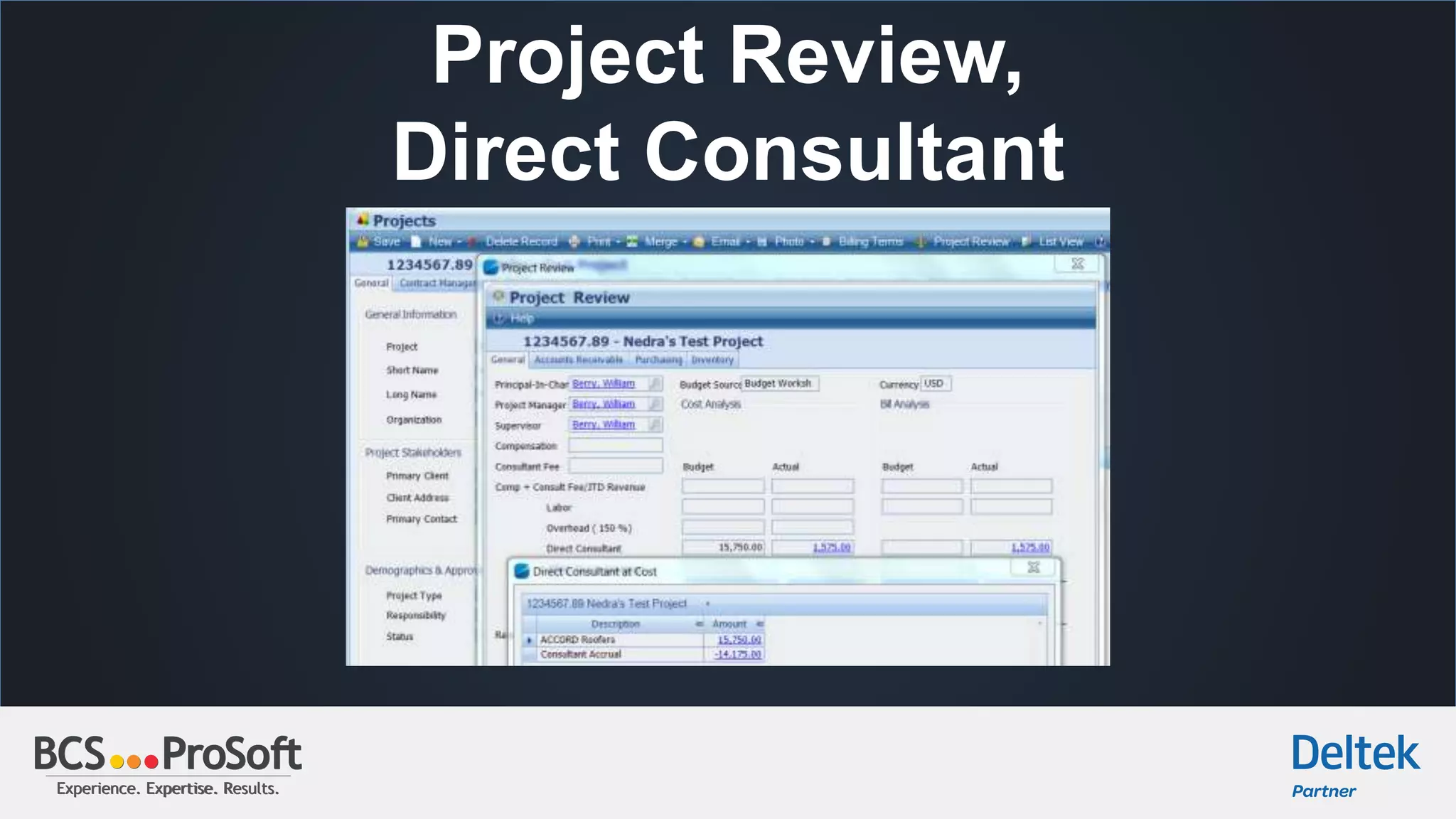
Project Review,
Direct Consultant
Experience. Expertise. Results.Experience. Expertise. Results.
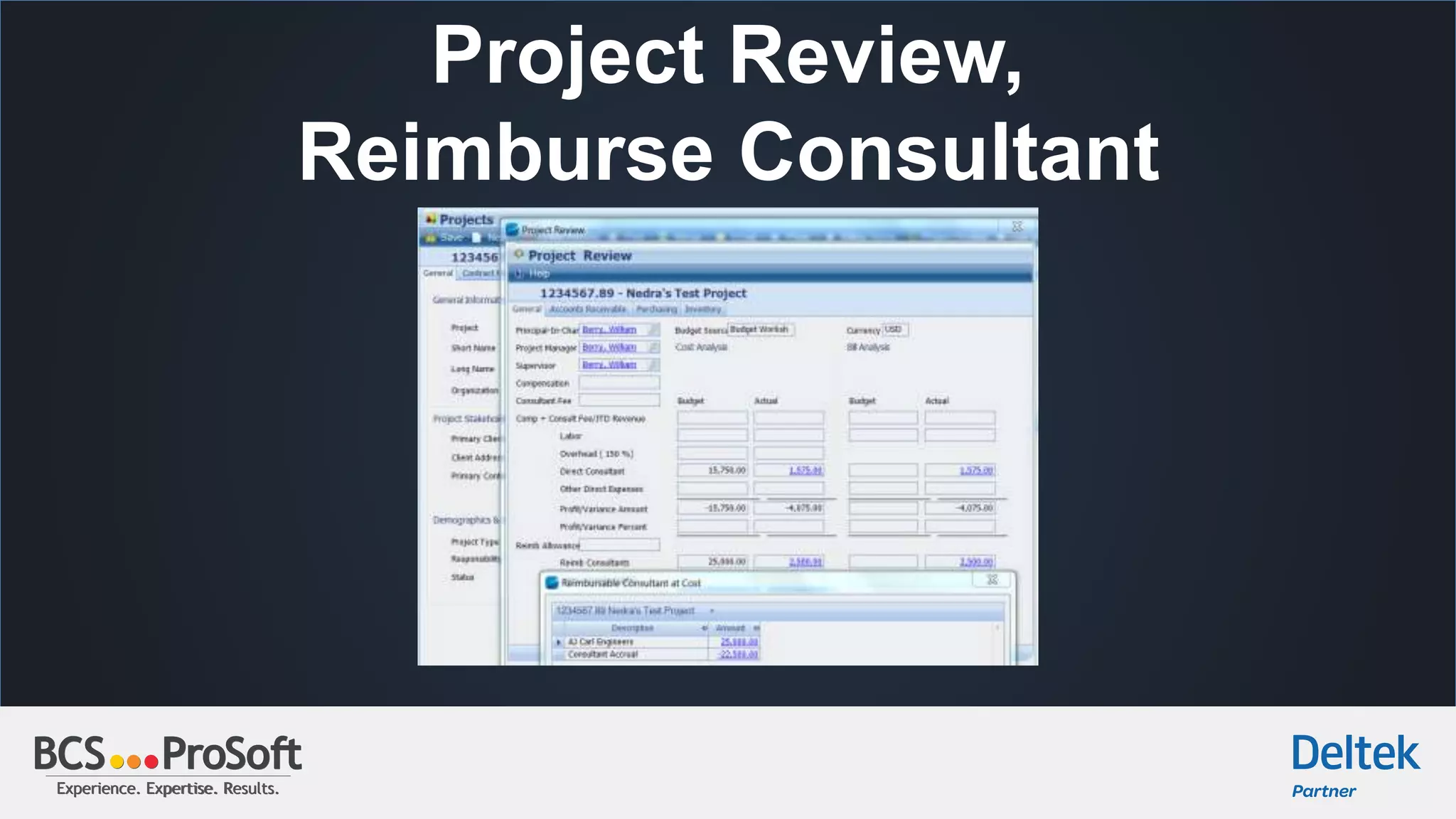
Project Review,
Reimburse Consultant
Experience. Expertise. Results.Experience. Expertise. Results.
Suppress Billing Option
Experience. Expertise. Results.Experience. Expertise. Results.
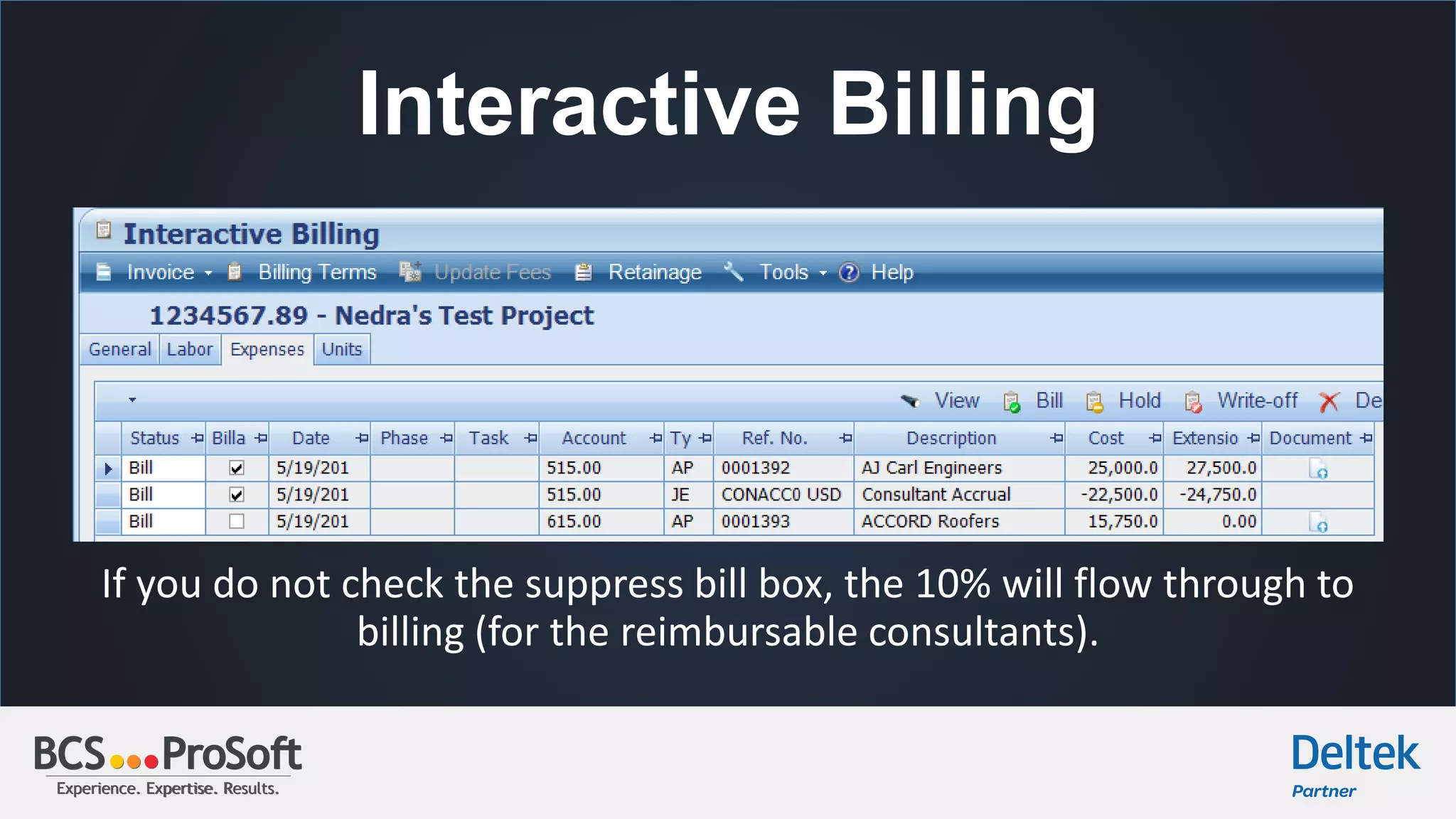
Interactive Billing
If you do not check the suppress bill box, the 10% will flow through to
billing (for the reimbursable consultants).
Experience. Expertise. Results.Experience. Expertise. Results.
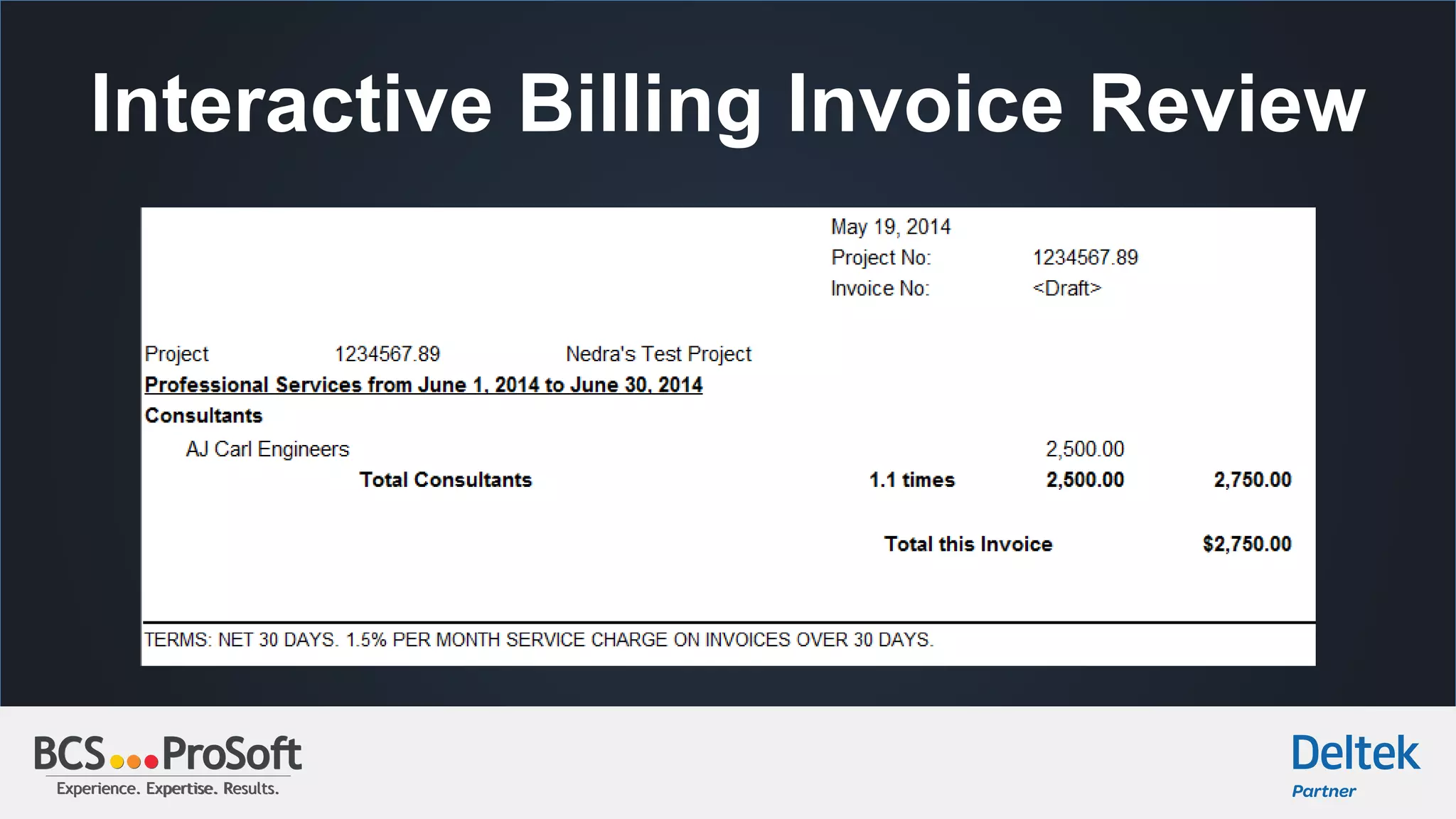
Interactive Billing Invoice Review
Experience. Expertise. Results.Experience. Expertise. Results.
Other Options for Accruals
Vision has two reports that can be
used to monitor Consultant
Accruals. Both reports are under
Project Reporting.
Experience. Expertise. Results.Experience. Expertise. Results.
Agenda
 Lunch and Introductions
 Consultant Accruals
 Consultant Ledger and Vouchers by Project
 User Defined Options to Track Consultant Accruals
 Deltek Vision Tips & Tricks
Experience. Expertise. Results.Experience. Expertise. Results.
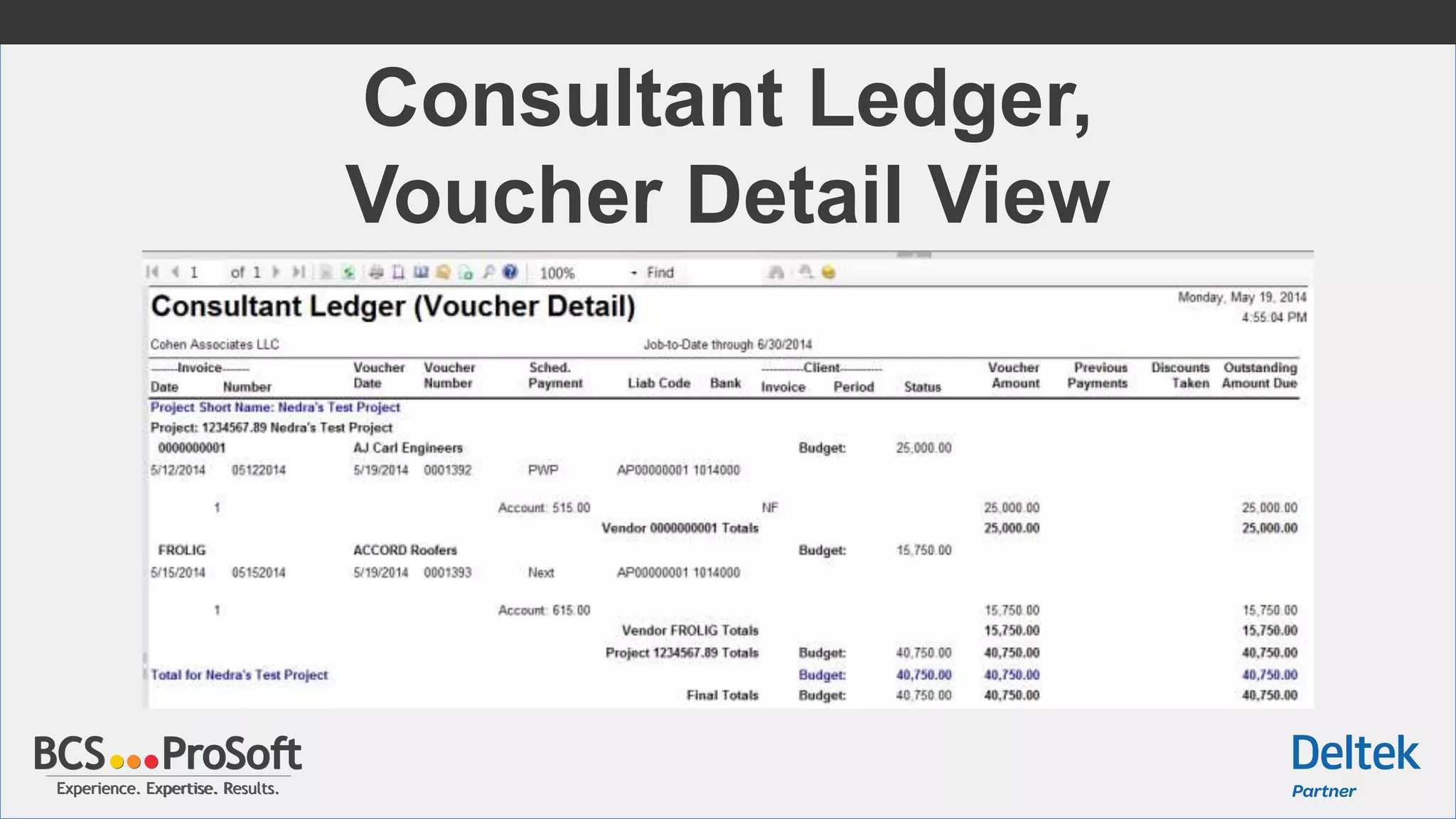
Consultant Ledger,
Voucher Detail View
Experience. Expertise. Results.Experience. Expertise. Results.
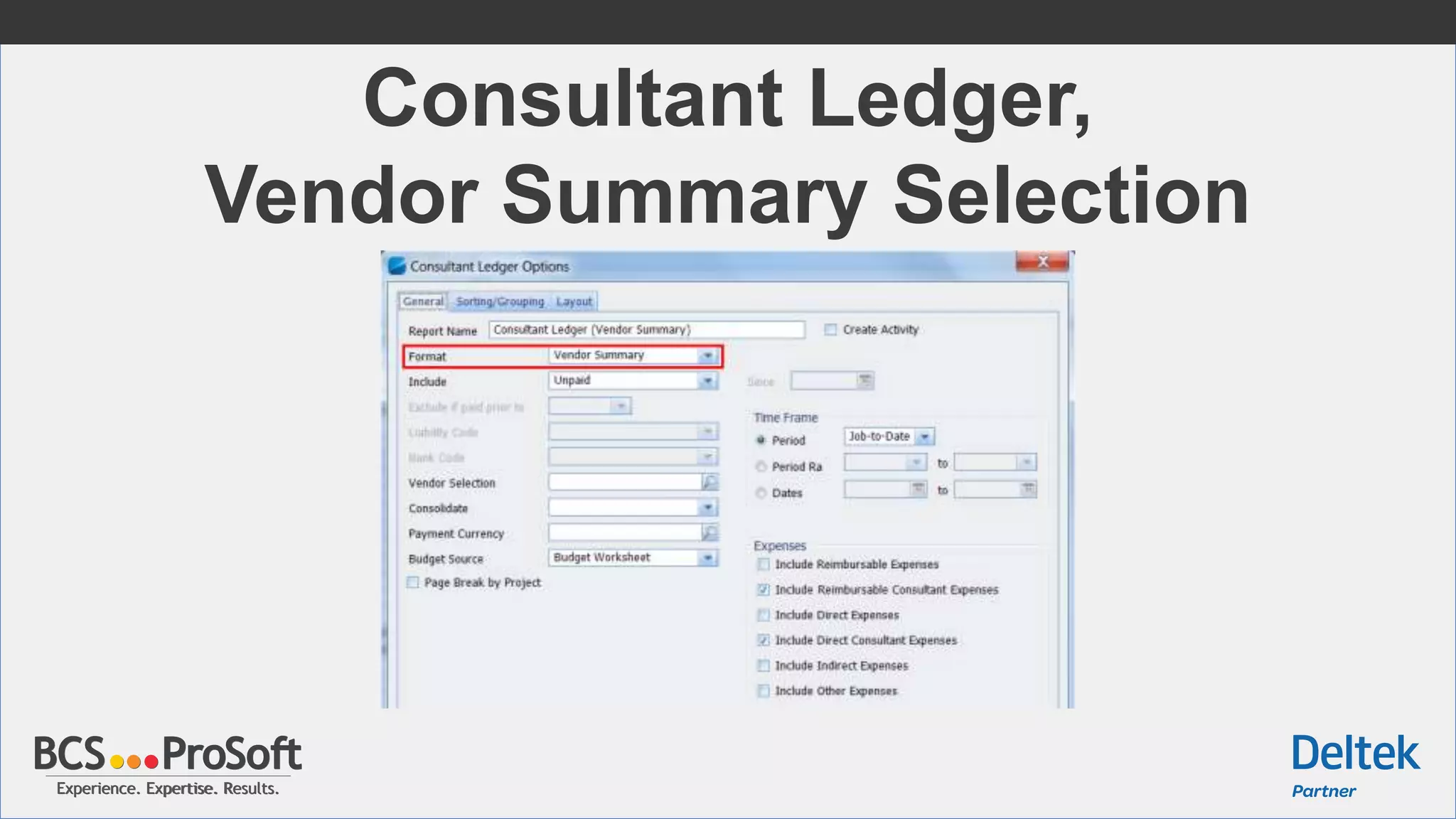
Consultant Ledger,
Vendor Summary Selection
Experience. Expertise. Results.Experience. Expertise. Results.
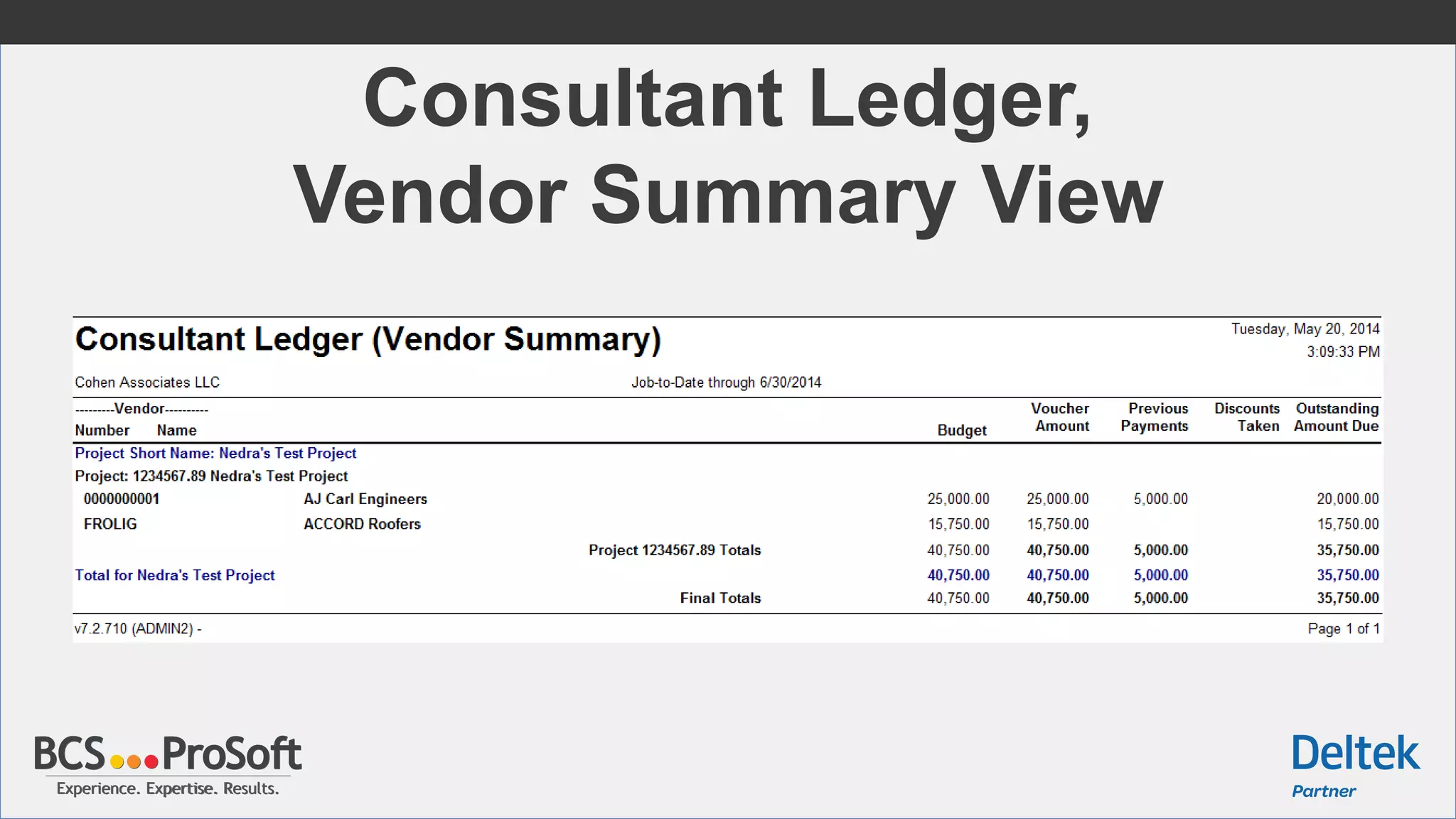
Consultant Ledger,
Vendor Summary View
Experience. Expertise. Results.Experience. Expertise. Results.
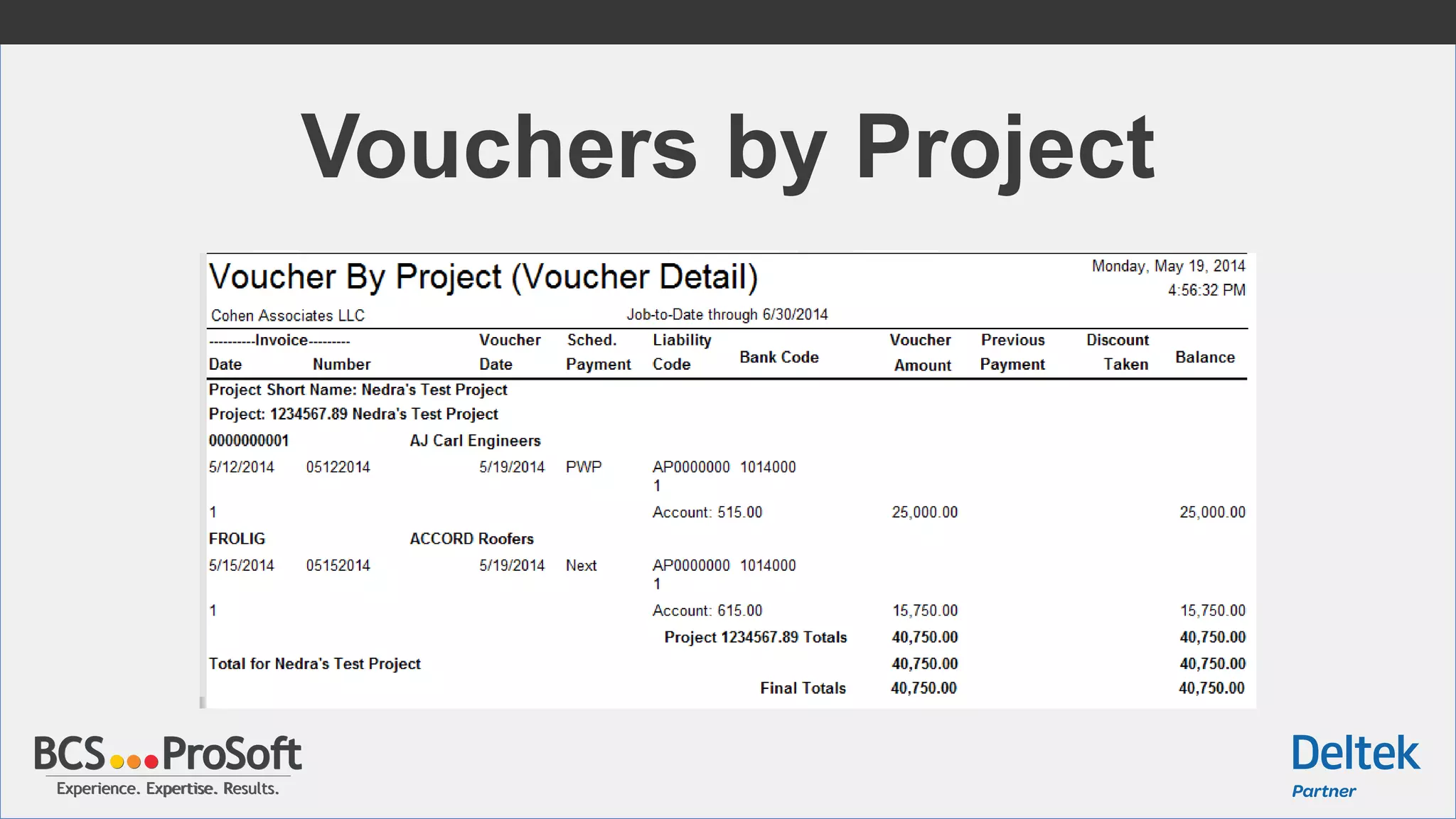
Vouchers by Project
Experience. Expertise. Results.Experience. Expertise. Results.
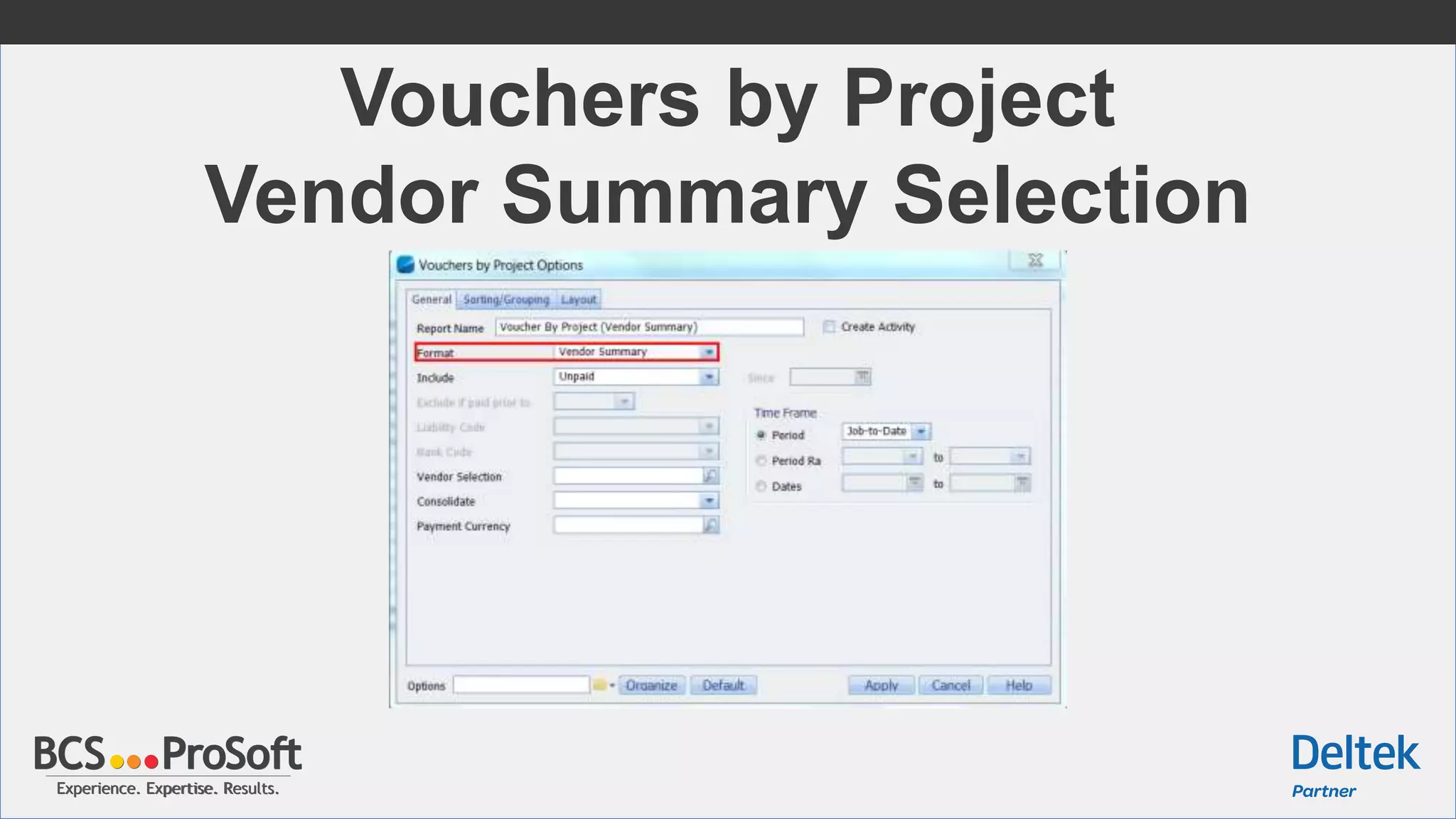
Vouchers by Project
Vendor Summary Selection
Experience. Expertise. Results.Experience. Expertise. Results.
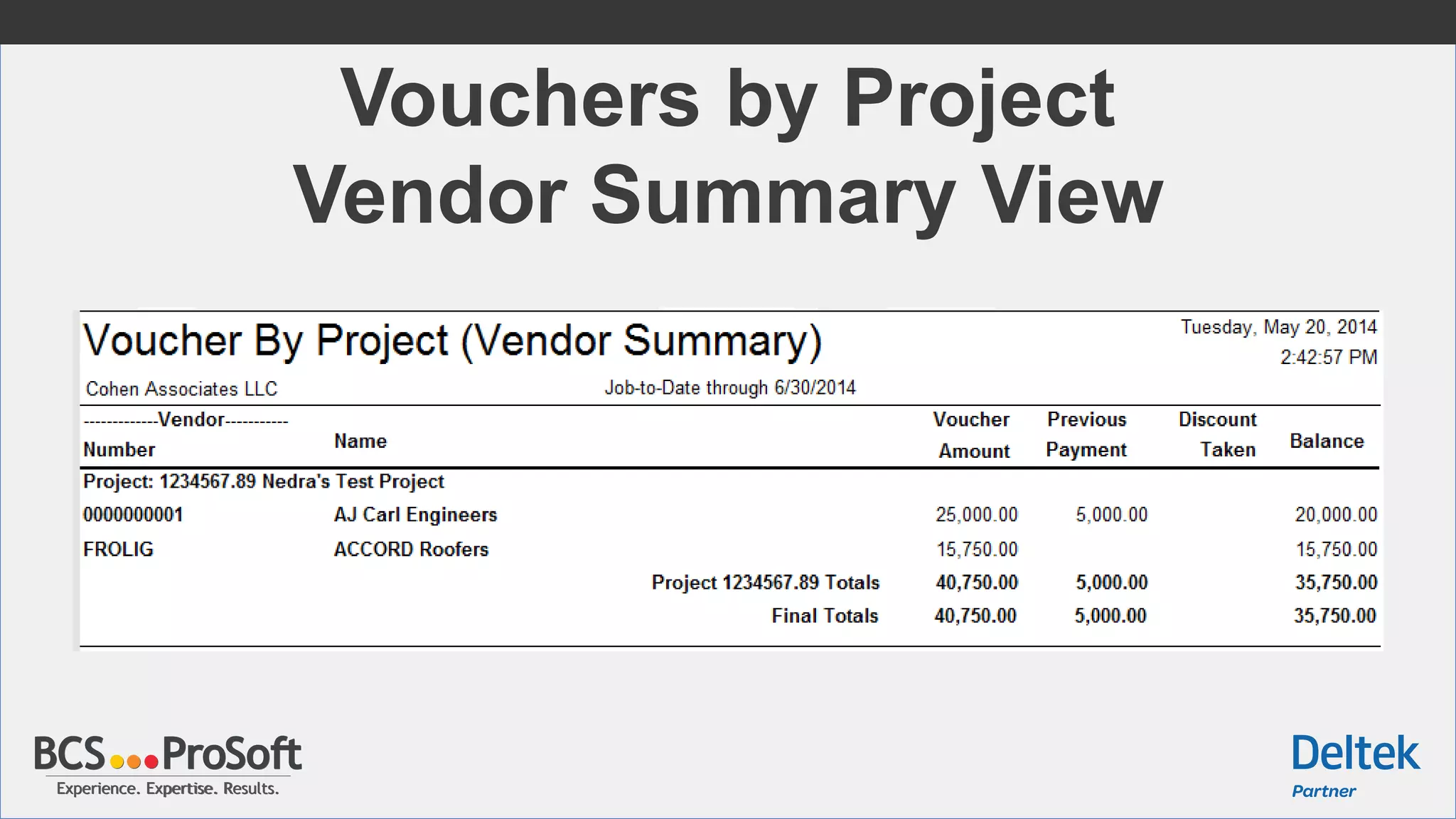
Vouchers by Project
Vendor Summary View
Experience. Expertise. Results.Experience. Expertise. Results.
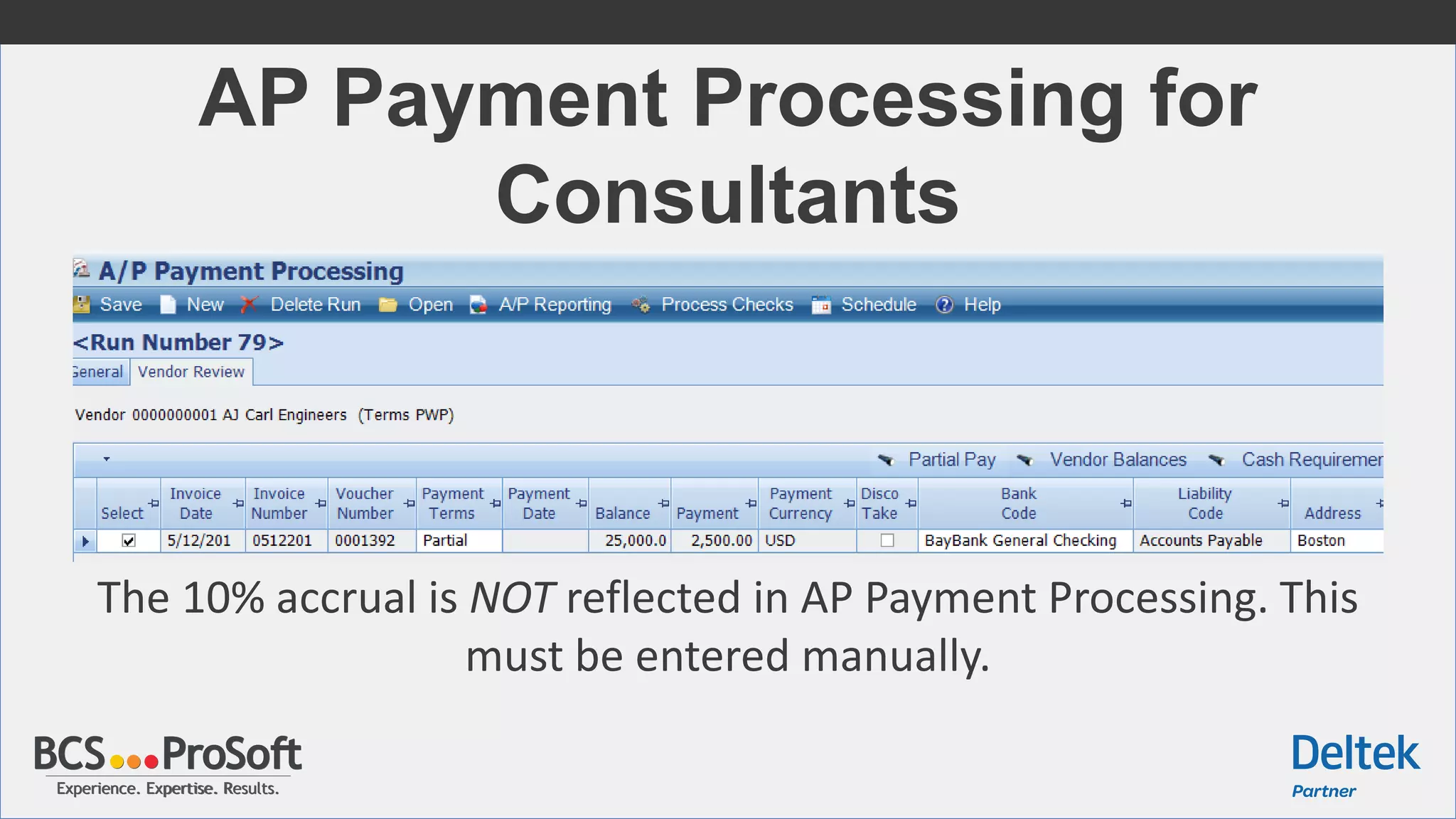
AP Payment Processing for
Consultants
The 10% accrual is NOT reflected in AP Payment Processing. This
must be entered manually.
Experience. Expertise. Results.Experience. Expertise. Results.
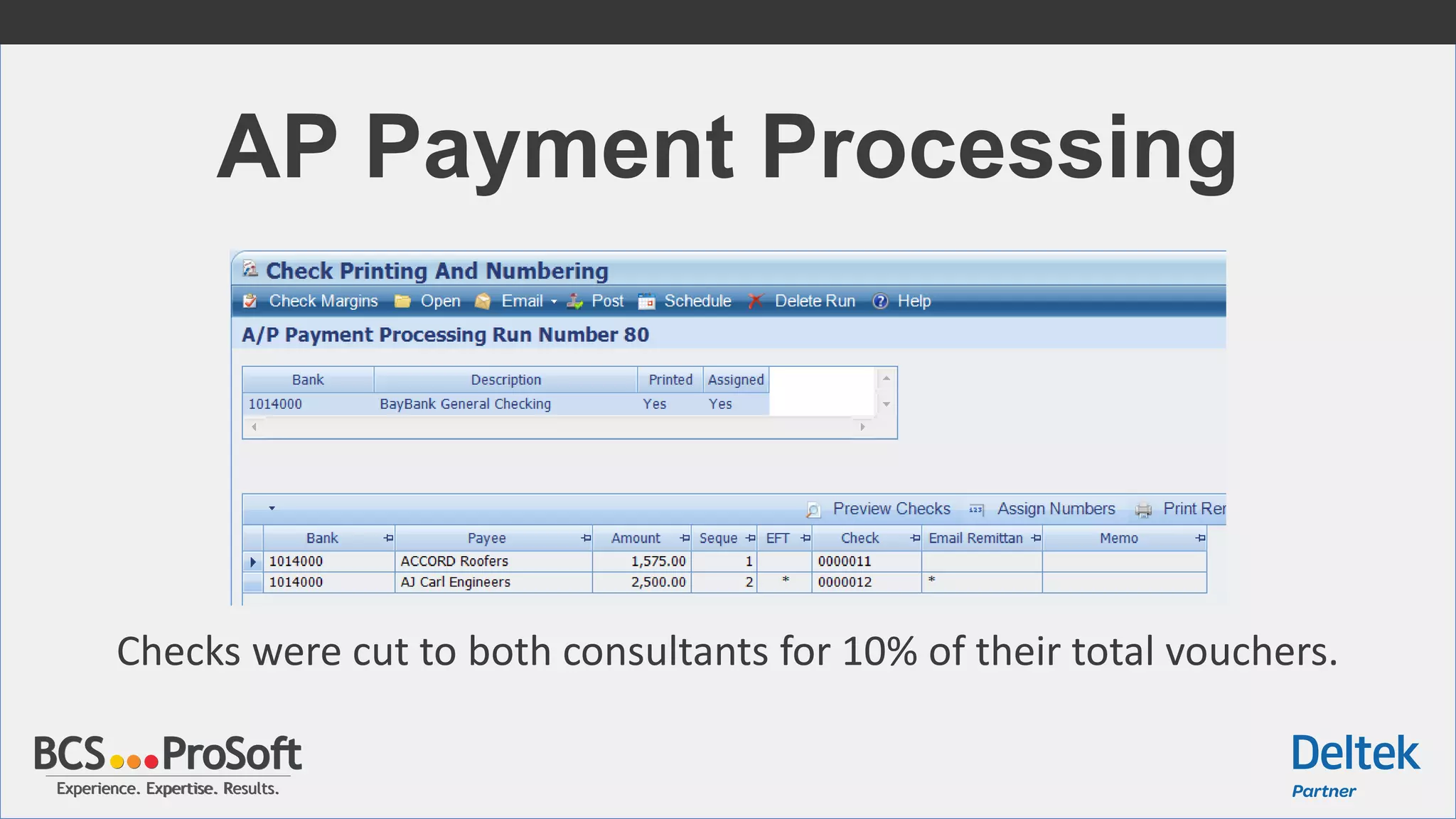
AP Payment Processing
Checks were cut to both consultants for 10% of their total vouchers.
Experience. Expertise. Results.Experience. Expertise. Results.
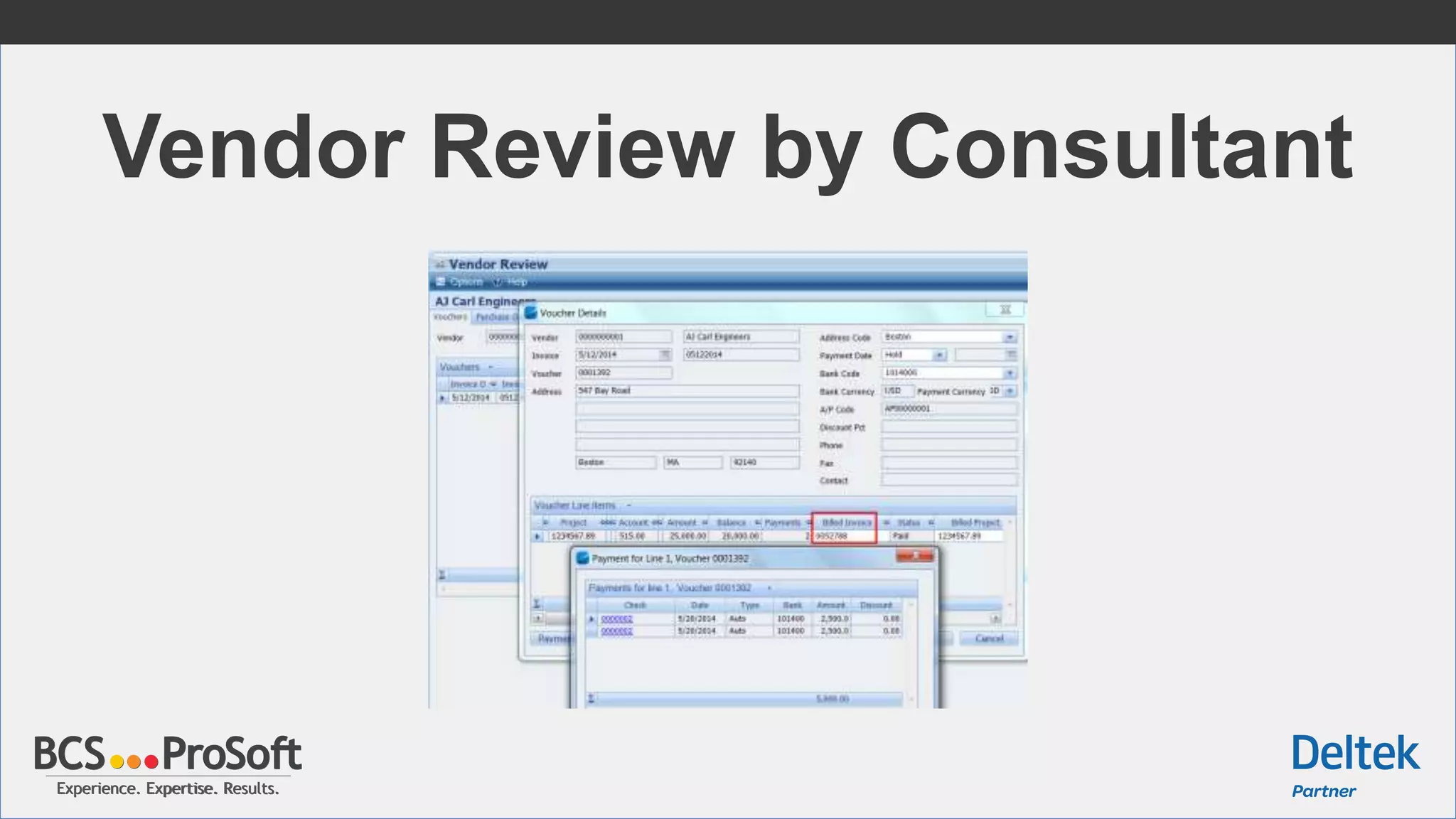
Vendor Review by Consultant
Experience. Expertise. Results.Experience. Expertise. Results.
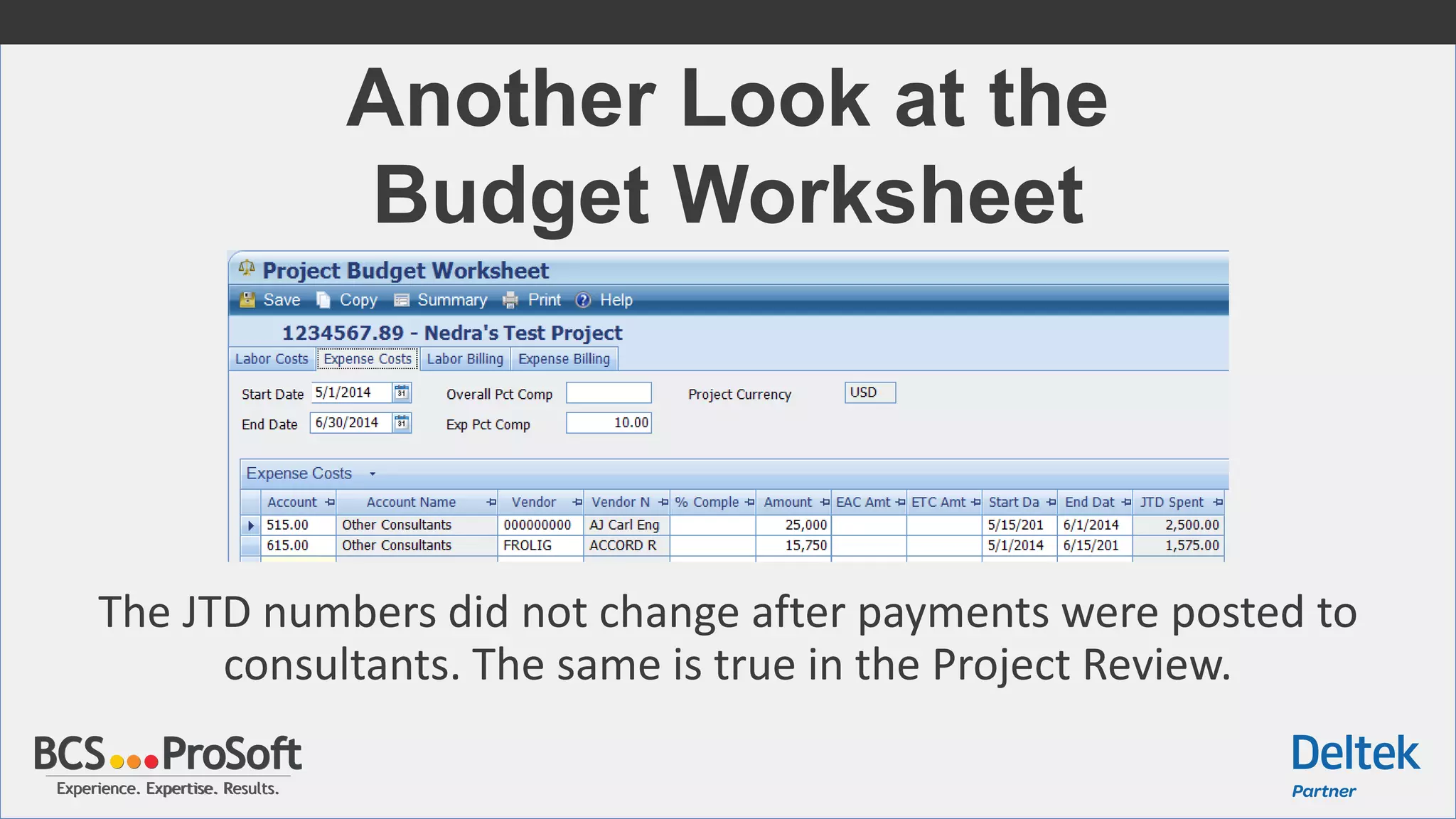
Another Look at the
Budget Worksheet
The JTD numbers did not change after payments were posted to
consultants. The same is true in the Project Review.
Experience. Expertise. Results.Experience. Expertise. Results.
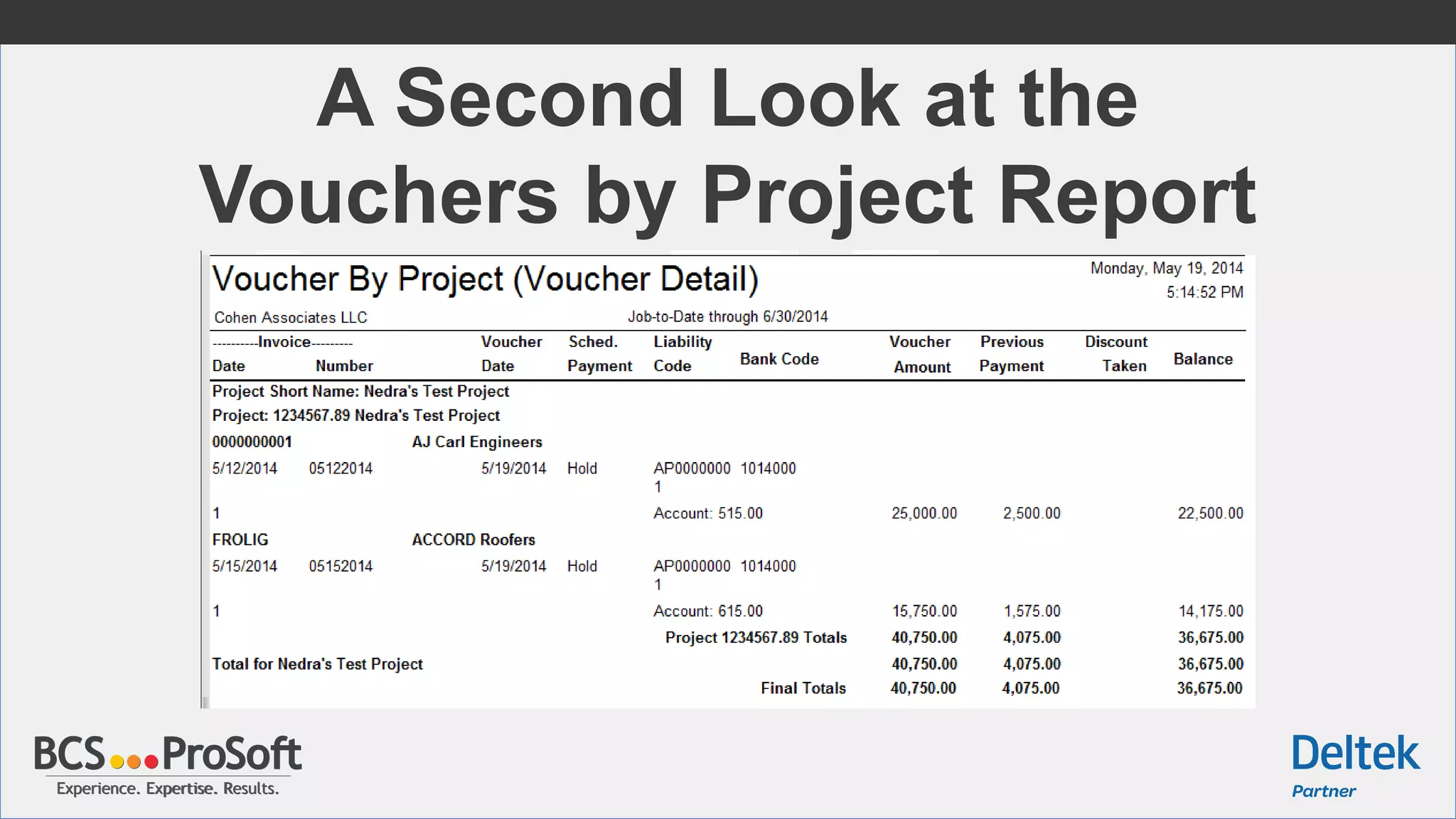
A Second Look at the
Vouchers by Project Report
Experience. Expertise. Results.Experience. Expertise. Results.
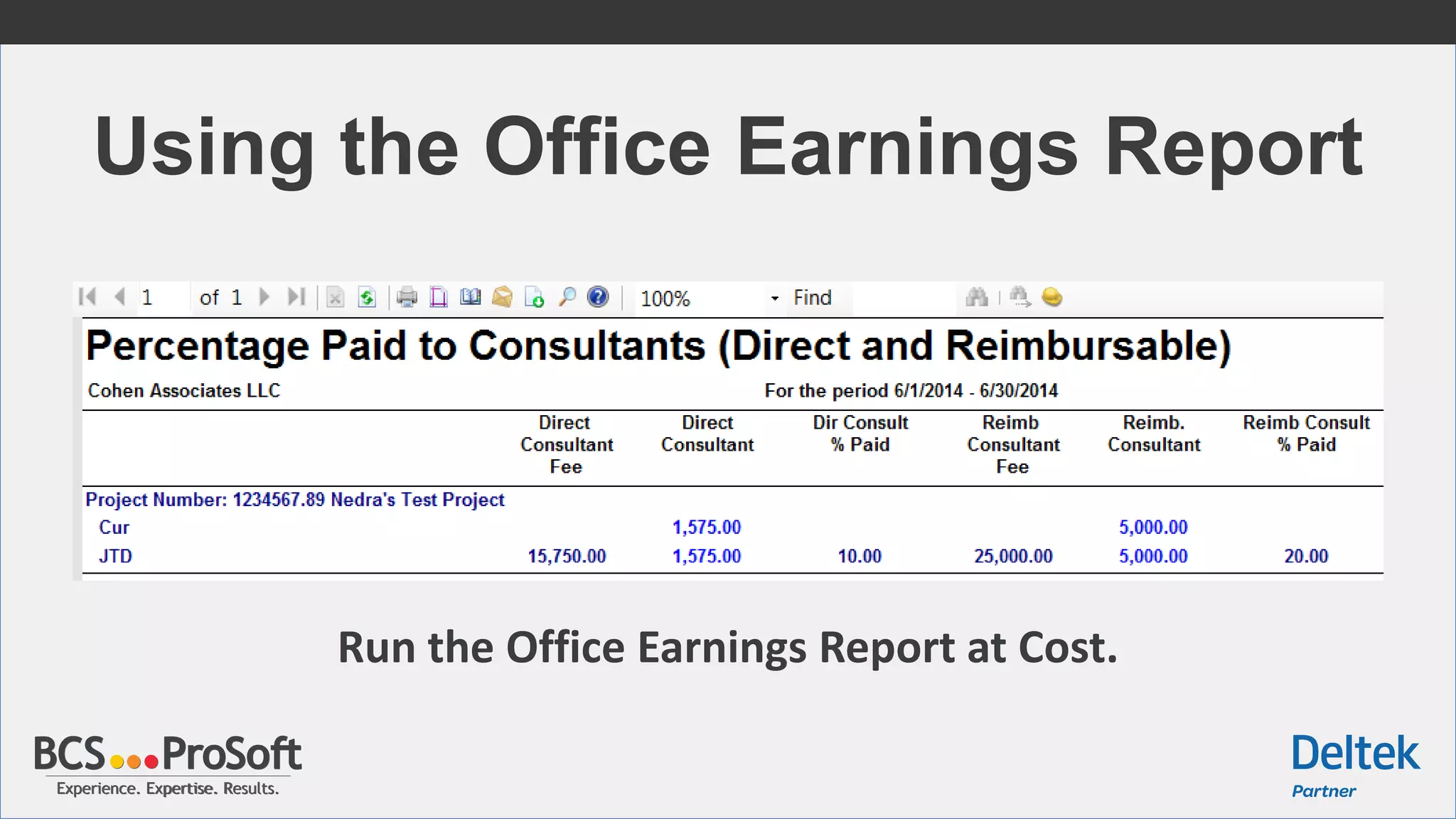
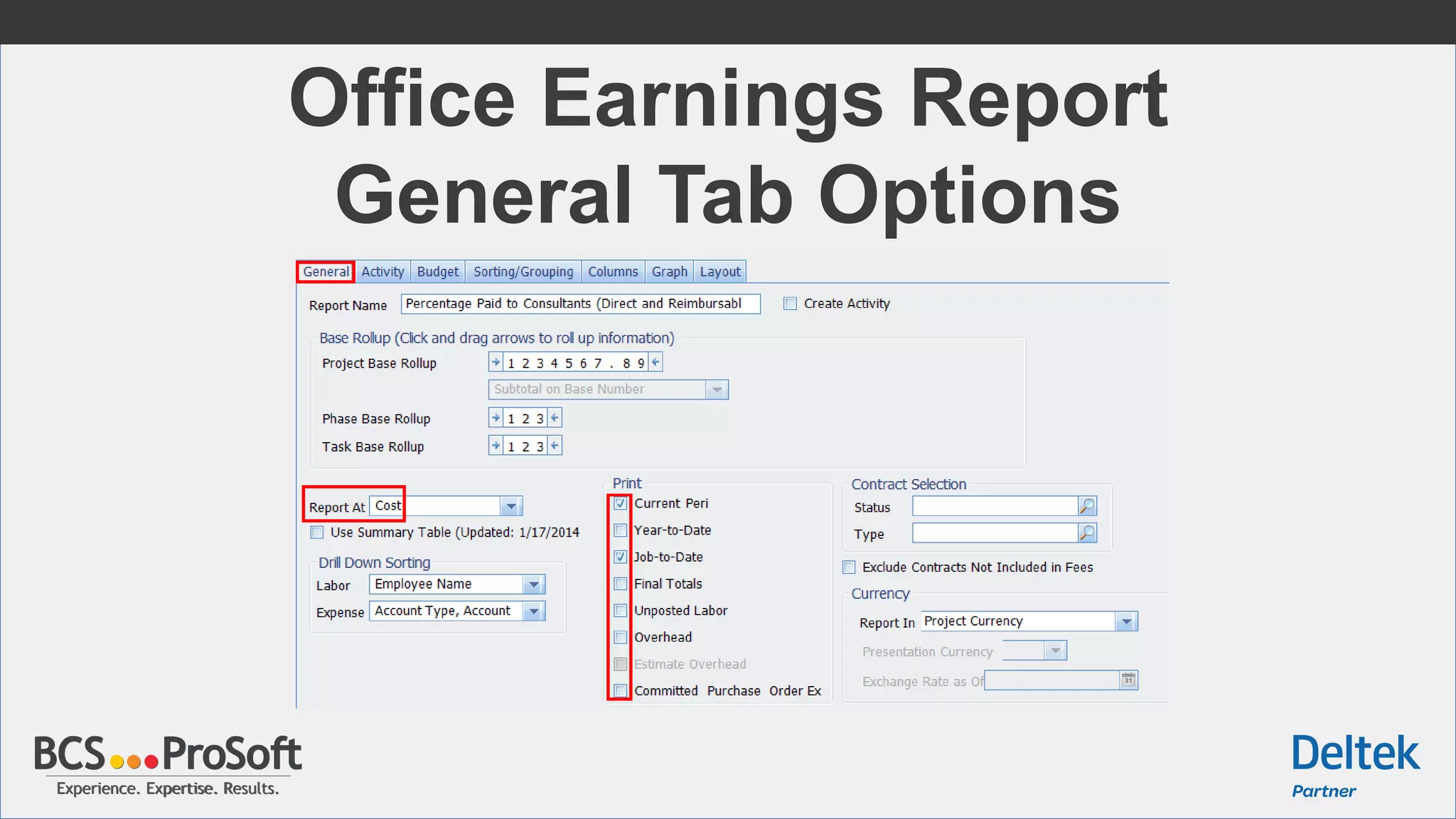
Using the Office Earnings Report
Run the Office Earnings Report at Cost.
Experience. Expertise. Results.Experience. Expertise. Results.
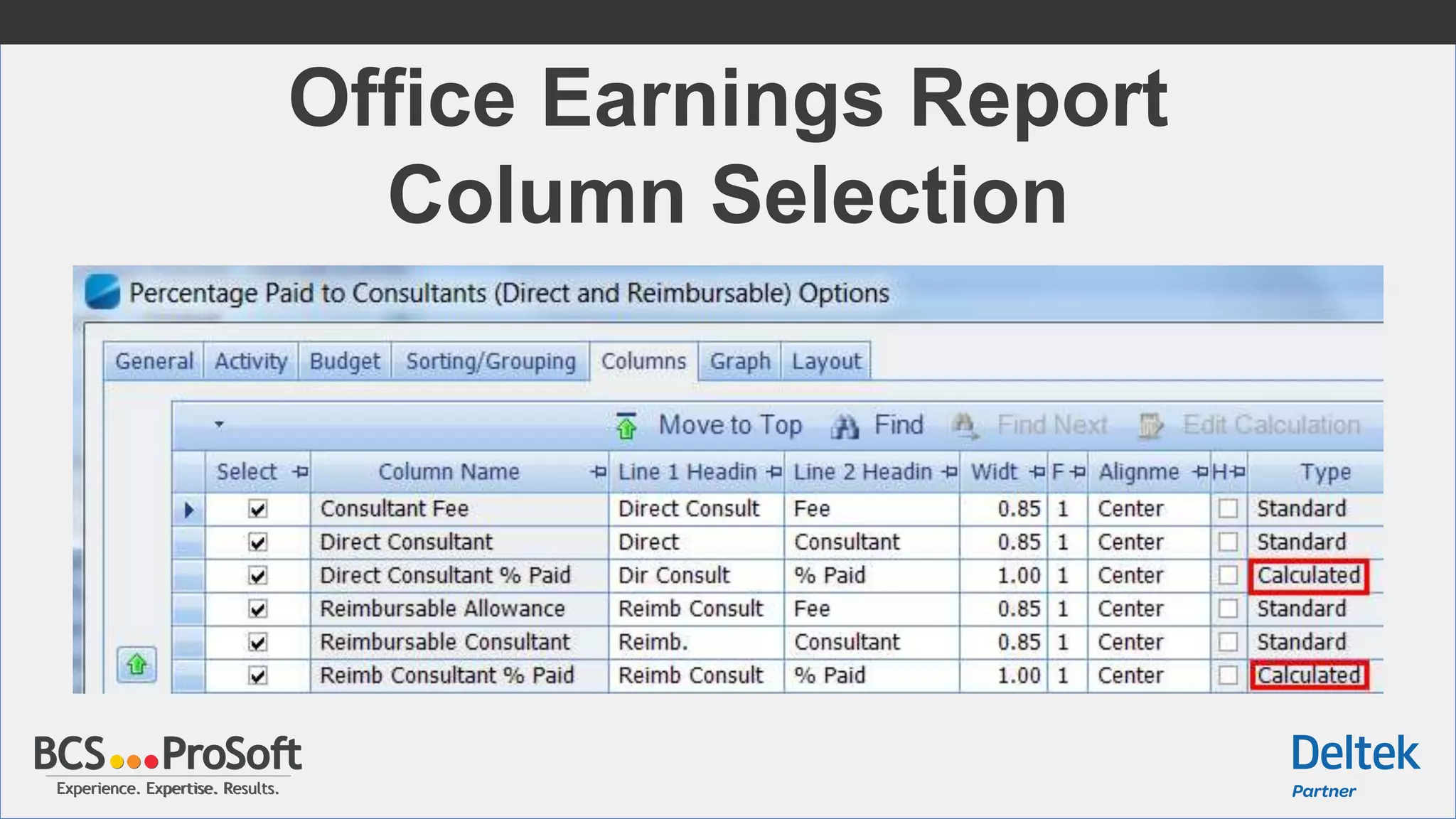
Office Earnings Report
General Tab Options
Experience. Expertise. Results.Experience. Expertise. Results.
Office Earnings Report
Column Selection
Experience. Expertise. Results.Experience. Expertise. Results.
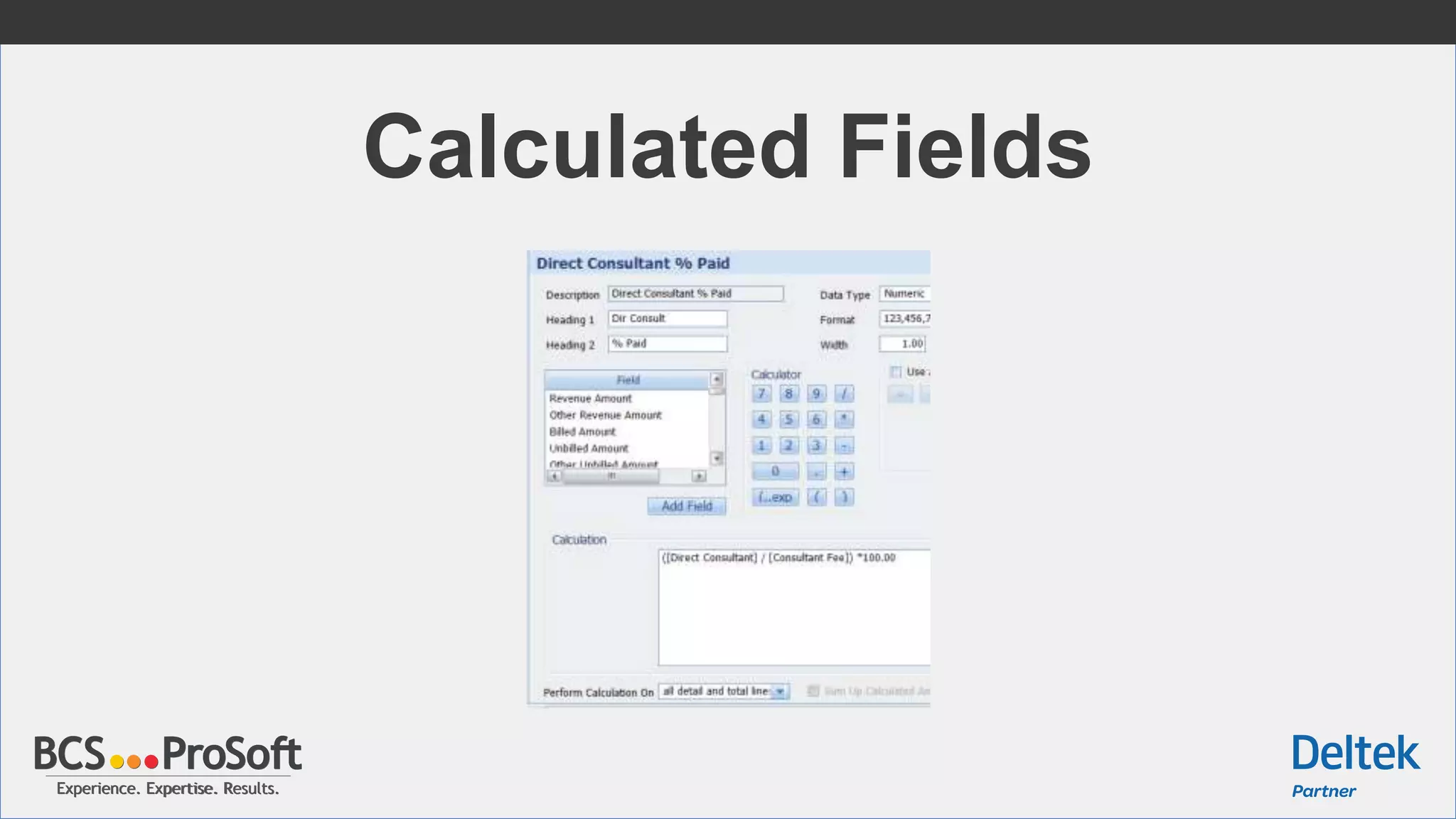
Calculated Fields
Experience. Expertise. Results.Experience. Expertise. Results.
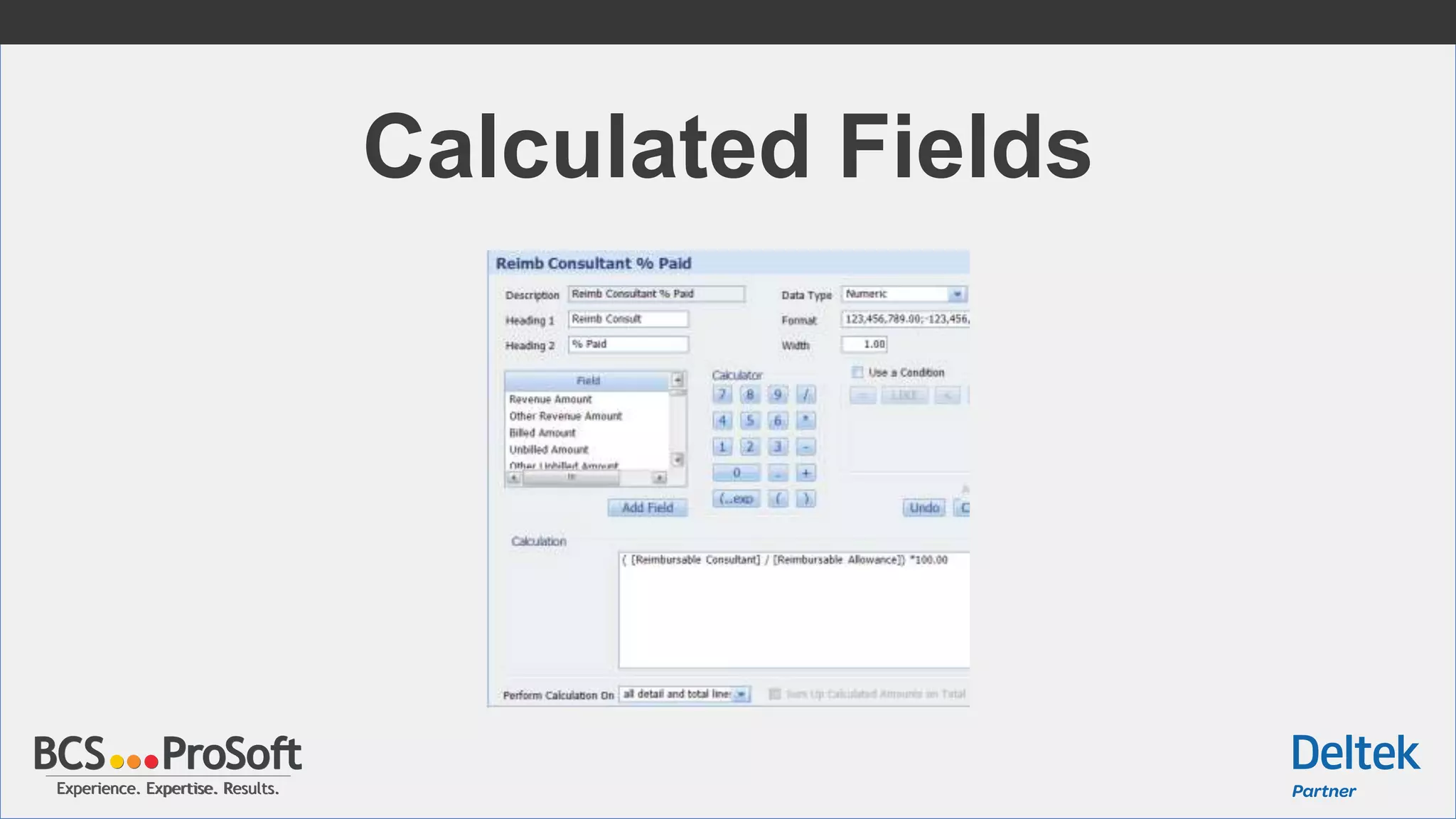
Calculated Fields
Experience. Expertise. Results.Experience. Expertise. Results.
Agenda
 Lunch and Introductions
 Consultant Accruals
 Consultant Ledger and Vouchers by Project
 User Defined Options to Track Consultant Accruals
 Deltek Vision Tips & Tricks
Tracking Consultant Accruals
By Leveraging User Defined Options
Experience. Expertise. Results.Experience. Expertise. Results.
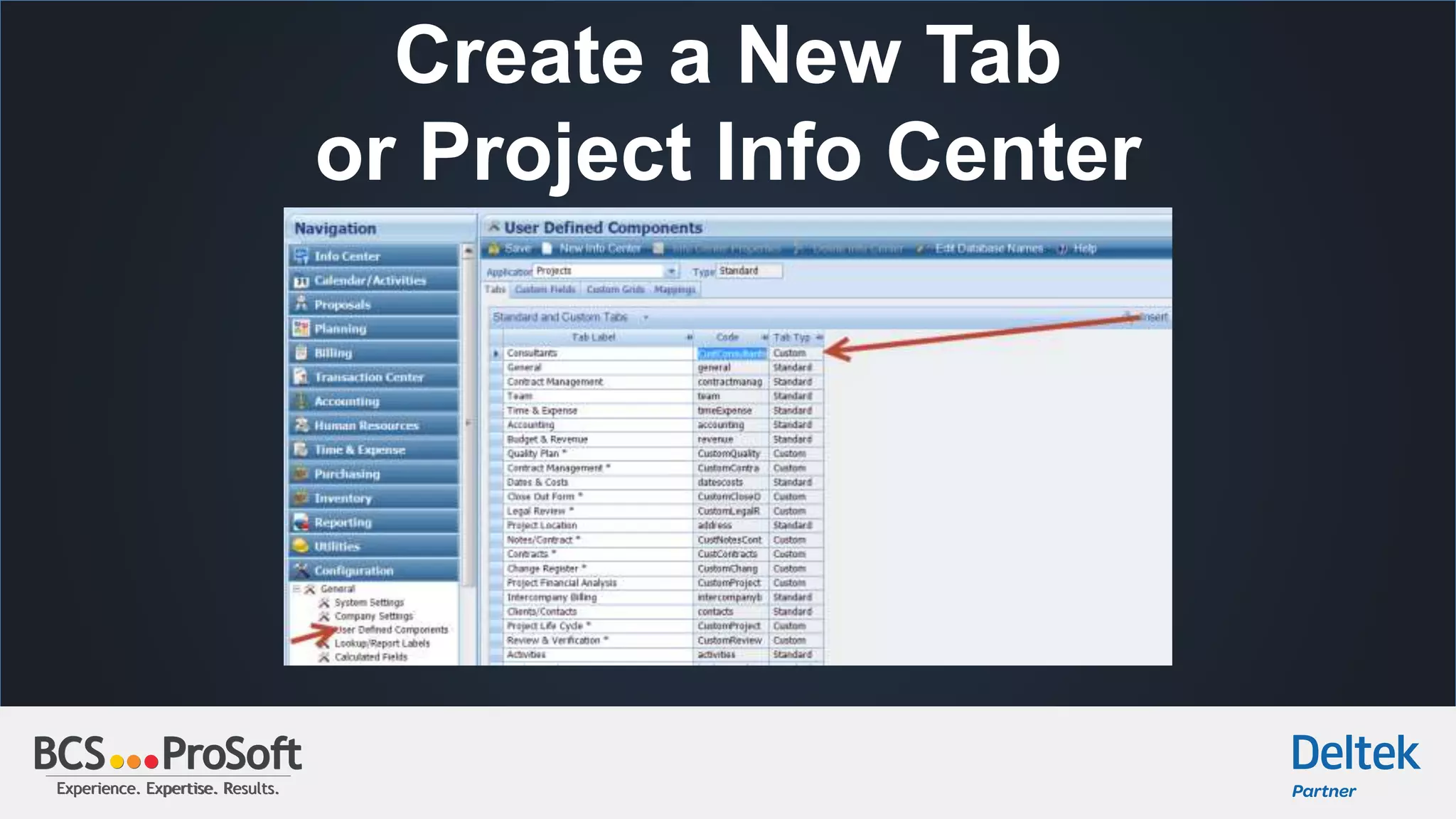
Create a New Tab
or Project Info Center
Experience. Expertise. Results.Experience. Expertise. Results.
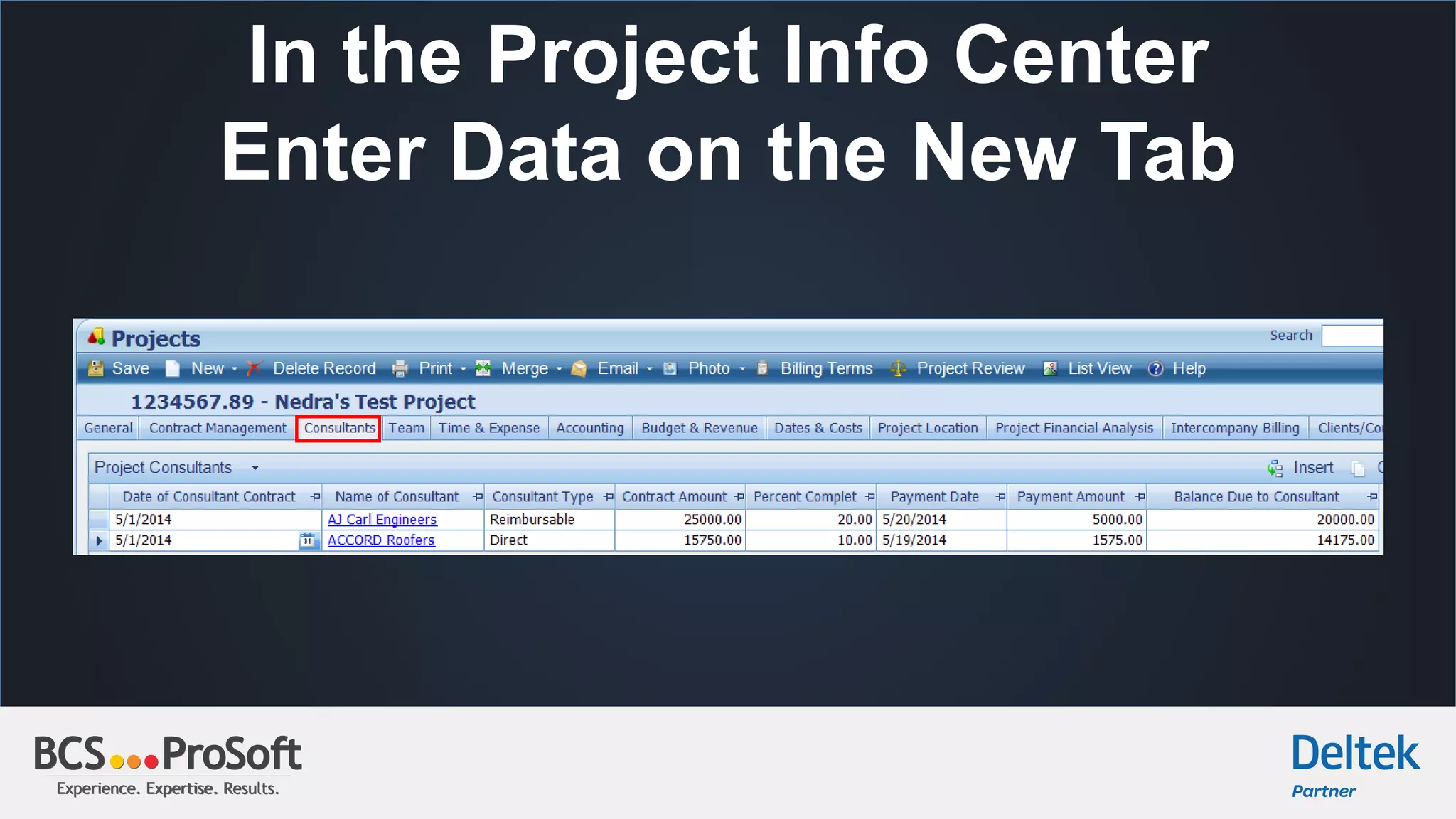
In the Project Info Center
Enter Data on the New Tab
Experience. Expertise. Results.Experience. Expertise. Results.
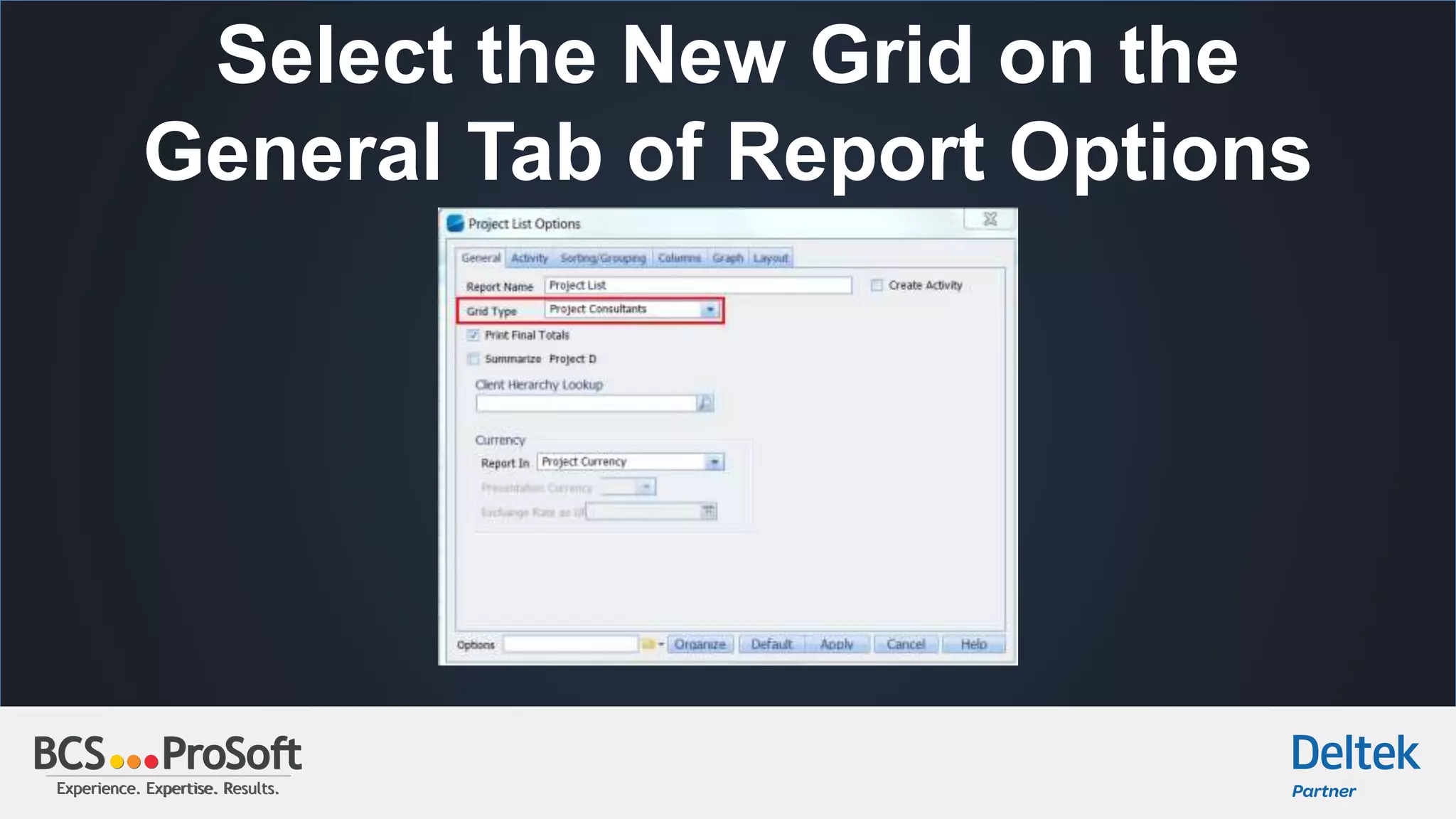
Select the New Grid on the
General Tab of Report Options
Experience. Expertise. Results.Experience. Expertise. Results.
Project Report
Using the New Grid
Experience. Expertise. Results.Experience. Expertise. Results.
Custom Tab with Fields
Experience. Expertise. Results.Experience. Expertise. Results.
Calculated Fields
Created in Configuration
Experience. Expertise. Results.Experience. Expertise. Results.
Project Report
Using the New Fields
Experience. Expertise. Results.Experience. Expertise. Results.
Agenda
 Lunch and Introductions
 Consultant Accruals
 Consultant Ledger and Vouchers by Project
 User Defined Options to Track Consultant Accruals
 Deltek Vision Tips & Tricks
Tips & Tricks
Deltek Vision Tips & Tricks
Experience. Expertise. Results.Experience. Expertise. Results.
Deltek Vision Tips & Tricks
The Cash Flow Report Requires a Budget
to be entered before forecasting data will
display.
Reporting > Accounting > Cash Flow Report
Experience. Expertise. Results.Experience. Expertise. Results.
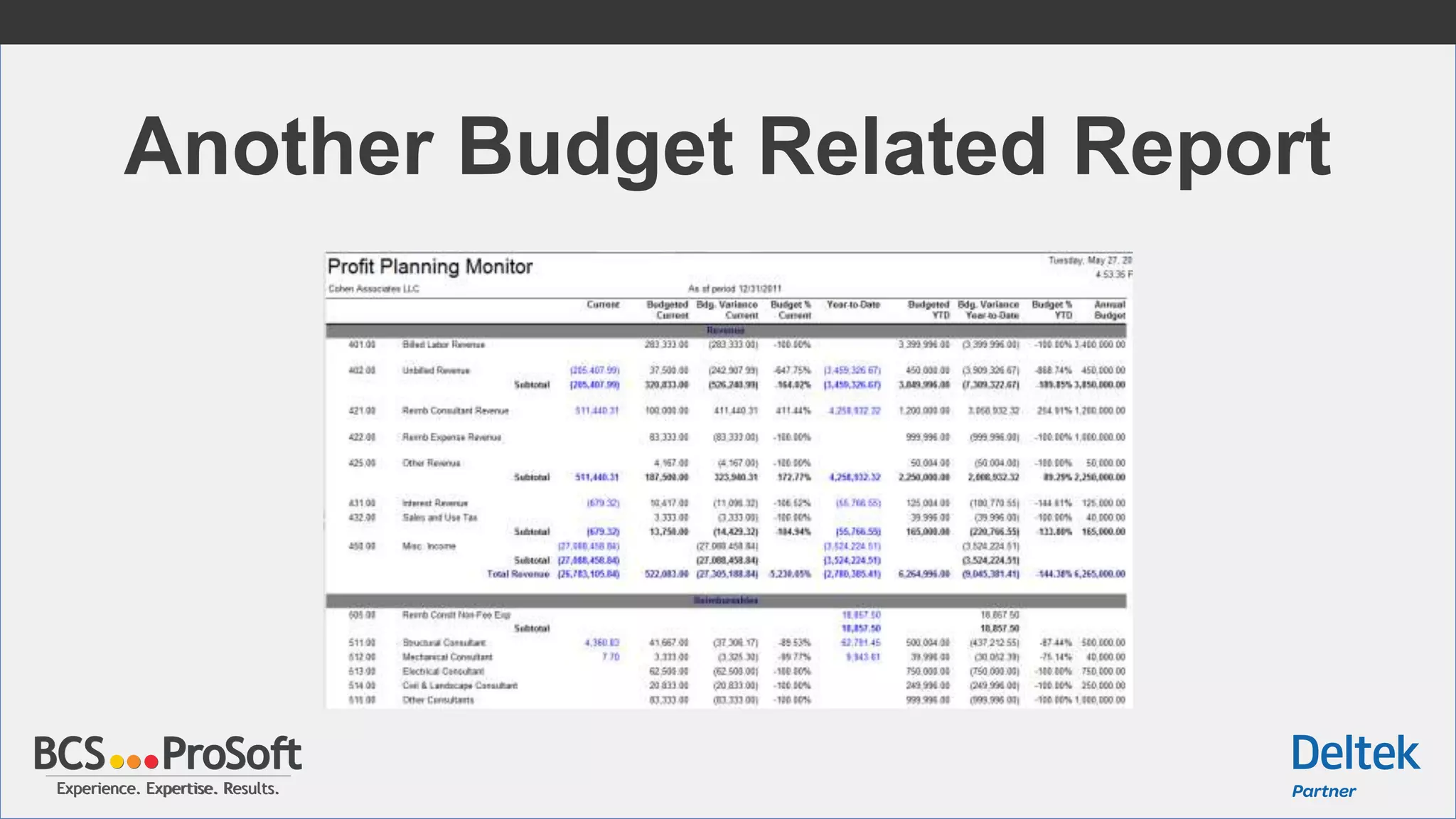
Another Budget Related Report
Experience. Expertise. Results.Experience. Expertise. Results.
Deltek Vision Tips & Tricks
Use the Profit Planning Monitor to monitor performance
against budgets. For each revenue and expense account, the
report displays the budgeted and actual amounts for the
current period and year to date. It also shows totals for
actual and budgeted revenue and expense, and calculates
actual and budgeted profit or loss.
Experience. Expertise. Results.Experience. Expertise. Results.
Deltek Vision Tips & Tricks
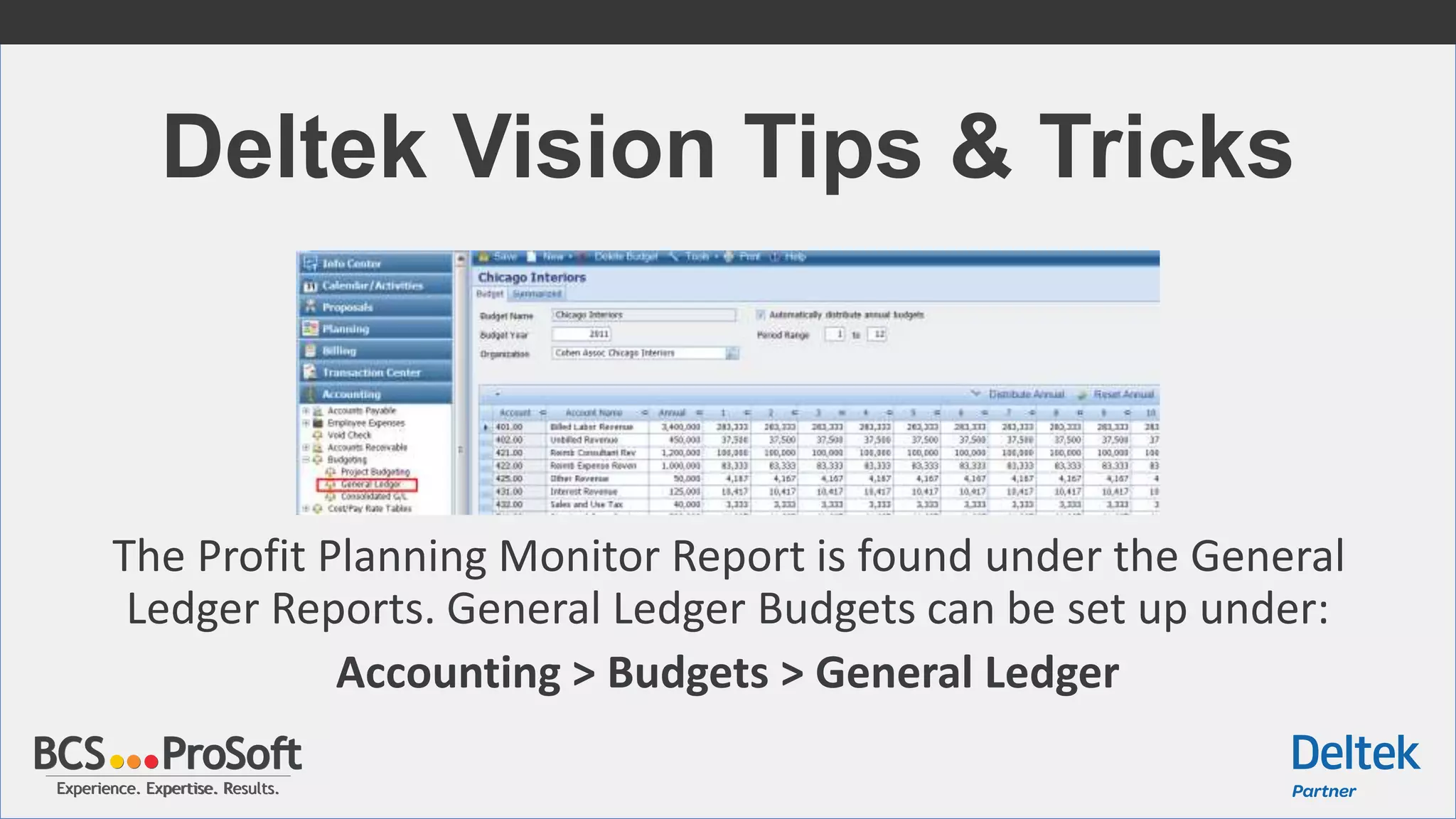
The Profit Planning Monitor Report is found under the General
Ledger Reports. General Ledger Budgets can be set up under:
Accounting > Budgets > General Ledger
Experience. Expertise. Results.Experience. Expertise. Results.
Deltek Vision Tips & Tricks
The Office Earnings Report offers two columns, Budgeted
Amount and Budgeted Hours,
that can be used with Navigator Plans.
On the Budget tab,
select Budget Source: Project Planning
Reporting > Project > Office Earnings Report
Experience. Expertise. Results.Experience. Expertise. Results.
Deltek Vision Tips & Tricks
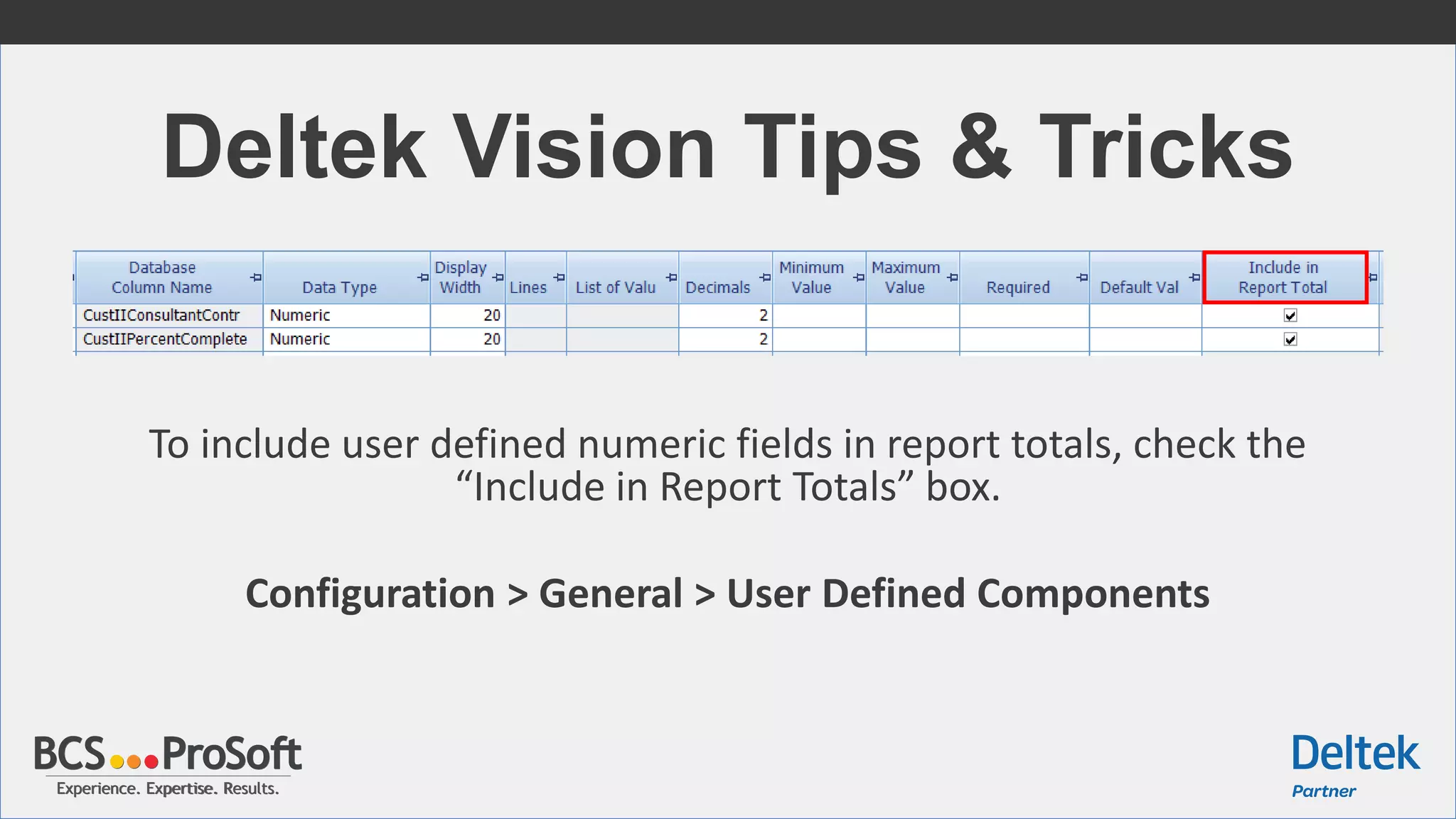
To include user defined numeric fields in report totals, check the
“Include in Report Totals” box.
Configuration > General > User Defined Components
Experience. Expertise. Results.Experience. Expertise. Results.
Deltek Vision Tips & Tricks
Vision Navigator will only show Labor at
Billing. While role security is supported
throughout Navigator, as an extra safety
precaution, JTD Labor Amounts are only
shown at Billing Rates.
Experience. Expertise. Results.Experience. Expertise. Results.
Agenda
 Lunch and Introductions
 Consultant Accruals
 Consultant Ledger and Vouchers by Project
 User Defined Options to Track Consultant Accruals
 Deltek Vision Tips & Tricks
Experience. Expertise. Results.Experience. Expertise. Results.
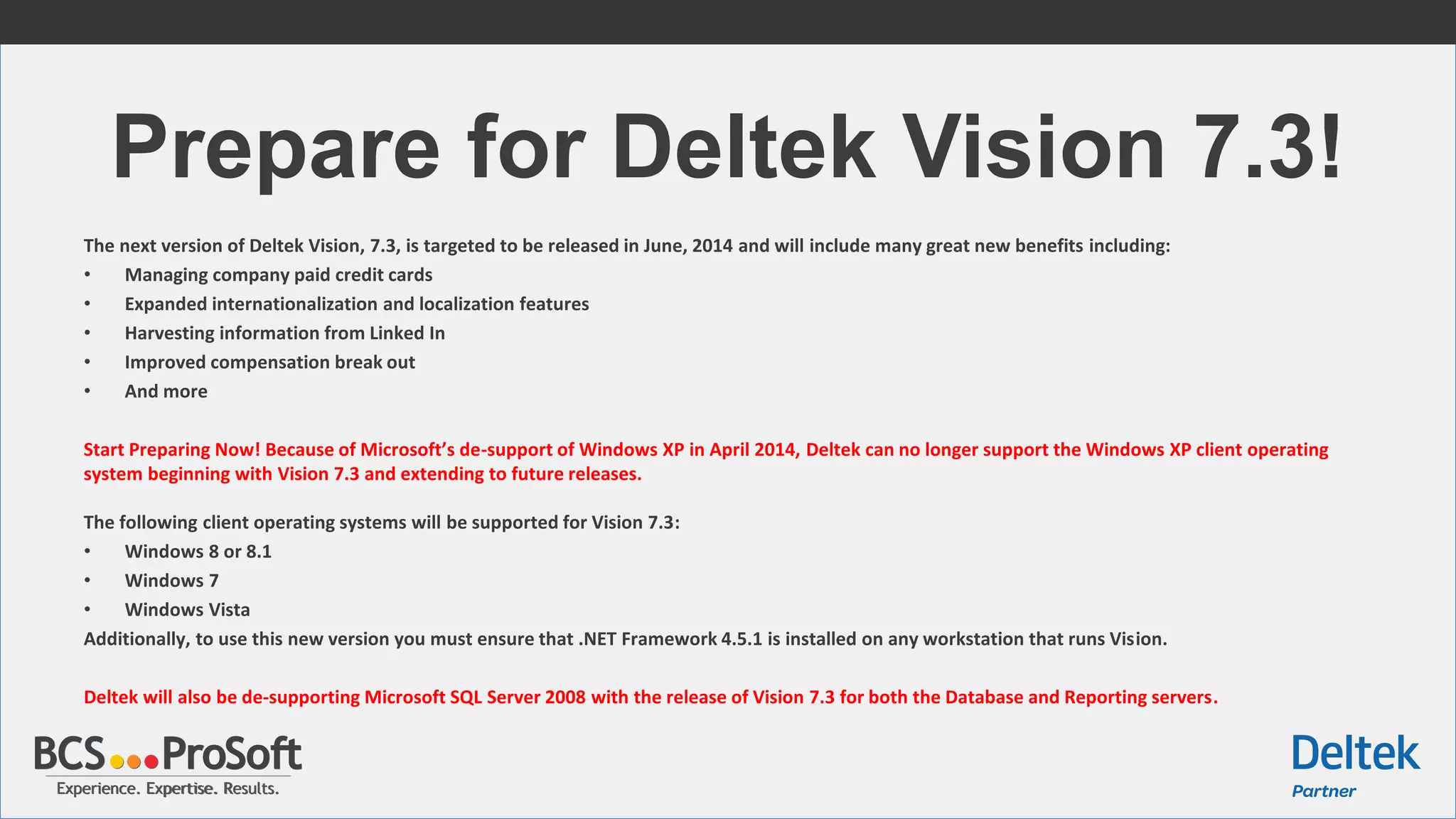
Prepare for Deltek Vision 7.3!
The next version of Deltek Vision, 7.3, is targeted to be released in June, 2014 and will include many great new benefits including:
• Managing company paid credit cards
• Expanded internationalization and localization features
• Harvesting information from Linked In
• Improved compensation break out
• And more
Start Preparing Now! Because of Microsoft’s de-support of Windows XP in April 2014, Deltek can no longer support the Windows XP client operating
system beginning with Vision 7.3 and extending to future releases.
The following client operating systems will be supported for Vision 7.3:
• Windows 8 or 8.1
• Windows 7
• Windows Vista
Additionally, to use this new version you must ensure that .NET Framework 4.5.1 is installed on any workstation that runs Vision.
Deltek will also be de-supporting Microsoft SQL Server 2008 with the release of Vision 7.3 for both the Database and Reporting servers.
SIGN UP FOR YOUR LOCAL USER GROUP
SAN ANTONIO, TX; HOUSTON, TX; HONOLULU, HI
SEPTEMBER, 2014
Click here to learn more:
http://bit.ly/dvugm
Experience. Expertise. Results.Experience. Expertise. Results.
Who We Are
• 27+ years experience with accounting Software and ERP for
distributors, manufacturers, equipment & event rental companies,
architects & engineers, and professional services firms.
• 1,500+ clients in all 50 states, Canada and Mexico.
• Regional offices in San Antonio, TX; Houston, TX; Denver, CO; and
Honolulu, HI.
• Award-winning partners with Sage Software, Deltek, and NetSuite.
So you have a problem with project accounting and
you want to some help becoming more efficient …
can help with that.
Start a dialogue towards better business efficiency to
by visiting us online at www.bcsprosoft.com or by
calling us at (800) 882-6705 today.
Request a FREE, no-obligation
assessment of your business
software systems!

Consultant Accruals in Deltek Vision | Deltek Vision User Group Meeting | Q2 2014

  • 1.
    Experience. Expertise. Results.Experience.Expertise. Results. Deltek Vision User Group Meeting — June 2014 San Antonio, TX Houston, TX Honolulu, HI (800) 882-6705 www.bcsprosoft.com/deltek-vision Deltek Vision Solution Providers & Consultants
  • 2.
    Experience. Expertise. Results.Experience.Expertise. Results. Introduction Thanks for your interest Deltek Vision. The following slides were presented by Vision Consultant, Nedra Roberson at our user groups in San Antonio, Houston, and Honolulu. If you’d like to attend one of our user groups you can attend for free by signing up on www.bcsprosoft.com/deltek-vision. If you have any questions about the material presented or are interested in training or consulting, please contact BCS Prosoft.
  • 3.
    Experience. Expertise. Results.Experience.Expertise. Results. Introduction Nedra Roberson Vision Consultant at BCS Prosoft Nedra.Roberson@bcsprosoft.com
  • 4.
    Experience. Expertise. Results.Experience.Expertise. Results. Agenda  Lunch and Introductions  Consultant Accruals  Consultant Ledger and Vouchers by Project  User Defined Options to Track Consultant Accruals  Deltek Vision Tips & Tricks
  • 5.
    Consultant Accruals Some thingsyou probably didn’t know about them.
  • 6.
    Experience. Expertise. Results.Experience.Expertise. Results. Consultant Accruals • Calculate accrual amounts based on budget, estimate to completion (ETC) or estimate at completion (EAC) amounts. • Post accruals as they are generated. • Suppress billing. • Update percent completes; you can drill down to compensation and billed detail. • Send reports to process server before printing. • Save report settings. • Select single accounts, by account range, or by project.
  • 7.
    Experience. Expertise. Results.Experience.Expertise. Results. Consultant Accruals Before running Consultant Accruals, you must establish a budget: Accounting > Budgeting > Project Budgeting
  • 8.
    Experience. Expertise. Results.Experience.Expertise. Results. Consultant Accruals
  • 9.
    Experience. Expertise. Results.Experience.Expertise. Results. Consultant Accruals Toolbar • Update %: Click this button to display the Update Percent Completes dialog box, on which you review budget versus spent amounts, and then update the overall percentage completes and/or compensation/fee amounts. • Run: Click this button to produce accrual journal entries. • Schedule: Click this button to send your selected reports to the process server to be printed. When a job is submitted, Vision places it in the selected process queue in the order that it was received. The process is then run based on the options specified on the Schedule dialog box.
  • 10.
    Experience. Expertise. Results.Experience.Expertise. Results. Consultant Accruals Form
  • 11.
    Experience. Expertise. Results.Experience.Expertise. Results. Consultant Accruals • Saved Options: As with other Vision reports, you can load previously saved reporting selections in the Saved Options field. • Organize Button: Click this button to display the Organize Options dialog box, on which you can save options and specify access by security role. • Default Button: Click this button to restore default settings. • Select Specific Projects: Enter a project number in this field to choose a specific project for which to accrue expenses or click and use the Project Lookup to select a project. If you do not choose a specific project, then the All Projects default is implemented. If you use the Multi-company feature, the list of available projects is limited to those belonging to the active company.
  • 12.
    Experience. Expertise. Results.Experience.Expertise. Results. Consultant Accruals • All Accounts: Select this option to include all the accounts from your Chart of Accounts list. After you select this option, you can use Account Range fields to specify a filter. • Account Selection: Select this option to choose a specific account. After you click this option, enter the account number in the corresponding field. • Account Wildcards: Use this option if you want to enter wildcard characters and then enter the characters in the corresponding unlabeled field. Accounts included in the process will match your wildcard pattern.
  • 13.
    Experience. Expertise. Results.Experience.Expertise. Results. Consultant Accruals • Account Range: Use the check boxes in this section to select the accounts that you want processed. The accounts are Direct Consultants, Reimbursable Consultants, Direct Expenses, Reimbursable Expenses, and Indirect Expenses.
  • 14.
    Experience. Expertise. Results.Experience.Expertise. Results. Consultant Accruals • Suppress Billing: Select this check box to suppress the billing for each transaction. • Replace existing unposted consultant accrual journal entry of the same file name: The process cannot run if there is an existing unposted journal entry file with the same file name and this option has not been selected. • Post consultant accruals as they are generated: the journal entry will be posted automatically when the process has run. • Journal Entry File Name: While the name can be modified, the file must always begin with ConAcc as the first six characters.
  • 15.
    Experience. Expertise. Results.Experience.Expertise. Results. Consultant Accruals From the drop-down list, select one of the predefined options to specify how your project accounts are going to be accrued. This is the basis for your calculations. • Options are: – Budget minus (Percent Complete * Budget) minus Job to Date Spent – ETC (Estimate to Complete) minus (Percent Complete * Estimate to Complete) minus Job to Date Spent – EAC (Estimate at Completion) minus (Percent Complete * Estimate at Completion) minus Job to Date Spent • Budget Source: If you use Planning, you can select Budget Worksheet or Project Planning as the budget source. If you select Project Planning, select an option from the Basis for Planning Calculations field.
  • 16.
    Experience. Expertise. Results.Experience.Expertise. Results. Consultant Accruals If you select Project Planning in the Budget Source field, select a date in this section. Options are: • Today's Date • Period End Date • Specific Date
  • 17.
    Experience. Expertise. Results.Experience.Expertise. Results. Consultant Accruals Form Select the date to use for currency exchanges. Options are: • Today's Date • Period End Date • Specific Date Note: These options display on the Consultant Accruals form only if you use the Multicurrency feature.
  • 18.
    Experience. Expertise. Results.Experience.Expertise. Results. Consultant Accruals Click on Update % on the top toolbar.
  • 19.
    Experience. Expertise. Results.Experience.Expertise. Results. Consultant Accruals In the dialog box, enter the Expense Complete percentage. Then, click Run.
  • 20.
    Experience. Expertise. Results.Experience.Expertise. Results. Consultant Accruals Form selections to process Direct Consultants at 10% complete.
  • 21.
    Experience. Expertise. Results.Experience.Expertise. Results. Journal Entry Posting Log
  • 22.
    Experience. Expertise. Results.Experience.Expertise. Results. Consultant Accruals Form selections to process Reimbursable Consultants at 10% complete.
  • 23.
    Experience. Expertise. Results.Experience.Expertise. Results. Journal Entry Posting Log
  • 24.
    Experience. Expertise. Results.Experience.Expertise. Results. Consultant Accruals Review the Project Budget Worksheet to see the new JTD Spent amount.
  • 25.
    Experience. Expertise. Results.Experience.Expertise. Results. Project Review, Direct Consultant
  • 26.
    Experience. Expertise. Results.Experience.Expertise. Results. Project Review, Reimburse Consultant
  • 27.
    Experience. Expertise. Results.Experience.Expertise. Results. Suppress Billing Option
  • 28.
    Experience. Expertise. Results.Experience.Expertise. Results. Interactive Billing If you do not check the suppress bill box, the 10% will flow through to billing (for the reimbursable consultants).
  • 29.
    Experience. Expertise. Results.Experience.Expertise. Results. Interactive Billing Invoice Review
  • 30.
    Experience. Expertise. Results.Experience.Expertise. Results. Other Options for Accruals Vision has two reports that can be used to monitor Consultant Accruals. Both reports are under Project Reporting.
  • 31.
    Experience. Expertise. Results.Experience.Expertise. Results. Agenda  Lunch and Introductions  Consultant Accruals  Consultant Ledger and Vouchers by Project  User Defined Options to Track Consultant Accruals  Deltek Vision Tips & Tricks
  • 32.
    Experience. Expertise. Results.Experience.Expertise. Results. Consultant Ledger, Voucher Detail View
  • 33.
    Experience. Expertise. Results.Experience.Expertise. Results. Consultant Ledger, Vendor Summary Selection
  • 34.
    Experience. Expertise. Results.Experience.Expertise. Results. Consultant Ledger, Vendor Summary View
  • 35.
    Experience. Expertise. Results.Experience.Expertise. Results. Vouchers by Project
  • 36.
    Experience. Expertise. Results.Experience.Expertise. Results. Vouchers by Project Vendor Summary Selection
  • 37.
    Experience. Expertise. Results.Experience.Expertise. Results. Vouchers by Project Vendor Summary View
  • 38.
    Experience. Expertise. Results.Experience.Expertise. Results. AP Payment Processing for Consultants The 10% accrual is NOT reflected in AP Payment Processing. This must be entered manually.
  • 39.
    Experience. Expertise. Results.Experience.Expertise. Results. AP Payment Processing Checks were cut to both consultants for 10% of their total vouchers.
  • 40.
    Experience. Expertise. Results.Experience.Expertise. Results. Vendor Review by Consultant
  • 41.
    Experience. Expertise. Results.Experience.Expertise. Results. Another Look at the Budget Worksheet The JTD numbers did not change after payments were posted to consultants. The same is true in the Project Review.
  • 42.
    Experience. Expertise. Results.Experience.Expertise. Results. A Second Look at the Vouchers by Project Report
  • 43.
    Experience. Expertise. Results.Experience.Expertise. Results. Using the Office Earnings Report Run the Office Earnings Report at Cost.
  • 44.
    Experience. Expertise. Results.Experience.Expertise. Results. Office Earnings Report General Tab Options
  • 45.
    Experience. Expertise. Results.Experience.Expertise. Results. Office Earnings Report Column Selection
  • 46.
    Experience. Expertise. Results.Experience.Expertise. Results. Calculated Fields
  • 47.
    Experience. Expertise. Results.Experience.Expertise. Results. Calculated Fields
  • 48.
    Experience. Expertise. Results.Experience.Expertise. Results. Agenda  Lunch and Introductions  Consultant Accruals  Consultant Ledger and Vouchers by Project  User Defined Options to Track Consultant Accruals  Deltek Vision Tips & Tricks
  • 49.
    Tracking Consultant Accruals ByLeveraging User Defined Options
  • 50.
    Experience. Expertise. Results.Experience.Expertise. Results. Create a New Tab or Project Info Center
  • 51.
    Experience. Expertise. Results.Experience.Expertise. Results. In the Project Info Center Enter Data on the New Tab
  • 52.
    Experience. Expertise. Results.Experience.Expertise. Results. Select the New Grid on the General Tab of Report Options
  • 53.
    Experience. Expertise. Results.Experience.Expertise. Results. Project Report Using the New Grid
  • 54.
    Experience. Expertise. Results.Experience.Expertise. Results. Custom Tab with Fields
  • 55.
    Experience. Expertise. Results.Experience.Expertise. Results. Calculated Fields Created in Configuration
  • 56.
    Experience. Expertise. Results.Experience.Expertise. Results. Project Report Using the New Fields
  • 57.
    Experience. Expertise. Results.Experience.Expertise. Results. Agenda  Lunch and Introductions  Consultant Accruals  Consultant Ledger and Vouchers by Project  User Defined Options to Track Consultant Accruals  Deltek Vision Tips & Tricks
  • 58.
    Tips & Tricks DeltekVision Tips & Tricks
  • 59.
    Experience. Expertise. Results.Experience.Expertise. Results. Deltek Vision Tips & Tricks The Cash Flow Report Requires a Budget to be entered before forecasting data will display. Reporting > Accounting > Cash Flow Report
  • 60.
    Experience. Expertise. Results.Experience.Expertise. Results. Another Budget Related Report
  • 61.
    Experience. Expertise. Results.Experience.Expertise. Results. Deltek Vision Tips & Tricks Use the Profit Planning Monitor to monitor performance against budgets. For each revenue and expense account, the report displays the budgeted and actual amounts for the current period and year to date. It also shows totals for actual and budgeted revenue and expense, and calculates actual and budgeted profit or loss.
  • 62.
    Experience. Expertise. Results.Experience.Expertise. Results. Deltek Vision Tips & Tricks The Profit Planning Monitor Report is found under the General Ledger Reports. General Ledger Budgets can be set up under: Accounting > Budgets > General Ledger
  • 63.
    Experience. Expertise. Results.Experience.Expertise. Results. Deltek Vision Tips & Tricks The Office Earnings Report offers two columns, Budgeted Amount and Budgeted Hours, that can be used with Navigator Plans. On the Budget tab, select Budget Source: Project Planning Reporting > Project > Office Earnings Report
  • 64.
    Experience. Expertise. Results.Experience.Expertise. Results. Deltek Vision Tips & Tricks To include user defined numeric fields in report totals, check the “Include in Report Totals” box. Configuration > General > User Defined Components
  • 65.
    Experience. Expertise. Results.Experience.Expertise. Results. Deltek Vision Tips & Tricks Vision Navigator will only show Labor at Billing. While role security is supported throughout Navigator, as an extra safety precaution, JTD Labor Amounts are only shown at Billing Rates.
  • 66.
    Experience. Expertise. Results.Experience.Expertise. Results. Agenda  Lunch and Introductions  Consultant Accruals  Consultant Ledger and Vouchers by Project  User Defined Options to Track Consultant Accruals  Deltek Vision Tips & Tricks
  • 67.
    Experience. Expertise. Results.Experience.Expertise. Results. Prepare for Deltek Vision 7.3! The next version of Deltek Vision, 7.3, is targeted to be released in June, 2014 and will include many great new benefits including: • Managing company paid credit cards • Expanded internationalization and localization features • Harvesting information from Linked In • Improved compensation break out • And more Start Preparing Now! Because of Microsoft’s de-support of Windows XP in April 2014, Deltek can no longer support the Windows XP client operating system beginning with Vision 7.3 and extending to future releases. The following client operating systems will be supported for Vision 7.3: • Windows 8 or 8.1 • Windows 7 • Windows Vista Additionally, to use this new version you must ensure that .NET Framework 4.5.1 is installed on any workstation that runs Vision. Deltek will also be de-supporting Microsoft SQL Server 2008 with the release of Vision 7.3 for both the Database and Reporting servers.
  • 68.
    SIGN UP FORYOUR LOCAL USER GROUP SAN ANTONIO, TX; HOUSTON, TX; HONOLULU, HI SEPTEMBER, 2014 Click here to learn more: http://bit.ly/dvugm
  • 69.
    Experience. Expertise. Results.Experience.Expertise. Results. Who We Are • 27+ years experience with accounting Software and ERP for distributors, manufacturers, equipment & event rental companies, architects & engineers, and professional services firms. • 1,500+ clients in all 50 states, Canada and Mexico. • Regional offices in San Antonio, TX; Houston, TX; Denver, CO; and Honolulu, HI. • Award-winning partners with Sage Software, Deltek, and NetSuite.
  • 70.
    So you havea problem with project accounting and you want to some help becoming more efficient … can help with that.
  • 71.
    Start a dialoguetowards better business efficiency to by visiting us online at www.bcsprosoft.com or by calling us at (800) 882-6705 today. Request a FREE, no-obligation assessment of your business software systems!

Editor's Notes

  • #5 This is a simple checklist agenda.
  • #32 This is a simple checklist agenda.
  • #49 This is a simple checklist agenda.
  • #58 This is a simple checklist agenda.
  • #59 The Section Header layout is a great way to show off fancy statistics. Just delete the background image and insert your own.
  • #67 This is a simple checklist agenda.
  • #69 This Call to Action is primarily used by marketing when uploading this presentation to SlideShare. However, it is a good place to let people know about upcoming events to save the date for.
  • #71 This slide is great for SlideShare presentations. It’s a good one that should be kept on hand and used near the end of your presentation.
  • #72 This slide is great for SlideShare presentations. It’s a good one that should be kept on hand and used near the end of your presentation.