

December 2015
Deltek Vision User Group
Year-End Procedures
Vision Tips & Tricks
http://www.bcsprosoft.com
At year end, you need to complete
the steps listed in the
Deltek Year End Checklist -
you should complete all required
activities in the recommended order
Year End Review
http://www.bcsprosoft.com
https://deltek.custhelp.com/
Deltek Customer Care URL
http://www.bcsprosoft.com
• Make a complete backup of your Vision database
(always test the backup)
• Open a New Period (and possibly a new Fiscal Year)
• Enter and assign new Billing Rate Tables
• Enter the new timesheet calendar; enter the new
holiday calendar
• Adjust employee job cost rates as needed
• Begin to process allowable transactions in the new
fiscal year - Do not process any Accounts Payable
payment processing, or Payroll processing in the
new period
http://www.bcsprosoft.com
• Complete all Payroll payments and adjustments
for 2015
• Install the 2015 Year-End Update (Versions 7.3
and 7.4)
Note: For Deltek First Vision Essentials SaaS
customers, the Year-End Update is scheduled and
installed by Deltek Cloud Operations.
The timing and specifics of this update will be
communicated to the SaaS Administrators within
Deltek First Vision Essentials SaaS organizations
http://www.bcsprosoft.com
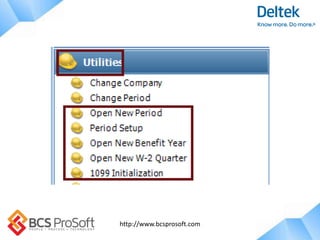
• Run the Open New W-2 Quarter utility. Since
December is in the fourth quarter, Vision
automatically opens a new W-2 Quarter/Year
• Print 2015 W-2 forms and, if applicable, generate
the Electronic Filing (Magnetic Media) file.
• Post all 2015 timesheets and, if applicable, run the
Open New Benefit Year utility. You can now begin
processing 2016 timesheets and Payroll
http://www.bcsprosoft.com
• Complete all 2015 Accounts Payable payment
processing, adjustments, and Accounts Payable
disbursements in 2015
• Run the 1099 Initialization utility (See the Year
End Guide). You can now begin processing
Accounts Payable payments and Accounts
Payable disbursements for 2016
• Print 2015 1099-MISC. forms and, if applicable,
generate the Electronic Filing file
http://www.bcsprosoft.com
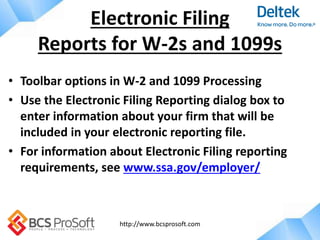
• Toolbar options in W-2 and 1099 Processing
• Use the Electronic Filing Reporting dialog box to
enter information about your firm that will be
included in your electronic reporting file.
• For information about Electronic Filing reporting
requirements, see www.ssa.gov/employer/
Electronic Filing
Reports for W-2s and 1099s
http://www.bcsprosoft.com
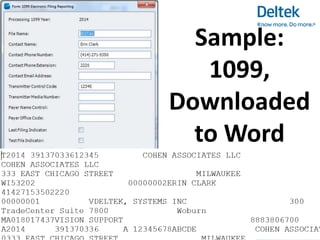
Sample:
1099,
Downloaded
to Word
http://www.bcsprosoft.com
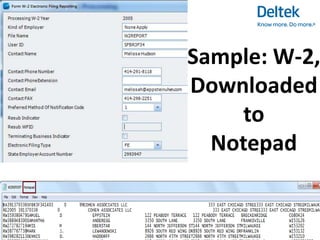
Sample: W-2,
Downloaded
to
Notepad
http://www.bcsprosoft.com
• Process any 2015 accounting adjustments,
such as journal entries
• Print the final 2015 accounting reports
• Close the 2015 periods and fiscal year
• Note: These three steps can be done whenever
you and/or your CPA have completed the
adjusting journal entries and are ready to
close 2015
http://www.bcsprosoft.com
Final Step: Make a complete
backup of your Vision database.
Deltek recommends that you label
this backup with the date as well
as with the Vision version number
http://www.bcsprosoft.com
Let’s Take A
Look At Some
7.5 Features
http://www.bcsprosoft.com
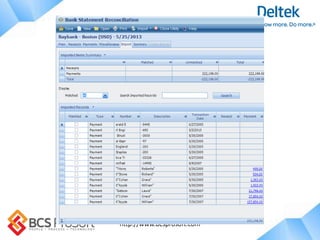
Bank
Reconciliation
Import
http://www.bcsprosoft.com
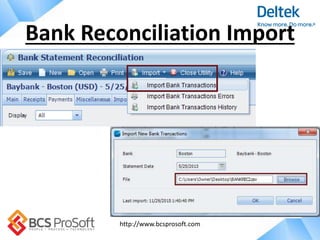
Bank Reconciliation Import
http://www.bcsprosoft.com
New Multi-Company
Employee Option
http://www.bcsprosoft.com
Employees can be listed as
employees in more than one
company – and they will be
able to submit timesheets from
both companies
Multi-Company Employees
http://www.bcsprosoft.com
Absence
Requests
http://www.bcsprosoft.com
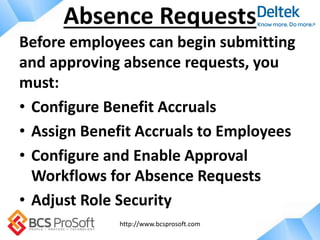
Before employees can begin submitting
and approving absence requests, you
must:
• Configure Benefit Accruals
• Assign Benefit Accruals to Employees
• Configure and Enable Approval
Workflows for Absence Requests
• Adjust Role Security
Absence Requests
http://www.bcsprosoft.com
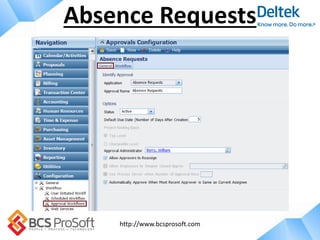
Absence Requests
http://www.bcsprosoft.com
Absence Requests
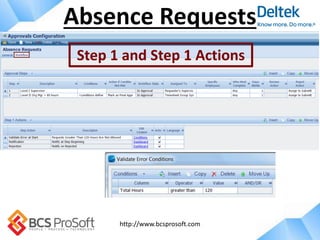
Step 1 and Step 1 Actions
http://www.bcsprosoft.com
Absence Requests
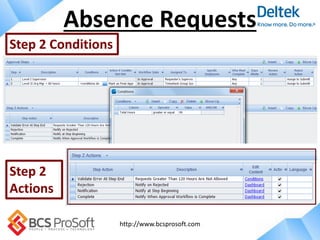
Step 2 Conditions
Step 2
Actions
http://www.bcsprosoft.com
Absence Requests
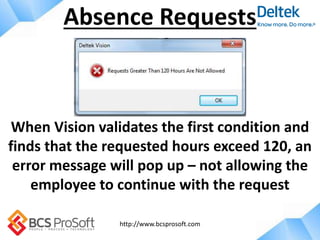
When Vision validates the first condition and
finds that the requested hours exceed 120, an
error message will pop up – not allowing the
employee to continue with the request
http://www.bcsprosoft.com
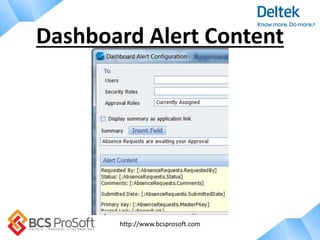
Dashboard Alert Content
http://www.bcsprosoft.com
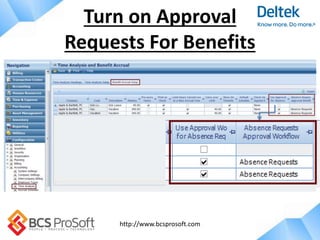
Turn on Approval
Requests For Benefits
http://www.bcsprosoft.com
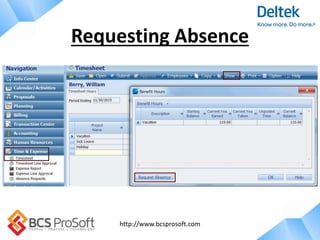
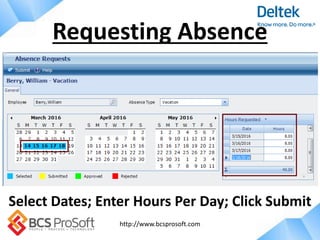
Requesting Absence
http://www.bcsprosoft.com
Requesting Absence
Select Dates; Enter Hours Per Day; Click Submit
http://www.bcsprosoft.com
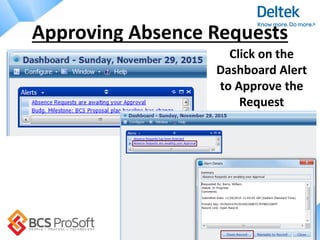
Approving Absence Requests
Click on the
Dashboard Alert
to Approve the
Request
http://www.bcsprosoft.com
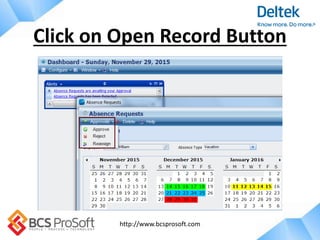
Click on Open Record Button
http://www.bcsprosoft.com
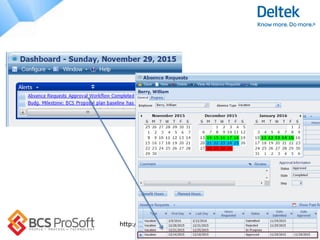
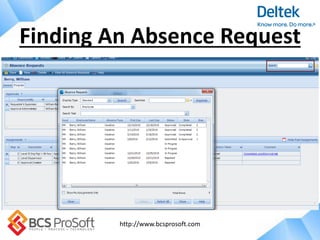
Finding An Absence Request
http://www.bcsprosoft.com
Period Range
On
Project Reports
http://www.bcsprosoft.com
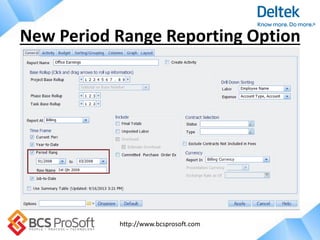
New Period Range Reporting Option
http://www.bcsprosoft.com
TDM
Enhancements
http://www.bcsprosoft.com
TDM (Transactional Document
Management) is now available for:
• AP Disbursements
• Expense Line Item Approvers
Enhancements to TDM
http://www.bcsprosoft.com
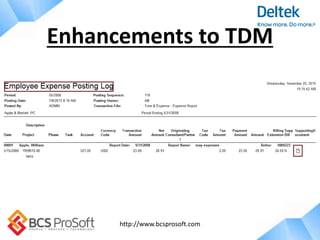
Wherever the TDM page icon is visible,
you can now click on it and view the
attached receipt or document –
some examples are:
• Expense Line Item Approval Report
• Project Expense Detail Report
• Posting Logs
Enhancements to TDM
http://www.bcsprosoft.com
Enhancements to TDM
http://www.bcsprosoft.com
Deltek is currently discussing options to
incorporate TDM into the Info Centers so
documents can be attached (as PDF files)
without having to rely on the Files tab.
Watch for information on this upcoming
enhancement!
Enhancements to TDM
http://www.bcsprosoft.com
• Improvement to General Ledger
Budgeting
• Expansion of Approvals (in 7.4
approvals were added to
Purchasing, now APs can be
approved as well as the automated
Absence Request Approvals)
Some of the General
Use Enhancements
http://www.bcsprosoft.com
The Asset Management Module is available
for purchase. The new Equipment Info Center
is available if you own the Purchasing Module
or if you purchase the Asset Module. The
Equipment Info Center can be viewed by any
users with security rights. Assets can only be
managed by licensed users.
Asset Management Module
http://www.bcsprosoft.com
There are three ways to enter assets into Vision:
1. Purchase Order (must select the Fixed Asset
Category)
2. AP Voucher
3. Directly Inserted in the Equipment Info Center
(this must be an existing item, not a new
acquisition) – the category must be equipment
or capital item
Asset Management
http://www.bcsprosoft.com
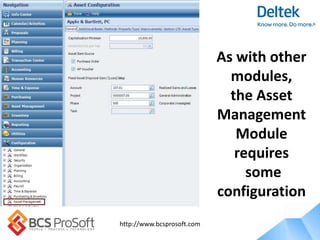
As with other
modules,
the Asset
Management
Module
requires
some
configuration
http://www.bcsprosoft.com
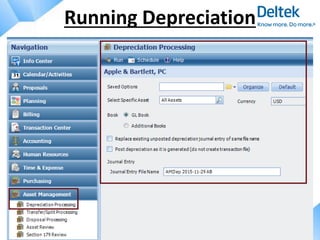
Running Depreciation
http://www.bcsprosoft.com
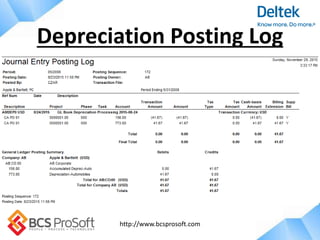
Depreciation Posting Log
http://www.bcsprosoft.com
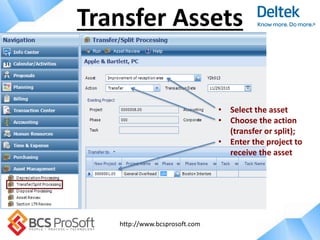
Transfer Assets
• Select the asset
• Choose the action
(transfer or split);
• Enter the project to
receive the asset
http://www.bcsprosoft.com
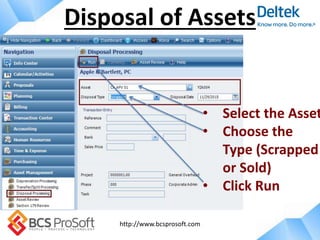
Disposal of Assets
• Select the Asset
• Choose the
Type (Scrapped
or Sold)
• Click Run
http://www.bcsprosoft.com
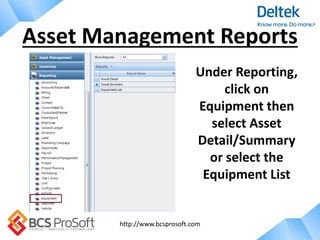
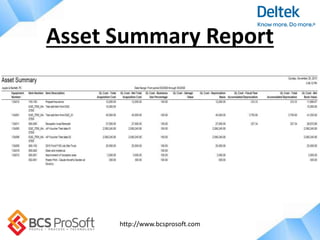
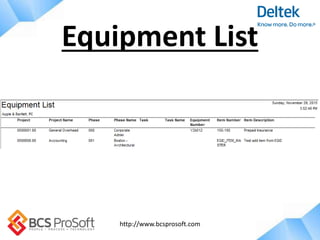
Asset Management Reports
Under Reporting,
click on
Equipment then
select Asset
Detail/Summary
or select the
Equipment List
http://www.bcsprosoft.com
Asset Summary Report
http://www.bcsprosoft.com
Equipment List
http://www.bcsprosoft.com
Tips
&
Tricks
http://www.bcsprosoft.com
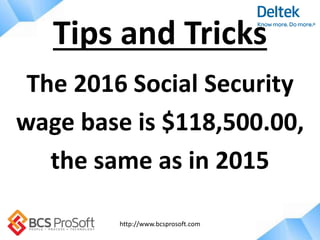
The 2016 Social Security
wage base is $118,500.00,
the same as in 2015
Tips and Tricks
http://www.bcsprosoft.com
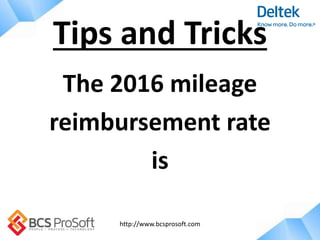
The 2016 mileage
reimbursement rate
is
Tips and Tricks
http://www.bcsprosoft.com
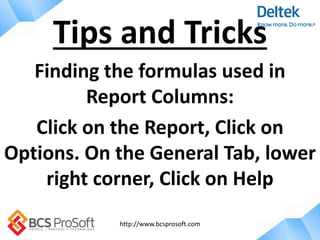
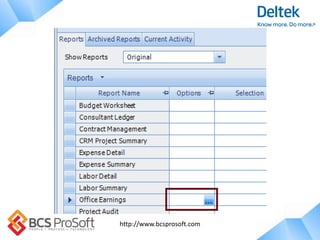
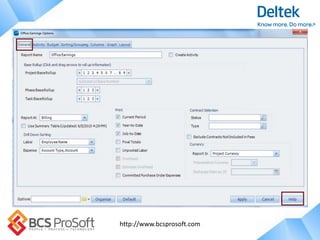
Finding the formulas used in
Report Columns:
Click on the Report, Click on
Options. On the General Tab, lower
right corner, Click on Help
Tips and Tricks
http://www.bcsprosoft.com
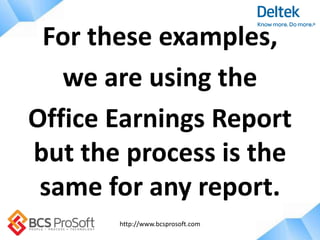
For these examples,
we are using the
Office Earnings Report
but the process is the
same for any report.
http://www.bcsprosoft.com
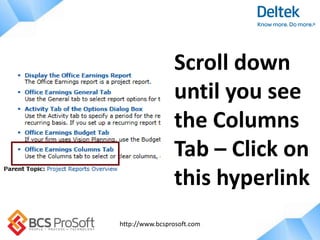
Scroll down
until you see
the Columns
Tab – Click on
this hyperlink
http://www.bcsprosoft.com
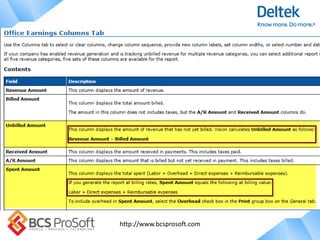
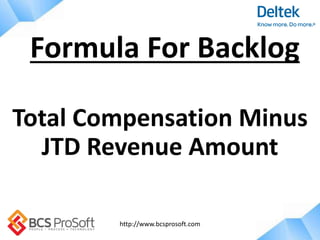
Total Compensation Minus
JTD Revenue Amount
Formula For Backlog
http://www.bcsprosoft.com
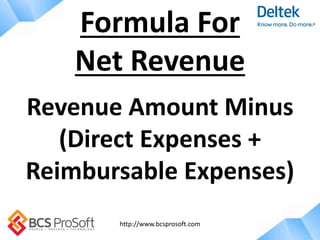
Revenue Amount Minus
(Direct Expenses +
Reimbursable Expenses)
Formula For
Net Revenue
http://www.bcsprosoft.com
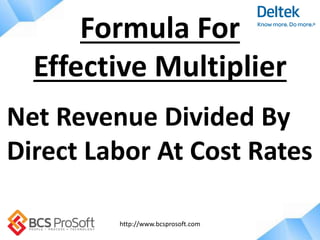
Net Revenue Divided By
Direct Labor At Cost Rates
Formula For
Effective Multiplier
http://www.bcsprosoft.com
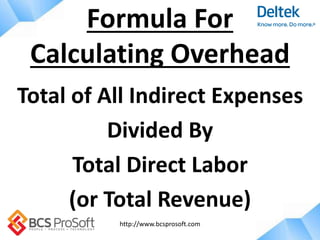
Total of All Indirect Expenses
Divided By
Total Direct Labor
(or Total Revenue)
Formula For
Calculating Overhead
http://www.bcsprosoft.com
Note: If calculating Overhead by the
Revenue method, your percentage should
be a small number – usually less than 1
If calculating Overhead by the Labor
method, your percentage will be a larger
number- usually ranging from 1.50 to 2.00
http://www.bcsprosoft.com
The size of the Job Cost
Variance account balance can
influence the accuracy of the
overhead calculation
Calculating Overhead
http://www.bcsprosoft.com
For Weekly or Biweekly
Timesheets, you can create two
short timesheets for the end of
the month/first of the next month
- this keeps labor posted in the
correct accounting period
Tips & Tricks
http://www.bcsprosoft.com
Note: When using two
short timesheets, you
must still combine the
two when calculating
overtime for payroll.
http://www.bcsprosoft.com
Watch for
email invitations to our
March 2016
User Group Meeting Dates
http://www.bcsprosoft.com
BCSProSoft Deltek
Account Manager:
Shawna Dillard
(800) 882-6705
(808) 345-8015
http://www.bcsprosoft.com
Request a free consultation from
an expert at BCS ProSoft
REQUEST COMPLIMENTARY ASSESSMENT
http://www.bcsprosoft.com/slideshare
Do you need a Deltek Vision Consultant?

Deltek Vision Year-End Processing Procedures

Editor's Notes

  • #2  Good afternoon! Clark has asked me to spend some time with you to give you an overview of Vision so that you can better understand why a client would benefit from buying and implementing it. I appreciate you taking the time out of your schedule to meet with me. Organizations, ranging in size from a dozen employees to global enterprises, rely on Deltek every day to win more business, deliver projects on time and on budget and improve performance. Vision users commonly experience measurable benefits, such as improved employee utilization, streamlined project management and improved profitability.