


Deltek Users
Group Meeting
March 2014
http://www.bcsprosoft.com
Improving Billing
Processes And
Performance
http://www.bcsprosoft.com
Today, we’re going to talk about
several areas in Vision that affect
Billing and Billing Processes and
Procedures.
The first is Timesheets…
http://www.bcsprosoft.com
• Daily Entry of Time and Expenses
• Time and Expense Approval Process
that is Strictly Followed and Enforced
• Billing Procedures are Started at the
Same Time Every Month
• Draft Review Period is Complied With
• Changes or Corrections Reported to
Accounting Within the Review Period
http://www.bcsprosoft.com
The second area is the
Pre Billing Process.
http://www.bcsprosoft.com
• Post all time and expense transactions
to be billed
• Run draft invoices and pre-bill reports
• Have an invoice approval process in
place
• Make adjustments and get final invoices
processed
Pre Bill Process
http://www.bcsprosoft.com
Find an effective report within Vision for
all principals and project managers to use
for review:
• Under Billing Reports
–Fee Remaining Report
–Unbilled Detail Report
• Under Project Reports
–Office Earnings Report
–Project Earnings Report
Billing Procedures
http://www.bcsprosoft.com
• User defined tab was added to the Project Info Center
called “Billing Instructions” a memo field for PMs to
enter notes for each of their projects
• A Pre Bill report (created from the Office Earnings
report) was saved as a global report, search was Project
Manager is Me.
• When accounting finished all time and expense postings,
an email went out to the PMs to run their report and
enter their notes
• The PM sent accounting an email when this was done
• Accounting made any changes and processed the final
invoices
Example 1 of Pre Bill Process:
http://www.bcsprosoft.com
• When accounting completes posting of
all time and expenses, draft invoices and
the unbilled detail report are run
through Batch Billing, printed and given
to the project managers
• PMs mark up the drafts and return to
accounting for final invoices to be
processed
Example 2 of Pre Bill Process:
http://www.bcsprosoft.com
Now, let’s look at Billing
Terms…
http://www.bcsprosoft.com
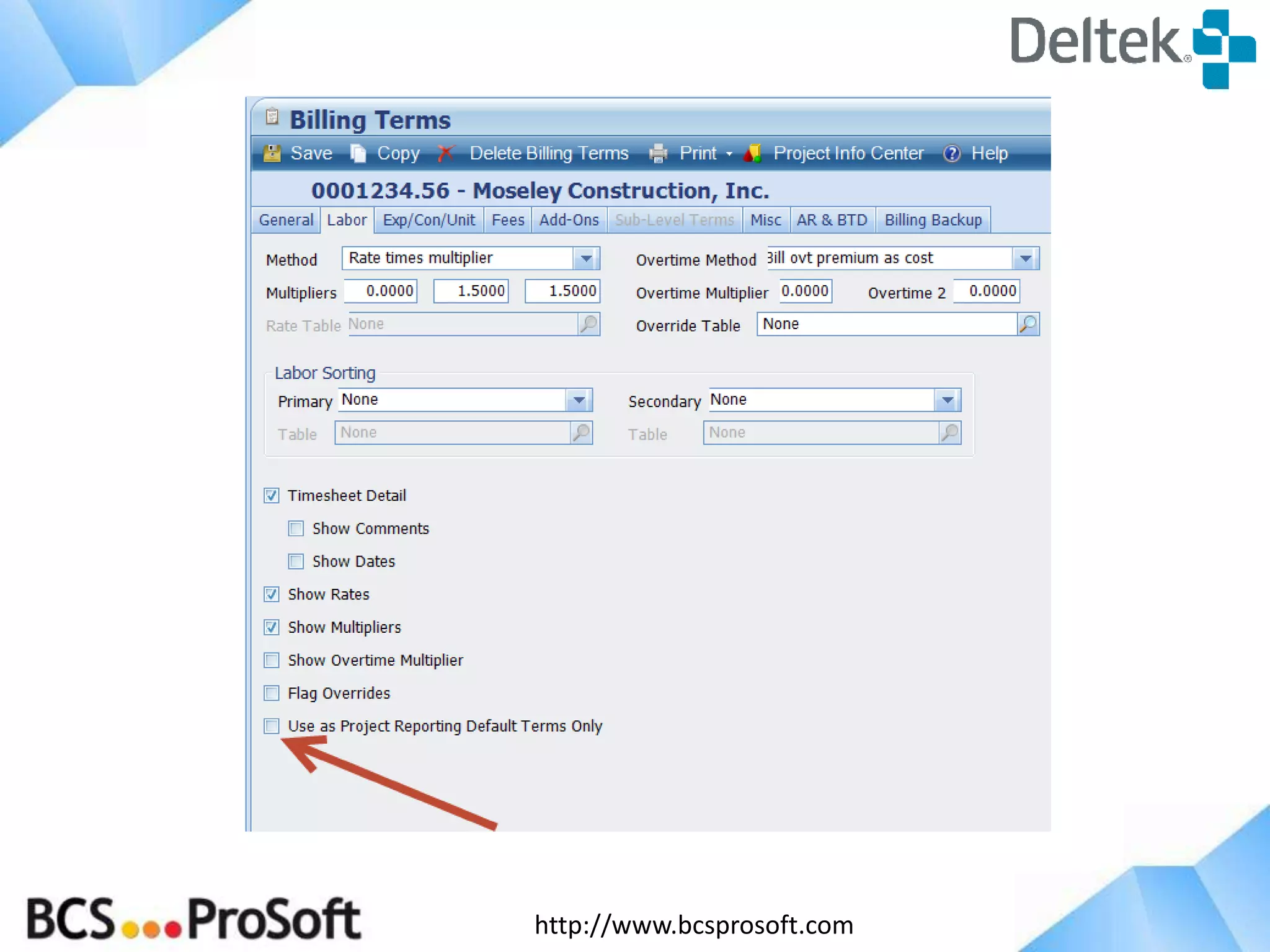
Under Billing Terms/Labor Tab, assign a
rate method and table. Check the box
“For Reporting Only”. Then, run the Labor
Detail Report to see the labor with a
billing extension. This can be used to
determine the percent complete on Fee
Based Jobs.
For Percent Complete Jobs
http://www.bcsprosoft.com
• Using WBS for entering time and
expense is an excellent way to
track work as it’s done on the
project
• Billing at the lowest WBS might
Not be the best option
Work Breakdown Structure (WBS)
http://www.bcsprosoft.com
When a project is set up with
phases and tasks and you try to
bill at the project level, Vision will
pull in the first phase name and
number on the invoice. To avoid
this problem, insert a 000 Phase
called Project Accounting.
http://www.bcsprosoft.com
Billing Rate Tables…
http://www.bcsprosoft.com
• Maintaining billing rate tables is rarely a clear, clean
process. Closed projects are tied to old rate tables
and these rate tables need to be saved to refer back
to.
• Companies generally set up yearly rate tables for
new projects but ongoing projects are often tied to
the rate table agreed to at the time of the contract
signing.
• When a new rate has been negotiated for an
ongoing project, Effective Dates are the best way to
adjust the rate table. This shows a clear history of
rates on the project.
Billing Rate Tables
http://www.bcsprosoft.com
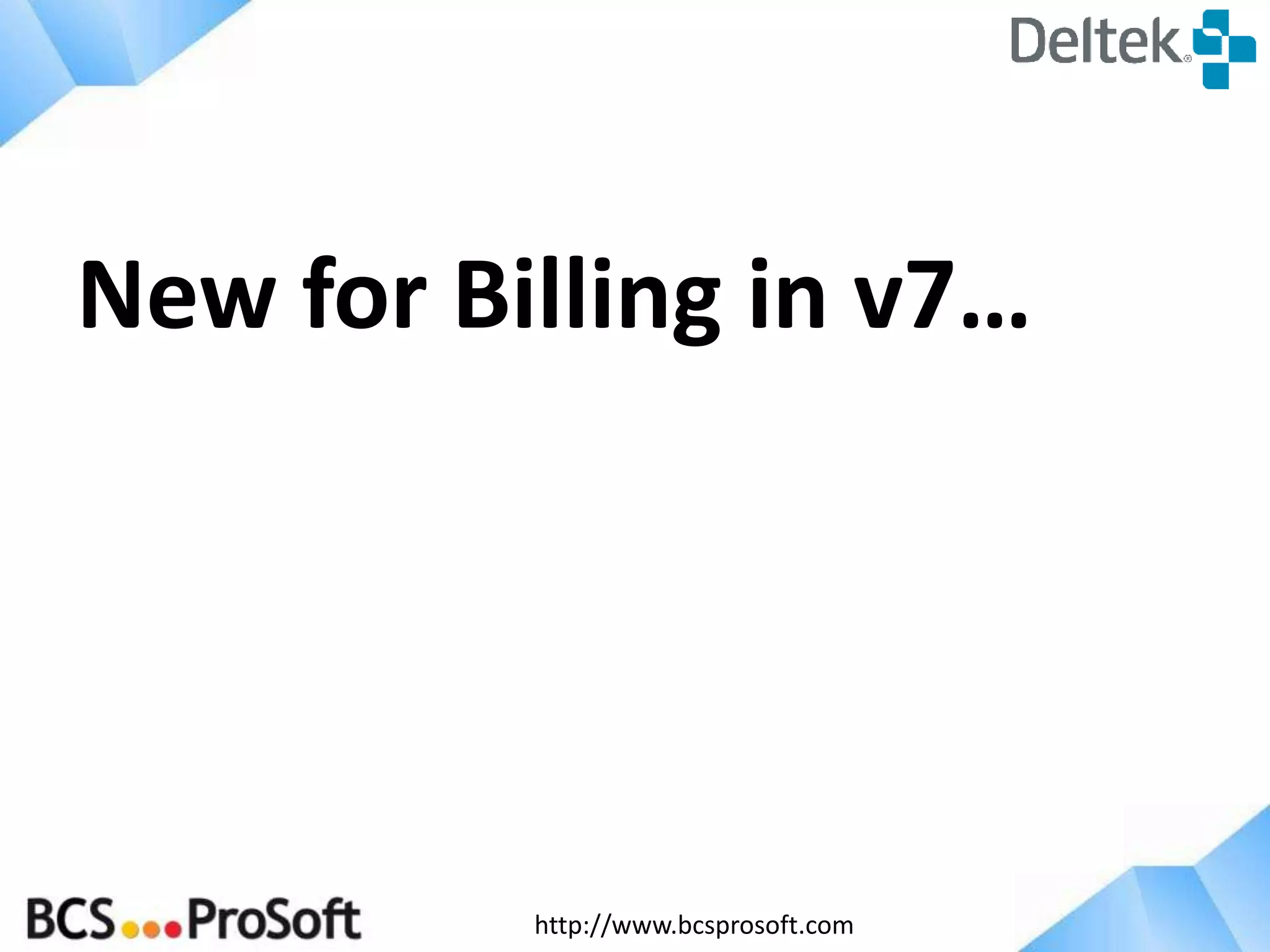
Where do I enable Effective Dates?
http://www.bcsprosoft.com
New for Billing in v7…
http://www.bcsprosoft.com
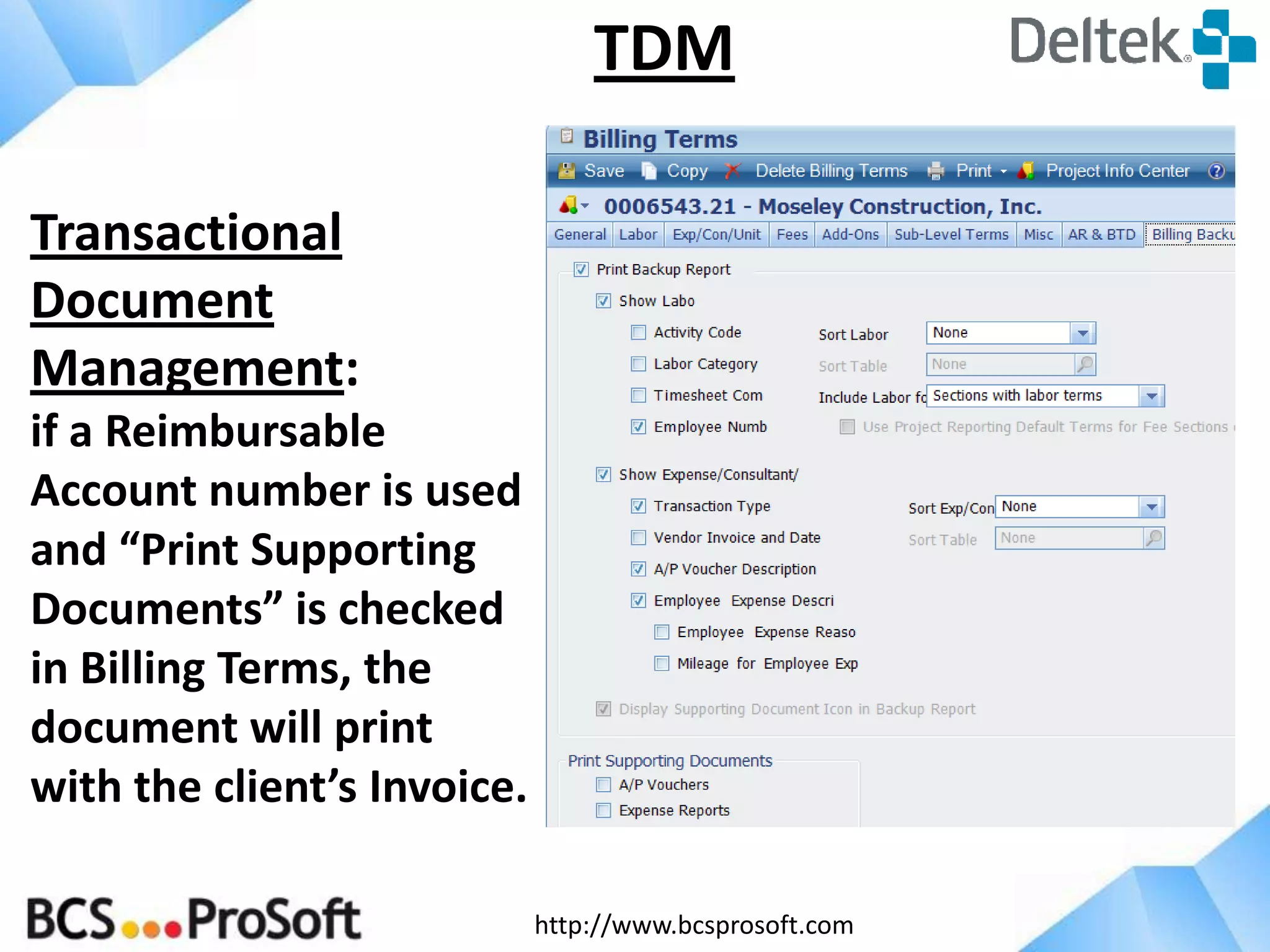
TDM
Transactional
Document
Management:
if a Reimbursable
Account number is used
and “Print Supporting
Documents” is checked
in Billing Terms, the
document will print
with the client’s Invoice.
http://www.bcsprosoft.com
1. Speeds up the Invoicing Process
2. Organizes and Automates the process
from Drafts to the Final Accepted Invoice
3. Alerts Key Participants to the Next Step
4. Documents and Retains Comments
5. Allows Delegation of Approval
6. Brings the Invoice Approval Process Into
Vision
Benefits of Invoice Approvals
http://www.bcsprosoft.com
1.Biller Submits the Invoice
2.Alert is Sent to the Approver
3.Invoice is Reviewed, Edited and
Approved
4.Alert is Sent to the Biller
5.Invoice is Sent to the Client
Approval Steps
http://www.bcsprosoft.com
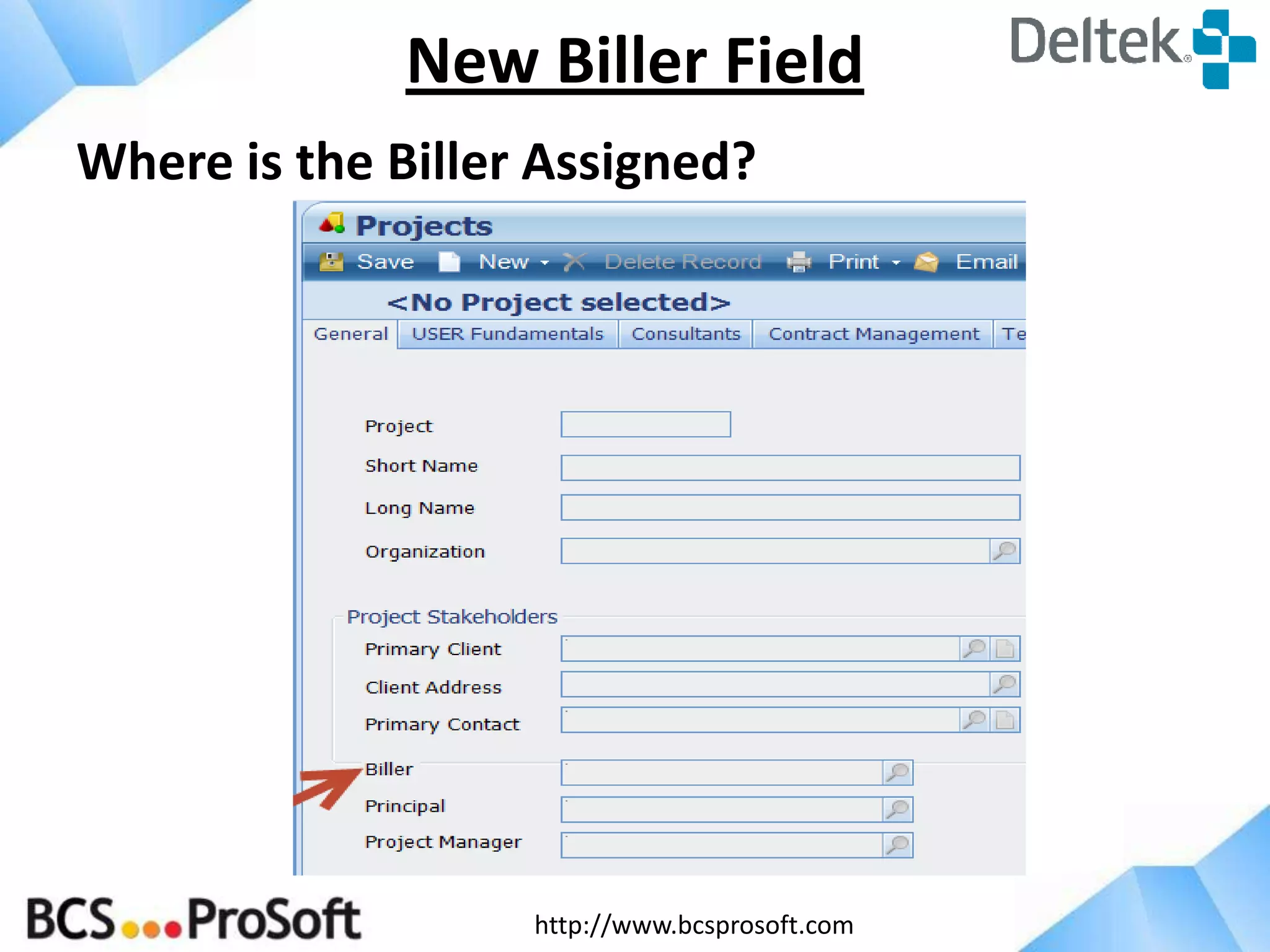
Where is the Biller Assigned?
New Biller Field
http://www.bcsprosoft.com
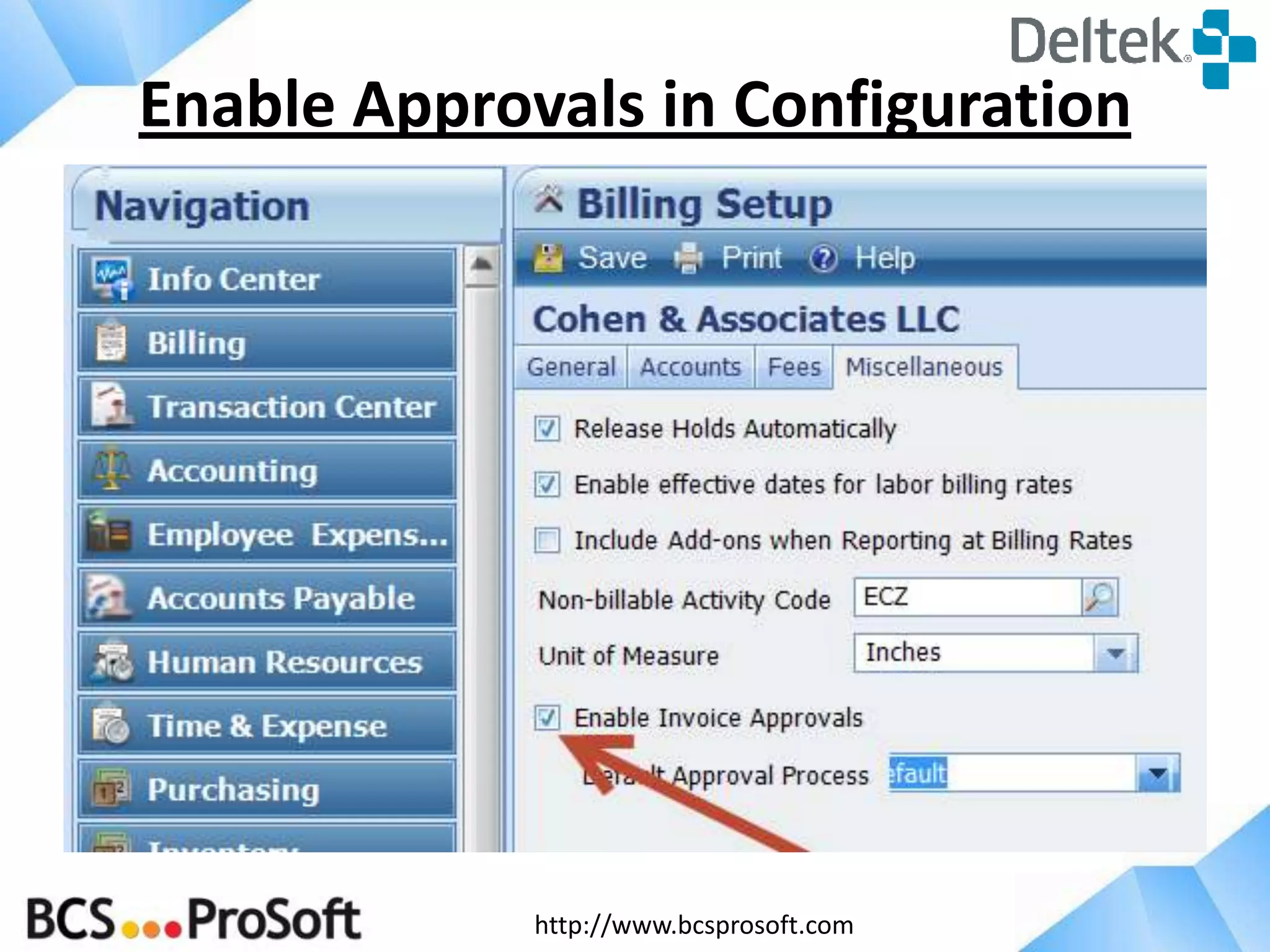
Enable Approvals in Configuration
http://www.bcsprosoft.com
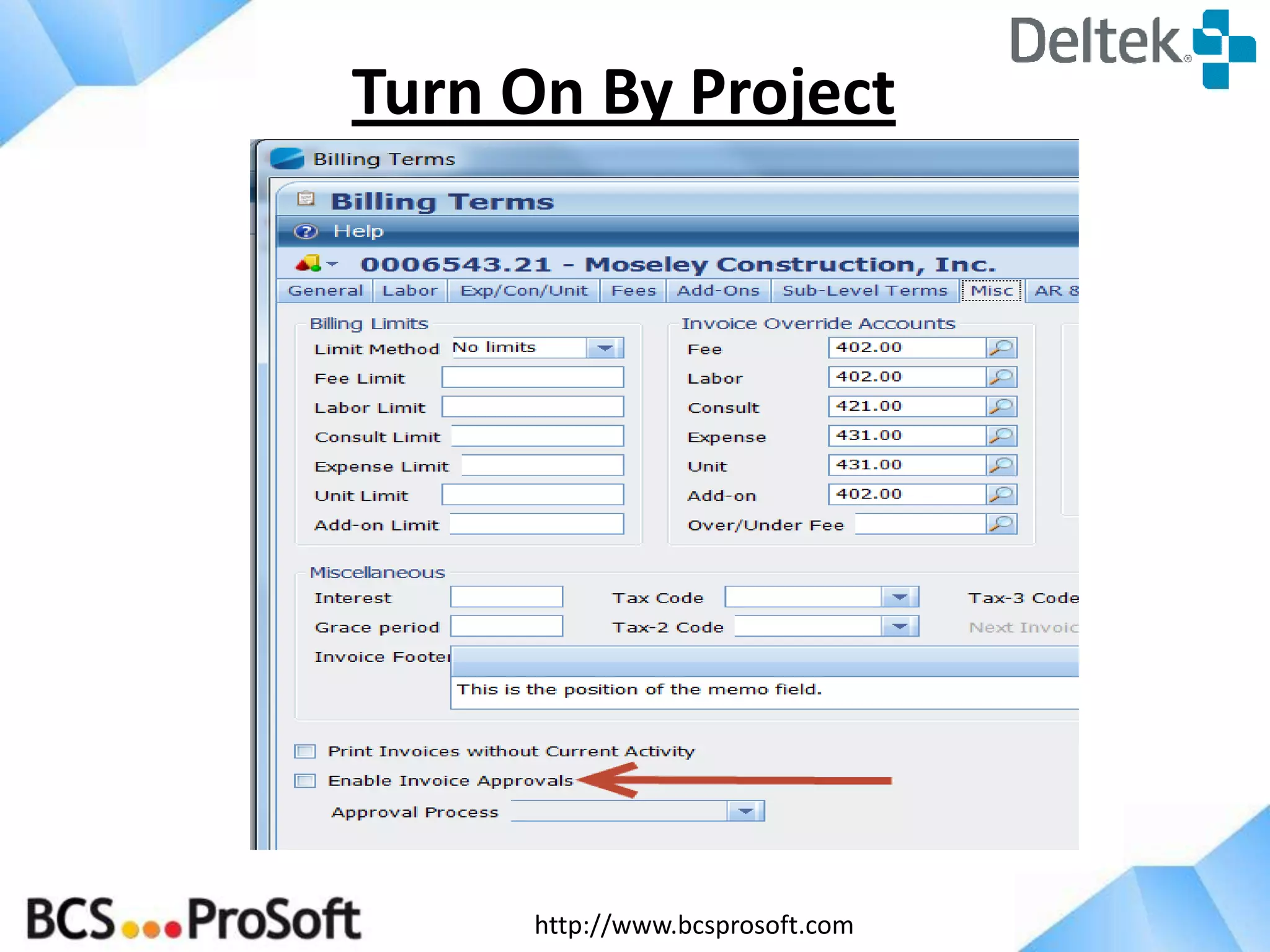
Turn On By Project
http://www.bcsprosoft.com
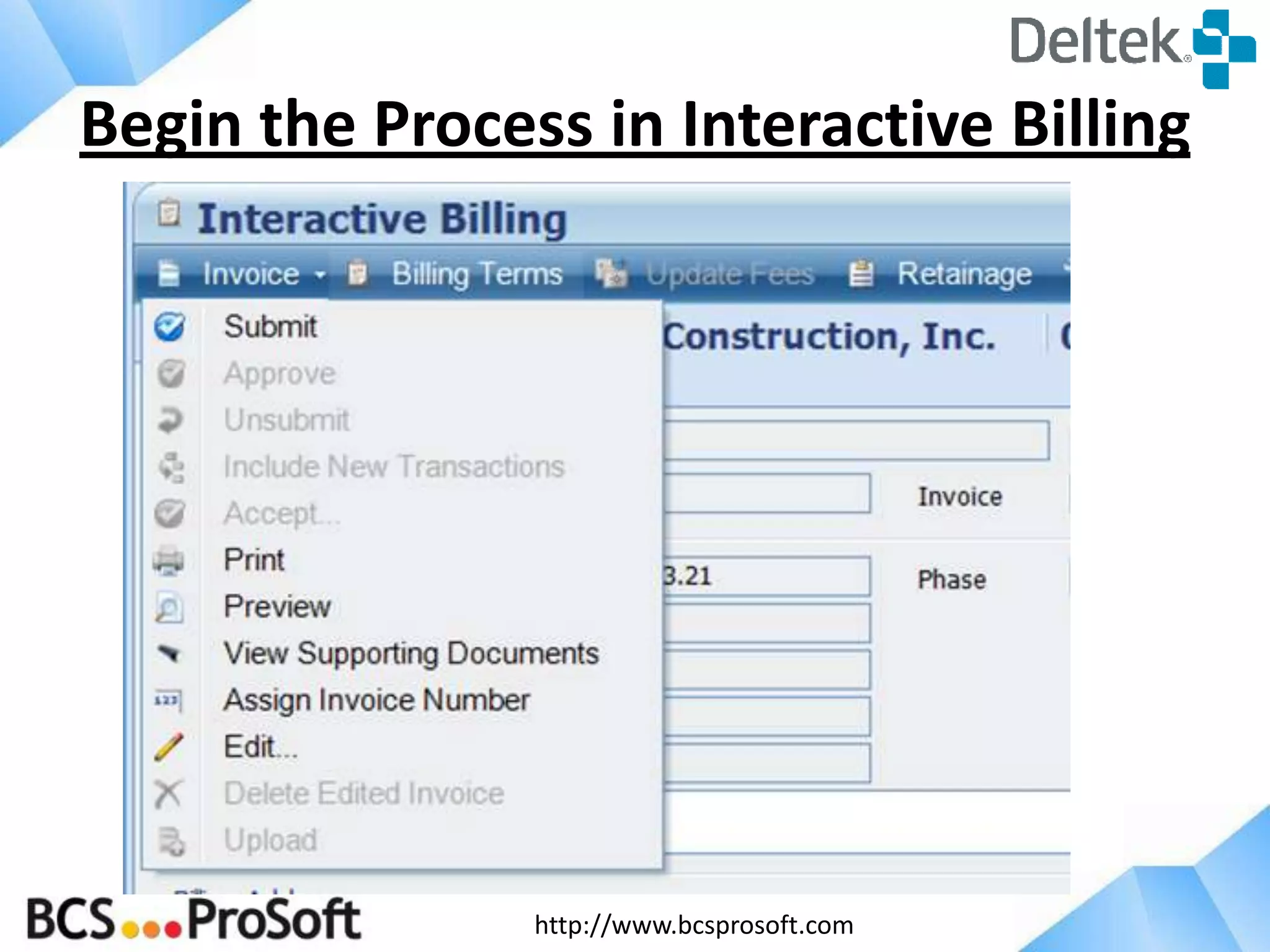
Begin the Process in Interactive Billing
http://www.bcsprosoft.com
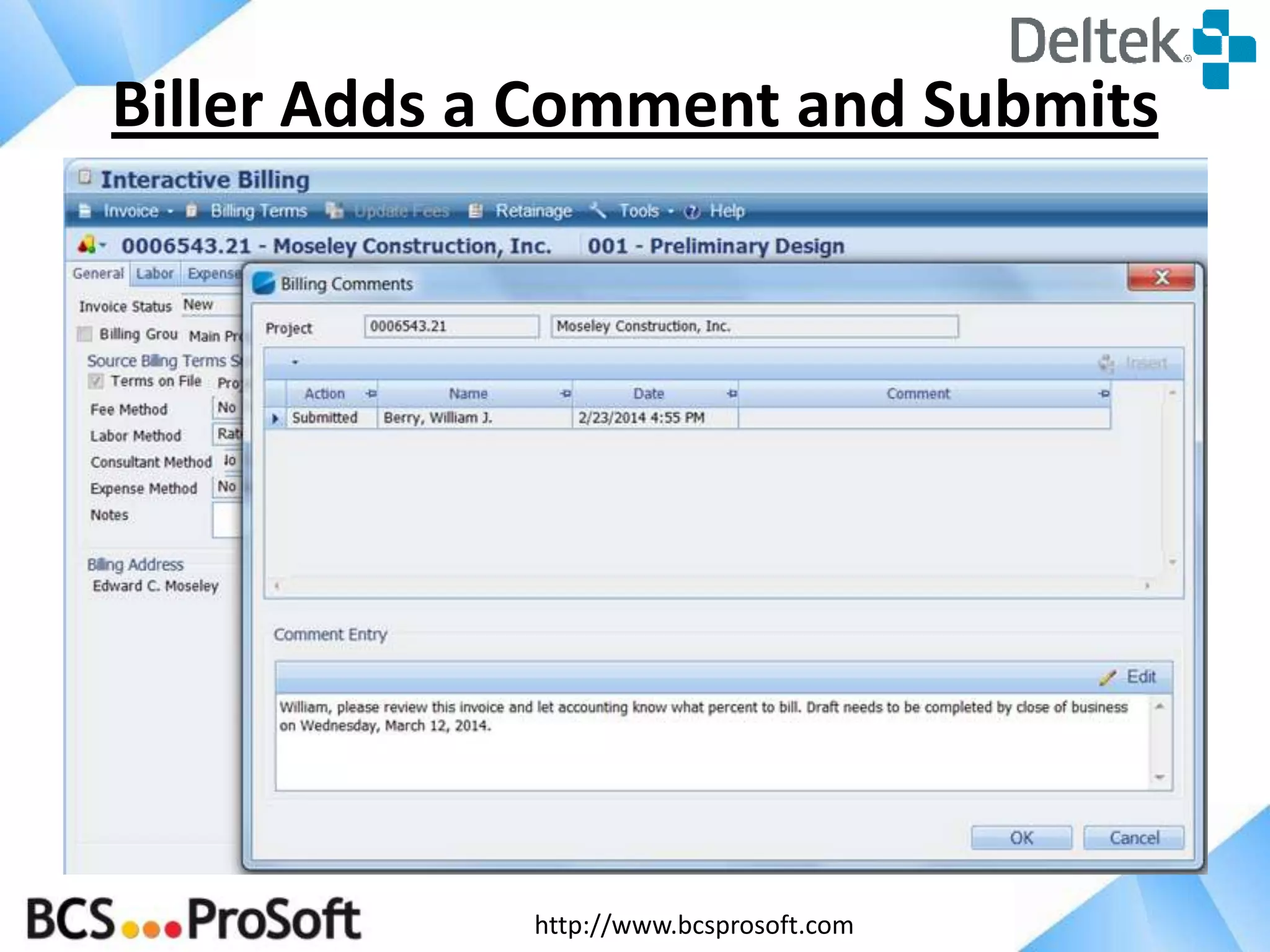
Biller Adds a Comment and Submits
http://www.bcsprosoft.com
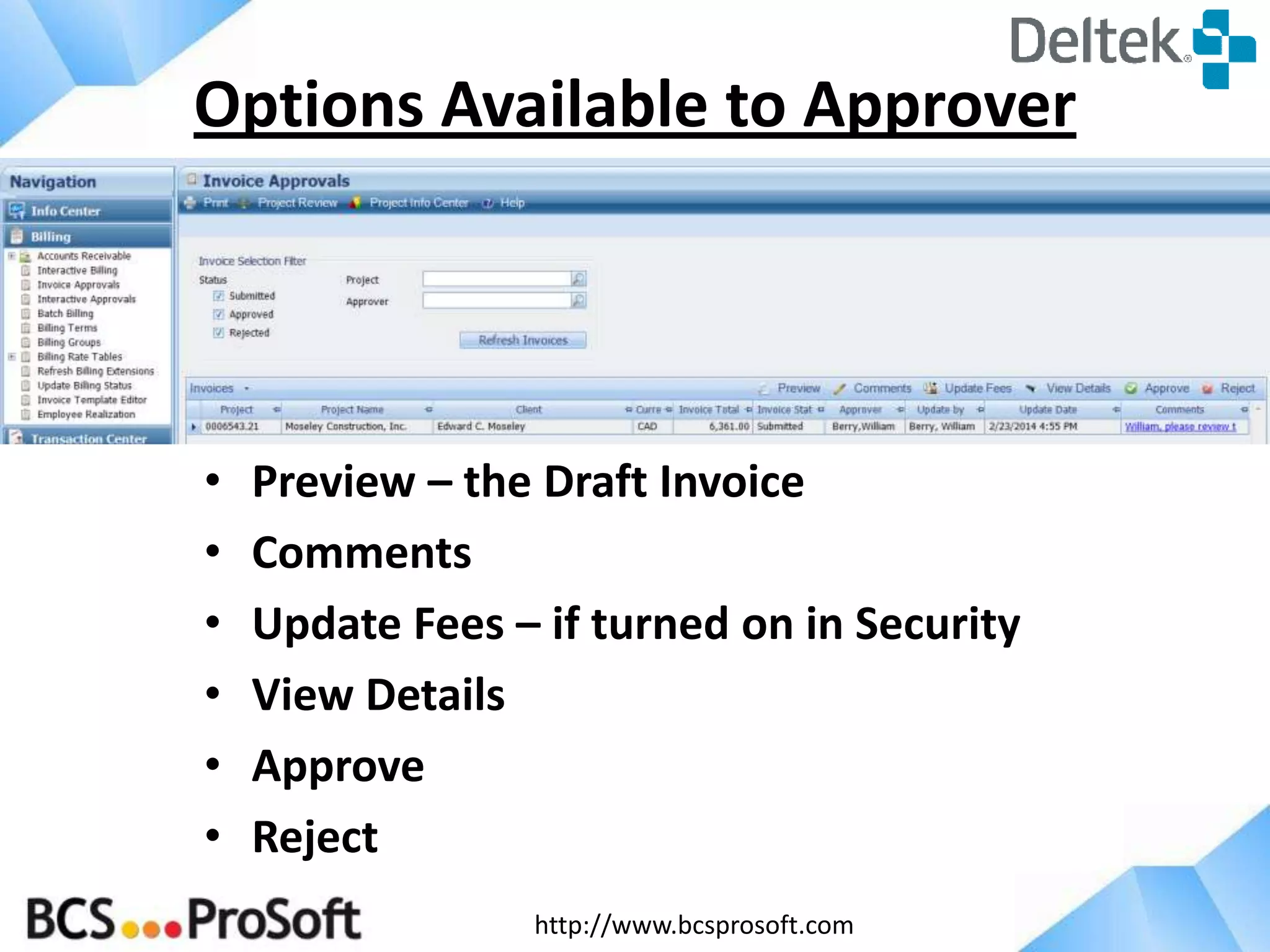
• Preview – the Draft Invoice
• Comments
• Update Fees – if turned on in Security
• View Details
• Approve
• Reject
Options Available to Approver
http://www.bcsprosoft.com
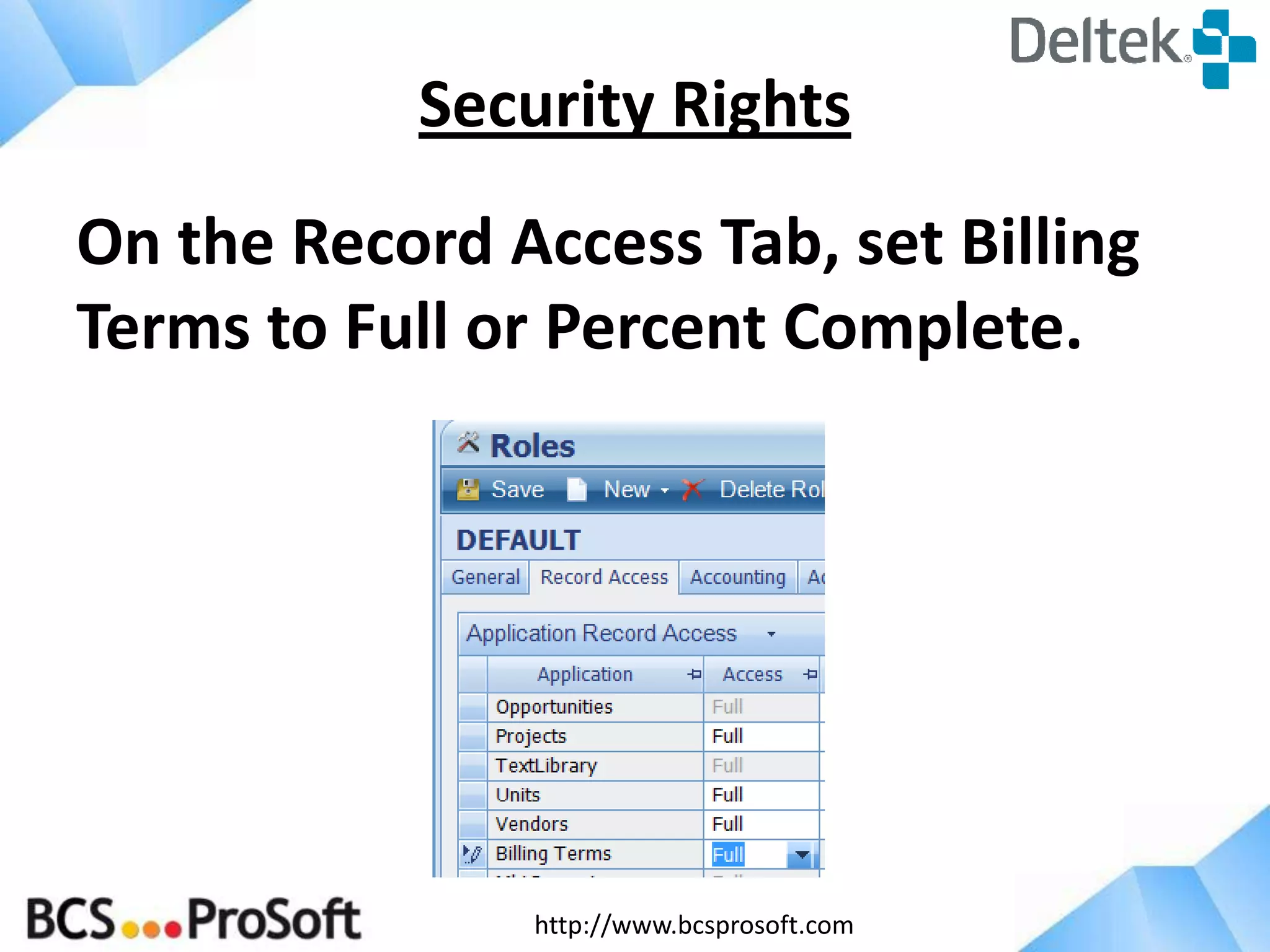
On the Record Access Tab, set Billing
Terms to Full or Percent Complete.
Security Rights
http://www.bcsprosoft.com
• Invoice Approvals
– Review Summarized List
– Preview Invoices and Comments
– Update Percent Complete
– Approve and Reject
• Interactive Approvals
– Review One Invoice at a Time
– Preview Invoices and Comments
– Update Percent Complete
– Review/Edit Labor, Expenses, Units in Transaction Detail
– Review Key Project/Invoice Information
– Approve and Reject
Invoice Approvals vs. Interactive Approvals
http://www.bcsprosoft.com
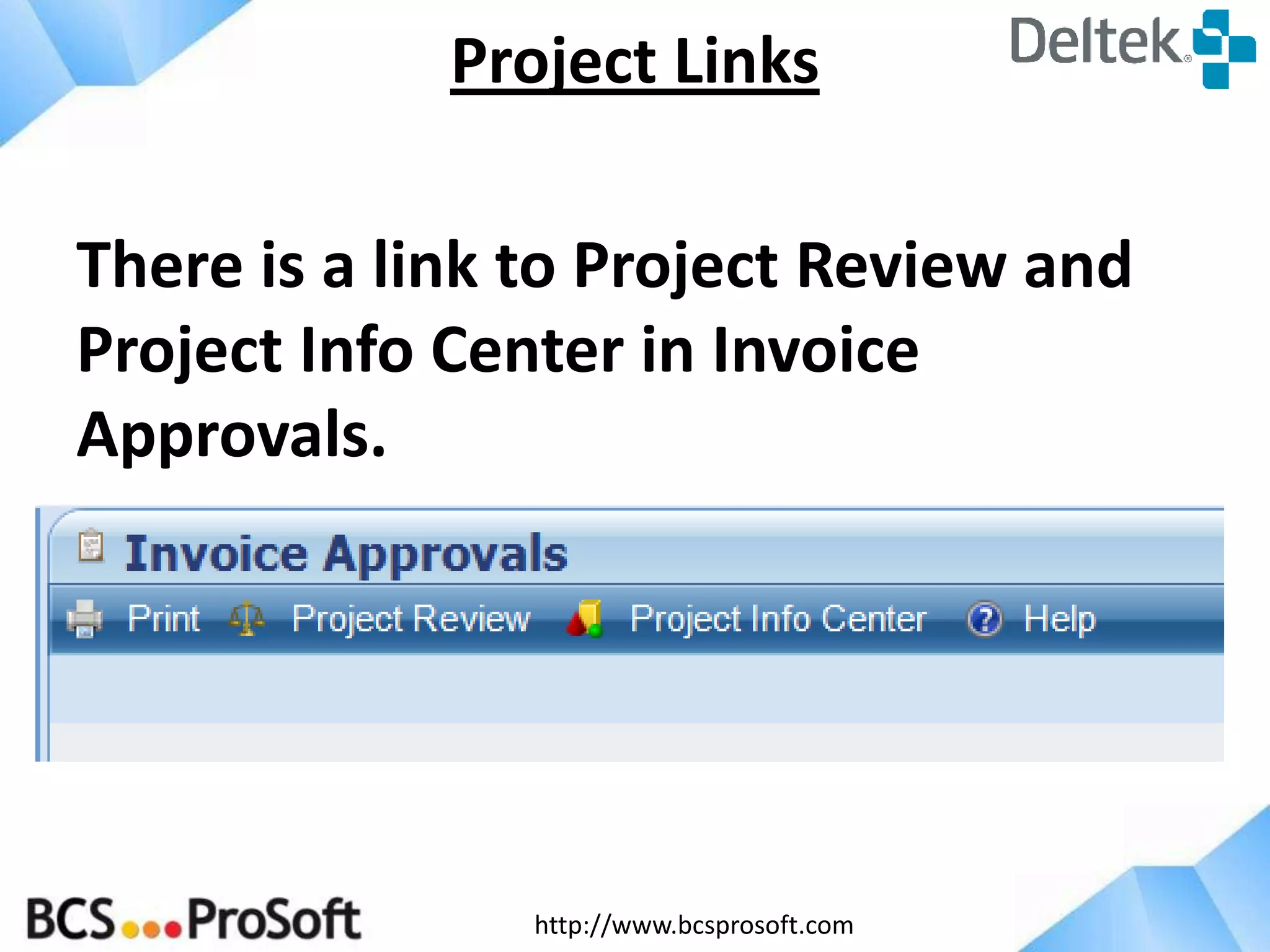
There is a link to Project Review and
Project Info Center in Invoice
Approvals.
Project Links
http://www.bcsprosoft.com
• Submit a group of Invoices for Approval
• Accept a group of Approved Final
Invoices
• Send an Alert to the Approver(s)
• Push Invoices to Approvers/PMs
without Printing
Invoice Approvals – Batch Billing
http://www.bcsprosoft.com
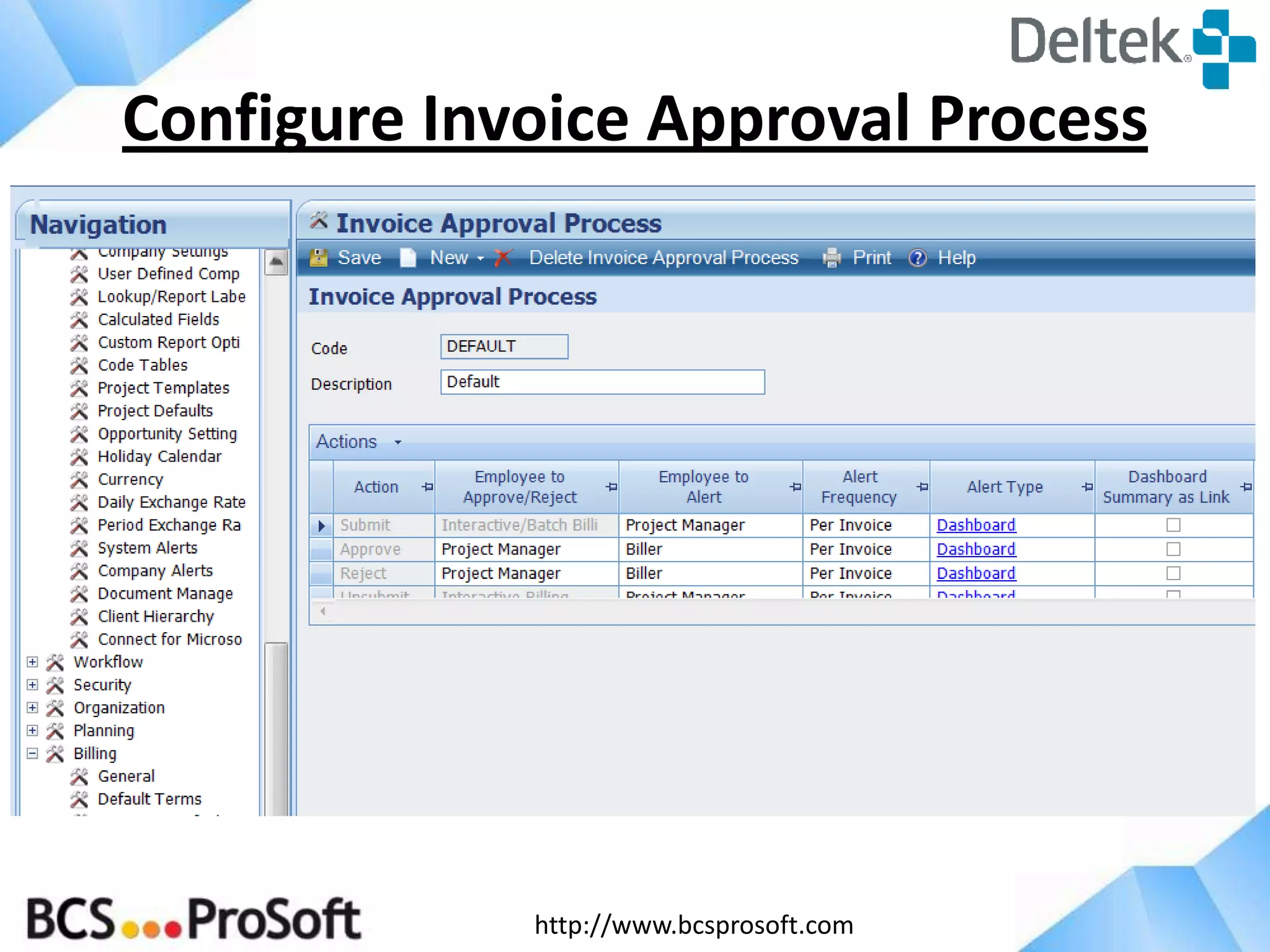
Configure Invoice Approval Process
http://www.bcsprosoft.com
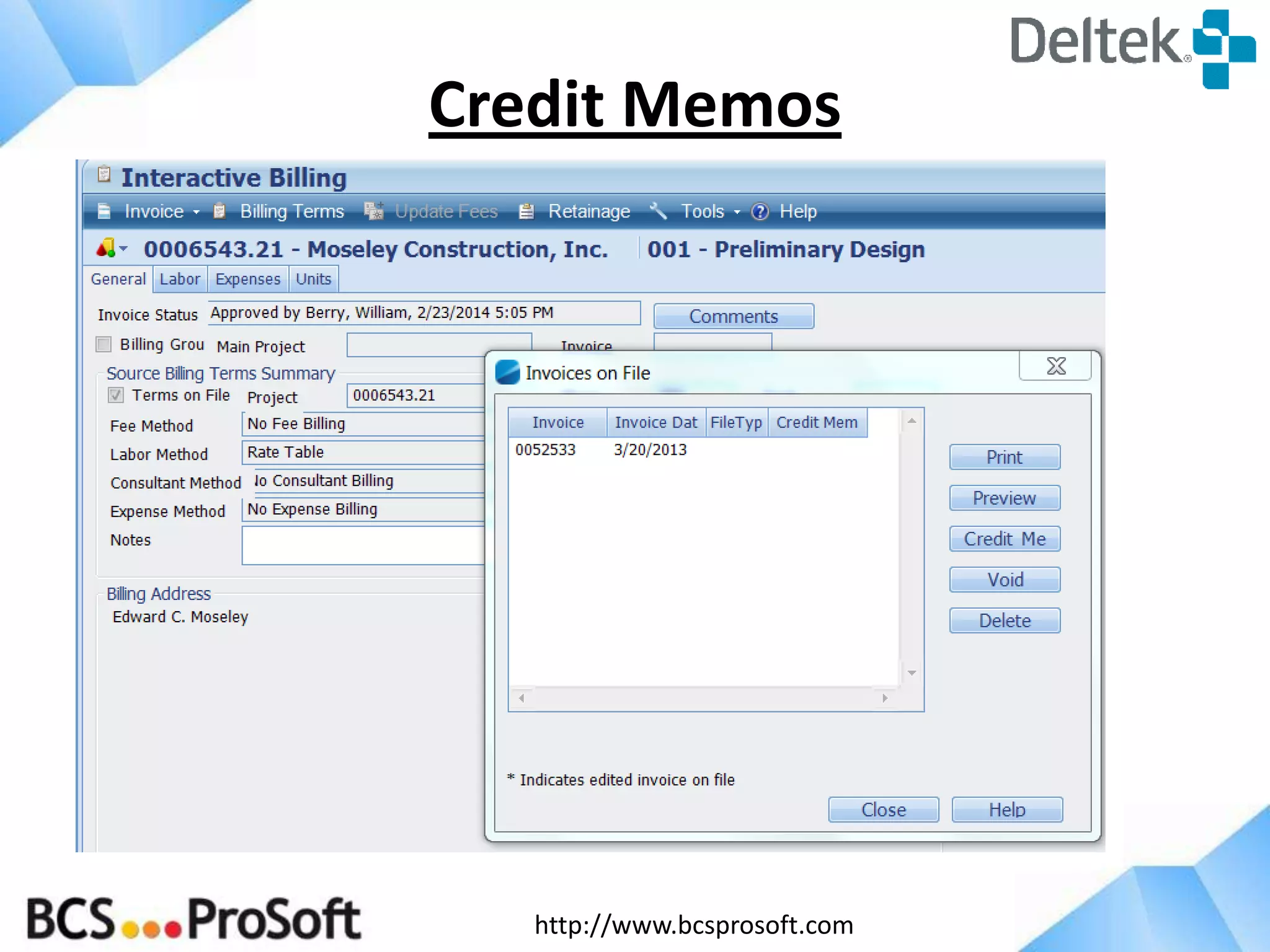
Credit Memos
http://www.bcsprosoft.com
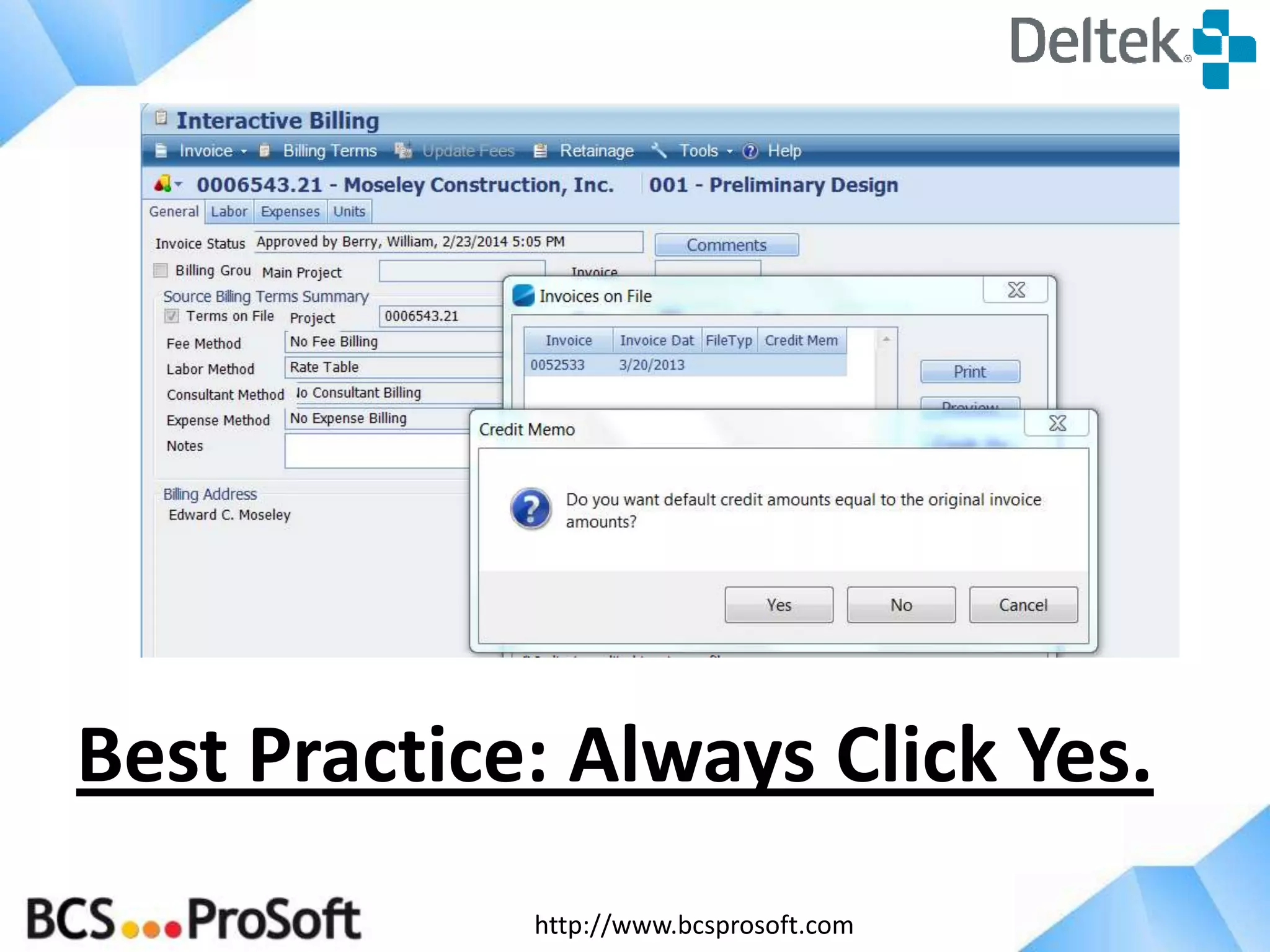
Best Practice: Always Click Yes.
http://www.bcsprosoft.com
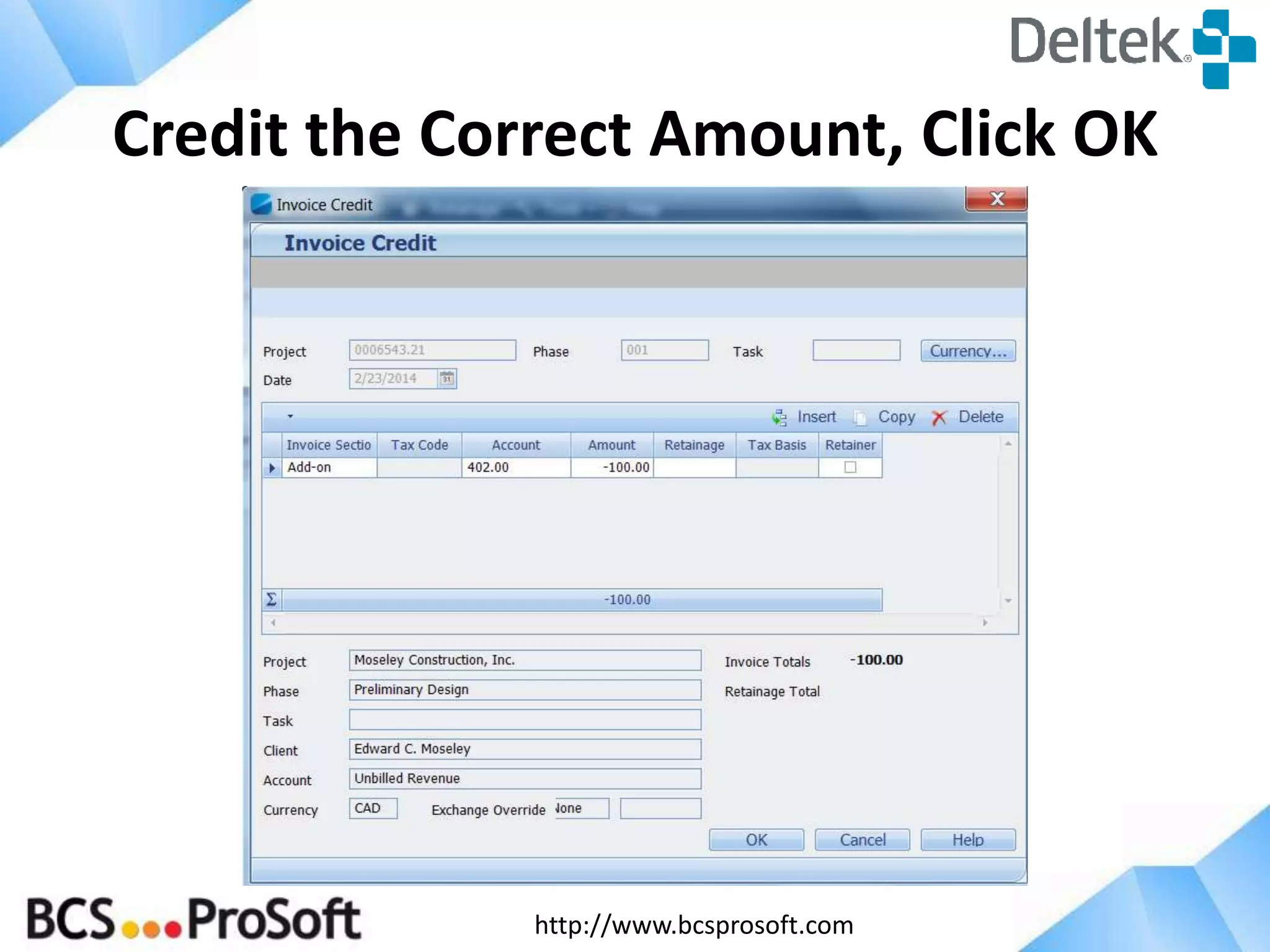
Credit the Correct Amount, Click OK
http://www.bcsprosoft.com
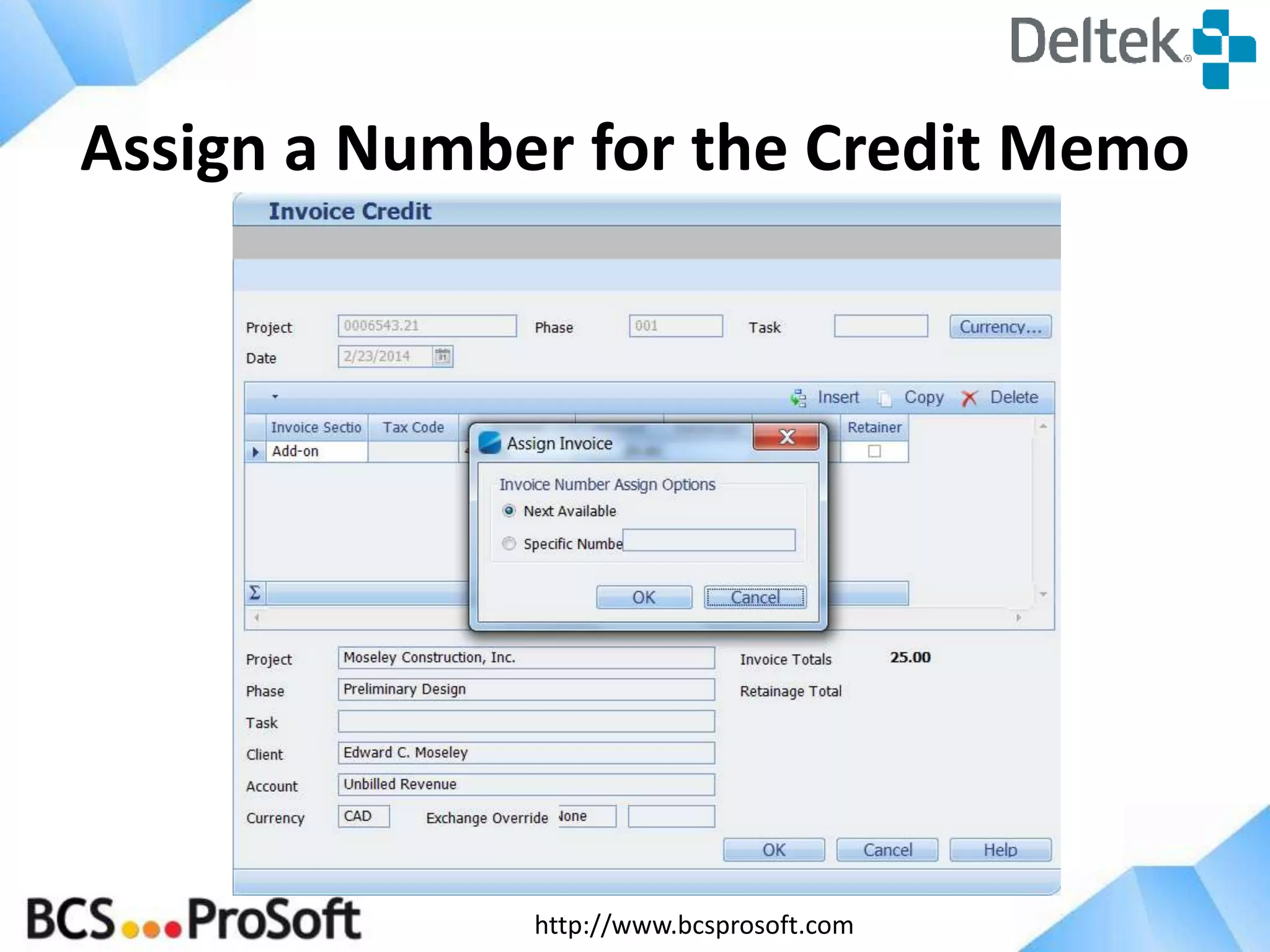
Assign a Number for the Credit Memo
http://www.bcsprosoft.com
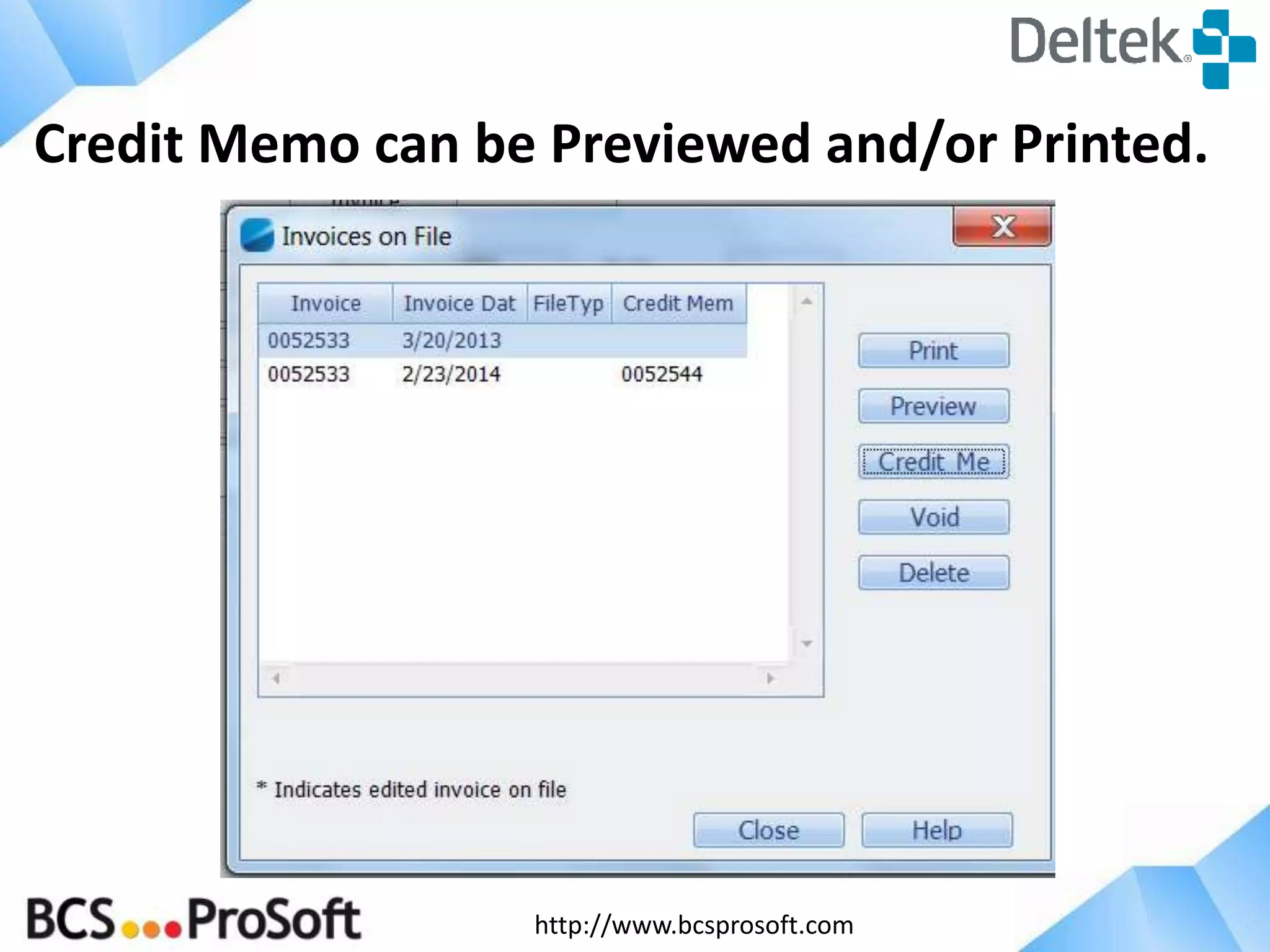
Credit Memo can be Previewed and/or Printed.
http://www.bcsprosoft.com
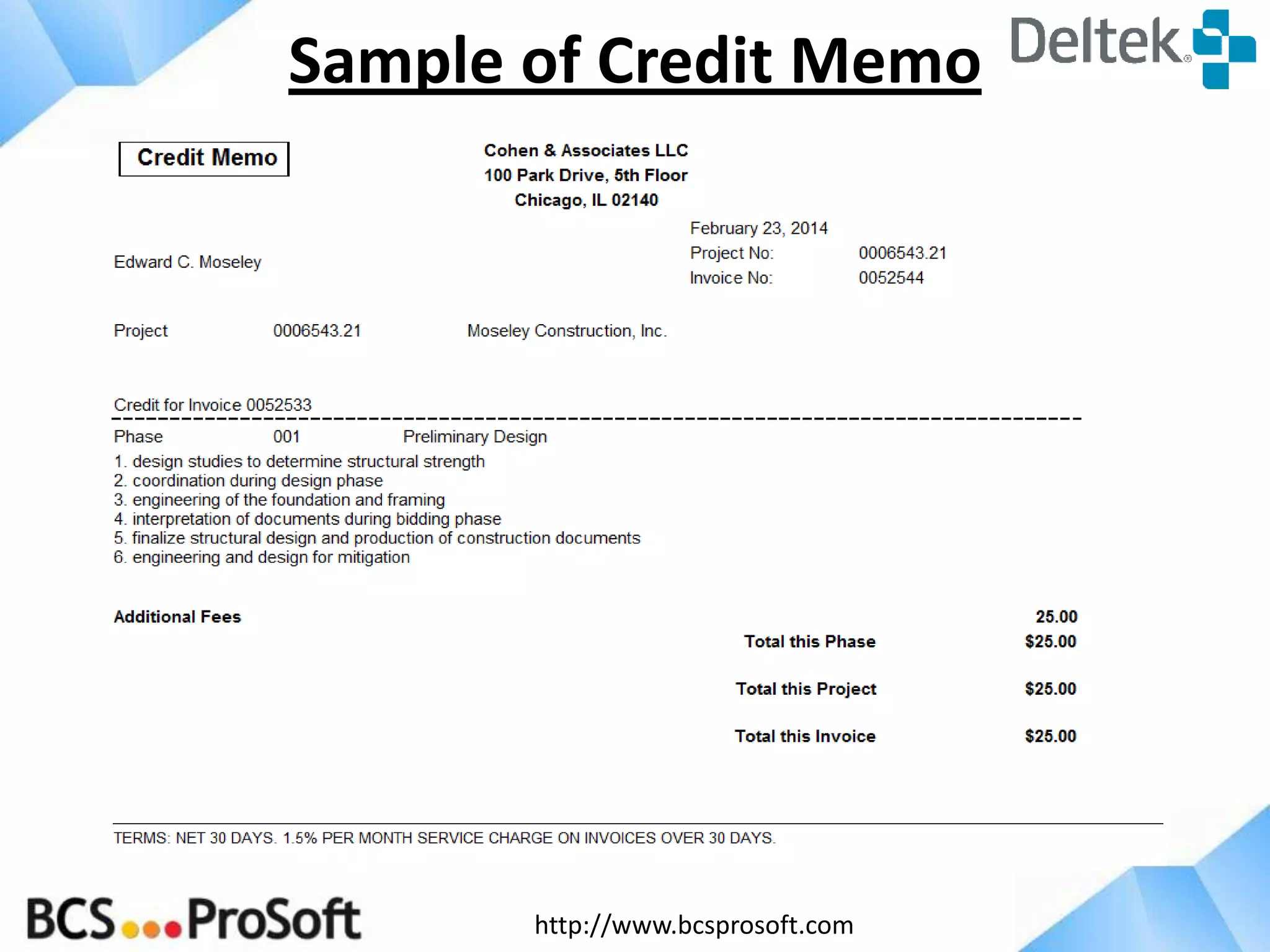
Sample of Credit Memo
http://www.bcsprosoft.com
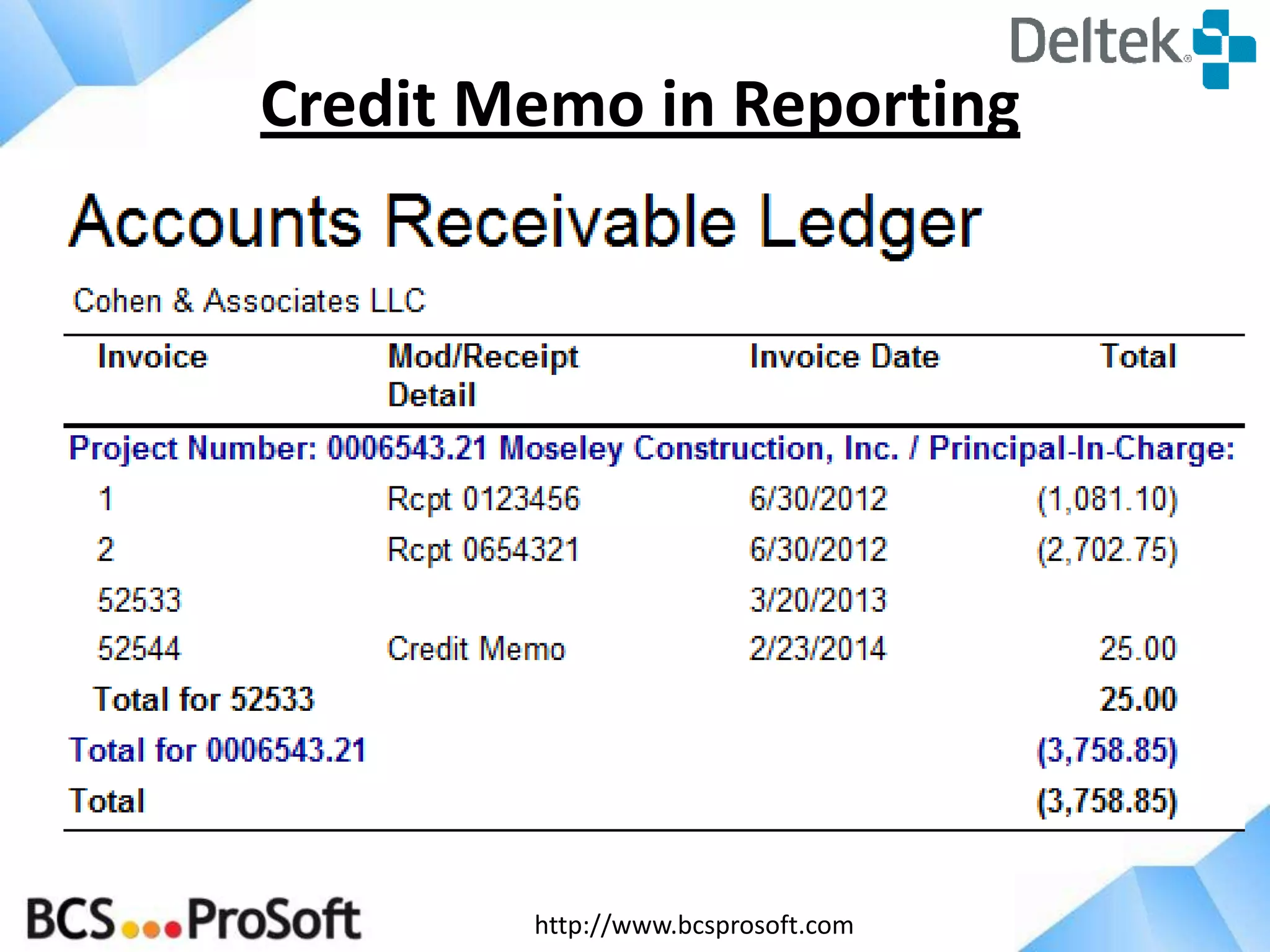
Credit Memo in Reporting
http://www.bcsprosoft.com
Vision Tips
Where do I find…
http://www.bcsprosoft.com
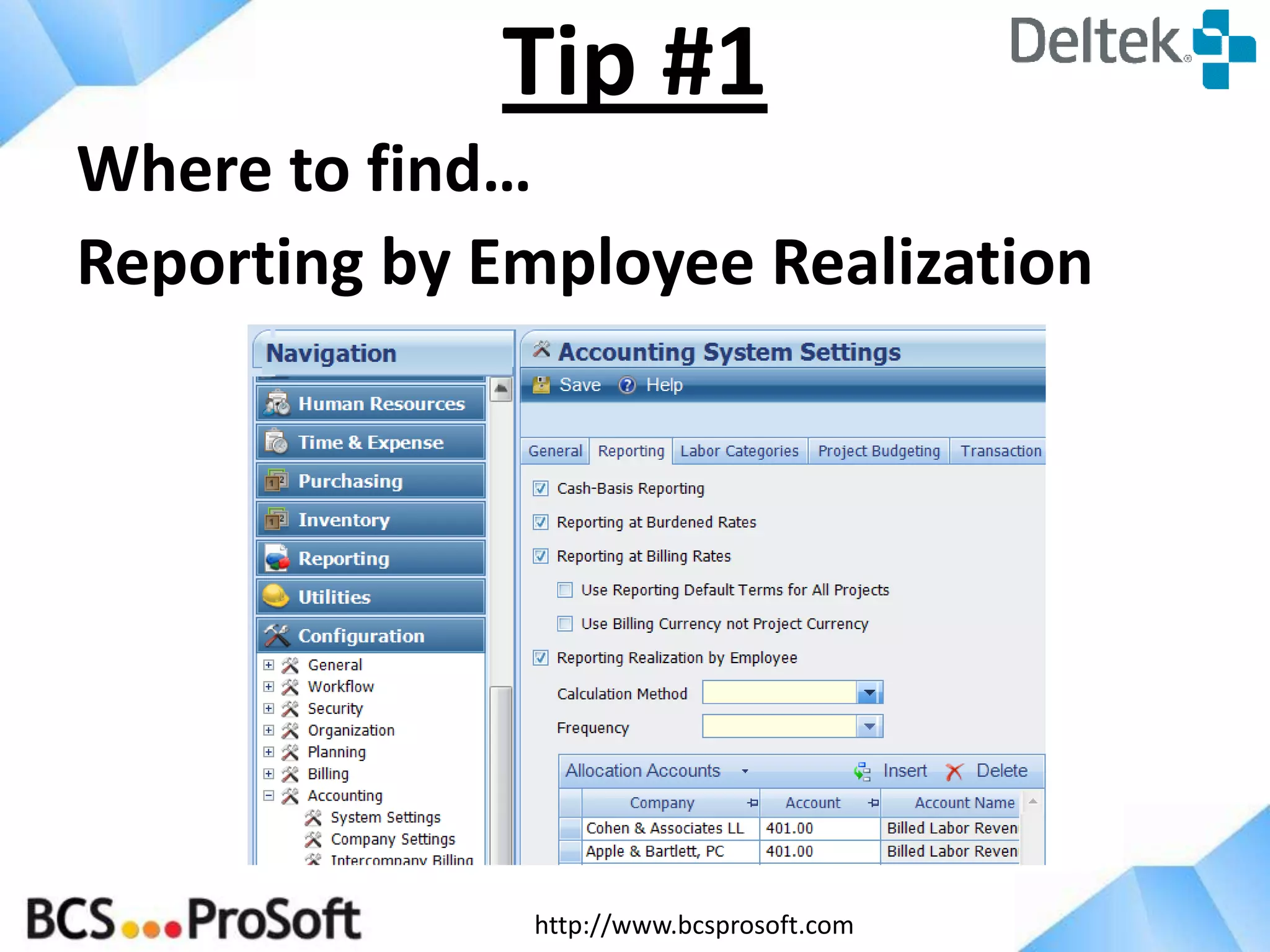
Where to find…
Reporting by Employee Realization
Tip #1
http://www.bcsprosoft.com
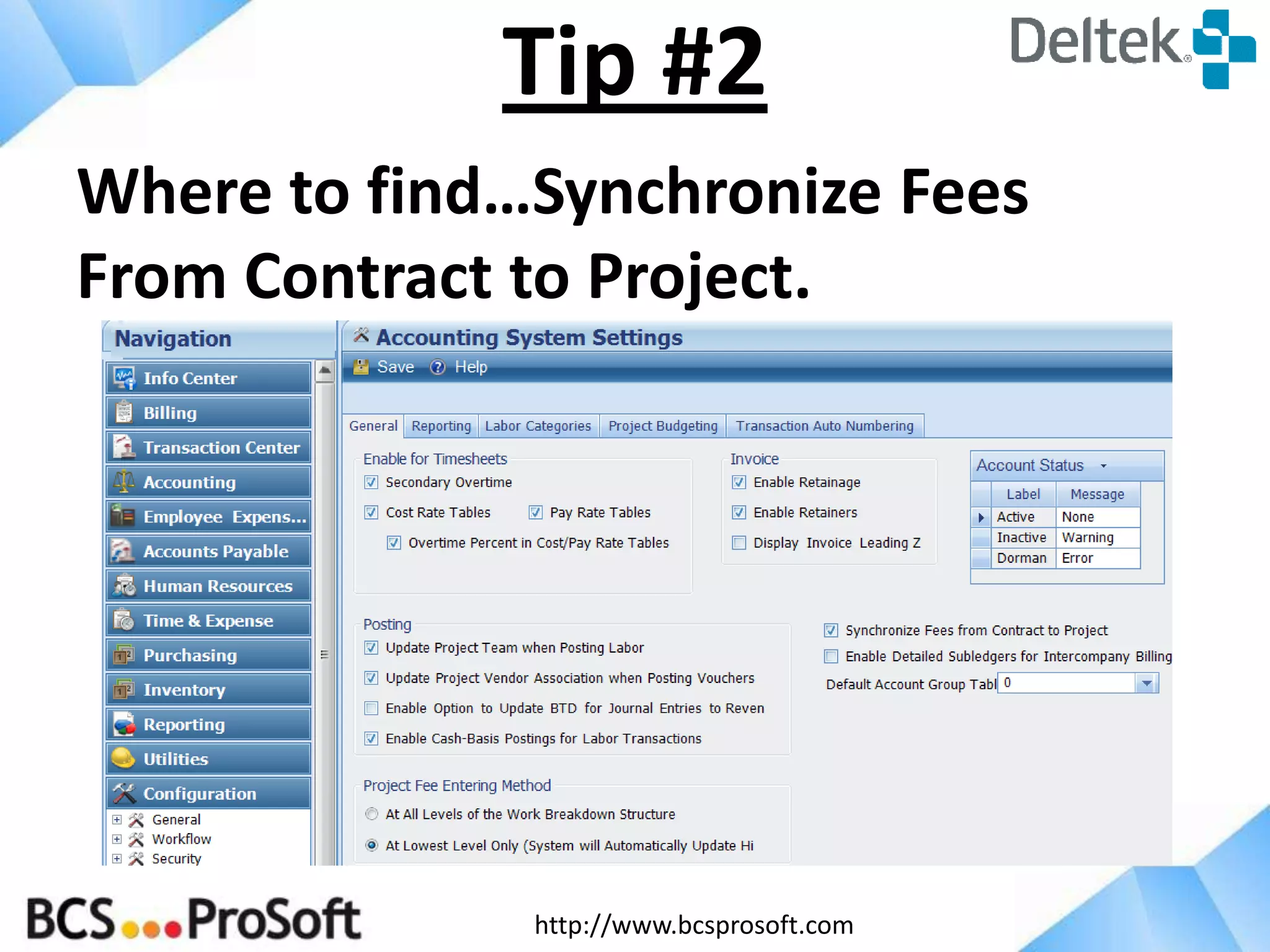
Where to find…Synchronize Fees
From Contract to Project.
Tip #2
http://www.bcsprosoft.com
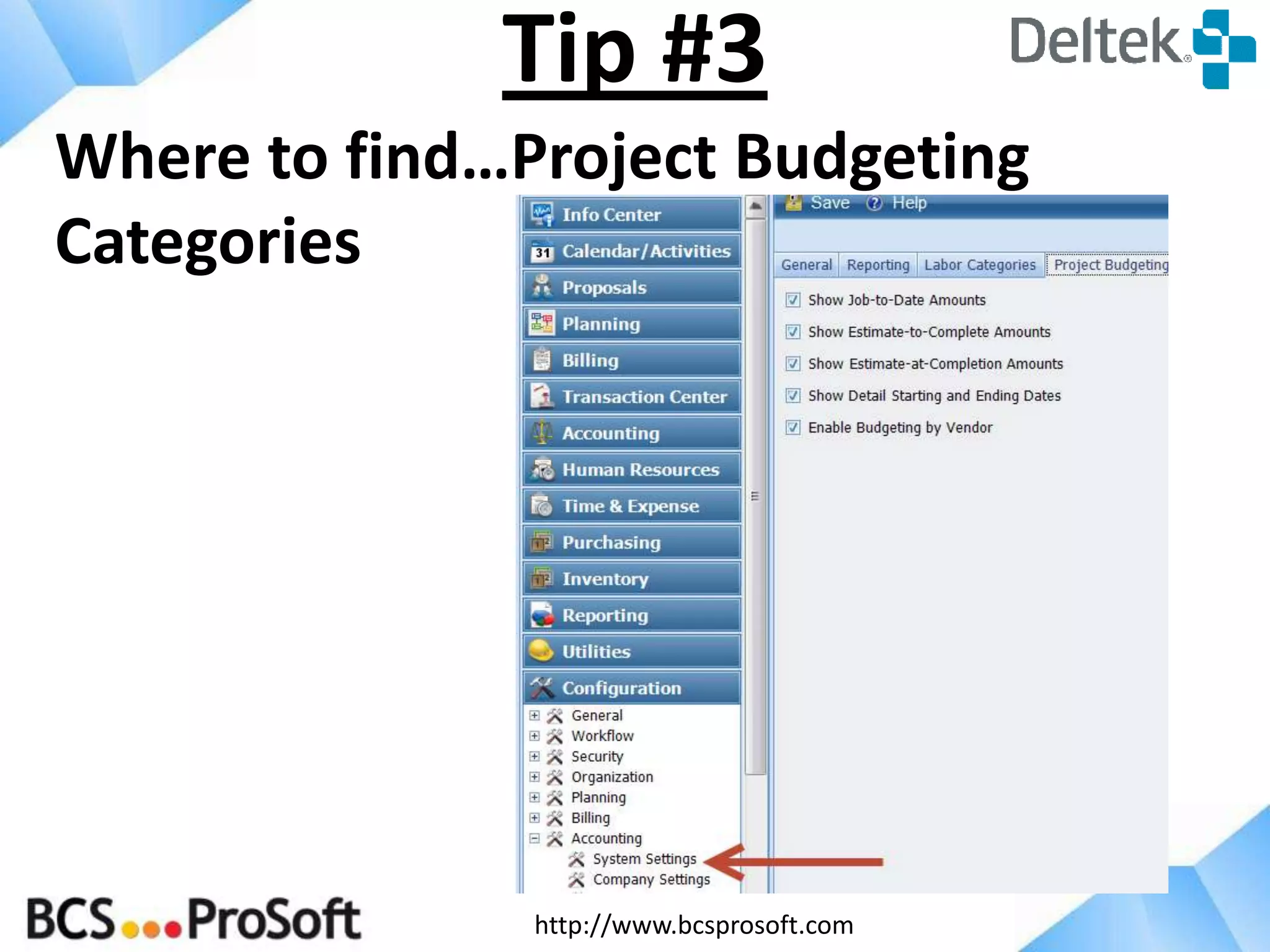
Where to find…Project Budgeting
Categories
Tip #3
http://www.bcsprosoft.com
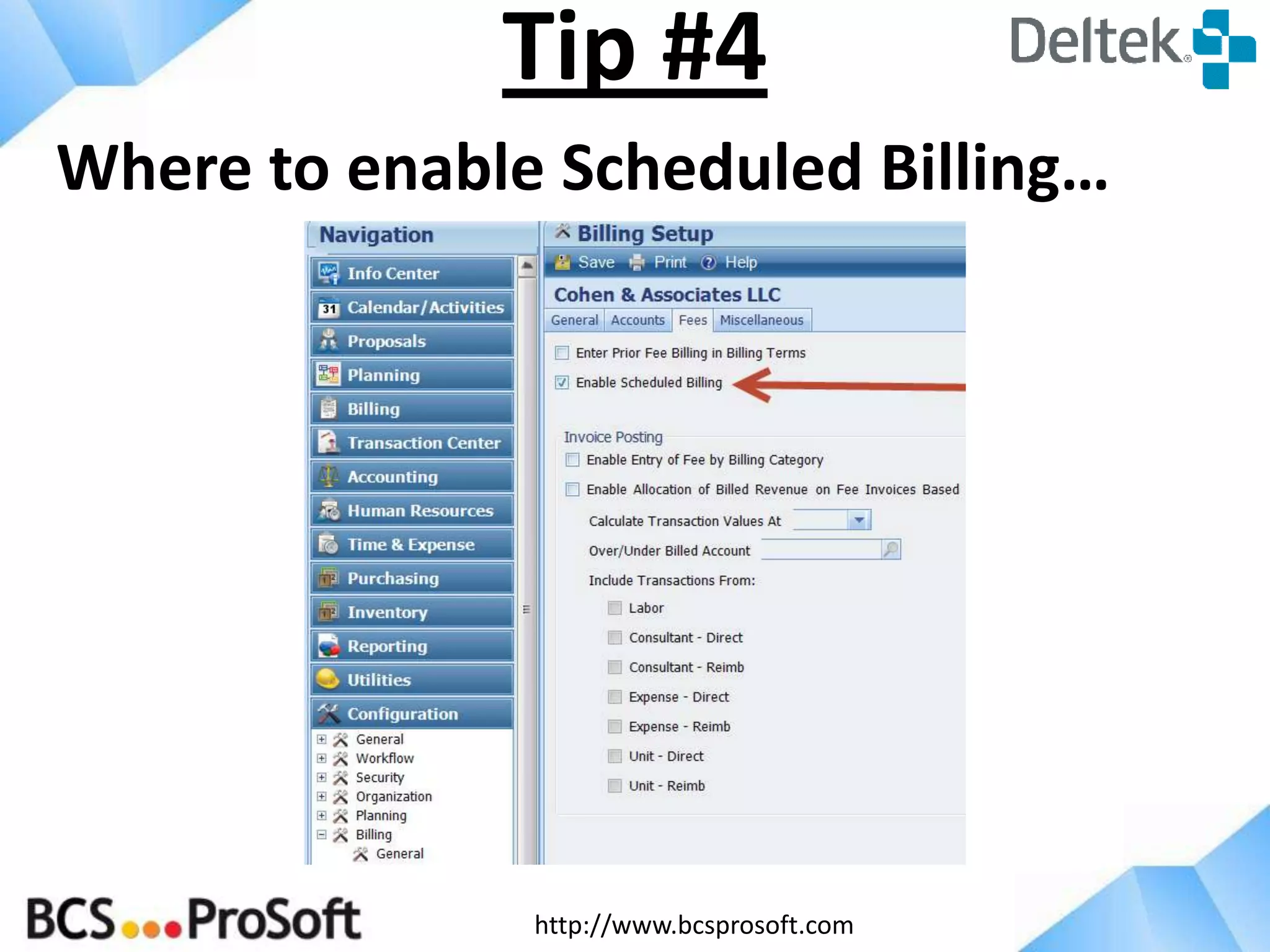
Where to enable Scheduled Billing…
Tip #4
http://www.bcsprosoft.com
Version 7.2 has expanded options for calculating
the Rate Method on a project (project info
center/budget and revenue tab).
Tip #5
http://www.bcsprosoft.com
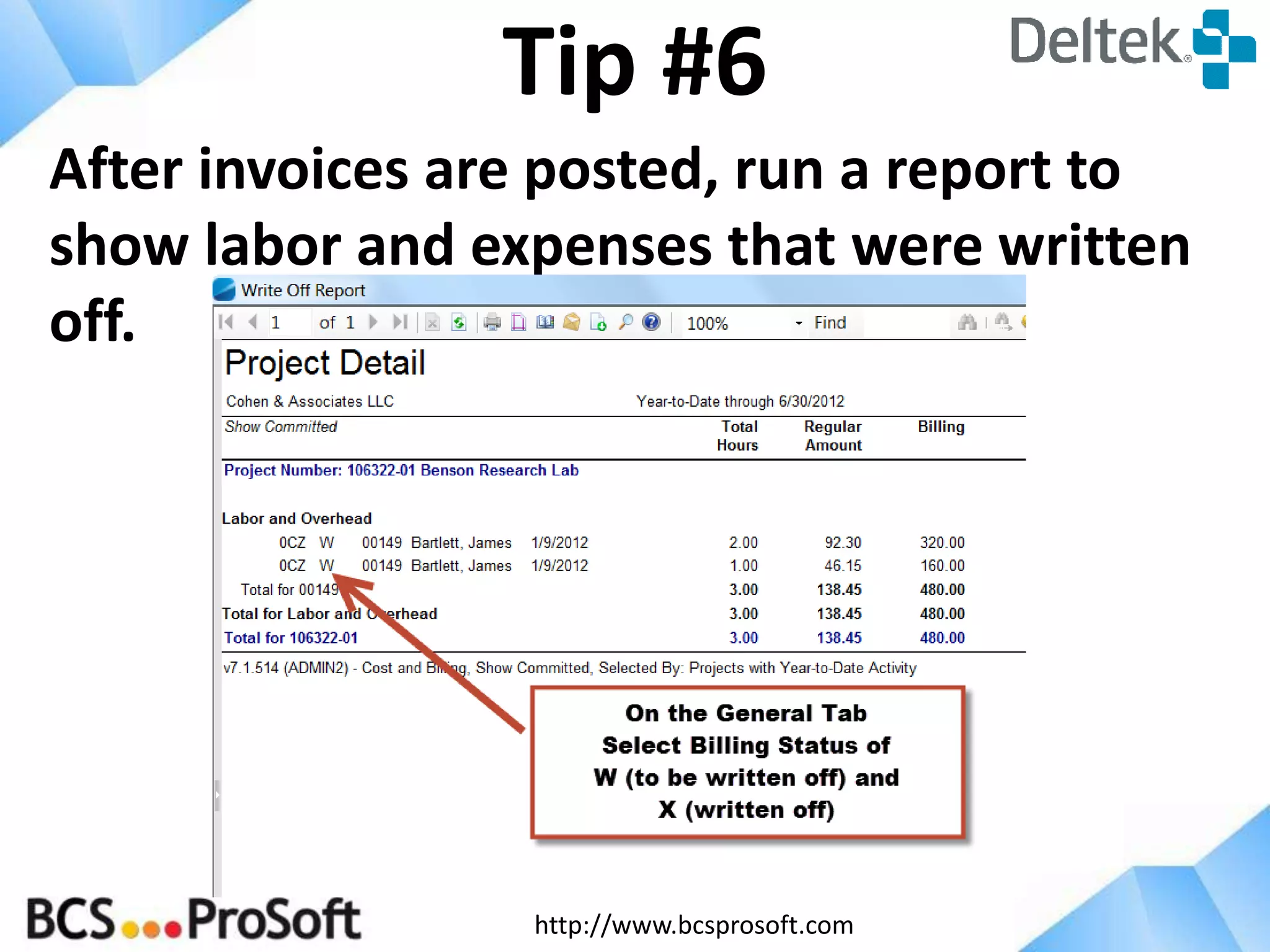
After invoices are posted, run a report to
show labor and expenses that were written
off.
Tip #6
http://www.bcsprosoft.com
When labor or expenses are marked
to be written off instead of billed, in
interactive billing enter a comment on
the line item with the date and PMs
name that requested the write off.
Comments can be included on the
Write Off Report.
http://www.bcsprosoft.com
Hawaii June 12, 2014
San Antonio June 17, 2014
Houston June 18, 2014
Next Users Group Meetings

Improve Billing Process and Performance with Deltek Vision

Editor's Notes

  • #5 For those of you that attended Clark’s session on Improving Project Profitability, you will remember the emphasis on accurate and timely entry of timesheets. Expense reports are just as important. Implementing a Daily Entry policy not only saves time but increases the accuracy of all line items. Today we’re looking at the billing process but time and expense entry is the basis of billing. Principals, project managers and employees need to realize that just putting time in with little thought as to the correct project or what was actually done slows down billing. Transferring and modifying timesheet entries delays getting the invoices out to the client which delays getting the client’s payment.Every business is driven by its Cash Flow and Cash Flow is driven by getting Invoices to the Client as efficiently as possible.
  • #8 Discontinue the use of spreadsheets for billing. Reports within Vision are always up to date and as current as the last posting by accounting. Spreadsheets required manual updating so why double your workload?
  • #14 Using project, phase and task gives the project manager and others working on a project a way to track all work done on a project. It enables them to see when milestones are met and also when a project is over budget on behind schedule.Billing at the lowest WBS level might not be the best option. Unless a project requires multiple types of billing, enter billing terms at the project level. Not only does this streamline the invoice but it speeds up the billing process.For complex projects Vision offers the option of billing at every level. And, billing methods can be mixed between phases and tasks. Invoices can also be downloaded to Word, Excel, RTF or PDF files. Invoices for clients requiring a specific template can be created outside of Vision and entered through the Transaction Center or through Interactive Billing.
  • #17 Often principals, project managers and marketing will want to review project financials on closed projects. Making the project dormant and keeping the rate tables intact allows them the flexibility to do this.Even though using Effective Dates can result in a long, extensive rate table, it does provide rate history that will tie back to the project reports.
  • #18 Configuration/Billing/General/MiscTab
  • #23 The project Biller is assigned in the Project Info Center, General tab. This field is a searchable field for projects in Interactive Billing and in Batch Billing. At this time, you cannot Sort Invoices by Biller in Batch Billing.
  • #24 Configuration/Billing/General/Misc Tab
  • #25 Invoice Approval can be turned on or off by project in Billing Terms on the Misc tab.
  • #26 Accounting will review time and expense as usual. Then, for projects with Invoice Approval turned on, they will click Submit and it will alert the Approver that an invoice is ready for review.
  • #27 Once the Biller submits the invoice, there is a place for them to enter any comments that the approver needs to be aware of, such as the date it should be returned to accounting.
  • #28 From the Approval screen, the actual Invoice can be previewed, comments can be entered and if security allows it, the fee percent complete can be updated.
  • #29 Configuration/Security/Roles/Record Access Tab/Billing Terms
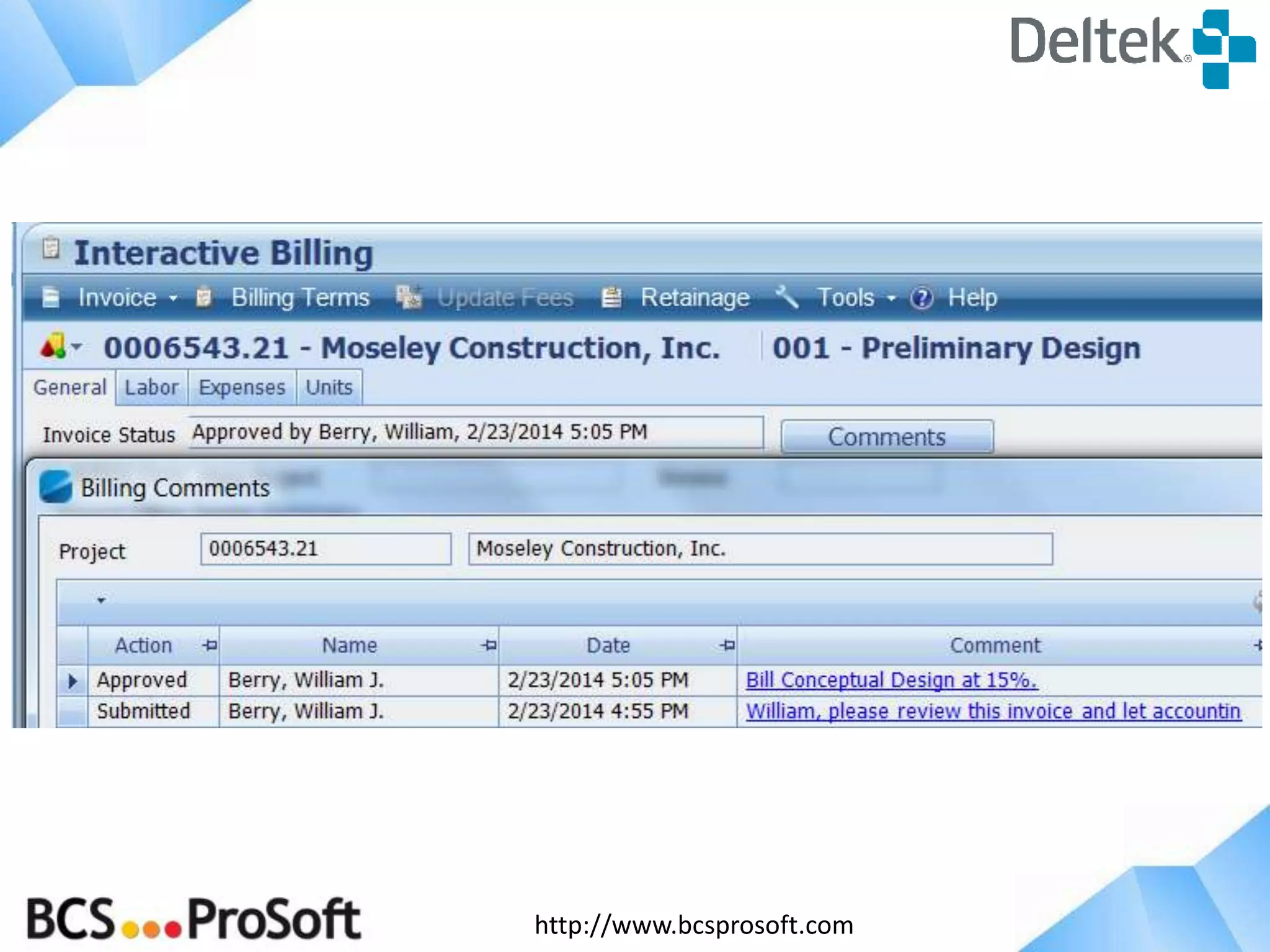
  • #30 After the Approver approves the invoice, the Biller will see the Invoice Status change from Submitted to Approved in Interactive Billing. Any comments made can also be reviewed here and necessary changes can be made so that the invoice can go out to the client.
  • #31 The Interactive Approval screen has a button on the toolbar to go to the Invoice Approval screen.
  • #32 These links allow the principal, project manager or other approver to go directly to the project review and see labor, expenses and accounts receivable for a particular project.The project info center link allows them to see all set up information including contract management, budget and revenue info and relevant dates.
  • #33 Even with Invoice Approvals turned on, you can still take advantage of Batch Billing. There are several new fields added which will enable you to submit a group of invoices for approval.
  • #34 Configuration/Billing/General/Misc Tab
  • #35 Vision now has the option to create an actual credit memo. This replaces the old process of doing credits through cash receipts. The credits will show up under Tools with the project invoices. They can be previewed and printed for internal use or to send to the client. The format follows the same layout as the invoice.
  • #37 Select the entire invoice to credit or select a particular area or amount for the credit.
  • #38 You can have Vision assign the next number or manually assign a number for the credit memo.
  • #41 Credit memos will show up on the AR reports. And posting the credit will adjust the subsidiary ledger for accounts receivable just as invoices post at the subsidiary ledger level.
  • #43 To turn on/off Employee Realization Reporting:Configuration/Accounting/System Settings/Reporting Tab
  • #44 To synchronize Fees From Contract to Project:Configuration/Accounting/System Settings/General Tab