Community Builder Quick-start picture-book

                                                                  Links:
                                                                  •Joomlapolis
                                                                  •Community Builder
                                                                  •Membership
                                                                  •Tutorials


                                                                  Promotion:
                                                                  •Use “pic-book”
                                                                  coupon code and get
                                                                  15% off any
                                                                  Joomlapolis product or
                                                                  subscription


                         Getting started with Community Builder
                         the picture-book way


© 2004-2012 Joomlapolis.com
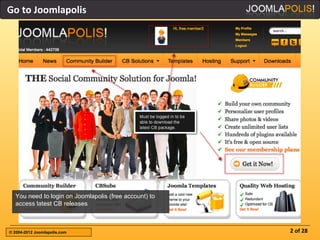
Go to Joomlapolis


  You need to login on Joomlapolis (free account) to
  access latest CB releases


© 2004-2012 Joomlapolis.com                            2 of 28
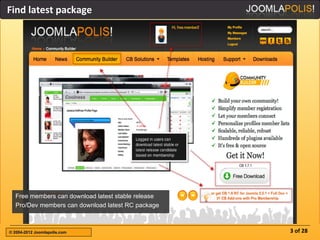
Find latest package


  Free members can download latest stable release
  Pro/Dev members can download latest RC package


© 2004-2012 Joomlapolis.com                         3 of 28
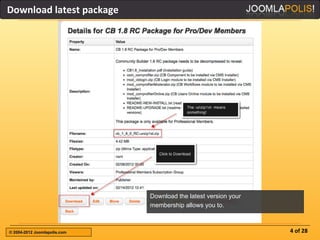
Download latest package


                              Download the latest version your
                              membership allows you to.


© 2004-2012 Joomlapolis.com                                      4 of 28
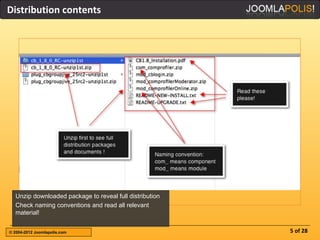
Distribution contents


  Unzip downloaded package to reveal full distribution
  Check naming conventions and read all relevant
  material!


© 2004-2012 Joomlapolis.com                              5 of 28
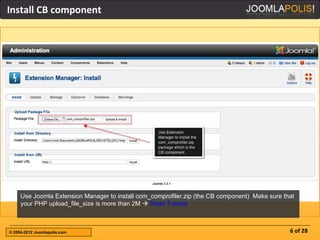
Install CB component


     Use Joomla Extension Manager to install com_comprofiler.zip (the CB component) Make sure that
     your PHP upload_file_size is more than 2M  Read Tutorial


© 2004-2012 Joomlapolis.com                                                                     6 of 28
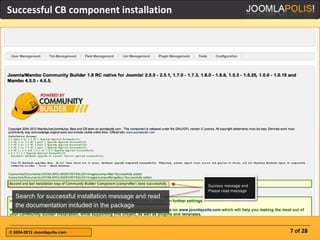
Successful CB component installation


  Search for successful installation message and read
  the documentation included in the package


© 2004-2012 Joomlapolis.com                             7 of 28
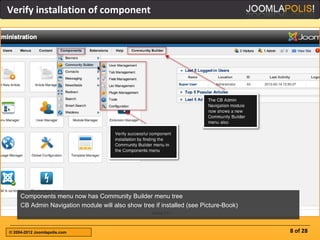
Verify installation of component


     Components menu now has Community Builder menu tree
     CB Admin Navigation module will also show tree if installed (see Picture-Book)


© 2004-2012 Joomlapolis.com                                                           8 of 28
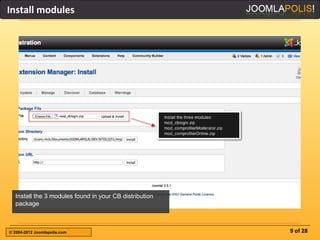
Install modules


  Install the 3 modules found in your CB distribution
  package


© 2004-2012 Joomlapolis.com                             9 of 28
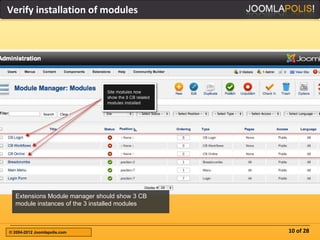
Verify installation of modules


  Extensions Module manager should show 3 CB
  module instances of the 3 installed modules


© 2004-2012 Joomlapolis.com                     10 of 28
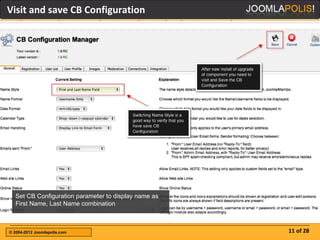
Visit and save CB Configuration


  Set CB Configuration parameter to display name as
  First Name, Last Name combination


© 2004-2012 Joomlapolis.com                           11 of 28
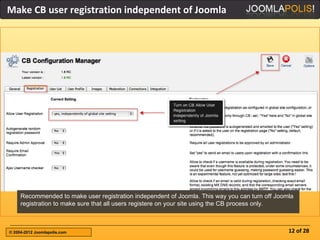
Make CB user registration independent of Joomla


     Recommended to make user registration independent of Joomla. This way you can turn off Joomla
     registration to make sure that all users registere on your site using the CB process only.


© 2004-2012 Joomlapolis.com                                                                     12 of 28
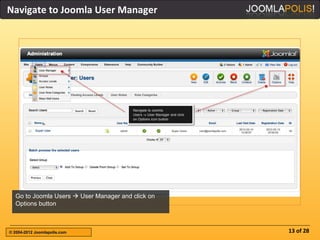
Navigate to Joomla User Manager


  Go to Joomla Users  User Manager and click on
  Options button


© 2004-2012 Joomlapolis.com                        13 of 28
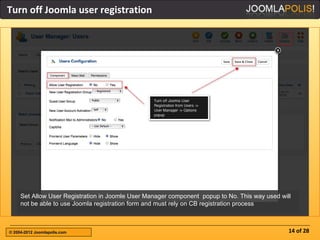
Turn off Joomla user registration


     Set Allow User Registration in Joomle User Manager component popup to No. This way used will
     not be able to use Joomla registration form and must rely on CB registration process


© 2004-2012 Joomlapolis.com                                                                     14 of 28
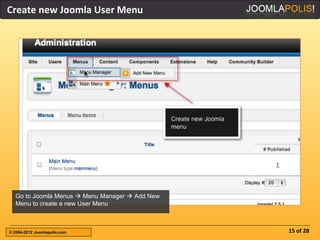
Create new Joomla User Menu


  Go to Joomla Menus  Menu Manager  Add New
  Menu to create a new User Menu


© 2004-2012 Joomlapolis.com                     15 of 28
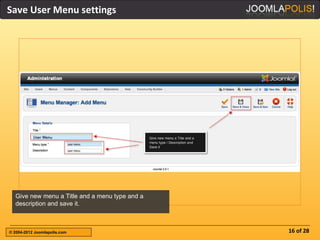
Save User Menu settings


  Give new menu a Title and a menu type and a
  description and save it.


© 2004-2012 Joomlapolis.com                     16 of 28
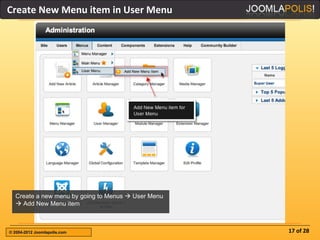
Create New Menu item in User Menu


  Create a new menu by going to Menus  User Menu
   Add New Menu item


© 2004-2012 Joomlapolis.com                         17 of 28
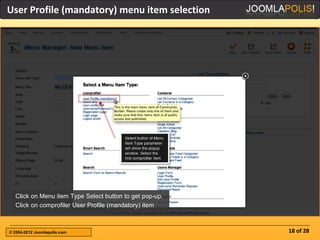
User Profile (mandatory) menu item selection


  Click on Menu item Type Select button to get pop-up.
  Click on comprofiler User Profile (mandatory) item


© 2004-2012 Joomlapolis.com                              18 of 28
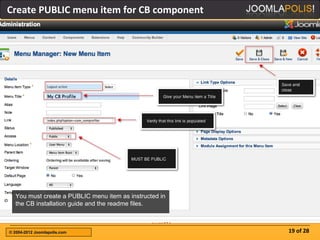
Create PUBLIC menu item for CB component


  You must create a PUBLIC menu item as instructed in
  the CB installation guide and the readme files.


© 2004-2012 Joomlapolis.com                             19 of 28
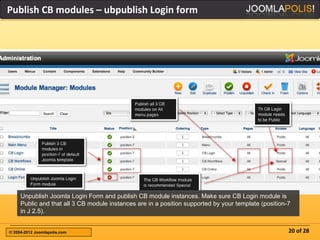
Publish CB modules – ubpublish Login form


     Unpublish Joomla Login Form and publish CB module instances. Make sure CB Login module is
     Public and that all 3 CB module instances are in a position supported by your template (position-7
     in J 2.5).


© 2004-2012 Joomlapolis.com                                                                           20 of 28
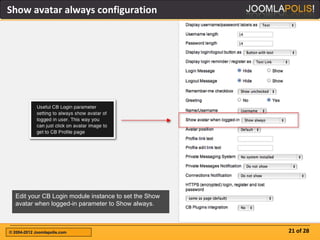
Show avatar always configuration


  Edit your CB Login module instance to set the Show
  avatar when logged-in parameter to Show always.


© 2004-2012 Joomlapolis.com                            21 of 28
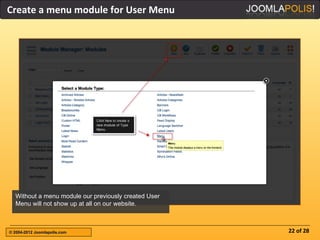
Create a menu module for User Menu


  Without a menu module our previously created User
  Menu will not show up at all on our website.


© 2004-2012 Joomlapolis.com                           22 of 28
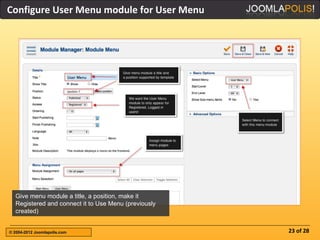
Configure User Menu module for User Menu


  Give menu module a title, a position, make it
  Registered and connect it to Use Menu (previously
  created)


© 2004-2012 Joomlapolis.com                           23 of 28
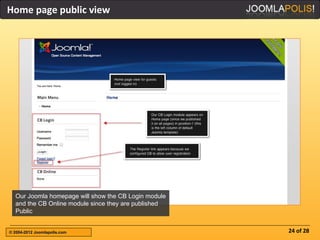
Home page public view


  Our Joomla homepage will show the CB Login module
  and the CB Online module since they are published
  Public


© 2004-2012 Joomlapolis.com                           24 of 28
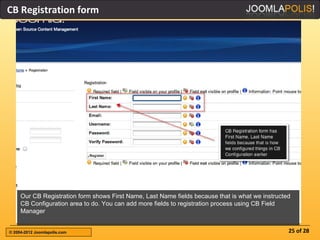
CB Registration form


     Our CB Registration form shows First Name, Last Name fields because that is what we instructed
     CB Configuration area to do. You can add more fields to registration process using CB Field
     Manager


© 2004-2012 Joomlapolis.com                                                                       25 of 28
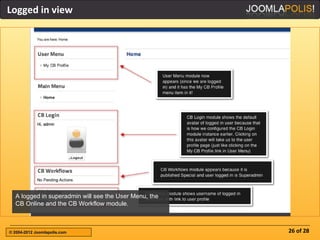
Logged in view


  A logged in superadmin will see the User Menu, the
  CB Online and the CB Workflow module.


© 2004-2012 Joomlapolis.com                            26 of 28
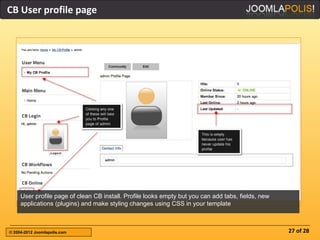
CB User profile page


     User profile page of clean CB install. Profile looks empty but you can add tabs, fields, new
     applications (plugins) and make styling changes using CSS in your template


© 2004-2012 Joomlapolis.com                                                                         27 of 28
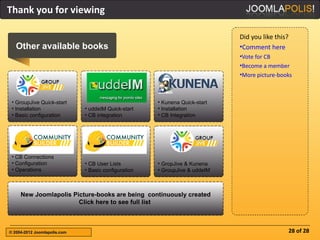
Thank you for viewing

                                                                             Did you like this?
   Other available books                                                     •Comment here
                                                                             •Vote for CB
                                                                             •Become a member
                                                                             •More picture-books


 • GroupJive Quick-start                              • Kunena Quick-start
 • Installation               • uddeIM Quick-start    • Installation
 • Basic configuration        • CB integration        • CB Integration


 • CB Connections
 • Configuration              • CB User Lists         • GropJive & Kunena
 • Operations                 • Basic configuration   • GroupJive & uddeIM


     New Joomlapolis Picture-books are being continuously created
                       Click here to see full list


© 2004-2012 Joomlapolis.com                                                                       28 of 28

Jpb community builder-quickstart

  • 1.
    Community Builder Quick-startpicture-book Links: •Joomlapolis •Community Builder •Membership •Tutorials Promotion: •Use “pic-book” coupon code and get 15% off any Joomlapolis product or subscription Getting started with Community Builder the picture-book way © 2004-2012 Joomlapolis.com
  • 2.
    Go to Joomlapolis You need to login on Joomlapolis (free account) to access latest CB releases © 2004-2012 Joomlapolis.com 2 of 28
  • 3.
    Find latest package Free members can download latest stable release Pro/Dev members can download latest RC package © 2004-2012 Joomlapolis.com 3 of 28
  • 4.
    Download latest package Download the latest version your membership allows you to. © 2004-2012 Joomlapolis.com 4 of 28
  • 5.
    Distribution contents Unzip downloaded package to reveal full distribution Check naming conventions and read all relevant material! © 2004-2012 Joomlapolis.com 5 of 28
  • 6.
    Install CB component Use Joomla Extension Manager to install com_comprofiler.zip (the CB component) Make sure that your PHP upload_file_size is more than 2M  Read Tutorial © 2004-2012 Joomlapolis.com 6 of 28
  • 7.
    Successful CB componentinstallation Search for successful installation message and read the documentation included in the package © 2004-2012 Joomlapolis.com 7 of 28
  • 8.
    Verify installation ofcomponent Components menu now has Community Builder menu tree CB Admin Navigation module will also show tree if installed (see Picture-Book) © 2004-2012 Joomlapolis.com 8 of 28
  • 9.
    Install modules Install the 3 modules found in your CB distribution package © 2004-2012 Joomlapolis.com 9 of 28
  • 10.
    Verify installation ofmodules Extensions Module manager should show 3 CB module instances of the 3 installed modules © 2004-2012 Joomlapolis.com 10 of 28
  • 11.
    Visit and saveCB Configuration Set CB Configuration parameter to display name as First Name, Last Name combination © 2004-2012 Joomlapolis.com 11 of 28
  • 12.
    Make CB userregistration independent of Joomla Recommended to make user registration independent of Joomla. This way you can turn off Joomla registration to make sure that all users registere on your site using the CB process only. © 2004-2012 Joomlapolis.com 12 of 28
  • 13.
    Navigate to JoomlaUser Manager Go to Joomla Users  User Manager and click on Options button © 2004-2012 Joomlapolis.com 13 of 28
  • 14.
    Turn off Joomlauser registration Set Allow User Registration in Joomle User Manager component popup to No. This way used will not be able to use Joomla registration form and must rely on CB registration process © 2004-2012 Joomlapolis.com 14 of 28
  • 15.
    Create new JoomlaUser Menu Go to Joomla Menus  Menu Manager  Add New Menu to create a new User Menu © 2004-2012 Joomlapolis.com 15 of 28
  • 16.
    Save User Menusettings Give new menu a Title and a menu type and a description and save it. © 2004-2012 Joomlapolis.com 16 of 28
  • 17.
    Create New Menuitem in User Menu Create a new menu by going to Menus  User Menu  Add New Menu item © 2004-2012 Joomlapolis.com 17 of 28
  • 18.
    User Profile (mandatory)menu item selection Click on Menu item Type Select button to get pop-up. Click on comprofiler User Profile (mandatory) item © 2004-2012 Joomlapolis.com 18 of 28
  • 19.
    Create PUBLIC menuitem for CB component You must create a PUBLIC menu item as instructed in the CB installation guide and the readme files. © 2004-2012 Joomlapolis.com 19 of 28
  • 20.
    Publish CB modules– ubpublish Login form Unpublish Joomla Login Form and publish CB module instances. Make sure CB Login module is Public and that all 3 CB module instances are in a position supported by your template (position-7 in J 2.5). © 2004-2012 Joomlapolis.com 20 of 28
  • 21.
    Show avatar alwaysconfiguration Edit your CB Login module instance to set the Show avatar when logged-in parameter to Show always. © 2004-2012 Joomlapolis.com 21 of 28
  • 22.
    Create a menumodule for User Menu Without a menu module our previously created User Menu will not show up at all on our website. © 2004-2012 Joomlapolis.com 22 of 28
  • 23.
    Configure User Menumodule for User Menu Give menu module a title, a position, make it Registered and connect it to Use Menu (previously created) © 2004-2012 Joomlapolis.com 23 of 28
  • 24.
    Home page publicview Our Joomla homepage will show the CB Login module and the CB Online module since they are published Public © 2004-2012 Joomlapolis.com 24 of 28
  • 25.
    CB Registration form Our CB Registration form shows First Name, Last Name fields because that is what we instructed CB Configuration area to do. You can add more fields to registration process using CB Field Manager © 2004-2012 Joomlapolis.com 25 of 28
  • 26.
    Logged in view A logged in superadmin will see the User Menu, the CB Online and the CB Workflow module. © 2004-2012 Joomlapolis.com 26 of 28
  • 27.
    CB User profilepage User profile page of clean CB install. Profile looks empty but you can add tabs, fields, new applications (plugins) and make styling changes using CSS in your template © 2004-2012 Joomlapolis.com 27 of 28
  • 28.
    Thank you forviewing Did you like this? Other available books •Comment here •Vote for CB •Become a member •More picture-books • GroupJive Quick-start • Kunena Quick-start • Installation • uddeIM Quick-start • Installation • Basic configuration • CB integration • CB Integration • CB Connections • Configuration • CB User Lists • GropJive & Kunena • Operations • Basic configuration • GroupJive & uddeIM New Joomlapolis Picture-books are being continuously created Click here to see full list © 2004-2012 Joomlapolis.com 28 of 28