www.joomla.org
Presentation – Part 1(Basics)
Agenda
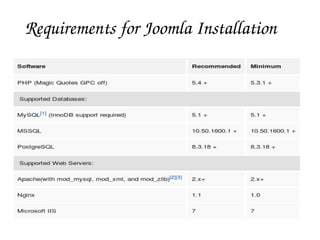
➔ Joomla! Introduction, Versions &
Requirements
➔ Installation & How it works
➔ Learn how to use Joomla
➢ Managing Menus
➢ Managing Content
➢ Managing Extensions
Introduction
➔ Joomla is a free web-based software which allows
to create and manage websites
➔ CMS - Content Management System
➔ There are two parts of the system: the front-end
(what the public see) and the back-end (what the
administrators see)
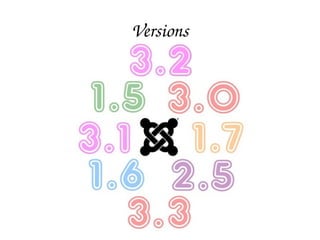
Versions
Requirements for Joomla Installation
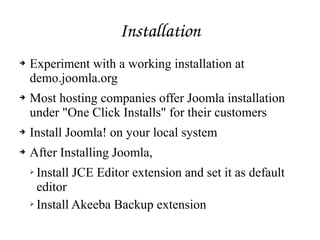
Installation
➔ Experiment with a working installation at
demo.joomla.org
➔ Most hosting companies offer Joomla installation
under "One Click Installs" for their customers
➔ Install Joomla! on your local system
➔ After Installing Joomla,
➢ Install JCE Editor extension and set it as default
editor
➢ Install Akeeba Backup extension
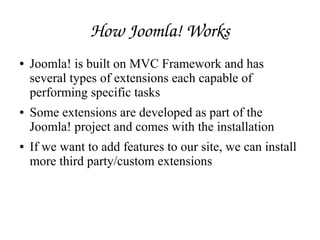
How Joomla! Works
● Joomla! is built on MVC Framework and has
several types of extensions each capable of
performing specific tasks
● Some extensions are developed as part of the
Joomla! project and comes with the installation
● If we want to add features to our site, we can install
more third party/custom extensions
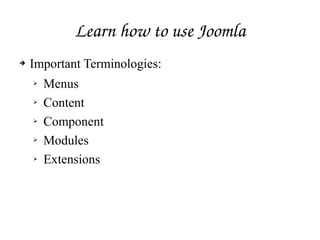
Learn how to use Joomla
➔ Important Terminologies:
➢ Menus
➢ Content
➢ Component
➢ Modules
➢ Extensions
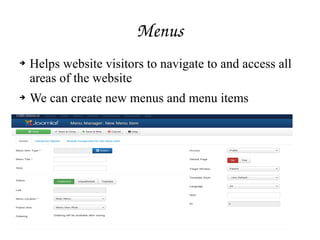
Menus
➔ Helps website visitors to navigate to and access all
areas of the website
➔ We can create new menus and menu items
Content 
➔ Content comprises of Categories, Articles and
Media
➔ We can create categories and subcategories (if
needed)
➔ Articles can be created and categorized
Categories
➔ Categories helps us to organize our articles more
conveniently
➔ We can create new categories/subcategories, edit,
choose to publish/unpublish, etc
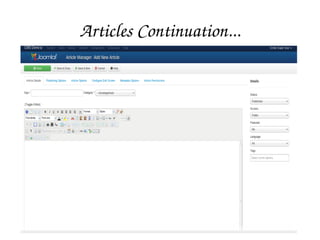
Articles
➔ Articles are the main building blocks of a Joomla!
Website.
➔ We can create new articles, edit, choose to
publish/unpublish, categorize, etc
➔ Published articles can be assigned to a Menu
➔ We can insert images in articles from local system
➔ We can include external links for any text in the
articles
➔ We can add tags in an article
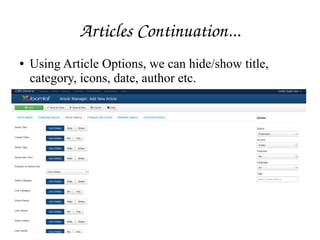
Articles Continuation...
● Using Article Options, we can hide/show title,
category, icons, date, author etc.
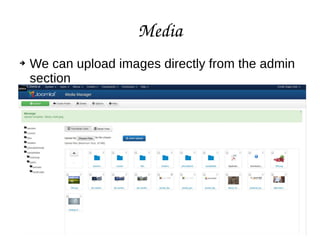
Media
➔ We can upload images directly from the admin
section
Extensions
➔ To extend the website functionality (Ex: Image
SlideShow, Video SlideShow)
➔ Types of Extensions: Plugins, Languages,
Components, Modules and Templates
➔ Plug-ins are designed to display content inside
components & modules and perform certain tasks
during website loading
➔ Languages allows us to run our site in more than
one language
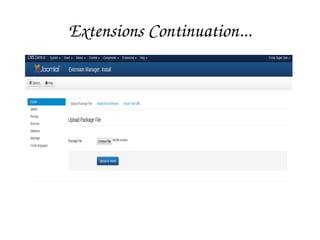
Extensions Continuation...
Components
➔ Components are most complex type of extensions
➔ We can use existing (native joomla) components
➔ We can install third party components
➔ We can create custom components
Modules
➔ Modules has similar roles as components but on a
smaller scale
➔ We can use existing (native joomla) modules
➔ We can install third party modules/extensions
➔ We can create custom modules
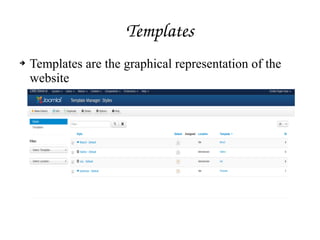
Templates
➔ Templates are the graphical representation of the
website
Forms
➔ We can use native forms in Joomla or can install
third party plugins/components to build customized
forms
➔ Contact forms, login forms and registration forms
are available in Joomla
➔ Contact forms also has options to send email
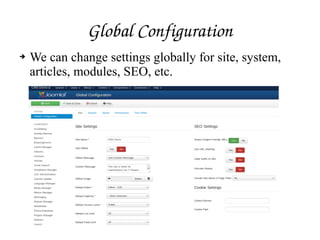
Global Configuration
➔ We can change settings globally for site, system,
articles, modules, SEO, etc.
SEF URLs
➔ SEF – Search Engine Friendly or human readable urls
➔ If SEF URL is turned off, the url looks like this:
http://www.websitename.com/index.php?
option=com_content&view=article&id=1&catid=1
➔ If SEF URL is turned on and URL Rewriting is off, the url
looks like this:
http://www.websitename.com/index.php/news/1­latest­
news/1­welcome­to­joomla
➔ If both SEF URL and URL Rewriting are turned on, the url
looks like this: http://www.websitename.com/news/1­latest­
news/1­welcome­to­joomla
Questions
THANK YOU
PRESENTED BY 
EMILIE VICTORIA D
(PHP1 Team)

Joomla Basics

  • 2.
  • 3.
    Agenda ➔ Joomla! Introduction,Versions & Requirements ➔ Installation & How it works ➔ Learn how to use Joomla ➢ Managing Menus ➢ Managing Content ➢ Managing Extensions
  • 4.
    Introduction ➔ Joomla isa free web-based software which allows to create and manage websites ➔ CMS - Content Management System ➔ There are two parts of the system: the front-end (what the public see) and the back-end (what the administrators see)
  • 5.
  • 6.
  • 7.
    Installation ➔ Experiment witha working installation at demo.joomla.org ➔ Most hosting companies offer Joomla installation under "One Click Installs" for their customers ➔ Install Joomla! on your local system ➔ After Installing Joomla, ➢ Install JCE Editor extension and set it as default editor ➢ Install Akeeba Backup extension
  • 8.
    How Joomla! Works ● Joomla! isbuilt on MVC Framework and has several types of extensions each capable of performing specific tasks ● Some extensions are developed as part of the Joomla! project and comes with the installation ● If we want to add features to our site, we can install more third party/custom extensions
  • 9.
    Learn how to use Joomla ➔ Important Terminologies: ➢Menus ➢ Content ➢ Component ➢ Modules ➢ Extensions
  • 10.
    Menus ➔ Helps websitevisitors to navigate to and access all areas of the website ➔ We can create new menus and menu items
  • 11.
    Content  ➔ Content comprisesof Categories, Articles and Media ➔ We can create categories and subcategories (if needed) ➔ Articles can be created and categorized
  • 12.
    Categories ➔ Categories helpsus to organize our articles more conveniently ➔ We can create new categories/subcategories, edit, choose to publish/unpublish, etc
  • 13.
    Articles ➔ Articles arethe main building blocks of a Joomla! Website. ➔ We can create new articles, edit, choose to publish/unpublish, categorize, etc ➔ Published articles can be assigned to a Menu ➔ We can insert images in articles from local system ➔ We can include external links for any text in the articles ➔ We can add tags in an article
  • 14.
  • 15.
    Articles Continuation... ● Using ArticleOptions, we can hide/show title, category, icons, date, author etc.
  • 16.
    Media ➔ We canupload images directly from the admin section
  • 17.
    Extensions ➔ To extendthe website functionality (Ex: Image SlideShow, Video SlideShow) ➔ Types of Extensions: Plugins, Languages, Components, Modules and Templates ➔ Plug-ins are designed to display content inside components & modules and perform certain tasks during website loading ➔ Languages allows us to run our site in more than one language
  • 18.
  • 19.
    Components ➔ Components aremost complex type of extensions ➔ We can use existing (native joomla) components ➔ We can install third party components ➔ We can create custom components
  • 20.
    Modules ➔ Modules hassimilar roles as components but on a smaller scale ➔ We can use existing (native joomla) modules ➔ We can install third party modules/extensions ➔ We can create custom modules
  • 21.
    Templates ➔ Templates arethe graphical representation of the website
  • 22.
    Forms ➔ We canuse native forms in Joomla or can install third party plugins/components to build customized forms ➔ Contact forms, login forms and registration forms are available in Joomla ➔ Contact forms also has options to send email
  • 23.
    Global Configuration ➔ We canchange settings globally for site, system, articles, modules, SEO, etc.
  • 24.
    SEF URLs ➔ SEF –Search Engine Friendly or human readable urls ➔ If SEF URL is turned off, the url looks like this: http://www.websitename.com/index.php? option=com_content&view=article&id=1&catid=1 ➔ If SEF URL is turned on and URL Rewriting is off, the url looks like this: http://www.websitename.com/index.php/news/1­latest­ news/1­welcome­to­joomla ➔ If both SEF URL and URL Rewriting are turned on, the url looks like this: http://www.websitename.com/news/1­latest­ news/1­welcome­to­joomla
  • 25.
  • 26.