jQuery is a fast and concise JavaScript Library created by John
Resig in 2006 with a nice motto − Write less, do more.
jQuery simplifies HTML document traversing, event handling,
animating, and Ajax interactions for rapid web development.
JQuery features
 DOM manipulation − The jQuery made it easy to select DOM
elements, traverse them and modifying their content by using cross-
browser open source selector engine called Sizzle.
 Event handling − The jQuery offers an elegant way to capture a wide
variety of events, such as a user clicking on a link, without the need to
clutter the HTML code itself with event handlers.
 AJAX Support − The jQuery helps you a lot to develop a responsive
and feature-rich site using AJAX technology.
 Animations − The jQuery comes with plenty of built-in animation
effects which you can use in your websites.
 Lightweight − The jQuery is very lightweight library - about 19KB in
size ( Minified and gzipped ).
 Cross Browser Support − The jQuery has cross-browser support, and
works well in IE 6.0+, FF 2.0+, Safari 3.0+, Chrome and Opera 9.0+
 Latest Technology − The jQuery supports CSS3 selectors and basic
XPath syntax.
How to use jQuery?
 There are two ways to use jQuery.
 Local Installation − You can download jQuery library on your local
machine and include it in your HTML code.
 CDN Based Version − You can include jQuery library into your HTML
code directly from Content Delivery Network (CDN).
 Local Installation
 Go to the https://jquery.com/download/ to download the latest version
available.
 Now put downloaded jquery-2.1.3.min.js file in a directory of your
website, e.g. /jquery
 The jQuery library is a single JavaScript file, and you reference it with the
HTML <script> tag (notice that the <script> tag should be inside the
<head> section):
 <head>
<script src="jquery-1.12.2.min.js"></script>
</head>
 jQuery CDN
 If you don't want to download and host jQuery yourself, you can include it
from a CDN (Content Delivery Network).
 Both Google and Microsoft host jQuery.
 To use jQuery from Google or Microsoft, use one of the following:
 <head>
<script src="https://ajax.googleapis.com/ajax/libs/jquery/1.12.2/jquery.min
.js"></script>
</head>
jQuery Syntax
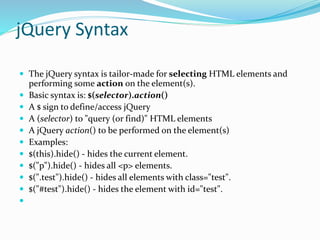
 The jQuery syntax is tailor-made for selecting HTML elements and
performing some action on the element(s).
 Basic syntax is: $(selector).action()
 A $ sign to define/access jQuery
 A (selector) to "query (or find)" HTML elements
 A jQuery action() to be performed on the element(s)
 Examples:
 $(this).hide() - hides the current element.
 $("p").hide() - hides all <p> elements.
 $(".test").hide() - hides all elements with class="test".
 $("#test").hide() - hides the element with id="test".

The Document Ready Event
 $(document).ready(function(){
// jQuery methods go here...
});
 This is to prevent any jQuery code from running before the document is finished
loading (is ready).
 It is good practice to wait for the document to be fully loaded and ready before
working with it. This also allows you to have your JavaScript code before the body of
your document, in the head section.
 Here are some examples of actions that can fail if methods are run before the
document is fully loaded:
 Trying to hide an element that is not created yet
 Trying to get the size of an image that is not loaded yet
 Tip: The jQuery team has also created an even shorter method for the document
ready event:
jQuery Selectors
 jQuery Selectors
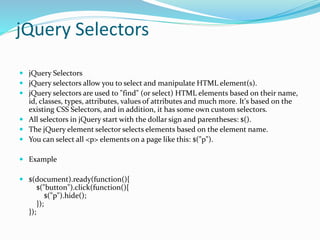
 jQuery selectors allow you to select and manipulate HTML element(s).
 jQuery selectors are used to "find" (or select) HTML elements based on their name,
id, classes, types, attributes, values of attributes and much more. It's based on the
existing CSS Selectors, and in addition, it has some own custom selectors.
 All selectors in jQuery start with the dollar sign and parentheses: $().
 The jQuery element selector selects elements based on the element name.
 You can select all <p> elements on a page like this: $("p").
 Example
 $(document).ready(function(){
$("button").click(function(){
$("p").hide();
});
});
The #id Selector
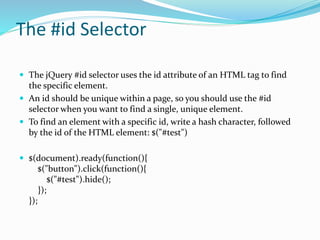
 The jQuery #id selector uses the id attribute of an HTML tag to find
the specific element.
 An id should be unique within a page, so you should use the #id
selector when you want to find a single, unique element.
 To find an element with a specific id, write a hash character, followed
by the id of the HTML element: $("#test")
 $(document).ready(function(){
$("button").click(function(){
$("#test").hide();
});
});
The .class Selector
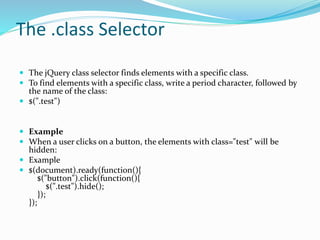
 The jQuery class selector finds elements with a specific class.
 To find elements with a specific class, write a period character, followed by
the name of the class:
 $(".test")
 Example
 When a user clicks on a button, the elements with class="test" will be
hidden:
 Example
 $(document).ready(function(){
$("button").click(function(){
$(".test").hide();
});
});
jQuery Event Methods
 What are Events?
 All the different visitor's actions that a web page can respond to are
called events.
 An event represents the precise moment when something happens.
 Examples:
 moving a mouse over an element
 selecting a radio button
 clicking on an element
 The term "fires/fired" is often used with events. Example: "The
keypress event is fired, the moment you press a key".
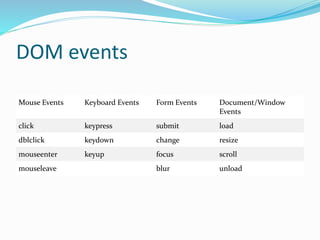
 Here are some common DOM events:
DOM events
Mouse Events Keyboard Events Form Events Document/Window
Events
click keypress submit load
dblclick keydown change resize
mouseenter keyup focus scroll
mouseleave blur unload
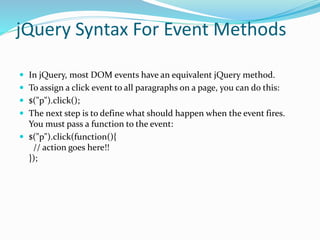
jQuery Syntax For Event Methods
 In jQuery, most DOM events have an equivalent jQuery method.
 To assign a click event to all paragraphs on a page, you can do this:
 $("p").click();
 The next step is to define what should happen when the event fires.
You must pass a function to the event:
 $("p").click(function(){
// action goes here!!
});
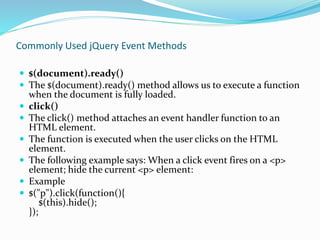
Commonly Used jQuery Event Methods
 $(document).ready()
 The $(document).ready() method allows us to execute a function
when the document is fully loaded.
 click()
 The click() method attaches an event handler function to an
HTML element.
 The function is executed when the user clicks on the HTML
element.
 The following example says: When a click event fires on a <p>
element; hide the current <p> element:
 Example
 $("p").click(function(){
$(this).hide();
});
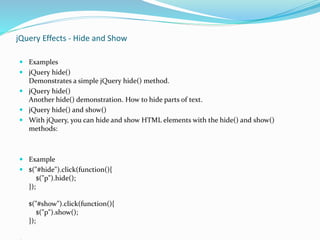
jQuery Effects - Hide and Show
 Examples
 jQuery hide()
Demonstrates a simple jQuery hide() method.
 jQuery hide()
Another hide() demonstration. How to hide parts of text.
 jQuery hide() and show()
 With jQuery, you can hide and show HTML elements with the hide() and show()
methods:
 Example
 $("#hide").click(function(){
$("p").hide();
});
$("#show").click(function(){
$("p").show();
});
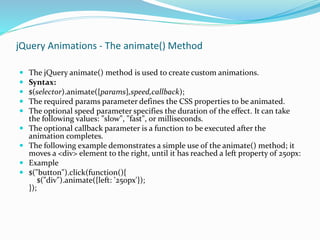
jQuery Animations - The animate() Method
 The jQuery animate() method is used to create custom animations.
 Syntax:
 $(selector).animate({params},speed,callback);
 The required params parameter defines the CSS properties to be animated.
 The optional speed parameter specifies the duration of the effect. It can take
the following values: "slow", "fast", or milliseconds.
 The optional callback parameter is a function to be executed after the
animation completes.
 The following example demonstrates a simple use of the animate() method; it
moves a <div> element to the right, until it has reached a left property of 250px:
 Example
 $("button").click(function(){
$("div").animate({left: '250px'});
});

J query

  • 1.
    jQuery is afast and concise JavaScript Library created by John Resig in 2006 with a nice motto − Write less, do more. jQuery simplifies HTML document traversing, event handling, animating, and Ajax interactions for rapid web development.
  • 2.
    JQuery features  DOMmanipulation − The jQuery made it easy to select DOM elements, traverse them and modifying their content by using cross- browser open source selector engine called Sizzle.  Event handling − The jQuery offers an elegant way to capture a wide variety of events, such as a user clicking on a link, without the need to clutter the HTML code itself with event handlers.  AJAX Support − The jQuery helps you a lot to develop a responsive and feature-rich site using AJAX technology.  Animations − The jQuery comes with plenty of built-in animation effects which you can use in your websites.  Lightweight − The jQuery is very lightweight library - about 19KB in size ( Minified and gzipped ).  Cross Browser Support − The jQuery has cross-browser support, and works well in IE 6.0+, FF 2.0+, Safari 3.0+, Chrome and Opera 9.0+  Latest Technology − The jQuery supports CSS3 selectors and basic XPath syntax.
  • 3.
    How to usejQuery?  There are two ways to use jQuery.  Local Installation − You can download jQuery library on your local machine and include it in your HTML code.  CDN Based Version − You can include jQuery library into your HTML code directly from Content Delivery Network (CDN).  Local Installation  Go to the https://jquery.com/download/ to download the latest version available.  Now put downloaded jquery-2.1.3.min.js file in a directory of your website, e.g. /jquery
  • 4.
     The jQuerylibrary is a single JavaScript file, and you reference it with the HTML <script> tag (notice that the <script> tag should be inside the <head> section):  <head> <script src="jquery-1.12.2.min.js"></script> </head>  jQuery CDN  If you don't want to download and host jQuery yourself, you can include it from a CDN (Content Delivery Network).  Both Google and Microsoft host jQuery.  To use jQuery from Google or Microsoft, use one of the following:  <head> <script src="https://ajax.googleapis.com/ajax/libs/jquery/1.12.2/jquery.min .js"></script> </head>
  • 5.
    jQuery Syntax  ThejQuery syntax is tailor-made for selecting HTML elements and performing some action on the element(s).  Basic syntax is: $(selector).action()  A $ sign to define/access jQuery  A (selector) to "query (or find)" HTML elements  A jQuery action() to be performed on the element(s)  Examples:  $(this).hide() - hides the current element.  $("p").hide() - hides all <p> elements.  $(".test").hide() - hides all elements with class="test".  $("#test").hide() - hides the element with id="test". 
  • 6.
    The Document ReadyEvent  $(document).ready(function(){ // jQuery methods go here... });  This is to prevent any jQuery code from running before the document is finished loading (is ready).  It is good practice to wait for the document to be fully loaded and ready before working with it. This also allows you to have your JavaScript code before the body of your document, in the head section.  Here are some examples of actions that can fail if methods are run before the document is fully loaded:  Trying to hide an element that is not created yet  Trying to get the size of an image that is not loaded yet  Tip: The jQuery team has also created an even shorter method for the document ready event:
  • 7.
    jQuery Selectors  jQuerySelectors  jQuery selectors allow you to select and manipulate HTML element(s).  jQuery selectors are used to "find" (or select) HTML elements based on their name, id, classes, types, attributes, values of attributes and much more. It's based on the existing CSS Selectors, and in addition, it has some own custom selectors.  All selectors in jQuery start with the dollar sign and parentheses: $().  The jQuery element selector selects elements based on the element name.  You can select all <p> elements on a page like this: $("p").  Example  $(document).ready(function(){ $("button").click(function(){ $("p").hide(); }); });
  • 8.
    The #id Selector The jQuery #id selector uses the id attribute of an HTML tag to find the specific element.  An id should be unique within a page, so you should use the #id selector when you want to find a single, unique element.  To find an element with a specific id, write a hash character, followed by the id of the HTML element: $("#test")  $(document).ready(function(){ $("button").click(function(){ $("#test").hide(); }); });
  • 9.
    The .class Selector The jQuery class selector finds elements with a specific class.  To find elements with a specific class, write a period character, followed by the name of the class:  $(".test")  Example  When a user clicks on a button, the elements with class="test" will be hidden:  Example  $(document).ready(function(){ $("button").click(function(){ $(".test").hide(); }); });
  • 10.
    jQuery Event Methods What are Events?  All the different visitor's actions that a web page can respond to are called events.  An event represents the precise moment when something happens.  Examples:  moving a mouse over an element  selecting a radio button  clicking on an element  The term "fires/fired" is often used with events. Example: "The keypress event is fired, the moment you press a key".  Here are some common DOM events:
  • 11.
    DOM events Mouse EventsKeyboard Events Form Events Document/Window Events click keypress submit load dblclick keydown change resize mouseenter keyup focus scroll mouseleave blur unload
  • 12.
    jQuery Syntax ForEvent Methods  In jQuery, most DOM events have an equivalent jQuery method.  To assign a click event to all paragraphs on a page, you can do this:  $("p").click();  The next step is to define what should happen when the event fires. You must pass a function to the event:  $("p").click(function(){ // action goes here!! });
  • 13.
    Commonly Used jQueryEvent Methods  $(document).ready()  The $(document).ready() method allows us to execute a function when the document is fully loaded.  click()  The click() method attaches an event handler function to an HTML element.  The function is executed when the user clicks on the HTML element.  The following example says: When a click event fires on a <p> element; hide the current <p> element:  Example  $("p").click(function(){ $(this).hide(); });
  • 14.
    jQuery Effects -Hide and Show  Examples  jQuery hide() Demonstrates a simple jQuery hide() method.  jQuery hide() Another hide() demonstration. How to hide parts of text.  jQuery hide() and show()  With jQuery, you can hide and show HTML elements with the hide() and show() methods:  Example  $("#hide").click(function(){ $("p").hide(); }); $("#show").click(function(){ $("p").show(); });
  • 15.
    jQuery Animations -The animate() Method  The jQuery animate() method is used to create custom animations.  Syntax:  $(selector).animate({params},speed,callback);  The required params parameter defines the CSS properties to be animated.  The optional speed parameter specifies the duration of the effect. It can take the following values: "slow", "fast", or milliseconds.  The optional callback parameter is a function to be executed after the animation completes.  The following example demonstrates a simple use of the animate() method; it moves a <div> element to the right, until it has reached a left property of 250px:  Example  $("button").click(function(){ $("div").animate({left: '250px'}); });