


IT for Engineers
Sanjivani Rural Education Society’s
Sanjivani College of Engineering, Kopargaon-423603
(An Autonomous Institute Affiliated to Savitribai Phule Pune University, Pune)
NAAC ‘A’ Grade Accredited, ISO 9001:2015 Certified
Department of Information Technology
(NBA Accredited)
Mr. N. L. Shelake
Assistant Professor
Productivity Tools For An Engineers
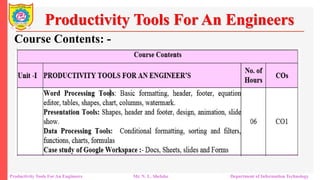
Course Contents: -
Productivity Tools For An Engineers Mr. N. L. Shelake Department of Information Technology
Unit –I
Word-processing Tools
Word-processing program that is used to create professional-
looking documents such as reports, resumes, letters and
newsletters.
It includes many powerful tools that can be used to easily create
and edit documents, and collaborate with others
Productivity Tools For An Engineers
Productivity Tools For An Engineers Mr. N. L. Shelake Department of Information Technology
Unit –I
Word-processing Tools
User interface and covers how to perform basic tasks such as
starting and exiting the program; creating, saving, opening,
closing, editing, formatting, and printing documents; applying
styles; and getting help.
Word processing tools provide a user-friendly interface to work
with textual content, making it easier to format and style
documents for various purposes
Productivity Tools For An Engineers
Productivity Tools For An Engineers Mr. N. L. Shelake Department of Information Technology
Unit –I
Word-processing Tools
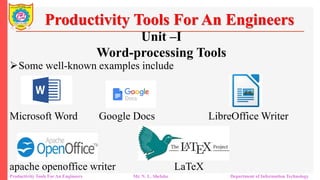
Some well-known examples include
Microsoft Word Google Docs LibreOffice Writer
apache openoffice writer LaTeX
Productivity Tools For An Engineers
Productivity Tools For An Engineers Mr. N. L. Shelake Department of Information Technology
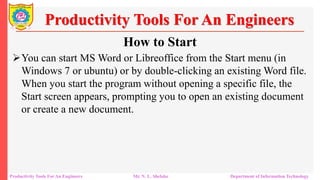
How to Start
You can start MS Word or Libreoffice from the Start menu (in
Windows 7 or ubuntu) or by double-clicking an existing Word file.
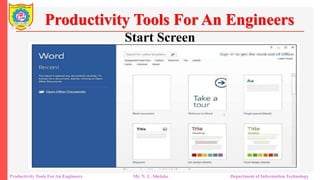
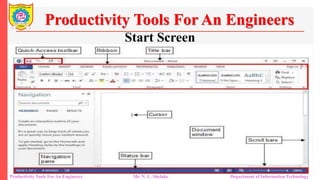
When you start the program without opening a specific file, the
Start screen appears, prompting you to open an existing document
or create a new document.
Productivity Tools For An Engineers
Productivity Tools For An Engineers Mr. N. L. Shelake Department of Information Technology
Start Screen
Productivity Tools For An Engineers
Productivity Tools For An Engineers Mr. N. L. Shelake Department of Information Technology
Start Screen
Productivity Tools For An Engineers
Productivity Tools For An Engineers Mr. N. L. Shelake Department of Information Technology
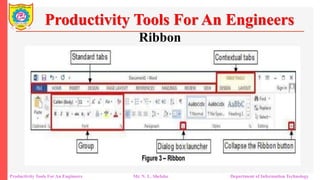
Ribbon
Productivity Tools For An Engineers
Productivity Tools For An Engineers Mr. N. L. Shelake Department of Information Technology
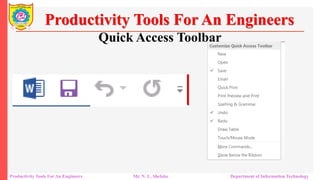
Quick Access Toolbar
Productivity Tools For An Engineers
Productivity Tools For An Engineers Mr. N. L. Shelake Department of Information Technology
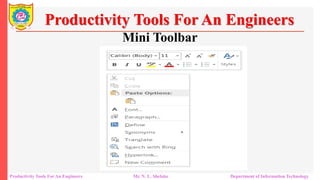
Mini Toolbar
Productivity Tools For An Engineers
Productivity Tools For An Engineers Mr. N. L. Shelake Department of Information Technology
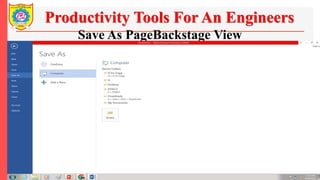
Save As PageBackstage View
IT for Engineers– Overview Mr. N. L. Shelake Department of Information Technology
Productivity Tools For An Engineers
IT for Engineers– Overview Mr. N. L. Shelake Department of Information Technology
Productivity Tools For An Engineers
Productivity Tools For An Engineers Mr. N. L. Shelake Department of Information Technology
Productivity Tools For An Engineers
Productivity Tools For An Engineers Mr. N. L. Shelake Department of Information Technology
Productivity Tools For An Engineers
Productivity Tools For An Engineers Mr. N. L. Shelake Department of Information Technology
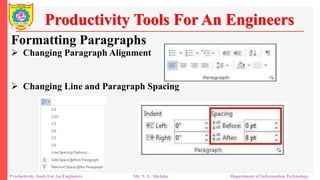
Formatting Paragraphs
Productivity Tools For An Engineers
 Changing Paragraph Alignment
 Changing Line and Paragraph Spacing
Productivity Tools For An Engineers Mr. N. L. Shelake Department of Information Technology
Formatting Paragraphs
Productivity Tools For An Engineers
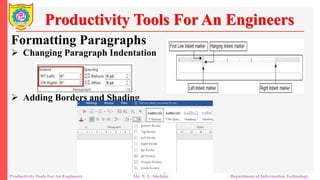
 Changing Paragraph Indentation
 Adding Borders and Shading
Productivity Tools For An Engineers Mr. N. L. Shelake Department of Information Technology
Formatting Paragraphs
Productivity Tools For An Engineers
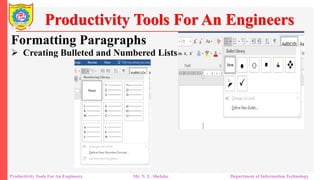
 Creating Bulleted and Numbered Lists
Productivity Tools For An Engineers Mr. N. L. Shelake Department of Information Technology
Formatting Paragraphs
Productivity Tools For An Engineers
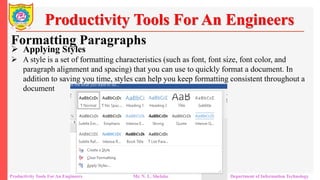
 Applying Styles
 A style is a set of formatting characteristics (such as font, font size, font color, and
paragraph alignment and spacing) that you can use to quickly format a document. In
addition to saving you time, styles can help you keep formatting consistent throughout a
document
Productivity Tools For An Engineers Mr. N. L. Shelake Department of Information Technology
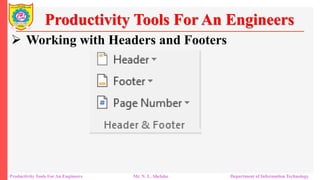
 Working with Headers and Footers
Productivity Tools For An Engineers
Productivity Tools For An Engineers Mr. N. L. Shelake Department of Information Technology
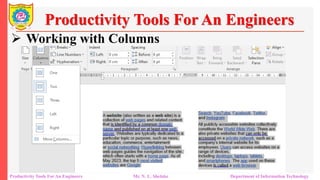
 Working with Columns
Productivity Tools For An Engineers
Productivity Tools For An Engineers Mr. N. L. Shelake Department of Information Technology
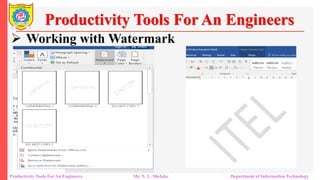
 Working with Watermark
Productivity Tools For An Engineers
Productivity Tools For An Engineers Mr. N. L. Shelake Department of Information Technology
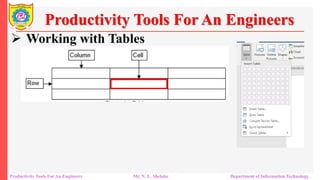
 Working with Tables
Productivity Tools For An Engineers
Productivity Tools For An Engineers Mr. N. L. Shelake Department of Information Technology
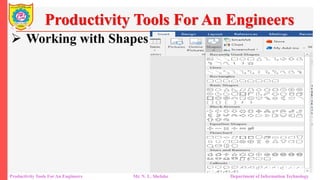
 Working with Shapes
Productivity Tools For An Engineers
Productivity Tools For An Engineers Mr. N. L. Shelake Department of Information Technology
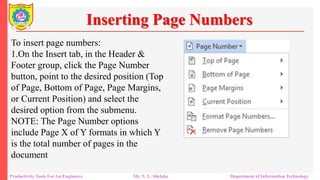
To insert page numbers:
1.On the Insert tab, in the Header &
Footer group, click the Page Number
button, point to the desired position (Top
of Page, Bottom of Page, Page Margins,
or Current Position) and select the
desired option from the submenu.
NOTE: The Page Number options
include Page X of Y formats in which Y
is the total number of pages in the
document
Inserting Page Numbers
Productivity Tools For An Engineers Mr. N. L. Shelake Department of Information Technology
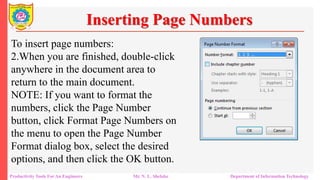
To insert page numbers:
2.When you are finished, double-click
anywhere in the document area to
return to the main document.
NOTE: If you want to format the
numbers, click the Page Number
button, click Format Page Numbers on
the menu to open the Page Number
Format dialog box, select the desired
options, and then click the OK button.
Inserting Page Numbers
Productivity Tools For An Engineers Mr. N. L. Shelake Department of Information Technology
Presentation Tools
A presentation tool, also known as presentation software or
slideshow software, is a computer program or application
used to create and deliver visual presentations.
These tools are commonly used in business, education, and
other settings to convey information, ideas, or messages to
an audience in a visually engaging and organized manner.
Productivity Tools For An Engineers Mr. N. L. Shelake Department of Information Technology
Presentation Tools
Some popular presentation tools include:
Microsoft PowerPoint
Google Slides
LibreOffice Impress
Adobe Spark
Canva
Apple Keynote
Productivity Tools For An Engineers Mr. N. L. Shelake Department of Information Technology
Presentation Tools
Introduction:
A presentation software application that aids users in the creation of professional,
high-impact, dynamic presentations. Slides are the building blocks of a
PowerPoint presentation. By using slides, the focus is not only on the speaker, but
on the visuals (slides) as well.
It helps you create powerful presentations. It includes more choices for getting
started, which includes:
 New and improved presenter tools
 Better design tools
 Improved video and audio support
 A new comments pane.
Productivity Tools For An Engineers Mr. N. L. Shelake Department of Information Technology
Presentation Tools
Learning Objectives
After viewing this booklet, you will be able to:
Become familiar with PowerPoint’s interface.
Create a new presentation
Save a presentation
 Add slides to a presentation
Delete and Rearrange slides
Productivity Tools For An Engineers Mr. N. L. Shelake Department of Information Technology
Presentation Tools
Learning Objectives
Apply a design theme
Work with themes and background styles
Use the various PowerPoint views
 Enter and edit text
Insert graphics and other objects
Play the slideshow
Print handouts
Productivity Tools For An Engineers Mr. N. L. Shelake Department of Information Technology
Presentation Tools
Best Practices for creating presentations:
Slide layout, font, color scheme, and content are the main components to
developing a great presentation. Follow the guidelines below to create a good
presentation:
 Identify the critical information that needs to be presented
and include it in your presentation.
 Use no more than six bullet points per slide.
 Keep bullet points short and to the point. Incomplete
sentences are okay.
Productivity Tools For An Engineers Mr. N. L. Shelake Department of Information Technology
Presentation Tools
Best Practices for creating presentations:
 Minimize the number of font types used in your
presentation.
 Keep font sizes consistent.
 Do not make all of the text uppercase.
 For contrast, use a light-colored font on a dark
background and vice versa.
 Use bold formatting to make appropriate words stand out.
Productivity Tools For An Engineers Mr. N. L. Shelake Department of Information Technology
Presentation Tools
Best Practices for creating presentations:
 Minimize the use of italics. They are more difficult to
read.
 Do not vary the look of one slide greatly from the next.
Consistency is key.
 Identify text that can be represented pictorially and use
appropriate graphics in its place.
 Remove unnecessary graphics that are not relevant to the
information presented.
Productivity Tools For An Engineers Mr. N. L. Shelake Department of Information Technology
Presentation Tools
Best Practices for creating presentations:
 Use consistent colors and font size on each slide.
 Do not use unusually bright colors.
 Do not clutter the slides with too many graphics.
 Use graphics and transitions sparingly.
Productivity Tools For An Engineers Mr. N. L. Shelake Department of Information Technology
Presentation Tools
The Microsoft PowerPoint Interface
There are a number of prominent changes to the look and
functionality of Microsoft PowerPoint. Let us have a look at
its latest interface.
 The Ribbon
 Contextual Tab
 Quick Access Toolbar
 Mini Toolbar
Productivity Tools For An Engineers Mr. N. L. Shelake Department of Information Technology
Presentation Tools
The Microsoft PowerPoint Interface
 Status Bar
 Themes
 File tab
 Navigation
 View Tab
Productivity Tools For An Engineers Mr. N. L. Shelake Department of Information Technology
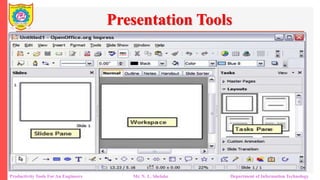
Presentation Tools
Productivity Tools For An Engineers Mr. N. L. Shelake Department of Information Technology
Presentation Tools
Demonstration
How to create Presentation
Productivity Tools For An Engineers Mr. N. L. Shelake Department of Information Technology
Presentation Tools
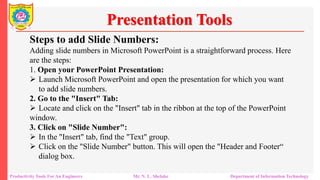
Steps to add Slide Numbers:
Adding slide numbers in Microsoft PowerPoint is a straightforward process. Here
are the steps:
1. Open your PowerPoint Presentation:
 Launch Microsoft PowerPoint and open the presentation for which you want
to add slide numbers.
2. Go to the "Insert" Tab:
 Locate and click on the "Insert" tab in the ribbon at the top of the PowerPoint
window.
3. Click on "Slide Number":
 In the "Insert" tab, find the "Text" group.
 Click on the "Slide Number" button. This will open the "Header and Footer“
dialog box.
Productivity Tools For An Engineers Mr. N. L. Shelake Department of Information Technology
Presentation Tools
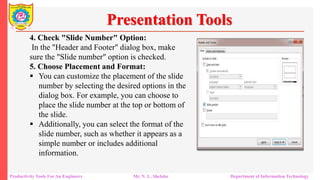
4. Check "Slide Number" Option:
In the "Header and Footer" dialog box, make
sure the "Slide number" option is checked.
5. Choose Placement and Format:
 You can customize the placement of the slide
number by selecting the desired options in the
dialog box. For example, you can choose to
place the slide number at the top or bottom of
the slide.
 Additionally, you can select the format of the
slide number, such as whether it appears as a
simple number or includes additional
information.
Productivity Tools For An Engineers Mr. N. L. Shelake Department of Information Technology
Presentation Tools
6. Click "Apply" or "Apply to All":
If you want to add slide numbers to all slides in your presentation, click "Apply
to All." If you only want to add slide numbers to the current slide, click "Apply”.
7. Close the Dialog Box:
Once you've applied the slide numbers, click "OK" to close the "Header and
Footer" dialog box.
8. Preview the Slide Numbers:
Navigate through your slides to preview the slide numbers. They should now
appear on the slides based on the options you selected.
Productivity Tools For An Engineers Mr. N. L. Shelake Department of Information Technology
Presentation Tools
Steps to add Slide Numbers:
Adding slide numbers in Microsoft PowerPoint is a straightforward process. Here
are the steps:
1. Open your PowerPoint Presentation:
 Launch Microsoft PowerPoint and open the presentation for which you want
to add slide numbers.
2. Go to the "Insert" Tab:
 Locate and click on the "Insert" tab in the ribbon at the top of the PowerPoint
window.
3. Click on "Slide Number":
 In the "Insert" tab, find the "Text" group.
 Click on the "Slide Number" button. This will open the "Header and Footer“
dialog box.
Productivity Tools For An Engineers Mr. N. L. Shelake Department of Information Technology
Data Processing Tools
Introduction:
A data processing tool is software or a computer program
designed to perform various tasks related to managing,
manipulating, and analyzing data. These tools are used to
streamline and automate data-related tasks, making it easier for
individuals and organizations to work with data efficiently.
Data processing tools come in various forms and serve
different purposes, depending on the specific needs of users.
Productivity Tools For An Engineers Mr. N. L. Shelake Department of Information Technology
Data Processing Tools
Learning Objectives
Become familiar with the basic interface of Excel 2013
Learn to create, edit and delete worksheets
Format/modify tables (basic and advanced)
Use formulas
Understanding Referencing
Create graphs and charts
Use pivot tables and pivot charts
Productivity Tools For An Engineers Mr. N. L. Shelake Department of Information Technology
Data Processing Tools
Some popular Data Processing tools include:
Microsoft Excel
Google Sheets
LibreOffice Calc
Apache OpenOffice Calc
WPS Office Spreadsheets
Productivity Tools For An Engineers Mr. N. L. Shelake Department of Information Technology
Data Processing Tools
Features of Data Processing Tools
Data Import and Export: Ability to import data from
various sources (e.g., files, databases, web), and export
processed data to different formats
Data Transformation: Tools for cleaning, reshaping, and
structuring data, including functions for filtering, sorting,
and aggregating.
Productivity Tools For An Engineers Mr. N. L. Shelake Department of Information Technology
Data Processing Tools
Formula and Function Support: Formulas and functions
for performing calculations and operations on data, similar
to Excel's formulas.
Data Visualization: Tools for creating charts, graphs, and
visual representations of data to aid in analysis and
reporting.
Filtering and Querying: Features to filter and query data
based on specific criteria or conditions.
Productivity Tools For An Engineers Mr. N. L. Shelake Department of Information Technology
Data Processing Tools
Data Joining and Merging: Capabilities to combine data
from multiple sources through joins or merges.
Data Validation and Error Checking: Functions to
validate data for accuracy and identify errors or
inconsistencies..
Productivity Tools For An Engineers Mr. N. L. Shelake Department of Information Technology
Data Processing Tools
Data Collaboration: Collaboration features like real-time
sharing, commenting, and version control for working on
data with teams.
Data Security: Tools to secure sensitive data through
encryption, access controls, and user permissions.
Data Storage: Options for managing and storing data,
including cloud-based storage integration.
Productivity Tools For An Engineers Mr. N. L. Shelake Department of Information Technology
Data Processing Tools
Conditional Formatting:
Conditional formatting feature lets you dynamically format a
cell's background and text style based on custom rules that
you set. A rule in Excel operates as an if/then statement.
Productivity Tools For An Engineers Mr. N. L. Shelake Department of Information Technology
Data Processing Tools
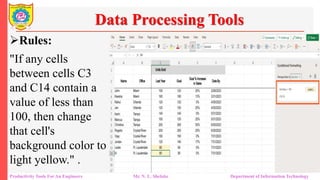
Rules:
"If any cells
between cells C3
and C14 contain a
value of less than
100, then change
that cell's
background color to
light yellow." .
Productivity Tools For An Engineers Mr. N. L. Shelake Department of Information Technology
Data Processing Tools
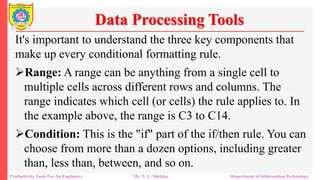
It's important to understand the three key components that
make up every conditional formatting rule.
Range: A range can be anything from a single cell to
multiple cells across different rows and columns. The
range indicates which cell (or cells) the rule applies to. In
the example above, the range is C3 to C14.
Condition: This is the "if" part of the if/then rule. You can
choose from more than a dozen options, including greater
than, less than, between, and so on.
Productivity Tools For An Engineers Mr. N. L. Shelake Department of Information Technology
Data Processing Tools
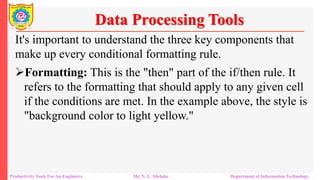
It's important to understand the three key components that
make up every conditional formatting rule.
Formatting: This is the "then" part of the if/then rule. It
refers to the formatting that should apply to any given cell
if the conditions are met. In the example above, the style is
"background color to light yellow."
Productivity Tools For An Engineers Mr. N. L. Shelake Department of Information Technology
Data Processing Tools
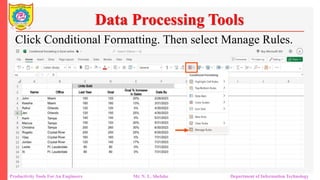
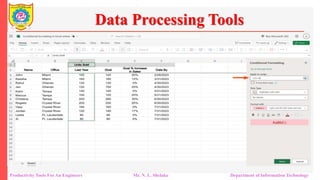
Click Conditional Formatting. Then select Manage Rules.
Productivity Tools For An Engineers Mr. N. L. Shelake Department of Information Technology
Data Processing Tools
Productivity Tools For An Engineers Mr. N. L. Shelake Department of Information Technology
Data Processing Tools
Sorting:-
Sorting in Excel is a fundamental operation that allows
you to arrange data in a worksheet in a specific order
based on one or more criteria. This can be useful for
quickly organizing data and making it easier to analyze.
Productivity Tools For An Engineers Mr. N. L. Shelake Department of Information Technology
Data Processing Tools
Sorting:-
Select the Data Range:
Click on a cell within the column you want to sort by.
This will help Excel understand which column you
want to sort. If you want to sort the entire worksheet,
select any cell within your data.
Productivity Tools For An Engineers Mr. N. L. Shelake Department of Information Technology
Data Processing Tools
Open the Sort Dialog Box:
 There are several ways to access the sort options:
 Click on the "Sort & Filter" button on the Home tab of the Excel
ribbon. Then, select "Custom Sort" from the dropdown.
 Right-click on the selected cell and choose "Sort" from the context
menu.
 You can also use the keyboard shortcut: Alt + D + S. is the "then" part
of the if/then rule. It refers to the formatting that should apply to any
given cell if the conditions are met. In the example above, the style is
"background color to light yellow."
Productivity Tools For An Engineers Mr. N. L. Shelake Department of Information Technology
Data Processing Tools
Custom Sort Dialog Box:
 In the Custom Sort dialog box, you can specify your sorting preferences:
 Sort By: Choose the column by which you want to sort the data from the "Sort
by" dropdown list.
 Sort On: Specify how you want to sort (e.g., values, cell color, font color, etc.).
Most of the time, you'll select "Values."
 Order: Choose between "A to Z" (ascending) or "Z to A" (descending) for text or
"Smallest to Largest" or "Largest to Smallest" for numbers.
 Add Level: You can add multiple sorting levels if you want to sort by more than
one column. Excel will apply the sorting in the order you define here.
Productivity Tools For An Engineers Mr. N. L. Shelake Department of Information Technology
Data Processing Tools
Filtering :-
 Filtering in Excel allows you to temporarily hide rows
that do not meet specific criteria, making it easier to focus
on the data that is relevant to your analysis.
 Filters are a powerful feature that allows you to
selectively display rows of data in a spreadsheet based on
specific criteria.
 You can filter data based on conditions, text, numbers,
dates, and more
Productivity Tools For An Engineers Mr. N. L. Shelake Department of Information Technology
Data Processing Tools
How to Apply Filters :-
 Select Your Data: First, ensure that your data is
organized in a tabular format, with column headers in the
first row.
 Enable Filters:
Click on any cell within your data range.
Go to the "Data" tab in the Excel ribbon.
You'll find the "Sort & Filter" group, which includes the
"Filter" button. Click on the "Filter" button.
Productivity Tools For An Engineers Mr. N. L. Shelake Department of Information Technology
Data Processing Tools
How to Apply Filters :-
 Dropdown Arrows: Once filters are enabled, you'll see
small dropdown arrows appear in the header cells of your
columns.
 Filtering Data:
 Click the dropdown arrow in the column you want to
filter. A menu with filter options will appear. You can:
 Select specific items to show/hide by
checking/unchecking boxes.
Productivity Tools For An Engineers Mr. N. L. Shelake Department of Information Technology
Data Processing Tools
How to Apply Filters :-
 Clear Filters:
To clear a filter and show all data again, click the
"Select All" checkbox at the top of the filter menu.
To clear all filters in the entire worksheet, click "Clear"
in the "Sort & Filter" group on the "Data" tab..
Productivity Tools For An Engineers Mr. N. L. Shelake Department of Information Technology
Data Processing Tools
How to Apply Filters :-
 Multiple Filters: You can apply filters to multiple
columns simultaneously, which allows you to create
complex filter criteria.
 Custom Filters: Excel also provides the option to create
custom filters where you can specify your own criteria.
Productivity Tools For An Engineers Mr. N. L. Shelake Department of Information Technology
Data Processing Tools
Charts :-
 Data Processing tools offers a wide range of chart
types that you can use to visualize your data .
 Charts can help you understand trends, patterns, and
relationships within your data more effectively
Productivity Tools For An Engineers Mr. N. L. Shelake Department of Information Technology
Data Processing Tools
Creating a Charts :-
 Select Data: First, make sure you have your data
organized in a tabular format with column headers. Select
the data range you want to include in your chart.
 Insert a Chart:
 Go to the "Insert" tab
 In the "Charts" group, you'll see various chart types like
column, bar, pie, line, scatter, and more.
 Click on the chart type that suits your data. Excel will insert a
blank chart into your worksheet.
Productivity Tools For An Engineers Mr. N. L. Shelake Department of Information Technology
Data Processing Tools
Customizing the Chart:-
 Adding Data Labels
You can add data labels to your chart to display specific values. Right-click on
chart elements (like bars or data points) and choose "Add Data Labels."
 Changing Chart Title and Axis Titles
Click on the chart title or axis titles, and you can edit them directly the chart.
 Formatting Chart Elements:
Right-click on any chart element (axes, legend, data series, etc.) and choose
"Format" to change colors, fonts, and other formatting options
Productivity Tools For An Engineers Mr. N. L. Shelake Department of Information Technology
Data Processing Tools
Customizing the Chart:-
 Switching Rows and Columns:
Depending on how your data is structured, you may need to switch the rows
and columns in your chart. You can do this by clicking the "Switch
Row/Column" button in the "Design" tab when you have the chart selected.
 Changing Chart Type:
You can change the chart type at any time. Select the chart, go to the "Design"
tab, and choose a new chart type from the "Change Chart Type" dropdown.
Productivity Tools For An Engineers Mr. N. L. Shelake Department of Information Technology
Data Processing Tools
Formulas :-
 Formulas are one of the most powerful features in Data
Processing tools
 They allow you to perform calculations, manipulate data,
and automate tasks within your spreadsheets.
Productivity Tools For An Engineers Mr. N. L. Shelake Department of Information Technology
Data Processing Tools
Formulas :-
 Basic Formula Syntax:
 Formulas in Excel start with an equal sign (=).
 You can use mathematical operators like + (addition), -
(subtraction), * (multiplication), and / (division) to perform
calculations.
 You can reference cells in your formula using cell references.
For example, to add the values in cells A1 and B1, you would
enter "=A1+B1" into another cell.
Productivity Tools For An Engineers Mr. N. L. Shelake Department of Information Technology
Data Processing Tools
Formulas:-
 Cell References:
 Absolute References: If you want a reference to remain fixed
when you copy the formula to other cells, use a dollar sign ($).
For example, "$A$1" is an absolute reference to cell A1.
 Relative References: If you don't use any dollar signs, the
reference is relative, and it adjusts when you copy the formula to
other cells. For example, "A1" is a relative reference.
Productivity Tools For An Engineers Mr. N. L. Shelake Department of Information Technology
Data Processing Tools
Formulas:-
 Common Functions:
 Excel provides a wide range of built-in functions for various
purposes, such as SUM, AVERAGE, MAX, MIN, IF,
VLOOKUP, and more.
 Functions are followed by parentheses, and you provide
arguments within the parentheses. For example, "=SUM(A1:A5)"
adds the values in cells A1 through A5.
Productivity Tools For An Engineers Mr. N. L. Shelake Department of Information Technology
Data Processing Tools
Formulas:-
 Common Functions:
 Excel provides a wide range of built-in functions for various
purposes, such as SUM, AVERAGE, MAX, MIN, IF,
VLOOKUP, and more.
 Functions are followed by parentheses, and you provide
arguments within the parentheses. For example, "=SUM(A1:A5)"
adds the values in cells A1 through A5.
IT For Engineers
Thank You
Productivity Tools For An Engineers Mr. N. L. Shelake Department of Information Technology

ITE Course Unit 1 Productivity Tool-Word processing tools

  • 1.
    IT for Engineers SanjivaniRural Education Society’s Sanjivani College of Engineering, Kopargaon-423603 (An Autonomous Institute Affiliated to Savitribai Phule Pune University, Pune) NAAC ‘A’ Grade Accredited, ISO 9001:2015 Certified Department of Information Technology (NBA Accredited) Mr. N. L. Shelake Assistant Professor
  • 2.
    Productivity Tools ForAn Engineers Course Contents: - Productivity Tools For An Engineers Mr. N. L. Shelake Department of Information Technology
  • 3.
    Unit –I Word-processing Tools Word-processingprogram that is used to create professional- looking documents such as reports, resumes, letters and newsletters. It includes many powerful tools that can be used to easily create and edit documents, and collaborate with others Productivity Tools For An Engineers Productivity Tools For An Engineers Mr. N. L. Shelake Department of Information Technology
  • 4.
    Unit –I Word-processing Tools Userinterface and covers how to perform basic tasks such as starting and exiting the program; creating, saving, opening, closing, editing, formatting, and printing documents; applying styles; and getting help. Word processing tools provide a user-friendly interface to work with textual content, making it easier to format and style documents for various purposes Productivity Tools For An Engineers Productivity Tools For An Engineers Mr. N. L. Shelake Department of Information Technology
  • 5.
    Unit –I Word-processing Tools Somewell-known examples include Microsoft Word Google Docs LibreOffice Writer apache openoffice writer LaTeX Productivity Tools For An Engineers Productivity Tools For An Engineers Mr. N. L. Shelake Department of Information Technology
  • 6.
    How to Start Youcan start MS Word or Libreoffice from the Start menu (in Windows 7 or ubuntu) or by double-clicking an existing Word file. When you start the program without opening a specific file, the Start screen appears, prompting you to open an existing document or create a new document. Productivity Tools For An Engineers Productivity Tools For An Engineers Mr. N. L. Shelake Department of Information Technology
  • 7.
    Start Screen Productivity ToolsFor An Engineers Productivity Tools For An Engineers Mr. N. L. Shelake Department of Information Technology
  • 8.
    Start Screen Productivity ToolsFor An Engineers Productivity Tools For An Engineers Mr. N. L. Shelake Department of Information Technology
  • 9.
    Ribbon Productivity Tools ForAn Engineers Productivity Tools For An Engineers Mr. N. L. Shelake Department of Information Technology
  • 10.
    Quick Access Toolbar ProductivityTools For An Engineers Productivity Tools For An Engineers Mr. N. L. Shelake Department of Information Technology
  • 11.
    Mini Toolbar Productivity ToolsFor An Engineers Productivity Tools For An Engineers Mr. N. L. Shelake Department of Information Technology
  • 12.
    Save As PageBackstageView IT for Engineers– Overview Mr. N. L. Shelake Department of Information Technology Productivity Tools For An Engineers
  • 13.
    IT for Engineers–Overview Mr. N. L. Shelake Department of Information Technology Productivity Tools For An Engineers
  • 14.
    Productivity Tools ForAn Engineers Productivity Tools For An Engineers Mr. N. L. Shelake Department of Information Technology
  • 15.
    Productivity Tools ForAn Engineers Productivity Tools For An Engineers Mr. N. L. Shelake Department of Information Technology
  • 16.
    Productivity Tools ForAn Engineers Productivity Tools For An Engineers Mr. N. L. Shelake Department of Information Technology
  • 17.
    Formatting Paragraphs Productivity ToolsFor An Engineers  Changing Paragraph Alignment  Changing Line and Paragraph Spacing Productivity Tools For An Engineers Mr. N. L. Shelake Department of Information Technology
  • 18.
    Formatting Paragraphs Productivity ToolsFor An Engineers  Changing Paragraph Indentation  Adding Borders and Shading Productivity Tools For An Engineers Mr. N. L. Shelake Department of Information Technology
  • 19.
    Formatting Paragraphs Productivity ToolsFor An Engineers  Creating Bulleted and Numbered Lists Productivity Tools For An Engineers Mr. N. L. Shelake Department of Information Technology
  • 20.
    Formatting Paragraphs Productivity ToolsFor An Engineers  Applying Styles  A style is a set of formatting characteristics (such as font, font size, font color, and paragraph alignment and spacing) that you can use to quickly format a document. In addition to saving you time, styles can help you keep formatting consistent throughout a document Productivity Tools For An Engineers Mr. N. L. Shelake Department of Information Technology
  • 21.
     Working withHeaders and Footers Productivity Tools For An Engineers Productivity Tools For An Engineers Mr. N. L. Shelake Department of Information Technology
  • 22.
     Working withColumns Productivity Tools For An Engineers Productivity Tools For An Engineers Mr. N. L. Shelake Department of Information Technology
  • 23.
     Working withWatermark Productivity Tools For An Engineers Productivity Tools For An Engineers Mr. N. L. Shelake Department of Information Technology
  • 24.
     Working withTables Productivity Tools For An Engineers Productivity Tools For An Engineers Mr. N. L. Shelake Department of Information Technology
  • 25.
     Working withShapes Productivity Tools For An Engineers Productivity Tools For An Engineers Mr. N. L. Shelake Department of Information Technology
  • 26.
    To insert pagenumbers: 1.On the Insert tab, in the Header & Footer group, click the Page Number button, point to the desired position (Top of Page, Bottom of Page, Page Margins, or Current Position) and select the desired option from the submenu. NOTE: The Page Number options include Page X of Y formats in which Y is the total number of pages in the document Inserting Page Numbers Productivity Tools For An Engineers Mr. N. L. Shelake Department of Information Technology
  • 27.
    To insert pagenumbers: 2.When you are finished, double-click anywhere in the document area to return to the main document. NOTE: If you want to format the numbers, click the Page Number button, click Format Page Numbers on the menu to open the Page Number Format dialog box, select the desired options, and then click the OK button. Inserting Page Numbers Productivity Tools For An Engineers Mr. N. L. Shelake Department of Information Technology
  • 28.
    Productivity Tools ForAn Engineers Mr. N. L. Shelake Department of Information Technology Presentation Tools A presentation tool, also known as presentation software or slideshow software, is a computer program or application used to create and deliver visual presentations. These tools are commonly used in business, education, and other settings to convey information, ideas, or messages to an audience in a visually engaging and organized manner.
  • 29.
    Productivity Tools ForAn Engineers Mr. N. L. Shelake Department of Information Technology Presentation Tools Some popular presentation tools include: Microsoft PowerPoint Google Slides LibreOffice Impress Adobe Spark Canva Apple Keynote
  • 30.
    Productivity Tools ForAn Engineers Mr. N. L. Shelake Department of Information Technology Presentation Tools Introduction: A presentation software application that aids users in the creation of professional, high-impact, dynamic presentations. Slides are the building blocks of a PowerPoint presentation. By using slides, the focus is not only on the speaker, but on the visuals (slides) as well. It helps you create powerful presentations. It includes more choices for getting started, which includes:  New and improved presenter tools  Better design tools  Improved video and audio support  A new comments pane.
  • 31.
    Productivity Tools ForAn Engineers Mr. N. L. Shelake Department of Information Technology Presentation Tools Learning Objectives After viewing this booklet, you will be able to: Become familiar with PowerPoint’s interface. Create a new presentation Save a presentation  Add slides to a presentation Delete and Rearrange slides
  • 32.
    Productivity Tools ForAn Engineers Mr. N. L. Shelake Department of Information Technology Presentation Tools Learning Objectives Apply a design theme Work with themes and background styles Use the various PowerPoint views  Enter and edit text Insert graphics and other objects Play the slideshow Print handouts
  • 33.
    Productivity Tools ForAn Engineers Mr. N. L. Shelake Department of Information Technology Presentation Tools Best Practices for creating presentations: Slide layout, font, color scheme, and content are the main components to developing a great presentation. Follow the guidelines below to create a good presentation:  Identify the critical information that needs to be presented and include it in your presentation.  Use no more than six bullet points per slide.  Keep bullet points short and to the point. Incomplete sentences are okay.
  • 34.
    Productivity Tools ForAn Engineers Mr. N. L. Shelake Department of Information Technology Presentation Tools Best Practices for creating presentations:  Minimize the number of font types used in your presentation.  Keep font sizes consistent.  Do not make all of the text uppercase.  For contrast, use a light-colored font on a dark background and vice versa.  Use bold formatting to make appropriate words stand out.
  • 35.
    Productivity Tools ForAn Engineers Mr. N. L. Shelake Department of Information Technology Presentation Tools Best Practices for creating presentations:  Minimize the use of italics. They are more difficult to read.  Do not vary the look of one slide greatly from the next. Consistency is key.  Identify text that can be represented pictorially and use appropriate graphics in its place.  Remove unnecessary graphics that are not relevant to the information presented.
  • 36.
    Productivity Tools ForAn Engineers Mr. N. L. Shelake Department of Information Technology Presentation Tools Best Practices for creating presentations:  Use consistent colors and font size on each slide.  Do not use unusually bright colors.  Do not clutter the slides with too many graphics.  Use graphics and transitions sparingly.
  • 37.
    Productivity Tools ForAn Engineers Mr. N. L. Shelake Department of Information Technology Presentation Tools The Microsoft PowerPoint Interface There are a number of prominent changes to the look and functionality of Microsoft PowerPoint. Let us have a look at its latest interface.  The Ribbon  Contextual Tab  Quick Access Toolbar  Mini Toolbar
  • 38.
    Productivity Tools ForAn Engineers Mr. N. L. Shelake Department of Information Technology Presentation Tools The Microsoft PowerPoint Interface  Status Bar  Themes  File tab  Navigation  View Tab
  • 39.
    Productivity Tools ForAn Engineers Mr. N. L. Shelake Department of Information Technology Presentation Tools
  • 40.
    Productivity Tools ForAn Engineers Mr. N. L. Shelake Department of Information Technology Presentation Tools Demonstration How to create Presentation
  • 41.
    Productivity Tools ForAn Engineers Mr. N. L. Shelake Department of Information Technology Presentation Tools Steps to add Slide Numbers: Adding slide numbers in Microsoft PowerPoint is a straightforward process. Here are the steps: 1. Open your PowerPoint Presentation:  Launch Microsoft PowerPoint and open the presentation for which you want to add slide numbers. 2. Go to the "Insert" Tab:  Locate and click on the "Insert" tab in the ribbon at the top of the PowerPoint window. 3. Click on "Slide Number":  In the "Insert" tab, find the "Text" group.  Click on the "Slide Number" button. This will open the "Header and Footer“ dialog box.
  • 42.
    Productivity Tools ForAn Engineers Mr. N. L. Shelake Department of Information Technology Presentation Tools 4. Check "Slide Number" Option: In the "Header and Footer" dialog box, make sure the "Slide number" option is checked. 5. Choose Placement and Format:  You can customize the placement of the slide number by selecting the desired options in the dialog box. For example, you can choose to place the slide number at the top or bottom of the slide.  Additionally, you can select the format of the slide number, such as whether it appears as a simple number or includes additional information.
  • 43.
    Productivity Tools ForAn Engineers Mr. N. L. Shelake Department of Information Technology Presentation Tools 6. Click "Apply" or "Apply to All": If you want to add slide numbers to all slides in your presentation, click "Apply to All." If you only want to add slide numbers to the current slide, click "Apply”. 7. Close the Dialog Box: Once you've applied the slide numbers, click "OK" to close the "Header and Footer" dialog box. 8. Preview the Slide Numbers: Navigate through your slides to preview the slide numbers. They should now appear on the slides based on the options you selected.
  • 44.
    Productivity Tools ForAn Engineers Mr. N. L. Shelake Department of Information Technology Presentation Tools Steps to add Slide Numbers: Adding slide numbers in Microsoft PowerPoint is a straightforward process. Here are the steps: 1. Open your PowerPoint Presentation:  Launch Microsoft PowerPoint and open the presentation for which you want to add slide numbers. 2. Go to the "Insert" Tab:  Locate and click on the "Insert" tab in the ribbon at the top of the PowerPoint window. 3. Click on "Slide Number":  In the "Insert" tab, find the "Text" group.  Click on the "Slide Number" button. This will open the "Header and Footer“ dialog box.
  • 45.
    Productivity Tools ForAn Engineers Mr. N. L. Shelake Department of Information Technology Data Processing Tools Introduction: A data processing tool is software or a computer program designed to perform various tasks related to managing, manipulating, and analyzing data. These tools are used to streamline and automate data-related tasks, making it easier for individuals and organizations to work with data efficiently. Data processing tools come in various forms and serve different purposes, depending on the specific needs of users.
  • 46.
    Productivity Tools ForAn Engineers Mr. N. L. Shelake Department of Information Technology Data Processing Tools Learning Objectives Become familiar with the basic interface of Excel 2013 Learn to create, edit and delete worksheets Format/modify tables (basic and advanced) Use formulas Understanding Referencing Create graphs and charts Use pivot tables and pivot charts
  • 47.
    Productivity Tools ForAn Engineers Mr. N. L. Shelake Department of Information Technology Data Processing Tools Some popular Data Processing tools include: Microsoft Excel Google Sheets LibreOffice Calc Apache OpenOffice Calc WPS Office Spreadsheets
  • 48.
    Productivity Tools ForAn Engineers Mr. N. L. Shelake Department of Information Technology Data Processing Tools Features of Data Processing Tools Data Import and Export: Ability to import data from various sources (e.g., files, databases, web), and export processed data to different formats Data Transformation: Tools for cleaning, reshaping, and structuring data, including functions for filtering, sorting, and aggregating.
  • 49.
    Productivity Tools ForAn Engineers Mr. N. L. Shelake Department of Information Technology Data Processing Tools Formula and Function Support: Formulas and functions for performing calculations and operations on data, similar to Excel's formulas. Data Visualization: Tools for creating charts, graphs, and visual representations of data to aid in analysis and reporting. Filtering and Querying: Features to filter and query data based on specific criteria or conditions.
  • 50.
    Productivity Tools ForAn Engineers Mr. N. L. Shelake Department of Information Technology Data Processing Tools Data Joining and Merging: Capabilities to combine data from multiple sources through joins or merges. Data Validation and Error Checking: Functions to validate data for accuracy and identify errors or inconsistencies..
  • 51.
    Productivity Tools ForAn Engineers Mr. N. L. Shelake Department of Information Technology Data Processing Tools Data Collaboration: Collaboration features like real-time sharing, commenting, and version control for working on data with teams. Data Security: Tools to secure sensitive data through encryption, access controls, and user permissions. Data Storage: Options for managing and storing data, including cloud-based storage integration.
  • 52.
    Productivity Tools ForAn Engineers Mr. N. L. Shelake Department of Information Technology Data Processing Tools Conditional Formatting: Conditional formatting feature lets you dynamically format a cell's background and text style based on custom rules that you set. A rule in Excel operates as an if/then statement.
  • 53.
    Productivity Tools ForAn Engineers Mr. N. L. Shelake Department of Information Technology Data Processing Tools Rules: "If any cells between cells C3 and C14 contain a value of less than 100, then change that cell's background color to light yellow." .
  • 54.
    Productivity Tools ForAn Engineers Mr. N. L. Shelake Department of Information Technology Data Processing Tools It's important to understand the three key components that make up every conditional formatting rule. Range: A range can be anything from a single cell to multiple cells across different rows and columns. The range indicates which cell (or cells) the rule applies to. In the example above, the range is C3 to C14. Condition: This is the "if" part of the if/then rule. You can choose from more than a dozen options, including greater than, less than, between, and so on.
  • 55.
    Productivity Tools ForAn Engineers Mr. N. L. Shelake Department of Information Technology Data Processing Tools It's important to understand the three key components that make up every conditional formatting rule. Formatting: This is the "then" part of the if/then rule. It refers to the formatting that should apply to any given cell if the conditions are met. In the example above, the style is "background color to light yellow."
  • 56.
    Productivity Tools ForAn Engineers Mr. N. L. Shelake Department of Information Technology Data Processing Tools Click Conditional Formatting. Then select Manage Rules.
  • 57.
    Productivity Tools ForAn Engineers Mr. N. L. Shelake Department of Information Technology Data Processing Tools
  • 58.
    Productivity Tools ForAn Engineers Mr. N. L. Shelake Department of Information Technology Data Processing Tools Sorting:- Sorting in Excel is a fundamental operation that allows you to arrange data in a worksheet in a specific order based on one or more criteria. This can be useful for quickly organizing data and making it easier to analyze.
  • 59.
    Productivity Tools ForAn Engineers Mr. N. L. Shelake Department of Information Technology Data Processing Tools Sorting:- Select the Data Range: Click on a cell within the column you want to sort by. This will help Excel understand which column you want to sort. If you want to sort the entire worksheet, select any cell within your data.
  • 60.
    Productivity Tools ForAn Engineers Mr. N. L. Shelake Department of Information Technology Data Processing Tools Open the Sort Dialog Box:  There are several ways to access the sort options:  Click on the "Sort & Filter" button on the Home tab of the Excel ribbon. Then, select "Custom Sort" from the dropdown.  Right-click on the selected cell and choose "Sort" from the context menu.  You can also use the keyboard shortcut: Alt + D + S. is the "then" part of the if/then rule. It refers to the formatting that should apply to any given cell if the conditions are met. In the example above, the style is "background color to light yellow."
  • 61.
    Productivity Tools ForAn Engineers Mr. N. L. Shelake Department of Information Technology Data Processing Tools Custom Sort Dialog Box:  In the Custom Sort dialog box, you can specify your sorting preferences:  Sort By: Choose the column by which you want to sort the data from the "Sort by" dropdown list.  Sort On: Specify how you want to sort (e.g., values, cell color, font color, etc.). Most of the time, you'll select "Values."  Order: Choose between "A to Z" (ascending) or "Z to A" (descending) for text or "Smallest to Largest" or "Largest to Smallest" for numbers.  Add Level: You can add multiple sorting levels if you want to sort by more than one column. Excel will apply the sorting in the order you define here.
  • 62.
    Productivity Tools ForAn Engineers Mr. N. L. Shelake Department of Information Technology Data Processing Tools Filtering :-  Filtering in Excel allows you to temporarily hide rows that do not meet specific criteria, making it easier to focus on the data that is relevant to your analysis.  Filters are a powerful feature that allows you to selectively display rows of data in a spreadsheet based on specific criteria.  You can filter data based on conditions, text, numbers, dates, and more
  • 63.
    Productivity Tools ForAn Engineers Mr. N. L. Shelake Department of Information Technology Data Processing Tools How to Apply Filters :-  Select Your Data: First, ensure that your data is organized in a tabular format, with column headers in the first row.  Enable Filters: Click on any cell within your data range. Go to the "Data" tab in the Excel ribbon. You'll find the "Sort & Filter" group, which includes the "Filter" button. Click on the "Filter" button.
  • 64.
    Productivity Tools ForAn Engineers Mr. N. L. Shelake Department of Information Technology Data Processing Tools How to Apply Filters :-  Dropdown Arrows: Once filters are enabled, you'll see small dropdown arrows appear in the header cells of your columns.  Filtering Data:  Click the dropdown arrow in the column you want to filter. A menu with filter options will appear. You can:  Select specific items to show/hide by checking/unchecking boxes.
  • 65.
    Productivity Tools ForAn Engineers Mr. N. L. Shelake Department of Information Technology Data Processing Tools How to Apply Filters :-  Clear Filters: To clear a filter and show all data again, click the "Select All" checkbox at the top of the filter menu. To clear all filters in the entire worksheet, click "Clear" in the "Sort & Filter" group on the "Data" tab..
  • 66.
    Productivity Tools ForAn Engineers Mr. N. L. Shelake Department of Information Technology Data Processing Tools How to Apply Filters :-  Multiple Filters: You can apply filters to multiple columns simultaneously, which allows you to create complex filter criteria.  Custom Filters: Excel also provides the option to create custom filters where you can specify your own criteria.
  • 67.
    Productivity Tools ForAn Engineers Mr. N. L. Shelake Department of Information Technology Data Processing Tools Charts :-  Data Processing tools offers a wide range of chart types that you can use to visualize your data .  Charts can help you understand trends, patterns, and relationships within your data more effectively
  • 68.
    Productivity Tools ForAn Engineers Mr. N. L. Shelake Department of Information Technology Data Processing Tools Creating a Charts :-  Select Data: First, make sure you have your data organized in a tabular format with column headers. Select the data range you want to include in your chart.  Insert a Chart:  Go to the "Insert" tab  In the "Charts" group, you'll see various chart types like column, bar, pie, line, scatter, and more.  Click on the chart type that suits your data. Excel will insert a blank chart into your worksheet.
  • 69.
    Productivity Tools ForAn Engineers Mr. N. L. Shelake Department of Information Technology Data Processing Tools Customizing the Chart:-  Adding Data Labels You can add data labels to your chart to display specific values. Right-click on chart elements (like bars or data points) and choose "Add Data Labels."  Changing Chart Title and Axis Titles Click on the chart title or axis titles, and you can edit them directly the chart.  Formatting Chart Elements: Right-click on any chart element (axes, legend, data series, etc.) and choose "Format" to change colors, fonts, and other formatting options
  • 70.
    Productivity Tools ForAn Engineers Mr. N. L. Shelake Department of Information Technology Data Processing Tools Customizing the Chart:-  Switching Rows and Columns: Depending on how your data is structured, you may need to switch the rows and columns in your chart. You can do this by clicking the "Switch Row/Column" button in the "Design" tab when you have the chart selected.  Changing Chart Type: You can change the chart type at any time. Select the chart, go to the "Design" tab, and choose a new chart type from the "Change Chart Type" dropdown.
  • 71.
    Productivity Tools ForAn Engineers Mr. N. L. Shelake Department of Information Technology Data Processing Tools Formulas :-  Formulas are one of the most powerful features in Data Processing tools  They allow you to perform calculations, manipulate data, and automate tasks within your spreadsheets.
  • 72.
    Productivity Tools ForAn Engineers Mr. N. L. Shelake Department of Information Technology Data Processing Tools Formulas :-  Basic Formula Syntax:  Formulas in Excel start with an equal sign (=).  You can use mathematical operators like + (addition), - (subtraction), * (multiplication), and / (division) to perform calculations.  You can reference cells in your formula using cell references. For example, to add the values in cells A1 and B1, you would enter "=A1+B1" into another cell.
  • 73.
    Productivity Tools ForAn Engineers Mr. N. L. Shelake Department of Information Technology Data Processing Tools Formulas:-  Cell References:  Absolute References: If you want a reference to remain fixed when you copy the formula to other cells, use a dollar sign ($). For example, "$A$1" is an absolute reference to cell A1.  Relative References: If you don't use any dollar signs, the reference is relative, and it adjusts when you copy the formula to other cells. For example, "A1" is a relative reference.
  • 74.
    Productivity Tools ForAn Engineers Mr. N. L. Shelake Department of Information Technology Data Processing Tools Formulas:-  Common Functions:  Excel provides a wide range of built-in functions for various purposes, such as SUM, AVERAGE, MAX, MIN, IF, VLOOKUP, and more.  Functions are followed by parentheses, and you provide arguments within the parentheses. For example, "=SUM(A1:A5)" adds the values in cells A1 through A5.
  • 75.
    Productivity Tools ForAn Engineers Mr. N. L. Shelake Department of Information Technology Data Processing Tools Formulas:-  Common Functions:  Excel provides a wide range of built-in functions for various purposes, such as SUM, AVERAGE, MAX, MIN, IF, VLOOKUP, and more.  Functions are followed by parentheses, and you provide arguments within the parentheses. For example, "=SUM(A1:A5)" adds the values in cells A1 through A5.
  • 76.
    IT For Engineers ThankYou Productivity Tools For An Engineers Mr. N. L. Shelake Department of Information Technology