IT Essentials: PC Hardware and Software Overview Ahmed Sultan CCNA , CCNA SECURITY  and CCNA Voice
Contents Overview Course Design Virtual Tools Scope and Sequence 1 2 3 4
Overview
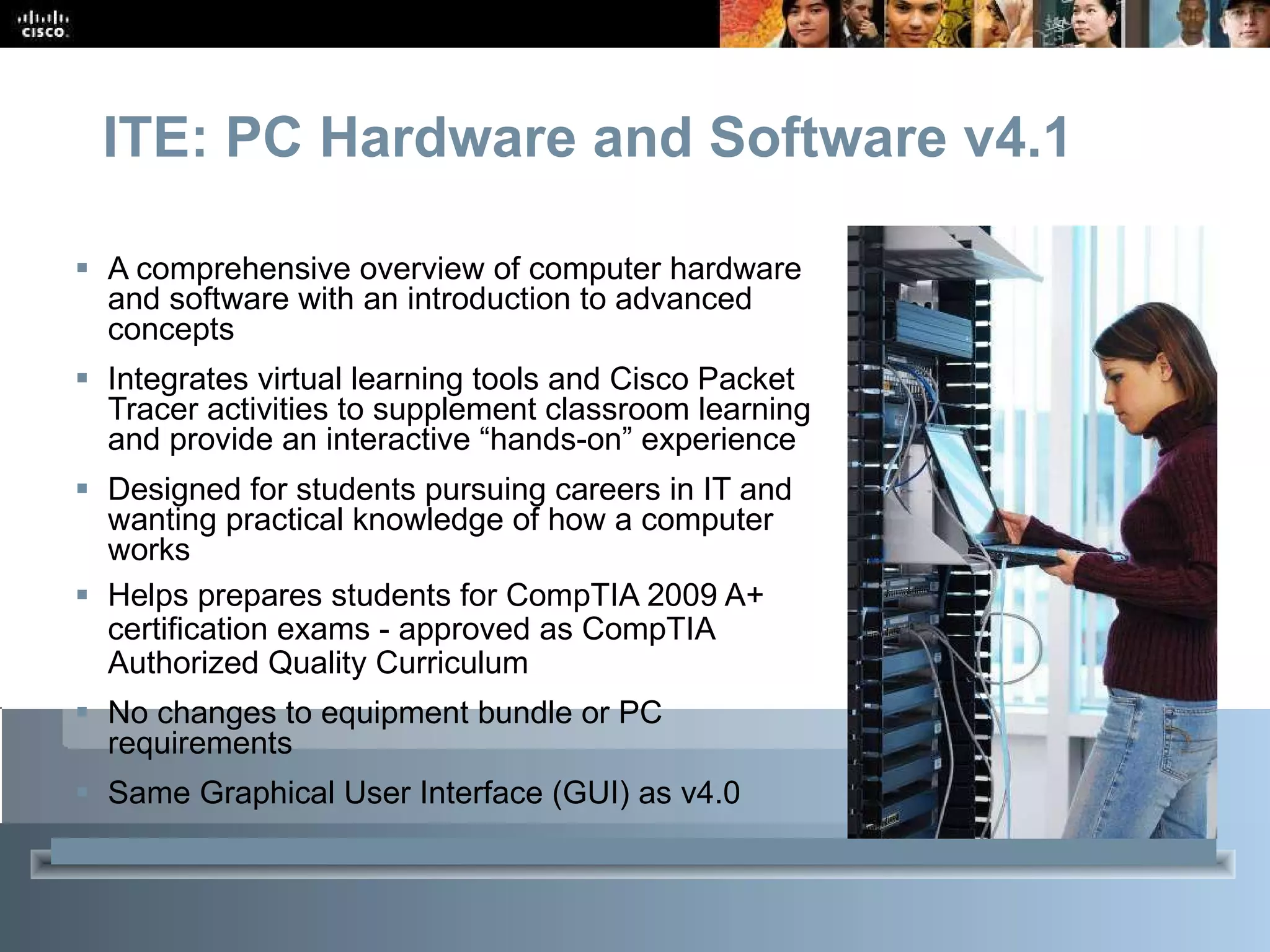
ITE: PC Hardware and Software v4.1 A comprehensive overview of computer hardware and software with an introduction to advanced concepts Integrates virtual learning tools and Cisco Packet Tracer activities to supplement classroom learning and provide an interactive “hands-on” experience Designed for students pursuing careers in IT and wanting practical knowledge of how a computer works Helps prepares students for CompTIA 2009 A+ certification exams - approved as CompTIA Authorized Quality Curriculum No changes to equipment bundle or PC requirements Same Graphical User Interface (GUI) as v4.0  Subtitle: Size 24, Left Aligned
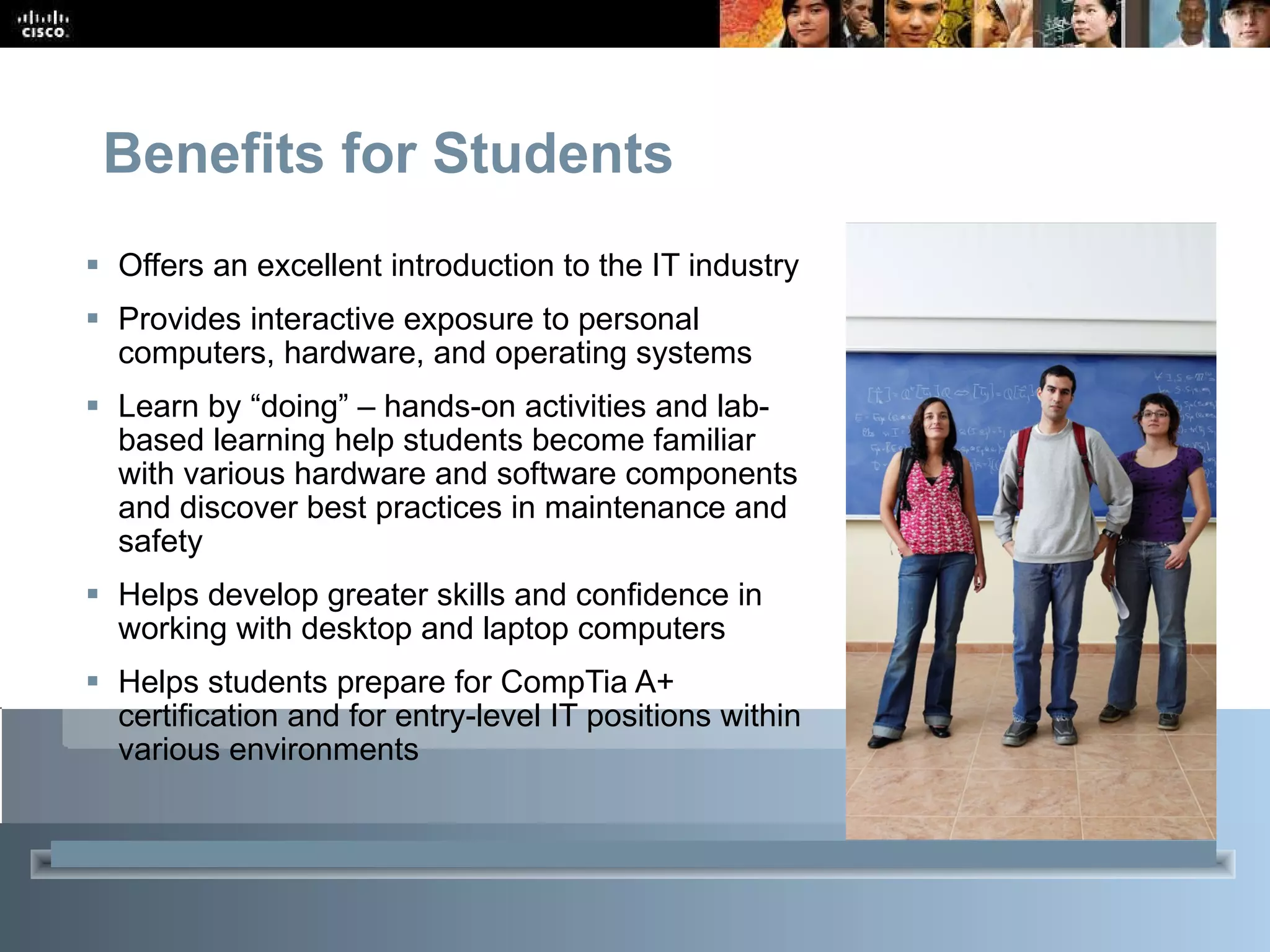
Benefits for Students Offers an excellent introduction to the IT industry Provides interactive exposure to personal computers, hardware, and operating systems Learn by “doing” – hands-on activities and lab-based learning help students become familiar with various hardware and software components and discover best practices in maintenance and safety Helps develop greater skills and confidence in working with desktop and laptop computers Helps students prepare for CompTia A+ certification and for entry-level IT positions within various environments
Who Should Enroll?   Students seeking career-oriented, entry-level hardware and software skills to prepare for careers in information and communication technology (ICT)  Students who want to gain skills and working knowledge of how computers work, how to assemble computers, and how to troubleshoot hardware and software issues  Students at many education levels and types of institutions Including high schools, secondary schools, universities, colleges, career and technical schools, community organizations, and other non-traditional learning environments
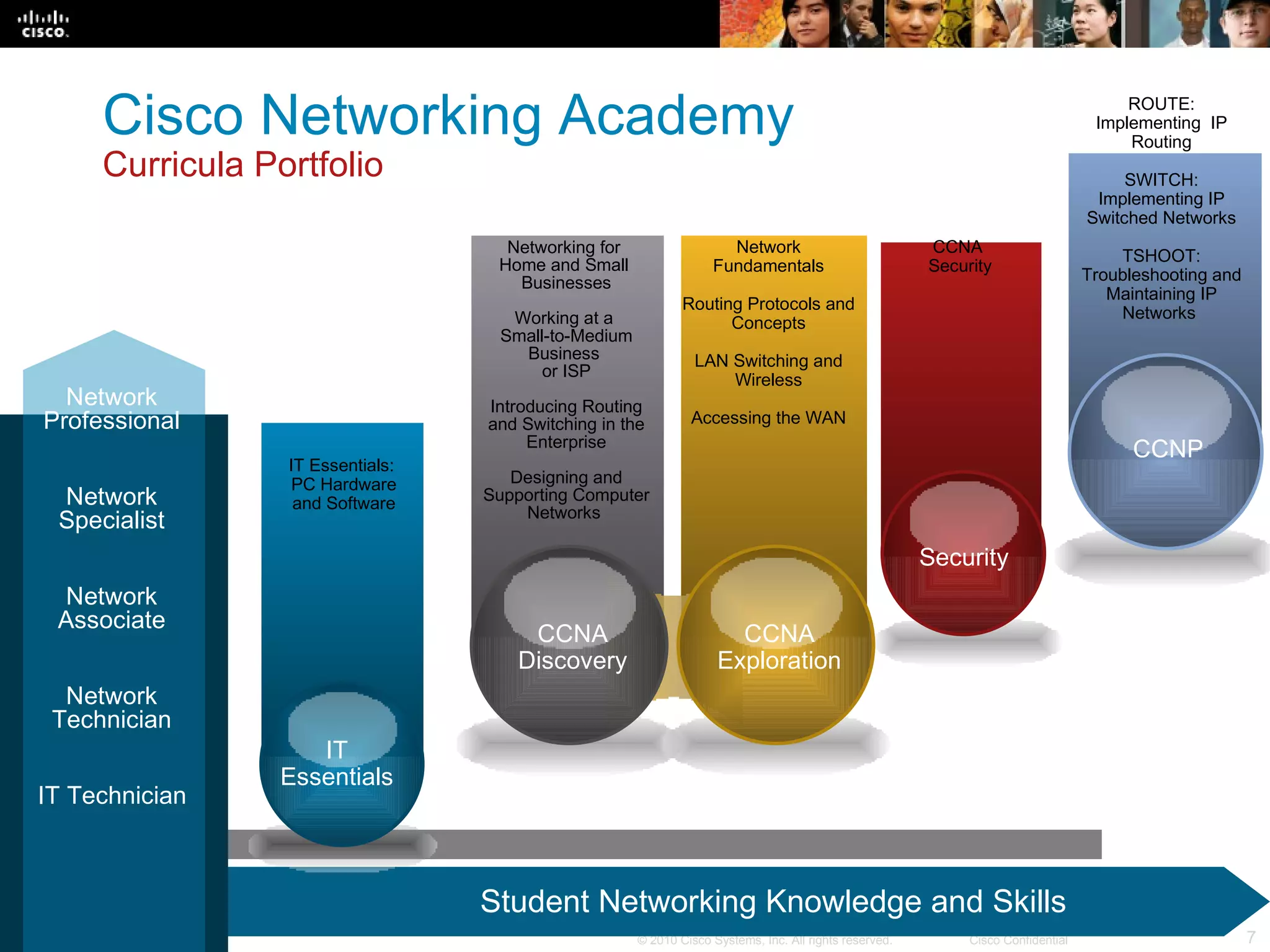
Student Networking Knowledge and Skills Cisco Networking Academy   Curricula Portfolio CCNP IT Essentials:  PC Hardware and Software IT Essentials Security Networking for  Home and Small  Businesses Working at a  Small-to-Medium Business  or ISP Introducing Routing and Switching in the Enterprise Designing and Supporting Computer Networks  Network Fundamentals Routing Protocols and Concepts LAN Switching and Wireless Accessing the WAN CCNA Security ROUTE: Implementing  IP Routing SWITCH: Implementing IP Switched Networks TSHOOT: Troubleshooting and Maintaining IP Networks  Network Professional IT Technician Network Technician Network Associate Network Specialist Packet Tracer CCNA Discovery CCNP CCNA Exploration
Course Design
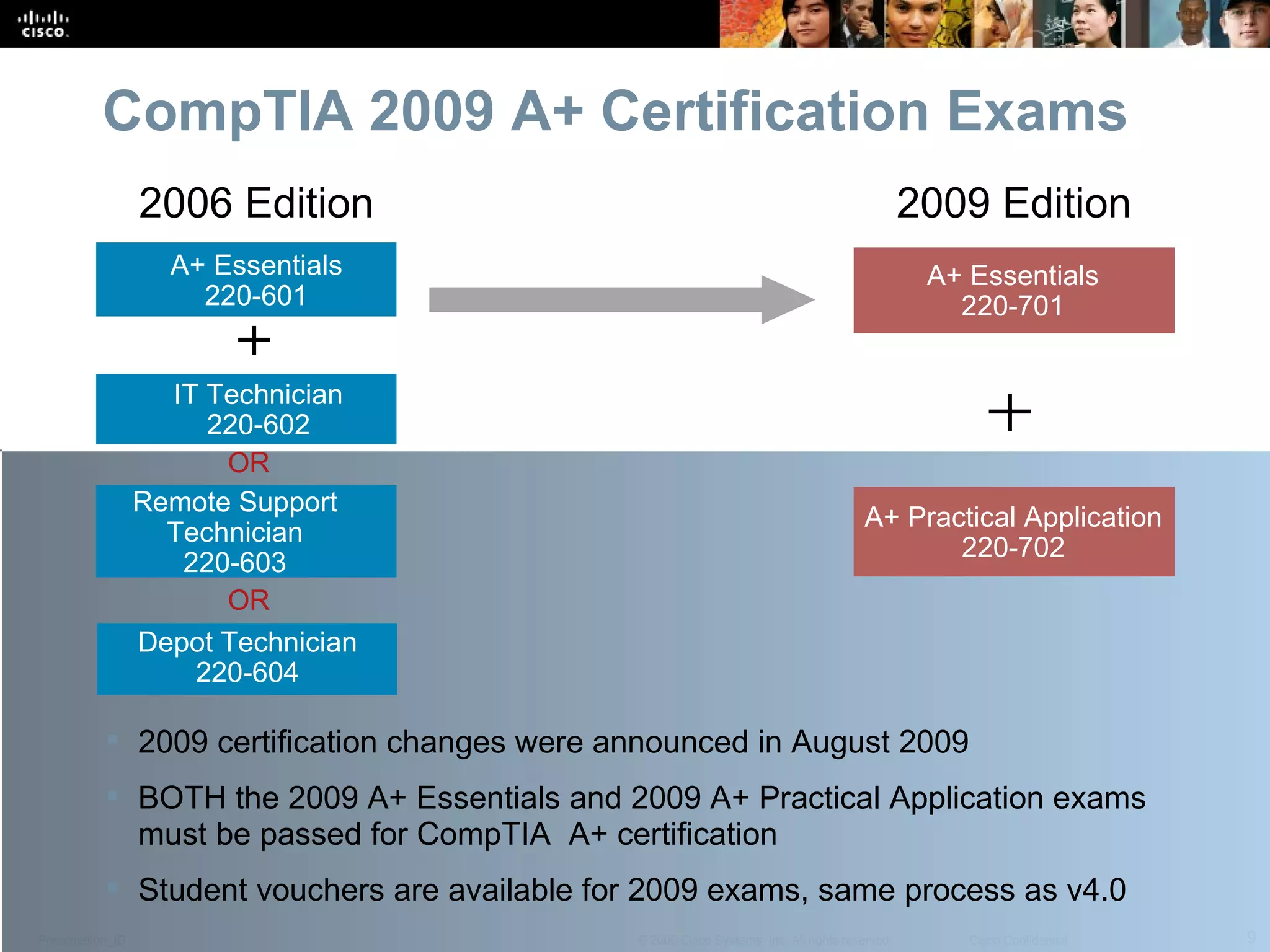
CompTIA 2009 A+ Certification Exams A+ Essentials 220-601 IT Technician 220-602 Depot Technician 220-604 OR OR A+ Essentials 220-701 A+ Practical Application 220-702 2006 Edition 2009 Edition 2009 certification changes were announced in August 2009 BOTH the 2009 A+ Essentials and 2009 A+ Practical Application exams must be passed for CompTIA  A+ certification Student vouchers are available for 2009 exams, same process as v4.0 Remote Support Technician 220-603
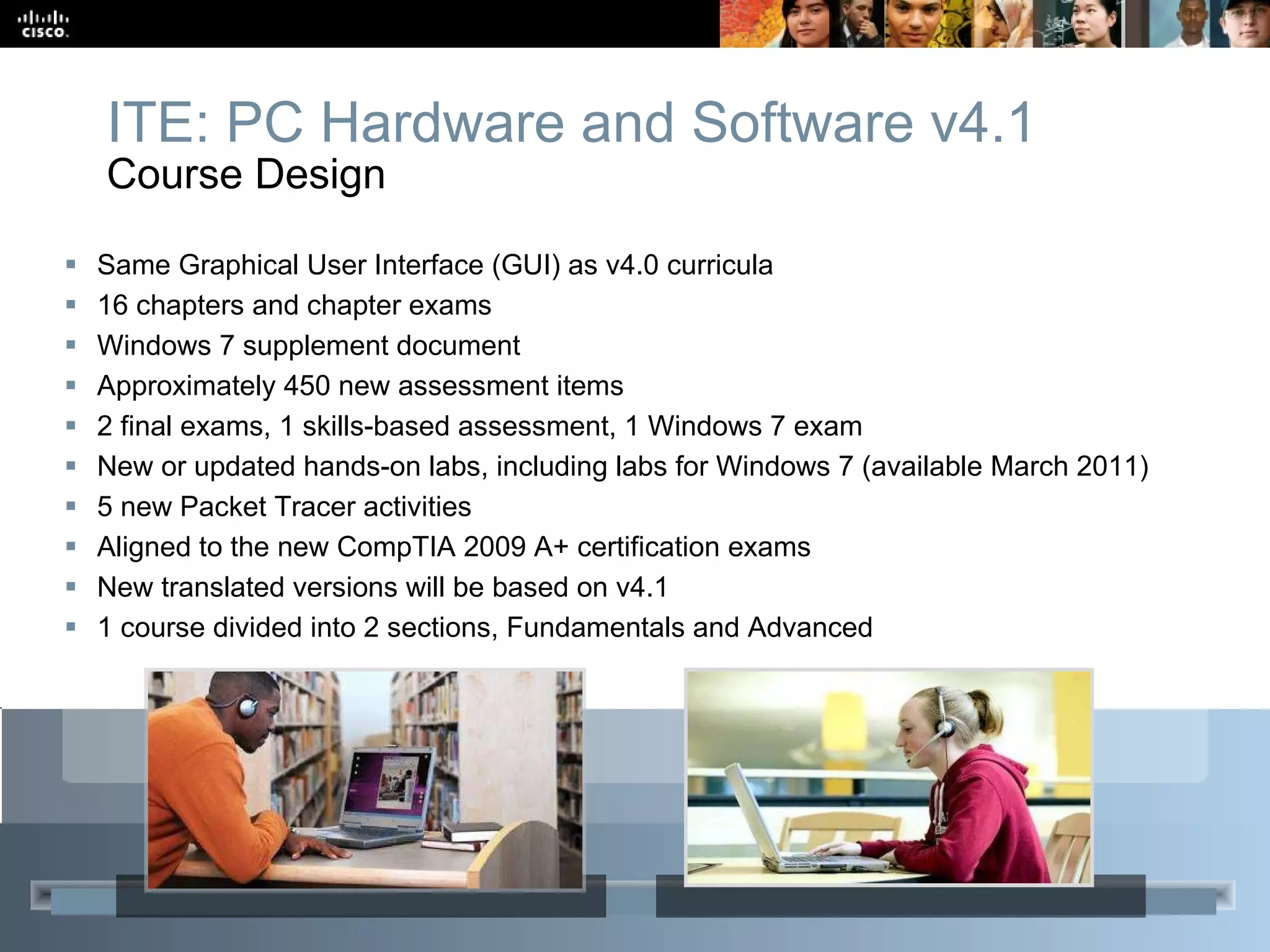
Same Graphical User Interface (GUI) as v4.0 curricula 16 chapters  and chapter exams Windows 7 supplement document Approximately 450 new assessment items 2 final exams, 1 skills-based assessment, 1 Windows 7 exam New or updated hands-on labs, including labs for Windows 7 (available March 2011)  5 new Packet Tracer activities Aligned to the new CompTIA 2009 A+ certification exams New translated versions will be based on v4.1 1 course divided into 2 sections, Fundamentals and Advanced ITE: PC Hardware and Software v4.1 Course Design
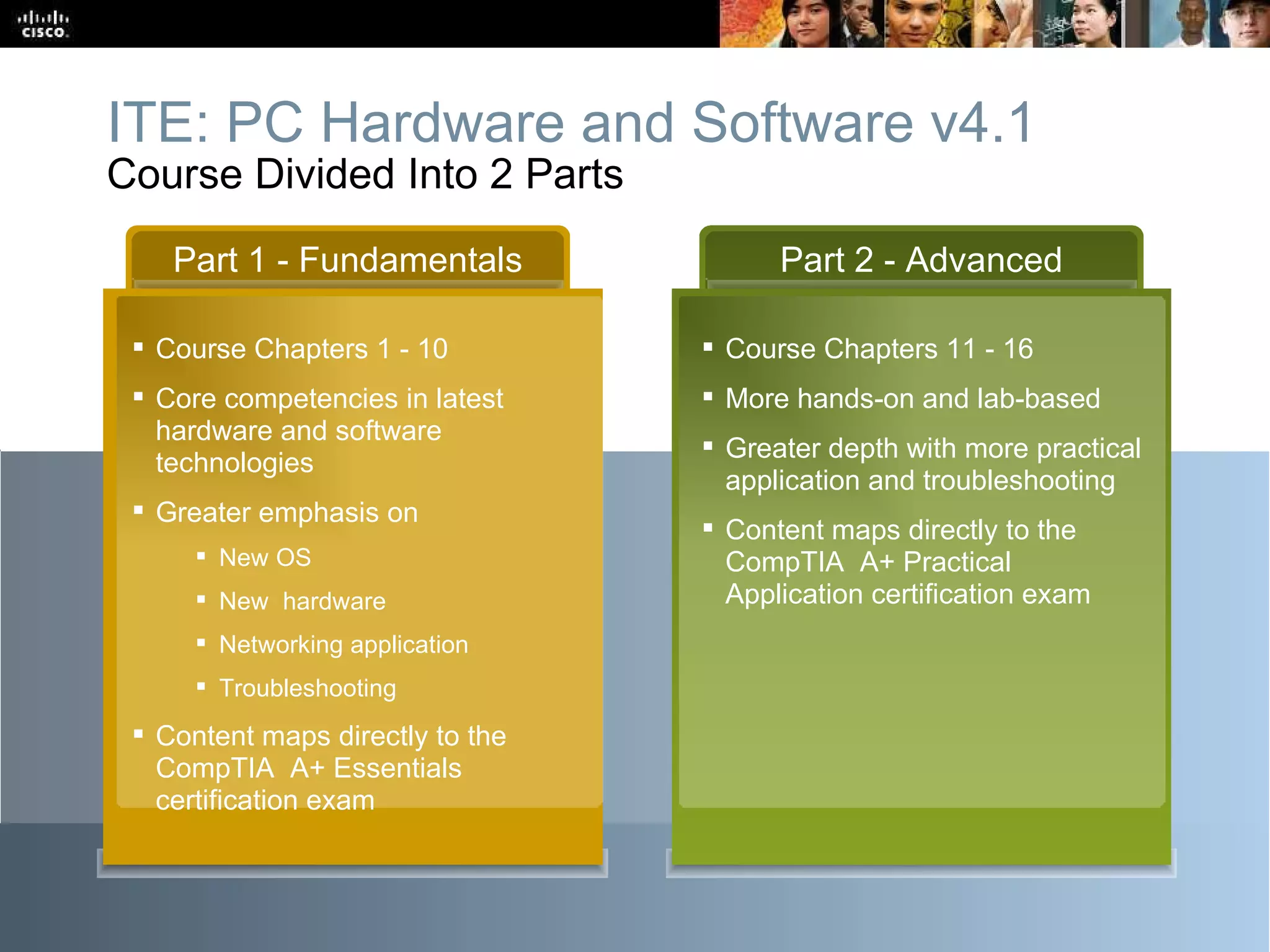
Part 1 - Fundamentals Course Chapters 1 - 10 Core competencies in latest hardware and software technologies Greater emphasis on  New OS New  hardware Networking application Troubleshooting Content maps directly to the CompTIA  A+ Essentials certification exam  Part 2 - Advanced Course Chapters 11 - 16 More hands-on and lab-based Greater depth with more practical application and troubleshooting Content maps directly to the CompTIA  A+ Practical Application certification exam ITE: PC Hardware and Software v4.1 Course Divided Into 2 Parts
Scope and Sequence
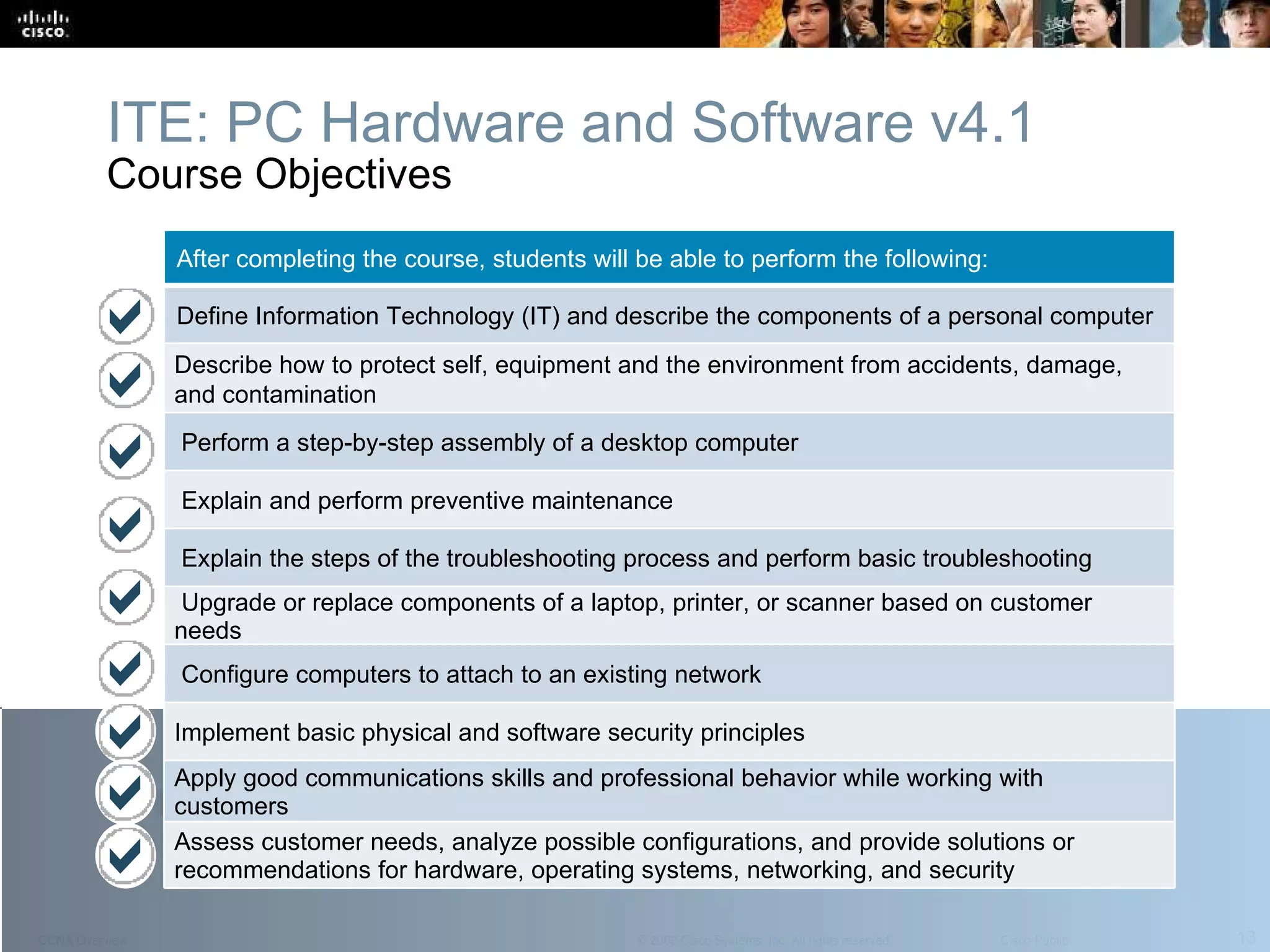
ITE: PC Hardware and Software v4.1 Course Objectives After completing the course, students will be able to perform the following:  Define Information Technology (IT) and describe the components of a personal computer Describe how to protect self, equipment and the environment from accidents, damage, and contamination Perform a step-by-step assembly of a desktop computer Explain and perform preventive maintenance Explain the steps of the troubleshooting process and perform basic troubleshooting Upgrade or replace components of a laptop, printer, or scanner based on customer needs Configure computers to attach to an existing network Implement basic physical and software security principles Apply good communications skills and professional behavior while working with customers Assess customer needs, analyze possible configurations, and provide solutions or  recommendations for hardware, operating systems, networking, and security
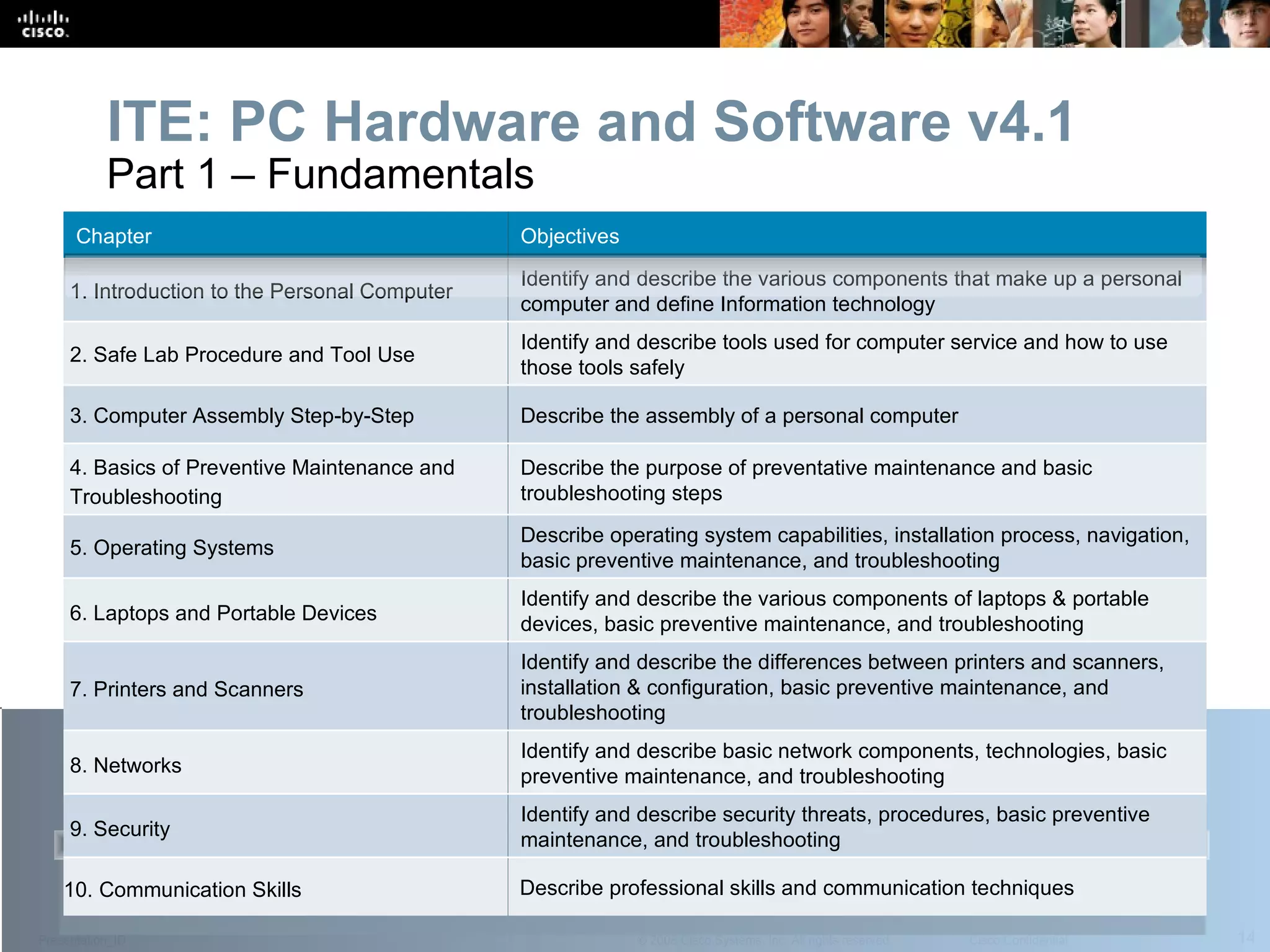
ITE: PC Hardware and Software v4.1 Part 1 – Fundamentals  Chapter Objectives 1.  Introduction to the Personal Computer  Identify and describe the various components that make up a personal computer and define Information technology 2.  Safe Lab Procedure and Tool Use  Identify and describe tools used for computer service and how to use those tools safely 3.  Computer Assembly Step-by-Step  Describe the assembly of a personal computer 4.  Basics of Preventive Maintenance and Troubleshooting  Describe the purpose of preventative maintenance and basic troubleshooting steps 5.  Operating Systems  Describe operating system capabilities, installation process, navigation,  basic preventive maintenance, and troubleshooting 6.  Laptops and Portable Devices  Identify and describe the various components of laptops & portable devices, basic  preventive maintenance, and  troubleshooting 7.  Printers and Scanners  Identify and describe the differences between printers and scanners, installation & configuration, basic  preventive maintenance, and  troubleshooting 8.  Networks Identify and describe basic network components, technologies, basic  preventive maintenance, and  troubleshooting 9.  Security Identify and describe security threats, procedures, basic  preventive maintenance, and  troubleshooting 10. Communication Skills Describe professional skills and communication techniques
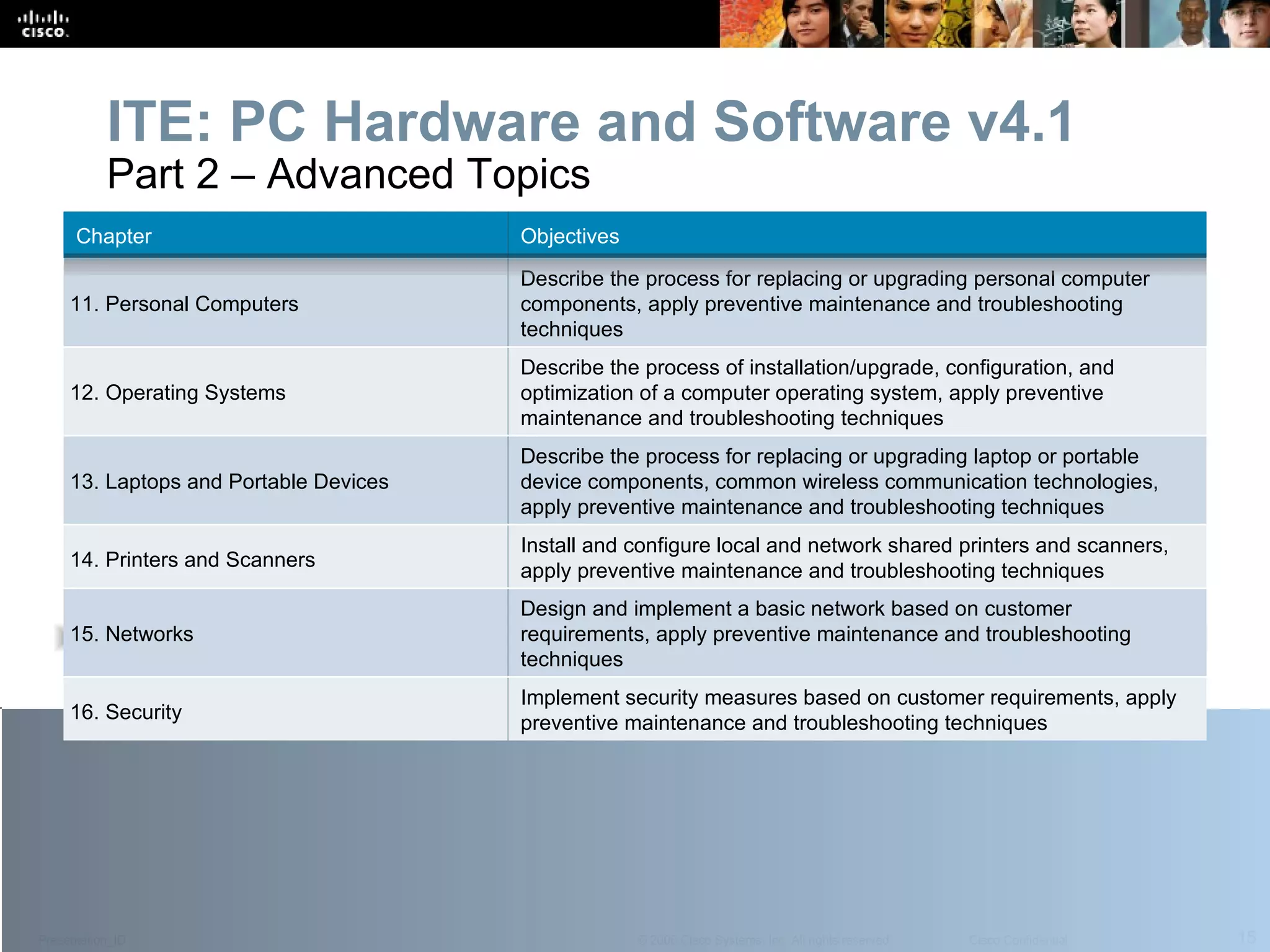
ITE: PC Hardware and Software v4.1 Part 2 – Advanced Topics Chapter Objectives 11.  Personal Computers Describe the process for replacing or upgrading personal computer components, apply preventive maintenance and troubleshooting techniques 12.  Operating Systems Describe the process of installation/upgrade, configuration, and optimization of a computer operating system, apply preventive maintenance and troubleshooting techniques 13.  Laptops and Portable Devices Describe the process for replacing or upgrading laptop or portable device components, common wireless communication technologies,  apply preventive maintenance and troubleshooting techniques 14.  Printers and Scanners Install and configure local and network shared printers and scanners, apply preventive maintenance and troubleshooting techniques 15.  Networks Design and implement a basic network based on customer requirements, apply preventive maintenance and troubleshooting techniques 16.  Security Implement security measures based on customer requirements, apply preventive maintenance and troubleshooting techniques
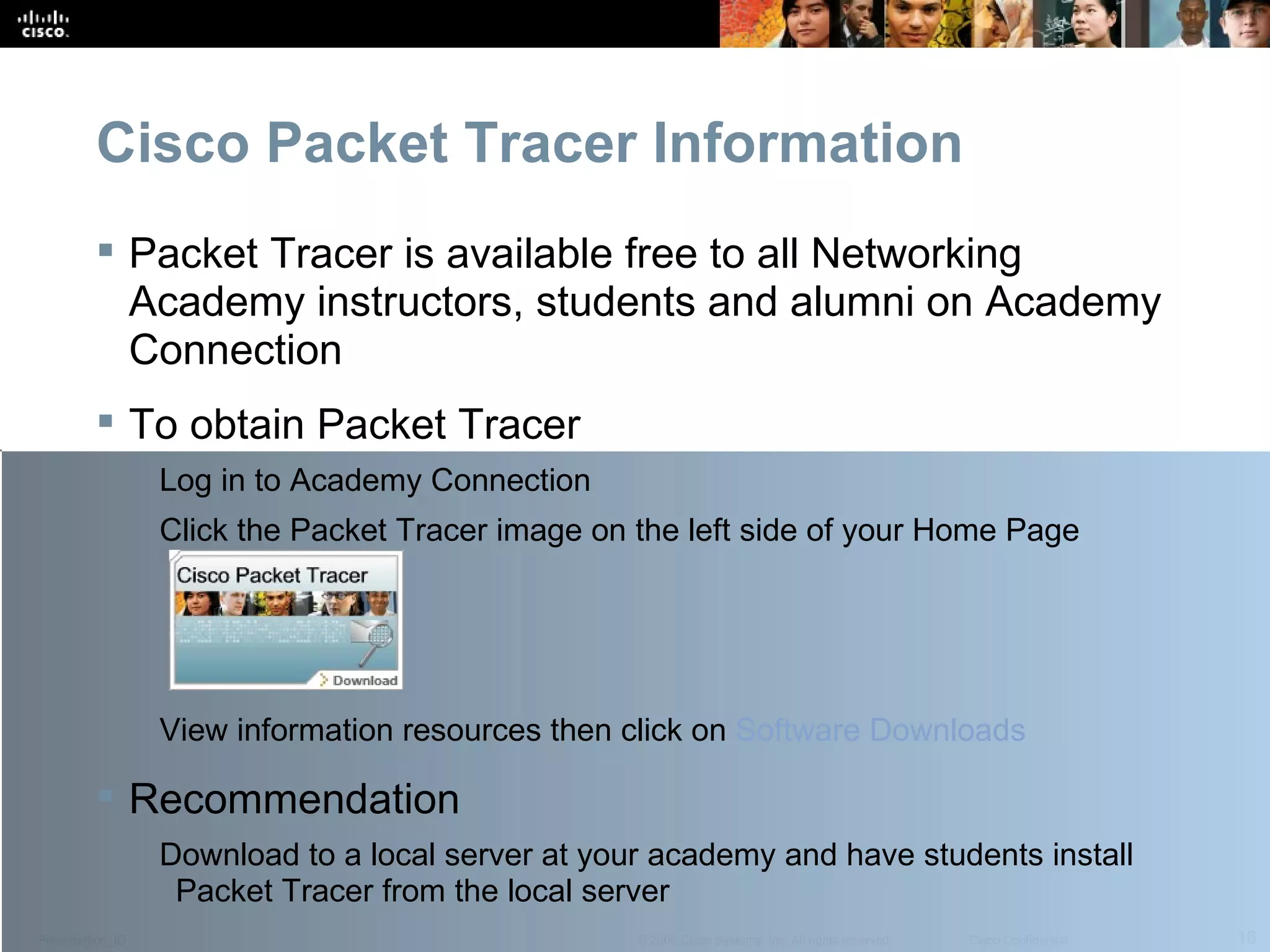
Cisco Packet Tracer Information Packet Tracer is available free to all Networking Academy instructors, students and alumni on Academy Connection To obtain Packet Tracer Log in to Academy Connection Click the Packet Tracer image on the left side of your Home Page View information resources then click on  Software Downloads  Recommendation Download to a local server at your academy and have students install Packet Tracer from the local server
Virtual Learning Tools
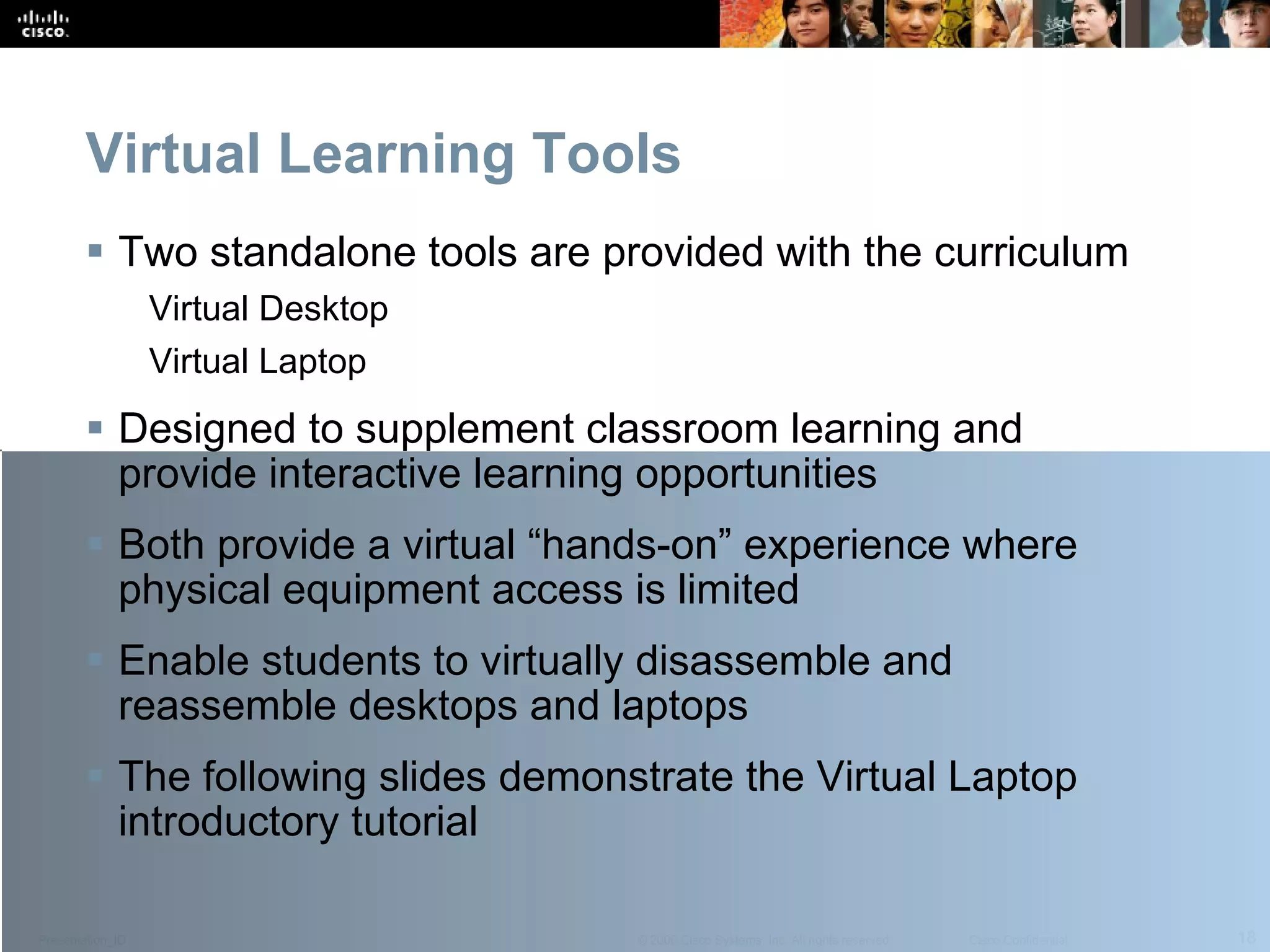
Virtual Learning Tools Two standalone tools are provided with the curriculum Virtual Desktop Virtual Laptop Designed to supplement classroom learning and provide interactive learning opportunities Both provide a virtual “hands-on” experience where physical equipment access is limited Enable students to virtually disassemble and reassemble desktops and laptops The following slides demonstrate the Virtual Laptop introductory tutorial
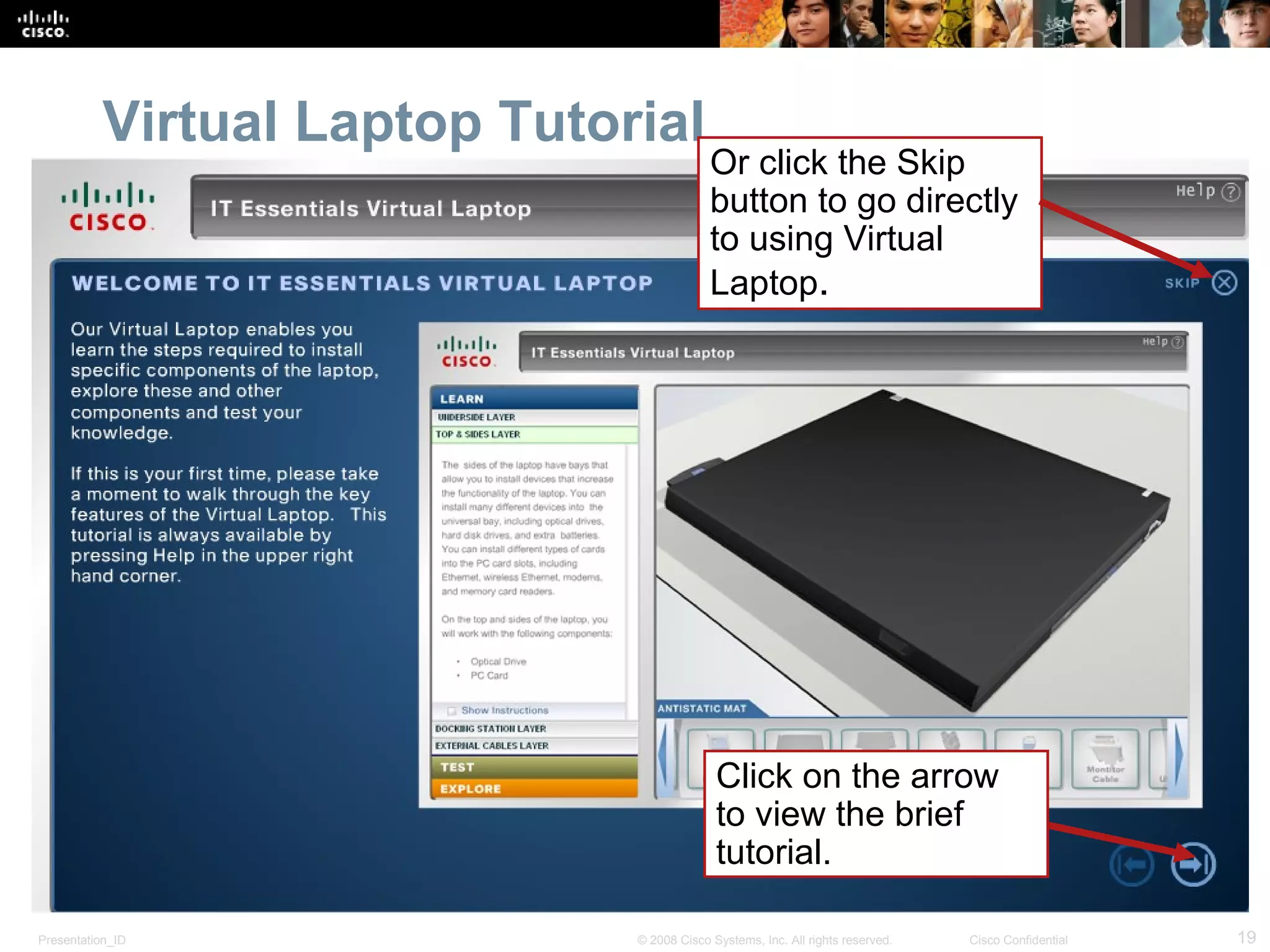
Virtual Laptop Tutorial Click on the arrow to view the brief tutorial. Or click the Skip button to go directly to using Virtual Laptop .
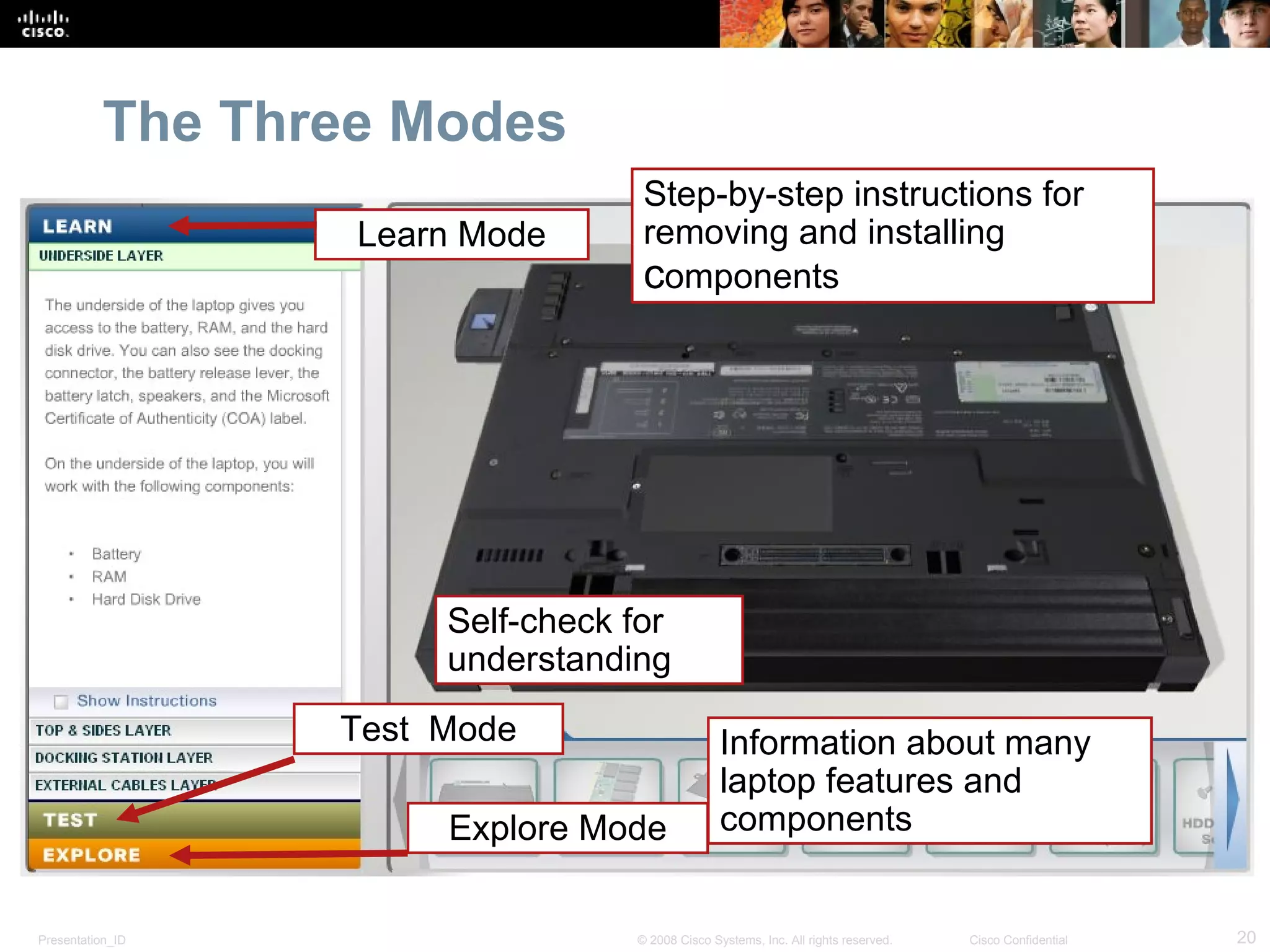
The Three Modes Step-by-step instructions for removing and installing  c omponents Self-check for understanding Information about many laptop features and components Learn Mode Explore Mode Test  Mode
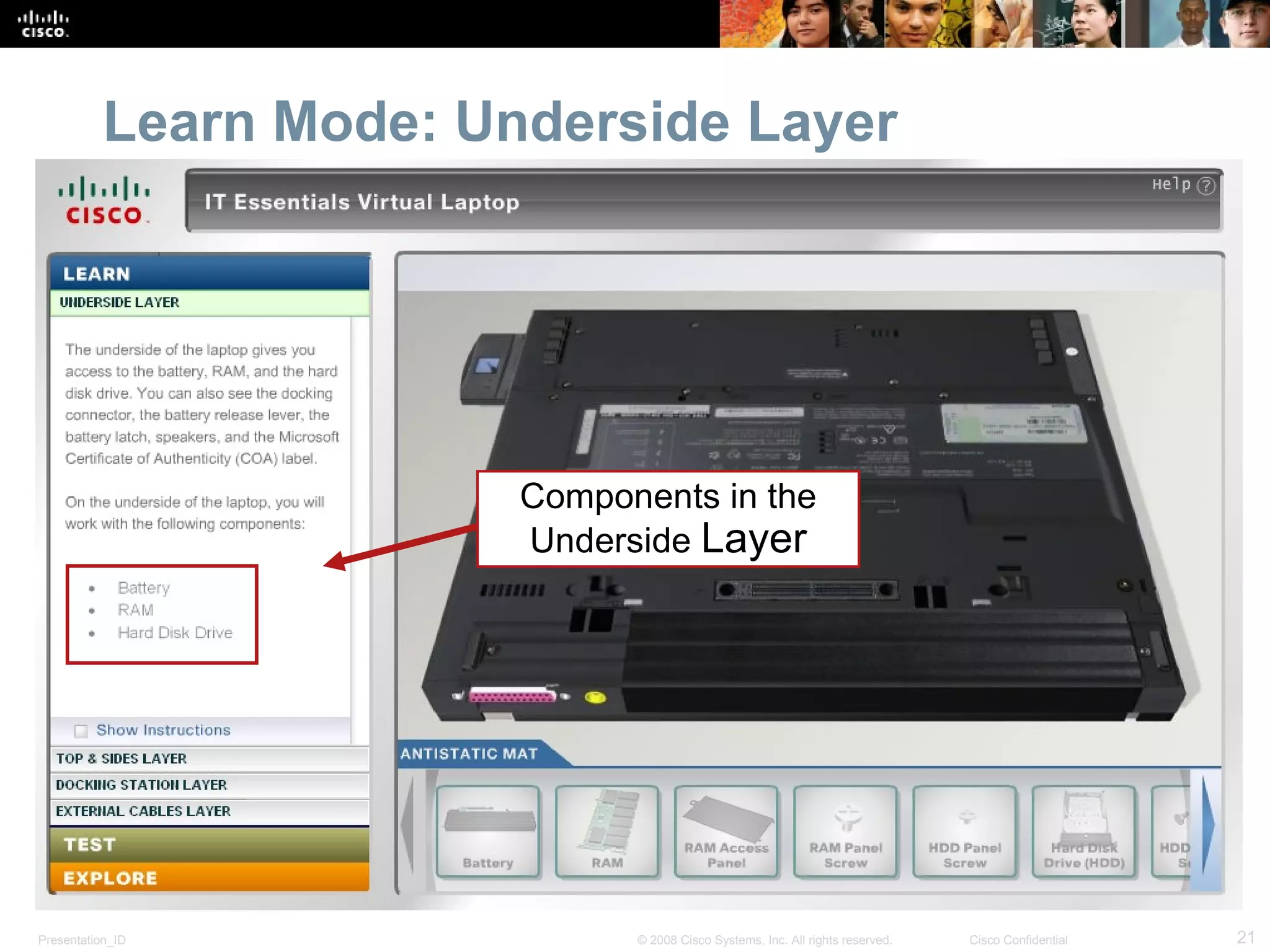
Learn Mode: Underside Layer Components in the Underside  Layer
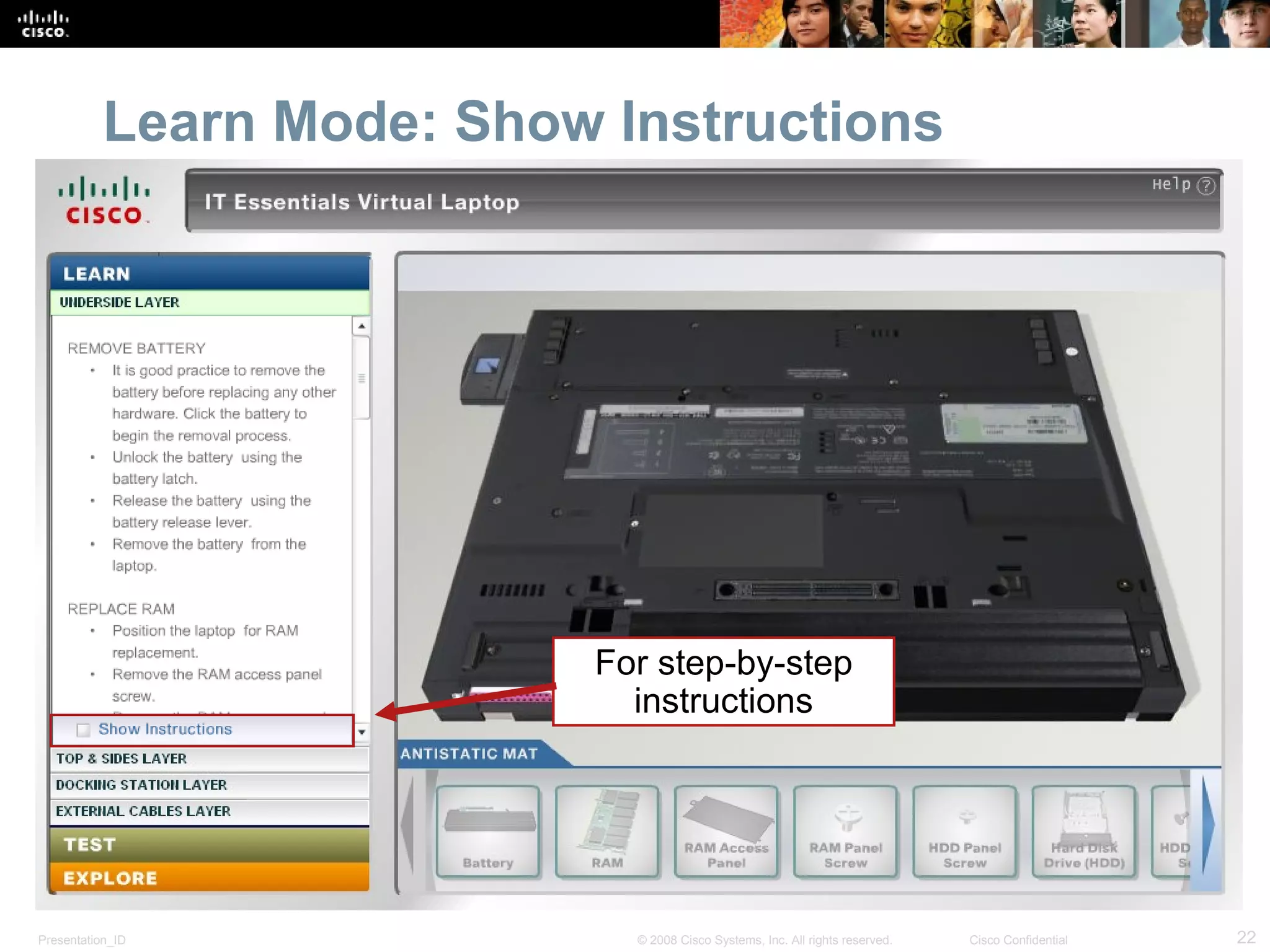
Learn Mode: Show Instructions For step-by-step instructions
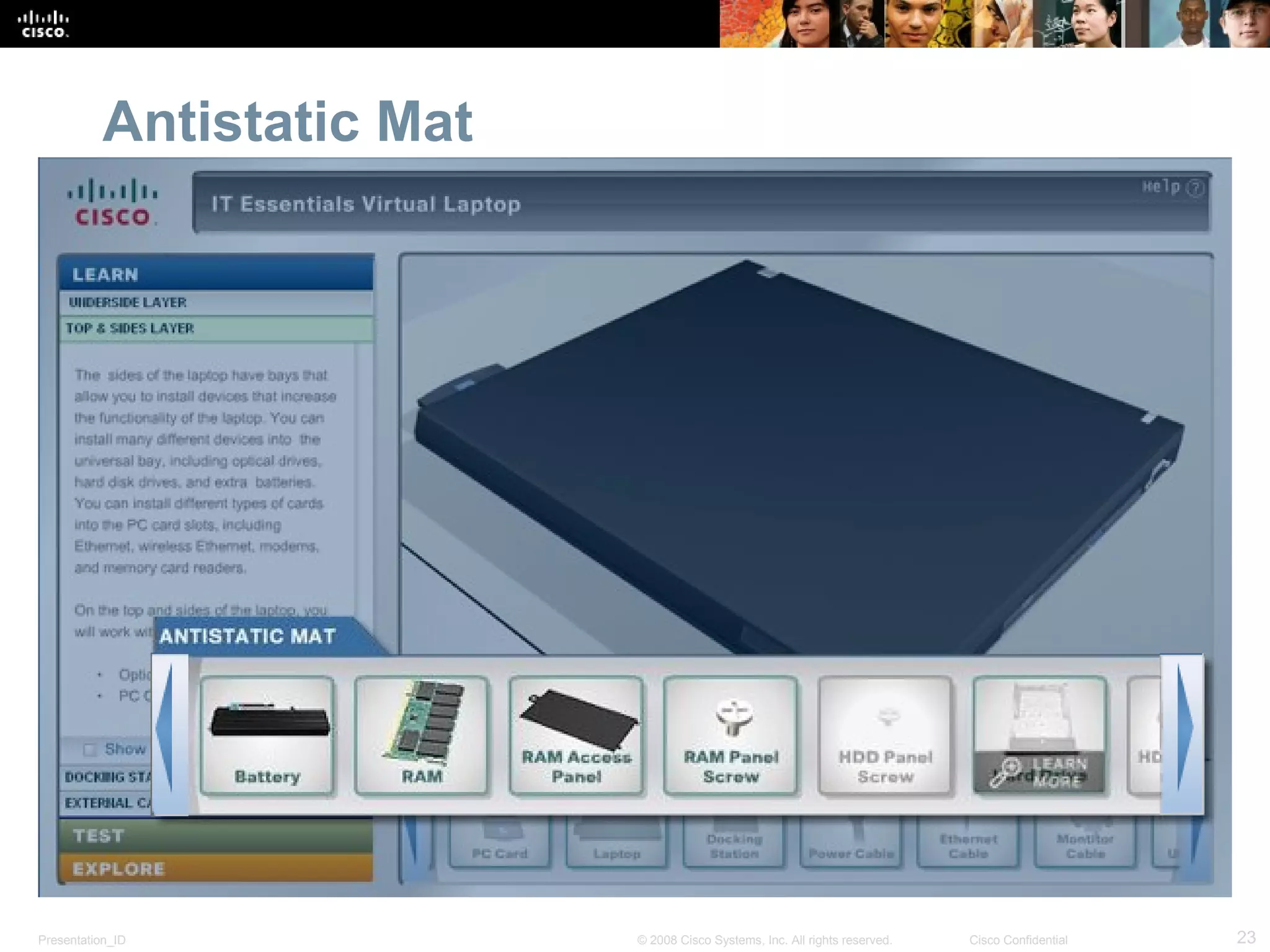
Antistatic Mat
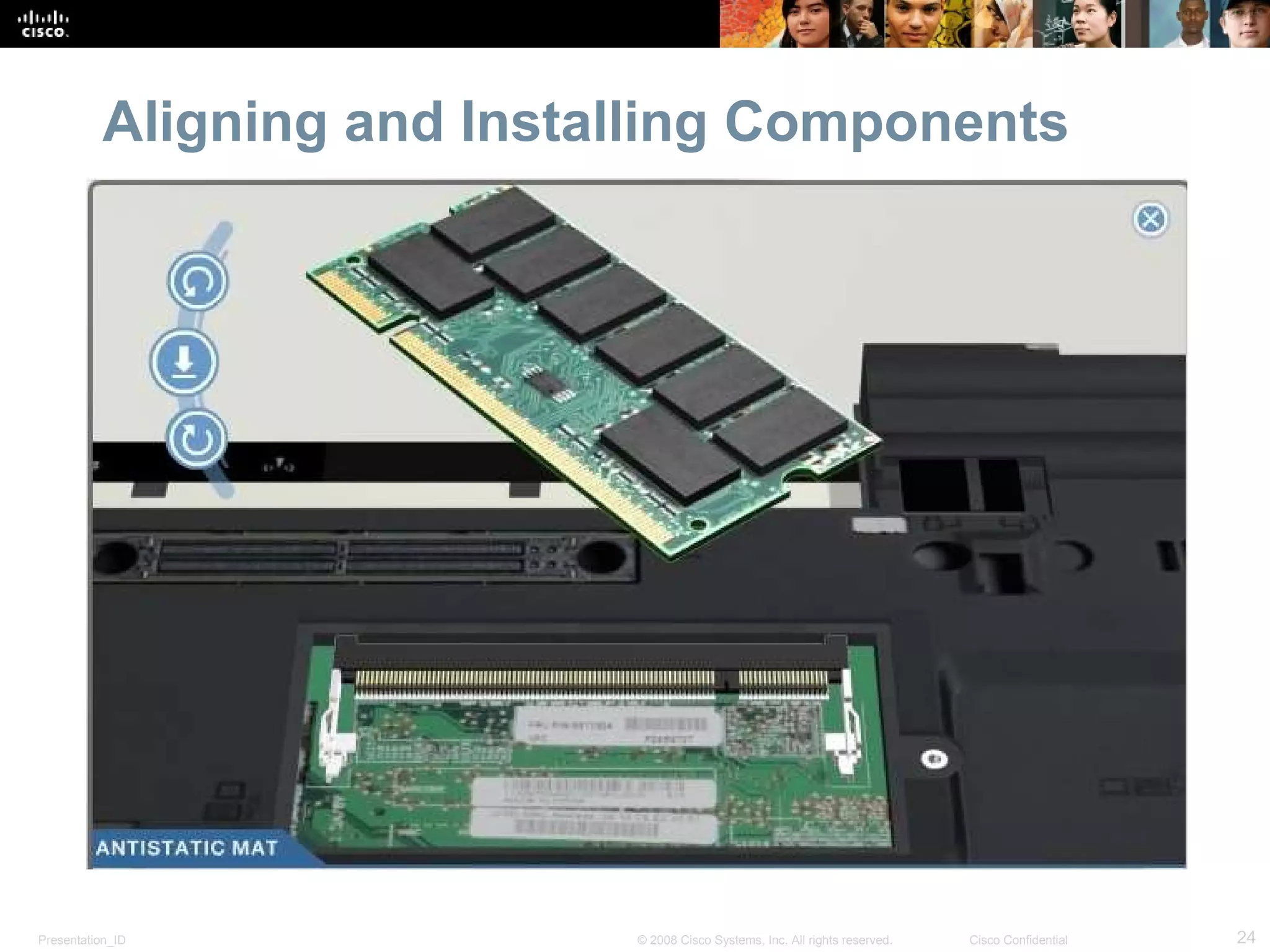
Aligning and Installing Components
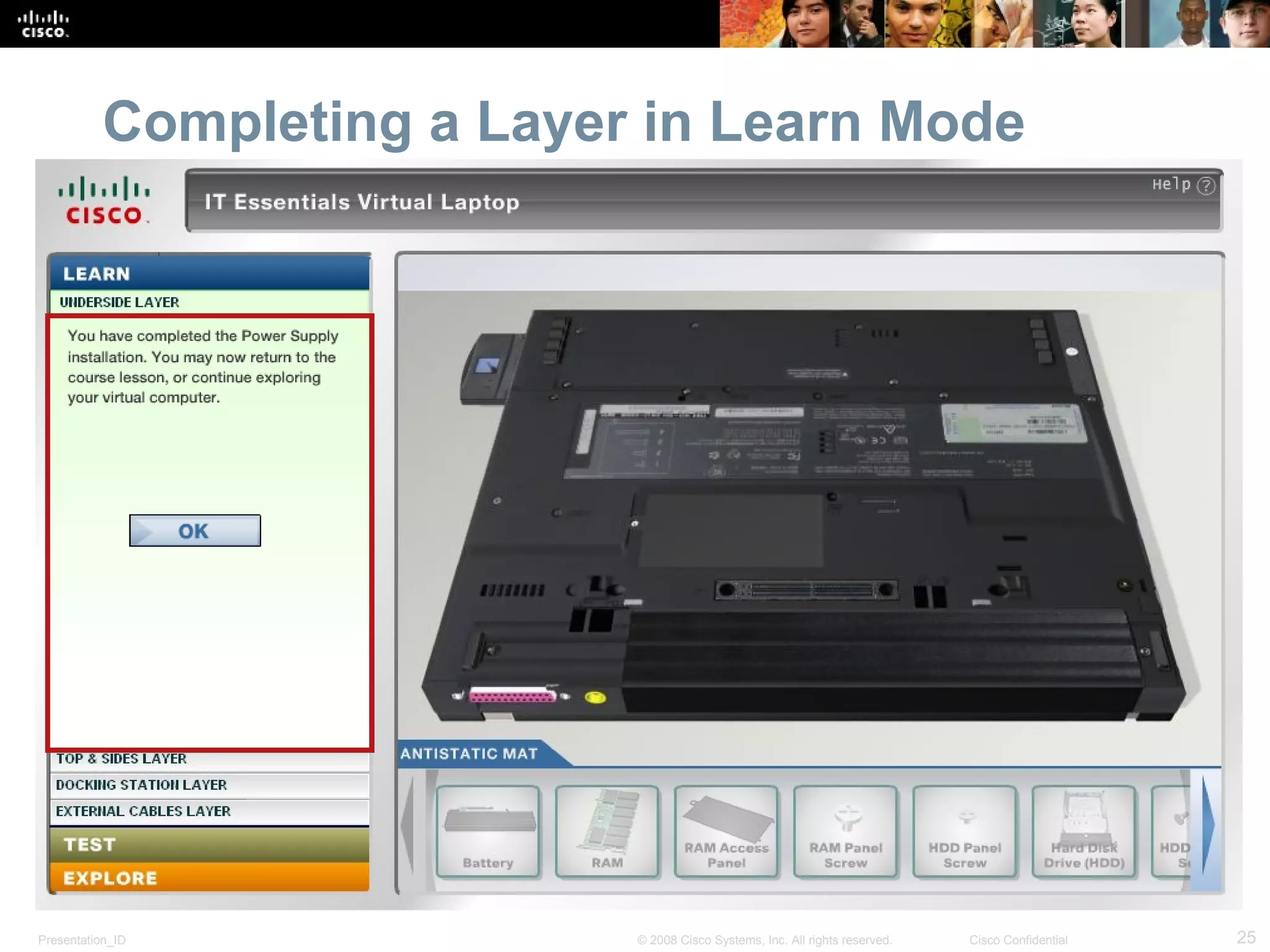
Completing a Layer in Learn Mode
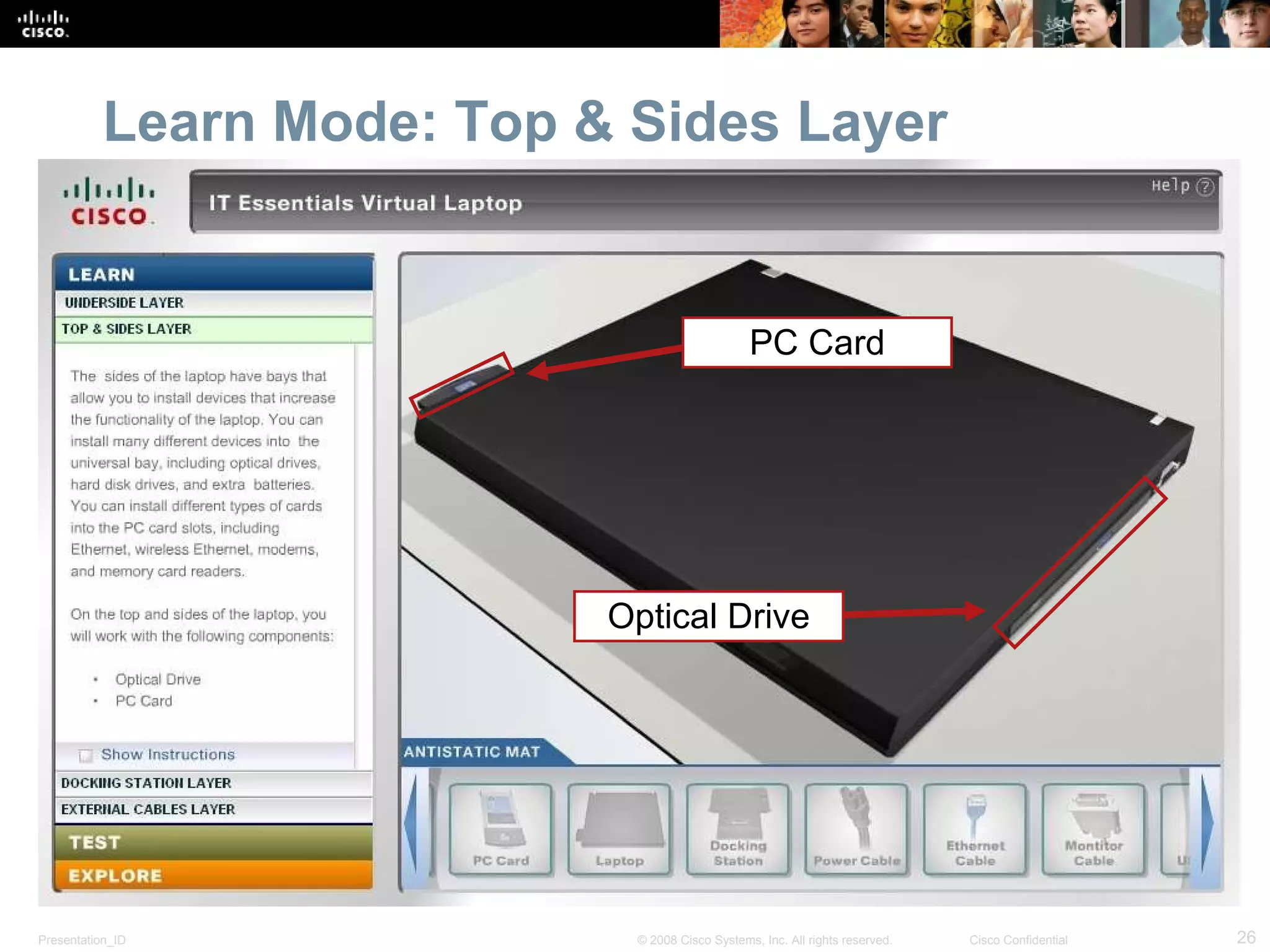
Learn Mode: Top & Sides Layer Optical Drive PC Card
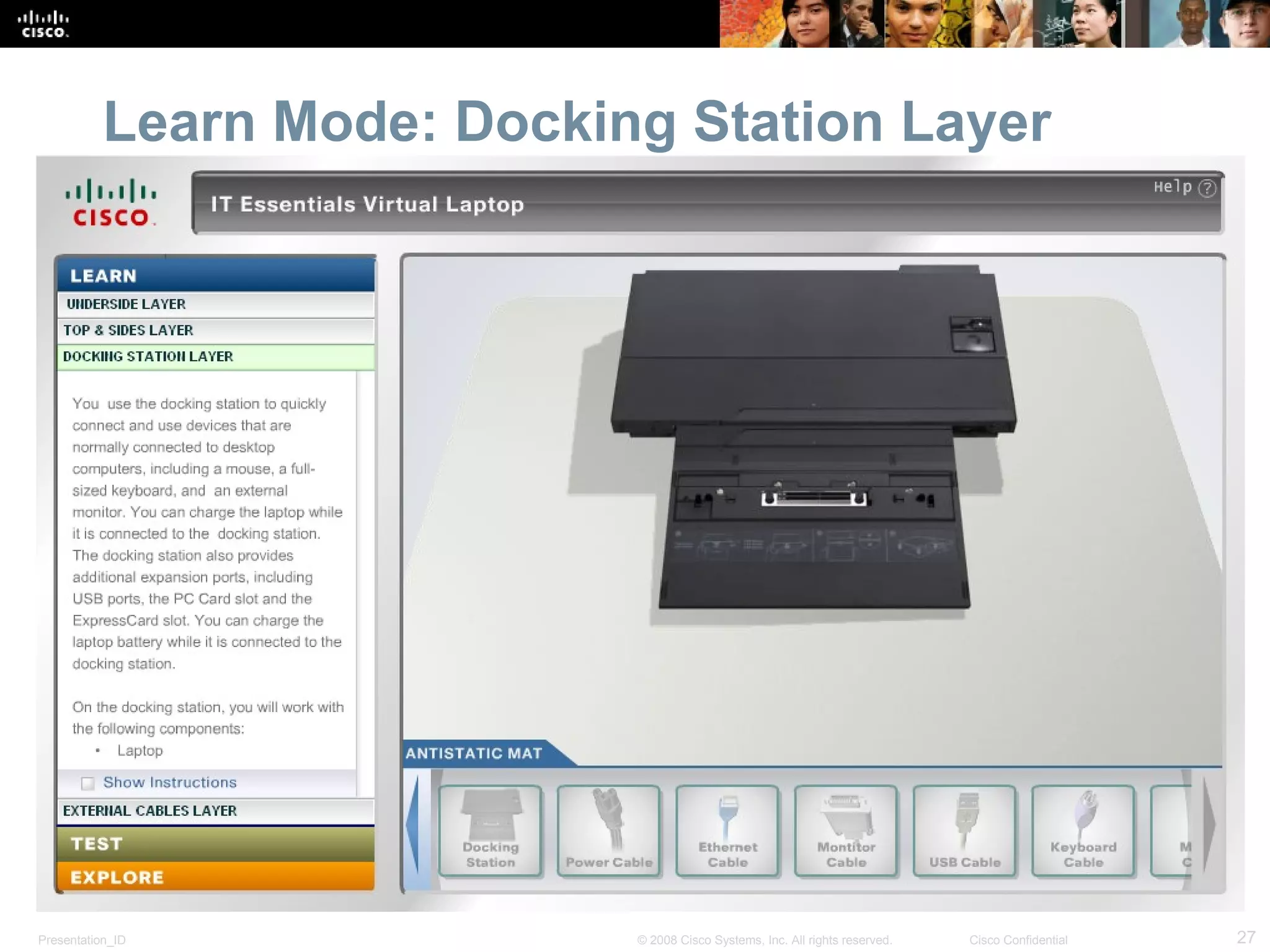
Learn Mode: Docking Station Layer
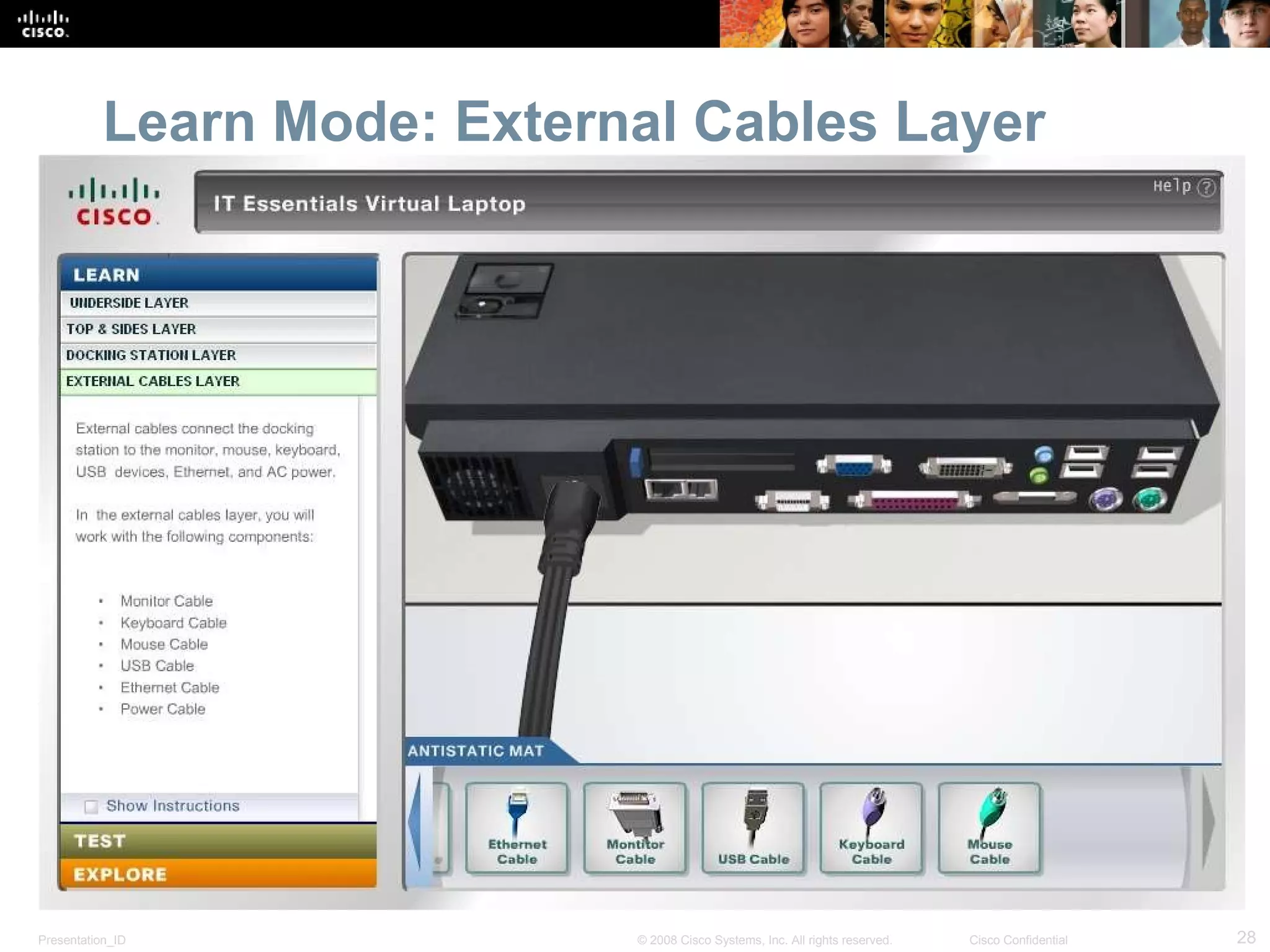
Learn Mode: External Cables Layer
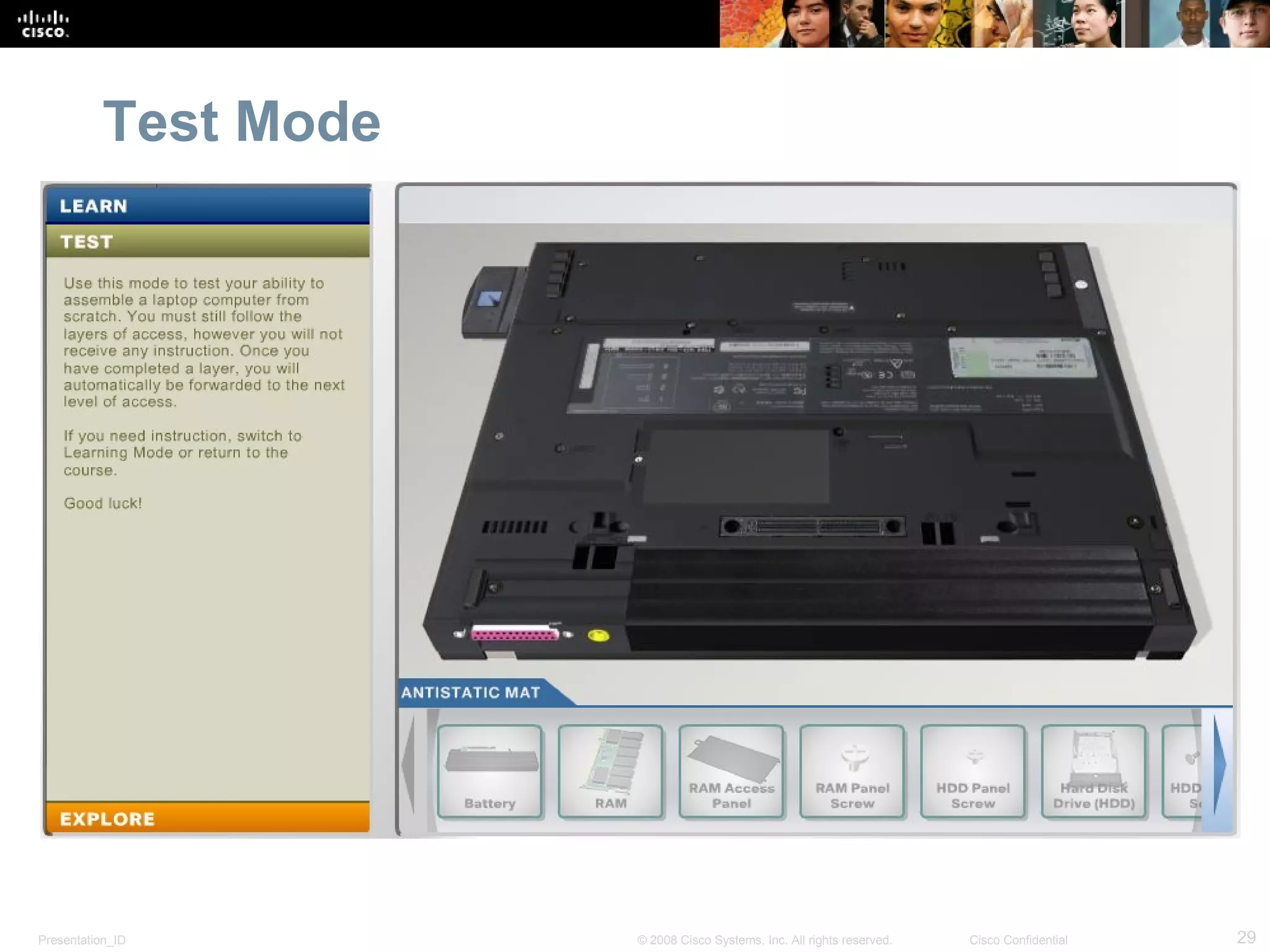
Test Mode
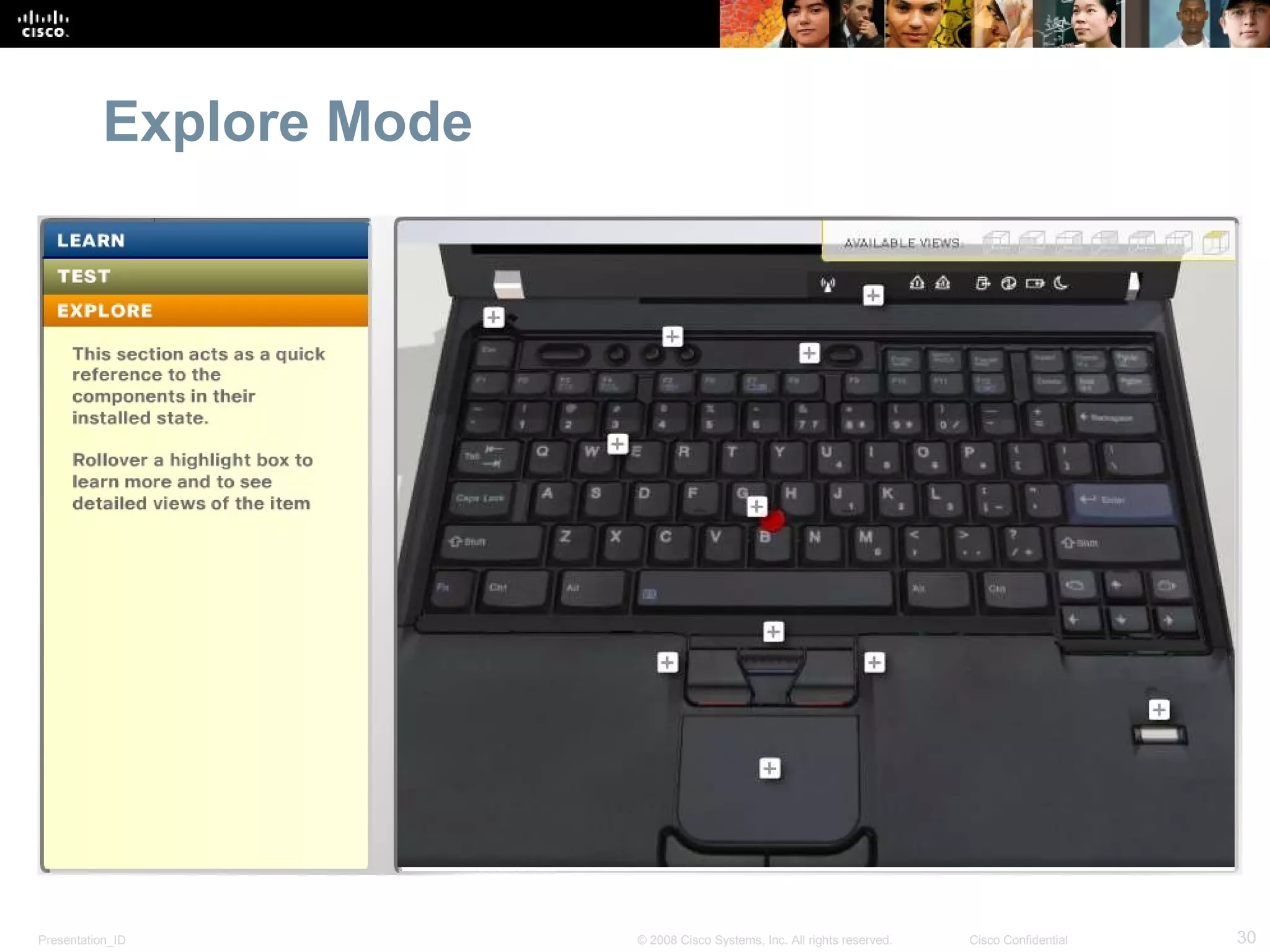
Explore Mode
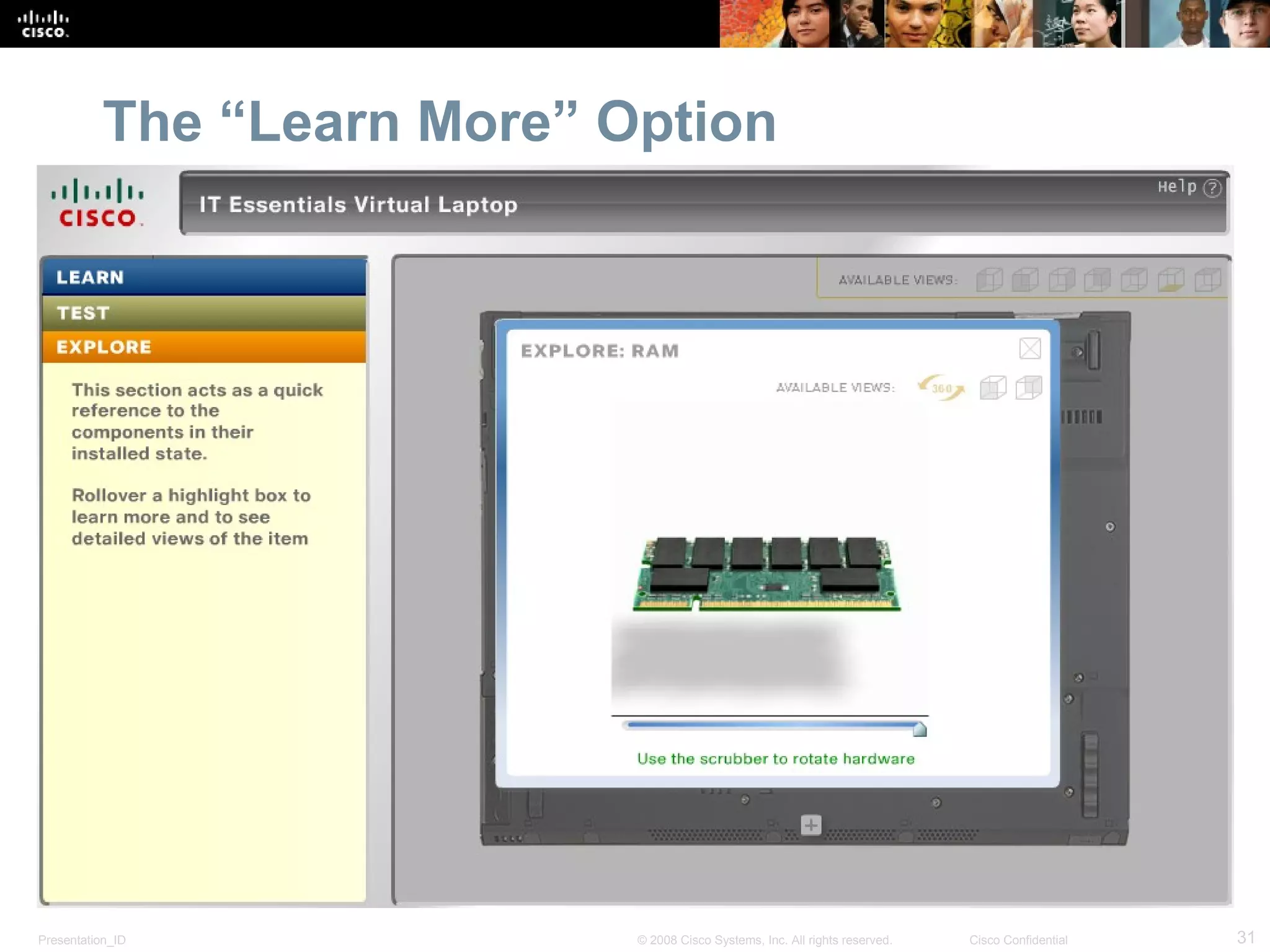
The “Learn More” Option
 
Ahmed Sultan http://www.ciscawy.com/ [email_address] 0161602434

It essentials pc hardware and software overview

  • 1.
    IT Essentials: PCHardware and Software Overview Ahmed Sultan CCNA , CCNA SECURITY and CCNA Voice
  • 2.
    Contents Overview CourseDesign Virtual Tools Scope and Sequence 1 2 3 4
  • 3.
  • 4.
    ITE: PC Hardwareand Software v4.1 A comprehensive overview of computer hardware and software with an introduction to advanced concepts Integrates virtual learning tools and Cisco Packet Tracer activities to supplement classroom learning and provide an interactive “hands-on” experience Designed for students pursuing careers in IT and wanting practical knowledge of how a computer works Helps prepares students for CompTIA 2009 A+ certification exams - approved as CompTIA Authorized Quality Curriculum No changes to equipment bundle or PC requirements Same Graphical User Interface (GUI) as v4.0 Subtitle: Size 24, Left Aligned
  • 5.
    Benefits for StudentsOffers an excellent introduction to the IT industry Provides interactive exposure to personal computers, hardware, and operating systems Learn by “doing” – hands-on activities and lab-based learning help students become familiar with various hardware and software components and discover best practices in maintenance and safety Helps develop greater skills and confidence in working with desktop and laptop computers Helps students prepare for CompTia A+ certification and for entry-level IT positions within various environments
  • 6.
    Who Should Enroll? Students seeking career-oriented, entry-level hardware and software skills to prepare for careers in information and communication technology (ICT) Students who want to gain skills and working knowledge of how computers work, how to assemble computers, and how to troubleshoot hardware and software issues Students at many education levels and types of institutions Including high schools, secondary schools, universities, colleges, career and technical schools, community organizations, and other non-traditional learning environments
  • 7.
    Student Networking Knowledgeand Skills Cisco Networking Academy Curricula Portfolio CCNP IT Essentials: PC Hardware and Software IT Essentials Security Networking for Home and Small Businesses Working at a Small-to-Medium Business or ISP Introducing Routing and Switching in the Enterprise Designing and Supporting Computer Networks Network Fundamentals Routing Protocols and Concepts LAN Switching and Wireless Accessing the WAN CCNA Security ROUTE: Implementing IP Routing SWITCH: Implementing IP Switched Networks TSHOOT: Troubleshooting and Maintaining IP Networks  Network Professional IT Technician Network Technician Network Associate Network Specialist Packet Tracer CCNA Discovery CCNP CCNA Exploration
  • 8.
  • 9.
    CompTIA 2009 A+Certification Exams A+ Essentials 220-601 IT Technician 220-602 Depot Technician 220-604 OR OR A+ Essentials 220-701 A+ Practical Application 220-702 2006 Edition 2009 Edition 2009 certification changes were announced in August 2009 BOTH the 2009 A+ Essentials and 2009 A+ Practical Application exams must be passed for CompTIA A+ certification Student vouchers are available for 2009 exams, same process as v4.0 Remote Support Technician 220-603
  • 10.
    Same Graphical UserInterface (GUI) as v4.0 curricula 16 chapters and chapter exams Windows 7 supplement document Approximately 450 new assessment items 2 final exams, 1 skills-based assessment, 1 Windows 7 exam New or updated hands-on labs, including labs for Windows 7 (available March 2011) 5 new Packet Tracer activities Aligned to the new CompTIA 2009 A+ certification exams New translated versions will be based on v4.1 1 course divided into 2 sections, Fundamentals and Advanced ITE: PC Hardware and Software v4.1 Course Design
  • 11.
    Part 1 -Fundamentals Course Chapters 1 - 10 Core competencies in latest hardware and software technologies Greater emphasis on New OS New hardware Networking application Troubleshooting Content maps directly to the CompTIA A+ Essentials certification exam  Part 2 - Advanced Course Chapters 11 - 16 More hands-on and lab-based Greater depth with more practical application and troubleshooting Content maps directly to the CompTIA A+ Practical Application certification exam ITE: PC Hardware and Software v4.1 Course Divided Into 2 Parts
  • 12.
  • 13.
    ITE: PC Hardwareand Software v4.1 Course Objectives After completing the course, students will be able to perform the following: Define Information Technology (IT) and describe the components of a personal computer Describe how to protect self, equipment and the environment from accidents, damage, and contamination Perform a step-by-step assembly of a desktop computer Explain and perform preventive maintenance Explain the steps of the troubleshooting process and perform basic troubleshooting Upgrade or replace components of a laptop, printer, or scanner based on customer needs Configure computers to attach to an existing network Implement basic physical and software security principles Apply good communications skills and professional behavior while working with customers Assess customer needs, analyze possible configurations, and provide solutions or recommendations for hardware, operating systems, networking, and security
  • 14.
    ITE: PC Hardwareand Software v4.1 Part 1 – Fundamentals Chapter Objectives 1. Introduction to the Personal Computer Identify and describe the various components that make up a personal computer and define Information technology 2. Safe Lab Procedure and Tool Use Identify and describe tools used for computer service and how to use those tools safely 3. Computer Assembly Step-by-Step Describe the assembly of a personal computer 4. Basics of Preventive Maintenance and Troubleshooting Describe the purpose of preventative maintenance and basic troubleshooting steps 5. Operating Systems Describe operating system capabilities, installation process, navigation, basic preventive maintenance, and troubleshooting 6. Laptops and Portable Devices Identify and describe the various components of laptops & portable devices, basic preventive maintenance, and troubleshooting 7. Printers and Scanners Identify and describe the differences between printers and scanners, installation & configuration, basic preventive maintenance, and troubleshooting 8. Networks Identify and describe basic network components, technologies, basic preventive maintenance, and troubleshooting 9. Security Identify and describe security threats, procedures, basic preventive maintenance, and troubleshooting 10. Communication Skills Describe professional skills and communication techniques
  • 15.
    ITE: PC Hardwareand Software v4.1 Part 2 – Advanced Topics Chapter Objectives 11. Personal Computers Describe the process for replacing or upgrading personal computer components, apply preventive maintenance and troubleshooting techniques 12. Operating Systems Describe the process of installation/upgrade, configuration, and optimization of a computer operating system, apply preventive maintenance and troubleshooting techniques 13. Laptops and Portable Devices Describe the process for replacing or upgrading laptop or portable device components, common wireless communication technologies, apply preventive maintenance and troubleshooting techniques 14. Printers and Scanners Install and configure local and network shared printers and scanners, apply preventive maintenance and troubleshooting techniques 15. Networks Design and implement a basic network based on customer requirements, apply preventive maintenance and troubleshooting techniques 16. Security Implement security measures based on customer requirements, apply preventive maintenance and troubleshooting techniques
  • 16.
    Cisco Packet TracerInformation Packet Tracer is available free to all Networking Academy instructors, students and alumni on Academy Connection To obtain Packet Tracer Log in to Academy Connection Click the Packet Tracer image on the left side of your Home Page View information resources then click on Software Downloads Recommendation Download to a local server at your academy and have students install Packet Tracer from the local server
  • 17.
  • 18.
    Virtual Learning ToolsTwo standalone tools are provided with the curriculum Virtual Desktop Virtual Laptop Designed to supplement classroom learning and provide interactive learning opportunities Both provide a virtual “hands-on” experience where physical equipment access is limited Enable students to virtually disassemble and reassemble desktops and laptops The following slides demonstrate the Virtual Laptop introductory tutorial
  • 19.
    Virtual Laptop TutorialClick on the arrow to view the brief tutorial. Or click the Skip button to go directly to using Virtual Laptop .
  • 20.
    The Three ModesStep-by-step instructions for removing and installing c omponents Self-check for understanding Information about many laptop features and components Learn Mode Explore Mode Test Mode
  • 21.
    Learn Mode: UndersideLayer Components in the Underside Layer
  • 22.
    Learn Mode: ShowInstructions For step-by-step instructions
  • 23.
  • 24.
  • 25.
    Completing a Layerin Learn Mode
  • 26.
    Learn Mode: Top& Sides Layer Optical Drive PC Card
  • 27.
    Learn Mode: DockingStation Layer
  • 28.
  • 29.
  • 30.
  • 31.
  • 32.
  • 33.
    Ahmed Sultan http://www.ciscawy.com/[email_address] 0161602434