HP Project and Portfolio Management Center
Software Version: 7.5
HP Demand Management Configuration Guide
Document Release Date: June 2008
Software Release Date: June 2008
Legal Notices
Warranty
The only warranties for HP products and services are set forth in the express warranty statements accompanying such
products and services. Nothing herein should be construed as constituting an additional warranty. HP shall not be
liable for technical or editorial errors or omissions contained herein.
The information contained herein is subject to change without notice.
Restricted Rights Legend
Confidential computer software. Valid license from HP required for possession, use or copying. Consistent with FAR
12.211 and 12.212, Commercial Computer Software, Computer Software Documentation, and Technical Data for
Commercial Items are licensed to the U.S. Government under vendor's standard commercial license.
Copyright Notices
© Copyright 1997-2008 Hewlett-Packard Development Company, L.P.
Trademark Notices
Adobe® is a trademark of Adobe Systems Incorporated.
Intel®, Intel® Itanium®, Intel® Xeon™, and Pentium® are trademarks or registered trademarks of Intel Corporation
or its subsidiaries in the United States and other countries.
Java™ is a U.S. trademark of Sun Microsystems, Inc.
Microsoft®, Windows®, and Windows® XP are U.S. registered trademarks of Microsoft Corporation.
Microsoft Vista® is either a registered trademark or trademark of Microsoft Corporation in the United States and/or
other countries.
Oracle® is a registered U.S. trademark of Oracle Corporation, Redwood City, California.
UNIX® is a registered trademark of The Open Group.
2
Documentation Updates
This manual’s title page contains the following identifying information:
Software version number, which indicates the software version
Document release date, which changes each time the document is updated
Software release date, which indicates the release date of this version of the software
To check for recent updates, or to verify that you are using the most recent edition of a document, go to:
h20230.www2.hp.com/selfsolve/manuals.
You will also receive updated or new editions if you subscribe to the appropriate product support service. Contact
your HP sales representative for details.
3
Support
You can visit the HP Software Support Web site at hp.com/go/hpsoftwaresupport.
HP Software Support Online provides an efficient way to access interactive technical support tools. As a valued
support customer, you can benefit by using the support site to:
Search for knowledge documents of interest
Submit and track support cases and enhancement requests
Download software patches
Manage support contracts
Look up HP support contacts
Review information about available services
Enter into discussions with other software customers
Research and register for software training
Most of the support areas require that you register as an HP Passport user and sign in. Many also require a support
contract.
To find more information about access levels, go to: h20230.www2.hp.com/new_access_levels.jsp.
To register for an HP Passport ID, go to: h20229.www2.hp.com/passport-registration.html.
4
Contents
5
1 Getting Started with HP Demand Management Configuration. . . . . . . . . . . . . . . . . . . . . . . . . . . . . . . . . . . . . 11
Introduction to HP Demand Management . . . . . . . . . . . . . . . . . . . . . . . . . . . . . . . . . . . . . . . . . . . . . . . . . . . . . . 11
HP Demand Management Concepts . . . . . . . . . . . . . . . . . . . . . . . . . . . . . . . . . . . . . . . . . . . . . . . . . . . . . . . . . . . 12
Overview of a Simplified Demand Management Process. . . . . . . . . . . . . . . . . . . . . . . . . . . . . . . . . . . . . . . . 13
Overview of Configuring HP Demand Management . . . . . . . . . . . . . . . . . . . . . . . . . . . . . . . . . . . . . . . . . . . . . . 14
Related Information. . . . . . . . . . . . . . . . . . . . . . . . . . . . . . . . . . . . . . . . . . . . . . . . . . . . . . . . . . . . . . . . . . . . . . . . 17
2 Gathering Process Requirements. . . . . . . . . . . . . . . . . . . . . . . . . . . . . . . . . . . . . . . . . . . . . . . . . . . . . . . . . . . . . 19
Overview of Gathering Process Requirements . . . . . . . . . . . . . . . . . . . . . . . . . . . . . . . . . . . . . . . . . . . . . . . . . . . 19
Defining Workflows . . . . . . . . . . . . . . . . . . . . . . . . . . . . . . . . . . . . . . . . . . . . . . . . . . . . . . . . . . . . . . . . . . . . . . . 20
Gathering Information for Workflow Steps . . . . . . . . . . . . . . . . . . . . . . . . . . . . . . . . . . . . . . . . . . . . . . . . . . 21
Gathering Information for Decision Steps . . . . . . . . . . . . . . . . . . . . . . . . . . . . . . . . . . . . . . . . . . . . . . . . . . . 22
Gathering Information for Execution Steps . . . . . . . . . . . . . . . . . . . . . . . . . . . . . . . . . . . . . . . . . . . . . . . . . . 23
Gathering Information for Condition Steps. . . . . . . . . . . . . . . . . . . . . . . . . . . . . . . . . . . . . . . . . . . . . . . . . . . 25
Gathering Information for Subworkflow Steps. . . . . . . . . . . . . . . . . . . . . . . . . . . . . . . . . . . . . . . . . . . . . . . . 26
General Workflow Design Guidelines . . . . . . . . . . . . . . . . . . . . . . . . . . . . . . . . . . . . . . . . . . . . . . . . . . . . . . 27
Workflow and Request Interaction . . . . . . . . . . . . . . . . . . . . . . . . . . . . . . . . . . . . . . . . . . . . . . . . . . . . . . . . . 30
Defining Request Types . . . . . . . . . . . . . . . . . . . . . . . . . . . . . . . . . . . . . . . . . . . . . . . . . . . . . . . . . . . . . . . . . . . . 30
Request and Workflow Interaction . . . . . . . . . . . . . . . . . . . . . . . . . . . . . . . . . . . . . . . . . . . . . . . . . . . . . . . . . 33
Request Type Checklist. . . . . . . . . . . . . . . . . . . . . . . . . . . . . . . . . . . . . . . . . . . . . . . . . . . . . . . . . . . . . . . . . . 34
Defining Contacts . . . . . . . . . . . . . . . . . . . . . . . . . . . . . . . . . . . . . . . . . . . . . . . . . . . . . . . . . . . . . . . . . . . . . . . . . 37
Contacts Checklist. . . . . . . . . . . . . . . . . . . . . . . . . . . . . . . . . . . . . . . . . . . . . . . . . . . . . . . . . . . . . . . . . . . . . . 37
Defining Notification Templates. . . . . . . . . . . . . . . . . . . . . . . . . . . . . . . . . . . . . . . . . . . . . . . . . . . . . . . . . . . . . . 38
Notification Template Checklist . . . . . . . . . . . . . . . . . . . . . . . . . . . . . . . . . . . . . . . . . . . . . . . . . . . . . . . . . . . 38
Defining User Data Fields. . . . . . . . . . . . . . . . . . . . . . . . . . . . . . . . . . . . . . . . . . . . . . . . . . . . . . . . . . . . . . . . . . . 39
User Data Checklist. . . . . . . . . . . . . . . . . . . . . . . . . . . . . . . . . . . . . . . . . . . . . . . . . . . . . . . . . . . . . . . . . . . . . 39
Defining Security and Access . . . . . . . . . . . . . . . . . . . . . . . . . . . . . . . . . . . . . . . . . . . . . . . . . . . . . . . . . . . . . . . . 40
Security and User Access Checklist . . . . . . . . . . . . . . . . . . . . . . . . . . . . . . . . . . . . . . . . . . . . . . . . . . . . . . . . 41
6
3 Configuring Workflows . . . . . . . . . . . . . . . . . . . . . . . . . . . . . . . . . . . . . . . . . . . . . . . . . . . . . . . . . . . . . . . . . . . . 43
Overview of Workflows . . . . . . . . . . . . . . . . . . . . . . . . . . . . . . . . . . . . . . . . . . . . . . . . . . . . . . . . . . . . . . . . . . . . 43
Opening the Workflow Workbench . . . . . . . . . . . . . . . . . . . . . . . . . . . . . . . . . . . . . . . . . . . . . . . . . . . . . . . . . . . 47
Creating Workflows . . . . . . . . . . . . . . . . . . . . . . . . . . . . . . . . . . . . . . . . . . . . . . . . . . . . . . . . . . . . . . . . . . . . . . . 48
Configuring General Information for a Workflow . . . . . . . . . . . . . . . . . . . . . . . . . . . . . . . . . . . . . . . . . . . . . 48
Choosing Workflow Steps. . . . . . . . . . . . . . . . . . . . . . . . . . . . . . . . . . . . . . . . . . . . . . . . . . . . . . . . . . . . . . . . 49
Overview of Decisions Workflow Steps . . . . . . . . . . . . . . . . . . . . . . . . . . . . . . . . . . . . . . . . . . . . . . . . . . 50
Overview of Condition Workflow Steps . . . . . . . . . . . . . . . . . . . . . . . . . . . . . . . . . . . . . . . . . . . . . . . . . . 51
Overview of Execution Workflow Steps. . . . . . . . . . . . . . . . . . . . . . . . . . . . . . . . . . . . . . . . . . . . . . . . . . 52
Overview of Subworkflow Workflow Steps . . . . . . . . . . . . . . . . . . . . . . . . . . . . . . . . . . . . . . . . . . . . . . . 52
Adding Steps to a Workflow . . . . . . . . . . . . . . . . . . . . . . . . . . . . . . . . . . . . . . . . . . . . . . . . . . . . . . . . . . . . . . 53
Adding the Close Step. . . . . . . . . . . . . . . . . . . . . . . . . . . . . . . . . . . . . . . . . . . . . . . . . . . . . . . . . . . . . . . . . . . 55
Configuring Reopen Workflow Steps . . . . . . . . . . . . . . . . . . . . . . . . . . . . . . . . . . . . . . . . . . . . . . . . . . . . 56
Adjusting Workflow Step Sequences . . . . . . . . . . . . . . . . . . . . . . . . . . . . . . . . . . . . . . . . . . . . . . . . . . . . . . . 57
Verifying and Enabling Workflows . . . . . . . . . . . . . . . . . . . . . . . . . . . . . . . . . . . . . . . . . . . . . . . . . . . . . . . . 58
Configuring Workflow Steps . . . . . . . . . . . . . . . . . . . . . . . . . . . . . . . . . . . . . . . . . . . . . . . . . . . . . . . . . . . . . . . . 60
Configuring Properties of a Workflow Step . . . . . . . . . . . . . . . . . . . . . . . . . . . . . . . . . . . . . . . . . . . . . . . . . . 61
Configuring Security for Workflow Steps . . . . . . . . . . . . . . . . . . . . . . . . . . . . . . . . . . . . . . . . . . . . . . . . . . . 63
Configuring Notifications for Workflow Steps. . . . . . . . . . . . . . . . . . . . . . . . . . . . . . . . . . . . . . . . . . . . . . . . 67
Configuring the Setup Tab. . . . . . . . . . . . . . . . . . . . . . . . . . . . . . . . . . . . . . . . . . . . . . . . . . . . . . . . . . . . . 69
Configuring Message Content . . . . . . . . . . . . . . . . . . . . . . . . . . . . . . . . . . . . . . . . . . . . . . . . . . . . . . . . . . 78
Configuring Timeouts for Workflow Steps. . . . . . . . . . . . . . . . . . . . . . . . . . . . . . . . . . . . . . . . . . . . . . . . . . . 82
Configuring Transitions for Workflow Steps . . . . . . . . . . . . . . . . . . . . . . . . . . . . . . . . . . . . . . . . . . . . . . . . . 84
Adding Transitions Based on Specific Results . . . . . . . . . . . . . . . . . . . . . . . . . . . . . . . . . . . . . . . . . . . . . 85
Adding Transitions not Based on Specific Results . . . . . . . . . . . . . . . . . . . . . . . . . . . . . . . . . . . . . . . . . . 87
Adding Transitions Back to the Same Step . . . . . . . . . . . . . . . . . . . . . . . . . . . . . . . . . . . . . . . . . . . . . . . . 93
Adding Transitions Based on Previous Workflow Step Results . . . . . . . . . . . . . . . . . . . . . . . . . . . . . . . . 96
Adding Transitions To and Removing them From Subworkflows . . . . . . . . . . . . . . . . . . . . . . . . . . . . . . 98
Configuring Validations for Workflow Steps . . . . . . . . . . . . . . . . . . . . . . . . . . . . . . . . . . . . . . . . . . . . . . . . . 99
Validations and Execution Type Relationships. . . . . . . . . . . . . . . . . . . . . . . . . . . . . . . . . . . . . . . . . . . . 100
Adding Color to Workflow Steps . . . . . . . . . . . . . . . . . . . . . . . . . . . . . . . . . . . . . . . . . . . . . . . . . . . . . . . . . 102
Configuring Segregation of Duties for Workflow Steps. . . . . . . . . . . . . . . . . . . . . . . . . . . . . . . . . . . . . . . . 103
Integrating Request Types and Workflows. . . . . . . . . . . . . . . . . . . . . . . . . . . . . . . . . . . . . . . . . . . . . . . . . . . . . 106
Integrating Workflows and Request Types through Workflow Step Properties. . . . . . . . . . . . . . . . . . . . . . 106
Integrating Request Type Commands and Workflows . . . . . . . . . . . . . . . . . . . . . . . . . . . . . . . . . . . . . . . . . 108
Integrating Request and Package Workflows . . . . . . . . . . . . . . . . . . . . . . . . . . . . . . . . . . . . . . . . . . . . . . . . . . . 109
Step 1. Setting Up WF - Jump/Receive Step Label Validations . . . . . . . . . . . . . . . . . . . . . . . . . . . . . . . . . . 111
Step 2. Generating Jump Step Sources . . . . . . . . . . . . . . . . . . . . . . . . . . . . . . . . . . . . . . . . . . . . . . . . . . . . . 113
7
Step 3. Generating Receive Step Sources . . . . . . . . . . . . . . . . . . . . . . . . . . . . . . . . . . . . . . . . . . . . . . . . . . . 115
Step 4. Including Jump and Receive Workflow Steps in Workflows . . . . . . . . . . . . . . . . . . . . . . . . . . . . . . 117
4 Configuring Request Types and Request Header Types . . . . . . . . . . . . . . . . . . . . . . . . . . . . . . . . . . . . . . . . . 119
Overview of Request Types . . . . . . . . . . . . . . . . . . . . . . . . . . . . . . . . . . . . . . . . . . . . . . . . . . . . . . . . . . . . . . . . 119
Request Type Components and Configuration Options . . . . . . . . . . . . . . . . . . . . . . . . . . . . . . . . . . . . . . . . 121
Controlling Request Field Behavior . . . . . . . . . . . . . . . . . . . . . . . . . . . . . . . . . . . . . . . . . . . . . . . . . . . . . . . . . . 125
Status Dependencies . . . . . . . . . . . . . . . . . . . . . . . . . . . . . . . . . . . . . . . . . . . . . . . . . . . . . . . . . . . . . . . . . . . 125
Request Type Rules. . . . . . . . . . . . . . . . . . . . . . . . . . . . . . . . . . . . . . . . . . . . . . . . . . . . . . . . . . . . . . . . . . . . 126
Opening the Request Type Workbench . . . . . . . . . . . . . . . . . . . . . . . . . . . . . . . . . . . . . . . . . . . . . . . . . . . . . . . 127
Setting Request Type Defaults . . . . . . . . . . . . . . . . . . . . . . . . . . . . . . . . . . . . . . . . . . . . . . . . . . . . . . . . . . . . . . 128
Configuring General Information for Request Types . . . . . . . . . . . . . . . . . . . . . . . . . . . . . . . . . . . . . . . . . . . . . 131
Creating and Configuring Request Type Fields . . . . . . . . . . . . . . . . . . . . . . . . . . . . . . . . . . . . . . . . . . . . . . . . . 133
Overview of Request Type Fields . . . . . . . . . . . . . . . . . . . . . . . . . . . . . . . . . . . . . . . . . . . . . . . . . . . . . . . . . 133
Criteria for Visible Fields . . . . . . . . . . . . . . . . . . . . . . . . . . . . . . . . . . . . . . . . . . . . . . . . . . . . . . . . . . . . 133
Criteria for Editable Fields . . . . . . . . . . . . . . . . . . . . . . . . . . . . . . . . . . . . . . . . . . . . . . . . . . . . . . . . . . . 135
Criteria for Default Fields . . . . . . . . . . . . . . . . . . . . . . . . . . . . . . . . . . . . . . . . . . . . . . . . . . . . . . . . . . . . 136
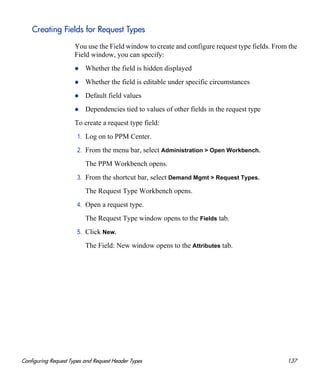
Creating Fields for Request Types . . . . . . . . . . . . . . . . . . . . . . . . . . . . . . . . . . . . . . . . . . . . . . . . . . . . . . . . 137
Copying Fields for Request Types . . . . . . . . . . . . . . . . . . . . . . . . . . . . . . . . . . . . . . . . . . . . . . . . . . . . . . . . 144
Removing Fields from Request Types . . . . . . . . . . . . . . . . . . . . . . . . . . . . . . . . . . . . . . . . . . . . . . . . . . . . . 146
Configuring Layouts for Request Types . . . . . . . . . . . . . . . . . . . . . . . . . . . . . . . . . . . . . . . . . . . . . . . . . . . . . . . 146
Modifying Field Widths on Request Types. . . . . . . . . . . . . . . . . . . . . . . . . . . . . . . . . . . . . . . . . . . . . . . . . . 146
Moving Fields On Request Types . . . . . . . . . . . . . . . . . . . . . . . . . . . . . . . . . . . . . . . . . . . . . . . . . . . . . . . . . 148
Adding Sections to Request Types . . . . . . . . . . . . . . . . . . . . . . . . . . . . . . . . . . . . . . . . . . . . . . . . . . . . . . . . 150
Changing Section Names on Request Types. . . . . . . . . . . . . . . . . . . . . . . . . . . . . . . . . . . . . . . . . . . . . . . . . 151
Deleting Sections on Request Types . . . . . . . . . . . . . . . . . . . . . . . . . . . . . . . . . . . . . . . . . . . . . . . . . . . . . . . 153
Configuring Display Columns for Request Types . . . . . . . . . . . . . . . . . . . . . . . . . . . . . . . . . . . . . . . . . . . . . . . 154
Configuring Request Statuses for Request Types. . . . . . . . . . . . . . . . . . . . . . . . . . . . . . . . . . . . . . . . . . . . . . . . 156
Overview of Request Statuses. . . . . . . . . . . . . . . . . . . . . . . . . . . . . . . . . . . . . . . . . . . . . . . . . . . . . . . . . . . . 156
Creating Request Statuses for Request Types. . . . . . . . . . . . . . . . . . . . . . . . . . . . . . . . . . . . . . . . . . . . . . . . 159
Configuring Request Field Status Dependencies . . . . . . . . . . . . . . . . . . . . . . . . . . . . . . . . . . . . . . . . . . . . . . . . 161
Status Dependencies Interactions . . . . . . . . . . . . . . . . . . . . . . . . . . . . . . . . . . . . . . . . . . . . . . . . . . . . . . . . . 165
Request Type Rules. . . . . . . . . . . . . . . . . . . . . . . . . . . . . . . . . . . . . . . . . . . . . . . . . . . . . . . . . . . . . . . . . . . . . . . 166
Types of Request Type Rules . . . . . . . . . . . . . . . . . . . . . . . . . . . . . . . . . . . . . . . . . . . . . . . . . . . . . . . . . . . . 167
Predefined JavaScript Functions (Advanced Rules Only) . . . . . . . . . . . . . . . . . . . . . . . . . . . . . . . . . . . . . . 168
Rule Event Behavior on the Request Details Page . . . . . . . . . . . . . . . . . . . . . . . . . . . . . . . . . . . . . . . . . . . . 170
Rule Event Precedence . . . . . . . . . . . . . . . . . . . . . . . . . . . . . . . . . . . . . . . . . . . . . . . . . . . . . . . . . . . . . . 172
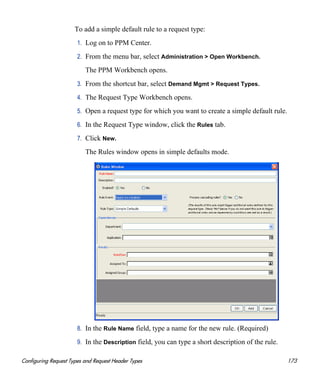
Creating Simple Default Rules for Request Types . . . . . . . . . . . . . . . . . . . . . . . . . . . . . . . . . . . . . . . . . . . . 172
8
Advanced Rules for Request Types . . . . . . . . . . . . . . . . . . . . . . . . . . . . . . . . . . . . . . . . . . . . . . . . . . . . . . . 175
Important Considerations for Configuring Advanced UI Rules . . . . . . . . . . . . . . . . . . . . . . . . . . . . . . . 175
UI Rules: Examples . . . . . . . . . . . . . . . . . . . . . . . . . . . . . . . . . . . . . . . . . . . . . . . . . . . . . . . . . . . . . . . . . 176
Creating Advanced Request Type Rules . . . . . . . . . . . . . . . . . . . . . . . . . . . . . . . . . . . . . . . . . . . . . . . . . 184
Configuring Commands for Request Types . . . . . . . . . . . . . . . . . . . . . . . . . . . . . . . . . . . . . . . . . . . . . . . . . . . . 191
Adding Commands to Request Types . . . . . . . . . . . . . . . . . . . . . . . . . . . . . . . . . . . . . . . . . . . . . . . . . . . . . . 191
Editing Commands of Request Types . . . . . . . . . . . . . . . . . . . . . . . . . . . . . . . . . . . . . . . . . . . . . . . . . . . . . . 193
Copying Commands in Request Types . . . . . . . . . . . . . . . . . . . . . . . . . . . . . . . . . . . . . . . . . . . . . . . . . . . . . 194
Deleting Commands in Request Types . . . . . . . . . . . . . . . . . . . . . . . . . . . . . . . . . . . . . . . . . . . . . . . . . . . . . 195
Command Conditions . . . . . . . . . . . . . . . . . . . . . . . . . . . . . . . . . . . . . . . . . . . . . . . . . . . . . . . . . . . . . . . . . . 195
Configuring Sub-Types for Request Types. . . . . . . . . . . . . . . . . . . . . . . . . . . . . . . . . . . . . . . . . . . . . . . . . . . . . 196
Adding Sub-Types to Request Types . . . . . . . . . . . . . . . . . . . . . . . . . . . . . . . . . . . . . . . . . . . . . . . . . . . . . . 196
Editing Sub-Types for Request Types. . . . . . . . . . . . . . . . . . . . . . . . . . . . . . . . . . . . . . . . . . . . . . . . . . . . . . 198
Deleting Sub-Types from Request Types . . . . . . . . . . . . . . . . . . . . . . . . . . . . . . . . . . . . . . . . . . . . . . . . . . . 198
Configuring Request Types to Work with Workflows . . . . . . . . . . . . . . . . . . . . . . . . . . . . . . . . . . . . . . . . . . . . 199
Adding Workflows to Request Types . . . . . . . . . . . . . . . . . . . . . . . . . . . . . . . . . . . . . . . . . . . . . . . . . . . . . . 199
Deleting Workflows from Request Types. . . . . . . . . . . . . . . . . . . . . . . . . . . . . . . . . . . . . . . . . . . . . . . . . . . 200
Configuring Participants for Requests . . . . . . . . . . . . . . . . . . . . . . . . . . . . . . . . . . . . . . . . . . . . . . . . . . . . . . . . 201
Adding Request Participants to a Request Type . . . . . . . . . . . . . . . . . . . . . . . . . . . . . . . . . . . . . . . . . . . . . . 201
Editing Participants on Request Types . . . . . . . . . . . . . . . . . . . . . . . . . . . . . . . . . . . . . . . . . . . . . . . . . . . . . 204
Deleting Participants from Request Types . . . . . . . . . . . . . . . . . . . . . . . . . . . . . . . . . . . . . . . . . . . . . . . . . . 205
Configuring Resource Tracking . . . . . . . . . . . . . . . . . . . . . . . . . . . . . . . . . . . . . . . . . . . . . . . . . . . . . . . . . . . . . 206
Tracking Resources Assigned to Requests . . . . . . . . . . . . . . . . . . . . . . . . . . . . . . . . . . . . . . . . . . . . . . . . . . 206
Configuring Request Types for Use with HP Time Management . . . . . . . . . . . . . . . . . . . . . . . . . . . . . . . . . . . 211
Configuring Notifications for Request Types . . . . . . . . . . . . . . . . . . . . . . . . . . . . . . . . . . . . . . . . . . . . . . . . . . . 214
Adding Notifications . . . . . . . . . . . . . . . . . . . . . . . . . . . . . . . . . . . . . . . . . . . . . . . . . . . . . . . . . . . . . . . . . . . 214
Configuring the Setup Tab. . . . . . . . . . . . . . . . . . . . . . . . . . . . . . . . . . . . . . . . . . . . . . . . . . . . . . . . . . . . 215
Configuring Message Tab . . . . . . . . . . . . . . . . . . . . . . . . . . . . . . . . . . . . . . . . . . . . . . . . . . . . . . . . . . . . 218
Editing Notifications . . . . . . . . . . . . . . . . . . . . . . . . . . . . . . . . . . . . . . . . . . . . . . . . . . . . . . . . . . . . . . . . . . . 222
Copying Notifications . . . . . . . . . . . . . . . . . . . . . . . . . . . . . . . . . . . . . . . . . . . . . . . . . . . . . . . . . . . . . . . . . . 222
Deleting Notifications . . . . . . . . . . . . . . . . . . . . . . . . . . . . . . . . . . . . . . . . . . . . . . . . . . . . . . . . . . . . . . . . . . 223
Configuring Ownerships of Request Types . . . . . . . . . . . . . . . . . . . . . . . . . . . . . . . . . . . . . . . . . . . . . . . . . . . . 224
Adding Ownerships to Request Types . . . . . . . . . . . . . . . . . . . . . . . . . . . . . . . . . . . . . . . . . . . . . . . . . . . . . 224
Deleting Ownerships from Request Types . . . . . . . . . . . . . . . . . . . . . . . . . . . . . . . . . . . . . . . . . . . . . . . . . . 226
Configuring Help Contents for Request Types. . . . . . . . . . . . . . . . . . . . . . . . . . . . . . . . . . . . . . . . . . . . . . . . . . 227
Configuring Request Header Types . . . . . . . . . . . . . . . . . . . . . . . . . . . . . . . . . . . . . . . . . . . . . . . . . . . . . . . . . . 229
Overview of Request Header Types . . . . . . . . . . . . . . . . . . . . . . . . . . . . . . . . . . . . . . . . . . . . . . . . . . . . . . . 230
Request Header Type Field Groups. . . . . . . . . . . . . . . . . . . . . . . . . . . . . . . . . . . . . . . . . . . . . . . . . . . . . 231
9
Opening the Request Header Type Workbench . . . . . . . . . . . . . . . . . . . . . . . . . . . . . . . . . . . . . . . . . . . . . . 235
Configuring General Information for Request Header Types. . . . . . . . . . . . . . . . . . . . . . . . . . . . . . . . . . . . 236
Configuring Filters for Request Header Types . . . . . . . . . . . . . . . . . . . . . . . . . . . . . . . . . . . . . . . . . . . . . . . 237
5 Configuring Workflow Components . . . . . . . . . . . . . . . . . . . . . . . . . . . . . . . . . . . . . . . . . . . . . . . . . . . . . . . . . 241
Overview of Workflow Step Sources . . . . . . . . . . . . . . . . . . . . . . . . . . . . . . . . . . . . . . . . . . . . . . . . . . . . . . . . . 241
Configuring and Using Workflow Step Source Restrictions . . . . . . . . . . . . . . . . . . . . . . . . . . . . . . . . . . . . 242
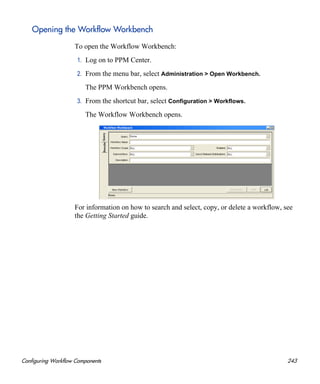
Opening the Workflow Workbench . . . . . . . . . . . . . . . . . . . . . . . . . . . . . . . . . . . . . . . . . . . . . . . . . . . . . . . 243
Overview of Creating Workflow Step Sources. . . . . . . . . . . . . . . . . . . . . . . . . . . . . . . . . . . . . . . . . . . . . . . . . . 244
Configuring Ownership of Workflow Step Sources . . . . . . . . . . . . . . . . . . . . . . . . . . . . . . . . . . . . . . . . . . . 245
Creating Decision Workflow Step Sources. . . . . . . . . . . . . . . . . . . . . . . . . . . . . . . . . . . . . . . . . . . . . . . . . . . . . 247
Creating Execution Workflow Step Sources. . . . . . . . . . . . . . . . . . . . . . . . . . . . . . . . . . . . . . . . . . . . . . . . . . . . 252
Setting Up Execution Steps. . . . . . . . . . . . . . . . . . . . . . . . . . . . . . . . . . . . . . . . . . . . . . . . . . . . . . . . . . . . . . 258
Defining Executions Types . . . . . . . . . . . . . . . . . . . . . . . . . . . . . . . . . . . . . . . . . . . . . . . . . . . . . . . . . . . . . . 258
Executing Request Type Commands. . . . . . . . . . . . . . . . . . . . . . . . . . . . . . . . . . . . . . . . . . . . . . . . . . . . 259
Closing Requests as Success . . . . . . . . . . . . . . . . . . . . . . . . . . . . . . . . . . . . . . . . . . . . . . . . . . . . . . . . . . 260
Closing Requests as Failed . . . . . . . . . . . . . . . . . . . . . . . . . . . . . . . . . . . . . . . . . . . . . . . . . . . . . . . . . . . 260
Executing PL/SQL Functions and Creating Transitions Based on the Results. . . . . . . . . . . . . . . . . . . . 261
Executing SQL Statements and Creating Transitions Based on the Results. . . . . . . . . . . . . . . . . . . . . . 262
Evaluating Tokens and Creating Transitions Based on the Results . . . . . . . . . . . . . . . . . . . . . . . . . . . . 264
Executing Multiple System-Level Commands . . . . . . . . . . . . . . . . . . . . . . . . . . . . . . . . . . . . . . . . . . . . 266
Creating Subworkflow Workflow Step Sources . . . . . . . . . . . . . . . . . . . . . . . . . . . . . . . . . . . . . . . . . . . . . . . . . 266
Subworkflows Returning to Demand Management Workflows . . . . . . . . . . . . . . . . . . . . . . . . . . . . . . . . . . 267
Using Workflow Parameters . . . . . . . . . . . . . . . . . . . . . . . . . . . . . . . . . . . . . . . . . . . . . . . . . . . . . . . . . . . . . . . . 268
Creating Workflow Parameters . . . . . . . . . . . . . . . . . . . . . . . . . . . . . . . . . . . . . . . . . . . . . . . . . . . . . . . . . . . 268
Example: Using Workflow Parameters to Build a Loop Counter . . . . . . . . . . . . . . . . . . . . . . . . . . . . . . 269
Modifying Workflows Already In Use . . . . . . . . . . . . . . . . . . . . . . . . . . . . . . . . . . . . . . . . . . . . . . . . . . . . . . . . 271
Performance Considerations . . . . . . . . . . . . . . . . . . . . . . . . . . . . . . . . . . . . . . . . . . . . . . . . . . . . . . . . . . . . . 272
Copying and Testing Trial Versions of Workflows . . . . . . . . . . . . . . . . . . . . . . . . . . . . . . . . . . . . . . . . . . . 273
Modifying Production Workflows . . . . . . . . . . . . . . . . . . . . . . . . . . . . . . . . . . . . . . . . . . . . . . . . . . . . . . . . 274
Disabling Workflow Steps. . . . . . . . . . . . . . . . . . . . . . . . . . . . . . . . . . . . . . . . . . . . . . . . . . . . . . . . . . . . 274
Redirecting Workflows . . . . . . . . . . . . . . . . . . . . . . . . . . . . . . . . . . . . . . . . . . . . . . . . . . . . . . . . . . . . . . 274
Moving Requests or Packages Out of Steps . . . . . . . . . . . . . . . . . . . . . . . . . . . . . . . . . . . . . . . . . . . . . . 275
6 Configuring Contacts . . . . . . . . . . . . . . . . . . . . . . . . . . . . . . . . . . . . . . . . . . . . . . . . . . . . . . . . . . . . . . . . . . . . . 277
Overview of Contacts . . . . . . . . . . . . . . . . . . . . . . . . . . . . . . . . . . . . . . . . . . . . . . . . . . . . . . . . . . . . . . . . . . . . . 277
Opening the Contact Workbench . . . . . . . . . . . . . . . . . . . . . . . . . . . . . . . . . . . . . . . . . . . . . . . . . . . . . . . . . . . . 278
Creating Contacts . . . . . . . . . . . . . . . . . . . . . . . . . . . . . . . . . . . . . . . . . . . . . . . . . . . . . . . . . . . . . . . . . . . . . . . . 279
10
7 Configuring Notification Templates . . . . . . . . . . . . . . . . . . . . . . . . . . . . . . . . . . . . . . . . . . . . . . . . . . . . . . . . . 281
Overview of Notification Templates. . . . . . . . . . . . . . . . . . . . . . . . . . . . . . . . . . . . . . . . . . . . . . . . . . . . . . . . . . 281
Opening the Notification Template Workbench . . . . . . . . . . . . . . . . . . . . . . . . . . . . . . . . . . . . . . . . . . . . . . . . . 282
Deleting Notification Templates . . . . . . . . . . . . . . . . . . . . . . . . . . . . . . . . . . . . . . . . . . . . . . . . . . . . . . . . . . 283
Creating Notification Templates . . . . . . . . . . . . . . . . . . . . . . . . . . . . . . . . . . . . . . . . . . . . . . . . . . . . . . . . . . . . . 284
Configuring Ownership of Notification Templates. . . . . . . . . . . . . . . . . . . . . . . . . . . . . . . . . . . . . . . . . . . . 287
Deleting Ownerships from Notification Templates . . . . . . . . . . . . . . . . . . . . . . . . . . . . . . . . . . . . . . . . . . . 289
Configuring Notification Intervals . . . . . . . . . . . . . . . . . . . . . . . . . . . . . . . . . . . . . . . . . . . . . . . . . . . . . . . . . . . 290
Checking the Usage of Notification Templates . . . . . . . . . . . . . . . . . . . . . . . . . . . . . . . . . . . . . . . . . . . . . . . . . 293
8 Configuring User Data. . . . . . . . . . . . . . . . . . . . . . . . . . . . . . . . . . . . . . . . . . . . . . . . . . . . . . . . . . . . . . . . . . . . 295
Overview of User Data . . . . . . . . . . . . . . . . . . . . . . . . . . . . . . . . . . . . . . . . . . . . . . . . . . . . . . . . . . . . . . . . . . . . 295
Referencing User Data . . . . . . . . . . . . . . . . . . . . . . . . . . . . . . . . . . . . . . . . . . . . . . . . . . . . . . . . . . . . . . . . . 297
Migrating User Data . . . . . . . . . . . . . . . . . . . . . . . . . . . . . . . . . . . . . . . . . . . . . . . . . . . . . . . . . . . . . . . . . . . 297
User Data Configuration Tasks . . . . . . . . . . . . . . . . . . . . . . . . . . . . . . . . . . . . . . . . . . . . . . . . . . . . . . . . . . . 298
Opening the User Data Workbench . . . . . . . . . . . . . . . . . . . . . . . . . . . . . . . . . . . . . . . . . . . . . . . . . . . . . . . . . . 299
Viewing General Information for User Data Types . . . . . . . . . . . . . . . . . . . . . . . . . . . . . . . . . . . . . . . . . . . . . . 300
Creating a User Data Context . . . . . . . . . . . . . . . . . . . . . . . . . . . . . . . . . . . . . . . . . . . . . . . . . . . . . . . . . . . . . . . 302
Creating User Data Fields . . . . . . . . . . . . . . . . . . . . . . . . . . . . . . . . . . . . . . . . . . . . . . . . . . . . . . . . . . . . . . . . . . 304
Copying a Field Definition . . . . . . . . . . . . . . . . . . . . . . . . . . . . . . . . . . . . . . . . . . . . . . . . . . . . . . . . . . . . . . 310
Editing User Data Fields . . . . . . . . . . . . . . . . . . . . . . . . . . . . . . . . . . . . . . . . . . . . . . . . . . . . . . . . . . . . . . . . 312
Configuring User Data Field Dependencies . . . . . . . . . . . . . . . . . . . . . . . . . . . . . . . . . . . . . . . . . . . . . . . . . 313
Removing Fields . . . . . . . . . . . . . . . . . . . . . . . . . . . . . . . . . . . . . . . . . . . . . . . . . . . . . . . . . . . . . . . . . . . . . . 315
Configuring User Data Layouts . . . . . . . . . . . . . . . . . . . . . . . . . . . . . . . . . . . . . . . . . . . . . . . . . . . . . . . . . . . . . 316
Changing Column Widths . . . . . . . . . . . . . . . . . . . . . . . . . . . . . . . . . . . . . . . . . . . . . . . . . . . . . . . . . . . . . . . 317
Moving Fields . . . . . . . . . . . . . . . . . . . . . . . . . . . . . . . . . . . . . . . . . . . . . . . . . . . . . . . . . . . . . . . . . . . . . . . . 318
Swapping Positions of Two Fields . . . . . . . . . . . . . . . . . . . . . . . . . . . . . . . . . . . . . . . . . . . . . . . . . . . . . . . . 318
Previewing the Layout. . . . . . . . . . . . . . . . . . . . . . . . . . . . . . . . . . . . . . . . . . . . . . . . . . . . . . . . . . . . . . . . . . 319
A Worksheets . . . . . . . . . . . . . . . . . . . . . . . . . . . . . . . . . . . . . . . . . . . . . . . . . . . . . . . . . . . . . . . . . . . . . . . . . . . . . 321
Configuration Workflow Worksheets . . . . . . . . . . . . . . . . . . . . . . . . . . . . . . . . . . . . . . . . . . . . . . . . . . . . . . . . . 321
Execution Workflow Step Worksheets . . . . . . . . . . . . . . . . . . . . . . . . . . . . . . . . . . . . . . . . . . . . . . . . . . . . . . . . 323
Decision Workflow Step Worksheets . . . . . . . . . . . . . . . . . . . . . . . . . . . . . . . . . . . . . . . . . . . . . . . . . . . . . . . . . 325
Subworkflow Workflow Step Worksheets . . . . . . . . . . . . . . . . . . . . . . . . . . . . . . . . . . . . . . . . . . . . . . . . . . . . . 327
Request Type Configuration Sheets . . . . . . . . . . . . . . . . . . . . . . . . . . . . . . . . . . . . . . . . . . . . . . . . . . . . . . . . . . 329
Index. . . . . . . . . . . . . . . . . . . . . . . . . . . . . . . . . . . . . . . . . . . . . . . . . . . . . . . . . . . . . . . . . . . . . . . . . . . . . . . . . . . . . 335
11
1 Getting Started with HP Demand
Management Configuration
Introduction to HP Demand Management
HP Demand Management is the HP Project and Portfolio Management Center
(PPM Center) product that automates your business processes. At the core of
this functionality are a flexible form builder and an integrated workflow engine
that let you digitize both simple and complex processes. HP Demand
Managementworks by capturing requests and processing them based on the
processes and business rules created for that type of request.
The process behind each request is modeled, automated, enforced, and
measured on your best-practice business processes. In addition, a detailed audit
trail helps you pinpoint problems quickly and supports regulatory compliance
requirements, such as segregation of duties (SOD), at both the role level and
the process step level.
Users complete a request form using a standard Web browser. Each type of
request has its own configurable form and an associated workflow that
specifies the necessary data to capture and process for reviewing, evaluating,
prioritizing, scheduling, and resolving the request. Based on the workflow, the
reviewer can assign the request to a person or team for scheduling and
delivery.
Notifications defined as part of the process can be activated at any step in the
process to indicate work is to be done, has not been done, is being escalated,
and so on. HP Demand Management includes the Web-based PPM Dashboard,
which delivers the right information to anyone with a browser.
12 Chapter 1
This document provides the details on how to configure an HP Demand
Management system using the PPM Workbench, and includes the information
you need to ensure that your requests follow your digitized business processes.
This chapter presents an overview of how you can configure HP Demand
Management to support your business processes.
HP Demand Management Concepts
Contacts. Contacts contain business contact information (such as a
business card) about people who serve as points of reference for other HP
Demand Management entities, such as requests. A contact can refer to a
PPM Center user, but more likely represents a person outside of the
organization who may have some interest in the entity on which he is
referenced.
Notification Templates. Notification templates are preconfigured,
parameterized email notification messages that you can use with the
various HP Demand Management entities, such as workflows and requests,
to automatically send email notifications of various events. You can also
create your own notification templates.
Request Resolutions. Request resolution refers to the creation, processing,
and closing of requests. A request can be anything from a simple question
to a detailed report of a software defect.
Requests. Requests are the fundamental work unit of the request resolution
piece of HP Demand Management. End-users create requests and submit
them to a resolution process (workflow). The request contains all
information typically required to complete a specific business process.
Request Types. Request types define the structure, logic, and access
control of request Web forms. HP Demand Management includes such
predefined system request types as the Bug request type and Enhancement
request type to serve as example configurations.
A contact does not represent a user account in PPM Center, and cannot access
HP Demand Management unless the contact has a valid PPM Center user
account.
Getting Started with HP Demand Management Configuration 13
Workflows. A workflow is a digitized process composed of a logical series
of steps that define a business process. Workflow steps can range in usage
from reviews and approvals to performing migrations and executing
system commands.
Overview of a Simplified Demand Management Process
Figure 1-1 shows a simple four-step HP Demand Management process to
approve a release. The first step, Approve Release, is a decision step in which
a user is notified that a decision must be made, in this case, after a release is
approved. After is it manually approved, the process moves to the second step.
The second step, Assign Resource, is decision workflow step where a resource
must be manually assigned to the release. Once a resource is assigned and the
step is completed, the process moves to the third step.
Figure 1-1. PPM Center components
The third step, Complete Request, is a decision step in which the assigned
resource completes the request. After the request is completed, the process
moves to the fourth and final step.
The fourth and final step, Close (Success), is an execution step that
automatically closes the release process and notifies users the release was
successfully closed.
14 Chapter 1
Overview of Configuring HP Demand Management
To configure the HP Demand Management system use the following steps:
Step 1: Gather process requirements
Before configuring an HP Demand Management system, you should collect
specific information concerning your process, the types of requests required,
and your contacts.
For detailed information, see Chapter 2, Gathering Process Requirements,
on page 19. Appendix A, Worksheets, on page 321 provides a series of
worksheets to help you gather the information required to build a HP Demand
Management system.
Step 2: Configure workflows
Configuring workflows involves setting up the required workflow steps
(decision and execution), adding transitions between the steps, and configuring
each step for notifications, security groups, segregation of duties, and so on.
For information on how to configure workflows, see Chapter 3, Configuring
Workflows, on page 43 and Chapter 5, Configuring Workflow Components,
on page 241. Appendix A, Worksheets, on page 321 provides a series of
worksheets to help you collect the information required to configure a
workflow.
Step 3: Configure request types
Request types gather and track the information required to perform workflow
steps. For information on how to configure request types, see Chapter 4,
Configuring Request Types and Request Header Types, on page 119.
Appendix A, Worksheets, on page 321 provides a series of worksheets to help
you collect the information required to configure a request type.
Step 4: Configure contacts
Contacts are HP Demand Management users used as points of reference or
information by other HP Demand Management entities, such as requests. For
information about how to configure contacts, see Chapter 6, Configuring
Contacts, on page 277.
Getting Started with HP Demand Management Configuration 15
Step 5: Configure notification templates
Notification templates are preconfigured notification forms used with HP
Demand Management workflows and request types. Chapter 7, Configuring
Notification Templates, on page 281 presents detailed information on how to
create and configure notification templates.
Step 6: Configure user data fields
In addition to the fields defined for each type of request in request types and
request header types, you may want to define some additional, more global
fields for all request types. Creating user data is a convenient way to define
such global fields for HP Demand Management workflows and request types.
Chapter 8, Configuring User Data, on page 295 presents information on how
to configure these user data fields.
Step 7: Configure your security and access requirements
Part of any process are the permissions required to perform various decisions.
Two of the ways in which PPM Center controls access to perform these
decisions are through licenses and access grants.
Licenses. Licenses give users access to a PPM Center products such as HP
Demand Management, but do not dictate the specific actions users can
perform.
Access Grants. Access grants, when used with licenses, define the actions
a user can perform within a PPM Center product.
For more information on security and access grants, see the Security Model
Guide and Reference.
16 Chapter 1
When You’re Ready to deploy HP Demand Management: Educate your users
Once your HP Demand Management system is configured and tested, train
your users on the new business process. The following offers some guidance
on how to prepare your HP Demand Management users:
Basic HP Demand Management training. Ensure that each user
understands how to create, process, and report on requests.
Process-specific training. Ensure that each user understands the new
process. Consider holding a formal meeting or publishing documents on
the workflow steps and requests.
User Responsibilities. Ensure that each user understands his or her role in
the process. For example, the QA team may be restricted to approving the
testing phase of a release. You can use email notifications that are part of
HP Demand Management to communicate information about user roles.
Your notifications can be very detailed.
Getting Started with HP Demand Management Configuration 17
Related Information
The following documents also include information related to configuring or
using HP Demand Management:
HP Demand Management User’s Guide
Tracking and Managing IT Demand Configuration Guide
Commands, Tokens, and Validations Guide and Reference
HP Time Management User’s Guide
Open Interface Guide and Reference
Reports Guide and Reference
Security Model Guide and Reference
Creating Portlets and Modules
Customizing the Standard Interface
Getting Started
What’s New and What’s Changed
HP-Supplied Entities Guide (includes descriptions of all HP Demand
Management portlets, request types, and workflows)
18 Chapter 1
19
2 Gathering Process Requirements
Overview of Gathering Process Requirements
This chapter presents an overview of the information that is useful to collect
before you configure an HP Demand Management process and guidance on
how to gather it. This information includes the steps to include in workflows,
the types of requests your organization requires, and the contacts you might
need. After you collect this information, you can begin to configure your HP
Demand Management process.
The sections in this chapter cover the following subjects:
Defining workflows. What are the steps of your demand management
process (workflow)? Which steps require manual decisions (reviews and
approvals)? Which steps require automatic executions? For detailed
information, see Defining Workflows on page 20.
Defining request types. What are you requesting? For detailed
information, see Defining Request Types on page 30.
Defining contacts. What contacts are required? For detailed information,
see Defining Contacts on page 37.
Defining notification templates. Is the correct notification template in
place? Does your process require a new notification template? For detailed
information, see Defining Notification Templates on page 38.
Defining user data fields. Does your process require additional user
information to process correctly? For detailed information, see Defining
User Data Fields on page 39.
20 Chapter 2
Defining security and access. Who can submit requests? Who can receive
notifications? Who can approve the request at each step? For detailed
information, see Defining Security and Access on page 40.
Defining Workflows
A workflow is a digitized process in which a logical series of steps define the
path that the request follows. Workflow steps can range from reviews and
approvals to automatically updating a status or closing a workflow process.
Before you define a request workflow, you must first determine the objective
of the business process that you want the workflow to achieve. For example:
Do you want to design a simple approval process with little oversight or
supervision?
Do you want to design a business-wide bug-tracking system that has
intensive oversight and supervision?
Once you determine the objective of the business process, you can begin to
define the workflow itself. The basic workflow components are:
Workflow steps. Workflow steps are the events that link together to form
the process.
Transitions between workflow steps. Transitions between workflow
steps represent the outcome of one workflow step that leads to next
workflow step. Workflow steps can have more than one transition.
Security determines who can access a workflow step. Each workflow
step includes a list of who can access workflow step. Who can approve a
workflow step? Can only one user approve the workflow step? Can one of
several users approve the workflow step? Must multiple users approve the
workflow step?
Notification determines who hears about the workflow step. Each
workflow step includes a list of who will be notified about the workflow
step? Who is notified? When does the notification occur?
Gathering Process Requirements 21
Gathering Information for Workflow Steps
Workflow steps are the events of the process. HP Demand Management
workflows can include the following types of steps:
Decision steps. These are steps that require an external action (such as
review, approval, or coding) to determine outcome.
Execution steps. Execution steps perform work or actions, such as
automatic time-stamping or automatic request status changes.
Condition steps. Condition steps, such as AND and OR, are logic steps
used for complex workflow processing.
Subworkflows steps. Subworkflow steps, such as code rework or unit
testing, contain multiple workflow steps that follow a consistent pattern.
To determine what steps to include in a workflow, consider the following:
What event starts the business process?
At what points in the process must decisions be made?
At what points in the process must actions be taken?
22 Chapter 2
Gathering Information for Decision Steps
Table 2-1 provides a checklist of configuration considerations to help you
define decision steps. For a complete list, see Appendix A, Worksheets,
on page 321.
Table 2-1. Decision workflow checklist (page 1 of 2)
Done Decision Step Check Item Example
What is the name of this workflow
step?
Review request
On hold
In rework
What is the status of the request at
this workflow step?
On hold
New
In review
What are the transitions from this
workflow step?
Assign
Review
On hold
Who or what groups can act on
this step (approve, cancel,
reassign)?
Security groups
Users
Tokens
How many decisions are required
to exit this workflow step?
Only one
At least one
All
What event triggers the
notification?
The process reaches the workflow
step
A specific result is achieved
Who receives the notification?
Email address (group alias)
Security group
Gathering Process Requirements 23
Gathering Information for Execution Steps
Execution steps involve work or actions, such as automatic time-stamping or
automatic request status changes. You can use the checklist in Table 2-2 to
help you define execution steps. For a complete list of execution step
considerations, see Appendix A, Worksheets, on page 321.
What is the notification message?
Test complete
Approval required
Use this workflow step as a
timeout? If yes, then for how long?
1 day
2 days
Are you using segregation of
duties?
Based on workflow owner?
Based on the workflow step?
Table 2-1. Decision workflow checklist (page 2 of 2)
Done Decision Step Check Item Example
Table 2-2. Execution workflow checklist (page 1 of 2)
Done Execution Step Check Item Example
What is the name of this workflow step?
Create request
Close
Set temp date
Will this workflow step execute this
command?
Cancel request
Update request
What is the execution type?
Close
Jump
Return from
subworkflow
What is the processing type?
Immediate
Manual
What is the source environment (group)? PPM Server
What is the destination environment (group)? PPM Server
24 Chapter 2
What are the transitions from this workflow
step?
Succeeded
Failed
Who owns this execution step?
Security group
User
What event triggers the notification?
The process reaches
the workflow step
A specific result is
achieved
Who receives the notification?
Email address (group
alias)
Security group
What is the notification message?
Test complete.
Approval required.
Use this workflow step as a timeout? If yes,
then for how long?
1 day
2 days
Are you using segregation of duties?
Based on the workflow
owner?
Based on workflow
step?
Table 2-2. Execution workflow checklist (page 2 of 2)
Done Execution Step Check Item Example
Gathering Process Requirements 25
Gathering Information for Condition Steps
Condition steps are logic steps, such as AND and OR, that are used for
complex workflow processing. Table 2-3 provides a checklist that you can use
to define your condition steps.
Table 2-3. Condition workflow checklist
Done Condition Step Check Item Example
What is the name of this workflow step?
AND
OR
What is the status of the request at this
workflow step?
On hold
New
In review
What are the transitions from this
workflow step?
Succeeded
Failed
Who (or what group or token) owns this
workflow step?
Security group
User
Standard token
User-defined token
What event triggers the notification?
The process reaches the
workflow step
A specific result is achieved
Who or how many receive the
notification?
Email address (group alias)
Security group
What is the notification message?
Test complete
Approval required
Use this workflow step as a timeout? If
yes, then for how long?
1 day
2 days
Are you using segregation of duties?
Based on the workflow
owner?
Based on the workflow step?
26 Chapter 2
Gathering Information for Subworkflow Steps
A subworkflow step, such as code rework or unit testing, includes multiple
workflows steps that follow a consistent pattern. You can use the checklist in
Table 2-4 to help you define subworkflow steps. For a complete list of
subworkflow step considerations, see Appendix A, Worksheets, on page 321.
Table 2-4. Subworkflow Workflow Checklist
Done Subworkflow Step Check Item Example
Is an existing workflow available as
a subworkflow?
Yes
No
What is the name of this
subworkflow?
QA test cycle
QA review cycle
What are the transitions from this
workflow step?
Succeeded
Failed
Who owns this workflow step?
Security group
User
What event triggers the notification?
The process reaches the
workflow step
A specific result is achieved
Who receives the notification?
Email address (group alias)
Security group
What is the notification message?
QA test cycle succeeded.
QA test cycle failed.
Use this workflow step as a
timeout? If yes, then for how long?
1 day
2 days
Are you using segregation of
duties?
Based on owner of the workflow?
Based on workflow step?
Gathering Process Requirements 27
General Workflow Design Guidelines
You can use the checklist in Table 2-5 to help you configure your workflow.
Table 2-5. Logical workflow guidelines (page 1 of 3)
Done Guideline Reason
Workflows
Make one or more workflows
available to process the request.
Each workflow is assigned one of the
following workflow scopes:
Request (HP Demand
Management)
Packages (HP Deployment
Management)
Release distributions (HP
Deployment Management)
Beginning and Closing Steps
Workflow must have a beginning
step.
No processing can occur if the
workflow has no starting point.
Workflow must have at least one
step.
No processing can occur if the
workflow has no steps.
Workflow must have at least one
Close step.
Request cannot be closed without a
Close step in the workflow.
First workflow step cannot be a
condition step.
Workflow processing may not be
correct if the first step is a condition.
Close steps must not have a
transition on ‘Success’ or ‘Failure.’
Return steps must have no
outgoing transitions.
Request cannot close if a transition
exists on ‘Success.’
Close step in subworkflow closes
entire request.
Do not include a Close step in a
subworkflow unless you want to
close the workflow in the
subworkflow.
28 Chapter 2
All Steps
All steps must be enabled.
Because the workflow cannot use
disabled steps, the process stops.
Each workflow step (except the
first step) must have at least one
incoming transition.
It is not possible to flow to a workflow
step without an incoming transition.
Transition value is not a validation
value (error).
The validation value has changed
since the transition was made.
‘Other Values’ and ‘All Values’
transitions must not occur at the
same step.
If both transitions occur at a step, the
‘Other Values’ transition is ignored.
Each workflow step must have at
least one outbound transition.
Without an outbound transition, the
workflow branch stops indefinitely
without closing the request.
Each value from a list-validated
validation must have an outbound
transition.
Some validation values do not have
defined transitions.
Steps with either a text or numeric
validation must have an ‘Other
Values’ or ‘All Values’ transition.
Because text and numeric
validations are not limited, you must
specify an ‘Other Values’ or ‘All
Values’ transition.
Notifications with reminders must
not be set on results that have
transitions.
Transition into the Return Step does
not match the validation.
Table 2-5. Logical workflow guidelines (page 2 of 3)
Done Guideline Reason
Gathering Process Requirements 29
Decision Steps
Each decision step must have at
least one security group, user, or
token specified on the Security
tab.
No one can act on the step if security
is not configured.
Execution Steps
Each manual execution step must
have at least one security group,
user, or token specified on the
Security tab.
No one can act on the step if security
is not configured.
An immediate execution step
must not have a transition to itself
on ‘Success’ or ‘Failure.’
The workflow could loop indefinitely.
Condition Steps
A condition step must not have a
transition to itself.
A condition with a transition to itself
could cause the workflow to run
indefinitely.
An AND or OR step must have at
least two incoming transitions.
An AND or OR condition with only
one incoming transition will always
be true and have no effect.
Subworkflows
Subworkflows must have at least
one Return step.
Must include a Return step.
A top-level workflow must not
have a Return step.
Only subworkflows can have a
Return step.
Table 2-5. Logical workflow guidelines (page 3 of 3)
Done Guideline Reason
30 Chapter 2
Workflow and Request Interaction
Request statuses can change as the request moves through its resolution
process. Each request status can control its request field attributes, such as
whether or not a field is visible or editable.
A request status can be tied to a workflow step, so that when a request reaches
a certain workflow step, it acquires a status that changes the attributes of a
field. The request status at a given workflow step can also drive field logic
during the life of the request.
Typically, a single request type is associated with a single workflow.
Information contained in the request (defined in the request type) works
together with the workflow process to ensure that the request is correctly
processed. Although you can use one workflow with many different request
types, the level of possible integrations between request type and workflow is
easier with a one-to-one mapping.
Defining Request Types
Requests are instances of request types. A request type defines the Web form
that users see when they create or view requests of that type. Each request type
defines the set of fields specific to that type of request.
Each request type definition also specifies which request header type to use.
The request header type defines sets of standard fields that are common to
multiple request types. The request header type includes options for enabling
integration with other HP products, both within the PPM Center product suite
(HP Program Management, HP Project Management, and HP Portfolio
Management) and outside of the suite (such as HP Universal Configuration
Management Database, HP Quality Center, and HP Service Center).
Different information is required to process each request. For example, to
resolve a software bug, you might need to know the software unit, product
version, problem, and priority. The fields on the request type and request
header type capture this information.
Gathering Process Requirements 31
Before you create a request type, determine what standard fields are available
for the request (request header types and field groups). The fields displayed in
the Summary section on a request, such as that shown in Figure 2-1, are
derived from the request header type associated with the request type. (The
fields in the Details section are defined in the request type itself.)
Figure 2-1. Sample request
32 Chapter 2
For each request type, provide the following information:
Name of the request and request type
Request header type attached to this request
Fields to display on the request
Request status values, such as Pending, On hold, Approved, and Canceled
Notifications to send when the value of a selected field changes
Request-level access information to specify who is allowed to create, view,
and edit requests of this type
Workflows that can be used by requests of this type
For each new field required on the request type (or the request header type),
gather the following information:
Field label. Specify the field label to display next to the field in the Web
form, to ensure that the correct information is captured.
Information type. What type of information must be collected? Is this a text
field, a drop-down list, or an auto-complete field? The validation specified
for a field determines this.
Field behavior. You can control many aspects of field behavior, including:
o Whether the field is editable, read-only, required, hidden, and so on,
and at what points in the process. Field behavior can be controlled by
the process and by the behavior of other fields in the form. For
example, maybe you want the field to be required only when the
request reaches the “Assign” status.
o Whether you want the field to be automatically populated based on
values in other fields.
o Who is allowed to edit the field, who is allowed to view the field, and
who must be restricted from viewing the information in the field.
For more information about request types and request type fields, see
Appendix A, Worksheets, on page 321.
Gathering Process Requirements 33
Request and Workflow Interaction
Request status can change as the request moves through a workflow toward
resolution. Each request status can control its request field attributes, such as
field visibility or editability. A request status can be tied to a workflow step so
that when the request reaches that step, it acquires the status specified by that
step. The request status at a particular workflow step can then drive field logic
during the life of the request.
In addition to setting the status of the parent request, you can also configure a
workflow to specify who is assigned to the request at each step. The workflow
step can drive both the Assigned To field and the Assigned Group field. You
can set these fields based on dynamic properties of the parent request through
the use of tokens, facilitating automatic routing of the request as it moves
through its workflow process.
Typically, a single request type is associated with a single workflow.
Information contained in the request (defined in the request type) works
together with the workflow process to ensure that the request is processed
correctly. Although you can apply one workflow to many different request
types, the level of possible integration between request type and workflow is
more practical with a one-to-one mapping.
34 Chapter 2
Request Type Checklist
Table 2-6 provides a configuration consideration checklist to help define your
HP Demand Management system. For a complete list of request type
considerations, see Appendix A, Worksheets, on page 321.
Table 2-6. Request type configuration checklist (page 1 of 3)
Done Request Type Check Item Configuration Consideration
Request type considerations.
A request type must be defined for each
type of request to be resolved. This
includes creating fields that describe the
request and decisions and field logic
required to process it during resolution.
Is a request header type
associated with the request
type?
A request header type must be associated
with the request type. If no appropriate
request header type exists, create one.
Are fields defined?
Fields are required to define the
request.
Ensure the correct parameters are used
to describe the request to be
processed.
For more information, see Creating and
Configuring Request Type Fields
on page 133 and the Commands, Tokens,
and Validations Guide and Reference.
Are request rules defined?
You can set rules to automatically
populate fields in the request, or define
more dynamic behavior on the request
form. For details, see Request Type Rules
on page 166.
Are request status values
defined?
Define the status values that the request
can have and associate them with the
request type. You can add new status
values, if necessary. For details, see
Configuring Request Statuses for Request
Types on page 156.
Gathering Process Requirements 35
Are status dependencies set?
You can configure request fields to be
hidden, required, read-only, cleared, or
reconfirmed, based on the request status.
For details, see Configuring Request Field
Status Dependencies on page 161.
Is request security set?
You can control who participates in
request resolution. For information on how
to set request security, see Creating Fields
for Request Types on page 137 and the
Security Model Guide and Reference.
Is request field security set?
You can configure request fields to be
invisible to specific users and security
groups. For more information, see
Creating and Configuring Request Type
Fields on page 133 and the Security
Model Guide and Reference.
Are request notifications set?
You can configure notifications to be sent
automatically at specific points in your
process. For details, see Configuring
Notifications for Request Types
on page 214.
Are user data fields defined?
Use user data to define global fields for
requests, if necessary. For more
information, see Chapter 8, Configuring
User Data, on page 295.
Table 2-6. Request type configuration checklist (page 2 of 3)
Done Request Type Check Item Configuration Consideration
36 Chapter 2
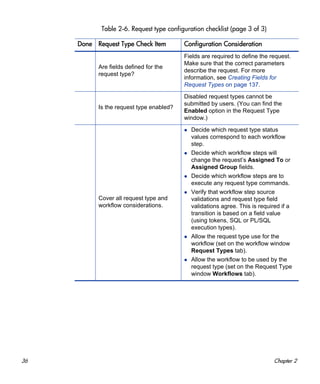
Are fields defined for the
request type?
Fields are required to define the request.
Make sure that the correct parameters
describe the request. For more
information, see Creating Fields for
Request Types on page 137.
Is the request type enabled?
Disabled request types cannot be
submitted by users. (You can find the
Enabled option in the Request Type
window.)
Cover all request type and
workflow considerations.
Decide which request type status
values correspond to each workflow
step.
Decide which workflow steps will
change the request’s Assigned To or
Assigned Group fields.
Decide which workflow steps are to
execute any request type commands.
Verify that workflow step source
validations and request type field
validations agree. This is required if a
transition is based on a field value
(using tokens, SQL or PL/SQL
execution types).
Allow the request type use for the
workflow (set on the workflow window
Request Types tab).
Allow the workflow to be used by the
request type (set on the Request Type
window Workflows tab).
Table 2-6. Request type configuration checklist (page 3 of 3)
Done Request Type Check Item Configuration Consideration
Gathering Process Requirements 37
Defining Contacts
Contacts are resources that HP Demand Management entities (such as
requests) use as reference points or information sources. For information on
how to configure contacts, see Chapter 6, Configuring Contacts, on page 277.
For each contact you plan to configure, collect the following information:
First name
Last name
Username
Phone number
Email address
Company
Contacts Checklist
You can use the configuration checklist in Table 2-7 to define your contacts.
Table 2-7. Contacts checklist
Done Contacts Check Item Configuration Consideration
Is the contact enabled? Disabled contacts are unusable.
Is the contact a PPM Center
user?
The Username field is an auto-complete
list for selecting PPM Center users. if the
contact is not a PPM Center user, leave
the field empty.
38 Chapter 2
Defining Notification Templates
Notification templates are preconfigured email forms that you can use to
quickly construct the body of an email message. You can use these notification
templates with HP Demand Management entities such as workflows and
requests.
As you configure a workflow, you can select a notification template to use for
each workflow step. HP Demand Management comes with a set of standard
notification templates. You can use these templates as they are, customize
them, or create new notification templates tailored to your business process.
For detailed information on how to configure notification templates, see
Chapter 7, Configuring Notification Templates, on page 281.
Notification Template Checklist
Use the checklist in Table 2-8 to help define your notification templates.
Table 2-8. Notification template checklist
Done Notification Template Check Item Configuration Consideration
Is the notification template
enabled?
Disabled notification templates are
unusable.
Notification template and security
group considerations.
Set ownership groups for these
entities. Only ownership group
members (determined by associating
security groups) can edit the entities.
Gathering Process Requirements 39
Defining User Data Fields
In addition to the process-specific fields defined in request types and request
header types, you may decide that you want to capture certain pieces of
information on every request submitted in HP Demand Management,
regardless of request type. You can define these global fields in request user
data. For information on how to create user data fields, see Chapter 8,
Configuring User Data, on page 295.
User Data Checklist
Use the checklist in Table 2-9 to help define user data fields.
Table 2-9. User data checklist
Done User Data Check Item Configuration Consideration
Are the user data fields
enabled?
Disabled user data fields are unusable.
User data field-level security
considerations
For each user data field, specify who
can view and who can edit the field
contents when the field is displayed on
a request (if necessary).
40 Chapter 2
Defining Security and Access
Part of an HP Demand Management process are the permissions required to act
on workflow steps. PPM Center controls permission to perform decisions and
executions using:
Licenses. Licenses give users access to PPM Center products, but do not
determine the specific actions a user is authorized to perform within the
products.
Access Grants. Access grants (used with licenses) determine the actions a
user can perform within a given PPM Center product.
For example, you can restrict what an HP Demand Management user can do by
giving him the following license and access grant combination:
License, Demand Management
Access Grant, View Requests - Allow the user to view requests
Access Grant, Edit Requests - Allow the user to edit requests
For more information about licenses and access grants, see the Security Model
Guide and Reference.
HP recommends that you specify security groups or tokens (dynamic access)
to set workflow security. Avoid using a list of specific, named users to control
an action. If the user list changes (as a result of department reorganization, for
example), you would have to update your workflow configuration in several
places to keep the process running correctly. If you use a security group, you
update the security group once, and the changes are propagated throughout the
workflow. Tokens are resolved dynamically at runtime and thus will adapt to
the current system context as necessary.
Table 2-10 lists example security groups that have access to a workflow, and at
which workflow step.
Gathering Process Requirements 41
For more information on setting security for workflows and requests, see the
Security Model Guide and Reference.
Security and User Access Checklist
You can use the checklist in Table 2-11 to help determine your security and
user access requirements.
Table 2-10. Example of workflow security groups
Workflow Step Name Security Groups
Validate Request
Financial Apps - Validate and Approve Requests
Financial Apps - Manage Resolution System
Pending More Information
Financial Apps - Create and View Requests
Financial Apps - Manage Resolution System
Approve Request
Financial Apps - Validate and Approve Requests
Financial Apps - Manage Resolution System
Schedule Work
Financial Apps - Schedule Requests
Financial Apps - Manage Resolution System
Develop Enhancement
Financial Apps - Develop Requests
Financial Apps - Manage Resolution System
Table 2-11. Security and user access checklist (page 1 of 2)
Done
Security and User Access
Check Item
Configuration Consideration
Created the security groups to
be granted access to screens
and functions.
Security groups to be used to grant
access to certain screens and functions
have been created.
Created security groups to
associate with workflow steps.
Security groups to allow users to act on
a specific workflow step have been
created.
Set security on request creation.
All available options that restrict who
can create and submit requests are set.
42 Chapter 2
Set security on request
processing.
All available options that restrict who
can process requests are set.
Set security on request system
configuration.
You have specified who can modify the
request process. This includes editing
the workflow, object type, environment,
security groups, and so on.
Cover all security group and
workflow considerations.
Associate security groups with
workflow steps. Group members can
act on the step.
Set workflow and workflow step
ownership.
Cover all security group and
object type considerations
Set ownership groups for object types.
Only members of the ownership group
(determined by associating security
groups) can edit the object type.
Cover all security group and
environments considerations.
Set ownership groups for environments.
Only members of the ownership group
(determined by associating security
groups) can edit the environments.
Cover all security group and
notification template
considerations.
Set ownership groups for notification
templates. Only members of the
ownership group (determined by
associating security groups) can edit
the notification templates.
Cover all security group and
user data considerations.
Set ownership groups for user data.
Only members of the ownership group
(determined by associating security
groups) can edit user data.
Table 2-11. Security and user access checklist (page 2 of 2)
Done
Security and User Access
Check Item Configuration Consideration
43
3 Configuring Workflows
Overview of Workflows
A workflow represents a business process and is used to map business rules
and processes to your organization. This chapter covers information about HP
Demand Management workflows.
The basic components of a workflow are as follows:
Begin. For each workflow, you must explicitly define the first eligible
workflow step.
Workflow step. Workflow steps are events that are linked together to form
a complete workflow. The basic types of workflow step are:
o Decision. Decision steps represent manual activities performed outside
of PPM Center. For example, a user or group of users approves a
request.
o Execution. Execution steps represent actions that are automated
through PPM Center. For example, a Web page is updated with the
results of a test.
o Condition. Condition steps are logic steps used in complex workflow
processing. For example, you can set up a condition step that allows the
workflow to proceed only when each workflow step is completed.
o Subworkflows. A subworkflow step represents multiple workflows
steps (the subworkflow) in a workflow. For example, a test workflow
step in the main workflow represents a series of tests and approvals.
44 Chapter 3
Transition. The results of workflow step that must be communicated to
another workflow step. A transition occurs after a workflow step is
completed.
Examples:
o The result of a decision step is Approved or Not Approved.
o The transition for a step labeled Analysis and Design (for a software
application) could be Completed or Needs More Work.
Because a single step can have several possible results, you can define
multiple outgoing transitions for each workflow step.
Workflow step security. Workflow step security determines who has
permission to execute or choose a result for a workflow step. For example,
you can specify that only the IT project manager can approve or deny an
Approve Request decision step.
Notification. Notifications are email alerts sent out at specific workflow
steps. For example, when a request reaches an Approve Request decision
step in the workflow, an email alert is sent to the product manager.
Close step. A close step ends the workflow. It is an execution step that
marks the request as completed.
Figure 3-1 shows examples of common components of a workflow.
Figure 3-1. Workflow components
Mapping all of the individual workflow steps into a single workflow is a
two-stage process.
Stage 1. Create a block diagram. Map each workflow step worksheet as one
block in the diagram. On the block diagram, include transitions, workflow step
security, and notifications. This is shown in Figure 3-2.
Configuring Workflows 45
Stage 2. Map the block diagram to the workflow. Open the Workflow
Workbench and create a workflow. Map each component from the block
diagram to the new workflow (see Figure 3-3).
Figure 3-2. Stage 1. Create a block diagram
46 Chapter 3
Figure 3-3. Stage 2. Create the workflow
Configuring Workflows 47
Opening the Workflow Workbench
To open the Workflow Workbench:
1. Log on to PPM Center.
2. From the menu bar, select Administration > Open Workbench.
The PPM Workbench opens.
3. From the shortcut bar, select Configuration > Workflows.
The Workflow Workbench and Workflow Step Sources windows open.
For information on how to search for and select an existing a workflow, copy a
workflow, or delete a workflow, see the Getting Started guide.
48 Chapter 3
Creating Workflows
This section provides basic instructions on how to use the Workflow
Workbench to create a workflow.
Configuring General Information for a Workflow
To provide basic workflow information:
1. From the PPM Workbench shortcut bar, select Configuration > Workflows.
The Workflow Workbench and Workflow Step Sources windows open.
2. In the Workflow Workbench window, click New Workflow.
The Workflow window opens.
Configuring Workflows 49
3. In the Name field, type a name for the workflow.
4. From the Workflow Scope list, select Requests.
5. In the Descriptions field, you can type a short description of the workflow
and its purpose.
6. To make this workflow available in PPM Center, for Enabled, click Yes.
7. Click Save.
Choosing Workflow Steps
PPM Center comes with predefined templates for commonly used workflow
steps, which are available through the Workflow Step Sources window. A
workflow step source defines step behavior (for example, conditions for
exiting the step, commands to execute for the step, timeout duration, which
icon to display, and so on) as well as the list of possible result values or
outcomes the step can attain.
You can use the Filter by fields in the Workflow Step Sources window to filter
the workflow steps listed. The following folders, which contain workflow
steps classified by type, are available in the Workflow Step Source window:
Decisions
Conditions
Executions
Subworkflows
To add a step to your workflow, determine which of the workflow folders it
corresponds to. Expand the folder, and then drag the workflow step that best
suits your needs (Figure 3-4) to the Layout tab.
If you do not find an available workflow step source that meets the
requirements of the workflow you are configuring, you will probably need to
define a new workflow step source. For details about workflow step sources,
see Chapter 5, Configuring Workflow Components, on page 241.
50 Chapter 3
Figure 3-4. Workflow step source
Overview of Decisions Workflow Steps
Decision workflow steps represent manual activities performed outside of
PPM Center. Decision workflow steps include such activities as:
Decisions made by committees
Code designs and reviews
Configuring Workflows 51
Overview of Condition Workflow Steps
Condition workflow steps are logic steps used for complex workflow
processing, such as allowing the workflow to proceed only after each
workflow step is completed. The condition workflow steps are as follows:
AND. The AND condition is met only after all workflow steps leading to it
reach the specified required status. Figure 3-5 shows an AND condition
workflow step.
Figure 3-5. AND example
OR. The OR condition is met if at least one of the workflow steps leading
to it reaches the required status specified for it Figure 3-6 shows an OR
condition workflow step.
Figure 3-6. OR example
52 Chapter 3
Overview of Execution Workflow Steps
Execution workflow steps represent actions that are automated through PPM
Center. Execution workflow steps include such activities as:
Create a package
Run object type commands
Package priority
Create a request
Execute request commands
Run workflow step commands
Close the workflow (Close workflow step)
Overview of Subworkflow Workflow Steps
A subworkflow is a process unit that contains a series of steps that perform a
functional subcomponent of a workflow. Subworkflows allow you to model
complex business processes in logical, manageable, and reusable subprocesses.
Within its parent workflow, each subworkflow is represented as a single
workflow step.
After the workflow process reaches the subworkflow step, it follows the path
defined in that subworkflow. Subworkflows can either end the workflow or
return to the parent workflow.
The following restrictions apply to subworkflows:
You cannot use a subworkflow to process a request or a package as a
standalone business process.
A subworkflow can reference other subworkflows, but not itself.
A subworkflow can be referenced only by workflows or subworkflows of
the same workflow scope.
Permissions specified on the Security tab of the calling subworkflow step
determine who can bypass the steps with the subworkflow.
Configuring Workflows 53
Adding Steps to a Workflow
You assemble workflow steps into workflows on the Layout tab of the
Workflow window.
To add a step to a new workflow:
1. In the Workflow window for your new workflow, click the Layout tab.
To the right of the Workflow window, the Workflow Step Sources window
contains a library of steps, classified by type, that you can use to build your
workflows. The window also includes Filter by lists, which you can use to
selectively display a subset of available steps.
2. From the first Filter by list, select Requests.
3. In the second Filter by list, you can select an additional filter condition to
further refine the available workflow steps listed.
4. To view the available steps, expand the folders in the Workflow Step
Sources window.
For more information on how to select the steps for your workflows, see Choosing
Workflow Steps on page 49
54 Chapter 3
5. Determine which step to add as the first step, and then drag and drop it on
the Layout tab.
After you add a step to the Layout tab, the Workflow Step window opens.
Use this window to configure the following:
General workflow step properties
For instructions on how to configure the properties of a step, see
Configuring Properties of a Workflow Step on page 61.
Workflow step security
For instructions on how to configure step security, see Configuring
Security for Workflow Steps on page 63.
Notifications for the workflow step
For instructions on how to configure workflow step notifications, see
Configuring Notifications for Workflow Steps on page 66.
Timeouts for the workflow step
For instructions on how to configure workflow timeouts, see
Configuring Timeouts for Workflow Steps on page 82.
Step fill color for graphic workflow display
For instructions on how to select a fill color for a step, see Adding
Color to Workflow Steps on page 102.
Segregation of duties
For instructions on how to configure segregation of duties, see
Configuring Segregation of Duties for Workflow Steps on page 103
6. After you finish configuring all of the steps in the workflow, click OK.
Configuring Workflows 55
Adding the Close Step
Every workflow must include a close step (see Figure 3-7 on page 55). A close
step is a type of execution workflow step. You can find it in the Executions
folder in the Workflow Step Sources window.
You can use one of the following three close steps in a workflow:
Close (Immediate success). This close step immediately completes a
request or package with a status of Success.
Close (Manual success). This close step requires manual intervention to
complete a request or package and set the request or package status to
Success.
Close (Immediate failure). This close step immediately completes a
request or package with a status of Failure.
You add a close workflow step to a workflow as you would any other type of
workflow step.
Figure 3-7. Close step
56 Chapter 3
Configuring Reopen Workflow Steps
If necessary, users who have the required access grants can reopen closed
requests. A reopened request begins at a workflow the step specified as the
reopen workflow step for the workflow.
To specify a reopen step for a workflow:
1. In the Workflow Workbench, click the Workflow tab.
2. In the Reopen Step list, select the reopen workflow step.
3. Click Save.
Configuring Workflows 57
Adjusting Workflow Step Sequences
After you assemble all of the workflow steps on Layout tab, you can adjust
their sequence.
To adjust the sequence of steps in an open workflow:
1. In the Workflow window, click the Step Sequence tab.
The Step Sequence tab lists all of the workflow steps.
2. Select a workflow step, and then click the up and down arrows at the
bottom of the tab to move the selected workflow in the display sequence.
3. Click Save.
On the Workflow tab, the First Step field displays the first workflow step.
58 Chapter 3
Verifying and Enabling Workflows
To make a workflow available for use you must verify it, and then enable it.
Workflow verification ensures correct workflow logic. Enablement makes the
workflow available to users.
To verify a workflow:
1. From the PPM Workbench shortcut bar, select Configuration > Workflows.
The Workflow Workbench opens.
2. Open the workflow that you want to verify.
The Workflow window opens
3. On the Workflow tab, click Verify.
If the verification process uncovers no problems in the logic of the
workflow, a message is displayed to indicate that no errors were detected.
If the verification process uncovers problems with the workflow, its steps,
or its transitions, the Verify window opens and lists the errors.
Configuring Workflows 59
To enable a workflow:
1. Open the Workflow Workbench.
2. Open the workflow that you want to enable.
The Workflow window opens to the Workflow tab.
3. For the Enabled option, click Yes.
4. Click Save.
60 Chapter 3
Configuring Workflow Steps
After you drag a workflow step from the Workflow Step Source window to the
Layout tab in the Workflow window, the Workflow Step window opens. You
can provide some or none of the step information after the window first opens,
or you can provide it later in the workflow design process.
The Workflow Step window contains the following tabs:
Properties. This tab displays general information about the workflow step.
Security. This tab displays permission settings for specific individuals or
groups authorized to act on a workflow step.
Notifications. Use this to define email notifications to send when a
workflow step becomes eligible or after a workflow step is completed.
Notifications can inform a user of a task (workflow step) to perform (such
as review and approve a new request). Notifications can also inform a
group of users of the results of a task.
Timeout. Use this tab to specify how long a workflow step can remain
inactive before an error is generated.
User Data. Product entities such as packages, workflows, requests, and
projects include a set of standard fields that provide information about
those entities. While these fields are normally sufficient for day-to-day
processing, user data fields provide the ability to capture additional
information specific to each organization. User data is defined under the
User Data tab. If there are no user data fields, the User Data tab is disabled.
Results. This tab lists the validation included in each workflow step, the
component type, and the results.
Appendix A, Worksheets, on page 321 contains worksheets that you can use to
capture detailed information about your workflows, workflow steps, and transitions.
Configuring Workflows 61
Segregation of Duties. Use this tab to configure workflow steps to take into
account segregation of duties, excluding the participants for a workflow
step from participating in a different workflow step.
Display Settings. Use this tab to select a fill color for the graphical display
of the selected step.
Configuring Properties of a Workflow Step
You can use the Properties tab in the Workflow Step window to complete or
edit general information about a workflow step.
To configure workflow step properties:
1. From the PPM Workbench shortcut bar, select Configuration > Workflows.
The Workflow Workbench opens.
2. Open a workflow.
The Workflow window opens.
3. Click the Layout tab.
4. Double-click a workflow step.
The Workflow Step window opens to the Properties tab.
62 Chapter 3
5. Modify or complete the fields on the Properties tab, as follows:
a. In the Step Name field, you can either type a name other than the
default step name, or leave the default (name of the step source). The
name will be displayed on both the Layout and Step Sequence tabs.
b. In the Action Summary field, you can type a summary of what this step
accomplishes.
c. In the Description field, you can type a short description of the step.
d. To make this step unavailable to the system for now, for the Enabled
option, select No.
e. To display this step only when the step is available for action, from the
Display list, select Only When Active. To display the step at all times,
leave Always selected.
f. Avg Lead Time is an informational field that you can use for reporting
purposes.
Configuring Workflows 63
g. Use the Request Status auto-complete to specify which status to set on
the parent request when the request reaches this step. (This setting is
important for integrating workflows and HP Demand Management
request types.)
h. In the Current % Complete field, type the value to display for the parent
request’s percent complete when the request reaches this step. (This
setting is important for integrating workflows and HP Demand
Management request types.)
i. Complete the Parent Assigned To User field to specify the user to
which the parent request is to be assigned when the request reaches this
step. (This setting is important for integrating workflows and HP
Demand Management request types.)
j. Complete the Parent Assigned To Group field to specify the security
group to which the parent request should be assigned when the request
reaches this step. (This setting is important for integrating workflows
and HP Demand Management request types.)
k. To require users to submit a username and password or just a password
before they can take action on this step, from the Authentication
Required list, select Username & Password or Password.
6. Click OK.
Configuring Security for Workflow Steps
To determine which users or groups are authorized to act on a workflow step,
you must set the permissions for the step.
To add security to a workflow step:
1. From the Workflow Workbench, open a workflow.
2. In the Workflow window, click the Layout tab.
For more information on integrating workflows and HP Demand Management
request types, see Integrating Request Types and Workflows on page 106.
64 Chapter 3
3. Double-click a workflow step for which you want to configure security.
The Workflow Step window opens.
4. Click the Security tab.
5. Click New.
The Workflow Step Security window opens.
Configuring Workflows 65
6. In the list at the top of the window, do one of the following:
To authorize security groups to act on the workflow step:
i. Leave Enter a Security Group Name selected.
ii. Use the Security Group auto-complete to select one or more
security groups to act on the workflow step. (You can use Shift or
Ctrl to select multiple groups.)
To authorize users to act on the workflow step:
i. Select Enter a Username.
ii. Use the Username auto-complete to select one or more users to act
on the workflow step. (You can use Shift or Ctrl to select
multiple usernames.)
To authorize users and security groups to act on the workflow step
using standard tokens (that resolve to users and security groups):
i. Select Enter a Standard Token.
ii. Use the Standard Token auto-complete to select a standard token to
act on the workflow step.
iii. In the Workflow Step Security window, click Add.
The token you select determines the value displayed in the Security
Type field.
iv. To add another token, repeat step ii and step iii.
66 Chapter 3
To authorize users and security groups to act on the workflow step
using user-defined tokens (that resolve to users and security groups):
i. Select Enter a User Defined Token.
ii. If the token has already been defined, then in the User Defined
Token field, type the token name. Otherwise, to open the Token
Builder and define a new token that returns the resource(s) you
want to act on the workflow step, click Tokens.
iii. In the Security Type list, select the security type to which the token
resolves.
iv. Click Add.
v. To add another user-defined token, repeat step ii through step iii.
vi. Click OK.
o Username. The token resolves to a username.
o User ID. The token resolves to a user ID.
o Security Group Name. The token resolves to a security group
name.
o Security Group ID. The token resolves to a security group ID.
7. Click OK.
8. To add items of a different security type, repeat step 6 on page 64.
9. In the Workflow Step window, click OK.
10. On the Security tab, click OK.
11. In the Workflow window, click OK.
For information on how to use the Token Builder to create user-defined
tokens, see the Commands, Tokens, and Validations Guide and
Reference.
Configuring Workflows 67
Configuring Notifications for Workflow Steps
You can configure notifications to be sent when a workflow step becomes
eligible or after a workflow step is completed. Notifications can inform a user
of a task (workflow step) to perform, such as review and approve a new
request. Notifications can also inform a group of users of the results of a task
(workflow step). You configure notifications on the Notifications tab in the
Workflow Step window.
Review the Workflow Step Worksheet for notification information.
To add a notification to a workflow step:
1. From the PPM Workbench shortcut bar, select Configuration > Workflows.
2. Open a workflow.
3. In the Workflow window, click the Layout tab.
4. Double-click a workflow step.
5. In the Workflow Step window, click the Notifications tab.
6. Click New.
The Add Notification for Step window opens to the Setup tab.
68 Chapter 3
7. From the Event list, select an event to trigger the new notification.
8. From the Interval list, select the time interval at which the notification is to
be sent (after the trigger event occurs).
9. In the Recipients section, do one of the following:
Click New, and then use the Add New Recipient window to select the
notification recipients (users, security groups, or tokens).
To specify the users or groups listed on the Security tab for the step as
notification recipients, click Copy Security.
10. Click the Message tab.
11. Configure the body of the notification, and then click OK.
The Notifications tab lists the new notification details. To send a different
notification to other recipients for a different event, click New, and then
repeat this process.
Configuring Workflows 69
You might want to send different notifications for a single workflow step
if, for example:
A step has several possible results, which require different responses.
The notification content depends on the type of error encountered.
Depending on the type of step error that occurs, you want to notify
recipients at different time intervals.
12. Click OK.
Configuring the Setup Tab
You can configure a workflow step to send notifications at different times,
different intervals, following different events, and to different recipients.
Sending Notifications When Workflow Steps Become Eligible
To send a notification when a workflow step becomes eligible:
1. In the Workflow Step window, click the Notifications tab.
See Configuring Notifications for Workflow Steps on page 66.
2. Click New.
The Add Notification for step window opens to the Setup tab.
3. From the Event list, select Eligible.
4. To determine the frequency with which the notification is sent, from the
Interval list, select a value.
If you select 8:00 AM Daily M-F, the notification will go out every morning at 8:00
AM from Monday through Friday after the step becomes eligible.
If you select 8:00 AM Daily M-F or Hourly M-F, you can send multiple
notifications to a single recipient in a batch.
70 Chapter 3
5. To send recipients a reminder if the event is still in effect after a given
number of days:
a. For the Send Reminder? option, select Yes.
b. In the Reminder Days field, type the number of days after which, if the
event is still in effect, a reminder is to be sent.
6. For Enabled, leave Yes selected.
7. To stop notification transmission once the step is no longer eligible, select
the Don’t send if obsolete checkbox.
8. In the Recipients section, do one of the following:
Click New, and then use the Add New Recipient window to select the
notification recipients (users, security groups, or tokens).
To specify the users or groups listed on the Security tab for the step as
notification recipients, click Copy Security.
9. Click the Message tab.
10. Configure the body of the notification, and then click OK.
11. In the Workflow Step window, click OK.
Sending Notifications when Workflow Steps have Specific Results
You can configure a notification to be sent when a workflow step has a specific
decision or execution result.
To send notification when a workflow step has a specific result:
1. In the Workflow Step window, click the Notifications tab.
See Configuring Notifications for Workflow Steps on page 66.
2. Click New.
3. In the Add Notification for Step window, click the Setup tab.
4. From the Event list, select Specific Result.
Configuring Workflows 71
5. From the Value list, select the workflow step result to trigger the
notification.
6. To determine the frequency with which the notification is sent, from the
Interval list, select a value.
7. To send recipients a reminder if the event is still in effect after a given
number of days:
a. For the Send Reminder? option, select Yes.
b. In the Reminder Days field, type the number of days after which, if the
event is still in effect, a reminder is to be sent.
8. For Enabled, leave Yes selected.
9. To stop notification transmission once the step is no longer eligible, select
the Don’t send if obsolete checkbox.
10. In the Recipients section, do one of the following:
Click New, and then use the Add New Recipient window to select the
notification recipients (users, security groups, or tokens).
To specify the users or groups listed on the Security tab for the step as
notification recipients, click Copy Security.
11. Click the Message tab.
12. Configure the body of the notification, and then click OK.
13. In the Workflow Step window, click OK.
The available values are determined by the workflow step source validation.
If you select 8:00 AM Daily M-F, the notification will go out every morning at 8:00
AM from Monday through Friday after the step becomes eligible.
If you select 8:00 AM Daily M-F or Hourly M-F, you can send multiple
notifications to a single recipient in a batch.
72 Chapter 3
Sending Notifications When Workflow Steps Result in Specific Errors
You can configure the notification to be sent when a workflow step has a
specific error. Table 3-1 lists the possible workflow step errors.
Table 3-1. Specific errors for workflow steps (page 1 of 2)
Error Meaning
No consensus
All users of all security groups, or users linked to the
workflow step need to vote, and there is no consensus.
No recipients
None of the security groups linked to the workflow step
have users linked to it. No user can act on the workflow
step.
Timeout
The workflow step timed out. (Used for execution steps
and decision steps.
Invalid token Invalid token used in the execution.
ORACLE error Failed PL/SQL execution.
NULL result No result is returned from the execution.
Invalid integer Validation includes an invalid value in the Integer field.
Invalid date Validation includes an invalid value in the Date field.
Command execution
error
Execution engine has failed or has a problem.
Invalid Result
Execution or subworkflow has returned a result not
included in the validation.
Parent closed
For wf_receive or wf_jump steps, a request is expects a
message from a package line that is cancelled or closed.
Child closed
For wf_receive or wf_jump steps, a package line expects a
message from a request that is cancelled or closed.
No parent
For wf_receive or wf_jump steps, a request expects a
message from a package line that has been deleted.
Configuring Workflows 73
To send notification when a workflow step has a specific result:
1. In the Workflow Step window, click the Notifications tab.
See Configuring Notifications for Workflow Steps on page 66.
2. Click New.
3. In the Add Notification for Step window, click the Setup tab.
4. From the Event list, select Specific Error.
5. From the Error list, select the error that you want to trigger the notification.
6. To determine the time at which the notification is sent, from the Interval
list, select a value.
7. To send recipients a reminder if the event is still in effect after a given
number of days:
a. For the Send Reminder? option, select Yes.
b. In the Reminder Days field, type the number of days after which, if the
event is still in effect, a reminder is to be sent.
8. For Enabled, leave Yes selected.
No child
For wf_receive or wf_jump steps, a package line expects a
message from a request that has been deleted.
Multiple jump results
For wf_jump steps in a package Line, different result
values were used to transition to the step.
Multiple Return
Results
The package-level subworkflow received multiple results
from package lines that traversed it.
Table 3-1. Specific errors for workflow steps (page 2 of 2)
Error Meaning
If you select 8:00 AM Daily M-F, the notification will go out every morning at 8:00
AM from Monday through Friday after the step becomes eligible.
If you select 8:00 AM Daily M-F or Hourly M-F, you can send multiple
notifications to a single recipient in a batch.
74 Chapter 3
9. To stop notification transmission once the step is no longer eligible, select
the Don’t send if obsolete checkbox.
10. In the Recipients section, select the notification recipients (users, security
groups, or tokens). For detailed instructions, see Configuring Notification
Recipients on page 76.
11. Click the Message tab, and configure the body of the notification. For
details on how to do this, see Configuring Message Content on page 78.
12. Click OK.
13. In the Workflow Step window, click OK.
Scheduling Notifications
Use the Interval field in the workflow step to specify when to send the
notification. The interval determines how frequently the notification is sent.
To send the time notification are sent:
1. In the Workflow Step window, click the Notifications tab.
See Configuring Notifications for Workflow Steps on page 66.
2. Click New.
The Add Notification for Step window opens.
3. Click the Setup tab.
4. Configure the Interval field as follows:
8:00 AM Daily M-F. This notification is sent every workday at 8:00 a.m.
starting on the next workday after the notification event occurs.
Hourly M-F. This notification is sent every hour, starting on the next
available workday after the notification event occurs.
Immediate. This notification is sent immediately.
5. Click OK.
6. In the Workflow Step window, click OK.
Configuring Workflows 75
Sending Follow Up Notifications (Reminders)
A reminder notification can be sent if the notification event is still true after a
period of time. For example, a reminder can be sent if a step is still eligible
after a number of days. A reminder cannot be sent if the notification event is
set to All.
To send follow-up notifications:
1. In the Workflow Step window, click the Notifications tab.
See Configuring Notifications for Workflow Steps on page 66.
2. Click New.
The Add Notification for Step window opens to the Setup tab.
3. Configure the fields in the Options section, as described in the following
table.
Field Name
(*Required)
Description
*Event
List of events.
Select any value except for All.
Options are:
Eligible
Specific Result
Specific Error
*Interval
Determines when the notification is to be sent.
Options are:
8:00 AM Daily M-F
Hourly M-F
Immediate
Send Reminder?
This option is enabled (and required) after you select an
item (other than (All) from the Event list. To enable the
Reminder Days field, select Yes.
*Reminder Days
This field is enabled (and required) after you set Send
Reminder? to Yes. Type the number of days to wait
before sending a reminder notification.
76 Chapter 3
4. Click OK.
5. In the Workflow Step window, click OK.
Configuring Notification Recipients
You must specify at least one recipient for a notification. The recipient can be a
specific user, all members of a security group, or any email address.
To add a recipient to a notification:
1. In the Workflow Step window, click the Notifications tab.
2. Click New.
The Add Notification for Step window opens.
3. On the Setup tab, click New.
The Add New Recipient window opens.
4. Do one of the following:
To designate the recipient(s) as the primary addressee(s), select the To
option.
To copy the recipient on the notification, select the Cc option.
To blind copy the recipient on the notification, select the Bcc option.
Configuring Workflows 77
5. From the list at the top right, select one of the following methods to use to
specify the notification recipient(s):
Enter a Username
Enter an Email Address
Enter a Security Group
Enter a Standard Token
Enter a User Defined Token
Selecting a value updates the value displayed in the Recipient Type field.
For example, selecting Enter a Security Group changes the value to
Security Group.
6. Provide the specific value that corresponds to the recipient type selected in
step 5.
To select one or more users to receive the notification, use the
Username auto-complete. (You can use the Ctrl and Shift keys to
select multiple users.) Each user must have an email address specified.
To specify a recipient by his or her email address, in the Email Address
box, type the email address.
To select one or more security groups, use the Security Group
auto-complete. (You can use the Ctrl and Shift keys to select
multiple groups.) All enabled group members who have an email
address in the database will receive the notification.
To select a standard token from a list of system tokens that correspond
to a user, security group, or email address, use the Standard Token
auto-complete. The value displayed in the Recipient Type field
indicates whether the token resolves to a user (name or ID), security
group (name or ID), or email address.
To specify a user-defined token, in the User Defined Token field, type
any field token that corresponds to a user, security group, or email
address. Then, from the Recipient Type list, select the item that the
token resolves to (user name or ID, security group name or ID, or email
address).
78 Chapter 3
7. Click OK.
8. From the Setup tab, click OK.
The Workflow Step window opens.
9. Click OK.
The changes are added to the workflow.
Configuring Message Content
You can construct the notification’s message to ensure that it contains the
correct information in the format you want. For example, if a notification is
sent to instruct you that a request requires your approval, the message should
instruct you to log onto PPM Center and update the request’s status.
Additionally, the notification should include a link (URL) to the referenced
request.
To make them easier to configure and use, notifications include the following
features:
Pre-configured notification templates to quickly compose your message.
You can compose the body of message as plain text or as HTML.
The notification can include multiple tokens that resolve to information
relevant to the recipient. For example, you can include tokens for the URL
to the request approval page, information on request status and priority,
and emergency contacts.
Use security groups or dynamic access (distributions) to specify the
notification recipients whenever possible. Avoid specifying a list of users or an
individual email address. If the list of users changes (as a result of a
departmental or company reorganization), you would have to update it
manually. If you specify a security group instead, any changes to group
membership are automatically propagated throughout the workflow steps.
Use distributions to send a notification to an unnamed resource. For example,
to configure the notification to be sent to the assigned user(s), specify the
[REQ.ASSIGNED_TO_USERID] token as the recipient.
Configuring Workflows 79
To configure the message in a notification:
1. In the Workflow Step window, click the Notifications tab.
2. Click New.
The Add Notification for Step window opens.
3. Click the Message tab.
4. From the Notification Template list, select a template to use for the
notification.
The Body field content is updated based on the selected template.
5. From the Notification Format list, select HTML or Plain Text.
The HTML format allows more flexibility in the look and feel of the
notification. You can use any HTML editor to write and test the HTML
code, and then copy and paste this content to the Body field.
6. Select values for the From and Reply to fields.
80 Chapter 3
7. Construct the body of the message.
When constructing the body, consider using the following:
Token for the URL to the Request Detail page. See Table 3-2
on page 82 for a list of these tokens.
Token for the URL to the package (PPM Workbench or standard
interface). See Table 3-2 on page 82 for a list of these distributions.
Tokens in the body of the message. Click Tokens to access the Token
Builder window where you can add tokens to the message body.
Tokens related to specific package lines or request detail fields. Add
tokens that resolve information related to the individual package line or
request detail field to the Linked Token field.
8. Click OK.
9. From the Notifications tab, click OK.
Using Tokens in the Message Body
You can select any of the available tokens available in the Token Builder
window to include in the body of your message. However, not all tokens will
resolve in all situations. As a rule, tokens associated with the request or
workflow will resolve.
Configuring Workflows 81
Including URLs (Smart URLs)
When you receive a notification, it is often helpful to have a link to the item
that requires attention. You can configure notifications to include the Web
address (URL) for the following entities:
Packages
Requests
Request types
Projects
Tasks
Workflows
Validations
Object types
Environments
If you are viewing your email with a Web-based mail reader (such as
Microsoft® Outlook), you can click the URL in the notification and be taken
directly to the referenced entity.
For workflows, request types, validations, object types and environments the
notification can use the entity ID or the entity name as the parameter in the
URL. This will bring you to the correct window in the PPM Workbench and
open the detail window for the specified entity.
Table 3-2 lists the most commonly used smart URL tokens for packages and
requests.
82 Chapter 3
If you use an HTML-formatted message, you must use an alternate token to
provide a link to requests. (You can also use this token in plain-text formatted
notifications.) The smart URL token (for HTML format) for requests is
REQUEST_ID_LINK.
The REQUEST_ID_LINK token provides a link that loads the request detail page
in the standard interface. This token resolves to the following format:
<a href="http://URL">Request Name</a>
In the notification, the link is displayed as a linked entry.
Configuring Timeouts for Workflow Steps
Timeouts determine how long a workflow step can remain eligible before
generating an error. The Timeout tab in the Workflow Step window is used to
set a timeout for the workflow step. See the Timeout field in the Workflow
Step Worksheet (see Appendix A, Worksheets, on page 321) for information
on how to set the timeout.
To set timeouts for a workflow step:
1. From the PPM Workbench shortcut bar, select Configuration > Workflows.
2. Open a workflow.
3. In the Workflow window, click the Layout tab.
Table 3-2. Smart URL tokens
Smart URL Token Description
PACKAGE_URL
Provides a URL that loads the package details
page in the standard interface.
WORKBENCH_PACKAGE_URL
Provides a URL that loads the package window
in the PPM Workbench.
REQUEST_URL
Provides a URL that loads the request details
page in the standard interface.
Configuring Workflows 83
4. Right-click a workflow step, and then click Edit on the shortcut menu.
The Workflow Step window opens.
5. Click the Timeout tab.
84 Chapter 3
6. Configure the timeout as follows:
Use Workflow Step Source. This setting determines the timeout for
workflow step. The Timeout and Interval fields are disabled.
Specific Value. You can type a Timeout value for the workflow step
based on the Timeout Type value.
7. Click Apply.
Configuring Transitions for Workflow Steps
Transitions are the rules that logically connect workflow steps. You add
transitions to a workflow to establish the direction a process should take, based
on the available results of the previous workflow step. For example, a request
is entered into a request resolution system. The first step in the workflow is
Review Request. From this workflow step, the request might be Approved or
Not Approved. Both Approved and Not Approved are transitions from the
Review Request workflow step.
Transitions are added to a workflow after a workflow step had been dragged
and dropped from the Workflow Step Source window to the Layout tab in the
Workflow window. You can choose a transition between workflow steps based
on the following workflow step results:
Specific result. The specific result follows this transition. The specific
results is the default workflow step result. Specific results are based on the
validation specified in the workflow step source for this step. For more
information about workflow step sources, see Chapter 5, Configuring
Workflow Components, on page 241.
Other results. Any other results that do not have specific transitions set
follow this transition.
All results. All results follow this transition.
You can define multiple transitions for the same result, which leads to parallel
workflow branches becoming active at the same time.
Configuring Workflows 85
Specific Event. The specific event follows this transition. Specific events
are based on the workflow step’s validation. Used only for the Demand
Management IT solution.
Specific Error. The specific error follows this transition.
Other Errors. All other errors that do not have transitions set follow this
transition.
All Errors. All errors follow this transition.
Adding Transitions Based on Specific Results
To add a Specific Result transition:
1. From the PPM Workbench shortcut bar, select Configuration > Workflows.
The Workflow Workbench opens.
2. Open a workflow.
3. In the Workflow window, click the Layout tab.
4. Right-click a workflow step, and then select Add Transition on the shortcut
menu.
5. Select the destination workflow step for the transition.
On the Layout tab, a line with an arrowhead is displayed between the
workflow steps. The Define Transition and Step Transitions windows
opens. The Define Transition window contains many options for defining
the transition. The most common transition is Specific Results. For
information on other transitions, see Adding Transitions not Based on
Specific Results on page 87.
6. From the Specific Results list, select the transition.
7. Click OK.
8. In the Step Transitions window, click Apply or OK.
86 Chapter 3
To add another validation to the transition, click New, and then add another
transition value. Click OK to add the transition value and close the Step
Transitions window. The defined transition name is added to the transition
line.
9. Click Save.
Configuring Workflows 87
Adding Transitions not Based on Specific Results
Transitions are added to a workflow after a workflow step had been dragged
and dropped from the Workflow Step Source window to the Layout tab of the
Workflow window. “Specific results” is the default transition value for the
transition.
The possible transition values are:
Specific results
Other results
All results
Specific Events
Specific Error
Other Errors
All Errors
Adding Transitions Based on Values in Fields
You can transition a request based on the value in a particular field of in the
request. This can be a general field in the request header, such as Priority,
Assigned To, or Request Group, or a custom field specified in the request or
package line.
For example, if the Priority field for the request is set to Critical, then you
might want the request to follow a different, more robust process. This is done
by resolving a field token in a workflow execution step. The workflow engine
evaluates the field’s value at a specific step and then routes the request
accordingly.
To transition a request based on a value in a field, you must:
Configure an immediate execution workflow step.
Configure the transition for the immediate execution workflow step.
88 Chapter 3
To transition based on the value in a field:
1. From the PPM Workbench shortcut bar, select Configuration > Workflows.
The Workflow Workbench opens.
2. Open a workflow.
The Workflow window opens to the Layout tab.
3. Configure an immediate execution workflow step, as follows:
a. In the Workflow Step Sources window, copy an existing immediate
execution workflow step.
The Execution window opens.
b. Complete the fields in the Execution window as specified in the
following table.
Field Name Description
Workflow Scope
Requests for request tracking and resolution
systems, Packages for deployment systems,
Release Distribution for release systems.
Execution Type Select Token.
Processing Type
Select Immediate.
Immediate steps are automated. They execute
the commands that are configured automatically
and move the workflow to the next eligible step
without user intervention.
Validation
Use the auto-complete to select a validation that
includes all of the possible values of the resolved
token. For example, if you plan on branching
based on the Priority field, use the
[REQ.PRIORITY_CODE] token and the CRT -
Priority - Enabled validation. The validation
contains all possible values of the token.
Configuring Workflows 89
c. Click OK.
4. Add the new immediate execution workflow step to the workflow.
5. Right-click the immediate execution workflow step, and then, from the
shortcut menu, select Add Transition.
The menu window closes. The step remains highlighted.
6. Select the destination workflow step for the transition.
A line with an arrowhead is displayed between the workflow steps. The
Define Transition window and the Step Transitions window open. The
Define Transition window provides several options you can use to define
the transition.
7. In the Define Transitions window, in the Specific Results field, select the
transition.
8. Click OK.
9. In the Step Transitions window, click OK.
10. Click Save.
Execution
Provide the token for the value that you would like
to transition based on. To find the name of the
token, below the Execution field, click Tokens.
The Token Builder opens. You can use the Token
Builder to help you find the token (for example
[REQ.PRIORITY_CODE]), but you must
manually type the name of the token in the
Execution field.
Enabled Yes
Field Name Description
90 Chapter 3
Adding Transitions Based on Data in Tables
You can transition based on information stored in a table. To transition using
this method, use a workflow execution step with an execution type of SQL.
When transitioning from a properly configured execution step (Execution
Type = SQL Statement), transition based on a specific result. The possible
results are defined in the workflow step source’s validation. The values in this
field are determined by a SQL query of a database table.
As with any execution step, configure this transition as an immediate or a
manual step.
Adding Transitions Based on All But One Specific Value
You can transition based on all but one specified value. You can use Other
Results when multiple transitions exit a single step. Other Results acts as the
transition if none of the other explicit transition conditions are satisfied.
For example, you might want to transition all Critical requests one way and all
other results (High, Normal, Low) in a different way.
To add a transition based on all but one specific value, create a transition from
a workflow step based on a value in Specific Results. Create a second
transition from the same workflow step. For the second transition, specify
Other Results in the Define Transition window.
Figure 3-8. Transitions using other results
Configuring Workflows 91
Adding Transitions Based on All Results
You can define a request to transition regardless of the step’s actual results. For
example, you may want to run a subworkflow to perform server maintenance
after the on-call server contact is identified. To do this, add a transition from
the Specify Contact step to the subworkflow. Because the next step in the
process does not depend on the result of the step, it is appropriate to use the All
Results transition. To do this, define a transition from the step, and then select
All Results.
Consider using an All Results transition to start a sub-process. Note that you
can still define transitions based on Specific Results or errors when you select
All Results. Later, you can use an AND condition workflow step to bring the
process together.
Adding Transitions Based on Specific Events
HP Demand Management includes an additional method for transitioning out
of a workflow decision step that coincides with a demand scheduling event.
Select Specific Event in the Define Transition window. You can then specify
the specific event for the transition.
HP Demand Management supports the following events:
Assignment
Schedule Demand
Reject Demand
An HP Demand Management event does not occur if:
There is required look-ahead for the transition. The exception to this
exception is when the look-ahead requires that you provide an “Assigned
To” user during demand assignment.
You do not have the correct security permissions (request type and
workflow step) to transition out of the workflow step.
The request is locked (being edited by another user).
If the scheduling, assignment, or rejecting event does not work, an error
message is returned.
92 Chapter 3
Adding Transitions Based on Errors
You can transition based on a specific error that occurs during an execution
step. You can then branch the business process based on likely execution errors
such as Timeout, Command execution, or Invalid token (see Table 3-3). As
you add a transition, select the Specific Error option in the Define Transition
window, and then select the error.
Table 3-3. Workflow transition errors (page 1 of 2)
Transition Option Meaning
Multiple Return
Results
The package level subworkflow receives multiple results
from package lines that traversed it.
No consensus
All users of all security groups, or users linked to the
workflow step need to vote, and there is no consensus.
No recipients
None of the security groups linked to the workflow step has
users linked to it. No user can act on the workflow step.
Timeout
The workflow step times out. Used for executions and
decisions.
Invalid token Invalid token used in the execution.
ORACLE error Failed PL/SQL execution.
NULL result No result is returned from the execution.
Invalid integer Validation includes an invalid value in the Integer field.
Invalid date Validation includes an invalid value in the Date field.
Command execution
error
Execution engine has failed or has a problem.
Invalid Result
Execution or subworkflow has returned a result not
included in the validation.
Parent closed
For wf_receive or wf_jump steps, a package line is
expecting a message from a request that is cancelled or
closed.
Child closed
For wf_receive or wf_jump steps, a request is expecting a
message from a package line that is cancelled or closed.
Configuring Workflows 93
Adding Transitions Back to the Same Step
You can keep the option of resetting failed execution workflow steps, rather
than immediately transition along a failed path. This is often helpful when
troubleshooting the execution (Figure 3-9).
Figure 3-9. Transitioning back to the same step
If the commands execute successfully, they follow the Success transition path.
However, if the commands fail, they do not transition out of the step because
no transition has been defined for the FAILED result. The user must manually
select the workflow step, and then select FAILED - RETRY. The execution is
re-run.
Do not use an immediate execution workflow step if a FAILED result is
feeding directly back into the execution workflow step. This results in a
continual execution-failure loop.
To transition a request or package line based on a value in a field, you must:
Configure an execution workflow step.
Configure the transition for the execution workflow step.
No parent
For wf_receive or wf_jump steps, a package line is
expecting a message from a request that has been
deleted.
No child
For wf_receive or wf_jump steps, a request is expecting a
message from a package line that has been deleted.
Multiple jump results
For wf_jump steps in a package line, different result values
were used to transition to the step.
Table 3-3. Workflow transition errors (page 2 of 2)
Transition Option Meaning
94 Chapter 3
To transition back to the same execution step:
1. From the PPM Workbench shortcut bar, select Configuration > Workflows.
The Workflow Workbench opens.
2. Open a workflow.
3. In the Workflow window, click the Layout tab.
4. Configure an immediate execution workflow step, as follows:
a. In the Workflow Step Source window, copy an existing immediate
execution workflow step.
The Execution window opens.
b. Complete the fields as described in the following table.
Field Name Description
Workflow Scope
Requests for request tracking and resolution
processes, Packages for deployment
processes, or Release Distributions for release
processes.
Execution Type Select Token.
Processing Type
Select Immediate.
Immediate steps are automated. They execute
the commands that are configured automatically
and move the workflow to the next eligible step
without user intervention.
Configuring Workflows 95
c. Click OK.
5. Add the new execution workflow step to the workflow.
6. Right-click the immediate execution workflow step, and then select Add
Transition.
7. Select several points near the execution workflow step, and then select the
source workflow step.
The Define Transition and Step Transitions windows opens. The Define
Transition window provides many options for defining the transition.
8. From the Specific Results list in the Define Transitions window, select the
transition.
The validations in the Specific Results field are the validations created for
the execution workflow step. For example, select Failed - Reset.
9. Click OK.
10. In the Step Transitions window, click OK.
The defined transition name is added to the transition line.
11. Click Save.
Validation
Create a validation with the following validation
values.
Succeeded
Failed
Failed - Reset
Failed - Rejected
For details on how to create a validation, see the
Commands, Tokens, and Validations Guide and
Reference.
Enabled Yes
Field Name Description
96 Chapter 3
Adding Transitions Based on Previous Workflow Step Results
You can use workflow parameters to store the result of a workflow step. This
value can then be used later to define a transition. The basic steps of adding a
transition based on a previous workflow step result are:
1. In the Workflow window, on the Workflow tab, create a workflow
parameter.
2. Create a token execution step to resolve the value in the workflow
parameter.
3. For a workflow step, on the Properties tab of the Workflow Step window,
in the Workflow Parameter field, type the workflow parameter name.
Figure 3-10 shows an example process. One step requires the user to route the
request based on the type of change (code or database). The decision made at
this step is considered later in the process to correctly route rework of the
specific type.
Figure 3-10. Add a transition based on a previous workflow step
Configuring Workflows 97
To add a transition based on a previous workflow step:
1. From the PPM Workbench shortcut bar, select Configuration > Workflows.
The Workflow Workbench opens.
2. Open a workflow.
The Workflow window opens to the Workflow tab.
3. Create a workflow parameter, as follows:
a. In the parameters section, click Add.
The Workflow Parameters window opens.
b. Complete the fields.
c. Click OK.
4. Click the Layout tab.
5. Configure an execution workflow step with a token that resolves the value
in the workflow parameter.
a. From the Workflow Step Source window, copy an existing execution
workflow step.
The Execution window opens.
b. Configure the workflow step.
c. Click OK.
The validation used in this step must contain the same values as the validation
specified in the Type of Change decision step.
98 Chapter 3
6. Add the new execution workflow step to the workflow, as follows:
a. Add a workflow step to the workflow.
The Workflow Step window opens.
b. In the Workflow Step window, on the Properties tab, select the
workflow parameter from the Workflow Parameter field.
c. Click OK.
7. Add the steps and transitions as shown in Figure 3-10.
8. Click OK.
Adding Transitions To and Removing them From Subworkflows
A transition to a subworkflow step is made in the same way as a transition to
any other workflow step (execution, decision, or condition). The transition is
graphically represented by an arrow between the two steps. The package line
or request proceeds to the first step designated in the subworkflow definition.
When the package or request reaches the subworkflow step, it follows the path
defined in that subworkflow. It either closes within that workflow (at a Close
step) or returns to the parent workflow.
For a package line or request to transition back to the parent workflow, the
subworkflow must contain a return step. The transitions leading into the return
step must match the validation established for the subworkflow step. In the
following example, the transitions exiting the Rework and Test step
(Successful Test and Failed Test) match the possible transitions entering the
subworkflow’s return step.
Figure 3-11. Transitioning to and from subworkflows
Configuring Workflows 99
Users must verify that the validation defined for the subworkflow step is
synchronized with the transitions entering the return step. The subworkflow
validation is defined in the Workflow window.
Users typically define the possible transitions from the subworkflow step
during the subworkflow definition.
The subworkflow step validation cannot be edited if the subworkflow is used
in another workflow definition. You cannot edit the subworkflow field if the
subworkflow is used in another workflow definition.
Configuring Validations for Workflow Steps
Validations determine the acceptable values for fields. They maintain data
integrity by ensuring that the correct information is provided in a field before it
is saved to the database. For workflow steps, validations ensure the correct
transitions are associated with the correct workflow step.
Validations are defined for each workflow step found in the Workflow Step
Source window. Opening a workflow step in the Workflow Step Source
window opens the Decision window. The Decision window contains the
workflow step’s default information. One piece of the default information is
the validation. Figure 3-12 shows the Decisions window of the Approve (One
User) decision workflow step and the validation listed in the Decision window.
In this example, the validation is WF - Approval Step. By checking the
validation, WF - Approval Step has two validation values:
Approved
Not Approved
Once a workflow step is added to a workflow, the transition can be added.
Opening the Define Transition window for the workflow step, the validation
values are displayed as the Specific Results field.
100 Chapter 3
Figure 3-12. Workflow step sources and validations
Validations and Execution Type Relationships
There is a correlation between the validation and the execution type. For
data-dependent transitions (token, SQL, PL/SQL), the validation must contain
all possible values of the query or token resolution. Otherwise, the execution
step could result in a value that is not defined for the process, and the request or
package line could become stuck in a workflow step.
For most built-in workflow events and executions that run commands, the
validation often includes the standard workflow results (Success or Failure). If
the commands or event execute without error, the result of Success is returned,
otherwise, Failure is returned.
Configuring Workflows 101
Table 3-4 summarizes the relationship between validations and execution
types.
Table 3-4. Relationship between validation and execution types
Execution Types Validation Notes
Built-in workflow event and workflow
step commands
Typically use a variation of the WF -
Standard Execution Results validation
(Succeeded or Failed). A few of the
workflow events have specific validation
requirements:
wf_return
wf_jump
wf_receive
PL/SQL function
Validation must contain all possible
values returned by the function.
Token
Validation must contain all possible
values for the token.
SQL statement
Validation must contain all possible
values for the SQL query. You can use
the same SQL in the validation
(drop-down or auto-complete) minus the
WHERE clause.
102 Chapter 3
Adding Color to Workflow Steps
To make it easier to distinguish between steps in a workflow, or simply change
the look and feel of a workflow in graphical view, you can apply fill color to
one or more steps.
To add fill color to workflow steps:
1. In the Workflow window for an open step, click the Layout tab.
2. Do one of the following:
To select a single workflow step to fill with color, right-click the step,
and then click Edit on the shortcut menu.
To select multiple steps to fill with the same color, press Ctrl, click all
of the steps to which you want to add color, and then click Edit on the
shortcut menu.
3. In the Workflow Step window, click the Display Settings tab.
Configuring Workflows 103
4. Use the color selection features on the Swatches tab, the HSB tab, or the
RGB tab to specify a fill color for the step.
5. Click OK.
6. Click anywhere on the Layout tab.
The selected steps fill with the color you specified.
Configuring Segregation of Duties for Workflow Steps
In some cases it may be important to ensure that multiple process approvals are
made by distinct users. You can use the Segregation of Duties tab to configure
additional restrictions on who can approve a given step, based on who has
already approved previous steps.
To set segregation of duties for a workflow step:
1. From the Workflow Workbench, open a workflow.
The Workflow window opens.
2. Right-click a workflow step, and then click Edit on the shortcut menu.
The Workflow Step window opens.
3. Click the Segregation of Duties tab.
4. Click New.
The SOD - Source Step window opens.
104 Chapter 3
5. To define a segregation source for the current workflow step, do one of the
following:
To segregate this step from another workflow step, leave the Workflow
Step option selected, and then select the other step from the list.
Alternatively:
To prevent the user who created the request from acting on this step,
select the Workflow Instance Creation option.
Configuring Workflows 105
6. To add the segregation source to the Segregation of Duties tab, click OK.
7. In the Workflow Step window, click OK.
Changes are saved to the workflow.
All users who can act on a segregated step are prevented from acting on the current
workflow step.
106 Chapter 3
Integrating Request Types and Workflows
This section details the ways in which workflows and request types can
integrate to work together.
Integrating Workflows and Request Types through Workflow Step Properties
You can direct several many aspects of request behavior through setting the
following workflow step properties:
Request status. Use this to specify the status to set on the parent request
when a request reaches this workflow step.
Current % Complete. Use this to set the value to display for the parent
request’s percent complete when a request reaches this workflow step.
Parent Assigned To User. Use this to specify the user to which the parent
request is to be assigned when a request reaches this step.
Parent Assigned To Group. Use this to specify the security group to
which the parent request should be assigned when the request reaches this
step.
Specifying the request status (linking request status values to workflow steps)
is the most important means of integrating request types and workflows. As a
request progresses through the workflow, it takes on the status assigned at each
workflow step.
Instructions for linking request status values to workflow steps are provided
here. For instructions on how to configure other workflow step properties, see
Configuring Properties of a Workflow Step on page 61.
To assign request status values to workflow steps:
1. From the PPM Workbench shortcut bar, select Configuration > Workflows.
The Workflow Workbench opens.
2. Open a workflow.
The Workflow window opens to the Workflow Layout tab.
Configuring Workflows 107
3. Right-click a workflow step, and then click Edit on the shortcut menu.
The Workflow Step window opens to the Properties tab.
4. Use the Request Status auto-complete to select the request status.
5. Repeat as necessary with all required workflow steps.
6. On the Layout tab, click OK.
As the request progresses through this workflow, it acquires the status assigned
at each workflow step. Not all workflow steps require that a request status be
assigned. A request type retains the last-encountered status.
108 Chapter 3
Integrating Request Type Commands and Workflows
Request type commands define the execution layer within request
management. While most of the resolution process for a request is analytically
based, cases may arise for specific request types where system changes are
required. In these cases, you can use request type commands to make these
changes automatically.
Request type commands are tightly integrated with the workflow engine. The
commands included in a request type are triggered at execution workflow
steps.
It is important to note the following restrictions regarding command and
workflow interactions:
To execute request type commands at a particular workflow step, the
workflow step must be configured as follows:
o Workflow step must be an execution type
o Workflow Scope = Requests
o Execution Type = Built-in Workflow Event
o Workflow Command = execute_request_commands
When the request reaches the workflow step (with Workflow Command =
execute_request_commands), all commands whose conditions are satisfied
are run in the order they are specified in the request type’s Command field
(on the request type’s Commands tab).
You can configure the request type to run only certain commands at a given
step. To do this, specify command conditions. For information about command
conditions, see Command Conditions on page 195.
Configuring Workflows 109
Integrating Request and Package Workflows
Requests (HP Demand Management) and package workflows can be
configured to work together, communicating at key points in the request and
package processes. A request workflow step can jump to a preselected package
workflow step. The package workflow step can receive the request workflow
step, and then act on it to proceed the next step in the process.
You can also integrate packages and requests at a level that does not rely on the
workflow configuration by attaching them to each entity as references. You
can then set dependencies on these references to control the behavior of the
request or package. For example, you might specify a request as a predecessor
to a package, so that the package cannot continue until the request closes.
Two built-in workflow events facilitate this cross-product workflow
integration. These workflow steps are jump workflow steps (wf_jump) and
receive workflow steps (wf_receive). These steps are used at the points of
interaction between workflows. Workflows can communicate through these
jump and receive workflow step pairs.
The following example shows how this cross-product workflow integration
can be useful:
1. A request spawns a package for migrating new code to the production
environment.
2. The newly spawned package must go through an Approval step.
3. After the Approval step succeeds, the process jumps back to, and is
received by, the request. The request then undergoes more testing and
changes in the QA Environment.
4. After successfully completing the QA Test, the process jumps from the
request and is received by the package.
5. Because the QA Test step was successful, the process can now migrate the
code changes to the production environment.
Figure 3-13 shows this process.
110 Chapter 3
Figure 3-13. Jump and receive workflow step pairs
The jump and receive workflow step pair must be carefully coordinated. Each
jump workflow step must have an associated receive workflow step, linked
together by a common jump and receive workflow step label defined in the
Workflow Step window. The transition values used to enter and exit the jump
and receive workflow steps must also be coordinated.
To establish communication between request and package workflows:
1. Set up the WF - Jump/Receive Step Labels validation for use in the
Workflow Step window.
This validation is used to join a jump and receive workflow step pair. The
selected WF - Jump/Receive Step Labels must match in the paired jump and
receive Workflow Step windows. See Step 1. Setting Up WF - Jump/
Receive Step Label Validations on page 111.
2. Use the wf_jump Built-in Workflow Event to create a jump workflow step.
See Step 2. Generating Jump Step Sources on page 113.
3. Use the wf_receive Built in Workflow Event to create a receive workflow
step.
See Step 3. Generating Receive Step Sources on page 115.
Configuring Workflows 111
4. Verify that both the jump and receive workflow steps specify the same
entry in the WF - Jump/Receive Step Labels field and that the entry matches
the transition value between the two steps.
See Step 4. Including Jump and Receive Workflow Steps in Workflows
on page 117.
Step 1. Setting Up WF - Jump/Receive Step Label Validations
To set up the WF - Jump/Receive Step Labels validation:
1. From the PPM Workbench shortcut bar, select Configuration > Validations.
The Validation Workbench opens.
2. Click List, and then open the WF - Jump/Receive Step Labels validation.
The Validation window opens.
112 Chapter 3
3. To define a new validation value to use to link two workflows, click New.
The Add Validation Value window opens.
4. Type the code, its meaning, and a description.
5. Click OK.
6. In the Validation window, click Ownership.
7. In the Ownership window, specify the security groups whose members can
edit this validation.
8. Click OK.
The new validation value is now included in the Jump/Receive Step Label field
in the Workflow Step window.
For more information about how to configure validations, see the Commands,
Tokens, and Validations Guide and Reference.
Configuring Workflows 113
Step 2. Generating Jump Step Sources
To create a jump step using the wf_jump built-in workflow event:
1. From the PPM Workbench shortcut bar, select Configuration > Workflows.
The Workflow Workbench opens.
2. Open a workflow.
The Workflow and Workflow Step Sources windows open.
3. In the Workflow Step Sources window, select the Executions folder, and
then click New.
The Execution window opens.
114 Chapter 3
4. In the Name field, type a name for the jump step.
5. From the Workflow Scope list, select Requests.
6. In the Execution Type list, leave Built-in Workflow Event selected.
7. From the Workflow Event list, select wf_jump.
8. Use the Validation auto-complete to select a validation to use to transition
out of this workflow step.
9. Provide all required information and any optional information you want
included.
10. Click the Ownership tab.
11. Specify the security groups whose members can edit this execution
workflow step.
12. Click OK.
The Executions folder in the Workflow Step Sources window now includes
the new jump workflow step.
This workflow step can now be used in any new or existing workflow within
the defined workflow step scope. Remember that every jump step must have a
paired receive step in another workflow.
Package-level subworkflows and Release Distribution workflows cannot include
jump and receive steps.
The validation values that exit the jump workflow step must match the possible
validation values used to enter the jump workflow step.
Configuring Workflows 115
Step 3. Generating Receive Step Sources
To create a receive step using the wf_receive built-in workflow event:
1. From the PPM Workbench shortcut bar, select Configuration > Workflows.
The Workflow Workbench opens.
2. Open a workflow.
The Workflow and Workflow Step Sources windows open.
3. In the Workflow Step Sources window, select the Executions folder, and
then click New.
The Execution window opens.
4. In the Name field, type a name for the new execution step.
5. From the Workflow Scope list, select either Packages or Requests,
depending on how you plan to apply the workflow.
116 Chapter 3
6. In the Execution Type list, leave Built-in Workflow Event selected.
7. From the Workflow Event list, select wf_receive.
8. Use the Validation auto-complete to select a validation to use to transition
out of this workflow step.
9. Provide all required information and any optional information you want
included.
10. Click the Ownership tab.
11. Select the security groups whose members can edit this execution
workflow step.
12. Click OK.
The Executions folder in the Workflow Step Sources window now includes
the new receive workflow step.
This workflow step can be used in any new or existing workflow within the
defined workflow scope. Keep in mind that every receive step must correspond
to a jump step in another workflow.
The validation values that exit the receive workflow step must match the possible
validation values used to enter and exit the jump workflow step.
Configuring Workflows 117
Step 4. Including Jump and Receive Workflow Steps in Workflows
After you create the jump workflow and receive workflow steps (Step 2.
Generating Jump Step Sources and Step 3. Generating Receive Step Sources),
you can now include them in a workflow. The Jump/Receive Step Label field is
the key communication link between separate workflows. The communicating
jump and receive workflow steps must have a matching Jump/Receive Step
Label field entry. The Jump/Receive Step Label field entry must be unique for
any given jump and receive workflow step pair.
To include a jump and a receive workflow step pair in a workflow:
1. From the PPM Workbench shortcut bar, select Configuration > Workflows.
The Workflow Workbench opens.
2. Open a workflow.
The Workflow and Workflow Step Sources windows open.
3. In the Workflow Step Sources window:
a. Expand the Executions folder.
b. Drag your jump workflow step to the Layout tab in the Workflow
window.
The Workflow Step window opens.
c. From the Jump/Receive Step Label list, select an item.
For example, Migrate to Production. This item must be the same for a
paired jump and receive workflow step. The Jump/Receive Step Label
field is the key communication link between separate workflows. The
communicating jump and receive workflow steps must have a
matching Jump/Receive Step Label field. The Jump/Receive Step
Label field must be unique for any jump and receive pair.
d. Provide any additional workflow step information you want included,
and then click OK.
118 Chapter 3
4. In the Workflow Step Sources window:
a. Expand the Executions folder.
b. Drag your receive workflow step to the Layout tab in the workflow
window.
The Workflow Step window opens.
c. In the Jump/Receive Step Label field, select an item.
For example, Migrate to Production. This item must be the same for a
paired jump and receive workflow step. The Jump/Receive Step Label
field is the key communication link between separate workflows. The
communicating jump and receive workflow steps must have matching
jump/receive step labels. The Jump/Receive Step Label field value must
be unique for any jump and receive pair.
d. Provide any additional workflow step information you want included,
and then click OK.
5. Add a transition between the jump workflow step and the receive workflow
step.
The transition must be set to the Jump/Receive Step Label field value you
selected (for example Migrate to Production).
6. To save and close the workflow, click Save.
119
4 Configuring Request Types and Request
Header Types
Overview of Request Types
Requests are the fundamental work unit of HP Demand Management. Users
create requests and submit them along a resolution process, which is defined in
the workflow. The request details page (see Figure 4-1) contains the form used
to capture all of the information required to complete a specific business
process.
Each request is derived from an associated request type, which determines the
fields the request includes and much of the request-specific logic. PPM Center
includes predefined request types such as Bug, Project Scope Change, and
Enhancement request types. These serve as examples that you can use as
starting points on which to configure the processes required by your business.
You can also create and configure your own request types from scratch using
the Request Type window (shown in Figure 4-2), which you access from the
Request Type Workbench.
120 Chapter 4
Figure 4-1. Details page for a DEM - Application Enhancement type request
Configuring Request Types and Request Header Types 121
Figure 4-2. Request Type window
Request Type Components and Configuration Options
Request types have several categories of configurable components. All of these
can be viewed and configured from the Request Type window.
The main components of a request type are as follows:
General information. General information includes basic request type data
such as the name and request type category. For detailed information on
these component and how to configure them, see Configuring General
Information for Request Types on page 131.
Fields. Every request type is associated with a request header type that
adds a predefined set of fields (such as Priority, Submitted By, and
Assigned To) to the request type. You can use the Fields tab to view these
default request header type fields and to create additional fields for the
request type. For detailed information on request type fields and how to
configure them, see Creating and Configuring Request Type Fields
on page 133.
122 Chapter 4
Layout. After you create all of the fields for a request type, you can use this
tab to configure their display on request details pages. For information on
how to configure the field layout for a request type, see Configuring
Layouts for Request Types on page 146.
Display Columns. Use this tab to configure the request type columns that
can be displayed in a portlet. For instructions, see Configuring Display
Columns for Request Types on page 154.
Request Status. A request usually acquires different status values as it
progresses along its workflow. You can set up these status values to drive
field behavior, by linking workflow processes to specific information in the
request. For information on how to work with request statuses, see
Configuring Request Statuses for Request Types on page 156.
Status Dependencies. The different status values that a request acquires as
it progresses toward resolution can be used to control field behavior. For
example, a read-only field can become editable following changes that
affect request status. For more information, see Configuring Request Field
Status Dependencies on page 161.
Rules. Use this tab to configure request rules that can drive simple or
complex interactions between fields in a request. For example, you can
configure a rule to set up the automatic population of fields based on
dependencies. For more information, see Request Type Rules on page 166.
Commands. Use this tab to control certain behavior of request type fields.
At specific workflow execution steps in a request tracking and resolution
process, you can select to run the commands stored in the request type.
These commands can then manipulate the data inside a request type field.
For example, you can construct a command to evaluate several parameters,
and then set a default value for the field based on those parameters. This
provides an advantage over the defaulting features on the Field tab, which
can only default based on a single parameter stored in the same request
type. For detailed information on how to set up commands for request
types, see Configuring Commands for Request Types on page 191.
Configuring Request Types and Request Header Types 123
Sub-Types. Use this tab to create valid sub-types for the request type. For
example, a defect request type might have hardware, software, and
documentation sub-types. For more information, see Configuring
Sub-Types for Request Types on page 196.
Workflows. Use this tab to specify which workflows can be used with a
request type. For instructions, see Configuring Request Types to Work with
Workflows on page 199.
User Access. Use this tab to set up rules governing which users can access
requests of the type being edited. (The set of users who can access a request
is referred to as request participants.) You can give the participants
varying levels of access rights to requests. For details, see Configuring
Participants for Requests on page 201.
Notifications. Use this tab to configure emails to be sent if specific fields in
the request type are completed. For details, see Configuring Notifications
for Request Types on page 214.
User Data. This tab displays information captured by user data fields,
which are custom fields that you create to capture specific information that
is not captured by standard PPM Center fields. If no user data fields are
defined for the request type, the User Data tab is disabled. For detailed
information on user data and how to create user data fields, see Chapter 8,
Configuring User Data, on page 295.
Ownership. Use this tab to specify who can edit the request type
configuration. For details, see Configuring Ownerships of Request Types
on page 224.
Resources. Use this tab to:
o Enable tracking of actuals in HP Time Management.
o Enable tracking of resources assigned to requests of this type.
Actual values, or actuals, represent the amount of time (in hours) that a
resource has worked on an activity or request, the amount of time that is
estimated to remain, and the percent of work that is completed.
124 Chapter 4
o If resource tracking is enabled, configure resource security on the
request type. (Determine who can access and modify the resources and
actuals displayed in the Resource section of the Request details page in
the PPM Dashboard.)
For details on how to use the Resources tab, see Configuring Resource
Tracking on page 206, Tracking Resources Assigned to Requests
on page 206, and Configuring Request Types for Use with HP Time
Management on page 211.
Help Content. Use this tab to add help content to fields, sections and request
types. For details, see Configuring Help Contents for Request Types
on page 227.
Configuring Request Types and Request Header Types 125
Controlling Request Field Behavior
HP Demand Management provides the capability to control the behavior of
request fields in PPM Center by setting up request type rules and status
dependencies. Because these two methods of determining field behavior have
functional overlap, they can produce unexpected results when used together.
Therefore, it is important to understand what each does and how they can
interact to propagate changes through the system.
Status Dependencies
Status dependencies can be used for status-based business logic. You can
configure status dependencies to change request type field attributes (visible,
editable, or required, cleared, and so on) whenever a request moves to a new
status.
When a user takes an action on a request, the PPM Center system does the
following:
The system looks at the workflow and computes the next status that the
request would have as a result of the action.
Based on status dependencies configured for the next status, the system
“looks ahead” to determine whether any fields will be required or need to
be reconfirmed for that status.
If status dependencies dictate that a field must be reconfirmed, or that it
will be required for the next status, and currently contains no value, then
the user is directed to an intermediate page (referred to as the “look-ahead”
page), which displays all required fields that are empty, and all fields that
must be reconfirmed. The user must then either provide values for required
fields so that the request is allowed to transition to the next status, or cancel
the action.
With status dependencies, a request can transition one way in a workflow to
make some fields required, but transition a different way and make no fields
required. In some organizations, users must complete specific required fields
to cancel a request. The “look-ahead” functionality of status dependencies
allows you to avoid this kind of complication.
126 Chapter 4
For detailed information on how to configure status dependencies, see
Configuring Request Field Status Dependencies on page 161.
Request Type Rules
Request type rules are used to drive dynamic behavior of request fields directly
in the request detail page, independent of status changes. This is often critical
for ensuring the usability of complex request forms, and enables you to add
advanced logic into a request to help guide the user, simplify data entry, and
minimize misunderstandings.
You can use request type rules to define dependencies between fields, and use
these dependencies to set default values in any field, show or hide specific
fields, make other fields required or optional, change the styling of a field, and
other dynamic behavior. Each request type can contain as many rules as
necessary.
As an example, consider a request type designed to handle a project proposal
process. Among the fields it contains are a Projected Cost field and a #
Resources field. The request type also contains a Project Size field, which is to
be used to qualitatively categorize a proposed project as “small” or “large,”
which the workflow depends on later in the process. Rather than forcing users
to make a subjective judgement on what constitutes a “small” or “large”
project, the Project Size field can be hidden and automatically defaulted with
request type rules. A rule can be defined to set the Project Size to “small” if the
Projected Cost and # Resources fall below specified values, and to “large”
otherwise.
For detailed information on how to configure request type rules, see Request
Type Rules on page 166.
Configuring Request Types and Request Header Types 127
Opening the Request Type Workbench
To open the Request Type Workbench:
1. Log on to PPM Center.
2. From the menu bar, select Administration > Open Workbench.
The PPM Workbench opens.
3. From the shortcut bar, select Demand Mgmt > Request Types.
The Request Type Workbench opens.
128 Chapter 4
Setting Request Type Defaults
You can select a default request header type and a default workflow for a
request type and the default value for the maximum number of fields in a
request type.
To set the default request header type and workflow:
1. From the PPM Workbench shortcut bar, select Demand Mgmt > Request
Types.
The Request Type Workbench opens.
2. Click the Results tab.
3. Click Setup Request Header.
The Request Header Setup Dialog window opens.
4. Provide the information specified in the following table.
5. Click OK.
The selected workflow and request header type are now defaults.
Field Name Description
Default Workflow
Use this auto-complete to select a default workflow. This
default workflow is used for all new request types, unless
the associated request type has a defaulting rule for the
workflow.
Default Request
Header Type
Use this auto-complete to select a default request
header type. This request header type is used for all new
request types, unless a different request header type is
specified in the individual request type.
Configuring Request Types and Request Header Types 129
To change the default number of fields for a request type:
1. From the PPM Workbench shortcut bar, select Configuration > Validation.
The Validation Workbench opens to the Query tab.
2. Click List.
The Results tab lists all validations.
3. Find, and then open the CRT- Max Custom Fields validation.
4. Click New.
The Add Validation Value window opens.
130 Chapter 4
5. Provide the information specified in the following table.
6. Click OK.
The Validation window lists the new validation.
7. Click OK.
Field Name Description
Code
Type the validation value in this field. Validation values are
expressed in increments of 50. The Code and Meaning
fields must display the same value.
Meaning
Type the validation value in this field. (The Code and
Meaning fields must contain the same value.)
Desc You can type a short description of the validation in this field.
Enable
To keep the validation value available to the system, leave
this checkbox selected (the default).
Default
To specify this value as the default validation value, select
this checkbox.
Configuring Request Types and Request Header Types 131
Configuring General Information for Request Types
To configure the general information for a new request type:
1. From the PPM Workbench shortcut bar, select Demand Mgmt > Request
Types.
The Request Type Workbench opens.
2. Click New Request Type.
The Request Type window opens.
3. Complete the fields described in the following table, as necessary.
Field Name Description
Request Type
Name
Type the name of the request type.
Request Header
Type
Use the auto-complete to select a request header type to
use with this request type, or to create a new request
header type, click New.
Creation Action
Name
Type a description of the function the request type
serves. For example, “Log a Product Bug.” Creation
action names are displayed on the Create New Request
page.
Category
From this list, select the category that includes the
request type.
You can use the Validation Workbench to create
categories (for example, Sales and Support or General
Administration) based on your business needs. The
categories you create are displayed in the Create New
<Request_Type> window in the standard interface.
[Validation = CRT - Request Type Category]
Extension
For request types created for an HP Deployment
Management extension, select the extension from the
list.
Description
Type a clear description of how the request type is to be
used.
132 Chapter 4
4. Do one of the following:
To save the changes and close the Request Type window, click OK.
To save the changes and leave the window open, click Save.
Meta Layer View
The reporting meta layer (RML) contains a database
view for each request type, which displays data columns
for each field defined for the respective request type. This
eliminates the need for a report writer to navigate the
generic transactional data model when creating an HP
Demand Management report.
A request type must have a corresponding meta layer
view name that is unique to the system, and that has the
format MREQ_<Request_Type_Name>. (Use
uppercase text strings and underscore characters only.)
For detailed information about (reporting meta layer)
views for HP Demand Management, see the Reporting
Meta Layer Guide and Reference.
Max Fields
From this list, select the maximum number of fields the
request type can have. See Setting Request Type
Defaults on page 128.
Enabled
To keep this request type available to PPM Center, leave
Yes selected (the default).
Field Name Description
Configuring Request Types and Request Header Types 133
Creating and Configuring Request Type Fields
This section provides an overview of request type fields, and information about
how to create and configure fields for request types.
Overview of Request Type Fields
Each request type field has the following three associated attribute criteria:
Criteria for visible fields
Criteria for editable fields
Criteria for default fields
The following sections provide information about these attributes and
instructions on how to set them for your request type fields.
Criteria for Visible Fields
You can specify that a request type field be visible to or hidden from users.
Table 4-1 lists the methods you can use to do this.
Table 4-1. Criteria for visible fields
Criteria Description
Field attributes
Use the Attributes tab in the Field window to designate a field
as always visible or always hidden. For details, see Creating
Fields for Request Types on page 137.
Request status
You can specify field visibility based on request status (linked to
the workflow step). For details, see Configuring Request
Statuses for Request Types on page 156.
Field security
You can use the Security tab in the Field window to specify
field visibility for particular users or security groups. For details,
see Creating Fields for Request Types on page 137.
134 Chapter 4
Figure 4-3 shows how HP Demand Management determines field visibility for
a particular user. In this diagram, the user is assumed to have permission to
view the requests, which requires the correct license, access grants, and
settings on the User Access tab in the Request Type window.
Figure 4-3. Field visibility interactions
Configuring Request Types and Request Header Types 135
Criteria for Editable Fields
You can configure request type fields to become read-only or editable based on
request status or users and user groups. Table 4-2 lists the methods you can use
to determine field editability.
Table 4-2. Criteria for editable fields
Criteria Description
Request status
You can specify that a field is read-only based on request
status. For details, see Configuring Request Statuses for
Request Types on page 156.
Field security
Use the Security tab in the Field window to designate fields
as read-only for specific users or security groups. For details,
see Creating Fields for Request Types on page 137.
Advanced UI rules
Advanced UI rules can be used to make a field editable or
read-only, based on dependencies that have been configured.
Even if request status and field-level security dictate that a
user can edit a field, that user will not be able to edit the field if
an advanced rule is triggered based on some other
dependency that makes it view-only. For details, see
Advanced Rules for Request Types on page 175.
136 Chapter 4
Criteria for Default Fields
You can configure a field to automatically update the values in other fields.
Table 4-3 lists the configuration methods you can use.
Table 4-3. Criteria for default fields
Criteria Description
Field defaulting
From the Default tab in the Field window, you can link the value
in a field to the value in other fields defined for the same entity.
For example, a request type field can default to the username of a
specific manager when the value in another field in that request
type equals “Critical.”
For details, see Creating Fields for Request Types on page 137.
Request type
rules
From the Rules tab in the Request Type window, you can
configure a request type to automatically populate one or more
fields based on the values in the dependent fields. For example, if
a field has the value “Bug Report,” then the workflow, contact
name, contact phone, and department can be automatically set
by corresponding request type rules.
For details, see Request Type Rules on page 166.
Request type
commands
You can use commands to control certain aspects of request type
field behavior. You can specify that the commands stored in the
request type be run at specific workflow execution steps in the
resolution process. These commands can then manipulate the
data inside a request type field.
For example, you can construct a command to consider a number
of parameters, and then default a field based on those
parameters. This provides an advantage over the defaulting
features in the Field window, which can only default based on a
single parameter stored in the same request type.
Using commands to control field values using commands can be
useful for:
Storing a value from an execution (You can also use workflow
parameters to do this.)
Clearing a field after evaluating multiple parameters.
For more information on how to set up commands to control field
defaulting, see the Commands, Tokens, and Validations Guide
and Reference.
Configuring Request Types and Request Header Types 137
Creating Fields for Request Types
You use the Field window to create and configure request type fields. From the
Field window, you can specify:
Whether the field is hidden displayed
Whether the field is editable under specific circumstances
Default field values
Dependencies tied to values of other fields in the request type
To create a request type field:
1. Log on to PPM Center.
2. From the menu bar, select Administration > Open Workbench.
The PPM Workbench opens.
3. From the shortcut bar, select Demand Mgmt > Request Types.
The Request Type Workbench opens.
4. Open a request type.
The Request Type window opens to the Fields tab.
5. Click New.
The Field: New window opens to the Attributes tab.
138 Chapter 4
6. In the top section of the Field window, complete the following fields:
a. In the Field Prompt field, type the label for the request type field for
display on the request details page.
b. In the Token field, type an uppercase text string to use to identify this
field.
c. In the Description field, you can type a short description of the request
type field.
d. For the Enabled option, if you do not want the field enabled for this
request type, select No. Otherwise, leave Yes selected.
e. In the Validation field, use the auto-complete to specify the validation
for this field. The validation determines what type of component this
field will be (plain text field, date field, drop-down list, and so on) and
what values are valid for the field. For more information about
validations, see the Commands, Tokens, and Validations Guide and
Reference.
The token name must be unique for the specific request type. An example of
a token name is ASSIGNED_TO_USER_ID.
Configuring Request Types and Request Header Types 139
The Component Type field displays the type of field based on the
validation chosen. You cannot edit this field value.
f. If you selected an auto-complete component for the validation, and you
want to allow users to select more than one value, then for the
Multi-Select Enabled option, select Yes.
7. Complete the fields on the Attributes tab as follows.
Some header fields do not allow the multi-select option.
Field Name Description
Section Name
From this list, select the request detail page section
that is to display the field. This field is only available if
you have created two or more sections to display for
requests of this type.
For instructions on how to create sections, see Adding
Sections to Request Types on page 150
Display Only
To make the field read-only, and uneditable even at
initial request creation, select Yes.
Transaction History
To turn on transaction auditing for this field, select Yes.
Whenever the value in this field changes in a request,
that change is logged to a transaction history table.
Notes History
To turn on notes auditing for this field, select Yes.
Whenever the value in this field changes in a request,
the change is logged in notes for the request.
Display on Search
and Filter
To prevent the field from being displayed on Search
and Filter pages in the standard interface, select No.
Display
To prevent the Request Type field from being
displayed for requests of this type, select No.
Search Validation
Use the auto-complete to specify the logic to use to
determine the valid search values in this field.
The total number of fields in a request type that have Notes History and
Transaction History enabled separately, or both attributes enabled at the same
time, cannot exceed forty.
140 Chapter 4
8. Click the Default tab.
9. Provide the following information:
a. To specify that the field is to have no default value, in the Default Type
field, leave None selected. To specify that the field is to have a constant
as the default value, select Constant.
You can also configure a default value that is based on the value in
another field or derived from a parameter. To configure these default
types, you configure a rule or a command to automatically populate the
request type field. For details on how to do this, see Request Type Rules
on page 166 and Configuring Commands for Request Types
on page 191.
b. If you selected Constant as the default type, then in the Visible Value
field, type the constant value.
10. Click the Storage tab.
On the Storage tab, the field is automatically placed into the next available
position within the database based on the current field attributes. To locate
a field in the database, an administrator can open the Field window for a
specific field in a request, and use the Storage tab. This is useful for
reporting purposes.
Configuring Request Types and Request Header Types 141
If necessary, you can use the Storage tab to specify a field location within
the database when creating a new field. However, the standard practice is
to allow the interface to automatically position the field for the
administrator.
The Storage tab automatically stores the value for a text field that has a
maximum length of 4000 characters in column 41 or higher.
11. Provide the following information:
a. From the Max Length list, select a value to set the maximum number of
characters for the field value (either 200 or 4000).
b. From the Batch Number list, select the batch number for the field.
Batch number is based on the number of maximum fields. For every 50 fields,
one batch is created. 10 Ten of these the 50 fields in a batch can be contain
more than 200 characters in length characters. Enabled This list is enabled
only when if there are more than 50 fields (creating more than one batch).
142 Chapter 4
c. From the Parameter Col list, select the internal database column that in
which the field value is to be stored.
12. Click the Security tab.
The Security tab displays the information described in the following table.
These values are stored in the corresponding column in the request details
table for each batch of the given request type. Information can be stored in up
to 50 columns using request type, allowing up to 50 fields per batch. No two
fields in a request type can use the same column number within the same
batch.
Field Name Description
Visible To
Lists all users, security groups, and linked tokens to which
the field is visible. By default, the field is visible to all users.
Editable By
Lists all users, security groups, and linked tokens for which
this field is editable. By default, the field is editable for all
users.
Configuring Request Types and Request Header Types 143
13. To change the default field security settings for the field:
a. Click Edit.
The Edit Field Security window opens.
b. To control who can view the field:
i. Deselect the Visible to all users checkbox.
ii. In the Select Users/Security Groups that can view this field list,
select Security Group, User, Standard Token, or User Defined
Token.
iii. Use the auto-complete to select the security group, user(s), or
token.
c. To assign your selection editing rights in addition to viewing rights to
the field, leave the Provide Editing Rights checkbox selected.
d. To add the selection to the list of users and security groups who can
view the field, click the Add arrow.
e. To hide the field from a selected security group, user, or token now
listed on the right, deselect the Visible checkbox in the corresponding
row.
f. To make the field read-only for a selected security group, user, or
token, deselect the Editable checkbox in the corresponding row.
144 Chapter 4
g. To remove field access rights entirely, select the user, security group,
or token, and then click Remove.
h. After you finish configuring field security, click OK.
The Security tab is updated with the list of users, security groups, and
tokens with viewing or editing rights to the field.
If you add field-level security to fields on a request type that has been used to
create requests, the PPM Center database tables are updated with this new
configuration. Because of the scope of database changes, you must collect
database schema statistics. For information on how to collect database schema
statistics, see the System Administration Guide and Reference. For help with
this task, contact your system administrator.
Copying Fields for Request Types
To simplify the process of adding fields to a request type, you can copy the
definition of existing fields from other request types.
To copy a request type field:
1. Log on to PPM Center.
2. From the menu bar, select Administration > Open Workbench.
The PPM Workbench opens.
3. From the shortcut bar, select Demand Mgmt > Request Types.
The Request Type Workbench opens.
4. Open a request type.
5. In the Request Type window, click the Fields tab.
6. Click New.
There can only be 500 rows per column, three columns per tab, and a maximum of 20
tabs for each request type.
When taking advantage of the reporting meta layer functionality, those fields
contained within the first four batches (200 fields) are available for reporting.
Configuring Request Types and Request Header Types 145
The Field window opens.
7. Click Copy From.
The Field Selection window opens.
8. Specify the search criteria (such as the token name or field prompt) in the
header fields in the top section of the window.
9. Click List.
The Query Results table lists the search results.
10. Select the field to copy, and then click Copy.
11. In the Field window, make any necessary modifications, and then click OK.
The Fields tab lists the new field.
You can perform more complex queries. For example, you can list all fields that
reference a certain validation or that are used by a certain entity. Because of the
large number of fields in the system, use one or more query criteria to limit the
number of fields returned.
146 Chapter 4
Removing Fields from Request Types
To remove a field from a request type:
1. From the PPM Workbench shortcut bar, select Demand Mgmt > Request
Types.
The Request Type Workbench opens.
2. Open a request type.
3. In the Request Type window, click the Fields tab.
4. Select a field, and then click Remove.
5. Click OK.
Configuring Layouts for Request Types
The request type layout determines the look and placement of fields on a
request details page. The following sections provide instruction on several
ways to modify request type layout.
Modifying Field Widths on Request Types
To change the column width of a field:
1. From the PPM Workbench shortcut bar, select Demand Mgmt > Request
Types.
The Request Type Workbench opens.
2. Open a request type.
3. In the Request Type window, click the Layout tab.
You cannot remove a request header type field.
Configuring Request Types and Request Header Types 147
4. In the Sections section, select a section of the request type that contains a
field.
5. In the Selection Section Layout section, select a field.
6. In the Width field, select a field width and click OK.
Fields can have a width of 1, 2, or 3. The field width must correspond to the
column location. For example, a field located in Column 2 cannot have a
width set to 3. For fields of the Text Area component type, you can
determine the number of lines the Text Area will display. Select the field
and change the value in the Component Lines field. If the selected field is
not of type Text Area, this attribute is blank and non-updateable.
148 Chapter 4
Moving Fields On Request Types
To move a field or a set of fields:
1. From the PPM Workbench shortcut bar, select Demand Mgmt > Request
Types.
The Request Type Workbench opens.
2. Open a request type.
3. In the Request Type window, click the Layout tab.
4. In the Sections section, select a section that contains fields that you want to
rearrange.
5. In the Selection Section Layout section, select a field or fields that you
want to move.
Configuring Request Types and Request Header Types 149
6. Use the arrow buttons at the bottom of the tab (or the corresponding
keyboard arrows) to change the position of the field(s).
If the field layout for a request type contains multiple sections, you can
move fields from one section to another. To move a field to a different
section:
a. In the Sections section, select a section that contains a field that you
want to move to a different section.
b. In the Selection Section Layout section, select the field to move.
c. From the list to the right of Move To, select a section name.
d. Click Move To.
The field is moved to the section you selected in step c.
7. Click OK.
You cannot move a request header type field.
150 Chapter 4
Adding Sections to Request Types
To add a new section to a request type:
1. From the PPM Workbench shortcut bar, select Demand Mgmt > Request
Types.
The Request Type Workbench opens.
2. Open a request type.
3. In the Request Type window, click the Layout tab.
4. Click New.
The Input window opens.
Configuring Request Types and Request Header Types 151
5. Type a name (consisting of up to 30 characters) for the new section, and
then click OK.
Before you can save a new section, you must first add fields to it.
6. Add one or more fields to the new section.
7. To view how the new section will look to users who process the request,
click Preview.
The Request Preview window opens and shows how the sections and fields
are to be displayed on the request detail page.
8. Click Save.
After a user creates requests of this type, the new section with the defined
custom fields is visible.
Changing Section Names on Request Types
You can rename sections you added to a request type. You cannot change the
name of sections added to a request type by the request header type.
To change the name of a section:
1. From the PPM Workbench shortcut bar, select Demand Mgmt > Request
Types.
The Request Type Workbench opens.
2. Open a request type.
3. In the Request Type window, click the Layout tab.
4. In the Sections section, select a section.
If all the fields you add to the section have a width of one column and are all in the
same column, all displayed columns automatically span the entire section when a
request of the given request type is viewed or edited.
Hidden fields do not affect the layout. The layout engine treats these as empty
fields.
152 Chapter 4
5. Click Rename.
The Input window opens.
6. Provide a new section name.
Custom section names can contain up to 30 characters.
After requests are generated for the given request type, the new section
with the defined custom fields is visible.
7. To view what the layout will look like to the user processing the request,
click Preview.
An HTML window opens to shows the fields as they are to be displayed.
If all the fields have a width of one column and are all in the same column,
all displayed columns automatically span the entire available section when
a request of the given request type is viewed or edited.
Any hidden fields do not affect the layout. The layout engine treats them as
blank fields.
8. Click OK.
Configuring Request Types and Request Header Types 153
Deleting Sections on Request Types
You can delete sections you added to a request type. You cannot delete
sections added to a request type by the request header type.
To delete a section:
1. From the PPM Workbench shortcut bar, select Demand Mgmt > Request
Types.
The Request Type Workbench opens.
2. Open a request type.
3. In the Request Type window, click the Layout tab.
4. In the Sections section, select a section.
5. Click Remove.
6. Click OK.
154 Chapter 4
Configuring Display Columns for Request Types
Certain information in a request can provide a useful summary-level
description of the request. This can include information such as the request
type, a description of the request, and a priority. For each request type, you can
control which request columns can be displayed in the following pages:
Request list portlets
Request search results page
Request drill-down pages accessed by clicking on request chart portlets
Figure 4-4 shows how the settings in the Request Type window control the
columns that can be displayed on a request list portlet page.
Figure 4-4. Display columns set in the Request Type window
To configure the columns for display in list portlets:
1. From the PPM Workbench shortcut bar, select Demand Mgmt > Request
Types.
The Request Type Workbench opens.
2. Search for, and then open a request type.
3. In the Request Type window, click the Display Columns tab.
4. In the Available Columns field, select the columns to display.
5. Click the right-pointing arrow.
The Display Columns field lists the selected items.
Configuring Request Types and Request Header Types 155
6. Remove any columns that you do not want to display from the Display
Columns field.
7. Click OK.
In request portlets, this setting represents the default columns that are
displayed in the portlet. The user can select to display alternate columns when
personalizing the portlet.
Similarly this setting represents the default columns that are displayed when
using the advanced search functionality in the Request List portlet or Request
Search Results page.
156 Chapter 4
Configuring Request Statuses for Request Types
A request can acquire different statuses as it progresses along its workflow.
These statuses can be used to drive field behavior by linking the workflow
processes to specific information in the request.
Overview of Request Statuses
A requests can take on different statuses as it progresses through its workflow
steps. HP Demand Management provides over 200 request status values. A
few of these are:
Submitted
Accepted
In Design
Assigned
In Progress
On Hold
Pending Confirmation
Check Test Completion Status
Complete
These status values are linked to the workflow steps to drive the request logic.
Figure 4-5 shows how status values are linked to workflow steps.
Configuring Request Types and Request Header Types 157
Figure 4-5. Request status specified in the Workflow Step window
As a request moves along its workflow, its status changes at particular steps.
Each status can be linked to request field behavior through the Status
Dependencies tab (from the Request Type Workbench). For more information
on linking request statuses to field behavior, see Configuring Request Field
Status Dependencies on page 161.
Before you can link request status values to workflow steps, the request type
must first have all required status values. You use the Request Status tab in the
Request Type window (Figure 4-6) to configure the list of available status
values.
158 Chapter 4
Figure 4-6. Request Status tab and Request Status List window
If the Available Request Statuses list does not display the value you want, you
can create the status value you need. To set the initial status for a request,
select a value from the Initial Request Status list.
Configuring Request Types and Request Header Types 159
Creating Request Statuses for Request Types
To create a new request status:
1. From the PPM Workbench shortcut bar, select Demand Mgmt > Request
Types.
The Request Type Workbench opens.
2. Open a request type.
3. In the Request Type window, click the Request Status tab.
4. Click Request Status.
The Request Status List window opens.
160 Chapter 4
5. Click New.
The Request Status: New window opens.
6. Complete the following fields:
In the Status Name field, type a name for the new status.
To make the status available to the system (and display it in the
Available Request Status column for all new request types), leave Yes
selected for the Enabled option. To make the status unavailable to the
system, select No for the Enabled option.
To allow the new status to automatically link to all new request types,
select Yes for the Auto Link option. Otherwise, leave No selected for
this option.
7. Click OK.
8. In the Request Status List window, click Close.
Configuring Request Types and Request Header Types 161
Configuring Request Field Status Dependencies
On a request, field behavior can be linked to the status of the request. For
example, a request cannot move to the Assigned status unless the Assigned To
User field contains a value. In addition, as long as the request has a status of
Assigned, a user cannot change the Assigned To User field.
To make this work, the Assigned to field is configured with the following
settings for the Assigned status:
Visible = Yes
Editable = No
Required = Yes
Reconfirm = No
Clear = No
You configure field dependencies from the Status Dependencies tab in the
Request Type window.
To assign field properties based on request status:
1. From the PPM Workbench shortcut bar, select Demand Mgmt > Request
Types.
The Request Type Workbench opens.
2. Open a request type.
162 Chapter 4
3. In the Request Type window, click the Status Dependencies tab.
4. From the Request Status list, select a request status.
5. In the Field table, select the request field for which you want to configure
properties based on the selected request status.
Configuring Request Types and Request Header Types 163
6. Complete the fields described in the following table.
Field Name Description
Visible
Determines whether the field is visible to users while a
request is in the selected request statuses. If this option is
set to No, the field is hidden while the request is in the
selected statuses.
Editable
If the Editable option for a request field is set to No for a
specific status, then users cannot edit the field while the
request is in that status. If the Required or Reconfirm
option for a request field must be set to Yes, then the
Editable option must also be set to Yes.
At certain stages in a request resolution process, you may
want to ensure that specific fields are not changed. For
example, when a request of type Vendor Bug has the
status Patch Applied, you want to ensure that the Patch
Number field does not change. To accomplish this, you set
the Patch Number field to be read-only for all request
statuses after a certain point in the workflow. (Of course,
you would probably make the Patch Number field required
in an appropriate previous status, to ensure that it has a
valid value before it becomes a read-only field.)
Required
Specifies whether the field is required or not while a
request is in the selected request status(es). If a field is
required when a request is in the selected status, a user
must provide a value for the field before the request can
move to that status. When the workflow transitions to the
status, the “look-ahead” page is displayed to require the
user to fill out the fields to be required for that status (if any
of those fields do not already contain values).
164 Chapter 4
You can configure multiple fields simultaneously by using the Ctrl or
Shift keys to select the fields and then change the attribute values. Select a
tab row, such as Header Fields, to configure all fields in the tab
simultaneously. You can also select multiple status values and change the
same fields if those states require the same attribute values for the same
fields.
7. Click OK.
Reconfirm
If the Reconfirm option for a field in the request type is set
to Yes, the field is presented to the user on the look-ahead
page before the request is allowed to transition into this
status. The user can review the field value and, if
necessary, change it.
Clear
The Clear field is used in conjunction with other
dependencies to remove the content of a field. The clear
flag is used as follows:
If set to Yes, and either or both the Required and
Reconfirm options are set to No, the field is not
presented to the user on the look-ahead page, but the
field is automatically cleared when the request moves to
status.
If set to Yes, and either or both of the Required and
Reconfirm options are also set to Yes, then the field is
cleared and displayed on the look-ahead page as the
request is moving to this status. If required, the user
must provide a valid value in the field before the request
can complete the transition to the new status. If only
reconfirming, then the user can decide whether or not to
provide a value before continuing.
Field Name Description
You can also control field attribute such as Editable and Visible by configuring an
advanced request type rule that includes JavaScript-based logic. For details, see
Advanced Rules for Request Types on page 175.
Configuring Request Types and Request Header Types 165
Status Dependencies Interactions
Table 4-4 shows the results of different combinations of the Required,
Reconfirm, and Clear selections. For each request status within a request type,
there can be up to a maximum of 250 fields with a required state and 250 fields
with a reconfirm state.
Please keep in mind that there is some overlap between status dependency
functionality and request type rule functionality. It is important that you understand
how status dependencies and request type rules can interact and possibly produce
unintended results. Plan carefully before configuring either. HP strongly recommends
that you thoroughly review Request Type Rules on page 166, and plan your field
status dependencies accordingly.
Table 4-4. Status dependencies interactions
Dependencies Results at Given Status
Required Reconfirmed Clear Display Color Data Shown
No No No No N/A N/A
No No Yes No N/A N/A
No Yes No Yes Black Current Data
No Yes Yes Yes Black None
Yes No No
Yes, if
NULL a Red None
Yes No Yes Yes Red None
Yes Yes No Yes Red Current Data
Yes Yes Yes Yes Red None
a. If a field is set to be required, then it is only displayed if its value is blank (NULL). The user must
provide a non-NULL value before he can proceed. If the field contains a value, then it satisfies the
“required” dependency, and thus does not need to be displayed on the look-ahead page.
166 Chapter 4
Request Type Rules
Request type rules are a powerful way of configuring complex interactions
between fields on a request. You can use them to set up automatic population
of request fields, change field attributes, or otherwise affect request field
behavior based on various dependencies.
One of the most common rule configurations is to set the default workflow
when a new request is created. From a practical standpoint, you typically
known which workflow is appropriate for a request of a given type, and you do
not want to offer the user a choice when he creates a request. So, the Workflow
field is typically disabled, and a rule is defined to automatically set it to the
appropriate value.
Keep in mind that there is some overlap between request type rule
functionality and status dependency functionality. It is extremely important
that you understand how status dependencies and request type rules can
interact (and possibly produce unintended results), and plan carefully before
you implement either. HP strongly recommends that, before you configure
request type rules, you thoroughly review Configuring Request Field Status
Dependencies on page 161, and be familiar with all the way in which rules can
affect system behavior. Also see Important Considerations for Configuring
Advanced UI Rules on page 175.
Configuring Request Types and Request Header Types 167
Types of Request Type Rules
You can configure the following request type rules to control HP Demand
Management system behavior:
You can use a simple default rule to set new values in the Workflow,
Assigned To, and Assigned Group fields.
You can use an advanced rule with SQL-default logic to set a new value in
any fields in the request, based on a SQL statement. You can specify any
SQL statement, as long as it returns a single row with two values (a hidden,
internal value and a visible value).
You can use an advanced rule with UI-rule logic to change the behavior or
appearance of any field in a request. These rules run JavaScript functions,
which are defined on the server in the RequestRulesSystemLibrary.js
file, which is in the <PPM_Home>/server/<PPM_Server_Name>/deploy/
itg.war/web/knta/crt/js directory.
You can also define your own custom JavaScript functions to use in UI
rules. You must define these custom JavaScript functions in the
RequestRulesUserLibrary.js file, which is also in the <PPM_Home>/
server/<PPM_Server_Name>/deploy/itg.war/web/knta/crt/js
directory.
It is important that you not modify the RequestRulesSystemLibrary.js file,
since it is redeployed for each installed service pack or product upgrade, and your
changes will be lost.
The RequestRulesUserLibrary.js file is not be altered when service packs
are applied or the product is upgraded. Your custom functions will be preserved.
168 Chapter 4
Predefined JavaScript Functions (Advanced Rules Only)
HP Demand Management provides several predefined JavaScript functions,
which are listed in Table 4-5. All of these JavaScript functions are dynamically
applied in the request detail page when invoked by the respective rule, but
most do not have any effect in other request edit interfaces (Quick Edit page,
Mass Update page, Web service APIs to create or update requests). However,
all of the “setFieldRequired()” rules are evaluated upon save in the other
interfaces. Any field that is set to be required as a result of rules will ultimately
be required when the request is saved, and if such a field does not have a value,
then a message is displayed, indicating that the request(s) could not be saved.
Table 4-5. JavaScript Functions for use with advanced rules (page 1 of 2)
JavaScript Function Description
setFieldRequired(<boolean flag>)
Sets the field(s) as required or not required
based on the flag parameter value. The
Result Fields section must contain at
least one field.
setFieldEditable(<boolean flag>)
Sets the field(s) as editable or read-only
based on the flag parameter value. The
Result Fields section must contain at
least one field.
setFieldVisible(<boolean flag>)
Sets the field(s) as visible or hidden based
on the flag parameter value. The Result
Fields section must contain at least one
field.
Configuring Request Types and Request Header Types 169
setFieldStyle(<CSS class name>)
Sets the field(s) style to the CSS class
specified. The Result Fields section must
contain at least one field.
Any custom styling you want to apply to
request fields must first be defined in the
RequestRulesUserCss.css file. This
file is in the <PPM_Home>/server/
<PPM_Server_Name>/deploy/
itg.war/web/knta/crt/css directory
on the PPM Server.
Note: Not all styles on html elements are
supported by Internet Explorer and Mozilla
Firefox. Please consult the
browser-specific implementation for
information on which styles are supported.
showMessage(<string text>, <boolean
continueProcessing>)
Show the message specified by the “text”
parameter (enclosed in single or double
quotes) and continue to process the
request rule event based on the
continueProcessing parameter value.
If continueProcessing = false,
then the event that triggered the rule is
aborted. In this way you can display a
message that reminds the user that he
must do something before he saves, and
not allow him to save until that thing is
done.
addResource(<resourceFieldToken>)
Adds the specified resource to the list of
resources on the request. This rule only
applies to request types that track
resources. For more information about
tracking resources, see Configuring
Resource Tracking on page 206.
Table 4-5. JavaScript Functions for use with advanced rules (page 2 of 2)
JavaScript Function Description
170 Chapter 4
Rule Event Behavior on the Request Details Page
Rules can be used to achieve dynamic behavior on the request form itself,
independent of workflow actions. Table 4-6 lists the rule events you can
specify for any request type rule (simple or advanced), along with descriptions
of how each is processed and how it affects field behavior on the request detail
page.
All of these rule events are applied dynamically in the request detail page. For other
interfaces in which requests are updated (Quick Edit page, Mass Update page, Web
service APIs to create or update requests), the rules are not processed dynamically
as these events occur. Rather, they are processed when requests are saved. Any
field that is set to be required as a result of any of these rules will ultimately be
required when the request is saved, and if such a field does not have a value, then the
user will see a message indicating that the request(s) could not be saved.
Table 4-6. Effects of rule events
Rule Event Rule Event Processing and Field Behavior
Apply on
creation
Applied any time a request of this type is created.
Apply on
page load
Rules defined for this event are triggered when the request detail
page is loaded in a Web browser; however, these rules are not
applied upon creation of a request. (Use the “Apply on creation” rule
event for that.)
Configuring Request Types and Request Header Types 171
Apply on
field change
Rules defined for this event are triggered any time one of the fields
listed in the Dependencies section changes to a new value if all of
the dependencies specified for the rule are met.
For example, consider a rule that has dependencies on when the
Priority field has the value “Critical” and the Assigned To field is
null. The rule is evaluated whenever either the Priority field or the
Assigned To field is changed, and is triggered only if both of the
dependency conditions are true when the rule is evaluated.
Apply before
save
When a user clicks Save on the request detail page, or clicks a
workflow “action” button (which saves the request before processing
the workflow action), then any rules defined for this event are
processed before the save request is submitted.
The “showMessage()” function can cancel the request save if the
rule is not satisfied.
Apply before
transition
When the user clicks a workflow “action” button, rules defined for
this event are applied and then processed before the transition is
taken. For example, if a rule is triggered to show a message and
cancel the action, then the user sees the message displayed and the
transition is not taken.
As another example, if an “Apply before transition” rule is defined to
set a timestamp in a particular request field, then the rule is
processed and the target field is updated before the transition is
taken.
The “showMessage()” function can cancel the transition event if the
rule is not satisfied.
Table 4-6. Effects of rule events
Rule Event Rule Event Processing and Field Behavior
172 Chapter 4
Once a rule is triggered, any dependencies defined for the rule (in the
Dependencies section of the Rules window) must be met before the rule is
executed. A simple default rule has a limited set of dependencies available, but
an advanced rule can have dependencies set up to run the rule under very
specific circumstances based on the current values of any fields in the request.
Rule Event Precedence
It is possible to configure conflicting rules on different events. In this case,
“Apply before save” or “Apply before transition” rules are applied last. These
rules take precedence if there is a rules conflict.
For example, consider a request type that has an “Apply on page load” rule that
sets the Priority field to be required, and an “Apply before save” rule that sets
the Priority field to be optional. When the user saves the request, the Priority
field is not required since the “Apply before save” rule takes precedence.
Typically, rules are processed in the order in which they are specified in the
request type configuration. For advanced rules, this ordering can include a mix
of SQL-based and JavaScript-based rules.
Creating Simple Default Rules for Request Types
Simple default rules are used to automatically populate the Workflow, Assigned
To, and Assigned Group fields. These fields can be populated based on the Rule
Event and Dependencies fields. Using any valid combination of these fields,
you can specify values for the Workflow, Assigned To, or Assigned Group
fields.
For example, by setting the workflow and the rule event to Apply On Creation,
you can set the default workflow to be used each time a request of that type is
used.
Workflow is the only required field for simple default rules.
Configuring Request Types and Request Header Types 173
To add a simple default rule to a request type:
1. Log on to PPM Center.
2. From the menu bar, select Administration > Open Workbench.
The PPM Workbench opens.
3. From the shortcut bar, select Demand Mgmt > Request Types.
4. The Request Type Workbench opens.
5. Open a request type for which you want to create a simple default rule.
6. In the Request Type window, click the Rules tab.
7. Click New.
The Rules window opens in simple defaults mode.
8. In the Rule Name field, type a name for the new rule. (Required)
9. In the Description field, you can type a short description of the rule.
174 Chapter 4
10. To enable this rule, keep Yes selected for the Enabled? option.
11. From the Rule Event list, select the event to trigger the rule. For a
description of selectable events, see Rule Event Behavior on the Request
Details Page on page 169.
12. If the results of the new rule might trigger rules defined for the same event
(same dependency) that occur later in the rules sequence, and you want to
prevent that from occurring, select No for the Stop processing other rules?
option.
13. In the Dependencies section, you can do the following:
a. To specify a department to which the rule is to apply, from the
Requestor Department list, select the department name.
b. To specify an application to which the rule is to apply, use the
Application auto-complete to select the application.
14. In the Results section, do the following:
a. Use the Workflow auto-complete to select the workflow that the rule
assigns to a request of this type. (This step is required.)
b. You can use the Assigned To auto-complete to select a user for this rule
to assign to the request.
c. You can use the Assigned Group auto-complete to select a security
group for rule to assign to the request.
After you save this rule, any new request of this type that matches the
combination of values specified for Requestor Department, and Application
automatically updates the Workflow, Assigned To, and Assigned Group
fields to contain the values you specified for those fields.
15. To save the rule and create another rule, click Add, and then repeat step 8
through step 14. To save the new rule and close the Rules window, click
OK.
For example, if you define ten rules for the same field change event, you can
specify one of them to stop processing through all subsequent rules.
Configuring Request Types and Request Header Types 175
Advanced Rules for Request Types
You can set up advanced rules that include logic to automatically populate any
request field based on user entries. You can also use advanced rules to
automatically change field attributes such as visible/hidden, editable/read-only,
required/optional, reconfirm, clear, background color, and so on.
Important Considerations for Configuring Advanced UI Rules
Configuring well-designed UI rules requires some planning. Here are some
guidelines to help you construct useful UI rules that do not have unwanted
results:
Consider all possible events and outcomes. Make sure you handle what
happens when the page is loaded, when field values change, when the page
is saved, and so on.
Consider negative cases. If you set up a rule to be fired when a field
contains a particular value, make sure you handle what happens when the
field is changed to a different value. You may need additional rules for
that.
If you set a field as required based on a specific value in another field, you
must ensure that you set the field as not required for other possible field
values.
If more than one rule applies for to a given request, then the system typically
processes them in the order in which they are specified in the request type
configuration.
Configuring advanced default rules requires knowledge of SQL or JavaScript.
HP recommends that you review Important Considerations for Configuring Advanced
UI Rules on page 175 and UI Rules: Examples on page 176 before you set advanced
UI rules.
176 Chapter 4
UI Rules: Examples
Following are some examples of well-designed UI rules.
Example 1
If the user sets the Priority field on a request of this type to “Critical,” you want
the field background to change to red to make it highly visible to users who
view the request. To do this, you must configure four rules:
Rule 1:
The positive case, in which the Priority field value changes to Critical
based on some other value.
Event: Apply on field change
Dependency: Priority = "Critical"
Rule logic: setFieldStyle("redBackground")Result Fields:
Priority
where “redBackground” is a CSS class defined in the
RequestRulesUserCss.css file in the <PPM_Home>/server/<PPM_
Server_Name>/deploy/itg.war/web/knta/crt/css directory on the
PPM Server, as follows:
.redBackground { background:red; }
Configuring Request Types and Request Header Types 177
Rule 2:
The negative case, in which the Priority field changes from “Critical” to
some other value.
Event: Apply on field change
Dependency: Priority != "Critical"
Rule logic: setFieldStyle("whiteBackground")Result Fields:
Priority
where "whiteBackground" is a CSS class defined in the
RequestRulesUserCss.css file in the <PPM_Home>/server/<PPM_
Server_Name>/deploy/itg.war/web/knta/crt/css directory on the
PPM Server, as follows:
.whiteBackground { background:white; }
Rule 3:
Once the request detail page is reloaded, rules #1 and #2 no longer apply
(since the Priority field is not changing). So, you must define the same rules
for the “Apply on page load” event.
Event: Apply on page load
Dependency: Priority = "Critical"
Rule logic: setFieldStyle("redBackground")Result Fields:
Priority
where "redBackground" is a CSS class defined in the
RequestRulesUserCss.css file in the <PPM_Home>/server/<PPM_
Server_Name>/deploy/itg.war/web/knta/crt/css directory on the
PPM Server, as follows:
.redBackground { background:red; }
178 Chapter 4
Rule 4:
The negative case for rule 3.
Event: Apply on page load
Dependency: Priority != "Critical"
Rule logic: setFieldStyle("whiteBackground")Result Fields:
Priority
where "whiteBackground" is a CSS class defined in the
RequestRulesUserCss.css file in the <PPM_Home>/server/<PPM_
Server_Name>/deploy/itg.war/web/knta/crt/css directory on the
PPM Server, as follows:
.whiteBackground { background:white; }
Note that the UI rules you configure apply only to fields. You cannot, for
instance, set the style for an entire page. Any logic you add to the Logic text
box applies to the fields listed in the Results Fields table. (The only exceptions
are showing an alert and adding a resource, which do not apply to any field in
particular.)
Example 2
You want to prevent users from saving a value in a date field if the value falls
after tomorrow’s date. Display an alert if the rule is violated.
To accomplish this, do the following:
1. Create a hidden field for “tomorrow’s” date on the request type.
2. Set a SQL defaulting “Apply on page load” rule to set the value of the
hidden field based on the following SQL statement:
select trunc(sysdate+1),
trunc(sysdate+1)
from dual
3. Create an “Apply before save” rule with a dependency that checks to
determine whether the value the user provided in the date field is later than
the value in the “tomorrow” field, and then, if rule fires, shows the alert
message and stops the event.
Configuring Request Types and Request Header Types 179
Example 3
A request type has Start date and Finish date fields. You want to prevent users
users from specifying a Finish date value that is earlier than the Start date value
provided on a request of this type, and highlight these fields whenever the rule
is violated.
To accomplish this, do the following:
1. Create an advanced “Apply on field change” rule with two dependencies:
start is after finish, and finish is before start.
Rule logic: showMessage('Finish date cannot be earlier than the
Start date. Please fix before saving.', false)
A change in either the start or the finish date will trigger this rule.
2. Create an “Apply on field change” rule that sets the border of the date
fields to red.
Rule logic: setFieldStyle("redBorder")
where the RequestRulesUserCSS.css file contains:
.redBorder { border:2px solid red }
3. Create an advanced “Apply before save” rule with one dependency: start is
after finish.
Rule logic: showMessage('Finish date cannot be earlier than the
Start date. Please fix before saving.', false)
4. To keep the red border on the date fields whenever this request displays
information that violates the date rule, create an “Apply on page load” rule
to set the border of the date fields to setFieldStyle(“redBorder”).
The borders will be shown every time you view the request, if the condition
is met.
This is the same as the field-change rule from step 1.
180 Chapter 4
Example 4
You want to highlight critical-priority requests to emphasize their urgency.
To accomplish this, do the following:
1. Create an advanced “Apply on field change” rule with the dependency
Priority!= "Critical".
Rule logic: setFieldStyle("redBackground")Result Fields:
Priority
where the RequestRulesUserCSS.css file contains:
.redBackground { background-color:red; font-weight:bold;
color:white }
This rule changes the style of the field whenever the value in the Priority
field changes to “critical.” However, because the styling will be lost if the
page is reloaded, you would create a similar additional rule to trigger on
page load.
2. Create an advanced “Apply on page load” rule with the dependency
Priority != "Critical".
Rule logic: setFieldStyle("redBackground")Result Fields:
Priority
where the RequestRulesUserCSS.css file contains:
.redBackground { background-color:red; font-weight:bold;
color:white }
Configuring Request Types and Request Header Types 181
Example 5
You have a request form that contains three custom fields:
Cost (a currency field)
Approver (an auto-complete field)
Comment (a text field)
If a user provides a value greater than $500 in the Cost field, then you want the
Approver and Comment fields to be required before the request can be saved.
To accomplish this, do the following:
1. Create an advanced “Apply on field change” rule with a dependency on
when the Cost field value is greater than “500.”
Rule logic: setFieldRequired(true)Result Fields: Approver,
Comment
2. Create the inverse behavior (if the value in the Cost field is not greater than
$500, then keep the Approver and Comment fields optional), create an
advanced “Apply on field change” rule with a dependency on when the
Cost field value is less than or equal to “500.”
Rule logic: setFieldRequired(false)Result Fields: Approver,
Comment
3. Changes to the Cost field value trigger the first two rules. But when the
request is reloaded (or viewed by someone else in a different session), the
results of the rules do not apply. So, you must also create two additional
rules that are applied when the request is loaded, as follows:
a. Create an advanced “Apply on page load” rule with a dependency on
when the Cost field value is greater than “500.”
Rule logic: setFieldRequired(true)Result Fields: Approver,
Comment
182 Chapter 4
b. Create an advanced “Apply on page load” rule with a dependency on
when the Cost field value is less than or equal to “500.”
Rule logic: setFieldRequired(false)Result Fields: Approver,
Comment
Example 6
You have a change request type that contains the following custom fields:
Resolution (a drop-down list, that includes the value Automatic, to capture
the resolution of the request)
Team Manager (an auto-complete)
Get feedback at completion (Yes and No options)
When Automatic is selected in the Resolution list, you want to hide the Team
Manager field and display the Get feedback at completion option.
To accomplish this, do the following:
1. Create an advanced “Apply on field change” rule with the dependency
Resolution = "Automatic".
Rule logic: setFieldVisible(true)Result Fields: Team Manager
2. Create an advanced “Apply on field change” rule with the dependency
Resolution = "Automatic".
Rule logic: setFieldVisible(false)Result Fields: Get feedback
at completion
The first two rules are triggered when Resolution is set to Automatic.
3. Create two additional rules to determine field behavior when the
Resolution field is set to any value other than automatic, as follows:
a. Create an advanced “Apply on field change” rule with the dependency
Resolution != "Automatic".
Rule logic: setFieldVisible(false)Result Fields: Team
Manager
Configuring Request Types and Request Header Types 183
b. Create an advanced “Apply on field change” rule with the dependency
Resolution != "Automatic".
Rule logic: setFieldVisible(true)Result Fields: Get feedback
at completion
4. For the appropriate fields to be visible or hidden when the request is
reloaded, or when someone else views the request in a different session,
create four “Apply on page load” rules using the same rule logic as you
used in the first four rules.
To accomplish this example use case, you would need a total of eight UI
rules.
Example 7
You have a request form that contains three numerical fields that represent
percentages. For a user to save the request form, the sum of the values in the
three fields must total 100%.
If the user clicks Save, and the sum is not 100%, you want to:
Display a pop-up alert that informs the user that he has specified invalid
data
Set the background color of the three numerical fields to red
Abort the save operation
To make this work, you need an additional field to hold the sum, an “Apply on
field change” rule to calculate the sum, and an “Apply before save” rule to
correctly set the style of the three number fields.
To accomplish this, do the following:
1. Add three numerical fields to your request type. For each field, specify
Percentage Text Field as the validation to use and V_1, V_2, and V_3 as
the tokens.
2. To hold the sum, add a numerical field labeled Sum, and specify
Percentage Text Field as the validation to use and SUM as the token.
184 Chapter 4
3. For each numerical field you created in step 1, define an advanced “Apply
on field change” rule with three dependencies on when the field contains
any value.
Specify the Sum field in the Results table.
4. Specify SQL-defaulting logic to calculate the sum of the three number
fields, as follows:
select nvl('[REQD.P.V_1]',0) + nvl('[REQD.P.V_2]',0) +
nvl('[REQD.P.V_3]',0),
nvl('[REQD.P.V_1]',0) + nvl('[REQD.P.V_2]',0) +
nvl('[REQD.P.V_3]',0)
from dual
5. Create an advanced “Apply before save” rule with a dependency on when
the Sum field is greater than 100.
UI Rule logic: showMessage('The sum of values 1, 2, & 3 cannot
be greater than 100. Currently they sum to [REQD.VP.SUM].
Please fix before taking WF action.', false);
setFieldStyle("redBackground")
6. Specify the three numerical fields in the Results table so that the
background color style is applied to each of them.
Creating Advanced Request Type Rules
To create an advanced request type rule:
1. Log on to PPM Center.
2. From the menu bar, select Administration > Open Workbench.
The PPM Workbench opens.
3. From the shortcut bar, select Demand Mgmt > Request Types.
The Request Type Workbench opens.
This field can be hidden since it is only used to keep track of the sum.
Configuring Request Types and Request Header Types 185
4. Open a request type for which you want to create an advanced rule.
5. In the Request Type window, click the Rules tab.
6. Click New.
The Request Type Rules window opens.
7. In the Rule Name field, type a name for the rule.
8. In the Description field, you can type a short description of the rule.
9. To set this rule to take effect, leave Yes selected for the Enabled? option.
10. To specify the event to trigger the rule, from the Rule Event list, select an
event. For a description of selectable events, see Rule Event Behavior on
the Request Details Page on page 169.
11. From the Rule Type list, select Advanced.
A warning is displayed.
186 Chapter 4
12. Click Yes.
13. If the results of the new rule might trigger rules defined for the same event
(same dependency) that occur later in the rules sequence, and you want to
prevent that from occurring, for the Stop processing other rules? option,
select No.
14. To set up a dependency:
a. In the Dependencies section, click New.
The Dependencies window opens.
b. Use the Field list to select a field to trigger the rule.
After you select the field, the following read-only fields are populated:
Field Type. This field displays the type of field you selected.
Validation Name. This field displays the type of validation (such as
CRT - Assigned To - Enabled) for the field you selected.
Visible Token. This field displays the name of the visible token
(such as REQ.ASSIGNED_TO_NAME) for the selected field.
After the Validate window opens, expand it to the right so that you can view all
displayed columns.
You cannot configure request default rules to trigger from a multiple select
auto-complete. Do not select a multi-select auto-complete field.
Configuring Request Types and Request Header Types 187
Token. This field displays the name of the token, (such as
REQ.ASSIGNED_TO_USER_ID) for the selected field.
The field you select determines which items are available in the
Condition list.
c. From the Condition list, select one of the following:
A condition such as is null, or contains any value.
A condition to use to compare the value in the selected field with a
constant, which you must then specify.
A condition to use to compare the value in the selected field with a
value in a different field, which you must then specify.
d. If you selected a condition other than is null or contains any value, then
from the list displayed to the right, either leave constant value selected
or select another field value.
e. Do one of the following:
If you selected constant value, then in the Value field, type the
value to compare to the field value. (Depending on the field, the
Value field might be a list, an auto-complete, or text box.)
188 Chapter 4
If you selected another field value, then use the Field auto-complete
to select the field for value comparison.
f. Click OK.
The dependency you created is listed in the Dependencies table.
15. In the Results section of the Rules window, click New.
The Results window opens.
Configuring Request Types and Request Header Types 189
16. Use the Field auto-complete to select a field that the rule is to either
automatically populate or for which it is to change an attribute such as
read-only or hidden.
17. To close the window, click OK. Alternatively, if you want to specify
another field, click Add, and then repeat step 16.
The Result Fields table lists the fields you selected.
18. To specify a rule that controls the behavior of the field(s) listed in the
Result Fields table, do one of the following:
To specify an SQL-based rule that populates the fields:
a. In the Logic list, leave SQL Default selected.
b. In the Logic field, type the SQL statement that is to load values into the
field(s) you added to the Result Fields table section.
Each SELECT value is loaded into its corresponding column in the
Results table in order. The system validates the SQL statement o ensure
190 Chapter 4
that it contains the correct tokens: [SYS] tokens, [AS] tokens, or tokens
of fields present in the Dependencies section. If the SQL statement is
invalid, an error message is displayed.
To specify a JavaScript-based rule that changes field behavior (for
example, showMessage, setFieldRequired, or setFieldVisible) but does
not populate fields with values:
c. In the Logic list, select UI Rules.
d. In the Logic field, type the JavaScript function.
19. Click OK.
20. Click Save.
For the purposes of validation, you cannot type just type any JavaScript in the
Logic text box (in the Rules window). You must use a function defined in the
RequestRulesSystemLibrary.js file or in the
RequestRulesUserLibrary.js file.
To view a list of the available JavaScript functions, their descriptions, syntax,
and usage, to the right of the Logic list, click ?. This list automatically includes
all functions defined in both the RequestRulesSystemLibrary.js and
RequestRulesUserLibrary.js files.
Configuring Request Types and Request Header Types 191
Configuring Commands for Request Types
Request types can have many commands, and each command can have many
command steps. A command can be viewed as a particular function for a
request. Copying a file can be one command, and checking that file into
version control can be another. To perform these functions, a series of events
must take place. These events are defined in the command steps.
An additional level of flexibility is introduced when some commands must
only be executed in certain cases. This is powered by the condition field of the
commands and is discussed in Command Conditions on page 195.
Adding Commands to Request Types
To add commands to request types:
1. From the PPM Workbench shortcut bar, select Demand Mgmt > Request
Types.
The Request Type Workbench opens.
2. Open a request type.
3. In the Request Type window, click the Commands tab.
192 Chapter 4
4. Click New Cmd.
The New Command window opens.
5. Provide the following information:
a. In the Command field, type a name for the command.
b. In the Condition field, you can type a condition that determines whether
the command steps are executed. (For more information, see Command
Conditions on page 195).
c. In the Description field, you can type a short description of the
command.
d. In the Timeout(s) field, to change the amount of time the command can
run before its process is terminated, replace the default (90 seconds)
with a different value (in seconds).
e. To disable this command, for the Enabled option, select No. Otherwise,
leave Yes selected.
The Timeout(s) value is used to abort commands that hang or take too long
to run.
Configuring Request Types and Request Header Types 193
f. In the Steps field, type the command code.
To help compose the command, you can do the following:
Click Tokens to open the Token Builder and select tokens to add to
the command.
Click Special Cmd to open the Special Command Builder and select
preconfigured commands to add.
Click Show Desc to display the Description field, in which you can
type a description of the command.
6. Click OK.
The Commands tab lists the new command.
7. Click OK.
Editing Commands of Request Types
To edit a command on a request type:
1. From the PPM Workbench shortcut bar, select Demand Mgmt > Request
Types.
The Request Type Workbench opens.
2. Open a request type.
3. In the Request Type window, click the Commands tab.
4. Click Edit Cmd.
The Edit Command window opens.
5. Select the command to edit.
194 Chapter 4
6. Complete the fields described in the following table.
7. Click OK.
The Commands tab now lists the edited command.
8. Click OK.
Copying Commands in Request Types
To copy a command in a request types:
1. From the PPM Workbench shortcut bar, select Demand Mgmt > Request
Types.
The Request Type Workbench opens.
2. Open a request type.
3. In the Request Type window, click the Commands tab.
4. Select the command to copy.
5. Click Copy Cmd.
6. Click OK.
Field Name Description
Command Simple name for the command.
Condition
Condition that determines whether the steps for the
command are executed or not. (See Command Conditions
for more information).
Description Description of the command.
Timeout
Amount of time the command can run before its process is
terminated. This setting is used to abort commands that
are hanging or taking too long to run.
Enabled? Indicates whether the command is enabled for execution.
Configuring Request Types and Request Header Types 195
Deleting Commands in Request Types
To copy a command in a request types:
1. From the PPM Workbench shortcut bar, select Demand Mgmt > Request
Types.
The Request Type Workbench opens.
2. Open a request type.
3. In the Request Type window, click the Commands tab.
4. Select the command to delete.
5. Click Remove.
6. Click OK.
Command Conditions
In some cases, you might have to run a different set of commands depending
on the context of execution. You can use conditional commands to achieve this
flexibility. The Condition field for a command is used to define the situation
under which the associated command steps execute.
Conditions are evaluated as boolean expressions. If the expression evaluates to
true, the command is executed. If false, the command is skipped and the next
command is evaluated. If no condition is specified, the command is always
executed. The syntax of a condition is identical to the WHERE clause of a SQL
statement, which allows enormous flexibility when evaluating scenarios.
Table 4-7 lists some example conditions.
Be sure to place single quotes around string literals or tokens used to evaluate strings.
196 Chapter 4
The condition can include tokens. For detailed information about using tokens,
see the Commands, Tokens, and Validations Guide and Reference.
Configuring Sub-Types for Request Types
To classify a request type further, you can use sub-types. For example, a
request type for software bugs might list each of the software applications
supported by the IT organization as sub-types.
Adding Sub-Types to Request Types
To add sub-types to the request type:
1. From the PPM Workbench shortcut bar, select Demand Mgmt > Request
Types.
The Request Type Workbench opens.
2. Open a request type.
The Request Type window opens.
Table 4-7. Example conditions
Condition Evaluates to
BLANK Command is executed in all situations.
‘[P.P_VERSION_LABEL]’
IS NOT NULL
Command is executed if the parameter with the token
P_VERSION_LABEL in the package line is not null.
‘[DEST_
ENV.ENVIRONMENT_
NAME]’ = ‘Archive’
Command is executed when the destination
environment is named “Archive.”
‘[AS.SERVER_TYPE_
CODE]’ = ‘UNIX’
Command is executed if the application server is
installed on a UNIX® machine.
Configuring Request Types and Request Header Types 197
3. Click the Sub-Types tab.
4. Click New.
The Request Sub-Type window opens.
5. Provide the information specified in the following table.
6. Click OK.
7. From the Sub-Types tab, click OK.
Field Name Description
Sub-Type Name The name of the sub-type.
Description A description of the sub-type.
Enabled
Select to make the sub-type available to the system.
Select Yes to make the sub-type available to the system.
198 Chapter 4
Editing Sub-Types for Request Types
To edit a sub-type:
1. From the PPM Workbench shortcut bar, select Demand Mgmt > Request
Types.
The Request Type Workbench opens.
2. Open a request type.
The Request Type window opens.
3. Click the Sub-Types tab.
4. Select a sub-type, and then click Edit.
The Request Sub-Type window opens.
5. Complete the fields described in the following table.
6. Click OK.
7. From the Sub-Types tab, click OK.
Deleting Sub-Types from Request Types
To delete sub-types from a request type:
1. From the PPM Workbench shortcut bar, select Demand Mgmt > Request
Types.
The Request Type Workbench opens.
2. Open a request type.
Field Name Description
Sub-Type Name Name of the sub-type.
Description Description of the sub-type.
Enabled
Select Yes to make the sub-type available to the
system.
Configuring Request Types and Request Header Types 199
3. In the Request Type window, click the Sub-Types tab.
4. Select the sub-type to delete, and then click Remove.
5. Click OK.
Configuring Request Types to Work with Workflows
You can set up request types to work with all workflows, or with only selected
workflows.
Adding Workflows to Request Types
To add workflows to the request type:
1. From the PPM Workbench shortcut bar, select Demand Mgmt > Request
Types.
The Request Type Workbench opens.
2. Open a request type.
3. In the Request Type window, click the Workflows tab.
200 Chapter 4
4. Do one of the following:
To let all workflows use this request type, select the All Workflows are
allowed for the Request Type option.
To specify the workflows that can use the request
a. Clear the All Workflows are allowed for the Request Type option.
b. Click New.
The Workflow window opens.
c. In the Workflow field, select a workflow.
d. Click OK.
5. From the Workflow tab, click OK.
Deleting Workflows from Request Types
To delete workflows from the request type:
1. From the PPM Workbench shortcut bar, select Demand Mgmt > Request
Types.
The Request Type Workbench opens.
2. Open a request type.
3. In the Request Type window, click the Workflows tab.
4. Select a workflow to delete, and then click Remove.
5. Click OK.
Configuring Request Types and Request Header Types 201
Configuring Participants for Requests
This section provides instructions on how to give users different levels of
access to requests of a given type.
Adding Request Participants to a Request Type
To add request participants to a request type:
1. Log on to PPM Center.
2. From the menu bar, select Administration > Open Workbench.
The PPM Workbench opens.
3. From the shortcut bar, select Demand Mgmt > Request Types.
The Request Type Workbench opens.
4. Open a request type.
202 Chapter 4
5. In the Request Type window, click the User Access tab.
6. Click New.
The Participant Security window opens.
Configuring Request Types and Request Header Types 203
7. To specify the request type participants, do one of the following:
To specify one or more security groups to act on the workflow step:
i. From the list at the top of the window, select Enter a Security Group
Name.
ii. Use the Security Group auto-complete to select one or more
security group names.
iii. Click Add.
To authorize one or more individual users to act on the workflow step:
i. From the list at the top of the window, select Enter a User Name.
ii. Use the User Name auto-complete to select one or more user names.
iii. Click Add.
To authorize user or security groups to act on the workflow step using a
standard token (that resolves to a list users or security groups):
i. From the list at the top of the window, select Enter a Standard
Token.
ii. Use the Standard Token auto-complete to select a standard token
that returns the resources you want to act on the workflow step.
iii. Click Add.
The value displayed in the Security Type field is based on the token
you selected. To add another token, repeat step i through step iii.
To specify a user-defined token that resolves to a list users or security
groups:
i. From the list at the top of the window, select Enter a User Defined
Token.
For information about standard tokens and how to use them, see the
Commands, Tokens, and Validations Guide and Reference.
204 Chapter 4
ii. If the token has already been defined, then in the User Defined
Token field, type the token name. Otherwise, to open the Token
Builder and define a new token that returns the resource(s) you
want to act on the workflow step, click Tokens.
iii. In the Security Type list, select the security type to which the token
resolves.
iv. Click Add.
v. To add another user-defined token, repeat step ii through step iv.
vi. Click OK.
The User Access tab lists the selected participants.
8. Add the attributes for the participant.
Attributes are attached to a participant by clicking Create, View, Edit,
Cancel, or Delete.
9. On the User Access tab, click OK.
Editing Participants on Request Types
To edit participants of a request type:
1. From the PPM Workbench shortcut bar, select Demand Mgmt > Request
Types.
The Request Type Workbench opens.
2. Open a request type.
3. In the Request Type window, click the User Access tab.
4. Select a participant to edit, and then click Edit.
The Participant Security window opens.
For information on how to use the Token Builder to create user-defined
tokens, see the Commands, Tokens, and Validations Guide and
Reference.
Configuring Request Types and Request Header Types 205
5. Edit the attributes for the participant.
Attributes are attached to a participant by clicking Create, View, Edit,
Cancel, or Delete.
6. On the User Access tab, click OK.
The changes to the request type are saved.
Deleting Participants from Request Types
To delete participants from the request type:
1. From the PPM Workbench shortcut bar, select Demand Mgmt > Request
Types.
The Request Type Workbench opens.
2. Open a request type.
3. In the Request Type window, click the User Access tab.
4. Select a participant to delete, and then click Remove.
5. Click OK.
206 Chapter 4
Configuring Resource Tracking
As a request is processed through its workflow, it is typically assigned to
several different users who are responsible for it at different process stages. For
some types of requests, it is important to keep track of all the users who were
assigned on a request, and optionally, how much time they were expected to
spend, and how much time they actually spent, working on the request. For this
purpose, you can enable resource tracking for a request type.
Tracking Resources Assigned to Requests
In HP Demand Management, you can assign a resource to a request. A request
is typically assigned to different resources at different phases of its workflow.
You can configure request types to keep track which resource has been
assigned to a request, what the scheduled effort is for the resource, how much
work they actually contributed to the request and when by enabling resource
tracking. After you enable resource tracking, you can configure security on the
request type to determine who can edit the list of resources, allocate new
resources, and so on.
The resource tracking information that you enable becomes available to
authorized users based on the access you set for the request type. These
authorized users can maximize the Resources section on the request detail
page to view the information. (Without management capabilities, individual
resources can only update their own actuals on the request details page.)
For information on how to assign resources by configuring workflow steps, see
Chapter 3, Configuring Workflows, on page 43.
For information on how to use HP Time Management to track time spent on requests,
see Configuring Request Types for Use with HP Time Management on page 211.
The Resources section is also controlled by HP Time Management in that, if
resources are logging time sheets for the request, then the actual effort, actual start,
and actual finish come from the time sheet.
In this case, resources are not allowed to manually change the actuals data directly on
the request; they must go to the respective time sheet(s) to update their actuals. For
more details on how to use HP Time Management in conjunction with requests, see
Configuring Request Types for Use with HP Time Management on page 211.
Configuring Request Types and Request Header Types 207
To configure resource tracking on requests:
1. From the PPM Workbench shortcut bar, select Demand Mgmt > Request
Types.
The Request Type Workbench opens.
2. Open a request type.
3. In the Request Type window, click the Resources tab.
4. Select the Track resources checkbox.
208 Chapter 4
5. Use the Resource: Validation auto-complete to select the validation to use
for the Add Resource button in the Resources section of the request details
page.
6. To select the fields to track for requests of this type, select any or all of the
following checkboxes:
Scheduled Effort
Actual Effort
Actual Start and Actual Finish
The Resources section on the request details page will display a column for
the resource names, and for each of the fields you selected.
The Resource Security section lets you specify who can manage the
Resources section on the request details page. (Individual resources can
update their own actuals, if they have access to the request.)
If you do not specify a validation, then the validation used for the request type’s
Assigned To field is used.
A resource who manages the request can use this Scheduled Effort field in
the Resources section of the request detail page to allocate resources. If the
request type also includes the Work Item field group, then this allocation will
appear as workload for the resource in his Gantt view and in other
visualizations of assignment workload used by project managers or resource
managers. If, in addition, HP Time Management is used to track actuals, then
these allocations will show up in the Expected Hours field on the time sheet
for the allocated resource.
Configuring Request Types and Request Header Types 209
7. To allow all users who can edit the request to create, edit, or remove
resources on the request, select the All users who can edit request
checkbox.
To specify individual resources or security groups who can manage
request resources:
i. Click New.
The Participant Security window opens.
ii. To specify the request type participants, do one of the following:
iii. To specify one or more security groups to manage request
resources:
iv. From the list at the top of the window, select Enter a Security Group
Name.
v. Use the Security Group auto-complete to select one or more
security group names.
vi. Click Add.
To authorize one or more individual users to manage request resources:
i. From the list at the top of the window, select Enter a User Name.
ii. Use the User Name auto-complete to select one or more user names.
iii. Click Add.
210 Chapter 4
To authorize users or security groups to manage request resources
using a standard token (that resolves to a list of users or security
groups):
i. From the list at the top of the window, select Enter a Standard
Token.
ii. Use the Standard Token auto-complete to select a standard token
that returns the resources.
iii. Click Add.
iv. The value displayed in the Security Type field is based on the token
you selected. To add another token, repeat step i through step iii.
To specify a user-defined token that resolves to a list users or security
groups:
i. From the list at the top of the window, select Enter a User Defined
Token.
ii. If the token has already been defined, then in the User Defined
Token field, type the token name. Otherwise, to open the Token
Builder and define a new token that returns the resource(s) you
want to act on the workflow step, click Tokens.
iii. In the Security Type list, select the security type to which the token
resolves.
iv. Click Add.
v. To add another user-defined token, repeat step ii through step iv.
vi. Click OK.
The User or Group field on the Resources tab lists your selection(s).
For information about standard tokens and how to use them, see the
Commands, Tokens, and Validations Guide and Reference.
For information on how to use the Token Builder to create user-defined
tokens, see the Commands, Tokens, and Validations Guide and
Reference.
Configuring Request Types and Request Header Types 211
Configuring Request Types for Use with HP Time Management
In PPM Center, actuals represent the number of hours a resource has worked
on an activity or request, and the dates on which that work was done. You can
enable tracking of this data in HP Time Management from the Resources tab.
Once you enable the request type for HP Time Management, you can specify at
a more granular level who can log time against a request of that type.
To configure tracking of actuals in HP Time Management:
1. From the PPM Workbench shortcut bar, select Demand Mgmt > Request
Types.
The Request Type Workbench opens.
2. Open a request type.
3. In the Request Type window, click the Resources tab.
4. Expand the Request Type window so that you can view the entire
Resources tab.
5. Select the Use Time Management to track actuals checkbox.
212 Chapter 4
6. To specify who can log time against a request of this type, do the
following:
a. To specify resources who are directly assigned to requests of this type
during the current time sheet time period, select the Resources
assigned to the request during the current time period checkbox.
b. If you enabled resource assignment tracking, and you want to select all
of the resources listed in the new resources tracking section, select the
All resources listed on the request checkbox.
c. To select users who belong to the assigned security group, select the All
users in the assigned group checkbox.
Configuring Request Types and Request Header Types 213
d. To allow all request participants (as specified through workflow
security and the participant model) to log time against a request of this
type, leave the All users in the assigned group checkbox selected.
Otherwise, deselect this checkbox.
e. If this is an Asset request type, for which you use staffing profiles to
allocate resources for an asset, you can select the All resources
allocated in the staffing profile checkbox.
7. Click Save.
Any time the Assigned To field value changes in the request details page (any time
the request is assigned to a different user), that new value is automatically added to
the Resources section of the page, and is a resource on the request.
A resource who is managing the request can use the Scheduled Effort field in the
Resources section to allocate resources. These allocations will be displayed in the
Expected Hours field on the time sheet for that resource.
214 Chapter 4
Configuring Notifications for Request Types
You can configure a request type to send notifications based on field contents.
You can send notifications to different recipients at different times, at different
intervals, and based on different events.
Adding Notifications
To add a notification:
1. From the PPM Workbench shortcut bar, select Demand Mgmt > Request
Types.
The Request Type Workbench opens.
2. Open a request type.
3. In the Request Type window, click the Notifications tab.
4. Click New.
The Add Notification for Step window opens.
5. Configure the Setup tab.
For information on how to configure the Setup tab, see Configuring the
Setup Tab on page 215.
6. Configure the Message tab.
For information on how to configure the Message tab, see Configuring
Message Tab on page 218.
7. Click OK.
The Notifications tab lists the notifications added.
8. Click OK.
Configuring Request Types and Request Header Types 215
Configuring the Setup Tab
To configure the Setup tab:
1. From the PPM Workbench shortcut bar, select Demand Mgmt > Request
Types.
The Request Type Workbench opens.
2. Open a request type.
3. In the Request Type window, click the Notifications tab.
4. Click New.
The Add Notification for Step window opens to the Setup tab.
216 Chapter 4
5. In the Options section, complete the fields described in the following table.
Field Name Description
Description Brief description of the notification.
Event
Type of event that triggers notification transmission. Field
Changes is the default and cannot be edited.
Interval
A notification can be sent at different intervals. For
example, you might choose to send a notification of a final
approval step at midnight so that it is ready for approval in
the morning.
Note also that multiple notifications to a single recipient
can be brought together in a batch and sent together.
Selecting an interval other than Immediate allows this
batch and send to occur.
The available interval options are:
8:00AM Daily M-F
Hourly Daily M-F
Immediate
Field
Selects the request type field that triggers the notification
from the list. If a change occurs in the selected field, the
notification is sent.
Specific Value Send the notification when the selected field is the
specified value. Selecting Specific Value enabled the text
field. Type the value in the text field. Selecting Specific
Value deselects Any Value and No Value.
Any Value Send the notification when the selected field is changes to
any value. Selecting Any Value deselects Specific Value
and No Value.
No Value Send the notification when the selected field is empty.
Selecting No Value deselects Specific Value and Any
Value.
Configuring Request Types and Request Header Types 217
6. To configure the Recipients section:
a. In the Recipients section, click New.
The Add New Recipient window opens.
b. Click To, Cc, or Bcc.
c. To specify the recipient:
i. Enter a Username. Select a user as the recipient of the notification.
Selecting a user changes the name of the auto-complete to
Username. The security type dynamically changes to Username.
ii. Enter an Email Address. Select an email address as the recipient of
the notification. Selecting an email address changes the name of the
auto-complete to Email Address. The security type is dynamically
changed to Email Address.
iii. Enter a Security Group. Select a security group as the recipient of
the notification. Selecting a security group changes the name of the
auto-complete to Security Group. The security type is dynamically
changed to Security Group.
iv. Enter a Standard Token. Select a standard token to act upon the
workflow step. Selecting a standard token changes the name of the
Send on
Request
Submission
Send the notification when the request is first submitted.
Enabled
Make the notification available to the system. Selecting
Yes makes the notification available to the system.
Don’t send if
obsolete
Do not send the notification if the trigger values are no
longer true. For repeating messages:
8:00AM Daily M-F
Hourly Daily M-F
For example, if a notification is sent hourly when the field is
empty, the notification will automatically stop when the field
has a value.
Field Name Description
218 Chapter 4
auto-complete to Standard Token. The security type is left
undefined. Select a standard token from the auto-complete. The
Security Type field is defined based on the standard token chosen.
v. Enter a User Defined Token. Select a user defined token to act upon
the workflow step. Selecting a user defined token changes the name
of the auto-complete to User Defined Token. The security type is
dynamically changed to a list. The Tokens button is enabled. Click
Tokens to open the Token Builder window and select a token.
Select one of the following from the list:
o Username. The selected token resolves to a username.
o User ID. The selected token resolves to a user ID.
o Security Group Name. The selected token resolves to a security
group.
o Security Group ID. The selected token resolves to a security
group ID.
d. Click OK.
7. On the Setup tab, click OK.
Configuring Message Tab
You can construct the notification’s message to ensure that it contains the
correct information for the recipient. For example, if a notification is sent to
instruct you that a request requires your approval, the message should instruct
you to log onto PPM Center and update the request status. Additionally, the
notification should include a link (URL) to the referenced request.
The following features to make notifications simpler to configure and use:
Select from a number of preconfigured notification templates to more
quickly construct the body of your message.
The body of the notification can be plain text or HTML.
Multiple tokens can be included in the notification. These tokens will
resolve to information relevant to the recipient. For example, you can
Configuring Request Types and Request Header Types 219
include tokens for the URL to the request approval page, information on
request status and priority, and emergency contacts.
To configure the Message tab:
1. From the PPM Workbench shortcut bar, select Demand Mgmt > Request
Types.
The Request Type Workbench opens.
2. Open a request type.
3. In the Request Type window, click the Notifications tab.
4. Click New.
The Add Notification for Step window opens to the Setup tab.
5. Click the Message tab.
220 Chapter 4
6. In the Notification Template field, select a template.
This updates the contents in the Body section with the information defined
in the selected template.
7. In the Notification Format field, select the message format.
The HTML format provides more flexibility in creating the look and feel of
the notification. You can write and test the HTML code in any HTML
editor, and then paste the content into the Body window.
8. Provide values for the From and Reply to fields, as follows:
a. To the right of the From or Reply to field, click Choose.
The Email Header Field window opens.
b. Select the notification recipient(s), as follows:
Enter a Username. Select a user as the recipient of the notification.
Selecting a user changes the name of the auto-complete to
Username. The security type is dynamically changed to Username.
Enter an Email Address. Select an email address as the recipient of
the notification. Selecting an email address changes the name of the
auto-complete to Email Address. The security type is dynamically
changed to Email Address.
Enter a Standard Token. Select a standard token to act upon the
workflow step. Selecting a standard token changes the name of the
auto-complete to Standard Token. The security type is left
undefined. Select a standard token from the auto-complete.
Enter a User Defined Token. Select a user defined token to act upon
the workflow step. Selecting a user defined token changes the name
of the auto-complete to User Defined Token. The Tokens button is
enabled. Click Tokens to open the Token Builder window and
select a token.
Configuring Request Types and Request Header Types 221
Select one of the following from the list:
o Username. The selected token resolves to a username.
o User ID. The selected token resolves to a user ID.
o Security Group Name. The selected token resolves to a security
group.
o Security Group ID. The selected token resolves to a security
group ID.
c. Click OK.
The Message tab lists the selected recipients.
9. Construct the body of the message.
When constructing the body, consider using the following:
Token for the URL to the Request Detail page.
Token for the URL to the package (PPM Workbench or standard
interface).
Tokens in the body of the message:
Click Tokens to access the Token Builder window where tokens can be
added to the message body.
Tokens related to specific package lines:
Add tokens to the Linked Token field to include tokens that resolve
information related to the individual package line.
10. Click OK.
11. From the Notifications tab, click OK.
222 Chapter 4
Editing Notifications
To edit a notification:
1. From the PPM Workbench shortcut bar, select Demand Mgmt > Request
Types.
The Request Type Workbench opens.
2. Open a request type.
3. In the Request Type window, click the Notifications tab.
4. Select a notification that you want to change, and then click Edit.
The Add Notification for Step window opens to the Setup tab.
5. Edit the Setup tab (see Configuring the Setup Tab on page 215).
6. Edit the Message tab (see Configuring Message Tab on page 218).
7. Click OK.
Copying Notifications
To copy a notification:
1. From the PPM Workbench shortcut bar, select Demand Mgmt > Request
Types.
The Request Type Workbench opens.
2. Open a request type.
3. In the Request Type window, click the Notifications tab.
4. Select the notification you want to copy, and then click Copy.
The Add Notification for Step window opens to the Setup tab.
For information on how to edit the Setup tab, see Configuring the Setup Tab
on page 215. For information on how to edit the Message tab, see Configuring
Message Tab on page 218.
Configuring Request Types and Request Header Types 223
5. On the Notifications tab, click OK.
The changes to the request type are saved.
Deleting Notifications
To delete a notification:
1. From the PPM Workbench shortcut bar, select Demand Mgmt > Request
Types.
The Request Type Workbench opens.
2. Open a request type.
3. In the Request Type window, click the Notifications tab.
4. Select a notification that you want to remove, and then click Delete.
5. Click OK.
224 Chapter 4
Configuring Ownerships of Request Types
To configure request type ownership groups, you add security groups to the
Ownership tab. If no ownership groups are associated with the entity, the entity
is treated as global, and any user who can edit request types can edit, copy, or
delete the entity. For more information about access grants, see the Security
Model Guide and Reference.
If a security group is disabled or loses the its ability to edit a request type, that
group can no longer edit the entity.
Adding Ownerships to Request Types
To add an ownership:
1. From the PPM Workbench shortcut bar, select Demand Mgmt > Request
Types.
The Request Type Workbench opens.
2. Open a request type.
3. In the Request Type window, click the Ownership tab.
Configuring Request Types and Request Header Types 225
4. Select the ownership option.
The All users with the Edit Request Type access grant option gives all users
who can edit request types access to the request type. The Only groups
listed below that have the Edit Request Type access grant option requires
selected groups to be added to the ownership of the request type.
If you select, Only groups listed below that have the Edit Request Type,
complete the following:
a. On the Ownership tab, click Add.
The Add Security Groups window opens.
b. In the Security Groups field, select the security groups.
The Validate window opens.
c. Select one or more security groups, and then click OK.
The Add Security Groups window lists the selected security groups.
d. Click OK.
From the Ownership tab, the Security Group column lists the selected
security groups.
5. Click OK.
226 Chapter 4
Deleting Ownerships from Request Types
To delete an ownership:
1. From the PPM Workbench shortcut bar, select Demand Mgmt > Request
Types.
The Request Type Workbench opens.
2. Open a request type.
3. In the Request Type window, click the Ownership tab.
4. Select an ownership.
The All users with the Edit Request Type access grant option gives all users
who can edit request type access to the request type. The Only groups listed
below that have the Edit Request Type access grant option requires
selected groups to be added to the ownership of the request type.
5. Click Remove.
6. Click OK.
Configuring Request Types and Request Header Types 227
Configuring Help Contents for Request Types
You can provide accessible online information to users who are processing the
requests. Configure the request type to display additional, custom information
about the request, sections or fields.
To add help to the request type:
1. From the PPM Workbench shortcut bar, select Demand Mgmt > Request
Types.
The Request Type Workbench opens.
2. Open a request type.
3. In the Request Type window, click the Help Content tab.
4. In the Sections/Fields section, select the item to which content is to be
added.
5. In the Help Content for Request Type section, type the help content for the
selected item.
Type plain text or HTML-formatted text.
6. To preview the help display, click Preview.
228 Chapter 4
7. Provide additional, optional information to further define help content for
those items.
8. From the Display Help Icons at the: field, specify how the help icons are to
be displayed in the standard interface.
Request, Section and Field Level. Display a help icon (question mark)
beside each request, section and field that has associated help content.
Request and Section Level Only. Does not display the help icon at the
individual field level. Any help content defined for the fields can be
accessed from the section level help.
9. From the Help Content tab, click Save.
Configuring Request Types and Request Header Types 229
Configuring Request Header Types
Request header types define the collection of fields that appear in the header
region of the requests. Request header types typically include more general
information that is tracked between multiple types of requests. This can
include such information as who logged the request, its priority, and a
description of the issue.
Every request type must include a request header type. A single request header
type can be used for multiple request types.
Table 4-8 lists the HP-supplied request header types.
Table 4-8. Request header types
System Header Type
(REFERENCE) Description
Default
Default request header type. Includes a percentage
complete (% Complete) field.
Comprehensive
Displays all information. Consistent with previous versions
of PPM Center.
Simple Displays only the most essential information.
Departmental
Example request header type for simple
cross-departmental requests.
Application
Example request header type for simple cross-application
requests.
Help Desk
Example request header type for help desk requests,
including contact and assignment information.
230 Chapter 4
Overview of Request Header Types
Request header types contain a set of standard predefined fields that can be
enabled or disabled. Request header types can also contain custom fields.
Request header types are created and configured in the Request Header Type
window (Figure 4-7).
Figure 4-7. Request Header Type window
The main components of a request header type are as follows:
General information. General information includes basic information
concerning the request type, such as the request type name and the request
type category. See Configuring General Information for Request Header
Types on page 236.
Fields. Every request header type has a set of predefined fields. The Fields
tab is used to create additional fields for the request header type. Creating
fields for a request header type is identical to creating fields for request
types. See Creating and Configuring Request Type Fields on page 133.
Layout. The layout of fields can be configured using the Layout tab. Laying
out fields for request header types is identical to laying out fields for
request types. See Configuring Layouts for Request Types on page 146.
You cannot create a Table Component type field for a request header type.
Configuring Request Types and Request Header Types 231
Filter. Several fields on request header types can be filtered to display
specific information in a request. See Configuring Filters for Request
Header Types on page 237.
Ownership. Configure who can edit the request header type. Configuring
who can edit the request header type is identical to configuring who can
edit a request type. See Configuring Ownerships of Request Types
on page 224.
User Data. Product entities such as packages, workflows, requests and
projects include a set of standard fields that provide information about
those entities. While these fields are normally sufficient for day to day
processing, user data fields provide the ability to capture additional
information specific to each organization. User data is defined under the
User Data tab. If there are no user data fields, the User Data tab is disabled.
References. Displays reference information for the request header type.
Field Groups. Request header type field groups are a way for PPM Center
to distribute a collection of fields required for certain functionality. For
more information, see Request Header Type Field Groups on page 231.
Request Header Type Field Groups
Request header type field groups are a way for PPM Center to distribute a
collection of fields required for certain functionality. For example, HP
Demand Management distributes a collection of fields for service level
agreements in the Demand Management SLA Fields field group.
Field group fields behave just as normal fields do, with the restrictions that you
cannot remove them except by removing the entire field group and you might
not be able to modify some of the field properties. Table 4-9 lists the request
header type field groups that are delivered with various PPM Center products.
You can add field groups to request header types by clicking Field Groups in
the Request Header Type window.
Each request header type field group has a custom token prefix that allows the
user to access the data of that field by using the format:
REQ.P.<Field_Group_Token_Starting_With_KNTA_>
232 Chapter 4
When field groups are associated with existing request types (through the
request header type definition), PPM Center database tables are updated to
handle this new configuration. Because of the scope of database changes, the
Database Statistics should be rerun on your database. Instructions for this are
included in the System Administration Guide and Reference. Contact the
application administrator for help with this procedure.
Figure 4-8. -Request header type Field Groups window
Configuring Request Types and Request Header Types 233
Table 4-9. Request header type field groups (page 1 of 2)
Field Group Description
CMDB Application
Center Management database integration. Allows requests
to reference an application defined in the CM database.
CMQC Application
Project
Includes HP Center Management for Quality Center
Application Project, HP Portfolio Management Project, and
CMQC QC Instance field groups.
CMQC Project Status CMQC Project Status field group
CMQC QC
Administration
CMQC QC Administration field group
CMQC QC Instance CMQC QC Instance field group
CMQC Test Status CMQC Test Status field group
CMQC Testing
Project
Includes CMQC Testing Project, HP Portfolio Management
Project, and CMQC QC Instance field groups.
Demand
Management SLA
Fields
Contains the fields necessary to manage requests with
SLA.
Demand
Management
Scheduling Fields
Allows a request to be scheduled with HP Demand
Management.
MAM Impact Analysis
Contains fields for Mercury Application Mapping (MAM)
integration.
PFM Asset Allows requests to be treated as assets in a portfolio.
PFM Project
Allows requests to be treated as projects in a portfolio,
even if there is no PFM - Project request type in the
system.
If the PPM Center system does not include the PFM -
Project request type, you can create a new request type,
add this field group to it, and then use this request type for
projects. This field group is required for any request type
that models the project lifecycle, regardless of whether the
project is part of a portfolio.
234 Chapter 4
PFM Proposal
Allows requests to be treated as proposals in the portfolio
management process.
Program Issue Allows requests to be treated as issues in a program.
Program Reference
Provides a field that lets users add a program reference to
a request.
Project Issue Allows requests to be treated as issues in a project.
Project Reference
Contains a field that allows a user to add a project
reference to a request.
Project Risk Allows requests to be treated as risks in projects.
Project Scope
Change
Allows requests to be treated as scope changes in
projects.
Quality Center Defect
Information
Contains the fields required for PPM Center-Quality Center
defect integration.
Quality Center Info
Allows requests to use the special integration with HP
Quality Center.
Service Request Contains fields related to service requests.
Work Item Fields
Contains fields that allow requests to be tracked as load in
HP Resource Management visualizations.
Table 4-9. Request header type field groups (page 2 of 2)
Field Group Description
Configuring Request Types and Request Header Types 235
Opening the Request Header Type Workbench
To open the Request Header Type Workbench:
From the PPM Workbench shortcut bar, select Demand Mgmt > Request
Header Types.
The Request Header Type Workbench opens.
236 Chapter 4
Configuring General Information for Request Header Types
To configure the general information of a request header type:
1. From the PPM Workbench shortcut bar, select Demand Mgmt > Request
Header Types.
The Request Header Type Workbench opens.
2. Open a request header type.
The Request Header Type window opens.
3. Complete the fields described in the following table.
Field Name Description
Request Header
Type Name
The name of the request header type.
Description
A useful description of how the request header type is
used.
Configuring Request Types and Request Header Types 237
4. Do one of the following:
To save the changes and close the window, click OK.
To save the changes and leave the window open, click Save.
Configuring Filters for Request Header Types
To configure filters for a request header type:
1. From the PPM Workbench shortcut bar, select Demand Mgmt > Request
Header Types.
The Request Header Type Workbench opens.
2. Open a request header type.
3. In the Request Header Type window, click the Filter tab.
Extension
For request header types created for an HP Deployment
Management extension, select the extension from the list.
Description
A useful description of how the request header type is
used.
Enabled
Indicates whether or not the request header type is
available to PPM Center.
Field Name Description
238 Chapter 4
4. Provide the information specified in the following table.
Field Name Description
This section of the
Contact Name
field is limited by:
All Contacts. Limit the number of contact names
displayed in the Contact Name field when creating or
updating a request header type by selecting one of
the contact name options available in the Filter tab.
Selecting this option will display all users with no
restrictions on the list of contact names.
The Company field of the Request. Users can limit
the number of contact names shown in the Contact
Name field when creating or updating a request
header type by selecting one of the contact name
options available in the Filter tab. Selecting this
option will restrict the displayed list of contact names
shown to those found in the Company field of the
request.
Use Validation defined in the Fields tab. Selecting
this option will restrict the displayed list of contact
names shown to those found in the Contact Name
field of the request.
Configuring Request Types and Request Header Types 239
This section of the
Assigned Group
Field is limited by:
Only Security Groups with the Request option
enabled. Users can limit the number of group names
shown when creating or updating a request header
type by selecting one of two Assigned Group options
available on the Filter tab. Selecting this option will
restrict the displayed list of group names shown to
only those security groups where the request option
is enabled.
Participants only. Users can limit the number of
group names they would see when creating or
updating a request header type by selecting one of
two Assigned Group options available on the Filter
tab. Selecting this option will restrict the displayed list
of group names shown to participants in the request.
Use Validation defined in the Fields tab. Selecting
this option will restrict the displayed list of contact
names shown to those found in the Contact Name
field of the request.
Field Name Description
240 Chapter 4
5. Click OK.
This section of the
Assigned To field
is limited by:
Only users who are in Security Groups with the
Request option enabled. Limit the number of user
names displayed in the Assigned To field when
creating or updating a request header type by
selecting one of two Assigned To options available in
the Filter tab. Selecting this option restricts the
displayed list of user names the user would see to
only those security groups where the request option
is enabled.
Participants only. Users can limit the number of
user names shown in the Assigned To field when
creating or updating a request header type by
selecting one of two Assigned To options available in
the Filter tab. Selecting this option restricts the
displayed list of user names shown to participants of
the request. In this instance, participants are defined
as the assigned user, the creator of the request,
members of the assigned group, or members of the
workflow.
Use Validation defined in the Fields tab. Selecting
this option will restrict the displayed list of contact
names shown to those found in the Contact Name
field of the request.
Field Name Description
241
5 Configuring Workflow Components
Overview of Workflow Step Sources
This chapter covers information about Demand Management workflows.
PPM Center includes a number of standard workflow step sources that you can
add to a workflow. These sources are preconfigured with standard validations
(transition values), workflow events, and workflow scope. These steps specify
the following common attributes, which are expected to remain consistent
across all workflows that use that step source:
Validation associated with the step (and, thus, the list of valid transition
values out of the step)
Voting requirements of the step
Default timeout value for the step. (You can configure a unique timeout
value for each step.)
Icon used for the step in the graphical layout.
Browse through all of the workflow step sources using the Available
Workflow Steps window in the Workflow Workbench. If a step source that
meets the process requirements is not available, one needs to be created.
If PPM Center has a workflow step source that meets the process requirements,
you can copy and rename it. This can save configuration effort and avoid user
processing errors. For example, if you need a step to route a request based on
whether it needs more analysis, you could copy and use the preconfigured
Request Analysis workflow step source.
242 Chapter 5
Copy the step source so that it can be used uniquely for the processes. This
allows you to control who can edit the step source, ensuring that the process
will not be inadvertently altered by another user.
Create a new step source when the step requires any of the following:
A unique validation (transition values) leaving the step
A unique execution in the step: PL/SQL function, token, SQL function, or
workflow step commands
A different processing type: immediate versus manual
A specific workflow scope
A unique combination of these settings
Configuring and Using Workflow Step Source Restrictions
The following restrictions apply to workflow step sources:
You cannot delete a step source that is in use in a workflow.
You cannot change a validation for a step source that is in use. If you must
change the validation, copy the associated step source, and then configure a
new validation.
You must enable the workflow step source before you can add it to a
workflow.
Only add step sources to a workflow if the workflow has a matching
workflow scope, or the step source scope is set to All.
You cannot delete a workflow step in a workflow that has processed a
request, package line, or release. Deleting the step would compromise data
integrity. Instead, remove all transitions to and from the workflow step, and
then disable the step.
Configuring Workflow Components 243
Opening the Workflow Workbench
To open the Workflow Workbench:
1. Log on to PPM Center.
2. From the menu bar, select Administration > Open Workbench.
The PPM Workbench opens.
3. From the shortcut bar, select Configuration > Workflows.
The Workflow Workbench opens.
For information on how to search and select, copy, or delete a workflow, see
the Getting Started guide.
244 Chapter 5
Overview of Creating Workflow Step Sources
You can create new decision and execution workflow step sources from the
Workflow Step Sources window. Subworkflow workflow steps are created by
configuring a standard workflow as a subworkflow (see Creating Subworkflow
Workflow Step Sources on page 266). You cannot add to, delete, or modify
condition steps.
To create a new workflow step source:
1. From the PPM Workbench shortcut bar, select Configuration > Workflows.
2. From the Workflow Workbench, open a workflow.
The Workflow window opens.
3. Select the Workflow Step Sources window.
4. In the first Filter by field, select Requests, Packages, or Release
Distributions, depending on the type of workflow.
5. In the second Filter by field, select Only items I can edit.
6. Under Workflow Step Sources, select Decisions or Executions.
Configuring Workflow Components 245
7. Click New.
A window that corresponds to the selected workflow step source type
opens.
8. Provide the required information and any optional information to define
the workflow step.
For information about how to configure a specific workflow step source,
see Creating Decision Workflow Step Sources on page 247 or Creating
Execution Workflow Step Sources on page 252.
9. Configure the ownership of the workflow step source.
For information on configuring the ownership of a workflow step source,
see Configuring Ownership of Workflow Step Sources on page 245.
10. For Enabled, select Yes.
11. Click OK.
The new workflow step source is now included in the Workflow Step
Sources window. You can use it in any new or existing workflow with the
corresponding workflow scope.
Configuring Ownership of Workflow Step Sources
As you Configure a workflow step source, you can specify who can edit the
workflow step source.
To configure ownership of a new workflow step source:
1. From the PPM Workbench shortcut bar, select Configuration > Workflows.
2. Open a workflow.
The Workflow window opens.
3. Open a decision or execution workflow step source window.
A window that corresponds to the selected workflow step source type
opens.
246 Chapter 5
4. Click the Ownership tab.
5. Select Only groups listed below that have the Edit Workflows Access Grant.
6. Click Add.
The Add Security Group window opens.
7. Select a security group.
8. Click OK.
Only users who belong to a listed security group that can edit workflows
can now edit this workflow step source.
9. From the Ownership tab, click OK.
The new workflow step source is now listed in the Workflow Step Sources
window. You can use it in any new or existing workflow with the
corresponding workflow scope.
You use the Ownership tab to select the security groups that can edit this
workflow step. The default is to allow all security groups who can edit workflows to
edit a workflow step source.
Configuring Workflow Components 247
Creating Decision Workflow Step Sources
Before creating a decision workflow step source, check the Decision Step
Worksheet. The Decision Step Worksheet contains the information required to
properly configure the workflow step source. Figure 5-1 shows the Decision
Step Worksheet.
Figure 5-1. Information used to create the decision step source
To create a new decision workflow step source:
1. From the PPM Workbench shortcut bar, select Configuration > Workflows.
248 Chapter 5
2. Open a workflow.
The Workflow window opens.
3. In the first Filter by field, select Requests, Packages, or Release
Distributions, depending on the type of workflow.
4. Select the Workflow Step Sources.
5. Under Workflow Step Sources, select Decisions.
6. Click New.
The Decision window opens.
7. From the Decision tab, provide the information described in the following
table.
Field Name Description
Name
The name that describes the workflow step source. The
step can be renamed when added to the workflow.
Workflow Scope
Describes the type of workflow that will be using this step
source. Use the list to select a workflow scope. The
following lists the possible values:
ALL. For all workflow types.
Requests. For HP Demand Management request
workflows.
Packages. For HP Deployment Management package
workflows.
Release Distributions. For HP Deployment
Management release workflows.
Description Description of the workflow step source.
Validation
Validations determine the transition values for the
workflow step. Use the list to select a validation.
Configuring Workflow Components 249
Decisions
Required
Defines the number of decisions required for the workflow
step. Use the list to select a value. The following lists the
possible values:
One. If selected, the workflow step can progress if any
one user who is eligible to act on this step makes a
decision.
At Least One. If selected, the workflow step waits for
the voters to vote on this step for a predefined amount
of time, designated as the timeout. If all voters mark
their decisions before the timeout period, it takes the
cumulative decision as the decision for the step and
proceeds forward. If any of the voting results differ
before the timeout period, the step will immediately
result in a No consensus outcome. A timeout period
must be defined to use this choice.You can define
Specific Errors in workflow steps such as Timeout and
No consensus as either Success or Failure in the Define
Transition window. If all voters decide on Approve, the
final decision is Approve. If all voters decide on Not
Approved, the final decision is Not Approved. If some
voters decide on Approved and one voter decides on
Not Approved, the result is No consensus. If at the end
of the timeout, only a few voters (or only one voter) have
cast their vote, the cumulative decision of the voters that
voted will be used. If at the end of the Timeout no one
has voted, the step will result in a Timeout.
All. If selected, the workflow step waits for all of the
voters to vote. This workflow step is used along with a
specified timeout period. Selecting All makes it
mandatory for all voters to vote on the workflow step.
The workflow step waits until the timeout period for the
voters to vote. If all voters vote, the cumulative decision
is considered. If some or none of the voters voted, the
step remains open or closes due to a timeout,
depending on the configuration.
When using All or At Least One, all users must
unanimously approve or not approve one of the
validation’s selections. Otherwise, the result is No
Consensus.
Field Name Description
250 Chapter 5
8. Click the Ownership tab.
9. From the Ownership tab, specify the security groups that can edit this
workflow step.
For detailed information about how to configure the Ownership tab, see
Configuring Ownership of Workflow Step Sources on page 245.
10. Click the User Data tab.
Product entities such as packages, workflows, requests and projects include
a set of standard fields that provide information about those entities. While
these fields are normally sufficient for day to day processing, user data
fields provide the ability to capture additional information specific to each
Timeout
A timeout specifies the amount of time that a step can stay
eligible for completion before completing with an error (if
Decisions Required is All, One, or At Least One).
Timeouts can be by minute, hour, weekday or week.
Timeout parameters for executions and decisions are a
combination of a numerical timeout value and a timeout
unit (such as weekdays).
If this workflow step remains eligible for the value provided
in the timeout value, the request, package, or release can
be configured to send an appropriate notification. This field
is often used in conjunction with the At Least One and All
settings for Decisions Required.
Timeouts can be uniquely configured for each workflow
step in the Layout tab. The timeout value specified in the
workflow step source acts as the default timeout value for
the step. When adding a workflow step to the workflow
using this workflow step source, you can specify a different
timeout value for the workflow step.
Icon
A different graphic can be specified to represent steps of
this source for use on the workflow Layout tab.
The graphic needs to exist in the icons subdirectory. All
icons are in gif format.
Enabled
The workflow step source must be enabled in order to add
the workflow step to the workflow layout.
Field Name Description
Configuring Workflow Components 251
organization. User data is defined under the User Data tab. If there are no
user data fields, the User Data tab is disabled.
11. Click the Used By tab. The Used By tab displays reference information
concerning the workflow step.
12. Click OK.
The new workflow step source is now included in the Workflow Step
Sources window. It can be used in any new or existing workflow with the
corresponding workflow scope.
252 Chapter 5
Creating Execution Workflow Step Sources
Before creating an execution workflow step source, check the Execution Step
Worksheet. The Execution Step Worksheet contains the information required
to properly configure the workflow step source. Figure 5-2 shows the
Execution Workflow Step Worksheets.
Figure 5-2. Information used to create the execution step source
Configuring Workflow Components 253
To create a new execution workflow step source:
1. From the PPM Workbench shortcut bar, select Configuration > Workflows.
2. Open a workflow.
The Workflow window opens.
3. Select the Workflow Step Sources window.
4. In Filter by field, select Requests, Packages, or Release Distributions,
depending on the type of workflow.
5. Select the Executions folder.
6. Click New.
The Execution window opens.
254 Chapter 5
7. Provide the information described in the following table.
Field Name Description
Name
The name of the workflow step source. The step can be
renamed when added to the workflow.
Workflow Scope
Describes the type of workflow that will be using this step
source. Use the list to select a workflow scope. The
following lists the possible values:
ALL. For all workflow types.
Requests. For HP Demand Management request
workflows.
Packages. For HP Deployment Management package
workflows.
Release Distributions. For HP Deployment
Management release workflows.
Description Description of the step source.
Execution Type
Used to select the type of execution to be performed. Use
the list to select an execution type. The following lists the
possible values:
Built-in Workflow Event. Executes a predefined
command and returns its result as the result of the step.
SQL Statement. Executes a SQL statement and returns
its result as the result for the workflow step.
PL/SQL Function. Runs a PL/SQL function and returns
its result as the result for the workflow step.
Token. Calculates the value of a token and returns its
value as the result for the workflow step.
Workflow Step Commands. Executes a set of
commands, independent of an object, at a workflow
step.
Configuring Workflow Components 255
Workflow Event
For Execution Type Built-in Workflow Event, the specific
event to perform must be selected. The available choices
in the list depend on the workflow scope selected. The
choices include:
execute_object_commands. Executes the object type
commands for a package line.
execute_request_commands. Executes the request
type commands for a request.
create_package. Generates an HP Deployment
Management package.
create_package_and_wait. Generates an HP
Deployment Management package. The create
workflow step that generates the package holds it until
the package is closed.
create_request. Generates another request.
wf_close_success. Sets the request or package line as
closed with an end status of Success.
wf_close_failure. Sets the request or package line as
closed with an end status of Failed.
wf_jump. (HP Deployment Management and HP
Demand Management) Instructs the workflow to
proceed to a corresponding Receive Workflow Step in
another workflow.
wf_receive. (HP Deployment Management and HP
Demand Management) Instructs the workflow to receive
a Jump Workflow Step and continue processing a
request or package line initiated in another workflow.
wf_return. (HP Deployment Management and HP
Demand Management) Used to route a subworkflow
process back to its parent workflow.
PL/SQL
Function
For Execution Type PL/SQL Function, the actual function
to run. The results of the function determine the outcome of
the step. The results must be a subset of the validation
values for that workflow step.
Token
For Execution Type Token, the token that will be resolved.
The results of the token resolution determine the outcome
of the workflow step.
Field Name Description
256 Chapter 5
SQL Statement
For Execution Type SQL Statement, the actual query to
run. The results of the query will determine the outcome of
the workflow step.
The results of the query must be a subset of the validation
values for that step.
Workflow step
commands
For Execution Type Workflow Step Commands, the actual
commands to run. The commands will result with a
Succeeded or Failed value. Use a validation with those
values to enable transitioning out of the step based on the
execution results.
Processing
Type
Defines when the execution is performed. Use the list to
select a processing type. The following lists the possible
values:
Immediate. Executes the workflow step when the
workflow step becomes eligible.
Manual. Executes the workflow step manually by a
user.
Validation
Validations determine the transition values for the workflow
step. Use the list to select a validation.
Field Name Description
Configuring Workflow Components 257
8. Click the Ownership tab.
Use the Ownership tab to specify the security groups that can edit this
workflow step. The default is to allow all security groups who can edit
workflows to edit a workflow step source. For complete instructions on
how to configure workflow step security, see Configuring Ownership of
Workflow Step Sources on page 245.
Timeout
Amount of time that a step is eligible before completing
with an error. Timeouts can expressed in minutes, hours,
days, or weeks. Timeout parameters for executions are a
combination of a numerical timeout value and a timeout
unit, such as days.
If this workflow step remains eligible for the value provided
in the timeout value, you can configure the request,
package line, or release to send an appropriate
notification.
Timeouts can be uniquely configured for each workflow
step on the Layout tab. The timeout value specified in the
workflow step source acts as the default timeout value for
the step. When adding a workflow step to the workflow
using this workflow step source, you can specify a different
timeout value for the workflow step.
For executions, timeouts can also be uniquely configured
for the amount of time that an execution is allowed to run
before completing with an error. This applies to the
workflow step commands and object type commands only.
Command-level timeouts are set in the Command window
of an object type.
Icon
You can select a different graphic to represent this steps of
this workflow step source.
This graphic needs to exist in the icons subdirectory. All
icons are in gif format.
Enabled
The workflow step source must be enabled in order to add
it to the workflow layout.
Field Name Description
258 Chapter 5
9. Click the User Data tab.
Product entities such as packages, workflows, requests and projects include
a set of standard fields that provide information about those entities. While
these fields are sufficient for day-to-day processing, user data fields
provide the ability to capture additional information specific to your
organization. (User data is defined from the User Data tab. If there are no
user data fields, the User Data tab is disabled.)
10. Click the Used By tab.
The Used By tab displays reference information about the workflow step.
11. Click OK.
The new workflow step source is now included in the Workflow Step Sources
window. It can be used in any new or existing workflow with the
corresponding workflow scope.
Setting Up Execution Steps
When setting up execution workflow steps, be sure to include workflow events
(transitions) for both success and failure. If a workflow step has failed and
users cannot select Failure as one of the workflow events, the workflow cannot
continue to drive the request.
Defining Executions Types
Execution workflow steps are used to perform specific actions. HP Demand
Management provides a number of built-in workflow events for processing
common execution events, such as running request type commands, object
type commands, and closing a request. You can create custom executions
based on SQL, PL/SQL, token resolution, and custom commands.
Configuring Workflow Components 259
Executing Request Type Commands
Certain process steps require that specific commands be executed. Commands
can be added to each request type and the workflow can be configured to
execute request type commands at a specific step in the process. Each step runs
its own commands to ensure the correct execution for that request type.
The execution workflow step source Execute Request Commands performs
this task. Use this step source unless it does not meet the required
specifications, such as validation or processing type.
To create the execution step source, make a copy of execution workflow step
source Execute Request Commands and change the field values as shown in
Table 5-1.
Table 5-1. Execution window values to execute request type commands
Field Name Description
Name Type a descriptive name for the step source.
Workflow Scope Requests
Execution Type Built-in Workflow Event
Workflow Event execute_request_commands
Processing Type Manual or Immediate
Validation
WF - Standard Execution Results
This is the default selection. You can select another
existing or create a new validation.
Enabled Yes
Processing Type Manual
Page Response
This determines whether the step will complete the
execution before reloading the request page for the user
(enabling them to make further changes), or whether the
request page will reload immediately while the execution is
still in progress.
260 Chapter 5
Closing Requests as Success
You can create an execution step that closes a request and marks the request as
successful. Each request workflow should must with a closed request. All the
requests that were closed successfully can then be included in reports.
The execution workflow step sources Close (Immediate success) and Close
(Manual success) perform this task. Use one of these step sources unless they
do not meet the required specifications, such as validation or processing type.
To create the execution step source, make a copy of execution workflow step
source Close (Immediate success) or Close (Manual success) and change the
field values as defined in Table 5-2.
Closing Requests as Failed
You can create an execution step that closes a request and marks the request as
Failed. Each request workflow must resolve with a closed request. The
execution workflow step source Close (Immediate failure) performs this task.
Use this step source unless it does not meet the required specifications, such as
validation or processing type.
Table 5-2. Execution window values to close requests as success
Field Name Description
Name Type a descriptive name for the step source.
Workflow Scope Requests
Execution Type Built-in Workflow Event
Workflow Event wf_close_success
Processing Type Manual or Immediate
Validation
WF - Standard Execution Results
This is the default selection. You can select another
validation or create a new one.
Enabled Yes
Configuring Workflow Components 261
To create the execution step source, make a copy of execution workflow step
source Close (Immediate failure) and changes the field values as defined in
Table 5-3.
Executing PL/SQL Functions and Creating Transitions Based on the Results
PL/SQL function execution workflow steps are used when a workflow must be
routed based on the results of the PL/SQL function. A PL/SQL function
execution workflow step runs a PL/SQL function and returns its results as the
result of that workflow step.
Create a new execution step source with the field values as defined in
Table 5-4.
Table 5-3. Execution window values to close requests as failed
Field Name Description
Name Type a descriptive name for the step source.
Workflow Scope Requests
Execution Type Built-in Workflow Event
Workflow Event wf_close_failure
Processing Type Manual or Immediate
Validation
WF - Standard Execution Results (This is the default
selection. You can select another existing or create a new
validation.)
Enabled Yes
Table 5-4. Execution window values for executing PL/SQL functions
(page 1 of 2)
Field Name Description
Name Type a descriptive name for the step source.
Workflow Scope Requests
Execution Type PL/SQL Function
Processing Type Manual or Immediate
262 Chapter 5
Executing SQL Statements and Creating Transitions Based on the Results
SQL statement execution workflow steps are used when a workflow must be
routed based on the result of a query. An SQL statement execution workflow
step runs a SQL query and returns its results as the result of that workflow step.
The following rules apply to creating an SQL statement:
Use only SELECT statements.
You can use tokens within the WHERE clause.
A query must return only one value.
Create a new execution step source with the field values as defined in
Table 5-5.
Validation
Selects or creates a validation that includes all of the
possible values of the SQL query. You can also create a
validation validated by SQL. Use the same SQL from the
execution minus the WHERE clause.
Execution Type the PL/SQL function.
Enabled Yes
Table 5-4. Execution window values for executing PL/SQL functions
(page 2 of 2)
Field Name Description
Table 5-5. Execution window values for executing SQL statements (page 1 of 2)
Field Name Description
Name Type a descriptive name for the step source.
Workflow Scope Requests
Execution Type SQL Statement
Processing Type Manual or Immediate
Configuring Workflow Components 263
Validation
Selects or creates a validation that includes all of the
possible values of the SQL query.
Tip: You can create a validation validated by SQL. Use the
same SQL defined for the execution minus the WHERE
clause.
Execution Type the SQL query.
Enabled Yes
Table 5-5. Execution window values for executing SQL statements (page 2 of 2)
Field Name Description
264 Chapter 5
Evaluating Tokens and Creating Transitions Based on the Results
HP Demand Management includes workflow execution steps that you can use
to set up data-dependent rules for routing workflow processes. Token
execution workflow steps enable a workflow to be routed based on the value of
any field within a particular entity.
A token execution workflow step references the value of a given token and
uses that value as the result of the workflow step. A transition can be made
based on the value stored in the product by using tokens in the execution
workflow step.
Create a new execution step source with the field values as defined in
Table 5-6.
Table 5-6. Execution window values for evaluating tokens
Field Name Description
Name Type a descriptive name for the workflow step source.
Workflow Scope Requests
Execution Type Token
Processing Type Manual or Immediate
Validation
Selects or creates a validation that includes all of the
possible values of the resolved token.
For example, if the token is for the Priority field, use the
validation for the Priority field here as well.
Execution
Type the token for the value on which the transition is to be
based.
Enabled Yes
Configuring Workflow Components 265
For example, IT needs to send an email notification to the Validate and
Approve Requests group if the request priority is High or Critical.
Figure 5-3. Transitioning based on a token
IT decides to use an execution workflow step to automatically evaluate the
request priority and route it accordingly. If the request priority is High or
Critical, it gets sent to an immediate execution workflow step that then sends a
notification to the Validate and Approve Requests group before continuing
along the workflow. To accomplish this, an execution workflow step source,
Evaluate Priority, is configured with the parameters listed in Table 5-7.
Table 5-7. Example of execution window values for evaluating tokens
Field Name Description
Name Evaluate Priority
Workflow Scope Requests
Execution Type Token
Processing Type Immediate
Validation CRT - Priority - Enabled
Execution [REQ.PRIORITY_CODE]
Enabled Yes
266 Chapter 5
Executing Multiple System-Level Commands
System-level commands can be run for execution steps of the following
execution types:
Built-in workflow event (execute_request_commands)
Workflow step commands
When either the workflow or the request type commands execute at this step,
the commands either succeed or fail. It may be preferable to retain the option
of resetting failed execution steps, rather than immediately transitioning along
a failed path. This is often helpful when troubleshooting the execution.
Creating Subworkflow Workflow Step Sources
A subworkflow is a workflow that is referenced from within another workflow.
Use subworkflows to model complex business processes into logical, more
manageable, and reusable subprocesses.
You can drag a subworkflow from the Workflow Step Sources window and
drop it onto the Layout tab. When the package, request, or release reaches the
subworkflow step, it follows the path defined in that subworkflow. The
subworkflow either closes within that workflow or returns to the parent
workflow.
Subworkflows are defined in the PPM Workbench using the same process as
when configuring a workflow. When creating a subworkflow, you must:
Set the Sub-workflow option to Yes.
Ensure that the validation for the step leaving the subworkflow layout
matches the subworkflow step in the parent workflow.
Configuring Workflow Components 267
Subworkflows Returning to Demand Management Workflows
You can set up an execution workflow step so that it automatically returns
from a subworkflow to its parent HP Demand Management workflow.
For a request to transition back to the parent workflow, the subworkflow must
contain a return step. Transitions leading into the return step must match the
validation established for the subworkflow step.
You must verify that the validation defined for the subworkflow step is
synchronized with the transitions entering the return step. HP Demand
Management includes the execution workflow step source Return from
Subworkflow that performs this task. Use this step source unless it does not
meet the required specifications, such as validation or processing type.
To create the execution step source, make a copy of execution workflow step
source Return from Subworkflow and change the field values as defined in
Table 5-8.
Table 5-8. Execution window values for subworkflows
Field Name Description
Name Type a descriptive name for the workflow step source.
Workflow Scope Requests
Execution Type Built-in Workflow Event
Workflow Event wf_return
Processing Type Manual or Immediate
Validation
WF-Standard Execution Results (This is the default
selection. You can select another existing or create a new
validation.)
Enabled Yes
268 Chapter 5
Using Workflow Parameters
Use workflow parameters to store the results of a workflow step. This value
can then be used later to define a transition. The following lists the rules
concerning workflow parameters:
You can use the WFI.P token prefix to reference workflow parameters.
You can use workflow parameters in PL/SQL and SQL workflow step
executions.
Creating Workflow Parameters
To create a workflow parameter:
1. Log on to PPM Center.
2. From the menu bar, select Administration > Open Workbench.
The PPM Workbench opens.
3. From the shortcut bar, select Configuration > Workflows.
4. Open a workflow.
Configuring Workflow Components 269
5. In the Workflow window, click the Workflow tab, and then click Add.
The Workflow Parameter window opens.
6. Provide the following information:
a. In the Prompt field, type the name of the workflow parameter.
b. In the Token field, type the token name (for example, LOOP_COUNTER).
c. In the Description field, you can type a short parameter description.
d. In the Default Value field, you can specify the initial parameter value.
7. In the Parameters section of the Workflow tab, click Add.
8. Click OK.
9. From the Workflow tab, click OK.
Example: Using Workflow Parameters to Build a Loop Counter
You can use a workflow parameter that generates a counter to keep track of the
number of times a workflow step enters a state.
To build a loop counter:
1. From the PPM Workbench shortcut bar, select Configuration > Workflows.
2. Open a workflow.
The Workflow window opens.
3. From the Workflow tab, click Add.
The Workflow Parameter window opens.
4. Complete the following fields:
a. In the Prompt field, type Loop Counter.
b. In the Token field, type the token name (for example, LOOP_COUNTER).
c. In the Description field, you can type a short parameter description.
d. In the Default Value field, you can specify a default parameter value.
270 Chapter 5
5. In the Parameters section of the Workflow tab, click Add.
6. Click OK.
7. From the Workflow tab, click OK.
8. Create a new immediate SQL execution workflow step.
For details on how to create an SQL execution workflow step, see Creating
Execution Workflow Step Sources on page 252.
There are two key concepts to note about the new step definition.
The result of the SQL execution workflow step returns the result
LOOP_COUNTER + 1. This return value is linked back into the
parameter when the workflow step is generated on a workflow.
A validation for a numeric text field is used. This allows you to use <=,
<, >=, and > comparisons in transitions off this step.
The following shows the Execution window for the SQL execution
workflow step.
9. Add the workflow step to a workflow and choose the new workflow
parameter Loop Counter.
By choosing Loop Count, the workflow engine is told to assign the result
of “select loop counter val + 1” from dual back into the loop counter
parameter.
You can now add transitions to and from the new loop counter step. For
example, you add the loop counter each time an execution fails. If the
execution fails three times, a notification is sent to the user. If the execution
fails five times, management is notified.
Configuring Workflow Components 271
Modifying Workflows Already In Use
Workflows can be modified while they are going through their workflow steps
after a package or request has been initiated. These modifications include
adding new workflow steps, as well as changing the transitions, security
assignments and notifications from within the workflow.
You can make changes to workflows that are in use by using the same
procedures that you used to define the workflows from the Workflow
Workbench.
Keep in mind that, when you modify workflows that are in use, specific
limitations apply to which entities you can add, change, delete, or rename.
These limitations are described in Table 5-9.
If a workflow that is in use is changed and saved, the changes take effect
immediately. Any changes made to workflow steps are applied to all open
package lines, requests, releases, and distributions.
Changes to a workflow can have undesirable effects on requests or packages
that are in progress and are using that workflow.
Table 5-9. Rules for modifying production workflows
Entity Procedure
Transitions
Security
Notifications
Workflow steps
Workflow parameters
You can change any of these entities or add them to a
workflow that is in use.
Transitions
Security
Notifications
Workflow parameters
You can delete any of these entities from a workflow in
use.
Workflow steps
You cannot delete this entity from a workflow in use, but
you can rename it. You can delete transitions coming into
or going out of a workflow step to effectively remove it from
the workflow.
272 Chapter 5
Modifying a workflow that is in use can disrupt the normal flow in and out of
the workflow and prevent it from reaching completion. For example, removing
a transition from a workflow step may result in the requests or package lines
getting stuck in that workflow step.
Performance Considerations
Updating workflow step security with a specific configuration can affect
system performance. When adding dynamic security to a step, such as based
on a standard or user-defined token, in the Workflow Step window on the
Layout tab, product database tables are updated to handle the new
configuration.
Migrating a workflow with these types of changes into an instance of the PPM
Center can also affect system performance. Product database tables must be
updated to handle the new workflow.
Because of the scope of these database changes, HP recommends that you
rerun statistics on your PPM Center database schema. For information about
how to collect database statistics on your database, see the System
Administration Guide and Reference. For help with this procedure, contact
your database administrator.
Configuring Workflow Components 273
Copying and Testing Trial Versions of Workflows
Before you modify a workflow that is in use, do the following:
1. Make a copy of the original workflow.
2. Modify the copied version of the workflow with the changed workflow
steps.
3. Test the modified version of the workflow to ensure that it works correctly.
4. Determine if the workflow step is in use. To determine which steps are
eligible, remove the incoming transition to the step that will be deleted and
run the following reports:
To determine when the requests have flowed out of a workflow step,
run the Workflow Detail Report. This report indicates if the step to
delete is eligible for user action or has been completed.
To determine if any package lines are eligible for user action in a
workflow, run the Packages Pending Report.
You can now to make the same changes to the original workflow.
274 Chapter 5
Modifying Production Workflows
The final step in modifying workflows already in use is to modify the
production workflow. The following sections offer guidance on how to modify
the production workflow.
Disabling Workflow Steps
As mentioned in Table 5-9, you cannot delete a step from a workflow that is in
use. You can only disable it. However, you may want to change the process.
Any changes to the process must be reflected in the workflow. This may
require disabling existing steps and adding new steps.
To disable a step and add a new one:
1. Remove transitions to the workflow step you no longer want to use.
2. Add a new step to the workflow.
3. Redirect the transitions to the new workflow step.
Redirecting Workflows
If you disable a workflow step that is eligible for user action, the requests or
package lines in that step become stuck. Because the step is disabled, the user
cannot take action on it and so cannot proceed to the next step in the workflow.
The outgoing transition to be deleted is still intact, so the eligible package lines
and requests will eventually be acted upon and flow out of the workflow step.
Add a new workflow step to the workflow and redirect the transitions to that
new workflow step so that the movement of package lines and requests avoids
the disabled step and is not interrupted.
For example, consider the workflow sequence shown in Figure 5-4, in which
you want to disable step B.
Configuring Workflow Components 275
Figure 5-4. Redirecting the workflow, step 1
After you remove the incoming and outgoing transitions to B, add a new
workflow step D, which connects steps A and C and allow the workflow to
continue to process requests or package lines (see Figure 5-5).
Figure 5-5. Redirecting the workflow, step 2
Run the report(s) again to ensure there are no entities eligible for action by the
user in the disabled step.
Moving Requests or Packages Out of Steps
If the requests or packages are stuck in a step after a transition is removed from
a workflow in use, add the deleted transition back to the workflow. After the
requests or packages have flowed out of the step, delete the transition again.
276 Chapter 5
277
6 Configuring Contacts
Overview of Contacts
Contacts are resources used as a point of reference or information. Contacts
must have a valid PPM Center username and the company they work for must
be included in the validation, CRT - Company Validation. Contact information
can be added for users in PPM Center as well as external users.
Contacts are created in the Contact window. The Contact window consists of a
general information section and a large section reserved for potential user data
fields (Figure 6-1).
Figure 6-1. Contact window
278 Chapter 6
Opening the Contact Workbench
To open the Contact Workbench:
1. Log on to PPM Center.
2. From the menu bar, select Administration > Open Workbench.
The PPM Workbench opens.
3. From the shortcut bar, select Demand Mgmt > Contacts.
The Contact Workbench opens.
Configuring Contacts 279
Creating Contacts
To create a new contact:
1. From the PPM Workbench shortcut bar, select Demand Mgmt > Contacts.
The Contact Workbench opens.
2. Click New Contact.
The Contact window opens.
3. Complete the fields described in the following table.
Field Name Description
First Name First name of the contact.
Last Name Last name of the contact.
User
PPM Center username for the contact. This field is
populated from the KNTA - User Id - All Validation
auto-complete and cannot be edited.
Phone Number Phone number of the contact.
280 Chapter 6
4. In the Contact window, click OK.
The changes to the notification template are saved.
Email Address Email address of the contact.
Company
Company that employs the contact. This field is populated
from CRT - Company Validation auto-complete and
cannot be edited.
Enabled Select Yes to make the notification available to the system.
Field Name Description
281
7 Configuring Notification Templates
Overview of Notification Templates
Notification templates are preconfigured notifications that you can use to
quickly construct the body of a message (see Figure 7-1). You can use
notification templates with the following PPM Center entities:
Tasks
Projects
Requests
Packages
Releases
Workflows
Reports
282 Chapter 7
Figure 7-1. Notification Template window
Opening the Notification Template Workbench
To create a notification template, you use the Notification Template
Workbench.
To open the Notification Template Workbench:
1. Log on to PPM Center.
2. From the menu bar, select Administration > Open Workbench.
The PPM Workbench opens.
Configuring Notification Templates 283
3. From the shortcut bar, select Configuration > Notification Templates.
The Notification Template Workbench opens.
For information on how to search and select and copy an existing notification
template, see the Getting Started guide.
Deleting Notification Templates
You cannot delete notification templates that are referenced from an existing
notification. To delete such a notification template, you must first remove
these references. Referenced notification templates can be disabled. For
information on how to determine whether a notification template is referenced,
see Checking the Usage of Notification Templates on page 293. For
information on how to delete a notification template type, see the Getting
Started guide.
284 Chapter 7
Creating Notification Templates
To create a notification template:
1. From the PPM Workbench shortcut bar, select Configuration > Notification
Templates.
The Notification Template Workbench opens.
2. Click New Notification Template.
The Notification Template window opens.
3. In the Template Name field, type a name for the template.
4. To indicate the range of use for this new notification, from the Notification
Scope list, select a PPM Center product area.
5. To to specify a message format, from the Notification Format list, select
Plain Text or HTML.
The default notification scope is Packages. Selecting a different scope changes
the notification template format.
Configuring Notification Templates 285
6. To make this template available in PPM Center, for the Enabled option,
leave Yes selected.
7. To make this template the default notification template for PPM Center, for
the Default option, select Yes.
8. To specify “From” address:
a. In the From row, click Choose.
The Email Header Field window opens.
b. From the list at the top of the window, select the sender category.
The context-sensitive required field is dynamically updated to gather
the necessary information for that category. For instance, if you select
Enter an Email Address from the list, then it is necessary to specify an
email address. If you select User Defined Token, click Tokens to bring
up a list of available tokens or type in a specific token.
c. Complete the required field.
d. If you select User Defined Token, select the token type that corresponds
to the evaluated token value.
e. In the Email Header Field window, click OK.
286 Chapter 7
9. In the Notification Template window, provide a reply-to address, as
follows:
a. Next to From, click Choose.
The Email Header Field window opens.
b. Select the recipient category.
The context-sensitive required field is dynamically updated to gather
the necessary information for that category. For instance, if Enter an
Email Address is selected, then it is necessary to provide an email
address. If User Defined Token is selected, click Tokens to bring up a
complete list of available tokens or type in a specific token.
c. Provide the information in the required fields.
d. If User Defined Token is specified, select the token type that
corresponds with the evaluated token value.
e. In the Email Header Field window, click OK.
10. In the Body field, type the notification content.
Ensure that the message body format is the same as that specified in
Notification Format.
11. In the Body field, add tokens to the body of the text, as follows:
a. Click Tokens.
The Token Builder window opens.
b. Select a token.
c. In the Token field, copy the token name and then paste it in the Body
field.
d. Click Close.
Configuring Notification Templates 287
12. Configure the ownership of the notification template.
For detailed information about how to configure the ownership of the
notification template, see Configuring Ownership of Notification
Templates.
13. Click OK.
Configuring Ownership of Notification Templates
Ownership groups are defined by adding security groups to the Ownership
window. If no ownership groups are associated with a particular entity, the
entity is considered global and any user who has the edit access grant for the
entity can edit, copy, or delete it. For detailed information about access grants,
see the Security Model Guide and Reference.
If a security group is disabled or loses the edit access grant, members of that
group can no longer edit the entity.
To configure the ownership of a custom notification template:
1. From the PPM Workbench shortcut bar, select Configuration > Notification
Templates.
The Notification Template Workbench opens.
2. Open a custom notification template.
The Notification Template window opens.
You can only configure ownership for custom notification templates, and not for the
preconfigured templates.
288 Chapter 7
3. At the bottom of the window, click Ownership.
The Ownership window opens.
Configuring Notification Templates 289
4. Select one of the following ownership options:
All users with the Edit Notification Template Access Grant
Only groups listed below that have the Edit Notification Template
Access Grant
5. If you selected Only groups listed below that have the Edit Notification
Template Access Grant:
a. Click Add.
The Add Security Groups window opens.
b. Use the Security Groups auto-complete to select one or more security
groups.
c. Click OK.
The Ownership tab lists the selected security groups.
6. Click OK.
The changes to the notification template are saved.
Deleting Ownerships from Notification Templates
To delete an ownership:
1. From the PPM Workbench shortcut bar, select Configuration > Notification
Templates.
The Notification Template Workbench opens.
2. Open a notification template.
3. Click Ownership.
4. In the Ownership window, select an ownership to remove.
5. Click Remove.
6. Click OK.
290 Chapter 7
Configuring Notification Intervals
To create a new notification template:
1. From the PPM Workbench shortcut bar, select Configuration > Notification
Templates.
The Notification Template Workbench opens.
2. From the PPM Workbench menu, select Notification Templates > Intervals.
The Notification Intervals window opens.
Configuring Notification Templates 291
3. Click New.
The Notification Interval: New window opens to the Interval tab.
4. Provide the information described in the following table.
Field Name
(*Required) Description
*Interval Name Name assigned to the interval.
Description (Optional) Description of the interval.
*Interval Type
For internal use. This is always set to Periodic, unless
Immediate Interval is used.
*Start Time
Time to start sending out notifications and to start counting
down the time interval until the next batch.
*End Time Time to stop sending out notifications.
292 Chapter 7
5. Click OK.
6. Click Close.
The new notification interval can now be used in any workflow step
notification.
If notifications are sent at an hourly or daily interval, there are sometimes
several notifications pending for a particular user. In this case, all notifications
are grouped together in one email message. The subject of each notification is
displayed in a Summary section at the top of the message.
*Time Interval
(Hours)
Number of hours to wait after the start time or the last
batch sent, before sending out the next batch of
notifications.
*Days
Used to select which days on which this interval is to
execute.
*Enabled
If set to Yes, this interval is selectable. If set to No, this
interval is unavailable.
Field Name
(*Required)
Description
Configuring Notification Templates 293
Checking the Usage of Notification Templates
To check the usage of a notification template:
1. From the PPM Workbench shortcut bar, select Configuration > Notification
Templates.
The Notification Template Workbench opens.
2. Open the notification template.
3. Click Used By.
The Used By window opens and lists all references to the notification
template.
4. Click OK.
5. In the Notification Template window, click OK.
294 Chapter 7
295
8 Configuring User Data
Overview of User Data
Product entities such as packages, workflows, requests, and projects include a
set of standard fields that provide information about the entities. While these
fields are normally sufficient for day-to-day processing, you can create user
data fields to capture additional information specific to your organization. For
example, if you want to include an additional field on every package, you can
open the Validation Value User Data user data type (with global scope) and
define the extra field, which is then displayed on the User Data tab for a
validation.
You configure user data types from the User Data Context window in the User
Data Workbench. In Figure 8-1, the User Data Workbench Results tab lists
some of the preconfigured user data types available.
Figure 8-1. User data types
296 Chapter 8
The following four columns in the User Data Workbench define the
components that fully define a user data type:
User Data Type. This column displays the user data type names, which are
predefined and uneditable in PPM Center.
Although you cannot create new user data types, you can create new user
data contexts (based on the Validation Value User Data, the Package User
Data, or the Environment User Data types) and define user data fields for
them.
Scope. This column displays the scope of the user data type field. The two
possible scope values are:
o Global. If the user data type field has a global scope, the User Data tab
for every designated entity contains the defined user data field.
o Context. If the user data type field has a context scope, then the defined
user data field is added only to the User Data tab for entities that have
specific Context Field and Context Value definitions.
Context Field. This column displays the context-sensitive fields. It applies
only to user data type fields with context scope. Because each user data
type only has one available context field value, the cells in this column are
populated automatically.
Context Value. This column lists the value (context) for the
context-sensitive field. It applies only to user data type fields with a context
scope. You cannot create a new context value. You can only assign an
existing one.
You can define up to 20 user data type fields for display on the User Data tab of
a defined entity. You can configure the major attributes of each field, including
its graphical presentation, the validation method, and whether it is required.
Configuring User Data 297
Referencing User Data
Once you have a user data field, you can refer to it from other parts of the
product (in notifications and command executions) by using its token name,
preceded by the entity abbreviation and the user data (UD) qualifier. For
example, Validation Value User Data might have the field “Class Name” with
the token value CLASS_NAME, and the user data qualifier USER_DATA1.
Migrating User Data
For any configuration entity that has user data type fields, the data in the user
data type fields is migrated with the entity.
If two instances have identical user data configurations, then the user data
is migrated correctly.
If two instances do not have identical user data configurations, then the
user data is mapped to the data model according to the storage
configuration in the source instance. Verify that the two instances have the
same user data fields. Otherwise, you must correct the user data after
migration.
If the user data is context-sensitive, then a corresponding context-sensitive
configuration must exist in the destination instance, or the migration fails.
User data fields that have hidden and visible values can cause problems. If
the hidden value of a user data field refers to a primary key (such as
Security Group ID) that is different in the source and destination instances,
the migrator does not correct the hidden value. In this case, you must
correct the user data manually, after migration.
298 Chapter 8
User Data Configuration Tasks
The following sections provide instructions for configuring user data, which
involves the following tasks:
Open the User Data Workbench (Opening the User Data Workbench)
Open a user data type and view general information (Viewing General
Information for User Data Types on page 300)
Create user data fields (Creating User Data Fields on page 304)
Configure user data field layout (Configuring User Data Layouts
on page 316)
Configuring User Data 299
Opening the User Data Workbench
To open the User Data Workbench:
1. Log on to PPM Center.
2. From the menu bar, select Administration > Open Workbench.
The PPM Workbench opens.
3. From the shortcut bar, select Configuration > User Data.
For information on how to search for and select existing user data, copy user
data, and delete user data, see the Getting Started guide.
300 Chapter 8
Viewing General Information for User Data Types
To view general information for a user data type in the User Data Context
window:
From the User Data Workbench, open a user data type, or create a new user
data context.
Table 8-1 lists descriptions of the fields in the User Data Context window.
Configuring User Data 301
Table 8-1. Fields in the User Data Context window
Field Name
(*Required)
Description
*User Data Type
User data type name. For global user data types, this field is
automatically populated. If you are creating a context-sensitive
user data context, you select the type from the list.
*Context Field
For user data types and user data contexts that have context
scope, this field is automatically populated with the name of the
context-sensitive field.
The Context Field auto-complete is only enabled for the
Environment User Data and Package User Data user data
types.
*Context Value
For context-sensitive user data types, this field displays the
value for the context field. This field is disabled for user data
types with global scope.
You can only define one context value for the context field. For
example, you cannot have two context-sensitive user data
types with the same context field and context value (such as a
field labeled Priority with a value of “Critical”).
Enable
Use this option to enable (default) or disable the user data type
in PPM Center.
Scope
Scope of the user data type. This field is automatically
populated based on the user data type. The possible scopes
for a user data type are:
Global. Standard user data type scope. If the scope is
global, the User Data tab for every designated entity
displays the defined field(s).
Context. Indicates that this is a context-sensitive user data
type. If the user data type has the context scope, the User
Data tab displays the defined field(s) only if the designated
entities have the correct Context Field and Context Value
definitions.
*Meta Layer View
Meta layer views relate information specific to PPM Center. For
example, the reporting meta layer view MREQ_OPENED_
CLOSED_BY_TYPE_D provides summary information for
request submission and completion activity, broken down by
request type and by calendar day.
302 Chapter 8
Creating a User Data Context
Although you cannot create a new user data type in PPM Center, you can
create a user data context that is based on one of the following user data types:
Validation Value User Data. Create user data fields for a named
drop-down validation. Typically, you create this new user data context in
order to associate more data with values available for users to select.
Example: Your PPM Center system has a US States drop-down list
validation that has 50 validation values. Somewhere else in the system, you
need to get the capital of the state that a user has selected. So, you create a
new user data context for the US States list and add the Capital field to it.
You next open the US States drop-down list validation, and for each
validation value (state), you complete the Capital field. Now, the system
can detect which state a user has selected and pick up the capital.
Environment User Data
Package User Data
To create a new user data context for a drop-down list validation:
1. Open the User Data Workbench.
2. On the Query tab, click New User Data Context.
The User Data Context Window opens.
Configuring User Data 303
3. Click User Data Type.
The User Data Type field displays the value Validation Value User Data, the
Context Field field displays the value Validation Name, and the Scope field
displays Context.
4. Use the Context Value auto-complete to select a validation value for the
Validation Name context field.
5. Create one or more user data fields.
For information on how to create a user data field, see Creating User Data
Fields.
6. Click OK.
304 Chapter 8
Creating User Data Fields
To create a user data field:
1. Open the User Data Workbench.
2. Open a user data type, or create a new user data context.
The User Data Context window opens to the Fields tab.
3. Click New.
The Field: New window opens to the Attributes tab.
Not all user data field types have Dependency and Security tabs.
Configuring User Data 305
4. Complete the fields described in the following table.
Field Name Description
Field Prompt Label displayed for the user data field in the request.
Token
Uppercase text string used to identify the token. The token
name must be unique to the specific user data. An example
of a token name is ASSIGNED_TO_USER_ID.
Description Type a description of the user data field in this field.
Enabled
To disable the field in PPM Center, select No. (The user
data field is enabled by default.)
Validation
Use the Validation auto-complete to specify the logic to use
to determine the valid values for this field. This could be a
list of user-defined values, a rule that the result must be a
number, and so on.
After you select the validation logic, the Component Type
field displays the type of component (for example,
drop-down list, text field, auto-complete list) used in the
validation.
Multiselect
If the validation uses an auto-complete list component type,
and you want users to be able to specify multiple values,
select Yes.
306 Chapter 8
5. On the Attributes tab, compete the fields described in the following table.
6. Click the Defaults tab.
7. Complete the fields described in the following table.
8. Click the Dependencies tab.
Field Name Description
User Data Col
Indicates the internal column in which the field value is to
be stored. These values are then be stored in the
corresponding column in the table for the given entity (such
as KNTA_USERS for the users entity).
User data provides the ability to store information in up to
20 columns, thus allowing for up to 20 fields. No two fields
in user data can use the same column.
Display Only
Indicates whether the field is read-only. Select Use
Dependency Rules to use the logic defined on the
Dependencies tab.
Display
Indicates whether the view can view this field on the User
Data tab.
Required
Indicates whether the user must specify a value for this
field. Select Use Dependency Rules to use the logic
defined on the Dependencies tab.
Field Name Description
Default Type
Defines if the field will have a default value. Either default
the field with a constant value or default it from the value in
another user data field.
Visible Value
If a default type of Constant is selected, the constant value
can be specified here.
Depends On
To default from another field, choose the token name of
that field. When using this user data, every time a value is
provided or updated in the source field, it will automatically
be provided or updated in this destination field.
Configuring User Data 307
9. Complete the fields described in the following table.
Field Name Description
Clear When ___ Changes
Indicates that the current field should be
cleared when the specified field changes.
Display Only When
Indicates that the current field should only
be editable when certain logical criteria are
satisfied. The field functions with two
adjacent fields, a list that contains logical
qualifiers, and a text field. To use this
functionality, select Use Dependency
Rules in the Attributes tab.
Required When
Indicates that the current field should be
required when certain logical criteria are
satisfied. The field functions with two
adjacent fields, a list that contains logical
qualifiers, and a text field. To use this
functionality, select Use Dependency
Rules in the Attributes tab.
308 Chapter 8
10. To specify the users who can view and edit this field:
a. Click the Security tab.
b. Click Edit.
The Edit Field Security window opens.
c. Complete the fields described in the following table.
Field Name Description
Visible to all users
Checking this option allows all users to view the field. If
this option is not checked, you can set who can view
the field. The default is for all users to be able to view a
field. If this option is not checked, the Select User/
Security Group that can view this field is enabled.
Deselecting the Visible to all users or Editable by all
users checkboxes enables the Select User/Security
Group that can view this field section of the Edit Field
Security window.
Editable by all users
Checking this option allows all users to edit the field. If
this option is not checked, you can set who can edit
the field. The default is for all user to be able to edit a
field.
De-selecting the Visible to all users or Editable by
all users checkboxes enables the Select Users/
Security Groups that can view this field of the Edit
Field Security window.
Configuring User Data 309
11. Click OK.
The Field window displays the new field.
12. Click OK.
Enter a Security
Group
(list)
To select the format for specifying users to grant
visibility and edit permission, use the Enter a Security
Group field. The field displays the formats to choose
users. The list dynamically updates the Security
Group Validate auto-complete.
The choices are:
Enter a Username. Select a specific user a to view
and/or edit the field. The user must have an email
address.
Enter a Security Group. Select a specific security
group to view and/or edit the field.
Enter a Standard Token. Select a standard token
to view and/or edit the field.
Enter a User Defined Token. Select a user-defined
token to view and/or edit the field. Selecting Enter a
User Defined Token enables the Tokens button.
Selecting an item from the Enter a Security Group list
dynamically updates the Enter a Security Group field.
Security Group
Provides a field for specifying the recipient. If the Enter
a Security Group field displays:
Enter a Username, then the Validate: Username
window is returned.
Enter a Security Group, then the Validate: Security
Group window is returned.
Enter a Standard Token, then the Validate:
Standard Token window is returned.
Enter a User Defined Token, then the Validate:
User Defined Token window is returned.
Field Name Description
310 Chapter 8
Copying a Field Definition
You can streamline the process of adding fields by copying the definitions of
existing fields.
To copy a field definition:
1. From the PPM Workbench shortcut bar, select Configuration > User Data.
The User Data Workbench opens.
2. Open an existing user data type or create a new user data type.
The User Data Context window opens to the Fields tab.
3. On the Fields tab, click New.
The Field: New window opens.
4. Click Copy From.
The Field Selection window opens.
Configuring User Data 311
5. To search for the field to copy, complete one or more of the fields, and then
click List.
The Field Selection window lists the fields that match your search criteria.
6. Select the field to copy, and then click Copy.
The Field: New window displays the attributes of the copied field.
7. Make any necessary changes, and then click OK.
You can query fields using several criteria, including the token name or field
prompt. You can also perform more complex queries. For example, you can list all
fields that reference a specific validation or all fields that a specific entity uses.
312 Chapter 8
Editing User Data Fields
To edit a user data field:
1. From the PPM Workbench shortcut bar, select Configuration > User Data.
The User Data Workbench opens.
2. Open a user data type.
The User Data Context window opens to the Fields tab.
3. Select the field to edit, and then click Edit.
The Field window opens.
4. Make the required changes, and then click OK.
Be sure to include the Attributes, Default, and Dependencies tabs. For
information about these tabs, see Creating User Data Fields on page 304.
5. In the User Data Context window, click OK.
Configuring User Data 313
Configuring User Data Field Dependencies
Field behavior and properties can be linked to the value of other fields defined
for that entity. A Report Type field can become required when the value in
another field in that report type is Critical.
You can configure a field to:
Clear after the value in another field changes.
Become read-only after another field meets a logical condition defined in
Table 8-2.
Become required after another field meets a logical condition defined in
Table 8-2.
Table 8-2. Field dependencies
Logical Qualifier Description
like
Looks for close matches of the value to the contents of the
selected field.
not like
Looks for contents in the selected field that are not close
matches to the specified value.
is equal to
Looks for an exact match of the value to the contents of the
selected field.
is not equal to
Is true when no results exactly match the value specified in
the field.
is null Is true when the selected field is blank.
is not null Is true when the selected field is populated.
is greater than
Looks for a numerical value greater than the value
specified.
is less than
Looks for a numerical value less than the value specified in
the field.
is less than equal to
Looks for a numerical value less than or equal to the value
specified.
is greater than equal
to
Looks for a numerical value greater than or equal to the
value specified.
314 Chapter 8
To configure a user data field dependency:
1. From the PPM Workbench shortcut bar, select Configuration > User Data.
The User Data Workbench opens.
2. Open a user data type.
The User Data Context window opens to the Fields tab.
3. Select the field, and then click Edit.
The Field window opens.
4. Click the Dependencies tab.
5. Use the following fields to set the field dependencies:
To clear the current field whenever the value in another field changes,
from the Clear When the Following Changes list, select the field to
trigger the clearing of the current field.
To make the field become read-only after another field satisfies a
logical criterion, from the Display Only When list, select the field
which, when changed, is to make the current field read-only.
Configuring User Data 315
The Display Only When list functions with the two lists to the right. One
is a list of logical qualifiers (described in Table 8-2), and the other, a
list that dynamically changes to a date, list, or text field, depending on
the validation specified for the current field.
To make the current field become required after a selected (trigger)
field meets the condition selected from the list of logical qualifiers
(described in Table 8-2), from the Required When field, select a trigger
field
The Required When list functions with the two lists to its right. One is a
list of logical qualifiers (described in Table 8-2), and the other, a list
that dynamically changes to a date, list, or text field, depending on the
validation specified for the current field.
6. Click OK.
7. In the Field window, click OK.
8. In the User Data Context window, click OK.
Removing Fields
To permanently remove a field from a user data type:
1. From the PPM Workbench shortcut bar, select Configuration > User Data.
The User Data Workbench opens.
2. Select an existing user data type or create a new user data type.
The User Data Context window opens to the Fields tab.
3. Select the field to remove, and then click Remove.
4. Click OK.
316 Chapter 8
Configuring User Data Layouts
The layout of user data fields can be changed in the Layout tab of the User Data
Context window.
Figure 8-2. User Data window Layout tab
Configuring User Data 317
Changing Column Widths
To change the column width of a field:
1. From the PPM Workbench shortcut bar, select Configuration > User Data.
The User Data Workbench opens.
2. Select an existing user data type or create a new user data type.
The User Data Context window opens to the Fields tab.
3. Click the Layout tab.
4. Select the field.
5. From the Field Width list, select 1 or 2 (inches).
For fields of component type Text Area, you can determine the number of
lines the text area is to display. Select the Text Area type field and change
the value in the Component Lines attribute. If the selected field is not of
type Text Area, this field is not enabled.
6. Click OK.
You cannot make changes that conflict with another field in the layout. For
example, you cannot change the width of a field from 1 to 2 if another field exists
in column two on the same row.
318 Chapter 8
Moving Fields
To move a field or a set of fields:
1. From the PPM Workbench shortcut bar, select Configuration > User Data.
The User Data Workbench opens.
2. Select an existing user data type or create a new user data type.
The User Data Context window opens to the Fields tab.
3. Click the Layout tab.
4. Select the field.
To select more than one field, press Shift, and then select the first and last
fields in a set. (You can only select adjacent fields.)
5. Use the directional arrows to move the fields in the layout builder.
6. Click OK.
Swapping Positions of Two Fields
To swap the positions of two fields:
1. From the PPM Workbench shortcut bar, select Configuration > User Data.
The User Data Workbench opens.
2. Select an existing user data type or create a new user data type.
The User Data Context window opens to the Fields tab.
3. Click the Layout tab.
4. Select the field.
You cannot move a field to a position occupied by another field.
Configuring User Data 319
5. Select the Swap Mode option.
An S is displayed in the option section of the selected field.
6. Double-click the field to swap positions with the selected field.
7. Click OK.
Previewing the Layout
You can preview the field layout as it will be displayed to users.
To preview field layout:
In the User Data Content window, click the Layout tab, and then click
Preview.
The Field Layout Preview window opens and displays the user data fields
as they are to be displayed.
If all fields have a width of one column, all displayed columns automatically
span the entire available section when an entity of the given user data is viewed
or generated.
Hidden fields do not affect the layout.
320 Chapter 8
321
A Worksheets
Configuration Workflow Worksheets
Table A-1. Workflow skeleton (page 1 of 2)
# Step Name Description Typea
Transition Values
1
2
3
4
5
6
7
8
9
10
11
12
13
14
15
322 Appendix A
16
17
18
19
20
a. Type = Workflow Step Type: Decision (D), Execution (E), Condition (C), Subworkflow (S)
Table A-1. Workflow skeleton (page 2 of 2)
# Step Name Description Typea Transition Values
Worksheets 323
Execution Workflow Step Worksheets
Table A-2. Workflow step [execution], step number ____ (page 1 of 2)
Workflow Step Value
Step Name
Goal/Result of Step
Validation See Table A-3
Execution Type See Table A-4
Processing Type
Timeout (Days)
Source Environment (Group)
Dest Environment (Group)
Security (who can act on step):
User Name
Standard Token
User Defined Token
Include Notification (Yes/No)
Notification Event
Notification Recipient:
Username
Email Address
Security Group
Standard Token
User Defined Token
Notification Message
Request Status at Step
324 Appendix A
Request % Complete at Step
Authentication Required (Y/N)
Authentication Type (if Y)
Table A-3. Validation Information
Validation Information Value
Existing Validation?
New Validation?
Validation Type: (text field,
auto-complete, list, and so on.)
Validation Definition (list of values or
SQL)
Table A-4. Workflow step [execution], step number ____ execution type
Execution Type Value
Built-in Workflow Event:
Execute Commands
Close
Jump/Receive
Ready for Release
Return from Subworkflow
PL/SQL Function
Token
SQL Statement
Workflow step commands
Table A-2. Workflow step [execution], step number ____ (page 2 of 2)
Workflow Step Value
Worksheets 325
Decision Workflow Step Worksheets
Table A-5. Workflow step [decision], step number ____ (page 1 of 2)
Workflow Step Value
Step Name
Goal/Result of Step
Validation
Decisions Required
(Vote on Step’s outcome?)
One
At Least One
All
Timeout (Days)
Security (who can act on step):
Security Group
User Name
Standard Token
User Defined Token
Include Notification (Yes/No)
Notification Event
Notification Recipient:
Username
Email Address
Security Group
Standard Token
User Defined Token
Notification Message
Request Status at Step
Request % Complete at Step
326 Appendix A
Parent Assigned To User
Authentication Required (Y/N)
Authentication Type (if Y)
Table A-6. Workflow step [decision], step number ____ validation
Validation Information* Value
Existing Validation?
New Validation?
Validation Type: (text field,
auto-complete, list, and so on.)
Validation Definition (list of values or
SQL)
Table A-5. Workflow step [decision], step number ____ (page 2 of 2)
Workflow Step Value
Worksheets 327
Subworkflow Workflow Step Worksheets
Table A-7. Workflow step [subworkflow], step number ____
Workflow Step Value
Step Name
Goal/Result of Step
Validation*
Vote on Step outcome?
Timeout (Days)
Source Environment (Group)
Dest Environment (Group)
Security (who can act on step):
Security Group
User Name
Standard Token
User Defined Token
Include Notification (Yes/No)
Notification Event
Notification Recipient:
Username
Email Address
Security Group
Standard Token
User Defined Token
Notification Message
Request Status at Step
Request % Complete at Step
Authentication Required (Y/N)
Authentication Type (if Y)
328 Appendix A
Table A-8. Workflow step [subworkflow], step number ____ validation
Validation Information* Value
Existing Validation?
New Validation?
Validation Type: (text field,
auto-complete, list, and so on)
Validation Definition (list of values or
SQL)
Worksheets 329
Request Type Configuration Sheets
Table A-9. Request type information
Information Value
Request Type Name
Associated Request
Header Type
Description
Table A-10. Request type field information
# Field Name Description
1
2
3
4
5
6
7
8
9
10
11
12
13
14
15
330 Appendix A
Table A-11. Request type commands
Command Value
Goal of Commands
Command Steps
Conditions
(When to execute)
Worksheets 331
Table A-12. Request type status values
Status Corresponds to Workflow Step
332 Appendix A
Table A-13. Request type attributes
Information Value
Field Name
Validation
Field Behavior
Attributes (select one):
Display
Editable
Display Only
Required
Default Value
Users/Security Groups allowed to View
Field
Users/Security Groups allowed to Edit
Field
Status Dependencies
Clear field when Status = ?
Display only when Status = ?
Reconfirm only when Status = ?
Required when Status = ?
Auto-Population Behavior
Auto-Population triggered by (Depends
on) Field:
Value used to populate Field:
Worksheets 333
Table A-14. Field validation information
Validation Information Value
Existing Validation?
New Validation?
Validation Type: (text field,
auto-complete, list, and so on.)
Validation Definition (list of
values or SQL)
Notes on Validation (data
masks, auto-complete
behavior, and so on.)
Table A-15. Request header type information
Request Header Type Value
Request Header Type Name
Associated Request Type(s)
Description
Associated Field Group(s)
334 Appendix A
Table A-16. Existing request header type field information
Prompt Display Display Only
Transaction
History
Notes History
Search Filter
Page
Request No
Request Type
Created By
Department
Sub-Type
Created On
Workflow
Request
Status
Priority
Application
Contact Name
Assigned To
Assigned
Group
Contact Phone
Request Group
Contact Email
Description
Company
% Complete
335
Index
A
access grants, 15, 40
actuals
tracking in HP Time Management, 211
adding
commands to request types, 191
help for request types, 227
notification intervals to notification
templates, 290
notifications to request types, 214
ownerships to request types, 224
participants to requests, 201
sections on request types, 150
sub-types to request types, 196
transitions back to the same step, 93
workflows to request types, 199
advanced request type rules
about, 175
creating, 184
described, 167
AND condition workflow steps, 51
C
closing
requests as failed, 260
requests as success, 260
workflow steps, 55
commands
adding to request types, 191
conditions, 195
conditions examples, 196
copying to request types, 194
deleting from request types, 195
editing in request types, 193
executing request type commands, 259
condition steps, 25
condition workflow steps, 51
configuring
automatically update fields, 136
color for workflow steps, 102
commands on request types, 191, 193
contacts, 277
display columns for request types, 154
execution workflow steps rules, 258
filters for request header types, 237
follow up notifications, 75
general information for request header
types, 236
help for request types, 227
layouts for request types, 146
notification intervals on notification
templates, 290
notification setup for workflow steps, 69
notification templates, 284
notifications for workflow steps, 67
notifications on request types, 214
ownership of notification templates, 287
ownership of workflow step sources, 245
ownerships for request types, 224
participants on requests, 201
recipients for notifications, 76
reopening workflows, 56
336
request header types, 229
request statuses for request types, 156, 159
request type defaults, 128
request type field width, 146
request type fields, 133
request type notifications, 218
request types and workflows, 199
request types general information, 131
scheduling notifications, 74
section names on request types, 151
sections on request types, 150
security for workflow steps, 63
sending notifications on specific errors, 72
sending notifications on specific results, 70
sending notifications when workflow step
eligible, 69
status dependencies for request types, 161
sub-types for request types, 196, 198
timeouts for workflow steps, 82
transitions back to step, 93
transitions based on all but one specific
value, 90
transitions based on all results, 91
transitions based on data, 90
transitions based on errors, 92
transitions based on field values, 87
transitions based on specific events, 91
transitions based on specific results, 85
transitions based on workflow results, 96
transitions for subworkflows, 98
transitions for workflow steps, 84
transitions not based on specific results, 87
user data, 298
user data column widths, 317
user data field dependencies, 313
user data field widths, 317
user data fields, 312, 317, 318
user data general information, 300
user data layouts, 316
validations and execution types, 100
validations for workflow steps, 99
workflow general information, 48
workflow step sequences, 57
workflow step source restrictions, 242
workflow steps, 60, 61
workflow transitions based on PL/SQL,
261
workflow transitions based on SQL results,
262
workflows to request types, 199
contacts, 12
creating, 279
defining, 37
opening Workbench, 278
overview, 277
context scope
user data type fields, 296
copying
commands on request types, 194
notifications on request types, 222
request type fields, 144
user data fields, 310
workflows for trial versions, 273
creating
advanced request type rules, 184
contacts, 279
decision workflow step sources, 247
execution workflow steps, 252
notification templates, 284
request statuses for request types, 159
request type fields, 133, 137
simple default rules, 172
subworkflow workflow step sources, 266
transitions based on token results, 264
user data fields, 304
workflow parameters, 268
workflow step sources, 244
overview, 241
D
decision steps, 22
decision workflow step sources, 247
decision workflow steps, 50
defining
condition steps, 25
contacts, 37
decision steps, 22
337
execution steps, 23
notification templates, 38
request types, 30
security, 40
subworkflows, 26
user data, 39
workflows, 27
deleting
commands on request types, 195
notification templates, 283
notifications on request types, 223
ownerships from notification templates,
289
ownerships from request types, 226
participants from request types, 205
request type fields, 146
sections on request types, 153
sub-types from request types, 198
user data fields, 315
workflows from request types, 200
display settings
adding color to workflow steps, 102
E
editable fields in request types, 135
editing
commands to request types, 193
notifications on request types, 222
participants on request types, 204
sub-types on request types, 198
user data fields, 312
enabling, 132
request types, 132
workflows, 49, 58
environments
checklist, 37
executing
multiple system level commands, 266
request PL/SQL functions, 261
request SQL function results, 262
request type commands, 259
execution step source
creating, 252
execution steps, 23
execution workflow steps, 52
configuring, 258
set up rules, 258
executions
configuring workflow steps with
validations, 100
types in workflows, 254
F
field groups, 231
fields
configuring for request types, 133
configuring to automatically update, 136
configuring user data dependencies, 313
configuring user data fields, 312
copying in request types, 144
copying user data, 310
copying user data fields, 310
creating for user data, 304
creating request type fields, 137
defaults for request types, 136
deleting from user data, 315
deleting in request types, 146
deleting user data fields, 315
modifying width in request types, 146
moving in request types, 148
moving user data fields, 317, 318
preview layout, 151
preview layout in request types, 152
request types, 30
user data, 312
user data dependencies, 313
filters configured for request header types, 237
G
global scope
user data type fields, 296
338
I
information, related, 17
integrating
request statuses and workflows, 106
request type commands and workflows,
108
request types and workflows, 106
requests and packages, 109
J
jump step generation, 113
jump/receive
workflow steps, 117
L
licenses, 15, 40
loop counter example, 269
M
migrating user data, 297
modifying
active workflows, 271
production workflows, 274
N
notification templates, 12
adding notification intervals, 290
checking usage, 293
configuring ownership, 287
creating, 284
defining, 38
deleting, 283
deleting notifications, 289
opening Workbench, 282
overview, 281
notifications
configuring, 67
configuring for request types, 214
configuring message, 78
configuring messages, 69
configuring request type messages, 215,
218
copying on request types, 222
deleting from request types, 223
editing on request types, 222
scheduling, 74
sending follow ups, 75
sending on specific errors, 72
sending on specific results, 70
sending to recipients, 76
sending with step eligible, 69
smart URL tokens, 82
using smart URLs, 81
using tokens, 80
O
opening
Contact Workbench, 278
Notification Template Workbench, 282
Request Header Type Workbench, 235
request type Workbench, 127
User Data Workbench, 299
Workflow Workbench, 47, 243
OR condition workflow steps, 51
P
packages
integrating with requests, 109
moving out of workflow steps, 275
parameters in workflows, 268
process requirements overview, 19
R
receive steps, 115
referencing
user data, 297
related information, 17
request header types
configuring, 229
configuring filters, 237
configuring general information, 236
field groups, 231
339
list, 229
opening Workbench, 235
overview, 230
request rules
Stop processing other rules? option, 174,
186
request type rules
about advanced rules, 175
effects of rule events on field behavior, 170
simple default versus advanced, 167
request types, 132, 196
adding commands, 191
adding help, 227
adding ownerships, 224
adding sections, 150
adding workflows, 199
changing section names, 151
closing as failed, 260
closing as success, 260
components and configuration options, 121
configuring commands, 191
configuring defaults, 128
configuring display columns, 154
configuring fields, 133
configuring general information, 131
configuring layout, 146
configuring notifications, 214, 215, 218
configuring request statuses, 156
configuring status dependencies, 161
configuring sub-types, 196
configuring to workflows, 199
copying commands, 194
copying fields, 144
copying notifications, 222
creating fields, 133, 137
creating request statuses, 159
criteria for default fields, 136
defining, 30
deleting commands, 195
deleting fields, 146
deleting notifications, 223
deleting ownerships, 226
deleting participants, 205
deleting sections, 153
deleting sub-types, 198
deleting workflows, 200
editable fields, 135
editing commands, 193
editing notifications, 222
editing participants, 204
editing sub-types, 198
executing commands, 259
executing multiple system level commands,
266
executing PL/SQL functions, 261
executing SQL function based on results,
262
integrating commands with workflows, 108
integrating request statuses with
workflows, 106
integrating with workflows, 106
linking status values to workflow steps, 106
modifying fields, 146
moving fields, 148
opening Workbench, 127
overview, 12, 119
preview layout, 151, 152
request statuses overview, 156
requirements for fields, 30
requirements for workflow interaction, 30,
33
resolutions, 12
status dependencies interaction, 165
storage tab, 140
visibility field behavior, 133
requests
configuring participants, 201
definition, 12
executing request type commands, 259
integrating with packages, 109
moving out of workflow steps, 275
tracking actuals in HP Time Management,
211
tracking assigned resources, 206
workflow interacting, 33
resources
tracking resources assigned to requests,
206
340
rule events
effects on field behavior, 170
rules
creating simple default rules, 172
S
scope
of user data type fields, 296
security
access grants, 15, 40
checklists, 41
configuring workflow steps, 63
defining, 40
licenses, 15, 40
segregation of duties, 61, 103
sending
notification follow ups, 75
notification recipients, 76
notifications at specific times, 74
notifications on specific errors, 72
notifications on specific results, 70
notifications when workflow steps become
eligible, 69
setting execution workflow steps rules, 258
simple default request type rules
described, 167
smart URL tokens, 82
status
linking request type status values to
workflow steps, 106
status dependencies interactions, 165
step sources
execution, 252
overview, 244
Stop processing other rules? option, 174, 186
storage tab in request types, 140
sub-types for request types, 196
subworkflow steps, 26
subworkflows
configuring to and from workflow steps, 98
returning to Demand Management
workflows, 267
workflow steps, 52
T
timeouts in workflow steps, 82
tokens
creating transitions based on results, 264
using in notifications, 80
tracking
resources assigned to requests, 206
transitions
back to same step, 93
based on PL/SQL functions, 261
based on SQL function results, 262
based on workflow results, 96
configuring for specific results, 85
configuring for workflow steps, 84
configuring for workflow steps based on all
but one specific value, 90
configuring for workflow steps based on all
results, 91
configuring for workflow steps based on
data, 90
configuring for workflow steps based on
errors, 92
configuring for workflow steps based on
field values, 87
configuring for workflow steps based on
specific events, 91
configuring not based on specific results,
87
creating transition based on token results,
264
executing multiple system level commands,
266
to and from subworkflows, 98
U
UI rules
examples, 176
341
user data
changing column widths, 317
configuration tasks, 298
configuring field dependencies, 313
configuring fields, 312
configuring general information, 300
configuring layouts, 316
copying fields, 310
creating fields, 304
defining, 39
deleting fields, 315
editing fields, 312
field dependencies, 313
migrating, 297
moving fields, 317, 318
opening Workbench, 299
overview, 295
previewing the layout, 319
referencing, 297
removing fields, 315
swapping field positions, 318
viewing general information, 300
User Data Context window, 295
user data fields
described, 295
User Data tab in Workflow Step window, 60
user data type
components, 296
user data type fields
scope of, 296
using
smart URLs in notifications, 81
tokens in notifications, 80
workflow step source restrictions, 242
V
validations
configuring for workflow steps, 99
configuring workflow steps with execution
types, 100
validations in jump/receive workflow steps,
111
verifying workflows, 58
viewing
user data general information, 300
visibility field behavior in request types, 133
W
Workflow Step window
tabs in, 60
workflow steps
adding color to, 102
AND condition, 51
choosing, 49
closing, 55
condition, 51
configuring, 60
configuring general information, 61
configuring notification setup, 69
configuring notifications, 67
configuring security, 63
configuring sequences, 57
configuring step source ownership, 245
configuring subworkflows, 266
configuring timeouts, 82
configuring to and from subworkflows, 98
configuring transitions, 84
configuring transitions based on all but one
specific value, 90
configuring transitions based on all results,
91
configuring transitions based on data, 90
configuring transitions based on errors, 92
configuring transitions based on field
values, 87
configuring transitions based on results, 96
configuring transitions based on specific
events, 91
configuring transitions based on specific
results, 85
configuring transitions not based on
specific results, 87
configuring validations, 99
configuring validations and execution
types, 100
342
creating decision sources, 247
decision, 50
defining execution types, 258
disabling, 274
execution, 52
execution set up rules, 258
linking to request type status, 106
moving packages out of steps, 275
moving requests out of steps, 275
OR condition, 51
reopening, 56
restrictions, 242
sources overview, 241
subworkflow, 52
using smart URLs in notifications, 81
using tokens in notifications, 80
workflows, 13
added to request types, 199
adjusting step sequence, 57
AND condition workflow steps, 51
checklist, 27
choosing steps, 49
closing, 55
condition steps, 25
condition workflow steps, 51
configured to request types, 199
configuring notification setup for workflow
steps, 69
configuring notifications for workflow
steps, 67
configuring security for workflow steps, 63
configuring workflow steps, 60, 61
creating parameters, 268
creating step source, 244
creating subworkflows, 266
decision steps, 22
decision workflow steps, 50
deleted from request types, 200
design guidelines, 27
disabling workflow steps, 274
dragging and dropping, 53
enabling, 49, 58
events, 255
executing request type commands, 259
execution step source, 252
execution steps, 23
execution types, 254
execution workflow steps, 52
integrating jump step source, 113
integrating receive step source, 115
integrating with request statuses, 106
integrating with request type commands,
108
integrating with request types, 106
interacting with requests, 30
jump/receive validations, 111
jump/receive workflow steps, 117
logical rules, 27
loop counter example, 269
modifying in production, 274
modifying while in use, 271
open the Workbench, 243
opening Workbench, 47
OR condition workflow steps, 51
overview, 43
redirecting workflows, 274
reopening, 56
requirements for request interaction, 30, 33
subworkflow steps, 26
subworkflow workflow steps, 52
subworkflows and Demand Management,
267
trail versions, 273
using parameters, 268
verifying, 58
worksheet, 321
worksheets
decision workflow step, 325, 326
execution workflow step, 323, 324
existing request header type fields, 334
request header type, 333
request type, 329
request type statuses, 331
subworkflow step, 327, 328
workflow, 321

Ppm7.5 demand cg

  • 1.
    HP Project andPortfolio Management Center Software Version: 7.5 HP Demand Management Configuration Guide Document Release Date: June 2008 Software Release Date: June 2008
  • 2.
    Legal Notices Warranty The onlywarranties for HP products and services are set forth in the express warranty statements accompanying such products and services. Nothing herein should be construed as constituting an additional warranty. HP shall not be liable for technical or editorial errors or omissions contained herein. The information contained herein is subject to change without notice. Restricted Rights Legend Confidential computer software. Valid license from HP required for possession, use or copying. Consistent with FAR 12.211 and 12.212, Commercial Computer Software, Computer Software Documentation, and Technical Data for Commercial Items are licensed to the U.S. Government under vendor's standard commercial license. Copyright Notices © Copyright 1997-2008 Hewlett-Packard Development Company, L.P. Trademark Notices Adobe® is a trademark of Adobe Systems Incorporated. Intel®, Intel® Itanium®, Intel® Xeon™, and Pentium® are trademarks or registered trademarks of Intel Corporation or its subsidiaries in the United States and other countries. Java™ is a U.S. trademark of Sun Microsystems, Inc. Microsoft®, Windows®, and Windows® XP are U.S. registered trademarks of Microsoft Corporation. Microsoft Vista® is either a registered trademark or trademark of Microsoft Corporation in the United States and/or other countries. Oracle® is a registered U.S. trademark of Oracle Corporation, Redwood City, California. UNIX® is a registered trademark of The Open Group. 2
  • 3.
    Documentation Updates This manual’stitle page contains the following identifying information: Software version number, which indicates the software version Document release date, which changes each time the document is updated Software release date, which indicates the release date of this version of the software To check for recent updates, or to verify that you are using the most recent edition of a document, go to: h20230.www2.hp.com/selfsolve/manuals. You will also receive updated or new editions if you subscribe to the appropriate product support service. Contact your HP sales representative for details. 3
  • 4.
    Support You can visitthe HP Software Support Web site at hp.com/go/hpsoftwaresupport. HP Software Support Online provides an efficient way to access interactive technical support tools. As a valued support customer, you can benefit by using the support site to: Search for knowledge documents of interest Submit and track support cases and enhancement requests Download software patches Manage support contracts Look up HP support contacts Review information about available services Enter into discussions with other software customers Research and register for software training Most of the support areas require that you register as an HP Passport user and sign in. Many also require a support contract. To find more information about access levels, go to: h20230.www2.hp.com/new_access_levels.jsp. To register for an HP Passport ID, go to: h20229.www2.hp.com/passport-registration.html. 4
  • 5.
    Contents 5 1 Getting Startedwith HP Demand Management Configuration. . . . . . . . . . . . . . . . . . . . . . . . . . . . . . . . . . . . . 11 Introduction to HP Demand Management . . . . . . . . . . . . . . . . . . . . . . . . . . . . . . . . . . . . . . . . . . . . . . . . . . . . . . 11 HP Demand Management Concepts . . . . . . . . . . . . . . . . . . . . . . . . . . . . . . . . . . . . . . . . . . . . . . . . . . . . . . . . . . . 12 Overview of a Simplified Demand Management Process. . . . . . . . . . . . . . . . . . . . . . . . . . . . . . . . . . . . . . . . 13 Overview of Configuring HP Demand Management . . . . . . . . . . . . . . . . . . . . . . . . . . . . . . . . . . . . . . . . . . . . . . 14 Related Information. . . . . . . . . . . . . . . . . . . . . . . . . . . . . . . . . . . . . . . . . . . . . . . . . . . . . . . . . . . . . . . . . . . . . . . . 17 2 Gathering Process Requirements. . . . . . . . . . . . . . . . . . . . . . . . . . . . . . . . . . . . . . . . . . . . . . . . . . . . . . . . . . . . . 19 Overview of Gathering Process Requirements . . . . . . . . . . . . . . . . . . . . . . . . . . . . . . . . . . . . . . . . . . . . . . . . . . . 19 Defining Workflows . . . . . . . . . . . . . . . . . . . . . . . . . . . . . . . . . . . . . . . . . . . . . . . . . . . . . . . . . . . . . . . . . . . . . . . 20 Gathering Information for Workflow Steps . . . . . . . . . . . . . . . . . . . . . . . . . . . . . . . . . . . . . . . . . . . . . . . . . . 21 Gathering Information for Decision Steps . . . . . . . . . . . . . . . . . . . . . . . . . . . . . . . . . . . . . . . . . . . . . . . . . . . 22 Gathering Information for Execution Steps . . . . . . . . . . . . . . . . . . . . . . . . . . . . . . . . . . . . . . . . . . . . . . . . . . 23 Gathering Information for Condition Steps. . . . . . . . . . . . . . . . . . . . . . . . . . . . . . . . . . . . . . . . . . . . . . . . . . . 25 Gathering Information for Subworkflow Steps. . . . . . . . . . . . . . . . . . . . . . . . . . . . . . . . . . . . . . . . . . . . . . . . 26 General Workflow Design Guidelines . . . . . . . . . . . . . . . . . . . . . . . . . . . . . . . . . . . . . . . . . . . . . . . . . . . . . . 27 Workflow and Request Interaction . . . . . . . . . . . . . . . . . . . . . . . . . . . . . . . . . . . . . . . . . . . . . . . . . . . . . . . . . 30 Defining Request Types . . . . . . . . . . . . . . . . . . . . . . . . . . . . . . . . . . . . . . . . . . . . . . . . . . . . . . . . . . . . . . . . . . . . 30 Request and Workflow Interaction . . . . . . . . . . . . . . . . . . . . . . . . . . . . . . . . . . . . . . . . . . . . . . . . . . . . . . . . . 33 Request Type Checklist. . . . . . . . . . . . . . . . . . . . . . . . . . . . . . . . . . . . . . . . . . . . . . . . . . . . . . . . . . . . . . . . . . 34 Defining Contacts . . . . . . . . . . . . . . . . . . . . . . . . . . . . . . . . . . . . . . . . . . . . . . . . . . . . . . . . . . . . . . . . . . . . . . . . . 37 Contacts Checklist. . . . . . . . . . . . . . . . . . . . . . . . . . . . . . . . . . . . . . . . . . . . . . . . . . . . . . . . . . . . . . . . . . . . . . 37 Defining Notification Templates. . . . . . . . . . . . . . . . . . . . . . . . . . . . . . . . . . . . . . . . . . . . . . . . . . . . . . . . . . . . . . 38 Notification Template Checklist . . . . . . . . . . . . . . . . . . . . . . . . . . . . . . . . . . . . . . . . . . . . . . . . . . . . . . . . . . . 38 Defining User Data Fields. . . . . . . . . . . . . . . . . . . . . . . . . . . . . . . . . . . . . . . . . . . . . . . . . . . . . . . . . . . . . . . . . . . 39 User Data Checklist. . . . . . . . . . . . . . . . . . . . . . . . . . . . . . . . . . . . . . . . . . . . . . . . . . . . . . . . . . . . . . . . . . . . . 39 Defining Security and Access . . . . . . . . . . . . . . . . . . . . . . . . . . . . . . . . . . . . . . . . . . . . . . . . . . . . . . . . . . . . . . . . 40 Security and User Access Checklist . . . . . . . . . . . . . . . . . . . . . . . . . . . . . . . . . . . . . . . . . . . . . . . . . . . . . . . . 41
  • 6.
    6 3 Configuring Workflows. . . . . . . . . . . . . . . . . . . . . . . . . . . . . . . . . . . . . . . . . . . . . . . . . . . . . . . . . . . . . . . . . . . . 43 Overview of Workflows . . . . . . . . . . . . . . . . . . . . . . . . . . . . . . . . . . . . . . . . . . . . . . . . . . . . . . . . . . . . . . . . . . . . 43 Opening the Workflow Workbench . . . . . . . . . . . . . . . . . . . . . . . . . . . . . . . . . . . . . . . . . . . . . . . . . . . . . . . . . . . 47 Creating Workflows . . . . . . . . . . . . . . . . . . . . . . . . . . . . . . . . . . . . . . . . . . . . . . . . . . . . . . . . . . . . . . . . . . . . . . . 48 Configuring General Information for a Workflow . . . . . . . . . . . . . . . . . . . . . . . . . . . . . . . . . . . . . . . . . . . . . 48 Choosing Workflow Steps. . . . . . . . . . . . . . . . . . . . . . . . . . . . . . . . . . . . . . . . . . . . . . . . . . . . . . . . . . . . . . . . 49 Overview of Decisions Workflow Steps . . . . . . . . . . . . . . . . . . . . . . . . . . . . . . . . . . . . . . . . . . . . . . . . . . 50 Overview of Condition Workflow Steps . . . . . . . . . . . . . . . . . . . . . . . . . . . . . . . . . . . . . . . . . . . . . . . . . . 51 Overview of Execution Workflow Steps. . . . . . . . . . . . . . . . . . . . . . . . . . . . . . . . . . . . . . . . . . . . . . . . . . 52 Overview of Subworkflow Workflow Steps . . . . . . . . . . . . . . . . . . . . . . . . . . . . . . . . . . . . . . . . . . . . . . . 52 Adding Steps to a Workflow . . . . . . . . . . . . . . . . . . . . . . . . . . . . . . . . . . . . . . . . . . . . . . . . . . . . . . . . . . . . . . 53 Adding the Close Step. . . . . . . . . . . . . . . . . . . . . . . . . . . . . . . . . . . . . . . . . . . . . . . . . . . . . . . . . . . . . . . . . . . 55 Configuring Reopen Workflow Steps . . . . . . . . . . . . . . . . . . . . . . . . . . . . . . . . . . . . . . . . . . . . . . . . . . . . 56 Adjusting Workflow Step Sequences . . . . . . . . . . . . . . . . . . . . . . . . . . . . . . . . . . . . . . . . . . . . . . . . . . . . . . . 57 Verifying and Enabling Workflows . . . . . . . . . . . . . . . . . . . . . . . . . . . . . . . . . . . . . . . . . . . . . . . . . . . . . . . . 58 Configuring Workflow Steps . . . . . . . . . . . . . . . . . . . . . . . . . . . . . . . . . . . . . . . . . . . . . . . . . . . . . . . . . . . . . . . . 60 Configuring Properties of a Workflow Step . . . . . . . . . . . . . . . . . . . . . . . . . . . . . . . . . . . . . . . . . . . . . . . . . . 61 Configuring Security for Workflow Steps . . . . . . . . . . . . . . . . . . . . . . . . . . . . . . . . . . . . . . . . . . . . . . . . . . . 63 Configuring Notifications for Workflow Steps. . . . . . . . . . . . . . . . . . . . . . . . . . . . . . . . . . . . . . . . . . . . . . . . 67 Configuring the Setup Tab. . . . . . . . . . . . . . . . . . . . . . . . . . . . . . . . . . . . . . . . . . . . . . . . . . . . . . . . . . . . . 69 Configuring Message Content . . . . . . . . . . . . . . . . . . . . . . . . . . . . . . . . . . . . . . . . . . . . . . . . . . . . . . . . . . 78 Configuring Timeouts for Workflow Steps. . . . . . . . . . . . . . . . . . . . . . . . . . . . . . . . . . . . . . . . . . . . . . . . . . . 82 Configuring Transitions for Workflow Steps . . . . . . . . . . . . . . . . . . . . . . . . . . . . . . . . . . . . . . . . . . . . . . . . . 84 Adding Transitions Based on Specific Results . . . . . . . . . . . . . . . . . . . . . . . . . . . . . . . . . . . . . . . . . . . . . 85 Adding Transitions not Based on Specific Results . . . . . . . . . . . . . . . . . . . . . . . . . . . . . . . . . . . . . . . . . . 87 Adding Transitions Back to the Same Step . . . . . . . . . . . . . . . . . . . . . . . . . . . . . . . . . . . . . . . . . . . . . . . . 93 Adding Transitions Based on Previous Workflow Step Results . . . . . . . . . . . . . . . . . . . . . . . . . . . . . . . . 96 Adding Transitions To and Removing them From Subworkflows . . . . . . . . . . . . . . . . . . . . . . . . . . . . . . 98 Configuring Validations for Workflow Steps . . . . . . . . . . . . . . . . . . . . . . . . . . . . . . . . . . . . . . . . . . . . . . . . . 99 Validations and Execution Type Relationships. . . . . . . . . . . . . . . . . . . . . . . . . . . . . . . . . . . . . . . . . . . . 100 Adding Color to Workflow Steps . . . . . . . . . . . . . . . . . . . . . . . . . . . . . . . . . . . . . . . . . . . . . . . . . . . . . . . . . 102 Configuring Segregation of Duties for Workflow Steps. . . . . . . . . . . . . . . . . . . . . . . . . . . . . . . . . . . . . . . . 103 Integrating Request Types and Workflows. . . . . . . . . . . . . . . . . . . . . . . . . . . . . . . . . . . . . . . . . . . . . . . . . . . . . 106 Integrating Workflows and Request Types through Workflow Step Properties. . . . . . . . . . . . . . . . . . . . . . 106 Integrating Request Type Commands and Workflows . . . . . . . . . . . . . . . . . . . . . . . . . . . . . . . . . . . . . . . . . 108 Integrating Request and Package Workflows . . . . . . . . . . . . . . . . . . . . . . . . . . . . . . . . . . . . . . . . . . . . . . . . . . . 109 Step 1. Setting Up WF - Jump/Receive Step Label Validations . . . . . . . . . . . . . . . . . . . . . . . . . . . . . . . . . . 111 Step 2. Generating Jump Step Sources . . . . . . . . . . . . . . . . . . . . . . . . . . . . . . . . . . . . . . . . . . . . . . . . . . . . . 113
  • 7.
    7 Step 3. GeneratingReceive Step Sources . . . . . . . . . . . . . . . . . . . . . . . . . . . . . . . . . . . . . . . . . . . . . . . . . . . 115 Step 4. Including Jump and Receive Workflow Steps in Workflows . . . . . . . . . . . . . . . . . . . . . . . . . . . . . . 117 4 Configuring Request Types and Request Header Types . . . . . . . . . . . . . . . . . . . . . . . . . . . . . . . . . . . . . . . . . 119 Overview of Request Types . . . . . . . . . . . . . . . . . . . . . . . . . . . . . . . . . . . . . . . . . . . . . . . . . . . . . . . . . . . . . . . . 119 Request Type Components and Configuration Options . . . . . . . . . . . . . . . . . . . . . . . . . . . . . . . . . . . . . . . . 121 Controlling Request Field Behavior . . . . . . . . . . . . . . . . . . . . . . . . . . . . . . . . . . . . . . . . . . . . . . . . . . . . . . . . . . 125 Status Dependencies . . . . . . . . . . . . . . . . . . . . . . . . . . . . . . . . . . . . . . . . . . . . . . . . . . . . . . . . . . . . . . . . . . . 125 Request Type Rules. . . . . . . . . . . . . . . . . . . . . . . . . . . . . . . . . . . . . . . . . . . . . . . . . . . . . . . . . . . . . . . . . . . . 126 Opening the Request Type Workbench . . . . . . . . . . . . . . . . . . . . . . . . . . . . . . . . . . . . . . . . . . . . . . . . . . . . . . . 127 Setting Request Type Defaults . . . . . . . . . . . . . . . . . . . . . . . . . . . . . . . . . . . . . . . . . . . . . . . . . . . . . . . . . . . . . . 128 Configuring General Information for Request Types . . . . . . . . . . . . . . . . . . . . . . . . . . . . . . . . . . . . . . . . . . . . . 131 Creating and Configuring Request Type Fields . . . . . . . . . . . . . . . . . . . . . . . . . . . . . . . . . . . . . . . . . . . . . . . . . 133 Overview of Request Type Fields . . . . . . . . . . . . . . . . . . . . . . . . . . . . . . . . . . . . . . . . . . . . . . . . . . . . . . . . . 133 Criteria for Visible Fields . . . . . . . . . . . . . . . . . . . . . . . . . . . . . . . . . . . . . . . . . . . . . . . . . . . . . . . . . . . . 133 Criteria for Editable Fields . . . . . . . . . . . . . . . . . . . . . . . . . . . . . . . . . . . . . . . . . . . . . . . . . . . . . . . . . . . 135 Criteria for Default Fields . . . . . . . . . . . . . . . . . . . . . . . . . . . . . . . . . . . . . . . . . . . . . . . . . . . . . . . . . . . . 136 Creating Fields for Request Types . . . . . . . . . . . . . . . . . . . . . . . . . . . . . . . . . . . . . . . . . . . . . . . . . . . . . . . . 137 Copying Fields for Request Types . . . . . . . . . . . . . . . . . . . . . . . . . . . . . . . . . . . . . . . . . . . . . . . . . . . . . . . . 144 Removing Fields from Request Types . . . . . . . . . . . . . . . . . . . . . . . . . . . . . . . . . . . . . . . . . . . . . . . . . . . . . 146 Configuring Layouts for Request Types . . . . . . . . . . . . . . . . . . . . . . . . . . . . . . . . . . . . . . . . . . . . . . . . . . . . . . . 146 Modifying Field Widths on Request Types. . . . . . . . . . . . . . . . . . . . . . . . . . . . . . . . . . . . . . . . . . . . . . . . . . 146 Moving Fields On Request Types . . . . . . . . . . . . . . . . . . . . . . . . . . . . . . . . . . . . . . . . . . . . . . . . . . . . . . . . . 148 Adding Sections to Request Types . . . . . . . . . . . . . . . . . . . . . . . . . . . . . . . . . . . . . . . . . . . . . . . . . . . . . . . . 150 Changing Section Names on Request Types. . . . . . . . . . . . . . . . . . . . . . . . . . . . . . . . . . . . . . . . . . . . . . . . . 151 Deleting Sections on Request Types . . . . . . . . . . . . . . . . . . . . . . . . . . . . . . . . . . . . . . . . . . . . . . . . . . . . . . . 153 Configuring Display Columns for Request Types . . . . . . . . . . . . . . . . . . . . . . . . . . . . . . . . . . . . . . . . . . . . . . . 154 Configuring Request Statuses for Request Types. . . . . . . . . . . . . . . . . . . . . . . . . . . . . . . . . . . . . . . . . . . . . . . . 156 Overview of Request Statuses. . . . . . . . . . . . . . . . . . . . . . . . . . . . . . . . . . . . . . . . . . . . . . . . . . . . . . . . . . . . 156 Creating Request Statuses for Request Types. . . . . . . . . . . . . . . . . . . . . . . . . . . . . . . . . . . . . . . . . . . . . . . . 159 Configuring Request Field Status Dependencies . . . . . . . . . . . . . . . . . . . . . . . . . . . . . . . . . . . . . . . . . . . . . . . . 161 Status Dependencies Interactions . . . . . . . . . . . . . . . . . . . . . . . . . . . . . . . . . . . . . . . . . . . . . . . . . . . . . . . . . 165 Request Type Rules. . . . . . . . . . . . . . . . . . . . . . . . . . . . . . . . . . . . . . . . . . . . . . . . . . . . . . . . . . . . . . . . . . . . . . . 166 Types of Request Type Rules . . . . . . . . . . . . . . . . . . . . . . . . . . . . . . . . . . . . . . . . . . . . . . . . . . . . . . . . . . . . 167 Predefined JavaScript Functions (Advanced Rules Only) . . . . . . . . . . . . . . . . . . . . . . . . . . . . . . . . . . . . . . 168 Rule Event Behavior on the Request Details Page . . . . . . . . . . . . . . . . . . . . . . . . . . . . . . . . . . . . . . . . . . . . 170 Rule Event Precedence . . . . . . . . . . . . . . . . . . . . . . . . . . . . . . . . . . . . . . . . . . . . . . . . . . . . . . . . . . . . . . 172 Creating Simple Default Rules for Request Types . . . . . . . . . . . . . . . . . . . . . . . . . . . . . . . . . . . . . . . . . . . . 172
  • 8.
    8 Advanced Rules forRequest Types . . . . . . . . . . . . . . . . . . . . . . . . . . . . . . . . . . . . . . . . . . . . . . . . . . . . . . . 175 Important Considerations for Configuring Advanced UI Rules . . . . . . . . . . . . . . . . . . . . . . . . . . . . . . . 175 UI Rules: Examples . . . . . . . . . . . . . . . . . . . . . . . . . . . . . . . . . . . . . . . . . . . . . . . . . . . . . . . . . . . . . . . . . 176 Creating Advanced Request Type Rules . . . . . . . . . . . . . . . . . . . . . . . . . . . . . . . . . . . . . . . . . . . . . . . . . 184 Configuring Commands for Request Types . . . . . . . . . . . . . . . . . . . . . . . . . . . . . . . . . . . . . . . . . . . . . . . . . . . . 191 Adding Commands to Request Types . . . . . . . . . . . . . . . . . . . . . . . . . . . . . . . . . . . . . . . . . . . . . . . . . . . . . . 191 Editing Commands of Request Types . . . . . . . . . . . . . . . . . . . . . . . . . . . . . . . . . . . . . . . . . . . . . . . . . . . . . . 193 Copying Commands in Request Types . . . . . . . . . . . . . . . . . . . . . . . . . . . . . . . . . . . . . . . . . . . . . . . . . . . . . 194 Deleting Commands in Request Types . . . . . . . . . . . . . . . . . . . . . . . . . . . . . . . . . . . . . . . . . . . . . . . . . . . . . 195 Command Conditions . . . . . . . . . . . . . . . . . . . . . . . . . . . . . . . . . . . . . . . . . . . . . . . . . . . . . . . . . . . . . . . . . . 195 Configuring Sub-Types for Request Types. . . . . . . . . . . . . . . . . . . . . . . . . . . . . . . . . . . . . . . . . . . . . . . . . . . . . 196 Adding Sub-Types to Request Types . . . . . . . . . . . . . . . . . . . . . . . . . . . . . . . . . . . . . . . . . . . . . . . . . . . . . . 196 Editing Sub-Types for Request Types. . . . . . . . . . . . . . . . . . . . . . . . . . . . . . . . . . . . . . . . . . . . . . . . . . . . . . 198 Deleting Sub-Types from Request Types . . . . . . . . . . . . . . . . . . . . . . . . . . . . . . . . . . . . . . . . . . . . . . . . . . . 198 Configuring Request Types to Work with Workflows . . . . . . . . . . . . . . . . . . . . . . . . . . . . . . . . . . . . . . . . . . . . 199 Adding Workflows to Request Types . . . . . . . . . . . . . . . . . . . . . . . . . . . . . . . . . . . . . . . . . . . . . . . . . . . . . . 199 Deleting Workflows from Request Types. . . . . . . . . . . . . . . . . . . . . . . . . . . . . . . . . . . . . . . . . . . . . . . . . . . 200 Configuring Participants for Requests . . . . . . . . . . . . . . . . . . . . . . . . . . . . . . . . . . . . . . . . . . . . . . . . . . . . . . . . 201 Adding Request Participants to a Request Type . . . . . . . . . . . . . . . . . . . . . . . . . . . . . . . . . . . . . . . . . . . . . . 201 Editing Participants on Request Types . . . . . . . . . . . . . . . . . . . . . . . . . . . . . . . . . . . . . . . . . . . . . . . . . . . . . 204 Deleting Participants from Request Types . . . . . . . . . . . . . . . . . . . . . . . . . . . . . . . . . . . . . . . . . . . . . . . . . . 205 Configuring Resource Tracking . . . . . . . . . . . . . . . . . . . . . . . . . . . . . . . . . . . . . . . . . . . . . . . . . . . . . . . . . . . . . 206 Tracking Resources Assigned to Requests . . . . . . . . . . . . . . . . . . . . . . . . . . . . . . . . . . . . . . . . . . . . . . . . . . 206 Configuring Request Types for Use with HP Time Management . . . . . . . . . . . . . . . . . . . . . . . . . . . . . . . . . . . 211 Configuring Notifications for Request Types . . . . . . . . . . . . . . . . . . . . . . . . . . . . . . . . . . . . . . . . . . . . . . . . . . . 214 Adding Notifications . . . . . . . . . . . . . . . . . . . . . . . . . . . . . . . . . . . . . . . . . . . . . . . . . . . . . . . . . . . . . . . . . . . 214 Configuring the Setup Tab. . . . . . . . . . . . . . . . . . . . . . . . . . . . . . . . . . . . . . . . . . . . . . . . . . . . . . . . . . . . 215 Configuring Message Tab . . . . . . . . . . . . . . . . . . . . . . . . . . . . . . . . . . . . . . . . . . . . . . . . . . . . . . . . . . . . 218 Editing Notifications . . . . . . . . . . . . . . . . . . . . . . . . . . . . . . . . . . . . . . . . . . . . . . . . . . . . . . . . . . . . . . . . . . . 222 Copying Notifications . . . . . . . . . . . . . . . . . . . . . . . . . . . . . . . . . . . . . . . . . . . . . . . . . . . . . . . . . . . . . . . . . . 222 Deleting Notifications . . . . . . . . . . . . . . . . . . . . . . . . . . . . . . . . . . . . . . . . . . . . . . . . . . . . . . . . . . . . . . . . . . 223 Configuring Ownerships of Request Types . . . . . . . . . . . . . . . . . . . . . . . . . . . . . . . . . . . . . . . . . . . . . . . . . . . . 224 Adding Ownerships to Request Types . . . . . . . . . . . . . . . . . . . . . . . . . . . . . . . . . . . . . . . . . . . . . . . . . . . . . 224 Deleting Ownerships from Request Types . . . . . . . . . . . . . . . . . . . . . . . . . . . . . . . . . . . . . . . . . . . . . . . . . . 226 Configuring Help Contents for Request Types. . . . . . . . . . . . . . . . . . . . . . . . . . . . . . . . . . . . . . . . . . . . . . . . . . 227 Configuring Request Header Types . . . . . . . . . . . . . . . . . . . . . . . . . . . . . . . . . . . . . . . . . . . . . . . . . . . . . . . . . . 229 Overview of Request Header Types . . . . . . . . . . . . . . . . . . . . . . . . . . . . . . . . . . . . . . . . . . . . . . . . . . . . . . . 230 Request Header Type Field Groups. . . . . . . . . . . . . . . . . . . . . . . . . . . . . . . . . . . . . . . . . . . . . . . . . . . . . 231
  • 9.
    9 Opening the RequestHeader Type Workbench . . . . . . . . . . . . . . . . . . . . . . . . . . . . . . . . . . . . . . . . . . . . . . 235 Configuring General Information for Request Header Types. . . . . . . . . . . . . . . . . . . . . . . . . . . . . . . . . . . . 236 Configuring Filters for Request Header Types . . . . . . . . . . . . . . . . . . . . . . . . . . . . . . . . . . . . . . . . . . . . . . . 237 5 Configuring Workflow Components . . . . . . . . . . . . . . . . . . . . . . . . . . . . . . . . . . . . . . . . . . . . . . . . . . . . . . . . . 241 Overview of Workflow Step Sources . . . . . . . . . . . . . . . . . . . . . . . . . . . . . . . . . . . . . . . . . . . . . . . . . . . . . . . . . 241 Configuring and Using Workflow Step Source Restrictions . . . . . . . . . . . . . . . . . . . . . . . . . . . . . . . . . . . . 242 Opening the Workflow Workbench . . . . . . . . . . . . . . . . . . . . . . . . . . . . . . . . . . . . . . . . . . . . . . . . . . . . . . . 243 Overview of Creating Workflow Step Sources. . . . . . . . . . . . . . . . . . . . . . . . . . . . . . . . . . . . . . . . . . . . . . . . . . 244 Configuring Ownership of Workflow Step Sources . . . . . . . . . . . . . . . . . . . . . . . . . . . . . . . . . . . . . . . . . . . 245 Creating Decision Workflow Step Sources. . . . . . . . . . . . . . . . . . . . . . . . . . . . . . . . . . . . . . . . . . . . . . . . . . . . . 247 Creating Execution Workflow Step Sources. . . . . . . . . . . . . . . . . . . . . . . . . . . . . . . . . . . . . . . . . . . . . . . . . . . . 252 Setting Up Execution Steps. . . . . . . . . . . . . . . . . . . . . . . . . . . . . . . . . . . . . . . . . . . . . . . . . . . . . . . . . . . . . . 258 Defining Executions Types . . . . . . . . . . . . . . . . . . . . . . . . . . . . . . . . . . . . . . . . . . . . . . . . . . . . . . . . . . . . . . 258 Executing Request Type Commands. . . . . . . . . . . . . . . . . . . . . . . . . . . . . . . . . . . . . . . . . . . . . . . . . . . . 259 Closing Requests as Success . . . . . . . . . . . . . . . . . . . . . . . . . . . . . . . . . . . . . . . . . . . . . . . . . . . . . . . . . . 260 Closing Requests as Failed . . . . . . . . . . . . . . . . . . . . . . . . . . . . . . . . . . . . . . . . . . . . . . . . . . . . . . . . . . . 260 Executing PL/SQL Functions and Creating Transitions Based on the Results. . . . . . . . . . . . . . . . . . . . 261 Executing SQL Statements and Creating Transitions Based on the Results. . . . . . . . . . . . . . . . . . . . . . 262 Evaluating Tokens and Creating Transitions Based on the Results . . . . . . . . . . . . . . . . . . . . . . . . . . . . 264 Executing Multiple System-Level Commands . . . . . . . . . . . . . . . . . . . . . . . . . . . . . . . . . . . . . . . . . . . . 266 Creating Subworkflow Workflow Step Sources . . . . . . . . . . . . . . . . . . . . . . . . . . . . . . . . . . . . . . . . . . . . . . . . . 266 Subworkflows Returning to Demand Management Workflows . . . . . . . . . . . . . . . . . . . . . . . . . . . . . . . . . . 267 Using Workflow Parameters . . . . . . . . . . . . . . . . . . . . . . . . . . . . . . . . . . . . . . . . . . . . . . . . . . . . . . . . . . . . . . . . 268 Creating Workflow Parameters . . . . . . . . . . . . . . . . . . . . . . . . . . . . . . . . . . . . . . . . . . . . . . . . . . . . . . . . . . . 268 Example: Using Workflow Parameters to Build a Loop Counter . . . . . . . . . . . . . . . . . . . . . . . . . . . . . . 269 Modifying Workflows Already In Use . . . . . . . . . . . . . . . . . . . . . . . . . . . . . . . . . . . . . . . . . . . . . . . . . . . . . . . . 271 Performance Considerations . . . . . . . . . . . . . . . . . . . . . . . . . . . . . . . . . . . . . . . . . . . . . . . . . . . . . . . . . . . . . 272 Copying and Testing Trial Versions of Workflows . . . . . . . . . . . . . . . . . . . . . . . . . . . . . . . . . . . . . . . . . . . 273 Modifying Production Workflows . . . . . . . . . . . . . . . . . . . . . . . . . . . . . . . . . . . . . . . . . . . . . . . . . . . . . . . . 274 Disabling Workflow Steps. . . . . . . . . . . . . . . . . . . . . . . . . . . . . . . . . . . . . . . . . . . . . . . . . . . . . . . . . . . . 274 Redirecting Workflows . . . . . . . . . . . . . . . . . . . . . . . . . . . . . . . . . . . . . . . . . . . . . . . . . . . . . . . . . . . . . . 274 Moving Requests or Packages Out of Steps . . . . . . . . . . . . . . . . . . . . . . . . . . . . . . . . . . . . . . . . . . . . . . 275 6 Configuring Contacts . . . . . . . . . . . . . . . . . . . . . . . . . . . . . . . . . . . . . . . . . . . . . . . . . . . . . . . . . . . . . . . . . . . . . 277 Overview of Contacts . . . . . . . . . . . . . . . . . . . . . . . . . . . . . . . . . . . . . . . . . . . . . . . . . . . . . . . . . . . . . . . . . . . . . 277 Opening the Contact Workbench . . . . . . . . . . . . . . . . . . . . . . . . . . . . . . . . . . . . . . . . . . . . . . . . . . . . . . . . . . . . 278 Creating Contacts . . . . . . . . . . . . . . . . . . . . . . . . . . . . . . . . . . . . . . . . . . . . . . . . . . . . . . . . . . . . . . . . . . . . . . . . 279
  • 10.
    10 7 Configuring NotificationTemplates . . . . . . . . . . . . . . . . . . . . . . . . . . . . . . . . . . . . . . . . . . . . . . . . . . . . . . . . . 281 Overview of Notification Templates. . . . . . . . . . . . . . . . . . . . . . . . . . . . . . . . . . . . . . . . . . . . . . . . . . . . . . . . . . 281 Opening the Notification Template Workbench . . . . . . . . . . . . . . . . . . . . . . . . . . . . . . . . . . . . . . . . . . . . . . . . . 282 Deleting Notification Templates . . . . . . . . . . . . . . . . . . . . . . . . . . . . . . . . . . . . . . . . . . . . . . . . . . . . . . . . . . 283 Creating Notification Templates . . . . . . . . . . . . . . . . . . . . . . . . . . . . . . . . . . . . . . . . . . . . . . . . . . . . . . . . . . . . . 284 Configuring Ownership of Notification Templates. . . . . . . . . . . . . . . . . . . . . . . . . . . . . . . . . . . . . . . . . . . . 287 Deleting Ownerships from Notification Templates . . . . . . . . . . . . . . . . . . . . . . . . . . . . . . . . . . . . . . . . . . . 289 Configuring Notification Intervals . . . . . . . . . . . . . . . . . . . . . . . . . . . . . . . . . . . . . . . . . . . . . . . . . . . . . . . . . . . 290 Checking the Usage of Notification Templates . . . . . . . . . . . . . . . . . . . . . . . . . . . . . . . . . . . . . . . . . . . . . . . . . 293 8 Configuring User Data. . . . . . . . . . . . . . . . . . . . . . . . . . . . . . . . . . . . . . . . . . . . . . . . . . . . . . . . . . . . . . . . . . . . 295 Overview of User Data . . . . . . . . . . . . . . . . . . . . . . . . . . . . . . . . . . . . . . . . . . . . . . . . . . . . . . . . . . . . . . . . . . . . 295 Referencing User Data . . . . . . . . . . . . . . . . . . . . . . . . . . . . . . . . . . . . . . . . . . . . . . . . . . . . . . . . . . . . . . . . . 297 Migrating User Data . . . . . . . . . . . . . . . . . . . . . . . . . . . . . . . . . . . . . . . . . . . . . . . . . . . . . . . . . . . . . . . . . . . 297 User Data Configuration Tasks . . . . . . . . . . . . . . . . . . . . . . . . . . . . . . . . . . . . . . . . . . . . . . . . . . . . . . . . . . . 298 Opening the User Data Workbench . . . . . . . . . . . . . . . . . . . . . . . . . . . . . . . . . . . . . . . . . . . . . . . . . . . . . . . . . . 299 Viewing General Information for User Data Types . . . . . . . . . . . . . . . . . . . . . . . . . . . . . . . . . . . . . . . . . . . . . . 300 Creating a User Data Context . . . . . . . . . . . . . . . . . . . . . . . . . . . . . . . . . . . . . . . . . . . . . . . . . . . . . . . . . . . . . . . 302 Creating User Data Fields . . . . . . . . . . . . . . . . . . . . . . . . . . . . . . . . . . . . . . . . . . . . . . . . . . . . . . . . . . . . . . . . . . 304 Copying a Field Definition . . . . . . . . . . . . . . . . . . . . . . . . . . . . . . . . . . . . . . . . . . . . . . . . . . . . . . . . . . . . . . 310 Editing User Data Fields . . . . . . . . . . . . . . . . . . . . . . . . . . . . . . . . . . . . . . . . . . . . . . . . . . . . . . . . . . . . . . . . 312 Configuring User Data Field Dependencies . . . . . . . . . . . . . . . . . . . . . . . . . . . . . . . . . . . . . . . . . . . . . . . . . 313 Removing Fields . . . . . . . . . . . . . . . . . . . . . . . . . . . . . . . . . . . . . . . . . . . . . . . . . . . . . . . . . . . . . . . . . . . . . . 315 Configuring User Data Layouts . . . . . . . . . . . . . . . . . . . . . . . . . . . . . . . . . . . . . . . . . . . . . . . . . . . . . . . . . . . . . 316 Changing Column Widths . . . . . . . . . . . . . . . . . . . . . . . . . . . . . . . . . . . . . . . . . . . . . . . . . . . . . . . . . . . . . . . 317 Moving Fields . . . . . . . . . . . . . . . . . . . . . . . . . . . . . . . . . . . . . . . . . . . . . . . . . . . . . . . . . . . . . . . . . . . . . . . . 318 Swapping Positions of Two Fields . . . . . . . . . . . . . . . . . . . . . . . . . . . . . . . . . . . . . . . . . . . . . . . . . . . . . . . . 318 Previewing the Layout. . . . . . . . . . . . . . . . . . . . . . . . . . . . . . . . . . . . . . . . . . . . . . . . . . . . . . . . . . . . . . . . . . 319 A Worksheets . . . . . . . . . . . . . . . . . . . . . . . . . . . . . . . . . . . . . . . . . . . . . . . . . . . . . . . . . . . . . . . . . . . . . . . . . . . . . 321 Configuration Workflow Worksheets . . . . . . . . . . . . . . . . . . . . . . . . . . . . . . . . . . . . . . . . . . . . . . . . . . . . . . . . . 321 Execution Workflow Step Worksheets . . . . . . . . . . . . . . . . . . . . . . . . . . . . . . . . . . . . . . . . . . . . . . . . . . . . . . . . 323 Decision Workflow Step Worksheets . . . . . . . . . . . . . . . . . . . . . . . . . . . . . . . . . . . . . . . . . . . . . . . . . . . . . . . . . 325 Subworkflow Workflow Step Worksheets . . . . . . . . . . . . . . . . . . . . . . . . . . . . . . . . . . . . . . . . . . . . . . . . . . . . . 327 Request Type Configuration Sheets . . . . . . . . . . . . . . . . . . . . . . . . . . . . . . . . . . . . . . . . . . . . . . . . . . . . . . . . . . 329 Index. . . . . . . . . . . . . . . . . . . . . . . . . . . . . . . . . . . . . . . . . . . . . . . . . . . . . . . . . . . . . . . . . . . . . . . . . . . . . . . . . . . . . 335
  • 11.
    11 1 Getting Startedwith HP Demand Management Configuration Introduction to HP Demand Management HP Demand Management is the HP Project and Portfolio Management Center (PPM Center) product that automates your business processes. At the core of this functionality are a flexible form builder and an integrated workflow engine that let you digitize both simple and complex processes. HP Demand Managementworks by capturing requests and processing them based on the processes and business rules created for that type of request. The process behind each request is modeled, automated, enforced, and measured on your best-practice business processes. In addition, a detailed audit trail helps you pinpoint problems quickly and supports regulatory compliance requirements, such as segregation of duties (SOD), at both the role level and the process step level. Users complete a request form using a standard Web browser. Each type of request has its own configurable form and an associated workflow that specifies the necessary data to capture and process for reviewing, evaluating, prioritizing, scheduling, and resolving the request. Based on the workflow, the reviewer can assign the request to a person or team for scheduling and delivery. Notifications defined as part of the process can be activated at any step in the process to indicate work is to be done, has not been done, is being escalated, and so on. HP Demand Management includes the Web-based PPM Dashboard, which delivers the right information to anyone with a browser.
  • 12.
    12 Chapter 1 Thisdocument provides the details on how to configure an HP Demand Management system using the PPM Workbench, and includes the information you need to ensure that your requests follow your digitized business processes. This chapter presents an overview of how you can configure HP Demand Management to support your business processes. HP Demand Management Concepts Contacts. Contacts contain business contact information (such as a business card) about people who serve as points of reference for other HP Demand Management entities, such as requests. A contact can refer to a PPM Center user, but more likely represents a person outside of the organization who may have some interest in the entity on which he is referenced. Notification Templates. Notification templates are preconfigured, parameterized email notification messages that you can use with the various HP Demand Management entities, such as workflows and requests, to automatically send email notifications of various events. You can also create your own notification templates. Request Resolutions. Request resolution refers to the creation, processing, and closing of requests. A request can be anything from a simple question to a detailed report of a software defect. Requests. Requests are the fundamental work unit of the request resolution piece of HP Demand Management. End-users create requests and submit them to a resolution process (workflow). The request contains all information typically required to complete a specific business process. Request Types. Request types define the structure, logic, and access control of request Web forms. HP Demand Management includes such predefined system request types as the Bug request type and Enhancement request type to serve as example configurations. A contact does not represent a user account in PPM Center, and cannot access HP Demand Management unless the contact has a valid PPM Center user account.
  • 13.
    Getting Started withHP Demand Management Configuration 13 Workflows. A workflow is a digitized process composed of a logical series of steps that define a business process. Workflow steps can range in usage from reviews and approvals to performing migrations and executing system commands. Overview of a Simplified Demand Management Process Figure 1-1 shows a simple four-step HP Demand Management process to approve a release. The first step, Approve Release, is a decision step in which a user is notified that a decision must be made, in this case, after a release is approved. After is it manually approved, the process moves to the second step. The second step, Assign Resource, is decision workflow step where a resource must be manually assigned to the release. Once a resource is assigned and the step is completed, the process moves to the third step. Figure 1-1. PPM Center components The third step, Complete Request, is a decision step in which the assigned resource completes the request. After the request is completed, the process moves to the fourth and final step. The fourth and final step, Close (Success), is an execution step that automatically closes the release process and notifies users the release was successfully closed.
  • 14.
    14 Chapter 1 Overviewof Configuring HP Demand Management To configure the HP Demand Management system use the following steps: Step 1: Gather process requirements Before configuring an HP Demand Management system, you should collect specific information concerning your process, the types of requests required, and your contacts. For detailed information, see Chapter 2, Gathering Process Requirements, on page 19. Appendix A, Worksheets, on page 321 provides a series of worksheets to help you gather the information required to build a HP Demand Management system. Step 2: Configure workflows Configuring workflows involves setting up the required workflow steps (decision and execution), adding transitions between the steps, and configuring each step for notifications, security groups, segregation of duties, and so on. For information on how to configure workflows, see Chapter 3, Configuring Workflows, on page 43 and Chapter 5, Configuring Workflow Components, on page 241. Appendix A, Worksheets, on page 321 provides a series of worksheets to help you collect the information required to configure a workflow. Step 3: Configure request types Request types gather and track the information required to perform workflow steps. For information on how to configure request types, see Chapter 4, Configuring Request Types and Request Header Types, on page 119. Appendix A, Worksheets, on page 321 provides a series of worksheets to help you collect the information required to configure a request type. Step 4: Configure contacts Contacts are HP Demand Management users used as points of reference or information by other HP Demand Management entities, such as requests. For information about how to configure contacts, see Chapter 6, Configuring Contacts, on page 277.
  • 15.
    Getting Started withHP Demand Management Configuration 15 Step 5: Configure notification templates Notification templates are preconfigured notification forms used with HP Demand Management workflows and request types. Chapter 7, Configuring Notification Templates, on page 281 presents detailed information on how to create and configure notification templates. Step 6: Configure user data fields In addition to the fields defined for each type of request in request types and request header types, you may want to define some additional, more global fields for all request types. Creating user data is a convenient way to define such global fields for HP Demand Management workflows and request types. Chapter 8, Configuring User Data, on page 295 presents information on how to configure these user data fields. Step 7: Configure your security and access requirements Part of any process are the permissions required to perform various decisions. Two of the ways in which PPM Center controls access to perform these decisions are through licenses and access grants. Licenses. Licenses give users access to a PPM Center products such as HP Demand Management, but do not dictate the specific actions users can perform. Access Grants. Access grants, when used with licenses, define the actions a user can perform within a PPM Center product. For more information on security and access grants, see the Security Model Guide and Reference.
  • 16.
    16 Chapter 1 WhenYou’re Ready to deploy HP Demand Management: Educate your users Once your HP Demand Management system is configured and tested, train your users on the new business process. The following offers some guidance on how to prepare your HP Demand Management users: Basic HP Demand Management training. Ensure that each user understands how to create, process, and report on requests. Process-specific training. Ensure that each user understands the new process. Consider holding a formal meeting or publishing documents on the workflow steps and requests. User Responsibilities. Ensure that each user understands his or her role in the process. For example, the QA team may be restricted to approving the testing phase of a release. You can use email notifications that are part of HP Demand Management to communicate information about user roles. Your notifications can be very detailed.
  • 17.
    Getting Started withHP Demand Management Configuration 17 Related Information The following documents also include information related to configuring or using HP Demand Management: HP Demand Management User’s Guide Tracking and Managing IT Demand Configuration Guide Commands, Tokens, and Validations Guide and Reference HP Time Management User’s Guide Open Interface Guide and Reference Reports Guide and Reference Security Model Guide and Reference Creating Portlets and Modules Customizing the Standard Interface Getting Started What’s New and What’s Changed HP-Supplied Entities Guide (includes descriptions of all HP Demand Management portlets, request types, and workflows)
  • 18.
  • 19.
    19 2 Gathering ProcessRequirements Overview of Gathering Process Requirements This chapter presents an overview of the information that is useful to collect before you configure an HP Demand Management process and guidance on how to gather it. This information includes the steps to include in workflows, the types of requests your organization requires, and the contacts you might need. After you collect this information, you can begin to configure your HP Demand Management process. The sections in this chapter cover the following subjects: Defining workflows. What are the steps of your demand management process (workflow)? Which steps require manual decisions (reviews and approvals)? Which steps require automatic executions? For detailed information, see Defining Workflows on page 20. Defining request types. What are you requesting? For detailed information, see Defining Request Types on page 30. Defining contacts. What contacts are required? For detailed information, see Defining Contacts on page 37. Defining notification templates. Is the correct notification template in place? Does your process require a new notification template? For detailed information, see Defining Notification Templates on page 38. Defining user data fields. Does your process require additional user information to process correctly? For detailed information, see Defining User Data Fields on page 39.
  • 20.
    20 Chapter 2 Definingsecurity and access. Who can submit requests? Who can receive notifications? Who can approve the request at each step? For detailed information, see Defining Security and Access on page 40. Defining Workflows A workflow is a digitized process in which a logical series of steps define the path that the request follows. Workflow steps can range from reviews and approvals to automatically updating a status or closing a workflow process. Before you define a request workflow, you must first determine the objective of the business process that you want the workflow to achieve. For example: Do you want to design a simple approval process with little oversight or supervision? Do you want to design a business-wide bug-tracking system that has intensive oversight and supervision? Once you determine the objective of the business process, you can begin to define the workflow itself. The basic workflow components are: Workflow steps. Workflow steps are the events that link together to form the process. Transitions between workflow steps. Transitions between workflow steps represent the outcome of one workflow step that leads to next workflow step. Workflow steps can have more than one transition. Security determines who can access a workflow step. Each workflow step includes a list of who can access workflow step. Who can approve a workflow step? Can only one user approve the workflow step? Can one of several users approve the workflow step? Must multiple users approve the workflow step? Notification determines who hears about the workflow step. Each workflow step includes a list of who will be notified about the workflow step? Who is notified? When does the notification occur?
  • 21.
    Gathering Process Requirements21 Gathering Information for Workflow Steps Workflow steps are the events of the process. HP Demand Management workflows can include the following types of steps: Decision steps. These are steps that require an external action (such as review, approval, or coding) to determine outcome. Execution steps. Execution steps perform work or actions, such as automatic time-stamping or automatic request status changes. Condition steps. Condition steps, such as AND and OR, are logic steps used for complex workflow processing. Subworkflows steps. Subworkflow steps, such as code rework or unit testing, contain multiple workflow steps that follow a consistent pattern. To determine what steps to include in a workflow, consider the following: What event starts the business process? At what points in the process must decisions be made? At what points in the process must actions be taken?
  • 22.
    22 Chapter 2 GatheringInformation for Decision Steps Table 2-1 provides a checklist of configuration considerations to help you define decision steps. For a complete list, see Appendix A, Worksheets, on page 321. Table 2-1. Decision workflow checklist (page 1 of 2) Done Decision Step Check Item Example What is the name of this workflow step? Review request On hold In rework What is the status of the request at this workflow step? On hold New In review What are the transitions from this workflow step? Assign Review On hold Who or what groups can act on this step (approve, cancel, reassign)? Security groups Users Tokens How many decisions are required to exit this workflow step? Only one At least one All What event triggers the notification? The process reaches the workflow step A specific result is achieved Who receives the notification? Email address (group alias) Security group
  • 23.
    Gathering Process Requirements23 Gathering Information for Execution Steps Execution steps involve work or actions, such as automatic time-stamping or automatic request status changes. You can use the checklist in Table 2-2 to help you define execution steps. For a complete list of execution step considerations, see Appendix A, Worksheets, on page 321. What is the notification message? Test complete Approval required Use this workflow step as a timeout? If yes, then for how long? 1 day 2 days Are you using segregation of duties? Based on workflow owner? Based on the workflow step? Table 2-1. Decision workflow checklist (page 2 of 2) Done Decision Step Check Item Example Table 2-2. Execution workflow checklist (page 1 of 2) Done Execution Step Check Item Example What is the name of this workflow step? Create request Close Set temp date Will this workflow step execute this command? Cancel request Update request What is the execution type? Close Jump Return from subworkflow What is the processing type? Immediate Manual What is the source environment (group)? PPM Server What is the destination environment (group)? PPM Server
  • 24.
    24 Chapter 2 Whatare the transitions from this workflow step? Succeeded Failed Who owns this execution step? Security group User What event triggers the notification? The process reaches the workflow step A specific result is achieved Who receives the notification? Email address (group alias) Security group What is the notification message? Test complete. Approval required. Use this workflow step as a timeout? If yes, then for how long? 1 day 2 days Are you using segregation of duties? Based on the workflow owner? Based on workflow step? Table 2-2. Execution workflow checklist (page 2 of 2) Done Execution Step Check Item Example
  • 25.
    Gathering Process Requirements25 Gathering Information for Condition Steps Condition steps are logic steps, such as AND and OR, that are used for complex workflow processing. Table 2-3 provides a checklist that you can use to define your condition steps. Table 2-3. Condition workflow checklist Done Condition Step Check Item Example What is the name of this workflow step? AND OR What is the status of the request at this workflow step? On hold New In review What are the transitions from this workflow step? Succeeded Failed Who (or what group or token) owns this workflow step? Security group User Standard token User-defined token What event triggers the notification? The process reaches the workflow step A specific result is achieved Who or how many receive the notification? Email address (group alias) Security group What is the notification message? Test complete Approval required Use this workflow step as a timeout? If yes, then for how long? 1 day 2 days Are you using segregation of duties? Based on the workflow owner? Based on the workflow step?
  • 26.
    26 Chapter 2 GatheringInformation for Subworkflow Steps A subworkflow step, such as code rework or unit testing, includes multiple workflows steps that follow a consistent pattern. You can use the checklist in Table 2-4 to help you define subworkflow steps. For a complete list of subworkflow step considerations, see Appendix A, Worksheets, on page 321. Table 2-4. Subworkflow Workflow Checklist Done Subworkflow Step Check Item Example Is an existing workflow available as a subworkflow? Yes No What is the name of this subworkflow? QA test cycle QA review cycle What are the transitions from this workflow step? Succeeded Failed Who owns this workflow step? Security group User What event triggers the notification? The process reaches the workflow step A specific result is achieved Who receives the notification? Email address (group alias) Security group What is the notification message? QA test cycle succeeded. QA test cycle failed. Use this workflow step as a timeout? If yes, then for how long? 1 day 2 days Are you using segregation of duties? Based on owner of the workflow? Based on workflow step?
  • 27.
    Gathering Process Requirements27 General Workflow Design Guidelines You can use the checklist in Table 2-5 to help you configure your workflow. Table 2-5. Logical workflow guidelines (page 1 of 3) Done Guideline Reason Workflows Make one or more workflows available to process the request. Each workflow is assigned one of the following workflow scopes: Request (HP Demand Management) Packages (HP Deployment Management) Release distributions (HP Deployment Management) Beginning and Closing Steps Workflow must have a beginning step. No processing can occur if the workflow has no starting point. Workflow must have at least one step. No processing can occur if the workflow has no steps. Workflow must have at least one Close step. Request cannot be closed without a Close step in the workflow. First workflow step cannot be a condition step. Workflow processing may not be correct if the first step is a condition. Close steps must not have a transition on ‘Success’ or ‘Failure.’ Return steps must have no outgoing transitions. Request cannot close if a transition exists on ‘Success.’ Close step in subworkflow closes entire request. Do not include a Close step in a subworkflow unless you want to close the workflow in the subworkflow.
  • 28.
    28 Chapter 2 AllSteps All steps must be enabled. Because the workflow cannot use disabled steps, the process stops. Each workflow step (except the first step) must have at least one incoming transition. It is not possible to flow to a workflow step without an incoming transition. Transition value is not a validation value (error). The validation value has changed since the transition was made. ‘Other Values’ and ‘All Values’ transitions must not occur at the same step. If both transitions occur at a step, the ‘Other Values’ transition is ignored. Each workflow step must have at least one outbound transition. Without an outbound transition, the workflow branch stops indefinitely without closing the request. Each value from a list-validated validation must have an outbound transition. Some validation values do not have defined transitions. Steps with either a text or numeric validation must have an ‘Other Values’ or ‘All Values’ transition. Because text and numeric validations are not limited, you must specify an ‘Other Values’ or ‘All Values’ transition. Notifications with reminders must not be set on results that have transitions. Transition into the Return Step does not match the validation. Table 2-5. Logical workflow guidelines (page 2 of 3) Done Guideline Reason
  • 29.
    Gathering Process Requirements29 Decision Steps Each decision step must have at least one security group, user, or token specified on the Security tab. No one can act on the step if security is not configured. Execution Steps Each manual execution step must have at least one security group, user, or token specified on the Security tab. No one can act on the step if security is not configured. An immediate execution step must not have a transition to itself on ‘Success’ or ‘Failure.’ The workflow could loop indefinitely. Condition Steps A condition step must not have a transition to itself. A condition with a transition to itself could cause the workflow to run indefinitely. An AND or OR step must have at least two incoming transitions. An AND or OR condition with only one incoming transition will always be true and have no effect. Subworkflows Subworkflows must have at least one Return step. Must include a Return step. A top-level workflow must not have a Return step. Only subworkflows can have a Return step. Table 2-5. Logical workflow guidelines (page 3 of 3) Done Guideline Reason
  • 30.
    30 Chapter 2 Workflowand Request Interaction Request statuses can change as the request moves through its resolution process. Each request status can control its request field attributes, such as whether or not a field is visible or editable. A request status can be tied to a workflow step, so that when a request reaches a certain workflow step, it acquires a status that changes the attributes of a field. The request status at a given workflow step can also drive field logic during the life of the request. Typically, a single request type is associated with a single workflow. Information contained in the request (defined in the request type) works together with the workflow process to ensure that the request is correctly processed. Although you can use one workflow with many different request types, the level of possible integrations between request type and workflow is easier with a one-to-one mapping. Defining Request Types Requests are instances of request types. A request type defines the Web form that users see when they create or view requests of that type. Each request type defines the set of fields specific to that type of request. Each request type definition also specifies which request header type to use. The request header type defines sets of standard fields that are common to multiple request types. The request header type includes options for enabling integration with other HP products, both within the PPM Center product suite (HP Program Management, HP Project Management, and HP Portfolio Management) and outside of the suite (such as HP Universal Configuration Management Database, HP Quality Center, and HP Service Center). Different information is required to process each request. For example, to resolve a software bug, you might need to know the software unit, product version, problem, and priority. The fields on the request type and request header type capture this information.
  • 31.
    Gathering Process Requirements31 Before you create a request type, determine what standard fields are available for the request (request header types and field groups). The fields displayed in the Summary section on a request, such as that shown in Figure 2-1, are derived from the request header type associated with the request type. (The fields in the Details section are defined in the request type itself.) Figure 2-1. Sample request
  • 32.
    32 Chapter 2 Foreach request type, provide the following information: Name of the request and request type Request header type attached to this request Fields to display on the request Request status values, such as Pending, On hold, Approved, and Canceled Notifications to send when the value of a selected field changes Request-level access information to specify who is allowed to create, view, and edit requests of this type Workflows that can be used by requests of this type For each new field required on the request type (or the request header type), gather the following information: Field label. Specify the field label to display next to the field in the Web form, to ensure that the correct information is captured. Information type. What type of information must be collected? Is this a text field, a drop-down list, or an auto-complete field? The validation specified for a field determines this. Field behavior. You can control many aspects of field behavior, including: o Whether the field is editable, read-only, required, hidden, and so on, and at what points in the process. Field behavior can be controlled by the process and by the behavior of other fields in the form. For example, maybe you want the field to be required only when the request reaches the “Assign” status. o Whether you want the field to be automatically populated based on values in other fields. o Who is allowed to edit the field, who is allowed to view the field, and who must be restricted from viewing the information in the field. For more information about request types and request type fields, see Appendix A, Worksheets, on page 321.
  • 33.
    Gathering Process Requirements33 Request and Workflow Interaction Request status can change as the request moves through a workflow toward resolution. Each request status can control its request field attributes, such as field visibility or editability. A request status can be tied to a workflow step so that when the request reaches that step, it acquires the status specified by that step. The request status at a particular workflow step can then drive field logic during the life of the request. In addition to setting the status of the parent request, you can also configure a workflow to specify who is assigned to the request at each step. The workflow step can drive both the Assigned To field and the Assigned Group field. You can set these fields based on dynamic properties of the parent request through the use of tokens, facilitating automatic routing of the request as it moves through its workflow process. Typically, a single request type is associated with a single workflow. Information contained in the request (defined in the request type) works together with the workflow process to ensure that the request is processed correctly. Although you can apply one workflow to many different request types, the level of possible integration between request type and workflow is more practical with a one-to-one mapping.
  • 34.
    34 Chapter 2 RequestType Checklist Table 2-6 provides a configuration consideration checklist to help define your HP Demand Management system. For a complete list of request type considerations, see Appendix A, Worksheets, on page 321. Table 2-6. Request type configuration checklist (page 1 of 3) Done Request Type Check Item Configuration Consideration Request type considerations. A request type must be defined for each type of request to be resolved. This includes creating fields that describe the request and decisions and field logic required to process it during resolution. Is a request header type associated with the request type? A request header type must be associated with the request type. If no appropriate request header type exists, create one. Are fields defined? Fields are required to define the request. Ensure the correct parameters are used to describe the request to be processed. For more information, see Creating and Configuring Request Type Fields on page 133 and the Commands, Tokens, and Validations Guide and Reference. Are request rules defined? You can set rules to automatically populate fields in the request, or define more dynamic behavior on the request form. For details, see Request Type Rules on page 166. Are request status values defined? Define the status values that the request can have and associate them with the request type. You can add new status values, if necessary. For details, see Configuring Request Statuses for Request Types on page 156.
  • 35.
    Gathering Process Requirements35 Are status dependencies set? You can configure request fields to be hidden, required, read-only, cleared, or reconfirmed, based on the request status. For details, see Configuring Request Field Status Dependencies on page 161. Is request security set? You can control who participates in request resolution. For information on how to set request security, see Creating Fields for Request Types on page 137 and the Security Model Guide and Reference. Is request field security set? You can configure request fields to be invisible to specific users and security groups. For more information, see Creating and Configuring Request Type Fields on page 133 and the Security Model Guide and Reference. Are request notifications set? You can configure notifications to be sent automatically at specific points in your process. For details, see Configuring Notifications for Request Types on page 214. Are user data fields defined? Use user data to define global fields for requests, if necessary. For more information, see Chapter 8, Configuring User Data, on page 295. Table 2-6. Request type configuration checklist (page 2 of 3) Done Request Type Check Item Configuration Consideration
  • 36.
    36 Chapter 2 Arefields defined for the request type? Fields are required to define the request. Make sure that the correct parameters describe the request. For more information, see Creating Fields for Request Types on page 137. Is the request type enabled? Disabled request types cannot be submitted by users. (You can find the Enabled option in the Request Type window.) Cover all request type and workflow considerations. Decide which request type status values correspond to each workflow step. Decide which workflow steps will change the request’s Assigned To or Assigned Group fields. Decide which workflow steps are to execute any request type commands. Verify that workflow step source validations and request type field validations agree. This is required if a transition is based on a field value (using tokens, SQL or PL/SQL execution types). Allow the request type use for the workflow (set on the workflow window Request Types tab). Allow the workflow to be used by the request type (set on the Request Type window Workflows tab). Table 2-6. Request type configuration checklist (page 3 of 3) Done Request Type Check Item Configuration Consideration
  • 37.
    Gathering Process Requirements37 Defining Contacts Contacts are resources that HP Demand Management entities (such as requests) use as reference points or information sources. For information on how to configure contacts, see Chapter 6, Configuring Contacts, on page 277. For each contact you plan to configure, collect the following information: First name Last name Username Phone number Email address Company Contacts Checklist You can use the configuration checklist in Table 2-7 to define your contacts. Table 2-7. Contacts checklist Done Contacts Check Item Configuration Consideration Is the contact enabled? Disabled contacts are unusable. Is the contact a PPM Center user? The Username field is an auto-complete list for selecting PPM Center users. if the contact is not a PPM Center user, leave the field empty.
  • 38.
    38 Chapter 2 DefiningNotification Templates Notification templates are preconfigured email forms that you can use to quickly construct the body of an email message. You can use these notification templates with HP Demand Management entities such as workflows and requests. As you configure a workflow, you can select a notification template to use for each workflow step. HP Demand Management comes with a set of standard notification templates. You can use these templates as they are, customize them, or create new notification templates tailored to your business process. For detailed information on how to configure notification templates, see Chapter 7, Configuring Notification Templates, on page 281. Notification Template Checklist Use the checklist in Table 2-8 to help define your notification templates. Table 2-8. Notification template checklist Done Notification Template Check Item Configuration Consideration Is the notification template enabled? Disabled notification templates are unusable. Notification template and security group considerations. Set ownership groups for these entities. Only ownership group members (determined by associating security groups) can edit the entities.
  • 39.
    Gathering Process Requirements39 Defining User Data Fields In addition to the process-specific fields defined in request types and request header types, you may decide that you want to capture certain pieces of information on every request submitted in HP Demand Management, regardless of request type. You can define these global fields in request user data. For information on how to create user data fields, see Chapter 8, Configuring User Data, on page 295. User Data Checklist Use the checklist in Table 2-9 to help define user data fields. Table 2-9. User data checklist Done User Data Check Item Configuration Consideration Are the user data fields enabled? Disabled user data fields are unusable. User data field-level security considerations For each user data field, specify who can view and who can edit the field contents when the field is displayed on a request (if necessary).
  • 40.
    40 Chapter 2 DefiningSecurity and Access Part of an HP Demand Management process are the permissions required to act on workflow steps. PPM Center controls permission to perform decisions and executions using: Licenses. Licenses give users access to PPM Center products, but do not determine the specific actions a user is authorized to perform within the products. Access Grants. Access grants (used with licenses) determine the actions a user can perform within a given PPM Center product. For example, you can restrict what an HP Demand Management user can do by giving him the following license and access grant combination: License, Demand Management Access Grant, View Requests - Allow the user to view requests Access Grant, Edit Requests - Allow the user to edit requests For more information about licenses and access grants, see the Security Model Guide and Reference. HP recommends that you specify security groups or tokens (dynamic access) to set workflow security. Avoid using a list of specific, named users to control an action. If the user list changes (as a result of department reorganization, for example), you would have to update your workflow configuration in several places to keep the process running correctly. If you use a security group, you update the security group once, and the changes are propagated throughout the workflow. Tokens are resolved dynamically at runtime and thus will adapt to the current system context as necessary. Table 2-10 lists example security groups that have access to a workflow, and at which workflow step.
  • 41.
    Gathering Process Requirements41 For more information on setting security for workflows and requests, see the Security Model Guide and Reference. Security and User Access Checklist You can use the checklist in Table 2-11 to help determine your security and user access requirements. Table 2-10. Example of workflow security groups Workflow Step Name Security Groups Validate Request Financial Apps - Validate and Approve Requests Financial Apps - Manage Resolution System Pending More Information Financial Apps - Create and View Requests Financial Apps - Manage Resolution System Approve Request Financial Apps - Validate and Approve Requests Financial Apps - Manage Resolution System Schedule Work Financial Apps - Schedule Requests Financial Apps - Manage Resolution System Develop Enhancement Financial Apps - Develop Requests Financial Apps - Manage Resolution System Table 2-11. Security and user access checklist (page 1 of 2) Done Security and User Access Check Item Configuration Consideration Created the security groups to be granted access to screens and functions. Security groups to be used to grant access to certain screens and functions have been created. Created security groups to associate with workflow steps. Security groups to allow users to act on a specific workflow step have been created. Set security on request creation. All available options that restrict who can create and submit requests are set.
  • 42.
    42 Chapter 2 Setsecurity on request processing. All available options that restrict who can process requests are set. Set security on request system configuration. You have specified who can modify the request process. This includes editing the workflow, object type, environment, security groups, and so on. Cover all security group and workflow considerations. Associate security groups with workflow steps. Group members can act on the step. Set workflow and workflow step ownership. Cover all security group and object type considerations Set ownership groups for object types. Only members of the ownership group (determined by associating security groups) can edit the object type. Cover all security group and environments considerations. Set ownership groups for environments. Only members of the ownership group (determined by associating security groups) can edit the environments. Cover all security group and notification template considerations. Set ownership groups for notification templates. Only members of the ownership group (determined by associating security groups) can edit the notification templates. Cover all security group and user data considerations. Set ownership groups for user data. Only members of the ownership group (determined by associating security groups) can edit user data. Table 2-11. Security and user access checklist (page 2 of 2) Done Security and User Access Check Item Configuration Consideration
  • 43.
    43 3 Configuring Workflows Overviewof Workflows A workflow represents a business process and is used to map business rules and processes to your organization. This chapter covers information about HP Demand Management workflows. The basic components of a workflow are as follows: Begin. For each workflow, you must explicitly define the first eligible workflow step. Workflow step. Workflow steps are events that are linked together to form a complete workflow. The basic types of workflow step are: o Decision. Decision steps represent manual activities performed outside of PPM Center. For example, a user or group of users approves a request. o Execution. Execution steps represent actions that are automated through PPM Center. For example, a Web page is updated with the results of a test. o Condition. Condition steps are logic steps used in complex workflow processing. For example, you can set up a condition step that allows the workflow to proceed only when each workflow step is completed. o Subworkflows. A subworkflow step represents multiple workflows steps (the subworkflow) in a workflow. For example, a test workflow step in the main workflow represents a series of tests and approvals.
  • 44.
    44 Chapter 3 Transition.The results of workflow step that must be communicated to another workflow step. A transition occurs after a workflow step is completed. Examples: o The result of a decision step is Approved or Not Approved. o The transition for a step labeled Analysis and Design (for a software application) could be Completed or Needs More Work. Because a single step can have several possible results, you can define multiple outgoing transitions for each workflow step. Workflow step security. Workflow step security determines who has permission to execute or choose a result for a workflow step. For example, you can specify that only the IT project manager can approve or deny an Approve Request decision step. Notification. Notifications are email alerts sent out at specific workflow steps. For example, when a request reaches an Approve Request decision step in the workflow, an email alert is sent to the product manager. Close step. A close step ends the workflow. It is an execution step that marks the request as completed. Figure 3-1 shows examples of common components of a workflow. Figure 3-1. Workflow components Mapping all of the individual workflow steps into a single workflow is a two-stage process. Stage 1. Create a block diagram. Map each workflow step worksheet as one block in the diagram. On the block diagram, include transitions, workflow step security, and notifications. This is shown in Figure 3-2.
  • 45.
    Configuring Workflows 45 Stage2. Map the block diagram to the workflow. Open the Workflow Workbench and create a workflow. Map each component from the block diagram to the new workflow (see Figure 3-3). Figure 3-2. Stage 1. Create a block diagram
  • 46.
    46 Chapter 3 Figure3-3. Stage 2. Create the workflow
  • 47.
    Configuring Workflows 47 Openingthe Workflow Workbench To open the Workflow Workbench: 1. Log on to PPM Center. 2. From the menu bar, select Administration > Open Workbench. The PPM Workbench opens. 3. From the shortcut bar, select Configuration > Workflows. The Workflow Workbench and Workflow Step Sources windows open. For information on how to search for and select an existing a workflow, copy a workflow, or delete a workflow, see the Getting Started guide.
  • 48.
    48 Chapter 3 CreatingWorkflows This section provides basic instructions on how to use the Workflow Workbench to create a workflow. Configuring General Information for a Workflow To provide basic workflow information: 1. From the PPM Workbench shortcut bar, select Configuration > Workflows. The Workflow Workbench and Workflow Step Sources windows open. 2. In the Workflow Workbench window, click New Workflow. The Workflow window opens.
  • 49.
    Configuring Workflows 49 3.In the Name field, type a name for the workflow. 4. From the Workflow Scope list, select Requests. 5. In the Descriptions field, you can type a short description of the workflow and its purpose. 6. To make this workflow available in PPM Center, for Enabled, click Yes. 7. Click Save. Choosing Workflow Steps PPM Center comes with predefined templates for commonly used workflow steps, which are available through the Workflow Step Sources window. A workflow step source defines step behavior (for example, conditions for exiting the step, commands to execute for the step, timeout duration, which icon to display, and so on) as well as the list of possible result values or outcomes the step can attain. You can use the Filter by fields in the Workflow Step Sources window to filter the workflow steps listed. The following folders, which contain workflow steps classified by type, are available in the Workflow Step Source window: Decisions Conditions Executions Subworkflows To add a step to your workflow, determine which of the workflow folders it corresponds to. Expand the folder, and then drag the workflow step that best suits your needs (Figure 3-4) to the Layout tab. If you do not find an available workflow step source that meets the requirements of the workflow you are configuring, you will probably need to define a new workflow step source. For details about workflow step sources, see Chapter 5, Configuring Workflow Components, on page 241.
  • 50.
    50 Chapter 3 Figure3-4. Workflow step source Overview of Decisions Workflow Steps Decision workflow steps represent manual activities performed outside of PPM Center. Decision workflow steps include such activities as: Decisions made by committees Code designs and reviews
  • 51.
    Configuring Workflows 51 Overviewof Condition Workflow Steps Condition workflow steps are logic steps used for complex workflow processing, such as allowing the workflow to proceed only after each workflow step is completed. The condition workflow steps are as follows: AND. The AND condition is met only after all workflow steps leading to it reach the specified required status. Figure 3-5 shows an AND condition workflow step. Figure 3-5. AND example OR. The OR condition is met if at least one of the workflow steps leading to it reaches the required status specified for it Figure 3-6 shows an OR condition workflow step. Figure 3-6. OR example
  • 52.
    52 Chapter 3 Overviewof Execution Workflow Steps Execution workflow steps represent actions that are automated through PPM Center. Execution workflow steps include such activities as: Create a package Run object type commands Package priority Create a request Execute request commands Run workflow step commands Close the workflow (Close workflow step) Overview of Subworkflow Workflow Steps A subworkflow is a process unit that contains a series of steps that perform a functional subcomponent of a workflow. Subworkflows allow you to model complex business processes in logical, manageable, and reusable subprocesses. Within its parent workflow, each subworkflow is represented as a single workflow step. After the workflow process reaches the subworkflow step, it follows the path defined in that subworkflow. Subworkflows can either end the workflow or return to the parent workflow. The following restrictions apply to subworkflows: You cannot use a subworkflow to process a request or a package as a standalone business process. A subworkflow can reference other subworkflows, but not itself. A subworkflow can be referenced only by workflows or subworkflows of the same workflow scope. Permissions specified on the Security tab of the calling subworkflow step determine who can bypass the steps with the subworkflow.
  • 53.
    Configuring Workflows 53 AddingSteps to a Workflow You assemble workflow steps into workflows on the Layout tab of the Workflow window. To add a step to a new workflow: 1. In the Workflow window for your new workflow, click the Layout tab. To the right of the Workflow window, the Workflow Step Sources window contains a library of steps, classified by type, that you can use to build your workflows. The window also includes Filter by lists, which you can use to selectively display a subset of available steps. 2. From the first Filter by list, select Requests. 3. In the second Filter by list, you can select an additional filter condition to further refine the available workflow steps listed. 4. To view the available steps, expand the folders in the Workflow Step Sources window. For more information on how to select the steps for your workflows, see Choosing Workflow Steps on page 49
  • 54.
    54 Chapter 3 5.Determine which step to add as the first step, and then drag and drop it on the Layout tab. After you add a step to the Layout tab, the Workflow Step window opens. Use this window to configure the following: General workflow step properties For instructions on how to configure the properties of a step, see Configuring Properties of a Workflow Step on page 61. Workflow step security For instructions on how to configure step security, see Configuring Security for Workflow Steps on page 63. Notifications for the workflow step For instructions on how to configure workflow step notifications, see Configuring Notifications for Workflow Steps on page 66. Timeouts for the workflow step For instructions on how to configure workflow timeouts, see Configuring Timeouts for Workflow Steps on page 82. Step fill color for graphic workflow display For instructions on how to select a fill color for a step, see Adding Color to Workflow Steps on page 102. Segregation of duties For instructions on how to configure segregation of duties, see Configuring Segregation of Duties for Workflow Steps on page 103 6. After you finish configuring all of the steps in the workflow, click OK.
  • 55.
    Configuring Workflows 55 Addingthe Close Step Every workflow must include a close step (see Figure 3-7 on page 55). A close step is a type of execution workflow step. You can find it in the Executions folder in the Workflow Step Sources window. You can use one of the following three close steps in a workflow: Close (Immediate success). This close step immediately completes a request or package with a status of Success. Close (Manual success). This close step requires manual intervention to complete a request or package and set the request or package status to Success. Close (Immediate failure). This close step immediately completes a request or package with a status of Failure. You add a close workflow step to a workflow as you would any other type of workflow step. Figure 3-7. Close step
  • 56.
    56 Chapter 3 ConfiguringReopen Workflow Steps If necessary, users who have the required access grants can reopen closed requests. A reopened request begins at a workflow the step specified as the reopen workflow step for the workflow. To specify a reopen step for a workflow: 1. In the Workflow Workbench, click the Workflow tab. 2. In the Reopen Step list, select the reopen workflow step. 3. Click Save.
  • 57.
    Configuring Workflows 57 AdjustingWorkflow Step Sequences After you assemble all of the workflow steps on Layout tab, you can adjust their sequence. To adjust the sequence of steps in an open workflow: 1. In the Workflow window, click the Step Sequence tab. The Step Sequence tab lists all of the workflow steps. 2. Select a workflow step, and then click the up and down arrows at the bottom of the tab to move the selected workflow in the display sequence. 3. Click Save. On the Workflow tab, the First Step field displays the first workflow step.
  • 58.
    58 Chapter 3 Verifyingand Enabling Workflows To make a workflow available for use you must verify it, and then enable it. Workflow verification ensures correct workflow logic. Enablement makes the workflow available to users. To verify a workflow: 1. From the PPM Workbench shortcut bar, select Configuration > Workflows. The Workflow Workbench opens. 2. Open the workflow that you want to verify. The Workflow window opens 3. On the Workflow tab, click Verify. If the verification process uncovers no problems in the logic of the workflow, a message is displayed to indicate that no errors were detected. If the verification process uncovers problems with the workflow, its steps, or its transitions, the Verify window opens and lists the errors.
  • 59.
    Configuring Workflows 59 Toenable a workflow: 1. Open the Workflow Workbench. 2. Open the workflow that you want to enable. The Workflow window opens to the Workflow tab. 3. For the Enabled option, click Yes. 4. Click Save.
  • 60.
    60 Chapter 3 ConfiguringWorkflow Steps After you drag a workflow step from the Workflow Step Source window to the Layout tab in the Workflow window, the Workflow Step window opens. You can provide some or none of the step information after the window first opens, or you can provide it later in the workflow design process. The Workflow Step window contains the following tabs: Properties. This tab displays general information about the workflow step. Security. This tab displays permission settings for specific individuals or groups authorized to act on a workflow step. Notifications. Use this to define email notifications to send when a workflow step becomes eligible or after a workflow step is completed. Notifications can inform a user of a task (workflow step) to perform (such as review and approve a new request). Notifications can also inform a group of users of the results of a task. Timeout. Use this tab to specify how long a workflow step can remain inactive before an error is generated. User Data. Product entities such as packages, workflows, requests, and projects include a set of standard fields that provide information about those entities. While these fields are normally sufficient for day-to-day processing, user data fields provide the ability to capture additional information specific to each organization. User data is defined under the User Data tab. If there are no user data fields, the User Data tab is disabled. Results. This tab lists the validation included in each workflow step, the component type, and the results. Appendix A, Worksheets, on page 321 contains worksheets that you can use to capture detailed information about your workflows, workflow steps, and transitions.
  • 61.
    Configuring Workflows 61 Segregationof Duties. Use this tab to configure workflow steps to take into account segregation of duties, excluding the participants for a workflow step from participating in a different workflow step. Display Settings. Use this tab to select a fill color for the graphical display of the selected step. Configuring Properties of a Workflow Step You can use the Properties tab in the Workflow Step window to complete or edit general information about a workflow step. To configure workflow step properties: 1. From the PPM Workbench shortcut bar, select Configuration > Workflows. The Workflow Workbench opens. 2. Open a workflow. The Workflow window opens. 3. Click the Layout tab. 4. Double-click a workflow step. The Workflow Step window opens to the Properties tab.
  • 62.
    62 Chapter 3 5.Modify or complete the fields on the Properties tab, as follows: a. In the Step Name field, you can either type a name other than the default step name, or leave the default (name of the step source). The name will be displayed on both the Layout and Step Sequence tabs. b. In the Action Summary field, you can type a summary of what this step accomplishes. c. In the Description field, you can type a short description of the step. d. To make this step unavailable to the system for now, for the Enabled option, select No. e. To display this step only when the step is available for action, from the Display list, select Only When Active. To display the step at all times, leave Always selected. f. Avg Lead Time is an informational field that you can use for reporting purposes.
  • 63.
    Configuring Workflows 63 g.Use the Request Status auto-complete to specify which status to set on the parent request when the request reaches this step. (This setting is important for integrating workflows and HP Demand Management request types.) h. In the Current % Complete field, type the value to display for the parent request’s percent complete when the request reaches this step. (This setting is important for integrating workflows and HP Demand Management request types.) i. Complete the Parent Assigned To User field to specify the user to which the parent request is to be assigned when the request reaches this step. (This setting is important for integrating workflows and HP Demand Management request types.) j. Complete the Parent Assigned To Group field to specify the security group to which the parent request should be assigned when the request reaches this step. (This setting is important for integrating workflows and HP Demand Management request types.) k. To require users to submit a username and password or just a password before they can take action on this step, from the Authentication Required list, select Username & Password or Password. 6. Click OK. Configuring Security for Workflow Steps To determine which users or groups are authorized to act on a workflow step, you must set the permissions for the step. To add security to a workflow step: 1. From the Workflow Workbench, open a workflow. 2. In the Workflow window, click the Layout tab. For more information on integrating workflows and HP Demand Management request types, see Integrating Request Types and Workflows on page 106.
  • 64.
    64 Chapter 3 3.Double-click a workflow step for which you want to configure security. The Workflow Step window opens. 4. Click the Security tab. 5. Click New. The Workflow Step Security window opens.
  • 65.
    Configuring Workflows 65 6.In the list at the top of the window, do one of the following: To authorize security groups to act on the workflow step: i. Leave Enter a Security Group Name selected. ii. Use the Security Group auto-complete to select one or more security groups to act on the workflow step. (You can use Shift or Ctrl to select multiple groups.) To authorize users to act on the workflow step: i. Select Enter a Username. ii. Use the Username auto-complete to select one or more users to act on the workflow step. (You can use Shift or Ctrl to select multiple usernames.) To authorize users and security groups to act on the workflow step using standard tokens (that resolve to users and security groups): i. Select Enter a Standard Token. ii. Use the Standard Token auto-complete to select a standard token to act on the workflow step. iii. In the Workflow Step Security window, click Add. The token you select determines the value displayed in the Security Type field. iv. To add another token, repeat step ii and step iii.
  • 66.
    66 Chapter 3 Toauthorize users and security groups to act on the workflow step using user-defined tokens (that resolve to users and security groups): i. Select Enter a User Defined Token. ii. If the token has already been defined, then in the User Defined Token field, type the token name. Otherwise, to open the Token Builder and define a new token that returns the resource(s) you want to act on the workflow step, click Tokens. iii. In the Security Type list, select the security type to which the token resolves. iv. Click Add. v. To add another user-defined token, repeat step ii through step iii. vi. Click OK. o Username. The token resolves to a username. o User ID. The token resolves to a user ID. o Security Group Name. The token resolves to a security group name. o Security Group ID. The token resolves to a security group ID. 7. Click OK. 8. To add items of a different security type, repeat step 6 on page 64. 9. In the Workflow Step window, click OK. 10. On the Security tab, click OK. 11. In the Workflow window, click OK. For information on how to use the Token Builder to create user-defined tokens, see the Commands, Tokens, and Validations Guide and Reference.
  • 67.
    Configuring Workflows 67 ConfiguringNotifications for Workflow Steps You can configure notifications to be sent when a workflow step becomes eligible or after a workflow step is completed. Notifications can inform a user of a task (workflow step) to perform, such as review and approve a new request. Notifications can also inform a group of users of the results of a task (workflow step). You configure notifications on the Notifications tab in the Workflow Step window. Review the Workflow Step Worksheet for notification information. To add a notification to a workflow step: 1. From the PPM Workbench shortcut bar, select Configuration > Workflows. 2. Open a workflow. 3. In the Workflow window, click the Layout tab. 4. Double-click a workflow step. 5. In the Workflow Step window, click the Notifications tab. 6. Click New. The Add Notification for Step window opens to the Setup tab.
  • 68.
    68 Chapter 3 7.From the Event list, select an event to trigger the new notification. 8. From the Interval list, select the time interval at which the notification is to be sent (after the trigger event occurs). 9. In the Recipients section, do one of the following: Click New, and then use the Add New Recipient window to select the notification recipients (users, security groups, or tokens). To specify the users or groups listed on the Security tab for the step as notification recipients, click Copy Security. 10. Click the Message tab. 11. Configure the body of the notification, and then click OK. The Notifications tab lists the new notification details. To send a different notification to other recipients for a different event, click New, and then repeat this process.
  • 69.
    Configuring Workflows 69 Youmight want to send different notifications for a single workflow step if, for example: A step has several possible results, which require different responses. The notification content depends on the type of error encountered. Depending on the type of step error that occurs, you want to notify recipients at different time intervals. 12. Click OK. Configuring the Setup Tab You can configure a workflow step to send notifications at different times, different intervals, following different events, and to different recipients. Sending Notifications When Workflow Steps Become Eligible To send a notification when a workflow step becomes eligible: 1. In the Workflow Step window, click the Notifications tab. See Configuring Notifications for Workflow Steps on page 66. 2. Click New. The Add Notification for step window opens to the Setup tab. 3. From the Event list, select Eligible. 4. To determine the frequency with which the notification is sent, from the Interval list, select a value. If you select 8:00 AM Daily M-F, the notification will go out every morning at 8:00 AM from Monday through Friday after the step becomes eligible. If you select 8:00 AM Daily M-F or Hourly M-F, you can send multiple notifications to a single recipient in a batch.
  • 70.
    70 Chapter 3 5.To send recipients a reminder if the event is still in effect after a given number of days: a. For the Send Reminder? option, select Yes. b. In the Reminder Days field, type the number of days after which, if the event is still in effect, a reminder is to be sent. 6. For Enabled, leave Yes selected. 7. To stop notification transmission once the step is no longer eligible, select the Don’t send if obsolete checkbox. 8. In the Recipients section, do one of the following: Click New, and then use the Add New Recipient window to select the notification recipients (users, security groups, or tokens). To specify the users or groups listed on the Security tab for the step as notification recipients, click Copy Security. 9. Click the Message tab. 10. Configure the body of the notification, and then click OK. 11. In the Workflow Step window, click OK. Sending Notifications when Workflow Steps have Specific Results You can configure a notification to be sent when a workflow step has a specific decision or execution result. To send notification when a workflow step has a specific result: 1. In the Workflow Step window, click the Notifications tab. See Configuring Notifications for Workflow Steps on page 66. 2. Click New. 3. In the Add Notification for Step window, click the Setup tab. 4. From the Event list, select Specific Result.
  • 71.
    Configuring Workflows 71 5.From the Value list, select the workflow step result to trigger the notification. 6. To determine the frequency with which the notification is sent, from the Interval list, select a value. 7. To send recipients a reminder if the event is still in effect after a given number of days: a. For the Send Reminder? option, select Yes. b. In the Reminder Days field, type the number of days after which, if the event is still in effect, a reminder is to be sent. 8. For Enabled, leave Yes selected. 9. To stop notification transmission once the step is no longer eligible, select the Don’t send if obsolete checkbox. 10. In the Recipients section, do one of the following: Click New, and then use the Add New Recipient window to select the notification recipients (users, security groups, or tokens). To specify the users or groups listed on the Security tab for the step as notification recipients, click Copy Security. 11. Click the Message tab. 12. Configure the body of the notification, and then click OK. 13. In the Workflow Step window, click OK. The available values are determined by the workflow step source validation. If you select 8:00 AM Daily M-F, the notification will go out every morning at 8:00 AM from Monday through Friday after the step becomes eligible. If you select 8:00 AM Daily M-F or Hourly M-F, you can send multiple notifications to a single recipient in a batch.
  • 72.
    72 Chapter 3 SendingNotifications When Workflow Steps Result in Specific Errors You can configure the notification to be sent when a workflow step has a specific error. Table 3-1 lists the possible workflow step errors. Table 3-1. Specific errors for workflow steps (page 1 of 2) Error Meaning No consensus All users of all security groups, or users linked to the workflow step need to vote, and there is no consensus. No recipients None of the security groups linked to the workflow step have users linked to it. No user can act on the workflow step. Timeout The workflow step timed out. (Used for execution steps and decision steps. Invalid token Invalid token used in the execution. ORACLE error Failed PL/SQL execution. NULL result No result is returned from the execution. Invalid integer Validation includes an invalid value in the Integer field. Invalid date Validation includes an invalid value in the Date field. Command execution error Execution engine has failed or has a problem. Invalid Result Execution or subworkflow has returned a result not included in the validation. Parent closed For wf_receive or wf_jump steps, a request is expects a message from a package line that is cancelled or closed. Child closed For wf_receive or wf_jump steps, a package line expects a message from a request that is cancelled or closed. No parent For wf_receive or wf_jump steps, a request expects a message from a package line that has been deleted.
  • 73.
    Configuring Workflows 73 Tosend notification when a workflow step has a specific result: 1. In the Workflow Step window, click the Notifications tab. See Configuring Notifications for Workflow Steps on page 66. 2. Click New. 3. In the Add Notification for Step window, click the Setup tab. 4. From the Event list, select Specific Error. 5. From the Error list, select the error that you want to trigger the notification. 6. To determine the time at which the notification is sent, from the Interval list, select a value. 7. To send recipients a reminder if the event is still in effect after a given number of days: a. For the Send Reminder? option, select Yes. b. In the Reminder Days field, type the number of days after which, if the event is still in effect, a reminder is to be sent. 8. For Enabled, leave Yes selected. No child For wf_receive or wf_jump steps, a package line expects a message from a request that has been deleted. Multiple jump results For wf_jump steps in a package Line, different result values were used to transition to the step. Multiple Return Results The package-level subworkflow received multiple results from package lines that traversed it. Table 3-1. Specific errors for workflow steps (page 2 of 2) Error Meaning If you select 8:00 AM Daily M-F, the notification will go out every morning at 8:00 AM from Monday through Friday after the step becomes eligible. If you select 8:00 AM Daily M-F or Hourly M-F, you can send multiple notifications to a single recipient in a batch.
  • 74.
    74 Chapter 3 9.To stop notification transmission once the step is no longer eligible, select the Don’t send if obsolete checkbox. 10. In the Recipients section, select the notification recipients (users, security groups, or tokens). For detailed instructions, see Configuring Notification Recipients on page 76. 11. Click the Message tab, and configure the body of the notification. For details on how to do this, see Configuring Message Content on page 78. 12. Click OK. 13. In the Workflow Step window, click OK. Scheduling Notifications Use the Interval field in the workflow step to specify when to send the notification. The interval determines how frequently the notification is sent. To send the time notification are sent: 1. In the Workflow Step window, click the Notifications tab. See Configuring Notifications for Workflow Steps on page 66. 2. Click New. The Add Notification for Step window opens. 3. Click the Setup tab. 4. Configure the Interval field as follows: 8:00 AM Daily M-F. This notification is sent every workday at 8:00 a.m. starting on the next workday after the notification event occurs. Hourly M-F. This notification is sent every hour, starting on the next available workday after the notification event occurs. Immediate. This notification is sent immediately. 5. Click OK. 6. In the Workflow Step window, click OK.
  • 75.
    Configuring Workflows 75 SendingFollow Up Notifications (Reminders) A reminder notification can be sent if the notification event is still true after a period of time. For example, a reminder can be sent if a step is still eligible after a number of days. A reminder cannot be sent if the notification event is set to All. To send follow-up notifications: 1. In the Workflow Step window, click the Notifications tab. See Configuring Notifications for Workflow Steps on page 66. 2. Click New. The Add Notification for Step window opens to the Setup tab. 3. Configure the fields in the Options section, as described in the following table. Field Name (*Required) Description *Event List of events. Select any value except for All. Options are: Eligible Specific Result Specific Error *Interval Determines when the notification is to be sent. Options are: 8:00 AM Daily M-F Hourly M-F Immediate Send Reminder? This option is enabled (and required) after you select an item (other than (All) from the Event list. To enable the Reminder Days field, select Yes. *Reminder Days This field is enabled (and required) after you set Send Reminder? to Yes. Type the number of days to wait before sending a reminder notification.
  • 76.
    76 Chapter 3 4.Click OK. 5. In the Workflow Step window, click OK. Configuring Notification Recipients You must specify at least one recipient for a notification. The recipient can be a specific user, all members of a security group, or any email address. To add a recipient to a notification: 1. In the Workflow Step window, click the Notifications tab. 2. Click New. The Add Notification for Step window opens. 3. On the Setup tab, click New. The Add New Recipient window opens. 4. Do one of the following: To designate the recipient(s) as the primary addressee(s), select the To option. To copy the recipient on the notification, select the Cc option. To blind copy the recipient on the notification, select the Bcc option.
  • 77.
    Configuring Workflows 77 5.From the list at the top right, select one of the following methods to use to specify the notification recipient(s): Enter a Username Enter an Email Address Enter a Security Group Enter a Standard Token Enter a User Defined Token Selecting a value updates the value displayed in the Recipient Type field. For example, selecting Enter a Security Group changes the value to Security Group. 6. Provide the specific value that corresponds to the recipient type selected in step 5. To select one or more users to receive the notification, use the Username auto-complete. (You can use the Ctrl and Shift keys to select multiple users.) Each user must have an email address specified. To specify a recipient by his or her email address, in the Email Address box, type the email address. To select one or more security groups, use the Security Group auto-complete. (You can use the Ctrl and Shift keys to select multiple groups.) All enabled group members who have an email address in the database will receive the notification. To select a standard token from a list of system tokens that correspond to a user, security group, or email address, use the Standard Token auto-complete. The value displayed in the Recipient Type field indicates whether the token resolves to a user (name or ID), security group (name or ID), or email address. To specify a user-defined token, in the User Defined Token field, type any field token that corresponds to a user, security group, or email address. Then, from the Recipient Type list, select the item that the token resolves to (user name or ID, security group name or ID, or email address).
  • 78.
    78 Chapter 3 7.Click OK. 8. From the Setup tab, click OK. The Workflow Step window opens. 9. Click OK. The changes are added to the workflow. Configuring Message Content You can construct the notification’s message to ensure that it contains the correct information in the format you want. For example, if a notification is sent to instruct you that a request requires your approval, the message should instruct you to log onto PPM Center and update the request’s status. Additionally, the notification should include a link (URL) to the referenced request. To make them easier to configure and use, notifications include the following features: Pre-configured notification templates to quickly compose your message. You can compose the body of message as plain text or as HTML. The notification can include multiple tokens that resolve to information relevant to the recipient. For example, you can include tokens for the URL to the request approval page, information on request status and priority, and emergency contacts. Use security groups or dynamic access (distributions) to specify the notification recipients whenever possible. Avoid specifying a list of users or an individual email address. If the list of users changes (as a result of a departmental or company reorganization), you would have to update it manually. If you specify a security group instead, any changes to group membership are automatically propagated throughout the workflow steps. Use distributions to send a notification to an unnamed resource. For example, to configure the notification to be sent to the assigned user(s), specify the [REQ.ASSIGNED_TO_USERID] token as the recipient.
  • 79.
    Configuring Workflows 79 Toconfigure the message in a notification: 1. In the Workflow Step window, click the Notifications tab. 2. Click New. The Add Notification for Step window opens. 3. Click the Message tab. 4. From the Notification Template list, select a template to use for the notification. The Body field content is updated based on the selected template. 5. From the Notification Format list, select HTML or Plain Text. The HTML format allows more flexibility in the look and feel of the notification. You can use any HTML editor to write and test the HTML code, and then copy and paste this content to the Body field. 6. Select values for the From and Reply to fields.
  • 80.
    80 Chapter 3 7.Construct the body of the message. When constructing the body, consider using the following: Token for the URL to the Request Detail page. See Table 3-2 on page 82 for a list of these tokens. Token for the URL to the package (PPM Workbench or standard interface). See Table 3-2 on page 82 for a list of these distributions. Tokens in the body of the message. Click Tokens to access the Token Builder window where you can add tokens to the message body. Tokens related to specific package lines or request detail fields. Add tokens that resolve information related to the individual package line or request detail field to the Linked Token field. 8. Click OK. 9. From the Notifications tab, click OK. Using Tokens in the Message Body You can select any of the available tokens available in the Token Builder window to include in the body of your message. However, not all tokens will resolve in all situations. As a rule, tokens associated with the request or workflow will resolve.
  • 81.
    Configuring Workflows 81 IncludingURLs (Smart URLs) When you receive a notification, it is often helpful to have a link to the item that requires attention. You can configure notifications to include the Web address (URL) for the following entities: Packages Requests Request types Projects Tasks Workflows Validations Object types Environments If you are viewing your email with a Web-based mail reader (such as Microsoft® Outlook), you can click the URL in the notification and be taken directly to the referenced entity. For workflows, request types, validations, object types and environments the notification can use the entity ID or the entity name as the parameter in the URL. This will bring you to the correct window in the PPM Workbench and open the detail window for the specified entity. Table 3-2 lists the most commonly used smart URL tokens for packages and requests.
  • 82.
    82 Chapter 3 Ifyou use an HTML-formatted message, you must use an alternate token to provide a link to requests. (You can also use this token in plain-text formatted notifications.) The smart URL token (for HTML format) for requests is REQUEST_ID_LINK. The REQUEST_ID_LINK token provides a link that loads the request detail page in the standard interface. This token resolves to the following format: <a href="http://URL">Request Name</a> In the notification, the link is displayed as a linked entry. Configuring Timeouts for Workflow Steps Timeouts determine how long a workflow step can remain eligible before generating an error. The Timeout tab in the Workflow Step window is used to set a timeout for the workflow step. See the Timeout field in the Workflow Step Worksheet (see Appendix A, Worksheets, on page 321) for information on how to set the timeout. To set timeouts for a workflow step: 1. From the PPM Workbench shortcut bar, select Configuration > Workflows. 2. Open a workflow. 3. In the Workflow window, click the Layout tab. Table 3-2. Smart URL tokens Smart URL Token Description PACKAGE_URL Provides a URL that loads the package details page in the standard interface. WORKBENCH_PACKAGE_URL Provides a URL that loads the package window in the PPM Workbench. REQUEST_URL Provides a URL that loads the request details page in the standard interface.
  • 83.
    Configuring Workflows 83 4.Right-click a workflow step, and then click Edit on the shortcut menu. The Workflow Step window opens. 5. Click the Timeout tab.
  • 84.
    84 Chapter 3 6.Configure the timeout as follows: Use Workflow Step Source. This setting determines the timeout for workflow step. The Timeout and Interval fields are disabled. Specific Value. You can type a Timeout value for the workflow step based on the Timeout Type value. 7. Click Apply. Configuring Transitions for Workflow Steps Transitions are the rules that logically connect workflow steps. You add transitions to a workflow to establish the direction a process should take, based on the available results of the previous workflow step. For example, a request is entered into a request resolution system. The first step in the workflow is Review Request. From this workflow step, the request might be Approved or Not Approved. Both Approved and Not Approved are transitions from the Review Request workflow step. Transitions are added to a workflow after a workflow step had been dragged and dropped from the Workflow Step Source window to the Layout tab in the Workflow window. You can choose a transition between workflow steps based on the following workflow step results: Specific result. The specific result follows this transition. The specific results is the default workflow step result. Specific results are based on the validation specified in the workflow step source for this step. For more information about workflow step sources, see Chapter 5, Configuring Workflow Components, on page 241. Other results. Any other results that do not have specific transitions set follow this transition. All results. All results follow this transition. You can define multiple transitions for the same result, which leads to parallel workflow branches becoming active at the same time.
  • 85.
    Configuring Workflows 85 SpecificEvent. The specific event follows this transition. Specific events are based on the workflow step’s validation. Used only for the Demand Management IT solution. Specific Error. The specific error follows this transition. Other Errors. All other errors that do not have transitions set follow this transition. All Errors. All errors follow this transition. Adding Transitions Based on Specific Results To add a Specific Result transition: 1. From the PPM Workbench shortcut bar, select Configuration > Workflows. The Workflow Workbench opens. 2. Open a workflow. 3. In the Workflow window, click the Layout tab. 4. Right-click a workflow step, and then select Add Transition on the shortcut menu. 5. Select the destination workflow step for the transition. On the Layout tab, a line with an arrowhead is displayed between the workflow steps. The Define Transition and Step Transitions windows opens. The Define Transition window contains many options for defining the transition. The most common transition is Specific Results. For information on other transitions, see Adding Transitions not Based on Specific Results on page 87. 6. From the Specific Results list, select the transition. 7. Click OK. 8. In the Step Transitions window, click Apply or OK.
  • 86.
    86 Chapter 3 Toadd another validation to the transition, click New, and then add another transition value. Click OK to add the transition value and close the Step Transitions window. The defined transition name is added to the transition line. 9. Click Save.
  • 87.
    Configuring Workflows 87 AddingTransitions not Based on Specific Results Transitions are added to a workflow after a workflow step had been dragged and dropped from the Workflow Step Source window to the Layout tab of the Workflow window. “Specific results” is the default transition value for the transition. The possible transition values are: Specific results Other results All results Specific Events Specific Error Other Errors All Errors Adding Transitions Based on Values in Fields You can transition a request based on the value in a particular field of in the request. This can be a general field in the request header, such as Priority, Assigned To, or Request Group, or a custom field specified in the request or package line. For example, if the Priority field for the request is set to Critical, then you might want the request to follow a different, more robust process. This is done by resolving a field token in a workflow execution step. The workflow engine evaluates the field’s value at a specific step and then routes the request accordingly. To transition a request based on a value in a field, you must: Configure an immediate execution workflow step. Configure the transition for the immediate execution workflow step.
  • 88.
    88 Chapter 3 Totransition based on the value in a field: 1. From the PPM Workbench shortcut bar, select Configuration > Workflows. The Workflow Workbench opens. 2. Open a workflow. The Workflow window opens to the Layout tab. 3. Configure an immediate execution workflow step, as follows: a. In the Workflow Step Sources window, copy an existing immediate execution workflow step. The Execution window opens. b. Complete the fields in the Execution window as specified in the following table. Field Name Description Workflow Scope Requests for request tracking and resolution systems, Packages for deployment systems, Release Distribution for release systems. Execution Type Select Token. Processing Type Select Immediate. Immediate steps are automated. They execute the commands that are configured automatically and move the workflow to the next eligible step without user intervention. Validation Use the auto-complete to select a validation that includes all of the possible values of the resolved token. For example, if you plan on branching based on the Priority field, use the [REQ.PRIORITY_CODE] token and the CRT - Priority - Enabled validation. The validation contains all possible values of the token.
  • 89.
    Configuring Workflows 89 c.Click OK. 4. Add the new immediate execution workflow step to the workflow. 5. Right-click the immediate execution workflow step, and then, from the shortcut menu, select Add Transition. The menu window closes. The step remains highlighted. 6. Select the destination workflow step for the transition. A line with an arrowhead is displayed between the workflow steps. The Define Transition window and the Step Transitions window open. The Define Transition window provides several options you can use to define the transition. 7. In the Define Transitions window, in the Specific Results field, select the transition. 8. Click OK. 9. In the Step Transitions window, click OK. 10. Click Save. Execution Provide the token for the value that you would like to transition based on. To find the name of the token, below the Execution field, click Tokens. The Token Builder opens. You can use the Token Builder to help you find the token (for example [REQ.PRIORITY_CODE]), but you must manually type the name of the token in the Execution field. Enabled Yes Field Name Description
  • 90.
    90 Chapter 3 AddingTransitions Based on Data in Tables You can transition based on information stored in a table. To transition using this method, use a workflow execution step with an execution type of SQL. When transitioning from a properly configured execution step (Execution Type = SQL Statement), transition based on a specific result. The possible results are defined in the workflow step source’s validation. The values in this field are determined by a SQL query of a database table. As with any execution step, configure this transition as an immediate or a manual step. Adding Transitions Based on All But One Specific Value You can transition based on all but one specified value. You can use Other Results when multiple transitions exit a single step. Other Results acts as the transition if none of the other explicit transition conditions are satisfied. For example, you might want to transition all Critical requests one way and all other results (High, Normal, Low) in a different way. To add a transition based on all but one specific value, create a transition from a workflow step based on a value in Specific Results. Create a second transition from the same workflow step. For the second transition, specify Other Results in the Define Transition window. Figure 3-8. Transitions using other results
  • 91.
    Configuring Workflows 91 AddingTransitions Based on All Results You can define a request to transition regardless of the step’s actual results. For example, you may want to run a subworkflow to perform server maintenance after the on-call server contact is identified. To do this, add a transition from the Specify Contact step to the subworkflow. Because the next step in the process does not depend on the result of the step, it is appropriate to use the All Results transition. To do this, define a transition from the step, and then select All Results. Consider using an All Results transition to start a sub-process. Note that you can still define transitions based on Specific Results or errors when you select All Results. Later, you can use an AND condition workflow step to bring the process together. Adding Transitions Based on Specific Events HP Demand Management includes an additional method for transitioning out of a workflow decision step that coincides with a demand scheduling event. Select Specific Event in the Define Transition window. You can then specify the specific event for the transition. HP Demand Management supports the following events: Assignment Schedule Demand Reject Demand An HP Demand Management event does not occur if: There is required look-ahead for the transition. The exception to this exception is when the look-ahead requires that you provide an “Assigned To” user during demand assignment. You do not have the correct security permissions (request type and workflow step) to transition out of the workflow step. The request is locked (being edited by another user). If the scheduling, assignment, or rejecting event does not work, an error message is returned.
  • 92.
    92 Chapter 3 AddingTransitions Based on Errors You can transition based on a specific error that occurs during an execution step. You can then branch the business process based on likely execution errors such as Timeout, Command execution, or Invalid token (see Table 3-3). As you add a transition, select the Specific Error option in the Define Transition window, and then select the error. Table 3-3. Workflow transition errors (page 1 of 2) Transition Option Meaning Multiple Return Results The package level subworkflow receives multiple results from package lines that traversed it. No consensus All users of all security groups, or users linked to the workflow step need to vote, and there is no consensus. No recipients None of the security groups linked to the workflow step has users linked to it. No user can act on the workflow step. Timeout The workflow step times out. Used for executions and decisions. Invalid token Invalid token used in the execution. ORACLE error Failed PL/SQL execution. NULL result No result is returned from the execution. Invalid integer Validation includes an invalid value in the Integer field. Invalid date Validation includes an invalid value in the Date field. Command execution error Execution engine has failed or has a problem. Invalid Result Execution or subworkflow has returned a result not included in the validation. Parent closed For wf_receive or wf_jump steps, a package line is expecting a message from a request that is cancelled or closed. Child closed For wf_receive or wf_jump steps, a request is expecting a message from a package line that is cancelled or closed.
  • 93.
    Configuring Workflows 93 AddingTransitions Back to the Same Step You can keep the option of resetting failed execution workflow steps, rather than immediately transition along a failed path. This is often helpful when troubleshooting the execution (Figure 3-9). Figure 3-9. Transitioning back to the same step If the commands execute successfully, they follow the Success transition path. However, if the commands fail, they do not transition out of the step because no transition has been defined for the FAILED result. The user must manually select the workflow step, and then select FAILED - RETRY. The execution is re-run. Do not use an immediate execution workflow step if a FAILED result is feeding directly back into the execution workflow step. This results in a continual execution-failure loop. To transition a request or package line based on a value in a field, you must: Configure an execution workflow step. Configure the transition for the execution workflow step. No parent For wf_receive or wf_jump steps, a package line is expecting a message from a request that has been deleted. No child For wf_receive or wf_jump steps, a request is expecting a message from a package line that has been deleted. Multiple jump results For wf_jump steps in a package line, different result values were used to transition to the step. Table 3-3. Workflow transition errors (page 2 of 2) Transition Option Meaning
  • 94.
    94 Chapter 3 Totransition back to the same execution step: 1. From the PPM Workbench shortcut bar, select Configuration > Workflows. The Workflow Workbench opens. 2. Open a workflow. 3. In the Workflow window, click the Layout tab. 4. Configure an immediate execution workflow step, as follows: a. In the Workflow Step Source window, copy an existing immediate execution workflow step. The Execution window opens. b. Complete the fields as described in the following table. Field Name Description Workflow Scope Requests for request tracking and resolution processes, Packages for deployment processes, or Release Distributions for release processes. Execution Type Select Token. Processing Type Select Immediate. Immediate steps are automated. They execute the commands that are configured automatically and move the workflow to the next eligible step without user intervention.
  • 95.
    Configuring Workflows 95 c.Click OK. 5. Add the new execution workflow step to the workflow. 6. Right-click the immediate execution workflow step, and then select Add Transition. 7. Select several points near the execution workflow step, and then select the source workflow step. The Define Transition and Step Transitions windows opens. The Define Transition window provides many options for defining the transition. 8. From the Specific Results list in the Define Transitions window, select the transition. The validations in the Specific Results field are the validations created for the execution workflow step. For example, select Failed - Reset. 9. Click OK. 10. In the Step Transitions window, click OK. The defined transition name is added to the transition line. 11. Click Save. Validation Create a validation with the following validation values. Succeeded Failed Failed - Reset Failed - Rejected For details on how to create a validation, see the Commands, Tokens, and Validations Guide and Reference. Enabled Yes Field Name Description
  • 96.
    96 Chapter 3 AddingTransitions Based on Previous Workflow Step Results You can use workflow parameters to store the result of a workflow step. This value can then be used later to define a transition. The basic steps of adding a transition based on a previous workflow step result are: 1. In the Workflow window, on the Workflow tab, create a workflow parameter. 2. Create a token execution step to resolve the value in the workflow parameter. 3. For a workflow step, on the Properties tab of the Workflow Step window, in the Workflow Parameter field, type the workflow parameter name. Figure 3-10 shows an example process. One step requires the user to route the request based on the type of change (code or database). The decision made at this step is considered later in the process to correctly route rework of the specific type. Figure 3-10. Add a transition based on a previous workflow step
  • 97.
    Configuring Workflows 97 Toadd a transition based on a previous workflow step: 1. From the PPM Workbench shortcut bar, select Configuration > Workflows. The Workflow Workbench opens. 2. Open a workflow. The Workflow window opens to the Workflow tab. 3. Create a workflow parameter, as follows: a. In the parameters section, click Add. The Workflow Parameters window opens. b. Complete the fields. c. Click OK. 4. Click the Layout tab. 5. Configure an execution workflow step with a token that resolves the value in the workflow parameter. a. From the Workflow Step Source window, copy an existing execution workflow step. The Execution window opens. b. Configure the workflow step. c. Click OK. The validation used in this step must contain the same values as the validation specified in the Type of Change decision step.
  • 98.
    98 Chapter 3 6.Add the new execution workflow step to the workflow, as follows: a. Add a workflow step to the workflow. The Workflow Step window opens. b. In the Workflow Step window, on the Properties tab, select the workflow parameter from the Workflow Parameter field. c. Click OK. 7. Add the steps and transitions as shown in Figure 3-10. 8. Click OK. Adding Transitions To and Removing them From Subworkflows A transition to a subworkflow step is made in the same way as a transition to any other workflow step (execution, decision, or condition). The transition is graphically represented by an arrow between the two steps. The package line or request proceeds to the first step designated in the subworkflow definition. When the package or request reaches the subworkflow step, it follows the path defined in that subworkflow. It either closes within that workflow (at a Close step) or returns to the parent workflow. For a package line or request to transition back to the parent workflow, the subworkflow must contain a return step. The transitions leading into the return step must match the validation established for the subworkflow step. In the following example, the transitions exiting the Rework and Test step (Successful Test and Failed Test) match the possible transitions entering the subworkflow’s return step. Figure 3-11. Transitioning to and from subworkflows
  • 99.
    Configuring Workflows 99 Usersmust verify that the validation defined for the subworkflow step is synchronized with the transitions entering the return step. The subworkflow validation is defined in the Workflow window. Users typically define the possible transitions from the subworkflow step during the subworkflow definition. The subworkflow step validation cannot be edited if the subworkflow is used in another workflow definition. You cannot edit the subworkflow field if the subworkflow is used in another workflow definition. Configuring Validations for Workflow Steps Validations determine the acceptable values for fields. They maintain data integrity by ensuring that the correct information is provided in a field before it is saved to the database. For workflow steps, validations ensure the correct transitions are associated with the correct workflow step. Validations are defined for each workflow step found in the Workflow Step Source window. Opening a workflow step in the Workflow Step Source window opens the Decision window. The Decision window contains the workflow step’s default information. One piece of the default information is the validation. Figure 3-12 shows the Decisions window of the Approve (One User) decision workflow step and the validation listed in the Decision window. In this example, the validation is WF - Approval Step. By checking the validation, WF - Approval Step has two validation values: Approved Not Approved Once a workflow step is added to a workflow, the transition can be added. Opening the Define Transition window for the workflow step, the validation values are displayed as the Specific Results field.
  • 100.
    100 Chapter 3 Figure3-12. Workflow step sources and validations Validations and Execution Type Relationships There is a correlation between the validation and the execution type. For data-dependent transitions (token, SQL, PL/SQL), the validation must contain all possible values of the query or token resolution. Otherwise, the execution step could result in a value that is not defined for the process, and the request or package line could become stuck in a workflow step. For most built-in workflow events and executions that run commands, the validation often includes the standard workflow results (Success or Failure). If the commands or event execute without error, the result of Success is returned, otherwise, Failure is returned.
  • 101.
    Configuring Workflows 101 Table3-4 summarizes the relationship between validations and execution types. Table 3-4. Relationship between validation and execution types Execution Types Validation Notes Built-in workflow event and workflow step commands Typically use a variation of the WF - Standard Execution Results validation (Succeeded or Failed). A few of the workflow events have specific validation requirements: wf_return wf_jump wf_receive PL/SQL function Validation must contain all possible values returned by the function. Token Validation must contain all possible values for the token. SQL statement Validation must contain all possible values for the SQL query. You can use the same SQL in the validation (drop-down or auto-complete) minus the WHERE clause.
  • 102.
    102 Chapter 3 AddingColor to Workflow Steps To make it easier to distinguish between steps in a workflow, or simply change the look and feel of a workflow in graphical view, you can apply fill color to one or more steps. To add fill color to workflow steps: 1. In the Workflow window for an open step, click the Layout tab. 2. Do one of the following: To select a single workflow step to fill with color, right-click the step, and then click Edit on the shortcut menu. To select multiple steps to fill with the same color, press Ctrl, click all of the steps to which you want to add color, and then click Edit on the shortcut menu. 3. In the Workflow Step window, click the Display Settings tab.
  • 103.
    Configuring Workflows 103 4.Use the color selection features on the Swatches tab, the HSB tab, or the RGB tab to specify a fill color for the step. 5. Click OK. 6. Click anywhere on the Layout tab. The selected steps fill with the color you specified. Configuring Segregation of Duties for Workflow Steps In some cases it may be important to ensure that multiple process approvals are made by distinct users. You can use the Segregation of Duties tab to configure additional restrictions on who can approve a given step, based on who has already approved previous steps. To set segregation of duties for a workflow step: 1. From the Workflow Workbench, open a workflow. The Workflow window opens. 2. Right-click a workflow step, and then click Edit on the shortcut menu. The Workflow Step window opens. 3. Click the Segregation of Duties tab. 4. Click New. The SOD - Source Step window opens.
  • 104.
    104 Chapter 3 5.To define a segregation source for the current workflow step, do one of the following: To segregate this step from another workflow step, leave the Workflow Step option selected, and then select the other step from the list. Alternatively: To prevent the user who created the request from acting on this step, select the Workflow Instance Creation option.
  • 105.
    Configuring Workflows 105 6.To add the segregation source to the Segregation of Duties tab, click OK. 7. In the Workflow Step window, click OK. Changes are saved to the workflow. All users who can act on a segregated step are prevented from acting on the current workflow step.
  • 106.
    106 Chapter 3 IntegratingRequest Types and Workflows This section details the ways in which workflows and request types can integrate to work together. Integrating Workflows and Request Types through Workflow Step Properties You can direct several many aspects of request behavior through setting the following workflow step properties: Request status. Use this to specify the status to set on the parent request when a request reaches this workflow step. Current % Complete. Use this to set the value to display for the parent request’s percent complete when a request reaches this workflow step. Parent Assigned To User. Use this to specify the user to which the parent request is to be assigned when a request reaches this step. Parent Assigned To Group. Use this to specify the security group to which the parent request should be assigned when the request reaches this step. Specifying the request status (linking request status values to workflow steps) is the most important means of integrating request types and workflows. As a request progresses through the workflow, it takes on the status assigned at each workflow step. Instructions for linking request status values to workflow steps are provided here. For instructions on how to configure other workflow step properties, see Configuring Properties of a Workflow Step on page 61. To assign request status values to workflow steps: 1. From the PPM Workbench shortcut bar, select Configuration > Workflows. The Workflow Workbench opens. 2. Open a workflow. The Workflow window opens to the Workflow Layout tab.
  • 107.
    Configuring Workflows 107 3.Right-click a workflow step, and then click Edit on the shortcut menu. The Workflow Step window opens to the Properties tab. 4. Use the Request Status auto-complete to select the request status. 5. Repeat as necessary with all required workflow steps. 6. On the Layout tab, click OK. As the request progresses through this workflow, it acquires the status assigned at each workflow step. Not all workflow steps require that a request status be assigned. A request type retains the last-encountered status.
  • 108.
    108 Chapter 3 IntegratingRequest Type Commands and Workflows Request type commands define the execution layer within request management. While most of the resolution process for a request is analytically based, cases may arise for specific request types where system changes are required. In these cases, you can use request type commands to make these changes automatically. Request type commands are tightly integrated with the workflow engine. The commands included in a request type are triggered at execution workflow steps. It is important to note the following restrictions regarding command and workflow interactions: To execute request type commands at a particular workflow step, the workflow step must be configured as follows: o Workflow step must be an execution type o Workflow Scope = Requests o Execution Type = Built-in Workflow Event o Workflow Command = execute_request_commands When the request reaches the workflow step (with Workflow Command = execute_request_commands), all commands whose conditions are satisfied are run in the order they are specified in the request type’s Command field (on the request type’s Commands tab). You can configure the request type to run only certain commands at a given step. To do this, specify command conditions. For information about command conditions, see Command Conditions on page 195.
  • 109.
    Configuring Workflows 109 IntegratingRequest and Package Workflows Requests (HP Demand Management) and package workflows can be configured to work together, communicating at key points in the request and package processes. A request workflow step can jump to a preselected package workflow step. The package workflow step can receive the request workflow step, and then act on it to proceed the next step in the process. You can also integrate packages and requests at a level that does not rely on the workflow configuration by attaching them to each entity as references. You can then set dependencies on these references to control the behavior of the request or package. For example, you might specify a request as a predecessor to a package, so that the package cannot continue until the request closes. Two built-in workflow events facilitate this cross-product workflow integration. These workflow steps are jump workflow steps (wf_jump) and receive workflow steps (wf_receive). These steps are used at the points of interaction between workflows. Workflows can communicate through these jump and receive workflow step pairs. The following example shows how this cross-product workflow integration can be useful: 1. A request spawns a package for migrating new code to the production environment. 2. The newly spawned package must go through an Approval step. 3. After the Approval step succeeds, the process jumps back to, and is received by, the request. The request then undergoes more testing and changes in the QA Environment. 4. After successfully completing the QA Test, the process jumps from the request and is received by the package. 5. Because the QA Test step was successful, the process can now migrate the code changes to the production environment. Figure 3-13 shows this process.
  • 110.
    110 Chapter 3 Figure3-13. Jump and receive workflow step pairs The jump and receive workflow step pair must be carefully coordinated. Each jump workflow step must have an associated receive workflow step, linked together by a common jump and receive workflow step label defined in the Workflow Step window. The transition values used to enter and exit the jump and receive workflow steps must also be coordinated. To establish communication between request and package workflows: 1. Set up the WF - Jump/Receive Step Labels validation for use in the Workflow Step window. This validation is used to join a jump and receive workflow step pair. The selected WF - Jump/Receive Step Labels must match in the paired jump and receive Workflow Step windows. See Step 1. Setting Up WF - Jump/ Receive Step Label Validations on page 111. 2. Use the wf_jump Built-in Workflow Event to create a jump workflow step. See Step 2. Generating Jump Step Sources on page 113. 3. Use the wf_receive Built in Workflow Event to create a receive workflow step. See Step 3. Generating Receive Step Sources on page 115.
  • 111.
    Configuring Workflows 111 4.Verify that both the jump and receive workflow steps specify the same entry in the WF - Jump/Receive Step Labels field and that the entry matches the transition value between the two steps. See Step 4. Including Jump and Receive Workflow Steps in Workflows on page 117. Step 1. Setting Up WF - Jump/Receive Step Label Validations To set up the WF - Jump/Receive Step Labels validation: 1. From the PPM Workbench shortcut bar, select Configuration > Validations. The Validation Workbench opens. 2. Click List, and then open the WF - Jump/Receive Step Labels validation. The Validation window opens.
  • 112.
    112 Chapter 3 3.To define a new validation value to use to link two workflows, click New. The Add Validation Value window opens. 4. Type the code, its meaning, and a description. 5. Click OK. 6. In the Validation window, click Ownership. 7. In the Ownership window, specify the security groups whose members can edit this validation. 8. Click OK. The new validation value is now included in the Jump/Receive Step Label field in the Workflow Step window. For more information about how to configure validations, see the Commands, Tokens, and Validations Guide and Reference.
  • 113.
    Configuring Workflows 113 Step2. Generating Jump Step Sources To create a jump step using the wf_jump built-in workflow event: 1. From the PPM Workbench shortcut bar, select Configuration > Workflows. The Workflow Workbench opens. 2. Open a workflow. The Workflow and Workflow Step Sources windows open. 3. In the Workflow Step Sources window, select the Executions folder, and then click New. The Execution window opens.
  • 114.
    114 Chapter 3 4.In the Name field, type a name for the jump step. 5. From the Workflow Scope list, select Requests. 6. In the Execution Type list, leave Built-in Workflow Event selected. 7. From the Workflow Event list, select wf_jump. 8. Use the Validation auto-complete to select a validation to use to transition out of this workflow step. 9. Provide all required information and any optional information you want included. 10. Click the Ownership tab. 11. Specify the security groups whose members can edit this execution workflow step. 12. Click OK. The Executions folder in the Workflow Step Sources window now includes the new jump workflow step. This workflow step can now be used in any new or existing workflow within the defined workflow step scope. Remember that every jump step must have a paired receive step in another workflow. Package-level subworkflows and Release Distribution workflows cannot include jump and receive steps. The validation values that exit the jump workflow step must match the possible validation values used to enter the jump workflow step.
  • 115.
    Configuring Workflows 115 Step3. Generating Receive Step Sources To create a receive step using the wf_receive built-in workflow event: 1. From the PPM Workbench shortcut bar, select Configuration > Workflows. The Workflow Workbench opens. 2. Open a workflow. The Workflow and Workflow Step Sources windows open. 3. In the Workflow Step Sources window, select the Executions folder, and then click New. The Execution window opens. 4. In the Name field, type a name for the new execution step. 5. From the Workflow Scope list, select either Packages or Requests, depending on how you plan to apply the workflow.
  • 116.
    116 Chapter 3 6.In the Execution Type list, leave Built-in Workflow Event selected. 7. From the Workflow Event list, select wf_receive. 8. Use the Validation auto-complete to select a validation to use to transition out of this workflow step. 9. Provide all required information and any optional information you want included. 10. Click the Ownership tab. 11. Select the security groups whose members can edit this execution workflow step. 12. Click OK. The Executions folder in the Workflow Step Sources window now includes the new receive workflow step. This workflow step can be used in any new or existing workflow within the defined workflow scope. Keep in mind that every receive step must correspond to a jump step in another workflow. The validation values that exit the receive workflow step must match the possible validation values used to enter and exit the jump workflow step.
  • 117.
    Configuring Workflows 117 Step4. Including Jump and Receive Workflow Steps in Workflows After you create the jump workflow and receive workflow steps (Step 2. Generating Jump Step Sources and Step 3. Generating Receive Step Sources), you can now include them in a workflow. The Jump/Receive Step Label field is the key communication link between separate workflows. The communicating jump and receive workflow steps must have a matching Jump/Receive Step Label field entry. The Jump/Receive Step Label field entry must be unique for any given jump and receive workflow step pair. To include a jump and a receive workflow step pair in a workflow: 1. From the PPM Workbench shortcut bar, select Configuration > Workflows. The Workflow Workbench opens. 2. Open a workflow. The Workflow and Workflow Step Sources windows open. 3. In the Workflow Step Sources window: a. Expand the Executions folder. b. Drag your jump workflow step to the Layout tab in the Workflow window. The Workflow Step window opens. c. From the Jump/Receive Step Label list, select an item. For example, Migrate to Production. This item must be the same for a paired jump and receive workflow step. The Jump/Receive Step Label field is the key communication link between separate workflows. The communicating jump and receive workflow steps must have a matching Jump/Receive Step Label field. The Jump/Receive Step Label field must be unique for any jump and receive pair. d. Provide any additional workflow step information you want included, and then click OK.
  • 118.
    118 Chapter 3 4.In the Workflow Step Sources window: a. Expand the Executions folder. b. Drag your receive workflow step to the Layout tab in the workflow window. The Workflow Step window opens. c. In the Jump/Receive Step Label field, select an item. For example, Migrate to Production. This item must be the same for a paired jump and receive workflow step. The Jump/Receive Step Label field is the key communication link between separate workflows. The communicating jump and receive workflow steps must have matching jump/receive step labels. The Jump/Receive Step Label field value must be unique for any jump and receive pair. d. Provide any additional workflow step information you want included, and then click OK. 5. Add a transition between the jump workflow step and the receive workflow step. The transition must be set to the Jump/Receive Step Label field value you selected (for example Migrate to Production). 6. To save and close the workflow, click Save.
  • 119.
    119 4 Configuring RequestTypes and Request Header Types Overview of Request Types Requests are the fundamental work unit of HP Demand Management. Users create requests and submit them along a resolution process, which is defined in the workflow. The request details page (see Figure 4-1) contains the form used to capture all of the information required to complete a specific business process. Each request is derived from an associated request type, which determines the fields the request includes and much of the request-specific logic. PPM Center includes predefined request types such as Bug, Project Scope Change, and Enhancement request types. These serve as examples that you can use as starting points on which to configure the processes required by your business. You can also create and configure your own request types from scratch using the Request Type window (shown in Figure 4-2), which you access from the Request Type Workbench.
  • 120.
    120 Chapter 4 Figure4-1. Details page for a DEM - Application Enhancement type request
  • 121.
    Configuring Request Typesand Request Header Types 121 Figure 4-2. Request Type window Request Type Components and Configuration Options Request types have several categories of configurable components. All of these can be viewed and configured from the Request Type window. The main components of a request type are as follows: General information. General information includes basic request type data such as the name and request type category. For detailed information on these component and how to configure them, see Configuring General Information for Request Types on page 131. Fields. Every request type is associated with a request header type that adds a predefined set of fields (such as Priority, Submitted By, and Assigned To) to the request type. You can use the Fields tab to view these default request header type fields and to create additional fields for the request type. For detailed information on request type fields and how to configure them, see Creating and Configuring Request Type Fields on page 133.
  • 122.
    122 Chapter 4 Layout.After you create all of the fields for a request type, you can use this tab to configure their display on request details pages. For information on how to configure the field layout for a request type, see Configuring Layouts for Request Types on page 146. Display Columns. Use this tab to configure the request type columns that can be displayed in a portlet. For instructions, see Configuring Display Columns for Request Types on page 154. Request Status. A request usually acquires different status values as it progresses along its workflow. You can set up these status values to drive field behavior, by linking workflow processes to specific information in the request. For information on how to work with request statuses, see Configuring Request Statuses for Request Types on page 156. Status Dependencies. The different status values that a request acquires as it progresses toward resolution can be used to control field behavior. For example, a read-only field can become editable following changes that affect request status. For more information, see Configuring Request Field Status Dependencies on page 161. Rules. Use this tab to configure request rules that can drive simple or complex interactions between fields in a request. For example, you can configure a rule to set up the automatic population of fields based on dependencies. For more information, see Request Type Rules on page 166. Commands. Use this tab to control certain behavior of request type fields. At specific workflow execution steps in a request tracking and resolution process, you can select to run the commands stored in the request type. These commands can then manipulate the data inside a request type field. For example, you can construct a command to evaluate several parameters, and then set a default value for the field based on those parameters. This provides an advantage over the defaulting features on the Field tab, which can only default based on a single parameter stored in the same request type. For detailed information on how to set up commands for request types, see Configuring Commands for Request Types on page 191.
  • 123.
    Configuring Request Typesand Request Header Types 123 Sub-Types. Use this tab to create valid sub-types for the request type. For example, a defect request type might have hardware, software, and documentation sub-types. For more information, see Configuring Sub-Types for Request Types on page 196. Workflows. Use this tab to specify which workflows can be used with a request type. For instructions, see Configuring Request Types to Work with Workflows on page 199. User Access. Use this tab to set up rules governing which users can access requests of the type being edited. (The set of users who can access a request is referred to as request participants.) You can give the participants varying levels of access rights to requests. For details, see Configuring Participants for Requests on page 201. Notifications. Use this tab to configure emails to be sent if specific fields in the request type are completed. For details, see Configuring Notifications for Request Types on page 214. User Data. This tab displays information captured by user data fields, which are custom fields that you create to capture specific information that is not captured by standard PPM Center fields. If no user data fields are defined for the request type, the User Data tab is disabled. For detailed information on user data and how to create user data fields, see Chapter 8, Configuring User Data, on page 295. Ownership. Use this tab to specify who can edit the request type configuration. For details, see Configuring Ownerships of Request Types on page 224. Resources. Use this tab to: o Enable tracking of actuals in HP Time Management. o Enable tracking of resources assigned to requests of this type. Actual values, or actuals, represent the amount of time (in hours) that a resource has worked on an activity or request, the amount of time that is estimated to remain, and the percent of work that is completed.
  • 124.
    124 Chapter 4 oIf resource tracking is enabled, configure resource security on the request type. (Determine who can access and modify the resources and actuals displayed in the Resource section of the Request details page in the PPM Dashboard.) For details on how to use the Resources tab, see Configuring Resource Tracking on page 206, Tracking Resources Assigned to Requests on page 206, and Configuring Request Types for Use with HP Time Management on page 211. Help Content. Use this tab to add help content to fields, sections and request types. For details, see Configuring Help Contents for Request Types on page 227.
  • 125.
    Configuring Request Typesand Request Header Types 125 Controlling Request Field Behavior HP Demand Management provides the capability to control the behavior of request fields in PPM Center by setting up request type rules and status dependencies. Because these two methods of determining field behavior have functional overlap, they can produce unexpected results when used together. Therefore, it is important to understand what each does and how they can interact to propagate changes through the system. Status Dependencies Status dependencies can be used for status-based business logic. You can configure status dependencies to change request type field attributes (visible, editable, or required, cleared, and so on) whenever a request moves to a new status. When a user takes an action on a request, the PPM Center system does the following: The system looks at the workflow and computes the next status that the request would have as a result of the action. Based on status dependencies configured for the next status, the system “looks ahead” to determine whether any fields will be required or need to be reconfirmed for that status. If status dependencies dictate that a field must be reconfirmed, or that it will be required for the next status, and currently contains no value, then the user is directed to an intermediate page (referred to as the “look-ahead” page), which displays all required fields that are empty, and all fields that must be reconfirmed. The user must then either provide values for required fields so that the request is allowed to transition to the next status, or cancel the action. With status dependencies, a request can transition one way in a workflow to make some fields required, but transition a different way and make no fields required. In some organizations, users must complete specific required fields to cancel a request. The “look-ahead” functionality of status dependencies allows you to avoid this kind of complication.
  • 126.
    126 Chapter 4 Fordetailed information on how to configure status dependencies, see Configuring Request Field Status Dependencies on page 161. Request Type Rules Request type rules are used to drive dynamic behavior of request fields directly in the request detail page, independent of status changes. This is often critical for ensuring the usability of complex request forms, and enables you to add advanced logic into a request to help guide the user, simplify data entry, and minimize misunderstandings. You can use request type rules to define dependencies between fields, and use these dependencies to set default values in any field, show or hide specific fields, make other fields required or optional, change the styling of a field, and other dynamic behavior. Each request type can contain as many rules as necessary. As an example, consider a request type designed to handle a project proposal process. Among the fields it contains are a Projected Cost field and a # Resources field. The request type also contains a Project Size field, which is to be used to qualitatively categorize a proposed project as “small” or “large,” which the workflow depends on later in the process. Rather than forcing users to make a subjective judgement on what constitutes a “small” or “large” project, the Project Size field can be hidden and automatically defaulted with request type rules. A rule can be defined to set the Project Size to “small” if the Projected Cost and # Resources fall below specified values, and to “large” otherwise. For detailed information on how to configure request type rules, see Request Type Rules on page 166.
  • 127.
    Configuring Request Typesand Request Header Types 127 Opening the Request Type Workbench To open the Request Type Workbench: 1. Log on to PPM Center. 2. From the menu bar, select Administration > Open Workbench. The PPM Workbench opens. 3. From the shortcut bar, select Demand Mgmt > Request Types. The Request Type Workbench opens.
  • 128.
    128 Chapter 4 SettingRequest Type Defaults You can select a default request header type and a default workflow for a request type and the default value for the maximum number of fields in a request type. To set the default request header type and workflow: 1. From the PPM Workbench shortcut bar, select Demand Mgmt > Request Types. The Request Type Workbench opens. 2. Click the Results tab. 3. Click Setup Request Header. The Request Header Setup Dialog window opens. 4. Provide the information specified in the following table. 5. Click OK. The selected workflow and request header type are now defaults. Field Name Description Default Workflow Use this auto-complete to select a default workflow. This default workflow is used for all new request types, unless the associated request type has a defaulting rule for the workflow. Default Request Header Type Use this auto-complete to select a default request header type. This request header type is used for all new request types, unless a different request header type is specified in the individual request type.
  • 129.
    Configuring Request Typesand Request Header Types 129 To change the default number of fields for a request type: 1. From the PPM Workbench shortcut bar, select Configuration > Validation. The Validation Workbench opens to the Query tab. 2. Click List. The Results tab lists all validations. 3. Find, and then open the CRT- Max Custom Fields validation. 4. Click New. The Add Validation Value window opens.
  • 130.
    130 Chapter 4 5.Provide the information specified in the following table. 6. Click OK. The Validation window lists the new validation. 7. Click OK. Field Name Description Code Type the validation value in this field. Validation values are expressed in increments of 50. The Code and Meaning fields must display the same value. Meaning Type the validation value in this field. (The Code and Meaning fields must contain the same value.) Desc You can type a short description of the validation in this field. Enable To keep the validation value available to the system, leave this checkbox selected (the default). Default To specify this value as the default validation value, select this checkbox.
  • 131.
    Configuring Request Typesand Request Header Types 131 Configuring General Information for Request Types To configure the general information for a new request type: 1. From the PPM Workbench shortcut bar, select Demand Mgmt > Request Types. The Request Type Workbench opens. 2. Click New Request Type. The Request Type window opens. 3. Complete the fields described in the following table, as necessary. Field Name Description Request Type Name Type the name of the request type. Request Header Type Use the auto-complete to select a request header type to use with this request type, or to create a new request header type, click New. Creation Action Name Type a description of the function the request type serves. For example, “Log a Product Bug.” Creation action names are displayed on the Create New Request page. Category From this list, select the category that includes the request type. You can use the Validation Workbench to create categories (for example, Sales and Support or General Administration) based on your business needs. The categories you create are displayed in the Create New <Request_Type> window in the standard interface. [Validation = CRT - Request Type Category] Extension For request types created for an HP Deployment Management extension, select the extension from the list. Description Type a clear description of how the request type is to be used.
  • 132.
    132 Chapter 4 4.Do one of the following: To save the changes and close the Request Type window, click OK. To save the changes and leave the window open, click Save. Meta Layer View The reporting meta layer (RML) contains a database view for each request type, which displays data columns for each field defined for the respective request type. This eliminates the need for a report writer to navigate the generic transactional data model when creating an HP Demand Management report. A request type must have a corresponding meta layer view name that is unique to the system, and that has the format MREQ_<Request_Type_Name>. (Use uppercase text strings and underscore characters only.) For detailed information about (reporting meta layer) views for HP Demand Management, see the Reporting Meta Layer Guide and Reference. Max Fields From this list, select the maximum number of fields the request type can have. See Setting Request Type Defaults on page 128. Enabled To keep this request type available to PPM Center, leave Yes selected (the default). Field Name Description
  • 133.
    Configuring Request Typesand Request Header Types 133 Creating and Configuring Request Type Fields This section provides an overview of request type fields, and information about how to create and configure fields for request types. Overview of Request Type Fields Each request type field has the following three associated attribute criteria: Criteria for visible fields Criteria for editable fields Criteria for default fields The following sections provide information about these attributes and instructions on how to set them for your request type fields. Criteria for Visible Fields You can specify that a request type field be visible to or hidden from users. Table 4-1 lists the methods you can use to do this. Table 4-1. Criteria for visible fields Criteria Description Field attributes Use the Attributes tab in the Field window to designate a field as always visible or always hidden. For details, see Creating Fields for Request Types on page 137. Request status You can specify field visibility based on request status (linked to the workflow step). For details, see Configuring Request Statuses for Request Types on page 156. Field security You can use the Security tab in the Field window to specify field visibility for particular users or security groups. For details, see Creating Fields for Request Types on page 137.
  • 134.
    134 Chapter 4 Figure4-3 shows how HP Demand Management determines field visibility for a particular user. In this diagram, the user is assumed to have permission to view the requests, which requires the correct license, access grants, and settings on the User Access tab in the Request Type window. Figure 4-3. Field visibility interactions
  • 135.
    Configuring Request Typesand Request Header Types 135 Criteria for Editable Fields You can configure request type fields to become read-only or editable based on request status or users and user groups. Table 4-2 lists the methods you can use to determine field editability. Table 4-2. Criteria for editable fields Criteria Description Request status You can specify that a field is read-only based on request status. For details, see Configuring Request Statuses for Request Types on page 156. Field security Use the Security tab in the Field window to designate fields as read-only for specific users or security groups. For details, see Creating Fields for Request Types on page 137. Advanced UI rules Advanced UI rules can be used to make a field editable or read-only, based on dependencies that have been configured. Even if request status and field-level security dictate that a user can edit a field, that user will not be able to edit the field if an advanced rule is triggered based on some other dependency that makes it view-only. For details, see Advanced Rules for Request Types on page 175.
  • 136.
    136 Chapter 4 Criteriafor Default Fields You can configure a field to automatically update the values in other fields. Table 4-3 lists the configuration methods you can use. Table 4-3. Criteria for default fields Criteria Description Field defaulting From the Default tab in the Field window, you can link the value in a field to the value in other fields defined for the same entity. For example, a request type field can default to the username of a specific manager when the value in another field in that request type equals “Critical.” For details, see Creating Fields for Request Types on page 137. Request type rules From the Rules tab in the Request Type window, you can configure a request type to automatically populate one or more fields based on the values in the dependent fields. For example, if a field has the value “Bug Report,” then the workflow, contact name, contact phone, and department can be automatically set by corresponding request type rules. For details, see Request Type Rules on page 166. Request type commands You can use commands to control certain aspects of request type field behavior. You can specify that the commands stored in the request type be run at specific workflow execution steps in the resolution process. These commands can then manipulate the data inside a request type field. For example, you can construct a command to consider a number of parameters, and then default a field based on those parameters. This provides an advantage over the defaulting features in the Field window, which can only default based on a single parameter stored in the same request type. Using commands to control field values using commands can be useful for: Storing a value from an execution (You can also use workflow parameters to do this.) Clearing a field after evaluating multiple parameters. For more information on how to set up commands to control field defaulting, see the Commands, Tokens, and Validations Guide and Reference.
  • 137.
    Configuring Request Typesand Request Header Types 137 Creating Fields for Request Types You use the Field window to create and configure request type fields. From the Field window, you can specify: Whether the field is hidden displayed Whether the field is editable under specific circumstances Default field values Dependencies tied to values of other fields in the request type To create a request type field: 1. Log on to PPM Center. 2. From the menu bar, select Administration > Open Workbench. The PPM Workbench opens. 3. From the shortcut bar, select Demand Mgmt > Request Types. The Request Type Workbench opens. 4. Open a request type. The Request Type window opens to the Fields tab. 5. Click New. The Field: New window opens to the Attributes tab.
  • 138.
    138 Chapter 4 6.In the top section of the Field window, complete the following fields: a. In the Field Prompt field, type the label for the request type field for display on the request details page. b. In the Token field, type an uppercase text string to use to identify this field. c. In the Description field, you can type a short description of the request type field. d. For the Enabled option, if you do not want the field enabled for this request type, select No. Otherwise, leave Yes selected. e. In the Validation field, use the auto-complete to specify the validation for this field. The validation determines what type of component this field will be (plain text field, date field, drop-down list, and so on) and what values are valid for the field. For more information about validations, see the Commands, Tokens, and Validations Guide and Reference. The token name must be unique for the specific request type. An example of a token name is ASSIGNED_TO_USER_ID.
  • 139.
    Configuring Request Typesand Request Header Types 139 The Component Type field displays the type of field based on the validation chosen. You cannot edit this field value. f. If you selected an auto-complete component for the validation, and you want to allow users to select more than one value, then for the Multi-Select Enabled option, select Yes. 7. Complete the fields on the Attributes tab as follows. Some header fields do not allow the multi-select option. Field Name Description Section Name From this list, select the request detail page section that is to display the field. This field is only available if you have created two or more sections to display for requests of this type. For instructions on how to create sections, see Adding Sections to Request Types on page 150 Display Only To make the field read-only, and uneditable even at initial request creation, select Yes. Transaction History To turn on transaction auditing for this field, select Yes. Whenever the value in this field changes in a request, that change is logged to a transaction history table. Notes History To turn on notes auditing for this field, select Yes. Whenever the value in this field changes in a request, the change is logged in notes for the request. Display on Search and Filter To prevent the field from being displayed on Search and Filter pages in the standard interface, select No. Display To prevent the Request Type field from being displayed for requests of this type, select No. Search Validation Use the auto-complete to specify the logic to use to determine the valid search values in this field. The total number of fields in a request type that have Notes History and Transaction History enabled separately, or both attributes enabled at the same time, cannot exceed forty.
  • 140.
    140 Chapter 4 8.Click the Default tab. 9. Provide the following information: a. To specify that the field is to have no default value, in the Default Type field, leave None selected. To specify that the field is to have a constant as the default value, select Constant. You can also configure a default value that is based on the value in another field or derived from a parameter. To configure these default types, you configure a rule or a command to automatically populate the request type field. For details on how to do this, see Request Type Rules on page 166 and Configuring Commands for Request Types on page 191. b. If you selected Constant as the default type, then in the Visible Value field, type the constant value. 10. Click the Storage tab. On the Storage tab, the field is automatically placed into the next available position within the database based on the current field attributes. To locate a field in the database, an administrator can open the Field window for a specific field in a request, and use the Storage tab. This is useful for reporting purposes.
  • 141.
    Configuring Request Typesand Request Header Types 141 If necessary, you can use the Storage tab to specify a field location within the database when creating a new field. However, the standard practice is to allow the interface to automatically position the field for the administrator. The Storage tab automatically stores the value for a text field that has a maximum length of 4000 characters in column 41 or higher. 11. Provide the following information: a. From the Max Length list, select a value to set the maximum number of characters for the field value (either 200 or 4000). b. From the Batch Number list, select the batch number for the field. Batch number is based on the number of maximum fields. For every 50 fields, one batch is created. 10 Ten of these the 50 fields in a batch can be contain more than 200 characters in length characters. Enabled This list is enabled only when if there are more than 50 fields (creating more than one batch).
  • 142.
    142 Chapter 4 c.From the Parameter Col list, select the internal database column that in which the field value is to be stored. 12. Click the Security tab. The Security tab displays the information described in the following table. These values are stored in the corresponding column in the request details table for each batch of the given request type. Information can be stored in up to 50 columns using request type, allowing up to 50 fields per batch. No two fields in a request type can use the same column number within the same batch. Field Name Description Visible To Lists all users, security groups, and linked tokens to which the field is visible. By default, the field is visible to all users. Editable By Lists all users, security groups, and linked tokens for which this field is editable. By default, the field is editable for all users.
  • 143.
    Configuring Request Typesand Request Header Types 143 13. To change the default field security settings for the field: a. Click Edit. The Edit Field Security window opens. b. To control who can view the field: i. Deselect the Visible to all users checkbox. ii. In the Select Users/Security Groups that can view this field list, select Security Group, User, Standard Token, or User Defined Token. iii. Use the auto-complete to select the security group, user(s), or token. c. To assign your selection editing rights in addition to viewing rights to the field, leave the Provide Editing Rights checkbox selected. d. To add the selection to the list of users and security groups who can view the field, click the Add arrow. e. To hide the field from a selected security group, user, or token now listed on the right, deselect the Visible checkbox in the corresponding row. f. To make the field read-only for a selected security group, user, or token, deselect the Editable checkbox in the corresponding row.
  • 144.
    144 Chapter 4 g.To remove field access rights entirely, select the user, security group, or token, and then click Remove. h. After you finish configuring field security, click OK. The Security tab is updated with the list of users, security groups, and tokens with viewing or editing rights to the field. If you add field-level security to fields on a request type that has been used to create requests, the PPM Center database tables are updated with this new configuration. Because of the scope of database changes, you must collect database schema statistics. For information on how to collect database schema statistics, see the System Administration Guide and Reference. For help with this task, contact your system administrator. Copying Fields for Request Types To simplify the process of adding fields to a request type, you can copy the definition of existing fields from other request types. To copy a request type field: 1. Log on to PPM Center. 2. From the menu bar, select Administration > Open Workbench. The PPM Workbench opens. 3. From the shortcut bar, select Demand Mgmt > Request Types. The Request Type Workbench opens. 4. Open a request type. 5. In the Request Type window, click the Fields tab. 6. Click New. There can only be 500 rows per column, three columns per tab, and a maximum of 20 tabs for each request type. When taking advantage of the reporting meta layer functionality, those fields contained within the first four batches (200 fields) are available for reporting.
  • 145.
    Configuring Request Typesand Request Header Types 145 The Field window opens. 7. Click Copy From. The Field Selection window opens. 8. Specify the search criteria (such as the token name or field prompt) in the header fields in the top section of the window. 9. Click List. The Query Results table lists the search results. 10. Select the field to copy, and then click Copy. 11. In the Field window, make any necessary modifications, and then click OK. The Fields tab lists the new field. You can perform more complex queries. For example, you can list all fields that reference a certain validation or that are used by a certain entity. Because of the large number of fields in the system, use one or more query criteria to limit the number of fields returned.
  • 146.
    146 Chapter 4 RemovingFields from Request Types To remove a field from a request type: 1. From the PPM Workbench shortcut bar, select Demand Mgmt > Request Types. The Request Type Workbench opens. 2. Open a request type. 3. In the Request Type window, click the Fields tab. 4. Select a field, and then click Remove. 5. Click OK. Configuring Layouts for Request Types The request type layout determines the look and placement of fields on a request details page. The following sections provide instruction on several ways to modify request type layout. Modifying Field Widths on Request Types To change the column width of a field: 1. From the PPM Workbench shortcut bar, select Demand Mgmt > Request Types. The Request Type Workbench opens. 2. Open a request type. 3. In the Request Type window, click the Layout tab. You cannot remove a request header type field.
  • 147.
    Configuring Request Typesand Request Header Types 147 4. In the Sections section, select a section of the request type that contains a field. 5. In the Selection Section Layout section, select a field. 6. In the Width field, select a field width and click OK. Fields can have a width of 1, 2, or 3. The field width must correspond to the column location. For example, a field located in Column 2 cannot have a width set to 3. For fields of the Text Area component type, you can determine the number of lines the Text Area will display. Select the field and change the value in the Component Lines field. If the selected field is not of type Text Area, this attribute is blank and non-updateable.
  • 148.
    148 Chapter 4 MovingFields On Request Types To move a field or a set of fields: 1. From the PPM Workbench shortcut bar, select Demand Mgmt > Request Types. The Request Type Workbench opens. 2. Open a request type. 3. In the Request Type window, click the Layout tab. 4. In the Sections section, select a section that contains fields that you want to rearrange. 5. In the Selection Section Layout section, select a field or fields that you want to move.
  • 149.
    Configuring Request Typesand Request Header Types 149 6. Use the arrow buttons at the bottom of the tab (or the corresponding keyboard arrows) to change the position of the field(s). If the field layout for a request type contains multiple sections, you can move fields from one section to another. To move a field to a different section: a. In the Sections section, select a section that contains a field that you want to move to a different section. b. In the Selection Section Layout section, select the field to move. c. From the list to the right of Move To, select a section name. d. Click Move To. The field is moved to the section you selected in step c. 7. Click OK. You cannot move a request header type field.
  • 150.
    150 Chapter 4 AddingSections to Request Types To add a new section to a request type: 1. From the PPM Workbench shortcut bar, select Demand Mgmt > Request Types. The Request Type Workbench opens. 2. Open a request type. 3. In the Request Type window, click the Layout tab. 4. Click New. The Input window opens.
  • 151.
    Configuring Request Typesand Request Header Types 151 5. Type a name (consisting of up to 30 characters) for the new section, and then click OK. Before you can save a new section, you must first add fields to it. 6. Add one or more fields to the new section. 7. To view how the new section will look to users who process the request, click Preview. The Request Preview window opens and shows how the sections and fields are to be displayed on the request detail page. 8. Click Save. After a user creates requests of this type, the new section with the defined custom fields is visible. Changing Section Names on Request Types You can rename sections you added to a request type. You cannot change the name of sections added to a request type by the request header type. To change the name of a section: 1. From the PPM Workbench shortcut bar, select Demand Mgmt > Request Types. The Request Type Workbench opens. 2. Open a request type. 3. In the Request Type window, click the Layout tab. 4. In the Sections section, select a section. If all the fields you add to the section have a width of one column and are all in the same column, all displayed columns automatically span the entire section when a request of the given request type is viewed or edited. Hidden fields do not affect the layout. The layout engine treats these as empty fields.
  • 152.
    152 Chapter 4 5.Click Rename. The Input window opens. 6. Provide a new section name. Custom section names can contain up to 30 characters. After requests are generated for the given request type, the new section with the defined custom fields is visible. 7. To view what the layout will look like to the user processing the request, click Preview. An HTML window opens to shows the fields as they are to be displayed. If all the fields have a width of one column and are all in the same column, all displayed columns automatically span the entire available section when a request of the given request type is viewed or edited. Any hidden fields do not affect the layout. The layout engine treats them as blank fields. 8. Click OK.
  • 153.
    Configuring Request Typesand Request Header Types 153 Deleting Sections on Request Types You can delete sections you added to a request type. You cannot delete sections added to a request type by the request header type. To delete a section: 1. From the PPM Workbench shortcut bar, select Demand Mgmt > Request Types. The Request Type Workbench opens. 2. Open a request type. 3. In the Request Type window, click the Layout tab. 4. In the Sections section, select a section. 5. Click Remove. 6. Click OK.
  • 154.
    154 Chapter 4 ConfiguringDisplay Columns for Request Types Certain information in a request can provide a useful summary-level description of the request. This can include information such as the request type, a description of the request, and a priority. For each request type, you can control which request columns can be displayed in the following pages: Request list portlets Request search results page Request drill-down pages accessed by clicking on request chart portlets Figure 4-4 shows how the settings in the Request Type window control the columns that can be displayed on a request list portlet page. Figure 4-4. Display columns set in the Request Type window To configure the columns for display in list portlets: 1. From the PPM Workbench shortcut bar, select Demand Mgmt > Request Types. The Request Type Workbench opens. 2. Search for, and then open a request type. 3. In the Request Type window, click the Display Columns tab. 4. In the Available Columns field, select the columns to display. 5. Click the right-pointing arrow. The Display Columns field lists the selected items.
  • 155.
    Configuring Request Typesand Request Header Types 155 6. Remove any columns that you do not want to display from the Display Columns field. 7. Click OK. In request portlets, this setting represents the default columns that are displayed in the portlet. The user can select to display alternate columns when personalizing the portlet. Similarly this setting represents the default columns that are displayed when using the advanced search functionality in the Request List portlet or Request Search Results page.
  • 156.
    156 Chapter 4 ConfiguringRequest Statuses for Request Types A request can acquire different statuses as it progresses along its workflow. These statuses can be used to drive field behavior by linking the workflow processes to specific information in the request. Overview of Request Statuses A requests can take on different statuses as it progresses through its workflow steps. HP Demand Management provides over 200 request status values. A few of these are: Submitted Accepted In Design Assigned In Progress On Hold Pending Confirmation Check Test Completion Status Complete These status values are linked to the workflow steps to drive the request logic. Figure 4-5 shows how status values are linked to workflow steps.
  • 157.
    Configuring Request Typesand Request Header Types 157 Figure 4-5. Request status specified in the Workflow Step window As a request moves along its workflow, its status changes at particular steps. Each status can be linked to request field behavior through the Status Dependencies tab (from the Request Type Workbench). For more information on linking request statuses to field behavior, see Configuring Request Field Status Dependencies on page 161. Before you can link request status values to workflow steps, the request type must first have all required status values. You use the Request Status tab in the Request Type window (Figure 4-6) to configure the list of available status values.
  • 158.
    158 Chapter 4 Figure4-6. Request Status tab and Request Status List window If the Available Request Statuses list does not display the value you want, you can create the status value you need. To set the initial status for a request, select a value from the Initial Request Status list.
  • 159.
    Configuring Request Typesand Request Header Types 159 Creating Request Statuses for Request Types To create a new request status: 1. From the PPM Workbench shortcut bar, select Demand Mgmt > Request Types. The Request Type Workbench opens. 2. Open a request type. 3. In the Request Type window, click the Request Status tab. 4. Click Request Status. The Request Status List window opens.
  • 160.
    160 Chapter 4 5.Click New. The Request Status: New window opens. 6. Complete the following fields: In the Status Name field, type a name for the new status. To make the status available to the system (and display it in the Available Request Status column for all new request types), leave Yes selected for the Enabled option. To make the status unavailable to the system, select No for the Enabled option. To allow the new status to automatically link to all new request types, select Yes for the Auto Link option. Otherwise, leave No selected for this option. 7. Click OK. 8. In the Request Status List window, click Close.
  • 161.
    Configuring Request Typesand Request Header Types 161 Configuring Request Field Status Dependencies On a request, field behavior can be linked to the status of the request. For example, a request cannot move to the Assigned status unless the Assigned To User field contains a value. In addition, as long as the request has a status of Assigned, a user cannot change the Assigned To User field. To make this work, the Assigned to field is configured with the following settings for the Assigned status: Visible = Yes Editable = No Required = Yes Reconfirm = No Clear = No You configure field dependencies from the Status Dependencies tab in the Request Type window. To assign field properties based on request status: 1. From the PPM Workbench shortcut bar, select Demand Mgmt > Request Types. The Request Type Workbench opens. 2. Open a request type.
  • 162.
    162 Chapter 4 3.In the Request Type window, click the Status Dependencies tab. 4. From the Request Status list, select a request status. 5. In the Field table, select the request field for which you want to configure properties based on the selected request status.
  • 163.
    Configuring Request Typesand Request Header Types 163 6. Complete the fields described in the following table. Field Name Description Visible Determines whether the field is visible to users while a request is in the selected request statuses. If this option is set to No, the field is hidden while the request is in the selected statuses. Editable If the Editable option for a request field is set to No for a specific status, then users cannot edit the field while the request is in that status. If the Required or Reconfirm option for a request field must be set to Yes, then the Editable option must also be set to Yes. At certain stages in a request resolution process, you may want to ensure that specific fields are not changed. For example, when a request of type Vendor Bug has the status Patch Applied, you want to ensure that the Patch Number field does not change. To accomplish this, you set the Patch Number field to be read-only for all request statuses after a certain point in the workflow. (Of course, you would probably make the Patch Number field required in an appropriate previous status, to ensure that it has a valid value before it becomes a read-only field.) Required Specifies whether the field is required or not while a request is in the selected request status(es). If a field is required when a request is in the selected status, a user must provide a value for the field before the request can move to that status. When the workflow transitions to the status, the “look-ahead” page is displayed to require the user to fill out the fields to be required for that status (if any of those fields do not already contain values).
  • 164.
    164 Chapter 4 Youcan configure multiple fields simultaneously by using the Ctrl or Shift keys to select the fields and then change the attribute values. Select a tab row, such as Header Fields, to configure all fields in the tab simultaneously. You can also select multiple status values and change the same fields if those states require the same attribute values for the same fields. 7. Click OK. Reconfirm If the Reconfirm option for a field in the request type is set to Yes, the field is presented to the user on the look-ahead page before the request is allowed to transition into this status. The user can review the field value and, if necessary, change it. Clear The Clear field is used in conjunction with other dependencies to remove the content of a field. The clear flag is used as follows: If set to Yes, and either or both the Required and Reconfirm options are set to No, the field is not presented to the user on the look-ahead page, but the field is automatically cleared when the request moves to status. If set to Yes, and either or both of the Required and Reconfirm options are also set to Yes, then the field is cleared and displayed on the look-ahead page as the request is moving to this status. If required, the user must provide a valid value in the field before the request can complete the transition to the new status. If only reconfirming, then the user can decide whether or not to provide a value before continuing. Field Name Description You can also control field attribute such as Editable and Visible by configuring an advanced request type rule that includes JavaScript-based logic. For details, see Advanced Rules for Request Types on page 175.
  • 165.
    Configuring Request Typesand Request Header Types 165 Status Dependencies Interactions Table 4-4 shows the results of different combinations of the Required, Reconfirm, and Clear selections. For each request status within a request type, there can be up to a maximum of 250 fields with a required state and 250 fields with a reconfirm state. Please keep in mind that there is some overlap between status dependency functionality and request type rule functionality. It is important that you understand how status dependencies and request type rules can interact and possibly produce unintended results. Plan carefully before configuring either. HP strongly recommends that you thoroughly review Request Type Rules on page 166, and plan your field status dependencies accordingly. Table 4-4. Status dependencies interactions Dependencies Results at Given Status Required Reconfirmed Clear Display Color Data Shown No No No No N/A N/A No No Yes No N/A N/A No Yes No Yes Black Current Data No Yes Yes Yes Black None Yes No No Yes, if NULL a Red None Yes No Yes Yes Red None Yes Yes No Yes Red Current Data Yes Yes Yes Yes Red None a. If a field is set to be required, then it is only displayed if its value is blank (NULL). The user must provide a non-NULL value before he can proceed. If the field contains a value, then it satisfies the “required” dependency, and thus does not need to be displayed on the look-ahead page.
  • 166.
    166 Chapter 4 RequestType Rules Request type rules are a powerful way of configuring complex interactions between fields on a request. You can use them to set up automatic population of request fields, change field attributes, or otherwise affect request field behavior based on various dependencies. One of the most common rule configurations is to set the default workflow when a new request is created. From a practical standpoint, you typically known which workflow is appropriate for a request of a given type, and you do not want to offer the user a choice when he creates a request. So, the Workflow field is typically disabled, and a rule is defined to automatically set it to the appropriate value. Keep in mind that there is some overlap between request type rule functionality and status dependency functionality. It is extremely important that you understand how status dependencies and request type rules can interact (and possibly produce unintended results), and plan carefully before you implement either. HP strongly recommends that, before you configure request type rules, you thoroughly review Configuring Request Field Status Dependencies on page 161, and be familiar with all the way in which rules can affect system behavior. Also see Important Considerations for Configuring Advanced UI Rules on page 175.
  • 167.
    Configuring Request Typesand Request Header Types 167 Types of Request Type Rules You can configure the following request type rules to control HP Demand Management system behavior: You can use a simple default rule to set new values in the Workflow, Assigned To, and Assigned Group fields. You can use an advanced rule with SQL-default logic to set a new value in any fields in the request, based on a SQL statement. You can specify any SQL statement, as long as it returns a single row with two values (a hidden, internal value and a visible value). You can use an advanced rule with UI-rule logic to change the behavior or appearance of any field in a request. These rules run JavaScript functions, which are defined on the server in the RequestRulesSystemLibrary.js file, which is in the <PPM_Home>/server/<PPM_Server_Name>/deploy/ itg.war/web/knta/crt/js directory. You can also define your own custom JavaScript functions to use in UI rules. You must define these custom JavaScript functions in the RequestRulesUserLibrary.js file, which is also in the <PPM_Home>/ server/<PPM_Server_Name>/deploy/itg.war/web/knta/crt/js directory. It is important that you not modify the RequestRulesSystemLibrary.js file, since it is redeployed for each installed service pack or product upgrade, and your changes will be lost. The RequestRulesUserLibrary.js file is not be altered when service packs are applied or the product is upgraded. Your custom functions will be preserved.
  • 168.
    168 Chapter 4 PredefinedJavaScript Functions (Advanced Rules Only) HP Demand Management provides several predefined JavaScript functions, which are listed in Table 4-5. All of these JavaScript functions are dynamically applied in the request detail page when invoked by the respective rule, but most do not have any effect in other request edit interfaces (Quick Edit page, Mass Update page, Web service APIs to create or update requests). However, all of the “setFieldRequired()” rules are evaluated upon save in the other interfaces. Any field that is set to be required as a result of rules will ultimately be required when the request is saved, and if such a field does not have a value, then a message is displayed, indicating that the request(s) could not be saved. Table 4-5. JavaScript Functions for use with advanced rules (page 1 of 2) JavaScript Function Description setFieldRequired(<boolean flag>) Sets the field(s) as required or not required based on the flag parameter value. The Result Fields section must contain at least one field. setFieldEditable(<boolean flag>) Sets the field(s) as editable or read-only based on the flag parameter value. The Result Fields section must contain at least one field. setFieldVisible(<boolean flag>) Sets the field(s) as visible or hidden based on the flag parameter value. The Result Fields section must contain at least one field.
  • 169.
    Configuring Request Typesand Request Header Types 169 setFieldStyle(<CSS class name>) Sets the field(s) style to the CSS class specified. The Result Fields section must contain at least one field. Any custom styling you want to apply to request fields must first be defined in the RequestRulesUserCss.css file. This file is in the <PPM_Home>/server/ <PPM_Server_Name>/deploy/ itg.war/web/knta/crt/css directory on the PPM Server. Note: Not all styles on html elements are supported by Internet Explorer and Mozilla Firefox. Please consult the browser-specific implementation for information on which styles are supported. showMessage(<string text>, <boolean continueProcessing>) Show the message specified by the “text” parameter (enclosed in single or double quotes) and continue to process the request rule event based on the continueProcessing parameter value. If continueProcessing = false, then the event that triggered the rule is aborted. In this way you can display a message that reminds the user that he must do something before he saves, and not allow him to save until that thing is done. addResource(<resourceFieldToken>) Adds the specified resource to the list of resources on the request. This rule only applies to request types that track resources. For more information about tracking resources, see Configuring Resource Tracking on page 206. Table 4-5. JavaScript Functions for use with advanced rules (page 2 of 2) JavaScript Function Description
  • 170.
    170 Chapter 4 RuleEvent Behavior on the Request Details Page Rules can be used to achieve dynamic behavior on the request form itself, independent of workflow actions. Table 4-6 lists the rule events you can specify for any request type rule (simple or advanced), along with descriptions of how each is processed and how it affects field behavior on the request detail page. All of these rule events are applied dynamically in the request detail page. For other interfaces in which requests are updated (Quick Edit page, Mass Update page, Web service APIs to create or update requests), the rules are not processed dynamically as these events occur. Rather, they are processed when requests are saved. Any field that is set to be required as a result of any of these rules will ultimately be required when the request is saved, and if such a field does not have a value, then the user will see a message indicating that the request(s) could not be saved. Table 4-6. Effects of rule events Rule Event Rule Event Processing and Field Behavior Apply on creation Applied any time a request of this type is created. Apply on page load Rules defined for this event are triggered when the request detail page is loaded in a Web browser; however, these rules are not applied upon creation of a request. (Use the “Apply on creation” rule event for that.)
  • 171.
    Configuring Request Typesand Request Header Types 171 Apply on field change Rules defined for this event are triggered any time one of the fields listed in the Dependencies section changes to a new value if all of the dependencies specified for the rule are met. For example, consider a rule that has dependencies on when the Priority field has the value “Critical” and the Assigned To field is null. The rule is evaluated whenever either the Priority field or the Assigned To field is changed, and is triggered only if both of the dependency conditions are true when the rule is evaluated. Apply before save When a user clicks Save on the request detail page, or clicks a workflow “action” button (which saves the request before processing the workflow action), then any rules defined for this event are processed before the save request is submitted. The “showMessage()” function can cancel the request save if the rule is not satisfied. Apply before transition When the user clicks a workflow “action” button, rules defined for this event are applied and then processed before the transition is taken. For example, if a rule is triggered to show a message and cancel the action, then the user sees the message displayed and the transition is not taken. As another example, if an “Apply before transition” rule is defined to set a timestamp in a particular request field, then the rule is processed and the target field is updated before the transition is taken. The “showMessage()” function can cancel the transition event if the rule is not satisfied. Table 4-6. Effects of rule events Rule Event Rule Event Processing and Field Behavior
  • 172.
    172 Chapter 4 Oncea rule is triggered, any dependencies defined for the rule (in the Dependencies section of the Rules window) must be met before the rule is executed. A simple default rule has a limited set of dependencies available, but an advanced rule can have dependencies set up to run the rule under very specific circumstances based on the current values of any fields in the request. Rule Event Precedence It is possible to configure conflicting rules on different events. In this case, “Apply before save” or “Apply before transition” rules are applied last. These rules take precedence if there is a rules conflict. For example, consider a request type that has an “Apply on page load” rule that sets the Priority field to be required, and an “Apply before save” rule that sets the Priority field to be optional. When the user saves the request, the Priority field is not required since the “Apply before save” rule takes precedence. Typically, rules are processed in the order in which they are specified in the request type configuration. For advanced rules, this ordering can include a mix of SQL-based and JavaScript-based rules. Creating Simple Default Rules for Request Types Simple default rules are used to automatically populate the Workflow, Assigned To, and Assigned Group fields. These fields can be populated based on the Rule Event and Dependencies fields. Using any valid combination of these fields, you can specify values for the Workflow, Assigned To, or Assigned Group fields. For example, by setting the workflow and the rule event to Apply On Creation, you can set the default workflow to be used each time a request of that type is used. Workflow is the only required field for simple default rules.
  • 173.
    Configuring Request Typesand Request Header Types 173 To add a simple default rule to a request type: 1. Log on to PPM Center. 2. From the menu bar, select Administration > Open Workbench. The PPM Workbench opens. 3. From the shortcut bar, select Demand Mgmt > Request Types. 4. The Request Type Workbench opens. 5. Open a request type for which you want to create a simple default rule. 6. In the Request Type window, click the Rules tab. 7. Click New. The Rules window opens in simple defaults mode. 8. In the Rule Name field, type a name for the new rule. (Required) 9. In the Description field, you can type a short description of the rule.
  • 174.
    174 Chapter 4 10.To enable this rule, keep Yes selected for the Enabled? option. 11. From the Rule Event list, select the event to trigger the rule. For a description of selectable events, see Rule Event Behavior on the Request Details Page on page 169. 12. If the results of the new rule might trigger rules defined for the same event (same dependency) that occur later in the rules sequence, and you want to prevent that from occurring, select No for the Stop processing other rules? option. 13. In the Dependencies section, you can do the following: a. To specify a department to which the rule is to apply, from the Requestor Department list, select the department name. b. To specify an application to which the rule is to apply, use the Application auto-complete to select the application. 14. In the Results section, do the following: a. Use the Workflow auto-complete to select the workflow that the rule assigns to a request of this type. (This step is required.) b. You can use the Assigned To auto-complete to select a user for this rule to assign to the request. c. You can use the Assigned Group auto-complete to select a security group for rule to assign to the request. After you save this rule, any new request of this type that matches the combination of values specified for Requestor Department, and Application automatically updates the Workflow, Assigned To, and Assigned Group fields to contain the values you specified for those fields. 15. To save the rule and create another rule, click Add, and then repeat step 8 through step 14. To save the new rule and close the Rules window, click OK. For example, if you define ten rules for the same field change event, you can specify one of them to stop processing through all subsequent rules.
  • 175.
    Configuring Request Typesand Request Header Types 175 Advanced Rules for Request Types You can set up advanced rules that include logic to automatically populate any request field based on user entries. You can also use advanced rules to automatically change field attributes such as visible/hidden, editable/read-only, required/optional, reconfirm, clear, background color, and so on. Important Considerations for Configuring Advanced UI Rules Configuring well-designed UI rules requires some planning. Here are some guidelines to help you construct useful UI rules that do not have unwanted results: Consider all possible events and outcomes. Make sure you handle what happens when the page is loaded, when field values change, when the page is saved, and so on. Consider negative cases. If you set up a rule to be fired when a field contains a particular value, make sure you handle what happens when the field is changed to a different value. You may need additional rules for that. If you set a field as required based on a specific value in another field, you must ensure that you set the field as not required for other possible field values. If more than one rule applies for to a given request, then the system typically processes them in the order in which they are specified in the request type configuration. Configuring advanced default rules requires knowledge of SQL or JavaScript. HP recommends that you review Important Considerations for Configuring Advanced UI Rules on page 175 and UI Rules: Examples on page 176 before you set advanced UI rules.
  • 176.
    176 Chapter 4 UIRules: Examples Following are some examples of well-designed UI rules. Example 1 If the user sets the Priority field on a request of this type to “Critical,” you want the field background to change to red to make it highly visible to users who view the request. To do this, you must configure four rules: Rule 1: The positive case, in which the Priority field value changes to Critical based on some other value. Event: Apply on field change Dependency: Priority = "Critical" Rule logic: setFieldStyle("redBackground")Result Fields: Priority where “redBackground” is a CSS class defined in the RequestRulesUserCss.css file in the <PPM_Home>/server/<PPM_ Server_Name>/deploy/itg.war/web/knta/crt/css directory on the PPM Server, as follows: .redBackground { background:red; }
  • 177.
    Configuring Request Typesand Request Header Types 177 Rule 2: The negative case, in which the Priority field changes from “Critical” to some other value. Event: Apply on field change Dependency: Priority != "Critical" Rule logic: setFieldStyle("whiteBackground")Result Fields: Priority where "whiteBackground" is a CSS class defined in the RequestRulesUserCss.css file in the <PPM_Home>/server/<PPM_ Server_Name>/deploy/itg.war/web/knta/crt/css directory on the PPM Server, as follows: .whiteBackground { background:white; } Rule 3: Once the request detail page is reloaded, rules #1 and #2 no longer apply (since the Priority field is not changing). So, you must define the same rules for the “Apply on page load” event. Event: Apply on page load Dependency: Priority = "Critical" Rule logic: setFieldStyle("redBackground")Result Fields: Priority where "redBackground" is a CSS class defined in the RequestRulesUserCss.css file in the <PPM_Home>/server/<PPM_ Server_Name>/deploy/itg.war/web/knta/crt/css directory on the PPM Server, as follows: .redBackground { background:red; }
  • 178.
    178 Chapter 4 Rule4: The negative case for rule 3. Event: Apply on page load Dependency: Priority != "Critical" Rule logic: setFieldStyle("whiteBackground")Result Fields: Priority where "whiteBackground" is a CSS class defined in the RequestRulesUserCss.css file in the <PPM_Home>/server/<PPM_ Server_Name>/deploy/itg.war/web/knta/crt/css directory on the PPM Server, as follows: .whiteBackground { background:white; } Note that the UI rules you configure apply only to fields. You cannot, for instance, set the style for an entire page. Any logic you add to the Logic text box applies to the fields listed in the Results Fields table. (The only exceptions are showing an alert and adding a resource, which do not apply to any field in particular.) Example 2 You want to prevent users from saving a value in a date field if the value falls after tomorrow’s date. Display an alert if the rule is violated. To accomplish this, do the following: 1. Create a hidden field for “tomorrow’s” date on the request type. 2. Set a SQL defaulting “Apply on page load” rule to set the value of the hidden field based on the following SQL statement: select trunc(sysdate+1), trunc(sysdate+1) from dual 3. Create an “Apply before save” rule with a dependency that checks to determine whether the value the user provided in the date field is later than the value in the “tomorrow” field, and then, if rule fires, shows the alert message and stops the event.
  • 179.
    Configuring Request Typesand Request Header Types 179 Example 3 A request type has Start date and Finish date fields. You want to prevent users users from specifying a Finish date value that is earlier than the Start date value provided on a request of this type, and highlight these fields whenever the rule is violated. To accomplish this, do the following: 1. Create an advanced “Apply on field change” rule with two dependencies: start is after finish, and finish is before start. Rule logic: showMessage('Finish date cannot be earlier than the Start date. Please fix before saving.', false) A change in either the start or the finish date will trigger this rule. 2. Create an “Apply on field change” rule that sets the border of the date fields to red. Rule logic: setFieldStyle("redBorder") where the RequestRulesUserCSS.css file contains: .redBorder { border:2px solid red } 3. Create an advanced “Apply before save” rule with one dependency: start is after finish. Rule logic: showMessage('Finish date cannot be earlier than the Start date. Please fix before saving.', false) 4. To keep the red border on the date fields whenever this request displays information that violates the date rule, create an “Apply on page load” rule to set the border of the date fields to setFieldStyle(“redBorder”). The borders will be shown every time you view the request, if the condition is met. This is the same as the field-change rule from step 1.
  • 180.
    180 Chapter 4 Example4 You want to highlight critical-priority requests to emphasize their urgency. To accomplish this, do the following: 1. Create an advanced “Apply on field change” rule with the dependency Priority!= "Critical". Rule logic: setFieldStyle("redBackground")Result Fields: Priority where the RequestRulesUserCSS.css file contains: .redBackground { background-color:red; font-weight:bold; color:white } This rule changes the style of the field whenever the value in the Priority field changes to “critical.” However, because the styling will be lost if the page is reloaded, you would create a similar additional rule to trigger on page load. 2. Create an advanced “Apply on page load” rule with the dependency Priority != "Critical". Rule logic: setFieldStyle("redBackground")Result Fields: Priority where the RequestRulesUserCSS.css file contains: .redBackground { background-color:red; font-weight:bold; color:white }
  • 181.
    Configuring Request Typesand Request Header Types 181 Example 5 You have a request form that contains three custom fields: Cost (a currency field) Approver (an auto-complete field) Comment (a text field) If a user provides a value greater than $500 in the Cost field, then you want the Approver and Comment fields to be required before the request can be saved. To accomplish this, do the following: 1. Create an advanced “Apply on field change” rule with a dependency on when the Cost field value is greater than “500.” Rule logic: setFieldRequired(true)Result Fields: Approver, Comment 2. Create the inverse behavior (if the value in the Cost field is not greater than $500, then keep the Approver and Comment fields optional), create an advanced “Apply on field change” rule with a dependency on when the Cost field value is less than or equal to “500.” Rule logic: setFieldRequired(false)Result Fields: Approver, Comment 3. Changes to the Cost field value trigger the first two rules. But when the request is reloaded (or viewed by someone else in a different session), the results of the rules do not apply. So, you must also create two additional rules that are applied when the request is loaded, as follows: a. Create an advanced “Apply on page load” rule with a dependency on when the Cost field value is greater than “500.” Rule logic: setFieldRequired(true)Result Fields: Approver, Comment
  • 182.
    182 Chapter 4 b.Create an advanced “Apply on page load” rule with a dependency on when the Cost field value is less than or equal to “500.” Rule logic: setFieldRequired(false)Result Fields: Approver, Comment Example 6 You have a change request type that contains the following custom fields: Resolution (a drop-down list, that includes the value Automatic, to capture the resolution of the request) Team Manager (an auto-complete) Get feedback at completion (Yes and No options) When Automatic is selected in the Resolution list, you want to hide the Team Manager field and display the Get feedback at completion option. To accomplish this, do the following: 1. Create an advanced “Apply on field change” rule with the dependency Resolution = "Automatic". Rule logic: setFieldVisible(true)Result Fields: Team Manager 2. Create an advanced “Apply on field change” rule with the dependency Resolution = "Automatic". Rule logic: setFieldVisible(false)Result Fields: Get feedback at completion The first two rules are triggered when Resolution is set to Automatic. 3. Create two additional rules to determine field behavior when the Resolution field is set to any value other than automatic, as follows: a. Create an advanced “Apply on field change” rule with the dependency Resolution != "Automatic". Rule logic: setFieldVisible(false)Result Fields: Team Manager
  • 183.
    Configuring Request Typesand Request Header Types 183 b. Create an advanced “Apply on field change” rule with the dependency Resolution != "Automatic". Rule logic: setFieldVisible(true)Result Fields: Get feedback at completion 4. For the appropriate fields to be visible or hidden when the request is reloaded, or when someone else views the request in a different session, create four “Apply on page load” rules using the same rule logic as you used in the first four rules. To accomplish this example use case, you would need a total of eight UI rules. Example 7 You have a request form that contains three numerical fields that represent percentages. For a user to save the request form, the sum of the values in the three fields must total 100%. If the user clicks Save, and the sum is not 100%, you want to: Display a pop-up alert that informs the user that he has specified invalid data Set the background color of the three numerical fields to red Abort the save operation To make this work, you need an additional field to hold the sum, an “Apply on field change” rule to calculate the sum, and an “Apply before save” rule to correctly set the style of the three number fields. To accomplish this, do the following: 1. Add three numerical fields to your request type. For each field, specify Percentage Text Field as the validation to use and V_1, V_2, and V_3 as the tokens. 2. To hold the sum, add a numerical field labeled Sum, and specify Percentage Text Field as the validation to use and SUM as the token.
  • 184.
    184 Chapter 4 3.For each numerical field you created in step 1, define an advanced “Apply on field change” rule with three dependencies on when the field contains any value. Specify the Sum field in the Results table. 4. Specify SQL-defaulting logic to calculate the sum of the three number fields, as follows: select nvl('[REQD.P.V_1]',0) + nvl('[REQD.P.V_2]',0) + nvl('[REQD.P.V_3]',0), nvl('[REQD.P.V_1]',0) + nvl('[REQD.P.V_2]',0) + nvl('[REQD.P.V_3]',0) from dual 5. Create an advanced “Apply before save” rule with a dependency on when the Sum field is greater than 100. UI Rule logic: showMessage('The sum of values 1, 2, & 3 cannot be greater than 100. Currently they sum to [REQD.VP.SUM]. Please fix before taking WF action.', false); setFieldStyle("redBackground") 6. Specify the three numerical fields in the Results table so that the background color style is applied to each of them. Creating Advanced Request Type Rules To create an advanced request type rule: 1. Log on to PPM Center. 2. From the menu bar, select Administration > Open Workbench. The PPM Workbench opens. 3. From the shortcut bar, select Demand Mgmt > Request Types. The Request Type Workbench opens. This field can be hidden since it is only used to keep track of the sum.
  • 185.
    Configuring Request Typesand Request Header Types 185 4. Open a request type for which you want to create an advanced rule. 5. In the Request Type window, click the Rules tab. 6. Click New. The Request Type Rules window opens. 7. In the Rule Name field, type a name for the rule. 8. In the Description field, you can type a short description of the rule. 9. To set this rule to take effect, leave Yes selected for the Enabled? option. 10. To specify the event to trigger the rule, from the Rule Event list, select an event. For a description of selectable events, see Rule Event Behavior on the Request Details Page on page 169. 11. From the Rule Type list, select Advanced. A warning is displayed.
  • 186.
    186 Chapter 4 12.Click Yes. 13. If the results of the new rule might trigger rules defined for the same event (same dependency) that occur later in the rules sequence, and you want to prevent that from occurring, for the Stop processing other rules? option, select No. 14. To set up a dependency: a. In the Dependencies section, click New. The Dependencies window opens. b. Use the Field list to select a field to trigger the rule. After you select the field, the following read-only fields are populated: Field Type. This field displays the type of field you selected. Validation Name. This field displays the type of validation (such as CRT - Assigned To - Enabled) for the field you selected. Visible Token. This field displays the name of the visible token (such as REQ.ASSIGNED_TO_NAME) for the selected field. After the Validate window opens, expand it to the right so that you can view all displayed columns. You cannot configure request default rules to trigger from a multiple select auto-complete. Do not select a multi-select auto-complete field.
  • 187.
    Configuring Request Typesand Request Header Types 187 Token. This field displays the name of the token, (such as REQ.ASSIGNED_TO_USER_ID) for the selected field. The field you select determines which items are available in the Condition list. c. From the Condition list, select one of the following: A condition such as is null, or contains any value. A condition to use to compare the value in the selected field with a constant, which you must then specify. A condition to use to compare the value in the selected field with a value in a different field, which you must then specify. d. If you selected a condition other than is null or contains any value, then from the list displayed to the right, either leave constant value selected or select another field value. e. Do one of the following: If you selected constant value, then in the Value field, type the value to compare to the field value. (Depending on the field, the Value field might be a list, an auto-complete, or text box.)
  • 188.
    188 Chapter 4 Ifyou selected another field value, then use the Field auto-complete to select the field for value comparison. f. Click OK. The dependency you created is listed in the Dependencies table. 15. In the Results section of the Rules window, click New. The Results window opens.
  • 189.
    Configuring Request Typesand Request Header Types 189 16. Use the Field auto-complete to select a field that the rule is to either automatically populate or for which it is to change an attribute such as read-only or hidden. 17. To close the window, click OK. Alternatively, if you want to specify another field, click Add, and then repeat step 16. The Result Fields table lists the fields you selected. 18. To specify a rule that controls the behavior of the field(s) listed in the Result Fields table, do one of the following: To specify an SQL-based rule that populates the fields: a. In the Logic list, leave SQL Default selected. b. In the Logic field, type the SQL statement that is to load values into the field(s) you added to the Result Fields table section. Each SELECT value is loaded into its corresponding column in the Results table in order. The system validates the SQL statement o ensure
  • 190.
    190 Chapter 4 thatit contains the correct tokens: [SYS] tokens, [AS] tokens, or tokens of fields present in the Dependencies section. If the SQL statement is invalid, an error message is displayed. To specify a JavaScript-based rule that changes field behavior (for example, showMessage, setFieldRequired, or setFieldVisible) but does not populate fields with values: c. In the Logic list, select UI Rules. d. In the Logic field, type the JavaScript function. 19. Click OK. 20. Click Save. For the purposes of validation, you cannot type just type any JavaScript in the Logic text box (in the Rules window). You must use a function defined in the RequestRulesSystemLibrary.js file or in the RequestRulesUserLibrary.js file. To view a list of the available JavaScript functions, their descriptions, syntax, and usage, to the right of the Logic list, click ?. This list automatically includes all functions defined in both the RequestRulesSystemLibrary.js and RequestRulesUserLibrary.js files.
  • 191.
    Configuring Request Typesand Request Header Types 191 Configuring Commands for Request Types Request types can have many commands, and each command can have many command steps. A command can be viewed as a particular function for a request. Copying a file can be one command, and checking that file into version control can be another. To perform these functions, a series of events must take place. These events are defined in the command steps. An additional level of flexibility is introduced when some commands must only be executed in certain cases. This is powered by the condition field of the commands and is discussed in Command Conditions on page 195. Adding Commands to Request Types To add commands to request types: 1. From the PPM Workbench shortcut bar, select Demand Mgmt > Request Types. The Request Type Workbench opens. 2. Open a request type. 3. In the Request Type window, click the Commands tab.
  • 192.
    192 Chapter 4 4.Click New Cmd. The New Command window opens. 5. Provide the following information: a. In the Command field, type a name for the command. b. In the Condition field, you can type a condition that determines whether the command steps are executed. (For more information, see Command Conditions on page 195). c. In the Description field, you can type a short description of the command. d. In the Timeout(s) field, to change the amount of time the command can run before its process is terminated, replace the default (90 seconds) with a different value (in seconds). e. To disable this command, for the Enabled option, select No. Otherwise, leave Yes selected. The Timeout(s) value is used to abort commands that hang or take too long to run.
  • 193.
    Configuring Request Typesand Request Header Types 193 f. In the Steps field, type the command code. To help compose the command, you can do the following: Click Tokens to open the Token Builder and select tokens to add to the command. Click Special Cmd to open the Special Command Builder and select preconfigured commands to add. Click Show Desc to display the Description field, in which you can type a description of the command. 6. Click OK. The Commands tab lists the new command. 7. Click OK. Editing Commands of Request Types To edit a command on a request type: 1. From the PPM Workbench shortcut bar, select Demand Mgmt > Request Types. The Request Type Workbench opens. 2. Open a request type. 3. In the Request Type window, click the Commands tab. 4. Click Edit Cmd. The Edit Command window opens. 5. Select the command to edit.
  • 194.
    194 Chapter 4 6.Complete the fields described in the following table. 7. Click OK. The Commands tab now lists the edited command. 8. Click OK. Copying Commands in Request Types To copy a command in a request types: 1. From the PPM Workbench shortcut bar, select Demand Mgmt > Request Types. The Request Type Workbench opens. 2. Open a request type. 3. In the Request Type window, click the Commands tab. 4. Select the command to copy. 5. Click Copy Cmd. 6. Click OK. Field Name Description Command Simple name for the command. Condition Condition that determines whether the steps for the command are executed or not. (See Command Conditions for more information). Description Description of the command. Timeout Amount of time the command can run before its process is terminated. This setting is used to abort commands that are hanging or taking too long to run. Enabled? Indicates whether the command is enabled for execution.
  • 195.
    Configuring Request Typesand Request Header Types 195 Deleting Commands in Request Types To copy a command in a request types: 1. From the PPM Workbench shortcut bar, select Demand Mgmt > Request Types. The Request Type Workbench opens. 2. Open a request type. 3. In the Request Type window, click the Commands tab. 4. Select the command to delete. 5. Click Remove. 6. Click OK. Command Conditions In some cases, you might have to run a different set of commands depending on the context of execution. You can use conditional commands to achieve this flexibility. The Condition field for a command is used to define the situation under which the associated command steps execute. Conditions are evaluated as boolean expressions. If the expression evaluates to true, the command is executed. If false, the command is skipped and the next command is evaluated. If no condition is specified, the command is always executed. The syntax of a condition is identical to the WHERE clause of a SQL statement, which allows enormous flexibility when evaluating scenarios. Table 4-7 lists some example conditions. Be sure to place single quotes around string literals or tokens used to evaluate strings.
  • 196.
    196 Chapter 4 Thecondition can include tokens. For detailed information about using tokens, see the Commands, Tokens, and Validations Guide and Reference. Configuring Sub-Types for Request Types To classify a request type further, you can use sub-types. For example, a request type for software bugs might list each of the software applications supported by the IT organization as sub-types. Adding Sub-Types to Request Types To add sub-types to the request type: 1. From the PPM Workbench shortcut bar, select Demand Mgmt > Request Types. The Request Type Workbench opens. 2. Open a request type. The Request Type window opens. Table 4-7. Example conditions Condition Evaluates to BLANK Command is executed in all situations. ‘[P.P_VERSION_LABEL]’ IS NOT NULL Command is executed if the parameter with the token P_VERSION_LABEL in the package line is not null. ‘[DEST_ ENV.ENVIRONMENT_ NAME]’ = ‘Archive’ Command is executed when the destination environment is named “Archive.” ‘[AS.SERVER_TYPE_ CODE]’ = ‘UNIX’ Command is executed if the application server is installed on a UNIX® machine.
  • 197.
    Configuring Request Typesand Request Header Types 197 3. Click the Sub-Types tab. 4. Click New. The Request Sub-Type window opens. 5. Provide the information specified in the following table. 6. Click OK. 7. From the Sub-Types tab, click OK. Field Name Description Sub-Type Name The name of the sub-type. Description A description of the sub-type. Enabled Select to make the sub-type available to the system. Select Yes to make the sub-type available to the system.
  • 198.
    198 Chapter 4 EditingSub-Types for Request Types To edit a sub-type: 1. From the PPM Workbench shortcut bar, select Demand Mgmt > Request Types. The Request Type Workbench opens. 2. Open a request type. The Request Type window opens. 3. Click the Sub-Types tab. 4. Select a sub-type, and then click Edit. The Request Sub-Type window opens. 5. Complete the fields described in the following table. 6. Click OK. 7. From the Sub-Types tab, click OK. Deleting Sub-Types from Request Types To delete sub-types from a request type: 1. From the PPM Workbench shortcut bar, select Demand Mgmt > Request Types. The Request Type Workbench opens. 2. Open a request type. Field Name Description Sub-Type Name Name of the sub-type. Description Description of the sub-type. Enabled Select Yes to make the sub-type available to the system.
  • 199.
    Configuring Request Typesand Request Header Types 199 3. In the Request Type window, click the Sub-Types tab. 4. Select the sub-type to delete, and then click Remove. 5. Click OK. Configuring Request Types to Work with Workflows You can set up request types to work with all workflows, or with only selected workflows. Adding Workflows to Request Types To add workflows to the request type: 1. From the PPM Workbench shortcut bar, select Demand Mgmt > Request Types. The Request Type Workbench opens. 2. Open a request type. 3. In the Request Type window, click the Workflows tab.
  • 200.
    200 Chapter 4 4.Do one of the following: To let all workflows use this request type, select the All Workflows are allowed for the Request Type option. To specify the workflows that can use the request a. Clear the All Workflows are allowed for the Request Type option. b. Click New. The Workflow window opens. c. In the Workflow field, select a workflow. d. Click OK. 5. From the Workflow tab, click OK. Deleting Workflows from Request Types To delete workflows from the request type: 1. From the PPM Workbench shortcut bar, select Demand Mgmt > Request Types. The Request Type Workbench opens. 2. Open a request type. 3. In the Request Type window, click the Workflows tab. 4. Select a workflow to delete, and then click Remove. 5. Click OK.
  • 201.
    Configuring Request Typesand Request Header Types 201 Configuring Participants for Requests This section provides instructions on how to give users different levels of access to requests of a given type. Adding Request Participants to a Request Type To add request participants to a request type: 1. Log on to PPM Center. 2. From the menu bar, select Administration > Open Workbench. The PPM Workbench opens. 3. From the shortcut bar, select Demand Mgmt > Request Types. The Request Type Workbench opens. 4. Open a request type.
  • 202.
    202 Chapter 4 5.In the Request Type window, click the User Access tab. 6. Click New. The Participant Security window opens.
  • 203.
    Configuring Request Typesand Request Header Types 203 7. To specify the request type participants, do one of the following: To specify one or more security groups to act on the workflow step: i. From the list at the top of the window, select Enter a Security Group Name. ii. Use the Security Group auto-complete to select one or more security group names. iii. Click Add. To authorize one or more individual users to act on the workflow step: i. From the list at the top of the window, select Enter a User Name. ii. Use the User Name auto-complete to select one or more user names. iii. Click Add. To authorize user or security groups to act on the workflow step using a standard token (that resolves to a list users or security groups): i. From the list at the top of the window, select Enter a Standard Token. ii. Use the Standard Token auto-complete to select a standard token that returns the resources you want to act on the workflow step. iii. Click Add. The value displayed in the Security Type field is based on the token you selected. To add another token, repeat step i through step iii. To specify a user-defined token that resolves to a list users or security groups: i. From the list at the top of the window, select Enter a User Defined Token. For information about standard tokens and how to use them, see the Commands, Tokens, and Validations Guide and Reference.
  • 204.
    204 Chapter 4 ii.If the token has already been defined, then in the User Defined Token field, type the token name. Otherwise, to open the Token Builder and define a new token that returns the resource(s) you want to act on the workflow step, click Tokens. iii. In the Security Type list, select the security type to which the token resolves. iv. Click Add. v. To add another user-defined token, repeat step ii through step iv. vi. Click OK. The User Access tab lists the selected participants. 8. Add the attributes for the participant. Attributes are attached to a participant by clicking Create, View, Edit, Cancel, or Delete. 9. On the User Access tab, click OK. Editing Participants on Request Types To edit participants of a request type: 1. From the PPM Workbench shortcut bar, select Demand Mgmt > Request Types. The Request Type Workbench opens. 2. Open a request type. 3. In the Request Type window, click the User Access tab. 4. Select a participant to edit, and then click Edit. The Participant Security window opens. For information on how to use the Token Builder to create user-defined tokens, see the Commands, Tokens, and Validations Guide and Reference.
  • 205.
    Configuring Request Typesand Request Header Types 205 5. Edit the attributes for the participant. Attributes are attached to a participant by clicking Create, View, Edit, Cancel, or Delete. 6. On the User Access tab, click OK. The changes to the request type are saved. Deleting Participants from Request Types To delete participants from the request type: 1. From the PPM Workbench shortcut bar, select Demand Mgmt > Request Types. The Request Type Workbench opens. 2. Open a request type. 3. In the Request Type window, click the User Access tab. 4. Select a participant to delete, and then click Remove. 5. Click OK.
  • 206.
    206 Chapter 4 ConfiguringResource Tracking As a request is processed through its workflow, it is typically assigned to several different users who are responsible for it at different process stages. For some types of requests, it is important to keep track of all the users who were assigned on a request, and optionally, how much time they were expected to spend, and how much time they actually spent, working on the request. For this purpose, you can enable resource tracking for a request type. Tracking Resources Assigned to Requests In HP Demand Management, you can assign a resource to a request. A request is typically assigned to different resources at different phases of its workflow. You can configure request types to keep track which resource has been assigned to a request, what the scheduled effort is for the resource, how much work they actually contributed to the request and when by enabling resource tracking. After you enable resource tracking, you can configure security on the request type to determine who can edit the list of resources, allocate new resources, and so on. The resource tracking information that you enable becomes available to authorized users based on the access you set for the request type. These authorized users can maximize the Resources section on the request detail page to view the information. (Without management capabilities, individual resources can only update their own actuals on the request details page.) For information on how to assign resources by configuring workflow steps, see Chapter 3, Configuring Workflows, on page 43. For information on how to use HP Time Management to track time spent on requests, see Configuring Request Types for Use with HP Time Management on page 211. The Resources section is also controlled by HP Time Management in that, if resources are logging time sheets for the request, then the actual effort, actual start, and actual finish come from the time sheet. In this case, resources are not allowed to manually change the actuals data directly on the request; they must go to the respective time sheet(s) to update their actuals. For more details on how to use HP Time Management in conjunction with requests, see Configuring Request Types for Use with HP Time Management on page 211.
  • 207.
    Configuring Request Typesand Request Header Types 207 To configure resource tracking on requests: 1. From the PPM Workbench shortcut bar, select Demand Mgmt > Request Types. The Request Type Workbench opens. 2. Open a request type. 3. In the Request Type window, click the Resources tab. 4. Select the Track resources checkbox.
  • 208.
    208 Chapter 4 5.Use the Resource: Validation auto-complete to select the validation to use for the Add Resource button in the Resources section of the request details page. 6. To select the fields to track for requests of this type, select any or all of the following checkboxes: Scheduled Effort Actual Effort Actual Start and Actual Finish The Resources section on the request details page will display a column for the resource names, and for each of the fields you selected. The Resource Security section lets you specify who can manage the Resources section on the request details page. (Individual resources can update their own actuals, if they have access to the request.) If you do not specify a validation, then the validation used for the request type’s Assigned To field is used. A resource who manages the request can use this Scheduled Effort field in the Resources section of the request detail page to allocate resources. If the request type also includes the Work Item field group, then this allocation will appear as workload for the resource in his Gantt view and in other visualizations of assignment workload used by project managers or resource managers. If, in addition, HP Time Management is used to track actuals, then these allocations will show up in the Expected Hours field on the time sheet for the allocated resource.
  • 209.
    Configuring Request Typesand Request Header Types 209 7. To allow all users who can edit the request to create, edit, or remove resources on the request, select the All users who can edit request checkbox. To specify individual resources or security groups who can manage request resources: i. Click New. The Participant Security window opens. ii. To specify the request type participants, do one of the following: iii. To specify one or more security groups to manage request resources: iv. From the list at the top of the window, select Enter a Security Group Name. v. Use the Security Group auto-complete to select one or more security group names. vi. Click Add. To authorize one or more individual users to manage request resources: i. From the list at the top of the window, select Enter a User Name. ii. Use the User Name auto-complete to select one or more user names. iii. Click Add.
  • 210.
    210 Chapter 4 Toauthorize users or security groups to manage request resources using a standard token (that resolves to a list of users or security groups): i. From the list at the top of the window, select Enter a Standard Token. ii. Use the Standard Token auto-complete to select a standard token that returns the resources. iii. Click Add. iv. The value displayed in the Security Type field is based on the token you selected. To add another token, repeat step i through step iii. To specify a user-defined token that resolves to a list users or security groups: i. From the list at the top of the window, select Enter a User Defined Token. ii. If the token has already been defined, then in the User Defined Token field, type the token name. Otherwise, to open the Token Builder and define a new token that returns the resource(s) you want to act on the workflow step, click Tokens. iii. In the Security Type list, select the security type to which the token resolves. iv. Click Add. v. To add another user-defined token, repeat step ii through step iv. vi. Click OK. The User or Group field on the Resources tab lists your selection(s). For information about standard tokens and how to use them, see the Commands, Tokens, and Validations Guide and Reference. For information on how to use the Token Builder to create user-defined tokens, see the Commands, Tokens, and Validations Guide and Reference.
  • 211.
    Configuring Request Typesand Request Header Types 211 Configuring Request Types for Use with HP Time Management In PPM Center, actuals represent the number of hours a resource has worked on an activity or request, and the dates on which that work was done. You can enable tracking of this data in HP Time Management from the Resources tab. Once you enable the request type for HP Time Management, you can specify at a more granular level who can log time against a request of that type. To configure tracking of actuals in HP Time Management: 1. From the PPM Workbench shortcut bar, select Demand Mgmt > Request Types. The Request Type Workbench opens. 2. Open a request type. 3. In the Request Type window, click the Resources tab. 4. Expand the Request Type window so that you can view the entire Resources tab. 5. Select the Use Time Management to track actuals checkbox.
  • 212.
    212 Chapter 4 6.To specify who can log time against a request of this type, do the following: a. To specify resources who are directly assigned to requests of this type during the current time sheet time period, select the Resources assigned to the request during the current time period checkbox. b. If you enabled resource assignment tracking, and you want to select all of the resources listed in the new resources tracking section, select the All resources listed on the request checkbox. c. To select users who belong to the assigned security group, select the All users in the assigned group checkbox.
  • 213.
    Configuring Request Typesand Request Header Types 213 d. To allow all request participants (as specified through workflow security and the participant model) to log time against a request of this type, leave the All users in the assigned group checkbox selected. Otherwise, deselect this checkbox. e. If this is an Asset request type, for which you use staffing profiles to allocate resources for an asset, you can select the All resources allocated in the staffing profile checkbox. 7. Click Save. Any time the Assigned To field value changes in the request details page (any time the request is assigned to a different user), that new value is automatically added to the Resources section of the page, and is a resource on the request. A resource who is managing the request can use the Scheduled Effort field in the Resources section to allocate resources. These allocations will be displayed in the Expected Hours field on the time sheet for that resource.
  • 214.
    214 Chapter 4 ConfiguringNotifications for Request Types You can configure a request type to send notifications based on field contents. You can send notifications to different recipients at different times, at different intervals, and based on different events. Adding Notifications To add a notification: 1. From the PPM Workbench shortcut bar, select Demand Mgmt > Request Types. The Request Type Workbench opens. 2. Open a request type. 3. In the Request Type window, click the Notifications tab. 4. Click New. The Add Notification for Step window opens. 5. Configure the Setup tab. For information on how to configure the Setup tab, see Configuring the Setup Tab on page 215. 6. Configure the Message tab. For information on how to configure the Message tab, see Configuring Message Tab on page 218. 7. Click OK. The Notifications tab lists the notifications added. 8. Click OK.
  • 215.
    Configuring Request Typesand Request Header Types 215 Configuring the Setup Tab To configure the Setup tab: 1. From the PPM Workbench shortcut bar, select Demand Mgmt > Request Types. The Request Type Workbench opens. 2. Open a request type. 3. In the Request Type window, click the Notifications tab. 4. Click New. The Add Notification for Step window opens to the Setup tab.
  • 216.
    216 Chapter 4 5.In the Options section, complete the fields described in the following table. Field Name Description Description Brief description of the notification. Event Type of event that triggers notification transmission. Field Changes is the default and cannot be edited. Interval A notification can be sent at different intervals. For example, you might choose to send a notification of a final approval step at midnight so that it is ready for approval in the morning. Note also that multiple notifications to a single recipient can be brought together in a batch and sent together. Selecting an interval other than Immediate allows this batch and send to occur. The available interval options are: 8:00AM Daily M-F Hourly Daily M-F Immediate Field Selects the request type field that triggers the notification from the list. If a change occurs in the selected field, the notification is sent. Specific Value Send the notification when the selected field is the specified value. Selecting Specific Value enabled the text field. Type the value in the text field. Selecting Specific Value deselects Any Value and No Value. Any Value Send the notification when the selected field is changes to any value. Selecting Any Value deselects Specific Value and No Value. No Value Send the notification when the selected field is empty. Selecting No Value deselects Specific Value and Any Value.
  • 217.
    Configuring Request Typesand Request Header Types 217 6. To configure the Recipients section: a. In the Recipients section, click New. The Add New Recipient window opens. b. Click To, Cc, or Bcc. c. To specify the recipient: i. Enter a Username. Select a user as the recipient of the notification. Selecting a user changes the name of the auto-complete to Username. The security type dynamically changes to Username. ii. Enter an Email Address. Select an email address as the recipient of the notification. Selecting an email address changes the name of the auto-complete to Email Address. The security type is dynamically changed to Email Address. iii. Enter a Security Group. Select a security group as the recipient of the notification. Selecting a security group changes the name of the auto-complete to Security Group. The security type is dynamically changed to Security Group. iv. Enter a Standard Token. Select a standard token to act upon the workflow step. Selecting a standard token changes the name of the Send on Request Submission Send the notification when the request is first submitted. Enabled Make the notification available to the system. Selecting Yes makes the notification available to the system. Don’t send if obsolete Do not send the notification if the trigger values are no longer true. For repeating messages: 8:00AM Daily M-F Hourly Daily M-F For example, if a notification is sent hourly when the field is empty, the notification will automatically stop when the field has a value. Field Name Description
  • 218.
    218 Chapter 4 auto-completeto Standard Token. The security type is left undefined. Select a standard token from the auto-complete. The Security Type field is defined based on the standard token chosen. v. Enter a User Defined Token. Select a user defined token to act upon the workflow step. Selecting a user defined token changes the name of the auto-complete to User Defined Token. The security type is dynamically changed to a list. The Tokens button is enabled. Click Tokens to open the Token Builder window and select a token. Select one of the following from the list: o Username. The selected token resolves to a username. o User ID. The selected token resolves to a user ID. o Security Group Name. The selected token resolves to a security group. o Security Group ID. The selected token resolves to a security group ID. d. Click OK. 7. On the Setup tab, click OK. Configuring Message Tab You can construct the notification’s message to ensure that it contains the correct information for the recipient. For example, if a notification is sent to instruct you that a request requires your approval, the message should instruct you to log onto PPM Center and update the request status. Additionally, the notification should include a link (URL) to the referenced request. The following features to make notifications simpler to configure and use: Select from a number of preconfigured notification templates to more quickly construct the body of your message. The body of the notification can be plain text or HTML. Multiple tokens can be included in the notification. These tokens will resolve to information relevant to the recipient. For example, you can
  • 219.
    Configuring Request Typesand Request Header Types 219 include tokens for the URL to the request approval page, information on request status and priority, and emergency contacts. To configure the Message tab: 1. From the PPM Workbench shortcut bar, select Demand Mgmt > Request Types. The Request Type Workbench opens. 2. Open a request type. 3. In the Request Type window, click the Notifications tab. 4. Click New. The Add Notification for Step window opens to the Setup tab. 5. Click the Message tab.
  • 220.
    220 Chapter 4 6.In the Notification Template field, select a template. This updates the contents in the Body section with the information defined in the selected template. 7. In the Notification Format field, select the message format. The HTML format provides more flexibility in creating the look and feel of the notification. You can write and test the HTML code in any HTML editor, and then paste the content into the Body window. 8. Provide values for the From and Reply to fields, as follows: a. To the right of the From or Reply to field, click Choose. The Email Header Field window opens. b. Select the notification recipient(s), as follows: Enter a Username. Select a user as the recipient of the notification. Selecting a user changes the name of the auto-complete to Username. The security type is dynamically changed to Username. Enter an Email Address. Select an email address as the recipient of the notification. Selecting an email address changes the name of the auto-complete to Email Address. The security type is dynamically changed to Email Address. Enter a Standard Token. Select a standard token to act upon the workflow step. Selecting a standard token changes the name of the auto-complete to Standard Token. The security type is left undefined. Select a standard token from the auto-complete. Enter a User Defined Token. Select a user defined token to act upon the workflow step. Selecting a user defined token changes the name of the auto-complete to User Defined Token. The Tokens button is enabled. Click Tokens to open the Token Builder window and select a token.
  • 221.
    Configuring Request Typesand Request Header Types 221 Select one of the following from the list: o Username. The selected token resolves to a username. o User ID. The selected token resolves to a user ID. o Security Group Name. The selected token resolves to a security group. o Security Group ID. The selected token resolves to a security group ID. c. Click OK. The Message tab lists the selected recipients. 9. Construct the body of the message. When constructing the body, consider using the following: Token for the URL to the Request Detail page. Token for the URL to the package (PPM Workbench or standard interface). Tokens in the body of the message: Click Tokens to access the Token Builder window where tokens can be added to the message body. Tokens related to specific package lines: Add tokens to the Linked Token field to include tokens that resolve information related to the individual package line. 10. Click OK. 11. From the Notifications tab, click OK.
  • 222.
    222 Chapter 4 EditingNotifications To edit a notification: 1. From the PPM Workbench shortcut bar, select Demand Mgmt > Request Types. The Request Type Workbench opens. 2. Open a request type. 3. In the Request Type window, click the Notifications tab. 4. Select a notification that you want to change, and then click Edit. The Add Notification for Step window opens to the Setup tab. 5. Edit the Setup tab (see Configuring the Setup Tab on page 215). 6. Edit the Message tab (see Configuring Message Tab on page 218). 7. Click OK. Copying Notifications To copy a notification: 1. From the PPM Workbench shortcut bar, select Demand Mgmt > Request Types. The Request Type Workbench opens. 2. Open a request type. 3. In the Request Type window, click the Notifications tab. 4. Select the notification you want to copy, and then click Copy. The Add Notification for Step window opens to the Setup tab. For information on how to edit the Setup tab, see Configuring the Setup Tab on page 215. For information on how to edit the Message tab, see Configuring Message Tab on page 218.
  • 223.
    Configuring Request Typesand Request Header Types 223 5. On the Notifications tab, click OK. The changes to the request type are saved. Deleting Notifications To delete a notification: 1. From the PPM Workbench shortcut bar, select Demand Mgmt > Request Types. The Request Type Workbench opens. 2. Open a request type. 3. In the Request Type window, click the Notifications tab. 4. Select a notification that you want to remove, and then click Delete. 5. Click OK.
  • 224.
    224 Chapter 4 ConfiguringOwnerships of Request Types To configure request type ownership groups, you add security groups to the Ownership tab. If no ownership groups are associated with the entity, the entity is treated as global, and any user who can edit request types can edit, copy, or delete the entity. For more information about access grants, see the Security Model Guide and Reference. If a security group is disabled or loses the its ability to edit a request type, that group can no longer edit the entity. Adding Ownerships to Request Types To add an ownership: 1. From the PPM Workbench shortcut bar, select Demand Mgmt > Request Types. The Request Type Workbench opens. 2. Open a request type. 3. In the Request Type window, click the Ownership tab.
  • 225.
    Configuring Request Typesand Request Header Types 225 4. Select the ownership option. The All users with the Edit Request Type access grant option gives all users who can edit request types access to the request type. The Only groups listed below that have the Edit Request Type access grant option requires selected groups to be added to the ownership of the request type. If you select, Only groups listed below that have the Edit Request Type, complete the following: a. On the Ownership tab, click Add. The Add Security Groups window opens. b. In the Security Groups field, select the security groups. The Validate window opens. c. Select one or more security groups, and then click OK. The Add Security Groups window lists the selected security groups. d. Click OK. From the Ownership tab, the Security Group column lists the selected security groups. 5. Click OK.
  • 226.
    226 Chapter 4 DeletingOwnerships from Request Types To delete an ownership: 1. From the PPM Workbench shortcut bar, select Demand Mgmt > Request Types. The Request Type Workbench opens. 2. Open a request type. 3. In the Request Type window, click the Ownership tab. 4. Select an ownership. The All users with the Edit Request Type access grant option gives all users who can edit request type access to the request type. The Only groups listed below that have the Edit Request Type access grant option requires selected groups to be added to the ownership of the request type. 5. Click Remove. 6. Click OK.
  • 227.
    Configuring Request Typesand Request Header Types 227 Configuring Help Contents for Request Types You can provide accessible online information to users who are processing the requests. Configure the request type to display additional, custom information about the request, sections or fields. To add help to the request type: 1. From the PPM Workbench shortcut bar, select Demand Mgmt > Request Types. The Request Type Workbench opens. 2. Open a request type. 3. In the Request Type window, click the Help Content tab. 4. In the Sections/Fields section, select the item to which content is to be added. 5. In the Help Content for Request Type section, type the help content for the selected item. Type plain text or HTML-formatted text. 6. To preview the help display, click Preview.
  • 228.
    228 Chapter 4 7.Provide additional, optional information to further define help content for those items. 8. From the Display Help Icons at the: field, specify how the help icons are to be displayed in the standard interface. Request, Section and Field Level. Display a help icon (question mark) beside each request, section and field that has associated help content. Request and Section Level Only. Does not display the help icon at the individual field level. Any help content defined for the fields can be accessed from the section level help. 9. From the Help Content tab, click Save.
  • 229.
    Configuring Request Typesand Request Header Types 229 Configuring Request Header Types Request header types define the collection of fields that appear in the header region of the requests. Request header types typically include more general information that is tracked between multiple types of requests. This can include such information as who logged the request, its priority, and a description of the issue. Every request type must include a request header type. A single request header type can be used for multiple request types. Table 4-8 lists the HP-supplied request header types. Table 4-8. Request header types System Header Type (REFERENCE) Description Default Default request header type. Includes a percentage complete (% Complete) field. Comprehensive Displays all information. Consistent with previous versions of PPM Center. Simple Displays only the most essential information. Departmental Example request header type for simple cross-departmental requests. Application Example request header type for simple cross-application requests. Help Desk Example request header type for help desk requests, including contact and assignment information.
  • 230.
    230 Chapter 4 Overviewof Request Header Types Request header types contain a set of standard predefined fields that can be enabled or disabled. Request header types can also contain custom fields. Request header types are created and configured in the Request Header Type window (Figure 4-7). Figure 4-7. Request Header Type window The main components of a request header type are as follows: General information. General information includes basic information concerning the request type, such as the request type name and the request type category. See Configuring General Information for Request Header Types on page 236. Fields. Every request header type has a set of predefined fields. The Fields tab is used to create additional fields for the request header type. Creating fields for a request header type is identical to creating fields for request types. See Creating and Configuring Request Type Fields on page 133. Layout. The layout of fields can be configured using the Layout tab. Laying out fields for request header types is identical to laying out fields for request types. See Configuring Layouts for Request Types on page 146. You cannot create a Table Component type field for a request header type.
  • 231.
    Configuring Request Typesand Request Header Types 231 Filter. Several fields on request header types can be filtered to display specific information in a request. See Configuring Filters for Request Header Types on page 237. Ownership. Configure who can edit the request header type. Configuring who can edit the request header type is identical to configuring who can edit a request type. See Configuring Ownerships of Request Types on page 224. User Data. Product entities such as packages, workflows, requests and projects include a set of standard fields that provide information about those entities. While these fields are normally sufficient for day to day processing, user data fields provide the ability to capture additional information specific to each organization. User data is defined under the User Data tab. If there are no user data fields, the User Data tab is disabled. References. Displays reference information for the request header type. Field Groups. Request header type field groups are a way for PPM Center to distribute a collection of fields required for certain functionality. For more information, see Request Header Type Field Groups on page 231. Request Header Type Field Groups Request header type field groups are a way for PPM Center to distribute a collection of fields required for certain functionality. For example, HP Demand Management distributes a collection of fields for service level agreements in the Demand Management SLA Fields field group. Field group fields behave just as normal fields do, with the restrictions that you cannot remove them except by removing the entire field group and you might not be able to modify some of the field properties. Table 4-9 lists the request header type field groups that are delivered with various PPM Center products. You can add field groups to request header types by clicking Field Groups in the Request Header Type window. Each request header type field group has a custom token prefix that allows the user to access the data of that field by using the format: REQ.P.<Field_Group_Token_Starting_With_KNTA_>
  • 232.
    232 Chapter 4 Whenfield groups are associated with existing request types (through the request header type definition), PPM Center database tables are updated to handle this new configuration. Because of the scope of database changes, the Database Statistics should be rerun on your database. Instructions for this are included in the System Administration Guide and Reference. Contact the application administrator for help with this procedure. Figure 4-8. -Request header type Field Groups window
  • 233.
    Configuring Request Typesand Request Header Types 233 Table 4-9. Request header type field groups (page 1 of 2) Field Group Description CMDB Application Center Management database integration. Allows requests to reference an application defined in the CM database. CMQC Application Project Includes HP Center Management for Quality Center Application Project, HP Portfolio Management Project, and CMQC QC Instance field groups. CMQC Project Status CMQC Project Status field group CMQC QC Administration CMQC QC Administration field group CMQC QC Instance CMQC QC Instance field group CMQC Test Status CMQC Test Status field group CMQC Testing Project Includes CMQC Testing Project, HP Portfolio Management Project, and CMQC QC Instance field groups. Demand Management SLA Fields Contains the fields necessary to manage requests with SLA. Demand Management Scheduling Fields Allows a request to be scheduled with HP Demand Management. MAM Impact Analysis Contains fields for Mercury Application Mapping (MAM) integration. PFM Asset Allows requests to be treated as assets in a portfolio. PFM Project Allows requests to be treated as projects in a portfolio, even if there is no PFM - Project request type in the system. If the PPM Center system does not include the PFM - Project request type, you can create a new request type, add this field group to it, and then use this request type for projects. This field group is required for any request type that models the project lifecycle, regardless of whether the project is part of a portfolio.
  • 234.
    234 Chapter 4 PFMProposal Allows requests to be treated as proposals in the portfolio management process. Program Issue Allows requests to be treated as issues in a program. Program Reference Provides a field that lets users add a program reference to a request. Project Issue Allows requests to be treated as issues in a project. Project Reference Contains a field that allows a user to add a project reference to a request. Project Risk Allows requests to be treated as risks in projects. Project Scope Change Allows requests to be treated as scope changes in projects. Quality Center Defect Information Contains the fields required for PPM Center-Quality Center defect integration. Quality Center Info Allows requests to use the special integration with HP Quality Center. Service Request Contains fields related to service requests. Work Item Fields Contains fields that allow requests to be tracked as load in HP Resource Management visualizations. Table 4-9. Request header type field groups (page 2 of 2) Field Group Description
  • 235.
    Configuring Request Typesand Request Header Types 235 Opening the Request Header Type Workbench To open the Request Header Type Workbench: From the PPM Workbench shortcut bar, select Demand Mgmt > Request Header Types. The Request Header Type Workbench opens.
  • 236.
    236 Chapter 4 ConfiguringGeneral Information for Request Header Types To configure the general information of a request header type: 1. From the PPM Workbench shortcut bar, select Demand Mgmt > Request Header Types. The Request Header Type Workbench opens. 2. Open a request header type. The Request Header Type window opens. 3. Complete the fields described in the following table. Field Name Description Request Header Type Name The name of the request header type. Description A useful description of how the request header type is used.
  • 237.
    Configuring Request Typesand Request Header Types 237 4. Do one of the following: To save the changes and close the window, click OK. To save the changes and leave the window open, click Save. Configuring Filters for Request Header Types To configure filters for a request header type: 1. From the PPM Workbench shortcut bar, select Demand Mgmt > Request Header Types. The Request Header Type Workbench opens. 2. Open a request header type. 3. In the Request Header Type window, click the Filter tab. Extension For request header types created for an HP Deployment Management extension, select the extension from the list. Description A useful description of how the request header type is used. Enabled Indicates whether or not the request header type is available to PPM Center. Field Name Description
  • 238.
    238 Chapter 4 4.Provide the information specified in the following table. Field Name Description This section of the Contact Name field is limited by: All Contacts. Limit the number of contact names displayed in the Contact Name field when creating or updating a request header type by selecting one of the contact name options available in the Filter tab. Selecting this option will display all users with no restrictions on the list of contact names. The Company field of the Request. Users can limit the number of contact names shown in the Contact Name field when creating or updating a request header type by selecting one of the contact name options available in the Filter tab. Selecting this option will restrict the displayed list of contact names shown to those found in the Company field of the request. Use Validation defined in the Fields tab. Selecting this option will restrict the displayed list of contact names shown to those found in the Contact Name field of the request.
  • 239.
    Configuring Request Typesand Request Header Types 239 This section of the Assigned Group Field is limited by: Only Security Groups with the Request option enabled. Users can limit the number of group names shown when creating or updating a request header type by selecting one of two Assigned Group options available on the Filter tab. Selecting this option will restrict the displayed list of group names shown to only those security groups where the request option is enabled. Participants only. Users can limit the number of group names they would see when creating or updating a request header type by selecting one of two Assigned Group options available on the Filter tab. Selecting this option will restrict the displayed list of group names shown to participants in the request. Use Validation defined in the Fields tab. Selecting this option will restrict the displayed list of contact names shown to those found in the Contact Name field of the request. Field Name Description
  • 240.
    240 Chapter 4 5.Click OK. This section of the Assigned To field is limited by: Only users who are in Security Groups with the Request option enabled. Limit the number of user names displayed in the Assigned To field when creating or updating a request header type by selecting one of two Assigned To options available in the Filter tab. Selecting this option restricts the displayed list of user names the user would see to only those security groups where the request option is enabled. Participants only. Users can limit the number of user names shown in the Assigned To field when creating or updating a request header type by selecting one of two Assigned To options available in the Filter tab. Selecting this option restricts the displayed list of user names shown to participants of the request. In this instance, participants are defined as the assigned user, the creator of the request, members of the assigned group, or members of the workflow. Use Validation defined in the Fields tab. Selecting this option will restrict the displayed list of contact names shown to those found in the Contact Name field of the request. Field Name Description
  • 241.
    241 5 Configuring WorkflowComponents Overview of Workflow Step Sources This chapter covers information about Demand Management workflows. PPM Center includes a number of standard workflow step sources that you can add to a workflow. These sources are preconfigured with standard validations (transition values), workflow events, and workflow scope. These steps specify the following common attributes, which are expected to remain consistent across all workflows that use that step source: Validation associated with the step (and, thus, the list of valid transition values out of the step) Voting requirements of the step Default timeout value for the step. (You can configure a unique timeout value for each step.) Icon used for the step in the graphical layout. Browse through all of the workflow step sources using the Available Workflow Steps window in the Workflow Workbench. If a step source that meets the process requirements is not available, one needs to be created. If PPM Center has a workflow step source that meets the process requirements, you can copy and rename it. This can save configuration effort and avoid user processing errors. For example, if you need a step to route a request based on whether it needs more analysis, you could copy and use the preconfigured Request Analysis workflow step source.
  • 242.
    242 Chapter 5 Copythe step source so that it can be used uniquely for the processes. This allows you to control who can edit the step source, ensuring that the process will not be inadvertently altered by another user. Create a new step source when the step requires any of the following: A unique validation (transition values) leaving the step A unique execution in the step: PL/SQL function, token, SQL function, or workflow step commands A different processing type: immediate versus manual A specific workflow scope A unique combination of these settings Configuring and Using Workflow Step Source Restrictions The following restrictions apply to workflow step sources: You cannot delete a step source that is in use in a workflow. You cannot change a validation for a step source that is in use. If you must change the validation, copy the associated step source, and then configure a new validation. You must enable the workflow step source before you can add it to a workflow. Only add step sources to a workflow if the workflow has a matching workflow scope, or the step source scope is set to All. You cannot delete a workflow step in a workflow that has processed a request, package line, or release. Deleting the step would compromise data integrity. Instead, remove all transitions to and from the workflow step, and then disable the step.
  • 243.
    Configuring Workflow Components243 Opening the Workflow Workbench To open the Workflow Workbench: 1. Log on to PPM Center. 2. From the menu bar, select Administration > Open Workbench. The PPM Workbench opens. 3. From the shortcut bar, select Configuration > Workflows. The Workflow Workbench opens. For information on how to search and select, copy, or delete a workflow, see the Getting Started guide.
  • 244.
    244 Chapter 5 Overviewof Creating Workflow Step Sources You can create new decision and execution workflow step sources from the Workflow Step Sources window. Subworkflow workflow steps are created by configuring a standard workflow as a subworkflow (see Creating Subworkflow Workflow Step Sources on page 266). You cannot add to, delete, or modify condition steps. To create a new workflow step source: 1. From the PPM Workbench shortcut bar, select Configuration > Workflows. 2. From the Workflow Workbench, open a workflow. The Workflow window opens. 3. Select the Workflow Step Sources window. 4. In the first Filter by field, select Requests, Packages, or Release Distributions, depending on the type of workflow. 5. In the second Filter by field, select Only items I can edit. 6. Under Workflow Step Sources, select Decisions or Executions.
  • 245.
    Configuring Workflow Components245 7. Click New. A window that corresponds to the selected workflow step source type opens. 8. Provide the required information and any optional information to define the workflow step. For information about how to configure a specific workflow step source, see Creating Decision Workflow Step Sources on page 247 or Creating Execution Workflow Step Sources on page 252. 9. Configure the ownership of the workflow step source. For information on configuring the ownership of a workflow step source, see Configuring Ownership of Workflow Step Sources on page 245. 10. For Enabled, select Yes. 11. Click OK. The new workflow step source is now included in the Workflow Step Sources window. You can use it in any new or existing workflow with the corresponding workflow scope. Configuring Ownership of Workflow Step Sources As you Configure a workflow step source, you can specify who can edit the workflow step source. To configure ownership of a new workflow step source: 1. From the PPM Workbench shortcut bar, select Configuration > Workflows. 2. Open a workflow. The Workflow window opens. 3. Open a decision or execution workflow step source window. A window that corresponds to the selected workflow step source type opens.
  • 246.
    246 Chapter 5 4.Click the Ownership tab. 5. Select Only groups listed below that have the Edit Workflows Access Grant. 6. Click Add. The Add Security Group window opens. 7. Select a security group. 8. Click OK. Only users who belong to a listed security group that can edit workflows can now edit this workflow step source. 9. From the Ownership tab, click OK. The new workflow step source is now listed in the Workflow Step Sources window. You can use it in any new or existing workflow with the corresponding workflow scope. You use the Ownership tab to select the security groups that can edit this workflow step. The default is to allow all security groups who can edit workflows to edit a workflow step source.
  • 247.
    Configuring Workflow Components247 Creating Decision Workflow Step Sources Before creating a decision workflow step source, check the Decision Step Worksheet. The Decision Step Worksheet contains the information required to properly configure the workflow step source. Figure 5-1 shows the Decision Step Worksheet. Figure 5-1. Information used to create the decision step source To create a new decision workflow step source: 1. From the PPM Workbench shortcut bar, select Configuration > Workflows.
  • 248.
    248 Chapter 5 2.Open a workflow. The Workflow window opens. 3. In the first Filter by field, select Requests, Packages, or Release Distributions, depending on the type of workflow. 4. Select the Workflow Step Sources. 5. Under Workflow Step Sources, select Decisions. 6. Click New. The Decision window opens. 7. From the Decision tab, provide the information described in the following table. Field Name Description Name The name that describes the workflow step source. The step can be renamed when added to the workflow. Workflow Scope Describes the type of workflow that will be using this step source. Use the list to select a workflow scope. The following lists the possible values: ALL. For all workflow types. Requests. For HP Demand Management request workflows. Packages. For HP Deployment Management package workflows. Release Distributions. For HP Deployment Management release workflows. Description Description of the workflow step source. Validation Validations determine the transition values for the workflow step. Use the list to select a validation.
  • 249.
    Configuring Workflow Components249 Decisions Required Defines the number of decisions required for the workflow step. Use the list to select a value. The following lists the possible values: One. If selected, the workflow step can progress if any one user who is eligible to act on this step makes a decision. At Least One. If selected, the workflow step waits for the voters to vote on this step for a predefined amount of time, designated as the timeout. If all voters mark their decisions before the timeout period, it takes the cumulative decision as the decision for the step and proceeds forward. If any of the voting results differ before the timeout period, the step will immediately result in a No consensus outcome. A timeout period must be defined to use this choice.You can define Specific Errors in workflow steps such as Timeout and No consensus as either Success or Failure in the Define Transition window. If all voters decide on Approve, the final decision is Approve. If all voters decide on Not Approved, the final decision is Not Approved. If some voters decide on Approved and one voter decides on Not Approved, the result is No consensus. If at the end of the timeout, only a few voters (or only one voter) have cast their vote, the cumulative decision of the voters that voted will be used. If at the end of the Timeout no one has voted, the step will result in a Timeout. All. If selected, the workflow step waits for all of the voters to vote. This workflow step is used along with a specified timeout period. Selecting All makes it mandatory for all voters to vote on the workflow step. The workflow step waits until the timeout period for the voters to vote. If all voters vote, the cumulative decision is considered. If some or none of the voters voted, the step remains open or closes due to a timeout, depending on the configuration. When using All or At Least One, all users must unanimously approve or not approve one of the validation’s selections. Otherwise, the result is No Consensus. Field Name Description
  • 250.
    250 Chapter 5 8.Click the Ownership tab. 9. From the Ownership tab, specify the security groups that can edit this workflow step. For detailed information about how to configure the Ownership tab, see Configuring Ownership of Workflow Step Sources on page 245. 10. Click the User Data tab. Product entities such as packages, workflows, requests and projects include a set of standard fields that provide information about those entities. While these fields are normally sufficient for day to day processing, user data fields provide the ability to capture additional information specific to each Timeout A timeout specifies the amount of time that a step can stay eligible for completion before completing with an error (if Decisions Required is All, One, or At Least One). Timeouts can be by minute, hour, weekday or week. Timeout parameters for executions and decisions are a combination of a numerical timeout value and a timeout unit (such as weekdays). If this workflow step remains eligible for the value provided in the timeout value, the request, package, or release can be configured to send an appropriate notification. This field is often used in conjunction with the At Least One and All settings for Decisions Required. Timeouts can be uniquely configured for each workflow step in the Layout tab. The timeout value specified in the workflow step source acts as the default timeout value for the step. When adding a workflow step to the workflow using this workflow step source, you can specify a different timeout value for the workflow step. Icon A different graphic can be specified to represent steps of this source for use on the workflow Layout tab. The graphic needs to exist in the icons subdirectory. All icons are in gif format. Enabled The workflow step source must be enabled in order to add the workflow step to the workflow layout. Field Name Description
  • 251.
    Configuring Workflow Components251 organization. User data is defined under the User Data tab. If there are no user data fields, the User Data tab is disabled. 11. Click the Used By tab. The Used By tab displays reference information concerning the workflow step. 12. Click OK. The new workflow step source is now included in the Workflow Step Sources window. It can be used in any new or existing workflow with the corresponding workflow scope.
  • 252.
    252 Chapter 5 CreatingExecution Workflow Step Sources Before creating an execution workflow step source, check the Execution Step Worksheet. The Execution Step Worksheet contains the information required to properly configure the workflow step source. Figure 5-2 shows the Execution Workflow Step Worksheets. Figure 5-2. Information used to create the execution step source
  • 253.
    Configuring Workflow Components253 To create a new execution workflow step source: 1. From the PPM Workbench shortcut bar, select Configuration > Workflows. 2. Open a workflow. The Workflow window opens. 3. Select the Workflow Step Sources window. 4. In Filter by field, select Requests, Packages, or Release Distributions, depending on the type of workflow. 5. Select the Executions folder. 6. Click New. The Execution window opens.
  • 254.
    254 Chapter 5 7.Provide the information described in the following table. Field Name Description Name The name of the workflow step source. The step can be renamed when added to the workflow. Workflow Scope Describes the type of workflow that will be using this step source. Use the list to select a workflow scope. The following lists the possible values: ALL. For all workflow types. Requests. For HP Demand Management request workflows. Packages. For HP Deployment Management package workflows. Release Distributions. For HP Deployment Management release workflows. Description Description of the step source. Execution Type Used to select the type of execution to be performed. Use the list to select an execution type. The following lists the possible values: Built-in Workflow Event. Executes a predefined command and returns its result as the result of the step. SQL Statement. Executes a SQL statement and returns its result as the result for the workflow step. PL/SQL Function. Runs a PL/SQL function and returns its result as the result for the workflow step. Token. Calculates the value of a token and returns its value as the result for the workflow step. Workflow Step Commands. Executes a set of commands, independent of an object, at a workflow step.
  • 255.
    Configuring Workflow Components255 Workflow Event For Execution Type Built-in Workflow Event, the specific event to perform must be selected. The available choices in the list depend on the workflow scope selected. The choices include: execute_object_commands. Executes the object type commands for a package line. execute_request_commands. Executes the request type commands for a request. create_package. Generates an HP Deployment Management package. create_package_and_wait. Generates an HP Deployment Management package. The create workflow step that generates the package holds it until the package is closed. create_request. Generates another request. wf_close_success. Sets the request or package line as closed with an end status of Success. wf_close_failure. Sets the request or package line as closed with an end status of Failed. wf_jump. (HP Deployment Management and HP Demand Management) Instructs the workflow to proceed to a corresponding Receive Workflow Step in another workflow. wf_receive. (HP Deployment Management and HP Demand Management) Instructs the workflow to receive a Jump Workflow Step and continue processing a request or package line initiated in another workflow. wf_return. (HP Deployment Management and HP Demand Management) Used to route a subworkflow process back to its parent workflow. PL/SQL Function For Execution Type PL/SQL Function, the actual function to run. The results of the function determine the outcome of the step. The results must be a subset of the validation values for that workflow step. Token For Execution Type Token, the token that will be resolved. The results of the token resolution determine the outcome of the workflow step. Field Name Description
  • 256.
    256 Chapter 5 SQLStatement For Execution Type SQL Statement, the actual query to run. The results of the query will determine the outcome of the workflow step. The results of the query must be a subset of the validation values for that step. Workflow step commands For Execution Type Workflow Step Commands, the actual commands to run. The commands will result with a Succeeded or Failed value. Use a validation with those values to enable transitioning out of the step based on the execution results. Processing Type Defines when the execution is performed. Use the list to select a processing type. The following lists the possible values: Immediate. Executes the workflow step when the workflow step becomes eligible. Manual. Executes the workflow step manually by a user. Validation Validations determine the transition values for the workflow step. Use the list to select a validation. Field Name Description
  • 257.
    Configuring Workflow Components257 8. Click the Ownership tab. Use the Ownership tab to specify the security groups that can edit this workflow step. The default is to allow all security groups who can edit workflows to edit a workflow step source. For complete instructions on how to configure workflow step security, see Configuring Ownership of Workflow Step Sources on page 245. Timeout Amount of time that a step is eligible before completing with an error. Timeouts can expressed in minutes, hours, days, or weeks. Timeout parameters for executions are a combination of a numerical timeout value and a timeout unit, such as days. If this workflow step remains eligible for the value provided in the timeout value, you can configure the request, package line, or release to send an appropriate notification. Timeouts can be uniquely configured for each workflow step on the Layout tab. The timeout value specified in the workflow step source acts as the default timeout value for the step. When adding a workflow step to the workflow using this workflow step source, you can specify a different timeout value for the workflow step. For executions, timeouts can also be uniquely configured for the amount of time that an execution is allowed to run before completing with an error. This applies to the workflow step commands and object type commands only. Command-level timeouts are set in the Command window of an object type. Icon You can select a different graphic to represent this steps of this workflow step source. This graphic needs to exist in the icons subdirectory. All icons are in gif format. Enabled The workflow step source must be enabled in order to add it to the workflow layout. Field Name Description
  • 258.
    258 Chapter 5 9.Click the User Data tab. Product entities such as packages, workflows, requests and projects include a set of standard fields that provide information about those entities. While these fields are sufficient for day-to-day processing, user data fields provide the ability to capture additional information specific to your organization. (User data is defined from the User Data tab. If there are no user data fields, the User Data tab is disabled.) 10. Click the Used By tab. The Used By tab displays reference information about the workflow step. 11. Click OK. The new workflow step source is now included in the Workflow Step Sources window. It can be used in any new or existing workflow with the corresponding workflow scope. Setting Up Execution Steps When setting up execution workflow steps, be sure to include workflow events (transitions) for both success and failure. If a workflow step has failed and users cannot select Failure as one of the workflow events, the workflow cannot continue to drive the request. Defining Executions Types Execution workflow steps are used to perform specific actions. HP Demand Management provides a number of built-in workflow events for processing common execution events, such as running request type commands, object type commands, and closing a request. You can create custom executions based on SQL, PL/SQL, token resolution, and custom commands.
  • 259.
    Configuring Workflow Components259 Executing Request Type Commands Certain process steps require that specific commands be executed. Commands can be added to each request type and the workflow can be configured to execute request type commands at a specific step in the process. Each step runs its own commands to ensure the correct execution for that request type. The execution workflow step source Execute Request Commands performs this task. Use this step source unless it does not meet the required specifications, such as validation or processing type. To create the execution step source, make a copy of execution workflow step source Execute Request Commands and change the field values as shown in Table 5-1. Table 5-1. Execution window values to execute request type commands Field Name Description Name Type a descriptive name for the step source. Workflow Scope Requests Execution Type Built-in Workflow Event Workflow Event execute_request_commands Processing Type Manual or Immediate Validation WF - Standard Execution Results This is the default selection. You can select another existing or create a new validation. Enabled Yes Processing Type Manual Page Response This determines whether the step will complete the execution before reloading the request page for the user (enabling them to make further changes), or whether the request page will reload immediately while the execution is still in progress.
  • 260.
    260 Chapter 5 ClosingRequests as Success You can create an execution step that closes a request and marks the request as successful. Each request workflow should must with a closed request. All the requests that were closed successfully can then be included in reports. The execution workflow step sources Close (Immediate success) and Close (Manual success) perform this task. Use one of these step sources unless they do not meet the required specifications, such as validation or processing type. To create the execution step source, make a copy of execution workflow step source Close (Immediate success) or Close (Manual success) and change the field values as defined in Table 5-2. Closing Requests as Failed You can create an execution step that closes a request and marks the request as Failed. Each request workflow must resolve with a closed request. The execution workflow step source Close (Immediate failure) performs this task. Use this step source unless it does not meet the required specifications, such as validation or processing type. Table 5-2. Execution window values to close requests as success Field Name Description Name Type a descriptive name for the step source. Workflow Scope Requests Execution Type Built-in Workflow Event Workflow Event wf_close_success Processing Type Manual or Immediate Validation WF - Standard Execution Results This is the default selection. You can select another validation or create a new one. Enabled Yes
  • 261.
    Configuring Workflow Components261 To create the execution step source, make a copy of execution workflow step source Close (Immediate failure) and changes the field values as defined in Table 5-3. Executing PL/SQL Functions and Creating Transitions Based on the Results PL/SQL function execution workflow steps are used when a workflow must be routed based on the results of the PL/SQL function. A PL/SQL function execution workflow step runs a PL/SQL function and returns its results as the result of that workflow step. Create a new execution step source with the field values as defined in Table 5-4. Table 5-3. Execution window values to close requests as failed Field Name Description Name Type a descriptive name for the step source. Workflow Scope Requests Execution Type Built-in Workflow Event Workflow Event wf_close_failure Processing Type Manual or Immediate Validation WF - Standard Execution Results (This is the default selection. You can select another existing or create a new validation.) Enabled Yes Table 5-4. Execution window values for executing PL/SQL functions (page 1 of 2) Field Name Description Name Type a descriptive name for the step source. Workflow Scope Requests Execution Type PL/SQL Function Processing Type Manual or Immediate
  • 262.
    262 Chapter 5 ExecutingSQL Statements and Creating Transitions Based on the Results SQL statement execution workflow steps are used when a workflow must be routed based on the result of a query. An SQL statement execution workflow step runs a SQL query and returns its results as the result of that workflow step. The following rules apply to creating an SQL statement: Use only SELECT statements. You can use tokens within the WHERE clause. A query must return only one value. Create a new execution step source with the field values as defined in Table 5-5. Validation Selects or creates a validation that includes all of the possible values of the SQL query. You can also create a validation validated by SQL. Use the same SQL from the execution minus the WHERE clause. Execution Type the PL/SQL function. Enabled Yes Table 5-4. Execution window values for executing PL/SQL functions (page 2 of 2) Field Name Description Table 5-5. Execution window values for executing SQL statements (page 1 of 2) Field Name Description Name Type a descriptive name for the step source. Workflow Scope Requests Execution Type SQL Statement Processing Type Manual or Immediate
  • 263.
    Configuring Workflow Components263 Validation Selects or creates a validation that includes all of the possible values of the SQL query. Tip: You can create a validation validated by SQL. Use the same SQL defined for the execution minus the WHERE clause. Execution Type the SQL query. Enabled Yes Table 5-5. Execution window values for executing SQL statements (page 2 of 2) Field Name Description
  • 264.
    264 Chapter 5 EvaluatingTokens and Creating Transitions Based on the Results HP Demand Management includes workflow execution steps that you can use to set up data-dependent rules for routing workflow processes. Token execution workflow steps enable a workflow to be routed based on the value of any field within a particular entity. A token execution workflow step references the value of a given token and uses that value as the result of the workflow step. A transition can be made based on the value stored in the product by using tokens in the execution workflow step. Create a new execution step source with the field values as defined in Table 5-6. Table 5-6. Execution window values for evaluating tokens Field Name Description Name Type a descriptive name for the workflow step source. Workflow Scope Requests Execution Type Token Processing Type Manual or Immediate Validation Selects or creates a validation that includes all of the possible values of the resolved token. For example, if the token is for the Priority field, use the validation for the Priority field here as well. Execution Type the token for the value on which the transition is to be based. Enabled Yes
  • 265.
    Configuring Workflow Components265 For example, IT needs to send an email notification to the Validate and Approve Requests group if the request priority is High or Critical. Figure 5-3. Transitioning based on a token IT decides to use an execution workflow step to automatically evaluate the request priority and route it accordingly. If the request priority is High or Critical, it gets sent to an immediate execution workflow step that then sends a notification to the Validate and Approve Requests group before continuing along the workflow. To accomplish this, an execution workflow step source, Evaluate Priority, is configured with the parameters listed in Table 5-7. Table 5-7. Example of execution window values for evaluating tokens Field Name Description Name Evaluate Priority Workflow Scope Requests Execution Type Token Processing Type Immediate Validation CRT - Priority - Enabled Execution [REQ.PRIORITY_CODE] Enabled Yes
  • 266.
    266 Chapter 5 ExecutingMultiple System-Level Commands System-level commands can be run for execution steps of the following execution types: Built-in workflow event (execute_request_commands) Workflow step commands When either the workflow or the request type commands execute at this step, the commands either succeed or fail. It may be preferable to retain the option of resetting failed execution steps, rather than immediately transitioning along a failed path. This is often helpful when troubleshooting the execution. Creating Subworkflow Workflow Step Sources A subworkflow is a workflow that is referenced from within another workflow. Use subworkflows to model complex business processes into logical, more manageable, and reusable subprocesses. You can drag a subworkflow from the Workflow Step Sources window and drop it onto the Layout tab. When the package, request, or release reaches the subworkflow step, it follows the path defined in that subworkflow. The subworkflow either closes within that workflow or returns to the parent workflow. Subworkflows are defined in the PPM Workbench using the same process as when configuring a workflow. When creating a subworkflow, you must: Set the Sub-workflow option to Yes. Ensure that the validation for the step leaving the subworkflow layout matches the subworkflow step in the parent workflow.
  • 267.
    Configuring Workflow Components267 Subworkflows Returning to Demand Management Workflows You can set up an execution workflow step so that it automatically returns from a subworkflow to its parent HP Demand Management workflow. For a request to transition back to the parent workflow, the subworkflow must contain a return step. Transitions leading into the return step must match the validation established for the subworkflow step. You must verify that the validation defined for the subworkflow step is synchronized with the transitions entering the return step. HP Demand Management includes the execution workflow step source Return from Subworkflow that performs this task. Use this step source unless it does not meet the required specifications, such as validation or processing type. To create the execution step source, make a copy of execution workflow step source Return from Subworkflow and change the field values as defined in Table 5-8. Table 5-8. Execution window values for subworkflows Field Name Description Name Type a descriptive name for the workflow step source. Workflow Scope Requests Execution Type Built-in Workflow Event Workflow Event wf_return Processing Type Manual or Immediate Validation WF-Standard Execution Results (This is the default selection. You can select another existing or create a new validation.) Enabled Yes
  • 268.
    268 Chapter 5 UsingWorkflow Parameters Use workflow parameters to store the results of a workflow step. This value can then be used later to define a transition. The following lists the rules concerning workflow parameters: You can use the WFI.P token prefix to reference workflow parameters. You can use workflow parameters in PL/SQL and SQL workflow step executions. Creating Workflow Parameters To create a workflow parameter: 1. Log on to PPM Center. 2. From the menu bar, select Administration > Open Workbench. The PPM Workbench opens. 3. From the shortcut bar, select Configuration > Workflows. 4. Open a workflow.
  • 269.
    Configuring Workflow Components269 5. In the Workflow window, click the Workflow tab, and then click Add. The Workflow Parameter window opens. 6. Provide the following information: a. In the Prompt field, type the name of the workflow parameter. b. In the Token field, type the token name (for example, LOOP_COUNTER). c. In the Description field, you can type a short parameter description. d. In the Default Value field, you can specify the initial parameter value. 7. In the Parameters section of the Workflow tab, click Add. 8. Click OK. 9. From the Workflow tab, click OK. Example: Using Workflow Parameters to Build a Loop Counter You can use a workflow parameter that generates a counter to keep track of the number of times a workflow step enters a state. To build a loop counter: 1. From the PPM Workbench shortcut bar, select Configuration > Workflows. 2. Open a workflow. The Workflow window opens. 3. From the Workflow tab, click Add. The Workflow Parameter window opens. 4. Complete the following fields: a. In the Prompt field, type Loop Counter. b. In the Token field, type the token name (for example, LOOP_COUNTER). c. In the Description field, you can type a short parameter description. d. In the Default Value field, you can specify a default parameter value.
  • 270.
    270 Chapter 5 5.In the Parameters section of the Workflow tab, click Add. 6. Click OK. 7. From the Workflow tab, click OK. 8. Create a new immediate SQL execution workflow step. For details on how to create an SQL execution workflow step, see Creating Execution Workflow Step Sources on page 252. There are two key concepts to note about the new step definition. The result of the SQL execution workflow step returns the result LOOP_COUNTER + 1. This return value is linked back into the parameter when the workflow step is generated on a workflow. A validation for a numeric text field is used. This allows you to use <=, <, >=, and > comparisons in transitions off this step. The following shows the Execution window for the SQL execution workflow step. 9. Add the workflow step to a workflow and choose the new workflow parameter Loop Counter. By choosing Loop Count, the workflow engine is told to assign the result of “select loop counter val + 1” from dual back into the loop counter parameter. You can now add transitions to and from the new loop counter step. For example, you add the loop counter each time an execution fails. If the execution fails three times, a notification is sent to the user. If the execution fails five times, management is notified.
  • 271.
    Configuring Workflow Components271 Modifying Workflows Already In Use Workflows can be modified while they are going through their workflow steps after a package or request has been initiated. These modifications include adding new workflow steps, as well as changing the transitions, security assignments and notifications from within the workflow. You can make changes to workflows that are in use by using the same procedures that you used to define the workflows from the Workflow Workbench. Keep in mind that, when you modify workflows that are in use, specific limitations apply to which entities you can add, change, delete, or rename. These limitations are described in Table 5-9. If a workflow that is in use is changed and saved, the changes take effect immediately. Any changes made to workflow steps are applied to all open package lines, requests, releases, and distributions. Changes to a workflow can have undesirable effects on requests or packages that are in progress and are using that workflow. Table 5-9. Rules for modifying production workflows Entity Procedure Transitions Security Notifications Workflow steps Workflow parameters You can change any of these entities or add them to a workflow that is in use. Transitions Security Notifications Workflow parameters You can delete any of these entities from a workflow in use. Workflow steps You cannot delete this entity from a workflow in use, but you can rename it. You can delete transitions coming into or going out of a workflow step to effectively remove it from the workflow.
  • 272.
    272 Chapter 5 Modifyinga workflow that is in use can disrupt the normal flow in and out of the workflow and prevent it from reaching completion. For example, removing a transition from a workflow step may result in the requests or package lines getting stuck in that workflow step. Performance Considerations Updating workflow step security with a specific configuration can affect system performance. When adding dynamic security to a step, such as based on a standard or user-defined token, in the Workflow Step window on the Layout tab, product database tables are updated to handle the new configuration. Migrating a workflow with these types of changes into an instance of the PPM Center can also affect system performance. Product database tables must be updated to handle the new workflow. Because of the scope of these database changes, HP recommends that you rerun statistics on your PPM Center database schema. For information about how to collect database statistics on your database, see the System Administration Guide and Reference. For help with this procedure, contact your database administrator.
  • 273.
    Configuring Workflow Components273 Copying and Testing Trial Versions of Workflows Before you modify a workflow that is in use, do the following: 1. Make a copy of the original workflow. 2. Modify the copied version of the workflow with the changed workflow steps. 3. Test the modified version of the workflow to ensure that it works correctly. 4. Determine if the workflow step is in use. To determine which steps are eligible, remove the incoming transition to the step that will be deleted and run the following reports: To determine when the requests have flowed out of a workflow step, run the Workflow Detail Report. This report indicates if the step to delete is eligible for user action or has been completed. To determine if any package lines are eligible for user action in a workflow, run the Packages Pending Report. You can now to make the same changes to the original workflow.
  • 274.
    274 Chapter 5 ModifyingProduction Workflows The final step in modifying workflows already in use is to modify the production workflow. The following sections offer guidance on how to modify the production workflow. Disabling Workflow Steps As mentioned in Table 5-9, you cannot delete a step from a workflow that is in use. You can only disable it. However, you may want to change the process. Any changes to the process must be reflected in the workflow. This may require disabling existing steps and adding new steps. To disable a step and add a new one: 1. Remove transitions to the workflow step you no longer want to use. 2. Add a new step to the workflow. 3. Redirect the transitions to the new workflow step. Redirecting Workflows If you disable a workflow step that is eligible for user action, the requests or package lines in that step become stuck. Because the step is disabled, the user cannot take action on it and so cannot proceed to the next step in the workflow. The outgoing transition to be deleted is still intact, so the eligible package lines and requests will eventually be acted upon and flow out of the workflow step. Add a new workflow step to the workflow and redirect the transitions to that new workflow step so that the movement of package lines and requests avoids the disabled step and is not interrupted. For example, consider the workflow sequence shown in Figure 5-4, in which you want to disable step B.
  • 275.
    Configuring Workflow Components275 Figure 5-4. Redirecting the workflow, step 1 After you remove the incoming and outgoing transitions to B, add a new workflow step D, which connects steps A and C and allow the workflow to continue to process requests or package lines (see Figure 5-5). Figure 5-5. Redirecting the workflow, step 2 Run the report(s) again to ensure there are no entities eligible for action by the user in the disabled step. Moving Requests or Packages Out of Steps If the requests or packages are stuck in a step after a transition is removed from a workflow in use, add the deleted transition back to the workflow. After the requests or packages have flowed out of the step, delete the transition again.
  • 276.
  • 277.
    277 6 Configuring Contacts Overviewof Contacts Contacts are resources used as a point of reference or information. Contacts must have a valid PPM Center username and the company they work for must be included in the validation, CRT - Company Validation. Contact information can be added for users in PPM Center as well as external users. Contacts are created in the Contact window. The Contact window consists of a general information section and a large section reserved for potential user data fields (Figure 6-1). Figure 6-1. Contact window
  • 278.
    278 Chapter 6 Openingthe Contact Workbench To open the Contact Workbench: 1. Log on to PPM Center. 2. From the menu bar, select Administration > Open Workbench. The PPM Workbench opens. 3. From the shortcut bar, select Demand Mgmt > Contacts. The Contact Workbench opens.
  • 279.
    Configuring Contacts 279 CreatingContacts To create a new contact: 1. From the PPM Workbench shortcut bar, select Demand Mgmt > Contacts. The Contact Workbench opens. 2. Click New Contact. The Contact window opens. 3. Complete the fields described in the following table. Field Name Description First Name First name of the contact. Last Name Last name of the contact. User PPM Center username for the contact. This field is populated from the KNTA - User Id - All Validation auto-complete and cannot be edited. Phone Number Phone number of the contact.
  • 280.
    280 Chapter 6 4.In the Contact window, click OK. The changes to the notification template are saved. Email Address Email address of the contact. Company Company that employs the contact. This field is populated from CRT - Company Validation auto-complete and cannot be edited. Enabled Select Yes to make the notification available to the system. Field Name Description
  • 281.
    281 7 Configuring NotificationTemplates Overview of Notification Templates Notification templates are preconfigured notifications that you can use to quickly construct the body of a message (see Figure 7-1). You can use notification templates with the following PPM Center entities: Tasks Projects Requests Packages Releases Workflows Reports
  • 282.
    282 Chapter 7 Figure7-1. Notification Template window Opening the Notification Template Workbench To create a notification template, you use the Notification Template Workbench. To open the Notification Template Workbench: 1. Log on to PPM Center. 2. From the menu bar, select Administration > Open Workbench. The PPM Workbench opens.
  • 283.
    Configuring Notification Templates283 3. From the shortcut bar, select Configuration > Notification Templates. The Notification Template Workbench opens. For information on how to search and select and copy an existing notification template, see the Getting Started guide. Deleting Notification Templates You cannot delete notification templates that are referenced from an existing notification. To delete such a notification template, you must first remove these references. Referenced notification templates can be disabled. For information on how to determine whether a notification template is referenced, see Checking the Usage of Notification Templates on page 293. For information on how to delete a notification template type, see the Getting Started guide.
  • 284.
    284 Chapter 7 CreatingNotification Templates To create a notification template: 1. From the PPM Workbench shortcut bar, select Configuration > Notification Templates. The Notification Template Workbench opens. 2. Click New Notification Template. The Notification Template window opens. 3. In the Template Name field, type a name for the template. 4. To indicate the range of use for this new notification, from the Notification Scope list, select a PPM Center product area. 5. To to specify a message format, from the Notification Format list, select Plain Text or HTML. The default notification scope is Packages. Selecting a different scope changes the notification template format.
  • 285.
    Configuring Notification Templates285 6. To make this template available in PPM Center, for the Enabled option, leave Yes selected. 7. To make this template the default notification template for PPM Center, for the Default option, select Yes. 8. To specify “From” address: a. In the From row, click Choose. The Email Header Field window opens. b. From the list at the top of the window, select the sender category. The context-sensitive required field is dynamically updated to gather the necessary information for that category. For instance, if you select Enter an Email Address from the list, then it is necessary to specify an email address. If you select User Defined Token, click Tokens to bring up a list of available tokens or type in a specific token. c. Complete the required field. d. If you select User Defined Token, select the token type that corresponds to the evaluated token value. e. In the Email Header Field window, click OK.
  • 286.
    286 Chapter 7 9.In the Notification Template window, provide a reply-to address, as follows: a. Next to From, click Choose. The Email Header Field window opens. b. Select the recipient category. The context-sensitive required field is dynamically updated to gather the necessary information for that category. For instance, if Enter an Email Address is selected, then it is necessary to provide an email address. If User Defined Token is selected, click Tokens to bring up a complete list of available tokens or type in a specific token. c. Provide the information in the required fields. d. If User Defined Token is specified, select the token type that corresponds with the evaluated token value. e. In the Email Header Field window, click OK. 10. In the Body field, type the notification content. Ensure that the message body format is the same as that specified in Notification Format. 11. In the Body field, add tokens to the body of the text, as follows: a. Click Tokens. The Token Builder window opens. b. Select a token. c. In the Token field, copy the token name and then paste it in the Body field. d. Click Close.
  • 287.
    Configuring Notification Templates287 12. Configure the ownership of the notification template. For detailed information about how to configure the ownership of the notification template, see Configuring Ownership of Notification Templates. 13. Click OK. Configuring Ownership of Notification Templates Ownership groups are defined by adding security groups to the Ownership window. If no ownership groups are associated with a particular entity, the entity is considered global and any user who has the edit access grant for the entity can edit, copy, or delete it. For detailed information about access grants, see the Security Model Guide and Reference. If a security group is disabled or loses the edit access grant, members of that group can no longer edit the entity. To configure the ownership of a custom notification template: 1. From the PPM Workbench shortcut bar, select Configuration > Notification Templates. The Notification Template Workbench opens. 2. Open a custom notification template. The Notification Template window opens. You can only configure ownership for custom notification templates, and not for the preconfigured templates.
  • 288.
    288 Chapter 7 3.At the bottom of the window, click Ownership. The Ownership window opens.
  • 289.
    Configuring Notification Templates289 4. Select one of the following ownership options: All users with the Edit Notification Template Access Grant Only groups listed below that have the Edit Notification Template Access Grant 5. If you selected Only groups listed below that have the Edit Notification Template Access Grant: a. Click Add. The Add Security Groups window opens. b. Use the Security Groups auto-complete to select one or more security groups. c. Click OK. The Ownership tab lists the selected security groups. 6. Click OK. The changes to the notification template are saved. Deleting Ownerships from Notification Templates To delete an ownership: 1. From the PPM Workbench shortcut bar, select Configuration > Notification Templates. The Notification Template Workbench opens. 2. Open a notification template. 3. Click Ownership. 4. In the Ownership window, select an ownership to remove. 5. Click Remove. 6. Click OK.
  • 290.
    290 Chapter 7 ConfiguringNotification Intervals To create a new notification template: 1. From the PPM Workbench shortcut bar, select Configuration > Notification Templates. The Notification Template Workbench opens. 2. From the PPM Workbench menu, select Notification Templates > Intervals. The Notification Intervals window opens.
  • 291.
    Configuring Notification Templates291 3. Click New. The Notification Interval: New window opens to the Interval tab. 4. Provide the information described in the following table. Field Name (*Required) Description *Interval Name Name assigned to the interval. Description (Optional) Description of the interval. *Interval Type For internal use. This is always set to Periodic, unless Immediate Interval is used. *Start Time Time to start sending out notifications and to start counting down the time interval until the next batch. *End Time Time to stop sending out notifications.
  • 292.
    292 Chapter 7 5.Click OK. 6. Click Close. The new notification interval can now be used in any workflow step notification. If notifications are sent at an hourly or daily interval, there are sometimes several notifications pending for a particular user. In this case, all notifications are grouped together in one email message. The subject of each notification is displayed in a Summary section at the top of the message. *Time Interval (Hours) Number of hours to wait after the start time or the last batch sent, before sending out the next batch of notifications. *Days Used to select which days on which this interval is to execute. *Enabled If set to Yes, this interval is selectable. If set to No, this interval is unavailable. Field Name (*Required) Description
  • 293.
    Configuring Notification Templates293 Checking the Usage of Notification Templates To check the usage of a notification template: 1. From the PPM Workbench shortcut bar, select Configuration > Notification Templates. The Notification Template Workbench opens. 2. Open the notification template. 3. Click Used By. The Used By window opens and lists all references to the notification template. 4. Click OK. 5. In the Notification Template window, click OK.
  • 294.
  • 295.
    295 8 Configuring UserData Overview of User Data Product entities such as packages, workflows, requests, and projects include a set of standard fields that provide information about the entities. While these fields are normally sufficient for day-to-day processing, you can create user data fields to capture additional information specific to your organization. For example, if you want to include an additional field on every package, you can open the Validation Value User Data user data type (with global scope) and define the extra field, which is then displayed on the User Data tab for a validation. You configure user data types from the User Data Context window in the User Data Workbench. In Figure 8-1, the User Data Workbench Results tab lists some of the preconfigured user data types available. Figure 8-1. User data types
  • 296.
    296 Chapter 8 Thefollowing four columns in the User Data Workbench define the components that fully define a user data type: User Data Type. This column displays the user data type names, which are predefined and uneditable in PPM Center. Although you cannot create new user data types, you can create new user data contexts (based on the Validation Value User Data, the Package User Data, or the Environment User Data types) and define user data fields for them. Scope. This column displays the scope of the user data type field. The two possible scope values are: o Global. If the user data type field has a global scope, the User Data tab for every designated entity contains the defined user data field. o Context. If the user data type field has a context scope, then the defined user data field is added only to the User Data tab for entities that have specific Context Field and Context Value definitions. Context Field. This column displays the context-sensitive fields. It applies only to user data type fields with context scope. Because each user data type only has one available context field value, the cells in this column are populated automatically. Context Value. This column lists the value (context) for the context-sensitive field. It applies only to user data type fields with a context scope. You cannot create a new context value. You can only assign an existing one. You can define up to 20 user data type fields for display on the User Data tab of a defined entity. You can configure the major attributes of each field, including its graphical presentation, the validation method, and whether it is required.
  • 297.
    Configuring User Data297 Referencing User Data Once you have a user data field, you can refer to it from other parts of the product (in notifications and command executions) by using its token name, preceded by the entity abbreviation and the user data (UD) qualifier. For example, Validation Value User Data might have the field “Class Name” with the token value CLASS_NAME, and the user data qualifier USER_DATA1. Migrating User Data For any configuration entity that has user data type fields, the data in the user data type fields is migrated with the entity. If two instances have identical user data configurations, then the user data is migrated correctly. If two instances do not have identical user data configurations, then the user data is mapped to the data model according to the storage configuration in the source instance. Verify that the two instances have the same user data fields. Otherwise, you must correct the user data after migration. If the user data is context-sensitive, then a corresponding context-sensitive configuration must exist in the destination instance, or the migration fails. User data fields that have hidden and visible values can cause problems. If the hidden value of a user data field refers to a primary key (such as Security Group ID) that is different in the source and destination instances, the migrator does not correct the hidden value. In this case, you must correct the user data manually, after migration.
  • 298.
    298 Chapter 8 UserData Configuration Tasks The following sections provide instructions for configuring user data, which involves the following tasks: Open the User Data Workbench (Opening the User Data Workbench) Open a user data type and view general information (Viewing General Information for User Data Types on page 300) Create user data fields (Creating User Data Fields on page 304) Configure user data field layout (Configuring User Data Layouts on page 316)
  • 299.
    Configuring User Data299 Opening the User Data Workbench To open the User Data Workbench: 1. Log on to PPM Center. 2. From the menu bar, select Administration > Open Workbench. The PPM Workbench opens. 3. From the shortcut bar, select Configuration > User Data. For information on how to search for and select existing user data, copy user data, and delete user data, see the Getting Started guide.
  • 300.
    300 Chapter 8 ViewingGeneral Information for User Data Types To view general information for a user data type in the User Data Context window: From the User Data Workbench, open a user data type, or create a new user data context. Table 8-1 lists descriptions of the fields in the User Data Context window.
  • 301.
    Configuring User Data301 Table 8-1. Fields in the User Data Context window Field Name (*Required) Description *User Data Type User data type name. For global user data types, this field is automatically populated. If you are creating a context-sensitive user data context, you select the type from the list. *Context Field For user data types and user data contexts that have context scope, this field is automatically populated with the name of the context-sensitive field. The Context Field auto-complete is only enabled for the Environment User Data and Package User Data user data types. *Context Value For context-sensitive user data types, this field displays the value for the context field. This field is disabled for user data types with global scope. You can only define one context value for the context field. For example, you cannot have two context-sensitive user data types with the same context field and context value (such as a field labeled Priority with a value of “Critical”). Enable Use this option to enable (default) or disable the user data type in PPM Center. Scope Scope of the user data type. This field is automatically populated based on the user data type. The possible scopes for a user data type are: Global. Standard user data type scope. If the scope is global, the User Data tab for every designated entity displays the defined field(s). Context. Indicates that this is a context-sensitive user data type. If the user data type has the context scope, the User Data tab displays the defined field(s) only if the designated entities have the correct Context Field and Context Value definitions. *Meta Layer View Meta layer views relate information specific to PPM Center. For example, the reporting meta layer view MREQ_OPENED_ CLOSED_BY_TYPE_D provides summary information for request submission and completion activity, broken down by request type and by calendar day.
  • 302.
    302 Chapter 8 Creatinga User Data Context Although you cannot create a new user data type in PPM Center, you can create a user data context that is based on one of the following user data types: Validation Value User Data. Create user data fields for a named drop-down validation. Typically, you create this new user data context in order to associate more data with values available for users to select. Example: Your PPM Center system has a US States drop-down list validation that has 50 validation values. Somewhere else in the system, you need to get the capital of the state that a user has selected. So, you create a new user data context for the US States list and add the Capital field to it. You next open the US States drop-down list validation, and for each validation value (state), you complete the Capital field. Now, the system can detect which state a user has selected and pick up the capital. Environment User Data Package User Data To create a new user data context for a drop-down list validation: 1. Open the User Data Workbench. 2. On the Query tab, click New User Data Context. The User Data Context Window opens.
  • 303.
    Configuring User Data303 3. Click User Data Type. The User Data Type field displays the value Validation Value User Data, the Context Field field displays the value Validation Name, and the Scope field displays Context. 4. Use the Context Value auto-complete to select a validation value for the Validation Name context field. 5. Create one or more user data fields. For information on how to create a user data field, see Creating User Data Fields. 6. Click OK.
  • 304.
    304 Chapter 8 CreatingUser Data Fields To create a user data field: 1. Open the User Data Workbench. 2. Open a user data type, or create a new user data context. The User Data Context window opens to the Fields tab. 3. Click New. The Field: New window opens to the Attributes tab. Not all user data field types have Dependency and Security tabs.
  • 305.
    Configuring User Data305 4. Complete the fields described in the following table. Field Name Description Field Prompt Label displayed for the user data field in the request. Token Uppercase text string used to identify the token. The token name must be unique to the specific user data. An example of a token name is ASSIGNED_TO_USER_ID. Description Type a description of the user data field in this field. Enabled To disable the field in PPM Center, select No. (The user data field is enabled by default.) Validation Use the Validation auto-complete to specify the logic to use to determine the valid values for this field. This could be a list of user-defined values, a rule that the result must be a number, and so on. After you select the validation logic, the Component Type field displays the type of component (for example, drop-down list, text field, auto-complete list) used in the validation. Multiselect If the validation uses an auto-complete list component type, and you want users to be able to specify multiple values, select Yes.
  • 306.
    306 Chapter 8 5.On the Attributes tab, compete the fields described in the following table. 6. Click the Defaults tab. 7. Complete the fields described in the following table. 8. Click the Dependencies tab. Field Name Description User Data Col Indicates the internal column in which the field value is to be stored. These values are then be stored in the corresponding column in the table for the given entity (such as KNTA_USERS for the users entity). User data provides the ability to store information in up to 20 columns, thus allowing for up to 20 fields. No two fields in user data can use the same column. Display Only Indicates whether the field is read-only. Select Use Dependency Rules to use the logic defined on the Dependencies tab. Display Indicates whether the view can view this field on the User Data tab. Required Indicates whether the user must specify a value for this field. Select Use Dependency Rules to use the logic defined on the Dependencies tab. Field Name Description Default Type Defines if the field will have a default value. Either default the field with a constant value or default it from the value in another user data field. Visible Value If a default type of Constant is selected, the constant value can be specified here. Depends On To default from another field, choose the token name of that field. When using this user data, every time a value is provided or updated in the source field, it will automatically be provided or updated in this destination field.
  • 307.
    Configuring User Data307 9. Complete the fields described in the following table. Field Name Description Clear When ___ Changes Indicates that the current field should be cleared when the specified field changes. Display Only When Indicates that the current field should only be editable when certain logical criteria are satisfied. The field functions with two adjacent fields, a list that contains logical qualifiers, and a text field. To use this functionality, select Use Dependency Rules in the Attributes tab. Required When Indicates that the current field should be required when certain logical criteria are satisfied. The field functions with two adjacent fields, a list that contains logical qualifiers, and a text field. To use this functionality, select Use Dependency Rules in the Attributes tab.
  • 308.
    308 Chapter 8 10.To specify the users who can view and edit this field: a. Click the Security tab. b. Click Edit. The Edit Field Security window opens. c. Complete the fields described in the following table. Field Name Description Visible to all users Checking this option allows all users to view the field. If this option is not checked, you can set who can view the field. The default is for all users to be able to view a field. If this option is not checked, the Select User/ Security Group that can view this field is enabled. Deselecting the Visible to all users or Editable by all users checkboxes enables the Select User/Security Group that can view this field section of the Edit Field Security window. Editable by all users Checking this option allows all users to edit the field. If this option is not checked, you can set who can edit the field. The default is for all user to be able to edit a field. De-selecting the Visible to all users or Editable by all users checkboxes enables the Select Users/ Security Groups that can view this field of the Edit Field Security window.
  • 309.
    Configuring User Data309 11. Click OK. The Field window displays the new field. 12. Click OK. Enter a Security Group (list) To select the format for specifying users to grant visibility and edit permission, use the Enter a Security Group field. The field displays the formats to choose users. The list dynamically updates the Security Group Validate auto-complete. The choices are: Enter a Username. Select a specific user a to view and/or edit the field. The user must have an email address. Enter a Security Group. Select a specific security group to view and/or edit the field. Enter a Standard Token. Select a standard token to view and/or edit the field. Enter a User Defined Token. Select a user-defined token to view and/or edit the field. Selecting Enter a User Defined Token enables the Tokens button. Selecting an item from the Enter a Security Group list dynamically updates the Enter a Security Group field. Security Group Provides a field for specifying the recipient. If the Enter a Security Group field displays: Enter a Username, then the Validate: Username window is returned. Enter a Security Group, then the Validate: Security Group window is returned. Enter a Standard Token, then the Validate: Standard Token window is returned. Enter a User Defined Token, then the Validate: User Defined Token window is returned. Field Name Description
  • 310.
    310 Chapter 8 Copyinga Field Definition You can streamline the process of adding fields by copying the definitions of existing fields. To copy a field definition: 1. From the PPM Workbench shortcut bar, select Configuration > User Data. The User Data Workbench opens. 2. Open an existing user data type or create a new user data type. The User Data Context window opens to the Fields tab. 3. On the Fields tab, click New. The Field: New window opens. 4. Click Copy From. The Field Selection window opens.
  • 311.
    Configuring User Data311 5. To search for the field to copy, complete one or more of the fields, and then click List. The Field Selection window lists the fields that match your search criteria. 6. Select the field to copy, and then click Copy. The Field: New window displays the attributes of the copied field. 7. Make any necessary changes, and then click OK. You can query fields using several criteria, including the token name or field prompt. You can also perform more complex queries. For example, you can list all fields that reference a specific validation or all fields that a specific entity uses.
  • 312.
    312 Chapter 8 EditingUser Data Fields To edit a user data field: 1. From the PPM Workbench shortcut bar, select Configuration > User Data. The User Data Workbench opens. 2. Open a user data type. The User Data Context window opens to the Fields tab. 3. Select the field to edit, and then click Edit. The Field window opens. 4. Make the required changes, and then click OK. Be sure to include the Attributes, Default, and Dependencies tabs. For information about these tabs, see Creating User Data Fields on page 304. 5. In the User Data Context window, click OK.
  • 313.
    Configuring User Data313 Configuring User Data Field Dependencies Field behavior and properties can be linked to the value of other fields defined for that entity. A Report Type field can become required when the value in another field in that report type is Critical. You can configure a field to: Clear after the value in another field changes. Become read-only after another field meets a logical condition defined in Table 8-2. Become required after another field meets a logical condition defined in Table 8-2. Table 8-2. Field dependencies Logical Qualifier Description like Looks for close matches of the value to the contents of the selected field. not like Looks for contents in the selected field that are not close matches to the specified value. is equal to Looks for an exact match of the value to the contents of the selected field. is not equal to Is true when no results exactly match the value specified in the field. is null Is true when the selected field is blank. is not null Is true when the selected field is populated. is greater than Looks for a numerical value greater than the value specified. is less than Looks for a numerical value less than the value specified in the field. is less than equal to Looks for a numerical value less than or equal to the value specified. is greater than equal to Looks for a numerical value greater than or equal to the value specified.
  • 314.
    314 Chapter 8 Toconfigure a user data field dependency: 1. From the PPM Workbench shortcut bar, select Configuration > User Data. The User Data Workbench opens. 2. Open a user data type. The User Data Context window opens to the Fields tab. 3. Select the field, and then click Edit. The Field window opens. 4. Click the Dependencies tab. 5. Use the following fields to set the field dependencies: To clear the current field whenever the value in another field changes, from the Clear When the Following Changes list, select the field to trigger the clearing of the current field. To make the field become read-only after another field satisfies a logical criterion, from the Display Only When list, select the field which, when changed, is to make the current field read-only.
  • 315.
    Configuring User Data315 The Display Only When list functions with the two lists to the right. One is a list of logical qualifiers (described in Table 8-2), and the other, a list that dynamically changes to a date, list, or text field, depending on the validation specified for the current field. To make the current field become required after a selected (trigger) field meets the condition selected from the list of logical qualifiers (described in Table 8-2), from the Required When field, select a trigger field The Required When list functions with the two lists to its right. One is a list of logical qualifiers (described in Table 8-2), and the other, a list that dynamically changes to a date, list, or text field, depending on the validation specified for the current field. 6. Click OK. 7. In the Field window, click OK. 8. In the User Data Context window, click OK. Removing Fields To permanently remove a field from a user data type: 1. From the PPM Workbench shortcut bar, select Configuration > User Data. The User Data Workbench opens. 2. Select an existing user data type or create a new user data type. The User Data Context window opens to the Fields tab. 3. Select the field to remove, and then click Remove. 4. Click OK.
  • 316.
    316 Chapter 8 ConfiguringUser Data Layouts The layout of user data fields can be changed in the Layout tab of the User Data Context window. Figure 8-2. User Data window Layout tab
  • 317.
    Configuring User Data317 Changing Column Widths To change the column width of a field: 1. From the PPM Workbench shortcut bar, select Configuration > User Data. The User Data Workbench opens. 2. Select an existing user data type or create a new user data type. The User Data Context window opens to the Fields tab. 3. Click the Layout tab. 4. Select the field. 5. From the Field Width list, select 1 or 2 (inches). For fields of component type Text Area, you can determine the number of lines the text area is to display. Select the Text Area type field and change the value in the Component Lines attribute. If the selected field is not of type Text Area, this field is not enabled. 6. Click OK. You cannot make changes that conflict with another field in the layout. For example, you cannot change the width of a field from 1 to 2 if another field exists in column two on the same row.
  • 318.
    318 Chapter 8 MovingFields To move a field or a set of fields: 1. From the PPM Workbench shortcut bar, select Configuration > User Data. The User Data Workbench opens. 2. Select an existing user data type or create a new user data type. The User Data Context window opens to the Fields tab. 3. Click the Layout tab. 4. Select the field. To select more than one field, press Shift, and then select the first and last fields in a set. (You can only select adjacent fields.) 5. Use the directional arrows to move the fields in the layout builder. 6. Click OK. Swapping Positions of Two Fields To swap the positions of two fields: 1. From the PPM Workbench shortcut bar, select Configuration > User Data. The User Data Workbench opens. 2. Select an existing user data type or create a new user data type. The User Data Context window opens to the Fields tab. 3. Click the Layout tab. 4. Select the field. You cannot move a field to a position occupied by another field.
  • 319.
    Configuring User Data319 5. Select the Swap Mode option. An S is displayed in the option section of the selected field. 6. Double-click the field to swap positions with the selected field. 7. Click OK. Previewing the Layout You can preview the field layout as it will be displayed to users. To preview field layout: In the User Data Content window, click the Layout tab, and then click Preview. The Field Layout Preview window opens and displays the user data fields as they are to be displayed. If all fields have a width of one column, all displayed columns automatically span the entire available section when an entity of the given user data is viewed or generated. Hidden fields do not affect the layout.
  • 320.
  • 321.
    321 A Worksheets Configuration WorkflowWorksheets Table A-1. Workflow skeleton (page 1 of 2) # Step Name Description Typea Transition Values 1 2 3 4 5 6 7 8 9 10 11 12 13 14 15
  • 322.
    322 Appendix A 16 17 18 19 20 a.Type = Workflow Step Type: Decision (D), Execution (E), Condition (C), Subworkflow (S) Table A-1. Workflow skeleton (page 2 of 2) # Step Name Description Typea Transition Values
  • 323.
    Worksheets 323 Execution WorkflowStep Worksheets Table A-2. Workflow step [execution], step number ____ (page 1 of 2) Workflow Step Value Step Name Goal/Result of Step Validation See Table A-3 Execution Type See Table A-4 Processing Type Timeout (Days) Source Environment (Group) Dest Environment (Group) Security (who can act on step): User Name Standard Token User Defined Token Include Notification (Yes/No) Notification Event Notification Recipient: Username Email Address Security Group Standard Token User Defined Token Notification Message Request Status at Step
  • 324.
    324 Appendix A Request% Complete at Step Authentication Required (Y/N) Authentication Type (if Y) Table A-3. Validation Information Validation Information Value Existing Validation? New Validation? Validation Type: (text field, auto-complete, list, and so on.) Validation Definition (list of values or SQL) Table A-4. Workflow step [execution], step number ____ execution type Execution Type Value Built-in Workflow Event: Execute Commands Close Jump/Receive Ready for Release Return from Subworkflow PL/SQL Function Token SQL Statement Workflow step commands Table A-2. Workflow step [execution], step number ____ (page 2 of 2) Workflow Step Value
  • 325.
    Worksheets 325 Decision WorkflowStep Worksheets Table A-5. Workflow step [decision], step number ____ (page 1 of 2) Workflow Step Value Step Name Goal/Result of Step Validation Decisions Required (Vote on Step’s outcome?) One At Least One All Timeout (Days) Security (who can act on step): Security Group User Name Standard Token User Defined Token Include Notification (Yes/No) Notification Event Notification Recipient: Username Email Address Security Group Standard Token User Defined Token Notification Message Request Status at Step Request % Complete at Step
  • 326.
    326 Appendix A ParentAssigned To User Authentication Required (Y/N) Authentication Type (if Y) Table A-6. Workflow step [decision], step number ____ validation Validation Information* Value Existing Validation? New Validation? Validation Type: (text field, auto-complete, list, and so on.) Validation Definition (list of values or SQL) Table A-5. Workflow step [decision], step number ____ (page 2 of 2) Workflow Step Value
  • 327.
    Worksheets 327 Subworkflow WorkflowStep Worksheets Table A-7. Workflow step [subworkflow], step number ____ Workflow Step Value Step Name Goal/Result of Step Validation* Vote on Step outcome? Timeout (Days) Source Environment (Group) Dest Environment (Group) Security (who can act on step): Security Group User Name Standard Token User Defined Token Include Notification (Yes/No) Notification Event Notification Recipient: Username Email Address Security Group Standard Token User Defined Token Notification Message Request Status at Step Request % Complete at Step Authentication Required (Y/N) Authentication Type (if Y)
  • 328.
    328 Appendix A TableA-8. Workflow step [subworkflow], step number ____ validation Validation Information* Value Existing Validation? New Validation? Validation Type: (text field, auto-complete, list, and so on) Validation Definition (list of values or SQL)
  • 329.
    Worksheets 329 Request TypeConfiguration Sheets Table A-9. Request type information Information Value Request Type Name Associated Request Header Type Description Table A-10. Request type field information # Field Name Description 1 2 3 4 5 6 7 8 9 10 11 12 13 14 15
  • 330.
    330 Appendix A TableA-11. Request type commands Command Value Goal of Commands Command Steps Conditions (When to execute)
  • 331.
    Worksheets 331 Table A-12.Request type status values Status Corresponds to Workflow Step
  • 332.
    332 Appendix A TableA-13. Request type attributes Information Value Field Name Validation Field Behavior Attributes (select one): Display Editable Display Only Required Default Value Users/Security Groups allowed to View Field Users/Security Groups allowed to Edit Field Status Dependencies Clear field when Status = ? Display only when Status = ? Reconfirm only when Status = ? Required when Status = ? Auto-Population Behavior Auto-Population triggered by (Depends on) Field: Value used to populate Field:
  • 333.
    Worksheets 333 Table A-14.Field validation information Validation Information Value Existing Validation? New Validation? Validation Type: (text field, auto-complete, list, and so on.) Validation Definition (list of values or SQL) Notes on Validation (data masks, auto-complete behavior, and so on.) Table A-15. Request header type information Request Header Type Value Request Header Type Name Associated Request Type(s) Description Associated Field Group(s)
  • 334.
    334 Appendix A TableA-16. Existing request header type field information Prompt Display Display Only Transaction History Notes History Search Filter Page Request No Request Type Created By Department Sub-Type Created On Workflow Request Status Priority Application Contact Name Assigned To Assigned Group Contact Phone Request Group Contact Email Description Company % Complete
  • 335.
    335 Index A access grants, 15,40 actuals tracking in HP Time Management, 211 adding commands to request types, 191 help for request types, 227 notification intervals to notification templates, 290 notifications to request types, 214 ownerships to request types, 224 participants to requests, 201 sections on request types, 150 sub-types to request types, 196 transitions back to the same step, 93 workflows to request types, 199 advanced request type rules about, 175 creating, 184 described, 167 AND condition workflow steps, 51 C closing requests as failed, 260 requests as success, 260 workflow steps, 55 commands adding to request types, 191 conditions, 195 conditions examples, 196 copying to request types, 194 deleting from request types, 195 editing in request types, 193 executing request type commands, 259 condition steps, 25 condition workflow steps, 51 configuring automatically update fields, 136 color for workflow steps, 102 commands on request types, 191, 193 contacts, 277 display columns for request types, 154 execution workflow steps rules, 258 filters for request header types, 237 follow up notifications, 75 general information for request header types, 236 help for request types, 227 layouts for request types, 146 notification intervals on notification templates, 290 notification setup for workflow steps, 69 notification templates, 284 notifications for workflow steps, 67 notifications on request types, 214 ownership of notification templates, 287 ownership of workflow step sources, 245 ownerships for request types, 224 participants on requests, 201 recipients for notifications, 76 reopening workflows, 56
  • 336.
    336 request header types,229 request statuses for request types, 156, 159 request type defaults, 128 request type field width, 146 request type fields, 133 request type notifications, 218 request types and workflows, 199 request types general information, 131 scheduling notifications, 74 section names on request types, 151 sections on request types, 150 security for workflow steps, 63 sending notifications on specific errors, 72 sending notifications on specific results, 70 sending notifications when workflow step eligible, 69 status dependencies for request types, 161 sub-types for request types, 196, 198 timeouts for workflow steps, 82 transitions back to step, 93 transitions based on all but one specific value, 90 transitions based on all results, 91 transitions based on data, 90 transitions based on errors, 92 transitions based on field values, 87 transitions based on specific events, 91 transitions based on specific results, 85 transitions based on workflow results, 96 transitions for subworkflows, 98 transitions for workflow steps, 84 transitions not based on specific results, 87 user data, 298 user data column widths, 317 user data field dependencies, 313 user data field widths, 317 user data fields, 312, 317, 318 user data general information, 300 user data layouts, 316 validations and execution types, 100 validations for workflow steps, 99 workflow general information, 48 workflow step sequences, 57 workflow step source restrictions, 242 workflow steps, 60, 61 workflow transitions based on PL/SQL, 261 workflow transitions based on SQL results, 262 workflows to request types, 199 contacts, 12 creating, 279 defining, 37 opening Workbench, 278 overview, 277 context scope user data type fields, 296 copying commands on request types, 194 notifications on request types, 222 request type fields, 144 user data fields, 310 workflows for trial versions, 273 creating advanced request type rules, 184 contacts, 279 decision workflow step sources, 247 execution workflow steps, 252 notification templates, 284 request statuses for request types, 159 request type fields, 133, 137 simple default rules, 172 subworkflow workflow step sources, 266 transitions based on token results, 264 user data fields, 304 workflow parameters, 268 workflow step sources, 244 overview, 241 D decision steps, 22 decision workflow step sources, 247 decision workflow steps, 50 defining condition steps, 25 contacts, 37 decision steps, 22
  • 337.
    337 execution steps, 23 notificationtemplates, 38 request types, 30 security, 40 subworkflows, 26 user data, 39 workflows, 27 deleting commands on request types, 195 notification templates, 283 notifications on request types, 223 ownerships from notification templates, 289 ownerships from request types, 226 participants from request types, 205 request type fields, 146 sections on request types, 153 sub-types from request types, 198 user data fields, 315 workflows from request types, 200 display settings adding color to workflow steps, 102 E editable fields in request types, 135 editing commands to request types, 193 notifications on request types, 222 participants on request types, 204 sub-types on request types, 198 user data fields, 312 enabling, 132 request types, 132 workflows, 49, 58 environments checklist, 37 executing multiple system level commands, 266 request PL/SQL functions, 261 request SQL function results, 262 request type commands, 259 execution step source creating, 252 execution steps, 23 execution workflow steps, 52 configuring, 258 set up rules, 258 executions configuring workflow steps with validations, 100 types in workflows, 254 F field groups, 231 fields configuring for request types, 133 configuring to automatically update, 136 configuring user data dependencies, 313 configuring user data fields, 312 copying in request types, 144 copying user data, 310 copying user data fields, 310 creating for user data, 304 creating request type fields, 137 defaults for request types, 136 deleting from user data, 315 deleting in request types, 146 deleting user data fields, 315 modifying width in request types, 146 moving in request types, 148 moving user data fields, 317, 318 preview layout, 151 preview layout in request types, 152 request types, 30 user data, 312 user data dependencies, 313 filters configured for request header types, 237 G global scope user data type fields, 296
  • 338.
    338 I information, related, 17 integrating requeststatuses and workflows, 106 request type commands and workflows, 108 request types and workflows, 106 requests and packages, 109 J jump step generation, 113 jump/receive workflow steps, 117 L licenses, 15, 40 loop counter example, 269 M migrating user data, 297 modifying active workflows, 271 production workflows, 274 N notification templates, 12 adding notification intervals, 290 checking usage, 293 configuring ownership, 287 creating, 284 defining, 38 deleting, 283 deleting notifications, 289 opening Workbench, 282 overview, 281 notifications configuring, 67 configuring for request types, 214 configuring message, 78 configuring messages, 69 configuring request type messages, 215, 218 copying on request types, 222 deleting from request types, 223 editing on request types, 222 scheduling, 74 sending follow ups, 75 sending on specific errors, 72 sending on specific results, 70 sending to recipients, 76 sending with step eligible, 69 smart URL tokens, 82 using smart URLs, 81 using tokens, 80 O opening Contact Workbench, 278 Notification Template Workbench, 282 Request Header Type Workbench, 235 request type Workbench, 127 User Data Workbench, 299 Workflow Workbench, 47, 243 OR condition workflow steps, 51 P packages integrating with requests, 109 moving out of workflow steps, 275 parameters in workflows, 268 process requirements overview, 19 R receive steps, 115 referencing user data, 297 related information, 17 request header types configuring, 229 configuring filters, 237 configuring general information, 236 field groups, 231
  • 339.
    339 list, 229 opening Workbench,235 overview, 230 request rules Stop processing other rules? option, 174, 186 request type rules about advanced rules, 175 effects of rule events on field behavior, 170 simple default versus advanced, 167 request types, 132, 196 adding commands, 191 adding help, 227 adding ownerships, 224 adding sections, 150 adding workflows, 199 changing section names, 151 closing as failed, 260 closing as success, 260 components and configuration options, 121 configuring commands, 191 configuring defaults, 128 configuring display columns, 154 configuring fields, 133 configuring general information, 131 configuring layout, 146 configuring notifications, 214, 215, 218 configuring request statuses, 156 configuring status dependencies, 161 configuring sub-types, 196 configuring to workflows, 199 copying commands, 194 copying fields, 144 copying notifications, 222 creating fields, 133, 137 creating request statuses, 159 criteria for default fields, 136 defining, 30 deleting commands, 195 deleting fields, 146 deleting notifications, 223 deleting ownerships, 226 deleting participants, 205 deleting sections, 153 deleting sub-types, 198 deleting workflows, 200 editable fields, 135 editing commands, 193 editing notifications, 222 editing participants, 204 editing sub-types, 198 executing commands, 259 executing multiple system level commands, 266 executing PL/SQL functions, 261 executing SQL function based on results, 262 integrating commands with workflows, 108 integrating request statuses with workflows, 106 integrating with workflows, 106 linking status values to workflow steps, 106 modifying fields, 146 moving fields, 148 opening Workbench, 127 overview, 12, 119 preview layout, 151, 152 request statuses overview, 156 requirements for fields, 30 requirements for workflow interaction, 30, 33 resolutions, 12 status dependencies interaction, 165 storage tab, 140 visibility field behavior, 133 requests configuring participants, 201 definition, 12 executing request type commands, 259 integrating with packages, 109 moving out of workflow steps, 275 tracking actuals in HP Time Management, 211 tracking assigned resources, 206 workflow interacting, 33 resources tracking resources assigned to requests, 206
  • 340.
    340 rule events effects onfield behavior, 170 rules creating simple default rules, 172 S scope of user data type fields, 296 security access grants, 15, 40 checklists, 41 configuring workflow steps, 63 defining, 40 licenses, 15, 40 segregation of duties, 61, 103 sending notification follow ups, 75 notification recipients, 76 notifications at specific times, 74 notifications on specific errors, 72 notifications on specific results, 70 notifications when workflow steps become eligible, 69 setting execution workflow steps rules, 258 simple default request type rules described, 167 smart URL tokens, 82 status linking request type status values to workflow steps, 106 status dependencies interactions, 165 step sources execution, 252 overview, 244 Stop processing other rules? option, 174, 186 storage tab in request types, 140 sub-types for request types, 196 subworkflow steps, 26 subworkflows configuring to and from workflow steps, 98 returning to Demand Management workflows, 267 workflow steps, 52 T timeouts in workflow steps, 82 tokens creating transitions based on results, 264 using in notifications, 80 tracking resources assigned to requests, 206 transitions back to same step, 93 based on PL/SQL functions, 261 based on SQL function results, 262 based on workflow results, 96 configuring for specific results, 85 configuring for workflow steps, 84 configuring for workflow steps based on all but one specific value, 90 configuring for workflow steps based on all results, 91 configuring for workflow steps based on data, 90 configuring for workflow steps based on errors, 92 configuring for workflow steps based on field values, 87 configuring for workflow steps based on specific events, 91 configuring not based on specific results, 87 creating transition based on token results, 264 executing multiple system level commands, 266 to and from subworkflows, 98 U UI rules examples, 176
  • 341.
    341 user data changing columnwidths, 317 configuration tasks, 298 configuring field dependencies, 313 configuring fields, 312 configuring general information, 300 configuring layouts, 316 copying fields, 310 creating fields, 304 defining, 39 deleting fields, 315 editing fields, 312 field dependencies, 313 migrating, 297 moving fields, 317, 318 opening Workbench, 299 overview, 295 previewing the layout, 319 referencing, 297 removing fields, 315 swapping field positions, 318 viewing general information, 300 User Data Context window, 295 user data fields described, 295 User Data tab in Workflow Step window, 60 user data type components, 296 user data type fields scope of, 296 using smart URLs in notifications, 81 tokens in notifications, 80 workflow step source restrictions, 242 V validations configuring for workflow steps, 99 configuring workflow steps with execution types, 100 validations in jump/receive workflow steps, 111 verifying workflows, 58 viewing user data general information, 300 visibility field behavior in request types, 133 W Workflow Step window tabs in, 60 workflow steps adding color to, 102 AND condition, 51 choosing, 49 closing, 55 condition, 51 configuring, 60 configuring general information, 61 configuring notification setup, 69 configuring notifications, 67 configuring security, 63 configuring sequences, 57 configuring step source ownership, 245 configuring subworkflows, 266 configuring timeouts, 82 configuring to and from subworkflows, 98 configuring transitions, 84 configuring transitions based on all but one specific value, 90 configuring transitions based on all results, 91 configuring transitions based on data, 90 configuring transitions based on errors, 92 configuring transitions based on field values, 87 configuring transitions based on results, 96 configuring transitions based on specific events, 91 configuring transitions based on specific results, 85 configuring transitions not based on specific results, 87 configuring validations, 99 configuring validations and execution types, 100
  • 342.
    342 creating decision sources,247 decision, 50 defining execution types, 258 disabling, 274 execution, 52 execution set up rules, 258 linking to request type status, 106 moving packages out of steps, 275 moving requests out of steps, 275 OR condition, 51 reopening, 56 restrictions, 242 sources overview, 241 subworkflow, 52 using smart URLs in notifications, 81 using tokens in notifications, 80 workflows, 13 added to request types, 199 adjusting step sequence, 57 AND condition workflow steps, 51 checklist, 27 choosing steps, 49 closing, 55 condition steps, 25 condition workflow steps, 51 configured to request types, 199 configuring notification setup for workflow steps, 69 configuring notifications for workflow steps, 67 configuring security for workflow steps, 63 configuring workflow steps, 60, 61 creating parameters, 268 creating step source, 244 creating subworkflows, 266 decision steps, 22 decision workflow steps, 50 deleted from request types, 200 design guidelines, 27 disabling workflow steps, 274 dragging and dropping, 53 enabling, 49, 58 events, 255 executing request type commands, 259 execution step source, 252 execution steps, 23 execution types, 254 execution workflow steps, 52 integrating jump step source, 113 integrating receive step source, 115 integrating with request statuses, 106 integrating with request type commands, 108 integrating with request types, 106 interacting with requests, 30 jump/receive validations, 111 jump/receive workflow steps, 117 logical rules, 27 loop counter example, 269 modifying in production, 274 modifying while in use, 271 open the Workbench, 243 opening Workbench, 47 OR condition workflow steps, 51 overview, 43 redirecting workflows, 274 reopening, 56 requirements for request interaction, 30, 33 subworkflow steps, 26 subworkflow workflow steps, 52 subworkflows and Demand Management, 267 trail versions, 273 using parameters, 268 verifying, 58 worksheet, 321 worksheets decision workflow step, 325, 326 execution workflow step, 323, 324 existing request header type fields, 334 request header type, 333 request type, 329 request type statuses, 331 subworkflow step, 327, 328 workflow, 321