
Click to edit Master title style
     Convert Your Sales Force to iPads Overnight


                 iPad Usage for Sales Reps
           Experience in Getting Mobile in Pharma
                   Serkan Erkovan 2012, Istanbul    1
Click to edit Master title style
Agenda

   Ipad Training for Pharma Sales Reps
    ﹥ Prerequisite
    ﹥ Do’s / Don’t Do’s
    ﹥ iPad Tips & Tricks
    ﹥ Free & Useful iPad Apps for Sales Force
   Takeaways
    ﹥ Don’t give the fish! 
    ﹥ Convert Your Sales Force to Ipads Overnight
    ﹥ Publish Ground Rules

                                                    2
Click– Prerequisitestitle style
iPad to edit Master

On Delivery, Make Sure Your Sales Reps completed the following:


   Company Information Security Training
   Read & understood iPad usage procedure
   iPad Usage Training
            g         g
   Company Social Media Guidelines


                                                                  3
Click to edit Master title style
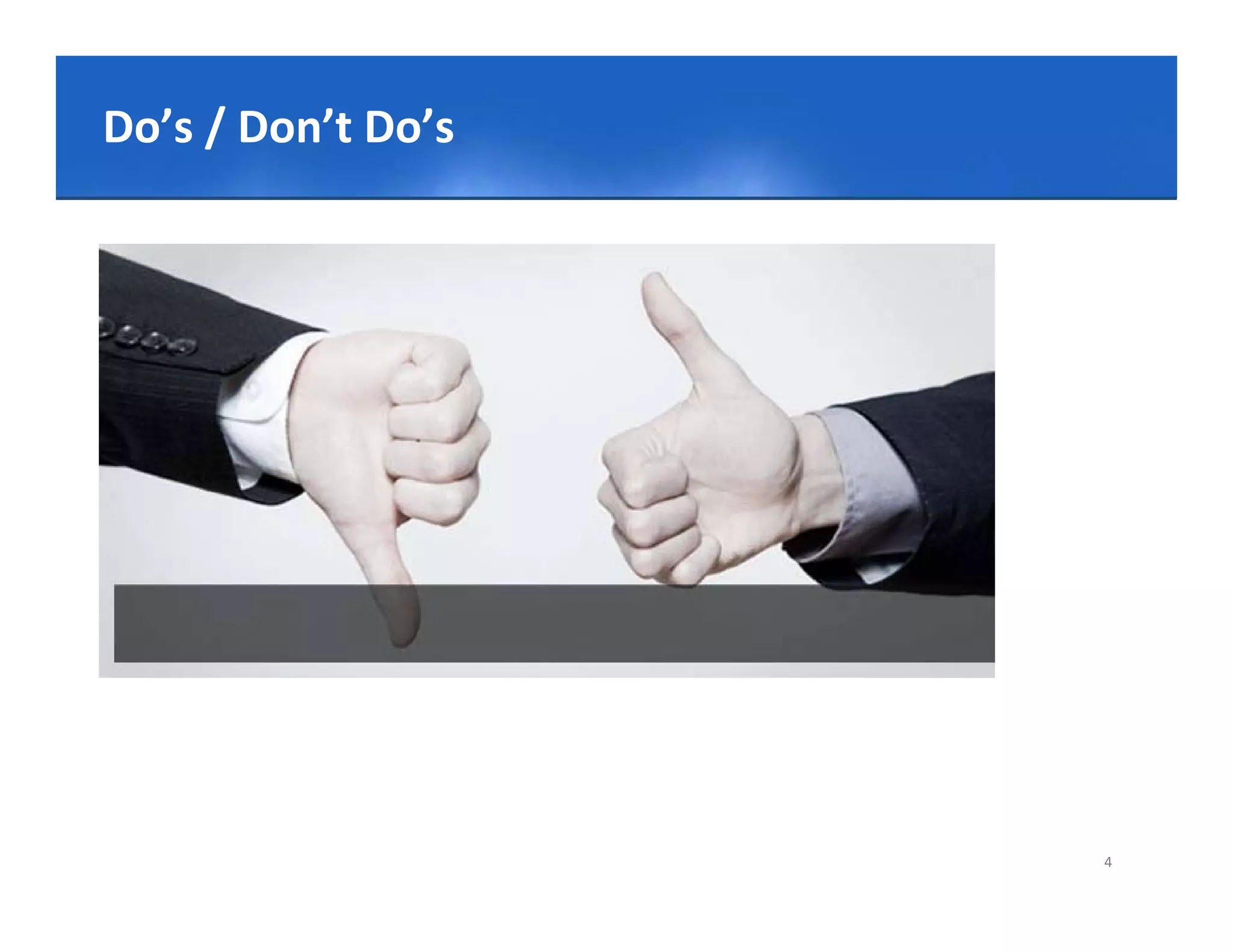
Do’s / Don’t Do’s


                                   4
Click Do!edit Master title style
Don’t to

   Do not lean on the top of the iPad when it is closed.
   Do not place anything near the iPad that could put pressure on 
    the screen.
   Do not place anything in the carrying case that will press against 
    Do not place anything in the carrying case that will press against
    the cover.
   Clean the screen with a soft, dry cloth or anti‐static cloth.
   Do not “bump” the iPad against lockers, walls, car doors, floors, 
    etc as it will eventually break the screen
   iPads should always be within the protective case when carried
          should always be within the protective case when carried.
   Some carrying cases can hold other objects (such as folders and 
    workbooks), but these must be kept to a minimum to avoid 
    placing too much pressure and weight on the iPad screen.
                                                                     5
Click Do!edit Master title style
Don’t to

   Don’t do Jailbreak! *
   Don’t Forget Passwords. 
   Don’t disable Passwords!
   Internet Games are not allowed on the iPads.
   Don’t Change Ipad Time Settings
   Changing of iPad settings (exceptions include personal 
    settings such as font size, brightness, etc)
   Don t
    Don’t use Company Credit Card
   Don’t send company related screenshots, documents via e‐
    mail to unspecified email addresses.
               p

                                                           6
Click Do !
Don’t to edit Master title style

   Don’t share any unapproved electronic document, 
    presentation, article etc. With Health Care
    Professionals through iPad! *


                                                       7
Click to edit Master title style
Do!

   Enter your HCP’s office with Ipad!
   Charge your Ipad every evening!
   Don’t use inappropriate media may screensaver or 
     o t        app op ate ed a ay sc ee sa e o
    background photo in your company Ipad.
   Presence of guns, weapons, pornographic materials,
    Presence of guns, weapons, pornographic materials, 
    inappropriate language, alcohol, drug, gang related 
    symbols or pictures will result in disciplinary actions.
   Connect WIFI when there’s WIFI Connection (Home, 
    Office, Hotel)

                                                               8
Click to edit Master title style
Do!

   When not using their iPads, they should be stored in 
    their lockers. 
   Nothing should be placed on top of the iPad, when
    stored in the locker.
   iPads should not be stored in a vehicle at work or at 
    home.
   Always turn off and secure their iPad after they are 
    done working to protect their work and information.


                                                             9
Click to edit Master title style
iPad Tips


                                   Use iPad efficiently!


                                                           10
Click to edit Master title style
Access all running apps

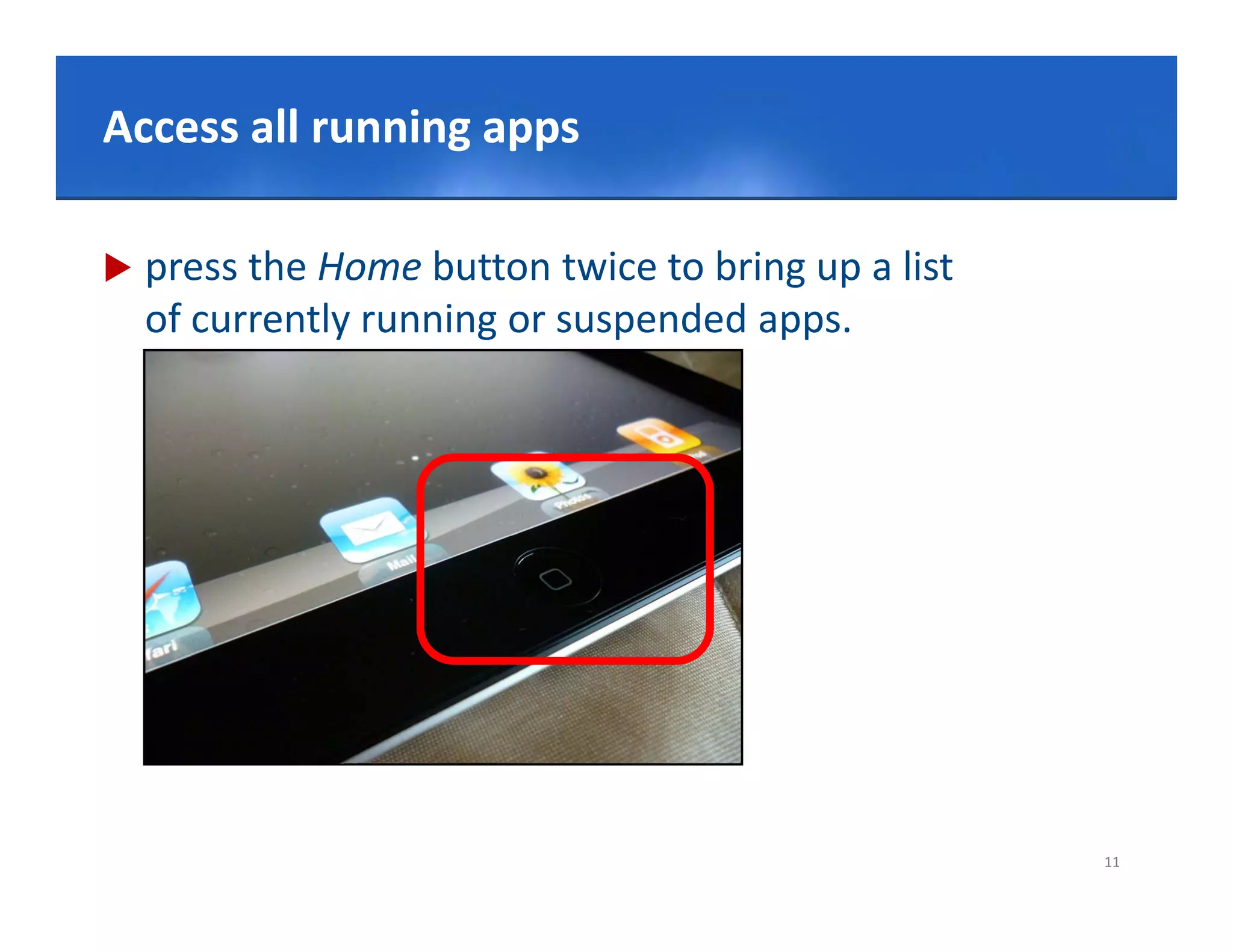
   press the Home button twice to bring up a list 
    of currently running or suspended apps.


                                                      11
Click to to audio/video playback controls
Shortcut edit Master title style

   swipe the multitasking bar left to right to quickly access 
    audio/video playback controls, a shortcut to the iTunes 
    app itself, and volume controls.


                                                             12
Click to edit Master title style
Set Passcode
Set Passcode

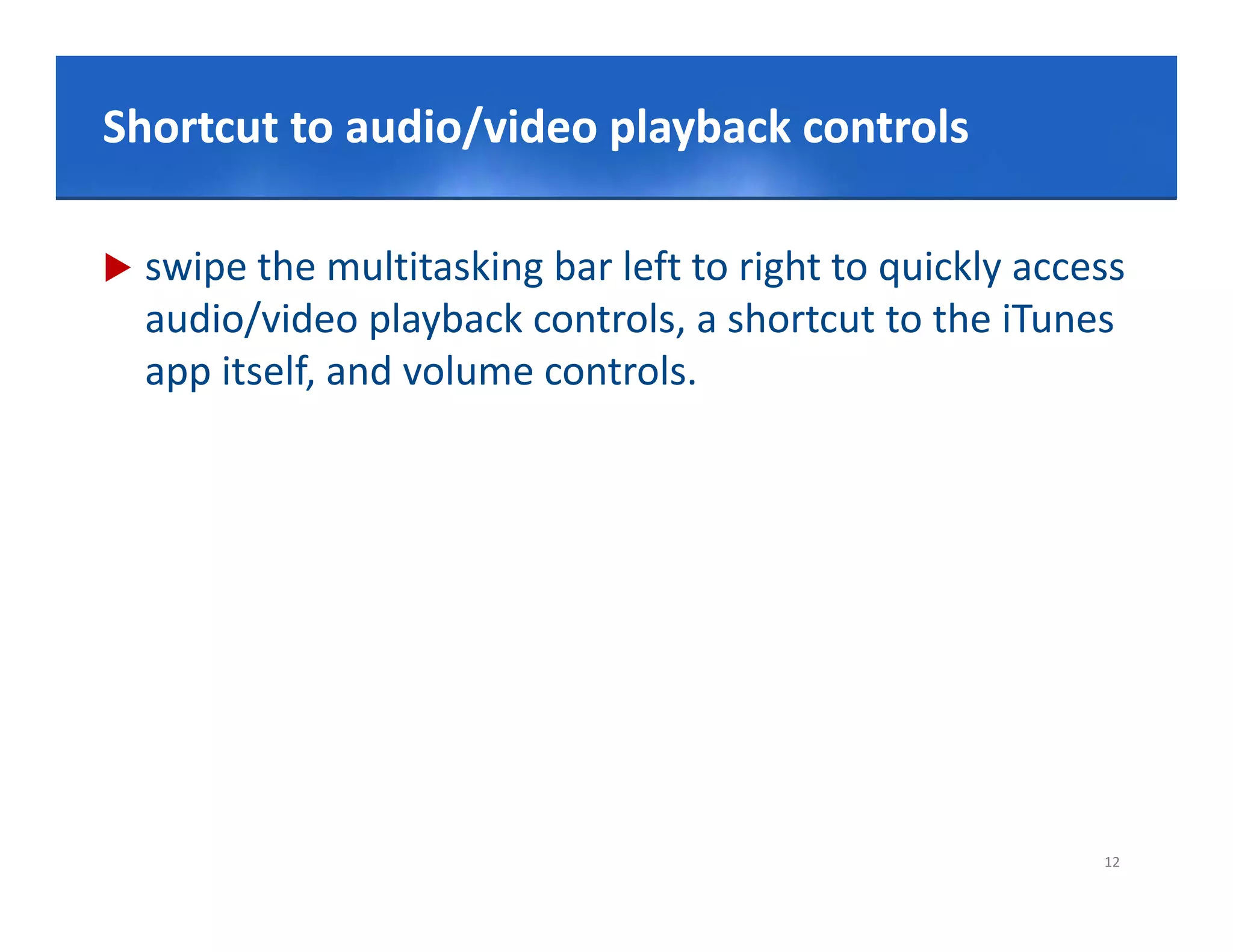
iOS defaults to a four‐number passcode, but you can turn 
it off by going to Settings, General, Passcode Lock, Simple 
Passcode.


                                                          13
Click to edit Master title style
Passcode Denied… DELETE ALL!

   If you're carrying around sensitive data, you can now 
    enable a feature that'll erase all the data on the device 
    if someone inputs the incorrect passcode 10 times. 
    Navigate to Settings > General > Passcode L k > E
    N i t t S tti         >G       l>P        d Lock > Erase 
    Data.


                                                             14
Click to edit Master title style
Wi‐
Wi‐Fi networks

   Forget Wi‐Fi networks: So you accidentally connected 
    to a network once, and your iPad remembers it for life‐‐
    whether you like it or not. On your iPad, go to Settings, 
    Wi‐Fi, and find the network under the 'Choose a 
    Wi Fi d fi d th       t     k d th 'Ch
    Network' heading. Tap the blue arrow next to the 
    network you want to remove, and tap the button on 
    network you want to remove and tap the button on
    the top that says Forget this Network.


   Stop asking to join Wi Fi: On/ Off


                                                            15
Click to edit Master title style
Take a screenshot of the screen

   Press Home and the sleep/wake button simultaneously. 
    The screenshot will automatically appear among your 
    photos.


                                                       16
Click to edit Master title style
Create folders

   To create a folder all you need to do is tap and hold on 
    an app until they all start to jiggle, then drag the app 
    over another icon and release. Your iPad will create a 
    folder with both the apps in.
    f ld    ith b th th          i


                                                            17
Click& Paste Master title style
      to edit
Copy & Paste

   Press on the word and wait for the menu “Select / 
    Select All” to appear. After doing the selection, click Cut
    / Copy .


                                                             18
Accurately Moving Cursor Between Text 
Click to edit Master title style
on Your iPad

   Press on the word and hold pressing the screen and
    make you move left / right.


                                                         19
Click to edit Master title style
Undo/Redo with the iPad

   First, bring up the touchscreen keyboard and hit the 
    ".?123" button. This brings up another set of virtual 
    keyboard buttons, including an "undo" button that you 
    can click to your undoing heart's content.
          li k t         d i h t'        t t
   For a redo, press "#+=" and you'll bring up the "redo" 
    button.
    b tt


                                                              20
Click to Special Characters style
To Insert edit Master title

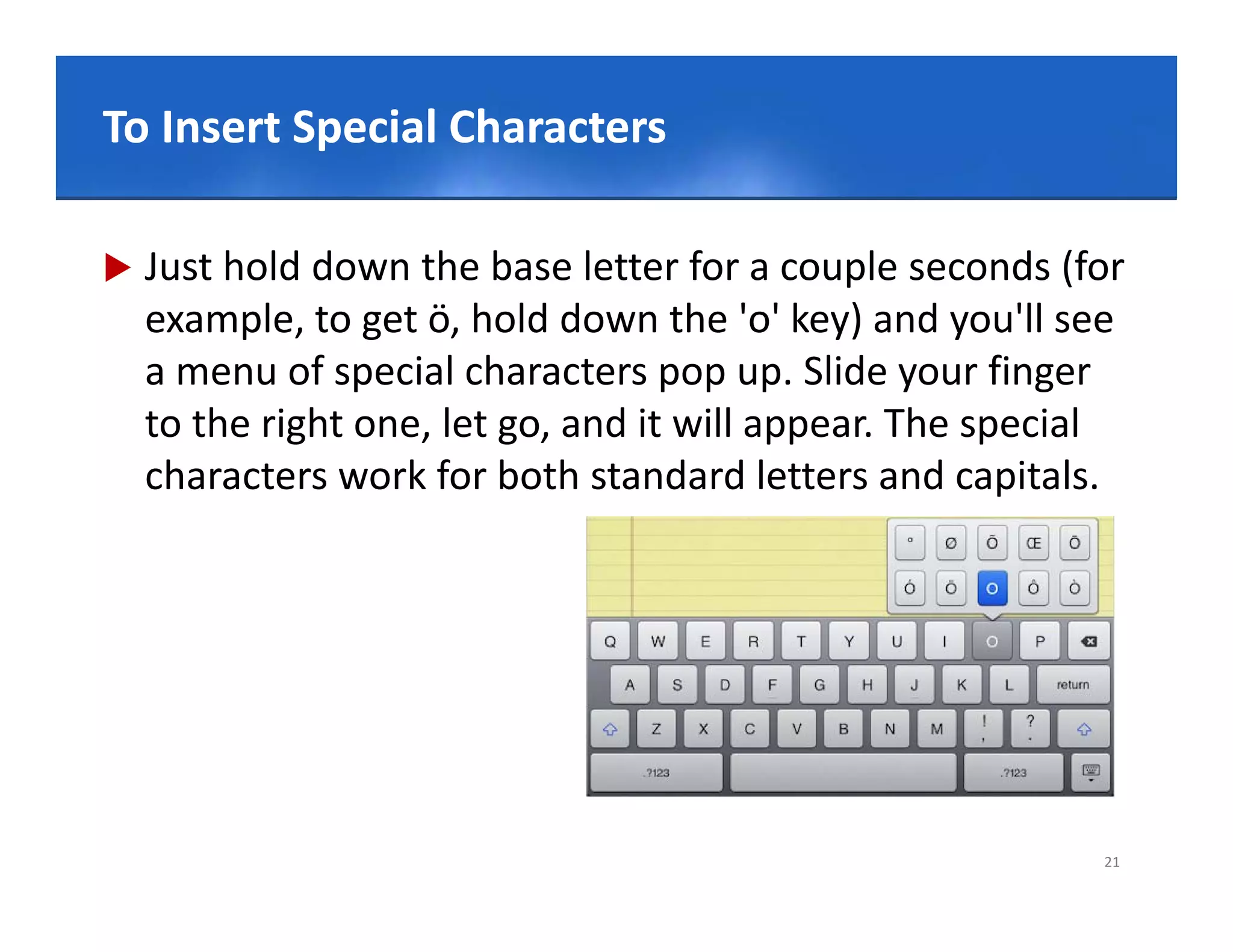
   Just hold down the base letter for a couple seconds (for 
    example, to get ö, hold down the 'o' key) and you'll see 
    a menu of special characters pop up. Slide your finger 
    to the right one, let go, and it ill
    t th i ht         l t       d it will appear. The special 
                                                  Th      i l
    characters work for both standard letters and capitals.


                                                            21
Click to edit Master title style
Wallpapers

   Wallpapers can be downloaded and used directly from 
    your iPad's Safari app. The iPad does not optimise
    images so they are retain both their data size and 
    quality.
       lit
   Although it is recommended to use images optimised as 
    wallpapers for the iPad, such as all those found on my‐
       ll       f th iP d       h     ll th    f   d
    iGuru.com, any image of a reasonable physical size will 
    do. Wallpapers on the iPad measure 1024 x 1024 pixels, 
    do Wallpapers on the iPad measure 1024 x 1024 pixels
    allowing for both portrait and landscape viewing.


                                                         22
Click to editIdentity title style
Create Apple Master

   Enter App Store in iPad Screen.
   Press Free button > Install App
   Fill in email and pass information. Fill in birthday
            e a a d           o at o .          b t day
    information and move next.
   Apple send an email to your email adress.
               an email
   Press Verify Now link in the email and your account is 
    activated.


                                                              23
Click to edit iPad Apps
Free & Useful Master title style
     & Useful


                                   24
Click to edit Master title style
iBooks

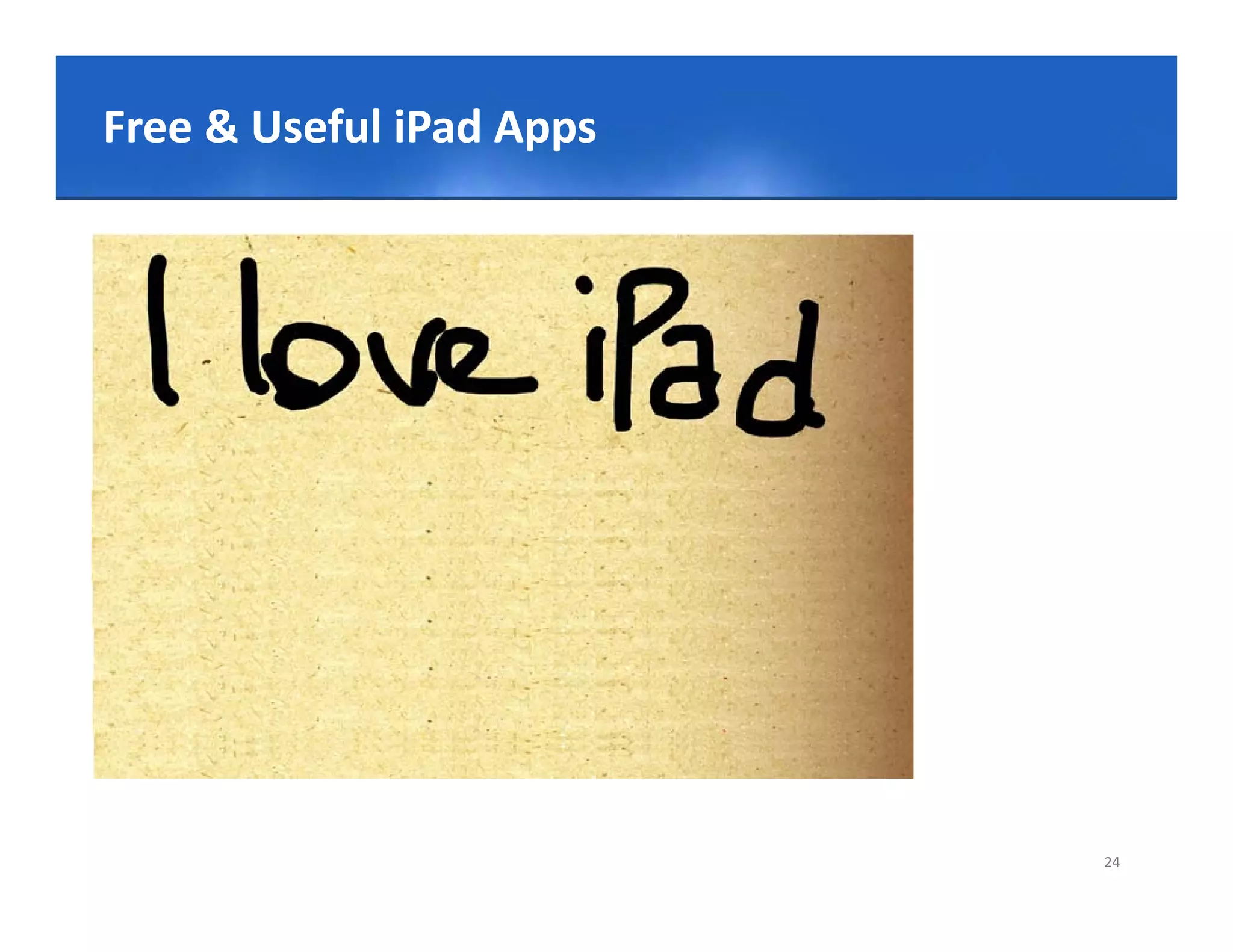
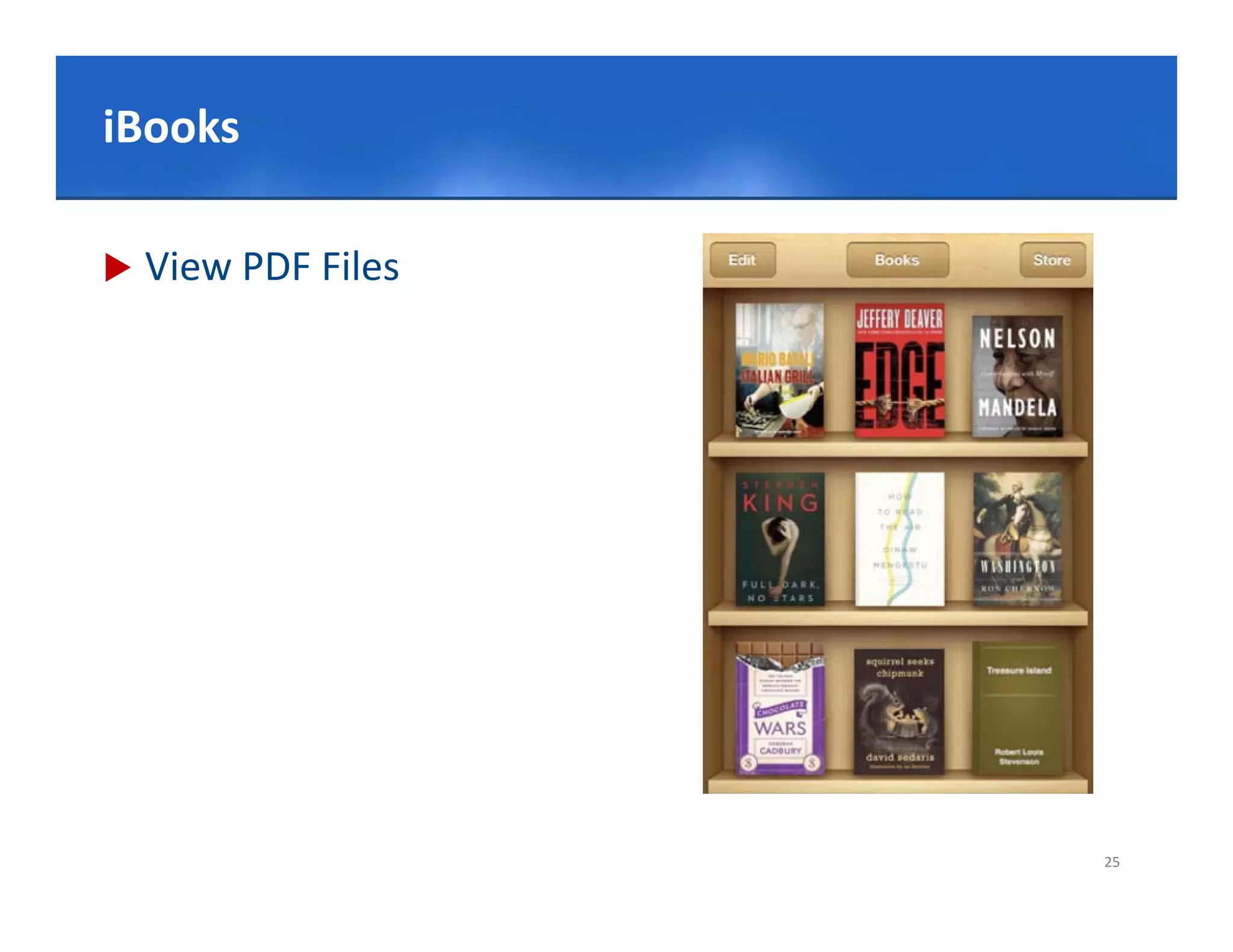
   View PDF Files


                                   25
Click to edit Master title style
Camera & Photos & Videos
        & Photos & Videos

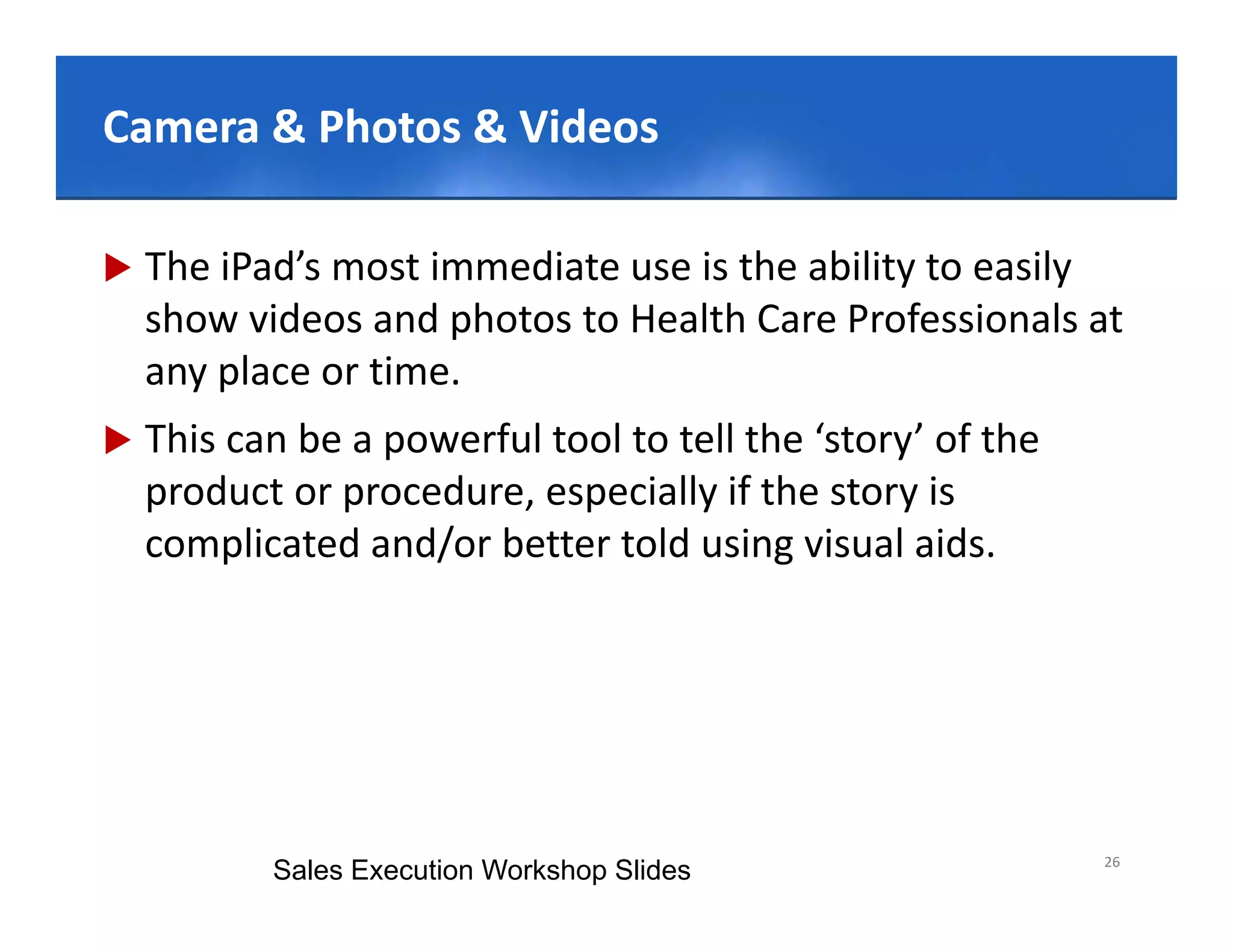
   The iPad’s most immediate use is the ability to easily 
    show videos and photos to Health Care Professionals at 
    any place or time.
   This can be a powerful tool to tell the ‘story’ of the 
    product or procedure, especially if the story is 
    complicated and/or better told using visual aids.
          li t d d/ b tt t ld i              i l id


                                                              26
           Sales Execution Workshop Slides
Click to edit Master title style
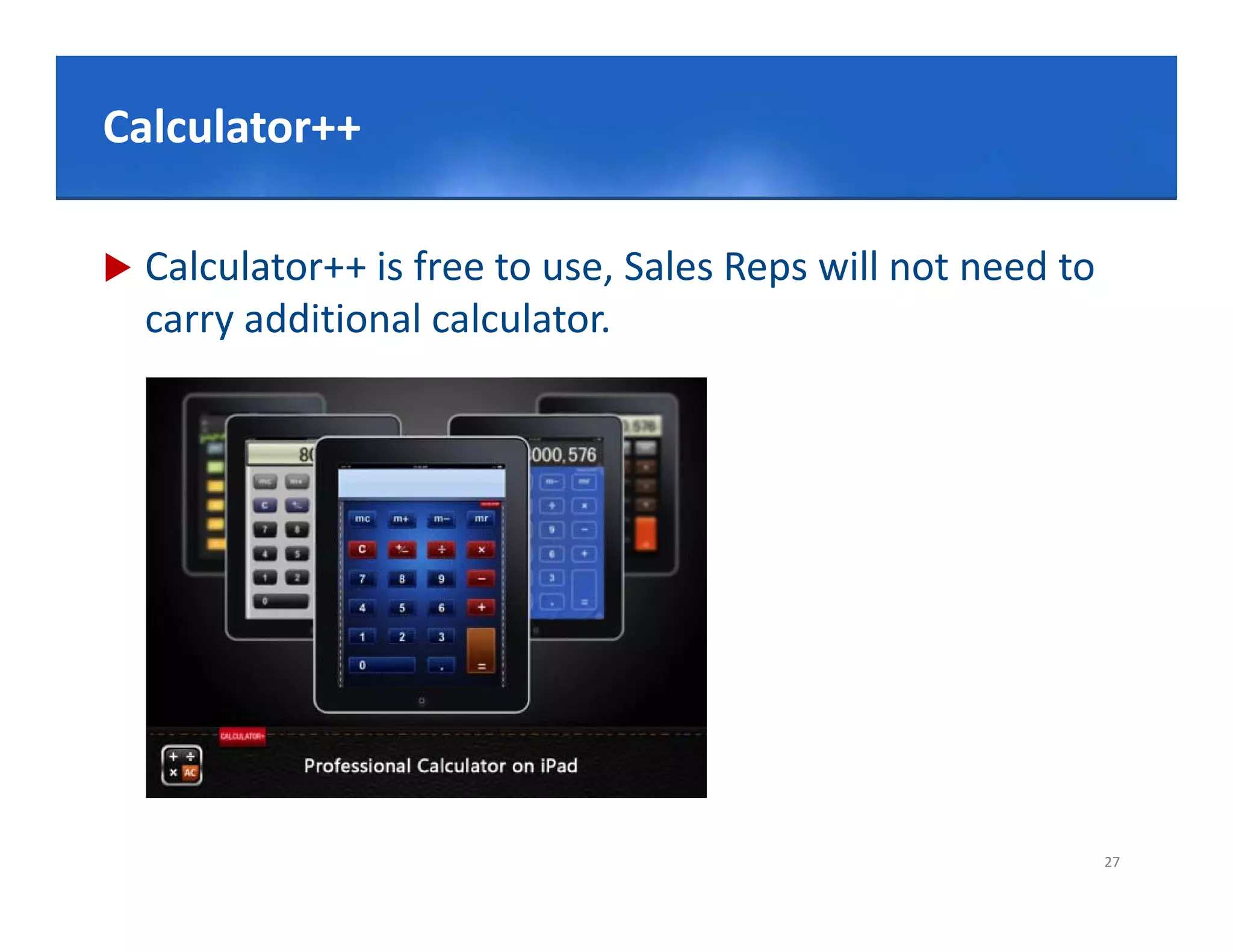
Calculator++
Calculator++

   Calculator++ is free to use, Sales Reps will not need to
    carry additional calculator.


                                                               27
Click to edit Master title style
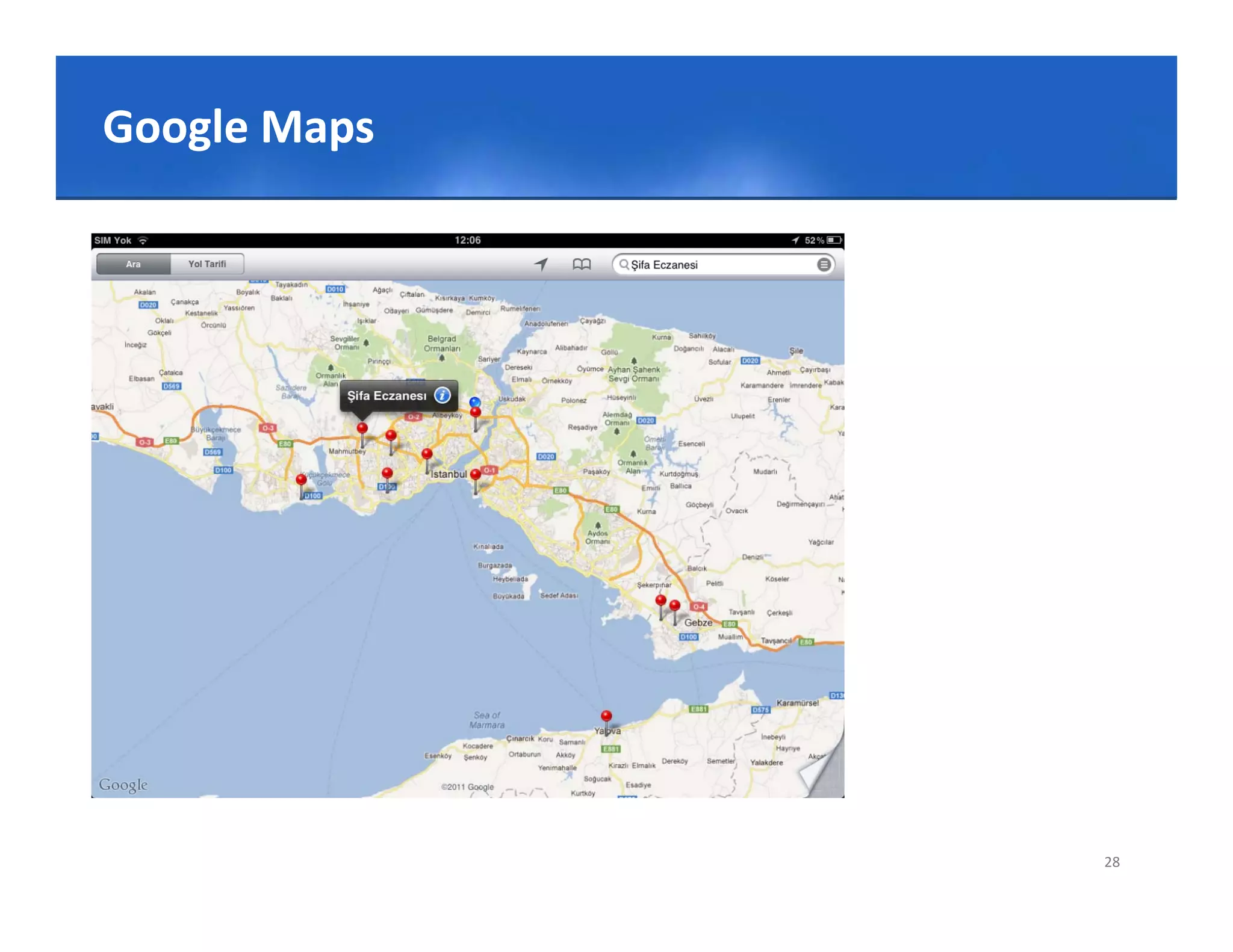
Google Maps


                                   28
Click or delete apps title style
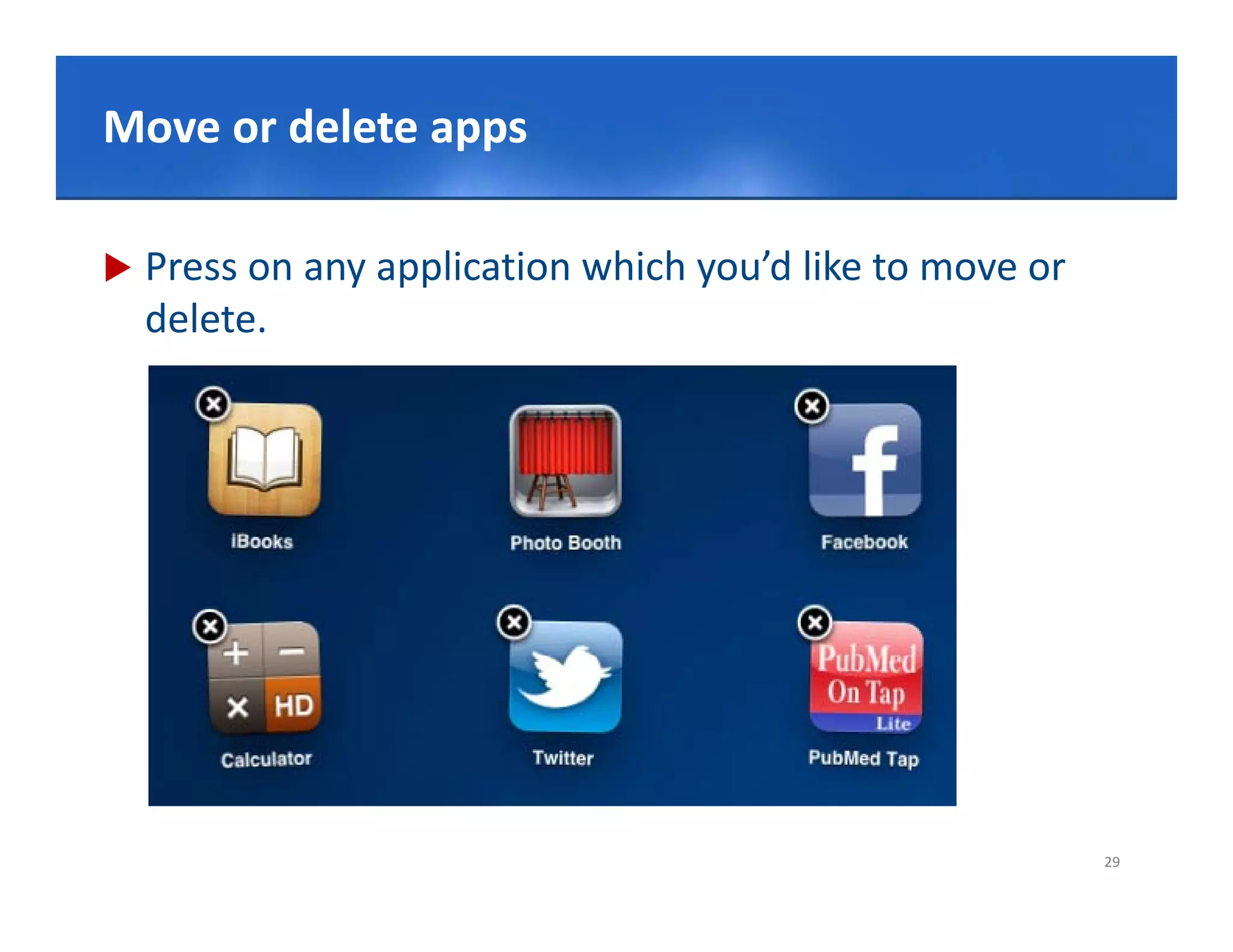
Move to edit Master

   Press on any application which you’d like to move or
    delete.


                                                           29
Click to edit Master title style
Give homework for Sales Reps

   Read iPad Procedure carefully
   Create an itunes account.
   Delete your timeline in social media accounts.
     e ete you t e e soc a ed a accou ts.


                                                     30
Click to edit Master title style
Take Aways

   Don’t give the fish!
   Convert Your Sales Force to iPads Overnight
   Publish Groud Rules
     ub s G oud u es


                                                  31
Click give the Master title style
Don’t to edit fish!
               fish!

   Since the tablet evolution is moving rapidly, don’t give a 
    full training.
   Show your field force how to fish in Ipad!


                                                            32
Convert Your Sales Force to style
Click to edit Master title iPads
Overnight
      g

   Ipad usage is developed by a user experience learning.
   Give your Sales Force the opportunity to start using
    Ipads
   Give Sales Force Ipads immediately and ask them to
    become digital savvy employees.


                                                           33
Click to edit Master title style
Publish Ground Rules

   Publish your Procedure and ground rules for iPad usage
    in the company.
   Procedure should have clear explanations on how the
    devices should be used and loss cases should be 
    defined according to company standards.
   Ground Rules should be simple and up to date.


                                                          34
Click toexcellence! title style
         edit Master
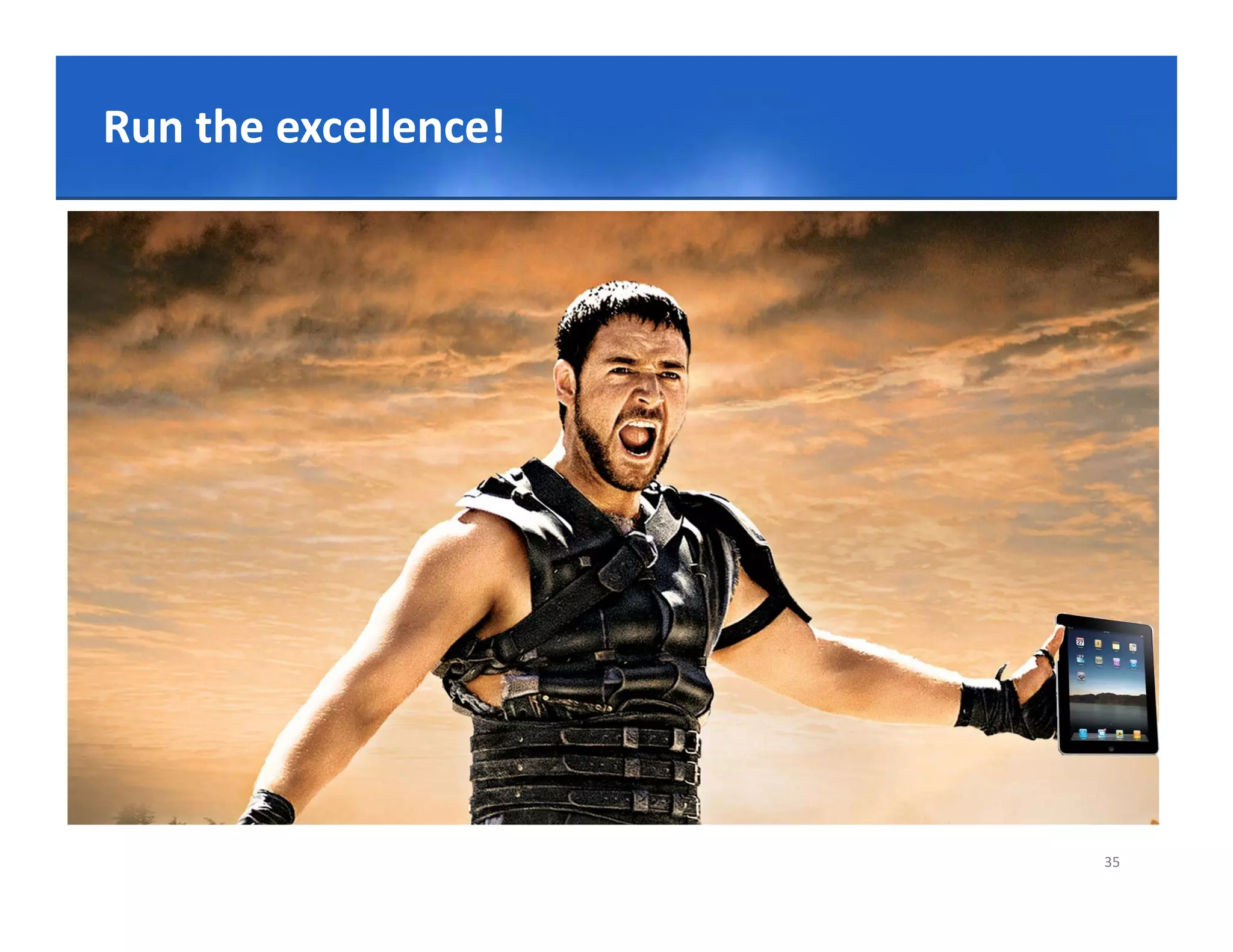
Run the excellence!


                                  35
Click to edit Master title style
Thank you.
       you.


linkedin.com/in/serkovan | twitter.com/serkovan | slideshare.net/serkovan
foursquare.com/serkovan| facebook.com/serkovan | instagram.com/serkovan

Convert Your Sales Force to iPads Overnight

  • 1.
    Click to editMaster title style Convert Your Sales Force to iPads Overnight iPad Usage for Sales Reps Experience in Getting Mobile in Pharma Serkan Erkovan 2012, Istanbul 1
  • 2.
    Click to editMaster title style Agenda  Ipad Training for Pharma Sales Reps ﹥ Prerequisite ﹥ Do’s / Don’t Do’s ﹥ iPad Tips & Tricks ﹥ Free & Useful iPad Apps for Sales Force  Takeaways ﹥ Don’t give the fish!  ﹥ Convert Your Sales Force to Ipads Overnight ﹥ Publish Ground Rules 2
  • 3.
    Click– Prerequisitestitle style iPadto edit Master On Delivery, Make Sure Your Sales Reps completed the following:  Company Information Security Training  Read & understood iPad usage procedure  iPad Usage Training g g  Company Social Media Guidelines 3
  • 4.
    Click to editMaster title style Do’s / Don’t Do’s 4
  • 5.
    Click Do!edit Mastertitle style Don’t to  Do not lean on the top of the iPad when it is closed.  Do not place anything near the iPad that could put pressure on  the screen.  Do not place anything in the carrying case that will press against  Do not place anything in the carrying case that will press against the cover.  Clean the screen with a soft, dry cloth or anti‐static cloth.  Do not “bump” the iPad against lockers, walls, car doors, floors,  etc as it will eventually break the screen  iPads should always be within the protective case when carried should always be within the protective case when carried.  Some carrying cases can hold other objects (such as folders and  workbooks), but these must be kept to a minimum to avoid  placing too much pressure and weight on the iPad screen. 5
  • 6.
    Click Do!edit Mastertitle style Don’t to  Don’t do Jailbreak! *  Don’t Forget Passwords.   Don’t disable Passwords!  Internet Games are not allowed on the iPads.  Don’t Change Ipad Time Settings  Changing of iPad settings (exceptions include personal  settings such as font size, brightness, etc)  Don t Don’t use Company Credit Card  Don’t send company related screenshots, documents via e‐ mail to unspecified email addresses. p 6
  • 7.
    Click Do ! Don’t toedit Master title style  Don’t share any unapproved electronic document,  presentation, article etc. With Health Care Professionals through iPad! * 7
  • 8.
    Click to editMaster title style Do!  Enter your HCP’s office with Ipad!  Charge your Ipad every evening!  Don’t use inappropriate media may screensaver or  o t app op ate ed a ay sc ee sa e o background photo in your company Ipad.  Presence of guns, weapons, pornographic materials, Presence of guns, weapons, pornographic materials,  inappropriate language, alcohol, drug, gang related  symbols or pictures will result in disciplinary actions.  Connect WIFI when there’s WIFI Connection (Home,  Office, Hotel) 8
  • 9.
    Click to editMaster title style Do!  When not using their iPads, they should be stored in  their lockers.   Nothing should be placed on top of the iPad, when stored in the locker.  iPads should not be stored in a vehicle at work or at  home.  Always turn off and secure their iPad after they are  done working to protect their work and information. 9
  • 10.
    Click to editMaster title style iPad Tips Use iPad efficiently! 10
  • 11.
    Click to editMaster title style Access all running apps  press the Home button twice to bring up a list  of currently running or suspended apps. 11
  • 12.
    Click to toaudio/video playback controls Shortcut edit Master title style  swipe the multitasking bar left to right to quickly access  audio/video playback controls, a shortcut to the iTunes  app itself, and volume controls. 12
  • 13.
    Click to editMaster title style Set Passcode Set Passcode iOS defaults to a four‐number passcode, but you can turn  it off by going to Settings, General, Passcode Lock, Simple  Passcode. 13
  • 14.
    Click to editMaster title style Passcode Denied… DELETE ALL!  If you're carrying around sensitive data, you can now  enable a feature that'll erase all the data on the device  if someone inputs the incorrect passcode 10 times.  Navigate to Settings > General > Passcode L k > E N i t t S tti >G l>P d Lock > Erase  Data. 14
  • 15.
    Click to editMaster title style Wi‐ Wi‐Fi networks  Forget Wi‐Fi networks: So you accidentally connected  to a network once, and your iPad remembers it for life‐‐ whether you like it or not. On your iPad, go to Settings,  Wi‐Fi, and find the network under the 'Choose a  Wi Fi d fi d th t k d th 'Ch Network' heading. Tap the blue arrow next to the  network you want to remove, and tap the button on  network you want to remove and tap the button on the top that says Forget this Network.  Stop asking to join Wi Fi: On/ Off 15
  • 16.
    Click to editMaster title style Take a screenshot of the screen  Press Home and the sleep/wake button simultaneously.  The screenshot will automatically appear among your  photos. 16
  • 17.
    Click to editMaster title style Create folders  To create a folder all you need to do is tap and hold on  an app until they all start to jiggle, then drag the app  over another icon and release. Your iPad will create a  folder with both the apps in. f ld ith b th th i 17
  • 18.
    Click& Paste Master titlestyle to edit Copy & Paste  Press on the word and wait for the menu “Select /  Select All” to appear. After doing the selection, click Cut / Copy . 18
  • 19.
    Accurately Moving Cursor Between Text  Click to editMaster title style on Your iPad  Press on the word and hold pressing the screen and make you move left / right. 19
  • 20.
    Click to editMaster title style Undo/Redo with the iPad  First, bring up the touchscreen keyboard and hit the  ".?123" button. This brings up another set of virtual  keyboard buttons, including an "undo" button that you  can click to your undoing heart's content. li k t d i h t' t t  For a redo, press "#+=" and you'll bring up the "redo"  button. b tt 20
  • 21.
    Click to SpecialCharacters style To Insert edit Master title  Just hold down the base letter for a couple seconds (for  example, to get ö, hold down the 'o' key) and you'll see  a menu of special characters pop up. Slide your finger  to the right one, let go, and it ill t th i ht l t d it will appear. The special  Th i l characters work for both standard letters and capitals. 21
  • 22.
    Click to editMaster title style Wallpapers  Wallpapers can be downloaded and used directly from  your iPad's Safari app. The iPad does not optimise images so they are retain both their data size and  quality. lit  Although it is recommended to use images optimised as  wallpapers for the iPad, such as all those found on my‐ ll f th iP d h ll th f d iGuru.com, any image of a reasonable physical size will  do. Wallpapers on the iPad measure 1024 x 1024 pixels,  do Wallpapers on the iPad measure 1024 x 1024 pixels allowing for both portrait and landscape viewing. 22
  • 23.
    Click to editIdentitytitle style Create Apple Master  Enter App Store in iPad Screen.  Press Free button > Install App  Fill in email and pass information. Fill in birthday e a a d o at o . b t day information and move next.  Apple send an email to your email adress. an email  Press Verify Now link in the email and your account is  activated. 23
  • 24.
    Click to editiPad Apps Free & Useful Master title style & Useful 24
  • 25.
    Click to editMaster title style iBooks  View PDF Files 25
  • 26.
    Click to editMaster title style Camera & Photos & Videos & Photos & Videos  The iPad’s most immediate use is the ability to easily  show videos and photos to Health Care Professionals at  any place or time.  This can be a powerful tool to tell the ‘story’ of the  product or procedure, especially if the story is  complicated and/or better told using visual aids. li t d d/ b tt t ld i i l id 26 Sales Execution Workshop Slides
  • 27.
    Click to editMaster title style Calculator++ Calculator++  Calculator++ is free to use, Sales Reps will not need to carry additional calculator. 27
  • 28.
    Click to editMaster title style Google Maps 28
  • 29.
    Click or deleteapps title style Move to edit Master  Press on any application which you’d like to move or delete. 29
  • 30.
    Click to editMaster title style Give homework for Sales Reps  Read iPad Procedure carefully  Create an itunes account.  Delete your timeline in social media accounts. e ete you t e e soc a ed a accou ts. 30
  • 31.
    Click to editMaster title style Take Aways  Don’t give the fish!  Convert Your Sales Force to iPads Overnight  Publish Groud Rules ub s G oud u es 31
  • 32.
    Click give theMaster title style Don’t to edit fish! fish!  Since the tablet evolution is moving rapidly, don’t give a  full training.  Show your field force how to fish in Ipad! 32
  • 33.
    Convert Your SalesForce to style Click to edit Master title iPads Overnight g  Ipad usage is developed by a user experience learning.  Give your Sales Force the opportunity to start using Ipads  Give Sales Force Ipads immediately and ask them to become digital savvy employees. 33
  • 34.
    Click to editMaster title style Publish Ground Rules  Publish your Procedure and ground rules for iPad usage in the company.  Procedure should have clear explanations on how the devices should be used and loss cases should be  defined according to company standards.  Ground Rules should be simple and up to date. 34
  • 35.
    Click toexcellence! titlestyle edit Master Run the excellence! 35
  • 36.
    Click to editMaster title style Thank you. you. linkedin.com/in/serkovan | twitter.com/serkovan | slideshare.net/serkovan foursquare.com/serkovan| facebook.com/serkovan | instagram.com/serkovan