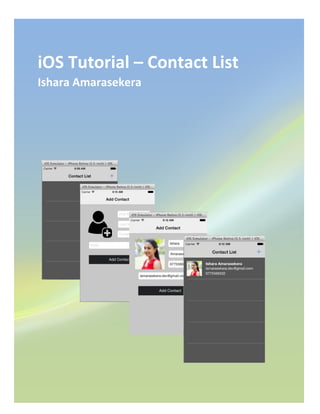
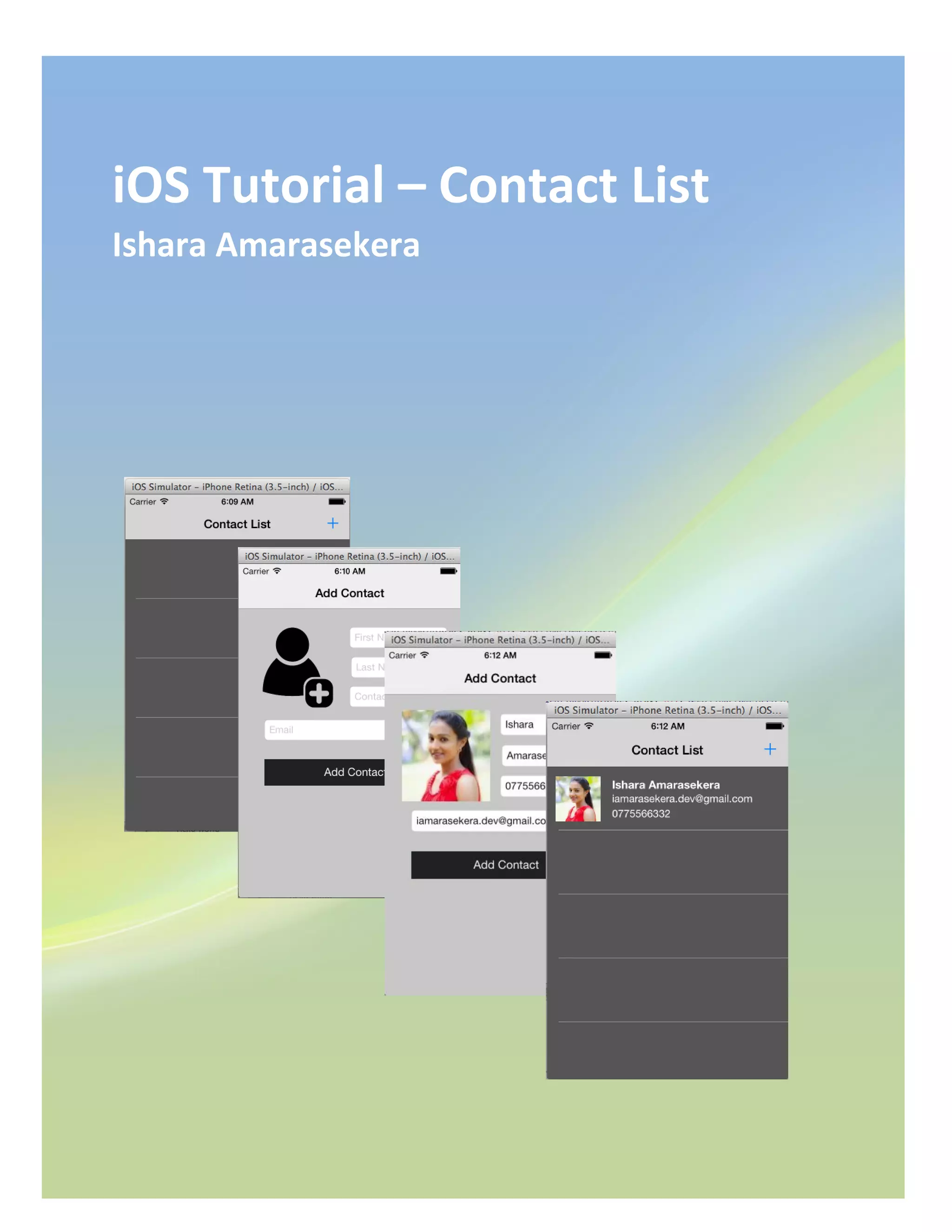
iOS Tutorial – Contact List
Ishara Amarasekera
Page2
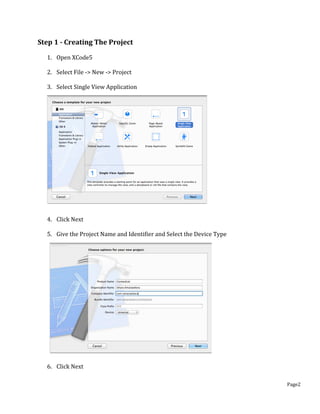
Step 1 - Creating The Project
1. Open XCode5
2. Select File -> New -> Project
3. Select Single View Application
4. Click Next
5. Give the Project Name and Identifier and Select the Device Type
6. Click Next
Page3
Step 2 - Creating MasterViewController
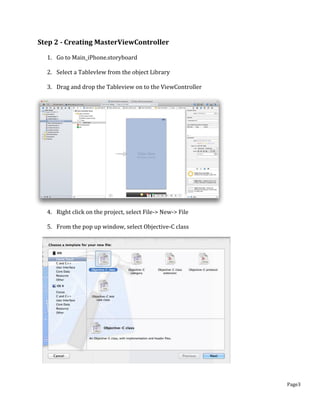
1. Go to Main_iPhone.storyboard
2. Select a TablevIew from the object Library
3. Drag and drop the Tableview on to the ViewController
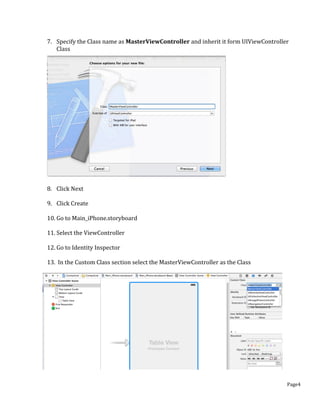
4. Right click on the project, select File-> New-> File
5. From the pop up window, select Objective-C class
6. Click Next
Page4
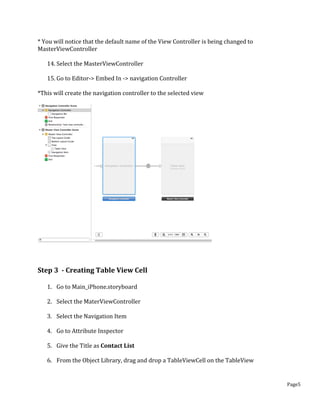
7. Specify the Class name as MasterViewController and inherit it form UIViewController
Class
8. Click Next
9. Click Create
10. Go to Main_iPhone.storyboard
11. Select the ViewController
12. Go to Identity Inspector
13. In the Custom Class section select the MasterViewController as the Class
Page5
* You will notice that the default name of the View Controller is being changed to
MasterViewController
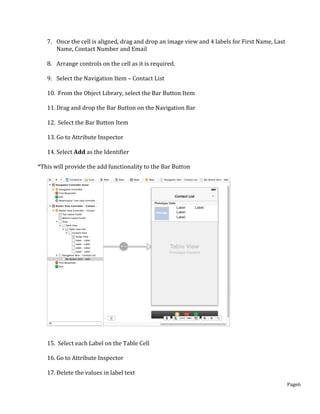
14. Select the MasterViewController
15. Go to Editor-> Embed In -> navigation Controller
*This will create the navigation controller to the selected view
Step 3 - Creating Table View Cell
1. Go to Main_iPhone.storyboard
2. Select the MaterViewController
3. Select the Navigation Item
4. Go to Attribute Inspector
5. Give the Title as Contact List
6. From the Object Library, drag and drop a TableViewCell on the TableView
Page6
7. Once the cell is aligned, drag and drop an image view and 4 labels for First Name, Last
Name, Contact Number and Email
8. Arrange controls on the cell as it is required.
9. Select the Navigation Item – Contact List
10. From the Object Library, select the Bar Button Item
11. Drag and drop the Bar Button on the Navigation Bar
12. Select the Bar Button Item
13. Go to Attribute Inspector
14. Select Add as the Identifier
*This will provide the add functionality to the Bar Button
15. Select each Label on the Table Cell
16. Go to Attribute Inspector
17. Delete the values in label text
Page7
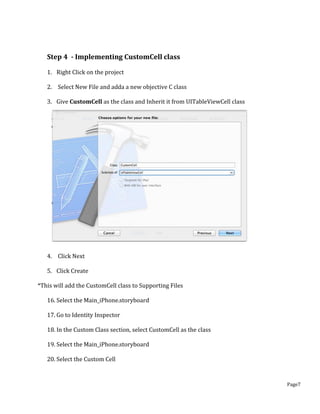
Step 4 - Implementing CustomCell class
1. Right Click on the project
2. Select New File and adda a new objective C class
3. Give CustomCell as the class and Inherit it from UITableViewCell class
4. Click Next
5. Click Create
*This will add the CustomCell class to Supporting Files
16. Select the Main_iPhone.storyboard
17. Go to Identity Inspector
18. In the Custom Class section, select CustomCell as the class
19. Select the Main_iPhone.storyboard
20. Select the Custom Cell
Page8
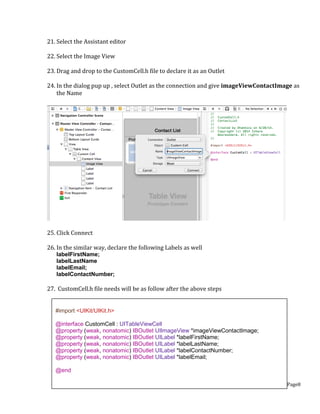
21. Select the Assistant editor
22. Select the Image View
23. Drag and drop to the CustomCell.h file to declare it as an Outlet
24. In the dialog pup up , select Outlet as the connection and give imageViewContactImage as
the Name
25. Click Connect
26. In the similar way, declare the following Labels as well
labelFirstName;
labelLastName
labelEmail;
labelContactNumber;
27. CustomCell.h file needs will be as follow after the above steps
#import <UIKit/UIKit.h>
@interface CustomCell : UITableViewCell
@property (weak, nonatomic) IBOutlet UIImageView *imageViewContactImage;
@property (weak, nonatomic) IBOutlet UILabel *labelFirstName;
@property (weak, nonatomic) IBOutlet UILabel *labelLastName;
@property (weak, nonatomic) IBOutlet UILabel *labelContactNumber;
@property (weak, nonatomic) IBOutlet UILabel *labelEmail;
@end
Page9
28. Select the Main_iPhone.storyboard
29. Select the Custom Cell
30. Go to Attribute Inspector
31. Give cell as the identifier
Step 5 - Creating DetailViewController
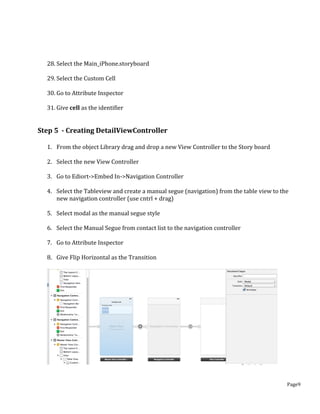
1. From the object Library drag and drop a new View Controller to the Story board
2. Select the new View Controller
3. Go to Ediort->Embed In->Navigation Controller
4. Select the Tableview and create a manual segue (navigation) from the table view to the
new navigation controller (use cntrl + drag)
5. Select modal as the manual segue style
6. Select the Manual Segue from contact list to the navigation controller
7. Go to Attribute Inspector
8. Give Flip Horizontal as the Transition
Page10
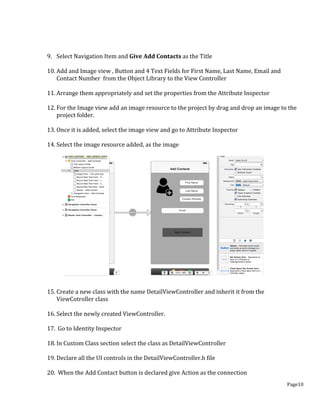
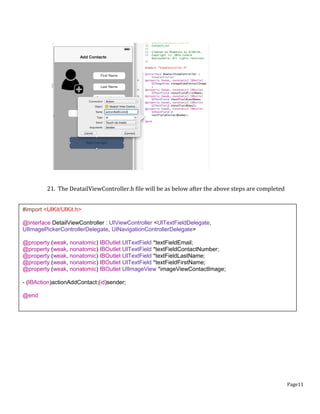
9. Select Navigation Item and Give Add Contacts as the Title
10. Add and Image view , Button and 4 Text Fields for First Name, Last Name, Email and
Contact Number from the Object Library to the View Controller
11. Arrange them appropriately and set the properties from the Attribute Inspector
12. For the Image view add an image resource to the project by drag and drop an image to the
project folder.
13. Once it is added, select the image view and go to Attribute Inspector
14. Select the image resource added, as the image
15. Create a new class with the name DetailViewController and inherit it from the
ViewCotroller class
16. Select the newly created ViewController.
17. Go to Identity Inspector
18. In Custom Class section select the class as DetailViewController
19. Declare all the UI controls in the DetailViewController.h file
20. When the Add Contact button is declared give Action as the connection
Page11
21. The DeatailViewController.h file will be as below after the above steps are completed
#import <UIKit/UIKit.h>
@interface DetailViewController : UIViewController <UITextFieldDelegate,
UIImagePickerControllerDelegate, UINavigationControllerDelegate>
@property (weak, nonatomic) IBOutlet UITextField *textFieldEmail;
@property (weak, nonatomic) IBOutlet UITextField *textFieldContactNumber;
@property (weak, nonatomic) IBOutlet UITextField *textFieldLastName;
@property (weak, nonatomic) IBOutlet UITextField *textFieldFirstName;
@property (weak, nonatomic) IBOutlet UIImageView *imageViewContactImage;
- (IBAction)actionAddContact:(id)sender;
@end
Page12
Step 6 - Implemnting MasterViewController
1. Since MasterViewController has a tableview, you need to implement the 2 interfaces
UITableViewDelegate and UITableViewDataSource
2. Declare the table view as an outlet in the MasterViewController.h file
3. Declare a mutable array to hold the contact list in the MasterViewController.h file
4. The MasterViewController.h file will be as below
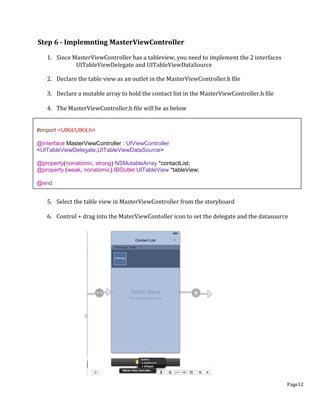
5. Select the table view in MasterViewController from the storyboard
6. Control + drag into the MaterViewContoller icon to set the delegate and the datasource
#import <UIKit/UIKit.h>
@interface MasterViewController : UIViewController
<UITableViewDelegate,UITableViewDataSource>
@property(nonatomic, strong) NSMutableArray *contactList;
@property (weak, nonatomic) IBOutlet UITableView *tableView;
@end
Page13
7. In ViewdidLoad method of the MasterViewController.m , you need to instantiate the
contactList array
8. When we go to the DeatilView,Controller we loose the current context of the
MasterViewController, hence we need to create an instance of the App Delegate and create
a reference to the current instance of the MasterViewController .
In MasterViewController you need to set the current Instance and later retrieve it form the
DetailViewController
*This is one approach. You do not need to do it all the time. There are other approaches to
avoid this.
9. In order to do the above step, we need to declare a current instance of the
MasteViewController in the APP delegate as given below
10. Coming back to the MasterViewController ,in viewdidAppear method you need to reload
data in the Tableview
- (void)viewDidLoad
{
[super viewDidLoad];
// Do any additional setup after loading the view, typically from a nib.
self.contactList = [[NSMutableArray alloc]init];
AppDelegate *appD = (AppDelegate *)[[UIApplication sharedApplication] delegate];
[appD setCurrentMasterInstance:self];
}
- (void)viewDidAppear:(BOOL)animated {
[super viewDidAppear:animated];
[self.tableView reloadData];
}
@property (strong, nonatomic) MasterViewController *currentMasterInstance;
Page14
11. Implement the following methods in the MasterViewController.m file
*There are 3 essential methods in that you need to implement for a Tableview
1. numberOfSectionsInTableView (In this case, it is one, hence return one)
2. numberOfRowsInSection (Here, you have to return your count of the contact list)
3. cellForRowAtIndexPath (returns cell per section)
- (NSInteger)numberOfSectionsInTableView:(UITableView *)tableView
{
// Return the number of sections.
return 1;
}
- (NSInteger)tableView:(UITableView *)tableView
numberOfRowsInSection:(NSInteger)section
{
// Return the number of rows in the section.
return [self.contactList count];
}
Page15
- (UITableViewCell *)tableView:(UITableView *)tableView cellForRowAtIndexPath:(NSIndexPath
*)indexPath
{
CustomCell *cell = [tableView dequeueReusableCellWithIdentifier:@"cell"];
if (cell == nil) {
cell = [[CustomCell alloc] initWithStyle:UITableViewCellStyleSubtitle reuseIdentifier:@"cell"];
}
NSDictionary *userData = [self.contactList objectAtIndex:[indexPath row]];
if (([userData objectForKey:@"firstName"] && [NSString stringWithFormat:@"%@", [userData
objectForKey:@"firstName"]].length>0)
||
([userData objectForKey:@"lastName"] && [NSString stringWithFormat:@"%@", [userData
objectForKey:@"lastName"]].length>0)){
cell.labelName.text = [NSString stringWithFormat:@"%@ %@", [userData
objectForKey:@"firstName"], [userData objectForKey:@"lastName"]];
}
if ([userData objectForKey:@"email"] && [NSString stringWithFormat:@"%@", [userData
objectForKey:@"email"]].length >0) {
cell.labelEmail.text = [userData objectForKey:@"email"];
}
if ([userData objectForKey:@"contactNumber"] && [NSString stringWithFormat:@"%@", [userData
objectForKey:@"contactNumber"]].length >0) {
cell.labelContactNumber.text = [userData objectForKey:@"contactNumber"];
}
if ([userData objectForKey:@"contactImage"]!= NULL ) {
cell.imageViewContactImage.image = [userData objectForKey:@"contactImage"];
}
return cell;
}
Page16
Step 7- Implemnting DetailViewController
1. The DetailViewController needs to implent the following interfaces
UITextFieldDelegate, UIImagePickerControllerDelegate, UINavigationControllerDelegate]
2. Declare the UIImagePicker
3. In the ViewdidLoad method the followings need to be done
 Setting Delegates text controls
 Create image view selector for the touch event (for gesture events)
 Instantiation of image picker controller
- (void)viewDidLoad
{
[super viewDidLoad];
// Do any additional setup after loading the view.
//Setting Delegates text controls
self.textFieldFirstName.delegate = self;
self.textFieldLastName.delegate = self;
self.textFieldEmail.delegate = self;
self.textFieldContactNumber.delegate = self;
[self.textFieldFirstName resignFirstResponder];
[self.textFieldLastName resignFirstResponder];
[self.textFieldEmail resignFirstResponder];
[self.textFieldContactNumber resignFirstResponder];
//image view selector for the touch event
UITapGestureRecognizer *singleTap = [[UITapGestureRecognizer alloc]
initWithTarget:self action:@selector(addContactImage)];
singleTap.numberOfTapsRequired = 1;
self.imageViewContactImage.userInteractionEnabled = YES;
[self.imageViewContactImage addGestureRecognizer:singleTap];
//instantiation of image picker controller
imgPicker = [[UIImagePickerController alloc] init];
imgPicker.sourceType = UIImagePickerControllerSourceTypeSavedPhotosAlbum;
}
UIImagePickerController *imgPicker;
Page17
4. Implement the utility and other delegate methods
#pragma mark - TextField Delegates
- (BOOL)textFieldShouldReturn:(UITextField *)textField
{
[textField resignFirstResponder];
return YES;
}
#pragma mark - Image Picker Delegates
- (void)imagePickerController:(UIImagePickerController *)picker didFinishPickingImage:(UIImage
*)image editingInfo:(NSDictionary *)editingInfo {
[picker dismissViewControllerAnimated:YES completion:^{
self.imageViewContactImage.image = image;
}];
}
#pragma mark - Utility Methods
-(void) addContactImage{
imgPicker.delegate = self;
imgPicker.sourceType = UIImagePickerControllerSourceTypeSavedPhotosAlbum;
[self presentViewController:imgPicker animated:YES completion:nil];
}
Page18
5. Implement the method for the button, Add Contact click event
- (IBAction)actionAddContact:(id)sender {
if(self.textFieldFirstName.text.length > 0 && self.textFieldLastName.text.length >0 &&
self.textFieldEmail.text.length >0 && self.textFieldContactNumber.text.length > 0) {
MasterViewController *masterViewController;
//Get the viewcontrollers instance from the app delegate
AppDelegate *appD = (AppDelegate *)[[UIApplication sharedApplication] delegate];
masterViewController = [appD currentMasterInstance];
/** Note: Instead of alloc init, we could use new **/
NSMutableDictionary *userData = [NSMutableDictionary new];
[userData setValue:self.textFieldFirstName.text forKey:@"firstName"];
[userData setValue:self.textFieldLastName.text forKey:@"lastName"];
[userData setValue:self.textFieldContactNumber.text forKey:@"contactNumber"];
[userData setValue:self.textFieldEmail.text forKey:@"email"];
//Setting the user image to default image if not contact image browsed
//Image comparison
UIImage *addUserIconImage = [UIImage imageNamed:@"icon_plus.png"];
NSData *imgData1 = UIImagePNGRepresentation(addUserIconImage);
NSData *imgData2 = UIImagePNGRepresentation(self.imageViewContactImage.image);
BOOL isCompare = [imgData1 isEqual:imgData2];
if (isCompare) {
//Change the image into the default image, if user has not selected any
[userData setValue:[UIImage imageNamed:@"default_user_image.png"]
forKey:@"contactImage"];
}else{
[userData setValue:self.imageViewContactImage.image forKey:@"contactImage"];
}
//Adding the current user to the contact list
[masterViewController.contactList addObject:userData];
//Dissmiss current stack to move previous
[self dismissViewControllerAnimated:YES completion:nil];
} else {
UIAlertView *alert = [[UIAlertView alloc] initWithTitle:@"Add Contact"
message:@"Empty fields remaining"
delegate:self
cancelButtonTitle:@"OK"
otherButtonTitles:nil];
[alert show];
}
}
Page19
Next Steps
Create a drilldown screen to view the details of the contact list items.

iOS Contact List Application Tutorial

  • 1.
    iOS Tutorial –Contact List Ishara Amarasekera
  • 2.
    Page2 Step 1 -Creating The Project 1. Open XCode5 2. Select File -> New -> Project 3. Select Single View Application 4. Click Next 5. Give the Project Name and Identifier and Select the Device Type 6. Click Next
  • 3.
    Page3 Step 2 -Creating MasterViewController 1. Go to Main_iPhone.storyboard 2. Select a TablevIew from the object Library 3. Drag and drop the Tableview on to the ViewController 4. Right click on the project, select File-> New-> File 5. From the pop up window, select Objective-C class 6. Click Next
  • 4.
    Page4 7. Specify theClass name as MasterViewController and inherit it form UIViewController Class 8. Click Next 9. Click Create 10. Go to Main_iPhone.storyboard 11. Select the ViewController 12. Go to Identity Inspector 13. In the Custom Class section select the MasterViewController as the Class
  • 5.
    Page5 * You willnotice that the default name of the View Controller is being changed to MasterViewController 14. Select the MasterViewController 15. Go to Editor-> Embed In -> navigation Controller *This will create the navigation controller to the selected view Step 3 - Creating Table View Cell 1. Go to Main_iPhone.storyboard 2. Select the MaterViewController 3. Select the Navigation Item 4. Go to Attribute Inspector 5. Give the Title as Contact List 6. From the Object Library, drag and drop a TableViewCell on the TableView
  • 6.
    Page6 7. Once thecell is aligned, drag and drop an image view and 4 labels for First Name, Last Name, Contact Number and Email 8. Arrange controls on the cell as it is required. 9. Select the Navigation Item – Contact List 10. From the Object Library, select the Bar Button Item 11. Drag and drop the Bar Button on the Navigation Bar 12. Select the Bar Button Item 13. Go to Attribute Inspector 14. Select Add as the Identifier *This will provide the add functionality to the Bar Button 15. Select each Label on the Table Cell 16. Go to Attribute Inspector 17. Delete the values in label text
  • 7.
    Page7 Step 4 -Implementing CustomCell class 1. Right Click on the project 2. Select New File and adda a new objective C class 3. Give CustomCell as the class and Inherit it from UITableViewCell class 4. Click Next 5. Click Create *This will add the CustomCell class to Supporting Files 16. Select the Main_iPhone.storyboard 17. Go to Identity Inspector 18. In the Custom Class section, select CustomCell as the class 19. Select the Main_iPhone.storyboard 20. Select the Custom Cell
  • 8.
    Page8 21. Select theAssistant editor 22. Select the Image View 23. Drag and drop to the CustomCell.h file to declare it as an Outlet 24. In the dialog pup up , select Outlet as the connection and give imageViewContactImage as the Name 25. Click Connect 26. In the similar way, declare the following Labels as well labelFirstName; labelLastName labelEmail; labelContactNumber; 27. CustomCell.h file needs will be as follow after the above steps #import <UIKit/UIKit.h> @interface CustomCell : UITableViewCell @property (weak, nonatomic) IBOutlet UIImageView *imageViewContactImage; @property (weak, nonatomic) IBOutlet UILabel *labelFirstName; @property (weak, nonatomic) IBOutlet UILabel *labelLastName; @property (weak, nonatomic) IBOutlet UILabel *labelContactNumber; @property (weak, nonatomic) IBOutlet UILabel *labelEmail; @end
  • 9.
    Page9 28. Select theMain_iPhone.storyboard 29. Select the Custom Cell 30. Go to Attribute Inspector 31. Give cell as the identifier Step 5 - Creating DetailViewController 1. From the object Library drag and drop a new View Controller to the Story board 2. Select the new View Controller 3. Go to Ediort->Embed In->Navigation Controller 4. Select the Tableview and create a manual segue (navigation) from the table view to the new navigation controller (use cntrl + drag) 5. Select modal as the manual segue style 6. Select the Manual Segue from contact list to the navigation controller 7. Go to Attribute Inspector 8. Give Flip Horizontal as the Transition
  • 10.
    Page10 9. Select NavigationItem and Give Add Contacts as the Title 10. Add and Image view , Button and 4 Text Fields for First Name, Last Name, Email and Contact Number from the Object Library to the View Controller 11. Arrange them appropriately and set the properties from the Attribute Inspector 12. For the Image view add an image resource to the project by drag and drop an image to the project folder. 13. Once it is added, select the image view and go to Attribute Inspector 14. Select the image resource added, as the image 15. Create a new class with the name DetailViewController and inherit it from the ViewCotroller class 16. Select the newly created ViewController. 17. Go to Identity Inspector 18. In Custom Class section select the class as DetailViewController 19. Declare all the UI controls in the DetailViewController.h file 20. When the Add Contact button is declared give Action as the connection
  • 11.
    Page11 21. The DeatailViewController.hfile will be as below after the above steps are completed #import <UIKit/UIKit.h> @interface DetailViewController : UIViewController <UITextFieldDelegate, UIImagePickerControllerDelegate, UINavigationControllerDelegate> @property (weak, nonatomic) IBOutlet UITextField *textFieldEmail; @property (weak, nonatomic) IBOutlet UITextField *textFieldContactNumber; @property (weak, nonatomic) IBOutlet UITextField *textFieldLastName; @property (weak, nonatomic) IBOutlet UITextField *textFieldFirstName; @property (weak, nonatomic) IBOutlet UIImageView *imageViewContactImage; - (IBAction)actionAddContact:(id)sender; @end
  • 12.
    Page12 Step 6 -Implemnting MasterViewController 1. Since MasterViewController has a tableview, you need to implement the 2 interfaces UITableViewDelegate and UITableViewDataSource 2. Declare the table view as an outlet in the MasterViewController.h file 3. Declare a mutable array to hold the contact list in the MasterViewController.h file 4. The MasterViewController.h file will be as below 5. Select the table view in MasterViewController from the storyboard 6. Control + drag into the MaterViewContoller icon to set the delegate and the datasource #import <UIKit/UIKit.h> @interface MasterViewController : UIViewController <UITableViewDelegate,UITableViewDataSource> @property(nonatomic, strong) NSMutableArray *contactList; @property (weak, nonatomic) IBOutlet UITableView *tableView; @end
  • 13.
    Page13 7. In ViewdidLoadmethod of the MasterViewController.m , you need to instantiate the contactList array 8. When we go to the DeatilView,Controller we loose the current context of the MasterViewController, hence we need to create an instance of the App Delegate and create a reference to the current instance of the MasterViewController . In MasterViewController you need to set the current Instance and later retrieve it form the DetailViewController *This is one approach. You do not need to do it all the time. There are other approaches to avoid this. 9. In order to do the above step, we need to declare a current instance of the MasteViewController in the APP delegate as given below 10. Coming back to the MasterViewController ,in viewdidAppear method you need to reload data in the Tableview - (void)viewDidLoad { [super viewDidLoad]; // Do any additional setup after loading the view, typically from a nib. self.contactList = [[NSMutableArray alloc]init]; AppDelegate *appD = (AppDelegate *)[[UIApplication sharedApplication] delegate]; [appD setCurrentMasterInstance:self]; } - (void)viewDidAppear:(BOOL)animated { [super viewDidAppear:animated]; [self.tableView reloadData]; } @property (strong, nonatomic) MasterViewController *currentMasterInstance;
  • 14.
    Page14 11. Implement thefollowing methods in the MasterViewController.m file *There are 3 essential methods in that you need to implement for a Tableview 1. numberOfSectionsInTableView (In this case, it is one, hence return one) 2. numberOfRowsInSection (Here, you have to return your count of the contact list) 3. cellForRowAtIndexPath (returns cell per section) - (NSInteger)numberOfSectionsInTableView:(UITableView *)tableView { // Return the number of sections. return 1; } - (NSInteger)tableView:(UITableView *)tableView numberOfRowsInSection:(NSInteger)section { // Return the number of rows in the section. return [self.contactList count]; }
  • 15.
    Page15 - (UITableViewCell *)tableView:(UITableView*)tableView cellForRowAtIndexPath:(NSIndexPath *)indexPath { CustomCell *cell = [tableView dequeueReusableCellWithIdentifier:@"cell"]; if (cell == nil) { cell = [[CustomCell alloc] initWithStyle:UITableViewCellStyleSubtitle reuseIdentifier:@"cell"]; } NSDictionary *userData = [self.contactList objectAtIndex:[indexPath row]]; if (([userData objectForKey:@"firstName"] && [NSString stringWithFormat:@"%@", [userData objectForKey:@"firstName"]].length>0) || ([userData objectForKey:@"lastName"] && [NSString stringWithFormat:@"%@", [userData objectForKey:@"lastName"]].length>0)){ cell.labelName.text = [NSString stringWithFormat:@"%@ %@", [userData objectForKey:@"firstName"], [userData objectForKey:@"lastName"]]; } if ([userData objectForKey:@"email"] && [NSString stringWithFormat:@"%@", [userData objectForKey:@"email"]].length >0) { cell.labelEmail.text = [userData objectForKey:@"email"]; } if ([userData objectForKey:@"contactNumber"] && [NSString stringWithFormat:@"%@", [userData objectForKey:@"contactNumber"]].length >0) { cell.labelContactNumber.text = [userData objectForKey:@"contactNumber"]; } if ([userData objectForKey:@"contactImage"]!= NULL ) { cell.imageViewContactImage.image = [userData objectForKey:@"contactImage"]; } return cell; }
  • 16.
    Page16 Step 7- ImplemntingDetailViewController 1. The DetailViewController needs to implent the following interfaces UITextFieldDelegate, UIImagePickerControllerDelegate, UINavigationControllerDelegate] 2. Declare the UIImagePicker 3. In the ViewdidLoad method the followings need to be done  Setting Delegates text controls  Create image view selector for the touch event (for gesture events)  Instantiation of image picker controller - (void)viewDidLoad { [super viewDidLoad]; // Do any additional setup after loading the view. //Setting Delegates text controls self.textFieldFirstName.delegate = self; self.textFieldLastName.delegate = self; self.textFieldEmail.delegate = self; self.textFieldContactNumber.delegate = self; [self.textFieldFirstName resignFirstResponder]; [self.textFieldLastName resignFirstResponder]; [self.textFieldEmail resignFirstResponder]; [self.textFieldContactNumber resignFirstResponder]; //image view selector for the touch event UITapGestureRecognizer *singleTap = [[UITapGestureRecognizer alloc] initWithTarget:self action:@selector(addContactImage)]; singleTap.numberOfTapsRequired = 1; self.imageViewContactImage.userInteractionEnabled = YES; [self.imageViewContactImage addGestureRecognizer:singleTap]; //instantiation of image picker controller imgPicker = [[UIImagePickerController alloc] init]; imgPicker.sourceType = UIImagePickerControllerSourceTypeSavedPhotosAlbum; } UIImagePickerController *imgPicker;
  • 17.
    Page17 4. Implement theutility and other delegate methods #pragma mark - TextField Delegates - (BOOL)textFieldShouldReturn:(UITextField *)textField { [textField resignFirstResponder]; return YES; } #pragma mark - Image Picker Delegates - (void)imagePickerController:(UIImagePickerController *)picker didFinishPickingImage:(UIImage *)image editingInfo:(NSDictionary *)editingInfo { [picker dismissViewControllerAnimated:YES completion:^{ self.imageViewContactImage.image = image; }]; } #pragma mark - Utility Methods -(void) addContactImage{ imgPicker.delegate = self; imgPicker.sourceType = UIImagePickerControllerSourceTypeSavedPhotosAlbum; [self presentViewController:imgPicker animated:YES completion:nil]; }
  • 18.
    Page18 5. Implement themethod for the button, Add Contact click event - (IBAction)actionAddContact:(id)sender { if(self.textFieldFirstName.text.length > 0 && self.textFieldLastName.text.length >0 && self.textFieldEmail.text.length >0 && self.textFieldContactNumber.text.length > 0) { MasterViewController *masterViewController; //Get the viewcontrollers instance from the app delegate AppDelegate *appD = (AppDelegate *)[[UIApplication sharedApplication] delegate]; masterViewController = [appD currentMasterInstance]; /** Note: Instead of alloc init, we could use new **/ NSMutableDictionary *userData = [NSMutableDictionary new]; [userData setValue:self.textFieldFirstName.text forKey:@"firstName"]; [userData setValue:self.textFieldLastName.text forKey:@"lastName"]; [userData setValue:self.textFieldContactNumber.text forKey:@"contactNumber"]; [userData setValue:self.textFieldEmail.text forKey:@"email"]; //Setting the user image to default image if not contact image browsed //Image comparison UIImage *addUserIconImage = [UIImage imageNamed:@"icon_plus.png"]; NSData *imgData1 = UIImagePNGRepresentation(addUserIconImage); NSData *imgData2 = UIImagePNGRepresentation(self.imageViewContactImage.image); BOOL isCompare = [imgData1 isEqual:imgData2]; if (isCompare) { //Change the image into the default image, if user has not selected any [userData setValue:[UIImage imageNamed:@"default_user_image.png"] forKey:@"contactImage"]; }else{ [userData setValue:self.imageViewContactImage.image forKey:@"contactImage"]; } //Adding the current user to the contact list [masterViewController.contactList addObject:userData]; //Dissmiss current stack to move previous [self dismissViewControllerAnimated:YES completion:nil]; } else { UIAlertView *alert = [[UIAlertView alloc] initWithTitle:@"Add Contact" message:@"Empty fields remaining" delegate:self cancelButtonTitle:@"OK" otherButtonTitles:nil]; [alert show]; } }
  • 19.
    Page19 Next Steps Create adrilldown screen to view the details of the contact list items.