iOS Basics
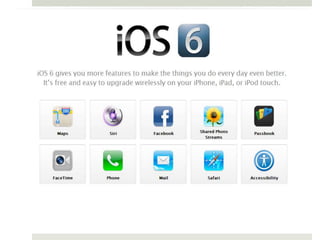
What is iOS ?
 iOS (previously iPhone OS) is Apple’s mobile operating
system (OS).
 iOS runs on iPod Touches, iPhones, iPads, and Apple TVs.
 Interact with the OS by swiping, tapping, pinching,
reverse pinching, shaking, rotating the device etc.
 Since its release, iOS has gone through multiple updates,
the updates are generally free for iPhone and iPad users.
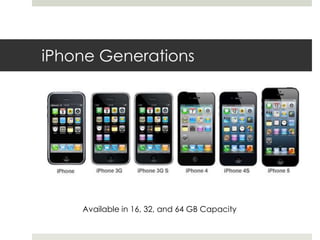
iPhone Generations
Available in 16, 32, and 64 GB Capacity
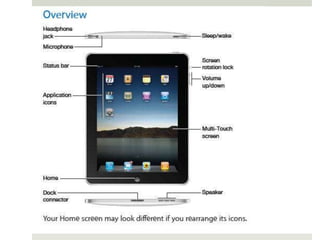
iPad Generations
 iPad [Wifi , Wifi + 3G]
 iPad (2nd generation) [Cellular + Wifi , Wifi]
 iPad (3rd generation) [Cellular + Wifi , Wifi]
 iPad (4th generation) [Cellular + Wifi , Wifi]
 iPad Mini [Cellular + Wifi , Wifi]
Available in 16, 32, and 64 GB Capacity
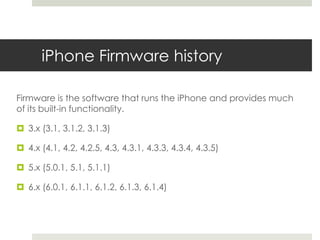
iPhone Firmware history
Firmware is the software that runs the iPhone and provides much
of its built-in functionality.
 3.x (3.1, 3.1.2, 3.1.3)
 4.x (4.1, 4.2, 4.2.5, 4.3, 4.3.1, 4.3.3, 4.3.4, 4.3.5)
 5.x (5.0.1, 5.1, 5.1.1)
 6.x (6.0.1, 6.1.1, 6.1.2, 6.1.3, 6.1.4)
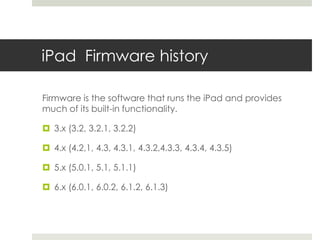
iPad Firmware history
Firmware is the software that runs the iPad and provides
much of its built-in functionality.
 3.x (3.2, 3.2.1, 3.2.2)
 4.x (4.2,1, 4.3, 4.3.1, 4.3.2,4.3.3, 4.3.4, 4.3.5)
 5.x (5.0.1, 5.1, 5.1.1)
 6.x (6.0.1, 6.0.2, 6.1.2, 6.1.3)
Settings are in the Settings App
DEMO
Installing Apps
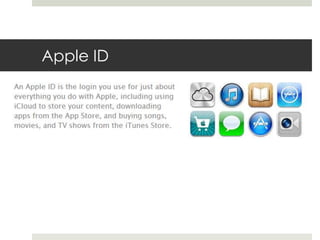
Apple ID
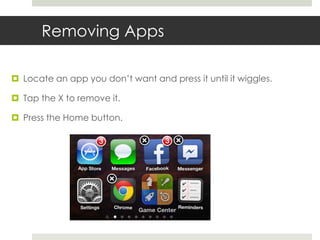
Removing Apps
 Locate an app you don’t want and press it until it wiggles.
 Tap the X to remove it.
 Press the Home button.
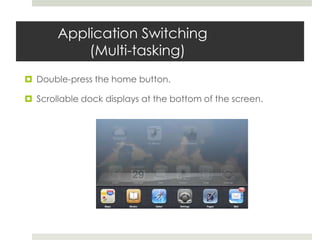
Application Switching
(Multi-tasking)
 Double-press the home button.
 Scrollable dock displays at the bottom of the screen.
Restrictions from Apple
 Apple tightly controls what software can be installed on iOS
device: only approved apps offered through the App Store are
allowed.
 There's a whole universe of apps available through other means.
These apps aren't available at the App Store due to Apple
rejecting them for various reasons (violating terms of service,
competing with Apple's own apps, sometimes poor code or
security problems, etc.).
Unlocking vs Jail breaking
 The basic difference is that jailbreaking is about controlling what
software you can install on your iPhone (or other iOS device),
while unlocking allows you to choose what mobile phone carrier
the device will work with.
 Jailbreaking
 can be accomplished using various tools including JailbreakMe.com,
Redsn0w, Evasi0n, Limera1n etc.
 allows you to remove Apple's restrictions on what software you can
install on your iPhone, thus allowing you access not only to the App
Store, but all the other compatible apps as well (many of these can
be purchased via Cydia, the leading alternative app store).
Unlocking vs Jail breaking
 Unlocking
 Apple controls the iPhone (and 3G version of the iPad) is by
limiting the phone carriers that it works with. In the U.S., for
instance, the iPhone is only officially sold and supported on AT&T.
 It allows you to change the carrier that the phone works on.
 This requires that the iPhone is compatible with your carrier of
choice and that you've got service on that carrier
Types of Jailbreak
 A tethered jailbreak requires the iOS device to be plugged into a
computer when turned on. If the iPhone is not plugged into a
computer and booted with special software the device will not
enter a jailbroken state.
 Video : http://www.youtube.com/watch?v=QlYHV0vmTRU
 Untethered jailbreaks do not require a computer. Everything
required to enter the jailbroken state is contained on the iPhone.
Rebooting away from a computer does not affect the jailbreak.
iOS 4.3.3 and older jailbreaks including PwnageTool, limera1n,
greenpois0n and sn0wbreeze are untethered solutions.
Introduction to Cydia
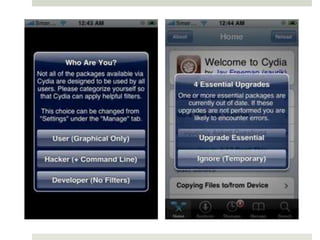
 Launching Cydia for the very first time
 Cydia is very easy to use and manage. If you know how to use App
Store, you’ll have no difficulties with Cydia. The first time you launch
Cydia, you’ll be asked to select the type of filter:
1. User (Graphical Only)
2. Hacker (+Command Line)
3. Developer (No filter)
For normal users, you can just set the filter to “User”. With this setting,
Cydia will filter out those applications in which you’re not interested.
Cydia – At a Glance
 Home – The home screen shows the latest news from Cydia.
You’ll also find featured packages, source information, user
guides and other developer-related information here.
 Sections – You can find all the available applications and
download them here. Application packages are organized into
specific categories.
 Changes – “Changes” shows you the latest releases available
and also alerts you for any application upgrades.
 Manage – Keep track with all your installed packages. You can
use “Manage” to upgrade / uninstall packages. Also, it's the
place to add/remove Cydia source (will cover more later on).
Search – Search for applications in Cydia
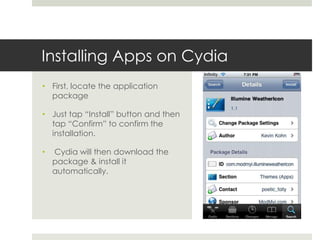
Installing Apps on Cydia
• First, locate the application
package
• Just tap “Install” button and then
tap “Confirm” to confirm the
installation.
• Cydia will then download the
package & install it
automatically.
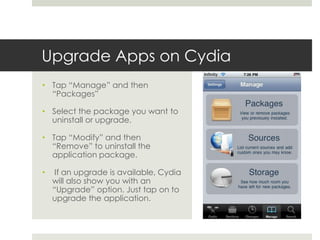
Upgrade Apps on Cydia
• Tap “Manage” and then
“Packages”
• Select the package you want to
uninstall or upgrade.
• Tap “Modify” and then
“Remove” to uninstall the
application package.
• If an upgrade is available, Cydia
will also show you with an
“Upgrade” option. Just tap on to
upgrade the application.
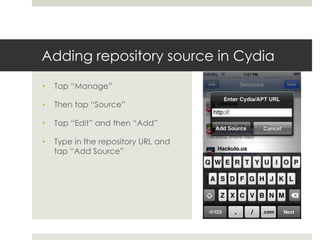
Adding repository source in Cydia
• Tap “Manage”
• Then tap “Source”
• Tap “Edit” and then “Add”
• Type in the repository URL and
tap “Add Source”
Switching between
User/Developer/hacker
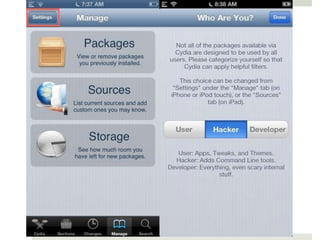
 When you launch Cydia for the first time, immediately after
jailbreaking your iOS device, you probably remember seeing a
screen, which prompts you to select if you’re a User, Hacker or
Developer.
 Normally, you select User and forget about it. But if you’re
wondering how to switch to Hacker or Developer, there is an easy
way to switch.
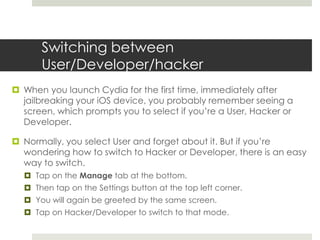
 Tap on the Manage tab at the bottom.
 Then tap on the Settings button at the top left corner.
 You will again be greeted by the same screen.
 Tap on Hacker/Developer to switch to that mode.
Troubleshooting – Boot in Safe mode
 If your iPhone is constantly crashing or you think a certain tweak is
causing something in iOS to act up, reboot your device by holding
the Home and power buttons simultaneously until you see the Apple
logo.
 Once the logo appears, hold down the volume button like the
instructions say and you’ll enter into Safe Mode.
 This means that all of your jailbreak tweaks and extensions are turned
off, making it easy for you to go into Cydia and remove the
packages that are causing the problem.
 If you’re not sure what tweak is responsible, then you’ll have to try
uninstalling and rebooting until you notice the problem go away. It’s
not a foolproof way to troubleshoot, but it’s not bad for a free, built-in
solution.
Important links for Reference
 Cydia Intro:
 http://www.youtube.com/watch?v=mLsafG0FrXA
 Boot in Safe mode
 http://www.youtube.com/watch?v=eJMS1woZMMc
 iPad Hardware Basics
 https://www.youtube.com/watch?v=645oLx-YK-E#!
 General Settings and WiFi
 https://www.youtube.com/watch?v=1_kHBaUA8VU
More references:
 https://sites.google.com/site/iosschoolwide/ios-basics
 http://thefishbowl.phoenix.wikispaces.net/file/view/Week
%201.pdf/419359076/Week%201.pdf
Support Manuals:
 http://support.apple.com/manuals/
Try It
Out.

iOS Basics

  • 1.
  • 2.
    What is iOS?  iOS (previously iPhone OS) is Apple’s mobile operating system (OS).  iOS runs on iPod Touches, iPhones, iPads, and Apple TVs.  Interact with the OS by swiping, tapping, pinching, reverse pinching, shaking, rotating the device etc.  Since its release, iOS has gone through multiple updates, the updates are generally free for iPhone and iPad users.
  • 3.
    iPhone Generations Available in16, 32, and 64 GB Capacity
  • 4.
    iPad Generations  iPad[Wifi , Wifi + 3G]  iPad (2nd generation) [Cellular + Wifi , Wifi]  iPad (3rd generation) [Cellular + Wifi , Wifi]  iPad (4th generation) [Cellular + Wifi , Wifi]  iPad Mini [Cellular + Wifi , Wifi] Available in 16, 32, and 64 GB Capacity
  • 5.
    iPhone Firmware history Firmwareis the software that runs the iPhone and provides much of its built-in functionality.  3.x (3.1, 3.1.2, 3.1.3)  4.x (4.1, 4.2, 4.2.5, 4.3, 4.3.1, 4.3.3, 4.3.4, 4.3.5)  5.x (5.0.1, 5.1, 5.1.1)  6.x (6.0.1, 6.1.1, 6.1.2, 6.1.3, 6.1.4)
  • 6.
    iPad Firmware history Firmwareis the software that runs the iPad and provides much of its built-in functionality.  3.x (3.2, 3.2.1, 3.2.2)  4.x (4.2,1, 4.3, 4.3.1, 4.3.2,4.3.3, 4.3.4, 4.3.5)  5.x (5.0.1, 5.1, 5.1.1)  6.x (6.0.1, 6.0.2, 6.1.2, 6.1.3)
  • 9.
    Settings are inthe Settings App DEMO
  • 10.
  • 11.
  • 12.
    Removing Apps  Locatean app you don’t want and press it until it wiggles.  Tap the X to remove it.  Press the Home button.
  • 13.
    Application Switching (Multi-tasking)  Double-pressthe home button.  Scrollable dock displays at the bottom of the screen.
  • 14.
    Restrictions from Apple Apple tightly controls what software can be installed on iOS device: only approved apps offered through the App Store are allowed.  There's a whole universe of apps available through other means. These apps aren't available at the App Store due to Apple rejecting them for various reasons (violating terms of service, competing with Apple's own apps, sometimes poor code or security problems, etc.).
  • 15.
    Unlocking vs Jailbreaking  The basic difference is that jailbreaking is about controlling what software you can install on your iPhone (or other iOS device), while unlocking allows you to choose what mobile phone carrier the device will work with.  Jailbreaking  can be accomplished using various tools including JailbreakMe.com, Redsn0w, Evasi0n, Limera1n etc.  allows you to remove Apple's restrictions on what software you can install on your iPhone, thus allowing you access not only to the App Store, but all the other compatible apps as well (many of these can be purchased via Cydia, the leading alternative app store).
  • 16.
    Unlocking vs Jailbreaking  Unlocking  Apple controls the iPhone (and 3G version of the iPad) is by limiting the phone carriers that it works with. In the U.S., for instance, the iPhone is only officially sold and supported on AT&T.  It allows you to change the carrier that the phone works on.  This requires that the iPhone is compatible with your carrier of choice and that you've got service on that carrier
  • 17.
    Types of Jailbreak A tethered jailbreak requires the iOS device to be plugged into a computer when turned on. If the iPhone is not plugged into a computer and booted with special software the device will not enter a jailbroken state.  Video : http://www.youtube.com/watch?v=QlYHV0vmTRU  Untethered jailbreaks do not require a computer. Everything required to enter the jailbroken state is contained on the iPhone. Rebooting away from a computer does not affect the jailbreak. iOS 4.3.3 and older jailbreaks including PwnageTool, limera1n, greenpois0n and sn0wbreeze are untethered solutions.
  • 18.
    Introduction to Cydia Launching Cydia for the very first time  Cydia is very easy to use and manage. If you know how to use App Store, you’ll have no difficulties with Cydia. The first time you launch Cydia, you’ll be asked to select the type of filter: 1. User (Graphical Only) 2. Hacker (+Command Line) 3. Developer (No filter) For normal users, you can just set the filter to “User”. With this setting, Cydia will filter out those applications in which you’re not interested.
  • 20.
    Cydia – Ata Glance  Home – The home screen shows the latest news from Cydia. You’ll also find featured packages, source information, user guides and other developer-related information here.  Sections – You can find all the available applications and download them here. Application packages are organized into specific categories.  Changes – “Changes” shows you the latest releases available and also alerts you for any application upgrades.  Manage – Keep track with all your installed packages. You can use “Manage” to upgrade / uninstall packages. Also, it's the place to add/remove Cydia source (will cover more later on). Search – Search for applications in Cydia
  • 21.
    Installing Apps onCydia • First, locate the application package • Just tap “Install” button and then tap “Confirm” to confirm the installation. • Cydia will then download the package & install it automatically.
  • 22.
    Upgrade Apps onCydia • Tap “Manage” and then “Packages” • Select the package you want to uninstall or upgrade. • Tap “Modify” and then “Remove” to uninstall the application package. • If an upgrade is available, Cydia will also show you with an “Upgrade” option. Just tap on to upgrade the application.
  • 23.
    Adding repository sourcein Cydia • Tap “Manage” • Then tap “Source” • Tap “Edit” and then “Add” • Type in the repository URL and tap “Add Source”
  • 24.
    Switching between User/Developer/hacker  Whenyou launch Cydia for the first time, immediately after jailbreaking your iOS device, you probably remember seeing a screen, which prompts you to select if you’re a User, Hacker or Developer.  Normally, you select User and forget about it. But if you’re wondering how to switch to Hacker or Developer, there is an easy way to switch.  Tap on the Manage tab at the bottom.  Then tap on the Settings button at the top left corner.  You will again be greeted by the same screen.  Tap on Hacker/Developer to switch to that mode.
  • 26.
    Troubleshooting – Bootin Safe mode  If your iPhone is constantly crashing or you think a certain tweak is causing something in iOS to act up, reboot your device by holding the Home and power buttons simultaneously until you see the Apple logo.  Once the logo appears, hold down the volume button like the instructions say and you’ll enter into Safe Mode.  This means that all of your jailbreak tweaks and extensions are turned off, making it easy for you to go into Cydia and remove the packages that are causing the problem.  If you’re not sure what tweak is responsible, then you’ll have to try uninstalling and rebooting until you notice the problem go away. It’s not a foolproof way to troubleshoot, but it’s not bad for a free, built-in solution.
  • 27.
    Important links forReference  Cydia Intro:  http://www.youtube.com/watch?v=mLsafG0FrXA  Boot in Safe mode  http://www.youtube.com/watch?v=eJMS1woZMMc  iPad Hardware Basics  https://www.youtube.com/watch?v=645oLx-YK-E#!  General Settings and WiFi  https://www.youtube.com/watch?v=1_kHBaUA8VU
  • 28.
    More references:  https://sites.google.com/site/iosschoolwide/ios-basics http://thefishbowl.phoenix.wikispaces.net/file/view/Week %201.pdf/419359076/Week%201.pdf Support Manuals:  http://support.apple.com/manuals/
  • 29.