81204AE:Configure and Manage Products and
Inventory in Microsoft Dynamics 365 for Finance and
Operations, Enterprise edition
Manage Products and Services for Procurement
Enrich Product Data
Basic Inventory Management Setup
Process Inventory Journals
Process Transfer Orders
Configure, Run, and Review Inventory Reportin
Course Modules
Manage Products and Services in Microsoft Dynamics
365 for Finance and Operations, Enterprise edition
Creating Item and Dimension Groups
Item Groups
Item Model Group
Storage Dimension Group
Tracking Dimension Group
Product Dimension
Objectives
Item Groups
• Groups similar items together that share a posting profile
• Item groups are used to manage transactions postings
• All items must be associated to an item group before use
Item Model Group
• Determine how items are controlled and handled on receipt and issue
• Determine calculation of consumption
• Can be associated with more than 1 item
• Allow you to control several items by using the same setup
Storage and Tracking Dimensions
• Storage and tracking dimensions:
• Determine where and how a product is stored and tracked
• Can be associated with the product after it has been created
• Requirements for a product to be applied on a transaction line
Product Dimension
• Product dimensions identify product variants
• Every product master is assigned to a product dimension group
• Product dimensions are Configuration, Color, Size, Style
Managing Inventory
Inventory Tracking
Unit of Measure and Conversion
Owner dimension
Released Product
Released product with Variants
Objectives
Inventory Tracking
• Serial and batch numbers are used to trace products using Microsoft
Dynamics 365 for Finance and Operations
• Tracking, quality assurance, warranties
Unit of Measure and Conversion
4 unit of measure fields on released product:
• Sell
• Purchase
• Inventory
• BOM
Unit of measure conversations must be in place if for example the
purchase UOM is different from the Inventory UOM
Owner dimensions
• The owner dimension is used during the consignment process
• Found in the tracking dimension group setup
• Inventory ownership change journals can be used to move product
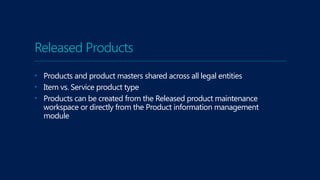
Released Products
• Products and product masters shared across all legal entities
• Item vs. Service product type
• Products can be created from the Released product maintenance
workspace or directly from the Product information management
module
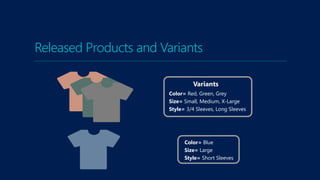
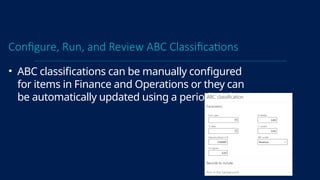
Released Products and Variants
Color= Blue
Size= Large
Style= Short Sleeves
Color= Red, Green, Grey
Size= Small, Medium, X-Large
Style= 3/4 Sleeves, Long Sleeves
Variants
© Copyright Microsoft Corporation. All rights reserved.
Key takeaways
• Item groups are used to manage transaction postings
• Item model groups determine how items are controlled and handled
during receipt, issue, and consumption
• Storage and tracking dimensions determine how a product is storage and
tracked in Finance and Operations
• Product dimensions and combination of product dimensions are used to
identify product variants
• Tracking dimensions of serial number, batch number, and owner can be
used for Inventory tracking throughout Finance and Operations
© Copyright Microsoft Corporation. All rights reserved.
Key takeaways
• Unit of measure conversations can be managed globally or at the
released product level
• The owner dimension in the tracking dimension group can be used to
track consignment inventory by vendor
• Products and product masters shared across all legal entities and can be
released to individual companies
• Released products and product variants define the details about the
product's specific variations
EnrichProductDatainMicrosoftDynamics365forFinanceandOperations,Enterprise
edition
Set Product Attributes
Create Product Attributes
Create and Maintain Category Hierarchies
Objectives
Set Product Attributes
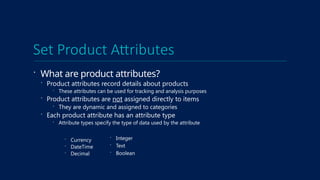
 What are product attributes?
 Product attributes record details about products
 These attributes can be used for tracking and analysis purposes
 Product attributes are not assigned directly to items
 They are dynamic and assigned to categories
 Each product attribute has an attribute type
 Attribute types specify the type of data used by the attribute
 Currency
 DateTime
 Decimal
 Integer
 Text
 Boolean
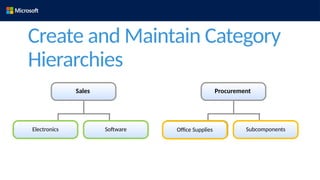
Create and Maintain Category
Hierarchies
Software
Electronics Subcomponents
Office Supplies
Sales Procurement
© Copyright Microsoft Corporation. All rights reserved.
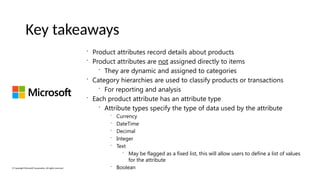
Key takeaways
 Product attributes record details about products
 Product attributes are not assigned directly to items
 They are dynamic and assigned to categories
 Category hierarchies are used to classify products or transactions
 For reporting and analysis
 Each product attribute has an attribute type
 Attribute types specify the type of data used by the attribute
 Currency
 DateTime
 Decimal
 Integer
 Text
 May be flagged as a fixed list, this will allow users to define a list of values
for the attribute
 Boolean
Basic Inventory Management Setup
in Microsoft Dynamics 365 for
Finance and Operations, Enterprise
edition
Create a Site
• Sites are a grouping of business resources such
as a warehouse or production units
• A single site cannot be shared by multiple legal
entities.
Create a Warehouse
• When you have several warehouses, you can
divide the total on-hand inventory among these
warehouses
• A warehouse can only be associated to 1 site
• 3 types of warehouses
• Default
• Quarantine
• Transit
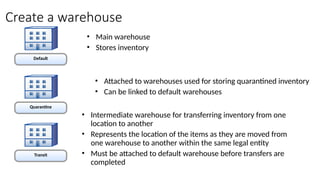
Create a warehouse
Default
Quarantine
Transit
• Main warehouse
• Stores inventory
• Attached to warehouses used for storing quarantined inventory
• Can be linked to default warehouses
• Intermediate warehouse for transferring inventory from one
location to another
• Represents the location of the items as they are moved from
one warehouse to another within the same legal entity
• Must be attached to default warehouse before transfers are
completed
Configure warehouse and warehouse items
• Warehouses are denoted as anything that can or
will hold inventory.
• Warehouse items are created by associating
products and product variants with a specific
warehouse, a counting group, and location
information.
Setup Inventory Aisles and Locations
• It's important to note that Inventory Aisles and
Locations are only required for items that have a
storage dimension group with the location
dimension activated.
• Aisles
• Inventory aisles are used to specify a particular aisle within a
warehouse.
• The aisle ID, which typically is the first part of the location name
Setup Inventory Aisles and Locations
• Locations
• Locations let us set up the various different location types, such as
bulk locations and picking locations.
• We also override the sorting information on the individual
locations.
• Sort codes
• Use sort codes to optimize the handling of picking lines
• During the picking process, Finance and Operations will look for
item locations with the lowest sort code to pick first
Boxing logic
• Boxing logic is part of the process to release
items for picking, and for grouping items on a
picking route.
• Boxing logic automatically finds the most
efficient way of boxing items, and factors in
weight, volume, and dimensions
Boxing logic
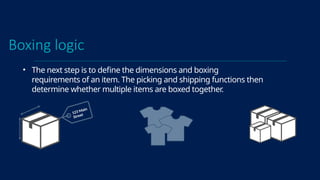
• The next step is to define the dimensions and boxing
requirements of an item. The picking and shipping functions then
determine whether multiple items are boxed together.
123 Main
Street
Picking Workbench Profiles
• Workbench profiles enable you to create
templates for search criteria that can be
used to start a picking session in the
picking workbench
• When you create a profile, you specify the
values that you want to use in the picking
session. You can change these values
before generating picking batches.
Update an existing pick
• A picked line can be reversed, edited, or split
• A transaction must be reversed to update a pick
on a sales line.
Key Takeaways
• Sites are a grouping of business resources such as a warehouse or production units
• A warehouse can only be associated to 1 site
• Warehouse items can be used to associate products and product variants with a
specific warehouse
• Inventory Aisles and Locations are only required for items that have a storage
dimension group with the location dimension activated.
• Location sort codes can be used to help determine the best picking order
Key Takeaways
• Boxing logic automatically finds the most efficient way of boxing items, and factors in
weight, volume, and dimensions
• Workbench profiles enable you to create templates for search criteria that can be
used to start a picking session in the picking workbench
• The picking workbench is used to batch picking lists together to help streamline the
picking process. Boxing logic can be used in conjunction with the picking workbench
to also suggest box sizes during the packing process.
Process Inventory Journals in Microsoft
Dynamics 365 for Finance and
Operations, Enterprise edition
Objectives
 Setup Inventory Journals
 Manage Inventory Adjustments and Inventory movement Journals
 Create Transfer, BOM journals
 Create and Process Cycle Counting Operations
 Tag counting
 Process Inventory Blocking
 Setup Item Registration
Set up inventory journals
• Inventory journals are a method of making
manual updates to the inventory.
Manage Inventory Adjustments and Inventory Movement
Journals
• Key difference
• Movement journal allows an offsetting general ledger account
• Inventory adjustments post according to inventory posting profiles.
Manage Inventory Adjustments and Inventory Movement
Journals
 Movement Journal:
• One use for the movement journals is for bringing in open
inventory balances during system setup
• This will allow you to post an inventory receipt or issue to a specific
ledger account
Manage Inventory Adjustments and Inventory Movement
Journals
 Use Inventory Adjustments form when:
• Items are removed form Inventory (Loss)
• Items are added into Inventory (Gain)
 When Inventory Adjustment Journals are posted:
• Inventory receipt or issue is posted
• Inventory level and value is changed
• Ledger transactions are generated
Create Transfer Journals
 Transfer journals reflect immediate movement of
material without requirement to track in-transit
inventory.
 Note: Transfer orders should be if in-transit inventory needs to be
tracked.
Create Bill of Material (BOM) Journals
 A BOM journal is used by companies where
production routes are not specified or required
 Upon posting, the BOM item will be received into
inventory and items included in the BOM will be
consumed and relieved from inventory
Counting Journals
 Counting Journals:
 Calculate current on-hand inventory for an item or group of items
 Post physical counts to make adjustments necessary to reconcile
differences
 Counting groups and policies can be created for items meeting the
same criteria.
Setup and Manage Cycle Counting Operations
 Warehouse items allow you record multiple
product dimension configuration for you items
in each warehouse.
 Each warehouse item setup can have different:
 Counting groups
 Inventory dimensions
 Receipt and issue locations
 Counting status and associated active journal is
shown for each warehouse item
Setup and Manage Cycle Counting Operations
Counting groups let you create logical groupings of items. Counting
codes include:
• Manual
• Period
• Zero in stock
• Minimum
Create and Process Cycle Counting Journals
 Counting groups
 Used to group items to be counted
 Determines how counting journal lines are created when journals
are created automatically
Create Tag Counting Journals
 Tag Counting is used when automatic counting
lines are generated
 Some companies use tags with pre-assigned
numbers to conduct a physical inventory
 A tag count is used to tag count lots with a
numbered tag that includes:
 Tag Number
 Item Number
 Quantity
Create Tag Counting Journals
 This tag counting journal represents an
approach to tag control.
 Creates a counting journal with used tag journal lines
 A separate tag counting journal is used to
record:
 Tag Number
 Status
 Count
Processing Inventory Blocking
 Inventory items are blocked in the following
ways:
 Manually
 By creating a quality order
 By using a process that generates a quality order
 By using inventory status blocking
Processing Inventory Blocking
 The Inventory Blocking form is used to block a
quantity of an item by transaction
 Only available-as-on-hand inventory can be blocked
 Consider if expected receipts should be included
in planning activities, as an expected on-hand
Qty
 Cancel blocking of a manually blocked quantity
with the deletion of the transaction in the
Inventory Blocking form.
Setup Item Registration
 Finance and Operations allows users record item
information performing a physical update.
 Item model group flag of Registration
requirements controls if the item receipt must be
registered before the product receipt for the
item is updated.
 This is useful when a company must ensure batch or serial numbers
are recorded at arrival and tracked through inventory.
Key Takeaways
 Movement journal allows an offsetting general ledger account to be
manually specified
 Inventory adjustments post according to inventory posting profiles.
 Transfer journals do not track in-transit status. Transfer orders
should be used if tracking is needed.
 BOM journals are used to increment inventory for finished good
while consuming items contained in the bill of materials
Key Takeaways
 Items are not locked for counting when added to a tag counting
journal
 4 ways to use Inventory blocking
 Item arrival can be used to register an item prior to physically
posting
Process Transfer Orders in Microsoft Dynamics 365
for Finance and Operations, Enterprise edition
Setup transfer orders
Use transfer orders form
Pick, ship and receive items
Objectives
Setup transfer orders
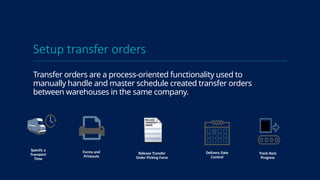
Transfer orders are a process-oriented functionality used to
manually handle and master schedule created transfer orders
between warehouses in the same company.
Specify a
Transport
Time
Track Item
Progress
Forms and
Printouts
Release Transfer
Order Picking Form
Delivery Date
Control
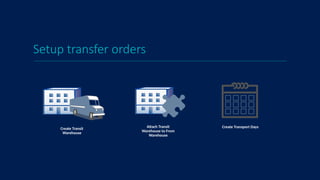
Setup transfer orders
Create Transit
Warehouse
Attach Transit
Warehouse to From
Warehouse
Create Transport Days
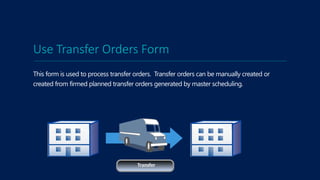
Use Transfer Orders Form
This form is used to process transfer orders. Transfer orders can be manually created or
created from firmed planned transfer orders generated by master scheduling.
Transfer
Transfer Picking
The item pick process can be performed for items that require picking as a mandatory stage.
Picking of items for a transfer order can be performed from the transfer order form by creating a
picking list and then updating the picking list registration.
The Release transfer order picking form provides an overview of all transfer order lines with on–
hand inventory that have the same inventory dimensions as the transfer order line that fulfills the
order line completely or partially.
© Copyright Microsoft Corporation. All rights reserved.
Key takeaways
Transfer orders can be used to move items between warehouses within the same
company
Default transit days can be setup to default the time the product will take to arrive at
the To warehouse
Transfers can be individually released for picking or batched to release multiple
transfers for picking at one time
Configure, Run, and Review Inventory
Reporting in Microsoft Dynamics 365 for
Finance and Operations, Enterprise edition
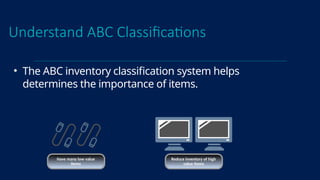
Understand ABC Classifications
• The ABC inventory classification system helps
determines the importance of items.
Have many low value
items
Reduce inventory of high
value items
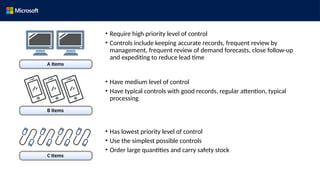
A Items
• Require high priority level of control
• Controls include keeping accurate records, frequent review by
management, frequent review of demand forecasts, close follow-up
and expediting to reduce lead time
• Have medium level of control
• Have typical controls with good records, regular attention, typical
processing
B Items
• Has lowest priority level of control
• Use the simplest possible controls
• Order large quantities and carry safety stock
C Items
Configure, Run, and Review ABC Classifications
• ABC classifications can be manually configured
for items in Finance and Operations or they can
be automatically updated using a periodic job.
Determine Physical Inventory using the Inventory Dimension
Report
• The Physical inventory by inventory dimension
report displays the inventory quantity for each
inventory dimension for the date selected.
• This allows you to filter by inventory dimensions
Inventory aging report
• FIFO algorithm is used to calculate how old the
inventory is
• Report will display quantities in aging buckets
that have been defined in the parameters
Manage the Inventory Close Process
• Typically run by a company during their month
end activities.
• The inventory close is a process of settling issue
transactions with receipt transactions based on
your item model group’s inventory valuation
method.
• An inventory recalculation will make
adjustments but does not make settlements to
inventory transactions.
Key Takeaways
• The ABC inventory classification system helps determines the importance of items.
• Inventory aging report uses FIFO algorithm to calculate how old inventory is
• Inventory close is not required when using a inventory valuation method of standard
cost
• The inventory close is a process of settling issue transactions with receipt transactions
• An inventory recalculation will make adjustments but does not make settlements to
inventory transactions.

Inventory Management Microsoft Dynamics 365.pptx

  • 1.
    81204AE:Configure and ManageProducts and Inventory in Microsoft Dynamics 365 for Finance and Operations, Enterprise edition
  • 2.
    Manage Products andServices for Procurement Enrich Product Data Basic Inventory Management Setup Process Inventory Journals Process Transfer Orders Configure, Run, and Review Inventory Reportin Course Modules
  • 3.
    Manage Products andServices in Microsoft Dynamics 365 for Finance and Operations, Enterprise edition
  • 4.
    Creating Item andDimension Groups
  • 5.
    Item Groups Item ModelGroup Storage Dimension Group Tracking Dimension Group Product Dimension Objectives
  • 6.
    Item Groups • Groupssimilar items together that share a posting profile • Item groups are used to manage transactions postings • All items must be associated to an item group before use
  • 7.
    Item Model Group •Determine how items are controlled and handled on receipt and issue • Determine calculation of consumption • Can be associated with more than 1 item • Allow you to control several items by using the same setup
  • 8.
    Storage and TrackingDimensions • Storage and tracking dimensions: • Determine where and how a product is stored and tracked • Can be associated with the product after it has been created • Requirements for a product to be applied on a transaction line
  • 9.
    Product Dimension • Productdimensions identify product variants • Every product master is assigned to a product dimension group • Product dimensions are Configuration, Color, Size, Style
  • 10.
  • 11.
    Inventory Tracking Unit ofMeasure and Conversion Owner dimension Released Product Released product with Variants Objectives
  • 12.
    Inventory Tracking • Serialand batch numbers are used to trace products using Microsoft Dynamics 365 for Finance and Operations • Tracking, quality assurance, warranties
  • 13.
    Unit of Measureand Conversion 4 unit of measure fields on released product: • Sell • Purchase • Inventory • BOM Unit of measure conversations must be in place if for example the purchase UOM is different from the Inventory UOM
  • 14.
    Owner dimensions • Theowner dimension is used during the consignment process • Found in the tracking dimension group setup • Inventory ownership change journals can be used to move product
  • 15.
    Released Products • Productsand product masters shared across all legal entities • Item vs. Service product type • Products can be created from the Released product maintenance workspace or directly from the Product information management module
  • 16.
    Released Products andVariants Color= Blue Size= Large Style= Short Sleeves Color= Red, Green, Grey Size= Small, Medium, X-Large Style= 3/4 Sleeves, Long Sleeves Variants
  • 17.
    © Copyright MicrosoftCorporation. All rights reserved. Key takeaways • Item groups are used to manage transaction postings • Item model groups determine how items are controlled and handled during receipt, issue, and consumption • Storage and tracking dimensions determine how a product is storage and tracked in Finance and Operations • Product dimensions and combination of product dimensions are used to identify product variants • Tracking dimensions of serial number, batch number, and owner can be used for Inventory tracking throughout Finance and Operations
  • 18.
    © Copyright MicrosoftCorporation. All rights reserved. Key takeaways • Unit of measure conversations can be managed globally or at the released product level • The owner dimension in the tracking dimension group can be used to track consignment inventory by vendor • Products and product masters shared across all legal entities and can be released to individual companies • Released products and product variants define the details about the product's specific variations
  • 19.
  • 20.
    Set Product Attributes CreateProduct Attributes Create and Maintain Category Hierarchies Objectives
  • 21.
    Set Product Attributes What are product attributes?  Product attributes record details about products  These attributes can be used for tracking and analysis purposes  Product attributes are not assigned directly to items  They are dynamic and assigned to categories  Each product attribute has an attribute type  Attribute types specify the type of data used by the attribute  Currency  DateTime  Decimal  Integer  Text  Boolean
  • 22.
    Create and MaintainCategory Hierarchies Software Electronics Subcomponents Office Supplies Sales Procurement
  • 23.
    © Copyright MicrosoftCorporation. All rights reserved. Key takeaways  Product attributes record details about products  Product attributes are not assigned directly to items  They are dynamic and assigned to categories  Category hierarchies are used to classify products or transactions  For reporting and analysis  Each product attribute has an attribute type  Attribute types specify the type of data used by the attribute  Currency  DateTime  Decimal  Integer  Text  May be flagged as a fixed list, this will allow users to define a list of values for the attribute  Boolean
  • 24.
    Basic Inventory ManagementSetup in Microsoft Dynamics 365 for Finance and Operations, Enterprise edition
  • 25.
    Create a Site •Sites are a grouping of business resources such as a warehouse or production units • A single site cannot be shared by multiple legal entities.
  • 26.
    Create a Warehouse •When you have several warehouses, you can divide the total on-hand inventory among these warehouses • A warehouse can only be associated to 1 site • 3 types of warehouses • Default • Quarantine • Transit
  • 27.
    Create a warehouse Default Quarantine Transit •Main warehouse • Stores inventory • Attached to warehouses used for storing quarantined inventory • Can be linked to default warehouses • Intermediate warehouse for transferring inventory from one location to another • Represents the location of the items as they are moved from one warehouse to another within the same legal entity • Must be attached to default warehouse before transfers are completed
  • 28.
    Configure warehouse andwarehouse items • Warehouses are denoted as anything that can or will hold inventory. • Warehouse items are created by associating products and product variants with a specific warehouse, a counting group, and location information.
  • 29.
    Setup Inventory Aislesand Locations • It's important to note that Inventory Aisles and Locations are only required for items that have a storage dimension group with the location dimension activated. • Aisles • Inventory aisles are used to specify a particular aisle within a warehouse. • The aisle ID, which typically is the first part of the location name
  • 30.
    Setup Inventory Aislesand Locations • Locations • Locations let us set up the various different location types, such as bulk locations and picking locations. • We also override the sorting information on the individual locations. • Sort codes • Use sort codes to optimize the handling of picking lines • During the picking process, Finance and Operations will look for item locations with the lowest sort code to pick first
  • 31.
    Boxing logic • Boxinglogic is part of the process to release items for picking, and for grouping items on a picking route. • Boxing logic automatically finds the most efficient way of boxing items, and factors in weight, volume, and dimensions
  • 32.
    Boxing logic • Thenext step is to define the dimensions and boxing requirements of an item. The picking and shipping functions then determine whether multiple items are boxed together. 123 Main Street
  • 33.
    Picking Workbench Profiles •Workbench profiles enable you to create templates for search criteria that can be used to start a picking session in the picking workbench • When you create a profile, you specify the values that you want to use in the picking session. You can change these values before generating picking batches.
  • 34.
    Update an existingpick • A picked line can be reversed, edited, or split • A transaction must be reversed to update a pick on a sales line.
  • 35.
    Key Takeaways • Sitesare a grouping of business resources such as a warehouse or production units • A warehouse can only be associated to 1 site • Warehouse items can be used to associate products and product variants with a specific warehouse • Inventory Aisles and Locations are only required for items that have a storage dimension group with the location dimension activated. • Location sort codes can be used to help determine the best picking order
  • 36.
    Key Takeaways • Boxinglogic automatically finds the most efficient way of boxing items, and factors in weight, volume, and dimensions • Workbench profiles enable you to create templates for search criteria that can be used to start a picking session in the picking workbench • The picking workbench is used to batch picking lists together to help streamline the picking process. Boxing logic can be used in conjunction with the picking workbench to also suggest box sizes during the packing process.
  • 37.
    Process Inventory Journalsin Microsoft Dynamics 365 for Finance and Operations, Enterprise edition
  • 38.
    Objectives  Setup InventoryJournals  Manage Inventory Adjustments and Inventory movement Journals  Create Transfer, BOM journals  Create and Process Cycle Counting Operations  Tag counting  Process Inventory Blocking  Setup Item Registration
  • 39.
    Set up inventoryjournals • Inventory journals are a method of making manual updates to the inventory.
  • 40.
    Manage Inventory Adjustmentsand Inventory Movement Journals • Key difference • Movement journal allows an offsetting general ledger account • Inventory adjustments post according to inventory posting profiles.
  • 41.
    Manage Inventory Adjustmentsand Inventory Movement Journals  Movement Journal: • One use for the movement journals is for bringing in open inventory balances during system setup • This will allow you to post an inventory receipt or issue to a specific ledger account
  • 42.
    Manage Inventory Adjustmentsand Inventory Movement Journals  Use Inventory Adjustments form when: • Items are removed form Inventory (Loss) • Items are added into Inventory (Gain)  When Inventory Adjustment Journals are posted: • Inventory receipt or issue is posted • Inventory level and value is changed • Ledger transactions are generated
  • 43.
    Create Transfer Journals Transfer journals reflect immediate movement of material without requirement to track in-transit inventory.  Note: Transfer orders should be if in-transit inventory needs to be tracked.
  • 44.
    Create Bill ofMaterial (BOM) Journals  A BOM journal is used by companies where production routes are not specified or required  Upon posting, the BOM item will be received into inventory and items included in the BOM will be consumed and relieved from inventory
  • 45.
    Counting Journals  CountingJournals:  Calculate current on-hand inventory for an item or group of items  Post physical counts to make adjustments necessary to reconcile differences  Counting groups and policies can be created for items meeting the same criteria.
  • 46.
    Setup and ManageCycle Counting Operations  Warehouse items allow you record multiple product dimension configuration for you items in each warehouse.  Each warehouse item setup can have different:  Counting groups  Inventory dimensions  Receipt and issue locations  Counting status and associated active journal is shown for each warehouse item
  • 47.
    Setup and ManageCycle Counting Operations Counting groups let you create logical groupings of items. Counting codes include: • Manual • Period • Zero in stock • Minimum
  • 48.
    Create and ProcessCycle Counting Journals  Counting groups  Used to group items to be counted  Determines how counting journal lines are created when journals are created automatically
  • 49.
    Create Tag CountingJournals  Tag Counting is used when automatic counting lines are generated  Some companies use tags with pre-assigned numbers to conduct a physical inventory  A tag count is used to tag count lots with a numbered tag that includes:  Tag Number  Item Number  Quantity
  • 50.
    Create Tag CountingJournals  This tag counting journal represents an approach to tag control.  Creates a counting journal with used tag journal lines  A separate tag counting journal is used to record:  Tag Number  Status  Count
  • 51.
    Processing Inventory Blocking Inventory items are blocked in the following ways:  Manually  By creating a quality order  By using a process that generates a quality order  By using inventory status blocking
  • 52.
    Processing Inventory Blocking The Inventory Blocking form is used to block a quantity of an item by transaction  Only available-as-on-hand inventory can be blocked  Consider if expected receipts should be included in planning activities, as an expected on-hand Qty  Cancel blocking of a manually blocked quantity with the deletion of the transaction in the Inventory Blocking form.
  • 53.
    Setup Item Registration Finance and Operations allows users record item information performing a physical update.  Item model group flag of Registration requirements controls if the item receipt must be registered before the product receipt for the item is updated.  This is useful when a company must ensure batch or serial numbers are recorded at arrival and tracked through inventory.
  • 54.
    Key Takeaways  Movementjournal allows an offsetting general ledger account to be manually specified  Inventory adjustments post according to inventory posting profiles.  Transfer journals do not track in-transit status. Transfer orders should be used if tracking is needed.  BOM journals are used to increment inventory for finished good while consuming items contained in the bill of materials
  • 55.
    Key Takeaways  Itemsare not locked for counting when added to a tag counting journal  4 ways to use Inventory blocking  Item arrival can be used to register an item prior to physically posting
  • 56.
    Process Transfer Ordersin Microsoft Dynamics 365 for Finance and Operations, Enterprise edition
  • 57.
    Setup transfer orders Usetransfer orders form Pick, ship and receive items Objectives
  • 58.
    Setup transfer orders Transferorders are a process-oriented functionality used to manually handle and master schedule created transfer orders between warehouses in the same company. Specify a Transport Time Track Item Progress Forms and Printouts Release Transfer Order Picking Form Delivery Date Control
  • 59.
    Setup transfer orders CreateTransit Warehouse Attach Transit Warehouse to From Warehouse Create Transport Days
  • 60.
    Use Transfer OrdersForm This form is used to process transfer orders. Transfer orders can be manually created or created from firmed planned transfer orders generated by master scheduling. Transfer
  • 61.
    Transfer Picking The itempick process can be performed for items that require picking as a mandatory stage. Picking of items for a transfer order can be performed from the transfer order form by creating a picking list and then updating the picking list registration. The Release transfer order picking form provides an overview of all transfer order lines with on– hand inventory that have the same inventory dimensions as the transfer order line that fulfills the order line completely or partially.
  • 62.
    © Copyright MicrosoftCorporation. All rights reserved. Key takeaways Transfer orders can be used to move items between warehouses within the same company Default transit days can be setup to default the time the product will take to arrive at the To warehouse Transfers can be individually released for picking or batched to release multiple transfers for picking at one time
  • 63.
    Configure, Run, andReview Inventory Reporting in Microsoft Dynamics 365 for Finance and Operations, Enterprise edition
  • 64.
    Understand ABC Classifications •The ABC inventory classification system helps determines the importance of items. Have many low value items Reduce inventory of high value items
  • 65.
    A Items • Requirehigh priority level of control • Controls include keeping accurate records, frequent review by management, frequent review of demand forecasts, close follow-up and expediting to reduce lead time • Have medium level of control • Have typical controls with good records, regular attention, typical processing B Items • Has lowest priority level of control • Use the simplest possible controls • Order large quantities and carry safety stock C Items
  • 66.
    Configure, Run, andReview ABC Classifications • ABC classifications can be manually configured for items in Finance and Operations or they can be automatically updated using a periodic job.
  • 67.
    Determine Physical Inventoryusing the Inventory Dimension Report • The Physical inventory by inventory dimension report displays the inventory quantity for each inventory dimension for the date selected. • This allows you to filter by inventory dimensions
  • 68.
    Inventory aging report •FIFO algorithm is used to calculate how old the inventory is • Report will display quantities in aging buckets that have been defined in the parameters
  • 69.
    Manage the InventoryClose Process • Typically run by a company during their month end activities. • The inventory close is a process of settling issue transactions with receipt transactions based on your item model group’s inventory valuation method. • An inventory recalculation will make adjustments but does not make settlements to inventory transactions.
  • 70.
    Key Takeaways • TheABC inventory classification system helps determines the importance of items. • Inventory aging report uses FIFO algorithm to calculate how old inventory is • Inventory close is not required when using a inventory valuation method of standard cost • The inventory close is a process of settling issue transactions with receipt transactions • An inventory recalculation will make adjustments but does not make settlements to inventory transactions.

Editor's Notes

  • #2 Objectives in this module are to review concepts around item groups, item model groups, storage and tracking dimensions, and also product dimensions. Let’s get started first, with item groups.
  • #5 Objectives in this module are to review concepts around item groups, item model groups, storage and tracking dimensions, and also product dimensions. Let’s get started first, with item groups.
  • #6 Groups similar items together that share a posting profile Item groups are used to manage transactions postings All items must be associated to an item group before use
  • #7 Determine how items are controlled and handled on receipt and issue Determine calculation of consumption Can be associated with more than 1 item Allow you to control many items by using the same setup
  • #8 Tracking and storage dimension groups determine how a product is stored and drawn from inventory. There are two menu items for the setup of storage and tracking dimensions. These menus can be found in the Product information management module under setup and then dimension and variant groups Storage dimension group determines when and how a product is stored. Setup within a storage dimension group includes site, warehouse, location, inventory status, and license plate. Values for these dimensions can be assigned to products only when the storage dimension group has the dimension active.   Tracking dimension determines how a product is tracked through Finance and Operations and consist of Batch number, Serial number, and Owner.   Owner dimension will be further reviewed in the owner dimensions lesson, but at a high level, the Owner dimension is set to Active when the item is used in the consignment process. When set to active, it will always have the Physical inventory and financial inventory options in the tracking dimensions form set to True. Also, the Coverage plan by dimension for the Owner dimension is disabled and not used. It's not necessary for the storage dimension group and the tracking dimension group to be associated with a product until after the product has been released to a company. The storage and tracking dimension fields are required on the released product before being able to use the item on a transaction
  • #9 Product dimensions or combinations of product dimensions are characteristics that are used to identify a product variant.  At least one product dimension has to be defined for a product master in order to create a product variant. The available product dimensions are Configuration, Color, Size, and Style. These dimensions can be used with the product configurator or the dimension based configurator.   The product dimension group determines what product dimensions are available to be assigned to a product master. The number of variants available is based on the product dimension combinations. Product dimension group setup can be found in Product information management – Setup – Dimensions and variant groups – Product dimension groups Further information on product dimensions can be found on https://docs.microsoft.com
  • #11 Topics in this module are to review concepts around Inventory tracking, Unit of measure conversion, Owner dimension, released product, and released product variants.
  • #12 Serial and batch numbers give companies a way to trace their products through Dynamics 365 for Finance and Operations. The numbers are used for tracking, quality assurance, and warranties. Serial numbers, batch numbers, or both can be assigned to any inventory product. Serial numbers are unique to one inventory unit for each item, while batch numbers are assigned to multiple on-hand inventory quantities. It's important to note that, a batch number is sometimes referred to as a lot or a lot ID. In Dynamics 365 for Finance and Operations, a lot ID means a transaction that is automatically assigned to every inventory transaction in the system. Inventory Lot IDs are mandatory, but batch and serial numbers are optional dimensions. Serial and batch numbers are inventory tracking dimensions, and they can be allocated to products only when the product's tracking dimension group allows for it. The owner tracking dimension will be discussed in a later lesson. Further tracking dimension parameters definition and uses are explained in the storage and tracking dimension lesson.
  • #13 4 unit of measure fields on released product: Sell Purchase Inventory BOM Depending on the type of transaction being entered, one of these unit of measures will be required to be set on the released product before the transaction can be processed. Out of the box Unit of measure conversations exist, but more can be created as needed. For example, a unit of measure conversion would be needed if you have a different unit of measures if you purchase an item in boxes, but store them in the warehouse in eaches. Unit of measure conversions can be set from the Organization administration and directly from the released products allowing product specific conversions.
  • #14 The Owner dimension is used during the consignment process in Finance and Operations. The owner dimension is turned on in the tracking dimension group as shown in the storage and tracking dimension group lesson. Once inventory owners are established in Inventory management – Setup – Dimensions – Inventory owners, you can then use inventory ownership change journals to move ownership from 1 vendor to another or from a vendor to a legal entity at the time of consumption. Consignment orders can be created, received, and invoiced. Consignment inventory can also be viewed from the vendor collaboration module. Further information around inventory owners, visit https://docs.microsoft.com/en-us/dynamics365/unified-operations/supply-chain/inventory/set-up-consignment
  • #15 In Finance and Operations, product and product masters are shared across all legal entities.  This gives a more centralized process across all legal entities.  This allows the flexibility of having the same item in multiple companies with possibly different item details such as pricing when the product or product master is released. When creating a new product, you have to select a type and a subtype.  Product types are Item or Service, where the product subtypes are product and product master. A Product type of Item is selected when the item will be used and tracked on inventory transactions. A Service product type is typically used when adding additional items to an order that do not have an inventory impact. The item model group’s “stocked product” flag is also used in conjunction with the selection of the product type. When the product type of Service is selected, the “Stocked product” flag should be unchecked. As previously stated these products are not tracked at the inventory level. A product has to be released and required fields populated such as item group, item model group, storage dimension group, and tracking dimension group, before it's available for use. The item can be found in the Released products menu item in Product information management. We can create products from the Released product maintenance workspace or directly from the Product information management module
  • #16 In the previous lesson, we covered how to create a released product of the subtype “product.” In this lesson, we'll focus on products of subtype “product master". A product master is a standard definition of a product that includes a size, color, style, or configuration, including product variants that define the details about the product's specific variations.  Some examples could include electronics such as a monitor that's available in different sizes, or apparel such as shirts that are available in various sizes and colors.  When you create a product master in Dynamics 365 for Finance and Operations, you associate it with a product dimension group containing the variant’s necessary product dimensions.  We'll discuss creating product dimension groups in another lesson.
  • #20 In this course The intention of this course is to provide information on how to develop and maintain product data in Microsoft Dynamics 365 for Finance and Operations. In it, we’ll discuss product attributes and category hierarchies, as well as features of the application, plus some “best practices” and some common usage procedures. The course is intended for an audience of users who have little to no experience with Microsoft Dynamics 365 for Finance and Operations or who have some level of experience with other ERP software applications. In this course, we'll focus on basic Microsoft Dynamics 365 for Finance and Operations concepts on enriching product data in Microsoft Dynamics 365 for Finance and Operations, such as developing and maintaining products and services; this training is not intended to be an all-inclusive course covering the full spectrum of all modules, functionality, or technical information. Our focus will be on the following topics: Product attributes​ and How to create and maintain category hierarchies.
  • #21 What are product attributes? Product attributes record details about products These attributes can be used for tracking and analysis purposes Product attributes are dynamics, based on categories Product attributes are not assigned directly to items They are dynamic and assigned to categories Each product attribute has an attribute type Attribute types specify the type of data used by the attribute Currency DateTime Decimal Integer Text Boolean Note that Text may be flagged as a fixed list, this will allow users to define a list of values for the attribute
  • #22 We use category hierarchies to classify products or transactions for reporting and analysis. An organization can create multiple category hierarchies. For example, your organization might create one category hierarchy for classifying products that it buys, and another hierarchy for products that it sells. The number of category hierarchies your organization uses, and the structure and number of subcategories each one contains, depend on your organization’s reporting needs.    After you create a category hierarchy, you’ll assign a type to it. The type determines how that category hierarchy appears in Microsoft Dynamics 365 for Finance and Operations. As an example, when you assign the Sales category hierarchy type to a hierarchy, the products from this category hierarchy are displayed in sales forms. Note that only one active sales category hierarchy can be defined for an organization.    Each hierarchy consists of one parent category and a structure of subcategories, which are also called the child categories. An organization can have more than one category hierarchy. For example, you can have a category hierarchy of commodity codes that are used for sales, and another category hierarchy that’s used for categorizing procurement activities.  
  • #25 A site is a grouping of business resources such as a warehouse and production units. Consider this example: A site shares interrelated transactions, located at a particular geographic location, and belongs to a single legal entity. A single site cannot be shared by multiple legal entities. A company can establish logistic operations at multiple sites for many reasons. This could include setting up distribution centers that serve different geographic markets or setting up production facilities at a particular location because of reduced overhead costs, closeness to raw materials, or convenient transportation.   By using the multi-site functionality in Dynamics 365 for Finance and Operations, a customer can configure multiple sites to reflect its unique business model and support its operations and process flows. Examples of business environments that use sites might include a single production site that uses a single warehouse or a single production site that uses multiple warehouses.
  • #28 Warehouses are used by the Dynamics 365 for Finance and Operations inventory system and are usually linked to a geographic location that stores products. Warehouse items are created by associating products and product variants with a specific warehouse, a counting group, and location information. The location information is used by Dynamics 365 for Finance and Operations when picking and performing the reservation automatically. Additionally, we also specify other information on the warehouse item, such as the default minimum and store zones.
  • #29 Inventory aisles are used to specify a particular aisle within a warehouse. In Dynamics 365 for Finance and Operations, an inventory aisle has an aisle identification (ID) and an aisle number. These values can be the same. The aisle ID, which typically is the first part of the location name, is an alphanumeric identifier for an aisle. The letters help identify a particular warehouse or area in the warehouse.
  • #30 Locations Sort codes are used for optimizing the picking process because they are used to help determine the best picking order based on location. During the picking process, Finance and Operations will look for item locations with the lowest sort code to pick first
  • #31 Boxing logic is part of the process to release items for picking, and for grouping items on a picking route. If an item requires packaging, then boxing logic helps determine the smallest box for the items to most efficiently fit into. Boxing logic is designed to select a suitably-sized box, and optimize the maximum capacity of that box, for the set of items on a picking route. The boxing logic automatically finds the most efficient way of boxing items, and factors in weight, volume, and dimensions.
  • #32 After we set up boxing logic, the next step is to define the dimensions and boxing requirements of an item. The picking and shipping functions will help to determine whether multiple items are boxed together, dependent on the box size requirements. As an example, if we have 10 items to ship to the same address, it is optimal to pack them all together in a medium-sized box, instead of separately in 10 small boxes. A box name is assigned to the picking route, and the picking routes are split per box. Alternatively, if we don't want items to be boxed, such as items that have already been suitably packaged, then we should select the Ship alone checkbox for the item. This means that the item is already suitably packaged by itself, and should not be put into another box.
  • #33 Workbench profiles enable you to create templates for search criteria that can be used to start a picking session in the picking workbench When you create a profile, you specify the values that you want to use in the picking session. You can change these values before generating picking batches.
  • #38 This course provides information on how to process inventory journals in Microsoft Dynamics 365 for Finance and Operations. In it, we'll explore: Setting Up Inventory Journals, Managing Inventory Adjustments and Inventory Movement Journals, Creating Transfer Journals, Bill of Material (BOM) Journals, Counting Journals, Setting Up and Managing Cycle Counting Operations, Processing Inventory Blocking Setup Item Registration
  • #39 In this lesson, we discuss Inventory Journal Setup. Sales orders, purchase orders, and production orders are the primary ways in which inventory is updated in Microsoft Dynamics 365 for Finance and Operations. Inventory journals are an alternative we use to make manual updates to the inventory.     Inventory journals are used for posting physical inventory transactions, including posting issues and receipts, inventory movements, creating bills of material, and reconciliation of physical inventory.
  • #40 Each inventory journal consists of a header and lines. In this lesson, we discuss how, at first glance, movement and inventory adjustment journals look the same, but there are a few important differences. The primary difference between the two types of journals is that the offsetting general ledger account is selected in a movement journal. Because a ledger account isn't specified in the inventory adjustment journal, all transactions post according to the posting profiles for inventory.   Both the inventory adjustment and movement journals allow you to enter journal lines when items are issued from inventory, or received into inventory. When the journals post, an inventory receipt or issue is posted. In addition, the inventory level and value are changed, and ledger transactions are generated.   When a positive quantity is entered in the journals, a receipt and a gain is posted. However, when a negative quantity is entered on a journal line, an issue and a loss is posted.
  • #41 Example of this being used outside of opening balances is if you wanted to remove quantities from a specific warehouse location and post those costs to the specified ledger account such as a WIP account.
  • #42 Use the Inventory adjustment form to enter when items are picked from inventory (a loss) or where they are received in inventory (a gain). When you post this kind of journal, an inventory receipt or issue is posted. Then, the inventory level and value are changed, and ledger transactions are generated.
  • #43 Based on your setup, the from and to dimensions could vary for example site/warehouse/location. Upon posting of the journal, 2 inventory transactions are generated: An inventory issue at the "from“ inventory dimension(s) An inventory receipt at the "to" inventory dimension(s)
  • #44 Posting a Bill of Material (BOM) journal generates an inventory receipt of the product with an associated BOM, and an inventory issue of the products included.
  • #45 A counting journal lets you calculate the current on-hand inventory level recorded for an item or group of items, then post the actual physical count to make the adjustments necessary to reconcile their differences. Examples may be items that are sold more frequently than others or even items that are high dollar that need to be counting more often than lower dollar items.
  • #46 In this lesson, we explore setting up and managing cycle counting operations in Microsoft Dynamics 365 for Finance and Operations. Warehouse items let you record multiple product dimension configurations for your items in each warehouse. Warehouse items are a supplement to inventory items and, while they don't replace inventory items, they are related to them. When cycle counting is performed in multiple warehouses, a warehouse item must be set up for each item configuration, for each warehouse. Each warehouse item has its own counting group, warehouse management, and product dimension setup. Counting status and journal is noted for each warehoused item
  • #49  Tag counting is used where automatic counting lines are generated, in addition to or instead of ordinary counting. Some companies use tags with pre-assigned numbers to conduct a physical inventory, typically with hand-written count information about the quantity and location. A separate tag counting journal is used to record the tag numbers, tag status (used, voided, or missing), and the count information.
  • #50 This tag counting journal represents an approach to tag control, and creates a counting journal with used tag journal lines. This is posted to update inventory balances.   The purpose of a tag count is to tag count lots with a numbered tag. The following information should be registered on the tag: • Tag number, • Item number, and • Item quantity. Tag counting is typically performed for year-end inventory. The ITag inventory TAG counting journal is an example. At year-end, the warehouse shuts down while every item in the warehouse is counted using the Tag counting journal. If the Lock items during count slider parameter in the Inventory and warehouse management parameters is set to True, items can't be physically updated during counting. When items are added to a tag counting journal item aren't locked during counting. Inventory transactions aren't created until the tag counting lines are posted and transferred to a counting journal. Further reference to tag counting can be found at: https://docs.microsoft.com/en-us/dynamics365/unified-operations/supply-chain/inventory/inventory-tag-counting
  • #51  Inventory blocking is part of the quality inspection process. During the inspection, items are automatically blocked from consumption or issue. We also manually block items to prevent them from being issued or consumed. We block inventory items in three ways: Manually By creating a quality order By using a process that generates a quality order By using inventory status blocking Part of quality inspection process: During inspection, items are automatically blocked from consumption or issue. Items can manually be blocked.
  • #52 We block a quantity of an item by a transaction in the Inventory blocking form. Only items that are available as on-hand inventory are blocked. For manually blocked quantities, consider if expected receipts should be included in planning activities, as an expected on-hand quantity. Expected receipts are blocked items that are expected to be available as on-hand inventory after inspection. For items that are blocked through a quality order, the Expected receipts checkbox is selected by default. We cancel blocking of a manually blocked quantity with the deletion of the transaction in the Inventory blocking form.
  • #53  Finance and Operations lets users record the item number, configuration, quantity, and dimensions, before they perform a physical update. This is useful when a company must ensure batch numbers, or serial numbers, are recorded at arrival and tracked through inventory. Companies also check that the status of the incoming products is sufficiently described to give another user outside the warehouse information about the whereabouts of those products.
  • #54  Further inventory journal references can be found at: https://docs.microsoft.com/en-us/dynamics365/unified-operations/supply-chain/inventory/inventory-journals
  • #57 Welcome to the "Process Transfer Orders in Microsoft Dynamics 365 for Finance and Operations, Enterprise edition" course.  This course provides information organizations may need related to processing transfer orders. Setup transfer orders Use transfer orders form Pick, ship and receive items
  • #58 In this lesson, we’ll discuss how to set up transfer orders in Microsoft Dynamics 365 for Finance and Operations. The ‘Transfer orders’ feature is a process-oriented functionality set that can be used to manually handle and master schedule created transfer orders between warehouses in the same company. The Transfer orders feature complements the Transfer journal functionality in Dynamics by providing: The ability to specify a transport time for items, Items that do not need to be received the same day as they are shipped, The ability to track item progress through the on-hand inventory for the transit warehouses, Forms and printouts to support the outgoing shipping process and incoming receiving process, The release transfer order picking form, which gives the warehouse employees an overview of the transfer orders that we'll be releasing for picking based on the actual availability of the items, Integration of the delivery date control functionality into the calculation of realistic shipment and receipt dates, and posting to the general ledger when you make transfers between sites.
  • #59 Before transfer orders can be created, the three key activities must be performed: creating a transit warehouse, attaching the transit warehouse to the ‘From’ warehouse used in the transfer order chain, and setting up transport days. Product is shipped from a ‘From’ warehouse and is recorded as on-hand in the Transit warehouse until it is received into the ‘To’ warehouse. This is a virtual warehouse that prevents goods in it to be used in any way. One the Transit warehouse has been set up, it needs to be attached to the ‘From’ warehouse used in the Transfer order chain. Finally, transport days, which are used in the delivery date calculation when you use the delivery date control with a transfer order, must be set up.
  • #60 In this lesson, we explore how to use the ‘transfer orders’ form to process transfer orders in Microsoft Dynamics 365 for Finance and Operations. The ‘Transfer orders’ form is used to process transfer orders that are manually created in the form, or orders created from firmed planned transfer orders generated by master scheduling. A transfer order registers items that must be moved from one warehouse to another and also manages that transfer process.
  • #61 You can perform the item pick process for items that require picking as a mandatory stage, according to the setup in the item’s item model group, or for those items where the pick process is optional. You can also perform the picking of items for a transfer order from the transfer order form by creating a picking list and then updating the picking list registration from the transfer order line, or by using the ‘Release Transfer Order Picking’ form. The ‘Release transfer order picking’ form provides an overview of all transfer order lines with on–hand inventory that have the same inventory dimensions as the transfer order line that fulfills the order line completely or partially.
  • #64 Most companies carry many items in-stock.   The ABC inventory classification system determines the importance of items and includes different levels of control, based on the importance and value of the items.   By using the ABC approach, there are two general rules to follow. Keep a larger number of low-value items and reduce the inventory of high value items.
  • #65 With ABC classifications, there are “A” items, “B” items, and “C” items.   “A” items are important and have the tightest control and the most frequent review. “A” items take on a high priority level of control. The tight control on these items includes a focus on keeping accurate records, and also regular and frequent review.   “B” items take on a medium priority level of control.   These items have typical controls with good records, regular attention, and typical processing.   With “C” items, carrying additional stock adds little to the total value of the inventory.   “C” items take the lowest priority level of control. These items use the simplest possible controls to make sure that there are many of these on hand and keep simple or no records.   Typically large quantities of “C” items are ordered and also carry safety stock. ABC classification codes include, Value, Margin, Revenue, and Carrying cost. For example, if the A classification code is set to 20%, this indicates that A items would consist of 20% of the total inventory. Value is the classification based on the inventory value of the item Margin is the classification based on the total margin of the item Revenue classification code is the based on the total revenue of the item Carry cost is the classification based on the carrying cost of the item
  • #66 ABC classifications can be manually configured for items in Finance and Operations or they can be automatically updated using a periodic job.   This job will automatically assign released products an ABC code based on the criteria entered. This job can be run for a date range or for a set of items.
  • #67 The Physical inventory by inventory dimension report displays the inventory quantity for each inventory dimension for the date selected. This allows you to filter by inventory dimensions   Let’s take a look at the setup used to run the report and also run the report as an example.
  • #68 The Inventory aging report in Finance and Operations works independently of inventory valuation methods such as FIFO or Standard Cost.   Aging buckets are defined to set the preferred intervals for the report. The aging in the report, which consists of value and quantities being placed in the defined buckets is based on how old the inventory is, using a FIFO algorithm on physical inventory movements.   The values that are displayed in monitory amounts are calculated by multiplying the quantity on hand in a given period with the current unit cost as of the reporting date
  • #69 The inventory close process is the process of settling issue transactions with receipt transactions based on your item model group’s inventory valuation method such as FIFO. This process is typically run during month end activities, but is not required when using an inventory valuation method of standard cost   After the inventory close process is completed, you can no longer post to periods prior to the closing date. To allow posting to closed inventory periods, you will need to reverse the inventory close.   Inventory recalculation is run instead of inventory close, when adjustments to inventory and general ledger are necessary during an inventory period.   An inventory recalculation will make adjustments but does not make settlements to inventory transactions.   Let’s take a look at the close and adjustments form Information on this slide can be found at: https://docs.microsoft.com/en-us/dynamics365/unified-operations/supply-chain/cost-management/inventory-close