HIBBs is a program of the Global
Health Informatics Partnership
KRISTEN ZWICK & CALLIE ARCHIBALD
FEBRUARY 2011
INDIANA UNIVERSITY – PURDUE UNIVERSITY –
INDIANAPOLIS
SCHOOL OF INFORMATICS
Introduction to Computers
1
What Will Be Covered
This will be a general overview of the basic
usage of computers for windows operating
system based computers
Physical Components
Input Devices
Basic Computer Functions
Types of Media
File Systems
Printers
Closing
2
Physical Components
 Desktop
 Monitor
 Tower
 Keyboard
 Mouse
 VGA
 Ethernet
 USB
3
 Laptop
 Monitor
 Keyboard
 Mouse
 Pad
 Button/ Nub
 VGA
 Ethernet
 Wireless
 USB
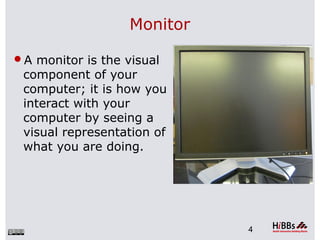
Monitor
A monitor is the visual
component of your
computer; it is how you
interact with your
computer by seeing a
visual representation of
what you are doing.
4
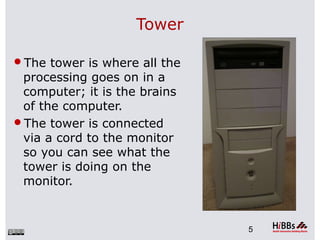
Tower
The tower is where all the
processing goes on in a
computer; it is the brains
of the computer.
The tower is connected
via a cord to the monitor
so you can see what the
tower is doing on the
monitor.
5
Keyboard
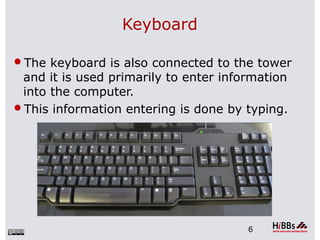
The keyboard is also connected to the tower
and it is used primarily to enter information
into the computer.
This information entering is done by typing.
6
Mouse
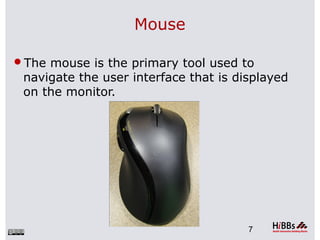
The mouse is the primary tool used to
navigate the user interface that is displayed
on the monitor.
7
VGA
VGA stands for Video Graphics Array. A VGA
connector is very important, as it is used to
connect the computer tower to the monitor.
The VGA connector allows the monitor to
display a graphical representation of what is
going on in the computer.
8
VGA cont.
This is a standard VGA cable. One side plugs
in to the monitor, the other side will connect
to the computer tower.
9
Ethernet
An ethernet cable is used to physically
connect the computer to the internet.
The internet is worldwide and it is a system of
interconnected computer networks.
Using these networks, people are able to
share information worldwide, and an ethernet
cable allows you to connect your computer
into this worldwide network.
10
Wireless
Another option to connect to the internet is
through a wireless card.
Many newer computers have a built in
wireless card, meaning they can detect
nearby routers and you can connect to these
routers if you have the proper permissions/
passwords to join them.
A router is a device that can send out a
wireless internet computer to many
computers, allowing them to access the
internet.
11
USB
USB (Universal Serial Bus) is universal
connector to enable many different devices to
connect to your computer.
In the past, there were different connectors
for almost everything to connect to your
computer (mouse, keyboard, printer, etc.),
and many of these are being replaced with
USB connectors.
12
USB cont.
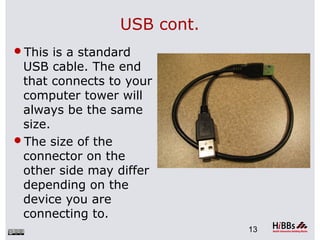
This is a standard
USB cable. The end
that connects to your
computer tower will
always be the same
size.
The size of the
connector on the
other side may differ
depending on the
device you are
connecting to.
13
Laptops
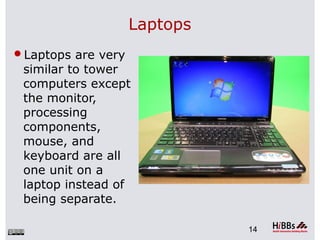
Laptops are very
similar to tower
computers except
the monitor,
processing
components,
mouse, and
keyboard are all
one unit on a
laptop instead of
being separate.
14
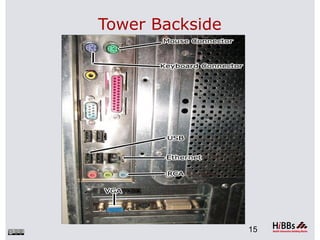
Tower Backside
15
Input Devices
 How to power on
 Types of buttons
 Check Power Cord
 Toggle switch
 How to move mouse
 Regular
 Pad
 Button/ Nub
16
 Logging On
 Intro to Keyboard
 Numbers
 Letters
 Symbols
 Functions
How to Power On
You turn on the computer by pushing the
power button, which is usually located on the
front of the tower.
You briefly push the button and then let go –
you don’t want to hold down on the power
button.
The computer will then take a few minutes to
power up and be ready to use.
17
How to Move a Mouse
There is a pointer icon on the screen that you
move by physically moving the mouse.
By clicking the buttons on the mouse, you can
interact with various programs on the
computer.
You will physically move the mouse whatever
direction you want the pointer to move on the
screen – move it up to move the mouse up,
left to move it left, etc.
18
Logging On
 When you first turn the computer on, you will usually
see a log on screen after the computer has finished
powering on.
 There will be a menu showing an icon and name for
each user that has an account on the computer.
 Some of these accounts may be password protected
and so you will need to know the proper password to
access these accounts.
 You will select the correct name for your account,
enter the password if one is required, and then you
will be logged in to the computer.
19
Introduction to Keyboards
Keyboards are the main tool available to enter
text into the computer.
If you wanted to type a letter, you would open
a word processing program, such as wordpad,
notepad, or Microsoft Word.
Using wordpad, you can type your letter just
as you would write it on paper. However,
instead of using pen and paper, you will press
on the letters on the keyboard that
correspond to the letters you wish to type.
20
Basics Computer Functions
 How to open a program.
 Functions of left and right clicks
 Ctrl+C, Ctrl+Alt+Delete, and other key
combinations
 Basic programs
21
How to Open a Program
To open a program you will usually double
click on the program name if you are selecting
it from the desktop by using the left mouse
button to click.
If you are selecting the program from the
start menu you will usually only need to click
on the program name once, again using the
left mouse button.
22
Left and Right Clicks
When using a mouse, there are typically two
buttons – a left button and a right button.
The left mouse button is usually used to open
up programs and folders.
The left mouse button is also used when
interacting with the various tools inside an
open program.
The right mouse button is used more to view
information about things such as files and
folders.
23
Important Keystrokes
CTRL+C (Copy)
CTRL+X (Cut)
CTRL+V (Paste)
CTRL+Z (Undo)
CTRL+ALT+DELETE (if computer freezes this
will give you access to end the program)
24
Basic Programs
Some examples of basic programs that come
preinstalled on computers are word
processing programs and picture editing
programs.
Notepad is a basic text editing program where
you can input text and then save it as a file.
Paint is a basic picture editing program where
you can use some simple tools to draw new
pictures or edit preexisting pictures.
25
Types of Media
 CD drive
 USB
 Speakers/ Headphones
26
CD
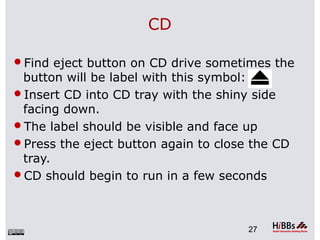
Find eject button on CD drive sometimes the
button will be label with this symbol:
Insert CD into CD tray with the shiny side
facing down.
The label should be visible and face up
Press the eject button again to close the CD
tray.
CD should begin to run in a few seconds
27
CD cont.
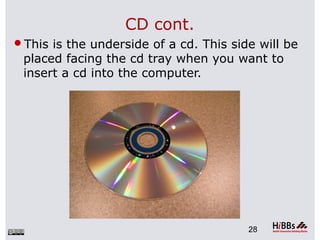
This is the underside of a cd. This side will be
placed facing the cd tray when you want to
insert a cd into the computer.
28
USB
Find USB port
Insert USB connector into port
 USBs can only be inserted one way
 Be gentle in the USB insertion because force may
break the port
A pop up should come up in a few seconds.
Click view files.
When finished go down to the status bar
In the lower right hand corner there should be
an USB symbol.
Left click symbol then right click “eject”.
Then remove USB connector
29
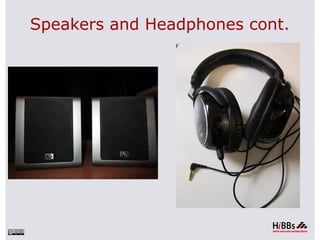
Speakers and Headphones
Headphones and speakers will usually be
connected via RCA cable or USB.
Find a small circular hole.
Insert metal RCA cable into port
Volume can be controlled by left clicking the
volume icon in the taskbar at the bottom right
of the screen.
You can then adjust the volume up or down
as needed
30
Speakers and Headphones cont.
File System
Hard Drive
Folders
Files
Zips
32
Hard Drive
The hard drive is where all of the files are
stored.
It will usually be named with a letter like C:
or D:
33
Folders
Folders are where files are stored.
They can have any name that you can
imagine.
To create a new folder: Right click, find new
then left click folder.
To get into a folder select then double left
click to open.
34
Files
There are many different types of files
Word Documents, Note pad documents,
pictures, music files, etc.
Double left click file to open.
35
Zip
Sometimes files will need to be compressed
so they can be easily transferred.
This is particularly useful with email.
To create a zip file right click, select new, then
left-click zip or archive.
Then copy files to the new zip file.
36
Printers
 Connect
 Add Paper
 Print
37
Connect
There are many different varieties of printers
but most of them will be connected to your
computer in the same way.
There is usually a power cord for the printer
that will need to be plugged into the outlet.
There will be a USB cord as well; one end
plugs in to the printer and the other end will
plug in to your computer tower.
After connecting the power & USB cable,
there is usually a power button to turn on.
38
Add Paper
After turning on the printer, you will want to
fully extend the tray, if there is one. This is to
try and deter the paper from jamming.
You will then place paper into the correct slot.
Make sure not to overfill the slot, as this can
lead to problems when printing.
39
Print
After connecting the printer and loading it
with paper, you are ready to print.
From most basic programs such as notepad,
there is a menu option to select file -> print.
If there is only one printer connected in your
computer network, this should be selected as
the default printer.
If there are multiple printers in your computer
network, you may have to be sure to select
the correct printer to print to.
40
Warnings
 Don’t eat or drink near computer
 Keyboards and other parts are sensitive to spills
 Remember to Save
 Sometimes a computer will crash remember to save often
 Don’t over heat
 Avoid having a computer near a heater or any hot objects
 Don’t plug too much into one outlet
 Electrical problems can mess up many computer
components. This can be expensive to fix.
 CD/DVD-drive is for CDs or DVDs only
 Do not put cups in a CD drive
41
Trial and Error
Trial and Error is the most efficient way to
learn how to use a computer.
If it can’t be solved with trial and error, then
try an internet search
If IT is available ask for help
Don’t be intimidated, it’s like learning to ride
a bike; you may fall but that’s how you learn.
42
Shutting Down
Find the toolbar
Left click the windows icon
Find “Shut Down”
Left Click to shut down computer
43
The work is provided under the terms of this Creative Commons
Attribution-ShareAlike 3.0 Unported License (“CCPL" or "license"). The
work is protected by copyright and/or other applicable law. Any use of
the work other than as authorized under this license or copyright law is
prohibited.
HIBBs is a program of the Global Health
Informatics Partnership
www.ghip.net
This HIBB was created as part of the Computing for a Case class in
the School of Informatics at Indiana University – Purdue University –
Indianapolis.

Introtocomputershibbspowerpoint 120405033637-phpapp01

  • 1.
    HIBBs is aprogram of the Global Health Informatics Partnership KRISTEN ZWICK & CALLIE ARCHIBALD FEBRUARY 2011 INDIANA UNIVERSITY – PURDUE UNIVERSITY – INDIANAPOLIS SCHOOL OF INFORMATICS Introduction to Computers 1
  • 2.
    What Will BeCovered This will be a general overview of the basic usage of computers for windows operating system based computers Physical Components Input Devices Basic Computer Functions Types of Media File Systems Printers Closing 2
  • 3.
    Physical Components  Desktop Monitor  Tower  Keyboard  Mouse  VGA  Ethernet  USB 3  Laptop  Monitor  Keyboard  Mouse  Pad  Button/ Nub  VGA  Ethernet  Wireless  USB
  • 4.
    Monitor A monitor isthe visual component of your computer; it is how you interact with your computer by seeing a visual representation of what you are doing. 4
  • 5.
    Tower The tower iswhere all the processing goes on in a computer; it is the brains of the computer. The tower is connected via a cord to the monitor so you can see what the tower is doing on the monitor. 5
  • 6.
    Keyboard The keyboard isalso connected to the tower and it is used primarily to enter information into the computer. This information entering is done by typing. 6
  • 7.
    Mouse The mouse isthe primary tool used to navigate the user interface that is displayed on the monitor. 7
  • 8.
    VGA VGA stands forVideo Graphics Array. A VGA connector is very important, as it is used to connect the computer tower to the monitor. The VGA connector allows the monitor to display a graphical representation of what is going on in the computer. 8
  • 9.
    VGA cont. This isa standard VGA cable. One side plugs in to the monitor, the other side will connect to the computer tower. 9
  • 10.
    Ethernet An ethernet cableis used to physically connect the computer to the internet. The internet is worldwide and it is a system of interconnected computer networks. Using these networks, people are able to share information worldwide, and an ethernet cable allows you to connect your computer into this worldwide network. 10
  • 11.
    Wireless Another option toconnect to the internet is through a wireless card. Many newer computers have a built in wireless card, meaning they can detect nearby routers and you can connect to these routers if you have the proper permissions/ passwords to join them. A router is a device that can send out a wireless internet computer to many computers, allowing them to access the internet. 11
  • 12.
    USB USB (Universal SerialBus) is universal connector to enable many different devices to connect to your computer. In the past, there were different connectors for almost everything to connect to your computer (mouse, keyboard, printer, etc.), and many of these are being replaced with USB connectors. 12
  • 13.
    USB cont. This isa standard USB cable. The end that connects to your computer tower will always be the same size. The size of the connector on the other side may differ depending on the device you are connecting to. 13
  • 14.
    Laptops Laptops are very similarto tower computers except the monitor, processing components, mouse, and keyboard are all one unit on a laptop instead of being separate. 14
  • 15.
  • 16.
    Input Devices  Howto power on  Types of buttons  Check Power Cord  Toggle switch  How to move mouse  Regular  Pad  Button/ Nub 16  Logging On  Intro to Keyboard  Numbers  Letters  Symbols  Functions
  • 17.
    How to PowerOn You turn on the computer by pushing the power button, which is usually located on the front of the tower. You briefly push the button and then let go – you don’t want to hold down on the power button. The computer will then take a few minutes to power up and be ready to use. 17
  • 18.
    How to Movea Mouse There is a pointer icon on the screen that you move by physically moving the mouse. By clicking the buttons on the mouse, you can interact with various programs on the computer. You will physically move the mouse whatever direction you want the pointer to move on the screen – move it up to move the mouse up, left to move it left, etc. 18
  • 19.
    Logging On  Whenyou first turn the computer on, you will usually see a log on screen after the computer has finished powering on.  There will be a menu showing an icon and name for each user that has an account on the computer.  Some of these accounts may be password protected and so you will need to know the proper password to access these accounts.  You will select the correct name for your account, enter the password if one is required, and then you will be logged in to the computer. 19
  • 20.
    Introduction to Keyboards Keyboardsare the main tool available to enter text into the computer. If you wanted to type a letter, you would open a word processing program, such as wordpad, notepad, or Microsoft Word. Using wordpad, you can type your letter just as you would write it on paper. However, instead of using pen and paper, you will press on the letters on the keyboard that correspond to the letters you wish to type. 20
  • 21.
    Basics Computer Functions How to open a program.  Functions of left and right clicks  Ctrl+C, Ctrl+Alt+Delete, and other key combinations  Basic programs 21
  • 22.
    How to Opena Program To open a program you will usually double click on the program name if you are selecting it from the desktop by using the left mouse button to click. If you are selecting the program from the start menu you will usually only need to click on the program name once, again using the left mouse button. 22
  • 23.
    Left and RightClicks When using a mouse, there are typically two buttons – a left button and a right button. The left mouse button is usually used to open up programs and folders. The left mouse button is also used when interacting with the various tools inside an open program. The right mouse button is used more to view information about things such as files and folders. 23
  • 24.
    Important Keystrokes CTRL+C (Copy) CTRL+X(Cut) CTRL+V (Paste) CTRL+Z (Undo) CTRL+ALT+DELETE (if computer freezes this will give you access to end the program) 24
  • 25.
    Basic Programs Some examplesof basic programs that come preinstalled on computers are word processing programs and picture editing programs. Notepad is a basic text editing program where you can input text and then save it as a file. Paint is a basic picture editing program where you can use some simple tools to draw new pictures or edit preexisting pictures. 25
  • 26.
    Types of Media CD drive  USB  Speakers/ Headphones 26
  • 27.
    CD Find eject buttonon CD drive sometimes the button will be label with this symbol: Insert CD into CD tray with the shiny side facing down. The label should be visible and face up Press the eject button again to close the CD tray. CD should begin to run in a few seconds 27
  • 28.
    CD cont. This isthe underside of a cd. This side will be placed facing the cd tray when you want to insert a cd into the computer. 28
  • 29.
    USB Find USB port InsertUSB connector into port  USBs can only be inserted one way  Be gentle in the USB insertion because force may break the port A pop up should come up in a few seconds. Click view files. When finished go down to the status bar In the lower right hand corner there should be an USB symbol. Left click symbol then right click “eject”. Then remove USB connector 29
  • 30.
    Speakers and Headphones Headphonesand speakers will usually be connected via RCA cable or USB. Find a small circular hole. Insert metal RCA cable into port Volume can be controlled by left clicking the volume icon in the taskbar at the bottom right of the screen. You can then adjust the volume up or down as needed 30
  • 31.
  • 32.
  • 33.
    Hard Drive The harddrive is where all of the files are stored. It will usually be named with a letter like C: or D: 33
  • 34.
    Folders Folders are wherefiles are stored. They can have any name that you can imagine. To create a new folder: Right click, find new then left click folder. To get into a folder select then double left click to open. 34
  • 35.
    Files There are manydifferent types of files Word Documents, Note pad documents, pictures, music files, etc. Double left click file to open. 35
  • 36.
    Zip Sometimes files willneed to be compressed so they can be easily transferred. This is particularly useful with email. To create a zip file right click, select new, then left-click zip or archive. Then copy files to the new zip file. 36
  • 37.
    Printers  Connect  AddPaper  Print 37
  • 38.
    Connect There are manydifferent varieties of printers but most of them will be connected to your computer in the same way. There is usually a power cord for the printer that will need to be plugged into the outlet. There will be a USB cord as well; one end plugs in to the printer and the other end will plug in to your computer tower. After connecting the power & USB cable, there is usually a power button to turn on. 38
  • 39.
    Add Paper After turningon the printer, you will want to fully extend the tray, if there is one. This is to try and deter the paper from jamming. You will then place paper into the correct slot. Make sure not to overfill the slot, as this can lead to problems when printing. 39
  • 40.
    Print After connecting theprinter and loading it with paper, you are ready to print. From most basic programs such as notepad, there is a menu option to select file -> print. If there is only one printer connected in your computer network, this should be selected as the default printer. If there are multiple printers in your computer network, you may have to be sure to select the correct printer to print to. 40
  • 41.
    Warnings  Don’t eator drink near computer  Keyboards and other parts are sensitive to spills  Remember to Save  Sometimes a computer will crash remember to save often  Don’t over heat  Avoid having a computer near a heater or any hot objects  Don’t plug too much into one outlet  Electrical problems can mess up many computer components. This can be expensive to fix.  CD/DVD-drive is for CDs or DVDs only  Do not put cups in a CD drive 41
  • 42.
    Trial and Error Trialand Error is the most efficient way to learn how to use a computer. If it can’t be solved with trial and error, then try an internet search If IT is available ask for help Don’t be intimidated, it’s like learning to ride a bike; you may fall but that’s how you learn. 42
  • 43.
    Shutting Down Find thetoolbar Left click the windows icon Find “Shut Down” Left Click to shut down computer 43
  • 44.
    The work isprovided under the terms of this Creative Commons Attribution-ShareAlike 3.0 Unported License (“CCPL" or "license"). The work is protected by copyright and/or other applicable law. Any use of the work other than as authorized under this license or copyright law is prohibited. HIBBs is a program of the Global Health Informatics Partnership www.ghip.net This HIBB was created as part of the Computing for a Case class in the School of Informatics at Indiana University – Purdue University – Indianapolis.