Mr Watson’s Introduction
to Spreadsheets
The ‘Quick’ and ‘Easy’ guide to
using Microsoft Excel
“I know what a spreadsheet is, I can
enter simple data into a spreadsheet,
and I can use simple formulae to
perform calculations. With help I can
create simple graphs”
By the end of the lesson, I want you to be able to
say…
Starting at the Beginning
What is a Spreadsheet?
What are they for?
What can they do?
A spreadsheet is a powerful tool for organising information.
They are used to carry out lots of calculations quickly and to
store large amounts of information for a range of purposes.
Once you know how to do it – they can do almost any maths
that you could need!
So, how do they work then?
Rows
(Side to Side)
[Numbered]
Columns
(Up and Down)
[Letters]
Cell
(Every one on
these boxes is
a cell)
Every cell has a name to help you find the right one.
Its name starts with the column letter and then the row number.
So, this cell is called what?
F22
Using formulae
Login and open Microsoft Excel
Entering data in spreadsheets is really easy!
You just click on the cell and type it in.
Let’s do something more difficult then!
Let’s use some formulae (that means sums!)
In Numeracy, when we write a number sentence we
write the ‘=’ sign just before the answer, in a
spreadsheet we write it first, before the sum.
So when you want a spreadsheet to work out a sum:
PUT THE = FIRST!
If you don’t it won’t work.
Using formulae
There is one more thing
that you need to know
About using a spreadsheets
to perform calculations.
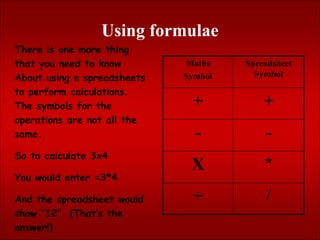
The symbols for the
operations are not all the
same.
So to calculate 3x4
You would enter =3*4
And the spreadsheet would
show “12”. (That’s the
answer!)
Maths
Symbol
Spreadsheet
Symbol
+ +
- -
X *
÷ /
Task one
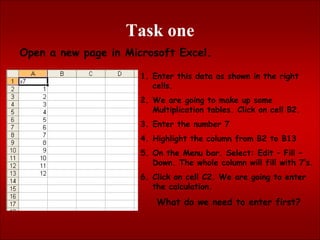
Open a new page in Microsoft Excel.
1. Enter this data as shown in the right
cells.
2. We are going to make up some
Multiplication tables. Click on cell B2.
3. Enter the number 7
4. Highlight the column from B2 to B13
5. On the Menu bar. Select: Edit – Fill –
Down. The whole column will fill with 7’s.
6. Click on cell C2. We are going to enter
the calculation.
What do we need to enter first?
Task one
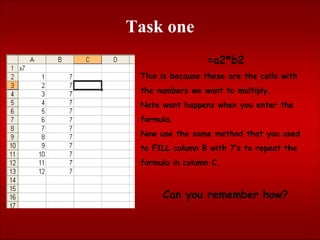
=a2*b2
This is because these are the cells with
the numbers we want to multiply.
Note want happens when you enter the
formula.
Now use the same method that you used
to FILL column B with 7’s to repeat the
formula in column C.
Can you remember how?
Task one
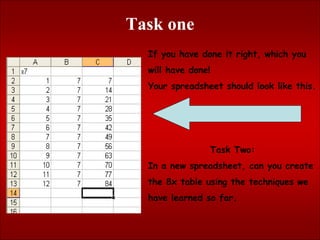
If you have done it right, which you
will have done!
Your spreadsheet should look like this.
Task Two:
In a new spreadsheet, can you create
the 8x table using the techniques we
have learned so far.
Task Three
PE Kit
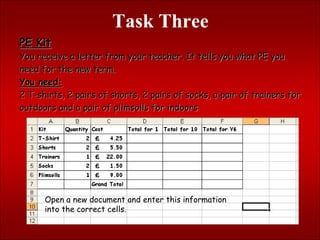
You receive a letter from your teacher. It tells you what PE you
need for the new term.
You need:
2 T-shirts, 2 pairs of shorts, 2 pairs of socks, a pair of trainers for
outdoors and a pair of plimsolls for indoors
Open a new document and enter this information
into the correct cells.
Task Three
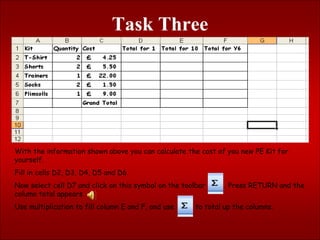
With the information shown above you can calculate the cost of you new PE Kit for
yourself.
Fill in cells D2, D3, D4, D5 and D6.
Now select cell D7 and click on this symbol on the toolbar . Press RETURN and the
column total appears
Use multiplication to fill column E and F, and use to total up the columns.
Task four
Creating Graphs
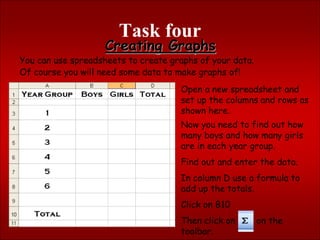
You can use spreadsheets to create graphs of your data.
Of course you will need some data to make graphs of!
Open a new spreadsheet and
set up the columns and rows as
shown here.
Now you need to find out how
many boys and how many girls
are in each year group.
Find out and enter the data.
In column D use a formula to
add up the totals.
Click on B10
Then click on on the
toolbar.
Task four
Creating Graphs
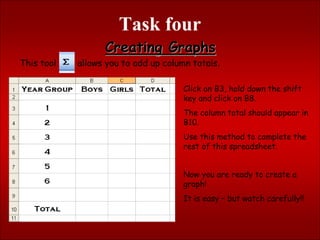
This tool allows you to add up column totals.
Click on B3, hold down the shift
key and click on B8.
The column total should appear in
B10.
Use this method to complete the
rest of this spreadsheet.
Now you are ready to create a
graph!
It is easy – but watch carefully!!
Task four
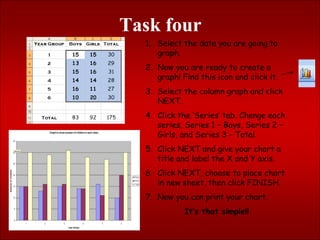
1. Select the data you are going to
graph.
2. Now you are ready to create a
graph! Find this icon and click it.
3. Select the column graph and click
NEXT.
4. Click the ‘Series’ tab. Change each
series, Series 1 – Boys, Series 2 –
Girls, and Series 3 – Total.
5. Click NEXT and give your chart a
title and label the X and Y axis.
6. Click NEXT, choose to place chart
in new sheet, then click FINISH.
7. Now you can print your chart.
It’s that simple!!
Congratulations!
Can you say it then?
“I know what a spreadsheet is, I can enter simple data
into a spreadsheet, and I can use simple formulae to
perform calculations. With help I can create simple graphs.”
Did you manage it?
Of course you did!

introduction to SPREADSHEETS.pptx

  • 1.
    Mr Watson’s Introduction toSpreadsheets The ‘Quick’ and ‘Easy’ guide to using Microsoft Excel
  • 2.
    “I know whata spreadsheet is, I can enter simple data into a spreadsheet, and I can use simple formulae to perform calculations. With help I can create simple graphs” By the end of the lesson, I want you to be able to say…
  • 3.
    Starting at theBeginning What is a Spreadsheet? What are they for? What can they do? A spreadsheet is a powerful tool for organising information. They are used to carry out lots of calculations quickly and to store large amounts of information for a range of purposes. Once you know how to do it – they can do almost any maths that you could need!
  • 4.
    So, how dothey work then? Rows (Side to Side) [Numbered] Columns (Up and Down) [Letters] Cell (Every one on these boxes is a cell) Every cell has a name to help you find the right one. Its name starts with the column letter and then the row number. So, this cell is called what? F22
  • 5.
    Using formulae Login andopen Microsoft Excel Entering data in spreadsheets is really easy! You just click on the cell and type it in. Let’s do something more difficult then! Let’s use some formulae (that means sums!) In Numeracy, when we write a number sentence we write the ‘=’ sign just before the answer, in a spreadsheet we write it first, before the sum. So when you want a spreadsheet to work out a sum: PUT THE = FIRST! If you don’t it won’t work.
  • 6.
    Using formulae There isone more thing that you need to know About using a spreadsheets to perform calculations. The symbols for the operations are not all the same. So to calculate 3x4 You would enter =3*4 And the spreadsheet would show “12”. (That’s the answer!) Maths Symbol Spreadsheet Symbol + + - - X * ÷ /
  • 7.
    Task one Open anew page in Microsoft Excel. 1. Enter this data as shown in the right cells. 2. We are going to make up some Multiplication tables. Click on cell B2. 3. Enter the number 7 4. Highlight the column from B2 to B13 5. On the Menu bar. Select: Edit – Fill – Down. The whole column will fill with 7’s. 6. Click on cell C2. We are going to enter the calculation. What do we need to enter first?
  • 8.
    Task one =a2*b2 This isbecause these are the cells with the numbers we want to multiply. Note want happens when you enter the formula. Now use the same method that you used to FILL column B with 7’s to repeat the formula in column C. Can you remember how?
  • 9.
    Task one If youhave done it right, which you will have done! Your spreadsheet should look like this. Task Two: In a new spreadsheet, can you create the 8x table using the techniques we have learned so far.
  • 10.
    Task Three PE Kit Youreceive a letter from your teacher. It tells you what PE you need for the new term. You need: 2 T-shirts, 2 pairs of shorts, 2 pairs of socks, a pair of trainers for outdoors and a pair of plimsolls for indoors Open a new document and enter this information into the correct cells.
  • 11.
    Task Three With theinformation shown above you can calculate the cost of you new PE Kit for yourself. Fill in cells D2, D3, D4, D5 and D6. Now select cell D7 and click on this symbol on the toolbar . Press RETURN and the column total appears Use multiplication to fill column E and F, and use to total up the columns.
  • 12.
    Task four Creating Graphs Youcan use spreadsheets to create graphs of your data. Of course you will need some data to make graphs of! Open a new spreadsheet and set up the columns and rows as shown here. Now you need to find out how many boys and how many girls are in each year group. Find out and enter the data. In column D use a formula to add up the totals. Click on B10 Then click on on the toolbar.
  • 13.
    Task four Creating Graphs Thistool allows you to add up column totals. Click on B3, hold down the shift key and click on B8. The column total should appear in B10. Use this method to complete the rest of this spreadsheet. Now you are ready to create a graph! It is easy – but watch carefully!!
  • 14.
    Task four 1. Selectthe data you are going to graph. 2. Now you are ready to create a graph! Find this icon and click it. 3. Select the column graph and click NEXT. 4. Click the ‘Series’ tab. Change each series, Series 1 – Boys, Series 2 – Girls, and Series 3 – Total. 5. Click NEXT and give your chart a title and label the X and Y axis. 6. Click NEXT, choose to place chart in new sheet, then click FINISH. 7. Now you can print your chart. It’s that simple!!
  • 15.
    Congratulations! Can you sayit then? “I know what a spreadsheet is, I can enter simple data into a spreadsheet, and I can use simple formulae to perform calculations. With help I can create simple graphs.” Did you manage it? Of course you did!