Interviewer User Guide
Login
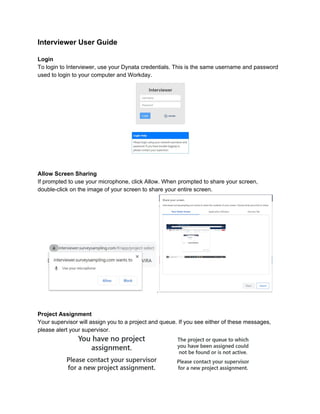
To login to Interviewer, use your Dynata credentials. This is the same username and password
used to login to your computer and Workday.
Allow Screen Sharing
If prompted to use your microphone, click Allow. When prompted to share your screen,
double-click on the image of your screen to share your entire screen.
.
Project Assignment
Your supervisor will assign you to a project and queue. If you see either of these messages,
please alert your supervisor.
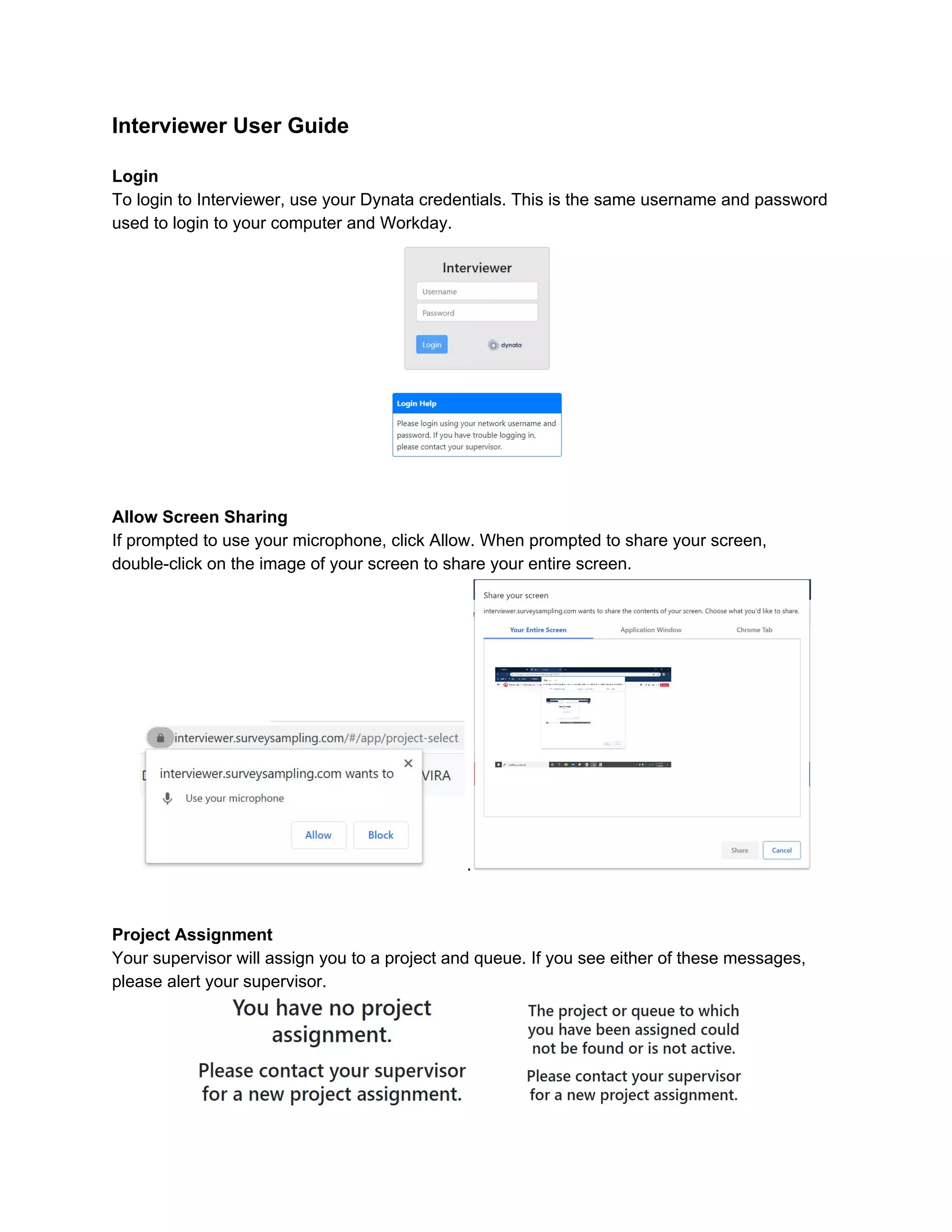
Once you have an assignment, you may either click the Briefing button or go directly into the
queue by typing “land” or “cell.”
Not Ready Page
Once you enter your assigned queue, you will be on the Not Ready page. From there you may
click Ready to begin dialing, leave the queue, access a test survey for the project, manually
access a PIN, access your manual callbacks, or go on break.
.
Cell Phone Queue
When you receive a phone number to dial, type all 10 digits into the Phone Number box and hit
enter. You may also click Not Ready to return to the Not Ready page.
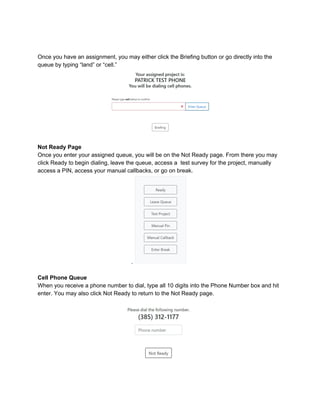
If the phone number entered does not match the phone number on record, you will receive a
message. Click Cancel to retype the number or Continue to call the number entered.
Landline Queue
Landline numbers will be auto-dialed either progressively or predictively. You will see this
screen while waiting for a call.
On a Call
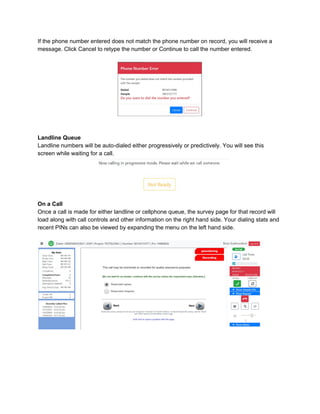
Once a call is made for either landline or cellphone queue, the survey page for that record will
load along with call controls and other information on the right hand side. Your dialing stats and
recent PINs can also be viewed by expanding the menu on the left hand side.
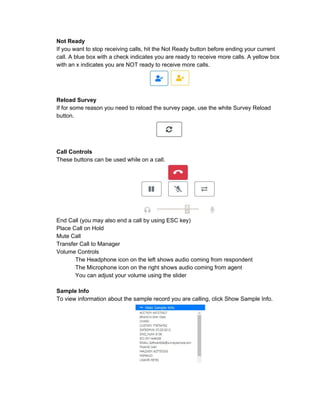
Not Ready
If you want to stop receiving calls, hit the Not Ready button before ending your current
call. A blue box with a check indicates you are ready to receive more calls. A yellow box
with an x indicates you are NOT ready to receive more calls.
Reload Survey
If for some reason you need to reload the survey page, use the white Survey Reload
button.
Call Controls
These buttons can be used while on a call.
End Call (you may also end a call by using ESC key)
Place Call on Hold
Mute Call
Transfer Call to Manager
Volume Controls
The Headphone icon on the left shows audio coming from respondent
The Microphone icon on the right shows audio coming from agent
You can adjust your volume using the slider
Sample Info
To view information about the sample record you are calling, click Show Sample Info.
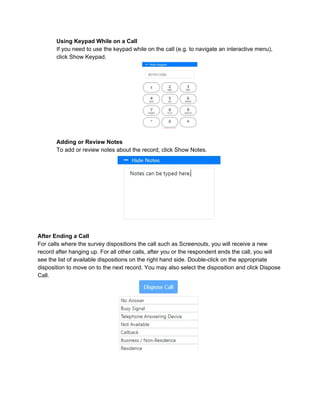
Using Keypad While on a Call
If you need to use the keypad while on the call (e.g. to navigate an interactive menu),
click Show Keypad.
Adding or Review Notes
To add or review notes about the record, click Show Notes.
After Ending a Call
For calls where the survey dispositions the call such as Screenouts, you will receive a new
record after hanging up. For all other calls, after you or the respondent ends the call, you will
see the list of available dispositions on the right hand side. Double-click on the appropriate
disposition to move on to the next record. You may also select the disposition and click Dispose
Call.
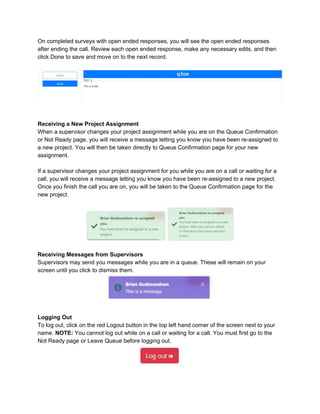
On completed surveys with open ended responses, you will see the open ended responses
after ending the call. Review each open ended response, make any necessary edits, and then
click Done to save and move on to the next record.
Receiving a New Project Assignment
When a supervisor changes your project assignment while you are on the Queue Confirmation
or Not Ready page, you will receive a message letting you know you have been re-assigned to
a new project. You will then be taken directly to Queue Confirmation page for your new
assignment.
If a supervisor changes your project assignment for you while you are on a call or waiting for a
call, you will receive a message letting you know you have been re-assigned to a new project.
Once you finish the call you are on, you will be taken to the Queue Confirmation page for the
new project.
Receiving Messages from Supervisors
Supervisors may send you messages while you are in a queue. These will remain on your
screen until you click to dismiss them.
Logging Out
To log out, click on the red Logout button in the top left hand corner of the screen next to your
name. ​NOTE: ​You cannot log out while on a call or waiting for a call. You must first go to the
Not Ready page or Leave Queue before logging out.

Interviewer User Guide

  • 1.
    Interviewer User Guide Login Tologin to Interviewer, use your Dynata credentials. This is the same username and password used to login to your computer and Workday. Allow Screen Sharing If prompted to use your microphone, click Allow. When prompted to share your screen, double-click on the image of your screen to share your entire screen. . Project Assignment Your supervisor will assign you to a project and queue. If you see either of these messages, please alert your supervisor.
  • 2.
    Once you havean assignment, you may either click the Briefing button or go directly into the queue by typing “land” or “cell.” Not Ready Page Once you enter your assigned queue, you will be on the Not Ready page. From there you may click Ready to begin dialing, leave the queue, access a test survey for the project, manually access a PIN, access your manual callbacks, or go on break. . Cell Phone Queue When you receive a phone number to dial, type all 10 digits into the Phone Number box and hit enter. You may also click Not Ready to return to the Not Ready page.
  • 3.
    If the phonenumber entered does not match the phone number on record, you will receive a message. Click Cancel to retype the number or Continue to call the number entered. Landline Queue Landline numbers will be auto-dialed either progressively or predictively. You will see this screen while waiting for a call. On a Call Once a call is made for either landline or cellphone queue, the survey page for that record will load along with call controls and other information on the right hand side. Your dialing stats and recent PINs can also be viewed by expanding the menu on the left hand side.
  • 4.
    Not Ready If youwant to stop receiving calls, hit the Not Ready button before ending your current call. A blue box with a check indicates you are ready to receive more calls. A yellow box with an x indicates you are NOT ready to receive more calls. Reload Survey If for some reason you need to reload the survey page, use the white Survey Reload button. Call Controls These buttons can be used while on a call. End Call (you may also end a call by using ESC key) Place Call on Hold Mute Call Transfer Call to Manager Volume Controls The Headphone icon on the left shows audio coming from respondent The Microphone icon on the right shows audio coming from agent You can adjust your volume using the slider Sample Info To view information about the sample record you are calling, click Show Sample Info.
  • 5.
    Using Keypad Whileon a Call If you need to use the keypad while on the call (e.g. to navigate an interactive menu), click Show Keypad. Adding or Review Notes To add or review notes about the record, click Show Notes. After Ending a Call For calls where the survey dispositions the call such as Screenouts, you will receive a new record after hanging up. For all other calls, after you or the respondent ends the call, you will see the list of available dispositions on the right hand side. Double-click on the appropriate disposition to move on to the next record. You may also select the disposition and click Dispose Call.
  • 6.
    On completed surveyswith open ended responses, you will see the open ended responses after ending the call. Review each open ended response, make any necessary edits, and then click Done to save and move on to the next record. Receiving a New Project Assignment When a supervisor changes your project assignment while you are on the Queue Confirmation or Not Ready page, you will receive a message letting you know you have been re-assigned to a new project. You will then be taken directly to Queue Confirmation page for your new assignment. If a supervisor changes your project assignment for you while you are on a call or waiting for a call, you will receive a message letting you know you have been re-assigned to a new project. Once you finish the call you are on, you will be taken to the Queue Confirmation page for the new project. Receiving Messages from Supervisors Supervisors may send you messages while you are in a queue. These will remain on your screen until you click to dismiss them. Logging Out To log out, click on the red Logout button in the top left hand corner of the screen next to your name. ​NOTE: ​You cannot log out while on a call or waiting for a call. You must first go to the Not Ready page or Leave Queue before logging out.