Instructions/Instructions for
numberguesser/numberGuesser.html
Instructions/Instructions for numberguesser/Page 313.PNG
Instructions/Instructions for numberguesser/Page 314
Continued.PNG
Instructions/Instructions for numberguesser/Page 314.PNG
Instructions/Instructions for numberguesser/Page 315
Continued.PNG
Instructions/Instructions for numberguesser/Page 315.PNG
Instructions/Instructions for numberguesser/Page 316
Continued.PNG
Instructions/Instructions for numberguesser/page 316.PNG
Instructions/Instructions for shoerental/Page 316.PNG
Instructions/Instructions for shoerental/Page 317
Continued.PNG
Instructions/Instructions for shoerental/Page 317.PNG
Instructions/Instructions for shoerental/Page 318
Continued.PNG
Instructions/Instructions for shoerental/Page 318.PNG
Instructions/Instructions for shoerental/page 319 continued.PNG
Instructions/Instructions for shoerental/Page 319.PNG
Instructions/Instructions for shoerental/Page 320.PNG
Instructions/Instructions for shoerental/ShoeRentalClass.html
Instructions/lab4.docx
1. Complete the Programmers Workshop on pg 313-316
(Including Detective Work). Upload the numberGuesser.html
file here.
2. Complete the Object Lesson on pg 316-320 (Including
Detective Work). Upload the ShoeRentalClass.html page you
create here.
Introduction to Unix - POS420
Unix Lab Exercise Week 5
Job Control :
1. How to suspend the jobs running in foreground ?
Open a file in vi and press CTRL-Z to put it into background
$ vi filename
CTRL-Z
filename[New file]
[1] + Stopped vi filename
$
where 1 is the job number, + or - make the current and previous
jobs.
2. How to make it run in foreground ?
You can use fg command to make it run in foreground. If more
than one job is suspended, you can use fg %n where n is the
number is the sequence of the process to make that process
come in foreground.
$ fg %1
Now you will see vi editor again.
3. How to make it run in background ? (Only stopped jobs)
You can use bg command to make it run in background. If more
than one job is suspended, you can use bg %n where n is the
number is the sequence of the process to make that process
come in background.
Let us suspend this job one more time.
$ vi filename
CTRL-Z
filename[New file]
[1] + Stopped vi filename
$
Let us run in background .
$ bg %1
4. Another way to suspend a job by using kill command.
Run vi in this session.
Open another connection through telnet. Now you have two
sessions.
Type ps command to see what processes are running.
$ ps
PID TT STAT TIME COMMAND
5226 q7 S 0:01 -ksh (ksh) - This is new shell
6314 q7 R 0:00 ps
5487 ub S 0:00 -ksh (ksh) - This is previous shell
6312 ub S 0:00 vi filename - vi is running in previous
session.
Now send a STOP signal to the process. kill -l will give you a
loist of signals.
$ kill -STOP 6312
Now you will see this in the other session
[1] + Stopped (signal) vi filename
To put back into foreground, you can not put from this new
session. Only from old session you can put using fg command.
5. How to terminate the job ?
You have to use kill command with signam number 9 or KILL
option ( See kill -l)
$ kill -9 6312
will terminate the vi process.
$ kill -9 5487
will terminate the previous session.
6. How to run a background job ? (This is a new job, not
stopped job)
$ who | wc &
[1] 7612 7613
$
31 186 1468
When the job is finished, the shell prints the message
[1] + Done who | wc
7. How to use jobs command ?
Give a long command and put in background. You can see the
PID of that process.
$ find / -name *.c -print 2>/dev/null &
[1] 8192
$ ps
PID TT STAT TIME COMMAND
5226 q7 S 0:02 -ksh (ksh)
8192 q7 R 0:04 find / -name first.c -print
8193 q7 R 0:03 ps
5487 ub IW 0:01 -ksh (ksh)
Type jobs to see background jobs.
$ jobs
[1] + Running find / -name *.c -print
Run one more job
$ find / -name *.h -print 2>/dev/null &
[2] 8306
$ jobs
[2] + Running find / -name *.h -print
[1] - Running find / -name *.c -print
Let us terminate the second job
$ kill %2$ jobs
[2] + Terminated find / -name *.h -print
[1] - Running find / -name *.c -print
Now we have only one job running in the background. Let us
make it run in foreground
$ fg %1
find / -name *.c -print
/usr/local/var/first.c
/usr/locl/var/second.c
...
.
Let us stop it. (Press CTRL-Z)
^Z[1] + Stopped find / -name *.c -print
$jobs
[1] + Stopped find / -name *.c -print
Let us terminate this job also
$ kill %1
[1] + Terminated find / -name *.c -print
$ jobs$
Now no jobs are running.
Some more examples:
1. Let us run a job in background
[email protected] /tmp $ find / -name "somefile" -print
2>/dev/null &
[1] 13564
[email protected] /tmp $ jobs
[1]+ Running find / -name "somefile" -print
2>/dev/null &
2. Let us bring it into foreground and then stop
[email protected] /tmp $ fg %1
find / -name "somefile" -print 2>/dev/null
CTRL Z
[1]+ Stopped find / -name "somefile" -print
2>/dev/null
[email protected] /tmp> jobs
[1]+ Stopped find / -name "somefile" -print
2>/dev/null
3. Let us put back into background
[email protected] /tmp> bg %1
[1]+ find / -name "somefile" -print 2>/dev/null &
[email protected] /tmp> jobs
[1]+ Running find / -name "somefile" -print
2>/dev/null &
4. Let us stop the background job
[email protected] /tmp> kill -STOP %1
[email protected] /tmp> jobs
[1]+ Stopped find / -name "somefile" -print
2>/dev/null
5. Let us terminate the background job
[email protected] /tmp> kill %1
[1]+ Stopped find / -name "somefile" -print
2>/dev/null
[email protected] /tmp> jobs
[1]+ Terminated find / -name "somefile" -print
2>/dev/null
Processes in UNIX :
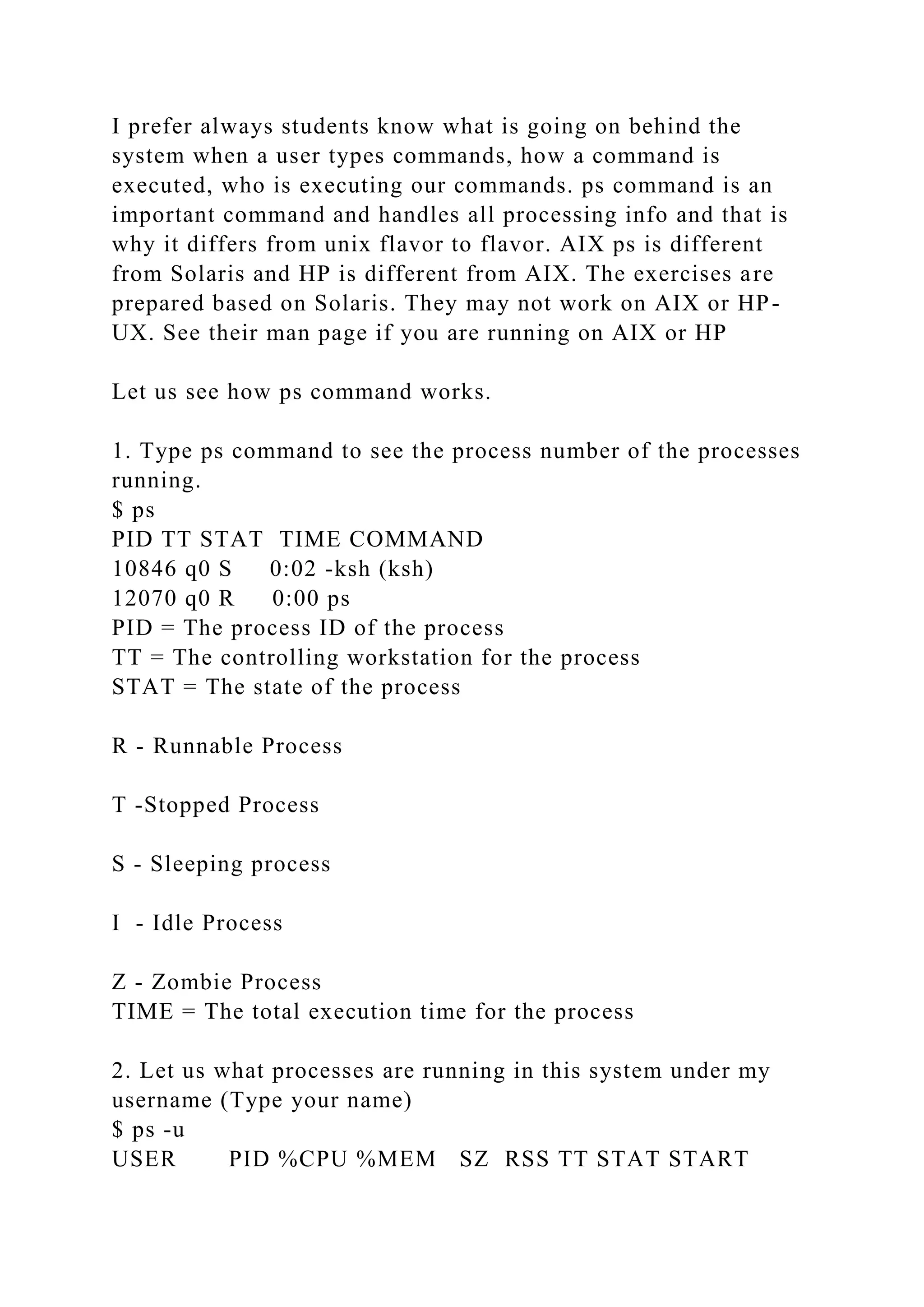
I prefer always students know what is going on behind the
system when a user types commands, how a command is
executed, who is executing our commands. ps command is an
important command and handles all processing info and that is
why it differs from unix flavor to flavor. AIX ps is different
from Solaris and HP is different from AIX. The exercises are
prepared based on Solaris. They may not work on AIX or HP-
UX. See their man page if you are running on AIX or HP
Let us see how ps command works.
1. Type ps command to see the process number of the processes
running.
$ ps
PID TT STAT TIME COMMAND
10846 q0 S 0:02 -ksh (ksh)
12070 q0 R 0:00 ps
PID = The process ID of the process
TT = The controlling workstation for the process
STAT = The state of the process
R - Runnable Process
T -Stopped Process
S - Sleeping process
I - Idle Process
Z - Zombie Process
TIME = The total execution time for the process
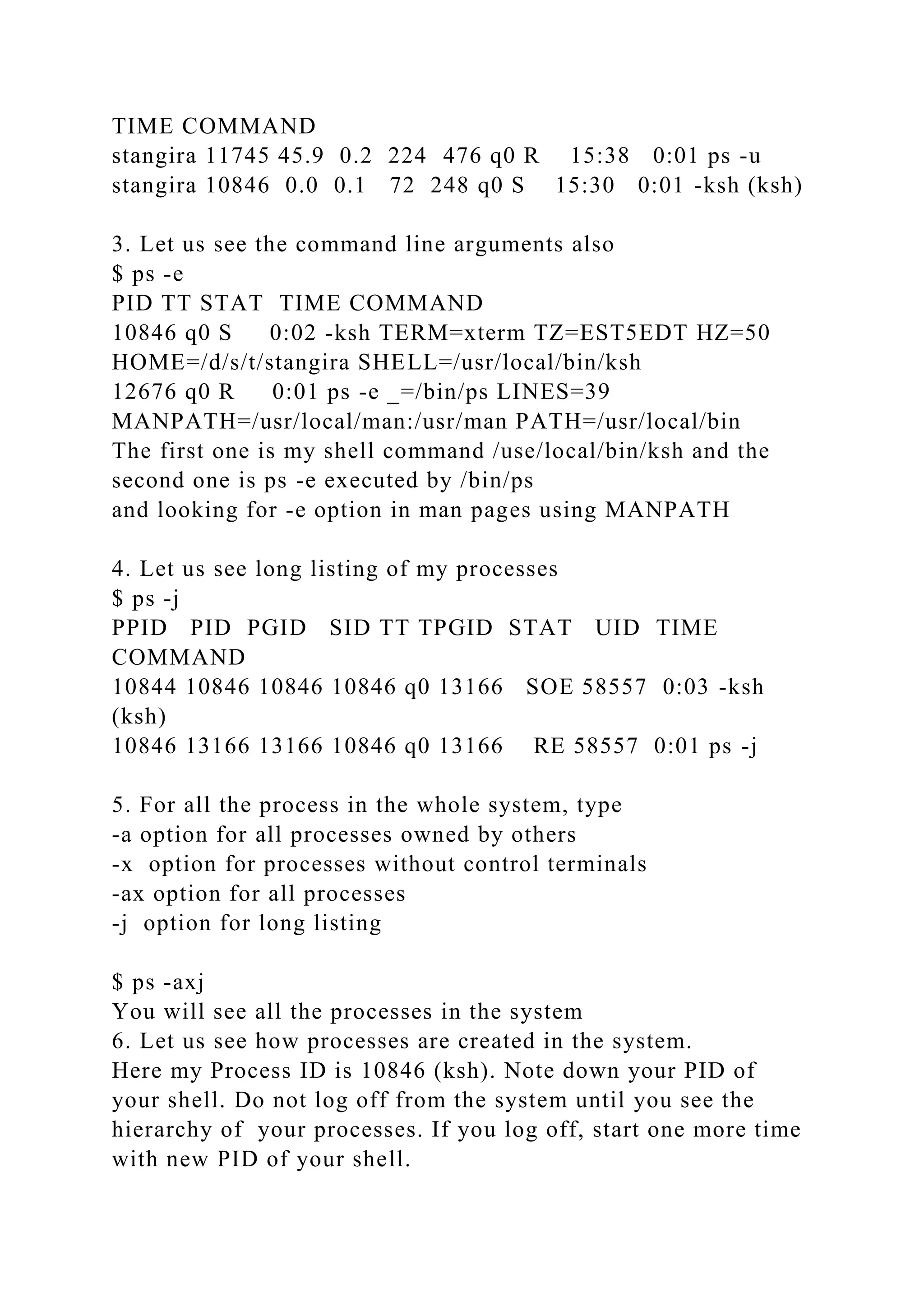
2. Let us what processes are running in this system under my
username (Type your name)
$ ps -u
USER PID %CPU %MEM SZ RSS TT STAT START
TIME COMMAND
stangira 11745 45.9 0.2 224 476 q0 R 15:38 0:01 ps -u
stangira 10846 0.0 0.1 72 248 q0 S 15:30 0:01 -ksh (ksh)
3. Let us see the command line arguments also
$ ps -e
PID TT STAT TIME COMMAND
10846 q0 S 0:02 -ksh TERM=xterm TZ=EST5EDT HZ=50
HOME=/d/s/t/stangira SHELL=/usr/local/bin/ksh
12676 q0 R 0:01 ps -e _=/bin/ps LINES=39
MANPATH=/usr/local/man:/usr/man PATH=/usr/local/bin
The first one is my shell command /use/local/bin/ksh and the
second one is ps -e executed by /bin/ps
and looking for -e option in man pages using MANPATH
4. Let us see long listing of my processes
$ ps -j
PPID PID PGID SID TT TPGID STAT UID TIME
COMMAND
10844 10846 10846 10846 q0 13166 SOE 58557 0:03 -ksh
(ksh)
10846 13166 13166 10846 q0 13166 RE 58557 0:01 ps -j
5. For all the process in the whole system, type
-a option for all processes owned by others
-x option for processes without control terminals
-ax option for all processes
-j option for long listing
$ ps -axj
You will see all the processes in the system
6. Let us see how processes are created in the system.
Here my Process ID is 10846 (ksh). Note down your PID of
your shell. Do not log off from the system until you see the
hierarchy of your processes. If you log off, start one more time
with new PID of your shell.
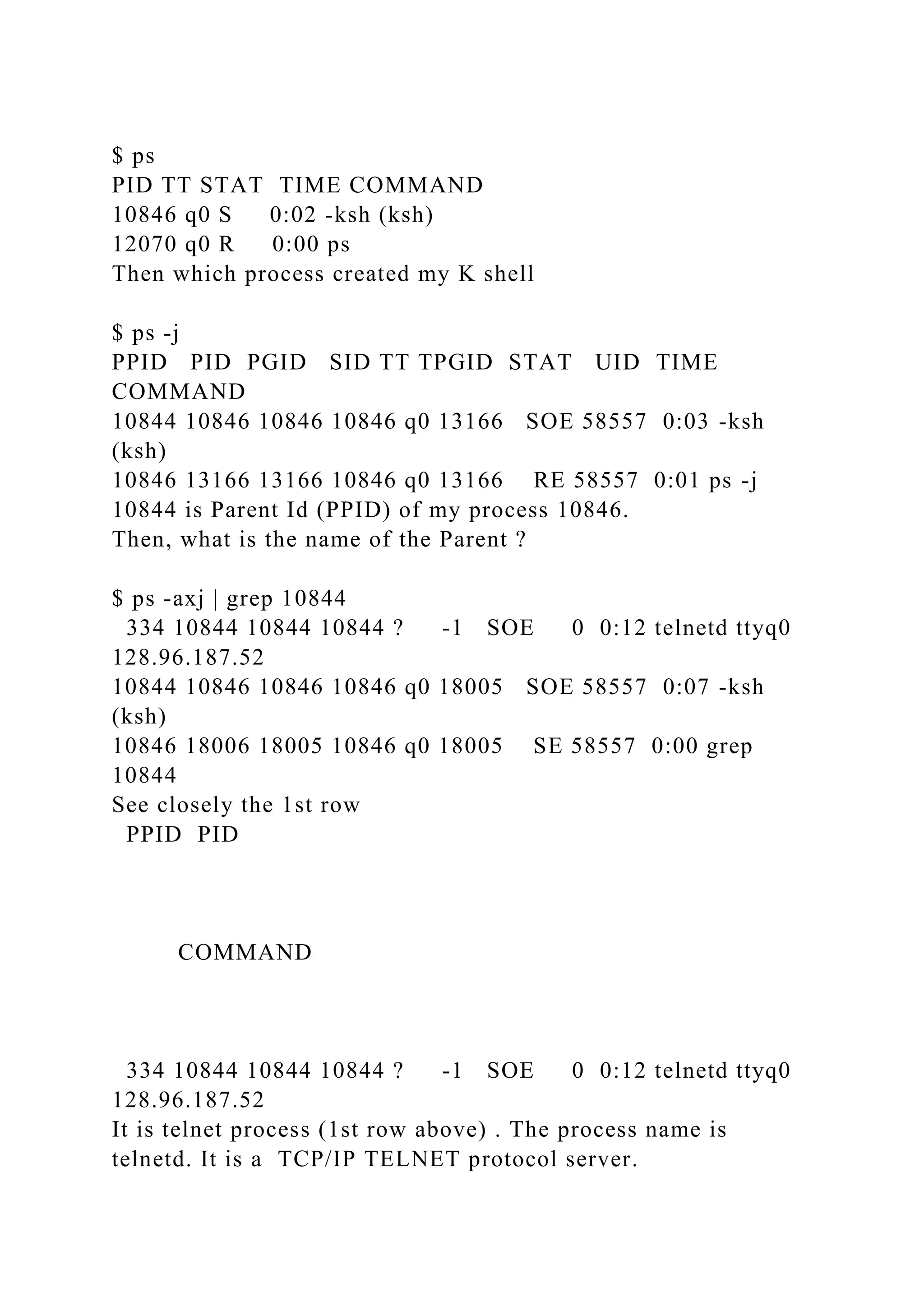
$ ps
PID TT STAT TIME COMMAND
10846 q0 S 0:02 -ksh (ksh)
12070 q0 R 0:00 ps
Then which process created my K shell
$ ps -j
PPID PID PGID SID TT TPGID STAT UID TIME
COMMAND
10844 10846 10846 10846 q0 13166 SOE 58557 0:03 -ksh
(ksh)
10846 13166 13166 10846 q0 13166 RE 58557 0:01 ps -j
10844 is Parent Id (PPID) of my process 10846.
Then, what is the name of the Parent ?
$ ps -axj | grep 10844
334 10844 10844 10844 ? -1 SOE 0 0:12 telnetd ttyq0
128.96.187.52
10844 10846 10846 10846 q0 18005 SOE 58557 0:07 -ksh
(ksh)
10846 18006 18005 10846 q0 18005 SE 58557 0:00 grep
10844
See closely the 1st row
PPID PID
COMMAND
334 10844 10844 10844 ? -1 SOE 0 0:12 telnetd ttyq0
128.96.187.52
It is telnet process (1st row above) . The process name is
telnetd. It is a TCP/IP TELNET protocol server.
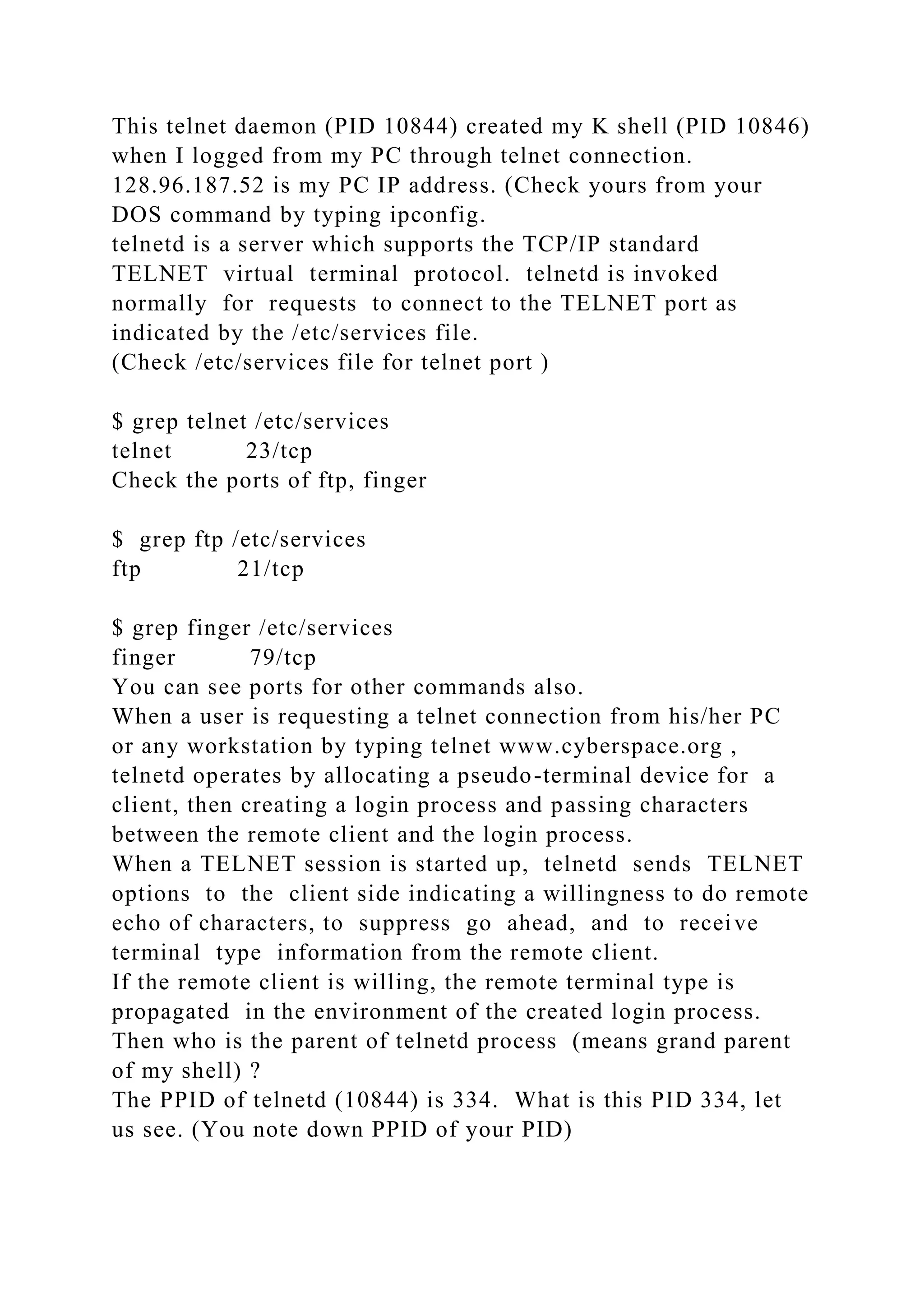
This telnet daemon (PID 10844) created my K shell (PID 10846)
when I logged from my PC through telnet connection.
128.96.187.52 is my PC IP address. (Check yours from your
DOS command by typing ipconfig.
telnetd is a server which supports the TCP/IP standard
TELNET virtual terminal protocol. telnetd is invoked
normally for requests to connect to the TELNET port as
indicated by the /etc/services file.
(Check /etc/services file for telnet port )
$ grep telnet /etc/services
telnet 23/tcp
Check the ports of ftp, finger
$ grep ftp /etc/services
ftp 21/tcp
$ grep finger /etc/services
finger 79/tcp
You can see ports for other commands also.
When a user is requesting a telnet connection from his/her PC
or any workstation by typing telnet www.cyberspace.org ,
telnetd operates by allocating a pseudo-terminal device for a
client, then creating a login process and passing characters
between the remote client and the login process.
When a TELNET session is started up, telnetd sends TELNET
options to the client side indicating a willingness to do remote
echo of characters, to suppress go ahead, and to receive
terminal type information from the remote client.
If the remote client is willing, the remote terminal type is
propagated in the environment of the created login process.
Then who is the parent of telnetd process (means grand parent
of my shell) ?
The PPID of telnetd (10844) is 334. What is this PID 334, let
us see. (You note down PPID of your PID)
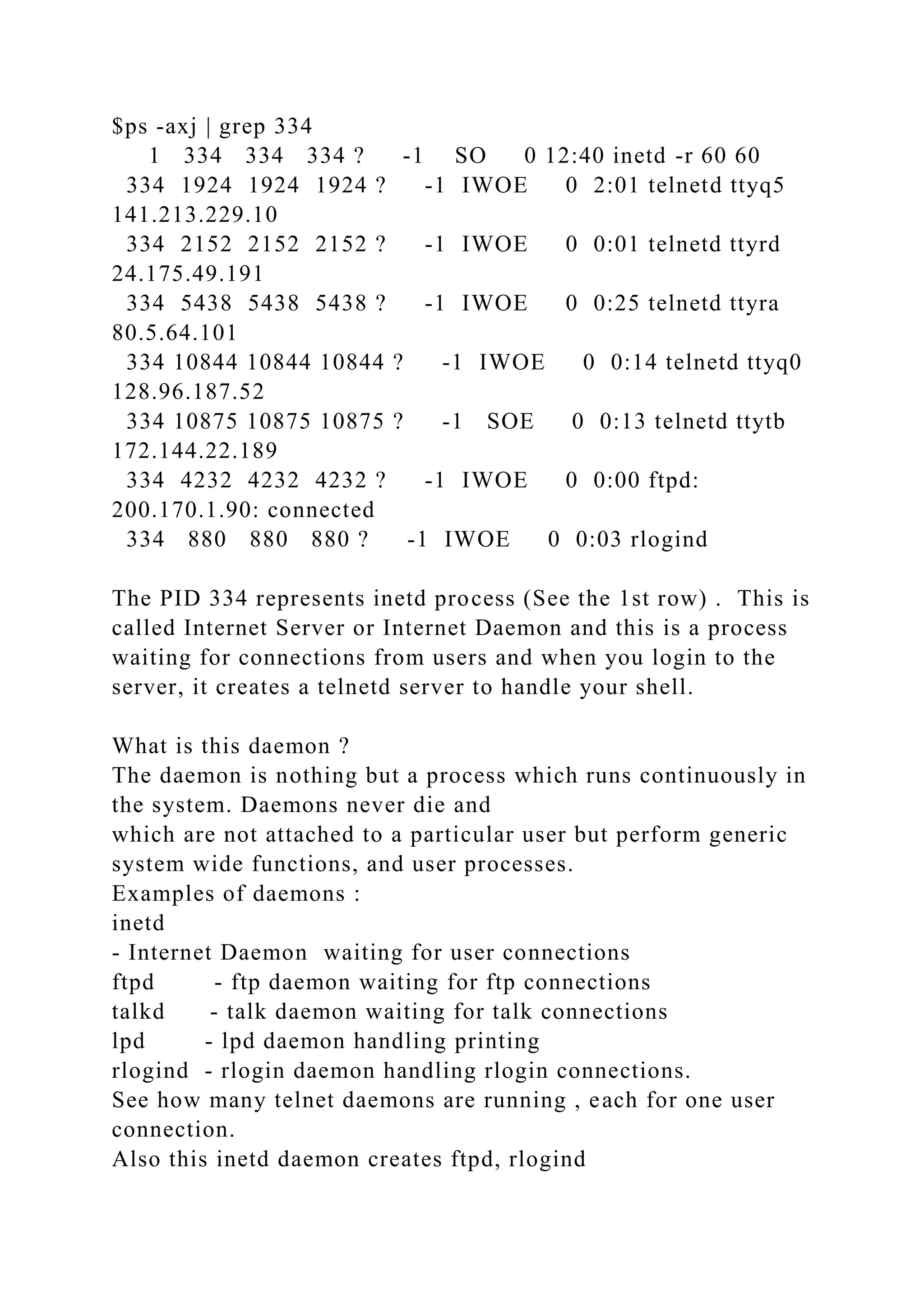
$ps -axj | grep 334
1 334 334 334 ? -1 SO 0 12:40 inetd -r 60 60
334 1924 1924 1924 ? -1 IWOE 0 2:01 telnetd ttyq5
141.213.229.10
334 2152 2152 2152 ? -1 IWOE 0 0:01 telnetd ttyrd
24.175.49.191
334 5438 5438 5438 ? -1 IWOE 0 0:25 telnetd ttyra
80.5.64.101
334 10844 10844 10844 ? -1 IWOE 0 0:14 telnetd ttyq0
128.96.187.52
334 10875 10875 10875 ? -1 SOE 0 0:13 telnetd ttytb
172.144.22.189
334 4232 4232 4232 ? -1 IWOE 0 0:00 ftpd:
200.170.1.90: connected
334 880 880 880 ? -1 IWOE 0 0:03 rlogind
The PID 334 represents inetd process (See the 1st row) . This is
called Internet Server or Internet Daemon and this is a process
waiting for connections from users and when you login to the
server, it creates a telnetd server to handle your shell.
What is this daemon ?
The daemon is nothing but a process which runs continuously in
the system. Daemons never die and
which are not attached to a particular user but perform generic
system wide functions, and user processes.
Examples of daemons :
inetd
- Internet Daemon waiting for user connections
ftpd - ftp daemon waiting for ftp connections
talkd - talk daemon waiting for talk connections
lpd - lpd daemon handling printing
rlogind - rlogin daemon handling rlogin connections.
See how many telnet daemons are running , each for one user
connection.
Also this inetd daemon creates ftpd, rlogind
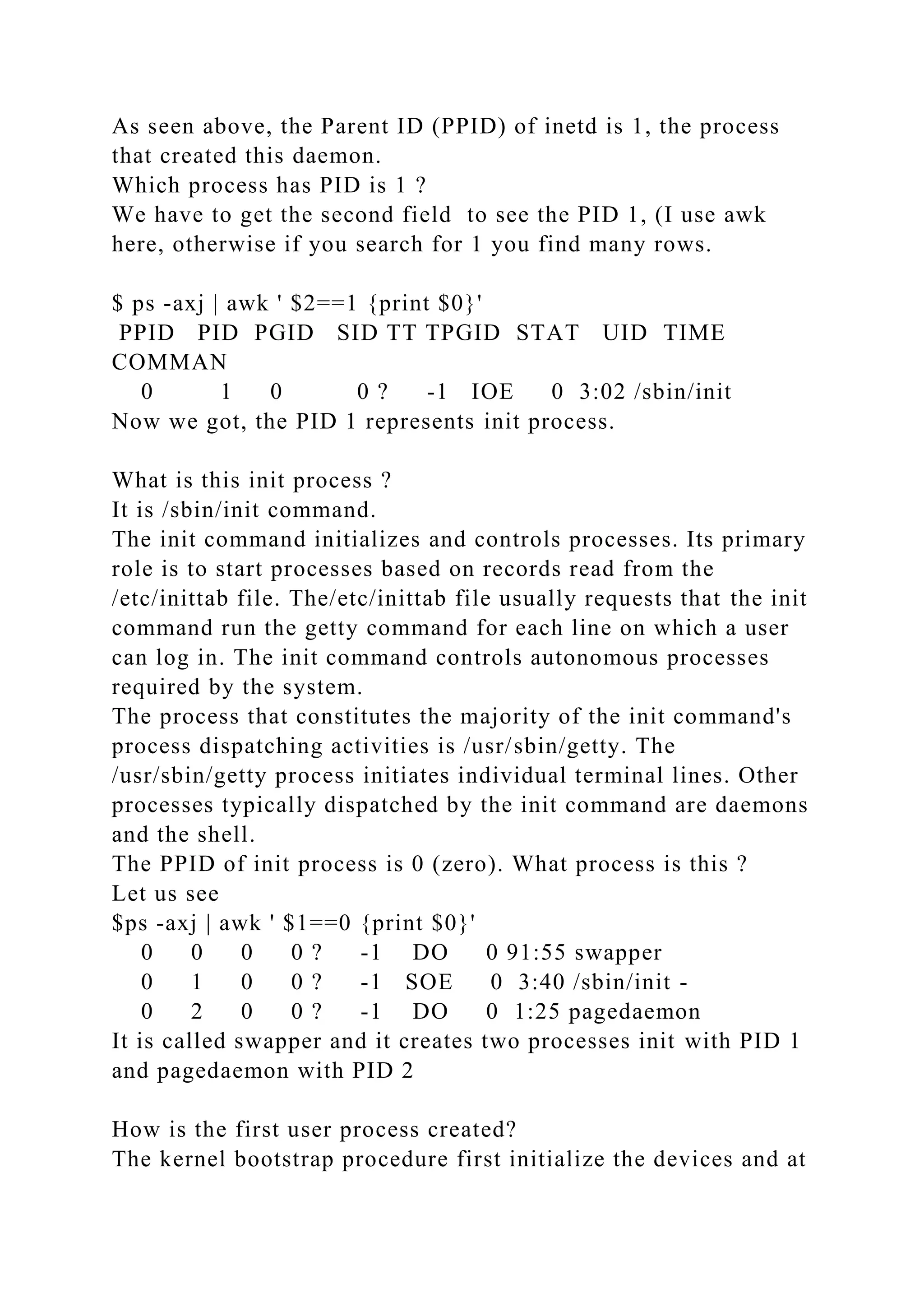
As seen above, the Parent ID (PPID) of inetd is 1, the process
that created this daemon.
Which process has PID is 1 ?
We have to get the second field to see the PID 1, (I use awk
here, otherwise if you search for 1 you find many rows.
$ ps -axj | awk ' $2==1 {print $0}'
PPID PID PGID SID TT TPGID STAT UID TIME
COMMAN
0 1 0 0 ? -1 IOE 0 3:02 /sbin/init
Now we got, the PID 1 represents init process.
What is this init process ?
It is /sbin/init command.
The init command initializes and controls processes. Its primary
role is to start processes based on records read from the
/etc/inittab file. The/etc/inittab file usually requests that the init
command run the getty command for each line on which a user
can log in. The init command controls autonomous processes
required by the system.
The process that constitutes the majority of the init command's
process dispatching activities is /usr/sbin/getty. The
/usr/sbin/getty process initiates individual terminal lines. Other
processes typically dispatched by the init command are daemons
and the shell.
The PPID of init process is 0 (zero). What process is this ?
Let us see
$ps -axj | awk ' $1==0 {print $0}'
0 0 0 0 ? -1 DO 0 91:55 swapper
0 1 0 0 ? -1 SOE 0 3:40 /sbin/init -
0 2 0 0 ? -1 DO 0 1:25 pagedaemon
It is called swapper and it creates two processes init with PID 1
and pagedaemon with PID 2
How is the first user process created?
The kernel bootstrap procedure first initialize the devices and at
the earliest possible moment sets up the first process (with PID
0). Soon thereafter, this process calls the kernel fork() routine
to create process 1. This latter process bootstraps itself, and
then starts /etc/init which spawns other user processes,
including the terminal login process. Init also runs a bunch of
scripts to start up daemons for different stuff.
What happens to process 0? It forks off a pagedaemon and itself
becomes the swapper process. These are kernel processes: they
have no user context, i.e. they run only in kernel mode.
Syam Tangirala
University of Phoenix Online Faculty
[email protected]
732-397-4997(CEL)

InstructionsInstructions for numberguessernumberGuesser.html.docx

  • 1.
    Instructions/Instructions for numberguesser/numberGuesser.html Instructions/Instructions fornumberguesser/Page 313.PNG Instructions/Instructions for numberguesser/Page 314 Continued.PNG Instructions/Instructions for numberguesser/Page 314.PNG Instructions/Instructions for numberguesser/Page 315 Continued.PNG Instructions/Instructions for numberguesser/Page 315.PNG Instructions/Instructions for numberguesser/Page 316 Continued.PNG Instructions/Instructions for numberguesser/page 316.PNG Instructions/Instructions for shoerental/Page 316.PNG Instructions/Instructions for shoerental/Page 317 Continued.PNG Instructions/Instructions for shoerental/Page 317.PNG Instructions/Instructions for shoerental/Page 318 Continued.PNG Instructions/Instructions for shoerental/Page 318.PNG Instructions/Instructions for shoerental/page 319 continued.PNG
  • 2.
    Instructions/Instructions for shoerental/Page319.PNG Instructions/Instructions for shoerental/Page 320.PNG Instructions/Instructions for shoerental/ShoeRentalClass.html Instructions/lab4.docx 1. Complete the Programmers Workshop on pg 313-316 (Including Detective Work). Upload the numberGuesser.html file here. 2. Complete the Object Lesson on pg 316-320 (Including Detective Work). Upload the ShoeRentalClass.html page you create here. Introduction to Unix - POS420 Unix Lab Exercise Week 5 Job Control : 1. How to suspend the jobs running in foreground ? Open a file in vi and press CTRL-Z to put it into background $ vi filename CTRL-Z filename[New file] [1] + Stopped vi filename $ where 1 is the job number, + or - make the current and previous jobs. 2. How to make it run in foreground ? You can use fg command to make it run in foreground. If more than one job is suspended, you can use fg %n where n is the
  • 3.
    number is thesequence of the process to make that process come in foreground. $ fg %1 Now you will see vi editor again. 3. How to make it run in background ? (Only stopped jobs) You can use bg command to make it run in background. If more than one job is suspended, you can use bg %n where n is the number is the sequence of the process to make that process come in background. Let us suspend this job one more time. $ vi filename CTRL-Z filename[New file] [1] + Stopped vi filename $ Let us run in background . $ bg %1 4. Another way to suspend a job by using kill command. Run vi in this session. Open another connection through telnet. Now you have two sessions. Type ps command to see what processes are running. $ ps PID TT STAT TIME COMMAND
  • 4.
    5226 q7 S0:01 -ksh (ksh) - This is new shell 6314 q7 R 0:00 ps 5487 ub S 0:00 -ksh (ksh) - This is previous shell 6312 ub S 0:00 vi filename - vi is running in previous session. Now send a STOP signal to the process. kill -l will give you a loist of signals. $ kill -STOP 6312 Now you will see this in the other session [1] + Stopped (signal) vi filename To put back into foreground, you can not put from this new session. Only from old session you can put using fg command. 5. How to terminate the job ? You have to use kill command with signam number 9 or KILL option ( See kill -l) $ kill -9 6312 will terminate the vi process. $ kill -9 5487 will terminate the previous session. 6. How to run a background job ? (This is a new job, not stopped job) $ who | wc & [1] 7612 7613 $ 31 186 1468
  • 5.
    When the jobis finished, the shell prints the message [1] + Done who | wc 7. How to use jobs command ? Give a long command and put in background. You can see the PID of that process. $ find / -name *.c -print 2>/dev/null & [1] 8192 $ ps PID TT STAT TIME COMMAND 5226 q7 S 0:02 -ksh (ksh) 8192 q7 R 0:04 find / -name first.c -print 8193 q7 R 0:03 ps 5487 ub IW 0:01 -ksh (ksh) Type jobs to see background jobs. $ jobs [1] + Running find / -name *.c -print Run one more job $ find / -name *.h -print 2>/dev/null & [2] 8306 $ jobs [2] + Running find / -name *.h -print [1] - Running find / -name *.c -print Let us terminate the second job $ kill %2$ jobs [2] + Terminated find / -name *.h -print [1] - Running find / -name *.c -print Now we have only one job running in the background. Let us make it run in foreground
  • 6.
    $ fg %1 find/ -name *.c -print /usr/local/var/first.c /usr/locl/var/second.c ... . Let us stop it. (Press CTRL-Z) ^Z[1] + Stopped find / -name *.c -print $jobs [1] + Stopped find / -name *.c -print Let us terminate this job also $ kill %1 [1] + Terminated find / -name *.c -print $ jobs$ Now no jobs are running. Some more examples: 1. Let us run a job in background [email protected] /tmp $ find / -name "somefile" -print 2>/dev/null & [1] 13564 [email protected] /tmp $ jobs [1]+ Running find / -name "somefile" -print 2>/dev/null & 2. Let us bring it into foreground and then stop [email protected] /tmp $ fg %1 find / -name "somefile" -print 2>/dev/null
  • 7.
    CTRL Z [1]+ Stoppedfind / -name "somefile" -print 2>/dev/null [email protected] /tmp> jobs [1]+ Stopped find / -name "somefile" -print 2>/dev/null 3. Let us put back into background [email protected] /tmp> bg %1 [1]+ find / -name "somefile" -print 2>/dev/null & [email protected] /tmp> jobs [1]+ Running find / -name "somefile" -print 2>/dev/null & 4. Let us stop the background job [email protected] /tmp> kill -STOP %1 [email protected] /tmp> jobs [1]+ Stopped find / -name "somefile" -print 2>/dev/null 5. Let us terminate the background job [email protected] /tmp> kill %1 [1]+ Stopped find / -name "somefile" -print 2>/dev/null [email protected] /tmp> jobs [1]+ Terminated find / -name "somefile" -print 2>/dev/null Processes in UNIX :
  • 8.
    I prefer alwaysstudents know what is going on behind the system when a user types commands, how a command is executed, who is executing our commands. ps command is an important command and handles all processing info and that is why it differs from unix flavor to flavor. AIX ps is different from Solaris and HP is different from AIX. The exercises are prepared based on Solaris. They may not work on AIX or HP- UX. See their man page if you are running on AIX or HP Let us see how ps command works. 1. Type ps command to see the process number of the processes running. $ ps PID TT STAT TIME COMMAND 10846 q0 S 0:02 -ksh (ksh) 12070 q0 R 0:00 ps PID = The process ID of the process TT = The controlling workstation for the process STAT = The state of the process R - Runnable Process T -Stopped Process S - Sleeping process I - Idle Process Z - Zombie Process TIME = The total execution time for the process 2. Let us what processes are running in this system under my username (Type your name) $ ps -u USER PID %CPU %MEM SZ RSS TT STAT START
  • 9.
    TIME COMMAND stangira 1174545.9 0.2 224 476 q0 R 15:38 0:01 ps -u stangira 10846 0.0 0.1 72 248 q0 S 15:30 0:01 -ksh (ksh) 3. Let us see the command line arguments also $ ps -e PID TT STAT TIME COMMAND 10846 q0 S 0:02 -ksh TERM=xterm TZ=EST5EDT HZ=50 HOME=/d/s/t/stangira SHELL=/usr/local/bin/ksh 12676 q0 R 0:01 ps -e _=/bin/ps LINES=39 MANPATH=/usr/local/man:/usr/man PATH=/usr/local/bin The first one is my shell command /use/local/bin/ksh and the second one is ps -e executed by /bin/ps and looking for -e option in man pages using MANPATH 4. Let us see long listing of my processes $ ps -j PPID PID PGID SID TT TPGID STAT UID TIME COMMAND 10844 10846 10846 10846 q0 13166 SOE 58557 0:03 -ksh (ksh) 10846 13166 13166 10846 q0 13166 RE 58557 0:01 ps -j 5. For all the process in the whole system, type -a option for all processes owned by others -x option for processes without control terminals -ax option for all processes -j option for long listing $ ps -axj You will see all the processes in the system 6. Let us see how processes are created in the system. Here my Process ID is 10846 (ksh). Note down your PID of your shell. Do not log off from the system until you see the hierarchy of your processes. If you log off, start one more time with new PID of your shell.
  • 10.
    $ ps PID TTSTAT TIME COMMAND 10846 q0 S 0:02 -ksh (ksh) 12070 q0 R 0:00 ps Then which process created my K shell $ ps -j PPID PID PGID SID TT TPGID STAT UID TIME COMMAND 10844 10846 10846 10846 q0 13166 SOE 58557 0:03 -ksh (ksh) 10846 13166 13166 10846 q0 13166 RE 58557 0:01 ps -j 10844 is Parent Id (PPID) of my process 10846. Then, what is the name of the Parent ? $ ps -axj | grep 10844 334 10844 10844 10844 ? -1 SOE 0 0:12 telnetd ttyq0 128.96.187.52 10844 10846 10846 10846 q0 18005 SOE 58557 0:07 -ksh (ksh) 10846 18006 18005 10846 q0 18005 SE 58557 0:00 grep 10844 See closely the 1st row PPID PID COMMAND 334 10844 10844 10844 ? -1 SOE 0 0:12 telnetd ttyq0 128.96.187.52 It is telnet process (1st row above) . The process name is telnetd. It is a TCP/IP TELNET protocol server.
  • 11.
    This telnet daemon(PID 10844) created my K shell (PID 10846) when I logged from my PC through telnet connection. 128.96.187.52 is my PC IP address. (Check yours from your DOS command by typing ipconfig. telnetd is a server which supports the TCP/IP standard TELNET virtual terminal protocol. telnetd is invoked normally for requests to connect to the TELNET port as indicated by the /etc/services file. (Check /etc/services file for telnet port ) $ grep telnet /etc/services telnet 23/tcp Check the ports of ftp, finger $ grep ftp /etc/services ftp 21/tcp $ grep finger /etc/services finger 79/tcp You can see ports for other commands also. When a user is requesting a telnet connection from his/her PC or any workstation by typing telnet www.cyberspace.org , telnetd operates by allocating a pseudo-terminal device for a client, then creating a login process and passing characters between the remote client and the login process. When a TELNET session is started up, telnetd sends TELNET options to the client side indicating a willingness to do remote echo of characters, to suppress go ahead, and to receive terminal type information from the remote client. If the remote client is willing, the remote terminal type is propagated in the environment of the created login process. Then who is the parent of telnetd process (means grand parent of my shell) ? The PPID of telnetd (10844) is 334. What is this PID 334, let us see. (You note down PPID of your PID)
  • 12.
    $ps -axj |grep 334 1 334 334 334 ? -1 SO 0 12:40 inetd -r 60 60 334 1924 1924 1924 ? -1 IWOE 0 2:01 telnetd ttyq5 141.213.229.10 334 2152 2152 2152 ? -1 IWOE 0 0:01 telnetd ttyrd 24.175.49.191 334 5438 5438 5438 ? -1 IWOE 0 0:25 telnetd ttyra 80.5.64.101 334 10844 10844 10844 ? -1 IWOE 0 0:14 telnetd ttyq0 128.96.187.52 334 10875 10875 10875 ? -1 SOE 0 0:13 telnetd ttytb 172.144.22.189 334 4232 4232 4232 ? -1 IWOE 0 0:00 ftpd: 200.170.1.90: connected 334 880 880 880 ? -1 IWOE 0 0:03 rlogind The PID 334 represents inetd process (See the 1st row) . This is called Internet Server or Internet Daemon and this is a process waiting for connections from users and when you login to the server, it creates a telnetd server to handle your shell. What is this daemon ? The daemon is nothing but a process which runs continuously in the system. Daemons never die and which are not attached to a particular user but perform generic system wide functions, and user processes. Examples of daemons : inetd - Internet Daemon waiting for user connections ftpd - ftp daemon waiting for ftp connections talkd - talk daemon waiting for talk connections lpd - lpd daemon handling printing rlogind - rlogin daemon handling rlogin connections. See how many telnet daemons are running , each for one user connection. Also this inetd daemon creates ftpd, rlogind
  • 13.
    As seen above,the Parent ID (PPID) of inetd is 1, the process that created this daemon. Which process has PID is 1 ? We have to get the second field to see the PID 1, (I use awk here, otherwise if you search for 1 you find many rows. $ ps -axj | awk ' $2==1 {print $0}' PPID PID PGID SID TT TPGID STAT UID TIME COMMAN 0 1 0 0 ? -1 IOE 0 3:02 /sbin/init Now we got, the PID 1 represents init process. What is this init process ? It is /sbin/init command. The init command initializes and controls processes. Its primary role is to start processes based on records read from the /etc/inittab file. The/etc/inittab file usually requests that the init command run the getty command for each line on which a user can log in. The init command controls autonomous processes required by the system. The process that constitutes the majority of the init command's process dispatching activities is /usr/sbin/getty. The /usr/sbin/getty process initiates individual terminal lines. Other processes typically dispatched by the init command are daemons and the shell. The PPID of init process is 0 (zero). What process is this ? Let us see $ps -axj | awk ' $1==0 {print $0}' 0 0 0 0 ? -1 DO 0 91:55 swapper 0 1 0 0 ? -1 SOE 0 3:40 /sbin/init - 0 2 0 0 ? -1 DO 0 1:25 pagedaemon It is called swapper and it creates two processes init with PID 1 and pagedaemon with PID 2 How is the first user process created? The kernel bootstrap procedure first initialize the devices and at
  • 14.
    the earliest possiblemoment sets up the first process (with PID 0). Soon thereafter, this process calls the kernel fork() routine to create process 1. This latter process bootstraps itself, and then starts /etc/init which spawns other user processes, including the terminal login process. Init also runs a bunch of scripts to start up daemons for different stuff. What happens to process 0? It forks off a pagedaemon and itself becomes the swapper process. These are kernel processes: they have no user context, i.e. they run only in kernel mode. Syam Tangirala University of Phoenix Online Faculty [email protected] 732-397-4997(CEL)