Installing WebSphere Application
Server v7 on Red Hat Enterprise
Linux v6.3
Dave Hay
IBM Software Services for WebSphere
david_hay@uk.ibm.com // +44 7802 918423
Pre-Requisites
●

Red Hat Enterprise Linux 6.3 x86-64 – vanilla installation, not patched
$ uname -a
Linux vinny.uk.ibm.com 2.6.32-279.el6.x86_64 #1 SMP Wed Jun 13
18:24:36 EDT 2012 x86_64 x86_64 x86_64 GNU/Linux
$ cat /etc/redhat-release
Red Hat Enterprise Linux Server release 6.3 (Santiago)

●

WebSphere Application Server Network Deployment V7.0 for Linux on x86, 64-bit
C1G35ML.tar.gz
http://www-01.ibm.com/support/docview.wss?uid=swg27013044
Linux Preparation
●

Preparing Linux systems for installation
http://pic.dhe.ibm.com/infocenter/wasinfo/v7r0/topic/com.ibm.websphere.installation.nd.doc/info/
ae/ae/tins_linuxsetup.html

●

Preparing Red Hat Enterprise Linux 6 for installation
http://pic.dhe.ibm.com/infocenter/wasinfo/v7r0/topic/com.ibm.websphere.installation.nd.doc/info/
ae/ae/tins_linuxsetup_rhel6.html
Specifically: –

Disabled SELinux by setting SELINUX=disabled in /etc/selinux/config

–

IPTables disabled by chkconfig iptables --levels 345 off and service iptables stop

–

Used yum to install pre-requisite libraries including compat-libstdc++-33-3.2.3-69,
libXmu-1.0.5-1 and libXft-2.1.13-4.1 etc.
Other Notes
●
●

●

●
●

Installing as root – not usually recommended
Installing via GUI – often not an option,
especially on client sites
Not installing fixes/fixpacks – typically, this
would be the next logical step
Not creating additional WebSphere profiles
RHEL is running on VMware Fusion 5 – almost
certainly irrelevant
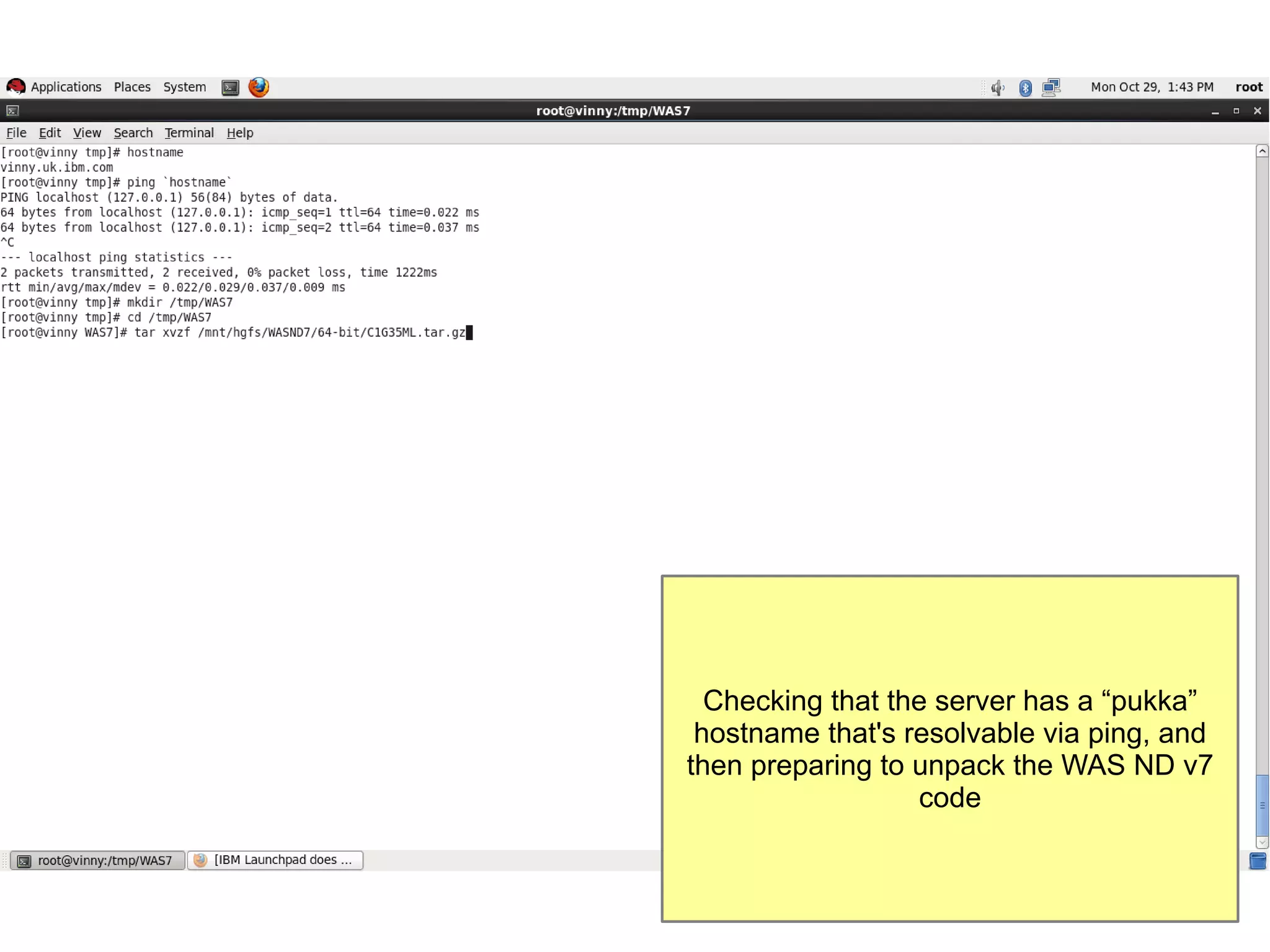
Checking that the server has a “pukka”
hostname that's resolvable via ping, and
then preparing to unpack the WAS ND v7
code
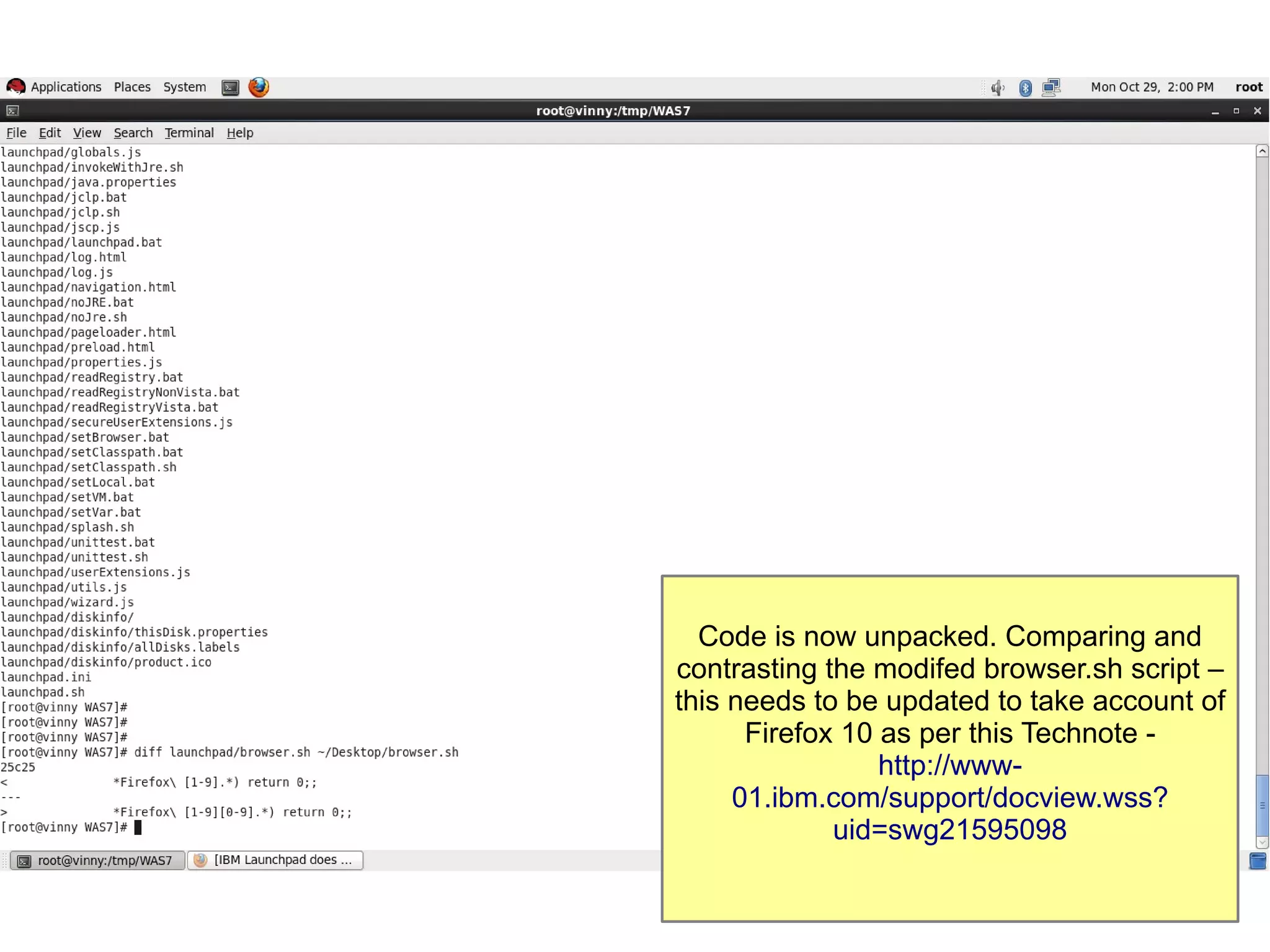
Code is now unpacked. Comparing and
contrasting the modifed browser.sh script –
this needs to be updated to take account of
Firefox 10 as per this Technote http://www01.ibm.com/support/docview.wss?
uid=swg21595098
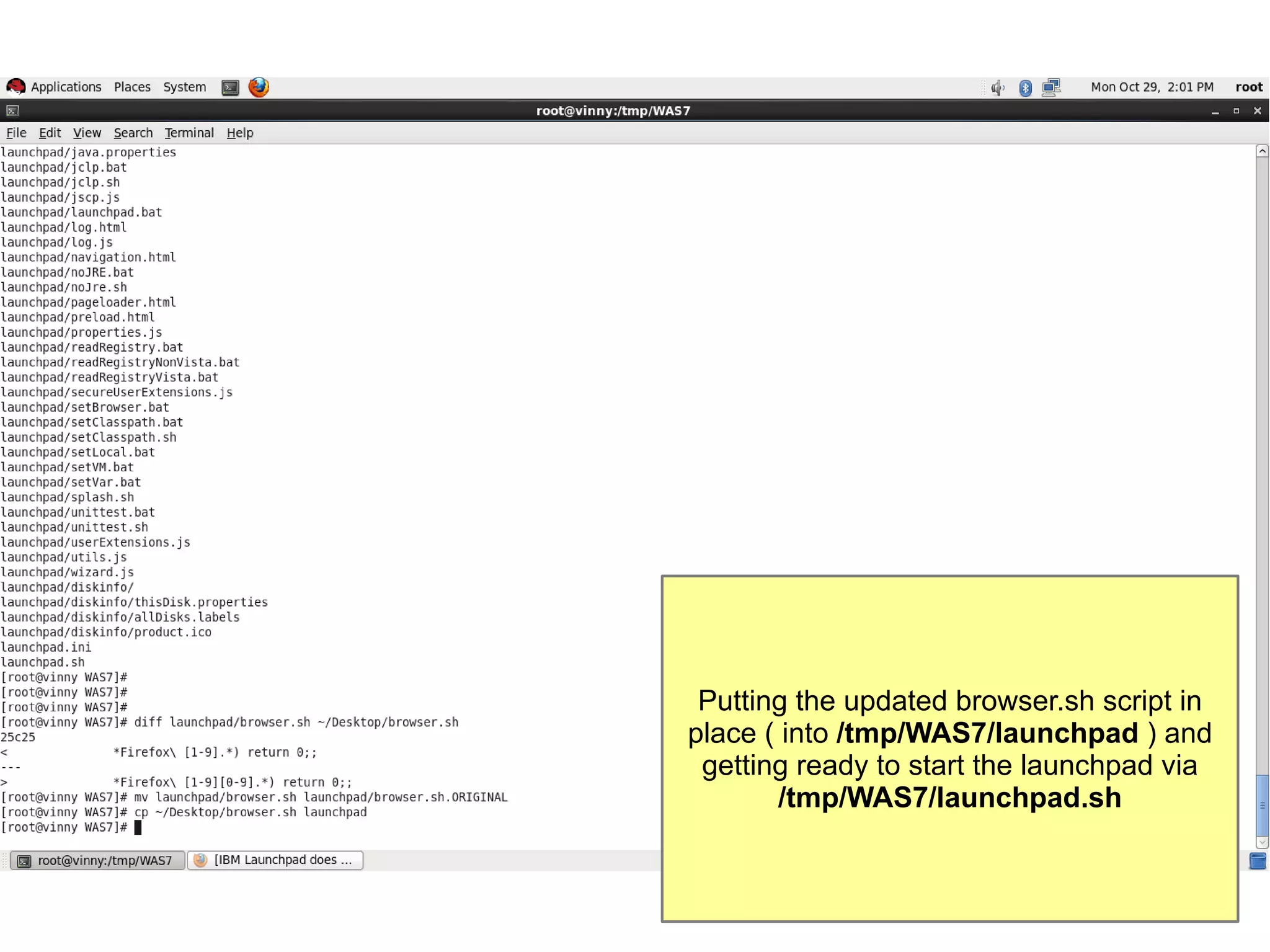
Putting the updated browser.sh script in
place ( into /tmp/WAS7/launchpad ) and
getting ready to start the launchpad via
/tmp/WAS7/launchpad.sh
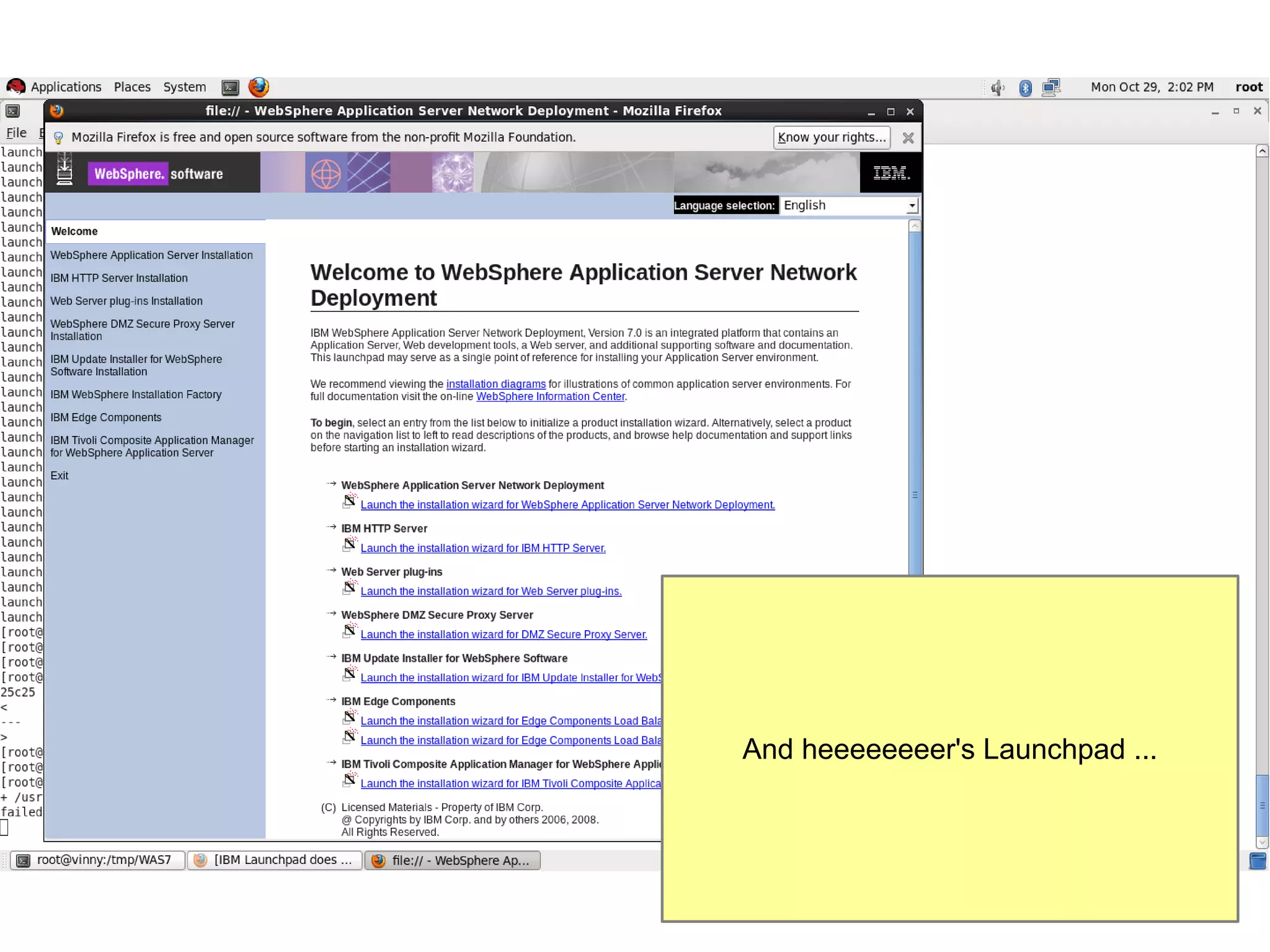
And heeeeeeeer's Launchpad ...
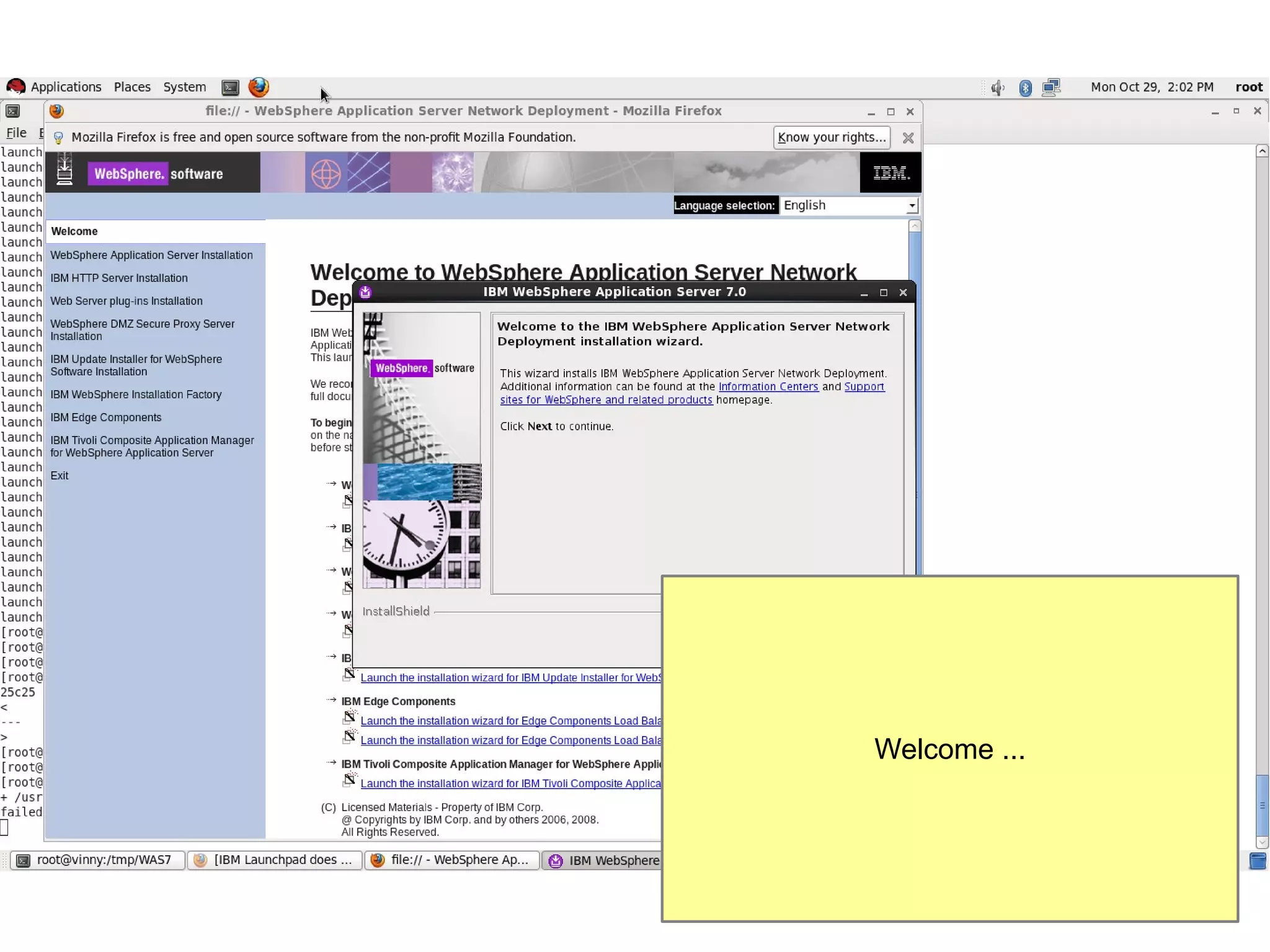
Welcome ...
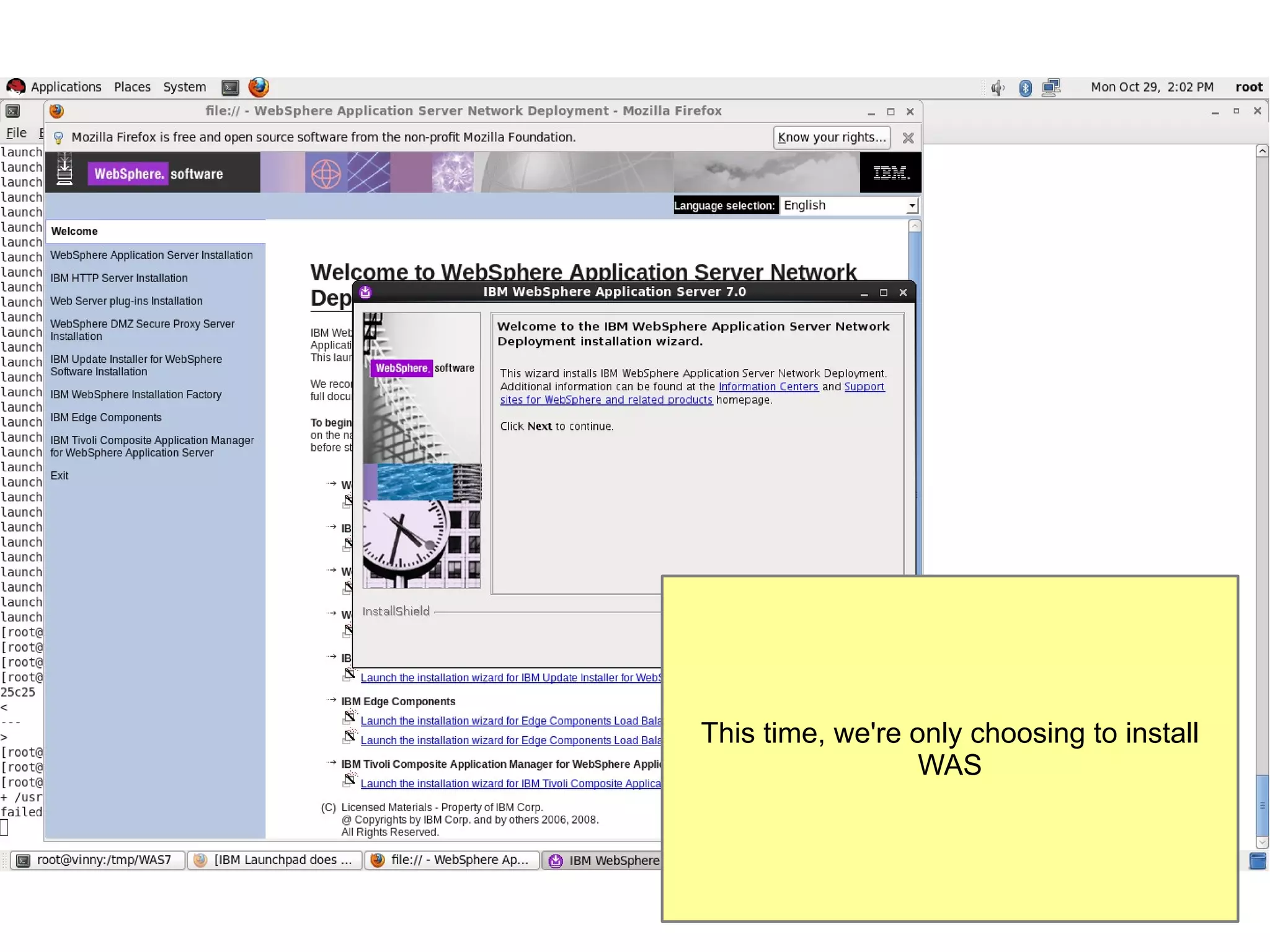
This time, we're only choosing to install
WAS
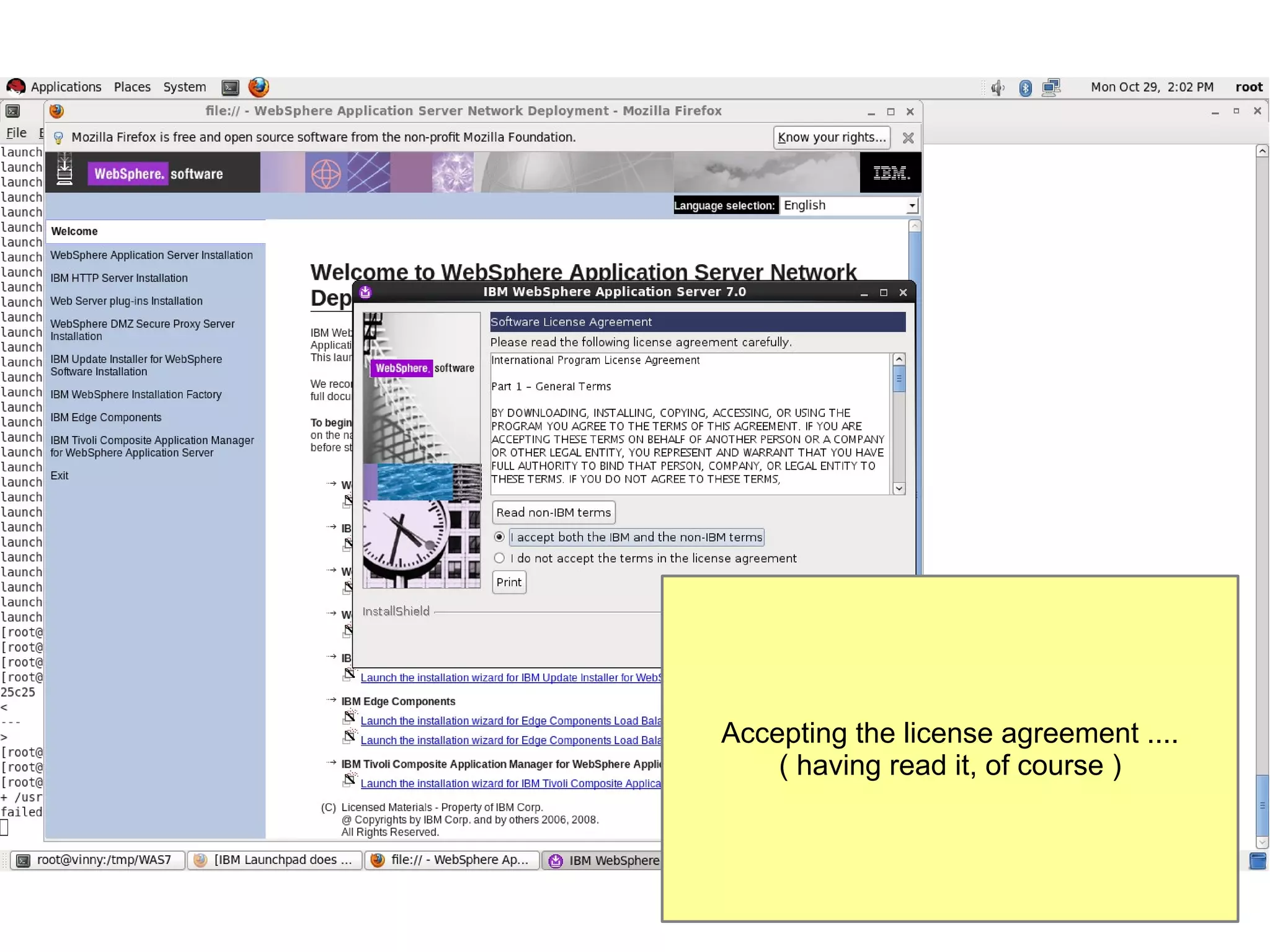
Accepting the license agreement ....
( having read it, of course )
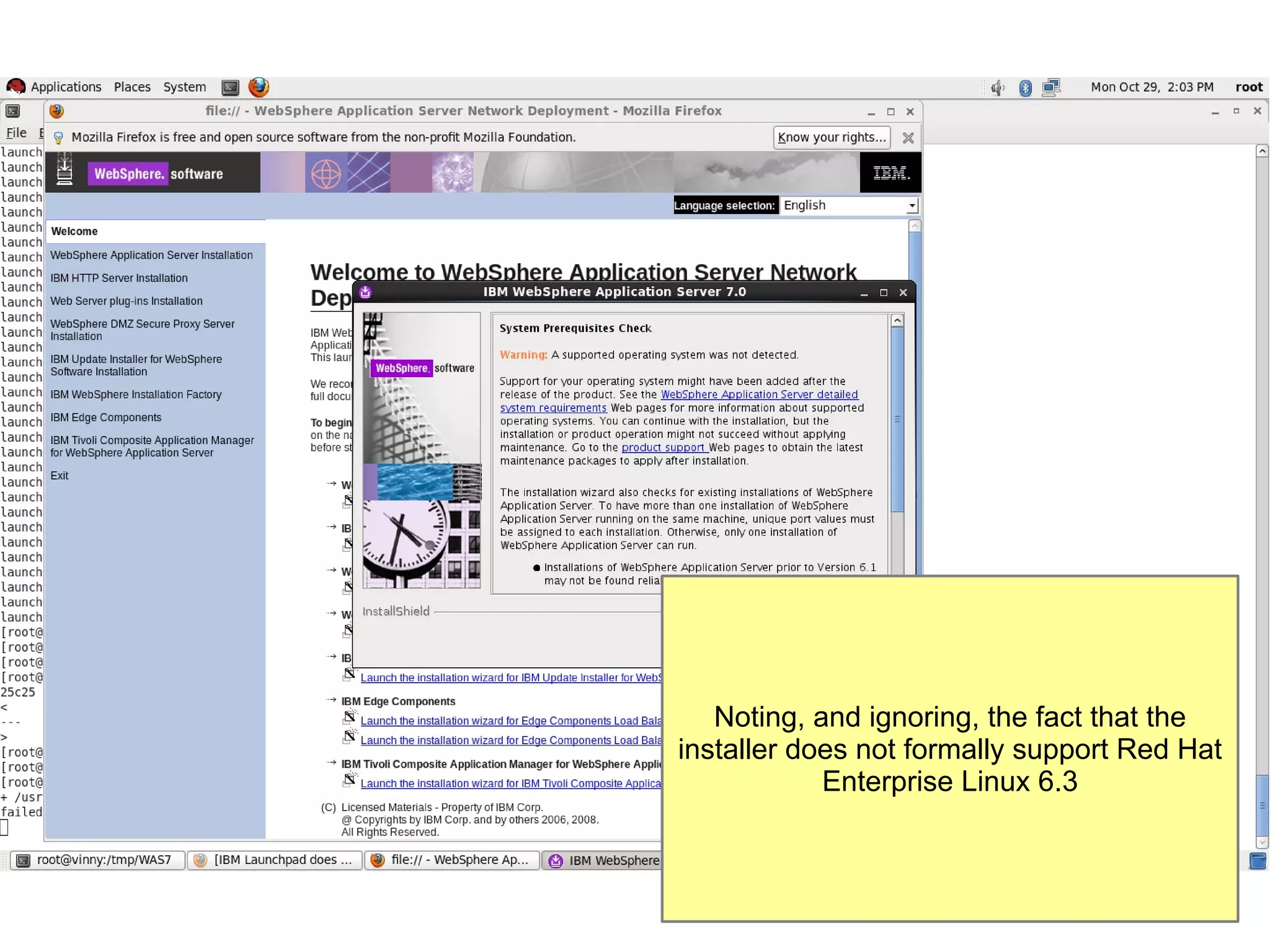
Noting, and ignoring, the fact that the
installer does not formally support Red Hat
Enterprise Linux 6.3
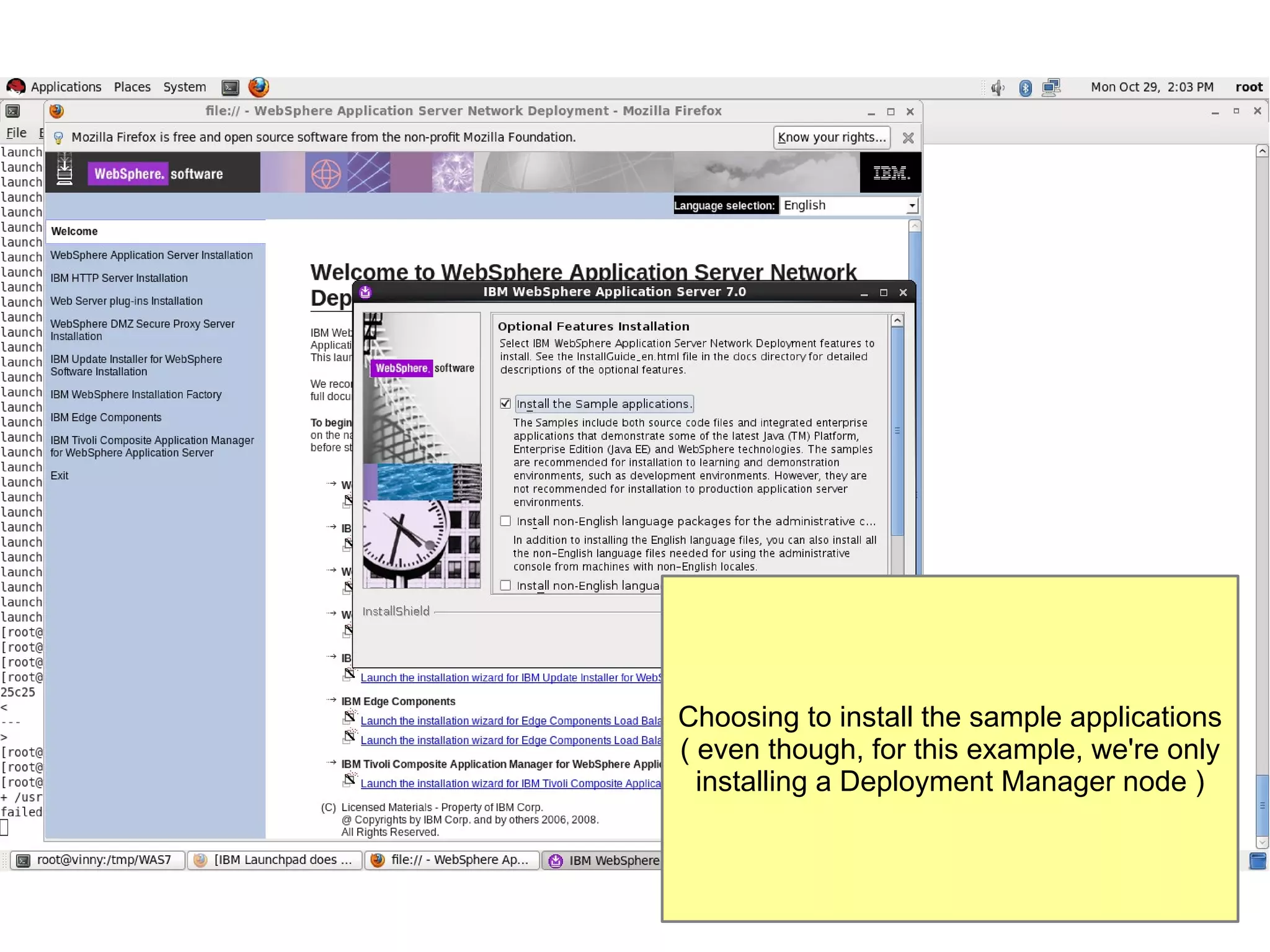
Choosing to install the sample applications
( even though, for this example, we're only
installing a Deployment Manager node )
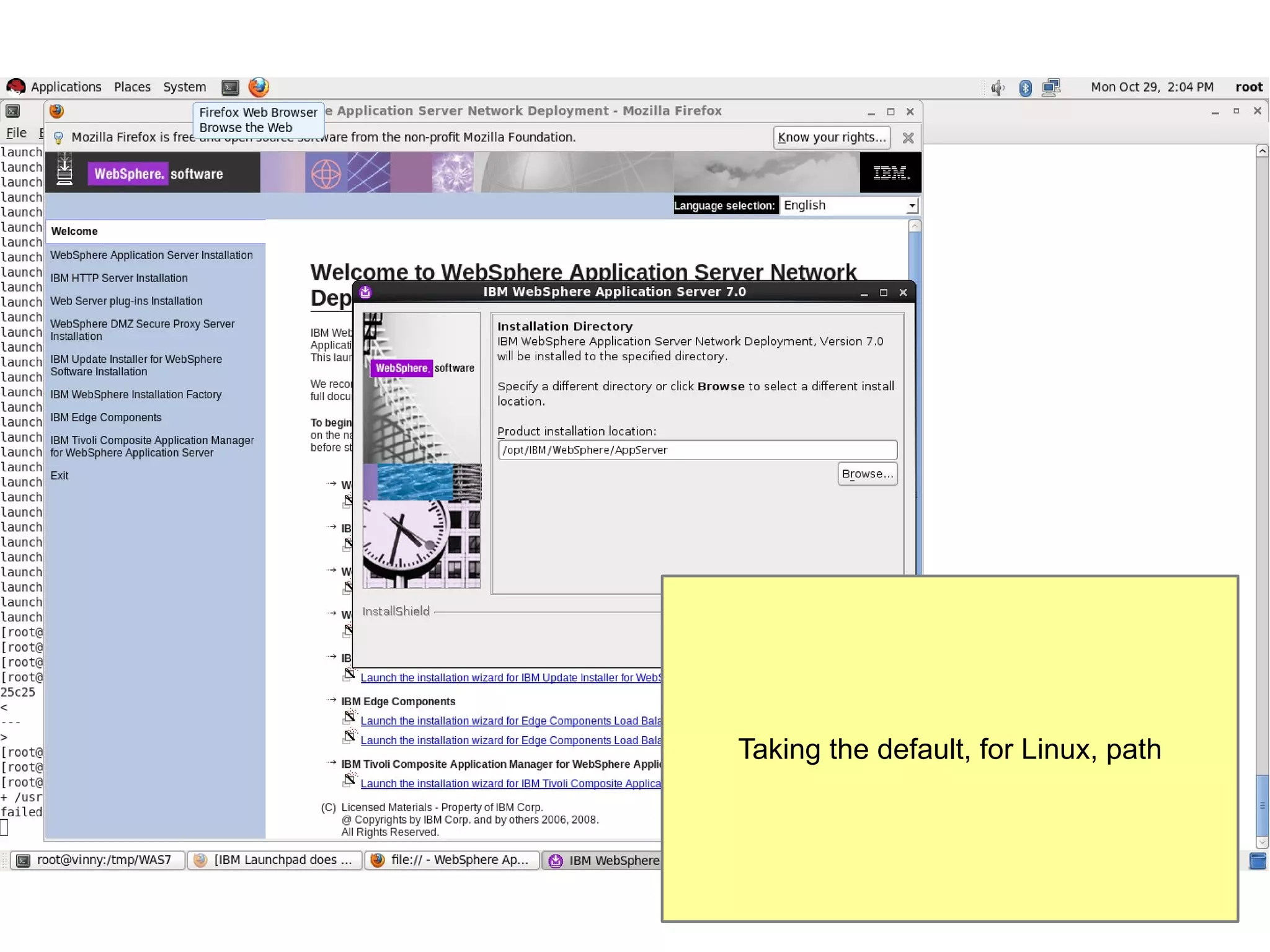
Taking the default, for Linux, path
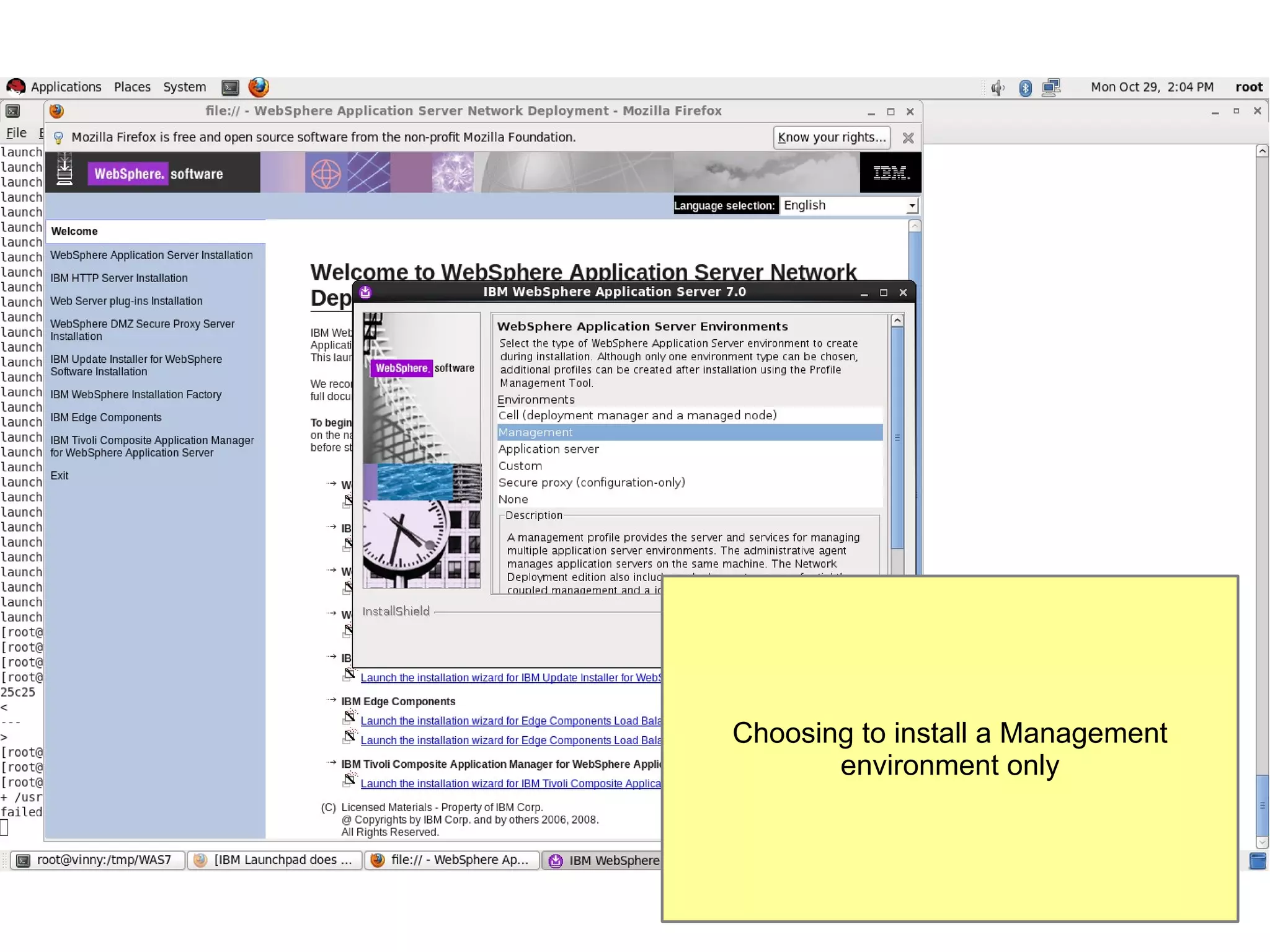
Choosing to install a Management
environment only
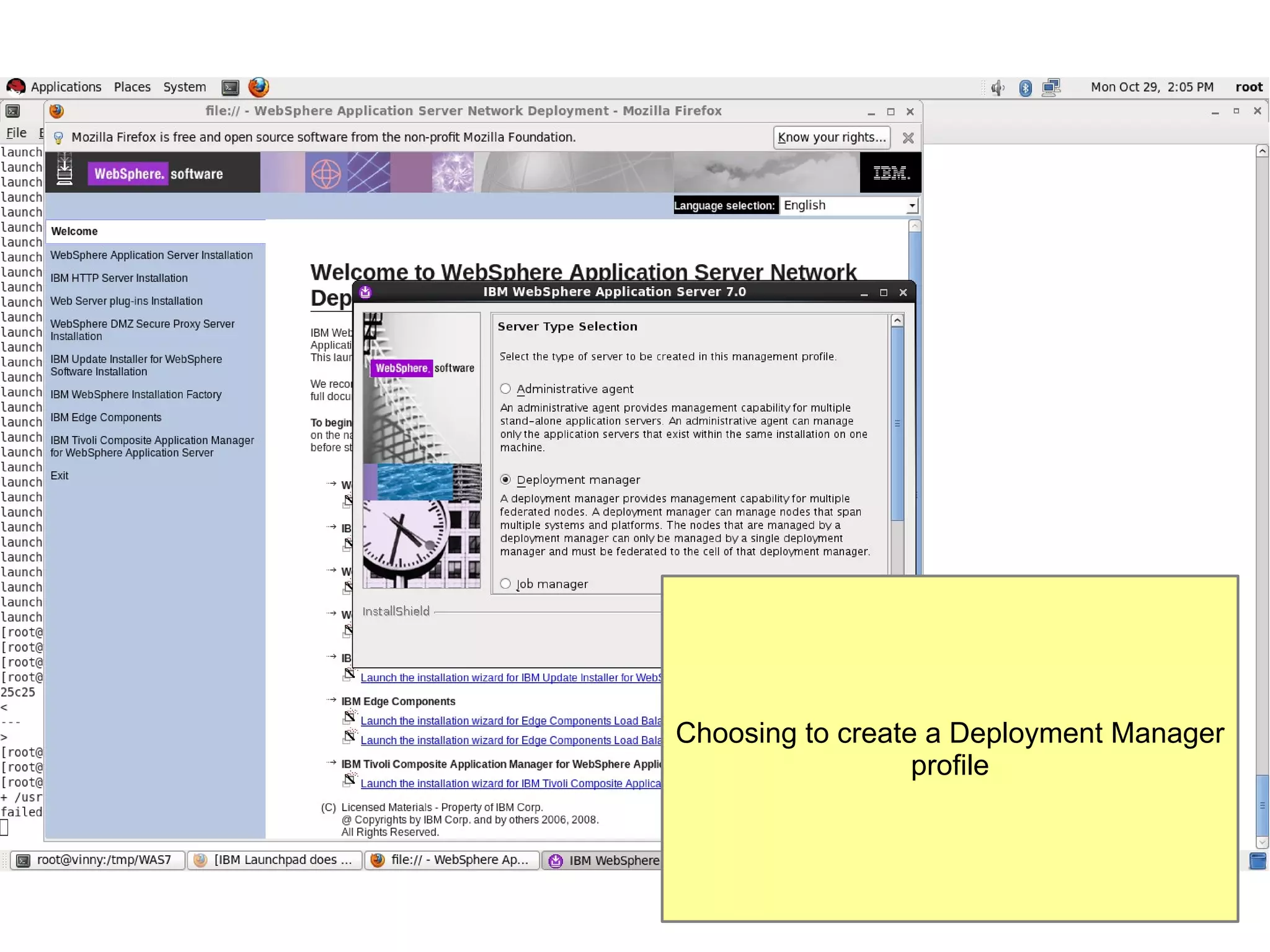
Choosing to create a Deployment Manager
profile
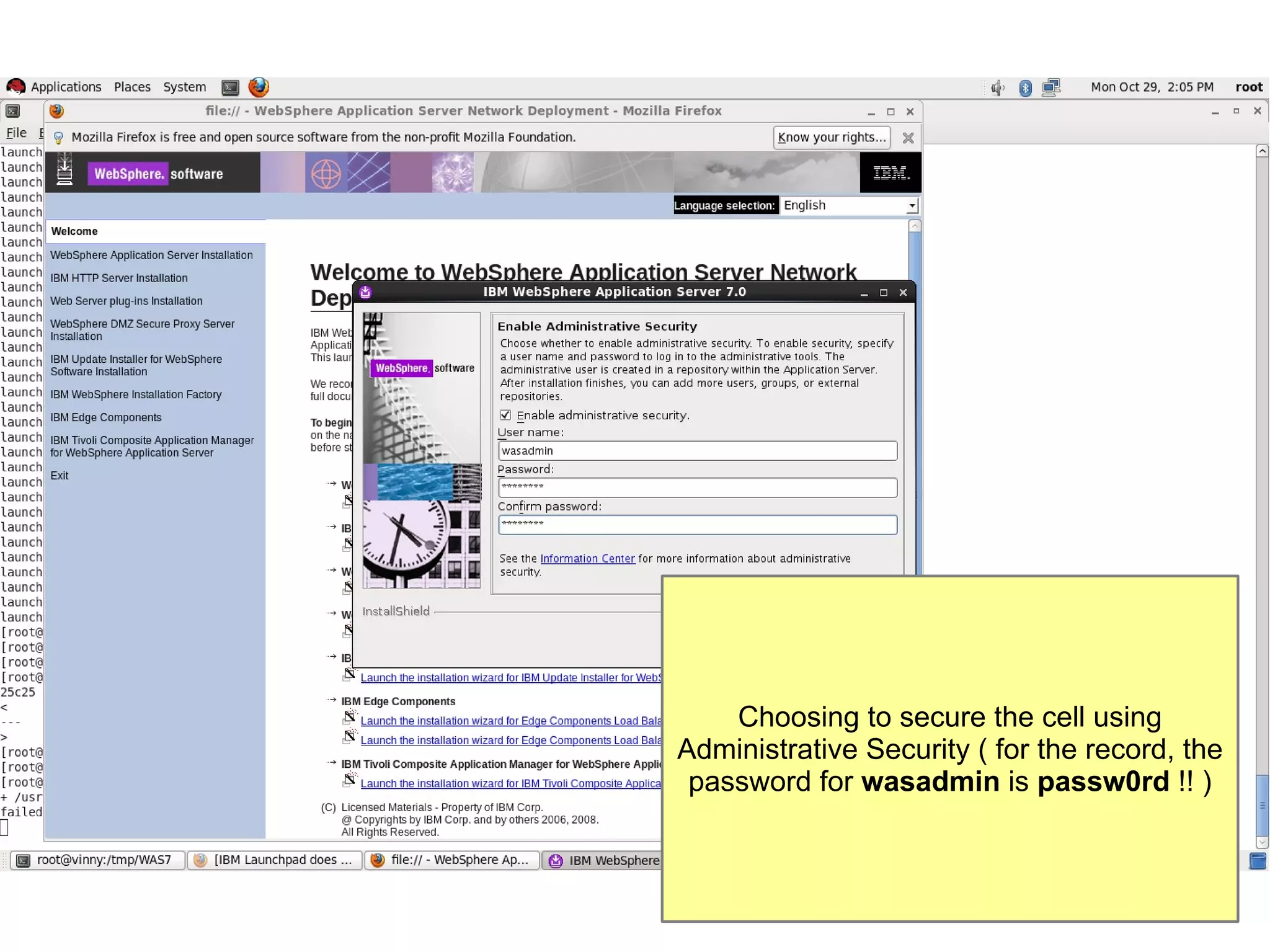
Choosing to secure the cell using
Administrative Security ( for the record, the
password for wasadmin is passw0rd !! )
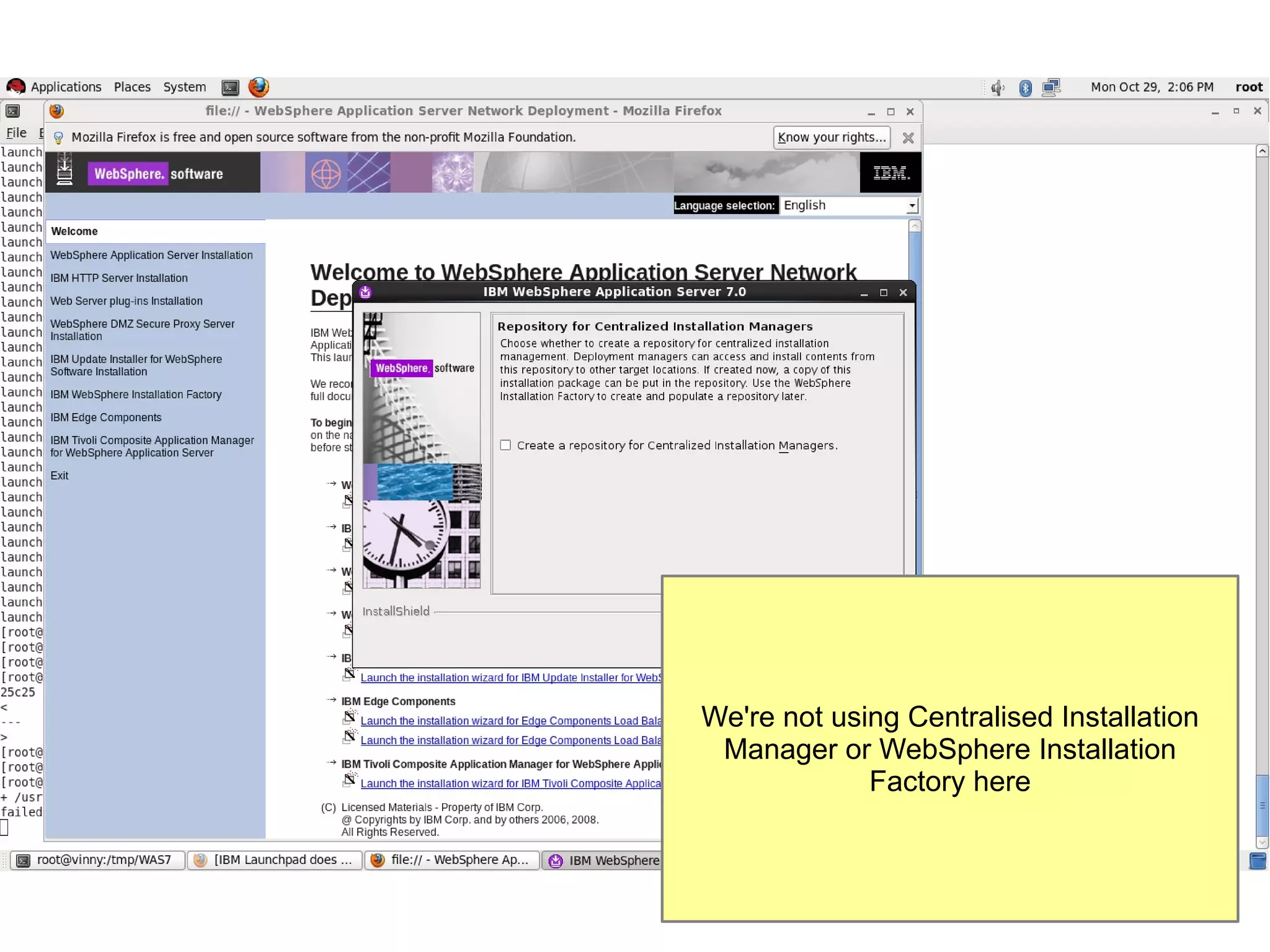
We're not using Centralised Installation
Manager or WebSphere Installation
Factory here
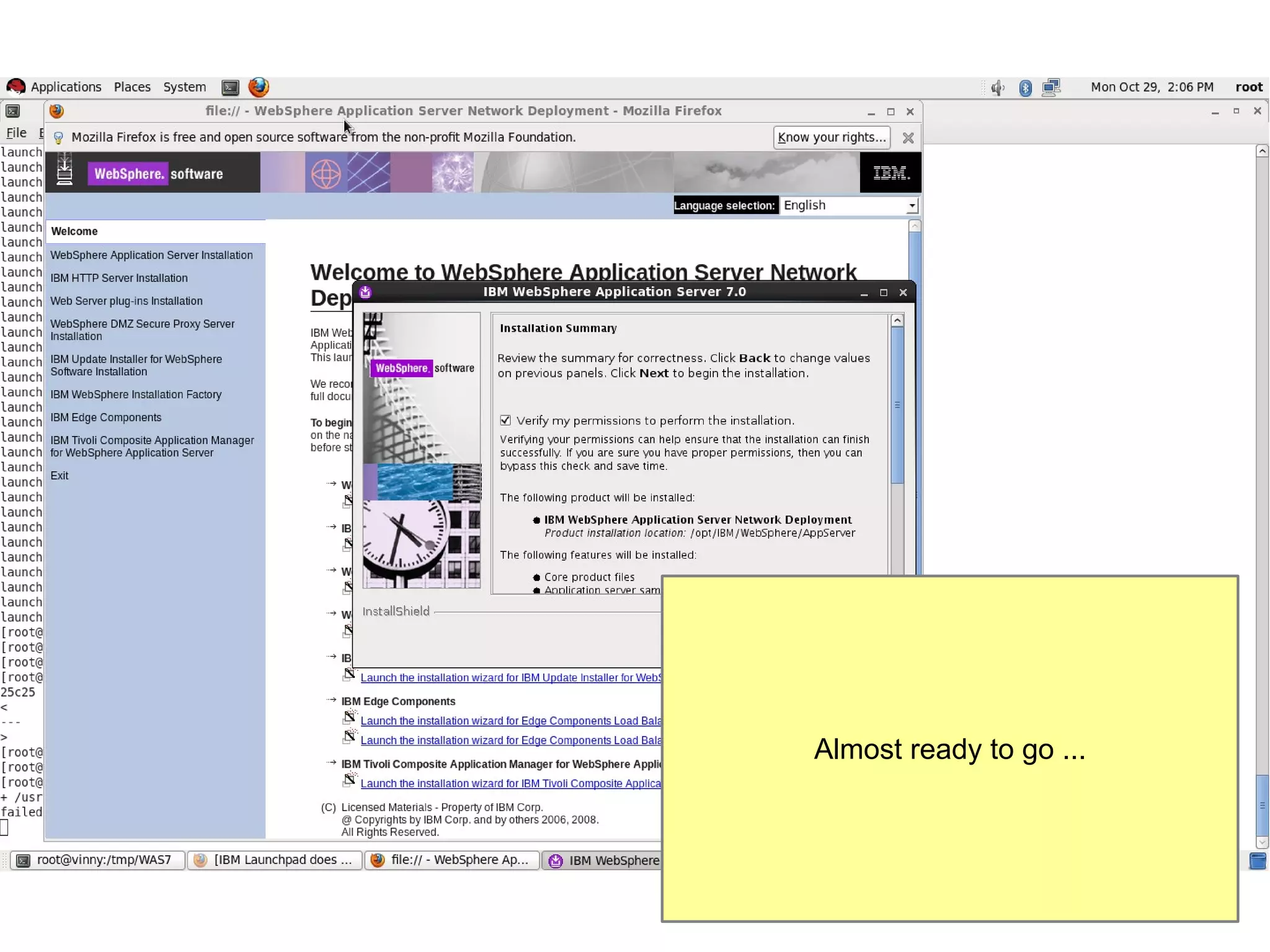
Almost ready to go ...
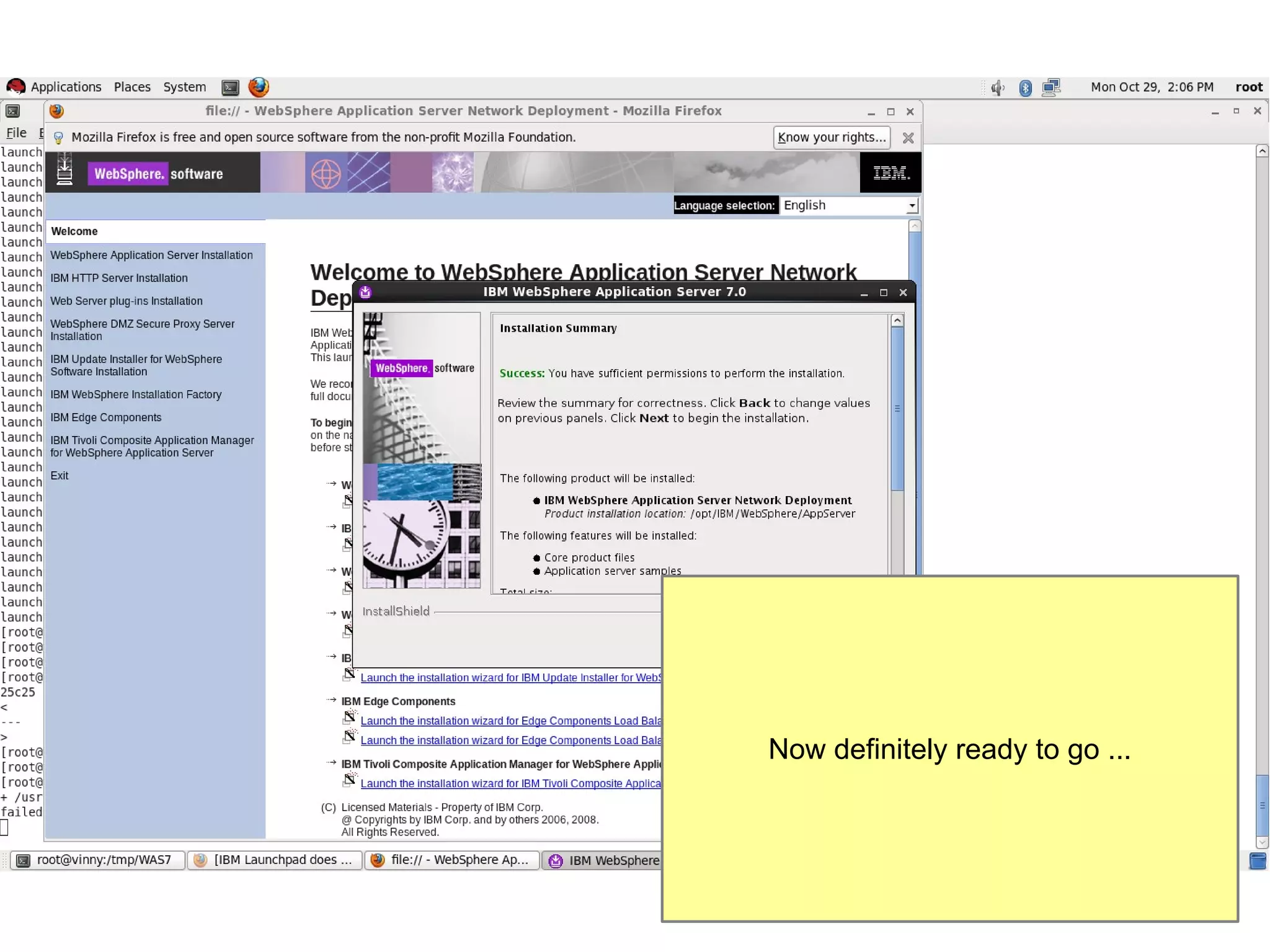
Now definitely ready to go ...
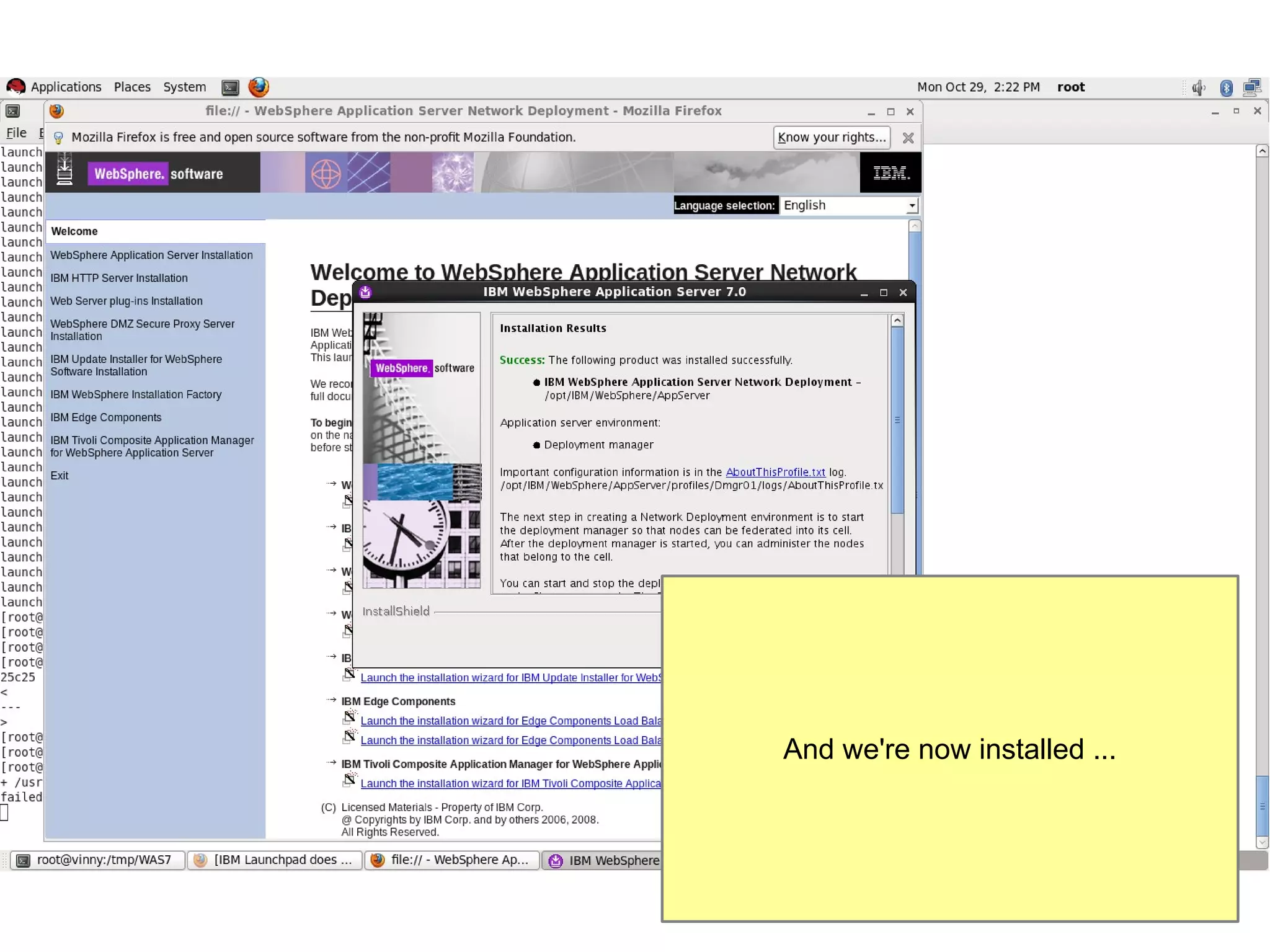
And we're now installed ...
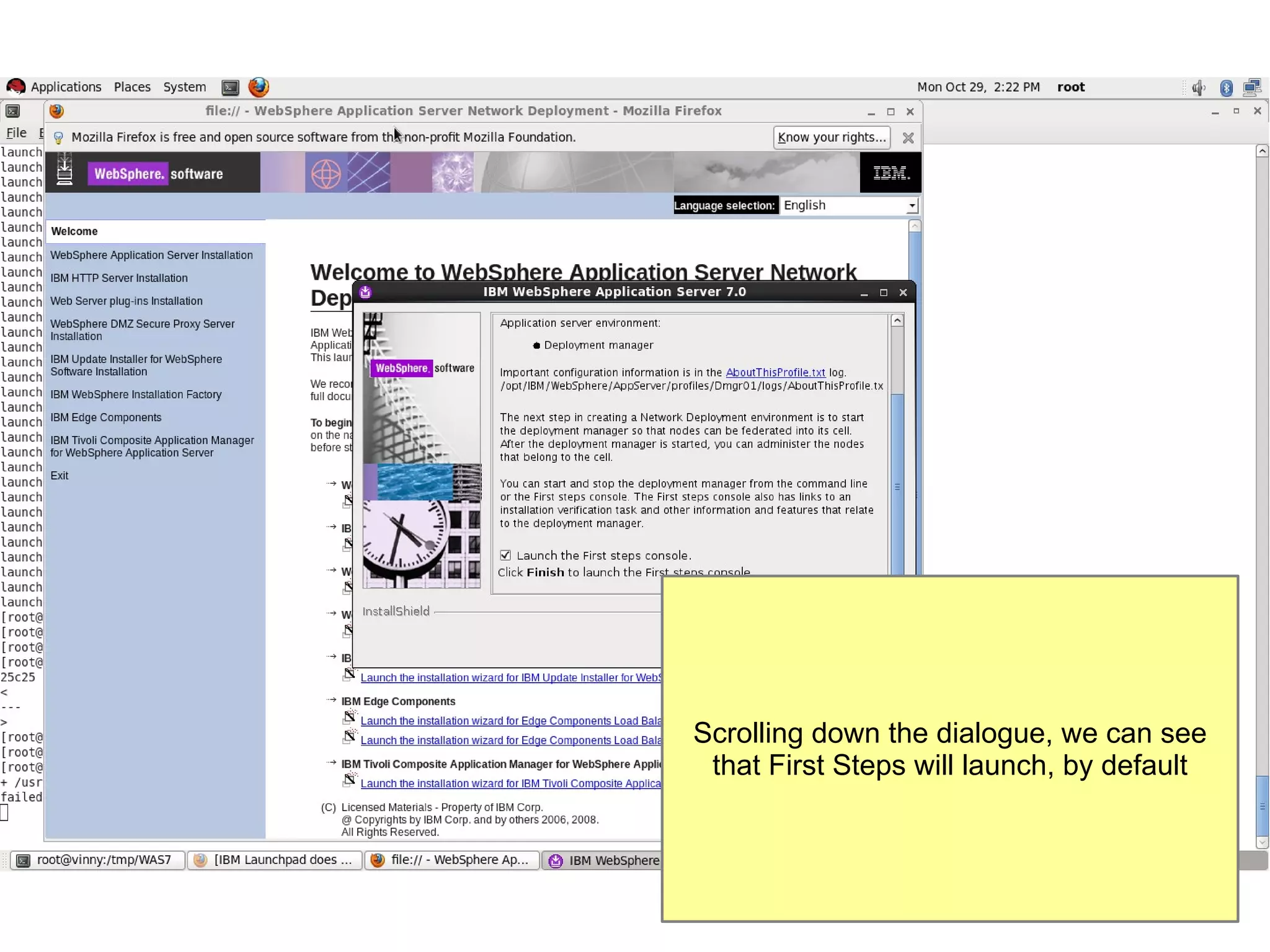
Scrolling down the dialogue, we can see
that First Steps will launch, by default
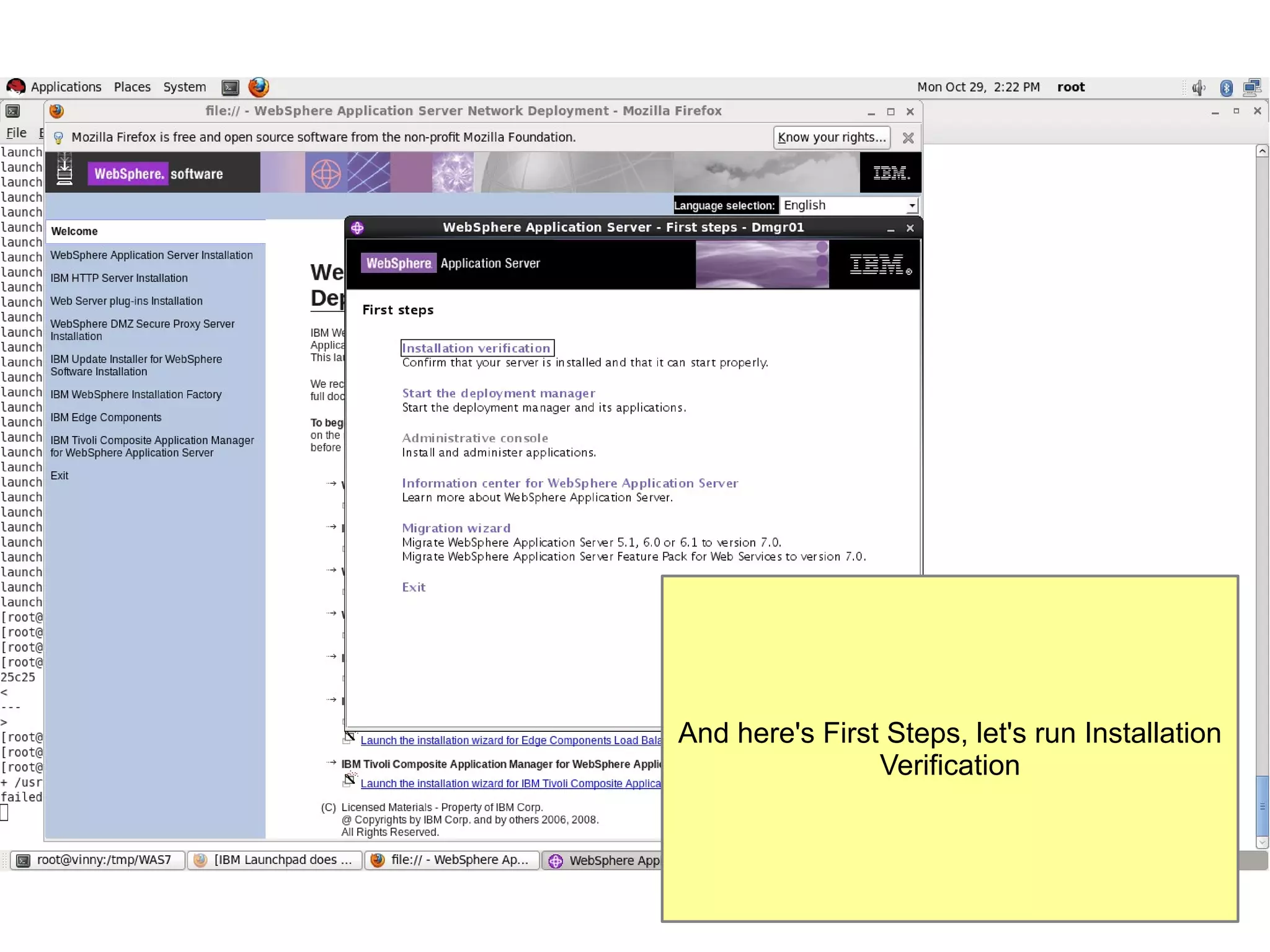
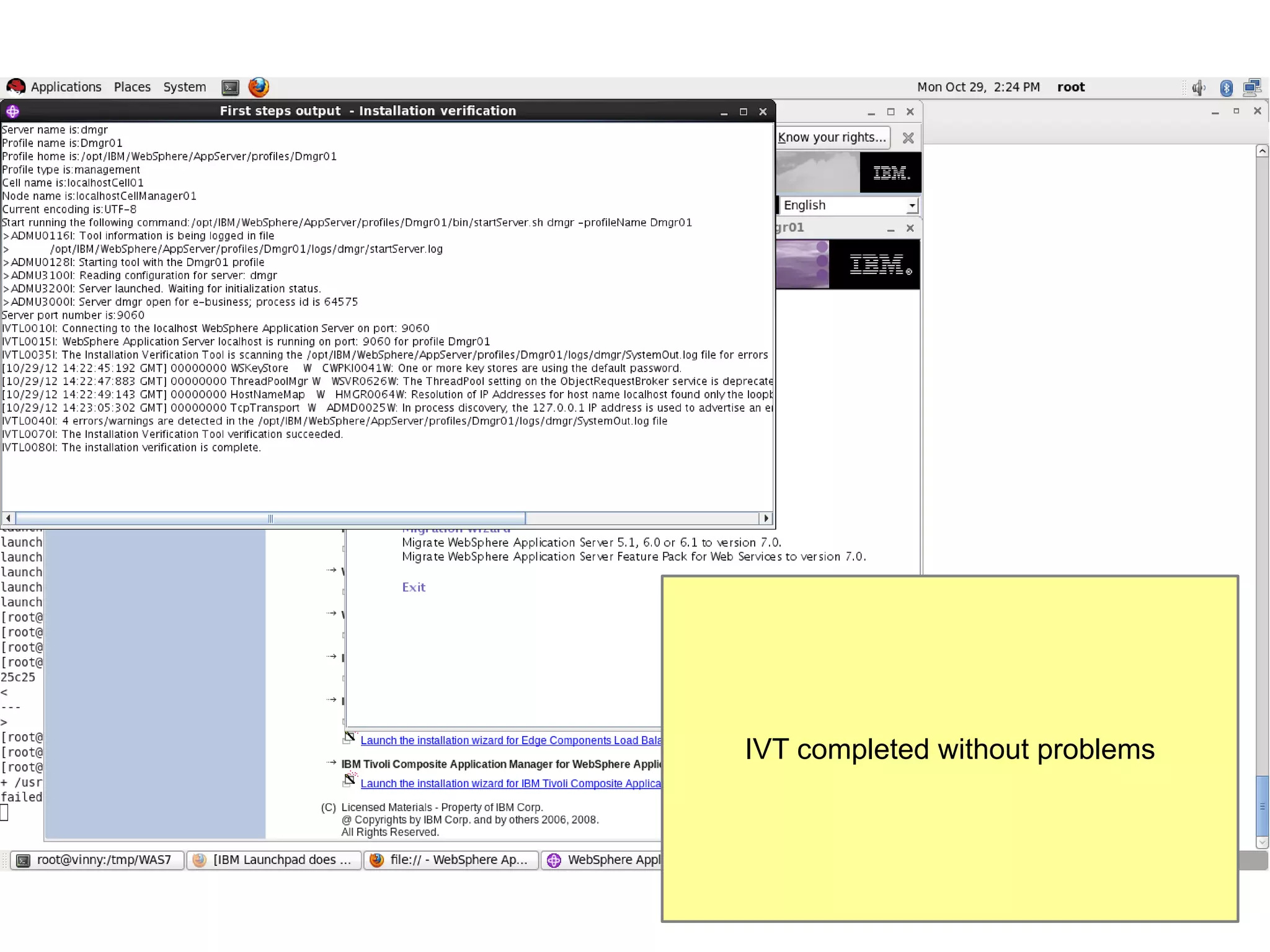
And here's First Steps, let's run Installation
Verification
IVT completed without problems
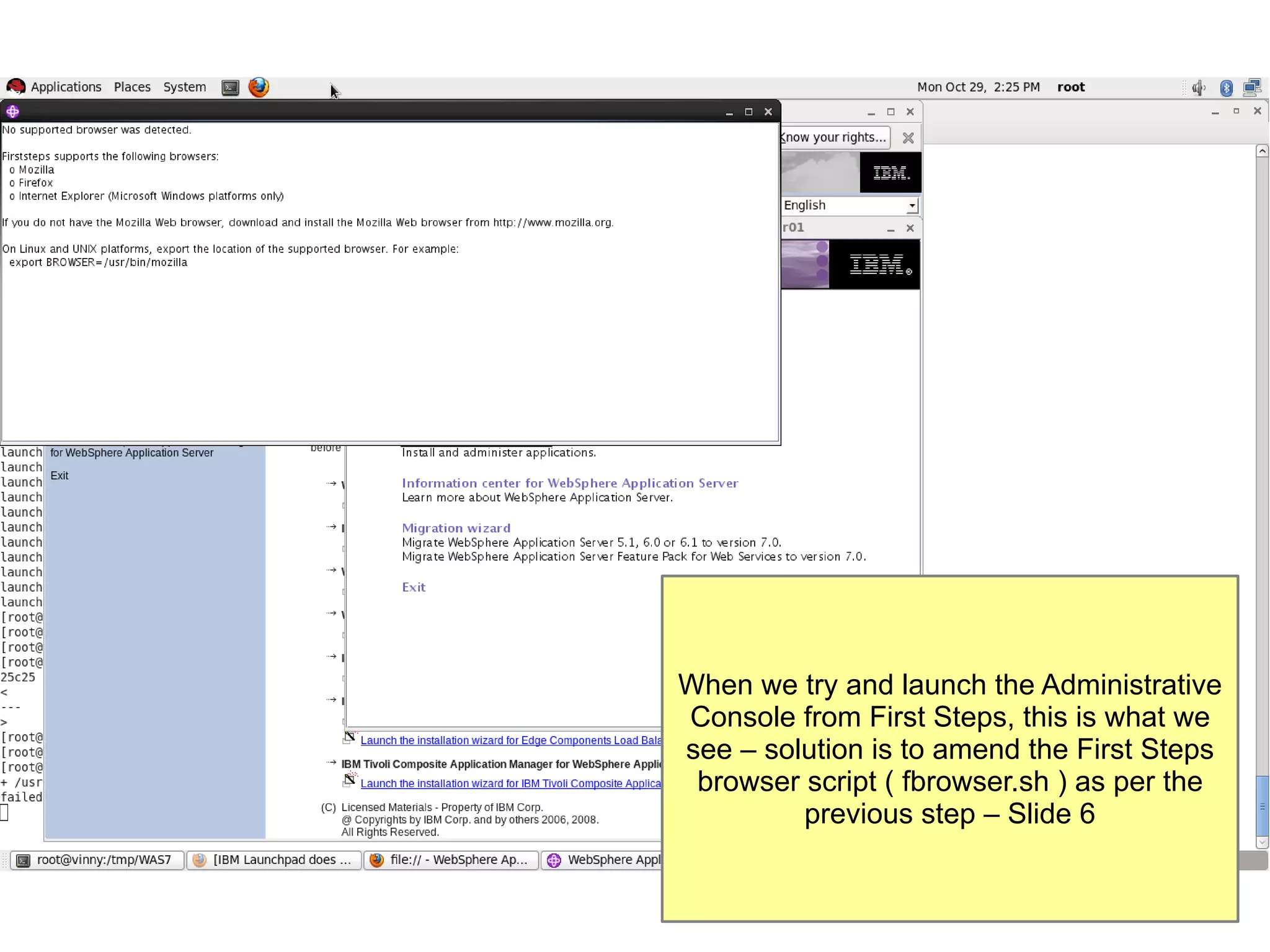
When we try and launch the Administrative
Console from First Steps, this is what we
see – solution is to amend the First Steps
browser script ( fbrowser.sh ) as per the
previous step – Slide 6
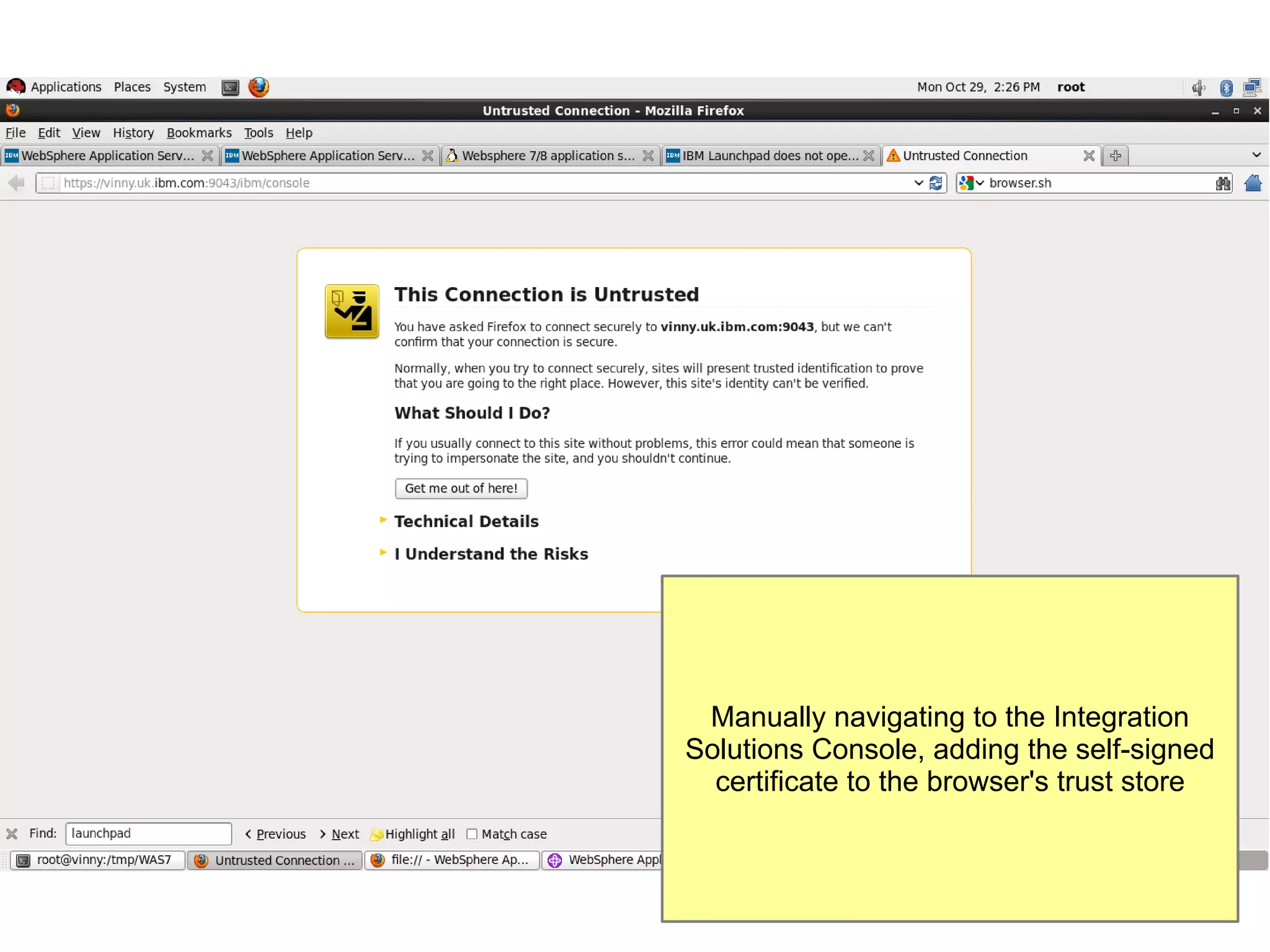
Manually navigating to the Integration
Solutions Console, adding the self-signed
certificate to the browser's trust store
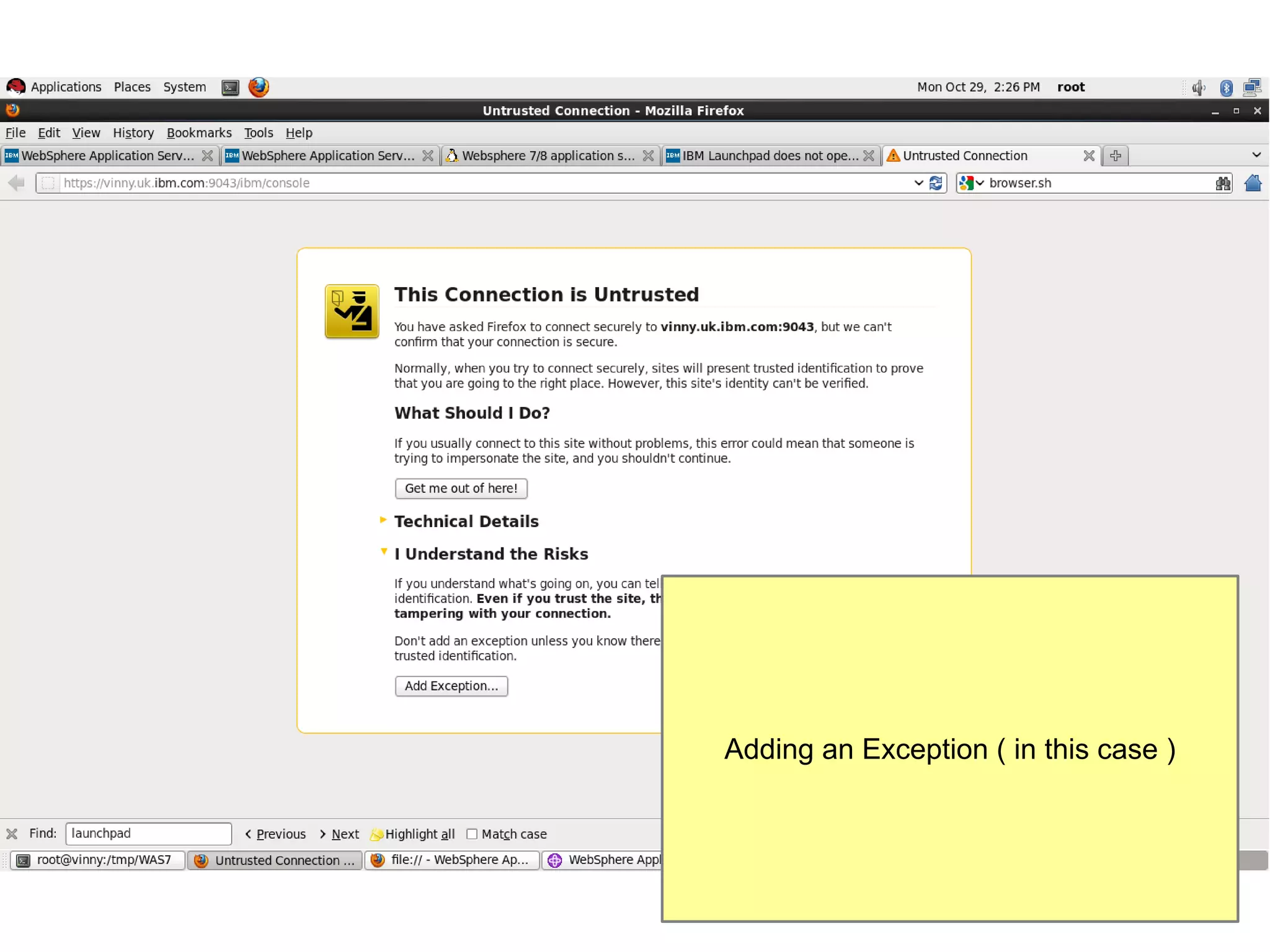
Adding an Exception ( in this case )
And so on
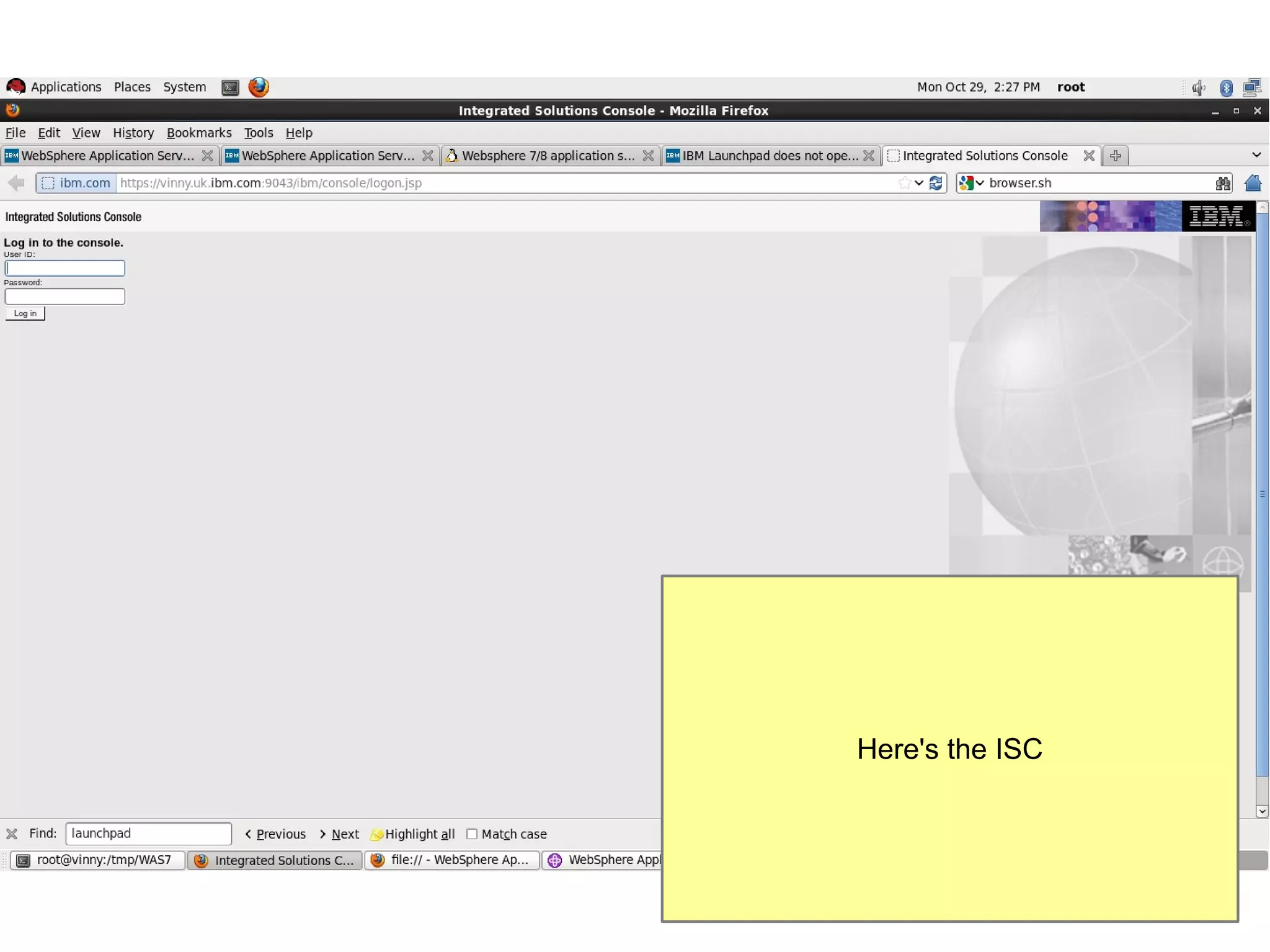
Here's the ISC
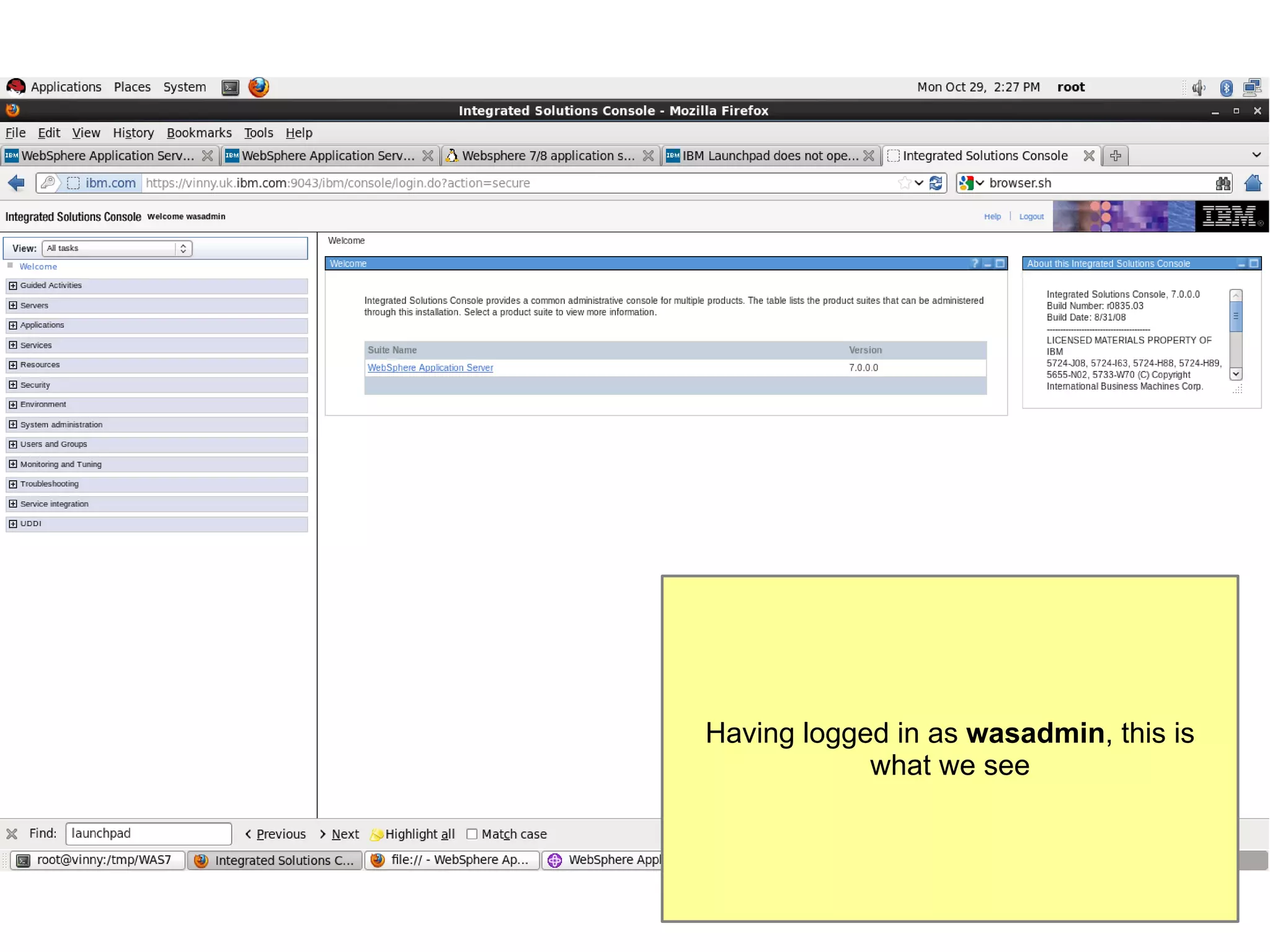
Having logged in as wasadmin, this is
what we see
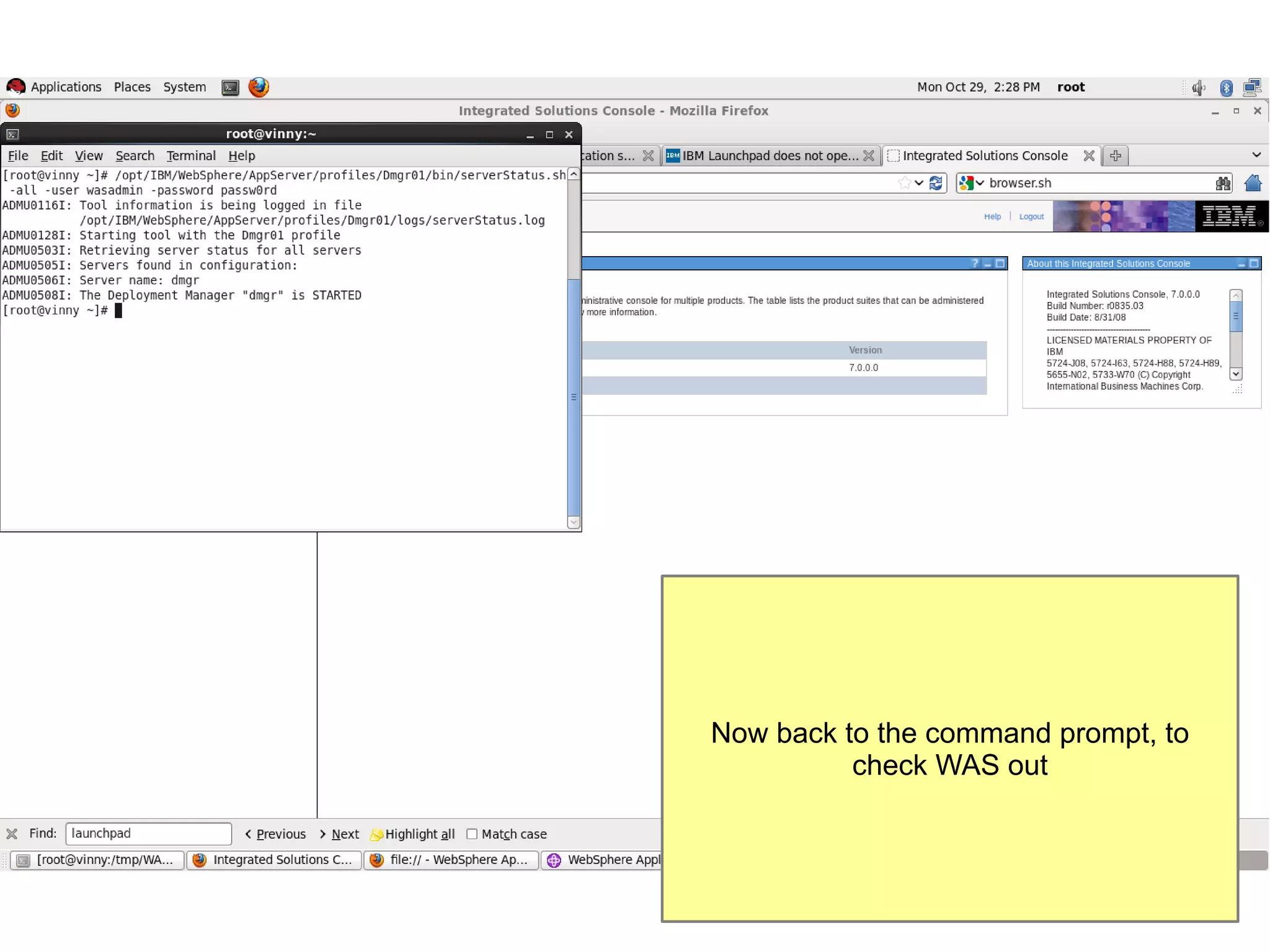
Now back to the command prompt, to
check WAS out
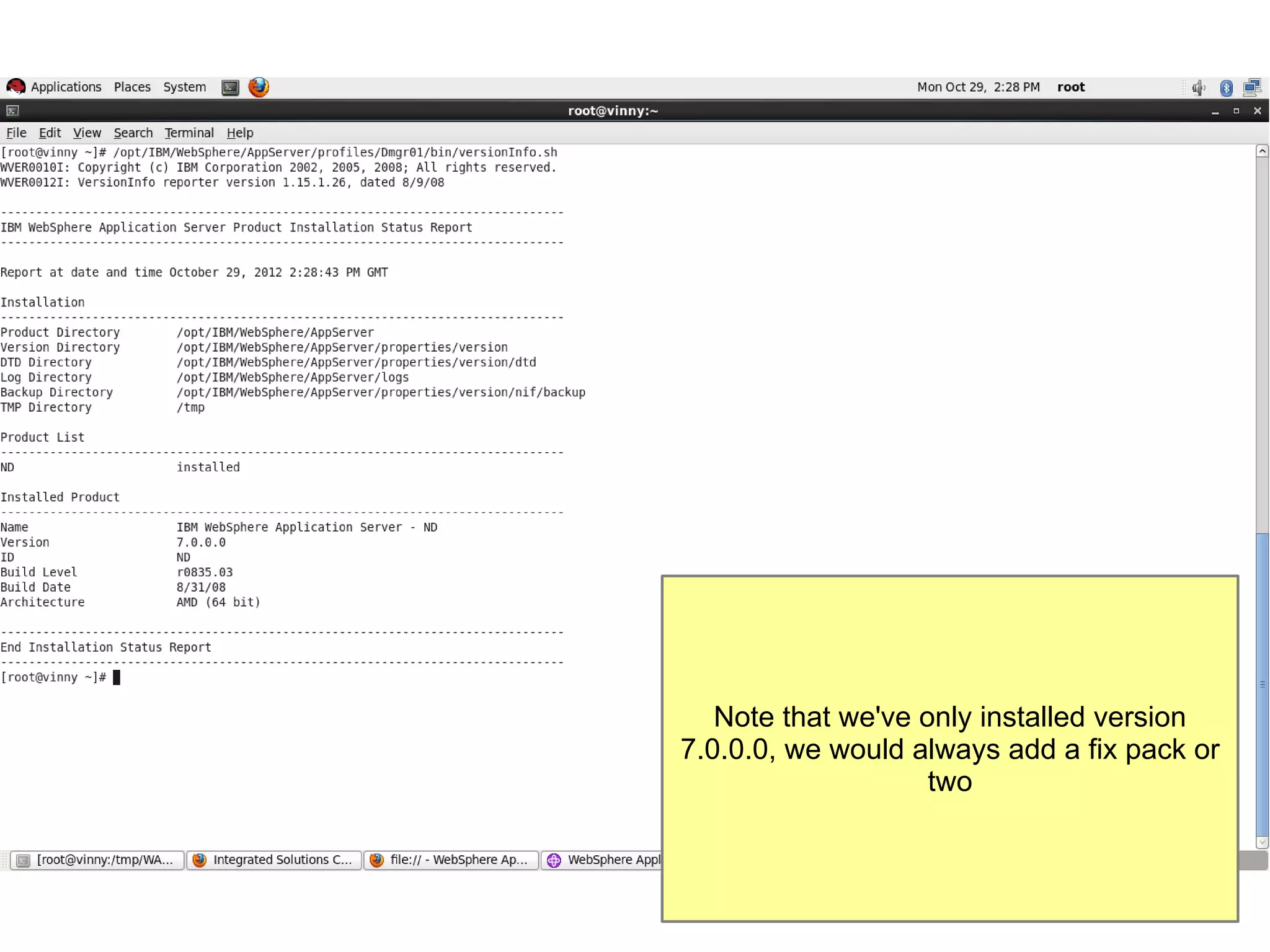
Note that we've only installed version
7.0.0.0, we would always add a fix pack or
two
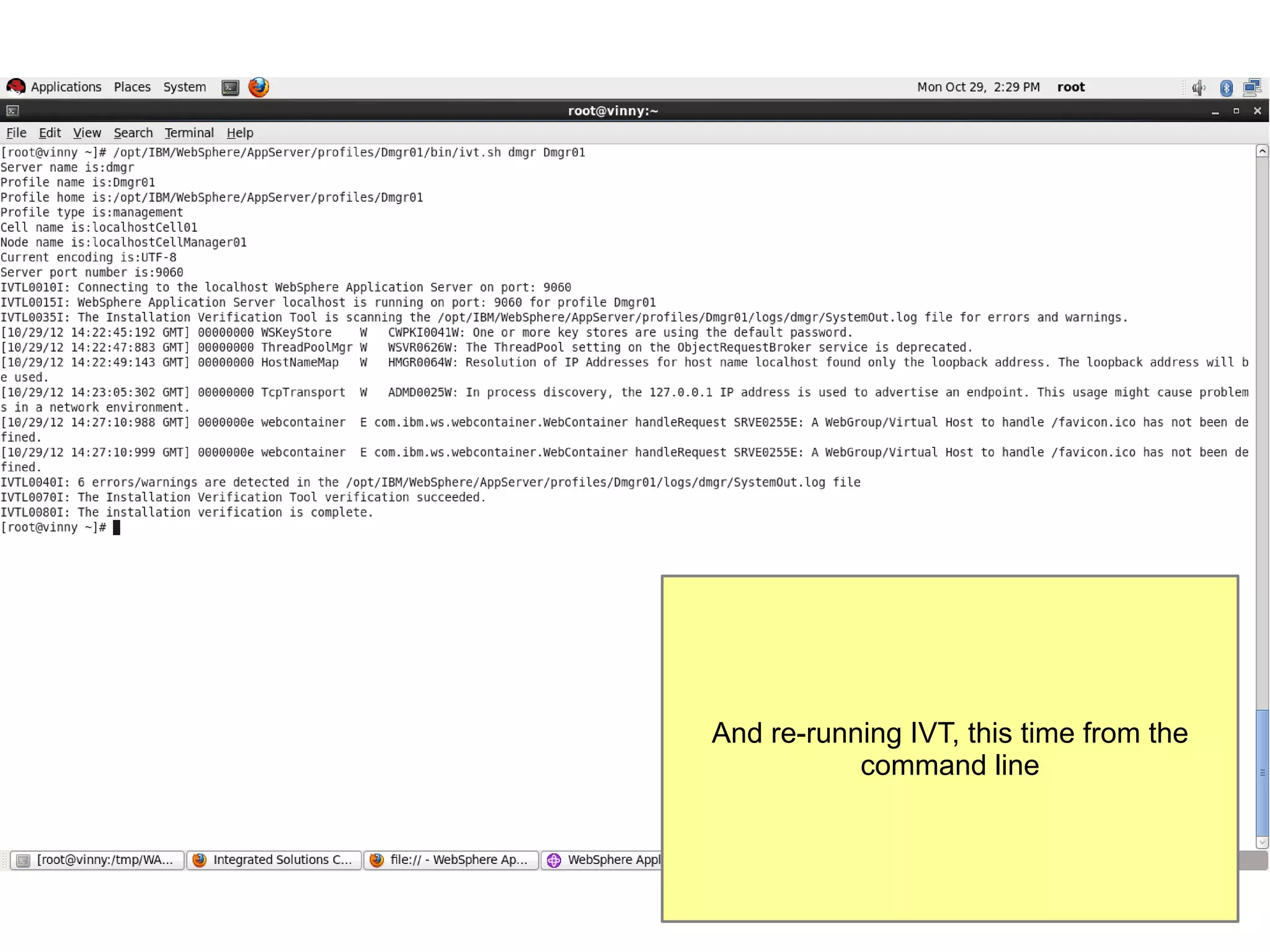
And re-running IVT, this time from the
command line
Job Done
●

This concludes the exercise – WebSphere
Application Server Network Deployment v7 has
been successfully installed onto a “vanilla”
installation of Red Hat Enterprise Linux x6.3
( x86-64 )

Installing web sphere application server v7 on red hat enterprise linux v6.3

  • 1.
    Installing WebSphere Application Serverv7 on Red Hat Enterprise Linux v6.3 Dave Hay IBM Software Services for WebSphere david_hay@uk.ibm.com // +44 7802 918423
  • 2.
    Pre-Requisites ● Red Hat EnterpriseLinux 6.3 x86-64 – vanilla installation, not patched $ uname -a Linux vinny.uk.ibm.com 2.6.32-279.el6.x86_64 #1 SMP Wed Jun 13 18:24:36 EDT 2012 x86_64 x86_64 x86_64 GNU/Linux $ cat /etc/redhat-release Red Hat Enterprise Linux Server release 6.3 (Santiago) ● WebSphere Application Server Network Deployment V7.0 for Linux on x86, 64-bit C1G35ML.tar.gz http://www-01.ibm.com/support/docview.wss?uid=swg27013044
  • 3.
    Linux Preparation ● Preparing Linuxsystems for installation http://pic.dhe.ibm.com/infocenter/wasinfo/v7r0/topic/com.ibm.websphere.installation.nd.doc/info/ ae/ae/tins_linuxsetup.html ● Preparing Red Hat Enterprise Linux 6 for installation http://pic.dhe.ibm.com/infocenter/wasinfo/v7r0/topic/com.ibm.websphere.installation.nd.doc/info/ ae/ae/tins_linuxsetup_rhel6.html Specifically: – Disabled SELinux by setting SELINUX=disabled in /etc/selinux/config – IPTables disabled by chkconfig iptables --levels 345 off and service iptables stop – Used yum to install pre-requisite libraries including compat-libstdc++-33-3.2.3-69, libXmu-1.0.5-1 and libXft-2.1.13-4.1 etc.
  • 4.
    Other Notes ● ● ● ● ● Installing asroot – not usually recommended Installing via GUI – often not an option, especially on client sites Not installing fixes/fixpacks – typically, this would be the next logical step Not creating additional WebSphere profiles RHEL is running on VMware Fusion 5 – almost certainly irrelevant
  • 5.
    Checking that theserver has a “pukka” hostname that's resolvable via ping, and then preparing to unpack the WAS ND v7 code
  • 6.
    Code is nowunpacked. Comparing and contrasting the modifed browser.sh script – this needs to be updated to take account of Firefox 10 as per this Technote http://www01.ibm.com/support/docview.wss? uid=swg21595098
  • 7.
    Putting the updatedbrowser.sh script in place ( into /tmp/WAS7/launchpad ) and getting ready to start the launchpad via /tmp/WAS7/launchpad.sh
  • 8.
  • 9.
  • 10.
    This time, we'reonly choosing to install WAS
  • 11.
    Accepting the licenseagreement .... ( having read it, of course )
  • 12.
    Noting, and ignoring,the fact that the installer does not formally support Red Hat Enterprise Linux 6.3
  • 13.
    Choosing to installthe sample applications ( even though, for this example, we're only installing a Deployment Manager node )
  • 14.
    Taking the default,for Linux, path
  • 15.
    Choosing to installa Management environment only
  • 16.
    Choosing to createa Deployment Manager profile
  • 17.
    Choosing to securethe cell using Administrative Security ( for the record, the password for wasadmin is passw0rd !! )
  • 18.
    We're not usingCentralised Installation Manager or WebSphere Installation Factory here
  • 19.
  • 20.
  • 21.
    And we're nowinstalled ...
  • 22.
    Scrolling down thedialogue, we can see that First Steps will launch, by default
  • 23.
    And here's FirstSteps, let's run Installation Verification
  • 24.
  • 25.
    When we tryand launch the Administrative Console from First Steps, this is what we see – solution is to amend the First Steps browser script ( fbrowser.sh ) as per the previous step – Slide 6
  • 26.
    Manually navigating tothe Integration Solutions Console, adding the self-signed certificate to the browser's trust store
  • 27.
    Adding an Exception( in this case )
  • 28.
  • 29.
  • 30.
    Having logged inas wasadmin, this is what we see
  • 31.
    Now back tothe command prompt, to check WAS out
  • 32.
    Note that we'veonly installed version 7.0.0.0, we would always add a fix pack or two
  • 33.
    And re-running IVT,this time from the command line
  • 34.
    Job Done ● This concludesthe exercise – WebSphere Application Server Network Deployment v7 has been successfully installed onto a “vanilla” installation of Red Hat Enterprise Linux x6.3 ( x86-64 )