Practical Introduction to Linux
Zeeshan Rizvi
@zeerizvi
Standard Disclaimers …
All images are sourced from creative commons
Penguin / Tux are owned by respective copyright owners ..
This information is not intended to be comprehensive at all . Instead ‘practical’
What we want to cover …
# What is Linux ?
- Significance, Distributions ..
# Core concepts
- Applications, File Structures …
# Hands On
POP QUIZ !!
Why are you here ?
By the end of this session though
..
Linux
Operating System is the software that runs all your applications and manages
hardware resources.
Linux is an Open Source server/desktop operating system similar to Unix, Mac
OS and Windows.
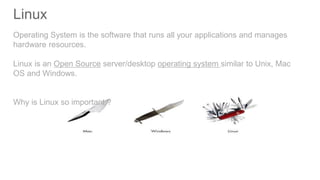
Why is Linux so important ?
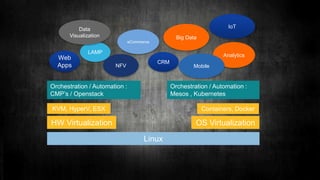
KVM, HyperV, ESX
HW Virtualization OS Virtualization
Linux
Orchestration / Automation :
CMP’s / Openstack
Containers, Docker
Orchestration / Automation :
Mesos , Kubernetes
Web
Apps
LAMP
eCommerce
CRM
Big Data
Analytics
IoT
Mobile
Data
Visualization
NFV
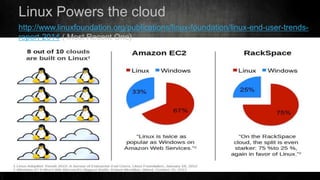
Linux Powers the cloud
http://www.linuxfoundation.org/publications/linux-foundation/linux-end-user-trends-
report-2014 ( Most Recent One)
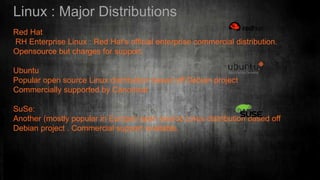
Linux : Major Distributions
Red Hat
RH Enterprise Linux : Red Hat’s official enterprise commercial distribution.
Opensource but charges for support.
Ubuntu
Popular open source Linux distribution based off Debian project
Commercially supported by Canonical
SuSe:
Another (mostly popular in Europe) open source Linux distribution based off
Debian project . Commercial support available.
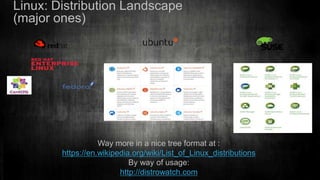
Linux: Distribution Landscape
(major ones)
Way more in a nice tree format at :
https://en.wikipedia.org/wiki/List_of_Linux_distributions
By way of usage:
http://distrowatch.com
How you use Linux ?
Multiple ways but here are more plausible ones : [disclaimers :]
Method Advantage
Wipe clean an old machine and install a Linux distro on entire
system
Best performance , dedicated hardware and disk space
Dual boot windows and Linux Best performance , less storage
Install a VM manager like VMware Player/Workstation or
Virtual Box and run a VM.
Ok performance for simulation not for heavy duty stuff. Limited
storage space
Hands On Time
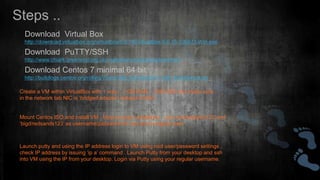
Steps ..
Download Virtual Box
http://download.virtualbox.org/virtualbox/5.0.16/VirtualBox-5.0.16-105871-Win.exe
Download Centos 7 minimal 64 bit
http://buildlogs.centos.org/rolling/7/isos/x86_64/CentOS-7-x86_64-Minimal.iso
Download PuTTY/SSH
http://www.chiark.greenend.org.uk/~sgtatham/putty/download.html
Create a VM within VirtualBox with 1 vcpu , 1 GB RAM , 1GB HDD and make sure
in the network tab NIC is ‘bridged adapter’ instead of NAT.
Mount Centos ISO and install VM , Step through installation , use ‘root/redsand123’ and
‘bigd/redsands123’ as username/password for root and a regular user
Launch putty and using the IP address login to VM using root user/password settings ,
check IP address by issuing ‘ip a’ command . Launch Putty from your desktop and ssh
into VM using the IP from your desktop. Login via Putty using your regular username.
POP QUIZ !!
Do you know what’s
oing on here ?
If you are still awake though ..
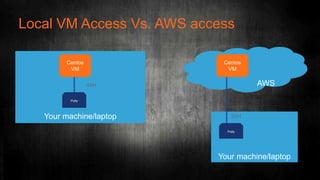
Local VM Access Vs. AWS access
Your machine/laptop
Centos
VM
Putty
SSH
Your machine/laptop
Putty
AWS
Centos
VM
SSH
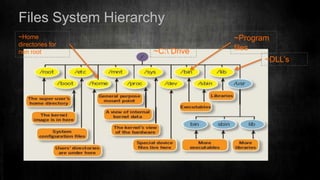
Files System Hierarchy
~C: Drive
~Home
directories for
non root
~Program
files
~DLL’s
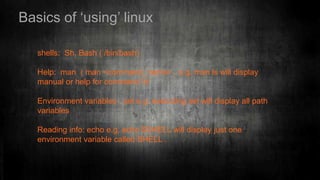
Basics of ‘using’ linux
shells: Sh, Bash ( /bin/bash)
Help: man ( man <command_name> , e.g. man ls will display
manual or help for command ‘ls’
Environment variables : set e.g. executing set will display all path
variables
Reading info: echo e.g. echo $SHELL will display just one
environment variable called SHELL .
Navigating your way around
cd : Change directory , default change to user’s default directory
cd /tmp for changing to /tmp directory
ls : list current directory contents
ls –halt for human readable and time sorted output
pwd: present working directory
who: Who’s logged in / w: all the user’s logged in and via which terminal . Good to check who’s
mucking around on your VM’s ;-)
whoami: check current user’s id
clear: Clear the current terminal screen contents
history: show command line history
mount : Mount a directory that can be an iso file or virtual image .
e.g.mount /tmp/centos-7-min.iso /media [i.e. mount <source> <dest> ]
df : Report file system usage . E.g. df –ah [ [display file system info in human readable format ]
Practice Session
Run amok the Cheat Sheet
And if you got too much time then
Quick Ref doc ..
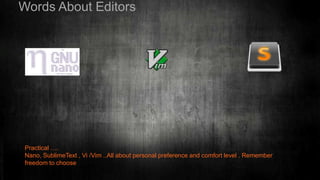
Words About Editors
Practical ….
Nano, SublimeText , Vi /Vim ..All about personal preference and comfort level . Remember
freedom to choose
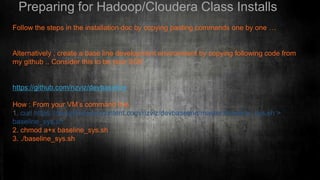
Preparing for Hadoop/Cloudera Class Installs
Follow the steps in the installation doc by copying pasting commands one by one …
Alternatively , create a base line development environment by copying following code from
my github .. Consider this to be your SOE
https://github.com/rizviz/devbaseline
How : From your VM’s command line
1. curl https://raw.githubusercontent.com/rizviz/devbaseline/master/baseline_sys.sh >
baseline_sys.sh
2. chmod a+x baseline_sys.sh
3. ./baseline_sys.sh
Take Aways …Next Steps
1. Explore DevOps
2. Make code versioning a habit ; explore cvs , github etc
3. Practice makes it perfect
4. Linux is a means to an end …
Questions & Comments

Practical Introduction To Linux

  • 1.
    Practical Introduction toLinux Zeeshan Rizvi @zeerizvi
  • 2.
    Standard Disclaimers … Allimages are sourced from creative commons Penguin / Tux are owned by respective copyright owners .. This information is not intended to be comprehensive at all . Instead ‘practical’
  • 3.
    What we wantto cover … # What is Linux ? - Significance, Distributions .. # Core concepts - Applications, File Structures … # Hands On
  • 4.
    POP QUIZ !! Whyare you here ? By the end of this session though ..
  • 5.
    Linux Operating System isthe software that runs all your applications and manages hardware resources. Linux is an Open Source server/desktop operating system similar to Unix, Mac OS and Windows. Why is Linux so important ?
  • 6.
    KVM, HyperV, ESX HWVirtualization OS Virtualization Linux Orchestration / Automation : CMP’s / Openstack Containers, Docker Orchestration / Automation : Mesos , Kubernetes Web Apps LAMP eCommerce CRM Big Data Analytics IoT Mobile Data Visualization NFV
  • 7.
    Linux Powers thecloud http://www.linuxfoundation.org/publications/linux-foundation/linux-end-user-trends- report-2014 ( Most Recent One)
  • 8.
    Linux : MajorDistributions Red Hat RH Enterprise Linux : Red Hat’s official enterprise commercial distribution. Opensource but charges for support. Ubuntu Popular open source Linux distribution based off Debian project Commercially supported by Canonical SuSe: Another (mostly popular in Europe) open source Linux distribution based off Debian project . Commercial support available.
  • 9.
    Linux: Distribution Landscape (majorones) Way more in a nice tree format at : https://en.wikipedia.org/wiki/List_of_Linux_distributions By way of usage: http://distrowatch.com
  • 10.
    How you useLinux ? Multiple ways but here are more plausible ones : [disclaimers :] Method Advantage Wipe clean an old machine and install a Linux distro on entire system Best performance , dedicated hardware and disk space Dual boot windows and Linux Best performance , less storage Install a VM manager like VMware Player/Workstation or Virtual Box and run a VM. Ok performance for simulation not for heavy duty stuff. Limited storage space
  • 11.
  • 12.
    Steps .. Download VirtualBox http://download.virtualbox.org/virtualbox/5.0.16/VirtualBox-5.0.16-105871-Win.exe Download Centos 7 minimal 64 bit http://buildlogs.centos.org/rolling/7/isos/x86_64/CentOS-7-x86_64-Minimal.iso Download PuTTY/SSH http://www.chiark.greenend.org.uk/~sgtatham/putty/download.html Create a VM within VirtualBox with 1 vcpu , 1 GB RAM , 1GB HDD and make sure in the network tab NIC is ‘bridged adapter’ instead of NAT. Mount Centos ISO and install VM , Step through installation , use ‘root/redsand123’ and ‘bigd/redsands123’ as username/password for root and a regular user Launch putty and using the IP address login to VM using root user/password settings , check IP address by issuing ‘ip a’ command . Launch Putty from your desktop and ssh into VM using the IP from your desktop. Login via Putty using your regular username.
  • 13.
    POP QUIZ !! Doyou know what’s oing on here ? If you are still awake though ..
  • 14.
    Local VM AccessVs. AWS access Your machine/laptop Centos VM Putty SSH Your machine/laptop Putty AWS Centos VM SSH
  • 15.
    Files System Hierarchy ~C:Drive ~Home directories for non root ~Program files ~DLL’s
  • 16.
    Basics of ‘using’linux shells: Sh, Bash ( /bin/bash) Help: man ( man <command_name> , e.g. man ls will display manual or help for command ‘ls’ Environment variables : set e.g. executing set will display all path variables Reading info: echo e.g. echo $SHELL will display just one environment variable called SHELL .
  • 17.
    Navigating your wayaround cd : Change directory , default change to user’s default directory cd /tmp for changing to /tmp directory ls : list current directory contents ls –halt for human readable and time sorted output pwd: present working directory who: Who’s logged in / w: all the user’s logged in and via which terminal . Good to check who’s mucking around on your VM’s ;-) whoami: check current user’s id clear: Clear the current terminal screen contents history: show command line history mount : Mount a directory that can be an iso file or virtual image . e.g.mount /tmp/centos-7-min.iso /media [i.e. mount <source> <dest> ] df : Report file system usage . E.g. df –ah [ [display file system info in human readable format ]
  • 18.
    Practice Session Run amokthe Cheat Sheet And if you got too much time then Quick Ref doc ..
  • 19.
    Words About Editors Practical…. Nano, SublimeText , Vi /Vim ..All about personal preference and comfort level . Remember freedom to choose
  • 20.
    Preparing for Hadoop/ClouderaClass Installs Follow the steps in the installation doc by copying pasting commands one by one … Alternatively , create a base line development environment by copying following code from my github .. Consider this to be your SOE https://github.com/rizviz/devbaseline How : From your VM’s command line 1. curl https://raw.githubusercontent.com/rizviz/devbaseline/master/baseline_sys.sh > baseline_sys.sh 2. chmod a+x baseline_sys.sh 3. ./baseline_sys.sh
  • 21.
    Take Aways …NextSteps 1. Explore DevOps 2. Make code versioning a habit ; explore cvs , github etc 3. Practice makes it perfect 4. Linux is a means to an end … Questions & Comments

Editor's Notes

  • #6 What’s the difference between a chef’s knife , an all purpose knife and a swiss army knife . Each have their own utility but linux gives you more choices and thus more freedom to do whatever you want
  • #9 CentOS Community Enterprise OS, goal is to be compatible with its upstream source, Red Hat Enterprise Linux (RHEL) In 2014, Red Hat announced sponsorship Fedora developed by the community project, Fedora-Project, owned by Red Hat
  • #10 CentOS Community Enterprise OS, goal is to be compatible with its upstream source, Red Hat Enterprise Linux (RHEL) In 2014, Red Hat announced sponsorship Fedora developed by the community project, Fedora-Project, owned by Red Hat Red Hat RH Enterprise Linux : Red Hat’s official enterprise commercial distribution. Opensource but charges for support. Ubuntu Popular open source Linux distribution based off Debian project Commercially supported by Canonical SuSe: Another (mostly popular in Europe) open source Linux distribution based off Debian project . Commercial support available.
  • #13 Bridged adapter wll require VM to get an IP from the actual DNS .. Students can then ping each other’s VM’s and be able to log in for group exercises.