Install WordPress
with Xampp
- Luzan Baral
- Twitter/luzanb
What You Need
 Xampp

for Windows

 WordPress
 Browser

(Mozilla/Chrome would be good)
What is Xampp?


A Xampp (Apache, MySQL, PHP and …) bundle



A suite of the following software


Apache



MySQL



PHP



phpMyAdmin



Download from



http://apachefriends.org/en/xampp-windows.html
What is WordPress?


A blog publishing system programmed in
PHP



Uses MySQL as the backend (database)


A free software to set up blogs



Download from
http://wordpress.org/download/
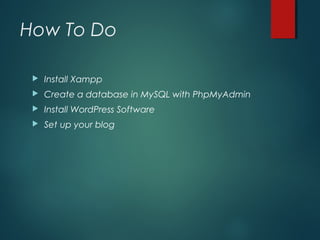
How To Do


Install Xampp



Create a database in MySQL with PhpMyAdmin



Install WordPress Software



Set up your blog
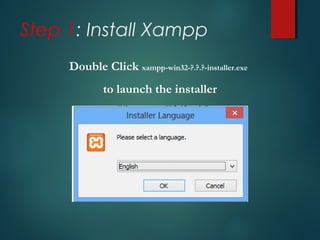
Step 1: Install Xampp
Double Click xampp-win32-?.?.?-installer.exe
to launch the installer
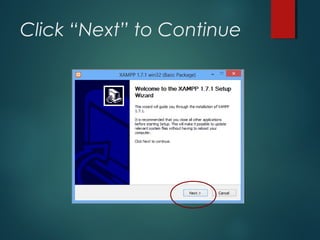
Click ā€œNextā€ to Continue
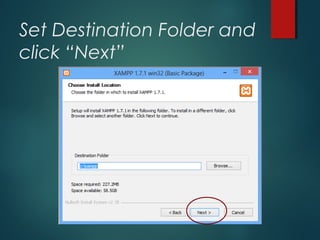
Set Destination Folder and
click ā€œNextā€
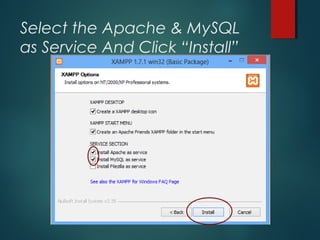
Select the Apache & MySQL
as Service And Click ā€œInstallā€
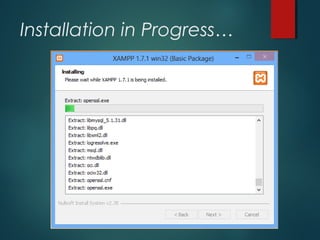
Installation in Progress…
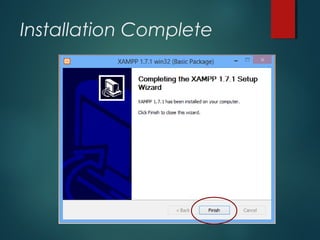
Installation Complete
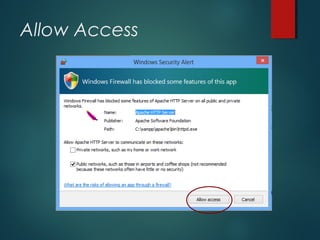
Allow Access
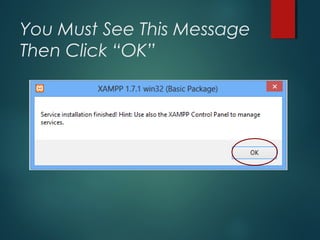
You Must See This Message
Then Click ā€œOKā€
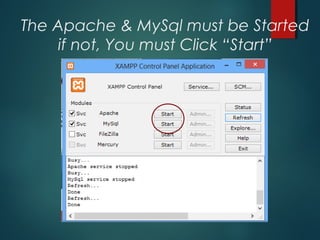
The Apache & MySql must be Started
if not, You must Click ā€œStartā€
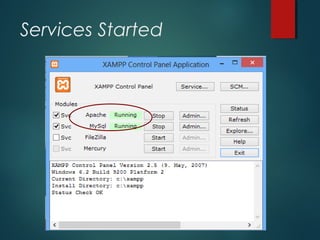
Services Started
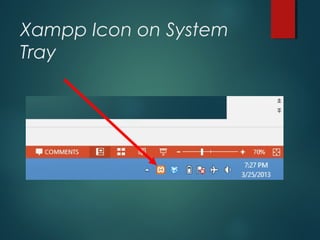
Xampp Icon on System
Tray
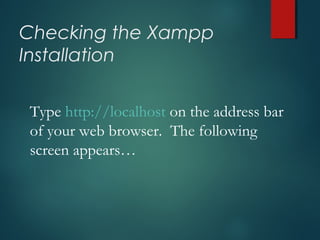
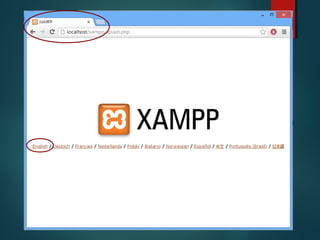
Checking the Xampp
Installation
Type http://localhost on the address bar
of your web browser. The following
screen appears…
Step 2: Create a
database


Launch PhpMyAdmin



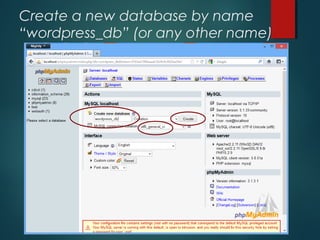
Create a database named ā€œwordpress_dbā€



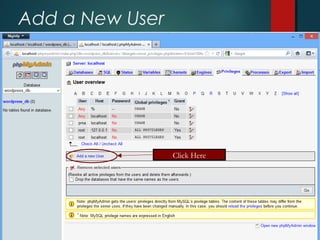
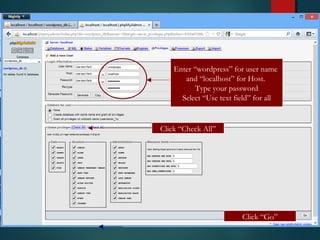
Create a user named ā€œwordpressā€



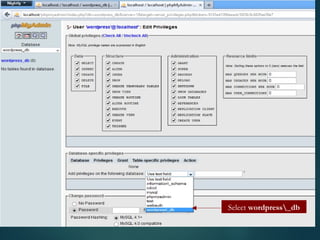
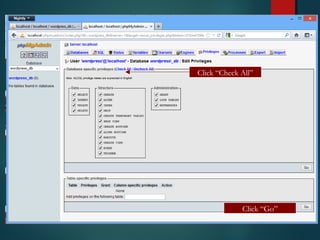
Grant all privileges to the user ā€œwordpressā€ on
the database ā€œwordpress_dbā€
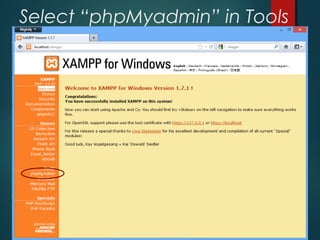
Select ā€œphpMyadminā€ in Tools
Create a new database by name
ā€œwordpress_dbā€ (or any other name)
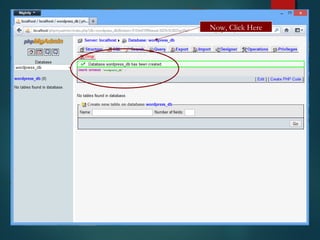
Now Click Here

Now, Click Here
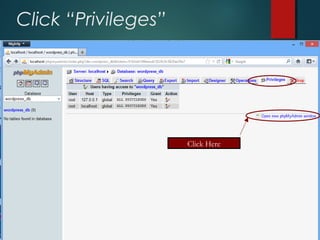
Click ā€œPrivilegesā€

Click Here
Add a New User

Click Here
Enter ā€œwordpressā€ for user name
and ā€œlocalhostā€ for Host.
Type your password
Select ā€œUse text fieldā€ for all

Click ā€œCheck Allā€

Click ā€œGoā€
Select wordpress_db
Click ā€œCheck Allā€

Click ā€œGoā€
Step 3: Install WordPress


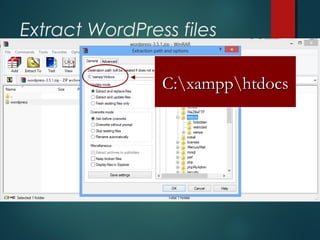
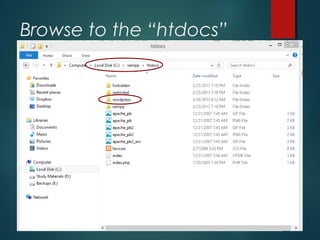
Extract WordPress files to the ā€œhtdocsā€ folder in
Xampp installation folder



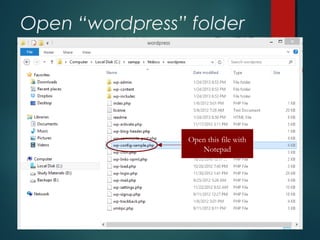
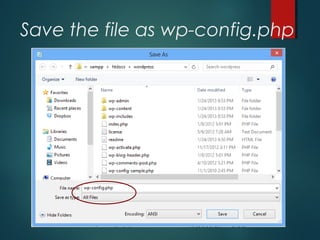
Rename ā€œwp-config-sample.phpā€ to
ā€œwp-config.phpā€



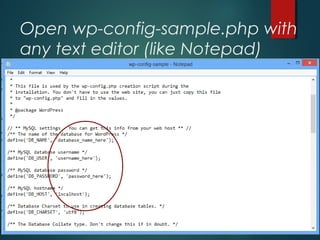
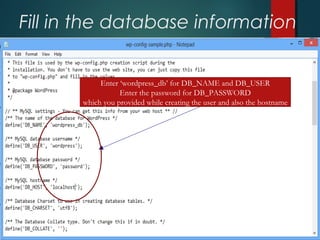
Open ā€œwp-config.phpā€ and fill in the database
information



Run ā€œinstall.phpā€ from the Web Browser to install
WordPress Software
Extract WordPress files
C:xampphtdocs
Browse to the ā€œhtdocsā€
folder
Open ā€œwordpressā€ folder

Open this file with
Notepad
Open wp-config-sample.php with
any text editor (like Notepad)
Fill in the database information
Enter ā€˜wordpress_db’ for DB_NAME and DB_USER
Enter the password for DB_PASSWORD
which you provided while creating the user and also the hostname
Save the file as wp-config.php
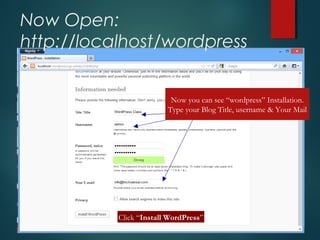
Now Open:
http://localhost/wordpress
Now you can see ā€œwordpressā€ Installation.
Type your Blog Title, username & Your Mail

Click ā€œInstall WordPressā€
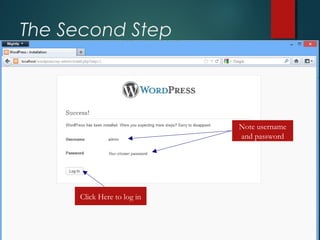
The Second Step

Note username
and password

Click Here to log in
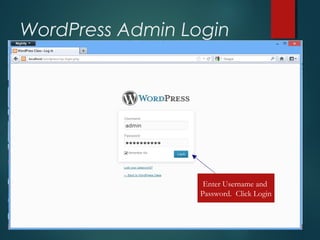
WordPress Admin Login

Enter Username and
Password. Click Login
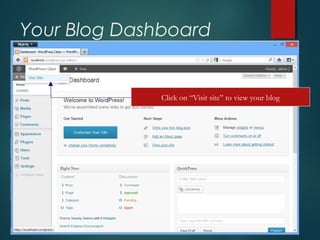
Your Blog Dashboard

Click on ā€œVisit siteā€ to view your blog
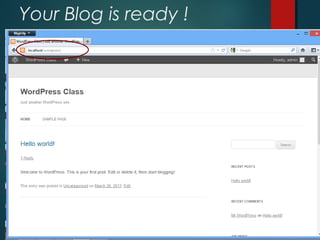
Your Blog is ready !

Installation xampp and WordPress on localhost

Editor's Notes