Setting up a Local Test Environment by  David Cook iCourses-Ottawa http://www.icoursesottawa.com
Agenda Introduction Why You Want a Development Environment Requirements for a Development Environment MAMP / WAMP / XAMPP Intro MAMP / WordPress Install WAMP / WordPress Install XAMPP / WordPress Install Migration from Development Environment to Live Environment Solutions Questions
Why You Want a Development Environment Experimenting with New Features Plugin Testing Theme Testing Plugin Design Theme Design Work-Offline Client Review Just Playing Development & Migration
Requirements for Local Development Environment Install a local Server (Mac: MAMP  PC: XAMPP or WAMP) Create a new Database Download WordPress and extract new files. Rename the  wp-config-sample.php  file to  wp-config.php  and update database details Run  wp--admin/install.php  and follow WP install instructions.
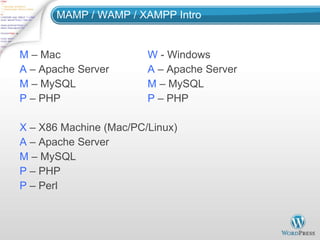
MAMP / WAMP / XAMPP Intro M  – Mac W  - Windows A  – Apache Server A  – Apache Server M  – MySQL M  – MySQL P  – PHP P  – PHP  X  – X86 Machine (Mac/PC/Linux) A  – Apache Server M  – MySQL P  – PHP P  – Perl
MAMP / WordPress Install http://www.mamp.info/en/index.html http://wordpress.org/
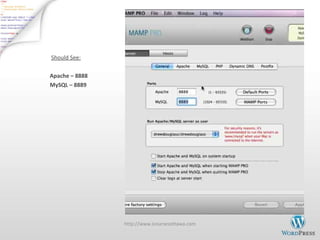
Should See: Apache – 8888  MySQL – 8889 http://www.icoursesottawa.com
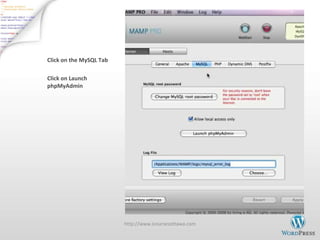
Click on the MySQL Tab Click on Launch phpMyAdmin http://www.icoursesottawa.com
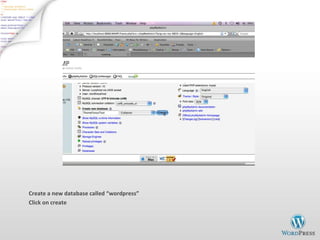
Create a new database called  “wordpress” Click on create
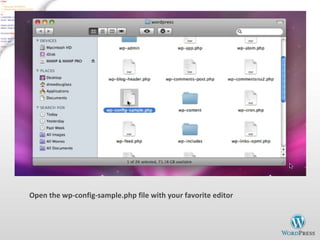
Open the wp-config-sample.php file with your favorite editor
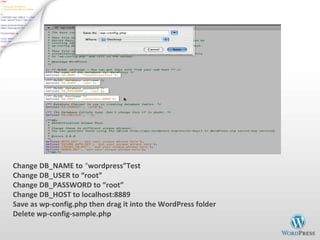
Change DB_NAME to  “ wordpress”Test Change DB_USER to “root” Change DB_PASSWORD to “root” Change DB_HOST to localhost:8889 Save as wp-config.php then drag it into the WordPress folder Delete wp-config-sample.php
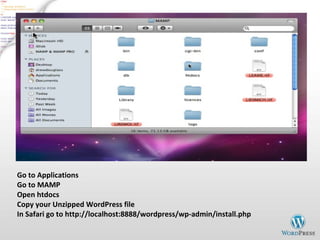
Go to Applications Go to MAMP Open htdocs Copy your Unzipped WordPress file In Safari go to http://localhost:8888/wordpress/wp-admin/install.php
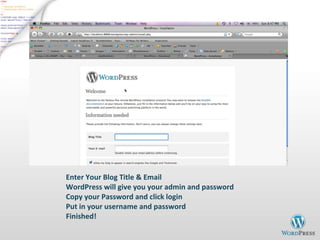
Enter Your Blog Title & Email WordPress will give you your admin and password Copy your Password and click login Put in your username and password Finished!
WAMP / WordPress Install http://www.wampserver.com/en/ http://wordpress.org/
Install WAMPServer Install the WAMPServer by clicking on the .exe file Click on run Click  “yes” to upgrade/clean up install Click  “next” after you “accept the agreement” Click next (to use default installation folder) Click next (check boxes as desired) Click  “yes” to select browser discovered Leave Localhost in SMTP and insert your email address, click next Click Finish http://www.icoursesottawa.com
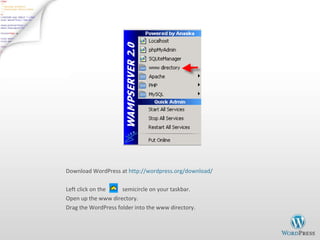
Download WordPress at  http://wordpress.org/download/ Left click on the  semicircle on your taskbar. Open up the www directory. Drag the WordPress folder into the www directory.
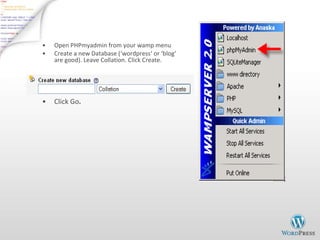
Open PHPmyadmin from your wamp menu Create a new Database ( ‘wordpress‘ or ‘blog‘ are good). Leave Collation. Click Create. Click Go .
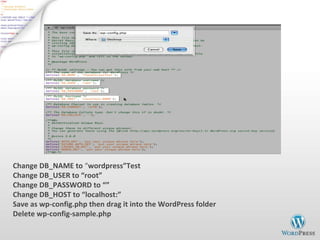
Change DB_NAME to  “ wordpress”Test Change DB_USER to “root” Change DB_PASSWORD to “” Change DB_HOST to “ localhost: ” Save as wp-config.php then drag it into the WordPress folder Delete wp-config-sample.php
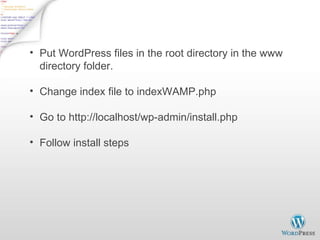
Put WordPress files in the root directory in the www directory folder. Change index file to indexWAMP.php Go to http://localhost/wp-admin/install.php Follow install steps
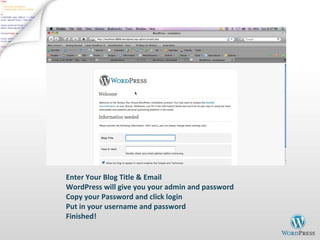
Enter Your Blog Title & Email WordPress will give you your admin and password Copy your Password and click login Put in your username and password Finished!
XAMPP / WordPress Install http://www.apachefriends.org/en/xampp.html http://wordpress.org/
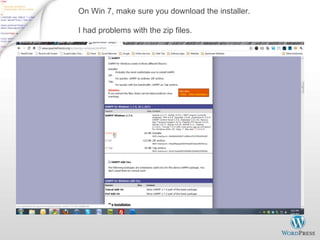
On Win 7, make sure you download the installer. I had problems with the zip files.
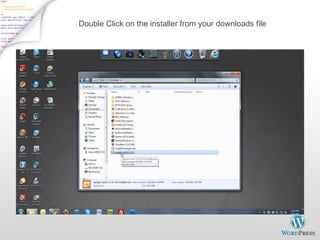
Double Click on the installer from your downloads file
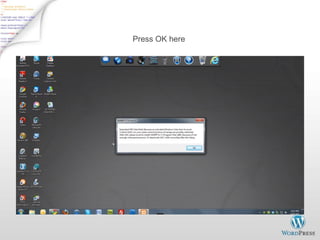
Press OK here
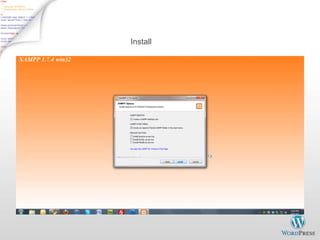
Install
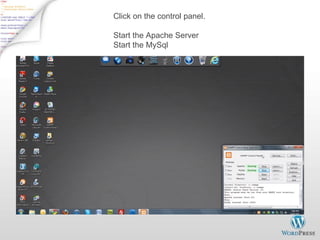
Click on the control panel. Start the Apache Server Start the MySql
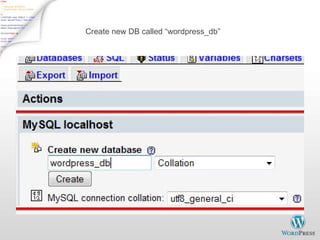
Create new DB called “ wordpress_db ”
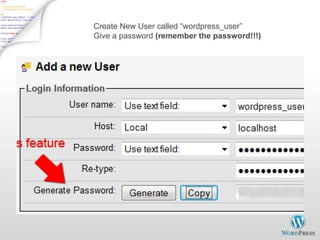
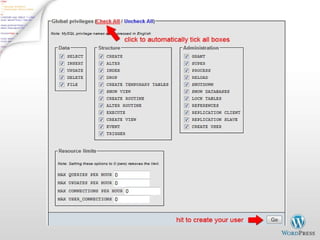
Create New User called “ wordpress_user ” Give a password  (remember the password!!!)
 
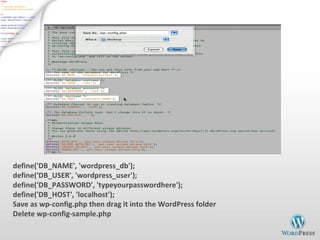
define('DB_NAME', 'wordpress_db'); define('DB_USER', 'wordpress_user'); define('DB_PASSWORD', 'typeyourpasswordhere'); define('DB_HOST', 'localhost'); Save as wp-config.php then drag it into the WordPress folder Delete wp-config-sample.php
Put WordPress files in the root directory in the htdocs directory folder. Go  http://localhost/wordpress/wp-admin/install.php Follow install steps
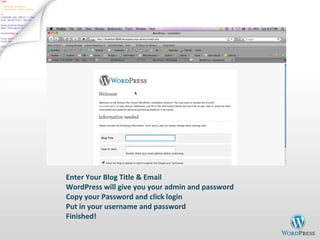
Enter Your Blog Title & Email WordPress will give you your admin and password Copy your Password and click login Put in your username and password Finished!
Migration to a Live Environment Backup everything Change Dev URL Export WordPress DB Upload Local WordPress files to Live Site Login to your cPanel, go to MySql, Create DB Change  wp-config.php  information. Add WP Database, Create new user w/all privileges Upload your exported WP DB with PHPmyadmin. Excellent detailed video on the process here: http://www.youtube.com/watch?v=cM9Z8aQTCvQ
QUESTIONS David Cook iCourses-Ottawa http://www.icoursesottawa.com

Set up dev environment

  • 1.
    Setting up aLocal Test Environment by David Cook iCourses-Ottawa http://www.icoursesottawa.com
  • 2.
    Agenda Introduction WhyYou Want a Development Environment Requirements for a Development Environment MAMP / WAMP / XAMPP Intro MAMP / WordPress Install WAMP / WordPress Install XAMPP / WordPress Install Migration from Development Environment to Live Environment Solutions Questions
  • 3.
    Why You Wanta Development Environment Experimenting with New Features Plugin Testing Theme Testing Plugin Design Theme Design Work-Offline Client Review Just Playing Development & Migration
  • 4.
    Requirements for LocalDevelopment Environment Install a local Server (Mac: MAMP PC: XAMPP or WAMP) Create a new Database Download WordPress and extract new files. Rename the wp-config-sample.php file to wp-config.php and update database details Run wp--admin/install.php and follow WP install instructions.
  • 5.
    MAMP / WAMP/ XAMPP Intro M – Mac W - Windows A – Apache Server A – Apache Server M – MySQL M – MySQL P – PHP P – PHP X – X86 Machine (Mac/PC/Linux) A – Apache Server M – MySQL P – PHP P – Perl
  • 6.
    MAMP / WordPressInstall http://www.mamp.info/en/index.html http://wordpress.org/
  • 7.
    Should See: Apache– 8888 MySQL – 8889 http://www.icoursesottawa.com
  • 8.
    Click on theMySQL Tab Click on Launch phpMyAdmin http://www.icoursesottawa.com
  • 9.
    Create a newdatabase called “wordpress” Click on create
  • 10.
    Open the wp-config-sample.phpfile with your favorite editor
  • 11.
    Change DB_NAME to “ wordpress”Test Change DB_USER to “root” Change DB_PASSWORD to “root” Change DB_HOST to localhost:8889 Save as wp-config.php then drag it into the WordPress folder Delete wp-config-sample.php
  • 12.
    Go to ApplicationsGo to MAMP Open htdocs Copy your Unzipped WordPress file In Safari go to http://localhost:8888/wordpress/wp-admin/install.php
  • 13.
    Enter Your BlogTitle & Email WordPress will give you your admin and password Copy your Password and click login Put in your username and password Finished!
  • 14.
    WAMP / WordPressInstall http://www.wampserver.com/en/ http://wordpress.org/
  • 15.
    Install WAMPServer Installthe WAMPServer by clicking on the .exe file Click on run Click “yes” to upgrade/clean up install Click “next” after you “accept the agreement” Click next (to use default installation folder) Click next (check boxes as desired) Click “yes” to select browser discovered Leave Localhost in SMTP and insert your email address, click next Click Finish http://www.icoursesottawa.com
  • 16.
    Download WordPress at http://wordpress.org/download/ Left click on the semicircle on your taskbar. Open up the www directory. Drag the WordPress folder into the www directory.
  • 17.
    Open PHPmyadmin fromyour wamp menu Create a new Database ( ‘wordpress‘ or ‘blog‘ are good). Leave Collation. Click Create. Click Go .
  • 18.
    Change DB_NAME to “ wordpress”Test Change DB_USER to “root” Change DB_PASSWORD to “” Change DB_HOST to “ localhost: ” Save as wp-config.php then drag it into the WordPress folder Delete wp-config-sample.php
  • 19.
    Put WordPress filesin the root directory in the www directory folder. Change index file to indexWAMP.php Go to http://localhost/wp-admin/install.php Follow install steps
  • 20.
    Enter Your BlogTitle & Email WordPress will give you your admin and password Copy your Password and click login Put in your username and password Finished!
  • 21.
    XAMPP / WordPressInstall http://www.apachefriends.org/en/xampp.html http://wordpress.org/
  • 22.
    On Win 7,make sure you download the installer. I had problems with the zip files.
  • 23.
    Double Click onthe installer from your downloads file
  • 24.
  • 25.
  • 26.
    Click on thecontrol panel. Start the Apache Server Start the MySql
  • 27.
    Create new DBcalled “ wordpress_db ”
  • 28.
    Create New Usercalled “ wordpress_user ” Give a password (remember the password!!!)
  • 29.
  • 30.
    define('DB_NAME', 'wordpress_db'); define('DB_USER','wordpress_user'); define('DB_PASSWORD', 'typeyourpasswordhere'); define('DB_HOST', 'localhost'); Save as wp-config.php then drag it into the WordPress folder Delete wp-config-sample.php
  • 31.
    Put WordPress filesin the root directory in the htdocs directory folder. Go http://localhost/wordpress/wp-admin/install.php Follow install steps
  • 32.
    Enter Your BlogTitle & Email WordPress will give you your admin and password Copy your Password and click login Put in your username and password Finished!
  • 33.
    Migration to aLive Environment Backup everything Change Dev URL Export WordPress DB Upload Local WordPress files to Live Site Login to your cPanel, go to MySql, Create DB Change wp-config.php information. Add WP Database, Create new user w/all privileges Upload your exported WP DB with PHPmyadmin. Excellent detailed video on the process here: http://www.youtube.com/watch?v=cM9Z8aQTCvQ
  • 34.
    QUESTIONS David CookiCourses-Ottawa http://www.icoursesottawa.com

Editor's Notes

  • #8 http://www.icoursesottawa.com
  • #9 http://www.icoursesottawa.com
  • #10 http://www.icoursesottawa.com
  • #11 http://www.icoursesottawa.com
  • #12 http://www.icoursesottawa.com
  • #13 http://www.icoursesottawa.com
  • #14 http://www.icoursesottawa.com
  • #19 http://www.icoursesottawa.com
  • #31 http://www.icoursesottawa.com