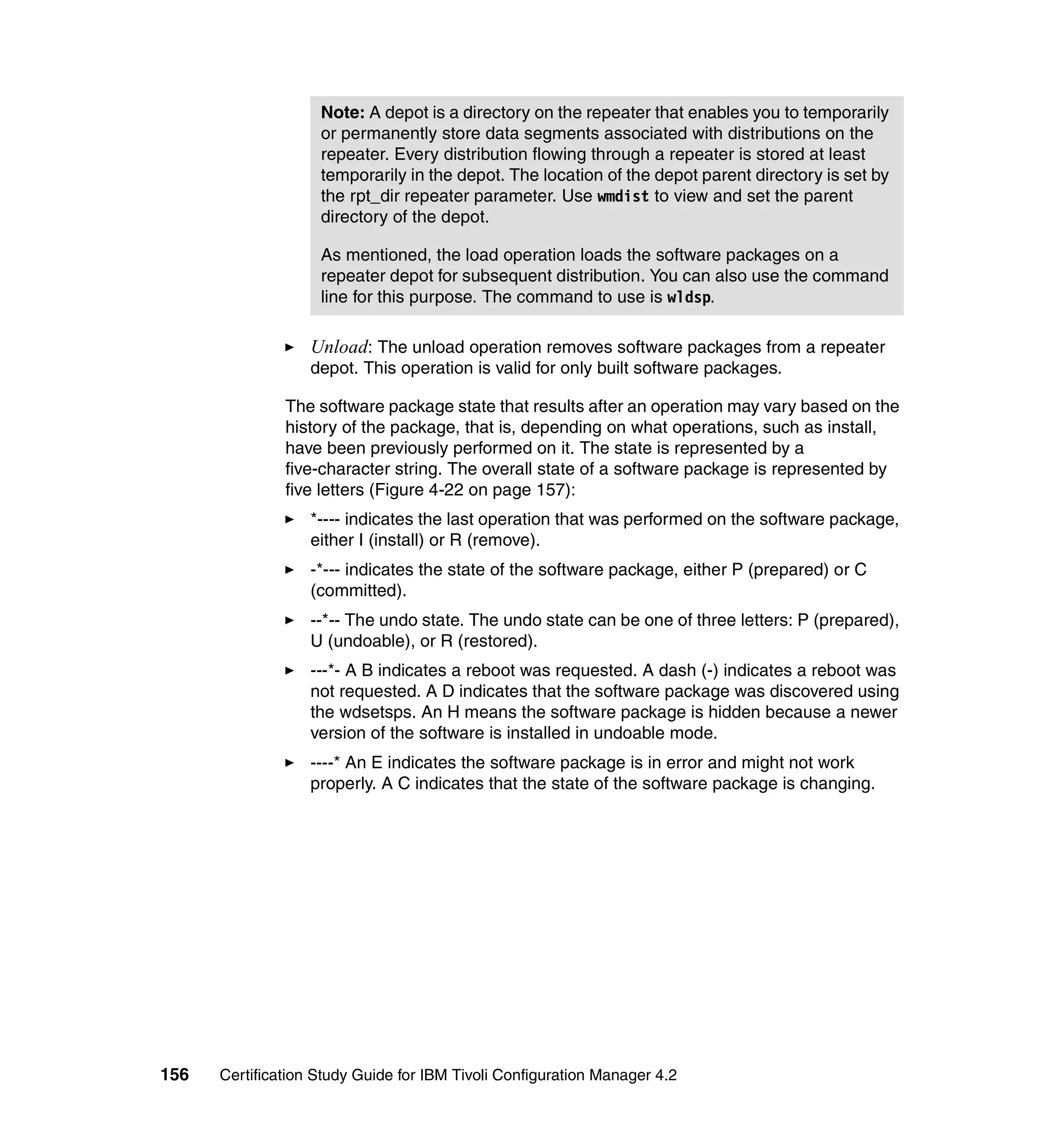
Front cover

               Certification Study Guide for
               IBM Tivoli Configuration
               Manager 4.2

Helps you to get ITCM certified


Explains the certification path
and prerequisites

Includes sample test
questions and answers


                                                  Vasfi Gucer
                                                Sanver Ceylan


ibm.com/redbooks                     Redpaper
International Technical Support Organization

Certification Study Guide for IBM Tivoli
Configuration Manager 4.2

January 2005
Note: Before using this information and the product it supports, read the information in
 “Notices” on page xi.


First Edition (January 2005)

IBM Tivoli Configuratior Manager Version 4.2.0, 4.2.1 and 4.2.2, IBM Tivoli Management
Framework Version 4.1 and 4.1.1

© Copyright International Business Machines Corporation 2005. All rights reserved.
Note to U.S. Government Users Restricted Rights -- Use, duplication or disclosure restricted by GSA ADP
Schedule Contract with IBM Corp.
Contents

                 Notices . . . . . . . . . . . . . . . . . . . . . . . . . . . . . . . . . . . . . . . . . . . . . . . . . . . . . . . xi
                 Trademarks . . . . . . . . . . . . . . . . . . . . . . . . . . . . . . . . . . . . . . . . . . . . . . . . . . . xii

                 Preface . . . . . . . . . . . . . . . . . . . . . . . . . . . . . . . . . . . . . . . . . . . . . . . . . . . . . . xiii
                 The team that wrote this Redpaper . . . . . . . . . . . . . . . . . . . . . . . . . . . . . . . . . xiii
                 Become a published author . . . . . . . . . . . . . . . . . . . . . . . . . . . . . . . . . . . . . . . xiv
                 Comments welcome. . . . . . . . . . . . . . . . . . . . . . . . . . . . . . . . . . . . . . . . . . . . . xiv

                 Chapter 1. Certification overview . . . . . . . . . . . . . . . . . . . . . . . . . . . . . . . . . 1
                 1.1 IBM Professional Certification Program . . . . . . . . . . . . . . . . . . . . . . . . . . . 2
                    1.1.1 Benefits of certification . . . . . . . . . . . . . . . . . . . . . . . . . . . . . . . . . . . . 3
                    1.1.2 Tivoli Software Professional Certification . . . . . . . . . . . . . . . . . . . . . . 4
                 1.2 IBM Tivoli Configuration Manager V4.2 Certification. . . . . . . . . . . . . . . . . . 7
                    1.2.1 Test 786 objectives . . . . . . . . . . . . . . . . . . . . . . . . . . . . . . . . . . . . . . . 8
                 1.3 Recommended resources for study . . . . . . . . . . . . . . . . . . . . . . . . . . . . . 17
                    1.3.1 Courses. . . . . . . . . . . . . . . . . . . . . . . . . . . . . . . . . . . . . . . . . . . . . . . 17
                    1.3.2 Publication. . . . . . . . . . . . . . . . . . . . . . . . . . . . . . . . . . . . . . . . . . . . . 19

                 Chapter 2. Tivoli Management Framework basics . . . . . . . . . . . . . . . . . . . 23
                 2.1 Components of the basic Tivoli architecture . . . . . . . . . . . . . . . . . . . . . . . 24
                 2.2 Tivoli user interfaces . . . . . . . . . . . . . . . . . . . . . . . . . . . . . . . . . . . . . . . . . 27
                    2.2.1 Tivoli Desktop . . . . . . . . . . . . . . . . . . . . . . . . . . . . . . . . . . . . . . . . . . 27
                    2.2.2 Command line interface . . . . . . . . . . . . . . . . . . . . . . . . . . . . . . . . . . 28
                    2.2.3 Navigating the Tivoli Desktop . . . . . . . . . . . . . . . . . . . . . . . . . . . . . . 28
                 2.3 Tivoli resources . . . . . . . . . . . . . . . . . . . . . . . . . . . . . . . . . . . . . . . . . . . . . 29
                 2.4 Authorization roles. . . . . . . . . . . . . . . . . . . . . . . . . . . . . . . . . . . . . . . . . . . 33
                    2.4.1 Scope of authorization roles . . . . . . . . . . . . . . . . . . . . . . . . . . . . . . . 34
                 2.5 Tivoli profiles . . . . . . . . . . . . . . . . . . . . . . . . . . . . . . . . . . . . . . . . . . . . . . . 35
                    2.5.1 Profile managers and profile distribution. . . . . . . . . . . . . . . . . . . . . . 37
                 2.6 Multiplexed distribution services . . . . . . . . . . . . . . . . . . . . . . . . . . . . . . . . 39
                    2.6.1 MDist and MDist 2. . . . . . . . . . . . . . . . . . . . . . . . . . . . . . . . . . . . . . . 41
                    2.6.2 MDist 2 functions. . . . . . . . . . . . . . . . . . . . . . . . . . . . . . . . . . . . . . . . 41
                    2.6.3 MDist2 components . . . . . . . . . . . . . . . . . . . . . . . . . . . . . . . . . . . . . 42
                    2.6.4 wmdist command . . . . . . . . . . . . . . . . . . . . . . . . . . . . . . . . . . . . . . . 43
                    2.6.5 Using the Distribution Status console . . . . . . . . . . . . . . . . . . . . . . . . 44
                 2.7 Connecting multiple TMR regions . . . . . . . . . . . . . . . . . . . . . . . . . . . . . . . 49
                    2.7.1 Benefits of connecting TMRs . . . . . . . . . . . . . . . . . . . . . . . . . . . . . . 50
                    2.7.2 Connection types . . . . . . . . . . . . . . . . . . . . . . . . . . . . . . . . . . . . . . . 50
                    2.7.3 Name registry . . . . . . . . . . . . . . . . . . . . . . . . . . . . . . . . . . . . . . . . . . 51


© Copyright IBM Corp. 2005. All rights reserved.                                                                                      iii
2.7.4 Case study: Hub-spoke architecture . . . . . . . . . . . . . . . . . . . . . . . . . 51
                2.8 Endpoint login sequence . . . . . . . . . . . . . . . . . . . . . . . . . . . . . . . . . . . . . . 55
                   2.8.1 Initial login without a select_gateway_policy script . . . . . . . . . . . . . . 57
                   2.8.2 Initial login with a select_gateway_policy script . . . . . . . . . . . . . . . . 58
                   2.8.3 Normal login . . . . . . . . . . . . . . . . . . . . . . . . . . . . . . . . . . . . . . . . . . . 59
                   2.8.4 Isolated login . . . . . . . . . . . . . . . . . . . . . . . . . . . . . . . . . . . . . . . . . . . 60
                   2.8.5 Orphan login . . . . . . . . . . . . . . . . . . . . . . . . . . . . . . . . . . . . . . . . . . . 61
                   2.8.6 Implementing policy scripts . . . . . . . . . . . . . . . . . . . . . . . . . . . . . . . . 62
                2.9 Firewall Security Toolbox . . . . . . . . . . . . . . . . . . . . . . . . . . . . . . . . . . . . . 64
                   2.9.1 Tivoli environment with a firewall . . . . . . . . . . . . . . . . . . . . . . . . . . . 64
                   2.9.2 Tivoli environment with demilitarized zones . . . . . . . . . . . . . . . . . . . 65
                   2.9.3 Sending events across firewalls . . . . . . . . . . . . . . . . . . . . . . . . . . . . 66
                2.10 Installing Firewall Security Toolbox . . . . . . . . . . . . . . . . . . . . . . . . . . . . . 67
                   2.10.1 Installing on UNIX operating systems . . . . . . . . . . . . . . . . . . . . . . . 67
                   2.10.2 Installing on Windows operating systems . . . . . . . . . . . . . . . . . . . . 68

                Chapter 3. Tivoli Configuration Manager fundamentals and installation 71
                3.1 IBM Tivoli Configuration Manager fundamentals . . . . . . . . . . . . . . . . . . . 73
                   3.1.1 Tivoli Configuration Manager components and services . . . . . . . . . 73
                3.2 Creating a deployment plan for Tivoli Configuration Manager . . . . . . . . . 82
                3.3 How to deploy Tivoli Configuration Manager components . . . . . . . . . . . . 83
                   3.3.1 Distributed Configuration Manager components. . . . . . . . . . . . . . . . 83
                   3.3.2 TMR server configuration . . . . . . . . . . . . . . . . . . . . . . . . . . . . . . . . . 83
                   3.3.3 Components for managed nodes . . . . . . . . . . . . . . . . . . . . . . . . . . . 84
                   3.3.4 Components for gateways . . . . . . . . . . . . . . . . . . . . . . . . . . . . . . . . 84
                   3.3.5 Components for endpoints . . . . . . . . . . . . . . . . . . . . . . . . . . . . . . . . 85
                3.4 Required roles for installation . . . . . . . . . . . . . . . . . . . . . . . . . . . . . . . . . . 85
                3.5 RDBMS considerations . . . . . . . . . . . . . . . . . . . . . . . . . . . . . . . . . . . . . . . 86
                3.6 RIM considerations . . . . . . . . . . . . . . . . . . . . . . . . . . . . . . . . . . . . . . . . . . 89
                3.7 General pre-install checks, hints, and tips. . . . . . . . . . . . . . . . . . . . . . . . . 91
                   3.7.1 UNIX . . . . . . . . . . . . . . . . . . . . . . . . . . . . . . . . . . . . . . . . . . . . . . . . . 91
                   3.7.2 Windows Systems on Intel® 486 or Pentium® systems . . . . . . . . . . 92
                3.8 Installation methods . . . . . . . . . . . . . . . . . . . . . . . . . . . . . . . . . . . . . . . . . 93
                3.9 Overview of Integrated Install . . . . . . . . . . . . . . . . . . . . . . . . . . . . . . . . . . 93
                3.10 Server Install . . . . . . . . . . . . . . . . . . . . . . . . . . . . . . . . . . . . . . . . . . . . . . 94
                   3.10.1 Typical Server Install . . . . . . . . . . . . . . . . . . . . . . . . . . . . . . . . . . . . 94
                   3.10.2 Custom Server Install . . . . . . . . . . . . . . . . . . . . . . . . . . . . . . . . . . . 95
                   3.10.3 Starting the installation programs . . . . . . . . . . . . . . . . . . . . . . . . . . 96
                3.11 Desktop Install. . . . . . . . . . . . . . . . . . . . . . . . . . . . . . . . . . . . . . . . . . . . . 97
                   3.11.1 Starting the installation program . . . . . . . . . . . . . . . . . . . . . . . . . . . 98
                3.12 Web Gateway Install . . . . . . . . . . . . . . . . . . . . . . . . . . . . . . . . . . . . . . . . 98
                   3.12.1 Web Gateway prerequisites . . . . . . . . . . . . . . . . . . . . . . . . . . . . . . 98
                   3.12.2 Starting the installation program . . . . . . . . . . . . . . . . . . . . . . . . . . . 99


iv   Certification Study Guide for IBM Tivoli Configuration Manager 4.2
3.12.3 Multiple endpoints installation . . . . . . . . . . . . . . . . . . . . . . . . . . . . . 99
3.13 Uninstallation of IBM Tivoli Configuration Manager . . . . . . . . . . . . . . . 100

Chapter 4. Inventory and Software Distribution components. . . . . . . . . 101
4.1 Inventory component. . . . . . . . . . . . . . . . . . . . . . . . . . . . . . . . . . . . . . . . 102
   4.1.1 What is gathered by Tivoli Inventory . . . . . . . . . . . . . . . . . . . . . . . . 102
   4.1.2 Inventory architecture . . . . . . . . . . . . . . . . . . . . . . . . . . . . . . . . . . . 102
   4.1.3 Collection Table of Contents . . . . . . . . . . . . . . . . . . . . . . . . . . . . . . 105
   4.1.4 Collection files . . . . . . . . . . . . . . . . . . . . . . . . . . . . . . . . . . . . . . . . . 108
   4.1.5 Inventory Collectors . . . . . . . . . . . . . . . . . . . . . . . . . . . . . . . . . . . . 108
   4.1.6 Collection manager . . . . . . . . . . . . . . . . . . . . . . . . . . . . . . . . . . . . . 115
   4.1.7 Data Handler . . . . . . . . . . . . . . . . . . . . . . . . . . . . . . . . . . . . . . . . . . 116
   4.1.8 Status Collector. . . . . . . . . . . . . . . . . . . . . . . . . . . . . . . . . . . . . . . . 119
   4.1.9 Callback object . . . . . . . . . . . . . . . . . . . . . . . . . . . . . . . . . . . . . . . . 120
   4.1.10 Managing data collection . . . . . . . . . . . . . . . . . . . . . . . . . . . . . . . 123
   4.1.11 Clearing the Collector . . . . . . . . . . . . . . . . . . . . . . . . . . . . . . . . . . 127
   4.1.12 Inventory collection scenarios . . . . . . . . . . . . . . . . . . . . . . . . . . . . 129
   4.1.13 Custom scans . . . . . . . . . . . . . . . . . . . . . . . . . . . . . . . . . . . . . . . . 135
   4.1.14 Isolated scans . . . . . . . . . . . . . . . . . . . . . . . . . . . . . . . . . . . . . . . . 136
   4.1.15 Querying inventory data . . . . . . . . . . . . . . . . . . . . . . . . . . . . . . . . 136
4.2 Software Distribution component . . . . . . . . . . . . . . . . . . . . . . . . . . . . . . 138
   4.2.1 Components of Tivoli Software Distribution . . . . . . . . . . . . . . . . . . 139
   4.2.2 Software distribution process overview. . . . . . . . . . . . . . . . . . . . . . 142
4.3 Data Moving . . . . . . . . . . . . . . . . . . . . . . . . . . . . . . . . . . . . . . . . . . . . . . 159
   4.3.1 Using the Data Moving Service. . . . . . . . . . . . . . . . . . . . . . . . . . . . 159
4.4 Enterprise Data Warehouse integration . . . . . . . . . . . . . . . . . . . . . . . . . 161

Chapter 5. Deployment Services . . . . . . . . . . . . . . . . . . . . . . . . . . . . . . . . 163
5.1 Activity Planner . . . . . . . . . . . . . . . . . . . . . . . . . . . . . . . . . . . . . . . . . . . . 164
   5.1.1 Activity Planner components. . . . . . . . . . . . . . . . . . . . . . . . . . . . . . 164
   5.1.2 Roles required for the Activity Planner . . . . . . . . . . . . . . . . . . . . . . 165
   5.1.3 Types of activities . . . . . . . . . . . . . . . . . . . . . . . . . . . . . . . . . . . . . . 165
   5.1.4 Activity Plan Editor . . . . . . . . . . . . . . . . . . . . . . . . . . . . . . . . . . . . . 165
   5.1.5 Activity Plan Monitor . . . . . . . . . . . . . . . . . . . . . . . . . . . . . . . . . . . . 171
   5.1.6 Activity Planner commands. . . . . . . . . . . . . . . . . . . . . . . . . . . . . . . 175
5.2 Change Manager. . . . . . . . . . . . . . . . . . . . . . . . . . . . . . . . . . . . . . . . . . . 176
   5.2.1 Sample Change Manager scenario. . . . . . . . . . . . . . . . . . . . . . . . . 181
5.3 Enterprise Directory integration . . . . . . . . . . . . . . . . . . . . . . . . . . . . . . . . 183
   5.3.1 Exchanging data with a directory server . . . . . . . . . . . . . . . . . . . . . 185
   5.3.2 Manipulating DirectoryContext objects . . . . . . . . . . . . . . . . . . . . . . 185
   5.3.3 Directory query libraries and query directories . . . . . . . . . . . . . . . . 187
5.4 Resource Manager and pervasive devices . . . . . . . . . . . . . . . . . . . . . . . 191
   5.4.1 Choosing where to install the Resource Manager components . . . 193


                                                                                              Contents        v
5.4.2 Web Gateway installation . . . . . . . . . . . . . . . . . . . . . . . . . . . . . . . . 193
                    5.4.3 Web objects . . . . . . . . . . . . . . . . . . . . . . . . . . . . . . . . . . . . . . . . . . 193
                    5.4.4 Registering the resource types . . . . . . . . . . . . . . . . . . . . . . . . . . . . 194
                    5.4.5 Associating endpoints with the resource gateway . . . . . . . . . . . . . 194
                    5.4.6 Enrolling pervasive devices. . . . . . . . . . . . . . . . . . . . . . . . . . . . . . . 194
                    5.4.7 Installing and configuring devices for resource manager . . . . . . . . 195
                    5.4.8 Installing the device agent for Windows CE devices. . . . . . . . . . . . 195
                    5.4.9 The user ID of palm devices . . . . . . . . . . . . . . . . . . . . . . . . . . . . . . 196
                    5.4.10 Inventory scans on pervasive devices . . . . . . . . . . . . . . . . . . . . . 196

                Chapter 6. Multicast concepts and implementation . . . . . . . . . . . . . . . . 197
                6.1 Reliable multicast protocol . . . . . . . . . . . . . . . . . . . . . . . . . . . . . . . . . . . 199
                6.2 Hyper Delivery (RMTP) flow . . . . . . . . . . . . . . . . . . . . . . . . . . . . . . . . . . 200
                6.3 Distributed depot service. . . . . . . . . . . . . . . . . . . . . . . . . . . . . . . . . . . . . 203
                   6.3.1 Configuring repeaters for multicast . . . . . . . . . . . . . . . . . . . . . . . . . 205
                6.4 Endpoint multicast receivers . . . . . . . . . . . . . . . . . . . . . . . . . . . . . . . . . . 208
                   6.4.1 Configuring endpoint to receive multicast . . . . . . . . . . . . . . . . . . . . 210
                6.5 Multicast scenarios . . . . . . . . . . . . . . . . . . . . . . . . . . . . . . . . . . . . . . . . . 211
                   6.5.1 Preloading MDist2 depots with multicast . . . . . . . . . . . . . . . . . . . . 211
                   6.5.2 Multicast from gateways to Tivoli Management Agents . . . . . . . . . 215
                6.6 Multicast limitations . . . . . . . . . . . . . . . . . . . . . . . . . . . . . . . . . . . . . . . . . 220
                6.7 Troubleshooting multicast . . . . . . . . . . . . . . . . . . . . . . . . . . . . . . . . . . . . 222
                   6.7.1 Repeater multicast log . . . . . . . . . . . . . . . . . . . . . . . . . . . . . . . . . . 222
                   6.7.2 Endpoint receiver log and structure . . . . . . . . . . . . . . . . . . . . . . . . 223
                   6.7.3 Best practices and tips . . . . . . . . . . . . . . . . . . . . . . . . . . . . . . . . . . 224

                Chapter 7. Troubleshooting IBM Tivoli Configuration Manager . . . . . . . 225
                7.1 Generic problem determination outline . . . . . . . . . . . . . . . . . . . . . . . . . . 227
                7.2 Troubleshooting Framework 4.1.1. . . . . . . . . . . . . . . . . . . . . . . . . . . . . . 228
                7.3 Autotrace . . . . . . . . . . . . . . . . . . . . . . . . . . . . . . . . . . . . . . . . . . . . . . . . . 229
                7.4 Troubleshooting Software Distribution . . . . . . . . . . . . . . . . . . . . . . . . . . 230
                   7.4.1 General troubleshooting . . . . . . . . . . . . . . . . . . . . . . . . . . . . . . . . . 230
                   7.4.2 Check the log . . . . . . . . . . . . . . . . . . . . . . . . . . . . . . . . . . . . . . . . . 231
                   7.4.3 Check the Distribution Status Console . . . . . . . . . . . . . . . . . . . . . . 232
                   7.4.4 Make sure that Tivoli Framework is functional . . . . . . . . . . . . . . . . 233
                   7.4.5 Check for MDist2 problems. . . . . . . . . . . . . . . . . . . . . . . . . . . . . . . 234
                   7.4.6 Troubleshooting the software package . . . . . . . . . . . . . . . . . . . . . . 235
                   7.4.7 Software Distribution traces . . . . . . . . . . . . . . . . . . . . . . . . . . . . . . 237
                   7.4.8 Troubleshooting Data Moving . . . . . . . . . . . . . . . . . . . . . . . . . . . . . 240
                   7.4.9 Troubleshooting Mobile Computing . . . . . . . . . . . . . . . . . . . . . . . . 241
                   7.4.10 Troubleshooting pristine installations . . . . . . . . . . . . . . . . . . . . . . 241
                   7.4.11 Troubleshooting discovering and synchronization . . . . . . . . . . . . 242
                   7.4.12 Change Management Status summary. . . . . . . . . . . . . . . . . . . . . 242


vi   Certification Study Guide for IBM Tivoli Configuration Manager 4.2
7.5 Troubleshooting Activity Planner . . . . . . . . . . . . . . . . . . . . . . . . . . . . . . . 243
   7.5.1 Activity Planner processes . . . . . . . . . . . . . . . . . . . . . . . . . . . . . . . 243
   7.5.2 Activity Planner configuration file . . . . . . . . . . . . . . . . . . . . . . . . . . 243
   7.5.3 Activity Planner logfiles . . . . . . . . . . . . . . . . . . . . . . . . . . . . . . . . . . 245
   7.5.4 Activity Planner trace files . . . . . . . . . . . . . . . . . . . . . . . . . . . . . . . . 247
7.6 Troubleshooting Change Manager . . . . . . . . . . . . . . . . . . . . . . . . . . . . . 248
   7.6.1 Change Manager configuration file . . . . . . . . . . . . . . . . . . . . . . . . . 248
   7.6.2 Change Manager logfiles . . . . . . . . . . . . . . . . . . . . . . . . . . . . . . . . 249
   7.6.3 Change Manager trace files . . . . . . . . . . . . . . . . . . . . . . . . . . . . . . 249
7.7 Troubleshooting Web Gateway and Device Management . . . . . . . . . . . 251
   7.7.1 Tracing the Web Gateway. . . . . . . . . . . . . . . . . . . . . . . . . . . . . . . . 251
7.8 Troubleshooting Web User Interface. . . . . . . . . . . . . . . . . . . . . . . . . . . . 252
   7.8.1 Common Web User Interface problems . . . . . . . . . . . . . . . . . . . . . 252
   7.8.2 Tracing the Web User Interface . . . . . . . . . . . . . . . . . . . . . . . . . . . 255
7.9 Troubleshooting Enterprise Directory Integration . . . . . . . . . . . . . . . . . . 256
7.10 Troubleshooting Inventory . . . . . . . . . . . . . . . . . . . . . . . . . . . . . . . . . . . 256
   7.10.1 Enabling logging and tracing . . . . . . . . . . . . . . . . . . . . . . . . . . . . . 258

Chapter 8. Certification exam objectives . . . . . . . . . . . . . . . . . . . . . . . . . 263
8.1 Planning section . . . . . . . . . . . . . . . . . . . . . . . . . . . . . . . . . . . . . . . . . . . 264
8.2 Installation section. . . . . . . . . . . . . . . . . . . . . . . . . . . . . . . . . . . . . . . . . . 266
8.3 Configuration section. . . . . . . . . . . . . . . . . . . . . . . . . . . . . . . . . . . . . . . . 268
8.4 Operations, administration, and maintenance section . . . . . . . . . . . . . . 270

Appendix A. Lab exercises. . . . . . . . . . . . . . . . . . . . . . . . . . . . . . . . . . . . . 273
Introduction. . . . . . . . . . . . . . . . . . . . . . . . . . . . . . . . . . . . . . . . . . . . . . . . . . . 274
LAB 1 Using Integrated Install method to install a Tivoli Server. . . . . . . . . . . 275
    What this exercise is about . . . . . . . . . . . . . . . . . . . . . . . . . . . . . . . . . . . . 275
    What you should be able to do . . . . . . . . . . . . . . . . . . . . . . . . . . . . . . . . . 275
    Required materials . . . . . . . . . . . . . . . . . . . . . . . . . . . . . . . . . . . . . . . . . . 275
    Exercise instructions . . . . . . . . . . . . . . . . . . . . . . . . . . . . . . . . . . . . . . . . . 275
Install your Tivoli Server with all ITCM modules. . . . . . . . . . . . . . . . . . . . . . . 276
    Exercise review/wrap-up . . . . . . . . . . . . . . . . . . . . . . . . . . . . . . . . . . . . . . 291
LAB 2. Using Integrated Install method to install a Tivoli server . . . . . . . . . . 292
    What this exercise is about . . . . . . . . . . . . . . . . . . . . . . . . . . . . . . . . . . . . 292
    What you should be able to do . . . . . . . . . . . . . . . . . . . . . . . . . . . . . . . . . 292
    Introduction . . . . . . . . . . . . . . . . . . . . . . . . . . . . . . . . . . . . . . . . . . . . . . . . 292
    Required materials . . . . . . . . . . . . . . . . . . . . . . . . . . . . . . . . . . . . . . . . . . 292
    Exercise instructions . . . . . . . . . . . . . . . . . . . . . . . . . . . . . . . . . . . . . . . . . 292
    Exercise review/wrap-up . . . . . . . . . . . . . . . . . . . . . . . . . . . . . . . . . . . . . . 295
LAB 3. Create an Inventory profile and run a hardware scan . . . . . . . . . . . . 296
    What this exercise is about . . . . . . . . . . . . . . . . . . . . . . . . . . . . . . . . . . . . 296
    What you should be able to do . . . . . . . . . . . . . . . . . . . . . . . . . . . . . . . . . 296


                                                                                                 Contents        vii
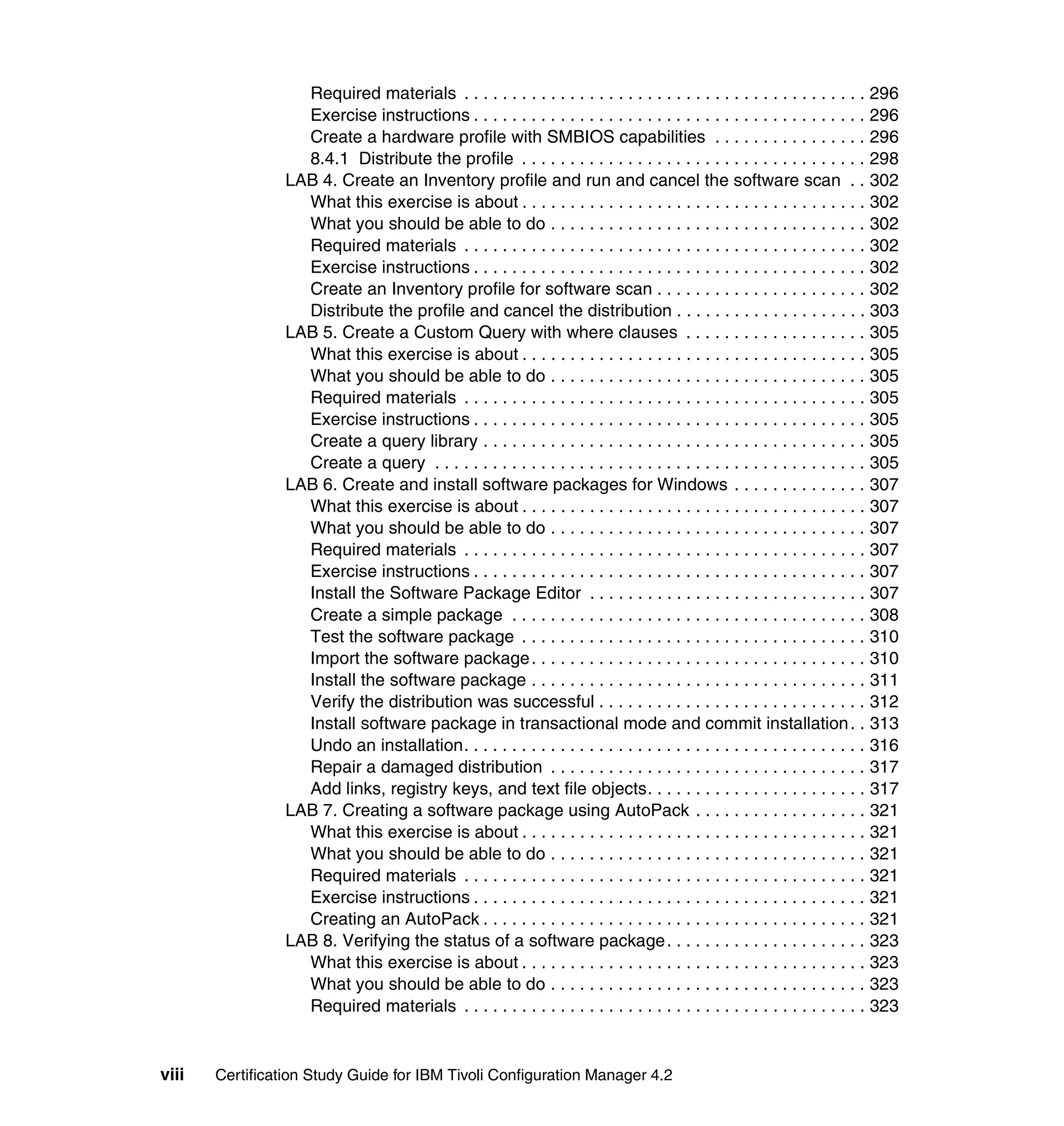
Required materials . . . . . . . . . . . . . . . . . . . . . . . . . . . . . . . . . . . . . . . . . . 296
                   Exercise instructions . . . . . . . . . . . . . . . . . . . . . . . . . . . . . . . . . . . . . . . . . 296
                   Create a hardware profile with SMBIOS capabilities . . . . . . . . . . . . . . . . 296
                   8.4.1 Distribute the profile . . . . . . . . . . . . . . . . . . . . . . . . . . . . . . . . . . . . 298
                 LAB 4. Create an Inventory profile and run and cancel the software scan . . 302
                   What this exercise is about . . . . . . . . . . . . . . . . . . . . . . . . . . . . . . . . . . . . 302
                   What you should be able to do . . . . . . . . . . . . . . . . . . . . . . . . . . . . . . . . . 302
                   Required materials . . . . . . . . . . . . . . . . . . . . . . . . . . . . . . . . . . . . . . . . . . 302
                   Exercise instructions . . . . . . . . . . . . . . . . . . . . . . . . . . . . . . . . . . . . . . . . . 302
                   Create an Inventory profile for software scan . . . . . . . . . . . . . . . . . . . . . . 302
                   Distribute the profile and cancel the distribution . . . . . . . . . . . . . . . . . . . . 303
                 LAB 5. Create a Custom Query with where clauses . . . . . . . . . . . . . . . . . . . 305
                   What this exercise is about . . . . . . . . . . . . . . . . . . . . . . . . . . . . . . . . . . . . 305
                   What you should be able to do . . . . . . . . . . . . . . . . . . . . . . . . . . . . . . . . . 305
                   Required materials . . . . . . . . . . . . . . . . . . . . . . . . . . . . . . . . . . . . . . . . . . 305
                   Exercise instructions . . . . . . . . . . . . . . . . . . . . . . . . . . . . . . . . . . . . . . . . . 305
                   Create a query library . . . . . . . . . . . . . . . . . . . . . . . . . . . . . . . . . . . . . . . . 305
                   Create a query . . . . . . . . . . . . . . . . . . . . . . . . . . . . . . . . . . . . . . . . . . . . . 305
                 LAB 6. Create and install software packages for Windows . . . . . . . . . . . . . . 307
                   What this exercise is about . . . . . . . . . . . . . . . . . . . . . . . . . . . . . . . . . . . . 307
                   What you should be able to do . . . . . . . . . . . . . . . . . . . . . . . . . . . . . . . . . 307
                   Required materials . . . . . . . . . . . . . . . . . . . . . . . . . . . . . . . . . . . . . . . . . . 307
                   Exercise instructions . . . . . . . . . . . . . . . . . . . . . . . . . . . . . . . . . . . . . . . . . 307
                   Install the Software Package Editor . . . . . . . . . . . . . . . . . . . . . . . . . . . . . 307
                   Create a simple package . . . . . . . . . . . . . . . . . . . . . . . . . . . . . . . . . . . . . 308
                   Test the software package . . . . . . . . . . . . . . . . . . . . . . . . . . . . . . . . . . . . 310
                   Import the software package . . . . . . . . . . . . . . . . . . . . . . . . . . . . . . . . . . . 310
                   Install the software package . . . . . . . . . . . . . . . . . . . . . . . . . . . . . . . . . . . 311
                   Verify the distribution was successful . . . . . . . . . . . . . . . . . . . . . . . . . . . . 312
                   Install software package in transactional mode and commit installation . . 313
                   Undo an installation. . . . . . . . . . . . . . . . . . . . . . . . . . . . . . . . . . . . . . . . . . 316
                   Repair a damaged distribution . . . . . . . . . . . . . . . . . . . . . . . . . . . . . . . . . 317
                   Add links, registry keys, and text file objects. . . . . . . . . . . . . . . . . . . . . . . 317
                 LAB 7. Creating a software package using AutoPack . . . . . . . . . . . . . . . . . . 321
                   What this exercise is about . . . . . . . . . . . . . . . . . . . . . . . . . . . . . . . . . . . . 321
                   What you should be able to do . . . . . . . . . . . . . . . . . . . . . . . . . . . . . . . . . 321
                   Required materials . . . . . . . . . . . . . . . . . . . . . . . . . . . . . . . . . . . . . . . . . . 321
                   Exercise instructions . . . . . . . . . . . . . . . . . . . . . . . . . . . . . . . . . . . . . . . . . 321
                   Creating an AutoPack . . . . . . . . . . . . . . . . . . . . . . . . . . . . . . . . . . . . . . . . 321
                 LAB 8. Verifying the status of a software package. . . . . . . . . . . . . . . . . . . . . 323
                   What this exercise is about . . . . . . . . . . . . . . . . . . . . . . . . . . . . . . . . . . . . 323
                   What you should be able to do . . . . . . . . . . . . . . . . . . . . . . . . . . . . . . . . . 323
                   Required materials . . . . . . . . . . . . . . . . . . . . . . . . . . . . . . . . . . . . . . . . . . 323


viii   Certification Study Guide for IBM Tivoli Configuration Manager 4.2
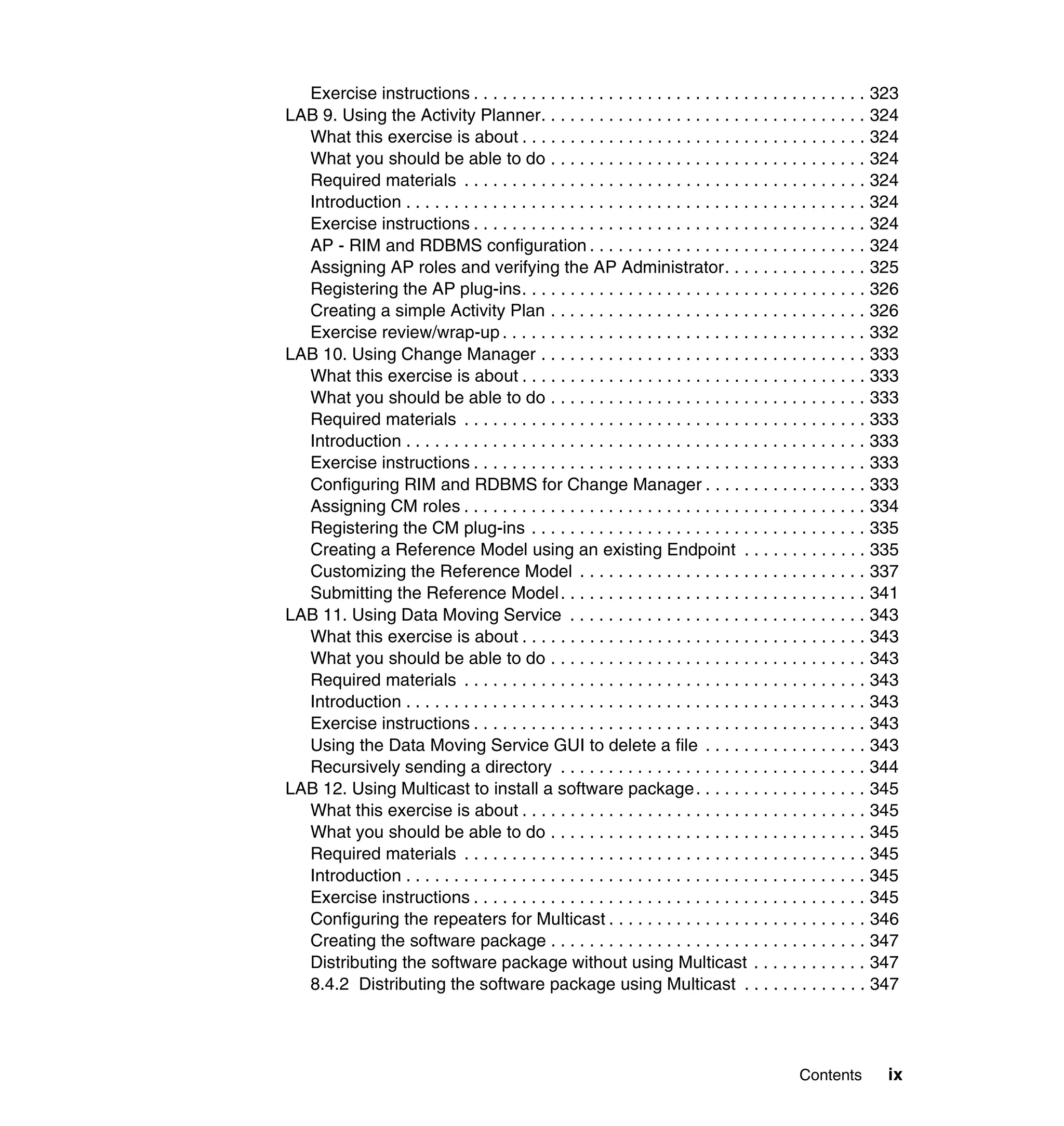
Exercise instructions . . . . . . . . . . . . . . . . . . . . . . . . . . . . . . . . . . . . . . . . . 323
LAB 9. Using the Activity Planner. . . . . . . . . . . . . . . . . . . . . . . . . . . . . . . . . . 324
  What this exercise is about . . . . . . . . . . . . . . . . . . . . . . . . . . . . . . . . . . . . 324
  What you should be able to do . . . . . . . . . . . . . . . . . . . . . . . . . . . . . . . . . 324
  Required materials . . . . . . . . . . . . . . . . . . . . . . . . . . . . . . . . . . . . . . . . . . 324
  Introduction . . . . . . . . . . . . . . . . . . . . . . . . . . . . . . . . . . . . . . . . . . . . . . . . 324
  Exercise instructions . . . . . . . . . . . . . . . . . . . . . . . . . . . . . . . . . . . . . . . . . 324
  AP - RIM and RDBMS configuration . . . . . . . . . . . . . . . . . . . . . . . . . . . . . 324
  Assigning AP roles and verifying the AP Administrator. . . . . . . . . . . . . . . 325
  Registering the AP plug-ins. . . . . . . . . . . . . . . . . . . . . . . . . . . . . . . . . . . . 326
  Creating a simple Activity Plan . . . . . . . . . . . . . . . . . . . . . . . . . . . . . . . . . 326
  Exercise review/wrap-up . . . . . . . . . . . . . . . . . . . . . . . . . . . . . . . . . . . . . . 332
LAB 10. Using Change Manager . . . . . . . . . . . . . . . . . . . . . . . . . . . . . . . . . . 333
  What this exercise is about . . . . . . . . . . . . . . . . . . . . . . . . . . . . . . . . . . . . 333
  What you should be able to do . . . . . . . . . . . . . . . . . . . . . . . . . . . . . . . . . 333
  Required materials . . . . . . . . . . . . . . . . . . . . . . . . . . . . . . . . . . . . . . . . . . 333
  Introduction . . . . . . . . . . . . . . . . . . . . . . . . . . . . . . . . . . . . . . . . . . . . . . . . 333
  Exercise instructions . . . . . . . . . . . . . . . . . . . . . . . . . . . . . . . . . . . . . . . . . 333
  Configuring RIM and RDBMS for Change Manager . . . . . . . . . . . . . . . . . 333
  Assigning CM roles . . . . . . . . . . . . . . . . . . . . . . . . . . . . . . . . . . . . . . . . . . 334
  Registering the CM plug-ins . . . . . . . . . . . . . . . . . . . . . . . . . . . . . . . . . . . 335
  Creating a Reference Model using an existing Endpoint . . . . . . . . . . . . . 335
  Customizing the Reference Model . . . . . . . . . . . . . . . . . . . . . . . . . . . . . . 337
  Submitting the Reference Model . . . . . . . . . . . . . . . . . . . . . . . . . . . . . . . . 341
LAB 11. Using Data Moving Service . . . . . . . . . . . . . . . . . . . . . . . . . . . . . . . 343
  What this exercise is about . . . . . . . . . . . . . . . . . . . . . . . . . . . . . . . . . . . . 343
  What you should be able to do . . . . . . . . . . . . . . . . . . . . . . . . . . . . . . . . . 343
  Required materials . . . . . . . . . . . . . . . . . . . . . . . . . . . . . . . . . . . . . . . . . . 343
  Introduction . . . . . . . . . . . . . . . . . . . . . . . . . . . . . . . . . . . . . . . . . . . . . . . . 343
  Exercise instructions . . . . . . . . . . . . . . . . . . . . . . . . . . . . . . . . . . . . . . . . . 343
  Using the Data Moving Service GUI to delete a file . . . . . . . . . . . . . . . . . 343
  Recursively sending a directory . . . . . . . . . . . . . . . . . . . . . . . . . . . . . . . . 344
LAB 12. Using Multicast to install a software package. . . . . . . . . . . . . . . . . . 345
  What this exercise is about . . . . . . . . . . . . . . . . . . . . . . . . . . . . . . . . . . . . 345
  What you should be able to do . . . . . . . . . . . . . . . . . . . . . . . . . . . . . . . . . 345
  Required materials . . . . . . . . . . . . . . . . . . . . . . . . . . . . . . . . . . . . . . . . . . 345
  Introduction . . . . . . . . . . . . . . . . . . . . . . . . . . . . . . . . . . . . . . . . . . . . . . . . 345
  Exercise instructions . . . . . . . . . . . . . . . . . . . . . . . . . . . . . . . . . . . . . . . . . 345
  Configuring the repeaters for Multicast . . . . . . . . . . . . . . . . . . . . . . . . . . . 346
  Creating the software package . . . . . . . . . . . . . . . . . . . . . . . . . . . . . . . . . 347
  Distributing the software package without using Multicast . . . . . . . . . . . . 347
  8.4.2 Distributing the software package using Multicast . . . . . . . . . . . . . 347


                                                                                               Contents        ix
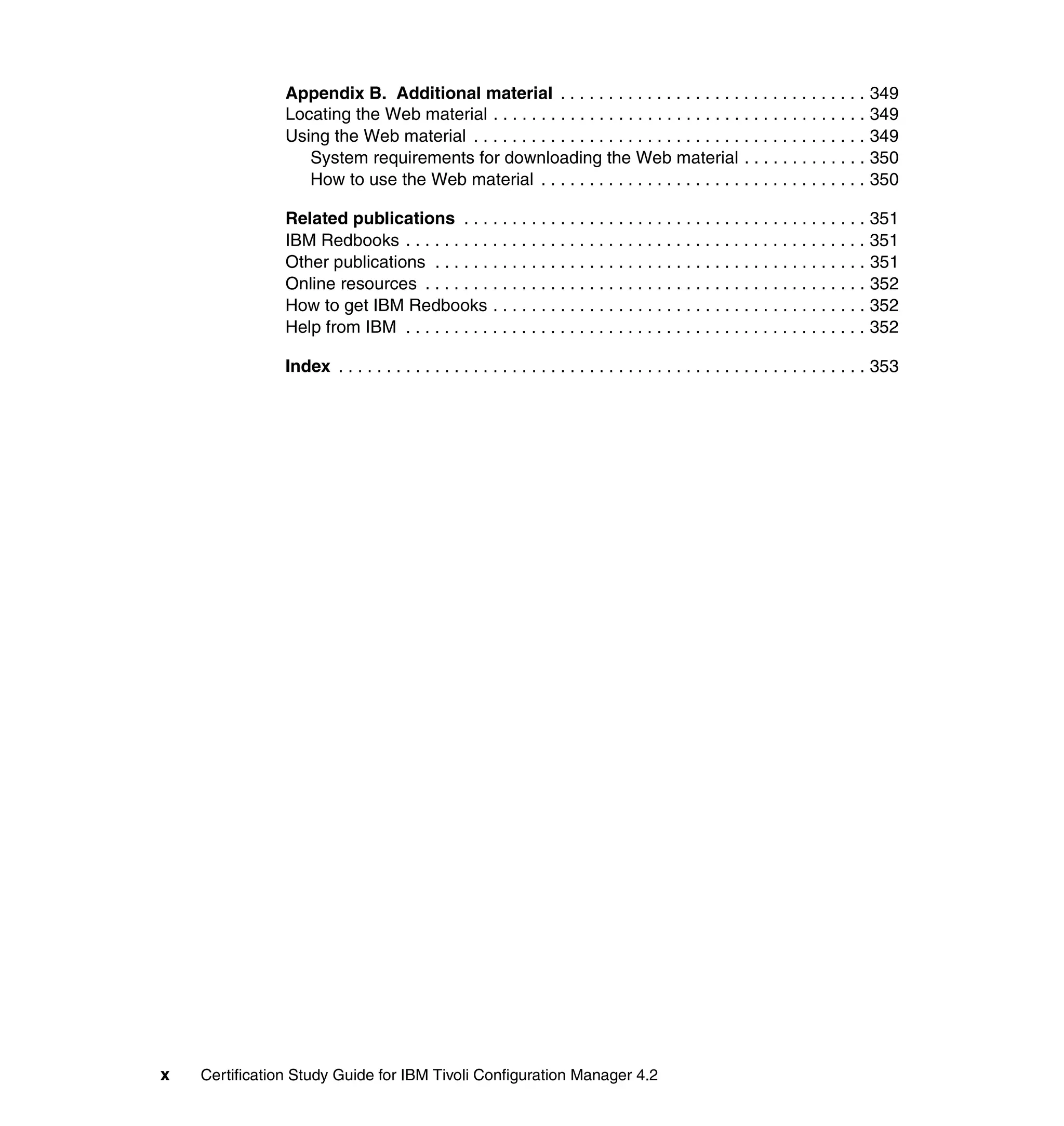
Appendix B. Additional material . . . . . . . . . . . . . . . . . . . . . . . . . . . . . . . . 349
                Locating the Web material . . . . . . . . . . . . . . . . . . . . . . . . . . . . . . . . . . . . . . . 349
                Using the Web material . . . . . . . . . . . . . . . . . . . . . . . . . . . . . . . . . . . . . . . . . 349
                   System requirements for downloading the Web material . . . . . . . . . . . . . 350
                   How to use the Web material . . . . . . . . . . . . . . . . . . . . . . . . . . . . . . . . . . 350

                Related publications . . . . . . . . . . . . . . . . . . . . . . . . . . . . . . . . . . . . . . . . . . 351
                IBM Redbooks . . . . . . . . . . . . . . . . . . . . . . . . . . . . . . . . . . . . . . . . . . . . . . . . 351
                Other publications . . . . . . . . . . . . . . . . . . . . . . . . . . . . . . . . . . . . . . . . . . . . . 351
                Online resources . . . . . . . . . . . . . . . . . . . . . . . . . . . . . . . . . . . . . . . . . . . . . . 352
                How to get IBM Redbooks . . . . . . . . . . . . . . . . . . . . . . . . . . . . . . . . . . . . . . . 352
                Help from IBM . . . . . . . . . . . . . . . . . . . . . . . . . . . . . . . . . . . . . . . . . . . . . . . . 352

                Index . . . . . . . . . . . . . . . . . . . . . . . . . . . . . . . . . . . . . . . . . . . . . . . . . . . . . . . 353


x   Certification Study Guide for IBM Tivoli Configuration Manager 4.2
Notices

This information was developed for products and services offered in the U.S.A.

IBM may not offer the products, services, or features discussed in this document in other countries. Consult
your local IBM representative for information on the products and services currently available in your area.
Any reference to an IBM product, program, or service is not intended to state or imply that only that IBM
product, program, or service may be used. Any functionally equivalent product, program, or service that
does not infringe any IBM intellectual property right may be used instead. However, it is the user's
responsibility to evaluate and verify the operation of any non-IBM product, program, or service.

IBM may have patents or pending patent applications covering subject matter described in this document.
The furnishing of this document does not give you any license to these patents. You can send license
inquiries, in writing, to:
IBM Director of Licensing, IBM Corporation, North Castle Drive Armonk, NY 10504-1785 U.S.A.

The following paragraph does not apply to the United Kingdom or any other country where such provisions
are inconsistent with local law: INTERNATIONAL BUSINESS MACHINES CORPORATION PROVIDES
THIS PUBLICATION "AS IS" WITHOUT WARRANTY OF ANY KIND, EITHER EXPRESS OR IMPLIED,
INCLUDING, BUT NOT LIMITED TO, THE IMPLIED WARRANTIES OF NON-INFRINGEMENT,
MERCHANTABILITY OR FITNESS FOR A PARTICULAR PURPOSE. Some states do not allow disclaimer
of express or implied warranties in certain transactions, therefore, this statement may not apply to you.

This information could include technical inaccuracies or typographical errors. Changes are periodically made
to the information herein; these changes will be incorporated in new editions of the publication. IBM may
make improvements and/or changes in the product(s) and/or the program(s) described in this publication at
any time without notice.

Any references in this information to non-IBM Web sites are provided for convenience only and do not in any
manner serve as an endorsement of those Web sites. The materials at those Web sites are not part of the
materials for this IBM product and use of those Web sites is at your own risk.

IBM may use or distribute any of the information you supply in any way it believes appropriate without
incurring any obligation to you.

Information concerning non-IBM products was obtained from the suppliers of those products, their published
announcements or other publicly available sources. IBM has not tested those products and cannot confirm
the accuracy of performance, compatibility or any other claims related to non-IBM products. Questions on
the capabilities of non-IBM products should be addressed to the suppliers of those products.

This information contains examples of data and reports used in daily business operations. To illustrate them
as completely as possible, the examples include the names of individuals, companies, brands, and products.
All of these names are fictitious and any similarity to the names and addresses used by an actual business
enterprise is entirely coincidental.

COPYRIGHT LICENSE:
This information contains sample application programs in source language, which illustrates programming
techniques on various operating platforms. You may copy, modify, and distribute these sample programs in
any form without payment to IBM, for the purposes of developing, using, marketing or distributing application
programs conforming to the application programming interface for the operating platform for which the
sample programs are written. These examples have not been thoroughly tested under all conditions. IBM,
therefore, cannot guarantee or imply reliability, serviceability, or function of these programs. You may copy,
modify, and distribute these sample programs in any form without payment to IBM for the purposes of
developing, using, marketing, or distributing application programs conforming to IBM's application
programming interfaces.


© Copyright IBM Corp. 2005. All rights reserved.                                                            xi
Trademarks
The following terms are trademarks of the International Business Machines Corporation in the United States,
other countries, or both:

  AIX®                                 OS/400®                              Tivoli Enterprise™
  DB2®                                 PartnerWorld®                        Tivoli Management
  Informix®                            Redbooks (logo)      ™               Environment®
  IBM®                                 Redbooks™                            Tivoli®
  ibm.com®                             S/390®                               TME®
  NetView®                             SecureWay®                           Wake on LAN®
  OS/2®                                Tivoli Enterprise Console®           WebSphere®

The following terms are trademarks of other companies:

Java and all Java-based trademarks and logos are trademarks or registered trademarks of Sun
Microsystems, Inc. in the United States, other countries, or both.

Microsoft, Windows, Windows NT, and the Windows logo are trademarks of Microsoft Corporation in the
United States, other countries, or both.

Intel, Intel Inside (logos), MMX, and Pentium are trademarks of Intel Corporation in the United States, other
countries, or both.

UNIX is a registered trademark of The Open Group in the United States and other countries.

Linux is a trademark of Linus Torvalds in the United States, other countries, or both.

Other company, product, and service names may be trademarks or service marks of others.


xii    Certification Study Guide for IBM Tivoli Configuration Manager 4.2
Preface

                 This IBM Redpaper is a study guide for IBM Tivoli® Configuration Manager
                 Version 4.2 and is aimed at the people who want to get IBM Certifications in this
                 specific product.

                 The IBM Tivoli Configuration Manager Certification, offered through the
                 Professional Certification Program from IBM, is designed to validate the skills
                 required of technical professionals who work in the implementation of the IBM
                 Tivoli Configuration Manager Version 4.2 product.

                 This redpaper provides a combination of theory and practical experience needed
                 for a general understanding of the subject matter. It also provides sample
                 questions that will help in the evaluation of personal progress and provide
                 familiarity with the types of questions that will be encountered in the exam.

                 This publication does not replace practical experience, nor is it designed to be a
                 stand-alone guide for any subject. Instead, it is an effective tool that, when
                 combined with education activities and experience, can be a very useful
                 preparation guide for the exam.


The team that wrote this Redpaper
                 This Redpaper was produced by a team of specialists from around the world
                 working at the International Technical Support Organization, Austin Center.

                 Vasfi Gucer is a Project Leader at the International Technical Support
                 Organization, Austin Center. He worked for IBM Turkey for 10 years and has
                 been with the ITSO since January 1999. He has more than 10 years of
                 experience in the areas of systems management, networking hardware, and
                 software on mainframe and distributed platforms. He has worked on various
                 Tivoli customer projects as a systems architect in Turkey and the U.S. He writes
                 extensively and teaches IBM classes worldwide on Tivoli software. Vasfi is also a
                 IBM Certified Senior IT Specialist.

                 Sanver Ceylan is a Project Leader at the International Technical Support
                 Organization, Austin Center. Sanver worked for IBM Turkey for 11 years and he
                 joined to ITSO in September 2003. His main area of expertise is Tivoli Storage
                 Management Products. Before ITSO, Sanver worked in the Software
                 Organization of IBM Turkey as an Advisory IT Specialist, where he was involved
                 in numerous pre-sales projects for major customers of IBM Turkey.


© Copyright IBM Corp. 2005. All rights reserved.                                                xiii
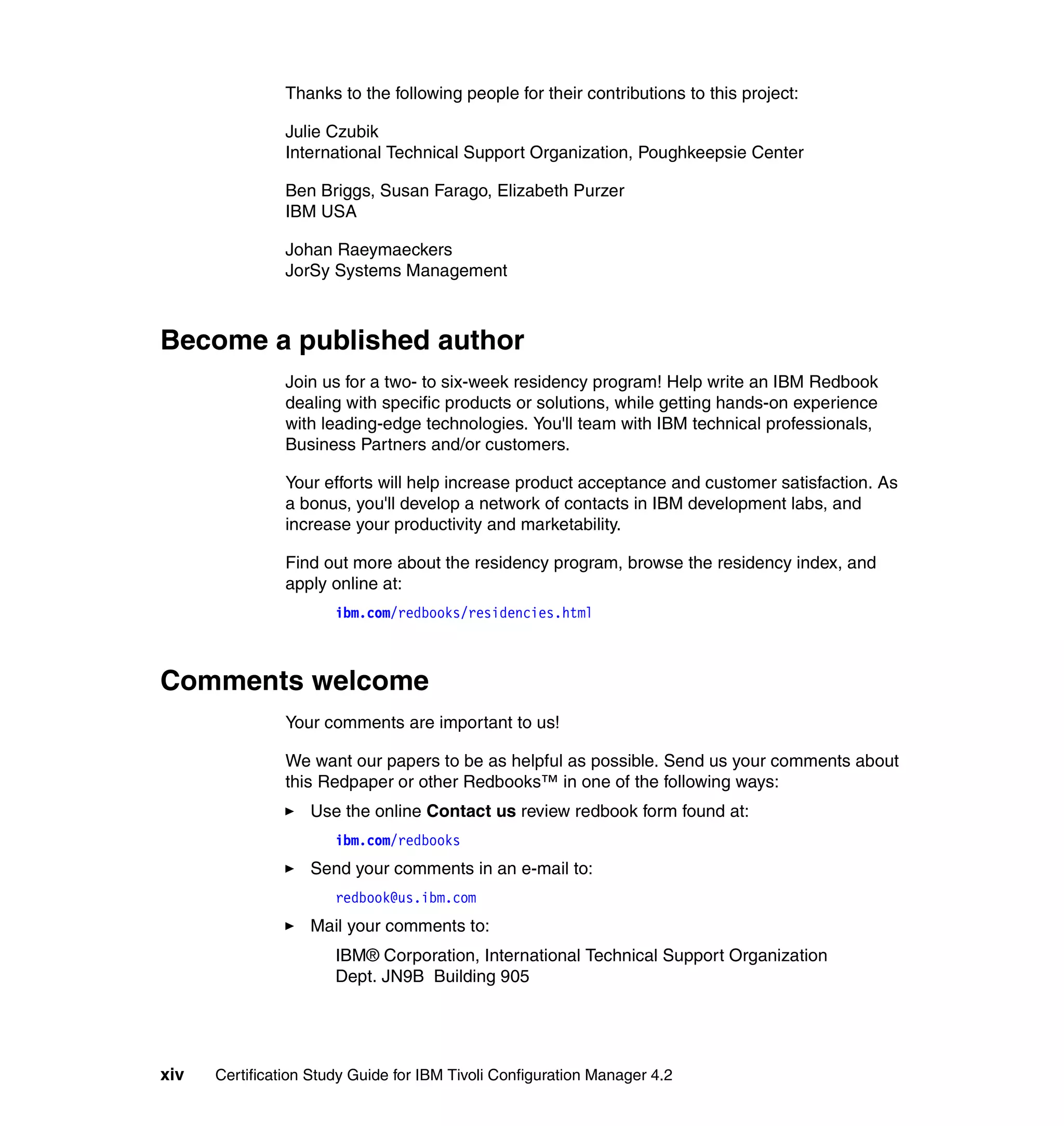
Thanks to the following people for their contributions to this project:

                Julie Czubik
                International Technical Support Organization, Poughkeepsie Center

                Ben Briggs, Susan Farago, Elizabeth Purzer
                IBM USA

                Johan Raeymaeckers
                JorSy Systems Management


Become a published author
                Join us for a two- to six-week residency program! Help write an IBM Redbook
                dealing with specific products or solutions, while getting hands-on experience
                with leading-edge technologies. You'll team with IBM technical professionals,
                Business Partners and/or customers.

                Your efforts will help increase product acceptance and customer satisfaction. As
                a bonus, you'll develop a network of contacts in IBM development labs, and
                increase your productivity and marketability.

                Find out more about the residency program, browse the residency index, and
                apply online at:
                       ibm.com/redbooks/residencies.html


Comments welcome
                Your comments are important to us!

                We want our papers to be as helpful as possible. Send us your comments about
                this Redpaper or other Redbooks™ in one of the following ways:
                   Use the online Contact us review redbook form found at:
                       ibm.com/redbooks
                   Send your comments in an e-mail to:
                       redbook@us.ibm.com
                   Mail your comments to:
                       IBM® Corporation, International Technical Support Organization
                       Dept. JN9B Building 905


xiv   Certification Study Guide for IBM Tivoli Configuration Manager 4.2
11501 Burnet Road
Austin, Texas 78758-3493


                           Preface   xv
xvi   Certification Study Guide for IBM Tivoli Configuration Manager 4.2
1


    Chapter 1.   Certification overview
                 This chapter provides an overview of the skill requirements needed to obtain an
                 IBM Advanced Technical Expert certification. The following chapters are
                 designed to provide a comprehensive review of specific topics that are essential
                 for obtaining the certification:
                     IBM Professional Certification Program
                     IBM Tivoli Configuration Manager 4.2 Certification
                     Recommended study resources


© Copyright IBM Corp. 2004. All rights reserved.                                                1
1.1 IBM Professional Certification Program
                Having the right skills for the job is critical in the growing global marketplace. IBM
                Professional Certification, designed to validate skill and proficiency in the latest
                IBM solution and product technology, can help provide that competitive edge.
                The IBM Professional Certification Program Web site is available at:
                http://www.ibm.com/certify/index.shtml

                The Professional Certification Program from IBM offers a business solution for
                skilled technical professionals seeking to demonstrate their expertise to the
                world.

                The program is designed to validate your skills and demonstrate your proficiency
                in the latest IBM technology and solutions. In addition, professional certification
                may help you excel at your job by giving you and your employer confidence that
                your skills have been tested. You may be able to deliver higher levels of service
                and technical expertise than non-certified employees and move on a faster
                career track. Professional certification puts your career in your control.

                This is the way for skilled IT professionals to demonstrate their expertise to the
                world. It validates your skills and demonstrates your proficiency in the latest IBM
                technology and solutions.

                The certification requirements are tough, but it is not rocket science, either. It is a
                rigorous process that differentiates you from everyone else.

                The mission of IBM Professional Certification is to:
                   Provide a reliable, valid, and fair method of assessing skills and knowledge.
                   Provide IBM with a method of building and validating the skills of individuals
                   and organizations.
                   Develop a loyal community of highly skilled certified professionals who
                   recommend, sell, service, support, and/or use IBM products and solutions.

                The Professional Certification Program from IBM has developed certification role
                names to guide you in your professional development. The certification role
                names include IBM Certified Specialist, IBM Certified Solutions/Systems Expert,
                and IBM Certified Advanced Technical Expert for technical professionals who
                sell, service, and support IBM solutions. For technical professionals in
                application development, the certification roles include IBM Certified Developer
                Associate and IBM Certified Developer. An IBM Certified Instructor certifies the
                professional instructor.

                The Professional Certification Program from IBM provides you with a structured
                program leading to an internationally recognized qualification. The program is


2   Certification Study Guide for IBM Tivoli Configuration Manager 4.2
designed for flexibility by allowing you to select your role; prepare for and take
            tests at your own pace; and, in some cases, select from a choice of elective tests
            best suited to your abilities and needs. Some roles also offer a shortcut by giving
            credit for a certification obtained in other industry certification programs.

            You may be a network administrator, systems integrator, network integrator,
            solution architect, solution developer, value-added reseller, technical
            coordinator, sales representative, or educational trainer. Regardless of your role,
            you can start charting your course through the Professional Certification Program
            from IBM today.


1.1.1 Benefits of certification

            Certification is a tool to help objectively measure the performance of a
            professional on a given job at a defined skill level. Therefore, it is beneficial for
            individuals who want to validate their own skills and performance levels, their
            employees, or both. For optimum benefit, the certification tests must reflect the
            critical tasks required for a job, the skill levels of each task, and the frequency by
            which a task needs to be performed. IBM prides itself in designing
            comprehensive, documented processes that ensure that IBM certification tests
            remain relevant to the work environment of potential certification candidates.

            In addition to assessing job skills and performance levels, professional
            certification may also provide such benefits as:
               For employees:
               –   Promotes recognition as an IBM certified professional
               –   Helps to create advantages in interviews
               –   Assists in salary increases, corporate advancement, or both
               –   Increases self-esteem
               –   Provides continuing professional benefits
               For employers:
               –   Measures the effectiveness of training
               –   Reduces course redundancy and unnecessary expenses
               –   Provides objective benchmarks for validating skills
               –   Makes long-range planning easier
               –   Helps to manage professional development
               –   Aids as a hiring tool
               –   Contributes to competitive advantage
               –   Increases productivity
               –   Increases morale and loyalty


                                                             Chapter 1. Certification overview   3
For Business Partners and consultants:
                    – Provides independent validation of technical skills
                    – Creates competitive advantage and business opportunities
                    – Enhances prestige of the team
                    – Contributes to IBM requirements for various IBM Business Partner
                      programs

                Specific benefits may vary by country (region) and role. In general, after you
                become certified, you should receive the following benefits:
                   Industry recognition
                   Certification may accelerate your career potential by validating your
                   professional competency and increasing your ability to provide solid, capable
                   technical support.
                   Program credentials
                   As a certified professional, you receive via e-mail your certificate of
                   completion and the certification mark associated with your role for use in
                   advertisements and business literature. You may also request a hardcopy
                   certificate, which includes a wallet-size certificate.
                   The Professional Certification Program from IBM acknowledges the individual
                   as a technical professional. The certification mark is for the exclusive use of
                   the certified individual.
                   Ongoing technical vitality
                   IBM Certified professionals are included in mailings from the Professional
                   Certification Program from IBM.


1.1.2 Tivoli Software Professional Certification
                Tivoli's professional certification program offers certification testing that sets the
                standard for qualified product consultants, administrators, architects, and
                partners.

                The program also offers an internationally recognized qualification for technical
                professionals seeking to apply their expertise in today's complex business
                environment. The program is designed for those who implement, buy, sell,
                service, and support Tivoli solutions and wish to deliver higher levels of service
                and technical expertise.

                Whether you are a Tivoli customer, partner, or technical professional wishing to
                put your career on the fast track, you can start on the road to becoming a Tivoli
                Certified Professional today.


4   Certification Study Guide for IBM Tivoli Configuration Manager 4.2
Benefits of being Tivoli certified
Tivoli certification gives the following benefits:
   Benefits to the individual
   – IBM Certified certificate and use of logos on business cards

        Note: Certificates are sent via e-mail. However, a paper copy of the
        certificate along with a laminated wallet card can also be requested by
        sending an e-mail to certify@us.ibm.com®.

   – Recognition of your technical skills by your peers and management
   – Enhanced career opportunities
   – Focus for your professional development
   Benefits to the business partner
   – Confidence in the skills of your employees
   – Enhanced partnership benefits from the Business Partner Program
   – Billing your employees out at higher rates
   – Strengthens your proposals to customers
   – Demonstrates the depth of technical skills available to prospective
     customers
   Benefits to the customer
   – Confidence in the services professionals handling your implementation
   – Ease of hiring competent employees to manage your Tivoli environment
   – Enhanced return on investment (ROI) through more thorough integration
     with Tivoli and third-party products
   – Ease of selecting a Tivoli Business Partner that meets your specific needs

Certification checklist
Here is the Certification checklist:
1. Select the certification you would like to pursue.
2. Determine which test(s) is required by reading the certification role
   description.
3. Prepare for the test, using the following resources provided:
   – Test objectives
   – Recommended educational resources
   – Sample/assessment test


                                                     Chapter 1. Certification overview   5
– Other reference materials
                    – Opportunities for experience

                     Note: These resources are available from each certification description
                     page, as well as from the Test information page.

                4. Register to take a test by contacting one of our worldwide testing vendors:
                    – Thomson Prometric
                    – Pearson VUE (Virtual University Enterprises)

                     Note: When providing your name and address to the testing vendor, be
                     sure to specify your name exactly as you would like it to appear on your
                     certificate.

                5. Take the test. Be sure to keep the Examination Score Report provided upon
                   test completion as your record of taking the test.

                     Note: After a test has been taken, your test results and demographic data
                     (including name, address, e-mail, phone number, etc.) are sent from the
                     testing vendor to IBM for processing (please allow 2–3 days for transmittal
                     and processing). Once all the tests required for a certification are passed
                     and received by IBM, your certificate will be issued.

                6. Repeat steps three through five until all required tests are successfully
                   completed for the desired certification role. If additional requirements are
                   needed (such as an "other vendor" certification or exam), please follow the
                   instructions on the certification description page to submit these requirements
                   to IBM.
                7. Once you have completed your certification requirements, you will be sent an
                   e-mail asking you to accept the terms of the IBM Certification Agreement
                   before receiving the certificate.
                8. Upon acceptance of the terms of the IBM Certification Agreement, an e-mail
                   will be sent containing the following electronic deliverable:
                    – A Certification Certificate in .pdf format, which can be printed in either
                      color or black and white
                    – A set of graphic files of the IBM Professional Certification mark associated
                      with the certification achieved
                    – Guidelines for the use of the IBM Professional Certification mark
                9. To avoid unnecessary delay in receiving your certificate, please ensure that
                   we have your current e-mail on file, by keeping your profile up to date. If you


6   Certification Study Guide for IBM Tivoli Configuration Manager 4.2
do not have an e-mail address on file, your certificate will be sent via postal
            mail.

         Once you receive a certificate by e-mail, you may also contact IBM at
         certify@us.ibm.com to request that a hardcopy certificate be sent by postal mail.

          Note: IBM reserves the right to change or delete any portion of the program,
          including the terms and conditions of the IBM Certification Agreement, at any
          time without notice. Some certification roles offered through the IBM
          Professional Certification Program require recertification.


1.2 IBM Tivoli Configuration Manager V4.2 Certification
         We can categorize the certification process as follows:
            Job role description/target audience

         A Tivoli Certified Consultant – Tivoli Configuration Manager V4.2 is a technical
         professional responsible for planning, installation, configuration, operations,
         administration, and maintenance of an IBM Tivoli Configuration Manager V4.2
         solution. This individual will be expected to perform these tasks with limited
         assistance from peers, product documentation, and support resources.

         To attain the IBM Certified Deployment Professional - Tivoli Configuration
         Manager V4.2 certification, candidates must pass one test.
            Required prerequisites
            – Working knowledge of shell and PERL programming
            – Working knowledge in SQL programming
            – Basic understanding of Java™, JSP, and XML
            – Strong working knowledge of operating systems (Windows® variations,
              AIX®, Solaris, and Linux®)
            – Basic understanding of OS and network security concepts
            – Basic knowledge of networking concepts
            – Basic install of DB2®, LDAP, WebSphere®, IBM HTTP Server, and JRE
            – Use of LDAP DMT (Directory Management Tool)
            – Use of DB2 Control Center
            – Working knowledge of TCP/IP
            – Basic understanding of third-party software installers (MSI, InstallShield,
              and PDF)


                                                         Chapter 1. Certification overview    7
Core requirement
                   In order to be certified you must select the following test:
                    – Test 786 - Tivoli Configuration Manager V4.2
                        •   Test 786 objectives
                        •   Test 876 sample test
                        •   Test 786 recommended educational resources
                        •   Approximate number of questions: 80
                        •   Duration in minutes: 120
                        •   Format: Multiple choice
                        •   Required Passing Score: 65 percent pass score or 52 correct out of 80
                            items correct answers


1.2.1 Test 786 objectives
                This section explains the IBM Tivoli Configuration Manager 4.2 certification test
                objectives.

                Section 1: Planning
                The following reviews planning:
                   Given a Statement of Work, architecture document, and customer input,
                   conduct customer interviews and analyze the documentation so that
                   customer requirements are determined, with emphasis on performing the
                   following steps:
                    –   Conduct customer interviews.
                    –   Read architecture document.
                    –   Read customer documents.
                    –   Determine Tivoli naming conventions.
                   Given a list of machines and their specifications, interrogate the machines
                   against the minimum requirements so that a list of machines to support the
                   Tivoli environment can be generated, with emphasis on performing the
                   following steps:
                    –   Identify machines involved.
                    –   Determine available disk space.
                    –   Determine available memory.
                    –   Determine CPU power.
                   Given the Planning and Installation Guides, User Manuals, Release Notes,
                   and a list of machines, assess the software levels so that a list of machines


8   Certification Study Guide for IBM Tivoli Configuration Manager 4.2
meeting the prerequisites and a list of machines to be upgraded and patched
can be generated, with emphasis on performing the following steps:
– Identify software prerequisites.
– Determine existing software levels.
Given a set of network locations, protocols, and a network diagram, describe
the network topology so that a Tivoli infrastructure can be recommended, with
emphasis on performing the following steps:
– Determine physical network layout.
– Determine protocols to use.
Given a list of servers and workstations and a network diagram, identify and
categorize the machines to be managed so that they can be grouped into a
logical endpoint list, with emphasis on performing the following steps:
– Identify machines to be managed.
– Identify groups of machines.
– Identify resources to scan.
Given the customer's data collection requirements, a list of endpoints, and a
Tivoli infrastructure, determine the inventory requirements (scan frequency,
scan method, history tracking, MIFs to be collected, hardware/software data,
policy needs, and Wake-on-LAN requirements) so that a scanning
methodology and policy scripts can be generated, with emphasis on
performing the following steps:
–   Consider hardware/software data to be scanned.
–   Determine inventory scan method.
–   Determine inventory scan frequency.
–   Determine policies needed.
–   Determine history tracking requirements.
–   Determine MIFs to be collected.
–   Determine Wake-on-LAN requirements.
Given a list of software to be distributed, a delivery method, a list of
endpoints, and a Tivoli infrastructure, determine the software distribution
requirements so that a distribution architecture and methodology can be
determined, with emphasis on performing the following steps:
– Determine software to be distributed.
– Determine software packaging method.
– Analyze software requirements with respect to bandwidth usage and time
  to distribute.
– Determine source hosts and depot sites.
– Determine candidates for software build via pristine install.
– Determine policies needed.


                                            Chapter 1. Certification overview   9
– Document endpoint to directory user relationship.
                   – Determine eligible pervasive devices.
                   Given a customer’s database environment, determine the database
                   requirements in order to identify the appropriate database sizing, tuning, and
                   RIM parameters, with emphasis on performing the following steps:
                   –   Calculate estimated size of database.
                   –   Select RIM(s) node(s).
                   –   Determine database index process.
                   –   Select appropriate database.
                   Given an organization chart and business processes, describe the
                   organization of the administrators so that the necessary administrator groups
                   and roles can be determined, with emphasis on performing the following
                   steps:
                   – Identify logical groups of administrators.
                   – Identify roles of administrators.
                   – Identify policy regions to which admins require access.
                   Given a company’s security policies and Tivoli security settings, create
                   appropriate administrator roles and Tivoli configuration functions so that the
                   IBM Tivoli Configuration Manager settings meet company security policies,
                   with emphasis on performing the following steps:
                   –   Define administrator roles.
                   –   Determine optimum oserv configuration settings.
                   –   Determine optimum endpoint configuration settings.
                   –   Determine access manager install.
                   –   Determine WebSeal install.
                   Given a network diagram, firewall rules and policies, and DMZ architecture,
                   determine the firewall requirements so that inventory scans and software
                   distributions can be performed through the firewall(s), with emphasis on
                   performing the following steps:
                   – Determine machines separated by firewalls.
                   – Determine use of Tivoli Configuration Manager under DMZ.
                   – Determine management needs for machines.
                   Given a network diagram, network administration policy, and customer
                   requirements, determine the multicast requirements so that a list of multicast
                   repeaters, targets, and configuration settings can be generated, with
                   emphasis on performing the following steps:
                   – Determine multicast targets.
                   – Determine multicast repeaters.
                   – Determine multicast addresses and parameters.


10   Certification Study Guide for IBM Tivoli Configuration Manager 4.2
Given a list of software and inventory requirements, mobile devices, and
   pervasive devices, determine Web requirements so that the Web access site,
   installation method, and Web component database are configured for the list
   of Web-enabled applications available to a subscriber list, with emphasis on
   performing the following steps:
   –   Determine install of Web components - Classic or SPBs.
   –   Determine eligible software packages and inventory configs.
   –   Determine eligible targets.
   –   Determine cluster or single install.
   –   Size DB2 for Web.

Section 2: Installation
Now we go over the installation.
   Given the set of prerequisite software CDs, install the prerequisite software
   (including RDBMS, IBM HTTP Server, DB2 Data Warehouse, and
   WebSphere Application Server) so that the software environment meets the
   IBM Tivoli Configuration Manager prerequisites, with emphasis on performing
   the following steps:
   –   Install RDBMS.
   –   Install IBM HTTP server.
   –   Install DB2 Data Warehouse.
   –   Install WebSphere Application Server.
   Given the IBM Tivoli Configuration Manager CDs and administrator access to
   the appropriate hardware and the MDist2 database, choose the appropriate
   installation method to install or upgrade the TMR server, Java components,
   gateway and repeater hierarchy, MDist2, Firewall Toolkit, and endpoints to
   produce a working Tivoli environment with MDist2 capability, with emphasis
   on performing the following steps:
   –   Locate media.
   –   Ensure bidirectional name and address resolution.
   –   Install/upgrade TMR server.
   –   Install Java components.
   –   Install MDist2.
   –   Install Firewall Toolkit.
   –   Create gateway(s)/repeater(s).
   –   Install endpoints.
   Given a working Tivoli environment, the IBM Tivoli Configuration Manager
   CDs, the inventory schema, and administrative access to the inventory
   database, install or upgrade the inventory server, gateways, and Scalable
   Collection Service so that all the necessary inventory components are


                                               Chapter 1. Certification overview   11
installed on the correct machines in the Tivoli environment, with emphasis on
                   performing the following steps:
                   – Install/upgrade the Scalable Collection Service.
                   – Install/upgrade the inventory server.
                   – Install/upgrade the inventory gateway.
                   Given a working Tivoli environment and the IBM Tivoli Configuration Manager
                   CDs, install or upgrade the Software Distribution components (including the
                   server, gateway, packaging, and desktop components) so that the
                   Configuration Manager GUIs can be launched and accessed, and all
                   necessary Software Distribution components are installed on the appropriate
                   machines in the Tivoli environment, with emphasis on performing the
                   following steps:
                   –   Install/upgrade Software Distribution server.
                   –   Install/upgrade Software Distribution gateway.
                   –   Install/upgrade Software Package Editor.
                   –   Install/upgrade Configuration Manager Desktop.
                   –   Install Pristine Tool.
                   Given an Activity Planner schema, a Change Management schema, and a
                   working Tivoli environment, install the functions of Deployment Services
                   (including Change Management, Activity Planner, Resource Manager,
                   Directory Query, and Web components) so that all of these application
                   components are installed in the Tivoli environment, with emphasis on
                   performing the following steps:
                   –   Install Change Manager.
                   –   Install Activity Planner.
                   –   Install Resource Manager.
                   –   Install device agents.
                   –   Install Web components.
                   –   Install Directory Query.
                   –   Install Access Manager.
                   –   Install Access Manager WebSeal.

               Section 3: Configuration
               Now we review the configuration:
                   Given a working Tivoli environment, a network topology, and an MDist2
                   database, configure gateway Web access, repeater tuning parameters,
                   MDist2 RIM parameters, and the endpoint, task library, and profile manager
                   policy scripts so that the Tivoli environment meets the customer requirements
                   for distribution throughput, bandwidth control, and endpoint management,
                   with emphasis on performing the following steps:
                   – Build MDist2 RIM.


12   Certification Study Guide for IBM Tivoli Configuration Manager 4.2
–   Tune repeaters.
–   Create and install endpoint policies.
–   Configure multicast.
–   Create task library, profile managers, and policy scripts.
–   Configure gateway Web access.
Given a working Tivoli environment and an endpoint to directory user listing,
link endpoints to directory users and create Directory Query libraries and
Directory Queries, so that endpoints can be associated with users, with
emphasis on performing the following steps:
– Create Directory query library.
– Create Directory Query.
– Link endpoints to directory users.
Given that inventory is installed and customer collection requirements have
been determined, tune collectors, install software signatures, and configure
RIM objects, custom queries, and scanners so that data can be collected from
endpoints, stored in the configuration repository, and matched against
defined software signatures, with emphasis on performing the following steps:
–   Build inventory RIM(s).
–   Tune data handler.
–   Tune collectors.
–   Add software signature.
–   Create inventory, subscription, and historic query library.
–   Configure custom tables in database.
–   Create custom query.
–   Configure DMI data to collect.
–   Create inventory policy scripts.
Given that Software Distribution is installed and the customer’s software
distribution requirements have been determined, configure multicast support,
data moving service, Web interface, mobile support, and policy scripts so that
software can be distributed to targets in compliance with the customer’s
requirements, with emphasis on performing the following steps:
–   Configure multicast support.
–   Configure data moving service.
–   Configure software distribution mobile support.
–   Create software distribution policy scripts.
–   Configure software distribution Web interface.
Given that the deployment services components have been successfully
installed, configure the RIMs, Web Gateway, device plug-ins, HTTP Server,
and WebSphere Application Server in order to provide working Web access


                                            Chapter 1. Certification overview   13
and management for pervasive devices, with emphasis on performing the
                   following steps:
                   –   Build Activity Planner RIM.
                   –   Build Change Manager RIM.
                   –   Configure plug-ins.
                   –   Configure Web Gateway.
                   –   Register pervasive devices.
                   –   Create resource group policies.
                   –   Configure IBM HTTP Server.
                   –   Configure WebSphere Application Server/Tivoli TMR Web access.
                   –   Publish Web objects.
                   Given a working Tivoli environment with software distribution, inventory, and
                   deployment services installed, test the managed nodes, gateways, endpoints,
                   and RIM objects so that endpoints can be managed through the framework
                   and databases can be accessed through the RIM, with emphasis on
                   performing the following steps:
                   –   Test managed node.
                   –   Test gateway(s).
                   –   Test endpoint(s).
                   –   Test Change Manager RIM.
                   –   Test Activity Planner RIM.
                   –   Test inventory RIM(s).
                   –   Test MDist2 RIM.
                   Given a working Tivoli Configuration Manager environment, TEC Server,
                   TEDW, and customer requirements, configure software distribution to send
                   events to TEC and integrate software distribution with TEDW so that Tivoli
                   Configuration Manager can generate reports and TEC events, with emphasis
                   on performing the following steps:
                   – Configure software distribution to send events to TEC.
                   – View Tivoli Configuration Manager reports in the Tivoli Enterprise™ Data
                     Warehouse.

               Section 4: Operations, administration, and maintenance
               Now we review operations, administration, and maintenance.
                   Given a list of file packages and inventory profiles from Tivoli Software
                   Distribution V3.x and Tivoli Inventory V3.x, convert them to IBM Tivoli
                   Configuration Manager V4.2 inventory configuration profiles, software
                   packages, and SPBs, with emphasis on performing the following steps:
                   – Convert inventory profiles to inventory configuration profiles.
                   – Convert file packages to software packages.


14   Certification Study Guide for IBM Tivoli Configuration Manager 4.2
Given IBM Tivoli Configuration Manager customer requirements, create
inventory resources (including policy regions, profile managers, and profiles)
so that inventory data can be collected from the customer environment, with
emphasis on performing the following steps:
–   Create inventory policy regions.
–   Create inventory profile managers.
–   Create and configure inventory profiles.
–   Select custom MIF collection profile settings.
–   Determine type of scan for pervasive devices.
Given IBM Tivoli Configuration Manager customer requirements, create
software distribution resources (including policy regions, profile managers,
and profiles) so that software can be distributed to and removed from target
systems, with emphasis on performing the following steps:
– Create and configure software distribution profiles.
– Create software packages using the Java Package Editor, CLI, GUI, SIS,
  or importing them.
– Launch the software distribution Java Package Editor and use it to build
  packages on all supported operating systems.
– Export and modify software package blocks.
– Determine version and dependencies of a software package block.
– Create install, uninstall, undo, commit, and verify jobs.
– Configure advanced options on software distribution profiles.
Given a working IBM Tivoli Configuration Manager V4.2 environment and
customer requirements, build reference models so that inventory scans and
software distributions can be applied to the subscriber lists enforcing the
software states and inventory data elements defined in the reference model,
with emphasis on performing the following steps:
– Create a reference model and assign subscribers.
– Add, change, and delete inventory scan elements.
– Add, change, and delete software distribution elements.
Given customer requirements to schedule and coordinate activities, configure
the Activity Planner to define, submit, and schedule an activity plan that
meets customer requirements, with emphasis on performing the following
steps:
–   Use Activity Planner to define activity, set conditions, and assign targets.
–   List submittable activity plans.
–   Submit activity plan.
–   Schedule an activity plan for execution.


                                            Chapter 1. Certification overview   15
Given customer requirements to manage pervasive devices, create and
                   configure device object software packages and inventory profiles so that
                   software can be delivered and inventory information can be collected from
                   these devices, with emphasis on performing the following steps:
                   – Create and configure device object software package.
                   Given a working IBM Tivoli Configuration Manager V4.2 environment and a
                   set of subscribers, distribute software and perform asset scans against
                   LAN-attached and mobile clients so that asset data is gathered and software
                   is installed or removed, with emphasis on performing the following steps:
                   –   Distribute software to desired targets and confirm success.
                   –   Distribute inventory configuration profile.
                   –   Execute an activity plan.
                   –   Configure endpoint-initiated scanner.
                   Given active distributions and scans, control IBM Tivoli Configuration
                   Manager V4.2 activities to determine status, cancel activities, and
                   determine/alter the repeater path so that activities can be successfully
                   managed, with emphasis on performing the following steps:
                   –   Calculate disk space required for distribution.
                   –   Verify success of scan or distribution.
                   –   Report current status of a distribution.
                   –   Cancel a distribution.
                   –   Determine path that a distribution will follow.
                   –   Alter the path that a distribution will follow.
                   –   View status or details of activity plans.
                   –   Distribute a software package using multicast.
                   –   Move files/software from one endpoint to another.
                   Given the framework and IBM Tivoli Configuration Manager V4.2 CLIs and
                   administrative access to the system, start and stop components so that
                   collectors, oservs, and endpoints can be effectively managed in the
                   environment, with emphasis on performing the following steps:
                   –   Start/stop oserv.
                   –   Start/stop endpoint.
                   –   Start/stop gateways.
                   –   Start/stop endpoint manager.
                   –   Start/stop collectors.
                   Given an installed Tivoli environment including IBM Tivoli Configuration
                   Manager V4.2, perform the tasks necessary to uninstall Tivoli and remove
                   related information from the databases so that the systems are restored to the
                   pre-installation state, with emphasis on performing the following steps:
                   – Uninstall IBM Tivoli Configuration Manager V4.2.
                   – Remove information in database about removed endpoint.


16   Certification Study Guide for IBM Tivoli Configuration Manager 4.2
– Restore from backup.
             Given error logs, database schemas, and CLI commands, describe the
             troubleshooting procedures so that corrective action can be taken, successful
             distributions can be achieved, RIM connections can be established, and the
             oserv and other Tivoli components can be traced, with emphasis on
             performing the following steps:
             –   Troubleshoot TMR and managed node installation.
             –   Troubleshoot endpoint agent installation.
             –   Solve RIM connection problems.
             –   Debug distributions.
             –   Generate oserv trace.
             –   Trace a reference model.
             –   Enable Web user interface tracing.
             –   Troubleshoot Java install.
             –   Review Scalable Collection Service.
             –   Debug activity plan problems using appropriate log files.
             –   Debug Change Manager problems using logs and traces.


1.3 Recommended resources for study

          Courses and publications are offered to help you prepare for the certification
          tests. The courses are recommended, but not required, before taking a
          certification test. If you wish to purchase Web-based training courses or are
          unable to locate a Web-based course or classroom course at the time and
          location you desire, please feel free to contact one of our delivery management
          teams at:
             Americas - tivamedu@us.ibm.com
             EMEA - tived@uk.ibm.com
             AP - tivtrainingap@au1.ibm.com.

           Note: Course offerings are continuously being added and updated. If you do
           not see the course(s) below listed in your geography please contact the
           delivery management team.


1.3.1 Courses
          Course names and/or course numbers vary depending on the education delivery
          arm used in each geography. Please refer to the Tivoli software education Web
          site to find the appropriate course and education delivery vendor for each
          geography.


                                                       Chapter 1. Certification overview   17
General training information can also be found at IBM IT Training at:
               http://ibm.com/training


               Course title: IBM Tivoli Configuration Manager 4.2
               IBM Tivoli Configuration Manager provides an integrated solution for managing
               complex distributed enterprise environments. Working on top of IBM Tivoli
               infrastructure, Configuration Manager integrates Software Distribution, Inventory,
               and additional supporting services. This course is designed to cover the
               fundamentals of Tivoli Configuration Manager. The information covered in this
               course will provide you with the opportunity to master several key skills needed
               to perform day-to-day administrative functions. You will also be introduced to
               new terminology and concepts associated with administering Tivoli Configuration
               Manager.

               Course duration: Five days.

               Course number : (TV170 - IBM Technical Education Services) | (TV107 -
               Education Centers for IBM Software). Course numbers vary depending on the
               education delivery arm used in each geography. Please refer to the Web site
               below to find the appropriate course number according to the education delivery
               vendor chosen.

               Geo education page: Worldwide schedules available at Tivoli software education.

               IBM PartnerWorld® "You Pass We Pay": This course is approved for IBM
               PartnerWorld You-Pass, We-Pay.

               Course title: IBM Tivoli Configuration Manager 4.2
               IBM Tivoli Configuration Manager provides an integrated solution for managing
               complex distributed enterprise environments. Working on top of IBM Tivoli
               Management Framework, Configuration Manager integrates Software
               Distribution, Inventory, and additional supporting services. This Web-based
               course is designed to cover the fundamentals of Tivoli Configuration Manager.
               The information covered in this course will provide you with the opportunity to
               master several key skills needed to perform day-to-day administrative functions.
               You will also be introduced to new terminology and concepts associated with
               administering Tivoli Configuration Manager. In a separate module, this course
               will present the fundamentals of Tivoli Management Framework, which is the
               foundation of many Tivoli Enterprise products. Learning to use Tivoli
               Management Framework will provide you with the basic skills needed to work
               with Tivoli Configuration Manager. Knowledge of Tivoli Management Framework
               terms, resources, and concepts is an important first step in your preparation for
               success with Tivoli Enterprise products.


18   Certification Study Guide for IBM Tivoli Configuration Manager 4.2
Course duration: Thirty-two hours, self-paced.

           Course number : (TIV69 - IBM Technical Education Services) | (TV113 -
           Education Centers for IBM Software). Course numbers vary depending on the
           education delivery arm used in each geography. Please refer to the Web site
           below to find the appropriate course number according to the education delivery
           vendor chosen.

           Geo education page: Worldwide schedules available at Tivoli software education.

           IBM PartnerWorld "You Pass We Pay": This course is not approved for IBM
           PartnerWorld You-Pass, We-Pay.


1.3.2 Publication
           Before taking test 786 IBM Tivoli Configuration Manager V4.2 Implementation,
           the recommended publications to review are IBM Tivoli Configuration Manager
           manuals and redbooks.

           IBM Tivoli Configuration Manager product manuals
           You may want to refer to the following manuals:
              IBM Tivoli Configuration Manager: Introducing IBM Tivoli Configuration
              Manager, GC23-4703
              Provides an overview of IBM Tivoli Configuration Manager and its
              components, and uses scenarios to highlight various processes.
              IBM Tivoli Configuration Manager: Planning and Installation Guide,
              GC23-4702
              Explains how to install, upgrade, and uninstall IBM Tivoli Configuration
              Manager and its components in a Tivoli environment.
              IBM Tivoli Configuration Manager: User’s Guide for Software Distribution,
              SC23-4711
              Explains the concepts and procedures necessary for you to effectively use
              the Software Distribution component to distribute software over local area
              networks (LANs) and wide area networks (WANs).
              IBM Tivoli Configuration Manager: Reference Manual for Software
              Distribution, SC23-4712
              Explains advanced features and concepts needed to use and tailor the
              Software Distribution component.
              IBM Tivoli Configuration Manager: User’s Guide for Inventory, SC23-4713


                                                        Chapter 1. Certification overview   19
Describes the Inventory component and the management tasks that you can
                   perform.
                   IBM Tivoli Configuration Manager: Database Schema Reference, SC23-4783
                   Describes the IBM Tivoli Configuration Manager database tables.
                   IBM Tivoli Configuration Manager: Messages and Codes, SC23-4706
                   Lists all of the messages produced by IBM Tivoli Configuration Manager.
                   IBM Tivoli Configuration Manager: User’s Guide for Deployment Services,
                   SC23-4710
                   Provides information about the different services provided as part of Tivoli
                   Configuration Manager.

               You may also follow the link below in order to reach the online publications of
               IBM Tivoli Configuration Manager:
                   http://publib.boulder.ibm.com/tividd/td/tdprodlist.html#S

               IBM Tivoli Configuration Manager Redbooks
               The following are IBM Tivoli Configuration Manager related Redbooks:
                   All About IBM Tivoli Configuration Manager Version 4.2, SG24-6612
                   IBM Tivoli Configuration Manager 4.2 is a new product that combines Tivoli
                   Software Distribution 4.1 and Tivoli Inventory 4.0 into a single product offering
                   with many new functions, such as integration with Enterprise Directories,
                   distribution across firewalls, and Device Management. This IBM Redbook
                   covers the complete functionality and features of IBM Tivoli Configuration
                   Manager 4.2 with many real-life scenarios and best practices. Some of the
                   major topics that are covered in the publication are:
                   –   LDAP integration
                   –   Web GUI
                   –   Device Management
                   –   Data Moving
                   –   Firewalls and IBM Tivoli Configuration Manager 4.2
                   –   Native packaging
                   –   Multicast
                   –   Inventory new features and integration with Software Distribution
                   –   Troubleshooting
                   This book will assist Software Distribution specialists with installing,
                   customizing, using, and troubleshooting IBM Tivoli Configuration Manager
                   4.2.
                   Automated Distribution and Self-Healing with IBM Tivoli Configuration
                   Manager V 4.2, SG24-6620


20   Certification Study Guide for IBM Tivoli Configuration Manager 4.2
This IBM Redbook covers a solution to implement an automated software
distribution and Self-Healing mechanism on top of IBM Tivoli Configuration
Manager Version 4.2. The solution described in this book (referred as the
Solution throughout he book) guarantees the availability of designated
software packages on workstations. The Solution is also backwards
compatible with IBM Tivoli Software Distribution Version 4.1 and Inventory
Version 4.0.
The Solution will extend the benefits of using IBM Tivoli Configuration
Manager Version 4.2 by reducing costs, increasing reliability, and providing
fast delivery. The scripts that make up the Solution are shipped with the book
(on an AS-IS basis), so you can customize the Solution according to your
needs.
We believe the Solution described in this book will be very useful for
customers who are planning to implement a software distribution
infrastructure or are already using IBM Tivoli Configuration Manager Version
4.2 and want to automate the software enforcement/Self-Healing process.
Migration to IBM Tivoli Configuration Manager Version 4.2, SG24-6616
Tivoli Inventory and Tivoli Software Distribution have evolved to become
smarter, faster, and more efficient, since the earlier 3.6.X versions. IBM Tivoli
Configuration Manager Version 4.2 uses all the best features of these
post-3.6 versions and also adds new features and enhancements to create a
powerful deployment, change, and asset management suite. This book
explains both the business reasons and the technical implementation details
for migrating from Software Distribution and Inventory 3.6.X to IBM Tivoli
Configuration Manager Version 4.2.
The topics include:
– Business reasons for migration
– Functional and architectural differences between IBM Tivoli Configuration
  Manager and 3.6.X versions of Software
– Distribution and Inventory
– Planning and methodology of migration
– Framework migration
– Migration scenarios
– Package migration
This book will help you in all aspects of migration from Software Distribution
and Inventory 3.6.X to IBM Tivoli Configuration Manager Version 4.2.
Implementing Automated Inventory Scanning and Software Distribution After
Auto Discovery, SG24-6626


                                            Chapter 1. Certification overview   21
This book describes a solution to provide readers with the ability to
                   automatically install endpoint code and perform inventory scans and required
                   software distributions on new workstations that have been discovered by IBM
                   Tivoli NetView®, reducing the time and effort it takes to manually gather and
                   maintain current information in a distributed environment. Using IBM Tivoli
                   Configuration Manager Version 4.2 and NetView Version 7.1.3, this solution
                   will benefit the reader by providing reliability, potential cost reduction, and
                   rapid time-to-value incentives, which free up administrators and allow them to
                   focus on actual IT needs.
                   We provide an overview of the high-level design and architecture, including
                   the different customer environments where this solution can be applied,
                   followed by implementation, scenarios, and extending the solution.
                   This book also covers the IBM Tivoli NetView Integration Module for
                   Configuration Manager (formerly called Tivoli Integration Pack for NetView)
                   implementation and scenarios.
                   This publication will assist customer and business partners’ support staff and
                   managers, and IBM systems engineers who are involved in Tivoli sales or
                   implementation services.


22   Certification Study Guide for IBM Tivoli Configuration Manager 4.2
2


    Chapter 2.   Tivoli Management
                 Framework basics
                 This provides an overview of the Tivoli Management Framework concepts. It is
                 important to understand Tivoli Management Framework, because most of the
                 IBM Tivoli Configuration Manager services depend on the Framework.

                 We discuss the following in this chapter:
                     “Components of the basic Tivoli architecture” on page 24
                     “Tivoli user interfaces” on page 27
                     “Tivoli resources” on page 29
                     “Authorization roles” on page 33
                     “Tivoli profiles” on page 35
                     “Multiplexed distribution services” on page 39
                     “Connecting multiple TMR regions” on page 49
                     “Endpoint login sequence” on page 55
                     “Firewall Security Toolbox” on page 64
                     “Installing Firewall Security Toolbox” on page 67


© Copyright IBM Corp. 2005. All rights reserved.                                            23
2.1 Components of the basic Tivoli architecture
               The following are the components of the basic Tivoli architecture:
                   Tivoli Management Region (TMR) is an entity that contains the Tivoli server
                   and its clients. A Tivoli Management Region contains three tiers of resources:
                   The Tivoli server, managed nodes and gateways, and endpoints, as shown in
                   Figure 2-1.


               Figure 2-1 Tivoli Management Region

                   Tivoli Management Region (TMR) Server includes the libraries, binaries, data
                   files, and the graphical user interface (GUI) (the Tivoli desktop) needed to
                   install and manage your Tivoli environment. The Tivoli server performs all


24   Certification Study Guide for IBM Tivoli Configuration Manager 4.2
authentication and verification necessary to ensure the security of Tivoli data.
The following components comprise a Tivoli server:
– An object database, which maintains all object data for the entire Tivoli
  region.
– An object dispatcher, which coordinates all communication with managed
  nodes and gateways. The object dispatcher process is the oserv, which is
  controlled by the oserv command. By default, oserv communicates in the
  TMR on port 94. This port is configurable.
– An endpoint manager, which is responsible for managing all of the
  endpoints in the Tivoli region.

 Note: The TMR server should be dedicated to the task of managing the
 TMR.

The TMR server must be up and available in order for the rest of the TMR to
function. For more information on increasing the fault tolerance of your TMR,
see the IBM Redbook, High Availability Scenarios with IBM Tivoli Workload
Scheduler and IBM Tivoli Framework, SG24-6632.
The machine that serves as the TMR server can also serve as a client (target
of management operations) in the TMR.
Managed Node runs the same software that runs on a Tivoli server. Managed
nodes maintain their own object databases that can be accessed by the Tivoli
server. When managed nodes communicate directly with other managed
nodes, they perform the same communication or security operations that are
performed by the Tivoli server.
The difference between a Tivoli server and a managed node is that the Tivoli
server object database is global to the entire region, including all managed
nodes. In contrast, the managed node database is local to the particular
managed node. To manage a computer system that hosts the managed
node, install an endpoint on that managed node.
Gateway controls communication with and operations on endpoints. Each
gateway can support thousands of endpoints. A gateway can launch methods
on an endpoint or run methods on behalf of the endpoint.
A gateway is generally created on an existing managed node. This managed
node provides access to the endpoint methods and provides the
communication with the Tivoli server that the endpoints occasionally require.
Tivoli Management Agent (TMA or endpoint) is a target of management
operations in a TMR. An endpoint provides the primary interface for system
management. An endpoint is any system that runs the lcfd service (or
daemon), which is configured using the lcfd command.


                            Chapter 2. Tivoli Management Framework basics     25
Typically, an endpoint is installed on a computer system that is not used for
                   daily management operations. Endpoints run a very small amount of software
                   and do not maintain an object database. The majority of systems in a Tivoli
                   environment should be endpoints. The Tivoli desktop is not installed with the
                   endpoint software. If you choose to run a desktop on an endpoint, you must
                   install Tivoli Desktop for Windows or telnet to a UNIX®-managed node.
                   The TMA is implemented differently for different platforms. It is a process on
                   UNIX systems and a service on Windows NT® systems. By default, a TMA
                   will contact its gateway on port 9494, the port on which the gateway is
                   listening for TMAs. This port is configurable. By default, a TMA listens for
                   TMR communications on port 9495.
                   Figure 2-2 shows Tivoli server and client components communication.


               Figure 2-2 Tivoli Server, managed node, and TMA communication


                 Sizing considerations for gateways: Sizing the endpoint gateways is an
                 important consideration when designing your Tivoli topology. The following
                 are the main factors to consider when sizing endpoint gateways:
                     Number of endpoints
                     Number of upcalls and downcalls
                     Number of endpoint platform types that must be supported


26   Certification Study Guide for IBM Tivoli Configuration Manager 4.2
2.2 Tivoli user interfaces
           Tivoli provides both a graphical user interface (GUI) and a command line
           interface (CLI). The GUI is often referred to as the Tivoli Desktop. In addition to
           the desktop and the CLI, there are Web-based views of certain Tivoli
           management functions.

           Depending on the operations you are performing, you use either the desktop or
           the CLI. For example, to view the relationships of policy regions and profile
           managers, use the desktop to visually display those relationships. The CLI can
           be more useful to perform repetitive actions, such as encapsulating Tivoli
           commands in a script.


2.2.1 Tivoli Desktop
           The graphical user interface is called the Tivoli Desktop. Figure 2-3 shows the
           initial view of Tivoli Desktop. It gets populated as you install Tivoli applications.


           Figure 2-3 Tivoli Desktop

           The Tivoli Desktop provides a graphical user interface (GUI) for administrators to
           graphically view and control the Tivoli Management Environment® with a logical,
           consistent layout across all Tivoli products.

           The Tivoli Desktop is automatically installed on every UNIX-managed node. It is
           invoked on UNIX systems via the tivoli command. You must run the tivoli
           command from an X-Window session after sourcing the environment variables.


                                           Chapter 2. Tivoli Management Framework basics       27
Tivoli Desktop for Windows is a separate program that must be installed
               manually before an administrator can access the Tivoli Desktop on a Windows
               NT-managed node. The Tivoli Desktop for Windows code is on Framework CD2.
               It can be installed on any Windows-based system, even if it is not in the TMR. It
               can be used to access the Tivoli Desktop of a UNIX-managed node as well as an
               NT-managed node.

                 Note: The Tivoli Desktop for Windows requires you to specify a host, which
                 could be another machine.


2.2.2 Command line interface
               The Tivoli command line interface (CLI) enables Tivoli system administrators to
               execute Tivoli management functions via the command line provided by the
               operating system. You can execute most CLI commands only from the TMR
               server or managed nodes.

               On UNIX, CLI commands are executed from the shell prompt or can be included
               in scripts. On Windows, CLI commands are executed from the Windows NT
               command prompt or can be included in batch files.

               Some Tivoli CLI commands are actually shell scripts that must run on NT from
               the bash shell, which is installed by Tivoli on every NT TMR server and managed
               node. Most Tivoli CLI commands begin with a w.

               If you are authorized to run the Tivoli desktop, you can also run CLI commands.
               If you are not authorized to run the desktop, you cannot run CLI commands.

                 Note: The graphical Desktop is not completely equivalent to the CLI, although,
                 in general, they are two interfaces to achieve the same purpose.

                 Some actions can only be performed from the GUI (creating a collection, for
                 example), and some can only be performed from the CLI (restoring the
                 database, for example).


2.2.3 Navigating the Tivoli Desktop
               Various elements in windows and dialogs assist the user, including pull-down
               and pop-up menus, status lines and messages, buttons, check boxes, and
               scrolling lists. Figure 2-4 on page 29 shows different options used for navigating
               the Tivoli Desktop.


28   Certification Study Guide for IBM Tivoli Configuration Manager 4.2
Figure 2-4 Navigating the Tivoli Desktop


2.3 Tivoli resources
         Resource is a general term used to define objects, services, tasks,
         administrators, managed nodes, and other items in the Tivoli environment.

         A resource is a system, device, or service in a distributed environment.
         Examples are workstations, software products, and administrators. A managed
         resource represents system or network resources that Tivoli manages. Managed
         resources are found only inside of policy regions. Figure 2-5 on page 30 shows
         different managed resources in a Tivoli environment.


                                         Chapter 2. Tivoli Management Framework basics   29
Figure 2-5 Different managed resources

               To manage a specific type of resource, you must first install a Tivoli application
               that is designed to manage that resource. Tivoli applications manage resources
               from a single logical view.

               Upon installation of Framework on the TMR server, the default Tivoli desktop
               (Figure 2-3 on page 10) displays five icons, each of which represents a type of
               Tivoli resource: The administrators, notices, a default policy region, the endpoint
               manager, and the scheduler.

               Administrator
               A Tivoli administrator is a system administrator who has been authorized to
               perform systems management tasks and manage policy regions. The
               Administrator Collection is a container for all the Tivoli administrators.

               Tivoli software products use administrators to delegate the use of the system
               root account without giving those administrators the system password or
               complete control. Most system administrators have a Tivoli administrator that
               maps to their system account. However, users on multiple systems can use the
               same Tivoli administrator. A Tivoli administrator is the person or group of people
               each with a user account to access a computer system where Tivoli software
               products are installed.

               Notices
               Notices are a resource that contains notes posted by Tivoli applications. These
               notes inform the administrators of management functions performed in the Tivoli
               environment.


30   Certification Study Guide for IBM Tivoli Configuration Manager 4.2
Policy region
A policy region is a container for managed resources that conform to the same
set of policies or rules. Upon installation of the TMR server, there will be one
default policy region, and initially the managed node on the TMR server will be
the only resource contained within it.

A policy region can be used to reflect the management and organization of a
distributed computing environment. It has two primary objectives:
   To enforce company rules and policies
   To enforce a security model or delegation of authority

It represents logical relationships tied to an organizational structure such as
divisions, departments, geographical locations, types of workstations, or
business functions.

Policy regions can be nested to provide hierarchical relationships; if a policy
region is contained in another policy region it is called a policy subregion.

Policy region hierarchy can be designed in different ways. Figure 2-6 shows
grouping by Tivoli products, Figure 2-7 on page 32 shows grouping by Tivoli
operating systems, and Figure 2-8 on page 32 shows grouping by departments.


Figure 2-6 Grouping by Tivoli product


                                Chapter 2. Tivoli Management Framework basics     31
Figure 2-7 Grouping by operating system


               Figure 2-8 Grouping by department


               Endpoint manager
               The endpoint manager runs on the TMR server and maintains TMA and gateway
               information.

               The endpoint manager maintains an endpoint list that keeps track of every TMA
               in a TMR and tracks the gateway associated with each TMA.


32   Certification Study Guide for IBM Tivoli Configuration Manager 4.2
From the endpoint manager, you can view the gateways and their associated
         endpoints. You can also create new gateways.

         Scheduler
         Scheduler is a resource that allows access to the scheduling queue to
         manipulate scheduled jobs. The scheduler executes previously defined jobs at
         predefined times, such as scheduling jobs to occur at specific times or within a
         specified time frame, to repeat a specified number of times, at specified intervals,
         or indefinitely.


2.4 Authorization roles
         When root administrators create other administrators, they specify the resources
         and authorization roles for the new administrator. The authorization roles
         assigned to an administrator determine the management operations that the
         administrator can perform. Authorization roles provide a set of privileges to Tivoli
         resources. Authorization roles are mutually exclusive. Each role provides its own
         set of privileges—one role does not provide privileges of any other role.

         The possible authorization roles for administrators are as follows:
            super
            Allows an administrator to connect and disconnect regions; perform
            maintenance operations on the region; install managed nodes, products, and
            patches; and so on. The super role is normally required for high-security
            operations and is not typically assigned to many administrators.
            senior
            Allows an administrator to create and define all Tivoli resources. The senior
            role is required for configuration and policy operations, such as creating an
            administrator, setting policy, or expiring notices.
            admin
            Allows an administrator to perform day-to-day tasks and system
            configurations. The admin role is required for general system management
            operations, such as adding an item to a profile, distributing a profile, or
            changing the message of the day.
            user
            Allows an administrator to view information and resources with read-only
            capability. The user role is required to bring up a Tivoli desktop and allows
            limited operations that do not affect configuration information, such as
            displaying configuration information.


                                        Chapter 2. Tivoli Management Framework basics       33
backup
                   Allows an administrator to create backups of Tivoli object databases. An
                   administrator must have the backup role in the region that contains the object
                   databases for the Tivoli server and managed nodes to be backed up.
                   restore
                   Allows an administrator to restore Tivoli object databases from backup. The
                   administrator must have the restore role in the region that contains the object
                   databases for the Tivoli server and managed nodes to be restored.
                   install-product
                   Allows an administrator to install new applications and products in the local
                   Tivoli region.
                   install-client
                   Allows an administrator to install managed nodes within policy regions that
                   allow the managed node resource type.
                   policy
                   Allows an administrator with both the policy and senior roles to create policy
                   regions. In addition, the administrator can add resource types to policy
                   regions and set up the policies that govern the policy region.
                   Dist_control
                   Allows an administrator to control multiplexed distribution 2 (MDist 2)
                   distributions.

                 Note: Depending on the Tivoli products installed, other authorization roles
                 might be available.


2.4.1 Scope of authorization roles
               For example, some operation requires the admin role. If an administrator has
               only the super role, this administrator cannot perform these operations unless
               this administrator also is granted the admin role.

                 Note: To ensure that senior system administrators can perform operations at
                 their authorization level and below, assign these administrators all
                 authorization roles below their current level. For example, to ensure that an
                 administrator with the senior role can perform all operations at the senior level
                 and below, assign this administrator the senior, admin, and user roles.


34   Certification Study Guide for IBM Tivoli Configuration Manager 4.2
Roles should be assigned based on the management operations specific to an
          administrator. You should carefully plan how you are going to delegate system
          management tasks. Tivoli Management Framework provides control and
          flexibility in assigning management authority to various personnel. Carefully
          consider and review the areas of responsibility for each Tivoli administrator when
          assigning roles for various resources and in various Tivoli regions. For example,
          Juan is to manage Documentation policy region. He should be assigned the
          senior, admin, and user roles for this policy region. If Juan has administrative
          needs for other policy regions or resources outside of his policy region, these can
          be granted later.

          Authorization roles can be granted at the resource level or region level.

          Resource authorization roles
          Granting roles at the resource level provides an administrator with authority to
          resources across policy regions, the Scheduler, or the Administrators collection.

          Administrators can have different roles for different resources. Resource
          authorization roles can be assigned for many types of resources that appear as
          icons on a Tivoli desktop. If an administrator has a resource role, that role applies
          for all objects contained in that resource. For example, if John has the senior role
          in the Marketing policy region, he also has the senior role for all resources in that
          policy region.

          Region authorization roles
          Granting roles at the region level provides an administrator with authority over all
          resources in the Tivoli region. If an administrator has an authorization role in a
          Tivoli region, that same role applies for all resources in that region. For example,
          if Isabella has the role admin in the region, she also has the admin role for all
          resources in that region.

          An administrator with the super or senior role in the Administrator collection can
          create other administrators and assign them authorization roles. For security
          reasons, use extreme care when assigning the super role in a Tivoli region.


2.5 Tivoli profiles
          In large distributed networks, computer systems are frequently grouped
          according to the type of work for which they are used. For example, computer
          systems in an engineering group might be used to produce CAD drawings, while
          those in an accounting group might be used to produce tax documents. With
          Tivoli Management Framework, you can place common configuration information
          for computer systems used for similar purposes in a centralized area. Doing so


                                          Chapter 2. Tivoli Management Framework basics     35
makes it easier to access, manage, and duplicate resources. Profiles and profile
               managers enable you to do this.

               A profile is a container for a Tivoli application. Each application has its own type
               of profile. The profile template is configured by a system administrator to manage
               resources as desired. As an example, Figure 2-9 shows the Inventory Profile
               icon.


               Figure 2-9 Inventory Profile icon

               Profiles are sent to target systems.You can apply a profile to a set of managed
               resources in the TMR. This causes the management task to be sent to the target
               resource, which is usually a computer system such as a managed node or TMA.
               The Framework provides profile managers to associate profiles with their target
               systems.

               One profile can define configurations for multiple platforms. A profile can contain
               only information related to the profile type (for instance, IBM Tivoli Monitoring),
               but within each profile type, configuration information for multiple platform types
               can be stored. For example, the User Administration profile can store a particular
               user's account information for their UNIX and Windows accounts both in the
               same profile record.

               Figure 2-10 on page 37 is an example of a profile for the Inventory component of
               the IBM Configuration Manager product. This allows you to scan machines for
               hardware and software assets.


36   Certification Study Guide for IBM Tivoli Configuration Manager 4.2
Figure 2-10 Inventory profile example


2.5.1 Profile managers and profile distribution
           A profile manager is a container for individual profiles. It provides a place to
           create and organize groups of profiles and to link subscribers, or recipients, to
           them. A profile manager can contain multiple profiles of the same type, or it can
           contain profiles of more than one type. Profile managers control the distribution
           of profiles to subscribers. Profile managers are created within a policy region.
           Subscribers to a profile manager can be in the same policy region as their profile
           manager or in other policy regions.

           A profile manager can be viewed logically as having two sections. One section
           contains profiles and the other section contains subscribers. The set of profiles
           contained in a profile manager might be of different types.

           Framework delivers all profiles to subscribers. All applications use the same
           method to propagate the profile data to the target systems. The mechanism is
           provided by Framework, and it is called profile distribution. The target resources
           are called subscribers.


                                           Chapter 2. Tivoli Management Framework basics   37
As a result of profile distribution, profile data is copied to target systems and sent
               to the appropriate application that will understand the configuration information
               and apply it accordingly.

               When a TMA receives a profile and does not have the corresponding application
               loaded in its method cache, the application code will be downloaded from the
               TMA's Management Gateway.


               Figure 2-11 Management by subscription


               Types of profile managers
               Profile managers can operate in two modes: Database or dataless.
                   Database mode
                   Enables a profile manager to distribute to any profile manager (dataless or
                   database), managed nodes, and NIS domains, but not to endpoints.
                   Dataless mode
                   Enables a profile manager to distribute to managed nodes, endpoints, and
                   NIS domains, but not to other profile managers.

               You select the mode for a profile manager when you create it. You can also
               change the mode after it is created.

                 Note: If you want to subscribe profile managers to a certain profile manager,
                 the profile manager that is being subscribed to must be in database mode.

               A policy region can belong to only one TMR. However, subscribers to a particular
               profile manager might actually reside in another, interconnected, TMR. This


38   Certification Study Guide for IBM Tivoli Configuration Manager 4.2
ability to subscribe resources across TMR boundaries means that a profile can
         be distributed easily to hundreds or thousands of machines.


2.6 Multiplexed distribution services
         The multiplexed distribution facility (MDist) is a Framework service to enable
         distributions of large amounts of data to multiple targets in an enterprise. These
         services are used by a number of Tivoli profile-based applications to maximize
         data throughput across large, complex networks. MDist is most important for the
         Software Distribution component of IBM Tivoli Configuration Manager because
         of the large file transfers. MDist is configurable to control network load.

         MDist improves data throughput using such techniques as the following:
            Parallel distribution to machines
            Automatic load distribution
            Use of repeater sites that accept data over slow links and redistribute it to
            other machines on the local connection

         For additional information refer to Chapter 11, “Distribution Management,” of the
         Tivoli Management Framework User's Guide; and Chapter 6, “Multiplexed
         Distribution Services,” of the Tivoli Management Framework Planning for
         Deployment Guide.

         MDist repeater sites are intermediate systems that receive a single copy of Tivoli
         data and send it to other repeater sites or to target systems. This improves speed
         by increasing parallelism. Management gateways use repeater software to
         distribute to TMA clients. MDist repeaters must be managed nodes.

         You need to consider the following facts concerning a repeater's range:
            A repeater's range is defined as the set of target systems that receive data
            from the repeater.
            A target system should be assigned to only one repeater's range.
            One repeater can be in the range of another repeater.


                                          Chapter 2. Tivoli Management Framework basics     39
Figure 2-12 Range of a repeater

               The TMR server is a repeater by default. Understanding MDist behavior is
               important because, under some circumstances, the default MDist behavior can
               strain the resources of the TMR server or your network bandwidth.
                   Single TMR environments: In a single TMR, MDist distributes for the TMR
                   server to all target machines in parallel, up to a default maximum of 100
                   machines at a time. The number of machines can be configured differently.
                   Multiple TMR environments: When distributing data to machines in more than
                   one TMR, MDist distributes data in parallel to local machines and once to
                   other TMR server(s). A TMR server in another region is called a wan
                   repeater. The other TMR servers' MDist repeaters then redistribute the data
                   to the target machines.

               TMR servers and managed nodes configured as management gateways are
               automatically designated as repeaters. You may define additional repeater sites.
               Configuration of repeaters is done by the single command called wrpt.

                 Note: Any system in the TMR that does not explicitly belong to the range of a
                 repeater will belong to the range of the default repeater (which defaults to the
                 TMR server).


40   Certification Study Guide for IBM Tivoli Configuration Manager 4.2
2.6.1 MDist and MDist 2
           Tivoli provides two multiplexed distribution services: MDist and MDist 2.
              MDist: MDist performs a synchronous transfer of data through a configured
              hierarchy of repeaters. The data is not stored in an intermediate location, so
              the size of the data transfer can be quite large. Because the data are not
              stored at the repeater, if a distribution fails, it must be restarted from the
              beginning.
              MDist 2: MDist 2 is an extension of MDist to handle large-scale distributions.
              MDist II transfers data asynchronously. It uses repeater depots to store the
              data to ensure successful delivery. If the distribution is unsuccessful, it can
              resume without starting from the beginning.

           Beginning with Framework 4.1, MDist 2 has additional capabilities, including
           multicast support to improve performance. You should use the wmdist command
           to enable multicast and control profile distributions.


2.6.2 MDist 2 functions
           The following are the functions of MDist 2:
              Distribution monitoring and control: In addition to checking the status of the
              distribution, you can take action on it (pause, resume, or cancel) using the
              GUI.
              Mobile computing support: This graphical interface allows users to download
              and install distributions at their convenience.
              Disconnected endpoint support: Enables users to download and save
              distributions in a local storage directory for installation at a later date.
              Roaming endpoint support: Enables endpoints to receive a distribution when
              an endpoint migrates to a different gateway during distribution.
              Installation from CD or file server: Enables administrators to specify a CD or
              file server to use rather than a repeater.
              Wake on LAN® (WOL) support: Enables administrators to send distributions
              to powered off computers. If WOL is enabled, the machine will wake up to
              receive the distribution.
              Multicast support: Enables system administrators to improve performance by
              using parallel distribution.


                                           Chapter 2. Tivoli Management Framework basics        41
2.6.3 MDist2 components
               Figure 2-13 on page 43 illustrates the primary MDist2 components, which are:
               Repeater manager             The Tivoli object that maintains configuration data for
                                            all repeaters in the TMR. It also determines the
                                            distribution path. There is one repeater manager per
                                            TMR.
               Repeater site                The intermediate client that receives a single copy of
                                            data and sends it to another repeater site or target
                                            clients.
               Repeater depot               The storage site for MDist2 distributions. Every
                                            repeater has a depot. Thus, data can be stored on any
                                            repeater in the Tivoli environment. This storage
                                            mechanism helps reduce network traffic for frequently
                                            distributed data sets.
               Repeater queue               The queuing mechanism for MDist2 distributions.
                                            Every repeater has a queue. The distribution is
                                            queued and its persistent information is kept as a local
                                            file. This queuing mechanism includes a retry function
                                            that enhances support for unreachable targets.
               Distribution manager         The Tivoli object that updates status in the database.
                                            There is one distribution manager per TMR. Thus,
                                            each TMR keeps track of all distributions it launches.
               GUI                          The Java interface used to view status and control
                                            distributions.
               RIM                          Stands for the RDBMS Interface Module. It is a
                                            common interface Tivoli applications can use to store
                                            and retrieve information from a relational database,
                                            and is used to store MDist2 distribution data.


42   Certification Study Guide for IBM Tivoli Configuration Manager 4.2
Figure 2-13 MDist 2 components


2.6.4 wmdist command
         Configures repeaters and manages MDist 2 distributions. Here you can find
         some important options of the wmdist command.
         wmdist –I repeater_name wmdist –j depot_directory...

         – I enables you to view detailed information about the distributions that the
         repeater is currently processing, and obtains the ID for the distribution.
         wmdist –k depot_directory...

         – k removes one or more alternative depot directories.
         wmdist –l [–a] [–idist_id] [–v]

         This lists distribution status. The options are as follows:
            –a returns active distributions only.
            –i dist_id specifies the distribution ID. When no distribution ID is specified, the
            command returns the status for all distributions.
            –v returns all information about the status. If you do not specify the –v option,
            the command returns only the keyword value information.
         wmdist –m dist_id [–t ep_label] [–n node_type] [state...]

         This lists the messages for a distribution.


                                         Chapter 2. Tivoli Management Framework basics      43
wmdist –q dist_id

               This displays the nodes associated with a given distribution in an indented format
               that indicates the route. Each node displayed is suffixed with its state. You can
               also determine the distribution path for an active distribution.
               wmdist [–f] –r dist_id | endpoint_id [endpoint_id...]

               This resumes a paused distribution specified by dist_id, or resumes one or more
               paused distributions by target specified by endpoint_id.
               wmdist –R [rim_object]

               This allows the user to change the RIM object used by the distribution manager
               to store status. The default value is mdist2. Issuing this command without a value
               prints the current value.
               wmdist –s repeater_name [–C noprompt| nostart| nostop] [keyword=value.]

               This configures a repeater (specified by repeater_name) using one or more of
               the following keywords and values. If a value is not specified, the existing options
               for the specified repeater are displayed. When no keyword value pairs are listed,
               the command returns the configurations currently in use.
               wmdist –T [database_purge_interval]

               This sets the interval (in seconds) when completed distributions are deleted by
               the distribution manager from the RIM database. Setting this interval allows the
               distribution manager to delete completed or irrelevant distributions from the
               database after a distribution request is submitted. Although a purge interval is
               defined, the completed distributions are not deleted unless the defined interval
               has elapsed and a distribution request was submitted. Issuing this command
               without a purge interval prints the current setting. Setting the purge interval to -1
               disables database purges. The default value is -1.

               For the complete wmdist command function please refer to the Tivoli
               Management Framework Reference Guide.


2.6.5 Using the Distribution Status console
               The Distribution Status console, shown in Figure 2-14 on page 45, provides
               administrators with real-time reporting and control of profile distributions.
               Administrators can track the progress of a distribution, intervene (if necessary),
               and analyze the details of a distribution. The console provides color-coded charts
               and graphs to enable administrators to identify patterns and relationships in the
               data. These views are helpful when identifying items of interest to be focused on,
               such as unavailable targets, which prevent a distribution from completing
               successfully.


44   Certification Study Guide for IBM Tivoli Configuration Manager 4.2
Figure 2-14 Distribution Status Console


Viewing distribution status
You can submit a distribution and later check to see whether the distribution
completed on its targets. The database associated with MDist 2 enables you to
view the status of a distribution.

When you select a tab, the Distribution Details area of the console displays a
view. The sections that follow describe the following Distribution Details views:
   Status Chart
   The Status Chart view displays a color-coded pie chart representing the
   states of targets for a selected distribution. You can identify the overall status
   of the distribution or move the cursor over a section of the chart to view the
   total number of targets in that particular state. Distribution statistics are also
   displayed, such as the date the distribution was started and the administrator
   who started it.


                                Chapter 2. Tivoli Management Framework basics       45
Figure 2-15 Status Chart

                   Time Spent Chart
                   The Time Spent Chart view displays a bar chart, which indicates the amount
                   of time spent in each stage of the completed distribution. This view displays
                   the minimum, average, and maximum amount of time (in seconds) a
                   distribution was in a given state.


46   Certification Study Guide for IBM Tivoli Configuration Manager 4.2
Figure 2-16 Time Spent Chart

   Node Table
   The Node Table view works the same way as the Distributions table.
   However, instead of querying distribution status, it queries the states of
   repeaters or endpoints associated with a specific distribution.


                               Chapter 2. Tivoli Management Framework basics    47
Figure 2-17 Node Table View

                   Distribution Topology
                   The Distribution Topology view displays a tree view showing the data
                   structured as nodes and links. It allows you to see the path the profile will
                   follow. Nodes refer to repeaters and endpoints in the currently selected
                   distribution. Links show the relationship between the nodes in the distribution
                   hierarchy. These objects are color-coded so that you can quickly identify the
                   state of a node. The lines that link nodes in the hierarchy are also colored to
                   display relationships between connecting nodes.
                   You can use this view to gain an understanding of the distribution route and to
                   show relationships that help identify items to focus on. For example, you can
                   identify bottlenecks that prevent a distribution from completing and you can
                   also determine the distribution path for active distributions.


48   Certification Study Guide for IBM Tivoli Configuration Manager 4.2
Figure 2-18 Distribution Topology View


2.7 Connecting multiple TMR regions
        To meet the needs and demands of managing thousands of resources that are
        geographically dispersed across networks, Tivoli Management Framework
        enables you to logically partition your managed resources into a series of
        connected Tivoli regions. Each region has its own server for managing local
        clients and a set of distributed replicated services for performing management
        operations. Regions can be connected to coordinate activities across the
        network, enabling large-scale systems management and offering the ability for
        remote site management.

        During the connection process, each region is supplied with the following
        information about the region to which it is being connected:
           Server name
           Region number
           Encryption level and password in use in the other region

        This information is used when the remote region is registered in the local region.
        When the regions are connected, an exchange of resource information can be


                                        Chapter 2. Tivoli Management Framework basics   49
performed to make known the types and values of resources in the remote
               region. After the initial information exchange, the information should be updated
               on a regular basis.

                 Important: To connect two regions, each region must have a name that is
                 unique among all regions. If you attempt to connect a region that has the
                 same name as another region, the connection fails.

                 Any Tivoli product installed in two connected regions should be installed in
                 compatible versions in each region. Incompatible versions of a product do not
                 cause a connection to fail, but can cause operation problems at a later time.
                 However, you can connect two regions that do not have the same products
                 installed.


2.7.1 Benefits of connecting TMRs
               Certain situations in a Tivoli environment can make the connection of two or
               more TMRs necessary or desirable. These situations include the following:
                   Decrease server load: The load on a single TMR server caused by network
                   activity, memory demands, or the number of clients can be lessened by
                   multiple TMRs.
                   Localized system administration: Multiple TMRs enable local control with
                   more independence at different operational sites.
                   Enhance security: An additional TMR can be used to restrict local
                   administrators’ access to certain machines within the enterprise. Also, an
                   additional TMR enables differing encryption levels within a Tivoli
                   environment.

               With the super authorization role and the TMR password (if it exists), a Tivoli
               administrator can connect or disconnect two or more TMRs.


2.7.2 Connection types
               There are two types of connection types.

               One-way region connections
               In a one-way connection, only one region has knowledge of the other, so
               information is passed from the managing system only. One-way connections are
               useful where a central site is responsible for administering several remote sites,
               but none of the remote sites need to manage resources at the central site or at
               other remote sites. Each remote site could also have its own local operator who
               might be responsible for managing day-to-day operations on local resources,


50   Certification Study Guide for IBM Tivoli Configuration Manager 4.2
while the connection from the central site is used for more global updates across
           the company, such as a new version of an application. Although one-way
           connections are feasible, two-way connections are recommended.

           Two-way region connections
           Each Tivoli region involved in a two-way connection is aware of the existence of
           the other. Information exchanges about system resources occur in both
           directions. Two-way connections are useful in a variety of situations, such as a
           very large local area network that is logically partitioned. By using two-way
           connections, the management load is spread across multiple Tivoli servers. In
           addition, two-way connections are needed to access and manage resources in
           other regions.


2.7.3 Name registry
           Each region contains a name registry, which serves as a region-wide name
           service. It essentially maps resource names to resource identifiers and the
           corresponding information.

           The Tivoli name registry contains resource types, which contain instances of that
           resource type. For example, ProfileManager is a resource type, and the Admin
           profile manager is an instance of that resource type.

           When a lookup for a resource occurs, it looks for a resource instance by name
           and resource type (for example, it looks up the moria instance of the managed
           node resource type).

            Note: Information from remote TMRs must be updated regularly to maintain
            accurate data.


2.7.4 Case study: Hub-spoke architecture
           The Tivoli physical topology is primarily determined by the underlying network
           topology and management system performance goals. In large network
           environments, we recommend deploying your Tivoli environment using a
           hub-spoke architecture. In a hub-spoke architecture, the Tivoli environment is
           segmented into several TMRs. Each TMR can be responsible for directly
           managing a different physical segment of the enterprise, serve a specific
           business unit, or be organized by security access levels. The central TMR that
           manages the other TMRs is called the hub, and the TMRs it manages are called
           spokes.

           Whether using a one-way or two-way connection between the hub and spoke
           TMRs, the hub TMR server forms the central administration point from which all


                                         Chapter 2. Tivoli Management Framework basics   51
managed functions are performed within a Tivoli environment. It is dedicated
               primarily to high-level management functions, such as creating administrator
               desktops and TEC consoles; creating, configuring, and distributing sentry
               profiles to spoke servers; and other hub-wide management activities.

               Spoke TMRs provide the direct control function for all endpoints in the Tivoli
               environment. Spoke regions can be used to group managed nodes by physical
               location in the network and to localize functions in order to improve network and
               system performance. Generally, spoke TMRs are not used as entry points for
               administrators. Tivoli Administrators can use either the hub TMR or any
               managed node strategically placed in the design as an entry point into the Tivoli
               Management Environment.

               Figure 2-19 illustrates the hub-spoke architecture.


                                                 HUB TMR                         TEC TMR


                            SPOKE TMR                                SPOKE TMR
                            + Gateway                                + Gateway


               Figure 2-19 Hub-spoke architecture

               The TEC server can be configured either as a managed node contained within
               the hub TMR server or on a stand-alone TMR at the same management level as
               the hub TMR server.


52   Certification Study Guide for IBM Tivoli Configuration Manager 4.2
All managed systems (managed nodes, gateways, and endpoints) are spread
out into the Tivoli environment beneath spoke TMRs, as determined by function,
server load, or physical network location.

Managed nodes are still required in this environment. For example, managed
nodes can be used to support remote Tivoli Administrators desktops or to serve
for profile staging.

Endpoint gateways are installed throughout the Tivoli environment to host
endpoints. In this TME® hierarchy, all endpoint gateways are assigned to spoke
TMRs only.

Considerations when deciding on the design of the hub-spoke
Now we review considerations when deciding on the design of the hub-spoke for
TMR architecture.

TMR architecture
One of the most important factors for designing the hub-spoke TMR architecture
is the scalability limitations of the Tivoli environment:
   Number of endpoints
   The number of endpoints managed by a single region has been increased to
   tens of thousands. It has been shown in production environments that 20,000
   endpoints can be managed by a single region. For organizations requiring
   more than 20,000 endpoints to be managed, multiple regions are required.
   The limit of 20,000 endpoints represents a threshold beyond which special
   performance and tuning requirements might be needed. Therefore, use
   multiple connected regions.
   Number of managed nodes
   Generally, a single Tivoli server can support a maximum of 200 managed
   nodes. However, use endpoints instead of managed nodes in most cases.
   Endpoints are the preferred mechanism for managing your environment. The
   introduction of endpoints greatly reduces the number of managed nodes in a
   single region. A gateway installed on a managed node can perform all
   communication and operations with thousands of endpoints. Endpoints
   therefore have no direct communication with a Tivoli server.
   In addition, the ability to perform maintenance functions such as database
   checks are greatly inhibited by large numbers of managed nodes. If the
   network contains more than 200 managed nodes, create multiple regions and
   connect them.


                             Chapter 2. Tivoli Management Framework basics   53
Note: For performance reasons, in a multi-TMR environment it is important to
                 make sure that endpoints get connected to the designated TMR. The best was
                 to ensure that is to configure the endpoints to log in to specific gateways and
                 disable broadcasting.


               Recommendations on creating policy regions in a hub-spoke
               Now we review recommendations on creating policy regions in a hub-spoke for
               TMR architecture.

               TMR architecture
               It is a good practice to create policy regions based on a Tivoli application (IBM
               Tivoli Configuration Manager, IBM Tivoli Monitoring, and so on) only on the hub
               TMR server. The subscriber policy regions then reside on the spoke TMR
               servers. The subscribed policy regions contain the profile managers used for
               distributing to endpoints. Organizing your policy regions in this manner enables
               the hub server to be the central point of operations for each application and
               associated functions.

               This also avoids subscribing endpoints across TMR boundaries. If an endpoint is
               subscribed across TMR boundaries, a new object is created in the object
               database and the wchkdb command must track the object directly, causing
               unnecessary transactions across TMR boundaries and server load. Instead, if
               endpoints stay subscribed to their local TMR, the hub and spoke TMRs only
               need to exchange resources, causing only an entry in the Tivoli Name Registry
               (TNR) on the hub TMR.

               See Figure 2-20 on page 55 for more details.


54   Certification Study Guide for IBM Tivoli Configuration Manager 4.2
.


                              Hub TMR


                           DM_Appl.HUB.PR


                                                                                 Spoke TMR


            WinNT_DM_Appl.HUB_PR    Win98_DM_Appl.HUB_PR

                                                                              Subscribers_Spoke.PR


                                                           Subscribers_WinNT_Spoke.PR   Subscribers_Win98_Spoke.PR


                                                                Subscribers_WinNT_Spoke_PM


        Figure 2-20 Subscription example in a hub-spoke model


2.8 Endpoint login sequence
        An endpoint performs four types of logins: Initial, normal, isolated, and orphan.
        First the initial login is performed, and then the normal login is performed.

        For a normal login sequence, the endpoint logs into its assigned gateway and the
        gateway acknowledges it. The initial login process is more complex. This
        process establishes the endpoint as an active member of its Tivoli region by
        assigning it to a gateway.

        An endpoint is isolated when it cannot contact its assigned gateway. When that
        occurs, it initiates an isolated login. In certain cases, an endpoint can become
        orphaned when the endpoint manager no longer has an entry in its database for
        the endpoint.

        If the endpoint is unable to contact its assigned gateway, additional gateways are
        provided through a list of login interfaces or gateway addresses. This list is


                                                Chapter 2. Tivoli Management Framework basics                        55
compiled by the endpoint manager, defined in the select_gateway_policy script,
                or configured with lcfd command options.

                  Note: Depending on how your environment supports network address
                  translation (NAT), you might need to define the host names for gateways in
                  the select_gateway_policy script. The gateways defined through
                  select_gateway_policy or the lcfd command can be host names instead of
                  object identifiers (OIDs).

                To facilitate the login process and endpoint communication, configure login
                parameters during endpoint creation or with the lcfd command after installation.
                For more information about the lcfd command and the select_gateway_policy
                script, refer to Tivoli Management Framework Reference Manual, Version 4.1.1,
                SC32-0806.


Figure 2-21 Endpoint login sequence


56    Certification Study Guide for IBM Tivoli Configuration Manager 4.2
2.8.1 Initial login without a select_gateway_policy script
            The following are the phases of the initial login process of an endpoint:
               The endpoint establishes communication with a Tivoli region.
               The endpoint manager selects a gateway to which the endpoint is assigned.
               The endpoint receives its gateway assignment and performs a normal login to
               the assigned gateway.

            The first step in the initial login process for an endpoint is finding a gateway in the
            Tivoli region. The endpoint cannot be managed until it becomes associated with
            a gateway. The endpoint starts by sending an initial login packet to a gateway,
            which acts as an intercepting gateway. An intercepting gateway handles
            communication and login for the endpoint until it has an identity and is assigned
            to a gateway. If no configuration options are set, either during installation or
            during the startup of the lcfd service, the endpoint broadcasts for a gateway.
            Because of network load, do not use broadcast as a means for endpoint login.
            Instead, use lcfd –D bcast_disable=1 to disable broadcast and use lcfd –D
            lcs.login_interfaces=address to specify a gateway.

             Note: If your environment supports NAT devices that share IP address
             assignments through dynamic timeslicing, ensure that the IP address
             assignment time-out value is greater than the login_timeout and udp_interval
             settings on the endpoint.

            To summarize the initial login, the following are general parameters and default
            time outs:
            1. The endpoint uses a set of gateway addresses configured during installation
               to establish a gateway to receive the endpoint login request.
               – These gateway addresses are specified by the lcs.login_interfaces option.
               – By default, the endpoint attempts to contact each of the gateways three
                 times with 5 minutes between each attempt. The attempts are specified by
                 the login_attempts option. The time between each attempt is specified by
                 the login_timeout option.
               – If the endpoint is successful in contacting one of the alternate gateways,
                 endpoint policy scripts run.
            2. If login fails to all the addresses in the lcs.login_interfaces list, the endpoint
               broadcasts a request to log in (if broadcast is enabled).
            3. If no gateways in the lcs.login_interfaces list respond or the broadcast login
               request fails, the endpoint waits 30 minutes (the login_interval default of the
               lcfd command) before beginning the login process again with step 1.


                                             Chapter 2. Tivoli Management Framework basics          57
4. If the login is successful, the endpoint receives its identity in the Tivoli region
                  from the intercepting gateway along with the name of its assigned gateway.
               5. When logged in, the endpoint performs a normal login to its assigned
                  gateway.


2.8.2 Initial login with a select_gateway_policy script
               Defining the select_gateway_policy script provides the endpoint manager with an
               ordered list of gateways. The endpoint manager attempts to contact each listed
               gateway until it makes a valid connection. The first gateway to respond receives
               the endpoint assignment.

               The endpoint manager assigns a gateway and adds the endpoint information
               and gateway assignment to its endpoint list. The endpoint manager establishes a
               unique identity for the endpoint. The endpoint information is sent back to the
               intercepting gateway. The intercepting gateway relays the assignment
               information to the endpoint. The endpoint performs a normal login to its assigned
               gateway.
               1. The endpoint login request is intercepted by a gateway.
               2. The gateway forwards the login request to the endpoint manager.
               3. The endpoint manager refers to the select_gateway_policy script and
                  attempts to contact to gateways, for example, first gateway A and then
                  gateway B. If connection with gateway A fails and contact with gateway B is
                  successful, then gateway B becomes the assigned gateway for the endpoint.
                  Gateway A and gateway B are added to the lcs.login_interfaces list.
               4. The endpoint manager returns the login assignment information to the
                  intercepting gateway. The intercepting gateway then relays the information to
                  the endpoint.
               5. The endpoint logs into its assigned gateway. An interconnected Tivoli region
                  was created to redirect endpoint initial logins to their endpoint manager on the
                  Tivoli server in the local Tivoli region. This scenario can be common in large,
                  multi-site enterprises where thousands of endpoints are logging in to multiple
                  regions. A Tivoli region dedicated to redirecting endpoint logins can ensure
                  that endpoints log into gateways in their local region. Tivoli server A is the
                  redirecting Tivoli region and has the select_gateway_policy script defined.
                  Gateway A is local to Tivoli server B and is listed in the
                  select_gateway_policy script.

                 Note: Endpoints must be managed in their local Tivoli region.


58   Certification Study Guide for IBM Tivoli Configuration Manager 4.2
2.8.3 Normal login
           After an endpoint is established as a member of its Tivoli region through the
           initial login process, subsequent or normal logins occur. During a normal login,
           communication takes place between the endpoint and gateway only. The
           endpoint sends a login packet directly to its assigned gateway stored in the
           lcf.dat file.

           Because the gateway has the endpoint in its endpoint list, communication is
           established immediately without contacting the Tivoli server or the endpoint
           manager. The endpoint then performs the following operations:
              Writes current configuration information to the last.cfg file. This file is
              overwritten each time the configuration changes.
              Stores connection information in the encrypted lcf.dat file.
              Listens for method calls. The endpoint is now fully managed by Tivoli
              Management Framework.

           The steps are:
           1. The endpoint logs into the assigned gateway. The endpoint is immediately
              established as a communicating member of the Tivoli network.
           2. The endpoint manager is not contacted.

           To summarize the normal login, the following are the general parameters and
           default time outs:
           1. Using the gateway list, which is given to the gateway by the endpoint
              manager, the endpoint attempts to contact its assigned gateway. If this fails,
              the endpoint attempts to contact any aliases of the assigned gateway. The
              attempts are specified by the login_attempts option. The time between each
              attempt is specified by the login_timeout option.
           2. When the endpoint cannot contact its assigned gateway or aliases, the
              endpoint enters isolation mode and uses a set of gateway addresses
              (configured during installation) to contact a gateway to receive the endpoint
              login request:
              – These gateway addresses are specified by the lcs.login_interfaces option.
              – By default, the endpoint attempts to contact each of the gateways three
                times, with 5 minutes between each attempt. The attempts are specified
                by the login_attempts option. The time between each attempt is specified
                by the login_timeout option.
              – If the endpoint is successful in contacting one of the alternate gateways,
                endpoint policy scripts run.


                                           Chapter 2. Tivoli Management Framework basics    59
3. If login fails for all the addresses in the lcs.login_interfaces list, the endpoint
                  broadcasts a request to log in (if broadcast is enabled).
               4. If no gateways in the lcs.login_interfaces list respond or the broadcast login
                  request fails, the endpoint waits 30 minutes (the login_interval default of the
                  lcfd command) before beginning the login process again with step 1.


2.8.4 Isolated login
               When an endpoint cannot contact its assigned gateway, the endpoint is
               considered isolated. The following are some examples of how an endpoint can
               become isolated:
                   The gateway is down.
                   There are problems with network connectivity to the gateway.

               For the endpoint to be assigned quickly to a new gateway, each endpoint
               receives a list of alternate gateways when it receives its initial gateway
               assignment information. The list of alternate gateways can be defined in and
               provided by the select_gateway_policy script. If the select_gateway_policy script
               is not defined, the endpoint manager sends a list of up to five gateway addresses
               to try.

               If the endpoint loses contact with its assigned gateway, the endpoint goes
               through a list of alternate gateways (and associated aliases) in its attempts to log
               in. If the endpoint fails to log into any of the alternate gateways, the endpoint
               sends another isolated login packet. The login process is similar to the initial
               login process described in 2.8.1, “Initial login without a select_gateway_policy
               script” on page 57, in that the gateway selection process is triggered. Also, the
               lcs.login_interfaces list is replaced with a new list of gateways, instead of
               appended with new gateways (as in the initial login).

               To summarize the isolated login, the following are the general parameters and
               default time outs:
               1. When the endpoint cannot reach its assigned gateway, the endpoint uses a
                  set of gateway addresses configured during installation to contact a gateway
                  to receive the endpoint login request.
                   – These gateway addresses are specified by the lcs.login_interfaces option.
                   – By default, the endpoint attempts to contact each of the gateways three
                     times, with 5 minutes between each attempt. The attempts are specified
                     by the login_attempts option. The time between each attempt is specified
                     by the login_timeout option.
                   – If the endpoint is successful in contacting one of the alternate gateways,
                     endpoint policy scripts run.


60   Certification Study Guide for IBM Tivoli Configuration Manager 4.2
2. If login fails for all the addresses in the lcs.login_interfaces list, the endpoint
              broadcasts a request to log in (if broadcast is enabled).
           3. If no gateways in the lcs.login_interfaces list respond or the broadcast login
              request fails, the endpoint waits 30 minutes (the login_interval default of the
              lcfd command) before attempting to contact its assigned gateway again.


2.8.5 Orphan login
           An endpoint is an orphan when the endpoint considers itself a member of a Tivoli
           region; however, the endpoint manager and Tivoli name registry do not
           recognize that the endpoint ever logged in. Thus, you will not be able to perform
           any actions on those endpoints, such as software distributions or inventory
           scans, until it rejoins the Tivoli region. Endpoints can become orphaned in the
           following cases:
              When restoring the endpoint manager database where endpoints have joined
              the region since the last backup was made
              By unintentionally deleting an endpoint from the endpoint manager database
              using the wdelep command

           The first case occurs when you have to restore the Tivoli server from a backup.
           In most cases, backups are done on a regularly scheduled basis. After one of
           these backups, it is likely that new endpoints will log into the region for the first
           time. These new endpoints, therefore, are recorded in the endpoint manager, but
           do not appear in the backup until the next scheduled backup occurs. When the
           database is restored from the backup, the new endpoints are no longer
           represented in the endpoint manager. The endpoints, however, still have the
           endpoint service running.

           The second case occurs when the wdelep command is run inadvertently, and the
           endpoint service is not stopped and removed from the endpoint. Because the
           endpoint service runs independently from the endpoint manager, the endpoint
           does not know that the endpoint manager no longer knows about the endpoint.
           Thus, the endpoint still considers itself part of the region. Until the endpoint
           attempts an action that affects the endpoint manager, such as an upcall, the
           endpoint will not know it is an orphan. If the endpoint attempts to log into its
           assigned gateway, it fails and enters isolation mode.

           You can also use allow_install_policy and select_gateway_policy scripts to
           control how orphan endpoints are added back to the endpoint manager
           database. For security of individual regions, the endpoint cannot be redirected to
           another Tivoli region from its original one during the orphan login. Also, the
           lcs.login_interfaces list is replaced with a new list of gateways (as in the isolated
           login), instead of appended with new gateways (as in the initial login). To


                                            Chapter 2. Tivoli Management Framework basics       61
summarize the orphan login, the following are the general parameters and
               default time outs:
               1. When the endpoint cannot reach its assigned gateway, the endpoint uses a
                  set of gateway addresses configured during installation to contact a gateway
                  to receive the endpoint login request:
                   – These gateway addresses are specified by the lcs.login_interfaces option.
                   – By default, the endpoint attempts to contact each of the gateways three
                     times, with 5 minutes between each attempt. The attempts are specified
                     by the login_attempts option. The time between each attempt is specified
                     by the login_timeout option.
                   – If the endpoint is successful in contacting one of the alternate gateways,
                     endpoint policy scripts run including any orphan endpoint parameters you
                     have specified.
               2. If login fails for all the addresses in the lcs.login_interfaces list, the endpoint
                  broadcasts a request to log in (if broadcast is enabled).
               3. If no gateways in the lcs.login_interfaces list respond or the broadcast login
                  request fails, the endpoint waits 30 minutes (the login_interval default of the
                  lcfd command) before attempting to contact its assigned gateway again.


2.8.6 Implementing policy scripts
               The endpoint manager and gateway include the ability to use policy scripts to
               perform certain actions at various stages of the endpoint login process. Endpoint
               policy differs from default and validation policy in that policy objects are not
               associated with the endpoint scripts.

               The run time of these policy scripts affects the number and efficiency of logins
               that the gateway and the endpoint manager can process at one time. For an
               environment with a large number of endpoints, limit the number of commands
               that are placed in the policy scripts, because commands might require long
               periods of time and large amounts of processing resources to run. In certain
               cases, the endpoint can become isolated after waiting too long for the gateway to
               respond, which can impact endpoint manager performance.

               For example, you have 1,000 endpoints logging into a gateway at approximately
               9:00 a.m. Because the run time of the policy scripts takes longer to complete for
               each login, additional logins have to wait for the preceding logins to complete.
               When the preceding logins complete, the gateway and the endpoint manager are
               available to process additional login requests. If you need to run Tivoli
               commands in this context, use endpoint policy scripts to trigger tasks after login.


62   Certification Study Guide for IBM Tivoli Configuration Manager 4.2
allow_install_policy policy script
This policy script controls which endpoints are allowed to log into the Tivoli
region. For example, you might not want endpoints from subnet 26 on this Tivoli
region. The default behavior of this policy allows endpoints to log in
unconditionally. You can also use this policy to perform any pre-login actions you
might need. For example, this policy can help filter duplicate logins to the
endpoint manager when the endpoint manager is overloaded with activity or
policy scripts are taking a long time to run.

The allow_install_policy script is run by the endpoint manager as soon as it
receives an endpoint initial login packet from an intercepting gateway. If the
policy script exits with a nonzero value, the login process is terminated
immediately. If the policy exits with a zero value, the login process continues.

select_gateway_policy policy script
This policy script, run by the endpoint manager, provides an ordered list of
gateways that should be assigned to an endpoint. The select_gateway_policy
script is run each time an endpoint login packet is forwarded to the endpoint
manager. The select_gateway_policy script overrides the default selection
process and should be used for a Tivoli environment with multiple gateways. If
an endpoint is isolated, the endpoint uses the list of alternate gateways, which
were provided by this policy script. This list is sent to the endpoint with the initial
login assignment information and after a migration or normal login.

The endpoint manager tries to contact each gateway in the order listed in the
policy script until it successfully contacts a gateway. The first gateway contacted
is the gateway to which the endpoint is assigned. The intercepting gateway is
also added to the end of the list in the policy script to ensure that the endpoint
has at least one definite contact. If the gateways listed in the script cannot be
contacted, the endpoint manager assigns the intercepting gateway to the
endpoint.

after_install_policy policy script
This policy script is run by the endpoint manager after the endpoint has
successfully been created. Because the script runs before the first normal login
of an endpoint, you cannot use it to run downcalls.

The policy is run after the initial login only; it is not run on subsequent logins of an
endpoint.

login_policy policy script
This policy script is run by the gateway and performs any action you need each
time an endpoint logs in. For example, this script can be configured to
automatically upgrade the endpoint software. The script is also useful for


                                 Chapter 2. Tivoli Management Framework basics       63
checking changes to IP addresses and port numbers. When the gateway detects
               changes, it notifies the endpoint manager. When the policy script exits with a
               nonzero value, the endpoint login will not fail.

                 Note: The same login_policy policy script is run on all the gateways in a Tivoli
                 region.


2.9 Firewall Security Toolbox
               Tivoli Enterprise Firewall Security Toolbox provides a solution for managing the
               Tivoli network across firewalls without compromising security. You will find some
               information about how to install and configure this feature of Tivoli Management
               Framework.


2.9.1 Tivoli environment with a firewall
               A simple Tivoli environment consists of the Tivoli server, a gateway, and
               endpoints. The endpoints communicate with the Tivoli server through the
               gateway and the gateway communicates with the Tivoli server.

               On one side of the firewall, Firewall Security Toolbox provides an endpoint proxy
               that connects to the gateway as if it were the endpoints. On the other side of the
               firewall, the endpoints are connected to a gateway proxy, as if it were the
               gateway. The gateway proxy and endpoint proxy communicate with each other
               through the firewall. Figure 2-22 on page 65 shows a simple configuration with
               one gateway proxy and one endpoint proxy.


64   Certification Study Guide for IBM Tivoli Configuration Manager 4.2
Figure 2-22 A Tivoli environment with a single firewall

           Just as multiple endpoints can connect to a single gateway and multiple
           gateways to a single Tivoli server, multiple endpoints can connect to a single
           gateway proxy and multiple gateway proxies can connect to a single endpoint
           proxy.

           The endpoint proxy emulates all the endpoints to the gateway that manages
           them. The communications between these Tivoli components is based on a
           Tivoli proprietary protocol over TCP/IP.


2.9.2 Tivoli environment with demilitarized zones
           When a network includes several firewalls that separate demilitarized zones
           (DMZs) of progressively lower security as they approach the Internet, the
           configuration becomes more complex. Although the gateway proxy and endpoint
           proxy continue to communicate with the endpoint and the gateway, respectively,
           they no longer communicate directly across the multiple firewalls, because this
           would defeat the purpose of having multiple firewalls in place.


                                             Chapter 2. Tivoli Management Framework basics   65
Instead, Firewall Security Toolbox provides relays, which are installed between
               the firewalls in DMZs. These relays pass on information to each other from one
               DMZ to another and, finally, to or from the endpoint proxy and gateway proxy.
               Figure 2-23 shows an example of this configuration.


               Figure 2-23 A Tivoli environment with DMZ


2.9.3 Sending events across firewalls
               TME adapters use endpoints to send events to the Tivoli Enterprise Console®
               server through Tivoli connections. When a firewall separates the endpoint from
               the Tivoli Enterprise Console server, the machines connect through the gateway
               and endpoint proxies.

               Machines that are not part of the Tivoli environment use non-TME adapters to
               send events to the Tivoli Enterprise Console server through non-Tivoli
               connections. When a firewall separates the non-TME adapter machine from the
               Tivoli Enterprise Console server, Firewall Security Toolbox provides the event
               sink, which sends the events to the Tivoli Enterprise Console gateway. The event
               sink, which is installed on an endpoint outside the firewall, collects events sent
               from non-TME adapters as if it were a Tivoli Enterprise Console server and
               sends them to the Tivoli Enterprise Console server as though they were TME
               events. The event sink can collect events from multiple non-TME adapters.


66   Certification Study Guide for IBM Tivoli Configuration Manager 4.2
2.10 Installing Firewall Security Toolbox
           You need to do the following to get started:
              Ensure that the components of Firewall Security Toolbox that will
              communicate with each other directly have IP visibility of each other.
              Depending on your configuration, these components can be the endpoint
              proxy and gateway proxy, a proxy and a relay, or two relays. You can use
              DNS if you have DNS configured. However, there is no requirement to use
              DNS host names. The TCP/IP address works as well. TCP/IP connectivity is
              required. If you use the DNS name of the machine, ensure that the DNS
              name of the destination machine is resolved into its IP address.
              Before installing the software, ensure that you have the following information:
              – The port number of the gateway that the endpoint proxy will use to
                communicate.
              – The host name or IP address of all the components that you are installing.
              Decide on some additional ports that the components will use to
              communicate with each other:
              – The endpoint proxy requires a range of ports used to emulate the
                endpoints logged in through Firewall Security Toolbox.
              – Gateway proxies require one port to receive traffic from the endpoint proxy
                or relay and another port to listen for traffic from the endpoints.
              – Relays require ports to receive traffic from the components with which
                they connect, one for the parent and one for the children.

           Use the following criteria to choose the port number:
              The port must not be used by other applications.
              The user account that you specify must have the privileges to use the port.


2.10.1 Installing on UNIX operating systems
           The following sections describe the steps for installing the components on UNIX
           operating systems. These operations need to be run as root user.

           Installing a UNIX endpoint proxy
           To install the endpoint proxy, follow these steps:
           1. From the EndpointProxy directory, go to the directory for the platform on
              which the proxy will run.
           2. Run the ./install.sh script.


                                             Chapter 2. Tivoli Management Framework basics   67
3. Gateway port [default=9494]: Specify the TCP/IP port number of the gateway
                  on which it will listen for communication from the endpoint proxy as if it were
                  the endpoint. This is normally port 9494. Do not change this value unless the
                  gateway is known to be using a different listening port with the endpoint.
               4. Endpoint proxy port: Specify the port number of the endpoint proxy machine
                  from which it listens for connections with the relay or gateway proxy.

               Installing a UNIX gateway proxy
               To install the gateway proxy, follow these steps:
               1. From the GatewayProxy directory, go to the directory for the platform on
                  which the proxy will run.
               2. Run the ./install.sh script.
               3. Port to listen on for TMA traffic [default=9494]: Enter the port number on the
                  gateway proxy that represents the gateway to the endpoints. The default is
                  9494.
               4. Gateway proxy port: Specify the port number that the gateway proxy uses to
                  listen for connections from the relay or endpoint proxy.

               Installing a UNIX relay
               To install the relay, follow these steps:
               1. From the Relay directory, go to the directory for the platform on which the
                  relay will run.
               2. Run the ./install.sh script.

               Installing a UNIX event sink
               To install the event sink, follow these steps:
               1. From the EventSink directory, go to the directory for the platform on which
                  the proxy will run.
               2. Run the ./install.sh script.
               3. Listening Port [default=9444]: Enter the port number on the endpoint where
                  the event sink will receive events.


2.10.2 Installing on Windows operating systems
               Firewall Security Toolbox provides a self-extracting EXE file to install each
               component on Windows operating systems.


68   Certification Study Guide for IBM Tivoli Configuration Manager 4.2
Installing a Windows endpoint proxy
To install the endpoint proxy, do the following:
1. From the directory that contains the Tivoli Endpoint Proxyw32-ix86
   subdirectory, double-click the Tivoli Endpoint Proxy.exe file. The Tivoli
   Endpoint Proxy InstallShield Wizard starts.
2. Gateway port: Enter the TCP/IP port number of the gateway on which it will
   listen for communication from the endpoint proxy as if it were the endpoint.
   The default is 9494 and should not be changed unless the gateway is known
   to be using a different listening port with the endpoint.

Installing a Windows gateway proxy
The gateway proxy needs to be installed on a host that is in the DMZ where the
endpoints will be located. To install the gateway proxy, do the following:
1. From the directory that contains the gateway Proxyw32-ix86 subdirectory,
   double-click the Tivoli Gateway Proxy.exe file. The Tivoli Gateway Proxy
   InstallShield Wizard starts.
2. Gateway port: Enter the port number on the gateway proxy that represents
   the gateway to the endpoints. The default is 9494.

Installing a Windows relay
You can install multiple instances of a relay on a single machine. To install the
first relay, do the following: From the directory that contains the Tivoli Relay
installation images, double-click the Tivoli Relay.exe file. The Tivoli Relay
InstallShield Wizard starts

Installing a Windows event sink
You must install the event sink on a endpoint. To install the event sink, do the
following:
1. From the directory that contains the Event Sinkw32-ix86 subdirectory,
   double-click the Tivoli EventSink.exe file. The Tivoli Event Sink InstallShield
   Wizard starts.
2. Enter the port number on the endpoint where the event sink will receive
   events. The default is 9444.


                                Chapter 2. Tivoli Management Framework basics       69
70   Certification Study Guide for IBM Tivoli Configuration Manager 4.2
3


    Chapter 3.      Tivoli Configuration
                    Manager fundamentals and
                    installation
                    This chapter provides an overview of IBM Tivoli Configuration Manager 4.2 and
                    the installation steps.

                    Although it is still possible to install most of the IBM Tivoli Configuration Manager
                    components with classical Desktop Installation methods or Software Installation
                    Services (SIS), IBM Tivoli Configuration Manager is shipped with a new
                    installation mechanism called Integrated Install, which simplifies the installation
                    of IBM Tivoli Configuration Manager components a lot.

                    The following topics will be covered:
                        “IBM Tivoli Configuration Manager fundamentals” on page 73
                        “Creating a deployment plan for Tivoli Configuration Manager” on page 82
                        “How to deploy Tivoli Configuration Manager components” on page 83l
                        “Required roles for installation” on page 85l
                        “RDBMS considerations” on page 86
                        “RIM considerations” on page 89
                        “General pre-install checks, hints, and tips” on page 91
                        “Installation methods” on page 93
                        “Overview of Integrated Install” on page 93


© Copyright IBM Corp. 2004. All rights reserved.                                                      71
“Server Install” on page 94
                     “Desktop Install” on page 97
                     “Web Gateway Install” on page 98
                     “Uninstallation of IBM Tivoli Configuration Manager” on page 100


72   Certification Study Guide for IBM Tivoli Configuration Manager 4.2
3.1 IBM Tivoli Configuration Manager fundamentals
           IBM Tivoli Configuration Manager controls software distribution and asset
           management inventory in a multi-platform environment. It is designed for
           configuration, distribution, change, version, and asset management in a
           distributed computing environment. Working on top of Tivoli Management
           Framework, Tivoli Configuration Manager provides an integrated solution for
           managing complex distributed enterprise environments.

           Using Tivoli Configuration Manager, you can:
              Scan hardware and software to determine which enterprise assets are part of
              your inventory.
              Reduce the time and effort in installing and configuring your network
              population by centralizing and automating the distribution of software across
              your enterprise.
              Automate and schedule network operations.
              Monitor system and configuration changes.
              Manage the desired state of all elements of your network.
              Manage your enterprise environment across firewalls.
              Extend the scope of your managed network to include pervasive devices,
              such as personal digital assistants (PDAs).


3.1.1 Tivoli Configuration Manager components and services
           Tivoli Configuration Manager is an integrated software distribution and asset
           management suite that comprises two main components, Software Distribution
           and Inventory, and various services.

           Software Distribution
           Using the Software Distribution component, you can install, configure, and
           update software remotely within your network, eliminating the need to update
           software manually on numerous systems. You can:
              Distribute client/server applications, applications for desktops, laptops, and
              pervasive devices across multi-platform networks.
              Update existing software with newer versions.
              Synchronize software on distributed systems.

           The Software Distribution component is discussed in detail in 4.2, “Software
           Distribution component” on page 138.


                              Chapter 3. Tivoli Configuration Manager fundamentals and installation   73
Inventory
                 Using the Inventory component, you can gather and maintain up-to-date
                 inventory information in a distributed environment quickly, accurately, and easily.
                 This helps system administrators and accounting personnel manage complex,
                 distributed enterprises.

                 Administrators and accounting personnel can perform the following tasks:
                     Manage all enterprise systems centrally.
                     Determine the installed software base.
                     Confirm a software distribution.
                     Supplement and replace physical inventory function.
                     Assist in procurement planning.
                     Check software requirements.
                     Control assets.

                 For example, you can combine inventory and software distribution operations to
                 determine if any critical files are missing, then re-establish the proper
                 configuration. After creating and deploying management-ready applications, you
                 can continually maintain the desired state of your systems by synchronizing
                 applications and system configurations on an enterprise scale.

                 The Inventory component is discussed in detail in 4.1, “Inventory component” on
                 page 102.

                 Activity Planner
                 Activity Planner is a deployment service that enables you to:
                     Define a group of activities to be submitted as an activity plan.
                     Submit or schedule the plan for running.
                     Monitor the plan while it runs.

                 Activities are tasks that can be scheduled to be performed on a set of targets at
                 specified times. Operations can include software distribution, inventory
                 operations, and Tivoli tasks.

                 Activities contained in a plan can have dependencies associated with them that
                 define circumstances under which the activity should be run. The running of the
                 operation defined in the activity is performed by the application to which the
                 operation belongs. The group of activities forms the activity plan.

                 Activity Planner is made up of two components, the Activity Plan Editor and the
                 Activity Plan Monitor.


74   Certification Study Guide for IBM Tivoli Configuration Manager 4.2
Activity Plan Editor
You can use the Activity Plan Editor to:
   Manage a group of activities, originating from different applications, as a
   single activity from a single machine in the network.
   Schedule the activity plan to run on a specific day and time, to repeat at
   specific time intervals, or repeat indefinitely.
   Schedule activities to run at specific time intervals during the week.
   Set conditions on activities so that the execution of one activity is dependent
   on the completion result of other activities.
   Save activity plans in a database to resubmit them at any future time.

Figure 3-1 shows the Activity Plan Editor.


Figure 3-1 Activity Plan Editor


Activity Plan Monitor
You can use the Activity Plan Monitor to:
   Submit activity plans to be run.


                    Chapter 3. Tivoli Configuration Manager fundamentals and installation   75
View all submitted activity plans along with their status, start time, and
                     completion time.
                     View the list of activities contained in the plan.
                     View a graphical representation of the plan in the Activity Plan Editor window.
                     For each activity, view the targets (gateways, depots) assigned to it.
                     Perform operations such as pause, cancel, and resume.
                     Restart an activity on an endpoint where the operation was unsuccessful.
                     Delete the status information of a plan from the activity plan database.
                     Launch the Distribution Status Console to monitor and control software
                     distributions submitted using the Activity Planner.

                 Figure 3-2 shows the Activity Plan Monitor.


                 Figure 3-2 Activity Plan Monitor

                 The Activity Planner component is discussed in detail in 5.1, “Activity Planner” on
                 page 164.


76   Certification Study Guide for IBM Tivoli Configuration Manager 4.2
Change Manager
Change Manager (previously called Change Configuration Manager) is a
deployment service that, together with Activity Planner, supports software
distribution, inventory, and change management in a large network.

Activity Planner is a prerequisite of Change Manager. Change Manager works
with the Activity Plan Monitor to manage specified groups of users, workstations,
or devices as single subscribers. Subscribers can be users, groups of users,
endpoints, a profile manager, the results of a query, or pervasive devices.

Change Manager uses reference models, which contain an association of
configuration elements and subscribers, to simplify the management of your
network environment.

Figure 3-3 shows the Change Manager.


Figure 3-3 Change Manager

The Change Manager component is discussed in detail in 5.2, “Change
Manager” on page 176.


                   Chapter 3. Tivoli Configuration Manager fundamentals and installation   77
Web Gateway
                 The Web Gateway component supports the Resource Manager deployment
                 service and the Web Interface (Web UI) deployment service.

                 The Resource Manager deployment service extends the traditional three-tier
                 Tivoli environment to a forth tier, thus providing software distribution, inventory,
                 and management of pervasive devices such as the Palm Pilot, Pocket PC, and
                 Nokia Communicator. (See “Resource Manager” on page 78.)

                 The Web Interface (Web UI) enables software distribution and inventory to be
                 initiated by users. By using the Web Interface, users can access a Web site and
                 install software on their own machine, or generate an inventory scan by
                 themselves. (See “Web Interface” on page 79).

                 The Web Gateway component is comprised of two elements:
                     Web Gateway Database
                     Web Gateway Server code

                 These elements are installed on an endpoint machine in the Tivoli environment.

                 The Web Gateway utilizes WebSphere technology, and provides improved
                 security by leveraging Access Manager for authentication and the HTTPS
                 protocol for secure communications.

                 Resource Manager
                 A Tivoli management region is a three-tier architecture, including servers,
                 gateways, and endpoints, that is created using Tivoli Management Framework.
                 By using the Resource Manager deployment service, you can extend the Tivoli
                 region to a fourth tier, pervasive devices, such as PDAs.

                 Resource Manager is made up of two sub-components: The Resource Manager,
                 which is installed on a Tivoli server; and the Resource Manager Gateway, which
                 is installed on a gateway that connects to an endpoint on which the Web
                 Gateway component has been installed.

                 You can use Resource Manager, together with the Software Distribution,
                 Inventory, and Web Gateway components, to perform the following operations:
                     Add or remove pervasive devices.
                     Provide access to devices for software distribution.
                     Provide access to devices for inventory operations.
                     Customize devices.


78   Certification Study Guide for IBM Tivoli Configuration Manager 4.2
Web Interface
The Web Interface deployment service is a browser-based tool that enables
remote management operations to be initiated by users on machines that do not
have the Tivoli Management Agent installed. The Web Interface is shown in
Figure 3-4.


Figure 3-4 Web Interface

Enterprise Directory Query Facility
The Enterprise Directory Query Facility is a deployment service that allows an
administrator to use information stored in enterprise directories inside a Tivoli
environment. The administrator can select a specific directory object, or
container of directory objects, as subscribers for a reference model or an activity
plan. The subscribers can then be targets for software distribution or inventory
scans.

The Enterprise Directory Query Facility enables you to access the information
contained in an enterprise directory server.

The Enterprise Directory Query Facility consists of directory query libraries and
directory queries. Directory query libraries reside in policy regions and are
created to contain directory queries. Directory queries enable you to find


                   Chapter 3. Tivoli Configuration Manager fundamentals and installation   79
information about the users or the workstations defined in the enterprise
                 directory server.

                 The following LDAP products are supported by the Enterprise Directory Query
                 Facility:
                     IBM SecureWay® Directory Server
                     Active Directory for Windows 2000
                     Novell Directory Server for NetWare

                 The Enterprise Directory Query Facility is shown in Figure 3-5.


                                                        New type of subscriber:
                                                           Directory User


                        Active Directory
                                                                          LDAP
                 Figure 3-5 Enterprise Directory Query Facility

                 The Enterprise Directory Query Facility is discussed in detail in 5.3, “Enterprise
                 Directory integration” on page 183.


80   Certification Study Guide for IBM Tivoli Configuration Manager 4.2
Data Moving
Data Moving is a Tivoli Configuration Manager component used to
send/retrieve/delete data from endpoint to endpoint or managed node without
creating a software package.

Data Moving is discussed in detail in 4.3, “Data Moving” on page 159.

Pristine Tool
Tivoli Configuration Manager supports pristine (machine with no operation
system) installations using a tool called Pristine Tool.

Pristine Tool Supports pristine installations of:
   Windows 98 SE
   Windows NT 4.0 Workstation
   Windows 2000 Professional
   Windows XP Professional
   OS/2® Warp Server 4.0
   OS/2 Warp Server for e-business 4.5

Figure 3-6 shows the Pristine Tool window.


Figure 3-6 Pristine Tool


                    Chapter 3. Tivoli Configuration Manager fundamentals and installation   81
The information is:
                     Code Server Objects
                     Contains OS image + products (TMA) that needs to be mounted on the client.
                     Configurations
                     For each code server object you can define multiple configurations:
                      –   OS information: Disk partition information and network settings
                      –   Additional device drivers
                      –   TMA install settings (response file)
                      –   Reference model (optional)
                      –   Boot diskettes for each configuration

                 The sequence of operations is as follows:
                 1. The new machine is booted from a special boot diskette.
                 2. OS images and TMA images are loaded from a Code Server and OS install is
                    started.
                 3. After OS install, Tivoli Endpoint is installed using a response file.
                 4. Synchronization with a reference model is performed (optional).
                 5. Normal software distribution operations can continue.


3.2 Creating a deployment plan for Tivoli Configuration
    Manager
                 Creating a deployment plan is essential to creating and installing a configuration
                 management environment. The basic considerations for creating a deployment
                 plan for a Tivoli environment are provided in Tivoli Management Framework
                 Planning for Deployment. At a minimum, you need to gather the following
                 information before installing any software:
                     Base hardware and software requirements for Tivoli Management Framework
                     and IBM Tivoli Configuration Manager. This information is provided in Tivoli
                     Management Framework Release Notes, GI11-0890, and IBM Tivoli
                     Configuration Manager Release Notes, GI11-0926.
                     Whether the computer systems in your distributed network can support this
                     new software, whether these systems can be upgraded to meet your business
                     needs, or whether new systems need to be obtained.
                     Which IBM Tivoli Configuration Manager components to install on which
                     computer systems in your distributed network to support your business needs
                     and whether they have additional third-party software requirements. This


82   Certification Study Guide for IBM Tivoli Configuration Manager 4.2
information is provided in IBM Tivoli Configuration Manager Release Notes,
              GI11-0926, and Introducing IBM Tivoli Configuration Manager, GC23-4703.

           For each system where you plan to install components of IBM Tivoli
           Configuration Manager, you should also provide the following information:
              Host name
              Operating system
              Available memory and available disk space
              Which components of IBM Tivoli Configuration Manager to install


3.3 How to deploy Tivoli Configuration Manager
    components
           There are many software components that are included in Configuration
           Manager. When you plan your deployment, you will decide which components
           you will need, and where each component will be used in your Tivoli
           environment.


3.3.1 Distributed Configuration Manager components
           Certain Configuration Manager components will be installed on either the Tivoli
           server or managed node; some will be installed on both. Specific components
           will be installed on gateway systems, while other components will require
           installation on endpoints.

           Of course, since the same system can be a Tivoli server, managed node,
           gateway, and endpoint, all of the components may be installed on the Tivoli
           server, with other selected components being installed on various managed
           nodes and endpoints throughout your Tivoli environment.


3.3.2 TMR server configuration
           In fact, some components must be installed on the TMR server, even if you are
           not planning on using these components on this system. The IBM Tivoli
           Configuration Manager Planning and Installation guide enumerates the
           components that must be installed on the TMR server before any other
           Configuration Manager components can be installed on other systems in the
           Tivoli environment.

           Here are the Configuration Manager components that must be installed on the
           TMR server before deploying other components in your Tivoli environment. (Of


                             Chapter 3. Tivoli Configuration Manager fundamentals and installation   83
course, if you are not going to use the component in your Tivoli environment, you
                 do not need to install it on your TMR server.)
                     Scalable Collection Service * (patch)
                     Inventory
                     Software Distribution
                     Activity Planner
                     Change Manager
                     Enterprise Directory Query Facility
                     Resource Manager
                     Web Infrastructure

                   Note: You must install the Scalable Collection Service patch before you install
                   the Inventory component. This patch is not required for the other components.


3.3.3 Components for managed nodes
                 Here are the Configuration Manager components that can be installed on
                 managed nodes.

                 Install these components on managed nodes if you plan on running an
                 administrative interface and/or CLI commands from the managed node (and in
                 the case of Software Distribution, on managed nodes that will be acting as
                 source hosts):
                     Scalable Collection Service *(patch)
                     Inventory
                     Software Distribution
                     Activity Planner
                     Change Manager

                   Note: You must install the Scalable Collection Service patch before you install
                   the Inventory component. This patch is not required for the other components


3.3.4 Components for gateways
                 There are additional Configuration Manager components that must be installed
                 on Tivoli gateways if they are to participate in inventory scans or software
                 distributions.

                 Install the Scalable Collection Service patch on each gateway that:
                     Connects to endpoints to be scanned by the Inventory component
                     Is a repeater that will act as a collector
                     Is a gateway that connects to the Web Gateway components


84   Certification Study Guide for IBM Tivoli Configuration Manager 4.2
Install the Inventory Gateway component on each gateway that will:
             Distribute Inventory profiles to endpoints.
             Recognize Inventory methods and download these methods to endpoints.
             Run methods to perform requested Inventory actions.

          Install the Software Distribution Gateway on each gateway that will:
             Recognize Software Distribution methods and download these methods to
             endpoints.
             Run methods to perform the requested Software Distribution operation.


3.3.5 Components for endpoints
          These Configuration Manager components must be installed on endpoints:
             Tivoli Desktop for Windows
             This includes interfaces for Activity Planner, Change Manager, Inventory, and
             Software Distribution.

              Note: You must install the Tivoli Desktop for Windows from the
              Configuration Manager media (not the Framework media) in order to install
              the additional software for the Configuration Manager component
              interfaces. Or, if you have already installed Desktop for Windows from the
              Framework CD, you can add the Configuration Manager components by
              running the Desktop for Windows setup program from the Configuration
              Manager CD, and choosing a customized installation.

             Software Package Editor
             Software Distribution Pristine Tool (Windows and OS/2 only)
             Web Gateway (Despite its name, this will not be installed on a Tivoli gateway)
             Web Interface (including Inventory and Software Distribution plug-ins)


3.4 Required roles for installation
          The following table lists the required roles for installing Tivoli Configuration
          Manager.


                              Chapter 3. Tivoli Configuration Manager fundamentals and installation   85
Table 3-1 Required roles for installing Tivoli Configuration Manager
                   Name of the operation                 Required role

                   Install the installation images       For UNIX and Linux: Root access
                   directly from the CD images,          For Windows: A member of the Administrators
                   using the InstallShield wizard.       group

                   Install from the Tivoli desktop or    install_product or super Tivoli Framework roles in a
                   command line.                         Tivoli region

                   Install using Tivoli Software         User role plus one of the following Tivoli
                   Installation Service.                 administrator roles in a Tivoli region: super, senior,
                                                         or install_product


3.5 RDBMS considerations
                 Tivoli Configuration Manager stores data in an external Relational Database
                 Management System (RDBMS). The RDBMS server can be part of your Tivoli
                 environment, but that is not necessary as long as:
                     There is TCP/IP connectivity between the RDBMS server and at least one
                     managed node system in the Tivoli environment.
                     The system or systems in the Tivoli environment that will communicate with
                     the RDBMS system have client software for the RDBMS system installed and
                     configured to connect to the RDBMS system.

                 During the installation of Tivoli Configuration Manager, you can choose to create
                 five separate databases, or you can decide to create one database cm_db, which
                 will contain tables for each of the Configuration Manager components (Figure 3-7
                 on page 87).


86   Certification Study Guide for IBM Tivoli Configuration Manager 4.2
Component                            Database

Activity Planner                                  planner (or cm_db)
Change Manager                                    ccm_db (or cm_db)
Distribution Status                               mdist2 (or cm_db)
Inventory                                         Invtiv (or cm_db)


Pristine Manager                                  pristine (or cm_db)
Resource Manager                                  Invtiv (or cm_db)


Figure 3-7 Databases created by the installation program

These databases, known as repositories, are created in the RDBMS by running
SQL admin scripts. Tivoli provides sample SQL scripts in the FRESH/SQL/admin
directory of the Configuration Manager installation CD. These scripts will create
the various databases required by Configuration Manager. The scripts may not fit
your production environment as-is; make sure to review these scripts, and edit
them to meet your database requirements.

The values used in the SQL admin scripts are default values. The values can be
changed by editing the SQL admin script files.

If you are using the integrated server installation program, you can choose to
have the installation program create the configuration repository; in this case, you
do not need to explicitly run these SQL scripts.

Depending upon the RDBMS product, you may need to do some additional setup
outside of these scripts, such as create/catalog the database, or create operating
system accounts that the RDBMS will use. This is true whether you run the
admin scripts manually, or create the configuration repository using the
integrated server installation program. Check the contents of the SQL admin
scripts to determine what steps must be done before creating the repository. The
following example shows the cm_db2_admin.sql script, which is used if you opt
for one database creation (cm_db). Note the PRECONDITION statements. Also
note that table spaces are created by the script.

Example 3-1 db2 admin script
-- cm_db2_admin.sql
--


                      Chapter 3. Tivoli Configuration Manager fundamentals and installation   87
-- PRECONDITION: The default 'cm_db' database is created with the statement
                 --    'create database cm_db', then catalogued on the client with the
                 statement
                 --    'catalog database cm_db at node <server_node_name>'.
                 --    The users invtiv, planner, tivoli and mdstatus are already created
                 --    using the operating system user manager utility.
                 --    This script is then run as the database administrator.
                 --

                 -- for single server, cm_db is the primary database with tablespace cm_ts
                 CREATE REGULAR TABLESPACE cm_ts
                     MANAGED BY DATABASE
                     USING (FILE 'cm_ts.dat' 1408M)
                     EXTENTSIZE 16;

                 CREATE TEMPORARY TABLESPACE cm_temp_ts
                     MANAGED BY DATABASE
                     USING (FILE 'cm_temp_ts.dat' 2500)
                     EXTENTSIZE 16;

                 -- logfile size      in in 4k pages. Total log space is 176MB
                 UPDATE DATABASE      CONFIGURATION FOR cm_db USING LOGFILSIZ     4096;
                 UPDATE DATABASE      CONFIGURATION FOR cm_db USING LOGPRIMARY    5;
                 UPDATE DATABASE      CONFIGURATION FOR cm_db USING LOGSECOND     5;

                 GRANT CREATETAB, CONNECT ON DATABASE TO USER invtiv;
                 GRANT USE OF TABLESPACE cm_ts TO USER invtiv;

                 GRANT CREATETAB, CONNECT ON DATABASE TO USER planner;
                 GRANT USE OF TABLESPACE cm_ts TO USER planner;

                 GRANT CREATETAB, CONNECT ON DATABASE TO USER tivoli;
                 GRANT USE OF TABLESPACE cm_ts TO USER tivoli;

                 GRANT CREATETAB, CONNECT ON DATABASE TO USER mdstatus;
                 GRANT USE OF TABLESPACE cm_ts TO USER mdstatus;


                   Note: You should consider tuning your database. This is not a simple task.
                   You need to know what you are doing and why you are doing it before
                   changing any database parameters. Each environment is different and needs
                   special consideration. The first thing you need to do is understand where the
                   bottleneck is. You will need to get help from your database administrator when
                   you try to tune your Inventory database (or any other Tivoli database) for best
                   performance. Hints about tuning can be found in the IBM Redbook All About
                   IBM Tivoli Configuration Manager 4.2, SG24-6612.


88   Certification Study Guide for IBM Tivoli Configuration Manager 4.2
3.6 RIM considerations
        A RIM host is a managed node where the RIM object is created. RIM objects are
        created during installation. When deciding which managed nodes are to be RIM
        hosts, consider the following requirements:
           The managed node must be local to the Tivoli region.
           The managed node must be preconfigured with the RDBMS client or server
           software.

         Notes: Do not install the RDBMS server software on the RIM host unless this
         machine is designated solely for RDBMS usage and no other Tivoli
         operations. When you add the number of transactions performed on the
         RDBMS server to those performed on the RIM host, the number of overall
         transactions might impact the optimal performance of your Tivoli environment
         by exceeding network throughput.

         RIM is installed as a Framework component. There is no separate installation
         for RIM.

        Figure 3-8 shows the RIM objects created for Configuration Manager by the
        installation program, along with their corresponding database and the software
        components that use it.


                            Component                               Database              RIM object

         Activity Planner                                    planner (or cm_db)          planner
         Change Manager                                      ccm_db (or cm_db)           ccm
         Distribution Status                                 mdist2 (or cm_db)           mdist2
         Inventory                                           Invtiv (or cm_db)           invdh_1
                                                                                         inv_query

         Pristine Manager                                    pristine (or cm_db)         pristine
         Resource Manager                                    Invtiv (or cm_db)           trm (only if
                                                                                         inv_query is
                                                                                         not in local
                                                                                         Tivoli
                                                                                         management
                                                                                         region)
        Figure 3-8 RIM objects created by the installation program


                               Chapter 3. Tivoli Configuration Manager fundamentals and installation   89
Although RIM objects are created during installation, you can create additional
                 RIM objects using the wcrtrim command, or by moving a RIM object from one
                 managed node to another using the wmvrim command.

                 You can also change the database information for a given RIM object using the
                 wsetrim command.

                 The syntax for the wsetrim command is given below:
                 wsetrim [–n name] [–d database] [–u user] [–H db_home] [–s server_id] [–I
                 instance_home] [–t instance_name] [–a application_label] [–m max_connections]
                 rim_name

                 Where:
                     –a application_label changes the application label for the RIM object.
                     –d database changes the name of the database or data source to which the
                     RIM object connects.
                     –H db_home changes the path to the database home directory.
                     –I instance_home (for DB2 only) changes the path to the DB2 instance for the
                     specified RIM object.
                     –m max_connections changes the maximum number of connections between
                     the RIM object and the RDBMS.
                     –n name changes the name of the RIM object to name.
                     –s server_id changes the server ID for the database
                     –t instance_name (for DB2 only) changes the name of the DB2 instance for
                     the specified RIM object.
                     –u user changes the name of the database user that the RIM object uses.

                 To change the vendor for a RIM object, you must delete the object using the wdel
                 command and re-create it using the wcrtrim command.

                   Note: Vendor specification specifies the vendor of the RDBMS you are using
                   when creating the RIM object (one entry for each RDBMS system that is
                   supported by the Tivoli RIM component). Valid entries are as follows:
                       DB2
                       Oracle
                       Sybase
                       Informix®
                       MS_SQL

                   Note that Microsoft® SQL is supported on Windows systems only.


90   Certification Study Guide for IBM Tivoli Configuration Manager 4.2
To change the managed node for a RIM object, you can either move the RIM
             object using the wmvrim command or delete and re-create the RIM object. To
             change the label for a RIM object, you can either use the wsetrim –n command
             or delete and re-create the RIM object. Also, you cannot set the database
             password for an (RIM) object using the wsetrim command. You can use the
             wsetrimpw command for this purpose.

             The following example changes the database ID to inventory, the database user
             to tivoli, the database home directory to /ORACLE, and the database server ID to
             invdb2 for the inventory RIM object:
             wsetrim -d inventory -u tivoli -H /ORACLE  -s invdb2 inventory


3.7 General pre-install checks, hints, and tips
             Once the deployment plan is done there are a number of things one needs to do
             before installing IBM Tivoli Configuration Manager 4.2:
                Read the Tivoli Management Framework Release Notes, GI11-0890, and IBM
                Tivoli Configuration Manager Release Notes, GI11-0926.
                Back up your Tivoli database (as well as perform any normal systems
                backup).
                You need to have super or install_product roles for installing Tivoli
                Configuration Manager V4.2 from the Tivoli Desktop or the command line.
                Do not use the C shell for installing on UNIX systems.
                Do not try to install across TMR boundaries. Always install applications in the
                local TMR.
                If you have not created the Tivoli install directories prior to starting the
                installation, remember to select that directories should be created. When the
                dialog appears, the check box is not selected by default. This does not apply
                to Integrated Server Install.
                On Linux systems, remote access is often disabled by default. Make sure that
                you enable it before the install.


3.7.1 UNIX
             The install process performs some space checking once the install gets going,
             but you will save a lot of time if you check for adequate Tivoli code and database
             file system space in advance. To make your system easier to manage, you may
             want to define some new file systems for Tivoli. You have to ensure that your file
             systems are large enough to contain all the Tivoli files (refer to the product


                                Chapter 3. Tivoli Configuration Manager fundamentals and installation   91
release notes and user manuals to determine file space requirements). Tivoli, by
                 default, will install most of its files into /var and /usr.

                 There are a number of reasons why you may want to set up specific Tivoli file
                 systems:
                     You avoid problems where other applications may fill up space in /var and /usr
                     file systems.
                     You can back up and restore individual file systems defined on your system,
                     although this may still be a little complex for Tivoli products.
                     You can control the overall disk structure and layout.

                 Default directories created are:
                 /etc/Tivoli                  This directory is small at install time and can be left as
                                              part of the /etc file system.
                 /var/spool/Tivoli            Make a new file system for this and specify that it should
                                              be mounted at system restart.
                 /usr/local/Tivoli            This is the largest of the directory trees created by Tivoli.
                                              Create the file system and specify that it should be
                                              mounted at system restart.

                 Tivoli will also write install and other logfiles to /tmp or the temporary directory
                 selected during Integrated Install.


3.7.2 Windows Systems on Intel® 486 or Pentium® systems
                 IBM Tivoli Configuration Manager 4.2 supports Windows NT 4.0 with Service
                 Pack 5 or later, Windows XP Professional, or the Windows 2000 family.

                 The drive where you want to install Tivoli must be formatted with NTFS. You can
                 check this from the My Computer window. Right-click the desired drive icon and
                 select Properties. The general page includes the file system type. You can also
                 check this from a command prompt with CHKDSK d: (where d: is the drive where
                 you will install Tivoli). You can convert a FAT file system to NTFS using the
                 convert utility. See the Windows online help for more information.

                 Tivoli files for Windows are, by default, stored under the Tivoli directory on the
                 root of the selected drive. Tivoli will also write install and other logfiles to
                 %DBDIR%tmp. You should verify through the Control Panel system applet that
                 you have sufficient swap space defined. Tivoli Framework 3.7.1 Planning for
                 Deployment Guide, GC32-0393, discusses this requirement.


92   Certification Study Guide for IBM Tivoli Configuration Manager 4.2
3.8 Installation methods
         You can install and upgrade the components of IBM Tivoli Configuration Manager
         using any of the following different installation mechanisms:
            Using the Integrated Installation, which creates a new Tivoli management
            region server (Tivoli server) and installs the appropriate IBM Tivoli
            Configuration Manager components or upgrades the entire Tivoli
            management region (Tivoli region) using activity plans.
            Using Tivoli Software Installation Service, where you select which products to
            install on which machines.
            Using the Tivoli Desktop, where you select which product and patches to
            install on which machine.
            Using the winstall and wpatch commands provided by Tivoli Management
            Framework, where you specify which products and patches to install on which
            machine.
            Using the Software Package Blocks. Before installing images from Software
            Package Blocks, the Tivoli environment must be created and Tivoli
            Configuration Manager must be fully deployed.

         We will focus on the Integrated Installation.


3.9 Overview of Integrated Install
         InstallShield Multi-Platform (ISMP) is part of Tivoli’s Install Imperative and IBM’s
         install strategy, to achieve two major goals:
            Consistent install
            Simplified maintenance

         The first principle helps achieve Tivoli’s goals by providing the customer with a
         similar installation experience for each Tivoli product. The second principle
         allows customers to apply maintenance (upgrades) to Tivoli products in a
         consistent and simplified way.

         For IBM Tivoli Configuration Manager 4.2 and 4.2.1, ISMP is being used in the
         following scenarios:
            Server Install
            Upgrade Plan Generator
            Desktop Install
            Web Gateway Install


                            Chapter 3. Tivoli Configuration Manager fundamentals and installation   93
3.10 Server Install
                 The Server Install scenario starts from CD5 and should be used if:
                     Tivoli Management Framework is not installed.
                     Tivoli Management Framework exists at the 4.1 level but has a subset of
                     Configuration Manager 4.2 applications.

                 If current installation is not in one of these conditions, the installation is stopped
                 by the installation program.

                   Note: Because the Server Install program assumes no previous Tivoli
                   environment, your RIM Host must be the TMR server (since there are no other
                   systems in the region yet). You should move the RIM object from the Tivoli
                   server to another more suitable managed node once you have your Tivoli
                   environment established.

                 There are two installation types with the Server Install:
                     Typical
                     Custom


3.10.1 Typical Server Install
                 The advantage of Typical Server Install is you not have to specify as many details
                 during the installation when we choose this installation option.

                 When using this installation, the following components are installed, configured,
                 or created:
                     Tivoli Management Framework.
                     To support a single Server Installation, a Tivoli gateway, called hostname-gw
                     (for example, lab16036-gw) is also created on this machine. This gateway is
                     automatically configured as a repeater. The installation of Tivoli Management
                     Framework created the Tivoli Server.
                     Resource Manager and Resource Manager Gateway.
                     Enterprise Directory Query Facility with the default directory context as
                     directory.
                     Scalable Collection Service. Scalable Collection Service is considered part of
                     Tivoli Management Framework, and is used to collect inventory scan results.
                     Distribution Status Console. The Distribution Status Console tracks Software
                     Distributions and other profile distributions. The installation of the Distribution


94   Certification Study Guide for IBM Tivoli Configuration Manager 4.2
Status Console requires the following Java components (which are provided
              by Tivoli Management Framework):
              – Java 1.3 for Tivoli
              – Java RDBMS Interface Module
              – Java Client Framework for Tivoli
              These Java components are used by several of the other IBM Tivoli
              Configuration Manager components.
              The installation of the Distribution Status Console creates the mdist2 RIM
              object.
              Activity Planner. This installation creates the Planner RIM object. This RIM
              object can be on the Tivoli Server.
              Change Manager. This installation creates the ccm RIM object.
              Inventory and Inventory Gateway. The installation of the Inventory component
              creates the inv_query and invdh_1 RIM objects.
              Software Distribution and Software Distribution Gateway.
              Software Package Editor.

           This installation program can be used on all platforms supported as a Tivoli
           Server. For details about which platforms are supported as a Tivoli Server, see
           the Tivoli Management Framework Release Notes Version 4.1, GI11-0890
           (comes with the product).


3.10.2 Custom Server Install
           In the Custom Install, you have more options (but the installation is more
           complex). Use the Custom Server Install if you would like to:
              Select components to install.
              Install additional languages.
              Choose the type of configuration for creating the RIM objects:
              – None (creates the RIM object, but does not perform any database
                configuration)
              – Schema scripts only; tablespaces already created
              – Default tablespaces and run schema scripts
              Configure the parameters for each RIM object (typical install uses cm_db
              database name and default user accounts for all RIM objects).
              Configure Enterprise Directory Query Facility during the installation.


                              Chapter 3. Tivoli Configuration Manager fundamentals and installation   95
Note: With the typical installation, the Enterprise Directory Query Facility is
                   also installed, but you are not prompted for configuration values, and so must
                   configure this component later. When you choose the custom option, you will
                   be prompted for Enterprise Directory Query Facility parameters.


3.10.3 Starting the installation programs
                 Before starting the installation program, read the information about the
                 installation you are planning to perform. The general procedures for starting the
                 installation programs are as follows.

                 UNIX
                 From the /FRESH subdirectory of the IBM Tivoli Configuration Manager
                 Installation CD5, enter one of the following commands.
                     If you do not have a Java Virtual Machine Version 1.3.1 on the system and
                     you want to download this software to the /tmp directory, enter:
                     ./file .bin
                     Where file is the name of the file that starts the installation program. For each
                     UNIX operating system, there is a different installation program. For example,
                     for IBM AIX the installation program file will be setup_aix.bin.
                     If you want to download the Java Virtual Machine to a directory other than the
                     /tmp directory, enter:
                     ./file .bin -is:tempdir directory
                     Where directory is the directory to where you download the Java Virtual
                     Machine.

                       Note: You need at least 50 MB of free space in your tempdir directory.

                     If you have a Java Virtual Machine on the system and do not want to use the
                     Java provided by Tivoli, then enter:
                     java -D is.external.home=path -jar setup.jar
                     Where path is the path to the setup.jar file that is located on the installation
                     CD under /FRESH subdirectory.


96   Certification Study Guide for IBM Tivoli Configuration Manager 4.2
Note: If the correct version of Java is not installed, the following message
             appears at the beginning of the install:
             #java -Dis.external.home=/img/cd5/FRESH -jar setup.jar -jar : illegal
             argument
             Usage: java [-options] class


         Windows
         From the /FRESH subdirectory of the IBM Tivoli Configuration Manager
         Installation CD5, run the Setup.exe file.


3.11 Desktop Install
         With IBM Tivoli Configuration Manager 4.2 you can now make a Tivoli endpoint a
         fully operational Tivoli Console on the following Windows systems:
            Windows 2000
            Windows XP
            Windows Server 2003

         The following components are installed on a Windows PC via Desktop Install:
            Tivoli Desktop for Windows
            Tivoli Java components
            Distribution Status Console
            Activity Planner GUI
            Change Manager GUI
            Inventory GUI
            Software Package Editor

         During the Desktop InstalI, ISMP synchronously runs the following activities
         behind the scenes:
            Install Desktop for Windows.
            Temporary unpack Software Distribution disconnected commands (SPB).
            Install a prerequisite SPB for environment setup.
            Install all Java mandatory prerequisites.
            Install selected applications.
            Clean up the environment.


                            Chapter 3. Tivoli Configuration Manager fundamentals and installation   97
3.11.1 Starting the installation program
                 In order to start the Desktop Install, do the following on a Windows system:
                 1. Insert the IBM Tivoli Configuration Manager Desktop CD in the CD-ROM
                    drive.
                 2. Start the installation by running the setup.exe file.

                   Note: You need 120 MB of free disk space for Desktop Install.


3.12 Web Gateway Install
                 The Web Gateway Installation program uses SPBs to install Web Gateway
                 components (database and server). Other than SPBs, there is no other method
                 to install Web Gateway components.

                 With the Typical Installation the following components are installed:
                     Tivoli endpoint
                     Web Gateway database
                     Web Gateway Server
                     Web Infrastructure
                     Inventory plug-ins for Web Infrastructure
                     Software Distribution plug-ins for Web Infrastructure

                 The Custom Installation provides flexibility, as you can install any combination of
                 the listed components.


3.12.1 Web Gateway prerequisites
                 While you can install most prerequisite software on any system that is accessible
                 to the Web Gateway server, there are three components that must be installed on
                 the system that will become the Web Gateway server. The prerequisite
                 components that must be installed on the Web Gateway system are:
                     IBM DB2
                     IBM HTTP Server
                     The IBM WebSphere server

                 Optionally:
                     Access Manager and WebSeal must be installed and configured in the
                     environment to protect Web resources.
                     If Access Manager is installed, configure the Java Runtime Environment
                     provided by Access Manager (PDJRTE).


98   Certification Study Guide for IBM Tivoli Configuration Manager 4.2
Refer to individual product manuals or the All About IBM Tivoli Configuration
           Manager Version 4.2, SG24-6612, redbook for more information on installing
           these prerequisites.

            Notes: Prior to installing WebSphere Application Server, make sure that no
            active existing services are using ports 900 and 9080 on the server on which
            you install WebSphere.

            In order to install Access Manager Base, you can use the
            ezinstall_ldap_server program.


3.12.2 Starting the installation program
           To start the Web Gateway installation program, do the following:
              From the IBM Tivoli Configuration Manager CD 4 for Web Gateway run:
              – On UNIX
                 ./file.bin for UNIX, where file is the name of the file that starts the
                 installation program. For each UNIX operating system, there is a different
                 installation program. For example, for IBM AIX the installation program file
                 will be setup_aix.bin.
              – On Windows
                 Run the Setup.exe file.


3.12.3 Multiple endpoints installation
           Tivoli Management Framework 4.1 now allows multiple endpoints installed on the
           single system. This may come in handy in a test or sand box environment, as
           well as environments with clustering for fault tolerance and high availability
           requirements.

           Here are some requirements and tips for installing multiple endpoints on the
           same system:
              Each endpoint must be installed to a different directory. For example, the
              defaults are:
              – For Intel: c:Program FilesTivolilcf
              – For UNIX: /opt/Tivoli/lcf
              We recommend following your company’s naming conventions to ensure that
              proper access and security is allowed and given to the proper users. For
              example, this may be a naming convention at your company:
              – Intel: c:Program FilesTivolilcfHO - First installation


                              Chapter 3. Tivoli Configuration Manager fundamentals and installation   99
– Intel: c:Program FilesTivolilcfHORecovery - Second installation
                     – UNIX: /opt/Tivoli/lcfHO
                     – UNIX: /opt/Tivoli/lcfHORecovery
                     The port number must be unique for communication purposes, and not
                     overlap.
                     If your endpoint policy utilizes the ep_ipadd (5$), you must modify it
                     accordingly.


3.13 Uninstallation of IBM Tivoli Configuration Manager
                 For uninstallation of IBM Tivoli Configuration Manager you need to use the
                 wuninst command. The wuninst command is not specific to IBM Tivoli
                 Configuration Manager. It is used for all Tivoli Enterprise products. It is a wrapper
                 script that invokes product-specific uninstall scripts. This command removes the
                 component for the specified machines in your Tivoli environment or from the
                 entire local Tivoli region. To uninstall the component using the wuninst
                 command, you need to specify the component tag for that component.

                 The syntax for this command is as follows:
                 wuninst tag hostname... [-rmfiles]

                 Where:
                     tag specifies the registered product tag for the Tivoli Enterprise product to
                     remove.

                      Tip: The list of these tags can be found in the IBM Tivoli Configuration
                      Manager Planning and Installation Guide, GC23-4702. You can also list the
                      registered product tags by running wuninst -list.

                     hostname specifies the name of the managed node from which to remove the
                     product. If you specify the Tivoli server, the product is removed from all
                     managed nodes in the Tivoli region.
                     –rmfiles indicates that all product files are to be removed from specified
                     managed nodes. When you do not specify this option, the command removes
                     the database entries only. When you issue this command from the Tivoli
                     server and specify this option, all entries for each managed node in the Tivoli
                     region are removed.


100   Certification Study Guide for IBM Tivoli Configuration Manager 4.2
4


    Chapter 4.   Inventory and Software
                 Distribution components
                 In this chapter we discuss the details of Inventory and Software Distribution
                 components. This chapter contains the following sections:
                     “Inventory component” on page 102
                     “Software Distribution component” on page 138
                     “Data Moving” on page 159
                     “Enterprise Data Warehouse integration” on page 161


© Copyright IBM Corp. 2004. All rights reserved.                                                 101
4.1 Inventory component
               One of the challenges in a network computing environment is keeping track of
               the enterprise resources, such as hardware and software installed on each
               machine. The Tivoli Configuration Manager Inventory component addresses this
               problem by providing the means to gather hardware and software information
               related to each system and then store that information in a relational database
               (RDBMS).

               The Inventory component of IBM Tivoli Configuration Manager gathers data
               about hardware and software to help manage complex distributed client/server
               enterprises. Inventory uses Framework service MDist and Scalable Collection
               Service (SCS) for efficient, asynchronous distribution of profiles and the
               collection of data across complex networks.


4.1.1 What is gathered by Tivoli Inventory
               Here is some of the data Inventory can gather:
                   Operating system
                   – Name
                   – Type
                   – Major/minor version
                   Hardware
                   –   Memory (physical, virtual/paging, free, etc.)
                   –   Network card (manufacturer, model, address, etc.)
                   –   Processor (manufacturer, model, speed, etc.)
                   –   Disks (model, type, size, cylinders, etc.)
                   Software
                   – Files (name, size, path, permissions, group, etc.)
                   – Software (description, version, name, size, etc.)


4.1.2 Inventory architecture
               The following are the basic components that are involved in understanding the
               Inventory architecture:
                   TMR server : Tivoli Inventory is installed on the TMR server and is managed
                   from the database object repository on the TMR server. The TMR server
                   provides Inventory access to services and resources: Profile managers,
                   profiles, profile distribution, resource authentication and authorization, event
                   notification, tasks, jobs, and queries.


102   Certification Study Guide for IBM Tivoli Configuration Manager 4.2
Tivoli Management Console: Tivoli Inventory is also installed on any
managed nodes that will run the Tivoli Desktop (X-Windows version) or the
Tivoli Desktop for Windows. To manage Tivoli Inventory using the graphical
interface or the command line interface (CLI), you must install Tivoli Inventory
on these Tivoli Management Consoles. These are normally desktop
machines (UNIX or NT/2000) installed as managed nodes and do not provide
services within the TMR (such as Management Gateways, RIM Hosts, etc.).
Inventory Data Handler : This server is a managed node in the TMR with an
additional object/service installed (installed during Tivoli Inventory
installation). This service is responsible for and controls the following:
– Receives the scanned data information from the collectors (service on the
  Inventory Gateways). This collector hierarchy follows the MDist 2 repeater
  hierarchy used in distribution of large amounts of data (such as in
  Software Distribution)—just in reverse. The data is collected and sent “up”
  to the server, not distributed “down” to the targets.
– Sends the scanned data information to the Configuration Repository (via
  the RIM host). The Data Handler manages the connection to the RIM
  Host/RDBMS and efficiently loads the data into the Configuration
  Repository. This offloads the TMR server from having to handle receiving
  this scan data and forwarding it to the RIM Host.
Inventory Configuration Repository: The database that contains the tables
and fields where the inventory information is stored. The configuration
repository resides within a Relational Database on the RDBMS server. Tivoli
Inventory supports many of the RDBMS vendors. Tivoli Inventory supports all
RDBMS vendors supported by Framework (see the Tivoli Management
Framework Release Notes for the latest versions supported).

 Notes: The RDBMS server does not need to be on a managed node, but it
 should be in the same network as the TMR server.

 There must be a TCP/IP connection between the RIM host and the
 RDBMS server.

Inventory Gateway/Collector: To enable inventory scanning of TMAs, the
Tivoli Inventory Gateway software must be installed on all management
gateways. The Tivoli Inventory Gateway controls inventory-related processes
between the TMA and its management gateway. This includes:
– Sending the scan profile to the TMA (as well as any needed executables,
  which are automatically downloaded to the TMA).
– Collecting the scan data and sending it to the Inventory Data Handler (to
  be inserted into the RDBMS Configuration Repository via RIM).


                 Chapter 4. Inventory and Software Distribution components   103
Inventory scanners: Software components that run on the target to gather,
                   process, and return inventory data.
                   Inventory profile: Contains the parameters that define how the scanner
                   should behave, such as whether to do a hardware, software, or custom scan,
                   or all of them.
                   Callback object: Serves as a backup for SCS. It is used when an endpoint
                   cannot forward data to its collector.
                   Collection Table of Contents: Contains a set of header information that
                   describes the data and its destination, and the actual data itself.

               To understand the Tivoli Inventory architecture better, let us examine step by step
               a typical inventory scan scenario. Steps 1–2 are the distribution of the Inventory
               profile through the MDist2 hierarchy. It is important to understand that this is an
               asynchronous profile distribution to activate the scanner at the endpoints, which
               means it does not wait for the return of data. This allows scans to proceed in
               parallel across all targets of the profile distribution. In this way, MDist 2
               distributions (in this case, Inventory profile distribution) can be monitored through
               the Distribution Status Console or by using the wmdist command. This also
               applies to Inventory profile distribution.

               In steps 3–4 the endpoint receives the profile, scans the endpoint, and the MIF
               files are created and parsed. After the MDist 2 distribution is successful, the
               Scalable Collection Service takes over and sends the data to RDBMS. The
               endpoint informs the collector on the gateway that the data is ready and requests
               collection by sending its Collection Table of Contents (CTOC). CTOC includes
               the data file name and size and the source and destination of the collection.
               Depending on the configuration of your network, the data may then travel through
               a hierarchy of collectors before arriving at the Inventory Data Handler.The data
               remains in the collector’s depot until it receives confirmation that the upstream
               collector has received the entire data bundle.

               In steps 5–7 the Collector sends collections to the Data Handler. The Data
               Handler decompresses and decodes the collection before it writes data into the
               repository through one or multiple RIM interfaces.

               In summary, once an inventory profile has been distributed to an endpoint, the
               collection path for inventory data is endpoint → gateway collector → Inventory
               Data Handler → RIM host → Configuration Repository.


104   Certification Study Guide for IBM Tivoli Configuration Manager 4.2
TMR A
                            1


                                                                6                7


                                                                                         RD
                                                                    RIM host
                                               Data Handler                            RDBMS


                                           5


                         Gateway 1                    Gateway 2                Gateway 3
              2
                         Collector
                                                      Collector                Collector


                                           4


                                                        CTOC Collection (*.dat file)

              3


           Figure 4-1 A typical Inventory collection scenario

           Now let us see these components in more detail.


4.1.3 Collection Table of Contents
           The data that the Scalable Collection Service transfers is called a collection.
           Collections are divided into two parts: A set of header information called a
           Collection Table of Contents (CTOC) that describes the data and its destination,
           and the actual data itself. When a scan completes, the endpoint Inventory


                                 Chapter 4. Inventory and Software Distribution components    105
method assembles the collection. It then uses an upcall to pass the CTOC to the
               Collector process on the endpoint gateway. Once the Collector has registered the
               CTOC for the collection it will execute a downcall back to the endpoint and
               retrieve the data. The data contained in a CTOC is described in Table 4-1.

               Table 4-1 CTOC information
                CTOC value                                   Description

                CTOC ID                                      A unique number identifying the collection.

                Priority                                     Not used.

                SOURCE_NAME                                  The name of the object label of the
                                                             machine that started the distribution.

                SOURCE_OID                                   OID of the source object. This is the OID
                                                             of a object that requested the collection.
                                                             Initially this is the endpoint.

                ORIGINATOR_OID                               OID of the originating object ID. This value
                                                             is usually the endpoint OID that the scan
                                                             data belongs to.

                SOURCE_METHOD                                The method that requested the collection.
                                                             In the case of Inventory, it should always
                                                             be mc_get_data.

                SOURCE_METHOD                                The method (mc_get_data) that
                                                             requested the collection.

                DEST_OID                                     This field is no longer used in Inventory
                                                             4.2. DEST_ID is used instead.

                DEST_ID                                      This field is used to determine the OID of
                                                             the destination Data Handler object. The
                                                             field contains the region ID and Data
                                                             Handler object label. This information is
                                                             used to determine the OID of the Data
                                                             Handler.

                DEST_METHOD                                  The method (mc_request_collection) that
                                                             will receive the data.

                WRITE_COMPLETION_FILE                        The full path of the DON file. The DON file
                                                             is created on the endpoint when the data
                                                             has been successfully collected by the
                                                             Collector.

                DATAPACK                                     Data pack number.

                inventory_scan_id                            Inventory scan ID.


106   Certification Study Guide for IBM Tivoli Configuration Manager 4.2
CTOC value                                 Description

 inventory_num_results                      Number of results.

 inventory_opts                             Used for unsolicited scans.

 inventory_ctoc_version                     Represents the application version.

 Collection Status                          The status of the CTOC file.

 Retries                                    Indicates the count of the number of failed
                                            attempts. This value is reset to 0 if
                                            Collector/Data Handler is restarted. If this
                                            value reaches the max retry, the Collection
                                            Status field on the CTOC is set to false
                                            and the CTOC is eventually discarded.

CTOC information is stored in a binary format. Therefore it cannot be viewed
using a text editor. The wcstat command can be used for viewing the CTOC
information. The command syntax is as follows:
wcstat -v CTOC ID collector

CTOC information and status are depicted in Example 4-1. You must, however,
know which Collector currently has the collection before you can check its status.
You can view CTOC information using the wcstat command and checking the
Collector’s queues.

Example 4-1 Output from the wcstat -v command
wcstat -q o @managed node:win-rptr01a
CTOC ID: c13707486641226774
CTOC Properties:
    PRIORITY: 1
    SOURCE_NAME: WIN-NTK-A
    SOURCE_OID: 1370748664.4.21
    ORIGINATOR_OID: 1370748664.12.522+#TMF_endpoint::endpoint#
    SOURCE_METHOD: mc_get_data
    DEST_OID: 1370748664.2.35#InvDataHandler#
    DEST_ID: 1370748664#inv_data_handler#InvDataHandler
    DEST_METHOD: mc_request_collection
    WRITE_COMPLETION_FILE: C:TivolilcfinvSCANmcollectINV00093.DON
    DATAPACK: 613
Client Properties:
    inventory_scan_id: 93
    inventory_num_results: 1
    inventory_opts: 0
    inventory_ctoc_version: 16896
Collection Status: QUEUED_OUTPUT


                     Chapter 4. Inventory and Software Distribution components       107
#Retries: 0


4.1.4 Collection files
               Collection data files are compressed binary data files assembled by the Inventory
               method on the endpoint once the scan completes. The collection files contain the
               scan data that will ultimately be inserted into the Inventory repository. These files
               exist in the $LCFDIRinvscan directory on the endpoint and are named
               INVxxxxx.dat. Once the Collector has the CTOC for a collection, it will execute a
               downcall to the endpoint and retrieve the data file using an IOM channel. When
               the Collector has received the collection data it creates a INVxxxxx.don. This file
               indicates that the collection was successful. The Collector creates a subdirectory
               (with the same name as the collection ID) in the depot directory and stores the
               data file in that directory. It is not possible to view the content of the data file once
               it has been assembled.


4.1.5 Inventory Collectors
               A Collector is a multi-threaded process installed on a managed node or gateway.
               Collectors store and forward collections to other Collectors or a Data Handler
               (final Collector). Figure 4-2 on page 109 illustrates the three parts of a Collector:
               Queues, depots, and the scheduler. You can also see how data is moved into the
               input queue.

                Note: You must have Scalable Collection Service installed on a managed
                node in order to use it as a Collector.


108   Certification Study Guide for IBM Tivoli Configuration Manager 4.2
Figure 4-2 Collector components and CTOC transfer


                Collector components
                There are three types of resources that are used to control flow of CTOCs and
                Dat files between two Collectors or the Data Handler:
                Queues                 Used as temporary storage areas for CTOCs, and also
                                       control the flow of CTOCs between Collectors or the Data
                                       Handler.
                Depots                 A subdirectory created in the Collector’s run-time
                                       directory used to store collection data.
                Scheduler              Processes that control the timing and the flow of data.

                Queues
                Queues are areas in memory that the Collector uses to hold CTOCs for the
                collections it is currently transporting. Each Collector has four queues:
                   Input queue
                   Output queue


                                    Chapter 4. Inventory and Software Distribution components   109
Error queue
                   Deferred queue

               Each queue has a checkpoint file used to back up a copy of the queue’s contents
               to the file system. These files are stored in the SCS run-time directory.

               Checkpoint files are binary files and are named checkpointGL_[queue]qfile.dat.
               The checkpoint files are not the queues themselves, but are used by the
               Collector process to restore the queue if it is stopped or killed. The Collector will
               append a CTOC to the checkpoint file when it places it in the corresponding
               queue. When a CTOC is removed from a queue, the Collector also removes it
               from the corresponding file. Similar to the checkpoint files, a Collector maintains
               a log file of all completed collections. This log file is named CTOC_log.dat, and it
               is stored in the same directory as the checkpoint files. CTOC_log.dat also uses
               the same binary format as the checkpoint files, and its contents can be viewed
               with the wcstat command.

               You can check the status of a Collector’s queues using wcstat. The syntax is:
               wcstat -q queue collector

               This gives essentially the same output as the wcstat -v command (described in
               Example 4-2) for each CTOC in the queue.

               Example 4-2 shows sample output from this command. You can also use wcstat
               to read from the completed CTOC log file by using c for the queue option.

               Example 4-2 Output from wcstat -q command
               wcstat -q o @managed node:win-rptr01a

               CTOC ID: c1370748664612628
               CTOC Properties:
                   PRIORITY: 1
                   SOURCE_NAME: WIN-ARCH01A
                   SOURCE_OID: 1370748664.4.21
                   ORIGINATOR_OID: 1370748664.6.522+#TMF_endpoint::endpoint#
                   SOURCE_METHOD: mc_get_data
                   DEST_OID: 1370748664.2.35#InvDataHandler#
                   DEST_ID: 1370748664#inv_data_handler#InvDataHandler
                   DEST_METHOD: mc_request_collection
                   WRITE_COMPLETION_FILE: C:Program
               FilesTivolilcfinvSCANmcollectINV00100.DON
                   DATAPACK: 484
               Client Properties:
                   inventory_scan_id: 100
                   inventory_num_results: 1
                   inventory_opts: 0
                   inventory_ctoc_version: 16896


110   Certification Study Guide for IBM Tivoli Configuration Manager 4.2
Collection Status: QUEUED_OUTPUT
#Retries: 0


When an endpoint finishes assembling a collection, it makes an upcall to pass
the CTOC to the Collector process on its gateway. The Collector places the
CTOC in its input queue and appends it to the checkpointGL_iqfile.dat
checkpoint file. The Collector then executes a downcall to the endpoint to retrieve
the scan data file. Once the Collector has placed the data file in the depot
directory it moves the CTOC from the input queue to the output queue and
adjusts the checkpoint files accordingly.

If the Collector is unable to retrieve the data file from the endpoint, it will move the
CTOC to the error queue and also append it to the checkpointGL_eqfile.dat file. If
a CTOC is added to the error queue, the Collector will retry the attempt as per
the max_input_retries parameter. This parameter can be configured using the
wcollect command. If all max_input_retries have been exhausted and the data
still cannot be collected, the Collector will continue to transfer the CTOC to
upstream Collectors. Error CTOCs will eventually reach the Data Handler, which
notifies the Status Collector and then discards them.

Once a CTOC is added to the output queue, the Collector will pass it to an
upstream Collector or Data Handler. The process then starts again with the
upstream Collector placing it in its input queue and executing a downcall for the
data file.

CTOCs are copied into the checkpoint files, which are stored in the run-time
location directory. The run-time location file system should have enough space to
store multiple CTOCs in the input, output, and error queues. The run-time
location can be set using the wcollect -l command. If you change the run-time
location you must stop the Collector using wcollect -h. If you have a collection in
the old run-time directory you must move the contents of the run-time and depot
directories to the new location. The unprivileged user account (user nobody on
UNIX or tmersrvd on Windows NT) must have read/write permission to the
run-time and depot directories. To change the run-time directory run the
commands shown in Example 4-3 on page 112.


                     Chapter 4. Inventory and Software Distribution components      111
Example 4-3 Changing run-time directory
               wcollect -l c:/tivoli/mcollect @Gateway:win-rptr01a-gw
               wcollect -h graceful @Gateway:win-rptr01a-gw
               Performed 'graceful' halt of collector: @Gateway:win-rptr01a-gw.
               wcollect -s @Gateway:win-rptr01a-gw
               Started collector: @Gateway:win-rptr01a-gw.


                Tips: Where possible, use a standard directory as a run-time directory on all
                similar Collectors. Using a standard directory facilitates easy troubleshooting
                and scripting.

                If you reconfigure your repeater hierarchy, you need to remove the old
                Collector information with the wcollect -r command.

               Depots
               Each Collector has a depot directory used to store scan data. This directory has
               several subdirectories, one for each CTOC currently in the output queue. The
               Collector depot also contains an index file called Index.dpo that contains a
               reference to each collection’s data files. The structure of a depot is shown in
               Figure 4-3 on page 113. If the depot is empty, the index file contains the
               maximum size for the depot. The depot’s maximum size can be set using the
               wcollect -z command. The syntax is:
               wcollect -z depot size in MB collector.


112   Certification Study Guide for IBM Tivoli Configuration Manager 4.2
Figure 4-3 Depot directory structure

The use of depots enables the store and forward mechanism of SCS. After a
CTOC is placed in the input queue of the upstream Collector, it will make a
downcall to the downstream Collector and retrieve the data file from its depot.
Depots should be located on a file system with plenty of free space and sizes
should be set to a large number. If an upstream Collector tries to retrieve a data
file and does not have enough room to store it in the depot, it will cause an error
and move the CTOC into the error queue. The depot directory is always a
subdirectory of the run-time location. In order to set the depot directory, you must
use the wcollect -l command to move the run-time location, as described in
“Queues” on page 109.


                     Chapter 4. Inventory and Software Distribution components   113
Scheduler
               The Collector scheduler daemon is a multi-threaded process that sends and
               receives CTOCs. Collector is responsible for moving data upstream to the Data
               Handler. SCS allows you to set several Collector parameters controlling the
               bandwidth and schedule that scheduler uses to transmit data.

               The Collector process spawns input and output threads that move CTOCs from
               one queue to the next and retrieve data files from downstream endpoints and
               Collectors. SCS enables you to control the number of threads allocated to input
               and output. Input threads process the CTOC in the Collector’s input or error
               queue by retrieving the corresponding datapacks from a lower-level Collector or
               endpoint. Output threads process the CTOC in the output queue of a Collector by
               making a mc_request_collection upcall to transfer the CTOC to the input queue
               of the next level Collector or Data Handler. You can change the number of
               threads allocated to each of these queues. The same as changing the run-time
               location, you need to restart the Collector for changes to take effect. Example 4-4
               shows how to increase input threads to 20 using the wcollect -i command. You
               can use the -o option to change the output threads.

               Example 4-4 Changing input threads
               wcollect -i 20 @managed node:win-inv01a
               wcollect -h graceful @managed node:win-inv01a
               Performed 'graceful' halt of collector: @managed node:win-inv01a.
               wcollect -s @managed node:win-inv01a
               Started collector: @managed node:win-inv01a.


               Depot chunk size is used to control the size of each data stream that a Collector
               sends during transmission of collections.

               The threads’ values, combined with the depot chunk size, are used to throttle the
               maximum amount of data being transmitted at any time. If a Collector has 20
               output threads and its depot chunk size is set to 5 K, then it will transmit up to 20
               simultaneous 5 K chunks of data using, a total of 100 K of bandwidth. The
               Collector will continue transmitting at this rate as long as there is data in its
               depot. If a slow wide area network (WAN) link exists between Collectors, the
               output threads and depot chunk size should be set accordingly. The wcollect -c
               command is used to set the depot chunk size, as illustrated in Example 4-5.

               Example 4-5 Changing depot chunk size
               wcollect -c 512 @Gateway:win-rptr01a-gw
               wcollect -h graceful @Gateway:win-rptr01a-gw
               Performed 'graceful' halt of collector: @Gateway:win-rptr01a-gw.
               wcollect -s @Gateway:win-rptr01a-gw
               Started collector: @Gateway:win-rptr01a-gw.


114   Certification Study Guide for IBM Tivoli Configuration Manager 4.2
To view a Collectors configuration run the command illustrated in Example 4-6.

           Example 4-6 Viewing Collector’s configuration
           wcollect @Gateway:win-rptr01a-gw
           Collector: @Gateway:win-rptr01a-gw
                   debug_level = FATAL (error messages only)
                   debug_log_size = 1 MB
                   runtime_location =
                   depot_size = 40 MB
                   depot_chunk = 512 KB
                   thread_idle_down_time = 60 seconds
                   thread_sleep_time = 5 seconds
                   max_input_threads = 5
                   max_input_retries = 10
                   max_output_threads = 5
                   retry_delay_time = 1 seconds
                   offlinks =
                   log_completed_ctoc = true


            Important: Most Collector parameters require that you stop and start the
            Collector in order for the changes to take effect.


4.1.6 Collection manager
           Like endpoint manager, collection manager manages the routes used to move
           data through the collection hierarchy. Collection manager runs on the TMR
           server and holds a map of the collection hierarchy in memory. This map is really
           just a copy of the repeater hierarchy, and is updated when collection manager
           starts. The collection manager is queried for routing and formatting when a
           CTOC in the output queue is processed by the output thread (assuming that the
           route is not found in the Collector’s router cache). Once the OID of the next hop
           has been determined, the mc_request_collection method is called on that
           Collector.

           Collection manager components
           The route map is stored in memory and reloaded each time oserv restarts and
           the collection manager loads. Collection manager route information for a specific
           node can be reset using the wcollect -r command. If the repeater hierarchy
           changes, wcollect -r should be issued against any node that changed ranges.

           An example follows:
           wcollect -r @ManagedNode:wininv01a


                                Chapter 4. Inventory and Software Distribution components   115
This will reset collection manager’s route information for a managed node named
               wininv01a.


4.1.7 Data Handler
               The Inventory Data Handler can be considered the final Collector in a Tivoli
               Inventory collection system. Like Collectors, the Inventory Data Handler has a
               depot and queues. However, the Inventory Data Handler unpacks and decodes
               the data and sends it to the RIM rather than requesting collection from an
               upstream Collector. Data Handler is also able to use multiple RIMs to insert data
               into the Inventory repository.

               Data Handler components
               The Data Handler process inherits its attributes from the Collector process, so its
               operation is very similar. One notable difference between the two processes is
               the location of the run-time directory. Another is the restriction that you can only
               have one Data Handler per TMR. The Data Handler is created automatically
               when you install Inventory.

               Since the Data Handler process inherits from the Collector process, the wcollect
               command can be used to start and stop the Data Handler or change some
               settings. Instead of specifying a managed node, you must specify the Data
               Handler object as the target of the command. The following example illustrates
               how to stop the Data Handler process using the wcollect command:
               wcollect -h graceful @InvDataHandler:inv_data_handler

               Creating the Data Handler
               To create a Data Handler use the wcrtinvdh command. See Example 4-7.

               Example 4-7 Creating the Data Handler
               wcrtinvdh -d $DBDIR/inventory/stat_dir -n 15 -r 3 -s YES -t 30 -u YES
               “win-inv01a”


               Where:
               -d                       Specifies the location of the status directory. The default
                                        location is $DBDIR/inventory/stat_dir on the managed
                                        node where the Inventory Data Handler resides.


116   Certification Study Guide for IBM Tivoli Configuration Manager 4.2
-n              Specifies the interval at which scan completion
                notifications are sent. This option works in conjunction
                with the –n option of the wsetinvglobal command (option
                BUNDLE). The alternative notification option is -q, which
                bundles according to the number of targets.
-r              Specifies the number of times the Inventory Data Handler
                tries to write data to a RIM object. After the maximum
                number of retries is reached, a failure notification is sent.
                The default value is 5.
-s              Specifies whether the Inventory Data Handler stores
                status information that can be restored in case of a
                system failure.
-t              Specifies a value in seconds from which to calculate the
                time-out period in seconds between retries of writes to a
                RIM object. This time-out period works according to the
                algorithm timeout*retry_count. For example, on the first
                retry, with a time-out value of 30 seconds, the algorithm
                sets the timer to 30 * 1 or 30 seconds. On the second
                retry, the timer sets to 30 *2 or 1 minute. The default value
                is 30 seconds.
-u              Specifies whether the Data Handler sends a notice to the
                Inventory notice group when an unsolicited update of
                scan data occurs. An unsolicited update is an update that
                is not initiated by distributing a scan to an endpoint
                remotely from another system.
win-inv01a      The label of the ManageNode where the Data Handler
                object will be created. Notice that, unlike other SCS
                commands, this command leaves out the managed node
                specifier and just uses the name of the managed node
                that Data Handler should be created on.


             Chapter 4. Inventory and Software Distribution components   117
Tip: Data Handler does a great deal of processing during the Data Collection
                process. Based on this fact we recommend that in large environments you
                select a dedicated managed node as a Data Handler. This managed node
                should have enough memory, CPU, and disk space to support the function of
                a Data Handler. It is possible to move the Data Handler from one managed
                node to the next by running the wmvinvdh command. The command syntax is
                as follows:
                wmvinvdh -t timeout_value managed_node

                Where:
                    -t specifies the number of seconds after which the command will wait
                    before it times out. If you do not specify this option the default of 120
                    seconds is used.
                    managed_node specifies the managed node to which you want to move
                    the Inventory Data Handler. You must have Scalable Collection Service
                    installed on the managed node in order to use it as a Data Handler.

               The Data Handler process has input and output threads, just like the Collector
               process does. These threads can be manipulated using the wcollect -o or
               wcollect -i commands. Data Handler input threads function essentially the
               same way as Collector input threads. They receive CTOCs and data files.

               Output threads function differently. They are used to unpack data and send it to
               RIM. As described in “Scheduling collection using output threads” on page 126,
               you can change Data Handler output threads to schedule data flow to the RIMs
               the same way that you can change Collector threads to schedule data flow to
               upstream Collectors.

               Data Handler also contains queues and checkpoint files just like the Collector
               process. It also has input, output, and error queues. For an explanation of
               queues, queue operations, and checkpoint files please refer to “Collector
               components” on page 109. The only operational difference between the Data
               Handler queues and the Collector queues is the final destinations of the CTOCs.
               When an error CTOC reaches the Data Handler error queue, it is sent to the
               Status Collector. When a normal CTOC reaches the output queue, it is forwarded
               on to RIM. The Data Handler uses the output error queue to store CTOCs that
               require RIM retries.

               The Data Handler process has a depot that is identical to the Collector process
               depot. The Data Handler depot is located under the run-time location directory,
               has an identical index file, and operates the same way. For more information on
               Collector depots, refer to “Collector components” on page 109.


118   Certification Study Guide for IBM Tivoli Configuration Manager 4.2
4.1.8 Status Collector
           The SCS Status Collector is responsible for tracking the status of any Inventory
           distributions that are ongoing in the TMR. The Status Collector runs as a
           separate process, but is actually part of the Data Handler. The Status Collector
           process runs on the same managed node as Data Handler and maintains
           information for each node as to whether the inventory scan is successful,
           pending, or failed.

           Status is reported to the Status Collector from the Data Handler (remember that
           they are actually two parts of the same object). The Data Handler process
           passes a list of targets to the Status Collector process, and Status Collector
           assigns the distribution a scan ID.

            Note: The profile distribution ID in MDist2 is separate from the one in SCS.

            MDist2 reports the results of Inventory profile distribution and scan completion
            status.

            SCS Status Collector reports the results of the data collection process. Use
            the Status Collector result to verify whether data has been successfully
            inserted into the Inventory repository.

           From this point on, Status Collector lists all nodes as pending. As CTOCs from
           the scans make their way to the Data Handler and are inserted into the database.
           This information is passed from the Data Handler to the Status Collector. The
           Status Collector process updates the endpoints’ status as either successful or
           failed. In the event that a downstream Collector encounters a problem with either
           the CTOC or the data file, it will add an error code to the CTOC and move it into
           the error queue. The error CTOCs are also passed up to the Data Handler,
           which, in turn, notifies the Status Collector. The Status Collector then updates
           the endpoint’s status to failed.

           The only exception to the above scenario is when an endpoint fails to send data
           to the Collector process. In this instance, the endpoint will use repeater hierarchy
           in reverse order to send the data to the Inventory Callback object. The Callback
           object will then forward the data to the Inventory Data Handler for insertion into
           the Inventory repository.

           Status Collector components
           Status Collector is a process that runs on the Data Handler managed node. It is
           responsible for maintaining the directory called status_dir. status_dir is a
           subdirectory of Data Handler’s run-time location directory. The status_dir
           directory contains status information for all active inventory scans that are being


                               Chapter 4. Inventory and Software Distribution components   119
handled by the Data Handler process. There are two types of binary files inside
               the status_dir directory. The first type is the scan ID file. This is a single file
               named inv_scan_id.cfg. This file contains the last scan ID given out by the Status
               Collector process. The scan ID number is incremented by one each time a collect
               data enabled scan is distributed. The second type of file is the scan information
               file. This file is named inv_scan_XX.cfg, where XX is the scan ID of a running
               inventory scan. The Status Collector maintains one scan information file for each
               running status-enabled inventory scan. The Status Collector uses the scan
               information files to record the current status (pending, successful, or failed) for
               each node involved in the scan. These files are deleted once the Data Handler
               process reports that the scan is complete.

               You can view status information for an active scan by running the wgetscanstat
               command. This command contacts the Status Collector process and retrieves a
               list of status-enabled inventory scans that are currently running. This is really a
               formatted list of all of the scans that have scan information files in the status_dir
               directory. The wgetinvstat command can be used with the -a switch to view all
               information on currently running scans. Using the -p -f -s switches will show
               which endpoints are pending, have failed, or were successful. This is illustrated in
               Example 4-8.

               Example 4-8 Output from wgetscanstat command
               wgetscanstat -a -s -f -p
               The following scans using the Inventory      status collector are in progress:
                       Scan ID:            93 Profile       name:       replace.SW.scan.NT.pf
                       Scan ID:            100 Profile      name:       Custom.SIG.SW.scan.pf
                       Scan ID:            101 Profile      name:       Initial.HW.scan.pf
                       Scan ID:            102 Profile      name:       Initial.HW.scan.pf
                       Scan ID:            103 Profile      name:       Initial.HW.scan.pf
                       Scan ID:            104 Profile      name:       Initial.HW.scan.pf
                       Scan ID:            105 Profile      name:       palm_scan.1.0


                Tips: It is important to note that the status information returned by
                wgetscanstat is only as good as what the Status Collector process has in its
                status files. Since the Status Collector is only notified when a scan begins and
                when the data is inserted into the database, everything in between will show
                up as pending. The target is only successful once data has been inserted into
                the repository.


4.1.9 Callback object
               In the event that an endpoint cannot send scan data using the Collector
               hierarchy, the endpoint will send data to the Callback object using the repeater
               hierarchy. The Callback object will then forward the data directly to the Data


120   Certification Study Guide for IBM Tivoli Configuration Manager 4.2
Handler. The Data Handler unpacks and decodes the data before writing it into
the repository using one or multiple RIM objects. The Callback object collection
method serves as a backup. Figure 4-4 shows data flow in the case of Collector
failure.


Figure 4-4 Callback object data flow


 Note: Callback object is only used when a failure is detected by the endpoint
 and first level Collector, and not between Collectors.


                     Chapter 4. Inventory and Software Distribution components   121
Tip: In large environments we recommend moving the Callback object to a
                different managed node than the TMR server, because in the event of a
                Collector failure all scan data will be sent to the TMR server. This could easily
                overwhelm the TMR server. The Callback object can be moved once created
                by using the wmvinvcb command. The command syntax is as follows:
                wmvinvcb -t timeout_value managed_node

                Where:
                    -t specifies the number of seconds after which the command will wait
                    before it times out. If you do not specify this option the default of 120
                    seconds is used.
                    managed_node specifies the managed node to which you want to move
                    the Inventory Callback object. You must have Scalable Collection Service
                    installed on the managed node in order to use it as a Callback object.


               Using multiple RIM objects
               Starting with Inventory 4.0, Data Handler is now able to use multiple RIM objects
               to place Inventory information in the Inventory database. RIM objects could be on
               different managed nodes, which could increase performance.

               Architecturally, each RIM object represents the termination point of a complete
               data path from the Tivoli endpoint to the database. Setting the number of RIM
               objects that you need depends on how many endpoints you plan to scan
               simultaneously, and how much data you are collecting from each endpoint. You
               should consider creating a new RIM object for the following reasons:
                   To increase the number of connections to the RDBMS. The maximum number
                   of connections per RIM object is 16.
                   To distribute the work performed by RIM objects across multiple systems. For
                   example, you can create RIM objects on separate managed nodes so that the
                   processing required by the RIM objects is divided between the two systems.

               For RIM objects that the Inventory Data Handler uses, you must set the
               application label and maximum number of RDBMS connections. You can set
               these values using the wsetrim command. The following is the command syntax:
               wsetrim [-a application_label] [-m max_connections]

               Where application_label should be invdh for Data Handler.


122   Certification Study Guide for IBM Tivoli Configuration Manager 4.2
Important: The number of Data Handler output treads should match the total
            number of RDBMS connections set for all RIM objects used by the Data
            Handler. For example, if you have two RIM objects with five RDBMS
            connections each, the recommended number of output threads for the
            Inventory Data Handler is 10. (Default or out-of-the-box configuration is 5
            output treads and one RIM object.)

            All Data Handler RIM objects are used for inserting data into the repository.
            We recommend that you use a separate RIM object for queries. The inv_query
            RIM object is created by default for this function (in addition to invdh_1, which
            is created for the Data Handler). Using separate RIM objects will prevent
            queries from contesting with Data Handler for database access when you are
            conducting inventory scans. The possibility still exists when running queries,
            however, that Data Handler will have a table or row locked for inserting data
            when your query tries to access it. In this case your query may return no
            results, or incomplete results. For this reason you should try to schedule
            database updates during off hours.

           You might wonder what is the optimal number of RIM connections for a TMR.
           Every RIM object consumes a certain amount of memory overhead, so it is best
           to run with the fewest possible number of RIM objects per machine. Separating
           RIM objects on separate RIM hosts divides the processing load, and increases
           availability in case one of the RIM hosts go down. For example, if you have 10
           connections to the database, the optimum setting with two machines configured
           is such that each one runs a single RIM object.

            Note: When forecasting how many endpoints can be scanned and the data
            updated in the RIM database in a fixed period of time, the guideline for the
            amount of time required (per endpoint) to collect scan data on a local area
            network is two minutes on average for a full scan.


4.1.10 Managing data collection
           In this section we give you guidelines for managing your data collection.

           Planning considerations
           Planning your Collector configuration carefully before you begin configuring your
           Collectors is very a important step for creating an efficient collection data flow.
           The following factors need to be taken into account when deciding on
           configuration:
              WAN links’ peak hours.


                               Chapter 4. Inventory and Software Distribution components   123
Repeater hierarchy.
                   Anticipated scan data per gateway/Collector. Current system load for
                   repeaters intended to be used as Collectors.
                   – Disk space
                   – Memory
                   – CPU
                   Data retention period per Collector.
                   Influences the amount of disk space required for storage of collection data.
                   Data collection time slots. You should calculate the amount of time that is
                   available for data collection tasks. The following factors should be considered:
                   – Network off-peak period.
                   – Tivoli infrastructure availability.
                   – DB availability. To minimize errors ensure that the Inventory database is
                     available during the data insertion phase of the collection process.

                Note: Ensure that database maintenance tasks that may hold locks on the
                database do not conflict with the time that the Data Handler inserts data into
                the repository.


               Scheduling collection transmissions
               The Collector process can store data for transmission at a later time. This allows
               the Collector to schedule when data is transmitted over the network. This ability
               can be useful in situations where endpoints need to be scanned during business
               hours while machines are active, but data should not be transmitted until after
               business hours. There are two methods of accomplishing this:
               Offlinks                  Using the wcollect command to tell a Collector to defer
                                         collections from certain downstream Collectors
               Output threads            Simulating an offlink by setting the output threads on the
                                         downstream Collector to 0 so that it cannot send any data

               Scheduling collection using offlinks method
               In order to schedule collection transmissions, SCS gives you the ability to disable
               the link to downstream Collectors. The wcollect command is used to manipulate
               a Collector’s offlink list. When an upstream Collector receives a CTOC from a
               downstream Collector, the upstream Collector will check its list of offlinks to
               determine whether it should retrieve the data immediately or defer collection of
               the data until later. If the downstream Collector is on the offlinks list, the upstream
               Collector will move the CTOC from the input queue to the deferred queue. The
               upstream Collector will not attempt to retrieve the data file from the depot of the
               downstream Collector. The next time the upstream Collector process starts, it will


124   Certification Study Guide for IBM Tivoli Configuration Manager 4.2
check the deferred queue against the offlinks list again to see if it can retrieve
data files for any of the CTOCs.

The wcollect command with the -x option sets the offlinks list. You can list the
object dispatcher IDs of the downstream Collectors to defer, separated by
commas. Always list the dispatcher numbers in numerical order. This is illustrated
in Figure 4-5.


Figure 4-5 Scheduling collection using offlinks

You can also disable a range of object IDs by using a dash. This should also be
done in numerical order. The same command is illustrated as follows:
wcollect -x “3-4” @managed node:win-inv01a

The -x option switches between the enabled and disabled connection. You may
have to first check the status of each connection before using this option. And like
most other Collector settings, you must stop and start the Collector for changes
to take effect. Example 4-9 on page 126 shows commands used to set offlinks.


                      Chapter 4. Inventory and Software Distribution components   125
Example 4-9 Setting offlinks example
               wcollect -x “3,4” @managed node:win-inv01a
               wcollect -h graceful @managed node:win-inv01a
               Performed 'graceful' halt of collector: @managed node:win-inv01a.
               wcollect -s @managed node:win-inv01a
               Started collector: @managed node:win-inv01a.


               To reset the offlinks list, specify wcollect -x with null string as the dispatcher
               number. This would look as shown in Example 4-10.

               Example 4-10 Resetting offlinks example
               wcollect -x "" @managed node:win-inv01a
               wcollect -h graceful @managed node:win-inv01a
               Performed 'graceful' halt of collector: @managed node:win-inv01a.
               wcollect -s @managed node:win-inv01a
               Started collector: @managed node:win-inv01a.


               To schedule collections simply place these commands in a script and create a
               task and a job that runs the script. Schedule the job using the Tivoli Framework
               Scheduler. Offlinks can only be set between Collectors.

                Note: Offlinks cannot be used in the following situations:
                    Between the endpoint and first Collector
                    Between Data Handler and the RIM object

               You can check the mcollect.log file to verify that offlinks are working. Use the
               wcollect command to set the debug level to three on the Collector or Data
               Handler with the offlinks list. At debug level three, the daemon process will write
               a message in the mcollect.log logfile every time a CTOC is moved to the deferred
               queue. The message is scheduler_offlink_test and contains the CTOC ID that
               was deferred.

               Scheduling collection using output threads
               The second method mentioned above involves using output threads to stop
               collection data from leaving the Collector. If the number of output threads is
               changed to zero on the downstream Collector, it will have an effect similar to
               setting an offlink on the upstream Collector. There are a few subtle differences
               with this approach, however. If the number of output threads is set to zero on the
               downstream Collector, it will not send CTOCs. This will cut off all collection flow
               between Collectors until the number of output threads is increased. Also,
               changing the number of input or output threads can be done at the Data Handler
               as well as the Collector. This enables SCS to move data through the collection


126   Certification Study Guide for IBM Tivoli Configuration Manager 4.2
hierarchy all the way to the Data Handler and hold it there. The Data Handler will
           not attempt to place data in the database until you set its output threads to a
           number. Using this technique, the Data Handler is prevented from attempting to
           insert data into the database if the database is down for maintenance or being
           heavily queried.

           wcollect -o changes the number of output threads. As with setting the offlinks
           list, the Collector must be restarted for this to take affect. This is illustrated in
           Example 4-11.

           Example 4-11 Setting output threads to zero: Collector
           wcollect -o 0 @managed node:win-inv01a
           wcollect -h graceful @managed node:win-inv01a
           Performed 'graceful' halt of collector: @managed node:win-inv01a.
           wcollect -s @managed node:win-inv01a
           Started collector: @managed node:win-inv01a.


           To stop data from leaving the Data Handler run the commands illustrated in
           Example 4-12.

           Example 4-12 Setting output threads to zero: Data Handler
           wcollect -o 0 @InvDataHandler:inv_data_handler
           wcollect -h graceful @InvDataHandler:inv_data_handler
           Performed 'graceful' halt of collector: @InvDataHandler:inv_data_handler.
           wcollect -s @InvDataHandler:inv_data_handler
           Started collector: @InvDataHandler:inv_data_handler.


           To re-enable collection transmissions these commands are simply reissued using
           a value higher than 0 for the wcollect -o command.

           As with offlinks, to schedule collections using this method, these commands
           must be placed in a script, and the execution of that script must be scheduled
           using the Tivoli Framework Scheduler.

            Note: Remember that if this technique is being used to simulate an offlink, the
            commands must be executed against the downstream Collector. If your
            Collector output threads are not consistent across all Collectors you may need
            to set different values when re-enabling collection.


4.1.11 Clearing the Collector
           The IBM Tivoli Configuration Manager Inventory component provides an option
           to cancel an inventory scan at different stages in the process. For various


                                Chapter 4. Inventory and Software Distribution components    127
reasons you may need to clear the collection before they reach the Inventory
               repository. For example:
                   If Collector’s data has become redundant
                   Failure during profile distribution

               The wcancelscan command cancels an active inventory scan. This command can
               cancel a scan at the following points:
                   During the profile distribution, before the profile reaches the endpoint
                   For scans of pervasive devices at the Web Gateway component before the job
                   is processed
                   As the data travels through the Collector hierarchy to the Inventory Data
                   Handler through SCS
                   At the Inventory Data Handler

               If scan data has been passed from the Inventory Data Handler to a RIM object,
               that scan data cannot be cancelled. During a scan of multiple targets, the scan
               data for each target reaches the Inventory Data Handler at different times.
               Therefore, it is possible that the wcancelscan command could cancel the scan of
               one target but not another. Example 4-13 demonstrates how to use this
               command.

               Example 4-13 wcancelscan command example
               wgetscanstat
               The following scans using the Inventory status collector are in progress:
                       Scan ID:            2   Profile name:       Initial.HW.scan.pf

               wcancelscan -i 2
               Starting to cancel Inventory     profile Initial.HW.scan.pf with scan ID 2.
               The cancel operation sent to     Inventory status collector is complete.
               The cancel operation sent to     MDistII manager is complete.
               The cancel operation sent to     Scalable Collection Service is complete.
               The cancel operation sent to     Inventory data handler is complete.


               In Example 4-13 we used two commands. The first command, wgetscanstat,
               gives us the list of all active scans. And wcancelscan with the -i option tells the
               scan ID to cancel the scan. To cancel all active scans use the -a option.

                Note: Using the wcancelscan command does not stop the endpoint from
                completing the scan and data from flowing back to the Data Handler. The scan
                data is discarded when it reaches the Data Handler.


128   Certification Study Guide for IBM Tivoli Configuration Manager 4.2
4.1.12 Inventory collection scenarios
           It is important to be able to identify exactly what information a Tivoli inventory
           scan collects. Consider the following points about a Tivoli inventory scan:
              It is built to gather a specific set of inventory information.
              By default the inventory scan can collect data from a list of parameters.
              If additional installed inventory needs to be verified, a custom scan can be
              configured using scripts to create the MIF file.
              An inventory scan can be modified to gather more or less information.
              A customer should review what can be gathered and select the pertinent
              parameters.
              It should scan only for information that is pertinent to the customer’s situation

           For example, if the customer does not care about the type of keyboard or mouse
           on the systems, do not waste processing time and network bandwidth gathering
           that information.

            Note: Selecting only pertinent parameters will speed up scans, and save
            processing and network bandwidth when retrieving data (thereby not retrieving
            unwanted data).

           Now, let us walk through a typical Tivoli Inventory profile distribution scenario
           using the Tivoli Desktop.

           First you need to create a inventory profile (InventoryConfig). You create an
           inventory profile in a profile manager. Use profile managers to organize your
           profiles into logical groups. You can either create an inventory profile in an
           existing profile manager or create a new profile manager. For example, if you
           want to use profile managers to organize Tivoli profiles according to function,
           create a new profile manager named Inventory Profiles for all the inventory
           profiles in a policy region. On the other hand, if you have profile managers that
           organize targets according to operating system, you could create an inventory
           profile in each profile manager. Each profile could include a script or executable
           and scan instructions that are specific to the operating system of the systems in
           the profile manager.
           1. From the profile manager select Create → Profile (Figure 4-6 on page 130).
              Note that you must have set InventoryConfig as a managed resource type for
              the policy region in which the profile manager resides.


                                Chapter 4. Inventory and Software Distribution components   129
Figure 4-6 Inventory profile

               2. Next, you need to configure the profile (Figure 4-7 on page 132).

               The Global Properties window is used to set the distribution and data options for
               the entire Inventory Profile. These options apply globally to all scans that this
               profile distributes (that is, PC hardware, software, and custom scans, as well as
               UNIX hardware, software, and custom scans).

               In this window you can enter:
                   Profile Name: Name of the current Inventory Profile.
                   Distribution Options: What actions occur when you distribute a profile.
                   – Distribute configuration file and run scan: (Default) Distributes the
                     configuration file to the target endpoint, and then runs the scan on the
                     endpoint. Choose this option when you want to scan the endpoint
                     immediately.
                   – Distribute configuration file: Distributes the profile configuration file only,
                     does not run the scan on the endpoint.


130   Certification Study Guide for IBM Tivoli Configuration Manager 4.2
Data Options: These options specify how the inventory data gathered by this
   profile is stored in the configuration repository:
   – Update with differences: (Default) Compares MIF files created during the
     current distribution with those from the previous distribution and saves the
     differences. Only data that has been added or changed since the last scan
     is transmitted and stored in the configuration repository.
      Data from previous scans that is not present in the current scan is deleted
      from the configuration repository. No record of changes is kept unless
      history tables are used. Select this option to reduce the amount of
      information that is sent to the configuration repository.
   – Replace with current results: Replaces existing data in the configuration
     repository with the data gathered by this scan.

In the Global Properties Signatures window you specify the software signatures
stored in the configuration repository.

 Note: Software signature is the set of unique information that identifies a
 software application, such as the name, version, and file size of an application.
 Inventory uses software signatures to determine which software packages are
 installed on the machines you scan. When you run a software signature scan
 on an endpoint, Tivoli Inventory distributes the software signatures to the
 endpoint, and then compares each file on the endpoint to the list of software
 signatures. When a file matches, the software signature data for that file is
 sent to the configuration repository. Because only data for matching files is
 sent, this scan returns less data to the configuration repository than scans for
 basic file information or header information.

 Similarly, a signature package is a logical grouping of two or more signatures.

During the Tivoli Inventory installation, over 19-K signatures are loaded into the
database. From this window, you can edit or display software signatures.

Finally the Global Properties Custom Filter window is used to view/edit the list of
entries in the custom filter stored in the configuration repository.


                    Chapter 4. Inventory and Software Distribution components   131
Figure 4-7 Configuring the Inventory profile

               The next step is to customize what to scan. You can gather three sets of
               information with Tivoli Inventory:
                   Hardware scan: Collect data from a list of parameters.
                   Software scan: Collect data from a list of parameters.
                   Custom scan: Additional script to find other hardware/software.

               There are different customization windows for PCs and UNIX and OS/400®. You
               can also scan pervasive devices.

               For both UNIC and PC software scans you have the Scan for File Information.
               Here you can specify which directories and files will be included in the scan. You
               also specify whether to use signature matching for installed products, use the
               header information (for PCs only), or scan files for basic information.

               For PCs, an alternative way to scan for file information is to use “Scan Registry
               for Product Information” option. This initiates a scanner on the target endpoint.
               This registry scanner will scan the registry of the MS Windows platforms for
               information on installed products.


132   Certification Study Guide for IBM Tivoli Configuration Manager 4.2
On UNIX, there is no registry scan option, but you can use Scan Operating
System for Product Information, which uses UNIX OS-specific commands to
gather product and patch information.

 Note: Unlike hardware scans, software scans generally cannot be conducted
 on both PC and UNIX computers with one profile. There are too many
 differences between OS types in terms of directory structure, file naming
 conventions, case sensitivity, and executable file distinction methods.
 Separate profiles should therefore be created for them and housed in separate
 Profile Managers whose targets are PC or UNIX, as appropriate.

All of your selections are reflected in the Summary of Profile Configuration
Settings window.

In the Distribution Options you can select the priority of the distribution and then
after selecting the targets, you distribute the profile (Figure 4-8 on page 134).
You need to have admin, senior, super, or the inventory_scan role to be able to
distribute Inventory profiles.

 Note: The Tivoli Inventory profile utilizes the services of the Tivoli Framework
 and specifically the MDist2 functionality for distributions. The main feature that
 can be seen of MDist2 is the priority level selection presented to the user.
 These priority levels will allow higher priority distributions to be transferred to
 the targets first, and lower priority distributions (such as a full software
 package install) would be delayed slightly as the higher priority distribution is
 allowed access to the target.


                    Chapter 4. Inventory and Software Distribution components    133
Select the Priority


             Select the targets

Figure 4-8 Profile distribution from the Desktop


                   Note: If you want to distribute an inventory profile to a number of endpoints,
                   but you want the distribution to fail for endpoints that have not received the
                   profile before a certain time, you can use the Advanced Options → Timeout
                   Settings from the upper-right part of the menu on the distribution dialog.

                   If you are using the command line (wdistinv command), you can use the
                   deadline parameter of this command.

                  You can configure Inventory to send information about events and errors that
                  result from an inventory profile distribution to which the following locations:
                     Log file
                     Inventory notice group
                     Tivoli Enterprise Console


134     Certification Study Guide for IBM Tivoli Configuration Manager 4.2
4.1.13 Custom scans
          If none of the Tivoli-provided hardware scan methods gather the correct
          information, an additional option is available. The custom hardware scan will
          scan systems using a script written by the Tivoli Administrator to create a MIF
          file. It will run after other scans complete before MIF files are read.

          This script is OS specific for each target type. Use the following formats for each
          operating system:
             Shell - UNIX targets
             BAT file - Windows targets
             CMD - OS/2 targets
             Scripts are not supported on NetWare

          When distributing the profile to the target, the corresponding script will be run
          depending on the target type (UNIX or PC). Note again that the script will need to
          be written in a manner to run on each particular OS within these groups.

          For example, the UNIX script must be written to run on Solaris, AIX, HP-UX, etc.,
          for each target's supported platform to which the profile is distributed. Therefore
          the script must check interpreter type and perform commands specific for that
          interpreter type (use a case/switch statement).

          Another example for the PC platform: The scripts must written for each target OS
          (Windows 9x, NT, OS/2, etc.).

          To maintain simplicity, multiple profiles (performing the same function) may be
          used to cover each of the target platforms (custom scan script for each OS
          interpreter). This can reduce the complexity of the scripts, and troubleshooting
          problems when they occur.

          Once you create the scan program to collect and write data to a custom MIF file,
          you should do the following before you can use inventory to collect this data:
          1. Set an inventory profile to read the custom MIF file during a profile
             distribution.
          2. Create tables in the configuration repository database to store the custom
             information collected.

           Tip: If you have added some custom tables to hold data from custom MIF files
           and want data from these tables to be deleted whenever the data from the
           relevant endpoints are deleted from the standard tables, add the custom
           tables to the INVENTORY_TABLES table.


                              Chapter 4. Inventory and Software Distribution components   135
4.1.14 Isolated scans
               An isolated scan is a scan of a system that is not in your Tivoli region. You can
               use the wepscan, winviso, and wloadiso commands to run isolated scans. You
               can also use an isolated scan method to scan unreachable and disconnected
               endpoints. The system could even be disconnected from the network. You can
               run isolated scans on supported Windows and UNIX systems except Linux for
               S/390®.

               Using the winviso command, you can copy to an endpoint all of the files
               necessary to scan a disconnected system (libraries, executables, signatures, and
               so on). You can then copy files from the endpoint to the disconnected system and
               run an isolated scan on the disconnected system using the wepscan command.
               This creates a .DAT file that contains the scan data. This .DAT file is created in
               the $LCFROOT/inv/ISOLATED/depot directory. You must manually move the
               .DAT file from the disconnected system to the endpoint. You can then run the
               wloadiso command on the endpoint to send the scan data to the configuration
               repository.


4.1.15 Querying inventory data
               The Tivoli Management Framework query facility enables you to create SQL
               statements to retrieve information gathered from inventory profile distributions.

               The query feature consists of query libraries and queries. Query libraries reside
               in policy regions and are created to contain queries. Each query is designed to
               retrieve a specific set of information from a specific view or table in the
               configuration repository. There are several pre-defined queries provided with
               Configuration Manager. You can also create your own queries.

               Inventory provides three sets of queries that access scan results in the
               configuration repository:
                   The inventory queries retrieve different sets of hardware and software
                   information from the configuration repository. For example, the
                   INVENTORY_HWARE query returns basic hardware information about all
                   machines.
                   The pervasive queries retrieve different sets of hardware and software
                   information about pervasive devices from the configuration repository. For
                   example, PALM_CFG_QUERY returns configuration information for all Palm
                   OS devices.
                   The subscription queries that are provided with Inventory return lists of
                   machines that meet the specifications of the query. For example, the
                   AIX_SUBSCRIPTION query returns a list of machines that have an AIX
                   operating system.


136   Certification Study Guide for IBM Tivoli Configuration Manager 4.2
The query libraries and queries that are provided with Inventory are created
during the installation process.

Creating a query
When you create a query, you must specify the following on the Create Query
dialog (Figure 4-9 on page 138):
   Query Name: Name that is unique in the TMR
   Repository: Determines which tables and views you can use for the query
   Table/View Name: Table or view that you select determines which columns
   you can use for the query
   Chosen Columns: Within the table or view that are to be retrieved

You can also specify one or more clauses for the query in the following ways:
   Where Clause section: To construct a SQL search clause that specifies which
   information the query will return
   Additional Clauses section: To enter complete SQL clauses

In order to create a query you need to have admin, senior, or super authority in
the policy region in which the query is created. Similarly, to run a query you need
to have senior, super, Query_execute, or Query_edit authority.


                    Chapter 4. Inventory and Software Distribution components   137
Name must be unique in TMR

                                                                   Select view or table name


                                                               Select columns to be returned


                                                                Selection criteria
                                                                  • Used to limit results
                                                                  • If no limit, will return all data
                                                                    for given view/table and
                                                                    columns


Figure 4-9 Creating a query

                 It is also possible to use the command line. Use the following commands:
                     wcrtqlib to create a query library
                     wcrtquery to create a query
                     wsetquery to change a query


4.2 Software Distribution component
                 The number of network-based Microsoft Windows workstations has increased
                 tremendously over the past 10 years. With new client/server technologies,
                 operating systems and application programs have become larger and much
                 more complex. The process of installing and maintaining these new types of
                 systems has become tedious and time-consuming. End users cannot be
                 expected to be involved in this process, yet it is not cost-effective for an
                 enterprise to have skilled system management personnel to carry out all
                 installations. Another trend that is significantly changing software distribution is


138     Certification Study Guide for IBM Tivoli Configuration Manager 4.2
mobile users. These users are no longer permanently connected to a network
           and therefore pose some challenges for distribution of software.

           Today’s software distribution issues are:
              High number of machines with different configurations and operating systems
              Systems located remotely
              – Mobile users
              – Limited resources (for example, bandwidth)
              – Complex applications

           Tivoli Software Distribution provides a centralized software management system
           with which administrators can install and configure new applications, update
           existing software with newer versions, and synchronize software on distributed
           systems. The ultimate goal is to eliminate all human intervention at the target
           workstation.


4.2.1 Components of Tivoli Software Distribution
           The Software Distribution component comprises the following main elements:
              Software package
              Source host
              Software Package Editor
              Pristine Tool
              Web Interface plug-in

           In the following sections you will find more details about these components.

           Software package
           A software package is defined as a file that contains a collection of objects and
           actions to be performed on a target machine. This file is prepared prior to
           distribution time. Actions in a software package fall into three separate
           categories:
              Adding and removing objects: This category involves actions that add or
              remove something from the target system. Examples include adding and
              removing:
              –   Files
              –   Services
              –   Registry keys
              –   Device objects
              System actions: Several system actions are currently available for inclusion in
              software packages. These include:
              – Checking for disk space


                               Chapter 4. Inventory and Software Distribution components   139
– Restarting the target system
                   – Setting OS400 system values
                   – Inventory signature
                   Program actions: This category includes the execution of a variety of types of
                   programs. A user-defined program may be executed on a target as well as
                   certain platform-specific executables such as:
                   –   InstallShield programs
                   –   Microsoft setup programs
                   –   IBM configuration, installation, and distribution (CID)
                   –   Solaris: Install Solaris package (Pkgadd and Patchadd)
                   –   Install AIX package (installp)
                   –   Install LINUX package (RPM)

               Source host
               This is the system on which software package definitions are stored. Any
               machine in a Tivoli environment can be a source host, provided Tivoli
               Management Framework and the Software Distribution component are installed.

                Important: Any managed node that is not an OS/2 or NetWare managed
                node can be used as a source host.


               Software Package Editor
               This is a Java-based graphical interface for creating and customizing software
               packages. You can use the Software Package Editor to:
                   Create a new software package.
                   Modify an existing software package to create a new one.
                   Generate a software package automatically using differencing technologies
                   (Autopack).
                   Create a software package containing one of the following third-party native
                   installation packages:
                   –   Microsoft Systems Management Server package definition file
                   –   Microsoft Software Installer file
                   –   AIX package
                   –   Solaris Operating Environment package
                   –   Linux package
                   –   InstallShield
                   –   Configuration, installation, and distribution programs

               You also use the Software Package Editor to arrange actions contained in the
               software package in the order in which they are to be performed on the target
               system.


140   Certification Study Guide for IBM Tivoli Configuration Manager 4.2
There are two versions of the Software Package Editor:
   Tivoli Software Distribution Endpoint Package Editor
   This version is installed on endpoints on which software packages will be
   created and tested. All functionality is available with this version. A software
   package file can be saved into any of the three formats using this editor. This
   is also called the Java Endpoint Package Editor.

    Note: For OS/400 Java Endpoint Package Editor is supported as a
    preparation site only.

   Tivoli Software Distribution Package Editor
   This version is installed on managed nodes and is primarily used for editing
   existing software packages. Software package blocks cannot be created or
   edited with this version. In addition, some functionality is not available with the
   Software Package Editor installed on managed nodes. Certain tools to
   automate the creation of software packages (AutoPack) and to make using
   third-party software easier are not available with this editor.

Figure 4-10 shows the Tivoli Software Distribution Endpoint Package Editor.


Figure 4-10 Software Package Editor


                    Chapter 4. Inventory and Software Distribution components     141
Pristine Tool
               This is a tool for creating a repository and storing diskette images for installing an
               operating system remotely on a clean machine. The advantages of using the
               Pristine Tool are:
                   Preparation and installation can be performed at different times.
                   Installation can be performed almost completely unattended.
                   Synchronizing reference models can be performed automatically.

               Web Interface plug-in
               This is software that enables software distribution, change management, and
               inventory operations to be performed across firewalls using the Web Interface
               service.


4.2.2 Software distribution process overview
               The four phases of the software distribution process are the following
               (Figure 4-11):
                   Preparation and testing
                   Planning and administration
                   Delivery of necessary files
                   Software distribution operations are performed on the targets


                     Planning &                      Tivoli Server            TMA

                     Administration                             SD Server           SD PrepSite


                                                                              Managed Node
                                                     Gateway
                     Delivery                                                    SD Source Host
                                                             Repeater


                     Execution of                                                Preparation
                     Software                                                        &
                     Distribution              TMA       TMA            TMA        Testing
                     Operations
               Figure 4-11 Four phases of software distribution process

               We will cover these pahses in detail in the following sections.


142   Certification Study Guide for IBM Tivoli Configuration Manager 4.2
Preparation and testing
Prior to distribution, a software package should be created and tested on a
system similar to the eventual target machines. The Software Package Editor is
Software Distribution's software packaging facility for creating and customizing
software packages. The Software Package Editor window displays a graphical
tree view of the software package and its contents.

The method of launching the Software Package Editor differs, depending on
whether it is launch from an endpoint or a managed node. For more detail, see
the User’s Guide for Tivoli Software Distribution, SC23-4711.

 Notes: See the following notes:
    Before launching the Software Package Editor on a UNIX system, enable
    host access to the X server by entering the xhost + command.
    Performance of the Software Package Editor can be degraded if remote
    drives that were not accessible when the Software Package Editor was
    launched have been mapped to the machine.
    In order to be able to create software packages, the absolute minimum
    roles are user role in the TMR and super role in the policy region that the
    packages are created.
    In order to create, clone, or delete the software package profiles, the
    required role that a Tivoli administrator must have is admin, senior, or
    super.

Different software package file types
There are three types of software package files:
   Software package block file (extension .spb)
   –   Zipped file with all source files necessary for distribution included.
   –   Contains files and commands.
   –   Any zip software can be used to view its contents (for example, Winzip).
   –   No need to collect files from the source host.
   See Figure 4-12 on page 144.


                    Chapter 4. Inventory and Software Distribution components   143
SPB file
                            SP file


                            File_1


                            File_2


                            File_n


               Figure 4-12 Software package block file


                    Note: Tivoli Software Distribution 3.6 and earlier versions used a file
                    package instead of the software package format. To migrate a file package
                    to a software package object, you must use the wfptosp command.
                    Similarly, a Tivoli Software Distribution V3.6 file package object can be
                    converted with the wfptosp command to a software package definition file.

                    Migration of file package blocks and Autopack are the same as the file
                    package definition file with the exception that no source files are required
                    since these formats contain source files. File package block to a software
                    package block migration must be done on the same platform on which it
                    was created. For example, if a file package was created on a Windows NT
                    platform, it must be migrated on a Windows NT TMR.

                   Software package definition file (extension .spd)
                   – A text file that describes a software package.
                   – Contains a list of actions to be executed on the target.
                   – Can be updated with a text editor in place of using the Software Package
                     Editor.
                   – Can be manipulated with scripts.
                   – Files are collected from the source host at distribution time.


144   Certification Study Guide for IBM Tivoli Configuration Manager 4.2
See Figure 4-13.


                IBM Software Group | Tivoli software


  The SPD File (cont.)
       "TIVOLI Software Package v4.2.1 - SPDF"
       package                                                               Signature of SPD
         name = "othello"
         title = "Othello application"
         version = "1.0"
         web_view_mode = "hidden"

        add win_registry_key                         Add object
           parent_key = "HKEY_LOCAL_MACHINESOFTWARE"
           key = "OTHELLO"
           add = y
           override_permissions = n            Attribute value pair
           …
           end

          end


  26                                  Soft Bundle Technical Sales Training          © 2004 IBM Corporation


Figure 4-13 Software package definition file

   Software package file (extension: .sp)
   – Internal binary version of the software package .
   – Files are collected from the source host at distribution.
   See Figure 4-14 on page 146.


                        Chapter 4. Inventory and Software Distribution components                   145
SP file
                                                                    Source Host


                                                                       File_1
                                                                          File_2
                                                                            ...
                                                                            File_n


               Figure 4-14 Software package file

               The three different software package formats can be easily converted from one
               format to another, as shown in Figure 4-15 on page 147.

               The wconvspo command enables you to convert SPBs to SPs and vice versa. The
               wimspo and wexpspo commands enable the conversion from SP to SPD and vice
               versa, and from SPD to SPB and vice versa.

               Creating a software package in built format ensures that the data in the software
               package remain static between distributions at different times.


146   Certification Study Guide for IBM Tivoli Configuration Manager 4.2
wexpspo/wimpspo
                                              Build SPB from SPD
         SPD                                                                                    SPB
                                                  Export SPB to SPD

                Cr
                   ea
                     te                                                                  SP
                            SP
                                 fro                                              ro m          SP
                Ex
                     po
                                     m                                      P   Bf         to
                                         SP                                             PB
                       rt                     D                           dS
                            SP                                     Bu
                                                                     il             rt S
                               to                                             po
                                  S   PD               SP                   Ex            wconvspo
  wexpspo/wimpspo

Figure 4-15 Converting software packages from one format to another

Versioning
You can define a software package as versionable and specify whether it is a
refresh package or a patch.

Refreshes are not installed if a later version of the package is already installed.
Patches are not installed unless the version to which the patch applies is already
installed.

The default policy of Tivoli Software Distribution allows the following naming
format for software packages:
   sp_name^version, for example:
   – office^1.0.0
   – notes^1.2a
   sp_name.version, for example:
   – office.1.0.0
   – notes.1.2a

Software package name and version numbers are separated by a karat (^)
symbol or a dot (.). Version numbers, on the other hand, should be separated by
dots (Figure 4-16 on page 148).


                       Chapter 4. Inventory and Software Distribution components                      147
Figure 4-16 Versioning

               Dependencies
               With software and hardware dependencies, you ensure that the package is
               installed only if the necessary prerequisites are satisfied. You can define an
               expression that makes the installation or removal of a software package
               dependent on meeting hardware and software prerequisites. Figure 4-17 on
               page 149 shows how you define the dependencies.


148   Certification Study Guide for IBM Tivoli Configuration Manager 4.2
Figure 4-17 Dependencies

Variables
Variables can be used to express any attribute value of type string contained in
the software package, making a software package more generic for use on
different target systems. For example, it is not necessary to create several
software packages for different platforms. You can substitute the platform-specific
information with variables and use the same software package for distribution to
multi-platform networks.

Conditions
You set conditions on the actions contained in a software package or on the
entire software package. Using conditions, you define the circumstances under
which an action is executed. For example, you can specify which actions are to
be executed on Windows NT with Service Pack 5 target systems and which are
to be executed only on Windows NT with Service Pack 6 targets.

Valid operators are:
   Comparison operators: >, >=, <, <=, ==, !=
   Boolean operators: NOT, OR, AND


                       Chapter 4. Inventory and Software Distribution components   149
Others: LIKE, CONTAINS

               Disconnected command line
               Before a software package is distributed, it should be tested. On preparation
               machines on which the Tivoli Software Distribution Java Endpoint Package Editor
               is installed, an administrator can use special disconnected commands to test any
               operation Tivoli Software Distribution would perform on an endpoint. The testing
               phase can also include testing in a practice TMR.

               The Software Package Editor provides a set of disconnected commands
               (Figure 4-18) that can be used to test the software package on the preparation
               machine.


                 w d crtsp          C reate a n S P B file from an S P D file
                 w d u bldsp        E xp ort a n S P B file into S P D file
                 w d lssp           List contents of the local catalog
                 w d instsp         Install an S P B
                 w d rm vsp         R em ove an S P
                 w d cm m tsp       C om m it an S P
                 w d u ndosp        U ndo an S P In stall/R em ove
                 w d acptsp         A ccept an u ndo able In stall/R em ove
                 w d versp          V erify th e state of an S P
                 w d instsp         R un A uto P ack snapshots/diffe rences
                 w d setsps         R ecord ap plications not installed w ith
                                    SD
               Figure 4-18 Disconnected commands

               Autopack
               Many actions can happen during the installation of an application. Registry keys
               may be added to a Windows system or a symbolic link might be added to a UNIX
               system. Determining what actions take place when an application is installed can
               be a difficult process. The autopack tool can automatically create a software
               package for any application installed on a Windows 98, Windows NT, OS/2 3.x,
               or UNIX platform.

               Below is a summary of Autopack functions:
                   A tool to automate the creation of software packages.
                   Detects file and system changes made by the installation of an application


150   Certification Study Guide for IBM Tivoli Configuration Manager 4.2
Can be accessed from the Software Package Editor on an endpoint or
   command line
   Is not accessible from the Software Package Editor on a managed node

Planning and administration
Prior to delivery, some planning and administration tasks must be completed.
Profile managers, subscribers, and software distribution profiles must be created
and organized.

The software package created in the preparation and testing phase must be
imported into the Tivoli Management environment.

Plan and administer software distribution activities by:
1. Adding the software package profile to the managed resources of the policy
   region
2. Creating software package profiles in the context of a profile manager
3. Importing a software package into a software package profile
4. Managing subscribers
5. Distributing the software package (change management operations)

Software package profile
The software package profile is created within a profile manager. Profile
managers act as containers for profiles and link the profiles to a set of resources
called subscribers. Tivoli supports software packages only in the context of
profile managers. Therefore, all tasks must be performed that involve setting up
profiles in a profile manager. This step is not necessary if the software package
was originally created or edited in the context of a Tivoli software package profile
using the Software Package Editor on a managed node.

States of a software package profile
As shown in Figure 4-19 on page 152, there are three states of a software
package profile: Empty, built, and not-built. The figure also shows the
corresponding icons that you will see in the Tivoli Desktop for each profile state
type.


                    Chapter 4. Inventory and Software Distribution components   151
§ Empty
                         A software package object just created
                     § Built
                         A software package object built during the import
                     § Not Built
                         A software package object not built during the import
                         Will be built at the time of distribution
                     § The task of associating an SPD, SP, or SPB file with a software
                       package profile is called Import (wimpspo).


               Figure 4-19 States of a software package profile


                Note: When importing a software package file or software package definition
                file into a software package object, the administrator can choose to build the
                software package immediately or leave it not built. The advantages of creating
                a software package in the not-built format are:
                    You can revise the software package until the moment of distribution.
                    It occupies a smaller amount of disk space.

                If you use the non-built format, you need to take into consideration that data
                may change on the source host, so subscribers may receive different data at a
                different time. Software packages should always be imported into the built
                state if you want to use the deporting functionality.


               Delivery
               After the planning and administration tasks have been completed, the delivery of
               the necessary files begins.

               The delivery step is performed by MDist 2. The steps of the software distribution
               delivery phase are illustrated in Figure 4-20 on page 153.


152   Certification Study Guide for IBM Tivoli Configuration Manager 4.2
Tivoli
                                                                              Server
                            1. Software distribution                                        2. Route the request
                              request submitted                                                to the source host


                                                                                        4. Return a
                                                                Standalone
                 Tivoli Desktop                                 Repeater
                                                                                           distribution ID
                                     5. Return a                                                                               Source Host
                                       distribution ID
                                                                                                             3. Source host initiates the
                                                                                                               distribution


                                          Gateway/Repeater                               Gateway/Repeater               MDist 2
                                                                6. Files
                                                             distributed to
                                                              endpoints


                                       Endpoints                                       Endpoints

Figure 4-20 Steps of the software distribution delivery

                  The Software Distribution process uses the Framework’s MDist 2 service to
                  deliver the files to the endpoint target:
                  1. An administrator submits a request to the Tivoli management region server
                     from the Tivoli Desktop.
                  2. The Tivoli management region server routes the request to the appropriate
                     source host.
                  3. The source host begins the distribution process.
                  4. The source host returns a distribution identification number to the Tivoli
                     management region server.
                  5. The Tivoli management region forwards the distribution identification number
                     back to the administrator’s Tivoli desktop.
                  6. Files are distributed down to the endpoints.

                  The components in the figure are:
                       Source host: A system that holds all the files referenced by software packages
                       in the not-built state. Software packages already in the built state (software
                       package blocks) will also reside on this system.
                       Repeater: Receives a single copy of data and fans out the distribution to the
                       next tier of clients. In Tivoli Software Distribution, endpoint gateways are
                       automatically repeaters.


                                                  Chapter 4. Inventory and Software Distribution components                                  153
Standalone repeater: A repeater that is not also a gateway.

               Perform software distribution operations
               The final phase of the software distribution process is the software distribution
               operations performed on the endpoints (Figure 4-21).

               Tivoli Software Distribution change management operations that you can perform
               on software package objects are shown in Figure 4-21.


               Figure 4-21 Software distribution operations

               These operations fully automate distributing, installing, and maintaining software,
               and are as follows:
                   Install: The install operation performs the actions contained in the software
                   package. The actions executed by the install operation depend on the nature
                   of the action. For example, while the install operation of the Add file action
                   copies a file to the target file system, the install operation of the remove


154   Certification Study Guide for IBM Tivoli Configuration Manager 4.2
registry key action removes a registry key from the target system Windows
registry.
Remove: The remove operation reverses object-related actions that add
something. If a software package adds a file or registry key, the remove
operation will remove that file or registry key. Conversely, if the software
package has an action that removes a file, nothing will happen to replace that
file during the remove operation. Actions to be performed during a remove
action can be specified for program actions within the software package.
Undo: Performing a remove operation does not necessarily return the system
to its previous state. For this reason, an undo operation is recommended
where system files are involved in distributions. Executing an install operation
in undoable mode creates a backup of everything necessary to return the
system back to its previous state. An undo operation cannot be executed for
an installed software package if it was not installed in undoable mode in the
first place. An administrator can determine if an installation was performed in
undoable mode by checking the state of the software package on the target.

 Note: The machine must have adequate space to create the backup;
 otherwise the installation will not occur.

Accept: The accept operation discards the resources needed to undo the
previous operation (backup copy). The accept operation, which frees up
system resources, should be performed only when you are certain that you
will not need to undo the previous operation. After running an accept
operation, the previous operation is no longer undoable.
Commit: An install or remove operation can be submitted in transactional
mode. In this case the operation is performed in two phases: The preparation
phase and the commit phase. During the preparation phase, each action in
the package prepares the conditions for the successful execution of the
requested operation, which reduces the risk of failure during the commit
phase. The commit operation causes all the updates established in the
preparation phase to take effect.
Verify: The verify operation verifies the consistency of the software package
and the object on the target system. If the verify operation fails, the software
package is placed in an error state.
Load: The load operation loads the software packages on a repeater depot
for subsequent distribution. This operation is valid for only built software
packages.


                 Chapter 4. Inventory and Software Distribution components   155
Note: A depot is a directory on the repeater that enables you to temporarily
                    or permanently store data segments associated with distributions on the
                    repeater. Every distribution flowing through a repeater is stored at least
                    temporarily in the depot. The location of the depot parent directory is set by
                    the rpt_dir repeater parameter. Use wmdist to view and set the parent
                    directory of the depot.

                    As mentioned, the load operation loads the software packages on a
                    repeater depot for subsequent distribution. You can also use the command
                    line for this purpose. The command to use is wldsp.

                   Unload: The unload operation removes software packages from a repeater
                   depot. This operation is valid for only built software packages.

               The software package state that results after an operation may vary based on the
               history of the package, that is, depending on what operations, such as install,
               have been previously performed on it. The state is represented by a
               five-character string. The overall state of a software package is represented by
               five letters (Figure 4-22 on page 157):
                   *---- indicates the last operation that was performed on the software package,
                   either I (install) or R (remove).
                   -*--- indicates the state of the software package, either P (prepared) or C
                   (committed).
                   --*-- The undo state. The undo state can be one of three letters: P (prepared),
                   U (undoable), or R (restored).
                   ---*- A B indicates a reboot was requested. A dash (-) indicates a reboot was
                   not requested. A D indicates that the software package was discovered using
                   the wdsetsps. An H means the software package is hidden because a newer
                   version of the software is installed in undoable mode.
                   ----* An E indicates the software package is in error and might not work
                   properly. A C indicates that the state of the software package is changing.


156   Certification Study Guide for IBM Tivoli Configuration Manager 4.2
States of a Software Package
                            Operation State           Undo state Reboot/Disc/Hidden               Flag
                            Install      Prepared     Prepared       ReBoot requested             Changing
                                                                     D package was
                                                                     discovered using
                                                                     wdsetsps
                            Remove       Committed Undoable          H Hidden, following an       In Error
                                                                     undoable install of a
                                                                     newer version
                                                      Restored                                    -
                                                      -

                           IC---      An install has been committed.
                           ICU--      An install has been committed and can be undone.
                           IP-BC      An install has been prepared and it will be committed
                                      during the next reboot.
                           RCU--      A remove has been committed, but it can be undone.
                           IC--E      An install has been committed, but the software package is in error.
                           IC-D-      The software package was discovered by Inventory.

                  Figure 4-22 States of a software package

                  Install options
                  There are a number of install options when installing a software package and
                  software package blocks (see Figure 4-23).


Figure 4-23 Installation window for a software package block (left) and a software package (right)


                                          Chapter 4. Inventory and Software Distribution components          157
Figure 4-23 on page 157 shows the installation window (when installing from the
               Tivoli Desktop) for a software package block (left) and a software package (right).
               Some of the important installation options are below:
                   Delta Install: Creates a software package that contains only the delta
                   between the base software package and the software package to be installed.
                   By creating and distributing a delta software package, network traffic is
                   reduced.
                   Label: Label of the distribution (can be seen from the wmdist -l command or
                   MDist GUI).
                   Source: Distributes only source host files that have been modified since last
                   distribution time. This applies only to not-built software packages and to target
                   machines where the software package has already been installed and
                   committed.
                   Repair : A distribution at some point may become damaged on the endpoint.
                   The distribution may have never successfully completed. Or the distribution
                   was originally successful but files were modified, deleted, or corrupted since
                   the distribution. A repair distribution is a distribution that includes only the files
                   necessary to repair the endpoint. The software package is built specifically for
                   the distribution. Since this is the case, only not-built software package objects
                   can be used to repair a damaged distribution.
                   From Fileserver/CD: Rather than installing from the source host or from a
                   depot, a software package can be installed from a file server or from a CD.
                   The file server must not be a managed node.
                   First, a distribution image must be created using the wdepot command, which
                   can then be transferred to a file server or onto a CD.

                    Note: Installing from file server or CD options is useful if the endpoints are
                    at the end of a slow link. Using these options, you can separate the data
                    from the distribution itself and load the data on a dedicated file server or
                    CD located in the same location as the target endpoints.

                   From Depot: Sends the software package from the depot.
                   Disposable: Removes the software package block from the repeater depots
                   after the distribution is complete. This saves disk space on the repeaters and
                   reduces the need for you to manage the depot contents.

                   Advanced Options: Sets the timeout setting or the notification settings of a
                   software package.
                   Installing from a file server.


158   Certification Study Guide for IBM Tivoli Configuration Manager 4.2
4.3 Data Moving
           The Data Moving Service is a service that was introduced in Software
           Distribution V4.1. The Data Moving Service enables the sending, retrieving, and
           deleting of files from target systems.

            Note: The Data Moving Service is supported on endpoints and users, but is
            not supported on devices.

           All data moving operations use the same software package object,
           DataMovingRequests.1. This object contains certain standard information to be
           used by all data moving operations, including logging options. If this object is not
           available, no data moving operation can be performed from the CLI or the Activity
           Planner. This object is normally created automatically, in the DataMovingProfile
           profile manager within the default policy region, when you install Software
           Distribution. However, you can create the object later by running the data moving
           command, wspmvdata. This command has two options:
              -A: This creates the DataMovingRequests.1 object in a profile manager that
              belongs to a region having SoftwarePackage as the managed resource.
              -p <profile manager>: This creates a DataMovingRequests.1 object in the
              specified profile manager.

           The Data Moving Service supports the following scenarios:
              Sending a file held in a central location to multiple destinations
              Retrieving a specific file from a series of locations and consolidating the
              retrieved files in a single, central location
              Deleting a specific file from a series of locations
              Moving a set of files from one endpoint to a number of endpoints

           So in essence, the following change management operations are available when
           you use the data moving functions of software distribution: Send, delete, and
           retrieve.


4.3.1 Using the Data Moving Service
           To perform a Data Moving operation from the GUI, perform the following steps:
           1. Open the DataMovingProfile in your policy region.
           2. Right-click the DataMovingRequests.1 object to display a pop-up menu
              (Figure 4-25 on page 160).


                               Chapter 4. Inventory and Software Distribution components    159
Figure 4-24 Data Moving Service dialog box

               3. Let us assume we want to perform a send operation. Select the Send menu
                  item. The Data Moving Service Send Operation dialog is displayed
                  (Figure 4-24).


               Figure 4-25 Data Moving dialog box

               4. Fill in the dialog as appropriate and click Send to finish the operation.


160   Certification Study Guide for IBM Tivoli Configuration Manager 4.2
Note: These options are also available if you want to use the command line,
          instead of the GUI. The command to use is wspmvdata.


4.4 Enterprise Data Warehouse integration
         The Tivoli Enterprise Data Warehouse is included with IBM Tivoli Configuration
         Manager V4.2. With Tivoli Data Warehouse, you can analyze historical trends
         from various Tivoli and customer applications. The Tivoli Data Warehouse
         infrastructure enables a set of extract, transform, and load (ETL) utilities to
         extract and move data from Tivoli application data stores to a central repository.

         Tivoli Configuration Manager loads a subset of its software distribution and
         inventory data into the Tivoli Enterprise Data Warehouse. The following reports
         will be provided with Tivoli Configuration Manager:
            Failed software distribution operations by package
            Success rate for distribution operations by package
            Software packages in a failure to verify status
            Failed distribution operation by workstation
            Distribution failures related to package size
            Failed operations history by distribution ID
            Software distribution operation results by subscriber
            Software distribution operation results by network address.

         The Tivoli Data Warehouse V 1.2 comes supplied with Crystal Enterprise
         Professional Version 9 for Tivoli (limited use version) to analyze and deliver
         out-of-the-box reports from the Tivoli Data Warehouse into the hands of
         decision-makers using a Web browser.

         Tivoli Data Warehouse provides the following report interfaces:
            Summary
            Health Check
            Extreme Case

         In order to integrate IBM Tivoli Configuration Manager V4.2 with the Tivoli
         Enterprise Data Warehouse you need to install the IBM Tivoli Configuration
         Manager Warehouse Pack using the Warehouse Install program. The
         recommended way for this is to select Application Installation Only in the Setup
         Type window during the installation of the Tivoli Enterprise Data Warehouse.


                             Chapter 4. Inventory and Software Distribution components    161
162   Certification Study Guide for IBM Tivoli Configuration Manager 4.2
5


    Chapter 5.      Deployment Services
                    This chapter provides an overview of IBM Tivoli Configuration Manager 4.2
                    Deployment Services.

                    The following topics will be covered in this chapter:
                        “Activity Planner” on page 164
                        “Change Manager” on page 176
                        “Enterprise Directory integration” on page 183
                        “Resource Manager and pervasive devices” on page 191


© Copyright IBM Corp. 2004. All rights reserved.                                                163
5.1 Activity Planner
                 The Activity Planner is an IBM Tivoli Configuration Manager feature that enables
                 you to define a group of activities in an activity plan, submit the plan to be
                 executed, and monitor the execution of the plan.

                 Activities are single operations that are performed on a set of targets at specified
                 times. These can include Software Distribution operations, inventory scans, and
                 Framework Task Library tasks.

                 Activities contained in a plan can have dependencies associated with them that
                 define the circumstances under which the activity should be executed. The
                 execution of the operation defined in the activity is performed by the application
                 to which the operation belongs. The group of activities forms the activity plan.
                 Activity Planner, together with its components, is fully integrated into Tivoli
                 Management Framework. A dedicated RIM interface, called planner (by default),
                 is used to store and retrieve operation status and configuration information for
                 plans and embedded activities on an RDBMS database.

                 You can use the Activity Planner to perform the following tasks:
                     Manage a group of activities, originating from different applications, as a
                     single activity from a single machine in the network.
                     Schedule the activity plan to run on a specific day and time, or to be repeated
                     at specific time intervals, days of the week, or days of the month.
                     Schedule the plan to repeat indefinitely.
                     Schedule activities to run at specific time intervals during the week.
                     Set conditions on activities so that the execution of one activity is dependent
                     on the completion result of other activities.
                     Save activity plans in a database to resubmit them at any future time.
                     View a list of all submitted activity plans and retrieve information such as
                     completion status of a specific activity plan, activity, or an activity for a
                     specified target.
                     Perform operations on activities and activity plans, such as cancel, pause,
                     resume, and restart.


5.1.1 Activity Planner components
                 The Activity Planner components are:
                     Activity Planner server: Installed on the Tivoli server.


164   Certification Study Guide for IBM Tivoli Configuration Manager 4.2
The Activity Planner User Interface which consists of the following:
               – Activity Plan Editor (APE)
               – Activity Plan Monitor (APM)
               The Activity Plan Editor is used to create activity plans, and the Activity Plan
               Monitor is used to monitor these plans.
               RDBMS: RIM object planner. Used to store:
               – The definitions of the activity plans
               – The status of the submitted activity plans
               Activity Plan Monitor administrator: It is used internally by the Activity Plan
               Monitor engine and added during the installation of the Activity Planner,
               swd_admin_regionname, login tivapm.


5.1.2 Roles required for the Activity Planner
            The tasks you can perform using the Activity Plan Editor, Activity Plan Monitor,
            and CLI are restricted by the Tivoli management region roles assigned to you.
            Depending on the operations you are required to perform, you can have one or
            more of the following roles:
               APM_Admin
               APM_Edit
               APM_Manage
               APM_View

             Note: At least the Tivoli Framework role user is required to use the Activity
             Planner.


5.1.3 Types of activities
            An activity plan is a group of operations or tasks performed on a set of targets at
            a scheduled time. A single operation or task in an activity plan is called an
            activity. Activities can perform:
               Software Distribution operations
               Inventory scans
               Management Framework Task Library tasks

            Activities can also be dependent upon the result of other activities.


5.1.4 Activity Plan Editor
            You launch both the Activity Plan Editor and the Activity Plan Monitor GUIs from
            the Tivoli desktop (Figure 5-1 on page 166).


                                                              Chapter 5. Deployment Services   165
Figure 5-1 Activity Planner GUIs

                 Double-click the Activity Plan Editor icon to open up the Activity Plan Editor.

                 To define an activity using the Activity Plan Editor, specify the following:
                     The name of the activity
                     A brief description of the activity
                     The type of operation the activity will perform on a set of targets
                     Properties related to the type of operation
                     Targets of the activity (if not specified at the activity plan level)

                 Activities that perform Tivoli Software Distribution operations are represented in
                 the Activity Plan Editor main window by an icon that displays a box with an
                 inserted CD-ROM.

                 Activities that perform Tivoli Management Framework tasks are represented in
                 the Activity Plan Editor main window by an icon that displays a timer, a schedule,
                 and a pencil.

                 Activities that perform Tivoli inventory scan tasks are represented in the Activity
                 Plan Editor main window by an icon that displays a magnifying glass.


166   Certification Study Guide for IBM Tivoli Configuration Manager 4.2
Figure 5-2 shows a sample activity plan.


Figure 5-2 Sample activity plan

You can save activity plans that you prepared using the Activity Plan Editor as
any of the following:
   Drafts, if they are not yet complete
   Templates, if they are complete
   XML files

 Note: You can also use this format when creating an activity plan with a text
 editor. It is also possible to start creating your activity plan from the GUI, save
 it as XML file, and than perform additional changes on the XML file.

Draft plans and templates are stored in their respective repositories in the activity
plan database, but only templates are made available for submission.

Assigning targets to an activity plan
In addition to endpoints, users and devices could be the targets of an activity
plan.


                                                  Chapter 5. Deployment Services   167
You can assign targets at the activity level or at the activity plan level. However, if
                 you assign targets for each individual activity, you cannot specify targets at the
                 activity plan level. If you assign targets at the activity plan level, the targets apply
                 to all of the contained activities, and no other targets can be specified at the
                 activity level.

                 You can assign targets in one of the following ways:
                     A list of target names
                     A file name containing a list of target names
                     An inventory subscriber
                     A query library subscriber
                     A directory query library
                     Variables
                     A profile manager

                 Tivoli Configuration Manager V4.2 introduced a dynamic target resolution
                 capability. If this feature is enabled, the targets for an activity will be resolved
                 when the activity is started and not when the activity plan is submitted. For
                 example, when a query directory is used to select the targets of an activity, the
                 query directory will be executed when the activity is submitted.

                 Conditioning the execution of activities
                 The execution of an activity can be dependent upon the result of the execution of
                 one or more activities in the same activity plan.

                 Assume that an activity plan consists of two activities, Activity A and Activity B. A
                 condition can be set on Activity B, the conditioned activity, related to the outcome
                 of the execution of Activity A, the conditioning activity, that dictates when Activity
                 B is executed on its targets. You can condition the result of the execution of
                 Activity A on all its targets using one of the following classifications:
                     Completion: The execution of Activity B is performed when the operation
                     defined in Activity A completes, regardless of whether it completes
                     successfully or with an error.
                     Success: The execution of Activity B is performed only if the operation defined
                     in Activity A completes successfully with no error.
                     Failure: The execution of Activity B is performed if the operation defined in
                     Activity A fails with an error.

                 The execution of Activity B depends on the completion of Activity A on all of the
                 targets defined in Activity A. The operation specified in Activity B is executed
                 when Activity A has completed execution on all its targets.


168   Certification Study Guide for IBM Tivoli Configuration Manager 4.2
A completion percentage of targets can be specified. For example, you can
specify to execute Activity B when Activity A has completed executing on 50
percent of its targets.

 Note: If you want an activity plan to stop if there is a software distribution
 error, the stop on error setting should be warning for the activity plan.

In addition to conditioning the execution of Activity B based on the result of
Activity A, you can specify the targets on which the specified result must occur.

You can specify one of the following:
   All: The execution of Activity B depends on the execution of Activity A on all
   of the targets defined in Activity A. The operation specified in Activity B is
   executed when Activity A has completed execution on all its targets. A
   completion percentage of targets can be specified.
   Target: The execution of Activity B on target X depends on the execution of
   Activity A on target X. The operation specified in Activity B is executed on
   target X when Activity A has completed execution on target X, without waiting
   for the remaining targets to complete.

    Note: Conditioning by target is not supported for users and devices.

   Depot: The execution of Activity B on a set of targets sharing the same depot
   depends on the execution of Activity A on the specified depot. The operation
   specified in Activity B is executed on target X when Activity A has completed
   execution on the specified depot.

    Note: Conditioning by depot is available only if the conditioning activity is a
    Load, Unload, or Task Library activity, and if the conditioned activity is
    addressed to endpoints sharing the specified depot.

You can define a final activity in the plan that is executed when all other activities
in the plan have either completed or have been canceled.

Sorting activities in order of execution
You can also sort activities in the order in which they start. To do this select Edit
-> Sort Activity from the Activity Plan Editor window. Only activities without
conditions can be sorted. Conditioned activities have a predefined order of
execution and cannot be modified using the Activity Sort dialog, which is shown
in Figure 5-3 on page 170.


                                                   Chapter 5. Deployment Services   169
Figure 5-3 Sort Activity dialog


                 Scheduling when to execute an activity
                 You can schedule activities to run on specific days of the week and within a
                 specified time frame such as only during the day, during the night, on weekdays,
                 or weekends. To do this right-click an activity in the Activity Plan Editor window
                 and select Execution Windows. The execution window (Figure 5-4 on
                 page 171) enables you to specify a time frame, at the activity level, within which
                 the activity is to be executed. You can specify more than one execution window
                 for each activity.

                  Note: The time refers to the time on the managed node where the plan is
                  created.


170   Certification Study Guide for IBM Tivoli Configuration Manager 4.2
Figure 5-4 Execution window


5.1.5 Activity Plan Monitor
           An activity plan saved as a template can be accessed using the Activity Plan
           Monitor GUI and submitted for execution. The plan is then stored in a submitted
           state in the activity plan database. Only plans stored as templates or plans in the
           submitted state can be accessed.

           Activity Plan Monitor collects information about:
              A list of submitted plans
              The activities for each plan
              Target information
              Plan or activity detailed status
              Activity status for a specific target
              Start date/time of the plan
              Complete date/time of the plan

           For each plan or activity, the possible statuses are:
              Successful/started/waiting/held by condition
              Paused/pause pending/resume pending
              Cancel pending/canceled/failed


                                                               Chapter 5. Deployment Services   171
Activity Plan Monitor is launched from the Tivoli Desktop. Figure 5-5 shows the
                  steps to submit a plan. Select Plans -> Submit from the menu of the Activity
                  Plan Monitor window to submit a plan. The Select plan for submission dialog box
                  is displayed.


Figure 5-5 Activity Plan Monitor - Plan submission

                  The General page is displayed by default. Before submitting the plan for
                  execution you can edit the attributes that were defined at the time the plan was
                  created. The modifications are applied only to the current submission instance
                  and have no effect on the template

                  If you click the Execution Time tag, you can specify an execution time at the
                  plan level as opposed to activity level, which was discussed in “Scheduling when
                  to execute an activity” on page 170.

                  An activity plan can be scheduled to run more than once. Select the Frequency
                  tab for this purpose. You can specify to repeat the execution of a plan in days,
                  months, at a specific date interval, or a time interval. When you specify to
                  execute an activity plan recursively, each time the plan is executed, an instance
                  of the plan is submitted for execution. The reference point from which the
                  recursion begins is the start not before time specified on the Execution Time
                  page.


172    Certification Study Guide for IBM Tivoli Configuration Manager 4.2
Finally in the Plan Submission Parameters notebook you can define new
variables, change values previously assigned to variables, and specify the
targets for the plan to be submitted. From the Plan Properties notebook, select
the Variables tab for specifying a variable.

Monitoring the execution
You can use the Activity Plan Monitor to pause, resume, cancel, and restart
activity plans, activities, and targets for plug-ins that support this option, by
performing the following steps:
1. From the Activity Plan Monitor window (Figure 5-6), select an activity plan, a
   target, or an activity.
2. Select either the Pause, Resume, Restart or Cancel option from the Selected
   menu.


Figure 5-6 Monitoring the execution

The Activity Plan Monitor GUI will provide an overview of the status of each
activity of a submitted plan. This GUI will not provide any details about the MDist
2 distribution, such as a time spent chart or a distribution topology graph.
However, a button on the Activity Plan Monitor GUI will automatically launch the
MDist 2 GUI, showing the details for the activity that was selected in the Activity
Plan Monitor GUI below.


                                                   Chapter 5. Deployment Services   173
Figure 5-7 Launching MDist 2 GUI from the Activity Plan Monitor GUI


                 Updating the status of an activity plan
                 You can set the Activity Plan Monitor to automatically update and display the
                 current status of all plans and activities, or have the Activity Plan Monitor update
                 upon request. The data displayed in the window is reloaded with the current data
                 in the activity plan database.

                 Deleting submitted activity plans
                 Using the Activity Plan Monitor, you can delete the status of a submitted plan, or
                 a specific instance of a recursive plan that has completed, from the list of activity
                 plans displayed in the main window of the Activity Plan Monitor.

                 Cleaning up the database
                 To eliminate plans from the activity plan database that have been submitted and
                 completed, you can use the Activity Plan Monitor to schedule a cleanup
                 operation. You can use the force option to eliminate plans in states other than
                 completed states. Cleanup operations can be scheduled to occur at any of the
                 following times:
                     Immediately
                     One time only on a specific day and at a specific time
                     Particular days of the week
                     Particular days of the month
                     A date interval
                     A time interval


174   Certification Study Guide for IBM Tivoli Configuration Manager 4.2
To define the plans you want to remove, you can specify any of the following
          options:
             Plans with a particular status (canceled, failed, successful)
             Days elapsed since plans completed
             Days elapsed since plans started
             Plans with a specific age

          When all the cleanup parameters have been set, the Activity Plan Monitor relies
          on the Tivoli Management Framework Scheduler to perform the cleanup.


5.1.6 Activity Planner commands
          The CLI interface is a textual interface that you use to manage an activity plan in
          the activity plan definition file format and manage the activities defined in the
          activity plan. An activity plan definition file is a file in Extensible Markup
          Language (XML) format. The XML file is made up of components called
          elements. Tags are used to describe elements. A start tag marks the beginning
          of an element, and an end tag marks the end of the element. Elements can
          contain other elements. The element that contains all of the other elements is
          known as the root element. The elements that are contained in the root element
          are called subelements and they also may contain other subelements.

          The activity plan definition file makes use of this structure to define activity plans.
          The root element in this file begins with the <activity_plan> tag and ends with the
          </activity_plan> tag. The information nested between these tags defines what
          type of element it is. This information is called the element-type name. The
          elements and subelements specified in the activity plan definition file define
          information such as:
             Activities to be performed
             Time of execution of the plan
             Plan recursion information
             Target systems of a plan or activities

          The commands used by the Activity Planner are categorized below.

          The following commands are used to name the activity plans:
             wcntpln controls the execution of a specified activity plan or the activities
             contained within it.
             wsubpln submits an activity plan to the Activity Planner engine for execution.
             wupdpln updates an activity plan that has been submitted, but has not yet
             started.
             wgenpln, after a failure, generates a new plan containing only the failed
             activities for all failed nodes


                                                             Chapter 5. Deployment Services   175
The following commands are used to monitor activity plans:
                     wdelstat removes the status of a submitted plan.
                     wmonpln displays the status for all activities in an activity plan.
                     wsfdpln sets filters to automatically remove completed activity plans from the
                     activity plan database.

                 The following commands manage the Activity Planner database:
                     wapmfltr specifies one or more filters to be applied to plans, targets, or
                     activities.
                     wdelpln removes an activity plan from the activity plan database.
                     wexppln exports an activity plan stored in the activity plan database in the
                     activity plan definition file XML format.
                     wimppln imports a specified activity plan in XML file format into the activity
                     plan database.
                     wlstpln returns a list of the activity plans maintained in the activity plan
                     database.
                     wunlockpln displays a list of locked plans and unlocks plans currently locked.


5.2 Change Manager
                 The Change Manager component of Tivoli Configuration Manager V4.2 together
                 with Activity Planner supports software distribution management and change
                 management in a large network environment.

                 Change Manager works with Activity Planner to manage specified groups of
                 users, workstations, or devices as single subscriber entities.

                 The core concept of Change Manager is the reference model. A reference model
                 associates configuration elements with subscribers. Configuration elements
                 define hardware and software requirements. Subscribers can be users, groups of
                 users, or the workstations or devices they use. After defining a reference model,
                 an activity plan can be generated, including all the tasks needed to ensure that
                 the subscribers of the reference model will meet all the requirements of the
                 configuration elements.

                 Reference model structure
                 The Change Manager reference model structure, as shown in Figure 5-8 on
                 page 177, represents the relationships between the software and hardware
                 requirements of different categories of users in your organization. The reference
                 model is made up of component models organized in a hierarchical structure.


176   Certification Study Guide for IBM Tivoli Configuration Manager 4.2
The root level defines requirements that are common to all users, and the child
models define additional specific requirements that apply only to a particular
group of users.


                               All
                            Employees


              Support                          Software
               Staff                          Developers


                                      C++                     Java
            Managers               Developers               Developers


               Endpoints               Endpoints                Endpoints

Figure 5-8 Reference model structure


Configuration elements
Configuration elements are associated with each reference model and use the
concept of desired state to define the hardware and software requirements of
subscribers to the reference model. For each registered plug-in, a configuration
element is uniquely and completely identified by the name/desired state pair. The
configuration elements available depend on the set of plug-ins you have
registered. When you want to add a configuration element to a reference model,
you must specify the element’s name and the desired state. The only exception
to this is when you want to add an InventoryData element. InventoryData
elements do not require you to specify a desired state because this element only
checks for information and has no desired state to reach. Configuration elements
defined for models at the top of the hierarchy are inherited by those lower in the
hierarchy. The types of configuration elements are:
   Software Distribution elements: A Software Distribution (SWD) element
   represents the Software Distribution element as defined in the Tivoli Software
   Distribution environment. Change Manager retrieves the software package
   current status from the Tivoli configuration database and produces the
   actions necessary to reach the desired state.


                                                   Chapter 5. Deployment Services   177
Inventory data elements: An Inventory data element verifies the reference
                     model against the Inventory database, for example, for hardware
                     requirements or sets of requirements. To create an Inventory element, you
                     define an expression that includes, for example, one or more hardware
                     characteristics, such as physical memory size, and software characteristics,
                     such as installed software.
                     Inventory scan elements: An inventory scan element enables you to perform
                     software and hardware scans of subscriber machines. To create an inventory
                     scan element, you define a profile that includes one or more scan
                     characteristics.

                 A SWD element can be made conditional on a software dependency. A software
                 dependency is defined as one of the following:
                     Prerequisite, where the changes required by the element are only made if the
                     dependency condition is true
                     Exrequisite, where the changes required by the element are not made if the
                     dependency condition is true
                     Corequisite, where the changes required by the element can only be made as
                     part of a sequence that includes the requirement defined in the dependency
                     condition

                 Selecting subscribers
                 Configuration Manager provides multiple ways to select subscribers:
                     Specifying a CSV (Comma Separated Value) file
                     Specifying a Profile Manager
                     Specifying individual targets
                     Defining an SQL query on the Tivoli Inventory configuration database
                     Enterprise Directory Query Facility: Selecting reference model subscribers
                     using a directory query

                 The subscribers to a reference model are the workstations, devices, and users
                 that you want to be configured to match the hardware and software requirements
                 defined for the model.

                 Figure 5-9 on page 179 shows how to select subscribers.


178   Certification Study Guide for IBM Tivoli Configuration Manager 4.2
Figure 5-9 Selecting subscribers


Differencing mechanism
Change Manager creates required actions by using a differencing mechanism
(Figure 5-10 on page 180) that compares the current state of each element on
the specified subscribers with the desired states defined in the reference model.
The Change Manager differencing mechanism produces the actions necessary
to arrive at the desired state for each element on each target assigned to it, in the
form of an activity plan. The activity plan contains a list of actions necessary to
attain the desired state and is submitted to the Activity Planner or imported to the
Activity Planner database for scheduling.


                                                  Chapter 5. Deployment Services   179
Reference Model


                            Differencing


                         Activity Planner
                 Figure 5-10 Differencing mechanism

                 Change Manager includes two functions that use a differencing mechanism to
                 produce a list of the actions required to bring subscribers to the desired state
                 defined in a reference model. These functions are Preview Activity Plan and
                 Submit Activity Plan.

                 When you preview or submit an activity plan, the differencing mechanism creates
                 an activity plan listing all the actions requested to move the configuration
                 elements to their desired state. The Preview function simply displays the activity
                 plan in a window so you can preview the changes that are going to take place.
                 The Submit function allows you to set other Activity Plan Manager (APM) specific
                 parameters before it submits the plan to APM for processing.

                 By default Change Manager synchronizes a reference model to create the
                 associated activity plan by considering all the configuration elements specified in
                 the model and creating the actions related to those elements. However, the full
                 synchronization feature allows you to perform a further step in the
                 synchronization process.

                 In general, Change Manager synchronization creates the requested actions
                 related to the listed elements as in the default behavior. When it does this, it also
                 creates a new set of actions related to all the elements already present on the
                 selected subscribers though not listed in the current reference model, in order to
                 revert the state of such elements.

                 In the case of Software Distribution elements, reverting means to uninstall, or to
                 remove the software element, or package, from the target machine. This does
                 not necessarily mean that such actions will all involve actual remove actions. The
                 required action will depend on the actual state of the package on the target
                 machine. Thus, for a Software Distribution element, when you select the full
                 synchronization option, Change Manager creates a set of actions to remove from
                 the subscribers all the software packages not listed in the reference model being
                 synchronized.


180   Certification Study Guide for IBM Tivoli Configuration Manager 4.2
5.2.1 Sample Change Manager scenario
          One very useful feature of Change Manager is to be able to create a reference
          model from a target. Let us walk through this scenario:
          1. Launch the Change Manager GUI from the Tivoli Desktop. You can also use
             wccmgui command to start the Change Manager graphical user interface from
             the CLI.
          2. From the Edit menu, select Create reference model from target
             (Figure 5-11).


          Figure 5-11 Creating reference model from target

          3. The Properties dialog box is displayed (Figure 4). On the Properties dialog
             box, the availability of the Hardware and Software check boxes and their
             associated configuration elements depends on the plug-ins you have
             registered.
          4. In the Name text box, enter the name you want to give the new reference
             model. Optionally, you can also enter version and description information in
             the Version and Description text boxes.
          5. If the new model is to be a new root model, select the Create new root check
             box.
          6. In the Target name field, enter the name of the target from which you are
             creating the new reference model.
          7. Use the radio buttons below the Target name field to specify the appropriate
             target type. If you selected the endpoint subscriber type, you can browse the
             endpoints. If you selected the device type, the navigator is disabled since it is


                                                             Chapter 5. Deployment Services   181
not possible to navigate the individual device instances. If you selected the
                      user type, the navigator displays the association between a user and the
                      related endpoint.
                  8. Select the Hardware check box if you want the new model to perform checks
                     on the selected hardware configuration elements from the target. If you select
                     this check box, you must also select the specific hardware elements you want
                     included.
                  9. Select the Software check box if you want the new model to include all the
                     target's software configuration elements.
                  10.Click OK. Change Manager creates the new reference model with the name
                     you specified in the Name field.


Figure 5-12 Creating reference model from target

                  11.When you have finished building the reference model, you can export it to an
                     XML file format. In this format, you can read the file and edit it in any standard
                     text or XML editor and reimport the file to Change Manager.

                  To export a reference model to xml format, perform the following steps:
                  1. Go to the main Change Manager window (Figure 5-11 on page 181), and
                     from the File menu select Export. The Export settings dialog box appears, as
                     shown below.


182    Certification Study Guide for IBM Tivoli Configuration Manager 4.2
Figure 5-13 Exporting a reference model

         2. In the Reference model definition file (XML) field, enter the name you want to
            give the XML file.
         3. Select the Include inherited elements check box if you want to export
            elements the model inherited from the parent model. Select the Export
            single reference model check box if you want to export only the selected
            reference model itself and no child models. These check boxes are optional,
            so you can select one, both, or neither. If you select neither check box, the
            model is exported with its child models, and without elements inherited from
            the parent model.
         4. Click OK. The reference model is exported in XML format to the specified file.

         Next you need to select the subscribers for your reference model.

         Modifying reference models
         After you have created and saved a reference model, you can make changes to
         it to reflect new requirements. For example, once a reference model has been
         used to generate the actions required to bring subscribers to a required state,
         you can change the requirements by adding or modifying configuration elements.

          Note: When using the Change Manager, if you remove the parent reference
          model, children reference models are automatically removed.


5.3 Enterprise Directory integration
         Enterprise Directory Services enable a Tivoli administrator to access information
         stored in an directory server, for example, a Windows 2000 Active Directory
         server. The information in the directory server can be used to select specific


                                                         Chapter 5. Deployment Services   183
targets for Activity Plan Monitor activities or subscribers for Change Manager
                 reference models.

                 The information in the directory server is retrieved using the Lightweight
                 Directory Access Protocol (LDAP). The LDAP protocol uses TCP/IP and is
                 optimized for read performance.

                 Currently, Directory Query Services support the following three directory servers:
                     Windows 2000 Active Directory
                     Novell Directory Server for NetWare Version 6
                     IBM SecureWay Directory Server Version 4.1

                 The Tivoli Resource Manager component is used to retrieve information about
                 the users and the associated endpoints from the LDAP server. After the
                 installation of the Tivoli Resource Manager, the directory schema scripts are
                 available on the TMR server to be copied and executed on the LDAP server.
                 Once these scripts are run on the LDAP server, the Enterprise Directory schema
                 is changed to accept Tivoli attributes, such as:
                     tmeObjectId
                     tmeObjectLabel
                     tmeTrmId

                 Also, After a successful installation of the Tivoli Enterprise Directory Query on
                 the TMR server, three new resources are created. They are:
                     QueryUserInfo
                     QueryDirectory
                     QueryDirectoryLibrary

                 Users are associated with endpoints in a one-to-one relationship and the
                 mapping is stored in the LDAP server. Resource Manager enables you to view
                 the association between a user and an endpoint.

                 Tivoli Resource Manager enables you to distribute software packages, using
                 Software Distribution, to the endpoints that are associated with users by
                 distributing the profile to a Resource Group of users. Similarly, you can distribute
                 an Inventory profile to a Resource Group of users to scan the endpoints
                 associated with the users.

                 After the Directory Query Services product has been installed on the Tivoli
                 management region server, the directory server schema has to be modified. This
                 has to be done manually on the directory server.

                  Note: The directory server requires no specific Tivoli software; it does not
                  have to be a managed node or Tivoli endpoint.


184   Certification Study Guide for IBM Tivoli Configuration Manager 4.2
The directory schema has to be modified using the ldifde command (which is
           available on the directory server) and an LDAP Data Interchange Format (LDIF)
           file. The LDIF template file is provided on the Tivoli management region server in
           $BINDIR/TAS/QueryDir/SCRIPTS. The template file has to be edited, and the
           correct directory context has to be provided.

           After running the ldifde command on the directory server, the Enterprise
           Directory schema is changed to accept three new attributes: tmeObjectId,
           tmeObjectLabel, and tmeTrmId. These attributes will be used to link directory
           users to Tivoli endpoints (tmeObjectId and tmeObjectLabel) or Tivoli Resource
           Manager devices (tmeTrmId).


5.3.1 Exchanging data with a directory server
           In order to exchange data with a directory server, a DirectoryContext object
           should be used. A DirectoryContext object is comparable to a RIM object. The
           DirectoryContext object contains the settings needed to access the directory
           server, just like a RIM object contains the settings to connect to an RDBMS.

           Connections to the directory server are always initiated from the directory server
           (RIM can use different RIM hosts). The installation of the Directory Query Facility
           creates one default DirectoryContext object named directory. Other
           DirectoryContext objects can be created later; these can be used to access
           different directory servers.

           Note that the Tivoli Resource Manager uses the directory DirectoryContext
           object hardcoded (this setting cannot be changed).


5.3.2 Manipulating DirectoryContext objects
           DirectoryContext objects are managed using the command line interface; no GUI
           is available to create, configure, or remove DirectoryContext objects.

           The wcrtdirctx command is used to create a directory query context.

           The syntax is:
           wcrtdirctx [-i] -s server -u user -c naming_context [-f provider] [-p port] [-P
           ssl_port] [-S y|n] [-k keystore_path] directory_context_name

           Where:
              i input
              Specifies that the password must be read from standard input.
              s server


                                                            Chapter 5. Deployment Services   185
Specifies the server.
                     u user
                     Specifies the directory server administrator or a user with equivalent
                     authority.
                     c naming_context
                     Specifies the naming context to use for the search.
                     f provider
                     Specifies the java class name that identifies the directory access protocol.
                     The default is "com.sun.jndi.ldap.LdapCtxFactory".
                     p port
                     Specifies a server port for a non-secure connection. If not specified, the
                     default value 389 is used.
                     P ssl_port
                     Specifies a server port for a secure (SSL) connection. If not specified, the
                     default value 636 is used.
                     S y|n
                     Enables the Secure Sockets Layer (SSL) between the directory server and
                     the Tivoli region. Y specifies enable, n specifies do not enable. If not
                     specified, SSL is disabled.
                     k keystore_path
                     Specifies the path of the keystore containing the certificates used during an
                     SSL connection. If you specify this option you must also specify the
                     keystore_path password.
                     dirquery_context_name
                     Specifies the name of the new directory query context.

                 For example, to create a directory query context named firea3ctx for a
                 connection to a Novell server directory:
                 wcrtdirctx -s armando.enterprise.com -u cn=admin,o=context1 -c o=context1 -p
                 389 novellctx

                 In this example port 389 is the TCP port for LDAP service. cn= and dc= is
                 standard syntax for LDAP queries. o=context1 is the Novell directory context for
                 users of the Novell Directory domain.

                 After the DirectoryContext object has been correctly configured, the wmanagedir
                 command can be used to update the information of the Enterprise Directory. This
                 command is used to link Tivoli endpoints to directory users. An endpoint can only


186   Certification Study Guide for IBM Tivoli Configuration Manager 4.2
be linked to one user, and a user can only be linked to one endpoint (one-to-one
           relationship).

           The purpose of linking endpoints to users is to be able to retrieve Tivoli endpoints
           from the Enterprise Directory, based on information contained in the Enterprise
           Directory. This is done using directory queries, for example, a directory query
           that selects all endpoints of users in the marketing department.

           For more information on wmanagedir and other Enterprise Directory integration
           commands refer to IBM Tivoli Configuration Manager: User's Guide for
           Deployment Services, SC23-4710.


5.3.3 Directory query libraries and query directories
           Directory query libraries and query directories are similar to Inventory query
           libraries and queries. A directory query library is a collection of directory queries.
           A query directory enables you to find information about users or endpoints
           defined in the Enterprise Directory.

           Query directories can be used to retrieve any available “data” from the Enterprise
           Directory or they can be used to select “subscribers.” The subscribers queries
           can be used to specify the targets for an Activity Plan Monitor activity or to select
           the subscribers for a Change Manager reference model.

           Before you can create a query directory, you must create a directory query
           library. A directory query library is used to group similar query directories.

           Directory query libraries can be created from the GUI or by using the
           wcrtdirquerylib command as shown in Figure 5-17 on page 191. Directory
           query libraries are created within a policy region, and the administrator creating
           the library requires the super or the senior authorization role on the policy region.


                                                              Chapter 5. Deployment Services   187
CLI: wcrtdirquerylib

Figure 5-14 Creating a directory query library

                   After creating the directory query library, a Directory Query can be created from
                   the GUI or by using the wcrtdirquery command (authorization role admin,
                   senior, or super). See Figure 5-15.


Figure 5-15 Creating a directory query


188     Certification Study Guide for IBM Tivoli Configuration Manager 4.2
Note: The scope scrolling list in Figure 5-15 on page 188 specifies the point in
 the directory tree hierarchy at which you begin the search. Possible values
 are:
    object
    The search if performed only on the specified object
    one level
    The search if performed on one level of the tree
    subtree
    The search if performed on the specified tree and on all the descendent
    directories

Unlike Inventory queries, query directories cannot be used to set the subscribers
of a profile manager or to select the targets for a Tivoli profile distribution
(software package profile, Inventory profile, Monitoring profile, and so on). Query
directories can only be used to select the targets of an Activity Plan Monitor
activity or to select the subscribers of a Change Manager reference model. If you
want to create a “subscriber” Directory Query, you should at least specify the
tmeObjectId and the tmeObjectLabel.

Integration with the Activity Planner
Figure 5-16 on page 190 shows an example of using a query directory to select
the targets of an Activity Planner activity.


                                                 Chapter 5. Deployment Services   189
Query is executed when plan is
                                                            submitted or when activity is submitted.
Figure 5-16 Integration with the Activity Planner

                   When selecting the query directory, the user can specify when the query should
                   be executed:
                       When the plan is submitted
                       When the activity is started

                   For testing purposes, the query can be executed using the Get result button. It is
                   important to note that you should always select the “tmeObjectLabel” in the
                   attributes section. The attribute you select is the actual data that will be passed to
                   the activity for determining the targets.

                   Integration with the Change Manager
                   Figure 5-17 on page 191 shows the usage of a directory query to select the
                   subscribers of a Change Manager reference model. With Change Manager, you
                   have the possibility to include or exclude the targets selected by the query
                   directory. This option is not available with Activity Planner.


190     Certification Study Guide for IBM Tivoli Configuration Manager 4.2
Directory query is executed when the
       reference model is synchronized.


Figure 5-17 Integration with the Change Manager


5.4 Resource Manager and pervasive devices
                Resource Manager, a service that runs on the Tivoli server, extends the Tivoli
                Management Framework to manage various types of resources. Resource
                Manager adds a fourth tier of resources to the three-tier Tivoli architecture of
                Tivoli server, gateway, and endpoint. Resources can be pervasive devices or
                users.


                                                                 Chapter 5. Deployment Services   191
Figure 5-18 Pervasive Devices Integrated in a Tivoli Environment

                  Resource Manager enables you to manage resources in your Tivoli environment.
                  Resources can be users and pervasive devices, such as Palm devices, Nokia
                  9200 Communicator series devices, and Windows CE devices. You can keep
                  track of devices in your environment and customize their settings from a central
                  location. You can also distribute software to and scan inventory of pervasive
                  devices and the endpoints associated with users.

                  Resource Manager, which is installed on the Tivoli server, maintains a master
                  database of the pervasive devices that are managed by the resource gateways.
                  Resource gateways are endpoints that have applications that extend the Tivoli
                  endpoint to manage pervasive devices. In Tivoli Configuration Manager 4.2.1,
                  the only supported resource gateway is Web Gateway. Gateways that have the
                  Resource Manager gateway component installed connect the Tivoli server with
                  the resource gateways. Each resource gateway maintains an independent Web
                  Gateway database. Resource Manager notifies the Web Gateway databases of
                  any changes to the master database and vice versa.


192    Certification Study Guide for IBM Tivoli Configuration Manager 4.2
For example, when you create or delete a device in the Resource Manager
           database, Resource Manager notifies the Web Gateway database on the
           endpoint managing the device to update its database. When a new device
           connects, it is automatically enrolled and Web Gateway notifies Resource
           Manager to update its database.

            Note: As a resource type, the Pervasive_Device resource type is used for
            pervasive devices.


5.4.1 Choosing where to install the Resource Manager components
           On the Tivoli management region server install the Resource Manager
           component. On managed nodes, install the Resource Manager Gateway
           component. Install the Resource Manager Gateway component on any gateway
           that communicates with endpoints where the Web Gateway component is
           installed. This component relies on a RIM object and relies on configured
           tablespace in the trm repository. The Resource Manager component is also used
           to manage the users defined in an LDAP server.


5.4.2 Web Gateway installation
           This installation program installs:
              The Web Gateway components (database and server) to perform device
              management
              The Web Interface components (the interface and component plug-ins) to
              perform configuration management operations from a Web browser
              Did you create the dmsadmin and dmsuser system accounts on this
              computer system?
              – Yes
              – No

           If you selected No, you must create these system accounts in order to properly
           install Web Gateway.


5.4.3 Web objects
           The Configuration Manager Web Interface allows Web users to perform
           operations using Web objects. Web objects can be:
              Software packages
              Inventory profiles
              Reference models


                                                          Chapter 5. Deployment Services   193
Before a Web object can be used, it has to be published. This process grants
                 access rights to those users who want to access the object, and copies it to a
                 server from where it can be accessed by means of the Web.

                 To publish and unpublish Web objects use the wweb command (there is no GUI
                 equivalent, so this must be from a CLI). This command allows you to give access
                 to a specified Web object to one user, several users, a list of users, or to grant
                 unrestricted access to all users.

                 The Tivoli Web Gateway component maintains a list of enrolled devices.
                 Scalable Collection Service is used to return notification of resource
                 management operations.


5.4.4 Registering the resource types
                 To register the resource types with which you will work, run a script to start each
                 type. These scripts are installed in the directory $BINDIRTRM, when you install
                 Resource Manager.
                     RegisterUser.sh
                     To start the User resource type. You must have Enterprise Directory Query
                     Facility installed before you run this script.
                     RegisterPervasive.sh
                     To start the Pervasive resource type.


5.4.5 Associating endpoints with the resource gateway
                 You need to associate only endpoints that are resource gateways and that have
                 devices connected to them. To associate endpoints with the resource gateway,
                 use the wresgw add command. For example, to associate a resource gateway of
                 the type Web Gateway with the endpoint rvargas, enter the following:
                 wresgw add rvargas -C TWG

                 To manage resource gateways from any managed node in interconnected
                 regions, you must run the wresgw add command from each region.


5.4.6 Enrolling pervasive devices
                 When you connect a device to a PC, it is registered in the Web Gateway
                 database. With automatic enrollment, these resources are automatically
                 registered in the Resource Manager database. Devices must be registered in the
                 Resource Manager database (enrolled or created) to enable them to be
                 managed in the Tivoli environment.


194   Certification Study Guide for IBM Tivoli Configuration Manager 4.2
5.4.7 Installing and configuring devices for resource manager
           You will find instructions for installing and configuring devices to work with Web
           Gateway and Resource Manager.

           Installing the device agent for Nokia 9200 Communicator
           The Nokia 9200 Communicator series devices include the Nokia 9210
           Communicator, the Nokia 9210i Communicator, and the Nokia 9290
           Communicator.

           Web Gateway supplies a device agent and plug-in for the Nokia 9200
           Communicator series devices. The plug-in resides on the Web Gateway server.
           The device agent resides on a host PC. For management tasks, a Nokia 9200
           Communicator series device is connected to a host PC through a serial or
           infrared connection.

           For a Nokia 9200 Communicator series device, Nokia supplies a management
           application called PC Suite. This application is installed on the host PC. Some
           synchronization tasks you can do with the PC Suite application are the following:
              Share data between the host PC and the device.
              Back up files from the device to the host PC.
              Copy and move files between the host PC and the device Nokia also supplies
              as an add-on application to PC Suite called Administrator Suite.

           Administrator Suite provides the following:
              A programming interface used by the device agent.
              A graphical user interface to set values for configuration parameters for a
              Nokia 9200 Communicator series device. The values are saved in XML
              format in a configuration file on the host PC. The configuration file can be sent
              to Nokia 9200 Communicator series devices as a software distribution job
              with Web Gateway or sent directly from PC Suite.


5.4.8 Installing the device agent for Windows CE devices
           Windows CE devices are those devices that use the Microsoft Windows CE for
           the Handheld PC Professional Edition, Version 3 operating system. These
           include handheld PC, pocket-type, or sub-notebook devices for sales and service
           personnel, mobile business professionals, and other field personnel who need
           access to their network or the Internet

           Such devices require the plug-in for Windows CE and device agent for Windows
           CE. The plug-in and device agent perform system management tasks and
           communicate with each other by using HTTP.


                                                            Chapter 5. Deployment Services   195
Communicating with the host PC
                 To establish communications between your Windows CE device and the host
                 PC, you must install Windows CE Services with ActiveSync on the host PC.

                 Once Windows CE Services is installed on the host PC, you are prompted to
                 create a partnership with your Windows CE device using a serial cable
                 connection.


5.4.9 The user ID of palm devices
                 The ROM serial number of Palm devices is used as the user ID for the device.
                 However, if the ROM does not have a serial number, then the user name of the
                 device is used as the user ID. If you change the user ID on devices without a
                 serial number, the device appears to be a new device and requires enrollment.


5.4.10 Inventory scans on pervasive devices
                 When you want to do an inventory scan on pervasive devices, the global
                 properties options do not apply to scans of pervasive devices, and also scan
                 differences cannot be obtained for pervasive devices. On the other hand,
                 hardware, software, and configuration information may be obtained.


196   Certification Study Guide for IBM Tivoli Configuration Manager 4.2
6


    Chapter 6.      Multicast concepts and
                    implementation
                    This chapter discusses various concepts and implementation methodology for
                    the new multicast feature with Tivoli Management Framework 4.1.

                    In early IP networks, a packet could be sent to either a single device (unicast) or
                    to all devices (broadcast). A single transmission destined for a group of devices
                    was not possible. However, during the past few years a new set of applications
                    has emerged. These applications use multicast transmissions to enable efficient
                    communication between groups of devices. Data is transmitted to a single
                    multicast IP address and received by any device that needs to obtain the
                    transmission. This chapter describes how multicast functionality will be
                    incorporated into MDist2, the Tivoli Management Framework’s bulk data
                    distribution service, and in what network environments it will be useful.

                    The performance potential of using multicast for bulk data transfer is extremely
                    appealing. Today, using one-to-one TCP connections, MDist2 must resend a
                    distribution’s data to every target. This means that distribution times scale
                    linearly with the number of targets. Distributing to a hundred endpoints will take
                    one hundred times longer than distributing to a single endpoint.

                    By using UDP broadcast packets, multicast allows multiple targets to read the
                    same data stream. A multicast server only sends the data once, regardless of the
                    number of receivers. For example, MDist2 distributing a large application of 100


© Copyright IBM Corp. 2004. All rights reserved.                                                   197
Mbytes to 100 endpoints would take about 5.6 hours (assuming the default
                 bandwidth of 500 Kbytes/sec). Using multicast, this same distribution could be
                 done in less than 3.5 minutes.

                 Not only is the distribution time decreased, but network traffic is also decreased
                 by the same ratio. This is useful for customers sending data to multiple targets
                 over satellite, on slow network links, or wanting to conserve bandwidth.

                 This chapter discusses the following topics related to multicast:
                     Reliable multicast protocol
                     Hyper Delivery (RMTP) flow
                     Distributed depot service
                     Endpoint multicast receivers
                     Multicast scenarios
                     Multicast limitations
                     Troubleshooting multicast


198   Certification Study Guide for IBM Tivoli Configuration Manager 4.2
6.1 Reliable multicast protocol
         Raw multicast uses UDP packets, which can be lost if the network or a receiver
         is busy. If multicast is being used for audio or video streaming, an occasional
         dropped packet is normally acceptable. However, for file transfer, the data must
         arrive undisturbed to every target. To make multicast reliable, the server must
         rebroadcast every packet not received by a client.

         The Tivoli multicast solution uses the Hyper Delivery, which adopts Reliable
         Multicast Transport Protocol (RMTP) Version 2 as the base for its reliable
         multicast protocol.The IBM Tokyo Research Laboratory and Nippon Telegraph
         and Telephone Corporation (NTT) developed RMTP through joint research.
         RMTP clients keep track of which packets they have received. When all of the
         bulk data has been received, each client sends the server its list of dropped
         packets. The server receives this list from every target, takes the union of
         dropped packets, and sends them again.


         Figure 6-1 Multicast and the network

         The overhead incurred for reliability causes distribution times to depend on the
         number of receivers. However, if the number of dropped packets is small, the
         overhead is only a fractional increase of the distribution time per receiver.


                                            Chapter 6. Multicast concepts and implementation   199
Multicast packets are targeted at a multicast group, which is a combination of an
                 IP address and port number. Multicast uses the class D IP addresses in the
                 range of 224.0.0.0 to 239.255.255.255. To receive multicast data, a receiver
                 must join the multicast group. During the join process the receiver’s router or
                 switch is contacted and told to forward multicast traffic for that group. Users
                 wishing to use multicast must have their network hardware (routers and
                 switches) multicast enabled. Tivoli Management Framework uses the registered
                 multicast address 224.0.1.18 (tivoli-systems.mcast.net) to listen for the multicast
                 advertisements.

                 The headers of UDP datagrams carrying multicast traffic contain a time to live
                 (TTL) setting. The TTL setting is the number of routers that will forward the
                 packet before it is discarded. In other words, TTL is a mechanism for determining
                 the scope of a transmission. Unlike a unicast address, a multicast address can
                 extend through the entire network. The value contained in this field is
                 decremented at each hop.


6.2 Hyper Delivery (RMTP) flow
                 Here is a brief synopsis of how the communication takes place between the
                 multicast sender and multicast receiver. In our case the sender is the managed
                 node repeater or the gateway repeater, and the receiver could be the TMA or any
                 type of repeater. Figure 6-2 on page 201 shows the Hyper Delivery
                 communication flow between the sender and receiver. On the left is the multicast
                 sender and on the right is the multicast receiver.

                 We have also listed some of the multicast parameters along with the flow.
                 Complete multicast parameters are discussed later in “Configuring repeaters for
                 multicast” on page 205.
                 1. Receiver: RMTPOpenReceiver() is the first API called in the receiver
                    programs. This is run when the receiver is started. Subsequent API calls will
                    use the connection identifier, which is assigned by this API.
                 2. Receiver: RMTPConnectReceiver() waits for a connection request (CONN
                    packet) from a sender.
                 3. Sender: RMTPOpenSender() is the first API called in the sender programs.
                    Subsequent API calls will use the connection identifier, which is assigned by
                    this API. This is run when a distribution is sent.

                      Note: The above function names, like RMTPOpenReceiver and rest of the
                      API calls, are not Tivoli methods and they do not show up in odstat. These
                      are just programming calls, and are shown here for simplicity of data flow
                      description.


200   Certification Study Guide for IBM Tivoli Configuration Manager 4.2
Figure 6-2 Hyper Delivery handshake

4. Sender: RMTPConnectSender() requests a connection to the receivers by
   sending a CONN packet.
   Depending on the value of the repeat parameter, the sender will send multiple
   copies of each control message. The default is 2.
   The sender will resend the CONN request to retry the receivers depending on
   two parameters, connrtry and connwtout, but each resend is driven by
   multiple sends decided by a repeat value.
   Connrty specifies the number of times that a multicast sender will rebroadcast
   the connection message to the receivers. The default is set to 5.
   Connwtout specifies how long the sender waits before retry. The default is 2
   seconds (2000 milliseconds).


                                 Chapter 6. Multicast concepts and implementation   201
So, a sender will resend CONN requests every connwtout ms. It will do this
                     connrty times or until it hears from all the receivers. The sender repeats this
                     same pattern for CONN (connrtry/connwtout), POLL (pollrtry/dtwtout), and
                     RELEASE (relrtry/relwtout).
                 5. Receiver: On receiving a connection request, it calls RMTPAcceptConnection
                    (). RMTPAcceptConnection () sends a CACK using the source address
                    parameter (specified by returnIP on the sending gateway) to support an
                    alternate reply path to the sender. For example, the sender's IP address of
                    the terrestrial uplink may be different from the one of the downlink for a
                    one-way satellite network.
                 6. Sender: On receiving the CACK, sender will now start sending data. The data
                    to be transmitted is divided into messages that are messagesize bytes long,
                    except in the case of the last message, which may be smaller than this. Each
                    message is divided into blocks, which are defined by blocksize. Confirmation
                    of receipt (sender POLL, receiver ACK/NACK) and retransmission (if
                    necessary) is done after sending each message. The default message size is
                    90 Mbytes.
                 7. Sender: After sending all blocks in a message, the sender polls receivers and
                    waits for a response from each receiver. The response is either ACK
                    (received all blocks) or NACK (requesting missing blocks).
                 8. If the sender has not received ACK/NACK from all receivers before the
                    timeout specified by dtwtout (default is 3000 milliseconds), it again polls
                    receivers from which no response was received, if any. The polling is
                    repeated for up to pollrtry (default is 5) times. Receivers that still have not
                    responded will be ignored thereafter.
                 9. Sender: If the sender has received NACK(s), another transmission of data
                    blocks occurs in the same way as the initial data transfer, but only missing
                    blocks are transmitted again. The number of transmissions is up to dtrtry
                    (default is 10), including the initial one.
                 10.Sender: After the sender has successfully sent all of the messages, or has
                    reached dtrtry, the sender requests connection release to receivers that
                    responded with ACK. The timeout value to wait for a response (RACK) is
                    relwtout (default 2000 milliseconds) and the number of retries is up to relrtry
                    (default is 5) including the initial one.
                 11.If there are multiple messages, the transmission sequence above is repeated
                    for each message.


202   Certification Study Guide for IBM Tivoli Configuration Manager 4.2
6.3 Distributed depot service
         On managed nodes, the depot server, a new TMF service, will send and receive
         multicast. The depot server is capable of reading and writing to the existing
         MDist2 depot.

         Figure 6-3 shows the depot server.


                                                                       Multicast
                                                                       Receive
                     Gateway /
                                                                 Depot Server
                     Repeater


                                                                       Multicast
                                              MDist 2


                                                                        Send
                                              Depot


                    Managed Node
         Figure 6-3 Depot server

         The depot server is divided into various components:
            Multicast Sender: We are using the Hyper Delivery reliable multicast transport
            protocol (RMTP) developed by IBM Japan for sending bulk data. The sender
            can broadcast to other depot servers or directly to endpoints.
            Multicast Receiver: Allows the depot server to receive broadcasts from other
            depot servers.
            MDIST2 Depot: Local storage of bulk data. It can read and write from an
            MDist2 repeater depot. Location is decided by the rpt_dir value on the
            repeater.

         The depot server is enabled on the managed node, which is a repeater, using:
         wmdist -s repeater_name repeater_multicast=TRUE

         This configures a managed node repeater to send multicast data. This command
         also works for gateway repeaters, which you will need if you want to use
         multicast to load a gateway’s depot.


                                          Chapter 6. Multicast concepts and implementation   203
The gateway repeater is multicast enabled running (explained in more detail in
                 6.4, “Endpoint multicast receivers” on page 208):
                 wmdist -s repeater_name endpoint_multicast=TRUE

                 This is for the gateway to send multicast to endpoints. If you want it to receive
                 multicast, then you need to do the previous repeater_multicast configuration.

                  Note: In order to use multicast, you must install Java 1.3 for Tivoli and Tivoli
                  Java Client Framework 4.1 on the managed node/gateway.

                 Once enabled, the depot server will be started at boot time and remain running.
                 There are two more options with wmdist regarding multicast, which are explained
                 in “Configuring repeaters for multicast” on page 205.

                 In a typical business scenario there may be many branch offices distributed
                 around the country, or the world. If the IT department in the company’s
                 headquarters needs to distribute software to each branch office, multicast can be
                 employed to keep the distribution time to a minimum.

                 If each branch office has a managed node in it, the source host (the Tivoli Server
                 in the headquarters building that initiates the distribution) can multicast the
                 distribution by way of a high-speed link (for example, a satellite link) to MDist2
                 depots on managed nodes at each branch office.

                 As with unicast, managed nodes that multicast to endpoints must be configured
                 as gateways. The depot services running on the gateway in each branch office
                 listen for multicast broadcasts. When a multicast broadcast is received by a
                 depot service, the service writes the distribution to an existing MDist2 depot on
                 the gateway. Once the data is in the MDist2 depot, it can be multicast or unicast
                 to all of its endpoints over the LAN in the branch office. The depot service sends
                 a multicast message, a UDP broadcast, to advertise the distribution. The
                 advertisement contains a description of the data being sent and the endpoints
                 that should receive it. Multicast receivers listen for these advertisements to
                 determine which distributions they should receive.

                 Each distribution requires a separate distribution process; you cannot load
                 MDist2 depots and deliver to endpoints in a single step. The first distribution
                 sends the package from the source host to the gateways (or repeaters). The
                 second distribution sends the package from the gateway to one or more
                 endpoints (or in the case of a repeater, to another gateway). If an MDist2 depot is
                 not functioning when the distribution is sent to it, there is currently no provision to
                 retry the multicast distribution. Instead, retries can be manually performed using
                 a unicast distribution to the endpoints that did not receive the original multicast
                 distribution.


204   Certification Study Guide for IBM Tivoli Configuration Manager 4.2
6.3.1 Configuring repeaters for multicast
           Configuring a repeater for multicast involves the wmcast and wmdist commands.
           Use the wmdist command to enable the repeater for multicast distribution. Use
           the wmcast command to set the configuration parameters for multicast
           distributions.

           For complete details on the commands and keywords used throughout this
           section, refer to the Tivoli Management Framework Reference Manual.

           To enable a repeater for multicast, use the wmdist -s command with the
           following keywords:
           repeater_multicast    Whether the repeater sends distributions to other
                                 repeaters using multicast. The default is FALSE.
           endpoint_multicast Whether the repeater sends distributions to endpoints
                              using multicast. The default is FALSE.
           default_multicast     Back-level applications that use MDist2 but do not have
                                 the multicast distribution option built in can take
                                 advantage of multicast if this parameter is set to TRUE.
                                 This will cause that application to send all distributions
                                 from the specified repeater using multicast first. If the
                                 distribution fails then it will attempt to do unicast
                                 depending on the fail_unavailable settings.
           fail_unavailable      When set to TRUE, repeater will not attempt a unicast
                                 retry for endpoints that failed to receive multicast. The
                                 default is False. This option is hidden and does not show
                                 up. This parameter is also for back-level applications and
                                 only relevant to gateway repeaters.

           The wmcast command sets repeater properties for MDist2 multicast distributions.
           The defaults provided are designed for use in most LAN environments. However,
           if a repeater sends multicast over both fast and slow links, configure multicast
           repeater settings for the slowest link.
           wmcast –s repeater_name [keyword=value...]

           The settings are:
              backofftm=time_in_milliseconds
              Specifies the back-off time in milliseconds. When receivers acknowledge
              receipt of a multicast advertisement, the receiver waits for a random time
              interval between 0 ms and the number of ms specified by this keyword before
              responding to the sender. This reduces congestion. As you add more
              receivers, this number might need to be increased to improve performance.
              The default is 100.


                                            Chapter 6. Multicast concepts and implementation   205
blocksize=size_in_bytes
                     Specifies the size of the block, in bytes, that the sender uses when writing
                     data to the network. The size specified must be less than 65535 bytes. The
                     default is 1460 bytes, which is the Maximum Transmission Unit (MTU) for
                     Ethernet transmissions.
                     connrtry=retry_count
                     Specifies the number of times that a multicast sender will rebroadcast the
                     connection message to the receivers. The default is 5.
                     connwtout=milliseconds
                     Specifies the time, in milliseconds, that a multicast sender waits for receivers
                     to accept a connection. The default is 2000.
                     dtrtry=retry_count
                     Specifies the number of times that a multicast sender will resend dropped
                     packets to receivers. The default is 10.
                     dtwtout=time_in_milliseconds
                     Specifies the time, in milliseconds, that a receiver will wait before timing out if
                     the data transmission is interrupted. The default is 3000.
                     ifrcvaddr=address...
                     Specifies a list of IP addresses that the receivers use when listening for
                     multicast packets. Separate multiple addresses with semicolons (;) and
                     enclosed in double quotation marks (“...”). The default is 0.0.0.0.
                     ifsrcaddr=address
                     Specifies the IP address of the source host interface that is used to send
                     multicast packets. The default is 0.0.0.0.
                     mcadvert=address
                     Specifies the address for multicast messages. If you set mcadvert to
                     something other than the default, the endpoints must log out and relog in or
                     disable and enable to listen to the other address for multicast advertisements.
                     The default is 224.0.1.118, which is the IANA-registered address for Tivoli
                     multicast.
                     mchigh=highest_address
                     Specifies the highest address to be used to send multicast data. When the
                     server is ready to send multicast data, the server selects an address between
                     mclow and mchigh to find an address that is available for multicast data
                     traffic. If the first address checked is being used for sending multicast data,
                     the address is incremented and the next address is monitored for activity.
                     This continues until an available address or mchigh is reached. The default is
                     224.2.255.255.


206   Certification Study Guide for IBM Tivoli Configuration Manager 4.2
mclow=lowest_address
Specifies the lowest address to be used to send multicast data. When the
server is ready to send multicast data, the server selects an address between
mclow and mchigh to find an address that is available for multicast data
traffic. If the first address checked is being used for sending multicast data,
the address is incremented and the next address is monitored for activity.
This continues until an available address or mchigh is reached. The default is
224.2.128.0.
mc_netload=bytes_per_second
Specifies the speed, in bytes per second, that the repeater will send multicast
distributions. The default is 500000.
mc_debug_level=trace_level
Specifies the trace level.
–   0: Records no trace information
–   1: Records exceptions only
–   2: Records general trace information
–   3: Records all implemented tracing
Trace levels are incremental. The trace logs are written locally on each
repeater to $DBDIR mcast.log. The default is 1.
pollrtry=retry_count
Specifies the maximum number of times that a multicast receiver will poll
receivers to determine their final status. The default is 5.
port=port_number
Specifies the port number to use for multicast advertisements and multicast
data. The default is 9499.
rcvbufsz=size_in_bytes
Specifies the size, in bytes, of the receive buffer of the UDP socket. The
default is 250,000.
relrty=retry_count
Specifies the number of times that a multicast receiver will broadcast the
connection-release message to receivers. The default is 5.
relwtout=time_in_milliseconds
Specifies the time, in milliseconds, that the sender will wait for the receiver to
release the connection after all data is transmitted. The default is 2000.
repeat=count
Specifies the number of times that the server sends the same control packets.
This can be increased if packet drop affects performance. The default is 2.


                                Chapter 6. Multicast concepts and implementation   207
returnIP=address
                     Specifies the IP address of the server that the receivers communicate with. In
                     satellite configurations, for example, the server-to-receiver traffic is a satellite
                     link, and the receiver-to-server traffic is generally a telephone line; the return
                     IP address will be different from the IP address of the source. The default is
                     0.0.0.0.
                     sndbufsz=size_in_bytes
                     Specifies the size, in bytes, of the send buffer of the UDP socket. The default
                     is 250,000.
                     ttl=count
                     Specifies the time-to-live integer. The integer indicates the number of times a
                     packet can be forwarded by routers. When a packet is passed through a
                     router, this integer is decremented; when it reaches zero, the packet is
                     dropped. Specify a number larger than the number of routers between the
                     multicast sender and receiver. The default is 5.


6.4 Endpoint multicast receivers
                 Enabling multicast on a gateway will cause a new multicast client to run on every
                 endpoint that belongs to the gateway. The multicast client will be started as an
                 endpoint boot method when the LCFD logs into the gateway. The multicast client
                 will run continually, listening for multicast distributions. If a gateway login fails (for
                 example, the machine is disconnected from the network), the client will not be
                 started. When a gateway is first configured for multicast, you will be given the
                 option to start the endpoints for multicast. If the endpoints are not enabled for
                 multicast they will not start until the next time the endpoints log into the gateway.

                 To enable multicast receivers on the endpoints one must issue the following
                 command, which will enable the gateway repeater for multicast and also the
                 endpoints.
                 wmdist -s repeater_name endpoint_multicast=TRUE

                 When this command is run the first time, it will ask you whether you would like to
                 start the multicast receivers on all the endpoints connected to this gateway.

                 When a multicast distribution occurs, the depot server sends a multicast
                 message advertising the distribution. The advertisement will contain a
                 description of the data being sent and the endpoints that should receive it.
                 Clients listen for these advertisements to determine which distributions they
                 should receive.


208   Certification Study Guide for IBM Tivoli Configuration Manager 4.2
Multicast
                                                           Receive
                                                       Multicast
                         LCFD
                                                        Client

                             Spawn


                      Software
                                                           File
                     Distribution                         Cache


                       TMA

Figure 6-4 Endpoint multicast receivers

The multicast client stores the entire distribution in a local file on the endpoint.
This means that the endpoint should have enough free disk space to store the
distribution twice—once for the data cached in the local file and once for the data
as it is being installed.

The transfer of bulk data occurs before any downcalls are performed. Eliminating
downcalls before the transfer of data will improve performance.

For this release, the data transfer is also done without the participation of the
application. This means that neither the application nor the user has the ability to
refuse the transfer of data. Later, when the application is run, it still has the
option of not installing the data. The only negative impact is that disk space may
be consumed temporarily.

Checkpoint restart does not occur for multicast distributions. The depot server
always sends the entire distribution.

Endpoints marked as mobile will not receive multicast distributions unless the
distribution is hidden or the mandatory date has passed. Mobile users will
continue to use the mobile GUI and receive distributions through unicast
connections.

After the bulk data has been moved to endpoints through multicast, the repeater
will invoke the application's endpoint method. Instead of receiving data from the


                                     Chapter 6. Multicast concepts and implementation   209
gateway, the MDist2 endpoint library will read data from the local file. The local
                 file will be deleted when all of the data has been read. Results will be returned as
                 in a normal MDist2 distribution.

                 The download of application method binaries will still occur through unicast
                 connections.

                 Retries for endpoints that fail to receive a multicast distribution will use the
                 normal MDist2 unicast retry mechanisms of retrying every X minutes for Y
                 minutes (default is every 15 minutes for an hour) or when the agent logs into the
                 gateway.


6.4.1 Configuring endpoint to receive multicast
                 By default, all endpoints can receive multicast distributions. The settings that an
                 endpoint uses for receiving multicast distributions are stored in the last.cfg file of
                 an endpoint.

                 These settings can be modified using the wep set_config command with the
                 following keywords:
                 depot_dir                   This is a new parameter for multicast depot; the directory
                                             where multicast distributions are stored until they are
                                             installed. The default is $LCF_DATDIR/depot. For
                                             example, to set the multicast temporary depot location to
                                             /tmp on a UNIX endpoint called test, run the following
                                             command: wep test set_config depot_dir=/tmp
                 log_threshold               The level of detail written to trace files for the endpoint.
                                             The default is 1. Multicast log is integrated into the lcfd
                                             log; by changing the log_threshold we also change the
                                             logging level for mcast.

                 For details about the wep command, refer to the Tivoli Management Framework
                 Reference Manual Version 4.1, SC32-0806.

                  Note: Note that the endpoint version level must be 41000 or higher to support
                  multicast.


210   Certification Study Guide for IBM Tivoli Configuration Manager 4.2
6.5 Multicast scenarios
           With this release of Tivoli Management Framework, multicast may be used
           between managed nodes to load MDist2 depots or between a gateway and its
           agents. We will discuss three possible scenarios for multicast:
           1. Preloading MDist2 depots with multicast
           2. Multicast from gateways to Tivoli Management Agents
           3. Use of multicast when the receiver and sender addresses are different on the
              repeaters using multiple network interface cards (NICs)

           The scenarios described below will not go into detail about creating a package,
           but will focus on how multicast can be used to do Software Distribution.


6.5.1 Preloading MDist2 depots with multicast
           Send a large distribution to endpoints connected to many different gateways.
           The gateways may be connected through a satellite link or slow connections. In
           this scenario, a significant performance improvement and bandwidth reduction
           can be obtained by preloading the distribution's data into the gateways' MDist2
           depots using multicast.


                                              Source Host
                                               Gateway or
                                          Managed Node Repeater


                                                 Multicast


              MDist 2 Repeater              MDist 2 Repeater                MDist 2 Repeater
                  Gateway or                    Gateway or                      Gateway or
                 Managed Node                  Managed Node                    Managed Node


                     MDist 2                       MDist 2                          MDist 2
                     Depot                         Depot                            Depot


           Figure 6-5 Preloading MDist2 depots with multicast

           The user's network must support multicast traffic from the source host to all of
           the gateways. The source host must be a managed node running either a


                                              Chapter 6. Multicast concepts and implementation   211
managed node repeater or a gateway. Both the sending and the receiving
                 repeater must have repeater_multicast=TRUE.

                 The final step of moving the data to endpoints is accomplished by a second
                 distribution that uses the pre-stored data in the gateway depots. The second
                 distribution may use multicast or unicast to send data to the gateway's agents.

                 In this example we have a Windows 2000 Advance Server TMR server
                 (win-tmr01a), which is also the source host. We will load software package
                 Tivoli_JRIM^4.1 to three Microsoft Windows NT/2000 gateways using multicast.
                 We do not want the distribution to attempt any unicast if multicast fails.


                 Figure 6-6 Loading depot using multicast

                 We have selected the database profile manager (pkgs.swd.apps.pm.a) to be
                 able to distribute to the specified managed nodes. The network is multicast
                 ready.


212   Certification Study Guide for IBM Tivoli Configuration Manager 4.2
We have also enabled all the gateways to be multicast ready. 6.3, “Distributed
depot service” on page 203, explains how to enable repeaters for multicast.

Perform the following steps to the load the MDist2 depots using multicast:
1. From your Tivoli Desktop right-click the profile, as shown in Figure 6-6 on
   page 212.
2. Click Load, which should bring up the Load software package window.
3. After configuring the distribution and selecting subscribers, click Advance
   Options and select Distribution Settings, as shown in Figure 6-7 on
   page 214.
4. This brings up the Distribution Settings widow. By default under the Multicast
   Management, Enable Multicast is unchecked. To enable multicast you will
   have to check the box, which will also check Retry Unicast. Because in our
   example we do not want to retry unicast, you should uncheck Retry Unicast,
   which will cause the distribution to fail if multicast fails.


                                  Chapter 6. Multicast concepts and implementation   213
Figure 6-7 Configuring depot load for multicast

                 5. After making the selections, click Set and Close, followed by Load and
                    Close. This will cause the software package to be loaded to the respective
                    depots using multicast.

                  Note: If a multicast distribution is attempted to a single endpoint, then unicast
                  will be used irrespective of the distribution mode. You can still multicast to a
                  single repeater.


                 Command line
                 Loading of depot using multicast can also be achieved via command line by
                 using wldsp with -l is_multicast [ t | f ] set to t. Setting the
                 enable_multicast token to t enables the retry_unicast token. To disable and
                 unicast attempt you have to set the retry_unicast to f. This option can be used
                 only if the enable_multicast option is set to t. For more detailed information


214   Certification Study Guide for IBM Tivoli Configuration Manager 4.2
regarding wldsp please refer to IT Configuration Manager Reference Manual for
           Software Distribution 4.2, SC23-4712.


6.5.2 Multicast from gateways to Tivoli Management Agents
           Multicast can be used to send data from the Tivoli Management Gateway to its
           TMAs. As seen in Figure 6-8, we have a simple gateway-to-endpoints multicast.
           For endpoints to receive multicast distributions, the steps mentioned in “Endpoint
           multicast receivers” on page 208 should be followed to enable multicast on
           receivers and endpoints.


                                           Gateway Repeater

                                                   Multicast


                  TMA          TMA         TMA          TMA            TMA           TMA

           Figure 6-8 Gateway multicast to endpoints

           To explain the scenario of multicast between gateway and endpoints we will use
           the Data Moving service to show how a large file of 135 MB is sent to multiple
           endpoints from a source host that is a gateway. The gateway is an AIX 5.1 box
           serving multiple endpoints. The target boxes that will receive the distributions are
           Windows 2000 Professional desktops. Each desktop has a single endpoint
           running. We will use only five endpoints for our target distribution.

           The gateway has a zipped file, data4.zip, which is located in a user-defined
           directory, /usr/local/Tivoli/file_source. The file size is approximately 135 MB, and
           has to be placed in the C:/TEMP directory on the target.

           The network has been multicast enabled, and we verified that all the target
           endpoints are multicast enabled and listening by doing a simple multicast ping
           using the wmcast -p option.

           The Data Moving service provides the capability to perform data distribution, with
           send, retrieve, and delete capabilities, between managed nodes and endpoints.
           However, for this example we focus on the send option.


                                              Chapter 6. Multicast concepts and implementation   215
Data Moving operations can be managed in an activity plan, using the Activity
                 Plan Editor. We will store our plan as a draft template.

                 All Data Moving operations are referenced with a single, logical software
                 package object reference known as DataMovingRequest.1. This consistent
                 object helps prevent database cleanups and maintenance issues after
                 distributions.

                 Step-by-step information on how Data Moving was used to distribute a file
                 through the multicast follow:
                 1. From the Tivoli Desktop click Activity Plan Editor. This will bring up the
                    Activity Plan Editor using the same user login that was used to open the
                    desktop.
                 2. As shown in Figure 6-9, click the Software Distribution icon under Activities
                    to create a Data Move activity.
                 3. This brings up the Activity Properties window, as shown in the same figure.
                    Give it a name of your choice. We call it Data_Moving_Multicast_Send. Give
                    it a description of your choice.
                 4. Select the operation to be performed, which is Send.


                 Figure 6-9 Gateway to endpoint multicast: Activity Plan Editor


216   Certification Study Guide for IBM Tivoli Configuration Manager 4.2
5. Click Properties and this will bring up the Send Properties window, as seen
   in Figure 6-10 on page 218.
6. The Send Properties window is divided into multiple folders. Under
   Applications Options, key in the:
   a. Data Origin Source Host: Select the source host that is our gateway,
      aix-tmr1b.
   b. File Name: data4.zip.
   c. Data Moving Objects: File Path at origin: /usr/local/Tivoli/file_source. File
      path at destination: C:/TEMP.
   d. Under Distribution Options, right at the bottom you should see Multicast
      Management. Click Enable Multicast and leave Retry unicast checked.
   e. Click OK to save the send properties and the next OK for the Activity
      properties.


                                  Chapter 6. Multicast concepts and implementation   217
Figure 6-10 Gateway-to-endpoint multicast: Send properties


218    Certification Study Guide for IBM Tivoli Configuration Manager 4.2
7. Now that we have tuned our distribution parameters, we should see our
                    distribution icon in the planer. The next step is to select our Windows 2000
                    desktop endpoints as targets for the distribution.
                 8. Right-click the icon, which now has the label of
                    Data_Moving_Multicast_Send.
                 9. Select Targets, which brings up the Select Target window, as seen in
                    Figure 6-11.
                 10.As we want the endpoints to be our targets, we will leave the default value of
                    Endpoints for Target Types for Browsing.
                 11.Under the Target Selection list, click Insert and this should bring up the
                    Select target window as shown in Figure 6-11. By clicking Target List you can
                    bring up the endpoint list to select your endpoints.
                 12.Save the targets by clicking OK in all the target windows.


Figure 6-11 Gateway-to-endpoint multicast: Select targets


                                                     Chapter 6. Multicast concepts and implementation   219
13.Once done, the activity plan is complete and we need to save the plan name.
                     Select the icon and click View from the top menu and select Plan Properties.
                     Give it a plan name. We gave it the name Data_Move_Plan. This is the name
                     you select to submit the plan.
                  14.Now to submit the plan we need to click the Activity Plan Monitor from the
                     desktop. This brings up the Tivoli Software Distribution - Activity Plan Monitor
                     as seen in Figure 6-12.
                  15.Click Plans -> Submit and select the plan.
                  16.The zip file data4.zip will now be multicast to all our target endpoints.


Figure 6-12 Gateway-to-endpoint multicast: Activity Plan Monitor submission


6.6 Multicast limitations
                  In this chapter we have shown the new multicast option now available and how it
                  can benefit you in your environment by speeding distributions and avoiding


220    Certification Study Guide for IBM Tivoli Configuration Manager 4.2
network congestions. But, with all the benefits come a few limitations and
concerns one must consider before using multicast.
1. While data is being sent through multicast, a pause or cancel action will have
   no effect. The command will not take effect until after multicasting has
   finished.
2. While data is being sent through multicast, the wmdist -I command will not
   show the progress of the transfer. Instead you will see an arbitrary number
   identifying that this distribution is multicast. Example 6-1 shows an example.
3. Software Distribution will be used to preload depots similarly to the way it is
   done today, but with multicast enabled. Multicasting to agents will be done in
   Software Distribution by enabling the distribution's multicast flag. When using
   multicast, bulk data is moved to the endpoint before invoking the application.
   For Software Distribution, this means that its prerequisite checking (for
   example, checking available disk space or if the application has already been
   installed) happens after the bulk data has been stored on the endpoint. If
   Software Distribution later decides it should not install the application, the
   bulk data was transferred needlessly. However, the only adverse side effect
   of this is the temporary consumption of disk space.

Example 6-1 Multicast distribution status and ID
# wmdist -I aix-tmr1b

Repeater: aix-tmr1b

Jobs in SEND queue:       2
Jobs in RECEIVE queue:    0

          === Session Information ===

Low:    available = 40             used = 0
Medium: available = 9              used = 1
High: available = 5                used = 0

          === Distribution Information ===

External Id:      1375372617.152
Internal Id:      1375372617.152
Label:            jcf.1    (install)
Priority:         3
Application:      Software Distribution

Target:   WIN-MUR-01      State:   WAITING   0%   (0/0)
Target:   win-bkp03b      State:   WAITING   0%   (0/0)
Target:   winarch01b      State:   WAITING   0%   (0/0)
Target:   WIN-MUR-02      State:   WAITING   0%   (0/0)


                                    Chapter 6. Multicast concepts and implementation   221
Target: WIN-MUR-03      State: WAITING 0% (0/0)
                 Target: WIN-MUR-04      State: WAITING 0% (0/0)
                 Target: WIN-MUR-05      State: WAITING 0% (0/0)
                         === Distribution Information ===

                 External Id:        1375372617.152
                 Internal Id:        1375372617.1.578#1028222779
                 Label:              jcf.1    (install)
                 Priority:           3
                 Application:        Software Distribution

                 Target: aix-tmr1b             State: RECEIVING 0% (0/0)

                 4. By nature, as mentioned earlier, multicast is a UDP-based protocol, and
                    networks need to be configured to allow multicast to flow. This definitely is a
                    concern in a firewall environment. If you wish to use multicast through
                    firewalls then you will have to configure the firewall to pass multicast packets
                    in both directions (from sender to receiver for bulk data, from receiver to
                    sender for acknowledgements). Multicast uses at least two multicast groups
                    (IP address + port):
                     – Multicast advertisements, which in our case use 224.0.1.18 + 9499.
                     – Actual distribution, which will be decided by the mclow and mchigh values
                       configured under wmcast. By default this range is from 224.2.128.0 to
                       224.2.255.255.
                 5. The data sent through multicast is not encrypted and should be used under
                    secure networks.
                 6. Because multicast is cached on the endpoint prior to processing, the endpoint
                    must have twice the distribution size in free space.


6.7 Troubleshooting multicast
                 This section covers a few tips on how to troubleshoot issues related to
                 distributions through multicast. It tells where the logs are placed and how to
                 increase and decrease the debug levels of multicast logs.


6.7.1 Repeater multicast log
                 The Distributed Depot service, as mentioned earlier, is capable of reading and
                 writing to the MDist2 depot. This causes the initial logging of any distribution to
                 be registered to the MDist2 logs, but once the handle is passed to multicast it
                 then spawns the logging to its own multicast log. To get the best logging for
                 MDist2 calls we need to change the repeater’s logging level.


222   Certification Study Guide for IBM Tivoli Configuration Manager 4.2
If the managed node is a repeater then the MDist2 log is written to the rpt2log in
           the database directory. The logging level can be set using the following
           command:
           wmdist -s repeater_name debug_level=number

           Where 0 is the least information and 9 is most information. The default is set to 3.

           If the repeater is a gateway, then the gateway’s gatelog provides the necessary
           MDist2 logs. Setting the gateway to debug level 9 would give the most
           information regarding MDist2. The gateway’s debug level can be set using the
           following command:
           wgateway gateway_name set_debug_level number

           It is recommended to set the gateway to debug level 9 when dealing with Mdist2
           issues.

           The new logfile for the multicast depot server is placed in the $DBDIR/mcast.log.
           This log provides detailed information regarding multicast depot communication.
           The logging level for multicast can be set using:
           wmcast -s repeater_name mc_debug_level=number

           Where the number ranges from 0 to 3. The default is set to 1.
              0: No logging
              1: Exception logging
              2: Most logs including exceptions
              3: Most logs plus the entry, exit, and exceptions


6.7.2 Endpoint receiver log and structure
           Once the endpoint logs into the gateway that has endpoint_multicast=TRUE in
           its wmdist parameters, the endpoint is now multicast enabled. To know if the
           endpoint is running multicast, a process called mcast_receiver is running on the
           endpoint. The endpoint also created two new directories under the
           $LCF_DATDIR:
              mcast
              depot

           The depot directory is the location for the multicast receiver depot. This can be
           changed using the depot_dir parameter in the last.cfg.

           The multicast logs are included into the lcfd.log for convenience. The logging
           level for the multicast log is also tied to the lcfd.log, as mentioned in “Configuring
           endpoint to receive multicast” on page 210. $LCF_DATDIR/last.cfg should have
           log_threshold=3.


                                              Chapter 6. Multicast concepts and implementation   223
To check if endpoints are listening for multicast, the following command can be
                 used to do a multicast ping:
                 wmcast -p repeater name

                 This will send a multicast advertisement to the endpoints and check if they are
                 received.


6.7.3 Best practices and tips
                 Here are some best practices and tips for multicast:
                     “Hyper Delivery (RMTP) flow” on page 200 will help when looking at the
                     multicast logs to match the communication between the sender and receivers.
                     For software package profiles that target mobile endpoints, to receive
                     multicast distributions the distribution must be marked as hidden.
                     Multicast is not supported on Tivoli Firewall Security Toolbox or multiple
                     endpoints on a workstation.
                     Router configuration must be discussed with a customer before deciding on
                     using multicast in a customer environment. You need to make sure that
                     routers are configured to allow multicast.
                     When the repeater is sending data you will see the Send MC_DT method in
                     the mcast.log. Usually during large distributions this is a good indicator of
                     data being sent if the mcast.log is tailed.
                     You could also use the netstat command to check if UDP packets are
                     flowing across the system by running the following command.
                     netstat -s -p UDP
                     If the advertisement address is changed on the repeater, then it needs to be
                     changed on all the receivers’ endpoints too. We recommend leaving the Tivoli
                     default advertisement address as 224.0.1.18, as it is registered with the
                     IANA.
                     The time-to-live integer for multicast is set to 5 by default. If you have multiple
                     routers between your receiver and target, then you may have to change this
                     value. You can use Trace Route to determine how many hops are between
                     the sender and receiver.


224   Certification Study Guide for IBM Tivoli Configuration Manager 4.2
7


    Chapter 7.      Troubleshooting IBM Tivoli
                    Configuration Manager
                    IBM Tivoli Configuration Manager 4.2 aims to make distributed systems and
                    application management relatively easy. It achieves this through a consistent
                    interface and the use of models, such as management by subscription. While the
                    systems administrator can perform many tasks with relative ease, the code Tivoli
                    provides to achieve those tasks is extraordinarily complex. With the solid
                    foundation of the Tivoli Management Framework, this complexity can remain
                    largely masked from the administrator. However, with such a sophisticated set of
                    products, there will be occasions when those designing, testing, and
                    implementing Tivoli solutions will encounter situations that are not resolved by
                    reference to product manuals alone.

                    In problem-solving situations, you need to understand what is going on between
                    the product components, what messages and trace output means, and what
                    extra actions you can take to try to resolve a problem.

                    The following troubleshooting topics are discussed in this chapter:
                        Generic problem determination outline
                        Trouble shooing Framework 4.1
                        Autotrace
                        Troubleshooting Software Distribution
                        Troubleshooting MDist2


© Copyright IBM Corp. 2004. All rights reserved.                                                225
Troubleshooting Activity Planner
                     Troubleshooting Change Manager
                     Troubleshooting Web Gateway and Device Management
                     Troubleshooting Web User Interface
                     Troubleshooting Enterprise Directory Integration
                     Troubleshooting Inventory


226   Certification Study Guide for IBM Tivoli Configuration Manager 4.2
7.1 Generic problem determination outline
         If you start to receive errors and you have questions about the cause, this
         generic outline for problem determination may help. If you have a scenario that
         you can recreate, the following is a generic list of steps to perform to gather
         documentation.

         To obtain an overall picture of what is being passed by oserv:
         1. Do odadmin odlist to determine the number of managed nodes and
            interconnected TMRs.
         2. Do odadmin alone to get information, such as the port range restrictions (if
            any), or other oserv parameters like Single Port BDT in place.
         3. Do odadmin environ get to determine the environment the oserv is using.
         4. To gather data from each suspected machine:
            a. Log on as root and as a Tivoli root administrator. This helps ensure you
               are not experiencing authority problems.
            b. Run the following commands:
               odadmin trace objcalls
               odadmin trace services
            c. Recreate the problem on every involved machine, including the TMR
               server.
            d. Do odstat -v > odstat.txt.
            e. Do wtrace -jHk $DBDIR >wtrace.txt (or %DBDIR% for Windows).
            f. Collect the above files plus oserv.log and any useful system logs.
         5. Once tracing has been done or the problem determined, you could turn
            tracing back to the default of tracing only errors.
            odadmin trace off
            odadmin trace errors

         The trace should help you determine the failing objcall.

          Note: Leaving tracing on for objcalls and services could cause performance
          impact on the oserv. For troubleshooting you could leave it on until a problem
          is determined and then turn tracing back to the default.


                                   Chapter 7. Troubleshooting IBM Tivoli Configuration Manager   227
7.2 Troubleshooting Framework 4.1.1
                 IBM Tivoli Configuration Manager 4.2 is comprised of various products and there
                 are various logs available within the product. In this section we focus on Tivoli
                 Management Framework logs related to Inventory and Software Distribution.

                 When you are troubleshooting problems with Tivoli Management Framework,
                 there are a number of important commands that will help you. The three most
                 commonly used when tracing oserv are:
                 odadmin                     Lists the managed nodes in a TMR and configures
                                             different aspects of how the Tivoli object dispatcher
                                             (oserv) communicates, such as defining IP addresses and
                                             interconnected regions. If you run odadmin without any
                                             options, the default is odadmin odlist command, which
                                             gives information about oserv options.
                 odstat                      Lists currently running methods and method histories.
                 tmstat                      Lists the current status of transactions and locks.
                 wtrace                      Formats the odtrace.log, which is created when tracing
                                             objcalls, services, or errors (tracing is invoked with
                                             odadmin trace options).

                 Additional logs can be found in the database directory, which is locatable through
                 the following variable names:
                     $DBDIR on UNIX
                     %DBDIR% on Windows NT/2000/2003 or OS/2

                 The database directory contains other files that can be used as debugging tools:
                 epmgrlog                    Endpoint manager log
                 gatelog                     Gateway log
                 odb.log                     Tivoli database transaction log
                 gwdb.log                    Tivoli Gateway database transaction log
                 oservlog                    Error log of the Object Dispatcher (oserv)
                 odtrace.log                 The file that the wtrace command reads and translates

                 On a TMA endpoint, there is also a logfile in the /lcf/dat/xx path.
                 lcfd.log                    Endpoint log

                 In some cases, you may need to get into the more complex area of direct
                 manipulation of the Tivoli object database. You can hand-run methods, identify
                 method source files, and so on.


228   Certification Study Guide for IBM Tivoli Configuration Manager 4.2
For more information on these Framework commands and logs refer to Tivoli
        Framework V 4.1.1, Maintenance and Troubleshooting Guide, GC32-0807.


7.3 Autotrace
        In Tivoli Management Framework 4.1 the Autotrace feature has been
        incorporated for various components. Autotrace is a "flight recorder" type trace
        tool, which means it is designed to run all the time in a product's production
        environment with minimal performance impact. Autotrace is a third-party tool
        incorporated by Tivoli for troubleshooting. The software is originally developed by
        The Kernel Group Inc. (TKG).

        The data collected by Autotrace represents the execution of the program itself
        and can be used to determine control flow. Function entry and exit are recorded
        with the parameters passed and the return codes given.

        Autotrace has a minimal impact on the performance of a process. Because of
        this, we can deploy code with Autotrace built in. This removes the need for debug
        code to be shipped for many cases of problem determination. Each trace hook
        can be set to be active or not.

        It captures all traces in memory for maximum performance. Trace buffers are in
        shared memory, which allows trace to be captured to a file even when the Tivoli
        product abends suddenly.

        Autotrace has a concept of a trace ID. Autotrace associates each unique function
        signature with a number called the trace ID. The number and types of
        parameters, the return type, and the file the function is found in make up the
        function signature. IBM keeps a database of these trace IDs. The trace IDs are
        remembered across releases so that we can accurately report the data from
        snap files across different versions of the executables.

        It also allows for dynamic control over the parts of a program that are being
        traced at any given time. Trace data collection is as simple as running a
        command to save a trace buffer snapshot, which can then be analyzed later,
        either locally or remotely, with the interactive tools provided.

        The Autotrace Trace Profiler analyzes one or more snap files and produces a
        summary output detailing which program functions were called, how often they
        were called, and provides overall statistics. The Trace Profiler can be used to
        determine what the First Failure Data Capture set of functions needs to be.


                                 Chapter 7. Troubleshooting IBM Tivoli Configuration Manager   229
Note: Reading the data collected from Autotrace requires access to the Tivoli
                  source code and database. One should do the required tracing only if
                  requested by a Tivoli representative.


7.4 Troubleshooting Software Distribution
                 In this section we share troubleshooting techniques for the Software Distribution
                 component. We provide a general approach for diagnosing distribution problems.
                 The internals, architecture, and diagnostic techniques for all major components
                 of Software Distribution will also be reviewed because understanding the process
                 flow of each component is very useful when troubleshooting a problem.


7.4.1 General troubleshooting
                 The problem determination steps should be based on the process flow of the
                 components of the products so that the point of failure could be determined and
                 rectified.

                 For Software Distribution, there are three main components in the process flow.
                 These are the Framework infrastructure, the endpoint, and the software package
                 profile. The Framework infrastructure needs to be reviewed first since distribution
                 of any profiles will not work without it. Then the endpoint needs to be checked
                 that it is in working order. The last thing to check is the Software Distribution
                 profile and its associated spd or spb.

                 The Framework environment is the infrastructure used by Software Distribution,
                 so the first thing to check is that the Framework environment is functioning
                 correctly. You must check that all required Software Distribution components and
                 prerequisites have been correctly installed and configured on the Tivoli Server
                 and gateways. You need to check that functions of the Tivoli Server, all gateways,
                 and managed nodes are all functioning correctly. A wping of the managed node
                 may indicate that the managed nodes are up and running but does not
                 necessarily mean that it is functioning correctly. You can test this by pushing out
                 other types of profiles, like Inventory profile, to endpoints other than the suspect
                 endpoints. A failure here would indicate a problem with the Framework
                 environment. The gatelog of the gateway, the oservlog, and the mdist log would
                 need to be reviewed at a increased trace level. Refer to the 7.2, “Troubleshooting
                 Framework 4.1.1” on page 228, to further determine the cause of the problem.

                 With the checking of the condition of the endpoint, besides checking that it is
                 running, you should push out other types of profiles, like Inventory or even other
                 software package profiles, to check that it is functioning correctly. If this is failing,
                 the problem could be with the endpoint. If more than one endpoint is


230   Certification Study Guide for IBM Tivoli Configuration Manager 4.2
encountering the problem, check for any set pattern. For examples, all the
           problematic endpoints serviced by the same gateway or the same profile are
           failing on all these endpoints. The problem then could be with the gateway or the
           profile. For problems with the gateway and endpoint, refer to 7.2,
           “Troubleshooting Framework 4.1.1” on page 228, to further determine the cause
           of the problem.

           With the Framework infrastructure and the endpoint in working order, the problem
           could be with the software package profile or the software package. Test the
           software package profile by distributing to a known working endpoint. A failure
           here could indicate that the problem could be with the profile or the software
           package. The best source of information of the distribution is in the software
           package logfile and the Software Distribution trace files. Review these logs to
           determine the cause of the problem.

           The settings of the software package profiles should be checked, and how those
           settings or options can affect the operations on the endpoints. One of the things
           to watch out for is with nested software packages. A Software Distribution to a
           group of endpoints failing with an error like failed cm_status check could be
           due to one of the nested packages being already installed on one of the targeted
           endpoints. Using the force or ignore options should allow the distribution to
           complete. Refer to the IBM Tivoli Configuration Manager User’s Guide for
           Software Distribution, SC23-4711, for the requirements and implications of using
           these options.

           There can be times where the installation of the software package is successful
           but the status in the log does is not correctly indicate this. This can occur with
           user_program defined as the final action, which has an indefinite timeout or a
           manual reboot of the target required. This is due to the records of the states of
           the software packages in the Inventory database being out of sync with the
           endpoints’ catalogs, which hold the states of the software package. You will need
           to run wsyncsp to reconcile the information.

           The other sections in this chapter detail how to enable tracing and which logfiles
           need to be reviewed for the different components.


7.4.2 Check the log
           In general, the first step in troubleshooting is to consult the logfile, which contains
           more information than a Software Distribution notice group entry or an e-mail
           sent about the software package operation. Log files provide a detailed list of
           successful or failed attempts to distribute software packages for each endpoint.
           The append_log keyword keyword is set in the software package definition file.
           Check this file to verify that the append_log keyword is set. If it is, the logfile will
           contain information about software package operations.


                                      Chapter 7. Troubleshooting IBM Tivoli Configuration Manager   231
The default location of the logfile is on the TMR server under directory structure
                 $BINDIR/. ./swdis/work. However, it is possible to generate a logfile on a specific
                 managed node with the log_host_name attribute in the SPD file that specifies the
                 label of the managed node, typically the host name, where the logfile is
                 generated.

                 The default name for the log is package-name^package-version.log. You can
                 specify the logfile’s location on any managed node or target in the Package
                 Properties dialog from the Software Package Editor. To change the location of
                 the logfile using a software package definition file, update the log_file_path
                 attribute.

                 We recommend that you generate a detailed log on the endpoint that records
                 each action in the software package and the results of change management
                 operations on the package. The target logfile is set with the log_object_list
                 stanza in the SPD file, and the location keyword that identifies the path name or
                 subdirectory. If the directory does not already exist, it will be created. The logfile
                 will also be SPname.SPversion.log or SPname^SPversion.log, the same as for
                 the logfile name on the TMR or designated managed node. IBM Tivoli
                 Configuration Manager, by default, will overwrite the logfile with each new
                 distribution of the software package.


7.4.3 Check the Distribution Status Console
                 To check the Distribution Status Console you will need to:
                     Determine which targets are failing.
                     Determine if repeaters are failing.
                     Determine the status of different distributions:
                     – Waiting
                     – Interrupted
                     – Receiving

                 Consulting the Distribution Status Console is a good way to get a graphical
                 representation of what the status is of all the systems involved in a distribution.
                 By using the Distribution Status Console, you can determine which targets or
                 repeaters did not receive the distribution.

                 A PAUSED status for the distribution could be for endpoints operating in mobile
                 mode. Check the login_mode of the endpoint by running wep endpoint_label. If
                 the target endpoint is not running in mobile mode and you did not pause the
                 distribution, continue further troubleshooting by checking the software package
                 logfile, mdist log, gatelog, and the lcfd.log to determine the point of failure.


232   Certification Study Guide for IBM Tivoli Configuration Manager 4.2
7.4.4 Make sure that Tivoli Framework is functional
           To make sure that Tivoli Framework is functional:
              Suspect this problem if the endpoint was previously able to receive
              distributions, and suddenly is unsuccessful.
              Make sure the oserv is running on gateways.
              Verify the setup of endpoints.

           Of course a distribution will fail if gateways are not receiving the distribution or if
           endpoints are not connected to gateways. If a particular endpoint suddenly can
           no longer receive distributions, then Framework is a good place to check for
           problems. Run the Framework command odadmin odlist to confirm that all
           systems are connected. Use the wping command to confirm that the oserv is
           running on a particular gateway.

            Note: Do not forget that you have to have both name and reverse name
            resolution for Tivoli Managed Nodes to communicate. If you are having
            reverse mapping problems, add the IP address-to-host name maps to DNS.
            Also recommended is to add data to the /etc/hosts file and use /etc/hosts as a
            DNS fallback.

           Do the following to verify the setup of endpoints:
              Verify the endpoint connection.
              Verify endpoint configuration settings.
              Verify the gateway log.

           The wep command can provide a list of all endpoints in a TMR and their assigned
           gateways, retrieve and set endpoint information, migrate an endpoint from one
           gateway to another, and update any endpoint data changes within a TMR. This
           command also can list information in the endpoint list that is maintained by the
           endpoint manager.

           The wadminep command set with the view_config_info option lists the
           configuration settings for a particular endpoint.

           After configuring a gateway, you can set the set_debug_level option with the
           wgateway command to track information about the gateway. The wgateway
           command lists gateway object identification numbers, names, and status within a
           TMR.

           The wgateway debug_level debug_level command sets the level of message
           information that is logged by the gateway. The default is 0, which provides


                                     Chapter 7. Troubleshooting IBM Tivoli Configuration Manager   233
information on Error messages. 8 (maximum level) provides the most verbose
                 information on upcall and downcall activity.

                  Tips: One particular case is when you have reinstalled an endpoint, but the
                  endpoint does not seem to be able to log into the Tivoli environment. To
                  correct this problem you need to delete the previous endpoint using the wdelep
                  command.

                  If your endpoints have problems contacting their gateway first check whether
                  your endpoints can see their gateway by using the ping command.


7.4.5 Check for MDist2 problems
                 Software Distribution uses MDist2 for distributions and the distribution
                 information can be found in the MDist2 Distribution Manager’s log distmgr.log,
                 which is located in $DBDIR. You can set the trace level to the maximum level by
                 running wmdist -D 9. Review this log for any possible causes and rectify it.

                 Review the MDist2 settings to ensure that they are within range and the time-out
                 settings have not been exceeded.

                 Many distribution problems are caused by problems transmitting the package
                 along the chain of repeaters to the endpoints that are the targets of a distribution.

                 Failures occur, for example, because a connection is lost between an endpoint
                 and its gateway, a distribution times out because of performance problems, or a
                 user program fails or does not complete.

                 Common MDist2 problems
                 The following list provides some examples of distribution failures that are
                 symptoms of problems with the distribution network of repeaters, gateways, and
                 endpoints:
                     You can successfully distribute a software package to one endpoint but a
                     distribution to multiple endpoints fails.
                     Ensure that the repeaters are optimized and configured correctly.
                     You have network storms.
                     Use the wmdist command to examine the MDist2 parameters and to change
                     them if necessary. In particular, check the value of the max_sessions_high,
                     max_sessions_medium, and max_sessions_low parameters, which set the
                     number of allowable connections: High-priority (default: 5), medium-priority
                     (default: 10), and low-priority (default: 40) connections, respectively.


234   Certification Study Guide for IBM Tivoli Configuration Manager 4.2
You can no longer distribute to an endpoint to which you previously were able
              to send distributions.
              Ensure that the endpoint is connected to its gateway and is active.
              Distribution times out.
              If the distribution times out, check the values for send and execute timeout set
              using the wmdist command.

               Note: All distributions have an absolute maximum time limit, after which
               they will be reported as expired. The default time limit is 72 hours.

              Distribution takes longer than expected.
              You can use the wmdist -I gateway/repeater name command to monitor the
              progress of loading the software package at each repeater (it gives the
              number of bytes transferred and the percentage complete). If you decide that
              performance is bad, you may decide to change the way in which your network
              is configured (netload).
              The alternative wdepot command checks on the existence of a package at a
              depot, and thus may be useful if the level of completion is of no interest to
              you.
              You may also consider configuring a machine that is continually used as a
              source host as a repeater. By configuring the source host as a repeater, you
              can tune the communication parameters of the machine so that the software
              package is routed directly from the source host to its gateway. This saves time
              and network load.

            Note: Use the wmdist -s rptname debug_level command to change the
            information level from the repeater log or gateway log. The value ranges from
            0–9. The log name is $DBDIR/rpt2log.
               If the system is a repeater, the default is 3.
               If the system is a gateway, the default is 0.

            For example, the wmdist -s test debug_level 9 command changes the
            information level on the test system to 9. The log is written in the
            $DBDIR/rpt2log file.


7.4.6 Troubleshooting the software package
           Check the software package definition file (SPD):
              Use if you suspect the software package itself is the problem, such as if other
              SP distributions succeed.


                                    Chapter 7. Troubleshooting IBM Tivoli Configuration Manager   235
The SPD file provides details of the software package in one look.
                     Use the wgetspat command to get the attributes of the software package.

                  Note: The minimum authorization role required to retrieve the attributes for a
                  specified software package object is user.

                 The SPD file allows for setting all possible properties and options in a readable
                 text format, including those only available using an import or export. The SPD file
                 can be considered the instructions or control file defining actions and how they
                 are performed.

                 There are three ways to obtain the software package definition file, which is given
                 a suffix of .spd, for example, SPname.SPversion.spd, by convention:
                     Java Endpoint Software Package Editor -> File -> Save as and save the
                     package, selecting .spd as the suffix (or extension).
                     The wexpspo command, which allows for exporting content of a software
                     package to either a file or standard out.
                     Tivoli Desktop -> SP profile, right-click Export.
                     The wgetspat command extracts the attributes of the SP object, which may be
                     quite useful in debugging a problem. Some of the relevant attributes to review
                     for diagnosing a problem are the settings for:
                     – stop_on_error
                         Specifies whether to stop (fail) a distribution to an endpoint when any error
                         (fatal or non-fatal) occurs.
                     – backup_fmt
                         Specifies whether and where to back up any files being overwritten by the
                         files distributed in the software package.
                     – list_path
                         Specifies where to write a list of files distributed to an endpoint.
                     – prog_env
                         Sets the environment for the configuration programs on an endpoint. (This
                         keyword applies to UNIX and Windows NT/2000 platforms only.)
                     – log_file
                         Specifies the file to which log information is written.
                     – log_host
                         Specifies the machine on which the logfile resides.


236   Certification Study Guide for IBM Tivoli Configuration Manager 4.2
7.4.7 Software Distribution traces
           Traces provide more detailed information about packaging or distributions
           enabled for the specific component related to the failure or failed Software
           Distribution operation. Therefore, traces may be taken on the server, source host,
           endpoint, preparation site, or disconnected CLI.

           On endpoints the trace level is set in the Software Distribution base configuration
           file, swdis.ini, located in the system directory on the target system for the
           respective OS platform:
              Windows: winnt or winnt40
              OS/2: os2
              NetWare: sys:System
              UNIX:
              /etc/Tivoli/ (global for root user)
              $HOME/.swdis/ (local / private for non-root user)

            Important: Setting the trace level using swdist.ini works only for endpoints,
            starting with IBM Tivoli Configuration Manager Version 4.2. New with IBM
            Tivoli Configuration Manager Version 4.2, there is a command, wswdcfg, to set
            trace information on the Software Distribution servers and managed nodes.
            The syntax follows:
            wswdcfg –s trace_level= 0, 1, .....6
            wswdcfg –h hostname

            This command is not applicable for endpoints, where swdist.ini should be
            used.

            There is also another troubleshooting command that is new with IBM Tivoli
            Configuration Manager Version 4.2: wmsgbrowse. It is used for investigating the
            Notification Manager queue (browse the message queue, filter it, find
            undelivered messages, etc.) in order to understand the problem.

            For details on both of these troubleshooting commands please refer to the IBM
            Tivoli Configuration Manager Reference Manual for Software Distribution
            Version 4, SC23-4712.

           The trace level by default is zero (as seen in Example 7-1) or none, which really
           indicates no tracing or that tracing is, in effect, disabled. The new trace level
           takes effect on the next distribution or execution.

           Example 7-1 swdis.ini
           [#SERVER]
           product_dir=/usr/local/Tivoli/bin/swdis
           working_dir=/usr/local/Tivoli/bin/swdis/work


                                    Chapter 7. Troubleshooting IBM Tivoli Configuration Manager   237
backup_dir=/usr/local/Tivoli/bin/swdis/backup
                 trace_level=0
                 trace_size=1000000
                 report_threads_limit=10
                 inventory_rim_name=inv_query
                 autopack_dir=/usr/local/Tivoli/bin/swdis/autopack
                 staging_dir=usr/local/Tivoli/bin/swdis/service
                 user_file_variables=/usr/local/Tivoli/bin/swdis/swdis.var
                 import_libraries=spd,libscimp
                 [aix-tmr01b]
                 product_dir=/opt/Tivoli/swdis/1
                 working_dir=/opt/Tivoli/swdis/1/work
                 backup_dir=/opt/Tivoli/swdis/1/backup
                 trace_level=0
                 trace_size=1000000
                 send_timeout=300
                 autopack_dir=/opt/Tivoli/swdis/1/autopack
                 staging_dir=opt/Tivoli/swdis/1/service
                 user_file_variables=/opt/Tivoli/swdis/1/swdis.var
                 import_libraries=spd,libecimp
                 inventory_scan_file=/opt/Tivoli/lcf/inv/SCANNER/sd_scan.nfo


                 There is no maximum size of each trace file; the default size per type is
                 1,000,000 bytes. When the trace_size specified is reached, the first trace file is
                 overwritten. For example, the trace files can be written from spo1.trc up to
                 spo9.trc (sp01.trc, sp02.trc, etc.), and if the specified maximum size is reached
                 and sp09 gets full, sp01.trc is overwritten (unless the trace_style keyword is
                 activated).

                 The trace file depends on the machine role for the installed component. The
                 trace files themselves are created initially, with trace_level = 0, zero byte, until the
                 trace_level is increased. Example 7-2 shows the swdist.ini file with the trace level
                 set to 5.

                 Example 7-2 Listing in swdis.ini on endpoint
                 C:WINNT>type swdis.ini |more
                 [3B-053]
                 speditor_dir=C:Tivoliswdis1speditor
                 product_dir=C:Tivoliswdis1
                 working_dir=C:Tivoliswdis1work
                 backup_dir=C:Tivoliswdis1backup
                 profile_dir=C:Tivoliswdis1workprofiles
                 trace_level=5
                 trace_size=1000000
                 send_timeout=300
                 autopack_dir=C:Tivoliswdis1autopack
                 staging_dir=Tivoliswdis1service


238   Certification Study Guide for IBM Tivoli Configuration Manager 4.2
user_file_variables=C:Tivoliswdis1swdis.var
inventory_scan_file=C:TivolilcfinvSCANNERsd_scan.nfo
[#MOBILE]
speditor_dir=C:Tivoliswdis1speditor
product_dir=C:Tivoliswdis1
working_dir=C:Tivoliswdis1work
backup_dir=C:Tivoliswdis1backup
profile_dir=C:Tivoliswdis1workprofiles
trace_level=5
trace_size=1000000
send_timeout=300
autopack_dir=C:Tivoliswdis1autopack
staging_dir=Tivoliswdis1service
user_file_variables=C:Tivoliswdis1swdis.var
inventory_scan_file=C:TivolilcfinvSCANNERsd_scan.nfo


It may be worthwhile to erase any existing trace files to ensure a good capture for
recreation or diagnosis.
   Software Distribution trace levels
   –   0: None (default)
   –   1: Fatal
   –   2; Error
   –   3: Warning
   –   4: Information
   –   5: Verbose
   –   6: On L3/Development request only
   Software Distribution trace flags
   –   [F]: Fatal Failure
   –   [E]: Error
   –   [W]: Warning
   –   [I]: Information

Here is a summary of the logfiles at the different locations.
   Server (spo_core.exe)
   – tmesdis*.trc
       CLI
   – spo*.trc
       •   Import/export
       •   Requests to source host
   Source Host (spd_eng.exe)
   – spde*.trc


                            Chapter 7. Troubleshooting IBM Tivoli Configuration Manager   239
•   Import/export
                         •   Build
                     – mdist*.trc
                         MDist2 interfaces
                     Endpoint/PrepSite (spd_eng.exe)
                     – tmesdis*.trc
                         CLI
                     – spde*.trc
                         •   Build (prep.site)
                         •   Execution
                     – autopck*.trc
                         autopack (prepsite)


7.4.8 Troubleshooting Data Moving
                 Below you will find the Data Moving log and trace files.

                 Data Moving logfile
                 The log and trace settings for Data Moving are the same as for Software
                 Distribution software packages.

                 The DataMovingRequestxxx.log
                 The DataMovingRequestsXXX.log is located under the working_dir designation
                 in the swdis.ini file on the TMR server; for example, on an AIX TMR server under
                 the path /usr/local/Tivoli/bin/swdis/work/. The logfile records information
                 regarding Data Movement operations and distributions.

                 Data Moving trace files
                 tmesdisxx.trc, swdmgrxx.trc, and spoxx.trc are located on the TMR server. They
                 report all the traces associated with the wspmvdata command. These files are
                 unique in the case of interconnected TMRs when the Tivoli Software Distribution
                 Server component is installed after the interconnection.

                 spde*.trc resides on the source host and endpoint. It records diagnostic
                 information about the import, export, build, and execution processes.


240   Certification Study Guide for IBM Tivoli Configuration Manager 4.2
7.4.9 Troubleshooting Mobile Computing
           We will cover the Mobile Computing process flow and log and trace files for
           Mobile Computing to help you in diagnosing problems associated with the
           Software Distribution to mobile workstations.

           Mobile Computing configuration, log, and trace files
           For troubleshooting the server side, you set the trace level of the MDist2
           Distribution Manager with wmdist -D 7 (0-9). If you are using a UNIX TMR
           server, you can watch the trace in real time with tail -f $DBDIR/distmgr.log.

           To watch what is happening on the gateways, set the trace level of the gateway
           with wgateway $gateway set_debug_level 7 (0-9). You can watch the trace in
           real time with tail -f $DBDIR/gatelog on the UNIX gateway concerned.

           For tracing the Mobile Computing environment on the endpoint, you have two
           options. Setting logLevel=4 (0-4) in Mobile.cfg generates trace information for the
           Mobile Agent. Setting guiLogLevel=4 (0-4) generates trace information for the
           Mobile Console. In both cases the trace information is written to Mobile.log
           located in $LCF_DATDIR/Mobile/Mobile.log.

           Also, setting the trace level of the endpoint can be informative. Add
           log_threshold=5 to $LCF_DATDIR/last.cfg and restart the endpoint. The trace
           information is written into $LCF_DATDIR/lcfd.log.


7.4.10 Troubleshooting pristine installations
           Here are the pristine logfiles.

           Pristine logfiles
           The Pristine Tool is a utility for assisting customers with customizing a native OS
           installation.

           The log information related to each installed operating system component is
           located on the code server under the path ImageSharingDrivelog as it is
           created by the operating system.

           There is no logfile generated at the server for the TMA installation. However,
           when the login_policy is run, a logfile is generated named pristine.log.


                                     Chapter 7. Troubleshooting IBM Tivoli Configuration Manager   241
7.4.11 Troubleshooting discovering and synchronization
                 Log information for the discovering and synchronization features can be collected
                 through the following processes:
                     Discovering
                     The logfile associated with the software package
                     Synchronization
                     The wsyncsp.logfile created in the working directory, reported in the swdis.ini
                     file


7.4.12 Change Management Status summary
                 Change Management (CM) Status is a handy way to understand the current
                 status of the package. Table 7-1 is a summary of the Change Management
                 Status information.

                 Table 7-1 Change Management Status summary
                  Operation           State                Undo state      Reboot state     Flag

                  Install             Prepared             Prepared        ReBoot           Changing
                                                                           requested

                  Remove              Committed            Undoable        Discovered       In Error

                                                           Restored        Hidden           -
                                                           -               -

                 The statuses are:
                 Pos 1 - Operation            Indicates the last operation that was performed on the
                                              software package, either I (install) or R (remove).
                 Pos 2 - State                Indicates the state of the software package, either P
                                              (prepared) or C (committed).
                 Pos 3 - Undo state           If the SP is in an undo state, there will be a letter in the
                                              third position of the five-character sequence, which can
                                              be P (prepared), U (undoable), or R (restored), or
                                              otherwise a dash (-) if undo state does not apply.
                 Pos 4 - Reboot               A B indicates a reboot was requested. A dash (-) indicates
                                              a reboot was not requested.
                 Pos 5 - Flag                 An E indicates the software package is in error and may
                                              not work properly.
                 ICU--                        Install has been committed and can be undone.


242   Certification Study Guide for IBM Tivoli Configuration Manager 4.2
IP-BC                  Install has been prepared and will be committed during
                                   the next reboot.
            RCU--                  Remove has been committed but can be undone.
            IC--E                  Install has been committed, but the SP is in error (the
                                   application may not work properly).
            IC-D-                  The software package has been added with use of the
                                   wdsetsps command.
            IC-H-                  The software package has been superseded by a
                                   versionable package installed in undoable mode.

            In summary, the overall state of a software package is represented by a
            sequence of five letters.


7.5 Troubleshooting Activity Planner
            Below you will find detailed information about Activity Planner processes, and log
            and trace files.


7.5.1 Activity Planner processes
            You may find below the internals of APM processes:
            APM_core               All the APM threads are generated by a single process
                                   called APM_core.
            Executer               The operations submitted through the Task Library and
                                   SWD plug-ins are managed by the executer thread.
            APMHandler             The APMHandler thread manages all the APM work,
                                   together with the executer. The APMHandler also
                                   determines if an activity in an activity plan is eligible to
                                   start.
            APMain                 The APMain thread initializes APM, starts the executer
                                   and APMHandler, and then waits for new requests.
                                   Requests are then queued to the APMHandler.


7.5.2 Activity Planner configuration file
            The APM configuration file, apm.ini, sets the AP logfile and trace files size,
            location, and debug level. AP log and trace files are generated at the TMR
            server. All the logfiles and traces are created on the server side, and on the
            managed node only for the GUI component. The apm.ini file is created at
            installation time.


                                     Chapter 7. Troubleshooting IBM Tivoli Configuration Manager   243
The table below shows the location of the AP configuration file, apm.ini, for the
                 operating system.

                 Table 7-2 Location of apm.ini, APM configuration file
                  File name                         OpSys                  Path

                  apm.ini                           UNIX                   /etc/Tivoli

                  apm.ini                           NT/W2000               $SystemDriveWINNT

                 A sample apm.ini file is shown in Example 7-3.

                 Example 7-3 Sample apm.ini
                 ;APM configuration file
                 [DEFAULT]
                 trace_level=0
                 working_dir=C:Tivolibinw32-ix86..w32-ix86..apm
                 trace_size=1000000
                 log_max_file=100000
                 log_level=5
                 plugin_download=enabled
                 log_file=apmlog
                 TME_Host=morbidelli
                 TME_User=tivapm
                 [MAIN]
                 trace_level=0
                 working_dir=C:Tivolibinw32-ix86..w32-ix86..apm
                 trace_size=1000000
                 [HANDLER]
                 trace_level=0
                 working_dir=C:Tivolibinw32-ix86..w32-ix86..apm
                 trace_size=1000000
                 [EXECUTER]
                 trace_level=0
                 working_dir=C:Tivolibinw32-ix86..w32-ix86..apm
                 trace_size=1000000
                 [APMCLI]
                 trace_level=0
                 working_dir=C:Tivolibinw32-ix86..w32-ix86..apm
                 trace_size=1000000
                 [APMEDITOR]
                 trace_level=0
                 working_dir=C:Tivolibinw32-ix86..w32-ix86..apm
                 trace_size=1000000
                 plugin_download=enabled
                 [MONITOR]
                 enable_auto_update=true
                 auto_update_interval=180


244   Certification Study Guide for IBM Tivoli Configuration Manager 4.2
trace_level=0
            working_dir=C:Tivolibinw32-ix86..w32-ix86..apm
            trace_size=1000000
            plugin_download=enabled


             Tip: A new command, wtrcapm, can be used to change or view the current log
             and trace settings for the activity plan engine components. For example, the
             following changes the value of trace_level key in the [HANDLER] session in
             apm.ini file to 3.
             wtrcapm –H –s trace_level=3


7.5.3 Activity Planner logfiles
            Table 7-3 summarizes the logfiles for AP.

            Table 7-3 Location of APM logfiles
             Log type               File name              OpSys                   Path

             AP Monitor             apmon.log              UNIX                    /tmp/

             AP Monitor             apmon.log              NT/W2000                $SystemDriveWIN
                                                                                   NT

             AP Editor              apmed.log              UNIX                    /tmp/

             AP Editor              apmed.log              NT/W2000                $SystemDriveWIN
                                                                                   NT

             APM General            apmlog*                UNIX                    working_dir in
                                                                                   apm.ini

             APM General            apmlog*                NT/W2000                working_dir in
                                                                                   apm.in

             APM Internal           apm.log                UNIX                    /tmp/
             APM Internal           apm.log                NT/W2000                $SystemDrive

            Example 7-4 shows the APM logfiles on our UNIX TMR server.

            Example 7-4 APM logfiles
            eastham> pwd
            /tmp
            eastham> ls -al ap*.*
            -rw------- 1 root          system      735094 Mar 07 06:10 apm.log
            -rw-r--r-- 1 root          nobody         204 Mar 01 15:43 apm_uninst.log
            -rw-r--r--   1 root        system       22334 Mar 06 18:51 apmed.log


                                       Chapter 7. Troubleshooting IBM Tivoli Configuration Manager   245
-rw-r--r--      1 root        nobody           37 Mar 01 15:37 apmmn_uninst.log
                 -rw-r--r--      1 root        system        22839 Mar 06 17:05 apmon.log
                 eastham>


                 The logs are:
                     APM general log: apmlog
                     Records operational level messages for APM, including plan submission and
                     completion. It is created by default.
                     AP Monitor log: apmon.log
                     Specific for the Activity Planner GUI.
                     AP Editor log: apmed.log
                     Contains log information specific to the AP Editor.
                     APM internal log: apm.log
                     Contains all information related to the APM_core functionality. It records all
                     APM calls made to its IDL interface. It also records all the JVM initialization
                     and completion messages. It is not generated by default.

                 To generate and record to the APM internal log, apm.log, an APM environment
                 variable, __APM_DEBUG__, must be enabled through the use of the Framework
                 command odadmin environ set, or by setting a system environment variable. An
                 example on usage of the odadmin environ get / odadmin environ set
                 command follows (Example 7-5) to enable the APM environment variable,
                 __APM_DEBUG__.

                 Example 7-5 odadmin environ example
                 eastham>   odadmin environ get >/tmp/environ
                 eastham>   echo __APM_DEBUG__=1>>/tmp/environ
                 eastham>   odadmin environ set </tmp/environ
                 eastham>   ps -e | grep -i APM
                  15382        - 0:09 APM_core
                  26368        - 0:00 apmmonl
                  28916        - 0:00 apmmonl


                  30234      - 0:00 apmeditl
                  32258      - 0:00 apmeditl
                 eastham> kill 15382


246   Certification Study Guide for IBM Tivoli Configuration Manager 4.2
7.5.4 Activity Planner trace files
            All APM trace files are located in the /apm/ subdirectory under product_dir
            designation in the swdis.ini on the TMR server. Example 7-6 shows the APM
            trace files on our UNIX TMR server.

            Example 7-6 APM trace files
            eastham> pwd
            /usr/local/Tivoli/bin/swdis/apm
            eastham> ls -al
            total 10880
            drwxr-xr-x 2 root       system        512   Mar   07   06:00   .
            drwxr-xr-x 5 root       system        512   Feb   05   14:57   ..
            -rw-r--r--   1 root     system    1000042   Feb   27   16:35   APDefault0.trc
            -rw-r--r-- 1 root       system        259   Mar   07   06:05   APDefault1.trc
            -rw-r--r--   1 root     system    1000004   Feb   27   16:33   APDefault2.trc
            -rw-r--r--   1 root     system    1000083   Mar   04   15:03   APExecuter0.tr
            -rw-r--r-- 1 root       system       2635   Mar   07   06:00   APExecuter1.tr
            -rw-r--r--   1 root     system    1000021   Mar   05   16:43   APMCli0.trc
            -rw-r--r-- 1 root       system       5187   Mar   07   06:00   APMCli1.trc
            -rw-r--r--   1 root     system    1000071   Feb   05   13:16   APMHandler0.tr
            -rw-r--r--   1 root     system      34647   Mar   07   06:00   APMHandler1.tr
            -rw-r--r-- 1 root       system     292027   Mar   07   06:00   APMMain0.trc
            -rw-r--r-- 1 root       system     100024   Feb   10   19:00   apmlog0
            -rw-r--r-- 1 root       system        416   Mar   07   06:00   apmlog1
            -rw-r--r--   1 root     system      84063   Feb   01   12:25   logs.tar.Z
            -rw-r--r-- 1 root       system        170   Mar   06   21:01   repqueue.dat


            The files are:
            APDefault0.trc         Contains all trace messages related to threads not
                                   tracked in the other files. It is considered a general trace
                                   file.
            APExecuter.trc         Reports all traces associated with the executer thread that
                                   manage the operations submitted at the Task Library and
                                   SWD plug-ins.
            APHandler.trc          Contains all the traces associated with the APMHandler
                                   thread.
            APMain.trc             Records the main thread traces, which involves
                                   initialization of APM, starting of the executer, and the
                                   APMHandler.
            APMCli.trc             Contains the traces related to the CLI execution.
            APMonitor.trc          This trace file records traces associated with the use of
                                   the Activity Plan Monitor.


                                    Chapter 7. Troubleshooting IBM Tivoli Configuration Manager   247
APEditor.trc                This trace file records traces associated with the use of
                                             the Activity Plan Editor.

                 Setting the GUI trace level
                 To set the trace level for the Activity Planner GUI press the F2 button to display
                 the Update trace level dialog and type the new value in the Insert new trace level
                 text box. Possible values are numbers between 0 and 5; the default level is 0.

                  Note: If you do not have write access to the folder where the GUI traces are
                  written, the trace information is written to the user’s home directory.

                 Valid values for trace and log levels are:
                     0 (none)
                     1 (fatal)
                     2 (error)
                     3 (warning)
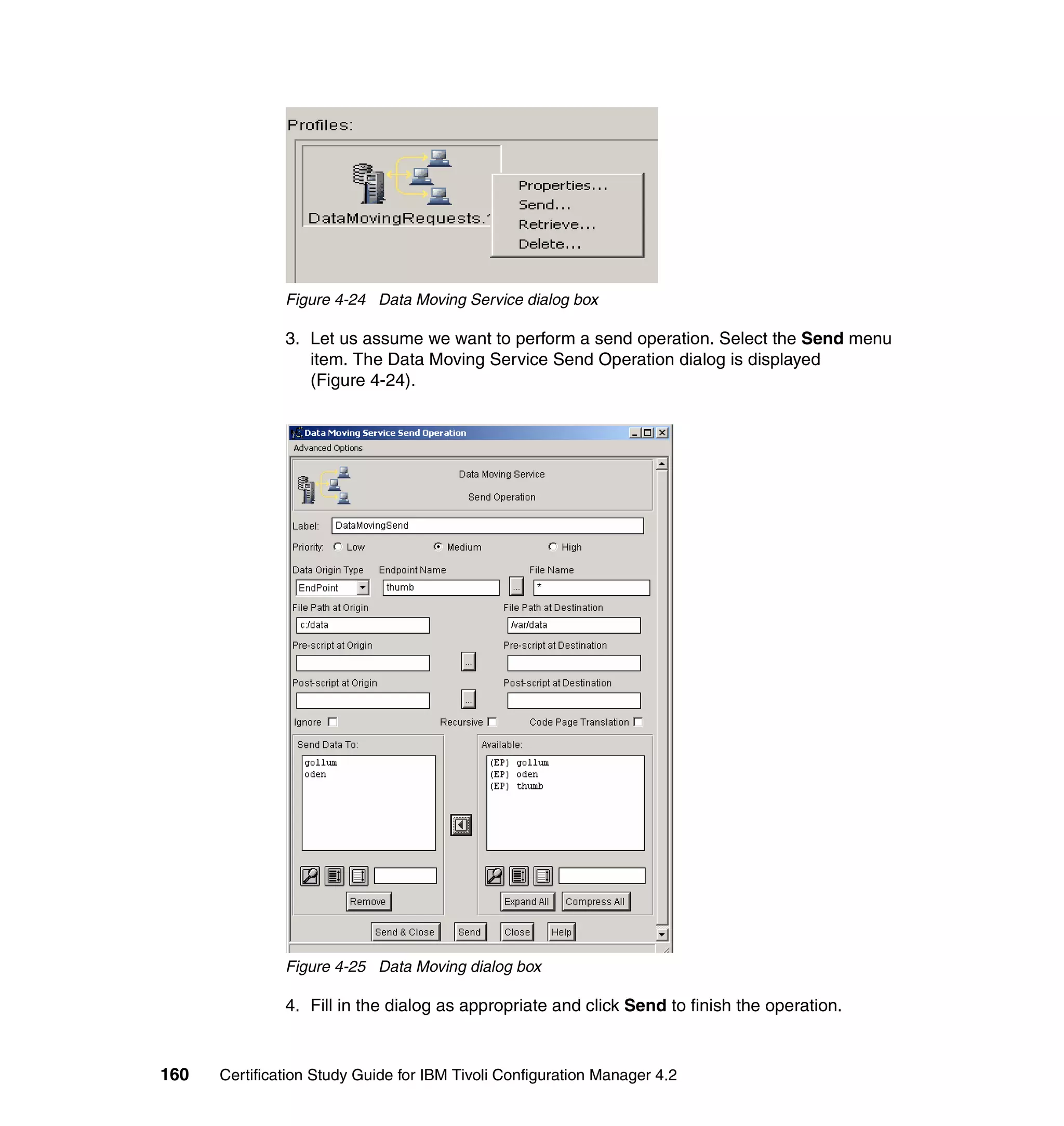
                     4 (information)
                     5 (verbose)

                 The default value for trace_level is 0; no trace is generated unless the trace level
                 is modified.

                 The default value for log_level is 5; all messages are logged unless the log_level
                 is modified.


7.6 Troubleshooting Change Manager
                 In this section we will cover Change Manager, or Configuration Change Manager
                 log and trace files, and how to customize them.


7.6.1 Change Manager configuration file
                 The location of the CM configuration file, confccm.xml, for each operating system
                 is listed in Table 7-4.

                 Table 7-4 Location of CCM configuration file
                  File name                         Operating system          Path

                  confccm.xml                       UNIX                      /etc/Tivoli/

                  confccm.xml                       NT/W2000                  $SystemDriveWINNT


248   Certification Study Guide for IBM Tivoli Configuration Manager 4.2
The CM configuration file is organized in stanzas that define CM implements
           such as elements, dependencies, and security.

           The CM configuration file can be customized to add new Java classes to change
           the current implementation, in such a case where the user decides to add new
           elements different from those currently supported.

           The confccm.xml configuration file can be customized to set the debug level for
           the CM traces.

           All log and trace files are created on the TMR server.


7.6.2 Change Manager logfiles
           The CM logfile records the same information as is contained in the ccm_apm*.trc
           file, except only those entries generated by the C code of CCM_core are
           executable. It is not generated by default. When enabling CM, the environment
           variable, __CCM_DEBUG__, with use of the Framework command odadmin
           environ set, or set as a system variable, the appropriately named logfile,
           ccm.log, is created. However, it may be necessary to kill or recycle CM for the
           environment variable setting to actually take effect.

           The location of CM logfile, ccm.log, is shown in Table 7-5.

           Table 7-5 Location of CM logfile
            File name                    OpSys                           Path

            ccm.log                      UNIX                            /tmp/

            ccm.log                      NT/W2000                        $TMPDIR


7.6.3 Change Manager trace files
           CM trace files are located under the directory specified in the working_dir
           parameter of the swdis.ini file on the TMR server.
              ccm*.trc
              The ccm*.trc trace file contains all of the actions performed using the CM GUI.
              For example:
              –   Creation of a reference model
              –   Import of a reference model
              –   Export of a reference model
              –   Preview operation
              It is located on the TMR server and those managed nodes where the CM GUI
              is installed. It is located under $(working_dir).


                                     Chapter 7. Troubleshooting IBM Tivoli Configuration Manager   249
ccm_apm*.trc
                     The ccm_apm*.trc trace file contains all the actions performed by CCM_core
                     when other applications, such as APM, SD WEB UI, and Pristine, interact with
                     CM.
                     All of the traces tracked by the Java code executed by the APM Java Virtual
                     Machine are reported in this file. Examples of what is recorded include:
                     – Submit operations for APM
                     – CM answer to a WEB UI request
                     – CM synchronization operation for pristine machines
                     The ccm_apm*.trc trace file is located only on the TMR server.
                     ccm_webxxx.trc
                     Contains the history of all operations performed by the Change Manager
                     engine when interacting with the new WEB UI 4.2 on the Application Server.
                     ccm_clixxx.trc
                     Contains the history of all the operations performed using the CM command
                     line as well as the operations performed when Change Manager interacts with
                     the Activity Planner to download the plug-in information.
                     You can set the trace level to determine the level of detail recorded for each
                     operation. The trace file is only created if the trace_level keyword is set to
                     greater than zero (default is zero). Trace values are as follows:
                     –   0 (none)
                     –   1 (fatal)
                     –   2 (error)
                     –   3 (warning)
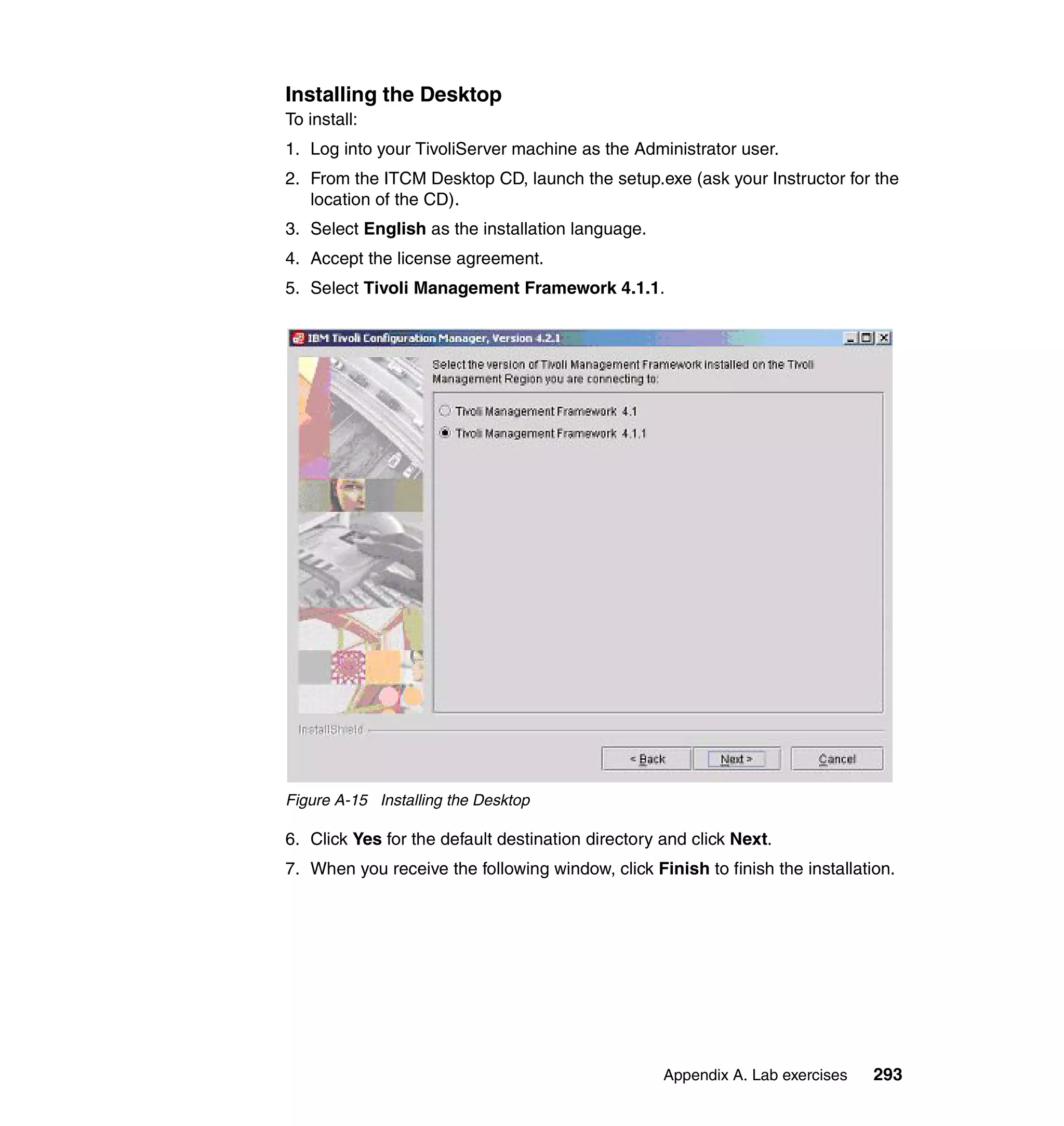
                     –   4 (information)
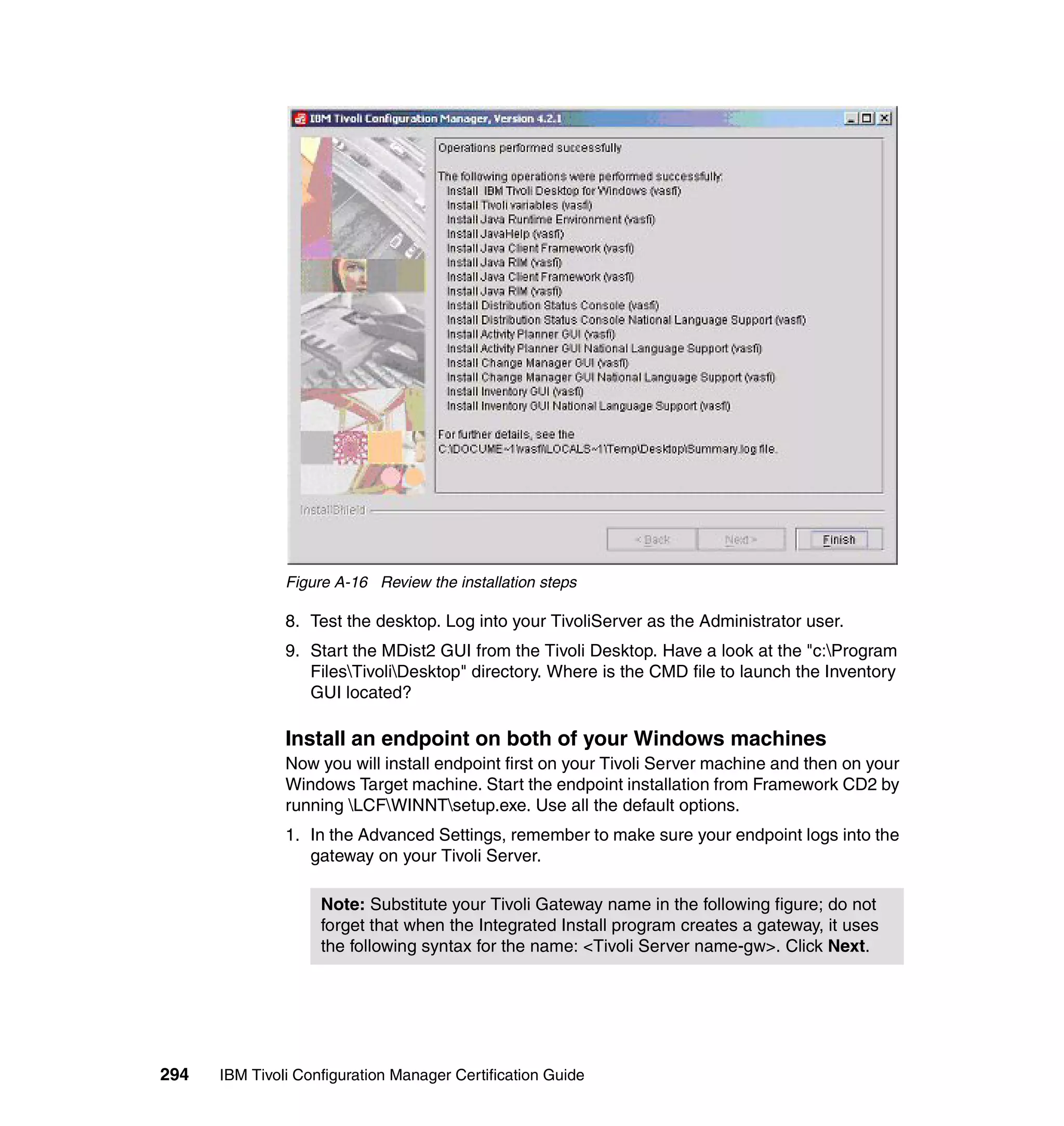
                     –   5 (verbose)

                 You can set the trace level using the wtrcccm command. Alternatively, you can
                 use the Change Manager GUI and press the F2 key. When you press the F2 key,
                 the Update trace dialog box displays, and you can enter a new value in the New
                 trace level text box.

                 Also, trace_size determines the maximum number of records that can be written
                 to the file (default is 1000000).


250   Certification Study Guide for IBM Tivoli Configuration Manager 4.2
7.7 Troubleshooting Web Gateway and Device
    Management
          Here are some typical problems when using the Web Gateway and Device
          Management.

          Resource Manager problems
          A general failure when trying to register the resource type could be due to a
          communication failure with the Web Gateway or the Web Gateway is not
          functioning. These errors should show up in the TRMRDBMS.log and
          TRMResourceManager.log in the $DBDIR directory. There are also other
          TRM*.logs for the various components of Resource Manager on the TMR server
          under the $DBDIR directory. Review the appropriate log relating to the problem
          you are encountering to further determine the cause of the problem. The logs for
          the various components of Resource Manager are:
             TRMDGMAppMgr.log
             TRMDGMAppMgrUI.log
             TRMDGMDowncalls.log
             TRMDGMRegistry.log
             TRMGroup.log
             TRMGroupUI.log
             TRMRDBMS.log
             TRMResourceManager.log
             TRMResourceManagerUI.log
             TRMUserDB.log
             TRMUserUI.log

          Log information can be changed by setting the variable in the Tivoli environment
          (odadmin environ get/set):
          TRM_DEBUG_LEVEL = (LEVEL_DBG_MIN/LEVEL_DBG_MID/LEVEL_DBG_MAX)
          TRM_MAX_LOG_SIZE = log files max size

          TRM_LOG_PATH = path to store log files


7.7.1 Tracing the Web Gateway
          On the Web Gateway, locate the traceConfig.properties file in the directory
          app_server_dir/installedApps/dmsserver_hostname_DMS_WebApp.ear/dmserv
          er.war/WEB-INF/classes.

          To turn on tracing, change EnableTrace=false to EnableTrace=true.

          The other components that need to be turned on (true) are
          traceEnable.dmserver and traceEnabled.twgapi.


                                  Chapter 7. Troubleshooting IBM Tivoli Configuration Manager   251
Depending on the situation, your support representative may request turning on
                 tracing for the other components.

                 If the servlets are not running, start them to put the new trace settings into effect.
                 If the servlets are running, do one of the following to put the new trace setting into
                 effect without restarting the servlets:
                     On any Tivoli Web Gateway (TWG) machine, perform the following:
                     server -app dmserver -trace set -host dmserver_hostname
                     On any TWG UNIX machine, perform the following command:
                     ./server.sh -app dmserver -trace set -host dmserver_hostname
                     From any machine with a browser, go to the following URL:
                     http://dmserver_hostname/dmserver/TraceServlet?trace=set

                 The output files of the tracing are DMS_stdout.log, DMS_stderr.log, and
                 DMSMsg1.log, which are located in the app_server_dir/log directory. The default
                 for the Windows installation is C:WebSphereAppServerlog.

                 You should also provide the ApiServlet.log in the /tmp directory to your support
                 representative.


7.8 Troubleshooting Web User Interface
                 In this section we cover troubleshooting the Web User Interface. First let us see
                 some common problems associated with the Web User Interface.


7.8.1 Common Web User Interface problems
                 Some common Web User Interface problems are detailed below.
                     Web Interface login problems
                     – An unsuccessful login when doing a login to the WEB UI could be due to
                       the security level of the browser being set too high.
                         Reduce to a lower security level and test again.
                     – The login was successful but encountered a Java or ActiveX error
                       message and the Operations Console does not show.
                         The supported Java plug-in for the browser may not have been installed.
                     – The login is successful but no pop-up window is shown to download the
                       two sets of files for the Web Interface.
                         The Java plug-in for the browser has not been installed.


252   Certification Study Guide for IBM Tivoli Configuration Manager 4.2
Unable to publish Web objects.
Before publishing any Web objects, you must make sure the following are up
and running:
– Gateways servicing the endpoints, which have Web Gateway components
  installed
– Endpoints on the Web Gateway Servers
– Primary and secondary Web Gateway Servers
– DB2 server
– DB2 client
– Web Server
– WebSphere Application Server
– Access Manager
– WebSEAL server
Check the logfile DMS_stdout.log and make sure that the log has the
following entry, which indicates that the Web Gateway Server has started
successfully: WSVR0023I: Server DMS_AppServer open for e-business.
An insufficient authorization error when using the wweb command normally
indicates that the Tivoli Administrator does not have the WebUI_Admin role.
A Profile not found error when running wweb under Windows could be due
to an extra caret (^) missing when specifying the profile name. For example,
the profile mysoftware^1.0 needs to be specified as @mysoftware^^1.0 when
running wweb under Windows.
A general oserv error could indicate a problem with the gateway that services
the endpoint that has the Web Gateway component installed. Restart the
gateway with the wgateway command and test again.
The wweb command completed with a distribution ID when publishing a
software package but does not show up on the Web Interface. Check the file
package_name.log in the ../swdis/work directory of the Tivoli Server for the
results of the publishing of the software package. The users file in
../swdis/work should contain the list of the users that the Web objects are
published for.
On the endpoint where the Web Gateway Server is located, the outcome of
the publishing of the software packages is recorded in the file called results
located in the ..swdis1 directory. Check this file for any error messages. The
file called users contains the list of users that have access to the published
Web objects.
Enable the tracing and review the DMS_stdout.log for errors. You may have to
enable more components for tracing depending on the situation. Publishing to


                      Chapter 7. Troubleshooting IBM Tivoli Configuration Manager   253
an invalid user ID will fail and the log should reflect that. Refer to 7.8.2,
                     “Tracing the Web User Interface” on page 255, for enabling tracing.
                     Memory usage is increasing dramatically over time, causing the Tivoli Web
                     Gateway application server to fail.
                     Disable JIT for the Java Virtual Machine to circumvent this behavior.

                      Note: JIT stands for just-in-time compiler. It is a code generator that
                      converts Java bytecode into machine language instructions.

                     If that will not solve the problem, check if you are running too many inventory
                     jobs, since running a lot of inventory jobs on Red Hat Linux or Microsoft
                     Windows platforms might increase memory usage dramatically,
                     Problems with software package installation:
                     – Error in downloading attachment in the Operations Console. This error is
                       not seen in the software_package.log.
                         The Web Gateway Server could be down or the host name of the Web
                         Gateway Server cannot be resolved. Make sure that you can resolve both
                         the short and FQDN of the Web Gateway Server and perform the install
                         again.
                     – DISSE0082E Error decoding software package object. It could be
                       corrupted, or not a valid object.
                         This error can be seen in both the Operations Console and in the
                         software_package.log located on the Tivoli Server in the ../swdis/work
                         directory. You will encounter this corrupt file error if you have used an IP
                         address instead of the host name of the WebSEAL server in the URL to
                         get to the Web Interface. Make sure the host name and short name of both
                         the WebSEAL server and Web Gateway Server can be resolved. Use the
                         host name of the WebSEAL server in the URL for the WEB UI Interface,
                         log in again, and redo the install of the software package.
                     – In the dynamic resource group of the type User, the Query Selection group
                       box on the Resource Group Members dialog is grayed out.
                         Run the update_trm_query.sh script on the Tivoli server.
                     Problems with the inventory scan.
                     Inventory scan completed successfully but not data in the RDBMS database.
                     Check the mcollect.log on the gateways and the trace file for the
                     TWG-MCollect. Refer to 7.10, “Troubleshooting Inventory” on page 256, on
                     Inventory mcollect to debug the failed collection.


254   Certification Study Guide for IBM Tivoli Configuration Manager 4.2
7.8.2 Tracing the Web User Interface
           You can use wwebcfg to set the tracing parameters for the Web User Interface.
           The output trace files, WebUI*.trc, are located in the $DBDIR/WebUI directory.
           The available parameters for wwebcfg are:
                product_dir
                working_dir
                trace_size
                trace_level

           The default for product_dir is $DBDIR/WebUI and $DBDIR/WebUI/work for
           working_dir. The default trace_size is 1000000 and when the trace file size
           reaches this size, a new file is created.

           The trace_level can be set from 0 to 6. Your support personnel may request a
           higher level depending on the situation.

           Table 7-6 Settings for trace_level
            trace_level                                   Specifies

            0                                             No traces

            1                                             Level fatal

            2                                             Level error

            3                                             Level warning

            4                                             Level info

            5                                             Level verbose

            6                                             Maximum level


           Tracing Software Distribution WEB UI plug-in
           Set the trace_level parameter of wswdcfg to a level by running:
           wswdcfg -s trace_level=9

           The traces (*.trc) are located on the TMR server (by default) in the $product_dir
           directory, which is specified in the [#SERVER] section of the swdis.ini file. The
           swdis.ini is located on C:/WINNT for the Windows Tivoli Server and /etc/Tivoli for
           the UNIX TMR server.

           In the $product_dir, the spo*.trc and spde*.trc should have traces of the
           publishing of software packages to TWG. The swdmgr*.trc should have the
           results of the publishing.


                                      Chapter 7. Troubleshooting IBM Tivoli Configuration Manager   255
The swd traces directory can be changed using the product_dir parameter.
                 wswdcfg -s product_dir=trace_dir


                 Tracing for the Web Gateway
                 See 7.7.1, “Tracing the Web Gateway” on page 251.

                 Trace files of the endpoint on the Web Gateway Server
                 Locate the swdis.ini, which is located in C:/WINNT for Windows installation and
                 etc/Tivoli for UNIX installation. Set the trace_level to level 6 (trace_level=6) in the
                 endpoint section of the swdis.ini file.

                 The trace files spde*.trc will be located in the $product_dir as specified in the
                 swdis.ini file. When software packages are published to the TWG, these files
                 should have the traces in them.


7.9 Troubleshooting Enterprise Directory Integration
                 Most of the issues involved in troubleshooting revolve around making sure the
                 connection to the LDAP server is working and that the access to the context is
                 correct.

                 You can check this by setting a trace on the TMR server. For example:
                 odadmin environ set DQ_TRACE=max_size (MB)

                 The trace files are written to $DBDIR on the TMR server. DirQueryCli0 contains
                 the CLI trace, and DirQueryEngine0.trc contains the engine trace.

                 Sometimes the problem is a port issue. For Directory Integration, the
                 communication takes place through a socket listening on port 9090. If this port is
                 reserved for other applications, we suggest that you change it, setting the
                 variable DQ_PORT to a different value.

                 The command to use is again:
                 odadmin environ get/set


7.10 Troubleshooting Inventory
                 This section covers important information required to troubleshoot inventory
                 scans. It is important that you understand the basic tasks and the logfiles used in
                 order to troubleshoot effectively.


256   Certification Study Guide for IBM Tivoli Configuration Manager 4.2
Table 7-7 contains a summary of the logfiles we will be discussing in this chapter.

Table 7-7 Log file information
 Component                       Path                                Log file           Default     Debug
                                                                     name               log         level
                                                                                        level

 Endpoint -                      $LCFDIR/dat/1.                      lcfd.log           1           3
 Upcall and downcall
 information

 Endpoint scan engine -          From directory where the            sa_config.log      N/A         3
 Inventory profile               wepscan command was run.
 information                     Created by wepscan -d
                                 command.

 Endpoint scan engine -          From directory where the            sa_results.lo      N/A         3
 Scan data                       wepscan command was run.            g
                                 Created by wepscan -d
                                 command.

 Endpoint scan engine -          From directory where the            INV_SA.LOG         N/A         3
 Debug information               wepscan command was run.
                                 Created by wepscan -d
                                 command.

 Hardware scan library -         $LCGFDIRinvScan.                  libInvHW.log       N/A         N/A
 Debug information

 Gateway -                       $DBDIR.                             gatelog            3           6
 Upcall and downcall
 information

 RIM object                      $RIM_DB_LOG                         invdh_1_rim.l      N/A         INFO|ER
 SQLstatements and DB            “Created by wrimtrace.”             og                             ROR
 return codes

 Data Handler -                  $DBDIR/inventory/data_handler.       mcollect.log      1           3
 Debug information

 Collector -                     $DBDIR/mcollect.                     mcollect.log      1           3
 Debug information


                                               Chapter 7. Troubleshooting IBM Tivoli Configuration Manager   257
Component                      Path                                    Log file        Default    Debug
                                                                        name            log        level
                                                                                        level

 Endpoint -                     $LCFDIR/dat/1.                          lcfd.log        1          3
 Upcall and downcall
 information

 Endpoint scan engine -         From directory where the                sa_config.log   N/A        3
 Inventory profile              wepscan command was run.
 information                    Created by wepscan -d
                                command.

 Endpoint scan engine -         From directory where the                sa_results.lo   N/A        3
 Scan data                      wepscan command was run.                g
                                Created by wepscan -d
                                command.

 Endpoint scan engine -         From directory where the                INV_SA.LOG      N/A        3
 Debug information              wepscan command was run.
                                Created by wepscan -d
                                command.

 Hardware scan library -        $LCGFDIRinvScan.                      libInvHW.log    N/A        N/A
 Debug information

 Gateway -                      $DBDIR.                                 gatelog         3          6
 Upcall and downcall
 information

 RIM object                     $RIM_DB_LOG                             invdh_1_rim.l   N/A        INFO|ER
 SQLstatements and DB           “Created by wrimtrace.”                 og                         ROR
 return codes

 Inventory GUI log              Unix: $DBDIR directory.                 DEBUG3          0 (no      2
 information                    PC Systems: $DSWIN directory.           (Unix)          files
                                Note: You need to open the              InvGuiDebug     created)
                                inv_gui.sh file in a text editor on     .log (PC
                                the system on which you are             Systems)
                                using the GUI, This file is located
                                in $BINDIR/TME/INVENTORY.
                                Change the DEBUG variable to 2
                                from 0. No files are generated by
                                deafult value, which is 0.


7.10.1 Enabling logging and tracing
                  The lcfd.log at debug level 3 contains important endpoint activity information.
                  From there you can see the upcalls made by the endpoint, as well as downcalls


258    Certification Study Guide for IBM Tivoli Configuration Manager 4.2
make by the gateway to the endpoint. Depending on the type of problem you are
troubleshooting, you may elect to only have certain traces enabled. For the
purpose of this exercise we will enable all the traces.

Setting endpoint debug level
To enable endpoint debugging level 3, do the following from the endpoint:
1. Change the log_threshold line in the $LCFDIR/dat/1/last.cfg file to
   log_threshold=3.
2. Save the updated last.cfg.
3. Restart the lcfd service. Open a command line on the endpoint and run the
   commands in Example 7-7.

Example 7-7 Restart the lcfd service
net   stop lcfd
The   Tivoli endpoint   service is stopping.
The   Tivoli endpoint   service was stopped successfully.
net   start lcfd
The   Tivoli endpoint   service is starting.
The   Tivoli endpoint   service was started successfully.


Setting Collector logging
Mcollect.log debug level 3 is the highest log level and is the most widely used for
troubleshooting. It can, however, generate a very large logfile in a short amount
of time and will wrap every time it reaches the maximum debug_log_size. You
should only set the debug level to three when troubleshooting. The Collector
must be stopped and started, as illustrated in Example 7-8, when changing the
debug level.

Once these commands are executed, simply view or tail -f the SCS logfile.
Remember to set logging back to level 1 after you finish.

To enable Collector debugging run the command shown in Example 7-8. All
commands are in bold.

Example 7-8 Enabling Collector debug level
wcollect -d 3 @Gateway:win-rptr01a-gw
wcollect -h graceful @Gateway:win-rptr01a-gw
Performed 'graceful' halt of collector: @Gateway:win-rptr01a-gw.
wcollect -s @Gateway:win-rptr01a-gw
Started collector: @Gateway:win-rptr01a-gw.


                            Chapter 7. Troubleshooting IBM Tivoli Configuration Manager   259
Setting Data Handler logging
                 Setting the Data Handler debug level is similar to setting the Collector, except
                 instead of specifying a Collector, you specify the Data Handler object, as
                 illustrated in Example 7-9.

                 Example 7-9 Enabling Data Handler debug level
                 wcollect -d 3 @InvDataHandler:inv_data_handler
                 wcollect -h graceful 3 @InvDataHandler:inv_data_handler
                 Performed 'graceful' halt of collector: @InvDataHandler:inv_data_handler.
                 wcollect -s @InvDataHandler:inv_data_handler
                 Started collector: @InvDataHandler:inv_data_handler.


                 Setting the gateway debug level
                 A number of interesting messages can also be viewed in the gatelog file. If you
                 are tracing SCS, you should set the gateway debug level to 9. Be sure to set it
                 back to default when you are done tracing.

                 The gateway logfile is called gatelog and is located in $DBDIR. This file contains
                 information on downcalls, upcalls, and cache misses, and thus can be very
                 useful when troubleshooting Inventory. Use the wgateway command to set the
                 debug level of the gatelog file. Since you must restart the gateway, make sure
                 there are no active distributions in progress.

                 The commands in Example 7-10 set the gateway debug level to 9 on a gateway
                 named win-rptr01a-gw.

                 Example 7-10 Setting gatelog to debug level 9
                 C:Tivoli>wgateway win-rptr01a-gw set_debug_level 9
                 C:Tivoli>wgateway win-rptr01a-gw restart


                 Setting the RIM trace
                 The RIM logfile contains very useful information when troubleshooting
                 database-related problems. From the RIM log you can see what database calls
                 are being made from the Data Handler to the RIM interface and what is returned
                 by the database.

                 To enable RIM trace do the following:
                 1. From the RIM host managed node run the following command:
                     odadmin environ get>c:environ_rim.txt
                 2. Edit the c:environ_rim.txt file by adding the following line:
                     RIM_DB_LOG=c:/temp/invdh_1_rim.log


260   Certification Study Guide for IBM Tivoli Configuration Manager 4.2
3. Set the RIM_DB_LOG environment variable:
   odadmin environ set < c:environ_rim.txt
4. Enable tracing on Data Handler RIM object:
   wrimtrace invdh_1 "INFORMATION|ERROR"
5. Kill all RIM_vendor_Agent processes that are running on the RIM host
   managed node, as shown in Example 7-11.

Example 7-11 Killing the RIM agent process
ntprocinfo|grep -i agent
1980 RIM_Oracle_Agent WIN-INV01Atmersrvd               08/06/2002 10:02:09
ntprocinfo -k 1980


RIM tracing is now enabled and will be tracing all invdh_1 RIM object calls.

 Notes: The RIM log can grow and fill up disk space very quickly at
 INFORMATION:ERROR. Be sure to set it back to no tracing when you are
 done tracing by running the following command:
    wrimtrace invdh_1 "TRACE_OFF"

 To troubleshoot RIM connection problems, the RIM_vendor_Agent can be
 started manually. On Unix, however, DB2 and Informix RDBMS systems
 require setting the shared library path first.


Troubleshooting on the endpoint
The wepscan command has two debug options, -c and -d. These options provide
effective troubleshooting tools when diagnosing endpoint-specific problems.
   The -c option reads the profile configuration file (config.dmp) and writes
   results into a text file sa_config.log. config.dmp is created on the endpoint
   when the profile is distributed to it.
   The -d option has three levels (1–3). The three levels are as follows:
   – 1: Logs error messages.
   – 2: Logs error and warning messages.
   – 3: Logs error and warning messages and debugging information.
     (Debugging information is not available from NetWare or OS/2 endpoints.)
   Depending on the log level used, the following files will be created. All these
   logs will be saved in the same directory from which you ran wepscan.
   – sa_results.log: Contains the scan data in ASCII format.
   – sa_config.log: The same logfile that is created using the -c option.


                         Chapter 7. Troubleshooting IBM Tivoli Configuration Manager   261
– INV_SA.LOG: Contains debugging information. It is identical to the logfile
                       that is created using the wdistinv command and inv_ep_debug keyword.
                       If you used the -s option, this logfile is sent to the Inventory Data Handler.

                 You can also create these logfiles by creating an environment variable on your
                 system named WEPSCAN_DEBUG. Set this environment variable to a value of
                 1, 2, or 3. These values correspond to the options you specify with the -d option.

                 When using the -d option, the libInvHW.log is created. This file contains more
                 detailed debug information of the Hardware Scan Library. It is very useful when
                 troubleshooting hardware scan related problems. At this point in time there is no
                 similar logfile for the software scan library.


262   Certification Study Guide for IBM Tivoli Configuration Manager 4.2
8


    Chapter 8.   Certification exam
                 objectives
                 This chapter describes the certification exam objectives and contains the
                 following sections:
                     “Planning section” on page 264
                     “Installation section” on page 266
                     “Configuration section” on page 268
                     “Operations, administration, and maintenance section” on page 270


© Copyright IBM Corp. 2005. All rights reserved.                                             263
8.1 Planning section
               In this section we discuss planning.
                   Given a Statement of Work, architecture document, and customer input,
                   conduct customer interviews and analyze the documentation so that
                   customer requirements are determined, with emphasis on performing the
                   following steps:
                   –   Conduct customer interviews.
                   –   Read architecture document.
                   –   Read customer documents.
                   –   Determine Tivoli naming conventions.
                   Given a list of machines and their specifications, interrogate the machines
                   against the minimum requirements so that a list of machines to support the
                   Tivoli environment can be generated, with emphasis on performing the
                   following steps:
                   –   Identify machines involved.
                   –   Determine available disk space.
                   –   Determine available memory.
                   –   Determine CPU power.
                   Given the Planning and Installation Guides, User Manuals, Release Notes,
                   and a list of machines, assess the software levels so that a list of machines
                   meeting the prerequisites and a list of machines to be upgraded and patched
                   can be generated, with emphasis on performing the following steps:
                   – Identify software prerequisites.
                   – Determine existing software levels.
                   Given a set of network locations, protocols, and a network diagram, describe
                   the network topology so that a Tivoli infrastructure can be recommended, with
                   emphasis on performing the following steps:
                   – Determine physical network layout.
                   – Determine protocols to use.
                   Given a list of servers and workstations and a network diagram, identify and
                   categorize the machines to be managed so that they can be grouped into a
                   logical endpoint list, with emphasis on performing the following steps:
                   – Identify machines to be managed.
                   – Identify groups of machines.
                   – Identify resources to scan.
                   Given customer's data collection requirements, a list of endpoints, and a
                   Tivoli infrastructure, determine the inventory requirements (scan frequency,
                   scan method, history tracking, MIFs to be collected, hardware/software data,
                   policy needs, and Wake-on-LAN requirements) so that a scanning


264   Certification Study Guide for IBM Tivoli Configuration Manager 4.2
methodology and policy scripts can be generated, with emphasis on
performing the following steps:
–   Consider hardware/software data to be scanned.
–   Determine inventory scan method.
–   Determine inventory scan frequency.
–   Determine policies needed.
–   Determine history tracking requirements.
–   Determine MIFs to be collected.
–   Determine Wake-on-LAN requirements.
Given a list of software to be distributed, a delivery method, a list of
endpoints, and a Tivoli infrastructure, determine the software distribution
requirements so that a distribution architecture and methodology can be
determined, with emphasis on performing the following steps:
– Determine software to be distributed.
– Determine software packaging method.
– Analyze software requirements with respect to bandwidth usage and time
  to distribute.
– Determine source hosts and depot sites.
– Determine candidates for software build via pristine install.
– Determine policies needed.
– Document endpoint to directory user relationship.
– Determine eligible pervasive devices.
Given a customer’s database environment, determine the database
requirements in order to identify the appropriate database sizing, tuning, and
RIM parameters, with emphasis on performing the following steps:
–   Calculate estimated size of database.
–   Select RIM(s) node(s).
–   Determine database index process.
–   Select appropriate database.
Given an organization chart and business processes, describe the
organization of the administrators so that the necessary administrator groups
and roles can be determined, with emphasis on performing the following
steps:
– Identify logical groups of administrators.
– Identify roles of administrators.
– Identify policy regions to which admins require access.
Given a company’s security policies and Tivoli security settings, create
appropriate administrator roles and Tivoli configuration functions so that the


                                   Chapter 8. Certification exam objectives   265
IBM Tivoli Configuration Manager settings meet company security policies,
                   with emphasis on performing the following steps:
                   –   Define administrator roles.
                   –   Determine optimum oserv configuration settings.
                   –   Determine optimum endpoint configuration settings.
                   –   Determine access manager install.
                   –   Determine WebSeal install.
                   Given a network diagram, firewall rules and policies, and DMZ architecture,
                   determine the firewall requirements so that inventory scans and software
                   distributions can be performed through the firewall(s), with emphasis on
                   performing the following steps:
                   – Determine machines separated by firewalls.
                   – Determine use of Tivoli Configuration Manager under DMZ.
                   – Determine management needs for machines.
                   Given a network diagram, network administration policy, and customer
                   requirements, determine the multicast requirements so that a list of multicast
                   repeaters, targets, and configuration settings can be generated, with
                   emphasis on performing the following steps:
                   – Determine multicast targets.
                   – Determine multicast repeaters.
                   – Determine multicast addresses and parameters.
                   Given a list of software and inventory requirements, mobile devices, and
                   pervasive devices, determine Web requirements so that the Web access site,
                   installation method, and Web component database are configured for the list
                   of Web-enabled applications available to a subscriber list, with emphasis on
                   performing the following steps:
                   –   Determine install of Web components - Classic or SPBs.
                   –   Determine eligible software packages and inventory configs.
                   –   Determine eligible targets.
                   –   Determine cluster or single install.
                   –   Size DB2 for Web.


8.2 Installation section
               In this section we discuss installation.
                   Given the set of prerequisite software CDs, install the prerequisite software,
                   including RDBMS, IBM HTTP Server, DB2 Data Warehouse, and WebSphere
                   Application Server so that the software environment meets the IBM Tivoli


266   Certification Study Guide for IBM Tivoli Configuration Manager 4.2
Configuration Manager prerequisites, with emphasis on performing the
following steps:
–   Install RDBMS.
–   Install IBM HTTP server.
–   Install DB2 Data Warehouse.
–   Install WebSphere Application Server.
Given the IBM Tivoli Configuration Manager CDs and administrator access to
the appropriate hardware and the MDist2 database, choose the appropriate
installation method to install or upgrade the TMR server, Java components,
gateway and repeater hierarchy, MDist2, Firewall Toolkit, and endpoints to
produce a working Tivoli environment with MDist2 capability, with emphasis
on performing the following steps:
–   Locate media.
–   Ensure bidirectional name and address resolution.
–   Intall/upgrade TMR server.
–   Install Java components.
–   Install MDist2.
–   Install Firewall Toolkit.
–   Create gateway(s)/repeater(s).
–   Install endpoints.
Given a working Tivoli environment, the IBM Tivoli Configuration Manager
CDs, the inventory schema, and administrative access to the inventory
database, install or upgrade the inventory server, gateways, and Scalable
Collection Service so that all the necessary inventory components are
installed on the correct machines in the Tivoli environment, with emphasis on
performing the following steps:
– Install/upgrade the Scalable Collection Service.
– Install/upgrade the inventory server.
– Install/upgrade the inventory gateway.
Given a working Tivoli environment and the IBM Tivoli Configuration Manager
CDs, install or upgrade the Software Distribution components, including the
server, gateway, packaging, and desktop components, so that the
Configuration Manager GUIs can be launched and accessed, and all
necessary Software Distribution components are installed on the appropriate
machines in the Tivoli environment, with emphasis on performing the
following steps:
–   Install/upgrade Software Distribution server.
–   Install/upgrade Software Distribution gateway.
–   Install/upgrade Software Package Editor.
–   Install/upgrade Configuration Manager Desktop.
–   Install Pristine Tool.


                                  Chapter 8. Certification exam objectives   267
Given an Activity Planner schema, a Change Management schema, and a
                   working Tivoli environment, install the functions of Deployment Services
                   including Change Management, Activity Planner, Resource Manager,
                   Directory Query, and Web components so that all of these application
                   components are installed in the Tivoli environment, with emphasis on
                   performing the following steps:
                   –   Install Change Manager.
                   –   Install Activity Planner.
                   –   Install Resource Manager.
                   –   Install device agents.
                   –   Install Web components.
                   –   Install Directory Query.
                   –   Install Access Manager.
                   –   Install Access Manager WebSeal.


8.3 Configuration section
               In this section we discuss configuration.
                   Given a working Tivoli environment, a network topology, and an MDist2
                   database, configure gateway Web access, repeater tuning parameters,
                   MDist2 RIM parameters, and the endpoint, task library, and profile manager
                   policy scripts so that the Tivoli environment meets the customer requirements
                   for distribution throughput, bandwidth control, and endpoint management,
                   with emphasis on performing the following steps:
                   –   Build MDist2 RIM.
                   –   Tune repeaters.
                   –   Create and install endpoint policies.
                   –   Configure multicast.
                   –   Create task library, profile managers, and policy scripts.
                   –   Configure gateway Web access.
                   Given a working Tivoli environment and an endpoint to directory user listing,
                   link endpoints to directory users and create Directory Query libraries and
                   Directory Queries, so that endpoints can be associated with users, with
                   emphasis on performing the following steps:
                   – Create Directory query library.
                   – Create directory query.
                   – Link endpoints to directory users.
                   Given that inventory is installed and customer collection requirements have
                   been determined, tune collectors, install software signatures, and configure
                   RIM objects, custom queries, and scanners so that data can be collected from


268   Certification Study Guide for IBM Tivoli Configuration Manager 4.2
endpoints, stored in the configuration repository, and matched against
defined software signatures, with emphasis on performing the following steps:
–   Build inventory RIM(s).
–   Tune data handler.
–   Tune collectors.
–   Add software signature.
–   Create inventory, subscription, and historic query library.
–   Configure custom tables in database.
–   Create custom query.
–   Configure DMI data to collect.
–   Create inventory policy scripts.
Given that Software Distribution is installed and the customer’s software
distribution requirements have been determined, configure multicast support,
data moving service, Web interface, mobile support, and policy scripts so that
software can be distributed to targets in compliance with the customer’s
requirements, with emphasis on performing the following steps:
–   Configure multicast support.
–   Configure data moving service.
–   Configure software distribution mobile support.
–   Create software distribution policy scripts.
–   Configure software distribution Web interface.
Given that the deployment services components have been successfully
installed, configure the RIMs, Web Gateway, device plug-ins, HTTP Server,
and WebSphere Application Server in order to provide working Web access
and management for pervasive devices, with emphasis on performing the
following steps:
–   Build Activity Planner RIM.
–   Build Change Manager RIM.
–   Configure plug-ins.
–   Configure Web Gateway.
–   Register pervasive devices.
–   Create resource group policies.
–   Configure IBM HTTP Server.
–   Configure WebSphere Application Server/Tivoli TMR Web access.
–   Publish Web objects.
Given a working Tivoli environment with software distribution, inventory, and
deployment services installed, test the managed nodes, gateways, endpoints,
and RIM objects so that endpoints can be managed through the framework
and databases can be accessed through the RIM, with emphasis on
performing the following steps:
– Test managed node.
– Test gateway(s).


                                    Chapter 8. Certification exam objectives   269
–   Test endpoint(s).
                   –   Test Change Manager RIM.
                   –   Test Activity Planner RIM.
                   –   Test inventory RIM(s).
                   –   Test MDist2 RIM.
                   Given a working Tivoli Configuration Manager environment, TEC Server,
                   TDW, and customer requirements, configure software distribution to send
                   events to TEC and integrate software distribution with TDW so that Tivoli
                   Configuration Manager can generate reports and TEC events, with emphasis
                   on performing the following steps:
                   – Configure software distribution to send events to TEC.
                   – View Tivoli Configuration Manager reports in the Tivoli Data Warehouse.


8.4 Operations, administration, and maintenance
    section
               In this section we discuss operations, administration, and maintenance.
                   Given a list of file packages and inventory profiles from Tivoli Software
                   Distribution V3.x and Tivoli Inventory V3.x, convert them to IBM Tivoli
                   Configuration Manager V4.2 inventory configuration profiles, software
                   packages, and SPBs, with emphasis on performing the following steps:
                   – Convert inventory profiles to inventory configuration profiles.
                   – Convert file packages to software packages.
                   Given IBM Tivoli Configuration Manager customer requirements, create
                   inventory resources, including policy regions, profile managers, and profiles
                   so that inventory data can be collected from the customer environment, with
                   emphasis on performing the following steps:
                   –   Create inventory policy regions.
                   –   Create inventory profile managers.
                   –   Create and configure inventory profiles.
                   –   Select custom MIF collection profile settings.
                   –   Determine type of scan for pervasive devices.
                   Given IBM Tivoli Configuration Manager customer requirements, create
                   software distribution resources, including policy regions, profile managers,
                   and profiles so that software can be distributed to and removed from target
                   systems, with emphasis on performing the following steps:
                   – Create and configure software distribution profiles.
                   – Create software packages using the Java Package Editor, CLI, GUI, SIS,
                     or importing them. Launch the software distribution Java Package Editor
                     and use it to build packages on all supported operating systems.


270   Certification Study Guide for IBM Tivoli Configuration Manager 4.2
– Export and modify software package blocks.
– Determine version and dependencies of a software package block.
– Create install, uninstall, undo, commit, and verify jobs.
– Configure advanced options on software distribution profiles.
Given a working IBM Tivoli Configuration Manager V4.2 environment and
customer requirements, build reference models so that inventory scans and
software distributions can be applied to the subscriber lists enforcing the
software states and inventory data elements defined in the reference model,
with emphasis on performing the following steps:
– Create a reference model and assign subscribers.
– Add, change, and delete inventory scan elements.
– Add, change, and delete software distribution elements.
Given customer requirements to schedule and coordinate activities, configure
the Activity Planner to define, submit, and schedule an activity plan that
meets customer requirements, with emphasis on performing the following
steps:
–   Use Activity Planner to define activity, set conditions, and assign targets.
–   List submittable activity plans.
–   Submit activity plan.
–   Schedule an activity plan for execution.
Given customer requirements to manage pervasive devices, create and
configure device object software packages and inventory profiles so that
software can be delivered and inventory information can be collected from
these devices, with emphasis on performing the following step:
– Create and configure device object software package.
Given a working IBM Tivoli Configuration Manager V4.2 environment and a
set of subscribers, distribute software and perform asset scans against
LAN-attached and mobile clients so that asset data is gathered and software
is installed or removed, with emphasis on performing the following steps:
–   Distribute software to desired targets and confirm success.
–   Distribute inventory configuration profile.
–   Execute an activity plan.
–   Configure endpoint initiated scanner.
Given active distributions and scans, control IBM Tivoli Configuration
Manager V4.2 activities to determine status, cancel activities, and
determine/alter the repeater path so that activities can be successfully
managed, with emphasis on performing the following steps:
– Calculate disk space required for distribution.
– Verify success of scan or distribution.


                                    Chapter 8. Certification exam objectives   271
–   Report current status of a distribution.
                   –   Cancel a distribution.
                   –   Determine path that a distribution will follow.
                   –   Alter the path that a distribution will follow.
                   –   View status or details of activity plans.
                   –   Distribute a software package using multicast.
                   –   Move files/software from one endpoint to another.
                   Given Framework and IBM Tivoli Configuration Manager V4.2 CLIs and
                   administrative access to the system, start and stop components so that
                   collectors, oservs, and endpoints can be effectively managed in the
                   environment, with emphasis on performing the following steps:
                   –   Start/stop oserv.
                   –   Start/stop endpoint.
                   –   Start/stop gateways.
                   –   Start/stop endpoint manager.
                   –   Start/stop collectors.
                   Given an installed Tivoli environment including IBM Tivoli Configuration
                   Manager V4.2, perform the tasks necessary to uninstall Tivoli and remove
                   related information from the databases so that the systems are restored to the
                   pre-installation state, with emphasis on performing the following steps:
                   – Uninstall IBM Tivoli Configuration Manager V4.2.
                   – Remove information in database about removed endpoint.
                   – Restore from backup.
                   Given error logs, database schemas, and CLI commands, describe the
                   troubleshooting procedures so that corrective action can be taken, successful
                   distributions can be achieved, RIM connections can be established, and the
                   oserv and other Tivoli components can be traced, with emphasis on
                   performing the following steps:
                   –   Troubleshoot TMR and managed node installation.
                   –   Troubleshoot endpoint agent installation.
                   –   Solve RIM connection problems.
                   –   Debug distributions.
                   –   Generate oserv trace.
                   –   Trace a reference model.
                   –   Enable Web user interface tracing.
                   –   Troubleshoot Java install.
                   –   Review Scalable Collection Service.
                   –   Debug activity plan problems using appropriate log files.
                   –   Debug Change Manager problems using logs and traces.


272   Certification Study Guide for IBM Tivoli Configuration Manager 4.2
A


  Appendix A.    Lab exercises
                 This appendix provides lab exercises for the related chapters. You need to first
                 download the SG243946.zip, which has the necessary files for these exercises.
                 Refer to Appendix B, “Additional material” on page 349, for instructions to
                 download this zip file.


© Copyright IBM Corp. 2005. All rights reserved.                                              273
Introduction
               In the these exercises we have used ITCM 4.2, but you can also use ITCM 4.2.1
               if you prefer. Lab 1 contains installation instructions for getting all the support
               applications plus ITCM 4.2. up and running on a single box. All the other labs can
               be used as reference during a demo of a self-study guide.

               The lab setup is two Windows 2000 Server or Professional machines for each
               group. The machines are called TivoliServer and WindowsTarget. TivoliServer
               will serve as a Source Host, Tivoli Server, and endpoint; and WindowsTarget will
               serve as a second target endpoint in the exercises. We will install endpoints on
               both machines and these endpoints will have the same names as the machines.
               Most of the IBM Tivoli Configuration Manager 4.2 installation will be done on the
               TivoliServer machine.


274   IBM Tivoli Configuration Manager Certification Guide
LAB 1 Using Integrated Install method to install a Tivoli
Server
           In this lab we use the Integrated Install method to install a Tivoli Server.


What this exercise is about
           This exercise will give you the possibility to deploy a Tivoli Server using the new
           integrated installation method. During the exercise you will be guided through all
           the steps required to install a Tivoli Server and all the ITCM standard
           components.


What you should be able to do
           At the end of the lab, you should be able to install a Tivoli server with all IBM
           Tivoli Configuration Manager (ITCM) components using the ISMP method.


Required materials
           Before you start the exercises, you should make sure you have access to the
           following software:
              Framework 4.1 or 4.1.1 Installation CD1
              Framework 4.1 or 4.1.1 Installation CD2
              ITCM 4.2 or 4.2.1 Installation CD
              ITCM 4.2 or 4.2.1 Server CD

            Note: We have used ITCM 4.2.1 for implemening these labs. If you use ITCM
            4.2.0, you will not see Figure A-10 on page 286 in the installation of ITCM
            (since this step was new with ITCM 4.2.1). Other than that, all lab instructions
            are applicable to ITCM 4.2.0 as well.


Exercise instructions
           This exercise should be done after reviewing Chapter 3, “Tivoli Configuration
           Manager fundamentals and installation” on page 71.

           Preface
           DB2 V8.1 has already been installed on your Windows 2000 Server with the
           following options:
              DB2 database home: c:Program FilesSQLLIB
              Instance owner: db2admin
              Instance: DB2


                                                               Appendix A. Lab exercises       275
Instance home: c:DB2


Install your Tivoli Server with all ITCM modules
               To install:
               1. Log onto your TivoliServer machine as Administrator. Open a DB2 Command
                  Window by selecting Start → Programs → IBM DB2 → Command Window.
               2. Using the command window, create a database to be used with ITCM. In this
                  exercise, we will use a common database for all ITCM modules:
                  db2 create database cm_db
               3. Execute the script to create the table space:
                  db2 connect to cm_db
                  cd c:temp
                  db2 -f cm_db2_admin.sql -o -t -z c:tempcmdb.log
                  exit
               4. Create five new Windows 2000 user accounts for the default ITCM users:
                  planner, invtiv, mdstatus, pristine, and tivoli. Make all users part of the
                  Administrators group and give them tivoli as password. To create a user,
                  select Start → Programs → Administrative Tools → Active Directory
                  Users and Computers.

                    Note: If you are using Windows 2000 Professional, use the link Start →
                    Settings → Control Panel and then select Users and Passwords.

               5. Now it is time to start the integrated installation. Use the Windows Explorer to
                  go to the <ITCM images>CD5 directory of the ITCM code installation
                  directory. Double-click setup.exe. This will start the InstallShield wizard
                  installation.
               6. Select English as installation language. Click OK.


276   IBM Tivoli Configuration Manager Certification Guide
Figure A-1 Installation welcome screen

7. Click Next on the installation welcome screen.
8. Accept the license and click Next again.


                                                Appendix A. Lab exercises   277
Figure A-2 Destination Directory

               9. Click Next to accept the default destination directory.


278   IBM Tivoli Configuration Manager Certification Guide
Figure A-3 Type of installation

10.Select Custom installation.
11.A Typical installation will install all ITCM components but not configure
   Directory Query. If you choose the Custom option, it is possible to select what
   parts to install and to provide some configuration options. You also have the
   option to configure the Directory Query component.
12.In a Typical installation, one common database, cm_db, will be created for all
   components. In a Custom installation, you have the option to create separate
   databases, but in our installation we will create only one database, which is
   cm_db.
13.Click Next.


                                                  Appendix A. Lab exercises   279
Figure A-4 Selecting components

               14.Select the components to install. Use the default of all selected. Click Next.
               15.Click Next for Additional Languages. Do not specify any additional languages.

                    Note: Your instructor has probably not added the Language CD for ITCM,
                    so you will not be able to add additional languages.

               16.In a Typical installation the installer will run all SQL scripts to create the table
                  spaces, all tables, and views. When you run the custom installation you have
                  the option to defer the execution of the scripts. Maybe your database
                  administrator wants to create custom table spaces in different locations with
                  different sizes.


280   IBM Tivoli Configuration Manager Certification Guide
Figure A-5 Specify the repository configuration

   We created the table spaces in step 3. Now we only want to run the schema
   scripts. Select the option to Run schema scripts only.
17.Click Next.


                                                  Appendix A. Lab exercises   281
Figure A-6 RDBMS and RIM information

                  Next, you will get a number of windows, one for each RIM object, where you
                  specify the information needed for RIM to connect to the RDMBS.
                  For all these windows, perform the following changes:
                  a. Change the database name to cm_db.
                  b. Enter the RIM password as tivoli.
                  Leave the rest as default.
               18.Click Next.


282   IBM Tivoli Configuration Manager Certification Guide
Figure A-7 Specify user ID and password

19.For tivapm use the password tivoli. Click Next.
20.Fill in the rest of the RIM Information (similar to step 17).
21.For Enterprise Directory Query Facility, do not configure anything. Click Next.


                                                    Appendix A. Lab exercises   283
Figure A-8 Review the settings

               22.Review the installation settings. Click Next to start the copy process.


284   IBM Tivoli Configuration Manager Certification Guide
Figure A-9 Select how to manage product images

   During this process, you will have to specify the location of the software. Ask
   your instructor for this location. Select Verify local depot and enter the
   location of the images (ask your instructor for this location).

    Note: If you receive a message window saying that the Integrated
    Installation program could not locate a program, specify the correct
    directory that has the .IND file for that component.


                                                  Appendix A. Lab exercises   285
Figure A-10 Components to install

               23.Select Run All in the following Installation Step window. Note that this window
                  gives you a last chance before the installation to change the selected
                  components to install. You would not get this window if you had selected the
                  Typical installation instead of Custom.


286   IBM Tivoli Configuration Manager Certification Guide
Figure A-11 After Tivoli Management Framework installation

   After completion of the installation, the Tivoli Management Framework system
   will ask you to reboot the machine.
24.Click Finish to reboot the machine.


                                                   Appendix A. Lab exercises   287
Figure A-12 Installation continues after reboot

                  Installation will continue from where it was, after the reboot.
               25.Click Run All to continue to install. If any of these steps fails installation will
                  stop and that particular step will get Error status. You can check the errors by
                  clicking that line with the right mouse button and going to Properties.


288   IBM Tivoli Configuration Manager Certification Guide
Figure A-13 Received error for registering APM plug-ins

   If you receive an error while the system is registering plug-ins for Activity
   Planner, right-click the Windows desktop and select New → Shortcut. Fill in
   cmd /k%systemroot%system32driversetctivolisetup_env.cmd for the
   shortcut and name it Tivoli CLI.
26.Double-click the new shortcut. You should see the message Tivoli
   environment variables configured.
27.Open a command window and set the Tivoli environment and type the
   following commands;
   bash wstopapm -f
   bash wstartapm
28.After APM starts, right-click the line where you get an error, and set the status
   to Ready and click Run All again.


                                                    Appendix A. Lab exercises   289
Figure A-14 Review the components installed successfully

               29.When all components have been installed successfully, click Finish.
               30.Double-click the new shortcut. You should see the message Tivoli
                  environment variables configured.
               31.Type the following Tivoli command:
                  odadmin odlist
               32.Restart the Tivoli Server oserv process:
                  odadmin reexec
               33.Verify that six RIM objects have been created using:
                  wlookup -ar RIM
               34.Test one of the RIM objects using:
                  wrimtest -l mdist2
               35.Cancel out of the session by typing x.
               36.Verify the installed Tivoli products and patches using the wlsinst command:
                  wlsinst –ah


290   IBM Tivoli Configuration Manager Certification Guide
Exercise review/wrap-up
          In this exercise, you have learned how to install a Tivoli Server and all the
          required ITCM components using the new integrated installation method.


                                                             Appendix A. Lab exercises    291
LAB 2. Using Integrated Install method to install a Tivoli
server
               In this section we use the Integrated Install method to install a Tivoli server.


What this exercise is about
               In this exercise, you will learn how to install the Tivoli Desktop and ITCM GUIs.
               With the introduction of ITCM 4.2, the different GUIs that used to require a
               managed node can now be installed on endpoints or even on machines with no
               Tivoli Agent. ITCM provides a "desktop" CD that contains a number of Software
               Package Blocks; these can be used to install the APM, CCM, Editor, MDist2, and
               Inventory GUIs on Windows endpoints.

               In this exercise, we will install these GUIs on one of our Windows 2000 Servers.


What you should be able to do
               At the end of the lab, you should be able to install a Tivoli Desktop with all ITCM
               components using the ISMP method.


Introduction
               The Integrated Desktop installation can be used to install the Tivoli Desktop and
               all the ITCM administrative GUIs. You can only run this on Windows NT and 2000
               systems.


Required materials
               For this exercise, you need access to ITCM Desktop for NT Version 4.2 or 4.2.1
               CD.


Exercise instructions
               This exercise should be done after reviewing Chapter 3, “Tivoli Configuration
               Manager fundamentals and installation” on page 71.

               Preface
               All exercises of this chapter depend on the availability of specific equipment in
               your classroom.


292   IBM Tivoli Configuration Manager Certification Guide
Installing the Desktop
To install:
1. Log into your TivoliServer machine as the Administrator user.
2. From the ITCM Desktop CD, launch the setup.exe (ask your Instructor for the
   location of the CD).
3. Select English as the installation language.
4. Accept the license agreement.
5. Select Tivoli Management Framework 4.1.1.


Figure A-15 Installing the Desktop

6. Click Yes for the default destination directory and click Next.
7. When you receive the following window, click Finish to finish the installation.


                                                   Appendix A. Lab exercises   293
Figure A-16 Review the installation steps

               8. Test the desktop. Log into your TivoliServer as the Administrator user.
               9. Start the MDist2 GUI from the Tivoli Desktop. Have a look at the "c:Program
                  FilesTivoliDesktop" directory. Where is the CMD file to launch the Inventory
                  GUI located?

               Install an endpoint on both of your Windows machines
               Now you will install endpoint first on your Tivoli Server machine and then on your
               Windows Target machine. Start the endpoint installation from Framework CD2 by
               running LCFWINNTsetup.exe. Use all the default options.
               1. In the Advanced Settings, remember to make sure your endpoint logs into the
                  gateway on your Tivoli Server.

                    Note: Substitute your Tivoli Gateway name in the following figure; do not
                    forget that when the Integrated Install program creates a gateway, it uses
                    the following syntax for the name: <Tivoli Server name-gw>. Click Next.


294   IBM Tivoli Configuration Manager Certification Guide
Figure A-17 Port settings

          2. Reboot the NT machine when you finish.
          3. Also install the endpoint on the Windows Target machine, with the same
             settings. Note that endpoint names are same as the machine names.


Exercise review/wrap-up
          In this exercise, we have covered the new method to install the Tivoli Desktop
          and the Tivoli administrative GUIs. We also installed endpoints on our lab
          machines.


                                                           Appendix A. Lab exercises   295
LAB 3. Create an Inventory profile and run a hardware
scan
               In this section we create an Inventory profile and run a hardware scan.


What this exercise is about
               In this exercise, we create a hardware scanning profile and perform an initial
               scan of both of your Tivoli endpoints.


What you should be able to do
               At the end of the lab, you should be able to configure an InventoryConfig profile.


Required materials
               None.


Exercise instructions
               This exercise should be done after reviewing Chapter 4, “Inventory and Software
               Distribution components” on page 101.


Create a hardware profile with SMBIOS capabilities
               To create a hardware profile with SMBIOS capabilities:
               1. Start the Tivoli Desktop on your Tivoli Server machine.
               2. Log into your Tivoli Server as the Administrator user using the Tivoli Desktop.
               3. Create a new policy region for Inventory and name it pr.itcm.inv.
               4. Right-click the new policy region and select ManagedResources. Assign
                  ProfileManager and InventoryConfig as valid ManagedResources.


296   IBM Tivoli Configuration Manager Certification Guide
Figure A-18 Policy region

5. Open the new policy region and create a new dataless ProfileManager named
   pm.itcm.inv.hw.


Figure A-19 Profile Manager creation


                                              Appendix A. Lab exercises   297
6. Open the new ProfileManager and subscribe all your Tivoli endpoints to the
                  new ProfileManager. To do so, right-click the ProfileManager, select
                  Subscribers, and move the endpoints to the Current Subscribers window.
               7. Create a new InventoryConfig profile. Select Create → Profile from the
                  profile manager menu and select the InventoryConfig resource. Name the
                  profile ic.hw.
               8. Right-click the new profile and select Properties. The Inventory Configuration
                  Java GUI will start. Customize the profile as follows:
                  a. For PC and UNIX, deselect Software scanning.
                  b. Check the hardware configuration. Click Configure.


               Figure A-20 Hardware Scanner

               9. We do not want to collect IPX and USB Device information, so deselect them.
                  Leave all other options at the default.
               10.Click OK to close the Inventory Configuration window.


8.4.1 Distribute the profile
               To distribute the profile:
               1. Right-click the profile and select Distribute.


298   IBM Tivoli Configuration Manager Certification Guide
2. Select Advanced Options → Timeout Settings from the top menu.
3. Note that you can enable Wake on LAN from the profile in Inventory. Close the
   Timeout Settings window.
4. Select all your endpoints and distribute the profile.
5. Check the distribution status from the command line:
   wmdist -al
   wgetscanstat -a
6. Check the data that was collected. Run the Queries from the installed query
   library. Open the default policy region: <Tivoli server>-region.


Figure A-21 Inventory query

7. Open the INVENTORY_QUERY query library and execute some of the new
   queries to find out what data is collected.


                                                   Appendix A. Lab exercises   299
Figure A-22 Edit Query


300   IBM Tivoli Configuration Manager Certification Guide
Figure A-23 Contents of Query


                                Appendix A. Lab exercises   301
LAB 4. Create an Inventory profile and run and cancel
the software scan
               In this section we discuss the creation of an Inventory profile and run and cancel
               the software scan.


What this exercise is about
               In this exercise, we will learn how to perform a software scan and how to cancel
               the collection process of a software scan.


What you should be able to do
               At the end of the lab, you should be able to:
                  Configure an InventoryConfig profile.
                  Run the wcancelscan command.


Required materials
               None.


Exercise instructions
               This exercise should be done after reviewing Chapter 4, “Inventory and Software
               Distribution components” on page 101.


Create an Inventory profile for software scan
               To create an Inventory profile for a software scan:
               1. Open the pr.itcm.inv policy region and create a new dataless ProfileManager
                  named pm.itcm.inv.sw.
               2. Open the new ProfileManager and subscribe all your Tivoli endpoints to the
                  new ProfileManager.
               3. Create a new InventoryConfig profile. Select Create → Profile from the
                  profile manager menu and select the InventoryConfig resource. Name the
                  profile ic.sw.
               4. Right-click the new profile and select Properties. The Inventory Configuration
                  Java GUI will start.
               5. Customize the profile as:
                   – Disable all hardware scans.


302   IBM Tivoli Configuration Manager Certification Guide
– For PC software, select to run a file scan. Configure the scan options as
                 shown in Figure A-24.
            6. Disable all hardware scans.
            7. For PC software, select to run a file scan. Configure the Scan options as
               shown in Figure A-24.


            Figure A-24 Scan Configuration

            8. Also customize the profile to scan for .exe and .com files in the Program Files
               directory only.
            9. Close the profile.


Distribute the profile and cancel the distribution
            To distribute the profile and cancel the distribution:
            1. Log into the Tivoli Server as Administrator.
            2. Distribute the profile from the command line:
               wdistinv -l inv_ep_debug=3 @InventoryConfig:ic.sw
            3. Verify that the distribution has started.
               # wmdist –al
            4. Name Distribution ID Targets Completed Successful Failed.


                                                                Appendix A. Lab exercises   303
Example: A-1 Example
               ic.sw 1709678678.3       1      0(   0%)      0( 0%) 0( 0%)
               # wgetscanstat -a
               Scan ID:              3
               Distribution ID:      1709678678.3
               Profile name:         ic.sw
               Start time:           01/22/2004 02:41:56 AM
               Elapsed time:         0 Days 0 Hours 0 Minutes 13 Seconds
               Clients completed:    0
               Clients pending:      1

               5. Now cancel the scan. (you can also use wcancelscan -i scan_id to cancel a
                  separate scan):
                  # wcancelscan –a
               6. Start to cancel Inventory profile ic.sw with scan ID 4.
               7. The cancel operation sent to Inventory status collector is complete.
               8. The cancel operation sent to MDistII manager is complete.
               9. The cancel operation sent to Scalable Collection Service is complete.
               10.The cancel operation sent to Inventory data handler is complete.
               11.Verify that the collection has been cancelled:
                  # wgetscanstat -a
               12.No scans using the Inventory status collector are in progress.
               13.Verify that no software data has been received into the repository.
               14.Run the NATIVE_SWARE_QUERY from the INVENTORY_QUERIES
                  QueryLibrary.
               15.Now distribute the Profile again. Do not cancel the scan, and verify that data
                  was collected by running the NATIVE_SWARE_QUERY and
                  INVENTORY_SWARE query.


304   IBM Tivoli Configuration Manager Certification Guide
LAB 5. Create a Custom Query with where clauses
           In this section we discuss creating a Custom Query with where clauses.


What this exercise is about
           In this exercise, we will see how we can create a Custom Query with where
           clauses. We will create a query that searches the Inventory data for Windows
           machines with higher than 128 MB memory.


What you should be able to do
           At the end of the lab, you should be able to create a Custom Query with where
           clauses.


Required materials
           None.


Exercise instructions
           This exercise should be done after reviewing Chapter 4, “Inventory and Software
           Distribution components” on page 101.


Create a query library
           To create a query library:
           1. Create a query library called custom queries in the <Tivoli Server>-region.
              Select Create → Query Library from the <Tivoli Server>-region.
           2. Enter Custom_Queries in the name field.
           3. Click Create & Close.


Create a query
           To create a query:
           1. Create a custom named High_Memory in the Custom Queries query library.
              Select Create → Query from the menu.
           2. Enter High_Memory in the name field.
           3. For the repository, select inv_query.


                                                            Appendix A. Lab exercises   305
4. Click the ellipses (…) next to the Table/View Name field and select the
                  INVENTORYDATA view.
               5. Move the TME_OBJECT_ID and TME_OBJECT_LABEL from the Available
                  Columns to Chosen Columns.
               6. Click the ellipses (…) to the right of the Column Name field in the Where
                  Clause panel.
               7. Select the PHYSICAL TOTAL_KB column name, and then click the Close
                  button.
               8. Select >= from the drop-down menu next to the Column Value field in the
                  Where Clause panel.
               9. In the Column Value field, enter 131102 for 128 MB memory (128 * 1024).
               10.Click Add.
               11.Select only the Windows machines for this query, such as OS_TYPE =
                  “Microsoft 2000”. (Tip: This step is similar to the previous step where you
                  have selected the where clause for PHYSICAL TOTAL_KB.) Ask your
                  instructor if you need help.
               12.When you finish, click Create & Close.
               13.Run the query and see if your workstations are listed.


306   IBM Tivoli Configuration Manager Certification Guide
LAB 6. Create and install software packages for
Windows
           In this section we create software packages for Windows and experiment with
           installation options.


What this exercise is about
           In the this exercise we first define and install a simple Windows application called
           Redbooks. We will use the Software Package Editor to define the package to be
           distributed. We will save the package as a Software Package Block (spb) in order
           to consolidate files and actions required to install it in a zip file. Next, we will use
           the disconnected CLI to test the package on the preparation machine. Then we
           will distribute the Software Package Block to our second endpoint. After that, we
           will experiment with different installation options. Finally, we will prepare a
           package called Ntprocinfo with advanced configuration options, such as Add
           Links, Registry Keys, and Text File objects, and install it on our endpoints.


What you should be able to do
           At the end of the lab, you should be able to:
              Install the Software Package Editor using the ISMP installation method.
              Install a software package with various options.


Required materials
           For this exercise you need to access to:
              ITCM Desktop installation CD (CD 3)
              Redbooks directory of the SG243946.zip
              NTprocinfo directory of the SG243946.zip


Exercise instructions
           This exercise should be done after reviewing Chapter 4, “Inventory and Software
           Distribution components” on page 101.


Install the Software Package Editor
           First, we will install the Software Package Editor on one of our Windows
           endpoints. Log onto one of your Windows endpoints as Administrator. From the
           ITCM Desktop CD, launch the setup.exe. (Desktop installation is on CD 3. Ask
           your Instructor for the location of the CD.)


                                                                 Appendix A. Lab exercises     307
The InstallShield wizard will start. Follow the installation process, make sure you
               select the English language, accept the license agreement, and select the
               Software Package Editor component to be installed. (All the other components
               were already installed.)

               After the installation finishes, you will have two new icons on your Windows
               desktop, one to launch the Software Package Editor GUI and one icon to launch
               a CMD where the Software Distribution environment is source (allowing the use
               of the SWD CLI).


Create a simple package
               To create a simple package:
               1. On your Windows 2000 machine, create a folder called C:SWPKGs. This is
                  where we will store our software packages.
               2. From your Windows endpoint, start the SP Editor GUI. Double-click the
                  Software Package Editor icon.
               3. Click OK to select a General Package.
               4. Select the package called NoName and change it to Redbooks.
               5. Click the Add Directory icon (under Add Object). Configure as shown in
                  Figure A-25 on page 309.


308   IBM Tivoli Configuration Manager Certification Guide
Figure A-25 General Package properties

6. Click the Advanced button. Check Descend Directories to include all files in
   the C:LabFilesRedbooks directory. Leave Create Directories checked.
7. Click OK for both windows.
8. Select Edit → Properties.
9. Click Condition to add the following package installation condition: Choose
   os_name from the variable list and set the following Condition to install the
   package: os_type == 'Windows 2000'.
10.Click OK for both windows.
11.Save the package as both a software package and a software package block.
12.Choose File → Save As and type C:SWPKGsRedbooks.sp and
   C:SWPKGsRedbooks.spd. Be sure to change the bottom pull-down menu to
   indicate either sp or spb when saving to a particular software package type.


                                                  Appendix A. Lab exercises   309
Test the software package
               Before installing the software package on a production machine, the software
               package should be tested. Do the following on the Tivoli Server to confirm that
               the software package works by installing it using disconnected commands:
               1. Select Start → Programs → Software Distribution → SWDIST ENV to start
                  the SWDIST ENV, where you can use disconnected commands.
               2. Install the software package block with the wdinstsp command:
                  wdinstsp c:SWDPKGsRedbooks.spb
               3. List the software packages installed on the machine and confirm that
                  Redbooks.spb is listed.
               4. Confirm that PDF files have been added to the c:SWPKGs directory.


Import the software package
               Before installing the software package, it must be imported into a Tivoli Software
               Package profile. This action puts the software package into the Tivoli database
               as a managed resource. Now you will import the package in the not-built format.
               1. From the Tivoli Desktop, open the pr.itcm.swd policy region.
               2. Open the SDLABs profile manager.
               3. From the menu, select Create Profile.
               4. Name the profile Redbooks^1.0 and click Create and Close. Notice that the
                  icon created is an empty box, which is considered to be an empty software
                  package.
               5. Customize the Import window similar to Figure A-26 on page 311 (substitute
                  your endpoint and source host name).

                    Note: Unchecking the Build check box creates the software package in the
                    unbuilt state.


310   IBM Tivoli Configuration Manager Certification Guide
Figure A-26 Software Package Import

           6. Click Import & Close when you are finished.


Install the software package
           To install:
           1. Right-click the Redbooks^1.0 profile and select Install.
           2. Select your Windows Target endpoint as the subscriber.
           3. Click Install & Close.


                                                            Appendix A. Lab exercises   311
Verify the distribution was successful
               ITCM provides many ways to confirm that a distribution was successful. We will
               experiment with some of these.
                  First check the default log as shown below. Logs by default are located on the
                  TMR server. Go to <Tivoli BINDIR>swdisworkRedbooks^1.0.log. You
                  should see that the software package status as IC.

               Example: A-2 Default log
               Software Package: "Redbooks^1.0"
               Operation:         install
               Mode:              not-transactional,not-undoable
               Time:              2004-01-23 04:28:55
               Log File:          vasfi:C:PROGRA~1TivolibinswdisworkRedbooks^1.0.log
               =================
               vasfi:
               DISSE0074I Operation successfully submitted. Distribution ID is 1709678678.13.
               =================
               Software Package: "Redbooks^1.0"
               Operation:         install
               Mode:              not-transactional,not-undoable
               Time:              2004-01-23 04:29:02
               =================
               vasfi:
               DISSE0155I Distribution ID: `1709678678.13'
               DISSE0029I Current software package status is 'IC---'.
               DISSE0001I Operation successful.
               =================

                  The second way is to check the Distribution Status icon on the Tivoli Desktop
                  or by using wmdistgui from the command line. Select By Distribution Name
                  and choose Redbooks^1.0.


312   IBM Tivoli Configuration Manager Certification Guide
Figure A-27 Distribution Status

              The third method is to use the Verify feature. From the Tivoli Desktop,
              right-click the Redbooks^1.0 profile and select Verify.

           Click Verify and Close.

           If the verify operation finds an error, it puts the status of the package in the error
           state of Installed-Committed-Error (IC..E); to see if it is successful, use the
           wdlssp command. You need to launch the Software Distribution environment
           (SWDIS ENV) first with the command. Example A-3 is a sample.

           Example: A-3 IC state
           ----------------------------------------
           DISSE0164I Name            : Redbooks
           DISSE0165I Version         : 1.0
           DISSE0166I State           : IC---
           ----------------------------------------


Install software package in transactional mode and commit
installation
           Manually delete the two redbook PDF files from the c:SWPKGs directory. Install
           the software package onto your machine using the following procedure:
           1. Right-click the Redbooks^1.0 profile and select Install.
           2. Under the Advanced Options (on the top), select Operation Modes.
           3. Select Yes under Transaction Options.
           4. Click Set & Close.


                                                                Appendix A. Lab exercises    313
5. Select Force in the checks section. You need to force the installation, since
                  the software package state is IC.
               6. Choose your Windows Endpoint as the target of the distribution.
               7. Click Install and Close.
               8. Check that the state of the software package is IP (Installed-Prepared) using
                  the CM_STATUS_QUERY query.

                    Note: This could also be achieved using the wdlssp command.

               9. To run the query open up the CM_STATUS_QUERY from the
                  INVENTORY_QUERY query library and run the query as shown in
                  Figure A-28.


               Figure A-28 Edit Query screen

               10.You should see the status of the Redbooks^1.0 software package as IP.


314   IBM Tivoli Configuration Manager Certification Guide
Figure A-29 Run Query

11.Go to the SDLABs profile manager again and right-click Redbooks^1.0.
12.Commit the installation by selecting Commit.
13.Confirm that the state of the package is now IC and the files have moved to
   the SWPKGs directory.

 Note: Alternatively, you could achieve the same results from the CLI with:
 wrunquery CM_STATUS_QUERY


                                                  Appendix A. Lab exercises   315
Figure A-30 Query results


Undo an installation
               Now we will undo the installation of Redbooks^1.0.
               1. Right-click the Redbooks^1.0 profile.
               2. Right-click the Redbooks^1.0 profile and select Install.
               3. Select Force.
               4. Select your Windows Endpoint as the target.
               5. Under the Advanced Options (on the top), select Operation Modes.
               6. Select Yes under the Undoable section.
               7. Click Set & Close.
               8. Click Install and Close.
               9. Check that the state of the software package is ICU
                  (Installed-Committed-Undoable).
               10.Right-click the Redbooks^1.0 profile and select Accept to accept the
                  distribution.
               11.Check that the state of the software package is IC (Installed-Committed).


316   IBM Tivoli Configuration Manager Certification Guide
Repair a damaged distribution
            During verification of a software package, you may find that the distribution was
            corrupted and the software package is in an error state. Instead of completely
            redistributing the application, you can distribute what is necessary to fix it.
            1. Install Redbooks^1.0 on your Windows Target Endpoint again (if it is not
               already installed).
            2. Delete one of the PDFs in the C:SWPKGs directory.
            3. Perform a verification operation on the Redbooks^1.0 package.
            4. Confirm that the package’s state is IC..E.
            5. Now repair the distribution. Right-click the Redbooks^1.0 profile. Select
               Install.
            6. Select Repair in the changes section.
            7. Select for Windows Endpoint as the target.
            8. Click Install & Close.
            9. Confirm that the package is once again in the IC state.


Add links, registry keys, and text file objects
            Now we will create a software package that installs a program with links, registry
            keys, and text file objects.
            1. From your Windows Endpoint, start the SP Editor GUI. Double-click the
               Software Package Editor icon.
            2. Click OK to select a General Package.
            3. Select the package called NoName, and change it to NTProcinfo.
            4. Click the Add Directory icon (under Add Object) and customize as in
               Figure A-31 on page 318. When finished, select Advanced and select the
               Descend directories check box to include all source files and
               sub-directories, if any.


                                                              Appendix A. Lab exercises    317
Figure A-31 Directory Properties

               5. Click OK to save and return to the add directory dialog. Click OK.
               6. Next we will add an object to create a shortcut to the NTproclist application on
                  the Windows desktop. From the package drop-down menu select Insert →
                  Add Object → Windows shell folder.
               7. In the Location field, click the right mouse button and then select
                  all_users_shell_desktop from the list. Click OK to place a link on the
                  Windows desktop.


318   IBM Tivoli Configuration Manager Certification Guide
Figure A-32 Windows Shell Folder Properties

8. Click OK to save.
9. From the Windows Shell folder drop-down menu, select Insert → Link.
   Customize as follows:
   – Display name: NTprocinfo
   – Command: C:ntprocinfo.exe
10.Click Advanced. Customize as follows:
   – Working directory: c:temp
   – Icon location: $(system_drive)LabFilesNTprocinfoawt.ico
11.Now we will add a key that contains the version of the Ntprocinfo application
   to the Windows registry.
12.From the package drop-down menu, select Add Object → Windows
   registry. Customize as follows:
   –   Hive: HKEY_LOCAL_MACHNE
   –   Parent key: SOFTWARE
   –   Key: NTprocinfo
   –   Class: Blank
13.Click OK.


                                                 Appendix A. Lab exercises   319
14.From the above Windows registry drop-down menu, select Insert → value.
                  Customize as follows:
                   – Name: Version
                   – Data: 1.0
               15.Finally, we will add an entry to the c:WinntTivolilcf1lcf_env.cmd file. In
                  order to do this, we must first define a Text File object in our package. Again,
                  right-click the NTprocinfo package and select Insert → Add Object → Text
                  File. Fill in c:WinntTivolilcf1lcf_env.cmd.
               16.Right-click the new file object, select Insert → Line, and input the following
                  values:
                   – Text: REM: Ntprocinfo is running on this system
                   – Position: End
               17.Now we will save the package as a software package. From the File menu
                  select Save as and select the directory c:SWPKGs.
                   – File name: ntprocinfo
                   – File of Type: Software Package Block (sp)
               18.Click Save.

               Now we will install the software package on our second Windows Endpoint.
               1. Open the Tivoli Desktop as Administrator.
               2. Open the pr.itcm.swd policy region. Create a dataless ProfileManager called
                  pm.swd.NTprocinfo and subscribe your Windows Endpoint (non-MN
                  machine).
               3. From the Profile Manager, create a software package called Ntprocinfo^1.0.
               4. From the software profile drop-down menu, select Import.
               5. On the Import panel, choose the Endpoint Machine and then type your
                  Endpoint name. Click …. to browse the file at the location
                  C:SWPKGsNtprocinfo.spb.
               6. Enter the source host name <Your_Tivoli_server>.
               7. Click Import & Close.
               8. Install the software package on your other Windows Endpoint. Right-click and
                  select Install. Accept all the default values and select your other Windows
                  Endpoint as a target.
               9. Look at the distribution log ${BINDIR}/../swdis/work/NTprocinfo.1.0.log on
                  your Tivoli Server to verify the distribution. You should see an icon on your
                  desktop called Ntprocinfo. (It is a small program used to browse Windows
                  processes.)


320   IBM Tivoli Configuration Manager Certification Guide
LAB 7. Creating a software package using AutoPack
           In this section we create a software package using AutoPack.


What this exercise is about
           In this exercise, we will use AutoPack to create a software package. We will
           install the WinZip software.


What you should be able to do
           At the end of the lab, you should be able to create and install software using the
           AutoPack option.


Required materials
           The images are located in the Winzip directory of the SG243946.zip.


Exercise instructions
           This exercise should be done after rewiewing Chapter 4, “Inventory and Software
           Distribution components” on page 101.


Creating an AutoPack
           On your Tivoli Server, start the Software Package Editor by double-clicking the
           Software Package Editor icon on the desktop.
           1. Select AutoPack Technology and click OK.
           2. Click Next to start the AutoPack Guided Process.
           3. Under General Options, be sure to monitor the C: drive.
           4. Explore the other options, but leave the defaults.
           5. Start the first snapshot.
           6. Next, install Winzip by launching c:LabFileswinzip80.exe. Install the
              application in c:winzip. Complete the installation (select express setup).
           7. Start the second snapshot from the AutoPack Guided Process.
           8. When AutoPack Guided Process creates the package, change the name to
              Winzip and the Version to 8.0.
           9. Have a look at the software package and delete any unwanted objects. Make
              sure you understand the meaning of each object in the package.


                                                              Appendix A. Lab exercises     321
10.Before saving the software package specify a log file on the target machine.
                  Select Edit → Properties → Logfile → c:logs.
               11.Save the package as Software Package Block in c:spb.
               12.Now create a new software package for the WinZip application and install it
                  on your other Windows Endpoint. Create a new ProfileManager
                  (pm.swd.winzip). Create an empty software package (winzip^8.0).
               13.Import the SPB. Subscribe your Windows Endpoint.
               14.Install the winzip^8.0 software package.
               15.Verify that WinZip was correctly installed (by using the MDist 2 GUI, log file, or
                  the wmdist command).


322   IBM Tivoli Configuration Manager Certification Guide
LAB 8. Verifying the status of a software package
           In this section we verify the status of a software package.


What this exercise is about
           In this exercise, we look up the status of the Redbooks Package and we will
           verify whether the application is still correctly installed.


What you should be able to do
           At the end of the lab, you should be able to run a QUERY to verify whether an
           application is correctly installed.


Required materials
           None.


Exercise instructions
           This exercise should be done after rewiewing Chapter 4, “Inventory and Software
           Distribution components” on page 101.
           1. Bring up the Tivoli Desktop as Administrator and open the default policy
              region (hostname-region).
           2. Open the INVENTORY_QUERY QueryLibrary.
           3. Right-click the CM_STATUS_QUERY query and select Run Query.
           4. Verify the status of the Redbooks application on your Windows Target. The
              status should be IC---- (Installed Committed).
           5. Alternatively, you could achieve the same results from the CLI by running:
              wrunquery CM_STATUS_QUERY


                                                             Appendix A. Lab exercises   323
LAB 9. Using the Activity Planner
               In this section we use the Activity Planner.


What this exercise is about
               The purpose of this exercise is to give the student the opportunity to configure
               and use the functionalities of the Activity Planner (AP) included with ITCM 4.2.


What you should be able to do
               At the end of this lab, you should be able to:
                  Register the Activity Planner plug-ins.
                  Use Inventory scans and software packages in AP activities.


Required materials
               None.


Introduction
               In this exercise, we will first check the RIM object and RDBMS schema needed
               for the Activity Planner. Next, we will assign the necessary roles to our Tivoli
               Administrator, allowing him to use all AP functionality. We will also verify the AP
               Administrator settings.

               Before creating an activity plan, we will register the AP plug-ins. In the first
               activity plan, we will use an Inventory Scan for one of the activities.


Exercise instructions
               This exercise should be done after rewiewing Chapter 5, “Deployment Services”
               on page 163.


AP - RIM and RDBMS configuration
               If the Activity Planner server component was installed using the new ISMP
               installation mechanism, the RIM object and the database schema were created
               during the installation. If Activity Planner was installed using SIS or the "classic"
               Tivoli installation mechanism, the RIM object and database schema must be
               created manually. If you have successfully installed the product using ISMP, just
               read through this exercise and verify the different steps. Log into the Tivoli Server


324   IBM Tivoli Configuration Manager Certification Guide
as Administrator user. Verify whether a RIM object for AP already exists by
           running:
           wlookup -ar RIM

           The name of the RIM object for APM should be planner.

           If it does not exist, use the wcrtrim command to create a new RIM object named
           planner. Ask your instructor for the correct RIM settings of your DB2 installation.
           1. Verify the correct functioning of the RIM object using:
              wrimtest -l planner
              You should get output similar to Example A-4.

           Example: A-4 wrimtest output
           Resource Type : RIM
           Resource Label : planner
           Host Name      : vasfi
           User Name      : planner
           Vendor         : DB2
           Database       : cm_db
           Database Home : C:Program FilesSqllib
           Server ID      : tcpip
           Instance Home : C:Program FilesSqllibDB2
           Instance Name : DB2
           Opening Regular Session...Session Opened
           RIM : Enter Option >

           2. Cancel out of the session using x.


Assigning AP roles and verifying the AP Administrator
           Now we will assign the necessary roles to our Tivoli Administrator, allowing him
           to use all AP functionality. We will also verify the AP Administrator settings. Open
           the Tivoli Desktop as Administrator. Double-click the Administrator collection.
           1. Right-click the Root Administrator and select Edit TMR Roles. Assign all the
              APM roles to the Root Administrator. Move the roles to the left and click
              Change & Close.
           2. Now right-click the swd_admin_regionname Administrator and select Edit
              Logins. This Tivoli Administrator was added by the AP installation. What is
              the login name for this Administrator (default value is tivapm)? Do not change
              the settings.
           3. Verify that APM is working correctly:
                 wapmgui ed


                                                              Appendix A. Lab exercises    325
4. You should get a message saying that activity plan database is empty.


Registering the AP plug-ins
               Now we see the registered plug-ins for AP from the CLI (they were registered
               during the Integrated Installation). Use the wapmplugin command to list the
               registered plug-ins for AP:
                  wapmplugin -l

               How many plug-ins are registered? All four plug-ins (TaskLibrary, Inventory,
               OSElement, and Software Distribution) should be registered.

               Launch the AP editor GUI on your Tivoli Server:
                  wapmgui ed

               Which activities can you add to a plan? Does this correspond to the registered
               plug-ins? (It should.) Note that the number of registered plug-ins will depend on
               the installation order. For example, if Inventory is installed after AP, the Inventory
               plug-in should be automatically registered.


Creating a simple Activity Plan
               In this step, we will create an Activity Plan that includes an Inventory scan. We
               will create an Activity Plan with two activities according to the following
               specifications:
                  Plan name: PlanA.
                  Plan Targets: Our two Windows Endpoints.
                  Activity InventoryScan: Inventory scan using ic.hw profile.

               Activity RedbookPDFs: Install Redbooks^1.0. This activity can only start when
               the InventoryScan is complete.
               1. Launch the AP editor GUI using the apmedit.bat file located in c:Program
                  FilesTivoliDesktopConsole or on the Tivoli Desktop. Log in as the
                  Administrator user on the Tivoli Server.
               2. Select View → Plan Properties. In the General tab, fill in the plan name,
                  PlanA, and a description of your choice.
               3. Next, select the Targets tab. In the Included Targets section, select Profile
                  Subscriber as the target selection type and click Insert. Click the (…) button
                  and then select SDLab.


326   IBM Tivoli Configuration Manager Certification Guide
Figure A-33 Adding Subscriber

4. Click Add to add the SDLabs. Then click OK.


Figure A-34 AP Propeties

5. Click OK again; this will return you to the main AP editor window. Now we will
   add the first activity. Click the Inventory Task activity icon. Fill in the values
   shown in Figure A-35 on page 328.


                                                    Appendix A. Lab exercises    327
Figure A-35 Activitiy Properties

               6. Then click Properties. Select the ic.hw InventoryConfig profile (click ...).


328   IBM Tivoli Configuration Manager Certification Guide
Figure A-36 Inventory Scan

7. Explore the different settings, but leave the default values. Return to the main
   window (click OK twice).
8. Next, we will add the second activity. Click the Software Distribution activity.
   Name the activity RedbookPDFs. Click Properties. Select the Redbooks^1.0
   software package.


                                                   Appendix A. Lab exercises   329
Figure A-37 Selecting software package

               9. In the Application Options tab, change the Checks option to Force.
               10.Select the User Notification Settings tab. Enable the User Notification
                  settings and fill in values of your choice.
               11.Next, select the Distribution Options tab. Change the Priority to High.
               12.Now add a condition on the RedbookPDFs activity. Right-click the activity and
                  select Condition. Add a condition so that this activity will only start if the
                  InventoryScan activity is complete.


330   IBM Tivoli Configuration Manager Certification Guide
Figure A-38 Adding Condition

13.Will the RedbookPDFs activity start if the InventoryScan activity fails on one
   node and succeeds on the other node?
14.Click OK. Now save the plan as a Template. What is the difference between
   Template and Draft?


Figure A-39 Activity Plan Editor

15.Close the AP editor GUI and open the APM monitoring GUI (apmmon.bat
   file).


                                                  Appendix A. Lab exercises   331
16.From the APM monitor, select Plans → Submit. Submit PlanA with the
                  default settings.
               17.Monitor the progress of the plan until it completes.


               Figure A-40 Activity Plan Monitor


Exercise review/wrap-up
               In this exercise, we have configured the Activity Planner component of ITCM
               4.21, including the RIM configuration, the RDBMS schema creation, the AP
               plug-in registration, and assigning the AP authorization roles.


332   IBM Tivoli Configuration Manager Certification Guide
LAB 10. Using Change Manager
           In this section we use Change Manager.


What this exercise is about
           The purpose of this exercise is to give the student the opportunity to configure
           and use the functionalities of the Change Manager (CM) included with ITCM 4.2.


What you should be able to do
           At the end of the lab, you should be able to:
               Register the Change Manager plug-ins.
               Create a Reference Model using an existing Tivoli Endpoint as a template.
               Customize a Reference Model.
               Use the Change Manager command line interface.


Required materials
           None.


Introduction
           In this exercise, we will first verify the RIM object and RDBMS schema needed
           for Change Manager. Next, we will assign the necessary roles to our Tivoli
           Administrator, allowing him to use all CM functionality.

           Before creating a Reference Model, we will register the CM plug-ins for Inventory
           and Software Distribution. We will create a Reference Model using an existing
           Tivoli Endpoint as a template. We will add an Inventory scan to this Reference
           Model and use the new command line interface of CM to perform a number of
           operations on this Reference Model.


Exercise instructions
           This exercise should be done after rewiewing Chapter 5, “Deployment Services”
           on page 163.


Configuring RIM and RDBMS for Change Manager
           First, we will verify the RIM object needed for CM and we will create the CM
           database schema. If the CM component is installed using the new ISMP
           installation mechanism, the RIM object and the database schema will be created


                                                            Appendix A. Lab exercises   333
during the installation. If CM was installed using SIS or the "classic" Tivoli
               installation mechanism, the RIM object and database schema must be created
               manually. If you have successfully installed the product using ISMP, just read
               through this exercise and verify the different steps.
               1. Log into the Tivoli Server as the Administrator user. Verify whether a RIM
                  object for CM already exists:
                  wlookup -ar RIM
               2. The name of the RIM object for CM should be ccm. If it does not exist, use the
                  wcrtrim command to create a new RIM object named ccm. Ask your
                  instructor for the correct RIM settings of your DB2 installation.
               3. Verify the correct functioning of the RIM object using:
                  wrimtest -l ccm
               4. You should get output similar to Example A-5.

               Example: A-5 wrimtest output
               Resource Type : RIM
               Resource Label : ccm
               Host Name      : vasfi
               User Name      : tivoli
               Vendor         : DB2
               Database       : cm_db
               Database Home : C:Program FilesSqllib
               Server ID      : tcpip
               Instance Home : C:Program FilesSqllibDB2
               Instance Name : DB2
               Opening Regular Session...Session Opened
               RIM : Enter Option >

               5. Cancel out of the session using x.
               6. Verify that CCM is working correctly:
                  wlstrmod
               7. You should get an error message saying no reference models are in the CM
                  database.


Assigning CM roles
               In this step, we will assign the necessary roles to our Tivoli Administrator,
               allowing him to use all CM functionality. Open the Tivoli Desktop as the
               Administrator user. Double-click the Administrator collection.


334   IBM Tivoli Configuration Manager Certification Guide
Right-click the Root Administrator and select Edit TMR Roles. Assign all the
           CCM roles to the Root Administrator, if they are not already assigned. Move the
           roles to the left and click Change & Close.


Registering the CM plug-ins
           Now we will register the plug-ins for CM from the CLI. Log in as the Administrator
           user to your Tivoli Server.
           1. Use the wccmplugin command to list the registered plug-ins for CM:
              wccmplugin -l
           2. How many plug-ins are registered? If four plug-ins are registered
              (InventoryScan, SoftwareDistribution, InventoryData, and OSElement), skip
              to the next exercise.
           3. We want to register at least the following plug-ins for our exercise:
              InventoryScan and SoftwareDistribution. The plug-ins can be registered using
              scripts that are located in $BINDIR/TME/CCM/SCRIPTS.
           4. Have a look at the scripts reg_swd_plugin.sh and reg_invscan_plugin.sh.
              Execute both scripts.
           5. Again, list the registered plug-ins using:
              wccmplugin -l

           This time, you should see the InventoryScan and SoftwareDistribution plug-ins.


Creating a Reference Model using an existing Endpoint
           ITCM allows the creation of Reference Models based on existing Endpoints. In
           this step, we will create a new Reference Model, based on one of our Windows
           Endpoints.
           1. From your Windows 2000 Server, launch the CM GUI:
              wccmgui
           2. Log in as the Administrator user on the Tivoli Server.
           3. Select Edit → Create reference model from target. Fill in the settings as
              shown below. Fill in the name of one of your Windows Endpoints in the Target
              Name. Using these settings, we will add elements to our reference model for
              all software that is installed on the target node and Inventory elements for the
              memory size. Click OK.


                                                              Appendix A. Lab exercises   335
Figure A-41 Reference Model Properties

               4. Have a look at the new Reference Model elements. You should see elements
                  similar to the ones in the following figure.


336   IBM Tivoli Configuration Manager Certification Guide
Figure A-42 List of subscribers

          5. Save the reference model. We will customize the model more in the next step.


Customizing the Reference Model
          Now we will customize the Reference Model we have just created. We will add an
          Inventory Scan and a software package to the Reference Model. We will
          synchronize the Reference Model with our Windows Endpoints using the CLI.
          1. In the ACME Reference Model, double-click the Redbooks^1.0 element.
             Change the desired state from IC--- to -----, meaning we do not want to have
             Redbooks^1.0 installed on our subscribers.


                                                          Appendix A. Lab exercises   337
Figure A-43 Software Distribution element

               2. Click OK. Now we will add a child reference model named ACME_sales.
                  Right-click the ACME^1.0 model and select Create reference model. Create
                  a new reference model using the settings shown in Figure A-44 on page 339.


338   IBM Tivoli Configuration Manager Certification Guide
Figure A-44 Adding elements

3. Click OK. Now we will add two elements to the ACME_Sales model. First, we
   will add an Inventory scan. In the Element section, right-click and select Add
   → Inventory Scan Element.


                                                 Appendix A. Lab exercises   339
Figure A-45 Adding Inventory Scan element

               4. Select your InventoryConfig profile named ic.hw. Can you specify distribution
                  options for this profile? (For example, can you specify an expiration date?)
               5. Finally, we will set the subscribers for our reference model. Select the
                  Subscribers tab, then right-click and select the Inventory subscriber.
               6. Select only Windows 2000 machines, as in the following figure. Note that this
                  is a dynamic subscription; the targets will be resolved at the execution time.


340   IBM Tivoli Configuration Manager Certification Guide
Figure A-46 Reference Model

          Save the Reference Model.


Submitting the Reference Model
          We will now submit and synchronize the reference model.
          1. Click Activities → Submit.
          2. Choose the options in the following figure to submit the plan. Why did we
             select Full Synchronization?


                                                           Appendix A. Lab exercises     341
Figure A-47 Selecting Activity Plan

               3. CM will create a XML plan. What are the activities contained in the preview
                  XML plan? Is this what you expected? After reviewing the plan, click OK to
                  submit it.
               4. Track the status of the submitted plan from the Activity Plan Monitor. You
                  should see it as successful.


               Figure A-48 Activity Plan Monitor


342   IBM Tivoli Configuration Manager Certification Guide
LAB 11. Using Data Moving Service
           In this section we use the Data Moving Service.


What this exercise is about
           The purpose of this exercise is to give the student the opportunity to explore the
           functionalities of the Data Moving Service included with ITCM.


What you should be able to do
           At the end of the lab, you should be able to:
               Use the Data Moving Service GUI.
               Recursively send an entire directory tree using the wspmvdata command.
               Use the reserved tokens of the Data Moving Services.


Required materials
           The images are located in the Datamoving directory of the SG243946.zip.


Introduction
           In this exercise, we will first explore the Data Moving Service GUI.

           We will use the GUI to delete a file from a target Tivoli Endpoint. Next, we will use
           the wspmvdata command to recursively send an entire directory, including all files
           and subdirectories, from a Tivoli Endpoint to another Tivoli Endpoint. Finally, we
           will use the new reserved tokens ($(MAX) and $(MIN)) to send a specific file from
           a source directory to a target machine.


Exercise instructions
           This exercise should be done after rewiewing Chapter 4, “Inventory and Software
           Distribution components” on page 101.


Using the Data Moving Service GUI to delete a file
           Verify that the DataMovingRequests.1 SoftwarePackage profile is created in your
           TMR (it is created when SD Server is installed).
           1. From the Tivoli CLI, execute:
               wlookup -ar SoftwarePackage


                                                               Appendix A. Lab exercises    343
2. If the package is not present, it can be created using the wspmvdata
                  command. The profile should be located in your "main" policy region
                  (<TMR_Server>-region) in a ProfileManager named DataMovingProfile.
                  Open the DataMovingProfile ProfileManager.
               3. Subscribe both of your Windows Endpoints to this ProfileManager.
               4. Right-click the DataMovingRequests.1 profile and select Delete.
               5. The file that has to be deleted is c:LabFilesDatamovingTo_Del.txt.
               6. Select both of your Windows Endpoints and click Delete & Close.
               7. Use the wmdist command or the MDist2 GUI to follow up on the status of the
                  DataMovement operation.
               8. Verify that the file was deleted on your target machines.


Recursively sending a directory
               In this step, we will use Data Moving Services to send an entire directory,
               including subdirectories and files, from a Tivoli Server Endpoint to Windows
               Target Endpoint. The recursive capability and the Endpoint-to-Endpoint send are
               features that were available with ITCM 4.2.
               1. Log into your Tivoli Server as the Administrator user. Use the wspmvdata
                  command to send the directory “c:LabFilesDatamovingdata", including all
                  files and subdirectories, to your Windows Target Endpoint. The data should
                  be placed in the /tmp directory on the target Endpoint.
               2. Verify the MDist2 distribution by using the wmdist command or the MDist2
                  GUI. How many targets are in the distribution?
               3. Verify that the entire directory, including files and subdirectories, was copied.


344   IBM Tivoli Configuration Manager Certification Guide
LAB 12. Using Multicast to install a software package
           In this section we use Multicast to install a software package.


What this exercise is about
           The purpose of this exercise is to explore the new Multicast capability of MDist2.


What you should be able to do
           At the end of the lab, you should be able to:
               Configure MDist2 repeaters for Multicast.
               Install a software package using Multicast.


Required materials
           For this exercise, you need to access to Multicast directory of the SG243926.zip.


Introduction
           In this exercise, we will configure and use the new Multicast functionality of
           MDist2. We will compare the performance of a traditional MDist2 distribution with
           a Multicast distribution. We will first create a simple software package with a size
           of 50 MB. We will distribute this profile twice to both of our Endpoints. First, we
           will distribute the software package without Multicast, then we will use Multicast
           and compare the results. This will allow us to see the advantage of using
           Multicast.


Exercise instructions
           This exercise should be done after rewiewing Chapter 6, “Multicast concepts and
           implementation” on page 197.

           Preface
           This exercise depends on the network configuration of the classroom. If the
           network does not allow Multicast packets to be sent from one machine to
           another, this exercise will not work. If all machines are in a single subnet there
           should be no problem. If, however, your machines are on separate subnets
           connected through routers, these routers must be Multicast enabled.


                                                              Appendix A. Lab exercises    345
Configuring the repeaters for Multicast
               On your Tivoli Server, verify the Multicast settings of the MDist2 repeater on your
               Tivoli Server using the wmdist command. From the Tivoli CLI type:
               wmdist -s <TMR_Server>

               Note that all the Multicast settings are disabled by default.
               1. Enable the endpoint_multicast setting on your Tivoli Server. Use the wmdist
                  command to change this setting to TRUE. You will be asked whether you want
                  to start the Multicast receivers on all the endpoints connected to the Tivoli
                  Server gateway. Specify y to start the Multicast receivers on the Endpoints.
                  Wait until all the Multicast receivers on the Endpoints have been started.
               2. Verify that on your Endpoints a new process is running named
                  mcast_receiver. Use the Windows Task Manager to verify this. Also, you can
                  have a look at the lcfd.log file on your Endpoints and verify that the
                  mcast_receiver has started.
               3. Now we will have a look at the Multicast settings of our repeater. Use the
                  wmcast command to verify the settings of your Tivoli Server:
                  wmcast -s <TMR_Server>
               4. What is the value of the mcast_advert setting? This is the address that the
                  server will use to advertise Multicast distributions. On your Windows Target or
                  Tivoli Server endpoint, locate the file:
                  <LCFDAT_DIR>mcastmcast_receiver.cfg
               5. Open the file using a text editor. What is the value of MCADDR? Does it
                  correspond to the mcast_advert setting in the previous exercise? (It should.)
               6. On your Tivoli Server, change the mc_debug_level to 2. Use the wmcast
                  command to do this. (Have a look at the man page if you are not sure how to
                  do this.) After changing the debug level, you have to restart the oserv on the
                  Tivoli Server:
                  odadmin reexec
               7. What is the value of the MDist2 net_load setting on your Tivoli Server? What
                  is the value of the Multicast mc_netload setting on the Tivoli Server. Are they
                  the same?

                    Note: The wmcast command has a (non-documented) setting (-p) that
                    allows you to "Multicast ping" the endpoints connected to a gateway. Check
                    that your Endpoints are "Multicast reachable":
                    wmcast -p <Tivoli_Server>


               8. Finally, have a look at the Multicast log file on the Tivoli Server:


346   IBM Tivoli Configuration Manager Certification Guide
$DBDIR/mcast.log


Creating the software package
           To create the software package:
           1. Log in as the Administrator user on your Tivoli Server and open the Tivoli
              Desktop. (Tip: There is a new command, wdtmsg, that allows you to display a
              pop-up message when the desktop is launched; feel free to test this now.)
           2. Go to the pr.itcm policy region and create a new dataless ProfileManager
              named pm.mcast.
           3. Open the new ProfileManager and subscribe all your endpoints to the new
              ProfileManager. Create a new software package profile named sp_50MB.1.0.
           4. Right-click the new software package profile and select Import. The SPB file
              is located in c:LabFilesmulticast50MB.spb. Build the SPB on the Tivoli
              Server in the c:SWPKGs directory.
           5. Have a look at the properties of the software package, right-click, and select
              Properties. Launch the Software Package Editor and have a look at the
              contents of the software package. To which target directory is the 50 MB file
              being sent?


Distributing the software package without using Multicast
           First, we will distribute the software package without using Multicast.
           1. Use the Tivoli Desktop to distribute the software on both Endpoints.
           2. Follow-up on the distribution status using the wmdist command (various
              options shown below).

           Example: A-6 wmdist command
           wmdist   -l
           wmdist   -I <TMR_Server>
           wmdist   -q <Dist_Id>
           wmdist   -l -i <Dist_Id> -v

           3. How long did it take to distribute the 50 MB to all three machines (this can be
              verified using wmdist -l -i <Dist_Id> -v)? What was the setting of the
              net_load parameter on the Tivoli Server? How long should it take theoretically
              to distribute the 50 MB to two targets using unicast?


8.4.2 Distributing the software package using Multicast
           Now distribute the software package again, but this time using Multicast.


                                                              Appendix A. Lab exercises   347
1. When installing from the Tivoli Desktop, use the following options:
                   –   Software package: sp_50MB.1.0.
                   –   Targets: Both endpoints.
                   –   Multicast enabled.
                   –   Do not retry failed distributions using unicast.
                   –   Force the distribution. (Why?)
               2. How long did it take to distribute the 50 MB using Multicast? What was the
                  setting of the mcast_netload? How long should it take theoretically to
                  distribute the 50 MB to two targets using Multicast?
               3. Launch the MDist2 GUI and log in as the Administrator user on the Tivoli
                  Server. Compare both distributions (Time Spent, Node Table, and so on)
                  using the MDist2 GUI.


348   IBM Tivoli Configuration Manager Certification Guide
B


  Appendix B.    Additional material
                 This Redpaper refers to additional material that can be downloaded from the
                 Internet as described below.


Locating the Web material
                 The Web material associated with this Redpaper is available in softcopy on the
                 Internet from the IBM Redbooks Web server. Point your Web browser to:
                     ftp://www.redbooks.ibm.com/redbooks/SG243946

                 Alternatively, you can go to the IBM Redbooks Web site at:
                     ibm.com/redbooks

                 Select the Additional materials and open the directory that corresponds with
                 the redbook form number, SG243946.


Using the Web material
                 The additional Web material that accompanies this Redpaper includes the
                 following files:
                 File name                 Description
                 SG243946.zip              Zipped files required for the lab


© Copyright IBM Corp. 2005. All rights reserved.                                               349
System requirements for downloading the Web material
               The following system configuration is recommended:
               Hard disk space:         100 MB minimum
               Operating System:        Windows/Linux/Unix


How to use the Web material
               Create a subdirectory (folder) on your workstation, and unzip the contents of the
               Web material zip file into this folder.


350   Certification Study Guide for IBM Tivoli Configuration Manager 4.2
Related publications

                 The publications listed in this section are considered particularly suitable for a
                 more detailed discussion of the topics covered in this Redpaper.


IBM Redbooks
                 For information on ordering these publications, see “How to get IBM Redbooks”
                 on page 352. Note that some of the documents referenced here may be available
                 in softcopy only.
                     All About IBM Tivoli Configuration Manager Version 4.2, SG24-6612
                     High Availability Scenarios with IBM Tivoli Workload Scheduler and IBM Tivoli
                     Framework, SG24-6632
                     Migration to IBM Tivoli Configuration Manager Version 4.2, SG24-6616
                     Implementing Automated Inventory Scanning and Software Distribution After
                     Auto Discovery, SG24-6626
                     Automated Distribution and Self-Healing with IBM Tivoli Configuration
                     Manager V 4.2, SG24-6620


Other publications
                 These publications are also relevant as further information sources:
                     IBM Tivoli Configuration Manager: Introducing IBM Tivoli Configuration
                     Manager, GC23-4703
                     IBM Tivoli Configuration Manager: Planning and Installation Guide,
                     GC23-4702
                     IBM Tivoli Configuration Manager: User’s Guide for Software Distribution,
                     SC23-4711
                     IBM Tivoli Configuration Manager: Reference Manual for Software
                     Distribution, SC23-4712
                     IBM Tivoli Configuration Manager: User’s Guide for Inventory, SC23-4713
                     IBM Tivoli Configuration Manager: Database Schema Reference, SC23-4783
                     IBM Tivoli Configuration Manager: Messages and Codes, SC23-4706


© Copyright IBM Corp. 2005. All rights reserved.                                                  351
IBM Tivoli Configuration Manager: User’s Guide for Deployment Services,
                  SC23-4710
                  Tivoli Management Framework Reference Manual, Version 4.1.1, SC32-0806


Online resources
               These Web sites and URLs are also relevant as further information sources:
                  The IBM Professional Certification Program Web site
                  http://www.ibm.com/certify/index.shtml
                  Tivoli software education Web site
                  http://ibm.com/training
                  IBM Tivoli Configuration Manager on-line publications
                  http://publib.boulder.ibm.com/tividd/td/tdprodlist.html#S


How to get IBM Redbooks
               You can search for, view, or download Redbooks, Redpapers, Hints and Tips,
               draft publications and Additional materials, as well as order hardcopy Redbooks
               or CD-ROMs, at this Web site:
                  ibm.com/redbooks


Help from IBM
               IBM Support and downloads
                  ibm.com/support

               IBM Global Services
                  ibm.com/services


352   Certification Study Guide for IBM Tivoli Configuration Manager 4.2
Index
                                                   Change Management Status summary 242
A                                                  Change Manager 77, 176, 190
accept operation 155
                                                      configuration file 248
Activity Plan
                                                      trace files 249
    Editor 75, 165
                                                   checkpoint file 110
    Monitor 75, 171, 173
                                                   Checkpoint restart 209
    types 165
                                                   checkpointGL_iqfile.dat 111
Activity Planner 74, 164, 189
                                                   CM status summary 242
    commands 175
                                                   Code Server 241
    components 164
                                                   Collection
    configuration file 243
                                                      clearing 128
    log files 245
                                                      data files 108
    processes 243
                                                      Manager 115
    Roles 165
                                                      Manager components 115
    trace files 247
                                                      scheduling 124
    troubleshooting 243
                                                   Collector 111, 124
ApiServlet.log 252
                                                      Collection Manager 115
apply maintenance 93
                                                      components 109
authorization roles 33, 35
                                                      configuration 123
Autotrace 229
                                                      CTOC 124
    dynamic control 229
                                                      debugging 259
    First Failure Data Capture 229
                                                      deferring collections 124
    Trace buffers 229
                                                      depot chunk size 114
    Trace ID 229
                                                      depot directory 112
    Trace Profiler 229
                                                      disable a range of object ID 125
                                                      downstream 124
B                                                     first Collector 126
bandwidth 114                                         input or error queue 114
Best practices                                        Inventory Collectors 108
   Multicast 224                                      offlinks list 124
browser 252                                           process 111
                                                      Queues 109
                                                      router cache 115
C                                                     scheduling transmissions 124
Callback object 116, 119–120
                                                      setting offlinks 126
caret 253
                                                      upstream 124
Certification
                                                      vieving configuration 115
   benefits 3
                                                   Command
   checklist 5
                                                      wcancelscan 128
   Exam Objectives 263
                                                      wcollect 111, 116, 124
   IBM Professional Certification Program 2
                                                      wconvspo 146
   process 7
                                                      wcrtdirctx 185
   test objectives 8
                                                      wcrtinvdh 116
   Tivoli Certification 4
                                                      wcrtqlib 138


© Copyright IBM Corp. 2005. All rights reserved.                                          353
wcrtquery 138                                      debug level 3 258
   wcstat 107, 110                                    deferred queue 110, 125
   wdelep 61                                          Delta Install 158
   wdistinv 262                                       demilitarized zones 65
   wep set_config 210                                 deploying components 83
   wepscan 136                                        deployment plan 82
   wexpspo 146                                        Deployment services 91
   wfptosp 144                                        Depot 42
   wgetscanstat 128                                       chunk size 114
   winviso 136                                            directory 111
   wloadiso 136                                           server 203
   wmanagedir 186                                     depot chunk size 114
   wmcast 205                                         device management troubleshooting 251
   wmdist 205                                         differencing mechanism 179
   wmvinvdh 118                                       Directory query libraries 187
   wmvrim 90                                          distmgr.log 234
   wresgw add 194                                     Distribution Status Console 44, 232
   wsetquery 138                                      Distribution Topology view 48
   wsetrim 122                                        dmsadmin 193
   wspmvdata 159                                      dmsuser 193
   wweb 194
commit phase 155
Configuration elements 177
                                                      E
                                                      Endpoint 25
consistent install 93
                                                          log 228
Courses 17
                                                          Manager 115, 233
Creating
                                                          policies 100
   Data Handler 116
                                                      endpoint
   deployment plan 82
                                                          login sequence 55
   Query 137
                                                      Enterprise Directory
CTOC 112–113
                                                          Query Facility 79
custom scans 135
                                                          Services 183
                                                      Enterprise Directory Integration
D                                                         trace 256
Data collection                                           troubleshooting 256
   tasks 124                                          error queue 110–111
   time slots 124                                     ETL 161
Data Handler 114                                      events 66
   components 116
   creating 116
   troubleshooting 257
                                                      F
                                                      Firewall Security Toolbox 64
Data Moving 81
                                                      flight recorder 229
   log file 240
                                                      Framework 4.1 229
   Service 159
                                                           Autotrace 229
   trace files 240
                                                      FRESH subdirectory 96
   troubleshooting 240
Data Retention 124
datapacks 114                                         G
debug level 259                                       gatelog 260


354    Certification Study Guide for IBM Tivoli Configuration Manager 4.2
gateway logfile 260                                Typical Install 94–95
gateways 25                                Integrated Installation
General troubleshooting 230                    hints and tips 91
Generic problem determination 227              Installation types for ITCM 93
                                               Java Virtual Machine 96
                                               pre-install checks 91
H                                          Interface
Hub TMR 52, 54
                                               command line interface 27–28
hub-spoke architecture 51
                                           intermediate client 42
Hyper Delivery 200
                                           Inventory
                                               architecture 102
I                                              Configuration Repository 103
IBM Certification Agreement 6                  Data Handler 103, 116
initial login process 57                       Gateway / Collector 103
input queue 109                                profile 104, 129
install operation 154                          queries 136
Installation                                   repository 119
     Desktop Install 97                        scan 196
     Java Virtual Machine 96                   scan methods 132
     Multiple endpoints 99                     scanners 104
     Server 94                             Inventory component 74, 102
     TMR server 94                             Collector logging 259
     Web Gateway 98                            log files 256
installation                                   RIM trace 260
     methods 93                                troubleshooting 256
installing                                     troubleshooting on the endpoint 261
     endpoint proxy 69                     ISMP 93
     event sink 68–69                      isolated
     Firewall Security Toolbox 67              login 60
     gateway proxy 68–69                       scans 136
     relay 68–69                           ITCM components 83
     required roles 85
Integrated Desktop Install
     Change Manager GUI 97                 J
                                           Java
     Components to install
                                              1.3 for Tivoli 95
          Activity Planner GUI 97
                                              Client Framework for Tivoli 95
          Distribution Status Console 97
                                              interface 42
          Inventory GUI 97
                                              RDBMS Interface Module 95
          Software Package Editor 97
          Tivoli Desktop for Windows 97
          Tivoli Java components 97        L
Integrated Install                         lcfd service 259
     benefits 93                           lcfd.log 258
     Integrated Desktop Install 97         LDAP
     Integrated Endpoint Install 98            troubleshooting 256
     Multiple Endpoints Installation 99    load opretation 155
     overview 93                           lower level Collector 114
     Server Install 94
          installation programs 96, 99


                                                                               Index   355
M                                                      offlinks
Managed nodes 25                                            list 125
map of the collection hierarchy 115                         method 124
mc_request_collection 115                              offlinks list 125
Mcollect 259                                           off-peak period 124
mcollect.log 126                                       one-way connection 50
MDist 39, 41                                           Operations Console 254
MDist2 41                                              orphan login 61
   Depot 203                                           oserv 233
   problems 234                                        output
MDist2 components 42                                        queue 109
   Distribution manager 42                                  thread 114, 126
   GUI 42                                              output threads 126
   Repeater Depot 42
   Repeater manager 42
                                                       P
   Repeater queue 42                                   Palm devices 192
   Repeater site 42                                    Pearson VUE 6
Mobile Computing                                       Pervasive devices 191, 196
   configuration files 241                             policy region 31, 54
   log files 241                                       policy scripts 62
   trace files 241                                         after_install_policy 63
multicast 199, 215                                         allow_install_policy 63
   broadcasts 204                                          implementing 62
   distributions 210                                       login_policy 64
   limitations 220                                     pristine tool 81, 142
   log 222                                             pristine.log 241
   receiver 203, 208                                   profile manager 37
   sender 203                                          Profile managers 38
multiple RIM objects 122                               Profiles 36
multiple TMR regions. 49                               publications 19
multiplexed distribution facility 39
multi-threaded process 108
                                                       Q
                                                       query directories 187
N                                                      queue 110, 114
name registry 51                                       Queues 109
native OS installation 241                             queuing mechanism 42
netstat 224
netstat -s 224
network interface cards 211                            R
nobody 111                                             RDBMS considerations 86
Node Table view 47                                     RDBMS Interface Module
normal login 59                                            See RIM
Notification Manager 237                               read data from Autotrace 230
                                                       Receiver 111
                                                       Redbooks Web site 352
O                                                          Contact us xiv
odadmin 260                                            region connection types 50
   environ 260                                         remove operation 155
   odlist 227


356     Certification Study Guide for IBM Tivoli Configuration Manager 4.2
repeater depot 42                                      profile 151
repository 120                                         Variables 149
Resetting offlinks 126                                 Version 147
Resource                                           Source host 140
    Manager 78, 191, 193                           spoke TMR 53–54
    Manager Gateway 94                             Status Chart view 45
    types 194                                      Status Collector 118–119
retry function 42                                  storage mechanism 42
RIM 42                                             store and forward collections 108
    agent process 261                              swdis.ini 256
    considerations 89                              synchronous 97
    host managed node 261
    log 261
    object 185
                                                   T
                                                   Task Library 243
RIM_DB_LOG 261
                                                   Thomson Prometric 6
Rim_vendor_Agent 261
                                                   Time Spent Chart view 46
runtime directory 112
                                                   time-to-live integer 224
                                                   Tivoli
S                                                      administrator 30
Scalable Collection Service 105                        architecture 24
Scenarios                                              Certification benefits 5
    multicast 211                                      Data Warehouse interfaces 161
    Multicast from gateways to Tivoli Management       Desktop 27
    Agents 211                                         Enterprise Data Warehouse 161
    Pre-loading MDist2 depots with multicast 211       Framework Scheduler 126–127
    receiver and sender address is different 211       Management Console 103
scheduler 33, 108, 114                                 Management Framework 94
scheduling activities 170                              Management Region
SCS 105, 119                                               See TMR
select_gateway_policy 56, 58, 63                       Name Registry 54
Setting Collector logging 260                          resources 29
Setup.exe 97                                           software education 17
simplified maintenance 93                          tmersrvd 111
single server installation 94                      TMR 42
slow wide area network 114                         Toubleshooting
Software Distribution 139                              Syncronization 242
    component 73                                   trace 237
    components 139                                 Troubleshooting
    delivery 152                                       Activity Planner 243
    process 142, 153                                   APM 243
Software package 139                                   append_log keyword 231
    Autopack 150                                       Autotrace 229
    block file 143                                     backup_fmt 236
    conditions 149                                     base configuration file 237
    definition file 144                                Change Manager 248
    dependencies 148                                   cm_status 231
    Editor 140, 232                                    Collector 259
    file 145                                           Data Handler 260


                                                                                       Index   357
Data Moving 240                                    unicast 204
   default name for the log 232                       uninstallation 100
   e-mail 231                                         unload opretation 156
   Enterprise Directory Integration 256               Upstream Collector 111
   gateway log 233
   Inventory 256
   list_path 236
                                                      V
                                                      verify operation 155
   log_file 236
                                                      view_config_info 233
   log_file_path 232
   log_host 236
   log_host_name 232                                  W
   log_object_list 232                                wchkdb 54
   logs                                               wcollect 114
        epmgrlog 228                                  wcollect -h 111
        gatelog 228                                   wcollect -l 111
        gwdb.log 228                                  Web Gateway 192–193, 251
        odb.log 228                                      component 78
        odtrace.log 228                                  Install 98
        oservlog 228                                     troubleshooting 251
   MDist2 234                                         Web Interface 79
   Mobile Computing 241                               Web Interface service 142
   notice group entry 231                             Web objects 193
   object identification number 233                   Web User Interface
   odadmin odlist command 233                            DISSE0082E error message 254
   pristine 241                                          inventory scan problems 254
   pristine installation 241                             login problems 252
   prog_env 236                                          Profile not found error 253
   Resource Manager problems 251                         software package installation problems 254
   set_debug_level option 233                            tracing 255
   Software Distribution traces 237                      tracing WebUI plug-in 255
   Software Package 235                                  Troubleshooting 252
   software package 235                                  troubleshooting 252
   stop_on_error 236                                     unable to publish web objects 253
   Tivoli Software Distribution 230                   Web-based courses 17
   trace_size 238                                     wgateway 260
   user_program 231                                   wmdist 41, 43
   wadminep command 233                               wmsgbrowse 237
   Web Gateway and device management 251              wrimtrace 261
   Web User Interface 252                             wrpt 40
   wep command 233                                    wswdcfg 237
   wexpspo command 236                                wsyncsp 231
   wgateway command 233                               wsyncsp.log 242
   wgetspat command 236
   wping command 233
two-way connection 51


U
undo operation 155


358    Certification Study Guide for IBM Tivoli Configuration Manager 4.2
Back cover                                           ®


Certification Study Guide
for IBM Tivoli
Configuration Manager 4.2                                                                   Redpaper

Helps you to get       This IBM Redpaper is a study guide for IBM Tivoli
ITCM certified         Configuration Manager Version 4.2 and is aimed at the people      INTERNATIONAL
                       who want to get IBM Certifications in this specific product.      TECHNICAL
Explains the                                                                             SUPPORT
certification path     The IBM Tivoli Configuration Manager Certification, offered       ORGANIZATION
                       through the Professional Certification Program from IBM, is
and prerequisites
                       designed to validate the skills required of technical
                       professionals who work in the implementation of the IBM
Includes sample test   Tivoli Configuration Manager Version 4.2 product.                 BUILDING TECHNICAL
questions and                                                                            INFORMATION BASED ON
answers                                                                                  PRACTICAL EXPERIENCE
                       This Redpaper provides a combination of theory and practical
                       experience needed for a general understanding of the subject
                       matter. It also provides sample questions that will help in the   IBM Redbooks are developed by
                       evaluation of personal progress and provide familiarity with      the IBM International Technical
                       the types of questions that will be encountered in the exam.      Support Organization. Experts
                                                                                         from IBM, Customers and
                                                                                         Partners from around the world
                       This publication does not replace practical experience, nor is    create timely technical
                       it designed to be a stand-alone guide for any subject. Instead,   information based on realistic
                       it is an effective tool that, when combined with education        scenarios. Specific
                       activities and experience, can be a very useful preparation       recommendations are provided
                       guide for the exam.                                               to help you implement IT
                                                                                         solutions more effectively in
                                                                                         your environment.


                                                                                         For more information:
                                                                                         ibm.com/redbooks

Certification study guide for ibm tivoli configuration manager 4.2 redp3946

  • 1.
    Front cover Certification Study Guide for IBM Tivoli Configuration Manager 4.2 Helps you to get ITCM certified Explains the certification path and prerequisites Includes sample test questions and answers Vasfi Gucer Sanver Ceylan ibm.com/redbooks Redpaper
  • 3.
    International Technical SupportOrganization Certification Study Guide for IBM Tivoli Configuration Manager 4.2 January 2005
  • 4.
    Note: Before usingthis information and the product it supports, read the information in “Notices” on page xi. First Edition (January 2005) IBM Tivoli Configuratior Manager Version 4.2.0, 4.2.1 and 4.2.2, IBM Tivoli Management Framework Version 4.1 and 4.1.1 © Copyright International Business Machines Corporation 2005. All rights reserved. Note to U.S. Government Users Restricted Rights -- Use, duplication or disclosure restricted by GSA ADP Schedule Contract with IBM Corp.
  • 5.
    Contents Notices . . . . . . . . . . . . . . . . . . . . . . . . . . . . . . . . . . . . . . . . . . . . . . . . . . . . . . . xi Trademarks . . . . . . . . . . . . . . . . . . . . . . . . . . . . . . . . . . . . . . . . . . . . . . . . . . . xii Preface . . . . . . . . . . . . . . . . . . . . . . . . . . . . . . . . . . . . . . . . . . . . . . . . . . . . . . xiii The team that wrote this Redpaper . . . . . . . . . . . . . . . . . . . . . . . . . . . . . . . . . xiii Become a published author . . . . . . . . . . . . . . . . . . . . . . . . . . . . . . . . . . . . . . . xiv Comments welcome. . . . . . . . . . . . . . . . . . . . . . . . . . . . . . . . . . . . . . . . . . . . . xiv Chapter 1. Certification overview . . . . . . . . . . . . . . . . . . . . . . . . . . . . . . . . . 1 1.1 IBM Professional Certification Program . . . . . . . . . . . . . . . . . . . . . . . . . . . 2 1.1.1 Benefits of certification . . . . . . . . . . . . . . . . . . . . . . . . . . . . . . . . . . . . 3 1.1.2 Tivoli Software Professional Certification . . . . . . . . . . . . . . . . . . . . . . 4 1.2 IBM Tivoli Configuration Manager V4.2 Certification. . . . . . . . . . . . . . . . . . 7 1.2.1 Test 786 objectives . . . . . . . . . . . . . . . . . . . . . . . . . . . . . . . . . . . . . . . 8 1.3 Recommended resources for study . . . . . . . . . . . . . . . . . . . . . . . . . . . . . 17 1.3.1 Courses. . . . . . . . . . . . . . . . . . . . . . . . . . . . . . . . . . . . . . . . . . . . . . . 17 1.3.2 Publication. . . . . . . . . . . . . . . . . . . . . . . . . . . . . . . . . . . . . . . . . . . . . 19 Chapter 2. Tivoli Management Framework basics . . . . . . . . . . . . . . . . . . . 23 2.1 Components of the basic Tivoli architecture . . . . . . . . . . . . . . . . . . . . . . . 24 2.2 Tivoli user interfaces . . . . . . . . . . . . . . . . . . . . . . . . . . . . . . . . . . . . . . . . . 27 2.2.1 Tivoli Desktop . . . . . . . . . . . . . . . . . . . . . . . . . . . . . . . . . . . . . . . . . . 27 2.2.2 Command line interface . . . . . . . . . . . . . . . . . . . . . . . . . . . . . . . . . . 28 2.2.3 Navigating the Tivoli Desktop . . . . . . . . . . . . . . . . . . . . . . . . . . . . . . 28 2.3 Tivoli resources . . . . . . . . . . . . . . . . . . . . . . . . . . . . . . . . . . . . . . . . . . . . . 29 2.4 Authorization roles. . . . . . . . . . . . . . . . . . . . . . . . . . . . . . . . . . . . . . . . . . . 33 2.4.1 Scope of authorization roles . . . . . . . . . . . . . . . . . . . . . . . . . . . . . . . 34 2.5 Tivoli profiles . . . . . . . . . . . . . . . . . . . . . . . . . . . . . . . . . . . . . . . . . . . . . . . 35 2.5.1 Profile managers and profile distribution. . . . . . . . . . . . . . . . . . . . . . 37 2.6 Multiplexed distribution services . . . . . . . . . . . . . . . . . . . . . . . . . . . . . . . . 39 2.6.1 MDist and MDist 2. . . . . . . . . . . . . . . . . . . . . . . . . . . . . . . . . . . . . . . 41 2.6.2 MDist 2 functions. . . . . . . . . . . . . . . . . . . . . . . . . . . . . . . . . . . . . . . . 41 2.6.3 MDist2 components . . . . . . . . . . . . . . . . . . . . . . . . . . . . . . . . . . . . . 42 2.6.4 wmdist command . . . . . . . . . . . . . . . . . . . . . . . . . . . . . . . . . . . . . . . 43 2.6.5 Using the Distribution Status console . . . . . . . . . . . . . . . . . . . . . . . . 44 2.7 Connecting multiple TMR regions . . . . . . . . . . . . . . . . . . . . . . . . . . . . . . . 49 2.7.1 Benefits of connecting TMRs . . . . . . . . . . . . . . . . . . . . . . . . . . . . . . 50 2.7.2 Connection types . . . . . . . . . . . . . . . . . . . . . . . . . . . . . . . . . . . . . . . 50 2.7.3 Name registry . . . . . . . . . . . . . . . . . . . . . . . . . . . . . . . . . . . . . . . . . . 51 © Copyright IBM Corp. 2005. All rights reserved. iii
  • 6.
    2.7.4 Case study:Hub-spoke architecture . . . . . . . . . . . . . . . . . . . . . . . . . 51 2.8 Endpoint login sequence . . . . . . . . . . . . . . . . . . . . . . . . . . . . . . . . . . . . . . 55 2.8.1 Initial login without a select_gateway_policy script . . . . . . . . . . . . . . 57 2.8.2 Initial login with a select_gateway_policy script . . . . . . . . . . . . . . . . 58 2.8.3 Normal login . . . . . . . . . . . . . . . . . . . . . . . . . . . . . . . . . . . . . . . . . . . 59 2.8.4 Isolated login . . . . . . . . . . . . . . . . . . . . . . . . . . . . . . . . . . . . . . . . . . . 60 2.8.5 Orphan login . . . . . . . . . . . . . . . . . . . . . . . . . . . . . . . . . . . . . . . . . . . 61 2.8.6 Implementing policy scripts . . . . . . . . . . . . . . . . . . . . . . . . . . . . . . . . 62 2.9 Firewall Security Toolbox . . . . . . . . . . . . . . . . . . . . . . . . . . . . . . . . . . . . . 64 2.9.1 Tivoli environment with a firewall . . . . . . . . . . . . . . . . . . . . . . . . . . . 64 2.9.2 Tivoli environment with demilitarized zones . . . . . . . . . . . . . . . . . . . 65 2.9.3 Sending events across firewalls . . . . . . . . . . . . . . . . . . . . . . . . . . . . 66 2.10 Installing Firewall Security Toolbox . . . . . . . . . . . . . . . . . . . . . . . . . . . . . 67 2.10.1 Installing on UNIX operating systems . . . . . . . . . . . . . . . . . . . . . . . 67 2.10.2 Installing on Windows operating systems . . . . . . . . . . . . . . . . . . . . 68 Chapter 3. Tivoli Configuration Manager fundamentals and installation 71 3.1 IBM Tivoli Configuration Manager fundamentals . . . . . . . . . . . . . . . . . . . 73 3.1.1 Tivoli Configuration Manager components and services . . . . . . . . . 73 3.2 Creating a deployment plan for Tivoli Configuration Manager . . . . . . . . . 82 3.3 How to deploy Tivoli Configuration Manager components . . . . . . . . . . . . 83 3.3.1 Distributed Configuration Manager components. . . . . . . . . . . . . . . . 83 3.3.2 TMR server configuration . . . . . . . . . . . . . . . . . . . . . . . . . . . . . . . . . 83 3.3.3 Components for managed nodes . . . . . . . . . . . . . . . . . . . . . . . . . . . 84 3.3.4 Components for gateways . . . . . . . . . . . . . . . . . . . . . . . . . . . . . . . . 84 3.3.5 Components for endpoints . . . . . . . . . . . . . . . . . . . . . . . . . . . . . . . . 85 3.4 Required roles for installation . . . . . . . . . . . . . . . . . . . . . . . . . . . . . . . . . . 85 3.5 RDBMS considerations . . . . . . . . . . . . . . . . . . . . . . . . . . . . . . . . . . . . . . . 86 3.6 RIM considerations . . . . . . . . . . . . . . . . . . . . . . . . . . . . . . . . . . . . . . . . . . 89 3.7 General pre-install checks, hints, and tips. . . . . . . . . . . . . . . . . . . . . . . . . 91 3.7.1 UNIX . . . . . . . . . . . . . . . . . . . . . . . . . . . . . . . . . . . . . . . . . . . . . . . . . 91 3.7.2 Windows Systems on Intel® 486 or Pentium® systems . . . . . . . . . . 92 3.8 Installation methods . . . . . . . . . . . . . . . . . . . . . . . . . . . . . . . . . . . . . . . . . 93 3.9 Overview of Integrated Install . . . . . . . . . . . . . . . . . . . . . . . . . . . . . . . . . . 93 3.10 Server Install . . . . . . . . . . . . . . . . . . . . . . . . . . . . . . . . . . . . . . . . . . . . . . 94 3.10.1 Typical Server Install . . . . . . . . . . . . . . . . . . . . . . . . . . . . . . . . . . . . 94 3.10.2 Custom Server Install . . . . . . . . . . . . . . . . . . . . . . . . . . . . . . . . . . . 95 3.10.3 Starting the installation programs . . . . . . . . . . . . . . . . . . . . . . . . . . 96 3.11 Desktop Install. . . . . . . . . . . . . . . . . . . . . . . . . . . . . . . . . . . . . . . . . . . . . 97 3.11.1 Starting the installation program . . . . . . . . . . . . . . . . . . . . . . . . . . . 98 3.12 Web Gateway Install . . . . . . . . . . . . . . . . . . . . . . . . . . . . . . . . . . . . . . . . 98 3.12.1 Web Gateway prerequisites . . . . . . . . . . . . . . . . . . . . . . . . . . . . . . 98 3.12.2 Starting the installation program . . . . . . . . . . . . . . . . . . . . . . . . . . . 99 iv Certification Study Guide for IBM Tivoli Configuration Manager 4.2
  • 7.
    3.12.3 Multiple endpointsinstallation . . . . . . . . . . . . . . . . . . . . . . . . . . . . . 99 3.13 Uninstallation of IBM Tivoli Configuration Manager . . . . . . . . . . . . . . . 100 Chapter 4. Inventory and Software Distribution components. . . . . . . . . 101 4.1 Inventory component. . . . . . . . . . . . . . . . . . . . . . . . . . . . . . . . . . . . . . . . 102 4.1.1 What is gathered by Tivoli Inventory . . . . . . . . . . . . . . . . . . . . . . . . 102 4.1.2 Inventory architecture . . . . . . . . . . . . . . . . . . . . . . . . . . . . . . . . . . . 102 4.1.3 Collection Table of Contents . . . . . . . . . . . . . . . . . . . . . . . . . . . . . . 105 4.1.4 Collection files . . . . . . . . . . . . . . . . . . . . . . . . . . . . . . . . . . . . . . . . . 108 4.1.5 Inventory Collectors . . . . . . . . . . . . . . . . . . . . . . . . . . . . . . . . . . . . 108 4.1.6 Collection manager . . . . . . . . . . . . . . . . . . . . . . . . . . . . . . . . . . . . . 115 4.1.7 Data Handler . . . . . . . . . . . . . . . . . . . . . . . . . . . . . . . . . . . . . . . . . . 116 4.1.8 Status Collector. . . . . . . . . . . . . . . . . . . . . . . . . . . . . . . . . . . . . . . . 119 4.1.9 Callback object . . . . . . . . . . . . . . . . . . . . . . . . . . . . . . . . . . . . . . . . 120 4.1.10 Managing data collection . . . . . . . . . . . . . . . . . . . . . . . . . . . . . . . 123 4.1.11 Clearing the Collector . . . . . . . . . . . . . . . . . . . . . . . . . . . . . . . . . . 127 4.1.12 Inventory collection scenarios . . . . . . . . . . . . . . . . . . . . . . . . . . . . 129 4.1.13 Custom scans . . . . . . . . . . . . . . . . . . . . . . . . . . . . . . . . . . . . . . . . 135 4.1.14 Isolated scans . . . . . . . . . . . . . . . . . . . . . . . . . . . . . . . . . . . . . . . . 136 4.1.15 Querying inventory data . . . . . . . . . . . . . . . . . . . . . . . . . . . . . . . . 136 4.2 Software Distribution component . . . . . . . . . . . . . . . . . . . . . . . . . . . . . . 138 4.2.1 Components of Tivoli Software Distribution . . . . . . . . . . . . . . . . . . 139 4.2.2 Software distribution process overview. . . . . . . . . . . . . . . . . . . . . . 142 4.3 Data Moving . . . . . . . . . . . . . . . . . . . . . . . . . . . . . . . . . . . . . . . . . . . . . . 159 4.3.1 Using the Data Moving Service. . . . . . . . . . . . . . . . . . . . . . . . . . . . 159 4.4 Enterprise Data Warehouse integration . . . . . . . . . . . . . . . . . . . . . . . . . 161 Chapter 5. Deployment Services . . . . . . . . . . . . . . . . . . . . . . . . . . . . . . . . 163 5.1 Activity Planner . . . . . . . . . . . . . . . . . . . . . . . . . . . . . . . . . . . . . . . . . . . . 164 5.1.1 Activity Planner components. . . . . . . . . . . . . . . . . . . . . . . . . . . . . . 164 5.1.2 Roles required for the Activity Planner . . . . . . . . . . . . . . . . . . . . . . 165 5.1.3 Types of activities . . . . . . . . . . . . . . . . . . . . . . . . . . . . . . . . . . . . . . 165 5.1.4 Activity Plan Editor . . . . . . . . . . . . . . . . . . . . . . . . . . . . . . . . . . . . . 165 5.1.5 Activity Plan Monitor . . . . . . . . . . . . . . . . . . . . . . . . . . . . . . . . . . . . 171 5.1.6 Activity Planner commands. . . . . . . . . . . . . . . . . . . . . . . . . . . . . . . 175 5.2 Change Manager. . . . . . . . . . . . . . . . . . . . . . . . . . . . . . . . . . . . . . . . . . . 176 5.2.1 Sample Change Manager scenario. . . . . . . . . . . . . . . . . . . . . . . . . 181 5.3 Enterprise Directory integration . . . . . . . . . . . . . . . . . . . . . . . . . . . . . . . . 183 5.3.1 Exchanging data with a directory server . . . . . . . . . . . . . . . . . . . . . 185 5.3.2 Manipulating DirectoryContext objects . . . . . . . . . . . . . . . . . . . . . . 185 5.3.3 Directory query libraries and query directories . . . . . . . . . . . . . . . . 187 5.4 Resource Manager and pervasive devices . . . . . . . . . . . . . . . . . . . . . . . 191 5.4.1 Choosing where to install the Resource Manager components . . . 193 Contents v
  • 8.
    5.4.2 Web Gatewayinstallation . . . . . . . . . . . . . . . . . . . . . . . . . . . . . . . . 193 5.4.3 Web objects . . . . . . . . . . . . . . . . . . . . . . . . . . . . . . . . . . . . . . . . . . 193 5.4.4 Registering the resource types . . . . . . . . . . . . . . . . . . . . . . . . . . . . 194 5.4.5 Associating endpoints with the resource gateway . . . . . . . . . . . . . 194 5.4.6 Enrolling pervasive devices. . . . . . . . . . . . . . . . . . . . . . . . . . . . . . . 194 5.4.7 Installing and configuring devices for resource manager . . . . . . . . 195 5.4.8 Installing the device agent for Windows CE devices. . . . . . . . . . . . 195 5.4.9 The user ID of palm devices . . . . . . . . . . . . . . . . . . . . . . . . . . . . . . 196 5.4.10 Inventory scans on pervasive devices . . . . . . . . . . . . . . . . . . . . . 196 Chapter 6. Multicast concepts and implementation . . . . . . . . . . . . . . . . 197 6.1 Reliable multicast protocol . . . . . . . . . . . . . . . . . . . . . . . . . . . . . . . . . . . 199 6.2 Hyper Delivery (RMTP) flow . . . . . . . . . . . . . . . . . . . . . . . . . . . . . . . . . . 200 6.3 Distributed depot service. . . . . . . . . . . . . . . . . . . . . . . . . . . . . . . . . . . . . 203 6.3.1 Configuring repeaters for multicast . . . . . . . . . . . . . . . . . . . . . . . . . 205 6.4 Endpoint multicast receivers . . . . . . . . . . . . . . . . . . . . . . . . . . . . . . . . . . 208 6.4.1 Configuring endpoint to receive multicast . . . . . . . . . . . . . . . . . . . . 210 6.5 Multicast scenarios . . . . . . . . . . . . . . . . . . . . . . . . . . . . . . . . . . . . . . . . . 211 6.5.1 Preloading MDist2 depots with multicast . . . . . . . . . . . . . . . . . . . . 211 6.5.2 Multicast from gateways to Tivoli Management Agents . . . . . . . . . 215 6.6 Multicast limitations . . . . . . . . . . . . . . . . . . . . . . . . . . . . . . . . . . . . . . . . . 220 6.7 Troubleshooting multicast . . . . . . . . . . . . . . . . . . . . . . . . . . . . . . . . . . . . 222 6.7.1 Repeater multicast log . . . . . . . . . . . . . . . . . . . . . . . . . . . . . . . . . . 222 6.7.2 Endpoint receiver log and structure . . . . . . . . . . . . . . . . . . . . . . . . 223 6.7.3 Best practices and tips . . . . . . . . . . . . . . . . . . . . . . . . . . . . . . . . . . 224 Chapter 7. Troubleshooting IBM Tivoli Configuration Manager . . . . . . . 225 7.1 Generic problem determination outline . . . . . . . . . . . . . . . . . . . . . . . . . . 227 7.2 Troubleshooting Framework 4.1.1. . . . . . . . . . . . . . . . . . . . . . . . . . . . . . 228 7.3 Autotrace . . . . . . . . . . . . . . . . . . . . . . . . . . . . . . . . . . . . . . . . . . . . . . . . . 229 7.4 Troubleshooting Software Distribution . . . . . . . . . . . . . . . . . . . . . . . . . . 230 7.4.1 General troubleshooting . . . . . . . . . . . . . . . . . . . . . . . . . . . . . . . . . 230 7.4.2 Check the log . . . . . . . . . . . . . . . . . . . . . . . . . . . . . . . . . . . . . . . . . 231 7.4.3 Check the Distribution Status Console . . . . . . . . . . . . . . . . . . . . . . 232 7.4.4 Make sure that Tivoli Framework is functional . . . . . . . . . . . . . . . . 233 7.4.5 Check for MDist2 problems. . . . . . . . . . . . . . . . . . . . . . . . . . . . . . . 234 7.4.6 Troubleshooting the software package . . . . . . . . . . . . . . . . . . . . . . 235 7.4.7 Software Distribution traces . . . . . . . . . . . . . . . . . . . . . . . . . . . . . . 237 7.4.8 Troubleshooting Data Moving . . . . . . . . . . . . . . . . . . . . . . . . . . . . . 240 7.4.9 Troubleshooting Mobile Computing . . . . . . . . . . . . . . . . . . . . . . . . 241 7.4.10 Troubleshooting pristine installations . . . . . . . . . . . . . . . . . . . . . . 241 7.4.11 Troubleshooting discovering and synchronization . . . . . . . . . . . . 242 7.4.12 Change Management Status summary. . . . . . . . . . . . . . . . . . . . . 242 vi Certification Study Guide for IBM Tivoli Configuration Manager 4.2
  • 9.
    7.5 Troubleshooting ActivityPlanner . . . . . . . . . . . . . . . . . . . . . . . . . . . . . . . 243 7.5.1 Activity Planner processes . . . . . . . . . . . . . . . . . . . . . . . . . . . . . . . 243 7.5.2 Activity Planner configuration file . . . . . . . . . . . . . . . . . . . . . . . . . . 243 7.5.3 Activity Planner logfiles . . . . . . . . . . . . . . . . . . . . . . . . . . . . . . . . . . 245 7.5.4 Activity Planner trace files . . . . . . . . . . . . . . . . . . . . . . . . . . . . . . . . 247 7.6 Troubleshooting Change Manager . . . . . . . . . . . . . . . . . . . . . . . . . . . . . 248 7.6.1 Change Manager configuration file . . . . . . . . . . . . . . . . . . . . . . . . . 248 7.6.2 Change Manager logfiles . . . . . . . . . . . . . . . . . . . . . . . . . . . . . . . . 249 7.6.3 Change Manager trace files . . . . . . . . . . . . . . . . . . . . . . . . . . . . . . 249 7.7 Troubleshooting Web Gateway and Device Management . . . . . . . . . . . 251 7.7.1 Tracing the Web Gateway. . . . . . . . . . . . . . . . . . . . . . . . . . . . . . . . 251 7.8 Troubleshooting Web User Interface. . . . . . . . . . . . . . . . . . . . . . . . . . . . 252 7.8.1 Common Web User Interface problems . . . . . . . . . . . . . . . . . . . . . 252 7.8.2 Tracing the Web User Interface . . . . . . . . . . . . . . . . . . . . . . . . . . . 255 7.9 Troubleshooting Enterprise Directory Integration . . . . . . . . . . . . . . . . . . 256 7.10 Troubleshooting Inventory . . . . . . . . . . . . . . . . . . . . . . . . . . . . . . . . . . . 256 7.10.1 Enabling logging and tracing . . . . . . . . . . . . . . . . . . . . . . . . . . . . . 258 Chapter 8. Certification exam objectives . . . . . . . . . . . . . . . . . . . . . . . . . 263 8.1 Planning section . . . . . . . . . . . . . . . . . . . . . . . . . . . . . . . . . . . . . . . . . . . 264 8.2 Installation section. . . . . . . . . . . . . . . . . . . . . . . . . . . . . . . . . . . . . . . . . . 266 8.3 Configuration section. . . . . . . . . . . . . . . . . . . . . . . . . . . . . . . . . . . . . . . . 268 8.4 Operations, administration, and maintenance section . . . . . . . . . . . . . . 270 Appendix A. Lab exercises. . . . . . . . . . . . . . . . . . . . . . . . . . . . . . . . . . . . . 273 Introduction. . . . . . . . . . . . . . . . . . . . . . . . . . . . . . . . . . . . . . . . . . . . . . . . . . . 274 LAB 1 Using Integrated Install method to install a Tivoli Server. . . . . . . . . . . 275 What this exercise is about . . . . . . . . . . . . . . . . . . . . . . . . . . . . . . . . . . . . 275 What you should be able to do . . . . . . . . . . . . . . . . . . . . . . . . . . . . . . . . . 275 Required materials . . . . . . . . . . . . . . . . . . . . . . . . . . . . . . . . . . . . . . . . . . 275 Exercise instructions . . . . . . . . . . . . . . . . . . . . . . . . . . . . . . . . . . . . . . . . . 275 Install your Tivoli Server with all ITCM modules. . . . . . . . . . . . . . . . . . . . . . . 276 Exercise review/wrap-up . . . . . . . . . . . . . . . . . . . . . . . . . . . . . . . . . . . . . . 291 LAB 2. Using Integrated Install method to install a Tivoli server . . . . . . . . . . 292 What this exercise is about . . . . . . . . . . . . . . . . . . . . . . . . . . . . . . . . . . . . 292 What you should be able to do . . . . . . . . . . . . . . . . . . . . . . . . . . . . . . . . . 292 Introduction . . . . . . . . . . . . . . . . . . . . . . . . . . . . . . . . . . . . . . . . . . . . . . . . 292 Required materials . . . . . . . . . . . . . . . . . . . . . . . . . . . . . . . . . . . . . . . . . . 292 Exercise instructions . . . . . . . . . . . . . . . . . . . . . . . . . . . . . . . . . . . . . . . . . 292 Exercise review/wrap-up . . . . . . . . . . . . . . . . . . . . . . . . . . . . . . . . . . . . . . 295 LAB 3. Create an Inventory profile and run a hardware scan . . . . . . . . . . . . 296 What this exercise is about . . . . . . . . . . . . . . . . . . . . . . . . . . . . . . . . . . . . 296 What you should be able to do . . . . . . . . . . . . . . . . . . . . . . . . . . . . . . . . . 296 Contents vii
  • 10.
    Required materials .. . . . . . . . . . . . . . . . . . . . . . . . . . . . . . . . . . . . . . . . . 296 Exercise instructions . . . . . . . . . . . . . . . . . . . . . . . . . . . . . . . . . . . . . . . . . 296 Create a hardware profile with SMBIOS capabilities . . . . . . . . . . . . . . . . 296 8.4.1 Distribute the profile . . . . . . . . . . . . . . . . . . . . . . . . . . . . . . . . . . . . 298 LAB 4. Create an Inventory profile and run and cancel the software scan . . 302 What this exercise is about . . . . . . . . . . . . . . . . . . . . . . . . . . . . . . . . . . . . 302 What you should be able to do . . . . . . . . . . . . . . . . . . . . . . . . . . . . . . . . . 302 Required materials . . . . . . . . . . . . . . . . . . . . . . . . . . . . . . . . . . . . . . . . . . 302 Exercise instructions . . . . . . . . . . . . . . . . . . . . . . . . . . . . . . . . . . . . . . . . . 302 Create an Inventory profile for software scan . . . . . . . . . . . . . . . . . . . . . . 302 Distribute the profile and cancel the distribution . . . . . . . . . . . . . . . . . . . . 303 LAB 5. Create a Custom Query with where clauses . . . . . . . . . . . . . . . . . . . 305 What this exercise is about . . . . . . . . . . . . . . . . . . . . . . . . . . . . . . . . . . . . 305 What you should be able to do . . . . . . . . . . . . . . . . . . . . . . . . . . . . . . . . . 305 Required materials . . . . . . . . . . . . . . . . . . . . . . . . . . . . . . . . . . . . . . . . . . 305 Exercise instructions . . . . . . . . . . . . . . . . . . . . . . . . . . . . . . . . . . . . . . . . . 305 Create a query library . . . . . . . . . . . . . . . . . . . . . . . . . . . . . . . . . . . . . . . . 305 Create a query . . . . . . . . . . . . . . . . . . . . . . . . . . . . . . . . . . . . . . . . . . . . . 305 LAB 6. Create and install software packages for Windows . . . . . . . . . . . . . . 307 What this exercise is about . . . . . . . . . . . . . . . . . . . . . . . . . . . . . . . . . . . . 307 What you should be able to do . . . . . . . . . . . . . . . . . . . . . . . . . . . . . . . . . 307 Required materials . . . . . . . . . . . . . . . . . . . . . . . . . . . . . . . . . . . . . . . . . . 307 Exercise instructions . . . . . . . . . . . . . . . . . . . . . . . . . . . . . . . . . . . . . . . . . 307 Install the Software Package Editor . . . . . . . . . . . . . . . . . . . . . . . . . . . . . 307 Create a simple package . . . . . . . . . . . . . . . . . . . . . . . . . . . . . . . . . . . . . 308 Test the software package . . . . . . . . . . . . . . . . . . . . . . . . . . . . . . . . . . . . 310 Import the software package . . . . . . . . . . . . . . . . . . . . . . . . . . . . . . . . . . . 310 Install the software package . . . . . . . . . . . . . . . . . . . . . . . . . . . . . . . . . . . 311 Verify the distribution was successful . . . . . . . . . . . . . . . . . . . . . . . . . . . . 312 Install software package in transactional mode and commit installation . . 313 Undo an installation. . . . . . . . . . . . . . . . . . . . . . . . . . . . . . . . . . . . . . . . . . 316 Repair a damaged distribution . . . . . . . . . . . . . . . . . . . . . . . . . . . . . . . . . 317 Add links, registry keys, and text file objects. . . . . . . . . . . . . . . . . . . . . . . 317 LAB 7. Creating a software package using AutoPack . . . . . . . . . . . . . . . . . . 321 What this exercise is about . . . . . . . . . . . . . . . . . . . . . . . . . . . . . . . . . . . . 321 What you should be able to do . . . . . . . . . . . . . . . . . . . . . . . . . . . . . . . . . 321 Required materials . . . . . . . . . . . . . . . . . . . . . . . . . . . . . . . . . . . . . . . . . . 321 Exercise instructions . . . . . . . . . . . . . . . . . . . . . . . . . . . . . . . . . . . . . . . . . 321 Creating an AutoPack . . . . . . . . . . . . . . . . . . . . . . . . . . . . . . . . . . . . . . . . 321 LAB 8. Verifying the status of a software package. . . . . . . . . . . . . . . . . . . . . 323 What this exercise is about . . . . . . . . . . . . . . . . . . . . . . . . . . . . . . . . . . . . 323 What you should be able to do . . . . . . . . . . . . . . . . . . . . . . . . . . . . . . . . . 323 Required materials . . . . . . . . . . . . . . . . . . . . . . . . . . . . . . . . . . . . . . . . . . 323 viii Certification Study Guide for IBM Tivoli Configuration Manager 4.2
  • 11.
    Exercise instructions .. . . . . . . . . . . . . . . . . . . . . . . . . . . . . . . . . . . . . . . . 323 LAB 9. Using the Activity Planner. . . . . . . . . . . . . . . . . . . . . . . . . . . . . . . . . . 324 What this exercise is about . . . . . . . . . . . . . . . . . . . . . . . . . . . . . . . . . . . . 324 What you should be able to do . . . . . . . . . . . . . . . . . . . . . . . . . . . . . . . . . 324 Required materials . . . . . . . . . . . . . . . . . . . . . . . . . . . . . . . . . . . . . . . . . . 324 Introduction . . . . . . . . . . . . . . . . . . . . . . . . . . . . . . . . . . . . . . . . . . . . . . . . 324 Exercise instructions . . . . . . . . . . . . . . . . . . . . . . . . . . . . . . . . . . . . . . . . . 324 AP - RIM and RDBMS configuration . . . . . . . . . . . . . . . . . . . . . . . . . . . . . 324 Assigning AP roles and verifying the AP Administrator. . . . . . . . . . . . . . . 325 Registering the AP plug-ins. . . . . . . . . . . . . . . . . . . . . . . . . . . . . . . . . . . . 326 Creating a simple Activity Plan . . . . . . . . . . . . . . . . . . . . . . . . . . . . . . . . . 326 Exercise review/wrap-up . . . . . . . . . . . . . . . . . . . . . . . . . . . . . . . . . . . . . . 332 LAB 10. Using Change Manager . . . . . . . . . . . . . . . . . . . . . . . . . . . . . . . . . . 333 What this exercise is about . . . . . . . . . . . . . . . . . . . . . . . . . . . . . . . . . . . . 333 What you should be able to do . . . . . . . . . . . . . . . . . . . . . . . . . . . . . . . . . 333 Required materials . . . . . . . . . . . . . . . . . . . . . . . . . . . . . . . . . . . . . . . . . . 333 Introduction . . . . . . . . . . . . . . . . . . . . . . . . . . . . . . . . . . . . . . . . . . . . . . . . 333 Exercise instructions . . . . . . . . . . . . . . . . . . . . . . . . . . . . . . . . . . . . . . . . . 333 Configuring RIM and RDBMS for Change Manager . . . . . . . . . . . . . . . . . 333 Assigning CM roles . . . . . . . . . . . . . . . . . . . . . . . . . . . . . . . . . . . . . . . . . . 334 Registering the CM plug-ins . . . . . . . . . . . . . . . . . . . . . . . . . . . . . . . . . . . 335 Creating a Reference Model using an existing Endpoint . . . . . . . . . . . . . 335 Customizing the Reference Model . . . . . . . . . . . . . . . . . . . . . . . . . . . . . . 337 Submitting the Reference Model . . . . . . . . . . . . . . . . . . . . . . . . . . . . . . . . 341 LAB 11. Using Data Moving Service . . . . . . . . . . . . . . . . . . . . . . . . . . . . . . . 343 What this exercise is about . . . . . . . . . . . . . . . . . . . . . . . . . . . . . . . . . . . . 343 What you should be able to do . . . . . . . . . . . . . . . . . . . . . . . . . . . . . . . . . 343 Required materials . . . . . . . . . . . . . . . . . . . . . . . . . . . . . . . . . . . . . . . . . . 343 Introduction . . . . . . . . . . . . . . . . . . . . . . . . . . . . . . . . . . . . . . . . . . . . . . . . 343 Exercise instructions . . . . . . . . . . . . . . . . . . . . . . . . . . . . . . . . . . . . . . . . . 343 Using the Data Moving Service GUI to delete a file . . . . . . . . . . . . . . . . . 343 Recursively sending a directory . . . . . . . . . . . . . . . . . . . . . . . . . . . . . . . . 344 LAB 12. Using Multicast to install a software package. . . . . . . . . . . . . . . . . . 345 What this exercise is about . . . . . . . . . . . . . . . . . . . . . . . . . . . . . . . . . . . . 345 What you should be able to do . . . . . . . . . . . . . . . . . . . . . . . . . . . . . . . . . 345 Required materials . . . . . . . . . . . . . . . . . . . . . . . . . . . . . . . . . . . . . . . . . . 345 Introduction . . . . . . . . . . . . . . . . . . . . . . . . . . . . . . . . . . . . . . . . . . . . . . . . 345 Exercise instructions . . . . . . . . . . . . . . . . . . . . . . . . . . . . . . . . . . . . . . . . . 345 Configuring the repeaters for Multicast . . . . . . . . . . . . . . . . . . . . . . . . . . . 346 Creating the software package . . . . . . . . . . . . . . . . . . . . . . . . . . . . . . . . . 347 Distributing the software package without using Multicast . . . . . . . . . . . . 347 8.4.2 Distributing the software package using Multicast . . . . . . . . . . . . . 347 Contents ix
  • 12.
    Appendix B. Additionalmaterial . . . . . . . . . . . . . . . . . . . . . . . . . . . . . . . . 349 Locating the Web material . . . . . . . . . . . . . . . . . . . . . . . . . . . . . . . . . . . . . . . 349 Using the Web material . . . . . . . . . . . . . . . . . . . . . . . . . . . . . . . . . . . . . . . . . 349 System requirements for downloading the Web material . . . . . . . . . . . . . 350 How to use the Web material . . . . . . . . . . . . . . . . . . . . . . . . . . . . . . . . . . 350 Related publications . . . . . . . . . . . . . . . . . . . . . . . . . . . . . . . . . . . . . . . . . . 351 IBM Redbooks . . . . . . . . . . . . . . . . . . . . . . . . . . . . . . . . . . . . . . . . . . . . . . . . 351 Other publications . . . . . . . . . . . . . . . . . . . . . . . . . . . . . . . . . . . . . . . . . . . . . 351 Online resources . . . . . . . . . . . . . . . . . . . . . . . . . . . . . . . . . . . . . . . . . . . . . . 352 How to get IBM Redbooks . . . . . . . . . . . . . . . . . . . . . . . . . . . . . . . . . . . . . . . 352 Help from IBM . . . . . . . . . . . . . . . . . . . . . . . . . . . . . . . . . . . . . . . . . . . . . . . . 352 Index . . . . . . . . . . . . . . . . . . . . . . . . . . . . . . . . . . . . . . . . . . . . . . . . . . . . . . . 353 x Certification Study Guide for IBM Tivoli Configuration Manager 4.2
  • 13.
    Notices This information wasdeveloped for products and services offered in the U.S.A. IBM may not offer the products, services, or features discussed in this document in other countries. Consult your local IBM representative for information on the products and services currently available in your area. Any reference to an IBM product, program, or service is not intended to state or imply that only that IBM product, program, or service may be used. Any functionally equivalent product, program, or service that does not infringe any IBM intellectual property right may be used instead. However, it is the user's responsibility to evaluate and verify the operation of any non-IBM product, program, or service. IBM may have patents or pending patent applications covering subject matter described in this document. The furnishing of this document does not give you any license to these patents. You can send license inquiries, in writing, to: IBM Director of Licensing, IBM Corporation, North Castle Drive Armonk, NY 10504-1785 U.S.A. The following paragraph does not apply to the United Kingdom or any other country where such provisions are inconsistent with local law: INTERNATIONAL BUSINESS MACHINES CORPORATION PROVIDES THIS PUBLICATION "AS IS" WITHOUT WARRANTY OF ANY KIND, EITHER EXPRESS OR IMPLIED, INCLUDING, BUT NOT LIMITED TO, THE IMPLIED WARRANTIES OF NON-INFRINGEMENT, MERCHANTABILITY OR FITNESS FOR A PARTICULAR PURPOSE. Some states do not allow disclaimer of express or implied warranties in certain transactions, therefore, this statement may not apply to you. This information could include technical inaccuracies or typographical errors. Changes are periodically made to the information herein; these changes will be incorporated in new editions of the publication. IBM may make improvements and/or changes in the product(s) and/or the program(s) described in this publication at any time without notice. Any references in this information to non-IBM Web sites are provided for convenience only and do not in any manner serve as an endorsement of those Web sites. The materials at those Web sites are not part of the materials for this IBM product and use of those Web sites is at your own risk. IBM may use or distribute any of the information you supply in any way it believes appropriate without incurring any obligation to you. Information concerning non-IBM products was obtained from the suppliers of those products, their published announcements or other publicly available sources. IBM has not tested those products and cannot confirm the accuracy of performance, compatibility or any other claims related to non-IBM products. Questions on the capabilities of non-IBM products should be addressed to the suppliers of those products. This information contains examples of data and reports used in daily business operations. To illustrate them as completely as possible, the examples include the names of individuals, companies, brands, and products. All of these names are fictitious and any similarity to the names and addresses used by an actual business enterprise is entirely coincidental. COPYRIGHT LICENSE: This information contains sample application programs in source language, which illustrates programming techniques on various operating platforms. You may copy, modify, and distribute these sample programs in any form without payment to IBM, for the purposes of developing, using, marketing or distributing application programs conforming to the application programming interface for the operating platform for which the sample programs are written. These examples have not been thoroughly tested under all conditions. IBM, therefore, cannot guarantee or imply reliability, serviceability, or function of these programs. You may copy, modify, and distribute these sample programs in any form without payment to IBM for the purposes of developing, using, marketing, or distributing application programs conforming to IBM's application programming interfaces. © Copyright IBM Corp. 2005. All rights reserved. xi
  • 14.
    Trademarks The following termsare trademarks of the International Business Machines Corporation in the United States, other countries, or both: AIX® OS/400® Tivoli Enterprise™ DB2® PartnerWorld® Tivoli Management Informix® Redbooks (logo) ™ Environment® IBM® Redbooks™ Tivoli® ibm.com® S/390® TME® NetView® SecureWay® Wake on LAN® OS/2® Tivoli Enterprise Console® WebSphere® The following terms are trademarks of other companies: Java and all Java-based trademarks and logos are trademarks or registered trademarks of Sun Microsystems, Inc. in the United States, other countries, or both. Microsoft, Windows, Windows NT, and the Windows logo are trademarks of Microsoft Corporation in the United States, other countries, or both. Intel, Intel Inside (logos), MMX, and Pentium are trademarks of Intel Corporation in the United States, other countries, or both. UNIX is a registered trademark of The Open Group in the United States and other countries. Linux is a trademark of Linus Torvalds in the United States, other countries, or both. Other company, product, and service names may be trademarks or service marks of others. xii Certification Study Guide for IBM Tivoli Configuration Manager 4.2
  • 15.
    Preface This IBM Redpaper is a study guide for IBM Tivoli® Configuration Manager Version 4.2 and is aimed at the people who want to get IBM Certifications in this specific product. The IBM Tivoli Configuration Manager Certification, offered through the Professional Certification Program from IBM, is designed to validate the skills required of technical professionals who work in the implementation of the IBM Tivoli Configuration Manager Version 4.2 product. This redpaper provides a combination of theory and practical experience needed for a general understanding of the subject matter. It also provides sample questions that will help in the evaluation of personal progress and provide familiarity with the types of questions that will be encountered in the exam. This publication does not replace practical experience, nor is it designed to be a stand-alone guide for any subject. Instead, it is an effective tool that, when combined with education activities and experience, can be a very useful preparation guide for the exam. The team that wrote this Redpaper This Redpaper was produced by a team of specialists from around the world working at the International Technical Support Organization, Austin Center. Vasfi Gucer is a Project Leader at the International Technical Support Organization, Austin Center. He worked for IBM Turkey for 10 years and has been with the ITSO since January 1999. He has more than 10 years of experience in the areas of systems management, networking hardware, and software on mainframe and distributed platforms. He has worked on various Tivoli customer projects as a systems architect in Turkey and the U.S. He writes extensively and teaches IBM classes worldwide on Tivoli software. Vasfi is also a IBM Certified Senior IT Specialist. Sanver Ceylan is a Project Leader at the International Technical Support Organization, Austin Center. Sanver worked for IBM Turkey for 11 years and he joined to ITSO in September 2003. His main area of expertise is Tivoli Storage Management Products. Before ITSO, Sanver worked in the Software Organization of IBM Turkey as an Advisory IT Specialist, where he was involved in numerous pre-sales projects for major customers of IBM Turkey. © Copyright IBM Corp. 2005. All rights reserved. xiii
  • 16.
    Thanks to thefollowing people for their contributions to this project: Julie Czubik International Technical Support Organization, Poughkeepsie Center Ben Briggs, Susan Farago, Elizabeth Purzer IBM USA Johan Raeymaeckers JorSy Systems Management Become a published author Join us for a two- to six-week residency program! Help write an IBM Redbook dealing with specific products or solutions, while getting hands-on experience with leading-edge technologies. You'll team with IBM technical professionals, Business Partners and/or customers. Your efforts will help increase product acceptance and customer satisfaction. As a bonus, you'll develop a network of contacts in IBM development labs, and increase your productivity and marketability. Find out more about the residency program, browse the residency index, and apply online at: ibm.com/redbooks/residencies.html Comments welcome Your comments are important to us! We want our papers to be as helpful as possible. Send us your comments about this Redpaper or other Redbooks™ in one of the following ways: Use the online Contact us review redbook form found at: ibm.com/redbooks Send your comments in an e-mail to: redbook@us.ibm.com Mail your comments to: IBM® Corporation, International Technical Support Organization Dept. JN9B Building 905 xiv Certification Study Guide for IBM Tivoli Configuration Manager 4.2
  • 17.
    11501 Burnet Road Austin,Texas 78758-3493 Preface xv
  • 18.
    xvi Certification Study Guide for IBM Tivoli Configuration Manager 4.2
  • 19.
    1 Chapter 1. Certification overview This chapter provides an overview of the skill requirements needed to obtain an IBM Advanced Technical Expert certification. The following chapters are designed to provide a comprehensive review of specific topics that are essential for obtaining the certification: IBM Professional Certification Program IBM Tivoli Configuration Manager 4.2 Certification Recommended study resources © Copyright IBM Corp. 2004. All rights reserved. 1
  • 20.
    1.1 IBM ProfessionalCertification Program Having the right skills for the job is critical in the growing global marketplace. IBM Professional Certification, designed to validate skill and proficiency in the latest IBM solution and product technology, can help provide that competitive edge. The IBM Professional Certification Program Web site is available at: http://www.ibm.com/certify/index.shtml The Professional Certification Program from IBM offers a business solution for skilled technical professionals seeking to demonstrate their expertise to the world. The program is designed to validate your skills and demonstrate your proficiency in the latest IBM technology and solutions. In addition, professional certification may help you excel at your job by giving you and your employer confidence that your skills have been tested. You may be able to deliver higher levels of service and technical expertise than non-certified employees and move on a faster career track. Professional certification puts your career in your control. This is the way for skilled IT professionals to demonstrate their expertise to the world. It validates your skills and demonstrates your proficiency in the latest IBM technology and solutions. The certification requirements are tough, but it is not rocket science, either. It is a rigorous process that differentiates you from everyone else. The mission of IBM Professional Certification is to: Provide a reliable, valid, and fair method of assessing skills and knowledge. Provide IBM with a method of building and validating the skills of individuals and organizations. Develop a loyal community of highly skilled certified professionals who recommend, sell, service, support, and/or use IBM products and solutions. The Professional Certification Program from IBM has developed certification role names to guide you in your professional development. The certification role names include IBM Certified Specialist, IBM Certified Solutions/Systems Expert, and IBM Certified Advanced Technical Expert for technical professionals who sell, service, and support IBM solutions. For technical professionals in application development, the certification roles include IBM Certified Developer Associate and IBM Certified Developer. An IBM Certified Instructor certifies the professional instructor. The Professional Certification Program from IBM provides you with a structured program leading to an internationally recognized qualification. The program is 2 Certification Study Guide for IBM Tivoli Configuration Manager 4.2
  • 21.
    designed for flexibilityby allowing you to select your role; prepare for and take tests at your own pace; and, in some cases, select from a choice of elective tests best suited to your abilities and needs. Some roles also offer a shortcut by giving credit for a certification obtained in other industry certification programs. You may be a network administrator, systems integrator, network integrator, solution architect, solution developer, value-added reseller, technical coordinator, sales representative, or educational trainer. Regardless of your role, you can start charting your course through the Professional Certification Program from IBM today. 1.1.1 Benefits of certification Certification is a tool to help objectively measure the performance of a professional on a given job at a defined skill level. Therefore, it is beneficial for individuals who want to validate their own skills and performance levels, their employees, or both. For optimum benefit, the certification tests must reflect the critical tasks required for a job, the skill levels of each task, and the frequency by which a task needs to be performed. IBM prides itself in designing comprehensive, documented processes that ensure that IBM certification tests remain relevant to the work environment of potential certification candidates. In addition to assessing job skills and performance levels, professional certification may also provide such benefits as: For employees: – Promotes recognition as an IBM certified professional – Helps to create advantages in interviews – Assists in salary increases, corporate advancement, or both – Increases self-esteem – Provides continuing professional benefits For employers: – Measures the effectiveness of training – Reduces course redundancy and unnecessary expenses – Provides objective benchmarks for validating skills – Makes long-range planning easier – Helps to manage professional development – Aids as a hiring tool – Contributes to competitive advantage – Increases productivity – Increases morale and loyalty Chapter 1. Certification overview 3
  • 22.
    For Business Partnersand consultants: – Provides independent validation of technical skills – Creates competitive advantage and business opportunities – Enhances prestige of the team – Contributes to IBM requirements for various IBM Business Partner programs Specific benefits may vary by country (region) and role. In general, after you become certified, you should receive the following benefits: Industry recognition Certification may accelerate your career potential by validating your professional competency and increasing your ability to provide solid, capable technical support. Program credentials As a certified professional, you receive via e-mail your certificate of completion and the certification mark associated with your role for use in advertisements and business literature. You may also request a hardcopy certificate, which includes a wallet-size certificate. The Professional Certification Program from IBM acknowledges the individual as a technical professional. The certification mark is for the exclusive use of the certified individual. Ongoing technical vitality IBM Certified professionals are included in mailings from the Professional Certification Program from IBM. 1.1.2 Tivoli Software Professional Certification Tivoli's professional certification program offers certification testing that sets the standard for qualified product consultants, administrators, architects, and partners. The program also offers an internationally recognized qualification for technical professionals seeking to apply their expertise in today's complex business environment. The program is designed for those who implement, buy, sell, service, and support Tivoli solutions and wish to deliver higher levels of service and technical expertise. Whether you are a Tivoli customer, partner, or technical professional wishing to put your career on the fast track, you can start on the road to becoming a Tivoli Certified Professional today. 4 Certification Study Guide for IBM Tivoli Configuration Manager 4.2
  • 23.
    Benefits of beingTivoli certified Tivoli certification gives the following benefits: Benefits to the individual – IBM Certified certificate and use of logos on business cards Note: Certificates are sent via e-mail. However, a paper copy of the certificate along with a laminated wallet card can also be requested by sending an e-mail to certify@us.ibm.com®. – Recognition of your technical skills by your peers and management – Enhanced career opportunities – Focus for your professional development Benefits to the business partner – Confidence in the skills of your employees – Enhanced partnership benefits from the Business Partner Program – Billing your employees out at higher rates – Strengthens your proposals to customers – Demonstrates the depth of technical skills available to prospective customers Benefits to the customer – Confidence in the services professionals handling your implementation – Ease of hiring competent employees to manage your Tivoli environment – Enhanced return on investment (ROI) through more thorough integration with Tivoli and third-party products – Ease of selecting a Tivoli Business Partner that meets your specific needs Certification checklist Here is the Certification checklist: 1. Select the certification you would like to pursue. 2. Determine which test(s) is required by reading the certification role description. 3. Prepare for the test, using the following resources provided: – Test objectives – Recommended educational resources – Sample/assessment test Chapter 1. Certification overview 5
  • 24.
    – Other referencematerials – Opportunities for experience Note: These resources are available from each certification description page, as well as from the Test information page. 4. Register to take a test by contacting one of our worldwide testing vendors: – Thomson Prometric – Pearson VUE (Virtual University Enterprises) Note: When providing your name and address to the testing vendor, be sure to specify your name exactly as you would like it to appear on your certificate. 5. Take the test. Be sure to keep the Examination Score Report provided upon test completion as your record of taking the test. Note: After a test has been taken, your test results and demographic data (including name, address, e-mail, phone number, etc.) are sent from the testing vendor to IBM for processing (please allow 2–3 days for transmittal and processing). Once all the tests required for a certification are passed and received by IBM, your certificate will be issued. 6. Repeat steps three through five until all required tests are successfully completed for the desired certification role. If additional requirements are needed (such as an "other vendor" certification or exam), please follow the instructions on the certification description page to submit these requirements to IBM. 7. Once you have completed your certification requirements, you will be sent an e-mail asking you to accept the terms of the IBM Certification Agreement before receiving the certificate. 8. Upon acceptance of the terms of the IBM Certification Agreement, an e-mail will be sent containing the following electronic deliverable: – A Certification Certificate in .pdf format, which can be printed in either color or black and white – A set of graphic files of the IBM Professional Certification mark associated with the certification achieved – Guidelines for the use of the IBM Professional Certification mark 9. To avoid unnecessary delay in receiving your certificate, please ensure that we have your current e-mail on file, by keeping your profile up to date. If you 6 Certification Study Guide for IBM Tivoli Configuration Manager 4.2
  • 25.
    do not havean e-mail address on file, your certificate will be sent via postal mail. Once you receive a certificate by e-mail, you may also contact IBM at certify@us.ibm.com to request that a hardcopy certificate be sent by postal mail. Note: IBM reserves the right to change or delete any portion of the program, including the terms and conditions of the IBM Certification Agreement, at any time without notice. Some certification roles offered through the IBM Professional Certification Program require recertification. 1.2 IBM Tivoli Configuration Manager V4.2 Certification We can categorize the certification process as follows: Job role description/target audience A Tivoli Certified Consultant – Tivoli Configuration Manager V4.2 is a technical professional responsible for planning, installation, configuration, operations, administration, and maintenance of an IBM Tivoli Configuration Manager V4.2 solution. This individual will be expected to perform these tasks with limited assistance from peers, product documentation, and support resources. To attain the IBM Certified Deployment Professional - Tivoli Configuration Manager V4.2 certification, candidates must pass one test. Required prerequisites – Working knowledge of shell and PERL programming – Working knowledge in SQL programming – Basic understanding of Java™, JSP, and XML – Strong working knowledge of operating systems (Windows® variations, AIX®, Solaris, and Linux®) – Basic understanding of OS and network security concepts – Basic knowledge of networking concepts – Basic install of DB2®, LDAP, WebSphere®, IBM HTTP Server, and JRE – Use of LDAP DMT (Directory Management Tool) – Use of DB2 Control Center – Working knowledge of TCP/IP – Basic understanding of third-party software installers (MSI, InstallShield, and PDF) Chapter 1. Certification overview 7
  • 26.
    Core requirement In order to be certified you must select the following test: – Test 786 - Tivoli Configuration Manager V4.2 • Test 786 objectives • Test 876 sample test • Test 786 recommended educational resources • Approximate number of questions: 80 • Duration in minutes: 120 • Format: Multiple choice • Required Passing Score: 65 percent pass score or 52 correct out of 80 items correct answers 1.2.1 Test 786 objectives This section explains the IBM Tivoli Configuration Manager 4.2 certification test objectives. Section 1: Planning The following reviews planning: Given a Statement of Work, architecture document, and customer input, conduct customer interviews and analyze the documentation so that customer requirements are determined, with emphasis on performing the following steps: – Conduct customer interviews. – Read architecture document. – Read customer documents. – Determine Tivoli naming conventions. Given a list of machines and their specifications, interrogate the machines against the minimum requirements so that a list of machines to support the Tivoli environment can be generated, with emphasis on performing the following steps: – Identify machines involved. – Determine available disk space. – Determine available memory. – Determine CPU power. Given the Planning and Installation Guides, User Manuals, Release Notes, and a list of machines, assess the software levels so that a list of machines 8 Certification Study Guide for IBM Tivoli Configuration Manager 4.2
  • 27.
    meeting the prerequisitesand a list of machines to be upgraded and patched can be generated, with emphasis on performing the following steps: – Identify software prerequisites. – Determine existing software levels. Given a set of network locations, protocols, and a network diagram, describe the network topology so that a Tivoli infrastructure can be recommended, with emphasis on performing the following steps: – Determine physical network layout. – Determine protocols to use. Given a list of servers and workstations and a network diagram, identify and categorize the machines to be managed so that they can be grouped into a logical endpoint list, with emphasis on performing the following steps: – Identify machines to be managed. – Identify groups of machines. – Identify resources to scan. Given the customer's data collection requirements, a list of endpoints, and a Tivoli infrastructure, determine the inventory requirements (scan frequency, scan method, history tracking, MIFs to be collected, hardware/software data, policy needs, and Wake-on-LAN requirements) so that a scanning methodology and policy scripts can be generated, with emphasis on performing the following steps: – Consider hardware/software data to be scanned. – Determine inventory scan method. – Determine inventory scan frequency. – Determine policies needed. – Determine history tracking requirements. – Determine MIFs to be collected. – Determine Wake-on-LAN requirements. Given a list of software to be distributed, a delivery method, a list of endpoints, and a Tivoli infrastructure, determine the software distribution requirements so that a distribution architecture and methodology can be determined, with emphasis on performing the following steps: – Determine software to be distributed. – Determine software packaging method. – Analyze software requirements with respect to bandwidth usage and time to distribute. – Determine source hosts and depot sites. – Determine candidates for software build via pristine install. – Determine policies needed. Chapter 1. Certification overview 9
  • 28.
    – Document endpointto directory user relationship. – Determine eligible pervasive devices. Given a customer’s database environment, determine the database requirements in order to identify the appropriate database sizing, tuning, and RIM parameters, with emphasis on performing the following steps: – Calculate estimated size of database. – Select RIM(s) node(s). – Determine database index process. – Select appropriate database. Given an organization chart and business processes, describe the organization of the administrators so that the necessary administrator groups and roles can be determined, with emphasis on performing the following steps: – Identify logical groups of administrators. – Identify roles of administrators. – Identify policy regions to which admins require access. Given a company’s security policies and Tivoli security settings, create appropriate administrator roles and Tivoli configuration functions so that the IBM Tivoli Configuration Manager settings meet company security policies, with emphasis on performing the following steps: – Define administrator roles. – Determine optimum oserv configuration settings. – Determine optimum endpoint configuration settings. – Determine access manager install. – Determine WebSeal install. Given a network diagram, firewall rules and policies, and DMZ architecture, determine the firewall requirements so that inventory scans and software distributions can be performed through the firewall(s), with emphasis on performing the following steps: – Determine machines separated by firewalls. – Determine use of Tivoli Configuration Manager under DMZ. – Determine management needs for machines. Given a network diagram, network administration policy, and customer requirements, determine the multicast requirements so that a list of multicast repeaters, targets, and configuration settings can be generated, with emphasis on performing the following steps: – Determine multicast targets. – Determine multicast repeaters. – Determine multicast addresses and parameters. 10 Certification Study Guide for IBM Tivoli Configuration Manager 4.2
  • 29.
    Given a listof software and inventory requirements, mobile devices, and pervasive devices, determine Web requirements so that the Web access site, installation method, and Web component database are configured for the list of Web-enabled applications available to a subscriber list, with emphasis on performing the following steps: – Determine install of Web components - Classic or SPBs. – Determine eligible software packages and inventory configs. – Determine eligible targets. – Determine cluster or single install. – Size DB2 for Web. Section 2: Installation Now we go over the installation. Given the set of prerequisite software CDs, install the prerequisite software (including RDBMS, IBM HTTP Server, DB2 Data Warehouse, and WebSphere Application Server) so that the software environment meets the IBM Tivoli Configuration Manager prerequisites, with emphasis on performing the following steps: – Install RDBMS. – Install IBM HTTP server. – Install DB2 Data Warehouse. – Install WebSphere Application Server. Given the IBM Tivoli Configuration Manager CDs and administrator access to the appropriate hardware and the MDist2 database, choose the appropriate installation method to install or upgrade the TMR server, Java components, gateway and repeater hierarchy, MDist2, Firewall Toolkit, and endpoints to produce a working Tivoli environment with MDist2 capability, with emphasis on performing the following steps: – Locate media. – Ensure bidirectional name and address resolution. – Install/upgrade TMR server. – Install Java components. – Install MDist2. – Install Firewall Toolkit. – Create gateway(s)/repeater(s). – Install endpoints. Given a working Tivoli environment, the IBM Tivoli Configuration Manager CDs, the inventory schema, and administrative access to the inventory database, install or upgrade the inventory server, gateways, and Scalable Collection Service so that all the necessary inventory components are Chapter 1. Certification overview 11
  • 30.
    installed on thecorrect machines in the Tivoli environment, with emphasis on performing the following steps: – Install/upgrade the Scalable Collection Service. – Install/upgrade the inventory server. – Install/upgrade the inventory gateway. Given a working Tivoli environment and the IBM Tivoli Configuration Manager CDs, install or upgrade the Software Distribution components (including the server, gateway, packaging, and desktop components) so that the Configuration Manager GUIs can be launched and accessed, and all necessary Software Distribution components are installed on the appropriate machines in the Tivoli environment, with emphasis on performing the following steps: – Install/upgrade Software Distribution server. – Install/upgrade Software Distribution gateway. – Install/upgrade Software Package Editor. – Install/upgrade Configuration Manager Desktop. – Install Pristine Tool. Given an Activity Planner schema, a Change Management schema, and a working Tivoli environment, install the functions of Deployment Services (including Change Management, Activity Planner, Resource Manager, Directory Query, and Web components) so that all of these application components are installed in the Tivoli environment, with emphasis on performing the following steps: – Install Change Manager. – Install Activity Planner. – Install Resource Manager. – Install device agents. – Install Web components. – Install Directory Query. – Install Access Manager. – Install Access Manager WebSeal. Section 3: Configuration Now we review the configuration: Given a working Tivoli environment, a network topology, and an MDist2 database, configure gateway Web access, repeater tuning parameters, MDist2 RIM parameters, and the endpoint, task library, and profile manager policy scripts so that the Tivoli environment meets the customer requirements for distribution throughput, bandwidth control, and endpoint management, with emphasis on performing the following steps: – Build MDist2 RIM. 12 Certification Study Guide for IBM Tivoli Configuration Manager 4.2
  • 31.
    Tune repeaters. – Create and install endpoint policies. – Configure multicast. – Create task library, profile managers, and policy scripts. – Configure gateway Web access. Given a working Tivoli environment and an endpoint to directory user listing, link endpoints to directory users and create Directory Query libraries and Directory Queries, so that endpoints can be associated with users, with emphasis on performing the following steps: – Create Directory query library. – Create Directory Query. – Link endpoints to directory users. Given that inventory is installed and customer collection requirements have been determined, tune collectors, install software signatures, and configure RIM objects, custom queries, and scanners so that data can be collected from endpoints, stored in the configuration repository, and matched against defined software signatures, with emphasis on performing the following steps: – Build inventory RIM(s). – Tune data handler. – Tune collectors. – Add software signature. – Create inventory, subscription, and historic query library. – Configure custom tables in database. – Create custom query. – Configure DMI data to collect. – Create inventory policy scripts. Given that Software Distribution is installed and the customer’s software distribution requirements have been determined, configure multicast support, data moving service, Web interface, mobile support, and policy scripts so that software can be distributed to targets in compliance with the customer’s requirements, with emphasis on performing the following steps: – Configure multicast support. – Configure data moving service. – Configure software distribution mobile support. – Create software distribution policy scripts. – Configure software distribution Web interface. Given that the deployment services components have been successfully installed, configure the RIMs, Web Gateway, device plug-ins, HTTP Server, and WebSphere Application Server in order to provide working Web access Chapter 1. Certification overview 13
  • 32.
    and management forpervasive devices, with emphasis on performing the following steps: – Build Activity Planner RIM. – Build Change Manager RIM. – Configure plug-ins. – Configure Web Gateway. – Register pervasive devices. – Create resource group policies. – Configure IBM HTTP Server. – Configure WebSphere Application Server/Tivoli TMR Web access. – Publish Web objects. Given a working Tivoli environment with software distribution, inventory, and deployment services installed, test the managed nodes, gateways, endpoints, and RIM objects so that endpoints can be managed through the framework and databases can be accessed through the RIM, with emphasis on performing the following steps: – Test managed node. – Test gateway(s). – Test endpoint(s). – Test Change Manager RIM. – Test Activity Planner RIM. – Test inventory RIM(s). – Test MDist2 RIM. Given a working Tivoli Configuration Manager environment, TEC Server, TEDW, and customer requirements, configure software distribution to send events to TEC and integrate software distribution with TEDW so that Tivoli Configuration Manager can generate reports and TEC events, with emphasis on performing the following steps: – Configure software distribution to send events to TEC. – View Tivoli Configuration Manager reports in the Tivoli Enterprise™ Data Warehouse. Section 4: Operations, administration, and maintenance Now we review operations, administration, and maintenance. Given a list of file packages and inventory profiles from Tivoli Software Distribution V3.x and Tivoli Inventory V3.x, convert them to IBM Tivoli Configuration Manager V4.2 inventory configuration profiles, software packages, and SPBs, with emphasis on performing the following steps: – Convert inventory profiles to inventory configuration profiles. – Convert file packages to software packages. 14 Certification Study Guide for IBM Tivoli Configuration Manager 4.2
  • 33.
    Given IBM TivoliConfiguration Manager customer requirements, create inventory resources (including policy regions, profile managers, and profiles) so that inventory data can be collected from the customer environment, with emphasis on performing the following steps: – Create inventory policy regions. – Create inventory profile managers. – Create and configure inventory profiles. – Select custom MIF collection profile settings. – Determine type of scan for pervasive devices. Given IBM Tivoli Configuration Manager customer requirements, create software distribution resources (including policy regions, profile managers, and profiles) so that software can be distributed to and removed from target systems, with emphasis on performing the following steps: – Create and configure software distribution profiles. – Create software packages using the Java Package Editor, CLI, GUI, SIS, or importing them. – Launch the software distribution Java Package Editor and use it to build packages on all supported operating systems. – Export and modify software package blocks. – Determine version and dependencies of a software package block. – Create install, uninstall, undo, commit, and verify jobs. – Configure advanced options on software distribution profiles. Given a working IBM Tivoli Configuration Manager V4.2 environment and customer requirements, build reference models so that inventory scans and software distributions can be applied to the subscriber lists enforcing the software states and inventory data elements defined in the reference model, with emphasis on performing the following steps: – Create a reference model and assign subscribers. – Add, change, and delete inventory scan elements. – Add, change, and delete software distribution elements. Given customer requirements to schedule and coordinate activities, configure the Activity Planner to define, submit, and schedule an activity plan that meets customer requirements, with emphasis on performing the following steps: – Use Activity Planner to define activity, set conditions, and assign targets. – List submittable activity plans. – Submit activity plan. – Schedule an activity plan for execution. Chapter 1. Certification overview 15
  • 34.
    Given customer requirementsto manage pervasive devices, create and configure device object software packages and inventory profiles so that software can be delivered and inventory information can be collected from these devices, with emphasis on performing the following steps: – Create and configure device object software package. Given a working IBM Tivoli Configuration Manager V4.2 environment and a set of subscribers, distribute software and perform asset scans against LAN-attached and mobile clients so that asset data is gathered and software is installed or removed, with emphasis on performing the following steps: – Distribute software to desired targets and confirm success. – Distribute inventory configuration profile. – Execute an activity plan. – Configure endpoint-initiated scanner. Given active distributions and scans, control IBM Tivoli Configuration Manager V4.2 activities to determine status, cancel activities, and determine/alter the repeater path so that activities can be successfully managed, with emphasis on performing the following steps: – Calculate disk space required for distribution. – Verify success of scan or distribution. – Report current status of a distribution. – Cancel a distribution. – Determine path that a distribution will follow. – Alter the path that a distribution will follow. – View status or details of activity plans. – Distribute a software package using multicast. – Move files/software from one endpoint to another. Given the framework and IBM Tivoli Configuration Manager V4.2 CLIs and administrative access to the system, start and stop components so that collectors, oservs, and endpoints can be effectively managed in the environment, with emphasis on performing the following steps: – Start/stop oserv. – Start/stop endpoint. – Start/stop gateways. – Start/stop endpoint manager. – Start/stop collectors. Given an installed Tivoli environment including IBM Tivoli Configuration Manager V4.2, perform the tasks necessary to uninstall Tivoli and remove related information from the databases so that the systems are restored to the pre-installation state, with emphasis on performing the following steps: – Uninstall IBM Tivoli Configuration Manager V4.2. – Remove information in database about removed endpoint. 16 Certification Study Guide for IBM Tivoli Configuration Manager 4.2
  • 35.
    – Restore frombackup. Given error logs, database schemas, and CLI commands, describe the troubleshooting procedures so that corrective action can be taken, successful distributions can be achieved, RIM connections can be established, and the oserv and other Tivoli components can be traced, with emphasis on performing the following steps: – Troubleshoot TMR and managed node installation. – Troubleshoot endpoint agent installation. – Solve RIM connection problems. – Debug distributions. – Generate oserv trace. – Trace a reference model. – Enable Web user interface tracing. – Troubleshoot Java install. – Review Scalable Collection Service. – Debug activity plan problems using appropriate log files. – Debug Change Manager problems using logs and traces. 1.3 Recommended resources for study Courses and publications are offered to help you prepare for the certification tests. The courses are recommended, but not required, before taking a certification test. If you wish to purchase Web-based training courses or are unable to locate a Web-based course or classroom course at the time and location you desire, please feel free to contact one of our delivery management teams at: Americas - tivamedu@us.ibm.com EMEA - tived@uk.ibm.com AP - tivtrainingap@au1.ibm.com. Note: Course offerings are continuously being added and updated. If you do not see the course(s) below listed in your geography please contact the delivery management team. 1.3.1 Courses Course names and/or course numbers vary depending on the education delivery arm used in each geography. Please refer to the Tivoli software education Web site to find the appropriate course and education delivery vendor for each geography. Chapter 1. Certification overview 17
  • 36.
    General training informationcan also be found at IBM IT Training at: http://ibm.com/training Course title: IBM Tivoli Configuration Manager 4.2 IBM Tivoli Configuration Manager provides an integrated solution for managing complex distributed enterprise environments. Working on top of IBM Tivoli infrastructure, Configuration Manager integrates Software Distribution, Inventory, and additional supporting services. This course is designed to cover the fundamentals of Tivoli Configuration Manager. The information covered in this course will provide you with the opportunity to master several key skills needed to perform day-to-day administrative functions. You will also be introduced to new terminology and concepts associated with administering Tivoli Configuration Manager. Course duration: Five days. Course number : (TV170 - IBM Technical Education Services) | (TV107 - Education Centers for IBM Software). Course numbers vary depending on the education delivery arm used in each geography. Please refer to the Web site below to find the appropriate course number according to the education delivery vendor chosen. Geo education page: Worldwide schedules available at Tivoli software education. IBM PartnerWorld® "You Pass We Pay": This course is approved for IBM PartnerWorld You-Pass, We-Pay. Course title: IBM Tivoli Configuration Manager 4.2 IBM Tivoli Configuration Manager provides an integrated solution for managing complex distributed enterprise environments. Working on top of IBM Tivoli Management Framework, Configuration Manager integrates Software Distribution, Inventory, and additional supporting services. This Web-based course is designed to cover the fundamentals of Tivoli Configuration Manager. The information covered in this course will provide you with the opportunity to master several key skills needed to perform day-to-day administrative functions. You will also be introduced to new terminology and concepts associated with administering Tivoli Configuration Manager. In a separate module, this course will present the fundamentals of Tivoli Management Framework, which is the foundation of many Tivoli Enterprise products. Learning to use Tivoli Management Framework will provide you with the basic skills needed to work with Tivoli Configuration Manager. Knowledge of Tivoli Management Framework terms, resources, and concepts is an important first step in your preparation for success with Tivoli Enterprise products. 18 Certification Study Guide for IBM Tivoli Configuration Manager 4.2
  • 37.
    Course duration: Thirty-twohours, self-paced. Course number : (TIV69 - IBM Technical Education Services) | (TV113 - Education Centers for IBM Software). Course numbers vary depending on the education delivery arm used in each geography. Please refer to the Web site below to find the appropriate course number according to the education delivery vendor chosen. Geo education page: Worldwide schedules available at Tivoli software education. IBM PartnerWorld "You Pass We Pay": This course is not approved for IBM PartnerWorld You-Pass, We-Pay. 1.3.2 Publication Before taking test 786 IBM Tivoli Configuration Manager V4.2 Implementation, the recommended publications to review are IBM Tivoli Configuration Manager manuals and redbooks. IBM Tivoli Configuration Manager product manuals You may want to refer to the following manuals: IBM Tivoli Configuration Manager: Introducing IBM Tivoli Configuration Manager, GC23-4703 Provides an overview of IBM Tivoli Configuration Manager and its components, and uses scenarios to highlight various processes. IBM Tivoli Configuration Manager: Planning and Installation Guide, GC23-4702 Explains how to install, upgrade, and uninstall IBM Tivoli Configuration Manager and its components in a Tivoli environment. IBM Tivoli Configuration Manager: User’s Guide for Software Distribution, SC23-4711 Explains the concepts and procedures necessary for you to effectively use the Software Distribution component to distribute software over local area networks (LANs) and wide area networks (WANs). IBM Tivoli Configuration Manager: Reference Manual for Software Distribution, SC23-4712 Explains advanced features and concepts needed to use and tailor the Software Distribution component. IBM Tivoli Configuration Manager: User’s Guide for Inventory, SC23-4713 Chapter 1. Certification overview 19
  • 38.
    Describes the Inventorycomponent and the management tasks that you can perform. IBM Tivoli Configuration Manager: Database Schema Reference, SC23-4783 Describes the IBM Tivoli Configuration Manager database tables. IBM Tivoli Configuration Manager: Messages and Codes, SC23-4706 Lists all of the messages produced by IBM Tivoli Configuration Manager. IBM Tivoli Configuration Manager: User’s Guide for Deployment Services, SC23-4710 Provides information about the different services provided as part of Tivoli Configuration Manager. You may also follow the link below in order to reach the online publications of IBM Tivoli Configuration Manager: http://publib.boulder.ibm.com/tividd/td/tdprodlist.html#S IBM Tivoli Configuration Manager Redbooks The following are IBM Tivoli Configuration Manager related Redbooks: All About IBM Tivoli Configuration Manager Version 4.2, SG24-6612 IBM Tivoli Configuration Manager 4.2 is a new product that combines Tivoli Software Distribution 4.1 and Tivoli Inventory 4.0 into a single product offering with many new functions, such as integration with Enterprise Directories, distribution across firewalls, and Device Management. This IBM Redbook covers the complete functionality and features of IBM Tivoli Configuration Manager 4.2 with many real-life scenarios and best practices. Some of the major topics that are covered in the publication are: – LDAP integration – Web GUI – Device Management – Data Moving – Firewalls and IBM Tivoli Configuration Manager 4.2 – Native packaging – Multicast – Inventory new features and integration with Software Distribution – Troubleshooting This book will assist Software Distribution specialists with installing, customizing, using, and troubleshooting IBM Tivoli Configuration Manager 4.2. Automated Distribution and Self-Healing with IBM Tivoli Configuration Manager V 4.2, SG24-6620 20 Certification Study Guide for IBM Tivoli Configuration Manager 4.2
  • 39.
    This IBM Redbookcovers a solution to implement an automated software distribution and Self-Healing mechanism on top of IBM Tivoli Configuration Manager Version 4.2. The solution described in this book (referred as the Solution throughout he book) guarantees the availability of designated software packages on workstations. The Solution is also backwards compatible with IBM Tivoli Software Distribution Version 4.1 and Inventory Version 4.0. The Solution will extend the benefits of using IBM Tivoli Configuration Manager Version 4.2 by reducing costs, increasing reliability, and providing fast delivery. The scripts that make up the Solution are shipped with the book (on an AS-IS basis), so you can customize the Solution according to your needs. We believe the Solution described in this book will be very useful for customers who are planning to implement a software distribution infrastructure or are already using IBM Tivoli Configuration Manager Version 4.2 and want to automate the software enforcement/Self-Healing process. Migration to IBM Tivoli Configuration Manager Version 4.2, SG24-6616 Tivoli Inventory and Tivoli Software Distribution have evolved to become smarter, faster, and more efficient, since the earlier 3.6.X versions. IBM Tivoli Configuration Manager Version 4.2 uses all the best features of these post-3.6 versions and also adds new features and enhancements to create a powerful deployment, change, and asset management suite. This book explains both the business reasons and the technical implementation details for migrating from Software Distribution and Inventory 3.6.X to IBM Tivoli Configuration Manager Version 4.2. The topics include: – Business reasons for migration – Functional and architectural differences between IBM Tivoli Configuration Manager and 3.6.X versions of Software – Distribution and Inventory – Planning and methodology of migration – Framework migration – Migration scenarios – Package migration This book will help you in all aspects of migration from Software Distribution and Inventory 3.6.X to IBM Tivoli Configuration Manager Version 4.2. Implementing Automated Inventory Scanning and Software Distribution After Auto Discovery, SG24-6626 Chapter 1. Certification overview 21
  • 40.
    This book describesa solution to provide readers with the ability to automatically install endpoint code and perform inventory scans and required software distributions on new workstations that have been discovered by IBM Tivoli NetView®, reducing the time and effort it takes to manually gather and maintain current information in a distributed environment. Using IBM Tivoli Configuration Manager Version 4.2 and NetView Version 7.1.3, this solution will benefit the reader by providing reliability, potential cost reduction, and rapid time-to-value incentives, which free up administrators and allow them to focus on actual IT needs. We provide an overview of the high-level design and architecture, including the different customer environments where this solution can be applied, followed by implementation, scenarios, and extending the solution. This book also covers the IBM Tivoli NetView Integration Module for Configuration Manager (formerly called Tivoli Integration Pack for NetView) implementation and scenarios. This publication will assist customer and business partners’ support staff and managers, and IBM systems engineers who are involved in Tivoli sales or implementation services. 22 Certification Study Guide for IBM Tivoli Configuration Manager 4.2
  • 41.
    2 Chapter 2. Tivoli Management Framework basics This provides an overview of the Tivoli Management Framework concepts. It is important to understand Tivoli Management Framework, because most of the IBM Tivoli Configuration Manager services depend on the Framework. We discuss the following in this chapter: “Components of the basic Tivoli architecture” on page 24 “Tivoli user interfaces” on page 27 “Tivoli resources” on page 29 “Authorization roles” on page 33 “Tivoli profiles” on page 35 “Multiplexed distribution services” on page 39 “Connecting multiple TMR regions” on page 49 “Endpoint login sequence” on page 55 “Firewall Security Toolbox” on page 64 “Installing Firewall Security Toolbox” on page 67 © Copyright IBM Corp. 2005. All rights reserved. 23
  • 42.
    2.1 Components ofthe basic Tivoli architecture The following are the components of the basic Tivoli architecture: Tivoli Management Region (TMR) is an entity that contains the Tivoli server and its clients. A Tivoli Management Region contains three tiers of resources: The Tivoli server, managed nodes and gateways, and endpoints, as shown in Figure 2-1. Figure 2-1 Tivoli Management Region Tivoli Management Region (TMR) Server includes the libraries, binaries, data files, and the graphical user interface (GUI) (the Tivoli desktop) needed to install and manage your Tivoli environment. The Tivoli server performs all 24 Certification Study Guide for IBM Tivoli Configuration Manager 4.2
  • 43.
    authentication and verificationnecessary to ensure the security of Tivoli data. The following components comprise a Tivoli server: – An object database, which maintains all object data for the entire Tivoli region. – An object dispatcher, which coordinates all communication with managed nodes and gateways. The object dispatcher process is the oserv, which is controlled by the oserv command. By default, oserv communicates in the TMR on port 94. This port is configurable. – An endpoint manager, which is responsible for managing all of the endpoints in the Tivoli region. Note: The TMR server should be dedicated to the task of managing the TMR. The TMR server must be up and available in order for the rest of the TMR to function. For more information on increasing the fault tolerance of your TMR, see the IBM Redbook, High Availability Scenarios with IBM Tivoli Workload Scheduler and IBM Tivoli Framework, SG24-6632. The machine that serves as the TMR server can also serve as a client (target of management operations) in the TMR. Managed Node runs the same software that runs on a Tivoli server. Managed nodes maintain their own object databases that can be accessed by the Tivoli server. When managed nodes communicate directly with other managed nodes, they perform the same communication or security operations that are performed by the Tivoli server. The difference between a Tivoli server and a managed node is that the Tivoli server object database is global to the entire region, including all managed nodes. In contrast, the managed node database is local to the particular managed node. To manage a computer system that hosts the managed node, install an endpoint on that managed node. Gateway controls communication with and operations on endpoints. Each gateway can support thousands of endpoints. A gateway can launch methods on an endpoint or run methods on behalf of the endpoint. A gateway is generally created on an existing managed node. This managed node provides access to the endpoint methods and provides the communication with the Tivoli server that the endpoints occasionally require. Tivoli Management Agent (TMA or endpoint) is a target of management operations in a TMR. An endpoint provides the primary interface for system management. An endpoint is any system that runs the lcfd service (or daemon), which is configured using the lcfd command. Chapter 2. Tivoli Management Framework basics 25
  • 44.
    Typically, an endpointis installed on a computer system that is not used for daily management operations. Endpoints run a very small amount of software and do not maintain an object database. The majority of systems in a Tivoli environment should be endpoints. The Tivoli desktop is not installed with the endpoint software. If you choose to run a desktop on an endpoint, you must install Tivoli Desktop for Windows or telnet to a UNIX®-managed node. The TMA is implemented differently for different platforms. It is a process on UNIX systems and a service on Windows NT® systems. By default, a TMA will contact its gateway on port 9494, the port on which the gateway is listening for TMAs. This port is configurable. By default, a TMA listens for TMR communications on port 9495. Figure 2-2 shows Tivoli server and client components communication. Figure 2-2 Tivoli Server, managed node, and TMA communication Sizing considerations for gateways: Sizing the endpoint gateways is an important consideration when designing your Tivoli topology. The following are the main factors to consider when sizing endpoint gateways: Number of endpoints Number of upcalls and downcalls Number of endpoint platform types that must be supported 26 Certification Study Guide for IBM Tivoli Configuration Manager 4.2
  • 45.
    2.2 Tivoli userinterfaces Tivoli provides both a graphical user interface (GUI) and a command line interface (CLI). The GUI is often referred to as the Tivoli Desktop. In addition to the desktop and the CLI, there are Web-based views of certain Tivoli management functions. Depending on the operations you are performing, you use either the desktop or the CLI. For example, to view the relationships of policy regions and profile managers, use the desktop to visually display those relationships. The CLI can be more useful to perform repetitive actions, such as encapsulating Tivoli commands in a script. 2.2.1 Tivoli Desktop The graphical user interface is called the Tivoli Desktop. Figure 2-3 shows the initial view of Tivoli Desktop. It gets populated as you install Tivoli applications. Figure 2-3 Tivoli Desktop The Tivoli Desktop provides a graphical user interface (GUI) for administrators to graphically view and control the Tivoli Management Environment® with a logical, consistent layout across all Tivoli products. The Tivoli Desktop is automatically installed on every UNIX-managed node. It is invoked on UNIX systems via the tivoli command. You must run the tivoli command from an X-Window session after sourcing the environment variables. Chapter 2. Tivoli Management Framework basics 27
  • 46.
    Tivoli Desktop forWindows is a separate program that must be installed manually before an administrator can access the Tivoli Desktop on a Windows NT-managed node. The Tivoli Desktop for Windows code is on Framework CD2. It can be installed on any Windows-based system, even if it is not in the TMR. It can be used to access the Tivoli Desktop of a UNIX-managed node as well as an NT-managed node. Note: The Tivoli Desktop for Windows requires you to specify a host, which could be another machine. 2.2.2 Command line interface The Tivoli command line interface (CLI) enables Tivoli system administrators to execute Tivoli management functions via the command line provided by the operating system. You can execute most CLI commands only from the TMR server or managed nodes. On UNIX, CLI commands are executed from the shell prompt or can be included in scripts. On Windows, CLI commands are executed from the Windows NT command prompt or can be included in batch files. Some Tivoli CLI commands are actually shell scripts that must run on NT from the bash shell, which is installed by Tivoli on every NT TMR server and managed node. Most Tivoli CLI commands begin with a w. If you are authorized to run the Tivoli desktop, you can also run CLI commands. If you are not authorized to run the desktop, you cannot run CLI commands. Note: The graphical Desktop is not completely equivalent to the CLI, although, in general, they are two interfaces to achieve the same purpose. Some actions can only be performed from the GUI (creating a collection, for example), and some can only be performed from the CLI (restoring the database, for example). 2.2.3 Navigating the Tivoli Desktop Various elements in windows and dialogs assist the user, including pull-down and pop-up menus, status lines and messages, buttons, check boxes, and scrolling lists. Figure 2-4 on page 29 shows different options used for navigating the Tivoli Desktop. 28 Certification Study Guide for IBM Tivoli Configuration Manager 4.2
  • 47.
    Figure 2-4 Navigatingthe Tivoli Desktop 2.3 Tivoli resources Resource is a general term used to define objects, services, tasks, administrators, managed nodes, and other items in the Tivoli environment. A resource is a system, device, or service in a distributed environment. Examples are workstations, software products, and administrators. A managed resource represents system or network resources that Tivoli manages. Managed resources are found only inside of policy regions. Figure 2-5 on page 30 shows different managed resources in a Tivoli environment. Chapter 2. Tivoli Management Framework basics 29
  • 48.
    Figure 2-5 Differentmanaged resources To manage a specific type of resource, you must first install a Tivoli application that is designed to manage that resource. Tivoli applications manage resources from a single logical view. Upon installation of Framework on the TMR server, the default Tivoli desktop (Figure 2-3 on page 10) displays five icons, each of which represents a type of Tivoli resource: The administrators, notices, a default policy region, the endpoint manager, and the scheduler. Administrator A Tivoli administrator is a system administrator who has been authorized to perform systems management tasks and manage policy regions. The Administrator Collection is a container for all the Tivoli administrators. Tivoli software products use administrators to delegate the use of the system root account without giving those administrators the system password or complete control. Most system administrators have a Tivoli administrator that maps to their system account. However, users on multiple systems can use the same Tivoli administrator. A Tivoli administrator is the person or group of people each with a user account to access a computer system where Tivoli software products are installed. Notices Notices are a resource that contains notes posted by Tivoli applications. These notes inform the administrators of management functions performed in the Tivoli environment. 30 Certification Study Guide for IBM Tivoli Configuration Manager 4.2
  • 49.
    Policy region A policyregion is a container for managed resources that conform to the same set of policies or rules. Upon installation of the TMR server, there will be one default policy region, and initially the managed node on the TMR server will be the only resource contained within it. A policy region can be used to reflect the management and organization of a distributed computing environment. It has two primary objectives: To enforce company rules and policies To enforce a security model or delegation of authority It represents logical relationships tied to an organizational structure such as divisions, departments, geographical locations, types of workstations, or business functions. Policy regions can be nested to provide hierarchical relationships; if a policy region is contained in another policy region it is called a policy subregion. Policy region hierarchy can be designed in different ways. Figure 2-6 shows grouping by Tivoli products, Figure 2-7 on page 32 shows grouping by Tivoli operating systems, and Figure 2-8 on page 32 shows grouping by departments. Figure 2-6 Grouping by Tivoli product Chapter 2. Tivoli Management Framework basics 31
  • 50.
    Figure 2-7 Groupingby operating system Figure 2-8 Grouping by department Endpoint manager The endpoint manager runs on the TMR server and maintains TMA and gateway information. The endpoint manager maintains an endpoint list that keeps track of every TMA in a TMR and tracks the gateway associated with each TMA. 32 Certification Study Guide for IBM Tivoli Configuration Manager 4.2
  • 51.
    From the endpointmanager, you can view the gateways and their associated endpoints. You can also create new gateways. Scheduler Scheduler is a resource that allows access to the scheduling queue to manipulate scheduled jobs. The scheduler executes previously defined jobs at predefined times, such as scheduling jobs to occur at specific times or within a specified time frame, to repeat a specified number of times, at specified intervals, or indefinitely. 2.4 Authorization roles When root administrators create other administrators, they specify the resources and authorization roles for the new administrator. The authorization roles assigned to an administrator determine the management operations that the administrator can perform. Authorization roles provide a set of privileges to Tivoli resources. Authorization roles are mutually exclusive. Each role provides its own set of privileges—one role does not provide privileges of any other role. The possible authorization roles for administrators are as follows: super Allows an administrator to connect and disconnect regions; perform maintenance operations on the region; install managed nodes, products, and patches; and so on. The super role is normally required for high-security operations and is not typically assigned to many administrators. senior Allows an administrator to create and define all Tivoli resources. The senior role is required for configuration and policy operations, such as creating an administrator, setting policy, or expiring notices. admin Allows an administrator to perform day-to-day tasks and system configurations. The admin role is required for general system management operations, such as adding an item to a profile, distributing a profile, or changing the message of the day. user Allows an administrator to view information and resources with read-only capability. The user role is required to bring up a Tivoli desktop and allows limited operations that do not affect configuration information, such as displaying configuration information. Chapter 2. Tivoli Management Framework basics 33
  • 52.
    backup Allows an administrator to create backups of Tivoli object databases. An administrator must have the backup role in the region that contains the object databases for the Tivoli server and managed nodes to be backed up. restore Allows an administrator to restore Tivoli object databases from backup. The administrator must have the restore role in the region that contains the object databases for the Tivoli server and managed nodes to be restored. install-product Allows an administrator to install new applications and products in the local Tivoli region. install-client Allows an administrator to install managed nodes within policy regions that allow the managed node resource type. policy Allows an administrator with both the policy and senior roles to create policy regions. In addition, the administrator can add resource types to policy regions and set up the policies that govern the policy region. Dist_control Allows an administrator to control multiplexed distribution 2 (MDist 2) distributions. Note: Depending on the Tivoli products installed, other authorization roles might be available. 2.4.1 Scope of authorization roles For example, some operation requires the admin role. If an administrator has only the super role, this administrator cannot perform these operations unless this administrator also is granted the admin role. Note: To ensure that senior system administrators can perform operations at their authorization level and below, assign these administrators all authorization roles below their current level. For example, to ensure that an administrator with the senior role can perform all operations at the senior level and below, assign this administrator the senior, admin, and user roles. 34 Certification Study Guide for IBM Tivoli Configuration Manager 4.2
  • 53.
    Roles should beassigned based on the management operations specific to an administrator. You should carefully plan how you are going to delegate system management tasks. Tivoli Management Framework provides control and flexibility in assigning management authority to various personnel. Carefully consider and review the areas of responsibility for each Tivoli administrator when assigning roles for various resources and in various Tivoli regions. For example, Juan is to manage Documentation policy region. He should be assigned the senior, admin, and user roles for this policy region. If Juan has administrative needs for other policy regions or resources outside of his policy region, these can be granted later. Authorization roles can be granted at the resource level or region level. Resource authorization roles Granting roles at the resource level provides an administrator with authority to resources across policy regions, the Scheduler, or the Administrators collection. Administrators can have different roles for different resources. Resource authorization roles can be assigned for many types of resources that appear as icons on a Tivoli desktop. If an administrator has a resource role, that role applies for all objects contained in that resource. For example, if John has the senior role in the Marketing policy region, he also has the senior role for all resources in that policy region. Region authorization roles Granting roles at the region level provides an administrator with authority over all resources in the Tivoli region. If an administrator has an authorization role in a Tivoli region, that same role applies for all resources in that region. For example, if Isabella has the role admin in the region, she also has the admin role for all resources in that region. An administrator with the super or senior role in the Administrator collection can create other administrators and assign them authorization roles. For security reasons, use extreme care when assigning the super role in a Tivoli region. 2.5 Tivoli profiles In large distributed networks, computer systems are frequently grouped according to the type of work for which they are used. For example, computer systems in an engineering group might be used to produce CAD drawings, while those in an accounting group might be used to produce tax documents. With Tivoli Management Framework, you can place common configuration information for computer systems used for similar purposes in a centralized area. Doing so Chapter 2. Tivoli Management Framework basics 35
  • 54.
    makes it easierto access, manage, and duplicate resources. Profiles and profile managers enable you to do this. A profile is a container for a Tivoli application. Each application has its own type of profile. The profile template is configured by a system administrator to manage resources as desired. As an example, Figure 2-9 shows the Inventory Profile icon. Figure 2-9 Inventory Profile icon Profiles are sent to target systems.You can apply a profile to a set of managed resources in the TMR. This causes the management task to be sent to the target resource, which is usually a computer system such as a managed node or TMA. The Framework provides profile managers to associate profiles with their target systems. One profile can define configurations for multiple platforms. A profile can contain only information related to the profile type (for instance, IBM Tivoli Monitoring), but within each profile type, configuration information for multiple platform types can be stored. For example, the User Administration profile can store a particular user's account information for their UNIX and Windows accounts both in the same profile record. Figure 2-10 on page 37 is an example of a profile for the Inventory component of the IBM Configuration Manager product. This allows you to scan machines for hardware and software assets. 36 Certification Study Guide for IBM Tivoli Configuration Manager 4.2
  • 55.
    Figure 2-10 Inventoryprofile example 2.5.1 Profile managers and profile distribution A profile manager is a container for individual profiles. It provides a place to create and organize groups of profiles and to link subscribers, or recipients, to them. A profile manager can contain multiple profiles of the same type, or it can contain profiles of more than one type. Profile managers control the distribution of profiles to subscribers. Profile managers are created within a policy region. Subscribers to a profile manager can be in the same policy region as their profile manager or in other policy regions. A profile manager can be viewed logically as having two sections. One section contains profiles and the other section contains subscribers. The set of profiles contained in a profile manager might be of different types. Framework delivers all profiles to subscribers. All applications use the same method to propagate the profile data to the target systems. The mechanism is provided by Framework, and it is called profile distribution. The target resources are called subscribers. Chapter 2. Tivoli Management Framework basics 37
  • 56.
    As a resultof profile distribution, profile data is copied to target systems and sent to the appropriate application that will understand the configuration information and apply it accordingly. When a TMA receives a profile and does not have the corresponding application loaded in its method cache, the application code will be downloaded from the TMA's Management Gateway. Figure 2-11 Management by subscription Types of profile managers Profile managers can operate in two modes: Database or dataless. Database mode Enables a profile manager to distribute to any profile manager (dataless or database), managed nodes, and NIS domains, but not to endpoints. Dataless mode Enables a profile manager to distribute to managed nodes, endpoints, and NIS domains, but not to other profile managers. You select the mode for a profile manager when you create it. You can also change the mode after it is created. Note: If you want to subscribe profile managers to a certain profile manager, the profile manager that is being subscribed to must be in database mode. A policy region can belong to only one TMR. However, subscribers to a particular profile manager might actually reside in another, interconnected, TMR. This 38 Certification Study Guide for IBM Tivoli Configuration Manager 4.2
  • 57.
    ability to subscriberesources across TMR boundaries means that a profile can be distributed easily to hundreds or thousands of machines. 2.6 Multiplexed distribution services The multiplexed distribution facility (MDist) is a Framework service to enable distributions of large amounts of data to multiple targets in an enterprise. These services are used by a number of Tivoli profile-based applications to maximize data throughput across large, complex networks. MDist is most important for the Software Distribution component of IBM Tivoli Configuration Manager because of the large file transfers. MDist is configurable to control network load. MDist improves data throughput using such techniques as the following: Parallel distribution to machines Automatic load distribution Use of repeater sites that accept data over slow links and redistribute it to other machines on the local connection For additional information refer to Chapter 11, “Distribution Management,” of the Tivoli Management Framework User's Guide; and Chapter 6, “Multiplexed Distribution Services,” of the Tivoli Management Framework Planning for Deployment Guide. MDist repeater sites are intermediate systems that receive a single copy of Tivoli data and send it to other repeater sites or to target systems. This improves speed by increasing parallelism. Management gateways use repeater software to distribute to TMA clients. MDist repeaters must be managed nodes. You need to consider the following facts concerning a repeater's range: A repeater's range is defined as the set of target systems that receive data from the repeater. A target system should be assigned to only one repeater's range. One repeater can be in the range of another repeater. Chapter 2. Tivoli Management Framework basics 39
  • 58.
    Figure 2-12 Rangeof a repeater The TMR server is a repeater by default. Understanding MDist behavior is important because, under some circumstances, the default MDist behavior can strain the resources of the TMR server or your network bandwidth. Single TMR environments: In a single TMR, MDist distributes for the TMR server to all target machines in parallel, up to a default maximum of 100 machines at a time. The number of machines can be configured differently. Multiple TMR environments: When distributing data to machines in more than one TMR, MDist distributes data in parallel to local machines and once to other TMR server(s). A TMR server in another region is called a wan repeater. The other TMR servers' MDist repeaters then redistribute the data to the target machines. TMR servers and managed nodes configured as management gateways are automatically designated as repeaters. You may define additional repeater sites. Configuration of repeaters is done by the single command called wrpt. Note: Any system in the TMR that does not explicitly belong to the range of a repeater will belong to the range of the default repeater (which defaults to the TMR server). 40 Certification Study Guide for IBM Tivoli Configuration Manager 4.2
  • 59.
    2.6.1 MDist andMDist 2 Tivoli provides two multiplexed distribution services: MDist and MDist 2. MDist: MDist performs a synchronous transfer of data through a configured hierarchy of repeaters. The data is not stored in an intermediate location, so the size of the data transfer can be quite large. Because the data are not stored at the repeater, if a distribution fails, it must be restarted from the beginning. MDist 2: MDist 2 is an extension of MDist to handle large-scale distributions. MDist II transfers data asynchronously. It uses repeater depots to store the data to ensure successful delivery. If the distribution is unsuccessful, it can resume without starting from the beginning. Beginning with Framework 4.1, MDist 2 has additional capabilities, including multicast support to improve performance. You should use the wmdist command to enable multicast and control profile distributions. 2.6.2 MDist 2 functions The following are the functions of MDist 2: Distribution monitoring and control: In addition to checking the status of the distribution, you can take action on it (pause, resume, or cancel) using the GUI. Mobile computing support: This graphical interface allows users to download and install distributions at their convenience. Disconnected endpoint support: Enables users to download and save distributions in a local storage directory for installation at a later date. Roaming endpoint support: Enables endpoints to receive a distribution when an endpoint migrates to a different gateway during distribution. Installation from CD or file server: Enables administrators to specify a CD or file server to use rather than a repeater. Wake on LAN® (WOL) support: Enables administrators to send distributions to powered off computers. If WOL is enabled, the machine will wake up to receive the distribution. Multicast support: Enables system administrators to improve performance by using parallel distribution. Chapter 2. Tivoli Management Framework basics 41
  • 60.
    2.6.3 MDist2 components Figure 2-13 on page 43 illustrates the primary MDist2 components, which are: Repeater manager The Tivoli object that maintains configuration data for all repeaters in the TMR. It also determines the distribution path. There is one repeater manager per TMR. Repeater site The intermediate client that receives a single copy of data and sends it to another repeater site or target clients. Repeater depot The storage site for MDist2 distributions. Every repeater has a depot. Thus, data can be stored on any repeater in the Tivoli environment. This storage mechanism helps reduce network traffic for frequently distributed data sets. Repeater queue The queuing mechanism for MDist2 distributions. Every repeater has a queue. The distribution is queued and its persistent information is kept as a local file. This queuing mechanism includes a retry function that enhances support for unreachable targets. Distribution manager The Tivoli object that updates status in the database. There is one distribution manager per TMR. Thus, each TMR keeps track of all distributions it launches. GUI The Java interface used to view status and control distributions. RIM Stands for the RDBMS Interface Module. It is a common interface Tivoli applications can use to store and retrieve information from a relational database, and is used to store MDist2 distribution data. 42 Certification Study Guide for IBM Tivoli Configuration Manager 4.2
  • 61.
    Figure 2-13 MDist2 components 2.6.4 wmdist command Configures repeaters and manages MDist 2 distributions. Here you can find some important options of the wmdist command. wmdist –I repeater_name wmdist –j depot_directory... – I enables you to view detailed information about the distributions that the repeater is currently processing, and obtains the ID for the distribution. wmdist –k depot_directory... – k removes one or more alternative depot directories. wmdist –l [–a] [–idist_id] [–v] This lists distribution status. The options are as follows: –a returns active distributions only. –i dist_id specifies the distribution ID. When no distribution ID is specified, the command returns the status for all distributions. –v returns all information about the status. If you do not specify the –v option, the command returns only the keyword value information. wmdist –m dist_id [–t ep_label] [–n node_type] [state...] This lists the messages for a distribution. Chapter 2. Tivoli Management Framework basics 43
  • 62.
    wmdist –q dist_id This displays the nodes associated with a given distribution in an indented format that indicates the route. Each node displayed is suffixed with its state. You can also determine the distribution path for an active distribution. wmdist [–f] –r dist_id | endpoint_id [endpoint_id...] This resumes a paused distribution specified by dist_id, or resumes one or more paused distributions by target specified by endpoint_id. wmdist –R [rim_object] This allows the user to change the RIM object used by the distribution manager to store status. The default value is mdist2. Issuing this command without a value prints the current value. wmdist –s repeater_name [–C noprompt| nostart| nostop] [keyword=value.] This configures a repeater (specified by repeater_name) using one or more of the following keywords and values. If a value is not specified, the existing options for the specified repeater are displayed. When no keyword value pairs are listed, the command returns the configurations currently in use. wmdist –T [database_purge_interval] This sets the interval (in seconds) when completed distributions are deleted by the distribution manager from the RIM database. Setting this interval allows the distribution manager to delete completed or irrelevant distributions from the database after a distribution request is submitted. Although a purge interval is defined, the completed distributions are not deleted unless the defined interval has elapsed and a distribution request was submitted. Issuing this command without a purge interval prints the current setting. Setting the purge interval to -1 disables database purges. The default value is -1. For the complete wmdist command function please refer to the Tivoli Management Framework Reference Guide. 2.6.5 Using the Distribution Status console The Distribution Status console, shown in Figure 2-14 on page 45, provides administrators with real-time reporting and control of profile distributions. Administrators can track the progress of a distribution, intervene (if necessary), and analyze the details of a distribution. The console provides color-coded charts and graphs to enable administrators to identify patterns and relationships in the data. These views are helpful when identifying items of interest to be focused on, such as unavailable targets, which prevent a distribution from completing successfully. 44 Certification Study Guide for IBM Tivoli Configuration Manager 4.2
  • 63.
    Figure 2-14 DistributionStatus Console Viewing distribution status You can submit a distribution and later check to see whether the distribution completed on its targets. The database associated with MDist 2 enables you to view the status of a distribution. When you select a tab, the Distribution Details area of the console displays a view. The sections that follow describe the following Distribution Details views: Status Chart The Status Chart view displays a color-coded pie chart representing the states of targets for a selected distribution. You can identify the overall status of the distribution or move the cursor over a section of the chart to view the total number of targets in that particular state. Distribution statistics are also displayed, such as the date the distribution was started and the administrator who started it. Chapter 2. Tivoli Management Framework basics 45
  • 64.
    Figure 2-15 StatusChart Time Spent Chart The Time Spent Chart view displays a bar chart, which indicates the amount of time spent in each stage of the completed distribution. This view displays the minimum, average, and maximum amount of time (in seconds) a distribution was in a given state. 46 Certification Study Guide for IBM Tivoli Configuration Manager 4.2
  • 65.
    Figure 2-16 TimeSpent Chart Node Table The Node Table view works the same way as the Distributions table. However, instead of querying distribution status, it queries the states of repeaters or endpoints associated with a specific distribution. Chapter 2. Tivoli Management Framework basics 47
  • 66.
    Figure 2-17 NodeTable View Distribution Topology The Distribution Topology view displays a tree view showing the data structured as nodes and links. It allows you to see the path the profile will follow. Nodes refer to repeaters and endpoints in the currently selected distribution. Links show the relationship between the nodes in the distribution hierarchy. These objects are color-coded so that you can quickly identify the state of a node. The lines that link nodes in the hierarchy are also colored to display relationships between connecting nodes. You can use this view to gain an understanding of the distribution route and to show relationships that help identify items to focus on. For example, you can identify bottlenecks that prevent a distribution from completing and you can also determine the distribution path for active distributions. 48 Certification Study Guide for IBM Tivoli Configuration Manager 4.2
  • 67.
    Figure 2-18 DistributionTopology View 2.7 Connecting multiple TMR regions To meet the needs and demands of managing thousands of resources that are geographically dispersed across networks, Tivoli Management Framework enables you to logically partition your managed resources into a series of connected Tivoli regions. Each region has its own server for managing local clients and a set of distributed replicated services for performing management operations. Regions can be connected to coordinate activities across the network, enabling large-scale systems management and offering the ability for remote site management. During the connection process, each region is supplied with the following information about the region to which it is being connected: Server name Region number Encryption level and password in use in the other region This information is used when the remote region is registered in the local region. When the regions are connected, an exchange of resource information can be Chapter 2. Tivoli Management Framework basics 49
  • 68.
    performed to makeknown the types and values of resources in the remote region. After the initial information exchange, the information should be updated on a regular basis. Important: To connect two regions, each region must have a name that is unique among all regions. If you attempt to connect a region that has the same name as another region, the connection fails. Any Tivoli product installed in two connected regions should be installed in compatible versions in each region. Incompatible versions of a product do not cause a connection to fail, but can cause operation problems at a later time. However, you can connect two regions that do not have the same products installed. 2.7.1 Benefits of connecting TMRs Certain situations in a Tivoli environment can make the connection of two or more TMRs necessary or desirable. These situations include the following: Decrease server load: The load on a single TMR server caused by network activity, memory demands, or the number of clients can be lessened by multiple TMRs. Localized system administration: Multiple TMRs enable local control with more independence at different operational sites. Enhance security: An additional TMR can be used to restrict local administrators’ access to certain machines within the enterprise. Also, an additional TMR enables differing encryption levels within a Tivoli environment. With the super authorization role and the TMR password (if it exists), a Tivoli administrator can connect or disconnect two or more TMRs. 2.7.2 Connection types There are two types of connection types. One-way region connections In a one-way connection, only one region has knowledge of the other, so information is passed from the managing system only. One-way connections are useful where a central site is responsible for administering several remote sites, but none of the remote sites need to manage resources at the central site or at other remote sites. Each remote site could also have its own local operator who might be responsible for managing day-to-day operations on local resources, 50 Certification Study Guide for IBM Tivoli Configuration Manager 4.2
  • 69.
    while the connectionfrom the central site is used for more global updates across the company, such as a new version of an application. Although one-way connections are feasible, two-way connections are recommended. Two-way region connections Each Tivoli region involved in a two-way connection is aware of the existence of the other. Information exchanges about system resources occur in both directions. Two-way connections are useful in a variety of situations, such as a very large local area network that is logically partitioned. By using two-way connections, the management load is spread across multiple Tivoli servers. In addition, two-way connections are needed to access and manage resources in other regions. 2.7.3 Name registry Each region contains a name registry, which serves as a region-wide name service. It essentially maps resource names to resource identifiers and the corresponding information. The Tivoli name registry contains resource types, which contain instances of that resource type. For example, ProfileManager is a resource type, and the Admin profile manager is an instance of that resource type. When a lookup for a resource occurs, it looks for a resource instance by name and resource type (for example, it looks up the moria instance of the managed node resource type). Note: Information from remote TMRs must be updated regularly to maintain accurate data. 2.7.4 Case study: Hub-spoke architecture The Tivoli physical topology is primarily determined by the underlying network topology and management system performance goals. In large network environments, we recommend deploying your Tivoli environment using a hub-spoke architecture. In a hub-spoke architecture, the Tivoli environment is segmented into several TMRs. Each TMR can be responsible for directly managing a different physical segment of the enterprise, serve a specific business unit, or be organized by security access levels. The central TMR that manages the other TMRs is called the hub, and the TMRs it manages are called spokes. Whether using a one-way or two-way connection between the hub and spoke TMRs, the hub TMR server forms the central administration point from which all Chapter 2. Tivoli Management Framework basics 51
  • 70.
    managed functions areperformed within a Tivoli environment. It is dedicated primarily to high-level management functions, such as creating administrator desktops and TEC consoles; creating, configuring, and distributing sentry profiles to spoke servers; and other hub-wide management activities. Spoke TMRs provide the direct control function for all endpoints in the Tivoli environment. Spoke regions can be used to group managed nodes by physical location in the network and to localize functions in order to improve network and system performance. Generally, spoke TMRs are not used as entry points for administrators. Tivoli Administrators can use either the hub TMR or any managed node strategically placed in the design as an entry point into the Tivoli Management Environment. Figure 2-19 illustrates the hub-spoke architecture. HUB TMR TEC TMR SPOKE TMR SPOKE TMR + Gateway + Gateway Figure 2-19 Hub-spoke architecture The TEC server can be configured either as a managed node contained within the hub TMR server or on a stand-alone TMR at the same management level as the hub TMR server. 52 Certification Study Guide for IBM Tivoli Configuration Manager 4.2
  • 71.
    All managed systems(managed nodes, gateways, and endpoints) are spread out into the Tivoli environment beneath spoke TMRs, as determined by function, server load, or physical network location. Managed nodes are still required in this environment. For example, managed nodes can be used to support remote Tivoli Administrators desktops or to serve for profile staging. Endpoint gateways are installed throughout the Tivoli environment to host endpoints. In this TME® hierarchy, all endpoint gateways are assigned to spoke TMRs only. Considerations when deciding on the design of the hub-spoke Now we review considerations when deciding on the design of the hub-spoke for TMR architecture. TMR architecture One of the most important factors for designing the hub-spoke TMR architecture is the scalability limitations of the Tivoli environment: Number of endpoints The number of endpoints managed by a single region has been increased to tens of thousands. It has been shown in production environments that 20,000 endpoints can be managed by a single region. For organizations requiring more than 20,000 endpoints to be managed, multiple regions are required. The limit of 20,000 endpoints represents a threshold beyond which special performance and tuning requirements might be needed. Therefore, use multiple connected regions. Number of managed nodes Generally, a single Tivoli server can support a maximum of 200 managed nodes. However, use endpoints instead of managed nodes in most cases. Endpoints are the preferred mechanism for managing your environment. The introduction of endpoints greatly reduces the number of managed nodes in a single region. A gateway installed on a managed node can perform all communication and operations with thousands of endpoints. Endpoints therefore have no direct communication with a Tivoli server. In addition, the ability to perform maintenance functions such as database checks are greatly inhibited by large numbers of managed nodes. If the network contains more than 200 managed nodes, create multiple regions and connect them. Chapter 2. Tivoli Management Framework basics 53
  • 72.
    Note: For performancereasons, in a multi-TMR environment it is important to make sure that endpoints get connected to the designated TMR. The best was to ensure that is to configure the endpoints to log in to specific gateways and disable broadcasting. Recommendations on creating policy regions in a hub-spoke Now we review recommendations on creating policy regions in a hub-spoke for TMR architecture. TMR architecture It is a good practice to create policy regions based on a Tivoli application (IBM Tivoli Configuration Manager, IBM Tivoli Monitoring, and so on) only on the hub TMR server. The subscriber policy regions then reside on the spoke TMR servers. The subscribed policy regions contain the profile managers used for distributing to endpoints. Organizing your policy regions in this manner enables the hub server to be the central point of operations for each application and associated functions. This also avoids subscribing endpoints across TMR boundaries. If an endpoint is subscribed across TMR boundaries, a new object is created in the object database and the wchkdb command must track the object directly, causing unnecessary transactions across TMR boundaries and server load. Instead, if endpoints stay subscribed to their local TMR, the hub and spoke TMRs only need to exchange resources, causing only an entry in the Tivoli Name Registry (TNR) on the hub TMR. See Figure 2-20 on page 55 for more details. 54 Certification Study Guide for IBM Tivoli Configuration Manager 4.2
  • 73.
    . Hub TMR DM_Appl.HUB.PR Spoke TMR WinNT_DM_Appl.HUB_PR Win98_DM_Appl.HUB_PR Subscribers_Spoke.PR Subscribers_WinNT_Spoke.PR Subscribers_Win98_Spoke.PR Subscribers_WinNT_Spoke_PM Figure 2-20 Subscription example in a hub-spoke model 2.8 Endpoint login sequence An endpoint performs four types of logins: Initial, normal, isolated, and orphan. First the initial login is performed, and then the normal login is performed. For a normal login sequence, the endpoint logs into its assigned gateway and the gateway acknowledges it. The initial login process is more complex. This process establishes the endpoint as an active member of its Tivoli region by assigning it to a gateway. An endpoint is isolated when it cannot contact its assigned gateway. When that occurs, it initiates an isolated login. In certain cases, an endpoint can become orphaned when the endpoint manager no longer has an entry in its database for the endpoint. If the endpoint is unable to contact its assigned gateway, additional gateways are provided through a list of login interfaces or gateway addresses. This list is Chapter 2. Tivoli Management Framework basics 55
  • 74.
    compiled by theendpoint manager, defined in the select_gateway_policy script, or configured with lcfd command options. Note: Depending on how your environment supports network address translation (NAT), you might need to define the host names for gateways in the select_gateway_policy script. The gateways defined through select_gateway_policy or the lcfd command can be host names instead of object identifiers (OIDs). To facilitate the login process and endpoint communication, configure login parameters during endpoint creation or with the lcfd command after installation. For more information about the lcfd command and the select_gateway_policy script, refer to Tivoli Management Framework Reference Manual, Version 4.1.1, SC32-0806. Figure 2-21 Endpoint login sequence 56 Certification Study Guide for IBM Tivoli Configuration Manager 4.2
  • 75.
    2.8.1 Initial loginwithout a select_gateway_policy script The following are the phases of the initial login process of an endpoint: The endpoint establishes communication with a Tivoli region. The endpoint manager selects a gateway to which the endpoint is assigned. The endpoint receives its gateway assignment and performs a normal login to the assigned gateway. The first step in the initial login process for an endpoint is finding a gateway in the Tivoli region. The endpoint cannot be managed until it becomes associated with a gateway. The endpoint starts by sending an initial login packet to a gateway, which acts as an intercepting gateway. An intercepting gateway handles communication and login for the endpoint until it has an identity and is assigned to a gateway. If no configuration options are set, either during installation or during the startup of the lcfd service, the endpoint broadcasts for a gateway. Because of network load, do not use broadcast as a means for endpoint login. Instead, use lcfd –D bcast_disable=1 to disable broadcast and use lcfd –D lcs.login_interfaces=address to specify a gateway. Note: If your environment supports NAT devices that share IP address assignments through dynamic timeslicing, ensure that the IP address assignment time-out value is greater than the login_timeout and udp_interval settings on the endpoint. To summarize the initial login, the following are general parameters and default time outs: 1. The endpoint uses a set of gateway addresses configured during installation to establish a gateway to receive the endpoint login request. – These gateway addresses are specified by the lcs.login_interfaces option. – By default, the endpoint attempts to contact each of the gateways three times with 5 minutes between each attempt. The attempts are specified by the login_attempts option. The time between each attempt is specified by the login_timeout option. – If the endpoint is successful in contacting one of the alternate gateways, endpoint policy scripts run. 2. If login fails to all the addresses in the lcs.login_interfaces list, the endpoint broadcasts a request to log in (if broadcast is enabled). 3. If no gateways in the lcs.login_interfaces list respond or the broadcast login request fails, the endpoint waits 30 minutes (the login_interval default of the lcfd command) before beginning the login process again with step 1. Chapter 2. Tivoli Management Framework basics 57
  • 76.
    4. If thelogin is successful, the endpoint receives its identity in the Tivoli region from the intercepting gateway along with the name of its assigned gateway. 5. When logged in, the endpoint performs a normal login to its assigned gateway. 2.8.2 Initial login with a select_gateway_policy script Defining the select_gateway_policy script provides the endpoint manager with an ordered list of gateways. The endpoint manager attempts to contact each listed gateway until it makes a valid connection. The first gateway to respond receives the endpoint assignment. The endpoint manager assigns a gateway and adds the endpoint information and gateway assignment to its endpoint list. The endpoint manager establishes a unique identity for the endpoint. The endpoint information is sent back to the intercepting gateway. The intercepting gateway relays the assignment information to the endpoint. The endpoint performs a normal login to its assigned gateway. 1. The endpoint login request is intercepted by a gateway. 2. The gateway forwards the login request to the endpoint manager. 3. The endpoint manager refers to the select_gateway_policy script and attempts to contact to gateways, for example, first gateway A and then gateway B. If connection with gateway A fails and contact with gateway B is successful, then gateway B becomes the assigned gateway for the endpoint. Gateway A and gateway B are added to the lcs.login_interfaces list. 4. The endpoint manager returns the login assignment information to the intercepting gateway. The intercepting gateway then relays the information to the endpoint. 5. The endpoint logs into its assigned gateway. An interconnected Tivoli region was created to redirect endpoint initial logins to their endpoint manager on the Tivoli server in the local Tivoli region. This scenario can be common in large, multi-site enterprises where thousands of endpoints are logging in to multiple regions. A Tivoli region dedicated to redirecting endpoint logins can ensure that endpoints log into gateways in their local region. Tivoli server A is the redirecting Tivoli region and has the select_gateway_policy script defined. Gateway A is local to Tivoli server B and is listed in the select_gateway_policy script. Note: Endpoints must be managed in their local Tivoli region. 58 Certification Study Guide for IBM Tivoli Configuration Manager 4.2
  • 77.
    2.8.3 Normal login After an endpoint is established as a member of its Tivoli region through the initial login process, subsequent or normal logins occur. During a normal login, communication takes place between the endpoint and gateway only. The endpoint sends a login packet directly to its assigned gateway stored in the lcf.dat file. Because the gateway has the endpoint in its endpoint list, communication is established immediately without contacting the Tivoli server or the endpoint manager. The endpoint then performs the following operations: Writes current configuration information to the last.cfg file. This file is overwritten each time the configuration changes. Stores connection information in the encrypted lcf.dat file. Listens for method calls. The endpoint is now fully managed by Tivoli Management Framework. The steps are: 1. The endpoint logs into the assigned gateway. The endpoint is immediately established as a communicating member of the Tivoli network. 2. The endpoint manager is not contacted. To summarize the normal login, the following are the general parameters and default time outs: 1. Using the gateway list, which is given to the gateway by the endpoint manager, the endpoint attempts to contact its assigned gateway. If this fails, the endpoint attempts to contact any aliases of the assigned gateway. The attempts are specified by the login_attempts option. The time between each attempt is specified by the login_timeout option. 2. When the endpoint cannot contact its assigned gateway or aliases, the endpoint enters isolation mode and uses a set of gateway addresses (configured during installation) to contact a gateway to receive the endpoint login request: – These gateway addresses are specified by the lcs.login_interfaces option. – By default, the endpoint attempts to contact each of the gateways three times, with 5 minutes between each attempt. The attempts are specified by the login_attempts option. The time between each attempt is specified by the login_timeout option. – If the endpoint is successful in contacting one of the alternate gateways, endpoint policy scripts run. Chapter 2. Tivoli Management Framework basics 59
  • 78.
    3. If loginfails for all the addresses in the lcs.login_interfaces list, the endpoint broadcasts a request to log in (if broadcast is enabled). 4. If no gateways in the lcs.login_interfaces list respond or the broadcast login request fails, the endpoint waits 30 minutes (the login_interval default of the lcfd command) before beginning the login process again with step 1. 2.8.4 Isolated login When an endpoint cannot contact its assigned gateway, the endpoint is considered isolated. The following are some examples of how an endpoint can become isolated: The gateway is down. There are problems with network connectivity to the gateway. For the endpoint to be assigned quickly to a new gateway, each endpoint receives a list of alternate gateways when it receives its initial gateway assignment information. The list of alternate gateways can be defined in and provided by the select_gateway_policy script. If the select_gateway_policy script is not defined, the endpoint manager sends a list of up to five gateway addresses to try. If the endpoint loses contact with its assigned gateway, the endpoint goes through a list of alternate gateways (and associated aliases) in its attempts to log in. If the endpoint fails to log into any of the alternate gateways, the endpoint sends another isolated login packet. The login process is similar to the initial login process described in 2.8.1, “Initial login without a select_gateway_policy script” on page 57, in that the gateway selection process is triggered. Also, the lcs.login_interfaces list is replaced with a new list of gateways, instead of appended with new gateways (as in the initial login). To summarize the isolated login, the following are the general parameters and default time outs: 1. When the endpoint cannot reach its assigned gateway, the endpoint uses a set of gateway addresses configured during installation to contact a gateway to receive the endpoint login request. – These gateway addresses are specified by the lcs.login_interfaces option. – By default, the endpoint attempts to contact each of the gateways three times, with 5 minutes between each attempt. The attempts are specified by the login_attempts option. The time between each attempt is specified by the login_timeout option. – If the endpoint is successful in contacting one of the alternate gateways, endpoint policy scripts run. 60 Certification Study Guide for IBM Tivoli Configuration Manager 4.2
  • 79.
    2. If loginfails for all the addresses in the lcs.login_interfaces list, the endpoint broadcasts a request to log in (if broadcast is enabled). 3. If no gateways in the lcs.login_interfaces list respond or the broadcast login request fails, the endpoint waits 30 minutes (the login_interval default of the lcfd command) before attempting to contact its assigned gateway again. 2.8.5 Orphan login An endpoint is an orphan when the endpoint considers itself a member of a Tivoli region; however, the endpoint manager and Tivoli name registry do not recognize that the endpoint ever logged in. Thus, you will not be able to perform any actions on those endpoints, such as software distributions or inventory scans, until it rejoins the Tivoli region. Endpoints can become orphaned in the following cases: When restoring the endpoint manager database where endpoints have joined the region since the last backup was made By unintentionally deleting an endpoint from the endpoint manager database using the wdelep command The first case occurs when you have to restore the Tivoli server from a backup. In most cases, backups are done on a regularly scheduled basis. After one of these backups, it is likely that new endpoints will log into the region for the first time. These new endpoints, therefore, are recorded in the endpoint manager, but do not appear in the backup until the next scheduled backup occurs. When the database is restored from the backup, the new endpoints are no longer represented in the endpoint manager. The endpoints, however, still have the endpoint service running. The second case occurs when the wdelep command is run inadvertently, and the endpoint service is not stopped and removed from the endpoint. Because the endpoint service runs independently from the endpoint manager, the endpoint does not know that the endpoint manager no longer knows about the endpoint. Thus, the endpoint still considers itself part of the region. Until the endpoint attempts an action that affects the endpoint manager, such as an upcall, the endpoint will not know it is an orphan. If the endpoint attempts to log into its assigned gateway, it fails and enters isolation mode. You can also use allow_install_policy and select_gateway_policy scripts to control how orphan endpoints are added back to the endpoint manager database. For security of individual regions, the endpoint cannot be redirected to another Tivoli region from its original one during the orphan login. Also, the lcs.login_interfaces list is replaced with a new list of gateways (as in the isolated login), instead of appended with new gateways (as in the initial login). To Chapter 2. Tivoli Management Framework basics 61
  • 80.
    summarize the orphanlogin, the following are the general parameters and default time outs: 1. When the endpoint cannot reach its assigned gateway, the endpoint uses a set of gateway addresses configured during installation to contact a gateway to receive the endpoint login request: – These gateway addresses are specified by the lcs.login_interfaces option. – By default, the endpoint attempts to contact each of the gateways three times, with 5 minutes between each attempt. The attempts are specified by the login_attempts option. The time between each attempt is specified by the login_timeout option. – If the endpoint is successful in contacting one of the alternate gateways, endpoint policy scripts run including any orphan endpoint parameters you have specified. 2. If login fails for all the addresses in the lcs.login_interfaces list, the endpoint broadcasts a request to log in (if broadcast is enabled). 3. If no gateways in the lcs.login_interfaces list respond or the broadcast login request fails, the endpoint waits 30 minutes (the login_interval default of the lcfd command) before attempting to contact its assigned gateway again. 2.8.6 Implementing policy scripts The endpoint manager and gateway include the ability to use policy scripts to perform certain actions at various stages of the endpoint login process. Endpoint policy differs from default and validation policy in that policy objects are not associated with the endpoint scripts. The run time of these policy scripts affects the number and efficiency of logins that the gateway and the endpoint manager can process at one time. For an environment with a large number of endpoints, limit the number of commands that are placed in the policy scripts, because commands might require long periods of time and large amounts of processing resources to run. In certain cases, the endpoint can become isolated after waiting too long for the gateway to respond, which can impact endpoint manager performance. For example, you have 1,000 endpoints logging into a gateway at approximately 9:00 a.m. Because the run time of the policy scripts takes longer to complete for each login, additional logins have to wait for the preceding logins to complete. When the preceding logins complete, the gateway and the endpoint manager are available to process additional login requests. If you need to run Tivoli commands in this context, use endpoint policy scripts to trigger tasks after login. 62 Certification Study Guide for IBM Tivoli Configuration Manager 4.2
  • 81.
    allow_install_policy policy script Thispolicy script controls which endpoints are allowed to log into the Tivoli region. For example, you might not want endpoints from subnet 26 on this Tivoli region. The default behavior of this policy allows endpoints to log in unconditionally. You can also use this policy to perform any pre-login actions you might need. For example, this policy can help filter duplicate logins to the endpoint manager when the endpoint manager is overloaded with activity or policy scripts are taking a long time to run. The allow_install_policy script is run by the endpoint manager as soon as it receives an endpoint initial login packet from an intercepting gateway. If the policy script exits with a nonzero value, the login process is terminated immediately. If the policy exits with a zero value, the login process continues. select_gateway_policy policy script This policy script, run by the endpoint manager, provides an ordered list of gateways that should be assigned to an endpoint. The select_gateway_policy script is run each time an endpoint login packet is forwarded to the endpoint manager. The select_gateway_policy script overrides the default selection process and should be used for a Tivoli environment with multiple gateways. If an endpoint is isolated, the endpoint uses the list of alternate gateways, which were provided by this policy script. This list is sent to the endpoint with the initial login assignment information and after a migration or normal login. The endpoint manager tries to contact each gateway in the order listed in the policy script until it successfully contacts a gateway. The first gateway contacted is the gateway to which the endpoint is assigned. The intercepting gateway is also added to the end of the list in the policy script to ensure that the endpoint has at least one definite contact. If the gateways listed in the script cannot be contacted, the endpoint manager assigns the intercepting gateway to the endpoint. after_install_policy policy script This policy script is run by the endpoint manager after the endpoint has successfully been created. Because the script runs before the first normal login of an endpoint, you cannot use it to run downcalls. The policy is run after the initial login only; it is not run on subsequent logins of an endpoint. login_policy policy script This policy script is run by the gateway and performs any action you need each time an endpoint logs in. For example, this script can be configured to automatically upgrade the endpoint software. The script is also useful for Chapter 2. Tivoli Management Framework basics 63
  • 82.
    checking changes toIP addresses and port numbers. When the gateway detects changes, it notifies the endpoint manager. When the policy script exits with a nonzero value, the endpoint login will not fail. Note: The same login_policy policy script is run on all the gateways in a Tivoli region. 2.9 Firewall Security Toolbox Tivoli Enterprise Firewall Security Toolbox provides a solution for managing the Tivoli network across firewalls without compromising security. You will find some information about how to install and configure this feature of Tivoli Management Framework. 2.9.1 Tivoli environment with a firewall A simple Tivoli environment consists of the Tivoli server, a gateway, and endpoints. The endpoints communicate with the Tivoli server through the gateway and the gateway communicates with the Tivoli server. On one side of the firewall, Firewall Security Toolbox provides an endpoint proxy that connects to the gateway as if it were the endpoints. On the other side of the firewall, the endpoints are connected to a gateway proxy, as if it were the gateway. The gateway proxy and endpoint proxy communicate with each other through the firewall. Figure 2-22 on page 65 shows a simple configuration with one gateway proxy and one endpoint proxy. 64 Certification Study Guide for IBM Tivoli Configuration Manager 4.2
  • 83.
    Figure 2-22 ATivoli environment with a single firewall Just as multiple endpoints can connect to a single gateway and multiple gateways to a single Tivoli server, multiple endpoints can connect to a single gateway proxy and multiple gateway proxies can connect to a single endpoint proxy. The endpoint proxy emulates all the endpoints to the gateway that manages them. The communications between these Tivoli components is based on a Tivoli proprietary protocol over TCP/IP. 2.9.2 Tivoli environment with demilitarized zones When a network includes several firewalls that separate demilitarized zones (DMZs) of progressively lower security as they approach the Internet, the configuration becomes more complex. Although the gateway proxy and endpoint proxy continue to communicate with the endpoint and the gateway, respectively, they no longer communicate directly across the multiple firewalls, because this would defeat the purpose of having multiple firewalls in place. Chapter 2. Tivoli Management Framework basics 65
  • 84.
    Instead, Firewall SecurityToolbox provides relays, which are installed between the firewalls in DMZs. These relays pass on information to each other from one DMZ to another and, finally, to or from the endpoint proxy and gateway proxy. Figure 2-23 shows an example of this configuration. Figure 2-23 A Tivoli environment with DMZ 2.9.3 Sending events across firewalls TME adapters use endpoints to send events to the Tivoli Enterprise Console® server through Tivoli connections. When a firewall separates the endpoint from the Tivoli Enterprise Console server, the machines connect through the gateway and endpoint proxies. Machines that are not part of the Tivoli environment use non-TME adapters to send events to the Tivoli Enterprise Console server through non-Tivoli connections. When a firewall separates the non-TME adapter machine from the Tivoli Enterprise Console server, Firewall Security Toolbox provides the event sink, which sends the events to the Tivoli Enterprise Console gateway. The event sink, which is installed on an endpoint outside the firewall, collects events sent from non-TME adapters as if it were a Tivoli Enterprise Console server and sends them to the Tivoli Enterprise Console server as though they were TME events. The event sink can collect events from multiple non-TME adapters. 66 Certification Study Guide for IBM Tivoli Configuration Manager 4.2
  • 85.
    2.10 Installing FirewallSecurity Toolbox You need to do the following to get started: Ensure that the components of Firewall Security Toolbox that will communicate with each other directly have IP visibility of each other. Depending on your configuration, these components can be the endpoint proxy and gateway proxy, a proxy and a relay, or two relays. You can use DNS if you have DNS configured. However, there is no requirement to use DNS host names. The TCP/IP address works as well. TCP/IP connectivity is required. If you use the DNS name of the machine, ensure that the DNS name of the destination machine is resolved into its IP address. Before installing the software, ensure that you have the following information: – The port number of the gateway that the endpoint proxy will use to communicate. – The host name or IP address of all the components that you are installing. Decide on some additional ports that the components will use to communicate with each other: – The endpoint proxy requires a range of ports used to emulate the endpoints logged in through Firewall Security Toolbox. – Gateway proxies require one port to receive traffic from the endpoint proxy or relay and another port to listen for traffic from the endpoints. – Relays require ports to receive traffic from the components with which they connect, one for the parent and one for the children. Use the following criteria to choose the port number: The port must not be used by other applications. The user account that you specify must have the privileges to use the port. 2.10.1 Installing on UNIX operating systems The following sections describe the steps for installing the components on UNIX operating systems. These operations need to be run as root user. Installing a UNIX endpoint proxy To install the endpoint proxy, follow these steps: 1. From the EndpointProxy directory, go to the directory for the platform on which the proxy will run. 2. Run the ./install.sh script. Chapter 2. Tivoli Management Framework basics 67
  • 86.
    3. Gateway port[default=9494]: Specify the TCP/IP port number of the gateway on which it will listen for communication from the endpoint proxy as if it were the endpoint. This is normally port 9494. Do not change this value unless the gateway is known to be using a different listening port with the endpoint. 4. Endpoint proxy port: Specify the port number of the endpoint proxy machine from which it listens for connections with the relay or gateway proxy. Installing a UNIX gateway proxy To install the gateway proxy, follow these steps: 1. From the GatewayProxy directory, go to the directory for the platform on which the proxy will run. 2. Run the ./install.sh script. 3. Port to listen on for TMA traffic [default=9494]: Enter the port number on the gateway proxy that represents the gateway to the endpoints. The default is 9494. 4. Gateway proxy port: Specify the port number that the gateway proxy uses to listen for connections from the relay or endpoint proxy. Installing a UNIX relay To install the relay, follow these steps: 1. From the Relay directory, go to the directory for the platform on which the relay will run. 2. Run the ./install.sh script. Installing a UNIX event sink To install the event sink, follow these steps: 1. From the EventSink directory, go to the directory for the platform on which the proxy will run. 2. Run the ./install.sh script. 3. Listening Port [default=9444]: Enter the port number on the endpoint where the event sink will receive events. 2.10.2 Installing on Windows operating systems Firewall Security Toolbox provides a self-extracting EXE file to install each component on Windows operating systems. 68 Certification Study Guide for IBM Tivoli Configuration Manager 4.2
  • 87.
    Installing a Windowsendpoint proxy To install the endpoint proxy, do the following: 1. From the directory that contains the Tivoli Endpoint Proxyw32-ix86 subdirectory, double-click the Tivoli Endpoint Proxy.exe file. The Tivoli Endpoint Proxy InstallShield Wizard starts. 2. Gateway port: Enter the TCP/IP port number of the gateway on which it will listen for communication from the endpoint proxy as if it were the endpoint. The default is 9494 and should not be changed unless the gateway is known to be using a different listening port with the endpoint. Installing a Windows gateway proxy The gateway proxy needs to be installed on a host that is in the DMZ where the endpoints will be located. To install the gateway proxy, do the following: 1. From the directory that contains the gateway Proxyw32-ix86 subdirectory, double-click the Tivoli Gateway Proxy.exe file. The Tivoli Gateway Proxy InstallShield Wizard starts. 2. Gateway port: Enter the port number on the gateway proxy that represents the gateway to the endpoints. The default is 9494. Installing a Windows relay You can install multiple instances of a relay on a single machine. To install the first relay, do the following: From the directory that contains the Tivoli Relay installation images, double-click the Tivoli Relay.exe file. The Tivoli Relay InstallShield Wizard starts Installing a Windows event sink You must install the event sink on a endpoint. To install the event sink, do the following: 1. From the directory that contains the Event Sinkw32-ix86 subdirectory, double-click the Tivoli EventSink.exe file. The Tivoli Event Sink InstallShield Wizard starts. 2. Enter the port number on the endpoint where the event sink will receive events. The default is 9444. Chapter 2. Tivoli Management Framework basics 69
  • 88.
    70 Certification Study Guide for IBM Tivoli Configuration Manager 4.2
  • 89.
    3 Chapter 3. Tivoli Configuration Manager fundamentals and installation This chapter provides an overview of IBM Tivoli Configuration Manager 4.2 and the installation steps. Although it is still possible to install most of the IBM Tivoli Configuration Manager components with classical Desktop Installation methods or Software Installation Services (SIS), IBM Tivoli Configuration Manager is shipped with a new installation mechanism called Integrated Install, which simplifies the installation of IBM Tivoli Configuration Manager components a lot. The following topics will be covered: “IBM Tivoli Configuration Manager fundamentals” on page 73 “Creating a deployment plan for Tivoli Configuration Manager” on page 82 “How to deploy Tivoli Configuration Manager components” on page 83l “Required roles for installation” on page 85l “RDBMS considerations” on page 86 “RIM considerations” on page 89 “General pre-install checks, hints, and tips” on page 91 “Installation methods” on page 93 “Overview of Integrated Install” on page 93 © Copyright IBM Corp. 2004. All rights reserved. 71
  • 90.
    “Server Install” onpage 94 “Desktop Install” on page 97 “Web Gateway Install” on page 98 “Uninstallation of IBM Tivoli Configuration Manager” on page 100 72 Certification Study Guide for IBM Tivoli Configuration Manager 4.2
  • 91.
    3.1 IBM TivoliConfiguration Manager fundamentals IBM Tivoli Configuration Manager controls software distribution and asset management inventory in a multi-platform environment. It is designed for configuration, distribution, change, version, and asset management in a distributed computing environment. Working on top of Tivoli Management Framework, Tivoli Configuration Manager provides an integrated solution for managing complex distributed enterprise environments. Using Tivoli Configuration Manager, you can: Scan hardware and software to determine which enterprise assets are part of your inventory. Reduce the time and effort in installing and configuring your network population by centralizing and automating the distribution of software across your enterprise. Automate and schedule network operations. Monitor system and configuration changes. Manage the desired state of all elements of your network. Manage your enterprise environment across firewalls. Extend the scope of your managed network to include pervasive devices, such as personal digital assistants (PDAs). 3.1.1 Tivoli Configuration Manager components and services Tivoli Configuration Manager is an integrated software distribution and asset management suite that comprises two main components, Software Distribution and Inventory, and various services. Software Distribution Using the Software Distribution component, you can install, configure, and update software remotely within your network, eliminating the need to update software manually on numerous systems. You can: Distribute client/server applications, applications for desktops, laptops, and pervasive devices across multi-platform networks. Update existing software with newer versions. Synchronize software on distributed systems. The Software Distribution component is discussed in detail in 4.2, “Software Distribution component” on page 138. Chapter 3. Tivoli Configuration Manager fundamentals and installation 73
  • 92.
    Inventory Using the Inventory component, you can gather and maintain up-to-date inventory information in a distributed environment quickly, accurately, and easily. This helps system administrators and accounting personnel manage complex, distributed enterprises. Administrators and accounting personnel can perform the following tasks: Manage all enterprise systems centrally. Determine the installed software base. Confirm a software distribution. Supplement and replace physical inventory function. Assist in procurement planning. Check software requirements. Control assets. For example, you can combine inventory and software distribution operations to determine if any critical files are missing, then re-establish the proper configuration. After creating and deploying management-ready applications, you can continually maintain the desired state of your systems by synchronizing applications and system configurations on an enterprise scale. The Inventory component is discussed in detail in 4.1, “Inventory component” on page 102. Activity Planner Activity Planner is a deployment service that enables you to: Define a group of activities to be submitted as an activity plan. Submit or schedule the plan for running. Monitor the plan while it runs. Activities are tasks that can be scheduled to be performed on a set of targets at specified times. Operations can include software distribution, inventory operations, and Tivoli tasks. Activities contained in a plan can have dependencies associated with them that define circumstances under which the activity should be run. The running of the operation defined in the activity is performed by the application to which the operation belongs. The group of activities forms the activity plan. Activity Planner is made up of two components, the Activity Plan Editor and the Activity Plan Monitor. 74 Certification Study Guide for IBM Tivoli Configuration Manager 4.2
  • 93.
    Activity Plan Editor Youcan use the Activity Plan Editor to: Manage a group of activities, originating from different applications, as a single activity from a single machine in the network. Schedule the activity plan to run on a specific day and time, to repeat at specific time intervals, or repeat indefinitely. Schedule activities to run at specific time intervals during the week. Set conditions on activities so that the execution of one activity is dependent on the completion result of other activities. Save activity plans in a database to resubmit them at any future time. Figure 3-1 shows the Activity Plan Editor. Figure 3-1 Activity Plan Editor Activity Plan Monitor You can use the Activity Plan Monitor to: Submit activity plans to be run. Chapter 3. Tivoli Configuration Manager fundamentals and installation 75
  • 94.
    View all submittedactivity plans along with their status, start time, and completion time. View the list of activities contained in the plan. View a graphical representation of the plan in the Activity Plan Editor window. For each activity, view the targets (gateways, depots) assigned to it. Perform operations such as pause, cancel, and resume. Restart an activity on an endpoint where the operation was unsuccessful. Delete the status information of a plan from the activity plan database. Launch the Distribution Status Console to monitor and control software distributions submitted using the Activity Planner. Figure 3-2 shows the Activity Plan Monitor. Figure 3-2 Activity Plan Monitor The Activity Planner component is discussed in detail in 5.1, “Activity Planner” on page 164. 76 Certification Study Guide for IBM Tivoli Configuration Manager 4.2
  • 95.
    Change Manager Change Manager(previously called Change Configuration Manager) is a deployment service that, together with Activity Planner, supports software distribution, inventory, and change management in a large network. Activity Planner is a prerequisite of Change Manager. Change Manager works with the Activity Plan Monitor to manage specified groups of users, workstations, or devices as single subscribers. Subscribers can be users, groups of users, endpoints, a profile manager, the results of a query, or pervasive devices. Change Manager uses reference models, which contain an association of configuration elements and subscribers, to simplify the management of your network environment. Figure 3-3 shows the Change Manager. Figure 3-3 Change Manager The Change Manager component is discussed in detail in 5.2, “Change Manager” on page 176. Chapter 3. Tivoli Configuration Manager fundamentals and installation 77
  • 96.
    Web Gateway The Web Gateway component supports the Resource Manager deployment service and the Web Interface (Web UI) deployment service. The Resource Manager deployment service extends the traditional three-tier Tivoli environment to a forth tier, thus providing software distribution, inventory, and management of pervasive devices such as the Palm Pilot, Pocket PC, and Nokia Communicator. (See “Resource Manager” on page 78.) The Web Interface (Web UI) enables software distribution and inventory to be initiated by users. By using the Web Interface, users can access a Web site and install software on their own machine, or generate an inventory scan by themselves. (See “Web Interface” on page 79). The Web Gateway component is comprised of two elements: Web Gateway Database Web Gateway Server code These elements are installed on an endpoint machine in the Tivoli environment. The Web Gateway utilizes WebSphere technology, and provides improved security by leveraging Access Manager for authentication and the HTTPS protocol for secure communications. Resource Manager A Tivoli management region is a three-tier architecture, including servers, gateways, and endpoints, that is created using Tivoli Management Framework. By using the Resource Manager deployment service, you can extend the Tivoli region to a fourth tier, pervasive devices, such as PDAs. Resource Manager is made up of two sub-components: The Resource Manager, which is installed on a Tivoli server; and the Resource Manager Gateway, which is installed on a gateway that connects to an endpoint on which the Web Gateway component has been installed. You can use Resource Manager, together with the Software Distribution, Inventory, and Web Gateway components, to perform the following operations: Add or remove pervasive devices. Provide access to devices for software distribution. Provide access to devices for inventory operations. Customize devices. 78 Certification Study Guide for IBM Tivoli Configuration Manager 4.2
  • 97.
    Web Interface The WebInterface deployment service is a browser-based tool that enables remote management operations to be initiated by users on machines that do not have the Tivoli Management Agent installed. The Web Interface is shown in Figure 3-4. Figure 3-4 Web Interface Enterprise Directory Query Facility The Enterprise Directory Query Facility is a deployment service that allows an administrator to use information stored in enterprise directories inside a Tivoli environment. The administrator can select a specific directory object, or container of directory objects, as subscribers for a reference model or an activity plan. The subscribers can then be targets for software distribution or inventory scans. The Enterprise Directory Query Facility enables you to access the information contained in an enterprise directory server. The Enterprise Directory Query Facility consists of directory query libraries and directory queries. Directory query libraries reside in policy regions and are created to contain directory queries. Directory queries enable you to find Chapter 3. Tivoli Configuration Manager fundamentals and installation 79
  • 98.
    information about theusers or the workstations defined in the enterprise directory server. The following LDAP products are supported by the Enterprise Directory Query Facility: IBM SecureWay® Directory Server Active Directory for Windows 2000 Novell Directory Server for NetWare The Enterprise Directory Query Facility is shown in Figure 3-5. New type of subscriber: Directory User Active Directory LDAP Figure 3-5 Enterprise Directory Query Facility The Enterprise Directory Query Facility is discussed in detail in 5.3, “Enterprise Directory integration” on page 183. 80 Certification Study Guide for IBM Tivoli Configuration Manager 4.2
  • 99.
    Data Moving Data Movingis a Tivoli Configuration Manager component used to send/retrieve/delete data from endpoint to endpoint or managed node without creating a software package. Data Moving is discussed in detail in 4.3, “Data Moving” on page 159. Pristine Tool Tivoli Configuration Manager supports pristine (machine with no operation system) installations using a tool called Pristine Tool. Pristine Tool Supports pristine installations of: Windows 98 SE Windows NT 4.0 Workstation Windows 2000 Professional Windows XP Professional OS/2® Warp Server 4.0 OS/2 Warp Server for e-business 4.5 Figure 3-6 shows the Pristine Tool window. Figure 3-6 Pristine Tool Chapter 3. Tivoli Configuration Manager fundamentals and installation 81
  • 100.
    The information is: Code Server Objects Contains OS image + products (TMA) that needs to be mounted on the client. Configurations For each code server object you can define multiple configurations: – OS information: Disk partition information and network settings – Additional device drivers – TMA install settings (response file) – Reference model (optional) – Boot diskettes for each configuration The sequence of operations is as follows: 1. The new machine is booted from a special boot diskette. 2. OS images and TMA images are loaded from a Code Server and OS install is started. 3. After OS install, Tivoli Endpoint is installed using a response file. 4. Synchronization with a reference model is performed (optional). 5. Normal software distribution operations can continue. 3.2 Creating a deployment plan for Tivoli Configuration Manager Creating a deployment plan is essential to creating and installing a configuration management environment. The basic considerations for creating a deployment plan for a Tivoli environment are provided in Tivoli Management Framework Planning for Deployment. At a minimum, you need to gather the following information before installing any software: Base hardware and software requirements for Tivoli Management Framework and IBM Tivoli Configuration Manager. This information is provided in Tivoli Management Framework Release Notes, GI11-0890, and IBM Tivoli Configuration Manager Release Notes, GI11-0926. Whether the computer systems in your distributed network can support this new software, whether these systems can be upgraded to meet your business needs, or whether new systems need to be obtained. Which IBM Tivoli Configuration Manager components to install on which computer systems in your distributed network to support your business needs and whether they have additional third-party software requirements. This 82 Certification Study Guide for IBM Tivoli Configuration Manager 4.2
  • 101.
    information is providedin IBM Tivoli Configuration Manager Release Notes, GI11-0926, and Introducing IBM Tivoli Configuration Manager, GC23-4703. For each system where you plan to install components of IBM Tivoli Configuration Manager, you should also provide the following information: Host name Operating system Available memory and available disk space Which components of IBM Tivoli Configuration Manager to install 3.3 How to deploy Tivoli Configuration Manager components There are many software components that are included in Configuration Manager. When you plan your deployment, you will decide which components you will need, and where each component will be used in your Tivoli environment. 3.3.1 Distributed Configuration Manager components Certain Configuration Manager components will be installed on either the Tivoli server or managed node; some will be installed on both. Specific components will be installed on gateway systems, while other components will require installation on endpoints. Of course, since the same system can be a Tivoli server, managed node, gateway, and endpoint, all of the components may be installed on the Tivoli server, with other selected components being installed on various managed nodes and endpoints throughout your Tivoli environment. 3.3.2 TMR server configuration In fact, some components must be installed on the TMR server, even if you are not planning on using these components on this system. The IBM Tivoli Configuration Manager Planning and Installation guide enumerates the components that must be installed on the TMR server before any other Configuration Manager components can be installed on other systems in the Tivoli environment. Here are the Configuration Manager components that must be installed on the TMR server before deploying other components in your Tivoli environment. (Of Chapter 3. Tivoli Configuration Manager fundamentals and installation 83
  • 102.
    course, if youare not going to use the component in your Tivoli environment, you do not need to install it on your TMR server.) Scalable Collection Service * (patch) Inventory Software Distribution Activity Planner Change Manager Enterprise Directory Query Facility Resource Manager Web Infrastructure Note: You must install the Scalable Collection Service patch before you install the Inventory component. This patch is not required for the other components. 3.3.3 Components for managed nodes Here are the Configuration Manager components that can be installed on managed nodes. Install these components on managed nodes if you plan on running an administrative interface and/or CLI commands from the managed node (and in the case of Software Distribution, on managed nodes that will be acting as source hosts): Scalable Collection Service *(patch) Inventory Software Distribution Activity Planner Change Manager Note: You must install the Scalable Collection Service patch before you install the Inventory component. This patch is not required for the other components 3.3.4 Components for gateways There are additional Configuration Manager components that must be installed on Tivoli gateways if they are to participate in inventory scans or software distributions. Install the Scalable Collection Service patch on each gateway that: Connects to endpoints to be scanned by the Inventory component Is a repeater that will act as a collector Is a gateway that connects to the Web Gateway components 84 Certification Study Guide for IBM Tivoli Configuration Manager 4.2
  • 103.
    Install the InventoryGateway component on each gateway that will: Distribute Inventory profiles to endpoints. Recognize Inventory methods and download these methods to endpoints. Run methods to perform requested Inventory actions. Install the Software Distribution Gateway on each gateway that will: Recognize Software Distribution methods and download these methods to endpoints. Run methods to perform the requested Software Distribution operation. 3.3.5 Components for endpoints These Configuration Manager components must be installed on endpoints: Tivoli Desktop for Windows This includes interfaces for Activity Planner, Change Manager, Inventory, and Software Distribution. Note: You must install the Tivoli Desktop for Windows from the Configuration Manager media (not the Framework media) in order to install the additional software for the Configuration Manager component interfaces. Or, if you have already installed Desktop for Windows from the Framework CD, you can add the Configuration Manager components by running the Desktop for Windows setup program from the Configuration Manager CD, and choosing a customized installation. Software Package Editor Software Distribution Pristine Tool (Windows and OS/2 only) Web Gateway (Despite its name, this will not be installed on a Tivoli gateway) Web Interface (including Inventory and Software Distribution plug-ins) 3.4 Required roles for installation The following table lists the required roles for installing Tivoli Configuration Manager. Chapter 3. Tivoli Configuration Manager fundamentals and installation 85
  • 104.
    Table 3-1 Requiredroles for installing Tivoli Configuration Manager Name of the operation Required role Install the installation images For UNIX and Linux: Root access directly from the CD images, For Windows: A member of the Administrators using the InstallShield wizard. group Install from the Tivoli desktop or install_product or super Tivoli Framework roles in a command line. Tivoli region Install using Tivoli Software User role plus one of the following Tivoli Installation Service. administrator roles in a Tivoli region: super, senior, or install_product 3.5 RDBMS considerations Tivoli Configuration Manager stores data in an external Relational Database Management System (RDBMS). The RDBMS server can be part of your Tivoli environment, but that is not necessary as long as: There is TCP/IP connectivity between the RDBMS server and at least one managed node system in the Tivoli environment. The system or systems in the Tivoli environment that will communicate with the RDBMS system have client software for the RDBMS system installed and configured to connect to the RDBMS system. During the installation of Tivoli Configuration Manager, you can choose to create five separate databases, or you can decide to create one database cm_db, which will contain tables for each of the Configuration Manager components (Figure 3-7 on page 87). 86 Certification Study Guide for IBM Tivoli Configuration Manager 4.2
  • 105.
    Component Database Activity Planner planner (or cm_db) Change Manager ccm_db (or cm_db) Distribution Status mdist2 (or cm_db) Inventory Invtiv (or cm_db) Pristine Manager pristine (or cm_db) Resource Manager Invtiv (or cm_db) Figure 3-7 Databases created by the installation program These databases, known as repositories, are created in the RDBMS by running SQL admin scripts. Tivoli provides sample SQL scripts in the FRESH/SQL/admin directory of the Configuration Manager installation CD. These scripts will create the various databases required by Configuration Manager. The scripts may not fit your production environment as-is; make sure to review these scripts, and edit them to meet your database requirements. The values used in the SQL admin scripts are default values. The values can be changed by editing the SQL admin script files. If you are using the integrated server installation program, you can choose to have the installation program create the configuration repository; in this case, you do not need to explicitly run these SQL scripts. Depending upon the RDBMS product, you may need to do some additional setup outside of these scripts, such as create/catalog the database, or create operating system accounts that the RDBMS will use. This is true whether you run the admin scripts manually, or create the configuration repository using the integrated server installation program. Check the contents of the SQL admin scripts to determine what steps must be done before creating the repository. The following example shows the cm_db2_admin.sql script, which is used if you opt for one database creation (cm_db). Note the PRECONDITION statements. Also note that table spaces are created by the script. Example 3-1 db2 admin script -- cm_db2_admin.sql -- Chapter 3. Tivoli Configuration Manager fundamentals and installation 87
  • 106.
    -- PRECONDITION: Thedefault 'cm_db' database is created with the statement -- 'create database cm_db', then catalogued on the client with the statement -- 'catalog database cm_db at node <server_node_name>'. -- The users invtiv, planner, tivoli and mdstatus are already created -- using the operating system user manager utility. -- This script is then run as the database administrator. -- -- for single server, cm_db is the primary database with tablespace cm_ts CREATE REGULAR TABLESPACE cm_ts MANAGED BY DATABASE USING (FILE 'cm_ts.dat' 1408M) EXTENTSIZE 16; CREATE TEMPORARY TABLESPACE cm_temp_ts MANAGED BY DATABASE USING (FILE 'cm_temp_ts.dat' 2500) EXTENTSIZE 16; -- logfile size in in 4k pages. Total log space is 176MB UPDATE DATABASE CONFIGURATION FOR cm_db USING LOGFILSIZ 4096; UPDATE DATABASE CONFIGURATION FOR cm_db USING LOGPRIMARY 5; UPDATE DATABASE CONFIGURATION FOR cm_db USING LOGSECOND 5; GRANT CREATETAB, CONNECT ON DATABASE TO USER invtiv; GRANT USE OF TABLESPACE cm_ts TO USER invtiv; GRANT CREATETAB, CONNECT ON DATABASE TO USER planner; GRANT USE OF TABLESPACE cm_ts TO USER planner; GRANT CREATETAB, CONNECT ON DATABASE TO USER tivoli; GRANT USE OF TABLESPACE cm_ts TO USER tivoli; GRANT CREATETAB, CONNECT ON DATABASE TO USER mdstatus; GRANT USE OF TABLESPACE cm_ts TO USER mdstatus; Note: You should consider tuning your database. This is not a simple task. You need to know what you are doing and why you are doing it before changing any database parameters. Each environment is different and needs special consideration. The first thing you need to do is understand where the bottleneck is. You will need to get help from your database administrator when you try to tune your Inventory database (or any other Tivoli database) for best performance. Hints about tuning can be found in the IBM Redbook All About IBM Tivoli Configuration Manager 4.2, SG24-6612. 88 Certification Study Guide for IBM Tivoli Configuration Manager 4.2
  • 107.
    3.6 RIM considerations A RIM host is a managed node where the RIM object is created. RIM objects are created during installation. When deciding which managed nodes are to be RIM hosts, consider the following requirements: The managed node must be local to the Tivoli region. The managed node must be preconfigured with the RDBMS client or server software. Notes: Do not install the RDBMS server software on the RIM host unless this machine is designated solely for RDBMS usage and no other Tivoli operations. When you add the number of transactions performed on the RDBMS server to those performed on the RIM host, the number of overall transactions might impact the optimal performance of your Tivoli environment by exceeding network throughput. RIM is installed as a Framework component. There is no separate installation for RIM. Figure 3-8 shows the RIM objects created for Configuration Manager by the installation program, along with their corresponding database and the software components that use it. Component Database RIM object Activity Planner planner (or cm_db) planner Change Manager ccm_db (or cm_db) ccm Distribution Status mdist2 (or cm_db) mdist2 Inventory Invtiv (or cm_db) invdh_1 inv_query Pristine Manager pristine (or cm_db) pristine Resource Manager Invtiv (or cm_db) trm (only if inv_query is not in local Tivoli management region) Figure 3-8 RIM objects created by the installation program Chapter 3. Tivoli Configuration Manager fundamentals and installation 89
  • 108.
    Although RIM objectsare created during installation, you can create additional RIM objects using the wcrtrim command, or by moving a RIM object from one managed node to another using the wmvrim command. You can also change the database information for a given RIM object using the wsetrim command. The syntax for the wsetrim command is given below: wsetrim [–n name] [–d database] [–u user] [–H db_home] [–s server_id] [–I instance_home] [–t instance_name] [–a application_label] [–m max_connections] rim_name Where: –a application_label changes the application label for the RIM object. –d database changes the name of the database or data source to which the RIM object connects. –H db_home changes the path to the database home directory. –I instance_home (for DB2 only) changes the path to the DB2 instance for the specified RIM object. –m max_connections changes the maximum number of connections between the RIM object and the RDBMS. –n name changes the name of the RIM object to name. –s server_id changes the server ID for the database –t instance_name (for DB2 only) changes the name of the DB2 instance for the specified RIM object. –u user changes the name of the database user that the RIM object uses. To change the vendor for a RIM object, you must delete the object using the wdel command and re-create it using the wcrtrim command. Note: Vendor specification specifies the vendor of the RDBMS you are using when creating the RIM object (one entry for each RDBMS system that is supported by the Tivoli RIM component). Valid entries are as follows: DB2 Oracle Sybase Informix® MS_SQL Note that Microsoft® SQL is supported on Windows systems only. 90 Certification Study Guide for IBM Tivoli Configuration Manager 4.2
  • 109.
    To change themanaged node for a RIM object, you can either move the RIM object using the wmvrim command or delete and re-create the RIM object. To change the label for a RIM object, you can either use the wsetrim –n command or delete and re-create the RIM object. Also, you cannot set the database password for an (RIM) object using the wsetrim command. You can use the wsetrimpw command for this purpose. The following example changes the database ID to inventory, the database user to tivoli, the database home directory to /ORACLE, and the database server ID to invdb2 for the inventory RIM object: wsetrim -d inventory -u tivoli -H /ORACLE -s invdb2 inventory 3.7 General pre-install checks, hints, and tips Once the deployment plan is done there are a number of things one needs to do before installing IBM Tivoli Configuration Manager 4.2: Read the Tivoli Management Framework Release Notes, GI11-0890, and IBM Tivoli Configuration Manager Release Notes, GI11-0926. Back up your Tivoli database (as well as perform any normal systems backup). You need to have super or install_product roles for installing Tivoli Configuration Manager V4.2 from the Tivoli Desktop or the command line. Do not use the C shell for installing on UNIX systems. Do not try to install across TMR boundaries. Always install applications in the local TMR. If you have not created the Tivoli install directories prior to starting the installation, remember to select that directories should be created. When the dialog appears, the check box is not selected by default. This does not apply to Integrated Server Install. On Linux systems, remote access is often disabled by default. Make sure that you enable it before the install. 3.7.1 UNIX The install process performs some space checking once the install gets going, but you will save a lot of time if you check for adequate Tivoli code and database file system space in advance. To make your system easier to manage, you may want to define some new file systems for Tivoli. You have to ensure that your file systems are large enough to contain all the Tivoli files (refer to the product Chapter 3. Tivoli Configuration Manager fundamentals and installation 91
  • 110.
    release notes anduser manuals to determine file space requirements). Tivoli, by default, will install most of its files into /var and /usr. There are a number of reasons why you may want to set up specific Tivoli file systems: You avoid problems where other applications may fill up space in /var and /usr file systems. You can back up and restore individual file systems defined on your system, although this may still be a little complex for Tivoli products. You can control the overall disk structure and layout. Default directories created are: /etc/Tivoli This directory is small at install time and can be left as part of the /etc file system. /var/spool/Tivoli Make a new file system for this and specify that it should be mounted at system restart. /usr/local/Tivoli This is the largest of the directory trees created by Tivoli. Create the file system and specify that it should be mounted at system restart. Tivoli will also write install and other logfiles to /tmp or the temporary directory selected during Integrated Install. 3.7.2 Windows Systems on Intel® 486 or Pentium® systems IBM Tivoli Configuration Manager 4.2 supports Windows NT 4.0 with Service Pack 5 or later, Windows XP Professional, or the Windows 2000 family. The drive where you want to install Tivoli must be formatted with NTFS. You can check this from the My Computer window. Right-click the desired drive icon and select Properties. The general page includes the file system type. You can also check this from a command prompt with CHKDSK d: (where d: is the drive where you will install Tivoli). You can convert a FAT file system to NTFS using the convert utility. See the Windows online help for more information. Tivoli files for Windows are, by default, stored under the Tivoli directory on the root of the selected drive. Tivoli will also write install and other logfiles to %DBDIR%tmp. You should verify through the Control Panel system applet that you have sufficient swap space defined. Tivoli Framework 3.7.1 Planning for Deployment Guide, GC32-0393, discusses this requirement. 92 Certification Study Guide for IBM Tivoli Configuration Manager 4.2
  • 111.
    3.8 Installation methods You can install and upgrade the components of IBM Tivoli Configuration Manager using any of the following different installation mechanisms: Using the Integrated Installation, which creates a new Tivoli management region server (Tivoli server) and installs the appropriate IBM Tivoli Configuration Manager components or upgrades the entire Tivoli management region (Tivoli region) using activity plans. Using Tivoli Software Installation Service, where you select which products to install on which machines. Using the Tivoli Desktop, where you select which product and patches to install on which machine. Using the winstall and wpatch commands provided by Tivoli Management Framework, where you specify which products and patches to install on which machine. Using the Software Package Blocks. Before installing images from Software Package Blocks, the Tivoli environment must be created and Tivoli Configuration Manager must be fully deployed. We will focus on the Integrated Installation. 3.9 Overview of Integrated Install InstallShield Multi-Platform (ISMP) is part of Tivoli’s Install Imperative and IBM’s install strategy, to achieve two major goals: Consistent install Simplified maintenance The first principle helps achieve Tivoli’s goals by providing the customer with a similar installation experience for each Tivoli product. The second principle allows customers to apply maintenance (upgrades) to Tivoli products in a consistent and simplified way. For IBM Tivoli Configuration Manager 4.2 and 4.2.1, ISMP is being used in the following scenarios: Server Install Upgrade Plan Generator Desktop Install Web Gateway Install Chapter 3. Tivoli Configuration Manager fundamentals and installation 93
  • 112.
    3.10 Server Install The Server Install scenario starts from CD5 and should be used if: Tivoli Management Framework is not installed. Tivoli Management Framework exists at the 4.1 level but has a subset of Configuration Manager 4.2 applications. If current installation is not in one of these conditions, the installation is stopped by the installation program. Note: Because the Server Install program assumes no previous Tivoli environment, your RIM Host must be the TMR server (since there are no other systems in the region yet). You should move the RIM object from the Tivoli server to another more suitable managed node once you have your Tivoli environment established. There are two installation types with the Server Install: Typical Custom 3.10.1 Typical Server Install The advantage of Typical Server Install is you not have to specify as many details during the installation when we choose this installation option. When using this installation, the following components are installed, configured, or created: Tivoli Management Framework. To support a single Server Installation, a Tivoli gateway, called hostname-gw (for example, lab16036-gw) is also created on this machine. This gateway is automatically configured as a repeater. The installation of Tivoli Management Framework created the Tivoli Server. Resource Manager and Resource Manager Gateway. Enterprise Directory Query Facility with the default directory context as directory. Scalable Collection Service. Scalable Collection Service is considered part of Tivoli Management Framework, and is used to collect inventory scan results. Distribution Status Console. The Distribution Status Console tracks Software Distributions and other profile distributions. The installation of the Distribution 94 Certification Study Guide for IBM Tivoli Configuration Manager 4.2
  • 113.
    Status Console requiresthe following Java components (which are provided by Tivoli Management Framework): – Java 1.3 for Tivoli – Java RDBMS Interface Module – Java Client Framework for Tivoli These Java components are used by several of the other IBM Tivoli Configuration Manager components. The installation of the Distribution Status Console creates the mdist2 RIM object. Activity Planner. This installation creates the Planner RIM object. This RIM object can be on the Tivoli Server. Change Manager. This installation creates the ccm RIM object. Inventory and Inventory Gateway. The installation of the Inventory component creates the inv_query and invdh_1 RIM objects. Software Distribution and Software Distribution Gateway. Software Package Editor. This installation program can be used on all platforms supported as a Tivoli Server. For details about which platforms are supported as a Tivoli Server, see the Tivoli Management Framework Release Notes Version 4.1, GI11-0890 (comes with the product). 3.10.2 Custom Server Install In the Custom Install, you have more options (but the installation is more complex). Use the Custom Server Install if you would like to: Select components to install. Install additional languages. Choose the type of configuration for creating the RIM objects: – None (creates the RIM object, but does not perform any database configuration) – Schema scripts only; tablespaces already created – Default tablespaces and run schema scripts Configure the parameters for each RIM object (typical install uses cm_db database name and default user accounts for all RIM objects). Configure Enterprise Directory Query Facility during the installation. Chapter 3. Tivoli Configuration Manager fundamentals and installation 95
  • 114.
    Note: With thetypical installation, the Enterprise Directory Query Facility is also installed, but you are not prompted for configuration values, and so must configure this component later. When you choose the custom option, you will be prompted for Enterprise Directory Query Facility parameters. 3.10.3 Starting the installation programs Before starting the installation program, read the information about the installation you are planning to perform. The general procedures for starting the installation programs are as follows. UNIX From the /FRESH subdirectory of the IBM Tivoli Configuration Manager Installation CD5, enter one of the following commands. If you do not have a Java Virtual Machine Version 1.3.1 on the system and you want to download this software to the /tmp directory, enter: ./file .bin Where file is the name of the file that starts the installation program. For each UNIX operating system, there is a different installation program. For example, for IBM AIX the installation program file will be setup_aix.bin. If you want to download the Java Virtual Machine to a directory other than the /tmp directory, enter: ./file .bin -is:tempdir directory Where directory is the directory to where you download the Java Virtual Machine. Note: You need at least 50 MB of free space in your tempdir directory. If you have a Java Virtual Machine on the system and do not want to use the Java provided by Tivoli, then enter: java -D is.external.home=path -jar setup.jar Where path is the path to the setup.jar file that is located on the installation CD under /FRESH subdirectory. 96 Certification Study Guide for IBM Tivoli Configuration Manager 4.2
  • 115.
    Note: If thecorrect version of Java is not installed, the following message appears at the beginning of the install: #java -Dis.external.home=/img/cd5/FRESH -jar setup.jar -jar : illegal argument Usage: java [-options] class Windows From the /FRESH subdirectory of the IBM Tivoli Configuration Manager Installation CD5, run the Setup.exe file. 3.11 Desktop Install With IBM Tivoli Configuration Manager 4.2 you can now make a Tivoli endpoint a fully operational Tivoli Console on the following Windows systems: Windows 2000 Windows XP Windows Server 2003 The following components are installed on a Windows PC via Desktop Install: Tivoli Desktop for Windows Tivoli Java components Distribution Status Console Activity Planner GUI Change Manager GUI Inventory GUI Software Package Editor During the Desktop InstalI, ISMP synchronously runs the following activities behind the scenes: Install Desktop for Windows. Temporary unpack Software Distribution disconnected commands (SPB). Install a prerequisite SPB for environment setup. Install all Java mandatory prerequisites. Install selected applications. Clean up the environment. Chapter 3. Tivoli Configuration Manager fundamentals and installation 97
  • 116.
    3.11.1 Starting theinstallation program In order to start the Desktop Install, do the following on a Windows system: 1. Insert the IBM Tivoli Configuration Manager Desktop CD in the CD-ROM drive. 2. Start the installation by running the setup.exe file. Note: You need 120 MB of free disk space for Desktop Install. 3.12 Web Gateway Install The Web Gateway Installation program uses SPBs to install Web Gateway components (database and server). Other than SPBs, there is no other method to install Web Gateway components. With the Typical Installation the following components are installed: Tivoli endpoint Web Gateway database Web Gateway Server Web Infrastructure Inventory plug-ins for Web Infrastructure Software Distribution plug-ins for Web Infrastructure The Custom Installation provides flexibility, as you can install any combination of the listed components. 3.12.1 Web Gateway prerequisites While you can install most prerequisite software on any system that is accessible to the Web Gateway server, there are three components that must be installed on the system that will become the Web Gateway server. The prerequisite components that must be installed on the Web Gateway system are: IBM DB2 IBM HTTP Server The IBM WebSphere server Optionally: Access Manager and WebSeal must be installed and configured in the environment to protect Web resources. If Access Manager is installed, configure the Java Runtime Environment provided by Access Manager (PDJRTE). 98 Certification Study Guide for IBM Tivoli Configuration Manager 4.2
  • 117.
    Refer to individualproduct manuals or the All About IBM Tivoli Configuration Manager Version 4.2, SG24-6612, redbook for more information on installing these prerequisites. Notes: Prior to installing WebSphere Application Server, make sure that no active existing services are using ports 900 and 9080 on the server on which you install WebSphere. In order to install Access Manager Base, you can use the ezinstall_ldap_server program. 3.12.2 Starting the installation program To start the Web Gateway installation program, do the following: From the IBM Tivoli Configuration Manager CD 4 for Web Gateway run: – On UNIX ./file.bin for UNIX, where file is the name of the file that starts the installation program. For each UNIX operating system, there is a different installation program. For example, for IBM AIX the installation program file will be setup_aix.bin. – On Windows Run the Setup.exe file. 3.12.3 Multiple endpoints installation Tivoli Management Framework 4.1 now allows multiple endpoints installed on the single system. This may come in handy in a test or sand box environment, as well as environments with clustering for fault tolerance and high availability requirements. Here are some requirements and tips for installing multiple endpoints on the same system: Each endpoint must be installed to a different directory. For example, the defaults are: – For Intel: c:Program FilesTivolilcf – For UNIX: /opt/Tivoli/lcf We recommend following your company’s naming conventions to ensure that proper access and security is allowed and given to the proper users. For example, this may be a naming convention at your company: – Intel: c:Program FilesTivolilcfHO - First installation Chapter 3. Tivoli Configuration Manager fundamentals and installation 99
  • 118.
    – Intel: c:ProgramFilesTivolilcfHORecovery - Second installation – UNIX: /opt/Tivoli/lcfHO – UNIX: /opt/Tivoli/lcfHORecovery The port number must be unique for communication purposes, and not overlap. If your endpoint policy utilizes the ep_ipadd (5$), you must modify it accordingly. 3.13 Uninstallation of IBM Tivoli Configuration Manager For uninstallation of IBM Tivoli Configuration Manager you need to use the wuninst command. The wuninst command is not specific to IBM Tivoli Configuration Manager. It is used for all Tivoli Enterprise products. It is a wrapper script that invokes product-specific uninstall scripts. This command removes the component for the specified machines in your Tivoli environment or from the entire local Tivoli region. To uninstall the component using the wuninst command, you need to specify the component tag for that component. The syntax for this command is as follows: wuninst tag hostname... [-rmfiles] Where: tag specifies the registered product tag for the Tivoli Enterprise product to remove. Tip: The list of these tags can be found in the IBM Tivoli Configuration Manager Planning and Installation Guide, GC23-4702. You can also list the registered product tags by running wuninst -list. hostname specifies the name of the managed node from which to remove the product. If you specify the Tivoli server, the product is removed from all managed nodes in the Tivoli region. –rmfiles indicates that all product files are to be removed from specified managed nodes. When you do not specify this option, the command removes the database entries only. When you issue this command from the Tivoli server and specify this option, all entries for each managed node in the Tivoli region are removed. 100 Certification Study Guide for IBM Tivoli Configuration Manager 4.2
  • 119.
    4 Chapter 4. Inventory and Software Distribution components In this chapter we discuss the details of Inventory and Software Distribution components. This chapter contains the following sections: “Inventory component” on page 102 “Software Distribution component” on page 138 “Data Moving” on page 159 “Enterprise Data Warehouse integration” on page 161 © Copyright IBM Corp. 2004. All rights reserved. 101
  • 120.
    4.1 Inventory component One of the challenges in a network computing environment is keeping track of the enterprise resources, such as hardware and software installed on each machine. The Tivoli Configuration Manager Inventory component addresses this problem by providing the means to gather hardware and software information related to each system and then store that information in a relational database (RDBMS). The Inventory component of IBM Tivoli Configuration Manager gathers data about hardware and software to help manage complex distributed client/server enterprises. Inventory uses Framework service MDist and Scalable Collection Service (SCS) for efficient, asynchronous distribution of profiles and the collection of data across complex networks. 4.1.1 What is gathered by Tivoli Inventory Here is some of the data Inventory can gather: Operating system – Name – Type – Major/minor version Hardware – Memory (physical, virtual/paging, free, etc.) – Network card (manufacturer, model, address, etc.) – Processor (manufacturer, model, speed, etc.) – Disks (model, type, size, cylinders, etc.) Software – Files (name, size, path, permissions, group, etc.) – Software (description, version, name, size, etc.) 4.1.2 Inventory architecture The following are the basic components that are involved in understanding the Inventory architecture: TMR server : Tivoli Inventory is installed on the TMR server and is managed from the database object repository on the TMR server. The TMR server provides Inventory access to services and resources: Profile managers, profiles, profile distribution, resource authentication and authorization, event notification, tasks, jobs, and queries. 102 Certification Study Guide for IBM Tivoli Configuration Manager 4.2
  • 121.
    Tivoli Management Console:Tivoli Inventory is also installed on any managed nodes that will run the Tivoli Desktop (X-Windows version) or the Tivoli Desktop for Windows. To manage Tivoli Inventory using the graphical interface or the command line interface (CLI), you must install Tivoli Inventory on these Tivoli Management Consoles. These are normally desktop machines (UNIX or NT/2000) installed as managed nodes and do not provide services within the TMR (such as Management Gateways, RIM Hosts, etc.). Inventory Data Handler : This server is a managed node in the TMR with an additional object/service installed (installed during Tivoli Inventory installation). This service is responsible for and controls the following: – Receives the scanned data information from the collectors (service on the Inventory Gateways). This collector hierarchy follows the MDist 2 repeater hierarchy used in distribution of large amounts of data (such as in Software Distribution)—just in reverse. The data is collected and sent “up” to the server, not distributed “down” to the targets. – Sends the scanned data information to the Configuration Repository (via the RIM host). The Data Handler manages the connection to the RIM Host/RDBMS and efficiently loads the data into the Configuration Repository. This offloads the TMR server from having to handle receiving this scan data and forwarding it to the RIM Host. Inventory Configuration Repository: The database that contains the tables and fields where the inventory information is stored. The configuration repository resides within a Relational Database on the RDBMS server. Tivoli Inventory supports many of the RDBMS vendors. Tivoli Inventory supports all RDBMS vendors supported by Framework (see the Tivoli Management Framework Release Notes for the latest versions supported). Notes: The RDBMS server does not need to be on a managed node, but it should be in the same network as the TMR server. There must be a TCP/IP connection between the RIM host and the RDBMS server. Inventory Gateway/Collector: To enable inventory scanning of TMAs, the Tivoli Inventory Gateway software must be installed on all management gateways. The Tivoli Inventory Gateway controls inventory-related processes between the TMA and its management gateway. This includes: – Sending the scan profile to the TMA (as well as any needed executables, which are automatically downloaded to the TMA). – Collecting the scan data and sending it to the Inventory Data Handler (to be inserted into the RDBMS Configuration Repository via RIM). Chapter 4. Inventory and Software Distribution components 103
  • 122.
    Inventory scanners: Softwarecomponents that run on the target to gather, process, and return inventory data. Inventory profile: Contains the parameters that define how the scanner should behave, such as whether to do a hardware, software, or custom scan, or all of them. Callback object: Serves as a backup for SCS. It is used when an endpoint cannot forward data to its collector. Collection Table of Contents: Contains a set of header information that describes the data and its destination, and the actual data itself. To understand the Tivoli Inventory architecture better, let us examine step by step a typical inventory scan scenario. Steps 1–2 are the distribution of the Inventory profile through the MDist2 hierarchy. It is important to understand that this is an asynchronous profile distribution to activate the scanner at the endpoints, which means it does not wait for the return of data. This allows scans to proceed in parallel across all targets of the profile distribution. In this way, MDist 2 distributions (in this case, Inventory profile distribution) can be monitored through the Distribution Status Console or by using the wmdist command. This also applies to Inventory profile distribution. In steps 3–4 the endpoint receives the profile, scans the endpoint, and the MIF files are created and parsed. After the MDist 2 distribution is successful, the Scalable Collection Service takes over and sends the data to RDBMS. The endpoint informs the collector on the gateway that the data is ready and requests collection by sending its Collection Table of Contents (CTOC). CTOC includes the data file name and size and the source and destination of the collection. Depending on the configuration of your network, the data may then travel through a hierarchy of collectors before arriving at the Inventory Data Handler.The data remains in the collector’s depot until it receives confirmation that the upstream collector has received the entire data bundle. In steps 5–7 the Collector sends collections to the Data Handler. The Data Handler decompresses and decodes the collection before it writes data into the repository through one or multiple RIM interfaces. In summary, once an inventory profile has been distributed to an endpoint, the collection path for inventory data is endpoint → gateway collector → Inventory Data Handler → RIM host → Configuration Repository. 104 Certification Study Guide for IBM Tivoli Configuration Manager 4.2
  • 123.
    TMR A 1 6 7 RD RIM host Data Handler RDBMS 5 Gateway 1 Gateway 2 Gateway 3 2 Collector Collector Collector 4 CTOC Collection (*.dat file) 3 Figure 4-1 A typical Inventory collection scenario Now let us see these components in more detail. 4.1.3 Collection Table of Contents The data that the Scalable Collection Service transfers is called a collection. Collections are divided into two parts: A set of header information called a Collection Table of Contents (CTOC) that describes the data and its destination, and the actual data itself. When a scan completes, the endpoint Inventory Chapter 4. Inventory and Software Distribution components 105
  • 124.
    method assembles thecollection. It then uses an upcall to pass the CTOC to the Collector process on the endpoint gateway. Once the Collector has registered the CTOC for the collection it will execute a downcall back to the endpoint and retrieve the data. The data contained in a CTOC is described in Table 4-1. Table 4-1 CTOC information CTOC value Description CTOC ID A unique number identifying the collection. Priority Not used. SOURCE_NAME The name of the object label of the machine that started the distribution. SOURCE_OID OID of the source object. This is the OID of a object that requested the collection. Initially this is the endpoint. ORIGINATOR_OID OID of the originating object ID. This value is usually the endpoint OID that the scan data belongs to. SOURCE_METHOD The method that requested the collection. In the case of Inventory, it should always be mc_get_data. SOURCE_METHOD The method (mc_get_data) that requested the collection. DEST_OID This field is no longer used in Inventory 4.2. DEST_ID is used instead. DEST_ID This field is used to determine the OID of the destination Data Handler object. The field contains the region ID and Data Handler object label. This information is used to determine the OID of the Data Handler. DEST_METHOD The method (mc_request_collection) that will receive the data. WRITE_COMPLETION_FILE The full path of the DON file. The DON file is created on the endpoint when the data has been successfully collected by the Collector. DATAPACK Data pack number. inventory_scan_id Inventory scan ID. 106 Certification Study Guide for IBM Tivoli Configuration Manager 4.2
  • 125.
    CTOC value Description inventory_num_results Number of results. inventory_opts Used for unsolicited scans. inventory_ctoc_version Represents the application version. Collection Status The status of the CTOC file. Retries Indicates the count of the number of failed attempts. This value is reset to 0 if Collector/Data Handler is restarted. If this value reaches the max retry, the Collection Status field on the CTOC is set to false and the CTOC is eventually discarded. CTOC information is stored in a binary format. Therefore it cannot be viewed using a text editor. The wcstat command can be used for viewing the CTOC information. The command syntax is as follows: wcstat -v CTOC ID collector CTOC information and status are depicted in Example 4-1. You must, however, know which Collector currently has the collection before you can check its status. You can view CTOC information using the wcstat command and checking the Collector’s queues. Example 4-1 Output from the wcstat -v command wcstat -q o @managed node:win-rptr01a CTOC ID: c13707486641226774 CTOC Properties: PRIORITY: 1 SOURCE_NAME: WIN-NTK-A SOURCE_OID: 1370748664.4.21 ORIGINATOR_OID: 1370748664.12.522+#TMF_endpoint::endpoint# SOURCE_METHOD: mc_get_data DEST_OID: 1370748664.2.35#InvDataHandler# DEST_ID: 1370748664#inv_data_handler#InvDataHandler DEST_METHOD: mc_request_collection WRITE_COMPLETION_FILE: C:TivolilcfinvSCANmcollectINV00093.DON DATAPACK: 613 Client Properties: inventory_scan_id: 93 inventory_num_results: 1 inventory_opts: 0 inventory_ctoc_version: 16896 Collection Status: QUEUED_OUTPUT Chapter 4. Inventory and Software Distribution components 107
  • 126.
    #Retries: 0 4.1.4 Collectionfiles Collection data files are compressed binary data files assembled by the Inventory method on the endpoint once the scan completes. The collection files contain the scan data that will ultimately be inserted into the Inventory repository. These files exist in the $LCFDIRinvscan directory on the endpoint and are named INVxxxxx.dat. Once the Collector has the CTOC for a collection, it will execute a downcall to the endpoint and retrieve the data file using an IOM channel. When the Collector has received the collection data it creates a INVxxxxx.don. This file indicates that the collection was successful. The Collector creates a subdirectory (with the same name as the collection ID) in the depot directory and stores the data file in that directory. It is not possible to view the content of the data file once it has been assembled. 4.1.5 Inventory Collectors A Collector is a multi-threaded process installed on a managed node or gateway. Collectors store and forward collections to other Collectors or a Data Handler (final Collector). Figure 4-2 on page 109 illustrates the three parts of a Collector: Queues, depots, and the scheduler. You can also see how data is moved into the input queue. Note: You must have Scalable Collection Service installed on a managed node in order to use it as a Collector. 108 Certification Study Guide for IBM Tivoli Configuration Manager 4.2
  • 127.
    Figure 4-2 Collectorcomponents and CTOC transfer Collector components There are three types of resources that are used to control flow of CTOCs and Dat files between two Collectors or the Data Handler: Queues Used as temporary storage areas for CTOCs, and also control the flow of CTOCs between Collectors or the Data Handler. Depots A subdirectory created in the Collector’s run-time directory used to store collection data. Scheduler Processes that control the timing and the flow of data. Queues Queues are areas in memory that the Collector uses to hold CTOCs for the collections it is currently transporting. Each Collector has four queues: Input queue Output queue Chapter 4. Inventory and Software Distribution components 109
  • 128.
    Error queue Deferred queue Each queue has a checkpoint file used to back up a copy of the queue’s contents to the file system. These files are stored in the SCS run-time directory. Checkpoint files are binary files and are named checkpointGL_[queue]qfile.dat. The checkpoint files are not the queues themselves, but are used by the Collector process to restore the queue if it is stopped or killed. The Collector will append a CTOC to the checkpoint file when it places it in the corresponding queue. When a CTOC is removed from a queue, the Collector also removes it from the corresponding file. Similar to the checkpoint files, a Collector maintains a log file of all completed collections. This log file is named CTOC_log.dat, and it is stored in the same directory as the checkpoint files. CTOC_log.dat also uses the same binary format as the checkpoint files, and its contents can be viewed with the wcstat command. You can check the status of a Collector’s queues using wcstat. The syntax is: wcstat -q queue collector This gives essentially the same output as the wcstat -v command (described in Example 4-2) for each CTOC in the queue. Example 4-2 shows sample output from this command. You can also use wcstat to read from the completed CTOC log file by using c for the queue option. Example 4-2 Output from wcstat -q command wcstat -q o @managed node:win-rptr01a CTOC ID: c1370748664612628 CTOC Properties: PRIORITY: 1 SOURCE_NAME: WIN-ARCH01A SOURCE_OID: 1370748664.4.21 ORIGINATOR_OID: 1370748664.6.522+#TMF_endpoint::endpoint# SOURCE_METHOD: mc_get_data DEST_OID: 1370748664.2.35#InvDataHandler# DEST_ID: 1370748664#inv_data_handler#InvDataHandler DEST_METHOD: mc_request_collection WRITE_COMPLETION_FILE: C:Program FilesTivolilcfinvSCANmcollectINV00100.DON DATAPACK: 484 Client Properties: inventory_scan_id: 100 inventory_num_results: 1 inventory_opts: 0 inventory_ctoc_version: 16896 110 Certification Study Guide for IBM Tivoli Configuration Manager 4.2
  • 129.
    Collection Status: QUEUED_OUTPUT #Retries:0 When an endpoint finishes assembling a collection, it makes an upcall to pass the CTOC to the Collector process on its gateway. The Collector places the CTOC in its input queue and appends it to the checkpointGL_iqfile.dat checkpoint file. The Collector then executes a downcall to the endpoint to retrieve the scan data file. Once the Collector has placed the data file in the depot directory it moves the CTOC from the input queue to the output queue and adjusts the checkpoint files accordingly. If the Collector is unable to retrieve the data file from the endpoint, it will move the CTOC to the error queue and also append it to the checkpointGL_eqfile.dat file. If a CTOC is added to the error queue, the Collector will retry the attempt as per the max_input_retries parameter. This parameter can be configured using the wcollect command. If all max_input_retries have been exhausted and the data still cannot be collected, the Collector will continue to transfer the CTOC to upstream Collectors. Error CTOCs will eventually reach the Data Handler, which notifies the Status Collector and then discards them. Once a CTOC is added to the output queue, the Collector will pass it to an upstream Collector or Data Handler. The process then starts again with the upstream Collector placing it in its input queue and executing a downcall for the data file. CTOCs are copied into the checkpoint files, which are stored in the run-time location directory. The run-time location file system should have enough space to store multiple CTOCs in the input, output, and error queues. The run-time location can be set using the wcollect -l command. If you change the run-time location you must stop the Collector using wcollect -h. If you have a collection in the old run-time directory you must move the contents of the run-time and depot directories to the new location. The unprivileged user account (user nobody on UNIX or tmersrvd on Windows NT) must have read/write permission to the run-time and depot directories. To change the run-time directory run the commands shown in Example 4-3 on page 112. Chapter 4. Inventory and Software Distribution components 111
  • 130.
    Example 4-3 Changingrun-time directory wcollect -l c:/tivoli/mcollect @Gateway:win-rptr01a-gw wcollect -h graceful @Gateway:win-rptr01a-gw Performed 'graceful' halt of collector: @Gateway:win-rptr01a-gw. wcollect -s @Gateway:win-rptr01a-gw Started collector: @Gateway:win-rptr01a-gw. Tips: Where possible, use a standard directory as a run-time directory on all similar Collectors. Using a standard directory facilitates easy troubleshooting and scripting. If you reconfigure your repeater hierarchy, you need to remove the old Collector information with the wcollect -r command. Depots Each Collector has a depot directory used to store scan data. This directory has several subdirectories, one for each CTOC currently in the output queue. The Collector depot also contains an index file called Index.dpo that contains a reference to each collection’s data files. The structure of a depot is shown in Figure 4-3 on page 113. If the depot is empty, the index file contains the maximum size for the depot. The depot’s maximum size can be set using the wcollect -z command. The syntax is: wcollect -z depot size in MB collector. 112 Certification Study Guide for IBM Tivoli Configuration Manager 4.2
  • 131.
    Figure 4-3 Depotdirectory structure The use of depots enables the store and forward mechanism of SCS. After a CTOC is placed in the input queue of the upstream Collector, it will make a downcall to the downstream Collector and retrieve the data file from its depot. Depots should be located on a file system with plenty of free space and sizes should be set to a large number. If an upstream Collector tries to retrieve a data file and does not have enough room to store it in the depot, it will cause an error and move the CTOC into the error queue. The depot directory is always a subdirectory of the run-time location. In order to set the depot directory, you must use the wcollect -l command to move the run-time location, as described in “Queues” on page 109. Chapter 4. Inventory and Software Distribution components 113
  • 132.
    Scheduler The Collector scheduler daemon is a multi-threaded process that sends and receives CTOCs. Collector is responsible for moving data upstream to the Data Handler. SCS allows you to set several Collector parameters controlling the bandwidth and schedule that scheduler uses to transmit data. The Collector process spawns input and output threads that move CTOCs from one queue to the next and retrieve data files from downstream endpoints and Collectors. SCS enables you to control the number of threads allocated to input and output. Input threads process the CTOC in the Collector’s input or error queue by retrieving the corresponding datapacks from a lower-level Collector or endpoint. Output threads process the CTOC in the output queue of a Collector by making a mc_request_collection upcall to transfer the CTOC to the input queue of the next level Collector or Data Handler. You can change the number of threads allocated to each of these queues. The same as changing the run-time location, you need to restart the Collector for changes to take effect. Example 4-4 shows how to increase input threads to 20 using the wcollect -i command. You can use the -o option to change the output threads. Example 4-4 Changing input threads wcollect -i 20 @managed node:win-inv01a wcollect -h graceful @managed node:win-inv01a Performed 'graceful' halt of collector: @managed node:win-inv01a. wcollect -s @managed node:win-inv01a Started collector: @managed node:win-inv01a. Depot chunk size is used to control the size of each data stream that a Collector sends during transmission of collections. The threads’ values, combined with the depot chunk size, are used to throttle the maximum amount of data being transmitted at any time. If a Collector has 20 output threads and its depot chunk size is set to 5 K, then it will transmit up to 20 simultaneous 5 K chunks of data using, a total of 100 K of bandwidth. The Collector will continue transmitting at this rate as long as there is data in its depot. If a slow wide area network (WAN) link exists between Collectors, the output threads and depot chunk size should be set accordingly. The wcollect -c command is used to set the depot chunk size, as illustrated in Example 4-5. Example 4-5 Changing depot chunk size wcollect -c 512 @Gateway:win-rptr01a-gw wcollect -h graceful @Gateway:win-rptr01a-gw Performed 'graceful' halt of collector: @Gateway:win-rptr01a-gw. wcollect -s @Gateway:win-rptr01a-gw Started collector: @Gateway:win-rptr01a-gw. 114 Certification Study Guide for IBM Tivoli Configuration Manager 4.2
  • 133.
    To view aCollectors configuration run the command illustrated in Example 4-6. Example 4-6 Viewing Collector’s configuration wcollect @Gateway:win-rptr01a-gw Collector: @Gateway:win-rptr01a-gw debug_level = FATAL (error messages only) debug_log_size = 1 MB runtime_location = depot_size = 40 MB depot_chunk = 512 KB thread_idle_down_time = 60 seconds thread_sleep_time = 5 seconds max_input_threads = 5 max_input_retries = 10 max_output_threads = 5 retry_delay_time = 1 seconds offlinks = log_completed_ctoc = true Important: Most Collector parameters require that you stop and start the Collector in order for the changes to take effect. 4.1.6 Collection manager Like endpoint manager, collection manager manages the routes used to move data through the collection hierarchy. Collection manager runs on the TMR server and holds a map of the collection hierarchy in memory. This map is really just a copy of the repeater hierarchy, and is updated when collection manager starts. The collection manager is queried for routing and formatting when a CTOC in the output queue is processed by the output thread (assuming that the route is not found in the Collector’s router cache). Once the OID of the next hop has been determined, the mc_request_collection method is called on that Collector. Collection manager components The route map is stored in memory and reloaded each time oserv restarts and the collection manager loads. Collection manager route information for a specific node can be reset using the wcollect -r command. If the repeater hierarchy changes, wcollect -r should be issued against any node that changed ranges. An example follows: wcollect -r @ManagedNode:wininv01a Chapter 4. Inventory and Software Distribution components 115
  • 134.
    This will resetcollection manager’s route information for a managed node named wininv01a. 4.1.7 Data Handler The Inventory Data Handler can be considered the final Collector in a Tivoli Inventory collection system. Like Collectors, the Inventory Data Handler has a depot and queues. However, the Inventory Data Handler unpacks and decodes the data and sends it to the RIM rather than requesting collection from an upstream Collector. Data Handler is also able to use multiple RIMs to insert data into the Inventory repository. Data Handler components The Data Handler process inherits its attributes from the Collector process, so its operation is very similar. One notable difference between the two processes is the location of the run-time directory. Another is the restriction that you can only have one Data Handler per TMR. The Data Handler is created automatically when you install Inventory. Since the Data Handler process inherits from the Collector process, the wcollect command can be used to start and stop the Data Handler or change some settings. Instead of specifying a managed node, you must specify the Data Handler object as the target of the command. The following example illustrates how to stop the Data Handler process using the wcollect command: wcollect -h graceful @InvDataHandler:inv_data_handler Creating the Data Handler To create a Data Handler use the wcrtinvdh command. See Example 4-7. Example 4-7 Creating the Data Handler wcrtinvdh -d $DBDIR/inventory/stat_dir -n 15 -r 3 -s YES -t 30 -u YES “win-inv01a” Where: -d Specifies the location of the status directory. The default location is $DBDIR/inventory/stat_dir on the managed node where the Inventory Data Handler resides. 116 Certification Study Guide for IBM Tivoli Configuration Manager 4.2
  • 135.
    -n Specifies the interval at which scan completion notifications are sent. This option works in conjunction with the –n option of the wsetinvglobal command (option BUNDLE). The alternative notification option is -q, which bundles according to the number of targets. -r Specifies the number of times the Inventory Data Handler tries to write data to a RIM object. After the maximum number of retries is reached, a failure notification is sent. The default value is 5. -s Specifies whether the Inventory Data Handler stores status information that can be restored in case of a system failure. -t Specifies a value in seconds from which to calculate the time-out period in seconds between retries of writes to a RIM object. This time-out period works according to the algorithm timeout*retry_count. For example, on the first retry, with a time-out value of 30 seconds, the algorithm sets the timer to 30 * 1 or 30 seconds. On the second retry, the timer sets to 30 *2 or 1 minute. The default value is 30 seconds. -u Specifies whether the Data Handler sends a notice to the Inventory notice group when an unsolicited update of scan data occurs. An unsolicited update is an update that is not initiated by distributing a scan to an endpoint remotely from another system. win-inv01a The label of the ManageNode where the Data Handler object will be created. Notice that, unlike other SCS commands, this command leaves out the managed node specifier and just uses the name of the managed node that Data Handler should be created on. Chapter 4. Inventory and Software Distribution components 117
  • 136.
    Tip: Data Handlerdoes a great deal of processing during the Data Collection process. Based on this fact we recommend that in large environments you select a dedicated managed node as a Data Handler. This managed node should have enough memory, CPU, and disk space to support the function of a Data Handler. It is possible to move the Data Handler from one managed node to the next by running the wmvinvdh command. The command syntax is as follows: wmvinvdh -t timeout_value managed_node Where: -t specifies the number of seconds after which the command will wait before it times out. If you do not specify this option the default of 120 seconds is used. managed_node specifies the managed node to which you want to move the Inventory Data Handler. You must have Scalable Collection Service installed on the managed node in order to use it as a Data Handler. The Data Handler process has input and output threads, just like the Collector process does. These threads can be manipulated using the wcollect -o or wcollect -i commands. Data Handler input threads function essentially the same way as Collector input threads. They receive CTOCs and data files. Output threads function differently. They are used to unpack data and send it to RIM. As described in “Scheduling collection using output threads” on page 126, you can change Data Handler output threads to schedule data flow to the RIMs the same way that you can change Collector threads to schedule data flow to upstream Collectors. Data Handler also contains queues and checkpoint files just like the Collector process. It also has input, output, and error queues. For an explanation of queues, queue operations, and checkpoint files please refer to “Collector components” on page 109. The only operational difference between the Data Handler queues and the Collector queues is the final destinations of the CTOCs. When an error CTOC reaches the Data Handler error queue, it is sent to the Status Collector. When a normal CTOC reaches the output queue, it is forwarded on to RIM. The Data Handler uses the output error queue to store CTOCs that require RIM retries. The Data Handler process has a depot that is identical to the Collector process depot. The Data Handler depot is located under the run-time location directory, has an identical index file, and operates the same way. For more information on Collector depots, refer to “Collector components” on page 109. 118 Certification Study Guide for IBM Tivoli Configuration Manager 4.2
  • 137.
    4.1.8 Status Collector The SCS Status Collector is responsible for tracking the status of any Inventory distributions that are ongoing in the TMR. The Status Collector runs as a separate process, but is actually part of the Data Handler. The Status Collector process runs on the same managed node as Data Handler and maintains information for each node as to whether the inventory scan is successful, pending, or failed. Status is reported to the Status Collector from the Data Handler (remember that they are actually two parts of the same object). The Data Handler process passes a list of targets to the Status Collector process, and Status Collector assigns the distribution a scan ID. Note: The profile distribution ID in MDist2 is separate from the one in SCS. MDist2 reports the results of Inventory profile distribution and scan completion status. SCS Status Collector reports the results of the data collection process. Use the Status Collector result to verify whether data has been successfully inserted into the Inventory repository. From this point on, Status Collector lists all nodes as pending. As CTOCs from the scans make their way to the Data Handler and are inserted into the database. This information is passed from the Data Handler to the Status Collector. The Status Collector process updates the endpoints’ status as either successful or failed. In the event that a downstream Collector encounters a problem with either the CTOC or the data file, it will add an error code to the CTOC and move it into the error queue. The error CTOCs are also passed up to the Data Handler, which, in turn, notifies the Status Collector. The Status Collector then updates the endpoint’s status to failed. The only exception to the above scenario is when an endpoint fails to send data to the Collector process. In this instance, the endpoint will use repeater hierarchy in reverse order to send the data to the Inventory Callback object. The Callback object will then forward the data to the Inventory Data Handler for insertion into the Inventory repository. Status Collector components Status Collector is a process that runs on the Data Handler managed node. It is responsible for maintaining the directory called status_dir. status_dir is a subdirectory of Data Handler’s run-time location directory. The status_dir directory contains status information for all active inventory scans that are being Chapter 4. Inventory and Software Distribution components 119
  • 138.
    handled by theData Handler process. There are two types of binary files inside the status_dir directory. The first type is the scan ID file. This is a single file named inv_scan_id.cfg. This file contains the last scan ID given out by the Status Collector process. The scan ID number is incremented by one each time a collect data enabled scan is distributed. The second type of file is the scan information file. This file is named inv_scan_XX.cfg, where XX is the scan ID of a running inventory scan. The Status Collector maintains one scan information file for each running status-enabled inventory scan. The Status Collector uses the scan information files to record the current status (pending, successful, or failed) for each node involved in the scan. These files are deleted once the Data Handler process reports that the scan is complete. You can view status information for an active scan by running the wgetscanstat command. This command contacts the Status Collector process and retrieves a list of status-enabled inventory scans that are currently running. This is really a formatted list of all of the scans that have scan information files in the status_dir directory. The wgetinvstat command can be used with the -a switch to view all information on currently running scans. Using the -p -f -s switches will show which endpoints are pending, have failed, or were successful. This is illustrated in Example 4-8. Example 4-8 Output from wgetscanstat command wgetscanstat -a -s -f -p The following scans using the Inventory status collector are in progress: Scan ID: 93 Profile name: replace.SW.scan.NT.pf Scan ID: 100 Profile name: Custom.SIG.SW.scan.pf Scan ID: 101 Profile name: Initial.HW.scan.pf Scan ID: 102 Profile name: Initial.HW.scan.pf Scan ID: 103 Profile name: Initial.HW.scan.pf Scan ID: 104 Profile name: Initial.HW.scan.pf Scan ID: 105 Profile name: palm_scan.1.0 Tips: It is important to note that the status information returned by wgetscanstat is only as good as what the Status Collector process has in its status files. Since the Status Collector is only notified when a scan begins and when the data is inserted into the database, everything in between will show up as pending. The target is only successful once data has been inserted into the repository. 4.1.9 Callback object In the event that an endpoint cannot send scan data using the Collector hierarchy, the endpoint will send data to the Callback object using the repeater hierarchy. The Callback object will then forward the data directly to the Data 120 Certification Study Guide for IBM Tivoli Configuration Manager 4.2
  • 139.
    Handler. The DataHandler unpacks and decodes the data before writing it into the repository using one or multiple RIM objects. The Callback object collection method serves as a backup. Figure 4-4 shows data flow in the case of Collector failure. Figure 4-4 Callback object data flow Note: Callback object is only used when a failure is detected by the endpoint and first level Collector, and not between Collectors. Chapter 4. Inventory and Software Distribution components 121
  • 140.
    Tip: In largeenvironments we recommend moving the Callback object to a different managed node than the TMR server, because in the event of a Collector failure all scan data will be sent to the TMR server. This could easily overwhelm the TMR server. The Callback object can be moved once created by using the wmvinvcb command. The command syntax is as follows: wmvinvcb -t timeout_value managed_node Where: -t specifies the number of seconds after which the command will wait before it times out. If you do not specify this option the default of 120 seconds is used. managed_node specifies the managed node to which you want to move the Inventory Callback object. You must have Scalable Collection Service installed on the managed node in order to use it as a Callback object. Using multiple RIM objects Starting with Inventory 4.0, Data Handler is now able to use multiple RIM objects to place Inventory information in the Inventory database. RIM objects could be on different managed nodes, which could increase performance. Architecturally, each RIM object represents the termination point of a complete data path from the Tivoli endpoint to the database. Setting the number of RIM objects that you need depends on how many endpoints you plan to scan simultaneously, and how much data you are collecting from each endpoint. You should consider creating a new RIM object for the following reasons: To increase the number of connections to the RDBMS. The maximum number of connections per RIM object is 16. To distribute the work performed by RIM objects across multiple systems. For example, you can create RIM objects on separate managed nodes so that the processing required by the RIM objects is divided between the two systems. For RIM objects that the Inventory Data Handler uses, you must set the application label and maximum number of RDBMS connections. You can set these values using the wsetrim command. The following is the command syntax: wsetrim [-a application_label] [-m max_connections] Where application_label should be invdh for Data Handler. 122 Certification Study Guide for IBM Tivoli Configuration Manager 4.2
  • 141.
    Important: The numberof Data Handler output treads should match the total number of RDBMS connections set for all RIM objects used by the Data Handler. For example, if you have two RIM objects with five RDBMS connections each, the recommended number of output threads for the Inventory Data Handler is 10. (Default or out-of-the-box configuration is 5 output treads and one RIM object.) All Data Handler RIM objects are used for inserting data into the repository. We recommend that you use a separate RIM object for queries. The inv_query RIM object is created by default for this function (in addition to invdh_1, which is created for the Data Handler). Using separate RIM objects will prevent queries from contesting with Data Handler for database access when you are conducting inventory scans. The possibility still exists when running queries, however, that Data Handler will have a table or row locked for inserting data when your query tries to access it. In this case your query may return no results, or incomplete results. For this reason you should try to schedule database updates during off hours. You might wonder what is the optimal number of RIM connections for a TMR. Every RIM object consumes a certain amount of memory overhead, so it is best to run with the fewest possible number of RIM objects per machine. Separating RIM objects on separate RIM hosts divides the processing load, and increases availability in case one of the RIM hosts go down. For example, if you have 10 connections to the database, the optimum setting with two machines configured is such that each one runs a single RIM object. Note: When forecasting how many endpoints can be scanned and the data updated in the RIM database in a fixed period of time, the guideline for the amount of time required (per endpoint) to collect scan data on a local area network is two minutes on average for a full scan. 4.1.10 Managing data collection In this section we give you guidelines for managing your data collection. Planning considerations Planning your Collector configuration carefully before you begin configuring your Collectors is very a important step for creating an efficient collection data flow. The following factors need to be taken into account when deciding on configuration: WAN links’ peak hours. Chapter 4. Inventory and Software Distribution components 123
  • 142.
    Repeater hierarchy. Anticipated scan data per gateway/Collector. Current system load for repeaters intended to be used as Collectors. – Disk space – Memory – CPU Data retention period per Collector. Influences the amount of disk space required for storage of collection data. Data collection time slots. You should calculate the amount of time that is available for data collection tasks. The following factors should be considered: – Network off-peak period. – Tivoli infrastructure availability. – DB availability. To minimize errors ensure that the Inventory database is available during the data insertion phase of the collection process. Note: Ensure that database maintenance tasks that may hold locks on the database do not conflict with the time that the Data Handler inserts data into the repository. Scheduling collection transmissions The Collector process can store data for transmission at a later time. This allows the Collector to schedule when data is transmitted over the network. This ability can be useful in situations where endpoints need to be scanned during business hours while machines are active, but data should not be transmitted until after business hours. There are two methods of accomplishing this: Offlinks Using the wcollect command to tell a Collector to defer collections from certain downstream Collectors Output threads Simulating an offlink by setting the output threads on the downstream Collector to 0 so that it cannot send any data Scheduling collection using offlinks method In order to schedule collection transmissions, SCS gives you the ability to disable the link to downstream Collectors. The wcollect command is used to manipulate a Collector’s offlink list. When an upstream Collector receives a CTOC from a downstream Collector, the upstream Collector will check its list of offlinks to determine whether it should retrieve the data immediately or defer collection of the data until later. If the downstream Collector is on the offlinks list, the upstream Collector will move the CTOC from the input queue to the deferred queue. The upstream Collector will not attempt to retrieve the data file from the depot of the downstream Collector. The next time the upstream Collector process starts, it will 124 Certification Study Guide for IBM Tivoli Configuration Manager 4.2
  • 143.
    check the deferredqueue against the offlinks list again to see if it can retrieve data files for any of the CTOCs. The wcollect command with the -x option sets the offlinks list. You can list the object dispatcher IDs of the downstream Collectors to defer, separated by commas. Always list the dispatcher numbers in numerical order. This is illustrated in Figure 4-5. Figure 4-5 Scheduling collection using offlinks You can also disable a range of object IDs by using a dash. This should also be done in numerical order. The same command is illustrated as follows: wcollect -x “3-4” @managed node:win-inv01a The -x option switches between the enabled and disabled connection. You may have to first check the status of each connection before using this option. And like most other Collector settings, you must stop and start the Collector for changes to take effect. Example 4-9 on page 126 shows commands used to set offlinks. Chapter 4. Inventory and Software Distribution components 125
  • 144.
    Example 4-9 Settingofflinks example wcollect -x “3,4” @managed node:win-inv01a wcollect -h graceful @managed node:win-inv01a Performed 'graceful' halt of collector: @managed node:win-inv01a. wcollect -s @managed node:win-inv01a Started collector: @managed node:win-inv01a. To reset the offlinks list, specify wcollect -x with null string as the dispatcher number. This would look as shown in Example 4-10. Example 4-10 Resetting offlinks example wcollect -x "" @managed node:win-inv01a wcollect -h graceful @managed node:win-inv01a Performed 'graceful' halt of collector: @managed node:win-inv01a. wcollect -s @managed node:win-inv01a Started collector: @managed node:win-inv01a. To schedule collections simply place these commands in a script and create a task and a job that runs the script. Schedule the job using the Tivoli Framework Scheduler. Offlinks can only be set between Collectors. Note: Offlinks cannot be used in the following situations: Between the endpoint and first Collector Between Data Handler and the RIM object You can check the mcollect.log file to verify that offlinks are working. Use the wcollect command to set the debug level to three on the Collector or Data Handler with the offlinks list. At debug level three, the daemon process will write a message in the mcollect.log logfile every time a CTOC is moved to the deferred queue. The message is scheduler_offlink_test and contains the CTOC ID that was deferred. Scheduling collection using output threads The second method mentioned above involves using output threads to stop collection data from leaving the Collector. If the number of output threads is changed to zero on the downstream Collector, it will have an effect similar to setting an offlink on the upstream Collector. There are a few subtle differences with this approach, however. If the number of output threads is set to zero on the downstream Collector, it will not send CTOCs. This will cut off all collection flow between Collectors until the number of output threads is increased. Also, changing the number of input or output threads can be done at the Data Handler as well as the Collector. This enables SCS to move data through the collection 126 Certification Study Guide for IBM Tivoli Configuration Manager 4.2
  • 145.
    hierarchy all theway to the Data Handler and hold it there. The Data Handler will not attempt to place data in the database until you set its output threads to a number. Using this technique, the Data Handler is prevented from attempting to insert data into the database if the database is down for maintenance or being heavily queried. wcollect -o changes the number of output threads. As with setting the offlinks list, the Collector must be restarted for this to take affect. This is illustrated in Example 4-11. Example 4-11 Setting output threads to zero: Collector wcollect -o 0 @managed node:win-inv01a wcollect -h graceful @managed node:win-inv01a Performed 'graceful' halt of collector: @managed node:win-inv01a. wcollect -s @managed node:win-inv01a Started collector: @managed node:win-inv01a. To stop data from leaving the Data Handler run the commands illustrated in Example 4-12. Example 4-12 Setting output threads to zero: Data Handler wcollect -o 0 @InvDataHandler:inv_data_handler wcollect -h graceful @InvDataHandler:inv_data_handler Performed 'graceful' halt of collector: @InvDataHandler:inv_data_handler. wcollect -s @InvDataHandler:inv_data_handler Started collector: @InvDataHandler:inv_data_handler. To re-enable collection transmissions these commands are simply reissued using a value higher than 0 for the wcollect -o command. As with offlinks, to schedule collections using this method, these commands must be placed in a script, and the execution of that script must be scheduled using the Tivoli Framework Scheduler. Note: Remember that if this technique is being used to simulate an offlink, the commands must be executed against the downstream Collector. If your Collector output threads are not consistent across all Collectors you may need to set different values when re-enabling collection. 4.1.11 Clearing the Collector The IBM Tivoli Configuration Manager Inventory component provides an option to cancel an inventory scan at different stages in the process. For various Chapter 4. Inventory and Software Distribution components 127
  • 146.
    reasons you mayneed to clear the collection before they reach the Inventory repository. For example: If Collector’s data has become redundant Failure during profile distribution The wcancelscan command cancels an active inventory scan. This command can cancel a scan at the following points: During the profile distribution, before the profile reaches the endpoint For scans of pervasive devices at the Web Gateway component before the job is processed As the data travels through the Collector hierarchy to the Inventory Data Handler through SCS At the Inventory Data Handler If scan data has been passed from the Inventory Data Handler to a RIM object, that scan data cannot be cancelled. During a scan of multiple targets, the scan data for each target reaches the Inventory Data Handler at different times. Therefore, it is possible that the wcancelscan command could cancel the scan of one target but not another. Example 4-13 demonstrates how to use this command. Example 4-13 wcancelscan command example wgetscanstat The following scans using the Inventory status collector are in progress: Scan ID: 2 Profile name: Initial.HW.scan.pf wcancelscan -i 2 Starting to cancel Inventory profile Initial.HW.scan.pf with scan ID 2. The cancel operation sent to Inventory status collector is complete. The cancel operation sent to MDistII manager is complete. The cancel operation sent to Scalable Collection Service is complete. The cancel operation sent to Inventory data handler is complete. In Example 4-13 we used two commands. The first command, wgetscanstat, gives us the list of all active scans. And wcancelscan with the -i option tells the scan ID to cancel the scan. To cancel all active scans use the -a option. Note: Using the wcancelscan command does not stop the endpoint from completing the scan and data from flowing back to the Data Handler. The scan data is discarded when it reaches the Data Handler. 128 Certification Study Guide for IBM Tivoli Configuration Manager 4.2
  • 147.
    4.1.12 Inventory collectionscenarios It is important to be able to identify exactly what information a Tivoli inventory scan collects. Consider the following points about a Tivoli inventory scan: It is built to gather a specific set of inventory information. By default the inventory scan can collect data from a list of parameters. If additional installed inventory needs to be verified, a custom scan can be configured using scripts to create the MIF file. An inventory scan can be modified to gather more or less information. A customer should review what can be gathered and select the pertinent parameters. It should scan only for information that is pertinent to the customer’s situation For example, if the customer does not care about the type of keyboard or mouse on the systems, do not waste processing time and network bandwidth gathering that information. Note: Selecting only pertinent parameters will speed up scans, and save processing and network bandwidth when retrieving data (thereby not retrieving unwanted data). Now, let us walk through a typical Tivoli Inventory profile distribution scenario using the Tivoli Desktop. First you need to create a inventory profile (InventoryConfig). You create an inventory profile in a profile manager. Use profile managers to organize your profiles into logical groups. You can either create an inventory profile in an existing profile manager or create a new profile manager. For example, if you want to use profile managers to organize Tivoli profiles according to function, create a new profile manager named Inventory Profiles for all the inventory profiles in a policy region. On the other hand, if you have profile managers that organize targets according to operating system, you could create an inventory profile in each profile manager. Each profile could include a script or executable and scan instructions that are specific to the operating system of the systems in the profile manager. 1. From the profile manager select Create → Profile (Figure 4-6 on page 130). Note that you must have set InventoryConfig as a managed resource type for the policy region in which the profile manager resides. Chapter 4. Inventory and Software Distribution components 129
  • 148.
    Figure 4-6 Inventoryprofile 2. Next, you need to configure the profile (Figure 4-7 on page 132). The Global Properties window is used to set the distribution and data options for the entire Inventory Profile. These options apply globally to all scans that this profile distributes (that is, PC hardware, software, and custom scans, as well as UNIX hardware, software, and custom scans). In this window you can enter: Profile Name: Name of the current Inventory Profile. Distribution Options: What actions occur when you distribute a profile. – Distribute configuration file and run scan: (Default) Distributes the configuration file to the target endpoint, and then runs the scan on the endpoint. Choose this option when you want to scan the endpoint immediately. – Distribute configuration file: Distributes the profile configuration file only, does not run the scan on the endpoint. 130 Certification Study Guide for IBM Tivoli Configuration Manager 4.2
  • 149.
    Data Options: Theseoptions specify how the inventory data gathered by this profile is stored in the configuration repository: – Update with differences: (Default) Compares MIF files created during the current distribution with those from the previous distribution and saves the differences. Only data that has been added or changed since the last scan is transmitted and stored in the configuration repository. Data from previous scans that is not present in the current scan is deleted from the configuration repository. No record of changes is kept unless history tables are used. Select this option to reduce the amount of information that is sent to the configuration repository. – Replace with current results: Replaces existing data in the configuration repository with the data gathered by this scan. In the Global Properties Signatures window you specify the software signatures stored in the configuration repository. Note: Software signature is the set of unique information that identifies a software application, such as the name, version, and file size of an application. Inventory uses software signatures to determine which software packages are installed on the machines you scan. When you run a software signature scan on an endpoint, Tivoli Inventory distributes the software signatures to the endpoint, and then compares each file on the endpoint to the list of software signatures. When a file matches, the software signature data for that file is sent to the configuration repository. Because only data for matching files is sent, this scan returns less data to the configuration repository than scans for basic file information or header information. Similarly, a signature package is a logical grouping of two or more signatures. During the Tivoli Inventory installation, over 19-K signatures are loaded into the database. From this window, you can edit or display software signatures. Finally the Global Properties Custom Filter window is used to view/edit the list of entries in the custom filter stored in the configuration repository. Chapter 4. Inventory and Software Distribution components 131
  • 150.
    Figure 4-7 Configuringthe Inventory profile The next step is to customize what to scan. You can gather three sets of information with Tivoli Inventory: Hardware scan: Collect data from a list of parameters. Software scan: Collect data from a list of parameters. Custom scan: Additional script to find other hardware/software. There are different customization windows for PCs and UNIX and OS/400®. You can also scan pervasive devices. For both UNIC and PC software scans you have the Scan for File Information. Here you can specify which directories and files will be included in the scan. You also specify whether to use signature matching for installed products, use the header information (for PCs only), or scan files for basic information. For PCs, an alternative way to scan for file information is to use “Scan Registry for Product Information” option. This initiates a scanner on the target endpoint. This registry scanner will scan the registry of the MS Windows platforms for information on installed products. 132 Certification Study Guide for IBM Tivoli Configuration Manager 4.2
  • 151.
    On UNIX, thereis no registry scan option, but you can use Scan Operating System for Product Information, which uses UNIX OS-specific commands to gather product and patch information. Note: Unlike hardware scans, software scans generally cannot be conducted on both PC and UNIX computers with one profile. There are too many differences between OS types in terms of directory structure, file naming conventions, case sensitivity, and executable file distinction methods. Separate profiles should therefore be created for them and housed in separate Profile Managers whose targets are PC or UNIX, as appropriate. All of your selections are reflected in the Summary of Profile Configuration Settings window. In the Distribution Options you can select the priority of the distribution and then after selecting the targets, you distribute the profile (Figure 4-8 on page 134). You need to have admin, senior, super, or the inventory_scan role to be able to distribute Inventory profiles. Note: The Tivoli Inventory profile utilizes the services of the Tivoli Framework and specifically the MDist2 functionality for distributions. The main feature that can be seen of MDist2 is the priority level selection presented to the user. These priority levels will allow higher priority distributions to be transferred to the targets first, and lower priority distributions (such as a full software package install) would be delayed slightly as the higher priority distribution is allowed access to the target. Chapter 4. Inventory and Software Distribution components 133
  • 152.
    Select the Priority Select the targets Figure 4-8 Profile distribution from the Desktop Note: If you want to distribute an inventory profile to a number of endpoints, but you want the distribution to fail for endpoints that have not received the profile before a certain time, you can use the Advanced Options → Timeout Settings from the upper-right part of the menu on the distribution dialog. If you are using the command line (wdistinv command), you can use the deadline parameter of this command. You can configure Inventory to send information about events and errors that result from an inventory profile distribution to which the following locations: Log file Inventory notice group Tivoli Enterprise Console 134 Certification Study Guide for IBM Tivoli Configuration Manager 4.2
  • 153.
    4.1.13 Custom scans If none of the Tivoli-provided hardware scan methods gather the correct information, an additional option is available. The custom hardware scan will scan systems using a script written by the Tivoli Administrator to create a MIF file. It will run after other scans complete before MIF files are read. This script is OS specific for each target type. Use the following formats for each operating system: Shell - UNIX targets BAT file - Windows targets CMD - OS/2 targets Scripts are not supported on NetWare When distributing the profile to the target, the corresponding script will be run depending on the target type (UNIX or PC). Note again that the script will need to be written in a manner to run on each particular OS within these groups. For example, the UNIX script must be written to run on Solaris, AIX, HP-UX, etc., for each target's supported platform to which the profile is distributed. Therefore the script must check interpreter type and perform commands specific for that interpreter type (use a case/switch statement). Another example for the PC platform: The scripts must written for each target OS (Windows 9x, NT, OS/2, etc.). To maintain simplicity, multiple profiles (performing the same function) may be used to cover each of the target platforms (custom scan script for each OS interpreter). This can reduce the complexity of the scripts, and troubleshooting problems when they occur. Once you create the scan program to collect and write data to a custom MIF file, you should do the following before you can use inventory to collect this data: 1. Set an inventory profile to read the custom MIF file during a profile distribution. 2. Create tables in the configuration repository database to store the custom information collected. Tip: If you have added some custom tables to hold data from custom MIF files and want data from these tables to be deleted whenever the data from the relevant endpoints are deleted from the standard tables, add the custom tables to the INVENTORY_TABLES table. Chapter 4. Inventory and Software Distribution components 135
  • 154.
    4.1.14 Isolated scans An isolated scan is a scan of a system that is not in your Tivoli region. You can use the wepscan, winviso, and wloadiso commands to run isolated scans. You can also use an isolated scan method to scan unreachable and disconnected endpoints. The system could even be disconnected from the network. You can run isolated scans on supported Windows and UNIX systems except Linux for S/390®. Using the winviso command, you can copy to an endpoint all of the files necessary to scan a disconnected system (libraries, executables, signatures, and so on). You can then copy files from the endpoint to the disconnected system and run an isolated scan on the disconnected system using the wepscan command. This creates a .DAT file that contains the scan data. This .DAT file is created in the $LCFROOT/inv/ISOLATED/depot directory. You must manually move the .DAT file from the disconnected system to the endpoint. You can then run the wloadiso command on the endpoint to send the scan data to the configuration repository. 4.1.15 Querying inventory data The Tivoli Management Framework query facility enables you to create SQL statements to retrieve information gathered from inventory profile distributions. The query feature consists of query libraries and queries. Query libraries reside in policy regions and are created to contain queries. Each query is designed to retrieve a specific set of information from a specific view or table in the configuration repository. There are several pre-defined queries provided with Configuration Manager. You can also create your own queries. Inventory provides three sets of queries that access scan results in the configuration repository: The inventory queries retrieve different sets of hardware and software information from the configuration repository. For example, the INVENTORY_HWARE query returns basic hardware information about all machines. The pervasive queries retrieve different sets of hardware and software information about pervasive devices from the configuration repository. For example, PALM_CFG_QUERY returns configuration information for all Palm OS devices. The subscription queries that are provided with Inventory return lists of machines that meet the specifications of the query. For example, the AIX_SUBSCRIPTION query returns a list of machines that have an AIX operating system. 136 Certification Study Guide for IBM Tivoli Configuration Manager 4.2
  • 155.
    The query librariesand queries that are provided with Inventory are created during the installation process. Creating a query When you create a query, you must specify the following on the Create Query dialog (Figure 4-9 on page 138): Query Name: Name that is unique in the TMR Repository: Determines which tables and views you can use for the query Table/View Name: Table or view that you select determines which columns you can use for the query Chosen Columns: Within the table or view that are to be retrieved You can also specify one or more clauses for the query in the following ways: Where Clause section: To construct a SQL search clause that specifies which information the query will return Additional Clauses section: To enter complete SQL clauses In order to create a query you need to have admin, senior, or super authority in the policy region in which the query is created. Similarly, to run a query you need to have senior, super, Query_execute, or Query_edit authority. Chapter 4. Inventory and Software Distribution components 137
  • 156.
    Name must beunique in TMR Select view or table name Select columns to be returned Selection criteria • Used to limit results • If no limit, will return all data for given view/table and columns Figure 4-9 Creating a query It is also possible to use the command line. Use the following commands: wcrtqlib to create a query library wcrtquery to create a query wsetquery to change a query 4.2 Software Distribution component The number of network-based Microsoft Windows workstations has increased tremendously over the past 10 years. With new client/server technologies, operating systems and application programs have become larger and much more complex. The process of installing and maintaining these new types of systems has become tedious and time-consuming. End users cannot be expected to be involved in this process, yet it is not cost-effective for an enterprise to have skilled system management personnel to carry out all installations. Another trend that is significantly changing software distribution is 138 Certification Study Guide for IBM Tivoli Configuration Manager 4.2
  • 157.
    mobile users. Theseusers are no longer permanently connected to a network and therefore pose some challenges for distribution of software. Today’s software distribution issues are: High number of machines with different configurations and operating systems Systems located remotely – Mobile users – Limited resources (for example, bandwidth) – Complex applications Tivoli Software Distribution provides a centralized software management system with which administrators can install and configure new applications, update existing software with newer versions, and synchronize software on distributed systems. The ultimate goal is to eliminate all human intervention at the target workstation. 4.2.1 Components of Tivoli Software Distribution The Software Distribution component comprises the following main elements: Software package Source host Software Package Editor Pristine Tool Web Interface plug-in In the following sections you will find more details about these components. Software package A software package is defined as a file that contains a collection of objects and actions to be performed on a target machine. This file is prepared prior to distribution time. Actions in a software package fall into three separate categories: Adding and removing objects: This category involves actions that add or remove something from the target system. Examples include adding and removing: – Files – Services – Registry keys – Device objects System actions: Several system actions are currently available for inclusion in software packages. These include: – Checking for disk space Chapter 4. Inventory and Software Distribution components 139
  • 158.
    – Restarting thetarget system – Setting OS400 system values – Inventory signature Program actions: This category includes the execution of a variety of types of programs. A user-defined program may be executed on a target as well as certain platform-specific executables such as: – InstallShield programs – Microsoft setup programs – IBM configuration, installation, and distribution (CID) – Solaris: Install Solaris package (Pkgadd and Patchadd) – Install AIX package (installp) – Install LINUX package (RPM) Source host This is the system on which software package definitions are stored. Any machine in a Tivoli environment can be a source host, provided Tivoli Management Framework and the Software Distribution component are installed. Important: Any managed node that is not an OS/2 or NetWare managed node can be used as a source host. Software Package Editor This is a Java-based graphical interface for creating and customizing software packages. You can use the Software Package Editor to: Create a new software package. Modify an existing software package to create a new one. Generate a software package automatically using differencing technologies (Autopack). Create a software package containing one of the following third-party native installation packages: – Microsoft Systems Management Server package definition file – Microsoft Software Installer file – AIX package – Solaris Operating Environment package – Linux package – InstallShield – Configuration, installation, and distribution programs You also use the Software Package Editor to arrange actions contained in the software package in the order in which they are to be performed on the target system. 140 Certification Study Guide for IBM Tivoli Configuration Manager 4.2
  • 159.
    There are twoversions of the Software Package Editor: Tivoli Software Distribution Endpoint Package Editor This version is installed on endpoints on which software packages will be created and tested. All functionality is available with this version. A software package file can be saved into any of the three formats using this editor. This is also called the Java Endpoint Package Editor. Note: For OS/400 Java Endpoint Package Editor is supported as a preparation site only. Tivoli Software Distribution Package Editor This version is installed on managed nodes and is primarily used for editing existing software packages. Software package blocks cannot be created or edited with this version. In addition, some functionality is not available with the Software Package Editor installed on managed nodes. Certain tools to automate the creation of software packages (AutoPack) and to make using third-party software easier are not available with this editor. Figure 4-10 shows the Tivoli Software Distribution Endpoint Package Editor. Figure 4-10 Software Package Editor Chapter 4. Inventory and Software Distribution components 141
  • 160.
    Pristine Tool This is a tool for creating a repository and storing diskette images for installing an operating system remotely on a clean machine. The advantages of using the Pristine Tool are: Preparation and installation can be performed at different times. Installation can be performed almost completely unattended. Synchronizing reference models can be performed automatically. Web Interface plug-in This is software that enables software distribution, change management, and inventory operations to be performed across firewalls using the Web Interface service. 4.2.2 Software distribution process overview The four phases of the software distribution process are the following (Figure 4-11): Preparation and testing Planning and administration Delivery of necessary files Software distribution operations are performed on the targets Planning & Tivoli Server TMA Administration SD Server SD PrepSite Managed Node Gateway Delivery SD Source Host Repeater Execution of Preparation Software & Distribution TMA TMA TMA Testing Operations Figure 4-11 Four phases of software distribution process We will cover these pahses in detail in the following sections. 142 Certification Study Guide for IBM Tivoli Configuration Manager 4.2
  • 161.
    Preparation and testing Priorto distribution, a software package should be created and tested on a system similar to the eventual target machines. The Software Package Editor is Software Distribution's software packaging facility for creating and customizing software packages. The Software Package Editor window displays a graphical tree view of the software package and its contents. The method of launching the Software Package Editor differs, depending on whether it is launch from an endpoint or a managed node. For more detail, see the User’s Guide for Tivoli Software Distribution, SC23-4711. Notes: See the following notes: Before launching the Software Package Editor on a UNIX system, enable host access to the X server by entering the xhost + command. Performance of the Software Package Editor can be degraded if remote drives that were not accessible when the Software Package Editor was launched have been mapped to the machine. In order to be able to create software packages, the absolute minimum roles are user role in the TMR and super role in the policy region that the packages are created. In order to create, clone, or delete the software package profiles, the required role that a Tivoli administrator must have is admin, senior, or super. Different software package file types There are three types of software package files: Software package block file (extension .spb) – Zipped file with all source files necessary for distribution included. – Contains files and commands. – Any zip software can be used to view its contents (for example, Winzip). – No need to collect files from the source host. See Figure 4-12 on page 144. Chapter 4. Inventory and Software Distribution components 143
  • 162.
    SPB file SP file File_1 File_2 File_n Figure 4-12 Software package block file Note: Tivoli Software Distribution 3.6 and earlier versions used a file package instead of the software package format. To migrate a file package to a software package object, you must use the wfptosp command. Similarly, a Tivoli Software Distribution V3.6 file package object can be converted with the wfptosp command to a software package definition file. Migration of file package blocks and Autopack are the same as the file package definition file with the exception that no source files are required since these formats contain source files. File package block to a software package block migration must be done on the same platform on which it was created. For example, if a file package was created on a Windows NT platform, it must be migrated on a Windows NT TMR. Software package definition file (extension .spd) – A text file that describes a software package. – Contains a list of actions to be executed on the target. – Can be updated with a text editor in place of using the Software Package Editor. – Can be manipulated with scripts. – Files are collected from the source host at distribution time. 144 Certification Study Guide for IBM Tivoli Configuration Manager 4.2
  • 163.
    See Figure 4-13. IBM Software Group | Tivoli software The SPD File (cont.) "TIVOLI Software Package v4.2.1 - SPDF" package Signature of SPD name = "othello" title = "Othello application" version = "1.0" web_view_mode = "hidden" add win_registry_key Add object parent_key = "HKEY_LOCAL_MACHINESOFTWARE" key = "OTHELLO" add = y override_permissions = n Attribute value pair … end end 26 Soft Bundle Technical Sales Training © 2004 IBM Corporation Figure 4-13 Software package definition file Software package file (extension: .sp) – Internal binary version of the software package . – Files are collected from the source host at distribution. See Figure 4-14 on page 146. Chapter 4. Inventory and Software Distribution components 145
  • 164.
    SP file Source Host File_1 File_2 ... File_n Figure 4-14 Software package file The three different software package formats can be easily converted from one format to another, as shown in Figure 4-15 on page 147. The wconvspo command enables you to convert SPBs to SPs and vice versa. The wimspo and wexpspo commands enable the conversion from SP to SPD and vice versa, and from SPD to SPB and vice versa. Creating a software package in built format ensures that the data in the software package remain static between distributions at different times. 146 Certification Study Guide for IBM Tivoli Configuration Manager 4.2
  • 165.
    wexpspo/wimpspo Build SPB from SPD SPD SPB Export SPB to SPD Cr ea te SP SP fro ro m SP Ex po m P Bf to SP PB rt D dS SP Bu il rt S to po S PD SP Ex wconvspo wexpspo/wimpspo Figure 4-15 Converting software packages from one format to another Versioning You can define a software package as versionable and specify whether it is a refresh package or a patch. Refreshes are not installed if a later version of the package is already installed. Patches are not installed unless the version to which the patch applies is already installed. The default policy of Tivoli Software Distribution allows the following naming format for software packages: sp_name^version, for example: – office^1.0.0 – notes^1.2a sp_name.version, for example: – office.1.0.0 – notes.1.2a Software package name and version numbers are separated by a karat (^) symbol or a dot (.). Version numbers, on the other hand, should be separated by dots (Figure 4-16 on page 148). Chapter 4. Inventory and Software Distribution components 147
  • 166.
    Figure 4-16 Versioning Dependencies With software and hardware dependencies, you ensure that the package is installed only if the necessary prerequisites are satisfied. You can define an expression that makes the installation or removal of a software package dependent on meeting hardware and software prerequisites. Figure 4-17 on page 149 shows how you define the dependencies. 148 Certification Study Guide for IBM Tivoli Configuration Manager 4.2
  • 167.
    Figure 4-17 Dependencies Variables Variablescan be used to express any attribute value of type string contained in the software package, making a software package more generic for use on different target systems. For example, it is not necessary to create several software packages for different platforms. You can substitute the platform-specific information with variables and use the same software package for distribution to multi-platform networks. Conditions You set conditions on the actions contained in a software package or on the entire software package. Using conditions, you define the circumstances under which an action is executed. For example, you can specify which actions are to be executed on Windows NT with Service Pack 5 target systems and which are to be executed only on Windows NT with Service Pack 6 targets. Valid operators are: Comparison operators: >, >=, <, <=, ==, != Boolean operators: NOT, OR, AND Chapter 4. Inventory and Software Distribution components 149
  • 168.
    Others: LIKE, CONTAINS Disconnected command line Before a software package is distributed, it should be tested. On preparation machines on which the Tivoli Software Distribution Java Endpoint Package Editor is installed, an administrator can use special disconnected commands to test any operation Tivoli Software Distribution would perform on an endpoint. The testing phase can also include testing in a practice TMR. The Software Package Editor provides a set of disconnected commands (Figure 4-18) that can be used to test the software package on the preparation machine. w d crtsp C reate a n S P B file from an S P D file w d u bldsp E xp ort a n S P B file into S P D file w d lssp List contents of the local catalog w d instsp Install an S P B w d rm vsp R em ove an S P w d cm m tsp C om m it an S P w d u ndosp U ndo an S P In stall/R em ove w d acptsp A ccept an u ndo able In stall/R em ove w d versp V erify th e state of an S P w d instsp R un A uto P ack snapshots/diffe rences w d setsps R ecord ap plications not installed w ith SD Figure 4-18 Disconnected commands Autopack Many actions can happen during the installation of an application. Registry keys may be added to a Windows system or a symbolic link might be added to a UNIX system. Determining what actions take place when an application is installed can be a difficult process. The autopack tool can automatically create a software package for any application installed on a Windows 98, Windows NT, OS/2 3.x, or UNIX platform. Below is a summary of Autopack functions: A tool to automate the creation of software packages. Detects file and system changes made by the installation of an application 150 Certification Study Guide for IBM Tivoli Configuration Manager 4.2
  • 169.
    Can be accessedfrom the Software Package Editor on an endpoint or command line Is not accessible from the Software Package Editor on a managed node Planning and administration Prior to delivery, some planning and administration tasks must be completed. Profile managers, subscribers, and software distribution profiles must be created and organized. The software package created in the preparation and testing phase must be imported into the Tivoli Management environment. Plan and administer software distribution activities by: 1. Adding the software package profile to the managed resources of the policy region 2. Creating software package profiles in the context of a profile manager 3. Importing a software package into a software package profile 4. Managing subscribers 5. Distributing the software package (change management operations) Software package profile The software package profile is created within a profile manager. Profile managers act as containers for profiles and link the profiles to a set of resources called subscribers. Tivoli supports software packages only in the context of profile managers. Therefore, all tasks must be performed that involve setting up profiles in a profile manager. This step is not necessary if the software package was originally created or edited in the context of a Tivoli software package profile using the Software Package Editor on a managed node. States of a software package profile As shown in Figure 4-19 on page 152, there are three states of a software package profile: Empty, built, and not-built. The figure also shows the corresponding icons that you will see in the Tivoli Desktop for each profile state type. Chapter 4. Inventory and Software Distribution components 151
  • 170.
    § Empty A software package object just created § Built A software package object built during the import § Not Built A software package object not built during the import Will be built at the time of distribution § The task of associating an SPD, SP, or SPB file with a software package profile is called Import (wimpspo). Figure 4-19 States of a software package profile Note: When importing a software package file or software package definition file into a software package object, the administrator can choose to build the software package immediately or leave it not built. The advantages of creating a software package in the not-built format are: You can revise the software package until the moment of distribution. It occupies a smaller amount of disk space. If you use the non-built format, you need to take into consideration that data may change on the source host, so subscribers may receive different data at a different time. Software packages should always be imported into the built state if you want to use the deporting functionality. Delivery After the planning and administration tasks have been completed, the delivery of the necessary files begins. The delivery step is performed by MDist 2. The steps of the software distribution delivery phase are illustrated in Figure 4-20 on page 153. 152 Certification Study Guide for IBM Tivoli Configuration Manager 4.2
  • 171.
    Tivoli Server 1. Software distribution 2. Route the request request submitted to the source host 4. Return a Standalone Tivoli Desktop Repeater distribution ID 5. Return a Source Host distribution ID 3. Source host initiates the distribution Gateway/Repeater Gateway/Repeater MDist 2 6. Files distributed to endpoints Endpoints Endpoints Figure 4-20 Steps of the software distribution delivery The Software Distribution process uses the Framework’s MDist 2 service to deliver the files to the endpoint target: 1. An administrator submits a request to the Tivoli management region server from the Tivoli Desktop. 2. The Tivoli management region server routes the request to the appropriate source host. 3. The source host begins the distribution process. 4. The source host returns a distribution identification number to the Tivoli management region server. 5. The Tivoli management region forwards the distribution identification number back to the administrator’s Tivoli desktop. 6. Files are distributed down to the endpoints. The components in the figure are: Source host: A system that holds all the files referenced by software packages in the not-built state. Software packages already in the built state (software package blocks) will also reside on this system. Repeater: Receives a single copy of data and fans out the distribution to the next tier of clients. In Tivoli Software Distribution, endpoint gateways are automatically repeaters. Chapter 4. Inventory and Software Distribution components 153
  • 172.
    Standalone repeater: Arepeater that is not also a gateway. Perform software distribution operations The final phase of the software distribution process is the software distribution operations performed on the endpoints (Figure 4-21). Tivoli Software Distribution change management operations that you can perform on software package objects are shown in Figure 4-21. Figure 4-21 Software distribution operations These operations fully automate distributing, installing, and maintaining software, and are as follows: Install: The install operation performs the actions contained in the software package. The actions executed by the install operation depend on the nature of the action. For example, while the install operation of the Add file action copies a file to the target file system, the install operation of the remove 154 Certification Study Guide for IBM Tivoli Configuration Manager 4.2
  • 173.
    registry key actionremoves a registry key from the target system Windows registry. Remove: The remove operation reverses object-related actions that add something. If a software package adds a file or registry key, the remove operation will remove that file or registry key. Conversely, if the software package has an action that removes a file, nothing will happen to replace that file during the remove operation. Actions to be performed during a remove action can be specified for program actions within the software package. Undo: Performing a remove operation does not necessarily return the system to its previous state. For this reason, an undo operation is recommended where system files are involved in distributions. Executing an install operation in undoable mode creates a backup of everything necessary to return the system back to its previous state. An undo operation cannot be executed for an installed software package if it was not installed in undoable mode in the first place. An administrator can determine if an installation was performed in undoable mode by checking the state of the software package on the target. Note: The machine must have adequate space to create the backup; otherwise the installation will not occur. Accept: The accept operation discards the resources needed to undo the previous operation (backup copy). The accept operation, which frees up system resources, should be performed only when you are certain that you will not need to undo the previous operation. After running an accept operation, the previous operation is no longer undoable. Commit: An install or remove operation can be submitted in transactional mode. In this case the operation is performed in two phases: The preparation phase and the commit phase. During the preparation phase, each action in the package prepares the conditions for the successful execution of the requested operation, which reduces the risk of failure during the commit phase. The commit operation causes all the updates established in the preparation phase to take effect. Verify: The verify operation verifies the consistency of the software package and the object on the target system. If the verify operation fails, the software package is placed in an error state. Load: The load operation loads the software packages on a repeater depot for subsequent distribution. This operation is valid for only built software packages. Chapter 4. Inventory and Software Distribution components 155
  • 174.
    Note: A depotis a directory on the repeater that enables you to temporarily or permanently store data segments associated with distributions on the repeater. Every distribution flowing through a repeater is stored at least temporarily in the depot. The location of the depot parent directory is set by the rpt_dir repeater parameter. Use wmdist to view and set the parent directory of the depot. As mentioned, the load operation loads the software packages on a repeater depot for subsequent distribution. You can also use the command line for this purpose. The command to use is wldsp. Unload: The unload operation removes software packages from a repeater depot. This operation is valid for only built software packages. The software package state that results after an operation may vary based on the history of the package, that is, depending on what operations, such as install, have been previously performed on it. The state is represented by a five-character string. The overall state of a software package is represented by five letters (Figure 4-22 on page 157): *---- indicates the last operation that was performed on the software package, either I (install) or R (remove). -*--- indicates the state of the software package, either P (prepared) or C (committed). --*-- The undo state. The undo state can be one of three letters: P (prepared), U (undoable), or R (restored). ---*- A B indicates a reboot was requested. A dash (-) indicates a reboot was not requested. A D indicates that the software package was discovered using the wdsetsps. An H means the software package is hidden because a newer version of the software is installed in undoable mode. ----* An E indicates the software package is in error and might not work properly. A C indicates that the state of the software package is changing. 156 Certification Study Guide for IBM Tivoli Configuration Manager 4.2
  • 175.
    States of aSoftware Package Operation State Undo state Reboot/Disc/Hidden Flag Install Prepared Prepared ReBoot requested Changing D package was discovered using wdsetsps Remove Committed Undoable H Hidden, following an In Error undoable install of a newer version Restored - - IC--- An install has been committed. ICU-- An install has been committed and can be undone. IP-BC An install has been prepared and it will be committed during the next reboot. RCU-- A remove has been committed, but it can be undone. IC--E An install has been committed, but the software package is in error. IC-D- The software package was discovered by Inventory. Figure 4-22 States of a software package Install options There are a number of install options when installing a software package and software package blocks (see Figure 4-23). Figure 4-23 Installation window for a software package block (left) and a software package (right) Chapter 4. Inventory and Software Distribution components 157
  • 176.
    Figure 4-23 onpage 157 shows the installation window (when installing from the Tivoli Desktop) for a software package block (left) and a software package (right). Some of the important installation options are below: Delta Install: Creates a software package that contains only the delta between the base software package and the software package to be installed. By creating and distributing a delta software package, network traffic is reduced. Label: Label of the distribution (can be seen from the wmdist -l command or MDist GUI). Source: Distributes only source host files that have been modified since last distribution time. This applies only to not-built software packages and to target machines where the software package has already been installed and committed. Repair : A distribution at some point may become damaged on the endpoint. The distribution may have never successfully completed. Or the distribution was originally successful but files were modified, deleted, or corrupted since the distribution. A repair distribution is a distribution that includes only the files necessary to repair the endpoint. The software package is built specifically for the distribution. Since this is the case, only not-built software package objects can be used to repair a damaged distribution. From Fileserver/CD: Rather than installing from the source host or from a depot, a software package can be installed from a file server or from a CD. The file server must not be a managed node. First, a distribution image must be created using the wdepot command, which can then be transferred to a file server or onto a CD. Note: Installing from file server or CD options is useful if the endpoints are at the end of a slow link. Using these options, you can separate the data from the distribution itself and load the data on a dedicated file server or CD located in the same location as the target endpoints. From Depot: Sends the software package from the depot. Disposable: Removes the software package block from the repeater depots after the distribution is complete. This saves disk space on the repeaters and reduces the need for you to manage the depot contents. Advanced Options: Sets the timeout setting or the notification settings of a software package. Installing from a file server. 158 Certification Study Guide for IBM Tivoli Configuration Manager 4.2
  • 177.
    4.3 Data Moving The Data Moving Service is a service that was introduced in Software Distribution V4.1. The Data Moving Service enables the sending, retrieving, and deleting of files from target systems. Note: The Data Moving Service is supported on endpoints and users, but is not supported on devices. All data moving operations use the same software package object, DataMovingRequests.1. This object contains certain standard information to be used by all data moving operations, including logging options. If this object is not available, no data moving operation can be performed from the CLI or the Activity Planner. This object is normally created automatically, in the DataMovingProfile profile manager within the default policy region, when you install Software Distribution. However, you can create the object later by running the data moving command, wspmvdata. This command has two options: -A: This creates the DataMovingRequests.1 object in a profile manager that belongs to a region having SoftwarePackage as the managed resource. -p <profile manager>: This creates a DataMovingRequests.1 object in the specified profile manager. The Data Moving Service supports the following scenarios: Sending a file held in a central location to multiple destinations Retrieving a specific file from a series of locations and consolidating the retrieved files in a single, central location Deleting a specific file from a series of locations Moving a set of files from one endpoint to a number of endpoints So in essence, the following change management operations are available when you use the data moving functions of software distribution: Send, delete, and retrieve. 4.3.1 Using the Data Moving Service To perform a Data Moving operation from the GUI, perform the following steps: 1. Open the DataMovingProfile in your policy region. 2. Right-click the DataMovingRequests.1 object to display a pop-up menu (Figure 4-25 on page 160). Chapter 4. Inventory and Software Distribution components 159
  • 178.
    Figure 4-24 DataMoving Service dialog box 3. Let us assume we want to perform a send operation. Select the Send menu item. The Data Moving Service Send Operation dialog is displayed (Figure 4-24). Figure 4-25 Data Moving dialog box 4. Fill in the dialog as appropriate and click Send to finish the operation. 160 Certification Study Guide for IBM Tivoli Configuration Manager 4.2
  • 179.
    Note: These optionsare also available if you want to use the command line, instead of the GUI. The command to use is wspmvdata. 4.4 Enterprise Data Warehouse integration The Tivoli Enterprise Data Warehouse is included with IBM Tivoli Configuration Manager V4.2. With Tivoli Data Warehouse, you can analyze historical trends from various Tivoli and customer applications. The Tivoli Data Warehouse infrastructure enables a set of extract, transform, and load (ETL) utilities to extract and move data from Tivoli application data stores to a central repository. Tivoli Configuration Manager loads a subset of its software distribution and inventory data into the Tivoli Enterprise Data Warehouse. The following reports will be provided with Tivoli Configuration Manager: Failed software distribution operations by package Success rate for distribution operations by package Software packages in a failure to verify status Failed distribution operation by workstation Distribution failures related to package size Failed operations history by distribution ID Software distribution operation results by subscriber Software distribution operation results by network address. The Tivoli Data Warehouse V 1.2 comes supplied with Crystal Enterprise Professional Version 9 for Tivoli (limited use version) to analyze and deliver out-of-the-box reports from the Tivoli Data Warehouse into the hands of decision-makers using a Web browser. Tivoli Data Warehouse provides the following report interfaces: Summary Health Check Extreme Case In order to integrate IBM Tivoli Configuration Manager V4.2 with the Tivoli Enterprise Data Warehouse you need to install the IBM Tivoli Configuration Manager Warehouse Pack using the Warehouse Install program. The recommended way for this is to select Application Installation Only in the Setup Type window during the installation of the Tivoli Enterprise Data Warehouse. Chapter 4. Inventory and Software Distribution components 161
  • 180.
    162 Certification Study Guide for IBM Tivoli Configuration Manager 4.2
  • 181.
    5 Chapter 5. Deployment Services This chapter provides an overview of IBM Tivoli Configuration Manager 4.2 Deployment Services. The following topics will be covered in this chapter: “Activity Planner” on page 164 “Change Manager” on page 176 “Enterprise Directory integration” on page 183 “Resource Manager and pervasive devices” on page 191 © Copyright IBM Corp. 2004. All rights reserved. 163
  • 182.
    5.1 Activity Planner The Activity Planner is an IBM Tivoli Configuration Manager feature that enables you to define a group of activities in an activity plan, submit the plan to be executed, and monitor the execution of the plan. Activities are single operations that are performed on a set of targets at specified times. These can include Software Distribution operations, inventory scans, and Framework Task Library tasks. Activities contained in a plan can have dependencies associated with them that define the circumstances under which the activity should be executed. The execution of the operation defined in the activity is performed by the application to which the operation belongs. The group of activities forms the activity plan. Activity Planner, together with its components, is fully integrated into Tivoli Management Framework. A dedicated RIM interface, called planner (by default), is used to store and retrieve operation status and configuration information for plans and embedded activities on an RDBMS database. You can use the Activity Planner to perform the following tasks: Manage a group of activities, originating from different applications, as a single activity from a single machine in the network. Schedule the activity plan to run on a specific day and time, or to be repeated at specific time intervals, days of the week, or days of the month. Schedule the plan to repeat indefinitely. Schedule activities to run at specific time intervals during the week. Set conditions on activities so that the execution of one activity is dependent on the completion result of other activities. Save activity plans in a database to resubmit them at any future time. View a list of all submitted activity plans and retrieve information such as completion status of a specific activity plan, activity, or an activity for a specified target. Perform operations on activities and activity plans, such as cancel, pause, resume, and restart. 5.1.1 Activity Planner components The Activity Planner components are: Activity Planner server: Installed on the Tivoli server. 164 Certification Study Guide for IBM Tivoli Configuration Manager 4.2
  • 183.
    The Activity PlannerUser Interface which consists of the following: – Activity Plan Editor (APE) – Activity Plan Monitor (APM) The Activity Plan Editor is used to create activity plans, and the Activity Plan Monitor is used to monitor these plans. RDBMS: RIM object planner. Used to store: – The definitions of the activity plans – The status of the submitted activity plans Activity Plan Monitor administrator: It is used internally by the Activity Plan Monitor engine and added during the installation of the Activity Planner, swd_admin_regionname, login tivapm. 5.1.2 Roles required for the Activity Planner The tasks you can perform using the Activity Plan Editor, Activity Plan Monitor, and CLI are restricted by the Tivoli management region roles assigned to you. Depending on the operations you are required to perform, you can have one or more of the following roles: APM_Admin APM_Edit APM_Manage APM_View Note: At least the Tivoli Framework role user is required to use the Activity Planner. 5.1.3 Types of activities An activity plan is a group of operations or tasks performed on a set of targets at a scheduled time. A single operation or task in an activity plan is called an activity. Activities can perform: Software Distribution operations Inventory scans Management Framework Task Library tasks Activities can also be dependent upon the result of other activities. 5.1.4 Activity Plan Editor You launch both the Activity Plan Editor and the Activity Plan Monitor GUIs from the Tivoli desktop (Figure 5-1 on page 166). Chapter 5. Deployment Services 165
  • 184.
    Figure 5-1 ActivityPlanner GUIs Double-click the Activity Plan Editor icon to open up the Activity Plan Editor. To define an activity using the Activity Plan Editor, specify the following: The name of the activity A brief description of the activity The type of operation the activity will perform on a set of targets Properties related to the type of operation Targets of the activity (if not specified at the activity plan level) Activities that perform Tivoli Software Distribution operations are represented in the Activity Plan Editor main window by an icon that displays a box with an inserted CD-ROM. Activities that perform Tivoli Management Framework tasks are represented in the Activity Plan Editor main window by an icon that displays a timer, a schedule, and a pencil. Activities that perform Tivoli inventory scan tasks are represented in the Activity Plan Editor main window by an icon that displays a magnifying glass. 166 Certification Study Guide for IBM Tivoli Configuration Manager 4.2
  • 185.
    Figure 5-2 showsa sample activity plan. Figure 5-2 Sample activity plan You can save activity plans that you prepared using the Activity Plan Editor as any of the following: Drafts, if they are not yet complete Templates, if they are complete XML files Note: You can also use this format when creating an activity plan with a text editor. It is also possible to start creating your activity plan from the GUI, save it as XML file, and than perform additional changes on the XML file. Draft plans and templates are stored in their respective repositories in the activity plan database, but only templates are made available for submission. Assigning targets to an activity plan In addition to endpoints, users and devices could be the targets of an activity plan. Chapter 5. Deployment Services 167
  • 186.
    You can assigntargets at the activity level or at the activity plan level. However, if you assign targets for each individual activity, you cannot specify targets at the activity plan level. If you assign targets at the activity plan level, the targets apply to all of the contained activities, and no other targets can be specified at the activity level. You can assign targets in one of the following ways: A list of target names A file name containing a list of target names An inventory subscriber A query library subscriber A directory query library Variables A profile manager Tivoli Configuration Manager V4.2 introduced a dynamic target resolution capability. If this feature is enabled, the targets for an activity will be resolved when the activity is started and not when the activity plan is submitted. For example, when a query directory is used to select the targets of an activity, the query directory will be executed when the activity is submitted. Conditioning the execution of activities The execution of an activity can be dependent upon the result of the execution of one or more activities in the same activity plan. Assume that an activity plan consists of two activities, Activity A and Activity B. A condition can be set on Activity B, the conditioned activity, related to the outcome of the execution of Activity A, the conditioning activity, that dictates when Activity B is executed on its targets. You can condition the result of the execution of Activity A on all its targets using one of the following classifications: Completion: The execution of Activity B is performed when the operation defined in Activity A completes, regardless of whether it completes successfully or with an error. Success: The execution of Activity B is performed only if the operation defined in Activity A completes successfully with no error. Failure: The execution of Activity B is performed if the operation defined in Activity A fails with an error. The execution of Activity B depends on the completion of Activity A on all of the targets defined in Activity A. The operation specified in Activity B is executed when Activity A has completed execution on all its targets. 168 Certification Study Guide for IBM Tivoli Configuration Manager 4.2
  • 187.
    A completion percentageof targets can be specified. For example, you can specify to execute Activity B when Activity A has completed executing on 50 percent of its targets. Note: If you want an activity plan to stop if there is a software distribution error, the stop on error setting should be warning for the activity plan. In addition to conditioning the execution of Activity B based on the result of Activity A, you can specify the targets on which the specified result must occur. You can specify one of the following: All: The execution of Activity B depends on the execution of Activity A on all of the targets defined in Activity A. The operation specified in Activity B is executed when Activity A has completed execution on all its targets. A completion percentage of targets can be specified. Target: The execution of Activity B on target X depends on the execution of Activity A on target X. The operation specified in Activity B is executed on target X when Activity A has completed execution on target X, without waiting for the remaining targets to complete. Note: Conditioning by target is not supported for users and devices. Depot: The execution of Activity B on a set of targets sharing the same depot depends on the execution of Activity A on the specified depot. The operation specified in Activity B is executed on target X when Activity A has completed execution on the specified depot. Note: Conditioning by depot is available only if the conditioning activity is a Load, Unload, or Task Library activity, and if the conditioned activity is addressed to endpoints sharing the specified depot. You can define a final activity in the plan that is executed when all other activities in the plan have either completed or have been canceled. Sorting activities in order of execution You can also sort activities in the order in which they start. To do this select Edit -> Sort Activity from the Activity Plan Editor window. Only activities without conditions can be sorted. Conditioned activities have a predefined order of execution and cannot be modified using the Activity Sort dialog, which is shown in Figure 5-3 on page 170. Chapter 5. Deployment Services 169
  • 188.
    Figure 5-3 SortActivity dialog Scheduling when to execute an activity You can schedule activities to run on specific days of the week and within a specified time frame such as only during the day, during the night, on weekdays, or weekends. To do this right-click an activity in the Activity Plan Editor window and select Execution Windows. The execution window (Figure 5-4 on page 171) enables you to specify a time frame, at the activity level, within which the activity is to be executed. You can specify more than one execution window for each activity. Note: The time refers to the time on the managed node where the plan is created. 170 Certification Study Guide for IBM Tivoli Configuration Manager 4.2
  • 189.
    Figure 5-4 Executionwindow 5.1.5 Activity Plan Monitor An activity plan saved as a template can be accessed using the Activity Plan Monitor GUI and submitted for execution. The plan is then stored in a submitted state in the activity plan database. Only plans stored as templates or plans in the submitted state can be accessed. Activity Plan Monitor collects information about: A list of submitted plans The activities for each plan Target information Plan or activity detailed status Activity status for a specific target Start date/time of the plan Complete date/time of the plan For each plan or activity, the possible statuses are: Successful/started/waiting/held by condition Paused/pause pending/resume pending Cancel pending/canceled/failed Chapter 5. Deployment Services 171
  • 190.
    Activity Plan Monitoris launched from the Tivoli Desktop. Figure 5-5 shows the steps to submit a plan. Select Plans -> Submit from the menu of the Activity Plan Monitor window to submit a plan. The Select plan for submission dialog box is displayed. Figure 5-5 Activity Plan Monitor - Plan submission The General page is displayed by default. Before submitting the plan for execution you can edit the attributes that were defined at the time the plan was created. The modifications are applied only to the current submission instance and have no effect on the template If you click the Execution Time tag, you can specify an execution time at the plan level as opposed to activity level, which was discussed in “Scheduling when to execute an activity” on page 170. An activity plan can be scheduled to run more than once. Select the Frequency tab for this purpose. You can specify to repeat the execution of a plan in days, months, at a specific date interval, or a time interval. When you specify to execute an activity plan recursively, each time the plan is executed, an instance of the plan is submitted for execution. The reference point from which the recursion begins is the start not before time specified on the Execution Time page. 172 Certification Study Guide for IBM Tivoli Configuration Manager 4.2
  • 191.
    Finally in thePlan Submission Parameters notebook you can define new variables, change values previously assigned to variables, and specify the targets for the plan to be submitted. From the Plan Properties notebook, select the Variables tab for specifying a variable. Monitoring the execution You can use the Activity Plan Monitor to pause, resume, cancel, and restart activity plans, activities, and targets for plug-ins that support this option, by performing the following steps: 1. From the Activity Plan Monitor window (Figure 5-6), select an activity plan, a target, or an activity. 2. Select either the Pause, Resume, Restart or Cancel option from the Selected menu. Figure 5-6 Monitoring the execution The Activity Plan Monitor GUI will provide an overview of the status of each activity of a submitted plan. This GUI will not provide any details about the MDist 2 distribution, such as a time spent chart or a distribution topology graph. However, a button on the Activity Plan Monitor GUI will automatically launch the MDist 2 GUI, showing the details for the activity that was selected in the Activity Plan Monitor GUI below. Chapter 5. Deployment Services 173
  • 192.
    Figure 5-7 LaunchingMDist 2 GUI from the Activity Plan Monitor GUI Updating the status of an activity plan You can set the Activity Plan Monitor to automatically update and display the current status of all plans and activities, or have the Activity Plan Monitor update upon request. The data displayed in the window is reloaded with the current data in the activity plan database. Deleting submitted activity plans Using the Activity Plan Monitor, you can delete the status of a submitted plan, or a specific instance of a recursive plan that has completed, from the list of activity plans displayed in the main window of the Activity Plan Monitor. Cleaning up the database To eliminate plans from the activity plan database that have been submitted and completed, you can use the Activity Plan Monitor to schedule a cleanup operation. You can use the force option to eliminate plans in states other than completed states. Cleanup operations can be scheduled to occur at any of the following times: Immediately One time only on a specific day and at a specific time Particular days of the week Particular days of the month A date interval A time interval 174 Certification Study Guide for IBM Tivoli Configuration Manager 4.2
  • 193.
    To define theplans you want to remove, you can specify any of the following options: Plans with a particular status (canceled, failed, successful) Days elapsed since plans completed Days elapsed since plans started Plans with a specific age When all the cleanup parameters have been set, the Activity Plan Monitor relies on the Tivoli Management Framework Scheduler to perform the cleanup. 5.1.6 Activity Planner commands The CLI interface is a textual interface that you use to manage an activity plan in the activity plan definition file format and manage the activities defined in the activity plan. An activity plan definition file is a file in Extensible Markup Language (XML) format. The XML file is made up of components called elements. Tags are used to describe elements. A start tag marks the beginning of an element, and an end tag marks the end of the element. Elements can contain other elements. The element that contains all of the other elements is known as the root element. The elements that are contained in the root element are called subelements and they also may contain other subelements. The activity plan definition file makes use of this structure to define activity plans. The root element in this file begins with the <activity_plan> tag and ends with the </activity_plan> tag. The information nested between these tags defines what type of element it is. This information is called the element-type name. The elements and subelements specified in the activity plan definition file define information such as: Activities to be performed Time of execution of the plan Plan recursion information Target systems of a plan or activities The commands used by the Activity Planner are categorized below. The following commands are used to name the activity plans: wcntpln controls the execution of a specified activity plan or the activities contained within it. wsubpln submits an activity plan to the Activity Planner engine for execution. wupdpln updates an activity plan that has been submitted, but has not yet started. wgenpln, after a failure, generates a new plan containing only the failed activities for all failed nodes Chapter 5. Deployment Services 175
  • 194.
    The following commandsare used to monitor activity plans: wdelstat removes the status of a submitted plan. wmonpln displays the status for all activities in an activity plan. wsfdpln sets filters to automatically remove completed activity plans from the activity plan database. The following commands manage the Activity Planner database: wapmfltr specifies one or more filters to be applied to plans, targets, or activities. wdelpln removes an activity plan from the activity plan database. wexppln exports an activity plan stored in the activity plan database in the activity plan definition file XML format. wimppln imports a specified activity plan in XML file format into the activity plan database. wlstpln returns a list of the activity plans maintained in the activity plan database. wunlockpln displays a list of locked plans and unlocks plans currently locked. 5.2 Change Manager The Change Manager component of Tivoli Configuration Manager V4.2 together with Activity Planner supports software distribution management and change management in a large network environment. Change Manager works with Activity Planner to manage specified groups of users, workstations, or devices as single subscriber entities. The core concept of Change Manager is the reference model. A reference model associates configuration elements with subscribers. Configuration elements define hardware and software requirements. Subscribers can be users, groups of users, or the workstations or devices they use. After defining a reference model, an activity plan can be generated, including all the tasks needed to ensure that the subscribers of the reference model will meet all the requirements of the configuration elements. Reference model structure The Change Manager reference model structure, as shown in Figure 5-8 on page 177, represents the relationships between the software and hardware requirements of different categories of users in your organization. The reference model is made up of component models organized in a hierarchical structure. 176 Certification Study Guide for IBM Tivoli Configuration Manager 4.2
  • 195.
    The root leveldefines requirements that are common to all users, and the child models define additional specific requirements that apply only to a particular group of users. All Employees Support Software Staff Developers C++ Java Managers Developers Developers Endpoints Endpoints Endpoints Figure 5-8 Reference model structure Configuration elements Configuration elements are associated with each reference model and use the concept of desired state to define the hardware and software requirements of subscribers to the reference model. For each registered plug-in, a configuration element is uniquely and completely identified by the name/desired state pair. The configuration elements available depend on the set of plug-ins you have registered. When you want to add a configuration element to a reference model, you must specify the element’s name and the desired state. The only exception to this is when you want to add an InventoryData element. InventoryData elements do not require you to specify a desired state because this element only checks for information and has no desired state to reach. Configuration elements defined for models at the top of the hierarchy are inherited by those lower in the hierarchy. The types of configuration elements are: Software Distribution elements: A Software Distribution (SWD) element represents the Software Distribution element as defined in the Tivoli Software Distribution environment. Change Manager retrieves the software package current status from the Tivoli configuration database and produces the actions necessary to reach the desired state. Chapter 5. Deployment Services 177
  • 196.
    Inventory data elements:An Inventory data element verifies the reference model against the Inventory database, for example, for hardware requirements or sets of requirements. To create an Inventory element, you define an expression that includes, for example, one or more hardware characteristics, such as physical memory size, and software characteristics, such as installed software. Inventory scan elements: An inventory scan element enables you to perform software and hardware scans of subscriber machines. To create an inventory scan element, you define a profile that includes one or more scan characteristics. A SWD element can be made conditional on a software dependency. A software dependency is defined as one of the following: Prerequisite, where the changes required by the element are only made if the dependency condition is true Exrequisite, where the changes required by the element are not made if the dependency condition is true Corequisite, where the changes required by the element can only be made as part of a sequence that includes the requirement defined in the dependency condition Selecting subscribers Configuration Manager provides multiple ways to select subscribers: Specifying a CSV (Comma Separated Value) file Specifying a Profile Manager Specifying individual targets Defining an SQL query on the Tivoli Inventory configuration database Enterprise Directory Query Facility: Selecting reference model subscribers using a directory query The subscribers to a reference model are the workstations, devices, and users that you want to be configured to match the hardware and software requirements defined for the model. Figure 5-9 on page 179 shows how to select subscribers. 178 Certification Study Guide for IBM Tivoli Configuration Manager 4.2
  • 197.
    Figure 5-9 Selectingsubscribers Differencing mechanism Change Manager creates required actions by using a differencing mechanism (Figure 5-10 on page 180) that compares the current state of each element on the specified subscribers with the desired states defined in the reference model. The Change Manager differencing mechanism produces the actions necessary to arrive at the desired state for each element on each target assigned to it, in the form of an activity plan. The activity plan contains a list of actions necessary to attain the desired state and is submitted to the Activity Planner or imported to the Activity Planner database for scheduling. Chapter 5. Deployment Services 179
  • 198.
    Reference Model Differencing Activity Planner Figure 5-10 Differencing mechanism Change Manager includes two functions that use a differencing mechanism to produce a list of the actions required to bring subscribers to the desired state defined in a reference model. These functions are Preview Activity Plan and Submit Activity Plan. When you preview or submit an activity plan, the differencing mechanism creates an activity plan listing all the actions requested to move the configuration elements to their desired state. The Preview function simply displays the activity plan in a window so you can preview the changes that are going to take place. The Submit function allows you to set other Activity Plan Manager (APM) specific parameters before it submits the plan to APM for processing. By default Change Manager synchronizes a reference model to create the associated activity plan by considering all the configuration elements specified in the model and creating the actions related to those elements. However, the full synchronization feature allows you to perform a further step in the synchronization process. In general, Change Manager synchronization creates the requested actions related to the listed elements as in the default behavior. When it does this, it also creates a new set of actions related to all the elements already present on the selected subscribers though not listed in the current reference model, in order to revert the state of such elements. In the case of Software Distribution elements, reverting means to uninstall, or to remove the software element, or package, from the target machine. This does not necessarily mean that such actions will all involve actual remove actions. The required action will depend on the actual state of the package on the target machine. Thus, for a Software Distribution element, when you select the full synchronization option, Change Manager creates a set of actions to remove from the subscribers all the software packages not listed in the reference model being synchronized. 180 Certification Study Guide for IBM Tivoli Configuration Manager 4.2
  • 199.
    5.2.1 Sample ChangeManager scenario One very useful feature of Change Manager is to be able to create a reference model from a target. Let us walk through this scenario: 1. Launch the Change Manager GUI from the Tivoli Desktop. You can also use wccmgui command to start the Change Manager graphical user interface from the CLI. 2. From the Edit menu, select Create reference model from target (Figure 5-11). Figure 5-11 Creating reference model from target 3. The Properties dialog box is displayed (Figure 4). On the Properties dialog box, the availability of the Hardware and Software check boxes and their associated configuration elements depends on the plug-ins you have registered. 4. In the Name text box, enter the name you want to give the new reference model. Optionally, you can also enter version and description information in the Version and Description text boxes. 5. If the new model is to be a new root model, select the Create new root check box. 6. In the Target name field, enter the name of the target from which you are creating the new reference model. 7. Use the radio buttons below the Target name field to specify the appropriate target type. If you selected the endpoint subscriber type, you can browse the endpoints. If you selected the device type, the navigator is disabled since it is Chapter 5. Deployment Services 181
  • 200.
    not possible tonavigate the individual device instances. If you selected the user type, the navigator displays the association between a user and the related endpoint. 8. Select the Hardware check box if you want the new model to perform checks on the selected hardware configuration elements from the target. If you select this check box, you must also select the specific hardware elements you want included. 9. Select the Software check box if you want the new model to include all the target's software configuration elements. 10.Click OK. Change Manager creates the new reference model with the name you specified in the Name field. Figure 5-12 Creating reference model from target 11.When you have finished building the reference model, you can export it to an XML file format. In this format, you can read the file and edit it in any standard text or XML editor and reimport the file to Change Manager. To export a reference model to xml format, perform the following steps: 1. Go to the main Change Manager window (Figure 5-11 on page 181), and from the File menu select Export. The Export settings dialog box appears, as shown below. 182 Certification Study Guide for IBM Tivoli Configuration Manager 4.2
  • 201.
    Figure 5-13 Exportinga reference model 2. In the Reference model definition file (XML) field, enter the name you want to give the XML file. 3. Select the Include inherited elements check box if you want to export elements the model inherited from the parent model. Select the Export single reference model check box if you want to export only the selected reference model itself and no child models. These check boxes are optional, so you can select one, both, or neither. If you select neither check box, the model is exported with its child models, and without elements inherited from the parent model. 4. Click OK. The reference model is exported in XML format to the specified file. Next you need to select the subscribers for your reference model. Modifying reference models After you have created and saved a reference model, you can make changes to it to reflect new requirements. For example, once a reference model has been used to generate the actions required to bring subscribers to a required state, you can change the requirements by adding or modifying configuration elements. Note: When using the Change Manager, if you remove the parent reference model, children reference models are automatically removed. 5.3 Enterprise Directory integration Enterprise Directory Services enable a Tivoli administrator to access information stored in an directory server, for example, a Windows 2000 Active Directory server. The information in the directory server can be used to select specific Chapter 5. Deployment Services 183
  • 202.
    targets for ActivityPlan Monitor activities or subscribers for Change Manager reference models. The information in the directory server is retrieved using the Lightweight Directory Access Protocol (LDAP). The LDAP protocol uses TCP/IP and is optimized for read performance. Currently, Directory Query Services support the following three directory servers: Windows 2000 Active Directory Novell Directory Server for NetWare Version 6 IBM SecureWay Directory Server Version 4.1 The Tivoli Resource Manager component is used to retrieve information about the users and the associated endpoints from the LDAP server. After the installation of the Tivoli Resource Manager, the directory schema scripts are available on the TMR server to be copied and executed on the LDAP server. Once these scripts are run on the LDAP server, the Enterprise Directory schema is changed to accept Tivoli attributes, such as: tmeObjectId tmeObjectLabel tmeTrmId Also, After a successful installation of the Tivoli Enterprise Directory Query on the TMR server, three new resources are created. They are: QueryUserInfo QueryDirectory QueryDirectoryLibrary Users are associated with endpoints in a one-to-one relationship and the mapping is stored in the LDAP server. Resource Manager enables you to view the association between a user and an endpoint. Tivoli Resource Manager enables you to distribute software packages, using Software Distribution, to the endpoints that are associated with users by distributing the profile to a Resource Group of users. Similarly, you can distribute an Inventory profile to a Resource Group of users to scan the endpoints associated with the users. After the Directory Query Services product has been installed on the Tivoli management region server, the directory server schema has to be modified. This has to be done manually on the directory server. Note: The directory server requires no specific Tivoli software; it does not have to be a managed node or Tivoli endpoint. 184 Certification Study Guide for IBM Tivoli Configuration Manager 4.2
  • 203.
    The directory schemahas to be modified using the ldifde command (which is available on the directory server) and an LDAP Data Interchange Format (LDIF) file. The LDIF template file is provided on the Tivoli management region server in $BINDIR/TAS/QueryDir/SCRIPTS. The template file has to be edited, and the correct directory context has to be provided. After running the ldifde command on the directory server, the Enterprise Directory schema is changed to accept three new attributes: tmeObjectId, tmeObjectLabel, and tmeTrmId. These attributes will be used to link directory users to Tivoli endpoints (tmeObjectId and tmeObjectLabel) or Tivoli Resource Manager devices (tmeTrmId). 5.3.1 Exchanging data with a directory server In order to exchange data with a directory server, a DirectoryContext object should be used. A DirectoryContext object is comparable to a RIM object. The DirectoryContext object contains the settings needed to access the directory server, just like a RIM object contains the settings to connect to an RDBMS. Connections to the directory server are always initiated from the directory server (RIM can use different RIM hosts). The installation of the Directory Query Facility creates one default DirectoryContext object named directory. Other DirectoryContext objects can be created later; these can be used to access different directory servers. Note that the Tivoli Resource Manager uses the directory DirectoryContext object hardcoded (this setting cannot be changed). 5.3.2 Manipulating DirectoryContext objects DirectoryContext objects are managed using the command line interface; no GUI is available to create, configure, or remove DirectoryContext objects. The wcrtdirctx command is used to create a directory query context. The syntax is: wcrtdirctx [-i] -s server -u user -c naming_context [-f provider] [-p port] [-P ssl_port] [-S y|n] [-k keystore_path] directory_context_name Where: i input Specifies that the password must be read from standard input. s server Chapter 5. Deployment Services 185
  • 204.
    Specifies the server. u user Specifies the directory server administrator or a user with equivalent authority. c naming_context Specifies the naming context to use for the search. f provider Specifies the java class name that identifies the directory access protocol. The default is "com.sun.jndi.ldap.LdapCtxFactory". p port Specifies a server port for a non-secure connection. If not specified, the default value 389 is used. P ssl_port Specifies a server port for a secure (SSL) connection. If not specified, the default value 636 is used. S y|n Enables the Secure Sockets Layer (SSL) between the directory server and the Tivoli region. Y specifies enable, n specifies do not enable. If not specified, SSL is disabled. k keystore_path Specifies the path of the keystore containing the certificates used during an SSL connection. If you specify this option you must also specify the keystore_path password. dirquery_context_name Specifies the name of the new directory query context. For example, to create a directory query context named firea3ctx for a connection to a Novell server directory: wcrtdirctx -s armando.enterprise.com -u cn=admin,o=context1 -c o=context1 -p 389 novellctx In this example port 389 is the TCP port for LDAP service. cn= and dc= is standard syntax for LDAP queries. o=context1 is the Novell directory context for users of the Novell Directory domain. After the DirectoryContext object has been correctly configured, the wmanagedir command can be used to update the information of the Enterprise Directory. This command is used to link Tivoli endpoints to directory users. An endpoint can only 186 Certification Study Guide for IBM Tivoli Configuration Manager 4.2
  • 205.
    be linked toone user, and a user can only be linked to one endpoint (one-to-one relationship). The purpose of linking endpoints to users is to be able to retrieve Tivoli endpoints from the Enterprise Directory, based on information contained in the Enterprise Directory. This is done using directory queries, for example, a directory query that selects all endpoints of users in the marketing department. For more information on wmanagedir and other Enterprise Directory integration commands refer to IBM Tivoli Configuration Manager: User's Guide for Deployment Services, SC23-4710. 5.3.3 Directory query libraries and query directories Directory query libraries and query directories are similar to Inventory query libraries and queries. A directory query library is a collection of directory queries. A query directory enables you to find information about users or endpoints defined in the Enterprise Directory. Query directories can be used to retrieve any available “data” from the Enterprise Directory or they can be used to select “subscribers.” The subscribers queries can be used to specify the targets for an Activity Plan Monitor activity or to select the subscribers for a Change Manager reference model. Before you can create a query directory, you must create a directory query library. A directory query library is used to group similar query directories. Directory query libraries can be created from the GUI or by using the wcrtdirquerylib command as shown in Figure 5-17 on page 191. Directory query libraries are created within a policy region, and the administrator creating the library requires the super or the senior authorization role on the policy region. Chapter 5. Deployment Services 187
  • 206.
    CLI: wcrtdirquerylib Figure 5-14Creating a directory query library After creating the directory query library, a Directory Query can be created from the GUI or by using the wcrtdirquery command (authorization role admin, senior, or super). See Figure 5-15. Figure 5-15 Creating a directory query 188 Certification Study Guide for IBM Tivoli Configuration Manager 4.2
  • 207.
    Note: The scopescrolling list in Figure 5-15 on page 188 specifies the point in the directory tree hierarchy at which you begin the search. Possible values are: object The search if performed only on the specified object one level The search if performed on one level of the tree subtree The search if performed on the specified tree and on all the descendent directories Unlike Inventory queries, query directories cannot be used to set the subscribers of a profile manager or to select the targets for a Tivoli profile distribution (software package profile, Inventory profile, Monitoring profile, and so on). Query directories can only be used to select the targets of an Activity Plan Monitor activity or to select the subscribers of a Change Manager reference model. If you want to create a “subscriber” Directory Query, you should at least specify the tmeObjectId and the tmeObjectLabel. Integration with the Activity Planner Figure 5-16 on page 190 shows an example of using a query directory to select the targets of an Activity Planner activity. Chapter 5. Deployment Services 189
  • 208.
    Query is executedwhen plan is submitted or when activity is submitted. Figure 5-16 Integration with the Activity Planner When selecting the query directory, the user can specify when the query should be executed: When the plan is submitted When the activity is started For testing purposes, the query can be executed using the Get result button. It is important to note that you should always select the “tmeObjectLabel” in the attributes section. The attribute you select is the actual data that will be passed to the activity for determining the targets. Integration with the Change Manager Figure 5-17 on page 191 shows the usage of a directory query to select the subscribers of a Change Manager reference model. With Change Manager, you have the possibility to include or exclude the targets selected by the query directory. This option is not available with Activity Planner. 190 Certification Study Guide for IBM Tivoli Configuration Manager 4.2
  • 209.
    Directory query isexecuted when the reference model is synchronized. Figure 5-17 Integration with the Change Manager 5.4 Resource Manager and pervasive devices Resource Manager, a service that runs on the Tivoli server, extends the Tivoli Management Framework to manage various types of resources. Resource Manager adds a fourth tier of resources to the three-tier Tivoli architecture of Tivoli server, gateway, and endpoint. Resources can be pervasive devices or users. Chapter 5. Deployment Services 191
  • 210.
    Figure 5-18 PervasiveDevices Integrated in a Tivoli Environment Resource Manager enables you to manage resources in your Tivoli environment. Resources can be users and pervasive devices, such as Palm devices, Nokia 9200 Communicator series devices, and Windows CE devices. You can keep track of devices in your environment and customize their settings from a central location. You can also distribute software to and scan inventory of pervasive devices and the endpoints associated with users. Resource Manager, which is installed on the Tivoli server, maintains a master database of the pervasive devices that are managed by the resource gateways. Resource gateways are endpoints that have applications that extend the Tivoli endpoint to manage pervasive devices. In Tivoli Configuration Manager 4.2.1, the only supported resource gateway is Web Gateway. Gateways that have the Resource Manager gateway component installed connect the Tivoli server with the resource gateways. Each resource gateway maintains an independent Web Gateway database. Resource Manager notifies the Web Gateway databases of any changes to the master database and vice versa. 192 Certification Study Guide for IBM Tivoli Configuration Manager 4.2
  • 211.
    For example, whenyou create or delete a device in the Resource Manager database, Resource Manager notifies the Web Gateway database on the endpoint managing the device to update its database. When a new device connects, it is automatically enrolled and Web Gateway notifies Resource Manager to update its database. Note: As a resource type, the Pervasive_Device resource type is used for pervasive devices. 5.4.1 Choosing where to install the Resource Manager components On the Tivoli management region server install the Resource Manager component. On managed nodes, install the Resource Manager Gateway component. Install the Resource Manager Gateway component on any gateway that communicates with endpoints where the Web Gateway component is installed. This component relies on a RIM object and relies on configured tablespace in the trm repository. The Resource Manager component is also used to manage the users defined in an LDAP server. 5.4.2 Web Gateway installation This installation program installs: The Web Gateway components (database and server) to perform device management The Web Interface components (the interface and component plug-ins) to perform configuration management operations from a Web browser Did you create the dmsadmin and dmsuser system accounts on this computer system? – Yes – No If you selected No, you must create these system accounts in order to properly install Web Gateway. 5.4.3 Web objects The Configuration Manager Web Interface allows Web users to perform operations using Web objects. Web objects can be: Software packages Inventory profiles Reference models Chapter 5. Deployment Services 193
  • 212.
    Before a Webobject can be used, it has to be published. This process grants access rights to those users who want to access the object, and copies it to a server from where it can be accessed by means of the Web. To publish and unpublish Web objects use the wweb command (there is no GUI equivalent, so this must be from a CLI). This command allows you to give access to a specified Web object to one user, several users, a list of users, or to grant unrestricted access to all users. The Tivoli Web Gateway component maintains a list of enrolled devices. Scalable Collection Service is used to return notification of resource management operations. 5.4.4 Registering the resource types To register the resource types with which you will work, run a script to start each type. These scripts are installed in the directory $BINDIRTRM, when you install Resource Manager. RegisterUser.sh To start the User resource type. You must have Enterprise Directory Query Facility installed before you run this script. RegisterPervasive.sh To start the Pervasive resource type. 5.4.5 Associating endpoints with the resource gateway You need to associate only endpoints that are resource gateways and that have devices connected to them. To associate endpoints with the resource gateway, use the wresgw add command. For example, to associate a resource gateway of the type Web Gateway with the endpoint rvargas, enter the following: wresgw add rvargas -C TWG To manage resource gateways from any managed node in interconnected regions, you must run the wresgw add command from each region. 5.4.6 Enrolling pervasive devices When you connect a device to a PC, it is registered in the Web Gateway database. With automatic enrollment, these resources are automatically registered in the Resource Manager database. Devices must be registered in the Resource Manager database (enrolled or created) to enable them to be managed in the Tivoli environment. 194 Certification Study Guide for IBM Tivoli Configuration Manager 4.2
  • 213.
    5.4.7 Installing andconfiguring devices for resource manager You will find instructions for installing and configuring devices to work with Web Gateway and Resource Manager. Installing the device agent for Nokia 9200 Communicator The Nokia 9200 Communicator series devices include the Nokia 9210 Communicator, the Nokia 9210i Communicator, and the Nokia 9290 Communicator. Web Gateway supplies a device agent and plug-in for the Nokia 9200 Communicator series devices. The plug-in resides on the Web Gateway server. The device agent resides on a host PC. For management tasks, a Nokia 9200 Communicator series device is connected to a host PC through a serial or infrared connection. For a Nokia 9200 Communicator series device, Nokia supplies a management application called PC Suite. This application is installed on the host PC. Some synchronization tasks you can do with the PC Suite application are the following: Share data between the host PC and the device. Back up files from the device to the host PC. Copy and move files between the host PC and the device Nokia also supplies as an add-on application to PC Suite called Administrator Suite. Administrator Suite provides the following: A programming interface used by the device agent. A graphical user interface to set values for configuration parameters for a Nokia 9200 Communicator series device. The values are saved in XML format in a configuration file on the host PC. The configuration file can be sent to Nokia 9200 Communicator series devices as a software distribution job with Web Gateway or sent directly from PC Suite. 5.4.8 Installing the device agent for Windows CE devices Windows CE devices are those devices that use the Microsoft Windows CE for the Handheld PC Professional Edition, Version 3 operating system. These include handheld PC, pocket-type, or sub-notebook devices for sales and service personnel, mobile business professionals, and other field personnel who need access to their network or the Internet Such devices require the plug-in for Windows CE and device agent for Windows CE. The plug-in and device agent perform system management tasks and communicate with each other by using HTTP. Chapter 5. Deployment Services 195
  • 214.
    Communicating with thehost PC To establish communications between your Windows CE device and the host PC, you must install Windows CE Services with ActiveSync on the host PC. Once Windows CE Services is installed on the host PC, you are prompted to create a partnership with your Windows CE device using a serial cable connection. 5.4.9 The user ID of palm devices The ROM serial number of Palm devices is used as the user ID for the device. However, if the ROM does not have a serial number, then the user name of the device is used as the user ID. If you change the user ID on devices without a serial number, the device appears to be a new device and requires enrollment. 5.4.10 Inventory scans on pervasive devices When you want to do an inventory scan on pervasive devices, the global properties options do not apply to scans of pervasive devices, and also scan differences cannot be obtained for pervasive devices. On the other hand, hardware, software, and configuration information may be obtained. 196 Certification Study Guide for IBM Tivoli Configuration Manager 4.2
  • 215.
    6 Chapter 6. Multicast concepts and implementation This chapter discusses various concepts and implementation methodology for the new multicast feature with Tivoli Management Framework 4.1. In early IP networks, a packet could be sent to either a single device (unicast) or to all devices (broadcast). A single transmission destined for a group of devices was not possible. However, during the past few years a new set of applications has emerged. These applications use multicast transmissions to enable efficient communication between groups of devices. Data is transmitted to a single multicast IP address and received by any device that needs to obtain the transmission. This chapter describes how multicast functionality will be incorporated into MDist2, the Tivoli Management Framework’s bulk data distribution service, and in what network environments it will be useful. The performance potential of using multicast for bulk data transfer is extremely appealing. Today, using one-to-one TCP connections, MDist2 must resend a distribution’s data to every target. This means that distribution times scale linearly with the number of targets. Distributing to a hundred endpoints will take one hundred times longer than distributing to a single endpoint. By using UDP broadcast packets, multicast allows multiple targets to read the same data stream. A multicast server only sends the data once, regardless of the number of receivers. For example, MDist2 distributing a large application of 100 © Copyright IBM Corp. 2004. All rights reserved. 197
  • 216.
    Mbytes to 100endpoints would take about 5.6 hours (assuming the default bandwidth of 500 Kbytes/sec). Using multicast, this same distribution could be done in less than 3.5 minutes. Not only is the distribution time decreased, but network traffic is also decreased by the same ratio. This is useful for customers sending data to multiple targets over satellite, on slow network links, or wanting to conserve bandwidth. This chapter discusses the following topics related to multicast: Reliable multicast protocol Hyper Delivery (RMTP) flow Distributed depot service Endpoint multicast receivers Multicast scenarios Multicast limitations Troubleshooting multicast 198 Certification Study Guide for IBM Tivoli Configuration Manager 4.2
  • 217.
    6.1 Reliable multicastprotocol Raw multicast uses UDP packets, which can be lost if the network or a receiver is busy. If multicast is being used for audio or video streaming, an occasional dropped packet is normally acceptable. However, for file transfer, the data must arrive undisturbed to every target. To make multicast reliable, the server must rebroadcast every packet not received by a client. The Tivoli multicast solution uses the Hyper Delivery, which adopts Reliable Multicast Transport Protocol (RMTP) Version 2 as the base for its reliable multicast protocol.The IBM Tokyo Research Laboratory and Nippon Telegraph and Telephone Corporation (NTT) developed RMTP through joint research. RMTP clients keep track of which packets they have received. When all of the bulk data has been received, each client sends the server its list of dropped packets. The server receives this list from every target, takes the union of dropped packets, and sends them again. Figure 6-1 Multicast and the network The overhead incurred for reliability causes distribution times to depend on the number of receivers. However, if the number of dropped packets is small, the overhead is only a fractional increase of the distribution time per receiver. Chapter 6. Multicast concepts and implementation 199
  • 218.
    Multicast packets aretargeted at a multicast group, which is a combination of an IP address and port number. Multicast uses the class D IP addresses in the range of 224.0.0.0 to 239.255.255.255. To receive multicast data, a receiver must join the multicast group. During the join process the receiver’s router or switch is contacted and told to forward multicast traffic for that group. Users wishing to use multicast must have their network hardware (routers and switches) multicast enabled. Tivoli Management Framework uses the registered multicast address 224.0.1.18 (tivoli-systems.mcast.net) to listen for the multicast advertisements. The headers of UDP datagrams carrying multicast traffic contain a time to live (TTL) setting. The TTL setting is the number of routers that will forward the packet before it is discarded. In other words, TTL is a mechanism for determining the scope of a transmission. Unlike a unicast address, a multicast address can extend through the entire network. The value contained in this field is decremented at each hop. 6.2 Hyper Delivery (RMTP) flow Here is a brief synopsis of how the communication takes place between the multicast sender and multicast receiver. In our case the sender is the managed node repeater or the gateway repeater, and the receiver could be the TMA or any type of repeater. Figure 6-2 on page 201 shows the Hyper Delivery communication flow between the sender and receiver. On the left is the multicast sender and on the right is the multicast receiver. We have also listed some of the multicast parameters along with the flow. Complete multicast parameters are discussed later in “Configuring repeaters for multicast” on page 205. 1. Receiver: RMTPOpenReceiver() is the first API called in the receiver programs. This is run when the receiver is started. Subsequent API calls will use the connection identifier, which is assigned by this API. 2. Receiver: RMTPConnectReceiver() waits for a connection request (CONN packet) from a sender. 3. Sender: RMTPOpenSender() is the first API called in the sender programs. Subsequent API calls will use the connection identifier, which is assigned by this API. This is run when a distribution is sent. Note: The above function names, like RMTPOpenReceiver and rest of the API calls, are not Tivoli methods and they do not show up in odstat. These are just programming calls, and are shown here for simplicity of data flow description. 200 Certification Study Guide for IBM Tivoli Configuration Manager 4.2
  • 219.
    Figure 6-2 HyperDelivery handshake 4. Sender: RMTPConnectSender() requests a connection to the receivers by sending a CONN packet. Depending on the value of the repeat parameter, the sender will send multiple copies of each control message. The default is 2. The sender will resend the CONN request to retry the receivers depending on two parameters, connrtry and connwtout, but each resend is driven by multiple sends decided by a repeat value. Connrty specifies the number of times that a multicast sender will rebroadcast the connection message to the receivers. The default is set to 5. Connwtout specifies how long the sender waits before retry. The default is 2 seconds (2000 milliseconds). Chapter 6. Multicast concepts and implementation 201
  • 220.
    So, a senderwill resend CONN requests every connwtout ms. It will do this connrty times or until it hears from all the receivers. The sender repeats this same pattern for CONN (connrtry/connwtout), POLL (pollrtry/dtwtout), and RELEASE (relrtry/relwtout). 5. Receiver: On receiving a connection request, it calls RMTPAcceptConnection (). RMTPAcceptConnection () sends a CACK using the source address parameter (specified by returnIP on the sending gateway) to support an alternate reply path to the sender. For example, the sender's IP address of the terrestrial uplink may be different from the one of the downlink for a one-way satellite network. 6. Sender: On receiving the CACK, sender will now start sending data. The data to be transmitted is divided into messages that are messagesize bytes long, except in the case of the last message, which may be smaller than this. Each message is divided into blocks, which are defined by blocksize. Confirmation of receipt (sender POLL, receiver ACK/NACK) and retransmission (if necessary) is done after sending each message. The default message size is 90 Mbytes. 7. Sender: After sending all blocks in a message, the sender polls receivers and waits for a response from each receiver. The response is either ACK (received all blocks) or NACK (requesting missing blocks). 8. If the sender has not received ACK/NACK from all receivers before the timeout specified by dtwtout (default is 3000 milliseconds), it again polls receivers from which no response was received, if any. The polling is repeated for up to pollrtry (default is 5) times. Receivers that still have not responded will be ignored thereafter. 9. Sender: If the sender has received NACK(s), another transmission of data blocks occurs in the same way as the initial data transfer, but only missing blocks are transmitted again. The number of transmissions is up to dtrtry (default is 10), including the initial one. 10.Sender: After the sender has successfully sent all of the messages, or has reached dtrtry, the sender requests connection release to receivers that responded with ACK. The timeout value to wait for a response (RACK) is relwtout (default 2000 milliseconds) and the number of retries is up to relrtry (default is 5) including the initial one. 11.If there are multiple messages, the transmission sequence above is repeated for each message. 202 Certification Study Guide for IBM Tivoli Configuration Manager 4.2
  • 221.
    6.3 Distributed depotservice On managed nodes, the depot server, a new TMF service, will send and receive multicast. The depot server is capable of reading and writing to the existing MDist2 depot. Figure 6-3 shows the depot server. Multicast Receive Gateway / Depot Server Repeater Multicast MDist 2 Send Depot Managed Node Figure 6-3 Depot server The depot server is divided into various components: Multicast Sender: We are using the Hyper Delivery reliable multicast transport protocol (RMTP) developed by IBM Japan for sending bulk data. The sender can broadcast to other depot servers or directly to endpoints. Multicast Receiver: Allows the depot server to receive broadcasts from other depot servers. MDIST2 Depot: Local storage of bulk data. It can read and write from an MDist2 repeater depot. Location is decided by the rpt_dir value on the repeater. The depot server is enabled on the managed node, which is a repeater, using: wmdist -s repeater_name repeater_multicast=TRUE This configures a managed node repeater to send multicast data. This command also works for gateway repeaters, which you will need if you want to use multicast to load a gateway’s depot. Chapter 6. Multicast concepts and implementation 203
  • 222.
    The gateway repeateris multicast enabled running (explained in more detail in 6.4, “Endpoint multicast receivers” on page 208): wmdist -s repeater_name endpoint_multicast=TRUE This is for the gateway to send multicast to endpoints. If you want it to receive multicast, then you need to do the previous repeater_multicast configuration. Note: In order to use multicast, you must install Java 1.3 for Tivoli and Tivoli Java Client Framework 4.1 on the managed node/gateway. Once enabled, the depot server will be started at boot time and remain running. There are two more options with wmdist regarding multicast, which are explained in “Configuring repeaters for multicast” on page 205. In a typical business scenario there may be many branch offices distributed around the country, or the world. If the IT department in the company’s headquarters needs to distribute software to each branch office, multicast can be employed to keep the distribution time to a minimum. If each branch office has a managed node in it, the source host (the Tivoli Server in the headquarters building that initiates the distribution) can multicast the distribution by way of a high-speed link (for example, a satellite link) to MDist2 depots on managed nodes at each branch office. As with unicast, managed nodes that multicast to endpoints must be configured as gateways. The depot services running on the gateway in each branch office listen for multicast broadcasts. When a multicast broadcast is received by a depot service, the service writes the distribution to an existing MDist2 depot on the gateway. Once the data is in the MDist2 depot, it can be multicast or unicast to all of its endpoints over the LAN in the branch office. The depot service sends a multicast message, a UDP broadcast, to advertise the distribution. The advertisement contains a description of the data being sent and the endpoints that should receive it. Multicast receivers listen for these advertisements to determine which distributions they should receive. Each distribution requires a separate distribution process; you cannot load MDist2 depots and deliver to endpoints in a single step. The first distribution sends the package from the source host to the gateways (or repeaters). The second distribution sends the package from the gateway to one or more endpoints (or in the case of a repeater, to another gateway). If an MDist2 depot is not functioning when the distribution is sent to it, there is currently no provision to retry the multicast distribution. Instead, retries can be manually performed using a unicast distribution to the endpoints that did not receive the original multicast distribution. 204 Certification Study Guide for IBM Tivoli Configuration Manager 4.2
  • 223.
    6.3.1 Configuring repeatersfor multicast Configuring a repeater for multicast involves the wmcast and wmdist commands. Use the wmdist command to enable the repeater for multicast distribution. Use the wmcast command to set the configuration parameters for multicast distributions. For complete details on the commands and keywords used throughout this section, refer to the Tivoli Management Framework Reference Manual. To enable a repeater for multicast, use the wmdist -s command with the following keywords: repeater_multicast Whether the repeater sends distributions to other repeaters using multicast. The default is FALSE. endpoint_multicast Whether the repeater sends distributions to endpoints using multicast. The default is FALSE. default_multicast Back-level applications that use MDist2 but do not have the multicast distribution option built in can take advantage of multicast if this parameter is set to TRUE. This will cause that application to send all distributions from the specified repeater using multicast first. If the distribution fails then it will attempt to do unicast depending on the fail_unavailable settings. fail_unavailable When set to TRUE, repeater will not attempt a unicast retry for endpoints that failed to receive multicast. The default is False. This option is hidden and does not show up. This parameter is also for back-level applications and only relevant to gateway repeaters. The wmcast command sets repeater properties for MDist2 multicast distributions. The defaults provided are designed for use in most LAN environments. However, if a repeater sends multicast over both fast and slow links, configure multicast repeater settings for the slowest link. wmcast –s repeater_name [keyword=value...] The settings are: backofftm=time_in_milliseconds Specifies the back-off time in milliseconds. When receivers acknowledge receipt of a multicast advertisement, the receiver waits for a random time interval between 0 ms and the number of ms specified by this keyword before responding to the sender. This reduces congestion. As you add more receivers, this number might need to be increased to improve performance. The default is 100. Chapter 6. Multicast concepts and implementation 205
  • 224.
    blocksize=size_in_bytes Specifies the size of the block, in bytes, that the sender uses when writing data to the network. The size specified must be less than 65535 bytes. The default is 1460 bytes, which is the Maximum Transmission Unit (MTU) for Ethernet transmissions. connrtry=retry_count Specifies the number of times that a multicast sender will rebroadcast the connection message to the receivers. The default is 5. connwtout=milliseconds Specifies the time, in milliseconds, that a multicast sender waits for receivers to accept a connection. The default is 2000. dtrtry=retry_count Specifies the number of times that a multicast sender will resend dropped packets to receivers. The default is 10. dtwtout=time_in_milliseconds Specifies the time, in milliseconds, that a receiver will wait before timing out if the data transmission is interrupted. The default is 3000. ifrcvaddr=address... Specifies a list of IP addresses that the receivers use when listening for multicast packets. Separate multiple addresses with semicolons (;) and enclosed in double quotation marks (“...”). The default is 0.0.0.0. ifsrcaddr=address Specifies the IP address of the source host interface that is used to send multicast packets. The default is 0.0.0.0. mcadvert=address Specifies the address for multicast messages. If you set mcadvert to something other than the default, the endpoints must log out and relog in or disable and enable to listen to the other address for multicast advertisements. The default is 224.0.1.118, which is the IANA-registered address for Tivoli multicast. mchigh=highest_address Specifies the highest address to be used to send multicast data. When the server is ready to send multicast data, the server selects an address between mclow and mchigh to find an address that is available for multicast data traffic. If the first address checked is being used for sending multicast data, the address is incremented and the next address is monitored for activity. This continues until an available address or mchigh is reached. The default is 224.2.255.255. 206 Certification Study Guide for IBM Tivoli Configuration Manager 4.2
  • 225.
    mclow=lowest_address Specifies the lowestaddress to be used to send multicast data. When the server is ready to send multicast data, the server selects an address between mclow and mchigh to find an address that is available for multicast data traffic. If the first address checked is being used for sending multicast data, the address is incremented and the next address is monitored for activity. This continues until an available address or mchigh is reached. The default is 224.2.128.0. mc_netload=bytes_per_second Specifies the speed, in bytes per second, that the repeater will send multicast distributions. The default is 500000. mc_debug_level=trace_level Specifies the trace level. – 0: Records no trace information – 1: Records exceptions only – 2: Records general trace information – 3: Records all implemented tracing Trace levels are incremental. The trace logs are written locally on each repeater to $DBDIR mcast.log. The default is 1. pollrtry=retry_count Specifies the maximum number of times that a multicast receiver will poll receivers to determine their final status. The default is 5. port=port_number Specifies the port number to use for multicast advertisements and multicast data. The default is 9499. rcvbufsz=size_in_bytes Specifies the size, in bytes, of the receive buffer of the UDP socket. The default is 250,000. relrty=retry_count Specifies the number of times that a multicast receiver will broadcast the connection-release message to receivers. The default is 5. relwtout=time_in_milliseconds Specifies the time, in milliseconds, that the sender will wait for the receiver to release the connection after all data is transmitted. The default is 2000. repeat=count Specifies the number of times that the server sends the same control packets. This can be increased if packet drop affects performance. The default is 2. Chapter 6. Multicast concepts and implementation 207
  • 226.
    returnIP=address Specifies the IP address of the server that the receivers communicate with. In satellite configurations, for example, the server-to-receiver traffic is a satellite link, and the receiver-to-server traffic is generally a telephone line; the return IP address will be different from the IP address of the source. The default is 0.0.0.0. sndbufsz=size_in_bytes Specifies the size, in bytes, of the send buffer of the UDP socket. The default is 250,000. ttl=count Specifies the time-to-live integer. The integer indicates the number of times a packet can be forwarded by routers. When a packet is passed through a router, this integer is decremented; when it reaches zero, the packet is dropped. Specify a number larger than the number of routers between the multicast sender and receiver. The default is 5. 6.4 Endpoint multicast receivers Enabling multicast on a gateway will cause a new multicast client to run on every endpoint that belongs to the gateway. The multicast client will be started as an endpoint boot method when the LCFD logs into the gateway. The multicast client will run continually, listening for multicast distributions. If a gateway login fails (for example, the machine is disconnected from the network), the client will not be started. When a gateway is first configured for multicast, you will be given the option to start the endpoints for multicast. If the endpoints are not enabled for multicast they will not start until the next time the endpoints log into the gateway. To enable multicast receivers on the endpoints one must issue the following command, which will enable the gateway repeater for multicast and also the endpoints. wmdist -s repeater_name endpoint_multicast=TRUE When this command is run the first time, it will ask you whether you would like to start the multicast receivers on all the endpoints connected to this gateway. When a multicast distribution occurs, the depot server sends a multicast message advertising the distribution. The advertisement will contain a description of the data being sent and the endpoints that should receive it. Clients listen for these advertisements to determine which distributions they should receive. 208 Certification Study Guide for IBM Tivoli Configuration Manager 4.2
  • 227.
    Multicast Receive Multicast LCFD Client Spawn Software File Distribution Cache TMA Figure 6-4 Endpoint multicast receivers The multicast client stores the entire distribution in a local file on the endpoint. This means that the endpoint should have enough free disk space to store the distribution twice—once for the data cached in the local file and once for the data as it is being installed. The transfer of bulk data occurs before any downcalls are performed. Eliminating downcalls before the transfer of data will improve performance. For this release, the data transfer is also done without the participation of the application. This means that neither the application nor the user has the ability to refuse the transfer of data. Later, when the application is run, it still has the option of not installing the data. The only negative impact is that disk space may be consumed temporarily. Checkpoint restart does not occur for multicast distributions. The depot server always sends the entire distribution. Endpoints marked as mobile will not receive multicast distributions unless the distribution is hidden or the mandatory date has passed. Mobile users will continue to use the mobile GUI and receive distributions through unicast connections. After the bulk data has been moved to endpoints through multicast, the repeater will invoke the application's endpoint method. Instead of receiving data from the Chapter 6. Multicast concepts and implementation 209
  • 228.
    gateway, the MDist2endpoint library will read data from the local file. The local file will be deleted when all of the data has been read. Results will be returned as in a normal MDist2 distribution. The download of application method binaries will still occur through unicast connections. Retries for endpoints that fail to receive a multicast distribution will use the normal MDist2 unicast retry mechanisms of retrying every X minutes for Y minutes (default is every 15 minutes for an hour) or when the agent logs into the gateway. 6.4.1 Configuring endpoint to receive multicast By default, all endpoints can receive multicast distributions. The settings that an endpoint uses for receiving multicast distributions are stored in the last.cfg file of an endpoint. These settings can be modified using the wep set_config command with the following keywords: depot_dir This is a new parameter for multicast depot; the directory where multicast distributions are stored until they are installed. The default is $LCF_DATDIR/depot. For example, to set the multicast temporary depot location to /tmp on a UNIX endpoint called test, run the following command: wep test set_config depot_dir=/tmp log_threshold The level of detail written to trace files for the endpoint. The default is 1. Multicast log is integrated into the lcfd log; by changing the log_threshold we also change the logging level for mcast. For details about the wep command, refer to the Tivoli Management Framework Reference Manual Version 4.1, SC32-0806. Note: Note that the endpoint version level must be 41000 or higher to support multicast. 210 Certification Study Guide for IBM Tivoli Configuration Manager 4.2
  • 229.
    6.5 Multicast scenarios With this release of Tivoli Management Framework, multicast may be used between managed nodes to load MDist2 depots or between a gateway and its agents. We will discuss three possible scenarios for multicast: 1. Preloading MDist2 depots with multicast 2. Multicast from gateways to Tivoli Management Agents 3. Use of multicast when the receiver and sender addresses are different on the repeaters using multiple network interface cards (NICs) The scenarios described below will not go into detail about creating a package, but will focus on how multicast can be used to do Software Distribution. 6.5.1 Preloading MDist2 depots with multicast Send a large distribution to endpoints connected to many different gateways. The gateways may be connected through a satellite link or slow connections. In this scenario, a significant performance improvement and bandwidth reduction can be obtained by preloading the distribution's data into the gateways' MDist2 depots using multicast. Source Host Gateway or Managed Node Repeater Multicast MDist 2 Repeater MDist 2 Repeater MDist 2 Repeater Gateway or Gateway or Gateway or Managed Node Managed Node Managed Node MDist 2 MDist 2 MDist 2 Depot Depot Depot Figure 6-5 Preloading MDist2 depots with multicast The user's network must support multicast traffic from the source host to all of the gateways. The source host must be a managed node running either a Chapter 6. Multicast concepts and implementation 211
  • 230.
    managed node repeateror a gateway. Both the sending and the receiving repeater must have repeater_multicast=TRUE. The final step of moving the data to endpoints is accomplished by a second distribution that uses the pre-stored data in the gateway depots. The second distribution may use multicast or unicast to send data to the gateway's agents. In this example we have a Windows 2000 Advance Server TMR server (win-tmr01a), which is also the source host. We will load software package Tivoli_JRIM^4.1 to three Microsoft Windows NT/2000 gateways using multicast. We do not want the distribution to attempt any unicast if multicast fails. Figure 6-6 Loading depot using multicast We have selected the database profile manager (pkgs.swd.apps.pm.a) to be able to distribute to the specified managed nodes. The network is multicast ready. 212 Certification Study Guide for IBM Tivoli Configuration Manager 4.2
  • 231.
    We have alsoenabled all the gateways to be multicast ready. 6.3, “Distributed depot service” on page 203, explains how to enable repeaters for multicast. Perform the following steps to the load the MDist2 depots using multicast: 1. From your Tivoli Desktop right-click the profile, as shown in Figure 6-6 on page 212. 2. Click Load, which should bring up the Load software package window. 3. After configuring the distribution and selecting subscribers, click Advance Options and select Distribution Settings, as shown in Figure 6-7 on page 214. 4. This brings up the Distribution Settings widow. By default under the Multicast Management, Enable Multicast is unchecked. To enable multicast you will have to check the box, which will also check Retry Unicast. Because in our example we do not want to retry unicast, you should uncheck Retry Unicast, which will cause the distribution to fail if multicast fails. Chapter 6. Multicast concepts and implementation 213
  • 232.
    Figure 6-7 Configuringdepot load for multicast 5. After making the selections, click Set and Close, followed by Load and Close. This will cause the software package to be loaded to the respective depots using multicast. Note: If a multicast distribution is attempted to a single endpoint, then unicast will be used irrespective of the distribution mode. You can still multicast to a single repeater. Command line Loading of depot using multicast can also be achieved via command line by using wldsp with -l is_multicast [ t | f ] set to t. Setting the enable_multicast token to t enables the retry_unicast token. To disable and unicast attempt you have to set the retry_unicast to f. This option can be used only if the enable_multicast option is set to t. For more detailed information 214 Certification Study Guide for IBM Tivoli Configuration Manager 4.2
  • 233.
    regarding wldsp pleaserefer to IT Configuration Manager Reference Manual for Software Distribution 4.2, SC23-4712. 6.5.2 Multicast from gateways to Tivoli Management Agents Multicast can be used to send data from the Tivoli Management Gateway to its TMAs. As seen in Figure 6-8, we have a simple gateway-to-endpoints multicast. For endpoints to receive multicast distributions, the steps mentioned in “Endpoint multicast receivers” on page 208 should be followed to enable multicast on receivers and endpoints. Gateway Repeater Multicast TMA TMA TMA TMA TMA TMA Figure 6-8 Gateway multicast to endpoints To explain the scenario of multicast between gateway and endpoints we will use the Data Moving service to show how a large file of 135 MB is sent to multiple endpoints from a source host that is a gateway. The gateway is an AIX 5.1 box serving multiple endpoints. The target boxes that will receive the distributions are Windows 2000 Professional desktops. Each desktop has a single endpoint running. We will use only five endpoints for our target distribution. The gateway has a zipped file, data4.zip, which is located in a user-defined directory, /usr/local/Tivoli/file_source. The file size is approximately 135 MB, and has to be placed in the C:/TEMP directory on the target. The network has been multicast enabled, and we verified that all the target endpoints are multicast enabled and listening by doing a simple multicast ping using the wmcast -p option. The Data Moving service provides the capability to perform data distribution, with send, retrieve, and delete capabilities, between managed nodes and endpoints. However, for this example we focus on the send option. Chapter 6. Multicast concepts and implementation 215
  • 234.
    Data Moving operationscan be managed in an activity plan, using the Activity Plan Editor. We will store our plan as a draft template. All Data Moving operations are referenced with a single, logical software package object reference known as DataMovingRequest.1. This consistent object helps prevent database cleanups and maintenance issues after distributions. Step-by-step information on how Data Moving was used to distribute a file through the multicast follow: 1. From the Tivoli Desktop click Activity Plan Editor. This will bring up the Activity Plan Editor using the same user login that was used to open the desktop. 2. As shown in Figure 6-9, click the Software Distribution icon under Activities to create a Data Move activity. 3. This brings up the Activity Properties window, as shown in the same figure. Give it a name of your choice. We call it Data_Moving_Multicast_Send. Give it a description of your choice. 4. Select the operation to be performed, which is Send. Figure 6-9 Gateway to endpoint multicast: Activity Plan Editor 216 Certification Study Guide for IBM Tivoli Configuration Manager 4.2
  • 235.
    5. Click Propertiesand this will bring up the Send Properties window, as seen in Figure 6-10 on page 218. 6. The Send Properties window is divided into multiple folders. Under Applications Options, key in the: a. Data Origin Source Host: Select the source host that is our gateway, aix-tmr1b. b. File Name: data4.zip. c. Data Moving Objects: File Path at origin: /usr/local/Tivoli/file_source. File path at destination: C:/TEMP. d. Under Distribution Options, right at the bottom you should see Multicast Management. Click Enable Multicast and leave Retry unicast checked. e. Click OK to save the send properties and the next OK for the Activity properties. Chapter 6. Multicast concepts and implementation 217
  • 236.
    Figure 6-10 Gateway-to-endpointmulticast: Send properties 218 Certification Study Guide for IBM Tivoli Configuration Manager 4.2
  • 237.
    7. Now thatwe have tuned our distribution parameters, we should see our distribution icon in the planer. The next step is to select our Windows 2000 desktop endpoints as targets for the distribution. 8. Right-click the icon, which now has the label of Data_Moving_Multicast_Send. 9. Select Targets, which brings up the Select Target window, as seen in Figure 6-11. 10.As we want the endpoints to be our targets, we will leave the default value of Endpoints for Target Types for Browsing. 11.Under the Target Selection list, click Insert and this should bring up the Select target window as shown in Figure 6-11. By clicking Target List you can bring up the endpoint list to select your endpoints. 12.Save the targets by clicking OK in all the target windows. Figure 6-11 Gateway-to-endpoint multicast: Select targets Chapter 6. Multicast concepts and implementation 219
  • 238.
    13.Once done, theactivity plan is complete and we need to save the plan name. Select the icon and click View from the top menu and select Plan Properties. Give it a plan name. We gave it the name Data_Move_Plan. This is the name you select to submit the plan. 14.Now to submit the plan we need to click the Activity Plan Monitor from the desktop. This brings up the Tivoli Software Distribution - Activity Plan Monitor as seen in Figure 6-12. 15.Click Plans -> Submit and select the plan. 16.The zip file data4.zip will now be multicast to all our target endpoints. Figure 6-12 Gateway-to-endpoint multicast: Activity Plan Monitor submission 6.6 Multicast limitations In this chapter we have shown the new multicast option now available and how it can benefit you in your environment by speeding distributions and avoiding 220 Certification Study Guide for IBM Tivoli Configuration Manager 4.2
  • 239.
    network congestions. But,with all the benefits come a few limitations and concerns one must consider before using multicast. 1. While data is being sent through multicast, a pause or cancel action will have no effect. The command will not take effect until after multicasting has finished. 2. While data is being sent through multicast, the wmdist -I command will not show the progress of the transfer. Instead you will see an arbitrary number identifying that this distribution is multicast. Example 6-1 shows an example. 3. Software Distribution will be used to preload depots similarly to the way it is done today, but with multicast enabled. Multicasting to agents will be done in Software Distribution by enabling the distribution's multicast flag. When using multicast, bulk data is moved to the endpoint before invoking the application. For Software Distribution, this means that its prerequisite checking (for example, checking available disk space or if the application has already been installed) happens after the bulk data has been stored on the endpoint. If Software Distribution later decides it should not install the application, the bulk data was transferred needlessly. However, the only adverse side effect of this is the temporary consumption of disk space. Example 6-1 Multicast distribution status and ID # wmdist -I aix-tmr1b Repeater: aix-tmr1b Jobs in SEND queue: 2 Jobs in RECEIVE queue: 0 === Session Information === Low: available = 40 used = 0 Medium: available = 9 used = 1 High: available = 5 used = 0 === Distribution Information === External Id: 1375372617.152 Internal Id: 1375372617.152 Label: jcf.1 (install) Priority: 3 Application: Software Distribution Target: WIN-MUR-01 State: WAITING 0% (0/0) Target: win-bkp03b State: WAITING 0% (0/0) Target: winarch01b State: WAITING 0% (0/0) Target: WIN-MUR-02 State: WAITING 0% (0/0) Chapter 6. Multicast concepts and implementation 221
  • 240.
    Target: WIN-MUR-03 State: WAITING 0% (0/0) Target: WIN-MUR-04 State: WAITING 0% (0/0) Target: WIN-MUR-05 State: WAITING 0% (0/0) === Distribution Information === External Id: 1375372617.152 Internal Id: 1375372617.1.578#1028222779 Label: jcf.1 (install) Priority: 3 Application: Software Distribution Target: aix-tmr1b State: RECEIVING 0% (0/0) 4. By nature, as mentioned earlier, multicast is a UDP-based protocol, and networks need to be configured to allow multicast to flow. This definitely is a concern in a firewall environment. If you wish to use multicast through firewalls then you will have to configure the firewall to pass multicast packets in both directions (from sender to receiver for bulk data, from receiver to sender for acknowledgements). Multicast uses at least two multicast groups (IP address + port): – Multicast advertisements, which in our case use 224.0.1.18 + 9499. – Actual distribution, which will be decided by the mclow and mchigh values configured under wmcast. By default this range is from 224.2.128.0 to 224.2.255.255. 5. The data sent through multicast is not encrypted and should be used under secure networks. 6. Because multicast is cached on the endpoint prior to processing, the endpoint must have twice the distribution size in free space. 6.7 Troubleshooting multicast This section covers a few tips on how to troubleshoot issues related to distributions through multicast. It tells where the logs are placed and how to increase and decrease the debug levels of multicast logs. 6.7.1 Repeater multicast log The Distributed Depot service, as mentioned earlier, is capable of reading and writing to the MDist2 depot. This causes the initial logging of any distribution to be registered to the MDist2 logs, but once the handle is passed to multicast it then spawns the logging to its own multicast log. To get the best logging for MDist2 calls we need to change the repeater’s logging level. 222 Certification Study Guide for IBM Tivoli Configuration Manager 4.2
  • 241.
    If the managednode is a repeater then the MDist2 log is written to the rpt2log in the database directory. The logging level can be set using the following command: wmdist -s repeater_name debug_level=number Where 0 is the least information and 9 is most information. The default is set to 3. If the repeater is a gateway, then the gateway’s gatelog provides the necessary MDist2 logs. Setting the gateway to debug level 9 would give the most information regarding MDist2. The gateway’s debug level can be set using the following command: wgateway gateway_name set_debug_level number It is recommended to set the gateway to debug level 9 when dealing with Mdist2 issues. The new logfile for the multicast depot server is placed in the $DBDIR/mcast.log. This log provides detailed information regarding multicast depot communication. The logging level for multicast can be set using: wmcast -s repeater_name mc_debug_level=number Where the number ranges from 0 to 3. The default is set to 1. 0: No logging 1: Exception logging 2: Most logs including exceptions 3: Most logs plus the entry, exit, and exceptions 6.7.2 Endpoint receiver log and structure Once the endpoint logs into the gateway that has endpoint_multicast=TRUE in its wmdist parameters, the endpoint is now multicast enabled. To know if the endpoint is running multicast, a process called mcast_receiver is running on the endpoint. The endpoint also created two new directories under the $LCF_DATDIR: mcast depot The depot directory is the location for the multicast receiver depot. This can be changed using the depot_dir parameter in the last.cfg. The multicast logs are included into the lcfd.log for convenience. The logging level for the multicast log is also tied to the lcfd.log, as mentioned in “Configuring endpoint to receive multicast” on page 210. $LCF_DATDIR/last.cfg should have log_threshold=3. Chapter 6. Multicast concepts and implementation 223
  • 242.
    To check ifendpoints are listening for multicast, the following command can be used to do a multicast ping: wmcast -p repeater name This will send a multicast advertisement to the endpoints and check if they are received. 6.7.3 Best practices and tips Here are some best practices and tips for multicast: “Hyper Delivery (RMTP) flow” on page 200 will help when looking at the multicast logs to match the communication between the sender and receivers. For software package profiles that target mobile endpoints, to receive multicast distributions the distribution must be marked as hidden. Multicast is not supported on Tivoli Firewall Security Toolbox or multiple endpoints on a workstation. Router configuration must be discussed with a customer before deciding on using multicast in a customer environment. You need to make sure that routers are configured to allow multicast. When the repeater is sending data you will see the Send MC_DT method in the mcast.log. Usually during large distributions this is a good indicator of data being sent if the mcast.log is tailed. You could also use the netstat command to check if UDP packets are flowing across the system by running the following command. netstat -s -p UDP If the advertisement address is changed on the repeater, then it needs to be changed on all the receivers’ endpoints too. We recommend leaving the Tivoli default advertisement address as 224.0.1.18, as it is registered with the IANA. The time-to-live integer for multicast is set to 5 by default. If you have multiple routers between your receiver and target, then you may have to change this value. You can use Trace Route to determine how many hops are between the sender and receiver. 224 Certification Study Guide for IBM Tivoli Configuration Manager 4.2
  • 243.
    7 Chapter 7. Troubleshooting IBM Tivoli Configuration Manager IBM Tivoli Configuration Manager 4.2 aims to make distributed systems and application management relatively easy. It achieves this through a consistent interface and the use of models, such as management by subscription. While the systems administrator can perform many tasks with relative ease, the code Tivoli provides to achieve those tasks is extraordinarily complex. With the solid foundation of the Tivoli Management Framework, this complexity can remain largely masked from the administrator. However, with such a sophisticated set of products, there will be occasions when those designing, testing, and implementing Tivoli solutions will encounter situations that are not resolved by reference to product manuals alone. In problem-solving situations, you need to understand what is going on between the product components, what messages and trace output means, and what extra actions you can take to try to resolve a problem. The following troubleshooting topics are discussed in this chapter: Generic problem determination outline Trouble shooing Framework 4.1 Autotrace Troubleshooting Software Distribution Troubleshooting MDist2 © Copyright IBM Corp. 2004. All rights reserved. 225
  • 244.
    Troubleshooting Activity Planner Troubleshooting Change Manager Troubleshooting Web Gateway and Device Management Troubleshooting Web User Interface Troubleshooting Enterprise Directory Integration Troubleshooting Inventory 226 Certification Study Guide for IBM Tivoli Configuration Manager 4.2
  • 245.
    7.1 Generic problemdetermination outline If you start to receive errors and you have questions about the cause, this generic outline for problem determination may help. If you have a scenario that you can recreate, the following is a generic list of steps to perform to gather documentation. To obtain an overall picture of what is being passed by oserv: 1. Do odadmin odlist to determine the number of managed nodes and interconnected TMRs. 2. Do odadmin alone to get information, such as the port range restrictions (if any), or other oserv parameters like Single Port BDT in place. 3. Do odadmin environ get to determine the environment the oserv is using. 4. To gather data from each suspected machine: a. Log on as root and as a Tivoli root administrator. This helps ensure you are not experiencing authority problems. b. Run the following commands: odadmin trace objcalls odadmin trace services c. Recreate the problem on every involved machine, including the TMR server. d. Do odstat -v > odstat.txt. e. Do wtrace -jHk $DBDIR >wtrace.txt (or %DBDIR% for Windows). f. Collect the above files plus oserv.log and any useful system logs. 5. Once tracing has been done or the problem determined, you could turn tracing back to the default of tracing only errors. odadmin trace off odadmin trace errors The trace should help you determine the failing objcall. Note: Leaving tracing on for objcalls and services could cause performance impact on the oserv. For troubleshooting you could leave it on until a problem is determined and then turn tracing back to the default. Chapter 7. Troubleshooting IBM Tivoli Configuration Manager 227
  • 246.
    7.2 Troubleshooting Framework4.1.1 IBM Tivoli Configuration Manager 4.2 is comprised of various products and there are various logs available within the product. In this section we focus on Tivoli Management Framework logs related to Inventory and Software Distribution. When you are troubleshooting problems with Tivoli Management Framework, there are a number of important commands that will help you. The three most commonly used when tracing oserv are: odadmin Lists the managed nodes in a TMR and configures different aspects of how the Tivoli object dispatcher (oserv) communicates, such as defining IP addresses and interconnected regions. If you run odadmin without any options, the default is odadmin odlist command, which gives information about oserv options. odstat Lists currently running methods and method histories. tmstat Lists the current status of transactions and locks. wtrace Formats the odtrace.log, which is created when tracing objcalls, services, or errors (tracing is invoked with odadmin trace options). Additional logs can be found in the database directory, which is locatable through the following variable names: $DBDIR on UNIX %DBDIR% on Windows NT/2000/2003 or OS/2 The database directory contains other files that can be used as debugging tools: epmgrlog Endpoint manager log gatelog Gateway log odb.log Tivoli database transaction log gwdb.log Tivoli Gateway database transaction log oservlog Error log of the Object Dispatcher (oserv) odtrace.log The file that the wtrace command reads and translates On a TMA endpoint, there is also a logfile in the /lcf/dat/xx path. lcfd.log Endpoint log In some cases, you may need to get into the more complex area of direct manipulation of the Tivoli object database. You can hand-run methods, identify method source files, and so on. 228 Certification Study Guide for IBM Tivoli Configuration Manager 4.2
  • 247.
    For more informationon these Framework commands and logs refer to Tivoli Framework V 4.1.1, Maintenance and Troubleshooting Guide, GC32-0807. 7.3 Autotrace In Tivoli Management Framework 4.1 the Autotrace feature has been incorporated for various components. Autotrace is a "flight recorder" type trace tool, which means it is designed to run all the time in a product's production environment with minimal performance impact. Autotrace is a third-party tool incorporated by Tivoli for troubleshooting. The software is originally developed by The Kernel Group Inc. (TKG). The data collected by Autotrace represents the execution of the program itself and can be used to determine control flow. Function entry and exit are recorded with the parameters passed and the return codes given. Autotrace has a minimal impact on the performance of a process. Because of this, we can deploy code with Autotrace built in. This removes the need for debug code to be shipped for many cases of problem determination. Each trace hook can be set to be active or not. It captures all traces in memory for maximum performance. Trace buffers are in shared memory, which allows trace to be captured to a file even when the Tivoli product abends suddenly. Autotrace has a concept of a trace ID. Autotrace associates each unique function signature with a number called the trace ID. The number and types of parameters, the return type, and the file the function is found in make up the function signature. IBM keeps a database of these trace IDs. The trace IDs are remembered across releases so that we can accurately report the data from snap files across different versions of the executables. It also allows for dynamic control over the parts of a program that are being traced at any given time. Trace data collection is as simple as running a command to save a trace buffer snapshot, which can then be analyzed later, either locally or remotely, with the interactive tools provided. The Autotrace Trace Profiler analyzes one or more snap files and produces a summary output detailing which program functions were called, how often they were called, and provides overall statistics. The Trace Profiler can be used to determine what the First Failure Data Capture set of functions needs to be. Chapter 7. Troubleshooting IBM Tivoli Configuration Manager 229
  • 248.
    Note: Reading thedata collected from Autotrace requires access to the Tivoli source code and database. One should do the required tracing only if requested by a Tivoli representative. 7.4 Troubleshooting Software Distribution In this section we share troubleshooting techniques for the Software Distribution component. We provide a general approach for diagnosing distribution problems. The internals, architecture, and diagnostic techniques for all major components of Software Distribution will also be reviewed because understanding the process flow of each component is very useful when troubleshooting a problem. 7.4.1 General troubleshooting The problem determination steps should be based on the process flow of the components of the products so that the point of failure could be determined and rectified. For Software Distribution, there are three main components in the process flow. These are the Framework infrastructure, the endpoint, and the software package profile. The Framework infrastructure needs to be reviewed first since distribution of any profiles will not work without it. Then the endpoint needs to be checked that it is in working order. The last thing to check is the Software Distribution profile and its associated spd or spb. The Framework environment is the infrastructure used by Software Distribution, so the first thing to check is that the Framework environment is functioning correctly. You must check that all required Software Distribution components and prerequisites have been correctly installed and configured on the Tivoli Server and gateways. You need to check that functions of the Tivoli Server, all gateways, and managed nodes are all functioning correctly. A wping of the managed node may indicate that the managed nodes are up and running but does not necessarily mean that it is functioning correctly. You can test this by pushing out other types of profiles, like Inventory profile, to endpoints other than the suspect endpoints. A failure here would indicate a problem with the Framework environment. The gatelog of the gateway, the oservlog, and the mdist log would need to be reviewed at a increased trace level. Refer to the 7.2, “Troubleshooting Framework 4.1.1” on page 228, to further determine the cause of the problem. With the checking of the condition of the endpoint, besides checking that it is running, you should push out other types of profiles, like Inventory or even other software package profiles, to check that it is functioning correctly. If this is failing, the problem could be with the endpoint. If more than one endpoint is 230 Certification Study Guide for IBM Tivoli Configuration Manager 4.2
  • 249.
    encountering the problem,check for any set pattern. For examples, all the problematic endpoints serviced by the same gateway or the same profile are failing on all these endpoints. The problem then could be with the gateway or the profile. For problems with the gateway and endpoint, refer to 7.2, “Troubleshooting Framework 4.1.1” on page 228, to further determine the cause of the problem. With the Framework infrastructure and the endpoint in working order, the problem could be with the software package profile or the software package. Test the software package profile by distributing to a known working endpoint. A failure here could indicate that the problem could be with the profile or the software package. The best source of information of the distribution is in the software package logfile and the Software Distribution trace files. Review these logs to determine the cause of the problem. The settings of the software package profiles should be checked, and how those settings or options can affect the operations on the endpoints. One of the things to watch out for is with nested software packages. A Software Distribution to a group of endpoints failing with an error like failed cm_status check could be due to one of the nested packages being already installed on one of the targeted endpoints. Using the force or ignore options should allow the distribution to complete. Refer to the IBM Tivoli Configuration Manager User’s Guide for Software Distribution, SC23-4711, for the requirements and implications of using these options. There can be times where the installation of the software package is successful but the status in the log does is not correctly indicate this. This can occur with user_program defined as the final action, which has an indefinite timeout or a manual reboot of the target required. This is due to the records of the states of the software packages in the Inventory database being out of sync with the endpoints’ catalogs, which hold the states of the software package. You will need to run wsyncsp to reconcile the information. The other sections in this chapter detail how to enable tracing and which logfiles need to be reviewed for the different components. 7.4.2 Check the log In general, the first step in troubleshooting is to consult the logfile, which contains more information than a Software Distribution notice group entry or an e-mail sent about the software package operation. Log files provide a detailed list of successful or failed attempts to distribute software packages for each endpoint. The append_log keyword keyword is set in the software package definition file. Check this file to verify that the append_log keyword is set. If it is, the logfile will contain information about software package operations. Chapter 7. Troubleshooting IBM Tivoli Configuration Manager 231
  • 250.
    The default locationof the logfile is on the TMR server under directory structure $BINDIR/. ./swdis/work. However, it is possible to generate a logfile on a specific managed node with the log_host_name attribute in the SPD file that specifies the label of the managed node, typically the host name, where the logfile is generated. The default name for the log is package-name^package-version.log. You can specify the logfile’s location on any managed node or target in the Package Properties dialog from the Software Package Editor. To change the location of the logfile using a software package definition file, update the log_file_path attribute. We recommend that you generate a detailed log on the endpoint that records each action in the software package and the results of change management operations on the package. The target logfile is set with the log_object_list stanza in the SPD file, and the location keyword that identifies the path name or subdirectory. If the directory does not already exist, it will be created. The logfile will also be SPname.SPversion.log or SPname^SPversion.log, the same as for the logfile name on the TMR or designated managed node. IBM Tivoli Configuration Manager, by default, will overwrite the logfile with each new distribution of the software package. 7.4.3 Check the Distribution Status Console To check the Distribution Status Console you will need to: Determine which targets are failing. Determine if repeaters are failing. Determine the status of different distributions: – Waiting – Interrupted – Receiving Consulting the Distribution Status Console is a good way to get a graphical representation of what the status is of all the systems involved in a distribution. By using the Distribution Status Console, you can determine which targets or repeaters did not receive the distribution. A PAUSED status for the distribution could be for endpoints operating in mobile mode. Check the login_mode of the endpoint by running wep endpoint_label. If the target endpoint is not running in mobile mode and you did not pause the distribution, continue further troubleshooting by checking the software package logfile, mdist log, gatelog, and the lcfd.log to determine the point of failure. 232 Certification Study Guide for IBM Tivoli Configuration Manager 4.2
  • 251.
    7.4.4 Make surethat Tivoli Framework is functional To make sure that Tivoli Framework is functional: Suspect this problem if the endpoint was previously able to receive distributions, and suddenly is unsuccessful. Make sure the oserv is running on gateways. Verify the setup of endpoints. Of course a distribution will fail if gateways are not receiving the distribution or if endpoints are not connected to gateways. If a particular endpoint suddenly can no longer receive distributions, then Framework is a good place to check for problems. Run the Framework command odadmin odlist to confirm that all systems are connected. Use the wping command to confirm that the oserv is running on a particular gateway. Note: Do not forget that you have to have both name and reverse name resolution for Tivoli Managed Nodes to communicate. If you are having reverse mapping problems, add the IP address-to-host name maps to DNS. Also recommended is to add data to the /etc/hosts file and use /etc/hosts as a DNS fallback. Do the following to verify the setup of endpoints: Verify the endpoint connection. Verify endpoint configuration settings. Verify the gateway log. The wep command can provide a list of all endpoints in a TMR and their assigned gateways, retrieve and set endpoint information, migrate an endpoint from one gateway to another, and update any endpoint data changes within a TMR. This command also can list information in the endpoint list that is maintained by the endpoint manager. The wadminep command set with the view_config_info option lists the configuration settings for a particular endpoint. After configuring a gateway, you can set the set_debug_level option with the wgateway command to track information about the gateway. The wgateway command lists gateway object identification numbers, names, and status within a TMR. The wgateway debug_level debug_level command sets the level of message information that is logged by the gateway. The default is 0, which provides Chapter 7. Troubleshooting IBM Tivoli Configuration Manager 233
  • 252.
    information on Errormessages. 8 (maximum level) provides the most verbose information on upcall and downcall activity. Tips: One particular case is when you have reinstalled an endpoint, but the endpoint does not seem to be able to log into the Tivoli environment. To correct this problem you need to delete the previous endpoint using the wdelep command. If your endpoints have problems contacting their gateway first check whether your endpoints can see their gateway by using the ping command. 7.4.5 Check for MDist2 problems Software Distribution uses MDist2 for distributions and the distribution information can be found in the MDist2 Distribution Manager’s log distmgr.log, which is located in $DBDIR. You can set the trace level to the maximum level by running wmdist -D 9. Review this log for any possible causes and rectify it. Review the MDist2 settings to ensure that they are within range and the time-out settings have not been exceeded. Many distribution problems are caused by problems transmitting the package along the chain of repeaters to the endpoints that are the targets of a distribution. Failures occur, for example, because a connection is lost between an endpoint and its gateway, a distribution times out because of performance problems, or a user program fails or does not complete. Common MDist2 problems The following list provides some examples of distribution failures that are symptoms of problems with the distribution network of repeaters, gateways, and endpoints: You can successfully distribute a software package to one endpoint but a distribution to multiple endpoints fails. Ensure that the repeaters are optimized and configured correctly. You have network storms. Use the wmdist command to examine the MDist2 parameters and to change them if necessary. In particular, check the value of the max_sessions_high, max_sessions_medium, and max_sessions_low parameters, which set the number of allowable connections: High-priority (default: 5), medium-priority (default: 10), and low-priority (default: 40) connections, respectively. 234 Certification Study Guide for IBM Tivoli Configuration Manager 4.2
  • 253.
    You can nolonger distribute to an endpoint to which you previously were able to send distributions. Ensure that the endpoint is connected to its gateway and is active. Distribution times out. If the distribution times out, check the values for send and execute timeout set using the wmdist command. Note: All distributions have an absolute maximum time limit, after which they will be reported as expired. The default time limit is 72 hours. Distribution takes longer than expected. You can use the wmdist -I gateway/repeater name command to monitor the progress of loading the software package at each repeater (it gives the number of bytes transferred and the percentage complete). If you decide that performance is bad, you may decide to change the way in which your network is configured (netload). The alternative wdepot command checks on the existence of a package at a depot, and thus may be useful if the level of completion is of no interest to you. You may also consider configuring a machine that is continually used as a source host as a repeater. By configuring the source host as a repeater, you can tune the communication parameters of the machine so that the software package is routed directly from the source host to its gateway. This saves time and network load. Note: Use the wmdist -s rptname debug_level command to change the information level from the repeater log or gateway log. The value ranges from 0–9. The log name is $DBDIR/rpt2log. If the system is a repeater, the default is 3. If the system is a gateway, the default is 0. For example, the wmdist -s test debug_level 9 command changes the information level on the test system to 9. The log is written in the $DBDIR/rpt2log file. 7.4.6 Troubleshooting the software package Check the software package definition file (SPD): Use if you suspect the software package itself is the problem, such as if other SP distributions succeed. Chapter 7. Troubleshooting IBM Tivoli Configuration Manager 235
  • 254.
    The SPD fileprovides details of the software package in one look. Use the wgetspat command to get the attributes of the software package. Note: The minimum authorization role required to retrieve the attributes for a specified software package object is user. The SPD file allows for setting all possible properties and options in a readable text format, including those only available using an import or export. The SPD file can be considered the instructions or control file defining actions and how they are performed. There are three ways to obtain the software package definition file, which is given a suffix of .spd, for example, SPname.SPversion.spd, by convention: Java Endpoint Software Package Editor -> File -> Save as and save the package, selecting .spd as the suffix (or extension). The wexpspo command, which allows for exporting content of a software package to either a file or standard out. Tivoli Desktop -> SP profile, right-click Export. The wgetspat command extracts the attributes of the SP object, which may be quite useful in debugging a problem. Some of the relevant attributes to review for diagnosing a problem are the settings for: – stop_on_error Specifies whether to stop (fail) a distribution to an endpoint when any error (fatal or non-fatal) occurs. – backup_fmt Specifies whether and where to back up any files being overwritten by the files distributed in the software package. – list_path Specifies where to write a list of files distributed to an endpoint. – prog_env Sets the environment for the configuration programs on an endpoint. (This keyword applies to UNIX and Windows NT/2000 platforms only.) – log_file Specifies the file to which log information is written. – log_host Specifies the machine on which the logfile resides. 236 Certification Study Guide for IBM Tivoli Configuration Manager 4.2
  • 255.
    7.4.7 Software Distributiontraces Traces provide more detailed information about packaging or distributions enabled for the specific component related to the failure or failed Software Distribution operation. Therefore, traces may be taken on the server, source host, endpoint, preparation site, or disconnected CLI. On endpoints the trace level is set in the Software Distribution base configuration file, swdis.ini, located in the system directory on the target system for the respective OS platform: Windows: winnt or winnt40 OS/2: os2 NetWare: sys:System UNIX: /etc/Tivoli/ (global for root user) $HOME/.swdis/ (local / private for non-root user) Important: Setting the trace level using swdist.ini works only for endpoints, starting with IBM Tivoli Configuration Manager Version 4.2. New with IBM Tivoli Configuration Manager Version 4.2, there is a command, wswdcfg, to set trace information on the Software Distribution servers and managed nodes. The syntax follows: wswdcfg –s trace_level= 0, 1, .....6 wswdcfg –h hostname This command is not applicable for endpoints, where swdist.ini should be used. There is also another troubleshooting command that is new with IBM Tivoli Configuration Manager Version 4.2: wmsgbrowse. It is used for investigating the Notification Manager queue (browse the message queue, filter it, find undelivered messages, etc.) in order to understand the problem. For details on both of these troubleshooting commands please refer to the IBM Tivoli Configuration Manager Reference Manual for Software Distribution Version 4, SC23-4712. The trace level by default is zero (as seen in Example 7-1) or none, which really indicates no tracing or that tracing is, in effect, disabled. The new trace level takes effect on the next distribution or execution. Example 7-1 swdis.ini [#SERVER] product_dir=/usr/local/Tivoli/bin/swdis working_dir=/usr/local/Tivoli/bin/swdis/work Chapter 7. Troubleshooting IBM Tivoli Configuration Manager 237
  • 256.
    backup_dir=/usr/local/Tivoli/bin/swdis/backup trace_level=0 trace_size=1000000 report_threads_limit=10 inventory_rim_name=inv_query autopack_dir=/usr/local/Tivoli/bin/swdis/autopack staging_dir=usr/local/Tivoli/bin/swdis/service user_file_variables=/usr/local/Tivoli/bin/swdis/swdis.var import_libraries=spd,libscimp [aix-tmr01b] product_dir=/opt/Tivoli/swdis/1 working_dir=/opt/Tivoli/swdis/1/work backup_dir=/opt/Tivoli/swdis/1/backup trace_level=0 trace_size=1000000 send_timeout=300 autopack_dir=/opt/Tivoli/swdis/1/autopack staging_dir=opt/Tivoli/swdis/1/service user_file_variables=/opt/Tivoli/swdis/1/swdis.var import_libraries=spd,libecimp inventory_scan_file=/opt/Tivoli/lcf/inv/SCANNER/sd_scan.nfo There is no maximum size of each trace file; the default size per type is 1,000,000 bytes. When the trace_size specified is reached, the first trace file is overwritten. For example, the trace files can be written from spo1.trc up to spo9.trc (sp01.trc, sp02.trc, etc.), and if the specified maximum size is reached and sp09 gets full, sp01.trc is overwritten (unless the trace_style keyword is activated). The trace file depends on the machine role for the installed component. The trace files themselves are created initially, with trace_level = 0, zero byte, until the trace_level is increased. Example 7-2 shows the swdist.ini file with the trace level set to 5. Example 7-2 Listing in swdis.ini on endpoint C:WINNT>type swdis.ini |more [3B-053] speditor_dir=C:Tivoliswdis1speditor product_dir=C:Tivoliswdis1 working_dir=C:Tivoliswdis1work backup_dir=C:Tivoliswdis1backup profile_dir=C:Tivoliswdis1workprofiles trace_level=5 trace_size=1000000 send_timeout=300 autopack_dir=C:Tivoliswdis1autopack staging_dir=Tivoliswdis1service 238 Certification Study Guide for IBM Tivoli Configuration Manager 4.2
  • 257.
    user_file_variables=C:Tivoliswdis1swdis.var inventory_scan_file=C:TivolilcfinvSCANNERsd_scan.nfo [#MOBILE] speditor_dir=C:Tivoliswdis1speditor product_dir=C:Tivoliswdis1 working_dir=C:Tivoliswdis1work backup_dir=C:Tivoliswdis1backup profile_dir=C:Tivoliswdis1workprofiles trace_level=5 trace_size=1000000 send_timeout=300 autopack_dir=C:Tivoliswdis1autopack staging_dir=Tivoliswdis1service user_file_variables=C:Tivoliswdis1swdis.var inventory_scan_file=C:TivolilcfinvSCANNERsd_scan.nfo It may beworthwhile to erase any existing trace files to ensure a good capture for recreation or diagnosis. Software Distribution trace levels – 0: None (default) – 1: Fatal – 2; Error – 3: Warning – 4: Information – 5: Verbose – 6: On L3/Development request only Software Distribution trace flags – [F]: Fatal Failure – [E]: Error – [W]: Warning – [I]: Information Here is a summary of the logfiles at the different locations. Server (spo_core.exe) – tmesdis*.trc CLI – spo*.trc • Import/export • Requests to source host Source Host (spd_eng.exe) – spde*.trc Chapter 7. Troubleshooting IBM Tivoli Configuration Manager 239
  • 258.
    Import/export • Build – mdist*.trc MDist2 interfaces Endpoint/PrepSite (spd_eng.exe) – tmesdis*.trc CLI – spde*.trc • Build (prep.site) • Execution – autopck*.trc autopack (prepsite) 7.4.8 Troubleshooting Data Moving Below you will find the Data Moving log and trace files. Data Moving logfile The log and trace settings for Data Moving are the same as for Software Distribution software packages. The DataMovingRequestxxx.log The DataMovingRequestsXXX.log is located under the working_dir designation in the swdis.ini file on the TMR server; for example, on an AIX TMR server under the path /usr/local/Tivoli/bin/swdis/work/. The logfile records information regarding Data Movement operations and distributions. Data Moving trace files tmesdisxx.trc, swdmgrxx.trc, and spoxx.trc are located on the TMR server. They report all the traces associated with the wspmvdata command. These files are unique in the case of interconnected TMRs when the Tivoli Software Distribution Server component is installed after the interconnection. spde*.trc resides on the source host and endpoint. It records diagnostic information about the import, export, build, and execution processes. 240 Certification Study Guide for IBM Tivoli Configuration Manager 4.2
  • 259.
    7.4.9 Troubleshooting MobileComputing We will cover the Mobile Computing process flow and log and trace files for Mobile Computing to help you in diagnosing problems associated with the Software Distribution to mobile workstations. Mobile Computing configuration, log, and trace files For troubleshooting the server side, you set the trace level of the MDist2 Distribution Manager with wmdist -D 7 (0-9). If you are using a UNIX TMR server, you can watch the trace in real time with tail -f $DBDIR/distmgr.log. To watch what is happening on the gateways, set the trace level of the gateway with wgateway $gateway set_debug_level 7 (0-9). You can watch the trace in real time with tail -f $DBDIR/gatelog on the UNIX gateway concerned. For tracing the Mobile Computing environment on the endpoint, you have two options. Setting logLevel=4 (0-4) in Mobile.cfg generates trace information for the Mobile Agent. Setting guiLogLevel=4 (0-4) generates trace information for the Mobile Console. In both cases the trace information is written to Mobile.log located in $LCF_DATDIR/Mobile/Mobile.log. Also, setting the trace level of the endpoint can be informative. Add log_threshold=5 to $LCF_DATDIR/last.cfg and restart the endpoint. The trace information is written into $LCF_DATDIR/lcfd.log. 7.4.10 Troubleshooting pristine installations Here are the pristine logfiles. Pristine logfiles The Pristine Tool is a utility for assisting customers with customizing a native OS installation. The log information related to each installed operating system component is located on the code server under the path ImageSharingDrivelog as it is created by the operating system. There is no logfile generated at the server for the TMA installation. However, when the login_policy is run, a logfile is generated named pristine.log. Chapter 7. Troubleshooting IBM Tivoli Configuration Manager 241
  • 260.
    7.4.11 Troubleshooting discoveringand synchronization Log information for the discovering and synchronization features can be collected through the following processes: Discovering The logfile associated with the software package Synchronization The wsyncsp.logfile created in the working directory, reported in the swdis.ini file 7.4.12 Change Management Status summary Change Management (CM) Status is a handy way to understand the current status of the package. Table 7-1 is a summary of the Change Management Status information. Table 7-1 Change Management Status summary Operation State Undo state Reboot state Flag Install Prepared Prepared ReBoot Changing requested Remove Committed Undoable Discovered In Error Restored Hidden - - - The statuses are: Pos 1 - Operation Indicates the last operation that was performed on the software package, either I (install) or R (remove). Pos 2 - State Indicates the state of the software package, either P (prepared) or C (committed). Pos 3 - Undo state If the SP is in an undo state, there will be a letter in the third position of the five-character sequence, which can be P (prepared), U (undoable), or R (restored), or otherwise a dash (-) if undo state does not apply. Pos 4 - Reboot A B indicates a reboot was requested. A dash (-) indicates a reboot was not requested. Pos 5 - Flag An E indicates the software package is in error and may not work properly. ICU-- Install has been committed and can be undone. 242 Certification Study Guide for IBM Tivoli Configuration Manager 4.2
  • 261.
    IP-BC Install has been prepared and will be committed during the next reboot. RCU-- Remove has been committed but can be undone. IC--E Install has been committed, but the SP is in error (the application may not work properly). IC-D- The software package has been added with use of the wdsetsps command. IC-H- The software package has been superseded by a versionable package installed in undoable mode. In summary, the overall state of a software package is represented by a sequence of five letters. 7.5 Troubleshooting Activity Planner Below you will find detailed information about Activity Planner processes, and log and trace files. 7.5.1 Activity Planner processes You may find below the internals of APM processes: APM_core All the APM threads are generated by a single process called APM_core. Executer The operations submitted through the Task Library and SWD plug-ins are managed by the executer thread. APMHandler The APMHandler thread manages all the APM work, together with the executer. The APMHandler also determines if an activity in an activity plan is eligible to start. APMain The APMain thread initializes APM, starts the executer and APMHandler, and then waits for new requests. Requests are then queued to the APMHandler. 7.5.2 Activity Planner configuration file The APM configuration file, apm.ini, sets the AP logfile and trace files size, location, and debug level. AP log and trace files are generated at the TMR server. All the logfiles and traces are created on the server side, and on the managed node only for the GUI component. The apm.ini file is created at installation time. Chapter 7. Troubleshooting IBM Tivoli Configuration Manager 243
  • 262.
    The table belowshows the location of the AP configuration file, apm.ini, for the operating system. Table 7-2 Location of apm.ini, APM configuration file File name OpSys Path apm.ini UNIX /etc/Tivoli apm.ini NT/W2000 $SystemDriveWINNT A sample apm.ini file is shown in Example 7-3. Example 7-3 Sample apm.ini ;APM configuration file [DEFAULT] trace_level=0 working_dir=C:Tivolibinw32-ix86..w32-ix86..apm trace_size=1000000 log_max_file=100000 log_level=5 plugin_download=enabled log_file=apmlog TME_Host=morbidelli TME_User=tivapm [MAIN] trace_level=0 working_dir=C:Tivolibinw32-ix86..w32-ix86..apm trace_size=1000000 [HANDLER] trace_level=0 working_dir=C:Tivolibinw32-ix86..w32-ix86..apm trace_size=1000000 [EXECUTER] trace_level=0 working_dir=C:Tivolibinw32-ix86..w32-ix86..apm trace_size=1000000 [APMCLI] trace_level=0 working_dir=C:Tivolibinw32-ix86..w32-ix86..apm trace_size=1000000 [APMEDITOR] trace_level=0 working_dir=C:Tivolibinw32-ix86..w32-ix86..apm trace_size=1000000 plugin_download=enabled [MONITOR] enable_auto_update=true auto_update_interval=180 244 Certification Study Guide for IBM Tivoli Configuration Manager 4.2
  • 263.
    trace_level=0 working_dir=C:Tivolibinw32-ix86..w32-ix86..apm trace_size=1000000 plugin_download=enabled Tip: A new command, wtrcapm, can be used to change or view the current log and trace settings for the activity plan engine components. For example, the following changes the value of trace_level key in the [HANDLER] session in apm.ini file to 3. wtrcapm –H –s trace_level=3 7.5.3 Activity Planner logfiles Table 7-3 summarizes the logfiles for AP. Table 7-3 Location of APM logfiles Log type File name OpSys Path AP Monitor apmon.log UNIX /tmp/ AP Monitor apmon.log NT/W2000 $SystemDriveWIN NT AP Editor apmed.log UNIX /tmp/ AP Editor apmed.log NT/W2000 $SystemDriveWIN NT APM General apmlog* UNIX working_dir in apm.ini APM General apmlog* NT/W2000 working_dir in apm.in APM Internal apm.log UNIX /tmp/ APM Internal apm.log NT/W2000 $SystemDrive Example 7-4 shows the APM logfiles on our UNIX TMR server. Example 7-4 APM logfiles eastham> pwd /tmp eastham> ls -al ap*.* -rw------- 1 root system 735094 Mar 07 06:10 apm.log -rw-r--r-- 1 root nobody 204 Mar 01 15:43 apm_uninst.log -rw-r--r-- 1 root system 22334 Mar 06 18:51 apmed.log Chapter 7. Troubleshooting IBM Tivoli Configuration Manager 245
  • 264.
    -rw-r--r-- 1 root nobody 37 Mar 01 15:37 apmmn_uninst.log -rw-r--r-- 1 root system 22839 Mar 06 17:05 apmon.log eastham> The logs are: APM general log: apmlog Records operational level messages for APM, including plan submission and completion. It is created by default. AP Monitor log: apmon.log Specific for the Activity Planner GUI. AP Editor log: apmed.log Contains log information specific to the AP Editor. APM internal log: apm.log Contains all information related to the APM_core functionality. It records all APM calls made to its IDL interface. It also records all the JVM initialization and completion messages. It is not generated by default. To generate and record to the APM internal log, apm.log, an APM environment variable, __APM_DEBUG__, must be enabled through the use of the Framework command odadmin environ set, or by setting a system environment variable. An example on usage of the odadmin environ get / odadmin environ set command follows (Example 7-5) to enable the APM environment variable, __APM_DEBUG__. Example 7-5 odadmin environ example eastham> odadmin environ get >/tmp/environ eastham> echo __APM_DEBUG__=1>>/tmp/environ eastham> odadmin environ set </tmp/environ eastham> ps -e | grep -i APM 15382 - 0:09 APM_core 26368 - 0:00 apmmonl 28916 - 0:00 apmmonl 30234 - 0:00 apmeditl 32258 - 0:00 apmeditl eastham> kill 15382 246 Certification Study Guide for IBM Tivoli Configuration Manager 4.2
  • 265.
    7.5.4 Activity Plannertrace files All APM trace files are located in the /apm/ subdirectory under product_dir designation in the swdis.ini on the TMR server. Example 7-6 shows the APM trace files on our UNIX TMR server. Example 7-6 APM trace files eastham> pwd /usr/local/Tivoli/bin/swdis/apm eastham> ls -al total 10880 drwxr-xr-x 2 root system 512 Mar 07 06:00 . drwxr-xr-x 5 root system 512 Feb 05 14:57 .. -rw-r--r-- 1 root system 1000042 Feb 27 16:35 APDefault0.trc -rw-r--r-- 1 root system 259 Mar 07 06:05 APDefault1.trc -rw-r--r-- 1 root system 1000004 Feb 27 16:33 APDefault2.trc -rw-r--r-- 1 root system 1000083 Mar 04 15:03 APExecuter0.tr -rw-r--r-- 1 root system 2635 Mar 07 06:00 APExecuter1.tr -rw-r--r-- 1 root system 1000021 Mar 05 16:43 APMCli0.trc -rw-r--r-- 1 root system 5187 Mar 07 06:00 APMCli1.trc -rw-r--r-- 1 root system 1000071 Feb 05 13:16 APMHandler0.tr -rw-r--r-- 1 root system 34647 Mar 07 06:00 APMHandler1.tr -rw-r--r-- 1 root system 292027 Mar 07 06:00 APMMain0.trc -rw-r--r-- 1 root system 100024 Feb 10 19:00 apmlog0 -rw-r--r-- 1 root system 416 Mar 07 06:00 apmlog1 -rw-r--r-- 1 root system 84063 Feb 01 12:25 logs.tar.Z -rw-r--r-- 1 root system 170 Mar 06 21:01 repqueue.dat The files are: APDefault0.trc Contains all trace messages related to threads not tracked in the other files. It is considered a general trace file. APExecuter.trc Reports all traces associated with the executer thread that manage the operations submitted at the Task Library and SWD plug-ins. APHandler.trc Contains all the traces associated with the APMHandler thread. APMain.trc Records the main thread traces, which involves initialization of APM, starting of the executer, and the APMHandler. APMCli.trc Contains the traces related to the CLI execution. APMonitor.trc This trace file records traces associated with the use of the Activity Plan Monitor. Chapter 7. Troubleshooting IBM Tivoli Configuration Manager 247
  • 266.
    APEditor.trc This trace file records traces associated with the use of the Activity Plan Editor. Setting the GUI trace level To set the trace level for the Activity Planner GUI press the F2 button to display the Update trace level dialog and type the new value in the Insert new trace level text box. Possible values are numbers between 0 and 5; the default level is 0. Note: If you do not have write access to the folder where the GUI traces are written, the trace information is written to the user’s home directory. Valid values for trace and log levels are: 0 (none) 1 (fatal) 2 (error) 3 (warning) 4 (information) 5 (verbose) The default value for trace_level is 0; no trace is generated unless the trace level is modified. The default value for log_level is 5; all messages are logged unless the log_level is modified. 7.6 Troubleshooting Change Manager In this section we will cover Change Manager, or Configuration Change Manager log and trace files, and how to customize them. 7.6.1 Change Manager configuration file The location of the CM configuration file, confccm.xml, for each operating system is listed in Table 7-4. Table 7-4 Location of CCM configuration file File name Operating system Path confccm.xml UNIX /etc/Tivoli/ confccm.xml NT/W2000 $SystemDriveWINNT 248 Certification Study Guide for IBM Tivoli Configuration Manager 4.2


  • 267.
    The CM configurationfile is organized in stanzas that define CM implements such as elements, dependencies, and security. The CM configuration file can be customized to add new Java classes to change the current implementation, in such a case where the user decides to add new elements different from those currently supported. The confccm.xml configuration file can be customized to set the debug level for the CM traces. All log and trace files are created on the TMR server. 7.6.2 Change Manager logfiles The CM logfile records the same information as is contained in the ccm_apm*.trc file, except only those entries generated by the C code of CCM_core are executable. It is not generated by default. When enabling CM, the environment variable, __CCM_DEBUG__, with use of the Framework command odadmin environ set, or set as a system variable, the appropriately named logfile, ccm.log, is created. However, it may be necessary to kill or recycle CM for the environment variable setting to actually take effect. The location of CM logfile, ccm.log, is shown in Table 7-5. Table 7-5 Location of CM logfile File name OpSys Path ccm.log UNIX /tmp/ ccm.log NT/W2000 $TMPDIR 7.6.3 Change Manager trace files CM trace files are located under the directory specified in the working_dir parameter of the swdis.ini file on the TMR server. ccm*.trc The ccm*.trc trace file contains all of the actions performed using the CM GUI. For example: – Creation of a reference model – Import of a reference model – Export of a reference model – Preview operation It is located on the TMR server and those managed nodes where the CM GUI is installed. It is located under $(working_dir). Chapter 7. Troubleshooting IBM Tivoli Configuration Manager 249
  • 268.
    ccm_apm*.trc The ccm_apm*.trc trace file contains all the actions performed by CCM_core when other applications, such as APM, SD WEB UI, and Pristine, interact with CM. All of the traces tracked by the Java code executed by the APM Java Virtual Machine are reported in this file. Examples of what is recorded include: – Submit operations for APM – CM answer to a WEB UI request – CM synchronization operation for pristine machines The ccm_apm*.trc trace file is located only on the TMR server. ccm_webxxx.trc Contains the history of all operations performed by the Change Manager engine when interacting with the new WEB UI 4.2 on the Application Server. ccm_clixxx.trc Contains the history of all the operations performed using the CM command line as well as the operations performed when Change Manager interacts with the Activity Planner to download the plug-in information. You can set the trace level to determine the level of detail recorded for each operation. The trace file is only created if the trace_level keyword is set to greater than zero (default is zero). Trace values are as follows: – 0 (none) – 1 (fatal) – 2 (error) – 3 (warning) – 4 (information) – 5 (verbose) You can set the trace level using the wtrcccm command. Alternatively, you can use the Change Manager GUI and press the F2 key. When you press the F2 key, the Update trace dialog box displays, and you can enter a new value in the New trace level text box. Also, trace_size determines the maximum number of records that can be written to the file (default is 1000000). 250 Certification Study Guide for IBM Tivoli Configuration Manager 4.2
  • 269.
    7.7 Troubleshooting WebGateway and Device Management Here are some typical problems when using the Web Gateway and Device Management. Resource Manager problems A general failure when trying to register the resource type could be due to a communication failure with the Web Gateway or the Web Gateway is not functioning. These errors should show up in the TRMRDBMS.log and TRMResourceManager.log in the $DBDIR directory. There are also other TRM*.logs for the various components of Resource Manager on the TMR server under the $DBDIR directory. Review the appropriate log relating to the problem you are encountering to further determine the cause of the problem. The logs for the various components of Resource Manager are: TRMDGMAppMgr.log TRMDGMAppMgrUI.log TRMDGMDowncalls.log TRMDGMRegistry.log TRMGroup.log TRMGroupUI.log TRMRDBMS.log TRMResourceManager.log TRMResourceManagerUI.log TRMUserDB.log TRMUserUI.log Log information can be changed by setting the variable in the Tivoli environment (odadmin environ get/set): TRM_DEBUG_LEVEL = (LEVEL_DBG_MIN/LEVEL_DBG_MID/LEVEL_DBG_MAX) TRM_MAX_LOG_SIZE = log files max size TRM_LOG_PATH = path to store log files 7.7.1 Tracing the Web Gateway On the Web Gateway, locate the traceConfig.properties file in the directory app_server_dir/installedApps/dmsserver_hostname_DMS_WebApp.ear/dmserv er.war/WEB-INF/classes. To turn on tracing, change EnableTrace=false to EnableTrace=true. The other components that need to be turned on (true) are traceEnable.dmserver and traceEnabled.twgapi. Chapter 7. Troubleshooting IBM Tivoli Configuration Manager 251
  • 270.
    Depending on thesituation, your support representative may request turning on tracing for the other components. If the servlets are not running, start them to put the new trace settings into effect. If the servlets are running, do one of the following to put the new trace setting into effect without restarting the servlets: On any Tivoli Web Gateway (TWG) machine, perform the following: server -app dmserver -trace set -host dmserver_hostname On any TWG UNIX machine, perform the following command: ./server.sh -app dmserver -trace set -host dmserver_hostname From any machine with a browser, go to the following URL: http://dmserver_hostname/dmserver/TraceServlet?trace=set The output files of the tracing are DMS_stdout.log, DMS_stderr.log, and DMSMsg1.log, which are located in the app_server_dir/log directory. The default for the Windows installation is C:WebSphereAppServerlog. You should also provide the ApiServlet.log in the /tmp directory to your support representative. 7.8 Troubleshooting Web User Interface In this section we cover troubleshooting the Web User Interface. First let us see some common problems associated with the Web User Interface. 7.8.1 Common Web User Interface problems Some common Web User Interface problems are detailed below. Web Interface login problems – An unsuccessful login when doing a login to the WEB UI could be due to the security level of the browser being set too high. Reduce to a lower security level and test again. – The login was successful but encountered a Java or ActiveX error message and the Operations Console does not show. The supported Java plug-in for the browser may not have been installed. – The login is successful but no pop-up window is shown to download the two sets of files for the Web Interface. The Java plug-in for the browser has not been installed. 252 Certification Study Guide for IBM Tivoli Configuration Manager 4.2
  • 271.
    Unable to publishWeb objects. Before publishing any Web objects, you must make sure the following are up and running: – Gateways servicing the endpoints, which have Web Gateway components installed – Endpoints on the Web Gateway Servers – Primary and secondary Web Gateway Servers – DB2 server – DB2 client – Web Server – WebSphere Application Server – Access Manager – WebSEAL server Check the logfile DMS_stdout.log and make sure that the log has the following entry, which indicates that the Web Gateway Server has started successfully: WSVR0023I: Server DMS_AppServer open for e-business. An insufficient authorization error when using the wweb command normally indicates that the Tivoli Administrator does not have the WebUI_Admin role. A Profile not found error when running wweb under Windows could be due to an extra caret (^) missing when specifying the profile name. For example, the profile mysoftware^1.0 needs to be specified as @mysoftware^^1.0 when running wweb under Windows. A general oserv error could indicate a problem with the gateway that services the endpoint that has the Web Gateway component installed. Restart the gateway with the wgateway command and test again. The wweb command completed with a distribution ID when publishing a software package but does not show up on the Web Interface. Check the file package_name.log in the ../swdis/work directory of the Tivoli Server for the results of the publishing of the software package. The users file in ../swdis/work should contain the list of the users that the Web objects are published for. On the endpoint where the Web Gateway Server is located, the outcome of the publishing of the software packages is recorded in the file called results located in the ..swdis1 directory. Check this file for any error messages. The file called users contains the list of users that have access to the published Web objects. Enable the tracing and review the DMS_stdout.log for errors. You may have to enable more components for tracing depending on the situation. Publishing to Chapter 7. Troubleshooting IBM Tivoli Configuration Manager 253
  • 272.
    an invalid userID will fail and the log should reflect that. Refer to 7.8.2, “Tracing the Web User Interface” on page 255, for enabling tracing. Memory usage is increasing dramatically over time, causing the Tivoli Web Gateway application server to fail. Disable JIT for the Java Virtual Machine to circumvent this behavior. Note: JIT stands for just-in-time compiler. It is a code generator that converts Java bytecode into machine language instructions. If that will not solve the problem, check if you are running too many inventory jobs, since running a lot of inventory jobs on Red Hat Linux or Microsoft Windows platforms might increase memory usage dramatically, Problems with software package installation: – Error in downloading attachment in the Operations Console. This error is not seen in the software_package.log. The Web Gateway Server could be down or the host name of the Web Gateway Server cannot be resolved. Make sure that you can resolve both the short and FQDN of the Web Gateway Server and perform the install again. – DISSE0082E Error decoding software package object. It could be corrupted, or not a valid object. This error can be seen in both the Operations Console and in the software_package.log located on the Tivoli Server in the ../swdis/work directory. You will encounter this corrupt file error if you have used an IP address instead of the host name of the WebSEAL server in the URL to get to the Web Interface. Make sure the host name and short name of both the WebSEAL server and Web Gateway Server can be resolved. Use the host name of the WebSEAL server in the URL for the WEB UI Interface, log in again, and redo the install of the software package. – In the dynamic resource group of the type User, the Query Selection group box on the Resource Group Members dialog is grayed out. Run the update_trm_query.sh script on the Tivoli server. Problems with the inventory scan. Inventory scan completed successfully but not data in the RDBMS database. Check the mcollect.log on the gateways and the trace file for the TWG-MCollect. Refer to 7.10, “Troubleshooting Inventory” on page 256, on Inventory mcollect to debug the failed collection. 254 Certification Study Guide for IBM Tivoli Configuration Manager 4.2
  • 273.
    7.8.2 Tracing theWeb User Interface You can use wwebcfg to set the tracing parameters for the Web User Interface. The output trace files, WebUI*.trc, are located in the $DBDIR/WebUI directory. The available parameters for wwebcfg are: product_dir working_dir trace_size trace_level The default for product_dir is $DBDIR/WebUI and $DBDIR/WebUI/work for working_dir. The default trace_size is 1000000 and when the trace file size reaches this size, a new file is created. The trace_level can be set from 0 to 6. Your support personnel may request a higher level depending on the situation. Table 7-6 Settings for trace_level trace_level Specifies 0 No traces 1 Level fatal 2 Level error 3 Level warning 4 Level info 5 Level verbose 6 Maximum level Tracing Software Distribution WEB UI plug-in Set the trace_level parameter of wswdcfg to a level by running: wswdcfg -s trace_level=9 The traces (*.trc) are located on the TMR server (by default) in the $product_dir directory, which is specified in the [#SERVER] section of the swdis.ini file. The swdis.ini is located on C:/WINNT for the Windows Tivoli Server and /etc/Tivoli for the UNIX TMR server. In the $product_dir, the spo*.trc and spde*.trc should have traces of the publishing of software packages to TWG. The swdmgr*.trc should have the results of the publishing. Chapter 7. Troubleshooting IBM Tivoli Configuration Manager 255
  • 274.
    The swd tracesdirectory can be changed using the product_dir parameter. wswdcfg -s product_dir=trace_dir Tracing for the Web Gateway See 7.7.1, “Tracing the Web Gateway” on page 251. Trace files of the endpoint on the Web Gateway Server Locate the swdis.ini, which is located in C:/WINNT for Windows installation and etc/Tivoli for UNIX installation. Set the trace_level to level 6 (trace_level=6) in the endpoint section of the swdis.ini file. The trace files spde*.trc will be located in the $product_dir as specified in the swdis.ini file. When software packages are published to the TWG, these files should have the traces in them. 7.9 Troubleshooting Enterprise Directory Integration Most of the issues involved in troubleshooting revolve around making sure the connection to the LDAP server is working and that the access to the context is correct. You can check this by setting a trace on the TMR server. For example: odadmin environ set DQ_TRACE=max_size (MB) The trace files are written to $DBDIR on the TMR server. DirQueryCli0 contains the CLI trace, and DirQueryEngine0.trc contains the engine trace. Sometimes the problem is a port issue. For Directory Integration, the communication takes place through a socket listening on port 9090. If this port is reserved for other applications, we suggest that you change it, setting the variable DQ_PORT to a different value. The command to use is again: odadmin environ get/set 7.10 Troubleshooting Inventory This section covers important information required to troubleshoot inventory scans. It is important that you understand the basic tasks and the logfiles used in order to troubleshoot effectively. 256 Certification Study Guide for IBM Tivoli Configuration Manager 4.2
  • 275.
    Table 7-7 containsa summary of the logfiles we will be discussing in this chapter. Table 7-7 Log file information Component Path Log file Default Debug name log level level Endpoint - $LCFDIR/dat/1. lcfd.log 1 3 Upcall and downcall information Endpoint scan engine - From directory where the sa_config.log N/A 3 Inventory profile wepscan command was run. information Created by wepscan -d command. Endpoint scan engine - From directory where the sa_results.lo N/A 3 Scan data wepscan command was run. g Created by wepscan -d command. Endpoint scan engine - From directory where the INV_SA.LOG N/A 3 Debug information wepscan command was run. Created by wepscan -d command. Hardware scan library - $LCGFDIRinvScan. libInvHW.log N/A N/A Debug information Gateway - $DBDIR. gatelog 3 6 Upcall and downcall information RIM object $RIM_DB_LOG invdh_1_rim.l N/A INFO|ER SQLstatements and DB “Created by wrimtrace.” og ROR return codes Data Handler - $DBDIR/inventory/data_handler. mcollect.log 1 3 Debug information Collector - $DBDIR/mcollect. mcollect.log 1 3 Debug information Chapter 7. Troubleshooting IBM Tivoli Configuration Manager 257
  • 276.
    Component Path Log file Default Debug name log level level Endpoint - $LCFDIR/dat/1. lcfd.log 1 3 Upcall and downcall information Endpoint scan engine - From directory where the sa_config.log N/A 3 Inventory profile wepscan command was run. information Created by wepscan -d command. Endpoint scan engine - From directory where the sa_results.lo N/A 3 Scan data wepscan command was run. g Created by wepscan -d command. Endpoint scan engine - From directory where the INV_SA.LOG N/A 3 Debug information wepscan command was run. Created by wepscan -d command. Hardware scan library - $LCGFDIRinvScan. libInvHW.log N/A N/A Debug information Gateway - $DBDIR. gatelog 3 6 Upcall and downcall information RIM object $RIM_DB_LOG invdh_1_rim.l N/A INFO|ER SQLstatements and DB “Created by wrimtrace.” og ROR return codes Inventory GUI log Unix: $DBDIR directory. DEBUG3 0 (no 2 information PC Systems: $DSWIN directory. (Unix) files Note: You need to open the InvGuiDebug created) inv_gui.sh file in a text editor on .log (PC the system on which you are Systems) using the GUI, This file is located in $BINDIR/TME/INVENTORY. Change the DEBUG variable to 2 from 0. No files are generated by deafult value, which is 0. 7.10.1 Enabling logging and tracing The lcfd.log at debug level 3 contains important endpoint activity information. From there you can see the upcalls made by the endpoint, as well as downcalls 258 Certification Study Guide for IBM Tivoli Configuration Manager 4.2
  • 277.
    make by thegateway to the endpoint. Depending on the type of problem you are troubleshooting, you may elect to only have certain traces enabled. For the purpose of this exercise we will enable all the traces. Setting endpoint debug level To enable endpoint debugging level 3, do the following from the endpoint: 1. Change the log_threshold line in the $LCFDIR/dat/1/last.cfg file to log_threshold=3. 2. Save the updated last.cfg. 3. Restart the lcfd service. Open a command line on the endpoint and run the commands in Example 7-7. Example 7-7 Restart the lcfd service net stop lcfd The Tivoli endpoint service is stopping. The Tivoli endpoint service was stopped successfully. net start lcfd The Tivoli endpoint service is starting. The Tivoli endpoint service was started successfully. Setting Collector logging Mcollect.log debug level 3 is the highest log level and is the most widely used for troubleshooting. It can, however, generate a very large logfile in a short amount of time and will wrap every time it reaches the maximum debug_log_size. You should only set the debug level to three when troubleshooting. The Collector must be stopped and started, as illustrated in Example 7-8, when changing the debug level. Once these commands are executed, simply view or tail -f the SCS logfile. Remember to set logging back to level 1 after you finish. To enable Collector debugging run the command shown in Example 7-8. All commands are in bold. Example 7-8 Enabling Collector debug level wcollect -d 3 @Gateway:win-rptr01a-gw wcollect -h graceful @Gateway:win-rptr01a-gw Performed 'graceful' halt of collector: @Gateway:win-rptr01a-gw. wcollect -s @Gateway:win-rptr01a-gw Started collector: @Gateway:win-rptr01a-gw. Chapter 7. Troubleshooting IBM Tivoli Configuration Manager 259
  • 278.
    Setting Data Handlerlogging Setting the Data Handler debug level is similar to setting the Collector, except instead of specifying a Collector, you specify the Data Handler object, as illustrated in Example 7-9. Example 7-9 Enabling Data Handler debug level wcollect -d 3 @InvDataHandler:inv_data_handler wcollect -h graceful 3 @InvDataHandler:inv_data_handler Performed 'graceful' halt of collector: @InvDataHandler:inv_data_handler. wcollect -s @InvDataHandler:inv_data_handler Started collector: @InvDataHandler:inv_data_handler. Setting the gateway debug level A number of interesting messages can also be viewed in the gatelog file. If you are tracing SCS, you should set the gateway debug level to 9. Be sure to set it back to default when you are done tracing. The gateway logfile is called gatelog and is located in $DBDIR. This file contains information on downcalls, upcalls, and cache misses, and thus can be very useful when troubleshooting Inventory. Use the wgateway command to set the debug level of the gatelog file. Since you must restart the gateway, make sure there are no active distributions in progress. The commands in Example 7-10 set the gateway debug level to 9 on a gateway named win-rptr01a-gw. Example 7-10 Setting gatelog to debug level 9 C:Tivoli>wgateway win-rptr01a-gw set_debug_level 9 C:Tivoli>wgateway win-rptr01a-gw restart Setting the RIM trace The RIM logfile contains very useful information when troubleshooting database-related problems. From the RIM log you can see what database calls are being made from the Data Handler to the RIM interface and what is returned by the database. To enable RIM trace do the following: 1. From the RIM host managed node run the following command: odadmin environ get>c:environ_rim.txt 2. Edit the c:environ_rim.txt file by adding the following line: RIM_DB_LOG=c:/temp/invdh_1_rim.log 260 Certification Study Guide for IBM Tivoli Configuration Manager 4.2
  • 279.
    3. Set theRIM_DB_LOG environment variable: odadmin environ set < c:environ_rim.txt 4. Enable tracing on Data Handler RIM object: wrimtrace invdh_1 "INFORMATION|ERROR" 5. Kill all RIM_vendor_Agent processes that are running on the RIM host managed node, as shown in Example 7-11. Example 7-11 Killing the RIM agent process ntprocinfo|grep -i agent 1980 RIM_Oracle_Agent WIN-INV01Atmersrvd 08/06/2002 10:02:09 ntprocinfo -k 1980 RIM tracing is now enabled and will be tracing all invdh_1 RIM object calls. Notes: The RIM log can grow and fill up disk space very quickly at INFORMATION:ERROR. Be sure to set it back to no tracing when you are done tracing by running the following command: wrimtrace invdh_1 "TRACE_OFF" To troubleshoot RIM connection problems, the RIM_vendor_Agent can be started manually. On Unix, however, DB2 and Informix RDBMS systems require setting the shared library path first. Troubleshooting on the endpoint The wepscan command has two debug options, -c and -d. These options provide effective troubleshooting tools when diagnosing endpoint-specific problems. The -c option reads the profile configuration file (config.dmp) and writes results into a text file sa_config.log. config.dmp is created on the endpoint when the profile is distributed to it. The -d option has three levels (1–3). The three levels are as follows: – 1: Logs error messages. – 2: Logs error and warning messages. – 3: Logs error and warning messages and debugging information. (Debugging information is not available from NetWare or OS/2 endpoints.) Depending on the log level used, the following files will be created. All these logs will be saved in the same directory from which you ran wepscan. – sa_results.log: Contains the scan data in ASCII format. – sa_config.log: The same logfile that is created using the -c option. Chapter 7. Troubleshooting IBM Tivoli Configuration Manager 261
  • 280.
    – INV_SA.LOG: Containsdebugging information. It is identical to the logfile that is created using the wdistinv command and inv_ep_debug keyword. If you used the -s option, this logfile is sent to the Inventory Data Handler. You can also create these logfiles by creating an environment variable on your system named WEPSCAN_DEBUG. Set this environment variable to a value of 1, 2, or 3. These values correspond to the options you specify with the -d option. When using the -d option, the libInvHW.log is created. This file contains more detailed debug information of the Hardware Scan Library. It is very useful when troubleshooting hardware scan related problems. At this point in time there is no similar logfile for the software scan library. 262 Certification Study Guide for IBM Tivoli Configuration Manager 4.2
  • 281.
    8 Chapter 8. Certification exam objectives This chapter describes the certification exam objectives and contains the following sections: “Planning section” on page 264 “Installation section” on page 266 “Configuration section” on page 268 “Operations, administration, and maintenance section” on page 270 © Copyright IBM Corp. 2005. All rights reserved. 263
  • 282.
    8.1 Planning section In this section we discuss planning. Given a Statement of Work, architecture document, and customer input, conduct customer interviews and analyze the documentation so that customer requirements are determined, with emphasis on performing the following steps: – Conduct customer interviews. – Read architecture document. – Read customer documents. – Determine Tivoli naming conventions. Given a list of machines and their specifications, interrogate the machines against the minimum requirements so that a list of machines to support the Tivoli environment can be generated, with emphasis on performing the following steps: – Identify machines involved. – Determine available disk space. – Determine available memory. – Determine CPU power. Given the Planning and Installation Guides, User Manuals, Release Notes, and a list of machines, assess the software levels so that a list of machines meeting the prerequisites and a list of machines to be upgraded and patched can be generated, with emphasis on performing the following steps: – Identify software prerequisites. – Determine existing software levels. Given a set of network locations, protocols, and a network diagram, describe the network topology so that a Tivoli infrastructure can be recommended, with emphasis on performing the following steps: – Determine physical network layout. – Determine protocols to use. Given a list of servers and workstations and a network diagram, identify and categorize the machines to be managed so that they can be grouped into a logical endpoint list, with emphasis on performing the following steps: – Identify machines to be managed. – Identify groups of machines. – Identify resources to scan. Given customer's data collection requirements, a list of endpoints, and a Tivoli infrastructure, determine the inventory requirements (scan frequency, scan method, history tracking, MIFs to be collected, hardware/software data, policy needs, and Wake-on-LAN requirements) so that a scanning 264 Certification Study Guide for IBM Tivoli Configuration Manager 4.2
  • 283.
    methodology and policyscripts can be generated, with emphasis on performing the following steps: – Consider hardware/software data to be scanned. – Determine inventory scan method. – Determine inventory scan frequency. – Determine policies needed. – Determine history tracking requirements. – Determine MIFs to be collected. – Determine Wake-on-LAN requirements. Given a list of software to be distributed, a delivery method, a list of endpoints, and a Tivoli infrastructure, determine the software distribution requirements so that a distribution architecture and methodology can be determined, with emphasis on performing the following steps: – Determine software to be distributed. – Determine software packaging method. – Analyze software requirements with respect to bandwidth usage and time to distribute. – Determine source hosts and depot sites. – Determine candidates for software build via pristine install. – Determine policies needed. – Document endpoint to directory user relationship. – Determine eligible pervasive devices. Given a customer’s database environment, determine the database requirements in order to identify the appropriate database sizing, tuning, and RIM parameters, with emphasis on performing the following steps: – Calculate estimated size of database. – Select RIM(s) node(s). – Determine database index process. – Select appropriate database. Given an organization chart and business processes, describe the organization of the administrators so that the necessary administrator groups and roles can be determined, with emphasis on performing the following steps: – Identify logical groups of administrators. – Identify roles of administrators. – Identify policy regions to which admins require access. Given a company’s security policies and Tivoli security settings, create appropriate administrator roles and Tivoli configuration functions so that the Chapter 8. Certification exam objectives 265
  • 284.
    IBM Tivoli ConfigurationManager settings meet company security policies, with emphasis on performing the following steps: – Define administrator roles. – Determine optimum oserv configuration settings. – Determine optimum endpoint configuration settings. – Determine access manager install. – Determine WebSeal install. Given a network diagram, firewall rules and policies, and DMZ architecture, determine the firewall requirements so that inventory scans and software distributions can be performed through the firewall(s), with emphasis on performing the following steps: – Determine machines separated by firewalls. – Determine use of Tivoli Configuration Manager under DMZ. – Determine management needs for machines. Given a network diagram, network administration policy, and customer requirements, determine the multicast requirements so that a list of multicast repeaters, targets, and configuration settings can be generated, with emphasis on performing the following steps: – Determine multicast targets. – Determine multicast repeaters. – Determine multicast addresses and parameters. Given a list of software and inventory requirements, mobile devices, and pervasive devices, determine Web requirements so that the Web access site, installation method, and Web component database are configured for the list of Web-enabled applications available to a subscriber list, with emphasis on performing the following steps: – Determine install of Web components - Classic or SPBs. – Determine eligible software packages and inventory configs. – Determine eligible targets. – Determine cluster or single install. – Size DB2 for Web. 8.2 Installation section In this section we discuss installation. Given the set of prerequisite software CDs, install the prerequisite software, including RDBMS, IBM HTTP Server, DB2 Data Warehouse, and WebSphere Application Server so that the software environment meets the IBM Tivoli 266 Certification Study Guide for IBM Tivoli Configuration Manager 4.2
  • 285.
    Configuration Manager prerequisites,with emphasis on performing the following steps: – Install RDBMS. – Install IBM HTTP server. – Install DB2 Data Warehouse. – Install WebSphere Application Server. Given the IBM Tivoli Configuration Manager CDs and administrator access to the appropriate hardware and the MDist2 database, choose the appropriate installation method to install or upgrade the TMR server, Java components, gateway and repeater hierarchy, MDist2, Firewall Toolkit, and endpoints to produce a working Tivoli environment with MDist2 capability, with emphasis on performing the following steps: – Locate media. – Ensure bidirectional name and address resolution. – Intall/upgrade TMR server. – Install Java components. – Install MDist2. – Install Firewall Toolkit. – Create gateway(s)/repeater(s). – Install endpoints. Given a working Tivoli environment, the IBM Tivoli Configuration Manager CDs, the inventory schema, and administrative access to the inventory database, install or upgrade the inventory server, gateways, and Scalable Collection Service so that all the necessary inventory components are installed on the correct machines in the Tivoli environment, with emphasis on performing the following steps: – Install/upgrade the Scalable Collection Service. – Install/upgrade the inventory server. – Install/upgrade the inventory gateway. Given a working Tivoli environment and the IBM Tivoli Configuration Manager CDs, install or upgrade the Software Distribution components, including the server, gateway, packaging, and desktop components, so that the Configuration Manager GUIs can be launched and accessed, and all necessary Software Distribution components are installed on the appropriate machines in the Tivoli environment, with emphasis on performing the following steps: – Install/upgrade Software Distribution server. – Install/upgrade Software Distribution gateway. – Install/upgrade Software Package Editor. – Install/upgrade Configuration Manager Desktop. – Install Pristine Tool. Chapter 8. Certification exam objectives 267
  • 286.
    Given an ActivityPlanner schema, a Change Management schema, and a working Tivoli environment, install the functions of Deployment Services including Change Management, Activity Planner, Resource Manager, Directory Query, and Web components so that all of these application components are installed in the Tivoli environment, with emphasis on performing the following steps: – Install Change Manager. – Install Activity Planner. – Install Resource Manager. – Install device agents. – Install Web components. – Install Directory Query. – Install Access Manager. – Install Access Manager WebSeal. 8.3 Configuration section In this section we discuss configuration. Given a working Tivoli environment, a network topology, and an MDist2 database, configure gateway Web access, repeater tuning parameters, MDist2 RIM parameters, and the endpoint, task library, and profile manager policy scripts so that the Tivoli environment meets the customer requirements for distribution throughput, bandwidth control, and endpoint management, with emphasis on performing the following steps: – Build MDist2 RIM. – Tune repeaters. – Create and install endpoint policies. – Configure multicast. – Create task library, profile managers, and policy scripts. – Configure gateway Web access. Given a working Tivoli environment and an endpoint to directory user listing, link endpoints to directory users and create Directory Query libraries and Directory Queries, so that endpoints can be associated with users, with emphasis on performing the following steps: – Create Directory query library. – Create directory query. – Link endpoints to directory users. Given that inventory is installed and customer collection requirements have been determined, tune collectors, install software signatures, and configure RIM objects, custom queries, and scanners so that data can be collected from 268 Certification Study Guide for IBM Tivoli Configuration Manager 4.2
  • 287.
    endpoints, stored inthe configuration repository, and matched against defined software signatures, with emphasis on performing the following steps: – Build inventory RIM(s). – Tune data handler. – Tune collectors. – Add software signature. – Create inventory, subscription, and historic query library. – Configure custom tables in database. – Create custom query. – Configure DMI data to collect. – Create inventory policy scripts. Given that Software Distribution is installed and the customer’s software distribution requirements have been determined, configure multicast support, data moving service, Web interface, mobile support, and policy scripts so that software can be distributed to targets in compliance with the customer’s requirements, with emphasis on performing the following steps: – Configure multicast support. – Configure data moving service. – Configure software distribution mobile support. – Create software distribution policy scripts. – Configure software distribution Web interface. Given that the deployment services components have been successfully installed, configure the RIMs, Web Gateway, device plug-ins, HTTP Server, and WebSphere Application Server in order to provide working Web access and management for pervasive devices, with emphasis on performing the following steps: – Build Activity Planner RIM. – Build Change Manager RIM. – Configure plug-ins. – Configure Web Gateway. – Register pervasive devices. – Create resource group policies. – Configure IBM HTTP Server. – Configure WebSphere Application Server/Tivoli TMR Web access. – Publish Web objects. Given a working Tivoli environment with software distribution, inventory, and deployment services installed, test the managed nodes, gateways, endpoints, and RIM objects so that endpoints can be managed through the framework and databases can be accessed through the RIM, with emphasis on performing the following steps: – Test managed node. – Test gateway(s). Chapter 8. Certification exam objectives 269
  • 288.
    Test endpoint(s). – Test Change Manager RIM. – Test Activity Planner RIM. – Test inventory RIM(s). – Test MDist2 RIM. Given a working Tivoli Configuration Manager environment, TEC Server, TDW, and customer requirements, configure software distribution to send events to TEC and integrate software distribution with TDW so that Tivoli Configuration Manager can generate reports and TEC events, with emphasis on performing the following steps: – Configure software distribution to send events to TEC. – View Tivoli Configuration Manager reports in the Tivoli Data Warehouse. 8.4 Operations, administration, and maintenance section In this section we discuss operations, administration, and maintenance. Given a list of file packages and inventory profiles from Tivoli Software Distribution V3.x and Tivoli Inventory V3.x, convert them to IBM Tivoli Configuration Manager V4.2 inventory configuration profiles, software packages, and SPBs, with emphasis on performing the following steps: – Convert inventory profiles to inventory configuration profiles. – Convert file packages to software packages. Given IBM Tivoli Configuration Manager customer requirements, create inventory resources, including policy regions, profile managers, and profiles so that inventory data can be collected from the customer environment, with emphasis on performing the following steps: – Create inventory policy regions. – Create inventory profile managers. – Create and configure inventory profiles. – Select custom MIF collection profile settings. – Determine type of scan for pervasive devices. Given IBM Tivoli Configuration Manager customer requirements, create software distribution resources, including policy regions, profile managers, and profiles so that software can be distributed to and removed from target systems, with emphasis on performing the following steps: – Create and configure software distribution profiles. – Create software packages using the Java Package Editor, CLI, GUI, SIS, or importing them. Launch the software distribution Java Package Editor and use it to build packages on all supported operating systems. 270 Certification Study Guide for IBM Tivoli Configuration Manager 4.2
  • 289.
    – Export andmodify software package blocks. – Determine version and dependencies of a software package block. – Create install, uninstall, undo, commit, and verify jobs. – Configure advanced options on software distribution profiles. Given a working IBM Tivoli Configuration Manager V4.2 environment and customer requirements, build reference models so that inventory scans and software distributions can be applied to the subscriber lists enforcing the software states and inventory data elements defined in the reference model, with emphasis on performing the following steps: – Create a reference model and assign subscribers. – Add, change, and delete inventory scan elements. – Add, change, and delete software distribution elements. Given customer requirements to schedule and coordinate activities, configure the Activity Planner to define, submit, and schedule an activity plan that meets customer requirements, with emphasis on performing the following steps: – Use Activity Planner to define activity, set conditions, and assign targets. – List submittable activity plans. – Submit activity plan. – Schedule an activity plan for execution. Given customer requirements to manage pervasive devices, create and configure device object software packages and inventory profiles so that software can be delivered and inventory information can be collected from these devices, with emphasis on performing the following step: – Create and configure device object software package. Given a working IBM Tivoli Configuration Manager V4.2 environment and a set of subscribers, distribute software and perform asset scans against LAN-attached and mobile clients so that asset data is gathered and software is installed or removed, with emphasis on performing the following steps: – Distribute software to desired targets and confirm success. – Distribute inventory configuration profile. – Execute an activity plan. – Configure endpoint initiated scanner. Given active distributions and scans, control IBM Tivoli Configuration Manager V4.2 activities to determine status, cancel activities, and determine/alter the repeater path so that activities can be successfully managed, with emphasis on performing the following steps: – Calculate disk space required for distribution. – Verify success of scan or distribution. Chapter 8. Certification exam objectives 271
  • 290.
    Report current status of a distribution. – Cancel a distribution. – Determine path that a distribution will follow. – Alter the path that a distribution will follow. – View status or details of activity plans. – Distribute a software package using multicast. – Move files/software from one endpoint to another. Given Framework and IBM Tivoli Configuration Manager V4.2 CLIs and administrative access to the system, start and stop components so that collectors, oservs, and endpoints can be effectively managed in the environment, with emphasis on performing the following steps: – Start/stop oserv. – Start/stop endpoint. – Start/stop gateways. – Start/stop endpoint manager. – Start/stop collectors. Given an installed Tivoli environment including IBM Tivoli Configuration Manager V4.2, perform the tasks necessary to uninstall Tivoli and remove related information from the databases so that the systems are restored to the pre-installation state, with emphasis on performing the following steps: – Uninstall IBM Tivoli Configuration Manager V4.2. – Remove information in database about removed endpoint. – Restore from backup. Given error logs, database schemas, and CLI commands, describe the troubleshooting procedures so that corrective action can be taken, successful distributions can be achieved, RIM connections can be established, and the oserv and other Tivoli components can be traced, with emphasis on performing the following steps: – Troubleshoot TMR and managed node installation. – Troubleshoot endpoint agent installation. – Solve RIM connection problems. – Debug distributions. – Generate oserv trace. – Trace a reference model. – Enable Web user interface tracing. – Troubleshoot Java install. – Review Scalable Collection Service. – Debug activity plan problems using appropriate log files. – Debug Change Manager problems using logs and traces. 272 Certification Study Guide for IBM Tivoli Configuration Manager 4.2
  • 291.
    A AppendixA. Lab exercises This appendix provides lab exercises for the related chapters. You need to first download the SG243946.zip, which has the necessary files for these exercises. Refer to Appendix B, “Additional material” on page 349, for instructions to download this zip file. © Copyright IBM Corp. 2005. All rights reserved. 273
  • 292.
    Introduction In the these exercises we have used ITCM 4.2, but you can also use ITCM 4.2.1 if you prefer. Lab 1 contains installation instructions for getting all the support applications plus ITCM 4.2. up and running on a single box. All the other labs can be used as reference during a demo of a self-study guide. The lab setup is two Windows 2000 Server or Professional machines for each group. The machines are called TivoliServer and WindowsTarget. TivoliServer will serve as a Source Host, Tivoli Server, and endpoint; and WindowsTarget will serve as a second target endpoint in the exercises. We will install endpoints on both machines and these endpoints will have the same names as the machines. Most of the IBM Tivoli Configuration Manager 4.2 installation will be done on the TivoliServer machine. 274 IBM Tivoli Configuration Manager Certification Guide
  • 293.
    LAB 1 UsingIntegrated Install method to install a Tivoli Server In this lab we use the Integrated Install method to install a Tivoli Server. What this exercise is about This exercise will give you the possibility to deploy a Tivoli Server using the new integrated installation method. During the exercise you will be guided through all the steps required to install a Tivoli Server and all the ITCM standard components. What you should be able to do At the end of the lab, you should be able to install a Tivoli server with all IBM Tivoli Configuration Manager (ITCM) components using the ISMP method. Required materials Before you start the exercises, you should make sure you have access to the following software: Framework 4.1 or 4.1.1 Installation CD1 Framework 4.1 or 4.1.1 Installation CD2 ITCM 4.2 or 4.2.1 Installation CD ITCM 4.2 or 4.2.1 Server CD Note: We have used ITCM 4.2.1 for implemening these labs. If you use ITCM 4.2.0, you will not see Figure A-10 on page 286 in the installation of ITCM (since this step was new with ITCM 4.2.1). Other than that, all lab instructions are applicable to ITCM 4.2.0 as well. Exercise instructions This exercise should be done after reviewing Chapter 3, “Tivoli Configuration Manager fundamentals and installation” on page 71. Preface DB2 V8.1 has already been installed on your Windows 2000 Server with the following options: DB2 database home: c:Program FilesSQLLIB Instance owner: db2admin Instance: DB2 Appendix A. Lab exercises 275
  • 294.
    Instance home: c:DB2 Installyour Tivoli Server with all ITCM modules To install: 1. Log onto your TivoliServer machine as Administrator. Open a DB2 Command Window by selecting Start → Programs → IBM DB2 → Command Window. 2. Using the command window, create a database to be used with ITCM. In this exercise, we will use a common database for all ITCM modules: db2 create database cm_db 3. Execute the script to create the table space: db2 connect to cm_db cd c:temp db2 -f cm_db2_admin.sql -o -t -z c:tempcmdb.log exit 4. Create five new Windows 2000 user accounts for the default ITCM users: planner, invtiv, mdstatus, pristine, and tivoli. Make all users part of the Administrators group and give them tivoli as password. To create a user, select Start → Programs → Administrative Tools → Active Directory Users and Computers. Note: If you are using Windows 2000 Professional, use the link Start → Settings → Control Panel and then select Users and Passwords. 5. Now it is time to start the integrated installation. Use the Windows Explorer to go to the <ITCM images>CD5 directory of the ITCM code installation directory. Double-click setup.exe. This will start the InstallShield wizard installation. 6. Select English as installation language. Click OK. 276 IBM Tivoli Configuration Manager Certification Guide
  • 295.
    Figure A-1 Installationwelcome screen 7. Click Next on the installation welcome screen. 8. Accept the license and click Next again. Appendix A. Lab exercises 277
  • 296.
    Figure A-2 DestinationDirectory 9. Click Next to accept the default destination directory. 278 IBM Tivoli Configuration Manager Certification Guide
  • 297.
    Figure A-3 Typeof installation 10.Select Custom installation. 11.A Typical installation will install all ITCM components but not configure Directory Query. If you choose the Custom option, it is possible to select what parts to install and to provide some configuration options. You also have the option to configure the Directory Query component. 12.In a Typical installation, one common database, cm_db, will be created for all components. In a Custom installation, you have the option to create separate databases, but in our installation we will create only one database, which is cm_db. 13.Click Next. Appendix A. Lab exercises 279
  • 298.
    Figure A-4 Selectingcomponents 14.Select the components to install. Use the default of all selected. Click Next. 15.Click Next for Additional Languages. Do not specify any additional languages. Note: Your instructor has probably not added the Language CD for ITCM, so you will not be able to add additional languages. 16.In a Typical installation the installer will run all SQL scripts to create the table spaces, all tables, and views. When you run the custom installation you have the option to defer the execution of the scripts. Maybe your database administrator wants to create custom table spaces in different locations with different sizes. 280 IBM Tivoli Configuration Manager Certification Guide
  • 299.
    Figure A-5 Specifythe repository configuration We created the table spaces in step 3. Now we only want to run the schema scripts. Select the option to Run schema scripts only. 17.Click Next. Appendix A. Lab exercises 281
  • 300.
    Figure A-6 RDBMSand RIM information Next, you will get a number of windows, one for each RIM object, where you specify the information needed for RIM to connect to the RDMBS. For all these windows, perform the following changes: a. Change the database name to cm_db. b. Enter the RIM password as tivoli. Leave the rest as default. 18.Click Next. 282 IBM Tivoli Configuration Manager Certification Guide
  • 301.
    Figure A-7 Specifyuser ID and password 19.For tivapm use the password tivoli. Click Next. 20.Fill in the rest of the RIM Information (similar to step 17). 21.For Enterprise Directory Query Facility, do not configure anything. Click Next. Appendix A. Lab exercises 283
  • 302.
    Figure A-8 Reviewthe settings 22.Review the installation settings. Click Next to start the copy process. 284 IBM Tivoli Configuration Manager Certification Guide
  • 303.
    Figure A-9 Selecthow to manage product images During this process, you will have to specify the location of the software. Ask your instructor for this location. Select Verify local depot and enter the location of the images (ask your instructor for this location). Note: If you receive a message window saying that the Integrated Installation program could not locate a program, specify the correct directory that has the .IND file for that component. Appendix A. Lab exercises 285
  • 304.
    Figure A-10 Componentsto install 23.Select Run All in the following Installation Step window. Note that this window gives you a last chance before the installation to change the selected components to install. You would not get this window if you had selected the Typical installation instead of Custom. 286 IBM Tivoli Configuration Manager Certification Guide
  • 305.
    Figure A-11 AfterTivoli Management Framework installation After completion of the installation, the Tivoli Management Framework system will ask you to reboot the machine. 24.Click Finish to reboot the machine. Appendix A. Lab exercises 287
  • 306.
    Figure A-12 Installationcontinues after reboot Installation will continue from where it was, after the reboot. 25.Click Run All to continue to install. If any of these steps fails installation will stop and that particular step will get Error status. You can check the errors by clicking that line with the right mouse button and going to Properties. 288 IBM Tivoli Configuration Manager Certification Guide
  • 307.
    Figure A-13 Receivederror for registering APM plug-ins If you receive an error while the system is registering plug-ins for Activity Planner, right-click the Windows desktop and select New → Shortcut. Fill in cmd /k%systemroot%system32driversetctivolisetup_env.cmd for the shortcut and name it Tivoli CLI. 26.Double-click the new shortcut. You should see the message Tivoli environment variables configured. 27.Open a command window and set the Tivoli environment and type the following commands; bash wstopapm -f bash wstartapm 28.After APM starts, right-click the line where you get an error, and set the status to Ready and click Run All again. Appendix A. Lab exercises 289
  • 308.
    Figure A-14 Reviewthe components installed successfully 29.When all components have been installed successfully, click Finish. 30.Double-click the new shortcut. You should see the message Tivoli environment variables configured. 31.Type the following Tivoli command: odadmin odlist 32.Restart the Tivoli Server oserv process: odadmin reexec 33.Verify that six RIM objects have been created using: wlookup -ar RIM 34.Test one of the RIM objects using: wrimtest -l mdist2 35.Cancel out of the session by typing x. 36.Verify the installed Tivoli products and patches using the wlsinst command: wlsinst –ah 290 IBM Tivoli Configuration Manager Certification Guide
  • 309.
    Exercise review/wrap-up In this exercise, you have learned how to install a Tivoli Server and all the required ITCM components using the new integrated installation method. Appendix A. Lab exercises 291
  • 310.
    LAB 2. UsingIntegrated Install method to install a Tivoli server In this section we use the Integrated Install method to install a Tivoli server. What this exercise is about In this exercise, you will learn how to install the Tivoli Desktop and ITCM GUIs. With the introduction of ITCM 4.2, the different GUIs that used to require a managed node can now be installed on endpoints or even on machines with no Tivoli Agent. ITCM provides a "desktop" CD that contains a number of Software Package Blocks; these can be used to install the APM, CCM, Editor, MDist2, and Inventory GUIs on Windows endpoints. In this exercise, we will install these GUIs on one of our Windows 2000 Servers. What you should be able to do At the end of the lab, you should be able to install a Tivoli Desktop with all ITCM components using the ISMP method. Introduction The Integrated Desktop installation can be used to install the Tivoli Desktop and all the ITCM administrative GUIs. You can only run this on Windows NT and 2000 systems. Required materials For this exercise, you need access to ITCM Desktop for NT Version 4.2 or 4.2.1 CD. Exercise instructions This exercise should be done after reviewing Chapter 3, “Tivoli Configuration Manager fundamentals and installation” on page 71. Preface All exercises of this chapter depend on the availability of specific equipment in your classroom. 292 IBM Tivoli Configuration Manager Certification Guide
  • 311.
    Installing the Desktop Toinstall: 1. Log into your TivoliServer machine as the Administrator user. 2. From the ITCM Desktop CD, launch the setup.exe (ask your Instructor for the location of the CD). 3. Select English as the installation language. 4. Accept the license agreement. 5. Select Tivoli Management Framework 4.1.1. Figure A-15 Installing the Desktop 6. Click Yes for the default destination directory and click Next. 7. When you receive the following window, click Finish to finish the installation. Appendix A. Lab exercises 293
  • 312.
    Figure A-16 Reviewthe installation steps 8. Test the desktop. Log into your TivoliServer as the Administrator user. 9. Start the MDist2 GUI from the Tivoli Desktop. Have a look at the "c:Program FilesTivoliDesktop" directory. Where is the CMD file to launch the Inventory GUI located? Install an endpoint on both of your Windows machines Now you will install endpoint first on your Tivoli Server machine and then on your Windows Target machine. Start the endpoint installation from Framework CD2 by running LCFWINNTsetup.exe. Use all the default options. 1. In the Advanced Settings, remember to make sure your endpoint logs into the gateway on your Tivoli Server. Note: Substitute your Tivoli Gateway name in the following figure; do not forget that when the Integrated Install program creates a gateway, it uses the following syntax for the name: <Tivoli Server name-gw>. Click Next. 294 IBM Tivoli Configuration Manager Certification Guide
  • 313.
    Figure A-17 Portsettings 2. Reboot the NT machine when you finish. 3. Also install the endpoint on the Windows Target machine, with the same settings. Note that endpoint names are same as the machine names. Exercise review/wrap-up In this exercise, we have covered the new method to install the Tivoli Desktop and the Tivoli administrative GUIs. We also installed endpoints on our lab machines. Appendix A. Lab exercises 295
  • 314.
    LAB 3. Createan Inventory profile and run a hardware scan In this section we create an Inventory profile and run a hardware scan. What this exercise is about In this exercise, we create a hardware scanning profile and perform an initial scan of both of your Tivoli endpoints. What you should be able to do At the end of the lab, you should be able to configure an InventoryConfig profile. Required materials None. Exercise instructions This exercise should be done after reviewing Chapter 4, “Inventory and Software Distribution components” on page 101. Create a hardware profile with SMBIOS capabilities To create a hardware profile with SMBIOS capabilities: 1. Start the Tivoli Desktop on your Tivoli Server machine. 2. Log into your Tivoli Server as the Administrator user using the Tivoli Desktop. 3. Create a new policy region for Inventory and name it pr.itcm.inv. 4. Right-click the new policy region and select ManagedResources. Assign ProfileManager and InventoryConfig as valid ManagedResources. 296 IBM Tivoli Configuration Manager Certification Guide
  • 315.
    Figure A-18 Policyregion 5. Open the new policy region and create a new dataless ProfileManager named pm.itcm.inv.hw. Figure A-19 Profile Manager creation Appendix A. Lab exercises 297
  • 316.
    6. Open thenew ProfileManager and subscribe all your Tivoli endpoints to the new ProfileManager. To do so, right-click the ProfileManager, select Subscribers, and move the endpoints to the Current Subscribers window. 7. Create a new InventoryConfig profile. Select Create → Profile from the profile manager menu and select the InventoryConfig resource. Name the profile ic.hw. 8. Right-click the new profile and select Properties. The Inventory Configuration Java GUI will start. Customize the profile as follows: a. For PC and UNIX, deselect Software scanning. b. Check the hardware configuration. Click Configure. Figure A-20 Hardware Scanner 9. We do not want to collect IPX and USB Device information, so deselect them. Leave all other options at the default. 10.Click OK to close the Inventory Configuration window. 8.4.1 Distribute the profile To distribute the profile: 1. Right-click the profile and select Distribute. 298 IBM Tivoli Configuration Manager Certification Guide
  • 317.
    2. Select AdvancedOptions → Timeout Settings from the top menu. 3. Note that you can enable Wake on LAN from the profile in Inventory. Close the Timeout Settings window. 4. Select all your endpoints and distribute the profile. 5. Check the distribution status from the command line: wmdist -al wgetscanstat -a 6. Check the data that was collected. Run the Queries from the installed query library. Open the default policy region: <Tivoli server>-region. Figure A-21 Inventory query 7. Open the INVENTORY_QUERY query library and execute some of the new queries to find out what data is collected. Appendix A. Lab exercises 299
  • 318.
    Figure A-22 EditQuery 300 IBM Tivoli Configuration Manager Certification Guide
  • 319.
    Figure A-23 Contentsof Query Appendix A. Lab exercises 301
  • 320.
    LAB 4. Createan Inventory profile and run and cancel the software scan In this section we discuss the creation of an Inventory profile and run and cancel the software scan. What this exercise is about In this exercise, we will learn how to perform a software scan and how to cancel the collection process of a software scan. What you should be able to do At the end of the lab, you should be able to: Configure an InventoryConfig profile. Run the wcancelscan command. Required materials None. Exercise instructions This exercise should be done after reviewing Chapter 4, “Inventory and Software Distribution components” on page 101. Create an Inventory profile for software scan To create an Inventory profile for a software scan: 1. Open the pr.itcm.inv policy region and create a new dataless ProfileManager named pm.itcm.inv.sw. 2. Open the new ProfileManager and subscribe all your Tivoli endpoints to the new ProfileManager. 3. Create a new InventoryConfig profile. Select Create → Profile from the profile manager menu and select the InventoryConfig resource. Name the profile ic.sw. 4. Right-click the new profile and select Properties. The Inventory Configuration Java GUI will start. 5. Customize the profile as: – Disable all hardware scans. 302 IBM Tivoli Configuration Manager Certification Guide
  • 321.
    – For PCsoftware, select to run a file scan. Configure the scan options as shown in Figure A-24. 6. Disable all hardware scans. 7. For PC software, select to run a file scan. Configure the Scan options as shown in Figure A-24. Figure A-24 Scan Configuration 8. Also customize the profile to scan for .exe and .com files in the Program Files directory only. 9. Close the profile. Distribute the profile and cancel the distribution To distribute the profile and cancel the distribution: 1. Log into the Tivoli Server as Administrator. 2. Distribute the profile from the command line: wdistinv -l inv_ep_debug=3 @InventoryConfig:ic.sw 3. Verify that the distribution has started. # wmdist –al 4. Name Distribution ID Targets Completed Successful Failed. Appendix A. Lab exercises 303
  • 322.
    Example: A-1 Example ic.sw 1709678678.3 1 0( 0%) 0( 0%) 0( 0%) # wgetscanstat -a Scan ID: 3 Distribution ID: 1709678678.3 Profile name: ic.sw Start time: 01/22/2004 02:41:56 AM Elapsed time: 0 Days 0 Hours 0 Minutes 13 Seconds Clients completed: 0 Clients pending: 1 5. Now cancel the scan. (you can also use wcancelscan -i scan_id to cancel a separate scan): # wcancelscan –a 6. Start to cancel Inventory profile ic.sw with scan ID 4. 7. The cancel operation sent to Inventory status collector is complete. 8. The cancel operation sent to MDistII manager is complete. 9. The cancel operation sent to Scalable Collection Service is complete. 10.The cancel operation sent to Inventory data handler is complete. 11.Verify that the collection has been cancelled: # wgetscanstat -a 12.No scans using the Inventory status collector are in progress. 13.Verify that no software data has been received into the repository. 14.Run the NATIVE_SWARE_QUERY from the INVENTORY_QUERIES QueryLibrary. 15.Now distribute the Profile again. Do not cancel the scan, and verify that data was collected by running the NATIVE_SWARE_QUERY and INVENTORY_SWARE query. 304 IBM Tivoli Configuration Manager Certification Guide
  • 323.
    LAB 5. Createa Custom Query with where clauses In this section we discuss creating a Custom Query with where clauses. What this exercise is about In this exercise, we will see how we can create a Custom Query with where clauses. We will create a query that searches the Inventory data for Windows machines with higher than 128 MB memory. What you should be able to do At the end of the lab, you should be able to create a Custom Query with where clauses. Required materials None. Exercise instructions This exercise should be done after reviewing Chapter 4, “Inventory and Software Distribution components” on page 101. Create a query library To create a query library: 1. Create a query library called custom queries in the <Tivoli Server>-region. Select Create → Query Library from the <Tivoli Server>-region. 2. Enter Custom_Queries in the name field. 3. Click Create & Close. Create a query To create a query: 1. Create a custom named High_Memory in the Custom Queries query library. Select Create → Query from the menu. 2. Enter High_Memory in the name field. 3. For the repository, select inv_query. Appendix A. Lab exercises 305
  • 324.
    4. Click theellipses (…) next to the Table/View Name field and select the INVENTORYDATA view. 5. Move the TME_OBJECT_ID and TME_OBJECT_LABEL from the Available Columns to Chosen Columns. 6. Click the ellipses (…) to the right of the Column Name field in the Where Clause panel. 7. Select the PHYSICAL TOTAL_KB column name, and then click the Close button. 8. Select >= from the drop-down menu next to the Column Value field in the Where Clause panel. 9. In the Column Value field, enter 131102 for 128 MB memory (128 * 1024). 10.Click Add. 11.Select only the Windows machines for this query, such as OS_TYPE = “Microsoft 2000”. (Tip: This step is similar to the previous step where you have selected the where clause for PHYSICAL TOTAL_KB.) Ask your instructor if you need help. 12.When you finish, click Create & Close. 13.Run the query and see if your workstations are listed. 306 IBM Tivoli Configuration Manager Certification Guide
  • 325.
    LAB 6. Createand install software packages for Windows In this section we create software packages for Windows and experiment with installation options. What this exercise is about In the this exercise we first define and install a simple Windows application called Redbooks. We will use the Software Package Editor to define the package to be distributed. We will save the package as a Software Package Block (spb) in order to consolidate files and actions required to install it in a zip file. Next, we will use the disconnected CLI to test the package on the preparation machine. Then we will distribute the Software Package Block to our second endpoint. After that, we will experiment with different installation options. Finally, we will prepare a package called Ntprocinfo with advanced configuration options, such as Add Links, Registry Keys, and Text File objects, and install it on our endpoints. What you should be able to do At the end of the lab, you should be able to: Install the Software Package Editor using the ISMP installation method. Install a software package with various options. Required materials For this exercise you need to access to: ITCM Desktop installation CD (CD 3) Redbooks directory of the SG243946.zip NTprocinfo directory of the SG243946.zip Exercise instructions This exercise should be done after reviewing Chapter 4, “Inventory and Software Distribution components” on page 101. Install the Software Package Editor First, we will install the Software Package Editor on one of our Windows endpoints. Log onto one of your Windows endpoints as Administrator. From the ITCM Desktop CD, launch the setup.exe. (Desktop installation is on CD 3. Ask your Instructor for the location of the CD.) Appendix A. Lab exercises 307
  • 326.
    The InstallShield wizardwill start. Follow the installation process, make sure you select the English language, accept the license agreement, and select the Software Package Editor component to be installed. (All the other components were already installed.) After the installation finishes, you will have two new icons on your Windows desktop, one to launch the Software Package Editor GUI and one icon to launch a CMD where the Software Distribution environment is source (allowing the use of the SWD CLI). Create a simple package To create a simple package: 1. On your Windows 2000 machine, create a folder called C:SWPKGs. This is where we will store our software packages. 2. From your Windows endpoint, start the SP Editor GUI. Double-click the Software Package Editor icon. 3. Click OK to select a General Package. 4. Select the package called NoName and change it to Redbooks. 5. Click the Add Directory icon (under Add Object). Configure as shown in Figure A-25 on page 309. 308 IBM Tivoli Configuration Manager Certification Guide
  • 327.
    Figure A-25 GeneralPackage properties 6. Click the Advanced button. Check Descend Directories to include all files in the C:LabFilesRedbooks directory. Leave Create Directories checked. 7. Click OK for both windows. 8. Select Edit → Properties. 9. Click Condition to add the following package installation condition: Choose os_name from the variable list and set the following Condition to install the package: os_type == 'Windows 2000'. 10.Click OK for both windows. 11.Save the package as both a software package and a software package block. 12.Choose File → Save As and type C:SWPKGsRedbooks.sp and C:SWPKGsRedbooks.spd. Be sure to change the bottom pull-down menu to indicate either sp or spb when saving to a particular software package type. Appendix A. Lab exercises 309
  • 328.
    Test the softwarepackage Before installing the software package on a production machine, the software package should be tested. Do the following on the Tivoli Server to confirm that the software package works by installing it using disconnected commands: 1. Select Start → Programs → Software Distribution → SWDIST ENV to start the SWDIST ENV, where you can use disconnected commands. 2. Install the software package block with the wdinstsp command: wdinstsp c:SWDPKGsRedbooks.spb 3. List the software packages installed on the machine and confirm that Redbooks.spb is listed. 4. Confirm that PDF files have been added to the c:SWPKGs directory. Import the software package Before installing the software package, it must be imported into a Tivoli Software Package profile. This action puts the software package into the Tivoli database as a managed resource. Now you will import the package in the not-built format. 1. From the Tivoli Desktop, open the pr.itcm.swd policy region. 2. Open the SDLABs profile manager. 3. From the menu, select Create Profile. 4. Name the profile Redbooks^1.0 and click Create and Close. Notice that the icon created is an empty box, which is considered to be an empty software package. 5. Customize the Import window similar to Figure A-26 on page 311 (substitute your endpoint and source host name). Note: Unchecking the Build check box creates the software package in the unbuilt state. 310 IBM Tivoli Configuration Manager Certification Guide
  • 329.
    Figure A-26 SoftwarePackage Import 6. Click Import & Close when you are finished. Install the software package To install: 1. Right-click the Redbooks^1.0 profile and select Install. 2. Select your Windows Target endpoint as the subscriber. 3. Click Install & Close. Appendix A. Lab exercises 311
  • 330.
    Verify the distributionwas successful ITCM provides many ways to confirm that a distribution was successful. We will experiment with some of these. First check the default log as shown below. Logs by default are located on the TMR server. Go to <Tivoli BINDIR>swdisworkRedbooks^1.0.log. You should see that the software package status as IC. Example: A-2 Default log Software Package: "Redbooks^1.0" Operation: install Mode: not-transactional,not-undoable Time: 2004-01-23 04:28:55 Log File: vasfi:C:PROGRA~1TivolibinswdisworkRedbooks^1.0.log ================= vasfi: DISSE0074I Operation successfully submitted. Distribution ID is 1709678678.13. ================= Software Package: "Redbooks^1.0" Operation: install Mode: not-transactional,not-undoable Time: 2004-01-23 04:29:02 ================= vasfi: DISSE0155I Distribution ID: `1709678678.13' DISSE0029I Current software package status is 'IC---'. DISSE0001I Operation successful. ================= The second way is to check the Distribution Status icon on the Tivoli Desktop or by using wmdistgui from the command line. Select By Distribution Name and choose Redbooks^1.0. 312 IBM Tivoli Configuration Manager Certification Guide
  • 331.
    Figure A-27 DistributionStatus The third method is to use the Verify feature. From the Tivoli Desktop, right-click the Redbooks^1.0 profile and select Verify. Click Verify and Close. If the verify operation finds an error, it puts the status of the package in the error state of Installed-Committed-Error (IC..E); to see if it is successful, use the wdlssp command. You need to launch the Software Distribution environment (SWDIS ENV) first with the command. Example A-3 is a sample. Example: A-3 IC state ---------------------------------------- DISSE0164I Name : Redbooks DISSE0165I Version : 1.0 DISSE0166I State : IC--- ---------------------------------------- Install software package in transactional mode and commit installation Manually delete the two redbook PDF files from the c:SWPKGs directory. Install the software package onto your machine using the following procedure: 1. Right-click the Redbooks^1.0 profile and select Install. 2. Under the Advanced Options (on the top), select Operation Modes. 3. Select Yes under Transaction Options. 4. Click Set & Close. Appendix A. Lab exercises 313
  • 332.
    5. Select Forcein the checks section. You need to force the installation, since the software package state is IC. 6. Choose your Windows Endpoint as the target of the distribution. 7. Click Install and Close. 8. Check that the state of the software package is IP (Installed-Prepared) using the CM_STATUS_QUERY query. Note: This could also be achieved using the wdlssp command. 9. To run the query open up the CM_STATUS_QUERY from the INVENTORY_QUERY query library and run the query as shown in Figure A-28. Figure A-28 Edit Query screen 10.You should see the status of the Redbooks^1.0 software package as IP. 314 IBM Tivoli Configuration Manager Certification Guide
  • 333.
    Figure A-29 RunQuery 11.Go to the SDLABs profile manager again and right-click Redbooks^1.0. 12.Commit the installation by selecting Commit. 13.Confirm that the state of the package is now IC and the files have moved to the SWPKGs directory. Note: Alternatively, you could achieve the same results from the CLI with: wrunquery CM_STATUS_QUERY Appendix A. Lab exercises 315
  • 334.
    Figure A-30 Queryresults Undo an installation Now we will undo the installation of Redbooks^1.0. 1. Right-click the Redbooks^1.0 profile. 2. Right-click the Redbooks^1.0 profile and select Install. 3. Select Force. 4. Select your Windows Endpoint as the target. 5. Under the Advanced Options (on the top), select Operation Modes. 6. Select Yes under the Undoable section. 7. Click Set & Close. 8. Click Install and Close. 9. Check that the state of the software package is ICU (Installed-Committed-Undoable). 10.Right-click the Redbooks^1.0 profile and select Accept to accept the distribution. 11.Check that the state of the software package is IC (Installed-Committed). 316 IBM Tivoli Configuration Manager Certification Guide
  • 335.
    Repair a damageddistribution During verification of a software package, you may find that the distribution was corrupted and the software package is in an error state. Instead of completely redistributing the application, you can distribute what is necessary to fix it. 1. Install Redbooks^1.0 on your Windows Target Endpoint again (if it is not already installed). 2. Delete one of the PDFs in the C:SWPKGs directory. 3. Perform a verification operation on the Redbooks^1.0 package. 4. Confirm that the package’s state is IC..E. 5. Now repair the distribution. Right-click the Redbooks^1.0 profile. Select Install. 6. Select Repair in the changes section. 7. Select for Windows Endpoint as the target. 8. Click Install & Close. 9. Confirm that the package is once again in the IC state. Add links, registry keys, and text file objects Now we will create a software package that installs a program with links, registry keys, and text file objects. 1. From your Windows Endpoint, start the SP Editor GUI. Double-click the Software Package Editor icon. 2. Click OK to select a General Package. 3. Select the package called NoName, and change it to NTProcinfo. 4. Click the Add Directory icon (under Add Object) and customize as in Figure A-31 on page 318. When finished, select Advanced and select the Descend directories check box to include all source files and sub-directories, if any. Appendix A. Lab exercises 317
  • 336.
    Figure A-31 DirectoryProperties 5. Click OK to save and return to the add directory dialog. Click OK. 6. Next we will add an object to create a shortcut to the NTproclist application on the Windows desktop. From the package drop-down menu select Insert → Add Object → Windows shell folder. 7. In the Location field, click the right mouse button and then select all_users_shell_desktop from the list. Click OK to place a link on the Windows desktop. 318 IBM Tivoli Configuration Manager Certification Guide
  • 337.
    Figure A-32 WindowsShell Folder Properties 8. Click OK to save. 9. From the Windows Shell folder drop-down menu, select Insert → Link. Customize as follows: – Display name: NTprocinfo – Command: C:ntprocinfo.exe 10.Click Advanced. Customize as follows: – Working directory: c:temp – Icon location: $(system_drive)LabFilesNTprocinfoawt.ico 11.Now we will add a key that contains the version of the Ntprocinfo application to the Windows registry. 12.From the package drop-down menu, select Add Object → Windows registry. Customize as follows: – Hive: HKEY_LOCAL_MACHNE – Parent key: SOFTWARE – Key: NTprocinfo – Class: Blank 13.Click OK. Appendix A. Lab exercises 319
  • 338.
    14.From the aboveWindows registry drop-down menu, select Insert → value. Customize as follows: – Name: Version – Data: 1.0 15.Finally, we will add an entry to the c:WinntTivolilcf1lcf_env.cmd file. In order to do this, we must first define a Text File object in our package. Again, right-click the NTprocinfo package and select Insert → Add Object → Text File. Fill in c:WinntTivolilcf1lcf_env.cmd. 16.Right-click the new file object, select Insert → Line, and input the following values: – Text: REM: Ntprocinfo is running on this system – Position: End 17.Now we will save the package as a software package. From the File menu select Save as and select the directory c:SWPKGs. – File name: ntprocinfo – File of Type: Software Package Block (sp) 18.Click Save. Now we will install the software package on our second Windows Endpoint. 1. Open the Tivoli Desktop as Administrator. 2. Open the pr.itcm.swd policy region. Create a dataless ProfileManager called pm.swd.NTprocinfo and subscribe your Windows Endpoint (non-MN machine). 3. From the Profile Manager, create a software package called Ntprocinfo^1.0. 4. From the software profile drop-down menu, select Import. 5. On the Import panel, choose the Endpoint Machine and then type your Endpoint name. Click …. to browse the file at the location C:SWPKGsNtprocinfo.spb. 6. Enter the source host name <Your_Tivoli_server>. 7. Click Import & Close. 8. Install the software package on your other Windows Endpoint. Right-click and select Install. Accept all the default values and select your other Windows Endpoint as a target. 9. Look at the distribution log ${BINDIR}/../swdis/work/NTprocinfo.1.0.log on your Tivoli Server to verify the distribution. You should see an icon on your desktop called Ntprocinfo. (It is a small program used to browse Windows processes.) 320 IBM Tivoli Configuration Manager Certification Guide
  • 339.
    LAB 7. Creatinga software package using AutoPack In this section we create a software package using AutoPack. What this exercise is about In this exercise, we will use AutoPack to create a software package. We will install the WinZip software. What you should be able to do At the end of the lab, you should be able to create and install software using the AutoPack option. Required materials The images are located in the Winzip directory of the SG243946.zip. Exercise instructions This exercise should be done after rewiewing Chapter 4, “Inventory and Software Distribution components” on page 101. Creating an AutoPack On your Tivoli Server, start the Software Package Editor by double-clicking the Software Package Editor icon on the desktop. 1. Select AutoPack Technology and click OK. 2. Click Next to start the AutoPack Guided Process. 3. Under General Options, be sure to monitor the C: drive. 4. Explore the other options, but leave the defaults. 5. Start the first snapshot. 6. Next, install Winzip by launching c:LabFileswinzip80.exe. Install the application in c:winzip. Complete the installation (select express setup). 7. Start the second snapshot from the AutoPack Guided Process. 8. When AutoPack Guided Process creates the package, change the name to Winzip and the Version to 8.0. 9. Have a look at the software package and delete any unwanted objects. Make sure you understand the meaning of each object in the package. Appendix A. Lab exercises 321
  • 340.
    10.Before saving thesoftware package specify a log file on the target machine. Select Edit → Properties → Logfile → c:logs. 11.Save the package as Software Package Block in c:spb. 12.Now create a new software package for the WinZip application and install it on your other Windows Endpoint. Create a new ProfileManager (pm.swd.winzip). Create an empty software package (winzip^8.0). 13.Import the SPB. Subscribe your Windows Endpoint. 14.Install the winzip^8.0 software package. 15.Verify that WinZip was correctly installed (by using the MDist 2 GUI, log file, or the wmdist command). 322 IBM Tivoli Configuration Manager Certification Guide
  • 341.
    LAB 8. Verifyingthe status of a software package In this section we verify the status of a software package. What this exercise is about In this exercise, we look up the status of the Redbooks Package and we will verify whether the application is still correctly installed. What you should be able to do At the end of the lab, you should be able to run a QUERY to verify whether an application is correctly installed. Required materials None. Exercise instructions This exercise should be done after rewiewing Chapter 4, “Inventory and Software Distribution components” on page 101. 1. Bring up the Tivoli Desktop as Administrator and open the default policy region (hostname-region). 2. Open the INVENTORY_QUERY QueryLibrary. 3. Right-click the CM_STATUS_QUERY query and select Run Query. 4. Verify the status of the Redbooks application on your Windows Target. The status should be IC---- (Installed Committed). 5. Alternatively, you could achieve the same results from the CLI by running: wrunquery CM_STATUS_QUERY Appendix A. Lab exercises 323
  • 342.
    LAB 9. Usingthe Activity Planner In this section we use the Activity Planner. What this exercise is about The purpose of this exercise is to give the student the opportunity to configure and use the functionalities of the Activity Planner (AP) included with ITCM 4.2. What you should be able to do At the end of this lab, you should be able to: Register the Activity Planner plug-ins. Use Inventory scans and software packages in AP activities. Required materials None. Introduction In this exercise, we will first check the RIM object and RDBMS schema needed for the Activity Planner. Next, we will assign the necessary roles to our Tivoli Administrator, allowing him to use all AP functionality. We will also verify the AP Administrator settings. Before creating an activity plan, we will register the AP plug-ins. In the first activity plan, we will use an Inventory Scan for one of the activities. Exercise instructions This exercise should be done after rewiewing Chapter 5, “Deployment Services” on page 163. AP - RIM and RDBMS configuration If the Activity Planner server component was installed using the new ISMP installation mechanism, the RIM object and the database schema were created during the installation. If Activity Planner was installed using SIS or the "classic" Tivoli installation mechanism, the RIM object and database schema must be created manually. If you have successfully installed the product using ISMP, just read through this exercise and verify the different steps. Log into the Tivoli Server 324 IBM Tivoli Configuration Manager Certification Guide
  • 343.
    as Administrator user.Verify whether a RIM object for AP already exists by running: wlookup -ar RIM The name of the RIM object for APM should be planner. If it does not exist, use the wcrtrim command to create a new RIM object named planner. Ask your instructor for the correct RIM settings of your DB2 installation. 1. Verify the correct functioning of the RIM object using: wrimtest -l planner You should get output similar to Example A-4. Example: A-4 wrimtest output Resource Type : RIM Resource Label : planner Host Name : vasfi User Name : planner Vendor : DB2 Database : cm_db Database Home : C:Program FilesSqllib Server ID : tcpip Instance Home : C:Program FilesSqllibDB2 Instance Name : DB2 Opening Regular Session...Session Opened RIM : Enter Option > 2. Cancel out of the session using x. Assigning AP roles and verifying the AP Administrator Now we will assign the necessary roles to our Tivoli Administrator, allowing him to use all AP functionality. We will also verify the AP Administrator settings. Open the Tivoli Desktop as Administrator. Double-click the Administrator collection. 1. Right-click the Root Administrator and select Edit TMR Roles. Assign all the APM roles to the Root Administrator. Move the roles to the left and click Change & Close. 2. Now right-click the swd_admin_regionname Administrator and select Edit Logins. This Tivoli Administrator was added by the AP installation. What is the login name for this Administrator (default value is tivapm)? Do not change the settings. 3. Verify that APM is working correctly: wapmgui ed Appendix A. Lab exercises 325
  • 344.
    4. You shouldget a message saying that activity plan database is empty. Registering the AP plug-ins Now we see the registered plug-ins for AP from the CLI (they were registered during the Integrated Installation). Use the wapmplugin command to list the registered plug-ins for AP: wapmplugin -l How many plug-ins are registered? All four plug-ins (TaskLibrary, Inventory, OSElement, and Software Distribution) should be registered. Launch the AP editor GUI on your Tivoli Server: wapmgui ed Which activities can you add to a plan? Does this correspond to the registered plug-ins? (It should.) Note that the number of registered plug-ins will depend on the installation order. For example, if Inventory is installed after AP, the Inventory plug-in should be automatically registered. Creating a simple Activity Plan In this step, we will create an Activity Plan that includes an Inventory scan. We will create an Activity Plan with two activities according to the following specifications: Plan name: PlanA. Plan Targets: Our two Windows Endpoints. Activity InventoryScan: Inventory scan using ic.hw profile. Activity RedbookPDFs: Install Redbooks^1.0. This activity can only start when the InventoryScan is complete. 1. Launch the AP editor GUI using the apmedit.bat file located in c:Program FilesTivoliDesktopConsole or on the Tivoli Desktop. Log in as the Administrator user on the Tivoli Server. 2. Select View → Plan Properties. In the General tab, fill in the plan name, PlanA, and a description of your choice. 3. Next, select the Targets tab. In the Included Targets section, select Profile Subscriber as the target selection type and click Insert. Click the (…) button and then select SDLab. 326 IBM Tivoli Configuration Manager Certification Guide
  • 345.
    Figure A-33 AddingSubscriber 4. Click Add to add the SDLabs. Then click OK. Figure A-34 AP Propeties 5. Click OK again; this will return you to the main AP editor window. Now we will add the first activity. Click the Inventory Task activity icon. Fill in the values shown in Figure A-35 on page 328. Appendix A. Lab exercises 327
  • 346.
    Figure A-35 ActivitiyProperties 6. Then click Properties. Select the ic.hw InventoryConfig profile (click ...). 328 IBM Tivoli Configuration Manager Certification Guide
  • 347.
    Figure A-36 InventoryScan 7. Explore the different settings, but leave the default values. Return to the main window (click OK twice). 8. Next, we will add the second activity. Click the Software Distribution activity. Name the activity RedbookPDFs. Click Properties. Select the Redbooks^1.0 software package. Appendix A. Lab exercises 329
  • 348.
    Figure A-37 Selectingsoftware package 9. In the Application Options tab, change the Checks option to Force. 10.Select the User Notification Settings tab. Enable the User Notification settings and fill in values of your choice. 11.Next, select the Distribution Options tab. Change the Priority to High. 12.Now add a condition on the RedbookPDFs activity. Right-click the activity and select Condition. Add a condition so that this activity will only start if the InventoryScan activity is complete. 330 IBM Tivoli Configuration Manager Certification Guide
  • 349.
    Figure A-38 AddingCondition 13.Will the RedbookPDFs activity start if the InventoryScan activity fails on one node and succeeds on the other node? 14.Click OK. Now save the plan as a Template. What is the difference between Template and Draft? Figure A-39 Activity Plan Editor 15.Close the AP editor GUI and open the APM monitoring GUI (apmmon.bat file). Appendix A. Lab exercises 331
  • 350.
    16.From the APMmonitor, select Plans → Submit. Submit PlanA with the default settings. 17.Monitor the progress of the plan until it completes. Figure A-40 Activity Plan Monitor Exercise review/wrap-up In this exercise, we have configured the Activity Planner component of ITCM 4.21, including the RIM configuration, the RDBMS schema creation, the AP plug-in registration, and assigning the AP authorization roles. 332 IBM Tivoli Configuration Manager Certification Guide
  • 351.
    LAB 10. UsingChange Manager In this section we use Change Manager. What this exercise is about The purpose of this exercise is to give the student the opportunity to configure and use the functionalities of the Change Manager (CM) included with ITCM 4.2. What you should be able to do At the end of the lab, you should be able to: Register the Change Manager plug-ins. Create a Reference Model using an existing Tivoli Endpoint as a template. Customize a Reference Model. Use the Change Manager command line interface. Required materials None. Introduction In this exercise, we will first verify the RIM object and RDBMS schema needed for Change Manager. Next, we will assign the necessary roles to our Tivoli Administrator, allowing him to use all CM functionality. Before creating a Reference Model, we will register the CM plug-ins for Inventory and Software Distribution. We will create a Reference Model using an existing Tivoli Endpoint as a template. We will add an Inventory scan to this Reference Model and use the new command line interface of CM to perform a number of operations on this Reference Model. Exercise instructions This exercise should be done after rewiewing Chapter 5, “Deployment Services” on page 163. Configuring RIM and RDBMS for Change Manager First, we will verify the RIM object needed for CM and we will create the CM database schema. If the CM component is installed using the new ISMP installation mechanism, the RIM object and the database schema will be created Appendix A. Lab exercises 333
  • 352.
    during the installation.If CM was installed using SIS or the "classic" Tivoli installation mechanism, the RIM object and database schema must be created manually. If you have successfully installed the product using ISMP, just read through this exercise and verify the different steps. 1. Log into the Tivoli Server as the Administrator user. Verify whether a RIM object for CM already exists: wlookup -ar RIM 2. The name of the RIM object for CM should be ccm. If it does not exist, use the wcrtrim command to create a new RIM object named ccm. Ask your instructor for the correct RIM settings of your DB2 installation. 3. Verify the correct functioning of the RIM object using: wrimtest -l ccm 4. You should get output similar to Example A-5. Example: A-5 wrimtest output Resource Type : RIM Resource Label : ccm Host Name : vasfi User Name : tivoli Vendor : DB2 Database : cm_db Database Home : C:Program FilesSqllib Server ID : tcpip Instance Home : C:Program FilesSqllibDB2 Instance Name : DB2 Opening Regular Session...Session Opened RIM : Enter Option > 5. Cancel out of the session using x. 6. Verify that CCM is working correctly: wlstrmod 7. You should get an error message saying no reference models are in the CM database. Assigning CM roles In this step, we will assign the necessary roles to our Tivoli Administrator, allowing him to use all CM functionality. Open the Tivoli Desktop as the Administrator user. Double-click the Administrator collection. 334 IBM Tivoli Configuration Manager Certification Guide
  • 353.
    Right-click the RootAdministrator and select Edit TMR Roles. Assign all the CCM roles to the Root Administrator, if they are not already assigned. Move the roles to the left and click Change & Close. Registering the CM plug-ins Now we will register the plug-ins for CM from the CLI. Log in as the Administrator user to your Tivoli Server. 1. Use the wccmplugin command to list the registered plug-ins for CM: wccmplugin -l 2. How many plug-ins are registered? If four plug-ins are registered (InventoryScan, SoftwareDistribution, InventoryData, and OSElement), skip to the next exercise. 3. We want to register at least the following plug-ins for our exercise: InventoryScan and SoftwareDistribution. The plug-ins can be registered using scripts that are located in $BINDIR/TME/CCM/SCRIPTS. 4. Have a look at the scripts reg_swd_plugin.sh and reg_invscan_plugin.sh. Execute both scripts. 5. Again, list the registered plug-ins using: wccmplugin -l This time, you should see the InventoryScan and SoftwareDistribution plug-ins. Creating a Reference Model using an existing Endpoint ITCM allows the creation of Reference Models based on existing Endpoints. In this step, we will create a new Reference Model, based on one of our Windows Endpoints. 1. From your Windows 2000 Server, launch the CM GUI: wccmgui 2. Log in as the Administrator user on the Tivoli Server. 3. Select Edit → Create reference model from target. Fill in the settings as shown below. Fill in the name of one of your Windows Endpoints in the Target Name. Using these settings, we will add elements to our reference model for all software that is installed on the target node and Inventory elements for the memory size. Click OK. Appendix A. Lab exercises 335
  • 354.
    Figure A-41 ReferenceModel Properties 4. Have a look at the new Reference Model elements. You should see elements similar to the ones in the following figure. 336 IBM Tivoli Configuration Manager Certification Guide
  • 355.
    Figure A-42 Listof subscribers 5. Save the reference model. We will customize the model more in the next step. Customizing the Reference Model Now we will customize the Reference Model we have just created. We will add an Inventory Scan and a software package to the Reference Model. We will synchronize the Reference Model with our Windows Endpoints using the CLI. 1. In the ACME Reference Model, double-click the Redbooks^1.0 element. Change the desired state from IC--- to -----, meaning we do not want to have Redbooks^1.0 installed on our subscribers. Appendix A. Lab exercises 337
  • 356.
    Figure A-43 SoftwareDistribution element 2. Click OK. Now we will add a child reference model named ACME_sales. Right-click the ACME^1.0 model and select Create reference model. Create a new reference model using the settings shown in Figure A-44 on page 339. 338 IBM Tivoli Configuration Manager Certification Guide
  • 357.
    Figure A-44 Addingelements 3. Click OK. Now we will add two elements to the ACME_Sales model. First, we will add an Inventory scan. In the Element section, right-click and select Add → Inventory Scan Element. Appendix A. Lab exercises 339
  • 358.
    Figure A-45 AddingInventory Scan element 4. Select your InventoryConfig profile named ic.hw. Can you specify distribution options for this profile? (For example, can you specify an expiration date?) 5. Finally, we will set the subscribers for our reference model. Select the Subscribers tab, then right-click and select the Inventory subscriber. 6. Select only Windows 2000 machines, as in the following figure. Note that this is a dynamic subscription; the targets will be resolved at the execution time. 340 IBM Tivoli Configuration Manager Certification Guide
  • 359.
    Figure A-46 ReferenceModel Save the Reference Model. Submitting the Reference Model We will now submit and synchronize the reference model. 1. Click Activities → Submit. 2. Choose the options in the following figure to submit the plan. Why did we select Full Synchronization? Appendix A. Lab exercises 341
  • 360.
    Figure A-47 SelectingActivity Plan 3. CM will create a XML plan. What are the activities contained in the preview XML plan? Is this what you expected? After reviewing the plan, click OK to submit it. 4. Track the status of the submitted plan from the Activity Plan Monitor. You should see it as successful. Figure A-48 Activity Plan Monitor 342 IBM Tivoli Configuration Manager Certification Guide
  • 361.
    LAB 11. UsingData Moving Service In this section we use the Data Moving Service. What this exercise is about The purpose of this exercise is to give the student the opportunity to explore the functionalities of the Data Moving Service included with ITCM. What you should be able to do At the end of the lab, you should be able to: Use the Data Moving Service GUI. Recursively send an entire directory tree using the wspmvdata command. Use the reserved tokens of the Data Moving Services. Required materials The images are located in the Datamoving directory of the SG243946.zip. Introduction In this exercise, we will first explore the Data Moving Service GUI. We will use the GUI to delete a file from a target Tivoli Endpoint. Next, we will use the wspmvdata command to recursively send an entire directory, including all files and subdirectories, from a Tivoli Endpoint to another Tivoli Endpoint. Finally, we will use the new reserved tokens ($(MAX) and $(MIN)) to send a specific file from a source directory to a target machine. Exercise instructions This exercise should be done after rewiewing Chapter 4, “Inventory and Software Distribution components” on page 101. Using the Data Moving Service GUI to delete a file Verify that the DataMovingRequests.1 SoftwarePackage profile is created in your TMR (it is created when SD Server is installed). 1. From the Tivoli CLI, execute: wlookup -ar SoftwarePackage Appendix A. Lab exercises 343
  • 362.
    2. If thepackage is not present, it can be created using the wspmvdata command. The profile should be located in your "main" policy region (<TMR_Server>-region) in a ProfileManager named DataMovingProfile. Open the DataMovingProfile ProfileManager. 3. Subscribe both of your Windows Endpoints to this ProfileManager. 4. Right-click the DataMovingRequests.1 profile and select Delete. 5. The file that has to be deleted is c:LabFilesDatamovingTo_Del.txt. 6. Select both of your Windows Endpoints and click Delete & Close. 7. Use the wmdist command or the MDist2 GUI to follow up on the status of the DataMovement operation. 8. Verify that the file was deleted on your target machines. Recursively sending a directory In this step, we will use Data Moving Services to send an entire directory, including subdirectories and files, from a Tivoli Server Endpoint to Windows Target Endpoint. The recursive capability and the Endpoint-to-Endpoint send are features that were available with ITCM 4.2. 1. Log into your Tivoli Server as the Administrator user. Use the wspmvdata command to send the directory “c:LabFilesDatamovingdata", including all files and subdirectories, to your Windows Target Endpoint. The data should be placed in the /tmp directory on the target Endpoint. 2. Verify the MDist2 distribution by using the wmdist command or the MDist2 GUI. How many targets are in the distribution? 3. Verify that the entire directory, including files and subdirectories, was copied. 344 IBM Tivoli Configuration Manager Certification Guide
  • 363.
    LAB 12. UsingMulticast to install a software package In this section we use Multicast to install a software package. What this exercise is about The purpose of this exercise is to explore the new Multicast capability of MDist2. What you should be able to do At the end of the lab, you should be able to: Configure MDist2 repeaters for Multicast. Install a software package using Multicast. Required materials For this exercise, you need to access to Multicast directory of the SG243926.zip. Introduction In this exercise, we will configure and use the new Multicast functionality of MDist2. We will compare the performance of a traditional MDist2 distribution with a Multicast distribution. We will first create a simple software package with a size of 50 MB. We will distribute this profile twice to both of our Endpoints. First, we will distribute the software package without Multicast, then we will use Multicast and compare the results. This will allow us to see the advantage of using Multicast. Exercise instructions This exercise should be done after rewiewing Chapter 6, “Multicast concepts and implementation” on page 197. Preface This exercise depends on the network configuration of the classroom. If the network does not allow Multicast packets to be sent from one machine to another, this exercise will not work. If all machines are in a single subnet there should be no problem. If, however, your machines are on separate subnets connected through routers, these routers must be Multicast enabled. Appendix A. Lab exercises 345
  • 364.
    Configuring the repeatersfor Multicast On your Tivoli Server, verify the Multicast settings of the MDist2 repeater on your Tivoli Server using the wmdist command. From the Tivoli CLI type: wmdist -s <TMR_Server> Note that all the Multicast settings are disabled by default. 1. Enable the endpoint_multicast setting on your Tivoli Server. Use the wmdist command to change this setting to TRUE. You will be asked whether you want to start the Multicast receivers on all the endpoints connected to the Tivoli Server gateway. Specify y to start the Multicast receivers on the Endpoints. Wait until all the Multicast receivers on the Endpoints have been started. 2. Verify that on your Endpoints a new process is running named mcast_receiver. Use the Windows Task Manager to verify this. Also, you can have a look at the lcfd.log file on your Endpoints and verify that the mcast_receiver has started. 3. Now we will have a look at the Multicast settings of our repeater. Use the wmcast command to verify the settings of your Tivoli Server: wmcast -s <TMR_Server> 4. What is the value of the mcast_advert setting? This is the address that the server will use to advertise Multicast distributions. On your Windows Target or Tivoli Server endpoint, locate the file: <LCFDAT_DIR>mcastmcast_receiver.cfg 5. Open the file using a text editor. What is the value of MCADDR? Does it correspond to the mcast_advert setting in the previous exercise? (It should.) 6. On your Tivoli Server, change the mc_debug_level to 2. Use the wmcast command to do this. (Have a look at the man page if you are not sure how to do this.) After changing the debug level, you have to restart the oserv on the Tivoli Server: odadmin reexec 7. What is the value of the MDist2 net_load setting on your Tivoli Server? What is the value of the Multicast mc_netload setting on the Tivoli Server. Are they the same? Note: The wmcast command has a (non-documented) setting (-p) that allows you to "Multicast ping" the endpoints connected to a gateway. Check that your Endpoints are "Multicast reachable": wmcast -p <Tivoli_Server> 8. Finally, have a look at the Multicast log file on the Tivoli Server: 346 IBM Tivoli Configuration Manager Certification Guide
  • 365.
    $DBDIR/mcast.log Creating the softwarepackage To create the software package: 1. Log in as the Administrator user on your Tivoli Server and open the Tivoli Desktop. (Tip: There is a new command, wdtmsg, that allows you to display a pop-up message when the desktop is launched; feel free to test this now.) 2. Go to the pr.itcm policy region and create a new dataless ProfileManager named pm.mcast. 3. Open the new ProfileManager and subscribe all your endpoints to the new ProfileManager. Create a new software package profile named sp_50MB.1.0. 4. Right-click the new software package profile and select Import. The SPB file is located in c:LabFilesmulticast50MB.spb. Build the SPB on the Tivoli Server in the c:SWPKGs directory. 5. Have a look at the properties of the software package, right-click, and select Properties. Launch the Software Package Editor and have a look at the contents of the software package. To which target directory is the 50 MB file being sent? Distributing the software package without using Multicast First, we will distribute the software package without using Multicast. 1. Use the Tivoli Desktop to distribute the software on both Endpoints. 2. Follow-up on the distribution status using the wmdist command (various options shown below). Example: A-6 wmdist command wmdist -l wmdist -I <TMR_Server> wmdist -q <Dist_Id> wmdist -l -i <Dist_Id> -v 3. How long did it take to distribute the 50 MB to all three machines (this can be verified using wmdist -l -i <Dist_Id> -v)? What was the setting of the net_load parameter on the Tivoli Server? How long should it take theoretically to distribute the 50 MB to two targets using unicast? 8.4.2 Distributing the software package using Multicast Now distribute the software package again, but this time using Multicast. Appendix A. Lab exercises 347
  • 366.
    1. When installingfrom the Tivoli Desktop, use the following options: – Software package: sp_50MB.1.0. – Targets: Both endpoints. – Multicast enabled. – Do not retry failed distributions using unicast. – Force the distribution. (Why?) 2. How long did it take to distribute the 50 MB using Multicast? What was the setting of the mcast_netload? How long should it take theoretically to distribute the 50 MB to two targets using Multicast? 3. Launch the MDist2 GUI and log in as the Administrator user on the Tivoli Server. Compare both distributions (Time Spent, Node Table, and so on) using the MDist2 GUI. 348 IBM Tivoli Configuration Manager Certification Guide
  • 367.
    B AppendixB. Additional material This Redpaper refers to additional material that can be downloaded from the Internet as described below. Locating the Web material The Web material associated with this Redpaper is available in softcopy on the Internet from the IBM Redbooks Web server. Point your Web browser to: ftp://www.redbooks.ibm.com/redbooks/SG243946 Alternatively, you can go to the IBM Redbooks Web site at: ibm.com/redbooks Select the Additional materials and open the directory that corresponds with the redbook form number, SG243946. Using the Web material The additional Web material that accompanies this Redpaper includes the following files: File name Description SG243946.zip Zipped files required for the lab © Copyright IBM Corp. 2005. All rights reserved. 349
  • 368.
    System requirements fordownloading the Web material The following system configuration is recommended: Hard disk space: 100 MB minimum Operating System: Windows/Linux/Unix How to use the Web material Create a subdirectory (folder) on your workstation, and unzip the contents of the Web material zip file into this folder. 350 Certification Study Guide for IBM Tivoli Configuration Manager 4.2
  • 369.
    Related publications The publications listed in this section are considered particularly suitable for a more detailed discussion of the topics covered in this Redpaper. IBM Redbooks For information on ordering these publications, see “How to get IBM Redbooks” on page 352. Note that some of the documents referenced here may be available in softcopy only. All About IBM Tivoli Configuration Manager Version 4.2, SG24-6612 High Availability Scenarios with IBM Tivoli Workload Scheduler and IBM Tivoli Framework, SG24-6632 Migration to IBM Tivoli Configuration Manager Version 4.2, SG24-6616 Implementing Automated Inventory Scanning and Software Distribution After Auto Discovery, SG24-6626 Automated Distribution and Self-Healing with IBM Tivoli Configuration Manager V 4.2, SG24-6620 Other publications These publications are also relevant as further information sources: IBM Tivoli Configuration Manager: Introducing IBM Tivoli Configuration Manager, GC23-4703 IBM Tivoli Configuration Manager: Planning and Installation Guide, GC23-4702 IBM Tivoli Configuration Manager: User’s Guide for Software Distribution, SC23-4711 IBM Tivoli Configuration Manager: Reference Manual for Software Distribution, SC23-4712 IBM Tivoli Configuration Manager: User’s Guide for Inventory, SC23-4713 IBM Tivoli Configuration Manager: Database Schema Reference, SC23-4783 IBM Tivoli Configuration Manager: Messages and Codes, SC23-4706 © Copyright IBM Corp. 2005. All rights reserved. 351
  • 370.
    IBM Tivoli ConfigurationManager: User’s Guide for Deployment Services, SC23-4710 Tivoli Management Framework Reference Manual, Version 4.1.1, SC32-0806 Online resources These Web sites and URLs are also relevant as further information sources: The IBM Professional Certification Program Web site http://www.ibm.com/certify/index.shtml Tivoli software education Web site http://ibm.com/training IBM Tivoli Configuration Manager on-line publications http://publib.boulder.ibm.com/tividd/td/tdprodlist.html#S How to get IBM Redbooks You can search for, view, or download Redbooks, Redpapers, Hints and Tips, draft publications and Additional materials, as well as order hardcopy Redbooks or CD-ROMs, at this Web site: ibm.com/redbooks Help from IBM IBM Support and downloads ibm.com/support IBM Global Services ibm.com/services 352 Certification Study Guide for IBM Tivoli Configuration Manager 4.2
  • 371.
    Index Change Management Status summary 242 A Change Manager 77, 176, 190 accept operation 155 configuration file 248 Activity Plan trace files 249 Editor 75, 165 checkpoint file 110 Monitor 75, 171, 173 Checkpoint restart 209 types 165 checkpointGL_iqfile.dat 111 Activity Planner 74, 164, 189 CM status summary 242 commands 175 Code Server 241 components 164 Collection configuration file 243 clearing 128 log files 245 data files 108 processes 243 Manager 115 Roles 165 Manager components 115 trace files 247 scheduling 124 troubleshooting 243 Collector 111, 124 ApiServlet.log 252 Collection Manager 115 apply maintenance 93 components 109 authorization roles 33, 35 configuration 123 Autotrace 229 CTOC 124 dynamic control 229 debugging 259 First Failure Data Capture 229 deferring collections 124 Trace buffers 229 depot chunk size 114 Trace ID 229 depot directory 112 Trace Profiler 229 disable a range of object ID 125 downstream 124 B first Collector 126 bandwidth 114 input or error queue 114 Best practices Inventory Collectors 108 Multicast 224 offlinks list 124 browser 252 process 111 Queues 109 router cache 115 C scheduling transmissions 124 Callback object 116, 119–120 setting offlinks 126 caret 253 upstream 124 Certification vieving configuration 115 benefits 3 Command checklist 5 wcancelscan 128 Exam Objectives 263 wcollect 111, 116, 124 IBM Professional Certification Program 2 wconvspo 146 process 7 wcrtdirctx 185 test objectives 8 wcrtinvdh 116 Tivoli Certification 4 wcrtqlib 138 © Copyright IBM Corp. 2005. All rights reserved. 353
  • 372.
    wcrtquery 138 debug level 3 258 wcstat 107, 110 deferred queue 110, 125 wdelep 61 Delta Install 158 wdistinv 262 demilitarized zones 65 wep set_config 210 deploying components 83 wepscan 136 deployment plan 82 wexpspo 146 Deployment services 91 wfptosp 144 Depot 42 wgetscanstat 128 chunk size 114 winviso 136 directory 111 wloadiso 136 server 203 wmanagedir 186 depot chunk size 114 wmcast 205 device management troubleshooting 251 wmdist 205 differencing mechanism 179 wmvinvdh 118 Directory query libraries 187 wmvrim 90 distmgr.log 234 wresgw add 194 Distribution Status Console 44, 232 wsetquery 138 Distribution Topology view 48 wsetrim 122 dmsadmin 193 wspmvdata 159 dmsuser 193 wweb 194 commit phase 155 Configuration elements 177 E Endpoint 25 consistent install 93 log 228 Courses 17 Manager 115, 233 Creating policies 100 Data Handler 116 endpoint deployment plan 82 login sequence 55 Query 137 Enterprise Directory CTOC 112–113 Query Facility 79 custom scans 135 Services 183 Enterprise Directory Integration D trace 256 Data collection troubleshooting 256 tasks 124 error queue 110–111 time slots 124 ETL 161 Data Handler 114 events 66 components 116 creating 116 troubleshooting 257 F Firewall Security Toolbox 64 Data Moving 81 flight recorder 229 log file 240 Framework 4.1 229 Service 159 Autotrace 229 trace files 240 FRESH subdirectory 96 troubleshooting 240 Data Retention 124 datapacks 114 G debug level 259 gatelog 260 354 Certification Study Guide for IBM Tivoli Configuration Manager 4.2
  • 373.
    gateway logfile 260 Typical Install 94–95 gateways 25 Integrated Installation General troubleshooting 230 hints and tips 91 Generic problem determination 227 Installation types for ITCM 93 Java Virtual Machine 96 pre-install checks 91 H Interface Hub TMR 52, 54 command line interface 27–28 hub-spoke architecture 51 intermediate client 42 Hyper Delivery 200 Inventory architecture 102 I Configuration Repository 103 IBM Certification Agreement 6 Data Handler 103, 116 initial login process 57 Gateway / Collector 103 input queue 109 profile 104, 129 install operation 154 queries 136 Installation repository 119 Desktop Install 97 scan 196 Java Virtual Machine 96 scan methods 132 Multiple endpoints 99 scanners 104 Server 94 Inventory component 74, 102 TMR server 94 Collector logging 259 Web Gateway 98 log files 256 installation RIM trace 260 methods 93 troubleshooting 256 installing troubleshooting on the endpoint 261 endpoint proxy 69 ISMP 93 event sink 68–69 isolated Firewall Security Toolbox 67 login 60 gateway proxy 68–69 scans 136 relay 68–69 ITCM components 83 required roles 85 Integrated Desktop Install Change Manager GUI 97 J Java Components to install 1.3 for Tivoli 95 Activity Planner GUI 97 Client Framework for Tivoli 95 Distribution Status Console 97 interface 42 Inventory GUI 97 RDBMS Interface Module 95 Software Package Editor 97 Tivoli Desktop for Windows 97 Tivoli Java components 97 L Integrated Install lcfd service 259 benefits 93 lcfd.log 258 Integrated Desktop Install 97 LDAP Integrated Endpoint Install 98 troubleshooting 256 Multiple Endpoints Installation 99 load opretation 155 overview 93 lower level Collector 114 Server Install 94 installation programs 96, 99 Index 355
  • 374.
    M offlinks Managed nodes 25 list 125 map of the collection hierarchy 115 method 124 mc_request_collection 115 offlinks list 125 Mcollect 259 off-peak period 124 mcollect.log 126 one-way connection 50 MDist 39, 41 Operations Console 254 MDist2 41 orphan login 61 Depot 203 oserv 233 problems 234 output MDist2 components 42 queue 109 Distribution manager 42 thread 114, 126 GUI 42 output threads 126 Repeater Depot 42 Repeater manager 42 P Repeater queue 42 Palm devices 192 Repeater site 42 Pearson VUE 6 Mobile Computing Pervasive devices 191, 196 configuration files 241 policy region 31, 54 log files 241 policy scripts 62 trace files 241 after_install_policy 63 multicast 199, 215 allow_install_policy 63 broadcasts 204 implementing 62 distributions 210 login_policy 64 limitations 220 pristine tool 81, 142 log 222 pristine.log 241 receiver 203, 208 profile manager 37 sender 203 Profile managers 38 multiple RIM objects 122 Profiles 36 multiple TMR regions. 49 publications 19 multiplexed distribution facility 39 multi-threaded process 108 Q query directories 187 N queue 110, 114 name registry 51 Queues 109 native OS installation 241 queuing mechanism 42 netstat 224 netstat -s 224 network interface cards 211 R nobody 111 RDBMS considerations 86 Node Table view 47 RDBMS Interface Module normal login 59 See RIM Notification Manager 237 read data from Autotrace 230 Receiver 111 Redbooks Web site 352 O Contact us xiv odadmin 260 region connection types 50 environ 260 remove operation 155 odlist 227 356 Certification Study Guide for IBM Tivoli Configuration Manager 4.2
  • 375.
    repeater depot 42 profile 151 repository 120 Variables 149 Resetting offlinks 126 Version 147 Resource Source host 140 Manager 78, 191, 193 spoke TMR 53–54 Manager Gateway 94 Status Chart view 45 types 194 Status Collector 118–119 retry function 42 storage mechanism 42 RIM 42 store and forward collections 108 agent process 261 swdis.ini 256 considerations 89 synchronous 97 host managed node 261 log 261 object 185 T Task Library 243 RIM_DB_LOG 261 Thomson Prometric 6 Rim_vendor_Agent 261 Time Spent Chart view 46 runtime directory 112 time-to-live integer 224 Tivoli S administrator 30 Scalable Collection Service 105 architecture 24 Scenarios Certification benefits 5 multicast 211 Data Warehouse interfaces 161 Multicast from gateways to Tivoli Management Desktop 27 Agents 211 Enterprise Data Warehouse 161 Pre-loading MDist2 depots with multicast 211 Framework Scheduler 126–127 receiver and sender address is different 211 Management Console 103 scheduler 33, 108, 114 Management Framework 94 scheduling activities 170 Management Region SCS 105, 119 See TMR select_gateway_policy 56, 58, 63 Name Registry 54 Setting Collector logging 260 resources 29 Setup.exe 97 software education 17 simplified maintenance 93 tmersrvd 111 single server installation 94 TMR 42 slow wide area network 114 Toubleshooting Software Distribution 139 Syncronization 242 component 73 trace 237 components 139 Troubleshooting delivery 152 Activity Planner 243 process 142, 153 APM 243 Software package 139 append_log keyword 231 Autopack 150 Autotrace 229 block file 143 backup_fmt 236 conditions 149 base configuration file 237 definition file 144 Change Manager 248 dependencies 148 cm_status 231 Editor 140, 232 Collector 259 file 145 Data Handler 260 Index 357
  • 376.
    Data Moving 240 unicast 204 default name for the log 232 uninstallation 100 e-mail 231 unload opretation 156 Enterprise Directory Integration 256 Upstream Collector 111 gateway log 233 Inventory 256 list_path 236 V verify operation 155 log_file 236 view_config_info 233 log_file_path 232 log_host 236 log_host_name 232 W log_object_list 232 wchkdb 54 logs wcollect 114 epmgrlog 228 wcollect -h 111 gatelog 228 wcollect -l 111 gwdb.log 228 Web Gateway 192–193, 251 odb.log 228 component 78 odtrace.log 228 Install 98 oservlog 228 troubleshooting 251 MDist2 234 Web Interface 79 Mobile Computing 241 Web Interface service 142 notice group entry 231 Web objects 193 object identification number 233 Web User Interface odadmin odlist command 233 DISSE0082E error message 254 pristine 241 inventory scan problems 254 pristine installation 241 login problems 252 prog_env 236 Profile not found error 253 Resource Manager problems 251 software package installation problems 254 set_debug_level option 233 tracing 255 Software Distribution traces 237 tracing WebUI plug-in 255 Software Package 235 Troubleshooting 252 software package 235 troubleshooting 252 stop_on_error 236 unable to publish web objects 253 Tivoli Software Distribution 230 Web-based courses 17 trace_size 238 wgateway 260 user_program 231 wmdist 41, 43 wadminep command 233 wmsgbrowse 237 Web Gateway and device management 251 wrimtrace 261 Web User Interface 252 wrpt 40 wep command 233 wswdcfg 237 wexpspo command 236 wsyncsp 231 wgateway command 233 wsyncsp.log 242 wgetspat command 236 wping command 233 two-way connection 51 U undo operation 155 358 Certification Study Guide for IBM Tivoli Configuration Manager 4.2
  • 378.
    Back cover ® Certification Study Guide for IBM Tivoli Configuration Manager 4.2 Redpaper Helps you to get This IBM Redpaper is a study guide for IBM Tivoli ITCM certified Configuration Manager Version 4.2 and is aimed at the people INTERNATIONAL who want to get IBM Certifications in this specific product. TECHNICAL Explains the SUPPORT certification path The IBM Tivoli Configuration Manager Certification, offered ORGANIZATION through the Professional Certification Program from IBM, is and prerequisites designed to validate the skills required of technical professionals who work in the implementation of the IBM Includes sample test Tivoli Configuration Manager Version 4.2 product. BUILDING TECHNICAL questions and INFORMATION BASED ON answers PRACTICAL EXPERIENCE This Redpaper provides a combination of theory and practical experience needed for a general understanding of the subject matter. It also provides sample questions that will help in the IBM Redbooks are developed by evaluation of personal progress and provide familiarity with the IBM International Technical the types of questions that will be encountered in the exam. Support Organization. Experts from IBM, Customers and Partners from around the world This publication does not replace practical experience, nor is create timely technical it designed to be a stand-alone guide for any subject. Instead, information based on realistic it is an effective tool that, when combined with education scenarios. Specific activities and experience, can be a very useful preparation recommendations are provided guide for the exam. to help you implement IT solutions more effectively in your environment. For more information: ibm.com/redbooks