

Tivoli IBM Tivoli OMEGAMON XE for WebSphere MQ
      ®
                                                           IBM
Version 3.7.0


Using IBM Tivoli OMEGAMON XE for WebSphere MQ Monitoring


                                                           SC31-6888-00
12


1


2
Tivoli IBM Tivoli OMEGAMON XE for WebSphere MQ
      ®
                                                           IBM
Version 3.7.0


Using IBM Tivoli OMEGAMON XE for WebSphere MQ Monitoring


                                                           SC31-6888-00
12


      Note
     Before using this information and the product it supports, read the information in “Notices” on page 185.


1


Eighth Edition (April 2005)


This edition applies to version 3.7.0 of IBM® Tivoli® OMEGAMON® XE for WebSphere® MQ (product number 5724-L34
on Windows, UNIX, OS/400®, and HP NonStop Kernel; product number 5698-A57 on z/OS®) and to all subsequent
releases and modifications until otherwise indicated in new editions.


This edition replaces GC32-9330-00.


© Copyright Sun Microsystems, Inc. 1999


© Copyright International Business Machines Corporation 1996, 2005. All rights reserved.
Note to U.S. Government Users Restricted Rights -- Use, duplication or disclosure restricted by GSA ADP Schedule
Contract with IBM Corp.


2
Contents

           Preface        . . . . . . . . . . . . . . . . . . . . . . . . . . . . . . . . . . . . . . . . . . . . . . . . . . . . . . . . . . . . . .7
                          About This Book . . . . . . . . . . . . . . . . . . . . . . . . . . . . . . . . . . . . . . . . . . . . . . . . . . . . . . .8
                          Documentation Conventions . . . . . . . . . . . . . . . . . . . . . . . . . . . . . . . . . . . . . . . . . . . . .11

What’s New in Version 3.7.0 . . . . . . . . . . . . . . . . . . . . . . . . . . . . . . . . . . . . . . . . . . . . . . . . . . . . . . 13

      Chapter 1.          Introducing IBM Tivoli OMEGAMON XE for WebSphere MQ Monitoring . . . . 15
                          About IBM Tivoli OMEGAMON XE for WebSphere MQ Monitoring . . . . . . . . . . . . . . .16
                          OMEGAMON Platform . . . . . . . . . . . . . . . . . . . . . . . . . . . . . . . . . . . . . . . . . . . . . . . . .18
                          Key Features . . . . . . . . . . . . . . . . . . . . . . . . . . . . . . . . . . . . . . . . . . . . . . . . . . . . . . . . .21
                          Investigating an Event . . . . . . . . . . . . . . . . . . . . . . . . . . . . . . . . . . . . . . . . . . . . . . . . .24

      Chapter 2.          Customizing Monitoring Options . . . . . . . . . . . . . . . . . . . . . . . . . . . . . . . . . . . 27
                          Monitoring Options . . . . . . . . . . . . . . . . . . . . . . . . . . . . . . . . . . . . . . . . . . . . . . . . . . . .28
                          Changing Monitoring Options . . . . . . . . . . . . . . . . . . . . . . . . . . . . . . . . . . . . . . . . . . . .56

      Chapter 3.          Selected Features . . . . . . . . . . . . . . . . . . . . . . . . . . . . . . . . . . . . . . . . . . . . . . . 63
                          Error Log Monitoring Feature (non-z/OS only). . . . . . . . . . . . . . . . . . . . . . . . . . . . . . . .64
                          Message Manipulation Features . . . . . . . . . . . . . . . . . . . . . . . . . . . . . . . . . . . . . . . . . . .66
                          Message Statistics Feature . . . . . . . . . . . . . . . . . . . . . . . . . . . . . . . . . . . . . . . . . . . . . . .69
                          Queue Statistics Feature . . . . . . . . . . . . . . . . . . . . . . . . . . . . . . . . . . . . . . . . . . . . . . . .71
                          Enhanced Integration Using IBM Tivoli OMEGAMON DE. . . . . . . . . . . . . . . . . . . . . . .73
                          Queue-Sharing Group Monitoring Feature (z/OS only) . . . . . . . . . . . . . . . . . . . . . . . . .75

      Chapter 4.          Workspaces. . . . . . . . . . . . . . . . . . . . . . . . . . . . . . . . . . . . . . . . . . . . . . . . . . . . 77
                          About Workspaces. . . . . . . . . . . . . . . . . . . . . . . . . . . . . . . . . . . . . . . . . . . . . . . . . . . . .78
                          Application Debugging (z/OS only) . . . . . . . . . . . . . . . . . . . . . . . . . . . . . . . . . . . . . . . .79
                          Application Statistics (z/OS only) . . . . . . . . . . . . . . . . . . . . . . . . . . . . . . . . . . . . . . . . . .80
                          Buffer Pool Statistics (z/OS only) . . . . . . . . . . . . . . . . . . . . . . . . . . . . . . . . . . . . . . . . . .81
                          Channel Definitions. . . . . . . . . . . . . . . . . . . . . . . . . . . . . . . . . . . . . . . . . . . . . . . . . . . .83
                          Channel Initiator Status (z/OS only). . . . . . . . . . . . . . . . . . . . . . . . . . . . . . . . . . . . . . . .84
                          Channel Performance . . . . . . . . . . . . . . . . . . . . . . . . . . . . . . . . . . . . . . . . . . . . . . . . . .85
                          Cluster Queue Manager. . . . . . . . . . . . . . . . . . . . . . . . . . . . . . . . . . . . . . . . . . . . . . . . .86
                          Dead-Letter Queue Messages . . . . . . . . . . . . . . . . . . . . . . . . . . . . . . . . . . . . . . . . . . . .87
                          Error Log (non-z/OS only) . . . . . . . . . . . . . . . . . . . . . . . . . . . . . . . . . . . . . . . . . . . . . . .90
                          Log Manager Performance (z/OS only) . . . . . . . . . . . . . . . . . . . . . . . . . . . . . . . . . . . . .91
                          Message Manager Performance (z/OS only). . . . . . . . . . . . . . . . . . . . . . . . . . . . . . . . . .92
                          MQSeries Events . . . . . . . . . . . . . . . . . . . . . . . . . . . . . . . . . . . . . . . . . . . . . . . . . . . . . .93
                          Page Set Statistics (z/OS only) . . . . . . . . . . . . . . . . . . . . . . . . . . . . . . . . . . . . . . . . . . . .94
                          Queue Definitions . . . . . . . . . . . . . . . . . . . . . . . . . . . . . . . . . . . . . . . . . . . . . . . . . . . . .95


                                                                                                                                  Contents              5
Queue Manager Status . . . . . . . . . . . . . . . . . . . . . . . . . . . . . . . . . . . . . . . . . . . . . . . . .96
                    Queue Statistics. . . . . . . . . . . . . . . . . . . . . . . . . . . . . . . . . . . . . . . . . . . . . . . . . . . . . . .97
                    Queue-Sharing Group (z/OS only) . . . . . . . . . . . . . . . . . . . . . . . . . . . . . . . . . . . . . . . .98
                    Queue Messages . . . . . . . . . . . . . . . . . . . . . . . . . . . . . . . . . . . . . . . . . . . . . . . . . . . . . .99
                    Message Statistics . . . . . . . . . . . . . . . . . . . . . . . . . . . . . . . . . . . . . . . . . . . . . . . . . . . .101

    Appendix A.     Monitoring Events on Non-Supported Platforms. . . . . . . . . . . . . . . . . . . . . . . 103

    Appendix B.     Messages . . . . . . . . . . . . . . . . . . . . . . . . . . . . . . . . . . . . . . . . . . . . . . . . . . . . 105
                    KMQ messages . . . . . . . . . . . . . . . . . . . . . . . . . . . . . . . . . . . . . . . . . . . . . . . . . . . . . .106
                    Windows Event Log Messages. . . . . . . . . . . . . . . . . . . . . . . . . . . . . . . . . . . . . . . . . . .168

    Appendix C.     Disk Space Requirements for Historical Data Tables . . . . . . . . . . . . . . . . . . . . 169

    Appendix D.     Support Information . . . . . . . . . . . . . . . . . . . . . . . . . . . . . . . . . . . . . . . . . . . . 179

    Appendix E.     Notices . . . . . . . . . . . . . . . . . . . . . . . . . . . . . . . . . . . . . . . . . . . . . . . . . . . . . . 185

          Index     . . . . . . . . . . . . . . . . . . . . . . . . . . . . . . . . . . . . . . . . . . . . . . . . . . . . . . . . . . . . 189


6       Using IBM Tivoli OMEGAMON XE for WebSphere MQ Monitoring, V3.7.0
Preface


P
IBM® Tivoli® OMEGAMON® XE for WebSphere® Monitoring is a component product
of IBM Tivoli OMEGAMON XE for WebSphere MQ which is a component product of the
IBM Tivoli OMEGAMON XE for WebSphere Business Integration package. The IBM
Tivoli OMEGAMON XE for WebSphere MQ Monitoring software lets you easily collect
and analyze WebSphere MQ-specific data for all your remote and local queue managers
from a single vantage point.
This book describes the features and capabilities of IBM Tivoli OMEGAMON XE for
WebSphere MQ Monitoring, and explains how to use it to monitor your WebSphere MQ
network.


                                                                      Preface      7
About This Book


About This Book


Who should read this book
           This book provides information to all users of IBM Tivoli OMEGAMON XE for
           WebSphere MQ Monitoring.
           The Customizing Monitoring Options chapter is intended for system administrators. It has
           been included in this guide for convenience in cross-referencing the features that are
           directly controlled by certain monitoring option parameters. Some features of this product
           have special security considerations; these are described in the Selected Features chapter.
           This book is designed to complement the online help that is provided with the product
           package.
           Note: Before you can follow any of the instructions in this book, you must have
                 OMEGAMON Platform and IBM Tivoli OMEGAMON XE for WebSphere MQ
                 Monitoring installed and configured in your enterprise. For instructions, see the
                 installation and configuration books on the publications CDs that accompanied
                 this product package.

Related publications
           This section lists other useful publications in the IBM Tivoli OMEGAMON XE for
           WebSphere Business Integration library and in the OMEGAMON Platform library.
           The installation and configuration instructions in the following books are a prerequisite to
           the instructions in Using IBM Tivoli OMEGAMON XE for WebSphere MQ Monitoring:
           s
                  Windows and UNIX:
                  –   Installing and Setting up OMEGAMON Platform and CandleNet® Portal on
                      Windows and UNIX, SC32-1768
                  –   Installing and Setting up IBM Tivoli OMEGAMON XE for WebSphere Business
                      Integration on Windows and UNIX, SC31-6885
           s
                  z/OS®:
                  –   Configuring Candle Management Server on z/OS, GC32-9414
                  –   Configuring IBM Tivoli OMEGAMON XE for WebSphere Business Integration on
                      z/OS, SC31-6884
           s      OS/400®:
                  –   Installing and Setting up IBM Tivoli OMEGAMON XE for WebSphere MQ on
                      OS/400, SC31-6886
           s
                  HP NonStop Kernel
                  –   Installing and Setting up IBM Tivoli OMEGAMON XE for WebSphere MQ on HP
                      NonStop Kernel, SC31-6887


8      Using IBM Tivoli OMEGAMON XE for WebSphere MQ Monitoring, V3.7.0
About This Book


These books explain how to use the other component products of IBM Tivoli
OMEGAMON XE for WebSphere Business Integration:
s   Using IBM Tivoli OMEGAMON XE for WebSphere MQ Configuration, SC31-6889
s   Using IBM Tivoli OMEGAMON XE for WebSphere Integration Brokers, SC31-6890
s   Using IBM Tivoli OMEGAMON XE for WebSphere InterChange Server, SC31-6891
The following documents also provide useful information:
s   Administering OMEGAMON Products: CandleNet® Portal, GC32-9180, describes the
    support tasks and functions required for the OMEGAMON Platform, including
    CandleNet Portal user administration.
s   Using OMEGAMON Products: CandleNet Portal, GC32-9182, describes the features
    of CandleNet Portal and how to use them with your IBM Tivoli OMEGAMON XE
    products.
s   Historical Data Collection Guide for IBM Tivoli OMEGAMON XE Products,
    GC32-9429, describes the process of collecting historical data and either warehousing
    it or converting it to delimited flat files for reporting purposes.
s   IBM Tivoli Candle Products Messages, 5 vols. SC32-9416–SC32-9420, lists messages
    issued by the OMEGAMON Platform components.
The online glossary for the CandleNet Portal includes definitions for many of the technical
terms related to OMEGAMON XE software.

Accessing publications online
Two publications CDs are shipped with IBM Tivoli OMEGAMON XE for WebSphere MQ:
s   IBM Tivoli OMEGAMON XE for WebSphere Business Integration Documentation CD
s   OMEGAMON Platform and CandleNet Portal Documentation CD
The format of all publications is PDF. Refer to the readme file on the CD for instructions
on how to access the documentation.
IBM posts publications for this and all other Tivoli products, as they become available and
whenever they are updated, to the Tivoli software information center Web site. Access the
Tivoli software information center by first going to the Tivoli software library at the
following Web address:
http://www.ibm.com/software/tivoli/library/
Scroll down and click the Product manuals link. In the Tivoli Technical Product
Documents Alphabetical Listing window, click the IBM Tivoli OMEGAMON XE for
WebSphere Business Integration link to access the product library at the Tivoli software
information center.
If you print PDF documents on other than letter-sized paper, set the option in the File >
Print window that allows Adobe Reader to print letter-sized pages on your local paper.

Ordering publications
You can order many Tivoli publications online at the following Web site:


                                                                             Preface         9
About This Book


           http://www.elink.ibmlink.ibm.com/public/applications/publications/cgibin/pbi.cgi
           You can also order by telephone by calling one of these numbers:
           s      In the United States: 800-879-2755
           s      In Canada: 800-426-4968
           In other countries, see the following Web site for a list of telephone numbers:
           http://www.ibm.com/software/tivoli/order-lit

Tivoli technical training
           For Tivoli technical training information, refer to the following IBM Tivoli Education Web
           site:
           http://www.ibm.com/software/tivoli/education

Support information
           If you have a problem with your IBM software, you want to resolve it quickly. IBM
           provides the following ways for you to obtain the support you need:
           s
                  Searching knowledge bases: You can search across a large collection of known
                  problems and workarounds, Technotes, and other information.
           s      Obtaining fixes: You can locate the latest fixes that are already available for your
                  product.
           s      Contacting IBM Software Support: If you still cannot solve your problem, and you
                  need to work with someone from IBM, you can use a variety of ways to contact IBM
                  Software Support.
           For more information about these three ways of resolving problems, see “Support
           Information” on page 179.


10     Using IBM Tivoli OMEGAMON XE for WebSphere MQ Monitoring, V3.7.0
Documentation Conventions


Documentation Conventions


Overview
           This guide uses several conventions for special terms and actions, and operating
           system-dependent commands and paths.

Panels and figures
           The panels and figures in this document are representations. Actual product panels may
           differ.

Required blanks
           The slashed-b (!) character in examples represents a required blank. The following
           example illustrates the location of two required blanks.
               !eBA*ServiceMonitor!0990221161551000
                                  !


Revision bars
           Revision bars (|) may appear in the left margin to identify new or updated material.

Variables and literals
           In examples of z/OS® command syntax, uppercase letters are actual values (literals) that
           the user should type; lowercase letters are used for variables that represent data supplied
           by the user. Default values are underscored.
               LOGON APPLID (cccccccc)
           In the above example, you type LOGON APPLID followed by an application identifier
           (represented by cccccccc) within parentheses.

Symbols
           The following symbols may appear in command syntax:

           Table 1. Symbols in Command Syntax

               Symbol                                          Usage
                  |        The “or” symbol is used to denote a choice. Either the argument on the left or
                           the argument on the right may be used. Example:
                              YES | NO
                           In this example, YES or NO may be specified.
                 []        Denotes optional arguments. Those arguments not enclosed in square brackets
                           are required. Example:
                              APPLDEST DEST [ALTDEST]
                           In this example, DEST is a required argument and ALTDEST is optional.


                                                                                            Preface     11
Documentation Conventions


           Table 1. Symbols in Command Syntax

               Symbol                                          Usage
                 {}         Some documents use braces to denote required arguments, or to group
                            arguments for clarity. Example:
                               COMPARE {workload} -
                                            REPORT={SUMMARY | HISTOGRAM}
                            The workload variable is required. The REPORT keyword must be specified
                            with a value of SUMMARY or HISTOGRAM.
                  _         Default values are underscored. Example:
                               COPY infile outfile - [COMPRESS={YES | NO}]
                            In this example, the COMPRESS keyword is optional. If specified, the only
                            valid values are YES or NO. If omitted, the default is YES.


12     Using IBM Tivoli OMEGAMON XE for WebSphere MQ Monitoring, V3.7.0
What’s New in Version 3.7.0


 W
This product has a new name
        IBM Tivoli OMEGAMON XE for WebSphere MQ Monitoring (formerly OMEGAMON XE
        for WebSphere MQ Monitoring) has been renamed because it is now produced by the
        Tivoli Software Group of IBM.
        Its companion product, IBM Tivoli OMEGAMON XE for WebSphere MQ Configuration
        (formerly OMEGAMON XE for WebSphere MQ Configuration) has also been renamed.
        These two component products together are called IBM Tivoli OMEGAMON XE for
        WebSphere MQ which is a component product of the IBM Tivoli OMEGAMON XE for
        WebSphere Business Integration package.

Monitoring product enhancements
        This monitoring product includes many user-requested enhancements. They are:
        s   Enhanced monitoring of WebSphere MQ queues
            The Queue Statistics workspace displays new Initiation Queue Name and Process
            Name columns (and you can use these attributes in situations that you write). As in
            the previous release, important information about how this product collects queue
            statistics is described in “Queue Statistics Feature” on page 71.
            The following new workspaces are provided for you to examine the status of queues.
            –   The new Open Queue Handles workspace displays (“on request only”) the most
                current queue handle data for all open local queues of a selected queue manager.
                This information can help you determine which applications or users opened the
                queue and for what purpose. This workspace requires WebSphere MQ V5.3 or
                above. The Open Queue Handles workspace is an alternate workspace at the
                Queue Statistics workspace level in the Navigator physical view.
            –   The new Queue Status workspace displays (“on request only”) the most current
                queue status data for a selected open queue. For example, this workspace
                displays whether the selected queue has uncommitted messages. This workspace
                requires WebSphere MQ V5.3 or above. The Queue Status workspace is reached
                by selecting a row in the Queue Statistics workspace.
        Note: “on request only” means data is not sampled, a new query for current data occurs
              every time you open or refresh the workspace. For performance reasons,


                                                                  What’s New in Version 3.7.0     13
workspaces of this type should not be placed in a short interval automatic refresh
                 mode.
             For detailed descriptions of workspaces and individual attributes within a workspace,
             see the IBM Tivoli OMEGAMON XE for WebSphere MQ Monitoring section of the
             CandleNet Portal online help.
         s
             Enhanced monitoring of TCP/IP listeners on z/OS
             The Channel Initiator Detail attributes (z/OS only) include the following additional
             attributes that you can use in situations:
             –   # TCPIP Group Listeners The number of TCP/IP group listeners.
             –   # TCPIP Group Retrying The number of TCP/IP group listeners that are
                 attempting to become active following an error.
             –   # TCPIP QMgr Listeners The number of TCP/IP queue manager listeners.
             –   # TCPIP QMgr Retrying The number of TCP/IP queue manager listeners that
                 are attempting to become active following an error.
             From the top-level Channel Initiator Status workspace (z/OS only), you can access the
             new TCP/IP Started Listeners workspace which displays multiple started TCP/IP
             listeners (z/OS only). For an overview of the Channel Initiator Status workspaces, see
             “Channel Initiator Status (z/OS only)” on page 84.
         s   Enhanced display of the contents of a WebSphere MQ message
             The Message Contents workspace includes a new Converted Data column. The
             contents of the selected message correctly displays in a readable format, even if the
             message originated on an ASCII-based Operating System machine and was sent to
             an EBCDIC-based OS machine (or the reverse). As in the previous release, access to
             browse a message’s contents is restricted, and depends upon the elements described
             in “Controlling access to WebSphere MQ messages” on page 66.
         s   Enhanced monitoring options for this OMEGAMON Monitoring Agent
             –   You can optionally notify the monitoring agent to monitor active queue managers
                 only (z/OS only). See the ACTIVEONLY parameter of the PERFORM
                 STARTMON command in “Customizing Monitoring Options” on page 27.
             –   You can optionally specify longer sampling intervals for specific queue managers
                 and groups of queue managers (z/OS only). See the ICYCLE parameter of the
                 SET GROUP and SET MANAGER monitoring options in “Customizing
                 Monitoring Options” on page 27.
             –   You can optionally notify the agent of the location of the appropriate queue
                 manager and error log file to monitor when an alternate installation location has
                 been used for WebSphere MQ (HP NonStop Kernel - formerly known as Tandem
                 - only). See the Installing and Setting up IBM Tivoli OMEGAMON XE for
                 WebSphere MQ on HP NonStop Kernel book for details about updated templates
                 for configuring the agent on HP NonStop Kernel.


14   Using IBM Tivoli OMEGAMON XE for WebSphere MQ Monitoring, V3.7.0
Introducing IBM Tivoli OMEGAMON XE

    1                                              for WebSphere MQ
                                                          Monitoring


Introduction
       This chapter introduces you to IBM Tivoli OMEGAMON XE for WebSphere MQ
       Monitoring, its facilities, and the environment in which it operates.
Chapter contents
       About IBM Tivoli OMEGAMON XE for WebSphere MQ Monitoring . . . . . . . . . . . . . .                                           16
       OMEGAMON Platform. . . . . . . . . . . . . . . . . . . . . . . . . . . . . . . . . . . . . . . . . . . . . . . .               18
       Key Features . . . . . . . . . . . . . . . . . . . . . . . . . . . . . . . . . . . . . . . . . . . . . . . . . . . . . . . .   21
       Investigating an Event. . . . . . . . . . . . . . . . . . . . . . . . . . . . . . . . . . . . . . . . . . . . . . . . .        24


                                                                                                                                      15
About IBM Tivoli OMEGAMON XE for WebSphere MQ Monitoring


About IBM Tivoli OMEGAMON XE for WebSphere MQ Monitoring


What IBM Tivoli OMEGAMON XE for WebSphere MQ Monitoring does
           IBM Tivoli OMEGAMON XE for WebSphere MQ Monitoring lets you easily collect and
           analyze WebSphere MQ-specific data for all your remote and local queue managers from
           a single vantage point.
           IBM Tivoli OMEGAMON XE for WebSphere MQ Monitoring provides many useful
           workspaces you can use to track trends and understand and troubleshoot system
           problems.
           IBM Tivoli OMEGAMON XE for WebSphere MQ Monitoring provides you with the ability
           to view information about each WebSphere MQ system you are monitoring. You can use
           this information to:
           s
               monitor the performance of each WebSphere MQ managed system, helping you to
               identify system bottlenecks and evaluate tuning decisions.
           s
               select the most effective threshold values for situations you create.
           s
               review status information when a change in the state of a given resource occurs, such
               as from Informational to Warning or from Warning to Critical.

Benefits of using IBM Tivoli OMEGAMON XE for WebSphere MQ Monitoring
           IBM Tivoli OMEGAMON XE for WebSphere MQ Monitoring provides these benefits:
           s   Increases knowledge—with extensive reporting capabilities that provide real-time
               access to reliable, up-to-the-minute data. Thus, you can make faster, better-informed
               operating decisions.
           s
               Enhances system performance—by letting you integrate, monitor, and manage your
               system, environment, console, and mission-critical applications. For example, IBM
               Tivoli OMEGAMON XE for WebSphere MQ Monitoring can alert you when
               conditions in your environment meet or exceed the thresholds you set. These alerts
               notify your system administrator to limit and control system traffic.
           s
               Simplifies application and system management—by managing applications,
               platforms, and resources across your system.


16     Using IBM Tivoli OMEGAMON XE for WebSphere MQ Monitoring, V3.7.0
About IBM Tivoli OMEGAMON XE for WebSphere MQ Monitoring


User interface to IBM Tivoli OMEGAMON XE for WebSphere MQ Monitoring
        IBM Tivoli OMEGAMON XE for WebSphere MQ Monitoring uses the CandleNet Portal®
        interface. By providing a consolidated view of your environment, CandleNet Portal
        permits you to monitor and resolve performance issues throughout the enterprise.The
        characteristics of this user interface include:
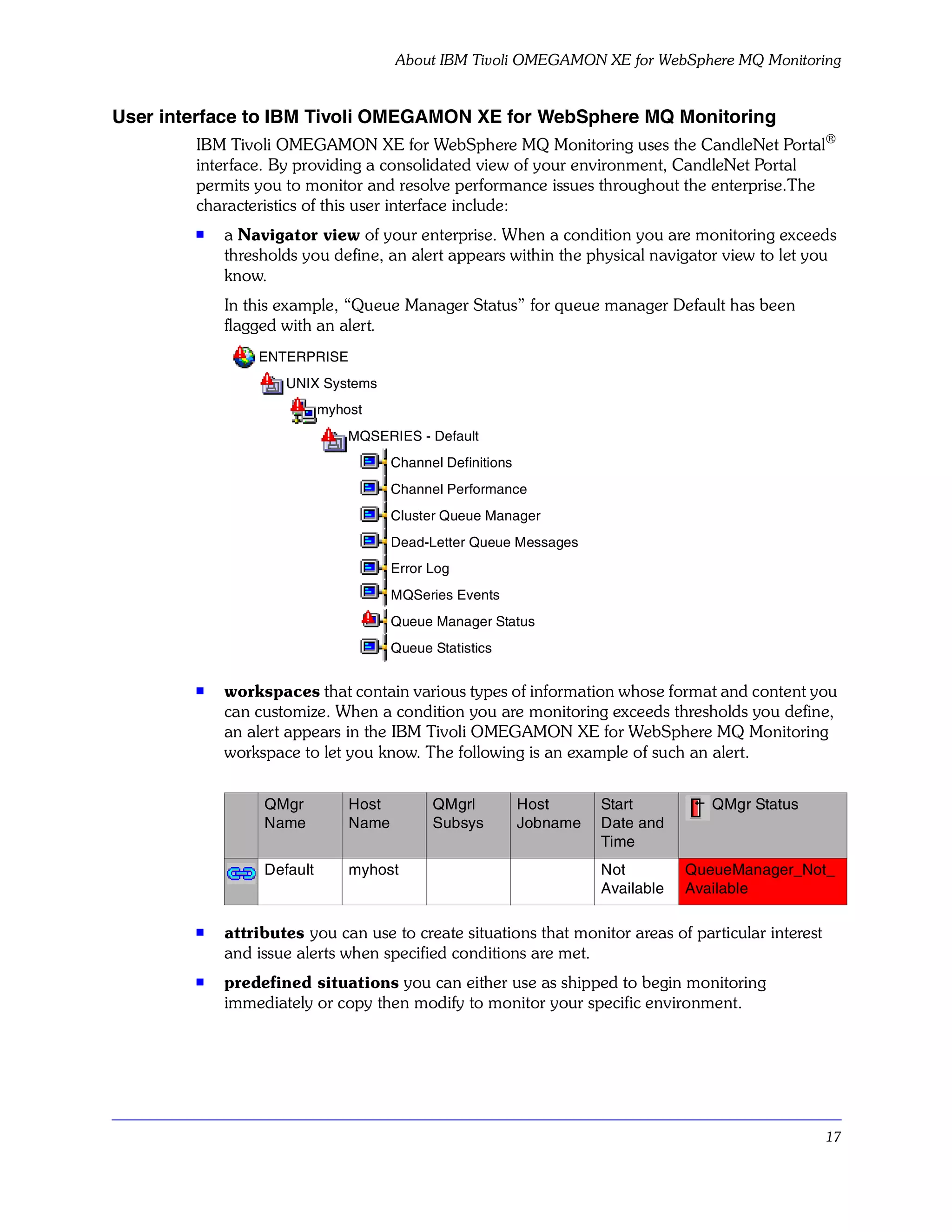
        s   a Navigator view of your enterprise. When a condition you are monitoring exceeds
            thresholds you define, an alert appears within the physical navigator view to let you
            know.
            In this example, “Queue Manager Status” for queue manager Default has been
            flagged with an alert.
                ENTERPRISE
                    UNIX Systems
                           myhost
                               MQSERIES - Default
                                      Channel Definitions
                                      Channel Performance
                                      Cluster Queue Manager
                                      Dead-Letter Queue Messages
                                      Error Log
                                      MQSeries Events
                                      Queue Manager Status
                                      Queue Statistics

        s   workspaces that contain various types of information whose format and content you
            can customize. When a condition you are monitoring exceeds thresholds you define,
            an alert appears in the IBM Tivoli OMEGAMON XE for WebSphere MQ Monitoring
            workspace to let you know. The following is an example of such an alert.


                 QMgr          Host         QMgrl           Host      Start          QMgr Status
                 Name          Name         Subsys          Jobname   Date and
                                                                      Time
                 Default       myhost                                 Not         QueueManager_Not_
                                                                      Available   Available

        s   attributes you can use to create situations that monitor areas of particular interest
            and issue alerts when specified conditions are met.
        s
            predefined situations you can either use as shipped to begin monitoring
            immediately or copy then modify to monitor your specific environment.


                                                                                                    17
OMEGAMON Platform


OMEGAMON Platform
          IBM Tivoli OMEGAMON XE for WebSphere MQ is one of a suite of IBM products that
          assist you in monitoring your mainframe and distributed systems and applications. IBM
          Tivoli OMEGAMON XE products share a common agent-server-client architecture.(see
          Figure 1).

OMEGAMON XE agents
          OMEGAMON XE monitoring agents collect system or application data from monitored,
          or managed, systems. The IBM Tivoli OMEGAMON XE for WebSphere MQ monitoring
          agents, for example, let you easily collect and analyze WebSphere MQ-specific data for all
          your remote and local queue managers from a single vantage point. The data are passed
          to the Candle Management Server, and displayed in the CandleNet Portal client.

Figure 1. OMEGAMON XE Agent–Server–Client Architecture

                                          Candle Management Server


                  CandleNet Portal
                      Clients


                                                                         Monitoring Agents


                                      CandleNet Portal Server


          OMEGAMON XE monitoring agents can also compare the current values of monitored
          properties against a set of defined conditions, and trigger alerts or actions when
          conditions warrant. They can accept and execute requested actions relayed to them from
          CandleNet Portal clients by the Candle Management Server.
          OMEGAMON configuration agents can create and configure objects. The configuration
          agents associated with IBM Tivoli OMEGAMON XE for WebSphere MQ Configuration
          can configure objects such as WebSphere MQ queue managers and all their components
          (queues, channels, processes, and so on).

Candle Management Server
          The Candle Management Server (CMS) gathers data from the OMEGAMON XE agents
          and acts as a collection and control point for alerts received from the agents. The CMS


18    Using IBM Tivoli OMEGAMON XE for WebSphere MQ Monitoring, V3.7.0
OMEGAMON Platform


         sends the data it receives from the agents to CandleNet Portal clients, where it is displayed
         in tabular or graphic views in a set of predefined or customized workspaces. The CMS
         also accepts requests for information or action from CandleNet Portal clients and
         distributes them to the agents for execution.

CandleNet Portal clients
         CandleNet Portal is the Java-based interface to the data monitoring and management
         resources of OMEGAMON Platform. Depending on how it is installed, CandleNet Portal
         can be used as either a desktop or browser-based client.
         CandleNet Portal has its own server, the CandleNet Portal Server. The CandleNet Portal
         Server performs common CandleNet Portal functions and serves to lighten the CandleNet
         Portal client.

Candle Management Workstation
         The Candle Management Workstation (CMW) is used for certain administrative functions
         that CandleNet Portal does not support. If you want to define and manage work groups
         and work lists, you must use the CMW.

IBM Tivoli OMEGAMON DE
         The IBM Tivoli OMEGAMON DE feature package for CandleNet Portal offers a
         process-driven view of your enterprise. It enables you to pull together information from
         disparate sources, including a range of operating systems, servers, databases,
         mainframes, and network and Web components, in a single workspace and provides a
         single point of control from which you can manage all the resources your business-critical
         applications rely on.
         IBM Tivoli OMEGAMON DE extends the capabilities of OMEGAMON XE to include:
         s   Enterprise-specific Navigator views
             The Navigator physical view shows the hierarchy of your managed enterprise by
             operating platform and type of IBM Tivoli OMEGAMON XE agent. The Navigator
             business view offered by IBM Tivoli OMEGAMON DE shows the hierarchy of any
             managed objects. You can also define Navigator views for any logical grouping, such
             as a business process or a departmental hierarchy.
         s   Views of data from different types of monitoring agents in one workspace
             In a single workspace, you can build a table or chart with data from one type of
             monitoring agent, and another table or chart with data from a different agent. Within
             that workspace, you can show views from as many different agent types as are
             included on that branch of the Navigator.
         s
             Linking application workspaces
             You can define a link from a workspace associated with one type of monitoring agent
             to a workspace associated with another type of agent.


                                                                                                    19
OMEGAMON Platform


Policy Management
          The CandleNet Portal Policy Management solution incorporates all the features of IBM
          Tivoli OMEGAMON DE and adds automation capabilities by means of the Workflow
          editor. The Workflow editor enables you to design sets of automated system processes,
          called policies, to resolve system problems. A policy performs actions, schedules work
          tobe performed by users, or automates manual tasks.

Where to find more information
          For more information about OMEGAMON Platform, see the CandleNet Portal online help
          and the books on the OMEGAMON Platform publications CD.


20    Using IBM Tivoli OMEGAMON XE for WebSphere MQ Monitoring, V3.7.0
Key Features


Key Features


What is a workspace?
         CandleNet Portal displays information in workspaces. A workspace is the working area of
         the CandleNet Portal application window and is made up of one or more views. A view is
         a pane in the workspace, typically a chart or table showing data collected from a
         OMEGAMON monitoring agent, such as the process detail running on the UNIX
         operating system.
         A workspace may be linked to other workspaces. A link may be context-sensitive,
         whereby you right-click a row in a table or a data series in a chart to link to more detailed
         information about one of the attributes in the row or data series.
         As you select items in the Navigator, the workspace presents views pertinent to your
         selection. Every workspace has at least one view, and every workspace has a set of
         properties associated with it. You can customize the workspace by working in the
         Properties editor to change the style and content of each view. Another way to customize
         the workspace is to change the type of view or to add views to the workspace.

Predefined workspaces
         IBM Tivoli OMEGAMON XE for WebSphere MQ Monitoring is shipped with predefined
         workspaces that you can use as shipped or modify by using the Properties editor.
         Predefined workspaces make it easy for you to quickly start using IBM Tivoli
         OMEGAMON XE for WebSphere MQ Monitoring effectively to monitor your
         environment.
         A high-level overview of the types of workspaces included with this product is provided in
         “Workspaces” on page 77.
         For a complete list of the predefined workspaces included with this product, see the IBM
         Tivoli OMEGAMON XE for WebSphere MQ Monitoring section of the CandleNet Portal
         online help.
         For information about creating and customizing views and workspaces, see the
         CandleNet Portal online help.

What is a situation?
         A situation is a logical expression involving one or more system conditions. Situations are
         used to monitor the condition of systems in your network. You can manage situations
         from CandleNet Portal by using the Situation editor.
         For detailed information about situations and about using the Situation editor, see the
         CandleNet Portal online help.

Predefined monitoring situations
         IBM Tivoli OMEGAMON XE for WebSphere MQ Monitoring is shipped with a set of
         predefined situations that you can use as-is or modify to meet your requirements.


                                                                                                    21
Key Features


           Predefined situations are precoded to check for system conditions common to many
           enterprises. Using predefined situations can improve the speed with which you can begin
           using IBM Tivoli OMEGAMON XE for WebSphere MQ Monitoring. You can examine
           and, if necessary, change the conditions or values being monitored by a predefined
           situation to those best suited to your enterprise.
           Note: IBM suggests that if you choose to modify a predefined situation, you first use
                 CandleNet Portal’s “Create another situation” function to make a copy of the
                 original situation. This ensures that you can fall back if necessary.
           For a list of the predefined situations provided with this product, together with the
           situations’ descriptions and formulas, see the IBM Tivoli OMEGAMON XE for WebSphere
           MQ Monitoring section of the CandleNet Portal online help.

What are attributes?
           IBM Tivoli OMEGAMON XE for WebSphere MQ Monitoring gathers data on the
           managed systems of your network and stores the data as system elements called
           attributes. You can use these attributes to
           s   build situations to monitor the performance of the managed systems you are
               concerned with
           s   create queries and use the resulting data to build custom views
           Related attributes are grouped into attribute groups, or attribute tables.

Using attributes in situations and in queries
           You use attributes to create situations that monitor the state of your operating system,
           database, or application. A situation describes a condition you want to test. When you
           start a situation, CandleNet Portal compares the values you have assigned for the
           situation’s attributes with the values collected by IBM Tivoli OMEGAMON XE for
           WebSphere MQ Monitoring and registers an event if the condition is met. You are alerted
           to events by indicator icons that appear in the Navigator physical view.
           Chart and table views use queries to specify which attribute values to request from an
           OMEGAMON Monitoring Agent. You can use the Query editor to create a new query,
           modify an existing one, or apply filters and set styles to define the content and
           appearance of a view based on an existing query.
           For complete descriptions of the attributes provided with this product, see the IBM Tivoli
           OMEGAMON XE for WebSphere MQ Monitoring section of the CandleNet Portal online
           help.

Take action commands
           The Take Action feature of CandleNet Portal lets you issue a command to any system in
           your network where one or more OMEGAMON Monitoring Agents are installed. You can
           implement commands from the Take Action view, from a situation (when it becomes
           true), from the Navigator, or from a row in a table view.


22     Using IBM Tivoli OMEGAMON XE for WebSphere MQ Monitoring, V3.7.0
Key Features


         For a complete description of the predefined Take Action commands provided with this
         product, see the IBM Tivoli OMEGAMON XE for WebSphere MQ Monitoring section of
         the CandleNet Portal online help. For detailed information about creating and using Take
         Action commands, see the CandleNet Portal online help.

Historical data collection
         In addition to the real-time reports offered by CandleNet Portal workspaces, you can set
         up historical data collection to store and save IBM Tivoli OMEGAMON XE for
         WebSphere MQ Monitoring data. You can specify
         s   attribute groups for historical data collection
         s   data collection intervals
         s   data warehousing interval (if you choose to write your data to a data warehouse)
         s   storage location for the collected data. Historical data can be stored either at the
             location of the monitoring agent or on the Candle Management Server® (CMS™).
         To ensure that data samplings are saved to populate your predefined historical
         workspaces, you must first configure and start historical data collection. This requirement
         does not apply to workspaces using attribute groups that are historical in nature and show
         all their entries without your starting data collection separately.
         Information about using the historical data collection function can be found in the
         CandleNet Portal online Help and in the Historical Data Collection Guide for IBM Tivoli
         OMEGAMON XE Products.
         The attribute history tables, default filenames, default tables collected, and the estimated
         disk space required per 24-hour period for the historical data collected for IBM Tivoli
         OMEGAMON XE for WebSphere MQ Monitoring are listed in “Disk Space Requirements
         for Historical Data Tables” on page 169.


                                                                                                    23
Investigating an Event


Investigating an Event


Event indicator and event workspace
            When the conditions of a situation have been met, the situation evaluates True, causing
            an event indicator to appear in the Navigator physical view. You can investigate the cause
            of an event by opening its workspace.
            The event workspace shows two table views, one with the values of the attributes when
            the situation evaluated True, and the other with the attributes’ current values.
            The event workspace can also display a view with any expert advice written by the
            situation's author. The advice will display as Web text and any links you have defined will
            be active. The take action view also displays in the event workspace so you can send a
            command to the application started on that system.
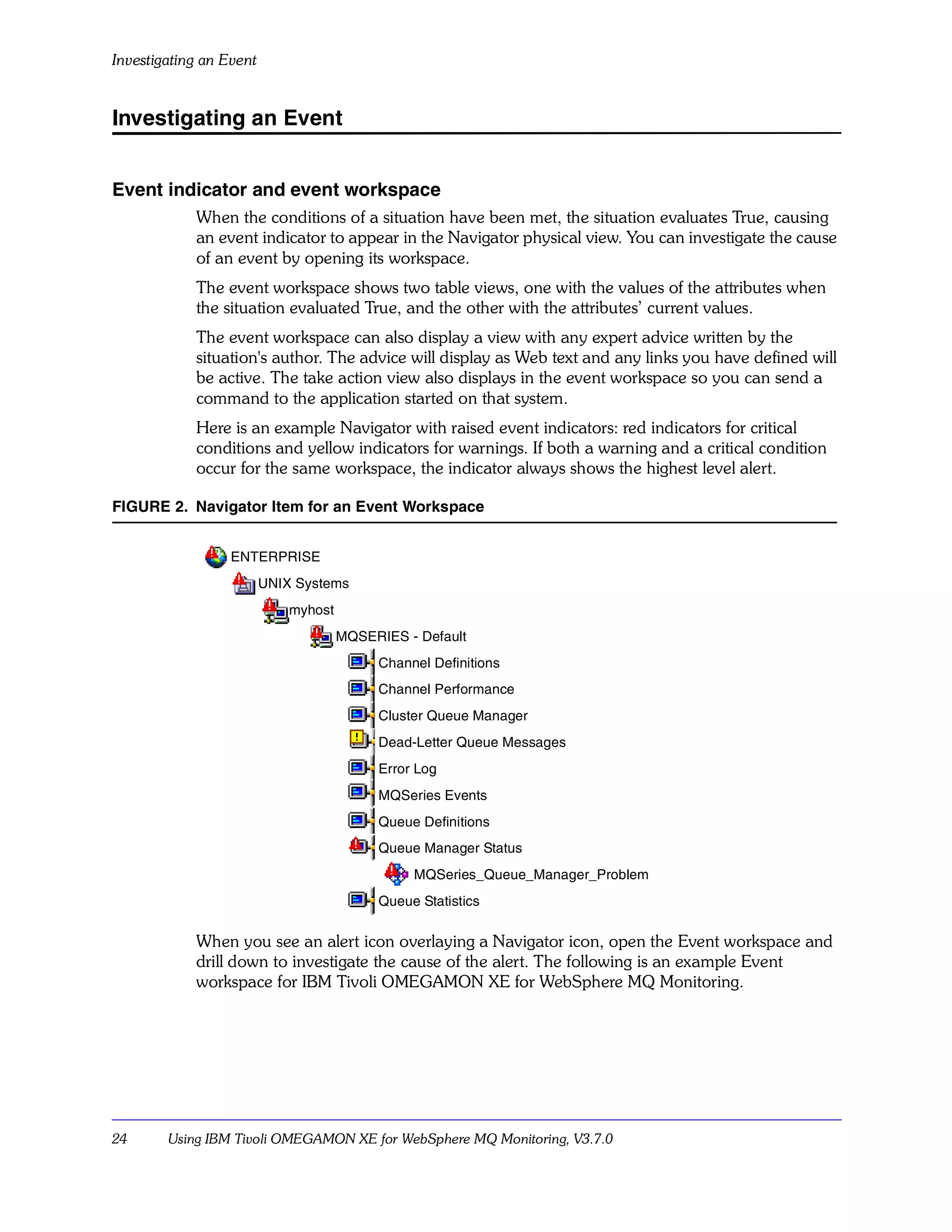
            Here is an example Navigator with raised event indicators: red indicators for critical
            conditions and yellow indicators for warnings. If both a warning and a critical condition
            occur for the same workspace, the indicator always shows the highest level alert.

FIGURE 2. Navigator Item for an Event Workspace


                  ENTERPRISE
                         UNIX Systems
                             myhost
                                      MQSERIES - Default
                                           Channel Definitions
                                           Channel Performance
                                           Cluster Queue Manager
                                           Dead-Letter Queue Messages
                                           Error Log
                                           MQSeries Events
                                           Queue Definitions
                                           Queue Manager Status
                                                MQSeries_Queue_Manager_Problem
                                           Queue Statistics

            When you see an alert icon overlaying a Navigator icon, open the Event workspace and
            drill down to investigate the cause of the alert. The following is an example Event
            workspace for IBM Tivoli OMEGAMON XE for WebSphere MQ Monitoring.


24      Using IBM Tivoli OMEGAMON XE for WebSphere MQ Monitoring, V3.7.0
Investigating an Event


FIGURE 3. Event Workspace


         Looking at this workspace, you can determine the situation that raised the event and the
         attributes whose values are contributing to the alert. You can also review available advice
         and take appropriate actions.

Acknowledgment
         When you see an event indicator in the Navigator, you can create an acknowledgment.
         An acknowledgment notifies other users that you have taken ownership of the problem
         related to the event and are working on it. When you acknowledge an event, a blue
         checkmark appears next to the situation in the event flyover list and, if you opened the
         event workspace, over the situation item in the Navigator. If the situation is still true when
         the acknowledgment expires, the indicator changes accordingly. You can also cancel the
         acknowledgment before it has expired. This changes the indicator so that users can see
         that the acknowledgment has been removed even though the situation remains true.

For more information
         For instructions on navigating through a monitoring agent’s workspaces, see Using
         OMEGAMON Products: CandleNet Portal.
         For information specific to the using IBM Tivoli OMEGAMON XE for WebSphere MQ
         Monitoring, see subsequent chapters of this guide and the online Help.


                                                                                                     25
Investigating an Event


26      Using IBM Tivoli OMEGAMON XE for WebSphere MQ Monitoring, V3.7.0
Customizing Monitoring Options

    2
Introduction
       This chapter describes all monitoring options associated with IBM Tivoli OMEGAMON
       XE for WebSphere MQ Monitoring and how to change them on the supported platforms.
       The commands are summarized below.
Chapter contents
       Monitoring Options. . . . . . . . . . . . . . . . . . . . . . . . . . . . . . . . . . . . . . . . . . . . . . . . . . .   28
          What are monitoring options?. . . . . . . . . . . . . . . . . . . . . . . . . . . . . . . . . . . . . . . .            28
          Create a queue manager group: SET GROUP . . . . . . . . . . . . . . . . . . . . . . . . . . .                          29
          Specify queue managers: SET MANAGER . . . . . . . . . . . . . . . . . . . . . . . . . . . . . .                        31
          Specify queues: SET QUEUE . . . . . . . . . . . . . . . . . . . . . . . . . . . . . . . . . . . . . . . .              36
          Specify channels: SET CHANNEL . . . . . . . . . . . . . . . . . . . . . . . . . . . . . . . . . . . .                  38
          Specify the event log: SET EVENTLOG . . . . . . . . . . . . . . . . . . . . . . . . . . . . . . . .                    39
          Specify event queues: SET EVENTQIN . . . . . . . . . . . . . . . . . . . . . . . . . . . . . . . .                     40
          Share event queue data with other applications: SET EVENTQOUT . . . . . . . . . .                                      42
          Include external customization commands: PERFORM INCLUDE . . . . . . . . . . . .                                       44
          Start monitoring: PERFORM STARTMON . . . . . . . . . . . . . . . . . . . . . . . . . . . . . .                         45
          Specify agent hostname: SET AGENT . . . . . . . . . . . . . . . . . . . . . . . . . . . . . . . . .                    47
          Monitor applications: SET APPL (z/OS only) . . . . . . . . . . . . . . . . . . . . . . . . . . . .                     49
          Monitor applications: SET MQIMONITOR (z/OS only) . . . . . . . . . . . . . . . . . . . . .                             52
          Queue sharing group monitoring: SET QSG (z/OS only) . . . . . . . . . . . . . . . . . . .                              54
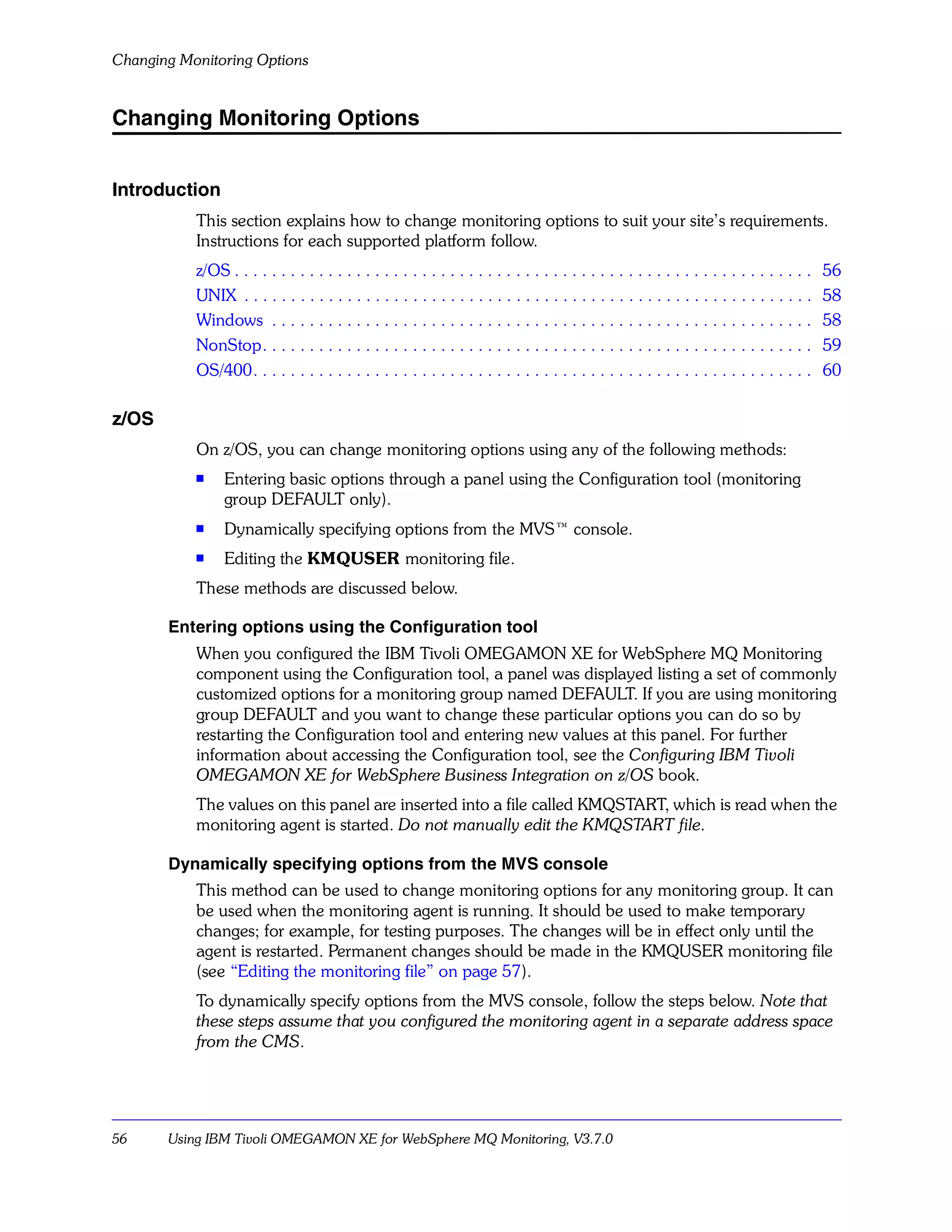
       Changing Monitoring Options. . . . . . . . . . . . . . . . . . . . . . . . . . . . . . . . . . . . . . . . . . .          56


                                                                                   Customizing Monitoring Options                27
Monitoring Options


Monitoring Options


What are monitoring options?
           IBM Tivoli OMEGAMON XE for WebSphere MQ Monitoring enables you to set a wide
           range of monitoring options which can be changed to suit the needs of your environment.
           For example, you can define which queue managers, queues, and channels you want
           monitored; specify the time interval for collecting WebSphere MQ data, manage the
           disposal of event messages from an event queue, or specify whether or not you want to
           collect historical monitoring data and how long you want to have that data available.
           Monitoring options are set by defining certain commands and parameters in a special
           command file that we will refer to as the “monitoring file” (the actual name of the file
           varies slightly by operating system platform). When you start the OMEGAMON
           Monitoring Agent® for WebSphere MQ, the commands and parameter values in the
           monitoring file are read and executed.
           You do not create the monitoring file; it is supplied with your product and is
           pre-configured with a set of default commands and parameter values. As supplied, the
           OMEGAMON Monitoring Agent for WebSphere MQ on z/OS monitors all queues and
           channels for all queue managers and all WebSphere MQ applications. As supplied, the
           OMEGAMON Monitoring Agent for WebSphere MQ on HP NonStop Kernel (formerly
           known as Tandem), UNIX, Windows, and OS/400 monitors all queues and channels on a
           single DEFAULT queue manager. You can change these default options as well as any
           others.
           When you have finished reviewing the descriptions of monitoring options, refer to
           “Changing Monitoring Options” on page 56.


28     Using IBM Tivoli OMEGAMON XE for WebSphere MQ Monitoring, V3.7.0
Monitoring Options


Create a queue manager group: SET GROUP

     Description
        The SET GROUP command defines a group of queue managers that have common
        monitoring characteristics. Within the group, you can override like-named parameters for
        specific queue managers using the SET MANAGER command.
        At least one SET GROUP command is required.

     Syntax
        SET GROUP NAME(group-name)
           [DEFAULT(YES|NO)]
           [AGGRHIST(aggregation-samples)]
           [COMMAND(YES|NO)]
           [ERRLOGCYCLE(sampling-interval)]
           [ERRLOGMAX(max-messages-in-memory)]
           [EVENTS(REMOVE|BROWSE|NO)]
           [HLQ(high-level-qualifier)]
           [ICYCLE(interval-cycle )]
           [LIKE(like-group-name)]
           [MSGACCESS(NONE|DESC|RETRY|DATA|DELETE)]
           [RETAINHIST(historical-retention-value)]
           [RQMODEL(reply-to-queue’s-model-queue)]

     Parameters
        NAME(group-name)
           1–48 character group name. Subsequent commands refer to the group and its
           parameter settings by this name. This parameter is required.
        DEFAULT(YES|NO)
           Specifies whether or not this is the default group. If YES, the settings on this
           command apply to any SET MANAGER statement that omits the GROUP parameter.
           The IBM-provided default group is named DEFAULT.
        AGGRHIST(aggregation-samples)
           Number of samples to maintain in recent history for all queue managers in this group.
           The default value is 15.
        COMMAND(YES|NO)
           Controls the MQ Command feature. For more details, see the same parameter in
           “Specify queue managers: SET MANAGER” on page 31.
        ERRLOGCYCLE(sampling-interval)
           Specifies, in seconds, the interval of the error log collection cycle. For more details,
           see the same parameter in “Specify queue managers: SET MANAGER” on page 31.
        ERRLOGMAX(max-messages-in-memory)
           Specifies the maximum number of error messages that are held in memory and
           displayed in the Error Log workspace. For more details, see the same parameter in
           “Specify queue managers: SET MANAGER” on page 31.


                                                                Customizing Monitoring Options   29
Monitoring Options


           EVENTS(REMOVE|BROWSE|NO)
              Specifies how to access system event queues. For more details, see the same
              parameter in “Specify queue managers: SET MANAGER” on page 31.
           HLQ(high-level-qualifier)
              Specifies the high-level qualifier for product-created queue names. The default is
              KMQ. For more details, see the same parameter in “Specify queue managers: SET
              MANAGER” on page 31.
           ICYCLE(interval-cycle)
              Specifies the number of sample interval cycles to wait before gathering queue
              manager performance data. For more details, see the same parameter in “Specify
              queue managers: SET MANAGER” on page 31.
           LIKE(like-group-name)
              Name of a previously defined manager group. Like-named parameter values are
              copied from the values in the named group definition.
           MSGACCESS(NONE|DESC|RETRY|DATA|DELETE)
              Level of user access to messages in queues. For more details, see the same parameter
              in “Specify queue managers: SET MANAGER” on page 31.
           RETAINHIST(historical-retention-value)
              Number of minutes that historical data is displayed for queue manger objects (such as
              channels and queues). The default value is 1440 (24 hours).
           RQMODEL(reply-to-queue’s-model-queue)
              Specifies the 1–48 character name of a model queue to use as a model for this
              product's reply-to queue. If not specified, the standard system default model is used.
              For more details, see the same parameter in “Specify queue managers: SET
              MANAGER” on page 31.

       Example
           To define a manager group named MYGROUP with new values for aggregation and
           historical retention, specify:
               SET GROUP NAME(MYGROUP) LIKE(DEFAULT) -
               AGGRHIST(20) RETAINHIST(2400)


30     Using IBM Tivoli OMEGAMON XE for WebSphere MQ Monitoring, V3.7.0
Monitoring Options


Specify queue managers: SET MANAGER

     Description
        The SET MANAGER command specifies queue managers to be monitored.

     Syntax
        SET MANAGER NAME(manager-name-mask)
           [GROUP(group-name)]
           [ACTIVE(YES|NO)]
           [AGGRHIST(aggregation-samples)]
           [COMMAND(YES|NO)]
           [ERRLOGCYCLE(sampling-interval)]
           [ERRLOGMAX(max-messages-in-memory)]
           [EVENTS(REMOVE|BROWSE|NO)]
           [HLQ(high-level-qualifier)]
           [ICYCLE(interval-cycle )]
           [LIKE(like-manager-name)]
           [MSGACCESS(NONE|DESC|RETRY|DATA|DELETE)]
           [NICKNAME(nickname)]
           [RETAINHIST(historical-retention-value)]
           [RQMODEL(reply-to-queue’s-model-queue)]
           [STATUS(ADD|DELETE|RESET)]
           [SYSNAME(z/OS-system-id)]

     Parameters
        NAME(manager-name-mask)
           On z/OS, this is the 1–4 character specific or generic queue manager name to
           monitor. To specify a generic name, enter a character string followed by an asterisk
           (*). For example, to monitor all z/OS queue managers, specify NAME(*). This
           parameter is required on z/OS.
              On distributed platforms, this parameter can be (), in which case the default queue
              manager is monitored, or is the name of the one queue manager this invocation of
              the monitoring agent is to monitor.
        GROUP(group-name)
           Previously defined group whose parameters apply to this queue manager. The name
           must exactly match the name specified on a prior SET GROUP statement. The
           IBM-provided default group is named DEFAULT.
        ACTIVE(YES|NO)
           Indicates whether or not to actively monitor this queue manager. YES is the default.
        AGGRHIST(aggregation-samples)
           Number of samples to maintain in recent history for this queue manager.
        COMMAND(YES|NO)
           Controls the MQ Command feature, as follows:
              YES - Enables the MQ Command feature, which allows the user to pass WebSphere
              MQ commands to the queue manager from CandleNet Portal. YES is the default.


                                                                 Customizing Monitoring Options     31
Monitoring Options


               NO - Disables the MQ Command feature.
           ERRLOGCYCLE(sampling-interval)
              Specifies, in seconds, the interval of the error log collection cycle. The default value is
              10 unless otherwise noted. The default value of ERRLOGCYCLE for NonStop is 120.
               Specifying a value of 0 turns off error log collection for the queue manager. This
               disables the Error Log monitoring feature.
               See also “Error Log Monitoring Feature (non-z/OS only)” on page 64.
           ERRLOGMAX(max-messages-in-memory)
              Specifies the maximum number of error messages that are held in memory and
              displayed in the Error Log workspace. The default value is 100.
           EVENTS(REMOVE|BROWSE|NO)
              Specifies how to access system event queues.
               REMOVE - Read and remove messages from the system event queues. IBM
               recommends this setting for the most accurate event reporting. The value
               pre-configured for you by the installation/configuration process is REMOVE. When
               REMOVE is specified, the agent opens the event queues for exclusive input.
               To support multiple applications reading event queues, use the SET EVENTQIN and
               SET EVENTQOUT commands as described in “Specify event queues: SET
               EVENTQIN” on page 40 and “Share event queue data with other applications: SET
               EVENTQOUT” on page 42.
               BROWSE - Browse (read without removing) messages from the system event queues.
               You can use this if more than one application (IBM Tivoli OMEGAMON XE for
               WebSphere MQ Monitoring or another application) reads the event queues. In this
               case, you must run a separate application to clean the queues, such as CSQUTIL with
               the EMPTY function.
               Warning: If you specify EVENTS(BROWSE) and other applications perform
               destructive reads against the event queues, IBM Tivoli OMEGAMON XE for
               WebSphere MQ Monitoring may miss some or all event messages.
               NO - Do not monitor system event queues. The default, if not otherwise specified by
               the installation/configuration process, is NO.
           HLQ(high-level-qualifier)
              Specifies the high-level qualifier for product-created queue names. The default is
              KMQ.
               If you predefine queues with the following names, this product uses them:
               On z/OS:
               hlq.COMMAND.REPLY
               hlq.REPLY
               On non-z/OS:
               hlq.IRA.AGENT.QUEUE


32     Using IBM Tivoli OMEGAMON XE for WebSphere MQ Monitoring, V3.7.0
Monitoring Options


   where hlq is the value specified by the HLQ parameter of the SET MANAGER or the
   SET GROUP command.
   Otherwise, if you do not predefine queues with the names described above, this
   product creates dynamic queues using the model queue specified by the RQMODEL
   parameter of the SET MANAGER or the SET GROUP command. In this case, the
   names of the dynamic queues are as follows.
   On z/OS:
   hlq.COMMAND.REPLY.dynamicsuffix
   hlq.REPLY.dynamicsuffix
   On non-z/OS:
   hlq.IRA.AGENT.QUEUE.dynamicsuffix
   where hlq is the value specified using the HLQ parameter of the SET MANAGER or
   the SET GROUP command, and dynamicsuffix is the standard dynamic suffix
   provided by WebSphere MQ.
ICYCLE(interval-cycle)
   This parameter applies only to z/OS.
   This optional parameter specifies the number of sample interval cycles to wait before
   gathering queue manager performance data for the specified queue manager(s). It is
   intended for special cases when you want to effectively lengthen the sampling interval
   for specific queue managers and groups of queue managers. The ICYCLE value can
   be used to reduce the impact of monitoring a less critical queue manager. For
   example, if 60 is set as the sample interval and 5 is set as the interval cycle value for a
   queue manager, interrogative processing for that queue manager will only be done
   every fifth cycle, every five minutes instead of every minute.
   If ICYCLE is not specified or is not specified on a prior SET GROUP statement, the
   default is 1; meaning queue manager data is gathered once every sample interval
   (SAMPINT).
LIKE(like-manager-name)
   Name or nickname of a previously defined manager. Like-named but unspecified
   parameter values are copied from the corresponding values for this queue manager.
MSGACCESS(NONE|DESC|RETRY|DATA|DELETE)
   Controls the level of user access to messages in queues for the specified queue
   managers.
   NONE - Allows no access to message functions for this queue manager, including the
   ability to list messages on a queue or collect message statistics.
   DESC - Allows message descriptor browse for either message summary workspaces,
   message detail workspaces, or message statistics workspaces and situations. This is
   the default level.
   RETRY - Allows DLQ retry and message descriptor browse.
   DATA - Allows message data (contents) browse, message descriptor browse, and DLQ
   retry.


                                                         Customizing Monitoring Options     33
Monitoring Options


               DELETE - Allows message delete and all other message functions.
           NICKNAME(nickname)
              1–48 character nickname (alternate name) for this queue manager. Subsequent
              commands can refer to the manager by its manager name or by this nickname. This
              parameter is optional.
           RETAINHIST(historical-retention-value)
              Number of minutes that historical data is displayed for queue manger objects (such as
              channels and queues) that are no longer defined. The default value is 1440 (24
              hours).
           RQMODEL(reply-to-queue’s-model-queue)
              Specifies the 1–48 character name of a model queue to use as a model for this
              product's reply-to queue, if you did not predefine queues. If dynamic queues are
              needed see the discussion under the HLQ parameter (above).
               If you do not specify a value for RQMODEL, the following standard system default
               models are used as a model for this product’s reply-to-queue.
               On z/OS
               SYSTEM.COMMAND.REPLY.MODEL
               On non-z/OS
               SYSTEM.DEFAULT.MODEL.QUEUE
               Note that if the queue you specify as a model has a definition type of permanent
               dynamic, DEFTYPE(PERMDYN), a number of unused reply-to-queues may
               accumulate. These are named in the form:
               On z/OS:
               hlq.COMMAND.REPLY.dynamicsuffix
               hlq.REPLY.dynamicsuffix
               On non-z/OS:
               hlq.IRA.AGENT.QUEUE.dynamicsuffix
               where hlq is the value specified using the HLQ parameter of the SET MANAGER or
               the SET GROUP command, and dynamicsuffix is the standard dynamic suffix
               provided by WebSphere MQ.
           STATUS(ADD|DELETE|RESET)
              Specifies what to do if this SET MANAGER command was previously specified with
              the same name.
               If omitted, the manager definition is added if it is a new name, or modified if the same
               name was specified previously.
               ADD - Creates a new manager definition.
               DELETE - Deletes the manager definition and all associated historical data.


34     Using IBM Tivoli OMEGAMON XE for WebSphere MQ Monitoring, V3.7.0
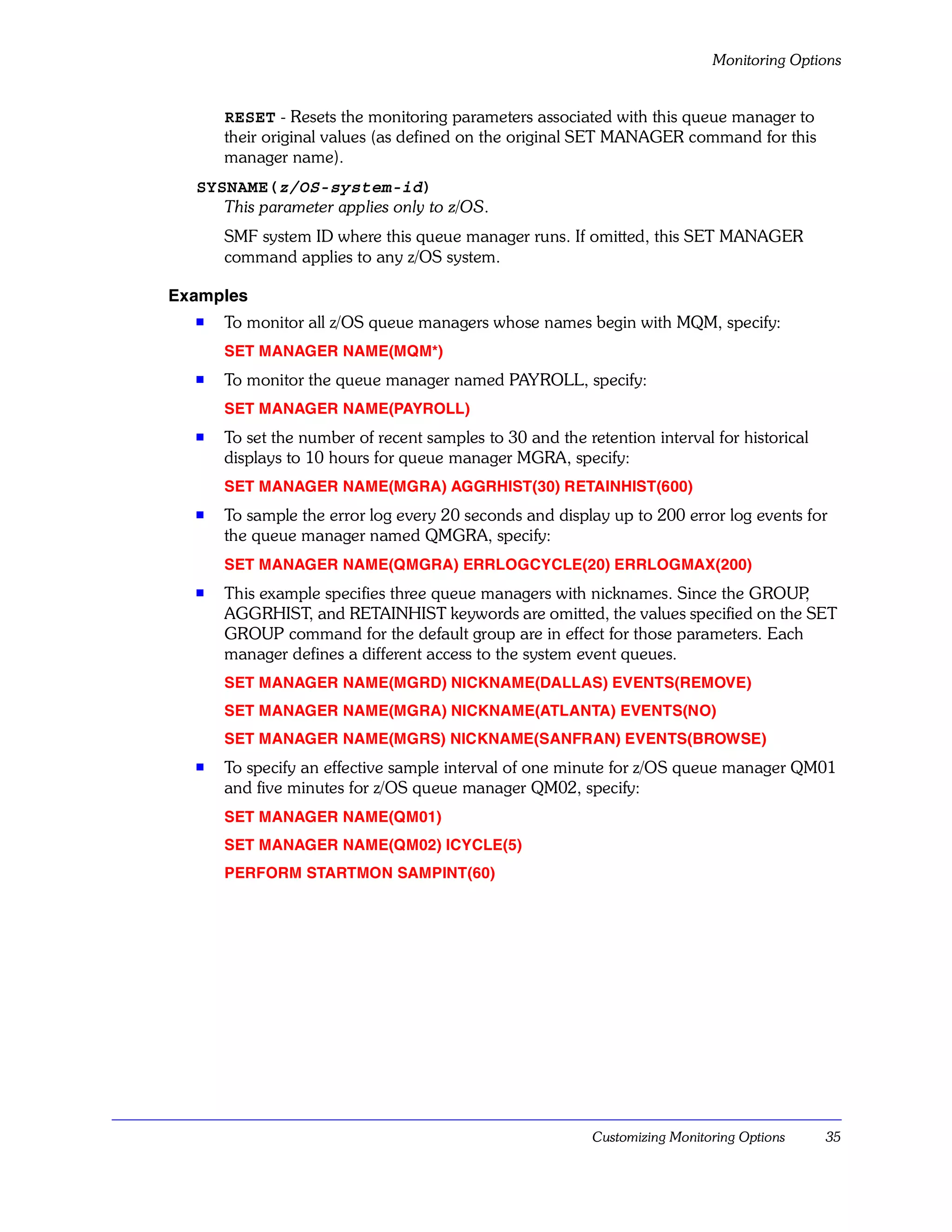
Monitoring Options


      RESET - Resets the monitoring parameters associated with this queue manager to
      their original values (as defined on the original SET MANAGER command for this
      manager name).
  SYSNAME(z/OS-system-id)
     This parameter applies only to z/OS.
      SMF system ID where this queue manager runs. If omitted, this SET MANAGER
      command applies to any z/OS system.

Examples
  s   To monitor all z/OS queue managers whose names begin with MQM, specify:
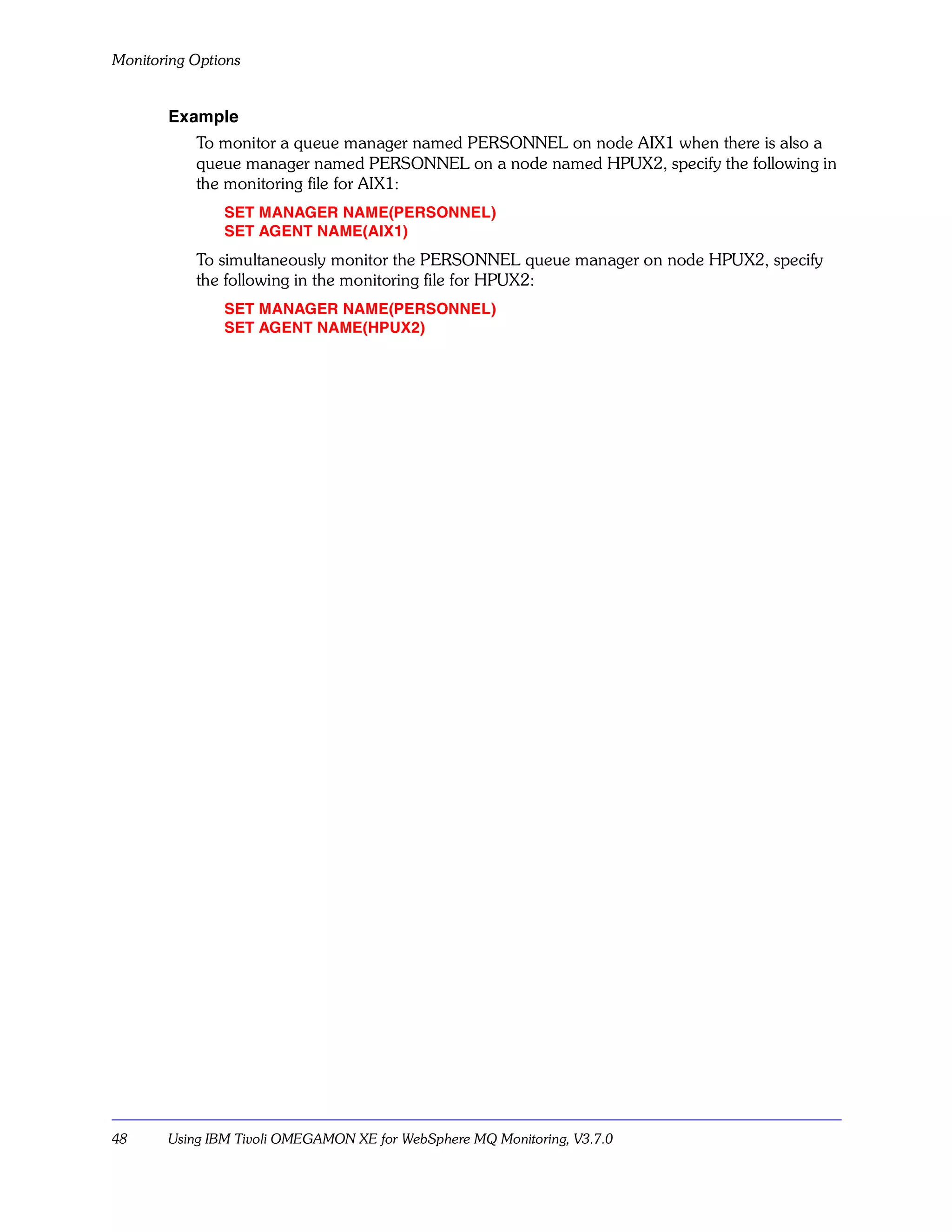
      SET MANAGER NAME(MQM*)
  s   To monitor the queue manager named PAYROLL, specify:
      SET MANAGER NAME(PAYROLL)
  s   To set the number of recent samples to 30 and the retention interval for historical
      displays to 10 hours for queue manager MGRA, specify:
      SET MANAGER NAME(MGRA) AGGRHIST(30) RETAINHIST(600)
  s   To sample the error log every 20 seconds and display up to 200 error log events for
      the queue manager named QMGRA, specify:
      SET MANAGER NAME(QMGRA) ERRLOGCYCLE(20) ERRLOGMAX(200)
  s   This example specifies three queue managers with nicknames. Since the GROUP  ,
      AGGRHIST, and RETAINHIST keywords are omitted, the values specified on the SET
      GROUP command for the default group are in effect for those parameters. Each
      manager defines a different access to the system event queues.
      SET MANAGER NAME(MGRD) NICKNAME(DALLAS) EVENTS(REMOVE)
      SET MANAGER NAME(MGRA) NICKNAME(ATLANTA) EVENTS(NO)
      SET MANAGER NAME(MGRS) NICKNAME(SANFRAN) EVENTS(BROWSE)
  s   To specify an effective sample interval of one minute for z/OS queue manager QM01
      and five minutes for z/OS queue manager QM02, specify:
      SET MANAGER NAME(QM01)
      SET MANAGER NAME(QM02) ICYCLE(5)
      PERFORM STARTMON SAMPINT(60)


                                                          Customizing Monitoring Options    35
Monitoring Options


Specify queues: SET QUEUE

       Description
           The SET QUEUE command specifies the queues to be monitored. IBM Tivoli
           OMEGAMON XE for WebSphere MQ Monitoring always monitors the dead-letter queue.
           To monitor other system or application queues, specify them with the SET QUEUE
           command.

       Syntax
           SET QUEUE NAME(queue-name-mask)
              MGRNAME(manager-name) | GROUP(group-name)
              [QDEFTYPE(PREDEFINED|PERMDYN|TEMPDYN|ALL)]
              [STATISTICS(YES|NO)]
              [STATUS(ADD|DELETE)]

       Parameters
           NAME(queue-name-mask)
              Defines the 1–48 character specific or generic queue name to monitor. To specify a
              generic name, enter a string of characters followed by an asterisk (*). This parameter
              is required.
           MGRNAME(manager-name)
              Associates this SET QUEUE command with a queue manager defined on a previous
              SET MANAGER command. You can use the name or nickname of the manager. The
              name must exactly match the name specified on the corresponding SET MANAGER
              command. This parameter is required if GROUP is not specified.
           GROUP(group-name)
              Associates this SET QUEUE statement with a group of queue managers defined on a
              previous SET GROUP statement. The name must exactly match the name specified
              on the corresponding SET GROUP statement. This parameter is required if
              MGRNAME is not specified.
           QDEFTYPE(PREDEFINED|PERMDYN|TEMPDYN|ALL)
              Indicates which kinds of queues to monitor. Specify any or all of these definition
              types:
                PREDEFINED - Monitors only predefined queues matching the specific or generic
                queue name.
                PERMDYN - Monitors only permanent dynamic queues matching the specific or
                generic queue name.
                TEMPDYN - Monitors only temporary dynamic queues matching the specific or
                generic queue name.
                ALL - Monitors all queues matching the specific or generic queue name. This is the
                default.
           STATISTICS(YES|NO)
              Specifies whether or not to collect queue statistics using WebSphere MQ Reset Queue
              Statistics command processing.


36     Using IBM Tivoli OMEGAMON XE for WebSphere MQ Monitoring, V3.7.0
Monitoring Options


      YES - Collect statistics using Reset Queue Statistics command processing for queues
      matching the specific or generic queue name.
      NO - Do not collect statistics using Reset Queue Statistics command processing for
      queues matching the specific or generic queue name. This is the default. See “Queue
      Statistics Feature” on page 71 for a description of the Queue Statistics feature which
      includes requirements and restrictions.
  STATUS(ADD|DELETE)
     Specifies what to do if this SET QUEUE command was previously specified with the
     same name.
      If omitted, the queue definition is added if it is a new name, or modified if the same
      name was specified previously.
      ADD - Creates a new queue definition. If this SET QUEUE command was previously
      specified with the same name then it will not be modified and an error message will
      be issued.
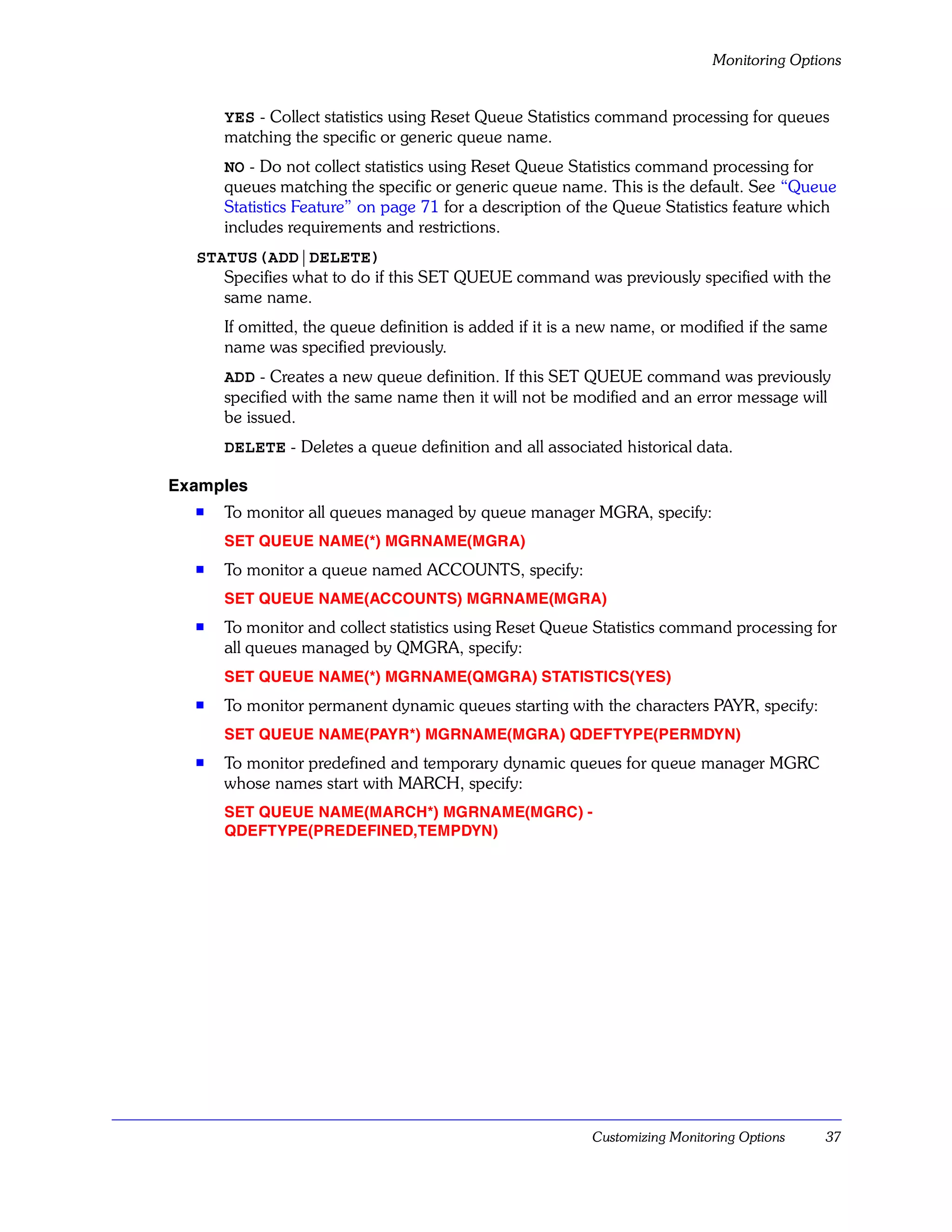
      DELETE - Deletes a queue definition and all associated historical data.

Examples
  s   To monitor all queues managed by queue manager MGRA, specify:
      SET QUEUE NAME(*) MGRNAME(MGRA)
  s   To monitor a queue named ACCOUNTS, specify:
      SET QUEUE NAME(ACCOUNTS) MGRNAME(MGRA)
  s   To monitor and collect statistics using Reset Queue Statistics command processing for
      all queues managed by QMGRA, specify:
      SET QUEUE NAME(*) MGRNAME(QMGRA) STATISTICS(YES)
  s   To monitor permanent dynamic queues starting with the characters PAYR, specify:
      SET QUEUE NAME(PAYR*) MGRNAME(MGRA) QDEFTYPE(PERMDYN)
  s   To monitor predefined and temporary dynamic queues for queue manager MGRC
      whose names start with MARCH, specify:
      SET QUEUE NAME(MARCH*) MGRNAME(MGRC) -
      QDEFTYPE(PREDEFINED,TEMPDYN)


                                                          Customizing Monitoring Options   37
Monitoring Options


Specify channels: SET CHANNEL

       Description
           The SET CHANNEL command specifies channels to be monitored.

       Syntax
           SET CHANNEL NAME(channel-name-mask)
              MGRNAME(manager-name) | GROUP(group-name)
              [STATUS(ADD|DELETE)]

       Parameters
           NAME(channel-name-mask)
              Defines the 1–20 character specific or generic channel name to monitor. To specify a
              generic name, enter a string of characters followed by an asterisk (*). This field is
              required.
           MGRNAME(manager-name)
              Associates this SET CHANNEL statement with a queue manager defined on a
              previous SET MANAGER statement. You can use the name or nickname of the
              manager. The name must exactly match the name specified on the corresponding
              SET MANAGER statement. This parameter is required if GROUP is not specified.
           GROUP(group-name)
              Associates this SET CHANNEL statement with a group of queue managers defined
              on a previous SET GROUP statement. The name must exactly match the name
              specified on the corresponding SET GROUP statement. This parameter is required if
              MGRNAME is not specified.
           STATUS(ADD|DELETE)
              Specifies what to do if this SET CHANNEL command was previously specified with
              the same name.
                If omitted, the result is the same as if ADD is specified.
                ADD - Creates a new channel definition. If this SET CHANNEL command was
                previously specified with the same name then it will not be modified and an error
                message will be issued.
                DELETE - Deletes a channel definition and all associated historical data.

       Example
           To monitor a channel named MONTANA owned by queue manager SMONICA, specify:
                SET CHANNEL NAME(MONTANA) MGRNAME(SMONICA)


38     Using IBM Tivoli OMEGAMON XE for WebSphere MQ Monitoring, V3.7.0
Monitoring Options


Specify the event log: SET EVENTLOG

     Description
        The SET EVENTLOG command specifies the size, location, and other attributes of the
        event log.
        All parameters are optional; but, if the SET EVENTLOG statement is coded, at least one
        parameter must be coded as well.
        This command applies to all platforms except z/OS.

     Syntax
        SET EVENTLOG
           [SIZE(n)]
           [DIR(dir_name)]
           [ARCHIVEFILE(arch_filename)]
           [ARCHIVEOPTS( krarloff_options)]

     Parameters
        SIZE(n)
           where n is the maximum event log file size in megabytes. If SIZE is not specified, the
           default is 10. Specify SIZE(0) to disable the event log.
        DIR(dir_name)
           The directory to write the event log file to. If DIR is not specified, the default is the
           value assigned to the ctira_hist_dir variable (@logpath@ — normally
           C:CandleCmaLogs).
        ARCHIVEFILE(arch_filename)
           The archive directory and file name. If ARCHIVEFILE is not specified, the default is
           @logpath@Qmeventh.arc. If this file already exists, krarloff appends the new data to
           it.
        ARCHIVEOPTS(krarloff_options)
           If ARCHIVEOPTS is not specified, all krarloff defaults will be taken. See the Historical
           Data Collection Guide for IBM Tivoli OMEGAMON XE Products for details of the
           krarloff (kra rolloff) command.


                                                                   Customizing Monitoring Options      39
Monitoring Options


Specify event queues: SET EVENTQIN

       Description
           The SET EVENTQIN command identifies the queue manager event queue, channel
           event queue, performance event queue, and configuration event queue for a queue
           manager or group of queue managers.
           If no SET EVENTQIN command applies to a queue manager, the following default
           WebSphere MQ names are used:
           s    SYSTEM.ADMIN.QMGR.EVENTS
           s    SYSTEM.ADMIN.CHANNEL.EVENTS
           s    SYSTEM.ADMIN.PERFM.EVENTS
           s    SYSTEM.ADMIN.CONFIG.EVENT (Configuration events are present on WebSphere
                MQ for z/OS version 5.3 and above only.)

       Syntax
           SET EVENTQIN
              MGRNAME(manager-name) | GROUP(group-name)
              [QMGRQ(queue-name)]
              [CHANNELQ(queue-name)]
              [PERFMQ(queue-name)]
              [CONFIGQ(queue-name)]

       Parameters
           MGRNAME(manager-name)
              The queue manager that owns the specified event queue(s). You can use the name or
              nickname of the queue manager. The name must exactly match the name specified
              on the corresponding SET MANAGER statement. This parameter is required if
              GROUP is not specified.
           GROUP(group-name)
              A group of queue managers (as specified on a previous SET GROUP statement),
              each of which owns the specified event queue(s). The name must exactly match the
              name specified on the corresponding SET GROUP statement. This parameter is
              required if MGRNAME is not specified.
           QMGRQ(queue-name)
              Specifies the name of the queue manager event queue to monitor.
           CHANNELQ(queue-name)
              Specifies the name of the channel event queue to monitor.
           PERFMQ(queue-name)
              Specifies the name of the performance event queue to monitor.
           CONFIGQ(queue-name)
              Specifies the name of the configuration event queue to monitor.


40     Using IBM Tivoli OMEGAMON XE for WebSphere MQ Monitoring, V3.7.0
Monitoring Options


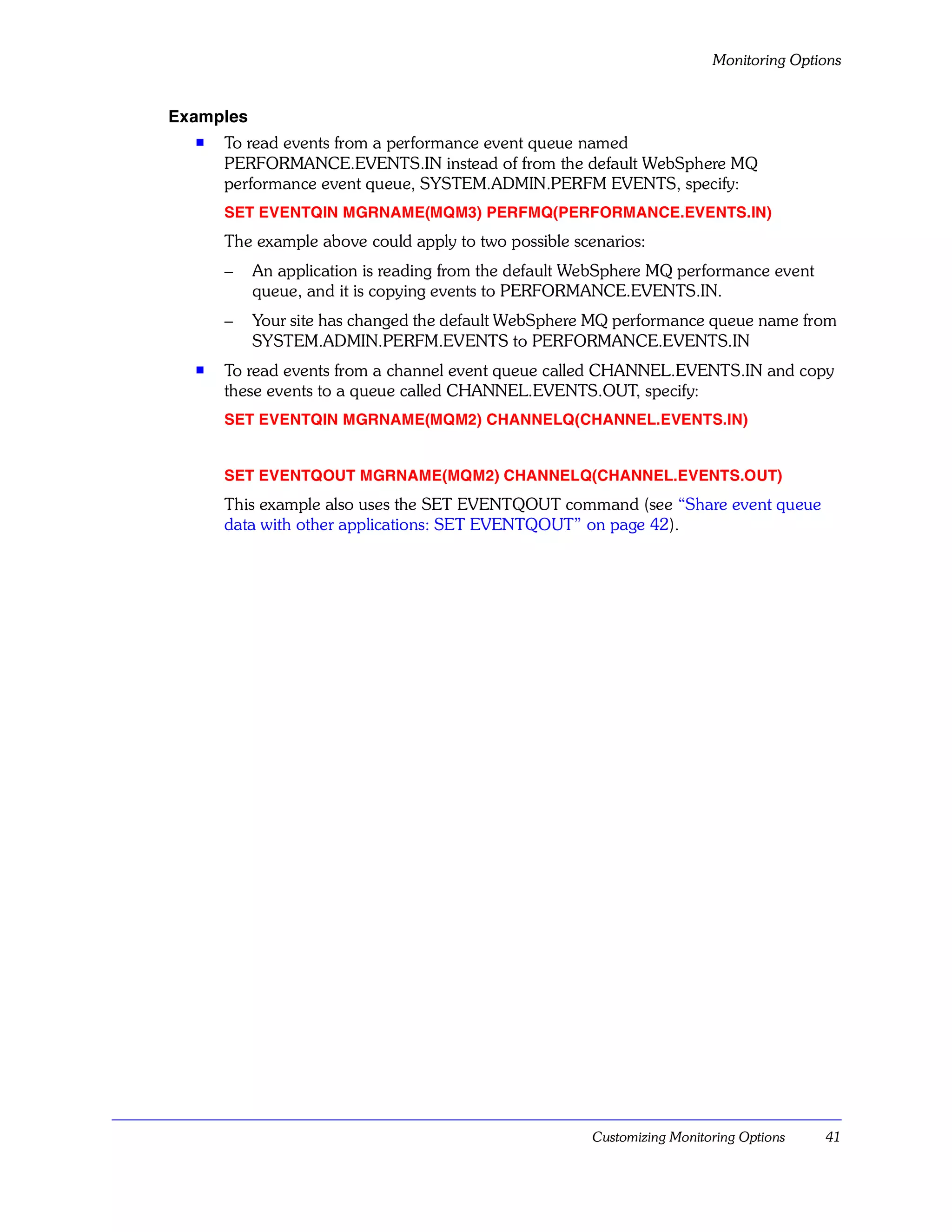
Examples
  s   To read events from a performance event queue named
      PERFORMANCE.EVENTS.IN instead of from the default WebSphere MQ
      performance event queue, SYSTEM.ADMIN.PERFM EVENTS, specify:
      SET EVENTQIN MGRNAME(MQM3) PERFMQ(PERFORMANCE.EVENTS.IN)
      The example above could apply to two possible scenarios:
      –    An application is reading from the default WebSphere MQ performance event
           queue, and it is copying events to PERFORMANCE.EVENTS.IN.
      –    Your site has changed the default WebSphere MQ performance queue name from
           SYSTEM.ADMIN.PERFM.EVENTS to PERFORMANCE.EVENTS.IN
  s   To read events from a channel event queue called CHANNEL.EVENTS.IN and copy
      these events to a queue called CHANNEL.EVENTS.OUT, specify:
      SET EVENTQIN MGRNAME(MQM2) CHANNELQ(CHANNEL.EVENTS.IN)


      SET EVENTQOUT MGRNAME(MQM2) CHANNELQ(CHANNEL.EVENTS.OUT)
      This example also uses the SET EVENTQOUT command (see “Share event queue
      data with other applications: SET EVENTQOUT” on page 42).


                                                       Customizing Monitoring Options   41
Monitoring Options


Share event queue data with other applications: SET EVENTQOUT

       Description
           Once IBM Tivoli OMEGAMON XE for WebSphere MQ Monitoring has read an event
           message from an event queue, it deletes the message to ensure that it is processed only
           once. If another application running at your site requires access to event messages, you
           can define an output queue where these messages are copied and point the other
           application to that queue.
           The SET EVENTQOUT command identifies the output queue(s) where queue manager
           event information, channel event information, performance event information, and
           configuration event information will be copied.
           If no SET EVENTQOUT command applies to a queue manager, the event information is
           discarded after being processed.

       Syntax
           SET EVENTQOUT
              MGRNAME(manager-name) | GROUP(group-name)
              [QMGRQ(queue-name)]
              [CHANNELQ(queue-name)]
              [PERFMQ(queue-name)]
              [CONFIGQ(queue-name)]

       Parameters
           MGRNAME(manager-name)
              The queue manager that owns the specified output queue(s). You can use the name
              or nickname of the queue manager. The name must exactly match the name specified
              on the corresponding SET MANAGER statement. This parameter is required if
              GROUP is not specified.
           GROUP(group-name)
              The group of queue managers (as specified on a previous SET GROUP statement),
              each of which owns the specified event queue(s). The name must exactly match the
              name specified on the corresponding SET GROUP statement. This parameter is
              required if MGRNAME is not specified.
           QMGRQ(queue-name)
              Specifies the name of the local queue where queue manager events are copied after
              being processed. This queue must exist when the SET EVENTQOUT command is
              processed.
           CHANNELQ(queue-name)
              Specifies the name of the local queue where channel events are copied after being
              processed. This queue must exist when the SET EVENTQOUT command is
              processed.
           PERFMQ(queue-name)
              Specifies the name of the local queue where performance events are copied after
              being processed. This queue must exist when the SET EVENTQOUT command is
              processed.


42     Using IBM Tivoli OMEGAMON XE for WebSphere MQ Monitoring, V3.7.0
Monitoring Options


  CONFIGQ(queue-name)
     Specifies the name of the local queue where configuration events are copied after
     being processed. This queue must exist when the SET EVENTQOUT command is
     processed. Configuration events are present on WebSphere MQ for z/OS version 5.3
     and above only.

Examples
  s   To read events from the default WebSphere MQ queue manager event queue,
      SYSTEM.ADMIN.QMGR.EVENTS, and copy them to a queue named
      QMGR.EVENTS.OUT, specify:
      SET EVENTQOUT MGRNAME(MQM1) QMGRQ(QMGR.EVENTS.OUT)
  s   To read events from a channel event queue called CHANNEL.EVENTS.IN and copy
      these events to a queue called CHANNEL.EVENTS.OUT, specify:
      SET EVENTQIN MGRNAME(MQM2) CHANNELQ(CHANNEL.EVENTS.IN)


      SET EVENTQOUT MGRNAME(MQM2) CHANNELQ(CHANNEL.EVENTS.OUT)
      This example also uses the SET EVENTQIN command (see “Specify event queues:
      SET EVENTQIN” on page 40).


                                                      Customizing Monitoring Options   43
Monitoring Options


Include external customization commands: PERFORM INCLUDE

       Description
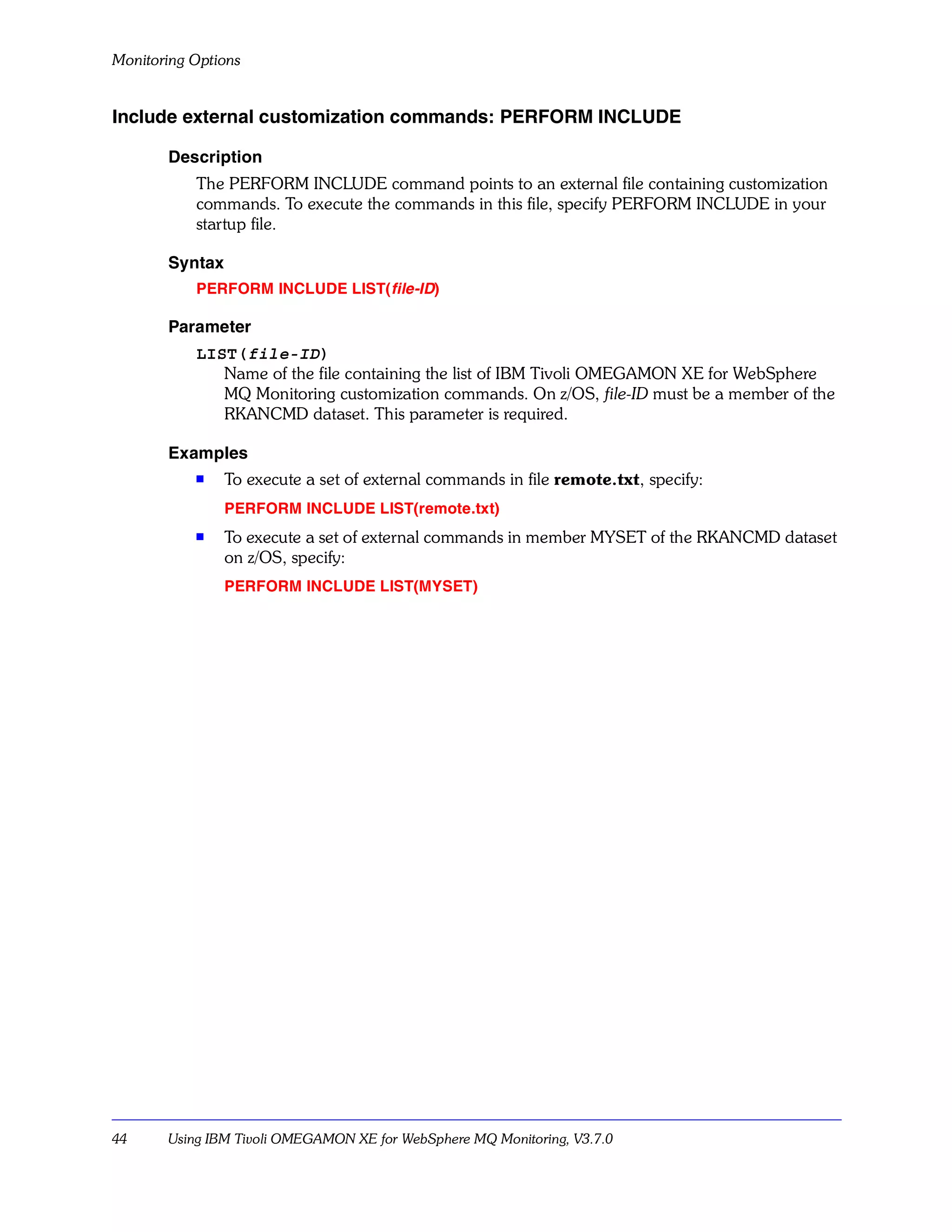
           The PERFORM INCLUDE command points to an external file containing customization
           commands. To execute the commands in this file, specify PERFORM INCLUDE in your
           startup file.

       Syntax
           PERFORM INCLUDE LIST( file-ID)

       Parameter
           LIST(file-ID)
              Name of the file containing the list of IBM Tivoli OMEGAMON XE for WebSphere
              MQ Monitoring customization commands. On z/OS, file-ID must be a member of the
              RKANCMD dataset. This parameter is required.

       Examples
           s
                To execute a set of external commands in file remote.txt, specify:
                PERFORM INCLUDE LIST(remote.txt)
           s    To execute a set of external commands in member MYSET of the RKANCMD dataset
                on z/OS, specify:
                PERFORM INCLUDE LIST(MYSET)


44     Using IBM Tivoli OMEGAMON XE for WebSphere MQ Monitoring, V3.7.0
Monitoring Options


Start monitoring: PERFORM STARTMON

     Description
        The PERFORM STARTMON command initiates monitoring of WebSphere MQ objects,
        specifies the sampling interval for collecting WebSphere MQ data, and specifies whether
        or not historical data will be collected.
        The PERFORM STARTMON command is required.

     Syntax
        PERFORM STARTMON
           SAMPINT(sample-interval)
           HISTORY (YES|NO)
           [ACTIVEONLY(YES|NO)]
           [ROWLIM(limit)]
           [SVRCONN(YES|NO)]
           [QSGCHKINTERVAL(sss)]
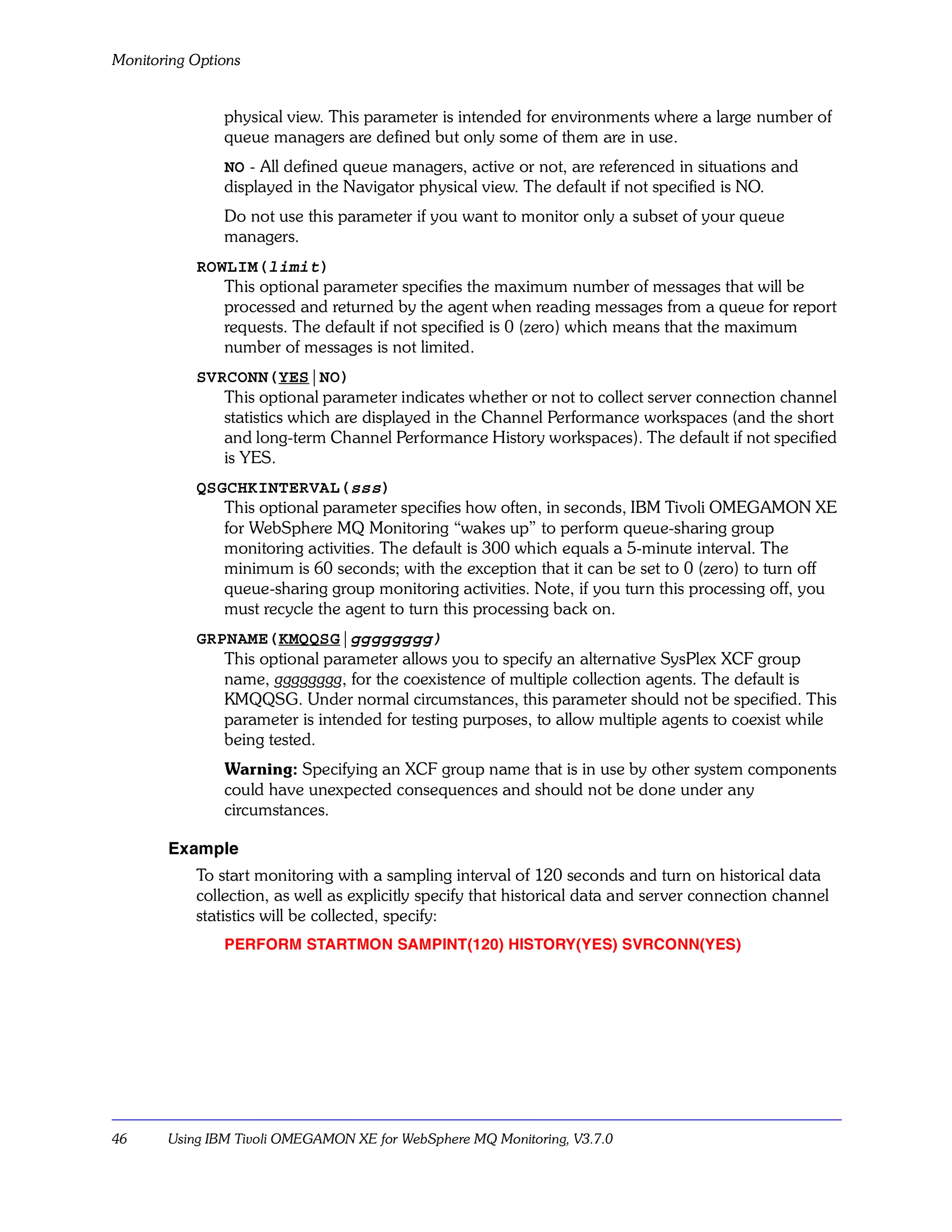
           [GRPNAME(KMQQSG|gggggggg)]

     Parameter
        SAMPINT(sample-interval)
           How often, in seconds, IBM Tivoli OMEGAMON XE for WebSphere MQ Monitoring
           samples your queue manager(s) for performance data. The default is 60 seconds.
           The minimum is 10 seconds.
              If your site is monitoring large numbers of queues or channels, you may experience a
              degradation in performance. If that occurs, IBM recommends that you increase the
              value of SAMPINT to improve performance.
              If your site is monitoring queue-sharing groups on z/OS, the sample interval should be
              the same interval for all agents that monitor queue managers in queue-sharing
              groups.
              See also, ICYCLE.
        HISTORY(YES|NO)
           Defines whether or not historical data will be collected. On distributed platforms, the
           value pre-configured for you by the installation/configuration process is NO. On z/OS,
           the value pre-configured for you by the Configuration tool is YES. The default, if not
           otherwise specified by the installation/configuration process, is NO. (For information
           about using the historical data collection function see the CandleNet Portal online
           help and the Historical Data Collection Guide for IBM Tivoli OMEGAMON XE
           Products.)
        ACTIVEONLY(YES|NO)
           This parameter applies only to z/OS.
              This optional parameter indicates whether or not to monitor only active queue
              managers.
              YES - Only queue managers that are running at agent startup time, or become active
              while the agent is running, are referenced in situations and displayed in the Navigator


                                                                  Customizing Monitoring Options   45
Monitoring Options


               physical view. This parameter is intended for environments where a large number of
               queue managers are defined but only some of them are in use.
               NO - All defined queue managers, active or not, are referenced in situations and
               displayed in the Navigator physical view. The default if not specified is NO.
               Do not use this parameter if you want to monitor only a subset of your queue
               managers.
           ROWLIM(limit)
              This optional parameter specifies the maximum number of messages that will be
              processed and returned by the agent when reading messages from a queue for report
              requests. The default if not specified is 0 (zero) which means that the maximum
              number of messages is not limited.
           SVRCONN(YES|NO)
              This optional parameter indicates whether or not to collect server connection channel
              statistics which are displayed in the Channel Performance workspaces (and the short
              and long-term Channel Performance History workspaces). The default if not specified
              is YES.
           QSGCHKINTERVAL(sss)
              This optional parameter specifies how often, in seconds, IBM Tivoli OMEGAMON XE
              for WebSphere MQ Monitoring “wakes up” to perform queue-sharing group
              monitoring activities. The default is 300 which equals a 5-minute interval. The
              minimum is 60 seconds; with the exception that it can be set to 0 (zero) to turn off
              queue-sharing group monitoring activities. Note, if you turn this processing off, you
              must recycle the agent to turn this processing back on.
           GRPNAME(KMQQSG|gggggggg)
              This optional parameter allows you to specify an alternative SysPlex XCF group
              name, gggggggg, for the coexistence of multiple collection agents. The default is
              KMQQSG. Under normal circumstances, this parameter should not be specified. This
              parameter is intended for testing purposes, to allow multiple agents to coexist while
              being tested.
               Warning: Specifying an XCF group name that is in use by other system components
               could have unexpected consequences and should not be done under any
               circumstances.

       Example
           To start monitoring with a sampling interval of 120 seconds and turn on historical data
           collection, as well as explicitly specify that historical data and server connection channel
           statistics will be collected, specify:
               PERFORM STARTMON SAMPINT(120) HISTORY(YES) SVRCONN(YES)


46     Using IBM Tivoli OMEGAMON XE for WebSphere MQ Monitoring, V3.7.0
Monitoring Options


Specify agent hostname: SET AGENT

     Description
        The SET AGENT command allows you to specify the middle qualifier used in the
        managed system name.
        On distributed platforms, if this value is not specified, no value is used.
        On z/OS, if this value is not specified, the host name is used. If you specify this value, it is
        used only in the managed system names of subnodes. For example, to avoid confusion
        and to allow multiple WebSphere MQ monitoring agents, instead of issuing the default
        agent startup command "IRAMAN KMQAGENT START" (to start a node named
        hostname:MQIRA) it allows you to issue the modified agent startup command "IRAMAN
        KMQAGENT START agentid" (to start a node named agentid:MQIRA).
        Here are some reasons to use the SET AGENT command:
        s
              On distributed platforms, if your site has multiple queue managers with the same
              name, running on different nodes, you would to need to specify the node name for
              each queue manager to uniquely identify them.
        s     To group and identify queue manager names by something other than the host name
              and queue manager name.
        s     To allow multiple agents connected to the same CMS to monitor the same queue
              manager.

     Syntax
        SET AGENT NAME(agentid)

     Parameter
        NAME(agentid)
           Name to be used for the middle qualifier of the managed system name.
              On distributed platforms, the complete managed system name will be
              monitoredqueuemanagername:agentid:MQ.
              On z/OS, the complete managed system name will be
              monitoredqueuemanagername:agentid:MQESA.
              The maximum length allowed for the complete managed system name is 32
              characters, so the maximum length allowed for agentid will depend on the length of
              the queue manager name. If there are not enough characters to fit the full agentid
              specified, it will be truncated to no less than 8 characters.


                                                                   Customizing Monitoring Options     47
Monitoring Options


       Example
           To monitor a queue manager named PERSONNEL on node AIX1 when there is also a
           queue manager named PERSONNEL on a node named HPUX2, specify the following in
           the monitoring file for AIX1:
               SET MANAGER NAME(PERSONNEL)
               SET AGENT NAME(AIX1)
           To simultaneously monitor the PERSONNEL queue manager on node HPUX2, specify
           the following in the monitoring file for HPUX2:
               SET MANAGER NAME(PERSONNEL)
               SET AGENT NAME(HPUX2)


48     Using IBM Tivoli OMEGAMON XE for WebSphere MQ Monitoring, V3.7.0
Monitoring Options


Monitor applications: SET APPL (z/OS only)

      Description
         The SET APPL command identifies the WebSphere MQ-based z/OS applications, CICS®
         transactions, and IMS™ programs that should be monitored for application debugging
         information and application statistics.
         Use the SET APPL command together with the SET MQIMONITOR command to activate
         the application debugging and application statistics features. See “Monitor applications:
         SET MQIMONITOR (z/OS only)” on page 52 for a description of SET MQIMONITOR.

      Syntax
         SET APPL NAME(application-name)
            [TRANPGM(program-name)]
            [MGRNAME(manager-name)]
            [TRACE(NO|YES)]
            [TRACELIMIT(1000|number-of-trace-records)]
            [STATISTICS(NONE|NOQDATA|NODYNAMQ|ALL)]
            [STATUS(ADD|DELETE)]

      Parameters
         NAME(application-name)
            1–8 character name of the z/OS application to monitor. To specify a generic name,
            enter a character string followed by an asterisk (*).
               –   The application name format differs depending on the applications being
                   monitored:
               –   For batch applications it is the 1–8 character job name.
               –   For TSO applications it is the 1–7 character user ID of the TSO session.
               –   For CICS applications it is the 1–8 character VTAM applid.
               –   For IMS applications it is the 1–4 character IMS subsystem ID prefixed with the
                   characters “IMS” and padded with a blank.
               This parameter is required.
         TRANPGM(program-name)
            Further identifies the program(s) to monitor, as follows:
               –   The 1–4 character name of the CICS transaction to monitor within the VTAM
                   applid identified by the NAME parameter.
               –   The 1–8 character name of the IMS program within the IMS subsystem identified
                   by the NAME parameter.
               –   The 1–8 character name of the batch or TSO program within the address space
                   identified by the NAME parameter.
               To specify a generic name, enter a character string followed by an asterisk (*). This
               parameter is optional; if omitted, it defaults to "*".


                                                                   Customizing Monitoring Options      49
Monitoring Options


           MGRNAME(manager-name)
              Name of the z/OS queue manager(s) whose applications are to be monitored. To
              specify a generic name, enter a character string followed by an asterisk (*). The name
              must exactly match the name specified on the corresponding SET MANAGER
              statement. This parameter is optional; if omitted, it defaults to "*".
           TRACE(NO|YES)
              Specifies whether or not to record WebSphere MQ tracing information for this
              application. This parameter is optional; the default is NO.
           TRACELIMIT(1000|number-of-trace-records)
              Specifies the number of trace records to save for later viewing. After this value is
              reached, trace recording for this application is stopped. The maximum value allowed
              is 12000; the default is 1000. You can issue the SET APPL statement again with this
              parameter to resume trace recording after the maximum has been reached. This
              parameter is optional.
           STATISTICS(NONE|NOQDATA|NODYNAMQ|ALL)
              The level of statistical information to collect for the applications identified by the
              NAME parameter, as follows:
               NONE - No statistical information is collected for this application.
               NOQDATA - Application statistical information is not collected at the queue level;
               however, statistical information is still collected at the application and transaction
               levels.
               NODYNAMQ - Application statistical information is not collected for dynamic queues
               (temporary and permanent); however, statistical information is still collected for
               predefined queues. Specifying NODYNAMQ does not affect the collection of
               application statistics at the application and transaction level. Note specifying
               NODYNAMQ activates Application Queue Statistics monitoring.
               ALL - Statistical information is collected at the application, transaction, and queue
               levels. Note specifying ALL activates Application Queue Statistics monitoring.
               This parameter is optional; the default is NODYNAMQ.
           STATUS(ADD|DELETE)
              Specifies what to do if this SET APPL command was previously specified with the
              same name.
               If omitted, the application definition is added if it is a new name, or modified if the
               same name was specified previously.
               ADD - Creates a new application definition. If this SET APPL command was
               previously specified with the same name then it will not be modified and an error
               message will be issued.
               DELETE - Deletes the application definition and all associated historical data.


50     Using IBM Tivoli OMEGAMON XE for WebSphere MQ Monitoring, V3.7.0
Monitoring Options


Example
  To collect only application- and transaction-level statistics, as well as WebSphere MQ
  tracing information, for all the transactions running in CICS region PAYR, specify:
     SET APPL NAME(PAYR) TRACE(YES) STATISTICS(NOQDATA)


                                                         Customizing Monitoring Options    51
Monitoring Options


Monitor applications: SET MQIMONITOR (z/OS only)

       Description
           SET MQIMONITOR is supported on z/OS only.
           The SET MQIMONITOR command activates monitoring for the applications you
           specified using SET APPL. You must specify SET MQIMONITOR to turn on monitoring.
           Use the SET MQIMONITOR command together with the SET APPL command to activate
           the application debugging and application statistics features.

       Syntax
           SET MQIMONITOR STATUS(INSTALL|REMOVE|FREMOVE)
              MGRNAME(manager-name) | GROUP(group-name)
              [BUFFERSIZE(buffer-space)]

       Parameters
           STATUS(INSTALL|REMOVE|FREMOVE)
              Required. Turns z/OS application monitoring on or off.
                INSTALL - Application monitoring begins for the z/OS applications, CICS
                transactions, and IMS programs identified on the SET APPL command. (If no SET
                APPL command is specified, no data is collected.)
                REMOVE - Application monitoring ends for the applications identified on the SET
                APPL command. If monitoring has not already been activated by a previous SET
                MQIMONITOR STATUS(INSTALL) command, the request is ignored.
                FREMOVE - Use the FREMOVE option only if instructed to do so by IBM Software
                Support. This parameter forces the removal and termination of application
                monitoring.
           MGRNAME(manager-name)
              Application monitoring is installed or removed for the queue manager identified by a
              previous SET MANAGER command. The name must exactly match the name
              specified on the SET MANAGER command. This parameter is required if GROUP is
              not specified.
           GROUP(group-name)
              Application monitoring is installed or removed for the group of queue managers
              identified by a previous SET GROUP command. The name must exactly match the
              name specified on the corresponding SET GROUP command. This parameter is
              required if MGRNAME is not specified.
           BUFFERSIZE(buffer-space)
              Applies only when STATUS(INSTALL) is also specified. This parameter specifies the
              size (in megabytes) of buffer data space for monitoring WebSphere MQ applications.
              This parameter is optional, though IBM recommends using it for queue managers that
              show more than 200 WebSphere MQ API calls per second. Use the following formula
              to calculate the buffer space you need:
                BUFFERSIZE=High MQSeries API rate/22


52     Using IBM Tivoli OMEGAMON XE for WebSphere MQ Monitoring, V3.7.0
Monitoring Options


     The default value, if BUFFERSIZE is not specified on the SET MQIMONITOR
     command, is 8. The maximum value is 2048 (2 GB of buffer storage).

Example
  To begin collecting application debugging information and application statistics for the
  applications running for queue manager PRD1, with a buffersize of 32 megabytes,
  specify:
     SET MQIMONITOR STATUS(INSTALL) MGRNAME(PRD1) BUFFERSIZE(32)


                                                          Customizing Monitoring Options     53
Monitoring Options


Queue sharing group monitoring: SET QSG (z/OS only)

       Description
           The SET QSG command specifies which queue-sharing groups the WebSphere MQ
           monitoring agent on z/OS monitors and which queue managers the agent uses to collect
           queue-sharing group data. At any given time, for a particular queue-sharing group, this
           monitoring product uses only one queue manager to gather data. If that queue manager
           becomes unavailable, data gathering will “fail over” to another queue manager.
           The SET QSG command is optional. If not specified, the default behavior of the agent is
           to monitor all queue-sharing groups that are associated with monitored queue managers.
           You might use a SET QSG command to specify such things as:
           s    that no queue-sharing groups will be monitored.
           s    that a particular queue-sharing group will not be monitored.
           s
                that a particular queue manager should not be used to collect queue-sharing group
                data.

       Syntax
                SET QSG [NAME(nnnn)]
                   [MGRNAME(mmmm)]
                   [MONITOR(NO|YES|TAKEOVER)]

       Parameters
           NAME(nnnn)
              The NAME parameter specifies the name of a queue-sharing group. The NAME
              parameter is optional. The default if not specified is NAME(*).
           MGRNAME(mmmm)
              The MGRNAME parameter specifies a queue manager name in a particular
              queue-sharing group. The MGRNAME parameter is optional. The default if not
              specified is MGRNAME(*).
           MONITOR(NO|YES|TAKEOVER)
              The MONITOR parameter specifies whether the agent monitors the specified
              combination of queue-sharing group and queue manager. It also specifies whether
              takover processing will be performed.
                The MONITOR parameter is optional. The default if not specified is MONITOR(YES).
                NO - The WebSphere MQ monitoring agent will not monitor the indicated
                combination of queue-sharing group and queue manager.
                YES - The WebSphere MQ monitoring agent will monitor the indicated combination
                of queue-sharing group and queue manager. This is the default behavior.
                TAKEOVER - The WebSphere MQ monitoring agent will takeover monitoring the
                indicated queue-sharing group even if another WebSphere MQ monitoring agent is
                already monitoring it. (Takeover processing does not occur if the other agent also
                specified TAKEOVER.)


54     Using IBM Tivoli OMEGAMON XE for WebSphere MQ Monitoring, V3.7.0
Monitoring Options


Examples
  s   To monitor no queue-sharing groups, specify:
      SET QSG MONITOR(NO)
  s   To eliminate queue manager PMQ5 from queue-sharing group monitoring, specify:
      SET QSG MONITOR(NO) MGRNAME(PMQ5)
  s   To direct queue-sharing group monitoring to queue manager PMQ6, specify:
      SET QSG MONITOR(TAKEOVER) MGRNAME(PMQ6)
  s   To specify that a particular queue-sharing group will, or will not, be monitored may
      require multiple SET QSG comands.
      For example, suppose you have three queue-sharing groups in your environment
      named QSGA, QSGB, and QSGC. To monitor only queue-sharing group QSGC, you
      could specify the following commands:
      SET QSG NAME(*) MONITOR(NO)
      SET QSG NAME(QSGC) MONITOR(YES)
      or the following commands could be used to produce the same effect.
      SET QSG NAME(QSGA) MONITOR(NO)
      SET QSG NAME(QSGB) MONITOR(NO)
      SET QSG NAME(QSGC) MONITOR(YES)
      However note that if you were to mistakenly specify only:
      SET QSG NAME(QSGC) MONITOR(YES)
      then all three queue-sharing groups, including QSGA and QSGB, would be
      monitored. This is because the default behavior of the agent is to monitor all
      queue-sharing groups.


                                                          Customizing Monitoring Options     55
Changing Monitoring Options


Changing Monitoring Options


Introduction
           This section explains how to change monitoring options to suit your site’s requirements.
           Instructions for each supported platform follow.
           z/OS . . . . . . . . . . . . . . . . . . . . . . . . . . . . . . . . . . . . . . . . . . . . . . . . . . . . . . . . . . . . . .   56
           UNIX . . . . . . . . . . . . . . . . . . . . . . . . . . . . . . . . . . . . . . . . . . . . . . . . . . . . . . . . . . . . .     58
           Windows . . . . . . . . . . . . . . . . . . . . . . . . . . . . . . . . . . . . . . . . . . . . . . . . . . . . . . . . . .        58
           NonStop. . . . . . . . . . . . . . . . . . . . . . . . . . . . . . . . . . . . . . . . . . . . . . . . . . . . . . . . . . .       59
           OS/400. . . . . . . . . . . . . . . . . . . . . . . . . . . . . . . . . . . . . . . . . . . . . . . . . . . . . . . . . . . .      60

z/OS
           On z/OS, you can change monitoring options using any of the following methods:
           s
                Entering basic options through a panel using the Configuration tool (monitoring
                group DEFAULT only).
           s    Dynamically specifying options from the MVS™ console.
           s    Editing the KMQUSER monitoring file.
           These methods are discussed below.

       Entering options using the Configuration tool
           When you configured the IBM Tivoli OMEGAMON XE for WebSphere MQ Monitoring
           component using the Configuration tool, a panel was displayed listing a set of commonly
           customized options for a monitoring group named DEFAULT. If you are using monitoring
           group DEFAULT and you want to change these particular options you can do so by
           restarting the Configuration tool and entering new values at this panel. For further
           information about accessing the Configuration tool, see the Configuring IBM Tivoli
           OMEGAMON XE for WebSphere Business Integration on z/OS book.
           The values on this panel are inserted into a file called KMQSTART, which is read when the
           monitoring agent is started. Do not manually edit the KMQSTART file.

       Dynamically specifying options from the MVS console
           This method can be used to change monitoring options for any monitoring group. It can
           be used when the monitoring agent is running. It should be used to make temporary
           changes; for example, for testing purposes. The changes will be in effect only until the
           agent is restarted. Permanent changes should be made in the KMQUSER monitoring file
           (see “Editing the monitoring file” on page 57).
           To dynamically specify options from the MVS console, follow the steps below. Note that
           these steps assume that you configured the monitoring agent in a separate address space
           from the CMS.


56     Using IBM Tivoli OMEGAMON XE for WebSphere MQ Monitoring, V3.7.0
Changing Monitoring Options


1. If you are unfamiliar with the various monitoring options and the commands to enable
   them, review the descriptions of the options in this chapter.
2. Display the monitoring options that are currently in effect:
       F CANSMQ,KMQCMD DISPLAY SETTINGS MGRNAME(qmgrname)
   where CANSMQ is the name of your started task for the monitoring agent and qmgrname
   is the name of the queue manager. The MGRNAME parameter is optional; if you omit it,
   the option settings for all monitored queue managers are displayed.
3. Change any options that you want:
       F CANSMQ,KMQCMD command
   where CANSMQ is the name of your started task for the monitoring agent and command
   is the command syntax for the monitoring option you want to enable.
   Continue to issue commands as needed.
   Remember that the commands you enter remain in effect only while the monitoring agent
   is running.

Editing the monitoring file
   The KMQUSER monitoring file is invoked through the KMQSTART file (see “Entering
   options using the Configuration tool” on page 56). The KMQUSER monitoring file resides
   in your RKANCMD dataset (for example: CANDLE.CCC.V370.RKANCMD(KMQUSER).
   Editing KMQUSER is the recommended method for making long-term changes to
   monitoring options. Remember that since this file is read when the agent is started
   (through KMQSTART) you must restart the agent after making your changes.
   To edit the KMQUSER monitoring file, follow these steps:
1. If you are unfamiliar with the various monitoring options and the commands to enable
   them, review the descriptions of the options in this chapter.
2. Edit KMQUSER and enter the commands to enable the monitoring options you require.
   Adhere to the following editing rules:
   s   To continue a command onto the next line, end the current line with a hyphen (-).
   s
       Parameters you set when grouping objects are effective for all the objects in the group.
   s   You can override parameters for an object in a group by explicitly defining parameters
       for that object.
3. Verify that the queue manager and its command server are running.
4. Stop and restart the monitoring agent for the changes to take effect:
       STOP CANSMQ
       START CANSMQ
   where CANSMQ is the name of your started task for the monitoring agent.


                                                            Customizing Monitoring Options   57
Changing Monitoring Options


UNIX
           On UNIX, you can change monitoring options by editing the mq.cfg monitoring file. If
           your site has multiple queue managers, you may have created multiple instances of the
           monitoring agent, each with its own uniquely named monitoring file pointing to a single
           queue manager. You can customize monitoring options in any or all of these monitoring
           files.

       Steps
           To edit the mq.cfg monitoring file, follow these steps:
       1. If you are unfamiliar with the various monitoring options and the commands to enable
          them, review the descriptions of the options in this chapter.
          If you want to collect historical data, you must set the HISTORY option to YES on the
          PERFORM STARTMON statement in the monitoring file. (For information about using
          the historical data collection function see the CandleNet Portal online help and the
          Historical Data Collection Guide for IBM Tivoli OMEGAMON XE Products.)
       2. When you are ready to customize the monitoring file(s), do the following:
           s
               Edit the mq.cfg monitoring file as described in Installing and Setting up IBM Tivoli
               OMEGAMON XE for WebSphere Business Integration on Windows and UNIX.
           s   Add, delete, or modify monitoring option commands, as your site requires. Adhere to
               these editing rules:
               –   To continue a command onto the next line, end the current line with a hyphen (-).
               –   Parameters you set when grouping objects are effective for all the objects in the
                   group.
               –   You can override parameters for an object in a group by explicitly defining
                   parameters for that object.
       3. Verify that the queue manager and its command server are running.
       4. Restart each monitoring agent for your changes to take effect.

Windows
           On Windows, you can change monitoring options by editing the mq.cfg monitoring file.
           If your site has multiple queue managers, you may have created multiple instances of the
           monitoring agent, each with its own uniquely named monitoring file pointing to a single
           queue manager. You can customize monitoring options in any or all of these monitoring
           files.

       Steps
           To edit the mq.cfg monitoring file, follow these steps:
       1. If you are unfamiliar with the various monitoring options and the commands to enable
          them, review the descriptions of the options in this chapter.
          If you want to collect historical data, you must set the HISTORY option to YES on the
          PERFORM STARTMON statement in the monitoring file. (For information about using


58     Using IBM Tivoli OMEGAMON XE for WebSphere MQ Monitoring, V3.7.0
Changing Monitoring Options


          the historical data collection function see the CandleNet Portal online help and the
          Historical Data Collection Guide for IBM Tivoli OMEGAMON XE Products.)
     2. From the Manage Candle Services panel, under Service, select:
          s   WebSphere MQ Monitoring Agent -- instance
              where instance is the name of the agent instance for which you want to change
              monitoring options.
     3. On the toolbar, click Actions > Reconfigure.
     4. Verify settings or change as needed and click OK.
     5. Click Yes when you are prompted to update the mq_instance.file.
     6. Click OK.
          A Notepad session opens.
     7. Add, delete, or modify monitoring option commands as required for your site. Adhere to
        the following editing rules:
          s   To continue a command onto the next line, end the current line with a hyphen (-).
          s   Parameters you set when grouping objects are effective for all the objects in the group.
          s   You can override parameters for an object in a group by explicitly defining parameters
              for that object.
     8. Close the Notepad.
     9. Click Yes at the next prompt to continue.
     10. Verify that your queue manager and its command server are running.
     11. Restart the agent for the changes to take effect.

NonStop
          On HP NonStop Kernel (formerly known as Tandem), you can change monitoring
          options by editing the MQCFG monitoring file. If your site has multiple queue managers,
          you may have created multiple instances of the monitoring agent, each with its own
          uniquely named monitoring file (MQCFGx) pointing to a single queue manager. You can
          customize monitoring options in any or all of these monitoring files.

     Steps
          To edit the MQCFG (or MQCFGx) monitoring file, follow these steps:
     1. If you are unfamiliar with the various monitoring options and the commands to enable
        them, review the descriptions of the options in this chapter.
        If you want to collect historical data, you must set the HISTORY option to YES on the
        PERFORM STARTMON statement in the monitoring file. (For information about using
        the historical data collection function see the CandleNet Portal online help and the
        Historical Data Collection Guide for IBM Tivoli OMEGAMON XE Products.)
     2. When you are ready to customize the monitoring file(s), do the following:


                                                                  Customizing Monitoring Options   59
Changing Monitoring Options


           s   If you are not already at the volume.subvolume containing the data files, move there
               now:
               TACL> VOLUME $VOL.CCMQDAT
               where $VOL is your installation volume. If you changed the name of the default
               subvolume, enter the new name.
           s   Edit MQCFG (or MQCFGx) and add, delete, or change the command statements to
               reflect the monitoring options you want to enable.
               Refer to these general editing rules:
               –   To continue a command onto the next line, end the current line with a hyphen (-).
               –   Parameters you set when grouping objects are effective for all the objects in the
                   group.
               –   You can override parameters for an object in a group by explicitly defining
                   parameters for that object.
       3. When you have finished customizing the monitoring file(s), save your changes and exit.
       4. Verify that your queue manager and its command server are running.
       5. Restart the agent for the changes to take effect.

OS/400
           On OS/400, you can change monitoring options using the agent management program.
           (You can also use the agent management program to start, stop, delete, replicate, view
           status, display the log for, or change CMS configuration for one or more OMEGAMON
           Monitoring Agents for WebSphere MQ on the same OS/400 system.)

       Steps
           To edit the monitoring file, follow these steps:
       1. If you are unfamiliar with the various monitoring options and the commands to enable
          them, review the descriptions of the options in this chapter.
          If you want to collect historical data, you must set the HISTORY option to YES on the
          PERFORM STARTMON statement in the monitoring file. (For information about using
          the historical data collection function see the CandleNet Portal online help and the
          Historical Data Collection Guide for IBM Tivoli OMEGAMON XE Products.)
       2. When you are ready to customize the monitoring file, from an OS/400 command line
          enter the following command:
               WRKOMAMQ


60     Using IBM Tivoli OMEGAMON XE for WebSphere MQ Monitoring, V3.7.0
Changing Monitoring Options


   The main panel for working with the OMEGAMON Monitoring Agent for WebSphere MQ
   displays.

        Work with OMEGAMON Monitoring Agent for WebSphere MQ System MYSYSTEM

         Type Option, press Enter

           2=Change, 4=Delete, 5=Display agent Log, 14=Start, 15=End


        Option Agent for MQ Manager...                           Suffix    Status


                MYSYSTEM                                           00001   Not Started

                MQITMISDE1                                         00002   Started


   On this panel, multiple monitoring agents can be listed. These agents on an OS/400
   system (and the unique monitoring file associated with each agent) are differentiated by a
   unique 5-character numeric suffix. The first agent Added is automatically assigned suffix
   00001, the second agent Added is automatically assigned suffix 00002, and so on.
3. Enter 2 in the Option column next to the agent whose monitoring file you want to
   change.
   The panel for changing the OMEGAMON Monitoring Agent for WebSphere MQ displays.
4. Press F8 to change the monitoring file associated with the agent.
   An editing panel opens.
5. Insert, Delete, or modify monitoring option commands, as your site requires. Adhere to
   these editing rules:
   s
       To continue a command onto the next line, end the current line with a hyphen (-).
   s
       Parameters you set when grouping objects are effective for all the objects in the group.
   s   You can override parameters for an object in a group by explicitly defining parameters
       for that object.
6. When you have finished customizing the monitoring file, press F3 to save your changes
   and exit. Press F3 twice more to exit the interface.
7. Verify that the queue manager and its command server are running.
8. Restart the agent for your changes to take effect.


                                                           Customizing Monitoring Options   61
Changing Monitoring Options


62     Using IBM Tivoli OMEGAMON XE for WebSphere MQ Monitoring, V3.7.0
Selected Features

    3
Introduction
       This chapter briefly describes selected features of this monitoring product.
Chapter Contents
       Error Log Monitoring Feature (non-z/OS only) . . . . . . . . . . . . . . . . . . . . . . . . . . . . . .                 64
       Message Manipulation Features . . . . . . . . . . . . . . . . . . . . . . . . . . . . . . . . . . . . . . . . .          66
       Message Statistics Feature . . . . . . . . . . . . . . . . . . . . . . . . . . . . . . . . . . . . . . . . . . . . . .   69
       Queue Statistics Feature . . . . . . . . . . . . . . . . . . . . . . . . . . . . . . . . . . . . . . . . . . . . . . .   71
       Enhanced Integration Using IBM Tivoli OMEGAMON DE . . . . . . . . . . . . . . . . . . . . .                              73
       Queue-Sharing Group Monitoring Feature (z/OS only) . . . . . . . . . . . . . . . . . . . . . . . .                       75


                                                                                                    Selected Features           63
Error Log Monitoring Feature (non-z/OS only)


Error Log Monitoring Feature (non-z/OS only)


Description
            The Error Log monitoring feature allows you to view and monitor WebSphere MQ error
            log data retrieved from a monitored queue manager (non-z/OS only). It does not provide
            error log data associated with unknown queue managers or with client applications.
            This feature provides data for the Error Log workspace, provides you with Error Log
            attributes that you can use in situations, and provides the predefined situation:
            MQSeries_Channel_Out_Of_Sync.
            For details about attributes, predefined situations, and workspace provided with this
            product, see the IBM Tivoli OMEGAMON XE for WebSphere MQ Monitoring section of
            the CandleNet Portal online help.

Details of operation
            Note Error Log data is only available if it is being collected for the queue manager. This
            product’s monitoring of the queue manager error log (non-z/OS only) is active by default.
            However, you can deactivate the error log monitoring feature using the ERRLOGCYCLE
            parameter of the SET MANAGER or SET GROUP monitoring option. You can also adjust
            the maximum number of messages displayed in the Error Log workspace using the
            ERRLOGMAX parameter of the SET MANAGER or SET GROUP monitoring option. See
            “Customizing Monitoring Options” on page 27 for details.
            This product monitors error logs found in the following default locations.
            On HP NonStop Kernel (formerly known as Tandem):
                qmvolume.qmsubvolumeL
                where qmvolume is the WMQ installation volume (defined also in the "PARAM
                MQDEFAULTPREFIX" variable in the startup script)
                and where qmsubvolume is the queue manager "logs" (L) subvolume.
                For example, in this error log:
                $CLX9.QMGR004L.MQERRLG1
                the qmvolume is $CLX9 and the qmsubvolume is QMGR004.
            On OS/400:
                /QIBM/UserData/mqm/qmgrs/qmname/errors
                where qmname is the queue manager name.
            On UNIX:
                /var/mqm/qmgrs/qmname/errors
                where qmname is the queue manager name.
            On Windows:
                <MQ WorkPath>qmgrsqmnameerrors


64      Using IBM Tivoli OMEGAMON XE for WebSphere MQ Monitoring, V3.7.0
Error Log Monitoring Feature (non-z/OS only)


    where <MQ WorkPath> is obtained from the
    "SoftwareIBMMQSeriesCurrentVersionWorkPath" NT Registry Key and where
    qmname is the queue manager name.
After you have created a queue manager, error log files used by IBM Tivoli OMEGAMON
XE for WebSphere MQ Monitoring are automatically created when the queue manager
needs them. The files are named:
s   AMQERR01.LOG
s   AMQERR02.LOG
s   AMQERR03.LOG
Each of these error log log files has a capacity of 256 KB. As error messages are
generated, they are placed in AMQERR01. When AMQERR01 gets bigger than 256 KB, it
is copied to AMQERR02. Before the copy, AMQERR02 is copied to AMQERR03. The
previous contents of AMQERR03 (if any) are discarded.
The latest error messages are always placed in AMQERR01. The monitoring agent
monitors the AMQERR01 file.


                                                                Selected Features    65
Message Manipulation Features


Message Manipulation Features


Description
           The Message Manipulation features of IBM Tivoli OMEGAMON XE for WebSphere MQ
           Monitoring allow you to manipulate queued WebSphere MQ messages in these ways:
           s
               Browse a message's header or its contents, or delete the message.
           s
               Delete a message from the Dead-Letter Queue.
           s
               Forward a message (from the DLQ) to its original destination queue or (from the
               DLQ) to a different destination queue.
           The forward message function applies only to messages in the DLQ and is accessed from
           the Dead-Letter Queue Messages workspace (see “Dead-Letter Queue Messages” on
           page 87). You can also browse and delete messages displayed in this workspace. The
           browse and delete messages functions that apply to messages on other queues are
           accessed from the Queue Messages workspace (see “Queue Messages” on page 99).

Details of operation
           Because of their potential for serious damage, the message-manipulation features have
           the special security considerations described below.

           Controlling access to WebSphere MQ messages
           The level of user access to queue manager messages is determined by the
           interrelationship of two elements, summarized below:
           s   The IBM Tivoli OMEGAMON XE for WebSphere MQ Monitoring MSGACCESS
               parameter setting.
               This element sets restrictions on the monitoring agent. It uses the MSGACCESS
               parameter of the SET GROUP and SET MANAGER monitoring options to set the
               level of message access that a monitoring agent has to the queue managers it is
               monitoring. See “Customizing Monitoring Options” on page 27 for details.
           s   The WebSphere MQ security setting on the CandleNet Portal user ID.
               This element sets restrictions on the user ID. It passes the CandleNet Portal user ID to
               the WebSphere MQ subroutines that the monitoring agent calls when manipulating
               messages. Using this element requires that you:
               –   Set up WebSphere MQ security on each platform where WebSphere MQ is
                   running.
               –   Enable and customize the WebSphere MQ API resource security feature.

           Interrelationship of MSGACCESS settings and user ID settings
           Your site can choose not to use the WebSphere MQ security feature and to use only the
           MSGACCESS parameter settings on the SET GROUP and SET MANAGER monitoring
           options to control access to queue manager messages. For example, you can choose to


66     Using IBM Tivoli OMEGAMON XE for WebSphere MQ Monitoring, V3.7.0
Message Manipulation Features


   simply accept the default setting of DESC, which enables users to browse message
   descriptors in summary or detail reports. Or you can change the default to DATA to allow
   users to browse message contents. Be aware, however, that these settings will
   apply to all user IDs at your site. If someone at your site needs to be able to delete
   messages, you must set MSGACCESS to DELETE, thereby giving all user IDs permission
   to delete messages.
   IBM recommends that you use the MSGACCESS option only in conjunction
   with WebSphere MQ security. The WebSphere MQ security settings on the CandleNet
   Portal user ID are passed to the Candle Management Server and then to the monitoring
   agent. Using the two options together ensures that user IDs have only the message access
   that they need.
   If a user attempts to view a message report without the proper access, the following
   message is displayed:
       (KMQW000W)2035-Not_Authorized
   The table below illustrates the combination of MSGACCESS settings and WebSphere MQ
   settings that a user ID would require for the various levels of access to queue manager
   messages.


                                                                  The WebSphere MQ
                                     The MSGACCESS setting        Security Access to the
     For this level of message        for the queue manager     queue for the user ID must
             access . . .                   must be . . .                 be . . .
    List the messages on a queue     DESC or RETRY or DATA or   MQGET (with the browse
    (display the Queue Messages      DELETE                     option)
    workspace)
    Browse a message’s descriptor DESC or RETRY or DATA or      MQGET (with the browse
                                  DELETE                        option)
    Retry a message on the           RETRY or DATA or DELETE    MQGET (without the browse
    dead-letter queue or forward a                              option)
    message on the dead-letter
    queue to another queue
    Browse a message’s contents      DATA or DELETE             MQGET (with the browse
                                                                option)
    Delete a message                 DELETE                     MQGET (without the browse
                                                                option)

   Procedure
   The following procedure is an example of a best practice to implement security for your
   queue manager messages:
1. Create new user IDs
   On each WebSphere MQ node to be monitored, create new user IDs that correspond to
   the CandleNet Portal user IDs that you set up for users to access IBM Tivoli OMEGAMON
   XE for WebSphere MQ Monitoring. Note that when sending a command to WebSphere


                                                                      Selected Features     67
Message Manipulation Features


           MQ, CandleNet Portal sends the user ID as typed on the Logon dialog with the casing
           preserved exactly as typed.
       2. Customize the WebSphere MQ security environment
           Customize each node’s WebSphere MQ security environment to either allow or
           disallow the new user IDs access to that node’s WebSphere MQ queues. These user IDs
           are then passed to WebSphere MQ as alternate user IDs. Keep this in mind when
           assigning access to WebSphere MQ queues.
           If you allow a user ID access to a particular queue or set of queues, that user will have
           access to queue manager messages as specified by the MSGACCESS setting (refer to the
           table above). If you disallow the user ID access to a queue or group of queues, that user
           will not have access to queue manager messages as specified by the MSGACCESS
           setting.


68     Using IBM Tivoli OMEGAMON XE for WebSphere MQ Monitoring, V3.7.0
Message Statistics Feature


Message Statistics Feature


Description
         The Message Statistics feature provides summarized statistics about all messages on a
         particular queue.
         This feature provides data for the Message Statistics workspaces (for an overview, see
         “Message Statistics” on page 101), provides you with Message Statistics attributes that
         you can use in situations, and provides predefined situation examples:
         MQSeries_Delayed_Message_Group and MQSeries_High_Delayed_Messages.
         Message statistics can also be stored historically. The data that is kept historically for
         message statistics is directly determined by the active situations for the Message Statistics
         attribute group.
         For details about attributes, predefined situations, and workspace provided with this
         product, see the IBM Tivoli OMEGAMON XE for WebSphere MQ Monitoring section of
         the CandleNet Portal online help.

Details of operation
         Unlike many other types of data collection performed by this monitoring product,
         message statistics are collected “on request only” and sampling interval is not used. When
         these statistics are requested, each message in the specified queue is read and processed
         to provide the summarized message statistics.
         IBM Tivoli OMEGAMON XE for WebSphere MQ Monitoring requests message statistics
         data collection whenever you open or refresh one of the Current Message Statistics
         workspaces (that is, whenever you query the Message Statistics attribute group).
         To view the Current Message Statistics workspaces, WebSphere MQ Security Access to
         the selected queue for your CandleNet Portal Logon user ID must be MQGET (with the
         browse option). Additionally, user access to messages on the queue must be allowed. This
         can be adjusted during customization using the MSGACCESS parameter of the SET
         GROUP and SET MANAGER monitoring option. Any value other than
         MSGACCESS(NONE) allows collection of message statistics. The default setting of
         MSGACCESS(DESC) enables all users to browse message statistics workspaces. If you
         attempt to view one of the Current Message Statistics workspaces without the proper
         access, no data is returned.
         The behavior of the Recent Message Statistics workspace differs from that of other
         “Recent” workspaces of this monitoring product. The Recent Message Statistics
         workspace displays all rows associated with the requested queue currently held by the
         agent waiting to be written to history. If there are no active situations associated with the
         Message Statistics attribute group for the requested queue, then no rows are returned.
         Once written to history, the data no longer displays in the Recent Message Statistics
         workspace. This is normal operation for the Recent Message Statistics workspace.
         IBM Tivoli OMEGAMON XE for WebSphere MQ Monitoring also requests message
         statistics data collection whenever a situation uses the Message Statistics attributes. A


                                                                                Selected Features    69
Message Statistics Feature


            situation drives the collection of message statistics data for a particular queue name. The
            queue name is a required input attribute for message statistics situations and if it is not
            specified, then no data will be collected. Note the Queue Name attribute must specify an
            individual queue name, no wild cards are allowed. A separate situation must be created
            for every queue that is to be monitored. Because of the overhead of collecting message
            statistics data, it should only be collected for those queues that need to be closely
            monitored. Note that for situations, the user ID of the monitoring agent is used to access
            the queue.
            Many of the message statistics are calculated using the put-date-and-time of the message
            in the queue. If the queue will have messages with put-date-and-times that do not reflect
            accurately when the message was put into the input queue, then the statistics will be
            correspondingly inaccurate. Put-date-and-times are not accurate indicators when origin
            context is preserved or set for a message during the put by an application to the queue.
            This commonly occurs when an application is a message mover that moves messages
            from one queue to another, or when any application passes or sets origin context for a
            message.
            If there is no data returned for Message Statistics situations or workspaces, refer to the
            agent log to determine the reason. Messages KMQMI209E and KMQMI210E are
            associated with this feature.


70      Using IBM Tivoli OMEGAMON XE for WebSphere MQ Monitoring, V3.7.0
Queue Statistics Feature


Queue Statistics Feature


Description
         The Queue Statistics feature provides additional current and historical information about
         message arrival and departure rates, high queue depth, and time when latest activity
         occurred.
         This information allows you to better monitor queue activity, such as determining whether
         activity is at expected levels, whether messages are being read from the queues within a
         reasonable timeframe, or whether messages are being put on a queue and not retrieved.
         This optional feature provides additional data in the Queue Statistics and Queue Manager
         Status workspaces, provides additional Queue Statistics attributes for use in situations,
         and provides data for the predefined situation:
         MQSeries_No_Queue_Messages_Read.
         For details about attributes, predefined situations, and workspace provided with this
         product, see the IBM Tivoli OMEGAMON XE for WebSphere MQ Monitoring section of
         the CandleNet Portal online help.

Details of operation
         Note that queue statistics data is only available if it is being collected for the queue or
         queues. This product’s monitoring for queue statistics data is turned off by default to
         ensure downward compatibility. It can be activated if you specify STATISTICS(YES) on
         the SET QUEUE monitoring option for the queue or queues you want to monitor. See
         “Customizing Monitoring Options” on page 27 for descriptions of monitoring options.
         Use of this feature effects processing of other information and has the requirements and
         restrictions described below.

         Requirement
         On all platforms, monitored queue managers must have the PERFMEV attribute that
         determines whether or not performance-related events are generated set to ENABLED.

         Effect on queue service Interval events monitoring
         This product’s monitoring agent obtains queue statistics information using the Reset
         Queue Statistics command. When this command is issued, the queue statistics
         information is reset. As a result of the reset, Queue Service Interval events such as:
         s
              Queue_Service_Interval_High
         s    Queue_Service_Interval_OK
         will cease functioning properly. This is because the service timer, which MQSeries relies
         on to determine the queue service interval, is reset by the Reset Queue Statistics
         command. Therefore if you are monitoring Queue Service Interval events for some
         queues, IBM recommends that you specify STATISTICS(NO) on the SET QUEUE
         monitoring option for those queues. This will ensure that the Queue Service Interval
         events continue to function properly. However, this will mean that such queues will not


                                                                               Selected Features       71
Queue Statistics Feature


            have certain queue statistics available unless Application Queue Statistics monitoring is
            active on z/OS (SET APPL STATISTICS(ALL|NODYNAMQ)).

            Effect of queue events information monitoring
            If you are monitoring for queue events information, such as:
            s    Queue_Depth_High
            s    Queue_Depth_Low
            s    Queue_Full
            when these events occur, the same queue statistics are collected and reset. As a result of
            the reset, the queue statistics information that the agent collects will be incomplete. The
            agent attempts to pick up queue statistics from events, but can only be successful if event
            monitoring is turned on. If event monitoring is not turned on, the information collected
            will be incomplete. Therefore if you are monitoring for queue events, IBM recommends
            that you specify EVENTS(BROWSE) or EVENTS(REMOVE) on the SET MANAGER
            monitoring option to ensure the most accurate event reporting.

            Effect of another application using the Reset Queue Statistics command
            As mentioned above, when the Reset Queue Statistics command is issued, the queue
            statistics information is reset. As a result, if another application besides this product’s
            monitoring agent issues this command, the agent will not be able to provide complete and
            accurate statistics.

            Effect of (z/OS only) Application Statistics collection
            If both Queue Statistics data using the Reset Queue Statistics command and (z/OS only)
            Application Statistics data are being collected with respect to a queue, the data used by
            this product will be what was collected using the Reset Queue Statistics command. Reset
            Queue Statistics provides data about all activity with respect to a queue, while Application
            Statistics provides data only for the applications being monitored.


72      Using IBM Tivoli OMEGAMON XE for WebSphere MQ Monitoring, V3.7.0
Enhanced Integration Using IBM Tivoli OMEGAMON DE


Enhanced Integration Using IBM Tivoli OMEGAMON DE


Description
         The optional Tivoli OMEGAMON DE version of IBM Tivoli OMEGAMON XE for
         WebSphere MQ Monitoring (“the monitoring product” in the discussion below) gives you
         the ability to easily change the parameters of specific WebSphere MQ objects (queue
         managers, queues, channels, and so on) by providing cross-product access to the Tivoli
         OMEGAMON DE version of IBM Tivoli OMEGAMON XE for WebSphere MQ
         Configuration (“the configuration product” in the discussion below).

Details of operation
         Upgrading to the optional DE feature gives you a more integrated view of your
         WebSphere MQ environment. This integration allows you to select certain attributes of a
         WebSphere MQ resource as displayed in the monitoring product’s workspaces and, if the
         values are not to your liking, you can easily change them. The change will be deployed
         immediately.
         For example, you are using the monitoring product’s Channel Performance workspace
         and you notice a problem with a SYSTEM.DEF.SENDER channel. You can select the
         channel, right-click and, from the pop-up menu, select Configure Channel.


         The configuration product’s settings list for the channel opens.
         From here you can change the channels’s parameters then click a single button to both
         save your changes and update your actual WebSphere MQ configuration.
         Note that any WebSphere MQ resource that you want to configure using the configuration
         product must already be completely defined to the configuration database of IBM Tivoli
         OMEGAMON XE for WebSphere MQ Configuration. If it is not, the following message
         appears:
         KCF0045E The requested object does not exist in the configuration database.


                                                                            Selected Features    73
Enhanced Integration Using IBM Tivoli OMEGAMON DE


           The following table lists the workspaces from which these additional actions using Tivoli
           OMEGAMON DE are available.


                From this workspace in IBM Tivoli
               OMEGAMON DE for WebSphere MQ                 You can quickly perform this action ...
                          Monitoring ...
           Channel Definitions                            Configure Channel

           Channel Performance                            Configure Channel

           Cluster Queue Manager                          Configure Channel

           Namelist Detail                                Configure Namelist

           Queue Definitions                              Configure Queue

           Queue Manager Status                           Configure Queue Manager

           Queue Statistics                               Configure Queue


           Your user ID must have modify WebSphere MQ Configuration permission in order to use
           this feature.


74     Using IBM Tivoli OMEGAMON XE for WebSphere MQ Monitoring, V3.7.0
Queue-Sharing Group Monitoring Feature (z/OS only)


Queue-Sharing Group Monitoring Feature (z/OS only)


Description
         The Queue-Sharing Group monitoring feature provides the ability to monitor and display
         data unique to WebSphere MQ queue managers in a Sysplex environment that have
         been configured to form queue-sharing groups.
         This feature provides a number of workspaces on z/OS only, provides additional Queue
         Statistics attributes for use in situations, and provides data for a number of predefined
         situations (named in the form MQSeries_QSG_*).
         For details about attributes, predefined situations, and workspace provided with this
         product, see the IBM Tivoli OMEGAMON XE for WebSphere MQ Monitoring section of
         the CandleNet Portal online help. For a navigational introduction to the Queue-Sharing
         Group workspaces, see page 98.

Details of operation
         If there are no queue-sharing groups associated with your queue managers then you do
         not need to take any further action.
         To successfully monitor queue-sharing groups, install a WebSphere MQ monitoring agent
         on the host system of each queue manager that participates in the queue-sharing group
         (and ensure that the agent is configured to monitor those queue managers).
         The default behavior of the agent is to monitor all queue-sharing groups that are
         associated with monitored queue managers. This default behavior can be adjusted, if
         necessary (see the SET QSG monitoring option and the QSGCHKINTERVAL and
         GRPNAME parameters of the PERFORM STARTMON monitoring option). Also, all
         WebSphere MQ monitoring agents that monitor queue managers in queue-sharing
         groups should use the same sample interval length (refer to the SAMPINT parameter of
         the PERFORM STARTMON monitoring option).
         For information about queue-sharing groups see the IBM WebSphere MQ for z/OS
         Concepts and Planning Guide.


                                                                             Selected Features   75
Queue-Sharing Group Monitoring Feature (z/OS only)


76     Using IBM Tivoli OMEGAMON XE for WebSphere MQ Monitoring, V3.7.0
Workspaces

    4
Introduction
       This chapter provides an introduction to the types of predefined workspaces provided in
       the IBM Tivoli OMEGAMON XE for WebSphere MQ Monitoring user interface.
Chapter contents
       About Workspaces . . . . . . . . . . . . . . . . . . . . . . . . . . . . . . . . . . . . . . . . . . . . . . . . . . . 78
       Application Debugging (z/OS only) . . . . . . . . . . . . . . . . . . . . . . . . . . . . . . . . . . . . . . . 79
       Application Statistics (z/OS only) . . . . . . . . . . . . . . . . . . . . . . . . . . . . . . . . . . . . . . . . 80
       Buffer Pool Statistics (z/OS only). . . . . . . . . . . . . . . . . . . . . . . . . . . . . . . . . . . . . . . . . 81
       Channel Definitions . . . . . . . . . . . . . . . . . . . . . . . . . . . . . . . . . . . . . . . . . . . . . . . . . . 83
       Channel Initiator Status (z/OS only) . . . . . . . . . . . . . . . . . . . . . . . . . . . . . . . . . . . . . . 84
       Channel Performance . . . . . . . . . . . . . . . . . . . . . . . . . . . . . . . . . . . . . . . . . . . . . . . . . 85
       Cluster Queue Manager . . . . . . . . . . . . . . . . . . . . . . . . . . . . . . . . . . . . . . . . . . . . . . . 86
       Dead-Letter Queue Messages . . . . . . . . . . . . . . . . . . . . . . . . . . . . . . . . . . . . . . . . . . . 87
       Error Log (non-z/OS only) . . . . . . . . . . . . . . . . . . . . . . . . . . . . . . . . . . . . . . . . . . . . . 90
       Log Manager Performance (z/OS only) . . . . . . . . . . . . . . . . . . . . . . . . . . . . . . . . . . . . 91
       Message Manager Performance (z/OS only) . . . . . . . . . . . . . . . . . . . . . . . . . . . . . . . . 92
       MQSeries Events . . . . . . . . . . . . . . . . . . . . . . . . . . . . . . . . . . . . . . . . . . . . . . . . . . . . 93
       Page Set Statistics (z/OS only). . . . . . . . . . . . . . . . . . . . . . . . . . . . . . . . . . . . . . . . . . . 94
       Queue Definitions. . . . . . . . . . . . . . . . . . . . . . . . . . . . . . . . . . . . . . . . . . . . . . . . . . . . 95
       Queue Manager Status . . . . . . . . . . . . . . . . . . . . . . . . . . . . . . . . . . . . . . . . . . . . . . . . 96
       Queue Statistics . . . . . . . . . . . . . . . . . . . . . . . . . . . . . . . . . . . . . . . . . . . . . . . . . . . . . 97
       Queue-Sharing Group (z/OS only) . . . . . . . . . . . . . . . . . . . . . . . . . . . . . . . . . . . . . . . 98
       Queue Messages. . . . . . . . . . . . . . . . . . . . . . . . . . . . . . . . . . . . . . . . . . . . . . . . . . . . . 99
       Message Statistics . . . . . . . . . . . . . . . . . . . . . . . . . . . . . . . . . . . . . . . . . . . . . . . . . . . 101


                                                                                                           Workspaces            77
About Workspaces


About Workspaces


Overview
           IBM Tivoli OMEGAMON XE for WebSphere MQ Monitoring is installed with default views
           that are displayed in workspaces. Where applicable, links have been provided within the
           workspace to link from a parent view to a more detailed view about a selected row, or to a
           related workspace (for example, a workspace containing historical information).
           The format and appearance of the views within a workspace may be customized to suit
           your preferences. For information on customizing workspaces and views, refer to the
           CandleNet Portal online help.
           For a complete list of all workspaces included with this product and for detailed
           descriptions of workspaces and individual attributes within a workspace, see the IBM
           Tivoli OMEGAMON XE for WebSphere MQ Monitoring section of the CandleNet Portal
           online help.


78     Using IBM Tivoli OMEGAMON XE for WebSphere MQ Monitoring, V3.7.0
Application Debugging (z/OS only)


Application Debugging (z/OS only)


About Application Debugging workspaces
         These workspaces apply only to the WebSphere MQ applications that are running on
         z/OS.
         These workspaces can help you debug your WebSphere MQ applications by enabling you
         to view and sort debugging trace data.
         Access these workspaces from the Application Debugging item for the selected queue
         manager within the Navigator physical view.
         Data for these workspaces is only available if Application Statistics are being collected on
         z/OS. This can be activated using the STATISTICS parameter of the SET APPLICATION
         monitoring option. See the “Customizing Monitoring Options” chapter for details.

Guide for action
         Use the Application Debugging workspaces to trace a WebSphere MQ application that is
         running on z/OS. While the Application Statistics workspaces show you those
         applications, CICS transactions, or programs that are experiencing or causing bottlenecks
         in your WebSphere MQ system, the Application Debugging workspaces can help you
         trace what went wrong in an application and correct it.
         For example, is the MQOO_FAIL_IF_QUIESCING constant defined for MQOPEN calls? If
         not, why not? This constant specifies that the MQOPEN call will fail if the queue manager
         is quiescing, and it is a valid option for all MQSeries objects.


                                                                                   Workspaces      79
Application Statistics (z/OS only)


Application Statistics (z/OS only)


About Application Statistics workspaces
             These workspaces provide statistics about WebSphere MQ applications that are running
             on z/OS only.
             Data for these workspaces is only available if Application Statistics are being collected on
             z/OS. This can be activated using the STATISTICS parameter of the SET APPLICATION
             monitoring option. See the “Customizing Monitoring Options” chapter for details.
             Access these workspaces from the Application Statistics item for the selected queue
             manager within the Navigator physical view.

Guide for action
             Use the information in the Application Statistics workspaces for trend analysis,
             performance history, and security checking. For billing purposes, for example, you may
             want to check how often a particular application runs. To streamline the workload,
             compare current and historical queue and queue manager usage across different page
             sets.
             Following are some examples of what you should check when viewing the data in these
             workspaces:
             s   Examine the number of puts versus the number of gets.
                 If they are not equal, where is the data flow breaking down? If one queue has a large
                 number of puts, you may want to alter the queue definition to use a different page set.
             s
                 Are the average MQPUT/MQGET response times meeting your business-service level
                 objectives?
                 If one application is running significantly faster than another, you may want to use a
                 different page set to ensure better processing time.
             s   How many queues are being browsed, why, and by what applications?
                 Verify that restricted queues (such as a payroll queue) are not being browsed without
                 proper authority.
             s   Review the average message size for your queues; are messages typically the
                 maximum size (MaxMsgLength queue attribute)?
                 There may be a problem in an application or a queue definition.
             You can use these workspaces in conjunction with the Application Debugging workspaces
             to help you locate and correct problems in your WebSphere MQ applications.


80      Using IBM Tivoli OMEGAMON XE for WebSphere MQ Monitoring, V3.7.0
Buffer Pool Statistics (z/OS only)


Buffer Pool Statistics (z/OS only)


About Buffer Pool Statistics workspaces
         The Buffer Pool Statistics workspaces can help you ensure that your buffer managers are
         performing efficiently.
         These workspaces show current buffer manager performance for all monitored z/OS
         queue managers. You can also drill down to display information about a specific buffer
         pool to isolate recent or historical performance trends.
         Access these workspaces from the Buffer Pool Statistics item for the selected queue
         manager within the Navigator physical view.

Guide for action
         Each z/OS queue manager includes a buffer manager. The buffer manager uses the
         buffers in a buffer pool to hold WebSphere MQ objects, including messages. With proper
         allocation of buffer pools, messages can be accessed more efficiently because they are
         retrieved from buffers in storage rather than from disk.
         To enhance buffer pool performance, monitor these conditions:
         s
             Examine the ratio of pages read from DASD to pages retrieved. This shows the
             efficiency of page retrieval within buffer pool storage. The object is to keep this ratio
             low.
             The ratio of pages not found in the buffer pool to pages retrieved is another measure
             of page-retrieval efficiency.
             The number of asynchronous write-processor starts indicates how many times more
             than 85% of the buffer pool was waiting for write I/O or less than 15% of the buffer
             pool was available for reads. The object is to keep the number of these starts low.
             In any of these cases, first try increasing buffer pool size. If the ratio remains high,
             pages are not being frequently reaccessed. A WebSphere MQ application may be
             allowing long delays between putting messages and subsequently getting them.
             The ratio of pages updated to pages written to DASD indicates the efficiency of the
             asynchronous write processor. The object is to keep this ratio high. Increasing buffer
             pool size increases this ratio.
         s   Monitor the number of updates performed synchronously. This occurs when more
             than 95% of the pages in the buffer pool are waiting for write I/O or less than 5% of
             the buffer pool is available for reads. The object is to maintain zero synchronous
             updates. Monitor the number of times there are no buffers available for page gets. If
             this number ever becomes nonzero, WebSphere MQ is under severe stress.
             In these cases, increase buffer pool size, and then look at I/O contention on the DASD
             page sets.


                                                                                       Workspaces       81
Buffer Pool Statistics (z/OS only)


             You can also consult the Page Set Statistics workspace to review the performance of the
             page sets associated with a specific buffer pool ID (see “Page Set Statistics (z/OS only)” on
             page 94).


82      Using IBM Tivoli OMEGAMON XE for WebSphere MQ Monitoring, V3.7.0
Channel Definitions


Channel Definitions


About Channel Definitions workspaces
         The Channel Definitions workspaces provide you with information about the channels
         your site has defined and is monitoring for each monitored queue manager. Included is
         the channel type (sender, receiver, server, or requestor) and whether each is current or
         inactive.
         Access these workspaces from the Channel Definitions item for the selected queue
         manager within the Navigator physical view.

Guide for action
         Use the Channel Definitions workspaces to check queue manager channel definitions and
         channel parameters. You can often solve channel problems by correcting channel
         definitions.
         You may need to define multiple channels to allow for high message traffic, different
         message priorities, or different queue types.


                                                                                 Workspaces         83
Channel Initiator Status (z/OS only)


Channel Initiator Status (z/OS only)


About the Channel Initiator Status workspaces
            These workspaces pertain only to z/OS queue managers. The Channel Initiator status
            workspaces provide information about:
            s
                 channel connection states (the number of current, maximum, active, starting,
                 stopping, and retrying)
            s
                 whether channel initiator, TCP/IP listener, and LU62 listener are active
            s    the success of adapter subtask and dispatcher activity
            Channel Initiator Status information can also be stored historically. Note historical
            collection must be activated using standard OMEGAMON XE historical processing.
            Access the top-level workspace from the Channel Initiator Status item for the selected
            queue manager within the Navigator physical view.

Guide for action
            Use the Channel Initiator Status workspace to improve your processing capacity and to
            detect errors in the communications system.
            s
                 Compare the number of adapter subtasks that are currently active to the number of
                 adapter subtasks requested in the channel initiator parameters.
                 If the numbers differ, some adapter subtasks have failed and not restarted, reducing
                 processing capacity.
            s    Compare the number of dispatchers that are currently active to the number of
                 dispatchers requested in the channel initiator parameters.
                 If the numbers differ, some dispatchers have failed and not restarted. The number of
                 current TCP/IP and LU 6.2 channels allowed will be reduced proportionately, and
                 other processing capacity might be reduced.
            s    Compare the relationship of the numbers of channel connections that are current,
                 active, maximum, starting, stopping, and retrying.
            s
                 Check to see whether channel initiator, TCP/IP listener, TCP/IP group listener, LU 6.2
                 listener, and LU 6.2 group listener are active.
                 If a listener had been started, and was not deliberately stopped, this might indicate an
                 error in the communications system.
            Note: On z/OS, TCP IP listeners can be started many times with different combinations
                  of port number and address. If this occurs, columns TCP IP Listener Active and
                  Port Number in this workspace are set to the last set of TCP IP listener information
                  provided by WebSphere MQ. To display all started TCP IP listeners, right-click on
                  a row with a TCP IP Listener Active to access the TCPIP Started Listeners
                  workspace.


84      Using IBM Tivoli OMEGAMON XE for WebSphere MQ Monitoring, V3.7.0
Channel Performance


Channel Performance


About Channel Performance workspaces
         The Channel Performance workspaces provide performance information about the
         monitored channels on each monitored queue manager. Included is whether or not each
         channel is in-doubt, current, or inactive, as well as the channel type.
         Note client connection channel definitions do not produce statistics therefore they are not
         listed in any of the Channel Performance workspaces.
         Access these workspaces from the Channel Performance item for the selected queue
         manager within the Navigator physical view.

Guide for action
         A channel provides a communication path between two queue managers (on the same or
         different platforms). It shields the application programs from the complexities of the
         underlying network protocols. A channel consists of a transmission queue, a message
         channel agent (communications program), and a communications link.
         When using these workspaces, you should check for the following:
         s
             What is the depth of the transmission queue? If this number remains high, consider
             assigning more channels. You may need to define multiple channels to allow for high
             message traffic, different message priorities, or different queue types. Sequence
             number and logical unit-of-work data can help you with channel recovery and restart.
         s   Use the information in the Channel Performance workspace to examine and compare
             channel performance among the selected channels. Look for patterns in resource
             activity, traffic, or time of day.
         s
             Use the information in the Recent Channel Performance workspace to investigate
             recent trends in the performance of the selected channels. Look for patterns in time of
             day, channel type, or transmission rate.
         s   Use the information in the Channel Parameters workspace to check the defined
             parameters for the selected channel.


                                                                                  Workspaces      85
Cluster Queue Manager


Cluster Queue Manager


About Cluster Queue Manager workspaces
           These workspaces provide information about explicitly and automatically defined cluster
           channels and the cluster queue manager associated with them.
           Access these workspaces from the Cluster Queue Manager item for the selected queue
           manager within the Navigator physical view.

Guide for action
           Use the Cluster Queue Manager workspaces to determine clustering activity and
           definitions for monitored queue managers. For example, the workspaces tell you:
           s
               how many automatically defined cluster-defined channels exist
           s   cluster queues and cluster queue managers associated with cluster channels
           s   which queue managers are repositories for the cluster


86     Using IBM Tivoli OMEGAMON XE for WebSphere MQ Monitoring, V3.7.0
Dead-Letter Queue Messages


Dead-Letter Queue Messages


About Dead-Letter Queue Messages workspaces
         These workspaces allow you to list and examine the messages that a queue manager
         queued to its dead-letter queue (DLQ) because they could not be delivered. These
         workspaces can help you manage your dead-letter queues and ensure that you maintain
         the efficiency and integrity of your business application data. With these workspaces you
         can recover important messages or resend them to their original destinations, delete
         obsolete messages, and identify problem applications.
         Access these workspaces from the Dead-Letter Queue Messages item for the selected
         queue manager within the Navigator physical view.

Guide for action
             Your ability to access the Dead-Letter Queue Messages workspaces and perform the
         actions described below depends upon the elements described in “Controlling access to
         WebSphere MQ messages” on page 66.
         WebSphere MQ puts a message on the DLQ when it cannot deliver the message to the
         requested queue. This can occur for various reasons, such as the message is too long, the
         queue name is invalid, or the queue is full.
         You can use these workspaces as follows:
         s   From the Dead-Letter Queue Messages workspace, you can select a message to view
             its header or application data, delete it, or retry its delivery.
         s
             If a queue is full, you can use the Queue Messages workspace to delete unnecessary
             messages (as described in “Queue Messages” on page 99). Then you can use the
             Dead-Letter Queue Messages workspace to retry delivering those messages that failed
             because the queue was full.
             When you confirm a delete or retry, a return code and message displays. For an
             explanation of numeric return codes, refer to the IBM WebSphere MQ Application
             Programming Reference manual.


                                                                                 Workspaces     87
Dead-Letter Queue Messages


Deleting a message from the dead-letter queue
           Use this procedure to delete a message from the dead-letter queue:
       1. Within the Dead-Letter Queue Messages workspace, right-click on the message you want
          to delete.
       2. From the pop-up menu, select MQ Commands > Delete.
           A confirmation message showing the current queue and the current queue manager
           appears.
       3. To delete the message whose parameters match those in the confirmation message, click
          Yes.
           The message is deleted. The status of your delete request appears.
           Note: If you delete a segmented or grouped message, IBM Tivoli OMEGAMON XE for
                 WebSphere MQ Monitoring deletes the entire logical message.
       4. To remove the status message, click OK.

Resending a message to its original destination queue
           Use this procedure to resend a message on the dead-letter queue to its original destination
           queue and then delete it from the dead-letter queue. (Deleting the message after you
           resend it prevents the message from appearing more than once on the DLQ if it is
           undeliverable again.)
       1. Within the Dead-Letter Queue Messages workspace, right-click on the message you want
          to resend.
       2. From the pop-up menu, select MQ Commands > Forward.
           A confirmation message showing the original destination queue of the message and the
           current queue manager appears.
       3. To retry the message whose parameters match those in the confirmation message, click
          Yes.
           The message is resent and then deleted from the dead-letter queue. The status of your
           retry request appears.
           Note: If you retry a segmented or grouped message, IBM Tivoli OMEGAMON XE for
                 WebSphere MQ Monitoring retries the entire logical message.
           To remove the status message, click OK.

Forwarding a message to a destination you specify
           Use this procedure to forward a message on the dead-letter queue to a destination that
           you supply, and then delete it from the dead-letter queue. (Deleting the message after you
           forward it prevents the message from appearing more than once on the DLQ if it is
           undeliverable again.)
           The message can be forwarded to a queue on any queue manager known to the
           WebSphere MQ system.


88     Using IBM Tivoli OMEGAMON XE for WebSphere MQ Monitoring, V3.7.0
Dead-Letter Queue Messages


1. Within the Dead-Letter Queue Messages workspace, right-click on the message you want
   to forward.
2. From the pop-up menu, select MQ Commands > Forward.
    A dialog, showing the original destination queue of the message and the current queue
    manager, appears.
3. Fill in the dialog:
    s   In the Queue name field, enter the name of the queue to send the message to.
    s   In the Queue Manager field, enter the name of the queue manager for the queue
        that you specify in the Queue name field.
    then click Yes.
4. The message is forwarded and then deleted from the dead-letter queue. The status of
   your forward request appears; click OK to clear the status message.
    Note: If you forward a segmented or grouped message, IBM Tivoli OMEGAMON XE for
          WebSphere MQ Monitoring forwards the entire logical message.


                                                                          Workspaces        89
Error Log (non-z/OS only)


Error Log (non-z/OS only)


About the Error Log workspace
            This workspace allows you to view and monitor WebSphere MQ error log data retrieved
            from a monitored queue manager (non-z/OS only). It does not provide error log data
            associated with unknown queue managers or with client applications.
            Note Error Log data is only available for display if it is being collected for the queue
            manager. See “Error Log Monitoring Feature (non-z/OS only)” on page 64. Error Log
            data can also be stored historically. Note historical collection must be activated using
            standard OMEGAMON XE historical processing.
            Access this workspace from the Error Log item for the selected queue manager within the
            Navigator physical view.

Guide for action
            The Error Log table view provides you with the latest WebSphere MQ error log data
            retrieved from a monitored (non-z/OS only) queue manager. Use the information in this
            workspace to resolve queue manager problems in a timely manner. Only error log entries
            recorded after the monitoring agent has started are displayed.


90      Using IBM Tivoli OMEGAMON XE for WebSphere MQ Monitoring, V3.7.0
Log Manager Performance (z/OS only)


Log Manager Performance (z/OS only)


About Log Manager Performance workspaces
         These workspaces give information about the logging activity (such as I/O levels and the
         number of times an WebSphere MQ application was delayed because no logging buffers
         were available) for each monitored z/OS queue manager.
         Access these workspaces from the Log Manager Performance item for the selected queue
         manager within the Navigator physical view.

Guide for action
         Use the information in the Log Manager Performance workspaces to monitor recent and
         long-running activity for a particular z/OS queue manager or to compare log manager
         performance of various z/OS queue managers.
         Messages on the log are used to back out messages in an incomplete logical unit of work
         or to recover messages after queue manager or system failure. For best performance, you
         should eliminate contention for DASD log files, provide sufficient buffer and log file
         capacity, and maintain correct log buffer thresholds.
         Monitor these conditions:
         s
             Check the number of times a task was suspended because all buffers were waiting to
             be written to the active log dataset.
             Ensure that the active log is available for writing. If so, you can increase the value of
             the OUTBUFF parameter within CSQ6LOGP           .
         s
             Is the ratio of reads satisfied from the archive dataset to all read requests excessive?
             Most log reads should come from the output buffer or the active log.
             To satisfy requests for backout, unit-of-recovery records are read from the in-storage
             buffer, the active log, and the archived logs. Also the ratio of log reads to log writes
             can indicate how much work must be backed out.
             A long-running unit of recovery may require log records spread across many different
             logs. This degrades performance because extra work is required to recover the log
             records.
             Request that the WebSphere MQ application reduce the unit-of-recovery length. Also
             consider increasing the size of the active log. Statistics produced right after system
             startup may show significant log activity because the log was used to back out in-flight
             LUWs. Check that log activity subsides after startup.


                                                                                     Workspaces         91
Message Manager Performance (z/OS only)


Message Manager Performance (z/OS only)


About Message Manager Performance workspaces
           The Message Manager Performance workspaces provide information on how frequently
           calls to the WebSphere MQ application programming interface (API) are being made
           against your monitored z/OS queue managers. These rates can help you determine how
           frequently messages are being passed to and pulled from a particular queue manager.
           Access these workspaces from the Message Manager Performance item for the selected
           queue manager within the Navigator physical view.

Guide for action
           Use the information in these workspaces to determine the following information about a
           monitored z/OS queue manager:
           s   how frequently queues are being opened (MQOPEN calls)
           s   how frequently queues are being closed (MQCLOSE calls)
           s   how frequently messages are being queued (MQPUT calls)
           s
               how frequently messages are being pulled from queues (MQGET calls)
           s
               how frequently a single API call is being used to open a queue, queue a message,
               then close the queue (MQPUT1 calls)
           s   how frequently object characteristics are being queried (MQINQ calls)
           s   how frequently object characteristics are being modified (MQSET calls)
           s   how frequently WebSphere MQ closes handles independent of WebSphere MQ API
               calls


92     Using IBM Tivoli OMEGAMON XE for WebSphere MQ Monitoring, V3.7.0
MQSeries Events


MQSeries Events


About MQSeries Events workspaces
         These workspaces provide information about the following six events for each monitored
         queue manager:
         s
             Channel Stopped
         s
             Queue Full
         s
             Queue Depth High
         s   Queue Service Interval High
         s
             Bridge Stopped
         s   Channel Not Activated
         These events require prompt resolution, and are reported both for:
         s   Local queue managers (that is, those belonging to a system that IBM Tivoli
             OMEGAMON XE for WebSphere MQ Monitoring is monitoring) and
         s
             Remote queue managers. In this case, your site must have defined the event queues
             of these remote queue managers to be local to a system that IBM Tivoli OMEGAMON
             XE for WebSphere MQ Monitoring is monitoring.
         Access these workspaces from the MQSeries Events item for the selected queue manager
         within the Navigator physical view.

Guide for action
         Use the information in the MQSeries Events workspaces to review the exception
         conditions currently on the event queue. Exception conditions, such as Queue Full,
         Channel Stopped, etc., remain on the event queue until another condition occurs that
         resets them. For example, a Queue Service Interval High condition remains on the event
         queue until a Service Interval OK event occurs for that queue.
         You can see events occurring on the local queue manager or on any remote queue
         manager, if the following are true:
         s
             The remote queue manager supports events.
         s   Events are activated/enabled on the remote queue manager or local queue manager.
         s
             The system event queues in the remote queue manager are defined as remote.
         s   The system event queues for the remote queue manager are local to a monitored
             queue manager.
         To maintain good performance, investigate the problems shown on these workspaces.
         Look for patterns in time of day, day of week, and resource used. You can use the
         information in the Event Parameters workspace to review more detailed information
         about a specific event. The data displayed in this workspace varies depending on the
         event.


                                                                                Workspaces      93
Page Set Statistics (z/OS only)


Page Set Statistics (z/OS only)


About Page Set Statistics workspaces
             These workspaces give information about the usage and allocation of page sets for each
             monitored z/OS queue manager.
             Access these workspaces from the Page Set Statistics item for the selected queue manager
             within the Navigator physical view.

Guide for action
             A queue manager running on WebSphere MQ for z/OS uses page sets to store object
             definitions and queue messages. Use the Page Set Statistics workspaces to monitor these
             conditions:
             s   Examine the percentage of pages in use and the total number of extents to ensure that
                 no page sets are reaching capacity.
                 Once a page set becomes full, applications cannot put messages on the queue that is
                 mapped to that page set. This situation is especially critical when the full page set is
                 number zero (0), since all object definitions required by the queue manager are stored
                 there.
                 If a page set is full, expand that page set, or balance the load between page sets by
                 moving queues from one page set to another.
             s   Examine the number of buffers in the buffer pool being used.
                 If the buffer pool’s efficiency is poor and a page set is responsible for most of the
                 activity, try increasing the buffer pool size or assigning that page set to another buffer
                 pool.


94      Using IBM Tivoli OMEGAMON XE for WebSphere MQ Monitoring, V3.7.0
Queue Definitions


Queue Definitions


About Queue Definitions workspaces
         The Queue Definitions workspaces provide information about your monitored queues.
         Access these workspaces from the Queue Definitions item for the selected queue manager
         within the Navigator physical view.

Guide for action
         Use the information in the Queue Definitions workspaces to compare queue definitions
         among your monitored queue managers.
         Application and system queue characteristics must be defined to WebSphere MQ. For
         example:
         s   whether applications can retrieve messages from the queue
         s   whether applications can put messages on the queue
         s   whether access to the queue is exclusive or shared
         s   the maximum number of messages that can be stored on the queue
         s
             the maximum length of messages that can be put on the queue
         Application queues can be local, alias, or model. System queues can be initiation,
         transmission, channel, dead-letter, system-command input, event, or system default.


                                                                                Workspaces      95
Queue Manager Status


Queue Manager Status


About Queue Manager Status workspaces
           These workspaces show the status of the monitored queue managers in your network and
           give basic descriptive information about each monitored queue manager.
           Access these workspaces from the Queue Manager Status item for the selected queue
           manager within the Navigator physical view.

Guide for action
           Use the information in the Queue Manager Status workspaces to compare the status and
           activity of your queue managers and to look for patterns in resource usage, status, or time
           of day.
           Check these factors:
           s   dead-letter queue depth
           s   each queue manager’s status (Active Queue Manager Not Available, Command
               Server Not Responding, Dynamic Queue Allocation Error, Cluster Repository Not
               Available)
           Note: The time and date the queue manager was started are available on UNIX and
                 z/OS only.


96     Using IBM Tivoli OMEGAMON XE for WebSphere MQ Monitoring, V3.7.0
Queue Statistics


Queue Statistics


About Queue Statistics workspaces
         The Queue Statistics workspaces provide usage information about all monitored queues
         and queue managers (such as the number of open queues, how full they are, whether
         they are get- or put-inhibited, and the number of messages currently on each queue
         manager’s dead-letter queue).
         Access the default top-level workspace, the Queue Statistics workspace, from the Queue
         Statistics item for the selected queue manager within the Navigator physical view.
         Access the alternate top-level workspace, the Open Queue Handles workspace, from the
         Queue Statistics item for the selected queue manager within the Navigator physical view.

Guide for action
         Use the Queue Statistics workspaces to compare activity and parameter definitions
         among your various queues. Look for activity and usage trends.
         To maximize message integrity, you want to minimize dead-letter queue depth. Check
         how many open queues you have and review their patterns of activity. Also check to see
         how many undeliverable messages fell into the dead-letter queue.
         The following can adversely affect performance:
         s   lengthy logical units of work
         s   a CICS transaction or a program that is tying up resources


                                                                                Workspaces      97
Queue-Sharing Group (z/OS only)


Queue-Sharing Group (z/OS only)


About QSG workspaces
           See “Queue-Sharing Group Monitoring Feature (z/OS only)” on page 75.
           Access these workspaces from the Queue-Sharing Group item (at the same level as the
           MQSERIES item) within the Navigator physical view tree.


                ENTERPRISE
                   OS/390 Systems
                        SP01
                            MQSERIES
                                  QM01
                                  QM02
                                  QM03
                                  QM04
                                  QM05
                            Queue-Sharing Group


Guide for action
           Use the information in the Queue-Sharing Group workspaces to examine:
           s
               the status of each queue manager in the queue-sharing group
           s   the status of the Coupling Facility (CF) application structures that store your
               queue-sharing group’s essential data, and also the date and time that these CF
               application structures were last backed up
           s
               the status of shared queues and channels used by the queue-sharing group


98     Using IBM Tivoli OMEGAMON XE for WebSphere MQ Monitoring, V3.7.0
Queue Messages


Queue Messages


About Queue Messages workspaces
         The Queue Messages workspaces can help you manage queues by allowing you to:
         s   display queue status and contents
         s
             list queued messages
         s
             display message descriptor information
         s
             display message application data (that is, message contents)
         s   delete messages
         With these tools, you can balance queue usage, test and debug applications, and delete
         obsolete messages.
         Access these workspaces from the Queue Definitions item (or from the Queue Statistics
         item) for the selected queue manager within the Navigator physical view.
         For example, from the top-level Queue Definitions workspace, if you right click on a table
         row and select Link To you can select the following workspace:
             –   Queue Messages
         For the complete list of predefined workspaces included with this product, see the IBM
         Tivoli OMEGAMON XE for WebSphere MQ Monitoring section of the CandleNet Portal
         online help.

Guide for action
            Your ability to access the Queue Messages workspaces to perform the actions
         described below depends upon the elements described in “Controlling access to
         WebSphere MQ messages” on page 66.
         Use the Queue Messages workspaces to check the number of monitored queues per
         queue manager; how many of those queues are put or get-inhibited, how many of those
         queues have reached their high-depth threshold, and so on.
         For those queues approaching their high-depth threshold, use the Queue Messages
         workspace to get detailed information about the messages residing there and/or to delete
         a message from a queue.
         After you confirm a message deletion, a return code and message display. Zero indicates
         successful completion. Non zeros indicate a problem. For an explanation of non-zero
         return codes, refer to the IBM WebSphere MQ Application Programming Reference
         manual. You should also refresh the workspace display; some messages may have already
         been deleted by the application that retrieved them. The workspace is automatically
         refreshed after you delete a message.
         For detailed instructions on deleting messages, refer to “Deleting a message from a
         queue” on page 100.


                                                                                 Workspaces      99
Queue Messages


Deleting a message from a queue
           Use this procedure to delete a message from the selected queue:
       1. Open the Queue Messages workspace.
       2. Right-click on the message you want to delete and, from the pop-up menu, select Delete.
           A confirmation message showing the current queue and the current queue manager
           appears.
       3. To delete the message whose parameters match those in the confirmation message, click
          Yes.
           The matching message is deleted. The status of your delete request appears; click OK to
           clear the status message.
           Note: If you delete a segmented or grouped message, IBM Tivoli OMEGAMON XE for
                 WebSphere MQ Monitoring deletes the entire logical message.


100    Using IBM Tivoli OMEGAMON XE for WebSphere MQ Monitoring, V3.7.0
Message Statistics


Message Statistics


About Message Statistics workspaces
         The Message Statistics workspaces allow you to closely monitor the messages on a
         particular queue.
         Access these workspaces from the Queue Definitions item (or from the Queue Statistics
         item) for the selected queue manager within the Navigator physical view.
         For example, from the Queue Definitions workspace, if you right click on a table row and
         select Link To you can select one of the following workspaces:
             –   Current Message Statistics
             –   Current Message Statistics by Application Name
             –   Current Message Statistics by Correlation ID
             –   Current Message Statistics by Group ID
             –   Recent Message Statistics
         For the complete list of predefined workspaces included with this component product, see
         the IBM Tivoli OMEGAMON XE for WebSphere MQ Monitoring section of the CandleNet
         Portal online help.

Guide for action
            Your ability to access the Message Statistics workspaces depends upon the elements
         described in “Message Statistics Feature” on page 69.
         Use the information in the Message Statistics workspaces to determine how many
         messages of different priorities reside on a particular queue and to determine whether
         messages for a particular queue are being processed in an acceptable amount of time.
         Here are some examples of the type of message statistics you can access.
         s   Average message time (the average number of seconds messages have been on the
             queue)
         s   Late messages (the number of messages not processed within a time threshold)
         s
             Oldest message time (the number of seconds the oldest message has been on the
             queue)
         s
             Priority 0–Priority 9 messages (the number of messages in each priority group on the
             queue)
         s
             Total messages


                                                                                Workspaces        101
Message Statistics


102     Using IBM Tivoli OMEGAMON XE for WebSphere MQ Monitoring, V3.7.0
Monitoring Events


  A                                        on Non-Supported Platforms


Introduction
        IBM assumes that you will install the OMEGAMON Monitoring Agent for WebSphere MQ
        on each supported operating system platform. However, you can use the procedure
        below to monitor events only on non-supported platforms. This procedure causes event
        data to be stored in a monitored queue manager.

Procedure
     1. In the queue manager on the non-supported platform, define the system event queues as
        QREMOTE and residing in your monitored queue manager.
     2. In the queue manager on the non-supported platform, enable events. Events must be
        recorded in Coordinated Universal Time (CUT).
     3. Enable monitoring of the queue manager on the supported platform to which the events
        on the non-supported platform are sent.


                                                Monitoring Events on Non-Supported Platforms   103
104   Using IBM Tivoli OMEGAMON XE for WebSphere MQ Monitoring, V3.7.0
Messages


 B
Introduction
       This appendix documents the KMQ-prefixed messages that are produced by the IBM
       Tivoli OMEGAMON XE for WebSphere MQ monitoring feature, and certain messages
       which may appear in the Windows Event Log.
Appendix contents
       KMQ messages . . . . . . . . . . . . . . . . . . . . . . . . . . . . . . . . . . . . . . . . . . . . . . . . . . . . . 106
       Windows Event Log Messages . . . . . . . . . . . . . . . . . . . . . . . . . . . . . . . . . . . . . . . . . 168


                                                                                                           Messages         105
KMQ messages


KMQ messages
         The following messages have numbers in the form KMQccnnns, where cc is the
         component identifier, nnn is a three-digit numeric identifier, and s is the message severity
         (error, warning, informational, severe). The messages are listed alphabetically by cc, then
         numerically within that group.
         Note: Messages KMQ**001E through KMQ**005E apply to multiple components,
               where the ** will be any of the various component identifiers.

KMQ**001E      Parameter error on domain call
KMQ**001E      The gate being called was call
KMQ**001E      The parameter in error was number parmno
               Explanation:       This generic message can be issued from any IBM Tivoli
               OMEGAMON XE for WebSphere MQ component. It indicates that an internal error
               has occurred on a call to an IBM Tivoli OMEGAMON XE for WebSphere MQ gate.
               System Action: The error is propagated to the calling module.
               User Response: Note the message text, and contact IBM Software Support.

KMQ**002E      Error initializing domain component
               Explanation:        This generic message can be issued from any IBM Tivoli
               OMEGAMON XE for WebSphere MQ component. It indicates that an internal error
               has occurred during initialization of the specified component.
               System Action: Initialization does not complete successfully.
               User Response: Note the message text, and contact IBM Software Support.

KMQ**003E      Gate validation failed for domain call
KMQ**003E      Calling module module - Gate called call
               Explanation:       This generic message can be issued from any IBM Tivoli
               OMEGAMON XE for WebSphere MQ component. It indicates that an internal error
               has occurred on a call to an IBM Tivoli OMEGAMON XE for WebSphere MQ gate.
               System Action: The error is propagated to the calling module.
               User Response: Note the message text, and contact IBM Software Support.

KMQ**004E      Logic error on domain call
KMQ**004E      Calling module module - Gate called call
KMQ**004E      - Response=response_code - Reason=reason_code
               Explanation:       This generic message can be issued from any IBM Tivoli
               OMEGAMON XE for WebSphere MQ component. It indicates that an internal error
               has occurred on a call to an IBM Tivoli OMEGAMON XE for WebSphere MQ gate.
               System Action: The error is propagated to the calling module.
               User Response: Note the message text, and contact IBM Software Support.

KMQ**005E      Component trace failed to initialize for component component
               Explanation:       This generic message can be issued from any IBM Tivoli
               OMEGAMON XE for WebSphere MQ component. It indicates that an internal error
               has occurred during trace initialization for the specified component.
               System Action: Tracing is not activated for the specified component.


106   Using OMEGAMON XE for WebSphere MQ Monitoring, V3.7.0
KMQ messages


             User Response: If tracing is required and cannot be activated, note the message
             text, and contact IBM Software Support.

KMQCI101E Base startup already in progress
          Explanation:     A command has been entered to start IBM Tivoli OMEGAMON
          XE for WebSphere MQ, but a prior command is still being processed.
          System Action: The command is not executed.
          User Response: Wait for the prior command to complete, and resubmit the
          command.

KMQCI102W Base startup already completed
          Explanation:       Startup of IBM Tivoli OMEGAMON XE for WebSphere MQ has
          already completed.
          System Action: The current command is not executed.
          User Response: None.

KMQCI103E Base startup failure - storage allocation error
          Explanation:        Initialization of IBM Tivoli OMEGAMON XE for WebSphere MQ
          failed because of a virtual-storage shortage.
          System Action: IBM Tivoli OMEGAMON XE for WebSphere MQ does not
          initialize.
          User Response: Increase the memory allocated to the Candle Management Server
          (CMS) address space, and restart it.

KMQCI104E Base startup failure - module module failed
          Explanation:         IBM Tivoli OMEGAMON XE for WebSphere MQ could not
          initialize because the named initialization module failed.
          System Action: IBM Tivoli OMEGAMON XE for WebSphere MQ does not
          initialize.
          User Response: Note the message text, and contact IBM Software Support.

KMQCI105I    OMEGAMON XE for WebSphere MQ base initialization complete
             Explanation:        The IBM Tivoli OMEGAMON XE for WebSphere MQ base
             functions have initialized successfully.
             User Response: None.

KMQCI106E Invalid major command
          Explanation:        The major verb on the IBM Tivoli OMEGAMON XE for
          WebSphere MQ command is invalid.
          System Action: The command is not executed.
          User Response: Correct the command, and resubmit it. For complete command
          descriptions, see the chapter “Customizing Monitoring Options” in this guide.

KMQCI107E Invalid minor command
          Explanation:     The minor verb on the IBM Tivoli OMEGAMON XE for
          WebSphere MQ command is invalid.
          System Action: The command is not executed.


                                                                               Messages    107
KMQ messages


               User Response: Correct the command, and resubmit it. For complete command
               descriptions, see the chapter “Customizing Monitoring Options” in this guide.

KMQCI108E Invalid keyword keyword
          Explanation:        The named keyword on the IBM Tivoli OMEGAMON XE for
          WebSphere MQ command is invalid.
          System Action: The command is not executed.
          User Response: Correct the command, and resubmit it. For complete command
          descriptions, see the chapter “Customizing Monitoring Options” in this guide.

KMQCI109E Invalid value value for keyword keyword
          Explanation:        The value supplied for the named keyword on the IBM Tivoli
          OMEGAMON XE for WebSphere MQ command is invalid.
          System Action: The command is not executed.
          User Response: Correct the command, and resubmit it. For complete command
          descriptions, see the chapter “Customizing Monitoring Options” in this guide.

KMQCI110E Command not supported
          Explanation:        IBM Tivoli OMEGAMON XE for WebSphere MQ does not support
          the command entered.
          System Action: The command is not executed.
          User Response: Correct the command, and resubmit it. For complete command
          descriptions, see the chapter “Customizing Monitoring Options” in this guide.

KMQCI111E Command processing failed
KMQCI111E Function function Response=response_code Reason=reason_code
          Explanation:      An error occurred processing an IBM Tivoli OMEGAMON XE for
          WebSphere MQ operator command.
          System Action: The command is not executed.
          User Response: Search for prior errors in the agent log, note the message text, and
          contact IBM Software Support.

KMQCI112E Startup already in progress
          Explanation:      A PERFORM STARTUP command was entered, but IBM Tivoli
          OMEGAMON XE for WebSphere MQ has already been started.
          System Action: The command is not executed.
          User Response: None.

KMQCI113W Startup already completed
          Explanation:     A PERFORM STARTUP command was entered, but IBM Tivoli
          OMEGAMON XE for WebSphere MQ has already completed.
          System Action: The command is not executed.
          User Response: None.

KMQCI114E Unable to load domain initialization module
          Explanation:     IBM Tivoli OMEGAMON XE for WebSphere MQ module
          KMQACIVC could not be loaded.
          System Action: Processing of the PERFORM STARTUP command terminates.


108    Using OMEGAMON XE for WebSphere MQ Monitoring, V3.7.0
KMQ messages


              User Response: Note the message text, and contact IBM Software Support.

KMQCI116I     VALIDATE command completed successfully
              Explanation:       The LIST parameter on the PERFORM STARTUP command was
              successfully checked and validated.
              System Action: The commands within the LIST member will be executed when
              IBM Tivoli OMEGAMON XE for WebSphere MQ initialization completes.
              User Response: None.

KMQCI117E $PAM request request failed - Return code=return_code
          Explanation:       While attempting to process the LIST member of the PERFORM
          STARTUP command, the named $PAM request failed with return code return_code
          from the service.
          System Action: The PERFORM STARTUP command fails.
          User Response: Validate the member name specified by the LIST parameter.
          Ensure that the member exists in the RKANCMD dataset. If problems persist, note the
          message text, and contact IBM Software Support.

KMQCI118E LIST operand missing
          Explanation:        The LIST operand is missing from the PERFORM STARTUP
          command.
          System Action: The command is not executed.
          User Response: Correct the command, and resubmit it. For complete command
          descriptions, see the chapter “Customizing Monitoring Options” in this guide.

KMQCI119E OMEGAMON XE for WebSphere MQ not active - unable to process
          Explanation:   A PERFORM SHUTDOWN command was entered, but IBM
          Tivoli OMEGAMON XE for WebSphere MQ is not active.
          System Action: The command is not executed.
          User Response: None.

KMQCI120E Shutdown already in progress
          Explanation:   A PERFORM SHUTDOWN command was entered, but IBM
          Tivoli OMEGAMON XE for WebSphere MQ is already shutting down.
          System Action: The command is not executed.
          User Response: Wait for the original shutdown request to complete.

KMQCI121I     Shutdown is in progress
              Explanation:     The shutdown of IBM Tivoli OMEGAMON XE for WebSphere MQ
              has begun.
              System Action: The command is not executed.
              User Response: None.

KMQCI122E Sample interval time missing
          Explanation:        A PERFORM STARTMON command was entered, but the sample
          interval time associated with the SAMPINT keyword is missing.
          System Action: The command is not executed.


                                                                               Messages   109
KMQ messages


               User Response: Correct the PERFORM STARTMON command, and resubmit it.
               For complete command descriptions, see the chapter “Customizing Monitoring
               Options” in this guide.

KMQCI123I      Perform STARTMON command processed successfully
               Explanation:   The PERFORM STARTMON command was processed
               successfully.
               System Action: OMEGAMON XE Monitoring of WebSphere MQ begins.
               User Response: None.

KMQCI124W Monitoring already active
          Explanation:       A PERFORM STARTMON command was entered, but monitoring
          is already active.
          System Action: The command is not executed.
          User Response: None.

KMQCI125E Name parameter missing
          Explanation:        A SET GROUP SET HISTORY, SET QUEUE, or SET CHANNEL
                                             ,
          command was entered, but the command was missing the NAME parameter.
          System Action: The command is not executed.
          User Response: Correct the command, and resubmit it. For complete command
          descriptions, see the chapter “Customizing Monitoring Options” in this guide.

KMQCI126I      SET GROUP command processed successfully
               Explanation:   A SET GROUP command was processed successfully.
               System Action: Normal processing continues.
               User Response: None.

KMQCI127E LIKE name not found
          Explanation:        A SET GROUP or SET MANAGER command was entered with
          the LIKE parameter, but the group or manager referenced by the LIKE parameter was
          not previously defined.
          System Action: The command is not executed.
          User Response: Correct the command, and resubmit it. For complete command
          descriptions, see the chapter “Customizing Monitoring Options” in this guide.

KMQCI128E NAME or SUBSYS parameter required
          Explanation:    A SET MANAGER command was entered without the required
          NAME or SUBSYS parameter.
          System Action: The command is not executed.
          User Response: Correct the SET MANAGER command, and resubmit it. For
          complete command descriptions, see the chapter “Customizing Monitoring Options”
          in this guide.

KMQCI129E Inconsistent parameters specified for STATUS
          Explanation:        A SET MANAGER command was entered with parameters that
          conflict with the STATUS(DELETE) or STATUS(RESET) parameters.
          System Action: The command is not executed.


110    Using OMEGAMON XE for WebSphere MQ Monitoring, V3.7.0
KMQ messages


              User Response: Correct the command, and resubmit it. For complete command
              descriptions, see the chapter “Customizing Monitoring Options” in this guide.

KMQCI130I     SET MANAGER command processed successfully
              Explanation:   The SET MANAGER command was processed successfully.
              System Action: Normal processing continues.
              User Response: None.

KMQCI131E NICKNAME duplicates existing queue manager
          Explanation:        A SET MANAGER command was entered with a NICKNAME that
          duplicates an existing MANAGER or NICKNAME.
          System Action: The command is not executed.
          User Response: Correct the SET MANAGER command, and resubmit it. For
          complete command descriptions, see the chapter “Customizing Monitoring Options”
          in this guide.

KMQCI132E GROUP name not found
          Explanation:    The SET MANAGER command was specified with a GROUP that
          does not exist.
          System Action: The command is not executed.
          User Response: Correct the SET MANAGER command, and resubmit it. For
          complete command descriptions, see the chapter “Customizing Monitoring Options”
          in this guide.

KMQCI133E Inconsistent NAME and SUBSYS parameters
          Explanation:        A SET MANAGER command specifies both NAME and SUBSYS
          parameters, but these names are inconsistent with a previous SET MANAGER
          command.
          System Action: The command is not executed.
          User Response: Correct the command, and resubmit it. For complete command
          descriptions, see the chapter “Customizing Monitoring Options” in this guide.

KMQCI134E Duplicate queue manager for STATUS(ADD)
          Explanation:     A SET MANAGER command with STATUS(ADD) refers to a
          queue manager that has already been defined by a previous SET MANAGER
          command.
          System Action: The command is ignored. Processing continues.
          User Response: If you did not wish to modify the queue manager specification,
          STATUS(ADD) has done its job, and no further action is necessary. Otherwise, correct
          the command, and resubmit it. For complete command descriptions, see the chapter
          “Customizing Monitoring Options” in this guide.

KMQCI135E Queue manager not found
          Explanation:        The queue manager name specified on a SET QUEUE or SET
          CHANNEL command was not defined by a prior SET MANAGER command.
          System Action: The command is ignored. Processing continues.
          User Response: Correct the command, and resubmit it. For complete command
          descriptions, see the chapter “Customizing Monitoring Options” in this guide.


                                                                                Messages   111
KMQ messages


KMQCI136E Channel not found
          Explanation:        A SET CHANNEL command with STATUS(DELETE) was
          entered, but the NAME was not specified in a prior SET CHANNEL command.
          System Action: The command is not executed.
          User Response: Correct the command, and resubmit it. For complete command
          descriptions, see the chapter “Customizing Monitoring Options” in this guide.

KMQCI137E Duplicate channel
          Explanation:        A SET CHANNEL command with STATUS(ADD) refers to a
          channel that has already been defined by a previous SET CHANNEL command.
          System Action: The command is ignored. Processing continues.
          User Response: If you did not wish to modify the channel specification,
          STATUS(ADD) has done its job, and no further action is necessary. Otherwise, correct
          the command, and resubmit it. For complete command descriptions, see the chapter
          “Customizing Monitoring Options” in this guide.

KMQCI138E Queue not found
          Explanation:        A SET QUEUE command with STATUS(DELETE) was entered,
          but the NAME specified was not defined by a prior SET QUEUE command.
          System Action: The command is not executed.
          User Response: Correct the command, and resubmit it. For complete command
          descriptions, see the chapter “Customizing Monitoring Options” in this guide.

KMQCI139E Duplicate queue
          Explanation:       A SET QUEUE command with STATUS(ADD) refers to a queue
          that has already been defined as the result of a previous SET QUEUE command.
          System Action: The command is ignored. Processing continues.
          User Response: If you did not wish to modify the queue specification,
          STATUS(ADD) has done its job, and no further action is necessary. Otherwise, correct
          the command, and resubmit it. For complete command descriptions, see the chapter
          “Customizing Monitoring Options” in this guide.

KMQCI140E MGRNAME parameter missing
          Explanation:        The MGRNAME parameter is missing from the SET CHANNEL or
          SET QUEUE command.
          System Action: The command is not executed.
          User Response: Correct the command, and resubmit it. For complete command
          descriptions, see the chapter “Customizing Monitoring Options” in this guide.

KMQCI141E Invalid STATUS parameter
          Explanation:        The STATUS parameter on the SET command is invalid.
          System Action: The command is not executed.
          User Response: Correct the command, and resubmit it. For complete command
          descriptions, see the chapter “Customizing Monitoring Options” in this guide.

KMQCI142I      SET CHANNEL command processed successfully
               Explanation:   The SET CHANNEL command was processed successfully.
               User Response: None.


112    Using OMEGAMON XE for WebSphere MQ Monitoring, V3.7.0
KMQ messages


KMQCI143I     SET QUEUE command processed successfully
              Explanation:   The SET QUEUE command was processed successfully.
              User Response: None.

KMQCI144E Null command ignored
          Explanation:        A command was entered with no operands.
          System Action: The command is not executed.
          User Response: Correct the command, and resubmit it. For complete command
          descriptions, see the chapter “Customizing Monitoring Options” in this guide.

KMQCI145I     command
              Explanation:   The command command was returned and processed.
              System Action: The command is executed.
              User Response: None.

KMQCI146E Trace head node initialization failed, RC=return_code Reason=reason_code
          Explanation:        IBM Tivoli OMEGAMON XE for WebSphere MQ failed to define a
          trace to z/OS component trace services. The return code return_code and reason
          code reason_code are either the hexadecimal return codes from the CTRACE
          DEFINE macro call or an internal IBM Tivoli OMEGAMON XE for WebSphere MQ
          error.
          System Action: Processing continues, but component tracing may not be
          available.
          User Response: To determine why the CTRACE DEFINE failed, refer to the MVS
          Authorized Assembler Services Reference, Volume 1 for the return and reason codes
          for the CTRACE macro. If the return code is not described therein, an internal IBM
          Tivoli OMEGAMON XE for WebSphere MQ error has occurred; note the message
          text, and contact IBM Software Support.

KMQCI147E module Subtrace initialization failed. RC=return_code Reason=reason_code
          Explanation:        IBM Tivoli OMEGAMON XE for WebSphere MQ failed to define a
          trace to z/OS component trace services for the named subtrace component. The
          return code return_code and reason code reason_code are either the hexadecimal
          return codes from the CTRACE DEFINE macro call or an internal IBM Tivoli
          OMEGAMON XE for WebSphere MQ error.
          System Action: Processing continues, but component tracing may not be
          available.
          User Response: To determine why the CTRACE DEFINE failed, refer to the MVS
          Authorized Assembler Services Reference, Volume 1 for the return and reason codes
          for the CTRACE macro. If the return code is not described therein, an internal IBM
          Tivoli OMEGAMON XE for WebSphere MQ error has occurred; note the message
          text, and contact IBM Software Support.

KMQCI148E Only one of MGRNAME, RMGRNAME or GROUP may be specified
          Explanation:       The SET QUEUE or SET CHANNEL command has been entered
          with incompatible operands.
          System Action: Processing of the command is aborted.


                                                                              Messages   113
KMQ messages


               User Response: Specify either the MGRNAME (manager name) or GROUP (group
               name) operands for the given queue or channel mask being set, and reenter the
               command. The RMGRNAME parameter is no longer supported.

KMQCI149W MSGSECURITY is obsolete; use MSGACCESS
          Explanation:       The MSGSECURITY keyword has been used on the SET
          MANAGER command but is no longer valid. It has been replaced by the
          MSGACCESS keyword.
          System Action: The keyword is ignored.
          User Response: Use the MSGACCESS keyword on the SET MANAGER
          COMMAND to specify one of the following security levels for the queue manager’s
          message functions: NONE, DESC, RETRY, DATA, or DELETE. For more information
          about these parameters, see the chapter “Customizing Monitoring Options” in this
          guide.

KMQCI150E RMANAGER name cannot be generic
          Explanation:       A SET RMANAGER command has been entered with the name
          operand specified as a mask.
          System Action: Processing of the command is aborted.
          User Response: SET RMANAGER is no longer supported. Remove the SET
          RMANAGER command.

KMQCI151I      SET RMANAGER command processed successfully
               Explanation:   The SET RMANAGER command has been entered and processed
               successfully.
               System Action: Normal processing continues.
               User Response: None.

KMQCI152E Both MGRNAME and RMGRNAME cannot be specified
          Explanation:       The DISPLAY SETTINGS command has been entered with
          incompatible operands.
          System Action: Processing of the command is aborted.
          User Response: Remove the RMGRNAME parameter. The RMGRNAME
          parameter is no longer supported.

KMQCI153W QOPEN|MAXEVENT keyword is obsolete
          Explanation:     The QOPEN or MAXEVENT keyword is no longer used on the
          SET MANAGER or SET GROUP commands.
          System Action: The keyword is ignored.
          User Response: Remove the keyword from the SET MANAGER or SET GROUP
          command, and resubmit it.

KMQCI154E GROUP, MGRNAME or RMGRNAME must be specified
          Explanation:        A monitoring option for the agent—for example, a SET
          EVENTQIN or SET EVENTQOUT or SET MQIMONITOR command—was entered
          without one of the required parameter options: GROUP or MGRNAME. The
          RMGRNAME parameter is no longer supported.
          System Action: The command is ignored. Processing continues.


114   Using OMEGAMON XE for WebSphere MQ Monitoring, V3.7.0
KMQ messages


             User Response: Correct and resubmit the command. For more information about
             the GROUP and MGRNAME parameters, see the chapter “Customizing Monitoring
             Options” in this guide.

KMQCI155E The remote queue manager specified in the EVENTQIN |EVENTQOUT
          command has not been defined
KMQCI155E It must be defined before this command is issued
          Explanation:      The syntax for the SET EVENTQIN or SET EVENTQOUT
          command was correct, but the queue manager specified in the RMGRNAME
          parameter has not been defined to IBM Tivoli OMEGAMON XE for WebSphere MQ.
          System Action: The command is ignored. Processing continues.
          User Response: The RMGRNAME parameter is no longer supported. Use the
          MGRNAME parameter instead. For instructions on using the SET EVENTQIN or SET
          EVENTQOUT command, see the chapter “Customizing Monitoring Options” in this
          guide.

KMQCI156E The group specified in the SET EVENTQIN |EVENTQOUT command does not
          exist.
KMQCI156E The group must be defined before this command is issued
          Explanation:      The syntax for the SET EVENTQIN or SET EVENTQOUT
          command was correct, but the group name specified in the GROUP option has not
          been defined to IBM Tivoli OMEGAMON XE for WebSphere MQ.
          System Action: The command is ignored. Processing continues.
          User Response: Use the SET GROUP command to define the remote queue
          manager, and resubmit the command. For instructions on using SET GROUP see the
                                                                                 ,
          chapter “Customizing Monitoring Options” in this guide.

KMQCI157I    SET EVENTQIN |EVENTQOUT command processed successfully
             Explanation:   IBM Tivoli OMEGAMON XE for WebSphere MQ accepted the
             SET EVENTQIN or SET EVENTQOUT command.
             System Action: The command is processed.
             User Response: None.

KMQCI158E The queue manager name specified in the EVENTQIN |EVENTQOUT
          command has not been defined
KMQCI158E It must be defined before this command is issued
          Explanation:       The syntax for the SET EVENTQIN or SET EVENTQOUT
          command is correct, but the queue manager specified in the MGRNAME option has
          not been defined to IBM Tivoli OMEGAMON XE for WebSphere MQ.
          System Action: The command is ignored. Processing continues.
          User Response: Use the SET MANAGER command to define the remote queue
          manager, and resubmit the command. For instructions on using SET MANAGER, see
          the chapter “Customizing Monitoring Options” in this guide.

KMQCI159E STATUS parameter missing
          Explanation:   The STATUS parameter is missing from a SET MQIMONITOR
          command.
          System Action: The command is ignored. Processing continues.


                                                                           Messages   115
KMQ messages


               User Response: Correct the SET MQIMONITOR command, and resubmit it. For
               instructions on using SET MQIMONITOR, see the chapter “Customizing Monitoring
               Options” in this guide.

KMQCI301I      GROUP(group) is established with the following specifications:
KMQCI301I      DEFAULT(YES|NO) EVENTS(REMOVE|BROWSE|NO) REMOTEQ(rqname)
KMQCI301I      AGGRHIST(aggregation_samples)
               RETAINHIST(historical_aggregation_value)
               Explanation:    This message is issued in response to the DISPLAY SETTINGS
               command and displays information from the previously issued SET GROUP
               commands.
               System Action: Normal processing continues.
               User Response: None.

KMQCI302I      Manager SET(mgrmask) is established with the following specifications:
KMQCI302I      GROUP(group) SYSNAME(system_id) EVENTS(REMOVE|BROWSE|NO)
               ACTIVE(YES|NO)
KMQCI302I      AGGRHIST(aggregation_samples)
               RETAINHIST(historical_aggregation_value)
               Explanation:    This message is issued in response to the DISPLAY SETTINGS
               command and displays information from the previously issued SET MANAGER
               commands.
               User Response: None.

KMQCI303I      QMgr mgrname in SET(mgrmask) is monitored
               Explanation:   This message is issued in response to the DISPLAY SETTINGS
               command.
               User Response: None.

KMQCI304I      Queue SET(qmask) TYPES(queue_types) STATISTICS(YES|NO) is
               established
               Explanation:    This message is issued in response to the DISPLAY SETTINGS
               command and displays information from the previously issued SET QUEUE
               command. Queue types can be any combination of the following: PREDEFINED,
               PERMDYN, TEMPDYN or ALL.
               User Response: None.

KMQCI305I      Queue SET(qmask) TYPES(queue_types) STATISTICS(YES|NO) is
               superseded
               Explanation:       This message is issued in response to the DISPLAY SETTINGS
               command and displays information from the previously issued SET QUEUE
               command. The specified qmask was superseded by another queue mask. Queue
               types can be any combination of the following: PREDEFINED, PERMDYN,
               TEMPDYN or ALL.
               System Action: This mask is not executed.
               User Response: None.


116   Using OMEGAMON XE for WebSphere MQ Monitoring, V3.7.0
KMQ messages


KMQCI306I   Channel SET(chlmask) is established
            Explanation:    This message is issued in response to the DISPLAY SETTINGS
            command and displays information from the previously issued SET CHANNEL
            command.
            User Response: None.

KMQCI307I   MSGACCESS(parm) ICYCLE(interval_cycle) HLQ(high_level_qualifier)
            MQIMONITOR(INSTALL|REMOVE|FREMOVE|<blank>)
KMQCI307I   RQMODEL(rqueue_model) COMMAND(high_level_qualifier)
            Explanation:     This message is issued in response to the DISPLAY SETTINGS
            command and displays supplemental information from previously issued SET
            commands such as SET GROUP or SET MANAGER.
            User Response: None.

KMQCI308I   RMANAGER SET(mgrmask) IS ESTABLISHED WITH THE FOLLOWING
            SPECIFICATIONS:
KMQCI308I   GROUP(group) EVENTS(REMOVE|BROWSE|NO) ACTIVE(YES|NO)
            REMOTEQ(rqname)
KMQCI308I   AGGRHIST(aggregation_samples)
            RETAINHIST(historical_aggregation_values)
            Explanation:     This message is issued in response to the DISPLAY SETTINGS
            command, displays information from the previously issued SET RMANAGER
            command, and displays information about remote manager settings.
            User Response: None.

KMQCI309I   Remote QMgr rmgrname is monitored via local queue manager mgrname
            Explanation:     The DISPLAY SETTINGS command shows that the specified
            remote manager rmgrname is monitored using a connection with the specified local
            manager mgrname.
            User Response: None.

KMQCI310I   Total number of monitored queues is num_queues,
KMQCI310I   Total number of monitored channels is num_chans
            Explanation:     This message is issued in response to the DISPLAY SETTINGS
            command if the MGRNAME parameter was specified. It displays the number of
            queues and channels monitored for the specified queue manager.
            User Response: None.

KMQCI311I   ROUTE(route_list)
            Explanation:       The DISPLAY SETTINGS command is continuing to display
            information about a GROUP or RMANAGER by showing the ROUTE list that has
            been set.
            User Response: None.

KMQCI312I   RUSERID(remote_userid)
            Explanation:       The DISPLAY SETTINGS command is continuing to display
            information about a GROUP or RMANAGER by showing the remote userid that has
            been set.


                                                                              Messages    117
KMQ messages


               User Response: None.

KMQCI313I      REPLYTOQMGR(mgrname)
               Explanation:         This message is one of several possible messages given in
               response to a DISPLAY SETTINGS command. It gives the REPLYTOQMGR name
               specified for the group or remote queue manager being addressed by the response.
               User Response: None.

KMQCI315W QMgr mgrname is active but not monitored because
KMQCI315W reason_text
          Explanation:        This message is issued in response to the DISPLAY SETTINGS
          command if the queue manager name is active but monitoring failed. reason_text can
          be one of the following:
          1.     NO SET MANAGER BLOCK WAS FOUND
          2.     MONITORING IS INITIALIZING
          3.     MONITORING IS BEING TERMINATED
          4.     INVALID SET MANAGER BLOCK WAS FOUND
          5.     SET MANAGER BLOCK WAS IN USE
          6.     SET MANAGER BLOCK IS NOT ACTIVE
          7.     SET MANAGER BLOCK HAS AFFINITY TO A DIFFERENT SYSTEM
          8.     MQSERIES VERSION IS NOT SUPPORTED
          9.     MONITORING FAILED
          10.    OF UNDETERMINED REASON
          System Action: Processing continues as indicated.
          User Response: Depending on the reason_text, do one of the following:
          s      For reasons 1, 6, 7, issue the corrected SET MANAGER command.
               s      For reasons 2 and 3, no response is necessary.
               s
                      For reasons 4, 5, 8, and 9, contact IBM Software Support.
               s      For reason 10, reissue the DISPLAY SETTINGS command. This error may
                      occur during the transition from one state to another.

KMQCI316I      QMgr mgrname is not active
               Explanation:      This message is issued in response to the DISPLAY SETTINGS
               command if the specified queue manager mgrname is not active.
               User Response: None.

KMQCI317W Remote QMgr rmgrname SET not found
          Explanation:    The DISPLAY SETTINGS command could not find remote
          manager rmgrname given in the RMGRNAME parameter.
          System Action: The remote manager will not be monitored.
          User Response: The RMGRNAME parameter is no longer supported. Use the
          MGRNAME parameter instead. For instructions on using the SET EVENTQIN or SET
          EVENTQOUT command, see the chapter “Customizing Monitoring Options” in this
          guide.


118    Using OMEGAMON XE for WebSphere MQ Monitoring, V3.7.0
KMQ messages


KMQCI318W Remote QMgr rmgrname is not monitored because
KMQCI318W reason_text
          Explanation:    This message is issued in response to the DISPLAY SETTINGS
          command when a remote queue manager (which has been specified for monitoring
          via a SET RMANAGER command) is not being monitored because of the given
          reason.
          System Action: Processing continues as indicated.
          User Response: SET RMANAGER is no longer supported. Remove the SET
          RMANAGER command.

KMQCI320I     Display complete
              Explanation:    The DISPLAY SETTINGS command was processed successfully.
              User Response: None.

KMQCI321E Command not valid before startup has completed
          Explanation:         The specified command cannot be entered prior to complete
          initialization of IBM Tivoli OMEGAMON XE for WebSphere MQ.
          System Action: The command is not executed.
          User Response: Wait for IBM Tivoli OMEGAMON XE for WebSphere MQ to
          complete initialization; then reenter your command. If necessary, restart the
          OMEGAMON XE agent.

KMQCI322I     eventqueuein|eventqueueout:
KMQCI322I     QMGRQ(queue_manager_event_queue)
KMQCI322I     PERFMQ(performance_event_queue)
KMQCI322I     CHANNELQ(channel_event_queue)
KMQCI322I     CONFIGQ(config_queue)
              Explanation:      This message is issued in response to a DISPLAY SETTINGS
              command. It provides information about the names defined using the SET
              EVENTQIN and SET EVENTQOUT commands.
              User Response: None.

KMQCI323I     Application SET(applid_mask) is established with the following
              specifications:
KMQCI323I     TRANPGM(tranpgm_mask) MGRNAME(qmask)
KMQCI323I     STATISTICS(statistics_level) TRACE(trace_level) TRACELIMIT(trace_limit)
              Explanation:      This message is one of several possible messages given in
              response to a DISPLAY SETTINGS command. It displays the monitored IBM Tivoli
              OMEGAMON XE for WebSphere MQ application sets.
              User Response: None.

KMQCI324I     TRACELIMIT remainder is entries_remaining; entries_written trace records
              written for this set
              Explanation:        This message is displayed in response to a DISPLAY SETTINGS
              command. It follows message KMQCI323I and displays the number of trace entries
              remaining to be written and the number of trace records already written for the
              application set described in the KMQCI323I message.


                                                                               Messages    119
KMQ messages


               User Response: None.

KMQCI325I      SET AGENT command processed successfully
               Explanation:   The SET AGENT control statement has been read and processed
               successfully.
               System Action: Options specified on this command are now in effect.
               User Response: None.

KMQCI326W Agent name already set. SET AGENT command ignored
          Explanation:     Only one SET AGENT command may be entered.
          System Action: The command is ignored. Processing continues.
          User Response: If necessary, remove the extraneous SET AGENT command from
          your KMQUSER member. For instructions on using SET AGENT, see the chapter
          “Customizing Monitoring Options” in this guide.

KMQCI327I      ACTIVEONLY(YES|NO) SVRCONN(YES|NO) SAMPINT(sample_interval)
               Explanation:   Monitoring is started with the indicated values for ACTIVEONLY
               and SAMPINT.
               User Response: None.

KMQCI330I      SET QSG command processed successfully
               Explanation:   The processing of the SET QSG statement has succeeded.
               System Action: Processing continues.
               User Response: None.

KMQCI331E SET QSG processing failed RC(return_code) Reason(reason_code)
          Explanation:        The processing of the SET QSG statement has unexpectedly
          failed.
          System Action: Processing continues without QSG monitoring active.
          User Response: Correct the options specified on the command, and reissue it. For
          example, MGRNAME may specify a queue manager that is not available for
          monitoring. If problems persist, note the message text, and contact IBM Software
          Support.

KMQCI340I      QSG checking interval is interval seconds
KMQCI340I      XCF group name is xcfname
               Explanation:      QSG monitoring will check for changes in the QSG queue
               manager status every interval seconds. The XCF group name xcfname will be used for
               SYSPLEX communication and recording of active QSG monitoring queue managers.
               User Response: None.

KMQCI341I      QSG NAME(qsgname) MONITOR(monitorname) MGRNAME(mgrname)
               Explanation:      The indicated QSG options have been set.
               User Response: None. For explanations of the SET QSG operands, see the
               chapter “Customizing Monitoring Options” in this guide.


120   Using OMEGAMON XE for WebSphere MQ Monitoring, V3.7.0
KMQ messages


KMQCI999E TEST command rejected, XDC(Y) not in KDSSYSIN
          Explanation:     This message is produced when the TEST command is entered.
          The command is available only for internal test versions of IBM Tivoli OMEGAMON
          XE for WebSphere MQ.
          System Action: The command is ignored. Processing continues.
          User Response: Do not use the TEST command.

KMQCR002I Candle WebSphere MQ agent starting up.
          Explanation:       This messsage is produced on z/OS only at agent startup if the
          Configuration tool value for "Enable startup console messages" was set to Y during
          installation. Automation software can use this setting to detect that the agent has
          started.
          User Response: None.

KMQCT127I Message with MSGID(msgid)
KMQCT127I AND CORRELID(correlid) IS DELETED
KMQCT127I FROM QUEUE(qname) in QMgr(mgrname)
          Explanation:   This message confirms that the delete was successful.
          System Action: The specified message is deleted from the queue.
          User Response: None.

KMQCT128I     Message with MSGID(msgid)
KMQCT128I     AND CORRELID(correlid) IS RETRIED
KMQCT128I     FROM QUEUE(dlqname) IN QMGR(mgrname)
KMQCT128I     TO QUEUE(qname) in QMgr(mgrname2)
              Explanation:         This message confirms that the retry action was successful.
              System Action: The indicated message was successfully delivered from the dead-
              letter queue to the intended queue.
              User Response: None.

KMQCT129I All messages with GROUPID(group)
KMQCT129I have been deleted from QUEUE(qname) in QMgr(mgrname)
          Explanation:        All messages within the specified group have been deleted
          successfully from the specified queue in queue manager mgrname.
          User Response: None.

KMQCT130I All messages with GROUPID(group)
KMQCT130I are retried from QUEUE(qname) in QMgr(mgrname)
KMQCT130I to QUEUE(qname2) in QMgr(mgrname2)
          Explanation:      All messages within the specified group in queue manager
          mgrname have been successfully retried and put to the specified queue in queue
          manager mgrname2.
          User Response: None.

KMQDI101E Unable to LOAD|UNLOAD data dictionary module
          Explanation:       IBM Tivoli OMEGAMON XE for WebSphere MQ was unable to
          load or unload the named data dictionary module.


                                                                                 Messages   121
KMQ messages


               System Action: Monitoring for the queue manager is not initialized.
               User Response: Note the message text, and contact IBM Software Support.

KMQDU102I The system dump for DUMPID dumpid
KMQDU102I is not complete
          Explanation:      The system executes a dump of the Candle Management Server
          (CMS) address space for diagnostic purposes.
          System Action: The CMS address space dump is recorded into an available
          SYS1.DUMP dataset. Processing of the failure continues.
          User Response: Save the dump, note the message text, and contact IBM Software
          Support.

KMQDU105I A system dump for DUMPID dumpid
KMQDU105I has failed with return code return_code and reason code reason_code
          Explanation:         IBM Tivoli OMEGAMON XE for WebSphere MQ attempted to
          dump the Candle Management Server (CMS) address space, and the SDUMP macro
          failed with return code return_code and reason code reason_code.
          System Action: Processing of the failure continues.
          User Response: Note the message text, and contact IBM Software Support.

KMQIT101E      Error in function function. Response=response_code Reason=reason_code
               Explanation:       A failure has occurred while initializing IBM Tivoli OMEGAMON
               XE for WebSphere MQ. The named function is the routine that encountered the error,
               response_code is the response code from this routine, and reason_code is the reason
               code.
               System Action: Initialization of IBM Tivoli OMEGAMON XE for WebSphere MQ
               cannot continue.
               User Response: Note the message text, and contact IBM Software Support.

KMQIT102I      OMEGAMON XE for WebSphere MQ initialization complete
               DMAN=dman_addr
               Explanation:        Initialization of IBM Tivoli OMEGAMON XE for WebSphere MQ
               has completed successfully. The address dman_addr is the location of the main vector
               table and is intended for diagnostic purposes only.
               User Response: None.


122   Using OMEGAMON XE for WebSphere MQ Monitoring, V3.7.0
KMQ messages


KMQIT103E     Initialization function function failed. Response=response_code
              Reason=reason_code
              Explanation:          The named IBM Tivoli OMEGAMON XE for WebSphere MQ
              initialization function encountered an error, where response_code is the response
              code and reason_code is the reason code.
              System Action: Initialization of IBM Tivoli OMEGAMON XE for WebSphere MQ
              cannot continue.
              User Response: Note the message text, and contact IBM Software Support.

KMQIT104I     OMEGAMON XE for WebSphere MQ termination started
              Explanation:   Termination of IBM Tivoli OMEGAMON XE for WebSphere MQ
              has started.
              System Action: Shutdown processing is performed.
              User Response: Wait for message KMQIT105I, which indicates that termination
              has completed.

KMQIT105I     OMEGAMON XE for WebSphere MQ termination complete
              Explanation:   Termination of IBM Tivoli OMEGAMON XE for WebSphere MQ
              has completed.
              User Response: None.

KMQME102E Unable to load message table KMQAMEMT
          Explanation:       IBM Tivoli OMEGAMON XE for WebSphere MQ was unable to
          load the message table named KMQAMEMT.
          System Action: IBM Tivoli OMEGAMON XE for WebSphere MQ terminates.
          User Response: Ensure KMQAMEMT is still in the installation library for IBM Tivoli
          OMEGAMON XE for WebSphere MQ and that the library remains APF-authorized.
          Note the message text, and contact IBM Software Support.

KMQME103E Message msgid not found
          Explanation:         IBM Tivoli OMEGAMON XE for WebSphere MQ attempted to
          issue a message whose message ID msgid is not in the message table.
          System Action: Processing continues.
          User Response: Verify that the message module KMQAMEMT version matches the
          installed version of IBM Tivoli OMEGAMON XE for WebSphere MQ. Note the
          message text, and contact IBM Software Support.

KMQME104I ID=nnnnn cccccccc+xxxxxxxx hex_string *char_string*
          Explanation:       This message displays the memory block in dump format for
          diagnostic purposes. The ID nnnnn is a numeric display ID that associates this generic
          display message with the preceeding message, KMQMQ232W. cccc is the name of the
          memory block, and xxxxxxxx is the offset into the memory block of the displayed
          data. hex_string and char_string are the hexadecimal and character representations of
          the memory block.
          User Response: None.


                                                                                 Messages    123
KMQ messages


KMQMH101E Insufficient private storage
          Explanation:         The hook to the WebSphere MQ interface failed to obtain
          sufficient storage for its needs.
          System Action: The interface hook disables itself.
          User Response: Increase the region size of the WebSphere MQ application where
          the error occurred.

KMQMH102E MQIMONITOR(addrspc) unable to establish ESTAE, RC=return_code
          Explanation:         The hook to the WebSphere MQ interface failed to establish a
          recovery environment in the specified application address space addrspc, which
          installed the interface hook. return_code is documented in manual MVS
          Programming: Assembler Services Reference under the topic “ESTAE and ESTAEX
          Macro”.
          System Action: The interface hook disables itself.
          User Response: If return_code is 20, increase the WebSphere MQ application
          region size, and retry. If problems persist, note the message text, and contact IBM
          Software Support.

KMQMH103E MQIMONITOR(addrspc) ALESERV failed, RC=return_code
          Explanation:         The hook to the WebSphere MQ interface failed when establishing
          addressability to the specified Candle Management Server (CMS) address space,
          addrspc. This message can be ignored since control is returned back to the
          WebSphere MQ address space.
          System Action: The interface hook disables itself.
          User Response: Check whether the specified Candle Management Server (CMS)
          address space addrspc is still running. If it is not running, determine why it stopped,
          and if appropriate, restart it. If problems persist, note the message text, and contact
          IBM Software Support.

KMQMH104E MQIMONITOR(addrspc) insufficient dataspace storage
          Explanation:        The hook to the WebSphere MQ interface detected that there is
          insufficient dataspace to hold more WebSphere MQ data.
          System Action: The WebSphere MQ interface disables itself.
          User Response: Check if the specified IBM Tivoli OMEGAMON XE for WebSphere
          MQ address space addrspc is running without problems. If the RKLVLOG indicates
          abends or other error messages in the address space, analyze these errors. Modify the
          agent's monitoring file so that the SET MQIMONITOR command specifies a larger
          BUFFERSIZE. Restart the OMEGAMON XE agent.

KMQMH110E MQIMONITOR(addrspc) SDUMPX failed, RC=return_code
          Explanation:         The hook to the WebSphere MQ interface failed to produce a
          diagnostic dump for the specified Candle Management Server (CMS) address space
          addrspc, which activated the interface. The return_code explanation can be found in
          MVS Authorized Assembler Services Reference, Volume 3 under the topic “SDUMPX
          Macro”.
          System Action: The diagnostic dump is not produced. The WebSphere MQ
          interface disables itself.
          User Response: Note the message text, and contact IBM Software Support.


124    Using OMEGAMON XE for WebSphere MQ Monitoring, V3.7.0
KMQ messages


KMQMH112E MQIMONITOR(addrspc) dataspace unexpectedly deleted
          Explanation:        The hook to the WebSphere MQ interface abended, and the
          recovery routine detected that the dataspace for communicating with the Candle
          Management Server (CMS) address space addrspc was deleted.
          System Action: A diagnostic dump is not produced. The WebSphere MQ interface
          disables itself.
          User Response: Check if the specified Candle Management Server (CMS) address
          space addrspc is running without problems. If the RKLVLOG indicates abends or
          other error messages in the CMS address space, analyze these errors. If problems
          persist, note the message text, and contact IBM Software Support.

KMQMI101E MQ API Error. Operation=mqiop CC=completion_code RS=reason_code
          Explanation:        An error occurred within the WebSphere MQ API request for the
          indicated type of operation, mqiop, with the indicated completion and reason codes.
          System Action: Processing terminates or continues, as appropriate for the
          operation.
          User Response: Look up the completion and reason codes in the WebSphere MQ
          Application Programming Reference. Note the message text, and contact IBM
          Software Support.

KMQMI102E Error accessing queue qname Operation=mqiop CC=completion_code
          RS=reason_code
          Explanation:        An error occurred on a WebSphere MQ API request, for the
          indicated type of operation, mqiop, on the named queue, with the indicated
          completion and reason codes.
          System Action: Processing terminates or continues, as appropriate for the
          operation type.
          User Response: Look up the completion and reason codes in the WebSphere MQ
          Application Programming Reference. Note the message text, and contact IBM
          Software Support.

KMQMI103E Error allocating new storage for type
          Explanation:      A storage allocation error occurred for the indicated object type.
          System Action: Processing terminates.
          User Response: Note the message text, and contact IBM Software Support.

KMQMI104I     Monitoring ended because of event: type
              Explanation:        The IBM Tivoli OMEGAMON XE for WebSphere MQ monitoring
              agent ended because of an external event of the type indicated.
              System Action: Processing terminates.
              User Response: If you entered Ctrl-C to terminate the agent and the event type is
              Ctrl-C Detected, this is a successful termination. For any other event type, note the
              message text, and contact IBM Software Support.

KMQMI105E type exception thrown
          Explanation:     An unexpected exception of the indicated type occurred.
          System Action: Processing terminates.
          User Response: Note the message text, and contact IBM Software Support.


                                                                                    Messages    125
KMQ messages


KMQMI106I      Initialization completed, System sysid QMgr mgrname Waiting for Server
               initiation message
               Explanation:      Initialization of the IBM Tivoli OMEGAMON XE for WebSphere
               MQ monitoring agent has completed for the queue manager named mgrname on the
               local system named sysid. The OMEGAMON XE agent now waits for Candle
               Management Server initiation.
               User Response: None.

KMQMI107I      Monitoring started for mgrname, ReplytoQ is replyqueue
               Explanation:        The IBM Tivoli OMEGAMON XE for WebSphere MQ monitoring
               agent has been contacted by the Candle Management Server (CMS) and is now
               monitoring the local queue manager named mgrname. The reply-to queue named
               replyqueue, defined in the named local queue manager, will be used to receive data
               collected by the agent.
               System Action: Monitoring begins.
               User Response: None.

KMQMI108I      Channel and queue masks reset by server
               Explanation:     The agent has received and successfully processed a request from
               the Candle Management Server (CMS) to reset the channel and queue masks.
               System Action: Processing resumes.
               User Response: None.

KMQMI109E MQ inquire command error. CC=completion_code Reason=reason_code
          Explanation:        An INQUIRE command sent to the WebSphere MQ command
          server has failed with the indicated completion and reason codes.
          System Action: Processing continues, but some data will be missing.
          User Response: Look up the completion and reason codes in the WebSphere MQ
          Application Programming Reference. Note the message text, and contact IBM
          Software Support.

KMQMI110E MQ version not available because reason_text. RC=return_code
          Explanation:        The IBM Tivoli OMEGAMON XE for WebSphere MQ monitoring
          agent was unable to determine the current version and release of WebSphere MQ for
          one of the following reasons:
          s
                  Unable to create temporary file name: A temporary file for receiving the
                  output from SYSLEVEL could not be allocated.
               s      Unable to open file for output: The temporary file used to receive output from
                      SYSLEVEL could not be opened.
               s      Unable to save STDOUT handle: The handle for the STDOUT file could not
                      be saved.
               s
                      Unable to redirect STDOUT: Standard output could not be redirected to the
                      temporary file.
               s      DosExecPgm failure: An error occurred attempting to invoke SYSLEVEL.
               s
                      Unable to open file for input: The temporary file could not be opened for
                      input.


126    Using OMEGAMON XE for WebSphere MQ Monitoring, V3.7.0
KMQ messages


              s      Unable to locate MQ Version information: The WebSphere MQ version
                     information could not be located in the SYSLEVEL output file.
              The reasons above may apply to some platforms and not to others. The indicated
              return code is from the attempted operation.
              System Action: Processing continues without WebSphere MQ version
              information.
              User Response: Note the message text, and contact IBM Software Support.

KMQMI111I     Terminate command processed. Waiting for server initiation message
              Explanation:        The IBM Tivoli OMEGAMON XE for WebSphere MQ monitoring
              agent has received an indication from the Candle Management Server (CMS) that
              monitoring of the remote queue manager should be stopped.
              System Action: Monitoring stops.
              User Response: To resume monitoring the queue manager at a later time, take the
              appropriate action at the Candle Management Server (CMS).

KMQMI112E Unable to allocate remote queue
          Explanation:     An error occurred while allocating the remote queue named in the
          preceding KMQMI002E message. This can occur when more than one IBM Tivoli
          OMEGAMON XE for WebSphere MQ monitoring agent is started.
          System Action: Processing terminates.
          User Response: Look up the completion and reason codes of the previous
          KMQMI002E message in the WebSphere MQ Application Programming Reference.

KMQMI113E Unable to connect to QMgr mgrname
          Explanation:       An error occurred while connecting to the queue manager named
          mgrname. This can occur when there is an authorization problem or when the queue
          manager is not started.
          System Action: Processing terminates.
          User Response: Look up the completion and reason codes of the previous
          KMQMI001E message in the WebSphere MQ Application Programming Reference.

KMQMI114E event_type signal received, ignored
          Explanation:    A signal event of type event_type has occurred.
          User Response: None.

KMQMI115E Start time for QMgr mgrname not available, because reason_text.
          RC=return_code
          Explanation:       The IBM Tivoli OMEGAMON XE for WebSphere MQ monitoring
          agent could not determine the start date and time of the queue manager named
          mgrname, for one of the following reasons:
          s
                  Unable to create temporary file name: A temporary file for receiving the
                  output from the ps -ef command could not be allocated.
              s      Unable to open file for output: The temporary file used to receive output from
                     ps -ef could not be opened.
              s
                     WebSphere MQ manager not started: Queue manager mgrname has not been
                     started.


                                                                                   Messages    127
KMQ messages


               System Action: Processing continues without start date and time information.
               User Response: Note the message text, and contact IBM Software Support.

KMQMI116E QMgr command server not responding
          Explanation:       The IBM Tivoli OMEGAMON XE for WebSphere MQ monitoring
          agent attempted to verify that the WebSphere MQ command server is running, but
          the command server did not respond.
          System Action: Processing terminates.
          User Response: Ensure the WebSphere MQ command server is running for the
          queue manager being monitored. If necessary, start the command server by entering
          the following command:
               strmqcsv queue-manager-name

KMQMI117I      QMgr mgrname is not defined or monitored
               Explanation:       The IBM Tivoli OMEGAMON XE for WebSphere MQ monitoring
               agent contacted the Candle Management Server (CMS), but either the CMS queue
               manager is either not defined to the local queue manager or it is not being monitored.
               System Action: Processing continues.
               User Response: Verify that the CMS queue manager is defined properly to the
               local queue manager as either a transmit queue or a queue manager alias.

KMQMI118I      Queue mgrname is not a transmit queue
               Explanation:       The IBM Tivoli OMEGAMON XE for WebSphere MQ monitoring
               agent contacted the Candle Management Server (CMS), but mgrname is not defined
               as a transmit queue or a queue manager alias.
               System Action: Processing continues.
               User Response: If you have problems with the OMEGAMON XE agent, verify that
               the CMS queue manager is defined properly to the local queue manager.

KMQMI119I      Error validating reply-to queue manager
               Explanation:       The IBM Tivoli OMEGAMON XE for WebSphere MQ monitoring
               agent contacted the Candle Management Server (CMS) but could not confirm that
               the transmit queue and channel are properly defined.
               System Action: Processing continues.
               User Response: If you encounter problems with the OMEGAMON XE agent, verify
               that the CMS queue manager is defined properly to the local queue manager and that
               the sender/server channel is properly defined.

KMQMI120I      Channel chlname is not running
               Explanation:        The IBM Tivoli OMEGAMON XE for WebSphere MQ monitoring
               agent contacted the Candle Management Server (CMS), but sender/server channel
               chlname is not running.
               System Action: Processing continues.
               User Response: If you encounter problems with the OMEGAMON XE agent, verify
               that the sender/server channel is active.


128    Using OMEGAMON XE for WebSphere MQ Monitoring, V3.7.0
KMQ messages


KMQMI121I    Unable to find sender/server channel for mgrname
             Explanation:       The IBM Tivoli OMEGAMON XE for WebSphere MQ monitoring
             agent contacted the Candle Management Server (CMS), but the CMS queue manager
             mgrname is not associated with any monitored sender or server channels.
             System Action: Processing continues.
             User Response: If you encounter problems with the OMEGAMON XE agent, verify
             that the CMS queue manager is defined properly to the local queue manager.

KMQMI122E Message received with unsupported CCSID=ccsid, ignored
          Explanation:         The IBM Tivoli OMEGAMON XE for WebSphere MQ monitoring
          agent received a message from the Candle Management Server (CMS) with an
          unsupported Coded Character Set ID. ccsid is the decimal value of the CCSID.
          System Action: The command is ignored. Processing continues.
          User Response: Determine why the CMS used the CCSID shown in the message.
          If problems persist, note the message text, and contact IBM Software Support.

KMQMI123E The correct password has not been provided
          Explanation:        The IBM Tivoli OMEGAMON XE for WebSphere MQ monitoring
          agent received the reply quit when it prompted for a password.
          System Action: Processing terminates.
          User Response: Rerun the program, and supply the correct password.

KMQMI124E Environment error - Unable to create event due to reason reason_text,
          RC=return_code
          Explanation:      Due to an internal problem, IBM Tivoli OMEGAMON XE for
          WebSphere MQ is unable to process an event.
          System Action: The event is discarded.
          User Response: If the problem persists, note the message text, and contact IBM
          Software Support.

KMQMI125I    System sysname, QMgr mgrname, initialization completed.
             Explanation:       Monitoring of queue manager mgrname on the system named
             sysname has finished intialization. Monitoring will begin.
             User Response: None.

KMQMI126I    Will retry in one minute...
             Explanation:         This messages appears if the queue manager or its command
             server is not started.
             System Action: The OMEGAMON XE agent sleeps for one minute and then tries
             again to locate the server.
             User Response: Verify that the queue manager and its command server are
             started.

KMQMI127I    DLQ Name inquire failed.
             Explanation:       IBM Tivoli OMEGAMON XE for WebSphere MQ could not locate
             the dead-letter queue for the monitored queue manager.
             System Action: Processing continues.


                                                                             Messages      129
KMQ messages


               User Response: Verify that you have defined a dead-letter queue for this queue
               manager. If you have and this problem persists, note the message text, and contact
               IBM Software Support.

KMQMI128I      MQ monitoring terminating...
               Explanation:    IBM Tivoli OMEGAMON XE for WebSphere MQ is shutting down.
               User Response: None.

KMQMI129E SET GROUP option option is invalid. Reason: reason_text
          Explanation:        The specified SET GROUP option is either invalid or used
          incorrectly. reason_text indicates further what is wrong.
          System Action: The command is ignored. Processing continues.
          User Response: Review the reason_text, and correct the option.

KMQMI130E SET GROUP setting option is not supported
          Explanation:   The specified option for SET GROUP is not supported.
          System Action: The command is ignored. Processing continues.
          User Response: Enter a valid option, and retry the command.

KMQMI131E LIKE GROUP group was not defined. Command ignored
          Explanation:   The group group specified in the LIKE operand is not defined.
          System Action: The command is ignored. Processing continues.
          User Response: Either specify a group that exists, define the group group using
          SET GROUP or remove the LIKE operand from the command; then resubmit it.
                    ,

KMQMI132E SET MANAGER option option is invalid: reason_text
          Explanation:        The specified SET MANAGER option is either invalid or used
          incorrectly. reason_text indicates further what is wrong.
          System Action: The command is ignored. Processing continues.
          User Response: Review the reason_text, and correct the option.

KMQMI133E SET MANAGER setting option is not supported
          Explanation:   The specified option for SET MANAGER is not supported.
          System Action: The command is ignored. Processing continues.
          User Response: Enter a valid option, and retry the command.

KMQMI134E LIKE MANAGER mgrname was not defined. Command ignored
          Explanation:     The queue manager specified in the LIKE MANAGER command
          is not defined.
          System Action: The command is ignored. Processing continues.
          User Response: Either specify a queue manager that has been defined, define the
          queue manager using SET MANAGER, or remove the LIKE operand from the
          command; then resubmit the command.

KMQMI135I      Multiple manager is not supported
               Explanation:       A mask has been specified for the queue manager name, but non-
               z/OS platforms do not support monitoring multiple queue managers via a single
               agent.


130    Using OMEGAMON XE for WebSphere MQ Monitoring, V3.7.0
KMQ messages


               System Action: The command is ignored. Processing continues.
               User Response: Replace the mask specification of the manager name with the
               name of a specific queue manager. If multiple managers are to be monitored, create
               additional instances of the OMEGAMON XE agent.

KMQMI136E Manager mgrname exists, STATUS(ADD) is invalid. SET MANAGER ignored
          Explanation:     The specified manager already exists and cannot be added.
          System Action: The command is ignored. Processing continues.
          User Response: If you did not wish to modify the queue manager specification,
          STATUS(ADD) has done its job, and no further action is necessary. Otherwise, correct
          your command, and resubmit it. For complete command descriptions, see the chapter
          “Customizing Monitoring Options” in this guide.

KMQMI137E PERFORM INCLUDE option option is invalid. Reason: reason_text
          Explanation:         The specified PERFORM INCLUDE option is either invalid or
          used incorrectly. reason_text indicates further what is wrong.
          System Action: The command is ignored. Processing continues.
          User Response: Review the reason_text, and correct the option.

KMQMI138E PERFORM STARTMON option option is invalid. Reason: reason_text
          Explanation:         The specified PERFORM STARTMON option is either invalid or
          used incorrectly. reason_text indicates further what is wrong.
          System Action: The command is ignored. Processing continues.
          User Response: Review the reason_text, and correct the option.

KMQMI139I      PERFORM STARTUP is not supported
               Explanation:    The PERFORM STARTUP command is not supported on non-
               z/OS platforms.
               System Action: The command is ignored. Processing continues.
               User Response: None.

KMQMI140I      PERFORM SHUTDOWN is not supported
               Explanation:    The PERFORM SHUTDOWN command is not supported on non-
               z/OS platforms.
               System Action: The command is ignored. Processing continues.
               User Response: None.

KMQMI141E Invalid command: command
          Explanation:   The specified command is not valid.
          System Action: The command is ignored. Processing continues.
          User Response: Enter a valid command, and resubmit it.

KMQMI142E Cannot open command file command_file .
          Explanation:        IBM Tivoli OMEGAMON XE for WebSphere MQ cannot open the
          command_file you specified. It is likely that the either the file does not exist or you do
          not have authority to read it.
          System Action: The command is ignored. Processing continues.
          User Response: Correct the command file name, and resubmit.


                                                                                     Messages    131
KMQ messages


KMQMI143E Command file ended with a -, continuation is expected.
          Explanation:         The command file has a hyphen as the last character of the last
          line. This character indicates a continuation to the next line, but the next line is not
          present.
          System Action: The last command in the command file is ignored. Processing
          continues.
          User Response: Delete the last hyphen from the last line of the command file.

KMQMI144E SET QUEUE option option is invalid. Reason: reason_text
          Explanation:        The specified SET QUEUE option is either invalid or used
          incorrectly. reason_text indicates further what is wrong.
          System Action: The command is ignored. Processing continues.
          User Response: Review the reason_text, and correct the option.

KMQMI145E SET CHANNEL option option is invalid. Reason: reason_text
          Explanation:        The specified SET QUEUE option is either invalid or used
          incorrectly. reason_text indicates further what is wrong.
          System Action: The command is ignored. Processing continues.
          User Response: Review the reason_text, and correct the option.

KMQMI146E Queue qname exists, STATUS(ADD) is invalid. SET QUEUE ignored
          Explanation:       A SET QUEUE command with STATUS(ADD) refers to a queue
          that has already been defined as the result of a previous SET QUEUE command.
          System Action: The command is ignored. Processing continues.
          User Response: If you do not wish to modify the queue specification,
          STATUS(ADD) has done its job, and no further action is necessary. Otherwise, correct
          your command, and resubmit it. For complete command descriptions, see the chapter
          “Customizing Monitoring Options” in this guide.

KMQMI147E Channel chlname exists, STATUS(ADD) is invalid. SET CHANNEL ignored
          Explanation:        A SET CHANNEL command with STATUS(ADD) refers to a
          channel that has already been defined as the result of a previous SET CHANNEL
          command.
          System Action: The command is ignored. Processing continues.
          User Response: If you do not wish to modify the channel specification,
          STATUS(ADD) has done its job, and no further action is necessary. Otherwise, correct
          your command, and resubmit it. For complete command descriptions, see the chapter
          “Customizing Monitoring Options” in this guide.

KMQMI148E Queue qname does not exist, STATUS(DELETE) is invalid. SET QUEUE
          ignored
          Explanation:        A SET QUEUE command with STATUS(DELETE) refers to a
          queue qname that does not exist.
          System Action: The command is ignored. Processing continues.
          User Response: If you misspelled the queue name, correct the command, and
          resubmit it. Otherwise, the queue you specified for deletion does not exist, so no
          action is necessary. For complete command descriptions, see the chapter
          “Customizing Monitoring Options” in this guide.


132    Using OMEGAMON XE for WebSphere MQ Monitoring, V3.7.0
KMQ messages


KMQMI149E Channel chlname does not exist, STATUS(DELETE) is invalid. SET
          CHANNEL ignored
          Explanation:        A SET CHANNEL command with STATUS(DELETE) refers to a
          channel chlname that does not exist.
          System Action: The command is ignored. Processing continues.
          User Response: If you misspelled the channel name, correct the command, and
          resubmit it. Otherwise, the channel you specified for deletion does not exist, so no
          action is necessary. For complete command descriptions, see the chapter
          “Customizing Monitoring Options” in this guide.

KMQMI150E SET QUEUE setting option is not supported
          Explanation:        The specified option in the SET QUEUE command is not
          supported.
          System Action: The command is ignored. Processing continues.
          User Response: Correct or remove the invalid option, and resubmit the command.
          For complete command descriptions, see the chapter “Customizing Monitoring
          Options” in this guide.

KMQMI151E SET CHANNEL setting chlname is not supported
          Explanation:        The specified option in the SET CHANNEL command is not
          supported.
          System Action: The command is ignored. Processing continues.
          User Response: Correct or remove the invalid option, and resubmit the command.
          For complete command descriptions, see the chapter “Customizing Monitoring
          Options” in this guide.

KMQMI152E SET QUEUE refers to a MGRNAME mgrname that does not exist. SET
          QUEUE ignored
          Explanation:         A SET QUEUE command refers to a queue manager that has not
          previously been specified.
          System Action: The command is ignored. Processing continues.
          User Response: Either change the mgrname to one that has previously been
          specified, or replace the MGRNAME option with a valid GROUP option. For
          complete command descriptions, see the chapter “Customizing Monitoring Options”
          in this guide.

KMQMI153E SET QUEUE refers to a GROUP group that does not exist. SET QUEUE
          ignored
          Explanation:        A SET QUEUE command refers to a group that has not been
          previously specified.
          System Action: The command is ignored. Processing continues.
          User Response: Either change the group to one that has previously been specified,
          or replace the GROUP option with a valid MGRNAME option. For complete
          command descriptions, see the chapter “Customizing Monitoring Options” in this
          guide.

KMQMI154E SET CHANNEL refers to a MGRNAME mgrname that does not exist. SET


                                                                                Messages    133
KMQ messages


               CHANNEL ignored
               Explanation:         A SET CHANNEL command refers to a queue manager that has
               not been previously specified.
               System Action: The command is ignored. Processing continues.
               User Response: Either change the mgrname to one that has previously been
               specified, or replace the MGRNAME option with a valid GROUP option. For
               complete command descriptions, see the chapter “Customizing Monitoring Options”
               in this guide.

KMQMI155E SET CHANNEL refers to a GROUP group that does not exist. SET CHANNEL
          ignored
          Explanation:        A SET CHANNEL command refers to a group that has not been
          previously specified.
          System Action: The command is ignored. Processing continues.
          User Response: Either change the group to one that has previously been specified,
          or replace the GROUP option with a valid MGRNAME option. For complete
          command descriptions, see the chapter “Customizing Monitoring Options” in this
          guide.

KMQMI156E SET QUEUE refers to a queue mask queue_mask that does not exist in
          group |mgrname. SET QUEUE ignored
          Explanation:       The SET QUEUE command cannot delete the indicated
          queue_mask because it has not been previously specified for the associated group or
          mgrname.
          System Action: The command is ignored. Processing continues.
          User Response: If necessary, change the group or mgrname to one that has
          previously been specified. For complete command descriptions, see the chapter
          “Customizing Monitoring Options” in this guide.

KMQMI157E SET CHANNEL refers to a channel mask chlmask that does not exist in
          group |mgrname. SET CHANNEL ignored
          Explanation:       The SET CHANNEL command cannot delete the indicated
          chlmask because it has not been previously specified for the associated group or
          mgrname.
          System Action: The command is ignored. Processing continues.
          User Response: If necessary, change the group or mgrname to one that has
          previously been specified. For complete command descriptions, see the chapter
          “Customizing Monitoring Options” in this guide.

KMQMI158E No MGRNAME or GROUP defined for resource, command is ignored
          Explanation:   There is no group or manager associated with the queue or
          channel.
          System Action: The command is ignored. Processing continues.
          User Response: Specify either GROUP or MANAGER on the SET QUEUE or SET
          CHANNEL command.


134    Using OMEGAMON XE for WebSphere MQ Monitoring, V3.7.0
KMQ messages


KMQMI159E Channel chlname already exists. SET CHANNEL command ignored
          Explanation:        chlname has been specified on a previous SET CHANNEL
          command.
          System Action: The command is ignored. Processing continues.
          User Response: If necessary, remove the existing channel specification using
          STATUS(DELETE), and resubmit the command. For complete command
          descriptions, see the chapter “Customizing Monitoring Options” in this guide.

KMQMI160E Component component invalid table index, value=value
          Explanation:      The OMEGAMON XE agent component named component has
          encountered an invalid index parameter of the value given.
          System Action: The agent does not return data for the request.
          User Response: Note the message text, and contact IBM Software Support.

KMQMI161E Component component is missing required table index values
          Explanation:        The OMEGAMON XE agent component named component
          cannot find required index parameter values. This message is typically a symptom of
          some other problem.
          System Action: The agent does not return data for the request.
          User Response: Examine the messages in the log that precede this message—
          previous messages give more detailed information about why the agent is not
          functioning correctly. If problems persist, note the message text, and contact IBM
          Software Support.

KMQMI162E component encountered unexpected value=value
          Explanation:     The OMEGAMON XE agent component named component
          encountered an unexpected variable value.
          System Action: Data returned for the request may be incomplete.
          User Response: Note the message text, and contact IBM Software Support.

KMQMI163I     Message deleted. QMgr=mgrname , Q=qname, Msgid=msgid ,
              Correlid=correlid
              Explanation:       The message with the specified msgid and correlid has been
              deleted from the queue qname on queue manager mgrname.
              User Response: None.

KMQMI164I     Message retried. QMgr=mgrname, Q=qname, DestQMgr=dest_mgrname ,
              DestQ=dest_qname, Msgid=msgid, Correlid=correlid
              Explanation:         The referenced message has been taken from the indicated queue
              and retried to the indicated destination.
              User Response: None.

KMQMI165W component invoked for unsupported platform
          Explanation:       The OMEGAMON XE agent component named component has
          been called on a platform for which the function is not supported.
          System Action: Applicable data cannot be returned for an unsupported platform.
          User Response: Note the message text, and contact IBM Software Support.


                                                                                  Messages    135
KMQ messages


KMQMI166I      No SET MANAGER command in command file. Default manager monitored
               Explanation:     No SET MANAGER command was present in the command file.
               System Action: IBM Tivoli OMEGAMON XE for WebSphere MQ monitors the
               default queue manager. Processing continues.
               User Response: To monitor a queue manager other than the default, add a SET
               MANAGER command to the command file.

KMQMI167I      No PERFORM STARTMON command in command file. Monitoring not
               initiated
               Explanation:       A PERFORM STARTMON command must exist for IBM Tivoli
               OMEGAMON XE for WebSphere MQ to start monitoring.
               System Action: Processing continues, but monitoring is not initiated.
               User Response: Add a PERFORM STARTMON command to the command file,
               and restart the IBM Tivoli OMEGAMON XE for WebSphere MQ agent.

KMQMI168W No queue manager provided with -n command. Default manager monitored
          Explanation:       The -n option was specified on the kmqira start command, but no
          queue manager was specified.
          System Action: The default queue manager will be monitored.
          User Response: Either remove the -n operand from the startup script or append
          the name of the desired queue manager to it.

KMQMI169E Environment error - Unable to create thread
          Explanation:        An attempt to start an independent execution path within the IBM
          Tivoli OMEGAMON XE for WebSphere MQ monitoring agent failed.
          System Action: The monitoring agent does not initialize successfully.
          User Response: Correct any resource constraints for the OMEGAMON XE agent
          that may be preventing thread creation; then terminate and restart the monitoring
          agent. If problems persist, note the message text, and contact IBM Software Support.

KMQMI170E Persistent Data Store module failure, RC=return_code
          Explanation:       A failure has occurred in the specified persistent datastore module.
          return_code gives diagnostic information.
          System Action: The data requested from the persistent datastore are unavailable.
          User Response: Note the message text, and contact IBM Software Support.

KMQMI171I      Node node is online
               Explanation:        The IBM Tivoli OMEGAMON XE for WebSphere MQ monitoring
               agent has registered the specified node as online. One IBM Tivoli OMEGAMON XE
               for WebSphere MQ agent can monitor multiple z/OS queue managers. The node
               corresponds to the queue manager it is monitoring.
               User Response: None.

KMQMI172I      Node node is offline
               Explanation:       The IBM Tivoli OMEGAMON XE for WebSphere MQ monitoring
               agent has unregistered the specified node, putting it offline. One IBM Tivoli
               OMEGAMON XE for WebSphere MQ agent can monitor multiple z/OS queue
               managers. The node corresponds the queue manager it is no longer monitoring.


136    Using OMEGAMON XE for WebSphere MQ Monitoring, V3.7.0
KMQ messages


              User Response: If this is expected as the result of the queue manager going
              inactive or the agent shutting down, no action is needed. If this occurs unexpectedly,
              note the message text, and contact IBM Software Support.

KMQMI173E Event arrived from module , failed with status status_code
          Explanation:       The IBM Tivoli OMEGAMON XE for WebSphere MQ monitoring
          agent attempted to signal that a WebSphere MQ event has occurred from module
          module, but received an error with status code status_code.
          System Action: The event is ignored. No alerts are issued for it.
          User Response: If problems persist, note the message text, and contact IBM
          Software Support.

KMQMI174I     Event communication queue ended with return code return_code
              Explanation:      The return code return_code was received while retrieving a
              WebSphere MQ event notification.
              System Action: The WebSphere MQ event notification process is terminated.
              User Response: During normal address-space shutdown, this message is normal. If
              this message appears at any other time, note the message text, and contact IBM
              Software Support.

KMQMI175E Abend in event processing intercepted
          Explanation:      An abnormal termination was averted while attempting to process
          a WebSphere MQ event message.
          System Action: The event message is ignored. Processing continues.
          User Response: Search for prior errors in the log, note the message text, and
          contact IBM Software Support.

KMQMI176E Invalid message retrieved from event communication queue - type=type
          Explanation:     An event communication message with invalid type type was
          received.
          System Action: The event message is ignored. Processing continues.
          User Response: Note the message text, and contact IBM Software Support.

KMQMI177E Invalid message format detected in event notification message
          Explanation:     An event notification message was received with an invalid
          format.
          System Action: The message is ignored. Processing continues.
          User Response: Note the message text, and contact IBM Software Support.

KMQMI178E SET AGENT command option option is invalid: reason_text
          Explanation:         The specified option entered in the SET AGENT command is
          invalid for the reason given in reason_text.
          System Action: The command is ignored. Processing continues.
          User Response: Correct the option, and resubmit the command. For complete
          command descriptions, see the chapter “Customizing Monitoring Options” in this
          guide.


                                                                                     Messages    137
KMQ messages


KMQMI179E Value specified for SET AGENT is too long. Value truncated.
          Explanation:       The specified NAME parameter of the SET AGENT command is
          longer than 8 characters; 8 characters is the maximum length for this parameter.
          System Action: The name is truncated to 8 characters.
          User Response: Specify a name with 8 characters or fewer, and resubmit the
          command.

KMQMI180E SET EVENTQIN |OUT option option is invalid: reason_text
          Explanation:        The SET EVENTQIN or SET EVENTQOUT option is invalid for
          the reason given in reason_text.
          System Action: The command is ignored. Processing continues.
          User Response: Correct or remove the option, and resubmit the command. For
          complete command descriptions, see the chapter “Customizing Monitoring Options”
          in this guide.

KMQMI181E SET EVENTQIN |OUT option is not supported
          Explanation:       The specified SET EVENTQIN or SET EVENTQOUT option
          option is not supported.
          System Action: The command is ignored. Processing continues.
          User Response: Correct or remove the option, and resubmit the command. For
          complete command descriptions, see the chapter “Customizing Monitoring Options”
          in this guide.

KMQMI182I      Maximum delayed events queued awaiting online status; older events will
               roll off
               Explanation:         WebSphere MQ events notification for situations using the
               MQSeries_Events attribute group has been delayed until the IBM Tivoli OMEGAMON
               XE for WebSphere MQ monitoring agent is fully online.
               System Action: Because the maximum number of events that can be retained has
               been reached, the agent will no longer retain the oldest event for each new event it
               intercepts.
               User Response: This message can occur at startup when the monitored queue
               manager's event queues have many back-logged event messages. Determine the
               reason for either the OMEGAMON XE agent's inability to come online or its loss of
               online status, and correct the problem.
               This may occur due to a communication failure with the Candle Management Server
               (CMS). If this is a new monitoring environment, communication parameters such as
               CTIRA_CELL_NAME may need adjustment. If the problem persists, contact IBM
               Software Support.

KMQMI183E Excessive IPC Dequeue failures. Event communication terminated
          Explanation:        More than 100 errors were encountered while attempting to
          retrieve an event notification message.
          System Action: The event notification process is terminated.
          User Response: Look for other error messages that may have preceeded this
          message. Note the message text, and contact IBM Software Support.


138    Using OMEGAMON XE for WebSphere MQ Monitoring, V3.7.0
KMQ messages


KMQMI184E Error in opening filename file
          Explanation:        The specified filename cannot be opened, most likely because it
          does not exist.
          System Action: The current function is terminated. Processing continues.
          User Response: Ensure the specified file exists and that sufficient authority and
          resources exist to open it for reading and retry.

KMQMI185E Error in writing to filename file. Write is not successful or data lost
          Explanation:        An error occurred when trying to write data to the specified file.
          System Action: The write is unsuccessful. The data written is lost.
          User Response: Ensure enough disk space is available for a write operation and
          that there are no other file system problems, and retry the operation.

KMQMI186E SET EVENTQIN |OUT refers to a GROUP|MGRNAME group|mgrname that
          does not exist. SET EVENTQIN |OUT ignored
          Explanation:     The specified group or queue manager named in the SET
          EVENTQIN or SET EVENTQOUT command does not exist.
          System Action: The command is ignored. Processing continues.
          User Response: Replace the group or mgrname name with a valid one, and
          resubmit the command.

KMQMI187I      Agent CONNECTED|RECONNECTED|DISCONNECTED TO|FROM the server
               (server_name)
               Explanation:        The IBM Tivoli OMEGAMON XE for WebSphere MQ monitoring
               agent successfully established a connection or reconnection to the Candle
               Management Server (CMS), or the agent disconnected from the CMS.
               User Response: None.

KMQMI188I      MQ command invoked for QMgr=mgrname
               Explanation:     An automation request has been made to issue a WebSphere MQ
               command against the specified queue manager mgrname.
               System Action: The WebSphere MQ command is issued.
               User Response: None.

KMQMI189I      Command text: command_text
               Explanation:   An automation request has been made to issue the WebSphere
               MQ command command_text.
               User Response: None.

KMQMI190I      WebSphere MQ command completed for QMgr=mgrname
               Explanation:     A WebSphere MQ command has completed for the indicated
               queue manager mgrname. Subsequent KMQMI191I and KMQMI192I messages will
               display the command responses.
               User Response: None.


                                                                                   Messages    139
KMQ messages


KMQMI191I      Response text: response_text
               Explanation:       This message displays the response text response_text from the
               command identified in the previous KMQMI189I message. There may be multiple
               responses or none, and the response_text may be truncated if too long.
               User Response: None.

KMQMI192I      MQ command completion status: CCCRC=command_response,
               CompCode=completion_code, Reason=reason_code
               Explanation:      The command displayed by the previous KMQMI189I message
               completed with the indicated status.
               User Response: None.

KMQMI193E Error in establishing Commitment Control. RC=return_code errno=errno
          Explanation:       The OS/400 command you submitted, strcmtctl lcklvl(*cs)
          nfyobj(qsys/qsysopr *msgq) cmtscope(*job), has failed with return code return_code
          and error code errno.
          System Action: The command is ignored. Processing continues.
          User Response: Correct the error in the command, and restart the OMEGAMON
          XE monitoring agent.

KMQMI194E Error in issuing _Rcommit command. RC=return_code errno=errno
          Explanation:      The command you submitted, Rcommit(KMQAGENT -
          KMQCMQMI commit), has failed with return code return_code and error code errno.
          System Action: The command is ignored. Processing continues.
          User Response: Correct the error in the command, and restart the OMEGAMON
          XE monitoring agent.

KMQMI195E Error in issuing _Rrollbck command. RC=return_code errno=errno
          Explanation:      The command you submitted, _Rrollbck(), has failed with return
          code return_code and error code errno.
          System Action: The command is ignored. Processing continues.
          User Response: Correct the error in the command, and restart the OMEGAMON
          XE monitoring agent.

KMQMI196I      QMgr mgrname is inactive. Operation=operation CC=completion_code
               RC=reason_code
               Explanation:        The WebSphere MQ API call identified by operation failed with
               the specified completion code and reason code, indicating that the queue manager is
               inactive or terminating.
               System Action: IBM Tivoli OMEGAMON XE for WebSphere MQ continues trying
               to connect to the queue manager until it becomes active.
               User Response: To monitor the queue manager, start the queue manager and its
               command server.

KMQMI197I      QMgr command server is available.
               Explanation:       The IBM Tivoli OMEGAMON XE for WebSphere MQ monitoring
               agent has detected that the command server is available and processing commands.
               System Action: Monitoring of the queue manager begins.


140    Using OMEGAMON XE for WebSphere MQ Monitoring, V3.7.0
KMQ messages


              User Response: None.

KMQMI198I     Messages deleted. QMgr=mgrname, Q=qname, Groupid=group
              Explanation:       As requested, the messages with the specified group have been
              deleted from the specified queue qname in queue manager mgrname.
              User Response: None.

KMQMI199I     Messages retried. QMgr=mgrname, Q=qname, DestQMgr=dest_mgrname,
              DestQ=dest_qname, Groupid=group
              Explanation:       As requested, the dead-letter queue messages with the specified
              group have been retried from queue qname in queue manager mgrname to queue
              dest_queue in destination queue manager dest_mgrname.
              User Response: None.

KMQMI200W Report display row limit exceeded - ROWLIM(row_limit).
          Explanation:     The message display report returned more than row_limit rows of
          data.
          System Action: The additional rows of data are displayed.
          User Response: None.

KMQMI201W Failed to notify offline status
          Explanation:         The agent’s attempt to send the offline status to the Candle
          Management Server (CMS) has failed.
          System Action: It is the failure of the agent to notify during the heartbeat interval
          that causes this error. The agent will attempt to notify the Candle Management Server
          (CMS) in its next cycle when the heartbeat interval again expires.
          User Response: If the problem persists, contact IBM Software Support.

KMQMI202I     PDS insert function reinitialized for table tblname
              Explanation:        The persistent datastore insert function for the specified table
              tblname that had previously been disabled has become available again. The time at
              which it was disabled is indicated by the preceeding message KMQMI170E.
              System Action: Historical data recording for the specified table resumes.
              User Response: None.

KMQMI203W event_count events lost in Event Log for queue manager mgrname
          Explanation:        During the time that event logging was disabled, the specified
          number of events event_count from queue manager mgrname were not recorded into
          the persistent datastore. The time at which event logging was disabled is indicated by
          the preceeding message KMQMI170E.
          System Action: Event-log recording resumes.
          User Response: If event-log integrity is critical, resolve the original problem
          reported in message KMQMI170E.

KMQMI204W Directory name dirname is too long and ignored. The maximum allowed


                                                                                    Messages    141
KMQ messages


               length is maxlen.
               Explanation:      The directory name dirname you specified using the SET
               EVENTLOG command or the CTIRA_HIST_DIR environment variable is too long.
               The maximum length of a directory name is maxlen.
               System Action: The specified directory name is ignored.
               User Response: Specify a valid directory name under the maximum allowable
               length.

KMQMI205E SET EVENTLOG option option is invalid. Reason: reason_text
          Explanation:        The SET EVENTLOG option option is either invalid or used
          incorrectly. The specified reason reason_text indicates why the option is invalid.
          System Action: The command is ignored. Processing continues.
          User Response: Correct or remove the option, and resubmit the command. For
          complete command descriptions, see the chapter “Customizing Monitoring Options”
          in this guide.

KMQMI206W Invalid event message encountered and ignored
          Explanation:        IBM Tivoli OMEGAMON XE for WebSphere MQ tried to process a
          WebSphere MQ event, but the event was not valid.
          System Action: The event is ignored.
          User Response: Analyze the event information displayed following this message to
          determine why it is invalid. If the event appears valid, note the message text, and
          contact IBM Software Support.

KMQMI207W SAMPINT is increased to new_interval seconds because value specified in
          configuration file (old_interval) is too small.
          Explanation:        The SAMPINT specified in the IBM Tivoli OMEGAMON XE for
          WebSphere MQ configuration file was not large enough to collect all WebSphere MQ
          data samples. Data collection for the interval was still in progress on when the interval
          old_interval expired.
          System Action: SAMPINT is increased to new_interval, and processing continues.
          User Response: Increase the SAMPINT value in the OMEGAMON XE agent
          configuration file.

KMQMI208I      Error Log monitoring feature turned off
               Explanation:         The error log monitoring feature has been disabled by specifying
               ERRLOGCYCLE(0) on either the SET MANAGER or SET GROUP monitoring
               option.
               System Action: Processing continues with error log monitoring disabled.
               User Response: If it was your intention to deactivate this monitoring feature then
               no further action is required. The Error Log Monitoring feature is described in this
               guide.

KMQMI209E Situation sitname for message statistics attribute group must specify single
          queue name.
          Explanation:        The specified situation sitname must specify a queue name plus
          an equal operator. A separate situation must be written for each individual queue.
          The reason for this requirement is the overhead of collecting these data—this


142    Using OMEGAMON XE for WebSphere MQ Monitoring, V3.7.0
KMQ messages


              information should only be collected for specific queues that need to be closely
              monitored.
              System Action: No rows are returned for the requested situation.
              User Response: Modify the situation to specify a specific queue name for the
              qname attribute.

KMQMI210E Collection of message statistics failed. QMgr=mgrname , Queue=qname,
          Userid=userid , RS=reason_code
          Explanation:       Collection of message statistics for the specified queue was
          requested by either a situation or an ad-hoc report request. The attempt to browse
          messages on queue qname failed with reason code reason_code.
          Reason code below 9000 are returned by WebSphere MQ; additional information
          about these reason codes may be obtained by referring to the WebSphere MQ
          Application Programming Reference. Reason codes 9000 and higher are set by the
          agent. Some possible values are:
          2001 Alias Base Q Type Error
          2004 Buffer Error
          2005 Buffer Length Error
          2009 Connection Broken
          2010 Data Length Error
          2011 Dynamic_Q_Name_Error
          2016 Get_Inhibited
          2017 Handle_Not_Available
          2018 Hconn_Error
          2019 Hobj_Error
          2024 Syncpoint_Limit_Reached
          2026 MD_Error
          2033 No_Msg_Available
          2034 No_Msg_Under_Cursor
          2035 Not_Authorized
          2036 Not_Open_For_Browse
          2037 Not_Open_For_Input
          2041 Object_Changed
          2042 Object_In_Use
          2043 Object_Type_Error
          2044 OD_Error
          2045 Option_Not_Valid_For_Type
          2046 Options_Error
          2052 Q_Deleted
          2057 Q_Type_Error
          2058 Q_Mgr_Name_Error
          2059 Q_Mgr_Not_Available
          2062 Second_Mark_Not_Allowed
          2063 Security_Error
          2069 Signal_Outstanding
          2070 Signal_Request_Accepted
          2071 Storage_Not_Available
          2079 Truncated_Msg_Accepted


                                                                                    Messages     143
KMQ messages


               2080   Truncated_Msg_Failed
               2082   Unknown_Alias_Base_Q
               2085   Unknown_Object_Name
               2086   Unknown_Object_Q_Mgr
               2087   Unknown_Remote_Q_Mgr
               2091   Xmit_Q_Type_Error
               2092   Xmit_Q_Usage_Error
               2099   Signal1_Error
               2100   Object_Already_Exists
               2101   Object_Damaged
               2102   Resource_Problem
               2109   Suppressed_By_Exit
               2110   Format_Error
               2111   Source_CCSID_Error
               2112   Source_Integer_Enc_Error
               2113   Source_Decimal_Enc_Error
               2114   Source_Float_Enc_Error
               2115   Target_CCSID_Error
               2116   Target_Integer_Enc_Error
               2117   Target_Decimal_Enc_Error
               2118   Target_Float_Enc_Error
               2119   Not_Converted
               2120   Converted_Msg_Too_Big
               2130   Adapter_Serv_Load_Error
               2133   Adapter_Conv_Load_Error
               2136   Multiple_Reasons
               2140   CICS_Wait_Failed
               2152   Object_Name_Error
               2153   Object_Q_Mgr_Name_Error
               2154   Recs_Present_Error
               2155   Object_Records_Error
               2156   Response_Records_Error
               2157   ASID_Mismatch
               2161   Q_Mgr_Quiescing
               2162   Q_Mgr_Stopping
               2183   API_Exit_Load_Error
               2184   Remote_Q_Name_Error
               2186   GMO_Error
               2192   Pageset_Full
               2193   Pageset_Error
               2194   Name_Not_Valid_For_Type
               2195   Unexpected_Error
               2196   Unknown_Xmit_Q
               2197   Unknown_Def_Xmit_Q
               2198   Def_Xmit_Q_Type_Error
               2199   Def_Xmit_Q_Usage_Error
               2201   Name_In_Use
               2202   Connection_Quiescing


144   Using OMEGAMON XE for WebSphere MQ Monitoring, V3.7.0
KMQ messages


              2203 Connection_Stopping
              2204 Adapter_Not_Available
              2209 No_Msg_Locked
              2217 Connection_Not_Authorized
              2219 Call_In_Progress
              2241 Incomplete_Group
              2242 Incomplete_Msg
              2243 Inconsistent_CCSIDs
              2244 Inconsistent_Encodings
              2245 Inconsistent_UOW
              2246 Invalid_Msg_Under_Cursor
              2247 Match_Options_Error
              2255 UOW_Not_Available
              2256 Wrong_GMO_Version
              9002 Unsupported CCSID found.
              9005 Insufficient Storage
              9008 Not allowed by MSGACCESS value
              9009 Agent timeout occurred
              System Action: No rows are returned.
              User Response: Resolve the problem indicated by the reason code.

KMQMI211E Request for queue status failed. RC=return_code,
          CompCode=completion_code, Reason=reason_code, Queue=qname,
          QMgr=mgrname
          Explanation:        A command requesting queue status information has been
          submitted to the indicated queue manager mgrname. This request has failed with the
          indicated return, completion and reason codes.
          System Action: Any data that may be returned in spite of the error are processed.
          User Response: Review the cause of the error in the WebSphere MQ Application
          Programming Reference, and repair any problems that can be determined from the
          reason code displayed. If problems persist, note the message text, and contact IBM
          Software Support.

KMQMQ101E ALESERV failed. REQ=request RC=return_code Reason=reason_code
          Explanation:    The named ALESERV request request issued by IBM Tivoli
          OMEGAMON XE for WebSphere MQ failed.
          System Action: Monitoring of the queue manager cannot continue.
          User Response: Note the message text, and contact IBM Software Support.

KMQMQ102E Cross-memory server initialization failed. RC=return_code
          Explanation:        Initialization of the IBM Tivoli OMEGAMON XE for WebSphere
          MQ cross-memory service task has encountered a serious error. The return_code
          gives diagnostic information.
          System Action: IBM Tivoli OMEGAMON XE for WebSphere MQ initialization
          fails.
          User Response: Search for prior errors in the log, note the message text, and
          contact IBM Software Support.


                                                                              Messages    145
KMQ messages


KMQMQ103E Duplicate SMF hook installed
          Explanation:         IBM Tivoli OMEGAMON XE for WebSphere MQ was unable to
          install its SMF recording hook because there are ten previously installed copies of the
          hook already active. Because existing SMF hooks that match SMF versions are
          reused, this problem in a customer environment indicates some kind of internal error.
          System Action: IBM Tivoli OMEGAMON XE for WebSphere MQ initialization
          fails.
          User Response: If this problem occurs, a system IPL will be necessary to
          circumvent the problem. Note the message text, and contact IBM Software Support.

KMQMQ104E Error installing SMF hook. RC=return_code Reason=reason_code
          Explanation:         IBM Tivoli OMEGAMON XE for WebSphere MQ was unable to
          install its SMF recording hook. return_code is the return code, and reason_code is the
          reason code.
          System Action: IBM Tivoli OMEGAMON XE for WebSphere MQ initialization
          fails.
          User Response: Note the message text, and contact IBM Software Support.

KMQMQ105E Bad return code from server. RC=return_code
          Explanation:      A data collection component of IBM Tivoli OMEGAMON XE for
          WebSphere MQ received a bad return code of return_code from either the cross-
          memory or WebSphere MQ interface service task.
          System Action: The data-collection request fails.
          User Response: Search for prior errors in the log, note the message text, and
          contact IBM Software Support.

KMQMQ106E Unable to wait for event. RC=return_code
          Explanation:       IBM Tivoli OMEGAMON XE for WebSphere MQ was unable to
          get events from the queue manager’s event queue because of bad signal code
          return_code.
          System Action: Monitoring of the event queue ends.
          User Response: Note the message text, and contact IBM Software Support.

KMQMQ107E Error from MQ API request request. QMgr=mgrname CC=completion_code
          Reason=reason_code
          Explanation:      IBM Tivoli OMEGAMON XE for WebSphere MQ has received a
          bad completion code completion_code from the named WebSphere MQ API request,
          where mgrname is the queue manager name, completion_code is the completion
          code, and reason_code is the reason code.
          System Action: The function fails.
          User Response: Note the message text, and contact IBM Software Support.

KMQMQ108E Error returned by cross-memory server. RC=response_code
          Explanation:     A bad response code response_code was received from the IBM
          Tivoli OMEGAMON XE for WebSphere MQ cross-memory server.
          System Action: The function fails.
          User Response: Note the message text, and contact IBM Software Support.


146    Using OMEGAMON XE for WebSphere MQ Monitoring, V3.7.0
KMQ messages


KMQMQ109I Now monitoring QMgr mgrname event queue qname
          Explanation:      IBM Tivoli OMEGAMON XE for WebSphere MQ is now
          monitoring the event queue named qname associated with the queue manager
          named mgrname.
          User Response: None.

KMQMQ110E Unable to monitor QMgr mgrname event queue qname
          Explanation:       IBM Tivoli OMEGAMON XE for WebSphere MQ is unable to
          monitor the event queue named qname associated with the queue manager named
          mgrname.
          System Action: Event monitoring for the named event queue is terminated.
          User Response: Search for prior errors in the log, note the message text, and
          contact IBM Software Support.

KMQMQ111I Collection initialization in progress for QMgr=mgrname
          Explanation:       Data-collection initialization has begun for the WebSphere MQ
          queue manager named mgrname.
          User Response: None.

KMQMQ112I Collection initialization complete for QMgr=mgrname
          Explanation:       Data-collection initialization has completed successfully for the
          WebSphere MQ queue manager named mgrname.
          System Action: Data collection for this queue manager will be performed during
          each sample by IBM Tivoli OMEGAMON XE for WebSphere MQ until the queue
          manager terminates or collection is stopped by an IBM Tivoli OMEGAMON XE for
          WebSphere MQ operator command or the monitoring agent is restarted.
          User Response: None.

KMQMQ113E Collection terminated for QMgr=mgrname, REASON=reason_text
          Explanation:         Data collection has been terminated for a queue manager named
          mgrname, where reason_text is the reason for the termination.
          System Action: Data collection for this queue manager is terminated. IBM Tivoli
          OMEGAMON XE for WebSphere MQ does not resume data collection until the queue
          manager restarts or collection is restarted via an IBM Tivoli OMEGAMON XE for
          WebSphere MQ operator command or the monitoring agent is restarted.
          User Response: Check the reason_text value in the message (reason_text values
          indicate that the collection initialization has failed due to an internal condition). Note
          the message text, and contact IBM Software Support.

KMQMQ114I Monitor ended for QMgr mgrname event queue qname
          Explanation:      IBM Tivoli OMEGAMON XE for WebSphere MQ has stopped
          monitoring the event queue named qname associated with the queue manager
          named mgrname.
          User Response: None.

KMQMQ115E No more handles available to open queue for QMgr=mgrname
          Explanation:      The IBM Tivoli OMEGAMON XE for WebSphere MQ data-
          collection component has exceeded the MAXHANDLES value (maximum number of


                                                                                     Messages    147
KMQ messages


               handles that can be held by a single task) for the queue manager named mgrname.
               Data collection for queues in the indicated queue manager cannot be completed.
               System Action: Data for some queues will not be available for display. IBM Tivoli
               OMEGAMON XE for WebSphere MQ requires that you monitor the MAXHANDLES
               value for the number of queues you have defined to each queue manager plus a fixed
               overhead of three queues.
               User Response: Issue an ALTER QMGR MAXHANDS(nnnn) command to the
               queue manager, where nnnn is greater than or equal to the number of queues defined
               to that queue manager plus three.

KMQMQ116E module timeout waiting for response from QMgr=mgrname
          Explanation:       IBM Tivoli OMEGAMON XE for WebSphere MQ issued a
          DISPLAY command to the queue manager named mgrname but timed out before
          receiving a response.
          System Action: Data collection for the resource cannot be performed. The
          KMQMQ117E message, which contains the text of the DISPLAY command, is written
          to the TLVLOG.
          User Response: See message KMQMQ117E.

KMQMQ117E command_text
          Explanation:        This message contains the text of the DISPLAY command that
          timed out. The KMQMQ116E message precedes this message.
          System Action: Data collection for the resource cannot be performed.
          User Response: Investigate the queue manager, and determine why it did not
          respond to the WebSphere MQ operator command. Possible causes include the
          command server not running and performance problems in the queue manager
          address space. If problems persist, note the message text, and contact IBM Software
          Support.

KMQMQ118E Unable to obtain common storage for SRB driver
          Explanation:          The IBM Tivoli OMEGAMON XE for WebSphere MQ cross-
          memory server task was unable to allocate sufficient storage in the z/OS extended
          common storage area (ECSA) for the cross-memory SRB driver. The ECSA storage
          required for this function is about 400 bytes.
          System Action: Initialization of IBM Tivoli OMEGAMON XE for WebSphere MQ
          fails. (If 400 bytes of ECSA space are not available, it is highly likely z/OS will soon
          fail.)
          User Response: Note the message text, and contact IBM Software Support.

KMQMQ119I Collection terminated for QMgr=mgrname, reason=reason_text
          Explanation:        Data collection has been terminated normally for the queue
          manager named mgrname. This is a normal condition. Termination was caused by an
          IBM Tivoli OMEGAMON XE for WebSphere MQ operator command, or the queue
          manager itself has stopped.
          System Action: Data collection for this queue manager is terminated. IBM Tivoli
          OMEGAMON XE for WebSphere MQ does not resume data collection until the queue
          manager restarts or collection is restarted using an IBM Tivoli OMEGAMON XE for
          WebSphere MQ operator command.


148    Using OMEGAMON XE for WebSphere MQ Monitoring, V3.7.0
KMQ messages


              User Response: None.

KMQMQ120E Authorization failed. QMgr=mgrname, QUEUE=qname
          Explanation:      The named queue in the queue manager named mgrname could
          not be opened because the Candle Management Server (CMS) is not authorized to
          open the queue.
          System Action: Data collection for the specified queue qname cannot be
          performed.
          User Response: Grant the Candle Management Server (CMS) started task READ
          access to the named queue.

KMQMQ121I Timeout waiting for agent response for remote QMgr=rmgrname
          Explanation:       A timeout occurred while polling a remote monitoring agent for
          the remote queue manager named rmgrname.
          System Action: The current sample of data cannot be collected, but processing
          otherwise continues as normal.
          User Response: If this happens frequently, consider giving the remote queue
          manager or the remote agent monitoring the queue manager the resources to provide
          a timely response.

KMQMQ122I Now monitoring CICS channels for APPLID applid ON mgrname
          Explanation:      IBM Tivoli OMEGAMON XE for WebSphere MQ is now
          monitoring CICS channels on the named application ID applid with the queue
          manager named mgrname.
          User Response: None.

KMQMQ123E Unable to monitor CICS channels for APPLID applid on mgrname
          Explanation:      IBM Tivoli OMEGAMON XE for WebSphere MQ is unable to
          monitor CICS channels on the application ID named applid with the queue manager
          named mgrname.
          System Action: CICS channel monitoring for the named APPLID is terminated.
          User Response: Search for prior errors in the log, note the message text, and
          contact IBM Software Support.

KMQMQ124I CICS channel monitoring ended for APPLID applid on mgrname
          Explanation:      IBM Tivoli OMEGAMON XE for WebSphere MQ has stopped
          monitoring CICS channels on the application ID named applid for the queue
          manager named mgrname.
          User Response: None.

KMQMQ125W Current Events Table lock failure. Obsolete events not removed for
          QMgr=mgrname
         Explanation:      An error prevented the acquisition of the lock for the current
         events table.
         System Action: Any expired or obsolete events remain in the table.
         User Response: If problems persist, note the message text, and contact IBM
         Software Support.


                                                                               Messages     149
KMQ messages


KMQMQ140W Remote QMgr=rmgrname not accessible via local QMgr=mgrname
KMQMQ140W response=response_code reason=reason_code
         Explanation:         Communication with the remote queue manager named
         rmgrname through the local queue manager named mgrname could not be
         established because the ROUTE specification is incorrect. response_code and
         reason_code represent response and reason codes from an MQOPEN for the remote
         queue representing the remote queue manager.
         System Action: The connection between the specified queue managers cannot be
         established. If there are other local queue managers that satisfy the ROUTE
         specification, IBM Tivoli OMEGAMON XE for WebSphere MQ attempts to use them.
         If no other local queue manager is available, monitoring fails.
         User Response: SET RMANAGER is no longer supported. Remove the SET
         RMANAGER command.

KMQMQ141E Connection to local QMgr=mgrname for communication with remote
          QMgr=rmgrname failed
KMQMQ141E Response=response_code Reason=reason_code
          Explanation:         Communication with the local queue manager named mgrname
          using the remote queue manager named rmgrname could not be established because
          the ROUTE specification is incorrect. response_code and reason_code represent
          internal response and reason codes.
          System Action: The connection between the specified queue managers cannot be
          established. If there are other local queue managers that satisfy the ROUTE
          specification, IBM Tivoli OMEGAMON XE for WebSphere MQ attempts to use them.
          If no other local queue manager is available, initialization of monitoring fails.
          User Response: SET RMANAGER is no longer supported. Remove the SET
          RMANAGER command.

KMQMQ142E INQUIRE for remote queue qname on QMgr=mgrname failed
KMQMQ142E Response=response_code Reason=reason_code
          Explanation:        The command server on the specified WebSphere MQ queue
          manager replied to an INQUIRE_Q command, but the reply indicated an unexpected
          error. response_code and reason_code represent response and reason codes from an
          INQUIRE_Q command for the specified remote queue qname.
          System Action: IBM Tivoli OMEGAMON XE for WebSphere MQ monitoring fails
          for the specified remote WebSphere MQ queue manager.
          User Response: Analyze the response and reason codes, and fix the underlying
          problem; then restart monitoring for the specified remote queue manager.

KMQMQ143E Message with unsupported CCSID=ccsid received
KMQMQ143E from QMgr=mgrname
          Explanation:     The message is received from the queue manager named
          mgrname with a coded character set ID ccsid that is not currently supported.
          System Action: Monitoring for the specified WebSphere MQ queue manager is
          terminated.
          User Response: Note the message text, and contact IBM Software Support.


150    Using OMEGAMON XE for WebSphere MQ Monitoring, V3.7.0
KMQ messages


KMQMQ150W Event queue=qname for queue manager=mgrname open for input by
          another application - OPEN_INPUT_COUNT=num_open
         Explanation:        IBM Tivoli OMEGAMON XE for WebSphere MQ may not report
         on some or all of the events on the monitored event queue named qname because
         another application is performing destructive reads on that queue. Other applications
         may include another monitoring product for WebSphere MQ.
         System Action: Processing continues with whatever event messages are available.
         User Response: Close the other applications using this queue.

KMQMQ151I Event queue=qname for queue manager=mgrname is no longer open for
          input by another application
          Explanation:     There are no longer any other applications holding open the event
          queue qname on the specified queue manager mgrname.
          System Action: Processing of all events for the named event queue resumes.
          User Response: None.

KMQMQ152I Events read from queue qname QMgr mgrname
KMQMQ152I will be written to queue qname2
          Explanation:         IBM Tivoli OMEGAMON XE for WebSphere MQ will copy event
          information from queue qname to output queue qname2. This message is displayed
          after the user issues a SET EVENTQOUT command.
          User Response: None.

KMQMQ200E MQI monitoring for QMgr mgrname not started, invalid environment
KMQMQ200E RC=return_code Reason=reason_code
          Explanation:       Monitoring of the WebSphere MQ API could not start because the
          specified queue manager mgrname does not meet all environmental requirements.
          return_code and reason_code are diagnostic information.
          System Action: WebSphere MQ interface monitoring is not started, but the rest of
          the product continues normally.
          User Response: Verify that the specified queue manager operates without
          problems. Also, confirm that the WebSphere MQ version you are running is supported
          by IBM Tivoli OMEGAMON XE for WebSphere MQ. If problems persist, note the
          message text, and contact IBM Software Support.

KMQMQ202I Now monitoring MQI requests for QMgr=mgrname. MQKA address=mqkaptr
          Explanation:       Monitoring of the WebSphere MQ API was successfully started for
          the specified queue manager. mqkaptr is diagnostic information.
          User Response: None.

KMQMQ203E MQI component processor initialization failed. QMgr=mgrname,
          RC=reason_code
          Explanation:       Initialization of one of the WebSphere MQ interface monitoring
          components failed. component is the name of the failed component, mgrname is the
          name of the queue manager where WebSphere MQ interface monitoring failed, and
          reason_code is the reason code.
          System Action: WebSphere MQ interface monitoring is not started.
          User Response: Note the message text, and contact IBM Software Support.


                                                                               Messages    151
KMQ messages


KMQMQ204I Monitoring of MQI requests for QMgr=mgrname completed
          Explanation:    Monitoring of the WebSphere MQ API for the specified queue
          manager mgrname has terminated.
          User Response: None.

KMQMQ205W Monitoring of MQI requests for QMgr=mgrname forcibly terminated
KMQMQ205W Other vendor's WebSphere MQ monitors may be affected
         Explanation:        The option STATUS(FREMOVE) was specified on the START
         MQIMONITOR command, and the hook cannot be safely removed.
         System Action: The hook has been removed. It is possible that there are other
         users of the hook that this action may affect.
         User Response: Use of the FREMOVE option should be avoided under normal
         circumstances. Check any other WebSphere MQ monitors for problems as soon as
         possible.

KMQMQ206E Monitoring of MQI requests for QMgr=mgrname deactivated
KMQMQ206E Reason code=reason_code
          Explanation:       The WebSphere MQ interface’s data processor detected that
          interface monitoring is deactivated for the specified queue manager mgrname.
          reason_code is the internal reason code for deactivation.
          System Action: Monitoring of the WebSphere MQ interface terminates.
          User Response: Check for KMQMHxxxs messages preceding this one in the job
          log, which may contain more specific information. Check for SVC dumps with the title
          OMEGAMON XE FOR WEBSPHERE MQ (MQI) PROBLEM DETERMINATION
          DUMP Note the message text, and contact IBM Software Support.
                 .

KMQMQ209E MQI record not complete. QMgr=mgrname, reason code=reason_code
KMQMQ209E hex_string
          Explanation:      The WebSphere MQ interface’s data processor detected that the
          incoming WebSphere MQ interface record is incomplete. mgrname is the name of
          monitored queue manager, reason_code is the reason code, and hex_string is the
          hexadecimal display of the key portion of the interface record.
          System Action: The WebSphere MQ interface record is not processed.
          User Response: Note the message text, and contact IBM Software Support.

KMQMQ210E MQI record type invalid, QMgr=mgrname
KMQMQ210E hex_string
          Explanation:        The WebSphere MQ interface’s data processor detected that the
          incoming WebSphere MQ interface record has an invalid type. mgrname is the name
          of the monitored queue manager, and hex_string is the hexadecimal display of the
          key portion of the interface record.
          System Action: The WebSphere MQ interface record is not processed.
          User Response: Note the message text, and contact IBM Software Support.


152    Using OMEGAMON XE for WebSphere MQ Monitoring, V3.7.0
KMQ messages


KMQMQ211E MQI tracing disabled for QMgr=mgrname
KMQMQ211E module: RC=return_code, reason=reason_code
          Explanation:         An error was detected for the specified queue manager mgrname
          while initializing WebSphere MQ interface tracing. module is the name of the module
          that detected the error, return_code is the return code, and reason_code is the reason
          code.
          System Action: WebSphere MQ interface tracing is disabled.
          User Response: Check the RKPDLOG for persistent datastore error messages, and
          make sure at least one of the datasets in the RKMQDSA group has write access.

KMQMQ212W MQI handle translation failed. QMgr=mgrname, application=appname,
KMQMQ212W TRAN/PROGRAM=pgmname . This may result in incomplete application
           queue statistics
         Explanation:        The identified application appname and transaction/program
         pgmname were already in progress at the time that IBM Tivoli OMEGAMON XE for
         WebSphere MQ started monitoring. An attempt failed to perform handle translation
         to determine the name of the queue being accessed. This may occur if the identified
         application thread terminates immediately after the WebSphere MQ interface call.
         System Action: Queue-related statistics are not updated. Processing continues.
         User Response: To avoid this problem, bring up IBM Tivoli OMEGAMON XE for
         WebSphere MQ before any applications connect to WebSphere MQ. If problems
         persist, note the message text, and contact IBM Software Support.

KMQMQ213E KMQAPI: requested API module not supported
          Explanation:     The KMQAPI router module has encountered a request for an
          API-unsupported module.
          System Action: The request fails.
          User Response: Note the message text, and contact IBM Software Support.

KMQMQ214E KMQAPI error; API=module, response=response_code,
          reason=reason_code
          Explanation:       The KMQAPI router module detected an error from the specified
          WebSphere MQ interface module. response_code and reason_code are diagnostic
          information.
          System Action: The data requested is unavailable.
          User Response: It is possible for this message to occur during shutdown without
          serious problems. Note the message text, and contact IBM Software Support.

KMQMQ215E Application data sample processor terminated
KMQMQ215E QMgr=mgrname, RC=return_code
          Explanation:     The application data sample processor unexpectedly terminated.
          mgrname is the name of the monitored queue manager, and return_code is the return
          code.
          System Action: The application data sample processor terminates.
          User Response: Note the message text, and contact IBM Software Support.


                                                                                 Messages    153
KMQ messages


KMQMQ216I MQI record diagnostics, QMgr=mgrname
KMQMQ216I hex_string
          Explanation:     This message is issued in response to a diagnostic trace of the
          WebSphere MQ interface’s trace facility. mgrname is the name of monitored queue
          manager, and hex_string is the hexadecimal display of the key portion of the interface
          record.
          User Response: None.

KMQMQ217E Error returned by $IPC access. RC=return_code
          Explanation:       An unexpected return code return_code occurred while
          attempting to access the event communication queue.
          System Action: The WebSphere MQ event notification mechanism is disabled.
          User Response: Note the message text, and contact IBM Software Support.

KMQMQ218E Error returned by $IPC queue. RC=return_code. Event communication
          disabled.
          Explanation:       An unexpected return code return_code occurred while
          attempting to add a message to the event communication queue.
          System Action: The WebSphere MQ event notification mechanism is disabled.
          User Response: Note the message text, and contact IBM Software Support.

KMQMQ219E text
          Explanation:         When attempting to issue a command to WebSphere MQ, the
          command response contained a CSQN205I message with an unexpected return code
          return_code. The text of this message comprises the command attempted and the
          responses to it returned by the command server.
          A common cause of this message is that the channel initiator is not running, but that is
          by no means the only possible cause.
          System Action: In general, the command has failed. Refer to CSQN205I message
          and the return code contained within for further explanation.
          User Response: If the command is failing because the channel initiator has failed
          or has not yet been started, restart it. Correct any conditions associated with the
          CSQN205I message. If the command appears to be syntactically or semantically
          incorrect or the problem cannot otherwise be resolved, note the text of the
          KMQMQ219E messages and those immediately preceeding it, and call IBM Software
          Support.

KMQMQ220E Error returned by $IPC query. RC=return_code. Event communication
          disabled
          Explanation:       An unexpected return code return_code occurred while
          attempting to count the records on the IPF queue.
          System Action: The WebSphere MQ event notification mechanism is disabled.
          User Response: Note the message text, and contact IBM Software Support.

KMQMQ222W MQI tracing for APPLID=applid TRANPGM=tranpgm QMgr=mgrname
          terminated due to high load
         Explanation:     IBM Tivoli OMEGAMON XE for WebSphere MQ detected a
         shortage of memory resources and attempted to alleviate the problem by stopping


154    Using OMEGAMON XE for WebSphere MQ Monitoring, V3.7.0
KMQ messages


              tracing of the WebSphere MQ interface for applications identified by applid, tranpgm,
              and mgrname.
              System Action: WebSphere MQ interface tracing for the specified applications is
              suspended.
              User Response: Narrow the scope of interface tracing as much as possible, or
              specify a lower TRACELIMIT value. See the description of the SET APPLICATION
              command for information about narrowing the scope of WebSphere MQ interface
              tracing; see the chapter “Customizing Monitoring Options” in this guide.

KMQMQ223W MQI monitor for QMgr=mgrname left 5K of ECSA storage orphaned to
           maintain system integrity
         Explanation:       During termination of WebSphere MQ interface monitoring, IBM
         Tivoli OMEGAMON XE for WebSphere MQ detected that some of the storage could
         not be freed because of a possible violation of system integrity.
         System Action: Termination completes while the 5K block of ECSA storage
         remains allocated.
         User Response: None.

KMQMQ224E MQ commands cannot be executed for remote queue managers. Command
          not executed for QMgr=rmgrname
          Explanation:     You attempted to execute an IBM Tivoli OMEGAMON XE for
          WebSphere MQ automation command on the remote queue manager named
          mgrname, but IBM Tivoli OMEGAMON XE for WebSphere MQ automation
          commands cannot be executed on remote queue managers.
          System Action: The command is ignored.
          User Response: SET RMANAGER is no longer supported. Remove the SET
          RMANAGER command.

KMQMQ225I WebSphere MQ command invoked for QMgr=mgrname
          Explanation:     The agent issuing the message has received an IBM Tivoli
          OMEGAMON XE for WebSphere MQ automation command to execute on the queue
          manager named mgrname. A KMQMQ226I message will follow this message to
          display the command text to execute on the target queue manager.
          System Action: The monitoring agent submits the command to the specified
          queue manager mgrname.
          User Response: None.

KMQMQ226I Command text: command
          Explanation:       This message is issued to display the command text of an IBM
          Tivoli OMEGAMON XE for WebSphere MQ automation command before it is
          executed on the target queue manager.
          User Response: None.

KMQMQ227I WebSphere MQ command completed for QMgr=mgrname
          Explanation:        The agent issuing the message has received a response to a
          previously submitted IBM Tivoli OMEGAMON XE for WebSphere MQ automation
          command from the queue manager named mgrname. A KMQMQ228I message will
          follow to display the response text received from the queue manager.


                                                                                    Messages    155
KMQ messages


               User Response: None.

KMQMQ228I Response text: response_text
          Explanation:       This message is issued to display the response text of an IBM
          Tivoli OMEGAMON XE for WebSphere MQ automation command that was
          previously submitted to a queue manager for execution.
          User Response: None.

KMQMQ229E WebSphere MQ message corruption for message msgid, keyword
          prefixes=(msgtable/parsekeywd), QMgr=mgrname
          Explanation:      IBM Tivoli OMEGAMON XE for WebSphere MQ detected the
          corruption of WebSphere MQ messages during data collection.
          System Action: Monitored samples may be dropped for the queue manager
          named mgrname.
          User Response: Note the message text, and contact IBM Software Support.

KMQMQ230W Report display row limit exceeded - ROWLIM(row_limit)
         Explanation:      More than row_limit messages were received in response to a
         display command.
         System Action: Messages beyond the row limit are discarded, and incomplete
         data may be gathered.
         User Response: Note the message text, and contact IBM Software Support.

KMQMQ231E Invalid MQ message order encountered for QMgr=mgrname,
KMQMQ231E MESSAGE=msg_text
          Explanation:       IBM Tivoli OMEGAMON XE for WebSphere MQ did not receive
          IBM Tivoli OMEGAMON XE for WebSphere MQ messages from command execution
          in the expected order. msg_text indicates the message that was unexpectely received.
          System Action: Monitored samples may be dropped for the queue manager
          named mgrname.
          User Response: Note the message text, and contact IBM Software Support.

KMQMQ232W Invalid event message encountered, ID=nnnnnn
         Explanation:        IBM Tivoli OMEGAMON XE for WebSphere MQ tried to process a
         WebSphere MQ event, but it was determined not to be a valid WebSphere MQ event.
         System Action: The event is ignored.
         User Response: Analyze the event displayed in message KMQME104I to
         determine why it is invalid.

KMQMQ233W Channel initiator for QMgr mgrname not active. Cluster information cannot
          be collected.
         Explanation:        The channel initiator address space for the queue manager named
         mgrname is not active.
         System Action: IBM Tivoli OMEGAMON XE for WebSphere MQ cannot collect
         some cluster-related and cluster queue manager channnel information. Processing
         continues.


156    Using OMEGAMON XE for WebSphere MQ Monitoring, V3.7.0
KMQ messages


              User Response: Determine the reason for the channel initiator address space not
              being active. In some cases this may be a normal situation. If appropriate start the
              channel initiator address space.

KMQMQ234W Channel initiator for QMgr mgrname not active. Cluster information is not
           available.
         Explanation:         The channel initiator address space for the queue manager named
         mgrname is now active.
         System Action: IBM Tivoli OMEGAMON XE for WebSphere MQ can now collect
         cluster-related information, such as cluster queue and cluster queue manager channel
         information. Processing continues.
         User Response: None.

KMQMQ235W Performance events disabled for QMgr mgrname. Queue statistics
           information cannot be collected.
         Explanation:         Queue statistics information was requested by specifying
         STATISTICS(YES) on the SET QUEUE monitoring option. However, the PERFMEV
         attribute of the queue manager being monitored is set to DISABLED. This attribute
         must be set to ENABLED for IBM Tivoli OMEGAMON XE for WebSphere MQ to
         collect this information.
         System Action: The IBM Tivoli OMEGAMON XE for WebSphere MQ agent
         continues monitoring, but some queue statistics will be unavailable.
         User Response: None.

KMQMQ236W Performance events for QMgr mgrname now enabled. Queue statistics
          information now available.
         Explanation:       The PERFMEV attribute of the queue manager being monitored
         has been set to ENABLED. Queue statistics information can now be collected.
         System Action: The IBM Tivoli OMEGAMON XE for WebSphere MQ agent
         continues monitoring. All available queue statistics data will be collected.
         User Response: None.

KMQMQ237W QSG data extraction error RC=return_code Reason=reason_code
         Explanation:    An unexpected error has been detected while attempting to collect
         QSG data.
         System Action: Processing continues; some data for the current sample will be
         lost.
         User Response: Note the message text, and contact IBM Software Support.

KMQMQ238W XCF macro FUNCTION function FOR group.member failed
           RC=return_code Reason=reason_code
         Explanation:    The indicated XCF function has failed.
         System Action: Processing continues; some data for the current sample will be
         lost.
         User Response: Note the message text, and contact IBM Software Support.

KMQMQ239W XCF function failed RC=return_code Reason=reason_code
         Explanation:     An XCF function has unexpectedly failed.


                                                                                    Messages    157
KMQ messages


               System Action: Processing continues, but QSG data collection will probably not
               be done.
               User Response: Note the message text, and contact IBM Software Support.

KMQMQ240W SRB(module) ABEND(abend_code) EPA(entry_addr)
          ADDR(failure_address)
         Explanation:   An SRB scheduled by the IBM Tivoli OMEGAMON XE for
         WebSphere MQ monitoring agent has unexpectedly abended.
         System Action: Channel status data for the current cycle are lost. Processing
         continues.
         User Response: Note the message text, and contact IBM Software Support.

KMQMQ241E MQ command <command_text> failed MSG(CSQ2N05I) RC=return_code
          Explanation:         A WebSphere MQ command has failed with the indicated return
          code.
          System Action: Processing continues, but no data are collected for the executing
          function.
          User Response: Ensure that the command server is running on all queue
          managers. Ensure that the channel initiator is running. Check the queue manager and
          channel initiator for error messages. Note the message text, and contact IBM Software
          Support.

KMQMQ242I QSG monitor disabled due to zero QSGCHKINTERVAL
          Explanation:        A value of zero seconds for the QSGCHKINTERVAL was specified
          on the PERFORM STARTMON command.
          System Action: Processing continues, but all QSG monitoring is disabled.
          User Response: If QSG monitoring is not desired on this agent, no action is
          necessary. To activate monitoring, the QSGCHKINTERVAL value must be nonzero
          and the agent restarted.

KMQMQ243I QSG thread started for XCF group group
          Explanation:       The QSG monitoring thread has been started with the indicated
          XCF group name.
          System Action: This thread will watch for queue managers of interest that could
          perform the QSG monitoring function. When one is found, the thread determines
          whether to start monitoring by using the XCF serialization function.
          User Response: None. To completely disable the thread, specify
          QSGCHKINTERVAL(0) on the PERFORM STARTMON command.

KMQMQ244I QSG monitor active for QSG(qsgname) at QMgr(mgrname)
          Explanation:    QSG monitoring for the queue-sharing group qsgname using the
          queue manager mgrname has been initiated.
          System Action: Processing continues with the monitoring function active.
          User Response: None.

KMQMQ245I QSG monitor takeover for QSG(qsgname) at QMgr(mgrname)
          Explanation:    QSG monitoring for the queue-sharing group qsgname using the
          queue manager mgrname has been initiated in response to a takeover request.


158    Using OMEGAMON XE for WebSphere MQ Monitoring, V3.7.0
KMQ messages


              System Action: Processing continues with the monitoring function active.
              User Response: None.

KMQMQ246I QSG monitor inactive for QSG(qsgname) at QMgr(mgrname)
          Explanation:        QSG monitoring for the queue-sharing group qsgname using the
          queue manager mgrname has been terminated, probably in response to a request for
          takeover by another agent.
          System Action: Processing continues. If takeover has been requested, the other
          agent should start QSG monitoring from another queue manager.
          User Response: If produced in response to a takeover or shutdown request, no
          action is necessary. Otherwise, note the message text, and contact IBM Software
          Support.

KMQMQ247I QSG takeover initiated for QSG(qsgname) QMgr(mgrname)
          Explanation:       It was determined that QSG monitoring is already active from
          another agent with MONITOR(YES) specified, but this agent has specified
          MONITOR(TAKEOVER). The other agent is requested to release the monitoring
          function.
          System Action: When this is complete, the IBM Tivoli OMEGAMON XE for
          WebSphere MQ agent will take over the monitoring function for the queue-sharing
          group qsgname using the queue manager mgrname.
          User Response: Unless the message is seen repeatedly, no action is required.
          Otherwise, note the message text, and contact IBM Software Support.

KMQMQ400E applid EIBFN = function EIBRESP = response_code EIBRESP2 =
          reason_code
          Explanation:        An EXEC CICS command has returned an unexpected return
          code. applid is the CICS application ID.
          System Action: Data collection for CICS channels is terminated.
          User Response: Note the message text, and contact IBM Software Support.

KMQMQ401E applid CICS release must be at least 3.3.0
          Explanation:       The CICS channel monitoring feature of IBM Tivoli OMEGAMON
          XE for WebSphere MQ requires at least version 3.3 for CICS. applid is the CICS
          application ID.
          System Action: Data collection for CICS channels is not initiated.
          User Response: Ensure that CICS channel monitoring support is started in the
          appropriate environments.

KMQMQ402E applid Unknown input method
          Explanation:      An attempt at initiating CICS channel monitoring support has
          been made by a method other than thost documented in the product installation
          documentation. applid is the CICS application ID.
          System Action: Data collection for CICS channels is not initiated.
          User Response: Use one of the methods given in the product installation
          documentation to start data collection for CICS channels.


                                                                               Messages    159
KMQ messages


KMQMQ403E applid No valid action specified
          Explanation:          The KMQC transaction was initiated without a valid action being
          specified. applid is the CICS application ID.
          System Action: The request is ignored.
          User Response: Reenter the transaction with a valid action keyword.

KMQMQ404E applid No transaction ID specified for KMQAMQCI
          Explanation:        Program KMQAMQCI must be associated with a valid transaction
          ID in order to run. None was found. applid is the CICS application ID.
          System Action: The program is terminated.
          User Response: Using CEDA, specify a transaction ID (KMQC) for program
          KMQAMQCI.

KMQMQ405E applid Function keyword has not been implemented yet
          Explanation:       A keyword was specified for transaction KMQC that has not been
          implemented at this time. applid is the CICS application ID.
          System Action: The request is ignored.
          User Response: Reenter the transaction using a valid action keyword.

KMQMQ406W applid Extraneous parameter or HLQ invalid. Ignored
         Explanation:     Following a valid START keyword, either a parameter other than
         HLQ was found or the format of the HLQ parameter was invalid. applid is the CICS
         application ID.
         System Action: The parameter is ignored.
         User Response: Ensure only valid, correctly formatted parameters are entered.

KMQMQ407E applid KMQAMQCI specified with RELOAD=YES is not supported
          Explanation:   Program KMQAMQCI has been defined with option
          RELOAD=YES. This is not supported. applid is the CICS application ID.
          System Action: Data collection for CICS channels is not initiated.
          User Response: Change the definition to RELOAD=NO.

KMQMQ408W applid OMEGAMON XE for WebSphere MQ already active in CICS
         Explanation:       An attempt was made to start CICS channel data collection in IBM
         Tivoli OMEGAMON XE for WebSphere MQ, but collection is already active. applid is
         the CICS application ID.
         System Action: The request is ignored.
         User Response: None.

KMQMQ409W applid OMEGAMON XE for WebSphere MQ not active in CICS. Request
          ignored
         Explanation:       An attempt was made to stop CICS channel data collection in IBM
         Tivoli OMEGAMON XE for WebSphere MQ, but collection is not active. applid is the
         CICS application ID.
         System Action: The request is ignored.
         User Response: None.


160    Using OMEGAMON XE for WebSphere MQ Monitoring, V3.7.0
KMQ messages


KMQMQ410E applid Channel Definition File (CSQKCDF) not available
          Explanation:          CICS channel data collection in IBM Tivoli OMEGAMON XE for
          WebSphere MQ is unable to read information from the WebSphere MQ channel
          definition file. applid is the CICS application ID.
          System Action: Data collection for CICS channels is not initiated.
          User Response: Ensure that the channel definition file (CSQKCDF) is available for
          BROWSE and READ.

KMQMQ411I applid OMEGAMON XE for WebSphere MQ start accepted. HLQ=
          high_level_qualifier
          Explanation:     A successful request to start the data collection portion of the
          CICS channel monitoring feature in IBM Tivoli OMEGAMON XE for WebSphere MQ
          has been made using the specified HLQ. applid is the CICS application ID.
          User Response: None.

KMQMQ412E applid MQ Verb=verb CCode=completion_code Reason=reason_code
          Explanation:        An unexpected error occurred while processing a WebSphere MQ
          API request. applid is the CICS application ID.
          System Action: Data collection for CICS channels is terminated.
          User Response: Note the message text, and contact IBM Software Support.

KMQMQ413I applid OMEGAMON XE for WebSphere MQ stop accepted
          Explanation:      A successful request to terminate data collection for CICS
          channels was entered. applid is the CICS application ID.
          System Action: Data collection for CICS channels stops.
          User Response: None.

KMQMQ414W applid WebSphere MQ not active. Will retry connection
         Explanation:        CICS channel monitoring support attempted to start data
         collection in IBM Tivoli OMEGAMON XE for WebSphere MQ, but the queue
         manager for this CICS region is not active. applid is the CICS application ID.
         System Action: The start request is retried.
         User Response: None.

KMQPD101E module Routine for PDS function failed. POST code return_code
          Explanation:         The persistent datastore routine named module failed for the
          specified function. return_code is the post code from the PDS routine.
          System Action: If this message occurs several times, WebSphere MQ interface
          tracing is disabled.
          User Response: Check the RKPDLOG for persistent datastore error messages, and
          ensure at least one of the datasets in the RKMQDSA group is available for write
          access.

KMQRM104E ABEND recovery entered
KMQRM104E Code=abend_code FUNCTION=function ADDRESS=address
          Explanation:         An abend has occurred within IBM Tivoli OMEGAMON XE for
          WebSphere MQ, where abend_code indicates the abend code, function is the function
          that was in control, and address is the address where the abend occurred.


                                                                                Messages   161
KMQ messages


               System Action: Standard error recovery is performed. A system dump may be
               produced.
               User Response: Note the message text, and contact IBM Software Support.

KMQTR101E Buffer size requested is too large
          Explanation:       An attempt was made to set the component trace table size to a
          value outside the valid range. The BUFSIZE parameter, specified in an operator
          TRACE CT command or in SYS1.PARMLIB(CTKMQ00), cannot exceed 2
          megabytes.
          System Action: The size of the internal trace table remains unchanged.
          User Response: Specify a smaller trace buffer size through the TRACE CT
          command or the CTKMQ00 PARMLIB member.

KMQTR102E No defined TRACE components found
          Explanation:     The component trace start/stop routine was invoked, but no
          component trace had been defined for the KMQ100 component.
          System Action: Tracing is unchanged.
          User Response: Note the message text, and contact IBM Software Support.

KMQTR103E Bad return code from NAME/TOKEN services
          Explanation:       IBM Tivoli OMEGAMON XE for WebSphere MQ received a bad
          return code while attempting to use z/OS name or token services.
          System Action: Processing continues, but component tracing may not function.
          User Response: Investigate whether z/OS modules IEANTRT, IEANTCR, and
          IEANTDL are globally available to the z/OS system. If the problem persists after they
          have been made available as common service routines, note the message text, and
          contact IBM Software Support.

KMQTR104I TRACE COMP=component buffer size set to regionszK
          Explanation:        The internal component trace table buffer size was set to the value
          of regionsz kilobytes.
          System Action: regionszK of virtual storage is used for each internal trace buffer.
          When tracing is active, there are at least 18 separate trace buffers in each IBM Tivoli
          OMEGAMON XE for WebSphere MQ address space.
          User Response: None.

KMQTR105E Invalid subname name specified.
          Explanation:          A TRACE CT operator command was issued with the subtrace
          named name. Either the named subtrace was not initialized or the name is invalid.
          System Action: The trace is not initiated.
          User Response: Specify another subtrace name, or omit the subtrace name, which
          sets tracing for all subtraces.

KMQTR106E Invalid ASID hexasid specified.
          Explanation:     A TRACE CT operator command was issued with the indicated
          hexadecimal ASID parameter hexasid. The ASID is invalid or not available.
          System Action: The trace command is ignored.


162    Using OMEGAMON XE for WebSphere MQ Monitoring, V3.7.0
KMQ messages


              User Response: Specify a valid hexadecimal ASID parameter on the TRACE CT
              operator command.

KMQTR107E Invalid jobname jobname specified.
          Explanation:     A TRACE CT operator command was issued with the indicated
          jobname parameter, but the jobname is invalid or not available.
          System Action: The trace command is ignored.
          User Response: Specify a valid jobname on the TRACE CT operator command.

KMQTR111I TRACE started for COMP=component
          Explanation:      Application component tracing has started in the system for the
          named component. Tracing can be stopped or modified by operator commands. For
          more information about controlling component traces, refer to the manual MVS
          System Commands.
          System Action: The system trace continues until it is stopped by the TRACE CT
          operator command.
          User Response: None.

KMQTR112I TRACE stopping for COMP=component
          Explanation:   Application component tracing is being terminated for the named
          component component.
          System Action: The system trace flushes any external write buffers and terminates.
          User Response: None.

KMQTR113I TRACE external writer STOP for COMP=component
          Explanation:       Component tracing has stopped writing to an external trace writer.
          System Action: The system flushes the remaining trace buffers. Internal tracing
          continues as long as the trace remains active for this component.
          User Response: None.

KMQTR114I TRACE external writer START for COMP=component
          Explanation:    Component tracing has begun to write trace data to an external
          writer.
          System Action: Trace data are written to the external writer procedure until a
          TRACE CT,WTRSTOP command is issued.
          User Response: None.

KMQTR115E TRACE buffer could not be written
          Explanation:         The component trace timed out waiting for an external writer's
          trace buffer to become available.
          System Action: The system continues, but trace data may be lost.
          User Response: Determine why the trace external writer is not responding. Check
          the status of the external writer procedure to which the component trace is connected.

KMQTR116E CTRACE write error RC=return_code Reason=reason_code
          Explanation:        The component trace received an error condition while attempting
          to issue an external trace writer request with the z/OS CTRACEWR macro.
          System Action: Processing continues, but trace data may be lost.


                                                                                 Messages    163
KMQ messages


               User Response: Check the return code return_code and reason code reason_code
               from the CTRACEWR macro in the MVS Authorized Assembler Services Reference,
               Volume 1.

KMQTR117E module LOAD failed
          Explanation:        The system attempted to use z/OS name or token services, but the
          named module could not be found.
          System Action: Processing continues, but component tracing may not function.
          User Response: Investigate whether z/OS modules IEANTRT, IEANTCR, and
          IEANTDL are globally available to the z/OS system. If the problem persists after the
          modules have been made available as common service routines, note the message
          text, and contact IBM Software Support.

KMQVS101E Dataspace creation failed. RC=return_code Reason=reason_code
          Explanation:       An error occurred while attempting to create the IBM Tivoli
          OMEGAMON XE for WebSphere MQ historical dataspace, where return_code is the
          return code from the DSPSERV request and reason_code is the reason code.
          System Action: Initialization of IBM Tivoli OMEGAMON XE for WebSphere MQ
          fails.
          User Response: Note the message text, and contact IBM Software Support.

KMQVS102E ALESERV failed. RC=return_code
          Explanation:     An ALESERV request issued by IBM Tivoli OMEGAMON XE for
          WebSphere MQ failed, where return_code is the return code.
          System Action: Initialization of IBM Tivoli OMEGAMON XE for WebSphere MQ
          fails.
          User Response: Note the message text, and contact IBM Software Support.

KMQVS103E Cell pool extend failed. RC=return_code
          Explanation:        IBM Tivoli OMEGAMON XE for WebSphere MQ was unable to
          extend one of its dataspace cell pools, where return_code is the return code from the
          CSRP service.
          System Action: The error is propagated back to the caller of the service.
          User Response: Note the message text, and contact IBM Software Support.

KMQVS104E Cell pool creation failed. RC=return_code
          Explanation:       IBM Tivoli OMEGAMON XE for WebSphere MQ was unable to
          create a dataspace cell pool, where return_code is the return code from the CSRPBLD
          service.
          System Action: The error is propagated back to the caller of the service.
          User Response: Note the message text, and contact IBM Software Support.

KMQVS105E Failure extending size of dataspace. RC=return_code Reason=reason_code
          Explanation:        IBM Tivoli OMEGAMON XE for WebSphere MQ was unable to
          expand the size of the historical dataspace, where return_code is the return code from
          the DSPSERV service and reason_code is the reason code.
          System Action: The error is propagated back to the caller of the service.
          User Response: Note the message text, and contact IBM Software Support.


164    Using OMEGAMON XE for WebSphere MQ Monitoring, V3.7.0
KMQ messages


KMQVS106E Failure getting cell from pool. RC=return_code
          Explanation:         IBM Tivoli OMEGAMON XE for WebSphere MQ was unable to
          allocate a cell from a dataspace cell pool, where return_code is the return code from
          the CSRPGET service.
          System Action: The error is propagated back to the caller of the service.
          User Response: Note the message text, and contact IBM Software Support.

KMQVS107E Failure freeing cell to pool. RC=return_code
          Explanation:          IBM Tivoli OMEGAMON XE for WebSphere MQ was unable to
          free a cell back to a dataspace cell pool, where return_code is the return code from the
          CSRPFRE service.
          System Action: The error is propagated back to the caller of the service.
          User Response: Note the message text, and contact IBM Software Support.

KMQW000W reason_code - explanation_text
         Explanation:       A WebSphere MQ error has occurred when performing the
         requested operation.
         System Action: The request fails.
         User Response: Look up the reason code in the WebSphere MQ Application
         Programming Reference for detailed information.

KMQW001I       PUT ON XMIT QUEUE SUCCESSFUL
               Explanation:      The requested message has been successfully put on the
               transmission queue.
               User Response: None.

KMQW002E UNSUPPORTED CCSID FOUND
         Explanation:       A message with an unsupported Coded Character Set Identifier
         (CCSID) is received.
         System Action: The message is ignored.
         User Response: Verify that the message has a valid CCSID.

KMQW005E INSUFFICIENT STORAGE
         Explanation:   Insufficient storage is available to perform the requested function.
         System Action: The requested function is ignored.
         User Response: Reissue the requested function after ensuring there is sufficient
         storage.

KMQW006E MSG MISSING DLQ HEADER
         Explanation:        The IBM Tivoli OMEGAMON XE for WebSphere MQ agent has
         received a retry request for a message with no dead-letter header.
         System Action: The retry request is ignored.
         User Response: Ensure that the WebSphere MQ application that put the message
         does not generate messages without a dead-letter header.

KMQW007E TRUNCATED MSG NOT RETRIED
         Explanation:        The IBM Tivoli OMEGAMON XE for WebSphere MQ agent has
         received a retry request for a truncated message.


                                                                                   Messages    165
KMQ messages


               System Action: The retry request is ignored.
               User Response: Ensure that the WebSphere MQ application that put the message
               does not generate truncated messages.

KMQW008E NOT ALLOWED BY MSGACCESS
         Explanation:       The IBM Tivoli OMEGAMON XE for WebSphere MQ agent does
         not have the proper access level to the requested message.
         System Action: The message request is ignored.
         User Response: Correct the MSGACCESS value in the agent configuration file,
         and restart the WebSphere MQ agent.

KMQW009E AGENT TIMEOUT OCCURRED
         Explanation:   An agent timeout occurred while issuing the requested operation.
         System Action: The operation is ignored.
         User Response: Retry the operation.

KMQW010E NOT ALLOWED BY COMMAND OPTION
         Explanation:        The IBM Tivoli OMEGAMON XE for WebSphere MQ agent does
         not allow executing the requested command.
         System Action: The command is ignored.
         User Response: Correct the COMMAND option in the agent configuration file, and
         restart the IBM Tivoli OMEGAMON XE for WebSphere MQ agent.

KMQW011E FAILED DUE TO QMGR QUIESCING
         Explanation:   The command failed because queue manager is quiescing.
         System Action: The command is ignored.
         User Response: Ensure that the queue manager is running, and retry the
         command.

KMQW012E UNKNOWN REASON CODE
         Explanation:   An unknown reason code was returned by WebSphere MQ.
         System Action: The function fails.
         User Response: Note the message text, and contact IBM Software Support.

KMQW013I       COMMAND ACCEPTED BY MVS
               Explanation:   The queue manager on z/OS has accepted the command.
               User Response: None.

KMQW014E QMGR NOT ACTIVE
         Explanation:     The command cannot be processed because the queue manager
         is inactive.
         System Action: The command is ignored.
         User Response: Start the queue manager and its associated command server; then
         retry the command.

KMQW015E REMOTE QMGR NOT SUPPORTED
         Explanation:       The IBM Tivoli OMEGAMON XE for WebSphere MQ agent does
         not support submitting commands to the remote queue manager.


166   Using OMEGAMON XE for WebSphere MQ Monitoring, V3.7.0
KMQ messages


             System Action: The command is ignored.
             User Response: Start the IBM Tivoli OMEGAMON XE for WebSphere MQ
             monitoring agent for the remote queue manager.

KMQW016E SYNTAX ERROR
         Explanation:   A syntax error was detected in the command.
         System Action: The command is ignored.
         User Response: Correct the syntax error, and reissue the command.

KMQW017E COMMAND FAILED
         Explanation:   The requested command failed during execution.
         System Action: The command is ignored.
         User Response: Examine the agent log for the response returned by WebSphere
         MQ.

KMQW018E NOT ALLOWED BY SECURITY
         Explanation:   The requested command is not allowed by the security system.
         System Action: The command fails.
         User Response: Contact your security administrator.

KMQW019E NOT SUPPORTED BY PLATFORM
         Explanation:       The command has been issued on a Windows platform on which
         the Take Action feature is not supported.
         System Action: The command is ignored.
         User Response: None.


                                                                         Messages     167
Windows Event Log Messages


Windows Event Log Messages


Overview
           When the IBM Tivoli OMEGAMON XE for WebSphere MQ monitoring agent is running
           as a system service on Windows, if an error condition or critical event occurs, the agent
           writes an application message into the Windows Event Log. (Refer to the installation
           documentation for supported versions of Windows.)

Procedure
           To access the Application Event Log
       1. From the Start menu, select Control Panel.
       2. Select Administrative Tools.
       3. Select Event Viewer, then select Application.

Messages logged
       The following messages (when the condition occurs) appear in the application event log.
       Note: The Event ID number corresponds to the KMQ message number.


                                                                                        Message
        Event ID     Severity                      Symbolic Name                        Number

        11200      Error           EVT_REMOTEQ_NOT_ALLOCATED                         KMQMI112

        11300      Error           EVT_CONNECT_2_QMGR_FAILED                         KMQMI113

        11600      Error           EVT_MQMANAGER_NO_COMMAND_SERVER                   KMQMI116

        12500      Informational   EVT_IRA_MONITOR                                   KMQMI125

        18701      Informational   EVT_CONN_TO_SERVER                                KMQMI187
                                                                                     Connected

        18702      Informational   EVT_RECONN_TO_SERVER                              KMQMI187
                                                                                     Reconnected

        18703      Informational   EVT_DISC_FROM_SERVER                              KMQMI187
                                                                                     Disconnected

        19700      Informational   EVT_COMMAND_SERVER_AVAILABLE                      KMQMI197


168    Using OMEGAMON XE for WebSphere MQ Monitoring, V3.7.0
Disk Space Requirements for


   C                                                 Historical Data Tables


Introduction
         The installation documentation for your product or product package provides the basic
         disk space requirements for required components such as for the CMS and for CandleNet
         Portal. These basic disk space requirements do not include additional space that is
         required for maintaining historical data files. Because of the variations in client distributed
         systems, system size, number of managed systems, and so on, it is difficult to provide
         actual additional disk space requirements necessary for historical data collection. This
         chapter provides the system administrator with basic record sizes for each of the tables
         from which historical data is collected.

Historical data tables
         It is a good practice to always collect IBM Tivoli OMEGAMON XE for WebSphere MQ
         Monitoring historical tables at the remote managed system for WebSphere MQ. Product
         performance is improved by keeping the data at the remote managed system, especially
         data that applies only to z/OS, which can deal with large volumes of data more efficiently.
         Important: To reduce the performance impact on your system, you can set a longer
         collection interval for tables that collect a large amount of data. For this product, the
         Queue Statistics table collects a large amount of data. For additional information, see the
         topic “Performance Impact of Historical Data Requests” in the Historical Data Collection
         Guide for IBM Tivoli OMEGAMON XE Products.
         The attribute history tables, default filenames, default tables collected, and the estimated
         disk space required per 24-hour period for the historical data collected for IBM Tivoli
         OMEGAMON XE for WebSphere MQ Monitoring are listed in the table that follows. Total
         default space is the estimated space required per managed system per 24-hour period for
         the default file collection option for all WebSphere MQ platforms except z/OS, and is
         based on monitoring 100 queues, 10 channels, and 500 events.
         For information specific to this product’s historical data collection options, see
         “Customizing Monitoring Options” on page 27.


                                                   Disk Space Requirements for Historical Data Tables   169
Table 2. Historical data tables

              Attribute History                     Filename             Default         Estimated Space
                    Table                      for Historical Data      HDC Table          Required per
                                                                                        managed system per
                                                                                             24 hours
 Application Statistics*                      QM_APAL                  Yes
 Application Queue Statistics*                QM_APQL                  Yes
 Application Transaction/Program              QM_APTL                  Yes
 Statistics*
 Channel Initiator*                           QMCHIN_LH
 Channel Statistics                           QMCH_LH                  Yes             630 kilobytes
 Buffer Pools*                                QMLHBM                   Yes
 Error Log                                    QMERRLOG
 Event Log**                                  QMEVENTH                 No**            1,229 kilobytes
 Log Manager*                                 QMLHLM                   Yes
 Message Manager*                             QMLHMM                   Yes
 Message Statistics                           QMSG_STAT
 Page Sets*                                   QMPS_LH                  Yes
 Queue Statistics                             QMQ_LH                   Yes             4,088 kilobytes
 Queue Sharing Group CF Structure             QSG_CFBKUP               Yes
 Backups*
 Queue Sharing Group CF Structure             QSG_CFSTR                Yes
 Statistics*
 Queue Sharing Group Channel                  QSG_CHANS                Yes
 Statistics*
 Queue Sharing Group Queue Statistics*       QSG_QUEUES                Yes
 Queue Sharing Group Queue                    QSG_QMGR                 Yes
 Managers*
 Queue Sharing Group CF Structure             QSG_CFCONN               Yes
 Connection Statistics*
 Total Default Space                                                                   5,947 kilobytes

      *These tables are not available on platforms other than z/OS. They are not included for determining default
         space estimates.
      ** The Event Log is created for all platforms but cannot be configured via option 3, Customize Historical
         Collection, on the HDC Main menu. It is included here since the data is available for use in the same
         way as history data. By default, QMEVENTH is automatically archived into CTIRA_HIST_DIR when it
         reaches 10MB. The name of the archive is QMEVENTH.arc.


170       Using IBM Tivoli OMEGAMON XE for WebSphere MQ Monitoring, V3.7.0
Historical table record sizes
        Table 3. Historical table record sizes

         History Table            Record Size                            Frequency
Application Statistics            348 bytes      1 record per application monitored per interval
Application Queue Statistics      440 bytes      1 record per queue per transaction/program per
                                                 application monitored per interval
Application Transaction/          360 bytes      1 record per transaction/program per application
Program Statistics                               monitored per interval
Channel Initiator                 196 bytes      One record for each z/OS queue manager
Channel Statistics                812 bytes      1 record per active channel monitored per interval
Buffer Pools                      352 bytes      1 record per buffer pool in use per interval
Error Log                         1,496 bytes    One record for each message written to the error log
Event Log                         2,516 bytes    1 record per event
Log Manager                       424 bytes      1 record per queue manager per interval
Message Manager                   312 bytes      1 record per queue manager per interval
Message Statistics                556 bytes      One record for every row returned by active situations
                                                 associated with Message Statistics attribute group
Page Sets                         328 bytes      1 record per active page set per interval
Queue Statistics                  484 bytes      1 record per queue monitored per interval
Queue Sharing Group CF                           1 record per per backup of CF Structure per QSG per
Structure Backups                                interval
Queue Sharing Group CF                           1 record per per CF Structure per QSG per interval
Structure Statistics
Queue Sharing Group Channel                      1 record per per shared channel in QSG per interval
Statistics
Queue Sharing Group Queue                        1 record per per shared queue in QSG per interval
Statistics
Queue Sharing Group Queue                        1 record per queue manager per interval
Managers
Queue Sharing Group CF                           1 record per per connection to CF Structure per QSG per
Structure Connection Statistics                  interval


                                                     Disk Space Requirements for Historical Data Tables   171
Historical space requirement worksheets
          Use the following worksheets to estimate expected file sizes and the additional disk space
          requirements for your site. A sample calculation is provided for each historical data collection
          table.

          Table 4. Application Statistics (QM_APAL) worksheet

      Interval        Record                        Formula                   Expected File Size per 24
                       Size                                                           Hours
15 min.           348 bytes         (60/15 x 24 x 348 x 5) / 1024            163 kilobytes
                                     for 5 monitored applications


          Table 5. Application Queue Statistics (QM_APQL) worksheet

      Interval        Record                        Formula                   Expected File Size per 24
                       Size                                                           Hours
15 min.           440 bytes         (60/15 x 24 x 440 x 20) / 1024           825 kilobytes
                                     for 20 queues used by monitored
                                    applications


          Table 6. Application Transaction/Program Statistics (QM_APTL) worksheet

      Interval        Record                        Formula                   Expected File Size per 24
                       Size                                                           Hours
15 min.           360 bytes         (60/15 x 24 x 360 x 10) / 1024           338 kilobytes
                                     for 10 transaction/programs for
                                    monitored applications


172       Using IBM Tivoli OMEGAMON XE for WebSphere MQ Monitoring, V3.7.0
Table 7. Buffer Pools (QMLHBM) worksheet

  Interval       Record                     Formula                       Expected File Size per 24
                  Size                                                            Hours
15 min.      352 bytes       (60/15 x 24 x 352 x 4) / 1024                132 kilobytes
                              for 4 buffer pools in use


      Table 8. Channel Initiator (QMCHIN_LH) worksheet

  Interval       Record                     Formula                       Expected File Size per 24
                  Size                                                            Hours
15 min.      196 bytes       (60/15 x 24 x 196 x 1) / 1024                19 kilobytes
                              for each z/OS queue manager


      Table 9. Channel Statistics (QMCH_LH) worksheet

  Interval       Record                     Formula                       Expected File Size per 24
                  Size                                                            Hours
15 min.      812 bytes       (60/15 x 24 x 812 x 10) / 1024               761 kilobytes
                              for 10 active monitored channels


      Table 10. Error Log (QMERRLOG) worksheet

  Interval       Record                     Formula                       Expected File Size per 24
                  Size                                                            Hours
15 min.      1496 bytes      (60/15 x 24 x 1496 x 1) / 1024               140 kilobytes
                              for 1 monitored queue manager


                                                Disk Space Requirements for Historical Data Tables   173
Table 11. Event Log (QMEVENTH) worksheet

      Interval        Record                        Formula                  Expected File Size per 24
                       Size                                                          Hours
Events are      2516 bytes          (2516 x 500) / 1024                      1,229 kilobytes
written as they                      for 500 events
happen.


          Table 12. Log Manager (QMLHLM) worksheet

      Interval        Record                        Formula                  Expected File Size per 24
                       Size                                                          Hours
15 min.           424 bytes         (60/15 x 24 x 424 x 1) / 1024            40 kilobytes
                                     for 1 monitored queue manager


          Table 13. Message Manager (QMLHMM) worksheet

      Interval        Record                        Formula                  Expected File Size per 24
                       Size                                                          Hours
15 min.           312 bytes         (60/15 x 24 x 312 x 1) / 1024            29 kilobytes
                                     for 1 monitored queue manager


174       Using IBM Tivoli OMEGAMON XE for WebSphere MQ Monitoring, V3.7.0
Table 14. Message Statistics (QMSG_STAT) worksheet

  Interval       Record                       Formula                       Expected File Size per 24
                  Size                                                              Hours
15 min.      556 bytes       (60/15 x 24 x 556 x 30 rows*) / 1024           1.56 megabytes
                              *Calculated as follows for 10 active
                             situations at 5 minute situation interval
                             written for 10 queues all using Queue as
                             the grouping mechanism. A 5 minute
                             situation interval divided into the 15
                             minute historical collection interval (15/5)
                             = 3 collection intervals. 10 rows (10
                             situations per queue) x 3 collection
                             intervals = 30 rows per 15 minute
                             historical interval.


      Table 15. Page Sets (QMPS_LH) worksheet

  Interval       Record                       Formula                       Expected File Size per 24
                  Size                                                              Hours
15 min.      328 bytes       (60/15 x 24 x 328 x 10) / 1024                 308 kilobytes
                              for 10 active page sets


                                                 Disk Space Requirements for Historical Data Tables   175
Table 16. Queue Statistics (QMQ_LH) worksheet

      Interval        Record                        Formula                  Expected File Size per 24
                       Size                                                          Hours
15 min.           484 bytes         (60/15 x 24 x 484 x 10) / 1024           454 kilobytes
                                     for 10 monitored queues


          Table 17. Queue Sharing Group CF Structure Backups (QSG_CFBKUP) worksheet

      Interval        Record                        Formula                  Expected File Size per 24
                       Size                                                          Hours
15 min.           240 bytes         (60/15 x 24 x 240 x 5) / 1024            113 kilobytes
                                     for 5 connected queue managers


          Table 18. Queue Sharing Group CF Structure Statistics (QSG_CFSTR) worksheet

      Interval        Record                        Formula                  Expected File Size per 24
                       Size                                                          Hours
15 min.           304 bytes         (60/15 x 24 x 304 x 3) / 1024            86 kilobytes
                                     for 3 monitored structures


          Table 19. Queue Sharing Group Channel Statistics (QSG_CHANS) worksheet

      Interval        Record                        Formula                  Expected File Size per 24
                       Size                                                          Hours
15 min.           268 bytes         (60/15 x 24 x 268 x 10) / 1024           251 kilobytes
                                     for 10 monitored channels


176       Using IBM Tivoli OMEGAMON XE for WebSphere MQ Monitoring, V3.7.0
Table 20. Queue Sharing Group Queue Statistics (QSG_QUEUES) worksheet

  Interval       Record                     Formula                      Expected File Size per 24
                  Size                                                           Hours
15 min.      236 bytes       (60/15 x 24 x 236 x 20) / 1024              443 kilobytes
                              for 20 monitored queues


      Table 21. Queue Sharing Group Queue Managers (QSG_QMGR) worksheet

  Interval       Record                     Formula                      Expected File Size per 24
                  Size                                                           Hours
15 min.      332 bytes       (60/15 x 24 x 332 x 2) / 1024               62 kilobytes
                              for 2 monitored queue managers


      Table 22. Queue Sharing Group CF Structure Connection Statistics (QSG_CFCONN)
      worksheet

  Interval       Record                     Formula                      Expected File Size per 24
                  Size                                                           Hours
15 min.      332 bytes       (60/15 x 24 x 332 x 5) / 1024               156 kilobytes
                              for 5 monitored queue manager
                             connections to DB2


                                               Disk Space Requirements for Historical Data Tables   177
Historical disk space summary worksheet


        Table 23. Historical disk space summary worksheet

       History Table                Historical Data              No. of    Subtotal Space
                                 Table Size (kilobytes)         Archives      Required
                                      (24 hours)                             (kilobytes)
Application Statistics
Application Queue Statistics
Application
Transaction/Program
Statistics
Buffer Pools
Channel Initiator
Channel Statistics
Error Log
Event Log
Log Manager
Message Manager
Message Statistics
Page Sets
Queue Statistics
Queue Sharing Group CF
Structure Backups
Queue Sharing Group CF
Structure Statistics
Queue Sharing Group
Channel Statistics
Queue Sharing Group
Queue Statistics
Queue Sharing Group
Queue Managers
Queue Sharing Group CF
Structure Connection
Statistics
                                               Total Disk Space Required


178     Using IBM Tivoli OMEGAMON XE for WebSphere MQ Monitoring, V3.7.0
Support Information


  D
        If you have a problem with your IBM software, you want to resolve it quickly. This section
        describes the following options for obtaining support for IBM software products:
        s   “Searching knowledge bases” on page 179
        s   “Obtaining fixes” on page 180
        s   “Receiving weekly support updates” on page 180
        s
            “Contacting IBM Software Support” on page 181

Searching knowledge bases
        You can search the available knowledge bases to determine whether your problem was
        already encountered and is already documented.

        Searching the information center
        IBM provides extensive documentation that can be installed on your local computer or on
        an intranet server. You can use the search function of this information center to query
        conceptual information, instructions for completing tasks, and reference information.

        Searching the Internet
        If you cannot find an answer to your question in the information center, search the
        Internet for the latest, most complete information that might help you resolve your
        problem.
        To search multiple Internet resources for your product, use the Web search topic in your
        information center. In the navigation frame, click Troubleshooting and support >
        Searching knowledge bases and select Web search. From this topic, you can search
        a variety of resources, including the following:
        s
            IBM technotes
        s   IBM downloads
        s   IBM Redbooks®
        s   IBM developerWorks®
        s   Forums and newsgroups
        s   Google


                                                                         Support Information   179
Obtaining fixes
          A product fix might be available to resolve your problem. To determine what fixes are
          available for your IBM software product, follow these steps:
      1. Go to the IBM Software Support Web site at (http://www.ibm.com/software/support).
      2. Click Downloads and drivers in the Support topics section.
      3. Select the Software category.
      4. Select a product in the Sub-category list.
      5. In the Find downloads and drivers by product section, select one software category
         from the Category list.
      6. Select one product from the Sub-category list.
      7. Type more search terms in the Search within results if you want to refine your search.
      8. Click Search.
      9. From the list of downloads returned by your search, click the name of a fix to read the
         description of the fix and to optionally download the fix.
         For more information about the types of fixes that are available, IBM Software Support
         Handbook at http://techsupport.services.ibm.com/guides/handbook.html.

Receiving weekly support updates
          To receive weekly e-mail notifications about fixes and other software support news, follow
          these steps:
      1. Go to the IBM Software Support Web site at http:/www.ibm.com/software/support.
      2. Click My Support in the upper right corner of the page.
      3. If you have already registered for My Support, sign in and skip to the next step. If you
         have not registered, click register now. Complete the registration form using your e-mail
         address as your IBM ID and click Submit.
      4. Click Edit Profile.
      5. In the Products list, select Software. A second list is displayed.
      6. In the second list, select a product segment, for example, Application servers. A third
         list is displayed.
      7. In the third list, select a product sub-segment, for example, Distributed Application &
         Web Servers. A list of applicable products is displayed.
      8. Select the products for which you want to receive updates, for example, IBM HTTP
         Server and WebSphere Application Server.
      9. Click Add products.
      10. After selecting all products that are of interest to you, click Subscribe to email on the
          Edit profile tab.
      11. Select Please send these documents by weekly email.


180   Using IBM Tivoli OMEGAMON XE for WebSphere MQ Monitoring, V3.7.0
12. Update your e-mail address as needed.
     13. In the Documents list, select Software.
     14. Select the types of documents that you want to receive information about.
     15. Click Update.
         If you experience problems with the My support feature, you can obtain help in one of
         the following ways:
        Online: Send an e-mail message to erchelp@ca.ibm.com, describing your problem.
        By phone: Call 1-800-IBM-4You (1-800-426-4968).

Contacting IBM Software Support
        IBM Software Support provides assistance with product defects.
        Before contacting IBM Software Support, your company must have an active IBM
        software maintenance contract, and you must be authorized to submit problems to IBM.
        The type of software maintenance contract that you need depends on the type of product
        you have:
        s   For IBM distributed software products (including, but not limited to, Tivoli, Lotus®,
            and Rational® products, as well as DB2® and WebSphere® products that run on
            Windows or UNIX operating systems), enroll in Passport Advantage® in one of the
            following ways:
            –   Online: Go to the Passport Advantage Web page
                (http://www.lotus.com/services/passport.nsf/WebDocs/
                Passport_Advantage_Home) and click How to Enroll
            –   By phone: For the phone number to call in your country, go to the IBM Software
                Support Web site at http://techsupport.services.ibm.com/guides/contacts.html and
                click the name of your geographic region.
        s
            For customers with Subscription and Support (S & S) contracts, go to the Software
            Service Request Web site at https://techsupport.services.ibm.com/ssr/login.
        s
            For customers with IBMLink™, CATIA, Linux™, S/390®, iSeries™, pSeries®,
            zSeries®, and other support agreements, go to the Support Line Web site at
            http://www.ibm.com/services/us/index.wss/so/its/a1000030/dt006.
        s
            For IBM eServer™ software products (including, but not limited to, DB2 and
            WebSphere products that run in zSeries, pSeries, and iSeries environments), you can
            purchase a software maintenance agreement by working directly with an IBM sales
            representative or an IBM Business Partner. For more information about support for
            eServer software products, go to the IBM Technical Support Advantage Web site at
            http://www.ibm.com/servers/eserver/techsupport.html.
        If you are not sure what type of software maintenance contract you need, call
        1-800-IBMSERV (1-800-426-7378) in the United States. From other countries, go to the
        contacts page of the IBM Software Support Handbook on the Web at


                                                                          Support Information   181
http://techsupport.services.ibm.com/guides/contacts.html and click the name of your
          geographic region for phone numbers of people who provide support for your location.
          To contact IBM Software Support, follow these steps:
          1. “Determining the business impact” on page 182
          2. “Describing problems and gathering information” on page 182
          3. “Submitting problems” on page 183

Determining the business impact
          When you report a problem to IBM, you are asked to supply a severity level. Therefore,
          you need to understand and assess the business impact of the problem that you are
          reporting. Use the following criteria:


          Severity 1                The problem has a critical business impact. You are unable to
                                    use the program, resulting in a critical impact on operations.
                                    This condition requires an immediate solution.

          Severity 2                The problem has a significant business impact. The program is
                                    usable, but it is severely limited.

          Severity 3                The problem has some business impact. The program is
                                    usable, but less significant features (not critical to operations)
                                    are unavailable.

          Severity 4                The problem has minimal business impact. The problem
                                    causes little impact on operations, or a reasonable
                                    circumvention to the problem was implemented.


Describing problems and gathering information
          When explaining a problem to IBM, be as specific as possible. Include all relevant
          background information so that IBM Software Support specialists can help you solve the
          problem efficiently. To save time, know the answers to these questions:
          s   What software versions were you running when the problem occurred?
          s
              Do you have logs, traces, and messages that are related to the problem symptoms?
              IBM Software Support is likely to ask for this information.
          s
              Can you re-create the problem? If so, what steps were performed to re-create the
              problem?
          s
              Did you make any changes to the system? For example, did you make changes to the
              hardware, operating system, networking software, and so on.
          s   Are you currently using a workaround for the problem? If so, be prepared to explain
              the workaround when you report the problem.
          s   What software versions were you running when the problem occurred?


182   Using IBM Tivoli OMEGAMON XE for WebSphere MQ Monitoring, V3.7.0
Submitting problems
        You can submit your problem to IBM Software Support in one of two ways:
        s   Online: Click Submit and track problems on the IBM Software Support site at
            http://www.ibm.com/software/support/probsub.html. Type your information into the
            appropriate problem submission form.
        s   By phone: For the phone number to call in your country, go to the contacts page of
            the IBM Software Support Handbook
            (http://techsupport.services.ibm.com/guides/contacts.html) and click the name of your
            geographic region.
        If the problem you submit is for a software defect or for missing or inaccurate
        documentation, IBM Software Support creates an Authorized Program Analysis Report
        (APAR). The APAR describes the problem in detail. Whenever possible, IBM Software
        Support provides a workaround that you can implement until the APAR is resolved and a
        fix is delivered. IBM publishes resolved APARs on the Software Support Web site daily, so
        that other users who experience the same problem can benefit from the same resolution.


                                                                        Support Information   183
184   Using IBM Tivoli OMEGAMON XE for WebSphere MQ Monitoring, V3.7.0
Notices


   E
Overview
           This information was developed for products and services offered in the U.S.A. IBM may
           not offer the products, services, or features discussed in this document in other countries.
           Consult your local IBM representative for information on the products and services
           currently available in your area. Any reference to an IBM product, program, or service is
           not intended to state or imply that only that IBM product, program, or service may be
           used. Any functionally equivalent product, program, or service that does not infringe any
           IBM intellectual property right may be used instead. However, it is the user's responsibility
           to evaluate and verify the operation of any non-IBM product, program, or service.
           IBM may have patents or pending patent applications covering subject matter described
           in this document. The furnishing of this document does not give you any license to these
           patents. You can send license inquiries, in writing, to:
           IBM Director of Licensing
           IBM Corporation
           North Castle Drive
           Armonk, NY 10504-1785 U.S.A.
           For license inquiries regarding double-byte (DBCS) information, contact the IBM
           Intellectual Property Department in your country or send inquiries, in writing, to:
           IBM World Trade Asia Corporation
           Licensing
           2-31 Roppongi 3-chome, Minato-ku
           Tokyo 106, Japan
           The following paragraph does not apply to the United Kingdom or any other
           country where such provisions are inconsistent with local law:
           INTERNATIONAL BUSINESS MACHINES CORPORATION PROVIDES THIS
           PUBLICATION "AS IS" WITHOUT WARRANTY OF ANY KIND, EITHER EXPRESS OR
           IMPLIED, INCLUDING, BUT NOT LIMITED TO, THE IMPLIED WARRANTIES OF
           NON-INFRINGEMENT, MERCHANTABILITY OR FITNESS FOR A PARTICULAR
           PURPOSE.
           Some states do not allow disclaimer of express or implied warranties in certain
           transactions, therefore, this statement might not apply to you.
           This information could include technical inaccuracies or typographical errors. Changes
           are periodically made to the information herein; these changes will be incorporated in


                                                                                          Notices    185
new editions of the publication. IBM may make improvements and/or changes in the
          product(s) and/or the program(s) described in this publication at any time without notice.
          Any references in this information to non-IBM Web sites are provided for convenience
          only and do not in any manner serve as an endorsement of those Web sites. The
          materials at those Web sites are not part of the materials for this IBM product and use of
          those Web sites is at your own risk.
          IBM may use or distribute any of the information you supply in any way it believes
          appropriate without incurring any obligation to you.
          Licensees of this program who wish to have information about it for the purpose of
          enabling: (i) the exchange of information between independently created programs and
          other programs (including this one) and (ii) the mutual use of the information which has
          been exchanged, should contact:
          IBM Corporation
          2Z4A/101
          11400 Burnet Road
          Austin, TX 78758 U.S.A.
          Such information may be available, subject to appropriate terms and conditions,
          including in some cases payment of a fee.
          The licensed program described in this document and all licensed material available for it
          are provided by IBM under terms of the IBM Customer Agreement, IBM International
          Program License Agreement or any equivalent agreement between us.
          Any performance data contained herein was determined in a controlled environment.
          Therefore, the results obtained in other operating environments may vary significantly.
          Some measurements may have been made on development-level systems and there is no
          guarantee that these measurements will be the same on generally available systems.
          Furthermore, some measurement may have been estimated through extrapolation. Actual
          results may vary. Users of this document should verify the applicable data for their specific
          environment.
          Information concerning non-IBM products was obtained from the suppliers of those
          products, their published announcements or other publicly available sources. IBM has not
          tested those products and cannot confirm the accuracy of performance, compatibility or
          any other claims related to non-IBM products. Questions on the capabilities of non-IBM
          products should be addressed to the suppliers of those products.
          All statements regarding IBM's future direction or intent are subject to change or
          withdrawal without notice, and represent goals and objectives only.
          All IBM prices shown are IBM's suggested retail prices, are current and are subject to
          change without notice. Dealer prices may vary.
          This information is for planning purposes only. The information herein is subject to
          change before the products described become available.
          This information contains examples of data and reports used in daily business operations.
          To illustrate them as completely as possible, the examples include the names of
          individuals, companies, brands, and products. All of these names are fictitious and any


186   Using IBM Tivoli OMEGAMON XE for WebSphere MQ Monitoring, V3.7.0
similarity to the names and addresses used by an actual business enterprise is entirely
        coincidental.
        COPYRIGHT LICENSE:
        This information contains sample application programs in source language, which
        illustrate programming techniques on various operating platforms. You may copy, modify,
        and distribute these sample programs in any form without payment to IBM, for the
        purposes of developing, using, marketing or distributing application programs conforming
        to the application programming interface for the operating platform for which the sample
        programs are written. These examples have not been thoroughly tested under all
        conditions. IBM, therefore, cannot guarantee or imply reliability, serviceability, or function
        of these programs. You may copy, modify, and distribute these sample programs in any
        form without payment to IBM for the purposes of developing, using, marketing, or
        distributing application programs conforming to IBM‘s application programming
        interfaces.
        Each copy or any portion of these sample programs or any derivative work, must include
        a copyright notice as follows:
        © (your company name) (year). Portions of this code are derived from IBM Corp. Sample
        Programs. © Copyright IBM Corp. _enter the year or years_. All rights reserved.
        If you are viewing this information in softcopy form, the photographs and color
        illustrations might not display.

Trademarks
        IBM, the IBM logo, AIX, Candle, Candle Management Server, Candle Management
        Workstation, CandleNet, CandleNet Portal, CICS, DB2, developerWorks, eServer,
        IBMLink, Informix, iSeries, Lotus, MVS, OMEGAMON, OMEGAMON Monitoring Agent,
        OS/400, Passport Advantage, pSeries, Rational, Redbooks, S/390, Tivoli, the Tivoli logo,
        Tivoli Enterprise Console, TME, WebSphere, z/OS, and zSeries are trademarks or
        registered trademarks of International Business Machines Corporation in the United
        States, other countries, or both.
        Intel, Intel Inside (logos), MMX, Celeron, Intel Centrino, Intel Xeon, Itanium, Pentium and
        Pentium III Xeon are trademarks or registered trademarks of Intel Corporation or its
        subsidiaries in the United States, other countries, or both.
                      Java and all Java-based trademarks and logos are trademarks or
                      registered trademarks of Sun Microsystems, Inc. in the United
                      States, other countries, or both.


        Linux is a trademark of Linus Torvalds in the United States, other countries, or both.
        Microsoft, Windows, Windows NT, and the Windows logo are trademarks of Microsoft
        Corporation in the United States, other countries, or both.


                                                                                        Notices    187
UNIX is a registered trademark of The Open Group in the United States and other
          countries.
          Other company, product, and service names may be trademarks or service marks of
          others.


188   Using IBM Tivoli OMEGAMON XE for WebSphere MQ Monitoring, V3.7.0
Index

                         A                              Deleting a message from the dead-letter queue 88
application debugging feature 52                        documentation conventions 11
Application Debugging workspaces, about 79
application statistics feature 52                                                 E
Application Statistics workspaces, about 80             error log
attributes                                                collection interval 29, 32
  definition 22                                           maximum number of messages displayed 29, 32
attributes within a workspace are described in online   Error Log monitoring feature 64
         Help 78                                        Error Log workspace, about 90
automation 20                                           event log
                                                          specifying 39
                         B                              event queues
books                                                     sharing event queue data with other applications
  see publications 9                                           42
Buffer Pool Statistics workspaces, about 81               specifying 40
                                                        events 24
                         C                                definition 22
Candle Management Server 18                               indicator 24
Candle Management Workstation 19                          workspaces 24
CandleNet Portal 19
CandleNet Portal Server 19                                                        F
Channel Definitions workspaces, about 83                features
                                                          Error Log monitoring 64
Channel Initiator Status workspaces, about 84
                                                          integration using Tivoli OMEGAMON DE 73
Channel Performance workspaces, about 85
                                                          Message Manipulation 66
channels to be monitored 38
                                                          Message Statistics 69
Cluster Queue Manager workspaces, about 86
commands                                                  Queue Statistics 71
  configure 73                                            Queue-Sharing Group monitoring 75
  execute external customization 44                     Forwarding a message from the dead-letter queue 88
  monitoring options 27
  Take Action 23                                                                  H
creating a queue manager group 29                       Historical
customer support                                          data tables 169
  see Software Support 181                                space requirement worksheets 172
customization commands, external 44                       table record sizes 171
                                                        historical data collection 23 , 45
                         D
dead-letter queue                                                                 I
  deleting a message 88                                 information centers, searching to find software
  forwarding a message 88                                       problem resolution 179
  resending a message to its original location 88
Dead-Letter Queue Messages workspaces, about 87                                   K
Deleting a message from a queue 100                     KMQUSER file 56


                                                                                                Index     189
knowledge bases, searching to find software problem   queues to be monitored 36
       resolution 179                                 Queue-Sharing Group monitoring feature 75

                          L                                                    R
Log Manager Performance workspaces, about 91          Resending a message to its original destination 88

                          M                                                    S
manuals                                               sampling interval 45
 see publications 9                                   SET AGENT command 47
Message Manager Performance workspaces, about         SET APPL command 49
        92
                                                      SET CHANNEL command 38
Message Manipulation features 66
                                                      SET EVENTLOG command 39
Message Statistics feature 69
                                                      SET EVENTQIN command 40
Message Statistics workspaces, about 101
                                                      SET EVENTQOUT command 42
monitoring options
 as supplied on NonStop, UNIX, Windows, and           SET GROUP command 29
     OS/400 28                                        SET MANAGER command 31
 as supplied on z/OS 28                               SET MQIMONITOR command 52
 changing 56                                          SET QSG command 54
 summary of 27                                        SET QUEUE command 36
MQSeries Events workspaces, about 93                  situations
                                                         definition 21
                                                         predefined 22
                   O
                                                      Software Support
OMEGAMON Platform 18–20
                                                         contacting 181
online publications                                   specifying
  accessing 9
                                                         channels to be monitored 38
ordering publications 9
                                                         event queues 40
                                                         external customization commands 44
                          P                              queue managers to be monitored 31
Page Set Statistics workspaces, about 94                 queues to be monitored 36
PERFORM INCLUDE command 44                               the event log 39
PERFORM STARTMON command 45                              z/OS applications to monitor 49
performance 169                                       start monitoring 45
Policy Management 20                                  summary of monitoring options 27
predefined situations 22
Properties editor 21                                                           T
publications
                                                      Take Action feature 22
  accessing online 9
                                                      Tivoli OMEGAMON DE feature package 19
  ordering 9
                                                      Tivoli OMEGAMON DE integration feature 73
                                                      Tivoli software information center 9
                          Q
queries 22
                                                                               V
Queue Definitions workspaces, about 95
                                                      views
queue manager group 29
                                                        definition 21
Queue Manager Status workspaces, about 96
queue managers to be monitored 31
                                                                               W
Queue Messages workspaces, about 99
                                                      Workflow editor 20
Queue Statistics feature 71                           workspaces
Queue Statistics workspaces, about 97


190     Using IBM Tivoli OMEGAMON XE for WebSphere MQ Monitoring, V3.7.0
definition 21
event 24
for a complete list see online Help 78
introduction to this product’s predefined 77


                                               Index   191
192   Using IBM Tivoli OMEGAMON XE for WebSphere MQ Monitoring, V3.7.0
IBM@

Part Number:     SC31-6888-00


Printed in USA


  SC31-6888-00


  SC31-6888-00

Ibm tivoli omegamon xe for web sphere mq using ibm tivoli omegamon xe for websphere mq monitoring

  • 1.
    Tivoli IBM TivoliOMEGAMON XE for WebSphere MQ ® IBM Version 3.7.0 Using IBM Tivoli OMEGAMON XE for WebSphere MQ Monitoring SC31-6888-00
  • 2.
  • 3.
    Tivoli IBM TivoliOMEGAMON XE for WebSphere MQ ® IBM Version 3.7.0 Using IBM Tivoli OMEGAMON XE for WebSphere MQ Monitoring SC31-6888-00
  • 4.
    12 Note Before using this information and the product it supports, read the information in “Notices” on page 185. 1 Eighth Edition (April 2005) This edition applies to version 3.7.0 of IBM® Tivoli® OMEGAMON® XE for WebSphere® MQ (product number 5724-L34 on Windows, UNIX, OS/400®, and HP NonStop Kernel; product number 5698-A57 on z/OS®) and to all subsequent releases and modifications until otherwise indicated in new editions. This edition replaces GC32-9330-00. © Copyright Sun Microsystems, Inc. 1999 © Copyright International Business Machines Corporation 1996, 2005. All rights reserved. Note to U.S. Government Users Restricted Rights -- Use, duplication or disclosure restricted by GSA ADP Schedule Contract with IBM Corp. 2
  • 5.
    Contents Preface . . . . . . . . . . . . . . . . . . . . . . . . . . . . . . . . . . . . . . . . . . . . . . . . . . . . . . . . . . . . . .7 About This Book . . . . . . . . . . . . . . . . . . . . . . . . . . . . . . . . . . . . . . . . . . . . . . . . . . . . . . .8 Documentation Conventions . . . . . . . . . . . . . . . . . . . . . . . . . . . . . . . . . . . . . . . . . . . . .11 What’s New in Version 3.7.0 . . . . . . . . . . . . . . . . . . . . . . . . . . . . . . . . . . . . . . . . . . . . . . . . . . . . . . 13 Chapter 1. Introducing IBM Tivoli OMEGAMON XE for WebSphere MQ Monitoring . . . . 15 About IBM Tivoli OMEGAMON XE for WebSphere MQ Monitoring . . . . . . . . . . . . . . .16 OMEGAMON Platform . . . . . . . . . . . . . . . . . . . . . . . . . . . . . . . . . . . . . . . . . . . . . . . . .18 Key Features . . . . . . . . . . . . . . . . . . . . . . . . . . . . . . . . . . . . . . . . . . . . . . . . . . . . . . . . .21 Investigating an Event . . . . . . . . . . . . . . . . . . . . . . . . . . . . . . . . . . . . . . . . . . . . . . . . .24 Chapter 2. Customizing Monitoring Options . . . . . . . . . . . . . . . . . . . . . . . . . . . . . . . . . . . 27 Monitoring Options . . . . . . . . . . . . . . . . . . . . . . . . . . . . . . . . . . . . . . . . . . . . . . . . . . . .28 Changing Monitoring Options . . . . . . . . . . . . . . . . . . . . . . . . . . . . . . . . . . . . . . . . . . . .56 Chapter 3. Selected Features . . . . . . . . . . . . . . . . . . . . . . . . . . . . . . . . . . . . . . . . . . . . . . . 63 Error Log Monitoring Feature (non-z/OS only). . . . . . . . . . . . . . . . . . . . . . . . . . . . . . . .64 Message Manipulation Features . . . . . . . . . . . . . . . . . . . . . . . . . . . . . . . . . . . . . . . . . . .66 Message Statistics Feature . . . . . . . . . . . . . . . . . . . . . . . . . . . . . . . . . . . . . . . . . . . . . . .69 Queue Statistics Feature . . . . . . . . . . . . . . . . . . . . . . . . . . . . . . . . . . . . . . . . . . . . . . . .71 Enhanced Integration Using IBM Tivoli OMEGAMON DE. . . . . . . . . . . . . . . . . . . . . . .73 Queue-Sharing Group Monitoring Feature (z/OS only) . . . . . . . . . . . . . . . . . . . . . . . . .75 Chapter 4. Workspaces. . . . . . . . . . . . . . . . . . . . . . . . . . . . . . . . . . . . . . . . . . . . . . . . . . . . 77 About Workspaces. . . . . . . . . . . . . . . . . . . . . . . . . . . . . . . . . . . . . . . . . . . . . . . . . . . . .78 Application Debugging (z/OS only) . . . . . . . . . . . . . . . . . . . . . . . . . . . . . . . . . . . . . . . .79 Application Statistics (z/OS only) . . . . . . . . . . . . . . . . . . . . . . . . . . . . . . . . . . . . . . . . . .80 Buffer Pool Statistics (z/OS only) . . . . . . . . . . . . . . . . . . . . . . . . . . . . . . . . . . . . . . . . . .81 Channel Definitions. . . . . . . . . . . . . . . . . . . . . . . . . . . . . . . . . . . . . . . . . . . . . . . . . . . .83 Channel Initiator Status (z/OS only). . . . . . . . . . . . . . . . . . . . . . . . . . . . . . . . . . . . . . . .84 Channel Performance . . . . . . . . . . . . . . . . . . . . . . . . . . . . . . . . . . . . . . . . . . . . . . . . . .85 Cluster Queue Manager. . . . . . . . . . . . . . . . . . . . . . . . . . . . . . . . . . . . . . . . . . . . . . . . .86 Dead-Letter Queue Messages . . . . . . . . . . . . . . . . . . . . . . . . . . . . . . . . . . . . . . . . . . . .87 Error Log (non-z/OS only) . . . . . . . . . . . . . . . . . . . . . . . . . . . . . . . . . . . . . . . . . . . . . . .90 Log Manager Performance (z/OS only) . . . . . . . . . . . . . . . . . . . . . . . . . . . . . . . . . . . . .91 Message Manager Performance (z/OS only). . . . . . . . . . . . . . . . . . . . . . . . . . . . . . . . . .92 MQSeries Events . . . . . . . . . . . . . . . . . . . . . . . . . . . . . . . . . . . . . . . . . . . . . . . . . . . . . .93 Page Set Statistics (z/OS only) . . . . . . . . . . . . . . . . . . . . . . . . . . . . . . . . . . . . . . . . . . . .94 Queue Definitions . . . . . . . . . . . . . . . . . . . . . . . . . . . . . . . . . . . . . . . . . . . . . . . . . . . . .95 Contents 5
  • 6.
    Queue Manager Status. . . . . . . . . . . . . . . . . . . . . . . . . . . . . . . . . . . . . . . . . . . . . . . . .96 Queue Statistics. . . . . . . . . . . . . . . . . . . . . . . . . . . . . . . . . . . . . . . . . . . . . . . . . . . . . . .97 Queue-Sharing Group (z/OS only) . . . . . . . . . . . . . . . . . . . . . . . . . . . . . . . . . . . . . . . .98 Queue Messages . . . . . . . . . . . . . . . . . . . . . . . . . . . . . . . . . . . . . . . . . . . . . . . . . . . . . .99 Message Statistics . . . . . . . . . . . . . . . . . . . . . . . . . . . . . . . . . . . . . . . . . . . . . . . . . . . .101 Appendix A. Monitoring Events on Non-Supported Platforms. . . . . . . . . . . . . . . . . . . . . . . 103 Appendix B. Messages . . . . . . . . . . . . . . . . . . . . . . . . . . . . . . . . . . . . . . . . . . . . . . . . . . . . 105 KMQ messages . . . . . . . . . . . . . . . . . . . . . . . . . . . . . . . . . . . . . . . . . . . . . . . . . . . . . .106 Windows Event Log Messages. . . . . . . . . . . . . . . . . . . . . . . . . . . . . . . . . . . . . . . . . . .168 Appendix C. Disk Space Requirements for Historical Data Tables . . . . . . . . . . . . . . . . . . . . 169 Appendix D. Support Information . . . . . . . . . . . . . . . . . . . . . . . . . . . . . . . . . . . . . . . . . . . . 179 Appendix E. Notices . . . . . . . . . . . . . . . . . . . . . . . . . . . . . . . . . . . . . . . . . . . . . . . . . . . . . . 185 Index . . . . . . . . . . . . . . . . . . . . . . . . . . . . . . . . . . . . . . . . . . . . . . . . . . . . . . . . . . . . 189 6 Using IBM Tivoli OMEGAMON XE for WebSphere MQ Monitoring, V3.7.0
  • 7.
    Preface P IBM® Tivoli® OMEGAMON®XE for WebSphere® Monitoring is a component product of IBM Tivoli OMEGAMON XE for WebSphere MQ which is a component product of the IBM Tivoli OMEGAMON XE for WebSphere Business Integration package. The IBM Tivoli OMEGAMON XE for WebSphere MQ Monitoring software lets you easily collect and analyze WebSphere MQ-specific data for all your remote and local queue managers from a single vantage point. This book describes the features and capabilities of IBM Tivoli OMEGAMON XE for WebSphere MQ Monitoring, and explains how to use it to monitor your WebSphere MQ network. Preface 7
  • 8.
    About This Book AboutThis Book Who should read this book This book provides information to all users of IBM Tivoli OMEGAMON XE for WebSphere MQ Monitoring. The Customizing Monitoring Options chapter is intended for system administrators. It has been included in this guide for convenience in cross-referencing the features that are directly controlled by certain monitoring option parameters. Some features of this product have special security considerations; these are described in the Selected Features chapter. This book is designed to complement the online help that is provided with the product package. Note: Before you can follow any of the instructions in this book, you must have OMEGAMON Platform and IBM Tivoli OMEGAMON XE for WebSphere MQ Monitoring installed and configured in your enterprise. For instructions, see the installation and configuration books on the publications CDs that accompanied this product package. Related publications This section lists other useful publications in the IBM Tivoli OMEGAMON XE for WebSphere Business Integration library and in the OMEGAMON Platform library. The installation and configuration instructions in the following books are a prerequisite to the instructions in Using IBM Tivoli OMEGAMON XE for WebSphere MQ Monitoring: s Windows and UNIX: – Installing and Setting up OMEGAMON Platform and CandleNet® Portal on Windows and UNIX, SC32-1768 – Installing and Setting up IBM Tivoli OMEGAMON XE for WebSphere Business Integration on Windows and UNIX, SC31-6885 s z/OS®: – Configuring Candle Management Server on z/OS, GC32-9414 – Configuring IBM Tivoli OMEGAMON XE for WebSphere Business Integration on z/OS, SC31-6884 s OS/400®: – Installing and Setting up IBM Tivoli OMEGAMON XE for WebSphere MQ on OS/400, SC31-6886 s HP NonStop Kernel – Installing and Setting up IBM Tivoli OMEGAMON XE for WebSphere MQ on HP NonStop Kernel, SC31-6887 8 Using IBM Tivoli OMEGAMON XE for WebSphere MQ Monitoring, V3.7.0
  • 9.
    About This Book Thesebooks explain how to use the other component products of IBM Tivoli OMEGAMON XE for WebSphere Business Integration: s Using IBM Tivoli OMEGAMON XE for WebSphere MQ Configuration, SC31-6889 s Using IBM Tivoli OMEGAMON XE for WebSphere Integration Brokers, SC31-6890 s Using IBM Tivoli OMEGAMON XE for WebSphere InterChange Server, SC31-6891 The following documents also provide useful information: s Administering OMEGAMON Products: CandleNet® Portal, GC32-9180, describes the support tasks and functions required for the OMEGAMON Platform, including CandleNet Portal user administration. s Using OMEGAMON Products: CandleNet Portal, GC32-9182, describes the features of CandleNet Portal and how to use them with your IBM Tivoli OMEGAMON XE products. s Historical Data Collection Guide for IBM Tivoli OMEGAMON XE Products, GC32-9429, describes the process of collecting historical data and either warehousing it or converting it to delimited flat files for reporting purposes. s IBM Tivoli Candle Products Messages, 5 vols. SC32-9416–SC32-9420, lists messages issued by the OMEGAMON Platform components. The online glossary for the CandleNet Portal includes definitions for many of the technical terms related to OMEGAMON XE software. Accessing publications online Two publications CDs are shipped with IBM Tivoli OMEGAMON XE for WebSphere MQ: s IBM Tivoli OMEGAMON XE for WebSphere Business Integration Documentation CD s OMEGAMON Platform and CandleNet Portal Documentation CD The format of all publications is PDF. Refer to the readme file on the CD for instructions on how to access the documentation. IBM posts publications for this and all other Tivoli products, as they become available and whenever they are updated, to the Tivoli software information center Web site. Access the Tivoli software information center by first going to the Tivoli software library at the following Web address: http://www.ibm.com/software/tivoli/library/ Scroll down and click the Product manuals link. In the Tivoli Technical Product Documents Alphabetical Listing window, click the IBM Tivoli OMEGAMON XE for WebSphere Business Integration link to access the product library at the Tivoli software information center. If you print PDF documents on other than letter-sized paper, set the option in the File > Print window that allows Adobe Reader to print letter-sized pages on your local paper. Ordering publications You can order many Tivoli publications online at the following Web site: Preface 9
  • 10.
    About This Book http://www.elink.ibmlink.ibm.com/public/applications/publications/cgibin/pbi.cgi You can also order by telephone by calling one of these numbers: s In the United States: 800-879-2755 s In Canada: 800-426-4968 In other countries, see the following Web site for a list of telephone numbers: http://www.ibm.com/software/tivoli/order-lit Tivoli technical training For Tivoli technical training information, refer to the following IBM Tivoli Education Web site: http://www.ibm.com/software/tivoli/education Support information If you have a problem with your IBM software, you want to resolve it quickly. IBM provides the following ways for you to obtain the support you need: s Searching knowledge bases: You can search across a large collection of known problems and workarounds, Technotes, and other information. s Obtaining fixes: You can locate the latest fixes that are already available for your product. s Contacting IBM Software Support: If you still cannot solve your problem, and you need to work with someone from IBM, you can use a variety of ways to contact IBM Software Support. For more information about these three ways of resolving problems, see “Support Information” on page 179. 10 Using IBM Tivoli OMEGAMON XE for WebSphere MQ Monitoring, V3.7.0
  • 11.
    Documentation Conventions Documentation Conventions Overview This guide uses several conventions for special terms and actions, and operating system-dependent commands and paths. Panels and figures The panels and figures in this document are representations. Actual product panels may differ. Required blanks The slashed-b (!) character in examples represents a required blank. The following example illustrates the location of two required blanks. !eBA*ServiceMonitor!0990221161551000 ! Revision bars Revision bars (|) may appear in the left margin to identify new or updated material. Variables and literals In examples of z/OS® command syntax, uppercase letters are actual values (literals) that the user should type; lowercase letters are used for variables that represent data supplied by the user. Default values are underscored. LOGON APPLID (cccccccc) In the above example, you type LOGON APPLID followed by an application identifier (represented by cccccccc) within parentheses. Symbols The following symbols may appear in command syntax: Table 1. Symbols in Command Syntax Symbol Usage | The “or” symbol is used to denote a choice. Either the argument on the left or the argument on the right may be used. Example: YES | NO In this example, YES or NO may be specified. [] Denotes optional arguments. Those arguments not enclosed in square brackets are required. Example: APPLDEST DEST [ALTDEST] In this example, DEST is a required argument and ALTDEST is optional. Preface 11
  • 12.
    Documentation Conventions Table 1. Symbols in Command Syntax Symbol Usage {} Some documents use braces to denote required arguments, or to group arguments for clarity. Example: COMPARE {workload} - REPORT={SUMMARY | HISTOGRAM} The workload variable is required. The REPORT keyword must be specified with a value of SUMMARY or HISTOGRAM. _ Default values are underscored. Example: COPY infile outfile - [COMPRESS={YES | NO}] In this example, the COMPRESS keyword is optional. If specified, the only valid values are YES or NO. If omitted, the default is YES. 12 Using IBM Tivoli OMEGAMON XE for WebSphere MQ Monitoring, V3.7.0
  • 13.
    What’s New inVersion 3.7.0 W This product has a new name IBM Tivoli OMEGAMON XE for WebSphere MQ Monitoring (formerly OMEGAMON XE for WebSphere MQ Monitoring) has been renamed because it is now produced by the Tivoli Software Group of IBM. Its companion product, IBM Tivoli OMEGAMON XE for WebSphere MQ Configuration (formerly OMEGAMON XE for WebSphere MQ Configuration) has also been renamed. These two component products together are called IBM Tivoli OMEGAMON XE for WebSphere MQ which is a component product of the IBM Tivoli OMEGAMON XE for WebSphere Business Integration package. Monitoring product enhancements This monitoring product includes many user-requested enhancements. They are: s Enhanced monitoring of WebSphere MQ queues The Queue Statistics workspace displays new Initiation Queue Name and Process Name columns (and you can use these attributes in situations that you write). As in the previous release, important information about how this product collects queue statistics is described in “Queue Statistics Feature” on page 71. The following new workspaces are provided for you to examine the status of queues. – The new Open Queue Handles workspace displays (“on request only”) the most current queue handle data for all open local queues of a selected queue manager. This information can help you determine which applications or users opened the queue and for what purpose. This workspace requires WebSphere MQ V5.3 or above. The Open Queue Handles workspace is an alternate workspace at the Queue Statistics workspace level in the Navigator physical view. – The new Queue Status workspace displays (“on request only”) the most current queue status data for a selected open queue. For example, this workspace displays whether the selected queue has uncommitted messages. This workspace requires WebSphere MQ V5.3 or above. The Queue Status workspace is reached by selecting a row in the Queue Statistics workspace. Note: “on request only” means data is not sampled, a new query for current data occurs every time you open or refresh the workspace. For performance reasons, What’s New in Version 3.7.0 13
  • 14.
    workspaces of thistype should not be placed in a short interval automatic refresh mode. For detailed descriptions of workspaces and individual attributes within a workspace, see the IBM Tivoli OMEGAMON XE for WebSphere MQ Monitoring section of the CandleNet Portal online help. s Enhanced monitoring of TCP/IP listeners on z/OS The Channel Initiator Detail attributes (z/OS only) include the following additional attributes that you can use in situations: – # TCPIP Group Listeners The number of TCP/IP group listeners. – # TCPIP Group Retrying The number of TCP/IP group listeners that are attempting to become active following an error. – # TCPIP QMgr Listeners The number of TCP/IP queue manager listeners. – # TCPIP QMgr Retrying The number of TCP/IP queue manager listeners that are attempting to become active following an error. From the top-level Channel Initiator Status workspace (z/OS only), you can access the new TCP/IP Started Listeners workspace which displays multiple started TCP/IP listeners (z/OS only). For an overview of the Channel Initiator Status workspaces, see “Channel Initiator Status (z/OS only)” on page 84. s Enhanced display of the contents of a WebSphere MQ message The Message Contents workspace includes a new Converted Data column. The contents of the selected message correctly displays in a readable format, even if the message originated on an ASCII-based Operating System machine and was sent to an EBCDIC-based OS machine (or the reverse). As in the previous release, access to browse a message’s contents is restricted, and depends upon the elements described in “Controlling access to WebSphere MQ messages” on page 66. s Enhanced monitoring options for this OMEGAMON Monitoring Agent – You can optionally notify the monitoring agent to monitor active queue managers only (z/OS only). See the ACTIVEONLY parameter of the PERFORM STARTMON command in “Customizing Monitoring Options” on page 27. – You can optionally specify longer sampling intervals for specific queue managers and groups of queue managers (z/OS only). See the ICYCLE parameter of the SET GROUP and SET MANAGER monitoring options in “Customizing Monitoring Options” on page 27. – You can optionally notify the agent of the location of the appropriate queue manager and error log file to monitor when an alternate installation location has been used for WebSphere MQ (HP NonStop Kernel - formerly known as Tandem - only). See the Installing and Setting up IBM Tivoli OMEGAMON XE for WebSphere MQ on HP NonStop Kernel book for details about updated templates for configuring the agent on HP NonStop Kernel. 14 Using IBM Tivoli OMEGAMON XE for WebSphere MQ Monitoring, V3.7.0
  • 15.
    Introducing IBM TivoliOMEGAMON XE 1 for WebSphere MQ Monitoring Introduction This chapter introduces you to IBM Tivoli OMEGAMON XE for WebSphere MQ Monitoring, its facilities, and the environment in which it operates. Chapter contents About IBM Tivoli OMEGAMON XE for WebSphere MQ Monitoring . . . . . . . . . . . . . . 16 OMEGAMON Platform. . . . . . . . . . . . . . . . . . . . . . . . . . . . . . . . . . . . . . . . . . . . . . . . 18 Key Features . . . . . . . . . . . . . . . . . . . . . . . . . . . . . . . . . . . . . . . . . . . . . . . . . . . . . . . . 21 Investigating an Event. . . . . . . . . . . . . . . . . . . . . . . . . . . . . . . . . . . . . . . . . . . . . . . . . 24 15
  • 16.
    About IBM TivoliOMEGAMON XE for WebSphere MQ Monitoring About IBM Tivoli OMEGAMON XE for WebSphere MQ Monitoring What IBM Tivoli OMEGAMON XE for WebSphere MQ Monitoring does IBM Tivoli OMEGAMON XE for WebSphere MQ Monitoring lets you easily collect and analyze WebSphere MQ-specific data for all your remote and local queue managers from a single vantage point. IBM Tivoli OMEGAMON XE for WebSphere MQ Monitoring provides many useful workspaces you can use to track trends and understand and troubleshoot system problems. IBM Tivoli OMEGAMON XE for WebSphere MQ Monitoring provides you with the ability to view information about each WebSphere MQ system you are monitoring. You can use this information to: s monitor the performance of each WebSphere MQ managed system, helping you to identify system bottlenecks and evaluate tuning decisions. s select the most effective threshold values for situations you create. s review status information when a change in the state of a given resource occurs, such as from Informational to Warning or from Warning to Critical. Benefits of using IBM Tivoli OMEGAMON XE for WebSphere MQ Monitoring IBM Tivoli OMEGAMON XE for WebSphere MQ Monitoring provides these benefits: s Increases knowledge—with extensive reporting capabilities that provide real-time access to reliable, up-to-the-minute data. Thus, you can make faster, better-informed operating decisions. s Enhances system performance—by letting you integrate, monitor, and manage your system, environment, console, and mission-critical applications. For example, IBM Tivoli OMEGAMON XE for WebSphere MQ Monitoring can alert you when conditions in your environment meet or exceed the thresholds you set. These alerts notify your system administrator to limit and control system traffic. s Simplifies application and system management—by managing applications, platforms, and resources across your system. 16 Using IBM Tivoli OMEGAMON XE for WebSphere MQ Monitoring, V3.7.0
  • 17.
    About IBM TivoliOMEGAMON XE for WebSphere MQ Monitoring User interface to IBM Tivoli OMEGAMON XE for WebSphere MQ Monitoring IBM Tivoli OMEGAMON XE for WebSphere MQ Monitoring uses the CandleNet Portal® interface. By providing a consolidated view of your environment, CandleNet Portal permits you to monitor and resolve performance issues throughout the enterprise.The characteristics of this user interface include: s a Navigator view of your enterprise. When a condition you are monitoring exceeds thresholds you define, an alert appears within the physical navigator view to let you know. In this example, “Queue Manager Status” for queue manager Default has been flagged with an alert. ENTERPRISE UNIX Systems myhost MQSERIES - Default Channel Definitions Channel Performance Cluster Queue Manager Dead-Letter Queue Messages Error Log MQSeries Events Queue Manager Status Queue Statistics s workspaces that contain various types of information whose format and content you can customize. When a condition you are monitoring exceeds thresholds you define, an alert appears in the IBM Tivoli OMEGAMON XE for WebSphere MQ Monitoring workspace to let you know. The following is an example of such an alert. QMgr Host QMgrl Host Start QMgr Status Name Name Subsys Jobname Date and Time Default myhost Not QueueManager_Not_ Available Available s attributes you can use to create situations that monitor areas of particular interest and issue alerts when specified conditions are met. s predefined situations you can either use as shipped to begin monitoring immediately or copy then modify to monitor your specific environment. 17
  • 18.
    OMEGAMON Platform OMEGAMON Platform IBM Tivoli OMEGAMON XE for WebSphere MQ is one of a suite of IBM products that assist you in monitoring your mainframe and distributed systems and applications. IBM Tivoli OMEGAMON XE products share a common agent-server-client architecture.(see Figure 1). OMEGAMON XE agents OMEGAMON XE monitoring agents collect system or application data from monitored, or managed, systems. The IBM Tivoli OMEGAMON XE for WebSphere MQ monitoring agents, for example, let you easily collect and analyze WebSphere MQ-specific data for all your remote and local queue managers from a single vantage point. The data are passed to the Candle Management Server, and displayed in the CandleNet Portal client. Figure 1. OMEGAMON XE Agent–Server–Client Architecture Candle Management Server CandleNet Portal Clients Monitoring Agents CandleNet Portal Server OMEGAMON XE monitoring agents can also compare the current values of monitored properties against a set of defined conditions, and trigger alerts or actions when conditions warrant. They can accept and execute requested actions relayed to them from CandleNet Portal clients by the Candle Management Server. OMEGAMON configuration agents can create and configure objects. The configuration agents associated with IBM Tivoli OMEGAMON XE for WebSphere MQ Configuration can configure objects such as WebSphere MQ queue managers and all their components (queues, channels, processes, and so on). Candle Management Server The Candle Management Server (CMS) gathers data from the OMEGAMON XE agents and acts as a collection and control point for alerts received from the agents. The CMS 18 Using IBM Tivoli OMEGAMON XE for WebSphere MQ Monitoring, V3.7.0
  • 19.
    OMEGAMON Platform sends the data it receives from the agents to CandleNet Portal clients, where it is displayed in tabular or graphic views in a set of predefined or customized workspaces. The CMS also accepts requests for information or action from CandleNet Portal clients and distributes them to the agents for execution. CandleNet Portal clients CandleNet Portal is the Java-based interface to the data monitoring and management resources of OMEGAMON Platform. Depending on how it is installed, CandleNet Portal can be used as either a desktop or browser-based client. CandleNet Portal has its own server, the CandleNet Portal Server. The CandleNet Portal Server performs common CandleNet Portal functions and serves to lighten the CandleNet Portal client. Candle Management Workstation The Candle Management Workstation (CMW) is used for certain administrative functions that CandleNet Portal does not support. If you want to define and manage work groups and work lists, you must use the CMW. IBM Tivoli OMEGAMON DE The IBM Tivoli OMEGAMON DE feature package for CandleNet Portal offers a process-driven view of your enterprise. It enables you to pull together information from disparate sources, including a range of operating systems, servers, databases, mainframes, and network and Web components, in a single workspace and provides a single point of control from which you can manage all the resources your business-critical applications rely on. IBM Tivoli OMEGAMON DE extends the capabilities of OMEGAMON XE to include: s Enterprise-specific Navigator views The Navigator physical view shows the hierarchy of your managed enterprise by operating platform and type of IBM Tivoli OMEGAMON XE agent. The Navigator business view offered by IBM Tivoli OMEGAMON DE shows the hierarchy of any managed objects. You can also define Navigator views for any logical grouping, such as a business process or a departmental hierarchy. s Views of data from different types of monitoring agents in one workspace In a single workspace, you can build a table or chart with data from one type of monitoring agent, and another table or chart with data from a different agent. Within that workspace, you can show views from as many different agent types as are included on that branch of the Navigator. s Linking application workspaces You can define a link from a workspace associated with one type of monitoring agent to a workspace associated with another type of agent. 19
  • 20.
    OMEGAMON Platform Policy Management The CandleNet Portal Policy Management solution incorporates all the features of IBM Tivoli OMEGAMON DE and adds automation capabilities by means of the Workflow editor. The Workflow editor enables you to design sets of automated system processes, called policies, to resolve system problems. A policy performs actions, schedules work tobe performed by users, or automates manual tasks. Where to find more information For more information about OMEGAMON Platform, see the CandleNet Portal online help and the books on the OMEGAMON Platform publications CD. 20 Using IBM Tivoli OMEGAMON XE for WebSphere MQ Monitoring, V3.7.0
  • 21.
    Key Features Key Features Whatis a workspace? CandleNet Portal displays information in workspaces. A workspace is the working area of the CandleNet Portal application window and is made up of one or more views. A view is a pane in the workspace, typically a chart or table showing data collected from a OMEGAMON monitoring agent, such as the process detail running on the UNIX operating system. A workspace may be linked to other workspaces. A link may be context-sensitive, whereby you right-click a row in a table or a data series in a chart to link to more detailed information about one of the attributes in the row or data series. As you select items in the Navigator, the workspace presents views pertinent to your selection. Every workspace has at least one view, and every workspace has a set of properties associated with it. You can customize the workspace by working in the Properties editor to change the style and content of each view. Another way to customize the workspace is to change the type of view or to add views to the workspace. Predefined workspaces IBM Tivoli OMEGAMON XE for WebSphere MQ Monitoring is shipped with predefined workspaces that you can use as shipped or modify by using the Properties editor. Predefined workspaces make it easy for you to quickly start using IBM Tivoli OMEGAMON XE for WebSphere MQ Monitoring effectively to monitor your environment. A high-level overview of the types of workspaces included with this product is provided in “Workspaces” on page 77. For a complete list of the predefined workspaces included with this product, see the IBM Tivoli OMEGAMON XE for WebSphere MQ Monitoring section of the CandleNet Portal online help. For information about creating and customizing views and workspaces, see the CandleNet Portal online help. What is a situation? A situation is a logical expression involving one or more system conditions. Situations are used to monitor the condition of systems in your network. You can manage situations from CandleNet Portal by using the Situation editor. For detailed information about situations and about using the Situation editor, see the CandleNet Portal online help. Predefined monitoring situations IBM Tivoli OMEGAMON XE for WebSphere MQ Monitoring is shipped with a set of predefined situations that you can use as-is or modify to meet your requirements. 21
  • 22.
    Key Features Predefined situations are precoded to check for system conditions common to many enterprises. Using predefined situations can improve the speed with which you can begin using IBM Tivoli OMEGAMON XE for WebSphere MQ Monitoring. You can examine and, if necessary, change the conditions or values being monitored by a predefined situation to those best suited to your enterprise. Note: IBM suggests that if you choose to modify a predefined situation, you first use CandleNet Portal’s “Create another situation” function to make a copy of the original situation. This ensures that you can fall back if necessary. For a list of the predefined situations provided with this product, together with the situations’ descriptions and formulas, see the IBM Tivoli OMEGAMON XE for WebSphere MQ Monitoring section of the CandleNet Portal online help. What are attributes? IBM Tivoli OMEGAMON XE for WebSphere MQ Monitoring gathers data on the managed systems of your network and stores the data as system elements called attributes. You can use these attributes to s build situations to monitor the performance of the managed systems you are concerned with s create queries and use the resulting data to build custom views Related attributes are grouped into attribute groups, or attribute tables. Using attributes in situations and in queries You use attributes to create situations that monitor the state of your operating system, database, or application. A situation describes a condition you want to test. When you start a situation, CandleNet Portal compares the values you have assigned for the situation’s attributes with the values collected by IBM Tivoli OMEGAMON XE for WebSphere MQ Monitoring and registers an event if the condition is met. You are alerted to events by indicator icons that appear in the Navigator physical view. Chart and table views use queries to specify which attribute values to request from an OMEGAMON Monitoring Agent. You can use the Query editor to create a new query, modify an existing one, or apply filters and set styles to define the content and appearance of a view based on an existing query. For complete descriptions of the attributes provided with this product, see the IBM Tivoli OMEGAMON XE for WebSphere MQ Monitoring section of the CandleNet Portal online help. Take action commands The Take Action feature of CandleNet Portal lets you issue a command to any system in your network where one or more OMEGAMON Monitoring Agents are installed. You can implement commands from the Take Action view, from a situation (when it becomes true), from the Navigator, or from a row in a table view. 22 Using IBM Tivoli OMEGAMON XE for WebSphere MQ Monitoring, V3.7.0
  • 23.
    Key Features For a complete description of the predefined Take Action commands provided with this product, see the IBM Tivoli OMEGAMON XE for WebSphere MQ Monitoring section of the CandleNet Portal online help. For detailed information about creating and using Take Action commands, see the CandleNet Portal online help. Historical data collection In addition to the real-time reports offered by CandleNet Portal workspaces, you can set up historical data collection to store and save IBM Tivoli OMEGAMON XE for WebSphere MQ Monitoring data. You can specify s attribute groups for historical data collection s data collection intervals s data warehousing interval (if you choose to write your data to a data warehouse) s storage location for the collected data. Historical data can be stored either at the location of the monitoring agent or on the Candle Management Server® (CMS™). To ensure that data samplings are saved to populate your predefined historical workspaces, you must first configure and start historical data collection. This requirement does not apply to workspaces using attribute groups that are historical in nature and show all their entries without your starting data collection separately. Information about using the historical data collection function can be found in the CandleNet Portal online Help and in the Historical Data Collection Guide for IBM Tivoli OMEGAMON XE Products. The attribute history tables, default filenames, default tables collected, and the estimated disk space required per 24-hour period for the historical data collected for IBM Tivoli OMEGAMON XE for WebSphere MQ Monitoring are listed in “Disk Space Requirements for Historical Data Tables” on page 169. 23
  • 24.
    Investigating an Event Investigatingan Event Event indicator and event workspace When the conditions of a situation have been met, the situation evaluates True, causing an event indicator to appear in the Navigator physical view. You can investigate the cause of an event by opening its workspace. The event workspace shows two table views, one with the values of the attributes when the situation evaluated True, and the other with the attributes’ current values. The event workspace can also display a view with any expert advice written by the situation's author. The advice will display as Web text and any links you have defined will be active. The take action view also displays in the event workspace so you can send a command to the application started on that system. Here is an example Navigator with raised event indicators: red indicators for critical conditions and yellow indicators for warnings. If both a warning and a critical condition occur for the same workspace, the indicator always shows the highest level alert. FIGURE 2. Navigator Item for an Event Workspace ENTERPRISE UNIX Systems myhost MQSERIES - Default Channel Definitions Channel Performance Cluster Queue Manager Dead-Letter Queue Messages Error Log MQSeries Events Queue Definitions Queue Manager Status MQSeries_Queue_Manager_Problem Queue Statistics When you see an alert icon overlaying a Navigator icon, open the Event workspace and drill down to investigate the cause of the alert. The following is an example Event workspace for IBM Tivoli OMEGAMON XE for WebSphere MQ Monitoring. 24 Using IBM Tivoli OMEGAMON XE for WebSphere MQ Monitoring, V3.7.0
  • 25.
    Investigating an Event FIGURE3. Event Workspace Looking at this workspace, you can determine the situation that raised the event and the attributes whose values are contributing to the alert. You can also review available advice and take appropriate actions. Acknowledgment When you see an event indicator in the Navigator, you can create an acknowledgment. An acknowledgment notifies other users that you have taken ownership of the problem related to the event and are working on it. When you acknowledge an event, a blue checkmark appears next to the situation in the event flyover list and, if you opened the event workspace, over the situation item in the Navigator. If the situation is still true when the acknowledgment expires, the indicator changes accordingly. You can also cancel the acknowledgment before it has expired. This changes the indicator so that users can see that the acknowledgment has been removed even though the situation remains true. For more information For instructions on navigating through a monitoring agent’s workspaces, see Using OMEGAMON Products: CandleNet Portal. For information specific to the using IBM Tivoli OMEGAMON XE for WebSphere MQ Monitoring, see subsequent chapters of this guide and the online Help. 25
  • 26.
    Investigating an Event 26 Using IBM Tivoli OMEGAMON XE for WebSphere MQ Monitoring, V3.7.0
  • 27.
    Customizing Monitoring Options 2 Introduction This chapter describes all monitoring options associated with IBM Tivoli OMEGAMON XE for WebSphere MQ Monitoring and how to change them on the supported platforms. The commands are summarized below. Chapter contents Monitoring Options. . . . . . . . . . . . . . . . . . . . . . . . . . . . . . . . . . . . . . . . . . . . . . . . . . . 28 What are monitoring options?. . . . . . . . . . . . . . . . . . . . . . . . . . . . . . . . . . . . . . . . 28 Create a queue manager group: SET GROUP . . . . . . . . . . . . . . . . . . . . . . . . . . . 29 Specify queue managers: SET MANAGER . . . . . . . . . . . . . . . . . . . . . . . . . . . . . . 31 Specify queues: SET QUEUE . . . . . . . . . . . . . . . . . . . . . . . . . . . . . . . . . . . . . . . . 36 Specify channels: SET CHANNEL . . . . . . . . . . . . . . . . . . . . . . . . . . . . . . . . . . . . 38 Specify the event log: SET EVENTLOG . . . . . . . . . . . . . . . . . . . . . . . . . . . . . . . . 39 Specify event queues: SET EVENTQIN . . . . . . . . . . . . . . . . . . . . . . . . . . . . . . . . 40 Share event queue data with other applications: SET EVENTQOUT . . . . . . . . . . 42 Include external customization commands: PERFORM INCLUDE . . . . . . . . . . . . 44 Start monitoring: PERFORM STARTMON . . . . . . . . . . . . . . . . . . . . . . . . . . . . . . 45 Specify agent hostname: SET AGENT . . . . . . . . . . . . . . . . . . . . . . . . . . . . . . . . . 47 Monitor applications: SET APPL (z/OS only) . . . . . . . . . . . . . . . . . . . . . . . . . . . . 49 Monitor applications: SET MQIMONITOR (z/OS only) . . . . . . . . . . . . . . . . . . . . . 52 Queue sharing group monitoring: SET QSG (z/OS only) . . . . . . . . . . . . . . . . . . . 54 Changing Monitoring Options. . . . . . . . . . . . . . . . . . . . . . . . . . . . . . . . . . . . . . . . . . . 56 Customizing Monitoring Options 27
  • 28.
    Monitoring Options Monitoring Options Whatare monitoring options? IBM Tivoli OMEGAMON XE for WebSphere MQ Monitoring enables you to set a wide range of monitoring options which can be changed to suit the needs of your environment. For example, you can define which queue managers, queues, and channels you want monitored; specify the time interval for collecting WebSphere MQ data, manage the disposal of event messages from an event queue, or specify whether or not you want to collect historical monitoring data and how long you want to have that data available. Monitoring options are set by defining certain commands and parameters in a special command file that we will refer to as the “monitoring file” (the actual name of the file varies slightly by operating system platform). When you start the OMEGAMON Monitoring Agent® for WebSphere MQ, the commands and parameter values in the monitoring file are read and executed. You do not create the monitoring file; it is supplied with your product and is pre-configured with a set of default commands and parameter values. As supplied, the OMEGAMON Monitoring Agent for WebSphere MQ on z/OS monitors all queues and channels for all queue managers and all WebSphere MQ applications. As supplied, the OMEGAMON Monitoring Agent for WebSphere MQ on HP NonStop Kernel (formerly known as Tandem), UNIX, Windows, and OS/400 monitors all queues and channels on a single DEFAULT queue manager. You can change these default options as well as any others. When you have finished reviewing the descriptions of monitoring options, refer to “Changing Monitoring Options” on page 56. 28 Using IBM Tivoli OMEGAMON XE for WebSphere MQ Monitoring, V3.7.0
  • 29.
    Monitoring Options Create aqueue manager group: SET GROUP Description The SET GROUP command defines a group of queue managers that have common monitoring characteristics. Within the group, you can override like-named parameters for specific queue managers using the SET MANAGER command. At least one SET GROUP command is required. Syntax SET GROUP NAME(group-name) [DEFAULT(YES|NO)] [AGGRHIST(aggregation-samples)] [COMMAND(YES|NO)] [ERRLOGCYCLE(sampling-interval)] [ERRLOGMAX(max-messages-in-memory)] [EVENTS(REMOVE|BROWSE|NO)] [HLQ(high-level-qualifier)] [ICYCLE(interval-cycle )] [LIKE(like-group-name)] [MSGACCESS(NONE|DESC|RETRY|DATA|DELETE)] [RETAINHIST(historical-retention-value)] [RQMODEL(reply-to-queue’s-model-queue)] Parameters NAME(group-name) 1–48 character group name. Subsequent commands refer to the group and its parameter settings by this name. This parameter is required. DEFAULT(YES|NO) Specifies whether or not this is the default group. If YES, the settings on this command apply to any SET MANAGER statement that omits the GROUP parameter. The IBM-provided default group is named DEFAULT. AGGRHIST(aggregation-samples) Number of samples to maintain in recent history for all queue managers in this group. The default value is 15. COMMAND(YES|NO) Controls the MQ Command feature. For more details, see the same parameter in “Specify queue managers: SET MANAGER” on page 31. ERRLOGCYCLE(sampling-interval) Specifies, in seconds, the interval of the error log collection cycle. For more details, see the same parameter in “Specify queue managers: SET MANAGER” on page 31. ERRLOGMAX(max-messages-in-memory) Specifies the maximum number of error messages that are held in memory and displayed in the Error Log workspace. For more details, see the same parameter in “Specify queue managers: SET MANAGER” on page 31. Customizing Monitoring Options 29
  • 30.
    Monitoring Options EVENTS(REMOVE|BROWSE|NO) Specifies how to access system event queues. For more details, see the same parameter in “Specify queue managers: SET MANAGER” on page 31. HLQ(high-level-qualifier) Specifies the high-level qualifier for product-created queue names. The default is KMQ. For more details, see the same parameter in “Specify queue managers: SET MANAGER” on page 31. ICYCLE(interval-cycle) Specifies the number of sample interval cycles to wait before gathering queue manager performance data. For more details, see the same parameter in “Specify queue managers: SET MANAGER” on page 31. LIKE(like-group-name) Name of a previously defined manager group. Like-named parameter values are copied from the values in the named group definition. MSGACCESS(NONE|DESC|RETRY|DATA|DELETE) Level of user access to messages in queues. For more details, see the same parameter in “Specify queue managers: SET MANAGER” on page 31. RETAINHIST(historical-retention-value) Number of minutes that historical data is displayed for queue manger objects (such as channels and queues). The default value is 1440 (24 hours). RQMODEL(reply-to-queue’s-model-queue) Specifies the 1–48 character name of a model queue to use as a model for this product's reply-to queue. If not specified, the standard system default model is used. For more details, see the same parameter in “Specify queue managers: SET MANAGER” on page 31. Example To define a manager group named MYGROUP with new values for aggregation and historical retention, specify: SET GROUP NAME(MYGROUP) LIKE(DEFAULT) - AGGRHIST(20) RETAINHIST(2400) 30 Using IBM Tivoli OMEGAMON XE for WebSphere MQ Monitoring, V3.7.0
  • 31.
    Monitoring Options Specify queuemanagers: SET MANAGER Description The SET MANAGER command specifies queue managers to be monitored. Syntax SET MANAGER NAME(manager-name-mask) [GROUP(group-name)] [ACTIVE(YES|NO)] [AGGRHIST(aggregation-samples)] [COMMAND(YES|NO)] [ERRLOGCYCLE(sampling-interval)] [ERRLOGMAX(max-messages-in-memory)] [EVENTS(REMOVE|BROWSE|NO)] [HLQ(high-level-qualifier)] [ICYCLE(interval-cycle )] [LIKE(like-manager-name)] [MSGACCESS(NONE|DESC|RETRY|DATA|DELETE)] [NICKNAME(nickname)] [RETAINHIST(historical-retention-value)] [RQMODEL(reply-to-queue’s-model-queue)] [STATUS(ADD|DELETE|RESET)] [SYSNAME(z/OS-system-id)] Parameters NAME(manager-name-mask) On z/OS, this is the 1–4 character specific or generic queue manager name to monitor. To specify a generic name, enter a character string followed by an asterisk (*). For example, to monitor all z/OS queue managers, specify NAME(*). This parameter is required on z/OS. On distributed platforms, this parameter can be (), in which case the default queue manager is monitored, or is the name of the one queue manager this invocation of the monitoring agent is to monitor. GROUP(group-name) Previously defined group whose parameters apply to this queue manager. The name must exactly match the name specified on a prior SET GROUP statement. The IBM-provided default group is named DEFAULT. ACTIVE(YES|NO) Indicates whether or not to actively monitor this queue manager. YES is the default. AGGRHIST(aggregation-samples) Number of samples to maintain in recent history for this queue manager. COMMAND(YES|NO) Controls the MQ Command feature, as follows: YES - Enables the MQ Command feature, which allows the user to pass WebSphere MQ commands to the queue manager from CandleNet Portal. YES is the default. Customizing Monitoring Options 31
  • 32.
    Monitoring Options NO - Disables the MQ Command feature. ERRLOGCYCLE(sampling-interval) Specifies, in seconds, the interval of the error log collection cycle. The default value is 10 unless otherwise noted. The default value of ERRLOGCYCLE for NonStop is 120. Specifying a value of 0 turns off error log collection for the queue manager. This disables the Error Log monitoring feature. See also “Error Log Monitoring Feature (non-z/OS only)” on page 64. ERRLOGMAX(max-messages-in-memory) Specifies the maximum number of error messages that are held in memory and displayed in the Error Log workspace. The default value is 100. EVENTS(REMOVE|BROWSE|NO) Specifies how to access system event queues. REMOVE - Read and remove messages from the system event queues. IBM recommends this setting for the most accurate event reporting. The value pre-configured for you by the installation/configuration process is REMOVE. When REMOVE is specified, the agent opens the event queues for exclusive input. To support multiple applications reading event queues, use the SET EVENTQIN and SET EVENTQOUT commands as described in “Specify event queues: SET EVENTQIN” on page 40 and “Share event queue data with other applications: SET EVENTQOUT” on page 42. BROWSE - Browse (read without removing) messages from the system event queues. You can use this if more than one application (IBM Tivoli OMEGAMON XE for WebSphere MQ Monitoring or another application) reads the event queues. In this case, you must run a separate application to clean the queues, such as CSQUTIL with the EMPTY function. Warning: If you specify EVENTS(BROWSE) and other applications perform destructive reads against the event queues, IBM Tivoli OMEGAMON XE for WebSphere MQ Monitoring may miss some or all event messages. NO - Do not monitor system event queues. The default, if not otherwise specified by the installation/configuration process, is NO. HLQ(high-level-qualifier) Specifies the high-level qualifier for product-created queue names. The default is KMQ. If you predefine queues with the following names, this product uses them: On z/OS: hlq.COMMAND.REPLY hlq.REPLY On non-z/OS: hlq.IRA.AGENT.QUEUE 32 Using IBM Tivoli OMEGAMON XE for WebSphere MQ Monitoring, V3.7.0
  • 33.
    Monitoring Options where hlq is the value specified by the HLQ parameter of the SET MANAGER or the SET GROUP command. Otherwise, if you do not predefine queues with the names described above, this product creates dynamic queues using the model queue specified by the RQMODEL parameter of the SET MANAGER or the SET GROUP command. In this case, the names of the dynamic queues are as follows. On z/OS: hlq.COMMAND.REPLY.dynamicsuffix hlq.REPLY.dynamicsuffix On non-z/OS: hlq.IRA.AGENT.QUEUE.dynamicsuffix where hlq is the value specified using the HLQ parameter of the SET MANAGER or the SET GROUP command, and dynamicsuffix is the standard dynamic suffix provided by WebSphere MQ. ICYCLE(interval-cycle) This parameter applies only to z/OS. This optional parameter specifies the number of sample interval cycles to wait before gathering queue manager performance data for the specified queue manager(s). It is intended for special cases when you want to effectively lengthen the sampling interval for specific queue managers and groups of queue managers. The ICYCLE value can be used to reduce the impact of monitoring a less critical queue manager. For example, if 60 is set as the sample interval and 5 is set as the interval cycle value for a queue manager, interrogative processing for that queue manager will only be done every fifth cycle, every five minutes instead of every minute. If ICYCLE is not specified or is not specified on a prior SET GROUP statement, the default is 1; meaning queue manager data is gathered once every sample interval (SAMPINT). LIKE(like-manager-name) Name or nickname of a previously defined manager. Like-named but unspecified parameter values are copied from the corresponding values for this queue manager. MSGACCESS(NONE|DESC|RETRY|DATA|DELETE) Controls the level of user access to messages in queues for the specified queue managers. NONE - Allows no access to message functions for this queue manager, including the ability to list messages on a queue or collect message statistics. DESC - Allows message descriptor browse for either message summary workspaces, message detail workspaces, or message statistics workspaces and situations. This is the default level. RETRY - Allows DLQ retry and message descriptor browse. DATA - Allows message data (contents) browse, message descriptor browse, and DLQ retry. Customizing Monitoring Options 33
  • 34.
    Monitoring Options DELETE - Allows message delete and all other message functions. NICKNAME(nickname) 1–48 character nickname (alternate name) for this queue manager. Subsequent commands can refer to the manager by its manager name or by this nickname. This parameter is optional. RETAINHIST(historical-retention-value) Number of minutes that historical data is displayed for queue manger objects (such as channels and queues) that are no longer defined. The default value is 1440 (24 hours). RQMODEL(reply-to-queue’s-model-queue) Specifies the 1–48 character name of a model queue to use as a model for this product's reply-to queue, if you did not predefine queues. If dynamic queues are needed see the discussion under the HLQ parameter (above). If you do not specify a value for RQMODEL, the following standard system default models are used as a model for this product’s reply-to-queue. On z/OS SYSTEM.COMMAND.REPLY.MODEL On non-z/OS SYSTEM.DEFAULT.MODEL.QUEUE Note that if the queue you specify as a model has a definition type of permanent dynamic, DEFTYPE(PERMDYN), a number of unused reply-to-queues may accumulate. These are named in the form: On z/OS: hlq.COMMAND.REPLY.dynamicsuffix hlq.REPLY.dynamicsuffix On non-z/OS: hlq.IRA.AGENT.QUEUE.dynamicsuffix where hlq is the value specified using the HLQ parameter of the SET MANAGER or the SET GROUP command, and dynamicsuffix is the standard dynamic suffix provided by WebSphere MQ. STATUS(ADD|DELETE|RESET) Specifies what to do if this SET MANAGER command was previously specified with the same name. If omitted, the manager definition is added if it is a new name, or modified if the same name was specified previously. ADD - Creates a new manager definition. DELETE - Deletes the manager definition and all associated historical data. 34 Using IBM Tivoli OMEGAMON XE for WebSphere MQ Monitoring, V3.7.0
  • 35.
    Monitoring Options RESET - Resets the monitoring parameters associated with this queue manager to their original values (as defined on the original SET MANAGER command for this manager name). SYSNAME(z/OS-system-id) This parameter applies only to z/OS. SMF system ID where this queue manager runs. If omitted, this SET MANAGER command applies to any z/OS system. Examples s To monitor all z/OS queue managers whose names begin with MQM, specify: SET MANAGER NAME(MQM*) s To monitor the queue manager named PAYROLL, specify: SET MANAGER NAME(PAYROLL) s To set the number of recent samples to 30 and the retention interval for historical displays to 10 hours for queue manager MGRA, specify: SET MANAGER NAME(MGRA) AGGRHIST(30) RETAINHIST(600) s To sample the error log every 20 seconds and display up to 200 error log events for the queue manager named QMGRA, specify: SET MANAGER NAME(QMGRA) ERRLOGCYCLE(20) ERRLOGMAX(200) s This example specifies three queue managers with nicknames. Since the GROUP , AGGRHIST, and RETAINHIST keywords are omitted, the values specified on the SET GROUP command for the default group are in effect for those parameters. Each manager defines a different access to the system event queues. SET MANAGER NAME(MGRD) NICKNAME(DALLAS) EVENTS(REMOVE) SET MANAGER NAME(MGRA) NICKNAME(ATLANTA) EVENTS(NO) SET MANAGER NAME(MGRS) NICKNAME(SANFRAN) EVENTS(BROWSE) s To specify an effective sample interval of one minute for z/OS queue manager QM01 and five minutes for z/OS queue manager QM02, specify: SET MANAGER NAME(QM01) SET MANAGER NAME(QM02) ICYCLE(5) PERFORM STARTMON SAMPINT(60) Customizing Monitoring Options 35
  • 36.
    Monitoring Options Specify queues:SET QUEUE Description The SET QUEUE command specifies the queues to be monitored. IBM Tivoli OMEGAMON XE for WebSphere MQ Monitoring always monitors the dead-letter queue. To monitor other system or application queues, specify them with the SET QUEUE command. Syntax SET QUEUE NAME(queue-name-mask) MGRNAME(manager-name) | GROUP(group-name) [QDEFTYPE(PREDEFINED|PERMDYN|TEMPDYN|ALL)] [STATISTICS(YES|NO)] [STATUS(ADD|DELETE)] Parameters NAME(queue-name-mask) Defines the 1–48 character specific or generic queue name to monitor. To specify a generic name, enter a string of characters followed by an asterisk (*). This parameter is required. MGRNAME(manager-name) Associates this SET QUEUE command with a queue manager defined on a previous SET MANAGER command. You can use the name or nickname of the manager. The name must exactly match the name specified on the corresponding SET MANAGER command. This parameter is required if GROUP is not specified. GROUP(group-name) Associates this SET QUEUE statement with a group of queue managers defined on a previous SET GROUP statement. The name must exactly match the name specified on the corresponding SET GROUP statement. This parameter is required if MGRNAME is not specified. QDEFTYPE(PREDEFINED|PERMDYN|TEMPDYN|ALL) Indicates which kinds of queues to monitor. Specify any or all of these definition types: PREDEFINED - Monitors only predefined queues matching the specific or generic queue name. PERMDYN - Monitors only permanent dynamic queues matching the specific or generic queue name. TEMPDYN - Monitors only temporary dynamic queues matching the specific or generic queue name. ALL - Monitors all queues matching the specific or generic queue name. This is the default. STATISTICS(YES|NO) Specifies whether or not to collect queue statistics using WebSphere MQ Reset Queue Statistics command processing. 36 Using IBM Tivoli OMEGAMON XE for WebSphere MQ Monitoring, V3.7.0
  • 37.
    Monitoring Options YES - Collect statistics using Reset Queue Statistics command processing for queues matching the specific or generic queue name. NO - Do not collect statistics using Reset Queue Statistics command processing for queues matching the specific or generic queue name. This is the default. See “Queue Statistics Feature” on page 71 for a description of the Queue Statistics feature which includes requirements and restrictions. STATUS(ADD|DELETE) Specifies what to do if this SET QUEUE command was previously specified with the same name. If omitted, the queue definition is added if it is a new name, or modified if the same name was specified previously. ADD - Creates a new queue definition. If this SET QUEUE command was previously specified with the same name then it will not be modified and an error message will be issued. DELETE - Deletes a queue definition and all associated historical data. Examples s To monitor all queues managed by queue manager MGRA, specify: SET QUEUE NAME(*) MGRNAME(MGRA) s To monitor a queue named ACCOUNTS, specify: SET QUEUE NAME(ACCOUNTS) MGRNAME(MGRA) s To monitor and collect statistics using Reset Queue Statistics command processing for all queues managed by QMGRA, specify: SET QUEUE NAME(*) MGRNAME(QMGRA) STATISTICS(YES) s To monitor permanent dynamic queues starting with the characters PAYR, specify: SET QUEUE NAME(PAYR*) MGRNAME(MGRA) QDEFTYPE(PERMDYN) s To monitor predefined and temporary dynamic queues for queue manager MGRC whose names start with MARCH, specify: SET QUEUE NAME(MARCH*) MGRNAME(MGRC) - QDEFTYPE(PREDEFINED,TEMPDYN) Customizing Monitoring Options 37
  • 38.
    Monitoring Options Specify channels:SET CHANNEL Description The SET CHANNEL command specifies channels to be monitored. Syntax SET CHANNEL NAME(channel-name-mask) MGRNAME(manager-name) | GROUP(group-name) [STATUS(ADD|DELETE)] Parameters NAME(channel-name-mask) Defines the 1–20 character specific or generic channel name to monitor. To specify a generic name, enter a string of characters followed by an asterisk (*). This field is required. MGRNAME(manager-name) Associates this SET CHANNEL statement with a queue manager defined on a previous SET MANAGER statement. You can use the name or nickname of the manager. The name must exactly match the name specified on the corresponding SET MANAGER statement. This parameter is required if GROUP is not specified. GROUP(group-name) Associates this SET CHANNEL statement with a group of queue managers defined on a previous SET GROUP statement. The name must exactly match the name specified on the corresponding SET GROUP statement. This parameter is required if MGRNAME is not specified. STATUS(ADD|DELETE) Specifies what to do if this SET CHANNEL command was previously specified with the same name. If omitted, the result is the same as if ADD is specified. ADD - Creates a new channel definition. If this SET CHANNEL command was previously specified with the same name then it will not be modified and an error message will be issued. DELETE - Deletes a channel definition and all associated historical data. Example To monitor a channel named MONTANA owned by queue manager SMONICA, specify: SET CHANNEL NAME(MONTANA) MGRNAME(SMONICA) 38 Using IBM Tivoli OMEGAMON XE for WebSphere MQ Monitoring, V3.7.0
  • 39.
    Monitoring Options Specify theevent log: SET EVENTLOG Description The SET EVENTLOG command specifies the size, location, and other attributes of the event log. All parameters are optional; but, if the SET EVENTLOG statement is coded, at least one parameter must be coded as well. This command applies to all platforms except z/OS. Syntax SET EVENTLOG [SIZE(n)] [DIR(dir_name)] [ARCHIVEFILE(arch_filename)] [ARCHIVEOPTS( krarloff_options)] Parameters SIZE(n) where n is the maximum event log file size in megabytes. If SIZE is not specified, the default is 10. Specify SIZE(0) to disable the event log. DIR(dir_name) The directory to write the event log file to. If DIR is not specified, the default is the value assigned to the ctira_hist_dir variable (@logpath@ — normally C:CandleCmaLogs). ARCHIVEFILE(arch_filename) The archive directory and file name. If ARCHIVEFILE is not specified, the default is @logpath@Qmeventh.arc. If this file already exists, krarloff appends the new data to it. ARCHIVEOPTS(krarloff_options) If ARCHIVEOPTS is not specified, all krarloff defaults will be taken. See the Historical Data Collection Guide for IBM Tivoli OMEGAMON XE Products for details of the krarloff (kra rolloff) command. Customizing Monitoring Options 39
  • 40.
    Monitoring Options Specify eventqueues: SET EVENTQIN Description The SET EVENTQIN command identifies the queue manager event queue, channel event queue, performance event queue, and configuration event queue for a queue manager or group of queue managers. If no SET EVENTQIN command applies to a queue manager, the following default WebSphere MQ names are used: s SYSTEM.ADMIN.QMGR.EVENTS s SYSTEM.ADMIN.CHANNEL.EVENTS s SYSTEM.ADMIN.PERFM.EVENTS s SYSTEM.ADMIN.CONFIG.EVENT (Configuration events are present on WebSphere MQ for z/OS version 5.3 and above only.) Syntax SET EVENTQIN MGRNAME(manager-name) | GROUP(group-name) [QMGRQ(queue-name)] [CHANNELQ(queue-name)] [PERFMQ(queue-name)] [CONFIGQ(queue-name)] Parameters MGRNAME(manager-name) The queue manager that owns the specified event queue(s). You can use the name or nickname of the queue manager. The name must exactly match the name specified on the corresponding SET MANAGER statement. This parameter is required if GROUP is not specified. GROUP(group-name) A group of queue managers (as specified on a previous SET GROUP statement), each of which owns the specified event queue(s). The name must exactly match the name specified on the corresponding SET GROUP statement. This parameter is required if MGRNAME is not specified. QMGRQ(queue-name) Specifies the name of the queue manager event queue to monitor. CHANNELQ(queue-name) Specifies the name of the channel event queue to monitor. PERFMQ(queue-name) Specifies the name of the performance event queue to monitor. CONFIGQ(queue-name) Specifies the name of the configuration event queue to monitor. 40 Using IBM Tivoli OMEGAMON XE for WebSphere MQ Monitoring, V3.7.0
  • 41.
    Monitoring Options Examples s To read events from a performance event queue named PERFORMANCE.EVENTS.IN instead of from the default WebSphere MQ performance event queue, SYSTEM.ADMIN.PERFM EVENTS, specify: SET EVENTQIN MGRNAME(MQM3) PERFMQ(PERFORMANCE.EVENTS.IN) The example above could apply to two possible scenarios: – An application is reading from the default WebSphere MQ performance event queue, and it is copying events to PERFORMANCE.EVENTS.IN. – Your site has changed the default WebSphere MQ performance queue name from SYSTEM.ADMIN.PERFM.EVENTS to PERFORMANCE.EVENTS.IN s To read events from a channel event queue called CHANNEL.EVENTS.IN and copy these events to a queue called CHANNEL.EVENTS.OUT, specify: SET EVENTQIN MGRNAME(MQM2) CHANNELQ(CHANNEL.EVENTS.IN) SET EVENTQOUT MGRNAME(MQM2) CHANNELQ(CHANNEL.EVENTS.OUT) This example also uses the SET EVENTQOUT command (see “Share event queue data with other applications: SET EVENTQOUT” on page 42). Customizing Monitoring Options 41
  • 42.
    Monitoring Options Share eventqueue data with other applications: SET EVENTQOUT Description Once IBM Tivoli OMEGAMON XE for WebSphere MQ Monitoring has read an event message from an event queue, it deletes the message to ensure that it is processed only once. If another application running at your site requires access to event messages, you can define an output queue where these messages are copied and point the other application to that queue. The SET EVENTQOUT command identifies the output queue(s) where queue manager event information, channel event information, performance event information, and configuration event information will be copied. If no SET EVENTQOUT command applies to a queue manager, the event information is discarded after being processed. Syntax SET EVENTQOUT MGRNAME(manager-name) | GROUP(group-name) [QMGRQ(queue-name)] [CHANNELQ(queue-name)] [PERFMQ(queue-name)] [CONFIGQ(queue-name)] Parameters MGRNAME(manager-name) The queue manager that owns the specified output queue(s). You can use the name or nickname of the queue manager. The name must exactly match the name specified on the corresponding SET MANAGER statement. This parameter is required if GROUP is not specified. GROUP(group-name) The group of queue managers (as specified on a previous SET GROUP statement), each of which owns the specified event queue(s). The name must exactly match the name specified on the corresponding SET GROUP statement. This parameter is required if MGRNAME is not specified. QMGRQ(queue-name) Specifies the name of the local queue where queue manager events are copied after being processed. This queue must exist when the SET EVENTQOUT command is processed. CHANNELQ(queue-name) Specifies the name of the local queue where channel events are copied after being processed. This queue must exist when the SET EVENTQOUT command is processed. PERFMQ(queue-name) Specifies the name of the local queue where performance events are copied after being processed. This queue must exist when the SET EVENTQOUT command is processed. 42 Using IBM Tivoli OMEGAMON XE for WebSphere MQ Monitoring, V3.7.0
  • 43.
    Monitoring Options CONFIGQ(queue-name) Specifies the name of the local queue where configuration events are copied after being processed. This queue must exist when the SET EVENTQOUT command is processed. Configuration events are present on WebSphere MQ for z/OS version 5.3 and above only. Examples s To read events from the default WebSphere MQ queue manager event queue, SYSTEM.ADMIN.QMGR.EVENTS, and copy them to a queue named QMGR.EVENTS.OUT, specify: SET EVENTQOUT MGRNAME(MQM1) QMGRQ(QMGR.EVENTS.OUT) s To read events from a channel event queue called CHANNEL.EVENTS.IN and copy these events to a queue called CHANNEL.EVENTS.OUT, specify: SET EVENTQIN MGRNAME(MQM2) CHANNELQ(CHANNEL.EVENTS.IN) SET EVENTQOUT MGRNAME(MQM2) CHANNELQ(CHANNEL.EVENTS.OUT) This example also uses the SET EVENTQIN command (see “Specify event queues: SET EVENTQIN” on page 40). Customizing Monitoring Options 43
  • 44.
    Monitoring Options Include externalcustomization commands: PERFORM INCLUDE Description The PERFORM INCLUDE command points to an external file containing customization commands. To execute the commands in this file, specify PERFORM INCLUDE in your startup file. Syntax PERFORM INCLUDE LIST( file-ID) Parameter LIST(file-ID) Name of the file containing the list of IBM Tivoli OMEGAMON XE for WebSphere MQ Monitoring customization commands. On z/OS, file-ID must be a member of the RKANCMD dataset. This parameter is required. Examples s To execute a set of external commands in file remote.txt, specify: PERFORM INCLUDE LIST(remote.txt) s To execute a set of external commands in member MYSET of the RKANCMD dataset on z/OS, specify: PERFORM INCLUDE LIST(MYSET) 44 Using IBM Tivoli OMEGAMON XE for WebSphere MQ Monitoring, V3.7.0
  • 45.
    Monitoring Options Start monitoring:PERFORM STARTMON Description The PERFORM STARTMON command initiates monitoring of WebSphere MQ objects, specifies the sampling interval for collecting WebSphere MQ data, and specifies whether or not historical data will be collected. The PERFORM STARTMON command is required. Syntax PERFORM STARTMON SAMPINT(sample-interval) HISTORY (YES|NO) [ACTIVEONLY(YES|NO)] [ROWLIM(limit)] [SVRCONN(YES|NO)] [QSGCHKINTERVAL(sss)] [GRPNAME(KMQQSG|gggggggg)] Parameter SAMPINT(sample-interval) How often, in seconds, IBM Tivoli OMEGAMON XE for WebSphere MQ Monitoring samples your queue manager(s) for performance data. The default is 60 seconds. The minimum is 10 seconds. If your site is monitoring large numbers of queues or channels, you may experience a degradation in performance. If that occurs, IBM recommends that you increase the value of SAMPINT to improve performance. If your site is monitoring queue-sharing groups on z/OS, the sample interval should be the same interval for all agents that monitor queue managers in queue-sharing groups. See also, ICYCLE. HISTORY(YES|NO) Defines whether or not historical data will be collected. On distributed platforms, the value pre-configured for you by the installation/configuration process is NO. On z/OS, the value pre-configured for you by the Configuration tool is YES. The default, if not otherwise specified by the installation/configuration process, is NO. (For information about using the historical data collection function see the CandleNet Portal online help and the Historical Data Collection Guide for IBM Tivoli OMEGAMON XE Products.) ACTIVEONLY(YES|NO) This parameter applies only to z/OS. This optional parameter indicates whether or not to monitor only active queue managers. YES - Only queue managers that are running at agent startup time, or become active while the agent is running, are referenced in situations and displayed in the Navigator Customizing Monitoring Options 45
  • 46.
    Monitoring Options physical view. This parameter is intended for environments where a large number of queue managers are defined but only some of them are in use. NO - All defined queue managers, active or not, are referenced in situations and displayed in the Navigator physical view. The default if not specified is NO. Do not use this parameter if you want to monitor only a subset of your queue managers. ROWLIM(limit) This optional parameter specifies the maximum number of messages that will be processed and returned by the agent when reading messages from a queue for report requests. The default if not specified is 0 (zero) which means that the maximum number of messages is not limited. SVRCONN(YES|NO) This optional parameter indicates whether or not to collect server connection channel statistics which are displayed in the Channel Performance workspaces (and the short and long-term Channel Performance History workspaces). The default if not specified is YES. QSGCHKINTERVAL(sss) This optional parameter specifies how often, in seconds, IBM Tivoli OMEGAMON XE for WebSphere MQ Monitoring “wakes up” to perform queue-sharing group monitoring activities. The default is 300 which equals a 5-minute interval. The minimum is 60 seconds; with the exception that it can be set to 0 (zero) to turn off queue-sharing group monitoring activities. Note, if you turn this processing off, you must recycle the agent to turn this processing back on. GRPNAME(KMQQSG|gggggggg) This optional parameter allows you to specify an alternative SysPlex XCF group name, gggggggg, for the coexistence of multiple collection agents. The default is KMQQSG. Under normal circumstances, this parameter should not be specified. This parameter is intended for testing purposes, to allow multiple agents to coexist while being tested. Warning: Specifying an XCF group name that is in use by other system components could have unexpected consequences and should not be done under any circumstances. Example To start monitoring with a sampling interval of 120 seconds and turn on historical data collection, as well as explicitly specify that historical data and server connection channel statistics will be collected, specify: PERFORM STARTMON SAMPINT(120) HISTORY(YES) SVRCONN(YES) 46 Using IBM Tivoli OMEGAMON XE for WebSphere MQ Monitoring, V3.7.0
  • 47.
    Monitoring Options Specify agenthostname: SET AGENT Description The SET AGENT command allows you to specify the middle qualifier used in the managed system name. On distributed platforms, if this value is not specified, no value is used. On z/OS, if this value is not specified, the host name is used. If you specify this value, it is used only in the managed system names of subnodes. For example, to avoid confusion and to allow multiple WebSphere MQ monitoring agents, instead of issuing the default agent startup command "IRAMAN KMQAGENT START" (to start a node named hostname:MQIRA) it allows you to issue the modified agent startup command "IRAMAN KMQAGENT START agentid" (to start a node named agentid:MQIRA). Here are some reasons to use the SET AGENT command: s On distributed platforms, if your site has multiple queue managers with the same name, running on different nodes, you would to need to specify the node name for each queue manager to uniquely identify them. s To group and identify queue manager names by something other than the host name and queue manager name. s To allow multiple agents connected to the same CMS to monitor the same queue manager. Syntax SET AGENT NAME(agentid) Parameter NAME(agentid) Name to be used for the middle qualifier of the managed system name. On distributed platforms, the complete managed system name will be monitoredqueuemanagername:agentid:MQ. On z/OS, the complete managed system name will be monitoredqueuemanagername:agentid:MQESA. The maximum length allowed for the complete managed system name is 32 characters, so the maximum length allowed for agentid will depend on the length of the queue manager name. If there are not enough characters to fit the full agentid specified, it will be truncated to no less than 8 characters. Customizing Monitoring Options 47
  • 48.
    Monitoring Options Example To monitor a queue manager named PERSONNEL on node AIX1 when there is also a queue manager named PERSONNEL on a node named HPUX2, specify the following in the monitoring file for AIX1: SET MANAGER NAME(PERSONNEL) SET AGENT NAME(AIX1) To simultaneously monitor the PERSONNEL queue manager on node HPUX2, specify the following in the monitoring file for HPUX2: SET MANAGER NAME(PERSONNEL) SET AGENT NAME(HPUX2) 48 Using IBM Tivoli OMEGAMON XE for WebSphere MQ Monitoring, V3.7.0
  • 49.
    Monitoring Options Monitor applications:SET APPL (z/OS only) Description The SET APPL command identifies the WebSphere MQ-based z/OS applications, CICS® transactions, and IMS™ programs that should be monitored for application debugging information and application statistics. Use the SET APPL command together with the SET MQIMONITOR command to activate the application debugging and application statistics features. See “Monitor applications: SET MQIMONITOR (z/OS only)” on page 52 for a description of SET MQIMONITOR. Syntax SET APPL NAME(application-name) [TRANPGM(program-name)] [MGRNAME(manager-name)] [TRACE(NO|YES)] [TRACELIMIT(1000|number-of-trace-records)] [STATISTICS(NONE|NOQDATA|NODYNAMQ|ALL)] [STATUS(ADD|DELETE)] Parameters NAME(application-name) 1–8 character name of the z/OS application to monitor. To specify a generic name, enter a character string followed by an asterisk (*). – The application name format differs depending on the applications being monitored: – For batch applications it is the 1–8 character job name. – For TSO applications it is the 1–7 character user ID of the TSO session. – For CICS applications it is the 1–8 character VTAM applid. – For IMS applications it is the 1–4 character IMS subsystem ID prefixed with the characters “IMS” and padded with a blank. This parameter is required. TRANPGM(program-name) Further identifies the program(s) to monitor, as follows: – The 1–4 character name of the CICS transaction to monitor within the VTAM applid identified by the NAME parameter. – The 1–8 character name of the IMS program within the IMS subsystem identified by the NAME parameter. – The 1–8 character name of the batch or TSO program within the address space identified by the NAME parameter. To specify a generic name, enter a character string followed by an asterisk (*). This parameter is optional; if omitted, it defaults to "*". Customizing Monitoring Options 49
  • 50.
    Monitoring Options MGRNAME(manager-name) Name of the z/OS queue manager(s) whose applications are to be monitored. To specify a generic name, enter a character string followed by an asterisk (*). The name must exactly match the name specified on the corresponding SET MANAGER statement. This parameter is optional; if omitted, it defaults to "*". TRACE(NO|YES) Specifies whether or not to record WebSphere MQ tracing information for this application. This parameter is optional; the default is NO. TRACELIMIT(1000|number-of-trace-records) Specifies the number of trace records to save for later viewing. After this value is reached, trace recording for this application is stopped. The maximum value allowed is 12000; the default is 1000. You can issue the SET APPL statement again with this parameter to resume trace recording after the maximum has been reached. This parameter is optional. STATISTICS(NONE|NOQDATA|NODYNAMQ|ALL) The level of statistical information to collect for the applications identified by the NAME parameter, as follows: NONE - No statistical information is collected for this application. NOQDATA - Application statistical information is not collected at the queue level; however, statistical information is still collected at the application and transaction levels. NODYNAMQ - Application statistical information is not collected for dynamic queues (temporary and permanent); however, statistical information is still collected for predefined queues. Specifying NODYNAMQ does not affect the collection of application statistics at the application and transaction level. Note specifying NODYNAMQ activates Application Queue Statistics monitoring. ALL - Statistical information is collected at the application, transaction, and queue levels. Note specifying ALL activates Application Queue Statistics monitoring. This parameter is optional; the default is NODYNAMQ. STATUS(ADD|DELETE) Specifies what to do if this SET APPL command was previously specified with the same name. If omitted, the application definition is added if it is a new name, or modified if the same name was specified previously. ADD - Creates a new application definition. If this SET APPL command was previously specified with the same name then it will not be modified and an error message will be issued. DELETE - Deletes the application definition and all associated historical data. 50 Using IBM Tivoli OMEGAMON XE for WebSphere MQ Monitoring, V3.7.0
  • 51.
    Monitoring Options Example To collect only application- and transaction-level statistics, as well as WebSphere MQ tracing information, for all the transactions running in CICS region PAYR, specify: SET APPL NAME(PAYR) TRACE(YES) STATISTICS(NOQDATA) Customizing Monitoring Options 51
  • 52.
    Monitoring Options Monitor applications:SET MQIMONITOR (z/OS only) Description SET MQIMONITOR is supported on z/OS only. The SET MQIMONITOR command activates monitoring for the applications you specified using SET APPL. You must specify SET MQIMONITOR to turn on monitoring. Use the SET MQIMONITOR command together with the SET APPL command to activate the application debugging and application statistics features. Syntax SET MQIMONITOR STATUS(INSTALL|REMOVE|FREMOVE) MGRNAME(manager-name) | GROUP(group-name) [BUFFERSIZE(buffer-space)] Parameters STATUS(INSTALL|REMOVE|FREMOVE) Required. Turns z/OS application monitoring on or off. INSTALL - Application monitoring begins for the z/OS applications, CICS transactions, and IMS programs identified on the SET APPL command. (If no SET APPL command is specified, no data is collected.) REMOVE - Application monitoring ends for the applications identified on the SET APPL command. If monitoring has not already been activated by a previous SET MQIMONITOR STATUS(INSTALL) command, the request is ignored. FREMOVE - Use the FREMOVE option only if instructed to do so by IBM Software Support. This parameter forces the removal and termination of application monitoring. MGRNAME(manager-name) Application monitoring is installed or removed for the queue manager identified by a previous SET MANAGER command. The name must exactly match the name specified on the SET MANAGER command. This parameter is required if GROUP is not specified. GROUP(group-name) Application monitoring is installed or removed for the group of queue managers identified by a previous SET GROUP command. The name must exactly match the name specified on the corresponding SET GROUP command. This parameter is required if MGRNAME is not specified. BUFFERSIZE(buffer-space) Applies only when STATUS(INSTALL) is also specified. This parameter specifies the size (in megabytes) of buffer data space for monitoring WebSphere MQ applications. This parameter is optional, though IBM recommends using it for queue managers that show more than 200 WebSphere MQ API calls per second. Use the following formula to calculate the buffer space you need: BUFFERSIZE=High MQSeries API rate/22 52 Using IBM Tivoli OMEGAMON XE for WebSphere MQ Monitoring, V3.7.0
  • 53.
    Monitoring Options The default value, if BUFFERSIZE is not specified on the SET MQIMONITOR command, is 8. The maximum value is 2048 (2 GB of buffer storage). Example To begin collecting application debugging information and application statistics for the applications running for queue manager PRD1, with a buffersize of 32 megabytes, specify: SET MQIMONITOR STATUS(INSTALL) MGRNAME(PRD1) BUFFERSIZE(32) Customizing Monitoring Options 53
  • 54.
    Monitoring Options Queue sharinggroup monitoring: SET QSG (z/OS only) Description The SET QSG command specifies which queue-sharing groups the WebSphere MQ monitoring agent on z/OS monitors and which queue managers the agent uses to collect queue-sharing group data. At any given time, for a particular queue-sharing group, this monitoring product uses only one queue manager to gather data. If that queue manager becomes unavailable, data gathering will “fail over” to another queue manager. The SET QSG command is optional. If not specified, the default behavior of the agent is to monitor all queue-sharing groups that are associated with monitored queue managers. You might use a SET QSG command to specify such things as: s that no queue-sharing groups will be monitored. s that a particular queue-sharing group will not be monitored. s that a particular queue manager should not be used to collect queue-sharing group data. Syntax SET QSG [NAME(nnnn)] [MGRNAME(mmmm)] [MONITOR(NO|YES|TAKEOVER)] Parameters NAME(nnnn) The NAME parameter specifies the name of a queue-sharing group. The NAME parameter is optional. The default if not specified is NAME(*). MGRNAME(mmmm) The MGRNAME parameter specifies a queue manager name in a particular queue-sharing group. The MGRNAME parameter is optional. The default if not specified is MGRNAME(*). MONITOR(NO|YES|TAKEOVER) The MONITOR parameter specifies whether the agent monitors the specified combination of queue-sharing group and queue manager. It also specifies whether takover processing will be performed. The MONITOR parameter is optional. The default if not specified is MONITOR(YES). NO - The WebSphere MQ monitoring agent will not monitor the indicated combination of queue-sharing group and queue manager. YES - The WebSphere MQ monitoring agent will monitor the indicated combination of queue-sharing group and queue manager. This is the default behavior. TAKEOVER - The WebSphere MQ monitoring agent will takeover monitoring the indicated queue-sharing group even if another WebSphere MQ monitoring agent is already monitoring it. (Takeover processing does not occur if the other agent also specified TAKEOVER.) 54 Using IBM Tivoli OMEGAMON XE for WebSphere MQ Monitoring, V3.7.0
  • 55.
    Monitoring Options Examples s To monitor no queue-sharing groups, specify: SET QSG MONITOR(NO) s To eliminate queue manager PMQ5 from queue-sharing group monitoring, specify: SET QSG MONITOR(NO) MGRNAME(PMQ5) s To direct queue-sharing group monitoring to queue manager PMQ6, specify: SET QSG MONITOR(TAKEOVER) MGRNAME(PMQ6) s To specify that a particular queue-sharing group will, or will not, be monitored may require multiple SET QSG comands. For example, suppose you have three queue-sharing groups in your environment named QSGA, QSGB, and QSGC. To monitor only queue-sharing group QSGC, you could specify the following commands: SET QSG NAME(*) MONITOR(NO) SET QSG NAME(QSGC) MONITOR(YES) or the following commands could be used to produce the same effect. SET QSG NAME(QSGA) MONITOR(NO) SET QSG NAME(QSGB) MONITOR(NO) SET QSG NAME(QSGC) MONITOR(YES) However note that if you were to mistakenly specify only: SET QSG NAME(QSGC) MONITOR(YES) then all three queue-sharing groups, including QSGA and QSGB, would be monitored. This is because the default behavior of the agent is to monitor all queue-sharing groups. Customizing Monitoring Options 55
  • 56.
    Changing Monitoring Options ChangingMonitoring Options Introduction This section explains how to change monitoring options to suit your site’s requirements. Instructions for each supported platform follow. z/OS . . . . . . . . . . . . . . . . . . . . . . . . . . . . . . . . . . . . . . . . . . . . . . . . . . . . . . . . . . . . . . 56 UNIX . . . . . . . . . . . . . . . . . . . . . . . . . . . . . . . . . . . . . . . . . . . . . . . . . . . . . . . . . . . . . 58 Windows . . . . . . . . . . . . . . . . . . . . . . . . . . . . . . . . . . . . . . . . . . . . . . . . . . . . . . . . . . 58 NonStop. . . . . . . . . . . . . . . . . . . . . . . . . . . . . . . . . . . . . . . . . . . . . . . . . . . . . . . . . . . 59 OS/400. . . . . . . . . . . . . . . . . . . . . . . . . . . . . . . . . . . . . . . . . . . . . . . . . . . . . . . . . . . . 60 z/OS On z/OS, you can change monitoring options using any of the following methods: s Entering basic options through a panel using the Configuration tool (monitoring group DEFAULT only). s Dynamically specifying options from the MVS™ console. s Editing the KMQUSER monitoring file. These methods are discussed below. Entering options using the Configuration tool When you configured the IBM Tivoli OMEGAMON XE for WebSphere MQ Monitoring component using the Configuration tool, a panel was displayed listing a set of commonly customized options for a monitoring group named DEFAULT. If you are using monitoring group DEFAULT and you want to change these particular options you can do so by restarting the Configuration tool and entering new values at this panel. For further information about accessing the Configuration tool, see the Configuring IBM Tivoli OMEGAMON XE for WebSphere Business Integration on z/OS book. The values on this panel are inserted into a file called KMQSTART, which is read when the monitoring agent is started. Do not manually edit the KMQSTART file. Dynamically specifying options from the MVS console This method can be used to change monitoring options for any monitoring group. It can be used when the monitoring agent is running. It should be used to make temporary changes; for example, for testing purposes. The changes will be in effect only until the agent is restarted. Permanent changes should be made in the KMQUSER monitoring file (see “Editing the monitoring file” on page 57). To dynamically specify options from the MVS console, follow the steps below. Note that these steps assume that you configured the monitoring agent in a separate address space from the CMS. 56 Using IBM Tivoli OMEGAMON XE for WebSphere MQ Monitoring, V3.7.0
  • 57.
    Changing Monitoring Options 1.If you are unfamiliar with the various monitoring options and the commands to enable them, review the descriptions of the options in this chapter. 2. Display the monitoring options that are currently in effect: F CANSMQ,KMQCMD DISPLAY SETTINGS MGRNAME(qmgrname) where CANSMQ is the name of your started task for the monitoring agent and qmgrname is the name of the queue manager. The MGRNAME parameter is optional; if you omit it, the option settings for all monitored queue managers are displayed. 3. Change any options that you want: F CANSMQ,KMQCMD command where CANSMQ is the name of your started task for the monitoring agent and command is the command syntax for the monitoring option you want to enable. Continue to issue commands as needed. Remember that the commands you enter remain in effect only while the monitoring agent is running. Editing the monitoring file The KMQUSER monitoring file is invoked through the KMQSTART file (see “Entering options using the Configuration tool” on page 56). The KMQUSER monitoring file resides in your RKANCMD dataset (for example: CANDLE.CCC.V370.RKANCMD(KMQUSER). Editing KMQUSER is the recommended method for making long-term changes to monitoring options. Remember that since this file is read when the agent is started (through KMQSTART) you must restart the agent after making your changes. To edit the KMQUSER monitoring file, follow these steps: 1. If you are unfamiliar with the various monitoring options and the commands to enable them, review the descriptions of the options in this chapter. 2. Edit KMQUSER and enter the commands to enable the monitoring options you require. Adhere to the following editing rules: s To continue a command onto the next line, end the current line with a hyphen (-). s Parameters you set when grouping objects are effective for all the objects in the group. s You can override parameters for an object in a group by explicitly defining parameters for that object. 3. Verify that the queue manager and its command server are running. 4. Stop and restart the monitoring agent for the changes to take effect: STOP CANSMQ START CANSMQ where CANSMQ is the name of your started task for the monitoring agent. Customizing Monitoring Options 57
  • 58.
    Changing Monitoring Options UNIX On UNIX, you can change monitoring options by editing the mq.cfg monitoring file. If your site has multiple queue managers, you may have created multiple instances of the monitoring agent, each with its own uniquely named monitoring file pointing to a single queue manager. You can customize monitoring options in any or all of these monitoring files. Steps To edit the mq.cfg monitoring file, follow these steps: 1. If you are unfamiliar with the various monitoring options and the commands to enable them, review the descriptions of the options in this chapter. If you want to collect historical data, you must set the HISTORY option to YES on the PERFORM STARTMON statement in the monitoring file. (For information about using the historical data collection function see the CandleNet Portal online help and the Historical Data Collection Guide for IBM Tivoli OMEGAMON XE Products.) 2. When you are ready to customize the monitoring file(s), do the following: s Edit the mq.cfg monitoring file as described in Installing and Setting up IBM Tivoli OMEGAMON XE for WebSphere Business Integration on Windows and UNIX. s Add, delete, or modify monitoring option commands, as your site requires. Adhere to these editing rules: – To continue a command onto the next line, end the current line with a hyphen (-). – Parameters you set when grouping objects are effective for all the objects in the group. – You can override parameters for an object in a group by explicitly defining parameters for that object. 3. Verify that the queue manager and its command server are running. 4. Restart each monitoring agent for your changes to take effect. Windows On Windows, you can change monitoring options by editing the mq.cfg monitoring file. If your site has multiple queue managers, you may have created multiple instances of the monitoring agent, each with its own uniquely named monitoring file pointing to a single queue manager. You can customize monitoring options in any or all of these monitoring files. Steps To edit the mq.cfg monitoring file, follow these steps: 1. If you are unfamiliar with the various monitoring options and the commands to enable them, review the descriptions of the options in this chapter. If you want to collect historical data, you must set the HISTORY option to YES on the PERFORM STARTMON statement in the monitoring file. (For information about using 58 Using IBM Tivoli OMEGAMON XE for WebSphere MQ Monitoring, V3.7.0
  • 59.
    Changing Monitoring Options the historical data collection function see the CandleNet Portal online help and the Historical Data Collection Guide for IBM Tivoli OMEGAMON XE Products.) 2. From the Manage Candle Services panel, under Service, select: s WebSphere MQ Monitoring Agent -- instance where instance is the name of the agent instance for which you want to change monitoring options. 3. On the toolbar, click Actions > Reconfigure. 4. Verify settings or change as needed and click OK. 5. Click Yes when you are prompted to update the mq_instance.file. 6. Click OK. A Notepad session opens. 7. Add, delete, or modify monitoring option commands as required for your site. Adhere to the following editing rules: s To continue a command onto the next line, end the current line with a hyphen (-). s Parameters you set when grouping objects are effective for all the objects in the group. s You can override parameters for an object in a group by explicitly defining parameters for that object. 8. Close the Notepad. 9. Click Yes at the next prompt to continue. 10. Verify that your queue manager and its command server are running. 11. Restart the agent for the changes to take effect. NonStop On HP NonStop Kernel (formerly known as Tandem), you can change monitoring options by editing the MQCFG monitoring file. If your site has multiple queue managers, you may have created multiple instances of the monitoring agent, each with its own uniquely named monitoring file (MQCFGx) pointing to a single queue manager. You can customize monitoring options in any or all of these monitoring files. Steps To edit the MQCFG (or MQCFGx) monitoring file, follow these steps: 1. If you are unfamiliar with the various monitoring options and the commands to enable them, review the descriptions of the options in this chapter. If you want to collect historical data, you must set the HISTORY option to YES on the PERFORM STARTMON statement in the monitoring file. (For information about using the historical data collection function see the CandleNet Portal online help and the Historical Data Collection Guide for IBM Tivoli OMEGAMON XE Products.) 2. When you are ready to customize the monitoring file(s), do the following: Customizing Monitoring Options 59
  • 60.
    Changing Monitoring Options s If you are not already at the volume.subvolume containing the data files, move there now: TACL> VOLUME $VOL.CCMQDAT where $VOL is your installation volume. If you changed the name of the default subvolume, enter the new name. s Edit MQCFG (or MQCFGx) and add, delete, or change the command statements to reflect the monitoring options you want to enable. Refer to these general editing rules: – To continue a command onto the next line, end the current line with a hyphen (-). – Parameters you set when grouping objects are effective for all the objects in the group. – You can override parameters for an object in a group by explicitly defining parameters for that object. 3. When you have finished customizing the monitoring file(s), save your changes and exit. 4. Verify that your queue manager and its command server are running. 5. Restart the agent for the changes to take effect. OS/400 On OS/400, you can change monitoring options using the agent management program. (You can also use the agent management program to start, stop, delete, replicate, view status, display the log for, or change CMS configuration for one or more OMEGAMON Monitoring Agents for WebSphere MQ on the same OS/400 system.) Steps To edit the monitoring file, follow these steps: 1. If you are unfamiliar with the various monitoring options and the commands to enable them, review the descriptions of the options in this chapter. If you want to collect historical data, you must set the HISTORY option to YES on the PERFORM STARTMON statement in the monitoring file. (For information about using the historical data collection function see the CandleNet Portal online help and the Historical Data Collection Guide for IBM Tivoli OMEGAMON XE Products.) 2. When you are ready to customize the monitoring file, from an OS/400 command line enter the following command: WRKOMAMQ 60 Using IBM Tivoli OMEGAMON XE for WebSphere MQ Monitoring, V3.7.0
  • 61.
    Changing Monitoring Options The main panel for working with the OMEGAMON Monitoring Agent for WebSphere MQ displays. Work with OMEGAMON Monitoring Agent for WebSphere MQ System MYSYSTEM Type Option, press Enter 2=Change, 4=Delete, 5=Display agent Log, 14=Start, 15=End Option Agent for MQ Manager... Suffix Status MYSYSTEM 00001 Not Started MQITMISDE1 00002 Started On this panel, multiple monitoring agents can be listed. These agents on an OS/400 system (and the unique monitoring file associated with each agent) are differentiated by a unique 5-character numeric suffix. The first agent Added is automatically assigned suffix 00001, the second agent Added is automatically assigned suffix 00002, and so on. 3. Enter 2 in the Option column next to the agent whose monitoring file you want to change. The panel for changing the OMEGAMON Monitoring Agent for WebSphere MQ displays. 4. Press F8 to change the monitoring file associated with the agent. An editing panel opens. 5. Insert, Delete, or modify monitoring option commands, as your site requires. Adhere to these editing rules: s To continue a command onto the next line, end the current line with a hyphen (-). s Parameters you set when grouping objects are effective for all the objects in the group. s You can override parameters for an object in a group by explicitly defining parameters for that object. 6. When you have finished customizing the monitoring file, press F3 to save your changes and exit. Press F3 twice more to exit the interface. 7. Verify that the queue manager and its command server are running. 8. Restart the agent for your changes to take effect. Customizing Monitoring Options 61
  • 62.
    Changing Monitoring Options 62 Using IBM Tivoli OMEGAMON XE for WebSphere MQ Monitoring, V3.7.0
  • 63.
    Selected Features 3 Introduction This chapter briefly describes selected features of this monitoring product. Chapter Contents Error Log Monitoring Feature (non-z/OS only) . . . . . . . . . . . . . . . . . . . . . . . . . . . . . . 64 Message Manipulation Features . . . . . . . . . . . . . . . . . . . . . . . . . . . . . . . . . . . . . . . . . 66 Message Statistics Feature . . . . . . . . . . . . . . . . . . . . . . . . . . . . . . . . . . . . . . . . . . . . . . 69 Queue Statistics Feature . . . . . . . . . . . . . . . . . . . . . . . . . . . . . . . . . . . . . . . . . . . . . . . 71 Enhanced Integration Using IBM Tivoli OMEGAMON DE . . . . . . . . . . . . . . . . . . . . . 73 Queue-Sharing Group Monitoring Feature (z/OS only) . . . . . . . . . . . . . . . . . . . . . . . . 75 Selected Features 63
  • 64.
    Error Log MonitoringFeature (non-z/OS only) Error Log Monitoring Feature (non-z/OS only) Description The Error Log monitoring feature allows you to view and monitor WebSphere MQ error log data retrieved from a monitored queue manager (non-z/OS only). It does not provide error log data associated with unknown queue managers or with client applications. This feature provides data for the Error Log workspace, provides you with Error Log attributes that you can use in situations, and provides the predefined situation: MQSeries_Channel_Out_Of_Sync. For details about attributes, predefined situations, and workspace provided with this product, see the IBM Tivoli OMEGAMON XE for WebSphere MQ Monitoring section of the CandleNet Portal online help. Details of operation Note Error Log data is only available if it is being collected for the queue manager. This product’s monitoring of the queue manager error log (non-z/OS only) is active by default. However, you can deactivate the error log monitoring feature using the ERRLOGCYCLE parameter of the SET MANAGER or SET GROUP monitoring option. You can also adjust the maximum number of messages displayed in the Error Log workspace using the ERRLOGMAX parameter of the SET MANAGER or SET GROUP monitoring option. See “Customizing Monitoring Options” on page 27 for details. This product monitors error logs found in the following default locations. On HP NonStop Kernel (formerly known as Tandem): qmvolume.qmsubvolumeL where qmvolume is the WMQ installation volume (defined also in the "PARAM MQDEFAULTPREFIX" variable in the startup script) and where qmsubvolume is the queue manager "logs" (L) subvolume. For example, in this error log: $CLX9.QMGR004L.MQERRLG1 the qmvolume is $CLX9 and the qmsubvolume is QMGR004. On OS/400: /QIBM/UserData/mqm/qmgrs/qmname/errors where qmname is the queue manager name. On UNIX: /var/mqm/qmgrs/qmname/errors where qmname is the queue manager name. On Windows: <MQ WorkPath>qmgrsqmnameerrors 64 Using IBM Tivoli OMEGAMON XE for WebSphere MQ Monitoring, V3.7.0
  • 65.
    Error Log MonitoringFeature (non-z/OS only) where <MQ WorkPath> is obtained from the "SoftwareIBMMQSeriesCurrentVersionWorkPath" NT Registry Key and where qmname is the queue manager name. After you have created a queue manager, error log files used by IBM Tivoli OMEGAMON XE for WebSphere MQ Monitoring are automatically created when the queue manager needs them. The files are named: s AMQERR01.LOG s AMQERR02.LOG s AMQERR03.LOG Each of these error log log files has a capacity of 256 KB. As error messages are generated, they are placed in AMQERR01. When AMQERR01 gets bigger than 256 KB, it is copied to AMQERR02. Before the copy, AMQERR02 is copied to AMQERR03. The previous contents of AMQERR03 (if any) are discarded. The latest error messages are always placed in AMQERR01. The monitoring agent monitors the AMQERR01 file. Selected Features 65
  • 66.
    Message Manipulation Features MessageManipulation Features Description The Message Manipulation features of IBM Tivoli OMEGAMON XE for WebSphere MQ Monitoring allow you to manipulate queued WebSphere MQ messages in these ways: s Browse a message's header or its contents, or delete the message. s Delete a message from the Dead-Letter Queue. s Forward a message (from the DLQ) to its original destination queue or (from the DLQ) to a different destination queue. The forward message function applies only to messages in the DLQ and is accessed from the Dead-Letter Queue Messages workspace (see “Dead-Letter Queue Messages” on page 87). You can also browse and delete messages displayed in this workspace. The browse and delete messages functions that apply to messages on other queues are accessed from the Queue Messages workspace (see “Queue Messages” on page 99). Details of operation Because of their potential for serious damage, the message-manipulation features have the special security considerations described below. Controlling access to WebSphere MQ messages The level of user access to queue manager messages is determined by the interrelationship of two elements, summarized below: s The IBM Tivoli OMEGAMON XE for WebSphere MQ Monitoring MSGACCESS parameter setting. This element sets restrictions on the monitoring agent. It uses the MSGACCESS parameter of the SET GROUP and SET MANAGER monitoring options to set the level of message access that a monitoring agent has to the queue managers it is monitoring. See “Customizing Monitoring Options” on page 27 for details. s The WebSphere MQ security setting on the CandleNet Portal user ID. This element sets restrictions on the user ID. It passes the CandleNet Portal user ID to the WebSphere MQ subroutines that the monitoring agent calls when manipulating messages. Using this element requires that you: – Set up WebSphere MQ security on each platform where WebSphere MQ is running. – Enable and customize the WebSphere MQ API resource security feature. Interrelationship of MSGACCESS settings and user ID settings Your site can choose not to use the WebSphere MQ security feature and to use only the MSGACCESS parameter settings on the SET GROUP and SET MANAGER monitoring options to control access to queue manager messages. For example, you can choose to 66 Using IBM Tivoli OMEGAMON XE for WebSphere MQ Monitoring, V3.7.0
  • 67.
    Message Manipulation Features simply accept the default setting of DESC, which enables users to browse message descriptors in summary or detail reports. Or you can change the default to DATA to allow users to browse message contents. Be aware, however, that these settings will apply to all user IDs at your site. If someone at your site needs to be able to delete messages, you must set MSGACCESS to DELETE, thereby giving all user IDs permission to delete messages. IBM recommends that you use the MSGACCESS option only in conjunction with WebSphere MQ security. The WebSphere MQ security settings on the CandleNet Portal user ID are passed to the Candle Management Server and then to the monitoring agent. Using the two options together ensures that user IDs have only the message access that they need. If a user attempts to view a message report without the proper access, the following message is displayed: (KMQW000W)2035-Not_Authorized The table below illustrates the combination of MSGACCESS settings and WebSphere MQ settings that a user ID would require for the various levels of access to queue manager messages. The WebSphere MQ The MSGACCESS setting Security Access to the For this level of message for the queue manager queue for the user ID must access . . . must be . . . be . . . List the messages on a queue DESC or RETRY or DATA or MQGET (with the browse (display the Queue Messages DELETE option) workspace) Browse a message’s descriptor DESC or RETRY or DATA or MQGET (with the browse DELETE option) Retry a message on the RETRY or DATA or DELETE MQGET (without the browse dead-letter queue or forward a option) message on the dead-letter queue to another queue Browse a message’s contents DATA or DELETE MQGET (with the browse option) Delete a message DELETE MQGET (without the browse option) Procedure The following procedure is an example of a best practice to implement security for your queue manager messages: 1. Create new user IDs On each WebSphere MQ node to be monitored, create new user IDs that correspond to the CandleNet Portal user IDs that you set up for users to access IBM Tivoli OMEGAMON XE for WebSphere MQ Monitoring. Note that when sending a command to WebSphere Selected Features 67
  • 68.
    Message Manipulation Features MQ, CandleNet Portal sends the user ID as typed on the Logon dialog with the casing preserved exactly as typed. 2. Customize the WebSphere MQ security environment Customize each node’s WebSphere MQ security environment to either allow or disallow the new user IDs access to that node’s WebSphere MQ queues. These user IDs are then passed to WebSphere MQ as alternate user IDs. Keep this in mind when assigning access to WebSphere MQ queues. If you allow a user ID access to a particular queue or set of queues, that user will have access to queue manager messages as specified by the MSGACCESS setting (refer to the table above). If you disallow the user ID access to a queue or group of queues, that user will not have access to queue manager messages as specified by the MSGACCESS setting. 68 Using IBM Tivoli OMEGAMON XE for WebSphere MQ Monitoring, V3.7.0
  • 69.
    Message Statistics Feature MessageStatistics Feature Description The Message Statistics feature provides summarized statistics about all messages on a particular queue. This feature provides data for the Message Statistics workspaces (for an overview, see “Message Statistics” on page 101), provides you with Message Statistics attributes that you can use in situations, and provides predefined situation examples: MQSeries_Delayed_Message_Group and MQSeries_High_Delayed_Messages. Message statistics can also be stored historically. The data that is kept historically for message statistics is directly determined by the active situations for the Message Statistics attribute group. For details about attributes, predefined situations, and workspace provided with this product, see the IBM Tivoli OMEGAMON XE for WebSphere MQ Monitoring section of the CandleNet Portal online help. Details of operation Unlike many other types of data collection performed by this monitoring product, message statistics are collected “on request only” and sampling interval is not used. When these statistics are requested, each message in the specified queue is read and processed to provide the summarized message statistics. IBM Tivoli OMEGAMON XE for WebSphere MQ Monitoring requests message statistics data collection whenever you open or refresh one of the Current Message Statistics workspaces (that is, whenever you query the Message Statistics attribute group). To view the Current Message Statistics workspaces, WebSphere MQ Security Access to the selected queue for your CandleNet Portal Logon user ID must be MQGET (with the browse option). Additionally, user access to messages on the queue must be allowed. This can be adjusted during customization using the MSGACCESS parameter of the SET GROUP and SET MANAGER monitoring option. Any value other than MSGACCESS(NONE) allows collection of message statistics. The default setting of MSGACCESS(DESC) enables all users to browse message statistics workspaces. If you attempt to view one of the Current Message Statistics workspaces without the proper access, no data is returned. The behavior of the Recent Message Statistics workspace differs from that of other “Recent” workspaces of this monitoring product. The Recent Message Statistics workspace displays all rows associated with the requested queue currently held by the agent waiting to be written to history. If there are no active situations associated with the Message Statistics attribute group for the requested queue, then no rows are returned. Once written to history, the data no longer displays in the Recent Message Statistics workspace. This is normal operation for the Recent Message Statistics workspace. IBM Tivoli OMEGAMON XE for WebSphere MQ Monitoring also requests message statistics data collection whenever a situation uses the Message Statistics attributes. A Selected Features 69
  • 70.
    Message Statistics Feature situation drives the collection of message statistics data for a particular queue name. The queue name is a required input attribute for message statistics situations and if it is not specified, then no data will be collected. Note the Queue Name attribute must specify an individual queue name, no wild cards are allowed. A separate situation must be created for every queue that is to be monitored. Because of the overhead of collecting message statistics data, it should only be collected for those queues that need to be closely monitored. Note that for situations, the user ID of the monitoring agent is used to access the queue. Many of the message statistics are calculated using the put-date-and-time of the message in the queue. If the queue will have messages with put-date-and-times that do not reflect accurately when the message was put into the input queue, then the statistics will be correspondingly inaccurate. Put-date-and-times are not accurate indicators when origin context is preserved or set for a message during the put by an application to the queue. This commonly occurs when an application is a message mover that moves messages from one queue to another, or when any application passes or sets origin context for a message. If there is no data returned for Message Statistics situations or workspaces, refer to the agent log to determine the reason. Messages KMQMI209E and KMQMI210E are associated with this feature. 70 Using IBM Tivoli OMEGAMON XE for WebSphere MQ Monitoring, V3.7.0
  • 71.
    Queue Statistics Feature QueueStatistics Feature Description The Queue Statistics feature provides additional current and historical information about message arrival and departure rates, high queue depth, and time when latest activity occurred. This information allows you to better monitor queue activity, such as determining whether activity is at expected levels, whether messages are being read from the queues within a reasonable timeframe, or whether messages are being put on a queue and not retrieved. This optional feature provides additional data in the Queue Statistics and Queue Manager Status workspaces, provides additional Queue Statistics attributes for use in situations, and provides data for the predefined situation: MQSeries_No_Queue_Messages_Read. For details about attributes, predefined situations, and workspace provided with this product, see the IBM Tivoli OMEGAMON XE for WebSphere MQ Monitoring section of the CandleNet Portal online help. Details of operation Note that queue statistics data is only available if it is being collected for the queue or queues. This product’s monitoring for queue statistics data is turned off by default to ensure downward compatibility. It can be activated if you specify STATISTICS(YES) on the SET QUEUE monitoring option for the queue or queues you want to monitor. See “Customizing Monitoring Options” on page 27 for descriptions of monitoring options. Use of this feature effects processing of other information and has the requirements and restrictions described below. Requirement On all platforms, monitored queue managers must have the PERFMEV attribute that determines whether or not performance-related events are generated set to ENABLED. Effect on queue service Interval events monitoring This product’s monitoring agent obtains queue statistics information using the Reset Queue Statistics command. When this command is issued, the queue statistics information is reset. As a result of the reset, Queue Service Interval events such as: s Queue_Service_Interval_High s Queue_Service_Interval_OK will cease functioning properly. This is because the service timer, which MQSeries relies on to determine the queue service interval, is reset by the Reset Queue Statistics command. Therefore if you are monitoring Queue Service Interval events for some queues, IBM recommends that you specify STATISTICS(NO) on the SET QUEUE monitoring option for those queues. This will ensure that the Queue Service Interval events continue to function properly. However, this will mean that such queues will not Selected Features 71
  • 72.
    Queue Statistics Feature have certain queue statistics available unless Application Queue Statistics monitoring is active on z/OS (SET APPL STATISTICS(ALL|NODYNAMQ)). Effect of queue events information monitoring If you are monitoring for queue events information, such as: s Queue_Depth_High s Queue_Depth_Low s Queue_Full when these events occur, the same queue statistics are collected and reset. As a result of the reset, the queue statistics information that the agent collects will be incomplete. The agent attempts to pick up queue statistics from events, but can only be successful if event monitoring is turned on. If event monitoring is not turned on, the information collected will be incomplete. Therefore if you are monitoring for queue events, IBM recommends that you specify EVENTS(BROWSE) or EVENTS(REMOVE) on the SET MANAGER monitoring option to ensure the most accurate event reporting. Effect of another application using the Reset Queue Statistics command As mentioned above, when the Reset Queue Statistics command is issued, the queue statistics information is reset. As a result, if another application besides this product’s monitoring agent issues this command, the agent will not be able to provide complete and accurate statistics. Effect of (z/OS only) Application Statistics collection If both Queue Statistics data using the Reset Queue Statistics command and (z/OS only) Application Statistics data are being collected with respect to a queue, the data used by this product will be what was collected using the Reset Queue Statistics command. Reset Queue Statistics provides data about all activity with respect to a queue, while Application Statistics provides data only for the applications being monitored. 72 Using IBM Tivoli OMEGAMON XE for WebSphere MQ Monitoring, V3.7.0
  • 73.
    Enhanced Integration UsingIBM Tivoli OMEGAMON DE Enhanced Integration Using IBM Tivoli OMEGAMON DE Description The optional Tivoli OMEGAMON DE version of IBM Tivoli OMEGAMON XE for WebSphere MQ Monitoring (“the monitoring product” in the discussion below) gives you the ability to easily change the parameters of specific WebSphere MQ objects (queue managers, queues, channels, and so on) by providing cross-product access to the Tivoli OMEGAMON DE version of IBM Tivoli OMEGAMON XE for WebSphere MQ Configuration (“the configuration product” in the discussion below). Details of operation Upgrading to the optional DE feature gives you a more integrated view of your WebSphere MQ environment. This integration allows you to select certain attributes of a WebSphere MQ resource as displayed in the monitoring product’s workspaces and, if the values are not to your liking, you can easily change them. The change will be deployed immediately. For example, you are using the monitoring product’s Channel Performance workspace and you notice a problem with a SYSTEM.DEF.SENDER channel. You can select the channel, right-click and, from the pop-up menu, select Configure Channel. The configuration product’s settings list for the channel opens. From here you can change the channels’s parameters then click a single button to both save your changes and update your actual WebSphere MQ configuration. Note that any WebSphere MQ resource that you want to configure using the configuration product must already be completely defined to the configuration database of IBM Tivoli OMEGAMON XE for WebSphere MQ Configuration. If it is not, the following message appears: KCF0045E The requested object does not exist in the configuration database. Selected Features 73
  • 74.
    Enhanced Integration UsingIBM Tivoli OMEGAMON DE The following table lists the workspaces from which these additional actions using Tivoli OMEGAMON DE are available. From this workspace in IBM Tivoli OMEGAMON DE for WebSphere MQ You can quickly perform this action ... Monitoring ... Channel Definitions Configure Channel Channel Performance Configure Channel Cluster Queue Manager Configure Channel Namelist Detail Configure Namelist Queue Definitions Configure Queue Queue Manager Status Configure Queue Manager Queue Statistics Configure Queue Your user ID must have modify WebSphere MQ Configuration permission in order to use this feature. 74 Using IBM Tivoli OMEGAMON XE for WebSphere MQ Monitoring, V3.7.0
  • 75.
    Queue-Sharing Group MonitoringFeature (z/OS only) Queue-Sharing Group Monitoring Feature (z/OS only) Description The Queue-Sharing Group monitoring feature provides the ability to monitor and display data unique to WebSphere MQ queue managers in a Sysplex environment that have been configured to form queue-sharing groups. This feature provides a number of workspaces on z/OS only, provides additional Queue Statistics attributes for use in situations, and provides data for a number of predefined situations (named in the form MQSeries_QSG_*). For details about attributes, predefined situations, and workspace provided with this product, see the IBM Tivoli OMEGAMON XE for WebSphere MQ Monitoring section of the CandleNet Portal online help. For a navigational introduction to the Queue-Sharing Group workspaces, see page 98. Details of operation If there are no queue-sharing groups associated with your queue managers then you do not need to take any further action. To successfully monitor queue-sharing groups, install a WebSphere MQ monitoring agent on the host system of each queue manager that participates in the queue-sharing group (and ensure that the agent is configured to monitor those queue managers). The default behavior of the agent is to monitor all queue-sharing groups that are associated with monitored queue managers. This default behavior can be adjusted, if necessary (see the SET QSG monitoring option and the QSGCHKINTERVAL and GRPNAME parameters of the PERFORM STARTMON monitoring option). Also, all WebSphere MQ monitoring agents that monitor queue managers in queue-sharing groups should use the same sample interval length (refer to the SAMPINT parameter of the PERFORM STARTMON monitoring option). For information about queue-sharing groups see the IBM WebSphere MQ for z/OS Concepts and Planning Guide. Selected Features 75
  • 76.
    Queue-Sharing Group MonitoringFeature (z/OS only) 76 Using IBM Tivoli OMEGAMON XE for WebSphere MQ Monitoring, V3.7.0
  • 77.
    Workspaces 4 Introduction This chapter provides an introduction to the types of predefined workspaces provided in the IBM Tivoli OMEGAMON XE for WebSphere MQ Monitoring user interface. Chapter contents About Workspaces . . . . . . . . . . . . . . . . . . . . . . . . . . . . . . . . . . . . . . . . . . . . . . . . . . . 78 Application Debugging (z/OS only) . . . . . . . . . . . . . . . . . . . . . . . . . . . . . . . . . . . . . . . 79 Application Statistics (z/OS only) . . . . . . . . . . . . . . . . . . . . . . . . . . . . . . . . . . . . . . . . 80 Buffer Pool Statistics (z/OS only). . . . . . . . . . . . . . . . . . . . . . . . . . . . . . . . . . . . . . . . . 81 Channel Definitions . . . . . . . . . . . . . . . . . . . . . . . . . . . . . . . . . . . . . . . . . . . . . . . . . . 83 Channel Initiator Status (z/OS only) . . . . . . . . . . . . . . . . . . . . . . . . . . . . . . . . . . . . . . 84 Channel Performance . . . . . . . . . . . . . . . . . . . . . . . . . . . . . . . . . . . . . . . . . . . . . . . . . 85 Cluster Queue Manager . . . . . . . . . . . . . . . . . . . . . . . . . . . . . . . . . . . . . . . . . . . . . . . 86 Dead-Letter Queue Messages . . . . . . . . . . . . . . . . . . . . . . . . . . . . . . . . . . . . . . . . . . . 87 Error Log (non-z/OS only) . . . . . . . . . . . . . . . . . . . . . . . . . . . . . . . . . . . . . . . . . . . . . 90 Log Manager Performance (z/OS only) . . . . . . . . . . . . . . . . . . . . . . . . . . . . . . . . . . . . 91 Message Manager Performance (z/OS only) . . . . . . . . . . . . . . . . . . . . . . . . . . . . . . . . 92 MQSeries Events . . . . . . . . . . . . . . . . . . . . . . . . . . . . . . . . . . . . . . . . . . . . . . . . . . . . 93 Page Set Statistics (z/OS only). . . . . . . . . . . . . . . . . . . . . . . . . . . . . . . . . . . . . . . . . . . 94 Queue Definitions. . . . . . . . . . . . . . . . . . . . . . . . . . . . . . . . . . . . . . . . . . . . . . . . . . . . 95 Queue Manager Status . . . . . . . . . . . . . . . . . . . . . . . . . . . . . . . . . . . . . . . . . . . . . . . . 96 Queue Statistics . . . . . . . . . . . . . . . . . . . . . . . . . . . . . . . . . . . . . . . . . . . . . . . . . . . . . 97 Queue-Sharing Group (z/OS only) . . . . . . . . . . . . . . . . . . . . . . . . . . . . . . . . . . . . . . . 98 Queue Messages. . . . . . . . . . . . . . . . . . . . . . . . . . . . . . . . . . . . . . . . . . . . . . . . . . . . . 99 Message Statistics . . . . . . . . . . . . . . . . . . . . . . . . . . . . . . . . . . . . . . . . . . . . . . . . . . . 101 Workspaces 77
  • 78.
    About Workspaces About Workspaces Overview IBM Tivoli OMEGAMON XE for WebSphere MQ Monitoring is installed with default views that are displayed in workspaces. Where applicable, links have been provided within the workspace to link from a parent view to a more detailed view about a selected row, or to a related workspace (for example, a workspace containing historical information). The format and appearance of the views within a workspace may be customized to suit your preferences. For information on customizing workspaces and views, refer to the CandleNet Portal online help. For a complete list of all workspaces included with this product and for detailed descriptions of workspaces and individual attributes within a workspace, see the IBM Tivoli OMEGAMON XE for WebSphere MQ Monitoring section of the CandleNet Portal online help. 78 Using IBM Tivoli OMEGAMON XE for WebSphere MQ Monitoring, V3.7.0
  • 79.
    Application Debugging (z/OSonly) Application Debugging (z/OS only) About Application Debugging workspaces These workspaces apply only to the WebSphere MQ applications that are running on z/OS. These workspaces can help you debug your WebSphere MQ applications by enabling you to view and sort debugging trace data. Access these workspaces from the Application Debugging item for the selected queue manager within the Navigator physical view. Data for these workspaces is only available if Application Statistics are being collected on z/OS. This can be activated using the STATISTICS parameter of the SET APPLICATION monitoring option. See the “Customizing Monitoring Options” chapter for details. Guide for action Use the Application Debugging workspaces to trace a WebSphere MQ application that is running on z/OS. While the Application Statistics workspaces show you those applications, CICS transactions, or programs that are experiencing or causing bottlenecks in your WebSphere MQ system, the Application Debugging workspaces can help you trace what went wrong in an application and correct it. For example, is the MQOO_FAIL_IF_QUIESCING constant defined for MQOPEN calls? If not, why not? This constant specifies that the MQOPEN call will fail if the queue manager is quiescing, and it is a valid option for all MQSeries objects. Workspaces 79
  • 80.
    Application Statistics (z/OSonly) Application Statistics (z/OS only) About Application Statistics workspaces These workspaces provide statistics about WebSphere MQ applications that are running on z/OS only. Data for these workspaces is only available if Application Statistics are being collected on z/OS. This can be activated using the STATISTICS parameter of the SET APPLICATION monitoring option. See the “Customizing Monitoring Options” chapter for details. Access these workspaces from the Application Statistics item for the selected queue manager within the Navigator physical view. Guide for action Use the information in the Application Statistics workspaces for trend analysis, performance history, and security checking. For billing purposes, for example, you may want to check how often a particular application runs. To streamline the workload, compare current and historical queue and queue manager usage across different page sets. Following are some examples of what you should check when viewing the data in these workspaces: s Examine the number of puts versus the number of gets. If they are not equal, where is the data flow breaking down? If one queue has a large number of puts, you may want to alter the queue definition to use a different page set. s Are the average MQPUT/MQGET response times meeting your business-service level objectives? If one application is running significantly faster than another, you may want to use a different page set to ensure better processing time. s How many queues are being browsed, why, and by what applications? Verify that restricted queues (such as a payroll queue) are not being browsed without proper authority. s Review the average message size for your queues; are messages typically the maximum size (MaxMsgLength queue attribute)? There may be a problem in an application or a queue definition. You can use these workspaces in conjunction with the Application Debugging workspaces to help you locate and correct problems in your WebSphere MQ applications. 80 Using IBM Tivoli OMEGAMON XE for WebSphere MQ Monitoring, V3.7.0
  • 81.
    Buffer Pool Statistics(z/OS only) Buffer Pool Statistics (z/OS only) About Buffer Pool Statistics workspaces The Buffer Pool Statistics workspaces can help you ensure that your buffer managers are performing efficiently. These workspaces show current buffer manager performance for all monitored z/OS queue managers. You can also drill down to display information about a specific buffer pool to isolate recent or historical performance trends. Access these workspaces from the Buffer Pool Statistics item for the selected queue manager within the Navigator physical view. Guide for action Each z/OS queue manager includes a buffer manager. The buffer manager uses the buffers in a buffer pool to hold WebSphere MQ objects, including messages. With proper allocation of buffer pools, messages can be accessed more efficiently because they are retrieved from buffers in storage rather than from disk. To enhance buffer pool performance, monitor these conditions: s Examine the ratio of pages read from DASD to pages retrieved. This shows the efficiency of page retrieval within buffer pool storage. The object is to keep this ratio low. The ratio of pages not found in the buffer pool to pages retrieved is another measure of page-retrieval efficiency. The number of asynchronous write-processor starts indicates how many times more than 85% of the buffer pool was waiting for write I/O or less than 15% of the buffer pool was available for reads. The object is to keep the number of these starts low. In any of these cases, first try increasing buffer pool size. If the ratio remains high, pages are not being frequently reaccessed. A WebSphere MQ application may be allowing long delays between putting messages and subsequently getting them. The ratio of pages updated to pages written to DASD indicates the efficiency of the asynchronous write processor. The object is to keep this ratio high. Increasing buffer pool size increases this ratio. s Monitor the number of updates performed synchronously. This occurs when more than 95% of the pages in the buffer pool are waiting for write I/O or less than 5% of the buffer pool is available for reads. The object is to maintain zero synchronous updates. Monitor the number of times there are no buffers available for page gets. If this number ever becomes nonzero, WebSphere MQ is under severe stress. In these cases, increase buffer pool size, and then look at I/O contention on the DASD page sets. Workspaces 81
  • 82.
    Buffer Pool Statistics(z/OS only) You can also consult the Page Set Statistics workspace to review the performance of the page sets associated with a specific buffer pool ID (see “Page Set Statistics (z/OS only)” on page 94). 82 Using IBM Tivoli OMEGAMON XE for WebSphere MQ Monitoring, V3.7.0
  • 83.
    Channel Definitions Channel Definitions AboutChannel Definitions workspaces The Channel Definitions workspaces provide you with information about the channels your site has defined and is monitoring for each monitored queue manager. Included is the channel type (sender, receiver, server, or requestor) and whether each is current or inactive. Access these workspaces from the Channel Definitions item for the selected queue manager within the Navigator physical view. Guide for action Use the Channel Definitions workspaces to check queue manager channel definitions and channel parameters. You can often solve channel problems by correcting channel definitions. You may need to define multiple channels to allow for high message traffic, different message priorities, or different queue types. Workspaces 83
  • 84.
    Channel Initiator Status(z/OS only) Channel Initiator Status (z/OS only) About the Channel Initiator Status workspaces These workspaces pertain only to z/OS queue managers. The Channel Initiator status workspaces provide information about: s channel connection states (the number of current, maximum, active, starting, stopping, and retrying) s whether channel initiator, TCP/IP listener, and LU62 listener are active s the success of adapter subtask and dispatcher activity Channel Initiator Status information can also be stored historically. Note historical collection must be activated using standard OMEGAMON XE historical processing. Access the top-level workspace from the Channel Initiator Status item for the selected queue manager within the Navigator physical view. Guide for action Use the Channel Initiator Status workspace to improve your processing capacity and to detect errors in the communications system. s Compare the number of adapter subtasks that are currently active to the number of adapter subtasks requested in the channel initiator parameters. If the numbers differ, some adapter subtasks have failed and not restarted, reducing processing capacity. s Compare the number of dispatchers that are currently active to the number of dispatchers requested in the channel initiator parameters. If the numbers differ, some dispatchers have failed and not restarted. The number of current TCP/IP and LU 6.2 channels allowed will be reduced proportionately, and other processing capacity might be reduced. s Compare the relationship of the numbers of channel connections that are current, active, maximum, starting, stopping, and retrying. s Check to see whether channel initiator, TCP/IP listener, TCP/IP group listener, LU 6.2 listener, and LU 6.2 group listener are active. If a listener had been started, and was not deliberately stopped, this might indicate an error in the communications system. Note: On z/OS, TCP IP listeners can be started many times with different combinations of port number and address. If this occurs, columns TCP IP Listener Active and Port Number in this workspace are set to the last set of TCP IP listener information provided by WebSphere MQ. To display all started TCP IP listeners, right-click on a row with a TCP IP Listener Active to access the TCPIP Started Listeners workspace. 84 Using IBM Tivoli OMEGAMON XE for WebSphere MQ Monitoring, V3.7.0
  • 85.
    Channel Performance Channel Performance AboutChannel Performance workspaces The Channel Performance workspaces provide performance information about the monitored channels on each monitored queue manager. Included is whether or not each channel is in-doubt, current, or inactive, as well as the channel type. Note client connection channel definitions do not produce statistics therefore they are not listed in any of the Channel Performance workspaces. Access these workspaces from the Channel Performance item for the selected queue manager within the Navigator physical view. Guide for action A channel provides a communication path between two queue managers (on the same or different platforms). It shields the application programs from the complexities of the underlying network protocols. A channel consists of a transmission queue, a message channel agent (communications program), and a communications link. When using these workspaces, you should check for the following: s What is the depth of the transmission queue? If this number remains high, consider assigning more channels. You may need to define multiple channels to allow for high message traffic, different message priorities, or different queue types. Sequence number and logical unit-of-work data can help you with channel recovery and restart. s Use the information in the Channel Performance workspace to examine and compare channel performance among the selected channels. Look for patterns in resource activity, traffic, or time of day. s Use the information in the Recent Channel Performance workspace to investigate recent trends in the performance of the selected channels. Look for patterns in time of day, channel type, or transmission rate. s Use the information in the Channel Parameters workspace to check the defined parameters for the selected channel. Workspaces 85
  • 86.
    Cluster Queue Manager ClusterQueue Manager About Cluster Queue Manager workspaces These workspaces provide information about explicitly and automatically defined cluster channels and the cluster queue manager associated with them. Access these workspaces from the Cluster Queue Manager item for the selected queue manager within the Navigator physical view. Guide for action Use the Cluster Queue Manager workspaces to determine clustering activity and definitions for monitored queue managers. For example, the workspaces tell you: s how many automatically defined cluster-defined channels exist s cluster queues and cluster queue managers associated with cluster channels s which queue managers are repositories for the cluster 86 Using IBM Tivoli OMEGAMON XE for WebSphere MQ Monitoring, V3.7.0
  • 87.
    Dead-Letter Queue Messages Dead-LetterQueue Messages About Dead-Letter Queue Messages workspaces These workspaces allow you to list and examine the messages that a queue manager queued to its dead-letter queue (DLQ) because they could not be delivered. These workspaces can help you manage your dead-letter queues and ensure that you maintain the efficiency and integrity of your business application data. With these workspaces you can recover important messages or resend them to their original destinations, delete obsolete messages, and identify problem applications. Access these workspaces from the Dead-Letter Queue Messages item for the selected queue manager within the Navigator physical view. Guide for action Your ability to access the Dead-Letter Queue Messages workspaces and perform the actions described below depends upon the elements described in “Controlling access to WebSphere MQ messages” on page 66. WebSphere MQ puts a message on the DLQ when it cannot deliver the message to the requested queue. This can occur for various reasons, such as the message is too long, the queue name is invalid, or the queue is full. You can use these workspaces as follows: s From the Dead-Letter Queue Messages workspace, you can select a message to view its header or application data, delete it, or retry its delivery. s If a queue is full, you can use the Queue Messages workspace to delete unnecessary messages (as described in “Queue Messages” on page 99). Then you can use the Dead-Letter Queue Messages workspace to retry delivering those messages that failed because the queue was full. When you confirm a delete or retry, a return code and message displays. For an explanation of numeric return codes, refer to the IBM WebSphere MQ Application Programming Reference manual. Workspaces 87
  • 88.
    Dead-Letter Queue Messages Deletinga message from the dead-letter queue Use this procedure to delete a message from the dead-letter queue: 1. Within the Dead-Letter Queue Messages workspace, right-click on the message you want to delete. 2. From the pop-up menu, select MQ Commands > Delete. A confirmation message showing the current queue and the current queue manager appears. 3. To delete the message whose parameters match those in the confirmation message, click Yes. The message is deleted. The status of your delete request appears. Note: If you delete a segmented or grouped message, IBM Tivoli OMEGAMON XE for WebSphere MQ Monitoring deletes the entire logical message. 4. To remove the status message, click OK. Resending a message to its original destination queue Use this procedure to resend a message on the dead-letter queue to its original destination queue and then delete it from the dead-letter queue. (Deleting the message after you resend it prevents the message from appearing more than once on the DLQ if it is undeliverable again.) 1. Within the Dead-Letter Queue Messages workspace, right-click on the message you want to resend. 2. From the pop-up menu, select MQ Commands > Forward. A confirmation message showing the original destination queue of the message and the current queue manager appears. 3. To retry the message whose parameters match those in the confirmation message, click Yes. The message is resent and then deleted from the dead-letter queue. The status of your retry request appears. Note: If you retry a segmented or grouped message, IBM Tivoli OMEGAMON XE for WebSphere MQ Monitoring retries the entire logical message. To remove the status message, click OK. Forwarding a message to a destination you specify Use this procedure to forward a message on the dead-letter queue to a destination that you supply, and then delete it from the dead-letter queue. (Deleting the message after you forward it prevents the message from appearing more than once on the DLQ if it is undeliverable again.) The message can be forwarded to a queue on any queue manager known to the WebSphere MQ system. 88 Using IBM Tivoli OMEGAMON XE for WebSphere MQ Monitoring, V3.7.0
  • 89.
    Dead-Letter Queue Messages 1.Within the Dead-Letter Queue Messages workspace, right-click on the message you want to forward. 2. From the pop-up menu, select MQ Commands > Forward. A dialog, showing the original destination queue of the message and the current queue manager, appears. 3. Fill in the dialog: s In the Queue name field, enter the name of the queue to send the message to. s In the Queue Manager field, enter the name of the queue manager for the queue that you specify in the Queue name field. then click Yes. 4. The message is forwarded and then deleted from the dead-letter queue. The status of your forward request appears; click OK to clear the status message. Note: If you forward a segmented or grouped message, IBM Tivoli OMEGAMON XE for WebSphere MQ Monitoring forwards the entire logical message. Workspaces 89
  • 90.
    Error Log (non-z/OSonly) Error Log (non-z/OS only) About the Error Log workspace This workspace allows you to view and monitor WebSphere MQ error log data retrieved from a monitored queue manager (non-z/OS only). It does not provide error log data associated with unknown queue managers or with client applications. Note Error Log data is only available for display if it is being collected for the queue manager. See “Error Log Monitoring Feature (non-z/OS only)” on page 64. Error Log data can also be stored historically. Note historical collection must be activated using standard OMEGAMON XE historical processing. Access this workspace from the Error Log item for the selected queue manager within the Navigator physical view. Guide for action The Error Log table view provides you with the latest WebSphere MQ error log data retrieved from a monitored (non-z/OS only) queue manager. Use the information in this workspace to resolve queue manager problems in a timely manner. Only error log entries recorded after the monitoring agent has started are displayed. 90 Using IBM Tivoli OMEGAMON XE for WebSphere MQ Monitoring, V3.7.0
  • 91.
    Log Manager Performance(z/OS only) Log Manager Performance (z/OS only) About Log Manager Performance workspaces These workspaces give information about the logging activity (such as I/O levels and the number of times an WebSphere MQ application was delayed because no logging buffers were available) for each monitored z/OS queue manager. Access these workspaces from the Log Manager Performance item for the selected queue manager within the Navigator physical view. Guide for action Use the information in the Log Manager Performance workspaces to monitor recent and long-running activity for a particular z/OS queue manager or to compare log manager performance of various z/OS queue managers. Messages on the log are used to back out messages in an incomplete logical unit of work or to recover messages after queue manager or system failure. For best performance, you should eliminate contention for DASD log files, provide sufficient buffer and log file capacity, and maintain correct log buffer thresholds. Monitor these conditions: s Check the number of times a task was suspended because all buffers were waiting to be written to the active log dataset. Ensure that the active log is available for writing. If so, you can increase the value of the OUTBUFF parameter within CSQ6LOGP . s Is the ratio of reads satisfied from the archive dataset to all read requests excessive? Most log reads should come from the output buffer or the active log. To satisfy requests for backout, unit-of-recovery records are read from the in-storage buffer, the active log, and the archived logs. Also the ratio of log reads to log writes can indicate how much work must be backed out. A long-running unit of recovery may require log records spread across many different logs. This degrades performance because extra work is required to recover the log records. Request that the WebSphere MQ application reduce the unit-of-recovery length. Also consider increasing the size of the active log. Statistics produced right after system startup may show significant log activity because the log was used to back out in-flight LUWs. Check that log activity subsides after startup. Workspaces 91
  • 92.
    Message Manager Performance(z/OS only) Message Manager Performance (z/OS only) About Message Manager Performance workspaces The Message Manager Performance workspaces provide information on how frequently calls to the WebSphere MQ application programming interface (API) are being made against your monitored z/OS queue managers. These rates can help you determine how frequently messages are being passed to and pulled from a particular queue manager. Access these workspaces from the Message Manager Performance item for the selected queue manager within the Navigator physical view. Guide for action Use the information in these workspaces to determine the following information about a monitored z/OS queue manager: s how frequently queues are being opened (MQOPEN calls) s how frequently queues are being closed (MQCLOSE calls) s how frequently messages are being queued (MQPUT calls) s how frequently messages are being pulled from queues (MQGET calls) s how frequently a single API call is being used to open a queue, queue a message, then close the queue (MQPUT1 calls) s how frequently object characteristics are being queried (MQINQ calls) s how frequently object characteristics are being modified (MQSET calls) s how frequently WebSphere MQ closes handles independent of WebSphere MQ API calls 92 Using IBM Tivoli OMEGAMON XE for WebSphere MQ Monitoring, V3.7.0
  • 93.
    MQSeries Events MQSeries Events AboutMQSeries Events workspaces These workspaces provide information about the following six events for each monitored queue manager: s Channel Stopped s Queue Full s Queue Depth High s Queue Service Interval High s Bridge Stopped s Channel Not Activated These events require prompt resolution, and are reported both for: s Local queue managers (that is, those belonging to a system that IBM Tivoli OMEGAMON XE for WebSphere MQ Monitoring is monitoring) and s Remote queue managers. In this case, your site must have defined the event queues of these remote queue managers to be local to a system that IBM Tivoli OMEGAMON XE for WebSphere MQ Monitoring is monitoring. Access these workspaces from the MQSeries Events item for the selected queue manager within the Navigator physical view. Guide for action Use the information in the MQSeries Events workspaces to review the exception conditions currently on the event queue. Exception conditions, such as Queue Full, Channel Stopped, etc., remain on the event queue until another condition occurs that resets them. For example, a Queue Service Interval High condition remains on the event queue until a Service Interval OK event occurs for that queue. You can see events occurring on the local queue manager or on any remote queue manager, if the following are true: s The remote queue manager supports events. s Events are activated/enabled on the remote queue manager or local queue manager. s The system event queues in the remote queue manager are defined as remote. s The system event queues for the remote queue manager are local to a monitored queue manager. To maintain good performance, investigate the problems shown on these workspaces. Look for patterns in time of day, day of week, and resource used. You can use the information in the Event Parameters workspace to review more detailed information about a specific event. The data displayed in this workspace varies depending on the event. Workspaces 93
  • 94.
    Page Set Statistics(z/OS only) Page Set Statistics (z/OS only) About Page Set Statistics workspaces These workspaces give information about the usage and allocation of page sets for each monitored z/OS queue manager. Access these workspaces from the Page Set Statistics item for the selected queue manager within the Navigator physical view. Guide for action A queue manager running on WebSphere MQ for z/OS uses page sets to store object definitions and queue messages. Use the Page Set Statistics workspaces to monitor these conditions: s Examine the percentage of pages in use and the total number of extents to ensure that no page sets are reaching capacity. Once a page set becomes full, applications cannot put messages on the queue that is mapped to that page set. This situation is especially critical when the full page set is number zero (0), since all object definitions required by the queue manager are stored there. If a page set is full, expand that page set, or balance the load between page sets by moving queues from one page set to another. s Examine the number of buffers in the buffer pool being used. If the buffer pool’s efficiency is poor and a page set is responsible for most of the activity, try increasing the buffer pool size or assigning that page set to another buffer pool. 94 Using IBM Tivoli OMEGAMON XE for WebSphere MQ Monitoring, V3.7.0
  • 95.
    Queue Definitions Queue Definitions AboutQueue Definitions workspaces The Queue Definitions workspaces provide information about your monitored queues. Access these workspaces from the Queue Definitions item for the selected queue manager within the Navigator physical view. Guide for action Use the information in the Queue Definitions workspaces to compare queue definitions among your monitored queue managers. Application and system queue characteristics must be defined to WebSphere MQ. For example: s whether applications can retrieve messages from the queue s whether applications can put messages on the queue s whether access to the queue is exclusive or shared s the maximum number of messages that can be stored on the queue s the maximum length of messages that can be put on the queue Application queues can be local, alias, or model. System queues can be initiation, transmission, channel, dead-letter, system-command input, event, or system default. Workspaces 95
  • 96.
    Queue Manager Status QueueManager Status About Queue Manager Status workspaces These workspaces show the status of the monitored queue managers in your network and give basic descriptive information about each monitored queue manager. Access these workspaces from the Queue Manager Status item for the selected queue manager within the Navigator physical view. Guide for action Use the information in the Queue Manager Status workspaces to compare the status and activity of your queue managers and to look for patterns in resource usage, status, or time of day. Check these factors: s dead-letter queue depth s each queue manager’s status (Active Queue Manager Not Available, Command Server Not Responding, Dynamic Queue Allocation Error, Cluster Repository Not Available) Note: The time and date the queue manager was started are available on UNIX and z/OS only. 96 Using IBM Tivoli OMEGAMON XE for WebSphere MQ Monitoring, V3.7.0
  • 97.
    Queue Statistics Queue Statistics AboutQueue Statistics workspaces The Queue Statistics workspaces provide usage information about all monitored queues and queue managers (such as the number of open queues, how full they are, whether they are get- or put-inhibited, and the number of messages currently on each queue manager’s dead-letter queue). Access the default top-level workspace, the Queue Statistics workspace, from the Queue Statistics item for the selected queue manager within the Navigator physical view. Access the alternate top-level workspace, the Open Queue Handles workspace, from the Queue Statistics item for the selected queue manager within the Navigator physical view. Guide for action Use the Queue Statistics workspaces to compare activity and parameter definitions among your various queues. Look for activity and usage trends. To maximize message integrity, you want to minimize dead-letter queue depth. Check how many open queues you have and review their patterns of activity. Also check to see how many undeliverable messages fell into the dead-letter queue. The following can adversely affect performance: s lengthy logical units of work s a CICS transaction or a program that is tying up resources Workspaces 97
  • 98.
    Queue-Sharing Group (z/OSonly) Queue-Sharing Group (z/OS only) About QSG workspaces See “Queue-Sharing Group Monitoring Feature (z/OS only)” on page 75. Access these workspaces from the Queue-Sharing Group item (at the same level as the MQSERIES item) within the Navigator physical view tree. ENTERPRISE OS/390 Systems SP01 MQSERIES QM01 QM02 QM03 QM04 QM05 Queue-Sharing Group Guide for action Use the information in the Queue-Sharing Group workspaces to examine: s the status of each queue manager in the queue-sharing group s the status of the Coupling Facility (CF) application structures that store your queue-sharing group’s essential data, and also the date and time that these CF application structures were last backed up s the status of shared queues and channels used by the queue-sharing group 98 Using IBM Tivoli OMEGAMON XE for WebSphere MQ Monitoring, V3.7.0
  • 99.
    Queue Messages Queue Messages AboutQueue Messages workspaces The Queue Messages workspaces can help you manage queues by allowing you to: s display queue status and contents s list queued messages s display message descriptor information s display message application data (that is, message contents) s delete messages With these tools, you can balance queue usage, test and debug applications, and delete obsolete messages. Access these workspaces from the Queue Definitions item (or from the Queue Statistics item) for the selected queue manager within the Navigator physical view. For example, from the top-level Queue Definitions workspace, if you right click on a table row and select Link To you can select the following workspace: – Queue Messages For the complete list of predefined workspaces included with this product, see the IBM Tivoli OMEGAMON XE for WebSphere MQ Monitoring section of the CandleNet Portal online help. Guide for action Your ability to access the Queue Messages workspaces to perform the actions described below depends upon the elements described in “Controlling access to WebSphere MQ messages” on page 66. Use the Queue Messages workspaces to check the number of monitored queues per queue manager; how many of those queues are put or get-inhibited, how many of those queues have reached their high-depth threshold, and so on. For those queues approaching their high-depth threshold, use the Queue Messages workspace to get detailed information about the messages residing there and/or to delete a message from a queue. After you confirm a message deletion, a return code and message display. Zero indicates successful completion. Non zeros indicate a problem. For an explanation of non-zero return codes, refer to the IBM WebSphere MQ Application Programming Reference manual. You should also refresh the workspace display; some messages may have already been deleted by the application that retrieved them. The workspace is automatically refreshed after you delete a message. For detailed instructions on deleting messages, refer to “Deleting a message from a queue” on page 100. Workspaces 99
  • 100.
    Queue Messages Deleting amessage from a queue Use this procedure to delete a message from the selected queue: 1. Open the Queue Messages workspace. 2. Right-click on the message you want to delete and, from the pop-up menu, select Delete. A confirmation message showing the current queue and the current queue manager appears. 3. To delete the message whose parameters match those in the confirmation message, click Yes. The matching message is deleted. The status of your delete request appears; click OK to clear the status message. Note: If you delete a segmented or grouped message, IBM Tivoli OMEGAMON XE for WebSphere MQ Monitoring deletes the entire logical message. 100 Using IBM Tivoli OMEGAMON XE for WebSphere MQ Monitoring, V3.7.0
  • 101.
    Message Statistics Message Statistics AboutMessage Statistics workspaces The Message Statistics workspaces allow you to closely monitor the messages on a particular queue. Access these workspaces from the Queue Definitions item (or from the Queue Statistics item) for the selected queue manager within the Navigator physical view. For example, from the Queue Definitions workspace, if you right click on a table row and select Link To you can select one of the following workspaces: – Current Message Statistics – Current Message Statistics by Application Name – Current Message Statistics by Correlation ID – Current Message Statistics by Group ID – Recent Message Statistics For the complete list of predefined workspaces included with this component product, see the IBM Tivoli OMEGAMON XE for WebSphere MQ Monitoring section of the CandleNet Portal online help. Guide for action Your ability to access the Message Statistics workspaces depends upon the elements described in “Message Statistics Feature” on page 69. Use the information in the Message Statistics workspaces to determine how many messages of different priorities reside on a particular queue and to determine whether messages for a particular queue are being processed in an acceptable amount of time. Here are some examples of the type of message statistics you can access. s Average message time (the average number of seconds messages have been on the queue) s Late messages (the number of messages not processed within a time threshold) s Oldest message time (the number of seconds the oldest message has been on the queue) s Priority 0–Priority 9 messages (the number of messages in each priority group on the queue) s Total messages Workspaces 101
  • 102.
    Message Statistics 102 Using IBM Tivoli OMEGAMON XE for WebSphere MQ Monitoring, V3.7.0
  • 103.
    Monitoring Events A on Non-Supported Platforms Introduction IBM assumes that you will install the OMEGAMON Monitoring Agent for WebSphere MQ on each supported operating system platform. However, you can use the procedure below to monitor events only on non-supported platforms. This procedure causes event data to be stored in a monitored queue manager. Procedure 1. In the queue manager on the non-supported platform, define the system event queues as QREMOTE and residing in your monitored queue manager. 2. In the queue manager on the non-supported platform, enable events. Events must be recorded in Coordinated Universal Time (CUT). 3. Enable monitoring of the queue manager on the supported platform to which the events on the non-supported platform are sent. Monitoring Events on Non-Supported Platforms 103
  • 104.
    104 Using IBM Tivoli OMEGAMON XE for WebSphere MQ Monitoring, V3.7.0
  • 105.
    Messages B Introduction This appendix documents the KMQ-prefixed messages that are produced by the IBM Tivoli OMEGAMON XE for WebSphere MQ monitoring feature, and certain messages which may appear in the Windows Event Log. Appendix contents KMQ messages . . . . . . . . . . . . . . . . . . . . . . . . . . . . . . . . . . . . . . . . . . . . . . . . . . . . . 106 Windows Event Log Messages . . . . . . . . . . . . . . . . . . . . . . . . . . . . . . . . . . . . . . . . . 168 Messages 105
  • 106.
    KMQ messages KMQ messages The following messages have numbers in the form KMQccnnns, where cc is the component identifier, nnn is a three-digit numeric identifier, and s is the message severity (error, warning, informational, severe). The messages are listed alphabetically by cc, then numerically within that group. Note: Messages KMQ**001E through KMQ**005E apply to multiple components, where the ** will be any of the various component identifiers. KMQ**001E Parameter error on domain call KMQ**001E The gate being called was call KMQ**001E The parameter in error was number parmno Explanation: This generic message can be issued from any IBM Tivoli OMEGAMON XE for WebSphere MQ component. It indicates that an internal error has occurred on a call to an IBM Tivoli OMEGAMON XE for WebSphere MQ gate. System Action: The error is propagated to the calling module. User Response: Note the message text, and contact IBM Software Support. KMQ**002E Error initializing domain component Explanation: This generic message can be issued from any IBM Tivoli OMEGAMON XE for WebSphere MQ component. It indicates that an internal error has occurred during initialization of the specified component. System Action: Initialization does not complete successfully. User Response: Note the message text, and contact IBM Software Support. KMQ**003E Gate validation failed for domain call KMQ**003E Calling module module - Gate called call Explanation: This generic message can be issued from any IBM Tivoli OMEGAMON XE for WebSphere MQ component. It indicates that an internal error has occurred on a call to an IBM Tivoli OMEGAMON XE for WebSphere MQ gate. System Action: The error is propagated to the calling module. User Response: Note the message text, and contact IBM Software Support. KMQ**004E Logic error on domain call KMQ**004E Calling module module - Gate called call KMQ**004E - Response=response_code - Reason=reason_code Explanation: This generic message can be issued from any IBM Tivoli OMEGAMON XE for WebSphere MQ component. It indicates that an internal error has occurred on a call to an IBM Tivoli OMEGAMON XE for WebSphere MQ gate. System Action: The error is propagated to the calling module. User Response: Note the message text, and contact IBM Software Support. KMQ**005E Component trace failed to initialize for component component Explanation: This generic message can be issued from any IBM Tivoli OMEGAMON XE for WebSphere MQ component. It indicates that an internal error has occurred during trace initialization for the specified component. System Action: Tracing is not activated for the specified component. 106 Using OMEGAMON XE for WebSphere MQ Monitoring, V3.7.0
  • 107.
    KMQ messages User Response: If tracing is required and cannot be activated, note the message text, and contact IBM Software Support. KMQCI101E Base startup already in progress Explanation: A command has been entered to start IBM Tivoli OMEGAMON XE for WebSphere MQ, but a prior command is still being processed. System Action: The command is not executed. User Response: Wait for the prior command to complete, and resubmit the command. KMQCI102W Base startup already completed Explanation: Startup of IBM Tivoli OMEGAMON XE for WebSphere MQ has already completed. System Action: The current command is not executed. User Response: None. KMQCI103E Base startup failure - storage allocation error Explanation: Initialization of IBM Tivoli OMEGAMON XE for WebSphere MQ failed because of a virtual-storage shortage. System Action: IBM Tivoli OMEGAMON XE for WebSphere MQ does not initialize. User Response: Increase the memory allocated to the Candle Management Server (CMS) address space, and restart it. KMQCI104E Base startup failure - module module failed Explanation: IBM Tivoli OMEGAMON XE for WebSphere MQ could not initialize because the named initialization module failed. System Action: IBM Tivoli OMEGAMON XE for WebSphere MQ does not initialize. User Response: Note the message text, and contact IBM Software Support. KMQCI105I OMEGAMON XE for WebSphere MQ base initialization complete Explanation: The IBM Tivoli OMEGAMON XE for WebSphere MQ base functions have initialized successfully. User Response: None. KMQCI106E Invalid major command Explanation: The major verb on the IBM Tivoli OMEGAMON XE for WebSphere MQ command is invalid. System Action: The command is not executed. User Response: Correct the command, and resubmit it. For complete command descriptions, see the chapter “Customizing Monitoring Options” in this guide. KMQCI107E Invalid minor command Explanation: The minor verb on the IBM Tivoli OMEGAMON XE for WebSphere MQ command is invalid. System Action: The command is not executed. Messages 107
  • 108.
    KMQ messages User Response: Correct the command, and resubmit it. For complete command descriptions, see the chapter “Customizing Monitoring Options” in this guide. KMQCI108E Invalid keyword keyword Explanation: The named keyword on the IBM Tivoli OMEGAMON XE for WebSphere MQ command is invalid. System Action: The command is not executed. User Response: Correct the command, and resubmit it. For complete command descriptions, see the chapter “Customizing Monitoring Options” in this guide. KMQCI109E Invalid value value for keyword keyword Explanation: The value supplied for the named keyword on the IBM Tivoli OMEGAMON XE for WebSphere MQ command is invalid. System Action: The command is not executed. User Response: Correct the command, and resubmit it. For complete command descriptions, see the chapter “Customizing Monitoring Options” in this guide. KMQCI110E Command not supported Explanation: IBM Tivoli OMEGAMON XE for WebSphere MQ does not support the command entered. System Action: The command is not executed. User Response: Correct the command, and resubmit it. For complete command descriptions, see the chapter “Customizing Monitoring Options” in this guide. KMQCI111E Command processing failed KMQCI111E Function function Response=response_code Reason=reason_code Explanation: An error occurred processing an IBM Tivoli OMEGAMON XE for WebSphere MQ operator command. System Action: The command is not executed. User Response: Search for prior errors in the agent log, note the message text, and contact IBM Software Support. KMQCI112E Startup already in progress Explanation: A PERFORM STARTUP command was entered, but IBM Tivoli OMEGAMON XE for WebSphere MQ has already been started. System Action: The command is not executed. User Response: None. KMQCI113W Startup already completed Explanation: A PERFORM STARTUP command was entered, but IBM Tivoli OMEGAMON XE for WebSphere MQ has already completed. System Action: The command is not executed. User Response: None. KMQCI114E Unable to load domain initialization module Explanation: IBM Tivoli OMEGAMON XE for WebSphere MQ module KMQACIVC could not be loaded. System Action: Processing of the PERFORM STARTUP command terminates. 108 Using OMEGAMON XE for WebSphere MQ Monitoring, V3.7.0
  • 109.
    KMQ messages User Response: Note the message text, and contact IBM Software Support. KMQCI116I VALIDATE command completed successfully Explanation: The LIST parameter on the PERFORM STARTUP command was successfully checked and validated. System Action: The commands within the LIST member will be executed when IBM Tivoli OMEGAMON XE for WebSphere MQ initialization completes. User Response: None. KMQCI117E $PAM request request failed - Return code=return_code Explanation: While attempting to process the LIST member of the PERFORM STARTUP command, the named $PAM request failed with return code return_code from the service. System Action: The PERFORM STARTUP command fails. User Response: Validate the member name specified by the LIST parameter. Ensure that the member exists in the RKANCMD dataset. If problems persist, note the message text, and contact IBM Software Support. KMQCI118E LIST operand missing Explanation: The LIST operand is missing from the PERFORM STARTUP command. System Action: The command is not executed. User Response: Correct the command, and resubmit it. For complete command descriptions, see the chapter “Customizing Monitoring Options” in this guide. KMQCI119E OMEGAMON XE for WebSphere MQ not active - unable to process Explanation: A PERFORM SHUTDOWN command was entered, but IBM Tivoli OMEGAMON XE for WebSphere MQ is not active. System Action: The command is not executed. User Response: None. KMQCI120E Shutdown already in progress Explanation: A PERFORM SHUTDOWN command was entered, but IBM Tivoli OMEGAMON XE for WebSphere MQ is already shutting down. System Action: The command is not executed. User Response: Wait for the original shutdown request to complete. KMQCI121I Shutdown is in progress Explanation: The shutdown of IBM Tivoli OMEGAMON XE for WebSphere MQ has begun. System Action: The command is not executed. User Response: None. KMQCI122E Sample interval time missing Explanation: A PERFORM STARTMON command was entered, but the sample interval time associated with the SAMPINT keyword is missing. System Action: The command is not executed. Messages 109
  • 110.
    KMQ messages User Response: Correct the PERFORM STARTMON command, and resubmit it. For complete command descriptions, see the chapter “Customizing Monitoring Options” in this guide. KMQCI123I Perform STARTMON command processed successfully Explanation: The PERFORM STARTMON command was processed successfully. System Action: OMEGAMON XE Monitoring of WebSphere MQ begins. User Response: None. KMQCI124W Monitoring already active Explanation: A PERFORM STARTMON command was entered, but monitoring is already active. System Action: The command is not executed. User Response: None. KMQCI125E Name parameter missing Explanation: A SET GROUP SET HISTORY, SET QUEUE, or SET CHANNEL , command was entered, but the command was missing the NAME parameter. System Action: The command is not executed. User Response: Correct the command, and resubmit it. For complete command descriptions, see the chapter “Customizing Monitoring Options” in this guide. KMQCI126I SET GROUP command processed successfully Explanation: A SET GROUP command was processed successfully. System Action: Normal processing continues. User Response: None. KMQCI127E LIKE name not found Explanation: A SET GROUP or SET MANAGER command was entered with the LIKE parameter, but the group or manager referenced by the LIKE parameter was not previously defined. System Action: The command is not executed. User Response: Correct the command, and resubmit it. For complete command descriptions, see the chapter “Customizing Monitoring Options” in this guide. KMQCI128E NAME or SUBSYS parameter required Explanation: A SET MANAGER command was entered without the required NAME or SUBSYS parameter. System Action: The command is not executed. User Response: Correct the SET MANAGER command, and resubmit it. For complete command descriptions, see the chapter “Customizing Monitoring Options” in this guide. KMQCI129E Inconsistent parameters specified for STATUS Explanation: A SET MANAGER command was entered with parameters that conflict with the STATUS(DELETE) or STATUS(RESET) parameters. System Action: The command is not executed. 110 Using OMEGAMON XE for WebSphere MQ Monitoring, V3.7.0
  • 111.
    KMQ messages User Response: Correct the command, and resubmit it. For complete command descriptions, see the chapter “Customizing Monitoring Options” in this guide. KMQCI130I SET MANAGER command processed successfully Explanation: The SET MANAGER command was processed successfully. System Action: Normal processing continues. User Response: None. KMQCI131E NICKNAME duplicates existing queue manager Explanation: A SET MANAGER command was entered with a NICKNAME that duplicates an existing MANAGER or NICKNAME. System Action: The command is not executed. User Response: Correct the SET MANAGER command, and resubmit it. For complete command descriptions, see the chapter “Customizing Monitoring Options” in this guide. KMQCI132E GROUP name not found Explanation: The SET MANAGER command was specified with a GROUP that does not exist. System Action: The command is not executed. User Response: Correct the SET MANAGER command, and resubmit it. For complete command descriptions, see the chapter “Customizing Monitoring Options” in this guide. KMQCI133E Inconsistent NAME and SUBSYS parameters Explanation: A SET MANAGER command specifies both NAME and SUBSYS parameters, but these names are inconsistent with a previous SET MANAGER command. System Action: The command is not executed. User Response: Correct the command, and resubmit it. For complete command descriptions, see the chapter “Customizing Monitoring Options” in this guide. KMQCI134E Duplicate queue manager for STATUS(ADD) Explanation: A SET MANAGER command with STATUS(ADD) refers to a queue manager that has already been defined by a previous SET MANAGER command. System Action: The command is ignored. Processing continues. User Response: If you did not wish to modify the queue manager specification, STATUS(ADD) has done its job, and no further action is necessary. Otherwise, correct the command, and resubmit it. For complete command descriptions, see the chapter “Customizing Monitoring Options” in this guide. KMQCI135E Queue manager not found Explanation: The queue manager name specified on a SET QUEUE or SET CHANNEL command was not defined by a prior SET MANAGER command. System Action: The command is ignored. Processing continues. User Response: Correct the command, and resubmit it. For complete command descriptions, see the chapter “Customizing Monitoring Options” in this guide. Messages 111
  • 112.
    KMQ messages KMQCI136E Channelnot found Explanation: A SET CHANNEL command with STATUS(DELETE) was entered, but the NAME was not specified in a prior SET CHANNEL command. System Action: The command is not executed. User Response: Correct the command, and resubmit it. For complete command descriptions, see the chapter “Customizing Monitoring Options” in this guide. KMQCI137E Duplicate channel Explanation: A SET CHANNEL command with STATUS(ADD) refers to a channel that has already been defined by a previous SET CHANNEL command. System Action: The command is ignored. Processing continues. User Response: If you did not wish to modify the channel specification, STATUS(ADD) has done its job, and no further action is necessary. Otherwise, correct the command, and resubmit it. For complete command descriptions, see the chapter “Customizing Monitoring Options” in this guide. KMQCI138E Queue not found Explanation: A SET QUEUE command with STATUS(DELETE) was entered, but the NAME specified was not defined by a prior SET QUEUE command. System Action: The command is not executed. User Response: Correct the command, and resubmit it. For complete command descriptions, see the chapter “Customizing Monitoring Options” in this guide. KMQCI139E Duplicate queue Explanation: A SET QUEUE command with STATUS(ADD) refers to a queue that has already been defined as the result of a previous SET QUEUE command. System Action: The command is ignored. Processing continues. User Response: If you did not wish to modify the queue specification, STATUS(ADD) has done its job, and no further action is necessary. Otherwise, correct the command, and resubmit it. For complete command descriptions, see the chapter “Customizing Monitoring Options” in this guide. KMQCI140E MGRNAME parameter missing Explanation: The MGRNAME parameter is missing from the SET CHANNEL or SET QUEUE command. System Action: The command is not executed. User Response: Correct the command, and resubmit it. For complete command descriptions, see the chapter “Customizing Monitoring Options” in this guide. KMQCI141E Invalid STATUS parameter Explanation: The STATUS parameter on the SET command is invalid. System Action: The command is not executed. User Response: Correct the command, and resubmit it. For complete command descriptions, see the chapter “Customizing Monitoring Options” in this guide. KMQCI142I SET CHANNEL command processed successfully Explanation: The SET CHANNEL command was processed successfully. User Response: None. 112 Using OMEGAMON XE for WebSphere MQ Monitoring, V3.7.0
  • 113.
    KMQ messages KMQCI143I SET QUEUE command processed successfully Explanation: The SET QUEUE command was processed successfully. User Response: None. KMQCI144E Null command ignored Explanation: A command was entered with no operands. System Action: The command is not executed. User Response: Correct the command, and resubmit it. For complete command descriptions, see the chapter “Customizing Monitoring Options” in this guide. KMQCI145I command Explanation: The command command was returned and processed. System Action: The command is executed. User Response: None. KMQCI146E Trace head node initialization failed, RC=return_code Reason=reason_code Explanation: IBM Tivoli OMEGAMON XE for WebSphere MQ failed to define a trace to z/OS component trace services. The return code return_code and reason code reason_code are either the hexadecimal return codes from the CTRACE DEFINE macro call or an internal IBM Tivoli OMEGAMON XE for WebSphere MQ error. System Action: Processing continues, but component tracing may not be available. User Response: To determine why the CTRACE DEFINE failed, refer to the MVS Authorized Assembler Services Reference, Volume 1 for the return and reason codes for the CTRACE macro. If the return code is not described therein, an internal IBM Tivoli OMEGAMON XE for WebSphere MQ error has occurred; note the message text, and contact IBM Software Support. KMQCI147E module Subtrace initialization failed. RC=return_code Reason=reason_code Explanation: IBM Tivoli OMEGAMON XE for WebSphere MQ failed to define a trace to z/OS component trace services for the named subtrace component. The return code return_code and reason code reason_code are either the hexadecimal return codes from the CTRACE DEFINE macro call or an internal IBM Tivoli OMEGAMON XE for WebSphere MQ error. System Action: Processing continues, but component tracing may not be available. User Response: To determine why the CTRACE DEFINE failed, refer to the MVS Authorized Assembler Services Reference, Volume 1 for the return and reason codes for the CTRACE macro. If the return code is not described therein, an internal IBM Tivoli OMEGAMON XE for WebSphere MQ error has occurred; note the message text, and contact IBM Software Support. KMQCI148E Only one of MGRNAME, RMGRNAME or GROUP may be specified Explanation: The SET QUEUE or SET CHANNEL command has been entered with incompatible operands. System Action: Processing of the command is aborted. Messages 113
  • 114.
    KMQ messages User Response: Specify either the MGRNAME (manager name) or GROUP (group name) operands for the given queue or channel mask being set, and reenter the command. The RMGRNAME parameter is no longer supported. KMQCI149W MSGSECURITY is obsolete; use MSGACCESS Explanation: The MSGSECURITY keyword has been used on the SET MANAGER command but is no longer valid. It has been replaced by the MSGACCESS keyword. System Action: The keyword is ignored. User Response: Use the MSGACCESS keyword on the SET MANAGER COMMAND to specify one of the following security levels for the queue manager’s message functions: NONE, DESC, RETRY, DATA, or DELETE. For more information about these parameters, see the chapter “Customizing Monitoring Options” in this guide. KMQCI150E RMANAGER name cannot be generic Explanation: A SET RMANAGER command has been entered with the name operand specified as a mask. System Action: Processing of the command is aborted. User Response: SET RMANAGER is no longer supported. Remove the SET RMANAGER command. KMQCI151I SET RMANAGER command processed successfully Explanation: The SET RMANAGER command has been entered and processed successfully. System Action: Normal processing continues. User Response: None. KMQCI152E Both MGRNAME and RMGRNAME cannot be specified Explanation: The DISPLAY SETTINGS command has been entered with incompatible operands. System Action: Processing of the command is aborted. User Response: Remove the RMGRNAME parameter. The RMGRNAME parameter is no longer supported. KMQCI153W QOPEN|MAXEVENT keyword is obsolete Explanation: The QOPEN or MAXEVENT keyword is no longer used on the SET MANAGER or SET GROUP commands. System Action: The keyword is ignored. User Response: Remove the keyword from the SET MANAGER or SET GROUP command, and resubmit it. KMQCI154E GROUP, MGRNAME or RMGRNAME must be specified Explanation: A monitoring option for the agent—for example, a SET EVENTQIN or SET EVENTQOUT or SET MQIMONITOR command—was entered without one of the required parameter options: GROUP or MGRNAME. The RMGRNAME parameter is no longer supported. System Action: The command is ignored. Processing continues. 114 Using OMEGAMON XE for WebSphere MQ Monitoring, V3.7.0
  • 115.
    KMQ messages User Response: Correct and resubmit the command. For more information about the GROUP and MGRNAME parameters, see the chapter “Customizing Monitoring Options” in this guide. KMQCI155E The remote queue manager specified in the EVENTQIN |EVENTQOUT command has not been defined KMQCI155E It must be defined before this command is issued Explanation: The syntax for the SET EVENTQIN or SET EVENTQOUT command was correct, but the queue manager specified in the RMGRNAME parameter has not been defined to IBM Tivoli OMEGAMON XE for WebSphere MQ. System Action: The command is ignored. Processing continues. User Response: The RMGRNAME parameter is no longer supported. Use the MGRNAME parameter instead. For instructions on using the SET EVENTQIN or SET EVENTQOUT command, see the chapter “Customizing Monitoring Options” in this guide. KMQCI156E The group specified in the SET EVENTQIN |EVENTQOUT command does not exist. KMQCI156E The group must be defined before this command is issued Explanation: The syntax for the SET EVENTQIN or SET EVENTQOUT command was correct, but the group name specified in the GROUP option has not been defined to IBM Tivoli OMEGAMON XE for WebSphere MQ. System Action: The command is ignored. Processing continues. User Response: Use the SET GROUP command to define the remote queue manager, and resubmit the command. For instructions on using SET GROUP see the , chapter “Customizing Monitoring Options” in this guide. KMQCI157I SET EVENTQIN |EVENTQOUT command processed successfully Explanation: IBM Tivoli OMEGAMON XE for WebSphere MQ accepted the SET EVENTQIN or SET EVENTQOUT command. System Action: The command is processed. User Response: None. KMQCI158E The queue manager name specified in the EVENTQIN |EVENTQOUT command has not been defined KMQCI158E It must be defined before this command is issued Explanation: The syntax for the SET EVENTQIN or SET EVENTQOUT command is correct, but the queue manager specified in the MGRNAME option has not been defined to IBM Tivoli OMEGAMON XE for WebSphere MQ. System Action: The command is ignored. Processing continues. User Response: Use the SET MANAGER command to define the remote queue manager, and resubmit the command. For instructions on using SET MANAGER, see the chapter “Customizing Monitoring Options” in this guide. KMQCI159E STATUS parameter missing Explanation: The STATUS parameter is missing from a SET MQIMONITOR command. System Action: The command is ignored. Processing continues. Messages 115
  • 116.
    KMQ messages User Response: Correct the SET MQIMONITOR command, and resubmit it. For instructions on using SET MQIMONITOR, see the chapter “Customizing Monitoring Options” in this guide. KMQCI301I GROUP(group) is established with the following specifications: KMQCI301I DEFAULT(YES|NO) EVENTS(REMOVE|BROWSE|NO) REMOTEQ(rqname) KMQCI301I AGGRHIST(aggregation_samples) RETAINHIST(historical_aggregation_value) Explanation: This message is issued in response to the DISPLAY SETTINGS command and displays information from the previously issued SET GROUP commands. System Action: Normal processing continues. User Response: None. KMQCI302I Manager SET(mgrmask) is established with the following specifications: KMQCI302I GROUP(group) SYSNAME(system_id) EVENTS(REMOVE|BROWSE|NO) ACTIVE(YES|NO) KMQCI302I AGGRHIST(aggregation_samples) RETAINHIST(historical_aggregation_value) Explanation: This message is issued in response to the DISPLAY SETTINGS command and displays information from the previously issued SET MANAGER commands. User Response: None. KMQCI303I QMgr mgrname in SET(mgrmask) is monitored Explanation: This message is issued in response to the DISPLAY SETTINGS command. User Response: None. KMQCI304I Queue SET(qmask) TYPES(queue_types) STATISTICS(YES|NO) is established Explanation: This message is issued in response to the DISPLAY SETTINGS command and displays information from the previously issued SET QUEUE command. Queue types can be any combination of the following: PREDEFINED, PERMDYN, TEMPDYN or ALL. User Response: None. KMQCI305I Queue SET(qmask) TYPES(queue_types) STATISTICS(YES|NO) is superseded Explanation: This message is issued in response to the DISPLAY SETTINGS command and displays information from the previously issued SET QUEUE command. The specified qmask was superseded by another queue mask. Queue types can be any combination of the following: PREDEFINED, PERMDYN, TEMPDYN or ALL. System Action: This mask is not executed. User Response: None. 116 Using OMEGAMON XE for WebSphere MQ Monitoring, V3.7.0
  • 117.
    KMQ messages KMQCI306I Channel SET(chlmask) is established Explanation: This message is issued in response to the DISPLAY SETTINGS command and displays information from the previously issued SET CHANNEL command. User Response: None. KMQCI307I MSGACCESS(parm) ICYCLE(interval_cycle) HLQ(high_level_qualifier) MQIMONITOR(INSTALL|REMOVE|FREMOVE|<blank>) KMQCI307I RQMODEL(rqueue_model) COMMAND(high_level_qualifier) Explanation: This message is issued in response to the DISPLAY SETTINGS command and displays supplemental information from previously issued SET commands such as SET GROUP or SET MANAGER. User Response: None. KMQCI308I RMANAGER SET(mgrmask) IS ESTABLISHED WITH THE FOLLOWING SPECIFICATIONS: KMQCI308I GROUP(group) EVENTS(REMOVE|BROWSE|NO) ACTIVE(YES|NO) REMOTEQ(rqname) KMQCI308I AGGRHIST(aggregation_samples) RETAINHIST(historical_aggregation_values) Explanation: This message is issued in response to the DISPLAY SETTINGS command, displays information from the previously issued SET RMANAGER command, and displays information about remote manager settings. User Response: None. KMQCI309I Remote QMgr rmgrname is monitored via local queue manager mgrname Explanation: The DISPLAY SETTINGS command shows that the specified remote manager rmgrname is monitored using a connection with the specified local manager mgrname. User Response: None. KMQCI310I Total number of monitored queues is num_queues, KMQCI310I Total number of monitored channels is num_chans Explanation: This message is issued in response to the DISPLAY SETTINGS command if the MGRNAME parameter was specified. It displays the number of queues and channels monitored for the specified queue manager. User Response: None. KMQCI311I ROUTE(route_list) Explanation: The DISPLAY SETTINGS command is continuing to display information about a GROUP or RMANAGER by showing the ROUTE list that has been set. User Response: None. KMQCI312I RUSERID(remote_userid) Explanation: The DISPLAY SETTINGS command is continuing to display information about a GROUP or RMANAGER by showing the remote userid that has been set. Messages 117
  • 118.
    KMQ messages User Response: None. KMQCI313I REPLYTOQMGR(mgrname) Explanation: This message is one of several possible messages given in response to a DISPLAY SETTINGS command. It gives the REPLYTOQMGR name specified for the group or remote queue manager being addressed by the response. User Response: None. KMQCI315W QMgr mgrname is active but not monitored because KMQCI315W reason_text Explanation: This message is issued in response to the DISPLAY SETTINGS command if the queue manager name is active but monitoring failed. reason_text can be one of the following: 1. NO SET MANAGER BLOCK WAS FOUND 2. MONITORING IS INITIALIZING 3. MONITORING IS BEING TERMINATED 4. INVALID SET MANAGER BLOCK WAS FOUND 5. SET MANAGER BLOCK WAS IN USE 6. SET MANAGER BLOCK IS NOT ACTIVE 7. SET MANAGER BLOCK HAS AFFINITY TO A DIFFERENT SYSTEM 8. MQSERIES VERSION IS NOT SUPPORTED 9. MONITORING FAILED 10. OF UNDETERMINED REASON System Action: Processing continues as indicated. User Response: Depending on the reason_text, do one of the following: s For reasons 1, 6, 7, issue the corrected SET MANAGER command. s For reasons 2 and 3, no response is necessary. s For reasons 4, 5, 8, and 9, contact IBM Software Support. s For reason 10, reissue the DISPLAY SETTINGS command. This error may occur during the transition from one state to another. KMQCI316I QMgr mgrname is not active Explanation: This message is issued in response to the DISPLAY SETTINGS command if the specified queue manager mgrname is not active. User Response: None. KMQCI317W Remote QMgr rmgrname SET not found Explanation: The DISPLAY SETTINGS command could not find remote manager rmgrname given in the RMGRNAME parameter. System Action: The remote manager will not be monitored. User Response: The RMGRNAME parameter is no longer supported. Use the MGRNAME parameter instead. For instructions on using the SET EVENTQIN or SET EVENTQOUT command, see the chapter “Customizing Monitoring Options” in this guide. 118 Using OMEGAMON XE for WebSphere MQ Monitoring, V3.7.0
  • 119.
    KMQ messages KMQCI318W RemoteQMgr rmgrname is not monitored because KMQCI318W reason_text Explanation: This message is issued in response to the DISPLAY SETTINGS command when a remote queue manager (which has been specified for monitoring via a SET RMANAGER command) is not being monitored because of the given reason. System Action: Processing continues as indicated. User Response: SET RMANAGER is no longer supported. Remove the SET RMANAGER command. KMQCI320I Display complete Explanation: The DISPLAY SETTINGS command was processed successfully. User Response: None. KMQCI321E Command not valid before startup has completed Explanation: The specified command cannot be entered prior to complete initialization of IBM Tivoli OMEGAMON XE for WebSphere MQ. System Action: The command is not executed. User Response: Wait for IBM Tivoli OMEGAMON XE for WebSphere MQ to complete initialization; then reenter your command. If necessary, restart the OMEGAMON XE agent. KMQCI322I eventqueuein|eventqueueout: KMQCI322I QMGRQ(queue_manager_event_queue) KMQCI322I PERFMQ(performance_event_queue) KMQCI322I CHANNELQ(channel_event_queue) KMQCI322I CONFIGQ(config_queue) Explanation: This message is issued in response to a DISPLAY SETTINGS command. It provides information about the names defined using the SET EVENTQIN and SET EVENTQOUT commands. User Response: None. KMQCI323I Application SET(applid_mask) is established with the following specifications: KMQCI323I TRANPGM(tranpgm_mask) MGRNAME(qmask) KMQCI323I STATISTICS(statistics_level) TRACE(trace_level) TRACELIMIT(trace_limit) Explanation: This message is one of several possible messages given in response to a DISPLAY SETTINGS command. It displays the monitored IBM Tivoli OMEGAMON XE for WebSphere MQ application sets. User Response: None. KMQCI324I TRACELIMIT remainder is entries_remaining; entries_written trace records written for this set Explanation: This message is displayed in response to a DISPLAY SETTINGS command. It follows message KMQCI323I and displays the number of trace entries remaining to be written and the number of trace records already written for the application set described in the KMQCI323I message. Messages 119
  • 120.
    KMQ messages User Response: None. KMQCI325I SET AGENT command processed successfully Explanation: The SET AGENT control statement has been read and processed successfully. System Action: Options specified on this command are now in effect. User Response: None. KMQCI326W Agent name already set. SET AGENT command ignored Explanation: Only one SET AGENT command may be entered. System Action: The command is ignored. Processing continues. User Response: If necessary, remove the extraneous SET AGENT command from your KMQUSER member. For instructions on using SET AGENT, see the chapter “Customizing Monitoring Options” in this guide. KMQCI327I ACTIVEONLY(YES|NO) SVRCONN(YES|NO) SAMPINT(sample_interval) Explanation: Monitoring is started with the indicated values for ACTIVEONLY and SAMPINT. User Response: None. KMQCI330I SET QSG command processed successfully Explanation: The processing of the SET QSG statement has succeeded. System Action: Processing continues. User Response: None. KMQCI331E SET QSG processing failed RC(return_code) Reason(reason_code) Explanation: The processing of the SET QSG statement has unexpectedly failed. System Action: Processing continues without QSG monitoring active. User Response: Correct the options specified on the command, and reissue it. For example, MGRNAME may specify a queue manager that is not available for monitoring. If problems persist, note the message text, and contact IBM Software Support. KMQCI340I QSG checking interval is interval seconds KMQCI340I XCF group name is xcfname Explanation: QSG monitoring will check for changes in the QSG queue manager status every interval seconds. The XCF group name xcfname will be used for SYSPLEX communication and recording of active QSG monitoring queue managers. User Response: None. KMQCI341I QSG NAME(qsgname) MONITOR(monitorname) MGRNAME(mgrname) Explanation: The indicated QSG options have been set. User Response: None. For explanations of the SET QSG operands, see the chapter “Customizing Monitoring Options” in this guide. 120 Using OMEGAMON XE for WebSphere MQ Monitoring, V3.7.0
  • 121.
    KMQ messages KMQCI999E TESTcommand rejected, XDC(Y) not in KDSSYSIN Explanation: This message is produced when the TEST command is entered. The command is available only for internal test versions of IBM Tivoli OMEGAMON XE for WebSphere MQ. System Action: The command is ignored. Processing continues. User Response: Do not use the TEST command. KMQCR002I Candle WebSphere MQ agent starting up. Explanation: This messsage is produced on z/OS only at agent startup if the Configuration tool value for "Enable startup console messages" was set to Y during installation. Automation software can use this setting to detect that the agent has started. User Response: None. KMQCT127I Message with MSGID(msgid) KMQCT127I AND CORRELID(correlid) IS DELETED KMQCT127I FROM QUEUE(qname) in QMgr(mgrname) Explanation: This message confirms that the delete was successful. System Action: The specified message is deleted from the queue. User Response: None. KMQCT128I Message with MSGID(msgid) KMQCT128I AND CORRELID(correlid) IS RETRIED KMQCT128I FROM QUEUE(dlqname) IN QMGR(mgrname) KMQCT128I TO QUEUE(qname) in QMgr(mgrname2) Explanation: This message confirms that the retry action was successful. System Action: The indicated message was successfully delivered from the dead- letter queue to the intended queue. User Response: None. KMQCT129I All messages with GROUPID(group) KMQCT129I have been deleted from QUEUE(qname) in QMgr(mgrname) Explanation: All messages within the specified group have been deleted successfully from the specified queue in queue manager mgrname. User Response: None. KMQCT130I All messages with GROUPID(group) KMQCT130I are retried from QUEUE(qname) in QMgr(mgrname) KMQCT130I to QUEUE(qname2) in QMgr(mgrname2) Explanation: All messages within the specified group in queue manager mgrname have been successfully retried and put to the specified queue in queue manager mgrname2. User Response: None. KMQDI101E Unable to LOAD|UNLOAD data dictionary module Explanation: IBM Tivoli OMEGAMON XE for WebSphere MQ was unable to load or unload the named data dictionary module. Messages 121
  • 122.
    KMQ messages System Action: Monitoring for the queue manager is not initialized. User Response: Note the message text, and contact IBM Software Support. KMQDU102I The system dump for DUMPID dumpid KMQDU102I is not complete Explanation: The system executes a dump of the Candle Management Server (CMS) address space for diagnostic purposes. System Action: The CMS address space dump is recorded into an available SYS1.DUMP dataset. Processing of the failure continues. User Response: Save the dump, note the message text, and contact IBM Software Support. KMQDU105I A system dump for DUMPID dumpid KMQDU105I has failed with return code return_code and reason code reason_code Explanation: IBM Tivoli OMEGAMON XE for WebSphere MQ attempted to dump the Candle Management Server (CMS) address space, and the SDUMP macro failed with return code return_code and reason code reason_code. System Action: Processing of the failure continues. User Response: Note the message text, and contact IBM Software Support. KMQIT101E Error in function function. Response=response_code Reason=reason_code Explanation: A failure has occurred while initializing IBM Tivoli OMEGAMON XE for WebSphere MQ. The named function is the routine that encountered the error, response_code is the response code from this routine, and reason_code is the reason code. System Action: Initialization of IBM Tivoli OMEGAMON XE for WebSphere MQ cannot continue. User Response: Note the message text, and contact IBM Software Support. KMQIT102I OMEGAMON XE for WebSphere MQ initialization complete DMAN=dman_addr Explanation: Initialization of IBM Tivoli OMEGAMON XE for WebSphere MQ has completed successfully. The address dman_addr is the location of the main vector table and is intended for diagnostic purposes only. User Response: None. 122 Using OMEGAMON XE for WebSphere MQ Monitoring, V3.7.0
  • 123.
    KMQ messages KMQIT103E Initialization function function failed. Response=response_code Reason=reason_code Explanation: The named IBM Tivoli OMEGAMON XE for WebSphere MQ initialization function encountered an error, where response_code is the response code and reason_code is the reason code. System Action: Initialization of IBM Tivoli OMEGAMON XE for WebSphere MQ cannot continue. User Response: Note the message text, and contact IBM Software Support. KMQIT104I OMEGAMON XE for WebSphere MQ termination started Explanation: Termination of IBM Tivoli OMEGAMON XE for WebSphere MQ has started. System Action: Shutdown processing is performed. User Response: Wait for message KMQIT105I, which indicates that termination has completed. KMQIT105I OMEGAMON XE for WebSphere MQ termination complete Explanation: Termination of IBM Tivoli OMEGAMON XE for WebSphere MQ has completed. User Response: None. KMQME102E Unable to load message table KMQAMEMT Explanation: IBM Tivoli OMEGAMON XE for WebSphere MQ was unable to load the message table named KMQAMEMT. System Action: IBM Tivoli OMEGAMON XE for WebSphere MQ terminates. User Response: Ensure KMQAMEMT is still in the installation library for IBM Tivoli OMEGAMON XE for WebSphere MQ and that the library remains APF-authorized. Note the message text, and contact IBM Software Support. KMQME103E Message msgid not found Explanation: IBM Tivoli OMEGAMON XE for WebSphere MQ attempted to issue a message whose message ID msgid is not in the message table. System Action: Processing continues. User Response: Verify that the message module KMQAMEMT version matches the installed version of IBM Tivoli OMEGAMON XE for WebSphere MQ. Note the message text, and contact IBM Software Support. KMQME104I ID=nnnnn cccccccc+xxxxxxxx hex_string *char_string* Explanation: This message displays the memory block in dump format for diagnostic purposes. The ID nnnnn is a numeric display ID that associates this generic display message with the preceeding message, KMQMQ232W. cccc is the name of the memory block, and xxxxxxxx is the offset into the memory block of the displayed data. hex_string and char_string are the hexadecimal and character representations of the memory block. User Response: None. Messages 123
  • 124.
    KMQ messages KMQMH101E Insufficientprivate storage Explanation: The hook to the WebSphere MQ interface failed to obtain sufficient storage for its needs. System Action: The interface hook disables itself. User Response: Increase the region size of the WebSphere MQ application where the error occurred. KMQMH102E MQIMONITOR(addrspc) unable to establish ESTAE, RC=return_code Explanation: The hook to the WebSphere MQ interface failed to establish a recovery environment in the specified application address space addrspc, which installed the interface hook. return_code is documented in manual MVS Programming: Assembler Services Reference under the topic “ESTAE and ESTAEX Macro”. System Action: The interface hook disables itself. User Response: If return_code is 20, increase the WebSphere MQ application region size, and retry. If problems persist, note the message text, and contact IBM Software Support. KMQMH103E MQIMONITOR(addrspc) ALESERV failed, RC=return_code Explanation: The hook to the WebSphere MQ interface failed when establishing addressability to the specified Candle Management Server (CMS) address space, addrspc. This message can be ignored since control is returned back to the WebSphere MQ address space. System Action: The interface hook disables itself. User Response: Check whether the specified Candle Management Server (CMS) address space addrspc is still running. If it is not running, determine why it stopped, and if appropriate, restart it. If problems persist, note the message text, and contact IBM Software Support. KMQMH104E MQIMONITOR(addrspc) insufficient dataspace storage Explanation: The hook to the WebSphere MQ interface detected that there is insufficient dataspace to hold more WebSphere MQ data. System Action: The WebSphere MQ interface disables itself. User Response: Check if the specified IBM Tivoli OMEGAMON XE for WebSphere MQ address space addrspc is running without problems. If the RKLVLOG indicates abends or other error messages in the address space, analyze these errors. Modify the agent's monitoring file so that the SET MQIMONITOR command specifies a larger BUFFERSIZE. Restart the OMEGAMON XE agent. KMQMH110E MQIMONITOR(addrspc) SDUMPX failed, RC=return_code Explanation: The hook to the WebSphere MQ interface failed to produce a diagnostic dump for the specified Candle Management Server (CMS) address space addrspc, which activated the interface. The return_code explanation can be found in MVS Authorized Assembler Services Reference, Volume 3 under the topic “SDUMPX Macro”. System Action: The diagnostic dump is not produced. The WebSphere MQ interface disables itself. User Response: Note the message text, and contact IBM Software Support. 124 Using OMEGAMON XE for WebSphere MQ Monitoring, V3.7.0
  • 125.
    KMQ messages KMQMH112E MQIMONITOR(addrspc)dataspace unexpectedly deleted Explanation: The hook to the WebSphere MQ interface abended, and the recovery routine detected that the dataspace for communicating with the Candle Management Server (CMS) address space addrspc was deleted. System Action: A diagnostic dump is not produced. The WebSphere MQ interface disables itself. User Response: Check if the specified Candle Management Server (CMS) address space addrspc is running without problems. If the RKLVLOG indicates abends or other error messages in the CMS address space, analyze these errors. If problems persist, note the message text, and contact IBM Software Support. KMQMI101E MQ API Error. Operation=mqiop CC=completion_code RS=reason_code Explanation: An error occurred within the WebSphere MQ API request for the indicated type of operation, mqiop, with the indicated completion and reason codes. System Action: Processing terminates or continues, as appropriate for the operation. User Response: Look up the completion and reason codes in the WebSphere MQ Application Programming Reference. Note the message text, and contact IBM Software Support. KMQMI102E Error accessing queue qname Operation=mqiop CC=completion_code RS=reason_code Explanation: An error occurred on a WebSphere MQ API request, for the indicated type of operation, mqiop, on the named queue, with the indicated completion and reason codes. System Action: Processing terminates or continues, as appropriate for the operation type. User Response: Look up the completion and reason codes in the WebSphere MQ Application Programming Reference. Note the message text, and contact IBM Software Support. KMQMI103E Error allocating new storage for type Explanation: A storage allocation error occurred for the indicated object type. System Action: Processing terminates. User Response: Note the message text, and contact IBM Software Support. KMQMI104I Monitoring ended because of event: type Explanation: The IBM Tivoli OMEGAMON XE for WebSphere MQ monitoring agent ended because of an external event of the type indicated. System Action: Processing terminates. User Response: If you entered Ctrl-C to terminate the agent and the event type is Ctrl-C Detected, this is a successful termination. For any other event type, note the message text, and contact IBM Software Support. KMQMI105E type exception thrown Explanation: An unexpected exception of the indicated type occurred. System Action: Processing terminates. User Response: Note the message text, and contact IBM Software Support. Messages 125
  • 126.
    KMQ messages KMQMI106I Initialization completed, System sysid QMgr mgrname Waiting for Server initiation message Explanation: Initialization of the IBM Tivoli OMEGAMON XE for WebSphere MQ monitoring agent has completed for the queue manager named mgrname on the local system named sysid. The OMEGAMON XE agent now waits for Candle Management Server initiation. User Response: None. KMQMI107I Monitoring started for mgrname, ReplytoQ is replyqueue Explanation: The IBM Tivoli OMEGAMON XE for WebSphere MQ monitoring agent has been contacted by the Candle Management Server (CMS) and is now monitoring the local queue manager named mgrname. The reply-to queue named replyqueue, defined in the named local queue manager, will be used to receive data collected by the agent. System Action: Monitoring begins. User Response: None. KMQMI108I Channel and queue masks reset by server Explanation: The agent has received and successfully processed a request from the Candle Management Server (CMS) to reset the channel and queue masks. System Action: Processing resumes. User Response: None. KMQMI109E MQ inquire command error. CC=completion_code Reason=reason_code Explanation: An INQUIRE command sent to the WebSphere MQ command server has failed with the indicated completion and reason codes. System Action: Processing continues, but some data will be missing. User Response: Look up the completion and reason codes in the WebSphere MQ Application Programming Reference. Note the message text, and contact IBM Software Support. KMQMI110E MQ version not available because reason_text. RC=return_code Explanation: The IBM Tivoli OMEGAMON XE for WebSphere MQ monitoring agent was unable to determine the current version and release of WebSphere MQ for one of the following reasons: s Unable to create temporary file name: A temporary file for receiving the output from SYSLEVEL could not be allocated. s Unable to open file for output: The temporary file used to receive output from SYSLEVEL could not be opened. s Unable to save STDOUT handle: The handle for the STDOUT file could not be saved. s Unable to redirect STDOUT: Standard output could not be redirected to the temporary file. s DosExecPgm failure: An error occurred attempting to invoke SYSLEVEL. s Unable to open file for input: The temporary file could not be opened for input. 126 Using OMEGAMON XE for WebSphere MQ Monitoring, V3.7.0
  • 127.
    KMQ messages s Unable to locate MQ Version information: The WebSphere MQ version information could not be located in the SYSLEVEL output file. The reasons above may apply to some platforms and not to others. The indicated return code is from the attempted operation. System Action: Processing continues without WebSphere MQ version information. User Response: Note the message text, and contact IBM Software Support. KMQMI111I Terminate command processed. Waiting for server initiation message Explanation: The IBM Tivoli OMEGAMON XE for WebSphere MQ monitoring agent has received an indication from the Candle Management Server (CMS) that monitoring of the remote queue manager should be stopped. System Action: Monitoring stops. User Response: To resume monitoring the queue manager at a later time, take the appropriate action at the Candle Management Server (CMS). KMQMI112E Unable to allocate remote queue Explanation: An error occurred while allocating the remote queue named in the preceding KMQMI002E message. This can occur when more than one IBM Tivoli OMEGAMON XE for WebSphere MQ monitoring agent is started. System Action: Processing terminates. User Response: Look up the completion and reason codes of the previous KMQMI002E message in the WebSphere MQ Application Programming Reference. KMQMI113E Unable to connect to QMgr mgrname Explanation: An error occurred while connecting to the queue manager named mgrname. This can occur when there is an authorization problem or when the queue manager is not started. System Action: Processing terminates. User Response: Look up the completion and reason codes of the previous KMQMI001E message in the WebSphere MQ Application Programming Reference. KMQMI114E event_type signal received, ignored Explanation: A signal event of type event_type has occurred. User Response: None. KMQMI115E Start time for QMgr mgrname not available, because reason_text. RC=return_code Explanation: The IBM Tivoli OMEGAMON XE for WebSphere MQ monitoring agent could not determine the start date and time of the queue manager named mgrname, for one of the following reasons: s Unable to create temporary file name: A temporary file for receiving the output from the ps -ef command could not be allocated. s Unable to open file for output: The temporary file used to receive output from ps -ef could not be opened. s WebSphere MQ manager not started: Queue manager mgrname has not been started. Messages 127
  • 128.
    KMQ messages System Action: Processing continues without start date and time information. User Response: Note the message text, and contact IBM Software Support. KMQMI116E QMgr command server not responding Explanation: The IBM Tivoli OMEGAMON XE for WebSphere MQ monitoring agent attempted to verify that the WebSphere MQ command server is running, but the command server did not respond. System Action: Processing terminates. User Response: Ensure the WebSphere MQ command server is running for the queue manager being monitored. If necessary, start the command server by entering the following command: strmqcsv queue-manager-name KMQMI117I QMgr mgrname is not defined or monitored Explanation: The IBM Tivoli OMEGAMON XE for WebSphere MQ monitoring agent contacted the Candle Management Server (CMS), but either the CMS queue manager is either not defined to the local queue manager or it is not being monitored. System Action: Processing continues. User Response: Verify that the CMS queue manager is defined properly to the local queue manager as either a transmit queue or a queue manager alias. KMQMI118I Queue mgrname is not a transmit queue Explanation: The IBM Tivoli OMEGAMON XE for WebSphere MQ monitoring agent contacted the Candle Management Server (CMS), but mgrname is not defined as a transmit queue or a queue manager alias. System Action: Processing continues. User Response: If you have problems with the OMEGAMON XE agent, verify that the CMS queue manager is defined properly to the local queue manager. KMQMI119I Error validating reply-to queue manager Explanation: The IBM Tivoli OMEGAMON XE for WebSphere MQ monitoring agent contacted the Candle Management Server (CMS) but could not confirm that the transmit queue and channel are properly defined. System Action: Processing continues. User Response: If you encounter problems with the OMEGAMON XE agent, verify that the CMS queue manager is defined properly to the local queue manager and that the sender/server channel is properly defined. KMQMI120I Channel chlname is not running Explanation: The IBM Tivoli OMEGAMON XE for WebSphere MQ monitoring agent contacted the Candle Management Server (CMS), but sender/server channel chlname is not running. System Action: Processing continues. User Response: If you encounter problems with the OMEGAMON XE agent, verify that the sender/server channel is active. 128 Using OMEGAMON XE for WebSphere MQ Monitoring, V3.7.0
  • 129.
    KMQ messages KMQMI121I Unable to find sender/server channel for mgrname Explanation: The IBM Tivoli OMEGAMON XE for WebSphere MQ monitoring agent contacted the Candle Management Server (CMS), but the CMS queue manager mgrname is not associated with any monitored sender or server channels. System Action: Processing continues. User Response: If you encounter problems with the OMEGAMON XE agent, verify that the CMS queue manager is defined properly to the local queue manager. KMQMI122E Message received with unsupported CCSID=ccsid, ignored Explanation: The IBM Tivoli OMEGAMON XE for WebSphere MQ monitoring agent received a message from the Candle Management Server (CMS) with an unsupported Coded Character Set ID. ccsid is the decimal value of the CCSID. System Action: The command is ignored. Processing continues. User Response: Determine why the CMS used the CCSID shown in the message. If problems persist, note the message text, and contact IBM Software Support. KMQMI123E The correct password has not been provided Explanation: The IBM Tivoli OMEGAMON XE for WebSphere MQ monitoring agent received the reply quit when it prompted for a password. System Action: Processing terminates. User Response: Rerun the program, and supply the correct password. KMQMI124E Environment error - Unable to create event due to reason reason_text, RC=return_code Explanation: Due to an internal problem, IBM Tivoli OMEGAMON XE for WebSphere MQ is unable to process an event. System Action: The event is discarded. User Response: If the problem persists, note the message text, and contact IBM Software Support. KMQMI125I System sysname, QMgr mgrname, initialization completed. Explanation: Monitoring of queue manager mgrname on the system named sysname has finished intialization. Monitoring will begin. User Response: None. KMQMI126I Will retry in one minute... Explanation: This messages appears if the queue manager or its command server is not started. System Action: The OMEGAMON XE agent sleeps for one minute and then tries again to locate the server. User Response: Verify that the queue manager and its command server are started. KMQMI127I DLQ Name inquire failed. Explanation: IBM Tivoli OMEGAMON XE for WebSphere MQ could not locate the dead-letter queue for the monitored queue manager. System Action: Processing continues. Messages 129
  • 130.
    KMQ messages User Response: Verify that you have defined a dead-letter queue for this queue manager. If you have and this problem persists, note the message text, and contact IBM Software Support. KMQMI128I MQ monitoring terminating... Explanation: IBM Tivoli OMEGAMON XE for WebSphere MQ is shutting down. User Response: None. KMQMI129E SET GROUP option option is invalid. Reason: reason_text Explanation: The specified SET GROUP option is either invalid or used incorrectly. reason_text indicates further what is wrong. System Action: The command is ignored. Processing continues. User Response: Review the reason_text, and correct the option. KMQMI130E SET GROUP setting option is not supported Explanation: The specified option for SET GROUP is not supported. System Action: The command is ignored. Processing continues. User Response: Enter a valid option, and retry the command. KMQMI131E LIKE GROUP group was not defined. Command ignored Explanation: The group group specified in the LIKE operand is not defined. System Action: The command is ignored. Processing continues. User Response: Either specify a group that exists, define the group group using SET GROUP or remove the LIKE operand from the command; then resubmit it. , KMQMI132E SET MANAGER option option is invalid: reason_text Explanation: The specified SET MANAGER option is either invalid or used incorrectly. reason_text indicates further what is wrong. System Action: The command is ignored. Processing continues. User Response: Review the reason_text, and correct the option. KMQMI133E SET MANAGER setting option is not supported Explanation: The specified option for SET MANAGER is not supported. System Action: The command is ignored. Processing continues. User Response: Enter a valid option, and retry the command. KMQMI134E LIKE MANAGER mgrname was not defined. Command ignored Explanation: The queue manager specified in the LIKE MANAGER command is not defined. System Action: The command is ignored. Processing continues. User Response: Either specify a queue manager that has been defined, define the queue manager using SET MANAGER, or remove the LIKE operand from the command; then resubmit the command. KMQMI135I Multiple manager is not supported Explanation: A mask has been specified for the queue manager name, but non- z/OS platforms do not support monitoring multiple queue managers via a single agent. 130 Using OMEGAMON XE for WebSphere MQ Monitoring, V3.7.0
  • 131.
    KMQ messages System Action: The command is ignored. Processing continues. User Response: Replace the mask specification of the manager name with the name of a specific queue manager. If multiple managers are to be monitored, create additional instances of the OMEGAMON XE agent. KMQMI136E Manager mgrname exists, STATUS(ADD) is invalid. SET MANAGER ignored Explanation: The specified manager already exists and cannot be added. System Action: The command is ignored. Processing continues. User Response: If you did not wish to modify the queue manager specification, STATUS(ADD) has done its job, and no further action is necessary. Otherwise, correct your command, and resubmit it. For complete command descriptions, see the chapter “Customizing Monitoring Options” in this guide. KMQMI137E PERFORM INCLUDE option option is invalid. Reason: reason_text Explanation: The specified PERFORM INCLUDE option is either invalid or used incorrectly. reason_text indicates further what is wrong. System Action: The command is ignored. Processing continues. User Response: Review the reason_text, and correct the option. KMQMI138E PERFORM STARTMON option option is invalid. Reason: reason_text Explanation: The specified PERFORM STARTMON option is either invalid or used incorrectly. reason_text indicates further what is wrong. System Action: The command is ignored. Processing continues. User Response: Review the reason_text, and correct the option. KMQMI139I PERFORM STARTUP is not supported Explanation: The PERFORM STARTUP command is not supported on non- z/OS platforms. System Action: The command is ignored. Processing continues. User Response: None. KMQMI140I PERFORM SHUTDOWN is not supported Explanation: The PERFORM SHUTDOWN command is not supported on non- z/OS platforms. System Action: The command is ignored. Processing continues. User Response: None. KMQMI141E Invalid command: command Explanation: The specified command is not valid. System Action: The command is ignored. Processing continues. User Response: Enter a valid command, and resubmit it. KMQMI142E Cannot open command file command_file . Explanation: IBM Tivoli OMEGAMON XE for WebSphere MQ cannot open the command_file you specified. It is likely that the either the file does not exist or you do not have authority to read it. System Action: The command is ignored. Processing continues. User Response: Correct the command file name, and resubmit. Messages 131
  • 132.
    KMQ messages KMQMI143E Commandfile ended with a -, continuation is expected. Explanation: The command file has a hyphen as the last character of the last line. This character indicates a continuation to the next line, but the next line is not present. System Action: The last command in the command file is ignored. Processing continues. User Response: Delete the last hyphen from the last line of the command file. KMQMI144E SET QUEUE option option is invalid. Reason: reason_text Explanation: The specified SET QUEUE option is either invalid or used incorrectly. reason_text indicates further what is wrong. System Action: The command is ignored. Processing continues. User Response: Review the reason_text, and correct the option. KMQMI145E SET CHANNEL option option is invalid. Reason: reason_text Explanation: The specified SET QUEUE option is either invalid or used incorrectly. reason_text indicates further what is wrong. System Action: The command is ignored. Processing continues. User Response: Review the reason_text, and correct the option. KMQMI146E Queue qname exists, STATUS(ADD) is invalid. SET QUEUE ignored Explanation: A SET QUEUE command with STATUS(ADD) refers to a queue that has already been defined as the result of a previous SET QUEUE command. System Action: The command is ignored. Processing continues. User Response: If you do not wish to modify the queue specification, STATUS(ADD) has done its job, and no further action is necessary. Otherwise, correct your command, and resubmit it. For complete command descriptions, see the chapter “Customizing Monitoring Options” in this guide. KMQMI147E Channel chlname exists, STATUS(ADD) is invalid. SET CHANNEL ignored Explanation: A SET CHANNEL command with STATUS(ADD) refers to a channel that has already been defined as the result of a previous SET CHANNEL command. System Action: The command is ignored. Processing continues. User Response: If you do not wish to modify the channel specification, STATUS(ADD) has done its job, and no further action is necessary. Otherwise, correct your command, and resubmit it. For complete command descriptions, see the chapter “Customizing Monitoring Options” in this guide. KMQMI148E Queue qname does not exist, STATUS(DELETE) is invalid. SET QUEUE ignored Explanation: A SET QUEUE command with STATUS(DELETE) refers to a queue qname that does not exist. System Action: The command is ignored. Processing continues. User Response: If you misspelled the queue name, correct the command, and resubmit it. Otherwise, the queue you specified for deletion does not exist, so no action is necessary. For complete command descriptions, see the chapter “Customizing Monitoring Options” in this guide. 132 Using OMEGAMON XE for WebSphere MQ Monitoring, V3.7.0
  • 133.
    KMQ messages KMQMI149E Channelchlname does not exist, STATUS(DELETE) is invalid. SET CHANNEL ignored Explanation: A SET CHANNEL command with STATUS(DELETE) refers to a channel chlname that does not exist. System Action: The command is ignored. Processing continues. User Response: If you misspelled the channel name, correct the command, and resubmit it. Otherwise, the channel you specified for deletion does not exist, so no action is necessary. For complete command descriptions, see the chapter “Customizing Monitoring Options” in this guide. KMQMI150E SET QUEUE setting option is not supported Explanation: The specified option in the SET QUEUE command is not supported. System Action: The command is ignored. Processing continues. User Response: Correct or remove the invalid option, and resubmit the command. For complete command descriptions, see the chapter “Customizing Monitoring Options” in this guide. KMQMI151E SET CHANNEL setting chlname is not supported Explanation: The specified option in the SET CHANNEL command is not supported. System Action: The command is ignored. Processing continues. User Response: Correct or remove the invalid option, and resubmit the command. For complete command descriptions, see the chapter “Customizing Monitoring Options” in this guide. KMQMI152E SET QUEUE refers to a MGRNAME mgrname that does not exist. SET QUEUE ignored Explanation: A SET QUEUE command refers to a queue manager that has not previously been specified. System Action: The command is ignored. Processing continues. User Response: Either change the mgrname to one that has previously been specified, or replace the MGRNAME option with a valid GROUP option. For complete command descriptions, see the chapter “Customizing Monitoring Options” in this guide. KMQMI153E SET QUEUE refers to a GROUP group that does not exist. SET QUEUE ignored Explanation: A SET QUEUE command refers to a group that has not been previously specified. System Action: The command is ignored. Processing continues. User Response: Either change the group to one that has previously been specified, or replace the GROUP option with a valid MGRNAME option. For complete command descriptions, see the chapter “Customizing Monitoring Options” in this guide. KMQMI154E SET CHANNEL refers to a MGRNAME mgrname that does not exist. SET Messages 133
  • 134.
    KMQ messages CHANNEL ignored Explanation: A SET CHANNEL command refers to a queue manager that has not been previously specified. System Action: The command is ignored. Processing continues. User Response: Either change the mgrname to one that has previously been specified, or replace the MGRNAME option with a valid GROUP option. For complete command descriptions, see the chapter “Customizing Monitoring Options” in this guide. KMQMI155E SET CHANNEL refers to a GROUP group that does not exist. SET CHANNEL ignored Explanation: A SET CHANNEL command refers to a group that has not been previously specified. System Action: The command is ignored. Processing continues. User Response: Either change the group to one that has previously been specified, or replace the GROUP option with a valid MGRNAME option. For complete command descriptions, see the chapter “Customizing Monitoring Options” in this guide. KMQMI156E SET QUEUE refers to a queue mask queue_mask that does not exist in group |mgrname. SET QUEUE ignored Explanation: The SET QUEUE command cannot delete the indicated queue_mask because it has not been previously specified for the associated group or mgrname. System Action: The command is ignored. Processing continues. User Response: If necessary, change the group or mgrname to one that has previously been specified. For complete command descriptions, see the chapter “Customizing Monitoring Options” in this guide. KMQMI157E SET CHANNEL refers to a channel mask chlmask that does not exist in group |mgrname. SET CHANNEL ignored Explanation: The SET CHANNEL command cannot delete the indicated chlmask because it has not been previously specified for the associated group or mgrname. System Action: The command is ignored. Processing continues. User Response: If necessary, change the group or mgrname to one that has previously been specified. For complete command descriptions, see the chapter “Customizing Monitoring Options” in this guide. KMQMI158E No MGRNAME or GROUP defined for resource, command is ignored Explanation: There is no group or manager associated with the queue or channel. System Action: The command is ignored. Processing continues. User Response: Specify either GROUP or MANAGER on the SET QUEUE or SET CHANNEL command. 134 Using OMEGAMON XE for WebSphere MQ Monitoring, V3.7.0
  • 135.
    KMQ messages KMQMI159E Channelchlname already exists. SET CHANNEL command ignored Explanation: chlname has been specified on a previous SET CHANNEL command. System Action: The command is ignored. Processing continues. User Response: If necessary, remove the existing channel specification using STATUS(DELETE), and resubmit the command. For complete command descriptions, see the chapter “Customizing Monitoring Options” in this guide. KMQMI160E Component component invalid table index, value=value Explanation: The OMEGAMON XE agent component named component has encountered an invalid index parameter of the value given. System Action: The agent does not return data for the request. User Response: Note the message text, and contact IBM Software Support. KMQMI161E Component component is missing required table index values Explanation: The OMEGAMON XE agent component named component cannot find required index parameter values. This message is typically a symptom of some other problem. System Action: The agent does not return data for the request. User Response: Examine the messages in the log that precede this message— previous messages give more detailed information about why the agent is not functioning correctly. If problems persist, note the message text, and contact IBM Software Support. KMQMI162E component encountered unexpected value=value Explanation: The OMEGAMON XE agent component named component encountered an unexpected variable value. System Action: Data returned for the request may be incomplete. User Response: Note the message text, and contact IBM Software Support. KMQMI163I Message deleted. QMgr=mgrname , Q=qname, Msgid=msgid , Correlid=correlid Explanation: The message with the specified msgid and correlid has been deleted from the queue qname on queue manager mgrname. User Response: None. KMQMI164I Message retried. QMgr=mgrname, Q=qname, DestQMgr=dest_mgrname , DestQ=dest_qname, Msgid=msgid, Correlid=correlid Explanation: The referenced message has been taken from the indicated queue and retried to the indicated destination. User Response: None. KMQMI165W component invoked for unsupported platform Explanation: The OMEGAMON XE agent component named component has been called on a platform for which the function is not supported. System Action: Applicable data cannot be returned for an unsupported platform. User Response: Note the message text, and contact IBM Software Support. Messages 135
  • 136.
    KMQ messages KMQMI166I No SET MANAGER command in command file. Default manager monitored Explanation: No SET MANAGER command was present in the command file. System Action: IBM Tivoli OMEGAMON XE for WebSphere MQ monitors the default queue manager. Processing continues. User Response: To monitor a queue manager other than the default, add a SET MANAGER command to the command file. KMQMI167I No PERFORM STARTMON command in command file. Monitoring not initiated Explanation: A PERFORM STARTMON command must exist for IBM Tivoli OMEGAMON XE for WebSphere MQ to start monitoring. System Action: Processing continues, but monitoring is not initiated. User Response: Add a PERFORM STARTMON command to the command file, and restart the IBM Tivoli OMEGAMON XE for WebSphere MQ agent. KMQMI168W No queue manager provided with -n command. Default manager monitored Explanation: The -n option was specified on the kmqira start command, but no queue manager was specified. System Action: The default queue manager will be monitored. User Response: Either remove the -n operand from the startup script or append the name of the desired queue manager to it. KMQMI169E Environment error - Unable to create thread Explanation: An attempt to start an independent execution path within the IBM Tivoli OMEGAMON XE for WebSphere MQ monitoring agent failed. System Action: The monitoring agent does not initialize successfully. User Response: Correct any resource constraints for the OMEGAMON XE agent that may be preventing thread creation; then terminate and restart the monitoring agent. If problems persist, note the message text, and contact IBM Software Support. KMQMI170E Persistent Data Store module failure, RC=return_code Explanation: A failure has occurred in the specified persistent datastore module. return_code gives diagnostic information. System Action: The data requested from the persistent datastore are unavailable. User Response: Note the message text, and contact IBM Software Support. KMQMI171I Node node is online Explanation: The IBM Tivoli OMEGAMON XE for WebSphere MQ monitoring agent has registered the specified node as online. One IBM Tivoli OMEGAMON XE for WebSphere MQ agent can monitor multiple z/OS queue managers. The node corresponds to the queue manager it is monitoring. User Response: None. KMQMI172I Node node is offline Explanation: The IBM Tivoli OMEGAMON XE for WebSphere MQ monitoring agent has unregistered the specified node, putting it offline. One IBM Tivoli OMEGAMON XE for WebSphere MQ agent can monitor multiple z/OS queue managers. The node corresponds the queue manager it is no longer monitoring. 136 Using OMEGAMON XE for WebSphere MQ Monitoring, V3.7.0
  • 137.
    KMQ messages User Response: If this is expected as the result of the queue manager going inactive or the agent shutting down, no action is needed. If this occurs unexpectedly, note the message text, and contact IBM Software Support. KMQMI173E Event arrived from module , failed with status status_code Explanation: The IBM Tivoli OMEGAMON XE for WebSphere MQ monitoring agent attempted to signal that a WebSphere MQ event has occurred from module module, but received an error with status code status_code. System Action: The event is ignored. No alerts are issued for it. User Response: If problems persist, note the message text, and contact IBM Software Support. KMQMI174I Event communication queue ended with return code return_code Explanation: The return code return_code was received while retrieving a WebSphere MQ event notification. System Action: The WebSphere MQ event notification process is terminated. User Response: During normal address-space shutdown, this message is normal. If this message appears at any other time, note the message text, and contact IBM Software Support. KMQMI175E Abend in event processing intercepted Explanation: An abnormal termination was averted while attempting to process a WebSphere MQ event message. System Action: The event message is ignored. Processing continues. User Response: Search for prior errors in the log, note the message text, and contact IBM Software Support. KMQMI176E Invalid message retrieved from event communication queue - type=type Explanation: An event communication message with invalid type type was received. System Action: The event message is ignored. Processing continues. User Response: Note the message text, and contact IBM Software Support. KMQMI177E Invalid message format detected in event notification message Explanation: An event notification message was received with an invalid format. System Action: The message is ignored. Processing continues. User Response: Note the message text, and contact IBM Software Support. KMQMI178E SET AGENT command option option is invalid: reason_text Explanation: The specified option entered in the SET AGENT command is invalid for the reason given in reason_text. System Action: The command is ignored. Processing continues. User Response: Correct the option, and resubmit the command. For complete command descriptions, see the chapter “Customizing Monitoring Options” in this guide. Messages 137
  • 138.
    KMQ messages KMQMI179E Valuespecified for SET AGENT is too long. Value truncated. Explanation: The specified NAME parameter of the SET AGENT command is longer than 8 characters; 8 characters is the maximum length for this parameter. System Action: The name is truncated to 8 characters. User Response: Specify a name with 8 characters or fewer, and resubmit the command. KMQMI180E SET EVENTQIN |OUT option option is invalid: reason_text Explanation: The SET EVENTQIN or SET EVENTQOUT option is invalid for the reason given in reason_text. System Action: The command is ignored. Processing continues. User Response: Correct or remove the option, and resubmit the command. For complete command descriptions, see the chapter “Customizing Monitoring Options” in this guide. KMQMI181E SET EVENTQIN |OUT option is not supported Explanation: The specified SET EVENTQIN or SET EVENTQOUT option option is not supported. System Action: The command is ignored. Processing continues. User Response: Correct or remove the option, and resubmit the command. For complete command descriptions, see the chapter “Customizing Monitoring Options” in this guide. KMQMI182I Maximum delayed events queued awaiting online status; older events will roll off Explanation: WebSphere MQ events notification for situations using the MQSeries_Events attribute group has been delayed until the IBM Tivoli OMEGAMON XE for WebSphere MQ monitoring agent is fully online. System Action: Because the maximum number of events that can be retained has been reached, the agent will no longer retain the oldest event for each new event it intercepts. User Response: This message can occur at startup when the monitored queue manager's event queues have many back-logged event messages. Determine the reason for either the OMEGAMON XE agent's inability to come online or its loss of online status, and correct the problem. This may occur due to a communication failure with the Candle Management Server (CMS). If this is a new monitoring environment, communication parameters such as CTIRA_CELL_NAME may need adjustment. If the problem persists, contact IBM Software Support. KMQMI183E Excessive IPC Dequeue failures. Event communication terminated Explanation: More than 100 errors were encountered while attempting to retrieve an event notification message. System Action: The event notification process is terminated. User Response: Look for other error messages that may have preceeded this message. Note the message text, and contact IBM Software Support. 138 Using OMEGAMON XE for WebSphere MQ Monitoring, V3.7.0
  • 139.
    KMQ messages KMQMI184E Errorin opening filename file Explanation: The specified filename cannot be opened, most likely because it does not exist. System Action: The current function is terminated. Processing continues. User Response: Ensure the specified file exists and that sufficient authority and resources exist to open it for reading and retry. KMQMI185E Error in writing to filename file. Write is not successful or data lost Explanation: An error occurred when trying to write data to the specified file. System Action: The write is unsuccessful. The data written is lost. User Response: Ensure enough disk space is available for a write operation and that there are no other file system problems, and retry the operation. KMQMI186E SET EVENTQIN |OUT refers to a GROUP|MGRNAME group|mgrname that does not exist. SET EVENTQIN |OUT ignored Explanation: The specified group or queue manager named in the SET EVENTQIN or SET EVENTQOUT command does not exist. System Action: The command is ignored. Processing continues. User Response: Replace the group or mgrname name with a valid one, and resubmit the command. KMQMI187I Agent CONNECTED|RECONNECTED|DISCONNECTED TO|FROM the server (server_name) Explanation: The IBM Tivoli OMEGAMON XE for WebSphere MQ monitoring agent successfully established a connection or reconnection to the Candle Management Server (CMS), or the agent disconnected from the CMS. User Response: None. KMQMI188I MQ command invoked for QMgr=mgrname Explanation: An automation request has been made to issue a WebSphere MQ command against the specified queue manager mgrname. System Action: The WebSphere MQ command is issued. User Response: None. KMQMI189I Command text: command_text Explanation: An automation request has been made to issue the WebSphere MQ command command_text. User Response: None. KMQMI190I WebSphere MQ command completed for QMgr=mgrname Explanation: A WebSphere MQ command has completed for the indicated queue manager mgrname. Subsequent KMQMI191I and KMQMI192I messages will display the command responses. User Response: None. Messages 139
  • 140.
    KMQ messages KMQMI191I Response text: response_text Explanation: This message displays the response text response_text from the command identified in the previous KMQMI189I message. There may be multiple responses or none, and the response_text may be truncated if too long. User Response: None. KMQMI192I MQ command completion status: CCCRC=command_response, CompCode=completion_code, Reason=reason_code Explanation: The command displayed by the previous KMQMI189I message completed with the indicated status. User Response: None. KMQMI193E Error in establishing Commitment Control. RC=return_code errno=errno Explanation: The OS/400 command you submitted, strcmtctl lcklvl(*cs) nfyobj(qsys/qsysopr *msgq) cmtscope(*job), has failed with return code return_code and error code errno. System Action: The command is ignored. Processing continues. User Response: Correct the error in the command, and restart the OMEGAMON XE monitoring agent. KMQMI194E Error in issuing _Rcommit command. RC=return_code errno=errno Explanation: The command you submitted, Rcommit(KMQAGENT - KMQCMQMI commit), has failed with return code return_code and error code errno. System Action: The command is ignored. Processing continues. User Response: Correct the error in the command, and restart the OMEGAMON XE monitoring agent. KMQMI195E Error in issuing _Rrollbck command. RC=return_code errno=errno Explanation: The command you submitted, _Rrollbck(), has failed with return code return_code and error code errno. System Action: The command is ignored. Processing continues. User Response: Correct the error in the command, and restart the OMEGAMON XE monitoring agent. KMQMI196I QMgr mgrname is inactive. Operation=operation CC=completion_code RC=reason_code Explanation: The WebSphere MQ API call identified by operation failed with the specified completion code and reason code, indicating that the queue manager is inactive or terminating. System Action: IBM Tivoli OMEGAMON XE for WebSphere MQ continues trying to connect to the queue manager until it becomes active. User Response: To monitor the queue manager, start the queue manager and its command server. KMQMI197I QMgr command server is available. Explanation: The IBM Tivoli OMEGAMON XE for WebSphere MQ monitoring agent has detected that the command server is available and processing commands. System Action: Monitoring of the queue manager begins. 140 Using OMEGAMON XE for WebSphere MQ Monitoring, V3.7.0
  • 141.
    KMQ messages User Response: None. KMQMI198I Messages deleted. QMgr=mgrname, Q=qname, Groupid=group Explanation: As requested, the messages with the specified group have been deleted from the specified queue qname in queue manager mgrname. User Response: None. KMQMI199I Messages retried. QMgr=mgrname, Q=qname, DestQMgr=dest_mgrname, DestQ=dest_qname, Groupid=group Explanation: As requested, the dead-letter queue messages with the specified group have been retried from queue qname in queue manager mgrname to queue dest_queue in destination queue manager dest_mgrname. User Response: None. KMQMI200W Report display row limit exceeded - ROWLIM(row_limit). Explanation: The message display report returned more than row_limit rows of data. System Action: The additional rows of data are displayed. User Response: None. KMQMI201W Failed to notify offline status Explanation: The agent’s attempt to send the offline status to the Candle Management Server (CMS) has failed. System Action: It is the failure of the agent to notify during the heartbeat interval that causes this error. The agent will attempt to notify the Candle Management Server (CMS) in its next cycle when the heartbeat interval again expires. User Response: If the problem persists, contact IBM Software Support. KMQMI202I PDS insert function reinitialized for table tblname Explanation: The persistent datastore insert function for the specified table tblname that had previously been disabled has become available again. The time at which it was disabled is indicated by the preceeding message KMQMI170E. System Action: Historical data recording for the specified table resumes. User Response: None. KMQMI203W event_count events lost in Event Log for queue manager mgrname Explanation: During the time that event logging was disabled, the specified number of events event_count from queue manager mgrname were not recorded into the persistent datastore. The time at which event logging was disabled is indicated by the preceeding message KMQMI170E. System Action: Event-log recording resumes. User Response: If event-log integrity is critical, resolve the original problem reported in message KMQMI170E. KMQMI204W Directory name dirname is too long and ignored. The maximum allowed Messages 141
  • 142.
    KMQ messages length is maxlen. Explanation: The directory name dirname you specified using the SET EVENTLOG command or the CTIRA_HIST_DIR environment variable is too long. The maximum length of a directory name is maxlen. System Action: The specified directory name is ignored. User Response: Specify a valid directory name under the maximum allowable length. KMQMI205E SET EVENTLOG option option is invalid. Reason: reason_text Explanation: The SET EVENTLOG option option is either invalid or used incorrectly. The specified reason reason_text indicates why the option is invalid. System Action: The command is ignored. Processing continues. User Response: Correct or remove the option, and resubmit the command. For complete command descriptions, see the chapter “Customizing Monitoring Options” in this guide. KMQMI206W Invalid event message encountered and ignored Explanation: IBM Tivoli OMEGAMON XE for WebSphere MQ tried to process a WebSphere MQ event, but the event was not valid. System Action: The event is ignored. User Response: Analyze the event information displayed following this message to determine why it is invalid. If the event appears valid, note the message text, and contact IBM Software Support. KMQMI207W SAMPINT is increased to new_interval seconds because value specified in configuration file (old_interval) is too small. Explanation: The SAMPINT specified in the IBM Tivoli OMEGAMON XE for WebSphere MQ configuration file was not large enough to collect all WebSphere MQ data samples. Data collection for the interval was still in progress on when the interval old_interval expired. System Action: SAMPINT is increased to new_interval, and processing continues. User Response: Increase the SAMPINT value in the OMEGAMON XE agent configuration file. KMQMI208I Error Log monitoring feature turned off Explanation: The error log monitoring feature has been disabled by specifying ERRLOGCYCLE(0) on either the SET MANAGER or SET GROUP monitoring option. System Action: Processing continues with error log monitoring disabled. User Response: If it was your intention to deactivate this monitoring feature then no further action is required. The Error Log Monitoring feature is described in this guide. KMQMI209E Situation sitname for message statistics attribute group must specify single queue name. Explanation: The specified situation sitname must specify a queue name plus an equal operator. A separate situation must be written for each individual queue. The reason for this requirement is the overhead of collecting these data—this 142 Using OMEGAMON XE for WebSphere MQ Monitoring, V3.7.0
  • 143.
    KMQ messages information should only be collected for specific queues that need to be closely monitored. System Action: No rows are returned for the requested situation. User Response: Modify the situation to specify a specific queue name for the qname attribute. KMQMI210E Collection of message statistics failed. QMgr=mgrname , Queue=qname, Userid=userid , RS=reason_code Explanation: Collection of message statistics for the specified queue was requested by either a situation or an ad-hoc report request. The attempt to browse messages on queue qname failed with reason code reason_code. Reason code below 9000 are returned by WebSphere MQ; additional information about these reason codes may be obtained by referring to the WebSphere MQ Application Programming Reference. Reason codes 9000 and higher are set by the agent. Some possible values are: 2001 Alias Base Q Type Error 2004 Buffer Error 2005 Buffer Length Error 2009 Connection Broken 2010 Data Length Error 2011 Dynamic_Q_Name_Error 2016 Get_Inhibited 2017 Handle_Not_Available 2018 Hconn_Error 2019 Hobj_Error 2024 Syncpoint_Limit_Reached 2026 MD_Error 2033 No_Msg_Available 2034 No_Msg_Under_Cursor 2035 Not_Authorized 2036 Not_Open_For_Browse 2037 Not_Open_For_Input 2041 Object_Changed 2042 Object_In_Use 2043 Object_Type_Error 2044 OD_Error 2045 Option_Not_Valid_For_Type 2046 Options_Error 2052 Q_Deleted 2057 Q_Type_Error 2058 Q_Mgr_Name_Error 2059 Q_Mgr_Not_Available 2062 Second_Mark_Not_Allowed 2063 Security_Error 2069 Signal_Outstanding 2070 Signal_Request_Accepted 2071 Storage_Not_Available 2079 Truncated_Msg_Accepted Messages 143
  • 144.
    KMQ messages 2080 Truncated_Msg_Failed 2082 Unknown_Alias_Base_Q 2085 Unknown_Object_Name 2086 Unknown_Object_Q_Mgr 2087 Unknown_Remote_Q_Mgr 2091 Xmit_Q_Type_Error 2092 Xmit_Q_Usage_Error 2099 Signal1_Error 2100 Object_Already_Exists 2101 Object_Damaged 2102 Resource_Problem 2109 Suppressed_By_Exit 2110 Format_Error 2111 Source_CCSID_Error 2112 Source_Integer_Enc_Error 2113 Source_Decimal_Enc_Error 2114 Source_Float_Enc_Error 2115 Target_CCSID_Error 2116 Target_Integer_Enc_Error 2117 Target_Decimal_Enc_Error 2118 Target_Float_Enc_Error 2119 Not_Converted 2120 Converted_Msg_Too_Big 2130 Adapter_Serv_Load_Error 2133 Adapter_Conv_Load_Error 2136 Multiple_Reasons 2140 CICS_Wait_Failed 2152 Object_Name_Error 2153 Object_Q_Mgr_Name_Error 2154 Recs_Present_Error 2155 Object_Records_Error 2156 Response_Records_Error 2157 ASID_Mismatch 2161 Q_Mgr_Quiescing 2162 Q_Mgr_Stopping 2183 API_Exit_Load_Error 2184 Remote_Q_Name_Error 2186 GMO_Error 2192 Pageset_Full 2193 Pageset_Error 2194 Name_Not_Valid_For_Type 2195 Unexpected_Error 2196 Unknown_Xmit_Q 2197 Unknown_Def_Xmit_Q 2198 Def_Xmit_Q_Type_Error 2199 Def_Xmit_Q_Usage_Error 2201 Name_In_Use 2202 Connection_Quiescing 144 Using OMEGAMON XE for WebSphere MQ Monitoring, V3.7.0
  • 145.
    KMQ messages 2203 Connection_Stopping 2204 Adapter_Not_Available 2209 No_Msg_Locked 2217 Connection_Not_Authorized 2219 Call_In_Progress 2241 Incomplete_Group 2242 Incomplete_Msg 2243 Inconsistent_CCSIDs 2244 Inconsistent_Encodings 2245 Inconsistent_UOW 2246 Invalid_Msg_Under_Cursor 2247 Match_Options_Error 2255 UOW_Not_Available 2256 Wrong_GMO_Version 9002 Unsupported CCSID found. 9005 Insufficient Storage 9008 Not allowed by MSGACCESS value 9009 Agent timeout occurred System Action: No rows are returned. User Response: Resolve the problem indicated by the reason code. KMQMI211E Request for queue status failed. RC=return_code, CompCode=completion_code, Reason=reason_code, Queue=qname, QMgr=mgrname Explanation: A command requesting queue status information has been submitted to the indicated queue manager mgrname. This request has failed with the indicated return, completion and reason codes. System Action: Any data that may be returned in spite of the error are processed. User Response: Review the cause of the error in the WebSphere MQ Application Programming Reference, and repair any problems that can be determined from the reason code displayed. If problems persist, note the message text, and contact IBM Software Support. KMQMQ101E ALESERV failed. REQ=request RC=return_code Reason=reason_code Explanation: The named ALESERV request request issued by IBM Tivoli OMEGAMON XE for WebSphere MQ failed. System Action: Monitoring of the queue manager cannot continue. User Response: Note the message text, and contact IBM Software Support. KMQMQ102E Cross-memory server initialization failed. RC=return_code Explanation: Initialization of the IBM Tivoli OMEGAMON XE for WebSphere MQ cross-memory service task has encountered a serious error. The return_code gives diagnostic information. System Action: IBM Tivoli OMEGAMON XE for WebSphere MQ initialization fails. User Response: Search for prior errors in the log, note the message text, and contact IBM Software Support. Messages 145
  • 146.
    KMQ messages KMQMQ103E DuplicateSMF hook installed Explanation: IBM Tivoli OMEGAMON XE for WebSphere MQ was unable to install its SMF recording hook because there are ten previously installed copies of the hook already active. Because existing SMF hooks that match SMF versions are reused, this problem in a customer environment indicates some kind of internal error. System Action: IBM Tivoli OMEGAMON XE for WebSphere MQ initialization fails. User Response: If this problem occurs, a system IPL will be necessary to circumvent the problem. Note the message text, and contact IBM Software Support. KMQMQ104E Error installing SMF hook. RC=return_code Reason=reason_code Explanation: IBM Tivoli OMEGAMON XE for WebSphere MQ was unable to install its SMF recording hook. return_code is the return code, and reason_code is the reason code. System Action: IBM Tivoli OMEGAMON XE for WebSphere MQ initialization fails. User Response: Note the message text, and contact IBM Software Support. KMQMQ105E Bad return code from server. RC=return_code Explanation: A data collection component of IBM Tivoli OMEGAMON XE for WebSphere MQ received a bad return code of return_code from either the cross- memory or WebSphere MQ interface service task. System Action: The data-collection request fails. User Response: Search for prior errors in the log, note the message text, and contact IBM Software Support. KMQMQ106E Unable to wait for event. RC=return_code Explanation: IBM Tivoli OMEGAMON XE for WebSphere MQ was unable to get events from the queue manager’s event queue because of bad signal code return_code. System Action: Monitoring of the event queue ends. User Response: Note the message text, and contact IBM Software Support. KMQMQ107E Error from MQ API request request. QMgr=mgrname CC=completion_code Reason=reason_code Explanation: IBM Tivoli OMEGAMON XE for WebSphere MQ has received a bad completion code completion_code from the named WebSphere MQ API request, where mgrname is the queue manager name, completion_code is the completion code, and reason_code is the reason code. System Action: The function fails. User Response: Note the message text, and contact IBM Software Support. KMQMQ108E Error returned by cross-memory server. RC=response_code Explanation: A bad response code response_code was received from the IBM Tivoli OMEGAMON XE for WebSphere MQ cross-memory server. System Action: The function fails. User Response: Note the message text, and contact IBM Software Support. 146 Using OMEGAMON XE for WebSphere MQ Monitoring, V3.7.0
  • 147.
    KMQ messages KMQMQ109I Nowmonitoring QMgr mgrname event queue qname Explanation: IBM Tivoli OMEGAMON XE for WebSphere MQ is now monitoring the event queue named qname associated with the queue manager named mgrname. User Response: None. KMQMQ110E Unable to monitor QMgr mgrname event queue qname Explanation: IBM Tivoli OMEGAMON XE for WebSphere MQ is unable to monitor the event queue named qname associated with the queue manager named mgrname. System Action: Event monitoring for the named event queue is terminated. User Response: Search for prior errors in the log, note the message text, and contact IBM Software Support. KMQMQ111I Collection initialization in progress for QMgr=mgrname Explanation: Data-collection initialization has begun for the WebSphere MQ queue manager named mgrname. User Response: None. KMQMQ112I Collection initialization complete for QMgr=mgrname Explanation: Data-collection initialization has completed successfully for the WebSphere MQ queue manager named mgrname. System Action: Data collection for this queue manager will be performed during each sample by IBM Tivoli OMEGAMON XE for WebSphere MQ until the queue manager terminates or collection is stopped by an IBM Tivoli OMEGAMON XE for WebSphere MQ operator command or the monitoring agent is restarted. User Response: None. KMQMQ113E Collection terminated for QMgr=mgrname, REASON=reason_text Explanation: Data collection has been terminated for a queue manager named mgrname, where reason_text is the reason for the termination. System Action: Data collection for this queue manager is terminated. IBM Tivoli OMEGAMON XE for WebSphere MQ does not resume data collection until the queue manager restarts or collection is restarted via an IBM Tivoli OMEGAMON XE for WebSphere MQ operator command or the monitoring agent is restarted. User Response: Check the reason_text value in the message (reason_text values indicate that the collection initialization has failed due to an internal condition). Note the message text, and contact IBM Software Support. KMQMQ114I Monitor ended for QMgr mgrname event queue qname Explanation: IBM Tivoli OMEGAMON XE for WebSphere MQ has stopped monitoring the event queue named qname associated with the queue manager named mgrname. User Response: None. KMQMQ115E No more handles available to open queue for QMgr=mgrname Explanation: The IBM Tivoli OMEGAMON XE for WebSphere MQ data- collection component has exceeded the MAXHANDLES value (maximum number of Messages 147
  • 148.
    KMQ messages handles that can be held by a single task) for the queue manager named mgrname. Data collection for queues in the indicated queue manager cannot be completed. System Action: Data for some queues will not be available for display. IBM Tivoli OMEGAMON XE for WebSphere MQ requires that you monitor the MAXHANDLES value for the number of queues you have defined to each queue manager plus a fixed overhead of three queues. User Response: Issue an ALTER QMGR MAXHANDS(nnnn) command to the queue manager, where nnnn is greater than or equal to the number of queues defined to that queue manager plus three. KMQMQ116E module timeout waiting for response from QMgr=mgrname Explanation: IBM Tivoli OMEGAMON XE for WebSphere MQ issued a DISPLAY command to the queue manager named mgrname but timed out before receiving a response. System Action: Data collection for the resource cannot be performed. The KMQMQ117E message, which contains the text of the DISPLAY command, is written to the TLVLOG. User Response: See message KMQMQ117E. KMQMQ117E command_text Explanation: This message contains the text of the DISPLAY command that timed out. The KMQMQ116E message precedes this message. System Action: Data collection for the resource cannot be performed. User Response: Investigate the queue manager, and determine why it did not respond to the WebSphere MQ operator command. Possible causes include the command server not running and performance problems in the queue manager address space. If problems persist, note the message text, and contact IBM Software Support. KMQMQ118E Unable to obtain common storage for SRB driver Explanation: The IBM Tivoli OMEGAMON XE for WebSphere MQ cross- memory server task was unable to allocate sufficient storage in the z/OS extended common storage area (ECSA) for the cross-memory SRB driver. The ECSA storage required for this function is about 400 bytes. System Action: Initialization of IBM Tivoli OMEGAMON XE for WebSphere MQ fails. (If 400 bytes of ECSA space are not available, it is highly likely z/OS will soon fail.) User Response: Note the message text, and contact IBM Software Support. KMQMQ119I Collection terminated for QMgr=mgrname, reason=reason_text Explanation: Data collection has been terminated normally for the queue manager named mgrname. This is a normal condition. Termination was caused by an IBM Tivoli OMEGAMON XE for WebSphere MQ operator command, or the queue manager itself has stopped. System Action: Data collection for this queue manager is terminated. IBM Tivoli OMEGAMON XE for WebSphere MQ does not resume data collection until the queue manager restarts or collection is restarted using an IBM Tivoli OMEGAMON XE for WebSphere MQ operator command. 148 Using OMEGAMON XE for WebSphere MQ Monitoring, V3.7.0
  • 149.
    KMQ messages User Response: None. KMQMQ120E Authorization failed. QMgr=mgrname, QUEUE=qname Explanation: The named queue in the queue manager named mgrname could not be opened because the Candle Management Server (CMS) is not authorized to open the queue. System Action: Data collection for the specified queue qname cannot be performed. User Response: Grant the Candle Management Server (CMS) started task READ access to the named queue. KMQMQ121I Timeout waiting for agent response for remote QMgr=rmgrname Explanation: A timeout occurred while polling a remote monitoring agent for the remote queue manager named rmgrname. System Action: The current sample of data cannot be collected, but processing otherwise continues as normal. User Response: If this happens frequently, consider giving the remote queue manager or the remote agent monitoring the queue manager the resources to provide a timely response. KMQMQ122I Now monitoring CICS channels for APPLID applid ON mgrname Explanation: IBM Tivoli OMEGAMON XE for WebSphere MQ is now monitoring CICS channels on the named application ID applid with the queue manager named mgrname. User Response: None. KMQMQ123E Unable to monitor CICS channels for APPLID applid on mgrname Explanation: IBM Tivoli OMEGAMON XE for WebSphere MQ is unable to monitor CICS channels on the application ID named applid with the queue manager named mgrname. System Action: CICS channel monitoring for the named APPLID is terminated. User Response: Search for prior errors in the log, note the message text, and contact IBM Software Support. KMQMQ124I CICS channel monitoring ended for APPLID applid on mgrname Explanation: IBM Tivoli OMEGAMON XE for WebSphere MQ has stopped monitoring CICS channels on the application ID named applid for the queue manager named mgrname. User Response: None. KMQMQ125W Current Events Table lock failure. Obsolete events not removed for QMgr=mgrname Explanation: An error prevented the acquisition of the lock for the current events table. System Action: Any expired or obsolete events remain in the table. User Response: If problems persist, note the message text, and contact IBM Software Support. Messages 149
  • 150.
    KMQ messages KMQMQ140W RemoteQMgr=rmgrname not accessible via local QMgr=mgrname KMQMQ140W response=response_code reason=reason_code Explanation: Communication with the remote queue manager named rmgrname through the local queue manager named mgrname could not be established because the ROUTE specification is incorrect. response_code and reason_code represent response and reason codes from an MQOPEN for the remote queue representing the remote queue manager. System Action: The connection between the specified queue managers cannot be established. If there are other local queue managers that satisfy the ROUTE specification, IBM Tivoli OMEGAMON XE for WebSphere MQ attempts to use them. If no other local queue manager is available, monitoring fails. User Response: SET RMANAGER is no longer supported. Remove the SET RMANAGER command. KMQMQ141E Connection to local QMgr=mgrname for communication with remote QMgr=rmgrname failed KMQMQ141E Response=response_code Reason=reason_code Explanation: Communication with the local queue manager named mgrname using the remote queue manager named rmgrname could not be established because the ROUTE specification is incorrect. response_code and reason_code represent internal response and reason codes. System Action: The connection between the specified queue managers cannot be established. If there are other local queue managers that satisfy the ROUTE specification, IBM Tivoli OMEGAMON XE for WebSphere MQ attempts to use them. If no other local queue manager is available, initialization of monitoring fails. User Response: SET RMANAGER is no longer supported. Remove the SET RMANAGER command. KMQMQ142E INQUIRE for remote queue qname on QMgr=mgrname failed KMQMQ142E Response=response_code Reason=reason_code Explanation: The command server on the specified WebSphere MQ queue manager replied to an INQUIRE_Q command, but the reply indicated an unexpected error. response_code and reason_code represent response and reason codes from an INQUIRE_Q command for the specified remote queue qname. System Action: IBM Tivoli OMEGAMON XE for WebSphere MQ monitoring fails for the specified remote WebSphere MQ queue manager. User Response: Analyze the response and reason codes, and fix the underlying problem; then restart monitoring for the specified remote queue manager. KMQMQ143E Message with unsupported CCSID=ccsid received KMQMQ143E from QMgr=mgrname Explanation: The message is received from the queue manager named mgrname with a coded character set ID ccsid that is not currently supported. System Action: Monitoring for the specified WebSphere MQ queue manager is terminated. User Response: Note the message text, and contact IBM Software Support. 150 Using OMEGAMON XE for WebSphere MQ Monitoring, V3.7.0
  • 151.
    KMQ messages KMQMQ150W Eventqueue=qname for queue manager=mgrname open for input by another application - OPEN_INPUT_COUNT=num_open Explanation: IBM Tivoli OMEGAMON XE for WebSphere MQ may not report on some or all of the events on the monitored event queue named qname because another application is performing destructive reads on that queue. Other applications may include another monitoring product for WebSphere MQ. System Action: Processing continues with whatever event messages are available. User Response: Close the other applications using this queue. KMQMQ151I Event queue=qname for queue manager=mgrname is no longer open for input by another application Explanation: There are no longer any other applications holding open the event queue qname on the specified queue manager mgrname. System Action: Processing of all events for the named event queue resumes. User Response: None. KMQMQ152I Events read from queue qname QMgr mgrname KMQMQ152I will be written to queue qname2 Explanation: IBM Tivoli OMEGAMON XE for WebSphere MQ will copy event information from queue qname to output queue qname2. This message is displayed after the user issues a SET EVENTQOUT command. User Response: None. KMQMQ200E MQI monitoring for QMgr mgrname not started, invalid environment KMQMQ200E RC=return_code Reason=reason_code Explanation: Monitoring of the WebSphere MQ API could not start because the specified queue manager mgrname does not meet all environmental requirements. return_code and reason_code are diagnostic information. System Action: WebSphere MQ interface monitoring is not started, but the rest of the product continues normally. User Response: Verify that the specified queue manager operates without problems. Also, confirm that the WebSphere MQ version you are running is supported by IBM Tivoli OMEGAMON XE for WebSphere MQ. If problems persist, note the message text, and contact IBM Software Support. KMQMQ202I Now monitoring MQI requests for QMgr=mgrname. MQKA address=mqkaptr Explanation: Monitoring of the WebSphere MQ API was successfully started for the specified queue manager. mqkaptr is diagnostic information. User Response: None. KMQMQ203E MQI component processor initialization failed. QMgr=mgrname, RC=reason_code Explanation: Initialization of one of the WebSphere MQ interface monitoring components failed. component is the name of the failed component, mgrname is the name of the queue manager where WebSphere MQ interface monitoring failed, and reason_code is the reason code. System Action: WebSphere MQ interface monitoring is not started. User Response: Note the message text, and contact IBM Software Support. Messages 151
  • 152.
    KMQ messages KMQMQ204I Monitoringof MQI requests for QMgr=mgrname completed Explanation: Monitoring of the WebSphere MQ API for the specified queue manager mgrname has terminated. User Response: None. KMQMQ205W Monitoring of MQI requests for QMgr=mgrname forcibly terminated KMQMQ205W Other vendor's WebSphere MQ monitors may be affected Explanation: The option STATUS(FREMOVE) was specified on the START MQIMONITOR command, and the hook cannot be safely removed. System Action: The hook has been removed. It is possible that there are other users of the hook that this action may affect. User Response: Use of the FREMOVE option should be avoided under normal circumstances. Check any other WebSphere MQ monitors for problems as soon as possible. KMQMQ206E Monitoring of MQI requests for QMgr=mgrname deactivated KMQMQ206E Reason code=reason_code Explanation: The WebSphere MQ interface’s data processor detected that interface monitoring is deactivated for the specified queue manager mgrname. reason_code is the internal reason code for deactivation. System Action: Monitoring of the WebSphere MQ interface terminates. User Response: Check for KMQMHxxxs messages preceding this one in the job log, which may contain more specific information. Check for SVC dumps with the title OMEGAMON XE FOR WEBSPHERE MQ (MQI) PROBLEM DETERMINATION DUMP Note the message text, and contact IBM Software Support. . KMQMQ209E MQI record not complete. QMgr=mgrname, reason code=reason_code KMQMQ209E hex_string Explanation: The WebSphere MQ interface’s data processor detected that the incoming WebSphere MQ interface record is incomplete. mgrname is the name of monitored queue manager, reason_code is the reason code, and hex_string is the hexadecimal display of the key portion of the interface record. System Action: The WebSphere MQ interface record is not processed. User Response: Note the message text, and contact IBM Software Support. KMQMQ210E MQI record type invalid, QMgr=mgrname KMQMQ210E hex_string Explanation: The WebSphere MQ interface’s data processor detected that the incoming WebSphere MQ interface record has an invalid type. mgrname is the name of the monitored queue manager, and hex_string is the hexadecimal display of the key portion of the interface record. System Action: The WebSphere MQ interface record is not processed. User Response: Note the message text, and contact IBM Software Support. 152 Using OMEGAMON XE for WebSphere MQ Monitoring, V3.7.0
  • 153.
    KMQ messages KMQMQ211E MQItracing disabled for QMgr=mgrname KMQMQ211E module: RC=return_code, reason=reason_code Explanation: An error was detected for the specified queue manager mgrname while initializing WebSphere MQ interface tracing. module is the name of the module that detected the error, return_code is the return code, and reason_code is the reason code. System Action: WebSphere MQ interface tracing is disabled. User Response: Check the RKPDLOG for persistent datastore error messages, and make sure at least one of the datasets in the RKMQDSA group has write access. KMQMQ212W MQI handle translation failed. QMgr=mgrname, application=appname, KMQMQ212W TRAN/PROGRAM=pgmname . This may result in incomplete application queue statistics Explanation: The identified application appname and transaction/program pgmname were already in progress at the time that IBM Tivoli OMEGAMON XE for WebSphere MQ started monitoring. An attempt failed to perform handle translation to determine the name of the queue being accessed. This may occur if the identified application thread terminates immediately after the WebSphere MQ interface call. System Action: Queue-related statistics are not updated. Processing continues. User Response: To avoid this problem, bring up IBM Tivoli OMEGAMON XE for WebSphere MQ before any applications connect to WebSphere MQ. If problems persist, note the message text, and contact IBM Software Support. KMQMQ213E KMQAPI: requested API module not supported Explanation: The KMQAPI router module has encountered a request for an API-unsupported module. System Action: The request fails. User Response: Note the message text, and contact IBM Software Support. KMQMQ214E KMQAPI error; API=module, response=response_code, reason=reason_code Explanation: The KMQAPI router module detected an error from the specified WebSphere MQ interface module. response_code and reason_code are diagnostic information. System Action: The data requested is unavailable. User Response: It is possible for this message to occur during shutdown without serious problems. Note the message text, and contact IBM Software Support. KMQMQ215E Application data sample processor terminated KMQMQ215E QMgr=mgrname, RC=return_code Explanation: The application data sample processor unexpectedly terminated. mgrname is the name of the monitored queue manager, and return_code is the return code. System Action: The application data sample processor terminates. User Response: Note the message text, and contact IBM Software Support. Messages 153
  • 154.
    KMQ messages KMQMQ216I MQIrecord diagnostics, QMgr=mgrname KMQMQ216I hex_string Explanation: This message is issued in response to a diagnostic trace of the WebSphere MQ interface’s trace facility. mgrname is the name of monitored queue manager, and hex_string is the hexadecimal display of the key portion of the interface record. User Response: None. KMQMQ217E Error returned by $IPC access. RC=return_code Explanation: An unexpected return code return_code occurred while attempting to access the event communication queue. System Action: The WebSphere MQ event notification mechanism is disabled. User Response: Note the message text, and contact IBM Software Support. KMQMQ218E Error returned by $IPC queue. RC=return_code. Event communication disabled. Explanation: An unexpected return code return_code occurred while attempting to add a message to the event communication queue. System Action: The WebSphere MQ event notification mechanism is disabled. User Response: Note the message text, and contact IBM Software Support. KMQMQ219E text Explanation: When attempting to issue a command to WebSphere MQ, the command response contained a CSQN205I message with an unexpected return code return_code. The text of this message comprises the command attempted and the responses to it returned by the command server. A common cause of this message is that the channel initiator is not running, but that is by no means the only possible cause. System Action: In general, the command has failed. Refer to CSQN205I message and the return code contained within for further explanation. User Response: If the command is failing because the channel initiator has failed or has not yet been started, restart it. Correct any conditions associated with the CSQN205I message. If the command appears to be syntactically or semantically incorrect or the problem cannot otherwise be resolved, note the text of the KMQMQ219E messages and those immediately preceeding it, and call IBM Software Support. KMQMQ220E Error returned by $IPC query. RC=return_code. Event communication disabled Explanation: An unexpected return code return_code occurred while attempting to count the records on the IPF queue. System Action: The WebSphere MQ event notification mechanism is disabled. User Response: Note the message text, and contact IBM Software Support. KMQMQ222W MQI tracing for APPLID=applid TRANPGM=tranpgm QMgr=mgrname terminated due to high load Explanation: IBM Tivoli OMEGAMON XE for WebSphere MQ detected a shortage of memory resources and attempted to alleviate the problem by stopping 154 Using OMEGAMON XE for WebSphere MQ Monitoring, V3.7.0
  • 155.
    KMQ messages tracing of the WebSphere MQ interface for applications identified by applid, tranpgm, and mgrname. System Action: WebSphere MQ interface tracing for the specified applications is suspended. User Response: Narrow the scope of interface tracing as much as possible, or specify a lower TRACELIMIT value. See the description of the SET APPLICATION command for information about narrowing the scope of WebSphere MQ interface tracing; see the chapter “Customizing Monitoring Options” in this guide. KMQMQ223W MQI monitor for QMgr=mgrname left 5K of ECSA storage orphaned to maintain system integrity Explanation: During termination of WebSphere MQ interface monitoring, IBM Tivoli OMEGAMON XE for WebSphere MQ detected that some of the storage could not be freed because of a possible violation of system integrity. System Action: Termination completes while the 5K block of ECSA storage remains allocated. User Response: None. KMQMQ224E MQ commands cannot be executed for remote queue managers. Command not executed for QMgr=rmgrname Explanation: You attempted to execute an IBM Tivoli OMEGAMON XE for WebSphere MQ automation command on the remote queue manager named mgrname, but IBM Tivoli OMEGAMON XE for WebSphere MQ automation commands cannot be executed on remote queue managers. System Action: The command is ignored. User Response: SET RMANAGER is no longer supported. Remove the SET RMANAGER command. KMQMQ225I WebSphere MQ command invoked for QMgr=mgrname Explanation: The agent issuing the message has received an IBM Tivoli OMEGAMON XE for WebSphere MQ automation command to execute on the queue manager named mgrname. A KMQMQ226I message will follow this message to display the command text to execute on the target queue manager. System Action: The monitoring agent submits the command to the specified queue manager mgrname. User Response: None. KMQMQ226I Command text: command Explanation: This message is issued to display the command text of an IBM Tivoli OMEGAMON XE for WebSphere MQ automation command before it is executed on the target queue manager. User Response: None. KMQMQ227I WebSphere MQ command completed for QMgr=mgrname Explanation: The agent issuing the message has received a response to a previously submitted IBM Tivoli OMEGAMON XE for WebSphere MQ automation command from the queue manager named mgrname. A KMQMQ228I message will follow to display the response text received from the queue manager. Messages 155
  • 156.
    KMQ messages User Response: None. KMQMQ228I Response text: response_text Explanation: This message is issued to display the response text of an IBM Tivoli OMEGAMON XE for WebSphere MQ automation command that was previously submitted to a queue manager for execution. User Response: None. KMQMQ229E WebSphere MQ message corruption for message msgid, keyword prefixes=(msgtable/parsekeywd), QMgr=mgrname Explanation: IBM Tivoli OMEGAMON XE for WebSphere MQ detected the corruption of WebSphere MQ messages during data collection. System Action: Monitored samples may be dropped for the queue manager named mgrname. User Response: Note the message text, and contact IBM Software Support. KMQMQ230W Report display row limit exceeded - ROWLIM(row_limit) Explanation: More than row_limit messages were received in response to a display command. System Action: Messages beyond the row limit are discarded, and incomplete data may be gathered. User Response: Note the message text, and contact IBM Software Support. KMQMQ231E Invalid MQ message order encountered for QMgr=mgrname, KMQMQ231E MESSAGE=msg_text Explanation: IBM Tivoli OMEGAMON XE for WebSphere MQ did not receive IBM Tivoli OMEGAMON XE for WebSphere MQ messages from command execution in the expected order. msg_text indicates the message that was unexpectely received. System Action: Monitored samples may be dropped for the queue manager named mgrname. User Response: Note the message text, and contact IBM Software Support. KMQMQ232W Invalid event message encountered, ID=nnnnnn Explanation: IBM Tivoli OMEGAMON XE for WebSphere MQ tried to process a WebSphere MQ event, but it was determined not to be a valid WebSphere MQ event. System Action: The event is ignored. User Response: Analyze the event displayed in message KMQME104I to determine why it is invalid. KMQMQ233W Channel initiator for QMgr mgrname not active. Cluster information cannot be collected. Explanation: The channel initiator address space for the queue manager named mgrname is not active. System Action: IBM Tivoli OMEGAMON XE for WebSphere MQ cannot collect some cluster-related and cluster queue manager channnel information. Processing continues. 156 Using OMEGAMON XE for WebSphere MQ Monitoring, V3.7.0
  • 157.
    KMQ messages User Response: Determine the reason for the channel initiator address space not being active. In some cases this may be a normal situation. If appropriate start the channel initiator address space. KMQMQ234W Channel initiator for QMgr mgrname not active. Cluster information is not available. Explanation: The channel initiator address space for the queue manager named mgrname is now active. System Action: IBM Tivoli OMEGAMON XE for WebSphere MQ can now collect cluster-related information, such as cluster queue and cluster queue manager channel information. Processing continues. User Response: None. KMQMQ235W Performance events disabled for QMgr mgrname. Queue statistics information cannot be collected. Explanation: Queue statistics information was requested by specifying STATISTICS(YES) on the SET QUEUE monitoring option. However, the PERFMEV attribute of the queue manager being monitored is set to DISABLED. This attribute must be set to ENABLED for IBM Tivoli OMEGAMON XE for WebSphere MQ to collect this information. System Action: The IBM Tivoli OMEGAMON XE for WebSphere MQ agent continues monitoring, but some queue statistics will be unavailable. User Response: None. KMQMQ236W Performance events for QMgr mgrname now enabled. Queue statistics information now available. Explanation: The PERFMEV attribute of the queue manager being monitored has been set to ENABLED. Queue statistics information can now be collected. System Action: The IBM Tivoli OMEGAMON XE for WebSphere MQ agent continues monitoring. All available queue statistics data will be collected. User Response: None. KMQMQ237W QSG data extraction error RC=return_code Reason=reason_code Explanation: An unexpected error has been detected while attempting to collect QSG data. System Action: Processing continues; some data for the current sample will be lost. User Response: Note the message text, and contact IBM Software Support. KMQMQ238W XCF macro FUNCTION function FOR group.member failed RC=return_code Reason=reason_code Explanation: The indicated XCF function has failed. System Action: Processing continues; some data for the current sample will be lost. User Response: Note the message text, and contact IBM Software Support. KMQMQ239W XCF function failed RC=return_code Reason=reason_code Explanation: An XCF function has unexpectedly failed. Messages 157
  • 158.
    KMQ messages System Action: Processing continues, but QSG data collection will probably not be done. User Response: Note the message text, and contact IBM Software Support. KMQMQ240W SRB(module) ABEND(abend_code) EPA(entry_addr) ADDR(failure_address) Explanation: An SRB scheduled by the IBM Tivoli OMEGAMON XE for WebSphere MQ monitoring agent has unexpectedly abended. System Action: Channel status data for the current cycle are lost. Processing continues. User Response: Note the message text, and contact IBM Software Support. KMQMQ241E MQ command <command_text> failed MSG(CSQ2N05I) RC=return_code Explanation: A WebSphere MQ command has failed with the indicated return code. System Action: Processing continues, but no data are collected for the executing function. User Response: Ensure that the command server is running on all queue managers. Ensure that the channel initiator is running. Check the queue manager and channel initiator for error messages. Note the message text, and contact IBM Software Support. KMQMQ242I QSG monitor disabled due to zero QSGCHKINTERVAL Explanation: A value of zero seconds for the QSGCHKINTERVAL was specified on the PERFORM STARTMON command. System Action: Processing continues, but all QSG monitoring is disabled. User Response: If QSG monitoring is not desired on this agent, no action is necessary. To activate monitoring, the QSGCHKINTERVAL value must be nonzero and the agent restarted. KMQMQ243I QSG thread started for XCF group group Explanation: The QSG monitoring thread has been started with the indicated XCF group name. System Action: This thread will watch for queue managers of interest that could perform the QSG monitoring function. When one is found, the thread determines whether to start monitoring by using the XCF serialization function. User Response: None. To completely disable the thread, specify QSGCHKINTERVAL(0) on the PERFORM STARTMON command. KMQMQ244I QSG monitor active for QSG(qsgname) at QMgr(mgrname) Explanation: QSG monitoring for the queue-sharing group qsgname using the queue manager mgrname has been initiated. System Action: Processing continues with the monitoring function active. User Response: None. KMQMQ245I QSG monitor takeover for QSG(qsgname) at QMgr(mgrname) Explanation: QSG monitoring for the queue-sharing group qsgname using the queue manager mgrname has been initiated in response to a takeover request. 158 Using OMEGAMON XE for WebSphere MQ Monitoring, V3.7.0
  • 159.
    KMQ messages System Action: Processing continues with the monitoring function active. User Response: None. KMQMQ246I QSG monitor inactive for QSG(qsgname) at QMgr(mgrname) Explanation: QSG monitoring for the queue-sharing group qsgname using the queue manager mgrname has been terminated, probably in response to a request for takeover by another agent. System Action: Processing continues. If takeover has been requested, the other agent should start QSG monitoring from another queue manager. User Response: If produced in response to a takeover or shutdown request, no action is necessary. Otherwise, note the message text, and contact IBM Software Support. KMQMQ247I QSG takeover initiated for QSG(qsgname) QMgr(mgrname) Explanation: It was determined that QSG monitoring is already active from another agent with MONITOR(YES) specified, but this agent has specified MONITOR(TAKEOVER). The other agent is requested to release the monitoring function. System Action: When this is complete, the IBM Tivoli OMEGAMON XE for WebSphere MQ agent will take over the monitoring function for the queue-sharing group qsgname using the queue manager mgrname. User Response: Unless the message is seen repeatedly, no action is required. Otherwise, note the message text, and contact IBM Software Support. KMQMQ400E applid EIBFN = function EIBRESP = response_code EIBRESP2 = reason_code Explanation: An EXEC CICS command has returned an unexpected return code. applid is the CICS application ID. System Action: Data collection for CICS channels is terminated. User Response: Note the message text, and contact IBM Software Support. KMQMQ401E applid CICS release must be at least 3.3.0 Explanation: The CICS channel monitoring feature of IBM Tivoli OMEGAMON XE for WebSphere MQ requires at least version 3.3 for CICS. applid is the CICS application ID. System Action: Data collection for CICS channels is not initiated. User Response: Ensure that CICS channel monitoring support is started in the appropriate environments. KMQMQ402E applid Unknown input method Explanation: An attempt at initiating CICS channel monitoring support has been made by a method other than thost documented in the product installation documentation. applid is the CICS application ID. System Action: Data collection for CICS channels is not initiated. User Response: Use one of the methods given in the product installation documentation to start data collection for CICS channels. Messages 159
  • 160.
    KMQ messages KMQMQ403E applidNo valid action specified Explanation: The KMQC transaction was initiated without a valid action being specified. applid is the CICS application ID. System Action: The request is ignored. User Response: Reenter the transaction with a valid action keyword. KMQMQ404E applid No transaction ID specified for KMQAMQCI Explanation: Program KMQAMQCI must be associated with a valid transaction ID in order to run. None was found. applid is the CICS application ID. System Action: The program is terminated. User Response: Using CEDA, specify a transaction ID (KMQC) for program KMQAMQCI. KMQMQ405E applid Function keyword has not been implemented yet Explanation: A keyword was specified for transaction KMQC that has not been implemented at this time. applid is the CICS application ID. System Action: The request is ignored. User Response: Reenter the transaction using a valid action keyword. KMQMQ406W applid Extraneous parameter or HLQ invalid. Ignored Explanation: Following a valid START keyword, either a parameter other than HLQ was found or the format of the HLQ parameter was invalid. applid is the CICS application ID. System Action: The parameter is ignored. User Response: Ensure only valid, correctly formatted parameters are entered. KMQMQ407E applid KMQAMQCI specified with RELOAD=YES is not supported Explanation: Program KMQAMQCI has been defined with option RELOAD=YES. This is not supported. applid is the CICS application ID. System Action: Data collection for CICS channels is not initiated. User Response: Change the definition to RELOAD=NO. KMQMQ408W applid OMEGAMON XE for WebSphere MQ already active in CICS Explanation: An attempt was made to start CICS channel data collection in IBM Tivoli OMEGAMON XE for WebSphere MQ, but collection is already active. applid is the CICS application ID. System Action: The request is ignored. User Response: None. KMQMQ409W applid OMEGAMON XE for WebSphere MQ not active in CICS. Request ignored Explanation: An attempt was made to stop CICS channel data collection in IBM Tivoli OMEGAMON XE for WebSphere MQ, but collection is not active. applid is the CICS application ID. System Action: The request is ignored. User Response: None. 160 Using OMEGAMON XE for WebSphere MQ Monitoring, V3.7.0
  • 161.
    KMQ messages KMQMQ410E applidChannel Definition File (CSQKCDF) not available Explanation: CICS channel data collection in IBM Tivoli OMEGAMON XE for WebSphere MQ is unable to read information from the WebSphere MQ channel definition file. applid is the CICS application ID. System Action: Data collection for CICS channels is not initiated. User Response: Ensure that the channel definition file (CSQKCDF) is available for BROWSE and READ. KMQMQ411I applid OMEGAMON XE for WebSphere MQ start accepted. HLQ= high_level_qualifier Explanation: A successful request to start the data collection portion of the CICS channel monitoring feature in IBM Tivoli OMEGAMON XE for WebSphere MQ has been made using the specified HLQ. applid is the CICS application ID. User Response: None. KMQMQ412E applid MQ Verb=verb CCode=completion_code Reason=reason_code Explanation: An unexpected error occurred while processing a WebSphere MQ API request. applid is the CICS application ID. System Action: Data collection for CICS channels is terminated. User Response: Note the message text, and contact IBM Software Support. KMQMQ413I applid OMEGAMON XE for WebSphere MQ stop accepted Explanation: A successful request to terminate data collection for CICS channels was entered. applid is the CICS application ID. System Action: Data collection for CICS channels stops. User Response: None. KMQMQ414W applid WebSphere MQ not active. Will retry connection Explanation: CICS channel monitoring support attempted to start data collection in IBM Tivoli OMEGAMON XE for WebSphere MQ, but the queue manager for this CICS region is not active. applid is the CICS application ID. System Action: The start request is retried. User Response: None. KMQPD101E module Routine for PDS function failed. POST code return_code Explanation: The persistent datastore routine named module failed for the specified function. return_code is the post code from the PDS routine. System Action: If this message occurs several times, WebSphere MQ interface tracing is disabled. User Response: Check the RKPDLOG for persistent datastore error messages, and ensure at least one of the datasets in the RKMQDSA group is available for write access. KMQRM104E ABEND recovery entered KMQRM104E Code=abend_code FUNCTION=function ADDRESS=address Explanation: An abend has occurred within IBM Tivoli OMEGAMON XE for WebSphere MQ, where abend_code indicates the abend code, function is the function that was in control, and address is the address where the abend occurred. Messages 161
  • 162.
    KMQ messages System Action: Standard error recovery is performed. A system dump may be produced. User Response: Note the message text, and contact IBM Software Support. KMQTR101E Buffer size requested is too large Explanation: An attempt was made to set the component trace table size to a value outside the valid range. The BUFSIZE parameter, specified in an operator TRACE CT command or in SYS1.PARMLIB(CTKMQ00), cannot exceed 2 megabytes. System Action: The size of the internal trace table remains unchanged. User Response: Specify a smaller trace buffer size through the TRACE CT command or the CTKMQ00 PARMLIB member. KMQTR102E No defined TRACE components found Explanation: The component trace start/stop routine was invoked, but no component trace had been defined for the KMQ100 component. System Action: Tracing is unchanged. User Response: Note the message text, and contact IBM Software Support. KMQTR103E Bad return code from NAME/TOKEN services Explanation: IBM Tivoli OMEGAMON XE for WebSphere MQ received a bad return code while attempting to use z/OS name or token services. System Action: Processing continues, but component tracing may not function. User Response: Investigate whether z/OS modules IEANTRT, IEANTCR, and IEANTDL are globally available to the z/OS system. If the problem persists after they have been made available as common service routines, note the message text, and contact IBM Software Support. KMQTR104I TRACE COMP=component buffer size set to regionszK Explanation: The internal component trace table buffer size was set to the value of regionsz kilobytes. System Action: regionszK of virtual storage is used for each internal trace buffer. When tracing is active, there are at least 18 separate trace buffers in each IBM Tivoli OMEGAMON XE for WebSphere MQ address space. User Response: None. KMQTR105E Invalid subname name specified. Explanation: A TRACE CT operator command was issued with the subtrace named name. Either the named subtrace was not initialized or the name is invalid. System Action: The trace is not initiated. User Response: Specify another subtrace name, or omit the subtrace name, which sets tracing for all subtraces. KMQTR106E Invalid ASID hexasid specified. Explanation: A TRACE CT operator command was issued with the indicated hexadecimal ASID parameter hexasid. The ASID is invalid or not available. System Action: The trace command is ignored. 162 Using OMEGAMON XE for WebSphere MQ Monitoring, V3.7.0
  • 163.
    KMQ messages User Response: Specify a valid hexadecimal ASID parameter on the TRACE CT operator command. KMQTR107E Invalid jobname jobname specified. Explanation: A TRACE CT operator command was issued with the indicated jobname parameter, but the jobname is invalid or not available. System Action: The trace command is ignored. User Response: Specify a valid jobname on the TRACE CT operator command. KMQTR111I TRACE started for COMP=component Explanation: Application component tracing has started in the system for the named component. Tracing can be stopped or modified by operator commands. For more information about controlling component traces, refer to the manual MVS System Commands. System Action: The system trace continues until it is stopped by the TRACE CT operator command. User Response: None. KMQTR112I TRACE stopping for COMP=component Explanation: Application component tracing is being terminated for the named component component. System Action: The system trace flushes any external write buffers and terminates. User Response: None. KMQTR113I TRACE external writer STOP for COMP=component Explanation: Component tracing has stopped writing to an external trace writer. System Action: The system flushes the remaining trace buffers. Internal tracing continues as long as the trace remains active for this component. User Response: None. KMQTR114I TRACE external writer START for COMP=component Explanation: Component tracing has begun to write trace data to an external writer. System Action: Trace data are written to the external writer procedure until a TRACE CT,WTRSTOP command is issued. User Response: None. KMQTR115E TRACE buffer could not be written Explanation: The component trace timed out waiting for an external writer's trace buffer to become available. System Action: The system continues, but trace data may be lost. User Response: Determine why the trace external writer is not responding. Check the status of the external writer procedure to which the component trace is connected. KMQTR116E CTRACE write error RC=return_code Reason=reason_code Explanation: The component trace received an error condition while attempting to issue an external trace writer request with the z/OS CTRACEWR macro. System Action: Processing continues, but trace data may be lost. Messages 163
  • 164.
    KMQ messages User Response: Check the return code return_code and reason code reason_code from the CTRACEWR macro in the MVS Authorized Assembler Services Reference, Volume 1. KMQTR117E module LOAD failed Explanation: The system attempted to use z/OS name or token services, but the named module could not be found. System Action: Processing continues, but component tracing may not function. User Response: Investigate whether z/OS modules IEANTRT, IEANTCR, and IEANTDL are globally available to the z/OS system. If the problem persists after the modules have been made available as common service routines, note the message text, and contact IBM Software Support. KMQVS101E Dataspace creation failed. RC=return_code Reason=reason_code Explanation: An error occurred while attempting to create the IBM Tivoli OMEGAMON XE for WebSphere MQ historical dataspace, where return_code is the return code from the DSPSERV request and reason_code is the reason code. System Action: Initialization of IBM Tivoli OMEGAMON XE for WebSphere MQ fails. User Response: Note the message text, and contact IBM Software Support. KMQVS102E ALESERV failed. RC=return_code Explanation: An ALESERV request issued by IBM Tivoli OMEGAMON XE for WebSphere MQ failed, where return_code is the return code. System Action: Initialization of IBM Tivoli OMEGAMON XE for WebSphere MQ fails. User Response: Note the message text, and contact IBM Software Support. KMQVS103E Cell pool extend failed. RC=return_code Explanation: IBM Tivoli OMEGAMON XE for WebSphere MQ was unable to extend one of its dataspace cell pools, where return_code is the return code from the CSRP service. System Action: The error is propagated back to the caller of the service. User Response: Note the message text, and contact IBM Software Support. KMQVS104E Cell pool creation failed. RC=return_code Explanation: IBM Tivoli OMEGAMON XE for WebSphere MQ was unable to create a dataspace cell pool, where return_code is the return code from the CSRPBLD service. System Action: The error is propagated back to the caller of the service. User Response: Note the message text, and contact IBM Software Support. KMQVS105E Failure extending size of dataspace. RC=return_code Reason=reason_code Explanation: IBM Tivoli OMEGAMON XE for WebSphere MQ was unable to expand the size of the historical dataspace, where return_code is the return code from the DSPSERV service and reason_code is the reason code. System Action: The error is propagated back to the caller of the service. User Response: Note the message text, and contact IBM Software Support. 164 Using OMEGAMON XE for WebSphere MQ Monitoring, V3.7.0
  • 165.
    KMQ messages KMQVS106E Failuregetting cell from pool. RC=return_code Explanation: IBM Tivoli OMEGAMON XE for WebSphere MQ was unable to allocate a cell from a dataspace cell pool, where return_code is the return code from the CSRPGET service. System Action: The error is propagated back to the caller of the service. User Response: Note the message text, and contact IBM Software Support. KMQVS107E Failure freeing cell to pool. RC=return_code Explanation: IBM Tivoli OMEGAMON XE for WebSphere MQ was unable to free a cell back to a dataspace cell pool, where return_code is the return code from the CSRPFRE service. System Action: The error is propagated back to the caller of the service. User Response: Note the message text, and contact IBM Software Support. KMQW000W reason_code - explanation_text Explanation: A WebSphere MQ error has occurred when performing the requested operation. System Action: The request fails. User Response: Look up the reason code in the WebSphere MQ Application Programming Reference for detailed information. KMQW001I PUT ON XMIT QUEUE SUCCESSFUL Explanation: The requested message has been successfully put on the transmission queue. User Response: None. KMQW002E UNSUPPORTED CCSID FOUND Explanation: A message with an unsupported Coded Character Set Identifier (CCSID) is received. System Action: The message is ignored. User Response: Verify that the message has a valid CCSID. KMQW005E INSUFFICIENT STORAGE Explanation: Insufficient storage is available to perform the requested function. System Action: The requested function is ignored. User Response: Reissue the requested function after ensuring there is sufficient storage. KMQW006E MSG MISSING DLQ HEADER Explanation: The IBM Tivoli OMEGAMON XE for WebSphere MQ agent has received a retry request for a message with no dead-letter header. System Action: The retry request is ignored. User Response: Ensure that the WebSphere MQ application that put the message does not generate messages without a dead-letter header. KMQW007E TRUNCATED MSG NOT RETRIED Explanation: The IBM Tivoli OMEGAMON XE for WebSphere MQ agent has received a retry request for a truncated message. Messages 165
  • 166.
    KMQ messages System Action: The retry request is ignored. User Response: Ensure that the WebSphere MQ application that put the message does not generate truncated messages. KMQW008E NOT ALLOWED BY MSGACCESS Explanation: The IBM Tivoli OMEGAMON XE for WebSphere MQ agent does not have the proper access level to the requested message. System Action: The message request is ignored. User Response: Correct the MSGACCESS value in the agent configuration file, and restart the WebSphere MQ agent. KMQW009E AGENT TIMEOUT OCCURRED Explanation: An agent timeout occurred while issuing the requested operation. System Action: The operation is ignored. User Response: Retry the operation. KMQW010E NOT ALLOWED BY COMMAND OPTION Explanation: The IBM Tivoli OMEGAMON XE for WebSphere MQ agent does not allow executing the requested command. System Action: The command is ignored. User Response: Correct the COMMAND option in the agent configuration file, and restart the IBM Tivoli OMEGAMON XE for WebSphere MQ agent. KMQW011E FAILED DUE TO QMGR QUIESCING Explanation: The command failed because queue manager is quiescing. System Action: The command is ignored. User Response: Ensure that the queue manager is running, and retry the command. KMQW012E UNKNOWN REASON CODE Explanation: An unknown reason code was returned by WebSphere MQ. System Action: The function fails. User Response: Note the message text, and contact IBM Software Support. KMQW013I COMMAND ACCEPTED BY MVS Explanation: The queue manager on z/OS has accepted the command. User Response: None. KMQW014E QMGR NOT ACTIVE Explanation: The command cannot be processed because the queue manager is inactive. System Action: The command is ignored. User Response: Start the queue manager and its associated command server; then retry the command. KMQW015E REMOTE QMGR NOT SUPPORTED Explanation: The IBM Tivoli OMEGAMON XE for WebSphere MQ agent does not support submitting commands to the remote queue manager. 166 Using OMEGAMON XE for WebSphere MQ Monitoring, V3.7.0
  • 167.
    KMQ messages System Action: The command is ignored. User Response: Start the IBM Tivoli OMEGAMON XE for WebSphere MQ monitoring agent for the remote queue manager. KMQW016E SYNTAX ERROR Explanation: A syntax error was detected in the command. System Action: The command is ignored. User Response: Correct the syntax error, and reissue the command. KMQW017E COMMAND FAILED Explanation: The requested command failed during execution. System Action: The command is ignored. User Response: Examine the agent log for the response returned by WebSphere MQ. KMQW018E NOT ALLOWED BY SECURITY Explanation: The requested command is not allowed by the security system. System Action: The command fails. User Response: Contact your security administrator. KMQW019E NOT SUPPORTED BY PLATFORM Explanation: The command has been issued on a Windows platform on which the Take Action feature is not supported. System Action: The command is ignored. User Response: None. Messages 167
  • 168.
    Windows Event LogMessages Windows Event Log Messages Overview When the IBM Tivoli OMEGAMON XE for WebSphere MQ monitoring agent is running as a system service on Windows, if an error condition or critical event occurs, the agent writes an application message into the Windows Event Log. (Refer to the installation documentation for supported versions of Windows.) Procedure To access the Application Event Log 1. From the Start menu, select Control Panel. 2. Select Administrative Tools. 3. Select Event Viewer, then select Application. Messages logged The following messages (when the condition occurs) appear in the application event log. Note: The Event ID number corresponds to the KMQ message number. Message Event ID Severity Symbolic Name Number 11200 Error EVT_REMOTEQ_NOT_ALLOCATED KMQMI112 11300 Error EVT_CONNECT_2_QMGR_FAILED KMQMI113 11600 Error EVT_MQMANAGER_NO_COMMAND_SERVER KMQMI116 12500 Informational EVT_IRA_MONITOR KMQMI125 18701 Informational EVT_CONN_TO_SERVER KMQMI187 Connected 18702 Informational EVT_RECONN_TO_SERVER KMQMI187 Reconnected 18703 Informational EVT_DISC_FROM_SERVER KMQMI187 Disconnected 19700 Informational EVT_COMMAND_SERVER_AVAILABLE KMQMI197 168 Using OMEGAMON XE for WebSphere MQ Monitoring, V3.7.0
  • 169.
    Disk Space Requirementsfor C Historical Data Tables Introduction The installation documentation for your product or product package provides the basic disk space requirements for required components such as for the CMS and for CandleNet Portal. These basic disk space requirements do not include additional space that is required for maintaining historical data files. Because of the variations in client distributed systems, system size, number of managed systems, and so on, it is difficult to provide actual additional disk space requirements necessary for historical data collection. This chapter provides the system administrator with basic record sizes for each of the tables from which historical data is collected. Historical data tables It is a good practice to always collect IBM Tivoli OMEGAMON XE for WebSphere MQ Monitoring historical tables at the remote managed system for WebSphere MQ. Product performance is improved by keeping the data at the remote managed system, especially data that applies only to z/OS, which can deal with large volumes of data more efficiently. Important: To reduce the performance impact on your system, you can set a longer collection interval for tables that collect a large amount of data. For this product, the Queue Statistics table collects a large amount of data. For additional information, see the topic “Performance Impact of Historical Data Requests” in the Historical Data Collection Guide for IBM Tivoli OMEGAMON XE Products. The attribute history tables, default filenames, default tables collected, and the estimated disk space required per 24-hour period for the historical data collected for IBM Tivoli OMEGAMON XE for WebSphere MQ Monitoring are listed in the table that follows. Total default space is the estimated space required per managed system per 24-hour period for the default file collection option for all WebSphere MQ platforms except z/OS, and is based on monitoring 100 queues, 10 channels, and 500 events. For information specific to this product’s historical data collection options, see “Customizing Monitoring Options” on page 27. Disk Space Requirements for Historical Data Tables 169
  • 170.
    Table 2. Historicaldata tables Attribute History Filename Default Estimated Space Table for Historical Data HDC Table Required per managed system per 24 hours Application Statistics* QM_APAL Yes Application Queue Statistics* QM_APQL Yes Application Transaction/Program QM_APTL Yes Statistics* Channel Initiator* QMCHIN_LH Channel Statistics QMCH_LH Yes 630 kilobytes Buffer Pools* QMLHBM Yes Error Log QMERRLOG Event Log** QMEVENTH No** 1,229 kilobytes Log Manager* QMLHLM Yes Message Manager* QMLHMM Yes Message Statistics QMSG_STAT Page Sets* QMPS_LH Yes Queue Statistics QMQ_LH Yes 4,088 kilobytes Queue Sharing Group CF Structure QSG_CFBKUP Yes Backups* Queue Sharing Group CF Structure QSG_CFSTR Yes Statistics* Queue Sharing Group Channel QSG_CHANS Yes Statistics* Queue Sharing Group Queue Statistics* QSG_QUEUES Yes Queue Sharing Group Queue QSG_QMGR Yes Managers* Queue Sharing Group CF Structure QSG_CFCONN Yes Connection Statistics* Total Default Space 5,947 kilobytes *These tables are not available on platforms other than z/OS. They are not included for determining default space estimates. ** The Event Log is created for all platforms but cannot be configured via option 3, Customize Historical Collection, on the HDC Main menu. It is included here since the data is available for use in the same way as history data. By default, QMEVENTH is automatically archived into CTIRA_HIST_DIR when it reaches 10MB. The name of the archive is QMEVENTH.arc. 170 Using IBM Tivoli OMEGAMON XE for WebSphere MQ Monitoring, V3.7.0
  • 171.
    Historical table recordsizes Table 3. Historical table record sizes History Table Record Size Frequency Application Statistics 348 bytes 1 record per application monitored per interval Application Queue Statistics 440 bytes 1 record per queue per transaction/program per application monitored per interval Application Transaction/ 360 bytes 1 record per transaction/program per application Program Statistics monitored per interval Channel Initiator 196 bytes One record for each z/OS queue manager Channel Statistics 812 bytes 1 record per active channel monitored per interval Buffer Pools 352 bytes 1 record per buffer pool in use per interval Error Log 1,496 bytes One record for each message written to the error log Event Log 2,516 bytes 1 record per event Log Manager 424 bytes 1 record per queue manager per interval Message Manager 312 bytes 1 record per queue manager per interval Message Statistics 556 bytes One record for every row returned by active situations associated with Message Statistics attribute group Page Sets 328 bytes 1 record per active page set per interval Queue Statistics 484 bytes 1 record per queue monitored per interval Queue Sharing Group CF 1 record per per backup of CF Structure per QSG per Structure Backups interval Queue Sharing Group CF 1 record per per CF Structure per QSG per interval Structure Statistics Queue Sharing Group Channel 1 record per per shared channel in QSG per interval Statistics Queue Sharing Group Queue 1 record per per shared queue in QSG per interval Statistics Queue Sharing Group Queue 1 record per queue manager per interval Managers Queue Sharing Group CF 1 record per per connection to CF Structure per QSG per Structure Connection Statistics interval Disk Space Requirements for Historical Data Tables 171
  • 172.
    Historical space requirementworksheets Use the following worksheets to estimate expected file sizes and the additional disk space requirements for your site. A sample calculation is provided for each historical data collection table. Table 4. Application Statistics (QM_APAL) worksheet Interval Record Formula Expected File Size per 24 Size Hours 15 min. 348 bytes (60/15 x 24 x 348 x 5) / 1024 163 kilobytes for 5 monitored applications Table 5. Application Queue Statistics (QM_APQL) worksheet Interval Record Formula Expected File Size per 24 Size Hours 15 min. 440 bytes (60/15 x 24 x 440 x 20) / 1024 825 kilobytes for 20 queues used by monitored applications Table 6. Application Transaction/Program Statistics (QM_APTL) worksheet Interval Record Formula Expected File Size per 24 Size Hours 15 min. 360 bytes (60/15 x 24 x 360 x 10) / 1024 338 kilobytes for 10 transaction/programs for monitored applications 172 Using IBM Tivoli OMEGAMON XE for WebSphere MQ Monitoring, V3.7.0
  • 173.
    Table 7. BufferPools (QMLHBM) worksheet Interval Record Formula Expected File Size per 24 Size Hours 15 min. 352 bytes (60/15 x 24 x 352 x 4) / 1024 132 kilobytes for 4 buffer pools in use Table 8. Channel Initiator (QMCHIN_LH) worksheet Interval Record Formula Expected File Size per 24 Size Hours 15 min. 196 bytes (60/15 x 24 x 196 x 1) / 1024 19 kilobytes for each z/OS queue manager Table 9. Channel Statistics (QMCH_LH) worksheet Interval Record Formula Expected File Size per 24 Size Hours 15 min. 812 bytes (60/15 x 24 x 812 x 10) / 1024 761 kilobytes for 10 active monitored channels Table 10. Error Log (QMERRLOG) worksheet Interval Record Formula Expected File Size per 24 Size Hours 15 min. 1496 bytes (60/15 x 24 x 1496 x 1) / 1024 140 kilobytes for 1 monitored queue manager Disk Space Requirements for Historical Data Tables 173
  • 174.
    Table 11. EventLog (QMEVENTH) worksheet Interval Record Formula Expected File Size per 24 Size Hours Events are 2516 bytes (2516 x 500) / 1024 1,229 kilobytes written as they for 500 events happen. Table 12. Log Manager (QMLHLM) worksheet Interval Record Formula Expected File Size per 24 Size Hours 15 min. 424 bytes (60/15 x 24 x 424 x 1) / 1024 40 kilobytes for 1 monitored queue manager Table 13. Message Manager (QMLHMM) worksheet Interval Record Formula Expected File Size per 24 Size Hours 15 min. 312 bytes (60/15 x 24 x 312 x 1) / 1024 29 kilobytes for 1 monitored queue manager 174 Using IBM Tivoli OMEGAMON XE for WebSphere MQ Monitoring, V3.7.0
  • 175.
    Table 14. MessageStatistics (QMSG_STAT) worksheet Interval Record Formula Expected File Size per 24 Size Hours 15 min. 556 bytes (60/15 x 24 x 556 x 30 rows*) / 1024 1.56 megabytes *Calculated as follows for 10 active situations at 5 minute situation interval written for 10 queues all using Queue as the grouping mechanism. A 5 minute situation interval divided into the 15 minute historical collection interval (15/5) = 3 collection intervals. 10 rows (10 situations per queue) x 3 collection intervals = 30 rows per 15 minute historical interval. Table 15. Page Sets (QMPS_LH) worksheet Interval Record Formula Expected File Size per 24 Size Hours 15 min. 328 bytes (60/15 x 24 x 328 x 10) / 1024 308 kilobytes for 10 active page sets Disk Space Requirements for Historical Data Tables 175
  • 176.
    Table 16. QueueStatistics (QMQ_LH) worksheet Interval Record Formula Expected File Size per 24 Size Hours 15 min. 484 bytes (60/15 x 24 x 484 x 10) / 1024 454 kilobytes for 10 monitored queues Table 17. Queue Sharing Group CF Structure Backups (QSG_CFBKUP) worksheet Interval Record Formula Expected File Size per 24 Size Hours 15 min. 240 bytes (60/15 x 24 x 240 x 5) / 1024 113 kilobytes for 5 connected queue managers Table 18. Queue Sharing Group CF Structure Statistics (QSG_CFSTR) worksheet Interval Record Formula Expected File Size per 24 Size Hours 15 min. 304 bytes (60/15 x 24 x 304 x 3) / 1024 86 kilobytes for 3 monitored structures Table 19. Queue Sharing Group Channel Statistics (QSG_CHANS) worksheet Interval Record Formula Expected File Size per 24 Size Hours 15 min. 268 bytes (60/15 x 24 x 268 x 10) / 1024 251 kilobytes for 10 monitored channels 176 Using IBM Tivoli OMEGAMON XE for WebSphere MQ Monitoring, V3.7.0
  • 177.
    Table 20. QueueSharing Group Queue Statistics (QSG_QUEUES) worksheet Interval Record Formula Expected File Size per 24 Size Hours 15 min. 236 bytes (60/15 x 24 x 236 x 20) / 1024 443 kilobytes for 20 monitored queues Table 21. Queue Sharing Group Queue Managers (QSG_QMGR) worksheet Interval Record Formula Expected File Size per 24 Size Hours 15 min. 332 bytes (60/15 x 24 x 332 x 2) / 1024 62 kilobytes for 2 monitored queue managers Table 22. Queue Sharing Group CF Structure Connection Statistics (QSG_CFCONN) worksheet Interval Record Formula Expected File Size per 24 Size Hours 15 min. 332 bytes (60/15 x 24 x 332 x 5) / 1024 156 kilobytes for 5 monitored queue manager connections to DB2 Disk Space Requirements for Historical Data Tables 177
  • 178.
    Historical disk spacesummary worksheet Table 23. Historical disk space summary worksheet History Table Historical Data No. of Subtotal Space Table Size (kilobytes) Archives Required (24 hours) (kilobytes) Application Statistics Application Queue Statistics Application Transaction/Program Statistics Buffer Pools Channel Initiator Channel Statistics Error Log Event Log Log Manager Message Manager Message Statistics Page Sets Queue Statistics Queue Sharing Group CF Structure Backups Queue Sharing Group CF Structure Statistics Queue Sharing Group Channel Statistics Queue Sharing Group Queue Statistics Queue Sharing Group Queue Managers Queue Sharing Group CF Structure Connection Statistics Total Disk Space Required 178 Using IBM Tivoli OMEGAMON XE for WebSphere MQ Monitoring, V3.7.0
  • 179.
    Support Information D If you have a problem with your IBM software, you want to resolve it quickly. This section describes the following options for obtaining support for IBM software products: s “Searching knowledge bases” on page 179 s “Obtaining fixes” on page 180 s “Receiving weekly support updates” on page 180 s “Contacting IBM Software Support” on page 181 Searching knowledge bases You can search the available knowledge bases to determine whether your problem was already encountered and is already documented. Searching the information center IBM provides extensive documentation that can be installed on your local computer or on an intranet server. You can use the search function of this information center to query conceptual information, instructions for completing tasks, and reference information. Searching the Internet If you cannot find an answer to your question in the information center, search the Internet for the latest, most complete information that might help you resolve your problem. To search multiple Internet resources for your product, use the Web search topic in your information center. In the navigation frame, click Troubleshooting and support > Searching knowledge bases and select Web search. From this topic, you can search a variety of resources, including the following: s IBM technotes s IBM downloads s IBM Redbooks® s IBM developerWorks® s Forums and newsgroups s Google Support Information 179
  • 180.
    Obtaining fixes A product fix might be available to resolve your problem. To determine what fixes are available for your IBM software product, follow these steps: 1. Go to the IBM Software Support Web site at (http://www.ibm.com/software/support). 2. Click Downloads and drivers in the Support topics section. 3. Select the Software category. 4. Select a product in the Sub-category list. 5. In the Find downloads and drivers by product section, select one software category from the Category list. 6. Select one product from the Sub-category list. 7. Type more search terms in the Search within results if you want to refine your search. 8. Click Search. 9. From the list of downloads returned by your search, click the name of a fix to read the description of the fix and to optionally download the fix. For more information about the types of fixes that are available, IBM Software Support Handbook at http://techsupport.services.ibm.com/guides/handbook.html. Receiving weekly support updates To receive weekly e-mail notifications about fixes and other software support news, follow these steps: 1. Go to the IBM Software Support Web site at http:/www.ibm.com/software/support. 2. Click My Support in the upper right corner of the page. 3. If you have already registered for My Support, sign in and skip to the next step. If you have not registered, click register now. Complete the registration form using your e-mail address as your IBM ID and click Submit. 4. Click Edit Profile. 5. In the Products list, select Software. A second list is displayed. 6. In the second list, select a product segment, for example, Application servers. A third list is displayed. 7. In the third list, select a product sub-segment, for example, Distributed Application & Web Servers. A list of applicable products is displayed. 8. Select the products for which you want to receive updates, for example, IBM HTTP Server and WebSphere Application Server. 9. Click Add products. 10. After selecting all products that are of interest to you, click Subscribe to email on the Edit profile tab. 11. Select Please send these documents by weekly email. 180 Using IBM Tivoli OMEGAMON XE for WebSphere MQ Monitoring, V3.7.0
  • 181.
    12. Update youre-mail address as needed. 13. In the Documents list, select Software. 14. Select the types of documents that you want to receive information about. 15. Click Update. If you experience problems with the My support feature, you can obtain help in one of the following ways: Online: Send an e-mail message to erchelp@ca.ibm.com, describing your problem. By phone: Call 1-800-IBM-4You (1-800-426-4968). Contacting IBM Software Support IBM Software Support provides assistance with product defects. Before contacting IBM Software Support, your company must have an active IBM software maintenance contract, and you must be authorized to submit problems to IBM. The type of software maintenance contract that you need depends on the type of product you have: s For IBM distributed software products (including, but not limited to, Tivoli, Lotus®, and Rational® products, as well as DB2® and WebSphere® products that run on Windows or UNIX operating systems), enroll in Passport Advantage® in one of the following ways: – Online: Go to the Passport Advantage Web page (http://www.lotus.com/services/passport.nsf/WebDocs/ Passport_Advantage_Home) and click How to Enroll – By phone: For the phone number to call in your country, go to the IBM Software Support Web site at http://techsupport.services.ibm.com/guides/contacts.html and click the name of your geographic region. s For customers with Subscription and Support (S & S) contracts, go to the Software Service Request Web site at https://techsupport.services.ibm.com/ssr/login. s For customers with IBMLink™, CATIA, Linux™, S/390®, iSeries™, pSeries®, zSeries®, and other support agreements, go to the Support Line Web site at http://www.ibm.com/services/us/index.wss/so/its/a1000030/dt006. s For IBM eServer™ software products (including, but not limited to, DB2 and WebSphere products that run in zSeries, pSeries, and iSeries environments), you can purchase a software maintenance agreement by working directly with an IBM sales representative or an IBM Business Partner. For more information about support for eServer software products, go to the IBM Technical Support Advantage Web site at http://www.ibm.com/servers/eserver/techsupport.html. If you are not sure what type of software maintenance contract you need, call 1-800-IBMSERV (1-800-426-7378) in the United States. From other countries, go to the contacts page of the IBM Software Support Handbook on the Web at Support Information 181
  • 182.
    http://techsupport.services.ibm.com/guides/contacts.html and clickthe name of your geographic region for phone numbers of people who provide support for your location. To contact IBM Software Support, follow these steps: 1. “Determining the business impact” on page 182 2. “Describing problems and gathering information” on page 182 3. “Submitting problems” on page 183 Determining the business impact When you report a problem to IBM, you are asked to supply a severity level. Therefore, you need to understand and assess the business impact of the problem that you are reporting. Use the following criteria: Severity 1 The problem has a critical business impact. You are unable to use the program, resulting in a critical impact on operations. This condition requires an immediate solution. Severity 2 The problem has a significant business impact. The program is usable, but it is severely limited. Severity 3 The problem has some business impact. The program is usable, but less significant features (not critical to operations) are unavailable. Severity 4 The problem has minimal business impact. The problem causes little impact on operations, or a reasonable circumvention to the problem was implemented. Describing problems and gathering information When explaining a problem to IBM, be as specific as possible. Include all relevant background information so that IBM Software Support specialists can help you solve the problem efficiently. To save time, know the answers to these questions: s What software versions were you running when the problem occurred? s Do you have logs, traces, and messages that are related to the problem symptoms? IBM Software Support is likely to ask for this information. s Can you re-create the problem? If so, what steps were performed to re-create the problem? s Did you make any changes to the system? For example, did you make changes to the hardware, operating system, networking software, and so on. s Are you currently using a workaround for the problem? If so, be prepared to explain the workaround when you report the problem. s What software versions were you running when the problem occurred? 182 Using IBM Tivoli OMEGAMON XE for WebSphere MQ Monitoring, V3.7.0
  • 183.
    Submitting problems You can submit your problem to IBM Software Support in one of two ways: s Online: Click Submit and track problems on the IBM Software Support site at http://www.ibm.com/software/support/probsub.html. Type your information into the appropriate problem submission form. s By phone: For the phone number to call in your country, go to the contacts page of the IBM Software Support Handbook (http://techsupport.services.ibm.com/guides/contacts.html) and click the name of your geographic region. If the problem you submit is for a software defect or for missing or inaccurate documentation, IBM Software Support creates an Authorized Program Analysis Report (APAR). The APAR describes the problem in detail. Whenever possible, IBM Software Support provides a workaround that you can implement until the APAR is resolved and a fix is delivered. IBM publishes resolved APARs on the Software Support Web site daily, so that other users who experience the same problem can benefit from the same resolution. Support Information 183
  • 184.
    184 Using IBM Tivoli OMEGAMON XE for WebSphere MQ Monitoring, V3.7.0
  • 185.
    Notices E Overview This information was developed for products and services offered in the U.S.A. IBM may not offer the products, services, or features discussed in this document in other countries. Consult your local IBM representative for information on the products and services currently available in your area. Any reference to an IBM product, program, or service is not intended to state or imply that only that IBM product, program, or service may be used. Any functionally equivalent product, program, or service that does not infringe any IBM intellectual property right may be used instead. However, it is the user's responsibility to evaluate and verify the operation of any non-IBM product, program, or service. IBM may have patents or pending patent applications covering subject matter described in this document. The furnishing of this document does not give you any license to these patents. You can send license inquiries, in writing, to: IBM Director of Licensing IBM Corporation North Castle Drive Armonk, NY 10504-1785 U.S.A. For license inquiries regarding double-byte (DBCS) information, contact the IBM Intellectual Property Department in your country or send inquiries, in writing, to: IBM World Trade Asia Corporation Licensing 2-31 Roppongi 3-chome, Minato-ku Tokyo 106, Japan The following paragraph does not apply to the United Kingdom or any other country where such provisions are inconsistent with local law: INTERNATIONAL BUSINESS MACHINES CORPORATION PROVIDES THIS PUBLICATION "AS IS" WITHOUT WARRANTY OF ANY KIND, EITHER EXPRESS OR IMPLIED, INCLUDING, BUT NOT LIMITED TO, THE IMPLIED WARRANTIES OF NON-INFRINGEMENT, MERCHANTABILITY OR FITNESS FOR A PARTICULAR PURPOSE. Some states do not allow disclaimer of express or implied warranties in certain transactions, therefore, this statement might not apply to you. This information could include technical inaccuracies or typographical errors. Changes are periodically made to the information herein; these changes will be incorporated in Notices 185
  • 186.
    new editions ofthe publication. IBM may make improvements and/or changes in the product(s) and/or the program(s) described in this publication at any time without notice. Any references in this information to non-IBM Web sites are provided for convenience only and do not in any manner serve as an endorsement of those Web sites. The materials at those Web sites are not part of the materials for this IBM product and use of those Web sites is at your own risk. IBM may use or distribute any of the information you supply in any way it believes appropriate without incurring any obligation to you. Licensees of this program who wish to have information about it for the purpose of enabling: (i) the exchange of information between independently created programs and other programs (including this one) and (ii) the mutual use of the information which has been exchanged, should contact: IBM Corporation 2Z4A/101 11400 Burnet Road Austin, TX 78758 U.S.A. Such information may be available, subject to appropriate terms and conditions, including in some cases payment of a fee. The licensed program described in this document and all licensed material available for it are provided by IBM under terms of the IBM Customer Agreement, IBM International Program License Agreement or any equivalent agreement between us. Any performance data contained herein was determined in a controlled environment. Therefore, the results obtained in other operating environments may vary significantly. Some measurements may have been made on development-level systems and there is no guarantee that these measurements will be the same on generally available systems. Furthermore, some measurement may have been estimated through extrapolation. Actual results may vary. Users of this document should verify the applicable data for their specific environment. Information concerning non-IBM products was obtained from the suppliers of those products, their published announcements or other publicly available sources. IBM has not tested those products and cannot confirm the accuracy of performance, compatibility or any other claims related to non-IBM products. Questions on the capabilities of non-IBM products should be addressed to the suppliers of those products. All statements regarding IBM's future direction or intent are subject to change or withdrawal without notice, and represent goals and objectives only. All IBM prices shown are IBM's suggested retail prices, are current and are subject to change without notice. Dealer prices may vary. This information is for planning purposes only. The information herein is subject to change before the products described become available. This information contains examples of data and reports used in daily business operations. To illustrate them as completely as possible, the examples include the names of individuals, companies, brands, and products. All of these names are fictitious and any 186 Using IBM Tivoli OMEGAMON XE for WebSphere MQ Monitoring, V3.7.0
  • 187.
    similarity to thenames and addresses used by an actual business enterprise is entirely coincidental. COPYRIGHT LICENSE: This information contains sample application programs in source language, which illustrate programming techniques on various operating platforms. You may copy, modify, and distribute these sample programs in any form without payment to IBM, for the purposes of developing, using, marketing or distributing application programs conforming to the application programming interface for the operating platform for which the sample programs are written. These examples have not been thoroughly tested under all conditions. IBM, therefore, cannot guarantee or imply reliability, serviceability, or function of these programs. You may copy, modify, and distribute these sample programs in any form without payment to IBM for the purposes of developing, using, marketing, or distributing application programs conforming to IBM‘s application programming interfaces. Each copy or any portion of these sample programs or any derivative work, must include a copyright notice as follows: © (your company name) (year). Portions of this code are derived from IBM Corp. Sample Programs. © Copyright IBM Corp. _enter the year or years_. All rights reserved. If you are viewing this information in softcopy form, the photographs and color illustrations might not display. Trademarks IBM, the IBM logo, AIX, Candle, Candle Management Server, Candle Management Workstation, CandleNet, CandleNet Portal, CICS, DB2, developerWorks, eServer, IBMLink, Informix, iSeries, Lotus, MVS, OMEGAMON, OMEGAMON Monitoring Agent, OS/400, Passport Advantage, pSeries, Rational, Redbooks, S/390, Tivoli, the Tivoli logo, Tivoli Enterprise Console, TME, WebSphere, z/OS, and zSeries are trademarks or registered trademarks of International Business Machines Corporation in the United States, other countries, or both. Intel, Intel Inside (logos), MMX, Celeron, Intel Centrino, Intel Xeon, Itanium, Pentium and Pentium III Xeon are trademarks or registered trademarks of Intel Corporation or its subsidiaries in the United States, other countries, or both. Java and all Java-based trademarks and logos are trademarks or registered trademarks of Sun Microsystems, Inc. in the United States, other countries, or both. Linux is a trademark of Linus Torvalds in the United States, other countries, or both. Microsoft, Windows, Windows NT, and the Windows logo are trademarks of Microsoft Corporation in the United States, other countries, or both. Notices 187
  • 188.
    UNIX is aregistered trademark of The Open Group in the United States and other countries. Other company, product, and service names may be trademarks or service marks of others. 188 Using IBM Tivoli OMEGAMON XE for WebSphere MQ Monitoring, V3.7.0
  • 189.
    Index A Deleting a message from the dead-letter queue 88 application debugging feature 52 documentation conventions 11 Application Debugging workspaces, about 79 application statistics feature 52 E Application Statistics workspaces, about 80 error log attributes collection interval 29, 32 definition 22 maximum number of messages displayed 29, 32 attributes within a workspace are described in online Error Log monitoring feature 64 Help 78 Error Log workspace, about 90 automation 20 event log specifying 39 B event queues books sharing event queue data with other applications see publications 9 42 Buffer Pool Statistics workspaces, about 81 specifying 40 events 24 C definition 22 Candle Management Server 18 indicator 24 Candle Management Workstation 19 workspaces 24 CandleNet Portal 19 CandleNet Portal Server 19 F Channel Definitions workspaces, about 83 features Error Log monitoring 64 Channel Initiator Status workspaces, about 84 integration using Tivoli OMEGAMON DE 73 Channel Performance workspaces, about 85 Message Manipulation 66 channels to be monitored 38 Message Statistics 69 Cluster Queue Manager workspaces, about 86 commands Queue Statistics 71 configure 73 Queue-Sharing Group monitoring 75 execute external customization 44 Forwarding a message from the dead-letter queue 88 monitoring options 27 Take Action 23 H creating a queue manager group 29 Historical customer support data tables 169 see Software Support 181 space requirement worksheets 172 customization commands, external 44 table record sizes 171 historical data collection 23 , 45 D dead-letter queue I deleting a message 88 information centers, searching to find software forwarding a message 88 problem resolution 179 resending a message to its original location 88 Dead-Letter Queue Messages workspaces, about 87 K Deleting a message from a queue 100 KMQUSER file 56 Index 189
  • 190.
    knowledge bases, searchingto find software problem queues to be monitored 36 resolution 179 Queue-Sharing Group monitoring feature 75 L R Log Manager Performance workspaces, about 91 Resending a message to its original destination 88 M S manuals sampling interval 45 see publications 9 SET AGENT command 47 Message Manager Performance workspaces, about SET APPL command 49 92 SET CHANNEL command 38 Message Manipulation features 66 SET EVENTLOG command 39 Message Statistics feature 69 SET EVENTQIN command 40 Message Statistics workspaces, about 101 SET EVENTQOUT command 42 monitoring options as supplied on NonStop, UNIX, Windows, and SET GROUP command 29 OS/400 28 SET MANAGER command 31 as supplied on z/OS 28 SET MQIMONITOR command 52 changing 56 SET QSG command 54 summary of 27 SET QUEUE command 36 MQSeries Events workspaces, about 93 situations definition 21 predefined 22 O Software Support OMEGAMON Platform 18–20 contacting 181 online publications specifying accessing 9 channels to be monitored 38 ordering publications 9 event queues 40 external customization commands 44 P queue managers to be monitored 31 Page Set Statistics workspaces, about 94 queues to be monitored 36 PERFORM INCLUDE command 44 the event log 39 PERFORM STARTMON command 45 z/OS applications to monitor 49 performance 169 start monitoring 45 Policy Management 20 summary of monitoring options 27 predefined situations 22 Properties editor 21 T publications Take Action feature 22 accessing online 9 Tivoli OMEGAMON DE feature package 19 ordering 9 Tivoli OMEGAMON DE integration feature 73 Tivoli software information center 9 Q queries 22 V Queue Definitions workspaces, about 95 views queue manager group 29 definition 21 Queue Manager Status workspaces, about 96 queue managers to be monitored 31 W Queue Messages workspaces, about 99 Workflow editor 20 Queue Statistics feature 71 workspaces Queue Statistics workspaces, about 97 190 Using IBM Tivoli OMEGAMON XE for WebSphere MQ Monitoring, V3.7.0
  • 191.
    definition 21 event 24 fora complete list see online Help 78 introduction to this product’s predefined 77 Index 191
  • 192.
    192 Using IBM Tivoli OMEGAMON XE for WebSphere MQ Monitoring, V3.7.0
  • 194.
    IBM@ Part Number: SC31-6888-00 Printed in USA SC31-6888-00 SC31-6888-00